Operating Instructions
LED TV
Model No.
TH-L32X50A
English
Thank you for purchasing this Panasonic product.
Please read these instructions before operating your set and retain them for
future reference.
The images shown in this manual are for illustrative purposes only.
CAX
TQB4GC0847-1
01_TH-L32X50A_en_qsg.indd 101_TH-L32X50A_en_qsg.indd 1 3/20/2012 9:59:02 AM3/20/2012 9:59:02 AM
2
SDXC Logo is a trademark
of SD-3C, LLC.
“AVCHD” and the “AVCHD”
logo are trademarks of
Panasonic Corporation
and Sony Corporation.
DLNA®, the DLNA Logo and
DLNA CERTIFIED™ are
trademarks, service marks,
or certification marks of
the Digital Living Network
Alliance.
QuickTime and the
QuickTime logo are
trademarks or registered
trademarks of Apple
Inc., used under license
therefrom.
Manufactured under license
from Dolby Laboratories.
Dolby and the double-D
symbol are trademarks of
Dolby Laboratories.
VIERA Link™ is a trademark
of Panasonic Corporation.
HDAVI Control™ is a
trademark of Panasonic
Corporation.
DivX®, DivX Certified® and associated logos are trademarks of Rovi Corporation or its
subsidiaries and are used under license.
HDMI, the HDMI Logo, and High-Definition Multimedia Interface are trademarks or registered trademarks of HDMI
Licensing LLC in the United States and other countries.
Windows is a registered trademark of Microsoft Corporation in the United States and other countries.
VGA is a trademark of International Business Machines Corporation.
S-VGA is a registered trademark of the Video Electronics Standard Association.
th-l32x50a_book.indb 2th-l32x50a_book.indb 2 2/27/2012 5:29:56 PM2/27/2012 5:29:56 PM
3
Contents
Be Sure to Read
Safety Precautions ·······································4
Quick Start Guide
Accessories / Options····································6
Identifying Controls ·······································9
Basic Connection ······································· 11
Auto Tuning··············································· 14
Enjoy your TV!
Basic
Watching TV··············································16
Using TV Guide (Digital TV mode) ·················20
Watching External Inputs ·····························21
How to Use VIERA TOOLS ··························22
How to Use the Menu Functions ····················23
Advanced
Tuning and Editing Channels ························29
Child Lock·················································33
Input Labels ··············································34
Shipping Condition (Reset settings) ···············35
Updating the TV Software ····························36
Using Media Player·····································37
Using Network Services ·······························46
VIERA Link Functions··································53
External Equipment ····································58
Others
Technical Information ··································61
FAQs ·······················································67
Specifications ············································70
Warranty ·················································· 71
Maintenance ·············································72
Transport only in upright position
Panasonic does not guarantee operation and performance
of peripheral devices made by other manufacturers; and we
disclaim any liability or damage arising from operation and/
or performance from usage of such other maker’s peripheral
devices.
This product is licensed under the AVC patent portfolio
license for the personal and non-commercial use of a
consumer to (i) encode video in compliance with the AVC
Standard (“AVC Video”) and/or (ii) decode AVC Video that
was encoded by a consumer engaged in a personal and
non-commercial activity and/or was obtained from a video
provider licensed to provide AVC Video. No license is granted
or shall be implied for any other use.
Additional information may be obtained from MPEG LA, LLC.
See http://www.mpegla.com.
th-l32x50a_book.indb 3th-l32x50a_book.indb 3 2/27/2012 5:29:56 PM2/27/2012 5:29:56 PM
Safety Precautions
4
Safety Precautions
Warning
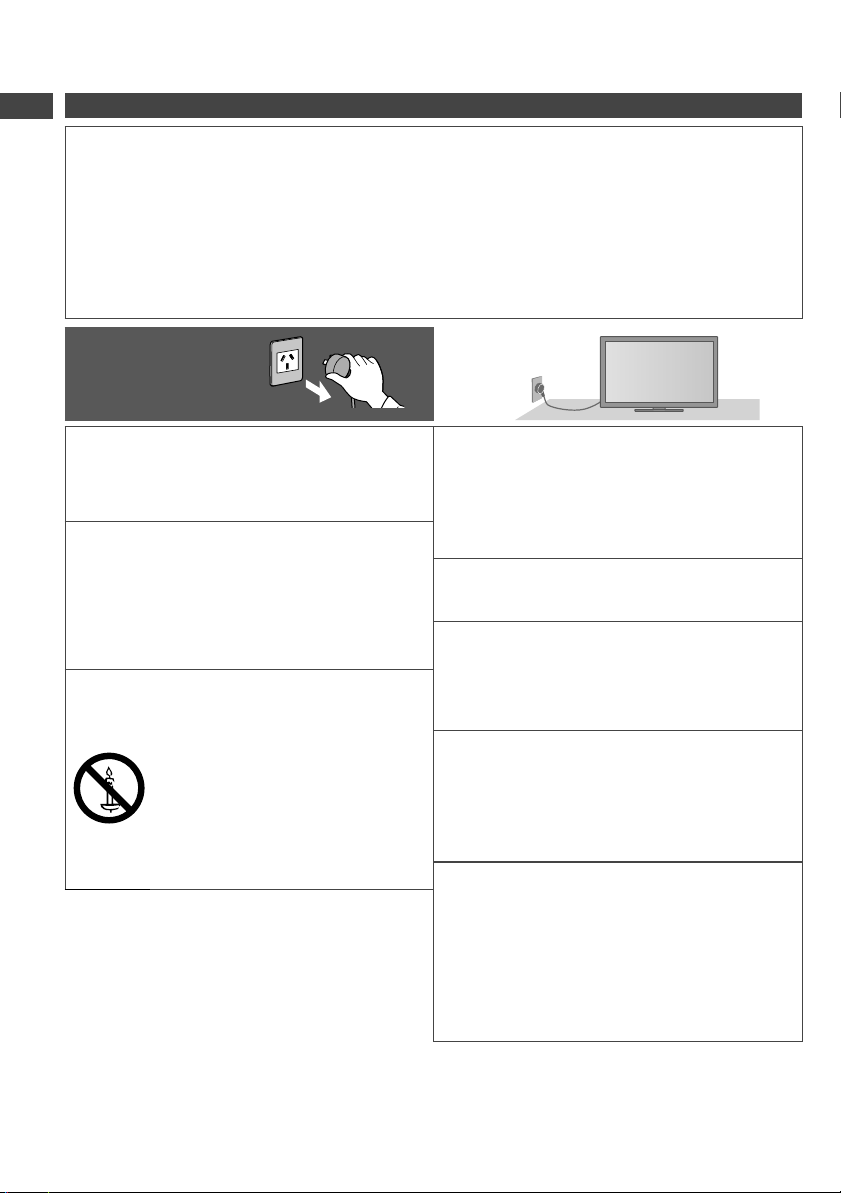
Handling the mains plug and lead
●
Insert the mains plug fully into the socket outlet. (If the mains plug is loose, it could generate heat and cause fire.)
●
Ensure that the mains plug is easily accessible.
●
Do not touch the mains plug with a wet hand. (This may cause electrical shock.)
●
Do not use any mains lead other than that provided with this TV. (This may cause fire or electrical shock.)
●
Do not damage the mains lead. (A damaged lead may cause fire or electrical shock.)
•
Do not move the TV with the lead plugged in the socket outlet.
•
Do not place a heavy object on the lead or place the lead near a high-temperature object.
•
Do not twist the lead, bend it excessively or stretch it.
•
Do not pull on the lead. Hold onto the mains plug body when disconnecting the lead.
•
Do not use a damaged mains plug or socket outlet.
If you find any
abnormality, remove the
mains plug immediately!
AC 220-240 V
50 / 60 Hz
Power source / Installation
●
This TV is designed for:
•
AC 220-240 V, 50 / 60 Hz
•
Table-top use
•
Indoor use
Do not remove covers and NEVER
modify the TV yourself
●
Do not remove the rear cover as live parts are
accessible when it is removed.
There are no user
serviceable parts inside. (High-voltage components
may cause serious electrical shock.)
●
Have the TV checked, adjusted, or repaired at your
local Panasonic dealer.
Do not expose to direct sunlight and
other sources of heat
●
Avoid exposing the TV to direct sunlight and other
sources of heat.
To prevent the spread
of fire, keep candles
or other open flames
away from this product
at all times
Do not expose to rain or excessive
moisture
●
To prevent damage which might result in electric shock
or fire, do not expose this
TV to rain or excessive
moisture. This TV must not be exposed to dripping or
splashing water and objects filled with liquid, such as
vases, must not be placed on top of or above the TV.
Do not insert foreign objects into the TV
●
Do not allow any objects to drop into the TV through
the air vents. (Fire or electrical shock may result.)
Do not place the TV on sloped or
unstable surfaces, and ensure that the
TV does not hang over the edge of the
base
●
The TV may fall off or tip over.
Use only the dedicated pedestals /
mounting equipment
●
Using an unapproved pedestal or other fixtures may
make the
TV unstable, risking injury. Be sure to ask
your local Panasonic dealer to perform setup.
●
Use approved pedestals (p. 7) / wall-hanging brackets
(p. 6).
Do not allow children to handle SD Card
or dangerous parts
●
As with any small object, the SD Card could be
swallowed by young children. Please remove SD
Card immediately after use and store out of reach of
children.
●
This product contains possibly dangerous parts that
can be breathed in or swallowed by young children
accidentally
. Keep these parts out of reach of young
children.
I
Ins
If a
loc
Ma
tak
●
U
m
●
O
te
●
E
th
●
N
c
fu
●
N
p
●
E
fu
W
pl
●
C
Re
so
pr
●
T
m
Do
vo
●
I
r
th-l32x50a_book.indb 4th-l32x50a_book.indb 4 2/27/2012 5:29:56 PM2/27/2012 5:29:56 PM
Safety Precautions
5
k
V
s
Important Installation Notices
Install the TV on a stable surface
If a television is not positioned in a sufficiently stable
location, it can be potentially hazardous due to falling.
Many injuries, particularly to children, can be avoided by
taking simple precautions such as:
●
Using cabinets or stands recommended by the
manufacturer of the television.
●
Only using furniture that can safely support the
television.
●
Ensuring the television is not overhanging the edge of
the supporting furniture.
●
Not placing the televisions on tall furniture (for example,
cupboards or bookcases) without anchoring both the
furniture and the television to a suitable support.
●
Not standing the televisions on cloth or other materials
placed between the television and supporting furniture.
●
Educating children about the dangers of climbing on
furniture to reach the television or its controls.
When cleaning the TV, remove the mains
plug
●
Cleaning an energised TV may cause electric shock.
Remove the mains plug from the wall
socket when the TV is not in use for a
prolonged period of time
●
This TV will still consume some power even in the Off
mode, as long as the mains plug is still connected.
Do not expose your ears to excessive
volume from the headphones
●
Irreversible damage can be caused.
Do not apply strong force or impact to the
display panel
●
This may cause damage resulting in injury.
Do not block the rear air vents
●
Adequate ventilation is essential to prevent failure of
electronic components.
●
Ventilation should not be impeded by covering the
ventilation openings with items such as newspapers,
table cloths and curtains.
●
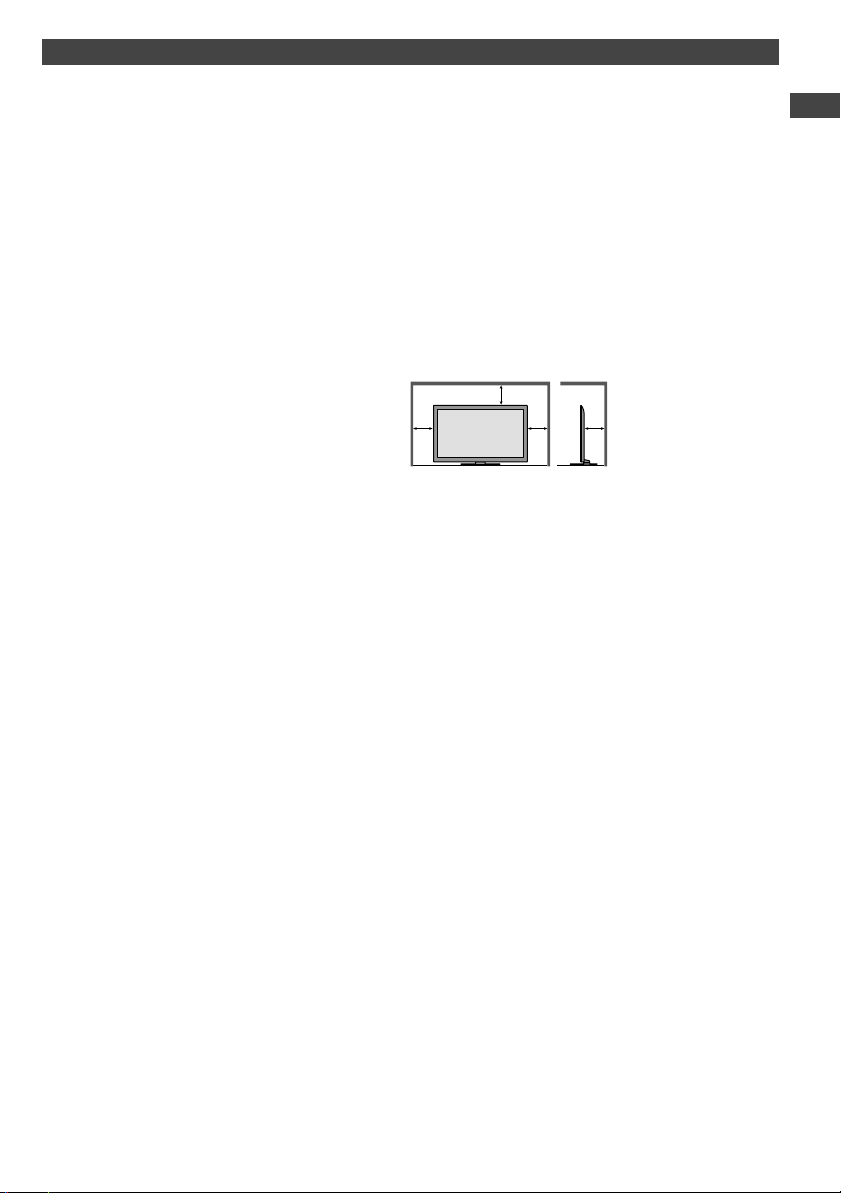
We recommend that a gap of at least 10 cm is left all
around this
TV even when placed inside a cabinet or
between shelves.
●
When using the pedestal, keep the space between the
bottom of the TV and the surface where the TV is set.
●
If pedestal is not used, ensure the vents in the bottom of
the TV are not blocked.
Minimum distance
10
10
10
10
(cm)
th-l32x50a_book.indb 5th-l32x50a_book.indb 5 2/27/2012 5:29:56 PM2/27/2012 5:29:56 PM
Accessories / Options
6
Accessories / Options
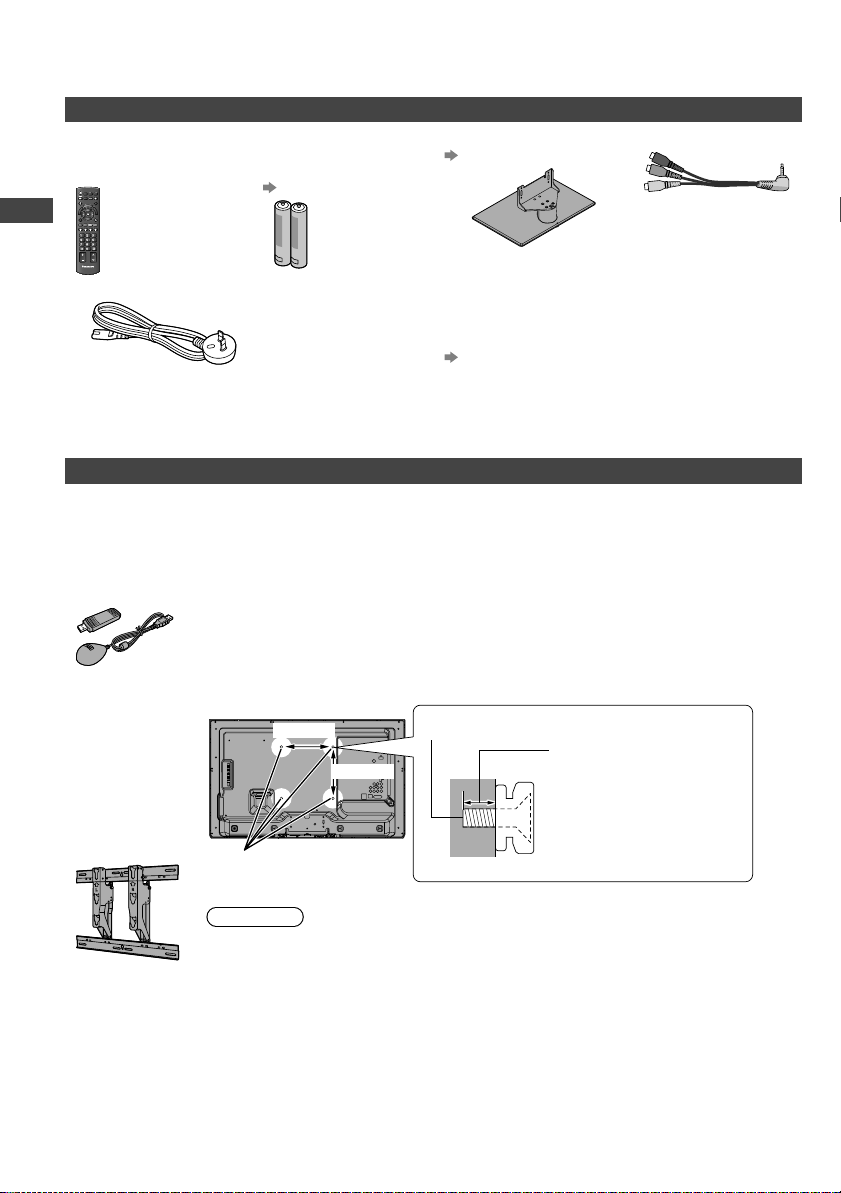
Standard accessories
Remote Control
●
N2QAYB000604 or
N2QA
YB000760
EXITINFO
OPTION
TEXT STTL
INDEX HOLD
RETURN
MENU
SURROUND
INPUT
MUTE
LAST VIEW
TV
G
U
I
D
E
V
I
E
R
A
L
i
n
k
AVTV
abc
def
jk l
ghi
mno
tuvpqrs
wxyz
ASPECT
SD CARD
RGYB
POWER
CH
VOL
Batteries for the
Remote Control (2)
●
R6 (AA)
(p. 8)
Pedestal
(p. 7)
Composite adapter
Mains Lead
Operating Instructions with Warranty statement
Fall-prevention parts
(p. 8)
●
Accessories may not be placed all together. Take care not to throw them away unintentionally.
●
This product contains possibly dangerous parts (such as plastic bags), that can be breathed in or swallowed by
young children accidentally
. Keep these parts out of reach of young children.
Optional accessories
Please contact your local Panasonic dealer to purchase the recommended optional accessories. For additional details,
please read the manual of the optional accessories.
Wireless LAN
Adaptor and
exclusive stand
●
TY-WL20A
●
To use the Wireless LAN Adaptor, an Access Point is needed.
●
It is recommended to use the Wireless LAN Adaptor with the extension cable.
●
To avoid malfunctions caused by radio wave interference, keep the TV away from the devices
such as other wireless LAN devices, microwaves and the devices that use 2.4 GHz and 5 GHz
signals when using the Wireless LAN
Adaptor.
●
Depending on the area, this optional accessory may not be available.
●
Additional information for Wireless LAN Adaptor and access point may be on the following
website.
http://panasonic.jp/support/global/cs/tv/
W
all-hanging
bracket
●
TY-WK3L2RW
The angle of wall-
hanging bracket
can be adjusted
in “zero tilting
(vertical)” and “5 or
10-degree tilting”
for this
TV.
(View from the side)
Holes for wall-hanging
bracket installation
Depth of screw:
minimum 8 mm
maximum 12 mm
Diameter: M6
Screw for fixing the TV onto the wall-hanging
bracket (not supplied with the TV)
200 mm
200 mm
Rear of the TV
Warning
●
Failure to use a Panasonic bracket or choosing to mount the unit yourself will be done at the
risk of the consumer
. Always be sure to ask a qualified technician to carry out set up. Incorrect
fitting may cause equipment to fall, resulting in injury and product damage. Any damage
resulting from not having a professional installer mount your unit will void your warranty.
●
When any optional accessories or wall hanging brackets are used, always ensure that the
instructions provided are followed fully.
●
Do not mount the unit directly below ceiling lights (such as spotlights or halogen lights) which
typically give off high heat. Doing so may warp or damage plastic cabinet parts.
●
Take care when fixing wall brackets to the wall. Wall mounted equipment shall not be
grounded by metal within the wall. Always ensure that there are no electrical cables or pipes in
the wall before hanging bracket.
●
To prevent fall and injury, remove the TV from its fixed wall position when it is no longer in use.
A
Do
●
O
Do
●
O
Do
●
I
f
d
D
u
●
I
f
e
En
●
I
f
m
Tw
●
I
f
Wh
pro
●
O
1
R
B
1
2
3
th-l32x50a_book.indb 6th-l32x50a_book.indb 6 2/27/2012 5:29:56 PM2/27/2012 5:29:56 PM
Accessories / Options
7
ls,
es
Hz
e
ect
h
s in
se.
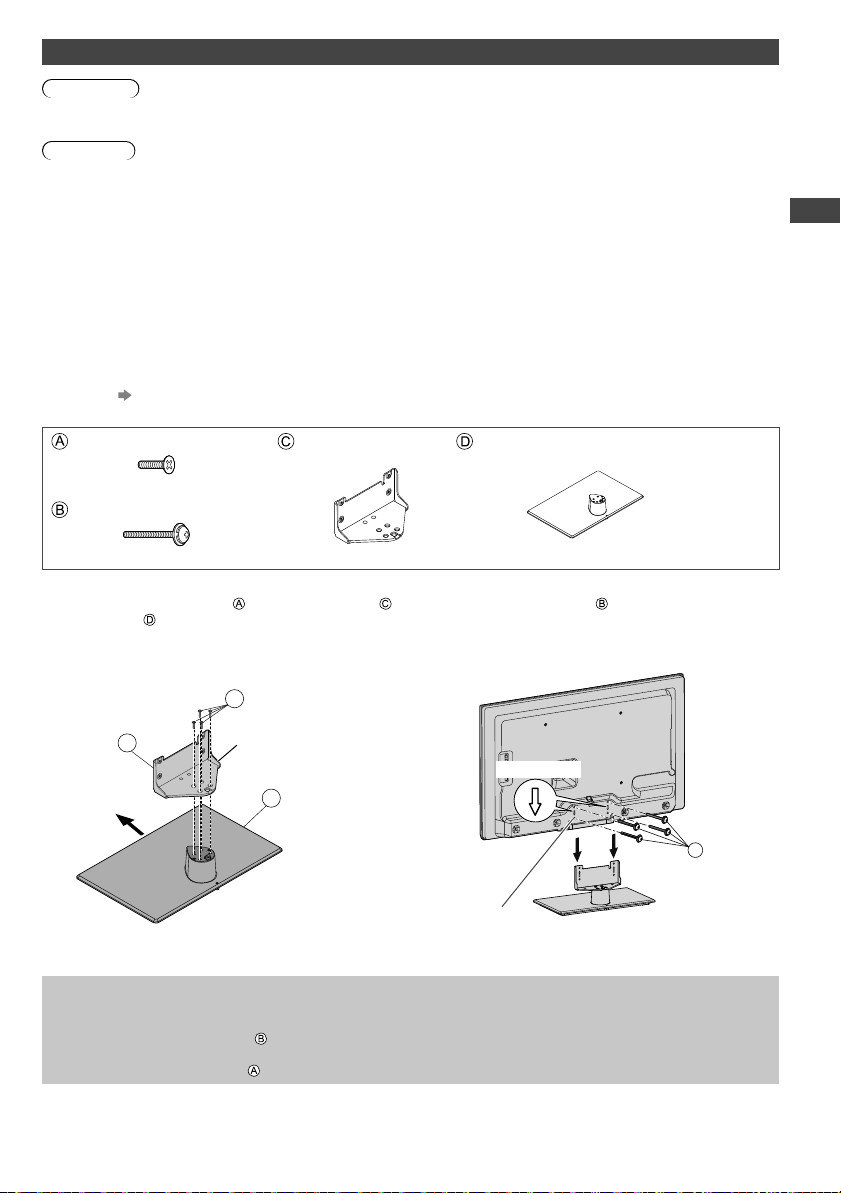
Attaching / removing the pedestal
Warning
Do not disassemble or modify the pedestal.
●
Otherwise the TV may fall over and become damaged, and personal injury may result.
Caution
Do not use any pedestal other than the one provided with this TV.
●
Otherwise the TV may fall over and become damaged, and personal injury may result.
Do not use the pedestal if it becomes warped or physically damaged.
●
If you use the pedestal while it is physically damaged, personal injury may result. Contact your local Panasonic
dealer immediately.
During set-up, make sure that all screws are securely tightened.
●
If insufficient care is taken to ensure screws are properly tightened during assembly, the pedestal will not be strong
enough to support the
TV, and it might fall over and become damaged, and personal injury may result.
Ensure that the TV does not fall over.
●
If the TV is knocked or children climb onto the pedestal with the TV installed, the TV may fall over and personal injury
may result.
Two or more people are required to install and remove the TV.
●
If two or more people are not present, the TV may be dropped, and personal injury may result.
When removing the pedestal from the TV, do not remove the pedestal by the methods other than the specified
procedure. (below)
●
Otherwise the TV and / or pedestal may fall over and become damaged, and personal injury may result.
Assembly screw (4)
M5 × 16
Bracket
●
TBL5ZA32151
Base
●
TBL5ZX03601
Assembly screw (4)
M4 × 25
1
Assembling the pedestal
Use the assembly screws to fasten the bracket
to the base securely.
●
Make sure that the screws are securely tightened.
●
Forcing the assembly screws the wrong way will
strip the threads.
2
Securing the TV
Use the assembly screws to fasten securely.
●
Tighten the four assembly screws loosely at first, then
tighten them firmly to fix securely.
●
Carry out the work on a horizontal and level surface.
B
Arrow mark
Hole for pedestal
installation
D
A
C
Front
Hold the bracket
not to fall over
Removing the pedestal from the TV
Be sure to remove the pedestal in the following way when using the wall-hanging bracket or repacking the TV.
1 Remove the assembly screws
from the TV.
2 Pull out the pedestal from the TV.
3 Remove the assembly screw from the bracket.
th-l32x50a_book.indb 7th-l32x50a_book.indb 7 2/27/2012 5:29:56 PM2/27/2012 5:29:56 PM
Accessories / Options
8
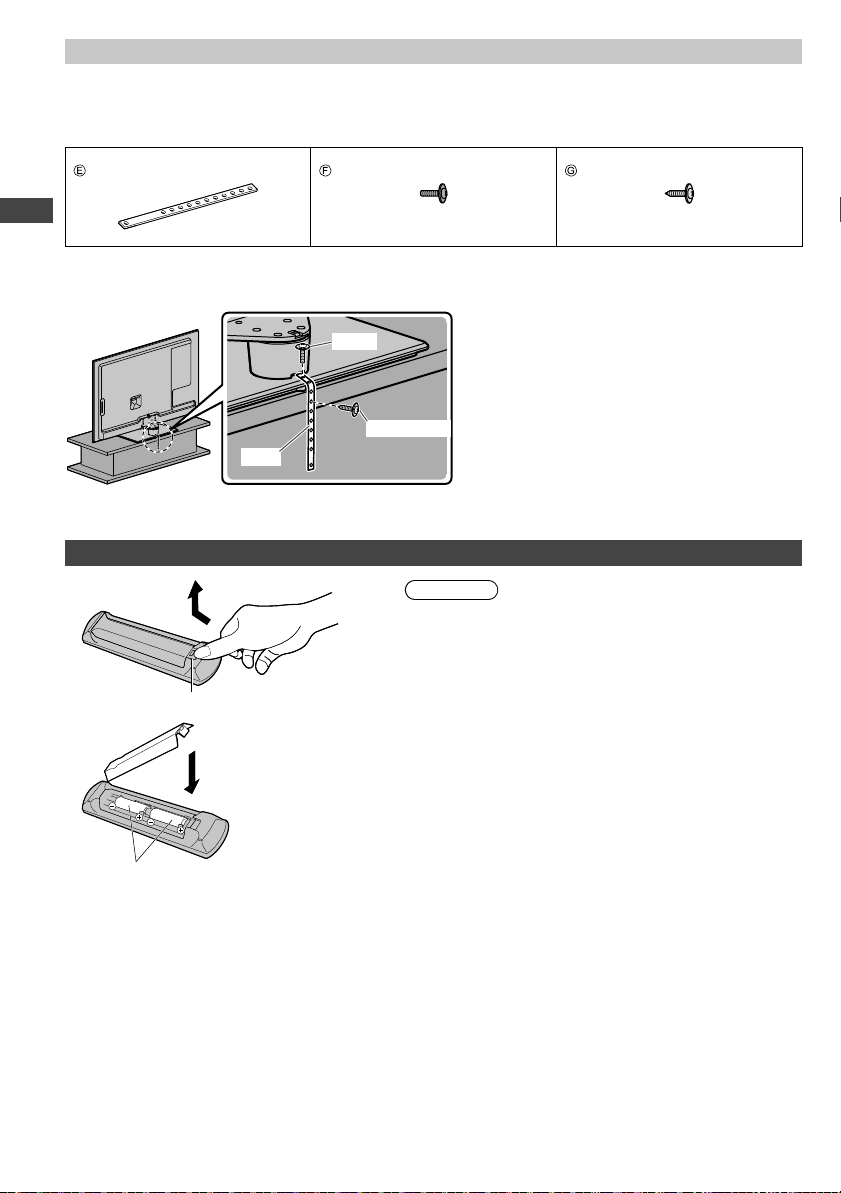
Preventing the TV from falling over
This TV could fall over if it is pushed, pulled or knocked down.
We therefore recommend the TV is secured to the furniture as illustrated.
●
This measure is designed to reduce the risk of injury from a falling TV. However, it cannot guarantee protection in all
cases.
Band Screw Wood screw
Securing to a furniture
Fix pedestal and furniture together with band.
Screw
Wood screw
Band
●
This image is for illustrative purposes only.
Installing / removing remote’s batteries
1
Open
Hook
Caution
●
Incorrect installation may cause battery leakage and
corrosion, resulting in damage to the remote control.
●
Do not mix old and new batteries.
●
Replace only with same or equivalent type. Do not mix
dif
ferent battery types (such as alkaline and manganese
batteries).
●
Do not use rechargeable (Ni-Cd) batteries.
●
Do not burn or break up batteries.
●
Do not expose batteries to excessive heat such as sunshine,
fire or the like.
●
Make sure you dispose of batteries correctly.
●
Ensure batteries are replaced correctly, there is danger of
explosion and fire if battery is reversed.
●
Do not disassemble or modify the remote control.
2
Note the correct polarity (+ or -)
Close
2
4
1
1
1
2
1
1
4
4
Id
R
th-l32x50a_book.indb 8th-l32x50a_book.indb 8 2/27/2012 5:29:57 PM2/27/2012 5:29:57 PM
Identifying Controls
9
ll
e,
EXITINFO
OPTION
TEXT STTL
INDEX HOLD
RETURN
MENU
SURROUND
INPUT
MUTE
LAST VIEW
TV
G
U
I
D
E
V
I
E
R
A
T
O
O
L
S
V
I
E
R
A
L
i
n
k
AVTV
abc
def
jk l
ghi
mno
tuvpqrs
wxyz
ASPECT
SD CARD
RGYB
POWER
CH
VOL
1
15
16
18
19
20
21
22
23
25
26
17
24
2
4
6
11
3
5
7
8
9
10
12
13
14
1
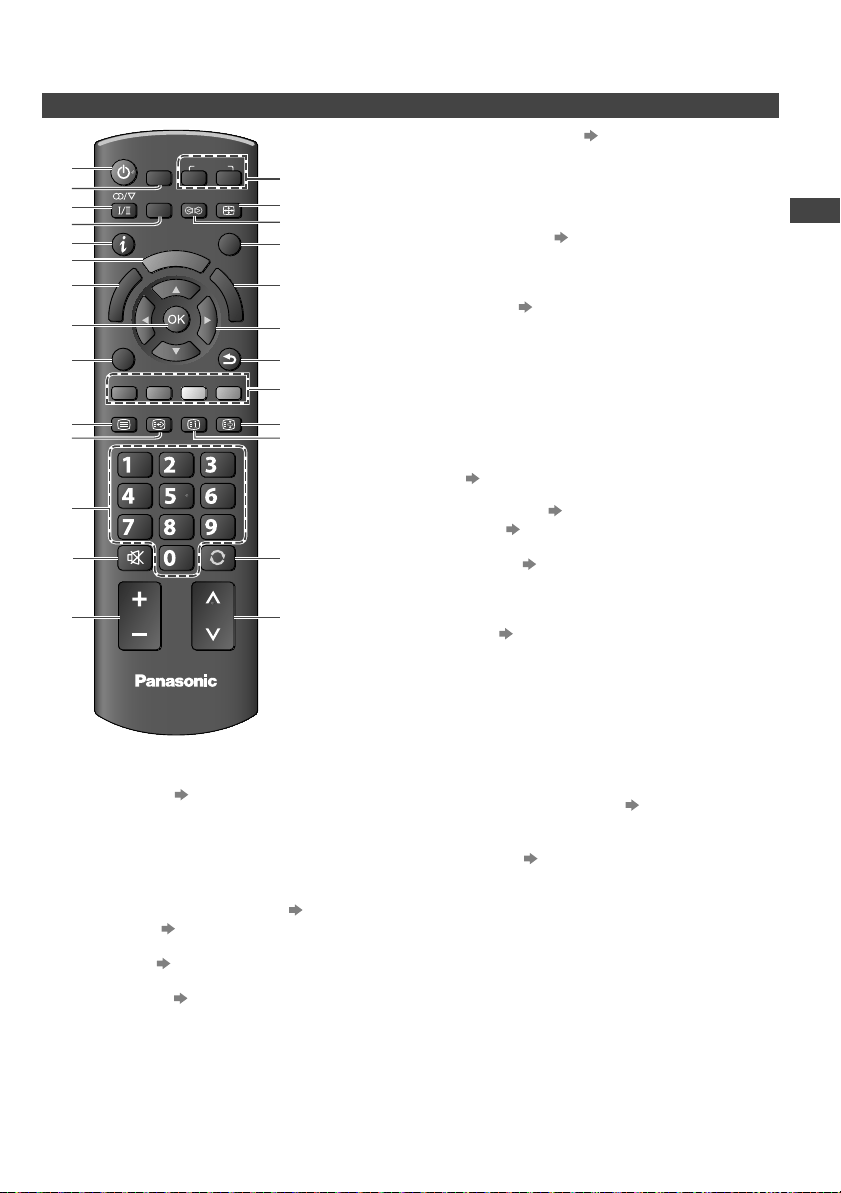
Standby On / Off switch
●
Switches TV On or Off standby
2
[Media Player] (p. 37)
●
Switches to SD Card and USB device viewing /
listening mode
3
Sound Selection
●
Changes the sound track in Digital TV mode (if
available)
●
Changes multiplex sound mode in
Analogue TV mode (if available) (p. 61)
4
[Main Menu] (p. 23)
●
Press to access Picture, Sound and Setup Menus
5
Information (p. 17)
●
Displays channel and programme information
6
VIERA TOOLS (p. 22)
●
Displays some special feature icons and accesses
easily
7
[VIERA Link Menu] (p. 55)
●
Accesses VIERA Link Menu
8
OK
●
Confirms selections and choices
●
Press after selecting channel positions to quickly
change programme
9
[Option Menu] (p. 18)
●
Easy optional setting for viewing, sound, etc.
10
Teletext
●
This button is not used for this model.
11
Subtitles (p. 16)
●
Displays subtitles
12
Numeric buttons
●
Changes channel
●
When in Standby mode, switches TV On
13
Sound Mute
●
Switches sound mute On or Off
14
Volume Up / Down
15
Input mode selection
●
TV - switches Digital TV / Analogue TV mode
(p. 16)
●
AV - switches to AV input mode from Input
Selection list (p. 21)
16
Aspect (p. 19)
●
Changes aspect ratio
17
Surround (p. 25)
●
Switches surround sound setting
18
Exit
●
Returns to the normal viewing screen
19
Guide (p. 20)
●
Displays TV Guide
20
Cursor buttons
●
Makes selections and adjustments
21
Return
●
Returns to the previous menu / page
22
Coloured buttons
●
Used for the selection, navigation and operation of
various functions
23
Hold
●
Freeze / unfreeze picture (p. 16)
24
Index
●
This button is not used for this model.
25
Last View (p. 18)
●
Switches to previously viewed channel or input
modes
26
Channel Up / Down
●
Selects channel in sequence
Identifying Controls
Remote Control
th-l32x50a_book.indb 9th-l32x50a_book.indb 9 2/27/2012 5:29:57 PM2/27/2012 5:29:57 PM
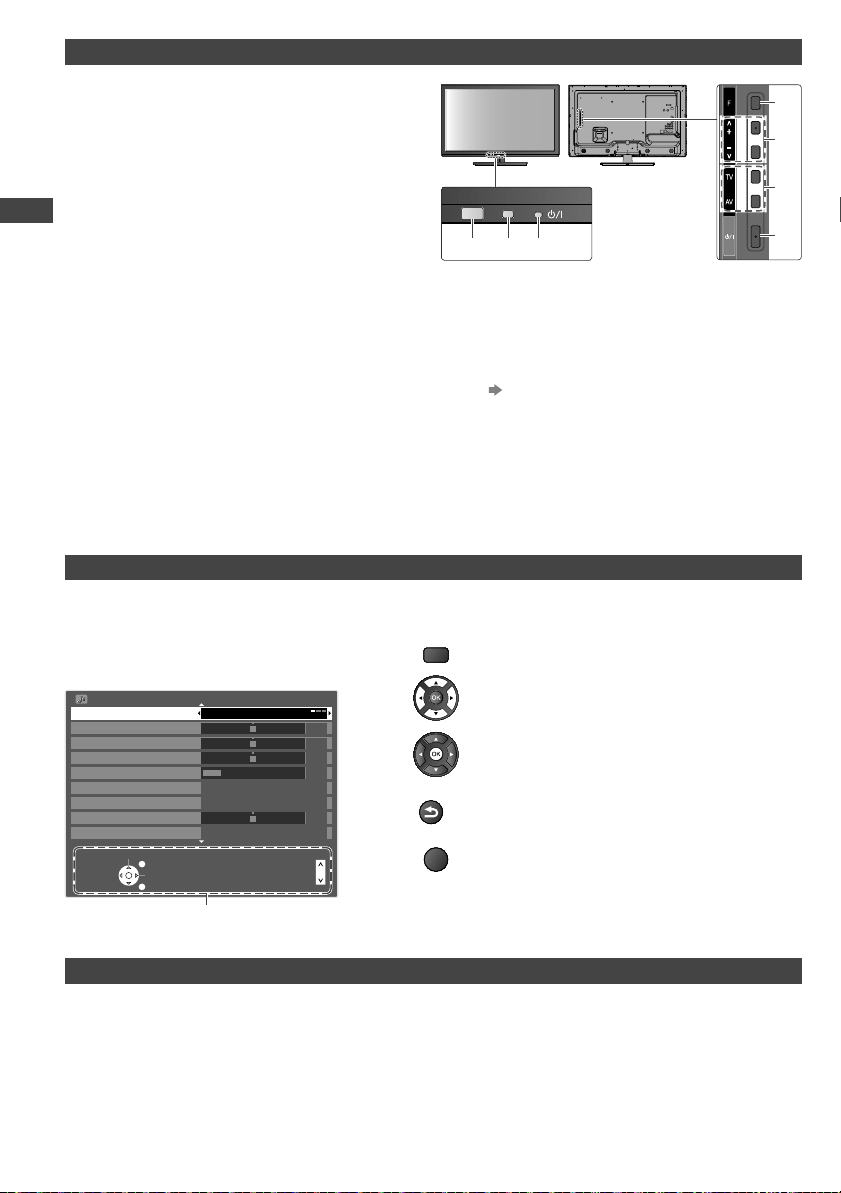
Identifying Controls
10
Indicator / Control panel
Using the On Screen Displays - Operation guide
Many features available on this TV can be accessed via the On Screen Display menu.
■ Operation guide
Operation guide will help you to operate by using
the remote control.
Example: [Sound Menu]
Sound Menu
Mode
Music
Off
Off
Over 30cm
Bass
0
0
20
Treble
Balance
Headphone Volume
Surround
Auto Gain Control
Volume Correction
Speaker Distance to Wall
1/2
0
0
Select
EXIT
Page up
Change
RETURN
Page down
Operation guide
■ How to use remote control
MENU
Open the main menu
Move the cursor / select from a range of options /
select the menu item (up and down only) / adjust
levels (left and right only)
Access the menu / store settings after adjustments
have been made or options have been set
RETURN
Return to the previous menu
EXIT
Exit the menu system and return to the normal
viewing screen
Auto power standby function
The TV will automatically go into Standby mode in the following conditions:
•
No signal is received and no operation is performed for 30 minutes in Analogue TV mode.
•
[Off Timer] is active in the Setup Menu. (p. 27)
•
No operation is performed for the period selected in [Auto Standby] (p. 28).
1
Function select
●
[Volume] / [Contrast] / [Brightness] / [Colour] /
[Sharpness] / [Tint] (NTSC signal) / [Bass]
/
[Treble]
/ [Balance] / [Digital TV Auto Tuning] /
[Analogue TV Auto Tuning]
[Music] or [Speech] mode in the Sound Menu
2
Channel Up / Down, Value change (when using the
F button), Switching the TV on
3
Changes the input mode
4
Mains power On / Off switch
●
Use to switch the mains power.
If you turned the TV off during Standby mode
by the remote control last time, the TV will be
in Standby mode when you turn the TV on with
Mains power On / Off switch.
●
When pressing the control panel button (1 - 4), the
control panel guide appears on the right side of the
screen for 3 seconds to highlight the pressed button.
5
Remote control signal receiver
●
Do not place any objects between the TV remote
control signal receiver and remote control.
6
C.A.T.S. (Contrast Automatic Tracking System)
sensor
●
Senses brightness to adjust picture quality when
[Eco Mode] in the Picture Menu is set to [On].
(p. 24)
7
Power LED
Red: Standby
Green: On
●
The LED blinks when the TV receives a command
from the remote control.
B
Ext
Ple
T
1
1
1
1
1
C
M
AC
50
567
Rear side of the TV
3
1
4
2
th-l32x50a_book.indb 10th-l32x50a_book.indb 10 2/27/2012 5:29:57 PM2/27/2012 5:29:57 PM
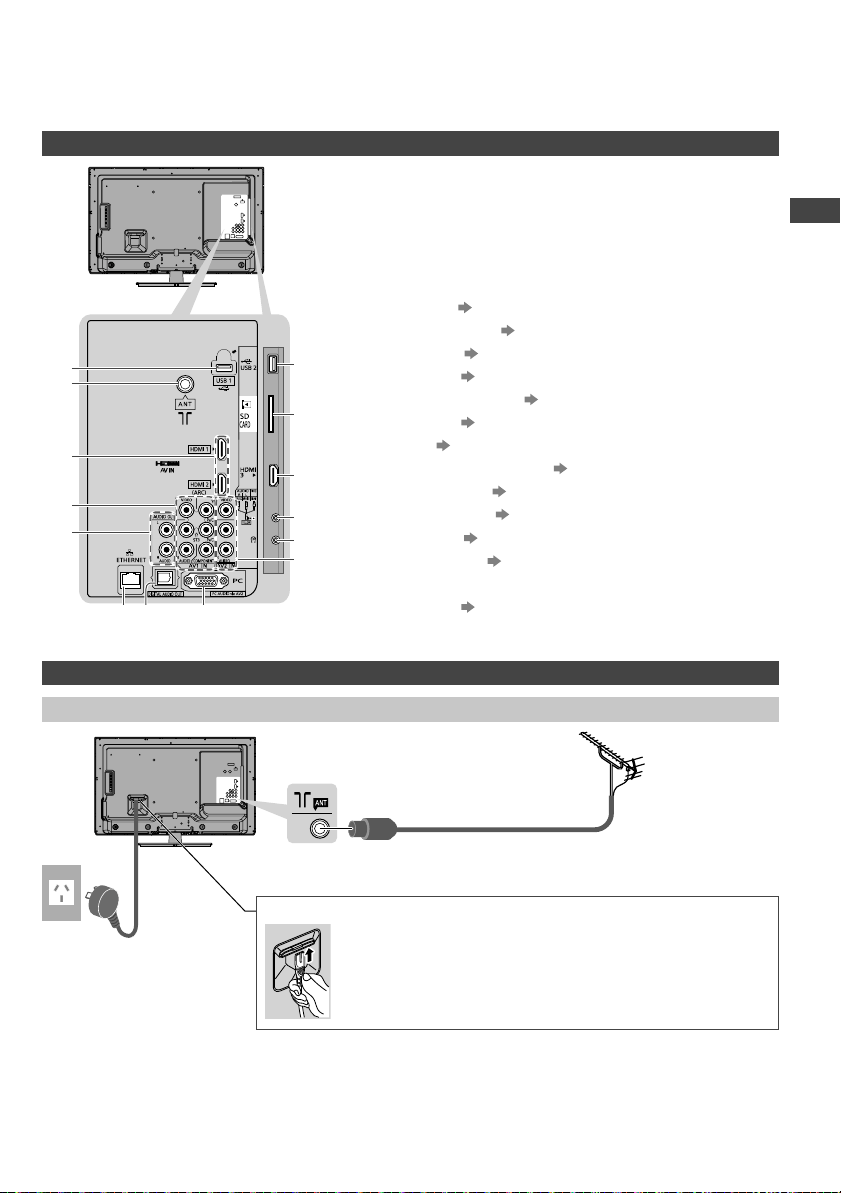
Basic Connection
11
s
)
n
nd
Basic Connection
External equipment and cables shown are not supplied with this TV.
Please ensure that the unit is disconnected from the mains socket before attaching or disconnecting any leads.
Terminals
1
2
3
4
5
6
789
10
11
12
13
14
1
USB 2 (p. 37, 60)
2
SD Card slot (p. 37)
3
HDMI 3 (p. 12, 60)
4
AV3 IN (p. 60)
5
Headphone jack (p. 60)
6
AV2 IN (p. 60)
7
PC (p. 60)
8
DIGITAL AUDIO OUT (p. 59)
9
ETHERNET (p. 60)
10
AUDIO OUT (p. 59)
11
AV1 IN (p. 59)
12
HDMI 1 - 2 (p. 12, 59)
13
Antenna terminal (see below)
14
USB 1 (p. 13)
Connections
Mains lead and aerial
■ Digital TV, Analogue TV
AC 220-240 V
50 / 60 Hz
Mains lead
Aerial
RF cable
■ Mains Lead
Insert the mains plug (supplied) firmly into place.
●
When disconnecting the mains lead, be absolutely sure to
disconnect the mains plug at the socket outlet first.
TV
3
4
2
th-l32x50a_book.indb 11th-l32x50a_book.indb 11 2/27/2012 5:29:59 PM2/27/2012 5:29:59 PM
Basic Connection
12
Note
●
Keep RF (antenna) cable away from the mains lead to avoid and minimise mains interference pickup.
●
Do not place the RF cable under the TV.
●
To obtain optimum quality picture and sound, an aerial, the correct cable (75 coaxial), and the correct terminating
plug are required.
●
If a communal aerial system is used, you may require the correct connection cable and plug between the wall aerial
socket and the
TV.
●
Your local Television Service Centre or dealer may be able to assist you in obtaining the correct aerial system for your
particular area and the accessories required.
●
Any matters regarding aerial installation, upgrading of existing systems or accessories required, and the costs
incurred, are the responsibility of you, the Customer.
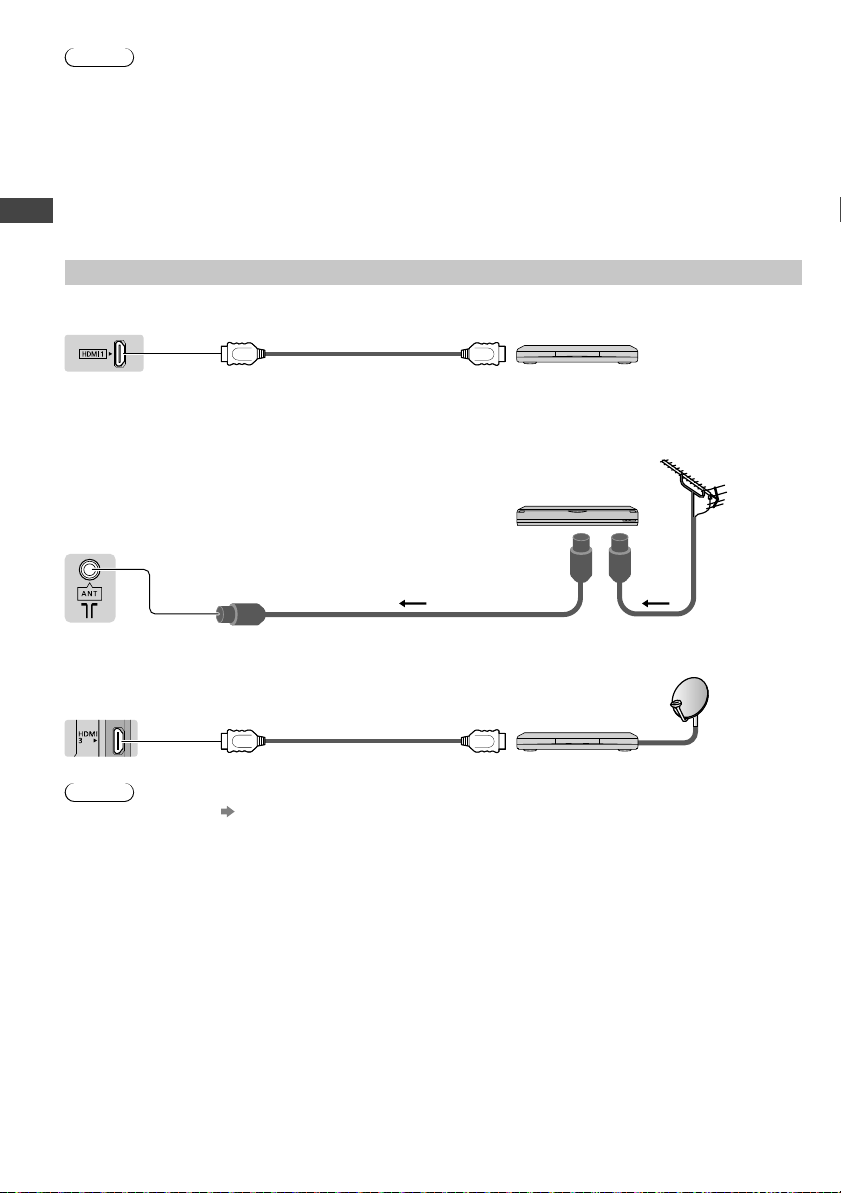
AV devices
■ Player
TV
Player
HDMI cable
■ DVD Recorder / VCR
TV
DVD Recorder / VCR
RF cable
Aerial
RF cable
■ Set top box
TV
Set top box
HDMI cable
Satellite dish
Note
●
VIERA Link connection
(p. 53)
●
Please also read the manual of the equipment being connected.
●
Keep the TV away from electronic equipment (video equipment, etc.) or equipment with an infrared sensor.
Otherwise, distortion of image / sound may occur or operation of other equipment may be interfered.
●
When using a HDMI cable, use the fully wired one.
●
Check the type of terminals and cable plugs are correct when connecting.
N
To
●
P
●
S
■
TV
■
TV
th-l32x50a_book.indb 12th-l32x50a_book.indb 12 2/27/2012 5:30:00 PM2/27/2012 5:30:00 PM
Basic Connection
13
g
al
our
sh
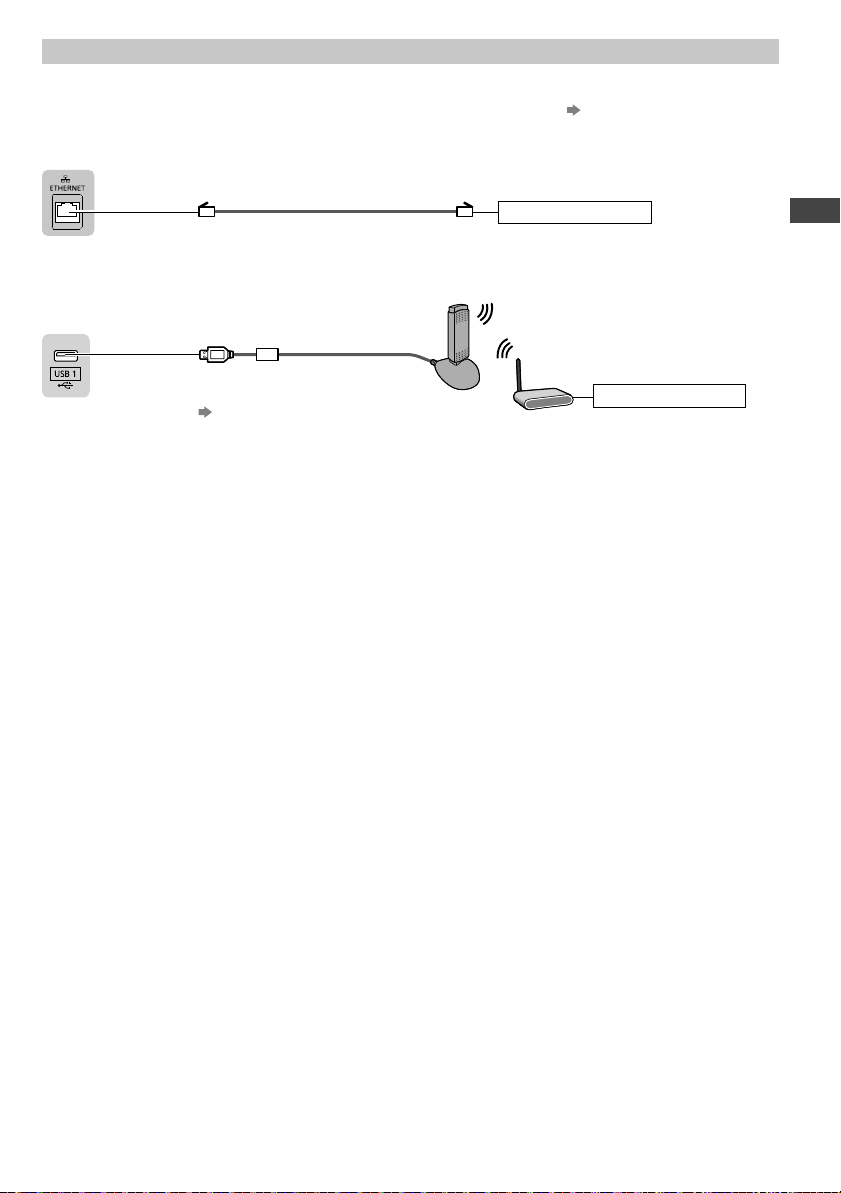
Network
To enable the network service functions, you need to connect the TV to a network environment.
●
Prepare the network environment for wired connection or wireless connection.
●
Setup of the network connection will start after the tuning (when first using the TV).
(p. 15)
■ Wired connection
TV
Hub or Router
LAN cable (Shielded)
●
Use the Shielded Twist Pair (STP) LAN cable.
■ Wireless connection
TV
Wireless LAN Adaptor and exclusive
stand
“Optional accessories” (p. 6)
●
Insert the Wireless LAN Adaptor to
the stand straightly and completely.
●
Connect to the USB 1 or 2 port.
Hub or Router
th-l32x50a_book.indb 13th-l32x50a_book.indb 13 2/27/2012 5:30:00 PM2/27/2012 5:30:00 PM
Auto Tuning
14
INFO
RETURN
TV
abc
def
jk l
ghi
mno
tuvpqrs
wxyz
Y
POWER
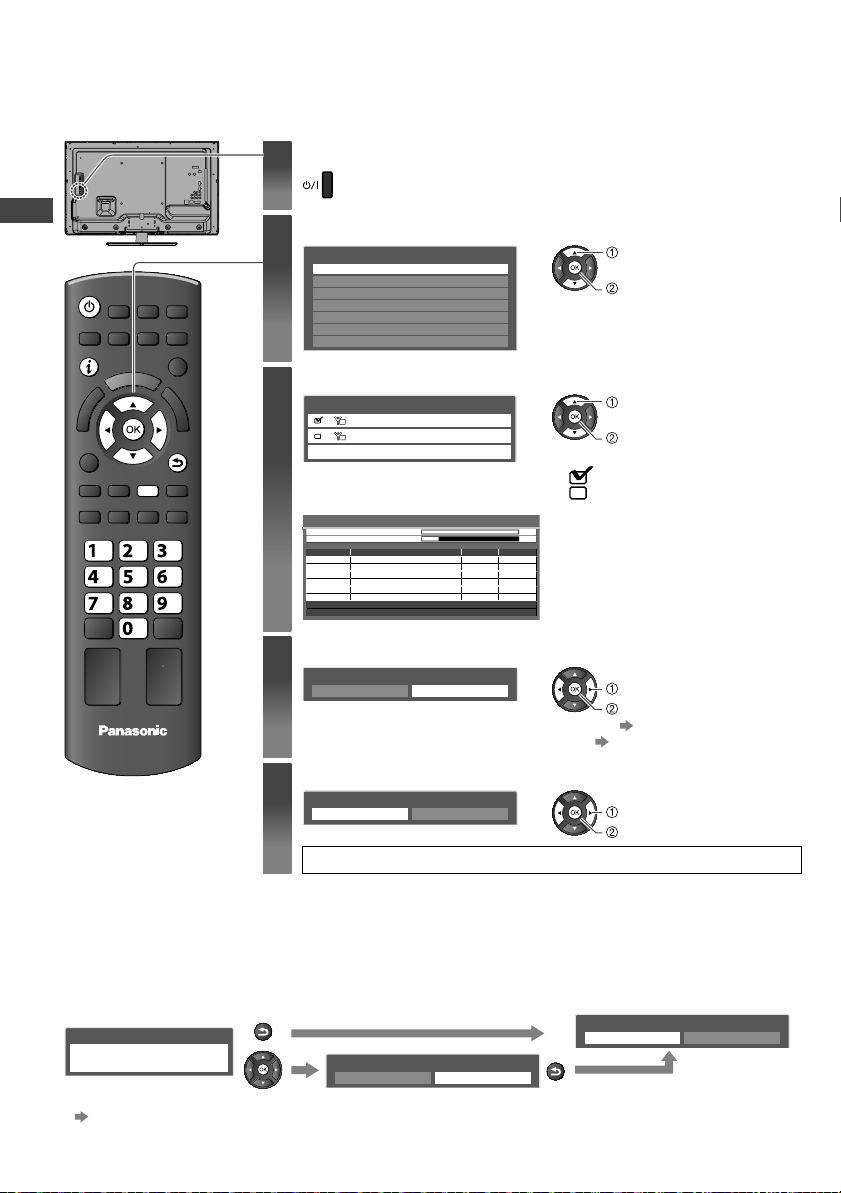
Auto Tuning
Search and store TV channels automatically.
●
These steps are not necessary if the setup has been completed by your local dealer.
1
Plug the TV into mains socket and switch On
●
You can now use the remote control to turn On the TV or switch
the
TV to Standby mode. (Power LED: On)
2
Select your area
Select State / Territory
New South Wales / Australian Capital Territory
Victoria
Queensland
South Australia
Western Australia
Northern Territory
Tasmania
select
confirm
3
Start Auto Tuning
D
A
TV Signal Selection
Digital TV
Analogue TV
Start Auto Tuning
tune / skip / start
select
1 Select the TV Signal
: tune
: skip
Analogue Scan 21 68
Analogue Scan 68
Auto Tuning
Digital TV Scan
Searching
RF Ch
62
62
62
Channel Name
CBBC Channel
BBC Radio Wales
E4
Type
Digital TV
Digital TV
Digital TV
Quality
10
10
10
This will take about 6 minutes.
Digital TV: 4 Analogue TV: 2
Analogue TV Scan CH 0
75
CH 6
69
62
29
33
Cartoon Nwk Digital TV
Analogue TV
Analogue TV
10
-
-
2 Select [Start Auto Tuning]
●
Auto Tuning will start to search for TV
channels and store them.
The sorted channel order depends
upon the TV signal, the broadcasting
system and reception conditions.
4
Set up the wireless LAN connection
Start wireless LAN connection setup?
Yes No
confirm
select
●
You can setup the wireless LAN connection later.
(p. 49)
●
If you want to select [Yes] in this position. (p. 15)
5
Select [Home]
Please select your viewing environment.
Home Shop
confirm
select
Auto Tuning is completed
S
Se
●
T
F
●
C
F
●
P
1
2
3
Viewing environment mode
Home : Recommended mode for viewing at home. Select [Home] for optimal picture / power consumption. [Viewing
Mode] is set as [Normal] (p. 24).
Shop : Demonstration mode to explain main features of this TV (for in-store display). [Viewing Mode] is set as
[Dynamic] (p. 24).
To return to viewing environment selection mode if you selected [Shop]
Shop
You have selected shop mode
RETURN
Please select your viewing environment.
Home Shop
Automatic Demo
Off On
RETURN
●
To change viewing environment mode later on, reset all settings by accessing Shipping Condition.
[Shipping Condition] (p. 35)
th-l32x50a_book.indb 14th-l32x50a_book.indb 14 2/27/2012 5:30:00 PM2/27/2012 5:30:00 PM
Auto Tuning
15
TV
g
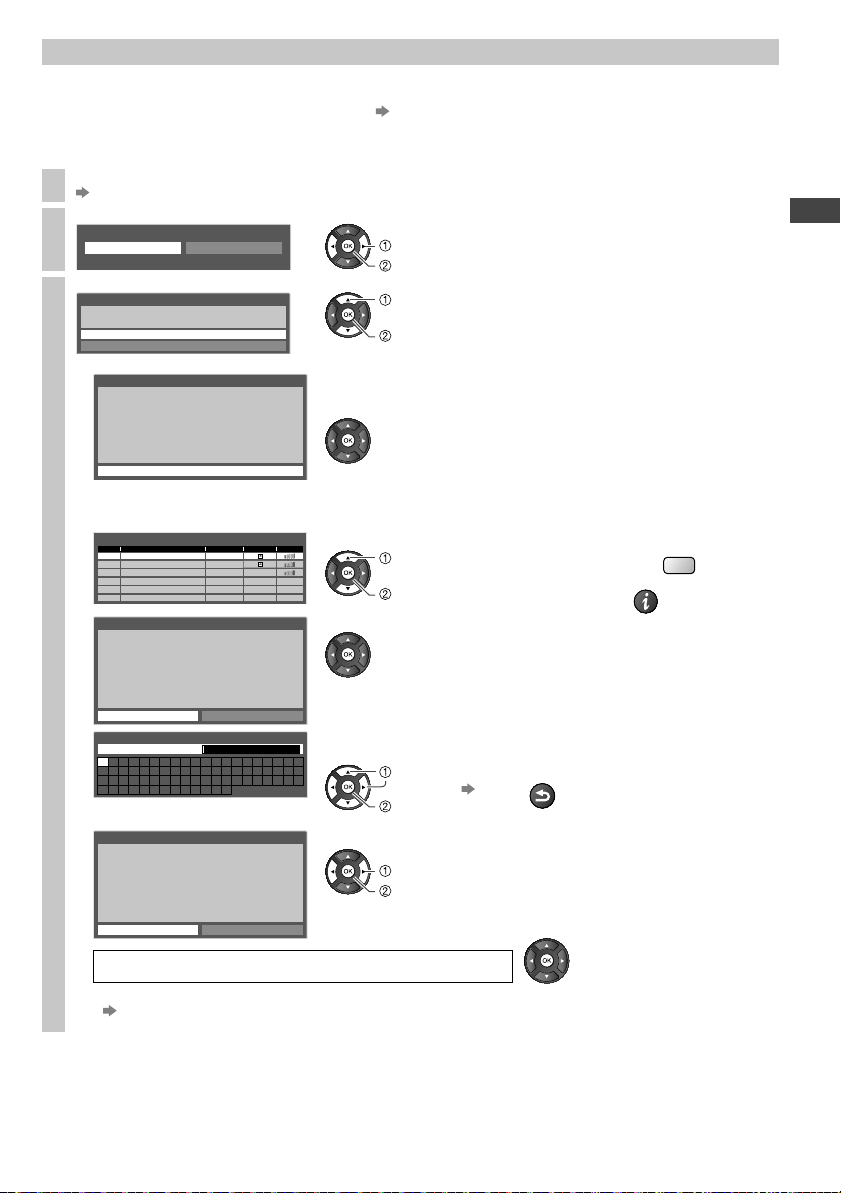
Setup the wireless LAN connection
Setup the wireless LAN connection to enable the network service functions.
●
To setup the wireless LAN connection, the wireless LAN Adaptor (optional accessory) is required.
For the information about the Wireless LAN adaptor
“Optional accessories” (p. 6)
●
Confirm the encryption key, settings and positions of your access point before starting setup.
For details, read the manual of the access point.
●
Please note that this TV does not support wireless public access points.
1
Connect the Wireless LAN Adaptor to the USB 1 or 2 port
(13)
2
Select [Yes]
Start wireless LAN connection setup?
Yes No
Please connect the wireless LAN adaptor to a USB terminal.
confirm
select
3
Select the connection type
Connection Type
Please select network connection type.
Search for access point
WPS(Push button)
confirm
select
●
If your access point supports WPS (Push button),
then select this option. If not, select [Search for
access point].
■ [WPS(Push button)]
1) Please press the ‘WPS’ button on the access
point until its light ashes.
2) When the light is ashing select ‘Connect’ on
TV.
If you are unsure, please check the instruction
manual of the access point.
WPS(Push button)
1) Please press the ‘WPS’ button on the access
point until its light flashes.
2) When the light is flashing select ‘Connect’ on
TV.
If you are unsure, please check the instruction
manual of the access point.
Connect
Press the WPS button on the access point until the light flashes. And
then, press the OK button to connect the Wireless LAN Adaptor and the
access point.
●
Ensure that your access point supports WPS for this method.
●
WPS: Wi-Fi Protected Setup™
■ [Search for access point]
Access points found automatically are listed.
Available Access Points
No.
1 Access Point A 11n(2.4GHz)
2
Access Point B 11n(5GHz)
3 Access Point C 11n(5GHz)
SSID Wireless type Encrypt
Reception
1 Select your desired access point
access
select
●
To search access points again
Y
●
For the information of the
highlighted access point
INFO
Encryption Key Setting
Connection will be made with the following settings:-
SSID : Access Point A
Authentication type : WPA-PSK
Encryption type : TKIP
Please input the encryption key.
Encryption key
2 Access the encryption key input mode
●
If the selected access point is not encrypted, the confirmation screen
will be displayed. It is recommended to select the encrypted access
point.
A B C D E F G H I J K L M N
U V W X Y Z 0 1 2 3 4 5 6
a b c d e f g h i j k l m n
u v w x y z ( ) + - . * _
O P Q R S T
7 8 9 ! : #
o p q r s t
Access Point Settings
Encryption key
3 Enter the encryption key of the access point
(Set characters one by one)
select
set
Store
RETURN
●
You can set characters by using numeric buttons.
Access Point Settings
Encryption key is set to:-
XXXXXXXX
Select ‘Yes’ to confirm.
Select ‘No’ to change.
Yes No
4 Select [Yes]
set
select
●
To re-enter the encryption key, select [No].
Wireless LAN connection setup is completed
●
If failed, check the encryption key, settings or positions of your access point.
Read the manual of the access point.
●
If connection to the access point is successful, we recommend you perform the [Connection Test] (p. 49).
th-l32x50a_book.indb 15th-l32x50a_book.indb 15 2/27/2012 5:30:01 PM2/27/2012 5:30:01 PM
Watching TV
16
Watching TV
EXITINFO
OPTION
STTL
HOLD
MENU
INPUT
LAST VIEW
TV
TV
abc
def
jk l
ghi
mno
tuvpqrs
wxyz
ASPECT
RB
POWER
CH
●
When the TV is switched
to standby
, there will be
a clicking sound after a
short delay. This is normal.
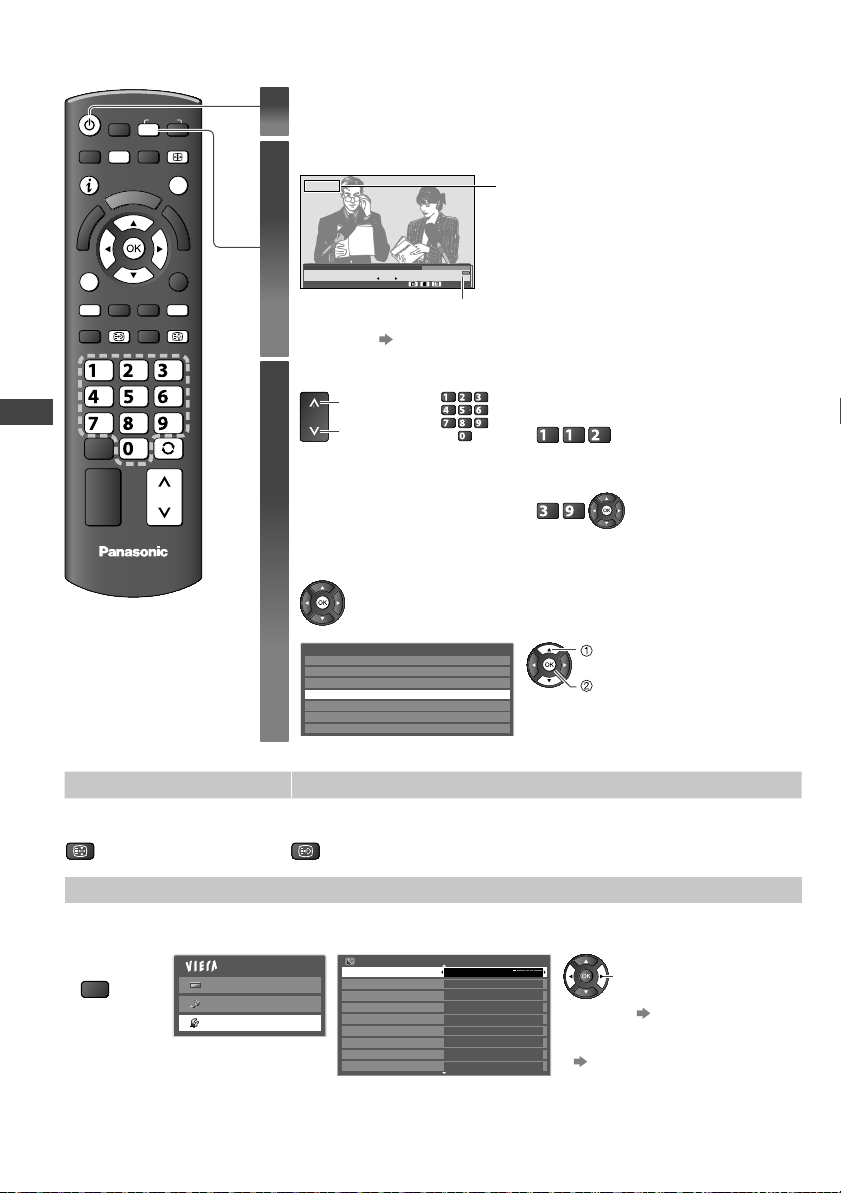
1
Turn power on
●
Mains power On / Off switch should be
On. (p. 10)
2
Select Digital TV or Analogue TV mode
Digital TV
1 BBC ONE WALES
Coronation Street
Rating: PG
11:00 pm - 11:55 pm
Now
All Digital Channels
Select favourites
11:35 pm
The selected mode is displayed.
Information banner appears
whenever you select a channel
●
For details
(p. 17)
●
It is also possible to select the mode
pressing the
TV button repeatedly on the
TV. (p. 10)
3
Select a channel
CH
up
down
or
abc def
jkl
ghi
mno
tuvpqrs
wxyz
●
To select the two or three-digit channel
number
, e.g. 112
abc
(in a short time)
●
If one or two-digit channel number, e.g.
39
def
wxyz
(quickly changes the channel)
■ To select from the Channel List
All Digital Channels
Cartoon Nwk
BBC Radio Wales
BBC Radio Cymru
BBC ONE Wales
BBC THREE
BBCi
CBBC Channel
6
7
8
1
2
3
4
watch
select channel
Other useful functions
Hold Display subtitles
Freeze / unfreeze picture Display / hide subtitles (if available)
HOLD
STTL
Off Timer
Turn the TV off automatically after a fixed period of time [Off / 15 / 30 / 45 / 60 / 75 / 90 minutes]
1 Display the
menu
MENU
2 Select [Setup] 3 Select [Off Timer] and set the time
Main Menu
Picture
Sound
Setup
Setup Menu 1/2
Off Timer
Eco Navigation
Child Lock
Digital TV T
uning Menu
Display Settings
VIERA Link Settings
Network Setup
DivX® VOD
System Menu
Off
change
●
To cancel
Set to off or turn the TV off.
●
To display the remaining time
“Display Information banner”
(p. 17)
●
When the remaining time is within
3 minutes, the remaining time will
flash on screen.
D
Dis
INF
An
Di
g
Fea
[
[
[
[
A
●
T
●
T
●
I
n
(D
●
T
(
th-l32x50a_book.indb 16th-l32x50a_book.indb 16 2/27/2012 5:30:01 PM2/27/2012 5:30:01 PM
Watching TV
17
e
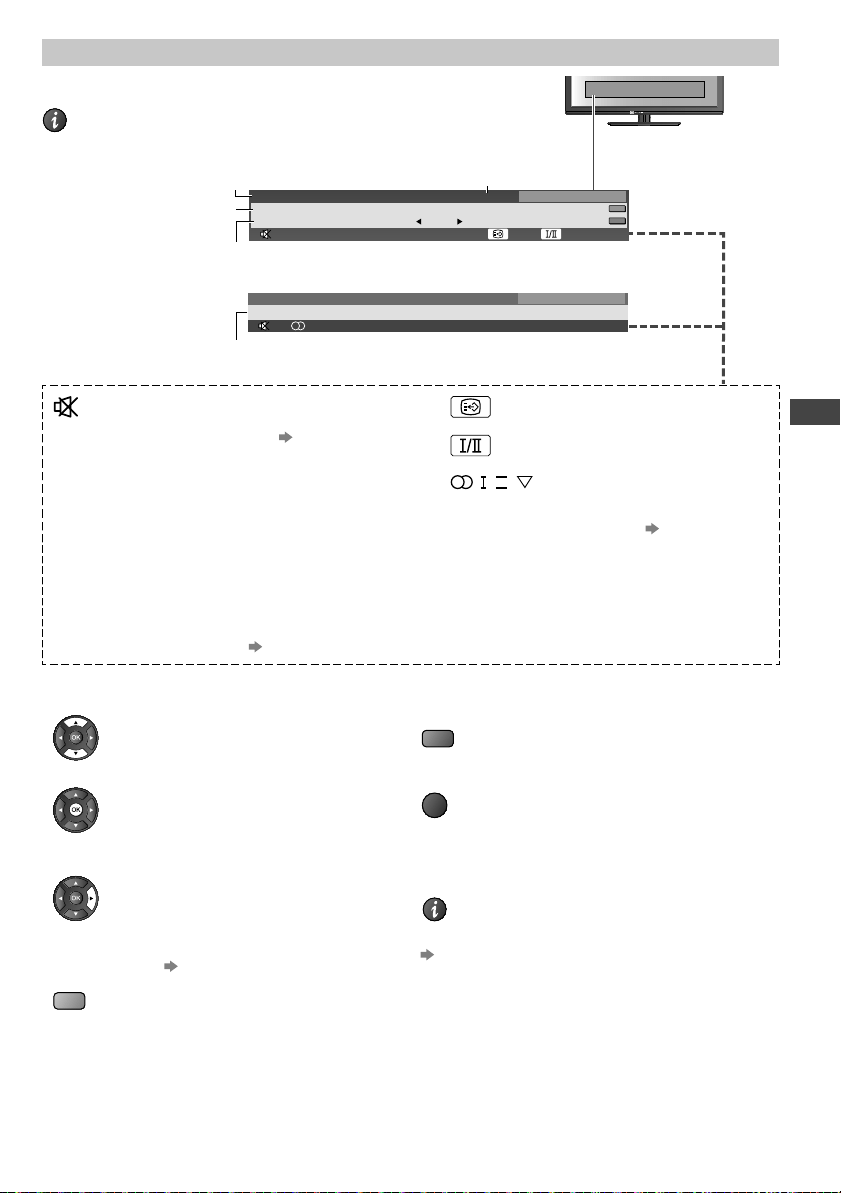
Display Information banner
Display Information banner
INFO
●
Also appears when changing a channel
1 BBC
9:35 pm
Prompt Street
45
CH 02
All Analogue Channels
Analogue TV mode
Channel Status
1 BBC ONE WALES
11:35 pm
Coronation Street
11:00 pm - 11:55 pm
Now
All Digital Channels
Select favourites
Software update
45
AD
Rating: PG
Channel position and name
Programme Start / Finish time
Programme
Current time
Digital TV mode
Features available / Message meanings
Sound mute On
Subtitle service available
(Digital TV mode)
[Rating] Rating information
(p. 61)
(Digital TV mode)
Multiple image or audio
available (Digital TV mode)
[Bad signal] Poor TV signal quality
(Digital TV mode)
, ,
II
,
Audio mode (p. 61)
(Analogue TV mode)
[Encrypted] Scrambled programme
(Digital TV mode)
1 - 90 Off Timer remaining time
●
For settings
(p. 16)
[AD] Audio Description service
available
●
This function can aid visually-
impaired viewers by adding an
additional audio track to describe
events on-screen.
●
For settings
(p. 26)
●
To confirm another tuned channel name
●
To watch the programme listed in the banner
●
Information on the next programme
(Digital TV
mode)
●
To select a favourite list (Digital TV mode)
(
if the favourite list is created in
[Favourites Edit]
p. 30
)
B
●
To update the TV software (if available)
R
●
To hide
EXIT
●
Extra information
(press again to hide the banner)
(Digital
TV mode)
INFO
●
To set display timeout
[Banner Display Timeout] (p. 28)
th-l32x50a_book.indb 17th-l32x50a_book.indb 17 2/27/2012 5:30:02 PM2/27/2012 5:30:02 PM
Watching TV
18
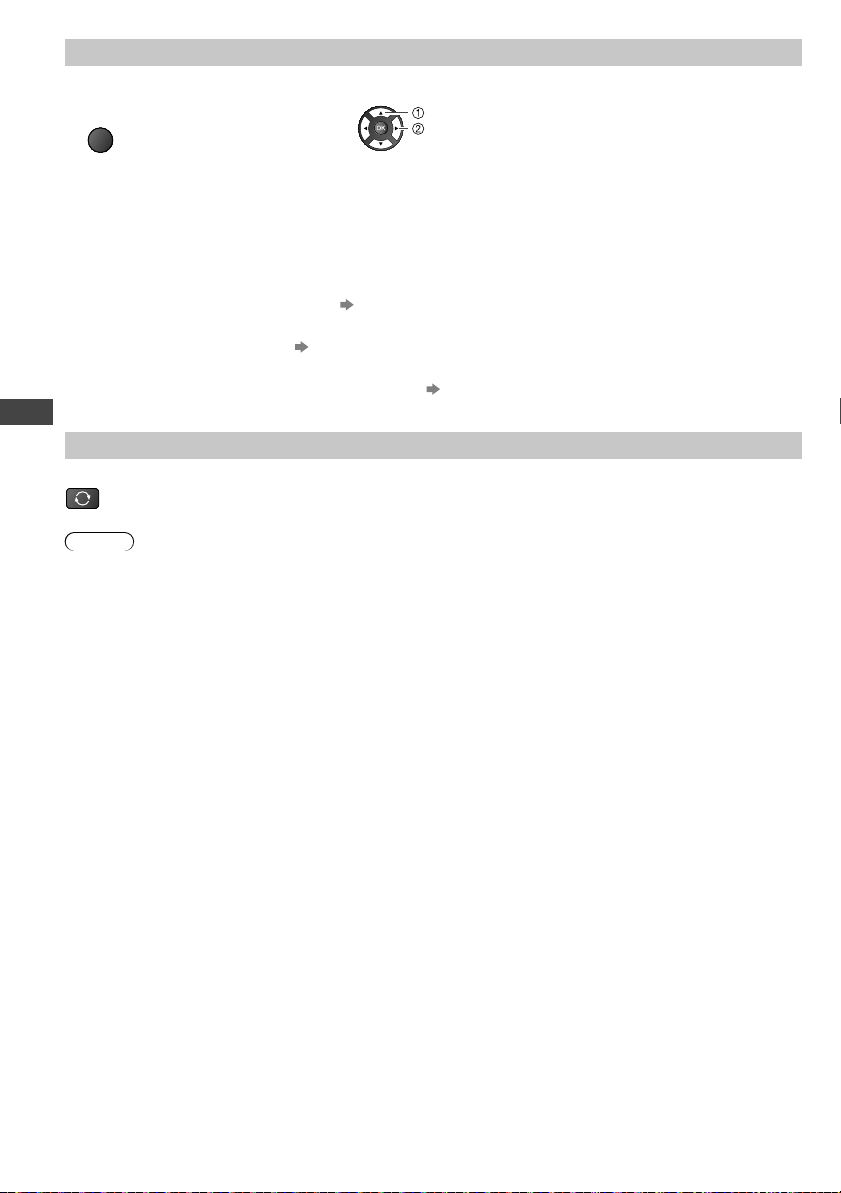
Display the selectable settings for the current programme
1
Check or change the current
programme status instantly
2 Change
OPTION
change
select
[Audio Selection] (Digital TV mode)
Allows you to select between alternative languages for sound tracks (if available)
[Dual Audio] (Digital TV mode)
Selects multiplex sound (if available)
[Audio Description] (Digital TV mode)
Set to [Auto] if the programme has Audio Description service, then you will hear an additional audio track to describe
events on screen
●
To adjust the volume for Audio Description
[Audio Description Menu] (p. 26)
[MPX] (Analogue TV mode)
Selects multiplex sound (if available)
[Sound Menu] (p. 26)
[Volume Correction]
Adjusts the volume of an individual channel or input mode
[Sound Menu] (p. 26)
Last view
Switch to previously viewed channel or input mode easily
LAST VIEW
●
Press again to return to the present view.
Note
●
Switching channel is not available while Direct TV Recording is in progress.
●
Watching less than 10 seconds is not regarded as the previously viewed channel or input mode.
C
Enj
Pre
AS
P
■
1 D
AS
P
●
O
●
O
●
A
●
A
in
[
S
ti
●
NS
Vic
Qu
So
We
No
Ta
●
T
th-l32x50a_book.indb 18th-l32x50a_book.indb 18 2/27/2012 5:30:03 PM2/27/2012 5:30:03 PM

Watching TV
19
Change aspect ratio
Enjoy viewing the image at its optimum size and aspect.
Press repeatedly until you reach the desired mode
ASPECT
■ If Aspect Selection list is displayed
1 Display Aspect Selection list 2 While the list is displayed, select the mode
ASPECT
Aspect Selection
16:9
14:9
Just
4:3
4:3 Full
Zoom1
Zoom2
Zoom3
Select
EXIT
RETURN
Change
Aspect Selection
16:9
14:9
Just
4:3
4:3 Full
Zoom1
Zoom2
Zoom3
change
select
[16:9] [14:9] [Just]
Directly displays the
image at 16:9 without
distortion (anamorphic).
Displays the image
at the standard 14:9
without distortion.
Displays a 4:3 image full-
screen. Stretching is only
noticeable at the left and
right edges.
[4:3] [4:3 Full] [Zoom1]
Displays the image at
the standard 4:3 without
distortion.
Displays a 4:3 image
enlarged horizontally to
fit the screen.
●
Digital TV mode or HD
signal
Displays a 16:9 letterbox
or 4:3 image without
distortion.
[Zoom2] [Zoom3]
Displays a 16:9 letterbox
(anamorphic) image
full-screen without
distortion.
Displays a 2.35:1 letterbox (anamorphic) image full-screen
without distortion. At 16:9, displays the image at its maximum
(with slight enlargement).
Note
●
Only [16:9] and [4:3 Full] are available in Digital TV mode.
●
Only [16:9] and [4:3] are available in PC input mode.
●
Aspect is fixed to [16:9] when [Viewing Mode] is set to [Game] in the Picture Menu.
●
Aspect mode can be memorised separately for each SD (Standard definition) and HD (High definition) signals except
in Digital
TV mode.
[Region Select] - Adjust the standard time [Daylight Saving Time] - Adjust for Summer Time
Select the region where you live to adjust the standard
time.
●
The time contained in the broadcast signal is
UTC (Universal
Time coordinated) formally known as
GMT (Greenwich Mean Time).
Select time offset from the standard time for Summer Time.
●
Normally select [Auto].
●
If there is a gap between displayed time and actual time,
set this function.
Region Standard time
Daylight Saving Time: Auto
(During Summer Time)
NSW / ACT
+10:00
+11:00
Victoria
Queensland +10:00
South Australia +9:30 +10:30
Western Australia +8:00
Northern Territory +9:30
Tasmania +10:00 +11:00
(Based on GMT)
●
These items can be set from [Other settings] in the Setup Menu. (p. 28)
th-l32x50a_book.indb 19th-l32x50a_book.indb 19 2/27/2012 5:30:03 PM2/27/2012 5:30:03 PM

Using TV Guide (Digital TV mode)
20
Using TV Guide (Digital TV mode)
Using TV Guide enables you to select a programme easily, view programme information, etc.
TV Guide - Electronic Programme Guide (EPG) provides an on screen listing of the current and future programmes
over the next seven days depending on broadcasters.
EXITINFO
TV
G
U
I
D
E
RGYB
■ To return to TV
EXIT
View TV Guide
Each time pressed, the layout will be changed. (Landscape / Portrait)
GUIDE
TV Guide: Landscape
11 Home
11:30 am - 12:00 pm DIY SOS : We open in the Battersbys
Time:
East ender
Shopping
DIY
SOS
Topics
Red Cap Sports
Hot Wars
Market News
Live junction
Emerald The Bill Drama
10 O’ clock News BBC
Drama 1
Good bye NEWS
Live
D Home11
D World16
D Jade81
D Pearl84
D Sapphire100
D Ruby101
D Gold102
11:00am 12:00pm 12:30 pm 1 :00 pm
Wed 27 Oct 2010 All T
ypes All Channels
Info
Page up
Portrait/Landscape
Select channel
View
EXIT
Select programme
RETURN
-24 hours +24 hours Prog.Type Favourites
Page down
Wed 27 Oct 2010 10:27 am
11:30am
The Bill
Holiday Program
Business News
News
Pepsi Char
.
Drama 2
Coronation Street
TV Guide date
Programme
Landscape (Displays by channel)
Current date and time
TV Guide time
Channel position and name
Portrait (Displays by time)
GUIDE
TV Guide: Portrait
Das Erste1
1:00 am - 12:30 pm
12:30 pm - 02:00 pm
02:00 pm - 02:30 pm
02:30 pm - 03:00 pm
03:00 pm - 03:30 pm
03:30 pm - 04:30 pm
04:30 pm - 05:00 pm
DIY
SOS
The Bill
Red Cap
Live junction
POP 100
Rugby
HomeD 1
1 WorldD 16 JadeD 81 PearlD 84 SapphireD 100
Wed 27 Oct 2010
All T
ypes All Channels
Page up
Select programme
View
EXIT
Select channel
RETURN
+24 hours Prog.Type Favourites
Page down
Info
Portrait/Landscape
Wed 27 Oct 2010 10:27 am
05:00 pm - 05:30 pm News
-24 hours
■ To watch the programme
Select the current programme or channel
watch
select
■ To view a channel list of the selected favourite list
B
Favourites
All Channels
All Channels
All Digital Channels
All Analogue Channels
Favourites1
Favourites2
Favourites3
Favourites4
(Favourite list)
To list favourites channels
(p. 30)
Only Analogue TV channels are listed
select a
favourite list
view
■ To view details of the programme
Select the programme
select
●
Press again to return to TV Guide.
INFO
■ To view a channel list of the selected type
Y
.
.
Prog.Type
All Types
All Types
Movie
News
Entertainment
Sport
Children’s
Music
(Type list)
select type
view
■ To the previous day
R
■ To the next day
G
Note
●
When this TV is turned on for the first time, or the TV is switched off for more than a week, it may take some time
before the
TV Guide is completely shown.
W
Co
●
T
■
T
V
th-l32x50a_book.indb 20th-l32x50a_book.indb 20 2/27/2012 5:30:03 PM2/27/2012 5:30:03 PM

Watching External Inputs
21
me)
e
up
wn
7 am
Watching External Inputs
Connect the external equipment (VCRs, DVD equipment, PC, etc.) and you can watch through the input.
●
To connect the equipment (p. 11 - 13, 58 - 60)
INPUT
TV
AVTV
■ To return to TV
TV
1
Display the input selection menu
2
Select the input mode connected to the
equipment
Example (AV2)
Input Selection
AV1
AV2
AV3
PC
HDMI1
HDMI2
HDMI3
TV
SD Card/USB
select
watch
Example (PC)
Input Selection
AV1
AV2
AV3
PC
HDMI1
HDMI2
HDMI3
TV
SD Card/USB
select
watch
●
You can also select the input using the AV button on the remote control or the
TV (p. 10).
Press the button repeatedly until the desired input is selected.
●
You can label or skip each input mode
[Input Labels] (p. 34)
Skipped inputs will not be displayed when the AV button is pressed.
3
View
Example (AV2)
AV2
16:9
Displays the selected mode
●
If the external equipment has an aspect
adjustment function, set to [16:9].
Example (PC)
PC
640X480 / 60Hz
16:9
Displays the selected mode
●
You can also listen to PC sound with
the audio cable connected.
T
o connect (p. 60)
●
You can setup some functions
PC Setup (p. 27) in the Setup Menu.
●
For HDMI-compatible PC, possible to connect
to HDMI terminals (HDMI1 / HDMI2 / HDMI3)
by using HDMI cable (p. 62).
th-l32x50a_book.indb 21th-l32x50a_book.indb 21 2/27/2012 5:30:04 PM2/27/2012 5:30:04 PM
How to Use VIERA TOOLS
22
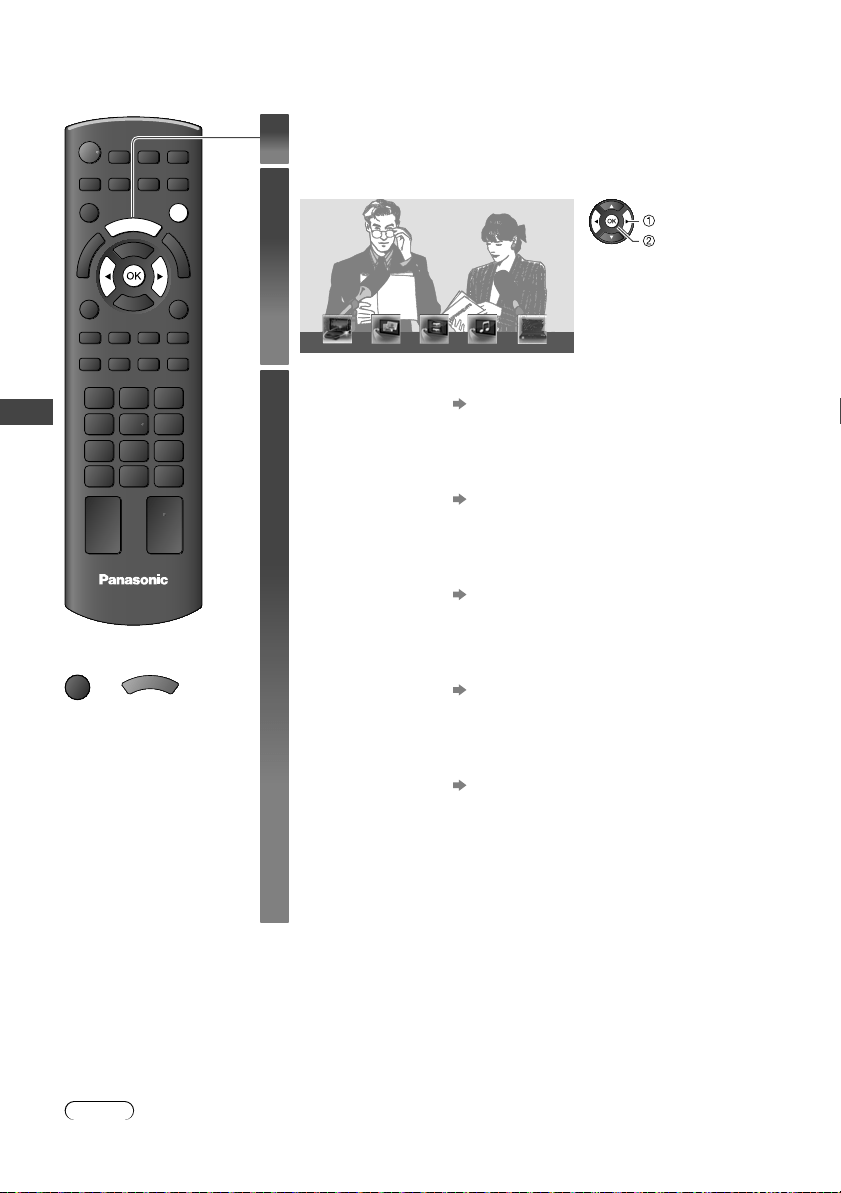
You can access some special features easily by using the VIERA TOOLS function.
EXIT
TV
V
I
E
R
A
T
O
O
L
S
■ To return to TV
EXIT
or
V
I
E
R
A
T
O
O
L
S
1
Display icons of the feature
2
Select a feature
VIERA Link
(example)
access
select
3
Follow the operations of each feature
[VIERA Link] “VIERA Link Control” (p. 56)
When two or more compatible equipment are connected, a
selection screen will be displayed.
Please select the correct description and access.
[Photo]
“Photo mode” (p. 39)
[Video]
“Video mode” (p. 42)
[Music]
“Music mode” (p. 45)
[Media Server] “Using DLNA
®
features” (p. 50)
* When two or more available devices are connected, a selection screen will be
displayed.
Please select the correct description and access.
How to Use VIERA TOOLS
Note
●
If the selected feature is not available, the demonstration to explain how to use it can be displayed. Press the OK
button to view the demonstration after selecting the unavailable feature.
H
Var
■
EX
I
■
RE
T
■
C
H
th-l32x50a_book.indb 22th-l32x50a_book.indb 22 2/27/2012 5:30:05 PM2/27/2012 5:30:05 PM
How to Use the Menu Functions
23
e
How to Use the Menu Functions
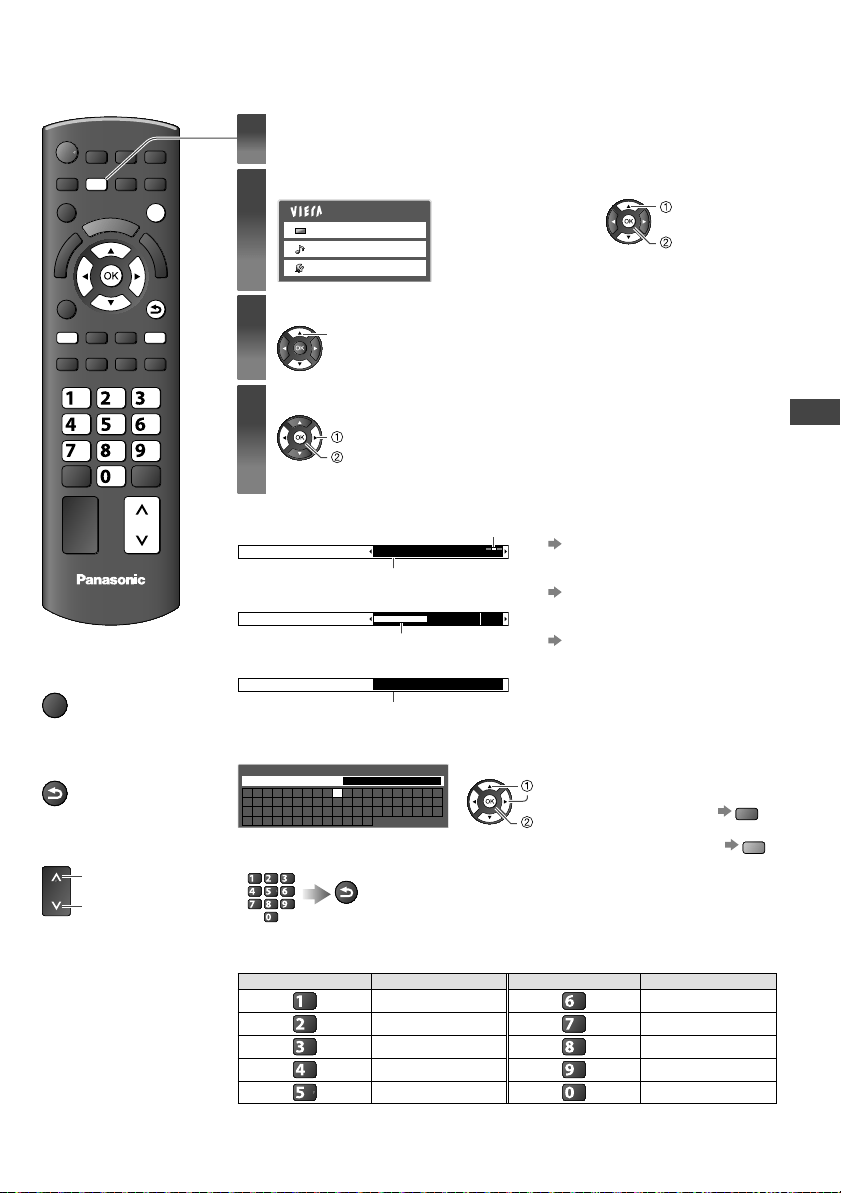
Various menus allow you to make settings for the picture, sound, and other functions.
EXIT
RETURN
MENU
TV
CH
abc
def
jk l
ghi
mno
tuvpqrs
wxyz
RB
■ To return to TV at
any time
EXIT
■ To return to the
previous screen
RETURN
■ To change menu
pages
CH
up
down
1
Display the menu
●
Displays the functions that can be set (varies according to the input signal)
2
Select the menu
Main Menu
Picture
Sound
Setup
access
select
3
Select the item
select
4
Adjust or select
store or access
(Required by some functions)
change
■ Choose from among alternatives ■ To reset the settings
●
To reset the picture settings only
[Reset Picture Defaults] in the
Picture Menu (p. 25)
●
To reset the sound settings only
[Reset Sound Defaults] in the
Sound Menu (p. 26)
●
To initialise all settings
[Shipping Condition] in the
Setup Menu (p. 35)
Number and positions of alternatives
Changed
Colour Balance Normal
■ Adjust using the slide bar
Moved
Sharpness 56
■ Go to the next screen
Displays the next screen
Child Lock Access
■ Enter characters by free input menu
You can enter names or numbers freely for some items.
A B C D E F G H I J K L M N
U V W X Y Z 0 1 2 3 4 5 6
a b c d e f g h i j k l m n
u v w x y z ( ) + - . * _
O P Q R S T
7 8 9 ! : #
o p q r s t
User input
Name
Set characters one by one
select
set
●
To delete a
character
R
●
To delete all
characters
B
●
You can set characters by using numeric buttons.
RETURN
Store
abc def
jkl
ghi
mno
tuvpqrs
wxyz
Every press changes the character by one. Leave it for a second to set the character,
or press OK or any numeric button within a second.
(Corresponding characters for each numeric button)
Numeric buttons Characters Numeric buttons Characters
. 1 ! : # + - * _ ( )
mno
m n o 6 M N O
abc
a b c 2 A B C
pqrs
p q r s 7 P Q R S
def
d e f 3 D E F
tuv
t u v 8 T U V
ghi
g h i 4 G H I
wxyz
w x y z 9 W X Y Z
jkl
j k l 5 J K L Space 0
th-l32x50a_book.indb 23th-l32x50a_book.indb 23 2/27/2012 5:30:06 PM2/27/2012 5:30:06 PM
How to Use the Menu Functions
24
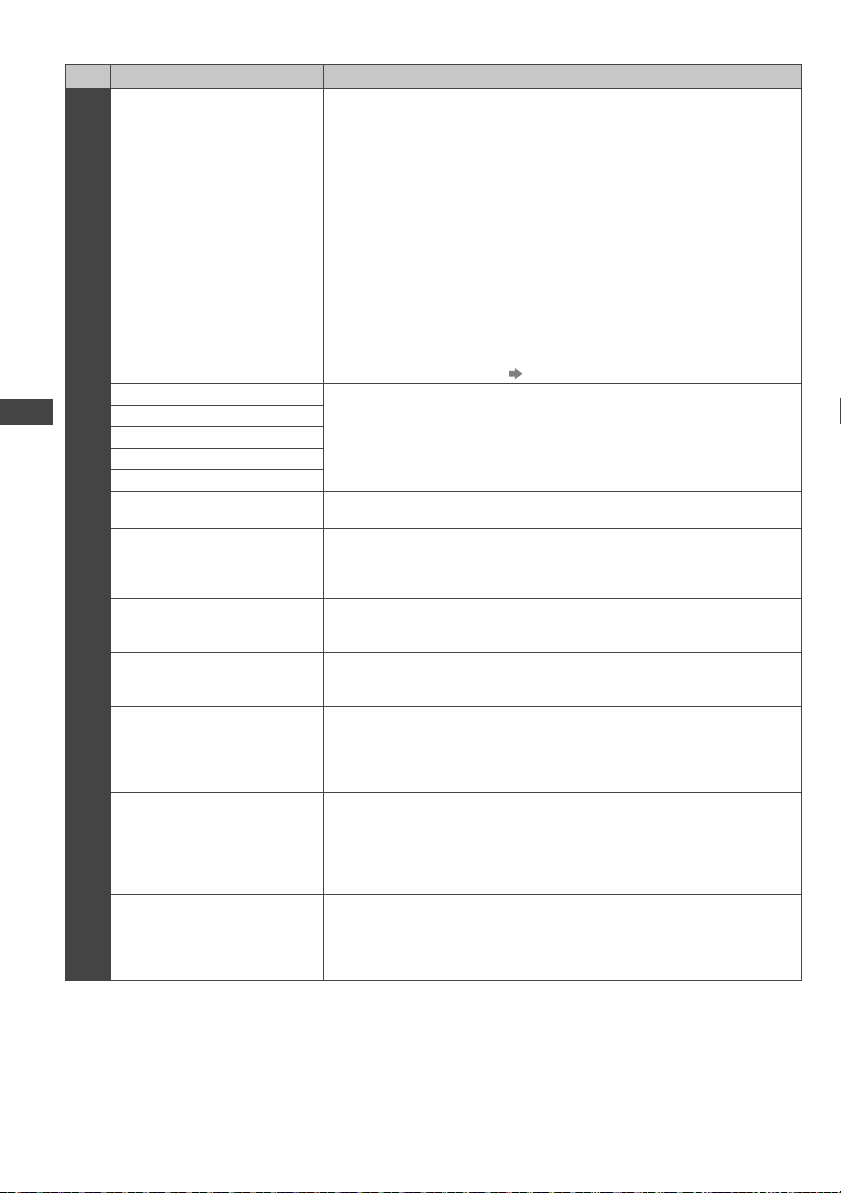
Menu list
Menu
Item Adjustments / Configurations (alternatives)
Picture
Viewing Mode
• Dynamic
• Normal
• Cinema
• True Cinema
• Game
Basic picture mode
In each Viewing Mode and input, [Backlight], [Contrast], [Brightness],
[Colour], [Sharpness], [Tint], [Colour Balance], [Vivid Colour], [Eco Mode],
[P-NR] and [3D-COMB] can be adjusted and stored to suit your particular
viewing requirement.
[Dynamic]: Provides enhanced picture contrast and sharpness when
viewing in a bright room.
[Normal]: Recommended for viewing under normal ambient room lighting
conditions.
[Cinema]: For watching movies in a darkened room with improving the
performance of contrast, black and colour reproduction
[True Cinema]: Precisely reproduces the original quality of the image
without any revision.
[Game]: Fast response signal specifically to provide suitable images for
playing games
●
Not valid on TV mode
●
A continuous record of time spent using Game mode can be displayed in
the top right of the screen.
[Playing Time Display] (p. 28)
Backlight
Increases or decreases the levels of these options according to your
personal preference
Contrast
Brightness
Colour
Sharpness
Tint
The picture hue can be adjusted to suit your taste
●
For NTSC signal, Component or HDMI input
Colour Balance
• Cool
• Normal
• W
arm
Allows you to set the overall colour tone of the picture
●
Not valid when [Viewing Mode] is set to [True Cinema].
V
ivid Colour
• Off
• On
Automatically adjusts colours to vivid ones
●
Not valid on PC signal.
Eco Mode
• Of
f
• On
Automatically adjusts the screen brightness appropriately as the
surrounding light level lowers to reduce the power consumption
●
Not available in Shop mode (Dynamic picture mode)
P-NR
• Of
f
• Min
• Mid
• Max
Picture Noise Reduction
Automatically reduces unwanted picture noise and flicker noise in the
contoured parts of a picture
●
Not valid on PC signal.
3D-COMB
• Of
f
• On
Makes still or slow moving pictures look more vivid
●
Occasionally, while viewing still or slow moving pictures, colour
patterning may be seen. Set to [On] to display sharper and more
accurate colours.
●
For PAL or NTSC signal reception only
●
Not valid on Component, PC, HDMI and Media Player
Screen Display
• Of
f
• On
Turns the screen off when you select [Off]
●
The sound is active even if the screen turns off.
●
Press any buttons (except Standby) to turn the screen on.
●
This function is effective in reducing power consumption when listening
to the sound without watching the
TV screen.
M
Pi tSd
th-l32x50a_book.indb 24th-l32x50a_book.indb 24 2/27/2012 5:30:07 PM2/27/2012 5:30:07 PM
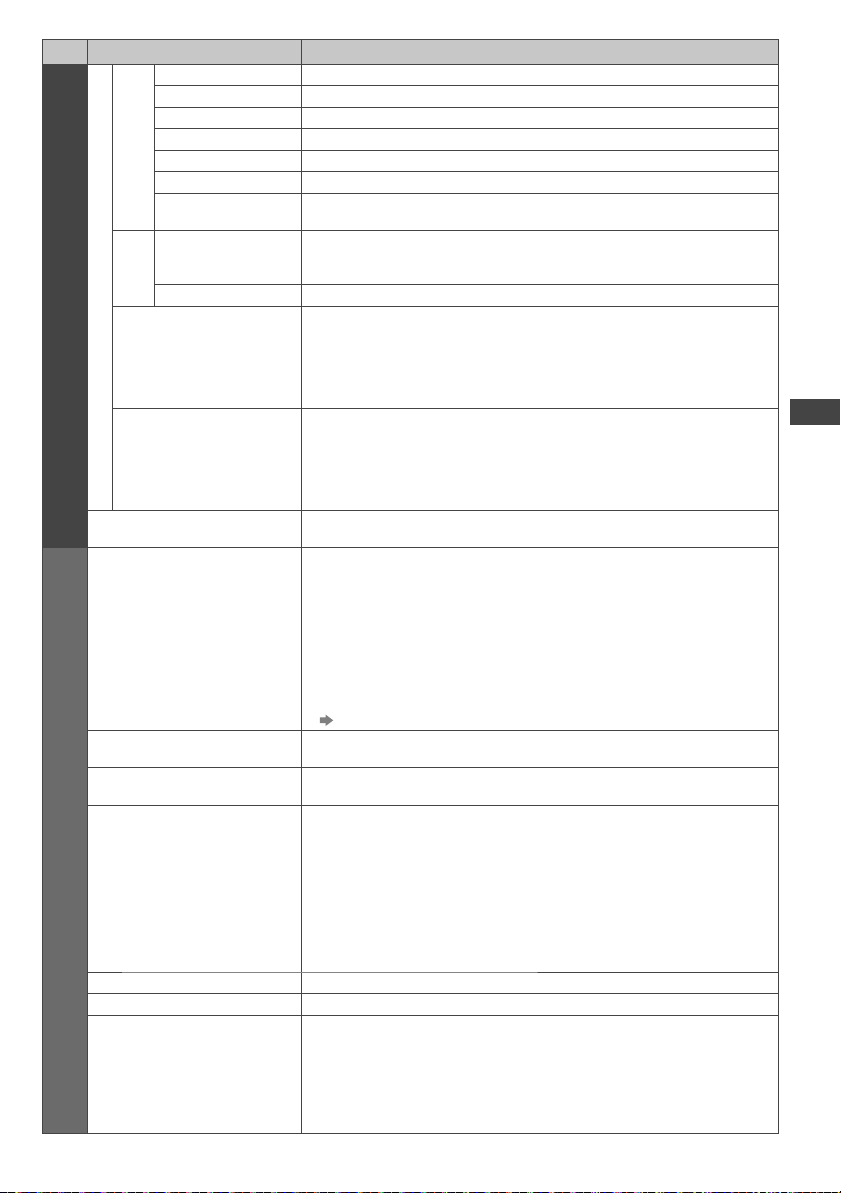
How to Use the Menu Functions
25
,
g
n
Menu
Item Adjustments / Configurations (alternatives)
Picture
Advanced Settings
White Balance
1
R-Gain Adjusts the white balance of bright red area
G-Gain Adjusts the white balance of bright green area
B-Gain Adjusts the white balance of bright blue area
R-Cutoff Adjusts the white balance of dark red area
G-Cutoff Adjusts the white balance of dark green area
B-Cutoff Adjusts the white balance of dark blue area
Reset White
Balance
Press the OK button to reset to the default White Balance
Gamma
1
Gamma
• 1.8 / 2.0 / 2.2 /
2.4 / 2.6
Switches the gamma curve
●
Please note the numerical values are reference for the adjustment.
Reset Gamma Press the OK button to reset to the default Gamma
16:9 Overscan
• Of
f
• On
[On] : Default - Image is overscanned by ~5% beyond the edge of the
screen to hide edge video noise
[Off] : Displays image in its original size including edge video noise such
as lines, dashes, dots etc.
●
Applicable for video signals when TV aspect is set to [16:9]
●
Memorised separately for SD and HD channels / signals
DVI Input Setting
• Normal
• Full
Changes the black level in the image for HDMI input mode with DVI input
signal manually
●
When the DVI input signal from the external equipment, especially from PC,
is displayed, the black level may not be suitable. In this case, select [Full].
●
The black level for HDMI input signal will be adjusted automatically.
●
For HDMI input mode with DVI input signal only.
Reset Picture Defaults
Press the OK button to reset settings of Picture Viewing Mode to the
default.
Sound
Mode
• Music
• Speech
• User
Selects basic sound mode
●
The selected mode affects all input signals.
[Music]: Improves sound quality for watching music videos, etc.
[Speech]: Improves sound quality for watching news, drama, etc.
●
In Music and Speech modes, you can adjust [Bass] and [Treble] settings,
and those settings will be stored for each mode.
[User]:
Adjusts the sounds manually by using the equaliser to suit your
favourite sound quality.
●
For the User mode, [Equaliser] will appear on the Sound Menu instead
of [Bass] and [T
reble]. Select the [Equaliser] and adjust the frequency.
[Equaliser] (below)
Bass
Increases or decreases level to enhance or minimise lower, deeper sound
output
Treble
Increases or decreases level to enhance or minimise sharper, higher
sound output
Equaliser
Adjusts the frequency level to suit your favourite sound quality
●
This function is available when [Mode] is set to [User].
●
Select the frequency and change the frequency level by using the cursor
button.
●
If you want to enhance the bass sound, raise the level of the lower
frequency
. If you want to enhance the treble sound, raise the level of the
higher frequency.
●
To reset the levels of each frequency to the default settings, select the
[Reset Equaliser Settings] by using the cursor button, and then press the
OK button.
Balance Adjusts the volume level of right and left speakers
Headphone Volume Adjusts the volume of the headphones
Surround
• Off
• V-Audio
• V-Audio Surround
Surround sound settings
[V-Audio]: Provides a dynamic enhancer of width to simulate improved
spatial effects
[V-Audio Surround]: Provides a dynamic enhancer of width and depth to
simulate improved spatial effects
●
Switching is also possible by the Surround button on the remote control
(p. 9).
th-l32x50a_book.indb 25th-l32x50a_book.indb 25 2/27/2012 5:30:07 PM2/27/2012 5:30:07 PM
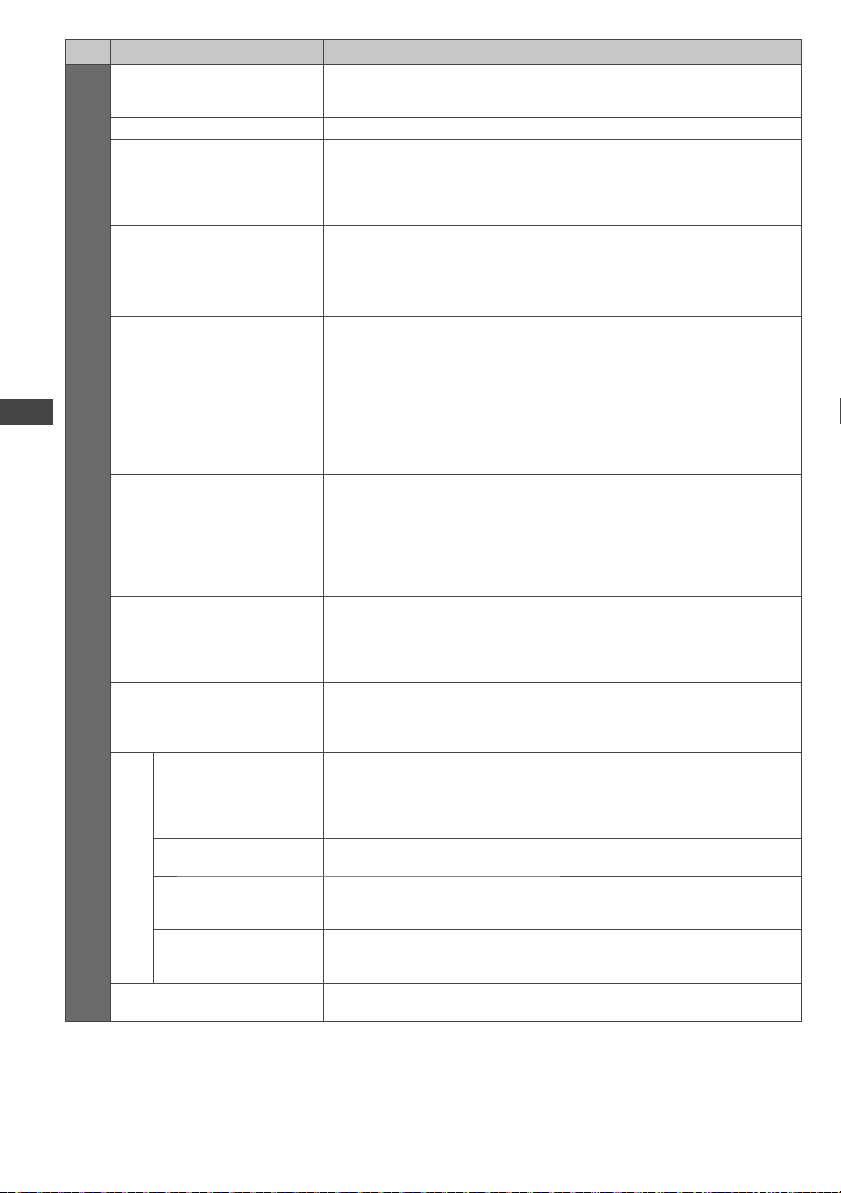
How to Use the Menu Functions
26
Menu
Item Adjustments / Configurations (alternatives)
Sound
Auto Gain Control
• Off
• On
Adjusts the current volume level if it is extremely different from the
previous viewed channel or input mode
Volume Correction Adjusts the volume of an individual channel or input mode
Speaker Distance to Wall
• Over 30cm
• Up to 30cm
Adjusts the low frequency sound
●
If the back space between the TV and wall is over 30 cm, [Over 30cm] is
recommended.
●
If the back space between the TV and wall is within 30 cm, [Up to 30cm]
is recommended.
MPX
• Stereo
• Mono
• M1
• M2
Selects multiplex sound mode (if available)
[Stereo]: Use this normally
[Mono]: When stereo signal cannot be received
[M1] / [M2]:
Available while mono signal is transmitted
●
Analogue TV mode only
Digital Audio
Preference
• Dolby D
• MPEG
Selects the initial setting for audio tracks
If programme has both Dolby Digital and MPEG audio tracks, priority is
given to what you select
[Dolby D]: A method of coding digital signals developed by Dolby
Laboratories. Apart from stereo (2ch) audio, these signals can also be
multi-channel audio.
[MPEG]: An audio compression method that compresses audio to small
size without any considerable loss of audio quality.
●
Digital TV mode only
SPDIF Selection
• Auto
• PCM
SPDIF:
A standard audio transfer file format
Selects the initial setting for digital audio output signal from DIGITAL
AUDIO OUT terminal
[Auto]: Dolby Digital is output as Dolby Digital Bitstream. HE-AAC and
MPEG are output as PCM.
[PCM]: Digital output signal is fixed to PCM.
●
For Digital TV mode, Video mode (p. 44) or Network video contents (p. 52)
PCM Optical Level
• -12 / -10 / -8 /
-6 / -4 / -2 / 0 (dB)
Adjusts the audio level of PCM output from DIGITAL AUDIO OUT terminal
as the initial setting
●
Normally, PCM sound is larger comparing with the other types of audio
track.
●
Digital TV mode only
HDMI1 / 2 / 3 Input
• Digital
• Analogue
Selects to fit the input signal (p. 62)
[Digital]: HDMI cable connection
[Analogue]: HDMI-DVI adaptor cable connection
●
HDMI input mode only
Audio Description Menu
Audio Description
• Off
• Auto
Useful for visually-impaired viewers
Sets to [Auto] to activate the description sound track if available
●
The availability of audio description sound track is indicated by [AD] in
the information banner (p. 17).
●
Digital TV mode only
V
olume
Adjusts the volume for Audio Description
●
Digital TV mode only
Speakers
• Of
f
• On
Sets to [On] to activate the description sound track from TV speakers
●
Digital TV mode only
Headphones
• Of
f
• On
Sets to [On] to activate the description sound track from headphones
●
Digital TV mode only
Reset Sound Defaults
Press the OK button to reset settings of the present [Mode], [Balance],
[Headphone V
olume] and [Surround] in the Sound Menu to the default
M
St
th-l32x50a_book.indb 26th-l32x50a_book.indb 26 2/27/2012 5:30:08 PM2/27/2012 5:30:08 PM
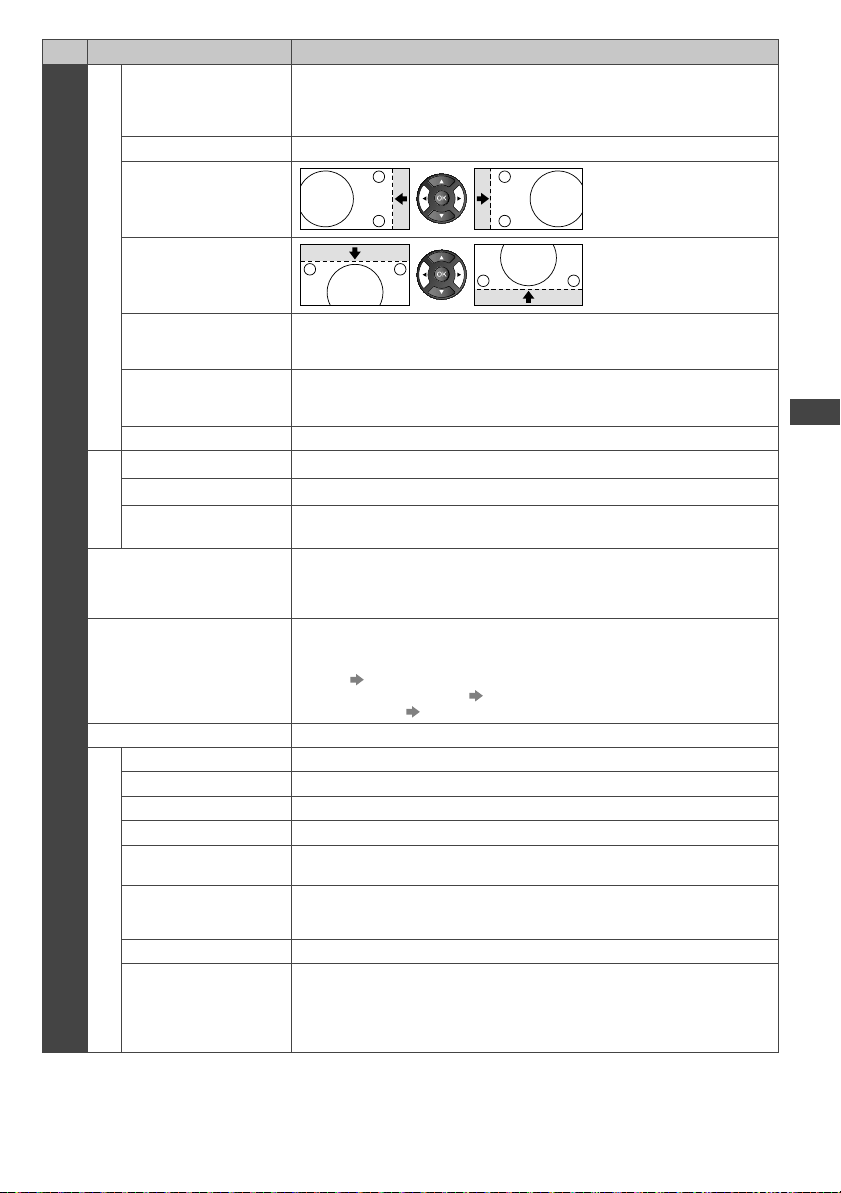
How to Use the Menu Functions
27
s
]
al
Menu
Item Adjustments / Configurations (alternatives)
Setup
PC Setup
Input Resolution
Switches to a wide view
●
VGA (640 × 480 pixels), WVGA (852 × 480 pixels),
XGA (1,024 × 768 pixels), WXGA (1,280 × 768 pixels, 1,366 × 768 pixels)
●
Options change depending on signals
Clock Sets to the minimum level if noise occurs.
H-pos
Adjusts horizontal position
V-pos
Adjusts vertical position
Clock Phase
Eliminates flicker and distortion
●
Adjust after Clock adjustment
●
Set to the minimum level if noise occurs
Sync
• H & V
• SOG
PC sync signal type
[H & V]: by the horizontal and vertical signals from your PC
[SOG]: Sync on Green sync from your PC
Reset PC Settings Press the OK button to reset the PC Setup settings to the default.
DVI Position
Settings
H-pos Adjusts horizontal position settings of DVI
V-pos Adjusts vertical position settings of DVI
Reset DVI Position
Settings
Press the OK button to reset the DVI Position Settings to the default.
Off Timer
• Off
• 15 / 30 / 45 / 60 / 75 / 90
minutes
Sets the time until the TV automatically goes to Standby mode
Eco Navigation
Automatically sets the TV to the most suitable energy-saving mode
●
If you press the OK button, the following items are set as below:
[Eco Mode], [VIERA
Link], [Power off Link], [Standby Power Save], [Power
Save] [On]
[Intelligent Auto Standby] [On (No reminder)]
[Auto Standby] [2 hours]
Child Lock Locks a channel / AV input to prevent access to it (p. 33)
Tuning Menu
Favourites Edit Creates lists of favourite channels (Digital TV mode) (p. 30)
Channel List Skips the unwanted channels or edits channels (p. 30, 32)
Auto Tuning Sets all Digital TV or Analogue TV channels automatically (p. 31, 32)
Manual Tuning Sets the TV channels manually (p. 31, 32)
Update Channel List
Updates the channel list while keeping your settings (Digital TV mode)
(p. 31)
New Channel Message
• Off
• On
Selects whether to give a notification message when a new channel is found
(Digital TV mode) (p. 31)
Signal Condition Checks the Digital TV signal condition (p. 31)
Add TV Signal
Adds the TV mode
●
This function is available if you skip any modes to tune in [Auto Tuning] for
first using the
TV.
●
To operate, refer to the [Auto Tuning] operations for first using the TV
(p. 14).
th-l32x50a_book.indb 27th-l32x50a_book.indb 27 2/27/2012 5:30:08 PM2/27/2012 5:30:08 PM
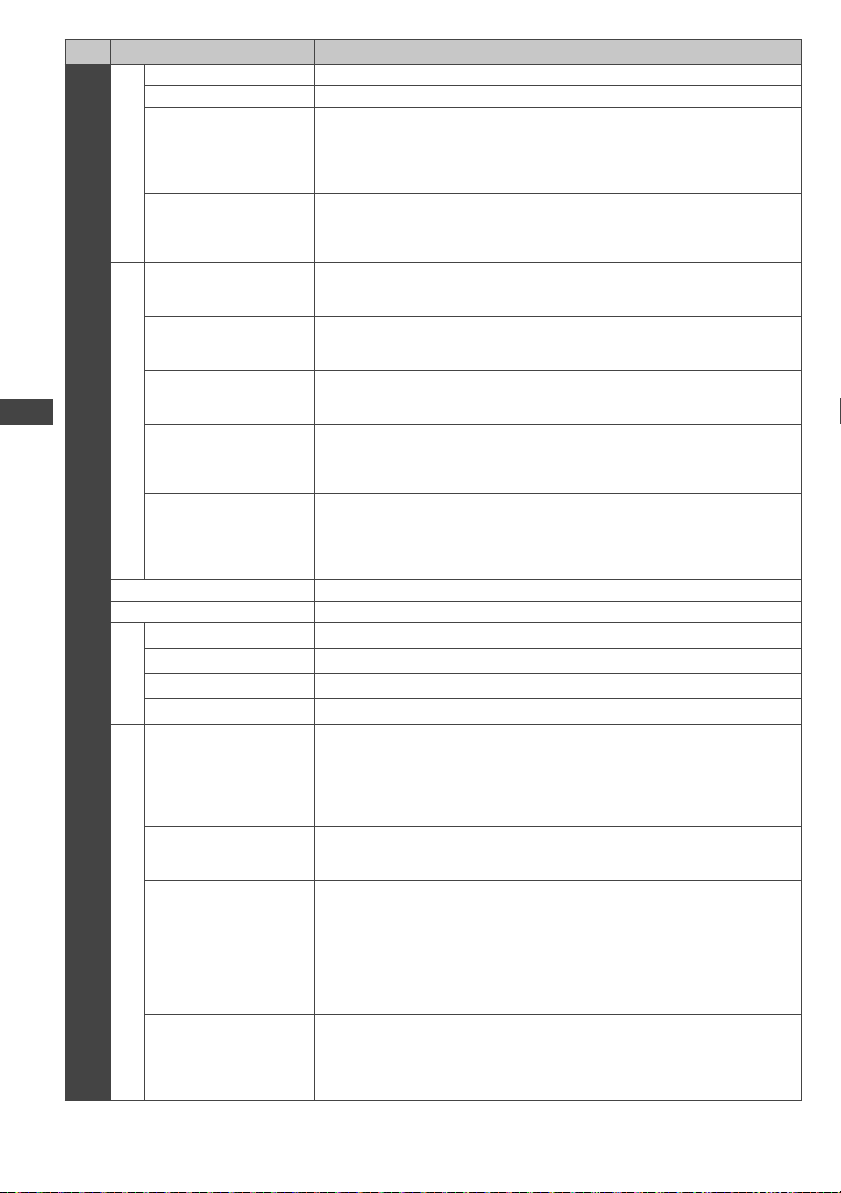
How to Use the Menu Functions
28
Menu
Item Adjustments / Configurations (alternatives)
Setup
Display Settings
Teletext This item is not used for this model.
Input Labels Labels or skips each input terminal (p. 34)
Banner Display
Timeout
• 0 (No display)
• 1 / 2 / 3 / 4 / 5 / 6 / 7 / 8
/ 9 / 10 seconds
Sets how long the information banner stays on screen (p. 17)
Playing Time Display
• Off
• On
Sets to [On] to display a continuous record of time spent using Game mode
every 30 minutes
●
This function is available when [Game] is selected in [Viewing Mode]
(p. 24).
VIERA Link Settings
VIERA Link
• Off
• On
Sets to use VIERA Link functions
●
VIERA Link functions become available when [VIERA Link] is set to [On]
(p. 54).
Power on Link
• Off
• On
Sets to use Power on Link functions (p. 54)
Power off Link
• Off
• On
Sets to use Power off Link functions (p. 54)
Standby Power Save
• Off
• On
Controls the power consumption in Standby mode of the connected
equipment to reduce the power consumption (p. 54)
●
This function is available when [VIERA Link] is set to [On] and [Power off
Link] is set to [On].
Intelligent Auto
Standby
• Of
f
• On (With reminder)
• On (No reminder)
Makes non-watched or non-used connected equipment go into Standby
mode to reduce the power consumption (p. 54)
●
This function is available when [VIERA Link] is set to [On].
Network Setup Sets the network setting to use in your network environment (p. 48)
DivX® VOD Displays DivX VOD registration code (p. 66)
System Menu
Shipping Condition Resets all settings to the original condition (p. 35)
System Update Downloads new software to this TV (p. 36)
Software Licence Displays the software licence information
System Information Displays the system information of this TV
Other Settings
Auto Standby
• Off
• 2 / 4 hours
Sets the time the TV automatically goes into Standby mode when no
operation is performed for the selected times
●
Automatic input switching with the connected equipment affects this
function and time-count will be reset.
●
The notification message will appear 3 minutes before going into Standby
mode.
Power Save
• Off
• On
Reduces brightness of the picture to economise on power consumption
Region Select
• NSW/ACT
• Victoria
• Queensland
• South Australia
• Western Australia
• Northern Territory
• Tasmania
Selects the region where you live to adjust the standard time (p. 19)
Daylight Saving Time
• Auto
• Off
• +1/2 hour
• +1 hour
Selects time offset from the standard time for Summer Time (p. 19)
●
Set to [Auto] normally.
●
A different menu will be displayed in the mode of Media Player / Network service operations. (p. 37 - 52)
●
Only available items can be selected.
1 :
PC input mode only
th-l32x50a_book.indb 28th-l32x50a_book.indb 28 2/27/2012 5:30:08 PM2/27/2012 5:30:08 PM
Tuning and Editing Channels
29
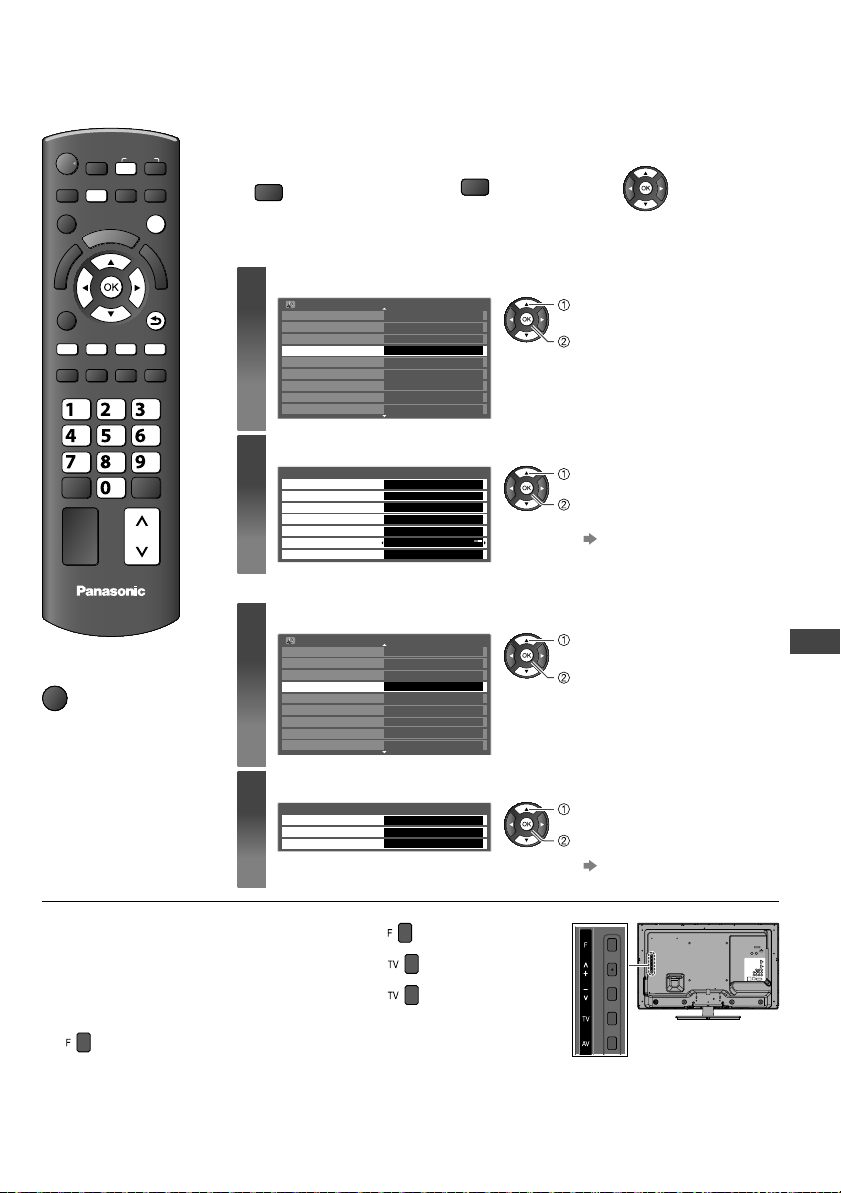
Tuning and Editing Channels
You can make Auto Tuning, listing your favourite channels, skipping unwanted channels, etc.
EXIT
RETURN
MENU
INPUT
TV
TV
abc
def
jk l
ghi
mno
tuvpqrs
wxyz
RGYB
CH
■ To return to TV
EXIT
Preparations:
1 Select Digital TV or
Analogue TV
2 Display the menu 3 Select [Setup]
MENU
TV
●
The selected mode is displayed on the screen (p. 16).
■ When you select Digital TV
1
Select [Digital TV Tuning Menu]
Setup Menu 1/2
Off Timer
Eco Navigation
Child Lock
Digital TV Tuning Menu
Display Settings
VIERA
Link Settings
Network Setup
DivX® VOD
System Menu
Off
Access
access
select
2
Select a function
Digital TV Tuning Menu
Favourites Edit
Channel List
Auto T
uning
Manual Tuning
Update Channel List
New Channel Message
Signal Condition
Access
On
Access
Access
Access
Access
Access
access or set
select
●
For details
(p. 30 - 31)
■ When you select Analogue TV
1
Select [Analogue TV Tuning Menu]
Setup Menu 1/2
Off Timer
Eco Navigation
Child Lock
Analogue TV Tuning Menu
Display Settings
VIERA Link Settings
Network Setup
DivX® VOD
System Menu
Off
Access
access
select
2
Select a function
Analogue TV Tuning Menu
Channel List
Auto T
uning
Manual Tuning
Access
Access
Access
access
select
●
For details
(p. 32)
For Auto Tuning using the buttons on the side panel of the TV (p. 10)
1 Press repeatedly until [Auto Tuning] appears
2 Access [Auto Tuning]
3 Start [Auto Tuning]
●
To return to TV
th-l32x50a_book.indb 29th-l32x50a_book.indb 29 2/27/2012 5:30:08 PM2/27/2012 5:30:08 PM
Tuning and Editing Channels
30
[
1 S
D
A
●
A
●
W
●
S
●
I
f
[
No
not
Digi
Dig
Phy
Sign
Sign
[
You
Lis
Dig
Sca
Digi
This
[
Se
[
Se
●
T
Ch
Si
g
Sig
Net
RF
Dig
A g
ind
[Si
●
G
●
Y
●
R
Digital TV Tuning Menu
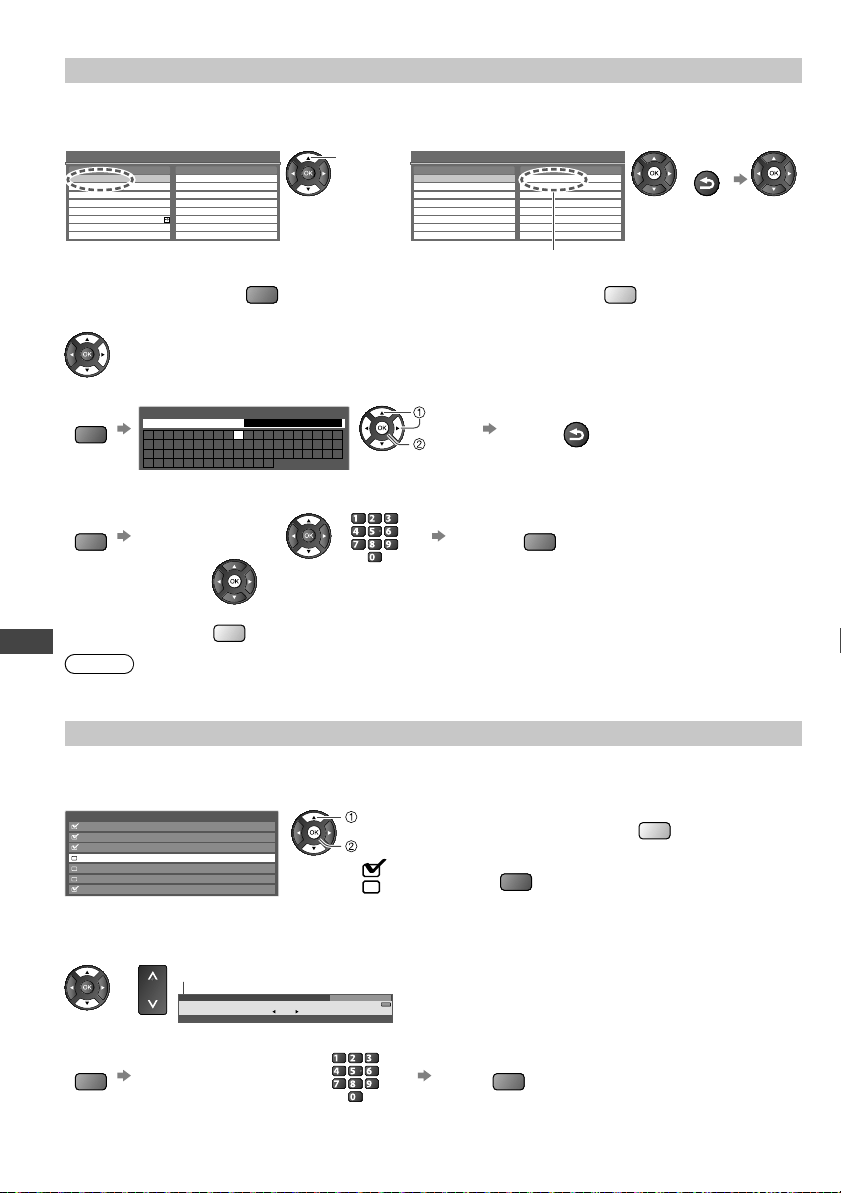
[Favourites Edit] - List favourite channels
Create your favourite channel lists (Favourites) from various broadcasters (up to 4: [Favourites]1 to 4).
The Favourites lists are available from the Information banner (p. 17) and the TV Guide (p. 20).
1 Select a channel to list 2 Add it to the Favourites list 3 Store
Digital TV Favourites Editor
TEN Digital
All Digital Channels Favourites1
ABC TV Sydney
SBS DIGIT
AL1
FTV guide
7 Digital
NINE DIGITAL
7 HD Digital
7 Guide
1
2
3
4
7
9
70
77
select
Digital TV Favourites Editor
TEN Digital TEN Digital
All Digital Channels Favourites1
ABC TV Sydney
SBS DIGIT
AL1
FTV guide
7 Digital
NINE DIGITAL
7 HD Digital
7 Guide
11
2
3
4
7
9
70
77
A channel is added
RETURN
●
To display other Favourites
G
●
To add all channels to the list
Y
■ To edit list
Select the field of Favourites to edit and:
●
To name the Favourites
R
A B C D E F G H I J K L M N
U V W X Y Z 0 1 2 3 4 5 6
a b c d e f g h i j k l m n
u v w x y z ( ) + - . * _
O P Q R S T
7 8 9 ! : #
o p q r s t
User input
Name
(maximum: ten characters)
select
set
Store
RETURN
You can set characters by using numeric buttons (p. 23).
●
To move the channel
G
Select the new position or
abc def
jkl
ghi
mno
tuvpqrs
wxyz
Confirm
G
●
To delete the channel
●
To delete all channels
Y
Note
●
Channel numbers are defined by the broadcaster and cannot be changed.
●
Hidden channels (see below) can be selected but not viewed.
[Channel List] - Skip unwanted channels, Edit Channels
You can hide unwanted channels. The hidden channels cannot be displayed except in this function. Use this function to
skip unwanted channels.
Select a channel and reveal / hide
Digital TV Channel List
CBBC Channel
Cartoon Nwk
BBCi
BBC Radio Wales
BBC Radio Cymru
BBC ONE W
ales
BBC THREE
70
72
105
719
720
1
7
[reveal] / [hide]
: [reveal]
: [hide] (skip)
select
●
To reveal all channels
Y
●
To retune each channel (Manual Tuning)
R
(p. 31)
■ To swap the channel position
You can also edit each channel in the Channel List.
1 Select a channel to edit
or
CH
Channel position
1 BBC ONE WALES
11:35 pm
Coronation Street
11:00 pm - 11:55 pm
Now
All Digital Channels
Select favourites
Rating: PG
2 Swap the channel position
G
Enter the new position number
abc def
jkl
ghi
mno
tuvpqrs
wxyz
Store
G
th-l32x50a_book.indb 30th-l32x50a_book.indb 30 2/27/2012 5:30:08 PM2/27/2012 5:30:08 PM
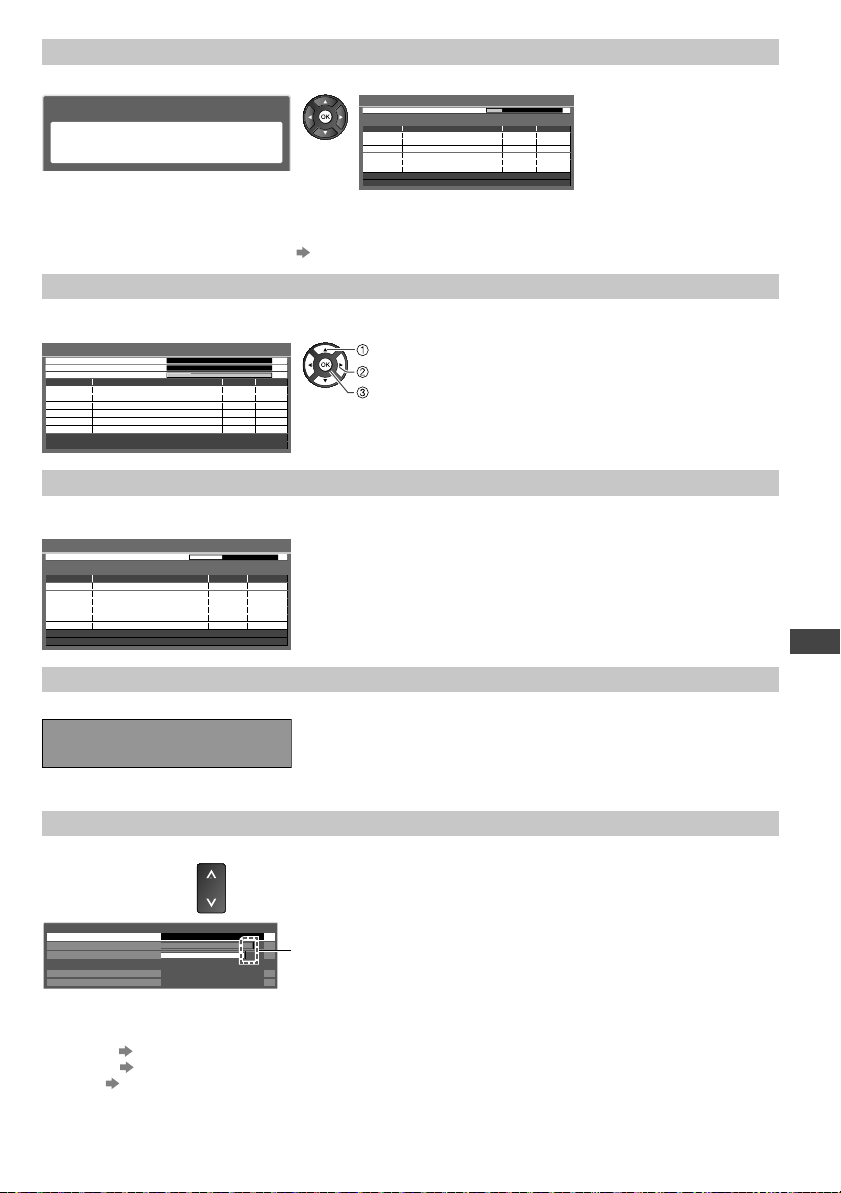
Tuning and Editing Channels
31
[Auto Tuning] - Set all Digital TV channels automatically
1 Start Auto Tuning 2 Settings are made automatically
Digital TV Auto Tuning
All digital TV tuning data will be erased
Digital TV Auto Tuning
Scan
Searching
RF Ch
62
62
62
Channel Name
CBBC Channel
BBC Radio W
ales
E4
Type
Free TV
Free TV
Free TV
Quality
10
10
10
This will take about 3 minutes.
Digital TV
: 4
62 Cartoon Nwk
CH6
69
Free TV
10
Automatically retune
all Digital TV channels
received in the area.
●
All the previous tuning settings are erased.
●
When the operation is completed, the channel at channel position [1] will be displayed.
●
Search begins in the order from the lower channels to the higher channels.
●
If tuning has not been done completely
[Manual Tuning] (see below)
[Manual Tuning] - Set Digital TV channel manually
Normally use [Auto Tuning] or [Update Channel List] to update Digital TV channels on your channel list. If tuning has
not been done completely or for adjusting the direction of the aerial, use this function.
[CH27]
10
10
Stopped
No. Channel Name Type New
Digital TV: 0
0
0
Digital TV Manual Tuning
Physical Channel
Signal Quality
Signal Strength
522,50
MHz
select physical channel
start tuning
select offset
●
All channels found will be added to the Digital TV Channel List.
[Update Channel List] - Update channels automatically
You can add new channels, delete duplicated channels, update channel name and position automatically to Channel
List.
69CH 6
Searching
RF Ch Channel Name Type Quality
Digital TV Update Channel List
Scan
Digital TV: 0
This will take about 3 minutes.
●
Channel List is updated while keeping your settings in [Favourites Edit],
[Channel List], [Child Lock], etc.
●
Depending on the signal condition, the update may not work properly.
[New Channel Message] - Display a notification message
Selects whether to give a notification message when a new Digital TV channel is found. [Off] / [On]
New channels found!
Press OK to update channel list.
Press EXIT to ignore.
●
Selecting OK will perform [Update Channel List].
●
Sometimes, mainly during summer months at night, the TV may pickup
distant
TV stations outside your broadcast due to favourable short term
ionosphere conditions. In such circumstances when you press OK button,
the TV did not add any new channels. This is normal.
[Signal Condition] - Check Digital TV signal
Selects a channel and checks the Digital TV signal condition.
●
To change the channel
CH
Channel Name
Signal Quality
Signal Strength
Network Name
RF Parameter
101 DZFinfokanal
RiksTV
0
2
4
6
8
10
[CH32] 562.00 MHz6940 kS/s
Digital TV Signal Condition
These bars show the maximum signal value of the selected
channel.
A good Signal Strength is not an indication of suitable signal for Digital TV reception. Please use the Signal Quality
indicator as follows:
[Signal Quality]:
●
Green bar Good
●
Yellow bar
Poor
●
Red bar Bad (Check the aerial)
to
th-l32x50a_book.indb 31th-l32x50a_book.indb 31 2/27/2012 5:30:09 PM2/27/2012 5:30:09 PM

Tuning and Editing Channels
32
C
You
Wh
■
EX
I
[
1 E
Chi
Pl
e
PI
●
“
0
d
■
Chil
1
2
7
101
1
4
■
Chi
C
h
Ch
Pa
■
1. S
Chi
C
h
Ch
Pa
2. E
ghi
pqrs
●
P
●
I
f
●
K
Analogue TV Tuning Menu
[Channel List] - Skip unwanted channels / Edit Channels (Change name, Move)
You can hide unwanted channels. The hidden channels cannot be displayed except in this function. Use this function to
skip unwanted channels.
Select a channel and reveal / hide
Analogue TV Channel List
BBC1
*****
*****
*****
*****
*****
*****
1
2
3
4
5
6
7
[reveal] / [hide]
: [reveal]
: [hide] (skip)
select
●
To reveal all channels
Y
●
To retune each channel (Manual Tuning)
R
(see below)
■ To edit channels
You can also edit each channel in the Channel List.
Select a channel to edit and:
or
CH
Channel position
Channel name
1 BBC
9:35 pm
CH 02
All Analogue Channels
Prompt Street
●
To move the channel position
G
Select the new position
Store
G
●
To rename the channel name
B
A B C D E F G H I J K L M N
U V W X Y Z 0 1 2 3 4 5 6
a b c d e f g h i j k l m n
u v w x y z ( ) + - . * _
O P Q R S T
7 8 9 ! : #
o p q r s t
Edit channel name
Name
(maximum: five characters)
select
set
Set characters
Store
RETURN
●
You can set characters by
using numeric buttons (p. 23).
Note
●
If a VCR is connected only with the RF cable, edit [VCR].
[Auto Tuning] - Set all Analogue TV channels automatically
1 Start Auto Tuning 2 Settings are made automatically
Analogue TV Auto Tuning
All analogue TV tuning data will be erased
75
Searching
RF Ch Channel Name
Analogue TV: 0
CH0
Analogue TV Auto Tuning
Scan
This will take about 3 minutes.
Automatically retune all
Analogue TV channels
received in the area.
●
All the previous tuning settings are erased.
●
When the operation is completed, the channel at channel position [1] will be displayed.
●
Search begins in the order from the lower channels to the higher channels.
●
If tuning has not been done completely
[Manual Tuning] (see below)
[Manual Tuning] - Set Analogue TV channel manually
Set Analogue TV channel manually after Auto Tuning.
0
Manual Tuning
CH1
Analogue TV Manual Tuning
0 75
●
If a VCR is connected only with the RF cable, select channel position [0].
1 Select a channel position 2 Select a channel 3 Search and store
abc def
jkl
ghi
mno
tuvpqrs
wxyz
CH
store
search
th-l32x50a_book.indb 32th-l32x50a_book.indb 32 2/27/2012 5:30:10 PM2/27/2012 5:30:10 PM
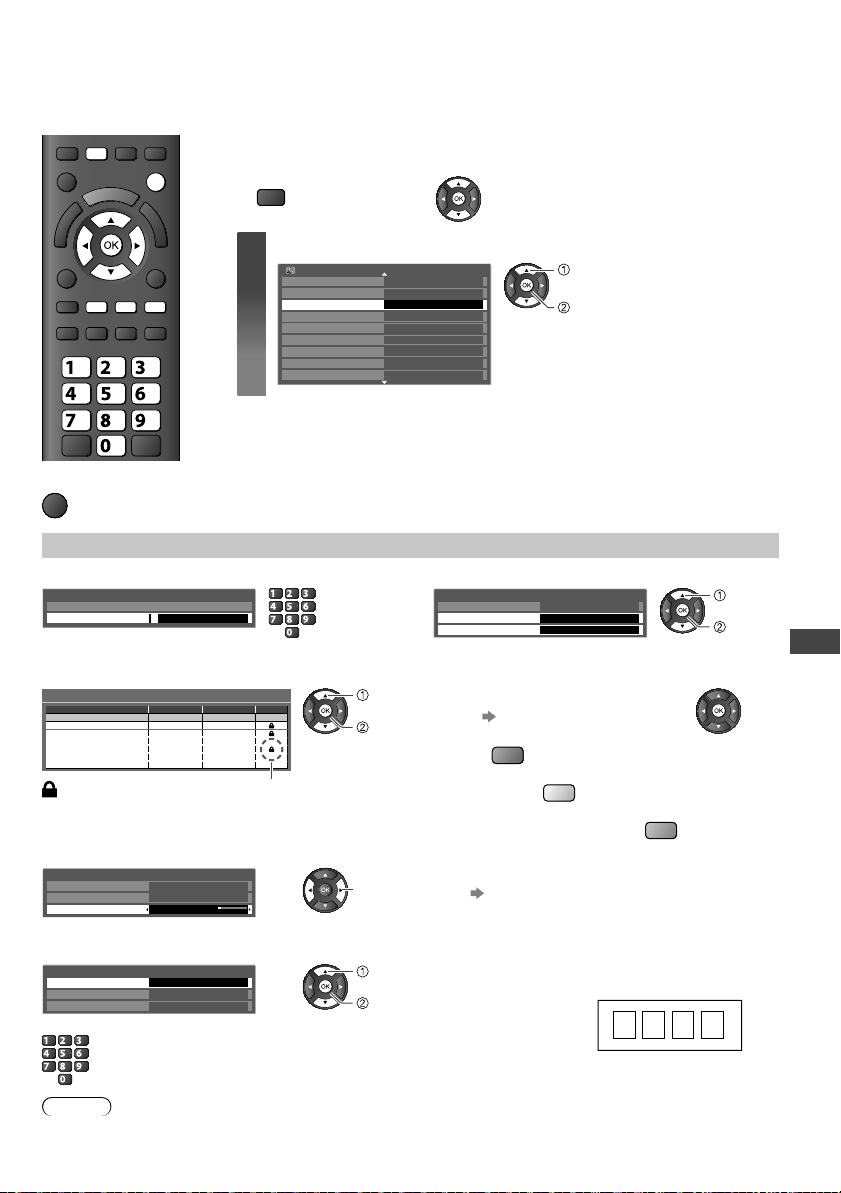
Child Lock
33
Child Lock
You can lock specific channels / AV input terminals and control who watches them.
When the locked channel / input is selected, a message appears; by entering the PIN number, you can watch it.
EXIT
MENU
abc
def
jk l
ghi
mno
tuvpqrs
wxyz
BGY
■ To return to TV
EXIT
Preparations:
1 Display the menu 2 Select [Setup]
MENU
1
Select [Child Lock]
Setup Menu 1/2
Off Timer
Eco Navigation
Child Lock
Digital TV Tuning Menu
Display Settings
VIERA
Link Settings
Network Setup
DivX® VOD
System Menu
Off
Access
access
select
[Child Lock] - Control channel audience
1 Enter the PIN number (4 digits) 2 Select [Child Lock List] or [Parental Rating]
Child Lock-PIN Entry
Please enter new PIN
PIN * * * *
●
“0000” has been stored as the
default PIN number
.
abc def
jkl
ghi
mno
tuvpqrs
wxyz
Child Lock
Change PIN
Child Lock List
Parental Rating
Access
No Block
access
select
■ To set [Child Lock List]
Child Lock List - TV and AV
Lock
Name
BBC1
*****
BBC THREE
BBC 1 Wales
AV1
AV2
Input
Digital TV Digital TV
Digital TV
Digital TV
Digital TV Digital TV
Digital TV Digital TV
Digital TV Digital TV
External
AV
External AV
Type
1
2
7
101
E4
14
: Appears when the channel / input is locked
lock
select
●
To cancel Select the locked channel / input
●
To lock all
G
●
To cancel all locks
Y
●
To jump to the top of the next input
B
■ To set [Parental Rating]
Child Lock
Change PIN
Child Lock List
Parental Rating No Block
set
●
Rating
(p. 61)
■ To change the PIN number
1. Select [Change PIN] in [Child Lock]
●
Make a note of the PIN
number in case you forget
it.
Child Lock
Change PIN
Child Lock List
Parental Rating
Access
No Block
access
select
2. Enter a new PIN number twice.
abc def
jkl
ghi
mno
tuvpqrs
wxyz
Note
●
Performing [Shipping Condition] (p. 35) erases the PIN number and all settings.
●
If you have forgotten your changed PIN, input “6969” as the PIN number.
●
Keep these Operating Instructions out of reach of children.
to
).
th-l32x50a_book.indb 33th-l32x50a_book.indb 33 2/27/2012 5:30:11 PM2/27/2012 5:30:11 PM
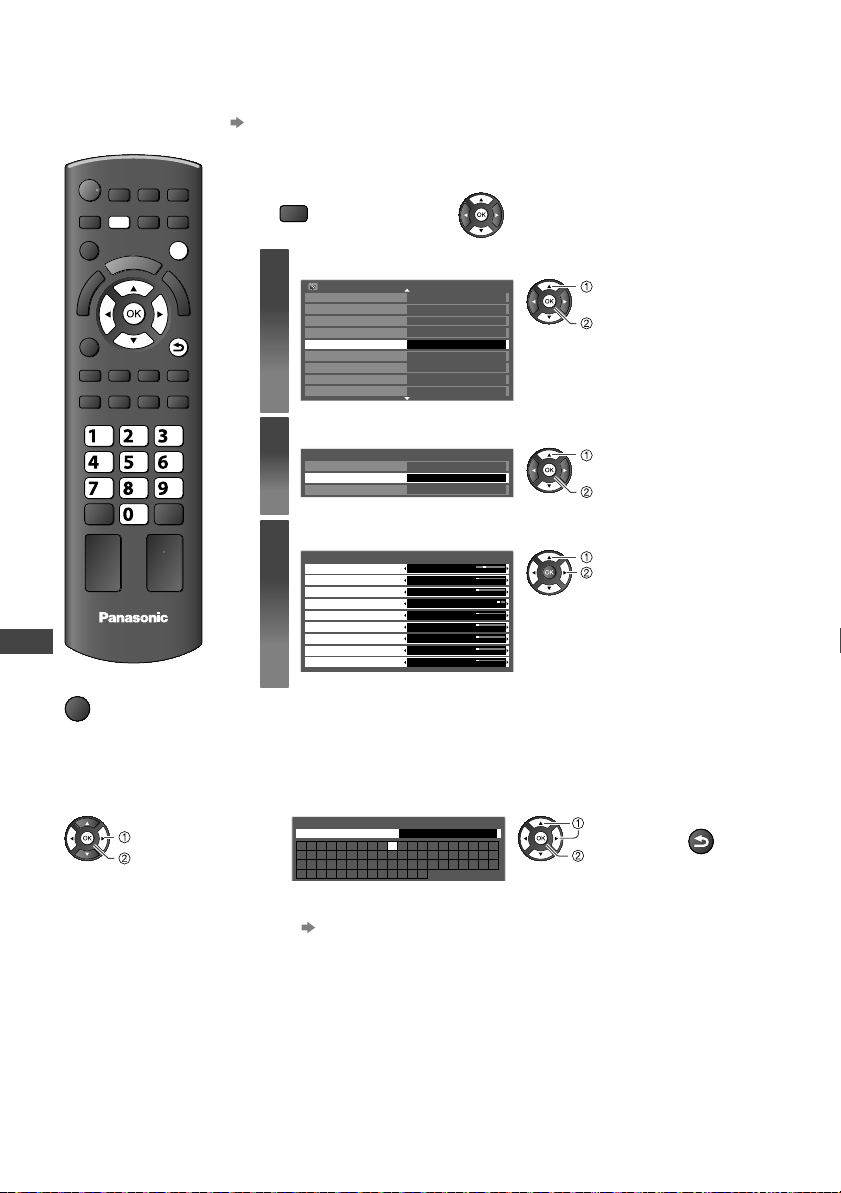
Input Labels
34
S
Re
All
■
EX
I
[
1 C
Sh
A
Co
■
Input Labels
For easier identification and selection of the input mode, you can label each input mode or skip terminals that are not
connected to any equipment.
●
To select the input mode (p. 21)
EXIT
RETURN
MENU
TV
abc
def
jk l
ghi
mno
tuvpqrs
wxyz
■ To return to TV
EXIT
Preparations:
1 Display the menu 2 Select [Setup]
MENU
1
Select [Display Settings]
Off Timer
Setup Menu
Child Lock
Digital TV Tuning Menu
Off
1/2
Access
Display Settings
VIERA Link Settings
Network Setup
DivX® VOD
System Menu
Eco Navigation
access
select
2
Select [Input Labels]
Teletext TOP
Display Settings
Banner Display Timeout 3 seconds
Input Labels Access
access
select
3
Select an input terminal and set
Display Settings
Input Labels
AV1
AV
2
AV3
PC
HDMI1
HDMI2
HDMI3
Digital TV
Analogue TV
DVD
AV
2
AV3
PC
HDMI1
HDMI2
HDMI3
Digital TV
Analogue TV
set
select
The labels you set will be displayed in
[Input Selection] menu (p. 21) or banner.
●
If [Skip] is selected, you cannot select the
mode.
■ User input
You can name each input mode freely.
1 Select [User input] 2 Set characters one by one 3 Store
access
select
A B C D E F G H I J K L M N
U V W X Y Z 0 1 2 3 4 5 6
a b c d e f g h i j k l m n
u v w x y z ( ) + - . * _
O P Q R S T
7 8 9 ! : #
o p q r s t
User input
Name
(maximum: ten characters)
select
set
RETURN
●
You can set characters by using numeric buttons.
(p. 23)
th-l32x50a_book.indb 34th-l32x50a_book.indb 34 2/27/2012 5:30:12 PM2/27/2012 5:30:12 PM
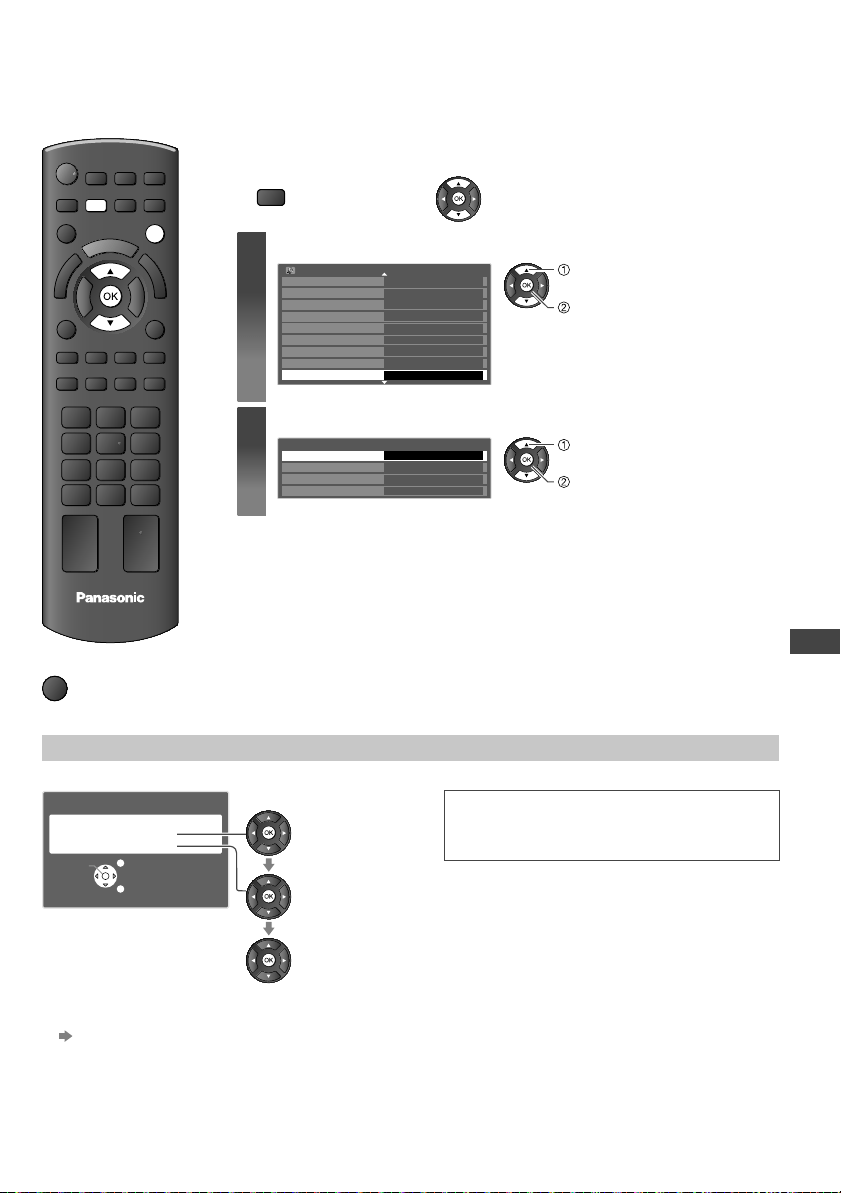
Shipping Condition (Reset settings)
35
Shipping Condition (Reset settings)
Resets the TV to its original condition, i.e. no channels tuned in.
All settings are reset (channels, picture, sound settings, etc.).
EXIT
MENU
TV
■ To return to TV
EXIT
Preparations:
1 Display the menu 2 Select [Setup]
MENU
1
Select [System Menu]
Off Timer
Setup Menu
Child Lock
Digital TV Tuning Menu
Off
1/2
Access
Display Settings
VIERA Link Settings
Network Setup
DivX® VOD
System Menu
Eco Navigation
access
select
2
Select [Shipping Condition]
Shipping Condition
System Menu
System Information
Access
System Update
Software Licence
access
select
[Shipping Condition] - Restore Settings
1 Check the message and reset 2 Follow the on screen instructions
Shipping Condition
All tuning data will be erased
Are you sure?
Are you sure?
Confirm
EXIT
RETURN
(confirm)
(confirm)
(start
[Shipping Condition])
Reset to Factory Shipping Condition
Completed.
Please switch off TV.
●
[Auto Tuning] will automatically start when Mains
power On/Of
f switch is next turned on (p. 14).
■ To retune TV channels only, e.g. after moving house
[Auto Tuning] in “Tuning and Editing Channels” (p. 31, 32)
t
he
th-l32x50a_book.indb 35th-l32x50a_book.indb 35 2/27/2012 5:30:12 PM2/27/2012 5:30:12 PM

Updating the TV Software
36
U
Me
VIE
scr
Ph
Vi
d
Mu
Wh
●
[
D
d
●
T
●
D
●
P
●
T
To
■
■
To
SD
G
th
la
fa
●
F
Updating the TV Software
From time to time, a new version of software may become available for download to enhance the performance or
operations of the TV.
If there is an update available, a notification banner is displayed when the channel has the update information.
●
To download
●
If you choose not to download
EXIT
You can update any new software automatically or update manually.
EXIT
MENU
■ To return to TV
EXIT
Preparations:
1 Display the menu 2 Select [Setup]
MENU
1
Select [System Menu]
Off Timer
Setup Menu
Child Lock
Digital TV Tuning Menu
Off
1/2
Access
Display Settings
VIERA Link Settings
Network Setup
DivX® VOD
System Menu
Eco Navigation
access
select
2
Select [System Update]
System Update
Shipping Condition
System Information
System Menu
Software Licence
Access
access
select
[System Update] - Update TV’s software system
■ To update automatically
Select [Auto Update Search in Standby] and set the timing
System Update Search Now
System Update
Auto Update Search in Standby 1 hour after
set
select
●
Every time you set, the TV automatically performs a search in standby and downloads an update, if any software
updates are available.
●
The automatic updating is performed under the following conditions:
•
Standby (TV turned Off with the remote control)
•
Direct TV Recording is not in progress.
If System Update is performed, the software will be updated (it may change TV functions).
If you do not wish to do so, set [Auto Update Search in Standby] to [Off].
■ To search for new software version
1 Select [System Update Search Now]
2 Searches for an update (for several minutes) and
displays a corresponding message if any
Auto Update Search in Standby
System Update
System Update Search Now
1 hour after
Access
start
select
Note
●
Download may take about 60 minutes.
●
During software download and update, DO NOT switch Off the TV or press any buttons. The TV will automatically be
activated after downloading is completed.
●
During downloading, the TV will display a blank screen for 40 to 50 seconds. Do not interrupt the TV during this
procedure.
●
The message might be the notification beforehand. In this case, the schedule information (the date that the new
version can be used) will appear
. You can set the reservation for update. The update will not start when the TV is set
to Off.
●
Software updates may be distributed in several ways; Automatic Update via the TV antenna or downloaded by you
from the internet using your PC, copying the software image to your SD card or USB stick then updating TV software
using the TV’s USB port or TV’s SD card slot. No other distribution method is available.
th-l32x50a_book.indb 36th-l32x50a_book.indb 36 2/27/2012 5:30:13 PM2/27/2012 5:30:13 PM
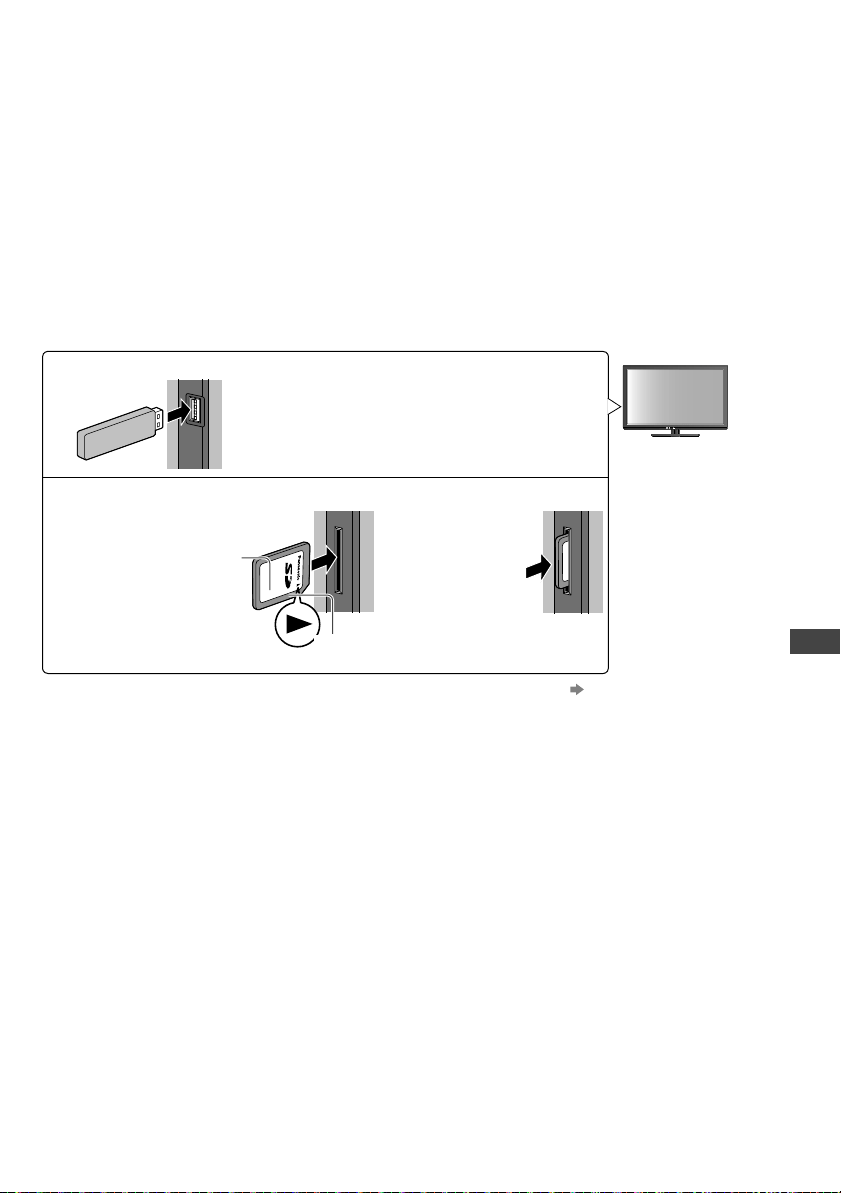
Using Media Player
37
Using Media Player
Media Player allows you to enjoy photo, video or music recorded on an SD Card and a USB Flash Memory.
VIERA IMAGE VIEWER is the function of the easy viewing for photos or videos recorded on an SD Card on the TV
screen by simply inserting into the SD Card slot.
Photo mode: Still pictures recorded by digital cameras will be displayed.
Video mode: Moving pictures recorded by digital video cameras will be played back.
Music mode: Digital music data will be played back.
When these functions are used, the audio signal is output from audio output terminals.
●
[Date] shows the date on which the recording was made by the recording equipment. The file without record of the
date is shown “**/**/****”.
●
The picture may not appear correctly on this TV depending on the recording equipment used.
●
Display may take some time when there are many files and folders.
●
Partly degraded files might be displayed at a reduced resolution.
●
The folder and file names may be different depending on the digital camera or digital video camera used.
T
o insert or remove the SD Card / USB Flash Memory
■ USB Flash Memory
●
Insert or remove straightly and completely.
■ SD Card
To insert the
SD Card
Gently insert
the SD Card
label surface
facing front.
Label
surface
Cutout
Push until a
click is heard
To remove the
SD Card
Push the
centre of
the card
●
For more information of the SD Card, USB Flash memory and supported file format
(p. 64 - 65)
be
et
re
th-l32x50a_book.indb 37th-l32x50a_book.indb 37 2/27/2012 5:30:13 PM2/27/2012 5:30:13 PM
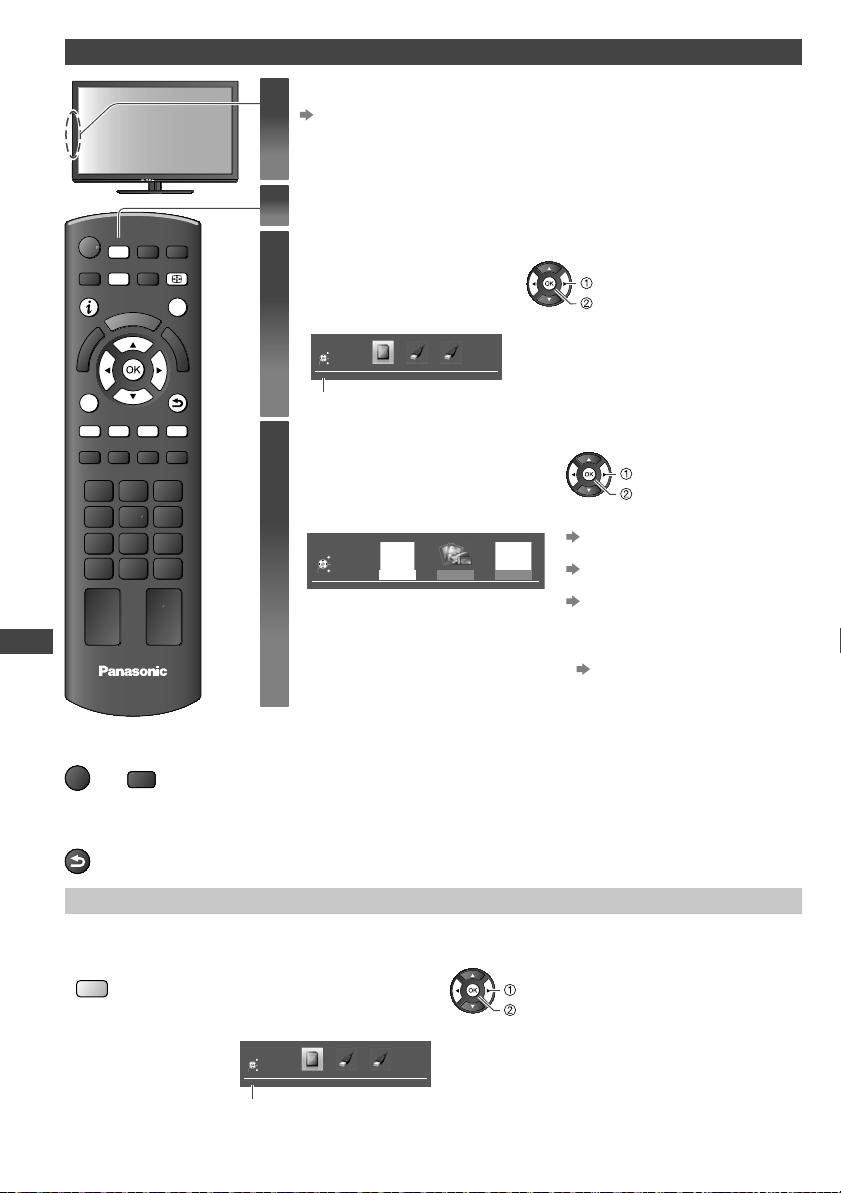
Using Media Player
38
P
Su
Th
e
Exa
Me
●
T
●
T
I
N
■
1 D
2 S
3 S
●
T
Starting Media Player
EXIT
RETURN
TV
SD CARD
Y
INFO
OPTION
MENU
ASPECT
RG B
■ To return to TV
EXIT
or
SD CARD
■ To return to the
previous screen
RETURN
1
Insert the SD Card or USB Flash Memory
(p. 37)
When the SD Card is inserted, switching to Media Player will be done
automatically.
2
Switch to Media Player
3
Select the icon you want to access
Media Player
Drive Select
SD Card
EXIT
Select
RETURN
Access
selected device name
access
select
●
If only one device is connected, this step
will be skipped.
4
Select the content
Media Player
Photo Video Music
Contents Select
SD Card
EXIT
Select
RETURN
Access
access
select
[Photo]
“Photo mode” (p. 39)
[Video]
“Video mode” (p. 42)
[Music]
“Music mode” (p. 45)
●
You can also access each mode
directly by using VIERA
TOOLS.
“How to Use VIERA TOOLS”
(p. 22)
Change the device
You can change to the other device directly in the same mode if two or more devices are connected.
1 Display the menu 2 Select the icon you want to access
Y
selected device name
Media Player
Drive Select
SD Card
EXIT
Select
RETURN
Access
access
select
th-l32x50a_book.indb 38th-l32x50a_book.indb 38 2/27/2012 5:30:14 PM2/27/2012 5:30:14 PM
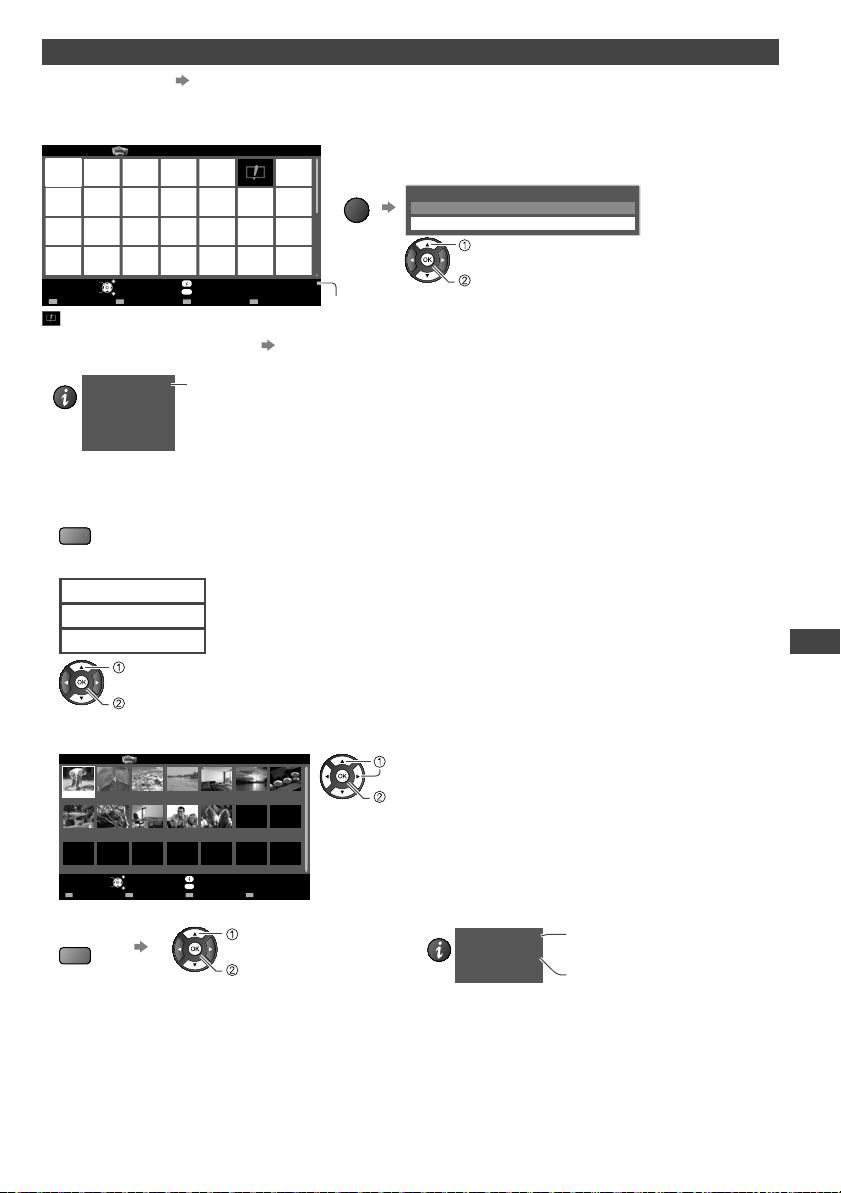
Using Media Player
39
Photo mode
Supported file format (p. 64)
The thumbnail of all the photos in the SD Card or USB Flash Memory will be displayed.
Example : Thumbnail - [All photos]
OPTION
SD Card
EXIT
Select
RETURN
Media Player Photo
All photos
Slideshow View Select Drive Select Contents Select
Info
View
Option Menu
Selected Device Name
●
To change the number of photos on a thumbnail
screen at a time ( 7 × 4 ↔ 10 × 6 )
OPTION
Option Menu
Slideshow Settings
Change Size
select
[Change size]
Set
: Error display
●
To change the background music
“Photo Setup” (p. 40)
●
To display the information of the highlighted photo
INFO
1/48
p1010001.JPG
File name
Date
Pixel
23/10/2010
1600X1200
File number / Total file number
■ To sort by folder, recorded date or recorded month
1 Display the view selection
G
2 Select the sort type
Folder view
Sort by Date
Sort by Month
access
select
[Folder view]:
Displays the thumbnail grouped by folder
●
The files which are not into a folder will be collected to the folder named “/”.
[Sort by Date]:
Displays the thumbnail grouped by the same date
●
The group of the photos without a recorded date is shown as [Unknown].
[Sort by Month]:
Displays the thumbnail grouped by the same month
●
The group of the photos without a recorded date is shown as [Unknown].
3 Select one of the sorted groups to display the thumbnail of the selected group
OPTION
23/10/2010
24/11/2010
25/10/2010
01/12/2010
01/1
1/2010
03/12/2010
05/11/2010
20/12/2010
10/11/2010
22/12/2010
22/11/2010 23/11/2010
Media Player Photo
Sort by Date
SD Card
EXIT
Select RETURN
Slideshow View Select Contents Select
Info
Access
Option Menu
Drive Select
select
thumbnail of the selected group
●
To return to the thumbnail of all photos
G
access
select
[All photos]
●
To display the information of the highlighted group
INFO
1/12
23/10/2010
Folder name
Number of files
3
Folder name, date or month
Group number /
Total group number
p
th-l32x50a_book.indb 39th-l32x50a_book.indb 39 2/27/2012 5:30:16 PM2/27/2012 5:30:16 PM
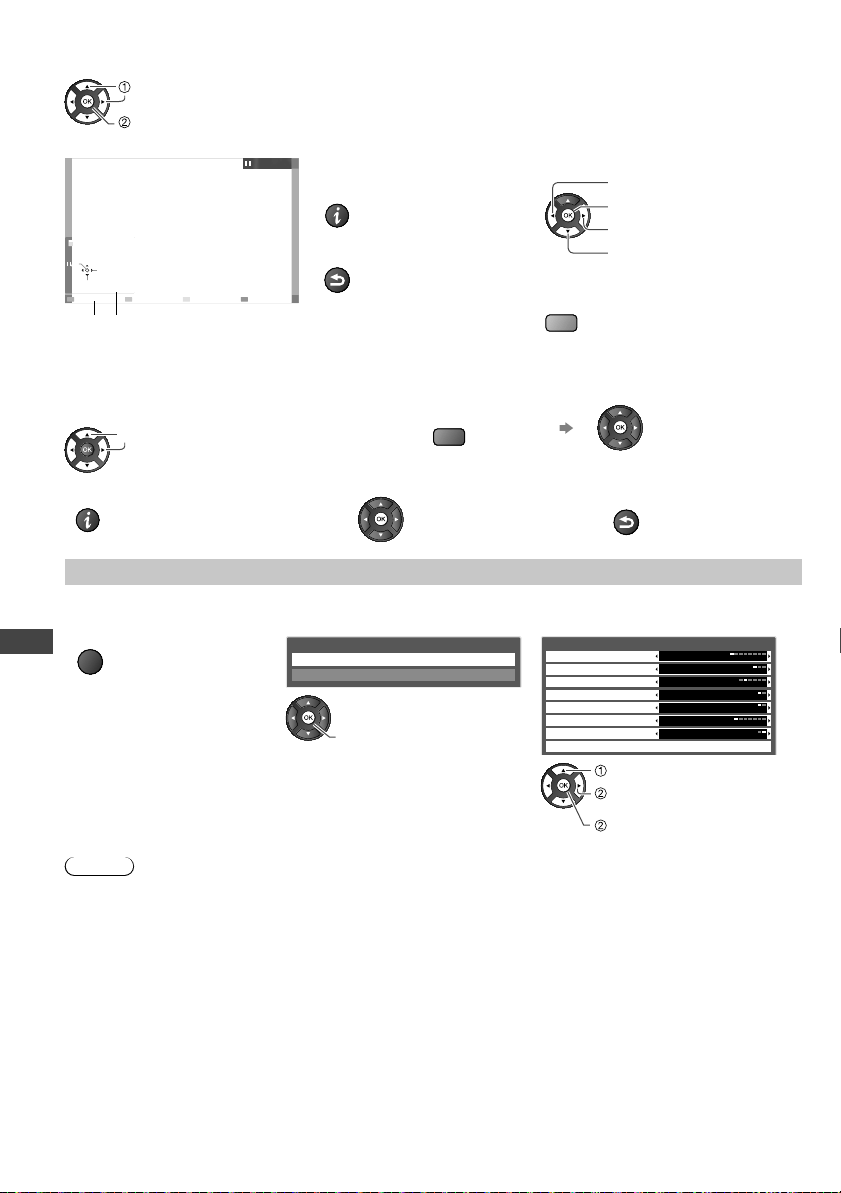
Using Media Player
40
F
C
E
T
E
S
M
B
P
In
R
B
G
M
[Single view] - Photos are displayed one at a time.
Select the file from the thumbnail of photos to be viewed
select
access
Example :
Single view
Single view
Stop
EXIT
Select
RETURN
Rotate
Operation guide
●
To display / hide the operation
guide
INFO
●
To return to thumbnail
RETURN
●
To operate Single view
To the previous photo
Slideshow
To the next photo
Stop
(return to thumbnail)
●
To rotate 90°
B
[Slideshow] -
Slideshow will complete when all photos have been viewed within the present thumbnail.
1 Select the file from the thumbnail of photos
for the first view
2 Start Slideshow
R
select
●
To display / hide the operation guide
●
To pause (return to Single view)
●
To return to thumbnail
INFO
RETURN
Photo Setup
Setup the settings for Photo mode.
1 Display the option menu 2 Select [Slideshow Settings] 3 Select the items and set
OPTION
Option Menu
Slideshow Settings
Change Size
Slideshow Settings
Frame
Colour Effect
Transition Effect
Screen Mode
Interval
Repeat
Back Ground Music
5 seconds
On
Of
f
Fade
Normal
Off
Burst Playback Off
access
set
or
select
access
[Back Ground Music]
Note
●
Picture quality may become lower depending on the slideshow settings.
●
Picture setting may not work depending on the slideshow settings.
th-l32x50a_book.indb 40th-l32x50a_book.indb 40 2/27/2012 5:30:18 PM2/27/2012 5:30:18 PM
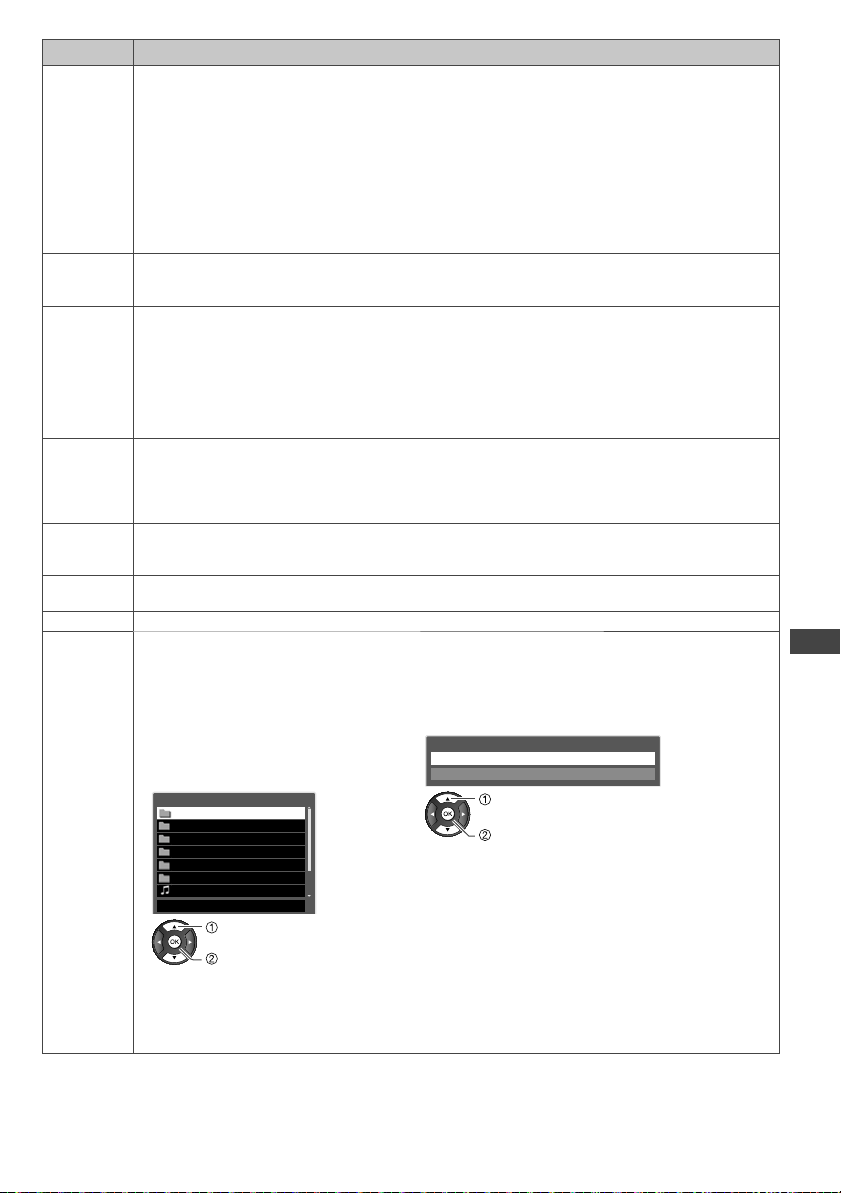
Using Media Player
41
Item Adjustments / Configurations (alternatives)
Frame
Selects the indication frame of the slideshow
[Off] / [Multi] / [Collage] / [Drift (+ calendar)] / [Drift] / [Gallery (+ calendar)] / [Gallery] / [Cinema]
[Multi]: 9 division display like tiled design
[Collage]: A photo is displayed at a random position and at a random scale.
[Drift (+ calendar) / Drift]: Photos are displayed like flow images.
●
You can select to display the calendar or not. To change the month of the calendar, press the left
or right cursor button while viewing the slideshow
.
[Gallery (+ calendar) / Gallery]: The various sizes of photos in the frame are displayed.
●
You can select to display the calendar or not. To change the month of the calendar, press the left
or right cursor button while viewing the slideshow
.
[Cinema]: Photos are displayed like old films (sepia tone)
Colour
Effect
Selects the colour effect of photos on Single view and Slideshow
[Off] / [Sepia] / [Gray scale]
●
This function is not available when [Frame] is set to [Drift], [Gallery] or [Cinema].
T
ransition
Effect
Selects the transition effect for switching the photo during the slideshow
[Off] / [Fade] / [Slide] / [Dissolve] / [Motion] / [Random]
[Fade]: The next photo fades in gradually.
[Slide]: The next photo slides and appears from the left side.
[Dissolve]: The photo is replaced by an indefinite block unit.
[Motion]: The photo is replaced with enlarged, reduced, moved up or moved down.
[Random]: Each transition is selected at random.
●
This function is available when [Frame] is set to [Off].
Screen
Mode
Selects enlarged or normal viewing on Single view and Slideshow
[Normal] / [Zoom]
●
This function is not available when [Frame] is set to [Collage], [Drift], [Gallery] or [Cinema].
●
This function is not available when [Transition Effect] is set to [Motion].
●
Depending on the photo size, the photo may not be enlarged.
Burst
Playback
Selects whether the continuous shots are displayed in rapid interval during the slideshow [Off] / [On]
●
This function is not available when [Frame] is set to [Drift], [Gallery] or [Cinema].
●
This function is not available when [Transition Effect] is set to [Motion].
Interval
Selects slideshow interval [5] / [10] / [15] / [30] / [60] / [90] / [120] (seconds)
●
This function is not available when [Transition Effect] is set to [Motion].
Repeat Slideshow repeat [Off] / [On]
Back
Ground
Music
Selects the background music during Photo mode
[Off] / [T
ype1] / [Type2] / [Type3] / [User] / [Auto]
●
[Type1], [Type2] and [Type3] are the fixed music each installed in this TV.
[User]: Music data in the current device registered by yourself will be played back.
T
o register the music
1 Select the music file 2 Select [File] or [Folder]
Depending on the conditions of the current
device, select folders until you reach the
desired music file.
Register Slideshow BGM?
File
Folder
DCIM
MISC
001photo
002photo
003music
01 song.mp3
PRIVATE
Back Ground Music
Type1
set
select
[File]: The selected music file will be registered as
background music.
[Folder]: All the music in the folder which contains
the selected music file will be registered as
background music.
select
access
●
If no music has been registered or the registered music device is removed, no sound will be
produced.
[Auto]: Music data stored in the root folder of the current device will be played back randomly
.
●
If there is no available music data, no sound will be produced.
ail.
th-l32x50a_book.indb 41th-l32x50a_book.indb 41 2/27/2012 5:30:19 PM2/27/2012 5:30:19 PM
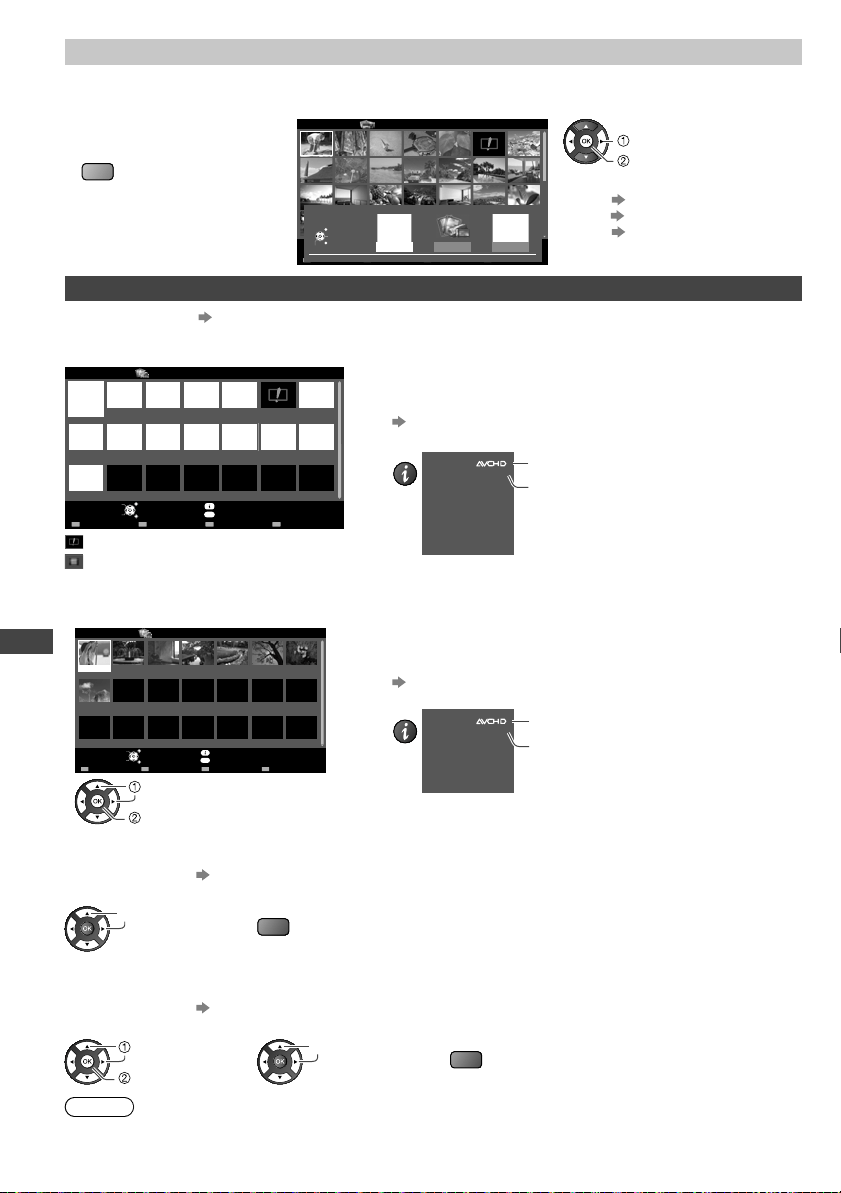
Using Media Player
42
■
Exa
SD
Op
■
V
Se
1 D
i
OPT
V
R
C
You
●
M
1 D
d
OPT
Change the contents
You can switch to the other mode of Media Player from the thumbnail view.
1 While the thumbnail is
displayed, display the
contents selection
B
2 Select the contents
OPTION
SD Card
EXIT
Select RETURN
Media Player Photo
All photos
Slideshow View Select Contents Select
Info
View
Photo Video Music
Contents Select
SD Card
EXIT
Select
RETURN
Access
access
select
[Photo] “Photo mode” (p. 39)
[Video] “Video mode” (below)
[Music] “Music mode” (p. 45)
Video mode
Supported file format (p. 64 - 65)
The thumbnail of video titles in the SD Card or USB Flash Memory will be displayed.
Example : Thumbnail - [Title view]
OPTION
Title view
Media Player
Video
Trip1
Nature2
2010_9
T
rip2
Nature3
Trip3
Nature4
Trip4
Nature5
Trip5
Nature6
Room
2010_4
Nature1
2010_7
SD Card
EXIT
Select
RETURN
Play Contents Select
Info
Access
Option Menu
Drive Select
The preview will start when the title is highlighted if it supports a
preview.
●
To turn off the preview
“Video Setup” (p. 43)
●
To display the information of the highlighted title
INFO
1/15
Trip1
8
Title
Number of scenes
Date & Time
Duration
19/02/2010 11:21
00h15m39s
Title number /
Total title number
File format
: Error display
: The file does not support thumbnail view.
●
To view the scenes of the title
Select the title
Example :
Thumbnail - [Scene view]
OPTION
Trip1_1
Trip1_8
T
rip1_2 Trip1_3 Trip1_4 Trip1_5 Trip1_6 Trip1_7
Media Player Video
Title view > Trip1
SD Card
EXIT
Select RETURN
Contents Select
Info
Play
Play
Option Menu
Drive Select
The preview will start when the scene is highlighted if it supports a
preview.
●
To turn off the preview
“Video Setup” (p. 43)
●
To display the information of the highlighted scene
INFO
1/8
Trip1_1
00h04m12s
Scene
Duration
Date & Time
19/02/2010 11:21
Scene number /
Total scene number
File format
select
access
■ Playback from Title view
Playback of the selected title will start.
●
To repeat playback “Video Setup” (p. 43)
1 Select the title 2 Start playback
select
R
■ Playback from the selected scene in the title
Playback will start from the selected scene to the end of the title.
●
To repeat playback
“Video Setup” (p. 43)
1 Select the title 2 Select the scene 3 Start playback
select
access
select
R
Note
●
The structure of titles and scenes may vary depending on the digital video camera used.
th-l32x50a_book.indb 42th-l32x50a_book.indb 42 2/27/2012 5:30:19 PM2/27/2012 5:30:19 PM
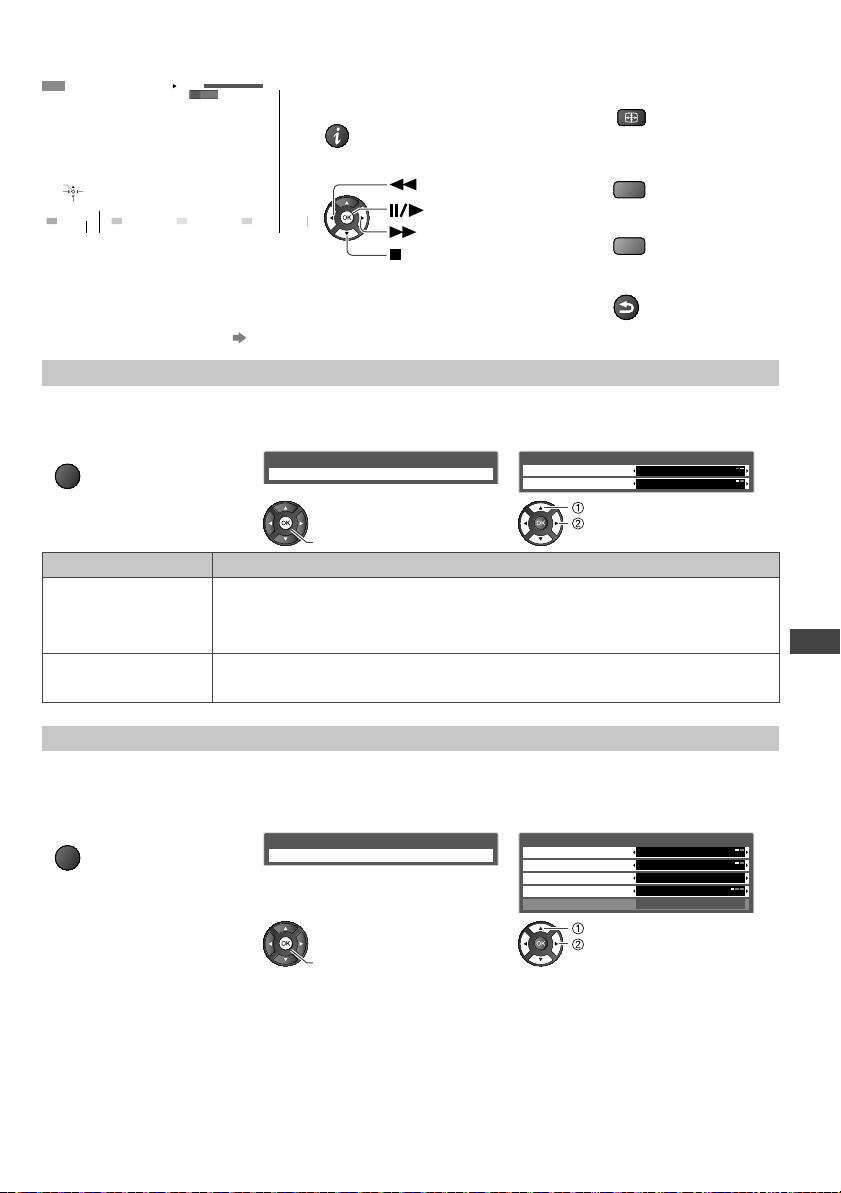
Using Media Player
43
■ How to operate playback
Example : Playback
SD
EXIT
RETURN
02/10/2010 00:15:39
00:02:05
11:21
Operation guide
Information banner
●
To display / hide the operation guide and
information banner
INFO
●
To operate playback
Rewind
Pause / Playback
Fast forward
Stop
●
To change aspect
ASPECT
●
To the previous title /
scene
R
●
To the next title / scene
G
●
To return to thumbnail
RETURN
■ To change the content “Change the contents” (p. 42)
Video Setup
Setup the settings for Video mode.
1 Display the option menu
in the thumbnail view
2 Select [Video Setup] 3 Select the items and set
OPTION
Option Menu
Video Setup
Video Setup Menu
Video Preview
Repeat Off
On
access
set
select
Item Adjustments / Configurations (alternatives)
Video Preview
Sets to start the preview of the title or scene in the thumbnail view [Off] / [On]
●
Image may not be displayed for an instant in the thumbnail view. Set the preview [Off] to
resolve this.
Repeat
Playback repeat within the title [Off] / [On]
Only the selected file will be repeated.
Confirm or change the current status
You can confirm or change the current status of the content.
●
Menu items and selectable options vary depending on the content.
1 Display the option menu
during playback
2 Select [Video Setup] 3 Select the items and set
OPTION
Option Menu
Video Setup
Aspect1
Off
Video Setup Menu
Multi Audio
Subtitle
Subtitle text
Aspect Change
Repeat
Of
f
Latin1
Stereo
access
set
select
a
th-l32x50a_book.indb 43th-l32x50a_book.indb 43 2/27/2012 5:30:22 PM2/27/2012 5:30:22 PM
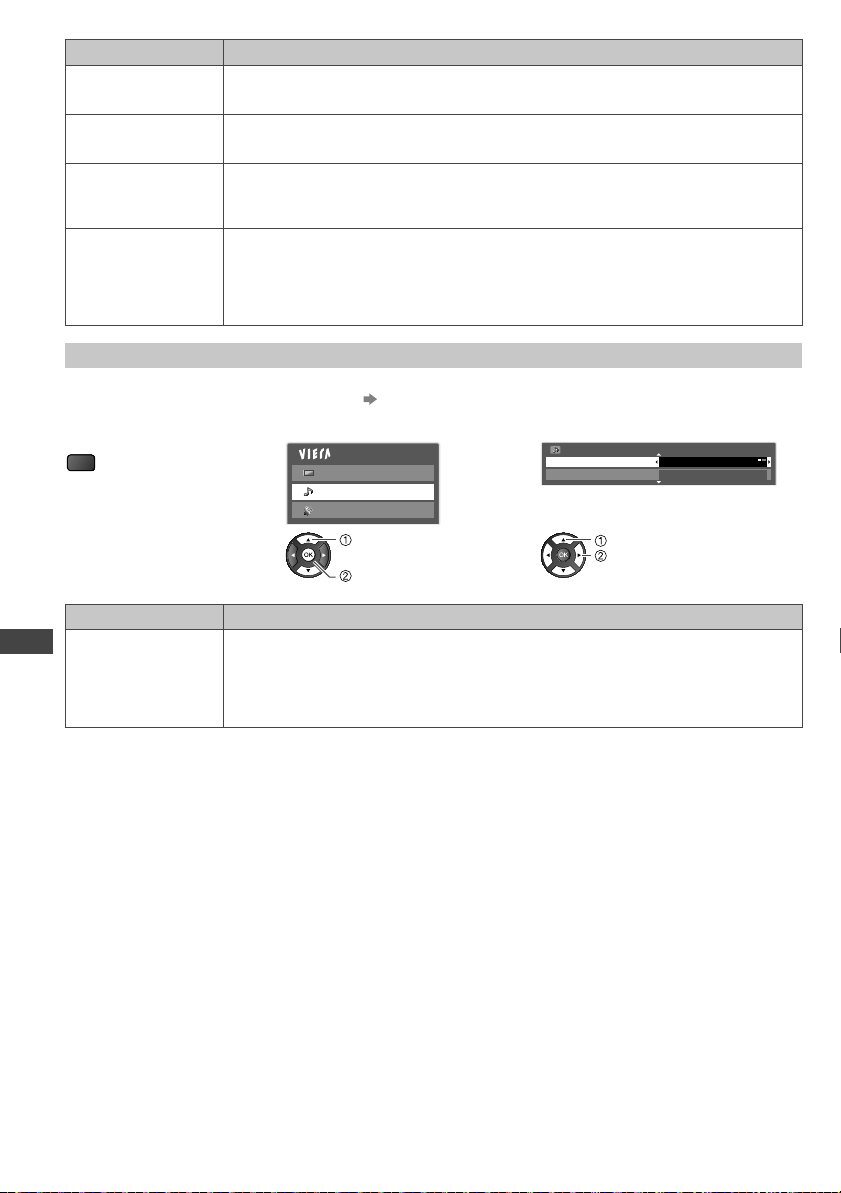
Using Media Player
44
M
Su
Th
e
Exa
My M
Me
■
All
1 S
■
Se
1 S
■
Op
M
Se
1 D
o
O
Item Adjustments / Configurations (alternatives)
Multi Audio
Allows you to select between selectable sound tracks (if available)
●
It may take several seconds to change the sound.
Subtitle
T
urn the subtitle on/off and select the subtitle file (if available)
[Off] / [Subtitle1] (/ [Subtitle2] ...)
Subtitle text
Selects the font type, if the subtitles text are not displayed correctly.
[Latin1] / [Latin2] / [Cyrillic] / [Turkish] / [Unicode] / [Chinese1] / [Chinese2]
●
Some subtitles text may not be displayed correctly.
Aspect Change
[Aspect1]: Displays the content full-screen
[Aspect2]: Displays the content square
[Original]: Displays the content original size
●
You can also change the aspect using the ASPECT button.
●
Aspect change may not work depending on the content.
Audio output Settings
You can enjoy the multi-channel sound via an amplifier connected to the DIGITAL AUDIO OUT terminal.
●
To confirm or change the current sound status “Confirm or change the current status” (p. 43)
1 Display the menu 2 Select [Sound] 3 Select [SPDIF Selection] and set
MENU
Main Menu
Picture
Sound
Setup
Sound Menu
2/2
SPDIF Selection
Reset Sound Defaults
Auto
Reset
access
select
set
select
Item Adjustments / Configurations (alternatives)
SPDIF Selection
SPDIF: A standard audio transfer file format
Selects the initial setting for digital audio output signal from the DIGITAL AUDIO OUT
terminal [Auto] / [PCM]
[Auto]: Dolby Digital is output as Dolby Digital Bitstream. MPEG is output as PCM.
[PCM]: Digital output signal is fixed to PCM.
th-l32x50a_book.indb 44th-l32x50a_book.indb 44 2/27/2012 5:30:25 PM2/27/2012 5:30:25 PM

Using Media Player
45
Music mode
Supported file format (p. 65)
The thumbnail of music folders in the SD Card or USB Flash Memory will be displayed.
Example : Thumbnail - [Folder view]
OPTION
My Music_1 My Music_2 My Music_3
Media Player Music
Folder view
SD Card
EXIT
Select
RETURN
Play Folder Contents Select
Info
Access
Option Menu
Drive Select
●
To display the information of the highlighted folder
INFO
1/3
My Music_1
Folder name
Number of files
11
Folder number / Total folder number
■ Playback from Folder view
All the files in the selected folder will be played back.
1 Select the folder 2 Start playback
select
R
■ Playback from File view
Selected file will be played back.
1 Select the folder 2 Select the file 3 Start playback
select
access
EXIT
Select RETURN
SD Card
Info
Contents SelectDrive Select
Media Player Music
Folder view > My Music_1
Play
My Song_1
My Song_8
My Song_2
My Song_9
My Song_3
My Song_10
My Song_4
My Song_1
1
My Song_5 My Song_6 My Song_7
select
R
To display the information
of the highlighted title
INFO
1/11
My Song_1
My Favorite
Title
Artist
Album
Track No.
Duration
My Music_1
1
00h03m29s
File number /
Total file number
■ How to operate playback
EXIT
RETURN
My Song_9
My Favourite
My Music_1
00:02.43 / 00:05.44
Operation guide
●
To display / hide the operation guide
INFO
●
To operate playback
●
To the previous track
R
●
To the next track
G
●
To return to thumbnail
RETURN
Rewind
Pause / Playback
Fast forward
Stop
Music Setup
Setup the setting for Music mode.
1 Display the
option menu
OPTION
2 Select [Music Setup] 3 Set
Option Menu
Music Setup
access
Music Setup Menu
Repeat One
set
[Folder]: Playback repeat within the selected folder
[One]: Playback repeat of the selected one file
th-l32x50a_book.indb 45th-l32x50a_book.indb 45 2/27/2012 5:30:26 PM2/27/2012 5:30:26 PM

Using Network Services
46
Using Network Services
DLNA
®
This TV is a DLNA Certified™ product.
DLNA (Digital Living Network Alliance) is a standard that makes DLNA Certified digital electronics easier and more
convenient to use on a home network. To learn more, visit www.dlna.org.
It allows you to share photos, videos and music stored in a DLNA Certified media server (for example, PC with
Windows 7 installed (with suitable CODEC pack plug-in), DIGA Recorder, etc.) connected to your home network, and
enjoy them on the TV.
Supported file format (p. 64 - 65)
Media server
Ensure a connected equipment is a DLNA Certified media server.
To use a PC, install the server software on the PC for obtaining a media server.
Store photos, videos or music into the media server, and then you can enjoy them on the TV.
“TwonkyMedia Server 6”, “Mezzmo” and “Windows 7” (with Shark007 CODEC plug-in) are the media server software
used for TV playback testing (current as of January, 2011).
For installing, read the manual of the server software.
●
The DLNA control function of Windows 7 is not supported with this TV.
●
When a server software for the media server is installed on the PC, the data may be at risk of being accessed by
other people. Please take care of the settings and connections under the network circumstances at the office, hotel or
even at home when not using a router.
By connecting a DLNA compatible DIGA Recorder to your home network, you can enjoy and control it as one of the
media servers.
●
For details, read the manual of the DIGA Recorder.
Network connection
“Example 1” or “Example 2” in “Network connections” (p. 47)
Network setup
(p. 48 - 49)
DLNA operations
(p. 50 - 52)
N
To
●
S
●
R
s
●
R
Ex
●
E
●
I
f
●
I
f
●
E
●
I
f
Ex
You
●
E
●
Y
c
th-l32x50a_book.indb 46th-l32x50a_book.indb 46 2/27/2012 5:30:27 PM2/27/2012 5:30:27 PM
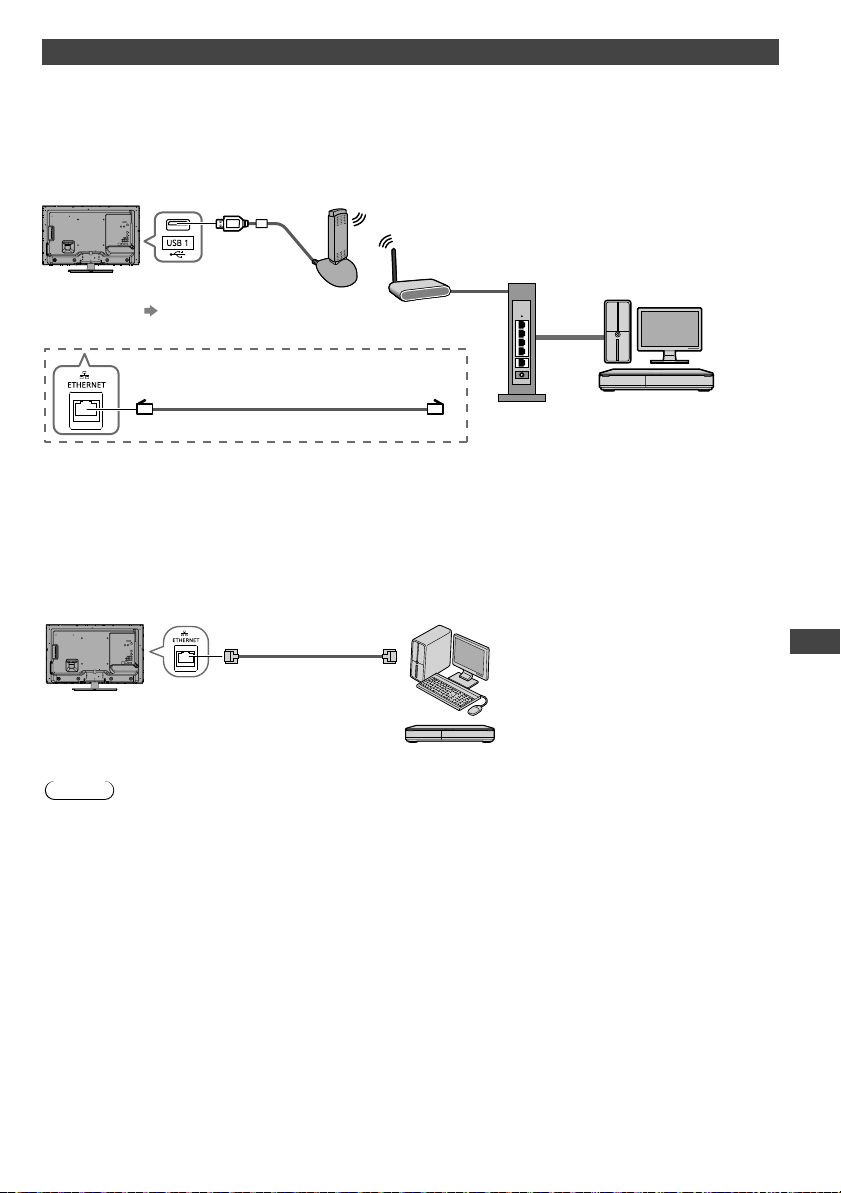
Using Network Services
47
d
e
or
Network connections
To use only DLNA features, you can operate the features without a Broadband network environment.
●
Set up and connect any equipment required for the network environment.
●
Required speed (effective): at least 1.5 Mbps for SD and 6 Mbps for HD picture quality, respectively. If the transfer
speed is not enough, contents may not be played back properly
.
●
Read the manual of the network equipment, too.
Example 1
Access
point
LAN cable (Shielded)
Wired connection
Wireless connection
Hub or Router
DLNA Certified media server
(for example, PC, DIGA
Recorder, etc.)
Wireless LAN Adaptor and
exclusive stand
“Optional accessories” (p. 6)
●
Connect to the USB 1 or 2 port.
●
Ensure to use a LAN straight cable for this connection.
●
If your modem has no broadband router functions, use a broadband router.
●
If your modem has broadband router functions but there are no vacant ports, use a hub.
●
Ensure that the Broadband routers and hubs are compatible with 10BASE-T / 100BASE-TX.
●
If you use the equipment compatible only with 100BASE-TX, category 5 LAN cables are required.
Example 2
You can connect the TV and the equipment directly to use DLNA features.
LAN cable (Shielded)
DLNA Certified media
server
(for example, PC, DIGA
Recorder, etc.)
●
Ensure to use a LAN cross cable for this connection.
Note
●
You cannot make settings for the network equipment on this TV. You may be required to make settings on your
computer
.
th-l32x50a_book.indb 47th-l32x50a_book.indb 47 2/27/2012 5:30:27 PM2/27/2012 5:30:27 PM

Using Network Services
48
[Network Setup]
●
Ensure the connections are completed before starting Network Setup.
“Network connections” (p. 47)
EXIT
RETURN
MENU
abc
def
jk l
ghi
mno
tuvpqrs
wxyz
■ To return to TV
EXIT
Preparations:
1 Display the menu 2 Select [Setup]
MENU
1
Select [Network Setup]
Eco Navigation
Off
Child Lock
Digital TV Tuning Menu
Display Settings
VIERA Link Settings
Network Setup
DivX® VOD
Access
System Menu
Setup Menu
Of
f Timer
1/2
access
select
Network settings for the LAN Cable connection
This setting is for the network connection by using the LAN cable.
1
Select [Network Type] and set to [Wired]
Network Type
Connection Test
Access Point Settings
IP/DNS Settings
MAC Address
Network Setup
Wired
12-34-56-78-9a-bc
set
select
If you make the network connection like [Example2] (p. 47), you do not
have to set [DNS Address].
2
Select [IP/DNS Settings] and set the items
Network Type
Connection Test
Access Point Settings
IP/DNS Settings
MAC Address
Network Setup
Wired
12-34-56-78-9a-bc
Access
access
select
After settings, return to [Network Setup] screen
RETURN
■ [Acquire IP Address]
■ [Acquire DNS Address]
Sets [IP Address], [Subnet Mask], [Gateway] and [DNS Address].
For most users, the recommended method of connection to your network is by using [Auto] feature.
Select [Acquire IP Address] and then set to [Auto]
Select [Acquire DNS Address] and then set to [Auto]
IP Address
Acquire IP Address
Subnet Mask
Gateway
DNS Address
IP/DNS Settings
Auto
Auto
192.168.1
1.1
192.168.11.1
255.255.255.0
192.168.11.5
Acquire DNS Address
set
select
●
The available settings are displayed automatically.
3
N
Th
●
C
m
1
2
3
4
N
C
A
I
P
M
Ne
th-l32x50a_book.indb 48th-l32x50a_book.indb 48 2/27/2012 5:30:27 PM2/27/2012 5:30:27 PM
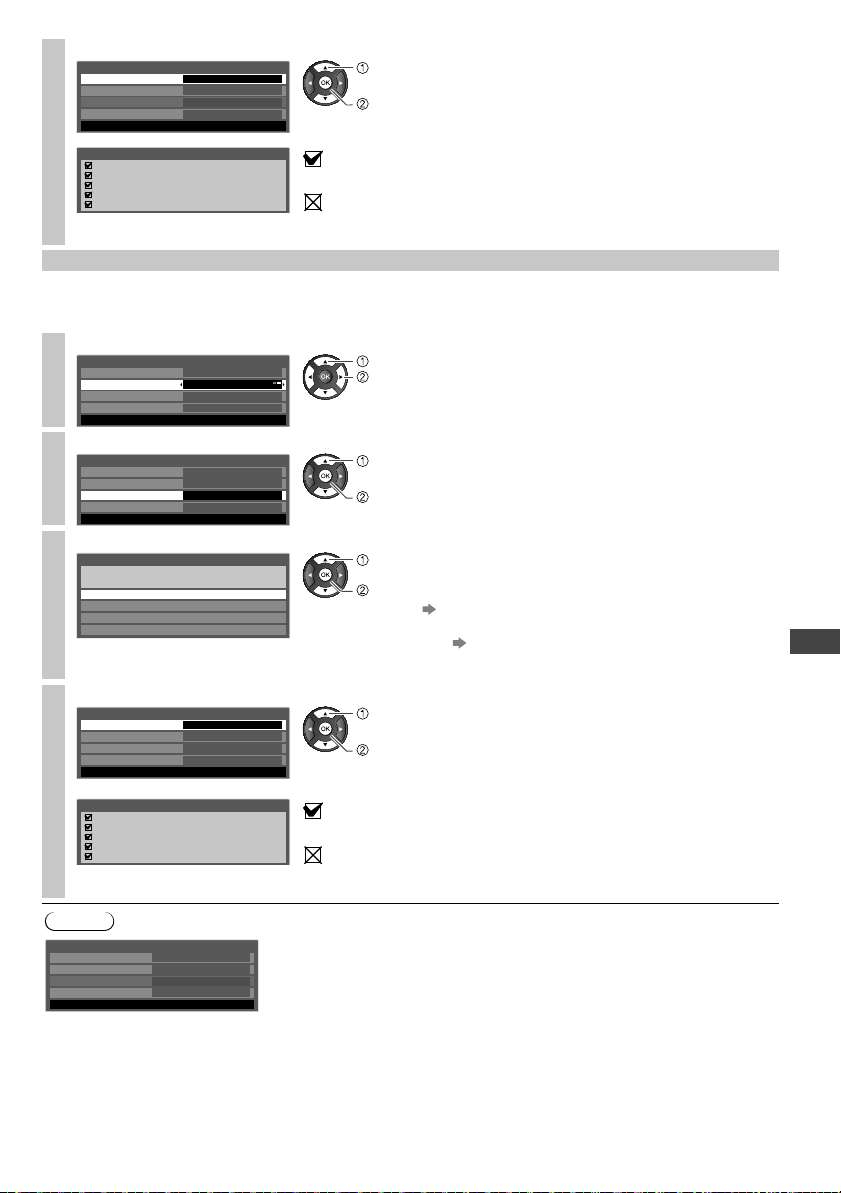
Using Network Services
49
3
Select [Connection Test] and access to test
Network Type
Connection Test
Access Point Settings
IP/DNS Settings
MAC Address
Network Setup
Wired
12-34-56-78-9a-bc
Access
access
select
●
Performs automatic testing of the network connection for the TV. (It takes
a while to test.)
Check network cable connection.
Check acquired IP address.
Check for devices using same IP address.
Check gateway connection.
Check server connection.
Connection Test
: succeeded
The test is successful and the TV is connected to the network.
: failed
Check the settings and connections, and then perform this function
again.
Network settings for the Wireless LAN connection
This setting is for the network connection by using a Wireless LAN Adaptor.
●
Confirm the encryption key, settings and positions of your access point before starting setup. For details, read the
manual of the access point.
1
Select [Network Type] and set to [Wireless]
Network Type
Connection Test
Access Point Settings
IP/DNS Settings
MAC Address
Network Setup
Wireless
12-34-56-78-9a-bc
set
select
2
Select [Access Point Settings]
Network Type
Connection Test
Access Point Settings
IP/DNS Settings
MAC Address
Network Setup
Wireless
12-34-56-78-9a-bc
Access
access
select
3
Select the connection type and set
Please select network connection type.
WPS(Push button)
WPS(PIN)
Manual
Connection T
ype
Search for access point
access
select
WPS(Push button) (p. 15)
WPS(PIN) : Sets by entering the PIN code to the access point
Search for access point
(p. 15)
Manual : Sets manually by entering the SSID of access point
Follow the on screen instructions
4
Select [Connection Test] and access to test
Network Type
Connection Test
Access Point Settings
IP/DNS Settings
MAC Address
Network Setup
Wireless
12-34-56-78-9a-bc
Access
access
select
Performs automatic testing of the network connection for the TV.
(It takes a while to test.)
Check access point connection.
Check acquired IP address.
Check for devices using same IP address.
Check gateway connection.
Check server connection.
Connection Test
: succeeded
The test is successful and the TV is connected to the network.
: failed
Check the settings and connections, and then perform this function
again.
Note
Network Type
Connection Test
Access Point Settings
IP/DNS Settings
MAC Address
Network Setup
Wired
12-34-56-78-9a-bc
[MAC Address]
●
MAC address is a unique address that identifies hardware in the network.
(for information only)
th-l32x50a_book.indb 49th-l32x50a_book.indb 49 2/27/2012 5:30:28 PM2/27/2012 5:30:28 PM
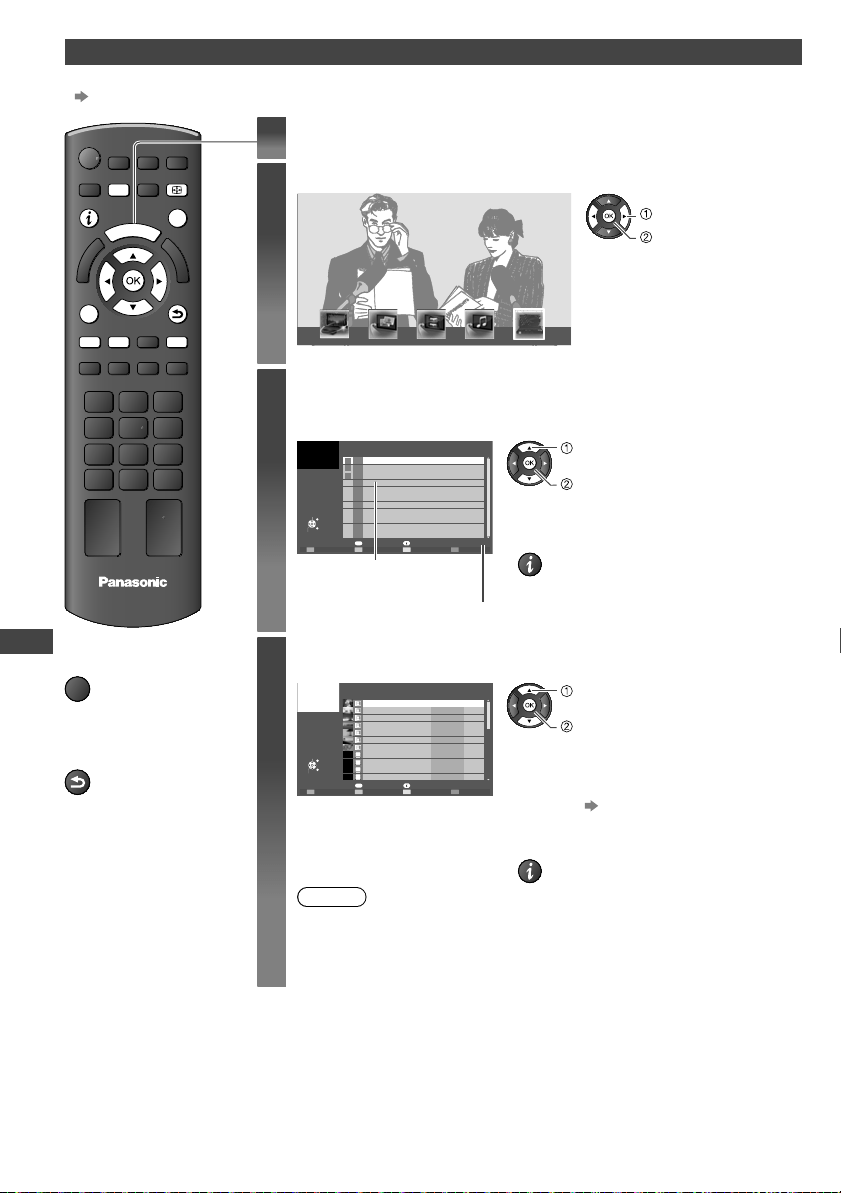
Using Network Services
50
Using DLNA
®
features
●
Ensure the preparation of the media server, network connections and network settings are completed.
“Media server” (p. 46), “Network connections” (p. 47), “Network Setup” (p. 48 - 49)
EXITINFO
OPTION
RETURN
MENU
TV
ASPECT
RG B
V
I
E
R
A
T
O
O
L
S
■ To return to TV
EXIT
■ To return to the
previous screen
RETURN
1
Display icons of the feature
2
Select [Media Server]
Media Server
access
select
3
Select one of the media servers you want to
access
Media server list
OPTION
SERVER1
A
SERVER2
5
SERVER3
g
Select
EXIT
RETURN
Access
Media Server
Info
Option Menu
4
Available media
servers
Total listed number
access
select
●
To display the information of the highlighted
media server
INFO
4
Select the file (photo or video) to be viewed
File list
OPTION
P000102
SERVER1
2009-10-05 09:54
P000135 2009-11-20 13:18
P000180 2009-12-07 11:31
P000214 2009-12-10 15:20
P000251 2009-12-19 12:39
P000276 2009-12-25 14:06
P000293 2010-01-06 13:52
M10025 2010-01-12 15:56
M10042 2010-01-20 10:08
M10054 2010-01-28 14:48
M10078 2010-02-09 19:58
28
Select
Pixel
Media Server
3648x2736
JPEG
Format
EXIT
RETURN
View
Slideshow
Info
Option Menu
access
select
●
Depending on the conditions of the media
server
, you may need to select the folder
before selecting the file.
●
Slideshow
(p. 51)
●
To display the information of the highlighted
file
INFO
Note
●
You may select and play back the music file.
●
Non-playable files are also listed but cannot be selected.
●
Turn the TV off, and then on again when changing or reconnecting the
network connection.
F
[S
Op
Single
S
[S
Sta
●
T
F
Pl
MEDIA
Op
●
T
●
T
F
Pl
Op
●
T
th-l32x50a_book.indb 50th-l32x50a_book.indb 50 2/27/2012 5:30:28 PM2/27/2012 5:30:28 PM
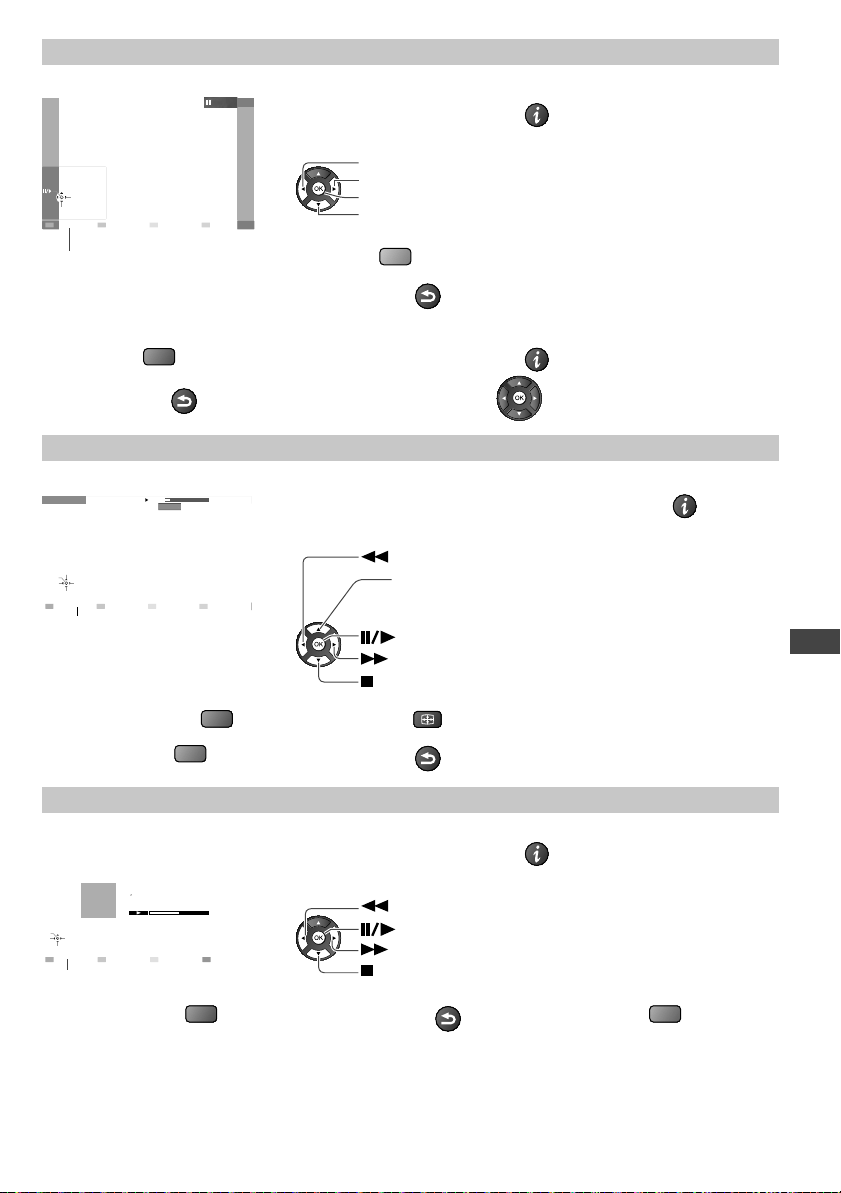
Using Network Services
51
d
d
For photo file
[Single view]
- Displayed one at a time
Operation guide
Single view
Single view
Rotate
Stop
EXIT
Select
RETURN
●
To display / hide the operation guide
INFO
●
To operate Single view
To the previous photo
To the next photo
Slideshow
Stop (return to list)
●
To rotate 90°
B
●
To return to the list
RETURN
[Slideshow] - Slideshow will be started from the selected photo file and completed within the list.
Start Slideshow
R
●
To display / hide the operation guide
INFO
●
To return to the list
RETURN
●
To pause (return to Single view)
For video file
Playback
- Playback will start.
EXIT
Manual Skip
RETURN
19/02/2010MEDIA SERVER 00:15:39
00:02:05
Operation guide
●
To display / hide the operation guide and information banner
INFO
●
To operate the playback
[Manual skip]
(Skip to a fixed period forward manually
for MPEG-2 (PS format and
TS format) only)
Rewind
Pause / Playback
Fast forward
Stop
●
To the previous content
R
●
To change aspect
ASPECT
●
To the next content
G
●
To return to the list
RETURN
For music file
Playback
- Playback will start.
EXIT
RETURN
My Song_9
My Favourite
My Music_1
00:02.43 / 00:05.44
Operation guide
●
To display / hide the operation guide
INFO
●
To operate playback
Rewind
Pause / Playback
Fast forward
Stop
●
To the previous track
R
●
To return to thumbnail
RETURN
●
To the next track
G
th-l32x50a_book.indb 51th-l32x50a_book.indb 51 2/27/2012 5:30:31 PM2/27/2012 5:30:31 PM
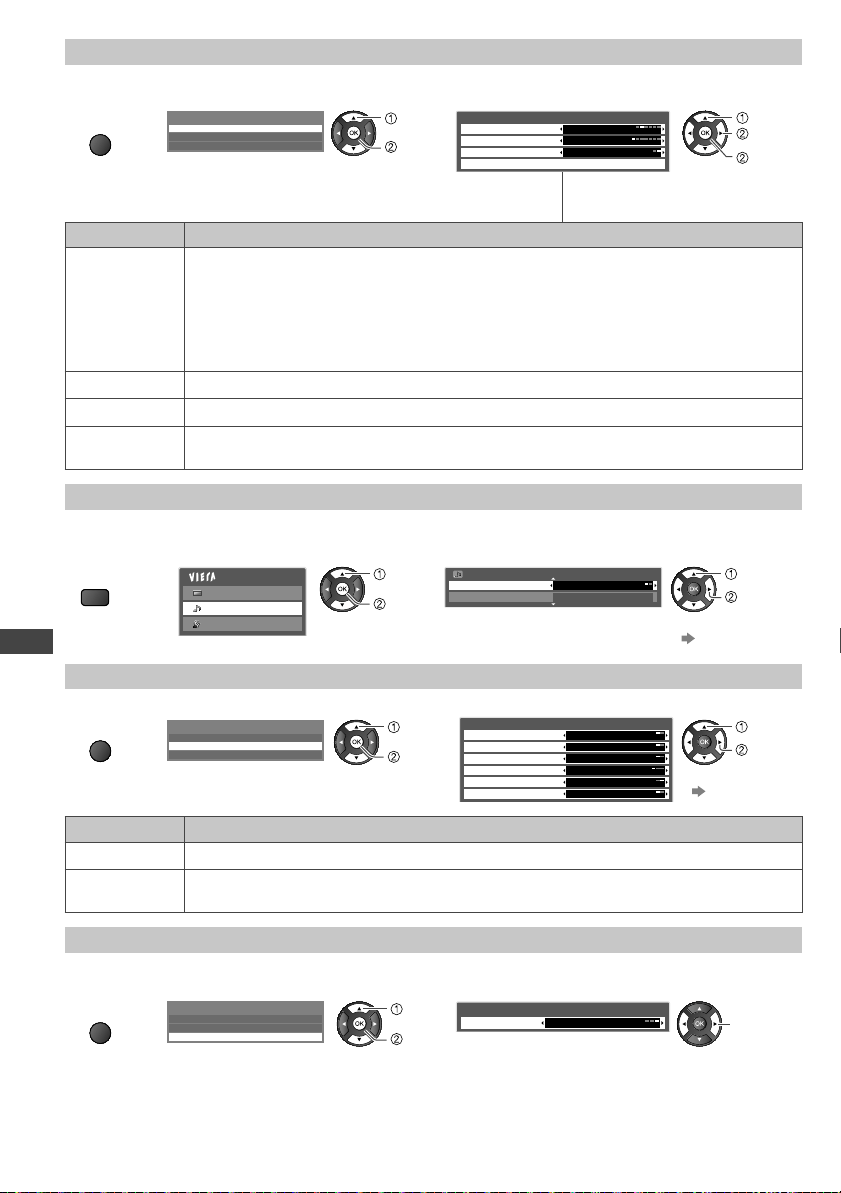
Using Network Services
52
Photo Setup (for photo contents)
Setup the settings for Photo.
1 Display the
option menu
OPTION
2 Select [Slideshow Settings] 3 Select the items and set
Option Menu
Slideshow Settings
Video Setup
Music Setup
access
select
Slideshow Settings
Transition Effect
Interval
Repeat
Back Ground Music
Fade
5 seconds
On
change
access
[Back
Ground
Music]
select
or
Item Adjustments / Configurations (alternatives)
Transition
Effect
Selects the transition effect for switching the photo during the slideshow
[Off] / [Fade] / [Slide] / [Dissolve] / [Motion] / [Random]
[Fade]: The next photo fades in gradually.
[Slide]: The next photo slides and appears from the left side.
[Dissolve]: The photo is replaced by an indefinite block unit.
[Motion]: The photo is replaced with enlarged, reduced, moved up or moved down.
[Random]: Each transition is selected at random.
Interval Selects slideshow interval [5] / [10] / [15] / [30] / [60] / [90] / [120] (seconds)
Repeat Slideshow repeat [Off] / [On]
Back Ground
Music
Selects the background music while photo [Off] / [Type1] / [Type2] / [Type3]
●
[Type1], [Type2] and [Type3] are the fixed music each installed in this TV.
Audio output settings (for video contents)
You can enjoy the multi-channel sound via an amplifier connected to DIGITAL AUDIO OUT terminal.
1 Display
the menu
MENU
2 Select [Sound] 3 Select [SPDIF Selection] and set
Main Menu
Picture
Sound
Setup
access
select
Sound Menu
2/2
SPDIF Selection
Reset Sound Defaults
Auto
Reset
set
select
●
For details
(p. 44)
Video Setup (for video contents)
1
Display the
option menu
OPTION
2 Select [Video Setup] 3 Select the items and set
Option Menu
Slideshow Settings
Video Setup
Music Setup
access
select
Video Setup Menu
Multi Audio
Dual Audio Stereo
Dolby D 5.1 ch
Subtitle Language
Aspect Change
V
ideo Preview
Repeat
eng
Aspect1
On
Of
f
set
select
●
For details
(p. 43, 44)
Item Adjustments / Configurations (alternatives)
Dual Audio Selects multiplex sound (if available)
Subtitle
Language
Allows you to select the language in which subtitles should appear (if available)
Music Setup
Setup the setting for Music mode.
1 Display the
option menu
OPTION
2 Select [Music Setup] 3 Set
Option Menu
Slideshow Settings
Video Setup
Music Setup
access
select
Music Setup Menu
Repeat One
set
[Folder]: Playback repeat within the selected folder
[One]: Playback repeat of the selected one file
V
Enj
Th
Co
etc
The
●
S
c
●
V
a
o
●
P
lo
Su
Fe
Ch
Ea
Po
Po
Re
co
Au
eq
Pa
Di
Co
eq
Sp
1
:
2
:
3
:
4
:
Co
●
T
9:
V
th-l32x50a_book.indb 52th-l32x50a_book.indb 52 2/27/2012 5:30:33 PM2/27/2012 5:30:33 PM
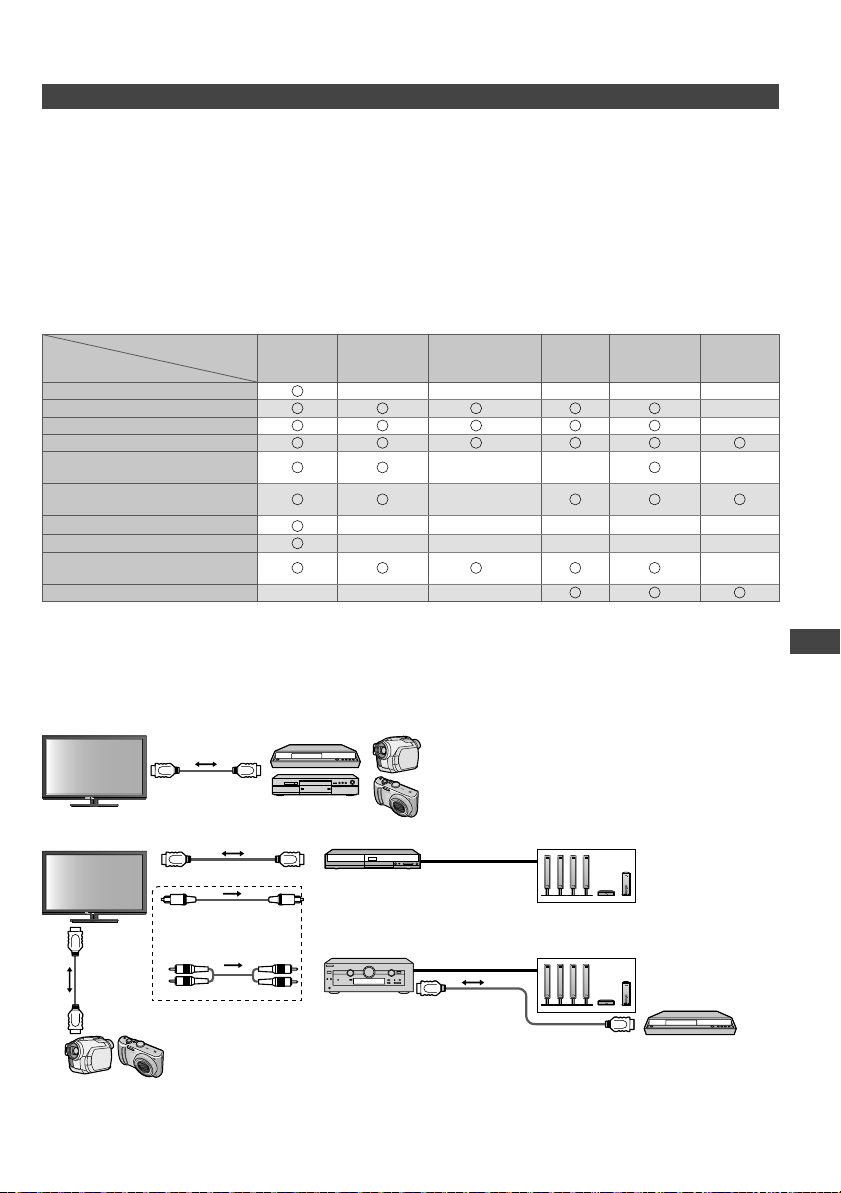
VIERA Link Functions
53
ge
ss
k
nd
c]
t
t
VIERA Link “ HDAVI Control™”
Enjoy additional HDMI interoperability with Panasonic products which have “HDAVI Control” function.
This TV supports “HDAVI Control 5” function.
Connections to equipment with HDMI cable such as a DIGA Recorder, HD Video Camera, Player theatre, Amplifier,
etc., allow you to interface to them automatically.
These features are limited to models incorporating “HDAVI Control” and “VIERA Link”.
●
Some functions are not available depending on the equipment’s version of HDAVI Control. Please confirm the
connected equipment’s version of HDAVI Control.
●
VIERA Link “HDAVI Control”, based on the control functions provided by HDMI which is an industry standard known
as HDMI CEC (Consumer Electronics Control), is a unique function that we have developed and added. As such, its
operation with other manufacturers’ equipment that supports HDMI CEC cannot be guaranteed.
●
Please refer to individual manuals for the external equipment. About applicable Panasonic equipment, consult your
local Panasonic dealer.
Summary of features
Connected equipment with
VIERA Link function
Features
DIGA
Recorder
1
DVD Player /
Blu-ray Disc
Player
1
HD Video Camera /
LUMIX Camera
1
Player
theatre
2
Blu-ray Disc
theatre
2
Amplifier
2
Channel download
4
–– –––
Easy playback
7
7
–
Power on link
–
Power off link
Reduce unnecessary power
consumption in standby
5
5
––
5
–
Auto standby for unnecessary
equipment
3
3
–
3
8
3
8
3
Pause Live TV programme
4
6
–– –––
Direct TV Recording
4
–– –––
Control the menu of the connected
equipment by VIERA remote control
3
3
3
3
3
–
Speaker control – – –
1: HDMI Connection only
2: HDMI and Audio out connections
3: available with equipment which has “HDAVI Control 2 or later”
function
4: available with equipment which has “HDAVI Control 3 or later”
function
5: available with the equipment which has
“HDAVI Control 4 or later” function
6: available with DIGA Recorder which has
HDD
7: while playing a disc
8: except for watching a disc
Connection
●
To use DIGA Recorder / DVD Player / Blu-ray Disc Player / HD Video Camera / LUMIX Camera:
HDMI cable
DIGA Recorder /
DVD Player / Blu-ray Disc Player /
HD Video Camera / LUMIX Camera
with VIERA Link function
9
HDMI cable
HDMI cable
Optical digital
audio cable
or
RCA cable
HDMI
cable
Player theatre /
Blu-ray Disc theatre with
VIERA Link function
Amplifier with
VIERA Link function
DIGA Recorder with
VIERA Link function
HD Video Camera / LUMIX Camera
with VIERA Link function
Speaker system
Speaker system
●
To use Player theatre / Blu-ray Disc theatre:
●
To use Amplifier:
9: If the connected equipment has “HDA
VI Control 5” function, you do not have to use this audio cable (Optical digital
audio cable or RCA cable). In this case, connect the equipment to the TV’s HDMI2 terminal via an HDMI cable.
VIERA Link Functions
th-l32x50a_book.indb 53th-l32x50a_book.indb 53 2/27/2012 5:30:34 PM2/27/2012 5:30:34 PM
VIERA Link Functions
54
Note
●
For a DIGA Recorder / DVD Player / Blu-ray Disc Player / HD Video Camera / LUMIX Camera with VIERA Link
function, connect to HDMI1, HDMI2 or HDMI3 terminal via an HDMI cable.
●
For a Player theatre / Blu-ray Disc theatre / Amplifier, connect to HDMI1, HDMI2 or HDMI3 terminal via an HDMI
cable, and also connect either the optical digital audio cable or RCA
cable for audio output from the TV.
●
Use a fully wired HDMI compliant cable. Non-HDMI-compliant cables cannot be utilised.
The recommended Panasonic’s HDMI cable part number:
•
RP-CDHS15 (1.5 m)
•
RP-CDHS30 (3.0 m)
•
RP-CDHS50 (5.0 m)
Preparations
●
Connect the equipment supporting VIERA Link.
●
Set up the connected equipment. Read the manual of the equipment.
●
For optimal recording, the settings of the recorder may need to be changed. For details, read the manual of the
recorder
.
●
Set [VIERA Link] [On] in the Setup Menu [VIERA Link] (p. 28)
●
Set up the TV
After connection, turn the equipment on and then switch the TV on.
Select the input mode to HDMI1, HDMI2 or HDMI3 (p. 21), and make sure that an image is displayed
correctly.
This setup should be done each time when the following conditions occur:
•
for the first time
•
when adding or reconnecting equipment
•
when changing setup
Features available
Channel download
Channel settings can be downloaded to the recorder.
Easy playback
Automatic input switching - When connected equipment is operated, the input mode is switched automatically.
[Power on link]
Set Power on Link [On] in the Setup Menu to use this function [Power on Link] (p. 28)
When the connected equipment starts playback or direct navigator / function menu for the equipment are activated, the
TV is automatically turned on. (Only when the TV is in Standby mode.)
[Power off link]
Set Power off Link [On] in the Setup Menu to use this function [Power off Link] (p. 28)
When the TV is set to Standby mode, the connected equipment is also automatically set to Standby.
●
This function will work even if the TV enters Standby mode automatically by auto power standby function.
[Standby Power Save] - Reduce unnecessary power consumption in standby
Set Standby Power Save [On] in the Setup Menu to use this function [Standby Power Save] (p. 28)
The power consumption in Standby mode of the connected equipment is controlled higher or lower in synchronisation
with the TV On / Off state to reduce the consumption.
When the TV is set to Standby mode, the connected equipment is automatically set to Standby and the power
consumption in Standby mode of the connected equipment is automatically minimised.
When the TV is turned on, the connected equipment is still in Standby mode, but the power consumption is increased
to make startup time early.
●
This function is effective if the connected equipment can change the power consumption in Standby mode and is set
to higher consumption.
●
This function will work when [Power off Link] is set to [On].
[Intelligent Auto Standby] - Auto standby for unnecessary equipment
Set Intelligent Auto Standby [On (With reminder)] or [On (No reminder)] in the Setup Menu to use this function
[Intelligent Auto Standby] (p. 28)
When the TV is On, non-watched or non-used connected equipment goes into Standby mode automatically to reduce
the power consumption. For example, when the input mode is switched from HDMI, when Speaker Selection is
changed to [TV] (except for watching a disc).
●
If you select [On (With reminder)], the on screen message will be displayed to be noticed before working this function.
●
This function may not work properly depending on the connected equipment. If required, set to [Off].
Fe
[
You
Liv
●
T
●
If
R
re
●
If
Ac
OP
T
■
(st
T
V
[
Re
●
I
f
R
th
●
I
f
th-l32x50a_book.indb 54th-l32x50a_book.indb 54 2/27/2012 5:30:34 PM2/27/2012 5:30:34 PM
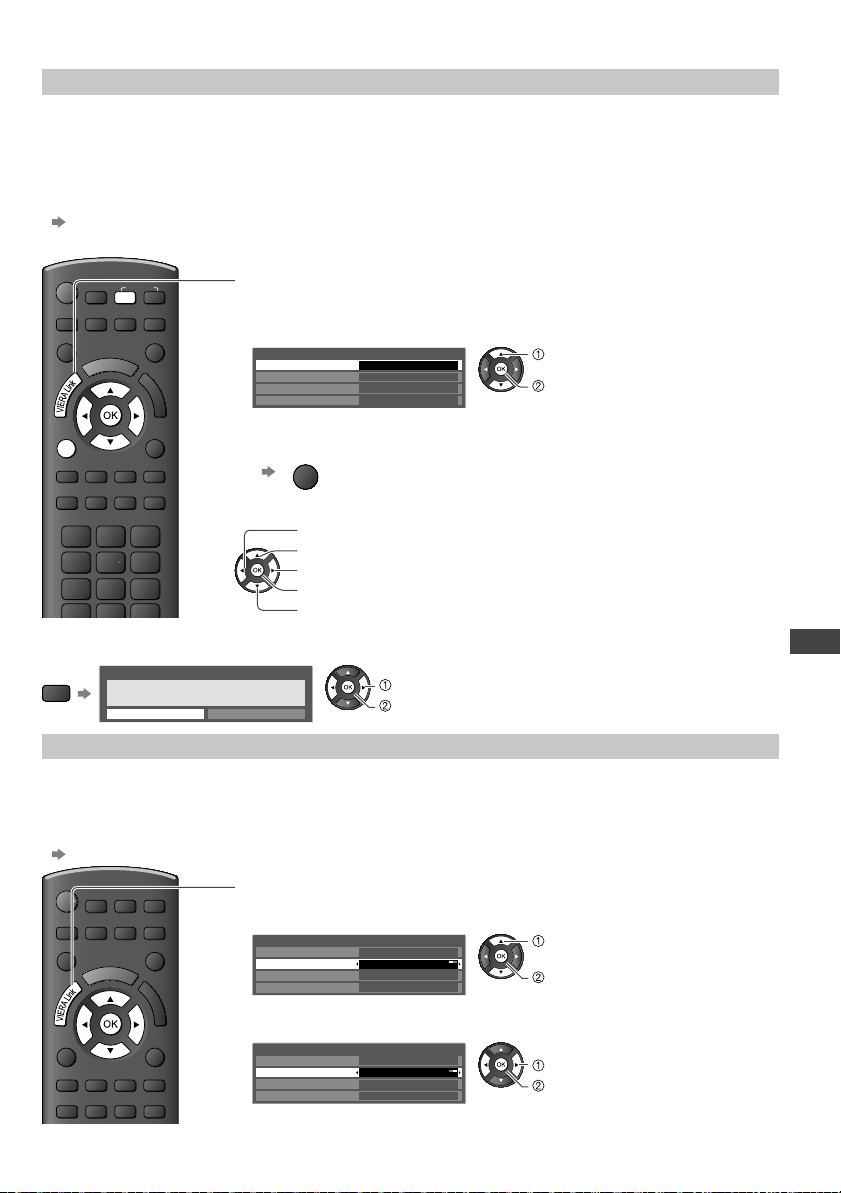
VIERA Link Functions
55
he
n
d
et
on
e
on.
Features available (Using VIERA Link Menu)
[Pause Live TV]
You can pause the live TV programme and resume later.
Live TV programmes will be recorded on HDD of the connected DIGA Recorder.
●
This function is available with a DIGA Recorder which has HDD.
●
If you connect a variety of recorders including other manufacturers’ recorders at the same time, please connect the DIGA
Recorder which has a HDD to the TV’s lower HDMI terminal number. For example, if you use HDMI1 and HDMI2 for two
recorders, in this case connect DIGA Recorder which has HDD to HDMI1.
●
If you cannot operate, check the settings and the equipment
“Summary of features”, “Connection”, “Preparations” (p. 53 - 54)
Access and pause the live TV programme
OPTION
INPUT
TV
1
Display [VIERA Link Menu]
2
Select [Pause Live TV] and pause
The TV picture will be paused.
Direct TV Rec
Start
Pause Live TV
Start
VIERA
Link Control
Recorder
Speaker Selection
Home Cinema
VIERA Link Menu
pause
select
●
The live TV programme is recorded on HDD from where it was paused.
●
If the paused TV picture disappears after a few minutes,
OPTION
(the paused picture will be restored)
■ To operate Pause Live TV
search backward
pause
search forward
playback
stop
●
Operations may be different depending on the
recorder
. In this case, follow the operation guide or
read the manual of the recorder.
■ To return to Live TV
(stop playback of Pause Live TV / cancel pause)
TV
Stop Pause Live TV?
Yes No
Pause Live TV
stop
select [Yes]
●
If you stop playback or cancel pause, the
recorded programme will be deleted from
HDD.
[Direct TV Rec] - What you see is What you record
Recording the current programme in DIGA Recorder immediately.
●
If you connect a variety of recorders including other manufacturers’ recorders at the same time, please connect DIGA
Recorder to the TV’s lower HDMI terminal number. For example, if you use HDMI1 and HDMI2 for two recorders, in
this case connect DIGA Recorder to HDMI1.
●
If you cannot operate, check the settings and the equipment
“Summary of features”, “Connection”, “Preparations” (p. 53 - 54)
1
Display [VIERA Link Menu]
2
Select [Direct TV Rec] and start recording
Direct TV Rec
Start
Pause Live
TV
Start
VIERA Link Control
Recorder
Speaker Selection
Home Cinema
VIERA Link Menu
start
select
■ To stop recording
Select [Stop] in [Direct TV Rec] and stop recording
Direct TV Rec
Stop
Pause Live
TV
Start
VIERA Link Control
Recorder
Speaker Selection
Home Cinema
VIERA Link Menu
stop
select
th-l32x50a_book.indb 55th-l32x50a_book.indb 55 2/27/2012 5:30:35 PM2/27/2012 5:30:35 PM
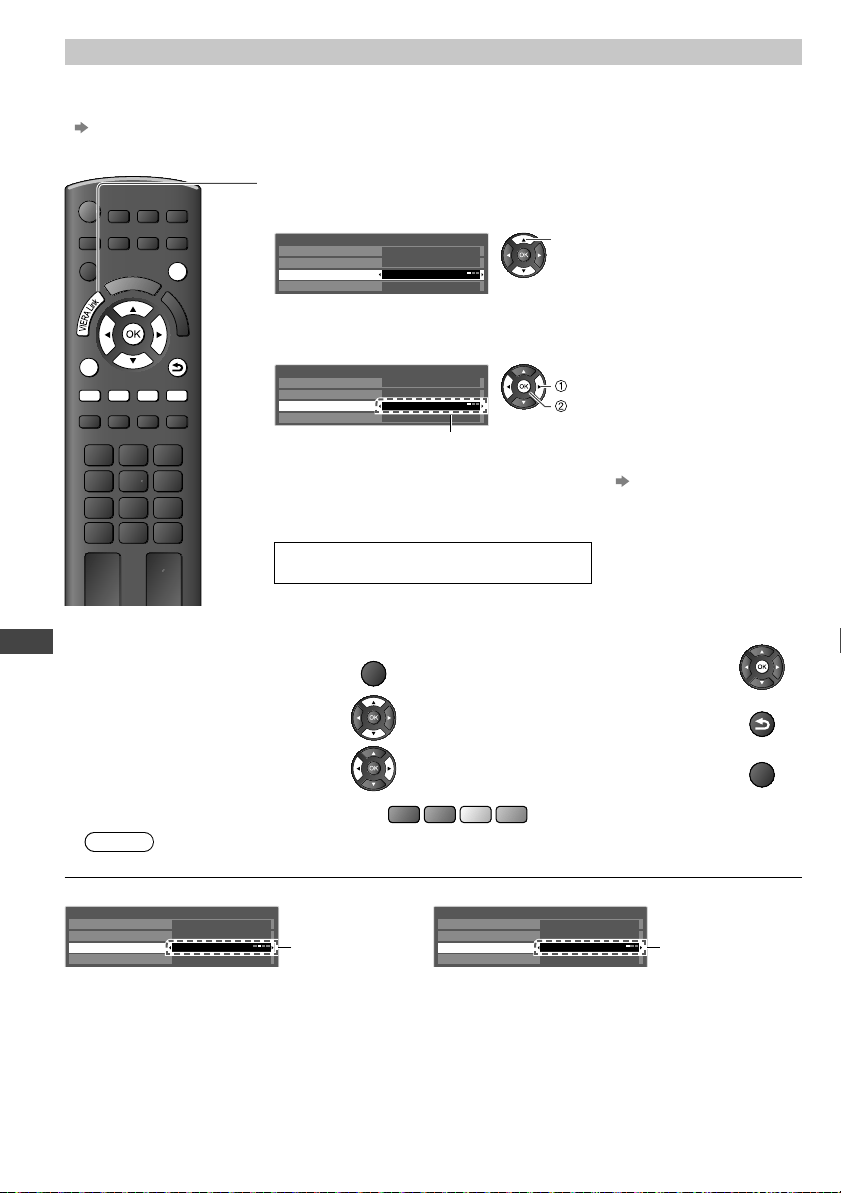
VIERA Link Functions
56
[VIERA Link Control] - Operate the connected equipment with VIERA remote control
You can control some functions of the connected equipment with this TV remote control by pointing at the TV’s signal
receiver.
●
If you cannot operate, check the settings and the equipment
“Summary of features”, “Connection”, “Preparations” (p. 53 - 54)
●
For details of the operations for the connected equipment, read the manual of the equipment.
Access and operate the menu of the equipment
EXIT
OPTION
RETURN
RGYB
1
Display [VIERA Link Menu]
2
Select [VIERA Link Control]
Direct TV Rec
Start
Pause Live TV
Start
VIERA Link Control
Recorder
Speaker Selection
Home Cinema
VIERA
Link Menu
select
3
Select the equipment you want to access
The type of the connected equipment is displayed.
Select the type of the equipment and access.
Direct TV Rec
Start
Pause Live TV
Start
VIERA Link Control
Recorder
Speaker Selection
Home Cinema
VIERA
Link Menu
access
select
[Recorder] / [Player] / [Home Cinema] / [Video Camera] /
[LUMIX] / [Digital Camera] / [Other]
●
You can also access directly by using VIERA TOOLS
(p. 22)
●
The displayed item may vary depending on the connected equipment.
●
[Home Cinema] means Player theatre, Blu-ray Disc theatre or Recorder theatre.
●
[Other] means Tuner set top box.
The menu of the accessed equipment
(Input mode will be changed automatically)
4
Operate the connected equipment
●
To display the operation guide
OPTION
●
Store / set / access
●
Move the cursor / select the menu
●
Return to the previous menu
RETURN
●
Move
the
cursor / access / adjust
●
Exit the menu
EXIT
When the key words are displayed on colour bar
R
G
Y
B
Note
●
Some operations may not be available depending on the equipment. If so, use its own remote control.
■
If multiple recorders or players are connected
■ If you access non-VIERA Link equipment
Direct TV Rec
Start
Pause Live TV
Start
VIERA Link Control
Recorder2
Speaker Selection
Home Cinema
VIERA
Link Menu
[Recorder1-3 /
Player1-3]
Direct TV Rec
Start
Pause Live TV
Start
VIERA Link Control
Recorder
Speaker Selection
Home Cinema
VIERA
Link Menu
Type of the connected
equipment is displayed.
The number is given from the TV’s lower HDMI terminal
number connected to the same type equipment. For
example, two recorders to HDMI2 and HDMI3, in this
case the recorder connected to HDMI2 is displayed as
[Recorder1], and the recorder connected to HDMI3 is
displayed as [Recorder2].
You can access the menu of the equipment, but you cannot
operate it. Use its own remote control to operate the
equipment.
[
You
●
I
f
Ac
●
T
●
I
m
●
E
R
●
“
H
T
●
T
th-l32x50a_book.indb 56th-l32x50a_book.indb 56 2/27/2012 5:30:35 PM2/27/2012 5:30:35 PM
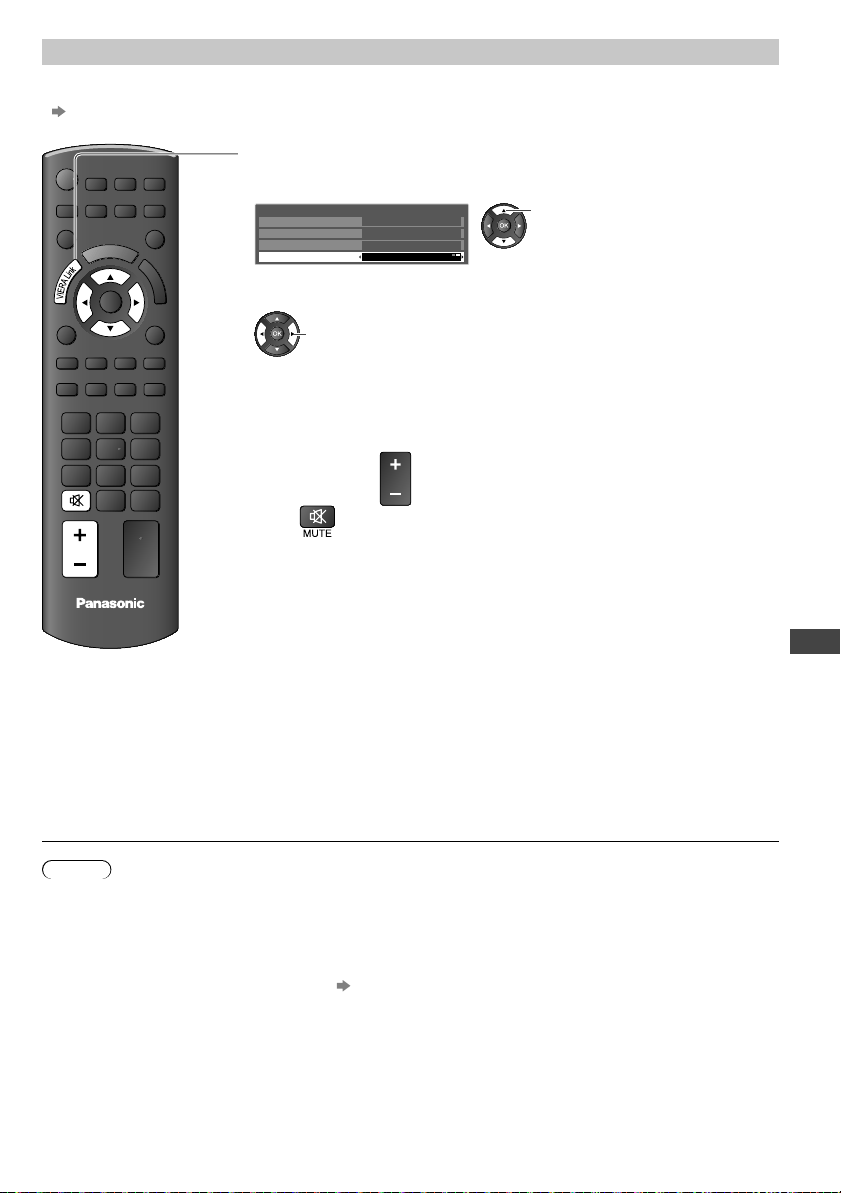
VIERA Link Functions
57
l
N
not
[Speaker Selection] - Speaker control
You can control the theatre speaker with this TV remote control by pointing at the TV’s signal receiver.
●
If you cannot operate, check the settings and the equipment
“Summary of features”, “Connection”, “Preparations” (p. 53 - 54)
Access and control the speaker volume
MUTE
TV
VOL
1
Display [VIERA Link Menu]
2
Select [Speaker Selection]
Direct TV Rec
Start
Pause Live TV
Start
VIERA Link Control
Recorder
Speaker Selection
Home Cinema
VIERA
Link Menu
select
3
Set to [Home Cinema] or [TV]
set
[Home Cinema]
Player theatre, Blu-ray Disc theatre or Amplifier will be automatically turned on if
it is in Standby mode and the sound is from theatre speakers connected to the
equipment.
●
Volume up / down
VOL
●
Mute
●
The sound of TV speakers is mute.
●
When the equipment is turned off, TV speakers will be active.
[TV]
TV speakers are active.
Multi-channel sound
●
If you wish to enjoy the multi-channel sound (e.g. Dolby Digital 5.1ch) via an
Amplifier
, connect with HDMI cable and Optical digital audio cable (p. 53), and
then select [Home Cinema]. If your Amplifier has “HDAVI Control 5” function, you
can connect only with HDMI cable. In this case, connect your Amplifier to the TV’s
HDMI2 terminal.
To enjoy the sound from the DIGA Recorder in multi-channel sound, connect an
HDMI cable from the DIGA Recorder to the Amplifier (p. 53).
Note
●
These functions may not work properly depending on the connected equipment.
●
Image or sound may not be available for the first few seconds when the Input mode is switched.
●
Easy playback may be available by using the remote control for Player theatre, Blu-ray Disc theatre or Amplifier.
Read the manual of the equipment.
●
“HDAVI Control 5” is the newest standard (current as of December, 2010) for HDAVI Control compatible equipment.
This standard is compatible with conventional HDA
VI equipment.
●
To confirm this TV’s version of HDAVI Control [System Information] (p. 28)
th-l32x50a_book.indb 57th-l32x50a_book.indb 57 2/27/2012 5:30:36 PM2/27/2012 5:30:36 PM
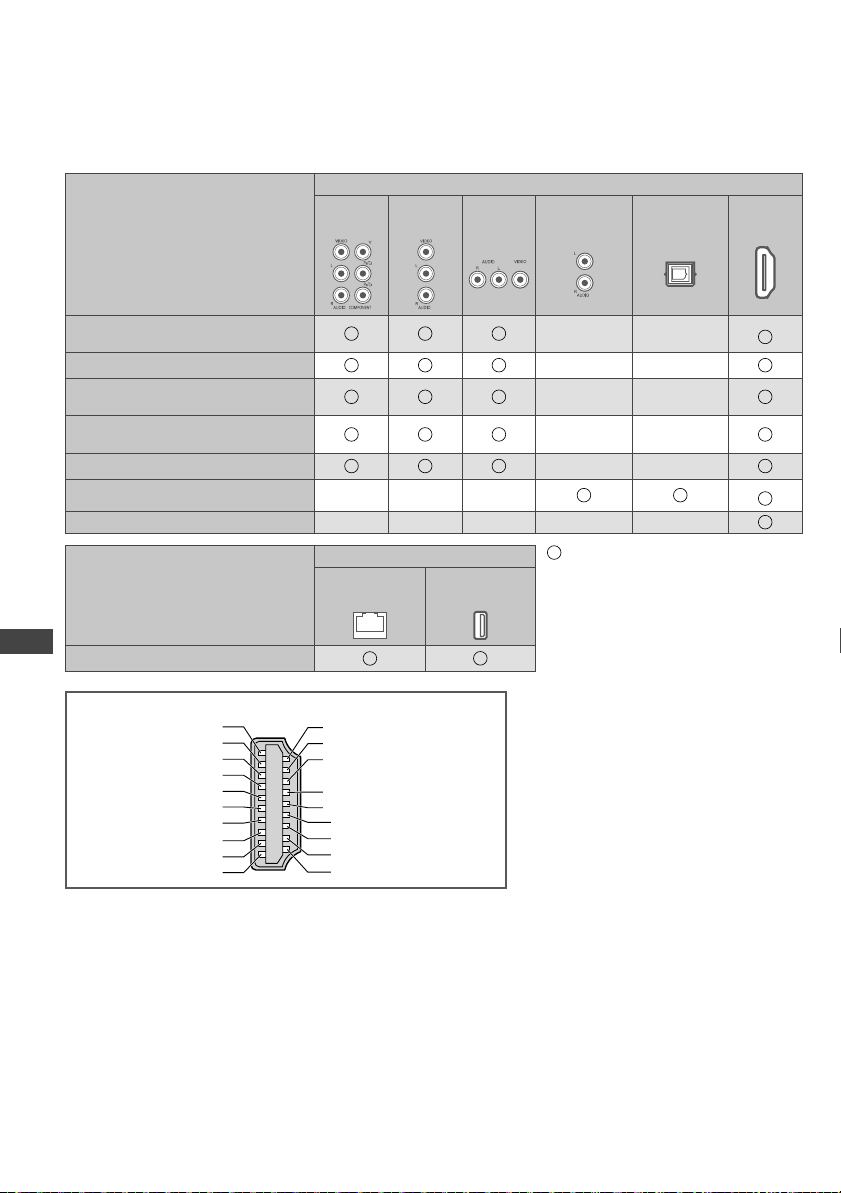
External Equipment
58
External Equipment
These diagrams show our recommendations for connection of your TV to various pieces of equipment.
For other connections, consult the instructions for each piece of equipment, the table below, and the specifications
(p. 70).
Types of connectable equipment to each terminal
Equipment
Terminal
AV1 IN AV2 IN AV3 IN AUDIO
OUT
DIGITAL
AUDIO OUT
HDMI
1 - 3
To play back videocassettes / DVDs
(VCR / DVD Recorder)
1
To watch DVDs (DVD Player)
To watch satellite broadcasts
(Set top box)
To watch camcorder images
(Video camera)
To play games (Game equipment)
To use amplifier with speaker system
2
VIERA Link
Equipment
Terminal
: Recommended Connection
1 : Only for DVD Recorder
2 : Use HDMI2 for connecting an
amplifier. This connection is
applicable when using an amplifier
that has ARC (Audio Return
Channel) function.
ETHERNET
USB
1 - 2
To use Network services
Hot Plug Detect 19
DDC/CEC Ground 17
SCL 15
CEC 13
TMDS Clock Shield
11
TMDS Data0− 9
TMDS Data0+ 7
TMDS Data1 Shield 5
TMDS Data2− 3
TMDS Data2+ 1
18 +5V Power
16 SDA
14 HDMI 1 /3 : Reserved
HDMI 2 : ARC
12 TMDS Clock−
10 TMDS Clock+
8 TMDS Data0 Shield
6 TMDS Data1−
4 TMDS Data1+
2 TMDS Data2 Shield
HDMI terminal
Rea
th-l32x50a_book.indb 58th-l32x50a_book.indb 58 2/27/2012 5:30:36 PM2/27/2012 5:30:36 PM
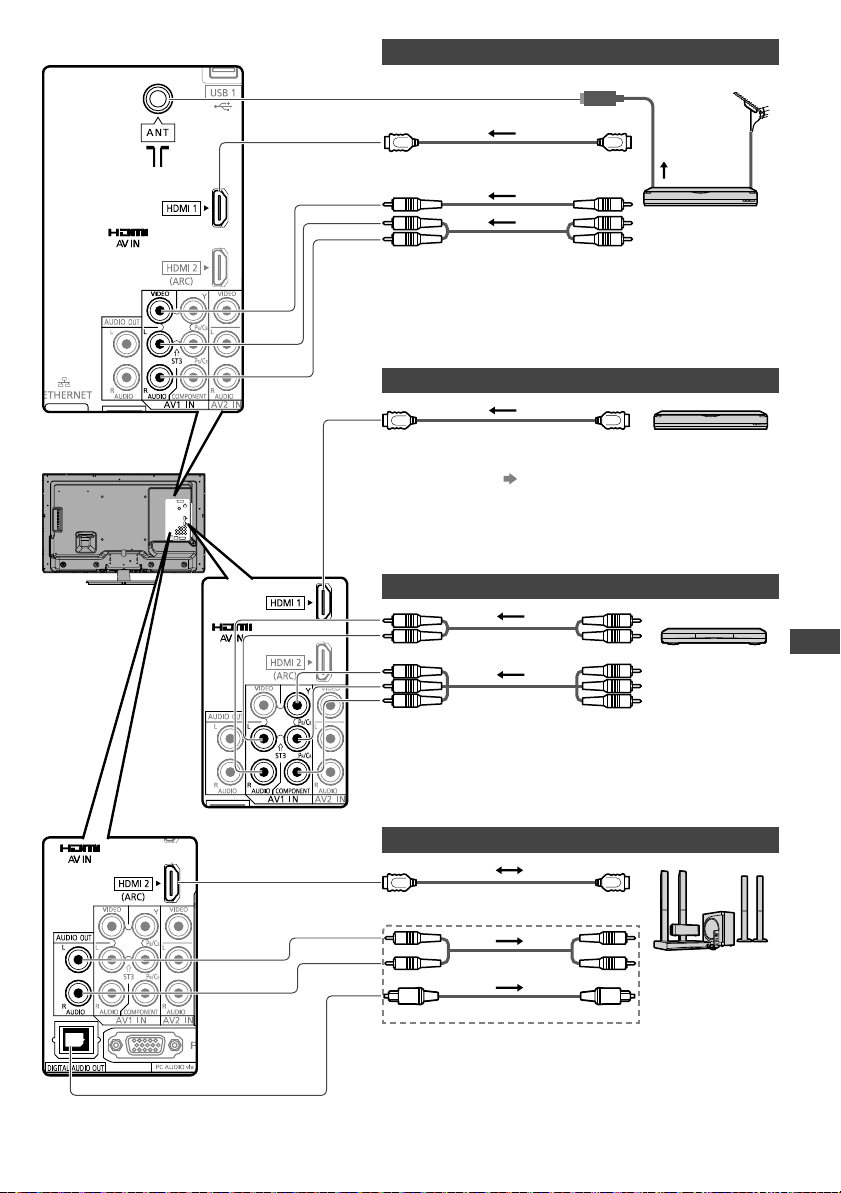
External Equipment
R
59
r
To play back
DVD Recorder
or
VCR
or
Aerial
RF cable
Fully wired HDMI compliant
cable
1
1 : Only for DVD Recorder
HDMI equipment
Fully wired HDMI compliant cable
Recorder / Player
●
HDMI connection
(p. 53, 62)
To watch DVDs
DVD Player
(Listening)
(Viewing)
To listen with Home Theatre
RCA cable
Optical digital audio cable
Fully wired HDMI compliant
cable
Amplifier with
speaker system
or
or
2
2 : If the connected equipment has “HDAVI Control 5” function,
you do not have to use this audio cable (Optical digital
audio cable or RCA cable). In this case, connect the
equipment to the TV’s HDMI2 terminal via an HDMI cable.
Rear of the TV
th-l32x50a_book.indb 59th-l32x50a_book.indb 59 2/27/2012 5:30:37 PM2/27/2012 5:30:37 PM
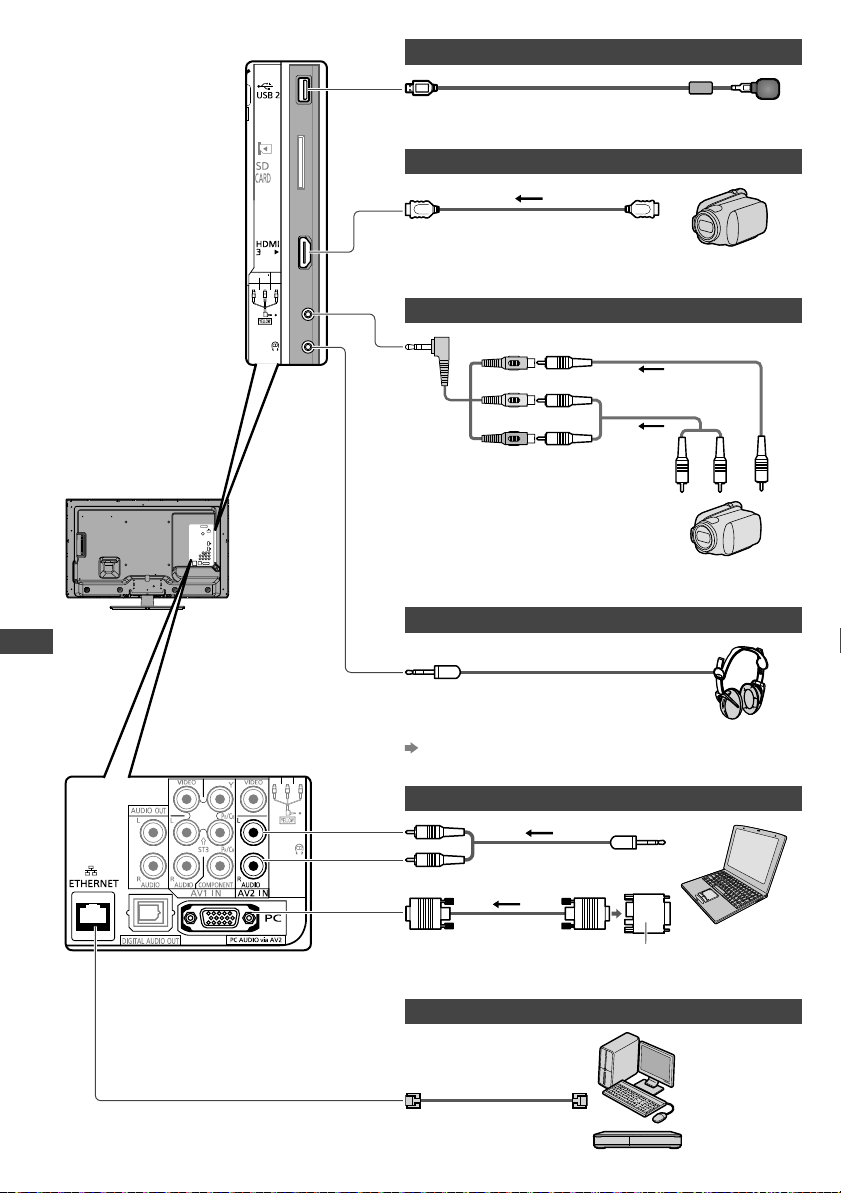
External Equipment
AUDIO
R
RED
WHITE
YELLOW
L
VIDEO
RED
WHITE
YELLOW
60
USB devices
USB cable
Camcorder / HDMI equipment
Fully wired HDMI
compliant cable
Camcorder, etc.
Camcorder / Game equipment
Camcorder, etc.
(Viewing)
yellow yellow
white white
red red
(Listening)
Headphones
(M3 stereo mini plug)
To adjust volume
[Headphone Volume] in the Sound Menu (p. 25)
PC
(Listening)
(Viewing)
Computer
Conversion adaptor
(if necessary)
Network
DLNA Certified
media server
(for example,
PC, DIGA
Recorder, etc.)
Rear of the TV
T
C
R
S
A
Mo
NIC
Mo
A2
Mo
●
I
f
o
●
E
●
W
S
●
D
U
●
I
t
●
S
●
Y
Th
Co
•
•
•
●
A
h
th-l32x50a_book.indb 60th-l32x50a_book.indb 60 2/27/2012 5:30:37 PM2/27/2012 5:30:37 PM
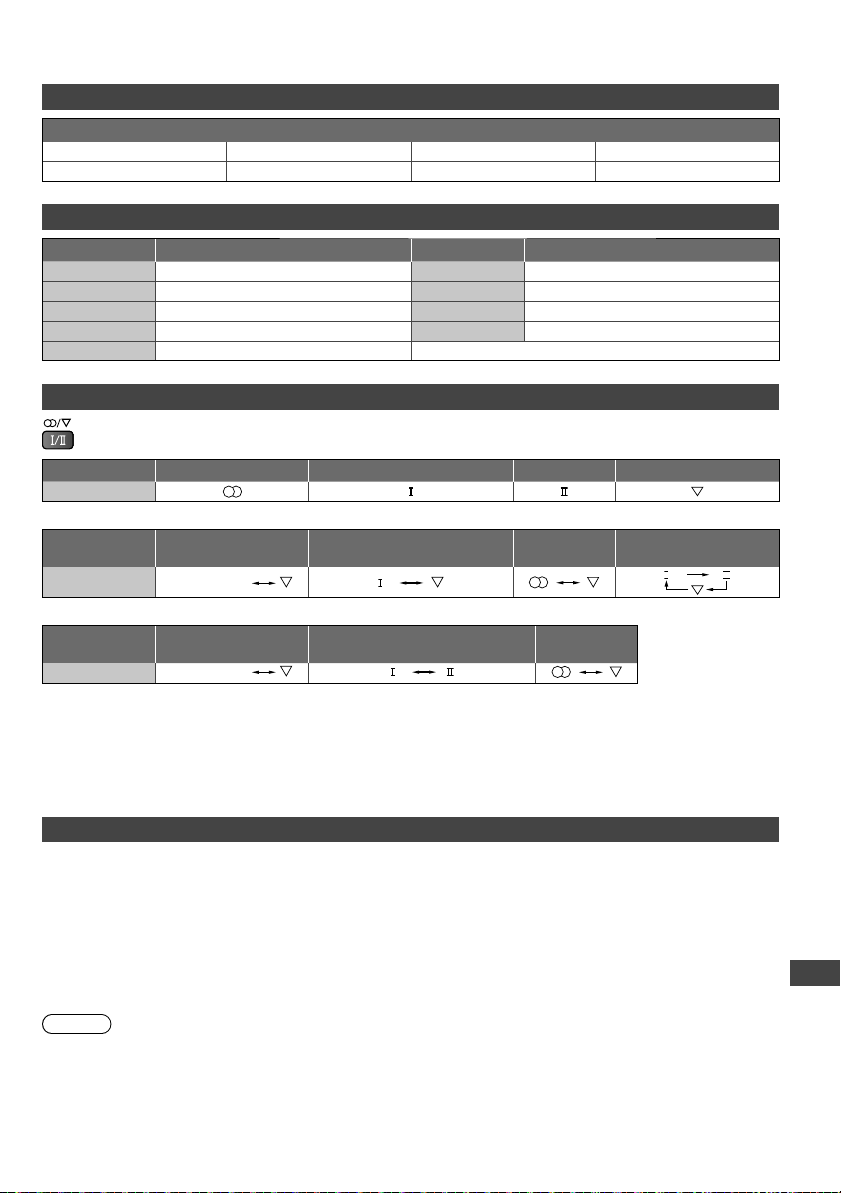
Technical Information
61
ed
.)
Technical Information
Channel Allocation (Analogue TV mode)
CH Display / Receive Channel
CH 0 - CH 5 S 2 - S 10 CH 5A CH 6 - CH 9
CH 9A
CH 10 - CH 12 S 11 - S 44 CH 20 - CH 75
Rating (Digital TV mode)
Rating
Meaning Rating Meaning
No Block Not classified M Mature
P
Pre school MA 15+ Mature Adult 15+
C Children AV 15+ Adult strong Violence 15+
G General R Restricted 18+
PG Parental Guidance recommended
Stereo / Bilingual Sound Selection (Analogue TV mode)
When you receive the stereo / bilingual sound system, sound output modes can be selected by pressing the
Sound Selection button.
Audio Signal
STEREO MAIN I SUB II MONO
Mode Indicator
NICAM .......Used in New Zealand, Singapore, Hong Kong etc.
Type of
broadcast
Regular broadcast
(Standard Audio)
Regular + NICAM MONO I
(MAIN I )
NICAM
STEREO
NICAM DUAL
MONO
(MAIN I / SUB II )
Mode Indicator
No Indicator
I
II
A2 (German) .......Used in Australia, Malaysia etc.
Type of
broadcast
Regular broadcast
(Standard Audio)
BILINGUAL
or DUAL MONO:
MAIN I / SUB II
STEREO
Mode Indicator
No Indicator
●
If the stereo signal is poor or the receiving conditions are not optimum or if STEREO:MONO automatic switching
occurs, it is recommended you switch from STEREO to MONO.
●
Even when the contents of the receiving signal undergo changes, selection mode is kept intact.
●
When the receiving conditions deteriorate, listening will be easier if the mode is set to the MONO position, using the
Sound Selection button.
●
DUAL, also known as DUAL MONO or as BILINGUAL is not currently transmitted in some countries.
USB connection
●
It is recommended to connect the USB Flash Memory directly to the TV’s USB ports.
●
Some USB devices or USB HUB may not be used with this TV.
●
You cannot connect any devices by using USB card reader.
The combination of USB devices that have been tested for each TV’s USB port
Combination of USB port 1 + port 2 (and vice versa):
•
USB Flash Memory + Wireless LAN Adaptor
•
USB Flash Memory + USB Keyboard
•
Wireless LAN Adaptor + USB Keyboard
Note
●
Additional information for USB devices may be on the following web site. (English only)
http://panasonic.jp/support/global/cs/tv/
th-l32x50a_book.indb 61th-l32x50a_book.indb 61 2/27/2012 5:30:38 PM2/27/2012 5:30:38 PM
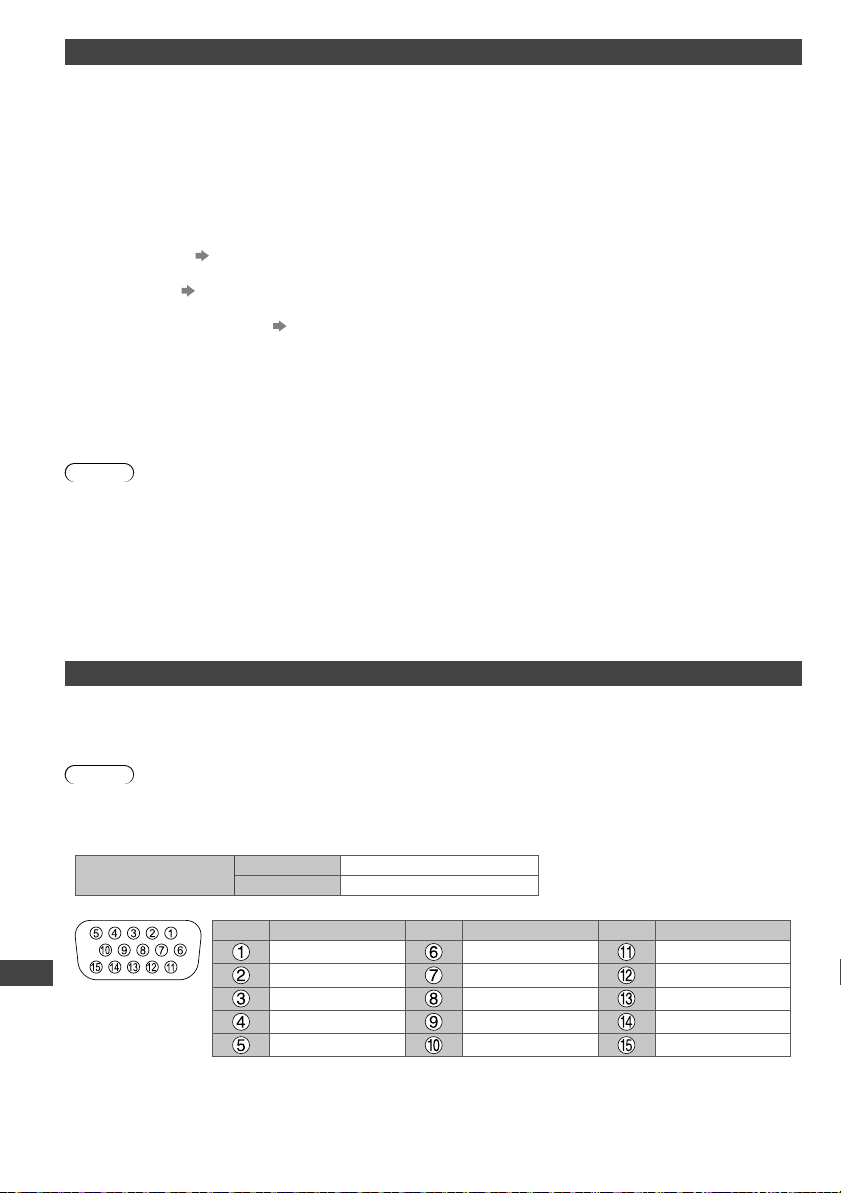
Technical Information
62
HDMI connection
HDMI (high-definition multimedia interface) is the world’s first complete digital consumer AV interface complying with a
non-compression standard.
HDMI allows you to enjoy high-definition digital images and high-quality sound by connecting the TV and the
equipment.
HDMI-compatible equipment
1
with an HDMI or DVI output terminal, such as a DVD player, a set top box or game
equipment, can be connected to the HDMI terminal using an HDMI compliant (fully wired) cable.
About connections, see “External Equipment” (p. 58 - 60).
Applicable HDMI features
●
Input audio signal : 2ch Linear PCM (sampling frequencies - 48 kHz, 44.1 kHz, 32 kHz)
●
Input video signal : 480i, 480p, 576i, 576p, 720p, 1080i and 1080p
“Input signal that can be displayed” (p. 63)
Match the output setting of the digital equipment.
●
Input PC signal :
“Input signal that can be displayed” (p. 63)
Match the output setting of the PC.
●
VIERA Link (HDAVI Control 5) :
[VIERA Link] (p. 53)
●
Audio Return Channel
2
(HDMI2 terminal only)
DVI connection
If the external equipment has only a DVI output, connect to the HDMI terminal via a DVI to HDMI adaptor cable
3
.
When the DVI to HDMI adaptor cable is used, connect the audio cable to the audio input terminal (HDMI1 / 2: use AV2
audio terminals / HDMI3: use AV3 audio terminals).
If the picture position is not fit to the screen during the DVI connection, adjust the position on [DVI Position Settings] in
the Setup Menu (p. 27). The settings are memorised for each HDMI terminals and input signals.
Note
●
Audio settings can be made on the [HDMI1 / 2 / 3 Input] in the Sound Menu. (p. 26)
●
If the connected equipment has an aspect adjustment function, set the aspect ratio to [16:9].
●
These HDMI connectors are “type A”.
●
These HDMI connectors are compatible with HDCP (High-Bandwidth Digital Content Protection) copyright protection.
●
Equipment having no digital output terminal may be connected to the input terminal of “COMPONENT” or “VIDEO” to
receive analogue signals.
●
This TV incorporates HDMI™ technology.
1: The HDMI logo is displayed on HDMI-compliant equipment.
2:
Audio Return Channel (ARC) is a function to be able to send digital sound signals via an HDMI cable.
3: Enquire at your local digital equipment retailer shop.
PC connection
A PC may be connected to this TV so that the PC screen is displayed and sound is heard from the TV.
●
PC signals that can be inputted: Horizontal scanning frequency 31 to 69 kHz; vertical scanning frequency 59 to 86 Hz
(more than 1,024 signal lines could result in incorrect display of the image).
●
A PC adaptor is not necessary for the DOS/V-compliant D-sub 15-pin connector.
Note
●
Some PC models cannot be connected to this TV.
●
When using PC, set the colour display quality of PC to the highest position.
●
For details of the applicable PC signals, see p. 63.
●
Max. display resolution
Aspect
4:3 1,024 × 768 pixels
16:9 1,366 × 768 pixels
●
D-sub 15-pin connector signal
Pin No.
Signal Name
Pin No.
Signal Name
Pin No.
Signal Name
R GND (Ground)
NC (not connected)
G GND (Ground)
NC (not connected)
B GND (Ground) HD
NC (not connected) NC (not connected)
VD
GND (Ground) GND (Ground)
NC (not connected)
I
CO
5
2
52
62
62
75
75
1,1
1,1
1,1
1,1
1,1
PC
Ap
64
64
64
80
80
80
85
1,0
1,0
1,0
1,0
1,2
1,2
1,3
Ma
Ma
Ma
PC
Ap
64
75
1,1
●
S
●
T
●
P
c
th-l32x50a_book.indb 62th-l32x50a_book.indb 62 2/27/2012 5:30:38 PM2/27/2012 5:30:38 PM
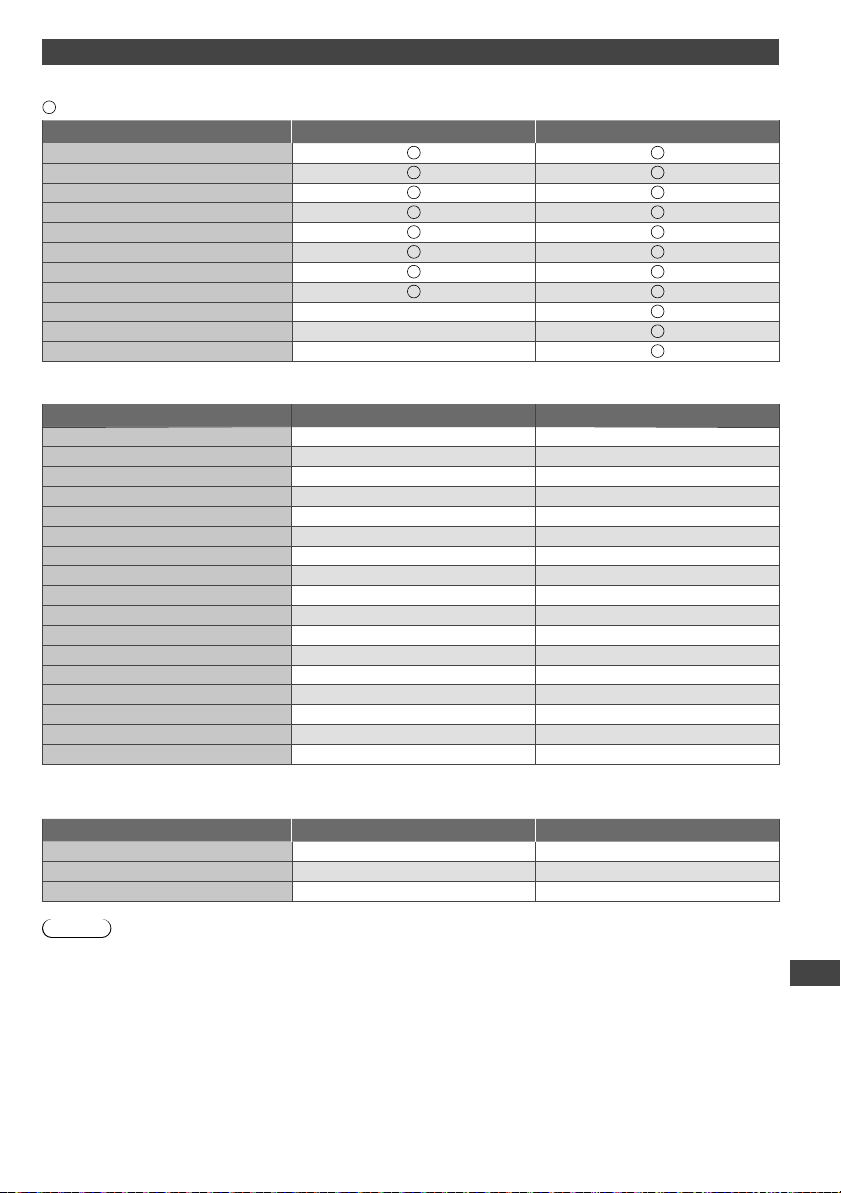
Technical Information
63
a
V2
in
on.
to
Hz
Input signal that can be displayed
COMPONENT (Y, PB/CB, PR/CR), HDMI
Mark: Applicable input signal
Signal name COMPONENT HDMI
525 (480) / 60i
525 (480) / 60p
625 (576) / 50i
625 (576) / 50p
750 (720) / 60p
750 (720) / 50p
1,125 (1,080) / 60i
1,125 (1,080) / 50i
1,125 (1,080) / 60p
1,125 (1,080) / 50p
1,125 (1,080) / 24p
PC (from D-sub 15P)
Applicable input signal for PC is basically compatible to VESA standard timing.
Signal name Horizontal frequency (kHz) Vertical frequency (Hz)
640 × 400 @70 Hz
31.47
70.07
640 × 480 @60 Hz
31.47 59.94
640 × 480 @75 Hz
37.50 75.00
800 × 600 @60 Hz
37.88 60.32
800 × 600 @75 Hz
46.88 75.00
800 × 600 @85 Hz
53.67 85.06
852 × 480 @60 Hz
31.44 59.89
1,024 × 768 @60 Hz
48.36 60.00
1,024 × 768 @70 Hz
56.48 70.07
1,024 × 768 @75 Hz
60.02 75.03
1,024 × 768 @85 Hz
68.68 85.00
1,280 × 1,024 @60 Hz
63.98 60.02
1,280 × 768 @60 Hz
47.70 60.00
1,366 × 768 @60 Hz
48.39 60.04
Macintosh13” (640 × 480)
35.00 66.67
Macintosh16” (832 × 624)
49.73 74.55
Macintosh21” (1,152 × 870)
68.68 75.06
PC (from HDMI terminal)
Applicable input signal for PC is basically compatible to HDMI standard timing.
Signal name Horizontal frequency (kHz) Vertical frequency (Hz)
640 × 480 @60 Hz 31.47 60.00
750 (720) / 60p
45.00 60.00
1,125 (1,080) / 60p 67.50 60.00
Note
●
Signals other than above may not be displayed properly.
●
The above signals are reformatted for optimal viewing on your display.
●
PC signal is magnified or compressed for display, so that it may not be possible to show fine detail with sufficient
clarity
.
th-l32x50a_book.indb 63th-l32x50a_book.indb 63 2/27/2012 5:30:39 PM2/27/2012 5:30:39 PM
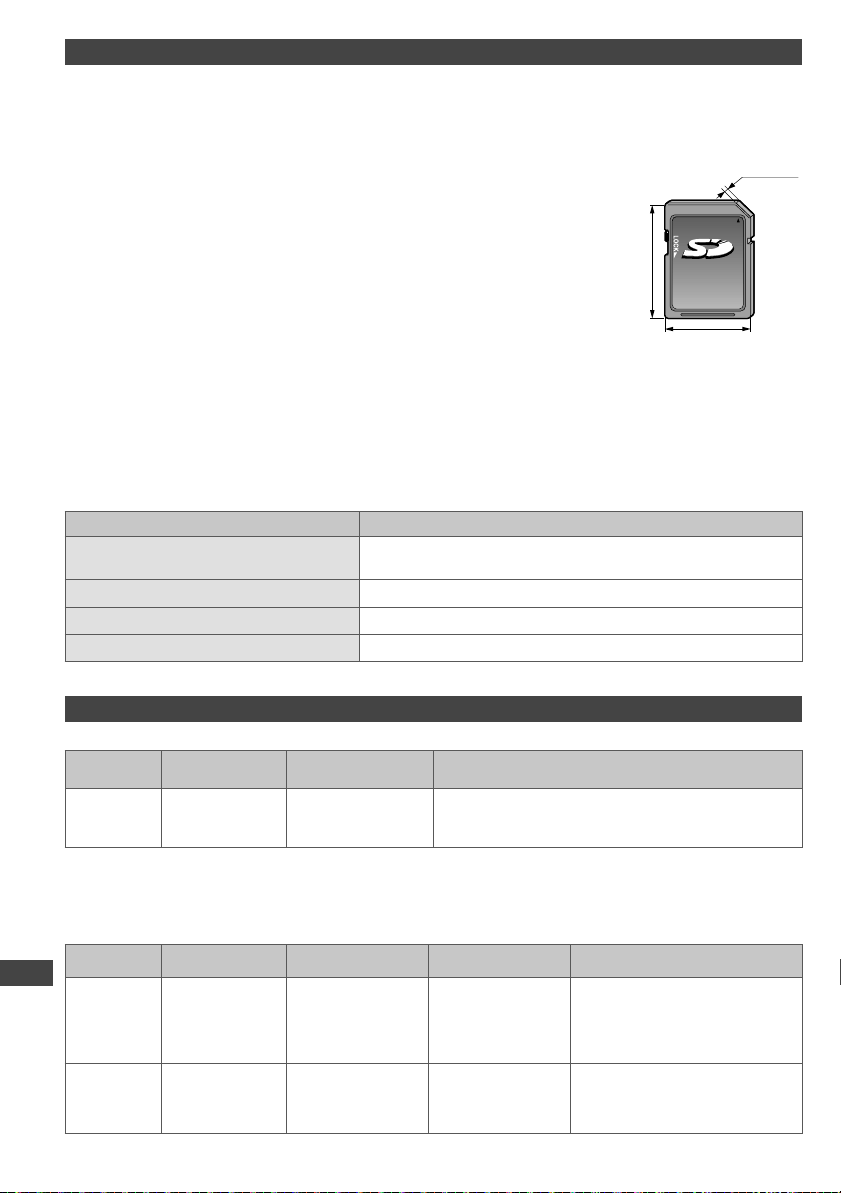
Technical Information
64
Devices for playing back
SD Card
Card format : SDXC Card - exFAT
SDHC Card / SD Card - FAT16 or FAT32
Compliant card type (maximum capacity) : SDXC Card (64 GB), SDHC Card (32 GB), SD Card (2 GB), miniSD Card (2
GB) (requiring miniSD adaptor)
●
If miniSD Card is used, insert / remove it together with the adaptor.
●
Check the latest information on the card type at the following website. (English
only)
http://panasonic.jp/support/global/cs/tv/
●
Use an SD Card which meets SD standards. If not, it may cause the TV to
malfunction.
●
Do not remove the card while the TV is accessing data (this can damage the
card or
TV).
●
Do not touch the pins on the back of the card.
●
Do not subject the card to high pressure or impact.
●
Insert the card in the correct direction (otherwise, card may be damaged).
●
Electrical interference, static electricity, or erroneous operation may damage the
data or card.
●
Back up the recorded data at regular intervals in case of deteriorated or
damaged data or erratic operation of the TV. (Panasonic is not liable for any
deterioration or damage of recorded data.)
24 mm
32 mm
2.1 mm
USB Flash Memory
Format : FAT16, FAT32 or exFAT
On screen messages
Message Meaning / Action
Cannot read file
●
The file is broken or unreadable.
●
The TV does not support the format.
No Device Inserted
●
Confirm SD Card or USB device is inserted correctly.
No valid file to play
●
The card has no data.
This operation is not possible
●
Your operation is not available.
Supported file format in Media Player and media servers
■ Photo
Format File extension
Image resolution
(pixel)
Details / Restrictions
JPEG .jpg 8 × 8
to
30,719 × 17,279
DCF*
1
and EXIF*
2
standards
Sub-sampling : 4:4:4, 4:2:2, 4:2:0
●
Progressive JPEG is not supported.
1
: Design rule for Camera File system - unified standard established by Japan Electronics and Information
Technology Industries Association (JEITA)
2
: Exchangeable Image File - image file format used by digital cameras
■ Video
Container File extension Video codec Audio codec Details / Restrictions
SD-Video .mod MPEG1
MPEG2
MPEG
Dolby Digital
SD-Video Standard Ver. 1.3
(Entertainment Video Profile)
●
The data may not be available if
a folder structure on the current
device is modified.
A
VCHD .mts H.264 Dolby Digital AVCHD Standard
●
The data may not be available if
a folder structure on the current
device is modified.
A
M
A
M
M
T
■
M
A
W
●
S
●
D
●
T
th-l32x50a_book.indb 64th-l32x50a_book.indb 64 2/27/2012 5:30:39 PM2/27/2012 5:30:39 PM
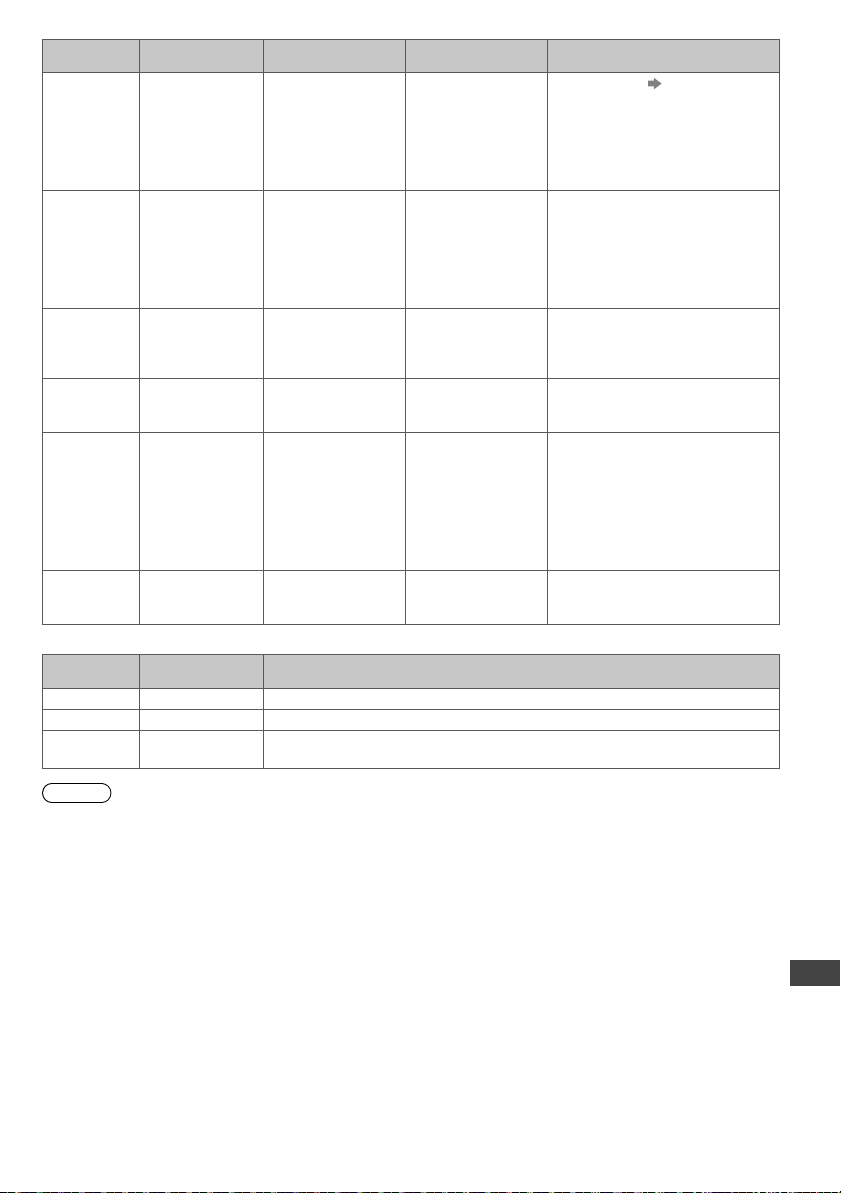
Technical Information
65
(2
m
f
f
Container File extension Video codec Audio codec Details / Restrictions
AVI .avi
.divx
DIV3
DIV4
DIVX
DX50
DIV6
XviD
MPEG4 SP/ASP
MP3
Dolby Digital
MPEG
DivX video file
“DivX” (p. 66)
DivX Certified
®
to play DivX
®
video
up to HD 1080p, including premium
content.
MKV .mkv H.264 BP/MP/HP MP3
Dolby Digital
MPEG
AAC
●
MKV playback tested using
MKV’
s encoded by Handbrake
(v094/095)
●
MKV’s with DTS sound is not
supported
●
Chapters and some subtitles are
not supported during playback.
ASF .asf
.wmv
Windows Media
Video v9
VC-1
WMA
●
Copy-protected files cannot be
played back.
●
WMA Pro and WMA Lossless are
not supported.
MP4
.mp4 H.264 BP/MP/HP MP3
Dolby Digital
AAC
–
MOV .mov MotionJPEG
H.264 BP/MP/HP
RAW
TWOS
SOWT
MP3
Dolby Digital
LPCM
AAC
●
This TV supports Motion JPEG
recorded by Panasonic LUMIX
Camera.
●
Some files may not be played
back depending on these
recording condition.
●
Motion JPEG can be played back
only in Media Player
.
TS .ts
.tp
MPEG2
H.264
Dolby Digital
AAC
MP3
●
This container can be played
back only in DLNA
feature.
■ Music
Codec File extension Restrictions
MP3 .mp3 –
AAC .m4a
●
Copy-protected files cannot be played back.
WMA
.wma
●
Copy-protected files cannot be played back.
●
WMA Pro and WMA Lossless are not supported.
Note
●
Some files may not be played back even if they fulfil these conditions.
●
Do not use two-byte characters or other special codes for data.
●
The device may become unusable with this TV if the file or folder names are changed.
th-l32x50a_book.indb 65th-l32x50a_book.indb 65 2/27/2012 5:30:39 PM2/27/2012 5:30:39 PM
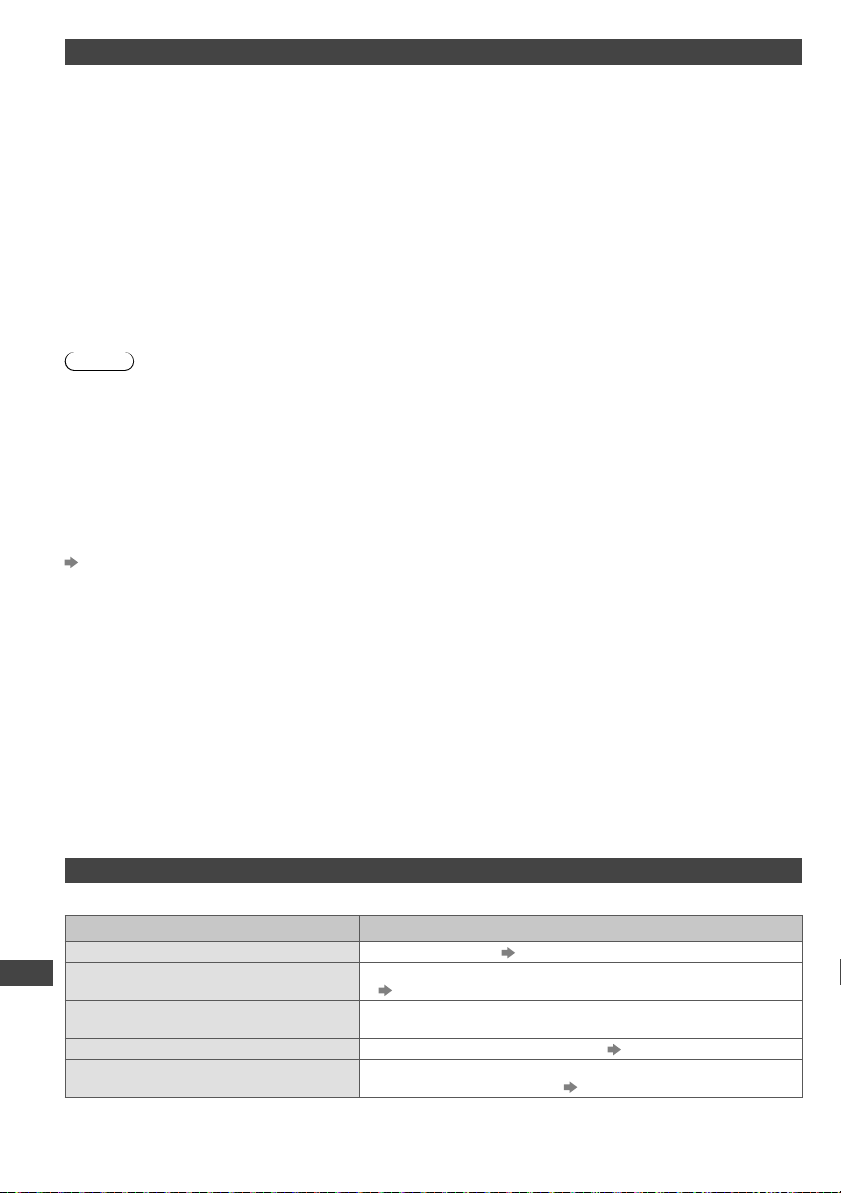
Technical Information
66
DivX
DivX Certified
®
to play DivX
®
video up to 1080p HD including premium content.
ABOUT DIVX VIDEO:
DivX
®
is a digital video format created by DivX, LLC, a subsidiary of Rovi Corporation. This is an official DivX Certified
®
device that plays DivX video. Visit divx.com for more information and software tools to convert your files into DivX
videos.
■ Subtitle text file of DivX
Subtitles format - MicroDVD, SubRip, TMPlayer
●
The DivX video file and subtitles text file are inside the same folder, and the file names are the same except for the
file extensions.
●
If there are more than one subtitles text files inside the same folder, they are displayed in the following order of
priority:
“.srt”, “.sub”, “.txt”.
●
To confirm or change the current subtitle status while playing DivX content, press the OPTION button to display
Option Menu.
●
Depending on the methods used to create the file or the state of recording, only parts of the subtitles may be
displayed, or the subtitles may not be displayed at all.
Note
●
Depending on how you make SD Card, USB Flash Memory or the media server, files and folders may not be
displayed in the order you numbered.
●
Depending on how you create the files and the structure of folders, the files and folders may not be displayed.
●
When there are many files and folders, operation may take time to complete or some files may not be displayed or
playable.
ABOUT
DIVX VIDEO-ON-DEMAND:
This DivX Certified
®
device must be registered in order to play purchased DivX Video-on-Demand (VOD) movies. To
obtain your registration code, locate the DivX VOD section in the Setup Menu. Go to vod.divx.com for more information
on how to complete your registration.
■ To show DivX VOD registration code
[DivX® VOD] (p. 28)
●
If you want to generate the new registration code, you have to deregister the current registration code.
After playing DivX VOD content once, the confirmation screen to deregister will be displayed in [DivX® VOD] in the
Setup Menu. If you press the OK button on the confirmation screen, the deregistration code will be generated and
you will not be able to play any contents that you purchased using the current registration code.
You will obtain the new registration code by pressing the OK button on the deregistration code screen.
●
If you purchase DivX VOD content using a registration code different from this TV’s code, you will not be able to play
this content. ([Your device is not authorized to play this DivX protected video.] is displayed.)
■ Regarding DivX content that can only be played a set number of times
Some DivX VOD content can only be played a set number of times.
When you play this content, the remaining number of plays is displayed. You cannot play this content when the number
of remaining plays is zero. ([This DivX rental has expired.] is displayed.)
●
When playing this content, the number of remaining plays is reduced by one in the following conditions:
•
If you exit the current application.
•
If you play the other content.
•
If you go to the next or previous content.
Network
On screen messages
Message Meaning / Action
An internal error occurred.
●
Check the settings. (p. 48 - 49)
Cannot read file
●
The file is broken or unreadable. Check applicable data format.
(p. 64 - 65)
Communication with the server failed.
●
This might be a problem of the media server. Read the manual of
the server software.
Connection to the server failed.
●
Check the connections and settings.
(p. 47 - 49)
Server not found
●
There is no available media server on your home network. Check
the connections and settings.
(p. 47 - 49)
F
Be
If th
W
●
N
●
●
●
●
●
●
B
●
[V
●
●
T
●
Screen Sound HDMI
th-l32x50a_book.indb 66th-l32x50a_book.indb 66 2/27/2012 5:30:39 PM2/27/2012 5:30:39 PM

FAQs
67
d
®
on
ay
ber
FAQs
Before requesting service or assistance, please follow these simple guides to resolve the problem.
If the problem still persists, please contact your local Panasonic dealer for assistance.
White spots or shadow images (noise)
●
Check the position, direction, and connection of the aerial.
Neither image nor sound is produced
●
Check the TV is turned on.
●
Check the mains lead is plugged into the TV and the socket outlet.
●
Check the TV is in AV mode.
●
Check the correct input mode is selected.
●
Check the Picture Menu (p. 24 - 25) and volume.
●
Check all required cables and connections are firmly in place.
Black and white picture
●
Check that the output of the external equipment matches the input of the TV.
[VIERA
Link] function does not work and an error message appears
●
Confirm the connection.
(p. 53)
●
Turn the connected equipment on and then switch the TV on.
(p. 54)
There may be red spots, blue spots, green spots and black spots on the screen
●
An image on a LCD or Plasma TV screen is created by many small groups of dots known as pixels (which is
similar to the image in a newspaper). It also naturally follows that higher panel resolutions contain more pixels.
T
o create a colour image, each pixel consists of three tiny coloured dots (known as sub-pixels), one each of red,
green and blue. Each one of these dots is precisely controlled by the electronics of the TV to produce the picture.
Whilst Panasonic maintains the highest standards in manufacturing technology and processes in the construction
of these panels, there are a number of allowable pixel/subpixel failures that still allow the panel to be defined as a
good panel. It is not possible to guarantee absolutely no pixel loss.
Problem Causes / Actions
Screen
Chaotic image, noisy
●
Set [P-NR] in the Picture Menu to remove noise. (p. 24)
●
Check nearby electrical products (car, motorcycle, fluorescent lamp).
No image can be
displayed
●
Is [Contrast], [Brightness] or [Colour] in the Picture Menu set to the minimum?
(p. 24)
Blurry or distorted image
(no sound or low volume)
●
Reset channels.
(p. 31, 32)
Unusual image is
displayed
●
Turn the TV off with Mains power On / Off switch, then turn it on again.
●
If the problem persists, initialise all settings.
[Shipping Condition] (p. 35)
[Shop] appears on screen
at switch on
●
[Shop] was selected in [Auto Tuning] (p. 14)
Reset settings in [Shipping Condition] (p. 35), then select [Home] in [Auto
T
uning] (p. 14)
Sound
No sound is produced
●
Is “Sound mute” active? (p. 9)
●
Is the volume set to the minimum?
Sound level is low or
sound is distorted
●
Sound signal reception may be deteriorated.
●
Set [MPX] (p. 26) in the Sound Menu to [Mono]. (Analogue)
HDMI
Sound is unusual
●
Set the sound setting of the connected equipment to “2ch L.PCM”.
●
Check the [HDMI1 / 2 / 3 Input] setting in the Sound Menu.
(p. 26)
●
If digital sound connection has a problem, select analogue sound connection.
(p. 62)
Pictures from external
equipment are unusual
when the equipment is
connected via HDMI
●
Check the HDMI cable or wireless LAN is connected properly.
(p. 47)
●
Turn the TV and equipment off, then turn them on again.
●
Check an input signal from the equipment. (p. 63)
●
Use equipment compliant with EIA/CEA-861/861D.
th-l32x50a_book.indb 67th-l32x50a_book.indb 67 2/27/2012 5:30:39 PM2/27/2012 5:30:39 PM
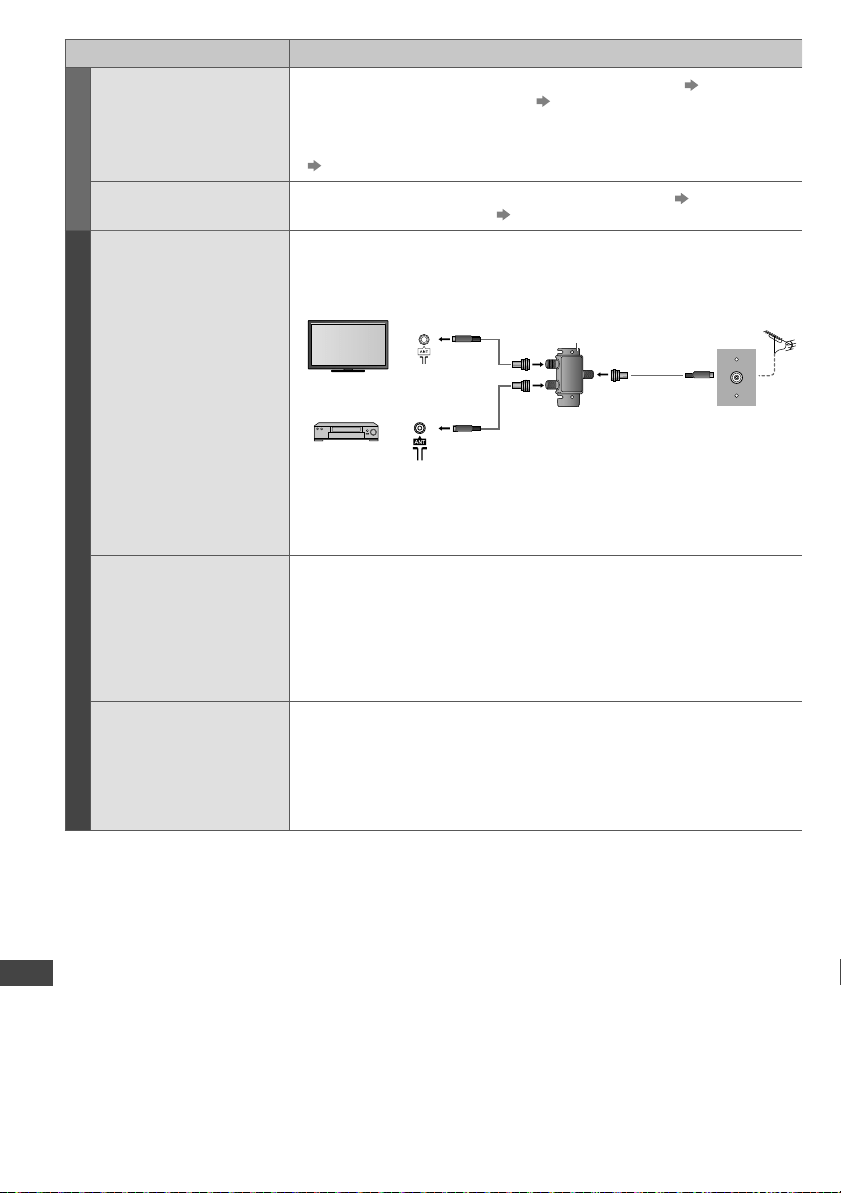
FAQs
68
Problem Causes / Actions
Network
Cannot connect to the
network
●
Check the LAN cable or wireless LAN is connected properly. (p. 47)
●
Check the connections and settings. (p. 47 - 49)
●
Check the network equipment and network environment.
●
The router may not be set to issue IP address automatically. If the network
administrator prefers to allocate an IP address, set an IP address manually.
(p. 48)
Cannot select the file
during DLNA operations
●
Is the media server of the connected equipment prepared?
(p. 46)
●
Check applicable data format. (p. 64 - 65)
Digital TV
Connecting devices such
as DTV recorder / PVR /
VCR etc that also require
an antenna connection to
the digital television
●
To maintain optimum antenna signal quality, use an ‘F’ type TV signal splitter
(as illustrated) when connecting two or more devices to the same antenna
socket.
TV
DTV Recorder / PVR / VCR
Out
In
‘F’ type Antenna Splitter
Antenna Socket
Wall Plate
RG6Q Fly Lead
RG6Q Fly Lead
RG6Q Fly Lead
●
Hint: Some degradation of the DTV signal may occur if you are connecting the
aerial through an external device (e.g. DVD Recorder or Set
Top Box). In
this case it is better to use a splitter and connect the aerial directly to both
devices.
After digital TV tuning, (or
re-tuning) some or all DTV
channels are missing
●
Check to ensure your area is covered by DTV transmissions.
●
Check that the aerial and antenna cable are designed for DTV reception. If
you live within 5-10 km of DTV transmission towers, a combined VHF / UHF
Digital
TV aerial should be adequate. Outside this area, separate VHF and UHF
aerials provide superior reception performance.
●
If you live in a unit or apartment, check to ensure the Master Antenna TV
(MA
TV) system is designed for analogue and DTV reception. Please consult
your body corporate.
Picture infrequently
pixelates on some or all
channels
●
Electrical interference caused by local or distant lighting storms, heavy rain,
high wind etc. may cause picture to break up and or audio to mute / distort
momentarily
.
●
Impulse noise interference from an infrequently used electrical appliance, or a
passing vehicle or lawn mower with a “noisy” ignition system.
●
Older style antenna cabling, loose fitting/corroded wall socket connections /
terminals etc.
Digital TV Other
th-l32x50a_book.indb 68th-l32x50a_book.indb 68 2/27/2012 5:30:39 PM2/27/2012 5:30:39 PM
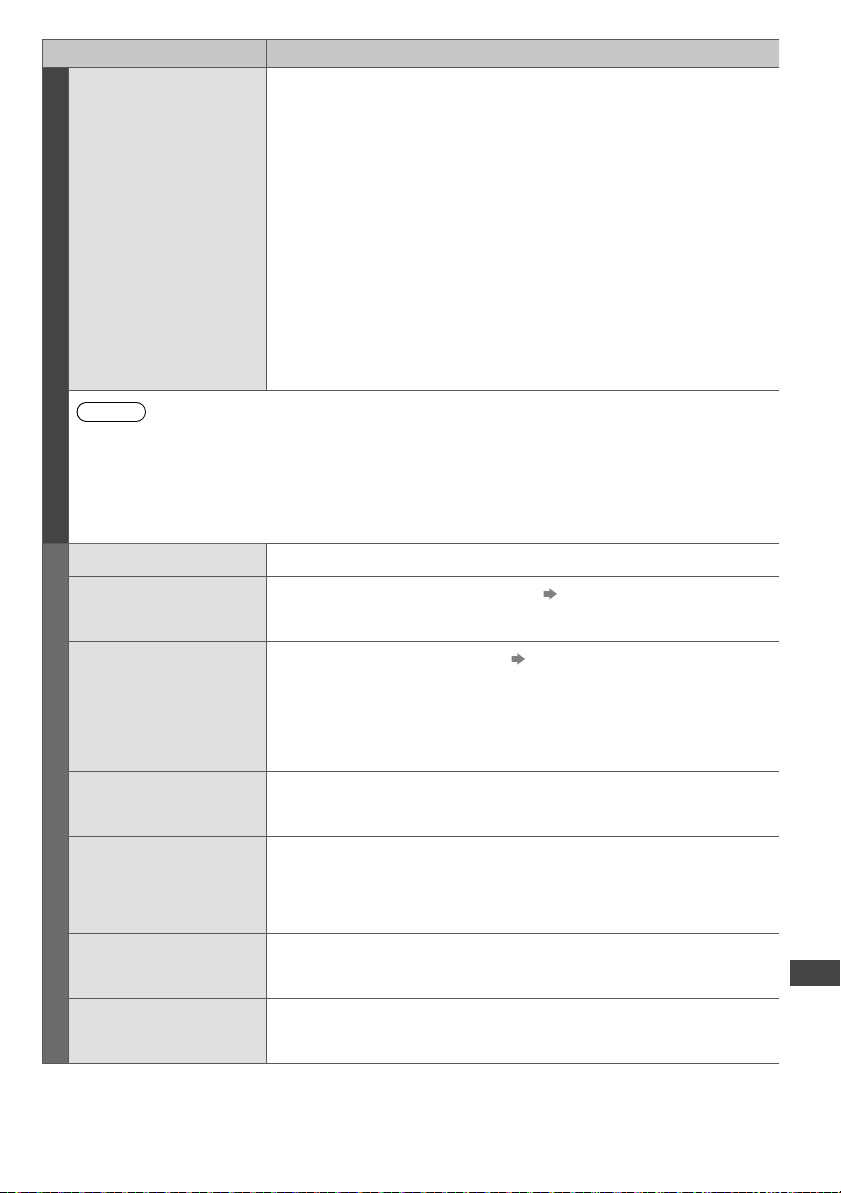
FAQs
69
et
e
n
th
HF
a
Problem Causes / Actions
Digital TV
Picture regularly pixelates
on some channels, or ‘No
Signal’ message
●
Check [Signal Condition] via TV Setup menu. If [Signal Quality] or [Signal
Strength] is red/orange or constantly changing, check aerial/cable/connections.
If problem persists, consult your local TV antenna installer.
●
Too much signal; is [Signal Strength] always at full strength? If yes, try
attenuating (reducing) the signal strength.
●
Check that the aerial and antenna cable are designed for DTV reception.
●
The received signal may be too weak to allow the TV to reliably lock to the
selected channel to generate a viewable picture. If problem persists, consult
your local TV aerial installer.
●
Interference from household appliances (known as impulse noise) such as
light switches, fridges etc. may cause picture break up and / or audio distortion.
Use high quality quad shielded coaxial cable (RG6Q) fly lead between TV and
antenna wall socket to minimise impulse noise pickup. If problem persists,
consult your local TV aerial installer.
●
Antenna installation may be using an aerial amplifier that is faulty or an older
style aerial amplifier that was not designed for digital TV.
●
Older style antenna cabling, loose fitting / corroded wall socket connections /
terminals etc.
●
Turn the TV off with the Mains power On / Off switch, then turn it On again.
Note
Digital TV reception is only as good as the antenna and the antenna cabling delivering the DTV signals to the
television. Reliable digital TV reception requires high quality, robust DTV signals which can only be achieved
when using a TV antenna and cabling designed for digital TV reception.
●
Further reading please visit: http://www.digitalready.gov.au/publications.aspx where you can download ‘The
Digital
TV Antenna Systems for Homes Handbook’ information pdf file.
●
For your safety, the antenna and cabling should be inspected / installed by a licensed installer that should
comply with Australian Standard AS1417.1 for Domestic installations or AS1367 for MATV installations.
Other
The TV does not switch on
●
Check the mains lead is plugged into the TV and the socket outlet.
The TV goes into Standby
mode
●
Auto power standby function is activated.
(p. 10)
●
The TV enters Standby mode about 30 minutes after analogue broadcasting
ends.
The remote control does
not work or is intermittent
●
Are the batteries installed correctly?
(p. 8)
●
Has the TV been switched on?
●
The batteries may be running low. Replace them.
●
Point the remote control directly at the front of the TV (within about 7 m and a
30 degree angle of the front of the TV).
●
Situate the TV away from sunshine or other sources of bright light not to shine
on the TV’s remote control signal receiver.
Parts of the TV become
hot
●
Even when the temperature of parts of the front, top and rear panels has risen,
these temperature rises do not cause any problems in terms of performance or
quality
.
The LCD panel moves
slightly when it is pushed
with a finger
Clattered sound might be
heard
●
There is some flexibility around the panel to prevent damage to the panel.
●
The panel might move slightly when it is pushed with a finger, and clattered
sound might be heard.
This is not a malfunction.
Overcurrent error
message appears
●
The connected USB device might cause this error. Remove the device and turn
the
TV off with Mains power On / Off switch, then turn it on again.
●
Check foreign objects are not inside the USB port.
An error message appears
●
Follow the message’s instructions.
●
If the problem persists, contact your local Panasonic dealer or the authorised
service centre.
th-l32x50a_book.indb 69th-l32x50a_book.indb 69 2/27/2012 5:30:40 PM2/27/2012 5:30:40 PM
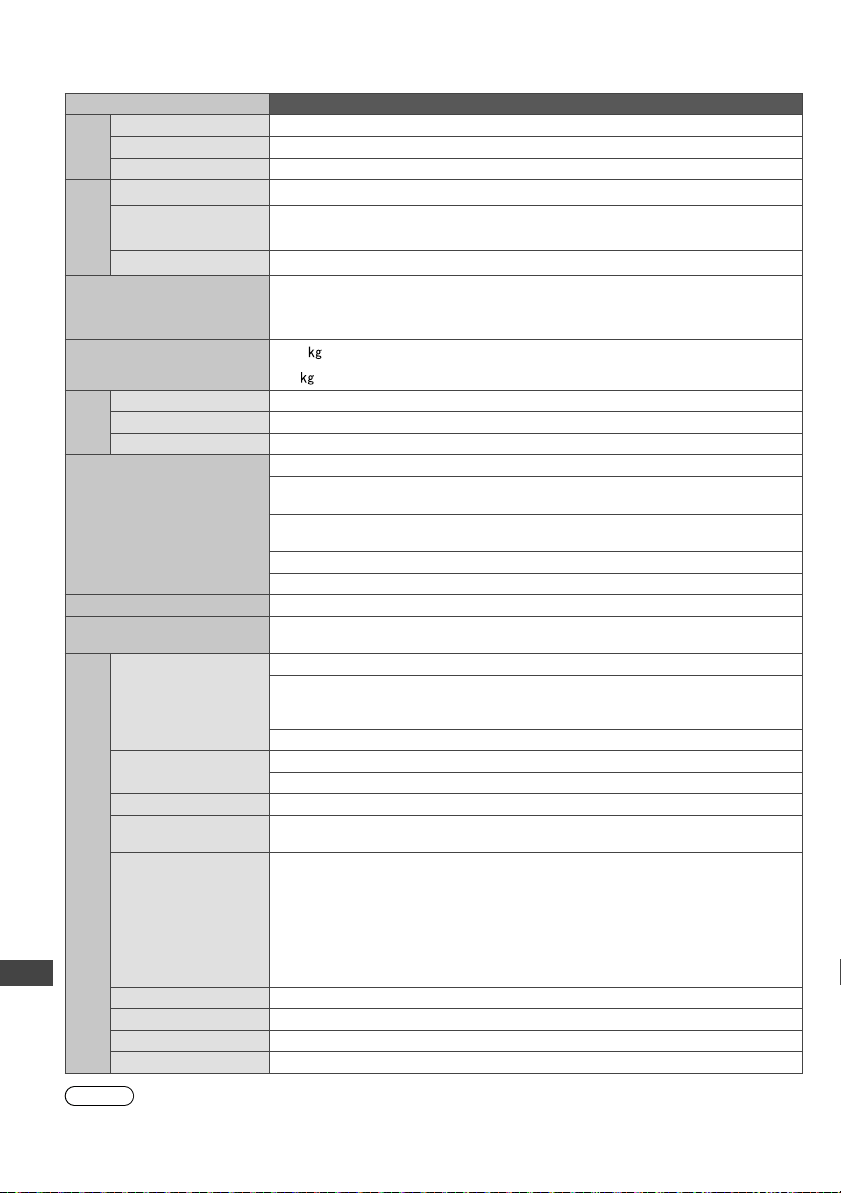
Specifications
70
Specifications
Model No. TH-L32X50A
Power
Power rating AC 220-240 V, 50 / 60 Hz 0.55 A
Normal (Home) mode 68 W
Standby condition 0.25 W
Display
panel
Panel system IPS LED backlight Liquid Crystal Display
Visible screen size
(diagonal)
80 cm / 32 inches
Number of pixels 1,049,080 (1,366 (W) × 768 (H))
Dimensions (W × H × D)
761 mm × 517 mm × 230 mm
(With Pedestal)
761 mm × 463 mm × 53 mm (TV only)
Mass
10.0
Net (With Pedestal)
8.0
Net (TV only)
Sound
Speaker (75 mm × 22 mm) × 2, 8
Audio output 20 W (10 W + 10 W)
Headphones M3 (3.5 mm) stereo mini Jack × 1
Receiving systems /
Band name
PAL B, G Reception of Off air broadcasts
Digital TV
7 MHz VHF / UHF (Australia) free-to-air TV broadcast
reception
PAL 60 Hz
Playback of NTSC tape from some PAL Video recorders
(VCR)
M.NTSC Playback from M.NTSC Video recorders (VCR)
NTSC Playback from NTSC Video recorders (VCR)
Aerial - Rear Standard Belling & Lee connector
Operating conditions
Temperature: 0 °C - 35 °C
Humidity: 20 % - 80 % RH (non-condensing)
Connection terminals
AV1 IN
AUDIO L - R RCA PIN Type × 2 0.5 V[rms]
COMPONENT
Y 1.0 V[p-p]
(including synchronisation)
P
B/CB, PR/CR ±0.35 V[p-p]
VIDEO RCA PIN Type × 1 1.0 V[p-p] (75 )
AV2 IN
AUDIO L - R RCA PIN Type × 2 0.5 V[rms]
VIDEO RCA PIN Type × 1 1.0 V[p-p] (75 )
AUDIO OUT AUDIO L - R RCA PIN Type × 2 0.5 V[rms] (high impedance)
HDMI 1 / 2 / 3 input
TYPE A Connectors
●
This TV supports “HDAVI Control 5” function.
PC
HIGH-DENSITY D-SUB 15PIN
R,G,B: 0.7 V[p-p] (75
)
HD, VD: TTL Level 2.0 – 5.0 V[p-p] (high impedance)
●
Applicable input signals:
VGA, SVGA, WVGA, XGA
SXGA, WXGA ······ (compressed)
Horizontal scanning frequency 31 - 69 kHz
V
ertical scanning frequency 59 - 86 Hz
Card slot SD Card slot × 1
ETHERNET 10BASE-T / 100BASE-TX
USB 1 / 2 USB 2.0 TYPE A Connectors DC 5 V, Max. 500 mA
DIGITAL AUDIO OUT PCM / Dolby Digital / DTS, Fibre optic
Note
●
Design and Specifications are subject to change without notice. Mass and Dimensions shown are approximate.
1
2
3
4
5
6
7
P
w
C
I
A
p
t
I
t
p
05_TH-L32X50A_en_ext_tech.indd 7005_TH-L32X50A_en_ext_tech.indd 70 3/20/2012 9:59:31 AM3/20/2012 9:59:31 AM
71
1. The product is warranted for 12 months from the date of purchase. Subject to the conditions of this warranty Panasonic or its
Authorised Service Centre will perform necessary service on the product without charge for parts or labour, if in the opinion of
Panasonic, the product is found to be faulty within the warranty period.
2.
This warranty only applies to Panasonic products purchased in Australia and sold by Panasonic Australia or its Authorised Distributors or
Dealers and only where the products are used and serviced within Australia or it's territories. Warranty cover only applies to service carried
out by a Panasonic Authorised Service Centre and only if valid proof of purchase is presented when warranty service is requested.
3. This warranty only applies if the product has been installed and used in accordance with the manufacturer’s recommendations (as noted
in the operating instructions) under normal use and reasonable care (in the opinion of Panasonic). The warranty covers normal domestic
use only and does not cover damage, malfunction or failure resulting from use of incorrect voltages, incorrect installation, accident,
misuse, neglect, build-up of dirt or dust, abuse, maladjustment of customer controls, mains supply problems, thunderstorm activity,
infestation by insects or vermin, tampering or repair by unauthorised persons (including unauthorised alterations), introduction of sand,
humidity or liquids, commercial use such as hotel, office, restaurant, or other business or rental use of the product, exposure to abnormally
corrosive conditions or any foreign object or matter having entered the product.
4. This warranty does not cover the following items unless the fault or defect existed at the time of purchase:
(a) Cabinet Part(s) (e) DVD, Blu-ray, or Recordable Discs
(b) Video or Audio Tapes (f) Video / Audio Heads from wear and tear in normal use
(c) SD cards or USB devices (g) Information stored on Hard Disk Drive, USB stick or SD card
(d) User replaceable Batteries (h) DTV reception issues caused by TV Aerial / Cabling / Wall socket(s)
etc
5. Some products may be supplied with Ethernet connection hardware. The warranty is limited on such products and will not cover
(a) Internet and or DLNA connection / setup related problems
(b) Access fees and or charges incurred for internet connection
(c) The use of incompatible software or software not specifically stipulated in the product operations manual; and
(d) Any indirect or consequential costs associated with the incorrect use or misuse of the hardware, its connection to the internet or
any other device.
6. To claim warranty service, when required, you should:
• Telephone Panasonic’s Customer Care Centre on 132600 or visit our website referred to below and use the Service Centre Locator
for the name/address of the nearest Authorised Service Centre.
• Send or take the product to a Panasonic Authorised Service Centre together with your proof of purchase receipt as a proof of purchase
date. Please note that freight and insurance to and / or from your nearest Authorised Service Centre must be arranged by you.
• Note that home or pick-up/delivery service is available for the following products in the major metropolitan areas of Australia or the
normal operating areas of the nearest Authorised Service Centres:
- Plasma/LCD televisions / displays (screen size greater than 103 cm)
7. The warranties hereby conferred do not extend to, and exclude, any costs associated with the installation, de-installation or
re-installation of a product, including costs related to the mounting, de-mounting or remounting of any screen, (and any other ancillary
activities), delivery, handling, freighting, transportation or insurance of the product or any part thereof or replacement of and do not
extend to, and exclude, any damage or loss occurring by reason of, during, associated with, or related to such installation,
de-installation, re-installation or transit.
Panasonic Authorised Service Centres are located in major metropolitan areas and most regional centres of Australia, however, coverage
will vary dependant on product. For advice on exact Authorised Service Centre locations for your product, please telephone our Customer
Care Centre on 132600 or visit our website and use the Service Centre Locator.
In addition to your rights under this warranty, Panasonic products come with consumer guarantees that cannot be excluded under the
Australian Consumer Law. If there is a major failure with the product, you can reject the product and elect to have a refund or to have the
product replaced or if you wish you may elect to keep the goods and be compensated for the drop in value of the goods. You are also entitled
to have the product repaired or replaced if the product fails to be of acceptable quality and the failure does not amount to a major failure.
If there is a major failure in regard to the product which cannot be remedied then you must notify us within a reasonable period by contacting
the Panasonic Customer Care Centre. If the failure in the product is not a major failure then Panasonic may choose to repair or replace the
product and will do so in a reasonable period of time from receiving notice from you.
Panasonic
THIS WARRANTY CARD AND THE PURCHASE DOCKET (OR SIMILAR PROOF OF PURCHASE)
SHOULD BE RETAINED BY THE CUSTOMER AT ALL TIMES
If you require assistance regarding warranty conditions or any other enquiries, please visit the
Panasonic Australia website www.panasonic.com.au or contact by phone on 132 600
If phoning in, please ensure you have your operating instructions available.
Panasonic Australia Pty. Limited
ACN 001 592 187 ABN 83 001 592 187
1 Innovation Road, Macquarie Park NSW 2113
PRO-031-F11 Issue: 4.0 01-01-2011
Warranty
th-l32x50a_book.indb 71th-l32x50a_book.indb 71 2/27/2012 5:30:40 PM2/27/2012 5:30:40 PM
Web Site: http://panasonic.net
© Panasonic Corporation 2012
F0112-0312-3
Printed in Malaysia
Customer’s Record
The model number and serial number of this product may be found on its rear panel. You should note this serial
number in the space provided below and retain this book, plus your purchase receipt, as a permanent record of
your purchase to aid in identification in the event of theft or loss, and for Warranty Service purposes.
Model Number Serial Number
Information on Disposal in other Countries outside the European Union
This symbol is only valid in the European Union. If you wish to discard this product, please contact
your local authorities or dealer and ask for the correct method of disposal.
Maintenance
First, remove the mains plug from the socket outlet.
Display panel, Cabinet, Pedestal
Regular care:
Gently wipe the surface of the display panel,
cabinet, or pedestal by using a soft cloth to clean the
dirt or fingerprints.
For stubborn dirt:
First clean the dust on the surface. Dampen a soft cloth with
clean water or diluted neutral detergent (1 part detergent to 100
parts water). Wring the cloth and wipe the surface. Finally, wipe
away all the moisture.
Caution
●
Do not use a hard cloth or rub the surface too hard, otherwise this may cause scratches on the surface.
●
Take care not to subject the TV’s surfaces to water or detergent. Liquid inside the TV could lead to product failure.
●
Take care not to subject the surfaces to insect repellent, solvent, thinner or other volatile substances. This may
degrade surface quality or cause peeling of the paint.
●
The surface of the display panel is specially treated and may be easily damaged. Take care not to tap or scratch the
surface with your fingernail or other hard objects.
●
Do not allow the cabinet and pedestal to make contact with a rubber or PVC substance for a long time. This may
degrade surface quality.
Mains plug
Wipe the mains plug with a dry cloth at regular intervals. Moisture and dust may lead to fire or electrical shock.
05_TH-L32X50A_en_ext_tech.indd 7205_TH-L32X50A_en_ext_tech.indd 72 3/20/2012 9:59:44 AM3/20/2012 9:59:44 AM