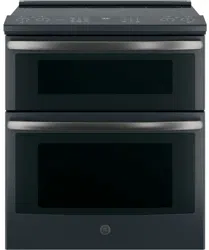
Use Manual Oven
USING THE RANGE
1.Surface Units cont.
Operating the Cooktop Elements
WARNING FIRE HAZARD: Never leave the range unattended with the cooktop on medium or high settings. Keep flammable items away from the cooktop. Turn off all controls when done cooking. Failure to follow these instructions can result in fire, serious injury or death.
Before using the cooktop for the first time, clean it with CERAMA BRYTE® Ceramic Cooktop Cleaner. This helps protect the top and makes cleanup easier.
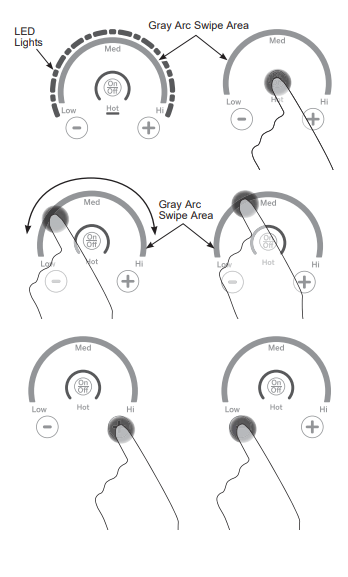
Turn element(s) On: Touch and hold On/Off pad about half a second. A chime can be heard with each touch to any pad.
Power level can be selected in any of the following ways:
- Swipe the gray arc (on the graphics) to the desired power level. There is no sensor on the LEDs, or;
- Touch Anywhere along the gray arc, or;
- Touch + or - pads to adjust power level, or;
- Shortcut to Hi: Immediately after turning unit on, touch the + pad, or;
- Shortcut to Low: Immediately after turning unit on, touch the - pad.
NOTE: When changing from a high heat setting to a lower heat setting, the surface unit may stop glowing. This is normal. The unit is still on and hot.
NOTE: This cooktop has a rapid heat-up feature. If the cooktop is cool when turned on, it will glow red for a short period of time until the desired power setting is reached.
Using the Warming Zone
WARNING:
FOOD POISON HAZARD: Bacteria may grow in food at temperatures below 140°F.
- Always start with hot food. Do not use warm setting to heat cold food.
- Do not use warm setting for more than 2 hours.
The WARMING ZONE, located in the back center of the glass surface, will keep hot, cooked food at serving temperature. Always start with hot food. Do not use to heat cold food. Placing uncooked or cold food on the WARMING ZONE could result in foodborne illness.
To use the WARMING ZONE: Press the WARMING ZONE pad, select the desired level (1, 2 or 3) using the number pads, and press start.
To turn off the WARMING ZONE: Press the WARMING ZONE pad.
NOTE: Cancel/Off will NOT turn off the warming zone.
For best results, all foods on the WARMING ZONE should be covered with a lid or aluminum foil. When warming pastries or breads, the cover should be vented to allow moisture to escape.
The initial temperature, type and amount of food, type of pan, and the time held will affect the quality of the food.
Always use pot holders or oven mitts when removing food from the WARMING ZONE, since cookware and plates will be hot.
NOTE: The surface warmer will not glow red.
How To Synchronize Left Elements
To Turn On
Hold the Sync Burners pad for about half a second to connect the two elements. Operate either element as described in Operating the Cooktop Elements to adjust power level.
To Turn Off
- Touch the On/Off pad on either element to turn off the Sync Burners.
or
2. Touch the Sync Burners to turn both elements off.
Multi-Ring Burner (Can be Dual or Triple)
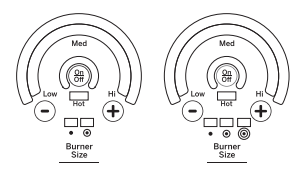
- Touch the On/Off pad for the right front surface unit.
- Use the arc or+ or – pad to choose the desired power setting.
- Touch the Burner Size pad as needed to select the desired burner size.
The light next to the Burner Size pad indicates which size the surface unit is on. To turn the surface unit off, touch the On/Off pad.
Home Canning Tips
- Be sure the canner is centered over the surface unit.
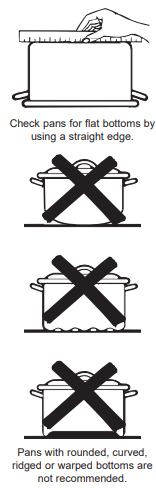
- Make sure the canner is flat on the bottom.
- To prevent burns from steam or heat, use caution when canning.
- Use recipes and prodecures from reputable sources.These are available from manufacturers such as Ball® and Kerr® and the Department of Agriculture Extension Service.
- Flat-bottomed canners are recommended. Use of water bath canners with rippled bottoms may extend the time required to bring the water to a boil.
Radiant Glass Cooktop
The radiant cooktop features heating units beneath a smooth glass surface.
NOTE: A slight odor is normal when a new cooktop is used for the first time. It is caused by the heating of new parts and insulating materials and will disappear in a short time.
NOTE: On models with light-colored glass cooktops, it is normal for the cooking zones to change color when hot or cooling down. This is temporary and will disappear as the glass cools to room temperature.
The surface unit will cycle on and off to maintain your selected control setting.
It is safe to place hot cookware on the glass surface even when the cooktop is cool.
Even after the surface units are turned off, the glass cooktop retains enough heat to continue cooking. To avoid overcooking, remove pans from the surface units when the food is cooked. Avoid placing anything on the surface unit until it has cooled completely.
- Water stains (mineral deposits) are removable using the cleaning cream or full-strength white vinegar.
- Use of window cleaner may leave an iridescent film on the cooktop. The cleaning cream will remove this film .
- Don't store heavy items above the cooktop. If the drop onto the cooktop, they can cause damage.
- Do not use the surface as a cutting board.
Temperature Limiter on Radiant Glass Cooktops
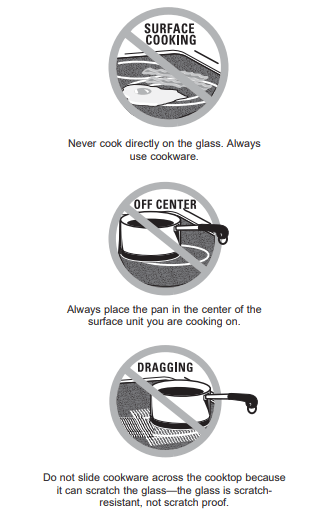
Every radiant surface unit has a temperature limiter. The temperature limiter protects the glass cooktop from getting too hot.
The temperature limiter may cycle the surface units off for a time if:
- the pan boils dry.
- the pan bottom is not flat.
- the pan is off-center
- there is no pan on the unit.
2.Cookware for Radiant Glass Cooktop
The following information will help you choose cookware which will give good performance on glass cooktops. NOTE: Follow all cookware manufacturer’s recommendations when using any type of cookware on the ceramic cooktop.
Recommended
Stainless Steel
Aluminum:
heavy weight recommended
Good conductivity. Aluminum residues sometimes appear as scratches on the cooktop but can be removed if cleaned immediately. Because of its low melting point, thin weight aluminum should not be used.
Copper Bottom:
Copper may leave residues which can appear as scratches. The residues can be removed, as long as the cooktop is cleaned immediately. However, do not let these pots boil dry. Overheated metal can bond to glass cooktops. An overheated copper bottom pot will leave a residue that will permanently stain the cooktop if not removed immediately.
Enamel (painted) on Cast Iron: recommended if bottom of pan is coated
Avoid/Not Recommended
Enamel (painted) on Steel:
Heating empty pans can cause permanent damage to cooktop glass. The enamel can melt and bond to the ceramic cooktop.
Glass-ceramic:
Poor performance. Will scratch the surface.
Stoneware:
Poor performance. May scratch the surface.
Cast Iron:
not recommended -unless designed specifically for glass cooktops
Poor conductivity and slow to absorb heat. Will scratch the cooktop surface.
For Best Results
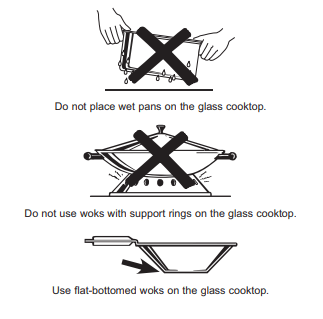
- Place only dry pans on the surface elements. Do not place lids on the surface elements, particularly wet lids. Wet pans and lids may stick to the surface when cool.
- Do not use works that have support rings. This type of wok will not heat on glass surface elements.
- We recommended that you use only a flat-bottomed wok.They are available at your local retail store. The bottom of the wok should have the same diameter as the surface element to ensure proper contact.
- Some special cooking procedures require specific cookware such as pressure cookers or deep-fat fryers. All cookware must have flat bottoms and be the correct size.
3.Oven Controls:
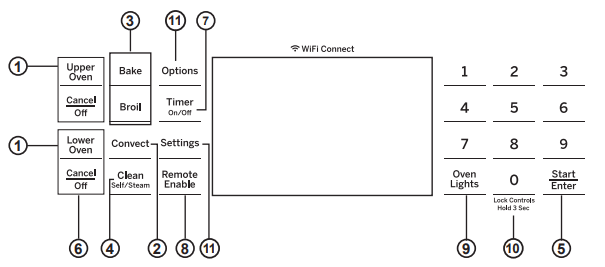
1. Upper Oven and Lower Oven:
Designates which oven the controls will operate. Select an oven before following the steps for starting a cooking or cleaning mode.
2. Convection Cooking Modes: Convection cooking modes use increased air circulation to improve performance. See the Cooking Modes section for more information.
3. Traditional Cooking Modes: Your oven has the following traditional cooking modes: Bake, Broil, and Warm. See the Cooking Modes section for more information.
4. Clean: Your oven has two cleaning modes: Self Clean and Steam Clean. See the Cleaning the Oven section for important information about using these modes.
5. Start/Enter: Must be pressed to start any cooking, cleaning, or timed function. Also used to start the Warming Zone on the cooktop.
6. Cancel/Off: Cancels ALL oven operations except the clock and timer. Does NOT cancel the Warming Zone on the cooktop.
7. Timer: Works as a countdown timer. Press the Timer pad and number pads to program the time in hours and minutes. Press the Start pad. The timer countdown is complete. To turn the timer off press the Timer pad.
8. Remote Enable: Allows you to control your oven remotely. The oven must be connected to WiFi before Remote Enable can be activated. For instructions on how to connect your oven, see the WiFi Connect/Remote Enable section under Settings in this manual.
9. Oven Light: Turns the oven light on or off.
10. Lock Controls: Locks out the control so that pressing the pads does not activate the controls. Press and hold the 0 pad, for three seconds to lock or unlock the control. Cancel/Off is always active, even when the control is locked.
11. Options and Settings: The Options and Settings pads open up more detailed menus in the display that allow access to additional functions and cooking modes. For each you select the function in the display using the associated number pad. You can exit at any time by pressing the Options or Settings pad again. See the Settings, Options, and Cooking Modes Sections for more details.
4.Options
The options pad opens up a menu of more cooking modes when the oven is off. It opens a menu with additional features if a cooking mode is already in process. You can exit the menu at any time by pressing the Options pad again.
You must first select an oven and a mode (bake, convection bake, convection roast) and then select Options to get to the following functions.
Cook Time
Counts down cooking time and turns off the oven when the cooking time is complete. Select a desired cooking mode. Use the number pads to program a baking temperature. Press the Options pad and select Cook Time. Use the number pad to program cook time in hours and minutes. Then press Start/Enter. This can only be used with Bake, Convection Bake, and Convection Roast.
Delay Time
Delay when the oven will turn on. Use this to set a time when you want the oven to start. Press the desired cooking mode pad. Use the number to program a baking temperature. Press the Options pad and select Delay Time. Use the number pads to program the time of day for the oven to turn on, and then press Start/Enter. Delay time is not available with all modes.
NOTE: When using the Delay Time feature, foods that spoil easily – such as milk, eggs, fish, stuffing, poultry, and port – should not be allowed to sit for more than 1 hour before or after cooking. Room temperature promotes the growth of harmful bacteria. Be sure that the oven light is off because heat from the bulb will speed harmful bacteria growth.
Oven Probe (Lower oven only)
NOTE: Only accessible through traditional and convection cooking modes.
Monitors internal food temperature and turns the oven off when the food reaches the programmed temperature. Insert the probe, press the desired cooking mode, and program the probe temperature. See the Cooking Modes Section for more information. The probe can only be used with Bake, Convection Bake, and Convection Roast.
5.Settings
The Options and Settings pads open up more detailed menus in the display that allow access to additional functions. For each you select the function in the display using the associated number pad. You can exit at any time by pressing the Options or Settings pad again.
WiFi Connect/Remote Enable
Your oven is designed to provide you with two-way communication between your appliance and smart device. By using the WiFi Connect features, you will be able to control essential oven operations such as temperature settings, timers and cooking modes using your smartphone or tablet.*
Select Settings then Wifi - follow the instructions on your oven display and phone app. It is necessary to turn on WiFi before using Remote Enable on your oven.
Connecting your WiFi Connect Enabled Oven
What you will need
Your GE Appliances oven uses your existing home WiFi network to communicate between the appliance and your smart device. In order to setup your GE Appliances oven, you will need to gather some information:
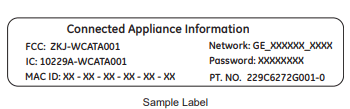
1. Each GE Appliances oven has a connected appliance information label that includes an Appliance Network Name and Password. These are the two important details that you will need to connect to the appliance. The label is typically located inside the door of the oven or drawer.
2. Have your smart phone or tablet ready with the ability to access the internet and download apps.
3. You will need to know the password of your home WiFi router. Have this password ready while you are setting up your GE Appliances oven.
Connect your GE Appliances oven
- On your smart phone or tablet visit GEAppliances.com/connect to learn more about connected appliance features and to download the appropriate app.
- Follow the app onscreen instructions to connect your GE Appliances oven.
- Once the process is complete, the connection light located on your GE Appliances oven display will stay on solid and the app will confirm you are connected.
- If the connection light does not turn on or is blinking, follow the instructions on the app to reconnect. If issues continue, please call the Connected Call Center 1.866.626.2000 and ask for assistance regarding oven wireless connectivity.
To connect additional smart devices, repeat steps 1 and 2.
Note that any changes or modifications to the remote enable device installed on this oven that are not expressly approved by the manufacturer could void the user’s authority to operate the equipment.
REMOTE STARTING YOUR OVEN

To be able to start the oven remotely once connected to WiFi, press the Remote Enable pad and the icon will turn on in the display. The oven can now be remotely started with a connected device. Opening an oven door or turning off the oven will turn off the icon. The icon must be lit to start the oven remotely. The icon is not required to change the oven temperature while it is running, set a timer or to turn the oven off from the phone app while the icon shows it is Wifi Connected.
After using the oven, remember to verify that the icon is lit if you wish to start the oven remotely in the future.
NOTE: Foods that spoil easily-such as milk, eggs, fish, stuffings, poultry and pork-should not be allowed to sit for more than 1 hour before or after cooking. Room temperature promotes the growth of harmful bacteria. Be sure that the oven light is off because heat from the bulb will speed harmful bacteria growth.
Clock
This setting sets the oven clock time. Press the Settings pad and select Set Clock. Follow the instructions to set the clock. This feature also specifies how the time of day will be displayed. You can select a standard 12-hour clock (12H), 24-hour military time display (24H), or no clock displayed (Off). Press the Settings pad, select Set Clock and select either 12/24 hr or On/Off.
Bluetooth® - Chef Connect
This is a pairing feature for use with other compatible Chef Connect enabled products like an over-the-range microwave oven or range hood. To pair those products to the range Press the Settings pad and select Bluetooth®. Select Pair and follow the corresponding instructions included with the mating Chef Connect enabled product. The range will cancel pairing mode after two minutes if no mating device is detected. Select Remove to confirm product is paired or to un-pair from range.
Auto Conv (Auto Conversion)
When using Convection Bake cooking, Auto Recipe Conversion will automatically convert the regular baking temperatures entered to convection bake cooking temperatures when turned on. Note that this option does not convert convection bake cooking times, it only converts temperatures. This feature may be turned On or Off. Select Settings and Auto Conversion, then follow the prompts to turn this feature on or off.
Auto Off
This feature shuts the oven down after 12 hours of continuous operation. It may be enabled or disabled. Select Settings, More, and Auto Off to turn this feature on or off.
Sound
You can adjust the volume and type of alert your appliance uses. Select Settings, More, and Sound. Follow prompts for making volume adjustments or for changing between continuous and single alert tones. A continuous setting will continue to sound a tone until a button on the control is pressed. The oven tone volume can be adjusted between several settings and off. The control will sound the oven tone at the new volume level each time the sound level is changed.
F/C (Fahrenheit or Celsius)
The oven control is set to use Fahrenheit temperatures (F), but you can change it to use Celsius temperatures (C). Select Settings, More, and F/C to alter between temperature scales displayed.
Adjust the Oven temperature
This feature allows the oven cooking modes to be adjusted up 35F hotter or down to 35F cooler. Use this feature if you believe your oven temperature is too hot or too cold and wish to change it. This adjustment affects Bake and Convection Bake modes. No other cooking modes are affected. Select Settings and Oven Adjust to add More Heat or Less Heat and then press Save (for double ovens use the Upper Oven or Lower Oven menu selection corresponding to the oven to be adjusted).
Oven Info
To display the model number and software version on your unit, select Settings, More, and Oven Info.
6.Sabbath Mode
The Sabbath mode feature complies with starndards set forth by Star K. Some of these standards that will be noticed by the consumer include the disabling of tones, disabling of oven lights, and delays of about 30 seconds to one minute on display changes. Only continuous baking or timed baking is allowed in the Sabbath mode. Cooking in the Sabbath mode is a two-step process, first the Sabbath mode must be set and then the bake mode must be set.
Setting the Sabbath Mode
Press the Settings pad, select Sabbath, and select Turn on. A single bracket “]” will appear in the display indicating that the Sabbath mode is set. The clock will not be displayed. Continuous bake or timed bake can now be programmed.
Starting a Continuous Bake
- Press the Bake pad. (For double ovens, this operates the upper oven. If desiring to use Lower Oven, press Lower Oven and then Bake.)
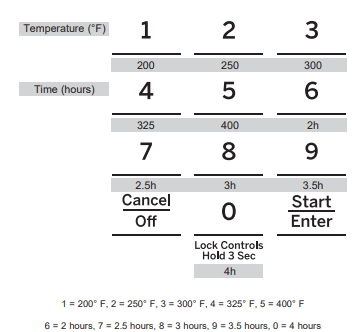
- If the desired temperature is 350F, press Start/ Enter. If a different cooking temperature is desired, use the 1 through 5 number pads to select a preset cooking temperature, then press Start/Enter. Refer to the graphic below to determine which pad sets the desired cooking temperature.
After a delay, a second bracket “] [“ will appear in the display indicating that the oven is baking.
Adjusting the Temperature
- Press Bake (or press Lower Oven and then Bake for lower oven in a double oven unit), use the 1 through 5 number pads to select a different preset cooking temperature, and press Start/Enter.
- Since no feedback is given during temperature change, an oven thermometer can be used to confirm temperature changes.
Starting a Timed Bake
- Press the Bake pad.
- If the desired temperature is 350F, use the 6 through 0 number pads to select a cooking time. If a cooking temperature other than 350F is desired, use the 1 through 5 number pads to select a preset cooking temperature, then select the cooking time. Refer to the graphic on this page to determine which pad sets the desired cooking temperature and cooking time.
- Press Start/Enter.
After a delay, a second bracket “] [“ will appear in the display indicating that the oven is baking. When the cook time expires, the display will change back to a single bracket “]” indicating that the oven is no longer baking. No tone will sound when the cook time is complete.
Exit the Sabbath Mode
Exiting the Sabbath mode should be done after the Sabbath is over.
- Press Cancel/Off to end any bake mode that may be running.
- Press and hold Settings pad until Sabbath Mode off is displayed.
Sabbath Mode Power Outage Note
If a power outage occurs while the oven is in Sabbath Mode, the unit will return to the off state even if was in the middle of a bake cycle Sabbath Mode when power even if it was in the middle of a bake cycle when the power outage occurred.
7.Oven Racks
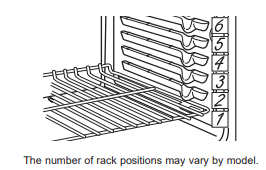
Recommended rack positions for various types of foods are provided in the Cooking Guide. Adjusting rack position is one way to impact cooking results. For example, if you would prefer darker tops on cakes, muffins, or cookies, try moving food one rack position higher. If you find foods are too brown on top try moving them down next time.
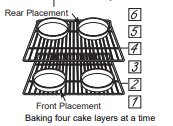
When baking with multiple pans and on multiple racks, ensure there is at least 1½" between pans to allow sufficient space for air to flow.
To avoid possible burns, place the racks in the desired position before you turn the oven on.
8.Aluminum Foil and Oven Liners
CAUTION Do not use any type of foil or oven liner to cover the oven bottom. These items can trap heat or melt, resulting in damage to the product and risk of shock, smoke or fire. Damage from improper use of these items is not covered by the product warranty.
Foil may be used to catch spills by placing a sheet on a lower rack, several inches below the food. Do not use more foil than necessary and never entirely cover an oven rack with aluminum foil. Keep foil at least 1-1/2" from oven walls to prevent poor heat circulation.
9.Cookware
Cookware Guidelines
The material, finish, and size of cookware affect baking performance.
Dark, coated and dull pans absorbs heat more readily than light, shiny pans. Pans that absorb heat more readily can result in a browner, crisper, and thicker crust. If using dark and coated cookware check food earlier than minimum cook time. If undesirable results are obtained with this type of cookware consider reducing oven temperature by 25ºF next time.
Shiny pans can produce more evenly cooked baked goods such as cakes and cookies. Glass and ceramic pans heat slowly but retain heat well. These types of pans work well for dishes such as pies and custards. Air insulated pans heat slowly and can reduce bottom browning.
Keep cookware clean to promote even heating.
10.Cooking Modes
Your new oven has a variety of cooking modes to help you get the best results. These modes are described below. Refer to the Cooking Guide section for rack position and other recommendations for specific modes and foods.
Bake
The bake mode is for baking and roasting. When preparing baked goods such as cakes, cookies and pastries, always preheat the oven first. To use this mode press the Bake pad, enter a temperature with the number pads, and then press Start/Enter.
Warm
Warm mode is designed to keep hot foods hot. Cover foods that need to remain moist and do not cover foods that should be crisp. Prehaeting is not required. Do not use warm to heat cold food It is recommended that food not be kept warm for more than 2 hours. Press the Warm pad and then press Start/Enter.
Broiling Modes
Always broil with the oven door closed. Monitor food closely while broiling. Use caution when broiling: placing food close to the broil element increases smoking, spattering and the possibility of fats igniting. It is not necessary to preheat when using the Broil modes.
Broil Hi
The Broil Hi mode uses intense heat from the upper element to sear foods. Use Broil Hi for thinner cuts of meat and/or when you would like to have a seared surface and rare interior. To use this mode press the Broil pad once and then press Start/Enter.
Broil Lo
The Broil Lo mode uses less intense heat from the upper element to cook food thoroughly while also browning the that you would like cooked all the way through. To use this mode press the Broil pad twice and then press Start/ Enter.
Frozen - Snacks
The Frozen Snacks modes are designed to cook frozen foods such as potato nuggets, French fries, and similar frozen snacks and appetizers. Most foods will cook within package recommended time. Adjust cooking time according to individual preferences.
Use Frozen Snacks Single when cooking frozen snacks on a single rack. This mode does not require preheating the oven. Food should be placed in the oven before or immediately upon starting this mode.
Use Frozen Snacks Multi when cooking frozen snacks on two racks simultaneously. This mode includes a preheating cycle to prepare the oven for multi-rack baking. Press Options and select Frozen then follow any display prompts to access this mode.
Frozen - Pizza
The Frozen Pizza modes are designed to cook frozen pizzas. Most pizzas will cook within package recommended times. Adjust cooking time according to individual preferences.
Use Frozen Snacks Single when cooking frozen snacks on a single rack. This mode does not require preheating the oven. Food should be placed in the oven before or immediately upon starting this mode.
Use Frozen Snacks Multi when cooking frozen snacks on two racks simultaneously. This mode includes a preheating cycle to prepare the oven for multi-rack baking. Press Options and select Frozen then follow any display prompts to access this mode.
Baked Goods
The Baked Goods mode is designed for cooking cakes, breads, cookies, and similar foods on a single rack. This mode is designed to provide lighter top browning and better volume. Some foods may require slightly longer cook times relative to when cooked in the traditional bake mode. Press Options and select Baked Goods than follow any display prompts to access this mode.
Convection Bake
The Convection Bake mode is intended for baking on multiple racks at the same time. This mode uses air movement from the convection fan to enhance cooking evenness. Your oven is equipped with Auto Recipe Conversion, so it is not necessary to adjust the temperature when using this mode. Always preheat when using this mode. Baking times may be slightly longer for multiple racks than what would be expected for a single rack. To use this mode press the Conv Bake pad, enter a temperature with number pads, and then press Start/Enter.
Convection Roast
The Convection Roast mode is intended for roasting whole cuts of meat on a single rack. This mode uses movement from the convection fan to improve browning and reduce cooking time. It is not necessary to convert temperature. Check food earlier than the recipe suggested time when using this mode, or use the probe. To use this mode press the Conv Roast pad, enter a temperature with the number pads, and then press Start/ Enter.
Proof
Proof mode maintains a warm environment for rising yeast-leavened dough move this to the end of the Proof section.
If the oven is too warm, Proof mode will not operate and the display will show "Oven too hot for Proof". For best results, cover the dough while proofing and check early to avoid over-proofing.
CAUTION Do not use the Proof mode warming food or keeping food hot. The proofing oven temperature is not hot enough to hold foods at safe temperatures.
11.Probe (Lower oven only)
WARNING Consuming undercooked food can result in foodborne illness. Use probe according to the following instructions to ensure all portions of the food reach minimum safe cooking temperatures. Recommendations for minimum safe food temperatures can be found at foodsafety.gov or IsItDoneYet.gov.
Internal food temperature is frequently used as an indicator of doneness, especially for roasts and poultry. The Probe mode monitors the internal food temperature and turns the oven off when the internal food temperature reaches the programmed temperature.
Always check the temperature at multiple locations in the food with a food thermometer after cooking to ensure that all portions of the food have reached the minimum safe internal temperature for that food.
Proper Probe Placement
After preparing the meat and placing it on the cooking pan follow these instructions for proper probe placement.
Insert the probe into the food, so that the tip of the probe will rest in the center of the thickest part of the food. For best performance the probe should be fully inserted into the food. If the probe is not located properly, it may not accurately measure the temperature of the coolest portion of the food. Some foods, particularly small items, are not well suited for cooking with the probe due to their shape or size.
The probe should not touch bone, fat or gristle.
For whole poultry insert the probe into the center of the breast.
For bone-in ham or lamb, insert the probe into the center of the lowest large muscle or joint.
For casseroles or diches such as meatloaf, insert the probe into the center of the dish.
For fish, insert the probe from just above the gill into the meatiest area, parallel to the backbone.
Probe Usage
The temperature probe can only be used with Bake, Convection Bake, and Convection Roast
To use the probe with preheating:
- Press the desired cook mode (Bake, Convection Bake, or Convection Roast) pad and enter the desired cooking temperature with the number pads.
- Insert the probe into the food (see Proper Probe Placement).
- Once the oven is preheated, place the food in the oven and connect the probe to the probe outlet, making sure it is fully inserted. Use caution, the oven walls and probe outlet are hot.
- When the probe is connected, the display will prompt you to enter the desired food temperature. The maximum internal food temperature that you can set is 200° F.
To use the probe without preheating:
- Insert the probe into the food (see Proper Probe Placement).
- Place the food in the oven and connect the probe into the probe outlet in the oven.
- Press the Cook Mode pad (Traditional Bake, Convection Bake, or Convection Roast) and enter the desired cooking temperature with the number pads. Press Options and select Probe then follow the display prompts to enter the desired food temperature.
Probe Care Guidelines
Use of probes other than the one proviede with this product may result in damage to the probe outlet.
Use the handles of the probe and plug when inserting and removing them from the meat and outlet.
To avoid damaging your probe, do not use tongs to pull on the cable when removing it.
To avoid breaking the probe, make sure food is completely defrosted before inserting the probe.
To prevent possible burns, do not unplug the probe from the outlet until the oven has cooled.
Never leave the probe inside the oven during a self or steam clean cycle.
Do not store the probe in the oven.
12.Cooking Guide
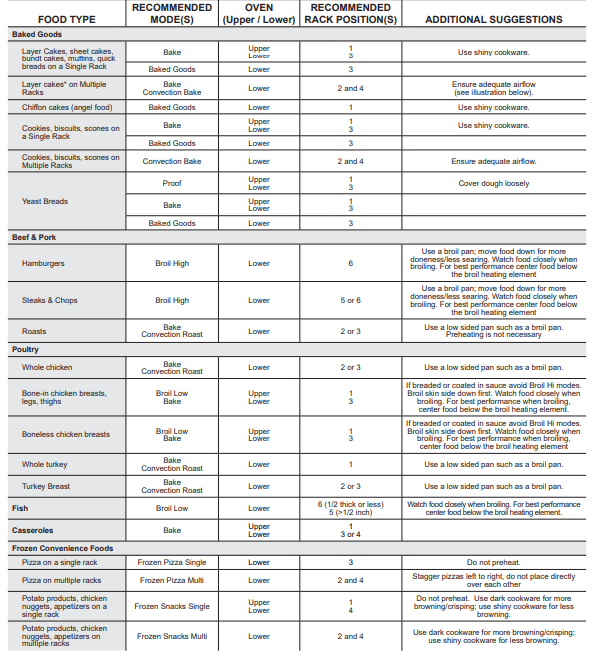
*When baking four cake layers at a time, use racks 2 and 4. Cook food thoroughly to help protect against food borne illness. Minimum safe food temperature recommendations for food safety can be found at IsItDoneYet. Use a food themometer to take food temperatures.
CARE AND CLEANING
1.Cleaning the Range – Exterior
Be sure all controls are off and all surfaces are cool before cleaning any part of the range.
 WARNING If your range is removed for cleaning, servicing or any reason, be sure the anti-tip device is reengaged properly when the range is replaced. Failure to take this precaution could result in tipping of the range and can result in death or serious burns to children or adults.
Control Lockout
If desired, the touch pads may be deactivated before cleaning. See Lock Controls in the Oven Controls section in this manual. Clean up splatters with a damp cloth.
You may also use a glass cleaner. Remove heavier soil with warm, soapy water. Do not abrasives of any kind. Reactivate the touch pads after cleaning.
Control Panel
It’s a good idea to wipe the control panel after each use. Clean with mild soap and water or vinegar and water, rinse with clean water and polish dry with a soft cloth.
Do not use abrasive cleaners, strong liquid cleanser, plastic scouring pads or oven cleaners on the control panel-they will damage the finish, including Black Stainless Steel.
Oven Exterior
Do not use oven cleaners, abrasive cleaners, strong liquid cleansers, steel wool, plastic scouring pads, or cleaning powders on the interior or exterior of the oven. Clean with a mild soap and water or vinegar and water solution. Rinse with clean water and dry with a soft cloth. When cleaning surfaces, make sure that they are at room temperature and not in direct sunlight.
If stain on the door vent trim is persistent, use a mild abrasive cleaner and a sponge-scrubber for best results. Spillage of marinades, fruit juices, tomato sauces and basting liquids containing acids may cause discoloration and should be wiped up immediately. Let hot surfaces cool, then clean and rinse.
Painted Surfaces and Black Stainless Steel
Painted surfaces include the sides of the range and the door, top of control panel and the drawer front. Clean these with soap and water or a vinegar and water solution.
Do not use commercial oven cleaners, cleaning powders, steel wool or harsh abrasives on any painted surface, including Black Stainless Steel.
Stainless Steel - Excluding Black Stainless Steel (on some models)
Do not use a steel wool pad; it will scratch the surface.
To clean the stainless steel surface, use warm sudsy water or a stainless steel cleaner or polish. Always wipe the surface in the direction of the grain. Follow the cleaner instructions for cleaning the stainless steel surface.
To inquire about purchasing cleaning products including stainless steel appliance cleaner or polish, see the Accessories and Consumer Support sections at the end of this manual.
2.Cleaning the Range – Interior
The interior of your new oven can be cleaned manually or by using Steam Clean or Self Clean modes. Spillage of marinades, fruit juices, tomato sauces and basting liquids containing acids may cause discoloration and should be wiped up immediately. Let hot surfaces cool, then clean and rinse.
Manual Cleaning
Do not use oven cleaners, strong liquid cleansers, steel wool, or scouring pads on the interior of the oven. For soils on the oven bottom and other enameled surfaces, use a gentle abrasive containing oxalic acid, such as Bar Keepers Friend care not to apply any abrasive cleaners or sponges to the door glass, as it will scratch the reflective coating. The oven interior and door glass may be cleaned using a soft cloth with a mild soap and water, or vinegar and water solution. After cleaning, rinse with clean water and dry with a soft cloth.
Steam Clean Mode
The Steam Clean feature is for cleaning light soil from your oven at a lower temperature than Self Clean. To use the Steam Clean feature:
- Start with the oven at room temperature.
- Wipe excess grease and soils from the oven.
- Pour one cup of water onto the bottom of the oven.
- Close the door.
- Press Upper Oven or Lower Oven, press the Clean pad, select Steam Clean and then press Start/Enter.
You cannot open the door during the 30 minute Steam Clean cycle. At the end of the Steam Clean cycle, soak up the remaining water, and wipe the moisture-softened soil from the oven walls and door.
Self Clean Mode
Read Self-Cleaning Oven Safety Instructions at the beginning of this manual before using the Self Clean Mode. Self Clean uses very high temperatures to clean the oven interior. For a moderately soiled oven, run a 3 hour self-clean cycle. For a heavily soiled oven, run a 5 hour self-clean cycle. Only self-clean (black) racks and grates may remain in the oven during the self-clean cycle. All other items, including nickel plated (silver) racks, should be removed. If nickel plated (silver) racks are left in the oven during a self-clean cycle, the racks will tarnish. If either type of rack is left in the oven during a self-clean cycle, the rack may become difficult to slide. See the Oven Racks section for instructions on how to improve.
IMPORTANT: The health of some birds is extremely sensitive to the fumes given off during the self-cleaning cycle of any range. Move birds to another wellventilated room.
To use the Self Clean feature:
- Start with the oven at room temperature.
- Wipe excess grease and soils from the oven and interior door.
- Remove all items other than self-clean (black) racks and grates, if desired. See Cleaning the Cooktop to determine if your grates may be selfcleaned and for important details regarding grate placement.
- Close the door.
- Press Upper Oven or Lower Oven, press the Clean pad, select Self Clean and then press Start/Enter
You cannot open the door during the self-clean cycle. The door will remain locked after the self-clean cycle until the oven cools below the unlocking temperature. At the end of the self-clean cycle, allow the oven to cool and wipe any ash out of the oven.
To Stop a Self-Clean Cycle
Press the Cancel/Off pad. Wait until the oven has cooled below the locking temperature to unlatch the door. You will not be able to open the door right away unless the oven has cooled below the locking temperature.
On Some Models:
The surface units are automatically disabled during the self-clean cycle. Make sure that all surface unit controls are turned off at all times during the self-clean cycle. Wait until the self-clean cycle is finished to set and use the surface units.
Racks
All racks can be washed with warm, soapy water. Enameled (not shiny) racks can be left in the cavity during self clean.
Racks may be more difficult to slide, especially after a self-clean. Put some vegetable oil on a soft cloth or paper towel and rub onto the left and right edges.
Oven Heating Elements
Do not clean the bake element or the broil element. Any soil will burn off when the elements are heated.
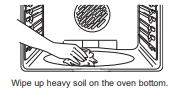
The bake element is not exposed and is under the oven floor. Clean the oven floor with warm, soapy water.
3.Cleaning the Glass Cooktop
Normal Daily Use Cleaning
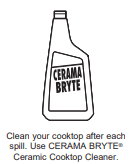
ONLY use CERAMA BRYTE® Ceramic Cooktop Cleaner on the glass cooktop. Other creams may not be as effective. To maintain and protect the surface of your glass cooktop, follow these steps:
- Before using the cooktop for the first time, clean it with CERAMA BRYTE® Ceramic Cooktop Cleaner. This helps protect the top and makes cleanup easier.
- Daily use of CERAMA BRYTE® Ceramic Cooktop Cleaner will help keep the cooktop looking new.
- Shake the cleaning cream well. Apply a few drops of CERAMA BRYTE® Ceramic Cooktop Cleaner directly to the cooktop.
- Use a paper towel or CERAMA BRYTE® Cleaning Pad for Ceramic Cooktops to clean the entire cooktop surface.
- Use a dry cloth or paper towel to remove all cleaning residue. No need to rinse.
- Do not use CERAMA BRYTE® on any metal parts located next to the glass.
NOTE: It is very important that you DO NOT heat the cooktop until it has been clean thoroughly.
Burned-On Residue
NOTE: DAMAGE to your glass surface may occur if you use scrub pads other than those recommended.
- Allow the cooktop to cool.
- Spread a few drops of CERAMA BRYTE® Ceramic Cooktop Cleaner on the entire burned residue area.
- Using a CERAMA BRYTE® Cleaning Pad for Ceramic Cooktops, rub the residue area, applying pressure as needed.
- If any residue remains, repeat the steps listed above as needed.
- For additional protection, after all residue has been removed, polish the entire surface with CERAMA BRYTE® Ceramic Cooktop Cleaner and a paper towel.
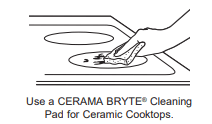
Heavy, Burned-On Residue
- Allow the cooktop to cool.
- Use a single-edge razor blade scraper at approximately a 45° angle against the glass surface and scrape the soil. It will be necessary to apply pressure to the razor scraper in order to remove the residue.
- After scraping with the razor scraper, spread a few drops of CERAMA BRYTE® Ceramic Cooktop Cleaner on the entire burned residue area. Use a CERAMA BRYTE® Cleaning Pad to remove any remaining residue.
- For additional protection, after all residue has been removed, polish the entire surface with CERAMA BRYTE® Ceramic Cooktop Cleaner and a paper towel.
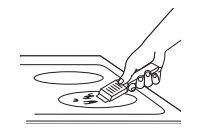
The CERAMA BRYTE® Ceramic Cooktop Scraper and all recommended supplies are available through our Parts Center. See the Accessories and Consumer Support sections at the end of this manual. NOTE: Do not use a dull or nicked blade.
Metal Marks and Scratches
- Be careful not to slide pots and pans across your cooktop. It will leave metal markings on the cooktop surface. These marks are removable using the CERAMA BRYTE® Ceramic Cooktop Cleaner with a CERAMA BRYTE® Cleaning Pad for Ceramic Cooktops.
- If pots with a thin overlay of aluminum or copper are allowed to boil dry, the overlay may leave black discoloration on the cooktop.
This should be removed immediately before heating again or the discoloration may be permanent.
NOTE: Carefully check the bottom of pans for roughness that would scratch the cooktop.
Damage from Sugary Spills and Melted Plastic
Special care should be taken when removing hot substances to avoid permanent damage of the glass surface. Sugary spillovers (such as jellies, fudge, candy, syrups) or melted plastics can cause pitting of the surface of your cooktop (not covered by the warranty) unless the spill is removed while still hot. Special care should be taken when removing hot substances.
Be sure to use a new, sharp razor scraper.
Do not use a dull or nicked blade.
1. Turn off all surface units. Remove hot pans.
2. Wearing an oven mitt:
a. Use a single-edge razor blade scraper to move the spill to a cool area on the cooktop.
b. Remove the spill with paper towels.
3. Any remaining spillover should be left until the surface of the cooktop has cooled.
4. Don't use the surface units again until all of the residue has been completely removed.
NOTE: If pitting or indentation in the glass surface has already occurred, the cooktop glass will have to be replaced. In this case, service will be necessary.
4.Probe
The temperature probe may be cleaned with soap and water or a soap-filled scouring pad. Cool the temperature probe before cleaning. Scour stubborn spots with a soapfilled scouring pad, rinse and dry. To order additional temperature probes, see the Accessories and Consumer Support sections at the end of this manual.
- Do not immerse the temperature probe in water
- Do not store the temperature probe in the oven.
- Do not leave the temperature probe inside the oven during a self or steam clean cycle.
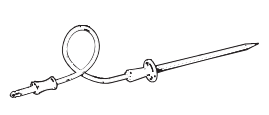
5.Oven Light
WARNING SHOCK OR BURN HAZARD: Before replacing oven light bulb, disconnect the electrical power to the range at the main fuse or circuit breaker panel. Failure to do so may result in electric shock or burn.
CAUTION BURN HAZARD: The glass cover and bulb should be removed when cool. Touching hot glass with bare hands or a damp cloth can cause burns
Oven Light Replacement
To remove: Turn the class cover counterclockwise 1/4 turn until the tabs of the glass cover clear the grooves of the socket. Wearing latex gloves may offer a better grip.
Using gloves or a dry cloth, remove the bulb by pulling it straight out.
To replace:
- Use a new 120/130-volt halogen bulb, not to exceed 50 watts. Replace the bulb with the same type of bulb that was removed. Be sure the replacement bulb is rated 120 volts or 130 volts (NOT 12 volts).
- Using gloves or a dry cloth, remove the bulb its packaging. Do not touch the bulb with bare fingers. Oil from skin will damage the bulb and shorten its life.
- Push the bulb straight into the receptacle all the way.
- Place the tabs of the glass cover into the grooves of the socket. Turn the glass cover clockwise 1/4 turn.For improved lighting inside the oven, clean the glass cover frequently using a wet cloth. This should be done when the oven is completely cool.
- Reconnect electrical power to the oven.
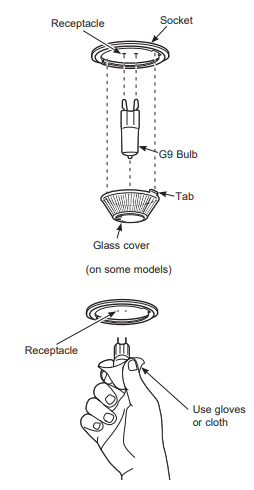
.Oven Doors
Lift-Off Lower Oven Door
The door is very heavy. Be careful when removing and lifting the door.
Do not lift the door by the handle.
To remove the door:
- Fully open the door.
- Pull the hinge locks down toward the door frame, to the unlocked position. A tool, such as a small flatblade screwdriver, may be required.
- Firmly grasp both sides of the door at the top.
- Close door to the door removal position. The door should be open approximately 3" with no obstruction above the door.
- Lift door up and out until both hinge arms are clear of the slots.
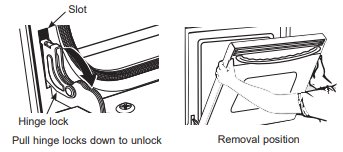
To replace the door:
- Firmly grasp both sides of the door at the top.
- Starting on the left side, with the door at the same angle as the removal position, seat the indentation of the hinge arm into the bottom edge of the hinge slot. The notch in the hinge arm must be fully seated into the bottom of the slot. Repeat for right side.
- Fully open the door. If the door will not fully open, the indentation is not seated correctly in the bottom edge of the slot.
- Push the hinge locks up against the front frame of the oven cavity, to the locked position.
- Close the oven door.
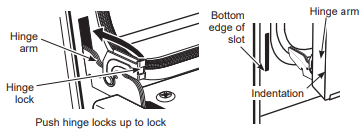
Lift-Off Upper Oven Door (for double oven)
To remove the door:
- Fully open the door.
- Lift up on the hinge lock toward the oven frame until they stop.
- Close the door to 45 degrees (you will feel the door stop). The hinge lock will contact the oven frame.
- On both sides of the door, press down on the release buttons on each hinge.
- Lift door up until it is clear of the hinge.
- Pull on hinge arms slightly to relieve pressure on the locking tabs.
- Push the hinge locks down onto the hinge.
- Push the hinges in toward the unit so they are closed.
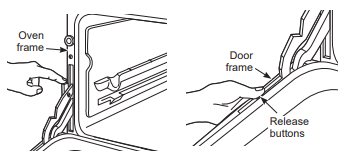
To replace the door:
- Pull the hinges down away from the oven frame to the fully open position.
- Lift up on the hinge locks toward the oven frame until they stop.
- The hinges will release to the 45-degree position. The hinge locks will contact the oven frame.
- Slide the door back onto the hinges. Make sure the buttons pop back out.
- Fully open the door.
- Push the hinge locks down onto the hinge.
- Close the oven door.
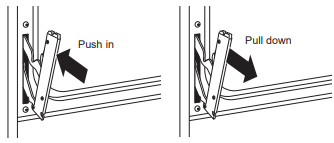
Troubleshooting Tips ... Before you call for service
Surface units will not maintain a rolling boil or cooking is not fast enough
- Improper cookware being used.
Use pans which are flat and match the diameter of the surface unit selected.
- In some areas, the power (voltage) may be low.
Cover pan with a lid until desired heat is obtained.
Surface units do not work properly
- A fuse in your home may be blown or the circuit breaker tripped.
Replace the fuse or reset the circuit breaker.
- Cooktop controls improperly set.
Check to see the correct control is set for the surface unit you are using.
Surface unit stops glowing when turned to a lower setting
- The unit is still on and hot.
This is normal.
Scratches (may appear as cracks) on cooktop glass surface
- Incorrect cleaning methods being used.
Scratches are not removable. Tiny scratches will become less visible in time as a result of cleaning.
- Cookware with rough bottoms being used or coarse particles (salt or sand) were between the cookware and the surface of the cooktop. Cookware has been slid across the cooktop surface.
To avoid scratches, use the recommended cleaning procedures. Make sure bottoms of cookware are clean before use, and use cookware with smooth bottoms.
Areas of discoloration on the cooktop
- Food spillovers not cleaned before next use.
See the Cleaning the glass cooktop section.
- Hot surface on a model with a light-colored cooktop.
This is normal. The surface may appear discolored when it is hot. This is temporary and will disappear as the glass cools.
Plastic melted to the surface
- Hot cooktop came into contact with plastic placed on the hot cooktop.
See the Glass surface-potential for pernament damage section in the Cleaning the glass cooktop section.
Pitting (or indentation) of the cooktop
- Hot sugar mixture spilled on the cooktop.
Call a qualified technician for replacement.
My new oven doesn't cook like my old one. Is something wrong with the temperature settings?
- Your new oven has a different cooking system from your old oven and therefore may cook differently than your old oven.
For the first few uses, follow your recipe times and temperatures carefully. If you still think your new oven is too hot or too cold, you can adjust the temperature yourself to meet your specific cooking preference. NOTE: This adjustment affects Bake, and Convection Bake temperatures; it will not affect Convection Roast, Broil or Clean.
Food does not bake properly
- Oven controls improperly set.
See the Cooking Modes section.
- Rack position is incorrect or rack is not level.
See the Cooking Modes section and Cooking Guide.
- Incorrect cookware or cookware of improper size being used.
See the Cookware section.
- The probe is plugged into the outlet in the oven.
Unplug and remove the probe from the oven.
- Oven temperature needs adjustment.
See the Special Features section.
Substituting ingredients can change the recipe outcome
Food does not broil properly
- Oven controls improperly set.
Make sure you select the appropriate broil mode.
- Improper rack position being used.
See Cooking Guide for rack location suggestions.
- Food being cooked in a hot pan.
Make sure cookware is cool.
- Cookware not suited for broiling.
Use a pan specificially designed for brolling.
- Aluminum foil used on the broiling pan and grid has not been fitted properly and slit as recommended.
If using aluminum foil conform to pan slits.
- In some areas the power (voltage) may be low.
Preheat the broil element for 10 minutes.
Oven temperature too hot or too cold
- Oven temperature needs adjustment.
See the Special Features section.
Oven does not work or appears not to work
- Plug on range is not completely inserted in the electrical outlet.
Make sure electrical plug is plugged into a live, properly grounded outlet.
- A fuse in your home may be blown or the circuit breaker tripped.
Replace the fuse or reset the circuit breaker.
- Oven controls improperly set.
See the Using the Oven section.
Verify, that the oven is not in Sabbath Mode. See the Special Features section.
“Crackling” or “popping” sound
- This is the sound of the metal heating and cooling during both the cooking and cleaning functions.
This is normal.
Why is my range making a "clicking" noise when using my oven?
- Your range cycles the heating elements by turning relays on and off to maintain the oven temperature.
This is normal.
Clock and timer do not work
- A fuse in your home may be blown or the circuit breaker tripped.
Replace the fuse or reset the circuit breaker.
- Plug on range is not completely inserted in the electrical outlet.
Make sure electrical plug is plugged into a live, properly grounded outlet.
- Oven controls improperly set.
See the Oven Control section.
Oven door is crooked
The door is out of position.
Because the oven door is removable, it sometimes gets out of position during installation.
To straighten the door, re-install the door. See the 'Lift-Off Oven Door" instructions in the "Care and Cleaning" section.
Oven light does not work
- Light bulb is loose or defective.
Tighten or replace bulb.
- Pad operating light is broken.
Call for service.
Oven will not self-clean
- The temperature is too high to set a selfclean operation.
Allow the oven to cool and reset the controls.
- Oven controls improperly set.
See the Cleaning the Oven section.
- The probe is plugged into the outlet in the oven.
Remove the probe from the oven.
Oven will not steam clean.
Allow the oven to cool to room temperature and reset the controls.
- Oven controls improperly set.
See the Cleaning the Oven section
Make sure you close the door to start steam clean cycle.
Excessive smoking during clean cycle
- Excessive soil or grease.
Press the Cancel/Off pad. Open the windows to rid the room of smoke. Wait until the LOCKED light goes off. Wipe up the excess soil and reset the clean cycle.
Excessive smoking during broiling
- Food too close to broil element.
Lower the rack position of the food.
Oven door will not open after a clean cycle
Allow the oven to cool below locking temperature.
Oven not clean after a clean cycle
- Oven controls improperly set.
See the Cleaning the Oven section.
Clean up heavy spillovers before starting the clean cycle. Heavily soiled ovens may need to self-clean again or for a longer period of time.
"DOOR LOCKING" flashes in the display
- The self-clean cycle has been selected but the door is not closed.
Close the oven door. Latch the door.
DOOR LOCKED is on when you want to cook
- The oven door is locked because the temperature inside the oven has not dropped below the locking temperature.
Press the Cancel/Off pad. Allow the oven to cool.
“F— and a number or letter” flash in the display
- You have a function error code.
Press the Cancel/Off pad. Allow the oven to cool for one hour. Put the oven back into operation.
- If the function code repeats.
Disconnect all power to the oven for at least 30 seconds and then reconnect power. If the function error code repeats, call for service.
Display goes blank
- A fuse in your home may be blown or the circuit breaker tripped.
Replace the fuse or reset the circuit breaker.
See the Special features section.
Verify thet the oven is not in Sabbath Mode. See the Special Features section.
Oven or cooktop will not stay set.
Disconnect all power for at least 30 seconds and then reconnect power. If repeating, call for service.
Power outage, clock flashes
Reset the clock. If the oven was in use, you must reset it by pressing the Cancel/Off pad, setting the clock and resetting any cooking function.
“Burning” or “oily” odor emitting from the vent
- This is normal in a new oven and will disappear in time.
To speed the process, set a self-clean cycle for a minimum of 3 hours. See the Cleaning the Oven section.
Strong odor
- An odor from the insulation around the inside of the oven is normal for the first few times the oven is used.
This is temporary and will go away after several uses or a selfclean cycle.
Fan noise
- A convection fan may automatically turn on and off.
This is normal. The fan is designed to operate intermittently to maximize cooking evenness. The convection fan will operate during preheat of the bake cycle. The fan will turn off after the oven is heated to the set temperature. This is normal.
- A cooling fan may automatically turn on and off.
This is normal on some models. The cooling fan will turn off and on to cool internal parts. It may run after the oven is turned off.
My oven door glass appears to be "tinted" or have a "rainbow" color. Is this defective?
- No. The inner oven glass is coated with a heat barrier to reflect the heat back into the oven to prevent heat loss and keep the outer door cool while baking.
This is normal. Under certain light or angles, you may see this tint or rainbow color.
Sometimes the oven takes longer to preheat to the same temperature
- Cookware or food in oven.
The cookware or food in the oven will cause the oven to take longer to preheat. Remove items to reduce preheat time.
Adding more racks to the oven will cause the oven to take longer to preheat. Remove some racks.
The different cooking modes use different preheat methods to heat the oven for the specific cooking mode. Some modes will take longer than others (i.e. convection bake).
Display flashes
Reset the clock.
Unable to set cook time or delay time
- You forgot to enter a cooking mode first.
See the Options section
Oven racks are difficult to slide
The shiny, silver-colored racks were cleaned in a self-clean cycle.
Apply a small amount of vegetable oil to a paper towel and wipe the edges of the oven racks eith the paper towel. Do not spray with Pam® or other lubricant sprays.
Drawer does not slide smoothly or drags
- The drawer is out of alignment.
Fully extend the drawer and push it all the way in See the Care and cleaning of the range section.
- Drawer is over-loaded or load is unbalanced.
Reduce weight. Redistribute drawer contents.
Steam from the vent
- When using the ovens, it is normal to see steam coming out of the oven vents. As the number of racks or amount of food being cooked increases, the amount of visible steam will increase.
This is normal.
Water remaining on oven floor after Steam Clean cycle
Remove any remaining water with a dry cloth or sponge.
Oven will not steam clean
Remove any remaining water with a dry cloth or sponge.
Allow the oven to cool to room temperature and reset the controls.
- Oven controls improperly set.
See the Using Steam Clean section
Make sure you close the door to start steam clean cycle.
Display prompts for Probe Temperature
- This is reminding you to enter a probe temperature after plugging in the probe.
Enter a probe temperature.