VIZIO M320VT User Manual
Version 4/21/2010 1
www.VIZIO.com
Dear VIZIO Customer,
Congratulations on your new VIZIO High Definition LCD Television purchase. This User
Manual covers M320VT model for any specification difference, please refer to the table in
Chapter 6. Thank you for your support. For maximum benefit of your set, please read
these instructions before making any adjustments, and retain them for future reference.
We hope you will experience many years of enjoyment from your new VIZIO HDTV.
For assistance, please call (877) 698-8462 or visit us at www.vizio.com
To purchase or inquire about accessories and installation services for your VIZIO LCD
HDTV, please visit our website at
www.vizio.com or call toll free at (888) 849-4623.
We recommend you register your VIZIO HDTV either at our website
www.VIZIO.com or
fill in your registration card and mail it in. For peace of mind and to protect your
investment beyond the standard warranty, VIZIO offers on-site extended warranty service
plans. These plans give additional coverage during the standard warranty period. Visit
our website or call us to purchase a plan.
Write down the serial number located on the back of your HDTV.
__ __ __ __ __ __ __ __ __ __ __ __ __
Purchase Date _____________________
VIZIO is a registered trademark of VIZIO, Inc. dba V, Inc.
HDMI logo and “High Definition Multimedia Interface” are registered trademarks of HDMI Licensing LLC.
Manufactured under license from Dolby Laboratories.
Dolby and the double-D symbol are trademarks of Dolby Laboratories.
and are trademarks of SRS Labs, Inc.
TruSurround HD and TruVolume technologies are incorporated under license from SRS Labs, Inc.
This product qualifies for ENERGY STAR in the “factory default (Home Use)” setting and this is the
setting in which power savings will be achieved. Changing the factory default picture setting or enabling
other features will increase power consumption that could exceed the limits necessary to qualify for
Energy Star rating.
THE TRADEMARKS SHOWN HEREIN ARE THE PROPERTY OF THEIR RESPECTIVE OWNERS;
IMAGES USED ARE FOR ILLUSTRATION PURPOSES ONLY. VIZIO, THE V LOGO, WHERE VISION
MEETS VALUE AND OTHER VIZIO TRADEMARKS ARE THE INTELLECTUAL PROPERTY OF VIZIO
INC. PRODUCT SPECIFICATIONS ARE SUBJECT TO CHANGE WITHOUT NOTICE. © 2010 VIZIO
INC. ALL RIGHTS RESERVED.

VIZIO M320VT User Manual
Version 4/21/2010 2
www.VIZIO.com
Important Safety Instructions
Your HDTV is designed and manufactured to operate within defined design limits, and misuse
may result in electric shock or fire. To prevent your HDTV from being damaged, the following
rules should be observed for the installation, use, and maintenance of your HDTV. Read the
following safety instructions before operating your HDTV. Keep these instructions in a safe place
for future reference.
Warnings:
• To reduce the risk of electric shock or component damage, switch off the power before
connecting other components to your HDTV.
• Unplug the power cord before cleaning your HDTV. A damp cloth is sufficient for cleaning your
HDTV. Do not use a liquid or a spray cleaner for cleaning your HDTV. Do not use abrasive
cleaners.
• Always use the accessories recommended by the manufacturer to insure compatibility.
• When moving your HDTV from an area of low temperature to an area of high temperature,
condensation may form in the housing. Wait before turning on your HDTV to avoid causing fire,
electric shock, or component damage.
• Use only with the cart, stand, tripod, bracket, or table specified by manufacturer or sold with your
HDTV. When a cart is used, use caution when moving the cart/HDTV combination to avoid injury
from tip-over. Do not place your HDTV on an unstable cart, stand, or table. If your HDTV falls, it
can injure a person and cause serious damage to your HDTV. Use only a cart or stand
recommended by the manufacturer or sold with your HDTV.
• A distance of at least 3 feet should be maintained between your HDTV and any heat source, such
as a radiator, heater, oven, amplifier etc. Do not install your HDTV close to smoke. Operating
your HDTV close to smoke or moisture may cause fire or electric shock.
• Slots and openings in the back and bottom of the cabinet are provided for ventilation. To ensure
reliable operation of your HDTV and to protect it from overheating, be sure these openings are
not blocked or covered. Do not place your HDTV in a bookcase or cabinet unless proper
ventilation is provided.
• Never push any object into the slots and openings on your HDTV cabinet. Do not place any
objects on the top of your HDTV. Doing so could short circuit parts causing a fire or electric
shock. Never spill liquids on your HDTV.
• Your HDTV should be operated only from the type of power source indicated on the label. If you
are not sure of the type of power supplied to your home, consult your dealer or local power
company.
• Do not apply pressure or throw objects at your HDTV. This may compromise the integrity of the
display. The manufacturer’s warranty does not cover user abuse or improper installations.
• The power cord must be replaced when using different voltage than the voltage specified. For
more information, contact your dealer.
• Your HDTV is equipped with a three-pronged grounded plug (a plug with a third grounding
pin). This plug will fit only into a grounded power outlet. This is a safety feature. If
your outlet does not accommodate the three-pronged, have an electrician install
the correct outlet, or use an adapter to ground your HDTV safely. Do not defeat
the safety purpose of the grounded plug.
• When connected to a power outlet, power is always flowing into your HDTV. To
totally disconnect power, unplug the power cord.
• The lightning flash with arrowhead symbol within an equilateral triangle is
intended to alert the user to the presence of un-isolated, dangerous
voltage within the inside of your HDTV that may be of
sufficient magnitude to constitute a risk of electric shock to
persons.

VIZIO M320VT User Manual
Version 4/21/2010 3
www.VIZIO.com
• The exclamation point within an equilateral triangle is intended to alert the user to the presence of
important operating and servicing instructions in the literature accompanying your HDTV.
• Do not overload power strips and extension cords. Overloading can result in fire or electric shock.
• The wall socket should be installed near your HDTV and easily accessible.
• Only power of the marked voltage can be used for your HDTV. Any other voltage than the
specified voltage may cause fire or electric shock
• Do not touch the power cord during lightning. To avoid electric shock, avoid handling the power
cord during electrical storms.
• Unplug your HDTV during a lightning storm or when it will not be used for long period of time.
This will protect your HDTV from damage due to power surges.
• Do not attempt to repair or service your HDTV yourself. Opening or removing the back cover may
expose you to high voltages, electric shock, and other hazards. If repair is required, contact your
dealer and refer all servicing to qualified service personnel.
• Keep your HDTV away from moisture. Do not expose your HDTV to rain or moisture. If water
penetrates into your HDTV, unplug the power cord and contact your dealer. Continuous use in
this case may result in fire or electric shock.
• Do not use your HDTV if any abnormality occurs. If any smoke or odor becomes apparent, unplug
the power cord and contact your dealer immediately. Do not try to repair your HDTV yourself.
• Avoid using dropped or damaged appliances. If your HDTV is dropped and the housing is
damaged, the internal components may function abnormally. Unplug the power cord immediately
and contact your dealer for repair. Continued use of your HDTV may cause fire or electric shock.
• Do not install your HDTV in an area with heavy dust or high humidity. Operating your HDTV in
environments with heavy dust or high humidity may cause fire or electric shock.
• Follow instructions for moving your HDTV. Ensure that the power cord and any other cables are
unplugged before moving your HDTV.
• When unplugging your HDTV, hold the power plug, not the cord. Pulling on the power cord may
damage the wires inside the cord and cause fire or electric shock. When your HDTV will not be
used for an extended period of time, unplug the power cord.
• To reduce risk of electric shock, do not touch the connector with wet hands.
• Insert batteries in accordance with instructions. Incorrect polarities may cause the batteries to
leak which can damage the remote control or injure the operator.
• If any of the following occurs, contact the dealer:
o The power cord fails or frays.
o Liquid sprays or any object drops into your HDTV.
o Your HDTV is exposed to rain or other moisture.
o Your HDTV is dropped or damaged in any way.
o The performance of your HDTV changes substantially.
VIZIO M320VT User Manual
Version 4/21/2010 4
www.VIZIO.com
Television Antenna Connection Protection
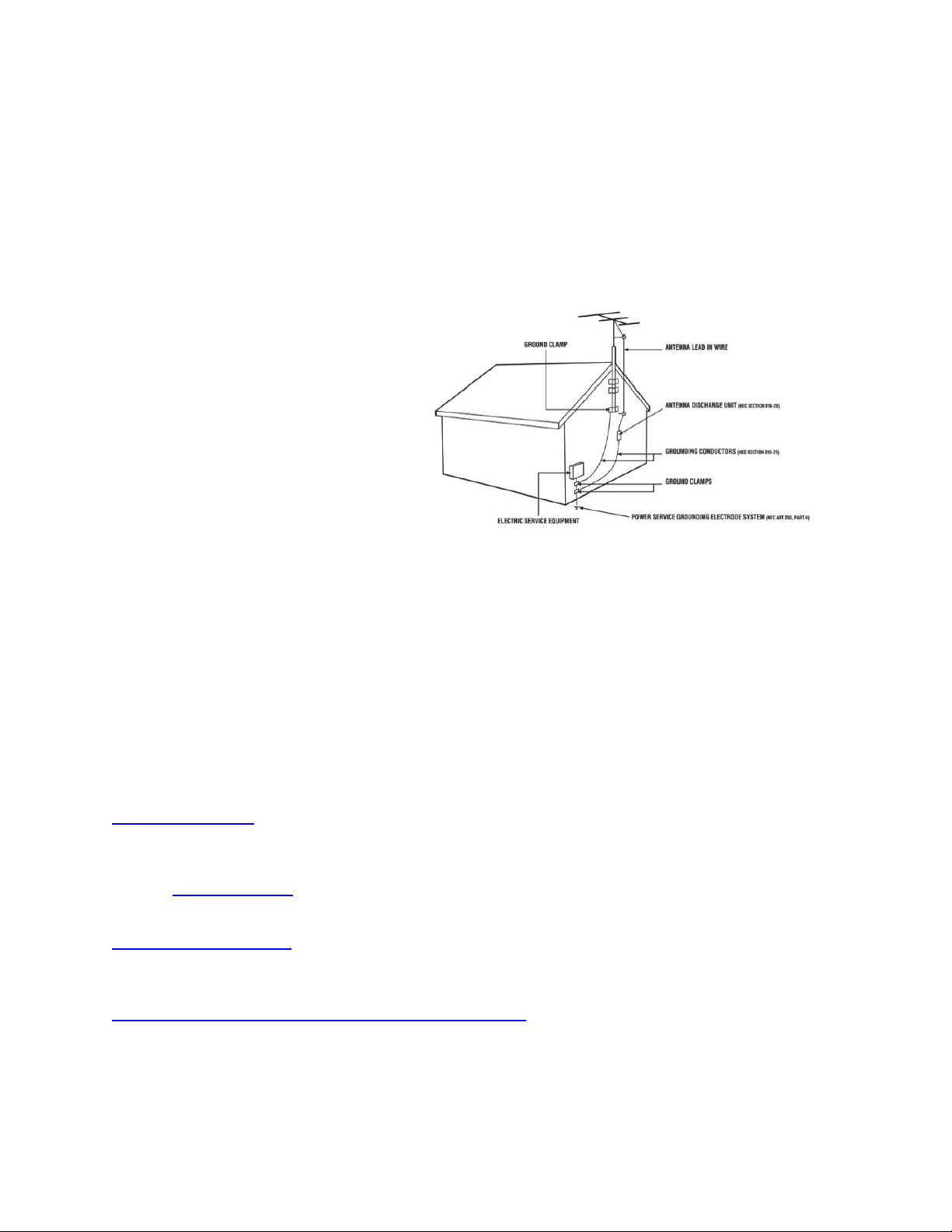
External Television Antenna Grounding
If an outside antenna/satellite dish or cable system is to be connected to the TV, make sure that the
antenna or cable system is electrically grounded to provide some protection against voltage surges and
static charges.
Article 810 of the National Electrical Code, ANSI/NFPSA 70, provides information with regard to proper
grounding of the mast and supporting structure, grounding of the lead-in wire to an antenna discharge
unit, size of the grounding conductors, location of antenna discharge unit, connection to grounding
electrodes, and requirements of the grounding electrode.
Lightning Protection
For added protection of the TV during a
lightning storm or when it is left unattended
or unused for long periods of time, unplug
the TV from the wall outlet and disconnect
the antenna or cable system.
Power Lines
Do not locate the antenna near overhead
light or power circuits, or where it could fall
into such power lines or circuits.
Remember, the screen of the coaxial cable is intended to be connected to earth in the building
installation.
FCC Bulletin for New TV Owners
The nationwide switch to digital television broadcasting will be complete on June 12, 2009, but your
local television stations may switch sooner. After the switch, analog-only television sets that receive
TV programming through an antenna will need a converter box to continue to receive over-the-air
TV. Watch your local stations to find out when they will turn off their analog signal and switch to
digital-only broadcasting. Analog-only TVs should continue to work as before to receive low power,
Class A or translator television stations and with cable and satellite TV services, gaming consoles,
VCRs, DVD players, and similar products.
For additional information, please contact the parties listed below, as appropriate:
FCC (US Federal Communications Commission)
http://www.fcc.gov/
Phone: 1-888-CALL-FCC (1-888-225-5322)
TTY: 1-888-TELL-FCC (1-888-835-5322)
Fax: 1-866-418-0232
E-mail: [email protected]
NTIA (National Telecommunications and Information Administration)
http://www.ntia.doc.gov/
1-888-DTV-2009
Listings of US Television Stations
http://www.high-techproductions.com/usTVstations.htm
Note: Your HDTV comes with a built-in tuner capable of processing digital broadcasts. No extra
converter box is needed.

VIZIO M320VT User Manual
Version 4/21/2010 5
www.VIZIO.com
Table of Contents
Important Safety Instructions ..................................................................................................................................... 2
HDTV Accessories and Services .............................................................................................................................. 6
Chapter 1 Setting Up Your HDTV .................................................................................................................................. 7
Attaching the TV Stand ............................................................................................................................................. 7
Wall Mounting Your HDTV ........................................................................................................................................ 8
Chapter 2 Basic Controls and Connections .............................................................................................................. 10
Front Panel .............................................................................................................................................................. 10
Side Panel Controls................................................................................................................................................. 10
Rear and Side Panel Connections .......................................................................................................................... 11
Remote Control Buttons .......................................................................................................................................... 13
Programming the Remote Control ........................................................................................................................... 14
Searching Automatically for the Codes ........................................................................................................................ 14
Remote Control Range ............................................................................................................................................ 15
VIZIO Remote Control Precautions .................................................................................................................... 15
Inserting the remote control batteries ................................................................................................................. 15
Using a Cable or Satellite Remote ...................................................................................................................... 15
Chapter 3 Connecting Equipment ................................................................................................................................ 16
Connecting Your Cable or Satellite Box .................................................................................................................. 17
Using HDMI ........................................................................................................................................................ 17
Using Component Video ..................................................................................................................................... 19
Connecting Coaxial (RF) ......................................................................................................................................... 20
Using Your Antenna or Digital Cable for DTV ..................................................................................................... 20
Using Your Antenna or Cable for TV .................................................................................................................. 20
Using the Antenna or Cable through your VCR .................................................................................................. 20
Connecting Your DVD Player .................................................................................................................................. 21
Using HDMI ........................................................................................................................................................ 21
Using Component Video ..................................................................................................................................... 23
Using Composite (AV) Video .............................................................................................................................. 24
Connecting a USB (FAT32 Format) Storage Device .................................................................................................... 24
Connecting an external Receiver/Amp .................................................................................................................... 25
Connecting a PC (Computer) .................................................................................................................................. 26
Chapter 4 Setting Up to Watch Television ................................................................................................................... 27
Basic LCD HDTV Start Up ...................................................................................................................................... 27
Selecting Inputs ............................................................................................................................................................ 29
Using the INFO Guide .................................................................................................................................................. 31
Watching a TV Program .......................................................................................................................................... 32
Using the On-Screen Display (OSD) ....................................................................................................................... 32
Using the Navigation Wheel .................................................................................................................................... 33
Unique TV Features ................................................................................................................................................ 34
Adjusting Settings ................................................................................................................................................... 35
Adjusting Timer Settings ......................................................................................................................................... 35
Adjusting Multimedia Settings ................................................................................................................................. 36
Adjusting the Audio Settings ................................................................................................................................... 39
Adjusting the TV Settings ........................................................................................................................................ 40
Adjusting the Picture Settings ................................................................................................................................. 40
Adjusting the Parental Control settings ................................................................................................................... 42
Adjustments on the Help Menu ............................................................................................................................... 48
Adjusting the CC (Closed Caption) settings ............................................................................................................ 49
Chapter 5 Maintenance and Troubleshooting .............................................................................................................. 50
Maintenance ............................................................................................................................................................ 50
Troubleshooting Guide ............................................................................................................................................ 51
Telephone & Technical Support .............................................................................................................................. 53
Compliance ............................................................................................................................................................. 53
FCC Class B Radio Interference Statement ............................................................................................................ 54
Chapter 6 Specifications .............................................................................................................................................. 55
Preset PC Resolutions ....................................................................................................................................... 56
Glossary – Standard Definitions .............................................................................................................................. 57
Chapter 7 Warranty ...................................................................................................................................................... 58
Chapter 8 Index ............................................................................................................................................................ 60
VIZIO M320VT User Manual
Version 4/21/2010 6
www.VIZIO.com
Code for Programming the Remote Control ............................................................................................................ 62
Opening the Package
Your VIZIO HDTV and accessories are carefully packed in a cardboard carton that has been designed to
protect it from transportation damage. Now you have opened the carton check that your HDTV is in good
condition and that all of the accessories are included.
Due to the weights and sizes of your HDTV models, we strongly advise that you have at least 2 people to
unpack and install the HDTV.
The screen can easily be scratched or broken so please handle the product gently and never place the
HDTV with the glass facing downwards on a surface without protective padding.
IMPORTANT: Save the carton and packing material for future shipping.
Package Contents
VIZIO M320VT
Detachable Stand Base
4 Thumbscrews (to attach Stand)
VIZIO Remote Control
Screen Cleaning Cloth
Quick Setup Guide
Regi
stration Card
2 AA Batteries for the Remote Control
Caution:
Do not apply pressure or throw objects at your HDTV. This may compromise the integrity
of the display. The manufacturer’s warranty does not cover user abuse or improper installations.
HDTV Accessories and Services
Additional certified accessories for your HDTV are sold separately, including:
• Wall mounts
• High Definition cables
• Extra or replacement remote controls
• Sound Bars
• Blu-ray DVD Players
VIZIO also offers installation services and extended warranty services for your HDTV.
To purchase or inquire about additional accessories and services for your VIZIO HDTV, visit our website
at www.VIZIO.com or call us toll free at 877-MYVIZIO (877-698-4946).
VIZIO M320VT User Manual
Version 4/21/2010 7
www.VIZIO.com
Chapter 1 Setting Up Your HDTV
• Read this user manual carefully before installing your HDTV.
• For the power consumption of your HDTV, please check the specification sheet for your model in
Chapter 6. When an extension cord is required, use one with the correct power rating. The cord
must be grounded and the grounding feature must not be compromised.
• Install your HDTV on a flat surface to avoid tipping.
• For proper ventilation, you must allow a 1” space between the back of your HDTV and the wall.
• Avoid installing your HDTV in places with high humidity, dust, or smoke so you do not shorten the
service life of the electronic components.
• Install your HDTV in a level, landscape orientation, with the VIZIO logo at the bottom to prevent
poor ventilation and excessive component damage.
• If you want to mount your HDTV on the wall, see below for additional information.
• Read this user manual carefully before installing your HDTV.
VIZIO offers professional installation. Contact VIZIO for more information on these services at 877-
MYVIZIO (877-698-4946) or www.VIZIO.com.
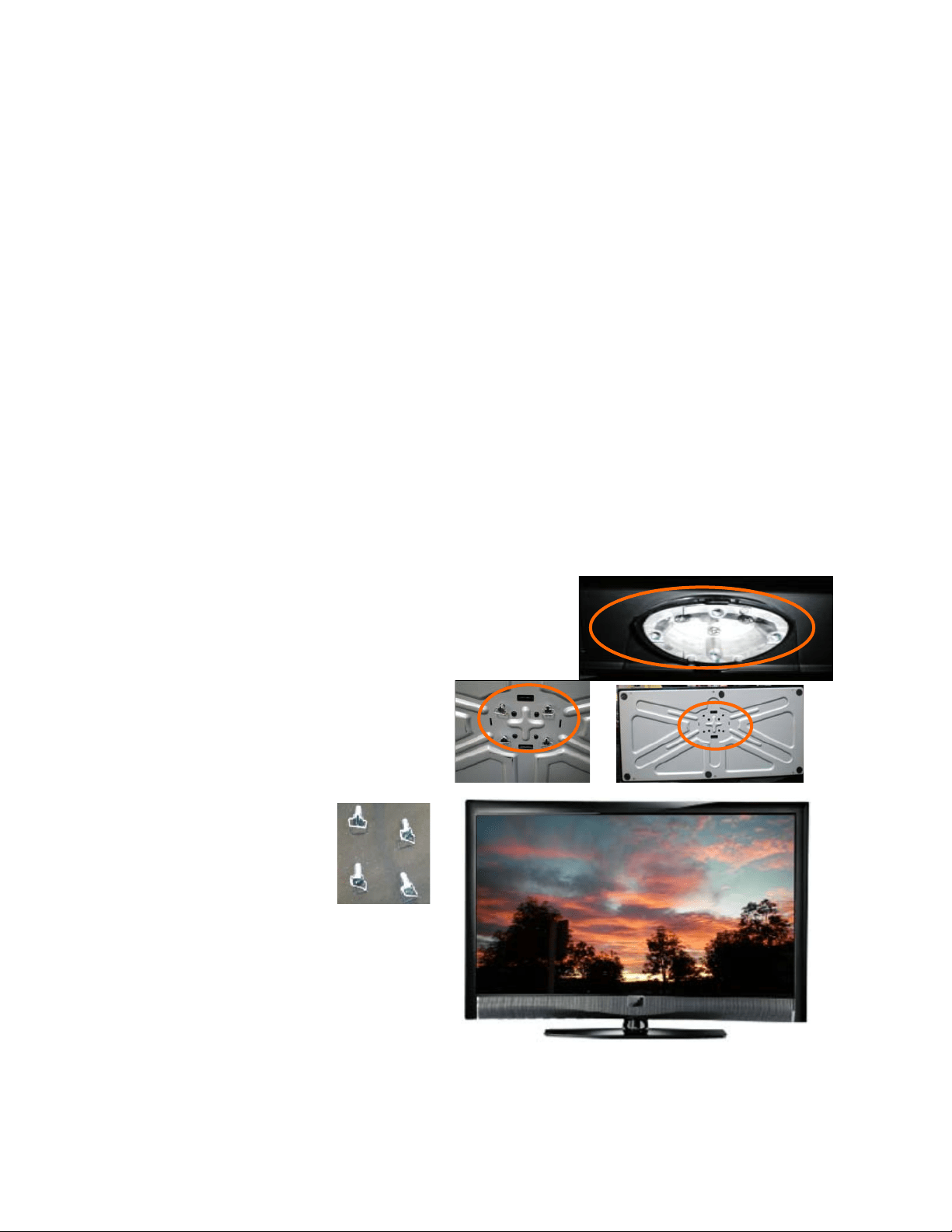
Attaching the TV Stand
Note: We strongly recommend that two people perform the setup and assembly due to the weight and
size of the TV.
To unpack the TV and stand base:
1. Remove the remote control, batteries, and power cord
from the foam end caps.
2. Remove the two top foam end caps.
3. Remove the stand base under foam end cap.
4. Remove the TV from the box and lay it
face down on a clean, flat surface.
Note: Make sure that the surface is free of
debris to prevent the TV screen from getting
scratched.
To attach the TV stand
base:
1. Line up the stand
neck (attached to the
TV) with the stand
base.
2. Push the stand base onto the stand
neck.
3. On the bottom of the base, insert the
included (Qty. 4) thumbscrews and
tighten it.
4. Move the TV into an upright position.
Caution: Do not apply pressure to the screen or throw objects at your HDTV. This may compromise the
integrity of the display. The manufacturer’s warranty does not cover user abuse or improper installations.
VIZIO M320VT User Manual
Version 4/21/2010 8
www.VIZIO.com
Wall Mounting Your HDTV
Your HDTV can be mounted on the wall for viewing. If you choose to mount your HDTV on the wall, follow
the instructions below.
1. Write down the serial number located on the back of your HDTV in the space provided on page 1 to
have it handy if you need to call for support.
2. Remove the stand base and neck:
a. Disconnect the cables from your
HDTV.
b. Place your HDTV face down on a
soft, flat surface to prevent damage
to the screen.
c. Remove the TV stand base per
above instructions.
3. Mount your HDTV on the wall:
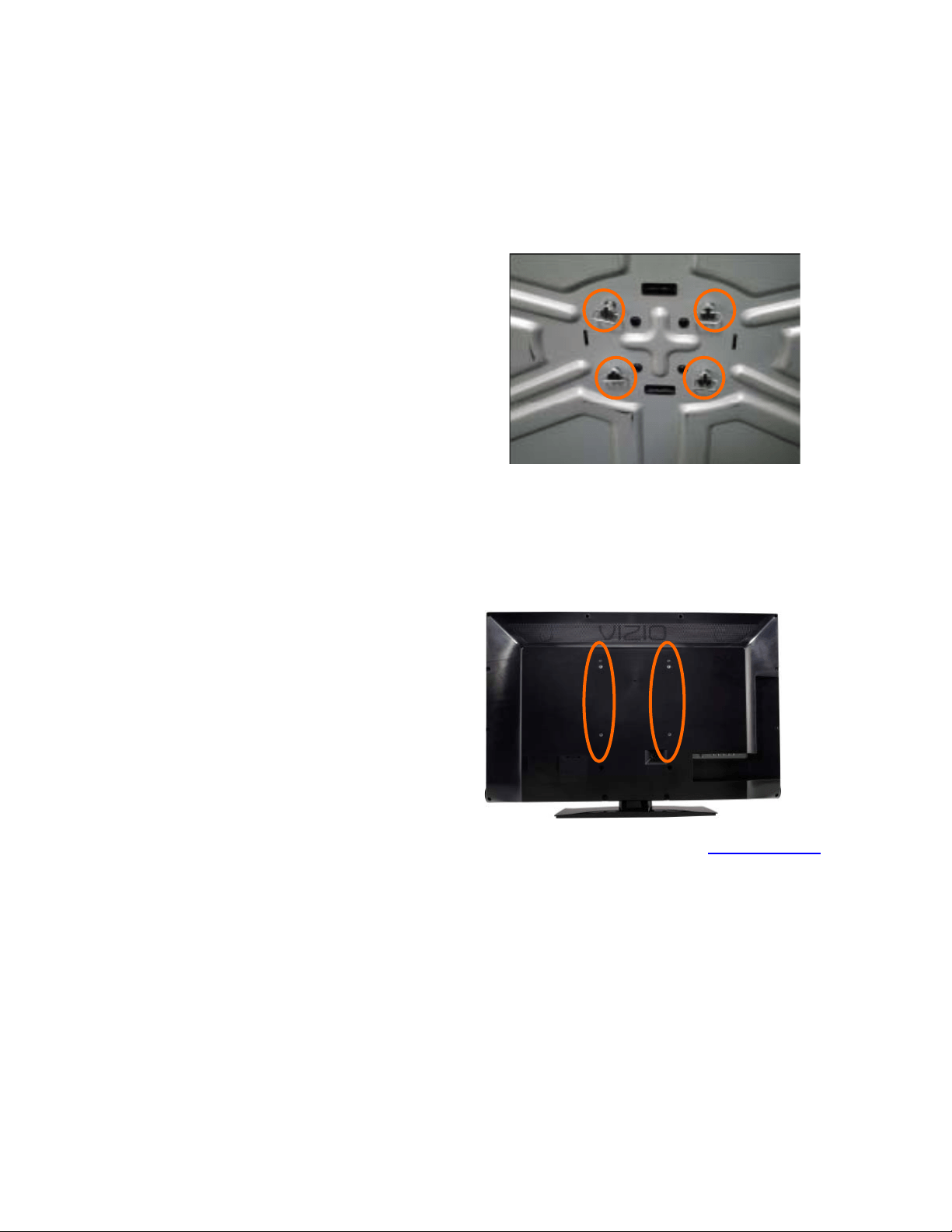
a. Attach your HDTV to a wall mount
(sold separately) using the mounting
holes in the back panel of your HDTV (see illustration at the right).
b. Read the instructions that came with your specific wall mount to properly hang your HDTV.
M320VT Wall Mounting Specifications
Screw Size
• M4
Screw Length
• 10 mm
Screw Pitch
• 0.7 mm
Hole Pattern
• VESA standard 200mm x 100mm
NOTE: If using wall mounts different from our certified ones, please verify that they are
UL/CSA/ETL listed wall mount brackets with suitable weight specs.
VIZIO M320VT User Manual
Version 4/21/2010 9
www.VIZIO.com
Preparing your LCD HDTV for Wall Mounting
Your VIZIO HDTV can either be kept on the stand base or mounted on the wall for viewing. If you choose
to mount the TV on the wall, please follow the instructions below for removing the stand.
To remove the base stand:
5. Unplug all cables from the HDTV.
6. Place your HDTV face down on a soft and flat
surface (blanket, foam, cloth, etc) to prevent
any damage to the TV.
7. Remove the total of eight (4) screws holding
the base stand to the TV.
8. Carefully remove the stand, pulling the base
towards you.
The TV can fit securely to a mount (sold separately) by utilizing the mounting holes in the center of the
back panel of the TV. Please make sure to read the instructions of your specific mount to properly hang
your TV.
The pitch of the mounting holes is 200mm horizontally and 100mm vertically.
The screw type required is metric M4, 0.7mm pitch. The length of the screws will depend on the thickness
plate being attached to the TV.
To find the perfect mount for your HDTV, browse VIZIO’s certified mount selection at www.VIZIO.com
or
call directly 888-VIZIOCE (888-849-4623).
VIZIO M320VT User Manual
Version 4/21/2010 10
www.VIZIO.com
Chapter 2 Basic Controls and Connections
Front Panel
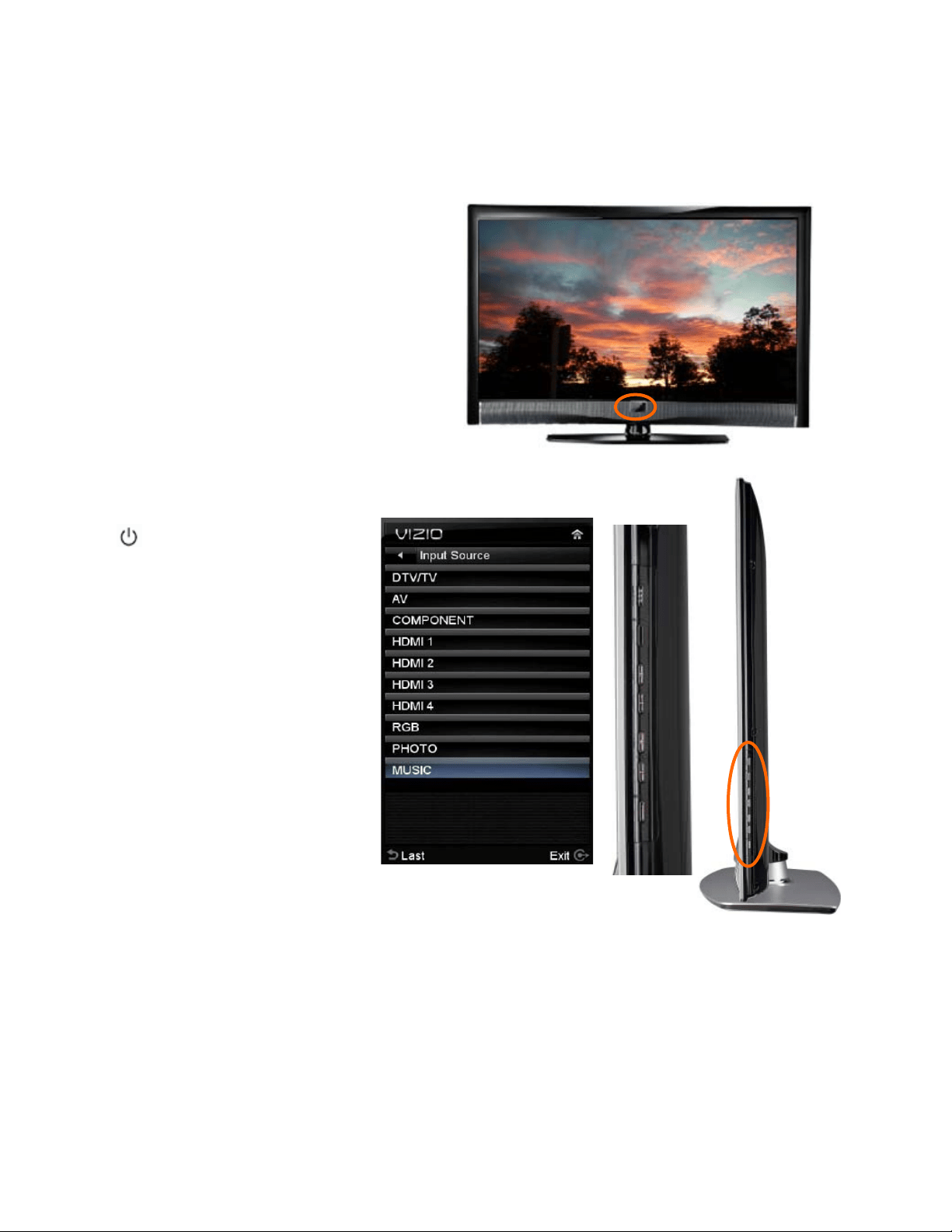
POWER ‘VIZIO’ LIGHT– The VIZIO name lights
white when powered on and it will get dimmer
when powered off.
REMOTE CONTROL SENSOR and LIGHT
SENSOR – This is the window through which all
of the remote control signals pass to the sensor.
Point the remote control directly at this window
for the best response to the remote signal.
The light sensor allows controlling the
adjustment of the backlight intensity
automatically by sensing the ambient lighting, this is a feature selectable through the OSD menu.
Side Panel Controls
( ) – Press this button once to
power your TV on. Press the button
again to power the TV off.
MENU – This button activates the
On Screen Display (OSD). If a sub-
menu is active, pressing this button
confirms the selection to be adjusted
or takes the user to the next level of
the menu.
CH
ST – Use these buttons to
step up or down the TV channels.
While the OSD is active, these
buttons function as up and down
controls in the OSD menus.
VOL
WX – Use these buttons to
increase or decrease to the speaker
volume. While the OSD is active,
these buttons function as left and
right controls in the OSD menus.
INPUT (LAST) – Repeated pressing of this button steps through the input sources
in the following sequence: DTV/TV, AV, COMPONENT, HDMI1, HDMI2, HDMI3, HDMI4, RGB, PHOTO
and MUSIC. Once you have stepped through the entire sequence, you will return to the beginning of the
sequence.
Additionally, when the OSD is active, this button allows returning to previous menu level. When the OSD
is not active, this button will show the current input selections.
Note: When using the A/V input (usually, a composite signal) the video signal (yellow color coded cable)
need to be connected to the green jack connector. Expect to see a black/white display if COMPONENT
input is selected by accident.
VIZIO M320VT User Manual
Version 4/21/2010 11
www.VIZIO.com
Rear and Side Panel Connections
VIZIO M320VT User Manual
Version 4/21/2010 12
www.VIZIO.com
NOTE: When using the A/V input (usually, a composite signal) the video signal (yellow color coded
cable) need to be connected to the green jack connector. Expect to see a black/white video in the
Component input, if it is selected by accident.
Certified HDMI and HDMI-DVI cables are available for purchase from www.VIZIO.com
or by calling 888-
VIZIOCE (888-849-4623)
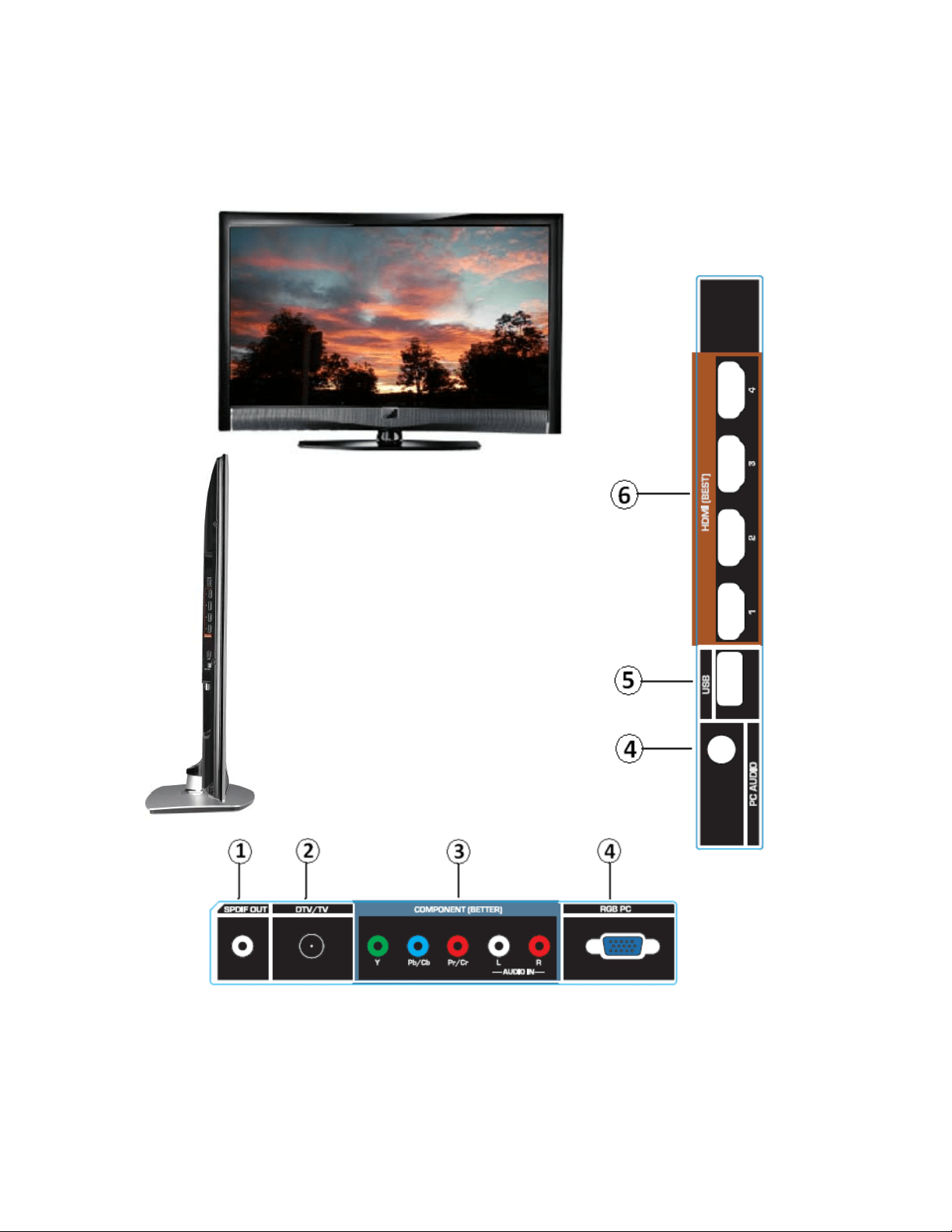
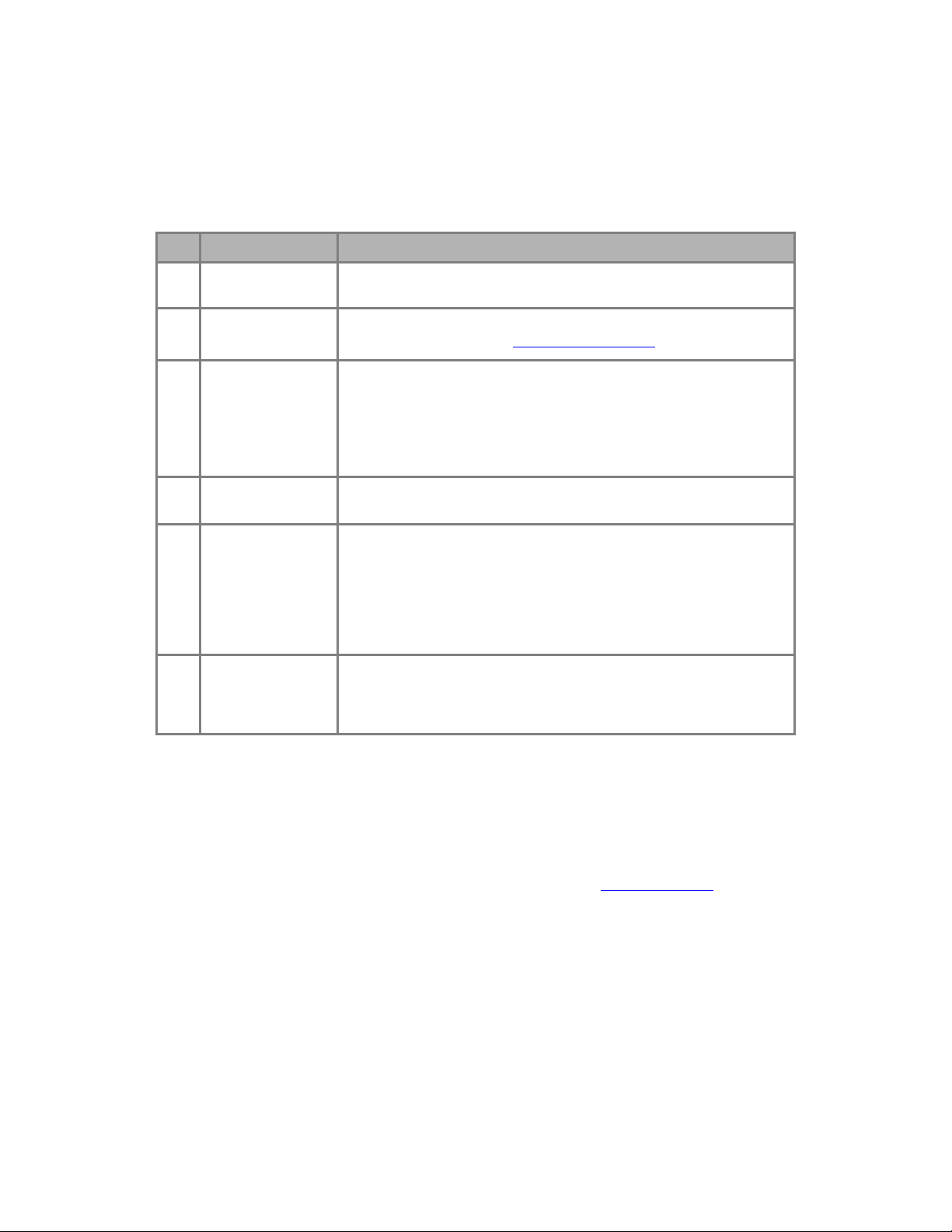
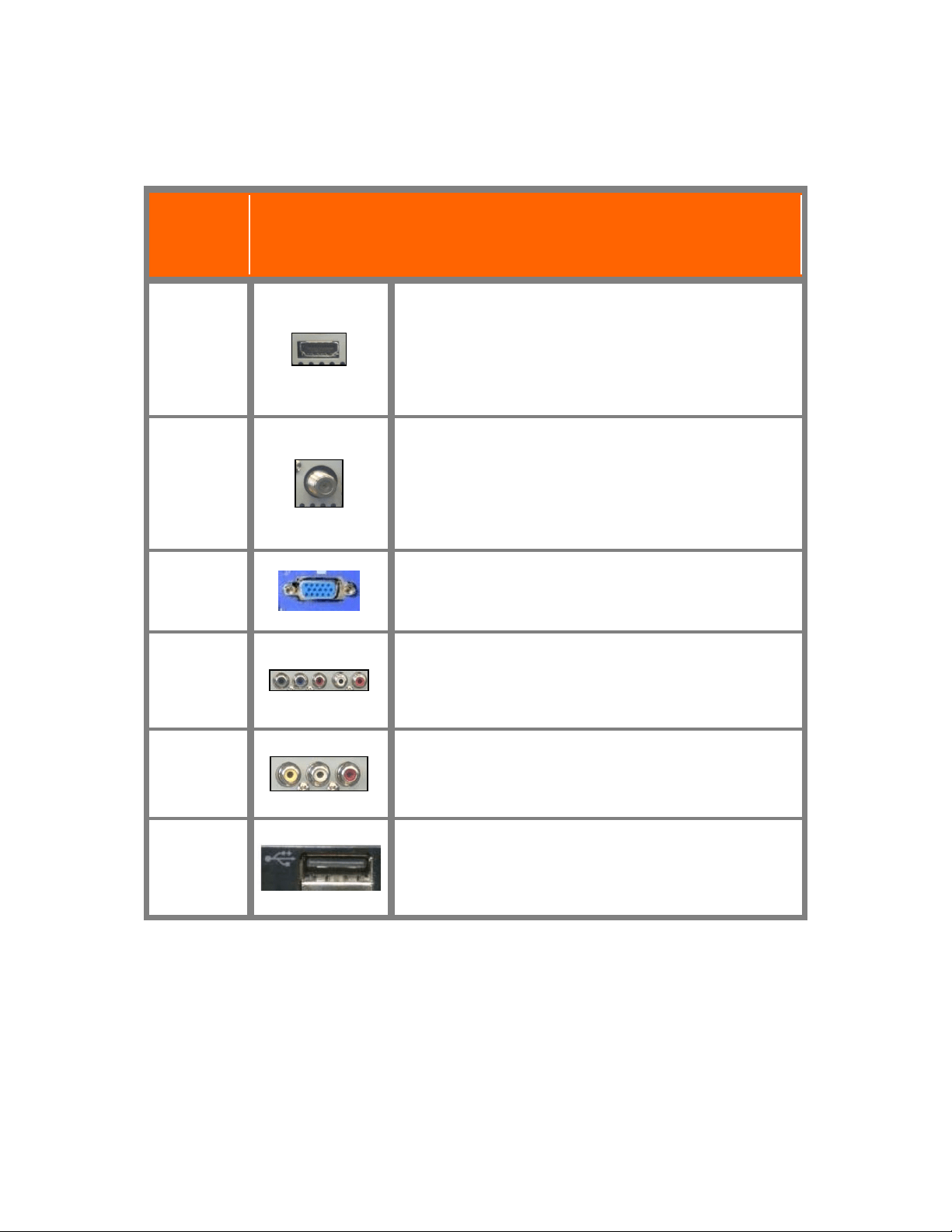
No. Connection Description
1 SPDIF
Connect an SPDIF Optical cable from your HDTV to your home
theater system to play digital audio through your home speakers.
2
DTV/TV
(Cable/Antenna)
Connect to an antenna or digital cable for digital TV. For digital TV
stations in your area visit www.antennaweb.org
.
3
COMPONENT
(YPb/CbPr/Cr
with Audio L/R)
Connect your primary source component (like a DVD Player or set
top box) here. From left to right, use green for Y, blue for Pb (or
Cb), and red for Pr (or Cr) inputs. Use white for left audio and red
for right audio.
When using the A/V input (usually, a composite
signal) the video signal (yellow color coded cable) need to be
connected to the green jack connector.
4
RGB PC /PC
Audio
Connect the video from a computer here. Connect the audio (1/8
in. mini plug stereo connector) from a computer here.
5 USB
Connect a storage source (format FAT32) JPEG files (like a hard
drive or thumb drive or card reader). It is recommended to back up
your important document files as a precaution to prevent lost of
data. This input is also used as a factory service connection
for authorized personal, unauthorized usage of this
connection to attend service of this equipment will void the
manufacturer’s warranty of the TV.
6 HDMI
Best connection in the field to transmit digital Audio and Video
content. Connect an audio/video source for digital video such as a
DVD multimedia player, a digital set-top box for cable or satellite
receiver system. Your TV comes with four HDMI inputs.
VIZIO M320VT User Manual
Version 4/21/2010 13
www.VIZIO.com
Remote Control Buttons
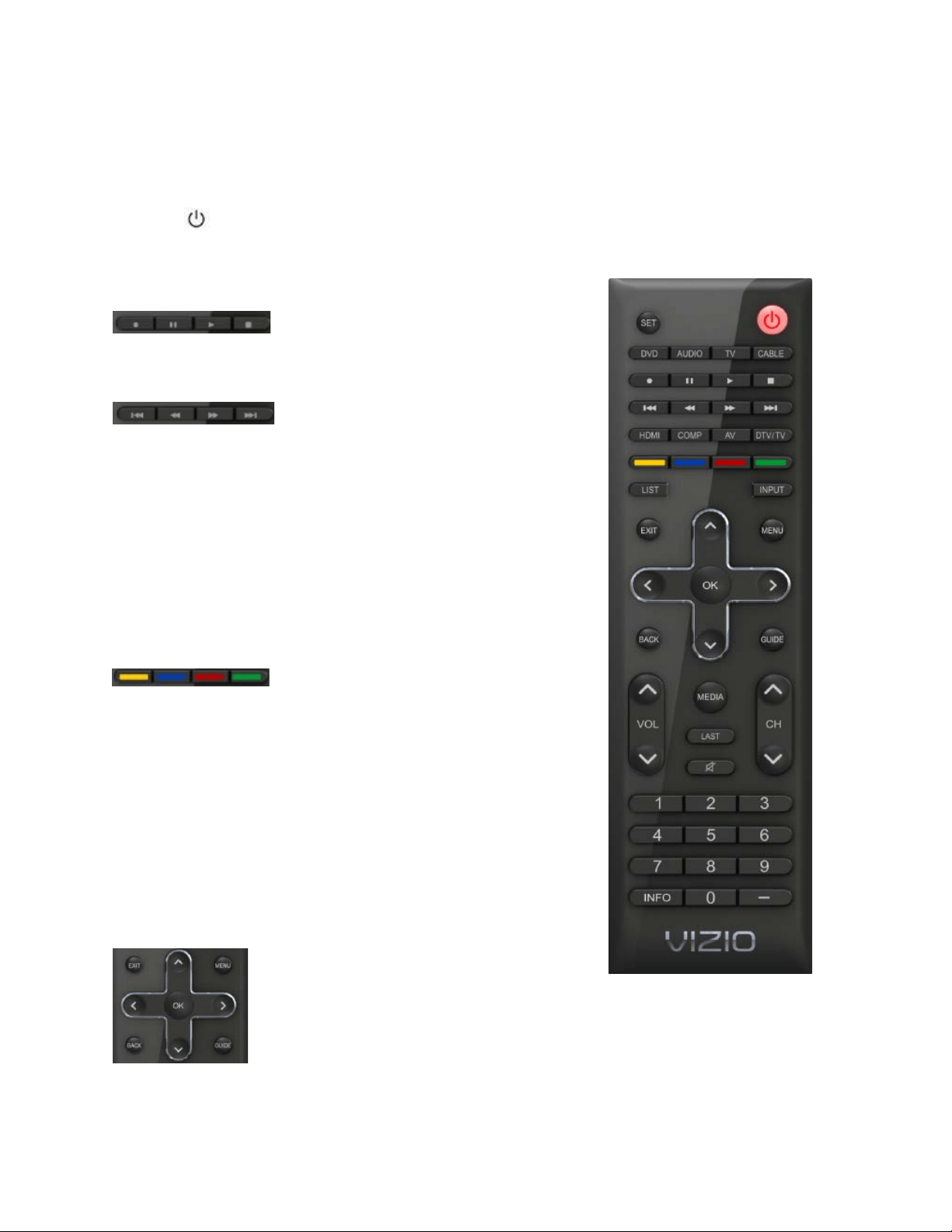
SET — Use to program a different device (DVD, AUDIO SYSTEM, TV and CABLE/SATELLITE BOX) to
be controlled by this control.
POWER (
) — Press to turn the TV on from the Standby mode. Press it again to return to the Standby
mode.
DVD, AUDIO, TV and CABLE — Press the button of the equipment you would like to control using this
remote control. Make sure that the remote has been set up the code
to the specific device.
RECORD, PAUSE, PLAY and STOP —
Only PAUSE (pause the slideshow), PLAY (start the slideshow) and
STOP (stop the slideshow) are active buttons for your HDTV. The
RECORD button does not operate your TV.
SKIP BACK, BACKWARDS, FAST
FORWARD and SKIP FORWARD — These buttons do not operate
your TV, they are function keys used by other devices, mainly DVD
and DVR devices. Skip Back allows jumping to previous chapter in
DVD and DVR. Backwards (Rewind in the old VCRs) allows
reviewing previous scenes. Fast Forward allows to reviewing the
next scenes. Skip Forward allows jumping to next chapter in DVD
and DVR.
HDMI — Press to select the HDMI input. Press repeatedly to cycle
through the HDMI inputs.
COMP — Press to select the Component input.
AV — Press to select the AV or Composite input.
DTV/TV — Press to select the TV or RF input.
Color-Coded Programmable Keys — These
buttons are keys which could be customized with most used
commands, they usually perform cable, satellite and teletext
functions.
LIST — This button is most commonly used by cable and satellite
boxes to display the list of your recorded programs. This key allows
opening the channels list OSD of your HDTV.
INPUT — Press to cycle through the various devices connected to
your TV (called Inputs). The inputs cycle in the following sequence:
DTV/TV, AV COMPONENT, HDMI 1, HDMI 2, HDMI 3, HDMI 4, RGB,
PHOTO and MUSIC. Once you have stepped through the entire
sequence, you will return to the beginning.
EXIT— Press to exit from open menus.
MENU — Press it to bring up the OSD menu on your HDTV.
Up (▲), Down (▼), Left (◄) or Right (►)
navigation buttons — Press to navigate open
menus, adjust other TV settings such as Brightness and Contrast, or turn menu
options On and Off.
OK — When the OSD menu is up, pressing this key select the highlighted option in
the menu.
VIZIO M320VT User Manual
Version 4/21/2010 14
www.VIZIO.com
BACK — When use with the TV, this button behaves in the same way as the LAST button. It is used as a
functional key on the set-top box for cable and satellite services with DVR features. It allows skipping
back to previous prerecorded programs.
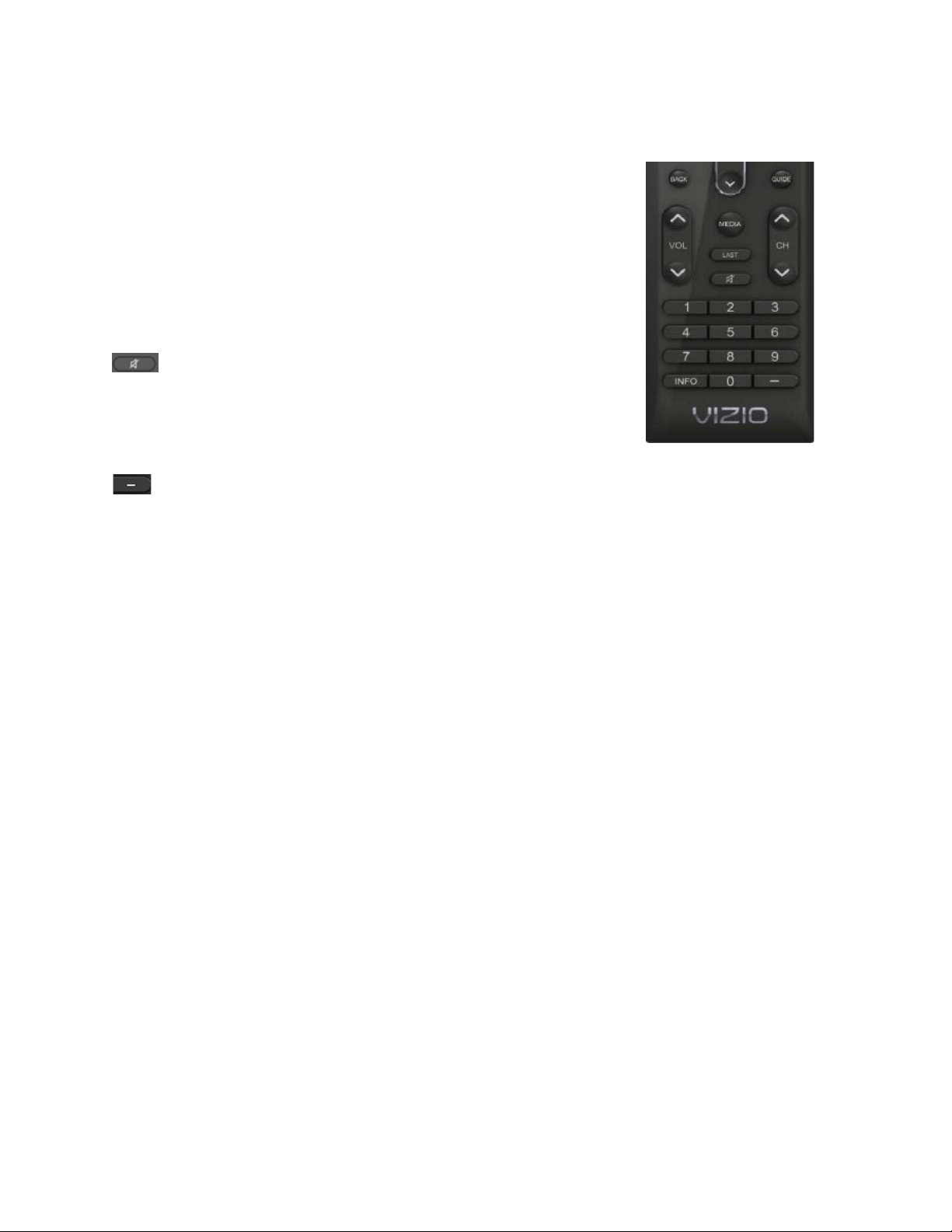
GUIDE — This button does not function with your TV, follow the INFO
description to see programming information.
VOL ▲/▼— Press it to either increase or decrease the volume level of the
sound.
MEDIA — Use to select viewing of pictures on a USB device connected to
the USB port.
LAST — Press to recall the previously viewed channel. When the Menu is
active, press this button repeatedly to go to the previous level or out of the
On Screen Menu completely.
— Press to turn the sound on and off.
CH ▲/▼— Press to change the channels up or down.
Number Button Pad — Press to select a channel or enter a password.
INFO — Press to display program and channel information. Pressing this
button twice will allow reading the description of the current and next hour
programming.
(DASH) — Press to insert a dash between the main and sub-channels. For example, channel 28-
2 would be selected by the button sequence 2, 8, DASH, 2.
Programming the Remote Control
The included remote control can be programmed to control different devices: DVD players, Audio Players,
TV and Set-Top Boxes. Please, refer to the tables at the end of this User’s manual for the different codes
to match the different manufacturers including the codes for VIZIO preferred accessories and equipment
systems. The following procedure is required to do the programming:
1. Find the matching code and write it down, some makers may have more than one code. It may
require trying all of them to find the one matching your specific model.
2. Press and release the key matching your equipment: DVD, AUDIO, TV or CABLE.
3. Press and hold down the SET key until the light indicator blinks twice.
4. Release the SET key, and press the 5-digits code you had written down on Step 1.
5. The light indicator should blink twice again after you had entered the last digit, it means that the
remote control has accepted the code. At this point, you should try to use the power button to turn
off and on the equipment.
6. Try different keys to confirm that your accessory or equipment responds properly. If it is not the
case and other codes are applicable, please try Steps 1 through 5 to the next code until the
correct code is found.
Searching Automatically for the Codes
If the device does not respond to the remote control after trying all listed codes for the brand, or if the
brand is not listed, then try searching for code as follows:
1. Turn on the device.
2. Press and hold the device key for 3 seconds. LED indicator comes ON. Release key.
3. Press and release PLAY key, the indicator goes OFF during pressing and comes ON after
release.
4. Aim the remote control at the device. Press either the channel up or channel down key to start
searching. If the device turns off a working code has been found. Press OK key to save this code
and exit the code search. The LED indicator flashes slowly 4 times and it goes OFF.

VIZIO M320VT User Manual
Version 4/21/2010 15
www.VIZIO.com
Remote Control Range
• The effective range of the remote control is approximately 26 feet (8 meters) from the front of the
receiver window and 13 feet (4 meters) at 45° to the left and right.
• Point the remote control at the remote control sensor on the front of your HDTV to send
commands.
• Do not place any obstacles between the remote control and the remote control sensor.
VIZIO Remote Control Precautions
• Keep the remote dry and away from heat sources and humidity.
• If your HDTV responds erratically to the remote control or does not respond at all, check the
batteries. If the batteries are low or exhausted, replace them with fresh batteries.
• When not using the remote control for a long period of time, remove the batteries.
• Do not take the batteries apart, heat them, or throw them into a fire.
• Do not subject the remote control to undue physical stress, such as striking or dropping it.
• Do not attempt to clean the remote control with a volatile solvent. Wipe it with a clean, damp
cloth.
• Do not mix old and new batteries or different types of batteries.
Inserting the remote control batteries
1. Remove the battery cover on the back of the remote control.
2. Insert two AA batteries (included) into the remote control, making sure you match the (+) and (-)
symbols on the batteries with the (+) and (-) symbols inside the battery compartment.
3. Re-attach the battery compartment cover.
Precautionary Tips for Inserting the Batteries:
• Only use the specified AA batteries.
• Do not mix new and old batteries. This may result in cracking or leakage that may pose a fire
risk or lead to personal injury.
• Inserting the batteries incorrectly may also result in cracking or leakage that may pose a fire
risk or lead to personal injury.
• Dispose of the batteries in accordance with local laws and regulations.
• Keep the batteries away from children and pets.
Using a Cable or Satellite Remote
Your VIZIO remote uses codes 11758 and 10178 to work your LCD HDTV. To use a cable or satellite remote
to work the LCD HDTV, refer to your cable or satellite remote user guide for more information on how to
program the remote. If your cable or satellite remote uses a 5-digit code (like most Direct TV units), first try
11758 and then, if that does not work, 10178. If your cable or satellite remote uses a 4-digit code, try 1758 and
then 0178 as an alternative. If your cable or satellite remote uses a 3-digit code (EchoStar or Dish Network for
example), use code 627.
Cleaning the Housing and Remote Control
1. Use a soft cloth for cleaning.
2. If the housing or remote control is seriously contaminated, use a soft cloth moistened with
diluted neutral cleaner to clean the display. Wring water out of the cloth before cleaning to
prevent water from penetrating into the housing. Wipe the display with a dry cloth after
cleaning.
VIZIO M320VT User Manual
Version 4/21/2010 16
www.VIZIO.com
Chapter 3 Connecting Equipment
Your HDTV has six different ways to connect your video equipment from a basic connection to the most
advanced for digital signals.
Connection
Quality
(type)
Connector Description
Best
(digital)
HDMI (High-Definition Multimedia Interface). It is the first and
only industry-supported, uncompressed, all-digital audio/video
interface. HDMI provides an interface between any audio/video
source, such as a set-top box, DVD player, or A/V receiver and
an audio and/or video monitor, such as a digital television
(DTV), over a single cable.
Best
(digital)
- - - - - - - - -
Good
(analog)
DTV Coaxial RF. When used for MPEG2 encoded bit streams
from ATSC broadcast programming, this input takes advantage
of the High Definition content.
- - - - - - - - - - - - - - - - - - - - - - - - - - - - - - - - - - - - - -
TV Coaxial RF. This is the connection for standard NTSC TV
using antenna or cable.
Best
(analog)
RGB PC (VGA). This video input has separate red, green and
blue color components. The signal carries horizontal and
vertical sync information on the green signal. This is most
commonly used for PC input.
Better
(analog)
Component. The video signal is separated into three signals,
one containing the black-and-white information and the other
two containing the color information. This enhancement over S-
Video takes advantage of the superior picture provided by
progressive scan DVD players and HDTV formats.
Good
(analog)
Composite. The complete video signal is carried through this
single pin connector. This is the most commonly used video
connection.
Best
(digital)
USB (Universal Serial Bus). USB is an interface port designed
to connect storage devices holding data (FAT32 format: JPEG
for image) files without a need to power off the host (TV) unit.
Note: You can use your HDTV Component input to accept A/V signal (Composite) from a source
with A/V out, please plug your video signal (yellow connector) into the Component input (green
connector) and match up the audio connectors (R and L) for the sound. Expect to see a
black/white video in the Component input, if selected by accident.
VIZIO M320VT User Manual
Version 4/21/2010 17
www.VIZIO.com
Connecting Your Cable or Satellite Box
Using HDMI
Cable and Satellite Boxes that have a HDMI digital interface should be connected to the HDMI input of
the LCD HDTV for optimal results.
Note: To maintain the display quality, use a VIZIO certified HDMI cable. Lengths are available up to 10
Meters. See www.vizio.com
or call 1-888-VIZIOCE (1-888-849-4623) for details.
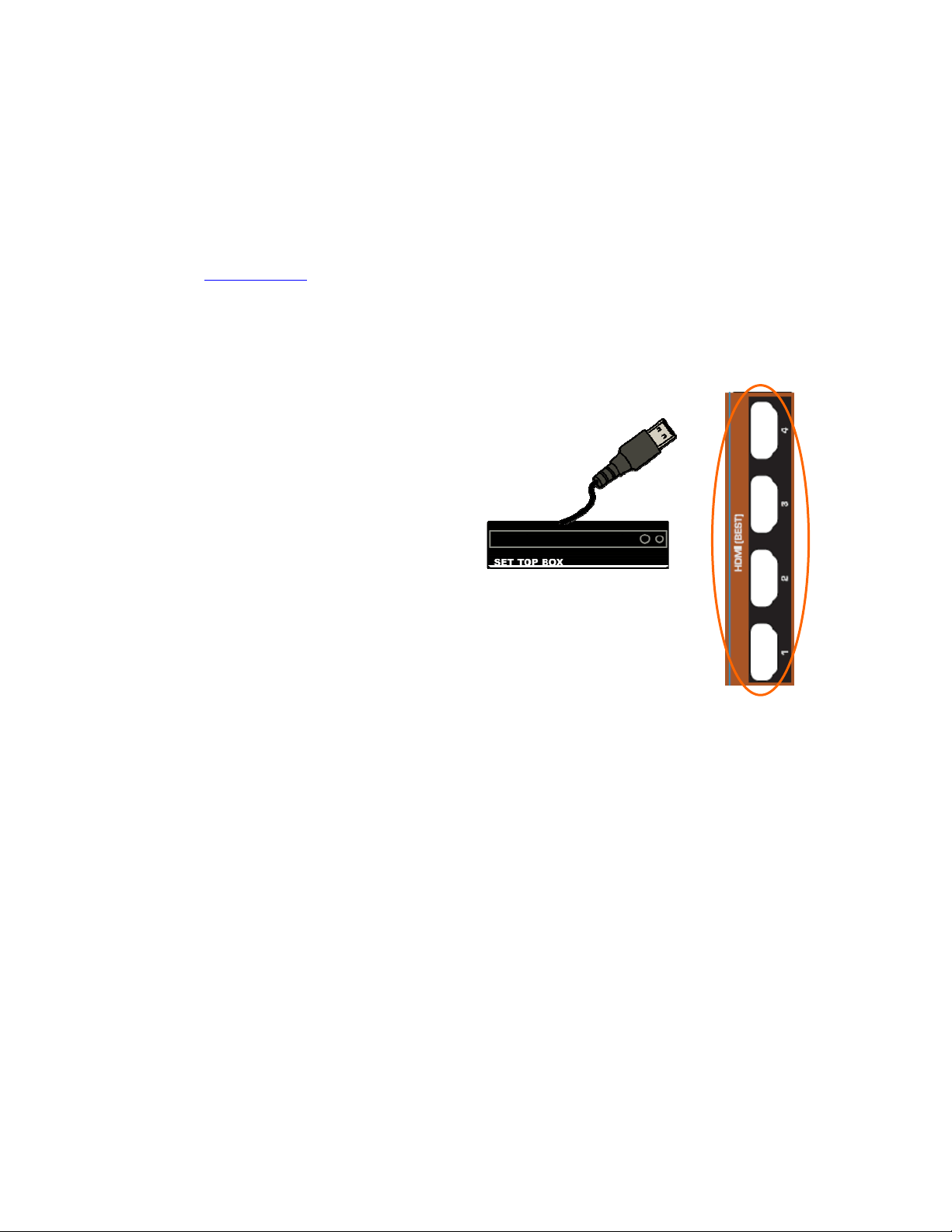
Connecting your Cable or Satellite Box (Best)
1. Turn off the power to the LCD HDTV and HDTV Set-Top Box.
2. Connect a HDMI cable to the HDMI output of your HDTV
Set-Top Box and the other end to the HDMI Input at the
side of the LCD HDTV.
3. Turn on the power to the LCD HDTV and HDTV Set-
Top Box.
4. Select HDMI using the INPUT button on
the remote or side of the LCD HDTV, or
directly by pressing the HDMI button on
the Remote Control.
Note:
• The HDMI input on the LCD TV supports High-bandwidth Digital Content
Protection (HDCP). HDCP encrypts the transmission between the video
source and the digital display for added security and protection.
• If you are already using the HDMI1 input for another component, or you do not want to use the
HDMI1 input for the Set-Top Box, you can connect the Set-Top Box to the HDMI2, HDMI3 or
HDMI4 input.
• Refer to your HDTV Set-Top Box user manual for more information about the video output
requirements of the product or consult your cable or satellite operator.
VIZIO M320VT User Manual
Version 4/21/2010 18
www.VIZIO.com
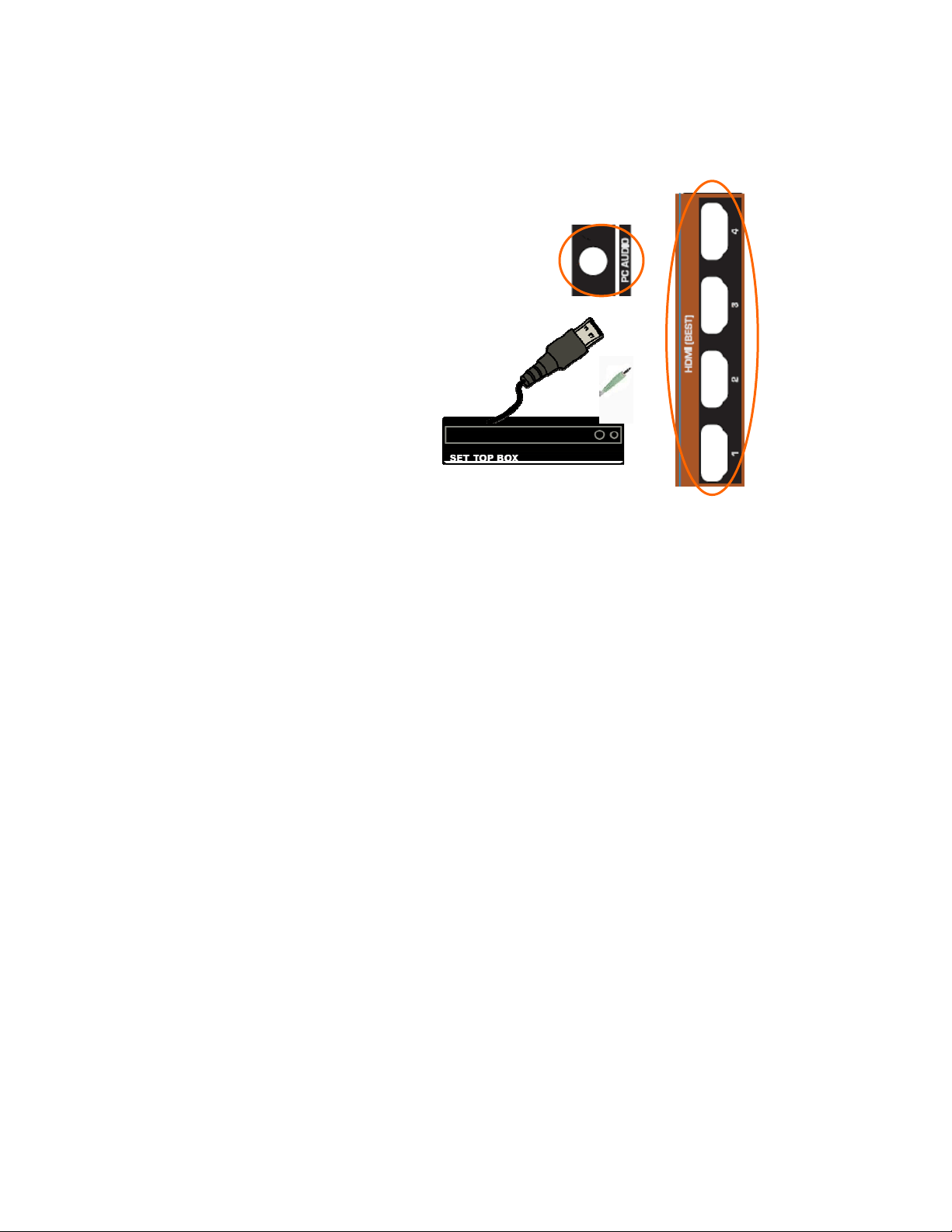
For Cable or Satellite Boxes with DVI:
1. Turn off the power to the LCD HDTV and HDTV
Set-Top Box.
2. Using a HDMI-DVI cable, connect the DVI end to
your HDTV Set-Top Box and the HDMI end to the
HDMI2 Input at the side of the LCD HDTV.
3. Using an audio cable (1/8’ stereo connector on the
going into the TV), connect the cable to the
audio output connectors associated with the
DVI output on your HDTV Set-Top Box and
connect the other end to the audio
associated with the RGB input at
the side of the LCD HDTV.
4. Turn on the power to the LCD
HDTV and HDTV Set-Top Box.
5. Select HDMI2 using the INPUT button on the remote or side of the
LCD HDTV, or directly by pressing the HDMI button on the Remote Control.
Note:
• The HDMI input on the LCD TV supports High-bandwidth Digital Content Protection (HDCP).
HDCP encrypts the transmission between the video source and the digital display for added
security and protection.
• If you are already using the HDMI2 input for another component, or you do not want to use the
HDMI2 input for the Set-Top Box, you can connect the Set-Top Box to the HDMI1, HDMI3 or
HDMI4 connection. The LCD TV will recognize the DVI connection and obtain audio information
from the audio connectors on the rear of the TV.
• Refer to your HDTV Set-Top Box user manual for more information about the video output
requirements of the product or consult your cable or satellite operator.
VIZIO M320VT User Manual
Version 4/21/2010 19
www.VIZIO.com
Using Component Video
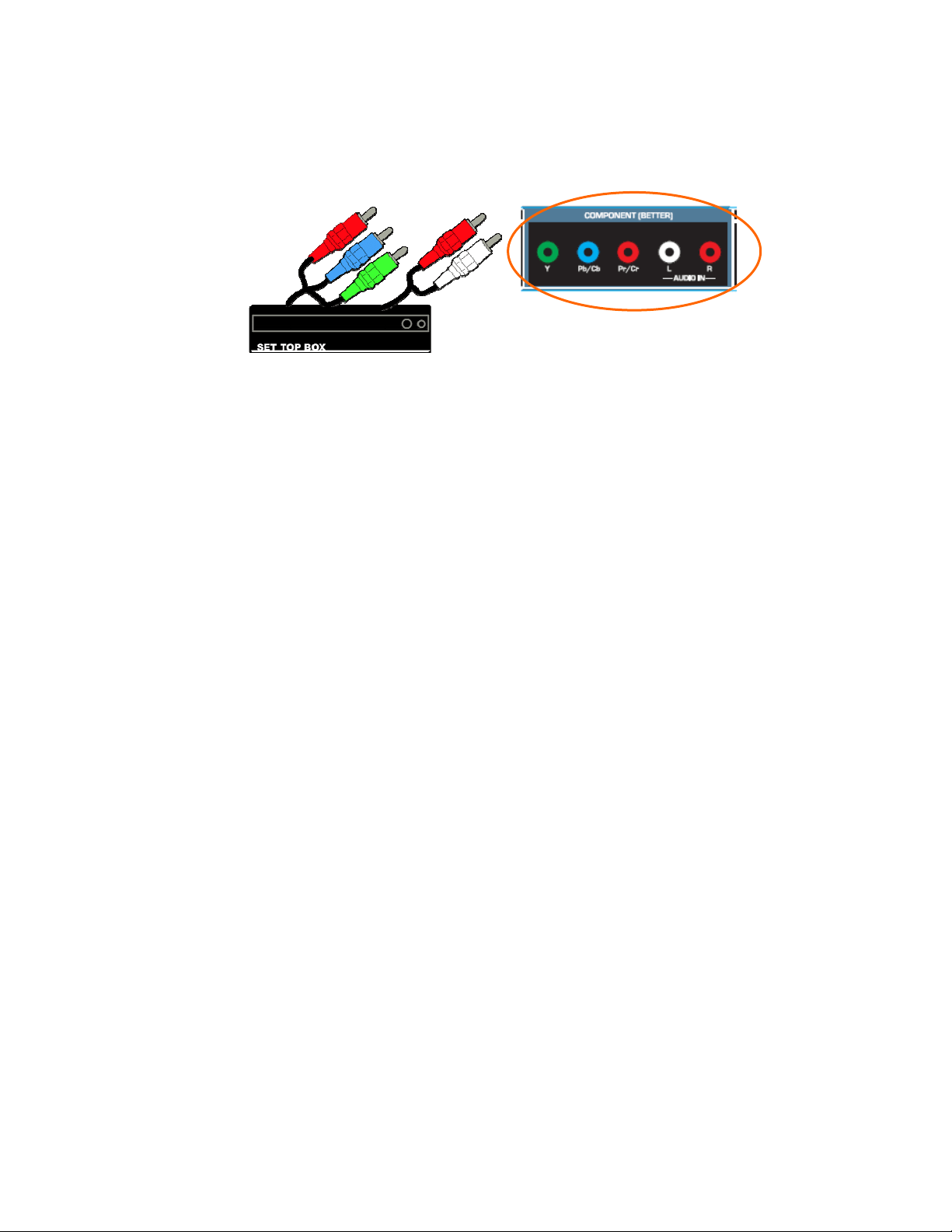
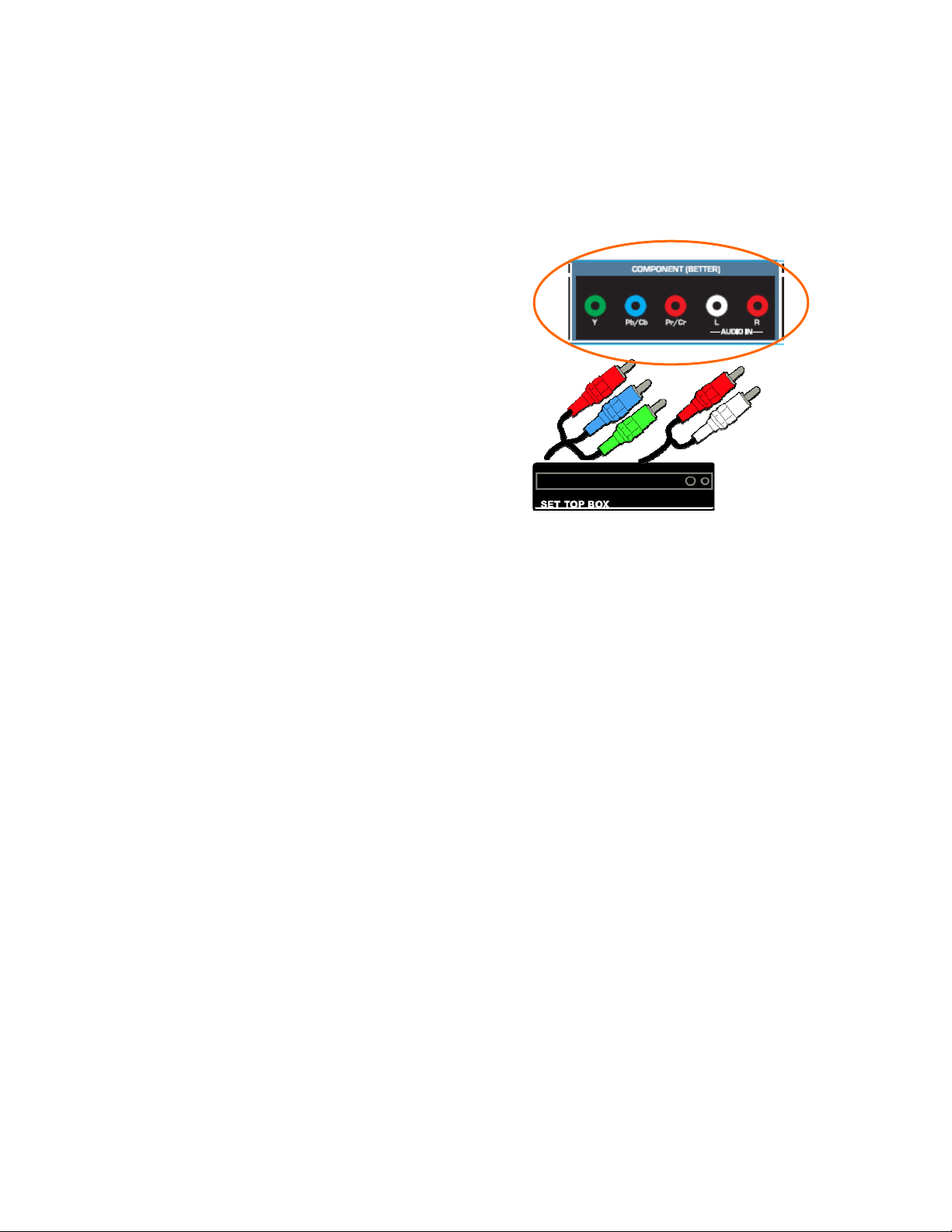
Connecting your Cable or Satellite Box (Better)
1. Turn off the power to the LCD HDTV and HDTV Set-Top Box.
2. Connect the Y (green color) connector on your HDTV Set-Top Box to the corresponding Y
(green color) connector in the Component input at the rear of the LCD HDTV.
3. Connect the PbCb (blue color) connector on your HDTV Set-Top Box to the corresponding
Pb (blue color) connector in the Component input at the rear of the LCD HDTV.
4. Connect the PrCr (red color) connector on your HDTV Set-Top Box to the corresponding Pr
Cr (red color) connector in the Component input at the rear of the LCD HDTV.
5. Using an audio cable (white and red connectors), connect the cable to the audio output
connectors associated with the Component output on your HDTV Set-Top Box and connect
the other end to the audio connectors associated with the Component input at the rear of the
LCD HDTV.
6. Turn on the power to the LCD HDTV and HDTV Set-Top Box.
7. Select Component using the INPUT button on the remote or side of the LCD HDTV, or
directly by pressing the COMP button on the Remote Control.
Note:
• Refer to your HDTV Set-Top Box user manual for more information about the video output
requirements of the product or consult your cable or satellite operator.
VIZIO M320VT User Manual
Version 4/21/2010 20
www.VIZIO.com
Connecting Coaxial (RF)
Using Your Antenna or Digital Cable for DTV
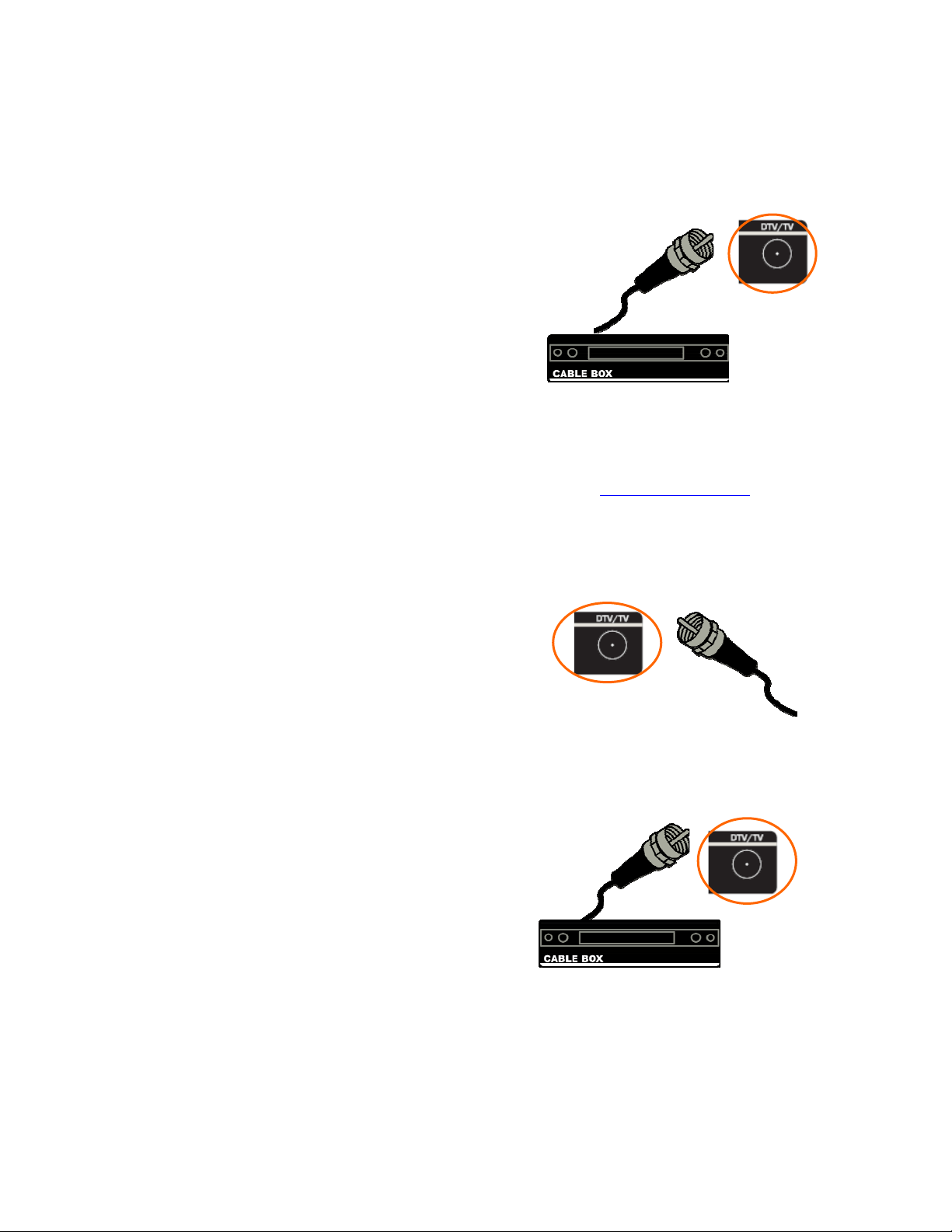
1. Turn off the power to the LCD HDTV.
2. Connect the coaxial (RF) connector from your antenna or digital
cable to the DTV/TV CABLE/ANTENNA connector at the rear
of the LCD HDTV.
3. Turn on the power to the LCD HDTV.
4. Select TV using the INPUT button on the remote
or side of the LCD HDTV, or directly by pressing
the TV button on the Remote Control.
Note:
• Not all digital TV broadcasts are High Definition (HD). Refer to the program guides, or consult
your cable, satellite or TV station operator.
• Digital broadcasts are not available in all areas. Refer to www.antennaweb.org
for detailed
information.
• Make sure the antenna and coaxial cable are correctly grounded.
Using Your Antenna or Cable for TV
1. Turn off the power to the LCD HDTV.
2. Connect the coaxial (RF) connector from your
antenna or cable to the DTV/TV
CABLE/ANTENNA connector at the rear of the
LCD HDTV
3. Turn on the power to the LCD HDTV.
4. Select TV using the INPUT button on the remote or side of the LCD
HDTV, or directly by pressing the TV button on the Remote Control.
Using the Antenna or Cable through your VCR
1. Turn off the power to the LCD HDTV and VCR.
2. Connect the “Output to TV”, “RF Out” or “Antenna Out”
connector on the rear of your VCR to the DTV/TV
CABLE/ANTENNA connector at the rear of the LCD HDTV.
3. Turn on the power to the LCD HDTV and VCR.
4. Select TV using the INPUT button on the remote or
side of the LCD HDTV, or directly by pressing
the TV button on the Remote Control.
Note: If you have an off-air antenna or cable TV, connect it to the “Antenna In” connector on the rear of
your VCR.
VIZIO M320VT User Manual
Version 4/21/2010 21
www.VIZIO.com
Connecting Your DVD Player
You have several options for connecting your DVD player to your HDTV: HDMI, Component and
Composite inputs. Based on your home theater configuration, you can decide which option is the right
one for you.
Using HDMI
DVD players that have a digital interface such as HDMI (High Definition Multimedia Interface) should be
connected to the HDMI input of you HDTV for optimal results.
Note: To maintain the display quality, use a VIZIO certified HDMI cable. Length is available up to 10
meters. See www.VIZIO.com
or call 1-888-VIZIOCE (1-888-849-4623) for details.
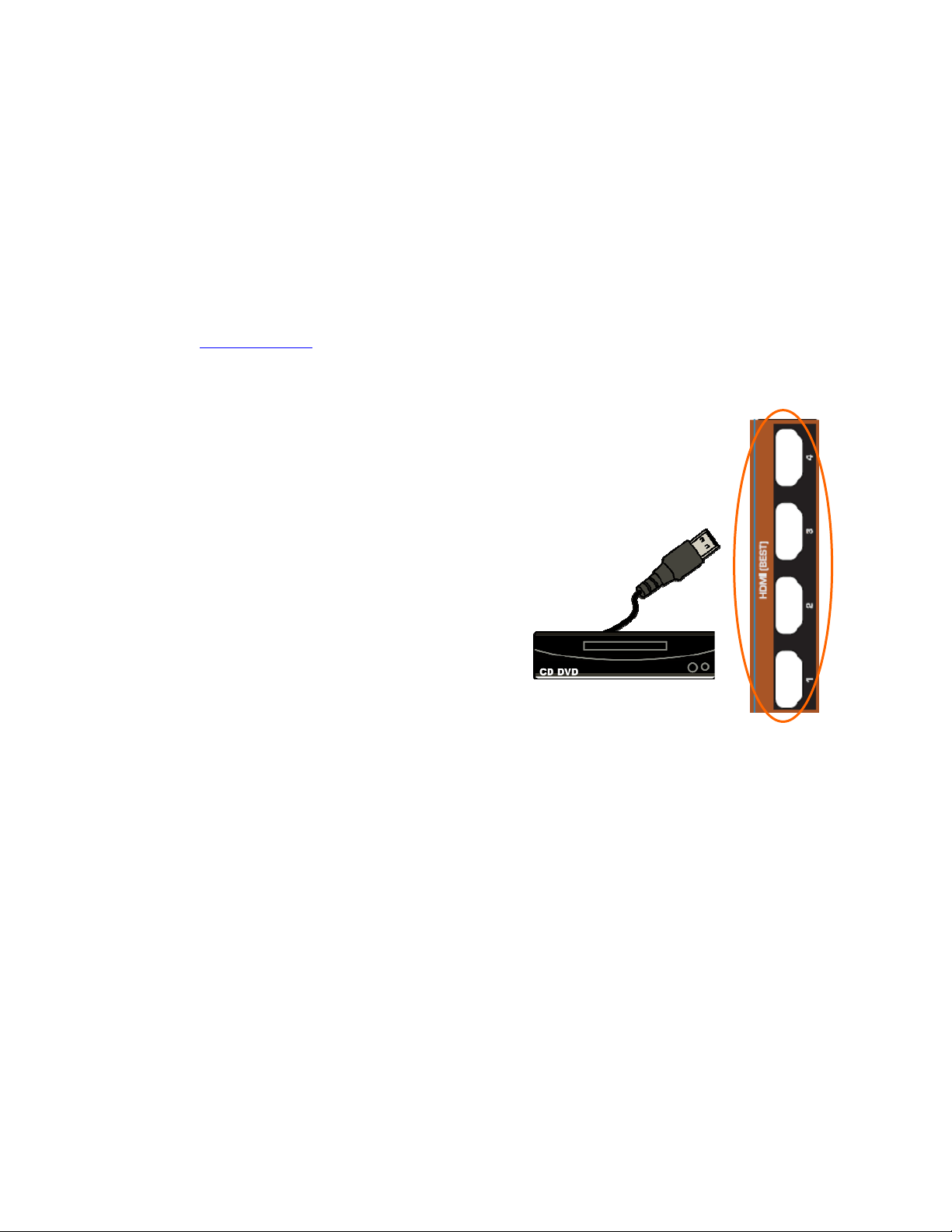
Connecting your DVD Player (Best):
1. Turn off the power to the LCD HDTV and DVD player.
2. Connect a HDMI cable to the HDMI output of your DVD player and the other
end to the HDMI Input at the side of the LCD HDTV.
3. Turn on the power to the LCD HDTV and your DVD player.
4. Select HDMI using the INPUT button on the remote or side of the
LCD HDTV, or directly by pressing the HDMI button on the
Remote Control.
Note:
• If you are already using the HDMI1 input for another component, or you do not want to use the
HDMI1 input for the DVD player, you can connect the DVD player to the HDMI2, HDMI3 or
HDMI4 connection.
• Refer to your DVD player user manual for more information about the video output requirements
of the product.
VIZIO M320VT User Manual
Version 4/21/2010 22
www.VIZIO.com
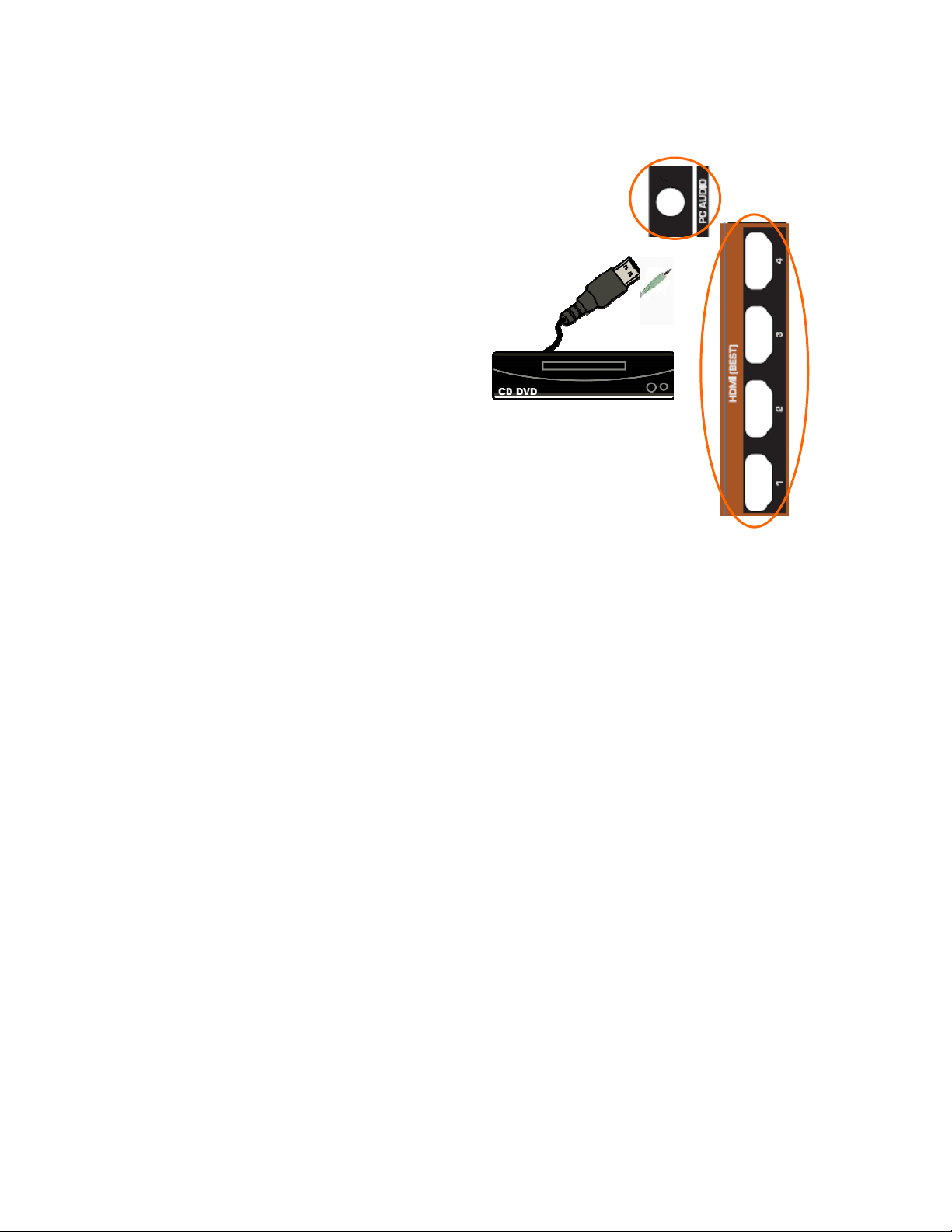
For DVD Players with DVI:
1. Turn off the power to the LCD HDTV and DVD player.
2. Using a HDMI-DVI cable, connect the DVI end to your DVD
player and the HDMI end to the HDMI Input at the side of the
LCD HDTV.
3. Using an audio cable (1/8’ stereo connector on the
going into the TV), connect the cable to the audio
output connectors associated with the DVI output
on your HDTV Set-Top Box and connect the
other end to the audio associated with
the RGB input at the side of the LCD
HDTV.
4. Turn on the power to the LCD HDTV
and your DVD player.
5. Select HDMI1 using the INPUT button on the remote or side of the
LCD HDTV, or directly by pressing the HDMI button on the Remote
Control.
Note:
• If you are already using the HDMI1 input for another component, or you do not want to use the
HDMI input for the DVD Player, you can connect the DVD player to the HDMI2, HDMI3 or HDMI4
input. The LCD TV will recognize the DVI connection and obtain audio information from the audio
connectors on the rear of the TV.
• Refer to your DVD player user manual for more information about the video output requirements
of the product.
VIZIO M320VT User Manual
Version 4/21/2010 23
www.VIZIO.com
Using Component Video
Connecting your DVD Player (Better):
1. Turn off the power to the LCD HDTV and DVD player.
2. Connect the Y (green color) connector on your
DVD player to the corresponding Y (green
color) connector in the Component input at the
rear of the LCD HDTV.
3. Connect the PbCb (blue color) connector on
your DVD player to the corresponding PbCb (blue
color) connector in the Component input at the rear
of the LCD HDTV.
4. Connect the PrCr (red color) connector on your
DVD player to the corresponding PrCr (red
color) connector in the Component input at the
rear of the LCD HDTV.
5. Using an audio cable (white and red
connectors), connect the cable to the audio output connectors associated with the
Component output on your DVD player and connect the other end to the audio connectors
associated with the Component input at the rear of the LCD HDTV.
6. Turn on the power to the LCD HDTV and DVD player.
7. Select Component using the INPUT button on the remote or side of the LCD HDTV, or
directly by pressing the COMP button on the Remote Control.
Note:
• Refer to your DVD player user manual for more information about the video output requirements
of the product.
VIZIO M320VT User Manual
Version 4/21/2010 24
www.VIZIO.com
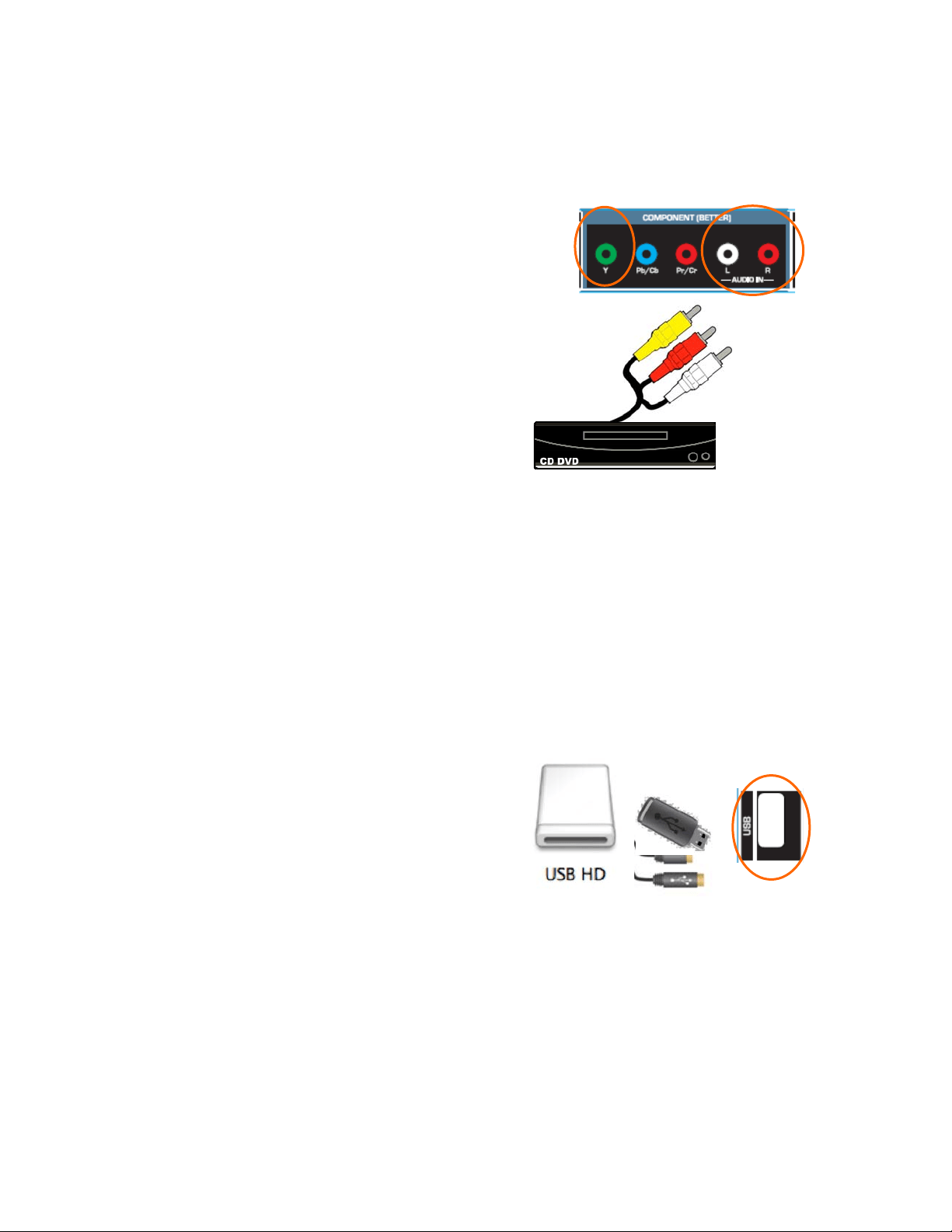
Using Composite (AV) Video
Connecting your DVD Player (Good):
1. Turn off the power to the LCD HDTV and DVD
player.
2. Connect the Video (yellow color) connector on your
DVD player to the Video Y (green color) connector in
the Component input of connectors at the rear of the
LCD HDTV.
3. Connect the R (red color) and L (white color) audio
connectors on your DVD player to the corresponding R
(red color) and L (white color) audio input connectors in
the Component input at the rear of the LCD HDTV.
4. Turn on the power to the LCD HDTV and DVD Player.
5. Select AV using the INPUT button on the
remote or side of the LCD HDTV, or directly by
pressing the AV button on the Remote
Control.
Notes:
1. Refer to your DVD player user manual for more information about the video output
requirements of the product.
2. Expect to see a black/white video in the Component input, if it is selected by accident.
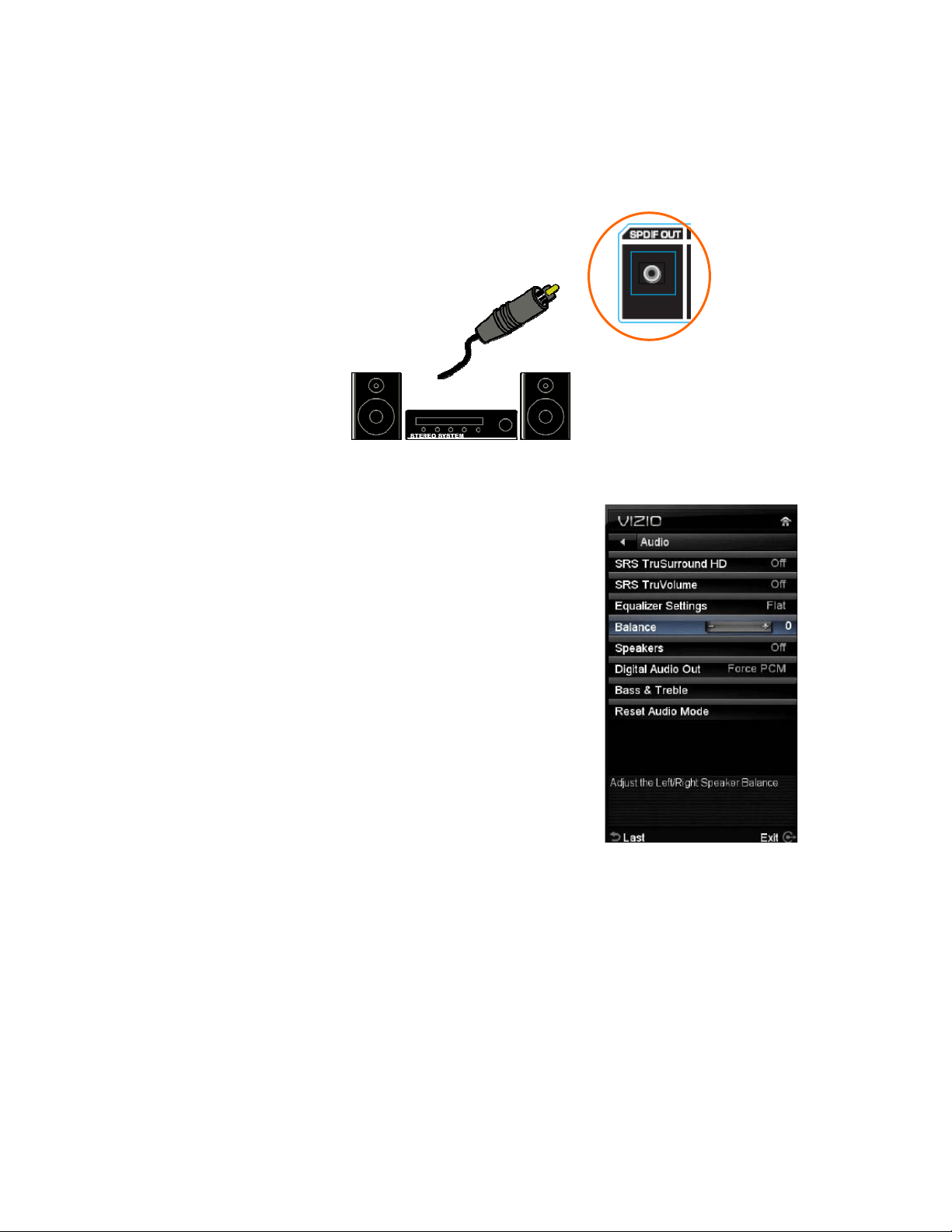
Connecting a USB (FAT32 Format) Storage Device
1. Connect a thumb drive, directly inserting it into the USB connection or by using an extension (if
thumb drive housing is too big to have it fit in place) cable. Connecting a portable hard drive or
card reader to this input is also possible
2. If your HDTV has been turned off, please turn it on.
3. The TV will start reading the contents in the
USB device automatically to make sure of
compatibility of files (JPEG and MP3 format).
4. Please follow the instructions in the Multimedia
section to either see the pictures (picture by
picture or as a slideshow).
Note: This input is also used as factory service port. Please back up important files to prevent lost
of data. Format your device to FAT32 and load your picturefiles, and enjoy your viewing. A high
speed FAT32 storage device is also needed; preferable, new and memory emptied device for a
better performance at least a 1Gb of memory device must be used.
VIZIO M320VT User Manual
Version 4/21/2010 25
www.VIZIO.com
Connecting an external Receiver/Amp
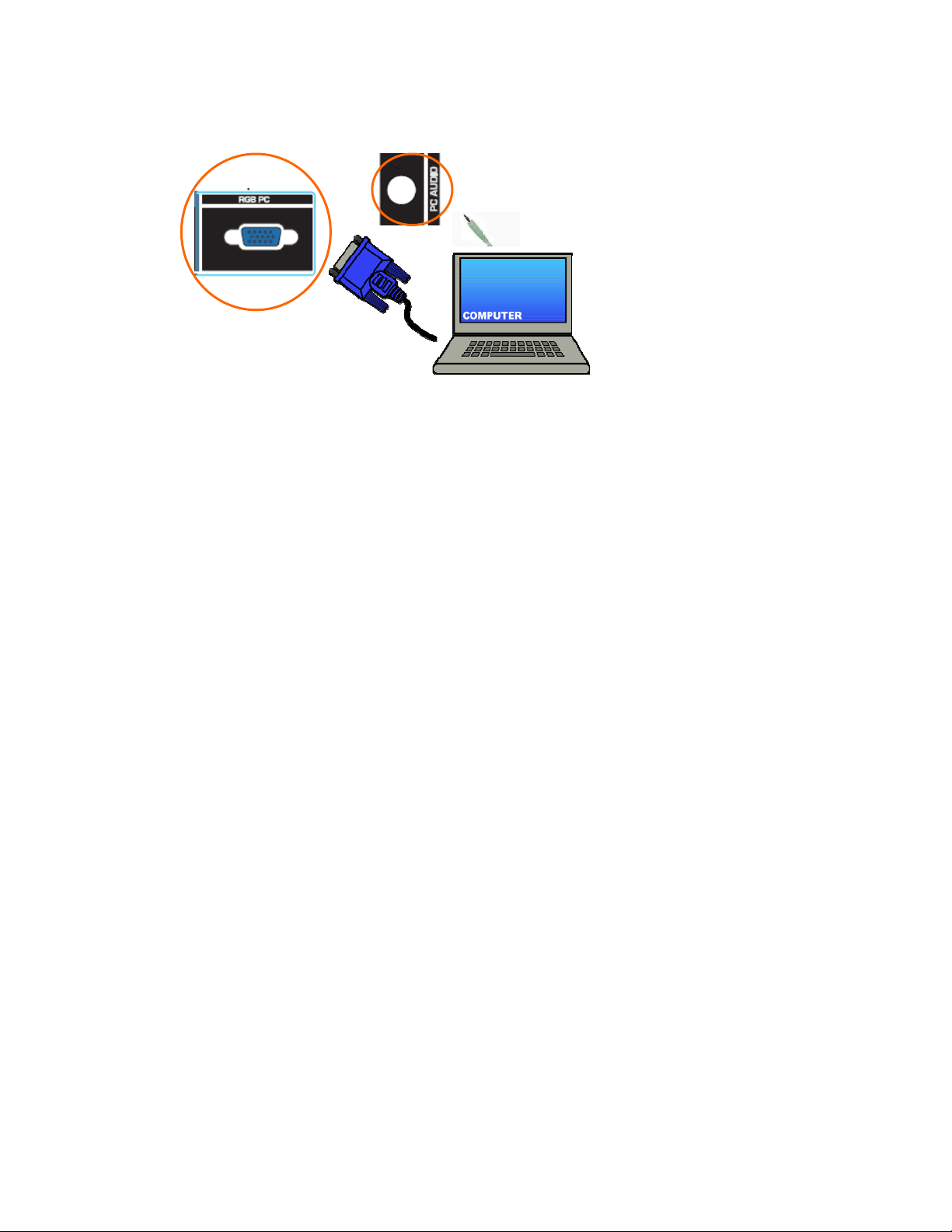
If your sound system has a SPDIF (optical) digital audio input you can connect it to the optical SPDIF
OUT at the rear of the TV. This is active when receiving audio with the programs being viewed no matter
what input is being used.
1. Turn off the power to the HDTV and Receiver/Amp.
2. Using an audio cable (optical cable), connect the cable to
the audio input connectors on the Receiver/Amp and
connect the other end to the SPDIF OUT audio optical
connector at the rear of the LCD HDTV.
3. Turn on the power to the HDTV and Receiver/Amp.
4. Then press the MENU button on the remote control to
bring up the On-Screen Display (OSD) menu.
5. Press any navigation arrow button on the remote control
to select the Audio menu.
6. Press OK on the remote control to enter the Audio sub-
menu. Press any navigation arrow button and select
SPEAKERS.
7. Press OK key to select Off so that the sound from the TV
will now be routed through your Receiver/Amp system.
8. Press EXIT key to exit the menu display.
Note:
• Refer to your Receiver/Amp user manual to select the corresponding audio input.
• The audio output is not amplified and cannot be connected directly to external speakers.
VIZIO M320VT User Manual
Version 4/21/2010 26
www.VIZIO.com
Connecting a PC (Computer)
1. Turn off the power to the LCD HDTV and PC Computer.
2. Connect a 15-pin D-Sub RGB (VGA) cable to the RGB output of your pc computer and the
other end to the RGB PC input at the rear of the LCD HDTV.
3. Using a 1/8” stereo cable, connect the Audio Out on your personal computer to the RGB PC
Audio input at the rear of the LCD HDTV.
4. Turn on the power to the LCD HDTV and Computer.
5. Select RGB using the INPUT button on the remote or side of the LCD HDTV.
Note:
• For a better picture quality when connecting a computer through RGB PC, set your personal
computer timing mode to VESA 1920x1080 at 60Hz.
• Refer to your pc computer user manual for more information about the video output requirements
of the product.
• A RGB (VGA) cable and stereo mini jack cable are not included and can be purchased at an
electronics store.
VIZIO M320VT User Manual
Version 4/21/2010 27
www.VIZIO.com
Chapter 4 Setting Up to Watch Television
Basic LCD HDTV Start Up
1. Connect Audio and Video Cables
Connect audio and video cables
from the desired components to
your HDTV as described in
“Connecting Devices.”
2. Connecting the Power Cable
Connect one end of the power cord
to the power cord connector on the
back of your HDTV. Then connect
the other end into a power outlet.
3. Turning Power On
Press
on the remote control to
turn on your HDTV.
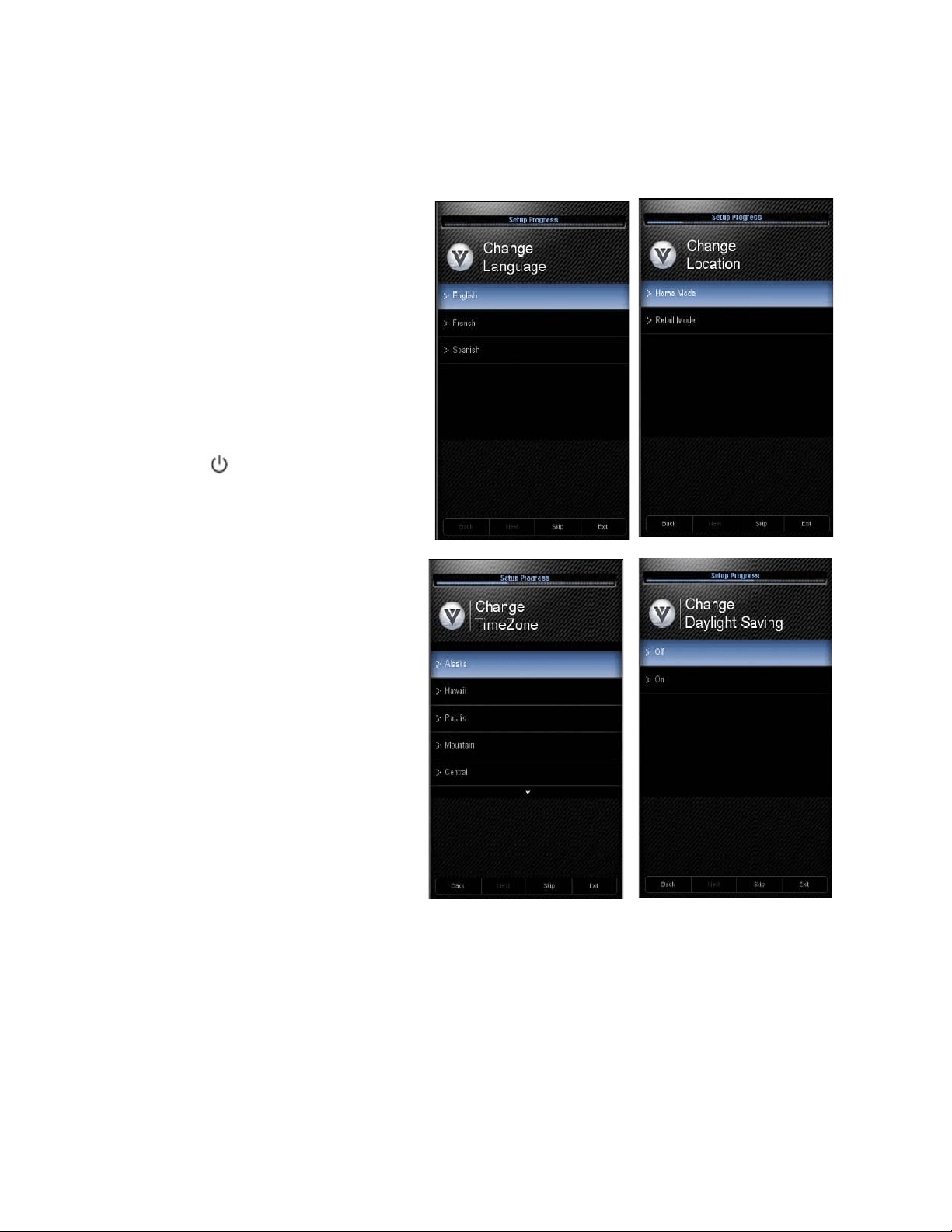
4. Initial Setup
The Welcome Screen showing the
Language screen option. Press ▲
or ▼ to highlight your language,
and then press OK key to select it.
5. The Mode Setting screen opens.
Select between Home Mode and
Retail Mode, selecting Home
Mode will give you an opportunity
to save energy. Press the OK
button. If Retail Mode is selected
by mistake; the next option will
allow you to switch your selection
back to Home Mode.
6. Press the OK button to confirm
your choice.
7. Next screen will provide you the option to select your Time Zone, press ▲ or ▼ to select your
choice. Press OK to confirm the selection.
VIZIO M320VT User Manual
Version 4/21/2010 28
www.VIZIO.com
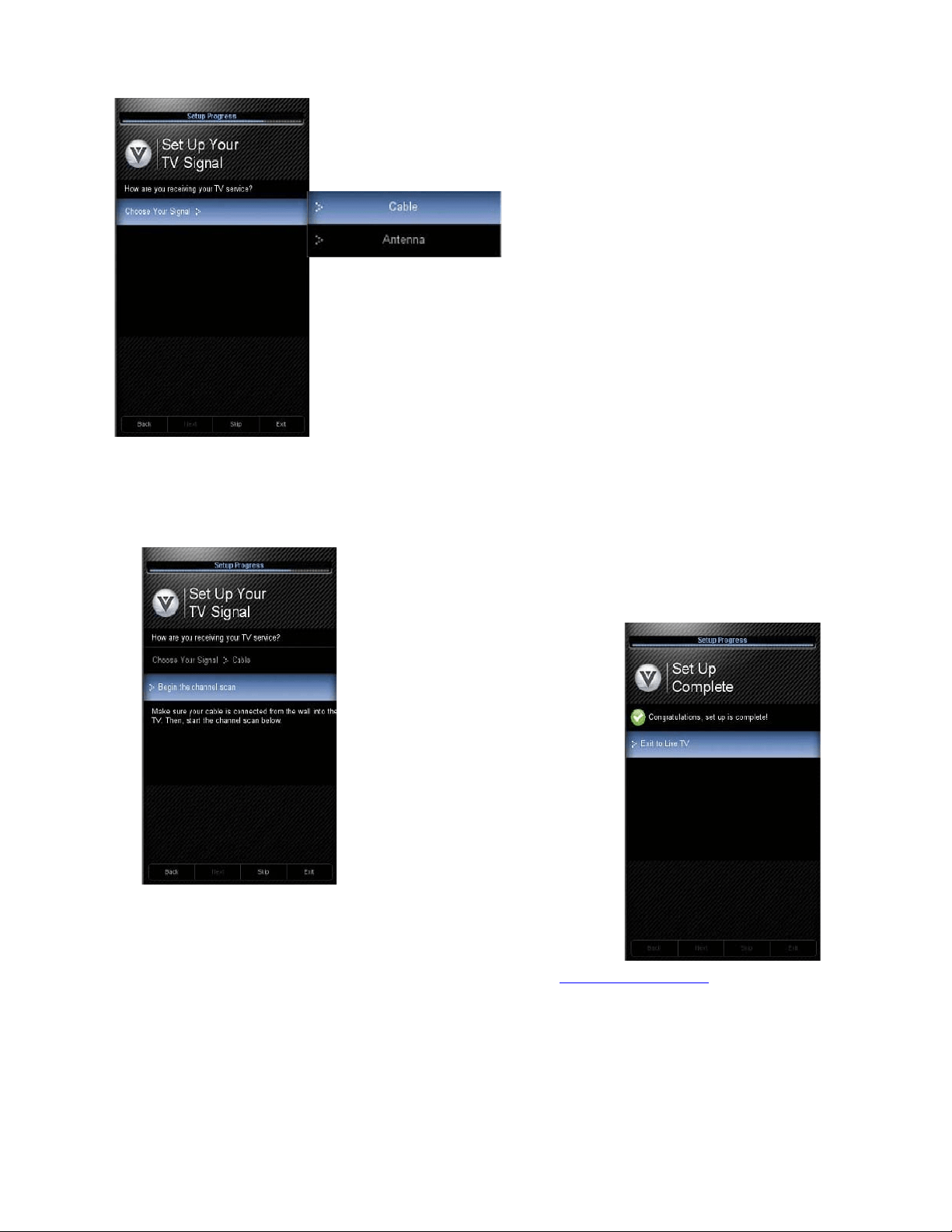
If your Time Zone observes the daylight savings, the next display will give
the choice to select or no select it. Highlight your choice and press OK
button to confirm your selection.
8. At this point if you have an outdoor antenna or use a cable service
(No set-top box), the signal source can be selected.
Press ▲ or ▼ to select your input source (Antenna or Cable), then press
OK button to confirm it. The scanning of the channels will start.
NOTE: Select Cable only if you receive your cable service without a
set-top box.
9. The Channel Scan progress screen opens if you selected Scan. At this point if you are using a
cable or satellite set-top box, please press OK button to exit this process and use your cable box
to select the channels.
Note: If you select Stop Scan, you can scan channels at a later time
by selecting Channels menu, and then and select the Scan Channels
option in the menu.
10. If you let the TV finishing the
channel scan, the next screen will
give the option to continue.
11. At this point, you can either
let the TV do the final two
steps automatically or press
the OK key to continue and
finish this procedure.
Note: DTV digital broadcast is not available in all areas. Refer to www.antennaweb.org
to get information
about availability in your area, antenna types, and in which direction to point your antenna. The channel
availability through cable depends on which channels your cable operator supplies in Clear QAM. Consult
your cable operator for more information.
VIZIO M320VT User Manual
Version 4/21/2010 29
www.VIZIO.com
Selecting Inputs
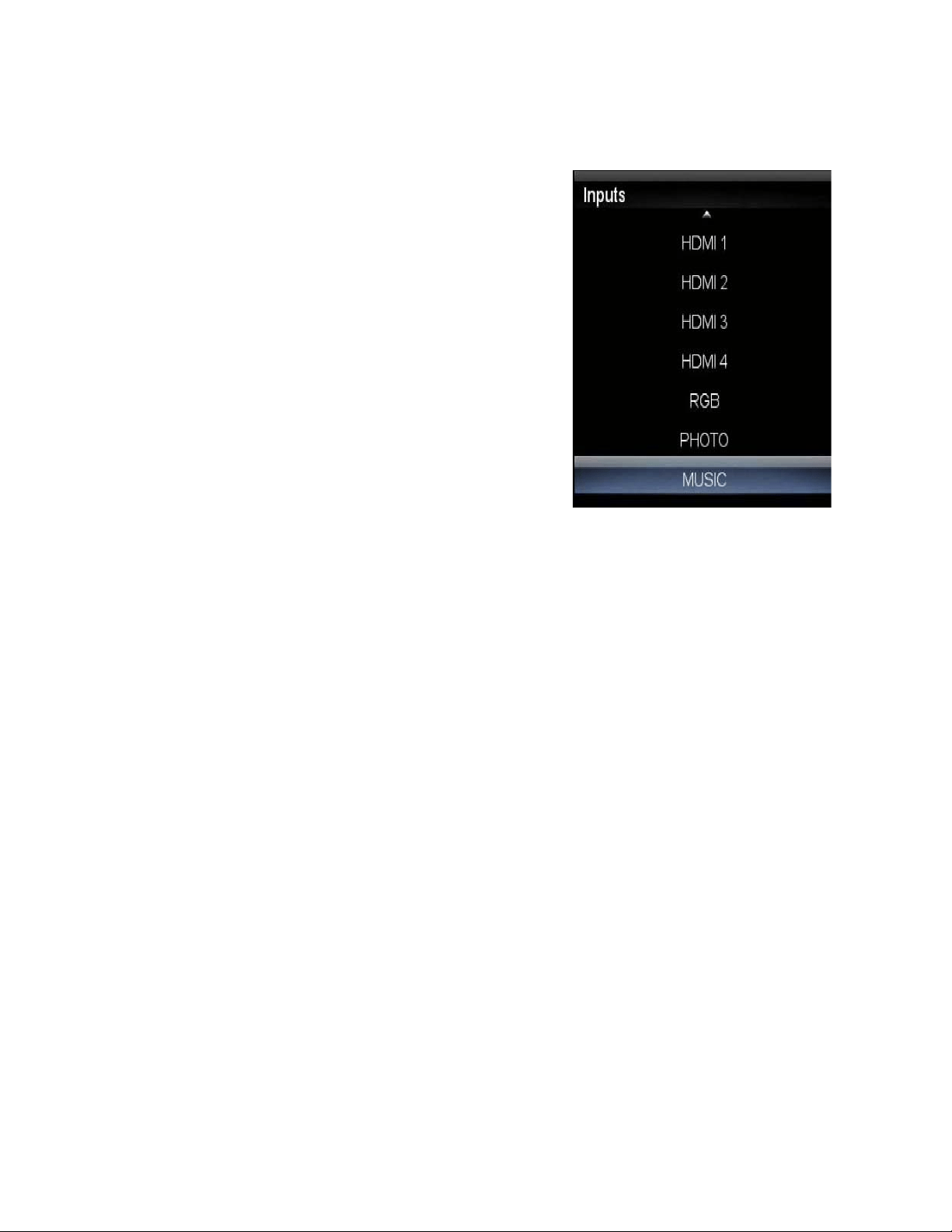
1. Press INPUT on the remote or on the side of your HDTV
to select the input source that matches the connection
you made on the back of your HDTV. A repeated press
of INPUT cycles you through the options.
2. Turn on your component (cable box, VCR, satellite
receiver, DVD player, etc.). You should see a picture on
your HDTV after few seconds. If you do not see a
picture, press INPUT again to select next signal input.
Repeat the INPUT pressing until the correct input is
found.
Note: If the selected input is RF, your HDTV needs to be on
either channel 3 or 4 to match the channel on the VCR, cable
box, external TV tuner or satellite receiver. Refer to the User’s
Manual of your equipment for details. This type of configuration
is most common with older SD (480i) receivers.
Note: Your HDTV will display the television station or program selected by the cable box, VCR, external
tuner, or satellite receiver. Use the remote control that came with that component to change programs or
channels. If the service being used is the one which setup includes a box with two outputs for two
different (distant) rooms, then scanning channels will help you to find the signal. Be aware that the
channel to be selected varies from provider to provider. You may have to call your provider to get the
specific channel when using your HDTV. Some examples of these channels are 105, 106, 115, and 116.
VIZIO M320VT User Manual
Version 4/21/2010 30
www.VIZIO.com
Setting the Picture to User’s Preferences
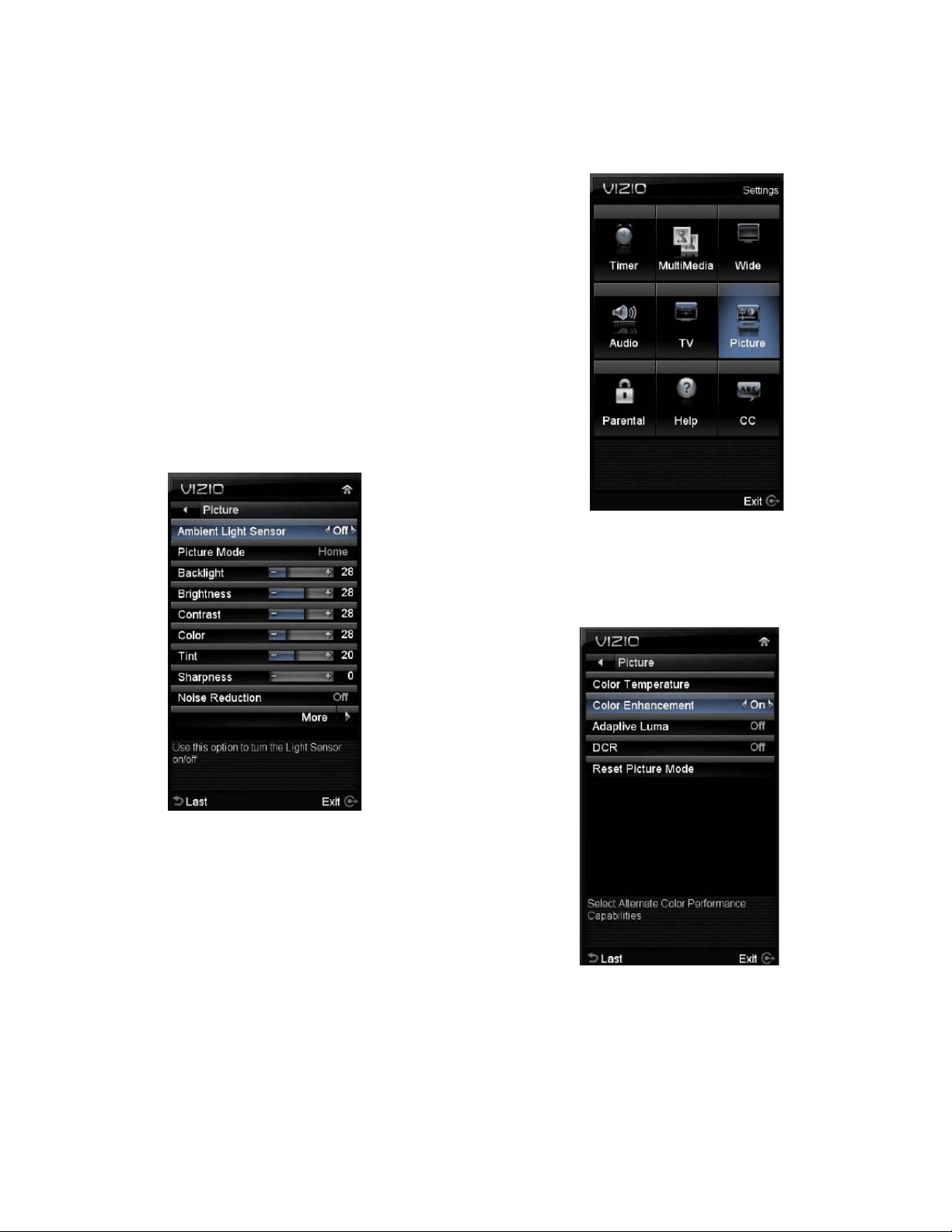
1. Press MENU on the remote control. The Main menu
opens.
2. Press the Navigation arrow keys to select Picture, then
press OK key. The Picture Settings menu opens.
3. Press ▲ or ▼ to see Picture Mode.
4. Press ◄or ► to select Custom mode.
5. Press OK key to select it.
6. The Custom menu opens. Parameters as Backlight,
Brightness, Contrast, Color, Tint and Sharpness are
adjustable, Noise Reduction is switchable On or Off.
Contrast Enhancement, Color Stretch and DCR are
switchable On or Off, Make the desired changes and exit
the menu by
pressing EXIT on
the remote control.
7. If More is selected, then the options are: Color
Temperature which allows to adjust the balance or intensity
of Red, Green and Blue colors, Color Enhancement,
Adaptive Luma and DCR (Dynamic Contrast Ratio) are
switchable options. The option to reset the settings is also
available in this submenu, it allows the modified values to
be set to
manufacturer’s
settings if desired.
Exit the entire OSD
by pressing EXIT
or return to
previous screen
menu by either
pressing the LAST
button on the
remote control or
by selecting the ◄ on top left hand side next to Picture
Settings.
VIZIO M320VT User Manual
Version 4/21/2010 31
www.VIZIO.com
Using the INFO Guide
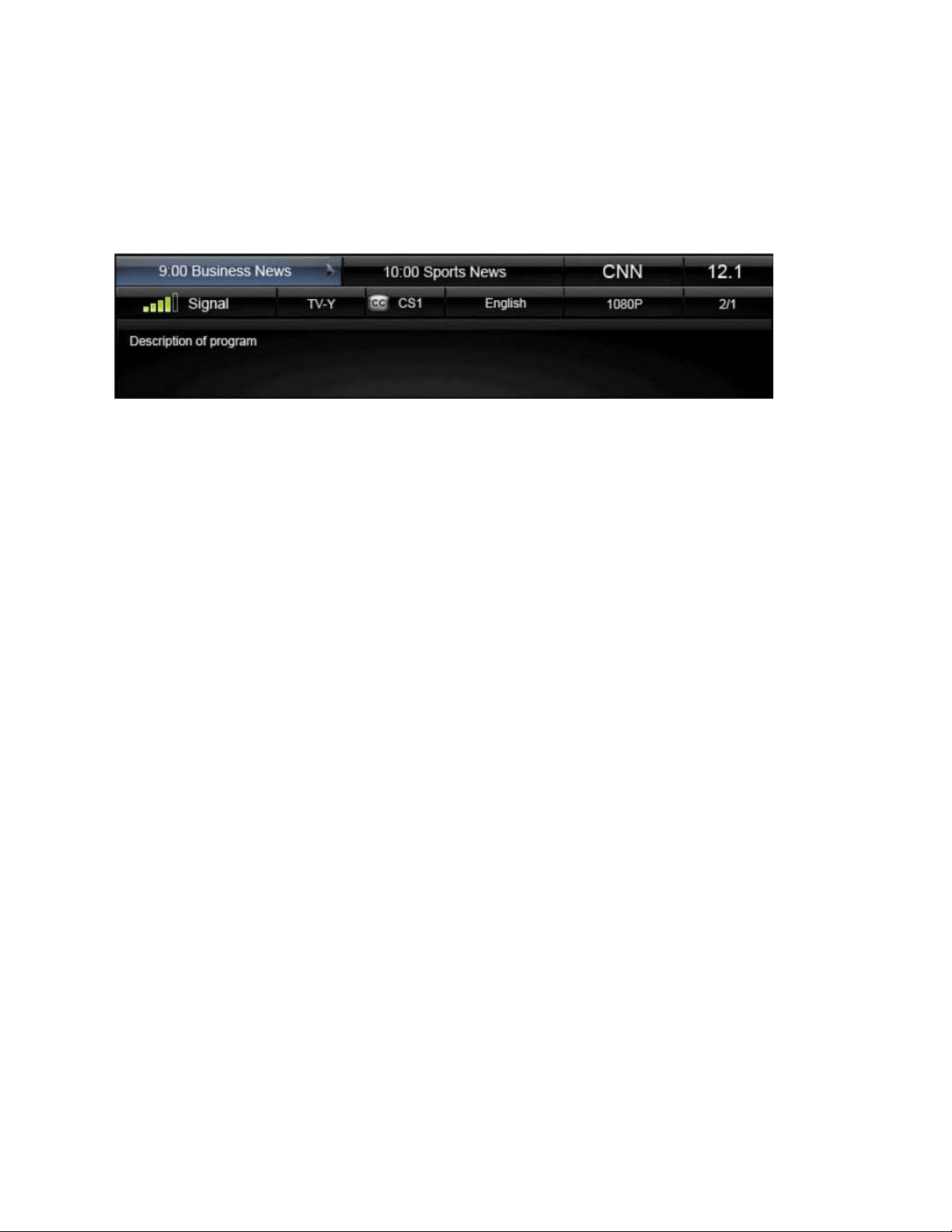
Press INFO three times on the remote to display program information for the channel you are watching.
The following information is displayed when the INFO key is pressed:
Date & Time – It shows the current date and time of the day of your local area, as long as the correct
time zone had been selected.
Signal Strength – It displays how strong the signal is being received, it shows as colored bars with green
color indicating a strong signal.
Description – It displays the name of the program being viewed as well as the Parental Control rating, if
Closed Captioned and if it is a digital channel.
Content – It shows the type (480i, 1080i, etc.) signal and what language the program is being viewed.
Channel Information – It displays the header of channel physical address as well as the name of
broadcaster.
Schedule – It displays up to two events.
VIZIO M320VT User Manual
Version 4/21/2010 32
www.VIZIO.com
Watching a TV Program
Before you start watching TV, please verify that all cables or antenna connections are secure, and the
power cord is plugged into a correctly grounded electrical outlet or surge protector.
1. Press the power button on the remote or on the side of the
HDTV. The VIZIO logo on the front will change from dim to
bright.
2. There are 3 options for selecting your programming:
a. If you are using an antenna or cable connected
through the DTV/TV CABLE/ANTENNA input, you can
select TV directly by pressing the TV button on the
remote, or by pressing the INPUT button on the remote
or on the side of the HDTV.
b. If you are watching broadcasts through a cable or
satellite set-top box connected by an HDMI cable,
select HDMI directly by pressing the HDMI button on
the remote, or by pressing the INPUT button on the
remote or on the side of the HDTV.
c. If you are watching broadcasts through a cable or
satellite set-top box connected by a Component
(YPbPr) cable, select Component directly by pressing
the Component button on the remote, or by pressing the INPUT button on the remote or
on the side of the HDTV.
Note: You should be able to see a picture. If you do not, make sure that all of the HDTV connections are
secure and you have selected the correct video input source.
3. When using option 2a, press the Channel buttons on the
remote or the CH+ / CH- buttons on the side of the HDTV
to change the channel. Note: The Channel buttons, on the
side of the HDTV and on the remote, control will not work if
you are watching a program using HDMI, Component and
AV inputs.
Using the On-Screen Display (OSD)
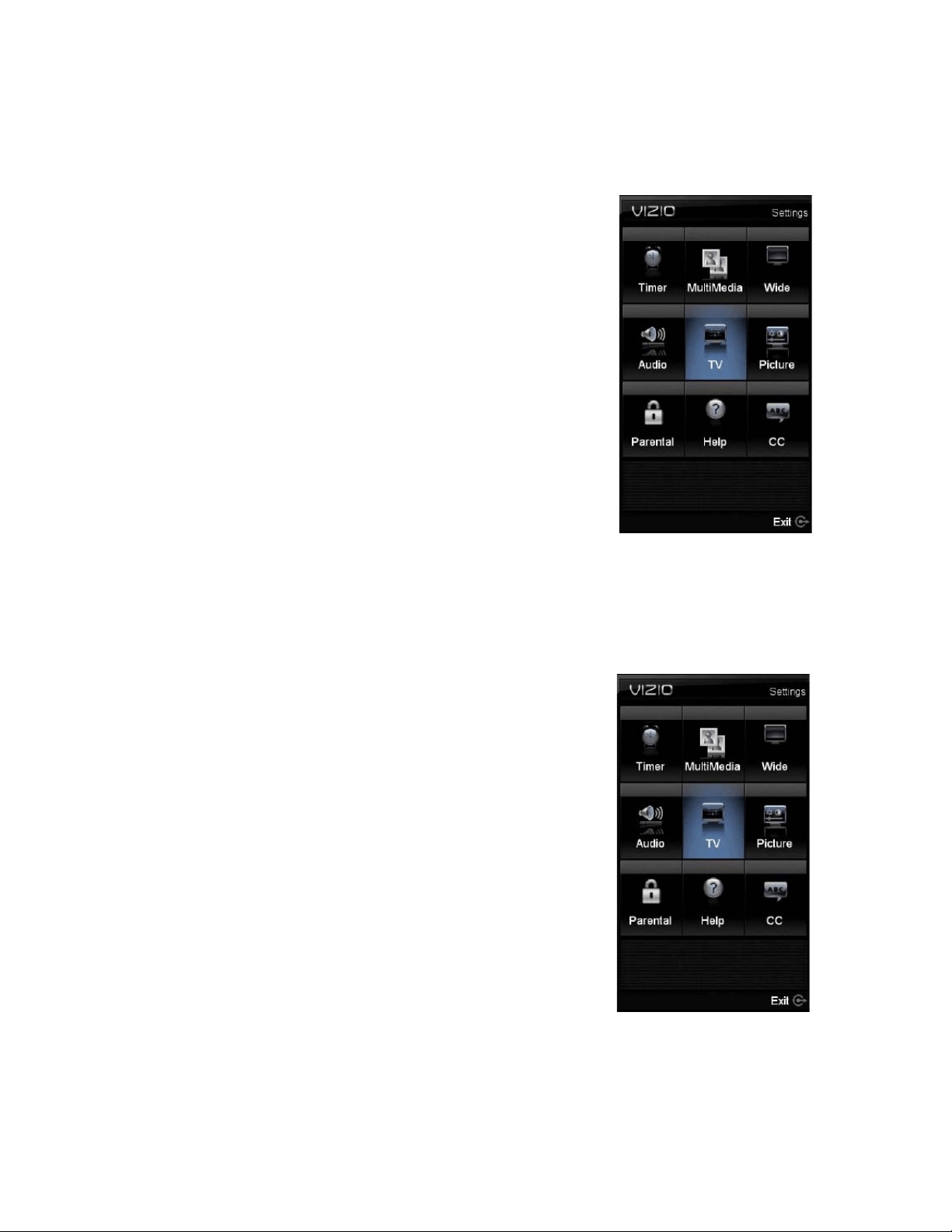
1. Press MENU on the remote control or the side of your HDTV.
The menu opens.
2. Press ▲ or ▼ on the remote control or CH + or CH – on the side
of your HDTV to highlight a sub-menu option.
3. Press ◄ or ► on the remote control or VOL + or VOL – on the
side of your HDTV to select the highlighted sub-menu option.
4. Press OK key on the remote control or the MENU on the side of
your HDTV to adjust the item.
5. Press EXIT when finished making adjustments.
6. Press LAST or BACK to return to the previous screen or repeatedly to exit the OSD.
VIZIO M320VT User Manual
Version 4/21/2010 33
www.VIZIO.com
Using the Navigation Wheel
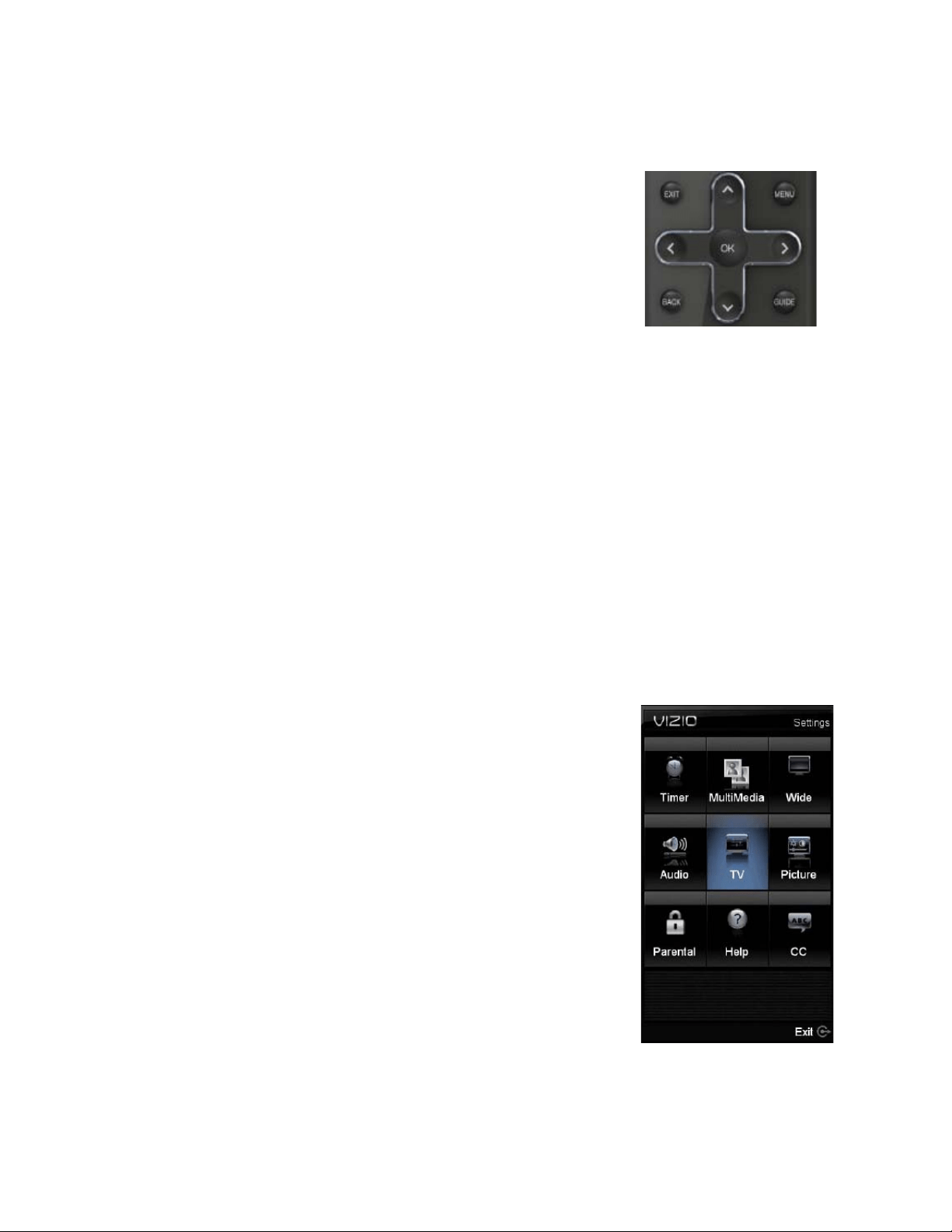
The Navigation Wheel on the remote control is designed to make the use
of the OSD easier for you, as shown below:
The OK key functions as a selection button, when the OSD is already
displayed, the function of this key is to select the highlighted option.
The ▲ and ▼ arrows make the access to the displayed options faster, if
the arrow down is pressed and the desired option is overshot, then
pressing the arrow up will take you to the previous option or vice versa.
The ◄ and ► arrows make it easier for the user to adjust values on
parameters or features which has a slide bar for settings.
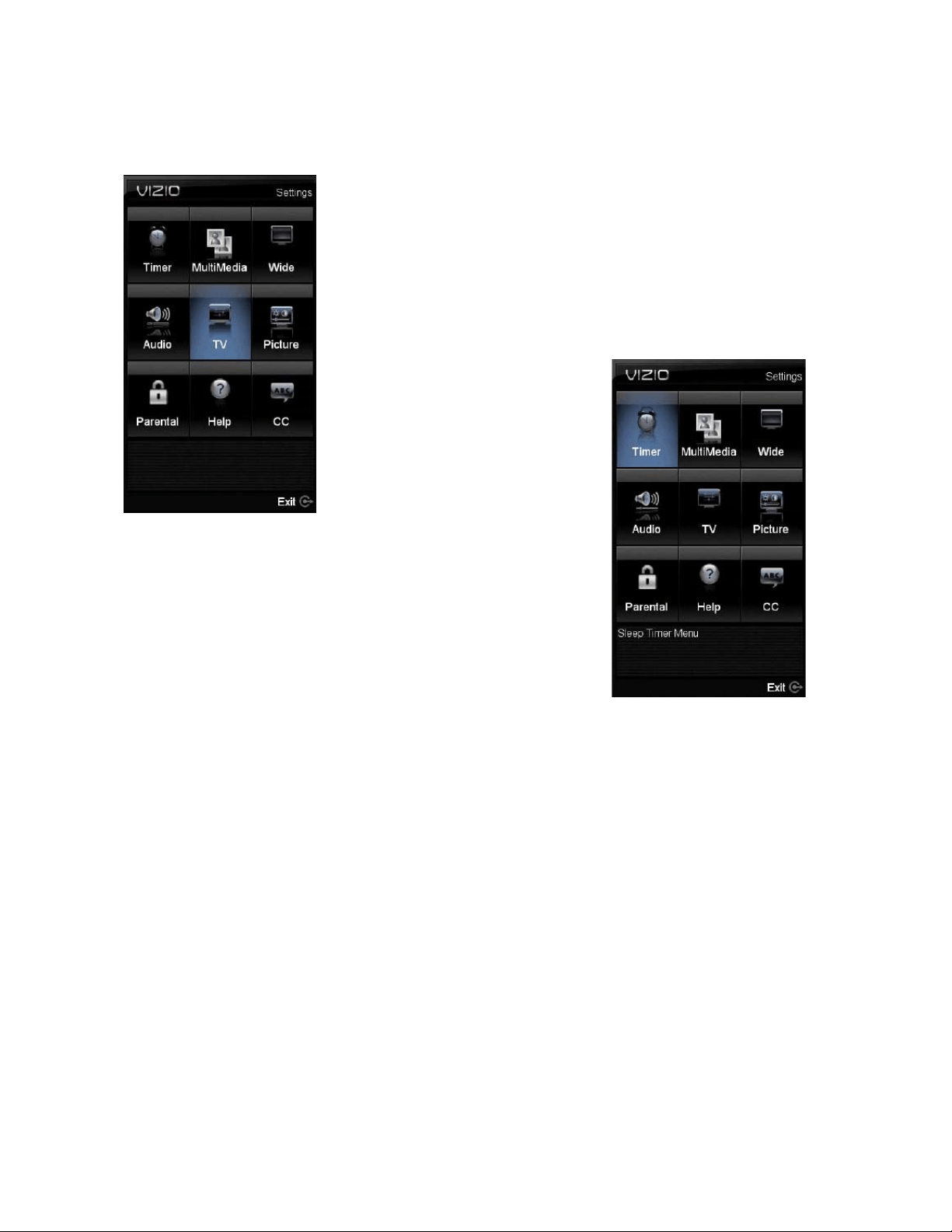
The remote control or the control buttons on the side of your HDTV control the function settings. The On-
Screen Display (OSD) lets you adjust the contrast, brightness, and other settings. Changes are saved
even when you turn off the TV; Your HDTV has the unique feature of saving your preferred settings to the
input being used given a total of nine different selections. The OSD consists of these menu options:
Timer: By selecting this menu setting, you could set the TV to turn Off after a period of time. The option
default is set to OFF as default, 30, 60, 90 and 120 minutes are the choices.
Multimedia: This feature allows viewing taken pictures in a slideshow form. It requires having a USB
storage device such as a portable hard drive or thumb drive or card reader being connected through the
USB port on the side of the TV as long as it is a FAT32 formatted high speed device. This feature also
allows to hear music recorded in a MP3 format, and or a combination of both, slide show with a
background music.
Wide: To select how the picture displays on the screen select this option, the options vary depending on
the selected input and the content of the program: Normal, Wide, Zoom, Panoramic and Stretch are the
choices.
Audio: This function encompasses all parameters to setup the audio preferences. The options are: SRS
TruSurround HD, SRS TruVolume, Equalizer, Balance, Speakers, Digital
Audio Out, Bass & Treble and Reset Audio Mode.
TV: The TV menu has the options to set up your TV if the original setting
process was skipped. You can select Input, scan channels, change the
Language, Set the Date & Time or go through the PC Settings if computer
is used as the signal source. This option is the default choice when the
OSD menu is activated.
Picture: This option will display all parameters which setting values would
produce the video quality to the end user’s preference. The choices under
this selection are: Ambient Light Sensor, Picture Mode, Backlight,
Contrast, Color, Tint, Sharpness, Noise Reduction, Color Temperature,
Adaptive Luma, DCR.
Parental Control: This option covers all requirements to help adults on
preventing children from watching undesirable content or programs. To
obtain the submenu, a four-digit PIN or password needs to be input. These
are the choices and features provided for this selection: Ratings Locks,
Channel Locks, Front Panel Lock, Change PIN and Reset Locks.
Help: Selecting this menu brings up the options: System Info and Reset
All Settings.
CC (Closed Caption): Use this menu to adjust the closed caption being received with program being
viewed.

VIZIO M320VT User Manual
Version 4/21/2010 34
www.VIZIO.com
Unique TV Features
This HDTV comes with some extra features to make your TV experience more enjoyable. They are
described as follows:
1.
Photo: This feature allows using storage devices such as a portable hard drive or thumb drive or
card reader as long as it is a FAT32 formatted device to display the pictures (JPEG files) as a
slide show. Through the Photos menu, you are able to Browse (select which pictures to show and
how to show them using Picture Settings from main menu), View Slideshow (select to start your
slide show) and Slide Settings (select how to display the pictures; Repeat, Shuffle, Full Screen,
Pace and Mode). If the message “No Thumbnail Preview” is shown, it means that the thumbnail is
not available for this picture, but still the picture is available to be shown. Depending on the size
of the picture file and directory, it could take a longer time to display or change the picture.
2.
Music: This feature allows using storage devices such as a portable hard drive or thumb drive or
card reader as long as it is a FAT32 formatted device to play prerecorded music files (MP3
format). When using this feature you have the following options: Sort by artist name, Repeat the
selected songs, Shuffle the order to play songs at random
Note: To prevent the loss of data or important files, it is recommended to use a clean or newly formatted
device or to make sure that the files have been backed up. VIZIO cannot be held liable if proper
measurements and recommendations are not followed to prevent the loss of important data.
Pressing either individual (TV, AV, COMP, HDMI) input keys or the LAST key to exit this feature.
3.
Channels: The Channels menu has the following added features: Skip Channel (allows you to
select what channels to skip by group or individually), Additional Scan (rescan channels without
the loss of previous scanned table) and Channel Name Edit (select it to name your favorite
channels as well as these channels which are broadcast without any header information to
preferred names or labels).
4. Picture: In the Picture menu the Fast Response feature is added for game players to improve
picture response.
5. Parental Control: In this menu, the User Control Lock is added to prevent the use of the TV by
individuals to whom supervision is required, after keying your password, this option will be
displayed in the Parental Control menu. If it is selected, the control buttons on the side of the TV
will become inactive (nonfunctional) until this option is unchecked by using the remote control to
turn on the TV and going back to the Parental Control menu.
6. Input: In the TV Settings menu two new features are added: Input Labels (allows you to name
the different inputs according to your preferences)
.
Reminder
: When using the media (Photos and Music) features a USB FAT32 formatted high speed
storage device is needed with at least a storage capacity of 1Gb of memory for better performance of
these features.
VIZIO M320VT User Manual
Version 4/21/2010 35
www.VIZIO.com
Adjusting Settings
When viewing DTV / TV or an HDMI, Component, or AV, or Storage
Device source, the following picture adjustment OSD screens are
available when you press MENU on the remote control.
Press ▲ / ▼ / ◄ / ► to highlight and select the choice, then press OK
key to select the desired adjustment, and the press the EXIT key when
finished making adjustments. Press LAST or BACK key to return to the
previous screen or repeatedly to exit the OSD.
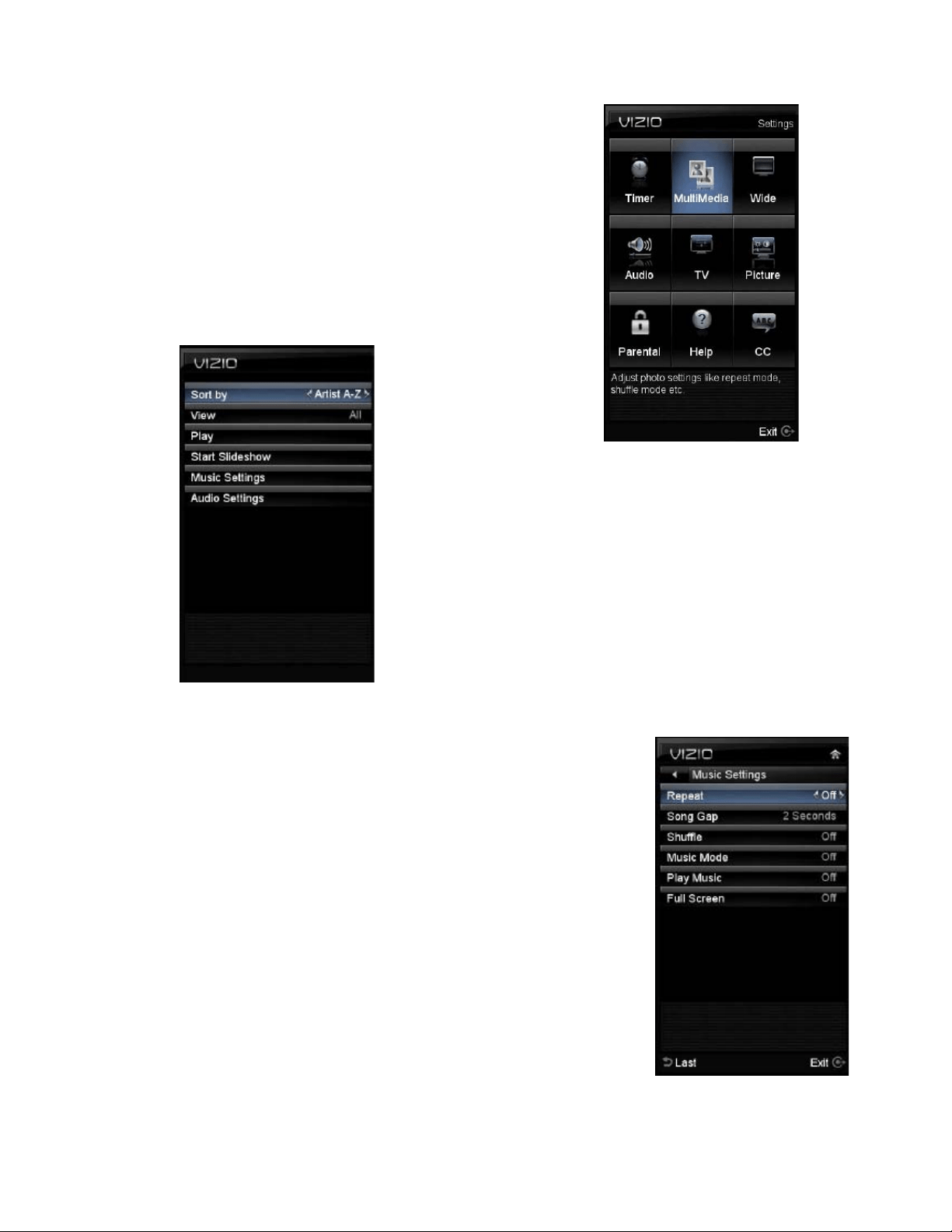
Adjusting Timer Settings
To have the TV to turn off after a period of time, please select the
Timer option. This option has the following periods: 30, 60, 90 and 120 minutes, it comes with Off as the
manufacturer setting.
VIZIO M320VT User Manual
Version 4/21/2010 36
www.VIZIO.com
Adjusting Multimedia Settings
In the Multimedia feature, you have the following choices:
The following options are available in the Photos menu:
1. Browse Photos – This option switches to Photos mode
in a browse view screen, allowing the user to see
thumbnails of the photos, if available.
2. View Slideshow
– This option switches to Photos mode
and starts the
slide show
displaying the
images in your
USB storage
device.
3. Slide Settings –
This option allows controlling the behavior or ways of
how you would like to display the images or pictures.
Under these settings, the choices are: Repeat and
Shuffle, Full Screen (it stretches the picture to fill the
screen) and Speed (elapsed time between pictures).
The following options are available in the Music menu:
1.
Sort by – This option allows the end user to set up the different
songs by the name of the artist.
2.
Repeat – Select this option to repeat the songs on your USB
device. The option is either On or Off.
3. Song Gap – This option allows the selection of the gap between
the end of one song and the beginning of the next.
4. Shuffle –
To randomly play the songs or music in the USB device,
please select the setting to On.
5. Music Mode –
When Music Mode is select, the TV’s display goes
dark after one minute. This would save energy and your screen
lifetime.
6. Play Music –
When Play Music is selected, the TV is ready to play
music in the background while a photo slide show is in progress.
7. Full Screen – If it is desired to use the full screen as a
display, please select this option.
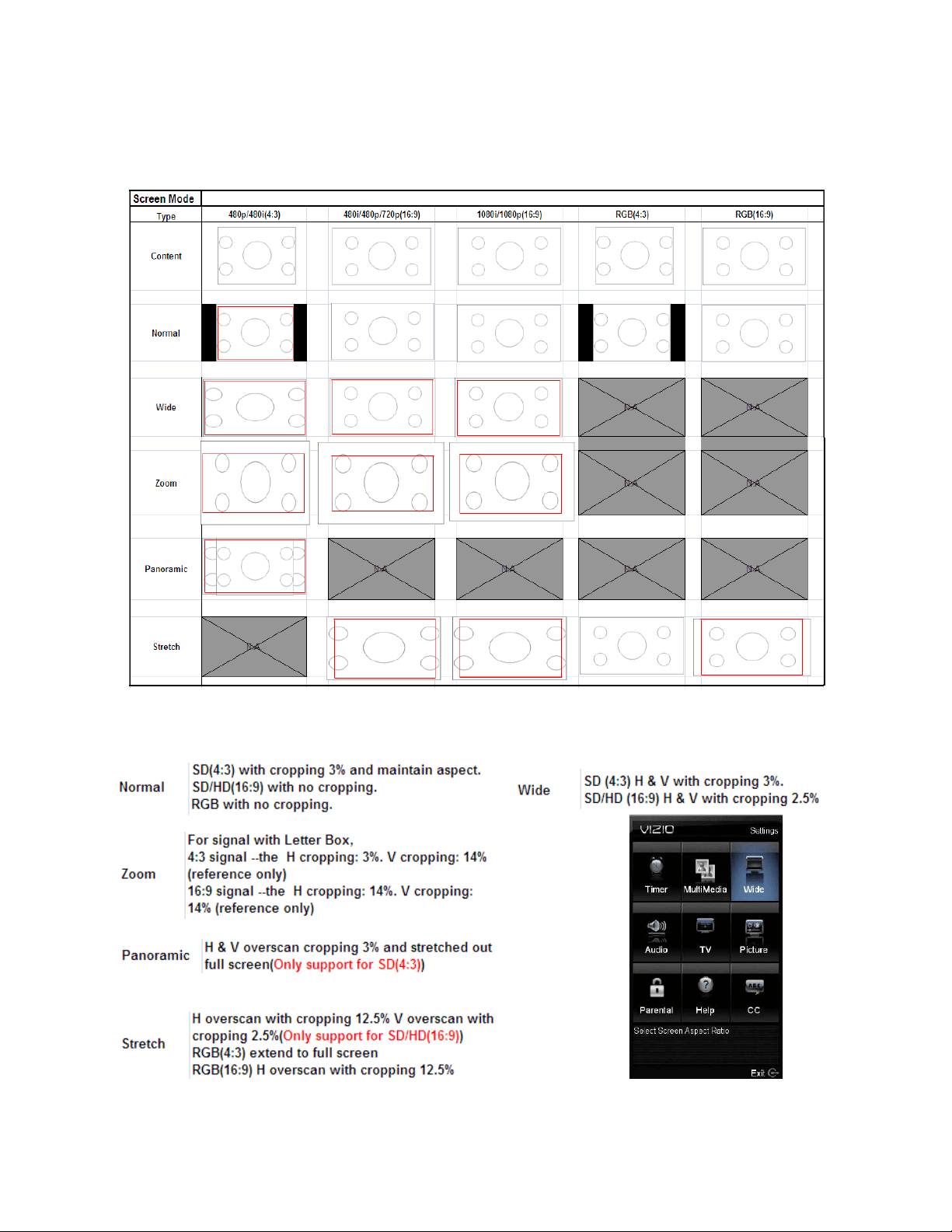
VIZIO M320VT User Manual
Version 4/21/2010 37
www.VIZIO.com
Adjusting Wide settings
The following table shows the different screen modes and display sizes according to the content being
sent to the HDTV.
Note: The red lines show the video signal being over scanned.
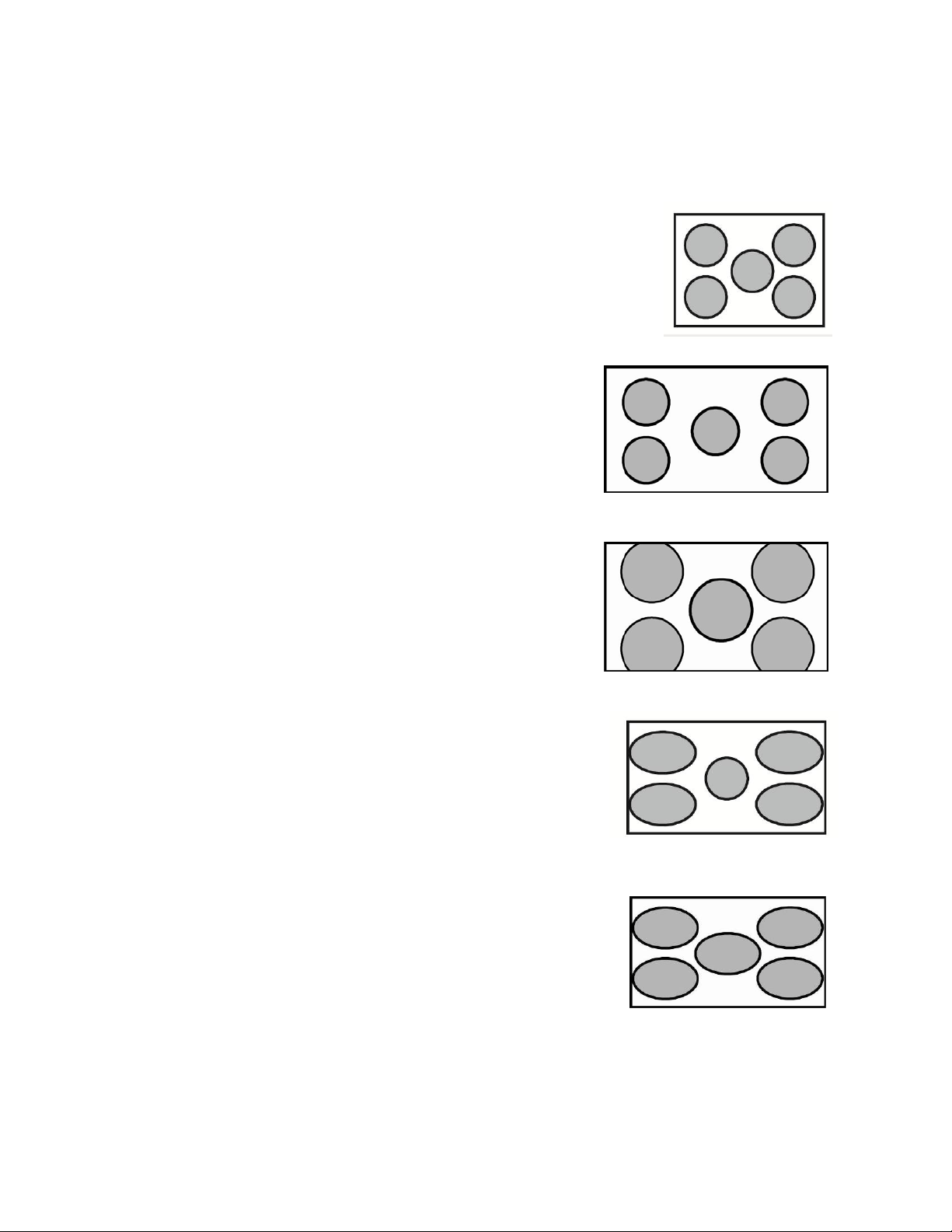
VIZIO M320VT User Manual
Version 4/21/2010 38
www.VIZIO.com
The following paragraphs describe in detail the differences of the Aspect Ratio being processed by the
TV:
Normal Mode
The original 4:3 aspect ratio (1.33:1 source) is preserved, so black
bars are added to the left and right of the display image. Standard TV
broadcasts are displayed with a 4:3 Aspect Ratio. Movies in 4:3
Aspect Ratio may be referred to as pan-and-scan or full frame.
Wide Mode
When watching a standard broadcast or full-frame movie in
this mode, the display image is stretched proportionately to
fill the TV screen. When watching a widescreen (1.78:1
source) program or movie, the display image fills the TV
screen. If you are watching a widescreen (1.85:1 or 2.35:1
source) program or movie, there will still be black bars at the
top and bottom of the screen.
Zoom Mode
When watching a widescreen (1.78:1, 1.85:1, or 2.35:1
source) program or movie, the display image is zoomed
proportionally to fill the width of the screen. The top and
bottom are cut off to remove most of the source material’s
black bars. This mode is good for programs or movies with
sub-titles.
Panoramic Mode
When watching a standard broadcast or full frame movie in
this mode, the 4:3 Aspect Ratio (1.33:1 source) display image
is stretched horizontally on the left and right sides to fill the
TV screen. The center of the image is not stretched.
Stretch Mode
When watching a widescreen program (1.78:1 source) with black
bars on the sides, the display image will stretch to fill the TV
screen. People will appear wider than they really are. If you are
watching a widescreen (1.85:1 or 2.35:1 source) program or
movie, there will still be black bars at the top and bottom. This
mode is available only when watching a widescreen program.
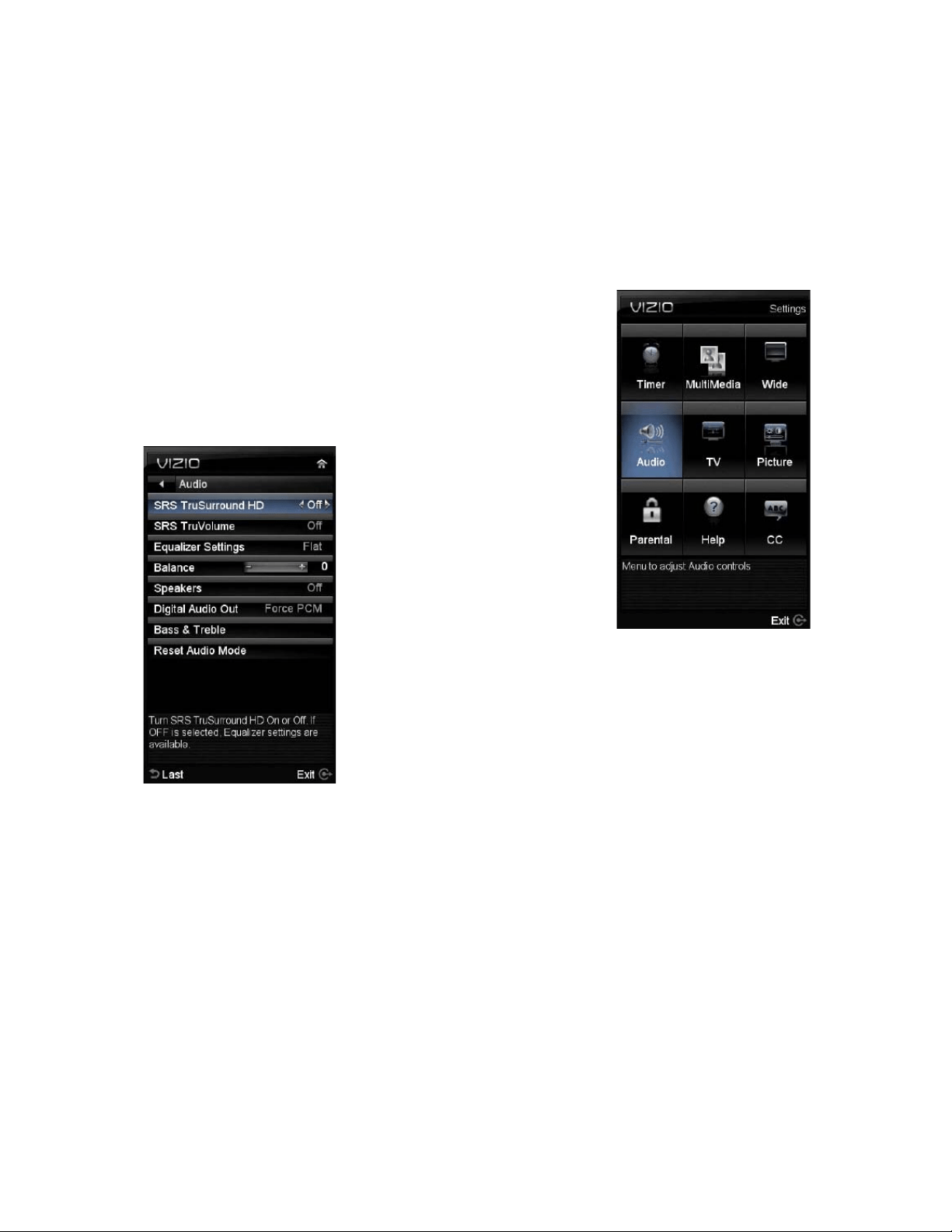
VIZIO M320VT User Manual
Version 4/21/2010 39
www.VIZIO.com
Adjusting the Audio Settings
When viewing a DTV / TV or an HDMI, Component, AV, or PC source, the following audio adjustment
OSD screens are available when you press MENU on the remote control.
Press ▲ / ▼ / ◄ ► to highlight and select the choice, then press OK key to select the desired
adjustment, and then press the EXIT key when finished making adjustments.
The following options are available in the Audio menu:
1.
SRS TruSurround HD
TM
–- Turn the simulated surround feature On or Off.
2.
SRS TruVolume
TM
–- When the programming switches to a
commercial or when changing from channel to channel,
volume fluctuations occur. The SRS TruVolume
TM
provides
the listener with a comfortable and consistent volume level.
3. Equalizer Settings – To adjust the level for different
frequencies of the Stereo audio signal, use this option.
This option is available only if SRSTruSurround HD
feature is Off.
4. Balance – This option
allows for compensation of
one channel (Left or Right
Audio) being higher or lower
than the other in order to
bring stereo effect back into
balance.
5.
Speakers – Turn off the
internal TV speakers when
listening to the audio
through your home theater system.
6.
Digital Audio Out – This option allows selection of the type
of processing for the SPDIF (Optical connector) when used
with a Receiver/Amplifier/Home Theatre system.
• Auto – Select to detect either Dolby Digital or PCM
audio automatically to play through stereo amplifier if
Optical Out is being used.
• Forced PCM - Select to output PCM audio to your stereo amplifier if Optical Out is being
used.
7.
Bass & Treble– Adjust low and high frequency sounds. You can also adjust for bass and treble
boost or attenuation.
This option is available only if SRSTruSurround HD feature is Off.
8. Reset Audio Mode– This option allows the reset of any changes done to these parameters
within the Audio menu.
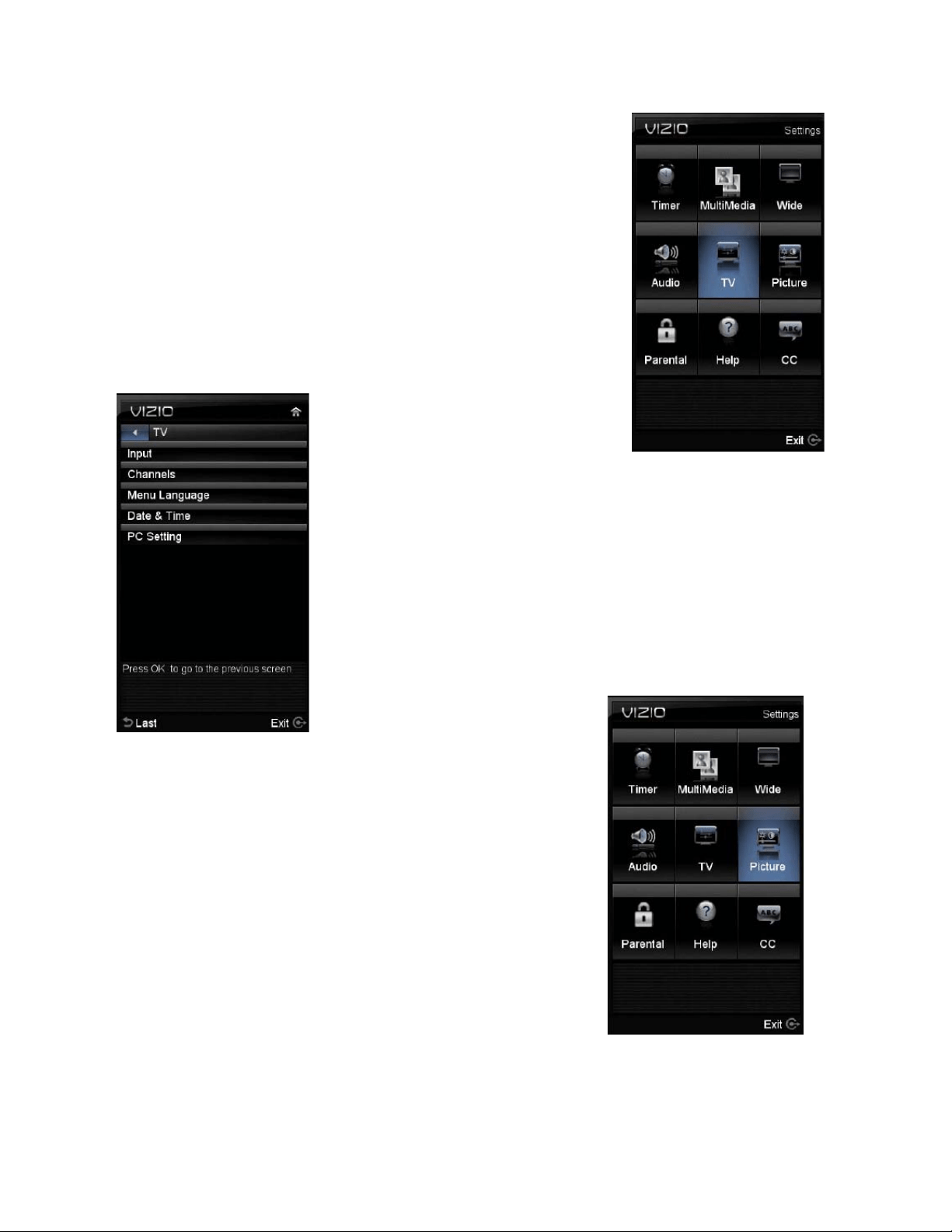
VIZIO M320VT User Manual
Version 4/21/2010 40
www.VIZIO.com
Adjusting the TV Settings
If you did not set up your HDTV for DTV / TV channels using the Initial
Setup screens or if your setup has changed, you can do so from the TV
menu.
Press MENU key to bring up the OSD menu, the default option is TV.
Select it by pressing either the OK key
The following options are available in the TV menu:
1. Input
- This option allows to
select the input, it being either
DTV/TV, A/V, Component,
HDMI1, HDMI2, HDMI3, HDMI4,
RGB, PHOTO and MUSIC.
2.
Channels - This option allows to select the type of signal input, it
being either antenna signal (over the air) or direct cable service
(no a set-top box).
3.
Menu Language - This option allows selecting the language to
which it is preferred to have the OSD menu and instructions
available to you.
4.
Date & Time – Allows adjusting the displayed time and date.
5. PC Settings – If the selected input is connected through RGB
(computer being used), this option allows adjusting of display to
accommodate the signal
content.
Adjusting the Picture Settings
When viewing DTV / TV or an HDMI, Component, or AV source, the
following picture adjustment OSD screens are available when you
press MENU or on the remote control.
Press ▲ / ▼ / ◄ / ► to highlight and select the choice, then press
OK key to select the desired adjustment, and then press the EXIT key
when finished making adjustments.
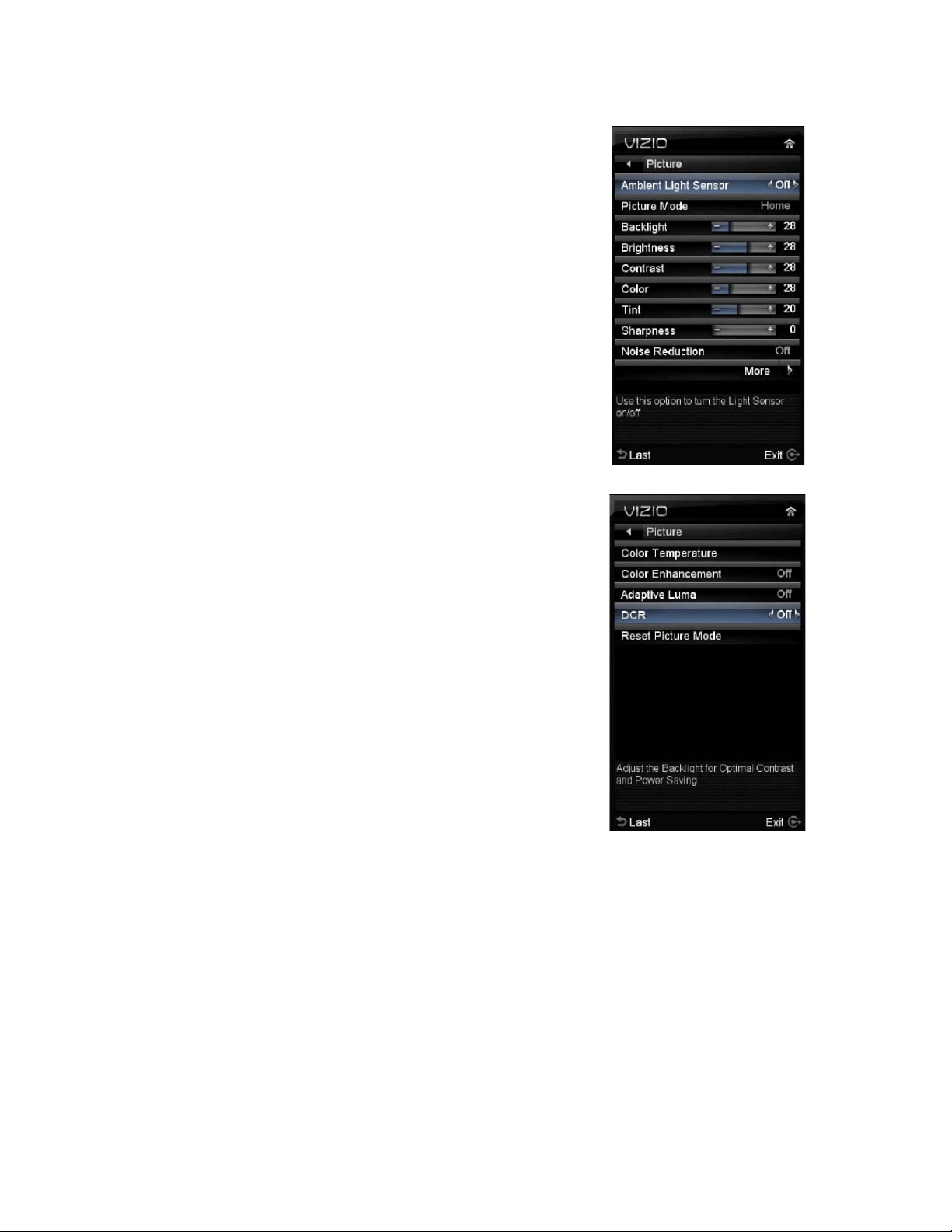
VIZIO M320VT User Manual
Version 4/21/2010 41
www.VIZIO.com
The following options are available in the Picture menu:
1.
Ambient Light Sensor –This feature allows to adjust the
backlight level accordingly to the amount surrounding ambient
lightening. It is default to On.
2.
Picture Mode - Select Home, Movie, Retail, Game, Custom.
3.
Backlight – Backlight adjusts the overall brilliance of the
picture. It does not affect the Brightness (black level) or
Contrast (white level) of the picture. If DCR or Ambient Light
Sensor is activated, backlight adjustment is not available.
4.
Brightness – This option adjusts the black levels in the
picture. If the brightness is too low you will not be able to see
the detail in darker parts of the picture and if the brightness is
too high the picture will look washed out.
5.
Contrast – This option adjusts the white levels in the picture.
If the contrast is too low the picture will look washed out and if
the contrast is too high you will not be able to see any detail in
the bright parts of a picture.
6.
Color – This option will help the overall color saturation of
the image being displayed on the screen.
7.
Tint – This option adjusts the hue of the picture. The easiest
way to set hue is to look at flesh tones and adjust for a
realistic appearance. In most cases, the default middle
position is correct.
8.
Sharpness – This option setting adjusts the sharpness of
the edges of elements in the picture. It does not produce
detail that otherwise does not exist. This adjustment is helpful
when viewing SD (Standard Definition) sources, as it provides
only contour peaking, and should be at a low setting with HD
sources.
9.
Noise Reduction – This option diminishes picture artifacts
caused by the digitizing of moving images, the settings being
Off, Low, Medium and High.
10.
Color Temperature – Color Temperature is the
“warmness” or “coolness” of the white areas of the picture.
Adjust your HDTV color temperature preferences: Cool, PC,
Normal and Custom are the choices. Custom allows adjusting the Red, Green, and Blue color
levels.
11. Color Enhancement – This option enhances the white levels in the picture.
12. Adaptive Luma – Large areas of brightness in the picture will result in a higher Average
Picture Level (APL) and the overall picture will look too light. This option will lower the
APL to counteract this effect.
13.
DCR (Dynamic Contrast Ratio) - DCR (Dynamic Contrast Ratio) automatically adjusts the
contrast between brighter and darker scenes. When activated, adjustment of the Backlight is not
available.
14. Reset Picture Mode – This option allows the user to reset any changed value in the
Picture menu to the factory value without altering other menu settings.
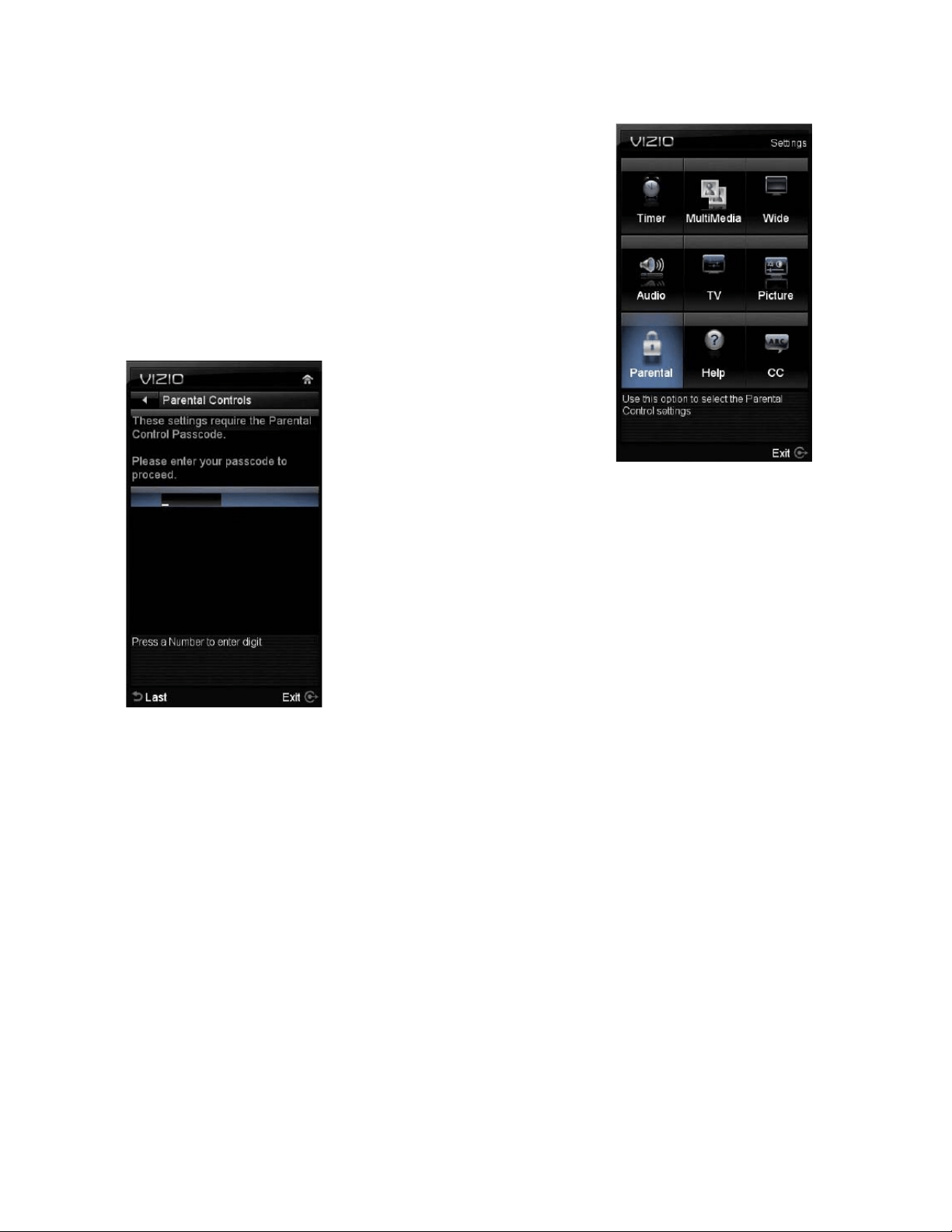
VIZIO M320VT User Manual
Version 4/21/2010 42
www.VIZIO.com
Adjusting the Parental Control settings
When viewing a DTV / TV or a component, or AV source, the following
parental control OSD screens are available within the Parental Control
OSD menu. Parental Control options are not available when viewing
an HDMI source.
You can restrict certain channel and program viewing by turning on
parental controls. Selected programs, movies and channels can then
be made available only after an authorized password has been
entered. You could select your password when entering Parental
Control first time.
Press ▲ / ▼ / ◄ / ► to highlight and select the choice, then press OK
key to select the desired adjustment, and then press the EXIT key when
finished making adjustments.
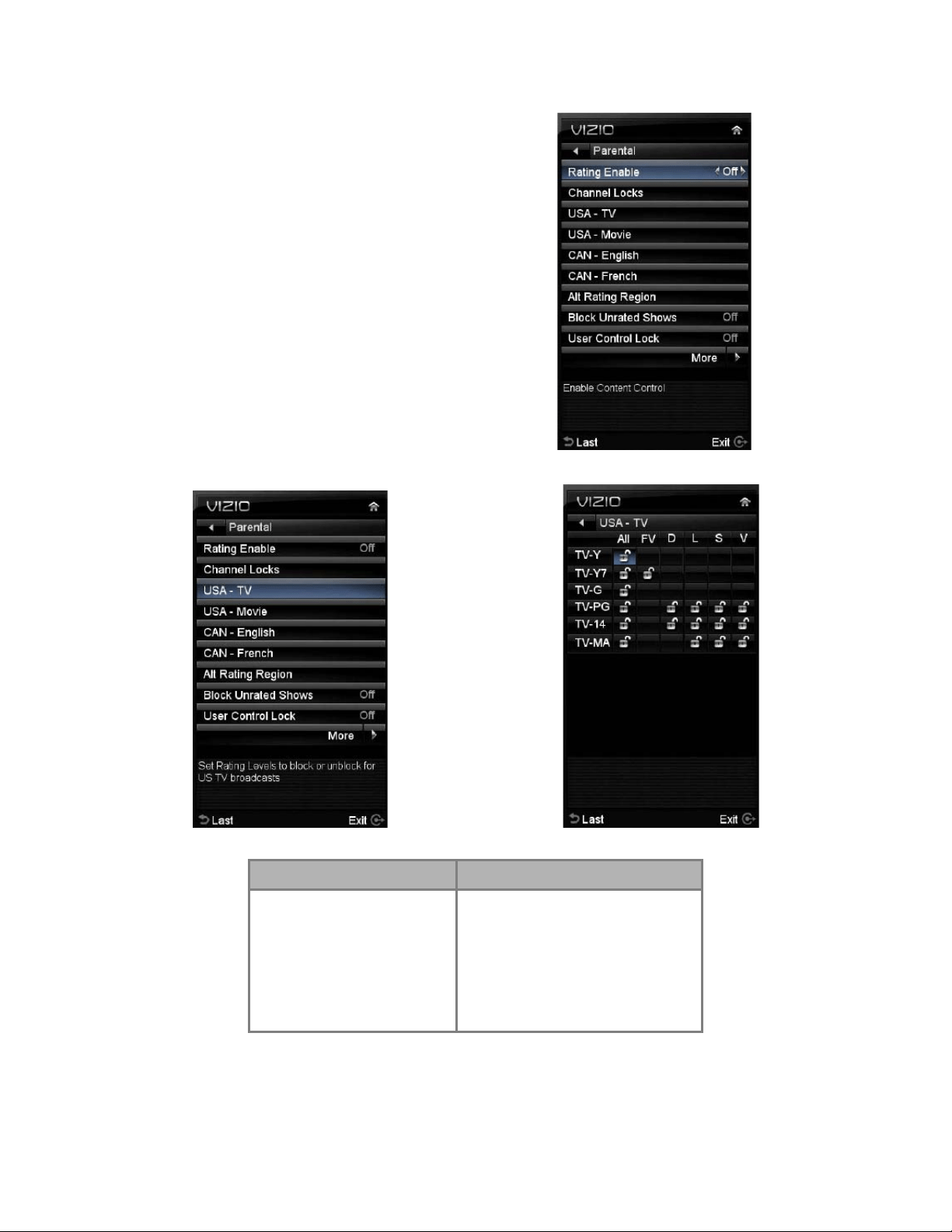
VIZIO M320VT User Manual
Version 4/21/2010 43
www.VIZIO.com
The following options are available in the Parental menu:
1. Ratings Enable – This option allows blocking
channels based on the ratings established by
regulations.
2. Channel Locks – This option allows blocking
channels no matter what content.
3.
USA - TV – This option allows blocking of selected
TV or Cable channels based on ratings established for
US broadcasts. Select the desired rating and press
OK to block (lock) or unblock (unlock).
TV Rating Definitions: TV Rating Content Definitions
Y – All children
Y7 – Older children
G – General audience
PG – Guidance suggested
14 – Strongly cautioned
MA – Mature audience
A – All subratings
D – Sexual dialog
L – Adult language
S – Sexual situations
V - Violence
FV – Fantasy violence
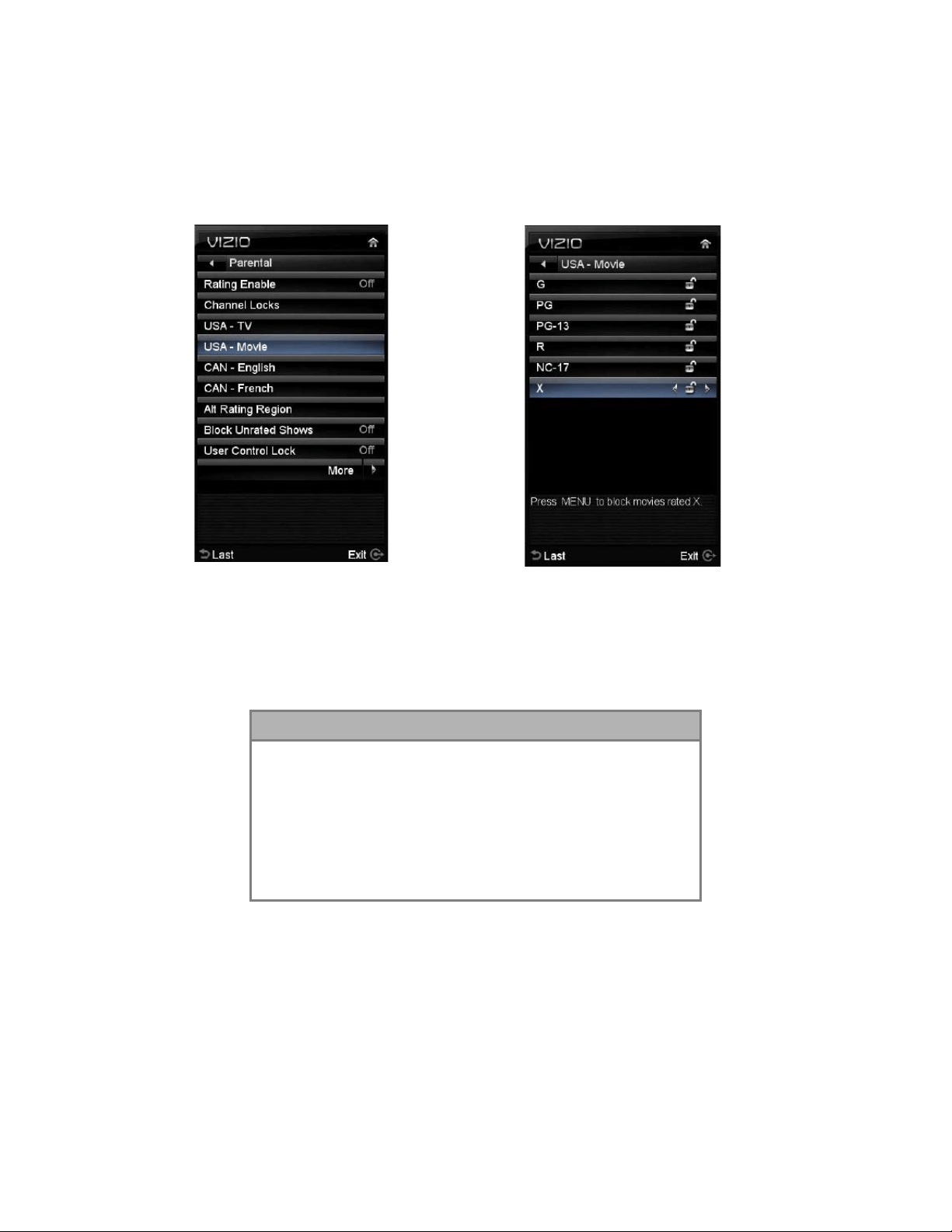
VIZIO M320VT User Manual
Version 4/21/2010 44
www.VIZIO.com
4. USA - Movie – This option allows blocking of selected TV or Cable channels based on ratings
established for US broadcasts. Select the desired rating and press OK to block (lock) or unblock
(unlock).
Movie Rating Definitions:
G – General audience
PG – Parental guidance suggested
PG-13 – Recommended for children 13 years of age or
older
R – Mature audience
NC-17 – No one under 17 years of age
X – No one under 17 years of age
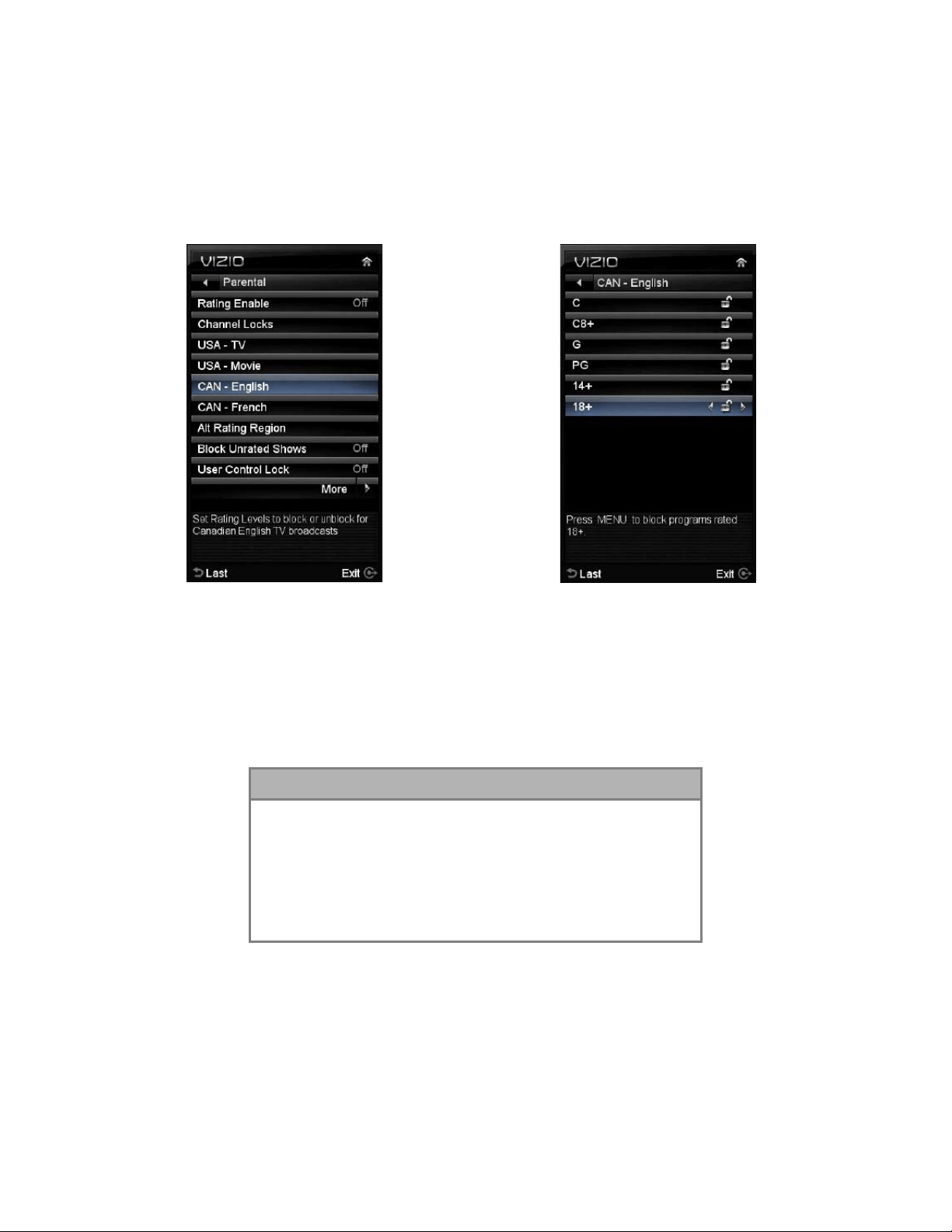
VIZIO M320VT User Manual
Version 4/21/2010 45
www.VIZIO.com
5. CAN – English – This option allows blocking of selected Canadian English TV or Cable
channels based on age
Movie Rating Definitions:
C – Children
C8+ – Children 8 years or older
G – General programming, suitable for all audiences
PG – Parental guidance
14+ – Viewers 14 years or older
18+ – Adults programming
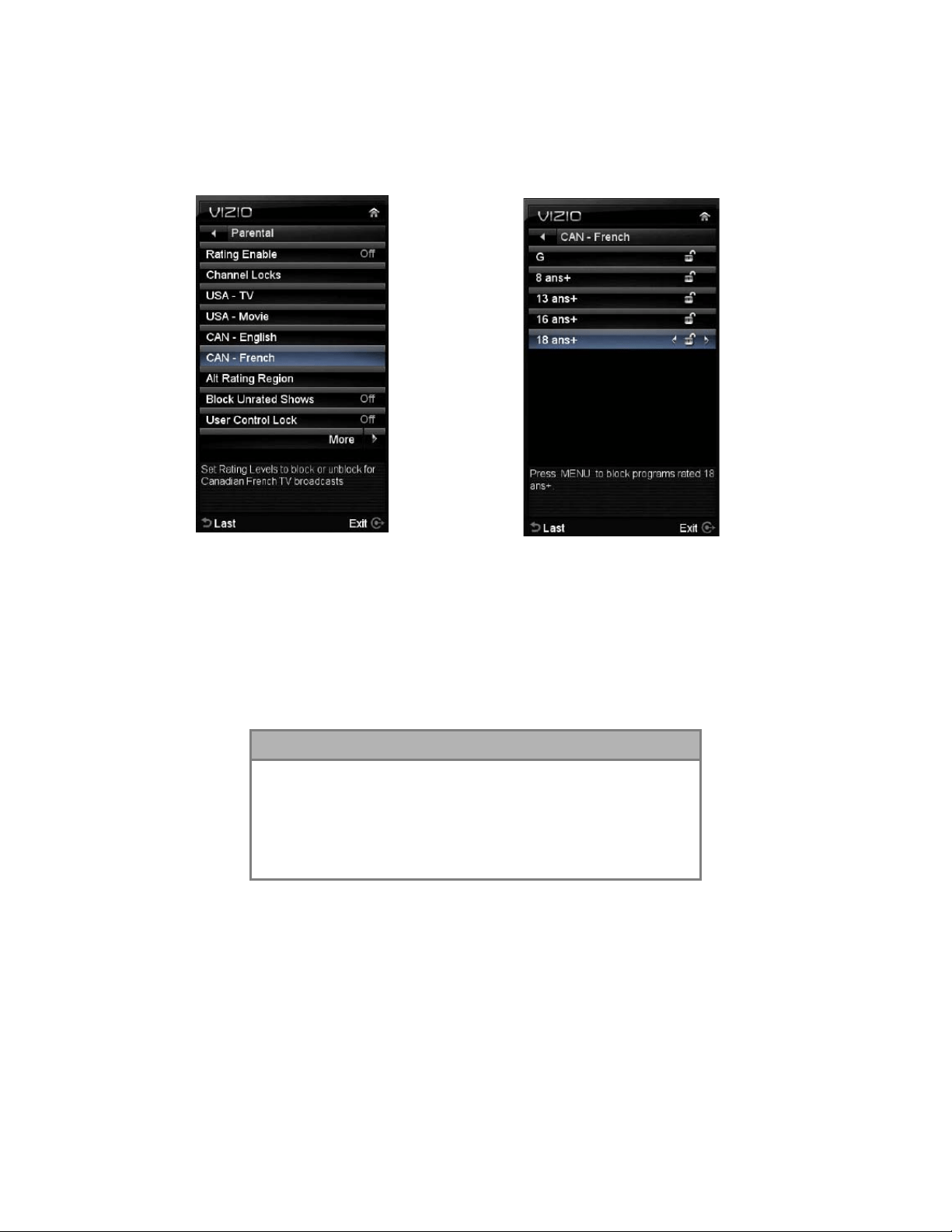
VIZIO M320VT User Manual
Version 4/21/2010 46
www.VIZIO.com
6. CAN – French – This option allows blocking of selected Canadian French TV or Cable
channels based on age.
Movie Rating Definitions:
G – General audience
8 ans+ – General – not recommended for young children
13 ans+ – Not suitable for children under 13 years of age
16 ans+ – Not suitable for under 16 years of age
18 ans+ – Adults only
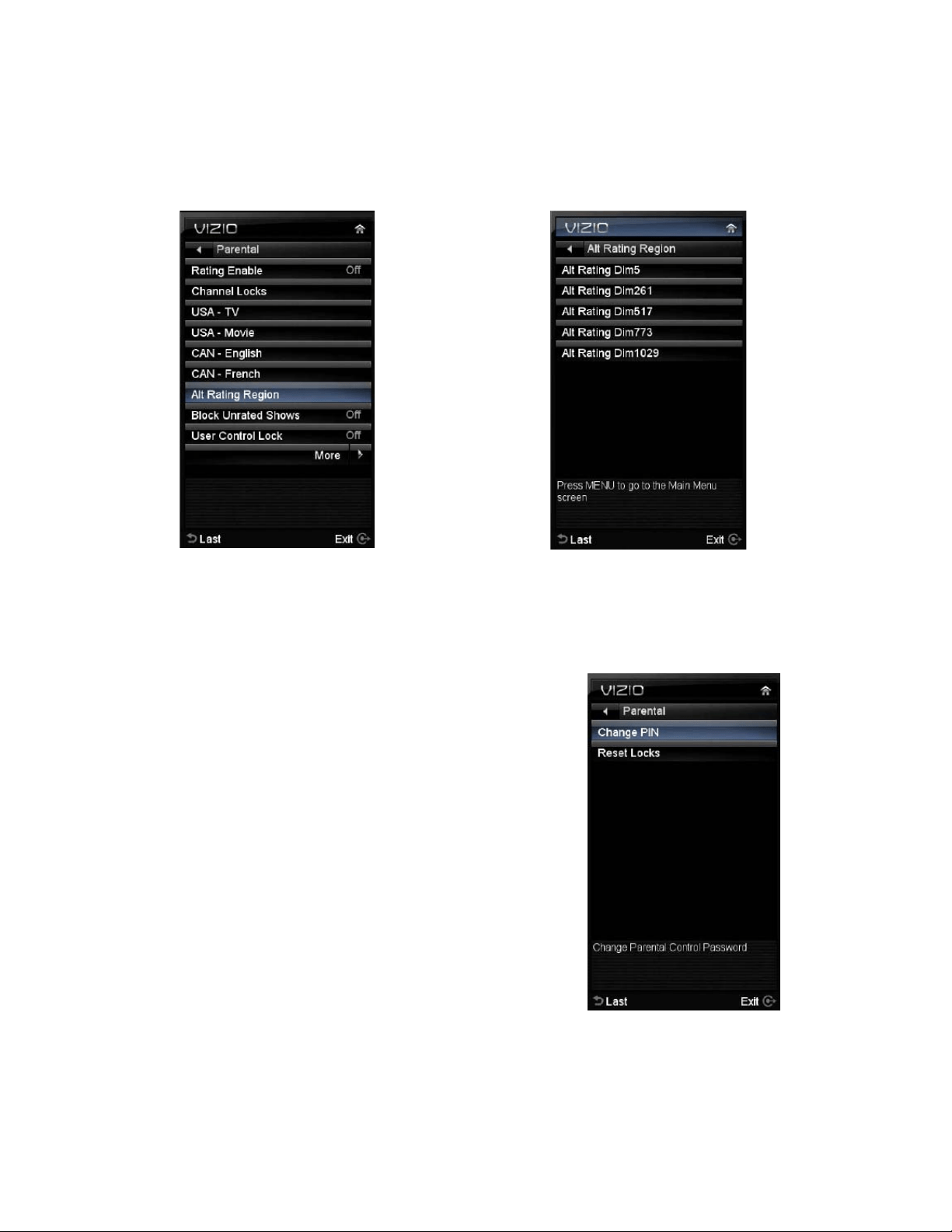
VIZIO M320VT User Manual
Version 4/21/2010 47
www.VIZIO.com
7. Alternative Rating Region –
This is reserved for future use in the event that the parental
control system is ever updated. Your HDTV will be able to receive and update the rating system
to it.
8. Block Unrated Shows – This option allows blocking of
unrated content.
9.
User Control Lock – This option allows blocking the
usage of the panel controls on the side of your
HDTV.
10.
Change PIN – This option allows creating a new PIN
(password) to use Parental Control Settings menu.
11.
Reset Locks – This option allows resetting the
changes made in the Parental Control Settings
menu, using this option there is no need to
individually reset the settings unless it is desired
(except the item of Alternative Rating Region).
NOTE: Make sure you write down and store the new password in a secure place.
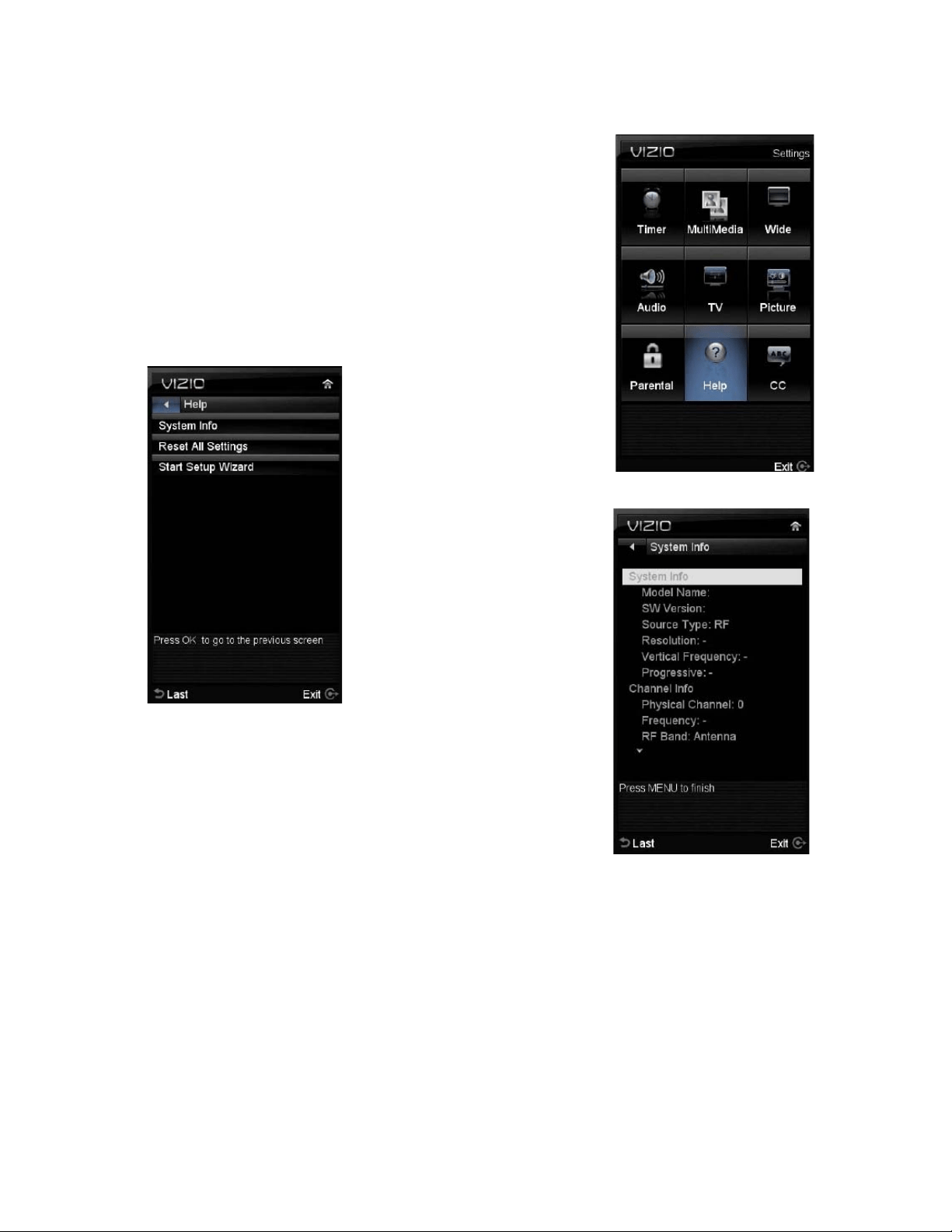
VIZIO M320VT User Manual
Version 4/21/2010 48
www.VIZIO.com
Adjustments on the Help Menu
The Help settings menu allows seeing the up to date information
regarding your HDTV as well as the option to reset all values of
the TV parameters and features to defaults (factory) settings.
The following options are available in the System menu:
1. System Info – The display shows information or content
regarding your HDTV.
2. Reset All Settings – Settings are reset to factory
defaults.
Note: This does NOT reset the Parental Control Password, and the previously scanned channels
are not removed.
3. Start Setup Wizard – Select this option to return to the Initial Setup when your HDTV
was used for the first time.
Note: This will reset the Parental Control Password, and the previously scanned channels will be
removed.
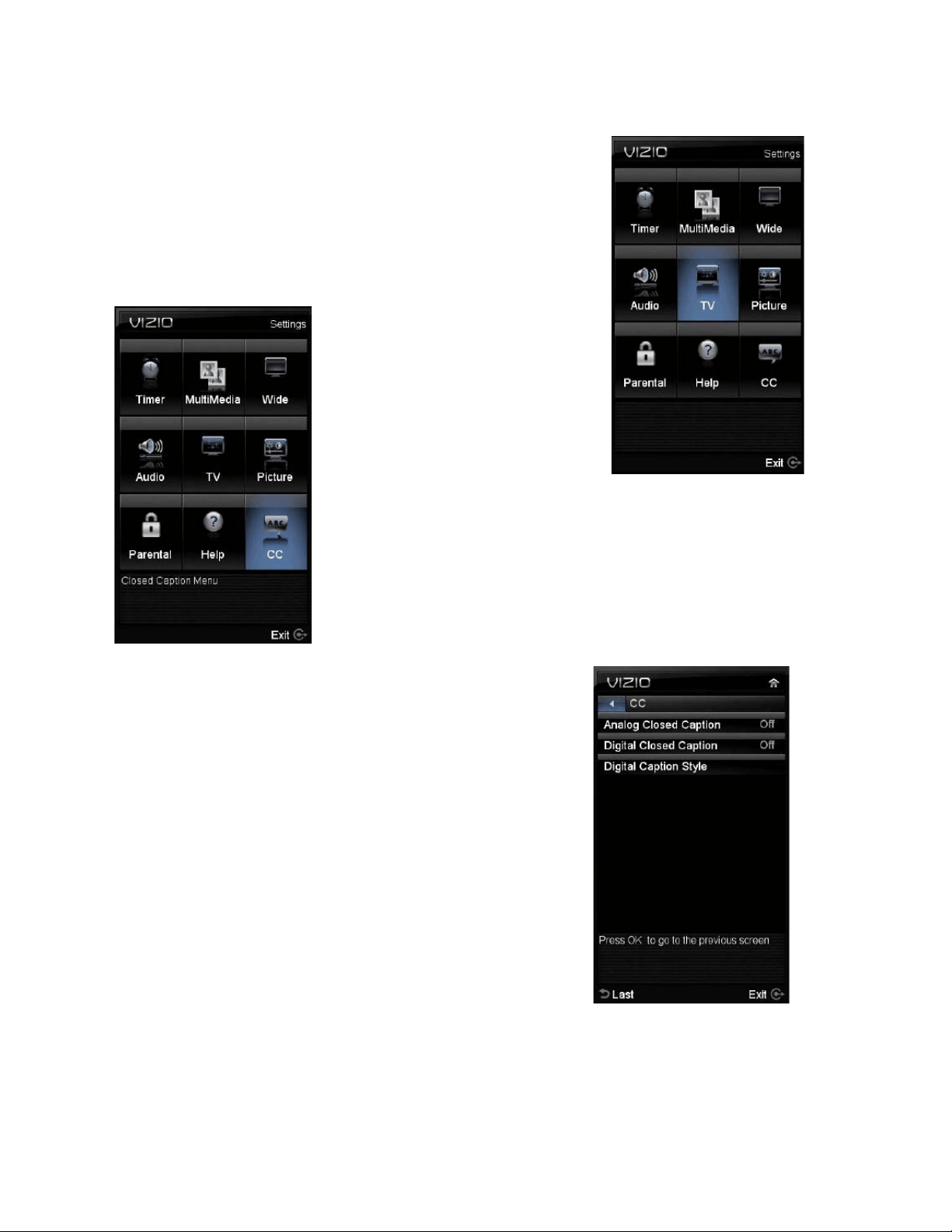
VIZIO M320VT User Manual
Version 4/21/2010 49
www.VIZIO.com
Adjusting the CC (Closed Caption) settings
When viewing a DTV / TV or an HDMI, Component, AV, or PC source,
the following setup adjustment OSD screens are available when you
press MENU on the remote control.
Press ▲ / ▼ / ◄ / ► to highlight and select the choice, then press OK
key to select the desired adjustment, and then press the EXIT key
when finished making adjustments.
When selecting CC (Closed Caption), the screen will display what is being
said in the program. It would allow the viewer to follow with a low level on
the volume if the content of the signal or program being viewed carries this
format. Your HDTV will activate this feature allowing the user to follow the
program without disturbing the surrounding people.
The following picture shows the options within this menu. It is
base on the type of content carry by the signal.
NOTE: When a computer is the source, the CC option is not
available.

VIZIO M320VT User Manual
Version 4/21/2010 50
www.VIZIO.com
Chapter 5 Maintenance and Troubleshooting
Maintenance
Important
1. Make sure that the power cable is removed from the socket before cleaning the TV.
2. Do not use volatile solvent (such as toluene, rosin and alcohol) to clean the TV. Such
chemicals may damage the housing, screen and remote control, and cause paint to peel.
Cleaning the Housing and Remote Control
3. Use a soft cloth for cleaning.
4. If the housing or remote control is seriously contaminated, use a soft cloth moistened with
diluted neutral cleaner to clean the display. Wring water out of the cloth before cleaning to
prevent water from penetrating into the housing. Wipe the display with a dry cloth after
cleaning.
Cleaning the Screen
1. Use a soft cloth to gently clean the screen.
2. The screen glass is very fragile. Do not scrape it with any sharp object. Do not press or tap
the screen to avoid cracking. If the screen is heavily contaminated, use a soft cloth
moistened with diluted neutral cleaner to clean the display. Wring water out of the cloth
before cleaning to prevent water from penetrating into the housing. Wipe the display with a
dry cloth after cleaning.
VIZIO M320VT User Manual
Version 4/21/2010 51
www.VIZIO.com
Troubleshooting Guide
If the TV fails to operate, or the performance changes dramatically, check the display in accordance with
the following instructions. Remember to check the peripherals to pinpoint the source of the problem. If
the display still fails to perform as expected, contact the VIZIO for assistance by calling 1-877-698-4946
or e-mail us at
Problem Solution
No power. Make sure the power button is ON (VIZIO Logo glows white).
Make sure AC power cord is securely connected to the AC socket.
Plug another electrical device (like a radio) to the power outlet to verify that
the outlet is supplying power.
No sound. Press the Volume + (Up) key on the remote control
Check to see if the MUTE symbol is displayed in the lower corner of the
screen. Press MUTE on the remote so that MUTE disappears from the
screen
Check your audio settings. If TV input is selected, audio may be set to
SAP, or speakers are set to off.
If external devices are selected input, check the audio connections.
If the screen is black. Make sure the power button is ON (VIZIO Logo glows white).
Press the INPUT button on the TV or the Remote.
Check the input connections.
Power is ON but no
screen image.
Make sure any cable attached to the TV is connected to the correct output
from a Set-Top Box, DVD, etc.
Adjust brightness, contrast or backlight.
Check Input settings.
Wrong or abnormal colors
appear.
Check Color and tint settings in Picture Menu. Reset Picture settings.
Component Input: If any colors (red, or blue) are missing, check the video
cables to make sure they are securely connected.
PC Input: If any colors (red, green, or blue) are missing, check the video
cable to make sure it is securely connected.
Control buttons do not
work.
Press only one button at a time.
Remote Control does not
work.
Make sure batteries are inserted correctly
Batteries could be weak.
Make sure you have selected TV on the remote.
There appears to be
image quality issues.
For best image quality, view HD wide screen programs where possible. If
HD content is not available view “Standard Definition” from a digital source.
Standard, analog TV will always be noticeably inferior to HD because your
digital flat panel TV has video that is many times better than old TV’s and
so you can see interference and deficiencies you did not know you had.
VIZIO M320VT User Manual
Version 4/21/2010 52
www.VIZIO.com
Problem Solution
You cannot see a picture. Make sure that the power cord is plugged into a grounded electrical outlet.
Make sure that the power button is turned on.
Make sure that the selected input source is connected to a working input
source.
If your TV is connected to your computer in RGB or HDMI mode, press any
key on your keyboard to “wake” your computer.
You see a distorted picture
or hear unusual sound.
You may be getting interference from electrical appliances, cars,
motorcycles, or fluorescent lights. If you have not mounted it on the wall,
try moving your TV to another location to see if this is the cause of the
problem.
The picture has abnormal
patterns.
Make sure that the input source cable is attached securely and correctly to
the back of your TV.
Make sure that the video input source is within the range of your TV.
Compare the video input source’s specifications with your TV
specifications.
The display image does
not cover the entire
screen.
If you are using RGB mode, make sure that H Size and V Position in the
On Screen Display (OSD) are set correctly.
If you are using TV, AV1, AV2 or Component with 480i input, use the WIDE
button on the remote control to scroll through various screen modes.
You can see a picture but
you cannot hear sound.
Make sure that the volume is not turned down.
Make sure that the sound is not muted.
Make sure that your audio input source cables are connected securely and
correctly.
The TV has pixels that are
always dark or colored.
Your LCD HDTV is manufactured using an extremely high level of
precision technology, however, sometimes some pixels of your LCD HDTV
may not display. Pixel defects within industry specifications are inherent to
this type of product and do not constitute a defective product.
You see “noise” or “trash”
on the screen.
When your LCD HDTV’s digital capabilities exceed a digital broadcast
signal, the signal is up-converted (increased) to match your TV’s display
capabilities. Up-converting can cause noise or trash.
You switch to a different
input and the volume
changes.
The TV remembers the volume level from the last time you adjusted it. If
the sound level is higher or lower from another source, then the loudness
will change.
Tips for High-Definition
Users.
The LCD HDTV is an ideal platform for viewing High Definition Content.
Best Image Quality will be achieved by the HDMI Input, then YPbPr, then
RGB.
However, due to variances in broadcast practices, it is possible some
image distortions can occur.

VIZIO M320VT User Manual
Version 4/21/2010 53
www.VIZIO.com
Telephone & Technical Support
Products are often returned due to a technical problem rather than a defective product that may result in
unnecessary shipping charges billed to you. Our trained support personnel can often resolve the problem
over the phone. For more information on warranty service or repair, after the warranty period, please
contact our Support Department at the number below.
Customer support and quality service are integral parts of VIZIO’s commitment to service excellence.
For technical assistance contact our VIZIO Technical Support Department via email or phone.
Email: [email protected]
Tel: (877) 698-4946 Fax: (949) 585-9563
Hours of operation: Monday - Friday: 6 am to 9 pm
Saturday – Sunday: 8 am to 4 pm
Please have your VIZIO model number, serial number, and date of purchase available before you call.
VIZIO
Address:
39 Tesla
Irvine, CA 92618, USA
Telephone: (949) 428-2525 Fax: (949) 585-9514
Web: www.vizio.com
Compliance
Caution: Always use a power cable that is properly grounded. Please use the AC cords listed below for
each area.
USA UL
Canada CSA
Germany VDE
UK BASE/BS
Japan Electric Appliance Control Act

VIZIO M320VT User Manual
Version 4/21/2010 54
www.VIZIO.com
FCC Class B Radio Interference Statement
NOTE: This equipment has been tested and found to comply with the limits for a Class B digital device,
pursuant to Part 15 of the FCC Rules. These limits are designed to provide reasonable protection against
harmful interference in a residential installation. This equipment generates, uses and can radiate radio
frequency energy, and if not installed and used in accordance with the instructions, may cause harmful
interference to radio communications. However, there is no guarantee that interference will not occur in a
particular installation. If this equipment does cause harmful interference to radio or television reception,
which can be determined by turning the equipment off and on, the user is encouraged to try to correct the
interference by one or more of the following measures:
1. Reorient or relocate the receiving antenna.
2. Increase the separation between the equipment and receiver.
3. Connect the equipment into an outlet on a circuit different from that to which the receiver is
connected.
4. Consult the dealer or an experienced radio/TV technician for help.
Notice:
1. The changes or modifications not expressly approved by the party responsible for compliance
could void the user’s authority to operate the equipment.
2. Shielded interface cables and AC power cord, if any, must be used in order to comply with
the emission limits.
3. The manufacturer is not responsible for any radio or TV interference caused by unauthorized
modification to this equipment. It is the responsibilities of the user to correct such
interference.
VIZIO M320VT User Manual
Version 4/21/2010 55
www.VIZIO.com
Chapter 6 Specifications
Product specifications may change without notice or obligation.
M320VT Specifications
Panel 32” Diagonal (31.55” Diagonal viewing), 16:9 Aspect Ratio
Resolution 1920 x 1080 pixels
Pixel (Dot) Pitch 0.36375mm x 0.36375mm
Display Compatibility 1080p (FHDTV)
Colors 1.06 Billion
Brightness 450 cd/m
2
(typical)
Contrast with DCR 100000 :1 (typical)
Response Time 8ms (typical)
Viewing Angle Horizontal and Vertical 178° (typical)
Inputs 1x Coaxial RF (ATSC/QAM/NTSC), 4x HDMI™** with HDCP 1x Component YPbPr plus Stereo
Audio, 1x RGB PC plus Stereo Audio (1/8” stereo jack), 1xUSB
Outputs 1x Optical Audio Out (SPDIF),
Features HDMI v1.3, ATSC/Clear QAM Tuner, Noise Reduction, CC, V-Chip 2.0, 3D Comb Filter, Freeze,
Picture Enhancement, Dynamic Contrast Ratio Technology, MPEG-2 Decoding via DTV input,
NTSC Video decoding via Video (AV or Component), Support Motion Enhancement and Motion
Correction, Progressive Scan Video via HDMI™**, Component or RGB, HDTV via HDMI™**,
Component or RGB (Set-Top Box required), Computer 640x480, 800x600, 1024 x 768, 1920 x
1080 via RGB or 1920 x 1080 via HDMI, Color Temperature Adjustments of
6500K/9300K/11000K, Independent RED/GREEN/BLUE adjustments for Color Temperature
Fine Tuning, Built-in SRS (TruSurroundHD™/TruVolume™) Audio, Supports 1080P (Full HDTV)
, 1080i (HDTV) , 720P (HDTV) , 480P (EDTV) and 480i (SDTV) video signals. HDMI V.1.3,
Dolby Digital Decoding, SRS TruSurround HD and SRS TruVolume sound enhancement, USB
Digital (JPEG photo files and MP3) Media Player
Speakers 2 x 10Watts speakers, '82 +/-3dB@1m/W
Panel Life 30,000 hours to half the original brightness
Power
Input IEC Connector for direct power line connection
Voltage Range 120VAC at 60HZ
Power Consumption 63W (Avg), <1W Standby
Environmental Conditions
Operating Temperature: 5°C~35°C, Relative Humidity: 20~80%, Altitude: 0~6,561 ft
Non-Operating Temperature: -20°C~50°C, Relative Humidity: 10~90%, Altitude: 0~40,000 ft
Dimensions 30.33” W x 21.29” H x 7.95” D with stand; 30.33” W x 19.34” H x 1.62” D without stand
Net Weight 25.79lbs with stand, 21.61 lbs without stand
Gross Weight 31.31lbs
Certifications UL, FCC Class B, Energy Star 4.0, ATSC Spec A/65, EIA/CEA-766-A
VIZIO M320VT User Manual
Version 4/21/2010 56
www.VIZIO.com
Preset PC Resolutions
M320VT Preset PC Resolutions
If connecting to a PC through the RGB PC input, set the TV timing mode to VESA 1920x1080 at 60HZ for
better picture quality (refer to the graphic card’s user guide for questions on how to set this timing mode).
See the table below for the factory preset resolutions.
Refresh
(Hz)
Resolution
H.Freq
(kHz)
H.Sync
V.Freq
(Hz)
V.Sync
Pixel Freq
(MHz)
60 640 x 480 31.469 N 59.94 N 25.175
75 640 x 480 37.5 N 75 N 31.5
70 720 x 400 31.46 N 70.08 P 28.32
60 800 x 600 37.897 P 60.317 P 40
75 800 x 600 46.875 P 75 P 49.5
60 1024 x 768 48.363 N 60.004 N 65
70 1024 x 768 56.476 N 70.069 N 75
75 1024 x 768 60.023 P 75.026 P 78.75
60 1920 x 1080 66.587 P 59.934 P 138.5

VIZIO M320VT User Manual
Version 4/21/2010 57
www.VIZIO.com
Glossary – Standard Definitions
Analog TV: Today’s TV system using radio frequency waves to transmit and display pictures and sound.
Aspect Ratio (4x3): Traditional TV “aspect ratio”, that is, the screen width as compared to its height. For
example, a “32 inch TV screen” would be 25 inches wide and 19 inches tall.
Aspect Ratio (16x9): “Wide screen TV” aspect ratio which is more like a movie screen than a traditional
TV. For example, a “32 inch TV screen” would be 28 inches wide and 16 inches tall.
Digital TV (DTV): Television delivered and displayed using radio frequency waves that contain
information that is digitally encoded for improved quality and efficiency.
Enhanced Definition TV (EDTV): A better digital television transmission than SDTV with at least 480P,
in a 16x9 or 4x3 display and Dolby digital surround sound. 480P is the quality used by most DVD
players. EDTV provides 300-400,000 pixels.
HDTV Monitor (sometimes called HDTV Ready): A set that can display HDTV programming if you have
a separate HDTV tuner, HD Cable Set-Top Box or HD Satellite Set-Top-Box Receiver.
HDTV Tuner (also decoder, receiver, set-top box): A device capable of receiving and outputting HDTV
signals for display. It may be stand-alone or integrated in the set.
High-Definition Television (HDTV): The best quality picture, wide screen (16x9) display with at least
720 progressively scanned lines (720P) or 1080 interlaced lines (1080i) and Dolby digital surround sound.
HDTV provides 900,000-2.1 million pixels.
Integrated HDTV: An HDTV that has the digital tuner built into the set. It does not need a separate set-
top box to receive over-the-air DTV signals.
Interlace Scan: A way to scan vertical lines onto a TV picture by scanning all the odd lines first, then
filling the in the even lines (this happens instantaneously).
Plug-and-Play or Digital Cable Ready: A DTV or other device for digital cable consumers that plugs
directly into the cable jack and does not require a separate set-top box. Plug-and-Play TV owners must
obtain a CableCARD from their cable company in order to view scrambled programming services.
Progressive Scan: A way to scan vertical lines onto a TV picture by scanning all the lines consecutively
(progressively).
Standard Definition TV (SDTV): Basic digital television transmission that may be displayed with fewer
than 480 progressively scanned lines (480P) in 16 x 9 or 4 x 3 format. 480 interlaced (480i) is the quality
of today’s analog TV system.
Source: Buying a Digital Television, CEA, HDTV Guide, 2005
Note: The Federal Communications Commission (FCC), the Consumer Electronics Association (CEA)
and the Consumer Electronics Retailers Coalition (CERC) have made a new tip sheet available for digital
television (DTV) retailers to reproduce and distribute to consumers on the sales floor. The file may be
downloaded online at www.dtv.gov
. While you’re there, check out the other useful information in the FCC
is making available to consumers interested in learning more about the analog to digital transition.

VIZIO M320VT User Manual
Version 4/21/2010 58
www.VIZIO.com
Chapter 7 Warranty
ONE-YEAR LIMITED WARRANTY ON PARTS AND LABOR
Covers units purchased as new in United States and Puerto Rico Only
VIZIO provides a warranty to the original purchaser of its products against defects in materials and
workmanship for a period of one year of non-commercial usage and ninety (90) days of commercial use.
If a VIZIO product is defective within the warranty period, VIZIO will either repair or replace the unit at its
sole option and discretion.
To obtain warranty service, contact VIZIO Technical Support via email: [email protected] or via
phone at 877 MY VIZIO (877.698.4946) from 6:00AM to 9:00PM Monday through Friday and 8:00AM to
4:00PM Saturday and Sunday, Pacific Time, or visit www.VIZIO.com
. Proof of purchase in the form of a
purchase receipt or copy thereof is required.
Parts and Labor
There will be no charge for parts or labor during the warranty period. Replacement parts and units may be
new or recertified at VIZIO’s option and sole discretion. Replacement parts and units are warranted for
the remaining portion of the original warranty or for ninety (90) days from warranty service or
replacement, whichever is later.
Types of Service
Units 30” or larger will usually be serviced in-home. In-home service requires complete and easy access
to the unit and does not include de-installation or re-installation of the product. However, in some cases, it
may be necessary to send the unit to a VIZIO service center. VIZIO will cover the transportation charges
to and from the same customer location.
Units less than 30” must be sent to a VIZIO service center. VIZIO is not responsible for transportation
costs to the service center, but VIZIO will cover return shipping to the customer. PRE-AUTHORIZATION
IS REQUIRED BEFORE SENDING ANY UNIT IN FOR SERVICE.
Any returns to VIZIO’s service centers must utilize either the original carton box and shipping material or a
replacement box and material provided by VIZIO. VIZIO technical support will provide instructions for
packing and shipping the unit to the VIZIO service center.
Limitations and Exclusions
VIZIO’s one-year limited warranty only covers defects in materials and workmanship. Items not covered
include but are not limited to cosmetic damage, normal wear and tear, misuse, signal issues, power
surges, and damages from shipping, acts of God, any sort of customer misuse, installation, customer
modifications, adjustments, and set-up issues. Units with unreadable or removed serial numbers, “image
burn-in”, and routine maintenance are not covered. This warranty does not cover products sold “AS IS”,
“FACTORY RECERTIFIED”, or by a non-authorized reseller.

VIZIO M320VT User Manual
Version 4/21/2010 59
www.VIZIO.com
THERE ARE NO EXPRESS WARRANTIES OTHER THAN THOSE LISTED OR DESCRIBED ABOVE.
ANY IMPLIED WARRANTIES, INCLUDING ANY IMPLIED WARRANTY OF MERCHANTABILITY AND
FITNESS FOR A PARTICULAR PURPOSE, SHALL BE LIMITED IN DURATION TO THE PERIOD OF
TIME SET FORTH ABOVE. VIZIO'S TOTAL LIABILITY FOR ANY AND ALL LOSSES AND DAMAGES
RESULTING FROM ANY CAUSE WHATSOEVER SHALL IN NO EVENT EXCEED THE PURCHASE
PRICE OF THE DISPLAY. VIZIO SHALL NOT BE RESPONSIBLE FOR LOSS OF USE, COMMERCIAL
LOSS, LOST REVENUE OR LOST PROFITS, OR OTHER INCIDENTAL OR CONSEQUENTIAL
DAMAGES. SOME STATES DO NOT ALLOW LIMITATIONS ON HOW LONG AN IMPLIED WARRANTY
LASTS OR THE EXCLUSION OF INCIDENTAL OR CONSEQUENTIAL DAMAGES, SO THE ABOVE
LIMITATIONS OR EXCLUSIONS MAY NOT APPLY TO YOU. THIS WARRANTY GIVES YOU SPECIFIC
LEGAL RIGHTS, AND YOU MAY ALSO HAVE OTHER RIGHTS, WHICH VARY FROM STATE TO
STATE. THIS WARRANTY IS SUBJECT TO CHANGE WITHOUT NOTICE. CHECK www.VIZIO.com
FOR THE MOST CURRENT VERSION.
Personal Data
If your VIZIO product is capable of storing personal data and other information, ALL CONTENTS AND
INFORMATION WILL BE DELETED IN THE COURSE OF SOME IN-HOME AND ALL SHIP-IN
WARANTY SERVICE. If this occurs, your product will be restored to you configured as originally
purchased. You will be responsible for restoring all applicable data and passwords. Recovery and
reinstallation of user data is not covered under this Limited Warranty. In order to protect your personal
information, VIZIO recommends that you always clear all personal information from the unit
before it is serviced, regardless of the servicer.
ZERO BRIGHT PIXEL DEFECT GUARANTEE
This policy covers “zero bright pixels” defects for the duration of the limited “ONE YEAR WARRANTY” on
select new product purchases. To determine if this guarantee applies to your product, refer to the
“DETAILS” tab of the model’s product information page (www.VIZIO.com) or look for the “zero bright
pixel” guarantee on the box.

VIZIO M320VT User Manual
Version 4/21/2010 60
www.VIZIO.com
Chapter 8 Index
A
AC IN jack, 12
Accessories, 6
Adjustments
Selecting the Screen Size, 57
Volume, 10, 50
antenna
setting as TV signal source, 39
antenna jack, 12
audio settings
adjusting, 38, 39
speakers, 38
AV In jack, 12
B
backlight
adjusting, 40
blocking channels, 41
brightness
adjusting, 40
C
cable
setting as TV signal source, 39
channel block
selecting, 41
channels
searching for, 39
Cleaning your VIZIO TV, 49
Co-axial RF
Connecting for DTV, 20
color temperature
adjusting, 40
Component
Connecting your Cable Box, 19
Connecting your DVD Player, 23
Connecting your Satellite Box, 19
component jacks, 12
Composite (AV)
Connecting your DVD Player, 24
contrast
adjusting, 40
Controls
Front Panel, 10
Side Panel, 10
D
DTV
jack, 12
DVI
Connecting your Cable Box, 18
Connecting your DVD Player, 22
Connecting your Satellite Box, 18
F
FCC Bulletin for New TV Owners, 4
G
Glossary, 57
H
HDMI
Connecting your Cable Box, 17
Connecting your DVD Player, 21
Connecting your Satellite Box, 17
HDMI 1 jack, 12
HDMI 2 jack, 12
I
Inputs
Antenna, 4
O
On-Screen Display, 33
OSD, 33
Brightness Adjustment, 54, 55
Contrast Adjustment, 54, 55
Outputs
Using an external Receiver/Amp, 25
P
parental control
channel block, 41
options, 41, 48
picture settings, 39, 47
backlight, 40
brightness, 40
color temperature, 40
contrast, 40
sharpness, 40
tint, 40
power connector, 12
R
rear jacks
AC IN, 12
antenna, 12
AV In, 12
component, 12
HDMI 1, 12
HDMI 2, 12
power connector, 12
remote control

VIZIO M320VT User Manual
Version 4/21/2010 61
www.VIZIO.com
installing batteries, 15
range, 15
safety, 15
Remote Control
Using your Cable or Satellite Remote to Operate
your VIZIO TV, 15
RGB
Connecting your PC, 26
S
safety instructions, 2
Setting up, 7
sharpness
adjusting, 40
speakers
turning off and on, 38
S-Video
Connecting your DVD Player, 24
T
Technical Specifications, 54, 55
tint
adjusting, 40
Troubleshooting Guide, 50
tuner mode
selecting, 39
TV
settings
adjusting, 39
TV signal source
selecting, 39
TV Stand
Attaching, 7
TV tuner settings
adjusting, 39
auto search, 39
searching for channels, 39
tuner mode, 39
W
Wall mounting, 8
Watching TV
Basic connections, 27
First Startup, 27
Getting your Programs, 32
VIZIO M320VT User Manual
Version 4/21/2010 62
www.VIZIO.com
Code for Programming the Remote Control
Use the following tables to find the codes for the device which you would control with the remote.
Setup Codes For Audio -
Amplifier (A)
Adcom 31100
Anthem 32220
Cary Audio
Design
31879
Denon 32134
Flextronics 31879
Halcro 31934
Harman/Kardon 30892
Krell
31837,
32463
Left Coast 30892
Marantz
30892,
31892,
32138
Mark Levinson 32405
Parasound 31934
Philips 30892
Polk Audio
30892,
32242
Primare 31851
Thule Audio 31851
Setup Codes For Cable Set
Top Box (C)
Amino
01602,
01822
Bright House
01376,
01877
Cable One
01376,
01877
Cablevision
01376,
01877,
01006
Charter
01376,
01877,
02187
Cisco
01877,
00877,
01982
Comcast
01376,
01877,
01982,
02576
Cox
01376,
01877
Digeo
01187,
02187
Director 00476
General
Instrument
00476
Homecast 02301
i3 Micro 01602
Insight
01376,
01877
Jerrold 00476
Knology 01877
Mediacom
01376,
01877
Motorola
01376,
00476,
01187,
01982
Myrio
01602,
01822
Pace
01376,
01877,
01982
VIZIO M320VT User Manual
Version 4/21/2010 63
www.VIZIO.com
Panasonic 01982
Pioneer
01877,
00877
Rogers 01877
Scientific
Atlanta
01877,
00877
Sejin 01602
Shaw 01376
Sony 01006
Suddenlink
01376,
01877
Time Warner
01376,
01877,
02187
Tivo 02576
WideOpenWest 01877
Cable/PVR Combination (C)
Amino 01822
Bright House 01376, 01877
Cable One 01376, 01877
Cablevision
01376, 01877,
01006
Charter
01376, 01877,
02187
Cisco 01877, 01982
Comcast
01376, 01877,
01982, 02576
Cox 01376, 01877
Digeo 01187, 02187
Homecast 02301
Insight 01376, 01877
Knology 01877
Mediacom 01376, 01877
Motorola 01376, 01187
Myrio 01822
Pace 01877
Panasonic 01982
Pioneer 01877
Rogers 01877
Scientific
Atlanta
01877
Shaw 01376
Sony 01006
Suddenlink 01376, 01877
Time Warner
01376, 01877,
02187
Tivo 02576
WideOpenWest 01877
Setup Codes For Audio -
Accessory (M)
Accurian 31106
Acoustic
Research
32226
VIZIO M320VT User Manual
Version 4/21/2010 64
www.VIZIO.com
Altec Lansing
30607, 31056,
32251
Apple 31115
Creative 32288
D-Link 31522
Denon 32502, 32815
DLO 31155
GPX 32113
Griffin 31891
iDeck 31106
iHome 32152
iLive 32113
Logitech 32182
Memorex 32119
Monitor Audio 31106
Netgear 31785
Nyko 32231
Philips 32327
Polk Audio 32228
Roku 31828
SSI 31522
Tivoli Audio 32158
Vizio 32454
Yamaha
32021, 32116,
32458
Setup Codes For Video -
Accessory (N)
ABS 01272
Access HD 02185
ADB 02254
Airlink 101 02491
Alienware 01272
Alpha Digital 02185
Amino
01481, 01615,
01673, 02482
AMTC 02185
Apex Digital 02478
Apple 02615
Artec 02490
AT&T 00858
Buffalo 01739
CASTi 02305
Channel
Master
02365
Cisco 02345, 02517
Coby 02667
Coship 02487
CyberPower 01272
D-Link
01554, 01731,
02186
Daewoo 02338
Daytek 02305
Digital Stream 02303
Dish Network 02470
DVICO 02153
Echostar 02470
VIZIO M320VT User Manual
Version 4/21/2010 65
www.VIZIO.com
Epson 01563
Gateway 01272
GE 02360, 02450
Goodmind 02450
Gridlink 02348
Hewlett
Packard
01272
Howard
Computers
01272
HP 01272
Hush 01272
iBUYPOWER 01272
Insignia 01415
KoolConnect 01481
Lasonic 02348
LG 01415
Linksys 01272, 01365
Magnavox 01563
Media Center
PC
01272
Memorex 02486
MicroGEM 02489
Microsoft 02049, 01272
Mind 01272
Motorola 00858, 02378
Netgear 02033, 02036
Niveus Media 01272
Northgate 01272
Panasonic 01120
Philco 01563
Popcorn Hour 02260
RCA 02325, 02454
Ricavision 01272
Roku 01486, 02371
Samsung
01190, 01490,
02592
Sansonic 02348
Scientific
Atlanta
00858, 02345,
02517
Seagate 02698
Sensory
Science
01126
Sling Media 02612
Sony 01272
Stack 9 01272
Sunkey 02695
SureWest 01481
Sylvania 01563
VIZIO M320VT User Manual
Version 4/21/2010 66
www.VIZIO.com
Systemax 01272
Tagar Systems 01272
Tivax 02185
Toshiba 01272
Touch 01272
Ventura 02454
Venturer 02454
Verizon 02378
Viewsonic 01272
Vizio 01126
Voodoo 01272
Vudu 02298
Western
Digital
02558
Winegard 02454
Xbox 02049
Zenith 01415
Zentech 02491
Zinwell 02488
ZT Group 01272
Setup Codes For Audio -
Receiver (R)
Aiwa
31405, 31388,
31641
Akai 31512
Alco 31390
AMC 31077
Amphion
Media Works
31563, 31615
AMW 31563, 31615
Anam 31609, 31074
Apex Digital
31257, 31430,
31774
Arcam 31189
Audiotronic 31189
Audiovox 31390, 31627
B & K 30820
Bose
31229, 30639,
31253, 31629,
31841, 31933
Boston
Acoustics
32162
Brix 31602
Cambridge
Soundworks
31370
Carver 31189
Classic 31352
Coby 31389
Criterion 31420
Daewoo 31250
Delphi 31414, 31846
Denon
32857, 31360,
31142, 32279
Electrohome 32026
Fisher 31801
Gateway 31517

VIZIO M320VT User Manual
Version 4/21/2010 67
www.VIZIO.com
Go Video 31532
Harman/Kardo
n
30891, 31304,
31306, 32241,
32443
Hitachi 31801
iHome 32435
iLive 32013
Initial 31426
Insignia
31030, 31077,
31893, 32126,
32169, 32175,
32474
Integra
31805, 31298,
31320
iSymphony
32018, 32258,
32442
JBL 31306
JVC
31374, 31495,
31811, 31871,
32040, 32161,
32239, 32331
Kenwood
31313, 31570,
31569, 31770
KLH
31390, 31412,
31428
Koss 31366, 31497
Lasonic 31798
Lenoxx 31437
LG
31293, 32197,
32284
Liquid Video 31497
Magnavox
31189, 31269,
31514
Marantz
31189, 31269,
31289, 32114
McIntosh 31289
Micromega 31189
Mitsubishi 31393
Myryad 31189
Nakamichi 31313
Norcent 31389
Nova 31389
Onkyo
31805, 30842,
31298, 31320,
31531, 32451
Optimus 31023, 31074
Oritron 31366, 31497
Panasonic
31308, 31518,
31275, 31288,
31316, 31548,
31633, 31763,
31764, 32221,
32452, 32967
Philips
31189, 31269,
32311, 30891,
31266, 32459
Pioneer
31023, 31384,
31935
Polaroid 31508
Polk Audio
31289, 31414,
31988, 32244,
32270
Proscan 31254
VIZIO M320VT User Manual
Version 4/21/2010 68
www.VIZIO.com
RCA
31023, 31609,
31254, 31074,
31390, 31511,
32041
Regent 31437
Rio 31869
Saba 31519
Samsung
31868, 31295,
31304, 31500
Sangean 31888, 32165
Sanyo
31251, 31469,
31801
Sharp 31286
Sherwood
31077, 31517,
31653, 31905,
32169
Sherwood
Newcastle
32169
Shinsonic 31426
Sirius
31602, 31627,
31770, 31811,
31987, 31988
Sonic Blue 31532, 31869
Sony
31759, 31058,
31441, 31258,
31622, 31406,
31558, 31658,
31758, 31822,
31858, 32172,
32216, 32320,
32522
Stereophonics 31023
Sunfire 31313
Teac
31074, 31390,
31528
Technics 31308, 31518
Thorens 31189
Toshiba 31788
Venturer 31390
Vizio 31517
XM
31406, 31414,
31846
Yamaha
32061, 30176,
30376, 31176,
31276, 31331,
31375, 31376,
31476, 31815,
32455, 32467,
32471
Zenith 31293
Setup Codes For Satellite Set
Top Box (S)
Bell
ExpressVu
00775, 01170
Coolsat 02147
Crossdigital 01109
VIZIO M320VT User Manual
Version 4/21/2010 69
www.VIZIO.com
DirecTV
01377, 00392,
00566, 00639,
01639, 01142,
00247,
00749,01749,
01856, 01076,
01109, 01414,
01442, 01443,
01444,01609
Dish Network
00775, 01505,
01170, 01775
Dishpro
00775, 01505,
01775
Echostar
00775, 01505,
01170, 01775
Expressvu 00775, 01775
Fortec Star 01948
GE 00566
General
Instrument
00869
GOI 00775, 01775
HTS 00775, 01775
Hughes
Network
Systems
01142, 00749,
01749, 01442,
01443, 01444
Jerrold 00869
JVC
00775, 01170,
01775
LG 01414
Mitsubishi 00749
Motorola 00869
Next Level 00869
Panasonic 00247, 00701
Pansat 01807
Philips
01142, 00749,
01749, 01076,
01442
Proscan 00392, 00566
RadioShack 00869
RCA
00392, 00566,
00855, 00143
Samsung
01377, 01276,
01109, 01442,
01609
Sonicview 02373, 02374
Sony 00639, 01639
Star Choice 00869
Tivo
01142, 01442,
01443, 01444
Toshiba
00749, 01749,
00790
ViewSat 01994
Voom 00869
Zenith 01856
SAT/PVR Combination (S)
Bell
ExpressVu
00775, 01170
VIZIO M320VT User Manual
Version 4/21/2010 70
www.VIZIO.com
DirecTV
01377, 00392,
00639, 01142,
01076, 01442,
01443, 01444
Dish Network 00775, 01505
Dishpro 00775, 01505
Echostar
00775, 01505,
01170
Expressvu 00775
Hughes
Network
Systems
01142, 01442,
01443, 01444
JVC 01170
Motorola 00869
Philips 01142, 01442
Proscan 00392
Samsung 01442
Sonicview 02374
Sony 00639
Star Choice 00869
Tivo
01142, 01442,
01443, 01444
ViewSat 01994
Setup Codes For Television (T)
Admiral 10093, 10463
Advent
10761, 10783,
10815, 10842
Akai
10812, 11675,
10702, 10672,
11207, 11935,
12232
Albatron 10700, 10843
Ampro 10751
AOC
11365, 11589,
11590, 12014,
12087, 12402
Aomni 11623
Apex Digital
10156, 10748,
10879, 10765,
10767, 10890,
11217, 12397
Astar 11738
Audiovox
10451, 10623,
10802, 10846,
10875, 11284,
11937,
11951,11952
Aventura 10171
Axion 11937
BenQ 11032
Boxlight 10893
Broksonic 10463, 11935
Carver 10054
Celebrity 10000
Celera 10765
Changhong 10765
Citizen
10060, 11671,
11672, 11935
VIZIO M320VT User Manual
Version 4/21/2010 71
www.VIZIO.com
Coby
11634, 12306,
12315, 12340,
12343, 12344,
12345,
12347,12348,
12350
Commercial
Solutions
11447, 10047
Crosley 10000, 10054
Curtis 12352, 12466
Curtis Mathes
10047, 10054,
10451, 10093,
10060, 10702,
10145,
10166,11661,
11147, 11347
Daewoo
10451, 11661,
10623, 10661,
10672
Dell
11264, 11080,
11178, 11403,
11863
Delta 11369
Denon 10145
Digital
Lifestyles
11765
DirecTV 11501
Dish Network 11948
Disney 12152
Dumont 10017
Durabrand
10463, 10178,
10171, 11034
Dwin 10720, 10774
Dynex
12049, 11463,
11785, 11810,
12184
Electroband 10000
Electrograph 11755, 11623
Electrohome
10463, 11670,
11672
Element 11687, 12183
Emerson
11864, 11394,
10017, 10451,
10463, 10178,
10171,
11661,10623,
11944, 11963
Emprex 11422, 11765
Envision
10813, 11365,
11589, 12014,
12087
Epson 10833, 10840
ESA
10812, 10171,
11944, 11963
Fujitsu 10809, 10683
Funai
10000, 10171,
11271, 11963
Gateway 11755, 11756
GE
11447, 10047,
10051, 10451,
10178, 11347,
12359
GFM 10171, 11963
Gibralter 10017
VIZIO M320VT User Manual
Version 4/21/2010 72
www.VIZIO.com
Go Video 10886
GoldStar 10178
Grundig 10683
Haier
11034, 11748,
11749, 11753,
12309
Hallmark 10178
Hanns.G 11783
Hannspree
11348, 11745,
11783
Harman/Kardon 10054
Havermy 10093
Helios 10865
Hello Kitty 10451
Hewlett
Packard
11494, 11502
Hisense
10748, 11314,
11660, 12098,
12355, 12419
Hitachi
11643, 11145,
10145
HP 11494, 11502
Humax 11501
Hyundai 10849
iLo
11603, 11684,
11990
Infinity 10054
InFocus 12199
Initial 11603, 11990
Insignia
12049, 11423,
11564, 10171,
11204, 11517,
11641,
11660,11710,
11892, 11963,
12002, 12088,
12417
Inteq 10017
JBL 10054
JCB 10000
Jensen 10761, 10815
JVC
11774, 10463,
10053, 10650,
10731, 11253,
11601, 12271
KDS 11498, 11687
KLH 10765, 10767
LG
11423, 10017,
11265, 10178,
10700, 10856,
11178, 11768,
12358, 12424
LXI
10047, 10054,
10156, 10178
MAG 11498, 11687
VIZIO M320VT User Manual
Version 4/21/2010 73
www.VIZIO.com
Magnavox
11454, 11866,
10054, 10051,
10706, 10802,
11198,
11254,11365,
11525, 11944,
11963, 11990,
12372
Marantz
11454, 10054,
10704, 10855,
11154, 12445
Matsushita 10250, 10650
Maxent 11755, 11714
Megapower 10700
Megatron 10178, 10145
Memorex
10463, 10150,
10178, 11670,
11892
MGA 10150, 10178
Midland
10047, 10017,
10051
Mintek 11603, 11990
Mitsubishi
11250, 10093,
10150, 10178,
10836, 10868,
12010
Monivision 10700, 10843
Motorola 10093
MTC 10060
NAD
10156, 10178,
10866, 11156
NEC
10497, 10704,
10882, 11704,
11797
NetTV 11755
Nexus
Electronics
12183
Nikko 10178
Norcent
10748, 10824,
11365, 11589,
11590
NuVision 11657, 12158
Olevia
11610, 11144,
11240, 11331
Optimus
10250, 10166,
10650
Optoma 11348, 12161
Optonica 10093
Orion 10463, 11463
Panasonic
11480, 10250,
11457, 10051,
10650, 11271,
11291,
11410,11941,
11946
PARK 12104
Penney
10047, 10156,
10051, 10060,
10178, 11347
Petters 11523
VIZIO M320VT User Manual
Version 4/21/2010 74
www.VIZIO.com
Philco
11394, 10054,
10171, 11271,
11963
Philips
11454, 11866,
10054, 10690,
11154, 11744,
11867, 11961,
12372, 12374
Pioneer
11457, 10166,
10679, 10866,
11260
Polaroid
11523, 10765,
10865, 11276,
11314, 11498,
11687,
11766,12002,
12063, 12119,
12120, 12121,
12425
Portland 10451, 11661
Prima
10761, 10783,
10815, 11785
Princeton 10700
Prism 10051
Proscan
11447, 10047,
11347, 12147,
12256
Proton 10178
Proview 11498, 11687
Pulsar 10017
Quasar
10250, 10051,
10650
RadioShack 10047, 10178
RCA
11547, 11447,
12434, 10047,
10051, 10093,
10679,
10774,11047,
11147, 11247,
11347, 11781,
11948, 11953,
12002,
12187, 12247
Realistic 10178
RevolutionHD 11623
Runco
10017, 10497,
10603, 11629
Sampo 11755
Samsung
12051, 10812,
10060, 10702,
10178, 10650,
10766,
10814,11060
Sansui
10463, 10171,
11409, 11670,
11892, 11935
Sanyo
11142, 10054,
10799, 10893,
12448
Sceptre
10878, 11217,
11360, 11599
Scotch 10178
Scott 10178, 11711
Sears
10047, 10054,
10156, 10178,
10171
Sharp
10818, 10093,
10491, 10688,
10851, 12360
Sheng Chia 10093
Sherwood 11399
VIZIO M320VT User Manual
Version 4/21/2010 75
www.VIZIO.com
Sole 11623
Sony
10810, 10000,
10834, 11685
Soundesign 10178
Sova 11952
Soyo 11520, 11826
Spectroniq 11498, 11687
Squareview 10171
Studio
Experience
10843
SunBrite 11420, 12337
Superscan
10093, 10864,
11944
Supreme 10000
SVA
10748, 10865,
10870, 11963
Sylvania
11864, 11394,
10054, 10171,
11271, 11314,
11886,
11944,11963
Symphonic 10171, 11944
Syntax
11610, 11144,
11240, 11331
Tandy 10093
Tatung 11756
Technics 10250, 10051
Techview 10847
Techwood 10051
Teknika
10054, 10150,
10060
Telefunken 10702
TMK 10178
TNCi 10017
Toshiba
11524, 10156,
11256, 11265,
10060, 10650,
10832,
10845,11156,
11356, 11369,
11656, 11704,
11935, 11945,
12006
TruTech 11723
TVS 10463
Venturer 11865
Victor 10053
Vidikron 10054, 11629
Vidtech 10178
Viewsonic
11755, 10857,
10864, 10885,
11330, 11578,
11627,
11640,11742,
12014, 12087
Viore
11207, 11684,
11811, 12104,
12352
Vizio
11758, 10864,
10885, 11756
Wards
10054, 10178,
10866, 11156
Waycon 10156
Westinghouse
11712, 10451,
10885, 10889,
10890, 11282,
11300,
11577,12293
White
Westinghouse
10463, 11661,
10623
Wyse 11365
Yamaha
10769, 10833,
10839
VIZIO M320VT User Manual
Version 4/21/2010 76
www.VIZIO.com
Zenith
11423, 10000,
10047, 10017,
10463, 11265,
10178,
11145,10145,
11661
TV/DVD Combination (T)
Akai
11675, 11935,
12232
Audiovox
11937, 11951,
11952
Axion 11937
Broksonic 11935
Citizen 11935
Coby
12315, 12340,
12343, 12344,
12347, 12350
Curtis 12466
Disney 12152
Dynex
12049, 11810,
12184
Electrohome 11670
Emerson
11864, 11394,
11963
ESA 11963
Funai 11963
GFM 11963
Haier 11753, 12309
iLo 11990
Initial 11990
Insignia
12049, 11963,
12002, 12417
JVC 12271
LG 11423
Magnavox
11866, 11963,
11990, 12372
Maxent 11714
Memorex 11670
Mintek 11990
VIZIO M320VT User Manual
Version 4/21/2010 77
www.VIZIO.com
Panasonic 11941
Philips 11961
Polaroid
11523, 11766,
12002
Proscan 12256
RCA
11948, 12002,
12187
Sansui 11670, 11935
Sharp 10818, 12360
Sova 11952
Sylvania
11864, 11394,
11886, 11963
Toshiba
11524, 11935,
12006
Venturer 11865
Viore
11811, 12104,
12352
Westinghouse 11300
TV/VCR/DVD Combination (T)
Emerson 11944
ESA 11944
Insignia 11963, 12088
Magnavox 11944
Panasonic 11946
RCA 11953
Sylvania 11944
Symphonic 11944
Toshiba 11945
Setup Codes For Video - VCR
(V)
ABS 21972
Accurian 20000
Admiral 20048
Adventura 20000
Aiko 20278
Aiwa 20037, 20000
Alienware 21972
Allegro 20039
America Action 20278
American High 20035
Audiovox 20037, 20278
Calix 20037
Canon 20035
Carver 20081
CCE 20278
Citizen 20037, 20278
Craig 20037
Crosley 20081, 20000
Curtis Mathes
20060, 20035,
20162, 20278
CyberPower 21972
Daewoo 20045, 20278
Dell 21972
Denon 20042
DirecTV 20739, 20740
Durabrand 20039, 20038
Dynatech 20000
VIZIO M320VT User Manual
Version 4/21/2010 78
www.VIZIO.com
Electrohome 20037, 20043
Electrophonic 20037
Emerex 20032
Emerson
20037, 20000,
20043, 20278,
20593, 21593
Fuji 20035, 20033
Funai
20000, 20593,
21593
Garrard 20000
Gateway 21972
GE 20060, 20035
GFM 21593
Go Video 20614
GoldStar 20037, 20038
Gradiente 20000
Harley
Davidson
20000
Harman/Kardon 20081, 20038
Headquarter 20046
Hewlett
Packard
21972
Hitachi 20000, 20042
Howard
Computers
21972
HP 21972
Hughes
Network
Systems
20042, 20740
Humax 20739
Hush 21972
iBUYPOWER 21972
Instant Replay 20035
JVC 20067
KEC 20037, 20278
Kenwood 20067, 20038
Kodak 20035, 20037
Linksys 21972
Lloyd's 20000
LXI 20037
Magnasonic 20593
Magnavox
20035, 20039,
20081, 20000,
20593, 21593
Marantz 20035, 20081
Marta 20037
Matsushita 20035, 20162
Media Center
PC
21972
MEI 20035
Memorex
20035, 20162,
20037, 20048,
20039, 20000,
20046
MGA 20043
Microsoft 21972
Mind 21972
Minolta 20042
Mitsubishi 20067, 20043
Motorola 20035, 20048
MTC 20000
Multitech 20000
VIZIO M320VT User Manual
Version 4/21/2010 79
www.VIZIO.com
NEC 20067, 20038
Nikko 20037
Niveus Media 21972
Northgate 21972
Olympus 20035
Optimus
21062, 20162,
20037, 20048,
20593
Panasonic
21062, 20035,
20162, 20614,
20616
Penney
20035, 20037,
20042, 20038
Pentax 20042
Philco 20035
Philips
20739, 20035,
20081, 20618,
21081, 21181
Pilot 20037
Pioneer 20067
Polk Audio 20081
Portland 20278
Presidian 21593
Proscan 20060
Pulsar 20039
Quarter 20046
Quartz 20046
Quasar 20035, 20162
RadioShack 20000
Radix 20037
Randex 20037
RCA 20060, 20042
Realistic
20035, 20037,
20048, 20000,
20046
ReplayTV 20614, 20616
Ricavision 21972
Runco 20039
Samsung 20045
Sanky 20048, 20039
Sansui 20000, 20067
Sanyo 20046
Scott 20045, 20043
Sears
20035, 20037,
20000, 20042,
20046
Sharp 20048, 20848
Sonic Blue 20614, 20616
Sony
20032, 20035,
20033, 20000,
20636, 21032,
21972
Stack 9 21972
STS 20042
Sylvania
20035, 20081,
20000, 20043,
20593, 21593
Symphonic
20000, 20593,
21593
Systemax 21972

VIZIO M320VT User Manual
Version 4/21/2010 80
www.VIZIO.com
Tagar Systems 21972
Tashiko 20037
Teac 20000
Technics 20035, 20162
Teknika
20035, 20037,
20000
Thomas 20000
Tivo
20739, 20618,
20636, 20740
Toshiba
20045, 20043,
21972
Totevision 20037
Touch 21972
Vector 20045
Vector
Research
20038
Video Concepts 20045
Videomagic 20037
Viewsonic 21972
Villain 20000
Voodoo 21972
Wards
20060, 20035,
20048, 20081,
20000, 20042
XR-1000 20035, 20000
Yamaha 20038
Zenith
20037, 20039,
20033, 20000,
21139
ZT Group 21972
PVR (V)
ABS 21972
Alienware 21972
CyberPower 21972
Dell 21972
DirecTV
20739,
20740
Gateway 21972
Go Video 20614
Hewlett
Packard
21972
Howard
Computers
21972
HP 21972
Hughes
Network
Systems
20740
Humax 20739
Hush 21972
iBUYPOWER 21972
Linksys 21972
Media Center
PC
21972
Microsoft 21972
Mind 21972
Niveus Media 21972
VIZIO M320VT User Manual
Version 4/21/2010 81
www.VIZIO.com
Northgate 21972
Panasonic
20614,
20616
Philips
20739,
20618
ReplayTV
20614,
20616
Sonic Blue
20614,
20616
Sony
20636,
21972
Stack 9 21972
Systemax 21972
Tagar
Systems
21972
Tivo
20739,
20618,
20636,
20740
Toshiba 21972
Touch 21972
Viewsonic 21972
Voodoo 21972
ZT Group 21972
TV/VCR Combination
(V)
America
Action
20278
Audiovox 20278
Emerson 20593
Funai 20000
Harley
Davidson
20000
Hitachi 20000
Lloyd's 20000
Magnasonic 20593
Magnavox
20000,
20593
Memorex 20162
Optimus
20162,
20593
Panasonic 20162
Quasar 20162
RadioShack 20000
Sansui 20000
Sears 20000
Sony 20000
Symphonic
20000,
20593
Thomas 20000
Zenith 20000
Setup Codes For Video - DVD
(Y)
Accurian 20675
Aiwa 20641
VIZIO M320VT User Manual
Version 4/21/2010 82
www.VIZIO.com
Akai
20143, 20695,
20770, 22439
Alco 20790
Allegro 20869
Apex Digital
20672, 20755,
20794, 20796,
20797, 21004,
21020,
21056,21061
Arrgo 21023
Audio
Authority
22555
Audiovox
20790, 21041,
21071
Axion 21071
B & K 20662
BBK 21224
Bel Canto
Design
21571
Blue Parade 20571
Broksonic 20695
California
Audio Labs
20490
Cinea 20831
CineVision 20869
Citizen 20695, 22116
Coby
20778, 20852,
21086, 21107,
21165, 21177,
21351,
21628,22538
Craig 20831
Curtis 22660
Curtis Mathes 21087
CyberHome
20816, 21023,
21024, 21129,
21502
Daewoo
20784, 20869,
21169, 21172
Denon
20490, 20634,
22258
Disney 20675, 21270
Durabrand 21023, 21127
DVD2000 20521
Dynex 22255, 22388
Electrohome 22116
Emerson
20675, 20591,
22212
Enterprise 20591
Fisher 20670
Funai 20675
Gateway 21077
GE 20522, 20815
GFM 20675
Go Video
20741, 20744,
20715, 20869,
21044, 21075
Go Vision 21071
GoldStar 20741, 20869
Grundig 20539
Haier 22099, 22500
Harman/Kardon
20582, 20702,
21229
Helios 22080, 22192
Hello Kitty 20831
Hitachi 20573, 20664
Hiteker 20672
VIZIO M320VT User Manual
Version 4/21/2010 83
www.VIZIO.com
Humax 21500, 21588
iLo 21348, 21472
Initial 21472
Insignia
20675, 21013,
22095, 22255,
22428, 22596,
22620
Integra
20571, 22147,
21769, 20627
JBL 20702
JVC
20558, 20623,
20867, 21164,
21275, 21550,
21602,
22365,22472
Kawasaki 20790
Kenwood 20490, 20534
KLH
20790, 21020,
21149
Konka 20711
Lenoxx 21127
LG
20741, 20591,
20869, 21602,
22485
LiteOn 21058, 21656
Logitech 22639
Magnavox
20539, 20503,
20675, 20646,
21177, 21354,
21472,
21506,22229,
22632
Marantz 20539, 22414
McIntosh 21273
Memorex
20695, 20831,
21270, 22213
Messiah
Entertainment
22396
Microsoft 20522, 22083
Mintek 21472
Mitsubishi 21521, 20521
NAD 20741, 22572
Norcent 21107
Nyko 22340
Olevia 22331
Onkyo
20503, 22147,
21769, 20627
Oppo
20575, 21224,
22185, 22545
Panasonic
20490, 20503,
20632, 20703,
21490, 21579,
21641, 21762
Philco 20675
Philips
22056, 20539,
20503, 20675,
22084, 20646,
21267, 21340,
21354, 21506,
22434
PianoDisc 21024
Pioneer
20525, 20571,
20142, 20631,
20632, 21460,
21512, 21571,
22442
Polaroid
21013, 21020,
21061, 21086,
22110, 22140
Polk Audio 20539
VIZIO M320VT User Manual
Version 4/21/2010 84
www.VIZIO.com
Portland 20770
Presidian 20675
Proceed 20672
Proscan 20522, 22450
ProVision 20778
RCA
20522, 20571,
21769, 20790,
20822, 21013,
22213, 22392
Rio 20869
Rotel 20623
Sampo 20752
Samsung
20573, 20490,
20199, 20820,
21044, 21075,
21470, 22069,
22329, 22369,
22489, 22556
Sansui 20695
Sanyo
20670, 20695,
20873
Schmartz 22367
Schneider 20646
Sharp
20675, 20630,
20752, 21256,
22250, 22561
Sherwood
20633, 20770,
21043, 21077
Sherwood
Newcastle
21077
Shinsonic 20533
Sonic Blue 20869
Sony
21633, 20533,
20864, 20772,
21033, 21070,
21431, 21516,
Sylvania
20675, 22194,
22212
Symphonic 20675
Teac 20790
Technics 20490, 20703
Terapin 21031
Theta Digital 20571
Tivo 21503, 21512
Toshiba
20503, 21769,
20695, 21154,
21503, 21510,
21515,
21588,21606,
21608, 22006,
22277
Urban Concepts 20503
Venturer 20790, 22195
Viore
22300, 22553,
22580
Vizio
21064, 21226,
22563
Westinghouse 22513
Xbox 20522, 22083
Yamaha
20490, 20539,
20646, 20545,
20497, 20817,
22298, 22558
Zenith
20503, 20741,
20591, 20869
DVD High Definition (Y)
Denon 22258
VIZIO M320VT User Manual
Version 4/21/2010 85
www.VIZIO.com
Insignia
20675, 22428,
22596
Integra 22147, 21769
JVC 22365
LG 20741, 21602
Magnavox 20675
Marantz 22414
Microsoft 22083
NAD 22572
Olevia 22331
Onkyo 22147, 21769
Oppo 22545
Panasonic 21641
Philips 22084, 22434
Pioneer 20142, 22442
RCA 21769
Samsung 20199
Sharp 22250, 22561
Sony 21516
Sylvania 20675
Toshiba 21769, 21515
Viore 22553
Vizio 22563
Xbox 22083
Yamaha 22298
DVD/PVR Combination (Y)
Humax 21500, 21588
LG 20741
Panasonic 20490
Philips 21340
Pioneer 20631, 21512
RCA 20522
Sharp 21256
Sony
21033, 21070,
21536
Sylvania 20675
Tivo 21512
Toshiba
21503, 21510,
21588
TV/DVD Combination (Y)
Akai
20143, 20695,
22439
Audiovox 21071
Axion 21071
Broksonic 20695
Citizen 20695
Coby 22538
Curtis 22660
Dynex 22255, 22388
Emerson 20675, 22212
Go Vision 21071
Haier 22099, 22500
iLo 21472
Initial 21472
VIZIO M320VT User Manual
Version 4/21/2010 86
www.VIZIO.com
Insignia
21013, 22255,
22620
JVC 22472
LG 22485
Magnavox
21472, 22229,
22632
Mintek 21472
Panasonic 21490
Polaroid
21013, 22110,
22140
Proscan 22450
RCA 21013, 22392
Sansui 20695
Sharp 22561
Sylvania
20675, 22194,
22212
Toshiba 20695, 21606
Venturer 22195
Viore 22300, 22580
Westinghouse 22513