
®
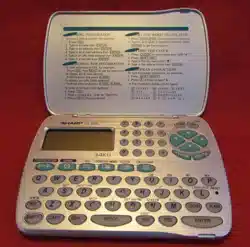
MODEL
OZ-5500
ELECTRONIC ORGANIZER
OPERATION MANUAL
Quick Start ............................................. 8
Getting Started .................................... 41
General Operation ............................... 55
Time Management............................... 69
Creating Your Own Database ............. 95
Memo and Outlining .......................... 103
Desk Accessories .............................. 117
Money & Account Management ........ 133
Features and Utilities for
Added Power ..................................... 161
Using the Optional Peripherals ......... 169
Personalizing Your Organizer ........... 183
Appendices ........................................ 191

2
SHARP ELECTRONICS CORPORATION
Sharp Plaza, Mahwah, New Jersey 07430-2135.
SHARP CORPORATION
PRINTED IN JAPAN
95G16T(TINSE1240PCZZ)
➀
®

1
Congratulations on purchasing the OZ-5500 Organizer.
Please read this operation manual thoroughly to familiarize
yourself with all the features of the unit and to ensure years
of reliable operation. You may also find it useful to keep this
operation manual on hand for reference.
Some of the accessories described in this manual may not
be available at the time you purchase this product.
Check with your local SHARP dealer concerning
availability.
All company and/or product names are trademarks and/or
registered trademarks of their respective manufacturers.
NOTICE
• SHARP strongly recommends that you keep separate
permanent written records of all important data. Data
may be lost or altered in virtually any electronic memory
product under certain circumstances. Therefore,
SHARP assumes no responsibility for data lost or
otherwise rendered unusable whether as a result of
improper use, repairs, defects, battery replacement, use
after the specified battery life has expired, or any other
cause.
• SHARP assumes no responsibility, directly or indirectly,
for financial losses or claims from third persons resulting
from the use of this product and any of its functions,
such as stolen credit card numbers, the loss or
alteration of stored data, etc.
• The information provided in this manual is subject to
change without notice.
Introduction

2
Contents
Introduction ...................................................... 1
Contents ........................................................... 2
Quick Start........................................................ 8
Answers to Commonly Asked Questions.... 32
What Your Organizer Can Do ........................ 36
About this Manual.......................................... 37
Conventions Used in this Manual ................ 39
Caring for the Organizer................................ 40
Chapter 1 Getting Started ............................ 41
Part Names and Functions.......................... 42
Getting the Organizer Up and Running....... 43
Installing the batteries....................................43
Initializing .......................................................44
Setting up the Organizer after Initialization . 45
Welcome messages and instructions............ 45
Setting the Owner’s Information ....................45
Setting the Clock ...........................................46
Setting the User’s Preferences......................47
Tel/User File Templates ................................47
Setting the Start-up Display...........................48
Setting the Password and Locking the
Organizer .......................................................49
Setting the World City.................................... 49
To start working with the Organizer............... 49
Turning the Organizer on and off .................. 50
Setting the LCD contrast to suit various
lighting conditions ..........................................50
Turning off the initial display..........................50
Turning the key beep on and off....................51
Getting to Know Your Organizer.................. 51
Applications ...................................................51
Menu operations............................................52
Pop-up menus ...............................................52
The keyboard.................................................52
Display symbols.............................................53
Built-in help and other messages ..................53
Chapter 2 General Operation....................... 55
Opening an Application ............................... 55
Selecting the Display Modes....................... 56
Index mode .................................................... 56
View mode .....................................................57
Edit mode.......................................................57
Creating a New Entry .................................. 58

3
Editing an Existing Entry ............................. 59
Editing Techniques ...................................... 59
Fields .............................................................59
The cursor......................................................60
Typing in text .................................................60
Moving around the display ............................61
Inserting and overwriting text ........................61
Deleting text...................................................61
Working with blocks of text ............................61
Scrolling the display................................ 62
Finding Specific Entries in Your Organizer.. 63
Using Index mode.......................................... 63
Using keywords .............................................63
By date...........................................................64
Deleting Entries ........................................... 65
Deleting single entries ...................................65
Deleting entries using the application menu .65
Checking the Time and Date....................... 66
Checking the Memory ................................. 67
The TOOLS Menu - the Organizer’s Basic
Utilities......................................................... 68
Chapter 3 Time Management ....................... 69
The Calendar Application ............................69
Selecting a Calendar view .............................69
The Monthly view...........................................70
The Monthly view: Monthly Goals display .....70
The Weekly view ...........................................71
The Daily view ...............................................71
Finding entries using the Calendar views .....72
Selecting a date.............................................72
Making new Schedule, To Do and
Ann entries.....................................................72
The Calendar application menu ....................73
The Schedule Application............................ 74
Making new entries........................................74
Finding Schedule entries...............................75
Moving appointments and editing entries......75
Deleting entries..............................................76
Selecting a specific date................................77
Making entries for recurring and extended
events ............................................................77
Setting a Schedule alarm ..............................79
The Schedule application menu ....................80
The To Do Application ................................. 80
Making new entries........................................80
Finding entries using Index mode .................82
Controlling how the Calendar displays
To Do information ..........................................83
Using keywords .............................................83

4
Editing entries................................................84
Checking off completed entries .....................84
Using categories............................................85
Deleting To Do entries................................... 88
The To Do application menu .........................89
The Ann (Anniversary) Application .............. 90
Making new entries........................................90
Finding entries ...............................................91
Editing Ann entries ........................................92
Deleting Ann entries ......................................92
The Ann application menu.............................93
Chapter 4 Creating Your Own Database ..... 95
The Tel and User File Applications.............. 95
Selecting a file ............................................... 96
Creating new entries......................................96
Finding entries ...............................................96
Editing entries................................................97
Deleting file entries ........................................ 98
The Tel application menu ..............................98
The User File application menu.....................98
Customizing the Tel and User File
Applications ................................................. 99
Changing file names......................................99
Configuring fields.........................................100
Customizing the Index display.....................101
Modifying the Index sort order.....................101
Modifying the templates...............................102
Chapter 5 Memo and Outlining.................. 103
The Memo Application............................... 103
Creating documents ....................................103
Finding entries .............................................104
Editing Memo entries...................................105
Deleting Memo entries.................................105
Changing the way text is displayed .............106
Turning word wrap on and off......................107
The Memo application menu .......................107
The Outline Application .............................107
Creating an outline ......................................107
Locating outlines..........................................109
Displaying full topics ....................................109
Revising outlines .........................................110
Deleting Outline topics.................................112
Using subtopics (children) ...........................113
The Outline application menu......................116
Chapter 6 Desk Accessories...................... 117
The Calc (Calculator) Application.............. 117
Using the arithmetic calculator ....................117
The paperless printer...................................118

5
Calculating dates .........................................120
Using the Calculator with other
applications..................................................121
When E appears ..........................................122
Cost/Selling price/Markup and Cost/
Selling price/Margin calculations .................122
Setting the number of decimal places .........123
Calculation examples ..................................124
The Calc application menu ..........................125
The Clock Application................................ 126
Changing the Local city ...............................126
Setting the time and date ............................127
Checking the time in a city ..........................128
Adding a User-defined city ..........................129
Daylight Saving Time (DST) ........................130
Setting daily alarms .....................................130
The Clock application menu ........................132
Chapter 7 Money & Account
Management ................................................. 133
Money Tracking application....................... 133
What it can do..............................................133
Introducing Money Tracking concepts.........133
Things to Know about Money Tracking.......134
Setting up Money Tracking accounts ..........135
Viewing account information .......................137
Editing or viewing account details ...............137
Entering Money Tracking transaction..........137
Viewing account transactions......................140
Displaying transactions in detail:
View mode ...................................................141
Editing/updating existing transactions:
Edit mode.....................................................141
Listing all transactions .................................142
A closer look at Money Tracking
transactions .................................................142
Using the Filter to display selected
transactions .................................................143
Canceling an active Filter ............................145
About Categories....................................... 145
Using the pre-defined Categories................145
Adding your own Categories .......................146
Editing Category names ..............................146
Using Categories .........................................147
The SPLIT function......................................147
Automatic transfers......................................149
Making a transfer for a SPLIT transaction...151
Account balancing & reconciliation ........... 152
Performing account balancing.....................152
Marking transactions as CLEARED ............152

6
Postponing the ACCOUNT BALANCING
procedure.....................................................153
Balancing the account and reconciling the
transactions .................................................154
Handling unbalanced accounts ...................155
Removing transactions after account
balancing .....................................................156
When the Organizer is Locked ....................156
Deleting Money Tracking entries.................157
Money Tracking application menu...............160
Chapter 8 Features and Utilities for
Added Power ................................................ 161
Copying or Moving Blocks of Text ............. 161
Copying or Moving Entries ........................ 162
The Time Stamp and Date Stamp
Functions................................................... 163
The Word Key ........................................... 164
Defining your words or phrases...................164
Inserting a word or phrase...........................164
Editing a word or phrase..............................165
Deleting a word or phrase ...........................165
The Filter Function ....................................165
Turning the Filter on ....................................165
Turning the Filter off ....................................166
Deleting filtered entries................................166
Special Characters ....................................167
Chapter 9 Using the Optional
Peripherals ................................................... 169
The Peripherals Menu............................... 169
Printing from the Organizer ....................... 170
Setting printer emulation .............................170
Printing the current display..........................171
Printing a single entry ..................................171
Printing a specified group of To Do
entries ..........................................................171
Printing Schedule entries for specific
periods .........................................................172
Printing all entries ........................................172
Transferring Data....................................... 173
Transferring between OZ-5500
Organizers ...................................................174
Exchanging data with other Organizers ......176
The IN BOX and IN BOX VIEWER ...........178
Removing entries to their destination
application....................................................178
Assigning entries to IN BOX from
applications..................................................179
Exchanging Information with a Personal

7
Computer................................................... 180
Points to remember when using
peripherals................................................. 181
Chapter 10 Personalizing Your
Organizer ...................................................... 183
The Start-Up Display................................. 183
Selecting the start-up display ......................183
Responses to the start-up display ...............184
Setting the Owner’s Information ..................185
Locking the Organizer ............................... 186
Turning on the Lock.....................................186
Marking/unmarking entries as Secret..........187
Accessing Secret entries .............................187
Automatic Relocking....................................188
Changing or deleting the password.............188
If you forget your password... ......................188
Changing the Calendar Display Format .... 189
Setting the monthly format ..........................189
Setting up the default Calendar view ..........189
Setting up the date format ...........................190
Selecting the Bold display font .................. 190
Appendices................................................... 191
A. List of Key Notations............................. 191
B. Resetting the Organizer........................ 196
All reset operation........................................197
C. Troubleshooting .................................... 198
D. Battery Replacement ............................198
General guidelines.......................................198
Replacing the operating batteries................199
Replacing the memory backup battery........200
E. Specifications........................................ 202
Index.............................................................. 205

8
Quick Start
Important things to do
HELP
1.
Complete and return the Blue registration
card. This allows Sharp to notify you of new
products and accessories for your Organizer
as they become available.
2.
Please read through this Quick Start section.
Even if you hate reading manuals, this
section will get you up and running with your
Organizer in just a few minutes. The
Organizer has been carefully designed to be
extremely easy to use, but it will help you
greatly to go through this quick introduction to
setting up and using your Organizer.
3.
Read through the section for answers to
commonly asked questions. There is a good
chance that many general questions you may
have about your Organizer will be answered
in this section.
4.
Press
2nd
H
any time you need help
using a particular application on the
Organizer. The on-screen help facility
provides you with a quick reference guide
explaining various options and their functions.
9
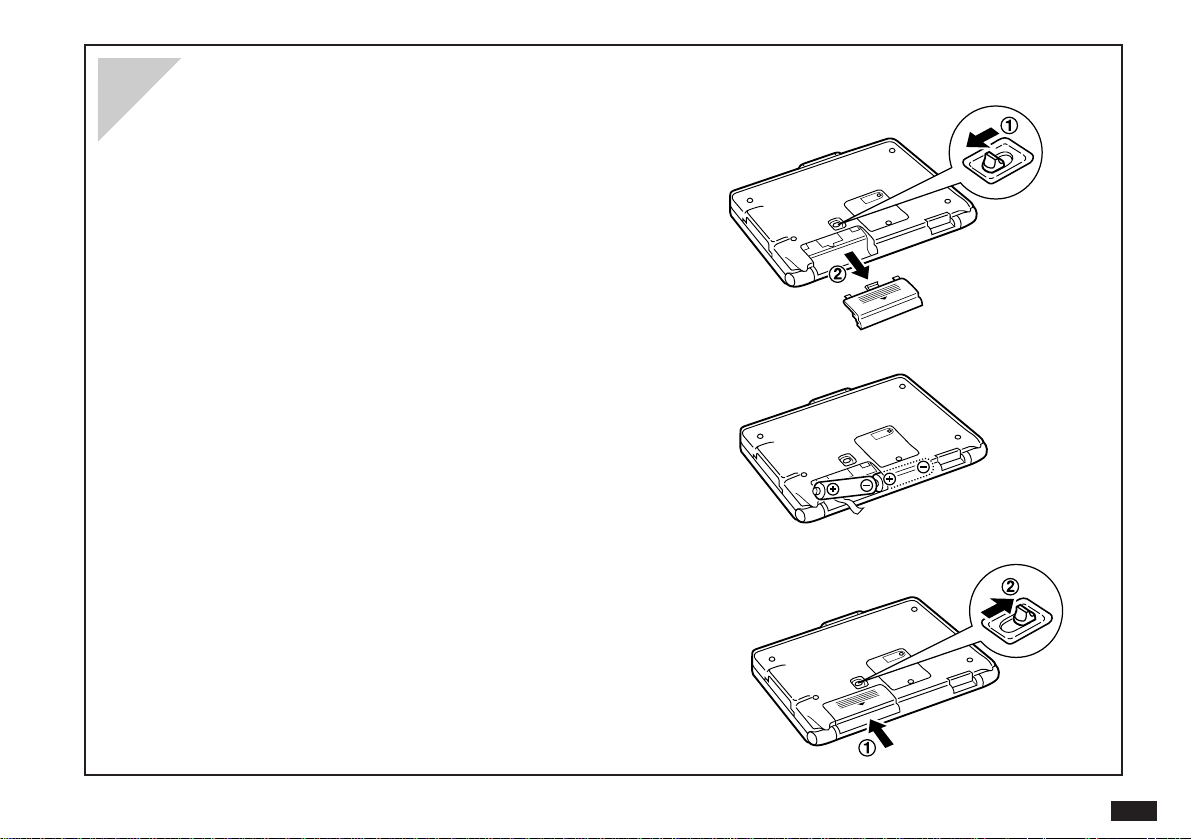
1.
Set the battery replacement switch on the bottom of the
Organizer to “REPLACE BATTERIES” (so the red dot
appears). (Fig. 1)
2.
Remove the operation battery cover and remove old
batteries. (Fig. 1)
3.
Insert the two batteries on top of the ribbon tab,
as shown in the diagram (Fig. 2)
4.
Replace the operation battery cover. (Fig. 3)
5.
Set the battery replacement switch to “NORMAL
OPERATION”. (Fig. 3)
Installing or replacing the batteries
Fig. 1
Fig. 2
Fig. 3
10
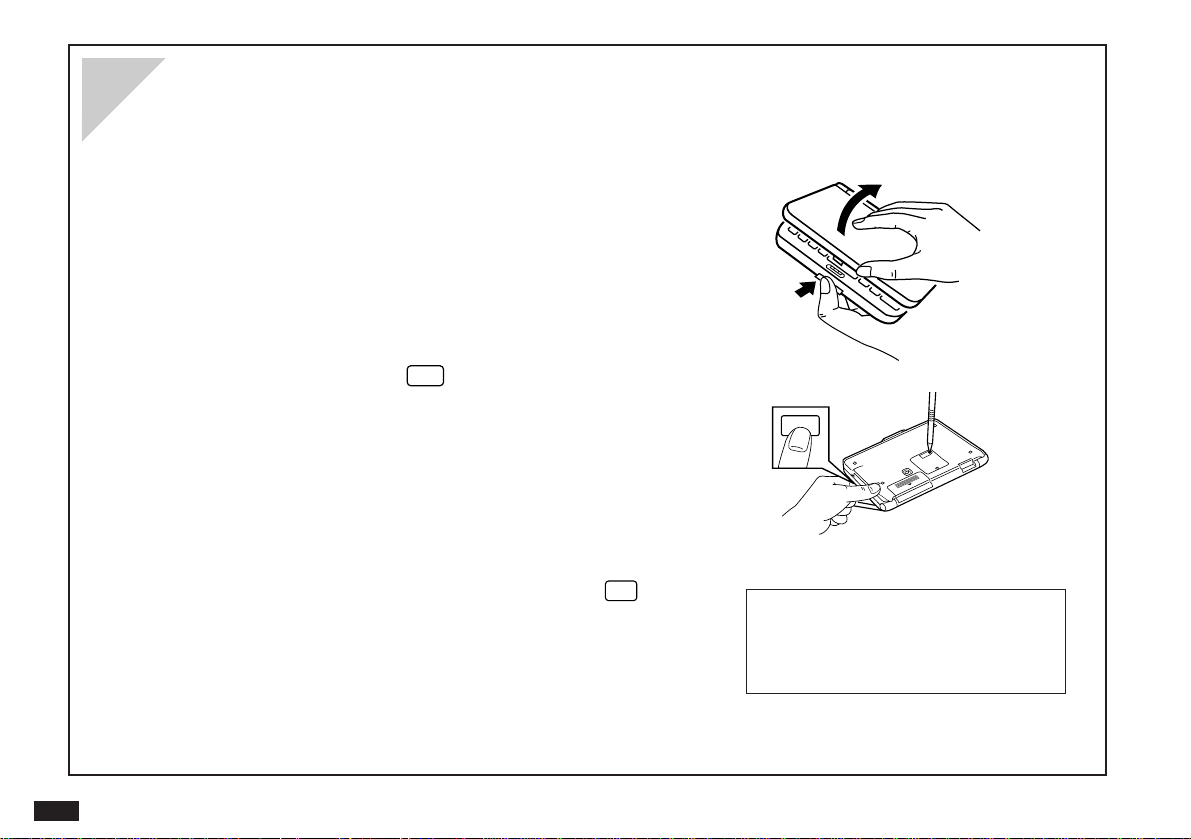
After you install the batteries for the first time, you must initialize the Organizer before using it.
1.
Press the LOCK button and open the Organizer.
2.
While holding down the
ON
key on the keyboard,
push the RESET button on the back of the
Organizer with a pen or a similar object.
3.
When the confirmation message appears, press
Y
to initialize the Organizer.
#Q-3-3
The Organizer then takes you through the set up
procedure, starting with adjusting the LCD contrast.
Initializing the Organizer
ON
11
4.
Press
˜
or
¶
to adjust the LCD contrast to your
liking.
#Q-3-4
5.
Press
ENTER
.
You may have to wait for about 10 seconds before the
next screen appears.
Note that the Start-up continues with “Setting up the
Organizer” on p.12.
12
After initializing the Organizer and adjusting the LCD contrast, or after restarting with the SET UP option selected for
START-UP mode, the following steps occur.
1.
The welcome screen appears, introducing you to the
Organizer’s features. Press
ENTER
to continue.
#Q-4-1
2.
After the User Setup introduction appears, press
ENTER
to continue.
3.
After you have read the User Setup Basic Instructions,
press
ENTER
to continue.
#Q-4-2
4.
Enter the Owner Information, pressing to move
to the next field. (Don’t worry if you make a mistake, you
can change the Owner Information anytime; see Chap.10.)
#Q-4-3
5.
Press
ENTER
to store the information you entered.
6.
After the Owner Information confirmation screen appears,
press
ENTER
to proceed with setting the Clock.
Setting up the Organizer
13
7.
You must select your local city before setting the
time. If your city is not shown, press
SPACE
and
select USER CITY2, then set up your city later (see
“Adding a User-defined city” in the Clock
application, Chap.6).
8.
Press
ENTER
when your city is selected.
9.
If your country is currently using Daylight Saving
(Summer) Time, press
Y
, otherwise press
N
.
10.
Next, enter the current time in your city, then press
.
Single-digit hours or minutes should be preceded by “0”,
eg. 0533. Press
AM
or
PM
for AM or PM respectively.
11.
Select the time system you want to use, ie. 12- or
24-hour clock. Press
.
12.
Press
˜
and select today’s date from the pop-up
calendar, then press
ENTER
.
Use and to select the month and the cursor
keys to select the day.
13.
Press
ENTER
to save.
#Q-4-4
#Q-5-6
#Q-5-6 (showing pop-up calendar
& callout text)
14.
The User Setup screen is displayed. After reading, press
ENTER
to continue customizing your unit
with User's Preferences.
14
#Q-6-2
1.
TEMPLATES
Built-in templates have been created for the Tel and User File applications. There are three telephone files
and three user files that can be customized to meet your specific needs.
To customize your Tel files highlight TEL TEMPLATE and press
ENTER
. Use the cursor to highlight the file
you would like to customize. Press
˜
to bring up a list of template options. Highlight your choice and press
ENTER
to save.
To customize your User File files, highlight USER FILE TEMPLATE and press
ENTER
. Follow the steps
above.
2.
START-UP DISPLAY
Highlight START-UP DISPLAY and press
ENTER
. This allows you to choose what you want to see when you
turn on the Organizer. Highlight your choice and press
ENTER
to save.
START-UP ON: displays Owner Information on start-up and requires password if ASK
PASSWORD is set to ON.
OFF: Background appears only.
SETUP: displays User Setup screens on start-up.
User’s Preferences
15
BACKGROUND – User can select the background to be displayed on start-up.
ASK PASSWORD – ON: A password is required on start-up if START-UP is also set to ON.
OFF: No password is required.
3.
MORE CLOCK SETTINGS
Allows you to choose the World city to be used in the clock display. Use
and to scroll through
the cities. Highlight your choice and press
ENTER
to save.
4.
LOCK ORGANIZER
Allows you to assign a password which will be needed in order to access entries marked as Secret.
5.
START ORGANIZING
At any time you can start to actually use the Organizer by highlighting START ORGANIZING and pressing
ENTER
.
The Calendar application opens with today’s date selected.
16
1.
Press .
2.
Press
NEW
.
3.
Type in the name, telephone number and address of the
person or company you want to store.
#Q-8-1
Use to move between fields. Use
BS
or
DEL
to
correct mistakes. Use to move to a new line in
the name and address fields.
4.
Press
ENTER
when finished to store the new entry.
Making your first entry (in the Tel application)
The dark outline around a field indicates that it is
selected for entering information.
Indicates that the entry is in Edit mode, so it is
being added or can be modified.
17
1.
Press , then press
NEW
.
2.
Today’s date has been given automatically. If you want to
use a different date, move up to the DATE field and press
˜
.
Press or to select the desired month, then use the arrow
keys to select the day of the appointment. Press
ENTER
when
done.
3.
Move to the TIME field and type in the start and end times for
your appointment, then press
.
4.
Type in a description for the appointment (eg. “Meeting with
John”).
5.
Press
ENTER
to store the entry.
Recording an appointment
#Q-9-1
#Q-9-2
18
Appointment times can frequently change. Instead of re-typing a new appointment and deleting the old one, you can
change an existing appointment easily.
1.
Find the Schedule entry you want to move.
2.
Press
EDIT
.
#Q-10-1
3.
If the appointment time has changed, enter the new
start and/or end times.
4.
If the date has changed, move to the DATE field, press
˜
and select the new date from the pop-up calendar, then
press
ENTER
.
5.
Press
ENTER
to store the revised appointment.
#Q-10-3 (with new date)
Changing an appointment
#Q-10-2 (showing pop-up
calendar and new date selected)
19
1.
Press then press
NEW
.
2.
Enter a description of the task to be done, then press .
3.
Enter the DUE DATE, which is the date by which the task must
be completed.
#Q-11-1
4.
If desired, enter any other information.
5.
Press
ENTER
to store the entry.
6.
Press
.
The To Do index appears, showing you the list of all To Do
items.
Entering a To Do item
You can assign a priority number which can be used
to sort the entries in Index mode.
Press to mark any entry as completed.
Up to five category fields can be used to selectively
access groups of entries using the Filter function.
#Q-11-2
20
The Calendar provides three different views: Monthly, Weekly and Daily. Each of these views allows you to see
information stored using the Schedule, To Do and Ann applications.
1.
Press Calendar. If the Monthly view does not open, select it
by pressing , selecting VIEWS and then MONTHLY.
#Q-12-1
2.
Use the cursor to highlight a date, then press
ENTER
to switch to the Weekly view.
#Q-12-2
Using the Calendar views
An exclamation mark indicates
a To Do item on this day.
An upper dot indicates a Schedule
entry during the morning.
A lower dot indicates a Schedule
entry during the afternoon or
evening.
White-on-black display indicates an
Ann entry recording an anniversary or
some other annual event.
Press to display additional
information for this day.
If you de-select HIDE
MONTHLY GOALS from
the menu, the next-
month view will be
replaced by the
MONTHLY GOALS.
21
3.
Use the cursor to move to a selected day of the week, then
press
ENTER
to switch to the Daily view for that day.
#Q-12-3
4.
Use
¶
and
˜
to select an entry, then press
ENTER
to
display its full details in the application used to create it.
You can also switch views by pressing .
You can press
NEW
to open CALENDAR ACTIVITIES, which
allows you to make a new entry for the Schedule, To Do and Ann
applications.
Shaded areas on the time bar indicate
appointments. Black areas indicate
appointment conflicts.
Press to mark the selected
entry as completed.
22
1.
Find an entry that you wish to change (a change of address in
the Tel application is shown here as an example).
2.
Press
EDIT
to go to Edit mode.
3.
Move to the field you want to change.
4.
Make any desired changes.
NOTE: You can clear any field by pressing
NEW
. You can
highlight any text using and the cursor keys, and then delete the
text (by pressing
DEL
) or cut the text (by pressing
2nd
to paste
it elsewhere.
If you make a mistake and want to restore the original entry, simply
press .
Editing an entry
#Q-14-1 (TEL entry with
description highlighted)
23
1.
In any application, select an entry that you want to delete in Index mode, or display it in View mode.
2.
Press
DEL
.
A confirmation message appears.
#Q-15-1
3.
Press
Y
to confirm the deletion.
Deleting an entry

24
Deleting multiple entries
1.
Switch to the application in which you want to delete multiple entries.
2.
Press and select DATA DELETION then press
ENTER
.
3.
Select the group of entries you want to delete and press
ENTER
.
(The menu choices will vary depending on the application.)
4.
A confirmation message will appear. Press
Y
to delete the
selected items.
#Q-15-2
25
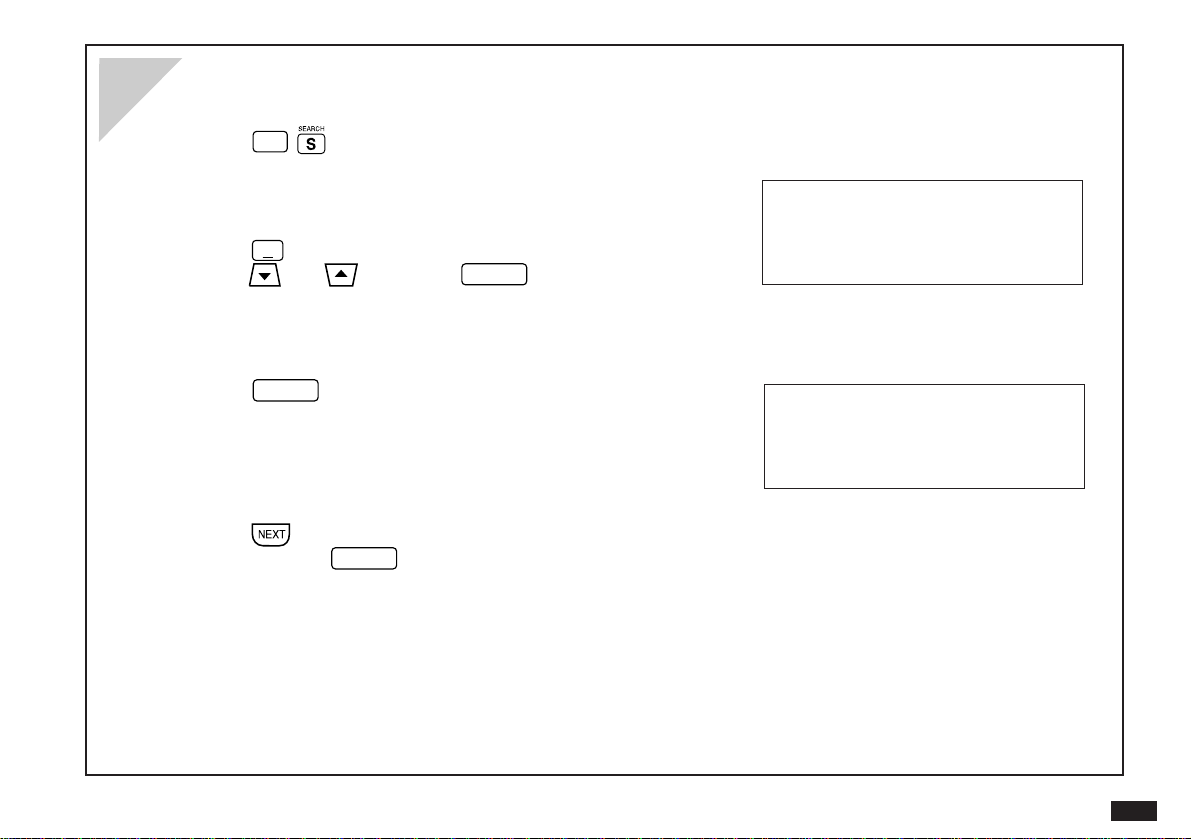
1.
Press
2nd
.
2.
Type in any text stored in the entries you want to find.
3.
Press
˜
and select the application to want to search in
using
and , then press
ENTER
.
The application you were using last will always appear as the default.
4.
Press
ENTER
to begin the search.
5.
Press to see additional entries that contain the searched
text, then press
ENTER
when you find the desired entry.
Searching for information anywhere in the Organizer
#Q-16-1
#Q-16-2
26
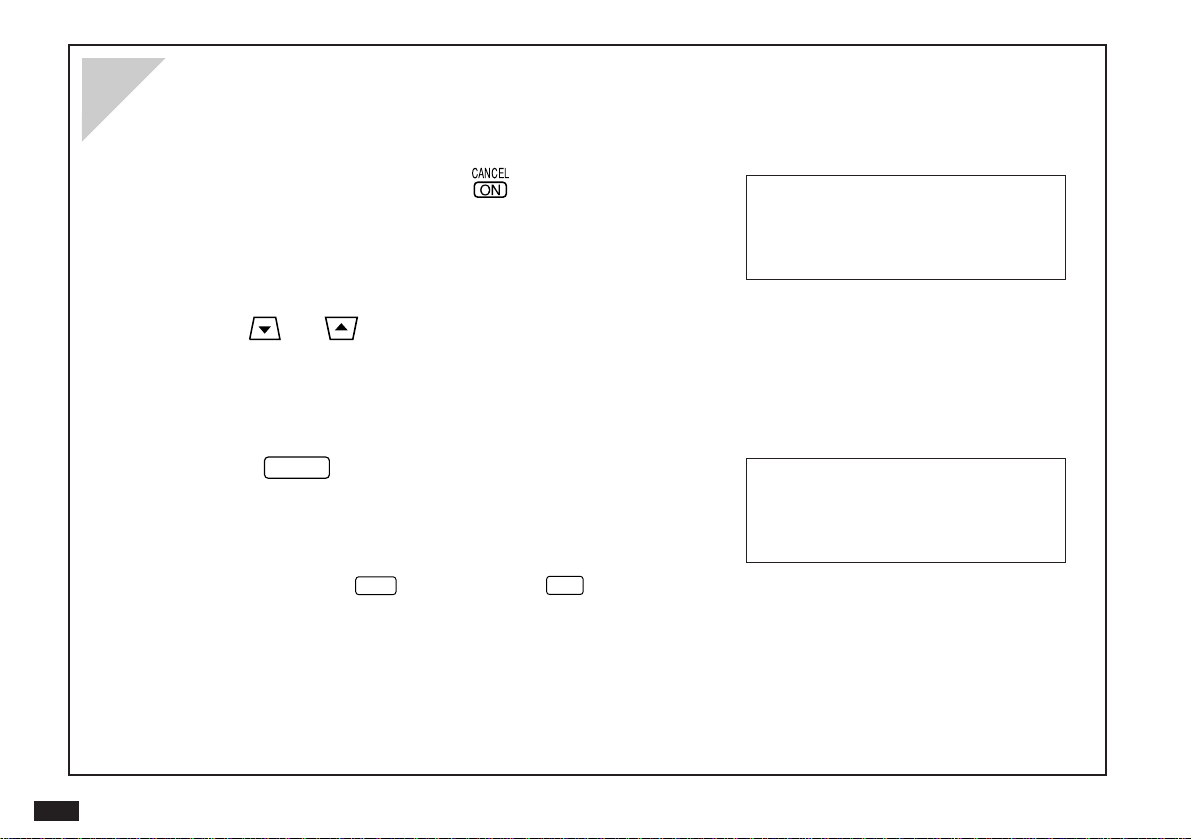
The Index modes for Schedule, Tel, User File, Ann, Memo, Outline, and Money Tracking are very similar.
1.
Select an application and press to go to
Index mode if it is not already displayed.
#Q-17-1
2.
Use and to scroll through the list until you find
the entry you want.
Type the first letter of the entry to jump to the closest position
in the Index list.
3.
Press
ENTER
to view the desired entry once it is selected.
#Q-17-2
You can also press
EDIT
to edit the entry, or
DEL
to delete it.
Finding an entry using Index mode
27
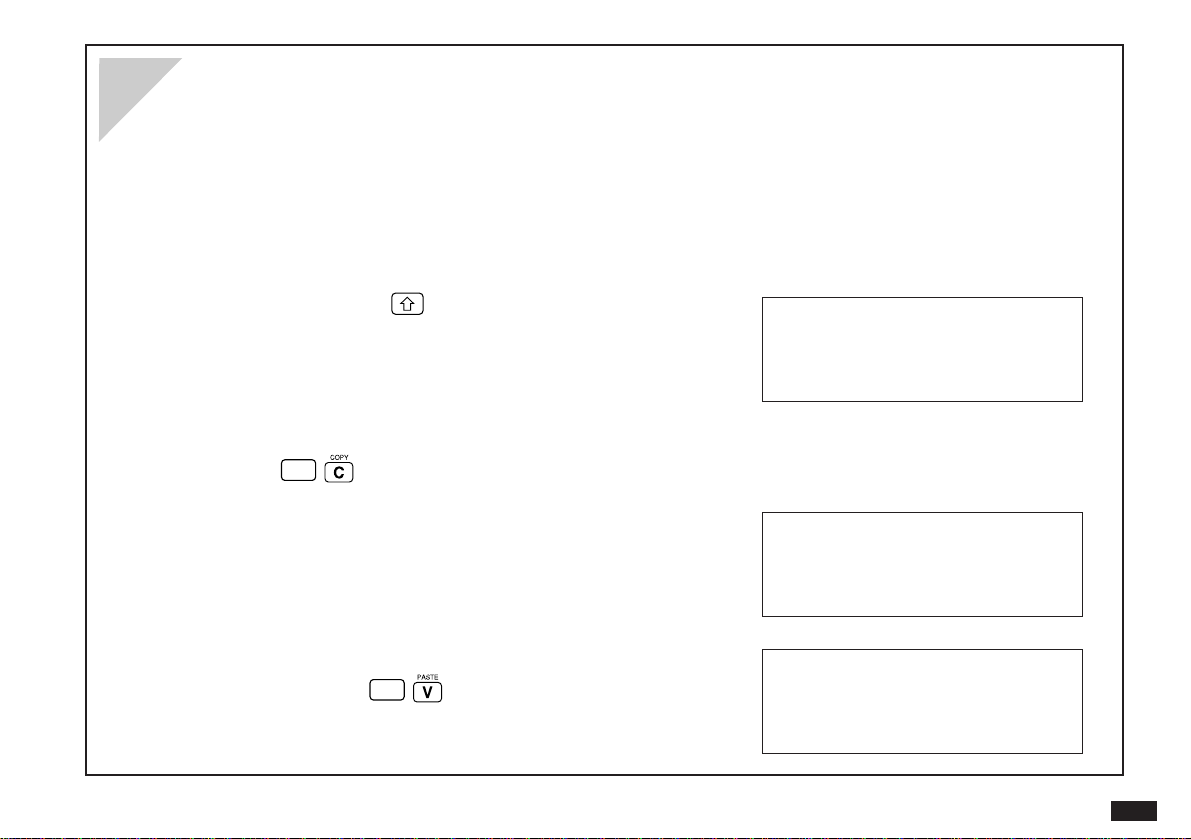
You may want to copy text from one place to another in the Organizer.
1.
Display in Edit mode the entry containing the text you want
to copy.
2.
Move to the start of the text you want to copy.
3.
While holding down , use the cursor keys to select the
text you want to copy.
Selected text is displayed in reverse (white-on-black).
4.
Press
2nd
to copy the selected text.
5.
Display in Edit mode the entry to which you want to add
the copied text.
6.
Move the cursor to the position you want the copied text to
begin, and press
2nd
.
Copying and pasting text between applications
#Q-18-1
#Q-18-2
#Q-18-3
28
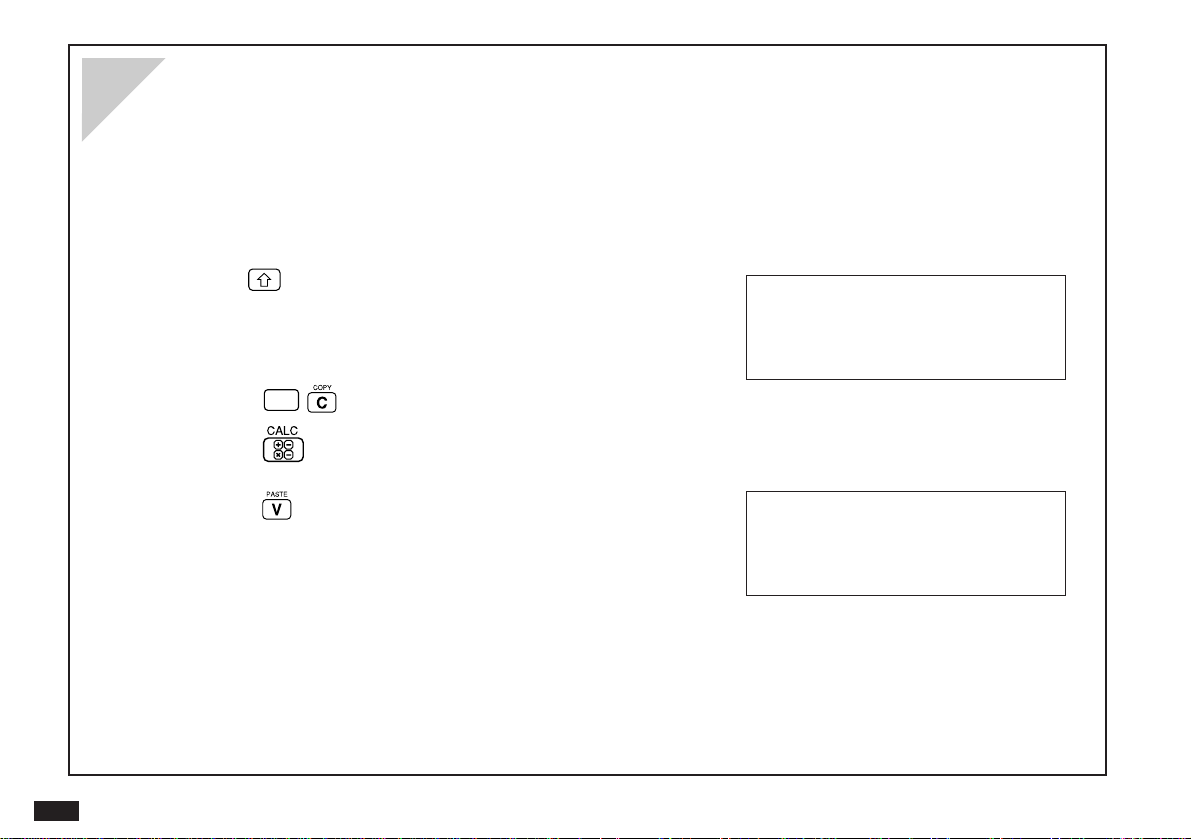
In addition to working like a standard calculator, the Organizer’s Calculator can work with figures created in another
application.
1.
In Edit mode, find an entry containing some figures you
want to calculate.
2.
Use and the cursor keys to select the figures.
#Q-19-1
3.
Press
2nd
to copy the figures.
4.
Press
•
•
repeatedly until the Calculator screen appears.
5.
Press to bring in the copied figures to the Calculator.
#Q-19-2
You can use the result to perform any other calculations you wish.
Using the Calculator
29
Creating a new Money Tracking account
Accounts must be set up before new transactions can be entered.
1.
Press .
2.
Press , select SET UP ACCOUNT and press
ENTER
.
3.
When the ACCOUNT LIST appears, press
NEW
.
4.
Enter the name you want to give the new account, then
press
.
5.
In the TYPE field, press
˜
and select the account type
from the pop-up list, then press
ENTER
followed by .
The type of the account affects the way in which the account is
used. (See Chap.7 for an explanation of account types.)
#Q-20-2
6.
Press
ENTER
to store the account.
#Q-20-1
If a BANK or CREDIT CARD account, enter the
account’s opening balance as it appears on your
latest statement.
Enter any important account information, such as the
account number.
Enter any other useful information describing the
account.
30
You can keep track of your account activities by entering transactions.
1.
Press .
2.
Press , select SET UP ACCOUNT and press
ENTER
.
3.
From the ACCOUNT LIST, select the account for which you
want to enter the new transaction, then press
ENTER
.
4.
Press
NEW
to start entering a new transaction.
5.
Today’s date appears in the DATE field as the default, but it
can be changed if desired. Press
when done.
To change the date, press
˜
and use the cursor keys to select
the desired date from the pop-up calendar, then press
ENTER
.
6.
Enter any other information desired in the appropriate fields,
pressing
to move to the next field.
Entering a new Money Tracking transaction
#Q-21-1
31
7.
After you enter the AMOUNT, press . The remaining
fields are displayed.
#Q-21-2
8.
Select an optional CATEGORY by pressing
˜
, or type in
a new category name. Press
.
9.
Enter additional information in the SPECIAL field if desired.
10.
Press
ENTER
to store the transaction.
Use and to select. Wording used varies
according to account type, although the debit
appears on the left and credit on the right.
Correct punctuation is inserted automatically.
Optional category used to select certain groups of
entries using the Filter.
Enter any text you want to describe the
transaction.
Used for account balancing; change this to
CLEARED when you have checked the transaction
on your statement (if applicable).

32
Answers to Commonly Asked Questions
Q: My batteries only lasted for two months. Is there
something wrong? Will I lose data in memory
when I change the batteries?
A: There is probably nothing wrong with your Organizer.
Battery life will vary from user to user. A number of
factors will affect battery life, especially how much the
Organizer is used. The battery life is rated at 70 hours
of continuous use. Assuming an average of one hour
per day of continuous use, you would get about two
months of battery life.
When you change the main operating batteries, the
back-up battery will protect data in memory. Be sure
to follow the directions carefully when changing the
batteries.
An optional battery case is available, which will
extend the life of your operating batteries.
Q: I have an older model of the SHARP Organizer and
imported the data into this Organizer. But when I
went to the Tel application in my new Organizer,
all of my entries looked strange. Some words
were split in two and some lines ended too early.
The entries don’t look like this in the other
Organizer. What can I do?
A: In certain applications, such as Tel, the number of
characters allowed per line is different from that of
other Organizer models. This means that the new line
characters you entered in the older Organizer will not
produce the same formatting in this unit. You will
need to edit the relevant entries and reformat them by
deleting old new line characters and entering new
ones.
Q: I saw the message “There is not enough
memory...” after trying to store an entry. What
does this mean?
A: You have filled your unit with information. Here are
some things you should try in order to free up some
memory:
1. Check for old Schedule items. Delete those you no
longer need. You can delete all Schedule entries
for an entire month using the Calendar menu.
2. Check for completed To Do items. You can delete
all completed To Do items using the To Do menu.
3. Check for old Money Tracking transactions. If
they have cleared, you should remove them after
performing Account Balancing.

33
Q: I want to print out my information. What do I
need?
A: Here are the things you will need:
1. The SHARP CE-IR1 wireless interface for printers.
2. A standard PC printer cable.
3. Any parallel PC printer that emulates one of the
following printers:
Canon BJ-10e series
IBM ProPrinter series
Epson FX series, LQ series
Hewlett-Packard LaserJet series
Most printers, including portable ink-jet printers on
the market today, emulate at least one of these
printers. Check with your local computer dealer for
more information about printers.
Q: How can I back up my data?
A: It is important to always have a back-up of your
important information. Here are some ways of doing
this:
1. You can print out a hard copy using the optional
accessories. See p.170.
2. You can use PC or Macintosh link software either
from SHARP or a third party. You will also need
one of the various PC-Link cables or the CE-IR2
wireless interface for computers. Check with your
local dealer regarding features and availability of
these products.
Q: I can’t seem to turn my Organizer on. I changed
the batteries but still nothing happens. What
should I do?
A: Check the following before sending the unit in for
service:
c Check that the battery replacement switch on the
back of the unit is in the NORMAL OPERATION
position. If the switch is in the REPLACE
BATTERIES position, the Organizer cannot be
turned on.
c Check or replace the operating batteries, even if
you have just replaced the batteries. It is possible
that the batteries were not fresh when you
purchased them.
c Press the RESET switch. If the Organizer has been
dropped, for example, it may have to be reset. This
will not delete your data (as long as you type
N
at
the Initialization prompt). If for any reason data is
missing after resetting the Organizer, it was lost
before you pressed the RESET switch. The RESET

34
switch simply re-starts the Organizer.
If none of the above procedures work, you will need to
send the Organizer to a service center. Check the
back page of this operation manual for the location of
your nearest service center and call for more
information.
Q: What happens if I am working on an entry and the
auto power off function shuts off the Organizer
before I store the entry?
A: You will not lose any information. The next time you
turn the Organizer on you will be able to resume
exactly where you left off.
Q: Why should I send in the Blue registration card
included with the Organizer?
A: This is your way of registering your product with
SHARP, and allows SHARP to keep you informed
about new products and software available for your
Organizer. It also gives SHARP valuable information
about our users so that we can design products that
continue to meet your needs.
Q: What is the Outline application? Why would I want
to use it instead of Memo?
A: The Outline application allows you to group and
categorize information using a hierarchical structure.
Everyone has a lot of small but important pieces of
information that have to be memorized or kept track of
in a written record, for example, important personal
information: Social Security number, credit card
numbers, various ID numbers, account numbers,
clothing sizes, etc. Using the Organizer, you could
make a number of Memo entries for each piece of
information, but a better way to manage the
information would be to make a single Outline file
called “Personal Information”. This file could then
contain a number of headings (such as Car info.,
Travel info., Health info., Financial info., etc.), under
which relevant pieces of information could be stored.
This makes it easier to access information and
prevents your Organizer from becoming cluttered with
hundreds of individual entries.
Additional Outline files could also be made, including:
favorite movie list, project management file, To Do
lists, price lists, product line-up and specification file,
business plans, product proposals, and meeting
notes. Many types of information can be more easily
and efficiently managed in an Outline structure.
Another use of the Outline application is document

35
preparation. Many times you might want to write a
memo, letter, proposal, marketing plan, etc., but find it
difficult to write an entire document from scratch. The
Outline application allows you to capture your
thoughts and ideas, then rearrange and categorize
them at any time. You can also copy an Outline file
and paste it into the Memo application to finish the
document there, adding text to the major topics.

36
The OZ-5500 is a full-featured, pocket-size information
manager with a large, easy-to-read screen. It provides built-
in wireless communications facilities for exchanging data
with other compatible Organizers and personal computers.
To help you better manage your time and activities, you can
record appointments, meetings, or any other information
relating to a specific date in the Schedule application; the
To Do application helps you track tasks and goals arranged
in a priority you assign to them; the Ann application helps
you to remember important annual events such as
anniversaries, birthdays or even tax preparations; and the
Calendar displays your Schedule, To Do, and Ann entries
clearly in a daily, weekly, or monthly format.
The Tel application is the Organizer’s built-in address book,
used to store names, phone numbers and addresses, while
the User File application is a simple and easy-to-use
database for any important information, entered into
categories you set up yourself. Both can be configured
flexibly to store and recall the information most important
for you.
The Organizer also provides a useful word processing
facility. The Memo application allows you to use the
Organizer for everything from simple note taking to creating
professional, full-size letters, and the Outline application
lets you record and organize your thoughts and ideas using
topics and subtopics, easily reorganizing them at any time.
The Calculator performs a full range of mathematical
functions as well as convenient date and cost calculations,
and the built-in Clock keeps track of both local and
international time.
The Organizer’s Money Tracking application allows you to
monitor and manage your business and personal finances.
The Organizer combines quick access to your information
with the ability to search files using a keyword or heading.
The Filter function makes it possible to select and work with
specified entries. You can also share information within or
between entries and files. And when a printer is connected
to the Organizer (using the optional CE-IR1 wireless
interface), you can print your information.
What Your Organizer Can Do

1
37
This manual is designed to help you to fully understand the
features and use of your Organizer. The first two chapters
provide a general introduction and instructions about set-up
and initialization, including an overview of the keyboard, the
display, and the operations.
Other chapters are organized according to the type of task
(for example, Time Management and Creating Your Own
Database), so that you can concentrate on those functions
and features that you specifically need.
This manual consists of 10 chapters and a set of
appendices:
Chapter 1. Getting Started
Introduces part names and functions, and shows you how
to set up and initialize the Organizer, including how to
install the batteries and set the built-in clock.
Chapter 2. General Operation
Introduces the Organizer’s basic concepts and operations,
including opening an application, using menus, and the
built-in help feature.
Chapter 3. Time Management
Explains those features that help you structure your time
and keep track of appointments and important events: the
Calendar, Schedule, To Do, and Ann applications.
Chapter 4. Creating Your Own Database
Explains the Tel and User File applications, which not only
store information such as addresses and phone numbers,
but can also be configured to manage almost any type of
information.
Chapter 5. Memo and Outlining
Explains the Memo application, and how to structure your
ideas and writings using a simple outline form in the Outline
application.
Chapter 6. Desk Accessories
Explains the Calculator and Clock applications that can be
used whenever they are needed.
Chapter 7. Money & Account Management
Explains the Money Tracking application, the Organizer’s
sophisticated money and account management utility.
Chapter 8. Features and Utilities for Added Power
Explains how to copy information and other useful features
and utilities, filtering selected entries, and more.
About this Manual

38
Chapter 9. Using the Optional Peripherals
Explains how to print using the Organizer and how to
transfer data to and from other Organizers (including
previous models).
Chapter 10. Personalizing Your Organizer
Explains how to change the opening display and Calendar
display format, and how to use the Secret function as well
as the password security.
Appendices
A List of Key Notations
B Resetting the Organizer
C Troubleshooting
D Battery Replacement
E Specifications
1
39
The following keyboard and symbol conventions are used
throughout this manual:
ON
,
ENTER
and other similar notations indicate keys on
the keyboard that should be pressed to perform operations.
Letters and numbers to be entered in examples are shown
in italics. For example:
lunch
indicates that l-u-n-c-h should
be typed. Words shown in bold letters such as Calendar
indicate names of applications. Words shown in
UPPERCASE indicate menus or menu functions.
Some keys have more than one function, accessed by
using them in combination with
or
2nd
. ‘H’, for
example, accesses the HELP screen when the
2nd
key is
used with it. When a key’s second function is referred to in
an explanation, only that function is shown, not the key
itself. For example, the instruction to see the HELP screen
would be shown as
2nd
HELP
, not as
2nd
H
.
The
☞ symbol indicates a tip or an important point you
should note.
The Organizer often lets you perform operations in more
than one way. These alternatives are indicated by the
symbol.
Cross-references to helpful information elsewhere in this
guide are marked by the
➛ symbol.
☞ Information messages displayed for the user are
given in quotation marks, eg. “Stored!”.
➛ For a full list of key notation, see Appendix A, p.191.
Conventions Used in this Manual
40
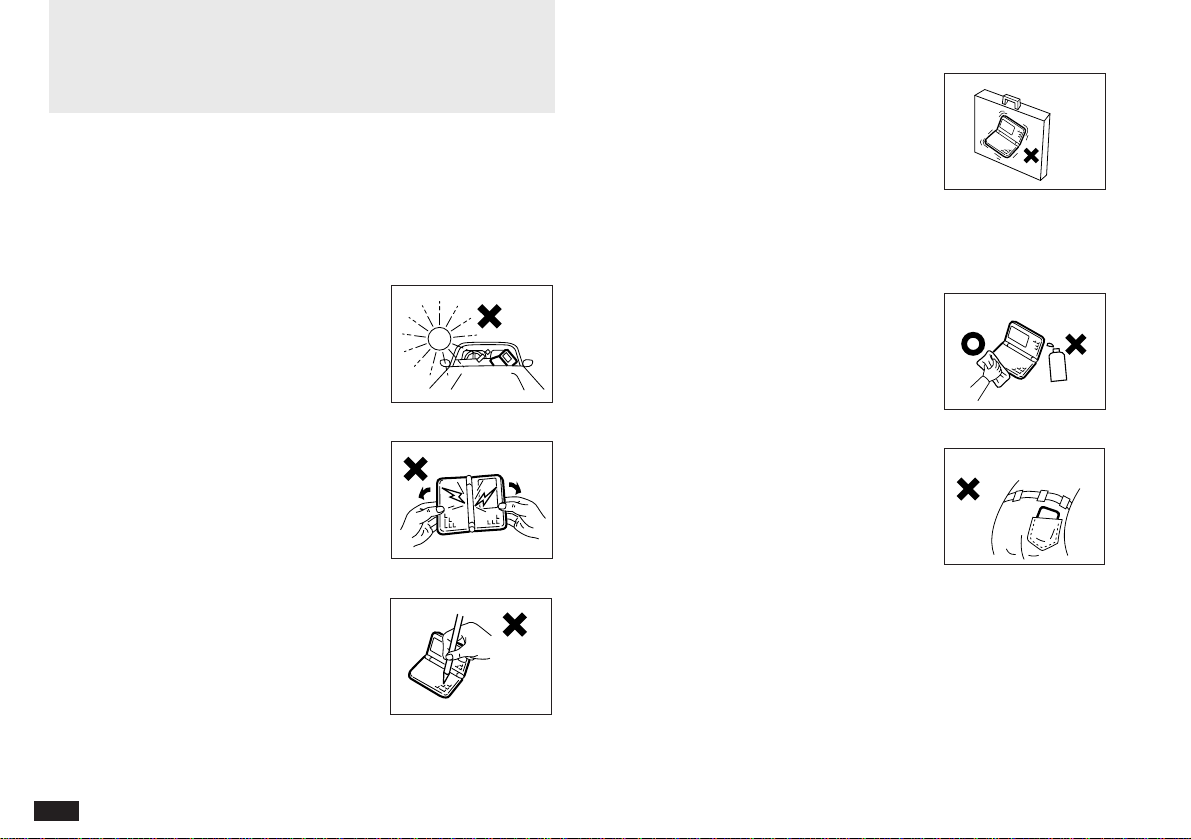
The Organizer contains sophisticated circuitry and a glass
display panel which can be damaged if not handled with
care. A few precautions should be taken regarding the
Organizer’s care to ensure it gives you many years of
reliable and trouble-free use.
• Keep the Organizer away from
extreme heat. Do not leave it on
the dashboard of a car or near
any source of heat. Do not leave
it in any place that is extremely
damp or dusty.
• Do not drop the Organizer or
subject it to severe impact or
extreme force. Bending the
Organizer unduly can damage it.
• Do not use extreme force when
pressing the keys. Do not use
any sharp, pointed object or
even your fingernails to press
them.
• Sharp or hard objects can
scratch and damage the
Organizer. Make sure it is
adequately protected when
carried with other objects. Do not
carry it loose in a bag or
briefcase: find a pocket or secure compartment within
your bag.
• Clean the Organizer only with a
soft, dry cloth. Do not use
solvents.
• Do not carry the Organizer
around in your back pocket, as it
may break when you sit down.
The display is made of glass and
is very delicate.
☞ Replace the batteries as soon as they become weak
(see p.198). Failing to replace weak batteries may
result in leakage or lost data.
Caring for the Organizer
Wrong
Wrong
Wrong
Wrong
Wrong
Wrong

1
41
This chapter explains everything you need to
know to set up and begin working with your
Organizer, from installing the batteries to
initialization. The chapter also includes a labeled
illustration of the parts of the Organizer, and
basic explanation of its key features, from the
keyboard to the display and its symbols.
CHAPTER 1
Getting Started
42
•
•
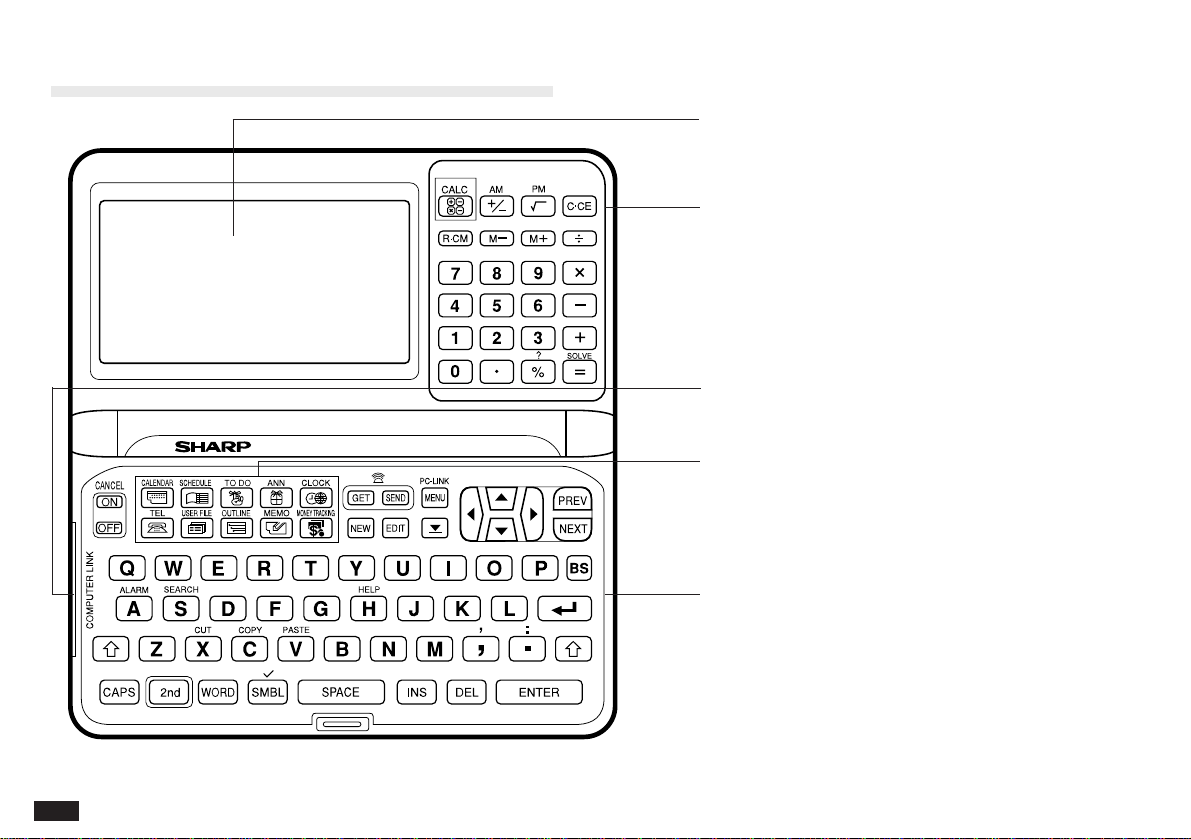
Part Names and Functions
Display
Shows information, and is used for navigating
the various functions.
Numeric keypad
Used for operating the calculator and entering
numbers in other applications.
15-pin cable jack
Connects a data transfer cable for computer
links and other interfaces, etc.
Application keys
Starts appropriate applications.
Keyboard
For entry of characters and commands.
1
43
Getting the Organizer Up and Running
Installing the batteries
1.
Set the battery replacement switch on the back of the
Organizer to REPLACE BATTERIES (the red dot
becomes visible).
2.
Slide off the operating batteries cover.
3.
Insert the two batteries on top of the ribbon tab,
making sure they are positioned correctly according to
plus (+) and minus (–) polarity, as shown below.
4.
Replace the cover.
5.
Set the battery replacement switch back to NORMAL
OPERATION (the red dot disappears).
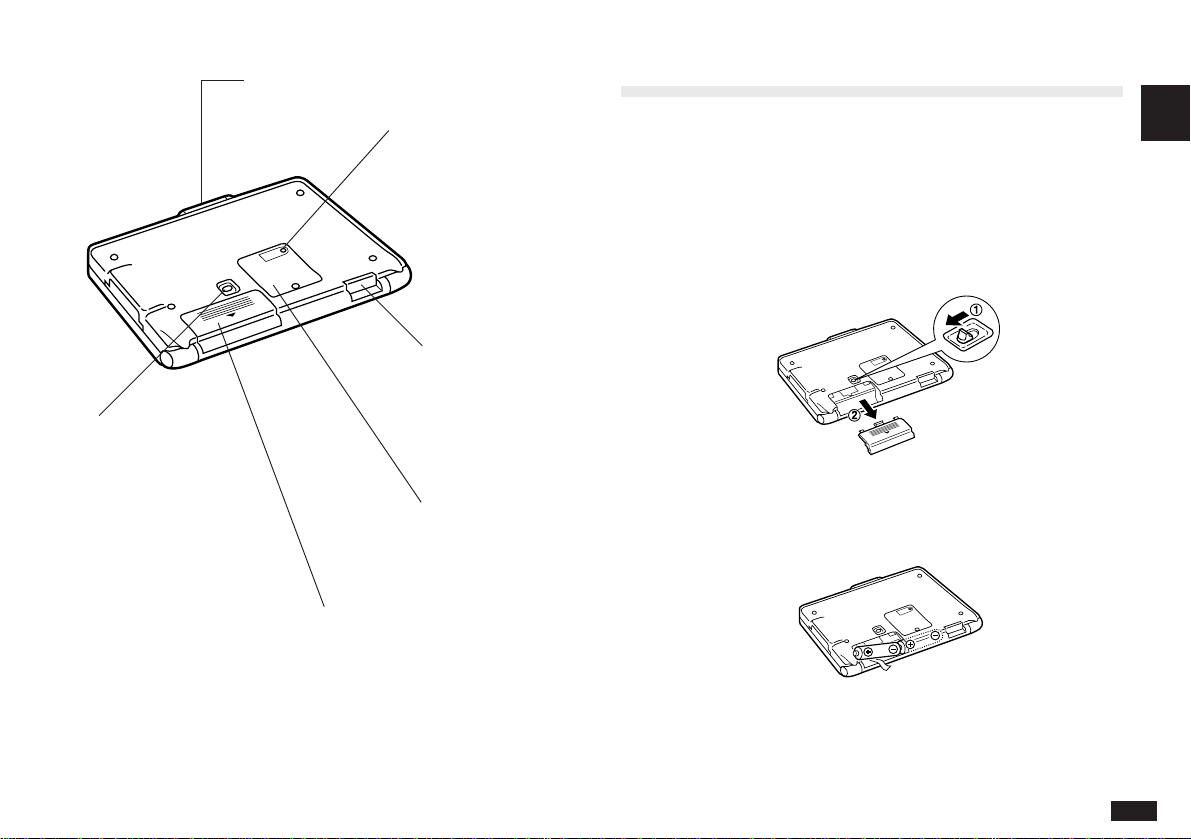
Infrared port
For wireless
communication
with other OZ-
5500 compatible
Organizers, etc.
Battery
replacement switch
Locks the battery
compartment to
prevent access to
the batteries.
Memory back-up
battery
compartment
Holds memory
back-up battery.
Operating
batteries
compartment
Holds operating
batteries.
Reset button
Initializes and resets
the Organizer.
Lock button
Opens the
Organizer.
44
☞ The Organizer will not function unless the battery
replacement switch is in the NORMAL OPERATION
position.
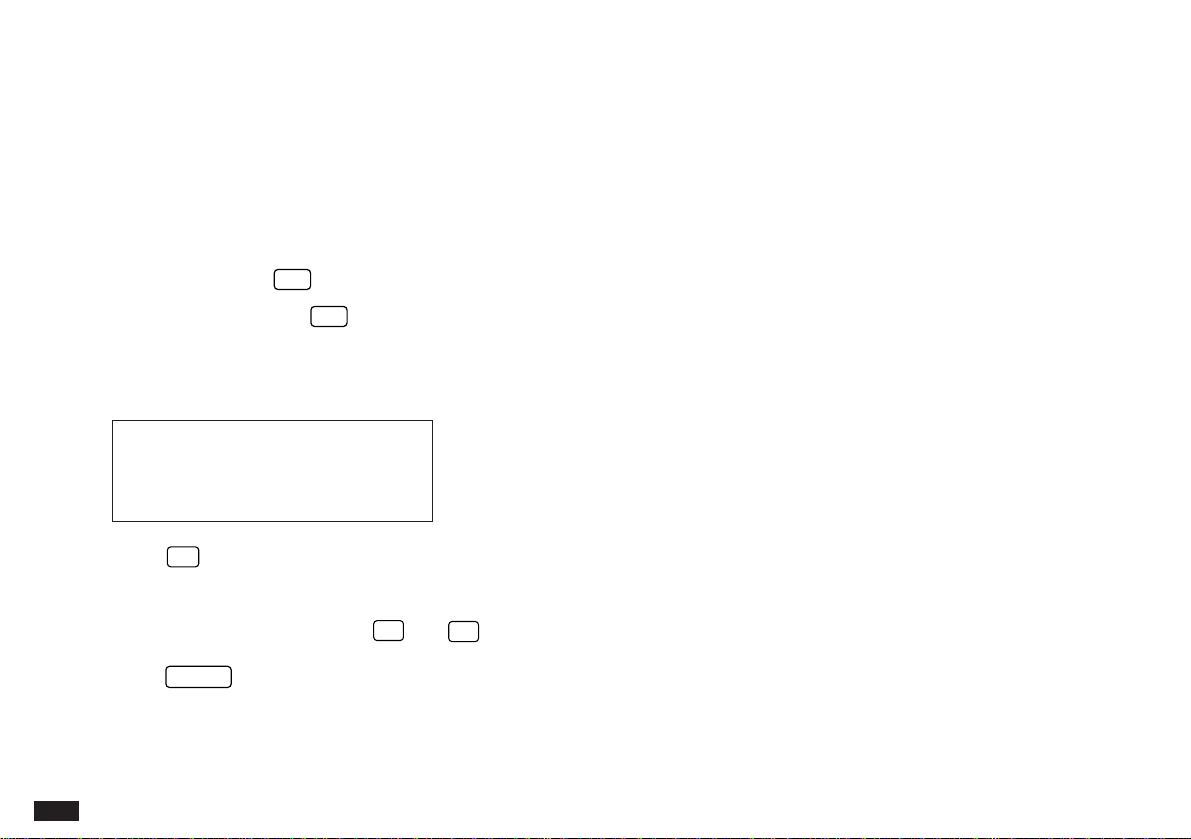
Initializing
The Organizer must be initialized when it is used for the
first time.
1.
Press and hold the
ON
key.
2.
While holding down the
ON
key, push the RESET
button on the bottom of the Organizer using a pen or
some other pointed object. The following message will
appear.
#1-5 Display
3.
Press
Y
to initialize the Organizer.
The LCD Contrast screen then appears.
4.
If the display is not clear, press
˜
and
¶
until the
display is satisfactory.
5.
Press
ENTER
when ready.
The message “Working...” appears for at least 10 seconds
while the Organizer proceeds with the initialization
procedure.
The Organizer then automatically starts the SETUP utility,
so that the owner information, the time and date and
various other settings are defined before use.
1
45
Setting up the Organizer after Initialization
The Organizer takes you through the various steps needed
to set up the Organizer before use. These steps are
described below. We strongly recommend that you
complete the entire SET UP procedure before starting to
actually use your Organizer.
* Welcome messages and instructions
* Setting the Owner Information
* Setting the Clock
* User’s Preferences
Welcome messages and instructions
After completing the LCD Contrast setting above, the
Organizer displays the following welcome message, briefly
outlining its functions.
#1-6 Display
Press
ENTER
to proceed with the User Setup.
The User Setup introduction appears to explain the
operations you are about to carry out.
Press
ENTER
to continue.
The User Setup Basic Instructions appear to instruct you
how to move around the screen during User Setup and
normal use.
You can use
˜
¶
'
§
to move around the
screen. You can also use
PREV
and
NEXT
to move from
field to field.
Press
ENTER
to proceed with setting the Owner
Information (or
CANCEL
to exit the SETUP procedure).
Setting the Owner’s Information
The Owner Information comprises your name, address and
telephone number. You can choose to have this information
displayed each time you turn the Organizer on.
☞ If you make a mistake while entering the Owner
Information, don’t worry! You can amend the Owner
Information easily during normal use, so just proceed
with the rest of the User Setup. (see PREFERENCES,
p.185)
1.
After pressing
ENTER
after the previous Basic
Instructions screen, the Set Owner Information screen
appears.
#1-7 Display
2.
Enter your name, then press
NEXT
.
The cursor moves to the TEL NO. field.
46
3.
Enter your telephone number, then press
NEXT
.
The cursor moves to the ADDRESS field.
4.
Enter your full address.
Press
➞
to move the start of the next line in
ADDRESS.
5.
Press
ENTER
when done.
A message appears confirming the Owner Information has
now been set.
Press
ENTER
to proceed with setting up the Clock as
described below (or
CANCEL
to quit the User Setup
procedure).
Setting the Clock
In order for the Calendar, Schedule, To Do, and other
time-based applications to work correctly, the built-in clock
must be set to the correct time, date and city. The Clock
application displays the time in two different cities: the
Local city, where the user normally lives or works, and the
World city, which is any other city of the user’s choice.
When the Organizer is first initialized, the Local city is
automatically set to New York, and the World city is
London. Before setting the Clock’s correct time, you should
first select the Local City for which you want to set the time.
After entering the Owner Information above, the following
list of cities appears:
#1-8 Display
6.
If the desired city does not appear, press
PREV
or
NEXT
to display more cities.
You can jump to a particular country by pressing the
first letter of that country’s name.
7.
Select the desired city by moving the cursor to it.
☞ If your city does not appear in the list, press
SPACE
to display the User Cities list, then select USER
CITY2. You can change the name to your city later,
using the Clock application menu.
8.
Press
ENTER
.
The Daylight Saving Time screen appears.
9.
If your city is currently on Daylight Saving Time, press
Y
, otherwise press
N
.
The ADJUST TIME/DATE window then appears.
10.
Enter the local time, preceding single-digit hours and
minutes with “0”.
11.
Press
PM
to select PM or
AM
for AM, then press
NEXT
.
12.
Select the time system you want the Clock to use,
then press
NEXT
.

1
47
If you do not wish to set the User Preferences at this time,
select START ORGANIZING and press
ENTER
. The
Calendar application display then appears, and you can
begin to use your Organizer.
To set one of the User Preferences, move to the
appropriate option and press
ENTER
.
Tel/User File Templates
The Tel and User File applications each support three files,
called 1, 2 and 3, each of which can used to store different
kinds of information. The Organizer comes with six different
pre-defined formats which allow you to choose what kind of
information you want to store in each of the files. See
chapter 4, p.95 for details of the various templates.
For SELECT TEL TEMPLATES
File 1 = “TELEPHONE”
File 2 = “CONTACTS”
File 3 = “PERSONAL”.
For SELECT USER FILE TEMPLATES
File 1 = “RESTAURANT”
File 2 = “HOME INV.”
File 3 = “USER FILE”
Each template contains certain fields which determine the
kind of information that can be stored in the file. You can
change your mind later and switch to using a different
template, but some data in your existing entries may be lost
as a result.
13.
In the LOCAL DATE field, press
˜
to display the
pop-up calendar. Use
PREV
and
NEXT
to select
the current month, then use the arrow keys to select
today’s date.
14.
Press
ENTER
once the date has been selected.
The pop-up calendar disappears and the date now appears
in the LOCAL DATE field.
15.
Press
ENTER
.
A message appears briefly to inform you that the time and
date have now been set.
A new screen then appears to inform you that the basic
setup procedure is now complete, and the Organizer is
ready for use. However, there are other areas in which you
can customize your Organizer further by setting various
options.
Press
ENTER
to continue.
Setting the User’s Preferences
The USER’S PREFERENCES display then appears. There
are six choices available.
* Tel Templates
* User File Templates
* Start-up Display
* Lock Organizer
* More Clock Setting
* START ORGANIZING

48
1.
With File 1 selected, press
˜
.
The pop-up template list appears.
If you wish to select a different template, select the desired
template from the list and press
ENTER
.
2.
Press
NEXT
.
3.
Repeat the above steps for File 2 and File 3 if
necessary.
4.
Press
ENTER
when done.
Setting the Start-up Display
You can control the way Organizer behaves each time you
turn it on, including the background that appears, whether
your personal information is displayed and whether a
password is required to access the Organizer’s information.
The Start-up display offers three options:
ON – The owner information (name, address, tel.) is
displayed each time the Organizer is turned on. This
will be useful in case you lose the Organizer, as
anyone finding it would then be able to return it to
you.
OFF – The owner information is suppressed and the
Organizer returns to the most recently used
application.
SET UP – The Organizer will automatically perform
the User Setup and User Preferences procedure (ie.
what you are doing now) the next time it is turned on.
However, note that after this has been completed
once, the Start-up Display is automatically set to OFF.
1.
In the START-UP field, move to the desired option
and press
NEXT
.
2.
In the BACKGROUND field, you can choose a
decorative background to be displayed each time the
Organizer is turned on, then press
NEXT
.
3.
In the ASK PASSWORD field, select ON if you want
to set a password to protect the information in your
Organizer from unauthorized access.
☞ The Organizer only asks for a password if both the
START-UP and ASK PASSWORD fields are set to
ON.
If you set ASK PASSWORD to ON, you must then select
LOCK ORGANIZER from the User Preferences menu, in
order to define the password to be used each time the
Organizer is turned on.
4.
Press
ENTER
when finished.
The User’s Preferences screen reappears.

1
49
Setting the Password and Locking the
Organizer
The Organizer provides two levels of security. The first is
the password required when the Organizer is turned on
whenever the ASK PASSWORD option is set.
The second is the Lock Organizer function, which hides any
data entries that have been previously marked as Secret.
Once the Organizer is locked, the Secret entries cannot be
accessed until the Organizer is Unlocked, for which the
password must be given.
Select this option if you want to define a password and lock
the Organizer.
1.
From the User’s Preferences screen, select LOCK
ORGANIZER.
The Set Password and Lock Organizer screen appears.
2.
Enter the password you wish to use whenever the
ASK PASSWORD option is set or in order to unlock
the Organizer whenever it has been locked, then
press
ENTER
.
A message appears reminding you to remember your
password or keep it in a safe place.
3.
Press
ENTER
.
The User’s Preferences screen reappears.
4.
Select LOCK ORGANIZER once again in order to
Unlock the Organizer by giving the correct password.
Setting the World City
As well as setting the Local city previously, you can also
select the World city, used to display the time in another
city of your choice alongside the Local time. When the
Organizer is initialized, the World city is set to London.
To select the World city:
1.
Select MORE CLOCK SETTING from the User’s
Preferences screen.
The CHANGE WORLD CITY screen appears. A list of six
capital cities is given, with four cities displayed at one time.
2.
If the city you wish to select does not appear in the
list, type the first letter of the desired country and
select the desired city from the full list.
3.
Press
ENTER
once you have selected the desired
city.
To start working with the Organizer
After initialization and the User’s Preferences have been
set, the Organizer is ready to be used for normal work,
such as the entry of information.
1.
Select START ORGANIZING.
The Calendar application opens in the Monthly view.

50
2.
Select any application you wish to use by pressing the
corresponding key.
Turning the Organizer on and off
Press
ON
to turn the power on and
OFF
to turn the
power off. The Organizer will not operate if the battery
replacement switch is in the REPLACE BATTERIES
position.
Auto power off
To conserve battery power, the Organizer will turn itself off
if it has not been used for about 12 consecutive minutes.
However, in order to avoid accidentally interrupting data
transfers, the auto power-off function is disabled while
communicating with other devices.
If the Organizer’s power goes off automatically before an
entry you have been working with is stored in an
application, the data will not be lost. When you press
ON
,
the Organizer will return to the same operating state as
before the power turned off automatically.
Setting the LCD contrast to suit various
lighting conditions
From time to time, the contrast of the LCD display may
have to be adjusted for ideal readability. You may find, for
example, that a contrast setting that was fine for the home
or office is not adequate when outdoors or when travelling
on public transportation. Follow the procedure below to
adjust the LCD contrast.
1.
Press
MENU
three times to open the TOOLS menu.
2.
Highlight ADJUST LCD CONTRAST, then press
ENTER
.
3.
Adjust the contrast by pressing
¶
or
˜
.
4.
Press
ENTER
when you are satisfied with the
contrast.
If for some reason the display is too light or dark for
you to read the display and operate the Organizer,
you can adjust the contrast easily by first turning off
the Organizer, then holding down
MENU
on the
keyboard while pressing
ON
.
Turning off the initial display
The initial display shows the Owner’s Information and
today’s date, and appears each time the Organizer is
turned on, unless the display option is turned off by the
user.
You may find that you wish to turn off the initial display, so
you can resume work immediately the Organizer is turned
on.
To turn off the initial message:
1.
Press
MENU
twice to open the PREFERENCES
menu.
1
51
2.
Select SET START-UP DISPLAY, then press
ENTER
.
The SET START-UP DISPLAY window opens.
3.
In the START-UP field, select OFF, then press
ENTER
.
If you make a mistake, press
CANCEL
and start again.
4.
Press
ENTER
.
The initial display is now disabled.
➛ For more information about configuring the start-up
display, see p.183.
Turning the key beep on and off
The Organizer can be set to make a sound (a beep) each
time a key is pressed. This may help you to know whether a
key has been pressed properly. The default setting is on,
indicated by a musical symbol
e on the top of the display.
You can use the TOOLS menu to change the setting.
1.
Press
MENU
three times to open the TOOLS menu.
2.
Highlight KEY SOUND ON and press
ENTER
to
deselect it. (✓ indicates that the option is currently
set.)
The key beep is now turned off and the musical symbol
e
disappears from the top line of the display.
Getting to Know Your Organizer
The OZ-5500 Organizer is a compact yet sophisticated
information management device that you can use anytime,
anywhere. Its applications and utilities allow you to enter
and organize information, and it has powerful
communications facilities that enable you to put that
information to optimum use when you return to your home
or office. You can quickly update your computerized mailing
lists, for example, or print out your weekly schedule, or
even transfer your notes, letters and memos onto a PC for
further processing. The OZ-5500 even has its own word
processor that allows you to create finished documents for
printing out later.
Applications
Operations on the Organizer are performed using
applications. The Organizer’s Calendar and Schedule, for
example, are applications that record and display time-
related information. To start an application, press the
corresponding key on the top of the keyboard.
When working in one application, you can switch to another
application simply by pressing that application key. Data
being processed in the first application will be saved, even
if the entry is not complete.
#1-7A
52
Menu operations
Another powerful aspect of using the Organizer is its menu
system, which can be used to quickly issue commands and
perform operations. Two universal menus, PREFERENCES
and TOOLS, are available from all applications. In addition,
all applications have a menu for functions and commands
that are specific to each application.
Pressing
MENU
once displays the application menu,
which contains the operations and commands specific to
the particular application. Pressing
MENU
successively
displays the PREFERENCES, TOOLS and PERIPHERALS
menus.
#1-8A
Pop-up menus
The Organizer’s pop-up menus offer a convenient and
efficient method of selecting options from pre-defined lists,
similar to many of the latest personal computer application
software packages. Most applications and functions contain
some pop-up fields. When the user moves to one of these
fields, the pop-up symbol appears on the right of the field.
Pressing
˜
causes the pop-up menu to appear,
containing a list of options or values currently available for
that field. You can then select the desired item from the list,
without having to type any text.
In addition, all date fields function as pop-up fields.
Whenever a date can be entered, the user can press
˜
to display the special pop-up one-month calendar. You can
use
PREV
and
NEXT
to select the desired month, then
the arrow keys to select the desired date. You may find this
more convenient than typing in the date directly, since the
pop-up calendar also shows the days of the week.
#1-8B
The keyboard
The Organizer’s keyboard has a standard layout, just like a
typewriter or computer.
works just like the Shift key on
a typewriter or computer, and
CAPS
is like the Caps Lock
key.
Above the keyboard are the special keys used to start the
Organizer’s various applications, work with the various
menus and control the cursor on the screen.
Symbols in white above a key such as ' or : can be
accessed by holding down
and then pressing the
appropriate key.
Items that are not
currently available
in a menu are
shown dimmed.
Indicates that there
is a submenu for
that menu item.

1
53
Functions in blue above a key, such as HELP, can be
accessed by pressing the particular key after pressing
2nd
. There is no need to hold down
2nd
while you press
the desired key.
➛ Special symbols and characters, such as “&”, “?” and
“/”, can also be entered by using
SMBL
. For a full
explanation, see p.167.
Display symbols
The following symbols appear at the top of the screen to
indicate various operating conditions.
✱ This symbol appears at the top of the display to indicate
that the current entry (in View or Edit mode) has been
marked as Secret.
➞ These symbols indicate that all information in an
entry cannot be shown simultaneously on the
display. The additional entries or fields which
cannot fit onto the display can be viewed by
pressing the displayed arrow key.
2nd The
2nd
key has been pressed.
BATT
The operating batteries are weak and need to be
replaced (see p.199).
CAPS
CAPS
has been pressed. In caps lock mode, all
typed letters will be in upper case. Press
CAPS
again to turn off caps lock.
T
The Organizer is locked. Entries marked as
secret cannot be accessed without first entering
the password and unlocking the Organizer (see
p.186).
e The key sound is on (see p.51).
All alarms are enabled. When this symbol is not
shown, the alarm sound for any alarms that have
been set is disabled (see p.131).
Built-in help and other messages
The Organizer has a built-in help feature which acts as a
convenient, on-line reference manual. You can call up the
Help feature at any time simply by pressing
2nd
HELP
.
On-line help is quite extensive, so you may have to call up
more than one screen to find the information you require.
When built-in help is not available
On-line help is only available when called from an
application screen, ie. not while performing a menu
command or some other operation. Pressing
2nd
HELP
when there is no application display on the screen will have
no effect. Help is also not available within the Clock
application.
➞
➞
➞
54
How to use built-in Help
If you press
2nd
HELP
from any application screen
(excluding Clock), the HELP INDEX appears:
#1-9 Display
To get Help, press the number corresponding to the menu
option describing the kind of Help you want. Pressing
CANCEL
takes you back to the display you were in
previously. After selecting a number, the first page of help
for corresponding topic is displayed.
If you make a selection from the above menu, the display
that appears will resemble the following example:
#1-10 Display
In this type of display, pressing
NEXT
takes you to the
next page of the display, pressing
PREV
takes you to the
previous page, and pressing
CANCEL
takes you back to
the HELP INDEX menu.
From time to time during normal operation, the Organizer
will display messages to guide you through necessary
tasks. Many of these messages will give you a choice of
commands or ask you to confirm important operations,
while others will simply display information for you to read.
In most cases, you must make a selection or simply
acknowledge the message before continuing.
Other messages may display information briefly before
disappearing.

55
2
CHAPTER 2
General Operation
his chapter introduces most of the
Organizer’s basic operations. The Tel
application will be used for the examples.
However, most of the techniques described here
can be applied to all of the Organizer’s
applications. Each application is described in
detail later on in the manual.
➛ For a full explanation of the Tel
application, see p.95.
Opening an Application
To start an application, simply press the corresponding key,
located on the top of the keyboard. Each time you press
CALENDAR
,
SCHEDULE
,
TO DO
,
ANN
,
CLOCK
,
TEL
,
USER FILE
,
OUTLINE
,
MEMO
,
MONEY TRACKING
or
CALC
, the selected application will
appear. Any application already being displayed will be
hidden whenever a new application is selected. You can
always return to another application at the exact point
where you left off simply by pressing its key again.
However, only one application at a time can ever be
displayed.
T
56
Selecting the Display Modes
Once an application is open, you can switch between three
basic display modes: Index, View and Edit. Each display
mode has its own unique appearance and particular
purpose. Index mode is normally the default view when an
application is opened, and provides a summary of the
individual entries that have been created. Pressing
ENTER
after selecting a particular entry causes the entry to be
displayed in View mode, which shows the full details of the
entry. During View mode, the word VIEW appears at the
top of the screen, and no entry details may be altered.
Pressing
EDIT
, either when an entry is displayed in View
mode or is selected in Index mode, causes the entry to be
displayed in Edit mode. The entry’s details can then be
altered as desired. During Edit mode, the word EDIT
appears at the top of the screen. Edit mode is also used
when an entry is being created (by pressing
NEW
).
☞ The Calc and Clock applications do not have Index,
View or Edit modes.
Index mode
Index mode shows you a one line view of each entry within
the application. This allows you to easily find a particular
entry, which you can then display in full (View mode) by
pressing
ENTER
.
#2-2-1 Display
Other operations:
NEW
Creates a new entry for the current application
(in Edit mode).
EDIT
Displays the currently selected entry and edits it
(Edit mode).
DEL
Deletes the currently selected entry.
PREV
Displays any previous/subsequent
NEXT
entries not shown.
¶
˜
Selects an entry.
The currently
selected entry.
57
2
View mode
View mode allows you to see the full details of an entry,
without being able to edit or change it.
#2-2-2
Other operations:
NEW
Creates a new entry for the current application (in
Edit mode).
EDIT
Edits the currently displayed entry.
DEL
Deletes the currently selected entry.
PREV
Displays any previous/subsequent entries not
NEXT
shown.
¶
˜
Displays any information not shown within an
'
§
entry.
Edit mode
Edit mode is used to create a new entry or edit an existing
entry.
#2-2-3 Display
Other operations:
NEW
Clears a selected field.
CANCEL
Clears an entry without storing it or cancels
an operation and returns to the previous view
mode.
ENTER
Stores an entry in the Organizer’s memory or
initiates an operation.
˜
Activates the pop-up menu for a field
displaying the “pop-up” symbol.
¶
˜
Moves the cursor.
'
§
PREV
Selects a field.
NEXT
Indicates the
selected field.
Cursor
58
Creating a New Entry
In Index or View mode, pressing
NEW
opens a blank form
for creating a new entry.
Make the following new Tel entry:
Name
John Smith
Tel.
201-529-8200
Fax.
201-529-9695
Address
123 Main Street, Mahwah, NJ 07430
1.
Press
TEL
to open the application.
The application opens in Index mode.
2.
Press
NEW
on the keyboard.
A blank form opens in Edit mode.
#2-3-1 Display
3.
Type in the name
Smith, John
.
4.
Press
˜
or
NEXT
to move to the NUMBER field.
5.
Type in
201-529-8200
and then press
➞
.
Notice that the cursor has moved to the next line and the
size of the field box has been automatically adjusted.
#2-3-2 Display
6.
Type in
201-529-9695 FAX
.
7.
Press
˜
or
NEXT
to move to the ADDRESS field.
8.
Type in
123 Main Street
followed by
➞
.
Type in
Mahwah, NJ 07430
.
9.
Press
ENTER
to store the entry.
The message “Stored!” appears briefly. The entry is now
stored in the Organizer’s memory and displayed in Index
mode.
➛ For other useful methods available in Edit mode, see
below.
59
2
Editing an Existing Entry
To edit an entry already stored in memory, you must first
access the entry in Edit mode (in which it was originally
created).
1.
Press
TEL
to open the application.
2.
Select the desired entry in Index mode.
3.
Press
EDIT
to open the entry in Edit mode.
4.
Make any necessary changes.
5.
Press
ENTER
to store the changes when you are
finished.
The new, edited entry is now stored, replacing the original
entry.
Editing Techniques
This section explains all the general editing techniques
used in Edit mode when making a new entry or editing an
existing entry in all of the applications. (The Memo
application has many additional features for working with
text; see p.103 for more information.)
Fields
Most applications divide the display into field boxes. The
number of fields in each application varies, as do the types
of fields. The different types of field include text fields, a
date field, time fields and pop-up fields. There are also a
few special types of text fields. In the Tel and User File
applications, you can define the number and names of
fields according to your preferences (see p.100).
You can type any character into a text field. The size of a
text field is limited only by the size of the entry. Text fields
adjust their size automatically to accommodate the number
of lines entered.
Only a date can be entered in a date field, usually in the
format MM/DD/YYYY. For example, you would type
06231996
to enter June 23, 1996.
Only a time of day can be entered in the time field, in the
format of HH:MM followed by
AM
or
PM
(for AM and
PM). For example, to enter 9:00 AM, you would type
0900
then press
AM
.

60
When the pop-up symbol
˜
appears by a field while editing
an entry, this indicates that a pop-up menu is available for
the field. The pop-up menu contains a list of values
available for the field, and is used by pressing
˜
and
selecting the desired value from the pop-up list. Note that
the pop-up symbol only appears next to a field in Edit
mode, when the field is selected. When you move out of a
pop-up field, the pop-up symbol disappears.
☞ While most pop-up fields require you to select an item
from the pop-up menu list, a small number allow to
type in text in addition to selecting from the menu.
The cursor
The cursor is used to work with text, indicating the position
where text will be entered or deleted. It is also used to
select items from menus or lists.
In text fields, where there is no restriction on the type of text
(letters or numbers) that can be entered, the cursor
appears as
ß
in insertion mode, or as in overwrite mode
(see p.61).
In the date and time fields, the cursor appears as
,
indicating that numbers only should be entered in a
specified format (see above).
☞ In some text fields or boxes when there is no
character at the cursor position, the cursor appears as
_.
Typing in text
Typing in text is simple and straightforward. The
Organizer’s keyboard layout is just like the keyboard on a
typewriter or computer.
Letters (lower-case and upper-case)
Any of the standard letters (A to Z) can be entered by
pressing the corresponding key. All letters will normally
appear in lower case. Hold down either of the
keys
while pressing letter key(s) to enter upper-case letters.
CAPS
functions like a “Caps lock” key on a typewriter or
computer. Once pressed, the symbol CAPS will appear in
the display. Any letters typed while the Organizer is in
CAPS mode will appear in upper case. To switch back to
lower-case mode, simply press
CAPS
again. To enter
lower-case letters while in CAPS mode, hold down
while pressing a letter key.
Numbers
Numbers are entered using the numeric keypad located to
the right of the display. The numbers are entered
regardless of whether CAPS mode is on or off.
Symbols
The symbols that appear in white above certain keys can
be entered directly from the keyboard. Holding down
while pressing the appropriate key will allow you to enter
these symbols. Colons can be entered by holding down
61
2
and pressing the
●
key. In addition, a large number
of special symbols are available by pressing
SMBL
(see
p.167).
Moving around the display
You can move the cursor around the display with the cursor
keys
§
,
'
,
˜
, and
¶
. In addition, you can hold
any cursor key down for continuous rapid movement.
The following convenient keyboard shortcuts are also
available in Edit mode:
2nd
'
Moves the cursor to the end of the line.
2nd
§
Moves the cursor to the beginning of the line.
2nd
¶
Moves the cursor to the first line of a field (or
the last line of the previous field if the cursor
is already positioned on the first line of a
field).
2nd
˜
Moves the cursor to the last line of a field (or
the first line of the next field if the cursor is
already positioned on the last line of a field).
Inserting and overwriting text
To insert text into some existing text, move the cursor past
the character after which you wish to insert text and begin
typing. Insertion mode is the Organizer’s default setting,
indicated by the triangle cursor
ß
. To switch to the
overwrite mode, press
INS
. Any text you enter will replace
the existing text. The cursor appears as
in the overwrite
mode. To switch back to the previous mode, press
INS
again.
Deleting text
If you make a mistake while entering text, use the following
keys to erase the incorrect text, then enter the correct text:
BS
Deletes the character before the cursor.
DEL
Deletes the character at the cursor’s current
location.
DEL
Deletes the entire line the cursor is on.
NEW
Clears the currently selected field.
Working with blocks of text
Working with a block of text is sometimes easier and more
convenient than working with characters one by one. The
first step is to select the text to work with.
1.
Hold down the key while using the cursor keys
to move over the entire text that you want to work
with. This will “highlight” the text (display it in reverse
white on black).
#2-4-1 Display

62
2.
You can now perform a number of operations on the
selected text:
BS
or
DEL
Deletes the selected text.
2nd
COPY
Copies the selected text to the
clipboard so that it can later be
pasted to another location.
2nd
CUT
Deletes the selected text from its
current location and moves it to the
clipboard.
2nd
PASTE
Replaces the selected text with
whatever is currently in the
clipboard.
Once text is selected, any new text that is typed in will
replace the selected text. This can be useful if you are
replacing one block of text with another, as selecting the
old text and then typing the new text saves you the trouble
of actually deleting it first.
➛ For a full explanation of the Cut/Copy/Paste functions,
see p.161.
Scrolling the display
If there is more information than can be displayed at one
time, an arrow will appear at the top of the display. The
arrows indicate the direction you need to scroll in. Press
˜
or
¶
to scroll the information one line at a time.
63
2
Finding Specific Entries in Your Organizer
There are a number of ways that you can locate entries and
information in your Organizer. One is to scroll between
entries using the
NEXT
and
PREV
keys. Others are as
follows.
Using Index mode
Index mode gives you a listing of all the entries in a
particular application.
Index mode gives you a listing of all the entries in a
particular application. It is useful for providing a summary
list of the entries contained for that application, from which
a desired entry may be selected.
Many applications open in whichever mode was active
when they were last used, ie. View, Edit or Index mode.
1.
Press the desired application key.
2.
If it is not already displayed, switch to Index mode by
pressing
CANCEL
.
A list of the existing entries appears.
3.
If the desired entry is not displayed, you can scroll the
list of entries by pressing
¶
and
˜
.
#2-5-1 Display
4.
When the desired entry is displayed, select it and
press
ENTER
to see the entry in full.
Using keywords
If you have no idea where an entry is or what letters it
begins with, you can use the Search function to find your
information easily. For example, suppose that you find a
piece of paper with a phone number but no name, and who
want to know whose number it is.
1.
Press
2nd
SEARCH
.
The Search window will open.
#2-5-2 Display
2.
Enter the phone number you have found. For
example, type
529-8200
.
☞ To search only secret entries (see p.186), press
2nd
-
to check the SECRET ONLY box.
64
3.
Press
˜
, select TELEPHONE and press
ENTER
to
close the pop-up list and then again to begin the
search operation. If you are not sure about which
application to search, select ALL to search all
applications.
#2-5-3 Display
The Organizer will now display the first entry that contains
the text or “keyword” that you entered.
#2-5-4 Display
If there is more than one entry that contains the keyword,
press
NEXT
until you find the entry you are looking for.
Then press
ENTER
when you have finished searching.
☞ If you highlight text in an entry before pressing
2nd
SEARCH
to begin a search, the text is automatically
entered as the search keyword.
By date
You can use the various Calendar views to quickly and
easily find information related to a time and/or date.
1.
Press
CALENDAR
.
The calendar appears in the preset view.
#2-5-5 Display
2.
Select a day using the cursor keys, then press
ENTER
to see the Weekly view.
#2-5-6 Display
3.
Press
ENTER
again to see the Daily view.
#2-5-7 Display

65
2
4.
In the Daily view, highlight an entry and press
ENTER
to display the details of the entry.
➛ For more information about using the Calendar
application, see p.69.
You can open the Calendar menu by pressing
MENU
to select the desired Calendar view.
Deleting Entries
Entries in the Organizer can be deleted using either the
DEL
key or the application menu.
Deleting single entries
1.
Open the desired application.
2.
Select the entry in Index mode.
3.
Press
DEL
on the keyboard.
A confirmation message appears asking if you are sure you
want to delete the selected entry.
4.
Press
Y
(or
N
to cancel the deletion).
Deleting entries using the application menu
You can also make deletions using the application menu.
The DATA DELETION submenu allows you to do this
flexibly and easily.
1.
Open the desired application.
2.
Select the entry in Index mode or display it in View
mode.
3.
Press
MENU
to open the application menu.
4.
Select DATA DELETION, then press
ENTER
.
66
The submenu appears.
#2-6-1 Display
5.
Select SELECTED ENTRY, then press
ENTER
.
A warning message appears asking if you are sure you
want to delete the entry.
6.
Press
Y
(or
N
to cancel the deletion).
Checking the Time and Date
1.
To check the current date and time, press
CLOCK
.
#2-7-1 Display
2.
Press any other application key to close the Clock
application.
➛ For a full explanation of the Clock application, see
p.126.
Deletes a
selected entry.
Deletes Filtered
entries.
Deletes all entries
in TEL 1, TEL 2
or TEL 3 file.
Deletes all entries
in all TEL files.

67
2
Checking the Memory
The Organizer has a certain memory capacity in which
operations are carried out and data that has been entered,
such as phone numbers and memos, are stored. When the
amount of data already stored approaches the Organizer’s
maximum memory capacity, you may not be able to store
an entry or the data being processed may be lost when you
change applications. To avoid these problems, you should
check the remaining memory space regularly and free up
space when necessary by deleting out-of-date entries. The
Check Memory function allows you to easily check the
amount of free memory available in the Organizer, and thus
avoid the inconvenience of running out of memory and
losing data.
1.
Press
MENU
three times to display the TOOLS
menu.
2.
Select CHECK MEMORY, then press
ENTER
.
The display shows the summary of the Organizer’s memory
usage and availability.
#2-8-1 Display
3.
Press
ENTER
or
CANCEL
to close the display.
☞ Even if the display shows a small amount of free
memory available, that amount may be insufficient for
certain operations to work properly. You are strongly
recommended to carry out regular “housekeeping” by
deleting unwanted or out-of-date information to
prevent the memory becoming full.

68
The TOOLS Menu - the Organizer’s Basic Utilities
Many of the Organizer’s basic utilities are accessed through
the TOOLS menu. The menu is also used to set up and
configure certain features, such as the display contrast and
the
WORD
key. An illustration and summary of the TOOLS
menu (including page references where full explanations
can be found) are provided below.
#2-9-1 Display
Adjusts the contrast of
the LCD display (see
p.50).
Other important facilities and functions are provided via the
PREFERENCES menu, which allows you to tailor the
Organizer and is described in Chapter 10, and the
PERIPHERALS menu, which provides commands for
printing and data transfer, described in Chapter 9.
Stores entries transferred
from other units (see p.178).
Shows the amount of free
and used memory (see p.67).
Displays all characters in
bold type (see p.190).
Use to assign words to the
WORD key (see p.164).
Turns the alarm sound for
stored alarms on and off (see
p.131).
Turns the key beep on and
off (see p.51).
69
3
he Organizer’s Calendar, Schedule,
To Do, and Ann (Anniversary)
applications let you structure and manage
your time easily, whether scheduling
appointments or giving reminders about
important people and events. The explanations
and examples in this chapter will give you the
information you need to make all of the time
management features of these applications work
for you on a daily basis.
CHAPTER 3
Time Management
The Calendar Application
The Calendar represents the Organizer’s most central
utility. It serves as a calendar that you can reference at any
time for the correct date, and also as a time management
utility, indicating important dates so that you can keep track
of your time and appointments. The application performs as
a highly sophisticated calendar that can display details of
any month from January 1901 to December 2099. The
Calendar also provides you with a convenient way of
accessing, viewing and making new entries in the Ann,
Schedule, and To Do applications.
Selecting a Calendar view
The Calendar application is used to display and indirectly
access information about time and dates. The Calendar
provides you with three ways of viewing the information:
Daily, Weekly, and Monthly. The default view is the
Monthly view with the next month displayed as well, but you
can customize the Calendar to display the desired view
each time you open the application.
The different views are linked by the selected date, which
means that you can switch from one view to another and
the selected date will not change.
To change from the monthly view, select the desired date
then press the
ENTER
button to display the Weekly view.
Pressing the
ENTER
button again will display the Daily
view for the selected date.
T
70
You can also use the menu to select a particular
Calendar view directly, regardless of which view you
are already using.
1.
Press
MENU
to open the application menu.
2.
Select VIEWS and press
ENTER
.
3.
Select VIEWS and select the desired view in the sub
menu and press
ENTER
.
☞ You can change Calendar application’s initial display.
Select SET UP MONTHLY VIEW from the Calendar
menu, then select the preferred default view (Monthly
or Daily).
The Monthly view
The Monthly view is the Calendar application’s default view,
and provides a complete summary of the days, dates and
various activities entered for a given month.
#3-1-1 Display
The flashing date indicates the currently selected date. A
highlighted day indicates there is an Ann entry on that day
(see p.90). The ! symbol indicates that the day is a due date
for a To Do entry (see p.80). On the right of the display, the
Monthly Goal box shows any Monthly Goals created in the
To Do application for that month.
An upper dot next to a date indicates a Schedule entry for
that morning (AM), and a lower dot indicates one in the
afternoon or evening (PM) (see p.74).
You can use
PREV
or
NEXT
to move forward or
backwards one month at a time.
The Monthly view: Monthly Goals display
The Monthly view normally provides you with the details of
the selected month together with a summary of the month
following it. However, if you choose to display the Monthly
Goals (made within the To Do application), it will be
displayed in place of this 2nd-month calendar.
To display the Monthly Goals in place of the 2nd-month
calendar:
1.
Press
MENU
.
On the Calendar menu, ✓ appears next to HIDE
MONTHLY GOALS.
2.
Select HIDE MONTHLY GOALS then press
ENTER
.
The 2nd-month calendar disappears, and the Monthly
Goals are displayed in its place.
When you press
MENU
again, notice that ✓ no longer
appears next to HIDE MONTHLY GOALS.
The number of days in the year that have passed, the number
remaining, and in which week the currently selected day falls.
71
3
☞ If you re-select HIDE MONTHLY VIEWS from the
application menu, the 2nd-month calendar will
reappear.
#3-1-2 Display
You can use
PREV
or
NEXT
to move forward or
backwards by one month at a time.
The Weekly view
The Weekly view shows the schedule over a one-week
period. To open the Weekly view, highlight a date in the
Monthly view and press
ENTER
.
#3-1-3 Display
Press
PREV
or
NEXT
to display the preceding or
following weeks, respectively.
• When
©
appears, press
'
to view additional entries
for that day.
• Press
CANCEL
to return to the Monthly view or press
ENTER
to go to the Daily view for the highlighted date.
The Daily view
The Daily view is convenient for viewing all entries for a
single day. It can be accessed from the Weekly view by
highlighting a day and pressing
ENTER
.
#3-1-4 Display
Shaded portions on the bar graph indicate times of the day
when you have appointments or other commitments. These
are shown to the nearest five minutes. Portions that are
blackened indicate that you have more than one
appointment during that period.
• Press
§
to display the bar graph for the morning and
'
to display the bar graph for the evening.
• To select an entry, use
¶
and
˜
to step through
the entries, then press
ENTER
to display the entry in
the View mode of the application that was used to
create it.
• Press
CANCEL
to return to the Weekly view.
You can also step through days one by one using
NEXT
and
PREV
.
The number of
entries for the
current day.
Time bar for
Schedule entries.
Selected entry
Monthly Goals in the
To Do application.
Selected date
72
Finding entries using the Calendar views
Individual entries in the Schedule, To Do, and Ann
applications can be recalled from the Calendar’s Daily
view.
In the Calendar application:
1.
Go to the Daily view.
#3-1-5 Display
2.
Select the entry you wish to see in full.
3.
Press
ENTER
.
The selected entry is displayed in detail.
☞ An overdue entry in the To Do application (an entry
for which the due date has passed) will always be
displayed when today’s date is viewed in the
Calendar. This serves as a reminder that the To Do
task is still outstanding.
Selecting a date
From any view, you can scroll to the previous or next time
period (whether the next month, week, or day) by pressing
PREV
or
NEXT
, then moving the cursor to a specific
date to select it for display in another Calendar view.
However, another convenient way of selecting a date that is
not on the display is using GO TO A SPECIFIC DATE in
the Calendar application menu.
1.
Press
MENU
in any Calendar view, and select GO
TO A SPECIFIC DATE, then press
ENTER
.
A date entry window appears.
#3-1-6 Display
2.
Enter the date you want to select in the order of
month, day, and year. Single-digit months and days
should be preceded by a “0”.
3.
Press
ENTER
.
The selected date will appear in the current Calendar view.
➛ You can calculate a date some time in the future or
the past using the Calc function. See p.120.
Making new Schedule, To Do and Ann entries
As well as displaying a variety of time management
information, the Calendar also allows you to create new
entries for any of the Organizer’s other time management
applications.
Ann entry
Schedule entries
To Do entry
73
3
To create a new Calendar entry:
1.
From any Calendar view, press
NEW
, or select
CREATE ACTIVITIES from the application menu.
The CALENDAR ACTIVITIES window appears.
#3-1-7 Display
2.
Type in a description of the event to be entered, then
press
ENTER
.
☞ If you made another entry this way previously, the
description text for that entry appears highlighted on
the screen. You can use the arrow keys to edit the
description if desired. Otherwise, typing in a new
description will automatically cause the old text to be
discarded.
If new text was entered, the message “Stored!” appears
briefly, followed by the Select Application window.
3.
Press
˜
, select the application for which you want
to create the new entry, then press
ENTER
.
The selected application appears in the application box.
4.
Press
ENTER
to proceed (or
CANCEL
to cancel the
new entry).
A new entry for the selected application appears in Edit
mode.
5.
Enter the date/time details as required for the
particular application, then press
ENTER
.
The new entry is then stored, together with the description
you entered in step 2 above.
The Calendar application menu
#3-1-8 Display
Goes directly to today’s
date in the Monthly view.
Selects the Calendar view
(see p.69).
Goes directly to a particular
date (see p.72).
Selects Two-month view or
one month view with Monthly
Goals (see p.70).
Sets the Calendar’s default
view (see p.70).
Makes new Schedule, To Do
and Ann entries (see p.72).
Deletes selected Schedule
entries (see p.76).
74
The Schedule Application
The Schedule application allows you to enter
appointments, times and dates for meetings, parties and
events, and also to set an alarm to sound prior to or at the
time of a scheduled entry. This makes it easy to organize
your entire day and manage your appointments.
Schedule entries are indicated on the Calendar’s Monthly
view by a small black dot next to the date of an entry,
providing an overview of your schedule.
Making new entries
A Schedule entry has three fields for the date, time, and a
description of the event.
There are three basic steps to making a new entry in the
Schedule application: selecting the date, entering the
starting and ending time, and entering a description of the
event. (Entering a starting and ending time is optional, but
you must enter a description.)
Enter the following information:
Date
October 31, 1996
Time
8:30 p.m. – 12:00 a.m.
Description
Halloween Party
1.
Press
SCHEDULE
.
2.
Press
NEW
.
#3-2-1 Display
3.
Press
PREV
to move to the date field.
4.
Use the keyboard or press
˜
to select
October 31,
1996
, then press
NEXT
to move back to the time
field.
5.
Enter the start time
0830
and press
PM
then enter
1200
(the default is AM).
6.
Press
NEXT
to move to the DESCRIPTION field and
enter
Holloween Party
.
7.
Press
ENTER
.
The new entry is now stored.
#3-2-2 Display
Press
NEW
if you want to make another entry on the
same day and enter the new details.
➛ You can also select a date for the new entry using the
application menu. See p.77.
Indicates the starting
time of the currently
displayed entry.

75
3
Finding Schedule entries
There are three convenient ways to find particular schedule
entries, depending on the situation you are in. These are:
Index mode, Calendar view and searching using keywords.
Using Index mode
1
. Go to Index mode by pressing
CANCEL
(if it is not
already displayed).
The entries you have made are listed in chronological
order. If you do not see the entry you want to view, press
PREV
or
NEXT
to scroll through the entries until you find
it.
2.
Select the desired entry.
3.
Press
ENTER
.
The complete entry is displayed.
➛ You can also jump to entries by specifying the date.
See p.77.
Using the Calendar view
You can access the Schedule entries from the Daily view
of the Calendar application by selecting the desired entry
and pressing
ENTER
. (See p.72 for details.)
Searching using keywords
Even if you cannot remember the date of an event or
appointment, if you know the subject and/or a single word
that appears in the DESCRIPTION field of the entry, you
can find the entry by searching for it.
1.
Press
2nd
SEARCH
.
The Search window appears.
2.
Type in any word that you think appears in the
DESCRIPTION field of the entry you are looking for.
3.
Press
ENTER
.
If you still do not see the desired entry, press
NEXT
to
display subsequent matching entries.
4.
Press
ENTER
when you find the entry you want.
☞ The Search function does not distinguish between
upper- and lower-case letters.
Moving appointments and editing entries
You can easily keep track of schedule changes, by editing
entries, including the date and time, without having to re-
enter all the information from the beginning. If the time and/
or date of a Schedule entry is changed, the entry is
automatically re-sorted for display in the correct
chronological order with other entries.
1.
Select the entry you want to change in Index mode.
2.
Press
EDIT
.
3.
Move to the field you want to change.
76
4.
Make the desired changes.
5.
Press
ENTER
.
The new edited entry is now stored.
You can also use cut and paste to move
appointments.
Deleting entries
You can delete single entries or groups of entries.
➛ For a full explanation of deleting Filtered entries, see
p.166.
Deleting single entries
1.
In the Schedule application, select the entry you want
to delete in Index mode or display it in View mode.
Or
In the Calendar application, select the entry you want
to delete in the Daily or Weekly view.
2.
Press
MENU
to open the application menu, select
DATA DELETION and press
ENTER
.
A submenu opens.
#3-2-3 Display
3.
Select SELECTED ENTRY, then press
ENTER
.
A warning message will appear asking if you are sure you
want to delete the entry.
4.
Press
Y
(or
N
to cancel the deletion).
You can also delete an entry by pressing
DEL
after
selecting it in Index mode or displaying it in View
mode.
Deleting all entries
All Schedule entries can be deleted at one time using the
menu.
1.
Press
MENU
in Index or View modes to open the
application menu.
2.
Select DATA DELETION, then press
ENTER
.
A submenu appears.
3.
Select ALL SCHEDULE ENTRIES, then press
ENTER
.
A confirmation message will appear asking if you are sure
you want to delete all the entries in the application.
4.
Press
Y
(or
N
to cancel the deletion).
☞ It is not possible to delete all entries (using ALL
SCHEDULE ENTRIES) if the unit is locked. See
p.186.
77
3
1.
In Index or View mode of the Schedule application,
press
MENU
, and select GO TO A SPECIFIC
DATE, then press
ENTER
.
A date entry window appears.
#3-2-4 Display
2.
Enter the date you want to go to.
3.
Press
ENTER
.
The first entry on that day is selected in Index mode, or
displayed in View mode.
If you would like to make a new entry, press
NEW
, or if
you would like to view other entries on that date, press
NEXT
or
PREV
.
Making entries for recurring and extended
events
Using the Schedule application’s Repeat function, you can
copy entries to other days or dates without having to type in
each one individually. This is convenient for those
appointments, meetings, and other events that are held
regularly. The Repeat function can also be used to enter an
event that spans a period of a few days or a few weeks,
Deletion of entries over a specific period
You can delete all Schedule entries for a period of a month
or a single day using the Calendar application.
1.
Press
CALENDAR
and select a date which falls
within the period in which you want to delete all
Schedule entries.
2.
Press
MENU
and select DATA DELETION, then
press
ENTER
.
A submenu appears.
3.
Select the desired period for deletion.
A warning message appears asking if you are sure you
want to delete all the entries for the selected period.
4.
Press
Y
(or
N
to cancel the deletion).
☞ • Deletion of entries over a specific period cannot be
done if the Organizer is locked (see p.186).
• To delete all Schedule entries over a specific
period, you must be in a Calendar view which
includes the entire period you want to delete. For
example, you cannot delete entries for an entire
month while in the Daily view.
Selecting a specific date
If you want to jump to a specific date to find entries or make
a new entry, you can do it easily using the application
menu.
78
such as a business trip or vacation. Six different types of
repeating events include:
Daily
Repeats on the following one or more days for events that
span consecutive days.
Work day
The same as Daily repeat, but excludes weekends.
Weekly
Repeats the same day each week for regular weekly
events.
Bi-weekly
Repeats every other week.
Monthly by day
Repeats the same day of each month (for example, the first
Tuesday) for regular monthly events on a specific day.
Monthly by date
Repeats the same date each month (for example, the 10th)
for regular monthly events on a specific date.
For example, if you have a five-day vacation beginning on
June 24th:
1.
Select the date when the entry will occur for the first
time in the Schedule application.
2.
Press
NEW
.
3.
Move to the DESCRIPTION field.
4.
Enter the description. Type
Vacation
.
5.
Press
ENTER
.
6.
Press
MENU
and select REPEAT THIS ENTRY,
then press
ENTER
.
#3-2-5 Display
7.
Press
˜
to display the pop-up list, then select
DAILY.
8.
Enter the number of additional days on which the
event will be repeated. An entry can be repeated up
to 999 times. In this case, type
4
(together with the
original entry, the event will occur on five days).
#3-2-6 Display
9.
Press
ENTER
.
79
3
Your five-day vacation is now stored.
You can confirm that your vacation has been entered by
checking the Calendar monthly view.
#3-2-7 Display
☞ • To repeat an entry that has already been stored,
select it in Index mode, then proceed from step 6
above.
• Events like the second and fourth Thursday of
each month can be generated by making two
different schedule entries and repeating each one.
Setting a Schedule alarm
A Schedule alarm can be set to remind you of scheduled
events such as appointments and meetings. You can set an
alarm for any entry that has a starting time set. Alarms that
have been set will sound even if the unit is turned off. After
setting the alarm for a scheduled event, the (
) will
appear next to the event in Index mode and in the
Calendar’s Daily view.
Enter the following information with an alarm set for one
hour in advance:
Date
March 16, 1996
Time
1:00 – 2:00 pm
Description
Lunch with Sally
1.
In the Calendar or Schedule applications, select the
desired date and press
NEW
.
2.
Enter the starting time and ending time, each followed
by
PM
.
The cursor moves to the alarm time field. When this field is
empty, this means that no alarm is currently set.
3.
Enter the desired alarm. Type
1200
and press
PM
.
If you want to set the alarm at the schedule’s starting
time, skip step 3 above and press
2nd
ALARM
.
☞ Note that the alarm symbol is different from the
bell which appears at the top of the display to indicate
that any alarms already marked as set throughout the
Organizer will sound at the designated time.
5.
Move to the DESCRIPTION field and type
Lunch with
Sally
.
6.
Press
ENTER
.
To set an alarm for an entry that has already been stored,
display the entry in Edit mode and enter the desired alarm
time in the alarm field or press
2nd
ALARM
to set the
alarm at the entry’s starting time.
80
➛ You can also set alarms separately from Schedule
entries. See p.178.
Clearing a set alarm
To clear an alarm that has been set for a Schedule entry,
display the entry in Edit mode, then press
2nd
ALARM
.
➛ You can disable all set alarms simultaneously. See
p.179.
The Schedule application menu
#3-2-8 Display
The To Do Application
The To Do application is a valuable organizational tool to
help you meet deadlines and to add structure and efficiency
to your work as well as the goals that you set for yourself.
This application allows you to organize and track tasks and
objectives, assign them priorities, and assign up to five
categories to each entry, making it possible to access them
selectively in a variety of ways. To help you in this task,
entries are identified as TO BE DONE, DONE, or
MONTHLY GOALS.
Making new entries
Entries in the To Do application contain nine fields:
Description, Due Date, Priority, Done indicator, and five
fields for categories. These categories, which you can
define yourself and assign as you like, can be used to
manage tasks according to project, the personnel involved
in them, or any other groupings you wish to define.
The way in which To Do entries are displayed in the
Calendar views will differ depending on the contents of the
Due Date field, as follows:
• Entries with no due date are always shown on the
display for today’s date.
• Entries with a due date (month, day, and year) are
shown only on that date.
Selects the Calendar view
(see p.69).
Shows today’s Schedule
entries.
Goes directly to particular
date.
Used to enter events that
occur regularly, or mark an
event that spans a period of
time (see p.77).
Selects the specific entries for
deletion (see p.76).
81
3
• Entries for which only a month and year (no day) have
been entered are considered to be Monthly Goals and
are displayed in a special box for monthly goals which
appears in the Calendar’s Monthly view.
This system provides the flexibility for an entry to be
displayed according to the type of task. For example, you
could enter a daily task, leaving the DUE DATE field blank,
and it would be displayed every day as part of that day’s
schedule; or for a long-term project, enter the month in the
DUE DATE field without a specific date and it will be shown
only in the Monthly view as a Monthly Goal.
Assigning priority to entries
In the PRIORITY field you can enter a number (0-9) or
letter (A-Z) (but not special or accented characters), which
then indicate the importance of a task or project. (Numbers
are given priority over letters.)
Enter the following information:
Description
Prepare Alpha project proposal for
John
Priority
1
1.
Press
TO DO
.
2.
Press
NEW
.
The To Do entry display opens.
#3-3-1 Display
3.
Enter the description of the entry. Type
Prepare Alpha
project
➞
proposal for John
.
4.
Skip the DUE DATE field and move to the PRIORITY
field.
5.
Type
1
.
#3-3-2 Display
6.
Press
ENTER
.
The entry is now stored.
Assigning due dates to entries
A To Do entry must be given a due date (or month) so the
Organizer knows how to classify it and the Calendar knows
when it becomes due. The due date can be entered either
by typing in the actual date, or by selecting the date from
the pop-up calendar and using the arrow keys to select the
desired month and day.
82
Enter the following information:
Description
Sales report
Due Date
Mar 10, 1996
In the To Do application:
1.
Press
NEW
.
2.
Type
Sales report
.
3.
Move to the DUE DATE field. Enter the due date in
the order of month, day, year. Type
03101996
, or
press
˜
, use
PREV
and
NEXT
to display March
1996, then use
¶
˜
§
'
and to move to
the 10th of the month.
4.
Press
ENTER
.
Entering a monthly goal
If you enter only the month and year in an entry’s DUE
DATE field (with no specific date), the entry becomes a
monthly goal, and will appear in the Calendar’s Monthly
view when HIDE MONTHLY GOALS is deselected.
You have a manuscript you have to read by the end of
August.
In the To Do application:
1.
Press
NEW
.
2.
Enter a description. Type
Read manuscript
.
3.
Move to the DUE DATE field.
4.
Enter the month when you want to accomplish this.
Type
08
.
5.
Press
'
twice (skipping the date) and enter the
year. Type
1996
.
6.
Press
ENTER
.
The entry is now stored.
Now check that the entry you made is displayed on the
Calendar.
7.
Press
CALENDAR
.
#3-3-3 Display
Monthly goal entries are displayed within a box.
Finding entries using Index mode
1.
Go to Index mode.
#3-3-4 Display

83
3
Index mode in the To Do application can show entries
based either on their priority level or their due date. In the
default setting, entries with an assigned priority are
displayed first (in the order of number, then letter), followed
by entries with no assigned priority. Select INDEX BY from
the application menu, then DATE from the submenu to
display entries in chronological order based on the due
date. To return to a display based on priority, select INDEX
BY from the menu, then PRIORITY from the submenu. This
means you can access entries in the way that is most
convenient for you.
2.
Press
MENU
and from the VIEWS submenu, select
the file you want to review and press
ENTER
.
3.
If you want to see the details of an entry, select the
entry and press
ENTER
.
The entry is displayed in View mode.
Controlling how the Calendar displays To Do
information
To Do entries are indicated with ! beside their due dates in
the Calendar’s Monthly views. The Calendar application
can also display a reminder of any Monthly Goals that have
been set.
To display the Monthly Goals:
1.
From the Calendar application, press
MENU
.
The application menu appears.
2.
Select HIDE MONTHLY GOALS and press
ENTER
.
The Monthly Goals will then be displayed the next time the
Calendar’s Monthly view is selected.
3.
Press
MENU
again to confirm that no ✓ appears
next to HIDE MONTHLY GOALS, indicating the option
has been deselected.
☞ To select HIDE MONTHLY GOALS, repeat the above
procedure. The ✓ will then appear on the menu.
An overdue entry (ie. an entry for which the due date has
passed) will always be shown in the Calendar views on the
display for today’s date as well as on its due date.
Using keywords
Using the contents of any fields, including the DUE DATE
and PRIORITY fields, you can access desired entries
directly.
In the To Do application:
1.
Press
2nd
SEARCH
.
The Search window appears.
2.
Type in any word you remember in the entry you are
looking for. This word may occur in any field of the
entry.
3.
Press
ENTER
.
84
If you still do not see the desired entry, press
NEXT
to
display the following matching entries.
4.
Press
ENTER
when you find the entry you want.
☞ The Search function does not distinguish between
upper- and lower-case letters.
Editing entries
1.
Select the entry you want to change in Index mode.
2.
Press
EDIT
.
The selected entry opens in Edit mode.
3.
Make the desired changes.
4.
Press
ENTER
.
The updated entry is now stored.
Checking off completed entries
Once you have reached a target or goal you set for
yourself, it is a good idea to check off the entry as
completed so that you can concentrate on things still to be
done. Any entry marked as done will remain displayed on
the done date in the Calendar. This allows you to go back
and review entries that have already been completed.
This operation can be done either using the Calendar,
which makes it easy to check completed entries when you
check your schedule for the day, or in the To Do
application, which lets you check off a monthly goal entry or
a task that you have completed before its due date.
Checking off entries using the Calendar
1.
Press
CALENDAR
.
2.
Go to the Daily view.
3.
Display the date you want to check.
If the entry you want to check off is not displayed, press
˜
until it appears.
#3-3-5 Display
4.
Go to the entry you have completed and press
✓
.
#3-3-6 Display
The box is now marked with ✓, and the entry is marked as
having been completed today.
☞ If you mistakenly check off an entry as completed,
you can uncheck the entry by pressing
✓
Check box to
mark task as
completed
85
3
again. However, if you do this, the entry will be stored
without a due date.
Checking off entries in the To Do application
1.
Select the entry in Index mode.
Check box
#3-3-7 Display
2.
Press
✓
.
The entry is checked off and the box is marked with ✓.
The DUE DATE field name changes to DONE DATE and
today’s date appears in it.
3.
Press
ENTER
.
☞ If you mistakenly check off an entry as completed,
you can uncheck the entry by pressing
✓
again. However, if you do this, the entry will be stored
without a due date.
➛ Once a project or task is completed, and you no
longer need the To Do reminder, you can delete the
entry, or groups of entries, which will free up memory
in the Organizer. See p.88.
Using categories
A category is a name that you assign to an entry so it can
be grouped with other entries for subsequent selective
access. You can use categories to organize your
information, for example, to group tasks by project,
personnel, or other criteria that you may find useful. Up to
32 different categories can be used in the To Do
application, and up to five categories can be assigned to
each entry. Once a word is entered within an entry as a
category, that word is automatically stored and sorted
alphabetically in the category list, from which you can
select a category to assign to an entry. You can also
manually add a word directly to the category list, as well as
editing and deleting words in the list.
☞ Be careful when manually adding categories because
the Organizer distinguishes between upper- and
lower-case letters for category names. For example,
“For John” and “for john” are treated as different
categories.
Making entries using categories
Enter the following:
Description
Call Frank re: Alpha Project
Due Date
Mar 15, 1996
Category 1
Phone Call
Category 2
Alpha Pro.
86
1.
Press
NEW
.
2.
Enter the description and due date. Type
Call Frank
re:
➞
Alpha Project
˜
03151996
.
3.
Move to the CATEGORY 1 field.
4.
Enter the category. Type
Phone Call
.
5.
Move to CATEGORY 2. Type
Alpha Pro
.
#3-3-8 Display
6.
Press
ENTER
.
The entry is stored and, at the same time, the two
categories you entered are stored in the category list.
7.
Press
ENTER
to return to Index mode.
The Index view for the To Do application appears.
8.
Press
MENU
, select CATEGORIES and press
ENTER
.
The CATEGORIES window appears.
9.
Press
˜
to display the pop-up category list.
#3-3-9 Display
☞ You cannot use the same category more than once
within the same entry.
Assigning categories using the category list
1.
When entering or editing an entry in Edit mode, move
to any of the five CATEGORY fields.
The pop-up symbol appears at the right.
2.
Press
˜
.
The Category window opens with the first category
selected. Categories are listed in alphabetical order.
#3-3-10 Display
3.
Select the desired category and press
ENTER
.
The category window closes and the selected category
appears in the field.
4.
Press
ENTER
.

87
3
☞ You cannot use the same category more than once in
the same entry.
Updating the Category list
Since the number of categories and the Organizer’s
memory are both limited, you may wish to delete unused
categories. Also, you may wish to define a number of new
categories without creating a new To Do entry, or even edit
the names of existing categories.
1.
From the To Do application’s Index view, press
MENU
.
2.
Select CATEGORIES and press
ENTER
.
The CATEGORIES window appears.
3.
Make the desired change to the category list:
To enter a new category: Press
NEW
, type in the
new category name, then press
ENTER
.
To edit an existing category: Press
˜
, select the
desired category from the list and press
ENTER
. The
selected category appears in the category box. Press
EDIT
, make the necessary changes then press
ENTER
to store the edited entry.
To delete an existing category: Press
˜
, select the
desired category from the list and press
ENTER
. The
selected category appears in the category box. Press
DEL
. A confirmation message appears. Press
Y
to confirm the deletion (or
N
to cancel the
operation).
☞ If the Category is currently in use by one or more
entries, a warning message will be displayed and it
will not be deleted.
4.
Press
CANCEL
when you have finished making your
changes.
The To Do Index view appears.
☞ When you edit a category name, any To Do entries
that refer to that category are automatically updated
to reflect the change.
Accessing the To Do entries by category
You can choose to view only those entries that have been
assigned a specific category.
1.
Press
MENU
to open the application menu. The
VIEWS command should already be selected. Press
ENTER
.
The VIEWS submenu appears.
2.
Move to BY CATEGORY, then press
ENTER
.
The category window appears.
3.
Press
˜
to open the category list.
The pop-up category list appears.

88
entries that have been checked off as completed.
1.
Press
MENU
, select VIEWS and press
ENTER
.
2.
Select the type of entries you want to delete (DONE,
TO BE DONE, or MONTHLY GOALS), then press
ENTER
.
3.
Press
MENU
, select DATA DELETION then press
ENTER
.
4.
Select ALL IN CURRENT VIEW then press
ENTER
.
A warning message will appear asking if you are sure you
want to delete all the entries in the selected file.
5.
Press
Y
(or
N
to cancel the deletion).
☞ It is not possible to delete all entries in a file
simultaneously if the Organizer is locked. See p.186.
Deleting To Do entries by Category
You can delete those entries in a particular Category.
1.
From Index or View mode, press
MENU
, select
VIEWS then press
ENTER
.
2.
Select BY CATEGORY then press
ENTER
.
The CATEGORIES window appears.
3.
Press
˜
, select the desired category from the list
and press
ENTER
.
4.
Select the category whose To Do entries you want to
view, then press
ENTER
.
All entries that have been assigned the selected category
are then shown in Index mode.
Deleting To Do entries
Deleting single entries
1.
Select the desired entry in Index mode or display it in
View mode.
2.
Press
MENU
, select DATA DELETION, then press
ENTER
.
A submenu opens.
3.
Select SELECTED ENTRY, then press
ENTER
.
A warning message will appear asking if you are sure you
want to delete the entry.
4.
Press
Y
(or
N
to cancel the deletion).
You can also delete single entries in Index mode by
selecting the entry to be deleted and pressing
DEL
.
Deleting To Do entries by type
You can delete only TO BE DONE, DONE, or MONTHLY
GOAL entries simply by selecting the desired type of entry
from the application menu, then deleting the currently
viewed entries. This is especially convenient for deleting all
89
3
4.
Press
ENTER
.
Only To Do entries in the selected Category are displayed.
5.
Press
MENU
, select DATA DELETION and press
ENTER
.
6.
From the submenu, select ALL IN CURRENT VIEW
and press
ENTER
.
A confirmation message appears.
7.
Press
Y
(or
N
to cancel the deletion).
Deleting all To Do entries
You can delete all of the To Do entries in all files.
1.
Press
MENU
, select DATA DELETION then press
ENTER
.
2.
Select ALL TO DO ENTRIES then press
ENTER
.
A warning message will appear asking if you are sure you
want to delete all To Do entries.
3.
Press
Y
(or
N
to cancel the deletion).
☞ It is not possible to delete all entries simultaneously if
the Organizer is locked. See p.186.
The To Do application menu
#3-3-11 Display
Selects TO BE DONE, DONE
or MONTHLY GOALS entries.
Sets the Index sorting order by
date or by priority (see p.83).
Opens the CATEGORIES
window so you can add, edit,
delete or select categories (see
p.85).
Selects the specific entries for
deletion (see p.88).

90
The Ann (Anniversary) Application
The Ann (Anniversary) application makes it easy for you to
keep track of annual events, such as wedding anniversaries
and birthdays of friends, relatives and business associates.
Once entered, the dates of annual events are displayed on
the Calendar highlighted white-on-black, giving you plenty
of warning to prepare for them well in advance every year.
Making new entries
There are two files in the Ann application, each of which
stores different kinds of anniversaries: those which occur
on a specific date every year, and those which occur on a
particular day. The first file, ANN 1, stores and displays
entries that occur on a specific date, and the second, ANN
2, stores and displays entries that occur on a specific day,
for example, the third Thursday in November. ANN 1 is the
default file, but you can easily change between them
whenever you like.
Making new entries in the ANN 1 file
Enter the following in the ANN 1 file:
Date
May 17
Description
Sally’s Birthday
1.
Press
ANN
.
Index mode opens in the ANN 1 file.
2.
Press
NEW
.
Edit mode opens.
#3-4-1 Display
3.
Enter the date in the order of month, day (there is no
year entry). Type
0517
.
4.
Move to the DESCRIPTION field.
5.
Enter the description of the event. Type
Sally’s
Birthday.
#3-4-2 Display
6.
Press
ENTER
.
The entry is now stored.
Making new entries in the ANN 2 file
Enter the following in the ANN 2 file:
Day
The second Sunday in May
Description
Mother’s Day
91
3
In the Ann application:
1.
Press
MENU
, select VIEWS and press
ENTER
.
2.
Select ANN 2 BY DAY then press
ENTER
.
3.
Press
NEW
.
Edit mode opens.
#3-4-3 Display
4.
In the MONTH field, press
˜
and select the month
from the pop-up list (choose “MAY”). Press
ENTER
followed by
NEXT
.
5.
In the WEEK field, press
˜
and select the week of
the month in which you want to record the anniversary
(choose “2nd”). Press
ENTER
followed by
NEXT
.
6.
In the DAY OF THE WEEK field, press
˜
and
select the day of the week for which you want to
record the anniversary (choose “SUNDAY”). Press
ENTER
followed by
NEXT
.
7.
In the DESCRIPTION field, enter the description of
the anniversary. Type Mother’s Day, then press
ENTER
.
The anniversary is stored.
Finding entries
Entries are stored in chronological order in each file.
Using Index mode
1.
Go to Index mode.
2.
Press
MENU
, select VIEWS then press
ENTER
.
3.
Select the file you want then press
ENTER
.
4.
Select the desired entry then press
ENTER
to display
it in full.
Using the Calendar view
In the Calendar’s Monthly view, Ann entries are indicated
by dates highlighted in white-on-black, clearly showing that
you have important annual events on those days.
You can access the Ann entries from the Daily view in the
Calendar application by pressing
ENTER
after highlighting
the desired entry. (See p.72 for details.)
Using keywords
If you cannot remember the exact date of an important
anniversary, eg. a friend’s birthday, you can search for the
anniversary using the following procedure.
1.
Press
2nd
SEARCH
.
The Search window appears.
92
2.
Type in any word that you think appears in the
DESCRIPTION field of the anniversary entry you are
looking for.
3.
Press
ENTER
.
If you still do not see the desired entry, press
NEXT
to
display the following matching entries.
4.
Press
ENTER
when you have selected the desired
entry.
☞ This function does not distinguish between upper- and
lower-case letters.
Editing Ann entries
1.
Select the file in which the desired entry is stored.
2.
Select the entry in Index mode.
3.
Press
EDIT
to open Edit mode.
4.
Make the desired changes.
5.
Press
ENTER
.
The new, correct entry is now stored.
Deleting Ann entries
Deleting single entries
1.
Highlight the entry in Index mode or display it in View
mode.
2.
Press
MENU
and select DATA DELETION.
A submenu opens.
3.
Select SELECTED ENTRY, then press
ENTER
.
A confirmation message will appear asking if you are sure
you want to delete the entry.
4.
Press
Y
(or
N
to cancel the deletion).
In Index mode, you can also delete single entries by
pressing
DEL
after selecting the entry to be deleted.
Deleting all entries
1.
Press
MENU
, select DATA DELETION, then press
ENTER
.
A submenu appears.
2.
Select ALL ANN 1 BY DATE or ALL ANN 2 BY DAY
as required, then press
ENTER
.
A confirmation message appears asking if you are sure you
want to delete all entries in the file.
3.
Press
Y
(or
N
to cancel the deletion).
You can also delete all entries in both ANN files at
once. Simply select ALL ANN FILES in step 2 above.
☞ It is not possible to delete all entries simultaneously if
the unit is locked. See p.186.

93
3
The Ann application menu
#3-4-4 Display
Selects ANN 1 file or ANN 2
file (see p.91).
Selects the specific entries for
deletion (see p.92).

94

95
4
his chapter describes using the Tel
(Telephone) and User File applications.
These two applications are actually
identical in the way that they function, except that
they have different default file and field names
designed to handle different types of information.
The flexibility of these applications allows you to
manage a wide range of information, from a
simple address book to an extensive restaurant
guide or even a listing of your important business
contacts.
CHAPTER 4
Creating Your Own Database
The Tel and User File Applications
Each application provides three different files for the entries
it will store.
Each file in either application can be named and set up
from a built-in list of six types, or templates. These
templates are pre-defined for each application as follows.
For the Tel application: Telephone, Office, Contacts,
Business, Personal and Family.
For the User File application: Travel, Restaurant, A/V
Guide, Home Inventory, Inventory and Product.
The three Tel files are each set up automatically to provide
a simple address book. The default files set up on
initialization are:
TEL 1 Telephone template comprising three fields:
Name, Number and Address.
TEL 2 Contacts template comprising 12 fields:
Company, Contact, Title, Department, Tel
Number, Extension, Fax Number, Other Number,
E-Mail, Assistant, Address and Notes.
TEL 3 Personal template comprising nine fields: Name,
Home number, Work number, Cellular phone
number, Other number, Address, Spouse,
Children and Notes.
T

96
The three User File directories are set up automatically as
follows:
USER FILE 1 Restaurant guide template comprising
seven text fields: Cuisine, Name, Number,
Address, Prices, Attire and Remarks.
USER FILE 2 Home Inventory template comprising ten
text fields: Item name, Location,
Description, Manufacturer, Serial #, Place
purchased, Date purchased, Cost,
Estimated value and Notes.
USER FILE 3 Free-format template comprising five text
fields.
You can store information in any file you want according to
your preferences.
➛ Note that you can rename any file or field names
according to your preferences. See p.99 for more
information on customizing these applications.
Selecting a file
Before beginning a particular operation, you must first
select the file you want to work with.
1.
Press
TEL
or
USER FILE
to open the desired
application.
2.
Press
MENU
to open the application menu and then
select VIEWS. The currently selected file is marked
with an asterisk.
3.
Select the desired file and press
ENTER
.
You can also press
TEL
or
USER FILE
to switch
between the various files in the respective application.
Creating new entries
In the Tel or User File application:
1.
Select the file in which you want to store the
information using the procedure shown above.
2.
Press
NEW
.
Edit mode opens.
3.
Type in the appropriate information in each field.
In the Name field of a Tel entry, enter the last name first if
you want the entries to be sorted in last name order.
You must always enter information in the first field of any
file.
4.
Press
ENTER
when you are finished.
The message “Stored!” will appear briefly, indicating that
the entry is now stored in memory.
Finding entries
Entries in the Tel and User File applications are stored
alphabetically based on whichever field has been selected

97
4
as the index (using the INDEX BY command in the
CONFIGURE menu). There are two basic ways to find and
display an entry.
Using Index mode
1.
Go to Index mode.
2.
Select the file you believe the entry is in.
3.
Press the key for the first letter of the field selected as
the index (using the INDEX BY command in the
CONFIGURE menu). (The first entry closest
alphabetically to the key you pressed is displayed.)
If you do not see the entry you are looking for, press
˜
until it is displayed.
4.
Highlight the entry, then press
ENTER
to see it in
detail.
Using keywords
If you are not sure of the name or the contents of the first
field of an entry, but you do know a word that appears in
the entry, then you can use the Search function to find it.
1.
Press
2nd
SEARCH
.
The Search window appears.
2.
Type in a word that appears in the entry you are
looking for.
3.
Press
ENTER
.
If you do not see the entry you are looking for, press
NEXT
until it is displayed.
4.
Press
ENTER
when you find the entry.
☞ The Search function does not distinguish between
upper- and lower-case letters.
Editing entries
1.
Select the entry in Index mode or display it in View
mode.
2.
Press
EDIT
.
The entry opens in Edit mode with the cursor in the first
field.
3.
Make any desired changes.
Press
CANCEL
at any time to discard any changes you
have made.
4.
Press
ENTER
when you have finished.
The message “Stored!” will appear briefly, indicating that
the changes are now saved in memory.
☞ If you changed the contents of the first field, the entry
is resorted based on the changes.
98
Deleting file entries
Deleting single entries
1.
Select the entry you want to delete in Index mode, or
display it in View mode.
2.
Press
MENU
, highlight DATA DELETION then press
ENTER
.
3.
Highlight SELECTED ENTRY then press
ENTER
.
A warning message will appear asking if you are sure you
want to delete the entry.
4.
Press
Y
(or
N
to cancel the deletion).
You can also delete single entries by highlighting the
entry in Index mode and pressing
DEL
.
Deleting all entries
1.
Press
MENU
, select VIEWS then press
ENTER
.
2.
Select the file in which you want to delete all the
entries then press
ENTER
.
3.
Press
MENU
, highlight DATA DELETION, then
press
ENTER
.
4.
From the submenu, highlight ALL IN SELECTED
FILE, then press
ENTER
.
A warning message will appear asking if you are sure you
want to delete all entries in the selected file.
5.
Press
Y
(or
N
to cancel the deletion).
Deleting all entries in all files
1.
Press
MENU
, highlight DATA DELETION, then
press
ENTER
.
2.
From the submenu, highlight ALL TEL FILES or ALL
USER FILES then press
ENTER
.
A warning message will appear asking if you are sure you
want to delete all entries in the files.
3.
Press
Y
(or
N
to cancel the deletion).
☞ It is not possible to delete all entries either in a single
file or in all three files simultaneously if the Organizer
is locked. See p.186.
The Tel application menu
#4-1-1 Display
The User File application menu
#4-1-2 Display
Selects TEL 1, TEL 2 or TEL 3
files (see p.96).
Defines the field, index and sorting
format for each file (see p.99).
Selects the specific entries for
deletion (see p.98).
Selects USER FILE 1, USER FILE
2 or USER FILE 3 (see p.96).
Defines the field, index and sorting
format for each file (see p.99).
Selects the specific entries for
deletion (see p.98).
99
4
Customizing the Tel and User File Applications
You can customize the Tel and User File applications in
the following five ways:
File names: You can give each file a name of up to 10
characters of your choice.
Fields: You can change the field names (up to 12
characters per field), and the number of
fields that each entry can have (up to 16).
Index mode display: You can specify which fields (up to
3) are displayed in Index mode and
how many characters are
displayed for each field (up to 38
characters in total).
Sorting order: You can specify which fields are used to
sort the entries displayed in Index mode.
Template: You can specify which of the six
templates to use as a template for each of
the application’s three files. In order to
select a particular template, you must first
select the file for which it is to be applied.
Note that the six templates are different
for Tel and User File.
Changing file names
1.
Press
TEL
or
USER FILE
to start the application
containing the file whose name you want to change.
2.
Press
MENU
, select one of the three CONFIGURE
commands corresponding to the file you wish to
modify, then press
ENTER
.
The CONFIGURE submenu appears.
#4-2-1 Display
3.
If the FILE NAME field is not already selected, move
to it using
¶
and
˜
, and then press
ENTER
.
The FILE NAME window opens.
#4-2-2 Display
4.
Press
NEW
to clear the current name.
5.
Enter the new name (up to 10 characters).
Letters, numbers, and symbols can all be entered.
Current file
name

100
6.
Press
ENTER
to store the new name. (Or
CANCEL
to cancel any changes and leave the original file
name.)
Configuring fields
If you do not want to change the number of entry fields,
skip steps 1-6 below.
1.
Press
TEL
or
USER FILE
to open the application
that you want to set up the fields in.
2.
Press
MENU
, select one of the three CONFIGURE
menus corresponding to the file you wish to modify,
then press
ENTER
.
The CONFIGURE submenu appears.
3.
Highlight FILE NAME and press
ENTER
.
The FILE NAME window opens.
#4-2-3 Display
4.
Move down to NUMBER OF FIELDS and press
NEW
to clear the current number in the field.
5.
Enter the number of fields that you want your entries
to have.
☞ If you decrease the number of fields for a file that
already has some entries stored, fields and any
information they contain will be deleted from the
bottom of each entry until the decreased number of
fields is reached. Since the data in these fields are
lost, care should be taken when reducing the file size.
6.
Press
ENTER
to store the number of fields you
entered. (Or
CANCEL
to cancel any changes and
leave the original number of fields.)
7.
Press
MENU
, select one of the three CONFIGURE
commands for the appropriate file, then press
ENTER
.
The CONFIGURE submenu appears.
8.
Select FIELD NAME and press
ENTER
.
The FIELD NAME window opens.
#4-2-4 Display
9.
Move to the desired fields and change them as
required.
Use
NEW
to clear the current name.
Enter the new name (up to 12 characters). The name can
contain letters, numbers, and symbols.
Number of fields
currently set and
used in this file.
Current field
names

101
4
10.
Press
ENTER
when you have finished. (Or
CANCEL
to cancel the changes and leave the fields as they
were.)
Customizing the Index display
You can set up a different Index format for each of the
three files in the Tel and User File applications,
designating up to three fields you want displayed in Index
mode and the number of characters for each field.
In the Tel or User File application:
1.
Press
MENU
, select one of the three CONFIGURE
menus then press
ENTER
.
2.
Select INDEX FORM then press
ENTER
.
The INDEX FORM window opens.
#4-2-5 Display
☞ • From one to three fields can be displayed in Index
mode.
• The total number of characters you can have for all
fields is 38.
3.
Select and enter
0
in whichever fields you do not want
to appear in Index mode.
4.
Select which fields you want to appear in Index mode,
and enter the number of characters that you want the
field to be able to hold. Remember that the total
maximum number of characters for all fields together
is 38.
If the desired fields are not all displayed, use
˜
and
¶
to scroll one line at a time.
5.
Press
ENTER
when you have finished (or
CANCEL
to cancel the changes).
☞ • You can set any text fields to be displayed in Index
mode. No matter which fields appear in the Index,
entries are sorted and accessed according to the
contents of the first field.
• You must set at least one field to be displayed.
Modifying the Index sort order
The Tel and User File applications allow you to define the
way in which your entries are sorted in Index mode. You
can specify which of the displayed fields should be used as
the first sorting key, and optionally specify second and
(when appropriate) third fields for further ordering.
For example, in the Tel application, you might decide you
want your Contacts list (initially configured as TEL2) to be
Field name
Number of
characters
currently set to
be displayed for
each entry in
Index mode.

102
sorted alphabetically first by COMPANY, then by NAME (as
opposed to the default, which is by COMPANY only, so that
for each company, the names are displayed in the order in
which they were created).
1.
Press
TEL
repeatedly until the CONTACTS file (file
2) is displayed.
2.
Press
MENU
and select CONFIGURE TEL FILE 2,
then press
ENTER
.
3.
In the submenu, select INDEX BY and press
ENTER
.
The SORTING ORDER window appears.
4.
In the COMPANY field, make sure “1” appears to
indicate that the entries should first be sorted by
COMPANY.
5.
Press
NEXT
.
6.
In the CONTACT field, enter 2 to indicate that this
field should be used as the second sorting key for the
entries within each company.
7.
Press
ENTER
.
The Index view reappears with the entries sorted first by
Company, then by Contact name.
Modifying the templates
For each file used in the Tel and User File applications,
you can choose one of the six built-in templates supplied
with the Organizer. Although these templates are selected
during User Set-up, you can change to another template at
any time. Refer to the QUICK START section at the front of
this manual on how to run the User Set-up.
103
5
his chapter explains the features of
the Memo application, the Organizer’s
basic word processing utility, and the
Outline application, a powerful application for
structuring your thoughts, ideas, and written
work. When used together, eg. first outlining a
document using Outline and then developing it
using Memo, these two applications provide
powerful word processing capabilities in a hand-
held device.
CHAPTER 5
Memo and Outlining
The Memo Application
The Organizer’s Memo application provides you with a
simple yet powerful means of recording information, from
meeting notes to memorandums and letters. With a printer
connected to the unit, this gives you the capability to print
out impressive full-scale letters, reports and other
documents (see p.170).
Before reading this chapter, be sure you have read Editing
Techniques in Chapter 2. More advanced editing features
are used in this chapter. Be sure you have a good
understanding of the Organizer’s basic editing procedures
before beginning to use the Memo application.
Creating documents
1.
Press
MEMO
to open the application.
The Memo application opens in Index mode.
2.
Press
NEW
.
#5-1-1 Display
3.
Type in the following letter (pressing
➞
to move to
a new line):
T
104
5.
Type in the title
Letter to Frank
.
6.
Press
ENTER
.
The entry is then stored and displayed in View mode.
Finding entries
Memo entries can be sorted for display in two ways:
alphabetically according to their title, and by date of entry.
You can choose whether to display the entries in date order
or alphabetical order to make finding the desired entry as
easy as possible, depending on the situation.
Changing the Index order
1.
Go to Index mode.
#5-1-3 Display
2.
Press
MENU
, select INDEX BY and press
ENTER
.
A submenu appears, with the current Index sorting method
marked by an asterisk.
3.
Select the desired sorting method (DATE or TITLE),
then press
ENTER
.
May 10, 1996
Mr. Frank Smith
Chairman
ABC Co. Ltd.
Dear Mr. Smith:
Thank you for your fax of May 5th, 1996 regarding the
Alpha Project.
We agree that it is too difficult to answer your questions
about our new project properly based on the available
information. We will receive the proper documentation
within the next week.
This shouldn’t cause any delay in our production schedules.
Sincerely,
☞ It is not necessary to press
➞
at the end of each
line. The unit will automatically perform word
wrapping onto the next line when the current line is
full.
#5-1-2 Display
4.
Press
ENTER
when you have finished entering the
text.
The Memo Title window then appears.
Title
The date on
which the entry
was created or
last edited.

105
5
The MEMO index view is redisplayed, with the contents
sorted according to the selected method.
4.
Select the desired entry, then press
ENTER
to see it
in detail.
The full entry is displayed.
If an entry is too long to fit on the screen at one time, you
can press
¶
or
˜
to scroll the display.
☞ When Index mode entries are sorted according to
title, you can jump to any entry in the list by pressing
the first letter of its title.
Using keywords
If you cannot remember the exact title of an entry, but you
know a word or words that appear somewhere in the entry
(including its TITLE field), you can use the Search function
to find the entry.
1.
Press
2nd
SEARCH
.
The Search window appears.
2.
Type in the words you remember in the entry you are
looking for.
3.
Press
ENTER
.
If you still do not see the desired entry, press
NEXT
to
display the subsequent matching entries.
4.
Press
ENTER
when you find the entry.
☞ The Search function does not distinguish between
upper- and lower-case letters.
Editing Memo entries
1.
Select the entry in Index mode.
2.
Press
EDIT
.
The entry opens in Edit mode.
3.
Make any desired changes.
If you are working with a long piece of text that goes off the
display, use
¶
or
˜
to scroll up or down line by line or
use
2nd
¶
or
2nd
˜
to move to the first or last line
of the text.
4.
Press
ENTER
when you are finished.
☞ Press
CANCEL
at any time to discard any changes
you have made. If you do press
CANCEL
after
making some changes, a confirmation will be
displayed asking if you are sure you want to discard
your changes.
Deleting Memo entries
Deleting single entries
1.
Select the entry you want to delete in Index mode or
display it in View mode.
2.
Press
MENU
, select DATA DELETION then press
ENTER
.

106
The DATA DELETION submenu appears.
3.
Select SELECTED ENTRY then press
ENTER
.
A confirmation message appears asking if you are sure you
want to delete the entry.
4.
Press
Y
to delete the selected entry (or
N
to
cancel the deletion).
You can also delete single entries by selecting the
entry in Index mode and pressing
DEL
.
Deleting all entries
1.
Press
MENU
, select DATA DELETION then press
ENTER
.
The DATA DELETION submenu appears.
2.
Select ALL MEMO ENTRIES then press
ENTER
.
A confirmation message appears asking if you are sure you
want to delete all entries in the application.
3.
Press
Y
to delete all Memo entries (or
N
to
cancel the deletion).
☞ It is not possible to delete all entries simultaneously if
the Organizer is locked. See p.186.
Changing the way text is displayed
The Organizer’s screen is 40 characters wide. If you select
WORD WRAP ON from the menu, then when 40 characters
have been entered and it reaches the end of the line, the
text will wrap to the beginning of the next line.
However, there may be times during editing when you want
the text on the screen to behave as if it was being viewed
on a standard PC screen, which is 80 characters wide. For
example, if you were writing a letter containing some rows
or columns of prices, you might want to see exactly where
the line breaks occurred, (ie. where one line ends and
another begins), to make sure the letter was laid out
correctly.
You can do this easily by changing the display width, so
that 80 characters can be shown on the display.
1.
In Edit mode only, press
MENU
, select DISPLAY
WIDTH and press
ENTER
.
The DISPLAY WIDTH submenu appears. An asterisk
appears next to the current selection.
2.
Select 80 CHARACTERS from the submenu and
press
ENTER
.
The text will be then displayed in 80-character-wide lines.
Since the Organizer’s display is only 40 characters wide,
you can use the
'
and
§
keys to scroll the display
right and left to view the text that cannot fit on the display.
When you want the text to wrap normally at the end of the
line, repeat the above steps but select 40 CHARACTERS
from the DISPLAY WIDTH submenu.

107
5
Turning word wrap on and off
Word wrap automatically moves text which will not fit onto
the end of a line to a new line, preventing words from being
split when you type. This allows you to type text without
having to worry about when to insert a carriage return to
move to the next line. The default setting for the
Organizer’s word wrap function is on. There may be times,
however, when you want to turn off the word wrap function.
This can be done for each individual entry.
1.
In Edit mode, press
MENU
.
2.
Select WORD WRAP ON then press
ENTER
.
A ✓ will no longer appear next to WORD WRAP ON
whenever you view the application menu in Edit mode.
☞ To turn word wrap back on for an entry, repeat the
procedure. The ✓ next to WORD WRAP ON will now
appear.
The Memo application menu
#5-1-5 Display
The Outline Application
The Organizer’s Outline application is a simple, convenient
tool to help you arrange the information or key points of
your ideas and writing into a clear, easy-to-understand
hierarchical structure. This is ideal for organizing your goals
and ideas, and the application provides the flexibility to
restructure the outline whenever necessary.
An outline structure consists of a title and one or more
topics, which in turn can have one or more subtopics.
These topics can be rearranged, grouped together, or even
hidden from view, so that you can manage a lot of
information easily and efficiently.
Within an outline, you can enter, edit, or delete topics while
maintaining an overview of the entire outline and its topics.
Creating an outline
Shown below is an example of how a price list might look in
the Outline application in full view mode.
#5-2-1 Display
Each individual topic heading is marked with a diamond.
Each outline title can be up to 20 characters long, and each
Turns WORD WRAP on and off
(see above)
Displays 40 or 80 characters in one
line in Edit mode (see p.106).
Sets the index sorting order by date
or by title (see p.104).
Selects specific entries for deletion
(see p.105).
Title
Indicates a topic
108
topic can contain up to 2,048 characters.
To enter the outline shown above:
1.
Press
OUTLINE
to start the application.
2.
Press
NEW
.
A title window appears.
#5-2-2 Display
3.
Type in the title you want to give to your outline.
4.
Press
ENTER
.
The View mode opens with the title as the first topic in the
new outline. A flashing diamond prompts you to enter a
subtopic.
#5-2-3 Display
5.
Type the name of the first subtopic, pressing
➞
at
the end of each line.
#5-2-4 Display
6.
Press
ENTER
.
Alternatively, you can press
CANCEL
to discard the text
you have entered. This will not cancel the entire outline but
only the topic that is about to be stored.
If the second and subsequent lines of the topic just entered
disappear from view, this is because only the first line of
each topic is being shown. This feature allows you to have
a lot of information on one page but to see only the first line
(heading) of each topic. However, this single-line subtopic
display is an option controlled by the user, who can also
have all topics displayed in full instead. To do this, select
SHOW FULL TOPIC from the application menu. Repeat
this procedure to display only the first lines of subtopics, ie.
to deselect SHOW FULL TOPIC.
7.
Enter the other topics in the list above. Be sure to
press
ENTER
after entering each one.
Notice there is no final command to store the outline. The
outline you are currently working on will be stored
automatically whenever you exit the outline by displaying
another entry, change to Index mode, or start a new outline
by pressing
NEW
.

109
5
2.
Type in any words you remember in the entry you are
looking for.
3.
Press
ENTER
.
If you still do not see the desired entry, press
NEXT
to
display the subsequent matching entries.
4.
Press
ENTER
when you find the entry you want.
☞ The Search function does not distinguish between
upper- and lower-case letters.
Displaying full topics
In the default settings, the Outline application is set to
display only the first line of each topic. You can change this
to display an outline in full.
1.
Display the outline you want to work with.
2.
Press
MENU
, select SHOW FULL TOPIC and press
ENTER
. A ✓ symbol will appear next to the item on
the menu.
#5-2-5 Display
All lines in all the topics are displayed.
☞ • If you want to view the entire contents of a
particular topic, select the topic, then press
'
.
Press
§
or
ENTER
to return to the regular
display.
• Text first entered as the title can be edited to
extend up to 2,048 characters.
Locating outlines
Outlines are stored in alphabetical order according to their
titles.
Using Index mode to find an outline
1.
Go to Index mode. (If you are currently viewing an
outline, simply press
ENTER
.)
2.
If necessary, press the first letter of the desired
outline name to jump to that entry in the list.
3.
Select the desired entry and press
ENTER
to see it
in detail.
Using keywords
If you know a word or words that appear within an entry
even though you cannot remember the exact title, you can
use the Search function to find the entry.
1.
Press
2nd
SEARCH
.
The Search window appears.
110
To return to the one-line view, repeat the above procedure.
The ✓ disappears from the menu.
To see contents that are off the display, use the cursor
keys. You can also press
¶
or
˜
to move to
the first or last topic.
☞ Changing the view mode in an outline does not affect
the view mode setting of other outlines you have
already created. However, a new entry will use the
same view mode as the outline that was previously
displayed.
Revising outlines
Once an outline has been created, it is easy to revise either
the text in the outline or the outline structure itself. This is
why making outlines can be so useful. The text of topics
and subtopics can be revised one at a time in Edit mode.
Selecting topics
The flashing diamond indicates the currently selected topic.
You can also move between topics one by one, using the
cursor keys.
Press
˜
to move directly to the last topic and
¶
to move directly to the first topic, ie. the title.
Editing text
Only one topic can be edited at a time.
1.
Display the outline you want to revise.
If the entry is in the one-line view mode, select full view
mode (see p.109) to display all the hidden text of the
outline.
2.
Select the topic you want to edit and press
EDIT
.
The block cursor appears at the start of the text.
3.
Make any necessary changes.
4.
Press
ENTER
(or
CANCEL
to discard the changes).
The new, edited topic is now stored.
Adding new topics
As your plans and ideas develop, you may wish to add
topics to an existing outline. To add a topic at the end of an
outline, display the outline in View mode, and then press
˜
until you pass the last topic. Begin typing when the
new diamond appears.
To insert a new topic anywhere else in the outline, use the
following procedure. Note that only one new topic can be
inserted at a time.
1.
Display the outline in which you want to add a topic.
2.
Press
INS
.
A white-on-black “I” is displayed to indicate the insertion
position.
111
5
3.
Move to the desired location using
¶
and
˜
.
4.
Type in the new topic.
5.
Press
ENTER
.
Press
CANCEL
at any time before pressing
ENTER
to
cancel the insertion.
Moving topics
Even after you have stored a topic, you can change its
location easily.
1.
Select the topic you want to move.
2.
Press
2nd
W
.
The entire topic is momentarily highlighted, then replaced
by a white-on-black “F”.
3.
Move to the new location using
¶
and
˜
.
4.
Press
ENTER
.
The entire topic now appears at the selected position.
Press
CANCEL
at any time before pressing
ENTER
to
cancel the move (the topic will reappear in its original
position).
As well as pressing
2nd
W
, you can also select
MOVE from the application menu in step 2 above.
☞ Topics cannot be moved above the title.
Joining two topics into one
You can join (merge) any two consecutive topics into one
using the application menu. A selected topic is joined to the
topic above it.
1.
Select the topic you want to join to the one above it.
If the entry is in the one-line view mode, select full view
mode (see p.109) to display all of the outline’s hidden text.
2.
Press
MENU
, select JOIN/SPLIT TOPICS then
press
ENTER
.
A submenu appears.
3.
Select JOIN 2 TOPICS then press
ENTER
.
The topic you selected becomes joined to the one above it.
#5-2-6 Display
No space is inserted between the two topics when they are
joined, so you might wish to add a space or a paragraph
between them.
☞ If you attempt to join two topics which, when joined,
will exceed the limit of 2,048 characters, the operation
will be automatically canceled and no change will be
made.
Beginning of
topic selected
for joining.
112
Splitting one topic into two
A single topic can be easily divided (split) into two.
1.
Select the topic you want to split.
2.
Press
MENU
to display the application menu, select
JOIN/SPLIT TOPICS then press
ENTER
.
A submenu appears.
3.
Select SPLIT 1 TOPIC INTO 2 then press
ENTER
.
The selected topic is displayed with the cursor positioned
on the first character. (Instructions are given at the top of
the screen.)
4.
Move the cursor to the point where you want to split
the topic (on the last character of the first topic).
#5-2-7 Display
5.
Press
ENTER
.
The part of the topic following the cursor position becomes
a new topic.
☞ If a topic that contains subtopics (see p.113) is split,
the subtopics are assigned to the second (ie. new)
topic.
Deleting Outline topics
A FAMILY is the name given to a topic that contains one or
more subtopics.
To delete a topic and its subtopics:
1.
Select the topic you want to delete.
2.
Press
MENU
, select DATA DELETION then press
ENTER
.
A submenu appears.
3.
Select SELECTED FAMILY then press
ENTER
.
The selected topic is highlighted, and a confirmation
message appears asking if you are sure you want to delete
it.
4.
Press
Y
(or
N
to cancel the deletion).
You can also delete a selected topic (family) by
pressing
DEL
in step 2 or 3 above.
☞ If you select a topic for deletion, all the subtopics (see
p.113) below it will also be deleted. You may want to
rearrange an outline beforehand to prevent this (see
p.114).
Deleting an outline
1.
Select the outline you want to delete in Index mode or
display it in View mode.
113
5
2.
Press
MENU
, select DATA DELETION then press
ENTER
.
A submenu appears.
3.
Select SELECTED OUTLINE then press
ENTER
.
A confirmation message appears asking if you are sure you
want to delete the outline.
4.
Press
Y
(or
N
to cancel the deletion).
You can also delete an outline by pressing
DEL
in
Index mode.
Deleting all outlines
1.
In Index or View mode press
MENU
, select DATA
DELETION then press
ENTER
.
A submenu appears.
2.
Select ALL OUTLINES then press
ENTER
.
A confirmation message appears asking if you are sure you
want to delete all outlines in the application.
3.
Press
Y
(or
N
to cancel the deletion).
☞ It is not possible to delete all outlines simultaneously
if the Organizer is locked. See p.186.
Using subtopics (children)
The examples used so far have only contained one level of
topics (excluding the title, which is always on the first level
by itself). This simple outline form may be all you need to
organize your information. You can, however, create
subtopics for greater flexibility. Each subtopic belongs to
the particular topic that is on the next level above it. A
subtopic can, in turn, have its own subtopics: these can
continue for 15 levels below the title. Subtopics are referred
to as children, the topic they belong to as the parent, and
parents and children together as a family.
The example below shows an outline illustrating these
points.
#5-2-8 Display
The hollow diamond indicates that the topic is a parent (has
subtopics) while a solid diamond indicates that the topic
has no children. This is useful because a topic’s children
may be hidden from view.
You can create a subtopic by pressing
'
before creating
or moving a topic. The new subtopic will be a child of the
topic directly above it. If you decide to reorganize an outline
later, you can promote a subtopic to the same level as its
Title
Parent
Children
114
parent topic using the MOVE command within the
application menu.
Entering subtopics
To create the example shown above:
1.
Press
OUTLINE
to start the application.
2.
Press
NEW
and type in a title for the outline, then
press
ENTER
.
3.
Type in the first topic, then press
ENTER
.
4.
Press
'
to make the second topic a child
(subtopic) of “Northeast”.
The cursor is now indented by one character.
# 5-2-9 Display
5.
Now type in the text of the topic, and press
ENTER
when done.
6.
Continue entering the outline until you reach the word
“Central”.
7.
Press
§
to place the new topic “Central” on the
same level as “Northeast”.
#5-2-10 Display
8.
Continue and complete the outline in this manner.
Collapsing families
As an outline grows in size and depth, you may find it
difficult to manage. The collapse function allows you to
condense the view and later expand only those topics and
families that you wish to see.
Collapsing an outline hides all subtopics from view,
displaying only first-level topics and the title.
1.
Display the outline in the View mode.
2.
Press
MENU
, select COLLAPSE ALL, then press
ENTER
.
All subtopics are collapsed into their topics and eliminated
from the display.
#5-2-11 Display
If you want to collapse only one specific family, select
its parent topic and then press
2nd
E
or select
115
5
EXP/COL from the application menu. All subtopics
belonging to that topic will be hidden from view.
Expanding families
All subtopics that have been collapsed in a family or in the
entire outline can be expanded.
1.
Display the collapsed outline in View mode.
2.
Select the particular topic you want to expand, or the
title if you want to expand the entire outline.
3.
Press
MENU
, select EXPAND FAMILY, then press
ENTER
.
All subtopics of the selected topic are displayed to the
furthest level beneath the topic.
You can also expand a family to display only the next-
level subtopics below the parent topic. Select the
topic whose next-level subtopics you want to see and
press
2nd
E
or select EXP/COL from the
application menu.
Restructuring families
You can move, delete, join and divide families just as you
can with topics. You can also use
§
to move directly
from a selected topic to its parent. However, these
operations will affect the entire family regardless of whether
or not the topic is collapsed and its subtopics are visible.
Therefore, some care must be taken, since these
operations affect information that may not be visible.
The following restrictions apply when working with families:
1.
You may not be able to change the level of a
collapsed family in certain situations. No other topics
may be moved into a family unless the family is
expanded. In general, if you are having problems with
moving, expand all of the families (see above) and
then try the desired move again.
2.
You cannot insert a topic between a parent and its
child at the same level as a parent. To do so would in
effect split the relationship between the parent topic
and its child. Thus pressing
§
in the situation
illustrated below would not move the flashing diamond
to the left.
#5-2-12 Display
When moving topics (or families):
A. You cannot indent a topic more than one character to
the right of the topic directly above it.
B. You cannot indent a topic directly below a collapsed
family. You first have to expand the family.
C. You cannot move a topic one character to the left if
this action would split up a parent and a child.

116
Instead, move the selected topic to another location
and then promote it.
If you divide a topic that has subtopics (children), the
second half of the divided topic will become the parent of
these subtopics. The two parts of the original topic remain
on the same level.
You should not attempt to join a topic with a collapsed topic
above it. If you do, the Organizer will ask for confirmation
that this is what you really want to do. If you continue, it will
combine that topic with the last topic in the preceding
topic’s family. It is therefore a good idea to first expand the
collapsed topic’s family, in order to see the topic and
subtopics you are combining with.
The Outline application menu
#5-2-13 Display
Moves the selected topic to the
new location (see p.111).
Fully displays or collapses the
subtopics of the selected topic (see
p.114)
Displays single-line or full view of
an entry (see p.109).
Displays all subtopics that have
been collapsed (see p.115).
Collapses all subtopics (see
p.114).
Combines or splits topics (see
p.111).
Selects the specific entries for
deletion (see p.112).
117
6
he Organizer’s desk accessories are
a set of valuable utilities for everyday
use. The Calc (Calculator) can perform
calculations on figures entered either using the
number keys or copied over from other
applications. The Clock can simultaneously
display the day, date, and time in any two cities
of your choice. This chapter provides all the
information you need to enjoy full use of these
very useful applications.
CHAPTER 6
Desk Accessories
The Calc (Calculator) Application
The Organizer provides a 10-digit calculator which performs
mathematical operations, including square root and
percentage calculations, and can also calculate duration of
time periods based on given dates, such as the number of
days you have to complete a project. In addition, it has a
paperless printer feature, which shows all calculations in a
vertical column on the display, just as they would appear on
a desk-top calculator’s built-in printer-roll. The Calc
application also provides support for cost/selling price
markup and margin calculations.
There are five different display options in the Calc
application, and the application always opens with the most
recently used display.
To move between the different calculator modes,
either press
CALC
repeatedly until the desired mode
appears, or select VIEWS from the calculator menu
and then select the desired mode.
Using the arithmetic calculator
1.
Press
CALC
to start the application.
#6-1-1 Display
T
118
2.
Perform the calculation using the numeric and
mathematical symbol keys on the keyboard, just as
you would with a regular electronic calculator.
To quit the Calc application, simply change to any other
application by pressing the corresponding key.
☞ • To clear an entered value, press
CzCE
once. To
clear an entire calculator operation, press
CzCE
twice.
• Calculations are performed in the order of entry,
not according to algebraic operator precedence,
ie., the calculation 8 + 2 x 3 is performed as: (8 +
2) x 3 not 8 + (2 x 3). This is just as for a regular
electronic calculator.
• An M shown on the display indicates that a value is
stored in the calculator’s memory. Press
RzCM
twice to clear the memory.
• Press
'
to erase the last digit typed.
• An E shown on the display indicates an error,
usually an overflow error (when no more digits can
be displayed). When this happens, the calculator
will usually ignore any subsequent input until the
error is cleared. Press
CzCE
to clear the error.
• Press
+
/–
to change the sign of a displayed value.
➛ For further information on other calculator operations,
see p.124.
The paperless printer
In the basic calculator mode, only the results of a
calculation are displayed. Using the paperless printer, each
step within a calculation are retained for reference so you
can later edit specific parts of the calculation. This allows
you to change numbers and operators (+, –, x, ÷, =), and
even to undo interim steps within a calculation so that you
do not then have to reenter the entire calculation.
Pressing
=
terminates a calculation sequence, and a
value entered after any of these keys has been pressed
begins a new calculation.
Up to 50 steps can be stored for a calculation. (Power
calculations must be carried out by successively pressing
X
, as opposed to using
=
as in the calculator mode.
Otherwise, the functions are the same as those for the
basic calculator mode.)
Performing calculations
1.
Press
CALC
repeatedly until the PAPERLESS
PRINTER appears.
2.
Enter the following calculation:
25 x 3
#6-1-2 Display
The number of
steps that have
been entered.
Entered value
Operators
119
6
The symbol
©
in the paper-roll on the left of the display
marks the starting entry. The value shown in the keypad
window is either the value you have just entered or final
result of the calculation, as indicated by ENTRY or
ANSWER, respectively.
3.
Press
=
to get the result.
Checking intermediate results
1.
Press
PREV
or
NEXT
until you reach the line of the
calculation you want to check.
The total up to and including the highlighted line is
displayed. The number of the step you have highlighted
appears in the small box to the right of the display’s paper-
roll.
#6-1-3 Display
2.
Press
CzCE
once to return to the display of the final
result, and again to clear the display.
Inserting new figures
You can add new steps to a series of calculations recorded
on the paperless printer.
1.
Move to the line before which you want to insert the
new value.
2.
Press
INS
.
INSERT MODE briefly appears on the calculator’s display.
3.
Enter the operator and the value to be inserted then
press
ENTER
.
The value is now included in the calculation.
4.
Press
ENTER
again to get the new total.
Once the total has been calculated the insert mode
automatically changes back to the normal Entry mode. To
return to the entry mode while editing a calculation, press
INS
again.
Changing part of a calculation
1.
Move to the line you want to change using
PREV
.
2.
Enter the new operator and value then press
ENTER
.
3.
Press
ENTER
again to get the new answer.
☞ If you press
INS
by mistake and move into Insert
mode, press
INS
again to return to normal Entry
mode.
Indicates the
current step.

120
Deleting a line
1.
Move to the line you want to delete using
PREV
.
2.
Press
DEL
.
The selected line is removed from the display.
3.
Press
ENTER
to get the new total.
Calculating dates
As well as performing standard arithmetic calculations, the
Calc application lets you determine the period of time (in
days) between two specific dates, and also what the date
will be a certain number of days before or after a particular
date.
Calculating the number of days between two dates
1.
Press
CALC
a few times until the date calculator
appears.
The current date appears as the default starting date.
Follow step 2 below if you wish to change the starting date.
If you want the calculation to start from the current date,
skip step 2 instead.
#6-1-4 Display
2.
Press
CANCEL
once to clear the starting date field
and then enter the desired starting date. Prefix a
single-digit month or day with a “0”.
3.
Press
˜
.
4.
Enter the ending date.
5.
Press
=
.
If you wish to have today’s date as the ending date
(when the starting date is prior to today), use
2nd
D
to enter today’s date.
The number of days between the two dates is shown.
☞ • If you make a mistake, press
CANCEL
to return to
a previous step.
• If you enter an invalid date or other value, for
example if you forget to enter the year, the
operation will not be performed and nothing will
happen when you press
ENTER
.
Calculating a date by specifying a number of days
1.
Press
CALC
a few times until the date calculator
appears.
The today's date appears as the default starting date. If you
want to calculate a date starting from today's date, skip the
next step.
Starting date
121
6
2.
Press
CANCEL
to clear the starting date field and
enter the desired starting date. Prefix a single-digit
month or date with a “0”.
3.
Press
+
to enter a number of days in the future, or
–
for a number of days prior to today.
#6-1-5 Display
4.
Enter the number of days to base your calculation on.
5.
Press
=
.
The calculated date is displayed, together with the day of
the week.
You can continue to calculate dates in the future or
past using the calculated date as a new starting date;
after a date is calculated, press
+
or
–
, as
desired. The most recently calculated date is
automatically entered in the FROM field. Simply enter
the number of days to be calculated and press
=
.
☞ If you make a mistake, press
CANCEL
to return to a
previous step.
Using the Calculator with other applications
The Calc application can perform calculations that have
been written out as text within another application.
Transferring data from an application entry into Calc
1.
Open the application containing the text to be
calculated.
2.
Highlight the calculation text.
#6-1-6 Display
3.
Press
2nd
COPY
to copy the text.
4.
Press
CALC
to open the Calc application and press
2nd
PASTE
to bring in or paste the copied
calculation.
The copied calculation is performed automatically, and the
result is displayed.
122
#6-1-7 Display
When E appears
When any of the following situations occur, the error
indicator E is displayed and calculations are suspended.
Press
CzCE
to clear the error.
• The integer part of the calculation result is within the
range of 11 to 20 digits (a rough calculation is
obtained).
Example: 4567890123
X
456
=
208.2957896 is displayed with E, which
indicates that the rough result is:
208.2957896 x 10
10
(ie. 2,082,957,896,000)
• In paperless printer mode, no rough calculation can be
obtained.
• The integer part of the calculation result exceeds 20
digits.
• The integer part of the numerical value in the memory
exceeds 10 digits.
• A number is divided by “0”.
Cost/Selling price/Markup and Cost/Selling
price/Margin calculations
The Calc application provides a useful function for making
markup and margin calculations, based on figures that you
supply via the keyboard. The way it works is simple: you
enter two of the values that you already know for either the
cost, selling price or markup/margin, and the calculator
works out and displays the missing value. For example, if
you enter the cost and the selling price, it will tell you the
percentage markup or margin based on those two values. If
you enter the selling price and the markup or margin, it will
tell you the cost.
1.
Press
CALC
several times until the COST/S.PRICE/
MARKUP display or the COST/S.PRICE/MARGIN
display appears, as required.
#6-1-8 Display
2.
Use
¶
˜
to move to the fields whose values you
already know, and enter the values.
3.
Press
SOLVE
to calculate the missing value.
The missing value is displayed in the appropriate field.

123
6
☞ Note that you must move out of a field in which you
have just entered a value before the calculation can
be performed.
Re-calculating using different values
Once you have made a Markup/Margin calculation, you can
recalculate using new values without having to start from
the beginning.
1.
Move to whichever field(s) whose values you want to
change, and enter the new values.
☞ Press
NEW
to clear the contents of a field
before entering a new value.
2.
Move to the field whose new value you want to
calculate, and press
?
to indicate the missing
value.
3.
Press
SOLVE
.
The new value is calculated and appears in the field.
Setting the number of decimal places
When using the Cost/Selling price/Markup and Cost/Selling
price/Margin calculator, you can choose whether the
number of decimal places used in calculations is 0 or 2.
In either Cost/Selling price/Markup or Cost/Selling price/
Margin calculator mode:
1.
Press
MENU
, select DECIMAL POINT SETTINGS
and press
ENTER
.
2.
Select the desired setting and press
ENTER
.
The desired number of decimal points is applied.
☞ Note that when no decimal points are used (ie.
DECIMAL POINT : 0 is selected), pressing the
decimal point key will have no effect, but any numbers
entered subsequently will be treated as integers. For
example, typing
12.75
will be treated as
1,275
, which
will produce a very different calculation result.
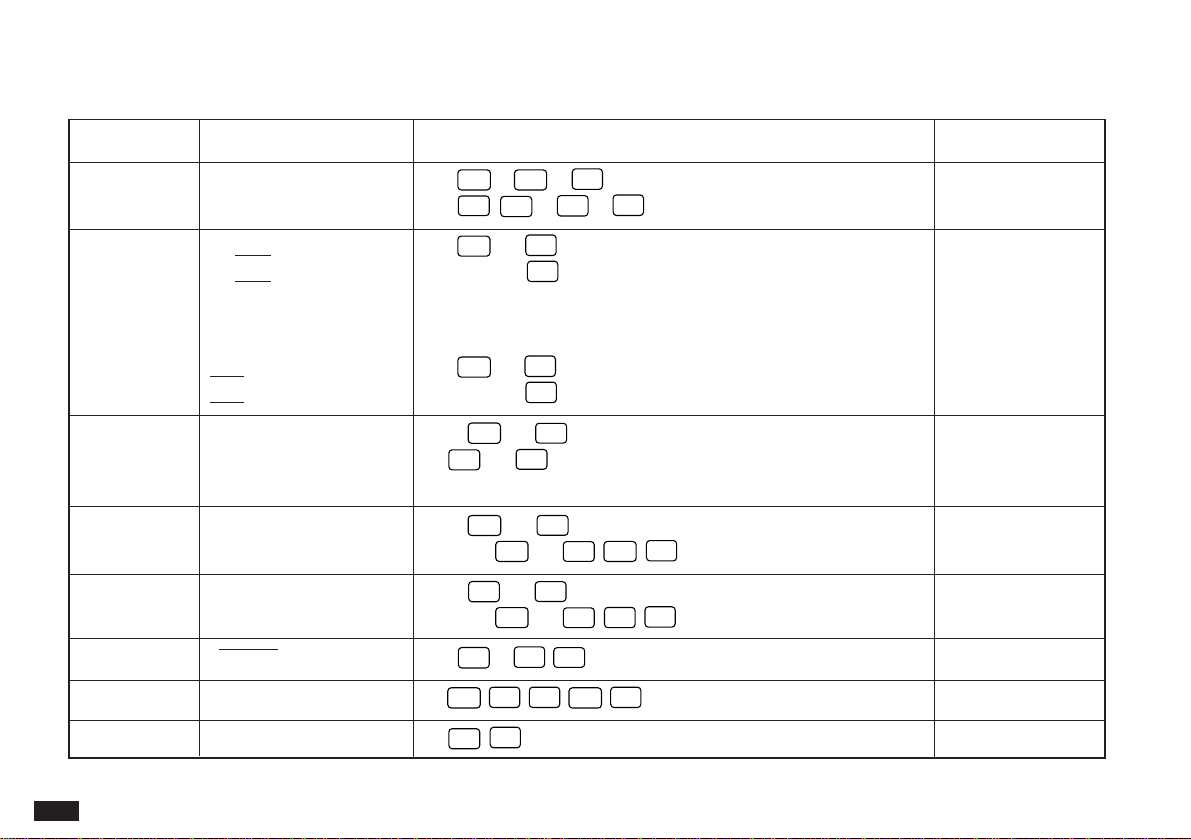
124
Calculation examples
Calculation Example Operation Display (answer)
Arithmetic 12 x 3 + 5 = 12
X
3
+
5
=
41.
(–24) ÷ 4 – 2 = 24
+
/–
4
–
2
=
–8.
Constant 34 + 57 = 34
+
57
=
The addend becomes a constant. 91.
45 + 57 = 45
=
102.
(Subtraction and division are performed in
the same manner.)
68 x 25 = 68
X
25
=
The multiplicand becomes a constant. 1,700.
68 x 40 =
40
=
2,720.
Percentage What is 10% of 200? 200
X
10
%
20.
What percentage is 9 36
%
25.
9 of 36?
Add-on What results from a 200
+
10
%
220.
10% increase of 200? (or 200
X
10
%
+
=
)
Discount What is 500 after a 500
–
20
%
400.
20% discount? (or 500
X
20
%
–
=
)
Square root √25 – 9 = 25
–
9
=
ª
4.
Power (4
3
)
2
=4
X
=
=
X
=
4,096.
Reciprocal 1/8 = 8
=
0.125
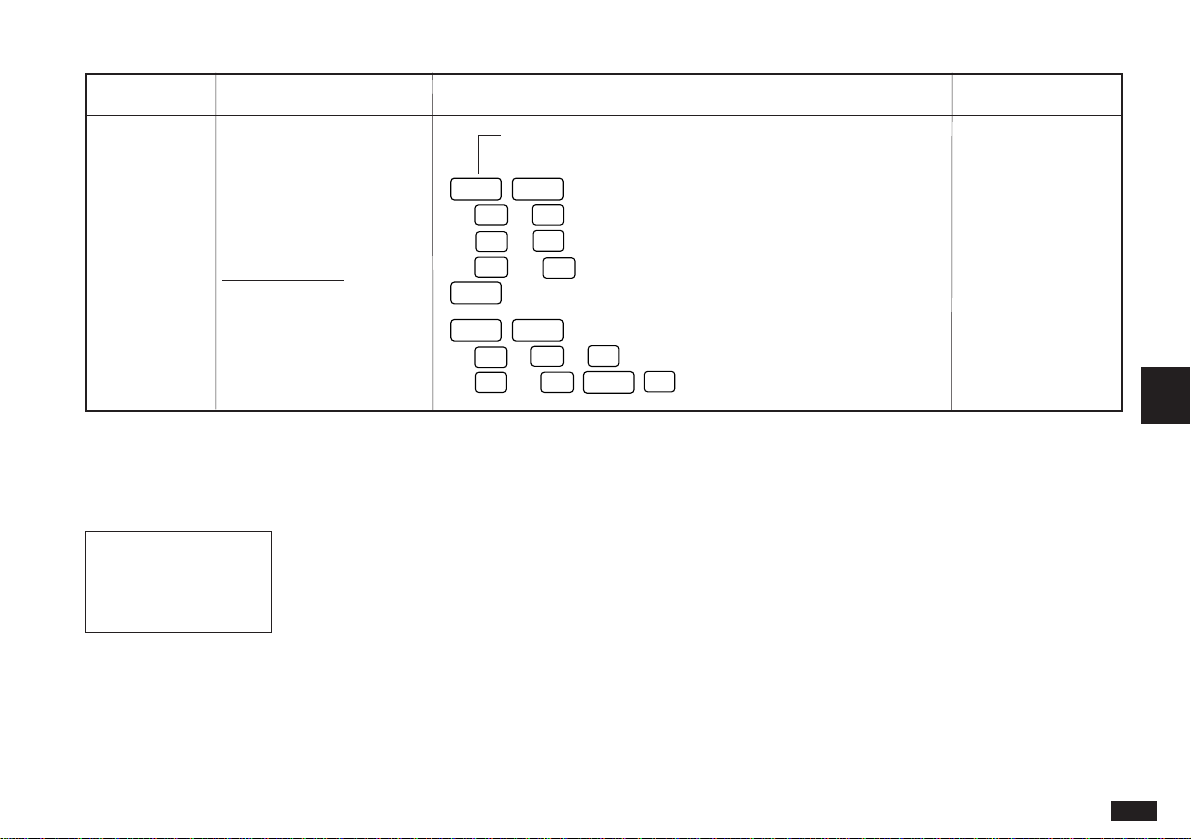
125
6
Calculation Example Operation Display (answer)
Memory Summation Clears the memory before performing any
calculations.
RzCM
RzCM
25 x 5 = 25
X
5
M
+
125.
M
–) 84 ÷ 3 = 84 3
M
–
28.
M
+) 68 + 17 = 68
+
17
M
+
85.
M
(Total) =
RzCM
182.
M
Temporary memory
RzCM
RzCM
(14 – 3 x 2) x 14
M
+
3
X
2
M
–
6.
M
(52 – 35) = 52
–
35
X
RzCM
=
136.
M
The Calc application menu
#6-1-9 Display
↓
Selects the basic, paperless,
date, cost/sell/margin or cost/
sell/markup calculator mode.
Selects the entry mode in the
paperless calculator.
Selects the insert mode in the
paperless calculator.
Sets the number of decimal
places (see p.123).

126
Changing the Local city
The Local city is the city selected to provide the local time.
When you first use your Organizer, the default Local city is
set as New York. To change this setting:
1.
Press
MENU
to open the Clock menu.
2.
Select SET CLOCK then press
ENTER
.
3.
Select CHANGE LOCAL CITY then press
ENTER
.
A list of cities appears. The currently selected city is at the
top of the list. The cities are listed in alphabetical order by
country and then by city name.
#6-2-2 Display
4.
Type the first letter of the name of the country in
which the target city is located. (For example, if you
wanted to select San Francisco, you would type
U
for
United States.) Then use
PREV
and
NEXT
to
display the city you want.
5.
Use
¶
and
˜
to select a city. You can also use
PREV
and
NEXT
to move up and down the list.
6.
If the selected city observes Daylight Saving Time,
press
➞
to indicate this.
The Clock Application
The unit’s built-in clock makes it possible not only to know
the correct time and date in your area, but also to know the
time in other cities or any region around the world. The
Clock is used as the reference time by the Calendar,
Schedule, and To Do applications. In addition to these
features, daylight saving time (DST) can be enabled for any
city you designate, for those countries that use an annual
Daylight Saving Time adjustment.
As an aid to international business and travel, the
Organizer is set to display the time in any other city you
choose (called the World City) as well as your own city (the
Local City). In addition, the Organizer comes with a pre-
defined list of countries and cities. If the city you want is not
in the pre-defined list, you can add your own User-defined
city by specifying the city name, country and time relative to
GMT (Greenwich Mean Time) (see p.130).
To view the Clock, simply press
CLOCK
.
#6-2-1 Display
Local city World city
Local time
Time in the World
city
Time difference
between Local and
World cities
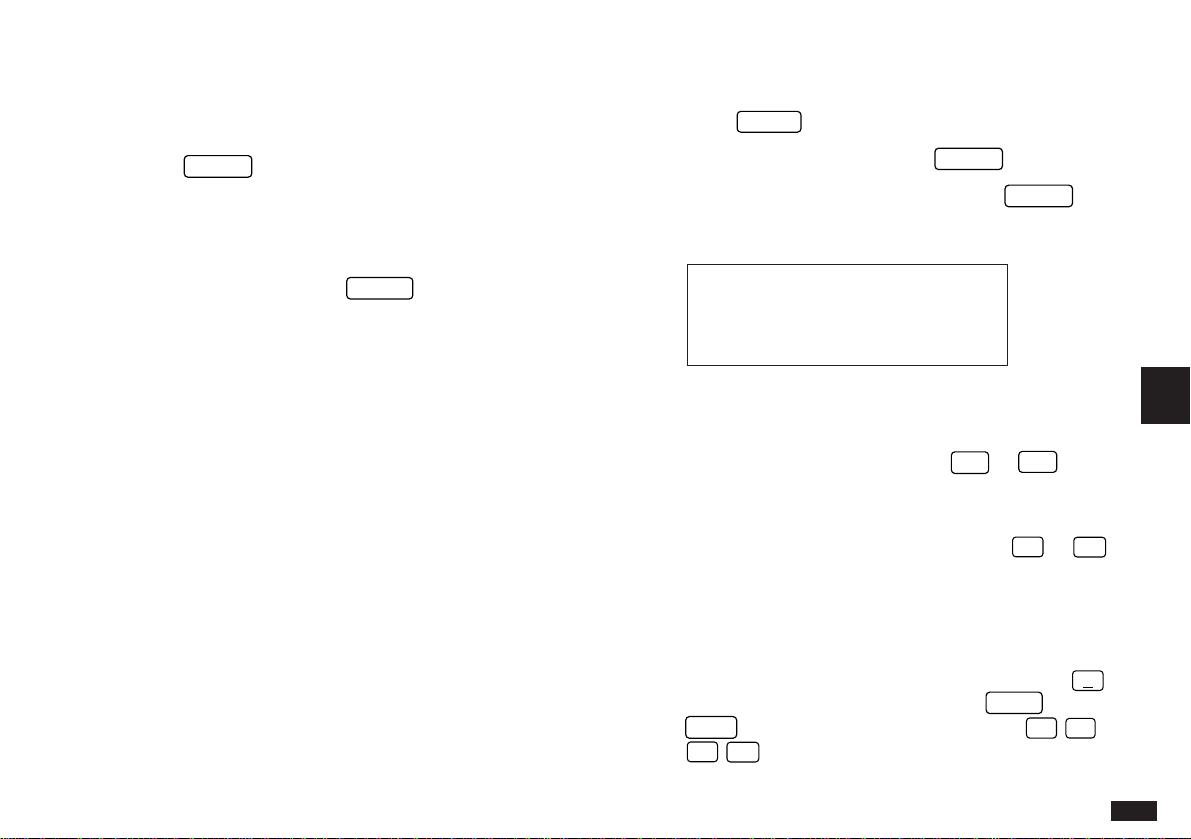
127
6
This advances the Local time by one hour. A symbol
appears beside the city to indicate that daylight saving time
has been set.
7.
Press
ENTER
.
The Clock window appears briefly, showing the new Local
city. The time is automatically adjusted.
☞ • If you have defined a User city and want to select it
as the Local city, press
SPACE
to access the
user-defined cities (see p.129).
• Certain countries will be abbreviated as follows:
Federal Republic of GERMANY, F.R.
Germany
Papua New Guinea PAPUA N.GUINEA
Czech Republic CZECH REP.
Republic of Trinidad TRINID. & TOB.
and Tobago
Dominican Republic DOMINICAN REP.
French Polynesia FR. POLYNESIA
United Arab Emirates U.A. EMIRATES
United States of America USA
• Country and city names in the list and their relative
time differences are current as of January 1992.
Setting the time and date
1.
Press
MENU
to open the Clock menu.
2.
Select SET CLOCK and press
ENTER
.
3.
Select ADJUST TIME/DATE and press
ENTER
.
The ADJUST TIME/DATE window opens.
#6-2-3 Display
The window has three fields: Local Time, Time System, and
Local Date.
4.
Enter the current time and press
AM
or
PM
(for
AM or PM). Be sure to enter a 0 before a single-digit
hour or minute entry.
5.
Move to the TIME SYSTEM field. Press
§
or
'
to indicate whether you want the time shown in 12- or
24-hour format.
6.
Move to the LOCAL DATE field. Enter the current
month and day in two digits, and the year in four
digits. You can also select the date by pressing
˜
to display the pop-up calendar. (Use
PREV
and
NEXT
to display the desired month, then
¶
˜
§
'
to move to the current day.)
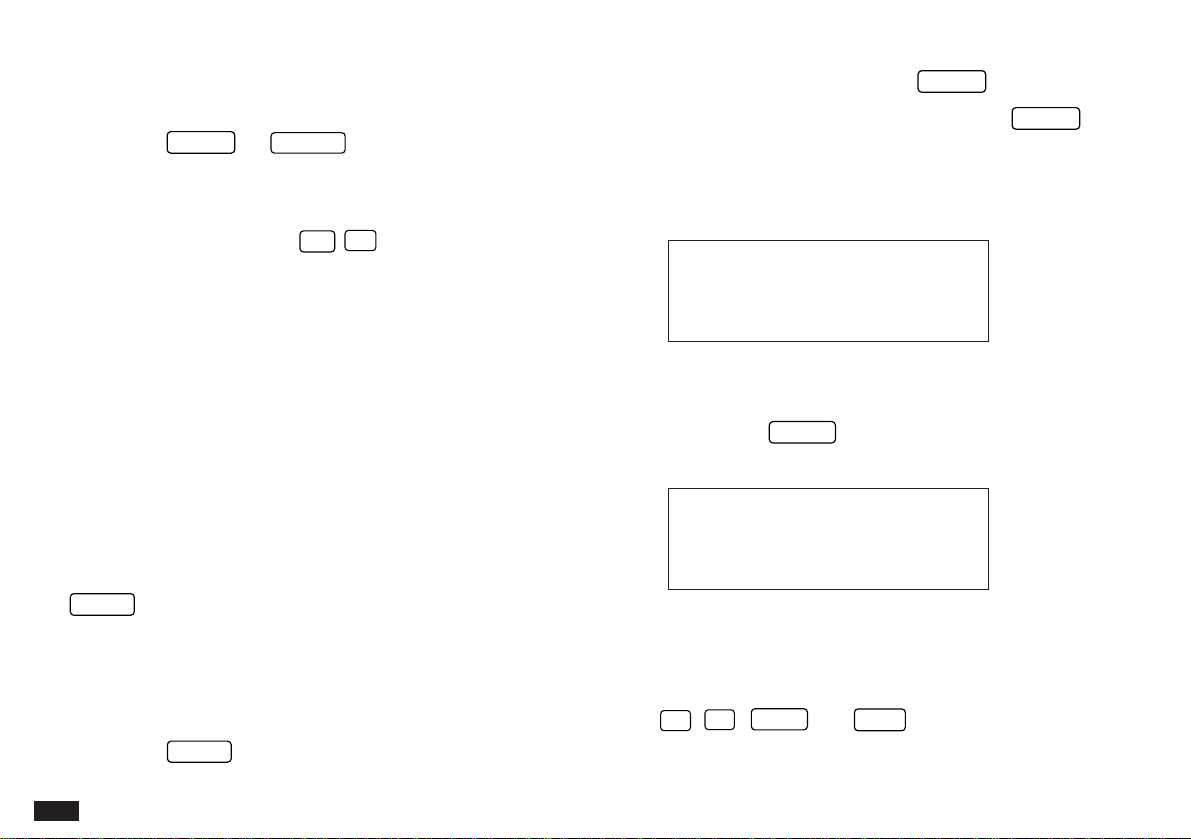
128
You can set any date from January 1st, 1901 to December
31st, 2099.
7.
Press
ENTER
(or
CANCEL
to cancel the changes).
The time and date are now stored.
☞ • You can access CHANGE LOCAL CITY from this
display by pressing
2nd
W
. Because the
Organizer automatically adjusts the time after the
Local city is changed, you should select the Local
city before setting the time and date.
• Changing the setting in the TIME SYSTEM field
also changes the time display format for all the
Organizer’s time-related applications and functions,
such as Schedule and Time Stamp.
Checking the time in a city
You can find out the time anywhere in the world using the
Clock application by selecting another city, called the
World city. Selecting a city as the World city will display the
time in that city as well as the Local city when you press
CLOCK
. The Organizer also shows you the time difference
between the current World city and the Local city. When
you first use the Organizer, the default World city is
London.
To change the World city:
1.
Press
MENU
to open the Clock menu.
2.
Select SET CLOCK and press
ENTER
.
3.
Select CHANGE WORLD CITY and press
ENTER
.
A list of four cities appears. These will be the four cities you
most recently selected, or checked the time in. The
currently selected World city appears at the top of the list.
#6-2-4 Display
4.
If the city you want to select as your World city is on
the list, select it and then proceed from step 7 below.
If not, press
SPACE
or type the first letter of the
country containing the target city.
#6-2-5 Display
A list of cities appears. The first three cities are User cities
which you can specify (see below). Just as for the LOCAL
CITY list, all cities in this list are in alphabetical order
according to country name.
Use
¶
,
˜
,
PREV
and
NEXT
to display the city you
want.
129
6
5.
Select the desired city.
6.
If Daylight Saving Time (DST) is observed by the
selected city, press
➞
to indicate this.
A symbol appears beside the city, indicating that DST has
been set.
7.
Press
ENTER
.
The city is selected as the World city and the window
closes.
The Clock window briefly appears, indicating the time in
the selected World city. The time difference relative to the
Local city is displayed below the World city time.
☞ While selecting a city from the list, you can press
SPACE
at any time to return to the first page of the
list.
Adding a User-defined city
Since some cities you may wish to use might not appear in
the Organizer’s built-in pre-defined list of cities, the Clock
application lets you define your own cities, called User
cities, for use as the Local and World cities.
1.
Press
MENU
to open the Clock menu.
2.
Select SET CLOCK and press
ENTER
.
3.
Select ADD USER’S CITY and press
ENTER
.
The ADD USER’S CITY window opens.
#6-2-6 Display
You can set up to three cities by entering information in the
three fields. In the unit’s default settings, New York has
been designated as USER CITY1.
4.
Move to the field you would like to change for USER
CITY1, 2, or 3.
5.
Press
NEW
to delete the current name and
enter the name of your desired city.
6.
Move to the COUNTRY field.
7.
Delete the current setting and enter the name of the
country where the city is located.
8.
Move to the GMT (Greenwich Mean Time) field.
9.
Enter the time difference between the user city and
Greenwich Mean Time (the international time
reference). Press
–
before a number to indicate a
negative time difference (ie. the time in the selected
city is earlier than GMT). You can specify any value
from –11.5 to +12 to the nearest half-hour.
10.
Press
ENTER
.

130
The city you entered is then stored as a User city, and is
listed on the first page on both the Local and World city
lists.
➛ To select the User city you have just entered as the
Local or World city, see p.126 or p.128, respectively.
Daylight Saving Time (DST)
Assigning DST to a city
Designating Daylight Saving Time (DST) for a city
automatically sets the time for that city one hour ahead of
its regular time.
1.
Press
MENU
, select SET CLOCK then press
ENTER
.
2.
Select either CHANGE LOCAL CITY or CHANGE
WORLD CITY (it doesn’t matter which you choose)
then press
ENTER
.
3.
Select the desired city using
¶
,
˜
,
PREV
and
NEXT
.
4.
Press
➞
.
A symbol appears to the left of the city, indicating that DST
is in effect.
5.
Press
ENTER
.
To de-assign a city’s DST setting, simply follow the above
procedure and press
➞
again (this toggles DST between
on and off).
Enabling and disabling DST
Once DST is assigned to a city, it remains in effect until it is
de-assigned. Once a year, cities using DST will switch back
to regular time. Rather than having to de-assign DST for
each city separately, you can simply disable the
Organizer’s DST feature itself, which then applies to all
cities within the Organizer. When these cities switch back to
DST, you can simply re-enable the feature without having
to change any city’s entry.
1.
Press
MENU
to open the Clock menu.
2.
The current DST setting (enabled or disabled) is
indicated by a tick. Select ENABLE DST to change
the setting.
When DST is disabled, the DST symbol disappears from
the Clock display.
Setting daily alarms
You can set alarms just like on a regular clock, separately
from Schedule events, using the Clock menu. Set alarms
will sound even if the Organizer is turned off.
This can be especially convenient, for example, when you
need an alarm as a simple reminder or to wake you up, but
do not want to make a full Schedule entry.
131
6
1.
Press
MENU
to open the Clock menu and select
SET DAILY ALARMS, then press
ENTER
.
The SET DAILY ALARMS window opens. You can set up to
five alarms.
#6-2-7 Display
2.
Enter the time for the desired alarm, followed by
AM
or
PM
for AM or PM.
3.
Press
➞
to set the alarm.
4.
Move to the next field and set any other alarms you
want using the same procedure.
5.
Press
ENTER
(or
CANCEL
to cancel the setting).
Turning alarms on and off
To turn off an alarm that is sounding, press
ON
. Alarms
will turn off automatically after sounding for 15 seconds.
To unset an alarm, select SET DAILY ALARMS from the
Clock menu, select the alarm you want to turn off, and
press
➞
(alarms are indicated as set or unset in the
display’s middle field).
Disabling all alarms
Once you have set an alarm, it will sound at the appropriate
time whether the Organizer is turned on or off. When the
Organizer is on,
at the top of the display indicates that
any alarm that is set will sound at the appropriate time.
There may be times when you do not want to hear any of
the set alarms. You can disable all Schedule and Daily
Alarm sounds easily with a single operation.
1.
Press
MENU
three times to open the TOOLS menu.
#6-2-8 Display
2.
Select ENABLE ALL ALARMS and press
ENTER
.
The
disappears from the display. All alarm sounds are
now turned off, ie. no audible alarm will sound, until you
use the above procedure to turn them on again by re-
selecting ENABLE ALL ALARMS. However, each alarm will
still be displayed when it reaches its set time, even when
the unit is turned off. This means the alarm sounds are
disabled, but not the alarms themselves.

132
The Clock application menu
#6-2-9 Display
Sets the built-in clock.
Sets and controls up to five
alarms to sound daily (see
p.130).
Turns all DST settings on or
off.

133
7
he OZ-5500 Organizer’s Money
Tracking application provides you
with a sophisticated and easy-to-use tool
for managing your personal and business
finances. It offers comprehensive facilities for
recording cash, bank and credit card
transactions. It also helps you reconcile account
balances. It can even automatically create a
corresponding transaction to transfer funds from
one account to another.
CHAPTER 7
Money & Account Management
Money Tracking application
What it can do
Transactions are stored against accounts that you create
and manage. Once the accounts are set up and the
transactions recorded, you can monitor and print
summaries or details of all your financial activities and
balances. The Money Tracking application can help you
balance your accounts at the touch of a few buttons. You
can even transfer information between your money
management software on your desktop computer
(Quicken®, MS-Money®) and the OZ-5500 using the
optional Link software.
Introducing Money Tracking concepts
The Money Tracking application utilizes two main
concepts for organizing its information: Accounts and
Transactions. In Money Tracking, Accounts are used like
any other accounts you use: bank accounts for checking
and savings, credit cards, and cash accounts for the money
you carry. The Money Tracking can support up to 16
different accounts.
Whenever you use an account either to make or receive a
payment, this represents a Transaction. Just like any bank
account, Money Tracking records different transactions
against various accounts, and allows you to see when,
where, how, to whom and why various payments were
T

134
made or received for a given account, conveniently and
reliably.
You may view each account and related transactions by
pressing the
MONEY TRACKING
key. To display the next
account in alphabetical order, simply press the
MONEY TRACKING
key again. To view the details of a
transaction simply select the transaction using
¶
and
˜
and press
ENTER
.
☞ Since up to 16 accounts can be created, when
looking for a particular account you may find it
quicker to press
2nd
MONEY TRACKING
to move
through the accounts in reverse alphabetical order.
The Money Tracking operations described in this chapter
are:
* Things to Know about Money Tracking
* Setting up Money Tracking accounts
* Viewing account information
* Editing or viewing account details
* Entering Money Tracking transactions
* Viewing account transactions
* Displaying transactions in detail: View mode
* Editing/updating existing transactions: Edit mode
* Listing all transactions
* A closer look at Money Tracking transactions
* Using the Filter to display selected transactions
* Canceling an active Filter
* About Categories
* Using the pre-defined Categories
* Adding your own Categories
* Editing Category names
* Using Categories
* The SPLIT function
* Automatic transfers
* Making a transfer for a SPLIT transaction
* Account balancing and reconciliation
* Deleting Money Tracking information
Things to Know about Money Tracking
• When to begin using the money tracking application
Begin using the Money Tracking application after you
have balanced your last statement for the account.
• Enter the Opening Balance as the ending balance of
that statement
• Enter all transactions that have occurred since your last
account statement
Be careful to enter all transactions in to the OZ-5500 so
that you can carefully maintain your account balance
and so that when you get your next statement to
balance your account.
• Save time by using the Word Key
Store your commonly used phrases including Payee
names, Memo’s or Special information in the Word
area. Please see p. 143 for further details.
135
7
• Memory is full – What can I do
Removing reconciled transactions from memory will free
up memory space. Make sure you back up these
transactions for future reference either by printing or
saving to your computer with the optional Link software.
• Sharing information with my desktop money
management software
The optional Link software will enable you to transfer
the OZ-5500 transactions to your computer using the
standard QIF format. After being uploaded to the
computer you can then import them into your money
management software using the Import feature. You
can also Export transactions from your desktop software
to your OZ-5500.
• How secret works with Money Tracking
If your organizer is locked, the account balances will be
displayed as ##,###,###.## until the organizer is
unlocked.
Setting up Money Tracking accounts
All Money Tracking transactions are recorded against
accounts set up by the user. There are no default accounts.
The first step in using the Money Tracking application is to
set up your personal accounts.
To enter a new account:
1.
Press
MONEY TRACKING
to open the Money
Tracking application.
2.
Press
MENU
and select SET UP ACCOUNT
followed by
ENTER
.
The ACCOUNT LIST appears, with the name, type and
current balance of any existing accounts. When defining an
account for the first time, the list will be empty.
3.
Press
NEW
.
The ACCOUNT INFORMATION window is displayed.
#7-1-1
☞ When you use the Money Tracking application for
the first time, there are no accounts set up. When you
press
ENTER
or
NEW
for the first time after
opening the application, you will be warned there are
no accounts set up. The procedure to create new
accounts will then be initiated automatically after you
press
ENTER
once more.
4.
Enter the name you wish to give the new account (up
to 15 characters long) and press
NEXT
.
The cursor moves to the TYPE field.
136
5.
Press
˜
, select the desired account TYPE from the
list, press
ENTER
to close the list and then press
NEXT
.
#7-1-2
☞ The account type describes the purpose of the
account and determines the exact terms used to
describe debit and credit transactions. [eg. Credit
Card=Charge/Payment, Bank=Payment/Deposit,
Cash=Spend/Receive).
The account type is also one of the selection criteria
used for the Filter function (see p.143)
The cursor moves to the OPENING BAL field.
6.
Enter the account’s OPENING BALance (maximum 8
digits plus 2 decimal places) followed by
NEXT
.
#7-1-3
☞ Take care when entering the opening balance for a
new account, as an incorrect value will cause
subsequent account operations to result in further
incorrect balances. The method of determining the
starting balance depends on the account type:
BANK – Use the “Closing Balance” shown on your
most recent bank statement.
CREDIT– Use the “New Balance” shown on your
CARD atest credit card statement. Even though this
represents a debit ie. an amount that you
owe, you should enter the amount as it
appears on your statement, ie. without a
minus sign “–”. When performing account
calculations, the Organizer knows that an
amount in a CREDIT CARD account is
actually a debit.
CASH – Enter the total amount of cash you have at
the present time.
The cursor moves to the ACCOUNT DATA field.
7.
The ACCOUNT DATA (up to 25 characters) is
optional and designed to supplement the NAME and
TYPE fields. This field could be used to record the
account number, for instance. Press
NEXT
.
The cursor moves to the NOTE field.
8.
Again the NOTE field (up to 25 characters) is optional.
It is designed to provide further information about the
purpose and usage of the account (eg. account phone
number).
9.
Press
ENTER
to store the new account details.

137
7
The Account List is displayed, showing the summary of the
new account just created and the new total balance.
#7-1-4
Viewing account information
A summary of existing accounts may be viewed at any time
after they have been set up.
1.
Press
MENU
.
2.
Select SET UP ACCOUNT and press
ENTER
.
The ACCOUNT LIST is displayed, showing name, type and
current balance of all existing accounts.
☞ Press
MONEY TRACKING
to switch between
displaying the Opening or Current account balance.
Editing or viewing account details
The details any account may be edited or viewed at any
time after it has been set up. This would usually be in order
to view or change the ACCOUNT DATA, NOTE or TYPE
fields, since the other fields are unlikely to require updating
unless they were originally entered incorrectly. However,
since this involves the account setup information and not
the actual transactions, this is an operation the user would
only use occasionally.
1.
Press
MENU
, select SET UP ACCOUNT and press
ENTER
.
The ACCOUNT LIST is displayed.
2.
Select the desired account and press
EDIT
.
A message appears, warning you that editing certain fields
may cause a discrepancy in the reported account balance.
3.
Press
ENTER
to proceed.
The ACCOUNT INFORMATION screen appears in Edit
mode.
4.
Make any desired changes, then press
ENTER
to
store your changes (or
CANCEL
to retain the original
details).
The message “Stored!” appears.
☞ Press
MONEY TRACKING
to switch between
displaying the Opening or Current account balance.
Entering Money Tracking transactions
Once you have set up the desired account, you are ready
to enter Money Tracking transactions to record the use of
the account.
To enter a new Money Tracking transaction:
1.
Press
MENU
, select SET UP ACCOUNT and press
ENTER
.
138
The ACCOUNT LIST is displayed.
2.
Select the desired account from the list, then press
ENTER
.
☞ You may also select the desired account by skipping
steps 1 & 2 and instead pressing
MONEY TRACKING
(or
2nd
MONEY TRACKING
) until the account is
displayed.
The Index view for the selected account appears.
3.
Press
NEW
to enter a new transaction for this
account.
The blank MONEY TRACKING display appears in Edit
mode.
#7-1-5
The name of the selected account appears in the
ACCOUNT NAME field.
If you change your mind and wish to enter this
transaction for a different account instead, simply
move to the ACCOUNT field, press
˜
, then select
the desired account from the list and press
ENTER
.
☞ If you press
NEW
to create a new transaction while
displaying ALL transactions (ie. no account is
currently selected), the name of the account for which
the most recently created transaction was assigned is
appears in the ACCOUNT NAME field as the default.
The cursor appears in the DATE field, which already
contains today’s date as the default.
4.
Enter the date of the transaction (if you do not wish
you use today’s date). You can enter a date either via
the keyboard or by pressing
˜
and selecting the
date from the pop-up calendar.
5.
Press
NEXT
to move to the REF./NUMBER field.
Enter an optional reference number for the
transaction, then press
NEXT
.
The cursor moves to the PAYEE field.
6.
Enter the name and details of the PAYEE of the
transaction (up to 27 characters). This will be the
name of the person or company who either pays you
the amount of the transaction (for a credit) or to whom
you are paying (for a debit). Press
NEXT
to move to
the next field.
The cursor moves to the TYPE field.
7.
Use
§
and
'
to indicate whether this represents
a debit or credit transaction. Press
NEXT
to move to
the next field.
☞ Note that the exact words appearing in the TYPE field
to represent the debit and credit transactions vary
according to the TYPE of the ACCOUNT for which the
139
7
current transaction is being assigned. For example, if
the account type is CASH, a debit is SPEND and a
credit is RECEIVE.
8.
Enter the transaction amount and press
NEXT
.
The cursor moves to the CATEGORY field.
9.
Enter the optional CATEGORY for the transaction by
pressing
˜
and selecting the desired category from
the pop-up menu.
#7-1-6
☞ When selecting a category from the pop-up list, you
can jump to a particular category by pressing the letter
key corresponding to the first letter of the desired
category name. To skip to the end of the Category list,
press
2nd
NEXT
, or press
2nd
PREV
to jump
back to the top of the list.
Since CATEGORY is an optional field, select <NONE> if the
transaction is not to be assigned to any category.
Select {SPLIT} if you wish the transaction being entered to
be assigned to multiple categories. When {SPLIT} is
selected, the SPLIT window is displayed, allowing the user
to specify up to 10 sub-amounts and corresponding
categories for the transaction. The total of the 10 sub-
amounts should equal the full amount entered in the
transaction.
The pop-up list contains those categories already
defined (via the CATEGORIES function) in the Money
Tracking application menu. Instead of using the pop-
up list, you can enter a new category in this field. Any
category you type in will be added automatically to the
category list if it does not already exist.
➛ For more detailed description of using categories with
money tracking transactions, see “About Categories”
on p.145.
10.
Press
NEXT
to move to the MEMO field.
11.
You may enter some descriptive text in the MEMO
field (up to 27 characters) to remind you of the
reason, purpose or other explanation of this
transaction, then press
NEXT
to move to the next
field.
12.
For the CLEARED field, press
˜
and select the
appropriate transaction clearance status from the list.
The default value is NOT CLEARED. Press
NEXT
to
move to the next field.
➛ For a more detailed description of the CLEARED field,
see “A closer look at Money Tracking transactions” on
p.142.
13.
Enter any further descriptive information in the
140
SPECIAL field to remind you of the purpose or some
other relevant data about this transaction.
☞ Note that any text you provide in the MEMO and
SPECIAL fields can be used by the Filter function to
selectively access particular transactions.
14.
Press
ENTER
to store the transaction details, or
CANCEL
to discard the changes.
A message confirming the transaction has been
successfully stored in memory is briefly displayed, and the
transaction then appears in View mode.
Viewing account transactions
The Index mode view for a particular account provides a
useful summary of the main details of all the transactions
on that account. This is the quickest way to gain a broad
picture of the status and operations on the account, and
also allows you to select particular transactions for which
you wish to view the full details.
To view a particular account’s details in Index mode:
1.
Press
MENU
, select SET UP ACCOUNT and press
ENTER
.
The account list is displayed.
2.
Select the desired account from the list, then press
ENTER
.
The Index mode view of the account then appears, with the
account name displayed at the top of the screen. Each row
represents the summary of a different transaction, sorted in
ascending date order (ie. oldest first).
3.
Since not all the information for each transaction can
be displayed on the screen at one time, press
'
to
view the rest of the transaction summary, and press
§
to go back. Press
˜
and
¶
to scroll the
transactions when there are too many to be displayed
at one time.
The CLEARED field is shown as a summary, with a single
character to represent the current status.
Transaction amounts are displayed differently depending
on the type of account. Bank and Cash accounts display
debits (Payments or Spend) with a preceding minus sign,
and credits (Deposits or Receive) without a sign. Credit
Card accounts show charges without a sign and payments
with a preceding minus sign.
The description given in the amount heading is determined
by the TYPE field in the ACCOUNT INFORMATION
window defining the account.
#7-1-4A
141
7
Displaying transactions in detail: View mode
Account Index mode described above provides single-line
summaries of all the transactions in a given account. You
can then easily select any transaction in the displayed list
to view its full details in View mode. Note that for each
transaction, although the REF./NUMBER field holds up to
six characters, only the last four characters are displayed in
Index mode.
1.
Follow the above provedure for displaying an account
in Index mode.
2.
Select the desired transaction and press
ENTER
.
The Money Tracking transaction screen appears, with the
full details of the selected transaction displayed in View
mode.
3.
Press
˜
and
¶
to scroll the display to view those
fields that cannot fit on the display.
Press
'
to view the details of a transaction with
SPLIT Categories.
➛ See p.147 below for information on SPLIT
transactions.
4.
When you have finished viewing the transaction,
press
ENTER
to return to the account Index mode,
or press
CANCEL
to display the ALL account
transaction view.
☞ When viewing a given transaction, you can use
NEXT
and
PREV
to view successive and previous
transactions in the same account, without having to
return to the account’s Index mode to select a
different transaction. The Organizer warns you if you
reach the first or last transaction entry in an account.
Editing/updating existing transactions: Edit
mode
All transactions can be edited once they have been
created, in order to update any or all of their fields when
certain details change. For instance, you may wish to
amend a transaction entry to reflect the fact that a
transaction that was previously NOT CLEARED is now
CLEARED.
To edit an existing transaction entry:
1.
In account Index mode: highlight the transaction to be
edited and press
EDIT
.
In transaction View mode: press
EDIT
.
The transaction is then displayed in Edit mode.
#7-1-7
2.
Use
NEXT
and
PREV
or the arrow keys to move to
any fields to be edited.
142
☞ When editing text fields or the amount, you can use
NEW
to clear the field before typing in new text.
3.
Press
ENTER
to store the edited transaction entry,
or
CANCEL
to discard the changes.
When
ENTER
is pressed, a message indicating the entry
has been successfully stored briefly appears. The
transaction is then displayed in View mode.
Listing all transactions
Although every transaction must be assigned to a specific
account, the Money Tracking application allows you to
view summaries of all transactions in date order, regardless
of the account to which they belong.
1.
Press
MONEY TRACKING
repeatedly until “ALL”
appears in place of an account name.
☞ If you pass the ALL display by mistake, press
2nd
MONEY TRACKING
to move through the accounts in
the reverse order.
#7-1-8
A summary of all transactions appears in Index mode, with
one line per transaction.
If you are currently in transaction View mode, you can
jump directly to the ALL account transaction view by
pressing
CANCEL
.
2.
Press
'
to view those transaction details that
cannot fit on the display. Press
§
to redisplay the
original group of transaction details.
3.
If necessary, use
¶
and
˜
to scroll the display
up and down to display any additional transactions
that may not fit onto the display.
A closer look at Money Tracking transactions
Each Money Tracking entry contains certain fields with
special functions to allow the user to control the exact
status of transactions requiring further processing.
#7-1-8A
* CLEARED - Indicates the status of the transaction with
the bank or credit card company. The options are NOT
CLEARED, CLEARED and RECONCILED. Using the
example of a checking account, when you write a check
the status is NOT CLEARED. After the check returns to
your bank and the money has been withdrawn from
your account, the check status is CLEARED. When you
receive your statement from the bank and you reconcile

143
7
the statement with your records, the transaction
becomes RECONCILED.
The OZ-5500 can handle these steps for you. When you
create a transaction, the default is NOT CLEARED.
When you receive your statement from the bank, you
may perform the account balancing procedure on the
OZ-5500. The first step is to verify that the transactions
listed on the statement agree with the transactions listed
in the OZ-5500. During this step of the Account
Balancing procedure, the transactions are marked as
CLEARED. When all the transactions have been
correctly marked and the account is balanced, the
status is automatically changed to RECONCILED. (See
Account Balancing p.152)
* SPECIAL - allows you to provide additional information
to describe the purpose of the transaction (up to 27
characters). These transactions can later be accessed
as a group using the Filter function. For example, to
track all business expenses for a certain client you may
put the client’s name in SPECIAL and later use the
Filter function to list all the transactions for the client.
SPECIAL could also be useful for business people and
others who incur regular expenses for which they are
reimbursed at a later date. After you incur a business
expense, you usually need to submit an expense claim
in order to be reimbursed later. When entering a
transaction for a business expense, you could set this
field to NOT SUBMITTED. Once you submit your
expense claim, you can update this to SUBMITTED, to
reflect the change. When the expense is later settled
and you receive payment, you can update the field to
indicate that you have been REIMBURSED.
To make this even easier, you could set up the words
NOT SUBMITTED, SUBMITTED and REIMBURSED
using the WORD key. You could then recall these
words easily when tracking the progress of your
expense claim.
➛ Refer to the WORD key function (p.164) for more
details.
Using the Filter to display selected
transactions
The Filter function allows you to see only those
transactions that meet selection criteria that you specify.
This makes it faster and easier to access the information
that you want.
Transactions may be filtered by any or all of the following
fields: Account, (within a) date range, Payee name,
Category, Memo, Cleared status, Special and Secret
status.
To activate the Filter:
1.
Press
MENU
twice to open the PREFERENCES
menu, select SET FILTER STATUS and press
ENTER
.
144
If a Category used for the Filter selection criteria occurs as
one of the Split components of a transaction amount, the
entire transaction amount will be added to the Filtered
Balance, not just the split amount corresponding to the
selected Category.
#7-1-10
A date range may be used to make the Filter selection
more specific. The FROM date is the date at which the
Filter selection should start. The TO date is the latest date
at which the Filter should end. Either field may be left blank
to allow the Filter to have no starting or ending date limit.
☞ Note that the more detailed the selection criteria (ie.
the more fields you specify for the Filter), the more
selectively the Filter will operate and the quicker you
will find the information you are looking for. However,
if you specify more than one selection criterion, any
filtered items will have to meet all of the selection
criteria, not just any of them.
4.
To display a particular transaction in View mode,
select the transaction and press
ENTER
.
The selected transaction appears in View mode. The word
FILTERED appears in the top-right of the screen to remind
you that a filter is in effect, and that some transactions may
The SET FILTER STATUS window appears.
2.
To specify only transactions from a particular
account, press
˜
and select the desired account.
Select ALL (which is the default) to indicate that the
selected transactions can be from any account.
#7-1-8B
3.
Specify any other fields for the remainder of the
selection criteria, then press
ENTER
.
The message “Filtering...” appears briefly. All transactions
that satisfy the selection criteria are then displayed in Index
mode. Since the total balance shown at the top of screen is
for Filtered transactions only, it is labeled FILTERED.
#7-1-9
☞ Note that in the CLEARED field, the pop-up menu
contains items which do not appear when entering
Money Tracking transactions. These extra items
represents a combination of possible values for the
field, allowing the user to specify more than one value
for the selection criteria.
= NOT CLEARED
+ CLEARED

145
7
not be displayed (ie. those not meeting the selection
criteria).
5.
Use
˜
and
¶
to display those fields which cannot
be displayed at one time.
Use
PREV
and
NEXT
to display full details of previous
and subsequent transactions that also meet the Filter’s
selection criteria.
Canceling an active Filter
While a filter is in effect, the word FILTERED appears at the
top of the screen and a ✓ appears in the Money Tracking
menu next to SET FILTER STATUS. When you have
accessed the information you were looking for, you may
want to turn off or cancel an active Filter.
To cancel a Filter:
1.
Press
MENU
twice to display the PREFERENCES
menu.
The Money Tracking menu appears. A ✓ is displayed next
to the SET FILTER STATUS command.
2.
Select SET FILTER STATUS and press
ENTER
.
The Filter is canceled, and the Account List is displayed. If
you display the PREFERENCES menu again, the ✓ will no
longer appear next to the SET FILTER STATUS.
About Categories
The CATEGORY field provides a useful way of associating
various transactions in different accounts according to a
common purpose, customer/client or some other type.
While the Money Tracking application provides a
comprehensive list of default categories ready for your use,
you can also define your own categories as required.
Careful defining and assigning of categories allows you to
make the best use one of Money Tracking’s most powerful
facilities - the Filter function (see p.143) - to selectively
access various transactions after they have been entered.
The Organizer provides a comprehensive built-in list of 41
pre-defined categories. In addition, you can add, edit and
delete Category names as required.
Using the pre-defined Categories
The pre-defined categories are built-in to the Money
Tracking application, and are installed automatically upon
initialization. However, you may wish to delete all the built-
in and user-defined Categories and then add them again
later. You can do this by issuing a simple command from
the menu.
1.
Press
MENU
, select CATEGORIES and press
ENTER
.
2.
Select APPEND PRESET CATEGORIES and press
ENTER
.
146
The message “Working...” appears for more than 10
seconds.
3.
To see the newly-added Categories, press
MENU
,
select CATEGORIES then press
ENTER
.
4.
Select NEW/EDIT CATEGORIES and press
ENTER
.
The NEW/EDIT CATEGORIES window appears.
5.
Press
˜
to display the Category list. Use
NEXT
and the arrow keys to scroll down the list.
You can also use
2nd
NEXT
to jump directly to the
bottom of the Category list (where the transfer
account Categories are located) and
2nd
PREV
to
jump to the top of the list.
Adding your own Categories
To define a new category in the Money Tracking
application:
1.
In Index mode, press
MENU
, select CATEGORIES
then press
ENTER
.
The CATEGORIES submenu appears.
2.
Select NEW/EDIT CATEGORY and press
ENTER
.
The CATEGORIES window appears.
#7-1-11
3.
Press
NEW
and enter the name of the new category
you wish to create, then press
ENTER
(or
CANCEL
to discard the new category).
The CATEGORIES window reappears, with the new
category name displayed.
4.
Press
CANCEL
to close the CATEGORIES window.
You can also define a new category while editing a
new or existing transaction entry. Simply type the new
category name in the CATEGORY field (instead of
selecting an existing name from the pop-up list). The
new category you enter will be automatically added to
the existing category list.
Editing Category names
You can edit any existing category name as necessary.
When you edit a category name, an transaction using that
category is automatically updated to use the edited category
name instead.
1.
Press
MENU
, select NEW/EDIT CATEGORIES then
press
ENTER
.
The CATEGORIES window appears.
147
7
2.
Press
˜
, select the desired category from the pop-
up menu list, then press
ENTER
.
The selected category is displayed in the CATEGORIES
box.
3.
Press
EDIT
.
The EDIT CATEGORY window appears, with the selected
category name.
4.
Make any necessary changes to the name, then press
ENTER
.
The NEW/EDIT CATEGORIES window reappears,
containing the edited category name.
5.
Press
CANCEL
to close the CATEGORIES window.
Using Categories
The most effective use of categories is through the Filter
function. In this way, transactions in different accounts
which may appear to be unrelated may be grouped into the
same category. For example, this may be useful for tracking
transactions in different accounts involving different payees,
but which were all incurred within a specific project. The
project name could be set up and used as the category for
all project-related transactions, so that the Filter function
could later be used to select only those transactions. This is
also a valuable tool when transferring transactions between
your Money Management software (Quicken®,
MS-Money®) and the OZ-5500.
The SPLIT function
There may be times when you wish to enter a single
transaction that actually comprises several different
components. For example, you may spend $100 in a
department store. However, of that amount, $40 may have
been spent on clothes, $25 spent on purchasing a gift and
$35 for general household items. You may wish to
categorize the clothing and gift purchases separately.
Creating a SPLIT transaction
1.
Press
NEW
to create a new Money Tracking
transaction. Enter the information as for a regular
transaction.
2.
Enter in the AMOUNT field the total amount of the
transaction. Using the previous example this would be
$100.00.
3.
In the CATEGORY field, press
˜
and select
{SPLIT} from the category list.
#7-1-12 (shows pop-up)
4.
Press
ENTER
.
The SPLIT window appears.
148
#7-1-13
The UNASSIGNED field shows the value within the total
amount that has not yet been assigned to a split
transaction.
The value of UNASSIGNED is 100.00, ie. the total amount
appearing in the AMOUNT field.
5.
In the first AMOUNT field, enter the amount of the
first category to be entered. In this example, we’ll
enter the clothing first, so enter
40.00
, then press
NEXT
.
The value in UNASSIGNED changes to 60.00.
#7-1-14
6.
In the first CATEGORY field, press
˜
and select
the category you use to track clothing purchases then
press
ENTER
.
#7-1-15
☞ If the category you want to use has not yet been
defined, you can create a new category simply by
typing in the new category name in the CATEGORY
field. This applies whenever the CATEGORY field is
used.
7.
Press
NEXT
. Enter the second category AMOUNT
field In this example, enter
35.00
and press
NEXT
.
#7-1-16
The value in UNASSIGNED changes to 25.00.
8.
In the second CATEGORY field, press
˜
and
select the category you use to track gifts. Press
ENTER
then
NEXT
.
9.
In the third AMOUNT field, enter
25.00
and press
NEXT
.
The value in UNASSIGNED changes to 0.00.
10.
In the third CATEGORY field, press
˜
and select
the category you use to record household expenses
then press
ENTER
to close the list.
#7-1-17
149
7
11.
Press
ENTER
to store the SPLIT transaction details
and proceed with completing the rest of the
transaction.
#7-1-18
☞ • If the total amount given in the AMOUNT field of
the Money Tracking transaction is not equal to the
sum of the split amounts (ie. some split amount
details have not been entered), the outstanding
amount will be added automatically to the next
available Split field, but with no category given. A
warning message will advise you of this, and
suggest that you check the Split information.
• The Split function supports up to 10 amount/
categories. If there is an amount outstanding when
less than ten split entries have already been made,
the outstanding amount is added to the last entry
automatically and a warning message is displayed
advising the user to check the entry.
• If there is an unassigned amount outstanding when
ten entries have already been made, a warning
message appears and the user is forced to resolve
the discrepancy before the transaction can be
stored.
• The UNASSIGNED field is displayed only during
Edit mode. If you view an existing transaction
containing a SPLIT field in View mode and access
the Split information, no value for UNASSIGNED
will appear.
Automatic transfers
One of Money Tracking’s most powerful and useful features
is the Transfer facility. Sometimes, you may wish to transfer
funds from one of your accounts to another. This single
transaction actually involves one account being debited,
and another account being credited by the same amount.
For example, if you pay your monthly credit card bill by
check, this involves a debit from your checking account for
the payment amount, and a corresponding credit to your
credit card account. Using the transfer facility, the Money
Tracking application can automatically credit your credit
card account when you create the transaction in the
checking account. This not only saves you extra work, but
also ensures that the amount of the two corresponding
transactions are identical, thus eliminating troublesome
discrepancies which could later interfere with successful
account balancing and reconciliation.
Account transfers always consist of a source account
transaction, which is created by the user, and a matching
transaction for a destination account.

150
Whenever a new account is created in the Money Tracking
application, a special category is automatically created
specifically for account transfers. Such categories are
indicated by square brackets, ie. if you define an account
called CHECKING, a category [CHECKING] is created
automatically.
A transaction can be created automatically when the
destination account is given in the CATEGORY field (eg.
[CHECKING]). The user is asked whether a corresponding
destination transaction should be created automatically. If
the source transaction is a debit, the destination transaction
created automatically will be a credit, and vice versa. When
the destination transaction is created, the text
“TRANSFERRED DATA” appears in the MEMO field.
The following example assumes that accounts called
CHECKING and MASTERCARD have been created. If you
enter the following transaction for a $250 check submitted
as a credit card repayment, the Money Tracking
application will automatically create a corresponding $250
deposit into your credit card account:
1.
Press
MONEY TRACKING
repeatedly until you see
the CHECKING account Index view.
☞ If you pass the CHECKING account by mistake, press
2nd
MONEY TRACKING
to move through the
accounts in the reverse order.
2.
Press
NEW
to start a new Money Tracking
transaction for that account.
The new transaction window appears, with CHECKING as
the ACCOUNT NAME.
3.
Select PAYMENT in the TYPE field, and all of the
other fields as usual, except the CATEGORY field.
4.
Enter
250
for the AMOUNT and move to the next
field.
5.
In the CATEGORY field, press
˜
and select the
[MasterCard] category from the list (note the square
brackets), then press
ENTER
to close the list.
#7-1-19
☞ You cannot transfer data from and to the same
account. For example, when you are entering a
CHECKING account transaction, you cannot specify
[CHECKING] as the category. If you do so, a warning
message will appear, asking you to check the
Category field.
6.
After ensuring that all other fields are entered as
necessary, press
ENTER
to store the transaction.
A message then appears informing you that a
corresponding destination transaction can be created in the
transfer account.
151
7
7.
Press
Y
to confirm the transaction should be
created (or
N
to skip).
The messages “Working...” followed by “Stored!” appear
briefly. The transaction is then displayed in View mode.
#7-1-20
☞ Note that the ACCOUNT NAME, TYPE, DATE,
PAYEE, AMOUNT, CATEGORY and MEMO fields are
assigned for the destination transaction. In addition, if
the source transaction was marked as a Secret
transaction, the destination transaction will be also.
Remember that if you subsequently edit a source or
destination transaction, the change will not be reflected
automatically in the parallel transaction. To maintain the
correspondence between the two transactions, you should
manually edit the other transaction also.
8.
To check the automatically created transfer
transaction, press
ENTER
to return to the Index view
for the source account.
9.
Press
MONEY TRACKING
repeatedly until the Index
view for the transfer account (which in this case was
the CREDIT CARD account) appears.
☞ If you pass the desired transfer account by mistake,
press
2nd
MONEY TRACKING
to move through the
accounts in the reverse order.
The latest transaction will be the transfer transaction,
showing the same PAYEE and the same amount, $250.
However, while the original transaction was a payment, the
transfer transaction’s amount is a DEPOSIT. Also, the
MEMO field will contain the text “TRANSFERRED DATA”.
☞ Although one of the transfer transactions is created
automatically, the two transactions are treated as
separate transactions and are not linked to each
other. This means one transaction can be deleted
without the other being affected.
Making a transfer for a SPLIT transaction
You can make a transfer for an amount within a Split field.
Simply specify the destination transfer account as the
category for the particular split entry amount you want to be
transferred. The transfer itself works just as it would for a
non-Split field.
#7-1-21
When you set or unset Secret status for a source or
destination transaction, its corresponding destination or
source transaction has the same change applied
automatically.
152
Account balancing & reconciliation
The automatic account balancing and reconciliation
functions are one of the Money Tracking application’s
most powerful and useful facilities. It works by comparing
the difference between an account’s (usually a checking
account) starting and ending balances with the sum of the
transactions (eg. checks and deposits) marked as cleared
as recorded in the Organizer. If the amounts are the same,
then all transactions have been accounted for and thus the
account is reconciled. If there is a discrepancy, however,
the user is alerted and must then specify what action
should be taken to resolve the discrepancy.
There are two main advantages to using Money Tracking
to perform account balancing and reconciliation:
1.
By identifying any discrepancies between the bank
statement details and the cleared transactions stored
in the Organizer, the Money Tracking application can
ensure that the Organizer’s record of account
transactions is complete, up-to-date and consistent.
2.
Once the account has balanced correctly, reconciled
transactions can be removed from the Organizer
while maintaining the correct account balance, thus
freeing valuable memory and ensuring that only up-to-
date transactions are stored in memory (thus
preventing the excessive build-up of unnecessary
information).
☞ Since transactions cannot be retrieved once they are
removed or deleted, you may want to store or back up
the transactions before removing them by transferring
them to a PC or even printing out the details.
Performing account balancing
Account balancing and reconciliation can be carried out
once you have received your bank statement detailing the
various checks and other transactions in that account.
Account balancing is performed in two stages:
A. Reconciling the account: Comparing the transactions on
your Account Statement with the transactions in the OZ-
5500 and marking them as CLEARED
B. Balancing the Account: Entering the ENDing BALance
from your Statement and having the OZ-5500 calculate
its ending balance and having them match.
Marking transactions as CLEARED
1.
From the SETUP ACCOUNT list, select the desired
account, press
MENU
and select ACCOUNT
BALANCING then press
ENTER
.
#7-1-22

153
7
You can also use the keyboard shortcut
2nd
Y
to
initiate ACCOUNT BALANCING.
The STATEMENT BALANCES window appears. The
START BAL field is the OPENING BAL of the account (as
shown in the ACCOUNT LIST) plus the sum of all
transactions marked as RECONCILED. Note that this field
is calculated automatically, and cannot be modified by the
user.
2.
In the END BAL field, enter the ending or closing
balance as shown on the bank statement you have
received, then press
ENTER
.
The account index view appears, showing the index view
summary of all transaction (except those marked as
RECONCILED, which are hidden). However, instead of the
account balance being shown at the top right of the display,
the text “[SMBL] to clear” appears.
☞ Use
'
and
§
to view those details which cannot
fit on the screen at one time.
3.
Check each transaction in turn. If the details of any
transaction are incorrect, select the transaction and
press
EDIT
to update the details. If any transaction
appears in the statement but not in the account list
display, create it by pressing
NEW
and adding the
necessary details.
When you finish checking each transaction, mark it as
CLEARED by selecting the transaction and pressing
SMBL
.
The status of the transaction changes to “C” on the display.
#7-1-23
Press
SMBL
again to cancel the status of a
transaction already marked as CLEARED.
Postponing the ACCOUNT BALANCING
procedure
Once the ACCOUNT BALANCING command has been
selected, the Organizer will remain in account balancing
mode until either the account is balanced and the user
selects FINISH BALANCING or postpones account
balancing.
For example, if you begin to balance your account but then
realize you don’t have all the information you need to
balance the account or you are interrupted and need to
postpone the process until later, you may do so by
selecting POSTPONE BALANCING.
To postpone account balancing after the ACCOUNT
BALANCING command has already been issued:
1.
Press
MENU
.
The Money Tracking menu appears. Note that the
154
ACCOUNT BALANCING command is faded out, indicating
it cannot be selected.
2.
Select POSTPONE BALANCING and press
ENTER
.
You can also use the keyboard shortcut
2nd
Y
to
initiate POSTPONE BALANCING.
☞ If you Postpone balancing after already marking some
transactions as Cleared, their Cleared status will be
preserved when you reinitiate account balancing. The
Cleared transactions will still be marked as Cleared.
Balancing the account and reconciling the
transactions
When you are satisfied that all data in the statement has
been checked and all appropriate transactions marked as
Cleared:
1.
Press
MENU
.
The Money Tracking menu appears.
2.
Select FINISH BALANCING and press
ENTER
You can also use the keyboard shortcut
2nd
R
to
initiate FINISH BALANCING.
☞ The commands FINISH BALANCING and
POSTPONE BALANCING cannot be selected from
the menu unless ACCOUNT BALANCING has
already been carried out.
The Organizer then calculates the sum of the transactions
marked CLEARED, and compares this to the difference
between the START BAL and END BAL (given in step 3
above).
If there is no difference, this means the account has been
balanced successfully. A congratulations message is
displayed. (If a difference was detected, see “Handling
unbalanced accounts” below.)
#7-1-23
3.
Press
ENTER
to acknowledge this message.
The display returns to the Index view for the account. All
transactions which were marked as CLEARED (C) are now
marked as RECONCILED (R), indicating that they have
been reconciled. The account balancing process is now
complete.
#7-1-24

155
7
Handling unbalanced accounts
When the sum of the cleared transactions does not equal
the difference between the START BAL and the END BAL
amounts, this means that the account is out of balance and
the account’s transactions have not been correctly
reconciled. The Organizer indicates this has occurred, but it
is up to the user to locate and rectify the cause of the
problem.
If a difference was detected:
A warning message is displayed to informing the user of the
problem, together with the amount of the discrepancy.
1.
Press
ENTER
to proceed with checking the problem.
2.
Select the desired option and press
ENTER
:
POSTPONE – returns to the account’s index view. All
transactions are displayed. The Balancing operation is
terminated.
RETURN TO BALANCING – returns the user to the
account Index view to recheck the CLEARED transactions.
ADJUST BALANCE - the Organizer asks for confirmation
that an adjustment transaction should be created. The
PAYEE of the account is given as <ADJUSTMENT>, and
the amount necessary to balance the account is shown in
the AMOUNT field.
3.
Press
Y
to proceed with creating this special
transaction to balance the account (or
N
to reselect
an option from the list in step 2 above).
☞ When the adjustment transaction is created, all other
fields in the transaction are blank, except for: DATE =
(today’s date), ACCOUNT = (currently selected
account), TYPE = (depends on whether the amount is
credit or debit), CLEARED = “R”.
A final message appears asking the user to confirm to
creation of the adjustment transaction.
4.
Press
Y
to proceed with creating this transaction to
balance the account (or
N
to reselect an option
from the list in step 2 above).
The adjustment transaction is created automatically. A
message of congratulations appears, informing the user
that the account is now balanced.
5.
Press
ENTER
to acknowledge this message.
The display returns to the Index view for the account. All
transactions which were marked as CLEARED (C) are now
marked as RECONCILED (R), indicating that they have
been reconciled. The account balancing process is now
complete.

156
Removing transactions after account
balancing
Since the Organizer contains limited memory capacity, it is
important to delete unwanted or out-of-date data from the
Money Tracking application just as for other applications.
However, one important advantage to having
RECONCILED transactions is that they are probably no
longer required, since they have all be successfully
accounted for. The Money Tracking applications offers a
useful facility of removing RECONCILED and/or other
transactions after adding their total value to the existing
OPENING BALance to create a new OPENING BALance.
This opening balance will be used the next time account
balancing is performed.
☞ Since transactions cannot be retrieved once they are
removed or deleted, you may want to store or back up
the transactions before removing them by transferring
them to a PC or even printing out the details.
To remove transactions:
1.
Select REMOVE TRANSACTIONS from the Money
Tracking application menu, then press
ENTER
.
The REMOVE TRANSACTIONS window appears.
2.
In the ACCOUNT field, press
˜
and select the
account in which you want to remove transactions, or
select ALL to remove transactions from all accounts.
Press
NEXT
.
3.
In the BEFORE field, enter the date before which you
want to remove transactions. You can either enter the
date directly from the keyboard or press
˜
and use
the arrow keys to select the date from the pop-up
calendar. Press
NEXT
.
☞ Transaction on or after the date you specify in the
BEFORE field will not be removed. For example, if
you specify BEFORE 1/1/97, then transactions up to
and including 12/31/96 will be removed.
4.
In the CONDITION field, specify the types of
transactions you wish to remove, according to their
status. Press
ENTER
.
Note the default is REMOVE RECONCILED.
☞ Note that while the removal of transactions maintains
the correct overall account balance, this is completely
different from deleting transactions, which causes the
balance to be reduced accordingly.
When the Organizer is Locked
Like most other applications within the Organizer, the
Money Tracking application allows you to define certain
information as Secret, so that it will be subsequently hidden
when the Organizer is Locked. However, locking the
Organizer causes certain changes to the Money Tracking
application’s behavior. These changes are discussed
below.

157
7
Transaction view
When the Organizer is in its Unlocked state, any
transactions that have been marked as Secret are marked
with an asterisk in the top left corner of the display. When
the Organizer is Locked, Secret transactions are hidden
from view and therefore cannot be accessed at all.
Account list
When the Organizer is Locked, all account balances and
the total balance shown on the SET UP ACCOUNT list are
hidden. Instead, the balance is shown as ##,###,###.##
appears. The account balances cannot be viewed until the
Organizer is Unlocked.
Also, certain operations on particular accounts are not
allowed (such as editing or deleting). A warning message is
displayed if they are attempted while the Organizer is
locked. However, new accounts can be set up (by pressing
NEW
) and the full details entered.
Transaction Index view
This view shows summary details of individual transactions,
after selecting a particular account from the account list.
When the Organizer is Locked, any transactions which
were previously marked as Secret are hidden from view.
Since some transactions may be hidden, the total balance
usually given at the top of the list cannot be given, and
instead shows ##,###,###.## when the Organizer is locked.
This reminds the user that there may be hidden
transactions whose balances are not available.
☞ When the Organizer is Locked, all balances are given
as ##,###,###.##, even if there are no transactions
for that account that are actually marked as Secret
and therefore hidden.
The maximum amount that can be displayed in the balance
field is 99,999,999.99. However, if the total balance
exceeds this amount, an overflow occurs and the balance
appears as **,***,***.** to indicate the total amount cannot
be displayed.
Deleting Money Tracking entries
Deleting transactions allows the user to erase unwanted
transactions. Use REMOVE TRANSACTIONS to get rid of
old transactions that were valid but are no longer required
(usually after Account Balancing). Use DATA DELETION
for a transaction that is not valid (eg. duplicate transactions,
voided checks and transactions entered incorrectly or by
mistake). When a transaction is deleted, its amount is
deducted from the account balance, as if it never existed.
But when a transaction is Removed, the account’s current
balance does not change.
Deleting single entries
1.
In Index mode for the account, select the transaction
to be deleted.

158
2.
Press
MENU
, select DATA DELETION and press
ENTER
.
The Data Deletion submenu opens.
3.
Highlight SELECTED ENTRY and press
ENTER
.
A confirmation message appears, asking if you are certain
you want to delete the selected entry.
4.
Press
Y
to delete (or
N
to cancel the deletion).
If
Y
was pressed, the entry is deleted. The message
“Deleted!” appears briefly. The display is updated by
removing the deleted entry.
☞ You can also delete individual transactions easily by
selecting the transaction in Index mode or displaying
it in View mode, then pressing
DEL
.
Deleting all transactions within an account
1.
From the Index view of the corresponding account,
press
MENU
, select DATA DELETION and press
ENTER
.
The Data Deletion submenu opens.
2.
Select ALL IN SELECTED ACCOUNT and press
ENTER
.
A deletion confirmation message is displayed.
3.
Press
Y
to delete all the transactions in the
account (or
N
to cancel without deleting).
The message “Deleted!” appears briefly. The display is
updated to show the appropriate entries have been deleted.
Deleting Filtered transactions
When the Filter is turned on, only certain transactions
(those meeting the current Filter selection criteria) are
displayed. To delete only these filtered transactions:
1.
Press
MENU
, select DATA DELETION and press
ENTER
.
The DATA DELETION submenu appears.
2.
Select ALL FILTERED ENTRIES then press
ENTER
.
A deletion confirmation message appears. Press
Y
to
delete (or
N
to cancel). The Filtered transactions are
deleted from the Organizer. The message "Deleted!"
appears briefly. The Index view for the account is
displayed, showing that the Filtered transactions have been
deleted.
☞ This command is only available when the Filter is in
effect. The Filter function is automatically canceled
when Filtered transactions are deleted by the above
procedure.
Deleting all transactions
1.
Press
MENU
, Select DATA DELETION and press
ENTER
.

159
7
The DATA DELETION submenu is displayed.
2.
Select ALL TRANSACTIONS and press
ENTER
.
A confirmation message appears to ask if you are certain
you wish to delete all the transactions.
3.
Press
Y
to confirm or
N
to cancel the operation.
If
Y
was pressed, the message “Deleted!” appears briefly
and all transactions are deleted.
Deleting all categories
You can delete all Money Tracking categories if they are
not being used by transactions entries.
1.
Press
MENU
, select DATA DELETION and press
ENTER
.
The DATA DELETION submenu appears.
2.
Select ALL CATEGORIES and press
ENTER
.
A deletion confirmation message appears.
3.
Press
Y
to proceed with deletion (or
N
to
cancel).
All preset and user-defined categories are deleted.
☞ Note that Categories cannot be deleted if they are
currently being used by transaction entries.
Deleting all Money Tracking accounts
This command is used to delete all Money Tracking
accounts and any transactions they contain. If you issue
this command, you will lose all your Money Tracking
information.
1.
Press
MENU
, Select DATA DELETION and press
ENTER
.
The DATA DELETION submenu appears.
2.
Select ALL MONEY TRACKING FILES and press
ENTER
.
A confirmation message appears asking if you are certain
you want to delete all Money Tracking files (accounts).
3.
Press
Y
to delete or
N
to cancel the operation.
If
Y
was pressed, all Money Tracking accounts,
transactions and Categories are deleted.

160
Lists existing accounts and
allows accounts to be added or
updated.
Allows Categories to be
added, edited, selected and
deleted, and preset categories
to be reloaded.
Commences account
balancing by allowing
transactions to be marked as
Cleared.
Determines whether account is
in balance and if so, marks
cleared transactions as
Reconciled.
Cancels account balancing
until a later time but preserves
changes already made.
Deletes transactions marked
as Reconciled after account
balancing but while
maintaining total balance.
Selects the specific entries for
deletion (see p.157).
Money Tracking application menu
161
8
n addition to its basic functions, the Organizer
also provides an wide range of utilities and
features to give you even greater control over
your information. This chapter introduces and
describes these features, which include text
cutting, copying, and pasting, filtering of selected
entries, and many more. Most people will not
need to use all of these features on a daily basis.
You can pick and choose from among them to
find the features that best suit your current task
and your own way of working.
In general, all of the Organizer’s applications
share the features explained in this chapter,
while exceptions are clearly noted.
CHAPTER 8
Features and Utilities for Added Power
Copying or Moving Blocks of Text
The Organizer lets you cut, copy, or paste blocks of text.
The first step in cutting, copying, and pasting is to select
the block of text you want to work with.
Text that has been cut or copied is stored on the unit’s
internal clipboard. Only one block of text can be stored in
the clipboard at a time, and it will remain there until a new
block of text is cut or copied. There is no limit to the number
of times you can paste the same text from the clipboard.
You can copy or move blocks of text in virtually any
application.
1.
Select an entry in its application’s Index mode then
display it in Edit mode.
2.
Make sure the cursor is placed at the start of the text
you want to select.
3.
Hold down while moving the cursor across the
desired text to select it.
4.
Press
2nd
CUT
to move the selected text to a new
location (ie. remove it from its original location).
Press
2nd
COPY
if you want to make a copy of the text
(and leave the original text unchanged).
The selected text is stored in the clipboard.
I
162
5.
Press
ENTER
if you want to store the original entry
with any changes you have made (including moving
or copying the selected text), or press
CANCEL
to
discard all the changes you have made to the original
entry. Note that even if you press
CANCEL
, the text
you selected will remain in the clipboard for you to
use.
6.
Move the cursor to the location where you want to
place the text, either within the same entry or in
another entry.
7.
Press
2nd
PASTE
.
The text you selected is now pasted into the new location.
8.
Press
ENTER
to store the amended entry with the
pasted text.
☞ • Pasted text is inserted into existing text regardless
of whether the insertion or overwriting mode is
selected. However, by highlighting some text
before pressing
2nd
PASTE
, it can be replaced
with the pasted text. Thus you can easily replace
one block of text with another by highlighting it
before pasting.
• Pasted calculations can be performed in the Calc
application. However, only numbers and operators
can be pasted in the Calc application. Any text that
is pasted will be ignored.
Copying or Moving Entries
The CUT/COPY/PASTE operations provide a quick,
convenient way for you to copy or move an entire entry to
another location. Entries do not have to be in the same file
or even in the same application, since CUT/COPY/PASTE
work across virtually all applications.
1.
Select an entry that you want to copy or move in
Index mode.
2.
Press
2nd
CUT
if you want to move the entry. A
message will ask if you are sure you want to delete
the entry from its present location. Press
Y
to
proceed (or
N
to cancel the operation).
Press
2nd
COPY
if you want to make a copy of the entry.
3.
Press
NEW
in the application you want to move or
copy the entry to. You can also append the copied/cut
entry to an existing entry. Open an entry in Edit mode,
and move the cursor to the position where you want
to append the entry.
4.
Press
2nd
PASTE
.
5.
Make any necessary changes to the moved/copied
entry. Press
ENTER
to store the entry when you
have finished.
The entry you selected is now moved or copied to the new
location.
163
8
☞ • In the Outline application’s Edit mode, to copy or
move an entire outline, you must begin by selecting
its title.
• If you select a topic in the outline, only the selected
topic and its subtopics will be copied.
The Time Stamp and Date Stamp Functions
The time and date stamp functions can be used to insert or
stamp the current time and date anywhere in an entry,
including time/date fields in applications such as Schedule
and To Do. This is very convenient for keeping track of
such things as telephone conversations or when tracking
expenses, as it saves you the trouble of finding out the
time/date and entering them manually.
1.
When working in an application’s Edit mode, place the
cursor at the location where you want to insert the
time or date.
2.
Press
2nd
T
to insert the time, or
2nd
D
to
insert the date, or both. When you store the entry, the
time and date stamps will be stored with it.
#8-3-1 Display
☞ Time and date stamps inserted into an entry are
included in any printout of the entry.
164
The Word Key
You may sometimes find yourself having to enter the same
word over and over again in letters or lists, for example or
you may have several memos or letters you have to write
that are all on the same topic. Using the
WORD
key, you
can easily insert words, names, numbers, and phrases (up
to 32 characters long) in an entry with just the press of a
key.
Defining your words or phrases
There are no default words assigned to the Organizer’s
WORD
key function, so you must first define your own
words or phrases.
1.
Press
MENU
three times to open the TOOLS menu.
Select SET UP WORD KEY and press
ENTER
.
A list appears which is used to define your own words or
phrases. The list will be empty when you use the function
for the first time.
#8-4-1 Display
2.
Press
NEW
.
A NEW WORD window opens.
#8-4-2 Display
3.
Enter any word, name, number, or phrase (up to 32
characters) that you want to be able to recall using
the Word key.
4.
Press
ENTER
.
5.
Repeat steps 2 to 4 above to define any other words
you might like to insert into a document either now or
in the future using
WORD
.
Words are stored alphabetically.
6.
Press
CANCEL
when you are finished.
Inserting a word or phrase
1.
When entering or editing an entry in Edit mode, place
the cursor where you want a word to be entered.
2.
Press
WORD
.
The word list window opens, showing an alphabetical list of
all the words that have been previously defined.

165
8
3.
Select the particular word you want to insert. Press
PREV
or
NEXT
to display more words if necessary.
4.
Press
ENTER
.
The word is inserted at the cursor position.
Editing a word or phrase
You can edit a word or phrase using a similar procedure to
adding a word or phrase (see above), but instead of
pressing
NEW
to open the NEW WORD window, select
the word in the list you want to edit and press
EDIT
. An
EDIT WORD window then opens. Make any desired
changes and press
ENTER
. After the change has been
stored, press
CANCEL
to close the window.
Deleting a word or phrase
If you find that you no longer need a particular word or
phrase, it is easy to delete it. Select SET UP WORD KEY
from the TOOLS menu, highlight the word or phrase you
want to delete, and press
DEL
. A confirmation message
appears asking if you are sure you want to delete the
selected word or phrase. Press
Y
(or
N
to cancel the
deletion). Then press
CANCEL
to close the window.
The Filter Function
The Organizer’s Filter function allows you to selectively
access only those entries containing particular information
in an application. The Filter function does this by hiding all
entries that do not match specified criteria from all the
display modes of an application until the Filter is turned off.
You can edit the displayed entries normally while the Filter
is turned on.
The Filter function is available only in the Schedule,
Money Tracking, Memo, Tel, and User File applications.
Turning the Filter on
1.
Open the application containing the entries you want
to work with. Go to Index mode.
2.
Press
MENU
twice to display the PREFERENCES
menu, select SET FILTER STATUS, then press
ENTER
.
In the Tel and User File application, a window opens for
the user to enter the appropriate selection criteria, as
shown below:
#8-5-1 Display
166
In the Schedule, Money Tracking and Memo applications,
a window opens for the user the enter a date range and/or
description as the selection criteria, as shown below:
#8-5-2 Display
4.
Press
2nd
–
to check the SECRET ONLY box
and extract secret entries only (see p.186). (This box
will not be displayed if the Organizer is locked.) You
can extract all the secret entries in the application by
skipping step 5 below.
(Press
2nd
–
again to deselect the feature.)
5.
Enter the information you want to use as the filter’s
selection criteria.
In the User File or Tel application, enter any keywords for
the fields defined for that user file. The more fields you
enter keywords for, the more selective the filtering process
will be.
In the Schedule, Money Tracking and Memo applications,
you may specify a range of dates as well as a keyword. To
do so, enter the FROM and TO dates by either typing the
dates in the respective fields or selecting the dates using
˜
and the arrow keys. Any keyword(s) you wish to
specify must appear in the DESCRIPTION field of the
Schedule, Money Tracking and Memo entries.
6.
Press
ENTER
.
The application returns to Index mode, but now only those
entries that meet the Filter’s selection criteria are displayed.
Within the PREFERENCES menu, SET FILTER STATUS is
now displayed with a ✓ to indicate that the Filter function is
turned on.
If no matching entries are found, a message indicates this.
☞ If a new entry is made or an entry is transferred from
another device while the Filter function is on, the entry
will be displayed even though it may not meet the
criteria. If you want to remove these new entries, first
turn the Filter function off then repeat the above
procedure.
Turning the Filter off
To turn off the Filter function, deselect SET FILTER
STATUS in the PREFERENCES menu.
Deleting filtered entries
The Filter function also makes it possible to delete a group
of entries related to one or several topics. This can be
extremely useful, for example, if you complete a project that
has several entries relating to it, saving you time by
deleting them as a group instead of individually.
167
8
In the Schedule, Money Tracking, Memo, Tel, or User
File applications:
1.
Turn on the Filter using keywords to collect the entries
you want to delete.
2.
Press
MENU
to display the application menu, select
DATA DELETION then press
ENTER
.
A submenu appears.
3.
Select ALL FILTERED ENTRIES then press
ENTER
.
A message appears asking you to confirm you want to
delete all filtered entries from the application.
4.
Press
Y
(or
N
to cancel the procedure).
All the filtered entries are deleted and the Filter function is
turned off.
Special Characters
The Organizer has a list of 159 symbols and accented
characters, such as “&”, “?”, and “/”. These symbols and
accented characters can be easily accessed and inserted
into an entry. Selecting any of these special characters
inserts it at the cursor’s current location.
1.
When entering data or editing an entry in any
application in Edit mode, position the cursor where
you want to insert a symbol or special character.
2.
Press
SMBL
on the keyboard.
The Symbol window appears.
#8-6-1 Display
3.
Press
PREV
or
NEXT
until you see the character
you want to enter, then use
¶
˜
§
'
to
select it.
4.
Press
ENTER
to use the selected symbol.
The symbol window closes and the selected character is
entered at the current cursor position.
5.
If the symbol you just selected is an accent mark (¨, ^,
`, ´, ˜, or _ ), it will flash on the display. Type the letter
for which you want that accent mark to be used.

168
☞ • When you next open the Symbol menu, the
character you selected will be selected again as
the default.
• When printing an entry containing symbols, certain
symbols and characters may not be printed if they
are not supported by your printer. Consult your
printer manual for detailed information on character
support.
• You can use the following keyboard shortcuts:
Accent Keyboard shortcut (followed by the
desired letter)
˜
2nd
L
`
2nd
J
´
2nd
K
¨
2nd
B
ˆ
2nd
N
169
9
The Peripherals Menu
#9-1-1 Display
our Organizer is a powerful pocket-
size computer with built-in functions
that make it possible to accomplish a
broad range of tasks, including printing. It has
the flexibility to connect to other Organizers and
transfer data to desktop computers using data
transfer facilities, which are accessed through
the PERIPHERALS menu. This chapter provides
descriptions and examples to get you up and
running quickly with these powerful features.
CHAPTER 9
Using the Optional Peripherals
Y
Sets up data exchange with
PCs (see p.180).
Prints entries in an
application (see p.170).
Transfers data with other OZ-
5500 Organizers (see p.174).
Selects the printer type (see
p.170).
Selects a ”generic” printer
type/character set and the
paper type (see p.171).
Configures data transfer to/
from other OZ-5500
Organizers via infrared port
or cable (see p.174).
170
Printing from the Organizer
The Organizer offers a wide range of printing options,
ranging from the current contents of the display to
individual entries to all the entries within an application. The
actual printing options available depend on which particular
application you are using.
Entries and information can be printed on any standard
parallel PC printer connected to the Organizer via the
optional CE-IR1 wireless interface. The Organizer has built-
in printer drivers (a printer driver is a special program that
tells a particular type of printer how to format and print data
correctly) for the following printers:
Canon BJ-10e Series
IBM Proprinter Series
Epson FX-80, FX-850 and LQ-510
Hewlett Packard LaserJet II and III Series
The Organizer also works with printers that can emulate
any of the above printers (consult your
printer’s manual regarding the emulation modes it
supports). For information about other specific models
supported by the Organizer, consult your local SHARP
dealer.
The following restriction also applies for the Proprinter
Series:
The Organizer supports the Proprinter X24E only. Printers
that emulate other Proprinter models may not function
properly.
To print from the Organizer to a printer, the optional
SHARP CE-IR1 wireless interface is required, as well as a
standard computer printer cable. See the CE-IR1 operation
manual regarding use with a printer.
Hardware compatibility between the printer and the CE-IR1
may affect printing capability.
Setting printer emulation
1.
Press
MENU
four times to open the PERIPHERALS
menu.
#9-1-2 Display
2.
Select SET PRINTER EMULATION and press
ENTER
.
The printer emulation menu appears.
#9-1-3 Display

171
9
3.
Select your printer type or one that your printer
emulates (refer to your printer’s manual regarding the
emulation modes it supports).
☞ If your printer does not support any of the printer
models listed, select [MORE EMULATIONS] and
OTHER (US CHARACTERS) to print U.S. character
codes or OTHER (INTERNATIONAL) to print other
character code sets. The OTHER settings make use
of the Organizer’s built-in universal printer driver
which may work for your printer. In addition, because
of differences in the way data sent by the Organizer is
converted to characters on the printer, information in
the final printed copy may not appear exactly as it
does in the Organizer.
To print secret entries, the Organizer must first be unlocked
(see p.187). If you try to print a group of entries or all
entries when the Organizer is locked, only the non-secret
entries will be printed.
Entries are printed in the same format as for their Edit
mode. For example, a collapsed Outline entry would be
printed without its hidden subtopics, etc.
Printing the current display
Virtually any display on the Organizer can be printed as it
appears, with the exception of the confirmation prompt
(Yes/No) displays, and other information messages.
1.
Open the display that you want to print.
2.
Press
2nd
P
.
☞ Press
ON
at any time to cancel printing.
Printing a single entry
1.
Select the entry that you want to print in Index mode
or display it in View mode.
2.
Press
2nd
SEND
.
☞ • Press
ON
at any time to cancel printing.
• If you are in an application other than Memo or
Outline, you may have to remove the paper
manually after printing (ie. no automatic form feed
is sent). However, if you are using Hewlett Packard
LaserJet Series printer, the paper will feed
automatically after printing.
You can also print single entries using the
PERIPHERALS menu. After selecting or displaying
the entry, select PRINT from the menu, then
SELECTED ENTRY (or SELECTED OUTLINE) from
the submenu.
Printing a specified group of To Do entries
In the To Do application, you can also print entries that
match specific selection criteria that you decide.

172
In the To Do application:
1.
Press
MENU
, select VIEWS then press
ENTER
.
2.
Select TO BE DONE ITEMS, DONE ITEMS,
MONTHLY GOALS, or BY CATEGORY for a category
containing the entries you want to print then press
ENTER
.
3.
Press
MENU
four times to display the
PERIPHERALS menu, select PRINT, then press
ENTER
.
4.
Select ALL IN CURRENT VIEW, then press
ENTER
.
☞ Press
ON
at any time to cancel printing.
Printing Schedule entries for specific periods
1.
Press
CALENDAR
to start the application.
2.
Select the date containing the entries you want to
print, or a date that is included in the weekly or
monthly period of entries that you want to print.
3.
Press
MENU
four times to display the
PERIPHERALS menu, select PRINT then press
ENTER
.
4.
Select ALL IN SELECTED DAY/WEEK/MONTH and
press
ENTER
.
☞ Press
ON
at any time to cancel printing.
Printing all entries
All entries in an application (or in a selected file in the Ann,
Tel and User File applications) can be printed.
To print all entries in an application:
1.
Open the application containing the entries you want
to print.
In the Schedule, Tel and User File applications, make sure
that the Filter function is turned off (see p.166).
2.
Press
MENU
four times to display the
PERIPHERALS menu, select PRINT then press
ENTER
.
3.
Select ALL [application name] ENTRIES and press
ENTER
.
To print all entries in a file in the Ann, Tel or User File
application,
1.
Open the application containing the file you want to
print and select the file.
2.
Press
MENU
four times, select PRINT then press
ENTER
.
3.
For the Ann application:
Select ALL ANN1 BY DATE or ALL ANN2 BY DAY
then press
ENTER
.
For the Tel or User File application:
Select ALL [file name] ENTRIES then press
ENTER
.
☞ Press
ON
at any time to cancel printing.
173
9
Transferring Data
There are several ways to transfer information – whether
specific entries or entire files – between the Organizer and
other information processing devices, including personal
computers and other SHARP Organizers. In this way, you
can back up your information to guard against losing it, or
copy information so that you or someone else can work
with it on another device. A summary of transfer devices,
transferable data, and tasks to which a transfer device is
most suited is provided in the table below.
Transferable data and
Transfer device
direction of transfer
Peripherals required Most suitable task
(→: sent from 5500,
←: received in 5500)
Another OZ-5500 Single entries, entire files/ None for infrared transfers; Exchanging data with other OZ-5500
Organizer, OZ-6500, applications CE-315L for cable transfers Organizers, OZ-6500, ZR-5000 and
ZR-5000 and OZ-9000 series Organizers
OZ-9000 series
→
Organizer (See p.174 ←
and p.176)
Personal computer Single entries, entire files/ Software* + CE-IR2 or Backup, archiving, printing and emulation
(See p.180) applications compatible Organizer link of the Organizer on a computer.
→ cables or CE-137T + RS-232C
← interface cable
* Depending upon the SHARP or third-party software you are using, some features and capabilities may vary.
☞ The auto power off function (see p.50) is disabled in
all transfer modes.
When transferring data from other models, only entries in a
mode (application) supported on the OZ-5500 Organizer
can be sent. However, the Notebook application on some
other models corresponds to the Memo application on the
OZ-5500 Organizer.
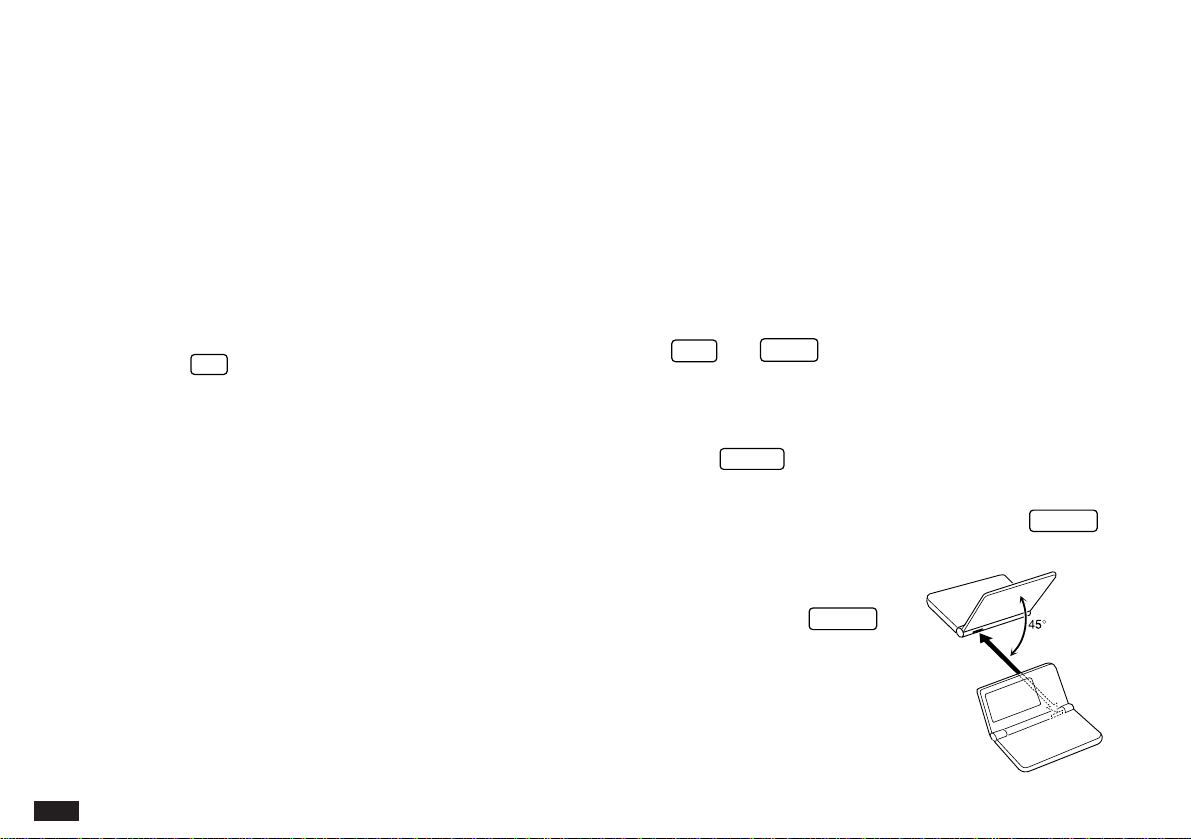
174
• No peripheral devices are required to transfer data
via the infrared port. However, infrared transfers
are easily affected by ambient conditions which
may interfere with this type of transfer. Connecting
the two units directly using the optional CE-315L
cable will ensure a more reliable transfer. See
p.176.
Initial set-up
There is no special hardware set-up involved in infrared
transfers. And if you only want to transfer single entries
using
GET
and
SEND
, there is no software set-up either:
all you have to do initially is set up the units properly so
they use the same path (step 4 below). For all other
infrared transfers, follow the procedure below.
1.
Press
MENU
four times on both units to open the
PERIPHERALS menu.
2.
Select SET UNIT TO UNIT PATH and press
ENTER
.
A submenu opens.
3.
Select VIA INFRARED
PORT and press
ENTER
.
4.
Place the two Organizers so
that their infrared ports are
acing each other and are no
more than 80 cm apart.
Transferring between OZ-5500 Organizers
Data can be transferred directly between two OZ-5500
Organizers via the infrared port. Single entries or all the
entries in an application can be transferred in the
Schedule, To Do, Ann, Memo, Money Tracking and
Outline applications; and single entries or all the entries in
a file can be transferred in the Tel and User File
applications.
The transfer procedure differs according to whether single
entries or complete files are to be transferred.
☞ • Press
ON
at any time to interrupt and cancel a
transfer.
• After a transfer, the display returns to the
application being used before the transfer
procedure was begun.
• Data received from another Organizer is
automatically assigned to the Organizer’s IN BOX
so that it can be checked before being moved to
the appropriate application (except Money
Tracking data, which is stored directly in the
Money Tracking files).
• In the Tel or User File applications, the contents of
fields that have not been set up in the receiving file
cannot be transferred. Also, if the type of a field is
different in the two units, the information cannot be
transferred.
175
9
☞ • During transfers, do not leave the cover more than
three-quarters open or it will interrupt the infrared
transfer.
• When transferring entire applications or files, or
entries marked as secret, both Organizers must be
unlocked (see p.187).
• Avoid direct sunlight.
• Keep the infrared port clean with a soft, dry cloth.
Dust on the port could cause a transfer to fail.
• Although infrared transfer requires no special
hardware, it is easily affected by ambient
conditions and other factors such as external light,
weak batteries, large transfer distance, transfer
angle, etc. As a result, while infrared transfer is
very convenient, there is a strong likelihood of data
transfer failure, incomplete data transfer (missing
data) or other errors occurring. It is therefore
recommended that you check the received data
thoroughly after making an infrared transfer.
Transferring single entries
Single entries can be transferred in all applications.
1.
Turn on both Organizers.
2.
On the sending Organizer, select the entry you want
to send.
3.
Press
GET
on the receiving Organizer.
4.
Press
SEND
on the sending Organizer.
The selected entry is transferred and appended to data in
the appropriate application.
You can also transfer single entries using UNIT TO
UNIT TRANSFER in the PERIPHERALS menu. In
step 3, after opening the same application as on the
sending Organizer, select GET DATA (APPEND) on
the receiving Organizer. Then, in step 4, select SEND
SELECTED ENTRY on the sending Organizer.
Transferring all entries in an application
With the exception of the Tel and User File applications, all
entries in any application can be transferred. In Tel and
User File, all entries in particular files can be transferred.
1.
Turn on both Organizers.
2.
Open the same application on each Organizer.
3.
On the receiving Organizer, press
MENU
four times
to open the PERIPHERALS menu. Select UNIT TO
UNIT TRANSFER and press
ENTER
.
A submenu opens.
#9-2-2 Display
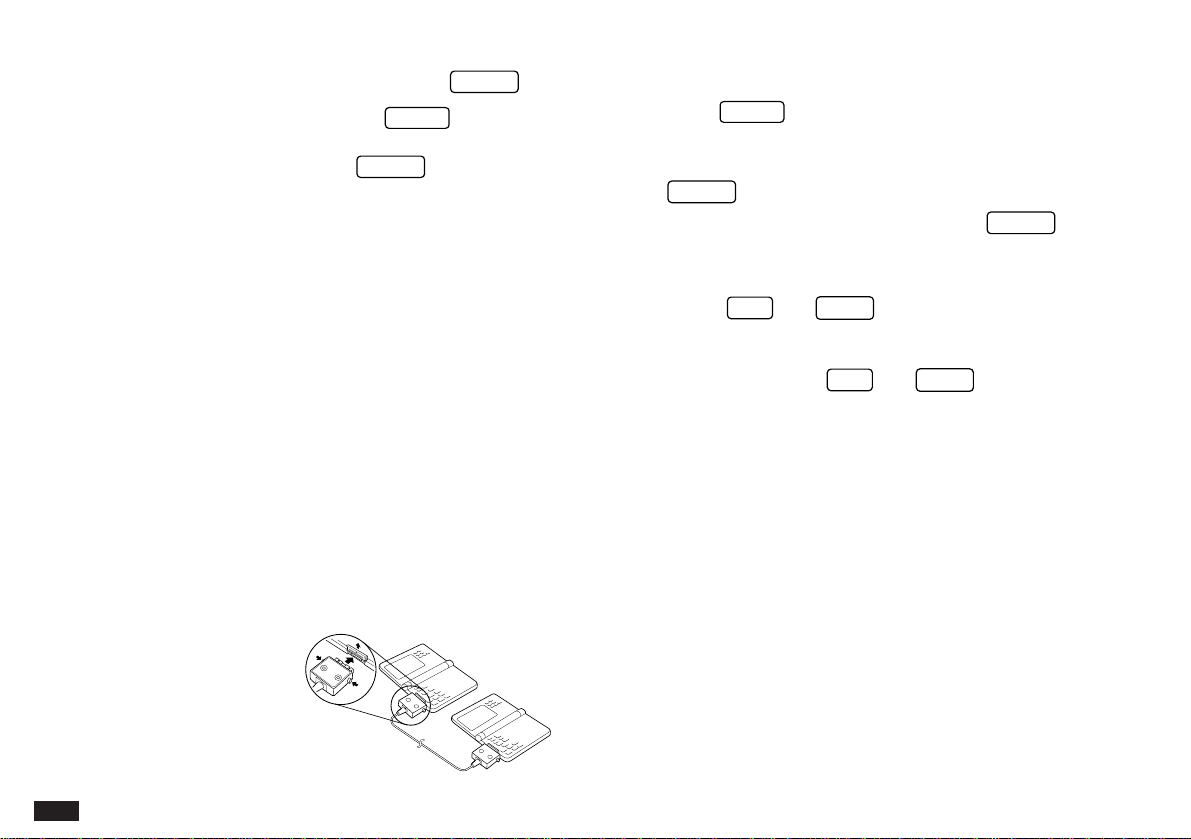
176
4.
Select GET DATA (APPEND), and press
ENTER
.
5.
On the sending Organizer, press
MENU
four times
to open the PERIPHERALS menu. Select UNIT TO
UNIT TRANSFER, and press
ENTER
.
A submenu opens.
6.
Select SEND ALL IN THIS MODE, or SEND ALL IN
THIS FILE in the Tel and User File applications.
All entries in the application or in the selected file are
transferred.
☞ If the Filter function is turned on while using Tel or
User File, select SEND ALL IN THIS MODE if you
want only the filtered entries to be transferred.
For more reliable data transfer, you can connect two OZ-
5500 Organizers using the optional CE-315L cable.
To set up the Organizers for data transfer via direct cable:
1.
Turn off both Organizers.
2.
Open the cover of the 15-pin cable jack on each
Organizer.
3.
Plug each end of the
cable into the jack
on each Organizer.
4.
Turn on both Organizers.
5.
Press
MENU
four times to display the
PERIPHERALS menu.
6.
Select SET UNIT TO UNIT PATH, then press
ENTER
.
7.
Select VIA DIRECT CABLE then press
ENTER
.
☞ • To conserve battery power, disconnect the cable
as soon as a transfer is completed.
• The
GET
and
SEND
keys are used only for
infrared transfers, not for cable transfers. You must
use the PERIPHERALS menu to transfer data via
cable. Using the
GET
and
SEND
keys always
initiates an infrared transfer, regardless of the
selection for SET UNIT TO UNIT PATH or whether
or not the cable is connected.
8.
Transfer the data by following the same menu
procedure as for the infrared transfer shown on p.175.
Exchanging data with other Organizers
You can send information to and receive information from
ZR-5000, OZ-6500 or 9000 series Organizers. However,
the OZ-5500 cannot handle graphic data from other
Organizer models. This type of transfer requires the
optional CE-315L cable if you choose not to use the
Infrared (IR) transfer.
Initial set-up
1.
Turn off both Organizers.

177
9
2.
Open the cover of the 15-pin cable jack on each
Organizer.
3.
Plug each end of the cable into the cable jack on each
Organizer.
☞ To conserve battery power, disconnect the cable as
soon as a transfer is completed.
Transferring data
1.
Turn on both Organizers.
2.
On the OZ-5500 Organizer, open the application in
which you want to receive the data.
Only data corresponding to the application selected on the
receiving Organizer will be transferred (regardless of which
applications were selected on the sending unit).
In the Tel and User File applications, use the menu to
switch to the correct destination file.
3.
On the OZ-5500 Organizer:
Press
MENU
four times to open the PERIPHERALS
menu.
Select UNIT TO UNIT TRANSFER and press
ENTER
.
A submenu opens.
Select GET DATA (APPEND) and press
ENTER
.
A message appears, informing you that the Organizer is
attempting to make a connection and receive data from the
sending unit.
4.
On the sending unit:
Press
MENU
and select PERIPHERALS. Select UNIT TO
UNIT TRANSFER, then select the preferred SEND option.
Repeat the steps above for all applications you want to
import to your Organizer.
☞ • Memo entries from Organizers other than the OZ-
5500 will be transferred to the Memo application.
All other matching applications will share the same
name.
• There are some other restrictions. See p.181.
• Since the Memo application does not support
formatting (tabs, indents, etc.) and styles (bold,
italics, etc.), such information contained in entries
received from other Organizer models will be
ignored and lost.
• On the OZ-5500 Organizer, all applications that
allow entry of text providen automatic word
wrapping at the end of each line. However on
6500 and 9000-Series Organizers, this is not
supported. As a result, any entries transferred
between these models and the OZ-5500 may be
displayed differently in the corresponding
applications to the original versions.

178
Single entries or entire files can also be transferred
between an OZ-5500 and an OZ-6500, ZR-5000 or
OZ-9000-Series Organizer via the infrared link.
The procedures for this transfer are essentially the same as
those given in the preceding sections on the OZ-5500 side.
Refer to the operation manuals for the OZ-6500, ZR-5000
or OZ-9000-Series Organizers to set up these devices for
data transfer.
The IN BOX and IN BOX VIEWER
Any entries transferred to the Organizer are stored in their
corresponding applications and also listed in a special
location called the IN BOX. The IN BOX VIEWER allows
you to see the application and title of each entry that has
been received, and to decide whether you want to keep or
delete each entry.
Removing entries from the IN BOX
Since entries received via data transfer are stored in their
corresponding applications and listed in the IN BOX, you
should remove each item from the IN BOX if you decide
you want to keep the transferred entry.
To use the IN BOX VIEWER:
1.
Press
MENU
three times to display the TOOLS
menu.
2.
Select IN BOX VIEWER and press
ENTER
.
The IN BOX is displayed. Each item listed in the IN BOX
corresponds to an entry that has already been stored in the
application indicated by the displayed symbol.
3.
Select any specific entry you want to remove, the
press
ENTER
.
4.
To remove a specific entry: select REMOVE THIS
ENTRY and press
ENTER
.

179
9
To remove all entries in the IN BOX: select
REMOVE ALL ENTRIES and press
ENTER
.
To delete all entries from the IN BOX and from
their corresponding applications: select DELETE
ALL ENTRIES and press
ENTER
, then confirm you
want to permanently delete the entries from the
Organizer.
Assigning entries to the IN BOX from
applications
You can easily send entries from a variety of applications to
the IN BOX, so that you can transfer them to another
Organizer in a single operation.
1.
Select an entry to be transferred in Index mode or
display it in View mode.
2.
Press
2nd
F
.
A copy of the entry is sent to the IN BOX (the original entry
remains unaffected). The message “Filed!” appears briefly.
3.
Repeat the above steps for any other entries in other
applications to be sent to the IN BOX.
4.
Press
MENU
three times to display the TOOLS
menu. Select IN BOX VIEWER and press
ENTER
.
The IN BOX VIEWER displays the entries you filed in Index
mode, with a symbol to identify the application each entry
belongs to.
☞ To transfer the entries in the IN BOX to another
Organizer, press
MENU
, select SEND ALL
ENTRIES VIA IR and press
ENTER
.
180
Exchanging Information with a Personal Computer
Using SHARP’s optional Organizer Link software and cable
package or certain third-party software packages, you can
exchange data with a personal computer. Certain software
will allow you to exchange data with a personal computer
via the Organizer’s infrared port using the optional CE-IR2
wireless interface. This makes it possible, for example, to
use the unit when outside your home or office, then later
transfer the data you have entered on the Organizer to your
desktop computer.
To setup the Organizer for use with the Organizer Link:
1.
Make sure the unit is turned off.
2.
For infrared transfer, set up the Organizer with the
CE-IR2 wireless interface. (See the CE-IR2 manual
for details.)
For a cable transfer, connect the Organizer Link cable to
the Organizer’s 15-pin cable jack. (See the Organizer Link
manual for details.)
3.
Press
ON
.
4.
Press
MENU
four times to display the
PERIPHERALS menu.
5.
Select PC-LINK and press
ENTER
.
The SELECT PC-LINK PATH window appears.
You can also press
2nd
MENU
to access the PC-
LINK.
6.
Select IR for infrared transfer or DIRECT CABLE for
cable transfer and press
ENTER
.
#9-3-1 Display
Your Organizer is now ready to transfer data. Consult the
Organizer Link manual regarding subsequent transfer
procedures.
Press
ON
at any time to exit the PC Link mode.
If you leave the Organizer in PC Link mode, more power is
consumed from the batteries than usual, and the auto
power off function does not work.
To conserve battery power, always press
ON
to leave the
PC Link mode as soon as you have finished transferring
data.

181
9
Points to remember when using peripherals
When using Organizer Link software designed for an
Organizer other than the OZ-5500:
• Data in applications that are not compatible with the
Organizer Link cannot be transferred.
• You cannot transfer an entry from USER FILE 1 of the
User File application if it has no data in its NAME field.
It is also impossible to transfer any complete file that
contains such an entry.
When receiving data from an Organizer other than the
OZ-5500s or when using an Organizer Link designed
for another Organizer:
• If an Outline entry is more than 32 Kbytes in size, only
the first 32 Kbytes of data will be received by an OZ-
5500. Any subsequent text will not be transferred.
• Only data in applications/modes can be transferred.
• If you have used free fields in Telephone or User File on
your other unit, you must set the number of fields in
Telephone (or User File) on the OZ-5500 Organizer to
be the same BEFORE transferring the information to the
OZ-5500. Otherwise the data in the free fields will not
be transferred to the OZ-5500. Also, if the type of a field
(text or picture) is different in the two Organizers, it
cannot be transferred.

182
183
10
ow that you have an understanding of
all of the Organizer’s functions and its
operation, let’s take a look at the various
ways you can customize the Organizer to suit
your personal preferences: the display can show
selected user information at start-up; entries can
be made secure through password protection
and by marking them as secret; the Calendar
display can be set to a default view that you
prefer; and a bold font can be selected for the
Organizer’s display.
The Organizer offers two levels of security for its
entries and operations. The first is the ASK
PASSWORD option, which requires the correct
password, previously set up by the user, to be
given each time the Organizer is turned on.
Thus, overall access to the Organizer’s
information and operations is restricted. The
second is to define particular entries within
various applications as secret, and then enable
the LOCK ORGANIZER option within the TOOLS
menu. This is independent of whether the ASK
PASSWORD option is set, and provides another
layer of security.
CHAPTER 10
Personalizing Your Organizer
The Start-Up Display
The Organizer can display your name, telephone number,
and address every time it is turned on, set against one of
three built-in graphic backgrounds. If you ever lose or
misplace your Organizer, this could significantly increase
the chances of being it returned to you.
Selecting the start-up display
1.
Press
MENU
twice to open the PREFERENCES
menu, select SET START-UP DISPLAY, then press
ENTER
.
SET START-UP DISPLAY contains several fields. Current
selections are shown in reverse.
#10-1-1 Display
START-UP
ON: Enables a user-specified display upon start-up.
The owner’s name, telephone number and address
will then be displayed each time the Organizer is
turned on. Also, if the ASK PASSWORD option is
ON (see below), the Organizer will prompt the user
for the correct password upon start-up.
N
184
OFF: Even if ASK PASSWORD (see below) is set to
ON, no password will be required. The Organizer
then starts in the application or display mode that
was most recently used.
SETUP: Sets the Organizer to run through the set
up procedure at start-up. This is the default display.
This provides an overview of how to use the
Organizer, and is very useful for new users as it
goes directly to those screens allowing user
customization. After this has been done once and
the user reached the USER SETUP completed
screen, START-UP is changed automatically from
SETUP to OFF.
BACKGROUND
You may choose one of the three built-in
backgrounds to be displayed at start-up (when the
Organizer is turned on).
ASK PASSWORD
ON: After registering a password (see p.255), you
will be prompted to enter that password upon start-
up (if START-UP is also set to ON). The Organizer
cannot be used if the password is not entered
correctly. This is an important security feature for
users whose Organizers contain sensitive
information.
OFF: You will not be prompted to enter your
password upon start-up.
2.
Select the desired setting in each field.
3.
Press
ENTER
to store the settings (or
CANCEL
to
cancel any changes).
Responses to the start-up display
If you have set START-UP and ASK PASSWORD to ON,
and entered your personal information, a display similar to
the one below will appear each time the Organizer is turned
on.
#10-1-3 Display
To use the Organizer:
1.
Type in the password as used for the Secret function.
You must enter the password exactly as you
registered it, including upper- and lower-case letters.
2.
Press
ENTER
.
The ENTER PASSWORD prompt disappears.
3.
Press
ENTER
to go directly to the Calendar or press
the key for any application you want to use.

185
10
☞ • If no password has been registered, the prompt for
the password will not be displayed even if ASK
PASSWORD and START-UP have been set to ON.
• If you set ASK PASSWORD to ON with START-UP
set to ON and you forget your registered password,
you will have to reset it, which means erasing all
the data stored in it (see p.197). This is one reason
why it is a good idea to make periodic backups
(transfers of your Organizer’s stored information) to
a PC or some other Organizer, so that the
information can be reloaded in case the Organizer
has to be reset.
Setting the Owner’s Information
The Owner’s Information comprises your name, address
and telephone number. You can choose whether to have
this information displayed each time you turn the Organizer
on, by setting the START-UP option to ON using the above
procedure.
1.
Press
MENU
twice to display the PREFERENCES
menu.
2.
Select SET OWNER INFORMATION and press
ENTER
.
The cursor starts in the NAME field.
3.
Enter your name, then press
NEXT
.
The cursor moves to the telephone number field.
4.
Enter your telephone number, then press
NEXT
.
The cursor moves to the address field.
5.
Enter your full address.
Press
➞
to move the start of the next line.
6.
Press
ENTER
when done.
A message appears confirming the owner information has
been set.
186
Locking the Organizer
The Organizer’s LOCK function allows you to keep selected
information in your Organizer secure by locking it with a
password that you specify. Entries that you have marked as
secret cannot be accessed until the Organizer is unlocked
using the password. Individual entries can be marked as
secret, so that only someone who knows the password can
access them by unlocking the Organizer. Note that this
password is completely different from the one used for the
ASK PASSWORD feature within the SET START-UP
DISPLAY options (see p.183). Marking entries as secret
has no effect until the Organizer is locked.
Turning on the Lock
1.
Press
MENU
twice to open the PREFERENCES
menu.
2.
Select SECRET from the menu, then press
ENTER
.
The SECRET submenu appears.
3.
Select LOCK ORGANIZER, then press
ENTER
.
The LOCK ORGANIZER window appears prompting you to
enter a password.
#10-2-1 Display
4.
Enter any password up to seven characters long.
Letters, numbers, and symbols can all be used. This
text box is case-sensitive, which means that upper-
and lower-case letters are treated differently. The
password “SHARP”, for example, is different from the
passwords “Sharp” or “sharp”.
☞ Choose your password carefully. If you forget your
password, there is no way to bypass the Secret
function or enter a new password without losing all
data marked as Secret. It is strongly recommended
that you use a password that you will always be able
to remember, but which other people will be unable to
guess.
5.
Press
ENTER
to store the password (or
CANCEL
to
cancel the operation).
All entries marked as secret throughout the Organizer will
then be hidden and will not be accessible until the
Organizer is unlocked by giving the correct password.
A message appears warning you not to forget the
password. If you have any doubt about whether or not you
will always be able to recall this password, write it down
and keep it in a safe place.
6.
Press
ENTER
.
T
appears on the display, indicating that any information
you mark as secret will now be hidden. The unit itself can
still be accessed until you turn on the ASK PASSWORD

187
10
feature in the SET START-UP DISPLAY window. See
p.184.
Marking/unmarking entries as Secret
You can mark or unmark any entry as secret in Edit mode.
1.
Open the application containing the entry you want to
mark as secret.
2.
Display the entry in Edit mode.
3.
Press
MENU
twice to display the PREFERENCES
menu, select SET SECRET STATUS and press
ENTER
.
☞ If the Organizer has been locked (which hides all
secret entries) an entry which has just been marked
as secret will remain displayed until you move to
another entry. Once you leave the entry marked as
secret, it will be hidden together with all other secret
entries (for more information, see the next section).
Accessing Secret entries
Entries marked as secret are not shown in any of the
Organizer’s display modes when it is locked, and cannot be
accessed using any of the search methods. To be able to
recall and access secret entries, the Organizer must first be
unlocked.
1.
Press
MENU
twice to open the PREFERENCES
menu. Select SECRET then press
ENTER
.
The SECRET submenu appears.
2.
Select LOCK ORGANIZER then press
ENTER
.
A window appears, prompting you to enter your password.
3.
Enter your password exactly as you registered it
(remember that the password is case-sensitive,
distinguishing between upper- and lower-case letters).
4.
Press
ENTER
.
If the password is correct,
T
disappears.
If the password is incorrect, a message appears indicating
this.
5.
After unlocking the Organizer, access any entry you
want using the normal procedures.
☞ If you forget your password, you will not be able to
unlock the Organizer and access your secret
information. If this happens, you will have to delete
the old password to be able to continue to use the
Secret function. This will also delete all entries
marked as secret. For a full explanation of what to do
if this occurs, see below, p.188.
➛ You can use
2nd
SEARCH
to find only those
entries marked as secret once the Organizer is
unlocked (see p.63).
188
Automatic Relocking
Once a password has been registered, even if you unlock
the Organizer using the procedure above, the Organizer will
automatically lock itself each time you turn it off. This
automatic relock feature protects your secret data in case
you forget to relock the unit. The feature remains in effect
as long as a password is registered. To disable this feature,
the password must be deleted once the Organizer is
unlocked.
You can also lock the Organizer yourself at any time:
1.
Press
MENU
twice to open the PREFERENCES
menu.
2.
Select SECRET then press
ENTER
.
The SECRET submenu appears.
3.
Select LOCK ORGANIZER and press
ENTER
.
T
appears, indicating that the Organizer is now locked.
Changing or deleting the password
To register a new password, the current one must first be
deleted.
1.
Press
MENU
twice to open the PREFERENCES
menu.
2.
Select SECRET then press
ENTER
.
The SECRET submenu appears.
3.
Select DELETE PASSWORD, and press
ENTER
.
#10-2-3 Display
4.
Enter your password exactly as you registered it
(remember that the text box is case sensitive
distinguishing between upper- and lower-case letters).
5.
Press
ENTER
.
A message appears indicating that the Organizer is
unlocked. Entries that were marked as secret can be
accessed until a new password is registered (to register a
new password, use the procedure for Registering a
password on p.186).
☞ Remember that if you delete a password while the
Organizer is locked, all secret entries will be deleted
as well. The Organizer will not remind you of this!
If you forget your password...
If you have forgotten your password, the only way you will
be able to delete it and continue to use the Secret function
is to delete all entries marked as secret.

189
10
1.
Press
MENU
twice to open the PREFERENCES
menu.
2.
Select SECRET then press
ENTER
.
The SECRET submenu appears.
3.
Select DELETE ALL SECRET DATA, and press
ENTER
.
A warning message appears asking if you are sure you
want to delete all the secret entries. If you have forgotten
your password, you have no choice but to proceed.
4.
Press
Y
to delete all secret entries. This will then
allow you to enter a new password.
☞ If you set ASK PASSWORD in the SET START-UP
display to ON, and forget your password, you will
have to reset the entire Organizer, thereby erasing all
the stored entries and information (see p.197).
Changing the Calendar Display Format
The Organizer lets you change the default Calendar
display to one you find more convenient. There are two
aspects to changing the display: setting the monthly format,
and setting up the Calendar. You can use these options to
set up a way of working that you prefer.
Setting the monthly format
You can set the Monthly and Two-month views in the
Calendar application to show the weeks in either a
Sunday-to-Saturday format (this is the default) or a
Monday-to-Sunday format.
In the Calendar application:
1.
Press
MENU
, select SET UP WEEKLY FORMAT,
then press
ENTER
.
A submenu appears. The current setting is indicated by an
asterisk.
2.
Select the desired format and press
ENTER
.
The Monthly view is then displayed accordingly.
Setting up the default Calendar view
You can set up the Calendar to show either a Monthly or
Daily view each time the Calendar application is opened.
The default setting after initialization is the Monthly view.

190
In the Calendar application:
1.
Press
MENU
, select SET UP DEFAULT VIEW then
press
ENTER
.
A submenu appears. The current setting is indicated by an
asterisk.
2.
Select the desired format and press
ENTER
.
The current calendar view does not change. However, the
desired format is used the next time the Calendar
application is opened.
Setting up the date format
Almost all Organizer applications require a date to be
entered at some point. The default format for date entry is
“MM/DD/YYYY”, where MM is the two-digit month, DD is
the two-digit day of the month and YYYY is the four-digit
year. The date will be displayed as “MMM DD, YYYY”,
where MMM is the three-character abbreviation for the
month name. However, you can choose instead to have the
date entered in the format “DD.MM.YYYY”, which will then
be displayed in the format “DD MMM YYYY”.
For example, in MM/DD/YYYY format, the date July 4th,
1996 will be entered as “ 7/ 4/1996” and displayed as “JUL
7, 1996”. However in DD.MM.YYYY format, the same date
will be entered as “ 4. 7.1996” and displayed as “4 JUL
1996”.
1.
Press
MENU
twice to display the PREFERENCES
menu.
2.
Select SET UP DATE FORMAT and press
ENTER
.
A submenu appears. The current selection is marked with
an asterisk.
3.
If the desired format is not already selected, move to
it and press
ENTER
.
Selecting the Bold display font
Since the Organizer’s display is fairly small, you may find
the displayed information easier to read if all characters
appeared in a bold style, which is slightly thicker than
normal.
1.
Press
MENU
three times to display the TOOLS
menu.
If bold font has not yet been selected, no ✓ will appear next
to the menu item SET BOLD FONT.
2.
Select SET BOLD FONT and press
ENTER
.
All characters on the display will then appear in bold style.
☞ This option only affects the way information appears
on the Organizer’s display, and does not affect the
way the actual information is stored or printed.
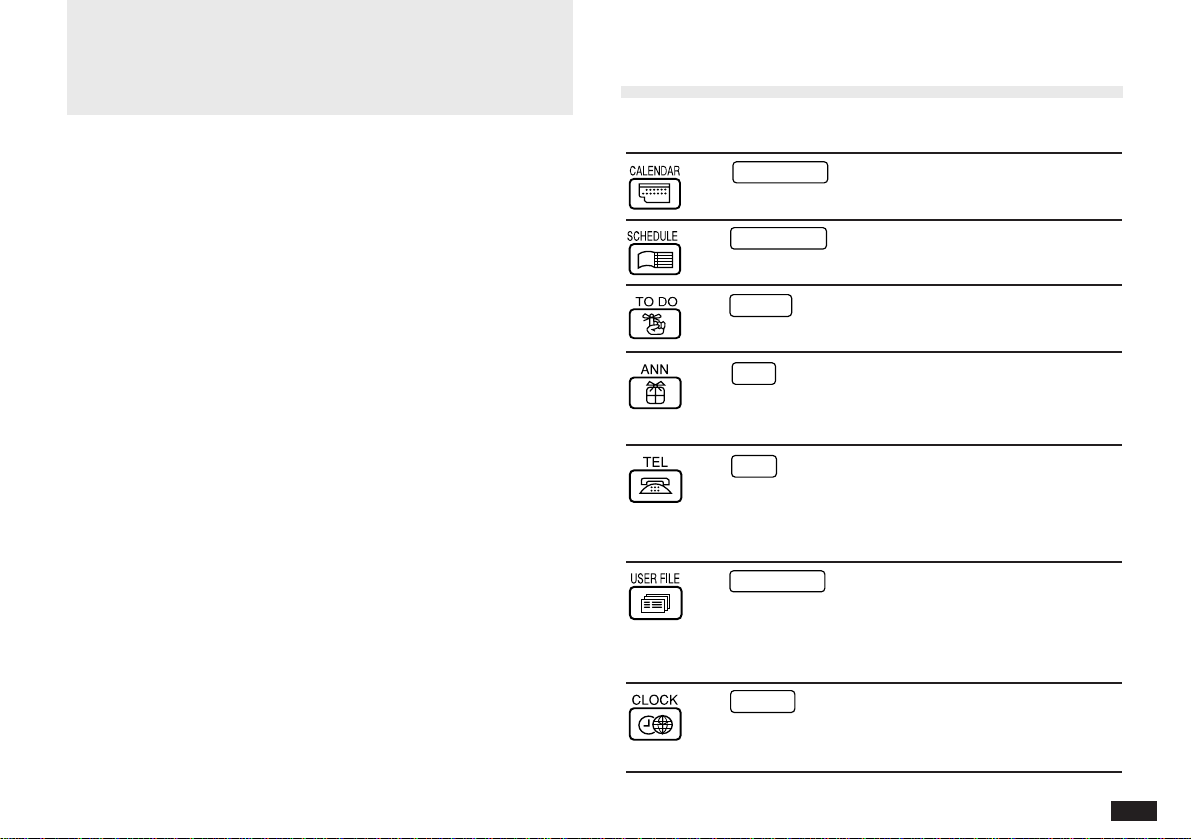
191
A. List of Key Notations
Key
Representation in Text
Function
CALENDAR
Opens the Calendar
application.
SCHEDULE
Opens the Schedule
application.
TO DO
Opens the To Do application.
ANN
Opens the Ann application.
Subsequent presses switch
between ANN1 and ANN2 files.
TEL
Opens the Tel application.
Subsequent presses switch
between TEL1, TEL2 and TEL3
files.
USER FILE
Opens the User File
application. Subsequent
presses switch between USER
FILE 1, 2 and 3.
CLOCK
Opens the Clock application to
display the time and date on
the built-in clock.
Appendices
A. List of Key Notations
B. Resetting the Organizer
C. Troubleshooting
D. Battery Replacement
E. Specifications
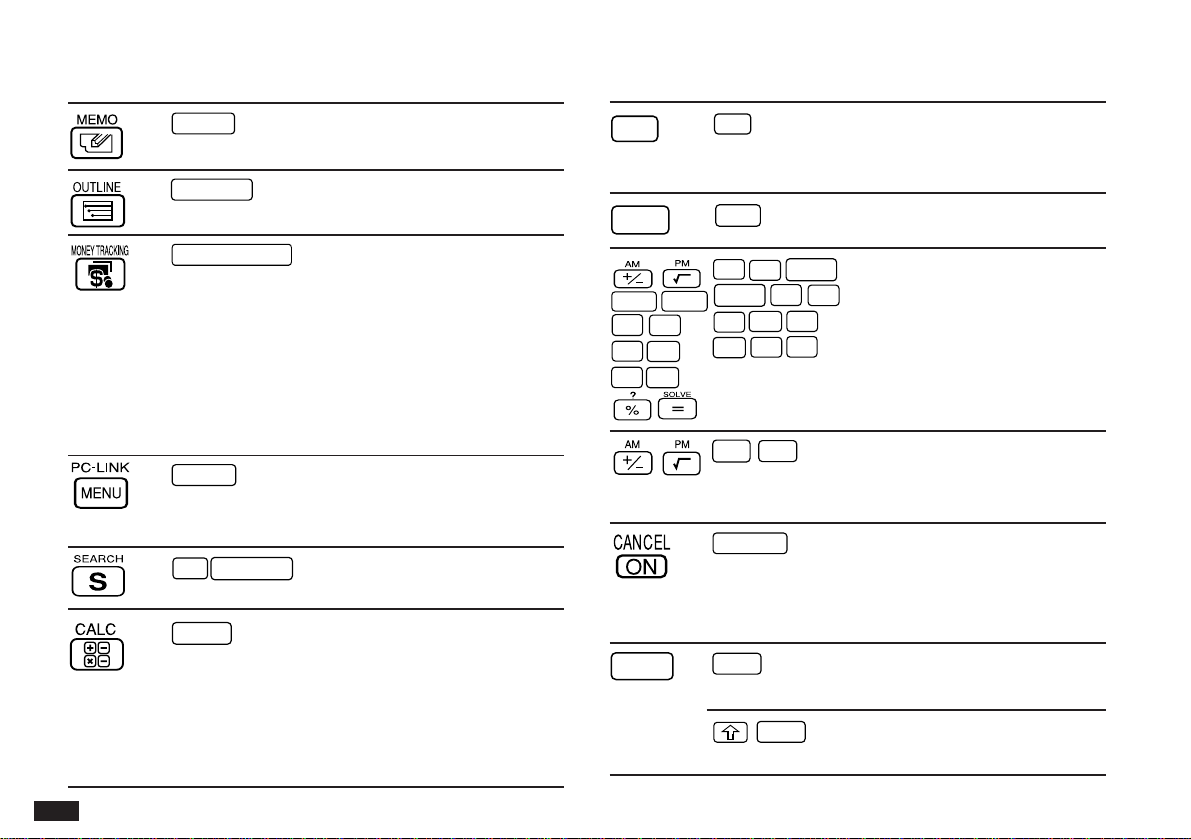
192
Key
Representation in Text
Function
MEMO
Opens the Memo application.
OUTLINE
Opens the Outline application.
MONEY TRACKING
Opens the Money Tracking
application. In Index mode,
subsequent presses display each
account’s Index view, as well as
the All transaction list. When
Account information is displayed,
subsequent presses alternate
between displaying the current and
opening account balances.
MENU
Opens application’s menu,
PREFERENCES, TOOLS and
PERIPHERALS menus.
2nd
SEARCH
Calls the Search function.
•
•
CALC
Opens the Calc application.
Subsequent presses switch to
paperless printer mode, to date
calculator mode, cost/sell/margin
calculation, then to cost/sell/markup
calculation, then back to standard
Calc Mode.
Key
Representation in Text
Function
ON
ON
Turns the Organizer on.
Interrupts printing or data
transfer.
OFF
OFF
Turns the Organizer off.
+
/–
ª
CzCE
Calculator application function
CzCE
RzCM
RzCM
M
–
M
+
keys.
M
–
M
+
X
–
X
+
%
=
–
+
AM
PM
AM/PM selection. Automatically
activated in appropriate
applications.
CANCEL
Clears an unstored entry.
Cancels a selection, menu, or
operation to return to the
previous display.
NEW
NEW
Opens a new entry in an
application.
NEW
Clears field contents when
entering or editing data.
193
Key
Representation in Text
Function
EDIT
EDIT
Edits the currently selected or
currently displayed entry.
˜
˜
Displays the pop-up list
containing available choices for
the currently selected field.
Only works for currently
selected field. Only works for
currently selected pop-up
fields, indicated by
˜
.
§
Moves the cursor one character
to the left.
2nd
§
Moves the cursor to the
beginning of a line.
§
Selects text for deleting, cutting
or copying.
¶
Moves the cursor one line up.
Scrolls the display up.
2nd
¶
Moves the cursor to the first
line of a display in the Memo
application. Moves the cursor
to the first line of a field in other
applications.
Key
Representation in Text
Function
¶
Selects text for deleting, cutting
or copying.
˜
Moves the cursor one line
down. Scrolls the display down.
2nd
˜
Moves the cursor to the last
line of a display in the Memo
application. Moves the cursor
to the last line of a field in other
applications.
˜
Selects text for deleting, cutting
or copying.
'
Moves the cursor one character
to the right.
2nd
'
Moves the cursor to the end of
a line.
'
Selects text for deleting, cutting
or copying.
PREV
Steps up through entries/
screens. Continues to search
backwards for a keyword.
194
Key
Representation in Text
Function
J
K
2nd
J
Enters accent marks: `, ´, ˜, ¨,
L
B
2nd
K
^, respectively. Press the key
N
2nd
L
then type a letter to create
2nd
B
accented characters.
2nd
N
➞
Enters a carriage return.
Switches the letter keys
between upper and lower case
when pressed. Enters a symbol
in white above a key when held
while the key is pressed.
X
2nd
CUT
Cuts a specified text/picture or
a selected entry to the
clipboard for pasting to another
location.
C
2nd
COPY
Copies a specified text/picture
or a selected entry to the
clipboard for pasting to another
location.
V
2nd
PASTE
Places a text/picture in the
clipboard at the cursor location.
Key
Representation in Text
Function
NEXT
Steps down through entries/
screens. Continues to search
forwards for a keyword.
1
–
0
1
–
0
Enters numerals 1–0.
BS
BS
The backspace key. Deletes
the character to the left of the
cursor.
A
–
Z
A
–
Z
Enter the letters A–Z.
T
2nd
T
Stamps the current local time at
the cursor location in an entry.
P
2nd
P
Prints the current display when
a printer is connected.
D
2nd
D
Stamps the current local date
at the cursor location in an
entry.
H
2nd
HELP
Calls the on-line help feature.
CUT
COPY
PASTE
HELP
195
Key
Representation in Text
Function
–
2nd
–
Checks off the SECRET ONLY
box in the Search and Filter
functions.
W
2nd
W
Moves topics in the Outline
application.
E
2nd
E
Expands/collapses topics in the
Outline application.
M
2nd
M
Enters the French character ç.
,
,
Enters a comma.
2nd
,
Enters the German character ß.
,
Enters apostrophe.
.
.
Enters a period. In calculations,
the period entered from the
keyboard acts as a decimal
point.
:
Enters colon.
CAPS
CAPS
Caps lock key. Switches the
letter keys between upper- and
lower-case modes.
Key
Representation in Text
Function
2nd
2nd
Press this key then another key
to access any second function
indicated in blue above the key.
Also accesses keyboard
shortcuts.
WORD
WORD
Accesses a user word list.
SMBL
SMBL
Accesses the symbol menus.
✓
Checks off the To Do entries.
Enters “✓” as a symbol.
SPACE
SPACE
The space key.
INS
INS
Toggles between insert and
overwrite mode when entering/
editing data. Creates a new
topic in the Outline application.
DEL
DEL
Deletes a character at the
cursor position when entering/
editing data. Deletes entries
when viewing data.
DEL
Deletes a line at the cursor
location.
✓
,
.
.
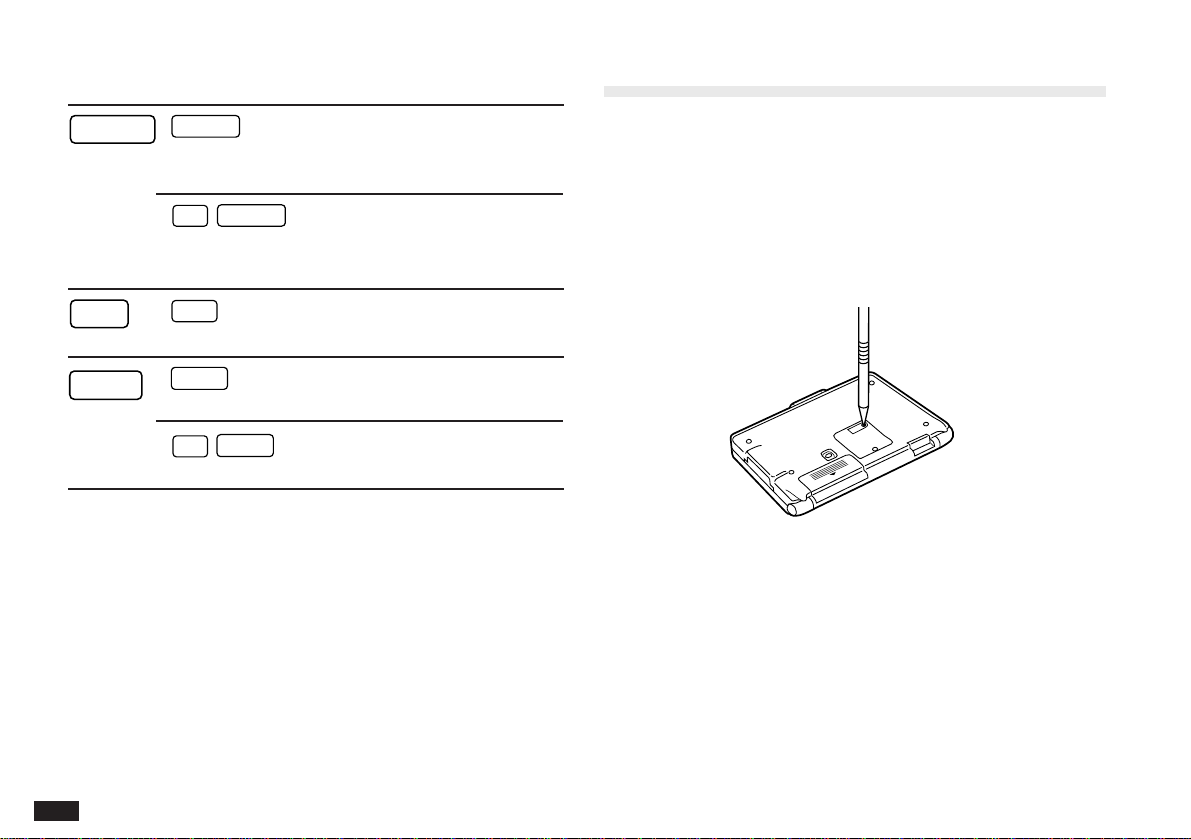
196
Key
Representation in Text
Function
ENTER
ENTER
Executes operations. Stores
entries in memory. Opens the
Edit mode.
2nd
ENTER
Stores an edited enty as new,
leaving the original
unchanged.
GET
GET
Receives data via the infrared
port from an OZ-5500.
SEND
SEND
Sends data via the infrared
port to an OZ-5500.
2nd
SEND
Prints the selected entry when
a printer is connected.
B. Resetting the Organizer
A strong impact, exposure to an electrical field, or other
unusual conditions may render the unit inoperative, and
pressing the keys will have no effect. If this occurs, you will
have to press the RESET switch at the bottom of the unit
using a pen or similar object to be able to continue to use
the unit.
☞ • A condition that makes the unit inoperative may
erase some or all of the data stored in memory.
• Do not use anything breakable, anything with a
sharp tip or anything that might break to press the
RESET switch.
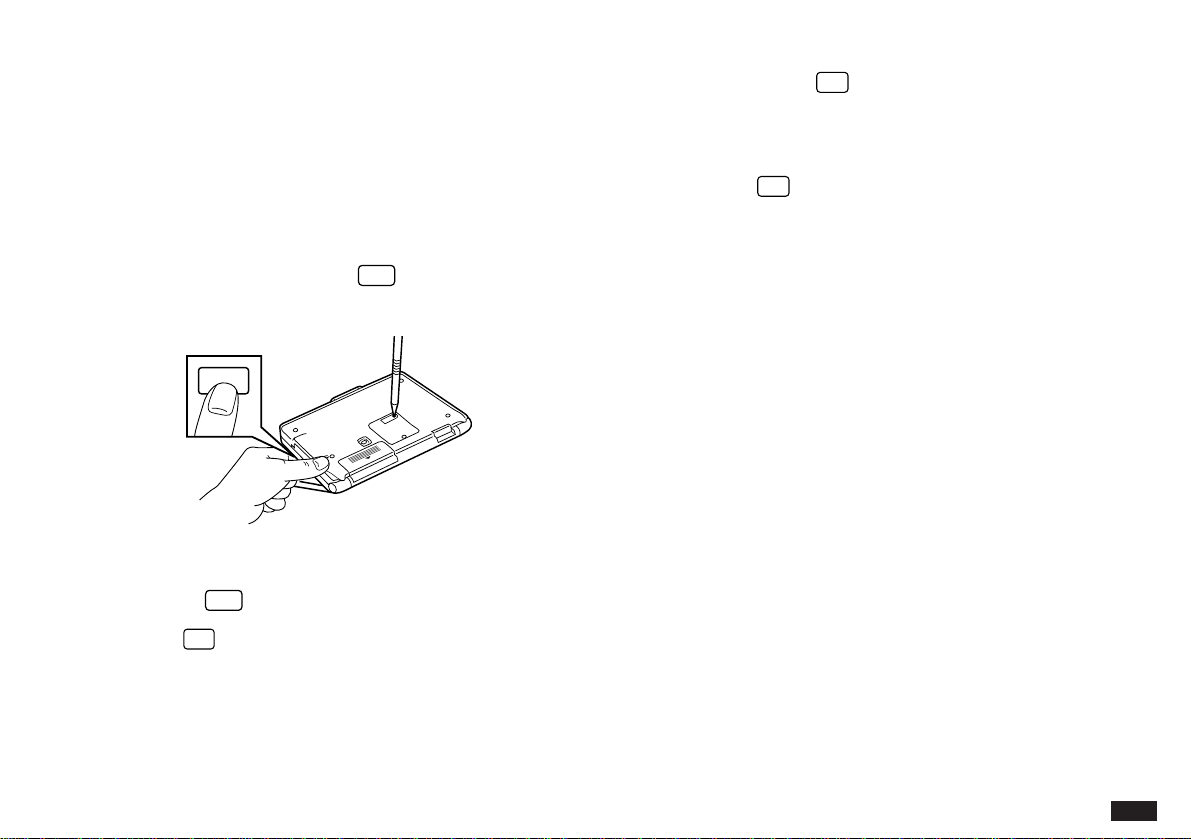
197
All reset operation
If the unit still fails to function after it has been reset
using the procedure above, or you have forgotten the
password to be entered in the start-up display, you will
have to reset it using a slightly more complicated
procedure:
1.
While pressing and holding
ON
, press and release
the RESET switch.
A message appears.
2.
Release
ON
.
3.
Press
N
.
The built-in clock and any set daily alarms are reset.
☞ • Do not press
Y
in step 3. Doing so will delete all
data in the unit.
• However, if you have forgotten the password
required at start-up, you have no choice but to
press
Y
in order to use the unit, but losing all
your data in the process.
ON

198
D. Battery Replacement
General guidelines
The Organizer uses the following types of batteries:
Use Type Size/Model Qty.
General
Alkaline batteries
LR03 (L30) 2
operation
Memory backup Lithium battery CR2032 1
There are some extremely important points to remember
when installing new batteries:
☞ • Do not remove the operating and backup batteries
at the same time. Doing so will result in the loss of
all data stored in the unit’s memory.
• Backup all important data before replacing the
batteries.
• Replace the two operating batteries at the same
time with new batteries of the same type.
• The memory backup battery installed at the factory
at the time of manufacture may have become
depleted during shipment and may not have the full
battery life indicated in the specifications.
C. Troubleshooting
Refer to the list below for solutions when the unit is not
functioning properly before contacting your local SHARP
dealer.
Problem Solution
The display remains • Adjust the LCD contrast
blank after pressing (see p.50).
ON
. • Install new batteries
(see p.199).
Poor display contrast. Adjust LCD contrast (see
p.50).
The Organizer is turned Reset the Organizer
on, but pressing keys (see p.196).
has no effect.
“Not enough memory” The Organizer’s memory is
displayed. full or nearly full. Delete
unnecessary data. (You can
check the amount of free
memory using CHECK
MEMORY in the TOOLS
menu. See p.67.)
The alarm does not Enable alarms using the
sound at the set time. TOOLS menu (see p.131).
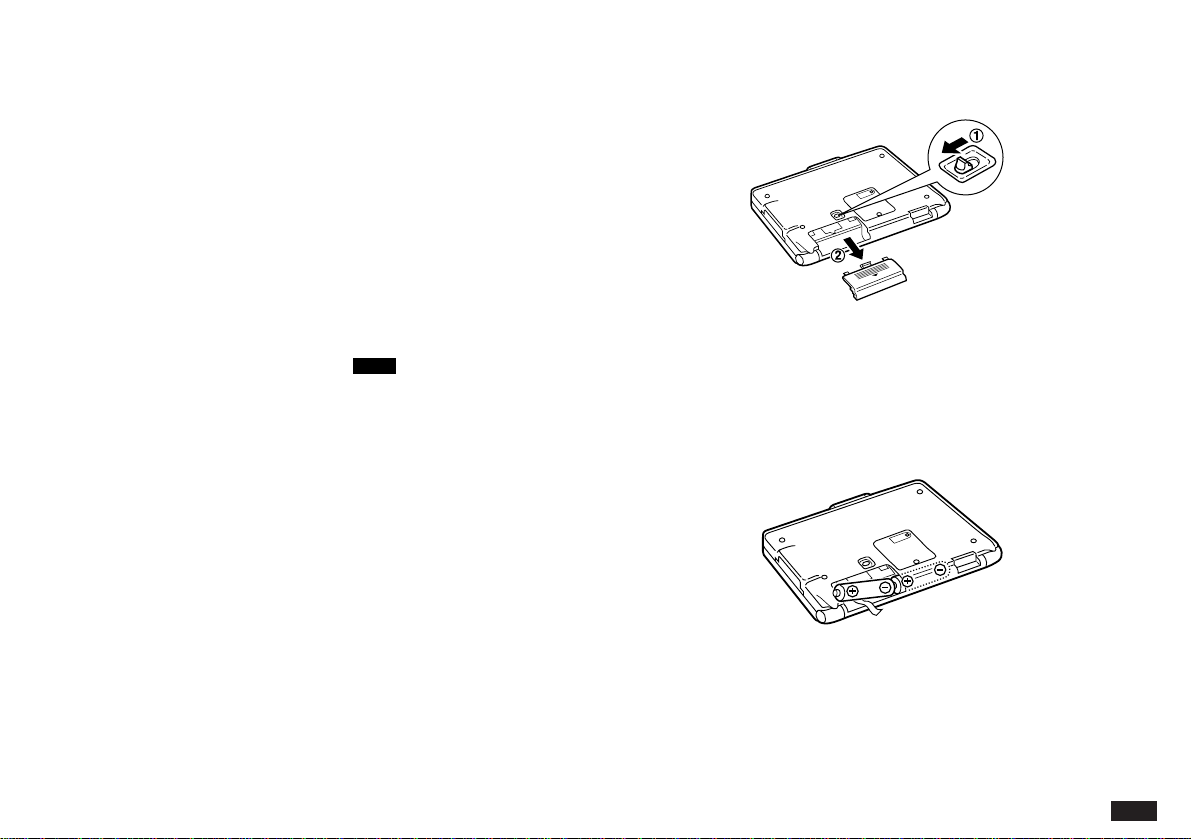
199
Caution:
• Keep batteries out of the reach of children.
• Remove batteries from the unit when they become weak
or when the unit will not be used for a long period of
time. Leaving weak batteries in the unit may cause
battery leakage and damage from corrosion.
• Do not dispose of batteries by fire as they may explode.
Replacing the operating batteries
When using the Organizer, if the
BATT
symbol appears at
the top of the display, the operating batteries should be
replaced as soon as possible. To confirm this, turn the
Organizer off and then on again. If the display shown below
appears, replace both of the operating batteries
immediately.
#Display E-2
1.
Turn off the Organizer.
2.
Set the battery replacement switch on the bottom of
the Organizer to REPLACE BATTERIES (a red dot
will appear).
3.
Slide off the operating batteries cover.
4.
Remove the old batteries by pulling the ribbon tab.
5.
Insert the two new batteries on top of the ribbon tab,
taking care to position them correctly according to the
plus (+) and minus (–) terminals, as shown below.
6.
Replace the cover.
7.
Set the battery replacement switch to NORMAL
OPERATION.
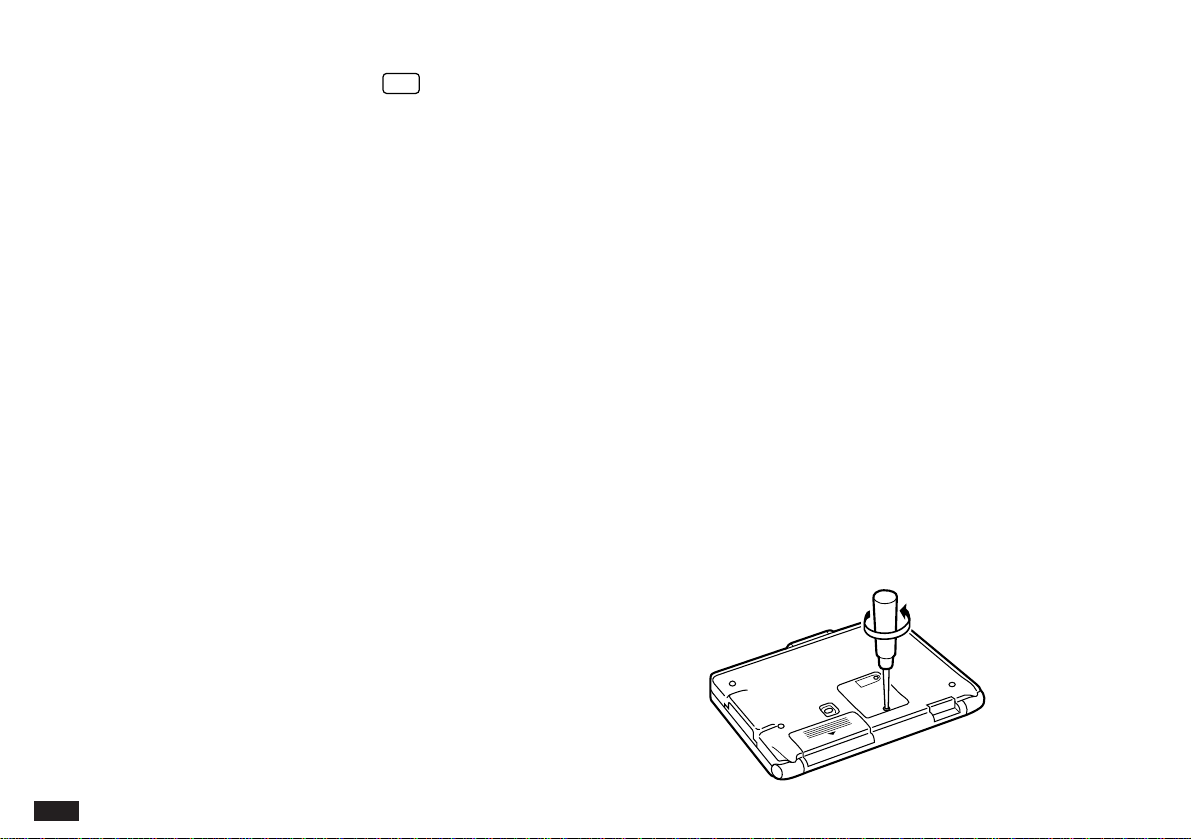
200
If nothing happens when you press
ON
:
• Setting the battery replacement switch to REPLACE
BATTERIES shuts off power to the unit. Check that the
battery replacement switch is set to NORMAL
OPERATION.
• Repeat the above battery replacement procedure step
by step.
Replacing the memory backup battery
The Organizer’s memory backup battery has an expected
life of approximately five years under normal conditions
(temperature extremes can shorten the life of the battery).
Replace the memory backup battery every five years or
whenever the following display appears.
#Display E-5
WARNING:
When the operating batteries are depleted, replace them
promptly with new batteries. If depleted batteries are not
replaced, the memory backup battery will be drained more
quickly than normal. This in turn could cause you to lose all
your data when the operating batteries are replaced.
Memory backup battery life:
✱ Approx. 4 months (when the operating batteries are
depleted)
✱ Approx. 5 years (when the depleted operating batteries
are promptly replaced)
☞ Do not try to replace the memory backup battery if the
operating batteries are weak. Doing so may result in
the loss of all data in the unit. If necessary, replace
the operating batteries before replacing the memory
backup battery.
1.
Turn off the Organizer.
2.
Set the battery replacement switch on the back of the
unit to REPLACE BATTERIES (a red dot will be
visible).
3.
Remove the screw holding the memory backup
battery cover in place.
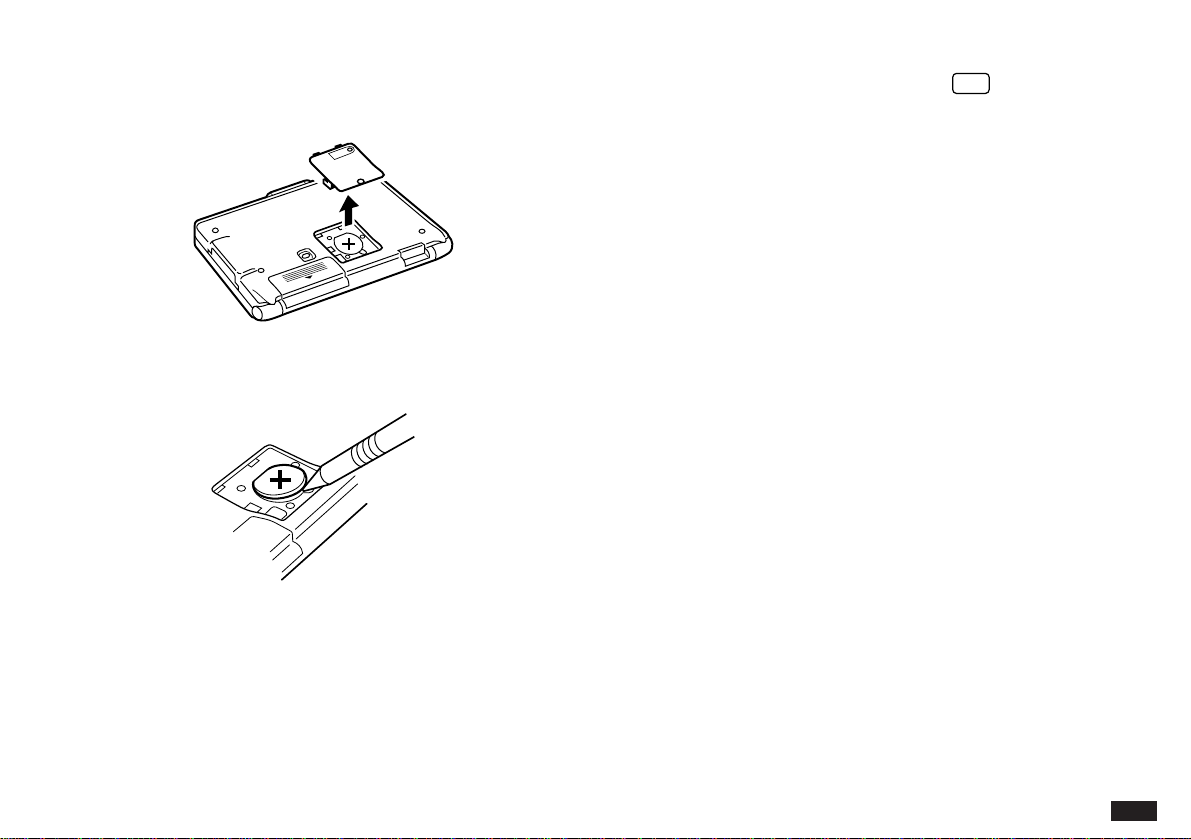
201
4.
Remove the memory backup battery cover.
5.
Remove the old battery using a pen or a similar
object.
6.
Insert a new battery with the plus (+) side up.
7.
Replace the memory backup battery cover and secure
it with the screw.
8.
Set the battery replacement switch to NORMAL
OPERATION.
If nothing happens when you press
ON
:
• Setting the battery replacement switch to REPLACE
BATTERIES shuts off power to the unit. Check that the
battery replacement switch is set to NORMAL
OPERATION.
• Repeat the above battery replacement procedure step
by step.

202
E. Specifications
Model OZ-5500
Display 240 x 79 dot matrix liquid crystal
display
Electronic unit section
Applications Calendar, Schedule, To Do, Clock,
Anniversary, Telephone, User File,
Memo, Outline, Money Tracking, Calc
Memory capacity 256 Kbytes (User area: Approx. 206
Kbytes)
Schedule application capacity:
Approx. 3,260 entries
Tel application capacity:
Approx. 3,040 entries
These capacities assume the following
average entry sizes and only apply
when all the available memory is
committed to a single function.
Schedule: 32 characters/entry
Tel: 16 characters/entry in
the name field
12 characters/entry in
the number field
Maximum data Memo: 16 Kbytes
size per entry Outline: 32 Kbytes for an entire
outline
2 Kbytes for each topic
Tel/User File: 2 Kbytes for text data
Other applications: 2 Kbytes
User interfaces Keyboard
Other features Secret function, data transfer, search
function, help function, et al.
Calculator
Digits 10
Functions Addition, subtraction, multiplication,
division, constant, square root,
percent, memory calculation, date
calculation, paperless printer, cost/
sell/margin calculation, cost/sell/
markup calculation.
Clock
Crystal oscillation 32,768 Hz
frequency
Accuracy Average variance per day, 1.5
seconds (at 25°C/77°F)

203
Display information Year, month, day, day of the week,
hours, minutes, AM/PM, city names.
Time system 12-hour or 24-hour
Other functions Display of date and time for various
cities around the world.
Enable/disable daylight saving time.
Peripherals and data transfer interface
IR transfer Up to a distance of approx. 80 cm.
Cable jack 15-pin connector
Common
Power Battery:
Main supply:
3 V ...
DC, alkaline batteries
(LR03 x 2)
Memory backup:
3 V ...
DC, lithium battery
(CR2032 x 1)
Power 0.23 W
consumption
Battery life Battery life may vary depending on
usage.
Operating batteries:
• Approx. 80 hours (2 months of 1
hour continuous use per day)
Continuous display at an ambient
temperature of 23°C (73°F)
• Approx. 55 hours (1.5 months of 1
hour continuous use per day)
Searching data for 5 minutes and
display on for 55 minutes per hour,
at an ambient temperature of 23°C
(73°F)
Memory backup battery:
• Approx. 4 months (when operating
batteries are depleted)
• Approx. 5 years (when depleted
operating batteries are promptly
replaced)
Operating 0°C to 40°C (32°F to 104°F)
temperature

204
Dimensions Open 160(W) x 164(D) x 9.2(H)
mm
6-5/16(W) x 6-15/32(D) x
3/8(H) inch
Closed 160(W) x 89(D) x 18.4(H)
mm
6-5/16(W) x 3-1/2(D) x
23/32(H) inch
Weight 245 g (0.54 lb) (including batteries)
Accessories Alkaline batteries LR03 x 2, lithium
battery CR2032 x 1 (installed),
operation manual

205
Index
A
Accessing
Secret entries 187
Accounts (see under Money Tracking)
Adding
Accounts
(see under Money Tracking)
Categories: Money Tracking
(See under Money Tracking)
Categories: To Do 85
Topics 110
Transactions
(see under Money Tracking)
User’s city 129
Alarms
Daily 130
Disabling all alarm sounds 131
Schedule 79
All reset 197
Ann(iversary) application 90
Application 51
Opening 55
Keys 42
Assigning
Due date 81
Priority 81
Auto power off 50
B
Battery
Installing 43
Life 203
Memory backup 200
Operating 199
Replacement 198
Blocks
Copying/moving 161
Working with blocks of text 61
Bold Font 190
C
Calc(ulator) application 117
Date calculations 120
Using with other applications 121
Calculations
Changing part of 119
Examples 124
Inserting figures into 119
Performing 117
Date calculations 120
Cost/price/margin calculations 122
Cost/price/markup calculations 122
Paperless printer mode 118
Calendar application 69
Setting up the initial display 70, 189

206
Local city (Clock) 126
Checking
Current time/date 66
Intermediate results of a calculation 119
Memory 67
Time in a city 128
Checking off To Do entries 84
Clock application 126
Collapsing outline families 114
Copying
Blocks of text 61, 161
Entries 162
Create Activities (Calendar) 72
Cursor 60
Customizing
Index display 101
Tel/User File applications 102
Cut 62, 161, 162
D
Daily alarms
Setting 130
Turning on/off 131
Daily view 71
Date calculation 120
Date format 59
Setting 190
Date stamp 163
Daylight Saving Time (DST) 130
Assigning to a city 130
Calendar view
Daily 71
Monthly 70
Monthly Goals 70
Selecting 69
Two-month 70
Weekly 71
Caring for the Organizer 40
Categories
Money Tracking application:
Accessing by category (Filter) 143, 147
Adding 146
Assigning to transactions 139
Category list 139
Deleting 159
Editing 146
Preset 145
To Do application:
Accessing by category (Filter) 87
Adding 87
Assigning to entries 85
Category list 86
Deleting 87
Editing 87
Changing
(see also Customizing)
Bold text 190
Calendar format 189
Display width 106

207
Enabling/disabling 130
Decimal point setting 123
Deleting
All entries in an application 65, 76, 88, 92, 98, 106,
113,158
All To Do entries in current view 88
All Secret entries 189
Money Tracking Categories 159
Filtered entries 166
Line in a calculation 120
Schedules over a specific period 77
Single entries 65, 76, 88, 92, 98, 105, 112, 157
Text 61
Topics 112
Using the application menu 65
Display
Setting the LCD contrast 50
Symbols 53
Display modes 56
Edit mode 57
Index mode 56
View mode 57
E
Edit mode 57
Editing techniques 59
Editing
(see also Revising)
Categories 87, 146
Entries 75, 84, 92, 97, 105, 110, 141
Emulation
Printer 170
Entering
Monthly goals 82
Subtopics 114
Error indicator 122
Expanding families 115
F
Families
Collapsing 114
Expanding 115
Restructuring 115
Fields 59
Filter function 165
Deleting filtered entries 166
Turning off 166
Turning on 165
Finding entries 63, 72, 75, 82, 91, 96, 104, 109
(see also Search)
By date 64
Using keywords 63, 75, 83, 91, 97, 105, 109
Using the Calendar views 72, 75, 83, 91
Using the Index mode 63, 75, 82, 91, 97, 104, 109, 137,
140
Font
Changing Bold style 190

208
H
Help 53
Index 54
I
IN BOX 178
IN BOX Viewer 178
Index mode 56
Infrared transfer
Setting up 174
Notes on 175
Initializing 10, 44
Inserting
Text 61
Topic 110
Installing
Batteries 9, 43
J
Joining two Outline topics into one 111
K
Key beep 51
Keyboard 52
Function/notation list 191
L
Local city 46, 126
Locking the Organizer 186
M
Manual
Conventions used 39
Organization 37
Marking entries as secret 187
Memo application 103
Memory check 67
Menu 52
Application 73, 80, 89, 93, 98, 107, 116, 125, 132, 160
Peripherals 169
Tools 68
Money Tracking application 133
Accounts:
Adding new 135
Balances 136
Balancing and Reconciliation 152
Deleting 158
Editing 137
Index mode 137
List 137
Categories:
(See under Categories)
Transactions:
Adding new 137
Deleting 157
Editing 141
Index mode 140
Removing 156
Special fields 143

209
Split function 147
Viewing in detail 141
Monthly goals (To Do) 70
Entering 82
Monthly view 70
Moving
Appointments 75
Blocks of text 161
Entries 162
Topics 111
N
New entries
Making 58, 72, 74, 80, 90, 96, 103, 107, 137
O
Organizer Link 180
Overwriting text 61
Owner Information 45, 185
P
Paperless printer 118
Part names and functions 42
Password
Deleting/changing 188
Forgotten 188
Registering 186
Paste 62, 162
PC Link 180
Peripherals menu 169
Pop-up list/menu 52
Power
Auto power off 50
Turning on and off 50
Printing 170
All entries 172
Current display 171
Groups of entries 171, 172
Single entries 171
R
Replacing
Memory backup battery 200
Operating batteries 199
Revising
(see also Editing)
Outlines 110
S
Schedule alarms 79
Clearing 80
Setting 79
Schedule application 74
Scrolling the display 62
Search
(see also Finding)
By keyword 63
By date 64

210
Search function 63, 75, 83, 91,
97, 105, 109
Secret function 186
Selecting
Calendar views 69
Date 72
Display modes 56
Topics 110
Setting
Clock 46, 126
Date format 190
LCD contrast 50
Local city 126
Monthly format 189
Owner’s Information 45, 185
Password 186
Schedule alarms 79
Start-up display 48, 183
World city 49, 128
Setting up
Calendar’s initial display 70, 189
For data transfer 174, 176
For printing 170
Organizer 12
Splitting one topic into two 112
Start-up display 48, 183
Responses to 184
Setting 183
Subtopics 113
Entering 114
Symbols
On the display 53
Entering 167
T
Templates
Tel 47, 95
User File 47, 96
Tel application 95
Time stamp 163
To Do application 80
Tools menu 68
Topics
Adding 110
Joining two into one 111
Moving 111
Splitting one into two 112
Subtopics 113
Transactions (see under Money Tracking)
Transferring data 173
Between two OZ-5500
Organizers 174
With an Organizer other than
OZ-5500 176
Points to remember when 181
Single entries 175
Via infrared 174
With a personal computer 180

211
Turning on/off
Daily alarms 131
Key beep 51
Power 50
Setup display 48
Word wrap 107
Typing in text 60
U
Unlocking the Organizer 187
User File application 95
User File templates 47, 96
User’s city 129
User’s preferences 47
W
Weekly format 189
Weekly view 71
Wireless interface 174
Word key
Inserting words/phrases in an
entry 164
Deleting words/phrases 165
Registering words/phrases 164
Word wrap 107
World city 128

212