PART 1: GENERAL INFORMATION
• BEFORE USING
THE PRODUCT
•
MANAGING THE MACHINE
• PERIPHERAL DEVICES
PART 2: COPIER OPERATION
• MAKING COPIES
• CONVENIENT COPY
FUNCTIONS
•
MACHINE MAINTENANCE
(FOR COPYING)
• DOCUMENT FILING
FUNCTION
•
SPECIFICATIONS
1-1
2-1
3-1
4-1
5-1
6-1
7-1
8-1
Page
OPERATION MANUAL
(for general information and copier operation)
MODEL
MX-M550U
MX-M620U
MX-M700U
MX-M550N
MX-M620N
MX-M700N
DIGITAL MULTIFUNCTIONAL
SYSTEM
NA
KS1
CZZ
Be sure to become thoroughly familiar with this manual to
gain the maximum benefit from the product.
Before installing this product, be sure to read the
installation requirements and cautions sections.
Be sure to keep all operation manuals handy for reference
including this manual, the "Operation manual (for general
information and copier operation)" and operation manuals
for any optional equipment which has been installed.
MX-M550U/MX-M620U/MX-M700U/MX-M550N/MX-M620N/MX-M700N
OPERATION MANUAL
(for general information and copier operation)
dragonII_copy_sec.book 1 ページ 2006年10月18日 水曜日 午後7時39分
Note:
This equipment has been tested and found to comply with the limits for a Class B digital device, pursuant to Part 15
of the FCC Rules. These limits are designed to provide reasonable protection against harmful interference in a
residential installation. This equipment generates, uses and can radiate radio frequency energy and, if not installed
and used in accordance with the instructions, may cause harmful interference to radio communications. However,
there is no guarantee that interference will not occur in a particular installation. If this equipment does cause harmful
interference to radio or television reception, which can be determined by turning the equipment off and on, the user
is encouraged to try to correct the interference by one or more of the following measures:
● Reorient or relocate the receiving antenna.
● Increase the separation between the equipment and receiver.
● Connect the equipment into an outlet on a circuit different from that to which the receiver is connected.
● Consult the dealer or an experienced radio/TV technician for help.
Model Number: MX-M550U/MX-M550N/MX-M620U/MX-M620N/MX-M700U/MX-M700N
MX-M550U J/MX-M620U J/MX-M700U J
Declaration of Conformity
This device complies with Part 15 of the FCC Rules. Operation is subject to the following two conditions:
(1) This device may not cause harmful interference, and (2) this device must accept any interference received,
including interference that may cause undersired operation.
Responsible Party: SHARP ELECTRONICS CORPORATION
Sharp Plaza, Mahwah, New Jersey 07430
TEL:1-800-BE-SHARP
Each instruction also covers the optional units used with these products.
The power switch positions are marked " I " to indicate power "ON" and " " to indicate stand-by.
In the stand-by position, power is being supplied to a drying heater within the paper tray and sensor system in the
printer.
Caution:
For complete electrical disconnection, pull out the main plug.
The socket-outlet shall be installed near the equipment and shall be easily accessible.
FOR YOUR RECORDS ...
To protect against loss or theft, record and retain for reference the machine's serial number located on the back
of the unit.
Model Number
Serial Number
Date of Purchase
Place of Purchase
Authorized Sharp Printer
Service Department Number
WARNING:
FCC Regulations state that any unauthorized changes or modifications to this equipment not expressly approved
by the manufacturer could void the user's authority to operate this equipment.
Shielded interface cables must be used with this equipment to maintain compliance with EMC regulations.
dragon_cover2.fm 1 ページ 2006年11月29日 水曜日 午後8時25分

Trademark acknowledgments
The following trademarks and registered trademarks are used in conjunction with the machine and its peripheral devices and
accessories.
•Microsoft
®
, Windows
®
, Windows
®
98, Windows
®
Me, Windows NT
®
4.0, Windows
®
2000, Windows
®
XP, Windows
®
Server
2003 and Internet Explorer
®
are registered trademarks or trademarks of Microsoft Corporation in the U.S.A. and other
countries.
• PostScript is a registered trademark of Adobe Systems Incorporated.
• Macintosh, Mac OS, AppleTalk, EtherTalk, LaserWriter, and Safari are registered trademarks or trademarks of Apple
Computer, Inc.
• Netscape Navigator is a trademark of Netscape Communications Corporation.
• Adobe, the Adobe logo, Acrobat, the Adobe PDF logo, and Reader are registered trademarks or trademarks of Adobe
Systems Incorporated in the United States and other countries.
• PCL is a registered trademark of the Hewlett-Packard Company.
• IBM, PC/AT, and PowerPC are trademarks of International Business Machines Corporation.
• Sharpdesk is a trademark of Sharp Corporation.
• All other trademarks and copyrights are the property of their respective owners.
Candid and Taffy are trademarks of Monotype Imaging, Inc. registered in the United States Patent and Trademark Office and may
be registered in certain jurisdictions. CG Omega, CG Times, Garamond Antiqua, Garamond Halbfett, Garamond Kursiv,
Garamond and Halbfett Kursiv are trademarks of Monotype Imaging, Inc. and may be registered in certain jurisdictions. Albertus,
Arial, Coronet, Gill Sans, Joanna and Times New Roman are trademarks of The Monotype Corporation registered in the United
States Patent and Trademark Office and may be registered in certain jurisdictions. Avant Garde, ITC Bookman, Lubalin Graph,
Mona Lisa, Zapf Chancery and Zapf Dingbats are trademarks of International Typeface Corporation registered in the United
States Patent and Trademark Office and may be registered in certain jurisdictions. Clarendon, Eurostile, Helvetica, Optima,
Palatino, Stempel Garamond, Times and Univers are trademarks of Heidelberger Druckmaschinen AG, which may be registered
in certain jurisdictions, exclusively licensed through Linotype Library GmbH, a wholly owned subsidiary of Heidelberger
Druckmaschinen AG. Apple Chancery, Chicago, Geneva, Monaco and New York are trademarks of Apple Computer Inc. and may
be registered in certain jurisdictions. HGGothicB, HGMinchoL, HGPGothicB and HGPMinchoL are trademarks of Ricoh Company,
Ltd. and may be registered in some jurisdictions. Wingdings is a registered trademark of Microsoft Corporation in the United States
and other countries. Marigold and Oxford are trademarks of Arthur Baker and may be registered in some jurisdictions. Antique
Olive is a trademark of Marcel Olive and may be registered in certain jurisdictions. Hoefler Text is a trademark of Johnathan
Hoefler and may be registered in some jurisdictions. ITC is a trademark of International Typeface Corporation registered in the
United States Patent and Trademark Office and may be registered in certain jurisdictions. Agfa is a trademark of the Agfa-Gevaert
Group and may be registered in certain jurisdictions. Intellifont, MicroType and UFST are trademarks of Monotype Imaging, Inc.
registered in the United States Patent and Trademark Office and may be registered in certain jurisdictions. Macintosh and
TrueType are trademarks of Apple Computer Inc. registered in the United States Patent and Trademark Office and other countries.
PostScript is a trademark of Adobe Systems Incorporated and may be registered in some jurisdictions. HP, PCL, FontSmart and
LaserJet are trademarks of Hewlett-Packard Company and may be registered in some jurisdictions. The Type 1 processor resident
in Monotype Imaging's UFST product is under license from Electronics For Imaging, Inc. All other trademarks are the property of
their respective owners.
The Environmental Choice Program guidelines are applied to the products only in Canada. The
products that meet the Environmental Choice Program guidelines carry the logo shown to the left. The
products without the logo may not meet the Environmental Choice Program guidelines.
dragonII_copy_sec.book 2 ページ 2006年10月18日 水曜日 午後7時39分

dragonII_copy_sec.book 3 ページ 2006年10月18日 水曜日 午後7時39分

Part 1: General Information
dragonII_copy_sec.book 1 ページ 2006年10月18日 水曜日 午後7時39分

dragonII_copy_sec.book 2 ページ 2006年10月18日 水曜日 午後7時39分

0-1
Warranty
While every effort has been made to make this document as accurate and helpful as possible, SHARP Corporation makes
no warranty of any kind with regard to its content. All information included herein is subject to change without notice. SHARP
is not responsible for any loss or damages, direct or indirect, arising from or related to the use of this operation manual.
© Copyright SHARP Corporation 2006. All rights reserved. Reproduction, adaptation or translation without prior
written permission is prohibited, except as allowed under copyright laws.
OPERATION MANUALS
The following operation manuals are provided for the machine. Please read the appropriate manuals as needed for
the features you wish to learn about.
● Operation manual (for general information and copier operation) (this manual)
The first half of this manual provides general information about the machine, including safety information, loading
paper, removing misfeeds, and regular maintenance.
The second half of the manual explains how to use the copy and document filing functions.
● Administrator settings guide
The administrator settings are used by the administrator of the machine to configure functions to meet the needs
of your workplace.
This guide explains administrator settings for machine management, copying, and document filing. Administrator
settings for the fax, printer, network scanner and Internet fax functions are explained in the manuals for those
functions.
● Software setup guide
This manual mainly explains how to install and configure the software that allows the machine to be used as a
printer.
● Operation manual (for printer)*
1
This manual explains the procedures for using the machine as a printer.
● Operation manual (for image send)*
1
This manual explains the procedures for using the image send feature of the machine, including the network
scanner and Internet fax functions.
To use the network scanner function, the network function of the machine must be in a useable state*
2
and the
network scanner expansion kit must be installed.
To use the Internet fax function, the network function of the machine must be in a useable state*
2
and the network
scanner expansion kit and the Internet fax expansion kit must be installed.
*
1
The Operation manual (for printer) and the Operation manual (for image send) are provided as PDF files in the
CD-ROM.
These manuals are not provided as printed manuals.
*
2
On the MX-M550U/M620U/M700U, the network expansion kit is required.
NOTES
● Considerable care has been taken in preparing this manual. If you have any comments or concerns about the
manual, please contact your nearest SHARP Service Department.
● This product has undergone strict quality control and inspection procedures. In the unlikely event that a defect
or other problem is discovered, please contact your dealer or nearest SHARP Service Department.
● Aside from instances provided for by law, SHARP is not responsible for failures occurring during use of the
product or its options, or failures due to incorrect operation of the product and its options, or other failures, or for
any damage that occurs due to use of the product.
The display screens, messages, and key names shown in the manual may differ from those on the actual machine
due to product improvements and modifications.
dragon_00.fm 1 ページ 2006年10月20日 金曜日 午前11時48分
0-2
Improper installation may damage this product. Please note the following during initial installation and whenever the
machine is moved.
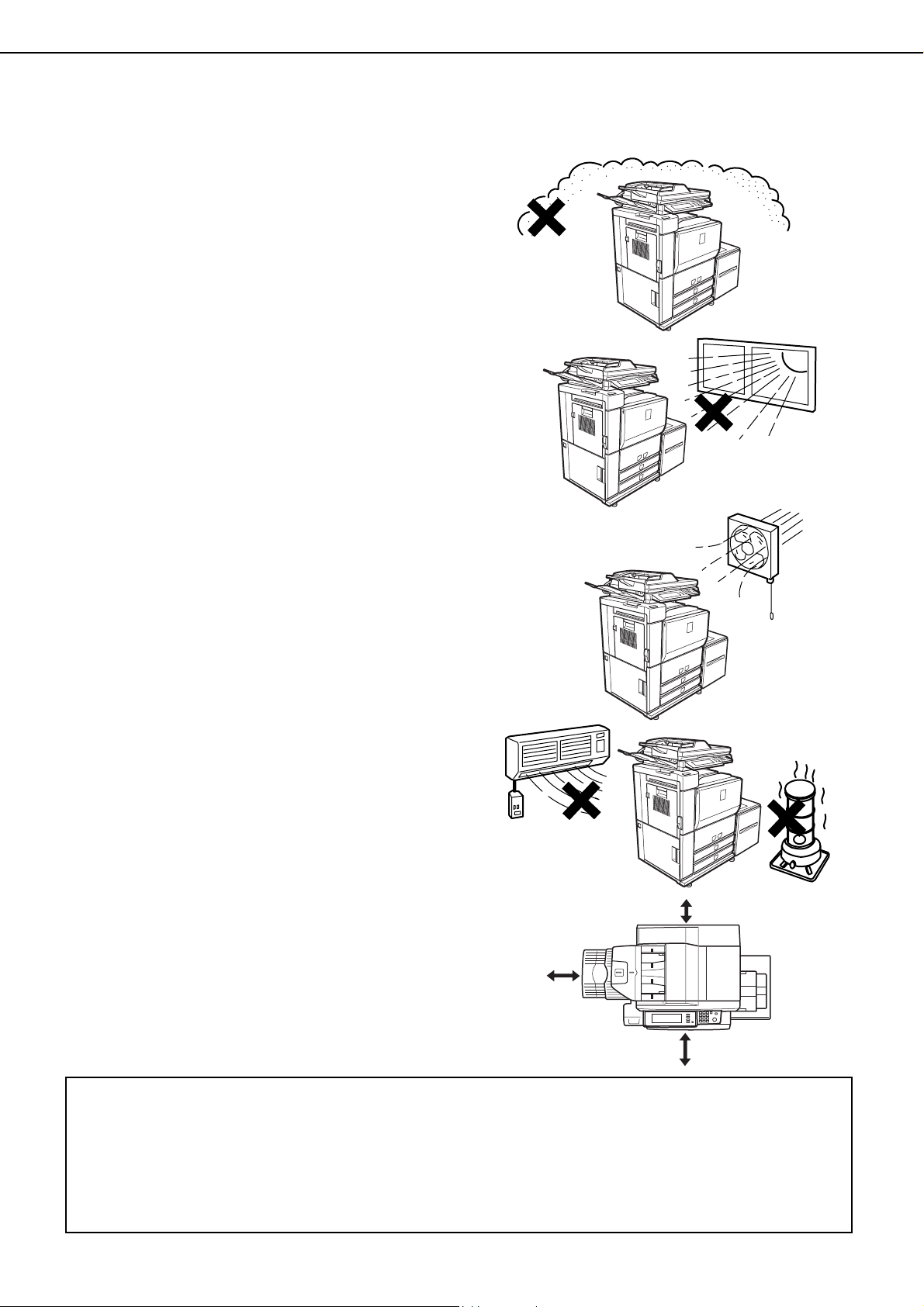
1.The machine should be installed near an
accessible power outlet for easy connection.
2.Be sure to connect the power cord only to a
power outlet that meets the specified voltage and
current requirements. Also make certain the
outlet is properly grounded.
●For the power supply requirements, see the
name plate on the back of the main unit.
3.Do not install your machine in areas that are:
●damp, humid, or very dusty
●exposed to direct sunlight
●poorly ventilated
●subject to extreme temperature or humidity
changes, e.g., near an air conditioner or heater.
4.Be sure to allow the required space around the
machine for servicing and proper ventilation.
A small amount of ozone is produced within the printer during operation. The emission level is insufficient to cause
any health hazard.
NOTE:
The present recommended long term exposure limit for ozone is 0.1 ppm (0.2 mg/m
3
) calculated as an 8 hr. time-
weighted average concentration.
However, since the small amount that is emitted may have an objectionable odor, it is advisable to place the copier
in a ventilated area.
6-1/8"
(15cm)
23-5/8"
(60cm)
11-13/16"
(30cm)
INSTALLATION REQUIREMENTS
dragonII_copy_sec.book 2 ページ 2006年10月18日 水曜日 午後7時39分
0-3
CAUTIONS
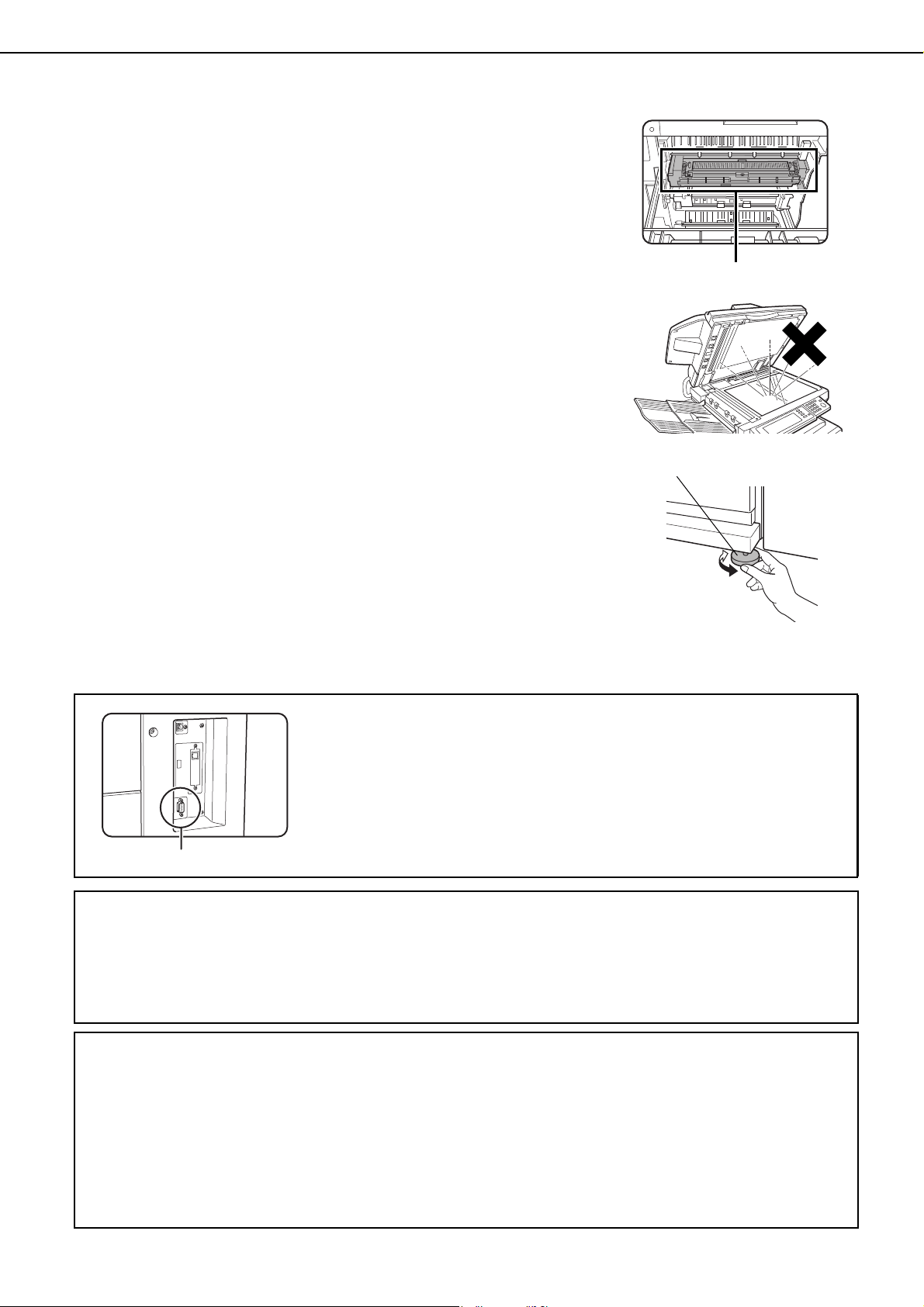
1.Do not touch the photoconductive drum. Scratches or smudges on the
drum will cause dirty prints.
2.The fusing unit is extremely hot. Exercise care in this area.
3.Do not look directly at the light source. Doing so may damage your
eyes.
4.Four adjusters are provided on all optional stand/paper drawer units.
These adjusters should be lowered until they contact the floor.
When moving the machine with the optional stand/paper drawer, be
sure to raise the adjusters. Also, unlock the two casters at the front of
the optional stand/paper drawer. After moving the machine, lower the
four adjusters until they reach the floor and lock the two casters.
5.Do not make any modifications to this machine. Doing so may result in
personal injury or damage to the machine.
6.Since this machine is heavy, it is recommended that it be moved by
more than one person to prevent injury.
7.When connecting this machine to a computer, be sure to first turn both
the computer and the machine off.
8.Do not make copies of anything which is prohibited from copying by law.
The following items are normally prohibited from printing by national
law. Other items may be prohibited by local law.
●
Money
●
Stamps
●
Bonds
●
Stocks
●
Bank drafts
●
Checks
●
Passports
●
Driver's licenses
Caution:
This connector (A) is only intended for service purposes.
Any connection to this terminal may cause malfunctions of the machine.
Instruction for service technician:
The cable length for the service terminal has to be less than 118" (3m).
The machine includes the document filing function, which stores document image data on the machine's hard disk.
Stored documents can be called up and printed or transmitted as needed. If a hard disk failure occurs, it will no
longer be possible to call up the stored document data. To prevent the loss of important documents in the unlikely
event of a hard disk failure, keep the originals of important documents or store the original data elsewhere.
With the exception of instances provided for by law, Sharp Corporation bears no responsibility for any damages
or loss due to the loss of stored document data.
"BATTERY DISPOSAL"
THIS PRODUCT CONTAINS A LITHIUM PRIMARY MEMORY BACK-UP BATTERY THAT MUST BE
DISPOSED OF PROPERLY. PLEASE CONTACT YOUR LOCAL SHARP DEALER OR AUTHORIZED SERVICE
REPRESENTATIVE FOR ASSISTANCE IN DISPOSING OF THIS BATTERY.
This product utilizes tin-lead solder, and a fluorescent lamp containing a small amount of mercury.
Disposal of these materials may be regulated due to environmental considerations.
For disposal or recycling information, please contact your local authorities or the Electronics Industries Alliance:
www.eia.org
Fusing unit
Adjuster
Lock
Release
(A)
dragon_00.fm 3 ページ 2006年11月29日 水曜日 午後8時26分
CAUTIONS
0-4
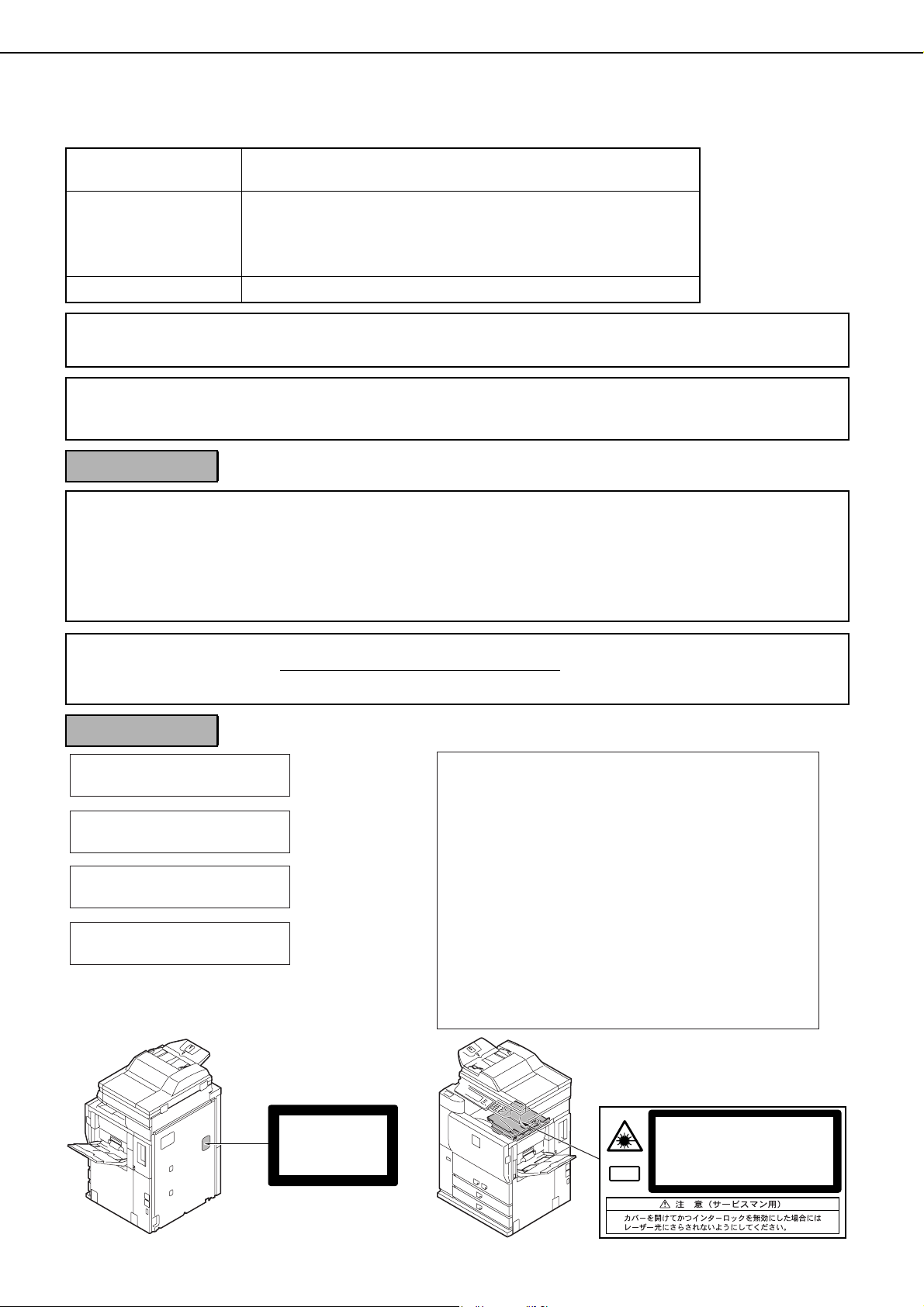
Laser Information
Wave length
785 nm
+10 nm
-15 nm
Pulse times North America: 55 cpm / 62 cpm model: (3.1 µs ± 3.1 ns)/7 mm
70 cpm model: (2.7 µs ± 2.7 ns)/7 mm
Europe: 55 cpm / 62 cpm model: (3.7 µs ± 3.7 ns)/7 mm
70 cpm model: (3.2 µs ± 3.2 ns)/7 mm
Output power Max 0.8 mW
At the production line, the output power of the scanner unit is adjusted to 0.8 MILLIWATT PLUS 10 % and is maintained
constant by the operation of the Automatic Power Control (APC).
Caution
Use of controls or adjustments or performance of procedures other than those specified herein may result in hazardous
radiation exposure.
For North America:
SAFETY PRECAUTIONS
This Digital Equipment is rated Class 1 and complies with 21 CFR 1040.10 and 1040.11 of the CDRH standards. This
means that the equipment does not produce hazardous laser radiation. For your safety, observe the precautions below.
● Do not remove the cabinet, operation panel or any other covers.
● The equipment's exterior covers contain several safety interlock switches. Do not bypass any safety interlock by
inserting wedges or other items into switch slots.
This product utilizes a CR coin Lithium battery which contains a Perchlorate material. Special handling for this material may
apply, California residents, See www.dtsc.ca.gov/hazardouswaste/perchlorate/
Others, consult local environmental officers.
For Europe:
CLASS 1 LASER PRODUCT
LASER KLASSE 1
LUOKAN 1 LASERLAITE
KLASS 1 LASERAPPARAT
CAUTION
INVISIBLE LASER RADIATION
WHEN OPEN INTERLOCKS
DEFEATED. AVOID EXPOSURE
TO BEAM.
VORSICHT
UNSICHTBARE
LASERSTRAHLUNG WENN
ABDECKUNG GEÖFFNET UND
SICHERHEITSVERRIEGELUNG
ÜBERBRÜCKT. NICHT DEM
STRAHL AUSSETZEN.
ADVARSEL
USYNLIG LASERSTRÅLNING
VED ÅBNING, NÅR
SIKKERHEDSBRYDERE ER
UDE AF FUNKTION. UNDGÅ
UDSAETTELSE FOR
STRÅLNING.
VAROITUS!
LAITTEEN KÄYTTÄMINEN
MUULLA KUIN TÄSSÄ
KÄYTTÖOHJEESSA
MAINITULLA TAVALLA SAATTAA
ALTISTAA KÄYTTÄJÄN
TURVALLISUUSLUOKAN 1
YLITTÄVÄLLE
NÄKYMÄTTÖMÄLLE
LASERSÄTEILYLLE.
VARNING
OM APPARATEN ANVÄNDS PÅ
ANNAT SÄTT ÄN I DENNA
BRUKSANVISNING
SPECIFICERATS, KAN
ANVÄNDAREN UTSÄTTAS FÖR
OSYNLIG LASERSTRÅLNING,
SOM ÖVERSKRIDER GRÄNSEN
FÖR LASERKLASS 1.
CLASS 1
LASER PRODUCT
LASER KLASSE 1
CAUTION
VORSICHT
ADVARSEL
ADVERSEL
VARNING
VARO!
INVISIBLE LASER RADIATION WHEN OPEN AND INTERLOCKS DEFEATED.
AVOID EXPOSURE TO BEAM.
Laserstrahl
UNSICHTBARE LASERSTRAHLUNG WENN ABDECKUNG GEÖFFNET UND
SICHERHEITSVERRIEGELUNG ÜBERERÜCKT. NICHT DEM STRAHL AUSSETZEN.
USYNLIG LASERSTRÅLING VED ÅBNING, NÅR SIKKERHEDSAFBRYDERE ER
UDE AF FUNKTION. UNDGÅ UDSAETTELSE FOR STRÅLNING.
USYNLIG LASERSTRÅLING NÅR DEKSEL ÅPNES OG SIKKERHEDSLÅS BRYTES.
UNNGÅ EKSPONERING FOR STRÅLEN.
OSYNLIG LASERSTRÅLNING NÄR DENNA DEL ÄR ÖPPNAD OCH SPÄRRAR ÄR
URKOPPLADE. STRÅLEN ÄR FARLIG. BETRAKTA EJ STRÅLEN.
AVATTAESSA JA SUOJALUKITUS OHITETTAESSA OLET ALTTIINA NÄKYMÄTÖNTÄ
LASERSÄTEILYLLE. ÄLÄ KATSO SÄTEESEEN.
dragon_00.fm 4 ページ 2006年11月29日 水曜日 午後8時36分

0-5
CONTENTS
Page
OPERATION MANUALS ..............................................0-1
INSTALLATION REQUIREMENTS...............................0-2
CAUTIONS...................................................................0-3
● Laser Information ................................................. 0-4
CONTENTS .................................................................0-5
CHAPTER 1
BEFORE USING THE PRODUCT
INTRODUCTION..........................................................1-2
MAIN FEATURES ........................................................1-3
PART NAMES AND FUNCTIONS................................1-10
● Exterior.................................................................1-10
● Interior ..................................................................1-11
● Operation panel....................................................1-13
● Touch panel..........................................................1-14
TURNING THE POWER ON AND OFF.......................1-17
AUDITING MODE ........................................................1-18
● Using the machine when the auditing mode is
enabled.................................................................1-18
CHAPTER 2
MANAGING THE MACHINE
LOADING PAPER ........................................................2-2
● Identifying the trays ..............................................2-2
● Loading paper in paper tray 1 - tray 2 .................. 2-2
● Changing the paper size in paper tray 1 - tray 2 .. 2-3
● Loading paper in paper tray 3 ..............................2-5
● Changing the paper size in paper tray 3 ..............2-5
● Changing the paper size in paper tray 4 ..............2-6
● Loading paper in paper tray 5 (optional large
capacity tray AR-LC6)
..................................................
2-7
● Loading paper in paper tray 5 (optional large
capacity tray AR-LC7)
..................................................
2-8
● Loading paper in the bypass tray .........................2-10
● Specifications of paper trays (Types and sizes of
paper that can be used in the trays)..................... 2-12
● Setting the paper type and paper size.................. 2-14
● Setting the paper size when a special size is
loaded ..................................................................2-17
SYSTEM SETTINGS ...................................................2-18
● General procedure for system settings ................2-18
● About the settings ................................................2-20
REPLACING THE TONER CARTRIDGES ..................2-21
STORAGE OF SUPPLIES ...........................................2-22
MISFEED REMOVAL ...................................................2-23
● Misfeed removal guidance....................................2-23
● Misfeed in the transport area, fusing area, and
exit area................................................................2-24
● Misfeed in the duplex unit.....................................2-25
● Misfeed in the paper feed area............................. 2-26
REMOVING AN ORIGINAL MISFEED.........................2-31
● Removing a misfed original from the automatic
document feeder ..................................................2-31
TROUBLESHOOTING ................................................. 2-32
CHAPTER 3
PERIPHERAL DEVICES
FINISHER AND SADDLE STITCH FINISHER.............3-2
● Part names ...........................................................3-2
● Specifications .......................................................3-2
● Finishing methods ................................................3-4
● Finishing modes and finisher functions ................3-6
● Staple cartridge replacement and staple jam
removal.................................................................3-7
● Removing a misfeed .............................................3-11
● Troubleshooting finisher/saddle stitch finisher
problems...............................................................3-13
INSERTER ...................................................................3-14
● Part names ...........................................................3-14
● Specifications .......................................................3-14
● Loading paper.......................................................3-15
● Manual operation of the inserter...........................3-15
● Misfeed removal ...................................................3-17
● Troubleshooting inserter problems .......................3-18
SHARP OSA.................................................................3-19
APPLICATION COMMUNICATION MODULE (MX-
AMX2)...........................................................................3-19
● Standard application setup ...................................3-19
● Selecting a standard application...........................3-19
● Operation in OSA mode .......................................3-20
EXTERNAL ACCOUNT MODULE (MX-AMX3)............3-21
● External account application setup.......................3-21
● Operation in external account mode.....................3-21
CHAPTER 4
MAKING COPIES
AUTOMATIC DOCUMENT FEEDER............................4-2
● Acceptable originals .............................................4-2
PLACING ORIGINALS .................................................4-3
CHECKING THE SIZE OF A PLACED ORIGINAL.......4-5
● Manually setting the scanning size.......................4-5
STORING, DELETING, AND USING ORIGINAL
SIZES ...........................................................................4-6
● Storing or deleting an original size .......................4-6
NORMAL COPYING.....................................................4-7
● Making copies with the automatic document
feeding function ....................................................4-7
● Automatic two-sided copying using the automatic
document feeding function....................................4-10
● Copying from the document glass ........................4-11
● Automatic two-sided copying from the document
glass .....................................................................4-13
ADJUSTING THE EXPOSURE....................................4-14
REDUCTION/ENLARGEMENT/ZOOM........................4-15
● Automatic selection (auto image) .........................4-15
● Manual selection (preset copy ratios/zoom) .........4-16
● XY ZOOM .............................................................4-18
SPECIAL PAPERS .......................................................4-20
dragon_00.fm 5 ページ 2006年10月18日 水曜日 午後8時27分

CONTENTS
0-6
CHAPTER 5
CONVENIENT COPY FUNCTIONS
SPECIAL MODES ........................................................5-2
● General procedure for using special functions .....5-2
● Margin shift...........................................................5-3
● Erase ....................................................................5-4
● Dual page copy.....................................................5-5
● Pamphlet copy......................................................5-6
● Job build ...............................................................5-8
● Tandem copy ........................................................5-10
● Covers/inserts.......................................................5-12
● Transparency film with insert sheets ....................5-23
● Multi shot ..............................................................5-24
● Book copy.............................................................5-26
● Tab copy ...............................................................5-27
● Card shot
.................................................................
5-29
● Mirror image .........................................................5-31
● B/W reverse..........................................................5-31
● Print menu ............................................................5-32
STORING, USING AND DELETING JOB
PROGRAMS.................................................................5-44
● Storing a job program...........................................5-44
● Calling up a job program ......................................5-45
● Deleting a stored job program ..............................5-45
INTERRUPTING A COPY RUN ...................................5-46
CHAPTER 6
MACHINE MAINTENANCE (FOR
COPYING)
USER MAINTENANCE ................................................6-2
● Cleaning the document glass and the automatic
document feeder...................................................6-2
TROUBLESHOOTING..................................................6-3
CHAPTER 7
DOCUMENT FILING FUNCTION
OVERVIEW ..................................................................7-2
● Document filing function .......................................7-2
TO USE THE DOCUMENT FILING FUNCTION ..........7-4
● A look at the operation panel................................7-4
● Saving files ...........................................................7-4
● Main screen of document filing.............................7-5
● Document filing icons ...........................................7-5
SAVING A DOCUMENT IMAGE FILE..........................7-6
● Quick File..............................................................7-6
● Filing.....................................................................7-7
● Print jobs ..............................................................7-9
● Scan Save ............................................................7-10
CALLING UP AND USING A FILE...............................7-13
● Searching for and calling up a saved file
..............
7-13
● Calling up and using a saved file..........................7-15
SYSTEM SETTINGS....................................................7-24
● Creating, editing, and deleting user names and
folders...................................................................7-24
ENTERING CHARACTERS .........................................7-29
TROUBLESHOOTING..................................................7-31
CHAPTER 8
SPECIFICATIONS
SPECIFICATIONS ....................................................... 8-2
INDEX.......................................................................... 8-4
dragonII_copy_sec.book 6 ページ 2006年10月18日 水曜日 午後7時39分

1-1
CHAPTER 1
BEFORE USING THE
PRODUCT
This chapter contains basic information that should be read before using
the product.
Page
INTRODUCTION..................................................................................... 1-2
MAIN FEATURES ................................................................................... 1-3
PART NAMES AND FUNCTIONS........................................................... 1-10
●
Exterior............................................................................................ 1-10
●
Interior............................................................................................. 1-11
●
Operation panel............................................................................... 1-13
●
Touch panel..................................................................................... 1-14
TURNING THE POWER ON AND OFF.................................................. 1-17
AUDITING MODE ................................................................................... 1-18
●
Using the machine when the auditing mode is enabled.................. 1-18
dragonII_copy_sec.book 1 ページ 2006年10月18日 水曜日 午後7時39分

1-2
INTRODUCTION
Thank you for purchasing a SHARP digital multifunction copier.
Please read this manual before using the machine. In particular, be sure to read "INSTALLATION REQUIREMENTS"
before using the machine.
Please keep this manual close at hand for reference whenever necessary.
This manual provides general information on using the machine, such as routine maintenance and how to load paper
and remove misfeeds. It also explains how to use the copier and document filing functions.
Separate manuals have been provided for the fax function, printer function, and network scanner function.
■ Original and paper sizes
This machine allows use of standard sizes in both the inch and AB systems.
These are shown in the tables below.
■ The meaning of "R" in original and paper size indications
Some original and paper sizes can be placed in either the portrait or landscape orientations. To differentiate
between landscape and portrait, the landscape orientation size indication will contain an "R". These are indicated
as 8-1/2" x 11"R, 5-1/2" x 8-1/2"R, A4R, B5R, etc. Sizes that can be placed only in the landscape orientation (11"
x 17", 8-1/2" x 14", 8-1/2" x 13", A3, B4) do not contain the "R" in their size indication.
Sizes in the inch system Sizes in the AB system
11" x 17" (LEDGER) A3
8-1/2" x 14" (LEGAL) B4
8-1/2" x 13" (FOOLSCAP) A4
8-1/2" x 11" (LETTER) B5
7-1/4" x 10-1/2" (EXECUTIVE) A5
5-1/2" x 8-1/2" (INVOICE)
Size indication
with "R"
Landscape
orientation
Size indication
without "R"
Portrait orientation
dragonII_copy_sec.book 2 ページ 2006年10月18日 水曜日 午後7時39分

1-3
1
MAIN FEATURES
The digital multifunction copier is capable of performing a variety of functions. This page shows features related to
the copy function.
● Sort mode See page 1-3
● Group mode See page 1-3
● 2-sided Copy See page 1-3
● Exposure Adjustments See page 1-3
● Reduction/Enlargement See page 1-4
● XY Zoom See page 1-4
● Margin Shift See page 1-4
● Erase See page 1-4
● Dual Page Copy See page 1-4
● Pamphlet Copy See page 1-4
● Job Build See page 1-5
● Tandem Copy See page 1-5
(When using the MX-M550U, MX-M620U, or
MX-M700U, the network expansion kit is required.)
● Covers/inserts See page 1-5
● Transparency Insert See page 1-5
● Multi Shot See page 1-5
● Book Copy See page 1-5
● Tab Copy See page 1-6
● Card Shot See page 1-6
● Job programs See page 1-6
● Mirror Image See page 1-6
● B/W Reverse See page 1-6
● Date print See page 1-6
● Stamp See page 1-7
● Page numbering See page 1-7
● Text See page 1-7
● Interrupting a copy run See page 1-7
● Offset mode See page 1-7
(When the Finisher or Saddle stitch finisher is installed.)
● Staple sort mode See page 1-7
(When the Finisher or Saddle stitch finisher is installed.)
● Saddle stitch See page 1-8
(When the Saddle stitch finisher is installed.)
● Hole punching See page 1-8
(When the Punch Module is installed.)
● Inserter mode See page 1-8
(When the Inserter is installed.)
● Document filing function See page 1-8
Sort See page 4-9
Copies can be collated.
Group See page 4-9
Copies can be grouped by page.
2-sided Copy See pages 4-10, 4-13
Copy onto both sides of the paper using the document
glass or the automatic document feeder.
Exposure Adjustments See page 4-14
The desired image type for the original can be
selected.
Original
Copy
Original Copy
Original
Copy
Exposure
Text Text/Photo Photo
Resolution
ABCDE
ABCDE
DarkerLighter
dragonII_copy_sec.book 3 ページ 2006年10月18日 水曜日 午後7時39分
MAIN FEATURES
1-4
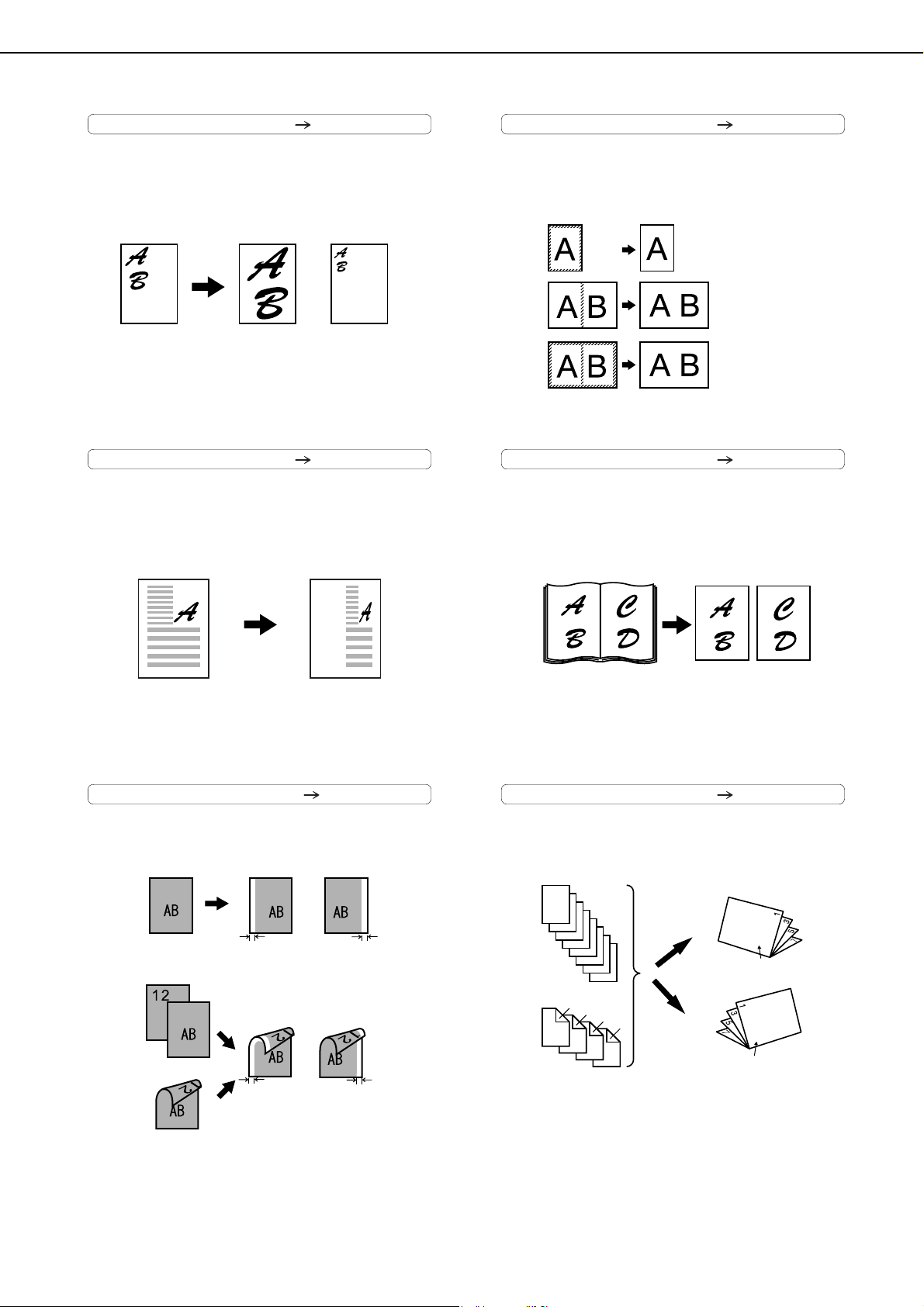
Reduction / Enlargement See page 4-15
Copies can be enlarged or reduced to the desired
size.
XY Zoom See page 4-18
Separate ratio settings can be selected for the
length and width of a copy.
Margin Shift See page 5-3
Margins can be added to copies.
Erase See page 5-4
Shadows that appear around the edges of copies of
books or thick originals can be erased.
Dual Page Copy See page 5-5
The left and right pages of a book can be
successively copied onto separate sheets.
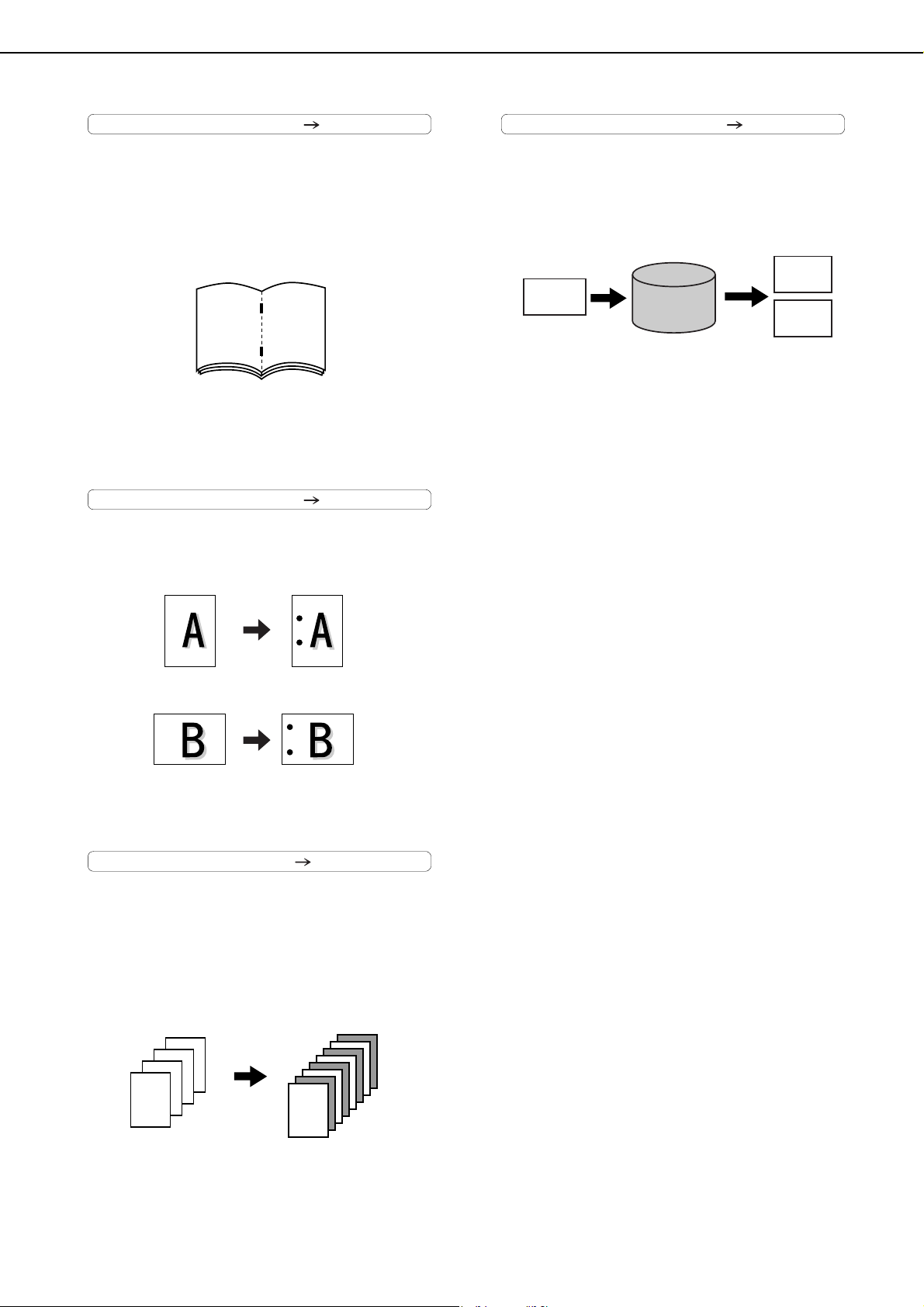
Pamphlet Copy See page 5-6
One-sided or two-sided pamphlet style copies can
be made.
Original
Enlargement Reduction
Copy
Original Copy
Image shifted
to the right
Image shifted
to the left
Margin
Margin
One-sided copying
Original
Two-sided copying
Original
Image shifted
to the right
Margin
Image shifted
to the left
Margin
Or
Original
Copy
Edge erase
Center erase
Edge+Center
erase
CopyBook original
Finished copies are
folded in two.
Originals (one-sided)
1
2
3
4
5
6
7
8
7
8
5
6
3
4
Originals (two-sided)
1
2
Left binding
Right binding
First page
First page
dragonII_copy_sec.book 4 ページ 2006年10月18日 水曜日 午後7時39分
MAIN FEATURES
1-5
1
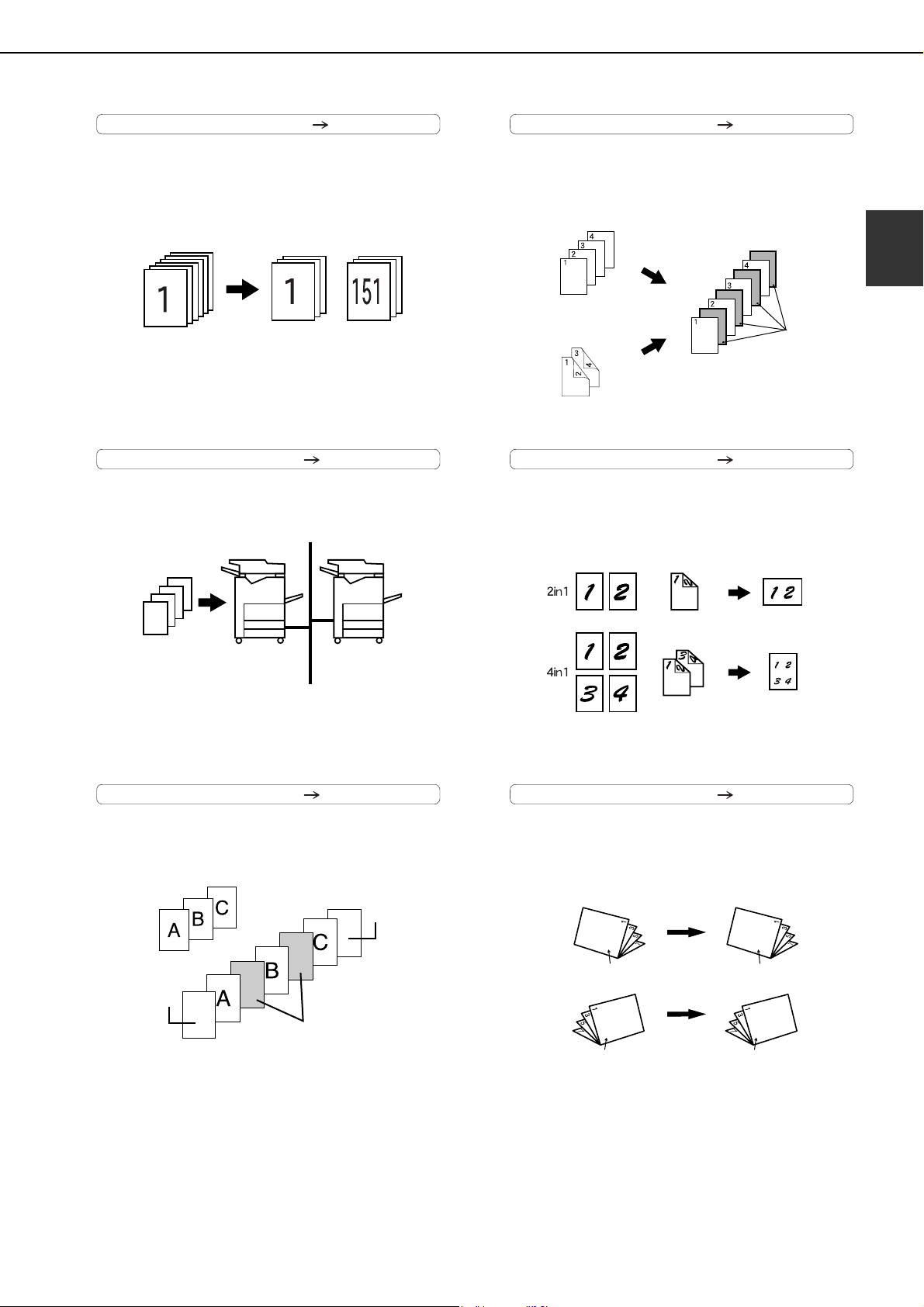
Job Build See page 5-8
When you have a very large number of originals, the
pages can be scanned in sets.
Tandem Copy See page 5-10
Two machines can be used to run a large copy job
in parallel.
Covers/inserts See page 5-12
Front covers, back covers, and inserts can be
added. These can also be copied on.
Transparency Insert See page 5-23
Inserts can be automatically inserted between
transparencies.
Multi Shot See page 5-24
Multiple original pages can be copied onto a
single sheet of paper in a uniform layout.
Book Copy See page 5-26
Books and other bound originals can be copied
pamphlet style.
150 sheets300 sheets 150 sheets
50 sets of
copies
100 sets of
copies
50 sets of
copies
*
When using the MX-M550U, MX-M620U, or
MX-M700U, the network expansion kit is required.
Front cover
Back cover
Originals
Insert sheets
Insert sheets
Originals (1-sided)
Originals (2-sided)
Copy
Originals
(1-sided)
Originals
(2-sided)
Copy
CopyOriginal
Left binding
Right binding
First page
First page
First page
First page
dragonII_copy_sec.book 5 ページ 2006年10月18日 水曜日 午後7時39分

MAIN FEATURES
1-6
Tab Copy See page 5-27
Copying is possible on the tabs of tabbed paper.
Card Shot See page 5-29
The front and back of a card can be copied onto
one sheet of paper.
This function is convenient for making copies for
certification purposes and helps save paper.
Job programs See page 5-44
Various steps of a copy operation can be stored
as a program, and up to 10 programs can be
stored. Saving frequently used sets of settings in a
program saves you the trouble of selecting those
settings each time you wish to use them.
Mirror Image See page 5-31
A mirror image copy can be made.
B/W Reverse See page 5-31
White and black can be inverted on a copy to
produce a negative image.
Date See page 5-35
The date can be added to copies.
Original Tab paper Copy
INDEX
INDEX
Tab width
A4 : Maximum of 51/64" (20mm)
8-1/2" x 11" : Maximum of 5/8" (17mm)
Original
Example:
Portrait
8-1/2" (A4) size
Example:
Landscape
8-1/2" (A4) size
Copy
Back of
card
Front of
card
CARD
CARD
CARD
JOB PROGRAMS
PRESS PROGRAM NUMBER.
RECALL
Original Copy
Original Copy
2010/APR/4
dragonII_copy_sec.book 6 ページ 2006年10月18日 水曜日 午後7時39分
MAIN FEATURES
1-7
1
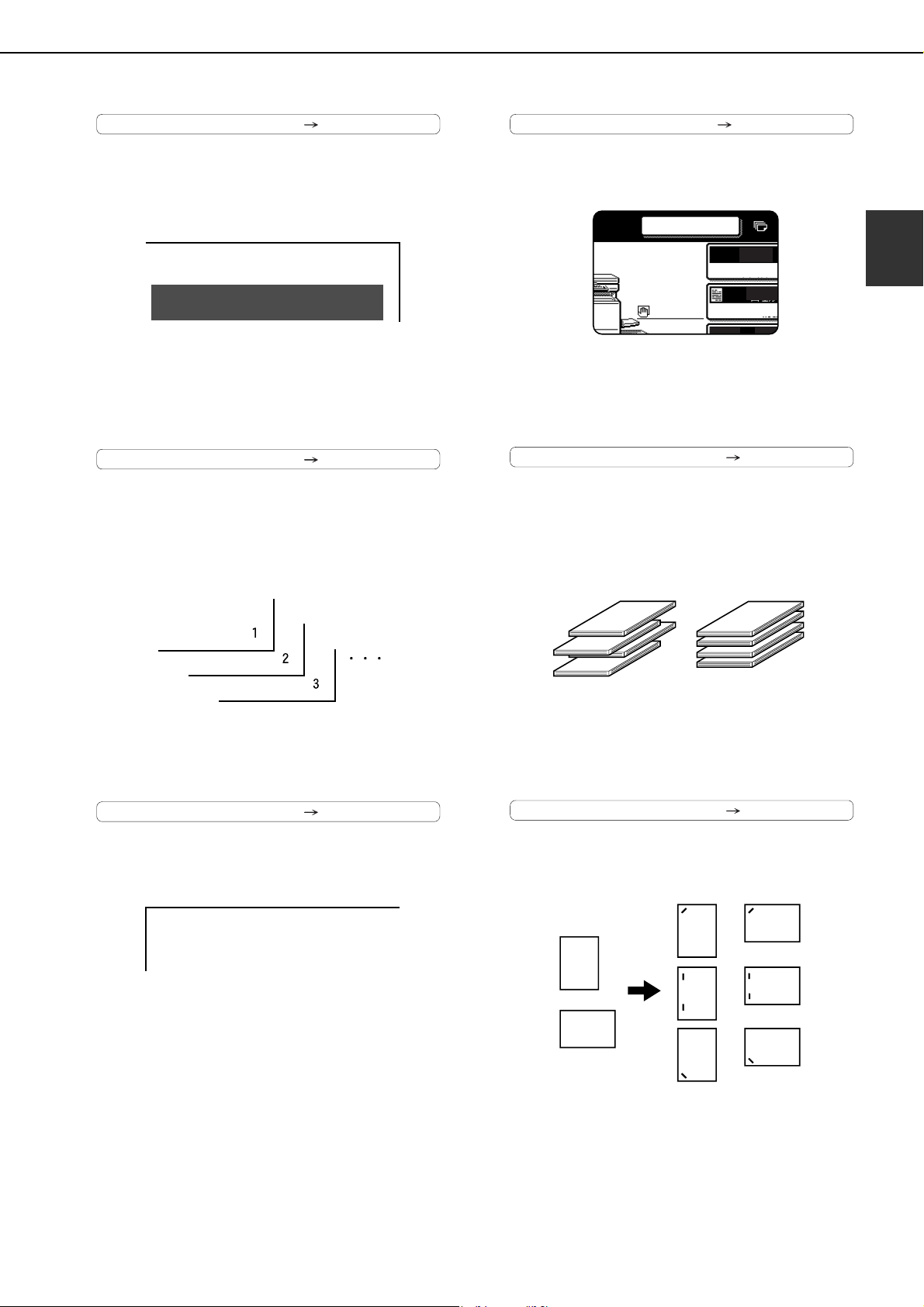
Stamp See page 5-36
Reverse text can be added to copies ("stamp").
Page numbering See page 5-37
Page numbers can be added to copies.
Text See page 5-41
Entered text can be added to copies.
Interrupting a copy run See page 5-46
A copy job in progress can be interrupted for a
rush job.
Offset mode See page 3-4
Each set of output can be offset slightly from other
sets for easy separation.
Staple sort mode See page 3-4
Sets of copies can be automatically stapled.
CONFIDENTIAL
Meeting
AUTO
AUTO
AUTO A4
ORIGINAL
EXPOSUR
INTERRUPT
8 x11
1
/
2
Offset mode Non-Offset mode
*When the Finisher or Saddle stitch finisher is
installed.
Original
Copy
*When the Finisher or Saddle stitch finisher is
installed.
dragon_01.fm 7 ページ 2006年10月18日 水曜日 午後8時34分
MAIN FEATURES
1-8
Saddle stitch See page 3-5
When a saddle stitch finisher is installed, copies
can be automatically folded in half and stapled at
the fold. (Use with the pamphlet function (see
page 5-6) or book copy function (see page 5-26).)
Hole punching See page 3-5
Copies can be punched to add holes.
Inserter mode See page 3-14
Blank or already printed-on sheets of paper can
be added as a cover or an insert without being
printed on. The inserter can be used to feed heavy
sheets of paper that cannot be fed from other
trays.
Document filing function See chap. 7
A document image can be stored on the hard disk.
A stored file can easily be called up and printed or
transmitted.
67
Saddle stitch binding
*When the Saddle stitch finisher is installed.
Original Punch positions
*When the Punch module is installed.
Original
Copy
*When the Inserter is installed.
Save to
machine's
hard disk
HDD
Document
Image
Call up a
saved file to
reuse
Printed
Transmitted
dragonII_copy_sec.book 8 ページ 2006年10月18日 水曜日 午後7時39分
MAIN FEATURES
1-9
1
Energy saving features
This product has the following two power reducing modes that conform to the
Energy Star guidelines to help conserve natural resources and reduce
environmental pollution.
Preheat mode
The preheat mode is the first level of power reduction. The power is reduced
to the fuser unit a preset time after the machine has completed a job and no
further machine operations have been performed. The machine can recover
to the ready condition within a short period of time. The preset time to enter
the mode can be set by a administrator settings.
Auto power shut-off mode
The auto power shut-off mode is the second level of power reduction. In this mode power is shut off to the
fusing unit and the touch panel. In this state more energy is saved than in the preheat mode but the time to
recover to the ready condition will be longer. The preset time to enter this mode can be set by a administrator
settings.
When this product is used as a printer, and either of the above modes is active, the mode will be deactivated
automatically by an incoming job and the machine will automatically warm up and start to print when it has
reached the ready temperature.
When this product is configured for multi-function operation, and either of the above modes is active, the mode
will be deactivated as above by an incoming print job. Either mode will also be deactivated by operation of
DOCUMENT FILING, IMAGE SEND or COPY mode key.
Products that have earned
the ENERGY STAR
®
are
designed to protect the
environment through
superior energy efficiency.
dragonII_copy_sec.book 9 ページ 2006年10月18日 水曜日 午後7時39分
1-10
PART NAMES AND FUNCTIONS
Exterior
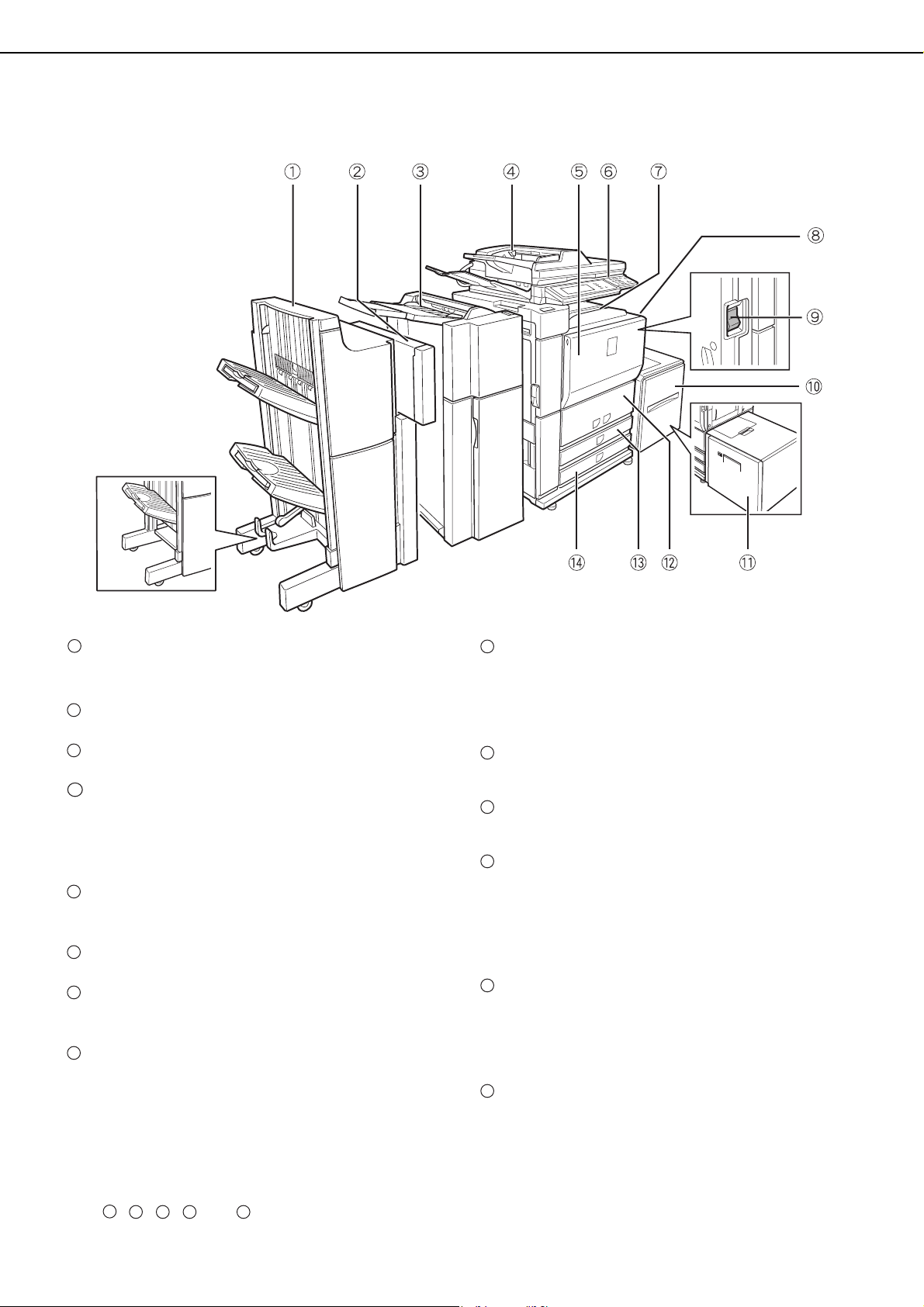
Saddle stitch finisher (AR-F16)
*1
/
Finisher (AR-F15)
*1
(See page 3-2)
Punch module (AR-PN4B)
*1
(See page 3-2)
Inserter (AR-CF2)
*1
(See page 3-14)
Automatic document feeder (See page 4-2)
This automatically feeds and scans multiple sheet
originals. Both sides of two-sided originals can be
scanned at once.
Front cover
Open to replace toner cartridge.
Operation panel
Center tray (See page 4-9)
Finished sheets are deposited here
Bypass tray
Special papers (including transparency film) and
copy paper can be fed from the bypass tray.
Power switch (See page 1-17)
Turns the power on and off.
If the power does not come on when the power
switch is turned on, check the main power switch to
see if it is turned on.
Tray 5 (Large capacity tray (AR-LC6))
*1
(See page 2-7)
Tray 5 (Large capacity tray (AR-LC7))
*1
(See page 2-8)
Tray 1-Tray 2
The trays hold paper. Approximately 800 sheets of
standard 8-1/2" x 11" or A4 size paper (20 lbs. (80
g/m
2
)) can be loaded in tray 1, and approximately
1200 sheets of standard 8-1/2" x 11" or A4 size
paper (20 lbs. (80 g/m
2
)) can be loaded in tray 2.
Tray 3
Tray 3 holds paper. Approximately 500 sheets of
standard (20 lbs. (80 g/m
2
)) paper can be loaded
in this tray. Tabbed paper and transparencies can
also be loaded.
Tray 4
Tray 4 holds paper. Approximately 500 sheets of
standard (20 lbs. (80 g/m
2
)) paper can be loaded
in this tray.
*1 , , , and are peripheral devices. For information on these devices, see the explanations of the
devices in the manual.
(AR-F15)
1
2
3
4
5
6
7
8
9
10
11
12
13
14
1
2 3
10 11
dragonII_copy_sec.book 10 ページ 2006年10月18日 水曜日 午後7時39分
PART NAMES AND FUNCTIONS
1-11
1
Interior
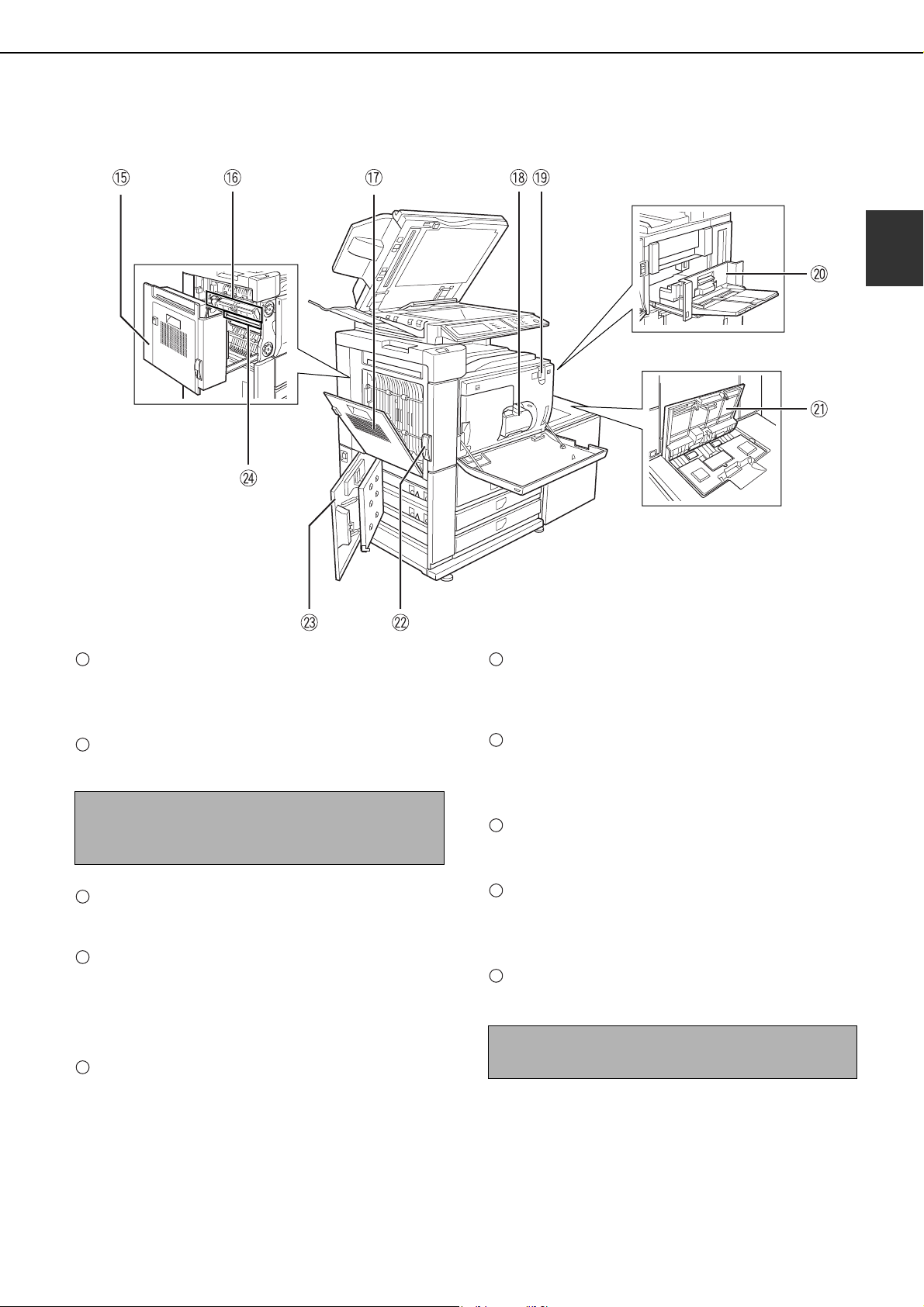
Duplex unit
Open this cover to remove a misfeed from the
fusing unit area.
Fusing unit
Toner images are fused here.
Cover of the duplex unit
Open when a misfeed has occurred in duplex unit.
Toner cartridge
*2
This holds toner for printing. The toner cartridge
must be replaced when indicated on the operation
panel.
Main power switch (See page 1-17)
Keep this switch turned on when the fax option or
Internet fax option is installed.
Right side cover
Open when a misfeed has occurred in the bypass
tray or large capacity tray.
Upper cover of large capacity tray
Open when a misfeed has occurred in the large
capacity tray.
Left side cover release
Push this knob up to open the left side cover.
Left cover of paper drawer
Open this cover to remove paper misfed in tray 3 or
tray 4.
Photoconductive drum
Images are formed on the photoconductive drum.
*2 See page 2-21 for the procedure for installing and replacing the toner cartridge.
CAUTION
The fusing unit is hot. Take care in removing misfed
paper.
15
16
17
18
19
NOTE
Do not touch or damage the photoconductive drum.
20
21
22
23
24
dragonII_copy_sec.book 11 ページ 2006年10月18日 水曜日 午後7時39分

PART NAMES AND FUNCTIONS
1-12
■ Other optional equipment
●Network expansion kit (MX-NBX1)
This kit is required to add on the network function.
When this expansion kit is installed, the machine
can be used as a network printer.
●Barcode font kit (AR-PF1)
This kit adds bar code fonts to the machine.
● Data security kit (MX-FRX5)
This kit is used to erase electronic data from the
hard disk and memory immediately after a
document is printed or transmitted.
●PS3 expansion kit (MX-PKX1)
This kit provides compatibility of PostScript level 3
to the printer.
●Facsimile expansion kit (AR-FX8)
This kit is required to add fax function.
●Additional fax memory (8 MB) (AR-MM9)
●256MB expansion mamory board (AR-SM5)
This extends the memory of the machine.
●Network scanner expansion kit (MX-NSX1)
This kit is required to add the network scanning
feature.
To add the network scanner function to the
MX-M550U, MX-M620U, or MX-M700U, the
network expansion kit is required.
●Internet fax expansion kit (MX-FWX1)
This kit is required to use the Internet fax function.
To add the Internet fax function, the network
scanner expansion kit is required.
●Application integration module (MX-AMX1)
The application integration module can be
combined with the network scanner function to
append a metadata file to a scanned image file.
●
Application communication module (MX-AMX2)
This allows the machine to be linked over a network
to an external software application.
●
External account module (MX-AMX3)
This is required to use an external account
application on the machine.
Peripheral devices are basically optional, but are incorporated in some models as standard equipment.
dragon_01.fm 12 ページ 2006年10月19日 木曜日 午後2時57分
PART NAMES AND FUNCTIONS
1-13
1
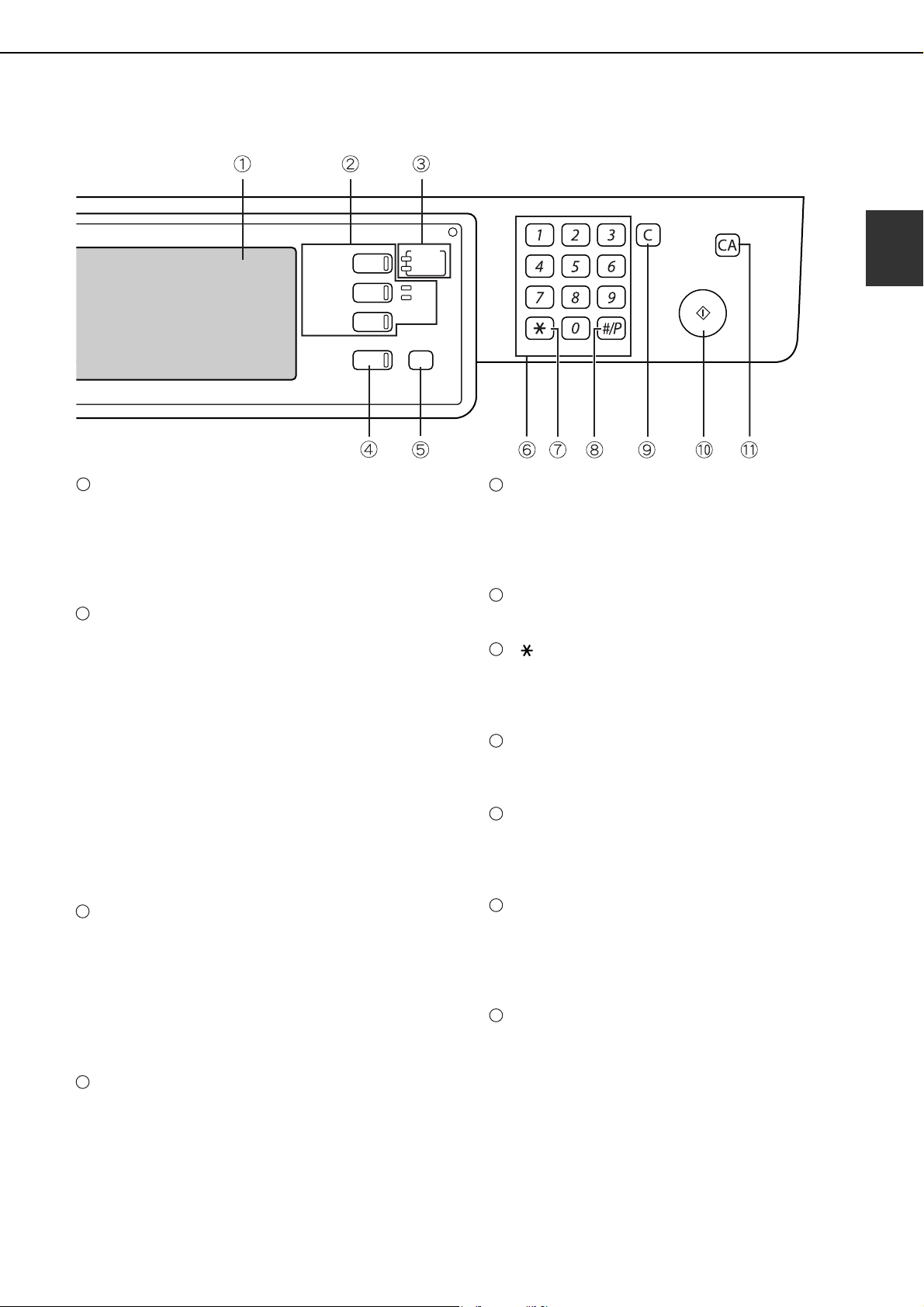
Operation panel
Touch panel
The machine status, messages and touch keys are
displayed on the panel. The document filing, copy,
network scanner*
1
, and fax*
2
, Internet fax*
3
functions are used by switching to the screen for
the desired function. See the following page.
Mode select keys and indicators
Use to change modes and the corresponding
display on the touch panel.
[DOCUMENT FILING] key
Press to select the document filing mode. (See
page 7-5.)
[IMAGE SEND] key/LINE indicator/DATA
indicator
Press to change the display to network scanner
mode*
1
, fax mode*
2
or Internet fax mode*
3
. (See
the "Operation manual (for image send)") and
"Operation manual (for facsimile)".)
[COPY] key
Press to select the copy mode.
PRINT mode indicators
READY indicator
Print data can be received when this indicator is
lit.
DATA indicator
Lights up or blinks when print data is being
received. Also lights up or blinks when printing is
being performed.
[JOB STATUS] key
Press to display the current job status. (See page
1-15.)
[SYSTEM SETTINGS] key
This is used to store, edit, and delete user names
and folder names for the document filing function,
and to configure the administrator settings and
printer configuration settings. (See page 7-24)
Numeric keys
Use to enter numeric values for various settings.
[ ] key ([LOGOUT] key)
This key is used in copy mode, document filing
mode, network scanner mode*
1
, fax mode*
2
, and
Internet fax mode*
3
.
[#/P] key
This is used as a program key when using the copy
function, and to dial when using the fax function*
2
.
[C] key (Clear key)
This key is used in copy mode, document filing
mode, network scanner mode*
1
, fax mode*
2
, and
Internet fax mode*
3
.
[START] key
Use this key to start copying in copy mode, scan a
document in network scanner mode*
1
, or scan a
document for transmission in fax mode*
2
or
Internet fax mode*
3
.
[CA] key (Clear all key)
This key is used in copy mode, document filing
mode, network scanner mode*
1
, fax mode*
2
, and
Internet fax mode
*
3
. Use the key to cancel settings
and perform an operation from the initial machine
state.
*1 When the network scanner option is installed.
*2 When the fax option is installed.
*3 When the Internet fax option is installed.
LOGOUT
DOCUMENT
FILING
IMAGE SEND
COPY
JOB STATUS
SYSTEM
SETTINGS
LINE
DATA
PRINT
READY
DATA
1
2
3
4
5
6
7
8
9
10
11
dragonII_copy_sec.book 13 ページ 2006年10月18日 水曜日 午後7時39分
PART NAMES AND FUNCTIONS
1-14
Touch panel
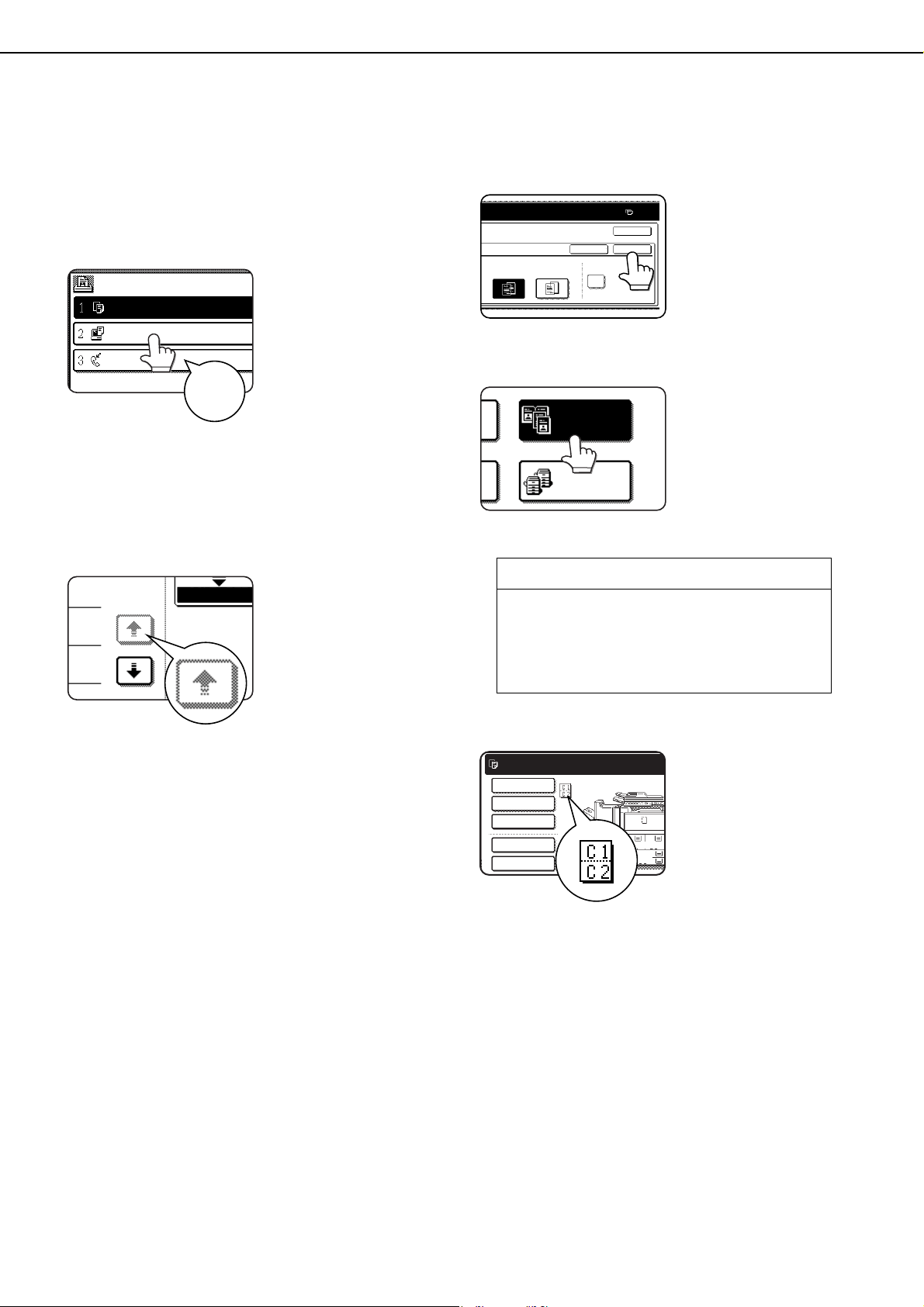
The touch panel screens shown in this manual are
printed images, and may appear different from the
actual screens.
■ Using the touch panel
[Example 1]
Items on the touch panel
are easily selectable by
touching the key
associated with the item
with a finger. Selection
of an item will be
accompanied with a
beep tone* to confirm
the item was selected.
Also, the key area for the item will be highlighted
for visual confirmation.
* If a grayed out key is touched, a double beep will
sound.
[Example 2]
Keys which are grayed
out on any screen are
not selectable.
The confirmation beeps can be disabled using
"Keys touch sound" in the administrator settings.
(See page 10 of the administrator settings guide.)
■ Selecting a function
[Example 1]
If a key is highlighted in a
setting screen at the
time the screen appears,
the [OK] key can be
pressed to store the
selection without further
operation.
[Example 2]
A function in the special
functions screen is
selected by touching the
key so that it is
highlighted. To cancel
the selection, touch the
highlighted key once
again.
[Example 3]
A corresponding icon
representing the feature
will appear on the touch
key and on the main
screen of the mode
selected. If this icon is
touched, the setting
screen of the function (or
a menu screen) will
appear, allowing the settings to be checked or
adjusted and the function to be canceled easily.
JOB QUEUE
COPY
001
0666211221
003 / 000
003 / 000
010 / 000
SETS / PROG
Beep
tone
1/13
COMPLETE
Copier feature
● Dual page copy
● Job build
● Tandem copy
● Mirror image
● B/W Reverse
OCK ONTO
0
PRINT ON INSERT SHEETS
PAPER IS FED
FROM INSERTER
YES NO
CANCEL OK
OK
DUAL PAGE
COPY
TANDEM
COPY
8 x11
1
/
2
8 x14
11x17
1
/
2
8 x11
1
/
2
1.
3.
4.
2.
READY TO SCAN FOR COPY.
SPECIAL MODES
ORIGI
2-SIDED COPY
OUTPUT
QUICK FILE
FILE
dragon_01.fm 14 ページ 2006年10月19日 木曜日 午後12時55分
PART NAMES AND FUNCTIONS
1-15
1
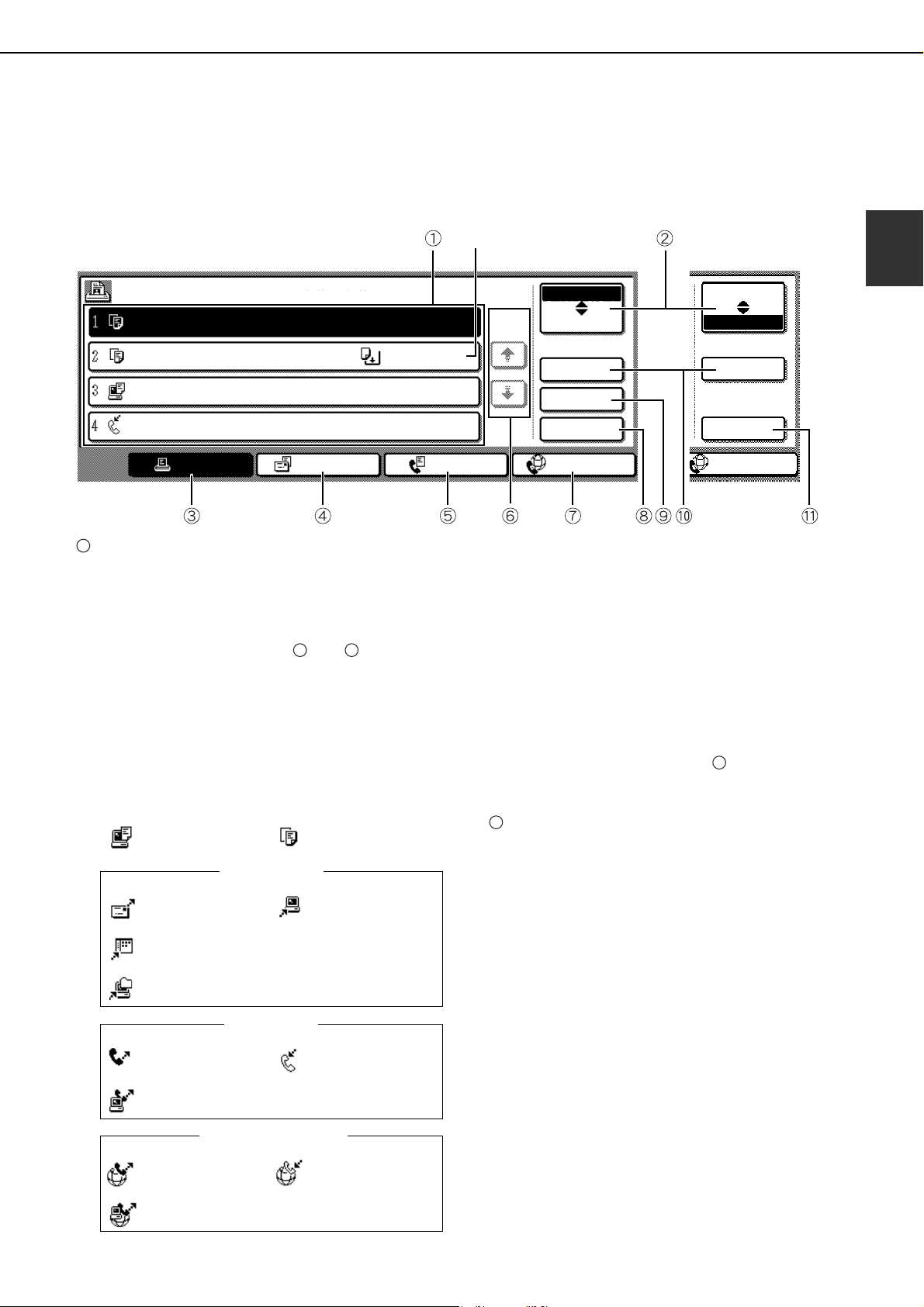
■ Job status screen (common to print, scan, fax and Internet fax)
This screen is displayed when the [JOB STATUS] key on the operation panel is pressed.
This screen can be used to display the "JOB QUEUE" (showing stored jobs and the current job) or the
"COMPLETE" job list (showing finished jobs). This screen is used to check jobs, move a job to the top of the JOB
QUEUE, or delete a job.
Job list
The displayed jobs in the job list are themselves
operation keys. To cancel printing or to give a job
the highest print priority, touch the relevant job key
to select the job and execute the desired operation
using the keys described in and .
This shows the current job and the jobs waiting to
be run. The icons to the left of the jobs in the
queue show the job mode. The document filing
reprint job icon is highlighted.
Note that the icon does not become highlighted
during retransmission of a fax/image transmission
job.
*1 "PAPER EMPTY" in the job status display
When a job status display indicates "PAPER
EMPTY", the specified paper size for the job is not
loaded in any of the trays.
In this case, the job will be suspended until the
required paper is loaded. Other stored jobs will be
printed (if possible) until the required paper is loaded.
(Other jobs will not be printed if the paper runs out
during printing.) If you need to change the paper size
because the specified paper size is not available,
touch the current job key to select it and then touch
the [DETAIL] key described in .
Mode select key
This switches the job list display between "JOB
QUEUE" and "COMPLETE".
"JOB QUEUE": Shows stored jobs and the job in
progress.
"COMPLETE": Shows finished jobs.
Files saved using the "FILE" and "QUICK FILE"
functions and finished broadcast transmission
jobs appear as keys in the finished job screen.
The "FILE" or "QUICK FILE" job keys in the
finished job screen can be touched, followed by
the [CALL] key, to call up a finished job and print
or transmit it. A finished broadcast transmission
job key can be touched followed by the [DETAIL]
key to check the result of the transmission.
JOB QUEUE
COPY
COPY
Suzuki
066211221
STATUS
020 / 001
020 / 000
020 / 000
002 / 000
PRINT JOB
SCAN TO
FAX JOB
INTERNET-FAX
INTERNET-FAX
JOB QUEUE
COMPLETE
JOB QUEUE
COMPLETE
DETAIL
PRIORITY
STOP/DELETE
DETAIL
CALL
PAPER EMPTY
WAITING
WAITING
1/1
SETS / PROGRESS
COPYING
"JOB QUEUE" screen
"COMPLETE"
job screen
*1
1
8 9
Print mode Copy mode
Scan to e-mail job
Scan to FTP job
Scan to Desktop job
Scan to Network folder job
Fax send job Fax reception job
PC-Fax send job
i-Fax send job
i-Fax reception job
PC-Internet Fax send job
Internet Fax mode
SCAN mode
Fax mode
10
2
dragon_01.fm 15 ページ 2006年12月1日 金曜日 午前8時52分

PART NAMES AND FUNCTIONS
1-16
[PRINT JOB] key
This displays the print job list of print mode
(copying, printing, fax reception, Internet fax
reception, and self printing).
[SCAN TO] key
This displays the transmission status and finished
jobs of scan mode (Scan to e-mail, Scan to FTP,
Scan to Desktop, and Scan to Network Folder)
when the network scanner option is installed.
[FAX JOB] key
This displays the transmission/reception status
and finished jobs of fax mode (fax and PC-Fax)
when the fax option is installed.
Display switching keys
Use to switch the page of the displayed job list.
[INTERNET-FAX] key
This displays the transmission/reception status
and finished jobs of Internet fax mode and PC
Internet fax mode when the Internet fax option is
installed.
[STOP/DELETE] key
Use to cancel or delete the current job or delete
the selected reserved job. Note that printing of
received faxes and received Internet faxes cannot
be canceled or deleted.
[PRIORITY] key
A stored job in the "JOB QUEUE" job list can be
printed ahead of all other stored jobs by selecting
the job and then touching this key.
[DETAIL] key
This shows detailed information on the selected
job.
Files saved using the "FILE" and "QUICK
FILE" functions and finished broadcast
transmission jobs
appear as keys in the finished
job screen. A Quick File in the finished job screen
or the [Filing] key can be touched, followed by the
[CALL] key, to call up a finished job and print or
transmit it. A finished broadcast transmission job
key can be touched followed by the [DETAIL] key to
check the result of the transmission.
[CALL] key
When this key is touched after selecting a job in
the COMPLETE job status screen (a job stored
using the FILE or QUICK FILE keys of the
document filing function), the "JOB SETTINGS"
menu screen appears to let you resend or reprint
the finished job. (See "Document filing function"
on page 7-2.)
3
4
5
6
7
8
9
10
11
dragon_01.fm 16 ページ 2006年12月1日 金曜日 午前8時52分
1-17
1
TURNING THE POWER ON AND OFF
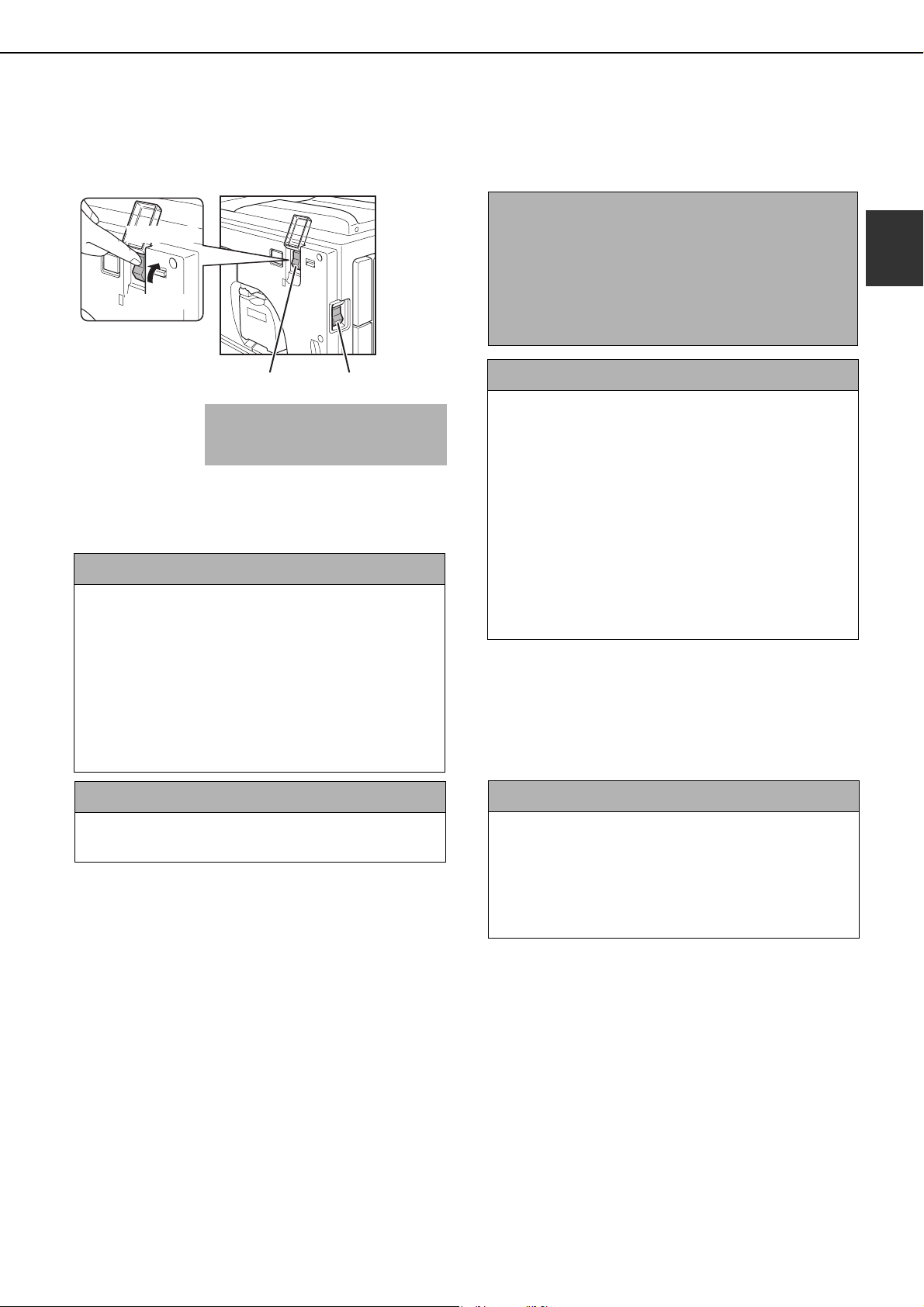
The machine has two power switches. The main power switch can be found at the upper right after the front cover
is opened. The power switch is located at the upper left of the right side of the machine.
The two switches are normally used as follows:
Main power switch: Normally kept in the ON position.
(Be sure to keep ON when using the
fax function.)
Power switch : Turn to ON position before using
the machine.
Turn OFF at night when the
machine is not used.
Main power switch ON, Power switch ON
The copy, printer, fax*, Internet fax*, network
scanner*, and document filing functions can be
used. If the machine is not used for a certain interval
after turning on the power switch, the machine will
automatically enter a reduced power consumption
state (preheat mode or auto power shut-off mode
(see page 1-9)).
* The required options must be installed to use
these functions.
Main power switch OFF, Power switch ON
The copy, printer, fax, Internet fax, network scanner,
and document filing functions cannot be used.
Power switch
Main power switch
"OFF" position
"ON" position
CAUTION
Before turning off the main power switch, make sure
that the communication and data lights are not
blinking on the operation panel. Turning off the main
power switch or unplugging the power cord while the
lights are blinking may damage the hard disk and
cause the data being stored or received to be lost.
Main power switch ON, Power switch OFF
Set the switches in this way at night or at other times
when the machine is not being used. The touch
panel cannot be used, however, the following
functions will remain operational:
When the fax option is installed:
Automatic fax reception, timer transmission
(automatic transmission at a specified time), and
transmission when a polling request is received from
another machine (remote transmission, relay
broadcast transmission)
When the Internet fax option is installed:
Automatic Internet fax reception
Main power switch OFF, Power switch OFF
The copy, printer, fax, Internet fax, network scanner,
and document filing functions cannot be used.
Turn both switches off and unplug the power cord if
you suspect a machine failure, if there is a bad
thunderstorm nearby, or when you are moving the
machine.
dragonII_copy_sec.book 17 ページ 2006年10月18日 水曜日 午後7時39分
1-18
AUDITING MODE
Auditing mode can be enabled to keep track of the number of pages printed and transmitted (scanned) by each
account (up to 500 accounts can be established). The page counts can be viewed and totaled as needed.
<This mode is enabled in the administrator settings separately for the copy, printer, fax, Internet fax, network scanner,
and document filing functions (page 7 of the administrator settings guide)>
Using the machine when the auditing mode is enabled
The procedure for making copies when auditing mode has been enabled for the copy function is explained below.
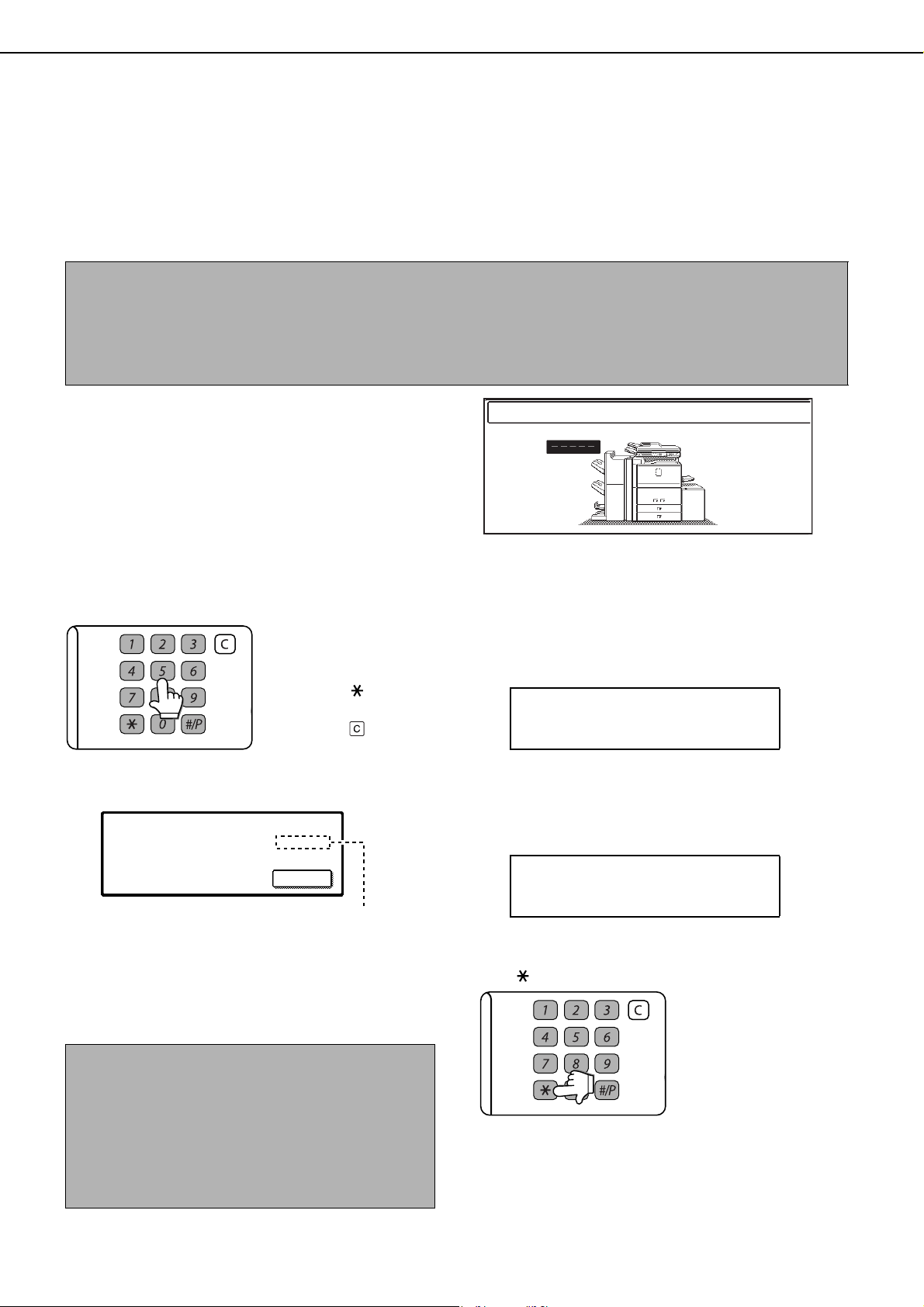
When the account counter is turned on, the right
message appears on the touch panel.
When the above screen appears, enter your 5-digit account number and then begin the copying procedure.
1
Enter your account number (5 digits) with
the numeric keys.
As you enter your
account number, the
hyphens (-) change to
asterisks ( ). If you
enter an incorrect digit,
press the key and
re-enter the correct digit.
When a correct account number is entered, the
following message will appear.
If a limit has been set in the administrator settings
for the number of copies that can be made by the
account, the remaining number that can be made
is displayed.
Check the number in the display and touch the
[OK] key.
2
Follow the appropriate steps to perform
the copy job.
When copying is begun, the following message
will appear.
To perform an interrupt copy job (page 5-46),
touch the [INTERRUPT] key and then enter your
account number as explained in step 1. The
following message will appear.
3
When the copy job is finished, press the
[ ] key ([LOGOUT] key)
NOTES
●
When auditing mode is enabled for document filing and fax/image transmission, a message will appear asking you
to enter your account number each time you switch to the main screen of one of those functions in the touch panel.
Enter your account number in the same way as for copy mode, and then begin the scanning procedure.
● When the account counter is turned on for the printer function, you must enter your account number in the
setting screen of the printer driver on your computer in order to print.
ENTER YOUR ACCOUNT NUMBER.
NOTE
If "ACCOUNT NUMBER SECURITY" is enabled in the
administrator settings and an incorrect account
number is entered three times in a row, "PLEASE SEE
YOUR ADMINISTRATOR FOR ASSISTANCE." will
appear (page 8 of the administrator settings guide).
Operation is not possible while this message
appears (about one minute).
LOGOUT
ACCOUNT STATUS :MADE /REMAINING
COPIES :00,123,000/00,012,456
OK
READY TO SCAN FOR COPY.
PRESS [LOGOUT] WHEN FINISHED.
COPY INTERRUPT MODE.
READY TO SCAN FOR COPY.
LOGOUT
dragonII_copy_sec.book 18 ページ 2006年10月18日 水曜日 午後7時39分

2-1
CHAPTER 2
MANAGING THE MACHINE
This chapter explains how to load paper, replace the toner cartridge, and
remove paper misfeeds. It also contains information about supplies.
Page
LOADING PAPER ................................................................................... 2-2
●
Identifying the trays ......................................................................... 2-2
●
Loading paper in paper tray 1 - tray 2 ............................................. 2-2
●
Changing the paper size in paper tray 1 - tray 2 ............................. 2-3
●
Loading paper in paper tray 3 ......................................................... 2-5
●
Changing the paper size in paper tray 3 ......................................... 2-5
●
Changing the paper size in paper tray 4 ......................................... 2-6
●
Loading paper in paper tray 5 (optional large capacity tray AR-LC6)
... 2-7
●
Loading paper in paper tray 5 (optional large capacity tray AR-LC7)
... 2-8
●
Loading paper in the bypass tray .................................................... 2-10
●
Specifications of paper trays (Types and sizes of paper that can be
used in the trays)............................................................................. 2-12
●
Setting the paper type and paper size ............................................ 2-14
●
Setting the paper size when a special size is loaded...................... 2-17
SYSTEM SETTINGS .............................................................................. 2-18
●
General procedure for system settings ........................................... 2-18
●
About the settings ........................................................................... 2-20
REPLACING THE TONER CARTRIDGES ............................................. 2-21
STORAGE OF SUPPLIES ...................................................................... 2-22
MISFEED REMOVAL.............................................................................. 2-23
●
Misfeed removal guidance .............................................................. 2-23
●
Misfeed in the transport area, fusing area, and exit area................ 2-24
●
Misfeed in the duplex unit................................................................ 2-25
●
Misfeed in the paper feed area........................................................ 2-26
REMOVING AN ORIGINAL MISFEED ................................................... 2-31
●
Removing a misfed original from the automatic document feeder .. 2-31
TROUBLESHOOTING ............................................................................ 2-32
dragon_02-1.fm 1 ページ 2006年10月18日 水曜日 午後8時20分
2-2
LOADING PAPER
If the paper runs out during printing, a message will appear in the display.
Follow the procedure below to load paper.
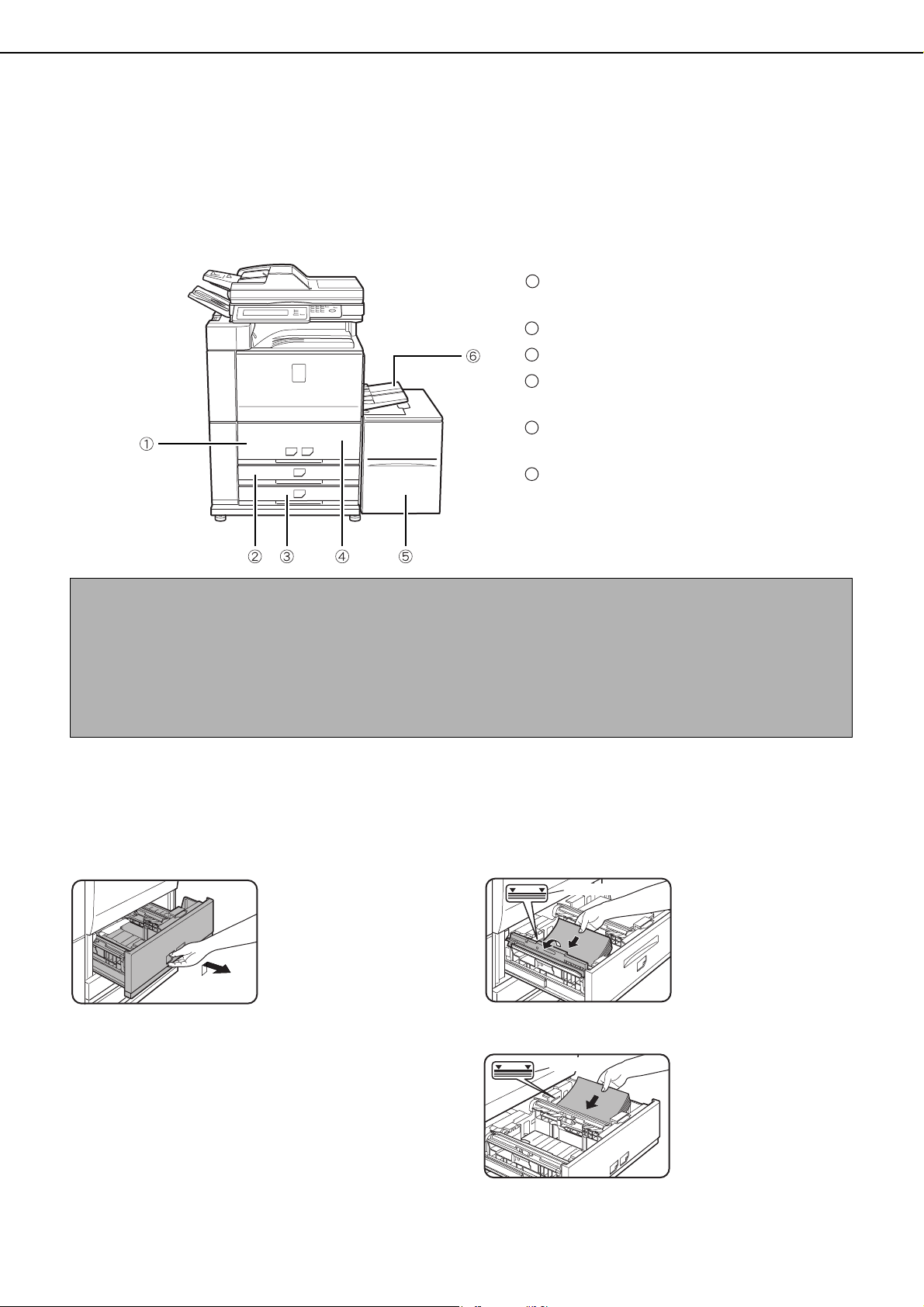
Identifying the trays
The trays are identified using numbers as shown below.
For the types and sizes of paper that can be used in each tray, see page 2-12.
Loading paper in paper tray 1 - tray 2
8-1/2" x 11" or A4 size paper can be loaded in tray 1 and tray 2. These are parallel large-capacity trays that allow a
total of approximately 2000 sheets of SHARP standard paper (20lbs. (80g/m
2
)) to be loaded. If you wish to change
the paper size of tray 1 or tray 2, see "Changing the paper size in paper tray 1 - tray 2" on the next page.
1
Pull out paper tray 1-tray 2.
Gently pull the tray out
until it stops.
2
Load paper in the left and right trays.
Lift the paper guide and
load paper in tray 1.*
1
Approximately 800 sheets
of SHARP standard paper
(20lbs.(80g/m
2
))
can be
loaded.
Be sure to return the
paper guide to its
original position after
loading the paper.
Load paper in tray 2.*
1
Approximately 1200
sheets of SHARP
standard paper
(20lbs.
(80g/m
2
))
can be loaded.
*1 The paper stack must not be higher than the indicator line.
Tray 1
This is the left large capacity tray.
Tray 3
Tray 4
Tray 2
This is the right large capacity tray.
Tray 5
This is an optional large capacity tray.
Bypass tray
1
2
3
4
5
6
NOTES
● Do not use curled or folded paper. Doing so may cause a misfeed.
● Do not place heavy objects or press hard on any tray which is pulled out.
● Do not place objects on the large-capacity tray. This may damage the tray or interfere with operation.
● Load paper with the print side face up. However, when the paper type is set to "PRE-PRINTED" or "LETTER
HEAD", load the paper face down*.
* If the two-sided function is disabled using "DISABLING OF DUPLEX" in the administrator settings (page 11
of the administrator settings guide), load the paper face up.
Indicator line
Indicator line
dragon_02-1.fm 2 ページ 2006年10月20日 金曜日 午前9時22分
LOADING PAPER
2-3
2
3
Gently push tray 1-tray 2 into the machine.
Push the tray firmly all
the way into the
machine.
4
Set the paper type.
If the paper size was changed from an inch size to an
AB size, or from an AB size to an inch size, or if the
paper type was changed, be sure to change the
appropriate settings as explained in "Setting the
paper type and paper size" (See page 2-14).
5
Loading paper in paper tray 1/tray 2 is now
complete.
Changing the paper size in paper tray 1 - tray 2
To change the paper size of tray 1 - tray 2, follow the steps below.
This section only explains how to change the paper size. For the procedures for opening/closing the tray and loading
paper, see "Loading paper in paper tray 1 - tray 2" (page 2-2).
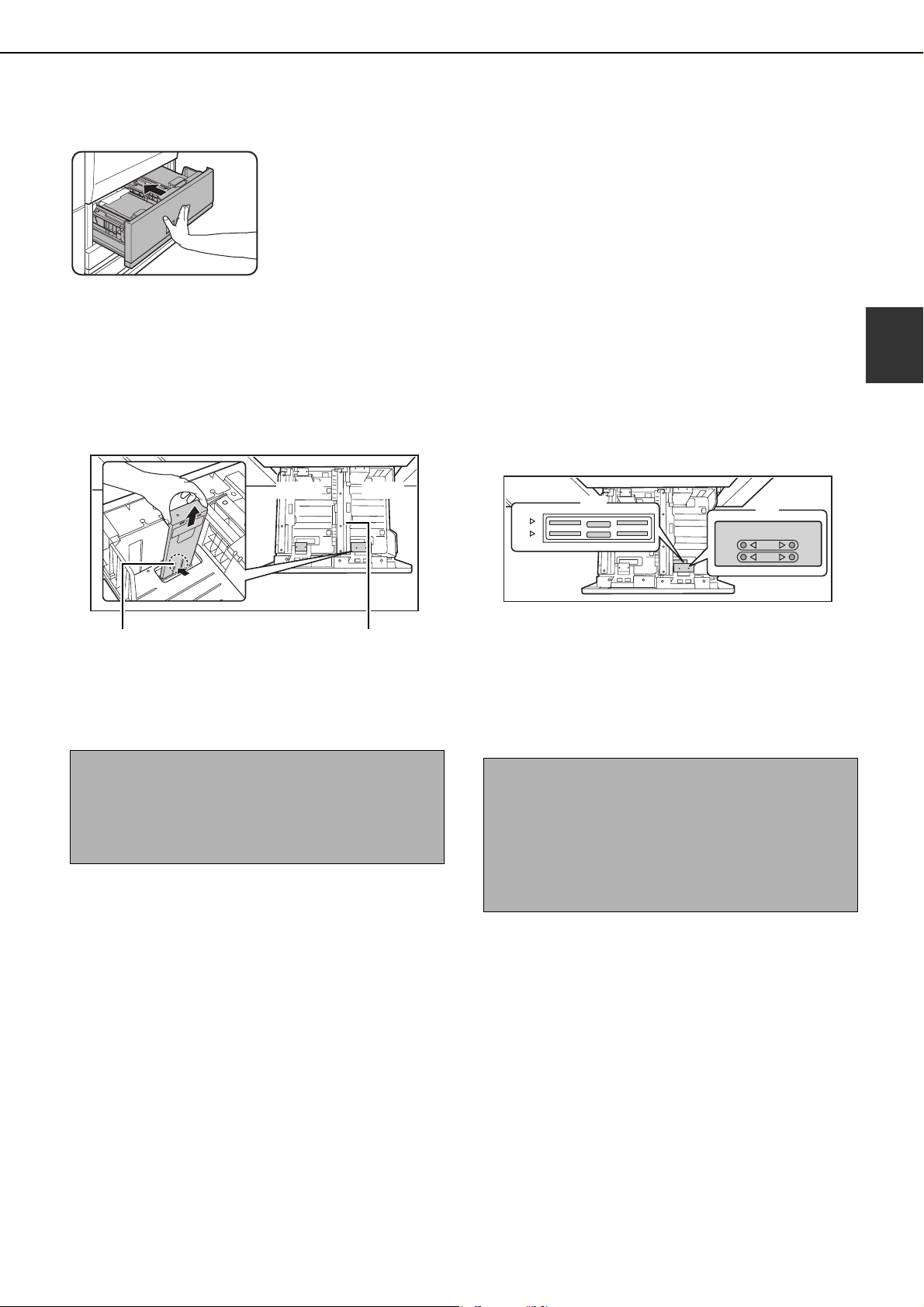
1
Remove the paper size guide.
With the base of the tray pressed all the way down,
hold down the hook at the bottom on the paper
size guide and pull the paper size guide up slightly.
2
Adjust the paper size guide to the paper
size to be used.
Paper sizes are inscribed at the slot (A) on the
bottom of the tray and at the hole (B) at the top of
the paper size guide. ("LT" indicates 8-1/2" x 11"
size.)
Align the bottom of the paper size guide with the
slot, and align the hole at the top with the locking
tab.
NOTES
● Do not place heavy objects on the tray or press
down on the tray.
● Before changing the paper size of tray 1, raise the
paper guide.
Hook
Tray 1 Tray 2
Paper guide
NOTES
● When attaching the paper size guide, make sure
that the top and bottom of the guide are aligned to
the same paper size.
● If the top and bottom of the paper size guide are not
aligned to the same paper size, skewed feeding
and misfeeds will result.
A4
LT
LT
A4
(A)
(B)
dragonII_copy_sec.book 3 ページ 2006年10月18日 水曜日 午後7時39分
LOADING PAPER
2-4
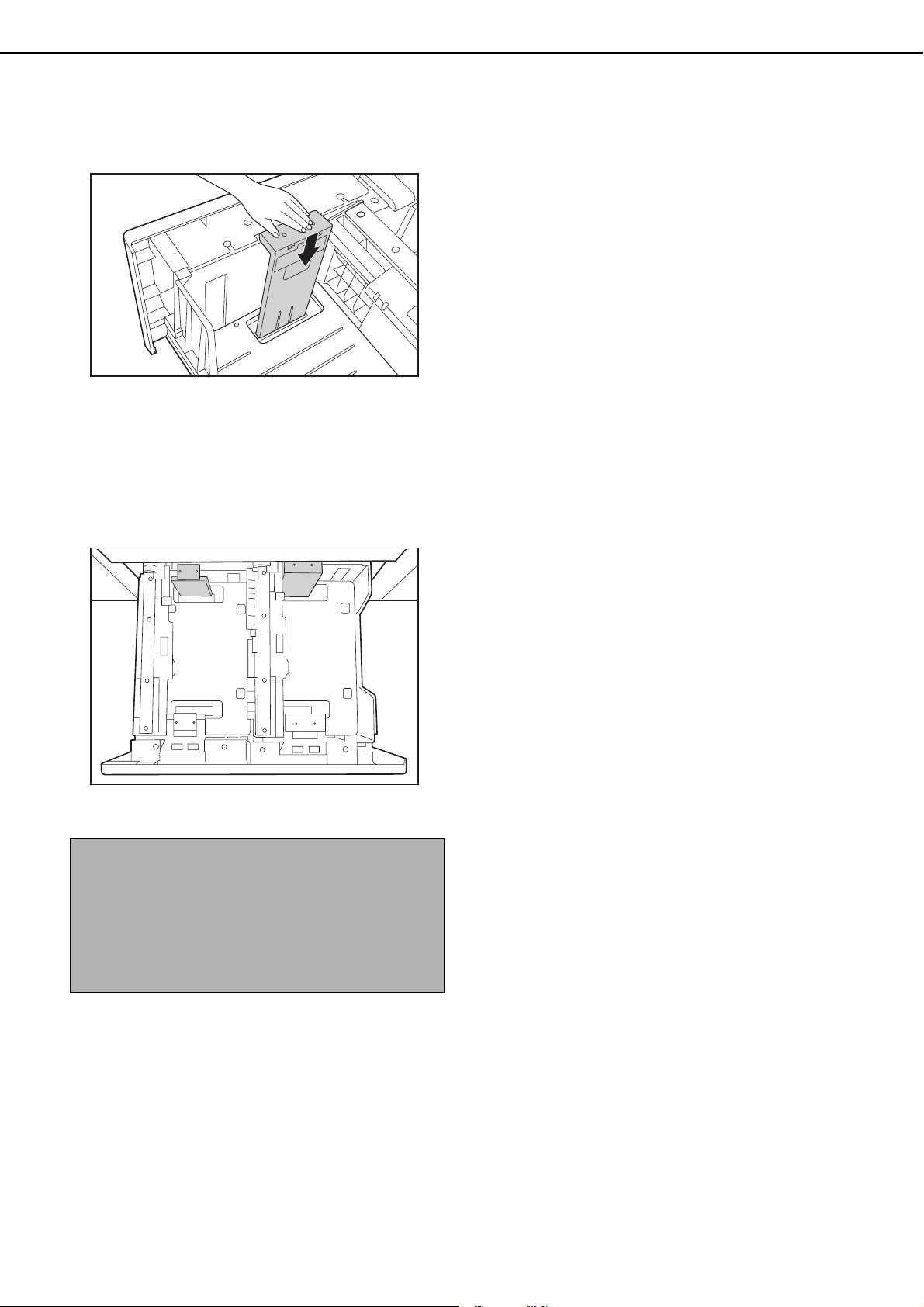
3
Push in the paper guide so that it locks
into place.
Push the paper size guide in until the hook at the
bottom locks into place. (You will hear a "click"
when the hook locks.) Move the paper size guide
slightly to verify that it has locked into place.
4
Repeat steps 1 to 3 to adjust the far paper
guide to the paper size to be used.
Be sure to adjust the far paper guide to the same
size as the near paper guide.
5
Set the paper type and paper size.
For the procedure for configuring these settings,
see "Setting the paper type and paper size" (page
2-14).
An incorrect paper type or paper size setting may
cause automatic selection of the wrong type or
size of paper, and result in a misfeed or otherwise
prevent printing.
NOTES
● When removing and attaching the far paper size
guide, take care not to hit the front cover of the
machine.
● Adjust both the front and back guides. If only one
guide is adjusted, skewed feeding and misfeeds
may result.
dragon_02-1.fm 4 ページ 2006年10月18日 水曜日 午後8時44分
LOADING PAPER
2-5
2
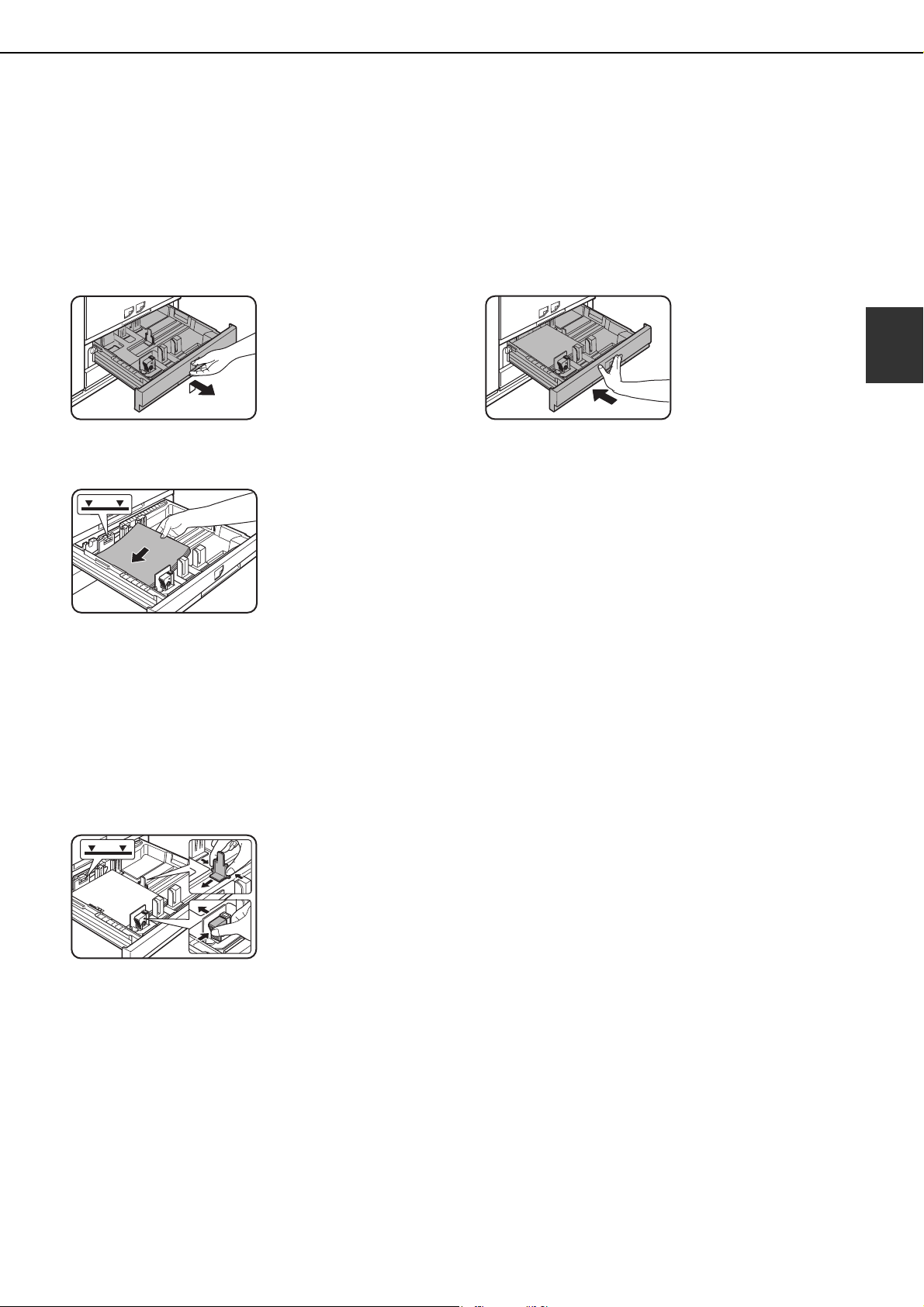
Loading paper in paper tray 3
Approximately 500 sheets of standard paper (20lbs. (80g/m
2
)) from 11" x 17" to 5-1/2" x 8-1/2"R size (A3 to A5R) can
be loaded in tray 3. Special papers such as tabbed paper and transparency film can also be loaded. For information
on what special papers can be used, see "Specifications of paper trays (Types and sizes of paper that can be used
in the trays)" on page 2-12. To load tabbed paper or transparency film, see "Loading tabbed paper" or "Loading
transparency film" on the next page.
1
Pull out paper tray 3.
Gently pull the tray out
until it stops.
2
Load paper into the tray.
The paper stack must not
be higher than the
indicator line (no more
than 500 sheets of
SHARP standard paper
(20lbs. (80g/m
2
)
).
To change the paper
size, see "Changing the paper size in paper tray 3"
below.
3
Gently push tray 3 into the machine.
Push the tray firmly all
the way into the
machine.
4
Set the paper type.
If the paper size was changed from an inch size to
an AB size, or from an AB size to an inch size, or if
the paper type was changed, be sure to change the
appropriate settings as explained in "Setting the
paper type and paper size" (see page 2-14).
5
Loading paper in paper tray 3 is now
complete.
Changing the paper size in paper tray 3
1
Pull out paper tray 3.
If paper remains in the tray, remove it.
2
Adjust the guide plates A and B by
squeezing their lock levers and sliding
them to the paper size to be loaded.
The guide plates A and
B are slidable. Adjust
them to the paper size to
be loaded while
squeezing their lock
levers.
3
Load paper into the tray.
4
Gently push tray 3 into the machine.
Push the tray firmly all the way into the machine.
5
Set the paper type of the paper that was
loaded in tray 3.
Be sure to change the appropriate settings as
explained in "Setting the paper type and paper size"
(see page 2-14).
If you changed the paper size, be sure to change
the paper size setting. An incorrect paper size
setting will cause the wrong paper to be
automatically selected and may prevent printing or
cause misfeeds.
6
Changing the paper size in paper tray 3 is
now complete.
dragonII_copy_sec.book 5 ページ 2006年10月18日 水曜日 午後7時39分

LOADING PAPER
2-6
■ Loading tabbed paper
When using tabbed paper, follow the steps below to attach the special guide to the divider plate at the bottom
edge of the tabbed paper. (Tabbed paper cannot be used in tray 4.)
1
Take out the tabbed paper guide.
The guide is stored
inside the left side of the
machine as shown.
Be sure to replace the
guide when you have
finished using it.
2
Pull out the tray and attach the guide.
Slide the divider plate to
the position of the
bottom edge of the
tabbed paper and attach
the guide so that it
covers the divider plate.
3
Place the tabbed paper in the tray.
Place the tabbed paper
with the print side face
up.
[Example]
Make sure that the positions of the tabs correspond
with the originals as shown below.
4
Gently push the tray in and set the paper
type to tabbed paper.
(See "Setting the paper type and paper size" on
page 2-14)
■ Loading transparency film
Be sure to load transparency film with the label facing down and the film oriented vertically. Smudging and a
dirty image may result if the film is loaded with the label facing up. (Transparency film cannot be used in tray 4.)
Changing the paper size in paper tray 4
Plain paper from 11" x 17" to 7-1/4" x 10-1/2"R size (A3 to B5) can be loaded in tray 4. For paper that can be used,
see "Specifications of paper trays (Types and sizes of paper that can be used in the trays)" on page 2-12.
The procedures for loading paper in tray 4 and changing the paper size are the same as for tray 3 (see page 2-5).
ABC
DEF
GHI
JKL
Front side
1st page
1st page
2nd page
2nd page
3rd page
3rd page 4th page
4th page
Tabbed paper
Original
NOTE
When referring to the explanations of tray 3, keep in mind that special papers such as tabbed paper and
transparency film cannot be used in tray 4. Use tray 3 for special paper.
dragonII_copy_sec.book 6 ページ 2006年10月18日 水曜日 午後7時39分
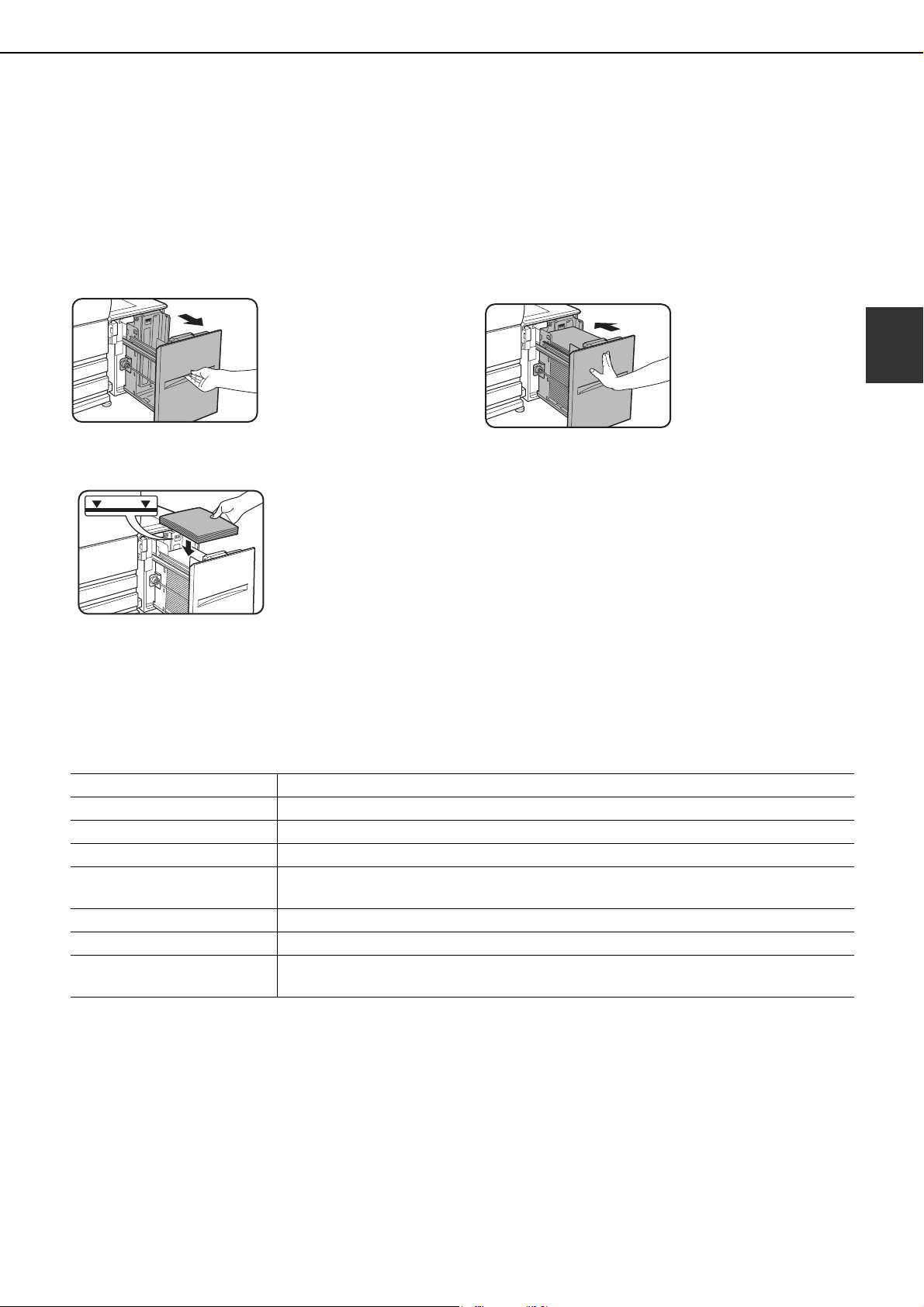
LOADING PAPER
2-7
2
Loading paper in paper tray 5 (optional large capacity tray
AR-LC6)
The large capacity tray can hold up to 3,500 sheets of 8-1/2" x 11" size (A4) SHARP standard paper (20 lbs. (80
g/m
2
)). If you wish to change the paper size, please consult your dealer (the paper size must be changed by a service
technician).
1
Pull the tray out until it stops.
When the tray is in
operation, do not use
excessive force to pull
the tray out. This may
damage the tray.
2
Place the paper in the center of the paper
table.
The paper stack must
not be higher than the
indicator line (up to
3,500 sheets of SHARP
standard paper (20 lbs.
(80 g/m
2
))
If the paper type was
changed, be sure to change the appropriate
settings as explained in "Setting the paper type
and paper size" (See page 2-14).
3
Push the tray firmly all the way into the
machine.
The paper table will
automatically rise to the
paper feed position.
■ Specifications
Specifications are subject to change for improvement without notice.
Name Large capacity tray (AR-LC6)
Paper size 8-1/2" x 11" (A4)
Paper weight 16 to 28 lbs. (60 to 105 g/m
2
)
Paper capacity (plain) 3500 sheets (20 lbs. (80 /m
2
))
Dimensions
14-23/32" (W) x 21-1/2" (D) x 20-13/32" (H)
(376 mm (W) x 546 mm (D) x 518 mm (H))
Power supply Supplied from the main unit
Weight Approximately 62.9 lbs. (28.5 kg)
Overall dimensions when
attached to machine
53-3/64" (W) x 26-47/64" (D)
(1347 mm (W) x 679 mm (D))
dragonII_copy_sec.book 7 ページ 2006年10月18日 水曜日 午後7時39分
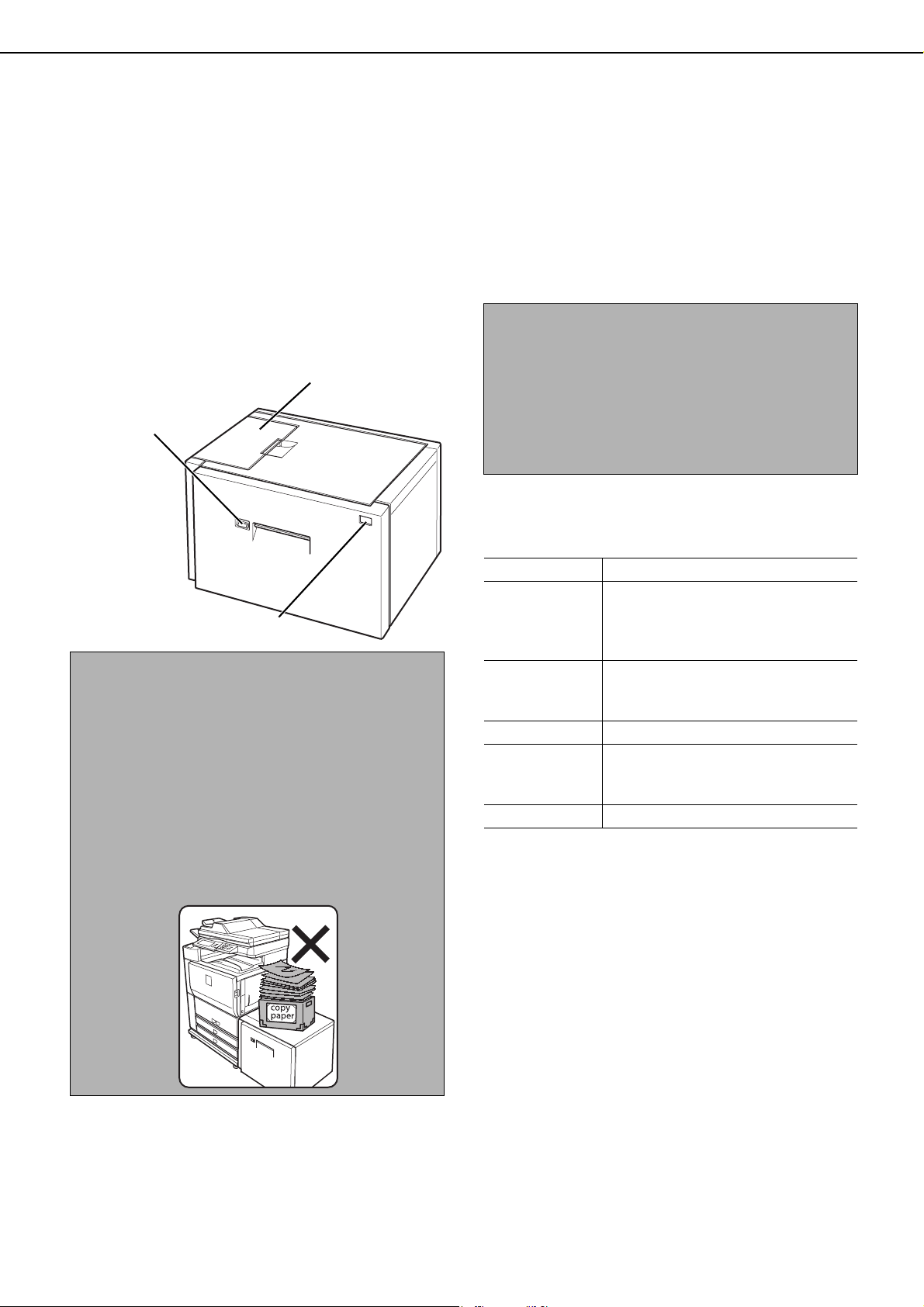
LOADING PAPER
2-8
Loading paper in paper tray 5 (optional large capacity tray
AR-LC7)
An optional large capacity tray (AR-LC7) is available for the machine. The AR-LC7 can hold up to 3000 sheets of 20
lbs. (80 g/m
2
) paper. (See the following "Specifications" for the types of paper that can be used in the large capacity
tray.)
When installed, the AR-LC7 operates as "Tray 5". The AR-LC7 cannot be used together with the AR-LC6 described
on page 2-7.
■ Part names
■ Specifications
* The indicated sizes of plain paper can be used.
When using the AR-LC7, refer also to "More
information on plain paper" on page 2-13.
Specifications are subject to change for improvement
without notice.
NOTES
● If you wish to change the paper size, please consult
your dealer (the paper size must be changed by a
service technician).
● Do not use curled or folded paper. This may cause
misfeeds.
● When the tray has been pulled out, do not place
heavy objects on the tray or press down on the tray.
● Do not place any objects on the large capacity tray
or use it instead of a chair or step. This may
damage the tray and interfere with the use of the
bypass tray.
Operation button /
Indicator
To load paper in the tray,
press this button, wait until
the indicator turns off, and
then pull the tray out.
Top cover
Open this cover to
remove a misfeed.
Paper size display
● Load paper in the tray with the print side face up.
However, if the paper type is "PRE-PRINTED" or
"LETTER HEAD", load the paper with the print side
face down*.
* If the two-sided function is disabled using
"DISABLING OF DUPLEX" in the administrator
settings (page 11 of the administrator settings
guide), load the paper face up.
Name Large capacity tray (AR-LC7)
Paper sizes* 11" x 17" (A3), 8-1/2" x 14" (B4),
8-1/2" x 11" (A4), 8-1/2" x 11"R (A4R)
Paper weight 16 to 28 lbs. (60 to 105
g/m
2
)
Number of
paper trays
/Paper capacity
One tray 3000 sheets (20 lbs. or 80
g/m
2
)
Power supply Supplied from the machine
Dimensions 27-5/32" (W) x 23-7/64" (D) x
20-17/32" (H) (690mm (W) x 587mm
(D) x 521.5mm (H))
Weight Approx. 110 lbs. (Approx. 50 kg)
dragonII_copy_sec.book 8 ページ 2006年10月18日 水曜日 午後7時39分
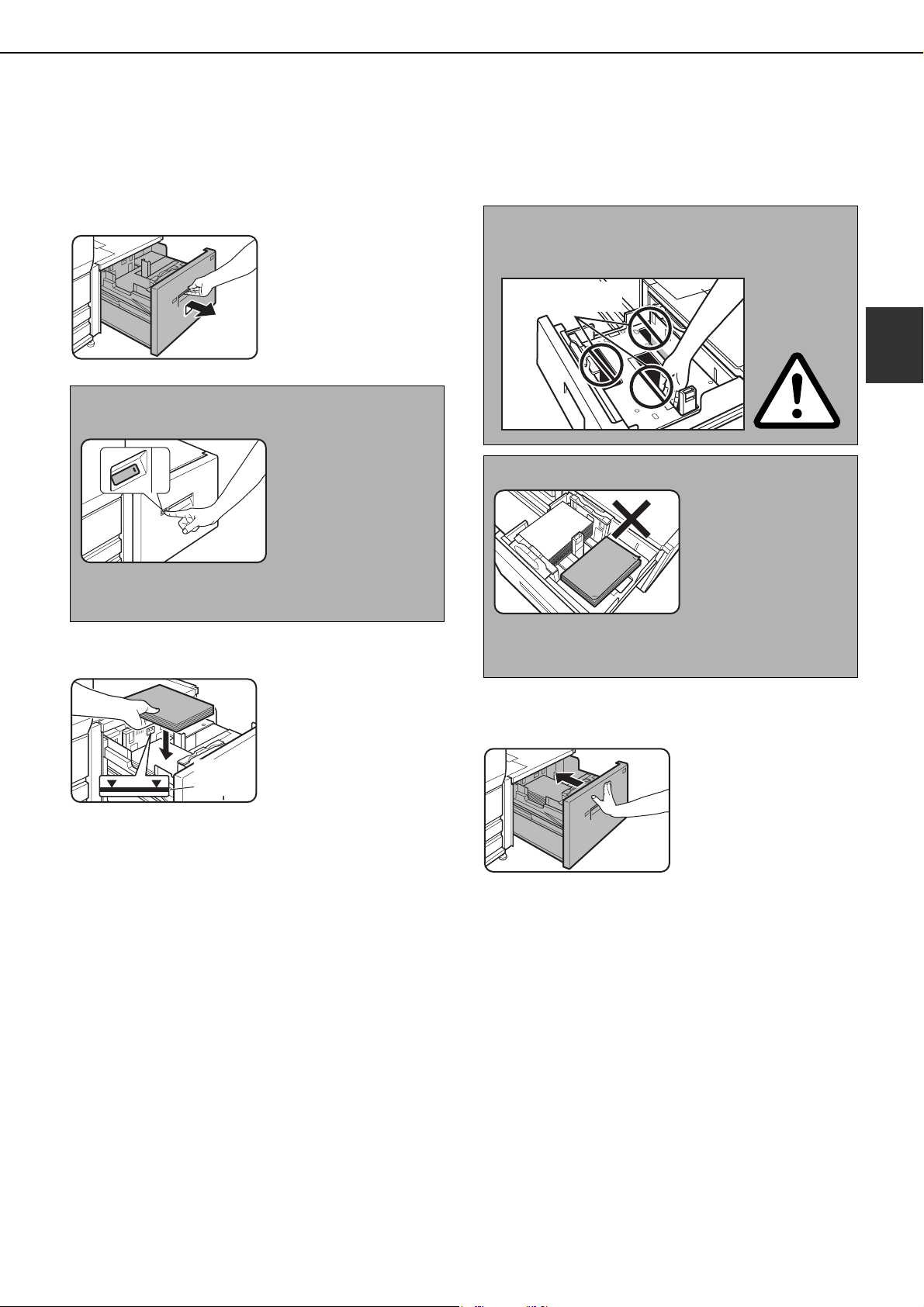
LOADING PAPER
2-9
2
■ Loading paper in the AR-LC7
If the paper runs out during printing, a message will appear in the display. Follow the procedure below to load
paper.
1
Pull the tray out until it stops.
Pull the finger grip up
and pull the tray out
until it stops.
2
Place the paper on the paper table.
The paper stack must
not be higher than the
indicator line.
When the paper tray is
pulled out, the paper
table will have
descended to a
position where
approximately 500 sheets of 8-1/2" x 11" size (A4)
20lbs. (80g/m
2
) paper can be placed. After the
paper is placed, the paper table will descend to a
position where an additional approximately 500
sheets can be placed. When the paper table has
descended all the way, approximately 3000 sheets
can be held.
If a different type of paper is loaded that was used
previously, the paper settings for tray 5 must be
changed on the machine. Be sure to change to the
appropriate settings as explained in "Setting the
paper type and paper size" on page 2-14.
3
Push the tray firmly all the way into the
machine.
After the tray is pushed
in, the indicator will
blink until the paper
table finishes
ascending and then
light solidly.
NOTE
To add or change paper, press the operation button.
When the button is
pressed, the indicator
will blink until the paper
table stops descending.
Do not pull the tray out
until the indicator turns
off. Attempting to pull
the tray out when the indicator is blinking or solidly lit
may damage the tray.
Indicator
line
CAUTION
When loading paper, take care not to insert your
hands into holes on paper table.
NOTES
Do not insert objects in
the tray or attempt to
place spare paper in
the tray. This may
damage the tray.
● Use SHARP-recommended paper (page 2-22).
Special paper cannot be used.
Do not insert your
hands here.
dragonII_copy_sec.book 9 ページ 2006年10月18日 水曜日 午後7時39分
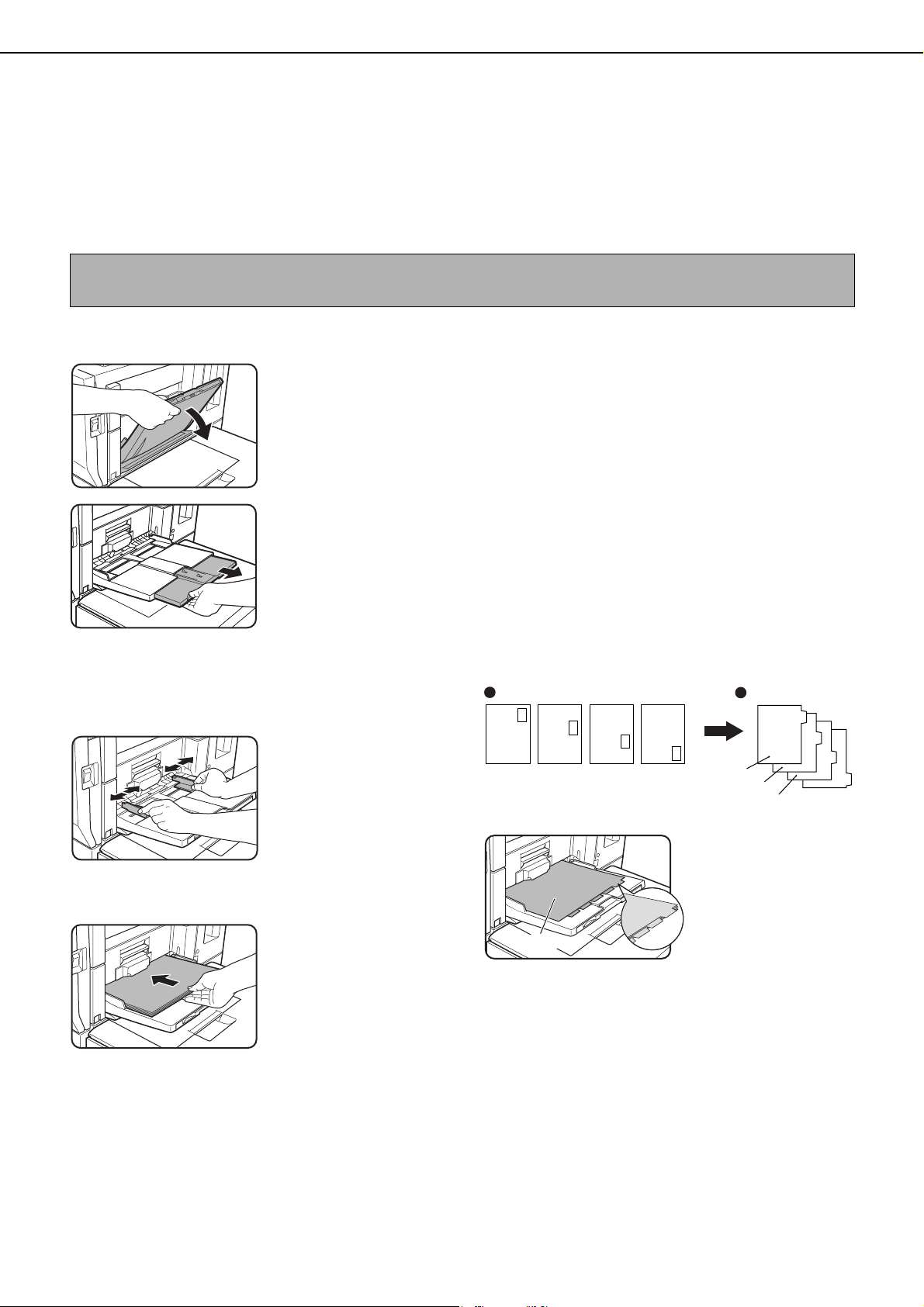
LOADING PAPER
2-10
Loading paper in the bypass tray
The bypass tray can be used to print on plain paper, postcards, label sheets, tabbed paper, and other special papers.
When using SHARP standard paper, up to 100 sheets can be loaded (up to 20 postcards) for continuous printing
similar to the other trays. For the paper types that can be used in the bypass tray, see "Specifications of paper trays
(Types and sizes of paper that can be used in the trays)" on page 2-12.
1
Open the bypass tray.
When loading 11" x 17",
8-1/2" x 14", 8-1/2" x 13",
or 8-1/2" x 11"R, A3, B4,
A4R size paper, be sure
to pull the auxiliary tray
all the way out. If the
auxiliary tray is not
pulled all the way out, the size of the loaded paper
will not be correctly displayed.
2
Set the bypass tray guides to the width of
the copy paper.
3
Insert the copy paper all the way into the
bypass tray. (Do not force the paper in.)
Place the copy paper
face up. If the bypass
tray guides are set wider
than the copy paper, the
inside of the machine
may become soiled,
resulting in smudges on
succeeding copies. A gap may cause skewing
or wrinkling.
4
Set the type and size of the paper loaded in
the bypass tray.
If the paper size was changed from an inch size to an
AB size, or from an AB size to an inch size, or if the
paper type was changed, be sure to change the
appropriate settings as explained in "Setting the
paper type and paper size" (see page 2-14).
5
This completes the procedure for loading
paper in the bypass tray.
■
Loading tabbed paper in the bypass
tray
[Example]
Make sure that the positions of the tabs correspond
with the originals as shown below.
Place the tabbed paper face up.
NOTE
After loading the paper in the bypass tray, be sure to set the paper type and size (step 4) if these were changed.
ABC
DEF
GHI
JKL
Front side
1st page
1st page
2nd page
2nd page
3rd page
3rd page 4th page
4th page
Tabbed paper
Original
Front
dragonII_copy_sec.book 10 ページ 2006年10月18日 水曜日 午後7時39分
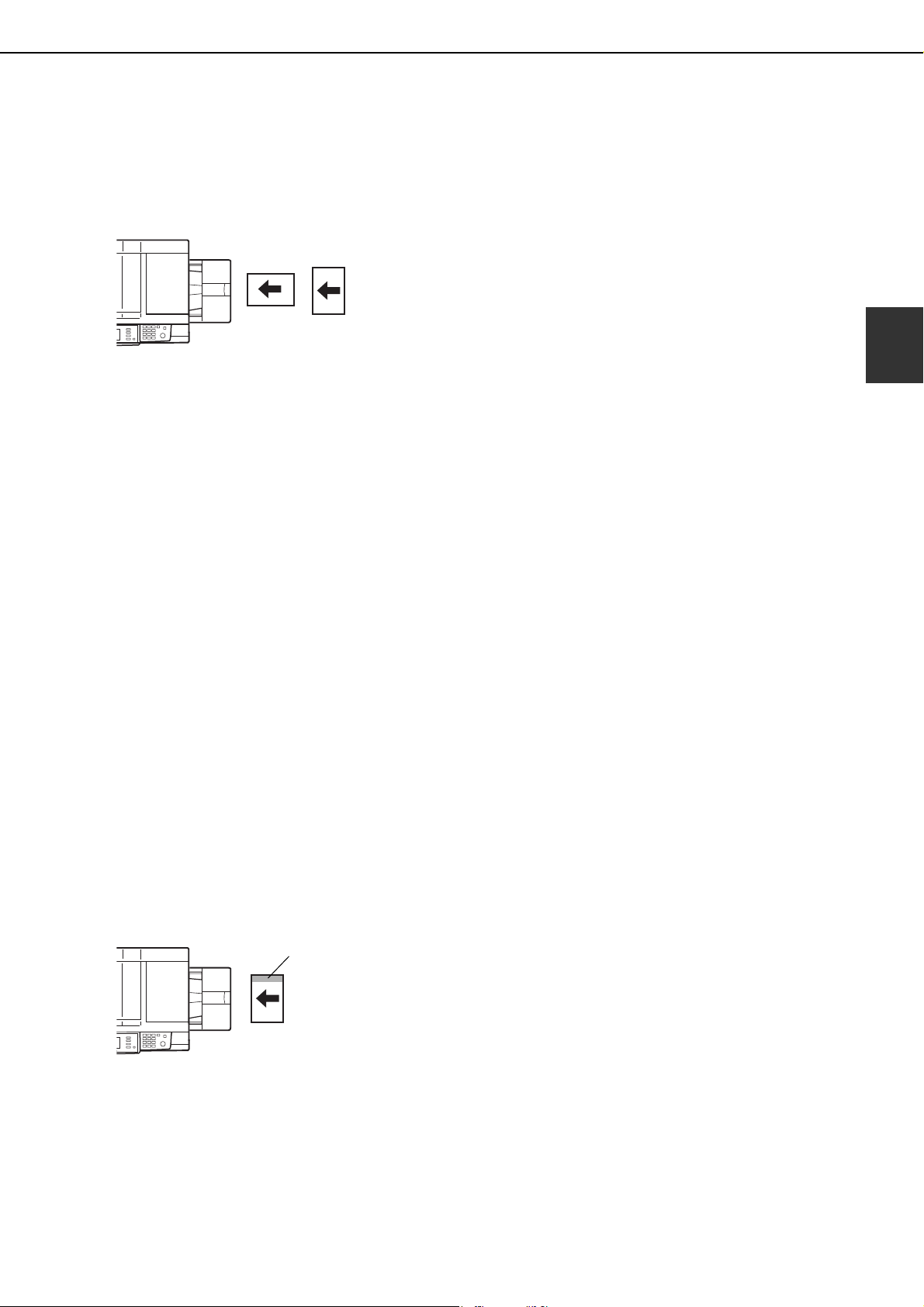
LOADING PAPER
2-11
2
■ Important points when using the
bypass tray
● Be sure to load 5-1/2" x 8-1/2" paper, A5 paper,
and postcards as shown (1) horizontal loading in
the diagram below.
(1):Horizontal loading
(2):Vertical loading
● When loading plain paper other than SHARP
standard paper, special media other than
postcards, SHARP-recommended transparency
film, or paper to be printed on the back, the
paper must be loaded one sheet at a time.
Loading more than one sheet at a time will cause
misfeeds.
● Before loading heavy paper, straighten any
curling in the paper.
● When adding paper, remove any paper
remaining in the tray, combine it with the paper to
be added, and reload as a single stack.
● Do not use paper that has already been printed
on by a plain paper fax machine or a laser
printer. This may cause printed images to
become dirty.
● When printing on transparency film, be sure to
remove each sheet as it exits the machine.
Allowing sheets to stack in the output tray may
cause curling.
● Use only Sharp-recommended transparency
film. Transparency film should be loaded in the
bypass tray with the label facing down and the
film oriented vertically. Smudging and a dirty
image may result if the film is placed with the
label facing up.
● When loading multiple sheets of transparency
film in the bypass tray, be sure to fan the sheets
several times before loading.
● Use only tabbed sheets that are made of paper.
Tabbed sheets made of film or other material
cannot be used.
(1) (2)
Label facing down
dragonII_copy_sec.book 11 ページ 2006年10月18日 水曜日 午後7時39分
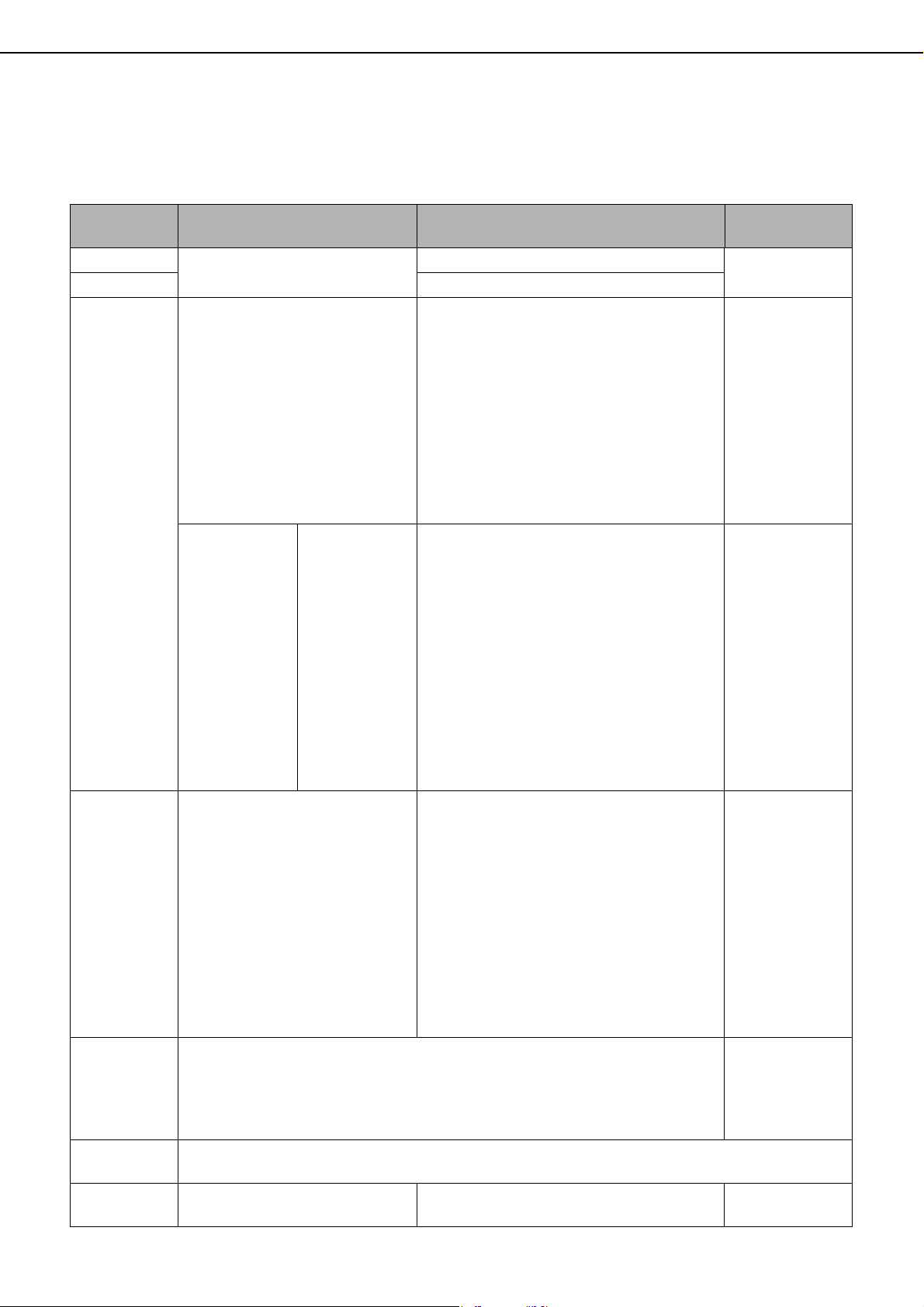
LOADING PAPER
2-12
Specifications of paper trays (Types and sizes of paper that
can be used in the trays)
The specifications for the types and sizes of paper that can be loaded in the paper trays are shown below.
Tray No.
(tray name)
Applicable paper types Applicable paper sizes Paper weight
Tray 1
Plain paper (Refer to the next page
"More information on plain paper".)
8-1/2" x 11", A4
16 to 28 lbs.
(60 to 105g/m
2
)
Tray 2 8-1/2" x 11", A4
Tray 3
Plain paper
(Refer to the next page "More
information on plain paper".)
• When "AUTO-INCH" is selected in "Setting
the paper type and paper size" (page
2-14), the following paper sizes can be
automatically detected:
11" x 17", 8-1/2" x 14", 8-1/2" x 11", 8-1/2"
x 11"R, 7-1/4" x 10-1/2"R, 5-1/2" x 8-1/2"R
• When "AUTO-AB" is selected in "Setting the paper
type and paper size" (page 2-14), the following
paper sizes can be automatically detected:
A3, B4, A4, A4R, B5, B5R, A5R, 8-1/2" x 13"
• Non-standard sizes
16 to 34 lbs.
(60 to 128g/m
2
)
Special paper
(Refer to the
next page
"More
information on
special media
that can be
used".)
• Heavy paper
• Transparency
film
• Labels
• Tabbed paper
• When "AUTO-INCH" is selected in "Setting
the paper type and paper size" (page
2-14), the following paper sizes can be
automatically detected:
8-1/2" x 11", 8-1/2" x 11"R (only 8-1/2" x
11" for tabbed paper)
• When "AUTO-AB" is selected in "Setting the paper
type and paper size" (page 2-14), the following
paper sizes can be automatically detected:
A4, A4R, B5, B5R (only A4 for tabbed paper)
• Non-standard sizes smaller than 8-1/2" x 11" or A4
• 40 sheets of transparency film can be loaded
• Tabbed paper can be used
See the remarks
for special papers
on the following
page.
Tray 4
Plain paper (Refer to the next
page "More information on plain
paper".)
• When "AUTO-INCH" is selected in "Setting
the paper type and paper size" (page
2-14), the following paper sizes can be
automatically detected:
11" x 17", 8-1/2" x 14", 8-1/2" x 11", 8-1/2"
x 11"R, 7-1/4" x 10-1/2"R
• When "AUTO-AB" is selected in "Setting
the paper type and paper size" (page
2-14), the following paper sizes can be
automatically detected:
A3, B4, A4, A4R, B5, B5R, 8-1/2" x 13"
• Non-standard sizes
16 to 34 lbs.
(60 to 128g/m
2
)
Bypass tray
Same as tray 3. Postcards can also be used.
However,
• Up to 100 sheets of plain paper can be loaded.
• Up to 20 sheets of transparency film can be loaded.
• Up to 20 postcards can be loaded.
The same paper
as tray 3, and also
14 lbs. to 15 lbs.
(52 to 59
g
/m
2
) thin
paper can be used.
Tray 5
(AR-LC6)
Same as tray 2.
Tray 5
(AR-LC7)
Plain paper (Refer to the next page
"More information on plain paper".)
11" x 17", 8-1/2" x 14", 8-1/2" x 11", 8-1/2" x 11"R,
A3, B4, A4, A4R
16 to 28 lbs.
(60 to 105g/m
2
)
dragon_02-1.fm 12 ページ 2006年11月29日 水曜日 午後8時44分
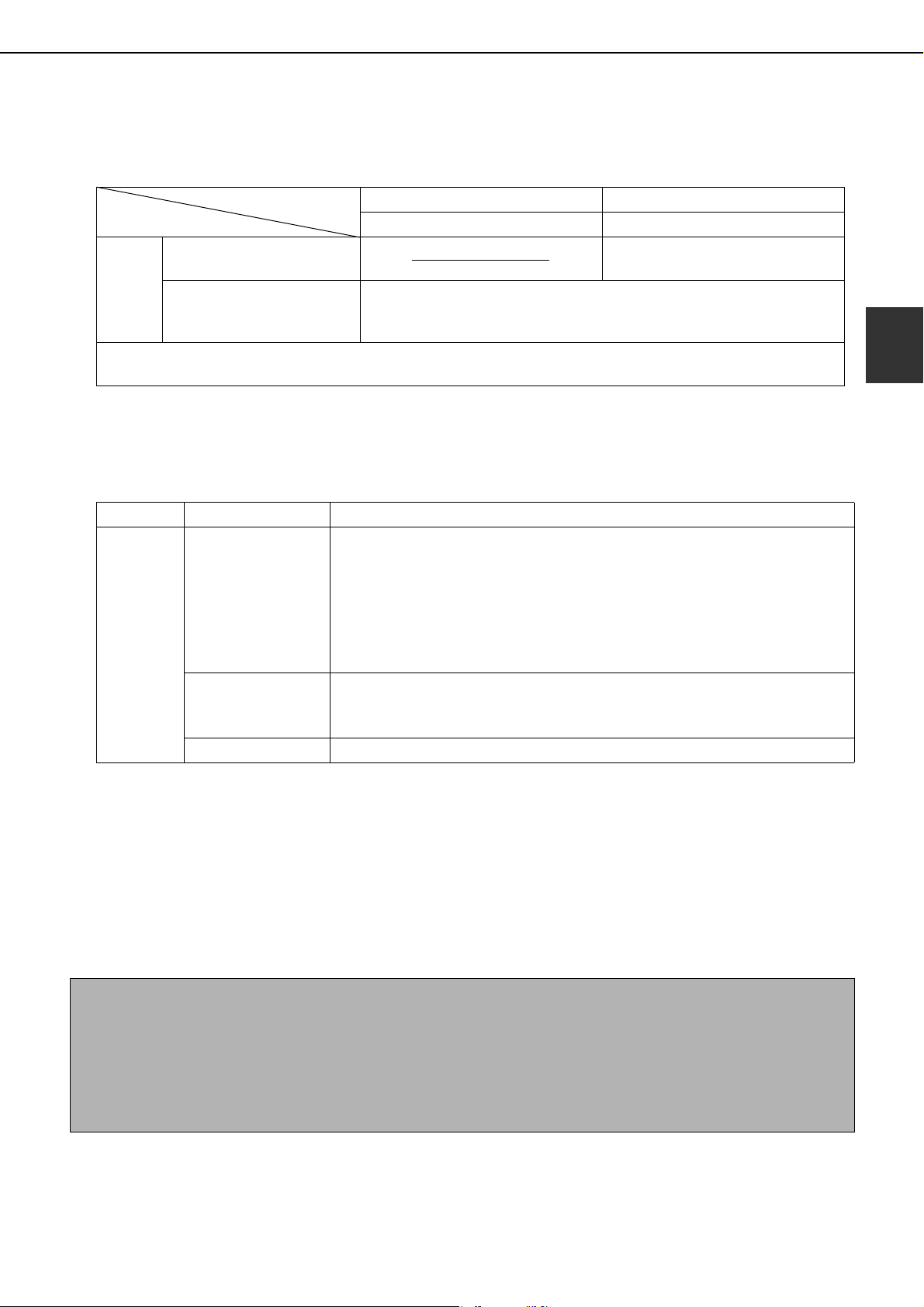
LOADING PAPER
2-13
2
■ More information on plain paper
Incorrect feeding may result in poor toner fusing (the toner does not adhere to the paper well and can be rubbed
off), skewed feeding, misfeeds, or other failures.
■ More information on special media that can be used
Incorrect feeding may result in poor toner fusing (the toner does not adhere to the paper well and can be rubbed
off), skewed feeding, misfeeds, or other failures.
■ Paper that can be used for automatic two-sided printing
Paper used for automatic two-sided printing (paper that can be fed through the duplex module) must meet the
following conditions:
Paper type :Plain paper as specified on page above.
Paper size :Must be one of the following standard sizes: 11" x 17", 8-1/2" x 14", 8-1/2" x 13", 8-1/2" x 11", 8-1/2"
x 11"R, 7-1/4" x 10-1/2" or 5-1/2" x 8-1/2"R (A3, B4, A4, A4R, B5, B5R or A5R)
Paper weight :16 to 34 lbs. (64 to 128 g/m
2
)(special heavy papers indicated in the table above)
Paper in inch system Paper in AB system
5-1/2" x 8-1/2" to 11" x 17" A5 to A3
Plain
paper
SHARP standard paper
(See page 2-22)
17 lbs. (64g/m
2
)
Restrictions on paper
other than SHARP
standard paper
16 to 28 lbs. or 60 to 105g/m
2
Recycled, colored, pre-punched, pre-printed and letterhead papers must conform to the same conditions as
above.
Type Remarks
Special
paper
Heavy paper
• For 5-1/2" x 8-1/2" to 8-1/2" x 11" or A5 to A4 sizes, heavy paper ranging
from 16 to 34 lbs. or 106 to 128 g/m
2
can be used.
• Other heavy papers
65 lbs. (176 g/m
2
) can be used.
110 lbs. (200 to 205 g/m
2
) can be used but only for 8-1/2" x 11", A4 paper
in the portrait orientation.
• For 5-1/2" x 8-1/2" or A5 paper, the orientation must be landscape.
Transparency film,
Tabbed paper
• Use SHARP recommended paper.
• Use only tabbed sheets that are made of paper. (Tabbed sheets made of
film or other material cannot be used.)
Postcards • Japanese official postcards can be used.
NOTES
● Special papers (explained above) cannot be used for automatic two-sided printing. However, certain special
heavy papers (index paper, cover paper) can be used.
● Various types of plain paper and special paper are sold. Some of these cannot be used in the machine. Please
consult your retailer or your dealer when buying paper.
● The image quality and toner fusibility of special papers may change due to ambient conditions, operating
conditions, and paper characteristics, resulting in image quality inferior to that of SHARP standard paper.
dragonII_copy_sec.book 13 ページ 2006年10月18日 水曜日 午後7時39分
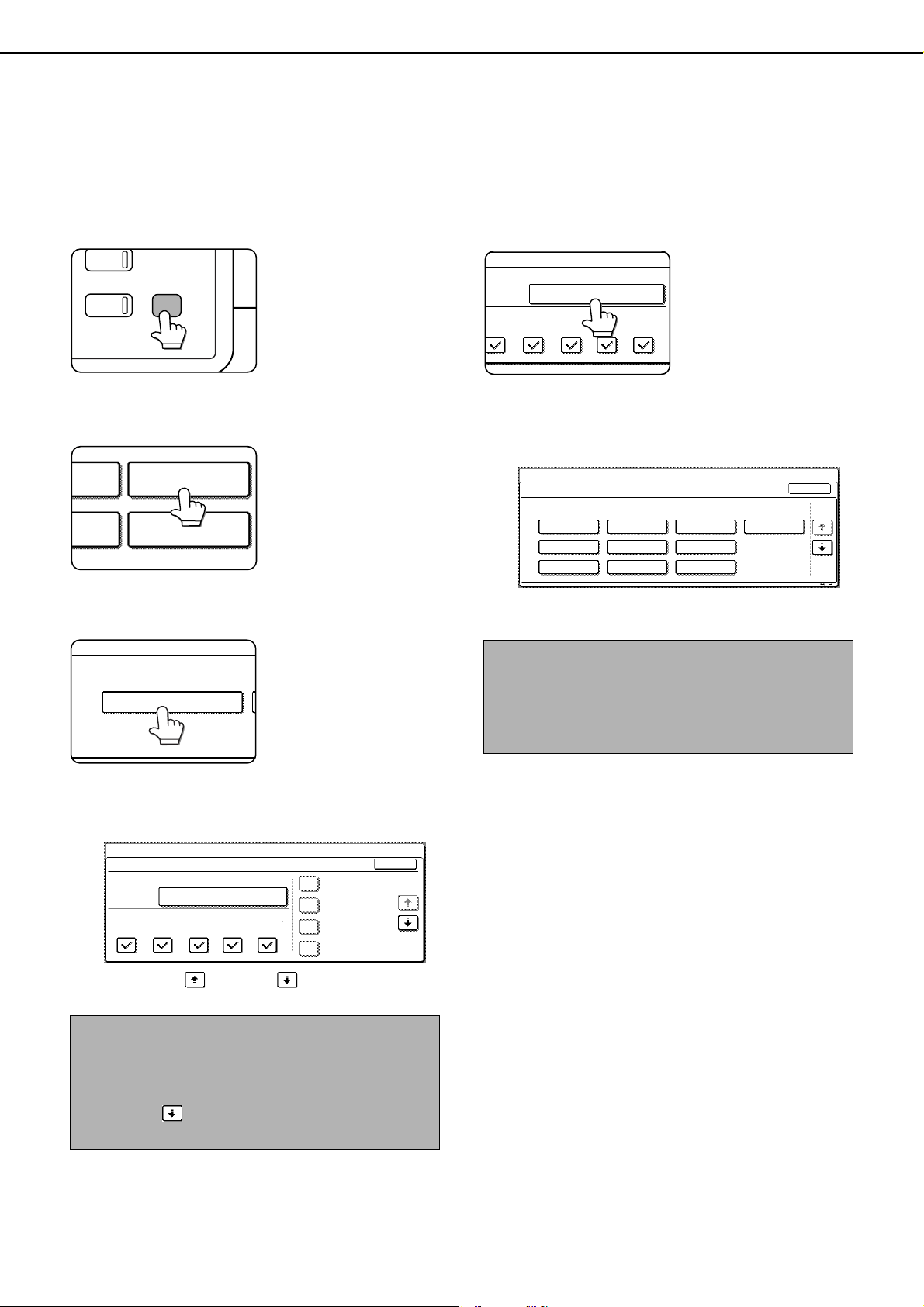
LOADING PAPER
2-14
Setting the paper type and paper size
Follow these steps to change the paper type setting when the paper type has been changed in a paper tray. For the
paper types that can be used in each tray, see page 2-12.
1
Press the [SYSTEM SETTINGS] key.
The system setting
menu screen will
appear.
2
Touch the [PAPER TRAY SETTINGS] key.
The paper tray selection
screen will appear.
3
Touch the [TRAY SETTINGS] key.
4
Display the setting screen of the desired
paper tray.
Touch the key or key to display the
setting screen of the desired paper tray.
5
Touch the [TYPE / SIZE] key.
6
Select the type of paper that was loaded in
the tray.
Example: The paper type of tray 3 is selected
Touch the desired paper type to select it. The
paper size setting screen will appear.
NOTE
To automatically switch to a tray with the same size
and type of paper (if there is one) in the event that the
paper tray runs out of paper, display the last screen
with the key and select [AUTO TRAY
SWITCHING].
PY
JOB STATUS
SYSTEM
SETTINGS
PAPER TRAY
SETTINGS
ATA
ORWARD
RINT
PRINTER
CONDITION
TRAY SETTINGS
PAPER TRAY SETTINGS
1/8
PLAIN / 8 x11
OK
PRINT
PAPER TRAY SETTINGS
TYPE / SIZE
SYSTEM SETTINGS
TRAY 1
FAX
I-FAX
COPY
DOC.
FILING
FIXED PAPER SIDE
DISABLE DUPLEX
DISABLE STAPLE
DISABLE PUNCH
1
/
2
NOTES
● Tabbed paper can only be used in tray 3, bypass
tray and the inserter.
● Heavy paper, label sheets, and transparency film
cannot be loaded in trays 1, 2, 4, and 5.
TYPE / SIZE
TRAY 3
PER TRAY SETTINGS
PRINT
COPY
I-FAX
DOC.
FILING
FAX
PLAIN / 8 x11
1
/
2
CANCEL
1/2
PLAIN
RECYCLED
PRE-PRINTED PRE-PUNCHED
LETTER HEAD
COLOR
HEAVY PAPER
TAB PAPER
LABELS
TRANSPARENCY
TRAY 3 TYPE/SIZE SETTING
SELECT THE PAPER TYPE.
SYSTEM SETTINGS
1/2
dragonII_copy_sec.book 14 ページ 2006年10月18日 水曜日 午後7時39分
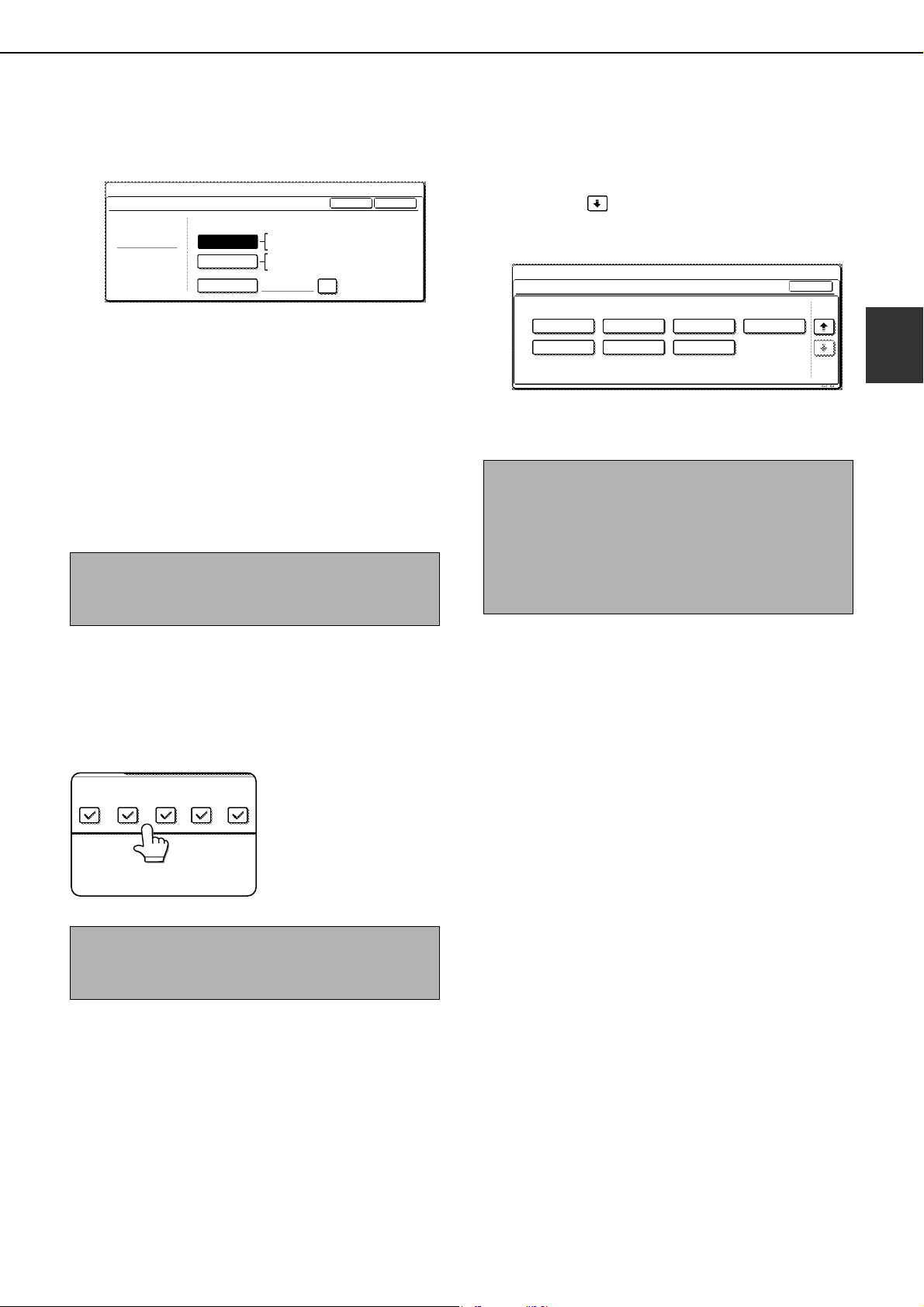
LOADING PAPER
2-15
2
7
Select the size of paper that was loaded in
the tray.
Touch the appropriate keys (checkboxes).
8
Touch the [OK] key in the size setting
screen.
You will return to the tray setting screen of step 4.
9
Select output functions that can be used
with the selected tray.
Touch the checkboxes
under the desired items
to select them.
■ User type
Select a "User type" when the name of the paper
type does not appear in the selections or when you
wish to select the tray attributes yourself.
Touch the key in step 5 on the previous page
to display the user type selection screen and then
select a user type.
10
Configure paper settings for each tray and
then touch the [OK] key to exit.
[AUTO-INCH
] key : Select when you have
loaded an inch-based size
of paper.
[AUTO-AB] key : Select when you have
loaded an AB size of paper.
[SIZE INPUT] key : Select to directly enter a
paper size (see page 2-17).
[NON STANDARD SIZE] checkbox :
Select when you have
loaded a non-standard size
of paper (see page 2-17).
NOTE
Sizes that can be selected vary depending on the
selected paper type.
NOTE
When the inserter (option) is selected, printing of
faxes and Internet faxes is not possible.
11X17,8 X14,8 X11
8 X11R,7 X10 ,5 X8 R
1
/
2
1
/
2
1
/
2
1
/
2
1
/
4
1
/
2
1
/
2
A3,A4,A4R,A5R,B4,B5
B5R,216X330(8 X13)
1
/
2
TYPE
OK
PLAIN
TRAY3 TYPE/SIZE SETTING
SYSTEM SETTINGS
TYPE
AUTO-INCH
SIZE INPUT
AUTO-AB
SIZE
X17 Y11
NON STANDARD
SIZE
2/2
PRINT
COPY
FAX
I-FAX
DOC.
FILING
NOTE
The size and type of paper loaded in the bypass tray
can also be set from the paper setting screen. Touch
the [PAPER SELECT] key in the main screen to
display the paper selection screen, and then touch
the [PAPER SELECT] key of the bypass tray and go
to step 5.
SYSTEM
SETTINGS
TRAY 3 TYPE/SIZE SETTING
2/2
USER TYPE 1
CANCEL
SELECT THE PAPER TYPE
USER TYPE 5
USER TYPE 2
USER TYPE 6
USER TYPE 3
USER TYPE 7
USER TYPE 4
1/2
dragonII_copy_sec.book 15 ページ 2006年10月18日 水曜日 午後7時39分
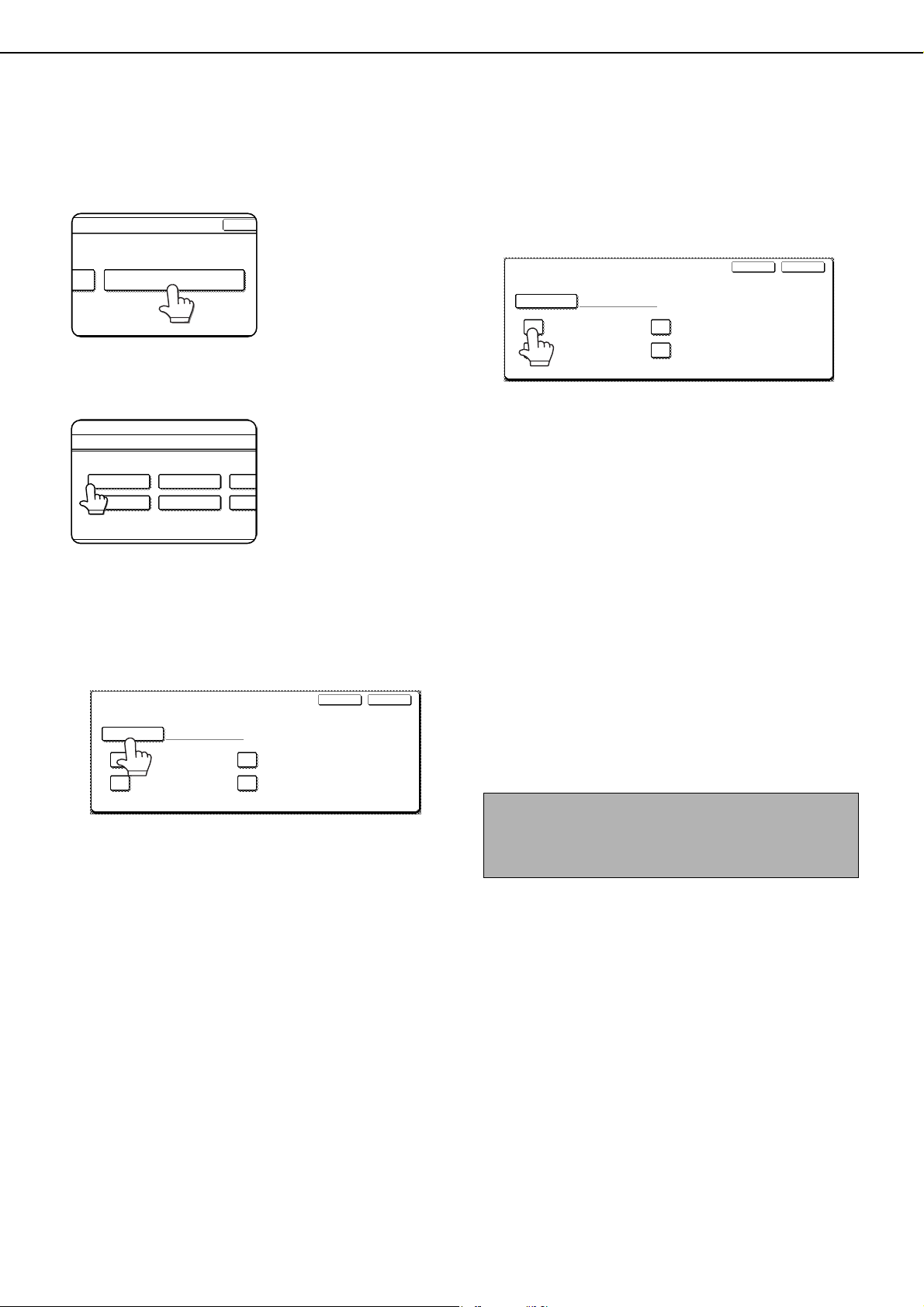
LOADING PAPER
2-16
■ Programming and editing paper types
To program or edit the name of a paper type or set paper attributes, follow the steps below.
1
Touch the [PAPER TYPE REGISTRATION]
key.
2
Select the paper type that you wish to
program or edit.
3
Touch the [TYPE NAME] key.
A character entry screen appears. Enter up to 14
characters. Refer to page 7-29 for the procedure
for entering characters.
4
Set the paper attributes.
Touch the checkboxes to the left of the items to
select them.
FIXED PAPER SIDE:
Select this checkbox when paper is to be loaded
print side down in the tray. Make sure a checkmark
does not appear when paper is to be loaded print
side up.
• If the two-sided function is disabled using
"DISABLING OF DUPLEX" in the administrator
settings (page 11 of the administrator settings
guide), load the paper face up.
DISABLE DUPLEX:
Prohibits two-sided printing. Enable when the
backside of the paper cannot be printed on.
DISABLE STAPLE:
Prohibits stapling. Enable when using special
papers such as transparency film and label
sheets.
DISABLE PUNCH:
Prohibits punching. Enable when using special
papers such as transparency film and label
sheets.
5
Touch the [EXIT] key to exit the
programming/editing procedure.
OK
PAPER TYPE REGISTRATION
OK
PAPER TYPE REGISTRATION
OK
PAPER TYPE REGISTRATION
SYSTEM
SETTINGS
PAPER TYPE REGISTRATION
USER TYPE 1
SELECT THE PAPER TYPE TO EDIT.
USER TYPE 5
USER TYPE 2
USER TYPE 6
USER
USER
FIXED PAPER SIDE
TYPE NAME
PAPER TYPE REGISTRATION
No.01
USER TYPE 1
DISABLE STAPLE
DISABLE DUPLEX
DISABLE PUNCH
EXITCANCEL
NOTES
● Tray attributes depend on the selected paper.
● "FIXED PAPER SIDE" and "DISABLE DUPLEX"
cannot be simultaneously enabled.
DISABLE STAPLE
FIXED PAPER SIDE
TYPE NAME
PAPER TYPE REGISTRATION
No.01
USER TYPE 1
DISABLE DUPLEX
DISABLE PUNCH
EXITCANCEL
dragonII_copy_sec.book 16 ページ 2006年10月18日 水曜日 午後7時39分
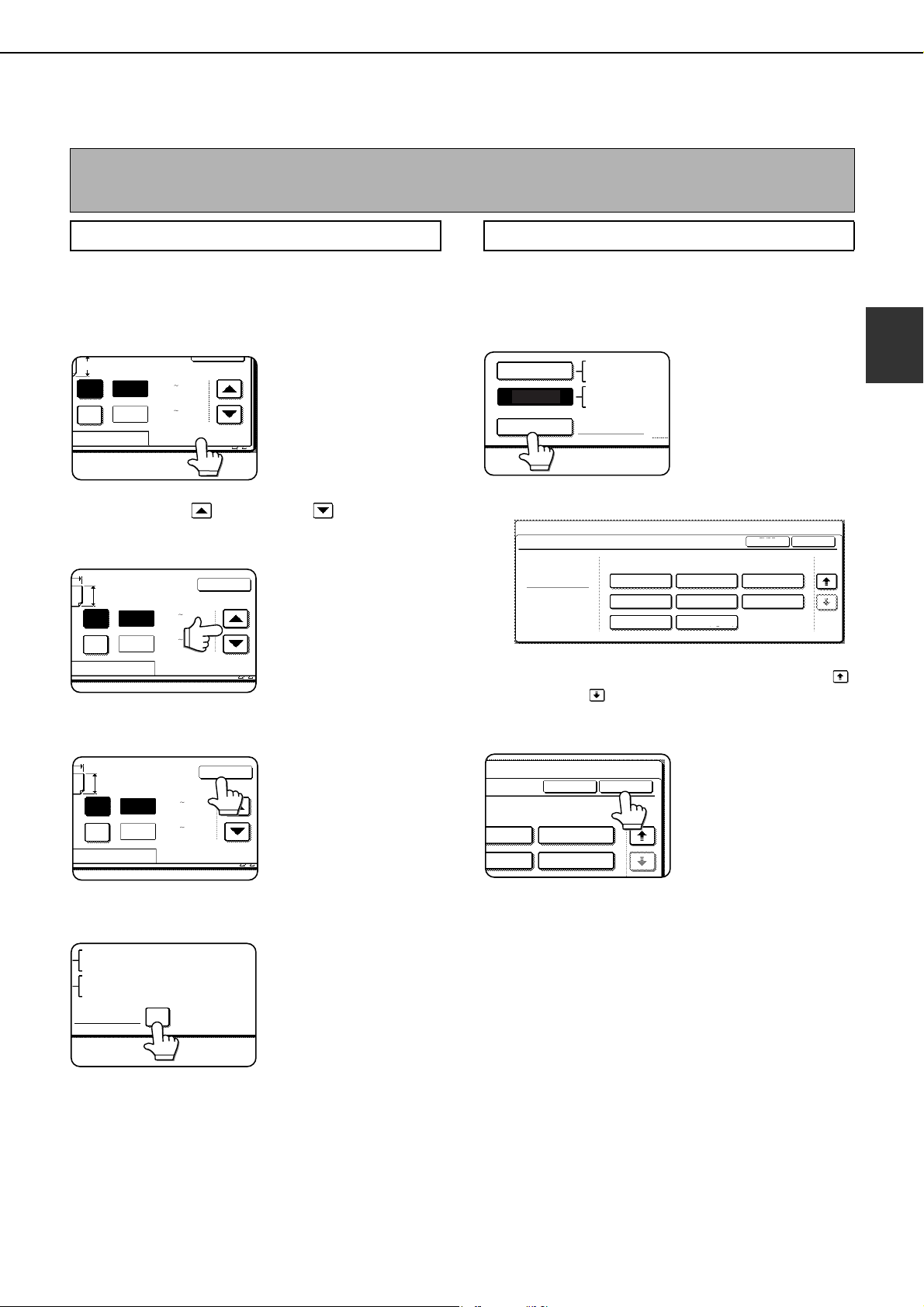
LOADING PAPER
2-17
2
Setting the paper size when a special size is loaded
1
Perform steps 1 through 5 of "Setting the
paper type and paper size" (see page 2-14).
2
Touch the [SIZE INPUT] key and then
touch the [INCH] tab.
The size entry palette
appears.
3
Touch the key or the key to enter
the X (width) and Y (length) dimensions of
the paper.
X (width) is initially
selected. To enter Y
(length), touch the [Y]
key and then enter the
length.
4
Touch the [OK] key.
You will return to the size
setting screen of step 2.
5
If the paper is a non-standard size, select
the [NON STANDARD SIZE] checkbox.
6
Perform steps 8 through 10 of "Setting the
paper type and paper size" (pages 2-15).
1
Perform steps 1 through 5 of "Setting the
paper type and paper size" (see page 2-14).
2
Touch the [SIZE SELECT] key.
The size selection
screen appears.
3
Select the desired paper size.
There are separate screens for inch-based paper
selection and AB paper selection. Touch the
key or the key to switch between the screens.
4
Touch the [OK] key.
You will return to the size
setting screen of step 2.
5
Perform steps 8 through 10 of "Setting the
paper type and paper size" (pages 2-15).
NOTE
Special sizes of paper cannot be loaded in trays 1, 2, 4 and 5.
Trays 3 and the bypass tray
AB
Y
11
17
X
(5 1/2 17)
inch
INCH
OK
(5 1/2 11 5/8)
inch
Y
X
AB
Y
11
17
Y
X
INCH
OK
(5 1/2 17)
inch
(5 1/2 11 5/8)
inch
X
AB
Y
11
17
Y
X
INCH
OK
(5 1/2 17)
inch
(5 1/2 11 5/8)
inch
NON STANDARD
SIZE
11
X
17,8
X
14,8
X
11
1
/
2
1
/
2
8
X
11R,7
X
10 ,5
X
8 R
1
/
2
1
/
4
1
/
2
1
/
2
1
/
2
A3,A4,A4R,A5R,B4,B5
B5R,216x330(8 x13)
X17 Y11
5
/
8
1
/
2
Inserter (option)
SIZE SELECT
11
X
17,8
X
14,8
X
1
/
2
1
/
2
8
X
11R,7
X
10 ,5
1
/
2
1
/
4
1
/
2
A3,A4,A4R,A5R,B
AUTO-INCH
AUTO-AB
B5R
2/2
PLAIN
A3
OK
TYPE
INSERTER TYPE/SIZE SETTING
TYPE
SYSTEM SETTINGS
A4 A4R
A5R B4
B5R
B5
SIZE
216x330(8 x13)
1
/
2
2/2
OK
TYPE
A4 A4R
B4 B5
SIZE
dragonII_copy_sec.book 17 ページ 2006年10月18日 水曜日 午後7時39分
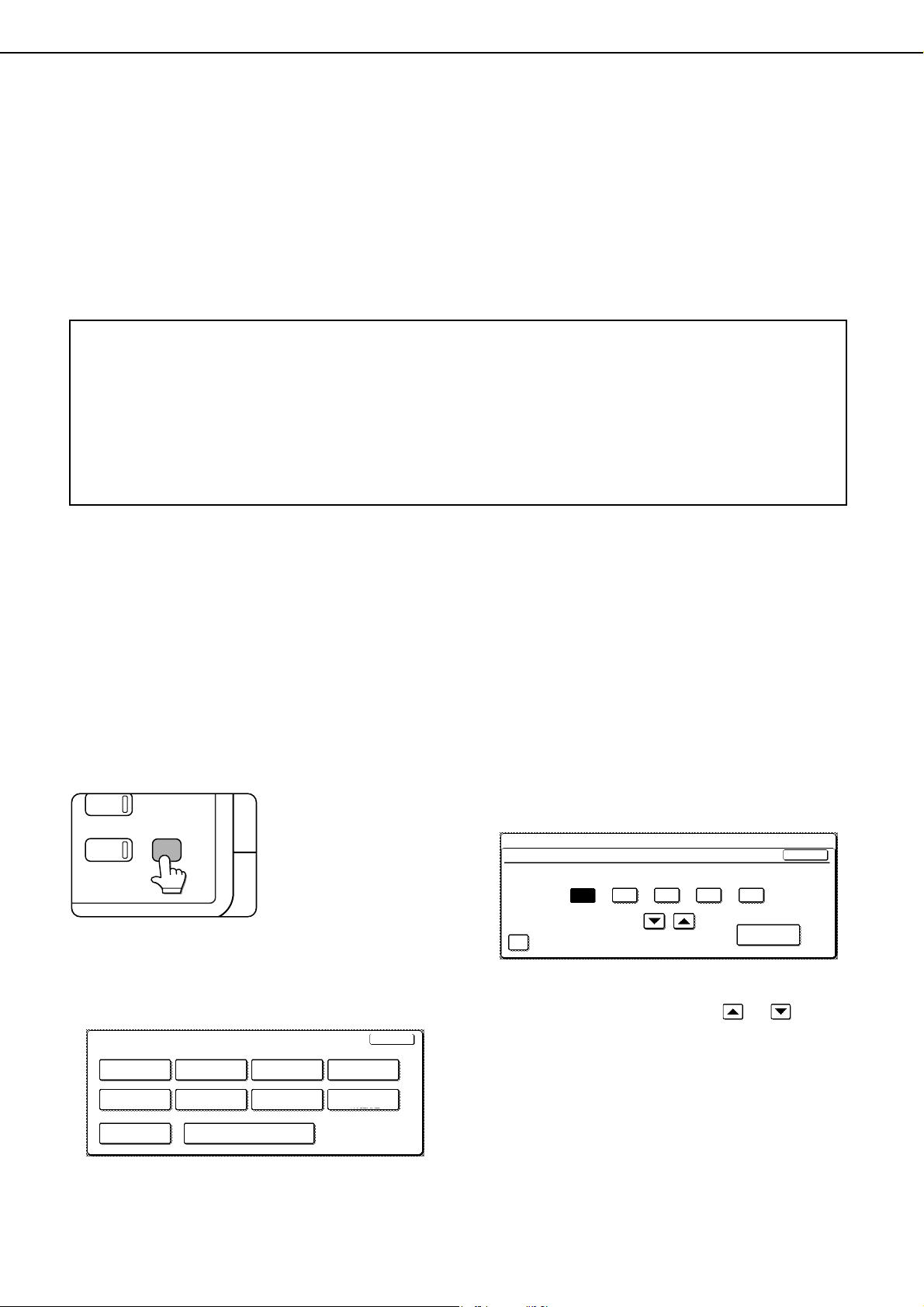
2-18
SYSTEM SETTINGS
The system settings can be used as needed to meet the needs of your workplace. The items that can be set with the
system settings are shown below.
● Total count . . . . . . . . . . . . . . . . . .The number of pages processed by the machine and optional equipment
can be displayed. (See page 2-20)
● Default settings . . . . . . . . . . . . . . Used to configure the screen contrast, date and time, and keyboard
selection*
1
settings. (See page 2-20)
● List print . . . . . . . . . . . . . . . . . . . . Used to print lists of settings and fonts. (See page 2-20)
● Paper tray settings . . . . . . . . . . . .The paper type, paper size and automatic tray switching can be set for each
tray. Automatic tray switching allows feeding to switch between trays loaded
with the same type and size of paper. If one tray runs out of paper during
printing, printing will continue from the other tray. (See page 2-20)
For the detailed descriptions and use of the settings listed below, see the fax, image send, and printer
manuals.
● Address control*
1
. . . . . . . . . . . . . Used to store information for various functions.
● Sender control*
2
. . . . . . . . . . . . . . Used to store the sender's information that appears on your Scan to E-mail
transmissions at the destination.
● Fax data receive/forward*
1
. . . . . . Faxes received to memory and received Internet faxes can be forwarded to
another destination.
● Printer condition . . . . . . . . . . . . . . Used to configure default settings for the printer function (see the Operation
manual (for printer)).
●
Document filing control*
2
. . . . . . . . . Used to configure default settings for the document filing function. (pages 7-25
to 7-28)
● Administrator settings . . . . . . . . . These are items that are used by the administrator of the machine to
configure machine settings. A key appears for these settings in the system
settings menu screen. For information on these settings, see the
administrator settings guide.
*1
These settings can be configured in a system where the facsimile, network scanner and Internet fax function is
available.
*2
These settings can be configured in a system where the network scanner function is available.
General procedure for system settings
1
Press the [SYSTEM SETTINGS] key.
The system setting
menu screen will
appear.
2
Touch the key of the desired item to
display its setting screen.
The example of selecting the [DEFAULT SETTINGS]
key and then the [CLOCK] key is explained below.
The system settings are described in detail on the
following pages.
3
Touch the [CLOCK] key.
Touch the [CLOCK] key and then the following
screen appears.
4
Touch the year, month, day, hour or minute
key, and then use the or key to
adjust the setting.
●If you select a non-existent date (for example,
Feb. 30), the [OK] key will gray out to prevent
entry of the date.
●Select [DAYLIGHT SAVING TIME SETTING]
checkbox to have the time automatically
change at the beginning and end of daylight
saving time.
PY
JOB STATUS
SYSTEM
SETTINGS
SYSTEM SETTINGS
LIST PRINT
FAX DATA
RECEIVE/FORWARD
PAPER TRAY
SETTINGS
PRINTER
CONDITION
EXIT
DEFAULT
SETTINGS
SENDER CONTROL
ADMINISTRATOR SETTINGS
ADDRESS CONTROL
TOTAL COUNT
DOCUMENT FILING
CONTROL
SYSTEM SETTINGS
CLOCK ADJUST
DATE FORMAT
YEAR MONTH DAY HOUR MINUTE
2010 04 04 11 30
OK
DAYLIGHT SAVING TIME SETTING
dragon_02-2.fm 18 ページ 2006年11月30日 木曜日 午後2時13分

SYSTEM SETTINGS
2-19
2
5
Touch the [DATE FORMAT] key.
The following screen appears.
6
If you wish to change the format of the date
and time, touch the desired format keys.
Touched keys are highlighted.
The selected format is applied to lists printed out in
"LIST PRINT".
7
Touch the [OK] key.
You will return to the
date and time setting
screen.
8
Touch the [OK] key.
9
To exit the settings, touch the [EXIT] key.
SYSTEM SETTINGS
DATE FORMAT
YYYY/MM/DD
MM/DD/YYYY
DAY-NAME
POSITION
OK
FIRST 12-HOUR
24-HOUR
LAST
2010/04/04/SUN 11:30
DD/MM/YYYY
AME
ON
OK
T 12-HOUR
SYSTEM SETTINGS
LIST PRINT
FAX DATA
RECEIVE/FORWARD
PAPER TRAY
SETTINGS
EXIT
DEFAULT
SETTINGS
SENDER CONTROL
ADMINISTRATOR SETTINGS
ADDRESS CONTROL
TOTAL COUNT
DOCUMENT FILING
CONTROL
PRINTER
CONDITION
More information on setting procedures
In the following type of screen, a setting is selected
by touching the key so that a checkmark ( )
appears. The settings below are configured to
allow use of tray 1 in print, copy, and fax modes. To
display the next screen, touch the or keys.
FAXCOPYPRINT
TRAY1
TYPE / SIZE
SYSTEM SETTINGS
PAPER TRAY SETTINGS
PLAIN / 8 X11
1
/
2
FIXED PAPER SIDE
1/8
OK
DOC.
FILING
I-FAX
DISABLE DUPLEX
DISABLE STAPLE
DISABLE PUNCH
dragonII_copy_sec.book 19 ページ 2006年10月18日 水曜日 午後7時39分
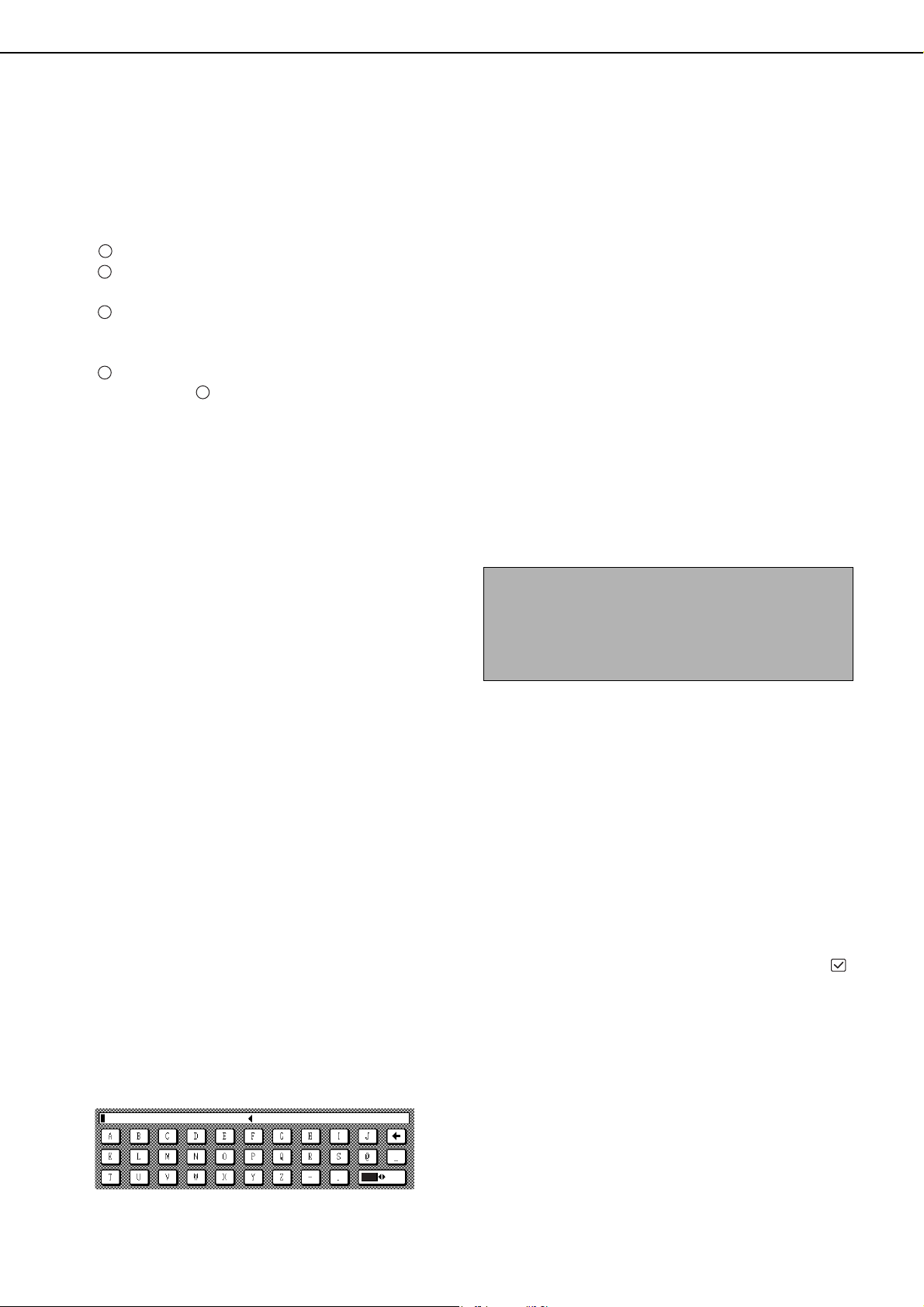
SYSTEM SETTINGS
2-20
About the settings
■ Total count
This displays the following sheet counts (the
counts that can be displayed vary depending on
the options installed):
Number of pages output by the machine.
Number of original pages transmitted by the
machine.
Number of times the automatic document feeder
was used to feed original pages and number of
times the stapler was used (if installed).
Number of pages stored by document filing.
In the case of only,
●11" x 17" (A3) size paper is counted as two
sheets.
●Each sheet of paper used for automatic two-
sided copying is counted as two sheets (11" x
17" (A3) paper is counted as four sheets).
●Paper with an entered size of 15-1/8" (384 mm)
or larger is counted as two sheets (four sheets
during automatic two-sided copying).
■ Default settings
The following settings can be configured:
●Display contrast
Screen contrast adjustment is used to make the
LCD touch panel easier to view under various
lighting conditions. Touch the [LIGHTER] key to
make the screen lighter, or the [DARKER] key to
make the screen darker.
●Clock
Use this to set the date and time in the
machine's built-in clock. This clock is used by
functions that require date and time information.
●Keyboard select
The layout of the keyboard that appears in letter
entry screens can be changed.
Select the arrangement of the letter keys that
you find easiest to use.
The following three alphabet keyboard
configurations are available:
● Keyboard 1 (QWERT... configuration)*
● Keyboard 2 (AZERTY...configuration)
● Keyboard 3 (ABCDEF...configuration)
* The default setting is "Keyboard 1".
(Example: Character entry screen when
Keyboard 3 is selected)
■ List print
This is used to print lists of machine settings and a
test page to check resident fonts.
The following lists and pages are available:
●All custom setting list
Shows the hardware status, software status,
printer configuration settings, tray settings, and
counts.
●Printer test page
Shows the PCL symbol set list, fonts, network
interface (NIC interface) settings, and settings
used for the NIC card.
●Sending address list
One touch destination list, group list, program
list, and memory box list.
●Document filing user / folder list
Shows the user names and folder names for
document filing.
●Sender control list
Shows the senders that have been stored.
■ Paper tray settings
The paper type, paper size, enabled modes and
automatic tray switching can be set for each tray.
See page
2-14
for details on setting the paper type
and paper size. Automatic switching to another
paper tray is used to automatically switch to
another tray with the same size and type of paper in
the event that the paper runs out during continuous
printing. This requires that the trays be loaded with
the same size of paper. The paper tray settings can
be enabled or disabled for each tray, and for printer
mode, copy mode, fax mode, Internet fax mode,
and document filing mode. To enable any function,
touch the check box key so that a checkmark
()
appears.
1
2
3
4
1
ABC abc
NOTE
A test page cannot be printed if "PROHIBIT TEST
PAGE PRINTING" (See the "Operation manual (for
printer)".) has been set to "prohibited" in the
administrator settings.
dragonII_copy_sec.book 20 ページ 2006年10月18日 水曜日 午後7時39分
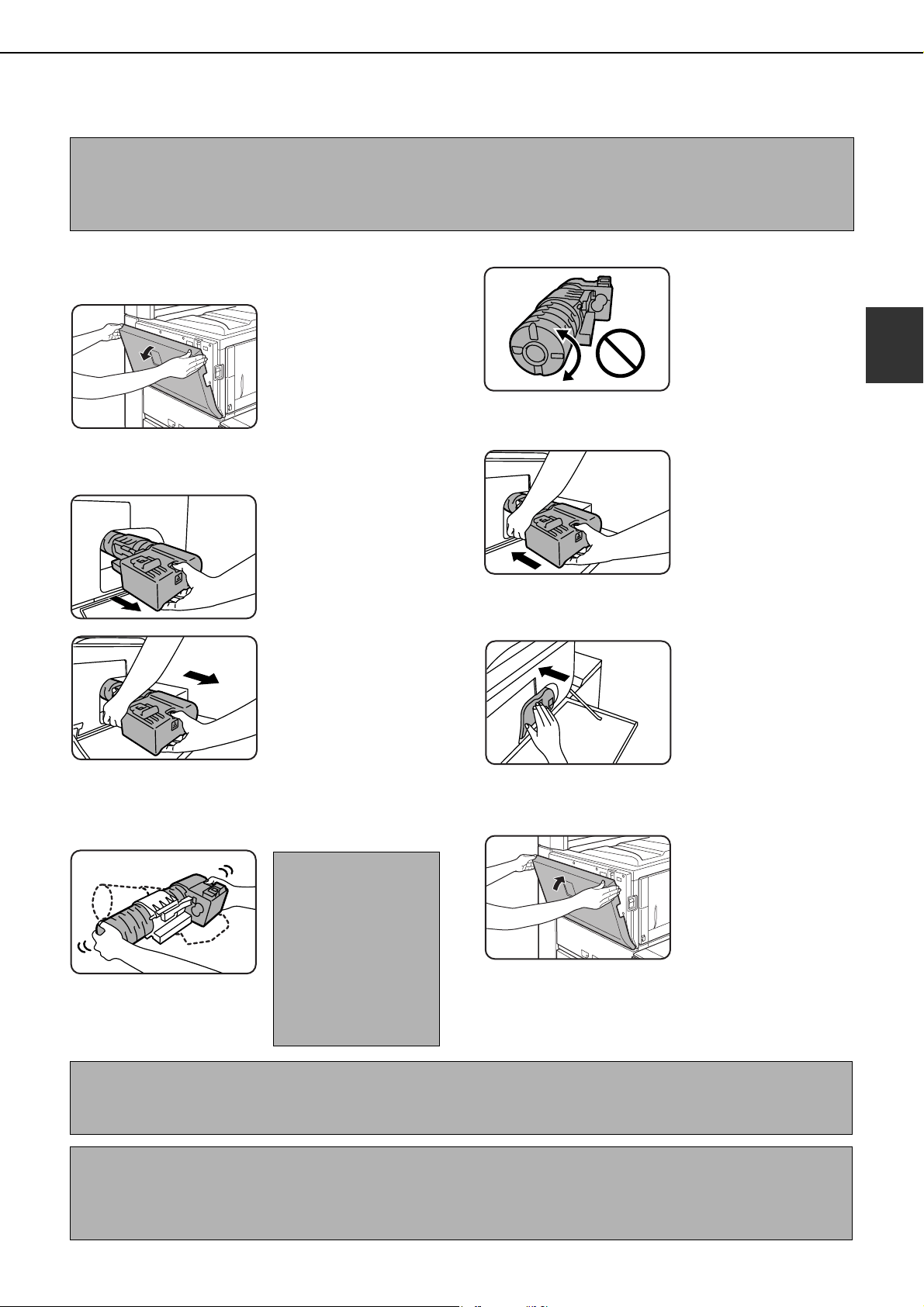
2-21
2
REPLACING THE TONER CARTRIDGES
When toner runs low, a message will appear to inform you that the toner cartridge must be replaced.
Follow the steps below to replace the toner cartridge.
1
Open the front cover.
2
Remove the toner cartridge gently.
Hold the toner cartridge
with both hands as
shown in the illustration,
and pull it out of the
machine.
3
Remove the new toner cartridge from the
box and shake it thoroughly for 10
seconds.
Shake the toner
cartridge horizontally.
Do not rotate it as shown
at left.
4
Insert the new toner cartridge.
Align the toner cartridge
with the insert hole and
push it in as shown.
Do not rotate the
cartridge.
5
Push the cartridge in until it locks securely
in place.
6
Close the front cover.
NOTE
To view the approximate amount of toner remaining, hold down the [COPY] key during printing or when the
machine is on standby. The percentage of toner remaining will appear in the display while you hold down the key.
When the percentage falls to "20-0%" , obtain a new toner cartridge and keep it ready for replacement.
CAUTION
It is important to
thoroughly shake the
supply cartridge for 10
seconds as shown in
the diagram in order to
ensure proper
operation of toner
supply system.
CAUTION
● Do not throw the toner cartridge into a fire. Toner may fly and cause burns.
● Store toner cartridges out of the reach of small children.
NOTE
Place the used toner cartridge in the plastic bag and store it. When placing the toner cartridge in the bag, insert
it horizontally, not vertically. If the cartridge is stood on end, the collected used toner may spill out and soil the floor
or your clothes.
dragon_02-2.fm 21 ページ 2006年10月23日 月曜日 午後12時55分
2-22
STORAGE OF SUPPLIES
Standard supplies for this product that can replaced by the user include paper, toner cartridges, and staple cartridges
for the finisher.
■ Proper storage
1. Store the supplies in a location that is:
● clean and dry,
● at a stable temperature,
● not exposed to direct sunlight.
2. Store paper in the wrapper and lying flat.
3. Paper stored in packages standing up or out of
the wrapper may curl or become damp, resulting
in paper misfeeds.
4. Store a new toner cartridge box horizontally. Do
not store it standing on end. If stored standing on
end, the toner may not distribute well even after
shaking the cartridge vigorously, and will remain
inside the cartridge without flowing out.
For best copying results, be sure to use only Sharp Genuine Supplies which are designed,
engineered, and tested to maximize the life and performance of Sharp products. Look for
the Genuine Supplies label on the toner package.
GENUINE SUPPLIES
Supply and Consumables
The supply of spare parts for a repair of the appliance is guaranteed for at least 7 years following the termination
of production. Spare parts are those parts of the apparatus which may break down within the scope of the ordinary
use of the product - whereas those parts which normally exceed the life of the product are not to be considered
as spare parts. Consumables too, are available for 7 years following the termination of production.
dragonII_copy_sec.book 22 ページ 2006年10月18日 水曜日 午後7時39分
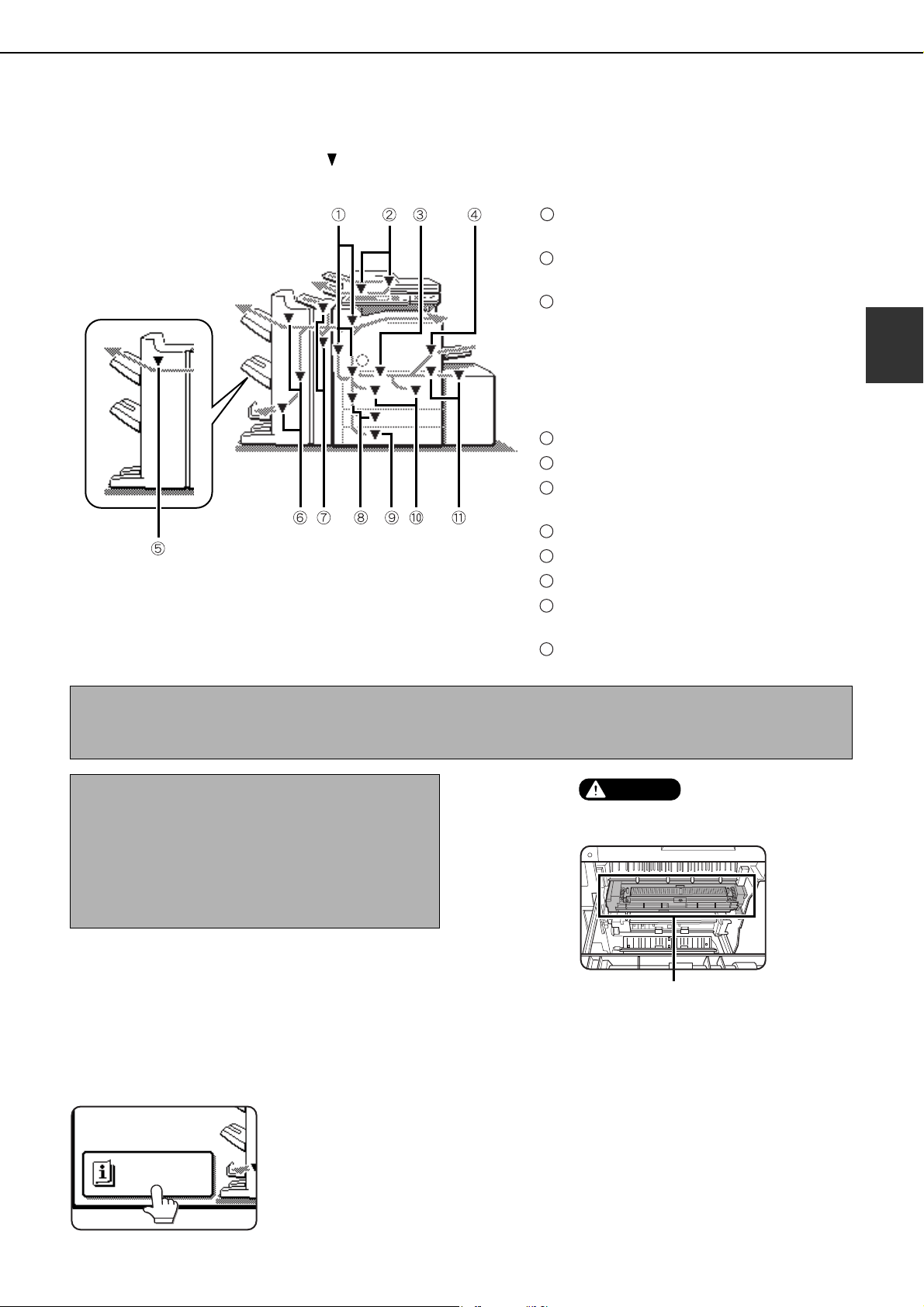
2-23
2
MISFEED REMOVAL
When a misfeed has occurred during printing, the message "A MISFEED HAS OCCURRED". will appear in the touch
panel display of the operation panel and printing including copying and facsimile output will stop. The approximate
misfeed locations are indicated with " " shown in the illustration below. The page numbers for detailed information
on misfeed removal are also shown.
Misfeed removal guidance
Misfeed removal guidance can be displayed by touching the [INFORMATION] key on the touch panel after a misfeed
has occurred.
Misfeed in the transport area, fusing
area, and exit area (See page 2-24)
Misfeed in the automatic document
feeder (See page 2-31)
When feeding paper from tray 2, the
bypass tray, or tray 5, this mark may
blink. When the mark blinks, check the
following diagrams:
●
Fourth diagram in step 3 on page 2-26
●
Diagram in step 6 on page 2-27
●
Diagram in step 8 on page 2-29, 2-30
Misfeed in the bypass tray (See page 2-28)
Misfeed in the finisher (See page 3-11)
Misfeed in the saddle
stitch finisher
(See page 3-11)
Misfeed in the
inserter (See page 3-17)
Misfeed in the
tray 3 (See page 2-27)
Misfeed in the
tray 4 (See page 2-27)
Misfeed in
tray 1 - tray 2
(See page 2-26)
Misfeed in the
tray 5 (See page 2-29, 2-30)
1
2
3
4
5
6
7
8
9
10
11
NOTE
Printing is not possible when a misfeed occurs, and thus any faxes or Internet faxes received at this time will be
temporarily held in memory. The faxes will print out automatically as soon as the misfeed is cleared.
NOTES
● Do not damage or touch the photoconductive
drum. (See page 2-24.)
● Be careful not to tear the misfed paper during
removal.
● lf paper is accidentally torn during removal, be
sure to remove all pieces.
Fusing unit
CAUTION
The fusing unit is hot. Take
care in removing paper.
INFORMATION
dragonII_copy_sec.book 23 ページ 2006年10月18日 水曜日 午後7時39分
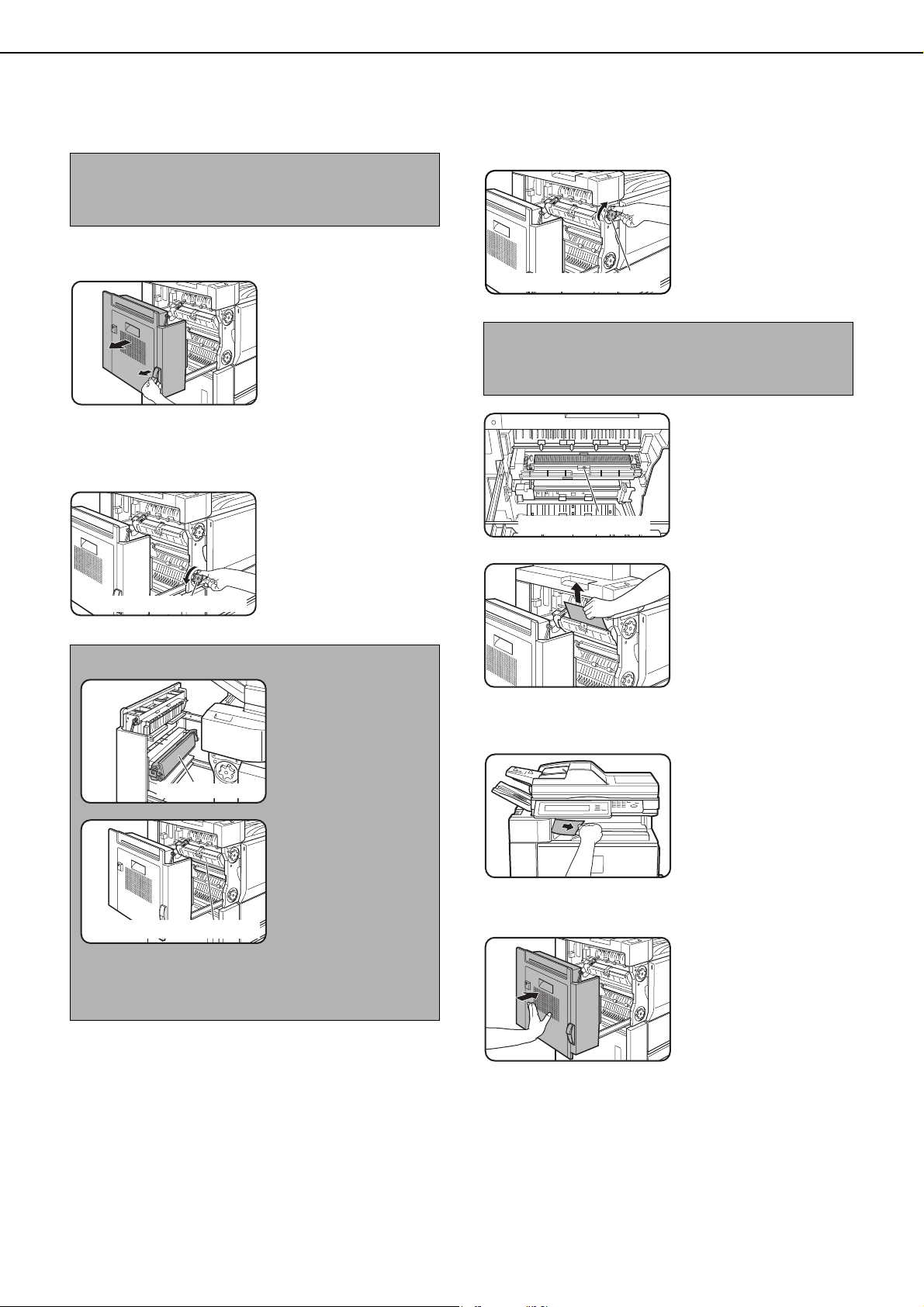
MISFEED REMOVAL
2-24
Misfeed in the transport area, fusing area, and exit area
1
Remove the duplex unit.
Grasp the finger hold
and gently open the unit.
2
Remove the misfed paper as shown in the
illustrations below.
Misfed in the transport area
Turn roller rotating knob
A in the direction of the
arrow to remove the
misfed paper.
Misfed in the fusing area
o
Turn roller rotating knob
B in the direction of the
arrow to remove the
misfed paper.
If the misfed paper is
inside the fusing area,
turn down the fusing unit
open tab to open the
fusing unit and remove
the misfed paper.
Misfed in the exit area
Be careful not to tear the
misfed paper during
removal.
3
Gently close the duplex unit.
After closing, confirm
that the misfeed
message has been
cleared and the normal
display appears.
CAUTION
The fusing unit is hot. Take care in removing paper.
(Do not touch the metal parts.)
NOTES
Do not touch or
damage the transfer
roller.
Do not touch or
damage the
photoconductive
drum.
After clearing the
misfeed, promptly
close the duplex unit.
Leaving the unit
open may adversely affect the photo-sensitive drum
and cause poor copy quality.
Roller rotating knob A
Transfer roller
Photoconductive drum
CAUTION
The fusing unit is hot. Take care in removing paper.
(Do not touch any metal parts.)
Roller rotating knob B
Fusing unit open tab
dragonII_copy_sec.book 24 ページ 2006年10月18日 水曜日 午後7時39分
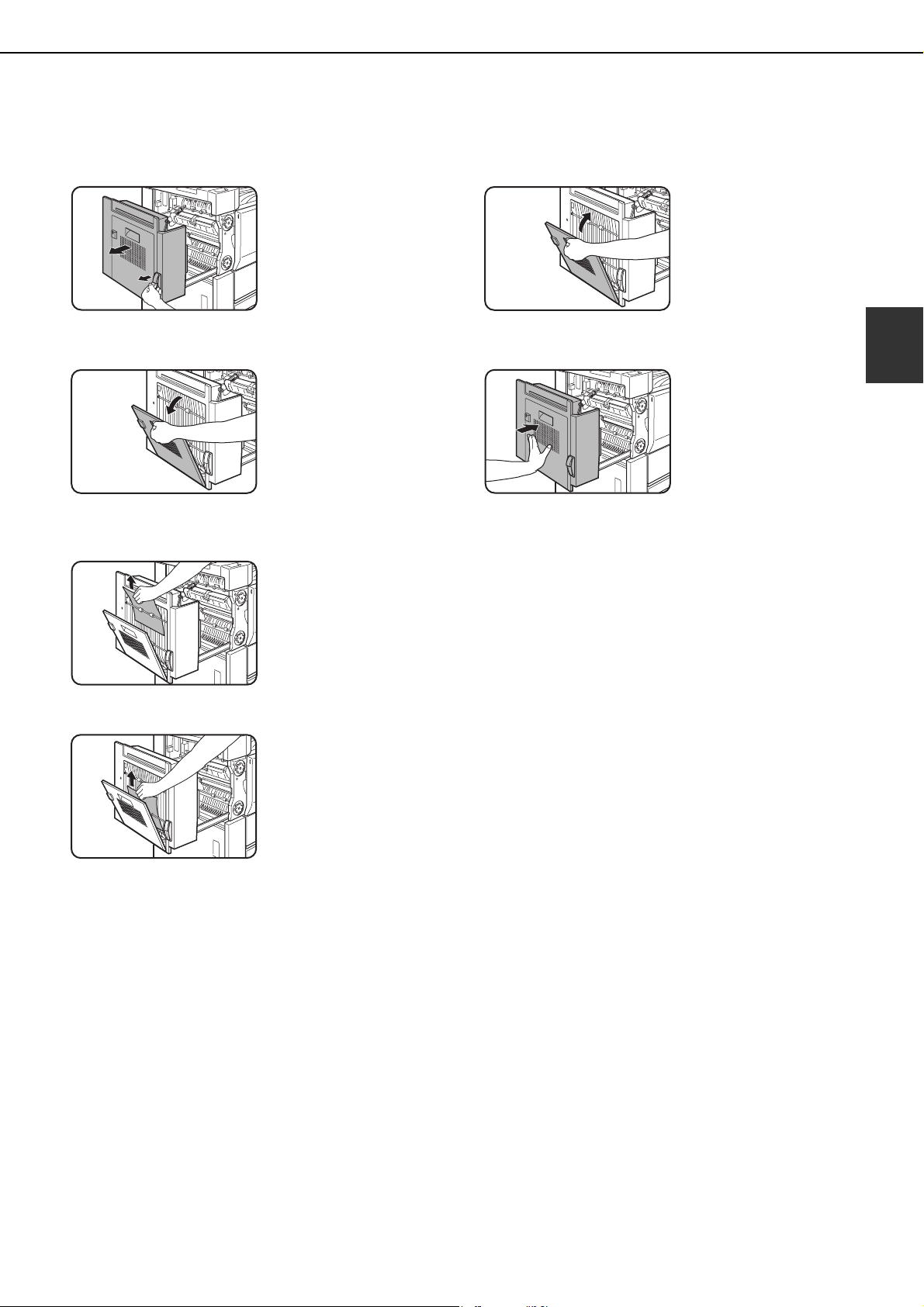
MISFEED REMOVAL
2-25
2
Misfeed in the duplex unit
1
Remove the duplex unit.
Grasp the finger hold
and gently open the unit.
2
Open the cover of the duplex unit.
3
Remove the misfed paper.
Misfeed in upper part of unit
Be careful not to tear the
misfed paper during
removal.
Misfeed in lower part of unit
Be careful not to tear the
misfed paper during
removal.
4
Close the cover of the duplex unit.
5
Gently close the duplex unit.
After closing the duplex
unit, confirm that the
misfeed message has
been cleared and the
normal display appears.
dragonII_copy_sec.book 25 ページ 2006年10月18日 水曜日 午後7時39分
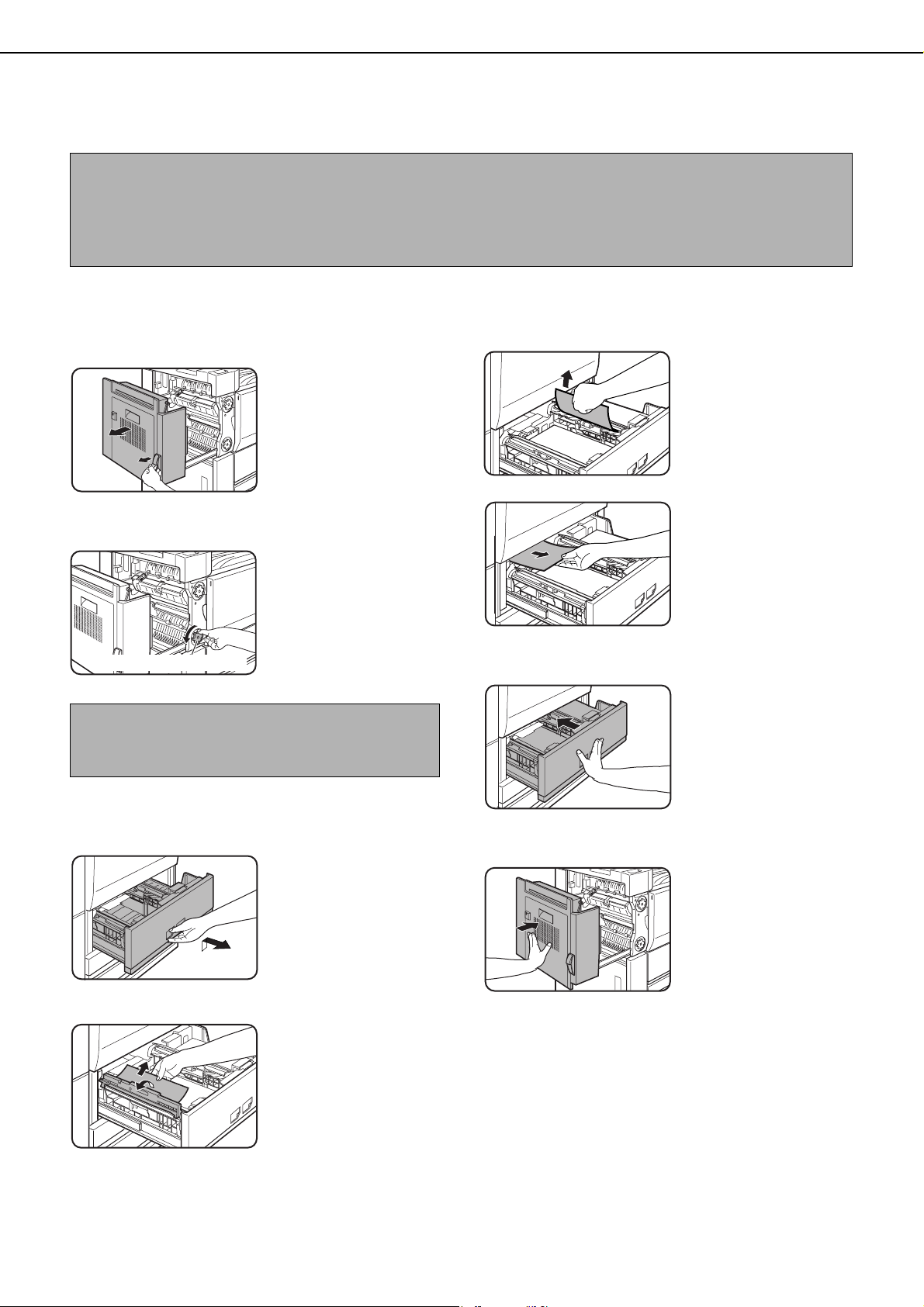
MISFEED REMOVAL
2-26
Misfeed in the paper feed area
■ Misfeed in paper tray 1 - tray 2
1
Remove the duplex unit.
Grasp the finger hold
and gently open the unit.
2
Remove the misfed paper.
Turn roller rotating knob
A in the direction of the
arrow to remove the
misfed paper.
3
If misfed paper is not found in step 2, pull
out paper tray 1 - tray 2 and remove the
misfed paper.
Grasp the finger hold
and gently open the unit.
Pull the tray all the way
out until it stops.
●
If paper is misfed in tray 1 (left-side tray)...
Lift the paper guide and
remove the misfed
paper.
Be sure to replace the
paper guide in its
original position after
removing the paper.
●
If paper is misfed in tray 2 (right-side tray)...
When using tray 2,
check the paper transfer
unit inside the tray and
remove any misfed
paper.
4
Gently close paper tray 1 - tray 2.
Push the tray all the way
back in.
5
Gently close the duplex unit.
After closing, confirm
that the misfeed
message has been
cleared and the normal
display appears.
NOTE
Be sure to follow the misfeed removal sequence. Do not pull the tray out immediately as the misfeed may have
occurred with paper partially fed out of the tray. Open the left cover and see if there is misfed paper first (steps 1
and 2). If you open the tray without checking, the partially fed paper may tear and leave torn pieces in the machine,
increasing the difficulty of removal.
NOTE
A misfeed may occur inside the compartment, so
please check the entire compartment carefully.
Roller rotating knob A
dragonII_copy_sec.book 26 ページ 2006年10月18日 水曜日 午後7時39分
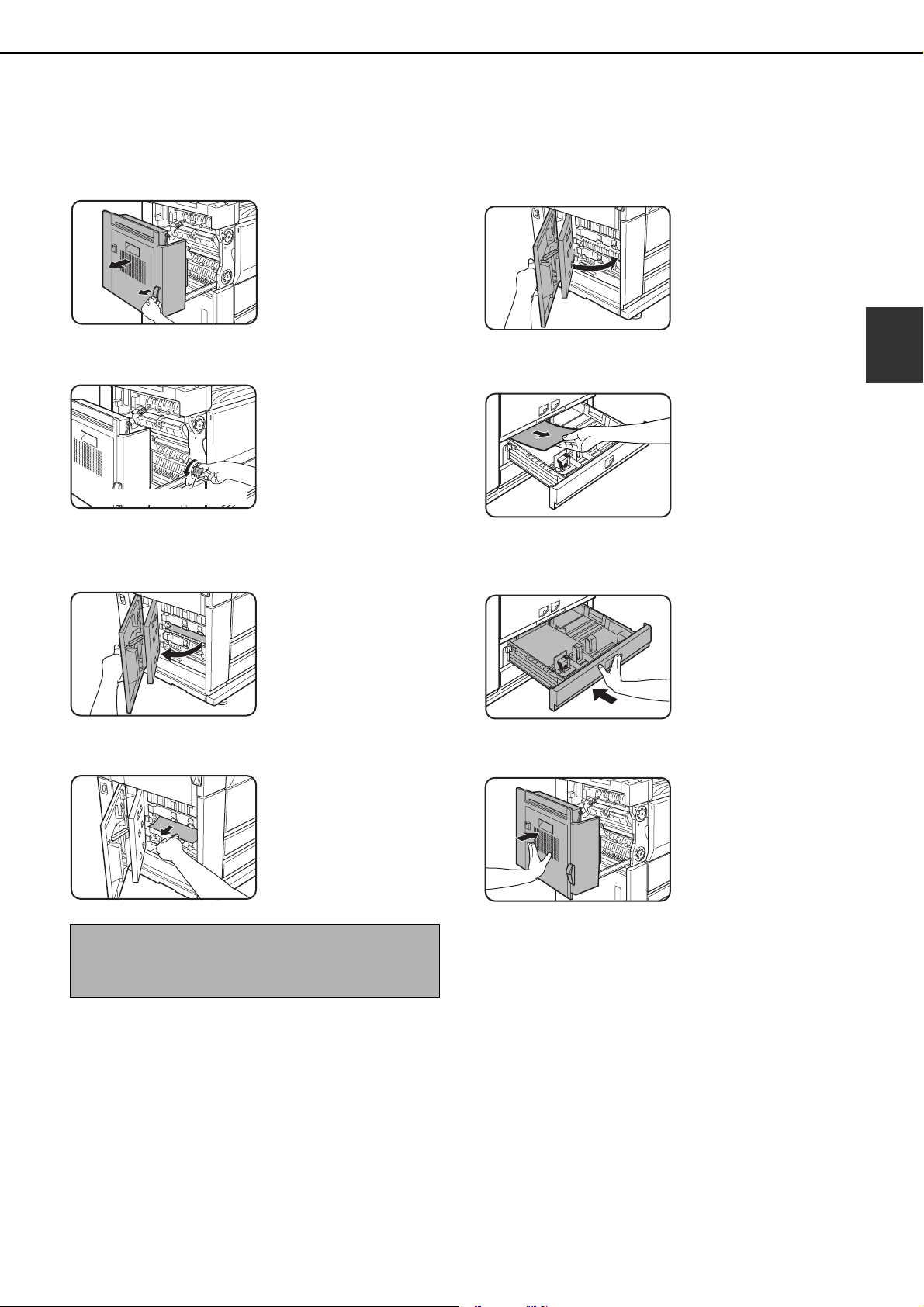
MISFEED REMOVAL
2-27
2
■ Misfeed in paper tray 3
1
Remove the duplex unit.
Grasp the finger hold
and gently open the unit.
2
Remove the misfed paper.
Turn roller rotating knob
A in the direction of the
arrow to remove the
misfed paper.
3
Open the lower cover on the left side of the
machine.
Grasp the finger hold
and gently open the unit.
4
Remove the misfed paper.
Be careful not to tear the
misfed paper during
removal.
5
Close the lower cover on the left side of
the machine.
6
If misfed paper is not found in step 3, pull out
paper tray 3 and remove the misfed paper.
Pull the tray all the way
out until it stops.
Check the paper
transfer unit inside the
tray.
Be careful not to tear the
misfed paper during
removal.
7
Gently close paper tray 3.
Push the tray all the way
back in.
8
Gently close the duplex unit.
After closing, confirm
that the misfeed
message has been
cleared and the normal
display appears.
■ Misfeed in the tray 4
To remove a misfeed in tray 4, follow the same steps as in "Misfeed in paper tray 3".
NOTE
A misfeed may occur inside the compartment, so
please check the entire compartment carefully.
Roller rotating knob A
dragonII_copy_sec.book 27 ページ 2006年10月18日 水曜日 午後7時39分

MISFEED REMOVAL
2-28
■ Misfeed in the bypass tray
1
Remove the misfed paper from the bypass
tray.
Be careful not to tear the
misfed paper during
removal.
2
If you did not find a misfeed in step 1, open
the side cover and remove the misfeed.
3
Gently close the side cover.
4
Remove tray 1 - tray 2.
Grasp the finger hold
and gently open the unit.
Pull the tray all the way
out until it stops.
5
Remove the misfed paper.
Check the paper
transfer unit inside the
tray and remove any
misfed paper.
6
Gently close paper tray 1 - tray 2.
Push the tray all the way
back in.
Make sure that the
misfeed message no
longer appears (the
normal message display
should appear).
NOTE
If a misfeed occurs during printing from the bypass
tray while paper is being loaded in tray 1 - tray 2,
push tray 1 - tray 2 back in to close it, and then pull
the tray out again.
dragonII_copy_sec.book 28 ページ 2006年10月18日 水曜日 午後7時39分
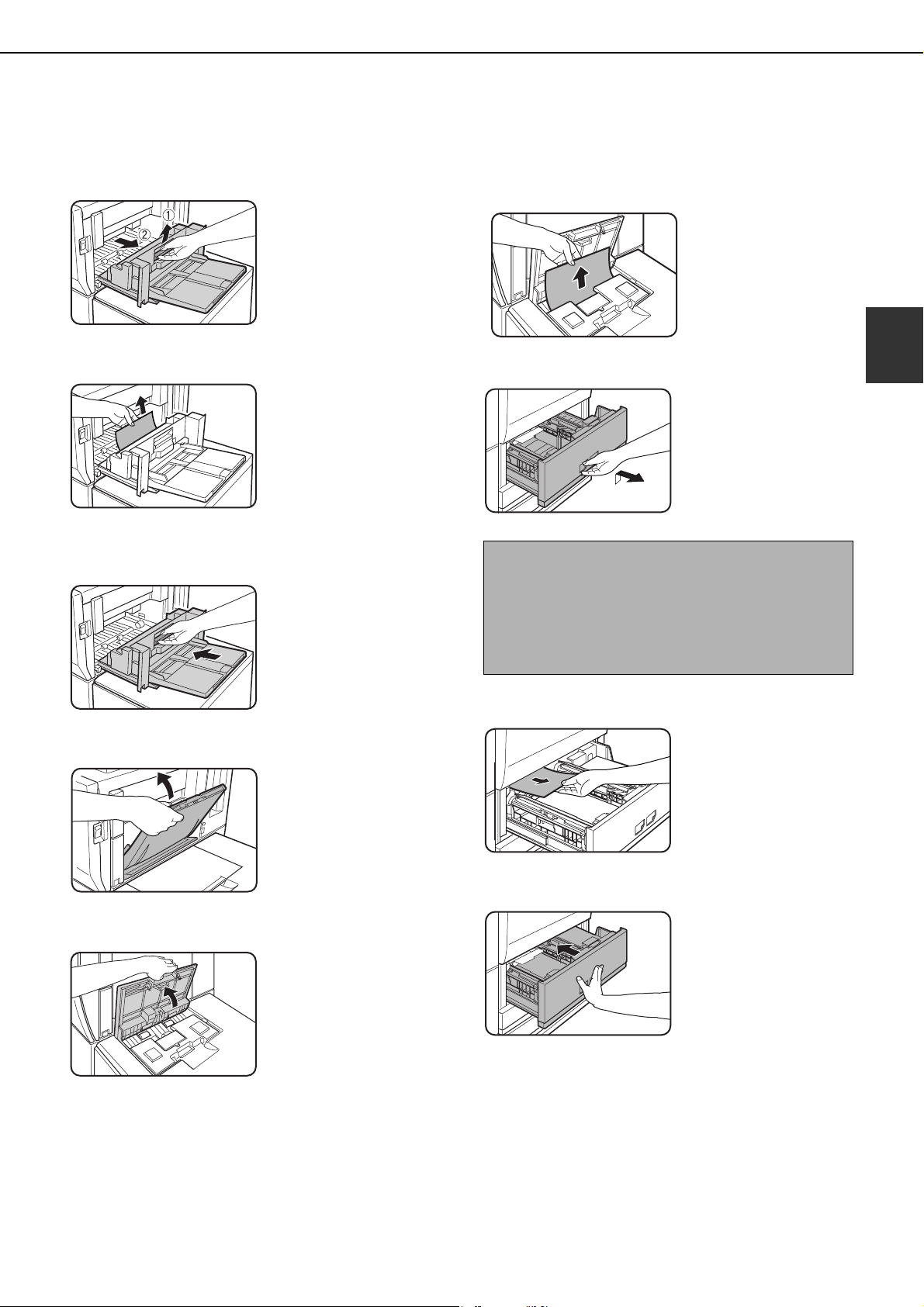
MISFEED REMOVAL
2-29
2
■ Misfeed in the tray 5 (AR-LC6)
1
Open the side cover.
2
Remove the misfed paper.
Be careful not to tear the
misfed paper during
removal.
3
Gently close the side cover.
4
Close the bypass tray.
5
Open the top cover of tray 5.
6
Open the top cover and remove the misfed
paper.
After removing the
misfed paper, close the
top cover.
7
Remove tray 1 - tray 2.
Grasp the finger hold
and gently open the unit.
Pull the tray all the way
out until it stops.
8
Remove the misfed paper.
Check the paper
transfer unit inside the
tray and remove any
misfed paper.
9
Gently close paper tray 1 - tray 2.
Push the tray all the way
back in.
Make sure that the
misfeed message no
longer appears (the
normal message display
should appear).
NOTE
If a misfeed occurs in the following situation, push
tray 1 - tray 2 back in to close it and then pull the tray
out again:
● A misfeed occurs during printing from tray 5 while
paper is being loaded in tray 1 or tray 2.
dragonII_copy_sec.book 29 ページ 2006年10月18日 水曜日 午後7時39分
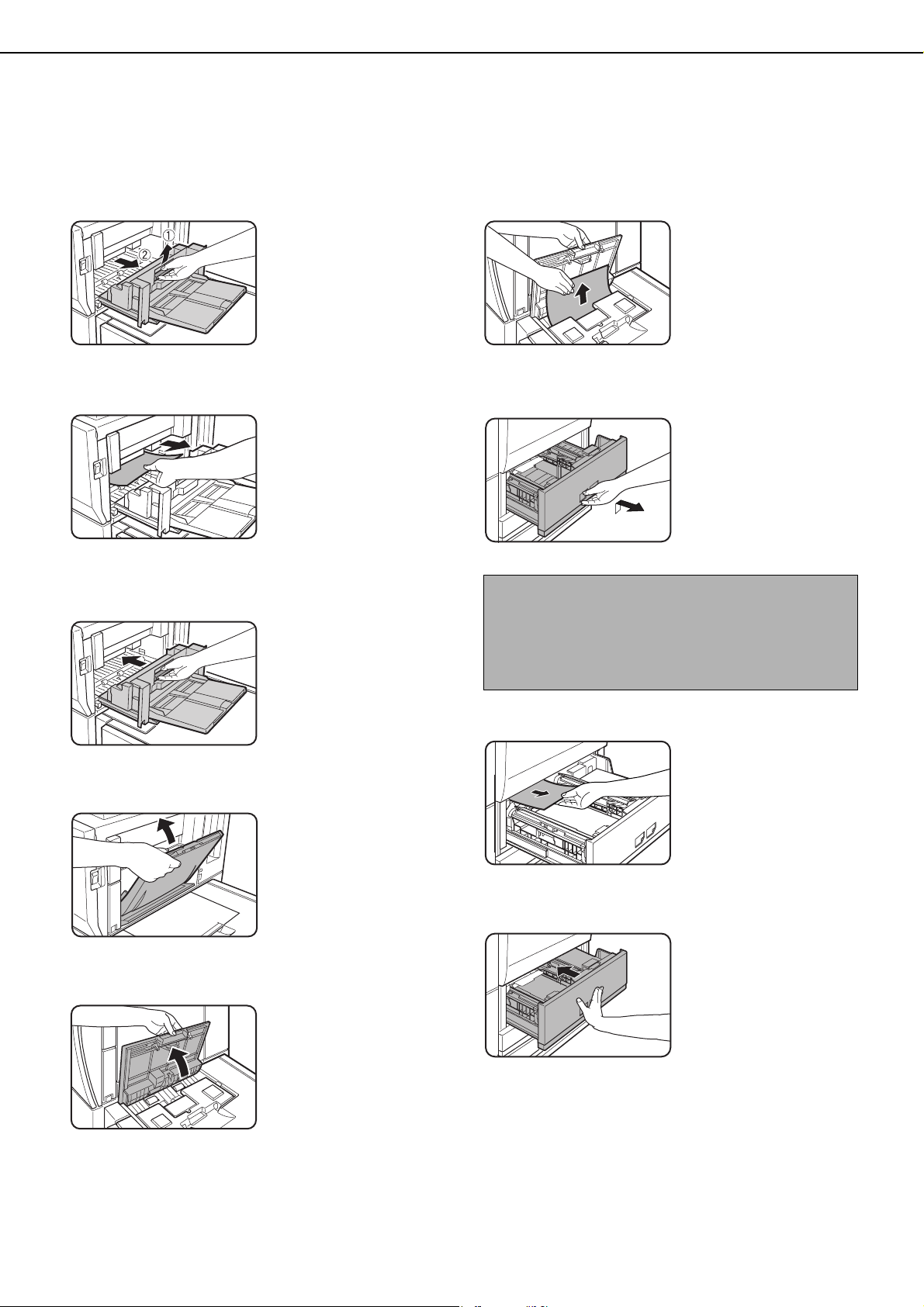
MISFEED REMOVAL
2-30
■ Misfeed in the tray 5 (AR-LC7)
If a paper misfeed occurs, follow the steps below to remove the misfeed.
1
Open the side cover.
2
Remove the misfed paper.
Be careful not to tear
the misfed paper
during removal.
3
Gently close the side cover.
4
Close the bypass tray.
5
Open the top cover of the AR-LC7 (tray 5).
Hold the top cover
open.
6
Remove the misfed paper.
Be careful not to tear
the misfed paper
during removal.
After removing the
misfed paper, close the
top cover.
7
Pull out tray 1 - tray 2.
Grasp the finger hold
and gently open the
tray.
Pull the tray all the way
out until it stops.
8
Remove the misfed paper.
Check the paper
transfer unit inside the
tray. If there is a
misfeed in the paper
transfer unit, remove
the misfeed.
9
Gently push tray 1-tray 2 into the machine.
Push the tray firmly all
the way into the
machine.
Make sure that the
misfeed message no
longer appears (the
normal message
display should appear).
NOTE
If a misfeed occurs in the following situation, push tray
1 - tray 2 back in and then pull the tray out again:
● A misfeed occurs during printing from tray 5 (AR-
LC7) while paper is being loaded in tray 1 - tray 2.
dragonII_copy_sec.book 30 ページ 2006年10月18日 水曜日 午後7時39分
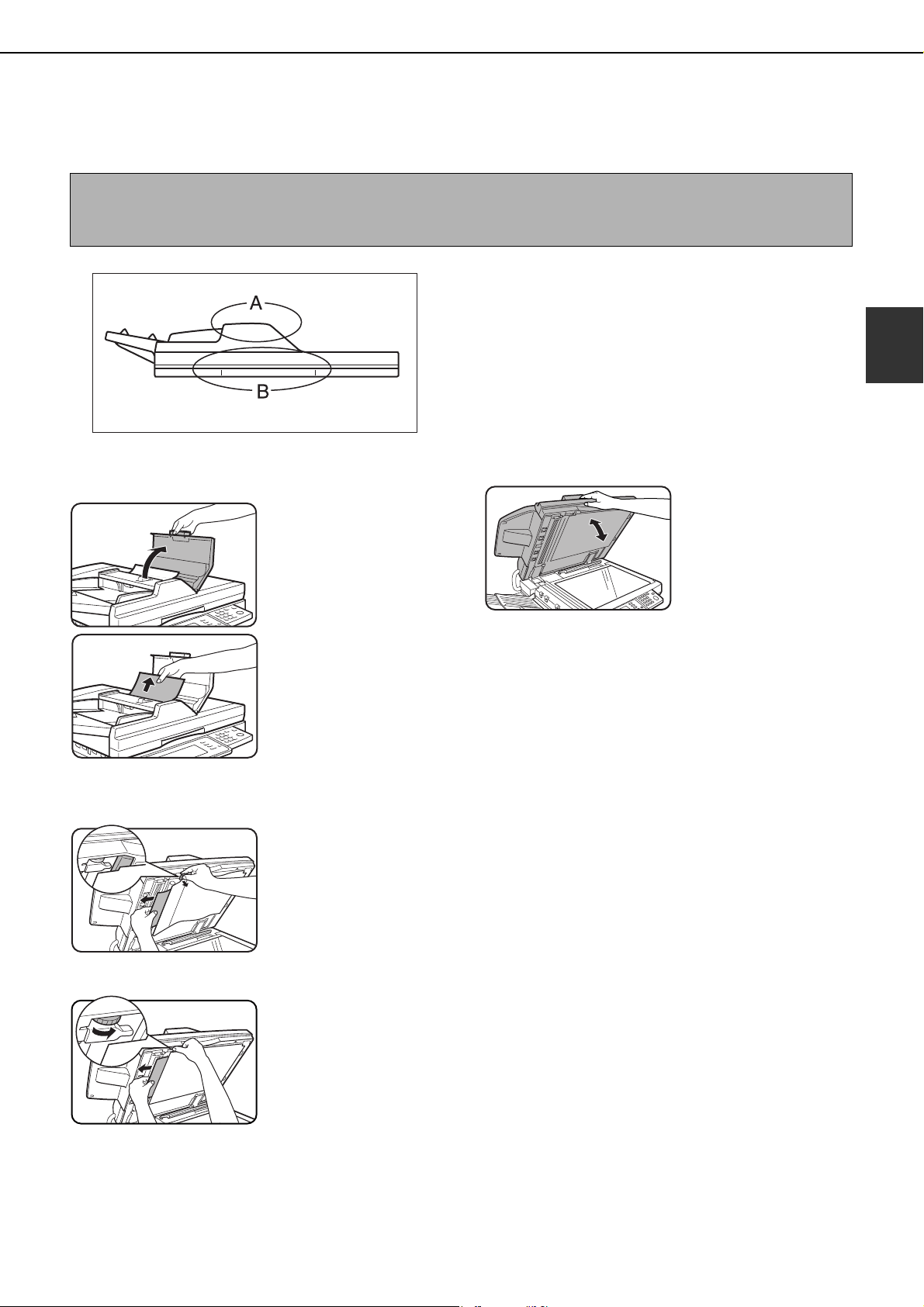
2-31
2
REMOVING AN ORIGINAL MISFEED
Removing a misfed original from the automatic document feeder
If an original misfeed occurs in the automatic document feeder, follow the steps below to remove the misfed original.
Check locations A and B in the diagram at left to
remove the original.
1
Removing misfeeds from each location.
● Check location A
Open the document
feeder cover and gently
remove the misfed
original without tearing
it. Close the document
feeder cover.
● Check location B
● Misfeed in the transfer unit
Open the document
transfer cover, hold the
paper guide open, and
remove the misfed
original.
● Misfeed in the document exit unit
Open the document
transfer cover. Rotate
the transfer roller in the
direction of the arrow
and gently remove the
original without tearing
it.
2
Open and close the document feeder
cover.
Opening and closing the
cover clears the misfeed
display. Copying cannot
be resumed until this
step is performed.
However, this step is not
necessary after a
misfeed is removed from location B.
A message may appear indicating the number of
originals which must be returned to the document
feeder tray. Return the originals to the document
feeder tray and press the [START] key.
NOTES
● For misfeed removal in the main unit and other peripheral devices, see page 2-23
● When a misfeed occurs, touch the [INFORMATION] key to display detailed information for misfeed removal.
dragonII_copy_sec.book 31 ページ 2006年10月18日 水曜日 午後7時39分
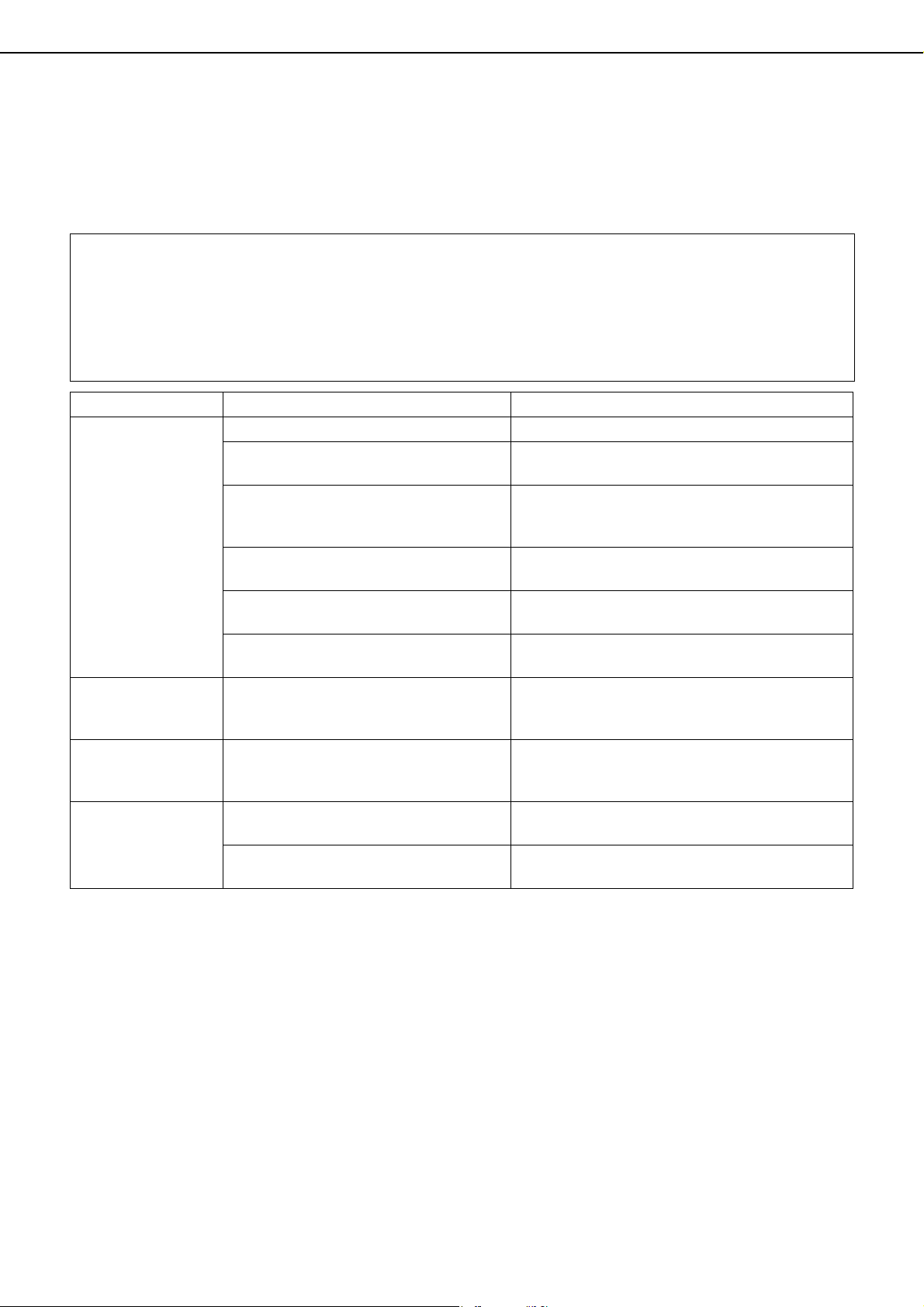
2-32
TROUBLESHOOTING
Check the following troubleshooting list before requesting service as many problems can be fixed by the user. If you
are unable to solve the problem by checking the list, turn off the main power switch and the power switch, unplug the
power cord.
Problems related to general use of the machine are described below. For problems related to the copy function, see
page 6-3. For problems related to document filing, see page 7-31. For fax, printer, and network scanner/Internet fax
problems, see the manuals for those functions. For peripheral device problems, see the explanation of the device.
If the message "CALL FOR SERVICE. CODE:**-**"
(Note)
appears in the touch panel, turn off the main power switch
and the power switch, wait about 10 seconds, and then turn the main power switch and the power switch back on.
If the message still appears after turning the main power switch and the power switch off and on several times, it
is likely that a failure has occurred that requires service. In this event, stop using the machine, unplug the power
cord, and contact your Sharp dealer.
Note: Letters and numbers appear in "**-**". When you contact your Sharp dealer, please tell your dealer what
letters and numbers appear.
Problem Check Solution or cause
The machine does
not operate.
Machine plugged in? Plug the machine into a grounded outlet.
The main power switch and power
switch are not turned on?
Turn on the main power switch and the power
switch. (Page 1-17)
READY indicator off?
The printer is warming up. (Warm-up time is
approximately 120 seconds.) Wait until the
READY indicator lights up.
Message indicating need to load paper
displayed?
Load paper. (Page 2-2)
Message indicating need to replace the
toner cartridge displayed?
Replace the toner cartridge. (Page 2-21)
Message indicating a paper misfeed
displayed?
Remove misfed paper. (Page 2-23)
Copying/printing is
not possible.
A message appears saying that this type
of paper cannot be used for two-sided
copying.
Two-sided printing is not possible on special
paper. Use paper that can be used for automatic
two-sided printing. (Page 2-13)
Incorrect bypass
tray paper size.
Incorrect display of paper sizes 11" x 17",
8-1/2" x 14", 8-1/2" x 13", 8-1/2" x 11"R,
A3, B4, or A4R only.
When loading sizes 11" x 17", 8-1/2" x 14", 8-1/
2" x 13", 8-1/2" x 11"R, A3, B4, or A4R, be sure
to open the tray extension.
Copying/printing on
paper from the
bypass tray is
skewed.
The number of sheets placed on the bypass
tray exceeds the maximum number.
Do not place more than the maximum number of
sheets.
The bypass guide is not adjusted to the
size of the loaded paper.
Adjust the bypass guide to the size of the loaded
paper.
dragonII_copy_sec.book 32 ページ 2006年10月18日 水曜日 午後7時39分

TROUBLESHOOTING
2-33
2
Paper from the
bypass tray
misfeeds.
The paper size and paper type have not
been set.
Be sure to set the paper size and paper type
when using special size or special type papers.
(Page 2-14)
The number of sheets placed on the bypass
tray exceeds the maximum number.
Do not place more than the maximum number of
sheets.
The bypass guide is not adjusted to the
size of the loaded paper.
Adjust the bypass guide to the size of the loaded
paper.
Printing stops
before the job is
finished.
If too many pages collect on the output
tray, the tray full sensor activates and
stops printing.
Remove the paper from the output tray.
The paper tray is out of paper. Load paper. (Page 2-2)
Smudges on printed
sheets
Does a message appear indicating the
need for maintenance?
Please contact your dealer as soon as possible.
The displayed paper
size or paper type
does not match the
loaded paper size or
paper type.
The correct paper size or paper type is
not set in the paper tray settings of the
system settings.
When loading paper, if you change the paper
size from an inch size to an AB size, or from an
AB size to an inch size, or change the paper
type, be sure to set the new paper type as
explained in "Setting the paper type and paper
size" (see page 2-14).
When printing on a
special size of
paper, part of the
printed image is
missing.
The paper size setting is not set
correctly in the paper tray settings of the
system settings.
When using a special size of paper, set the
correct paper size as explained in "Setting the
paper type and paper size" on page
2-14
. If the
paper size setting is not correct, part of the image
may be cut off or the image may not be printed.
When printing on a
special size of paper
using the bypass
tray, part of the
printed image is
missing.
The paper size is not set correctly in the
special size settings for the bypass tray.
When using a special size of paper, set the
correct paper size as explained in "Setting the
paper type and paper size" on page
2-14
. If the
paper size setting is not correct, part of the image
may be cut off or the image may not be printed.
Paper misfeeds
frequently.
Is paper other than SHARP-
recommended paper being used?
Use SHARP-recommended paper. (Page 2-22
)
Paper curled or damp?
Do not use curled or crimped paper. If you will
not use the paper for a long time, remove the
paper from the tray and store it in the wrapper in
a cool and dark location so that it will not absorb
moisture.
Is the paper curled and does it
frequently misfeed in the finisher or
saddle stitch finisher?
Paper may be curled when output depending on
the paper type and quality.
In some cases turning the paper over in the tray
will reduce misfeeding due to curling.
Multiple sheets of paper fed
simultaneously?
Remove the paper
from the paper
tray or the bypass
tray, fan the paper
as shown in the
illustration, and
then load it again.
The paper in the tray is not stacked
evenly.
Make sure that the paper in the paper tray is
stacked evenly. If the stack is not even, paper
misfeeds will occur.
Problem Check Solution or cause
dragonII_copy_sec.book 33 ページ 2006年10月18日 水曜日 午後7時39分
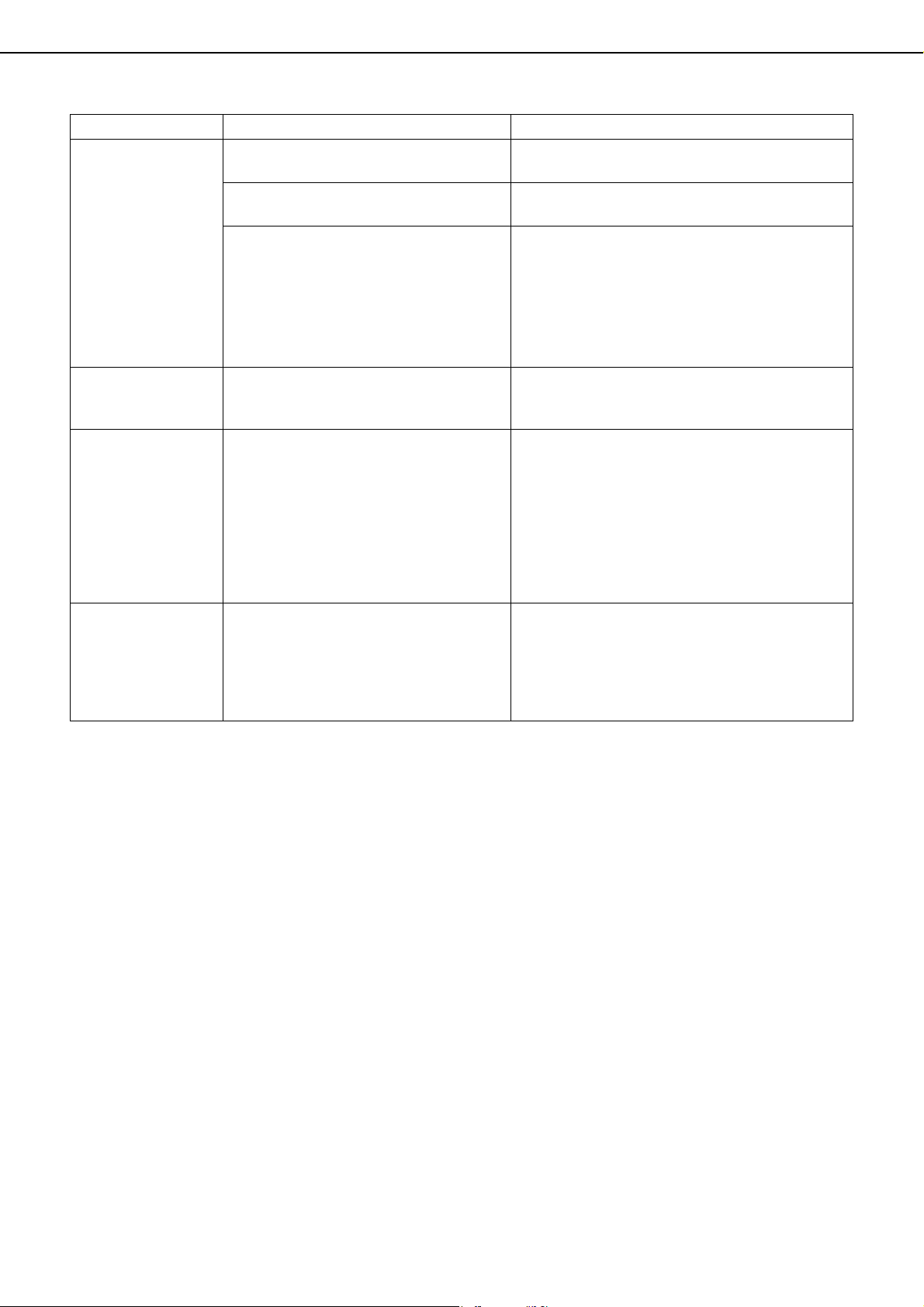
TROUBLESHOOTING
2-34
Printed paper is
wrinkled or the
image rubs off
easily.
Is paper other than SHARP-
recommended paper being used?
Use SHARP-recommended paper. (Page 2-22
)
Is the paper size or weight outside the
specifications?
Use paper within the specifications.
Paper damp?
Be sure to store paper in the wrapper in a dry
location and do not store paper in a location that is
●humid
●at a high temperature or an extremely low
temperature
●exposed to direct sunlight
●dusty.
The contrast on the
touch panel is too
high or too low.
Is LCD contrast properly adjusted?
Adjust the screen contrast using "DISPLAY
CONTRAST" in "DEFAULT SETTINGS" of the
system settings. (Page 2-20)
Printing takes place
on the wrong side of
the paper.
The paper is loaded in the tray with the
print side face down*.
* Face up if the paper type is "PRE-
PRINTED" or "LETTER HEAD".
Load paper in the tray with the print side face up.
However, if the paper type is "PRE-PRINTED" or
"LETTER HEAD", load the paper with the print
side face down*.
* If the two-sided function has been prohibited
using "DISABLING OF DUPLEX" in the
administrator settings (page 11 of the
administrator settings guide), load the paper
face up.
Marks appear at
regular intervals on
printed pages.
Paper with punch holes is being used.
If the original image overlaps the punch holes,
marks will appear at the position of the holes on
the back of the paper after one-sided printing, or
on the front and back of the paper after two-sided
printing. Make sure that the original image does
not overlap the punch holes.
Problem Check Solution or cause
dragonII_copy_sec.book 34 ページ 2006年10月18日 水曜日 午後7時39分

3-1
CHAPTER 3
PERIPHERAL DEVICES
This chapter explains the procedures for using the optional finisher,
saddle stitch finisher, and inserter, as well as Sharp OSA (application
communication module and external account module).
Page
FINISHER AND SADDLE STITCH FINISHER........................................ 3-2
●
Part names...................................................................................... 3-2
●
Specifications.................................................................................. 3-2
●
Finishing methods........................................................................... 3-4
●
Finishing modes and finisher functions........................................... 3-6
●
Staple cartridge replacement and staple jam removal.................... 3-7
●
Removing a misfeed........................................................................ 3-11
●
Troubleshooting finisher/saddle stitch finisher problems................. 3-13
INSERTER.............................................................................................. 3-14
●
Part names...................................................................................... 3-14
●
Specifications.................................................................................. 3-14
●
Loading paper ................................................................................. 3-15
●
Manual operation of the inserter ..................................................... 3-15
●
Misfeed removal.............................................................................. 3-17
●
Troubleshooting inserter problems.................................................. 3-18
SHARP OSA ........................................................................................... 3-19
APPLICATION COMMUNICATION MODULE (MX-AMX2)..................... 3-19
●
Standard application setup.............................................................. 3-19
●
Selecting a standard application ..................................................... 3-19
●
Operation in OSA mode.................................................................. 3-20
EXTERNAL ACCOUNT MODULE (MX-AMX3) ...................................... 3-21
●
External account application setup ................................................. 3-21
●
Operation in external account mode ............................................... 3-21
dragonII_copy_sec.book 1 ページ 2006年10月18日 水曜日 午後7時39分
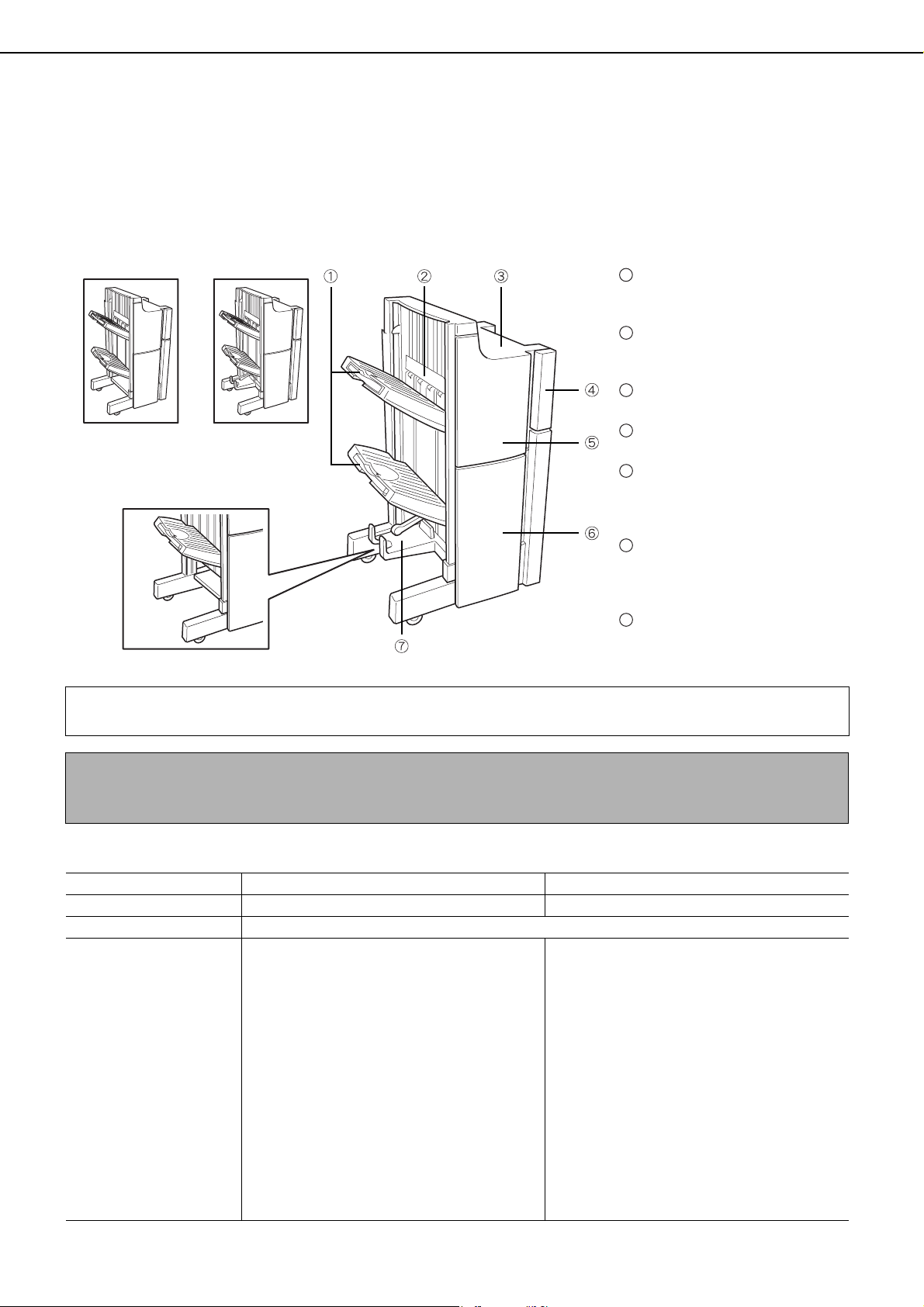
3-2
FINISHER AND SADDLE STITCH FINISHER
The finisher and the saddle stitch finisher include the offset function, which offsets each set of copies from the
preceding set for easy separation. Each set of sorted copies can also be stapled. The saddle stitch finisher can
automatically staple a set of copies at the center line and fold the pages to create a pamphlet.
A punch module unit can be installed to add punch holes to copies, and an inserter can be installed to insert blank
pages at specified pages.
In the following explanations, the finisher and saddle stitch finisher are referred to simply as "finisher".
Part names
Specifications
* The illustrations on the following pages (to page 3-18) show the AR-F16; however, the operation of the AR-F15
is the same as the AR-F16.
NOTES
● Do not press on the finisher.
● Use caution when near the offset tray during printing as the tray moves up and down.
Name Finisher (AR-F15) Saddle stitch finisher (AR-F16)
Number of trays 2 3
Paper output Face down output
Paper capacity
Upper paper tray/Middle paper tray:
Non-stapling:
2000 sheets of paper or total aggregate
thickness is within 9-53/64" (250mm):
8-1/2" x 11", 5-1/2" x 8-1/2"R, A4, B5 or A5R
(20 lbs. (80
g
/m
2
))
1000 sheets of paper
or total aggregate
thickness is within 5-1/2" (140mm)
:
Sizes other than the above
Stapling:
100 sets or 750 pages of 8-1/2" x 11", A4
or B5 paper.
100 sets or 500 pages of other sizes of
paper
Upper paper tray/Middle paper tray:
Non-stapling:
2000 sheets of paper or total aggregate thickness
is within 9-53/64" (250mm): 8-1/2" x 11", 5-1/2" x
8-1/2"R, A4, B5 or A5R (20 lbs. (80
g
/m
2
))
1000 sheets of paper or total aggregate thickness is
within 5-1/2" (140mm): Sizes other than the above
Stapling:
100 sets or 750 pages or total aggregate thickness is
within 4-5/16" (110mm) of 8-1/2" x 11", A4 or B5 paper.
100 sets or 500 pages or total aggregate thickness
is within 2-29/32" (74mm) of other sizes of paper
Lower tray:
Stapled print capacity is (11 - 15) sheets x 10 sets, (6
- 10) sheets x 20 sets, (1 - 5) sheets x 25 sets.
Tray
Offset pages and stapled
pages are delivered here.
Stapler compiler
Paper to be stapled is stacked
temporarily.
Top cover
Open for misfeed removal.
Punch module (Option)
Adds punch holes to printed pages.
Front cover
Open to replace the staple
case in the staple unit or clear
jammed staples.
Lower cover
Open to clear misfed paper or
replace the staple cartridge in the
pamphlet unit. (AR-F16 only)
Saddle stitch tray
Saddle stitched output is
delivered here.
(AR-F16 only)
1
2
3
4
5
6
7
Finisher
(AR-F15)
Saddle stitch
finisher (AR-F16)
Finisher (AR-F15)
Saddle stitch finisher
(AR-F16)
(Continued on next page)
dragonII_copy_sec.book 2 ページ 2006年10月18日 水曜日 午後7時39分
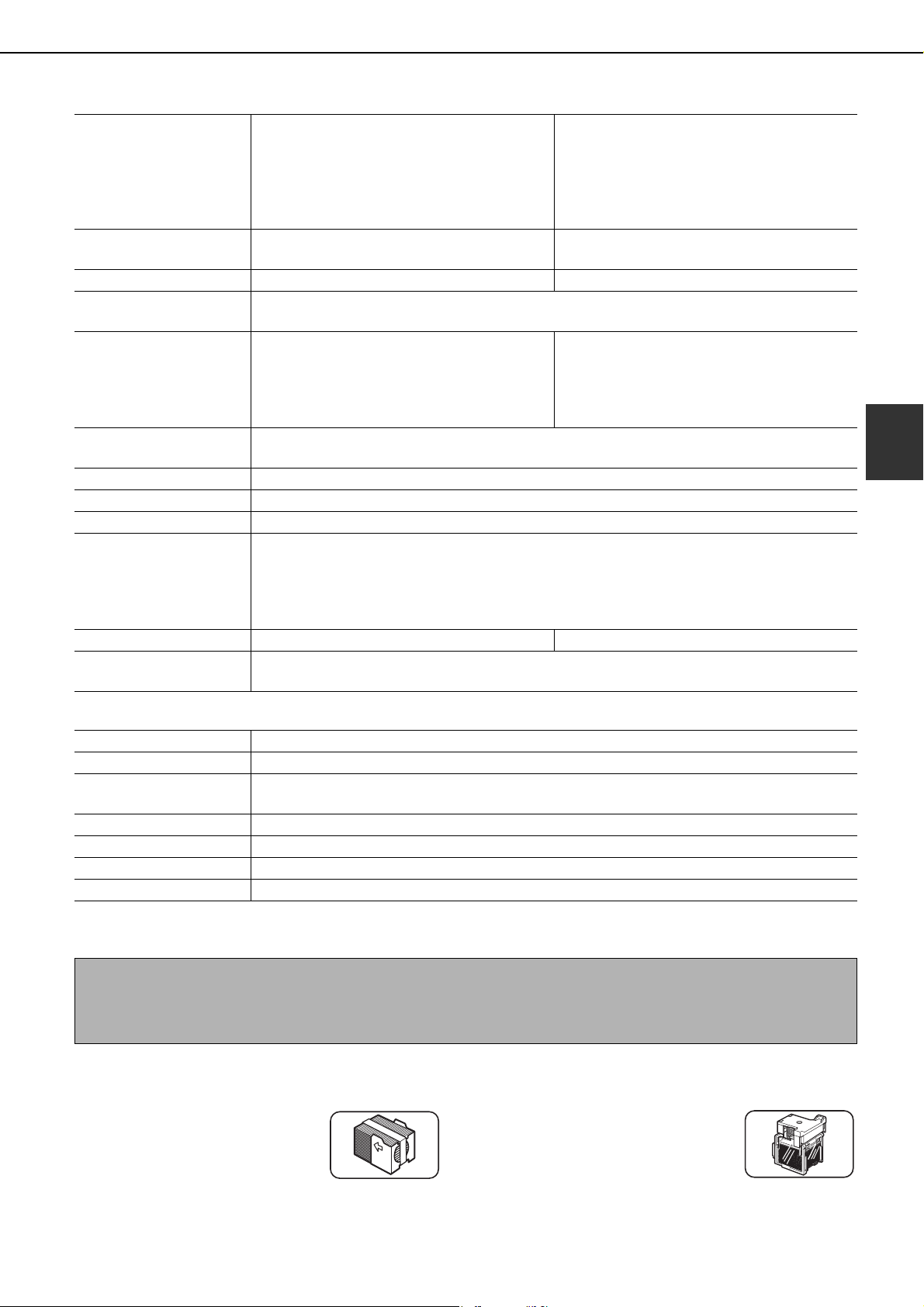
FINISHER AND SADDLE STITCH FINISHER
3-3
3
*For index paper, equivalent to 140-lbs.
* For index paper, equivalent to 140-lbs.
Specifications are subject to change for improvement without notice.
■ Supplies
The finisher and saddle stitch finisher require the following staple cartridge:
● Staple cartridge for finisher
(approx. 5,000 per cartridge
X 3 cartridges)
SF-SC11
● Staple cartridge for saddle
stitch finisher (approx. 2000
per cartridge X 3 cartridges)
AR-SC3
Paper size
Upper paper tray/Middle paper tray:
11" x 17", 8-1/2" x 14", 8-1/2" x 13", 8-1/2"
x 11", 8-1/2" x 11"R, 7-1/4" x 10-1/2"R, 5-
1/2" x 8-1/2"R, A3, B4, A4, A4R, B5, B5R,
A5R
Upper paper tray/Middle paper tray:
11" x 17", 8-1/2" x 14", 8-1/2" x 13", 8-1/2" x
11", 8-1/2" x 11"R, 7-1/4" x 10-1/2"R, 5-1/2"
x 8-1/2"R, A3, B4, A4, A4R, B5, B5R, A5R
Lower tray:
11" x 17", 8-1/2" x 11"R, A3, B4, A4R
Paper weight
Upper paper tray/Middle paper tray:
16 to 68* lbs. (60 to 256 g/m
2
)
Upper paper tray/Middle paper tray/Lower tray:
16 to 68* lbs. (60 to 256 g/m
2
)
Paper full detection Both upper and lower tray Upper, middle and lower tray
Paper sizes for which
offset is possible
11" x 17", 8-1/2" x 14", 8-1/2" x 13", 8-1/2" x 11", 8-1/2" x 11"R, A3, B4, A4, A4R, B5
Allowed paper sizes for
stapling
Upper paper tray/Middle paper tray:
11" x 17", 8-1/2" x 14", 8-1/2" x 13", 8-1/2"
x 11", 8-1/2" x 11"R, A3, B4, A4, A4R, B5
Upper paper tray/Middle paper tray:
11" x 17", 8-1/2" x 14", 8-1/2" x 13", 8-1/2" x
11", 8-1/2" x 11"R, A3, B4, A4, A4R, B5
Lower tray:
11" x 17", 8-1/2" x 11"R, A3, B4, A4R
Maximum number of
sheets for stapling
See "Staple sort mode" on 3-4 page
Stapling positions 1 place at back, 1 place at back (diagonal), one place at front (diagonal), 2 places
Paper conveying Center reference
Power supply Supplied from machine
Dimensions
When tray is folded up: 25-33/64" (W) x 24-13/16" (D) x 45-9/32" (H)
(648 mm (W) x 630 mm (D) x1150 mm(H))
When tray is extended: 30-7/16" (W) x 24-13/16" (D) x 45-9/32" (H)
(773 mm (W) x 630 mm (D) x1150 mm(H))
Not including stopper (1-37/64" (40 mm)) when attached to machine
Weight Approx. 113 lbs. (Approx. 51 kg) Approx. 157
lbs.
(Approx. 71 kg)
Overall dimensions when
attached to machine
30-7/16" (W) x 24-13/16" (D) (Separation from machine 15-3/4")
(773 mm (W) x 630 mm (D) (Separation from machine 400 mm))
Name Punch module (AR-PN4B)
Hole punching 3 holes
Allowed paper sizes for
punching
11" x 17", 8-1/2" x 14", 8-1/2" x 13", 8-1/2" x 11", 8-1/2" x 11"R, A3, B4, A4, A4R, B5,
B5R
Page weight 16 to 68* lbs. (60 to 256 g/m
2
)
Power supply Supplied from finisher / saddle stitch finisher
Dimensions 3-3/4" (W) x 22-1/16" (D) x 6-45/64" (H) (95 mm (W) x 560 mm (D) x 170 mm (H))
Weight Approx. 7.8 lbs. (Approx. 3.5 kg)
NOTES
● The following papers cannot be stapled and punched:
Special papers such as transparency film and label sheets
● If mixed paper sizes are selected for stapling jobs, stapling will be automatically canceled.
dragonII_copy_sec.book 3 ページ 2006年10月18日 水曜日 午後7時39分
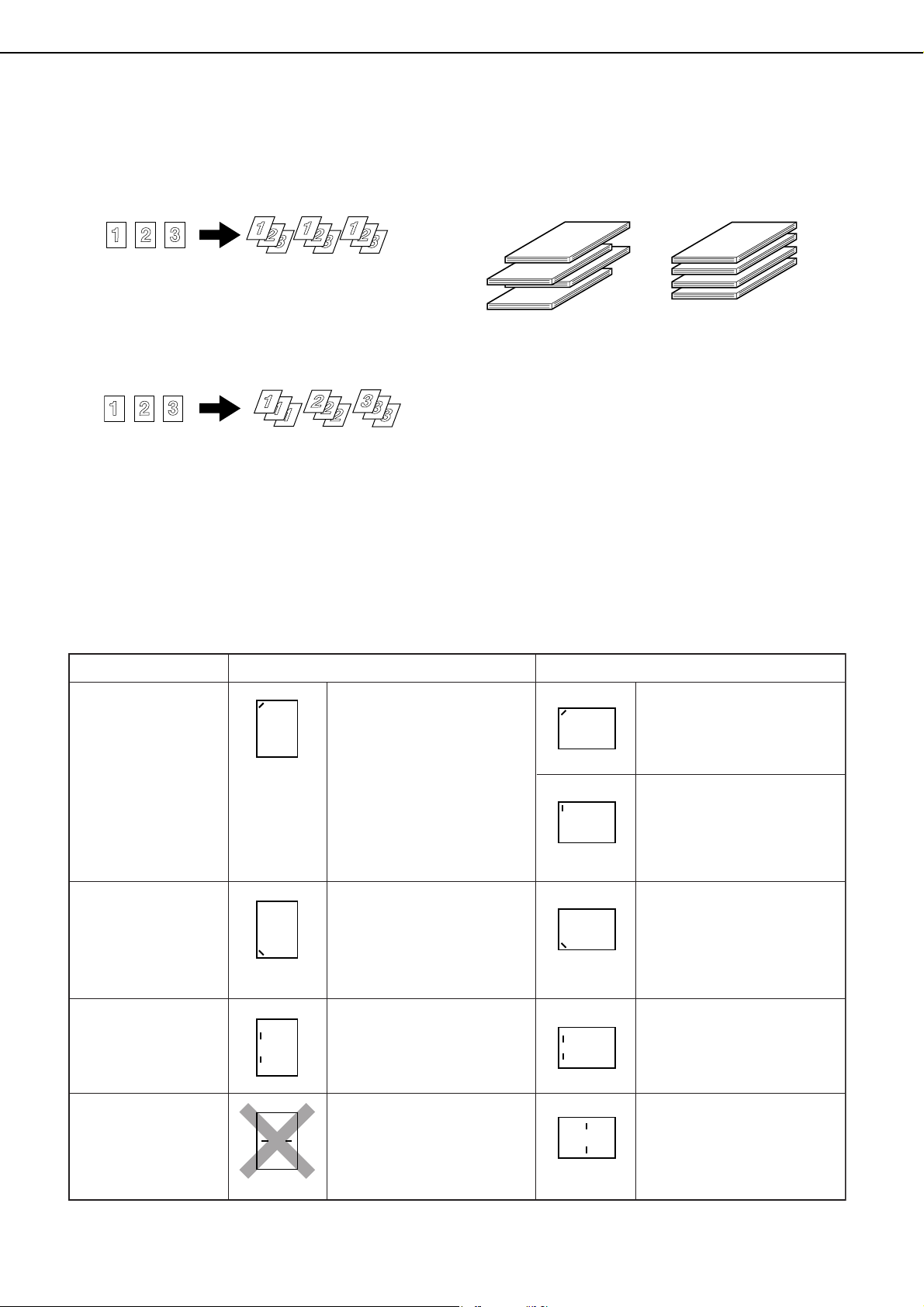
FINISHER AND SADDLE STITCH FINISHER
3-4
Finishing methods
■ Sort mode
Sorted sets will be delivered.
■ Group mode
Groups of copies of the same page will be
delivered.
■ Offset mode
Each set of copies is offset from the preceding set to
allow easy separation.
(The offset function operates in the finisher / saddle
stitch finisher tray.)
The offset function cannot be selected when the
staple sort function is selected.
Offset width : Approx. 1-3/16" (Approx. 30 mm)
■ Staple sort mode
Output pages are sorted into sets by the sort function, and each set is stapled and delivered to the tray. The center
of the paper can also be stapled and delivered to the lower saddle tray (only when using the saddle stitch finisher).
The relations between possible stapling positions, the paper feed direction, paper sizes that can be used, and
number of pages that can be stapled are shown below.
Two sheets (one sheet when using the saddle stitch function) of 68 lbs. (256 g/m
2
) paper can be included as
covers in the page stapling limit in the table below.
Original
Printouts
Original
Printouts
Offset mode Non-offset mode
Saddle stitch on
centerfold line.
(only when using
the saddle stitch
finisher)
Stapling positions
Top left corner of
printouts
Lower left corner
of printouts
Center left two
positions of
printouts
Portrait orientation Landscape orientation
Available paper sizes:
8-1/2" x 11", A4 and B5
Stapling capacity:
For each size, up to 50 sheets
can be stapled
Same as above
Same as above
Paper in the portrait
direction cannot be saddle
stitched.
Available paper sizes:
11" x 17", A3, B4
Stapling capacity:
For each size, up to 30 sheets
can be stapled
Available paper sizes:
8-1/2" x 14", 8-1/2" x 13",
8-1/2" x 11"R, A4R
Stapling capacity:
For each size, up to 30 sheets
can be stapled
Available paper sizes:
11" x 17", 8-1/2" x 14",
8-1/2" x 13", 8-1/2" x 11"R, A3,
B4, A4R
Stapling capacity:
For each size, up to 30 sheets
can be stapled
Same as above
Available paper sizes:
11" x 17", 8-1/2" x 11"R, A3,
B4, A4R
Stapling capacity:
For each size, up to 15 sheets
can be stapled
dragonII_copy_sec.book 4 ページ 2006年10月18日 水曜日 午後7時39分
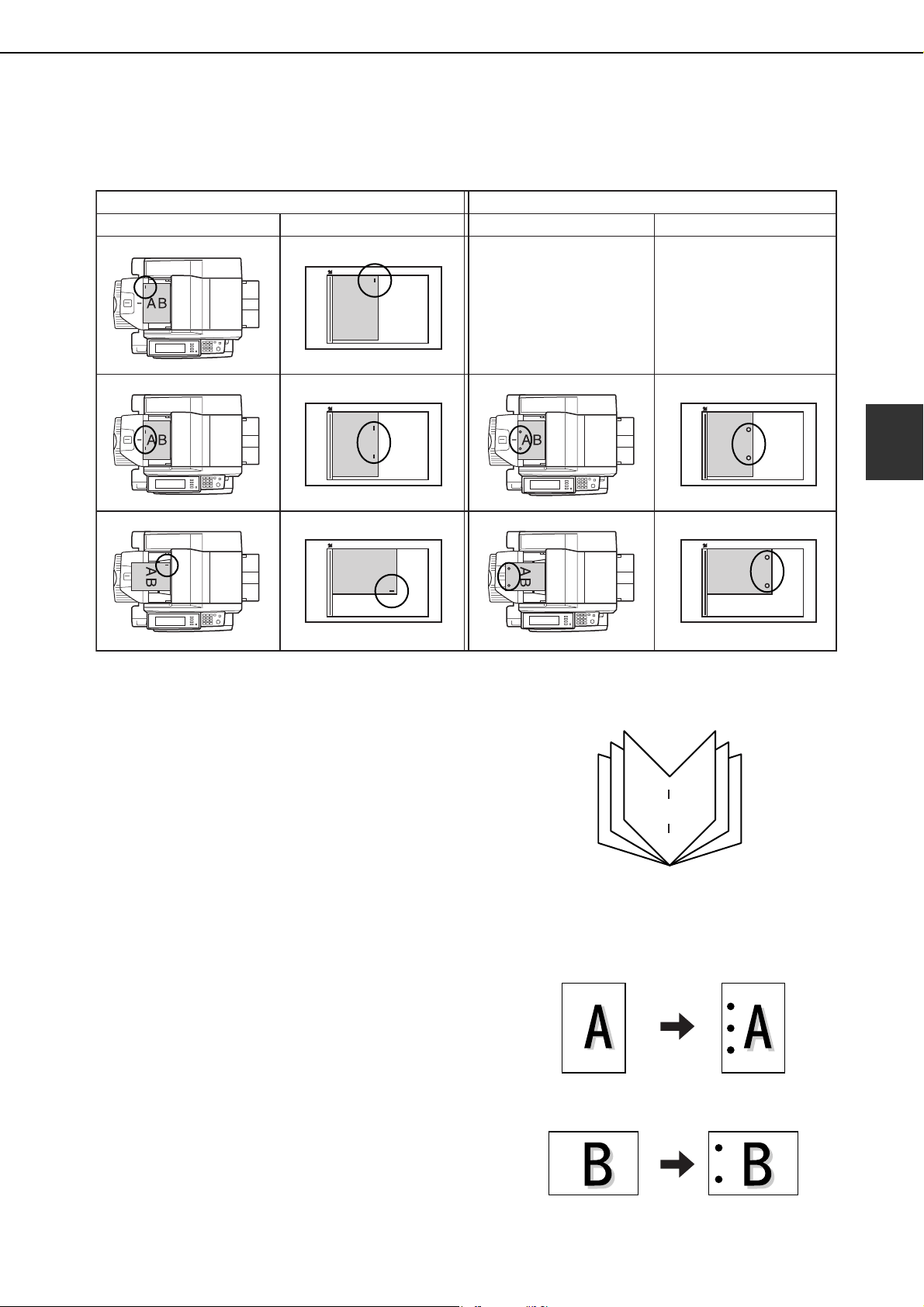
FINISHER AND SADDLE STITCH FINISHER
3-5
3
■ Original orientation when using the staple sort or punch function
When using the staple sort or punch function, the original must be placed in the following orientations to enable
stapling or punching in the desired position on the paper.
■ Saddle stitch function (only saddle stitch finisher)
The saddle stitch finisher can automatically place
two staples for centerline binding of prints or copies
and fold them along the centerline.
■ Hole punching (only if a punch module is installed)
When the optional punch module is installed, holes
can be punched in printed pages. (When using the
saddle stitch finisher, pamphlet style stapling and
the punch function cannot be used together.) When
using the punch function, automatic rotation of the
original image does not operate.
For the allowed paper sizes for punching, see the
specifications on page 3-3.
When using the punch function in copy mode,
place the original with the top toward the inside of
the machine. If the original is not placed in this
orientation, punching will not take place at the
correct positions. (See "Standard original
placement orientations" on page 4-4.)
Staple sort
Document feeder Document glass
Punch
Document feeder Document glass
9
11
7
2
4
6
<
E
xamp
l
e>
{Original 1} {Punch positions}
{Original 2} {Punch positions}
<Example>
dragonII_copy_sec.book 5 ページ 2006年10月18日 水曜日 午後7時39分
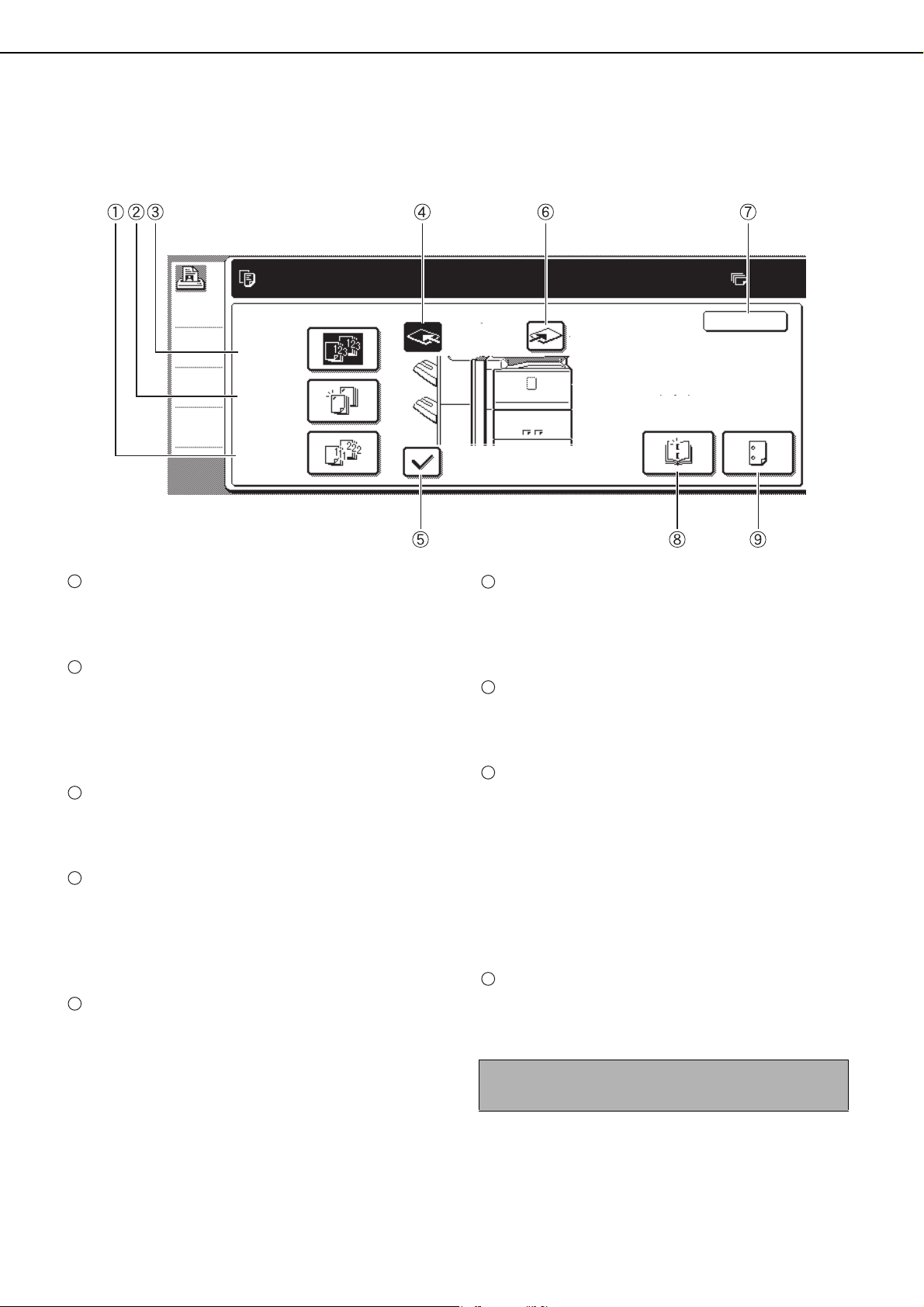
FINISHER AND SADDLE STITCH FINISHER
3-6
Finishing modes and finisher functions
Touch the [OUTPUT] key on the main screen of copy mode to display the screen that allows selection of sort, staple
sort, group function, centerline stapling, and the output tray.
[GROUP] key (See page 3-4.)
When Group is selected, copies will be grouped by
page.
[STAPLE SORT] key (See page 3-4.)
When Staple Sort is selected, sorted sets will be
stapled and delivered to the offset tray. (They will
not be offset stacked.) Select from three stapling
positions.
[SORT] key (See page 3-4.)
When Sort is selected, sets of copies will be
collated.
[FINISHER TRAY] key (See page 3-2.)
When the offset function is selected, output is
delivered offset to the finisher tray. (The finisher
tray is automatically selected when the staple sort
function is turned on.)
[OFFSET] key (See page 3-4.)
The offset function operates when a checkmark
appears in this key. (The offset checkmark is
automatically cleared when the staple sort function
is enabled.)
[CENTER TRAY] key
If the center tray is selected, output paper will be
delivered to the exit tray located above the main
unit.
[OK] key
Touch to close the [OUTPUT] screen and return to
the main screen.
[SADDLE STITCH] key (See page 3-5.)
This is displayed when the saddle stitch finisher is
installed, and is used to staple pages at the center
and fold them in half to create a pamphlet.
Touch this key to display the pamphlet copy
setting screen (page 5-6). (This is only possible
when the [AUTOMATIC SADDLE STITCH]
checkbox is selected in the administrator settings
(see page 12 of the administrator settings guide).)
[PUNCH] key (See page 3-5.)
This is used to punch holes in printed pages when
an optional punch module is installed.
OUTPUT
SORT
STAPLE
SORT
GROUP
FINISHER
TRAY
CENTER
TRAY
OFFSET
SADDLE
STITCH
PUNCH
OK
0
1
2
3
4
5
NOTE
When a functions is selected, it is highlighted.
6
7
8
9
dragonII_copy_sec.book 6 ページ 2006年10月18日 水曜日 午後7時39分
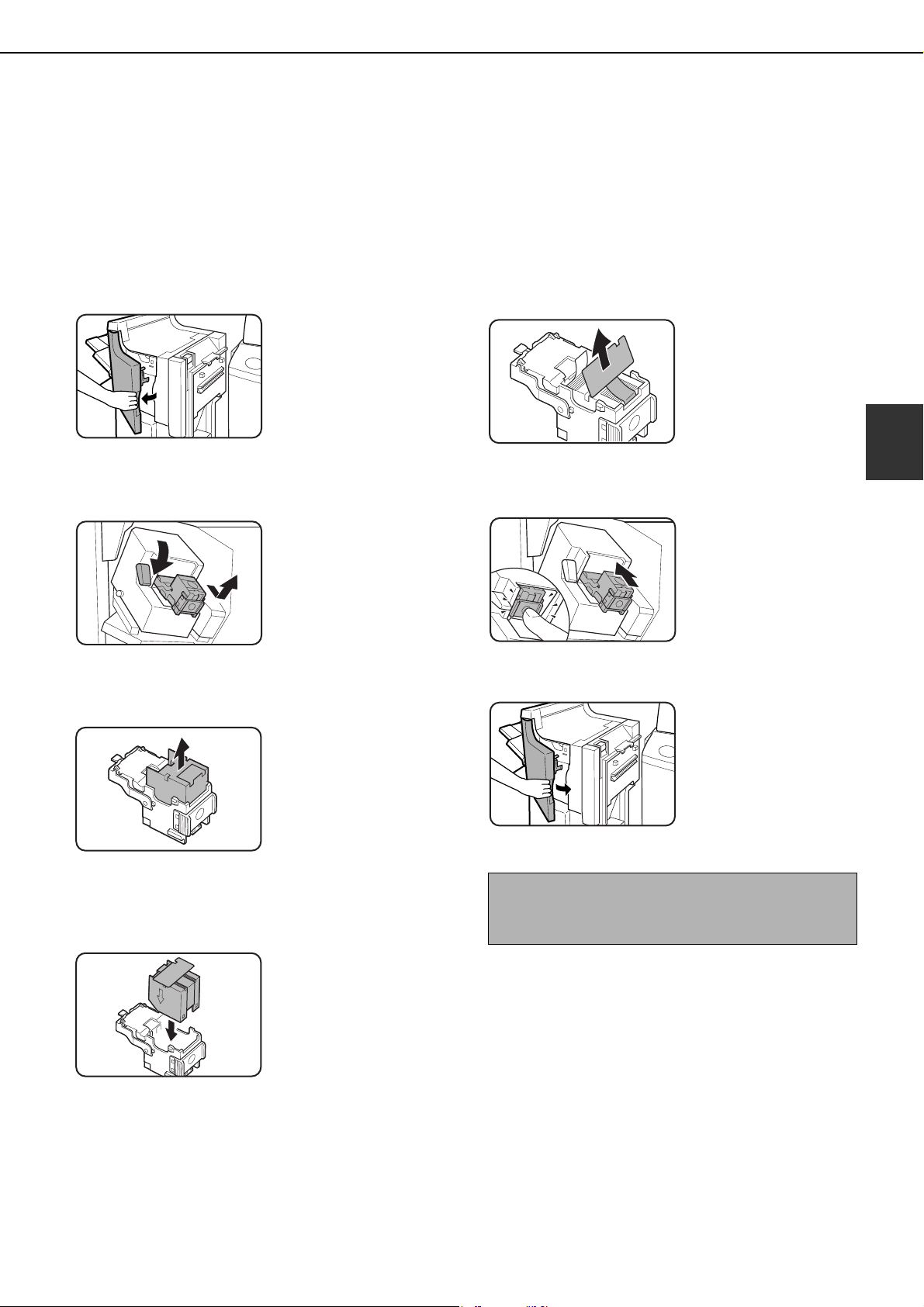
FINISHER AND SADDLE STITCH FINISHER
3-7
3
Staple cartridge replacement and staple jam removal
When a finisher is installed, a message will appear when the staple cartridge runs out of staples or a staple jam
occurs.
Follow the procedure below to replace the staple cartridge or remove jammed staples.
■ Replacing the cartridge in the finisher
1
Open the front cover of the finisher.
2
Lower the blue lever in the stapler and
slide out the staple cartridge.
3
Pull the empty staple case straight up and
out of the cartridge.
4
Insert a new staple case into the cartridge.
Push the staple case all the way in until it
clicks into place.
Do not remove the seal
holding the staples until
the staple case is set in
the cartridge.
5
Pull the seal that holds the staples straight
out.
6
Insert the cartridge all the way in until it
clicks into place.
Insert the cartridge all
the way in until it clicks
into place.
7
Close the front cover of the finisher.
NOTE
Make a test print or copy in the staple sort mode to
verify that stapling is performed properly.
dragonII_copy_sec.book 7 ページ 2006年10月18日 水曜日 午後7時39分
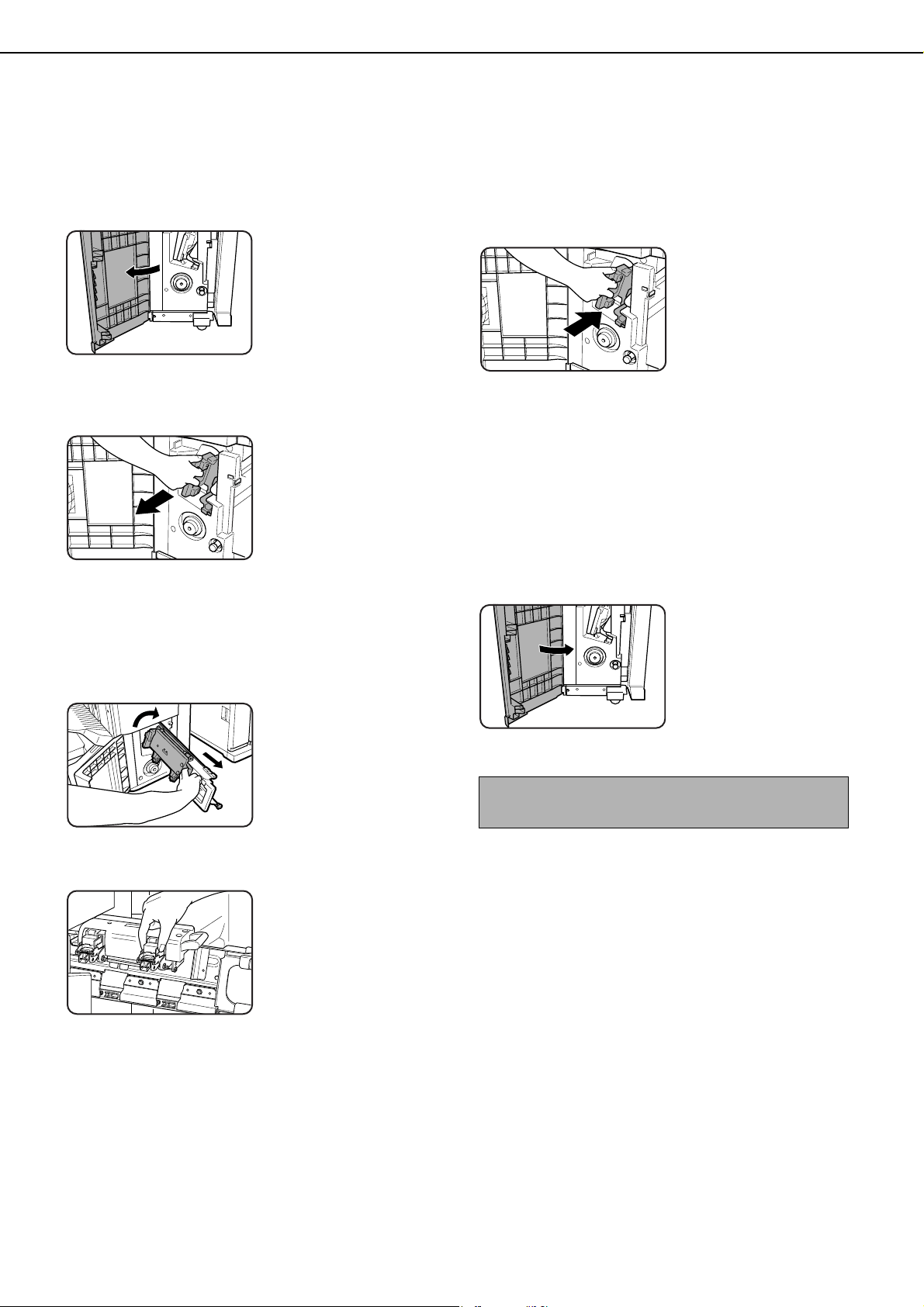
FINISHER AND SADDLE STITCH FINISHER
3-8
■ Replacing the cartridge in the saddle stitch finisher
Only when the saddle stitch finisher (AR-F16) is installed.
1
Open the lower cover of the saddle stitch
finisher.
When an optional
inserter is installed,
open the front cover of
the inserter before
opening the lower cover
of the finisher.
2
Slide out the saddle stitch unit carefully
toward the front.
3
(1) Grasp the grip of the saddle staple
holder and pull it out.
(2) While still grasping the grip, rotate the
saddle staple holder 90° in the direction of
the arrow (rotate to the right).
4
Remove the empty staple case and set a
new one.
Replace both staple
cases with new ones.
Remove the cover from
the staple cartridge and
then install the cartridge.
5
Return the saddle stitch holder and the
saddle stitch unit to their respective
original positions.
6
Make sure that the finisher is firmly
attached to the machine and that 11" x 17",
8-1/2" x 11"R, or 8-1/2" x 14" (A3, A4R, or
B4) size paper is loaded.
If one of the above paper sizes is not set, test
stapling cannot be performed.
7
Close the lower cover of the finisher.
Test stapling is
automatically performed
on a blank sheet.
This operation is carried
out to avoid blank
stapling.
(1)
(2)
NOTE
If test stapling fails to take place, repeat steps 1 to 7.
dragonII_copy_sec.book 8 ページ 2006年10月18日 水曜日 午後7時39分
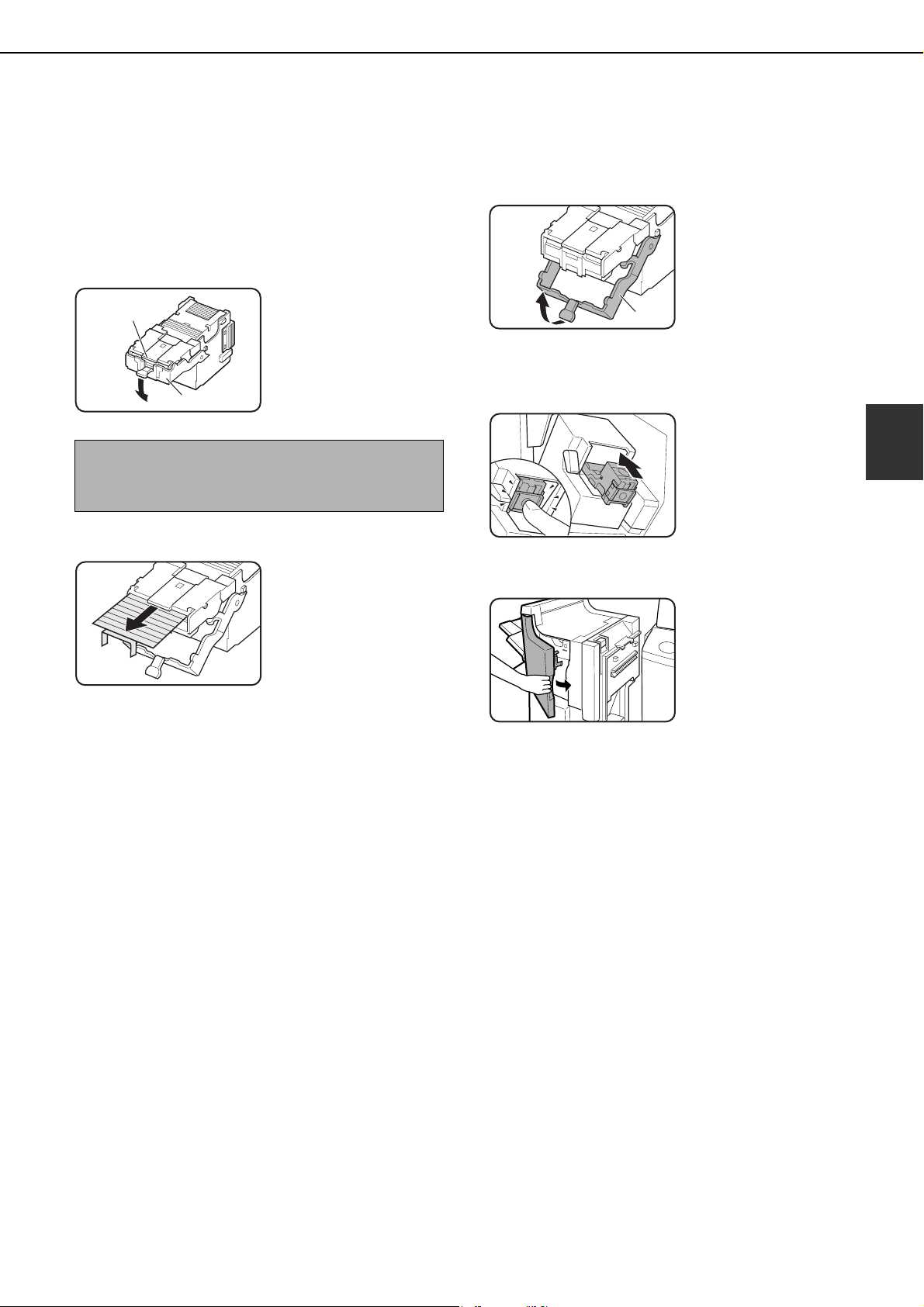
FINISHER AND SADDLE STITCH FINISHER
3-9
3
■ Removing a staple jam in the finisher
1
Perform steps 1 to 2 of the procedure for
"Replacing the cartridge in the finisher"
on page 3-7.
2
Holding the knob, lower part (A).
3
Remove any jammed staples.
4
Holding the knob, return part (A) to its
original position.
5
Return the staple case to its original
position.
Insert the cartridge all
the way in until it clicks
into place.
6
Close the front cover of the finisher.
NOTE
Do not touch the stapling area.
The stapler could injure you.
(A)
Stapling area
(A)
dragonII_copy_sec.book 9 ページ 2006年10月18日 水曜日 午後7時39分
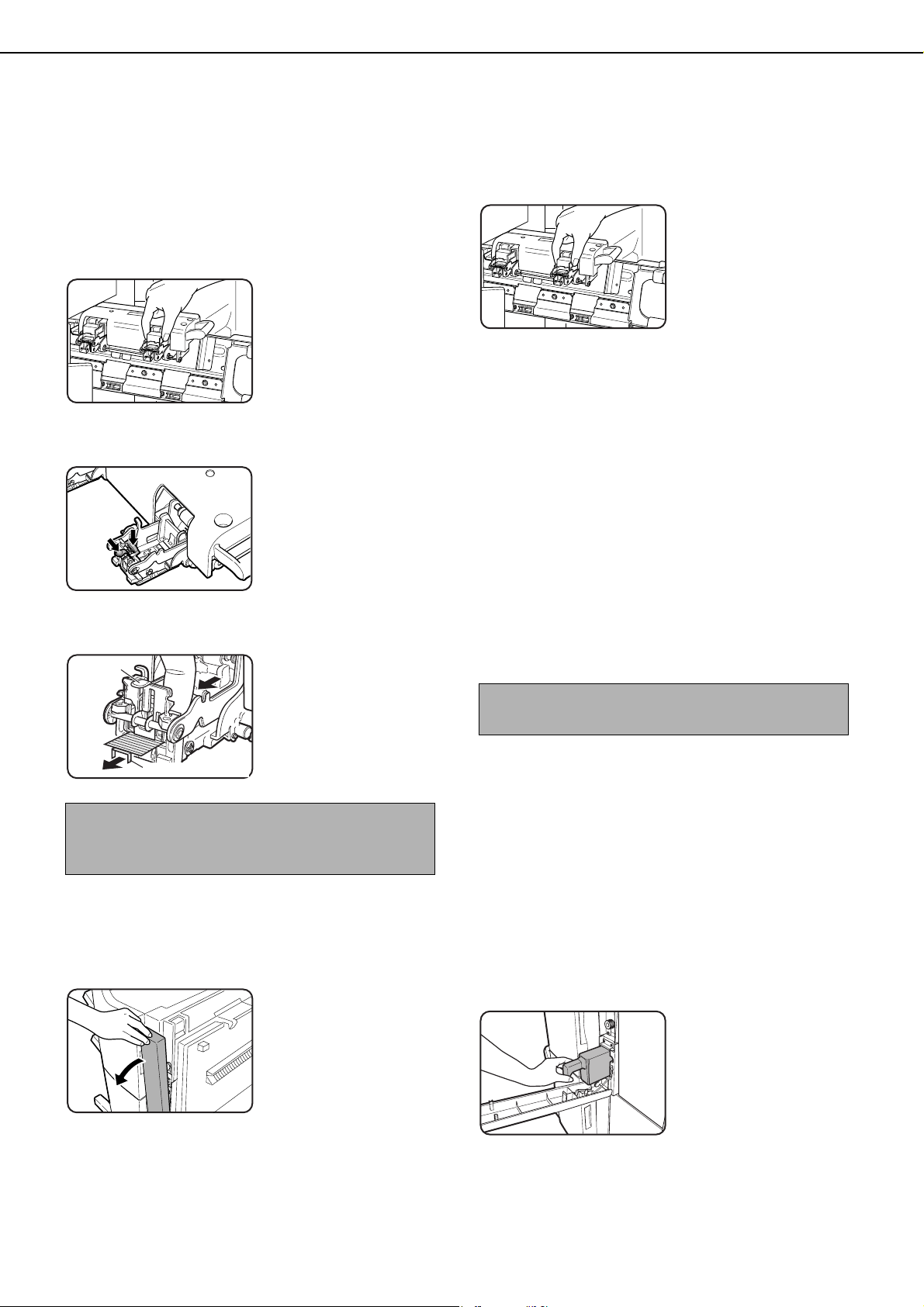
FINISHER AND SADDLE STITCH FINISHER
3-10
■ Removing a staple jam in the saddle stitch finisher
1
Perform steps 1 to 3 of the procedure for
"Replacing the cartridge in the saddle
stitch finisher" on page 3-8.
2
Remove the empty staple case.
3
While pushing down on lever (A), pull up
knob
(B) .
4
Remove any jammed staples, and then
return knob
(B) to its original position.
Be sure to remove any
strips of staples.
5
Return the staple case to its original
position.
6
Return the saddle stitch holder and the
saddle stitch unit to their respective
original positions.
7
Make sure that the finisher is firmly
attached to the machine and that 11" x 17",
8-1/2" x 11"R, or 8-1/2" x 14" (A3, A4R, or
B4) size paper is loaded.
If one of the above paper sizes is not set, test
stapling cannot be performed.
8
Close the lower cover of the finisher.
Test stapling is automatically performed on a blank
sheet.
This operation is carried out to avoid blank
stapling.
■ Disposal of hole punch scrap (when the punch module is installed)
1
Open the cover of the hole punch module.
2
Holding the black handle, slide out the
case containing the paper bits, and
dispose of them properly.
3
Return the waste case to its original
position.
4
Close the cover of the hole punch module.
NOTE
Do not touch the stapling area.
The stapler could injure you.
(A)
(B)
(B)
Jammed staples
NOTE
If test stapling fails to take place, repeat steps 1 to 7.
dragonII_copy_sec.book 10 ページ 2006年10月18日 水曜日 午後7時39分
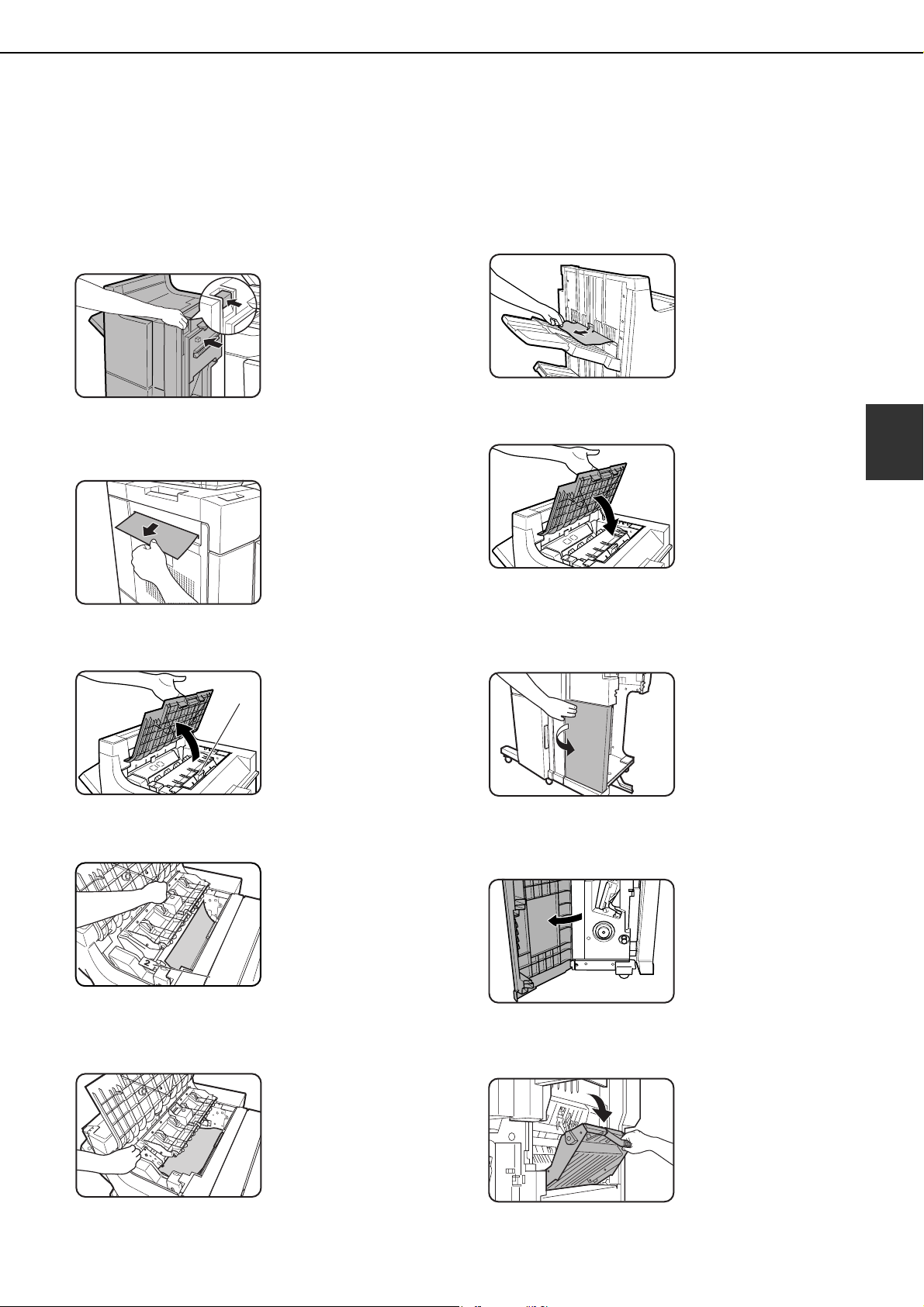
FINISHER AND SADDLE STITCH FINISHER
3-11
3
Removing a misfeed
When a misfeed occurs, remove the misfed paper as explained below.
■ General procedure for the finisher and saddle stitch finisher
1
Gently move the finisher/saddle stitch
finisher away from the machine while
pressing the button.
When an inserter is
installed, separate the
inserter from the
machine while pressing
on the inserter button.
2
Remove the misfed paper from the main
unit.
After removing the
misfed paper, perform
steps 1 and 3 on page 2-
24 to reset the machine.
3
Open the upper cover of the finisher/
saddle stitch finisher.
When an inserter is
installed, lift the tray of
the inserter.
4
Lift knob (A) (See the step 3 figure), then
remove any misfed paper.
Be careful not to tear the
misfed paper during
removal.
5
Lift knob (B) (see the illustration in step 4)
and remove any misfed paper.
Be careful not to tear the
misfed paper during
removal.
6
Remove any misfed paper from the paper
exit area.
Be careful not to tear the
misfed paper during
removal.
7
Close the upper cover of the finisher/
saddle stitch finisher.
■
When a saddle stitch finisher is installed
8
Open the front cover of the inserter (only
when an inserter is installed).
9
Open the lower cover of the saddle stitch
finisher.
10
Open the entrance cover of the saddle
stitch unit.
(A)
(B)
dragonII_copy_sec.book 11 ページ 2006年10月18日 水曜日 午後7時39分
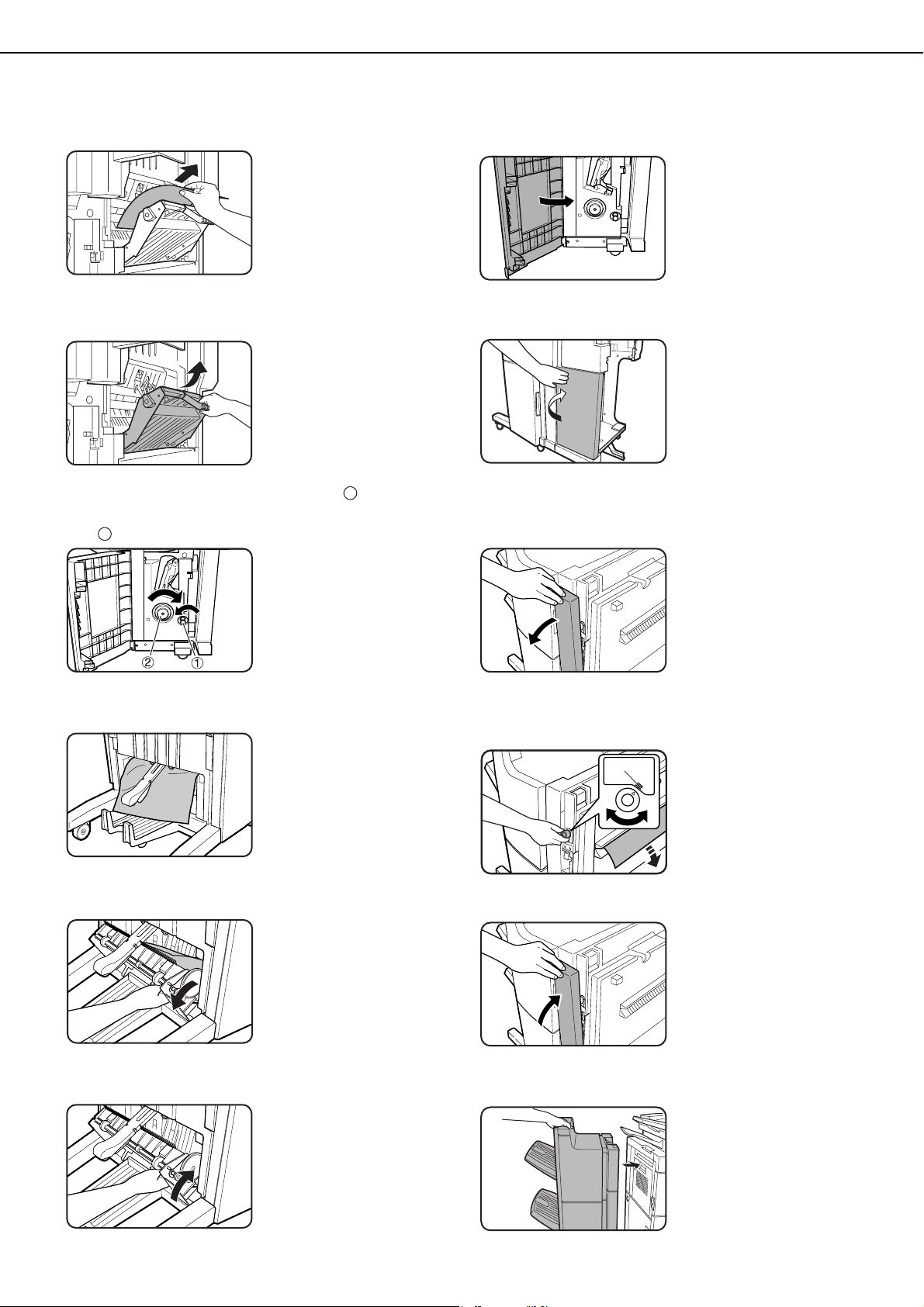
FINISHER AND SADDLE STITCH FINISHER
3-12
11
Remove the misfed paper.
Be careful not to tear the
misfed paper during
removal.
12
Close the entrance cover of the saddle
stitch unit.
13
Turn the right-hand knob counter
clockwise. Then, push the left-hand knob
and turn it clockwise.
14
Remove any paper misfed on the exit side
of the saddle stitch unit.
Be careful not to tear the
misfed paper during
removal.
15
Open the exit cover of the saddle stitch
unit and remove any misfed paper.
Be careful not to tear the
misfed paper during
removal.
16
Close the exit cover of the saddle stitch
unit.
17
Close the lower cover of the saddle stitch
finisher.
18
Close the front cover of the inserter (only
when an inserter is installed).
■ When a punch module is installed
19
Open the cover of the hole punch module.
20
Rotate the green knob until the arrow is
within the range (A) on the label, and
remove the misfed paper.
Be careful not to tear the
misfed paper during
removal.
21
Close the cover of the hole punch module.
22
Push the finisher back against the main
unit.
1
2
(A)
dragonII_copy_sec.book 12 ページ 2006年10月18日 水曜日 午後7時39分
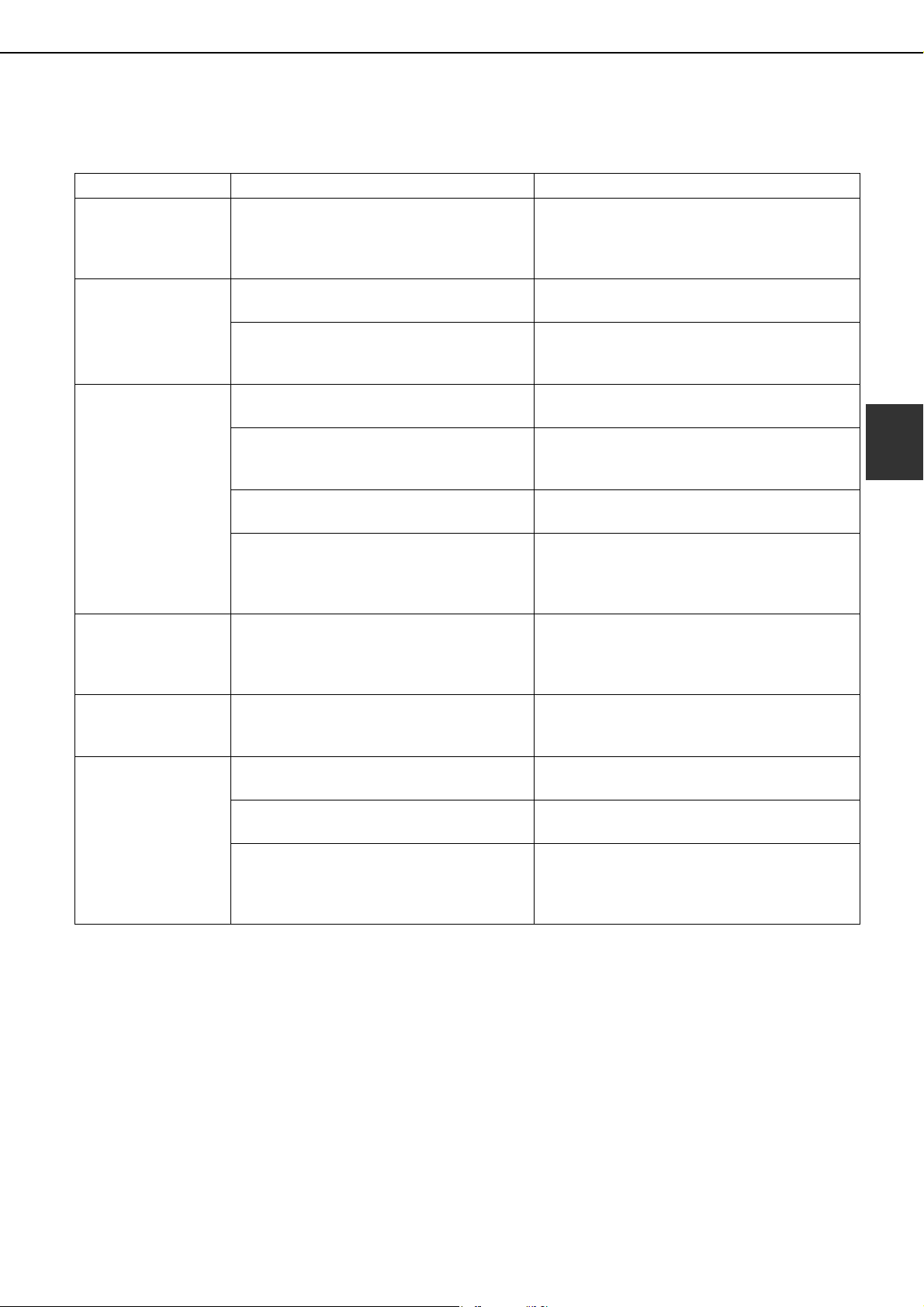
FINISHER AND SADDLE STITCH FINISHER
3-13
3
Troubleshooting finisher/saddle stitch finisher problems
Check the list below before calling for service.
* When a hole punch module is installed
Problem Check Solution or cause
Stapling position is
not correct
(including saddle
stitch).
Stapling position not set properly?
Check the stapling position setting. (See page
3-4.)
The finisher/saddle
stitch finisher does
not operate.
Are any finisher/saddle stitch finisher
covers open?
Close all covers. (See step 7 on page 3-7 and
step 7 on page 3-11.)
Message indicating need to remove paper
from the stapler compiler displayed?
Remove all remaining paper from the stapler
compiler. (For the stapler compiler, see "Part
names" on page 3-2.)
Stapling cannot be
performed (including
saddle stitch).
Message to check the staple unit
displayed?
Remove jammed staples. (See pages 3-9 and
3-10.)
Message to add staples displayed?
Replace the staple cartridge. (See pages 3-7
and 3-8.) Check that a staple cartridge has
been installed. (See pages 3-7 and 3-8.)
Different sizes of paper mixed together?
Stapling cannot be performed on mixed paper
sizes.
The paper is badly curled.
The quality and type of some papers may
cause bad curling that prevents stapling.
Take the paper out of the tray or bypass tray,
turn the stack over, and reload it.
Saddle stitch cannot
be selected.
The paper type of the selected paper tray
is set to heavy paper.
Saddle stitch is not possible on heavy paper.
However, when cover insertion is selected,
saddle stitch is possible on a single sheet of
heavy paper inserted for use as a cover.
The punch hole
positions are not
correct.*
The punch function is not set to the correct
punch positions.
Check the allowed hole punch positions. (See
page 3-5.)
Cannot be punched.*
Message to check the punch module
displayed?
Dispose of punch scraps. (See page 3-10.)
Mixed paper sizes.
Punching is not possible when different paper
sizes are mixed together.
The paper is badly curled.
The quality and type of some papers may
cause bad curling that prevents punching.
Take the paper out of the tray or bypass tray,
turn the stack over, and reload it.
dragonII_copy_sec.book 13 ページ 2006年10月18日 水曜日 午後7時39分
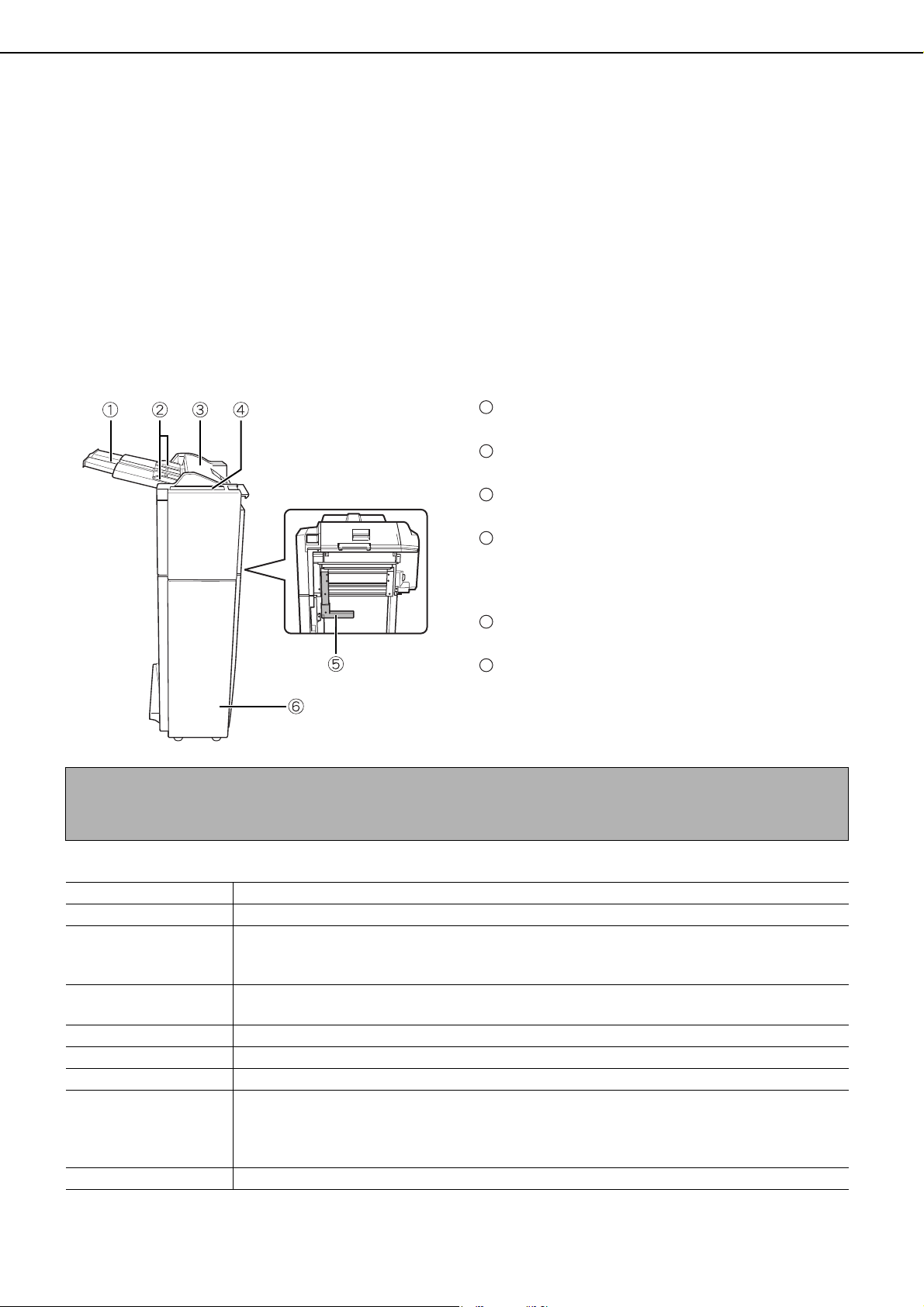
3-14
INSERTER
The inserter enables blank sheets or printed sheets to be added to copy and print output as covers or inserts
without printing. The inserter also allows feeding of heavy paper that cannot be fed from the other trays.
Printed output can also be fed one set at a time from the inserter for stapling or punching without performing
stapling or staple sorting finishing (see "Manual operation of the inserter" (page 3-15)).
When feeding from the inserter for pamphlet copying (page 5-6), cover or insert copying (page 5-12), or
transparency insert copying (page 5-23), select "INSERTER" in step 4 of "Setting the paper type and paper size"
(page 2-14), and be sure to perform steps 5 through 8. In step 9, make sure that the checkboxes below "PRINT",
"COPY", and "DOC. FILING" are selected. If any of these checkboxes are not selected, touch them so that a
checkmark appears.
When feeding from the inserter for pamphlet copying (page 5-6), cover or insert copying (page 5-12), or
transparency insert copying (page 5-23), select the inserter in the tray settings. The inserter attributes can also
be selected in the system settings (see page 2-18).
Part names
Specifications
Specifications are subject to change for improvement without notice.
Paper tray
Place blank or printed paper here to be inserted.
Paper guide
When loading paper, adjust this guide to the width of the paper.
Top cover
Open for misfeed removal.
Inserter operation panel
Stapling and punching can be performed directly
from the inserter operation panel without using the
machine operation panel.
Paper guide lever
Release the paper guide lock to remove misfed paper.
Front cover
Open this cover to remove misfed paper from the
finisher or saddle stitch finisher.
1
2
3
4
5
6
NOTE
To install the inserter...
An optional finisher or saddle stitch finisher must be installed (page 3-2).
Name Inserter (AR-CF2)
Paper weight 16 lbs. to 68* lbs. (60 to 256 g/m
2
) *For index paper, equivalent to 140-lbs.
Paper types
Plain paper, special paper (transparency film, colored paper, paper with punch holes,
tabbed paper, etc.)
(Consult your retailer for more information on special papers that can be used.)
Paper size
11" x 17", 8-1/2" x 14", 8-1/2" x 13", 8-1/2" x 11", 8-1/2" x 11"R, 7-1/4" x
10-1/2"R, 5-1/2" x 8-1/2"R, A3, B4, A4, A4R, B5, B5R, A5R
Paper capacity Max. 100 (20 lbs. (80 g/m
2
))
Paper conveying Center reference
Power supply Supplied from machine
Dimensions
When paper tray is folded up: 11-15/64" (22-1/4"*) (W) x 23-3/64" (D) x 44-7/64" (H)
(285 (565*) mm (W) x 585 mm (D) x 1120 mm (H))
Not including stopper ( 1-37/64"(40 mm)) when attached to machine
* Including paper tray
Weight Approx. 53 lbs. (Approx. 24 kg)
dragon_03.fm 14 ページ 2006年11月29日 水曜日 午後8時47分

INSERTER
3-15
3
Loading paper
When loading paper in the inserter, load the paper face up. If the paper has a top edge and bottom edge, load in
the same top-bottom orientation as the original. Adjust the paper guide on the paper tray to the width of the paper.
When using tabbed paper, place the paper as follows:
Load the paper back
side up.
The top side is
inserted first.
The relation of copies and tabbed sheets is shown below.
Manual operation of the inserter
The inserter can be used for stapling or punching without performing a copy operation. These functions are selected
at the operation panel of the inserter.
[PUNCH] key
When a punch module is installed on the finisher
or saddle stitch finisher, punch holes can be
added to blank paper or printed paper. The
indicator lights when this function is selected.
[STAPLE] key/indicator
When this function is selected, each set of output
is stapled and delivered to the finisher or saddle
stitch finisher tray. (Note that the sets are not
offset.) Press this key until the icon light of the
desired staple position lights up. (" " pamphlet
stapling can only be selected when a saddle stitch
finisher is installed)
[START] key/indicator
After selecting punch or staple settings with key
or key , place the paper to be punched or
stapled on the inserter tray and press this key.
Back side
Copy
Copy result
Load tabbed paper
Inserted first.
Back
side
1st sheet
4th sheet
1st sheet
Back
side
2nd sheet
3rd sheet 4th sheet 5th sheet
Back
side
Tabbed paper 4th sheet (back side)
Tabbed paper 1st sheet (back side)
5th sheet
Back
side
1
2
3
1
2
NOTES
● Do not use tabbed paper when operating the inserter manually.
● The punching and stapling functions cannot be used when the finisher or saddle stitch finisher has failed, or
when the functions are prohibited* in the administrator settings (page 11 of the administrator settings guide).
* Disabling of stapler/Disabling of punch/Disabling of finisher/Disabling of inserter
dragonII_copy_sec.book 15 ページ 2006年10月18日 水曜日 午後7時39分
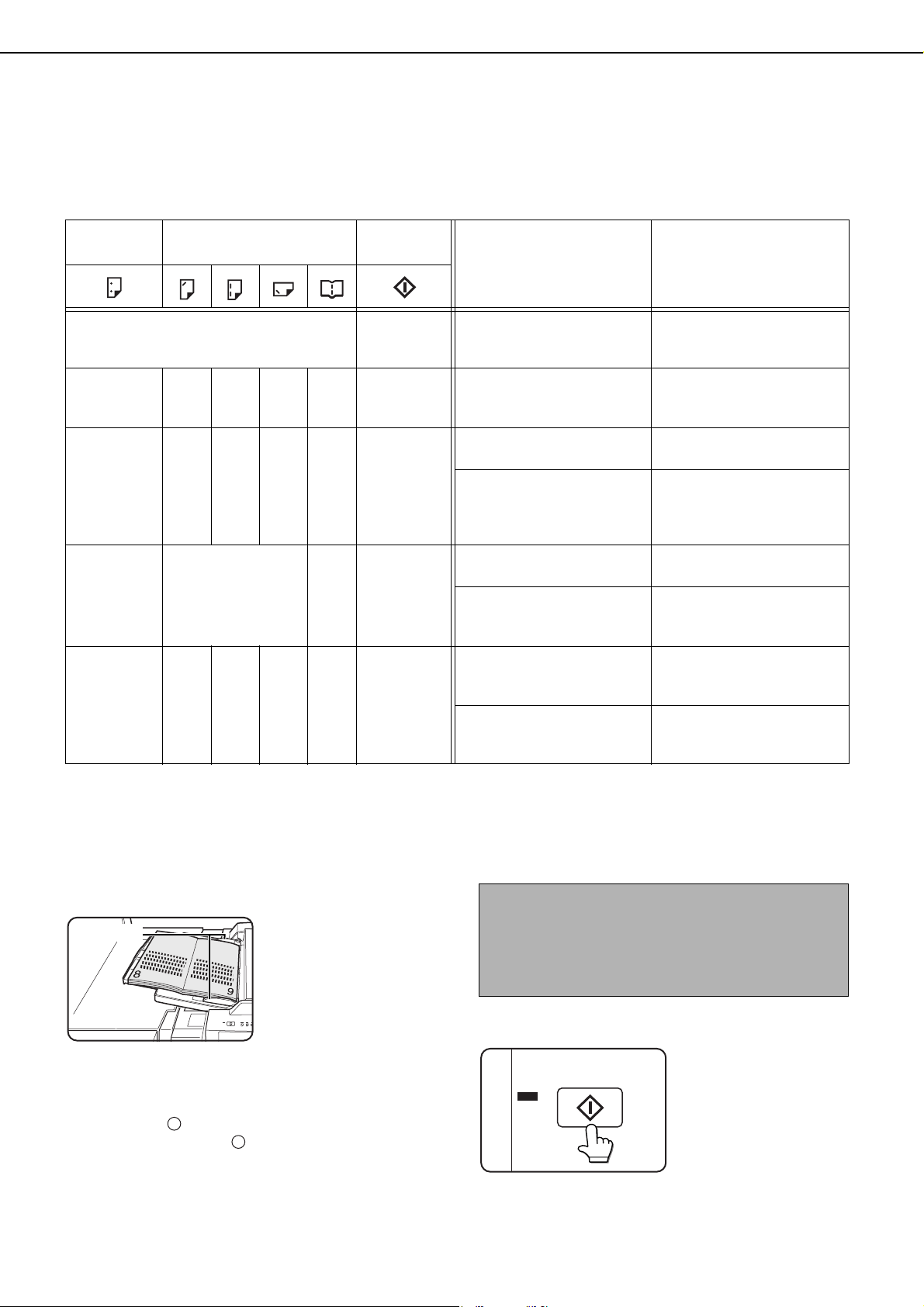
INSERTER
3-16
■ Alarm display
If the [START] key indicator on the inserter operation panel is blinking and the [PUNCH] key or [STAPLE] key
indicator is also blinking or solidly lit, operation will not start when the [START] key is pressed. Resolve the
problem as indicated below, depending how the indicators are lit or blinking.
■ Using the inserter
For paper sizes that can be stapled or punched, see the finisher and saddle stitch finisher specifications on
page 3-2.
Some paper types cannot be stapled or punched (see "NOTES" on page 3-3). Do not use these paper types.
1
Load paper in the inserter.
Load the paper face up.
When performing
pamphlet stapling, place
the paper so that the
opened pages are face
up as shown.
Adjust the paper guide
to the size of the paper.
2
Press the desired mode key.
Press key on page 3-15 for stapling or pamphlet
stapling. Press key on page 3-15 for punching.
The selected mode lights up.
3
Press the [START] key.
Make sure that the
[START] key light is
illuminated green and
then press the [START]
key.
[PUNCH]
indicator
[STAPLE] indicator
[START]
indicator
Cause Solution
Any one of the indicators is solidly lit. Blinks red
A paper size that cannot
be fed has been loaded.
Use paper that is a suitable
size for punching, stapling, or
saddle stitching (page 3-3).
----
Solidly
lit
Blinks red
The paper type of the
inserter is set to heavy
paper.
Heavy paper cannot be
used.
Blinking - - - - Blinks red
The finisher or saddle
stitch finisher tray is full.
Remove the paper from
the tray.
The hole punch scrap
container in the punch
module on the finisher or
saddle stitch finisher is full.
Discard the hole punch
scrap (page 3-10).
-
Any one of the
indicators is blinking.
-Blinks red
The finisher or saddle
stitch finisher tray is full.
Remove the paper from
the tray.
The finisher or saddle
stitch finisher is out of
staples.
Replace the staple
cartridge (page 3-7).
----
Blinking
Blinks red
The saddle stitch tray on
the saddle stitch finisher is
full.
Remove the paper from
the saddle stitch tray.
The saddle stitch finisher is
out of saddle stitch staples.
Replace the saddle stitch
staple cartridge (page 3-
8).
Paper guide
2
1
NOTE
Pamphlet stapling can only be used when the saddle
stitch finisher (AR-F16) is installed.
When using pamphlet stapling, stapling and
punching cannot be used in combination.
dragonII_copy_sec.book 16 ページ 2006年10月18日 水曜日 午後7時39分
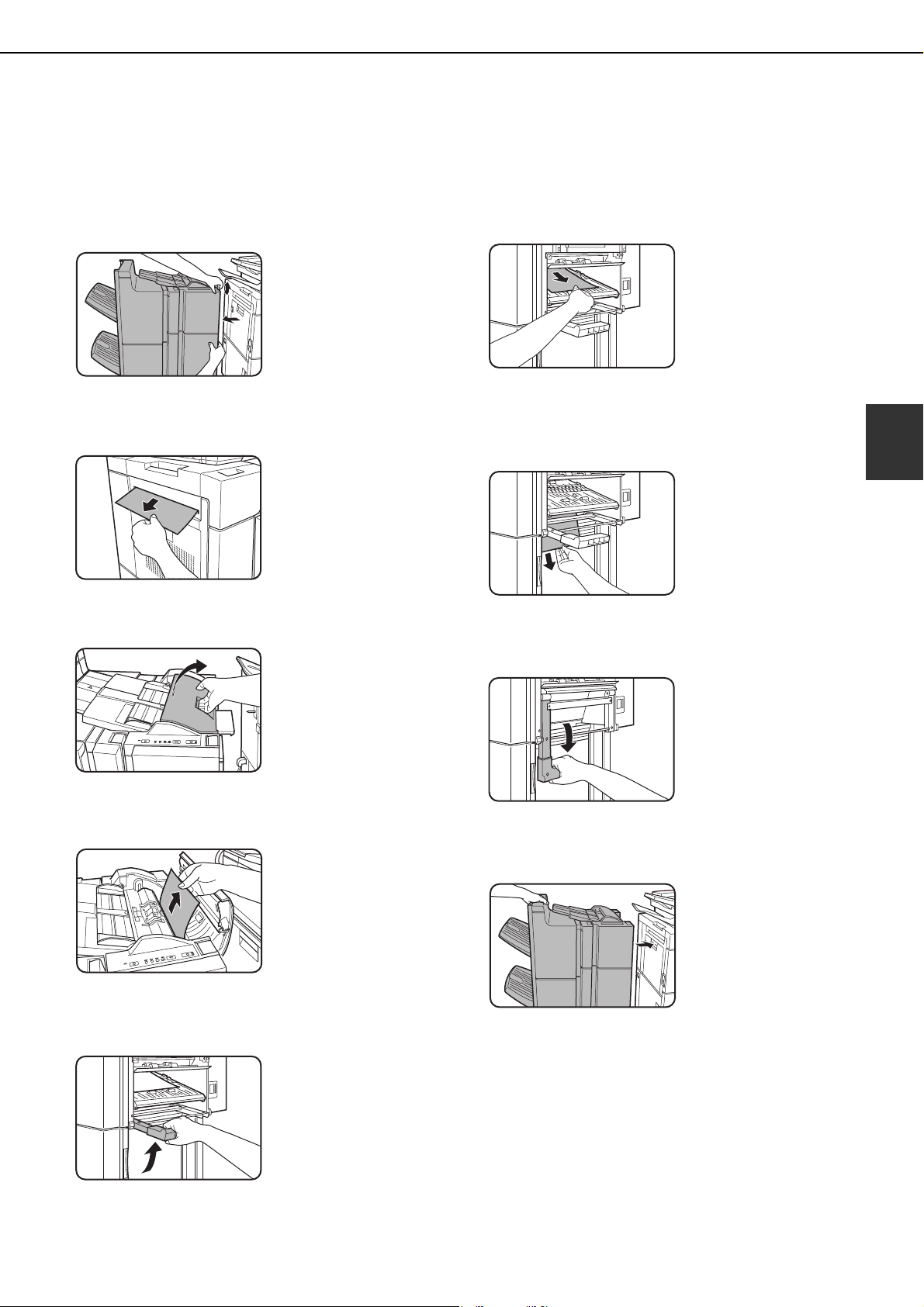
INSERTER
3-17
3
Misfeed removal
When a misfeed occurs in the inserter, remove the misfed paper following the procedure below.
■ Misfeed in the inserter
1
Gently move the inserter away from the
machine while pressing the button.
2
Remove the misfed paper from the main
unit.
Be careful not to tear the
misfed paper during
removal.
After removing the
misfed paper, perform
steps 1 and 3 on page 2-
24 to reset the machine.
3
If misfed paper is not found in step 2, open
the top cover.
4
Remove the misfed paper.
Be careful not to tear the
misfed paper during
removal.
5
If a misfeed was not found in step 4, raise
the paper guide lever.
6
Remove the misfed paper.
Be careful not to tear the
misfed paper during
removal.
7
If a misfeed was not found in step 6,
remove the misfed paper from under the
paper guide.
Be careful not to tear the
misfed paper during
removal.
8
Return the paper guide lever to its original
position.
9
Push the finisher to close the gap between
the machine and the inserter.
After attaching the
inserter on the machine,
make sure that the paper
misfeed message has
been cleared and the
normal message display
appears.
dragonII_copy_sec.book 17 ページ 2006年10月18日 水曜日 午後7時39分
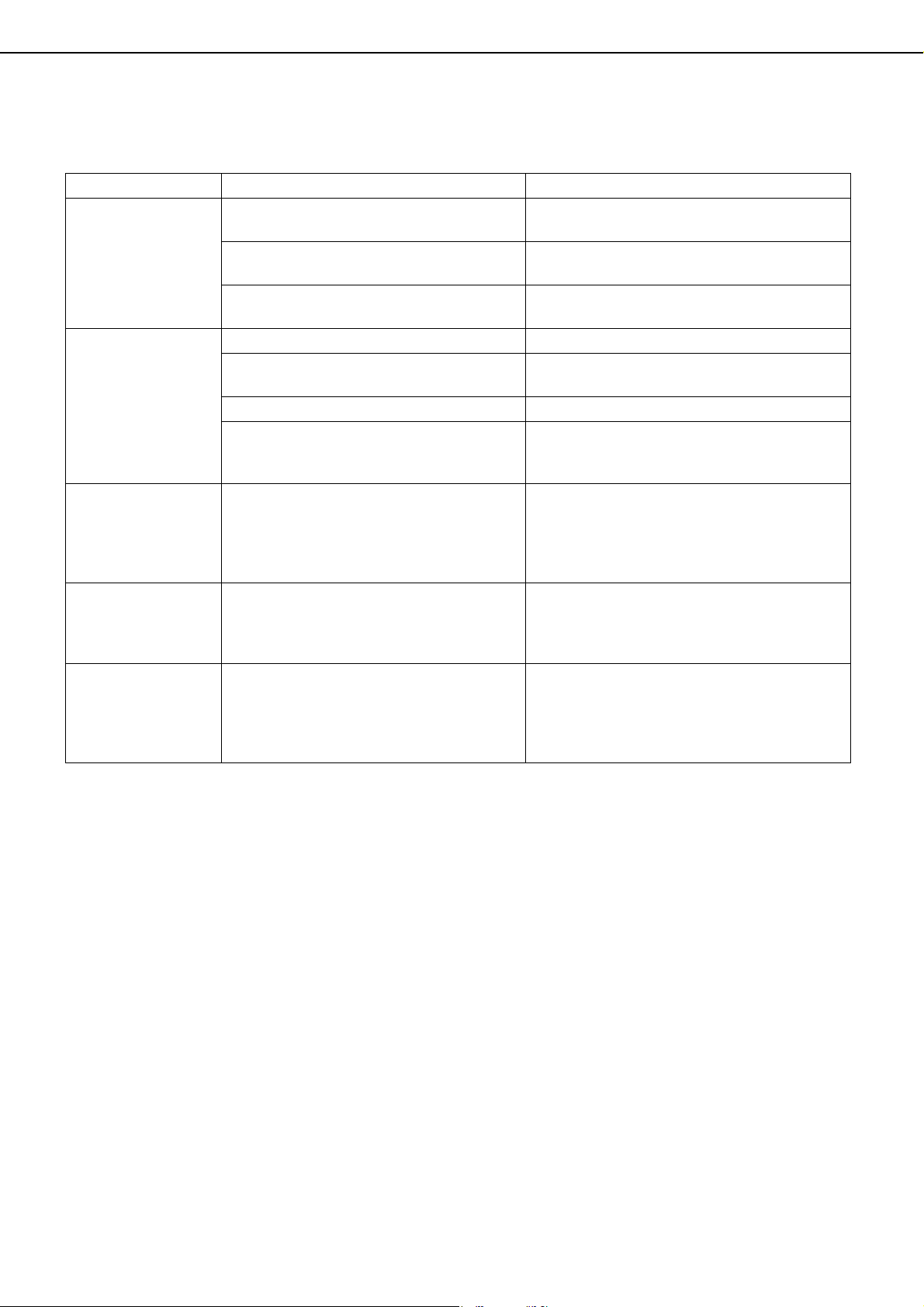
INSERTER
3-18
Troubleshooting inserter problems
Check the list below before calling for service.
Problem Check Solution or cause
Stapling position is
not correct
(including saddle
stitch).
The desired staple mode is not selected.
Select the desired staple mode at the
operation panel of the inserter (page 3-15).
The paper is not loaded in the correct
position.
Load the paper correctly (page 3-16).
The paper is not loaded face up.
Paper must be loaded face up in the inserter
tray (page 3-16).
The inserter does
not operate.
Are any inserter covers open? Close all covers.
"Disabling of inserter" is enabled in the
administrator settings.
Check the administrator settings and disable
"Disabling of inserter".
A paper misfeed message appears. Remove the misfed paper (page 3-17).
The [START] key light is not illuminated.
Make sure that the punch or staple key has
been selected on the operation panel of the
inserter (page 3-15).
Paper misfeed
occurs
The paper is curled or damp.
Do not use curled or folded paper. When the
inserter is not going to be used for a long time,
remove the paper from the inserter, place it in
a bag so that it does not absorb moisture, and
store it in a cool and dark place.
A paper misfeed
occurs when paper
is fed from the
inserter.
Do the size and orientation of the loaded
paper match the paper size and orientation
set in "Setting the paper type and paper
size"?
Make sure paper size and orientation set in
"Setting the paper type and paper size" match
the size and orientation of the loaded paper.
A message appears
each time paper is
placed in the paper
tray of the inserter.
Was the [SIZE SELECT] key touched and
the size and orientation of the paper for the
inserter set as explained in "Setting the
paper type and paper size"?
To ensure that the correct paper (size and
orientation) is loaded in the inserter, the
machine indicates the current paper size
setting each time paper is placed in the paper
tray.
dragonII_copy_sec.book 18 ページ 2006年10月18日 水曜日 午後7時39分
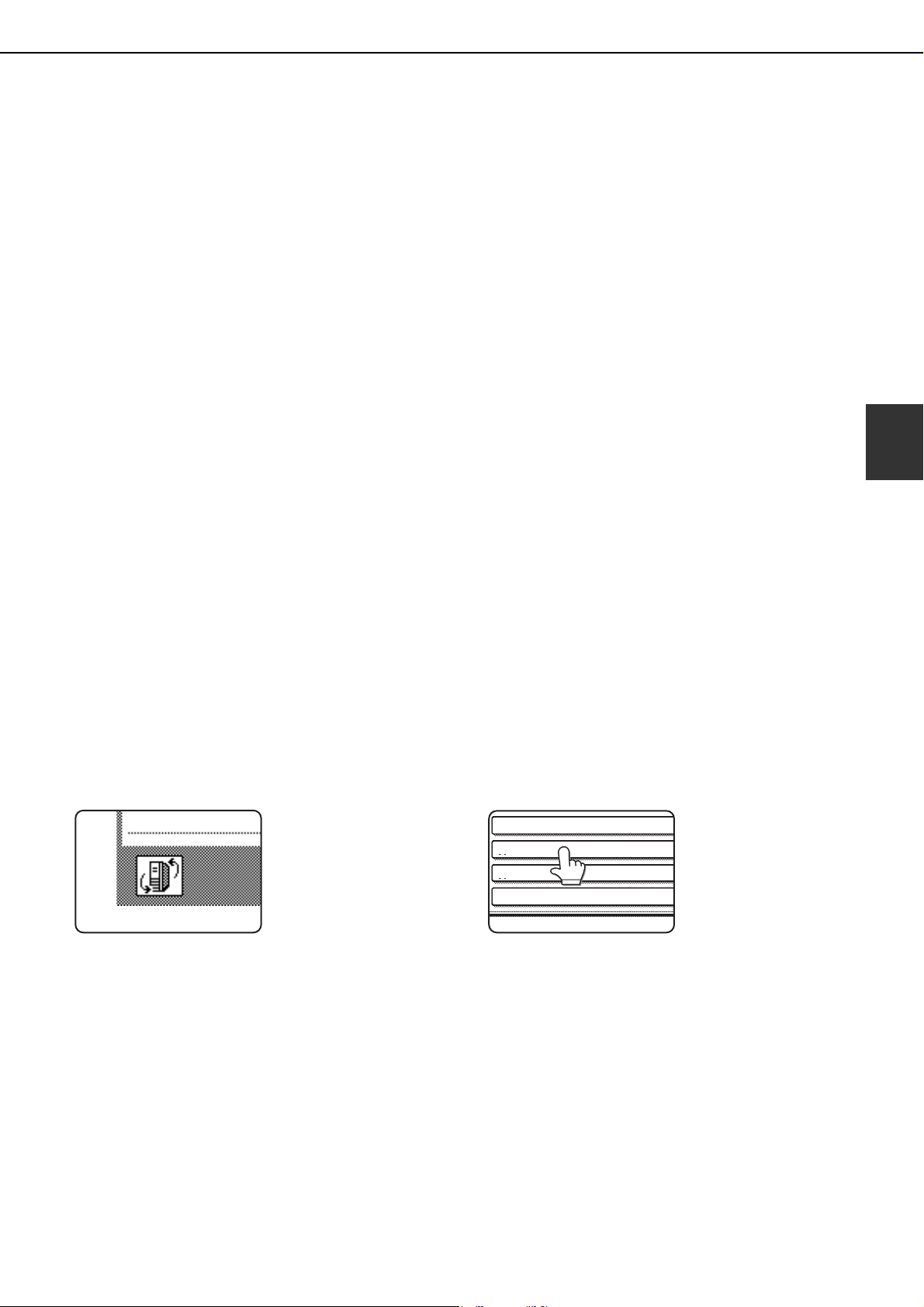
3-19
3
SHARP OSA
Sharp OSA (Open Systems Architecture) is an architecture that enables external applications to be directly
connected to a digital multifunction machine over a network.
When a digital multifunction machine that supports Sharp OSA is used, the operation panel controls and functions
of the machine such as scan send can be linked to an external application.
There are two types of external applications: "standard application" and "external account application". An "external
account application" is used for centralized account management of a multifunction machine on a network. A
"standard application" refers to all other applications.
APPLICATION COMMUNICATION
MODULE (MX-AMX2)
The application communication module is required to use a "standard application" on the machine.
When a previously registered standard application is selected in the Web pages of the machine, the machine
retrieves the operation screen from the registered URL. Control of the operation screen is performed by the standard
application, and Scan to FTP can be executed.
Standard application setup
To register a standard application in the machine's Web pages, click [External Applications] in the administrator menu
frame and then click [Standard Applications]. Configure settings for the standard application in the screen that
appears.
Selecting a standard application
There are two methods for selecting a standard application that has been registered in the machine's Web pages.
■ Selecting a standard application from the job status screen
The Sharp OSA icon will appear in the lower left-hand corner of the job status screen. Follow the steps below to
select a standard application.
1
Touch the Sharp OSA icon.
If no standard
applications have been
stored in the Web pages,
the key cannot be
touched.
2
Select the standard application.
If two or more standard
applications have been
stored in the Web pages,
the screen to select the
standard application will
appear. Touch the
standard application that
you wish to use.
If only one standard application has been stored in
the Web pages, connection to the standard
application will begin.
3
The machine connects to the standard
application.
The message "Connecting to the external
application." appears while the machine
communicates with the standard application.
App 04
App 03
App 02
App 01
dragonII_copy_sec.book 19 ページ 2006年10月18日 水曜日 午後7時39分
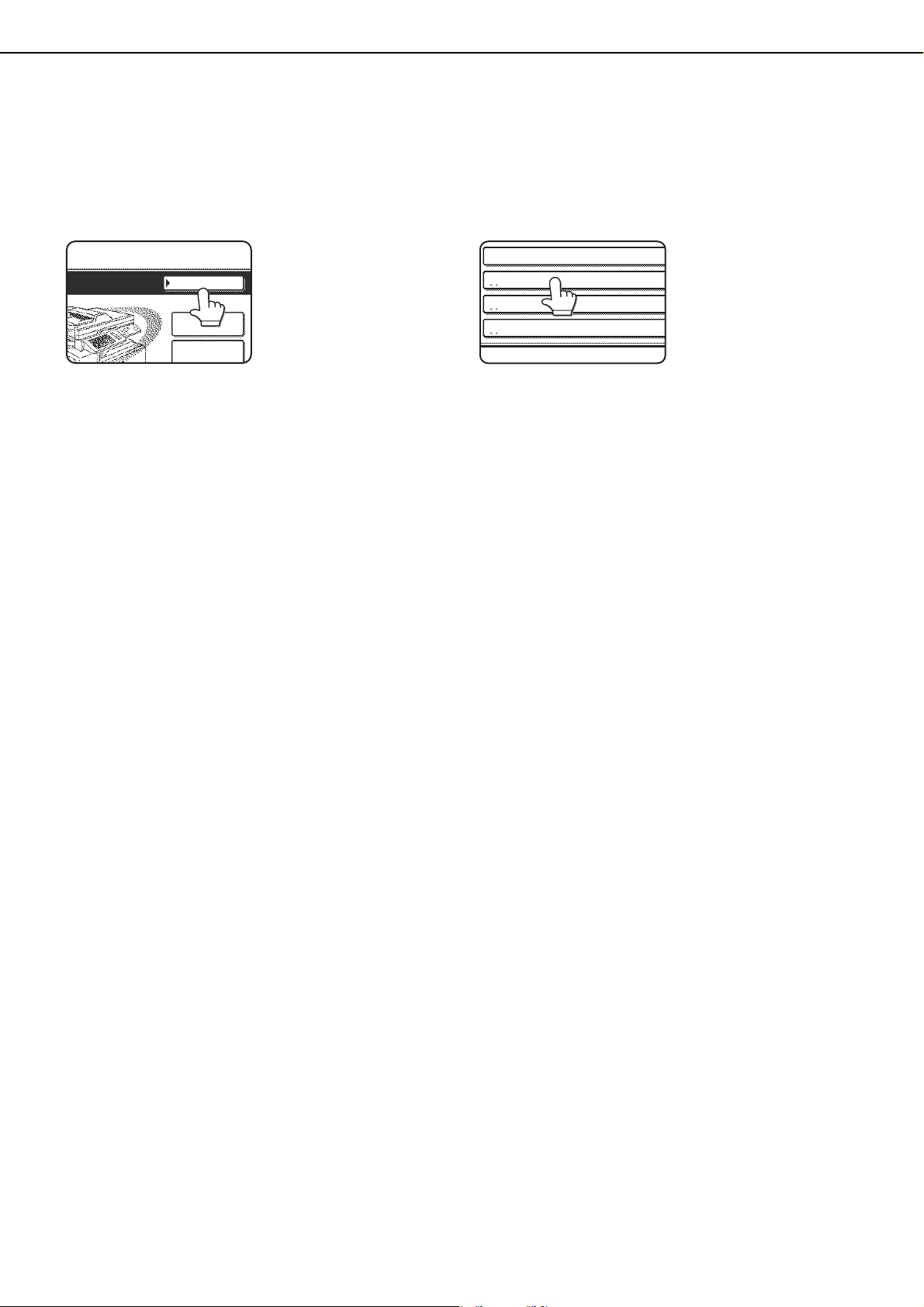
APPLICATION COMMUNICATION MODULE (MX-AMX2)
3-20
■ Selecting the standard application from document filing mode
The [Sharp OSA] key appears in the upper right-hand corner of the document filing screen. Follow the steps
below to select a standard application.
1
Touch the [Sharp OSA] key.
If no standard
applications have been
stored in the Web pages,
the key cannot be
touched.
2
Select the standard application.
If one or more standard
applications have been
stored in the Web pages,
the screen to select the
standard application will
appear. Touch the
standard application that
you wish to use.
If only one standard application has been stored in
the Web pages, connection to the standard
application will begin.
3
The machine connects to the standard
application.
The message "Connecting to the external
application." appears while the machine
communicates with the standard application.
Operation in OSA mode
When the application communication module is installed, it is possible to check the job log of OSA scan mode in the
job status screen. The procedure for displaying the job log is the same as for regular Scan to FTP.
To display the job log of OSA scan mode, touch the [SCAN] key once again while the job log of scan mode appears
in the job status screen. (When this is done, the name of the key will change to [OSA SCAN].) To return to the scan
screen from the OSA scan screen, touch the [OSA SCAN] key.
FILE RETRIEVE
SharpOSA
QUICK FILE
FOLDER
FILE
FOLDER
App 04
App 03
App 02
App 01
dragon_03.fm 20 ページ 2006年11月29日 水曜日 午後8時49分

3-21
3
EXTERNAL ACCOUNT MODULE (MX-AMX3)
The external account module is required to use a "external account application" on the machine.
An external account application can be used in "external authentication mode" or "external count mode". When
external authentication mode is used, the login screen is retrieved from the application when the machine is started.
When a job ends, a job notification screen is sent to the application to enable counts to be kept for each authenticated
user.
When "external count mode" is used, the login screen is not displayed when the machine is started. Only a job result
notification is sent to the application. User authentication by the external account application cannot be used,
however, the external account application can be used in combination with the internal account function.
External account application setup
To register an external account application in the machine's Web pages, click [External Applications] in the
administrator menu frame and then click [External Accounting]. Configure settings for the external account
application in the screen that appears. To make the settings in the Web page take effect, restart the machine.
Operation in external account mode
The two modes for using an external account application operate as explained below.
■ External authentication mode
When the [ENABLE AUTHENTICATION BY EXTERNAL SERVER] checkbox is selected in "External account
setting" of "Sharp OSA settings" in the administrator settings, the machine enters external authentication mode.
When the machine is powered on in external authentication mode, the machine accesses the external account
application and displays the login screen. The login screen also appears when the [CALL] key is touched to run
a job in the job status complete screen. (The login screen does not appear if the user has already logged in by
the normal method.)
The [JOB STATUS] key can be pressed while the login screen appears to show the job status screen. To return
to the previous state, press the mode select key.
■ External count mode
When only the [ENABLE EXTERNAL ACCOUNT CONTROL] setting is enabled in "External account setting" of
"Sharp OSA settings" in the administrator settings, the machine enters external count mode.
Unlike external authentication mode, when the machine is started in "external count mode", the login screen of
the external account application is not displayed. Only the job result is sent to the external account application.
External count mode can be used together with the user control function of the machine. (External count mode
can also be used when the user control function is disabled.)
NOTES
● The user control function of the machine cannot be used in external authentication mode.
● The [SYSTEM SETTINGS] key can be pressed while the login screen appears to show the system settings
screen. To return to the initial state, touch the [EXIT] key.
If login fails
If the login screen fails to appear or the application does not operate correctly, the machine may also stop operating
correctly. In this event, it is recommended that you quit external account mode from the Web pages of the machine.
For more information, see [Help] in the Web pages.
If it is necessary to forcibly terminate external account mode using the operation panel of the machine, follow the
steps below.
Press the [SYSTEM SETTINGS] key and change "External account setting" in the administrator settings (see page
14 of the administrator settings guide). After changing the setting, restart the machine.
dragon_03.fm 21 ページ 2006年10月23日 月曜日 午後12時0分

dragon_03.fm 22 ページ 2006年10月19日 木曜日 午後1時16分

Part 2: Copier Operation
dragonII_copy_sec.book 1 ページ 2006年10月18日 水曜日 午後7時39分

dragonII_copy_sec.book 2 ページ 2006年10月18日 水曜日 午後7時39分

4-1
CHAPTER 4
MAKING COPIES
This chapter explains the basic procedures for making copies, including
selection of the copy ratio and other copy settings.
Page
AUTOMATIC DOCUMENT FEEDER ...................................................... 4-2
●
Acceptable originals........................................................................ 4-2
PLACING ORIGINALS............................................................................ 4-3
CHECKING THE SIZE OF A PLACED ORIGINAL................................. 4-5
●
Manually setting the scanning size ................................................. 4-5
STORING, DELETING, AND USING ORIGINAL SIZES ........................ 4-6
●
Storing or deleting an original size.................................................. 4-6
NORMAL COPYING ............................................................................... 4-7
●
Making copies with the automatic document feeding function ........ 4-7
●
Automatic two-sided copying using the automatic document feeding
function............................................................................................ 4-10
●
Copying from the document glass................................................... 4-11
●
Automatic two-sided copying from the document glass .................. 4-13
ADJUSTING THE EXPOSURE .....................................................................4-14
REDUCTION/ENLARGEMENT/ZOOM................................................... 4-15
●
Automatic selection (auto image).................................................... 4-15
●
Manual selection (preset copy ratios/zoom).................................... 4-16
●
XY ZOOM........................................................................................ 4-18
SPECIAL PAPERS.................................................................................. 4-20
dragonII_copy_sec.book 1 ページ 2006年10月18日 水曜日 午後7時39分

4-2
AUTOMATIC DOCUMENT FEEDER
The automatic document feeding function automatically feeds originals into the machine, making continuous copying
possible. In addition, both sides of two-sided sheet originals can be simultaneously scanned. This function is
convenient when you have a large number of original pages to scan.
Acceptable originals
Up to 150 originals (20 lbs. (80 g/m
2
)) of the same size, or an overall stack height of no more than 49/64" (19.5 mm),
can be loaded. Originals of mixed length can also be loaded together as long as they are the same width; however,
some special functions may not operate correctly.
■ Size and weight of acceptable
originals
■ Total number of originals that can be
set in the document feeder tray
●
Maximum of 150 sheets (20 lbs. (80 g/m
2
)) or
total stack height of 49/64" (19.5 mm) or less.
■ Notes on use of the automatic document feeder
●Use originals within the specified size and weight ranges. Use of originals out of the specified range may cause
an original misfeed.
●Before loading originals into the document feeder tray, be sure to remove any staples or paper clips.
●If originals have damp spots from correction fluid, ink or glue from pasteups, be sure they are dried before they
are fed. If not, the interior of the document feeder or the document glass may be soiled.
●Do not use the following originals. These originals may cause incorrect original size detection, original
misfeeds, and smudges on copies.
●
Transparency film, tracing paper, carbon paper, thermal paper or originals printed with thermal transfer ink
ribbon should not be fed through the document feeder. Originals to be fed through the feeder should not be
damaged, crumpled or folded or have loosely pasted paper on them or cutouts in them. Originals with multiple
punched holes other than two-hole or three-hole punched paper may not feed correctly.
●When using originals with two or three holes, place them so that the
punched edge is at a position other than the feed slot.
2
2
Original size:
(148 x 210 mm)
5-1/2" x 8-1/2"
or A5
11" x 17"
or A3
(297 x 420 mm)
Weight (thickness):
14 lbs. or
50g/m
2
42 lbs. or
128 g/m
2
g/m
... Weight of a sheet of paper of 1 m
Special heavy papers
(65 lbs. (176 g/m ), 110 lbs. (205 g/m )) can be used.
22
Hole positions
Hole
positions
Hole positions
dragonII_copy_sec.book 2 ページ 2006年10月18日 水曜日 午後7時39分

4-3
4
PLACING ORIGINALS
■ Using the automatic document
feeder
1
Open the document cover, make sure that
an original has not been left on the
document glass, and then gently close the
document cover.
2
Adjust the original guides to the size of the
originals.
3
Place the originals face up in the
document feeder tray.
Place the originals face
up.
Insert the originals all
the way into the
document feeder. The
stack height must not be
higher than the indicator
line (maximum of 150 pages).
■ Using the document glass
Open the document cover, place the
original face down on the document glass,
and then gently close the document cover.
●Align the corner of the original with the tip of the
arrow mark on the document glass scale.
●Place the original in the appropriate position for its
size as shown above.
NOTES
● After placing the original, be sure to close the
document cover. If left open, parts outside of the
original will be copied black, causing excessive
use of toner.
● Do not place any objects under the original size
detector, because they may damage it or the
original size may not be detected properly.
8½x11
or A4
8½x14
or B4
11x17 or A3
8½x11 or A4
Document glass scale
mark
Document glass scale
mark
NOTE
Original size detection function
One of the four groups of standard original sizes shown below can be selected for detection by the original size
detection function. The factory default setting is "INCH-1". The setting can be changed using "ORIGINAL SIZE
DETECTOR SETTING" in the administrator settings.
Group
Detectable original sizes
Document feeder tray (for reversing automatic document feeding)
Document glass
1
INCH-1
11" x 17", 8-1/2" x 14", 8-1/2" x 11",
8-1/2" x 11"R, 5-1/2" x 8-1/2"
Document glass + A4
2
INCH-2
11" x 17", 8-1/2" x 13", 8-1/2" x 11",
8-1/2" x 11"R, 5-1/2" x 8-1/2"
Document glass + A4
3 AB-1 A3, A4, A4R, A5,B4, B5, B5R Document glass + 8-1/2" x 11", 216x330
4 AB-2 A3, A4, A4R, A5,B5, B5R, 216x330 Document glass + 8-1/2" x 11", B4
dragon_04.fm 3 ページ 2006年11月29日 水曜日 午後8時51分
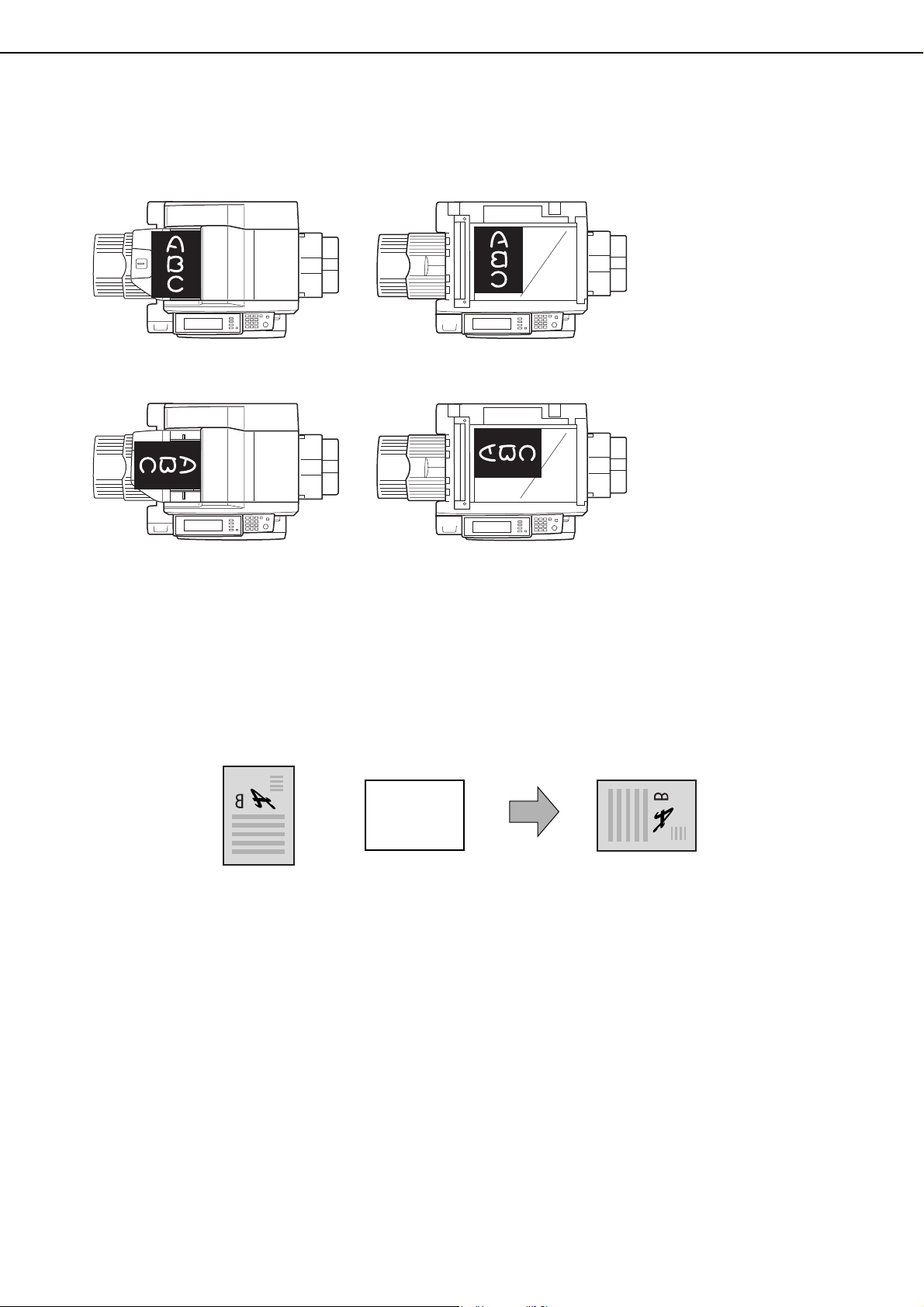
PLACING ORIGINALS
4-4
■ Standard original placement orientations
Place originals in the
document feeder tray or on
the document glass so that
the top and bottom of the
original is positioned as
shown in the illustration. If not,
staples will be incorrectly
positioned and some special
features may not give the
expected result.
■ Automatic copy image rotation - rotation copying
If the orientation of the originals and copy paper are different, the original image will be automatically rotated 90°
and copied. (When an image is rotated, a message will be displayed.) If a function is selected that is not suitable
for rotation, such as enlarging the copy to greater than 8-1/2" x 11" (A4) size or staple sorting with the saddle
stitch finisher, rotation will not be possible.
[Example]
●This function operates in both the auto paper select or auto image mode. ("Rotation copy setting" can be
disabled in the administrator settings. See page 16 of the administrator settings guide.)
Document feeder tray
Document glass
Document feeder tray
Document glass
[Example 1]
[Example 2]
Orientation of original Orientation of paper Copy after rotation
Face down
Face down
dragon_04.fm 4 ページ 2006年10月19日 木曜日 午後12時58分
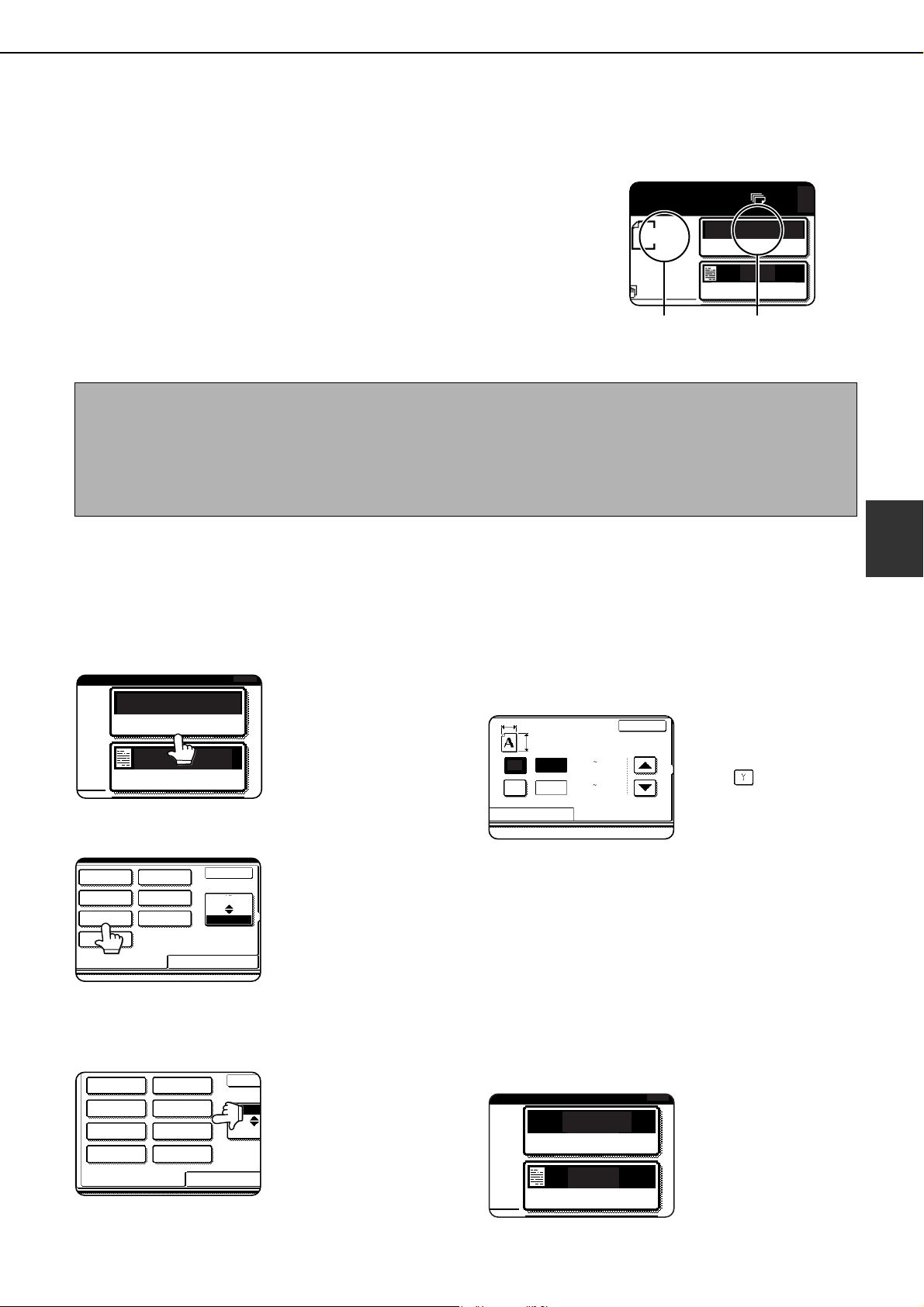
4-5
4
CHECKING THE SIZE OF A PLACED
ORIGINAL
If the placed original is a standard size, the size will be automatically
detected (automatic original detection function) and displayed in the touch
panel. Make sure that the correct size has been detected.
(A) :The original size is displayed.
(B) :[AUTO] appears when the automatic original detection function is
operating.
If you have loaded a non-standard size original or wish to change the
scanning size, you can follow the steps below to manually set the original
scanning size. (For the standard sizes, see "Original size detection
function" on page 4-3.)
Manually setting the scanning size
If you load an original that is not a standard size (such as an AB size), or if the size is not detected correctly, you must
touch the [ORIGINAL] key and set the original size manually. Perform the following steps after placing the document
in the automatic document feeder or on the document glass.
1
Touch the [ORIGINAL] key.
2
Touch the desired original size key.
[AUTO] is no longer
highlighted. [MANUAL]
and the original size key
you touched are
highlighted.
If you wish to select an AB size, touch the
[AB/INCH] key and then touch the desired
original size key.
[AB] is highlighted and
AB size keys are
displayed. To return to
the inch palette, touch
the [AB/INCH] key once
again.
If a non-standard size original is placed in
the document feeder or on the document
glass, touch the [SIZE INPUT] tab and then
enter the X (width) and Y (length)
dimensions of the original.
X is initially selected.
Enter the X dimension
(width) and then touch
the Y( ) key and enter
the Y dimension (length).
X can be from 2-1/2 to 17
inch, and Y can be from
2-1/2 to 11-5/8 inch.
If you frequently use originals that are the same
non-standard size, you can store the size as
explained in "STORING, DELETING, AND USING
ORIGINAL SIZES"on the following page. This will
save you the trouble of manually entering the size
each time you use that original size.
3
Touch the [OK] key.
You will return to the initial screen.
4
The selected original size appears in the
top half of the [ORIGINAL] key.
AUTO
AUTO
ORIGINAL
EXPOSURE
0
8 x11
1
/
2
(B)(A)
NOTE
If a non-standard size original is loaded (including special sizes), the closest standard size may be displayed,
or the original size may not appear at all.
If "CANCEL DETECTION AT DOCUMENT GLASS" is enabled in the administrator settings (see page 11 of the
administrator settings guide), automatic original detection at the document glass will not operate. In this case,
follow the steps below to manually set the original scanning size.
AUTO
AUTO
ORIGINAL
EXPOSURE
0
STANDARD SIZE
SIZE INPUT
INCH
AB
OK
5
X
8
5
X
8R
8
X
11
R
8
X
11
8
X
13
8
X
14
11
X
17
1
/
2
1
/
2
1
/
2
1
/
2
1
/
2
1
/
2
1
/
2
1
/
2
A5
B5
A5R
A4
B4
A3
STANDARD SIZE
SIZE INPUT
INCH
AB
OK
A4R
B5R
(2 1/2 11 5/8)
inch
(2 1/2 17)
inch
X
Y
X
Y
STANDARD SIZE SIZE INPUT
17
11 5/8
OK
AUTO
ORIGINAL
EXPOSURE
0
A4
dragonII_copy_sec.book 5 ページ 2006年10月18日 水曜日 午後7時39分
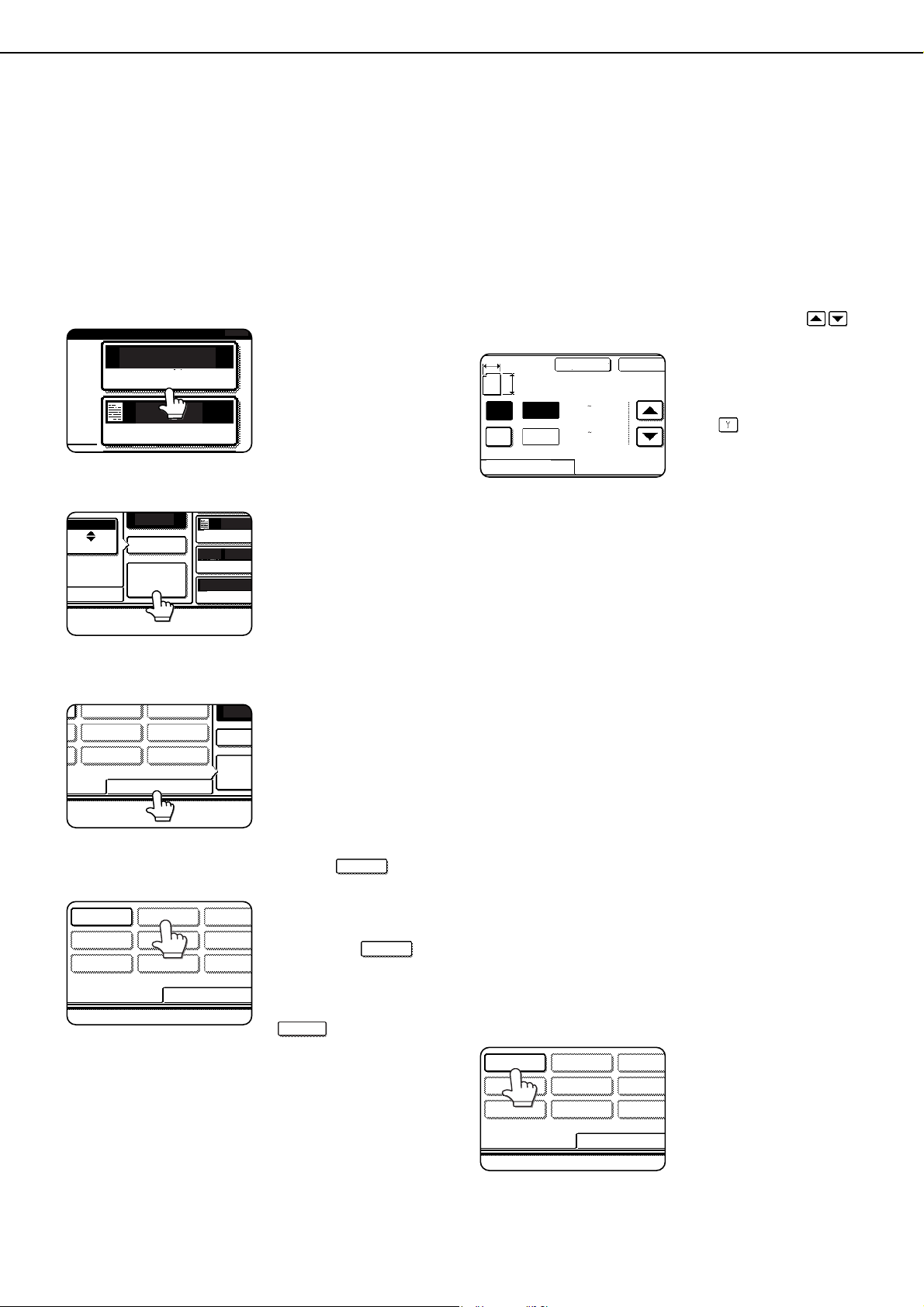
4-6
STORING, DELETING, AND USING
ORIGINAL SIZES
Up to 9 special original sizes can be stored. Stored sizes can be easily called up and are not erased if the power is
turned off. Storing a frequently used original size saves you the trouble of manually setting the size each time you
copy that size of document.
● To cancel an original size storing, using, or deleting operation, touch the [ORIGINAL] key on the screen.
Storing or deleting an original size
1
Touch the [ORIGINAL] key.
2
Touch the [CUSTOM SIZE] key.
3
Touch the [STORE/DELETE] key.
4
Touch the original size key ( ) that
you wish to store or delete.
To store an original size,
touch a key that does not
show a size ( ).
Keys that already have
an original size stored
will show the stored size
().
To delete or change a stored size, touch the key
that shows the size that you wish to delete or
change.
●If you are storing an original size, go to step 5.
●To delete or change an original size, go to
step 7.
5
Enter the X (width) and Y (length)
dimensions of the original with the
keys.
X (width) is initially
selected.
Enter X and then touch
the ( ) key to enter Y.
A width of 2-1/2 to 17
inches can be entered in
X, and a length of 2-1/2
to 11-5/8 inches can be entered in Y.
6
Touch the [OK] key.
The original size entered in step 5 is stored in the
key selected in step 4.
To exit, touch the [ORIGINAL] key.
7
When you touch a key that shows an
original size in step 4, a message screen
appears that contains the keys [CANCEL],
[DELETE], and [STORE].
●To cancel the procedure, touch the [CANCEL]
key.
●To delete the selected original size, touch the
[DELETE] key.
●To change the original size stored in the key,
touch the [STORE] key. The screen of step 5
will appear to let you change the size.
8
To exit, touch the [ORIGINAL] key.
■ USING A STORED ORIGINAL SIZE
1
Follow steps 1 to 2 of "STORING OR
DELETING AN ORIGINAL SIZE".
2
Touch the original size key that you wish
to use.
3
Touch the [OK] key.
The stored original size is called up.
AUTO
ORIGINAL
EXPOSURE
0
AUTO
E INPUT
CUSTOM
SIZE
EXPOSURE
PAPER SE
COPY RAT
100%
AUTO
AUTO
MANUAL
8 x1
1
/
2
AUTO
INCH
AB
LL
STORE/DELETE
CUSTO
SIZE
MANUA
AUTO
RECALL
STORE/DELETE
X5 Y10
1
/
2
1
/
8
X5 Y10
1
/
2
1
/
8
CANCEL OK
17
11 5/8
(2 1/2 17)
inch
RECALL
Y
X
A
X
Y
STORE/DELETE
(2 1/2 11 5/8)
inch
RECALL
STORE/DELETE
X5 Y10
1
/
2
1
/
8
dragonII_copy_sec.book 6 ページ 2006年10月18日 水曜日 午後7時39分
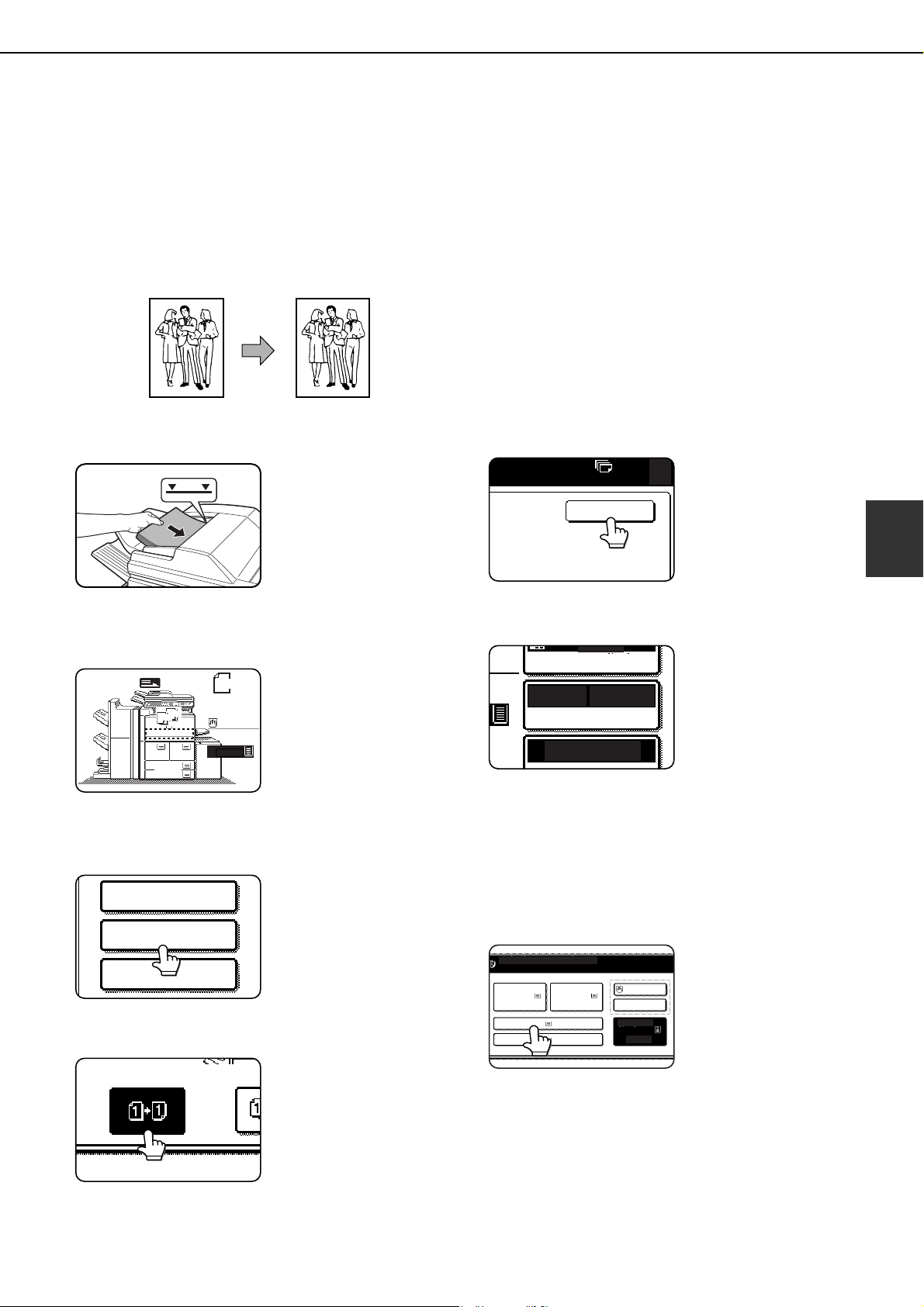
4-7
4
NORMAL COPYING
This section describes the normal copying procedure.
Making copies with the automatic document feeding
function
■ 1-sided copies of 1-sided originals
1
Place the originals in the document feeder
tray. (pages 4-3 to 4-6)
2
Ensure that the 1-sided to 1-sided copy
mode is selected.
The one-sided to one-
sided mode is selected
when no icon for a two-
sided mode appears in
the dashed area on the
display. If the 1-sided to
1-sided copy mode is
already selected, steps 3 to 5 are not needed.
3
Touch the [2-SIDED COPY] key.
4
Touch the [1-sided to 1-sided copy] key.
Touch the [1-sided to 1-
sided copy] key.
5
Touch the [OK] key.
6
Ensure that paper of the same size as the
originals is automatically selected*.
The selected tray will be
highlighted or the
message "LOAD xxxxxx
PAPER." will appear. If
the message appears,
load paper in a paper
tray with paper of the
required size.
Even if the message above appears, copying can
be performed onto the currently selected paper.
*The following requirements must be satisfied.
Originals of a standard size (11" x 17", 8-1/2" x
14", 8-1/2" x 11", 8-1/2" x 11"R or 5-1/2" x 8-1/2R"
(A3, B4, A4, A4R, B5, B5R or A5)) are set and the
auto paper select function is enabled.
If originals of a size other
than the sizes above are
to be copied, manually
select the desired paper
size by touching the
[PAPER SELECT] key
and then touching the
desired paper size selection key.
The selected key will be highlighted and the paper
selection screen will close. To close the paper
selection screen without making a selection, touch
the [PAPER SELECT] key.
Original Copy
1.
3.
4.
5.
8 x11
B4
8 x14
11x17
8 x11
8 x11
8 x11
2.
ORIGINAL
8 x11
1
2
3
1
2
3
1
/
2
1
/
2
1
/
2
1
/
2
1
/
2
1
/
2
SPECIAL MODES
2-SIDED COPY
OUTPUT
OK
0
AUTO
AUTO
100%
8 x11
PAPER SELECT
O
EXPOSURE
1
/
2
PLAIN
READY TO SCAN FOR COPY.
1. 8 x11
PLAIN PLAIN PLAIN
PLAIN
PLAIN
3. 8 x14
4. 11x17
2. 8 x11
5. 8 x11
8 x11
1
/
2
1
/
2
1
/
2
1
/
2
1
/
2
dragonII_copy_sec.book 7 ページ 2006年10月18日 水曜日 午後7時39分
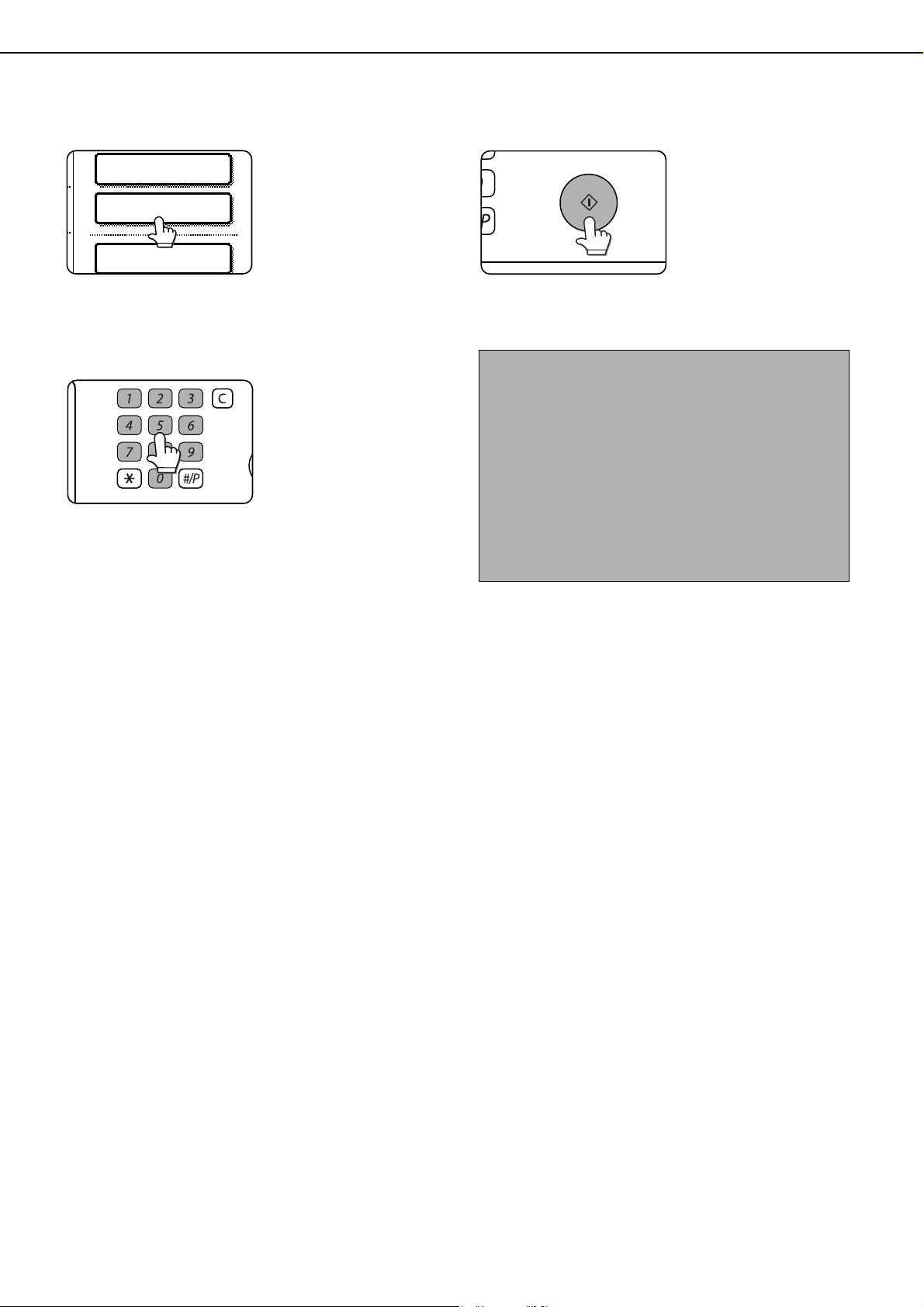
NORMAL COPYING
4-8
7
Select the desired output mode (page 4-9).
The sort mode is the
default mode.
To select the group
mode, touch the
[OUTPUT] key, then
touch the [GROUP] key
on the output setting
screen, and then touch the [OK] key on the setting
screen.
8
Use the numeric keys to set the desired
number of copies.
Up to 999 can be set.
If you are only making a
single copy, the copy can
be made with the copy
number display showing
"0". Use the [C] (clear)
key to cancel an entry if
a mistake has been made.
9
Press the [START] key.
If the [C] key is pressed
while originals are being
scanned, scanning will
stop. If copying had
already started, copying
and scanning will stop
after the original in
progress is output to the original exit area. In these
cases the copy quantity will be reset to "0".
2-SIDED COPY
OUTPUT
FILE
LOGOUT
NOTES
● The 1-sided to 1-sided copying mode is set as the
default in the initial settings. If the default setting
has not been changed using the "Initial status
settings" (administrator settings), steps 3 to 5 on
page 4-7 can be omitted.
To cancel copying...
To cancel a copy job in progress, press the [CA]
key. A confirmation message will appear. Touch
the [YES] key to cancel copying.
dragonII_copy_sec.book 8 ページ 2006年10月18日 水曜日 午後7時39分

NORMAL COPYING
4-9
4
■ Copy output (sort and group)
Example: Making five sets or five copies each of three originals
● Sorting copies into sets
● Grouping copies by page
■ Selecting the output tray (when an optional finisher or saddle stitch finisher is
installed)
When the [FINISHER TRAY] key is highlighted, output pages are delivered to the finisher tray of the finisher or
saddle stitch finisher. When the "CENTER TRAY" key is highlighted, output pages are delivered to the center
tray. Touch the appropriate key to select the desired output tray.
This screen appears when a saddle stitch finisher is installed.
The screen that appears when a finisher is installed is slightly different.
SPECIAL MODES
2-SIDED COPY
OUTPUT
LOGOUT
OUTPUT
SORT
GROUP
Original
Press the [START]
key
Set the
number of
copies (5)
Touch the
[OUTPUT] key
Touch the
[SORT] key
Five sets of copies
When using the automatic document feeding function,
sorting is automatically selected when the original is placed
in the document feeder.
LOGOUT
SPECIAL MODES
2-SIDED COPY
OUTPUT
OUTPUT
SORT
GROUP
Press the [START]
key
Set the
number of
copies (5)
Touch the
[OUTPUT] key
Touc h the
[GROUP] key
"Group" is automatically selected when the
original is placed on the document glass.
5 copies per page
Original
OUTPUT
SORT
GROUP
STAPLE
SORT
0
OK
PUNCH
SADDLE
STITCH
FINISHER
TRAY
CENTER
TRAY
OFFSET
dragonII_copy_sec.book 9 ページ 2006年10月18日 水曜日 午後7時39分
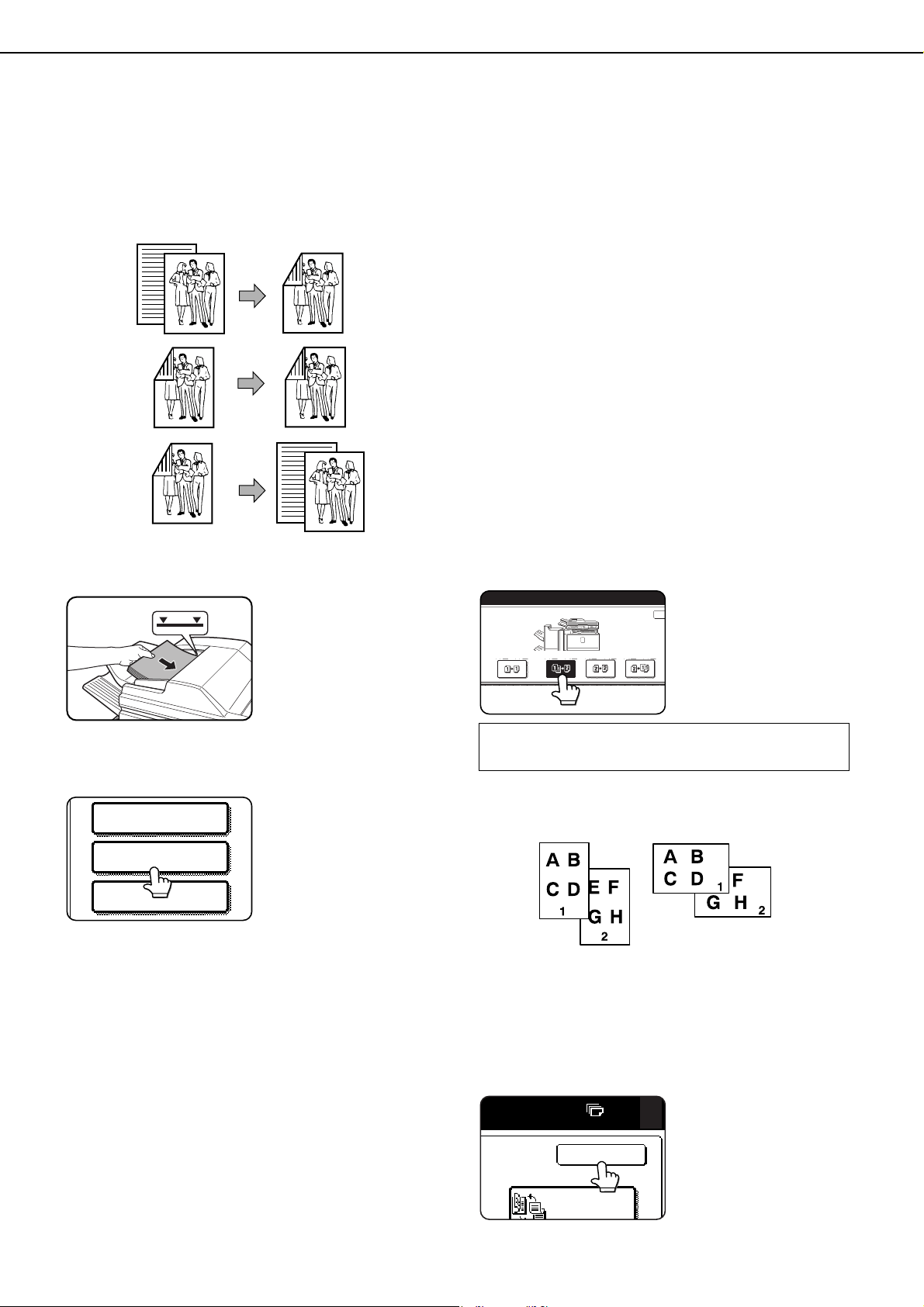
NORMAL COPYING
4-10
Automatic two-sided copying using the automatic
document feeding function
The machine can automatically copy two-sided originals, saving you the trouble of manually turning over each
original page.
1. Automatic two-sided copying from one-sided
originals
2. Automatic two-sided copying from two-sided
originals
3. Automatic one-sided copying from two-sided
originals
1
Place the originals in the document feeder
tray. (pages 4-3 to 4-6)
2
Touch the [2-SIDED COPY] key.
3
Select the desired copy mode.
The display will vary
depending on the
equipment installed.
When making automatic two-sided copies of a
one-sided 11" x 17" (A3) or 8-1/2" x 14" (B4) size
portrait original, or when you wish to invert the top
and bottom of the back side of a two-sided original,
touch the [BINDING CHANGE] key.
4
Touch the [OK] key.
Perform steps 6 through 9 on pages 4-7 and 4-8.
Original
Copy
SPECIAL MODES
2-SIDED COPY
OUTPUT
If a copy key is touched for a mode that cannot
be selected, a double beep will sound.
ED COPY
Example of a
portrait-oriented
original
Example of a
landscape-oriented
original
OK
0
BINDING
dragon_04.fm 10 ページ 2006年11月29日 水曜日 午後8時52分
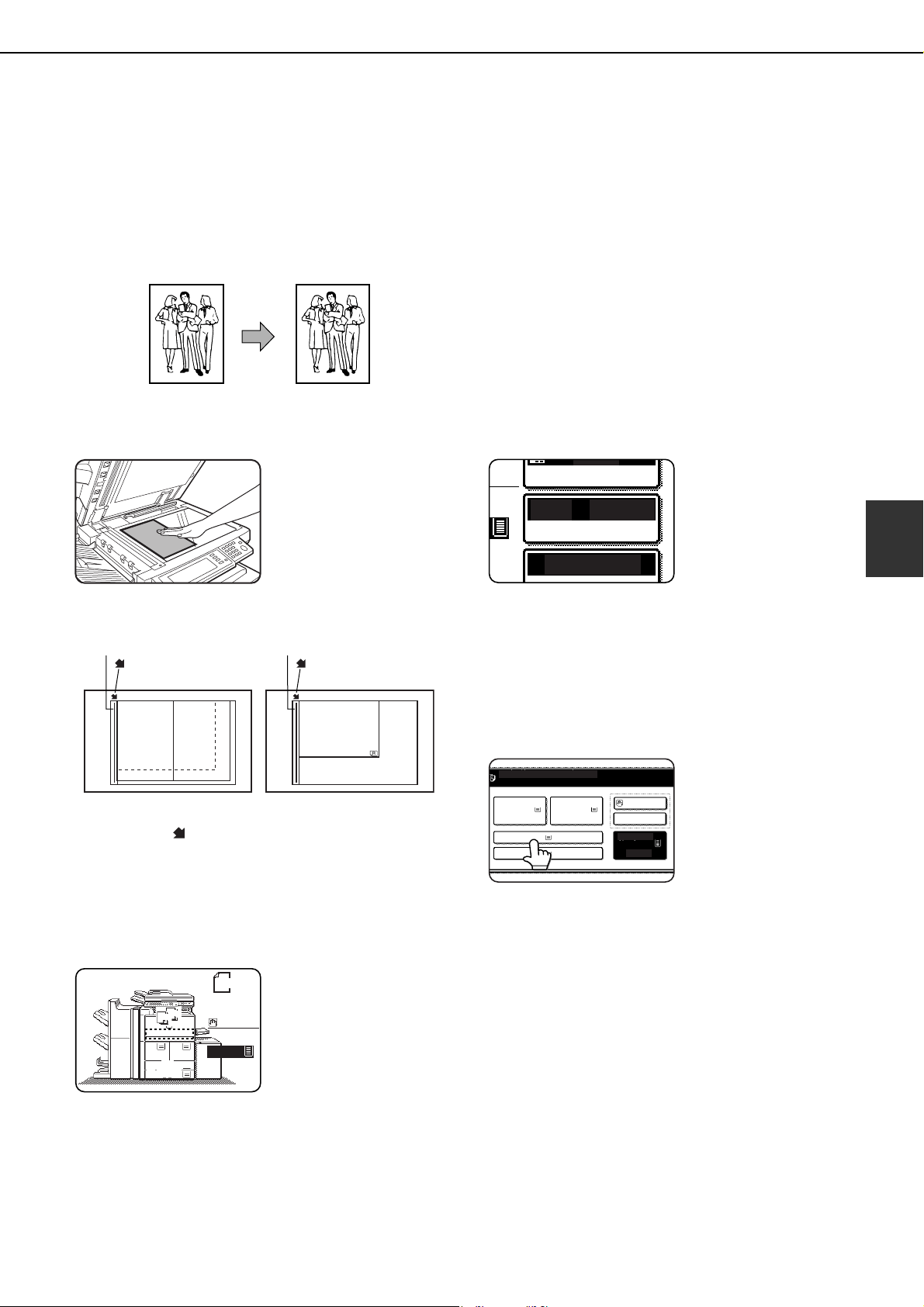
NORMAL COPYING
4-11
4
Copying from the document glass
When copying originals which cannot be fed from the automatic document feeder such as thick originals, open the
document cover and copy the originals from the document glass.
■ 1-sided copies of 1-sided originals
1
Place the original on the document glass.
(pages 4-3 to 4-6)
●Align the corner of the original with the tip of the
arrow mark on the document glass scale.
●Place the original in the appropriate position for its
size as shown above.
2
Ensure that the 1-sided to 1-sided copy
mode is selected.
The one-sided to one-
sided mode is selected
when no icon for a two-
sided mode appears in
the dashed area on the
display. If an icon
appears, perform steps
3 to 5 on page 4-7 and then go to step 3.
3
Ensure that paper of the same size as the
original is automatically selected*.
The selected tray will be
highlighted or the
message "LOAD xxxxxx
PAPER." will appear. If
the message appears,
load paper in a paper
tray with paper of the
required size.
Even if the message above is displayed, copying
can be performed onto the currently selected
paper.
* The following requirements must be satisfied.
Originals of a standard size (11" x 17", 8-1/2" x 14",
8-1/2" x 11", 8-1/2" x 11"R or 5-1/2" x 8-1/2"R (A3,
B4, A4, A4R, B5, B5R or A5)) are set and the auto
paper select function is enabled.
If originals of a size other
than the sizes above are
to be copied, manually
select the desired paper
size by touching the
[PAPER SELECT] key
and then touching the
desired paper size selection key.
The selected key will be highlighted and the paper
selection screen will close. To close the paper
selection screen without making a selection, touch
the [PAPER SELECT] key.
Original Copy
8½x11
or A4
8½x14
or B4
11x17 or A3
8½x11 or A4
Document glass scale
mark
Document glass scale
mark
1.
3.
4.
5.
8 x11
B4
8 x14
11x17
8 x11
8 x11
8 x11
2.
ORIGINAL
8 x11
1
1
1
2
2
2
1
/
2
1
/
2
1
/
2
1
/
2
1
/
2
1
/
2
AUTO
AUTO
100%
8 x11
PAPER SELECT
COPY RATIO
EXPOSURE
1
/
2
PLAIN
READY TO SCAN FOR COPY.
1. 8 x11
PLAIN PLAIN PLAIN
PLAIN
PLAIN
3. 8 x14
4. 11x17
2. 8 x11
5. 8 x11
8 x11
1
/
2
1
/
2
1
/
2
1
/
2
1
/
2
dragonII_copy_sec.book 11 ページ 2006年10月18日 水曜日 午後7時39分
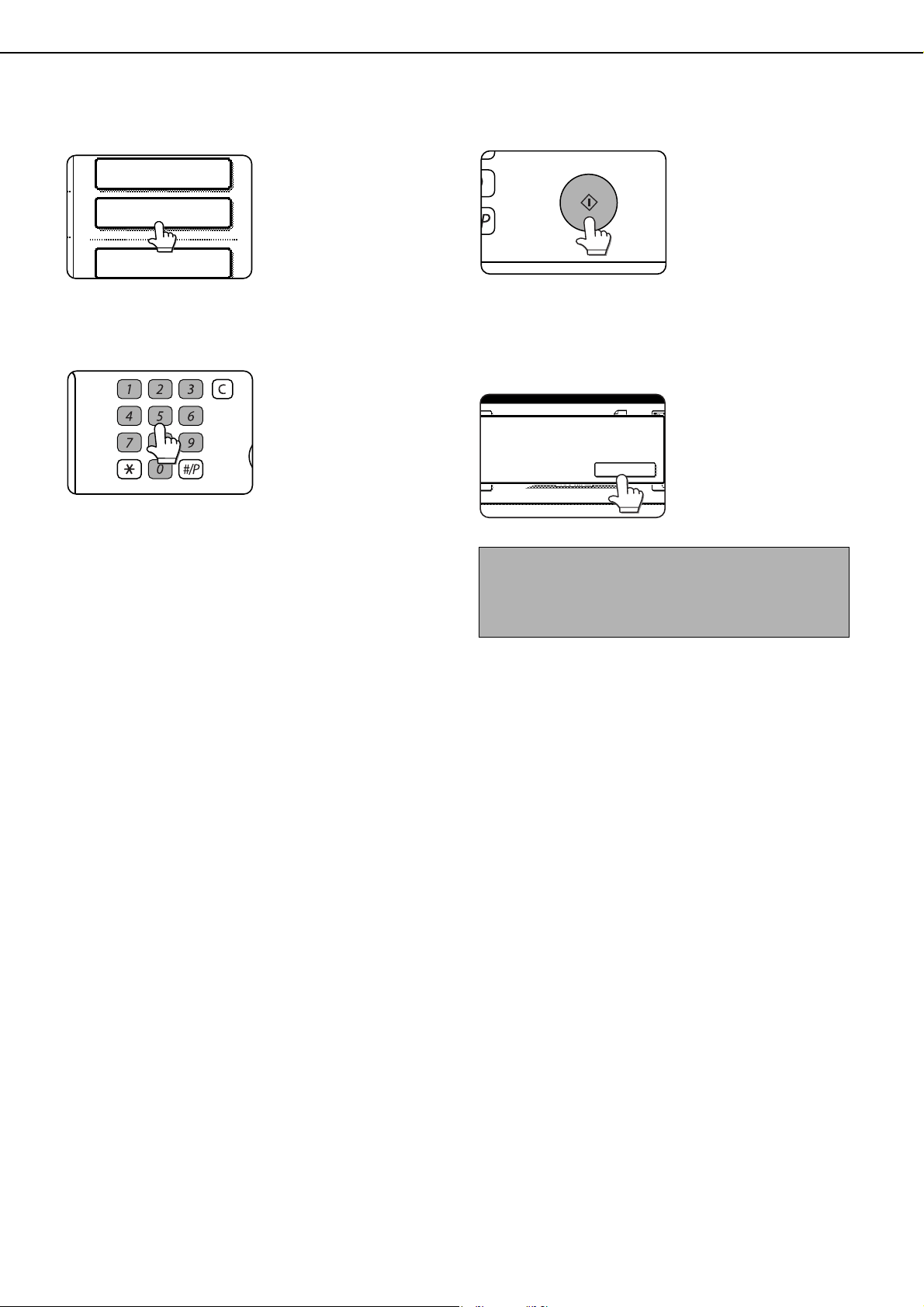
NORMAL COPYING
4-12
4
Select the desired output mode. (page 4-
9.)
Group mode is the
default mode.
To select sort mode,
touch the [OUTPUT]
key, touch the [SORT]
key in the screen that
appears, and then touch
the [OK] key.
5
Use the numeric keys to set the desired
number of copies.
Up to 999 can be set.
If you are only making a
single copy, the copy can
be made with the copy
number display showing
"0".
Use the [C] (clear) key to
cancel an entry if a mistake has been made.
6
Press the [START] key.
Replace the original with
the next original and
press the [START] key.
Repeat this operation
until all originals have
been scanned.
If you selected "Sort" for
the output mode in step 4 and pressed the
[START] key, it is necessary to touch the [READ-
END] key.
7
Touch the [READ-END] key.
2-SIDED COPY
OUTPUT
FILE
LOGOUT
To cancel copying...
To cancel a copy job in progress, press the [CA] key.
A confirmation message will appear. Touch the
[YES] key to cancel copying.
READ-END
PLACE NEXT ORIGINAL. PRESS [START].
WHEN FINISHED, PRESS [READ-END].
dragonII_copy_sec.book 12 ページ 2006年10月18日 水曜日 午後7時39分
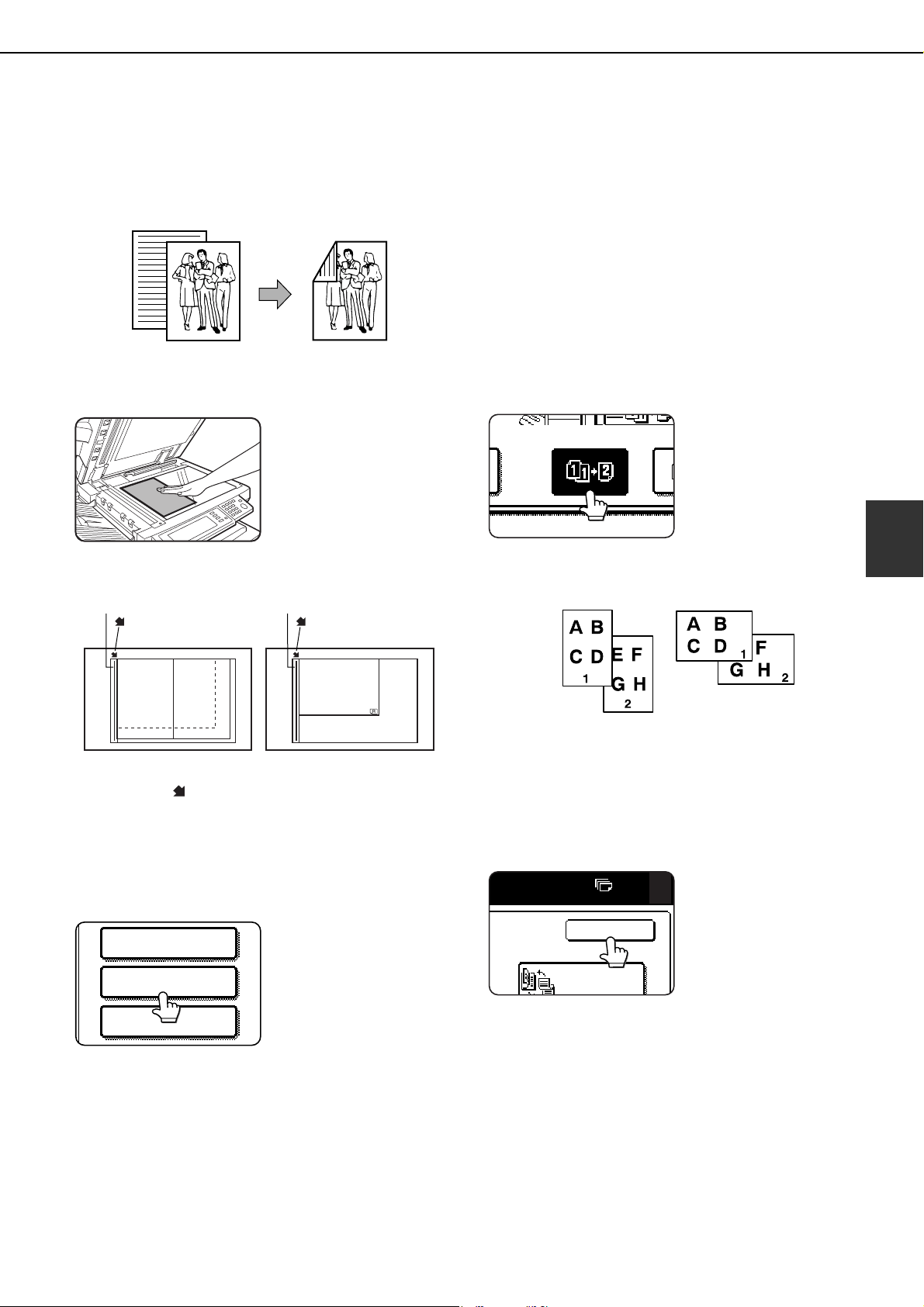
NORMAL COPYING
4-13
4
Automatic two-sided copying from the document glass
The following two-sided copying function is possible. The copy paper is turned over automatically, allowing easy two-
sided copying.
1
Place an original on the document glass.
(pages 4-3 to 4-6)
●Align the corner of the original with the tip of the
arrow mark on the document glass scale.
●Place the original in the appropriate position for its
size as shown above.
2
Touch the [2-SIDED COPY] key.
3
Touch the [1-sided to 2-sided copy] key.
When making automatic two-sided copies of a
one-sided 11" x 17" (A3) or 8-1/2" x 14" (B4) size
portrait original, or when you wish to invert the top
and bottom of the back side of a two-sided original,
touch the [BINDING CHANGE] key.
4
Touch the [OK] key.
Perform steps 3 to 7 on pages 4-11 and 4-12.
Original Copy
8½x11
or A4
8½x14
or B4
11x17 or A3
8½x11 or A4
Document glass scale
mark
Document glass scale
mark
SPECIAL MODES
2-SIDED COPY
OUTPUT
Example of a
portrait-oriented
original
Example of a
landscape-oriente
d
original
OK
0
BINDING
dragon_04.fm 13 ページ 2006年11月30日 木曜日 午後4時19分
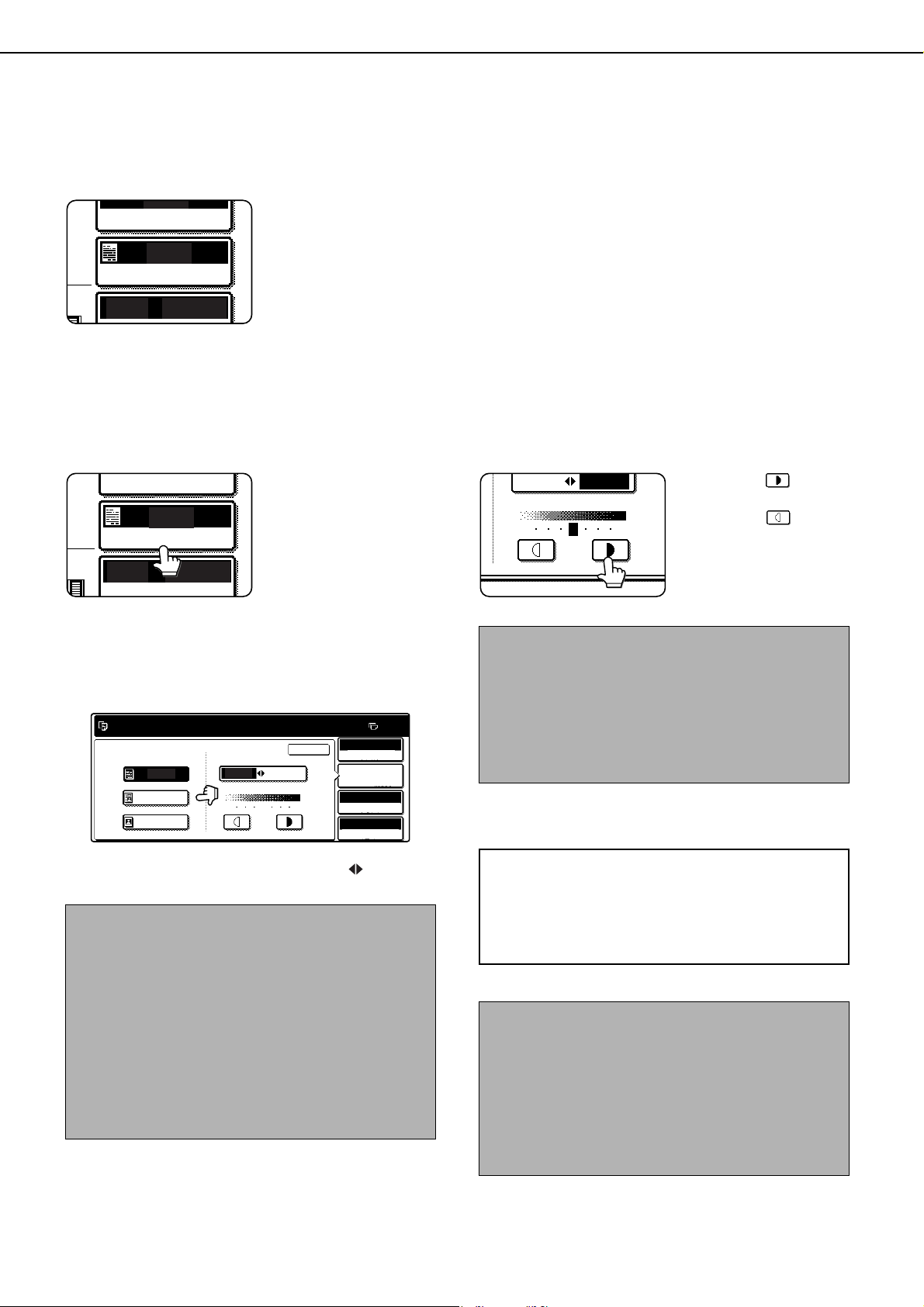
4-14
ADJUSTING THE EXPOSURE
Select an appropriate exposure mode for the original to be copied. The selections are AUTO, TEXT, TEXT/PHOTO
and PHOTO.
■ Automatic exposure adjustment
The default exposure
setting is "AUTO", which
automatically adjusts
the exposure for the
original. To select the
exposure mode, or to
manually adjust the
exposure level, follow the steps below.
■ Selecting the exposure mode and manually adjusting the exposure level
1
Touch the [EXPOSURE] key.
2
Select [TEXT], [TEXT/PHOTO] or [PHOTO]
as appropriate for the original to be
copied.
To select [TEXT], touch the [AUTO MANUAL]
key so that [MANUAL] is selected.
3
Adjust the exposure level.
Touch the key to
make darker copies.
Touch the key to
make lighter copies.
AUTO
AUTO
AUTO 8 x11
ORIGINAL
PAPER SELECT
EXPOSURE
1
/
2
Exposure modes selection
TEXT: This mode is useful for producing
dark text copies with minimum
background.
TEXT/PHOTO: This provides the best balance for
copying an original which contains
both text and photos. This mode is
also useful for copying printed
photographs.
PHOTO: This mode provides the best copies
of photographs with fine details.
AUTO
AUTO 8 x11
ORIGINAL
PAPER SELECT
EXPOSURE
1
/
2
ORIGINAL
IMAGE TYPE
TEXT
AUTO MANUAL
531
OK
TEXT/PHOTO
PHOTO
AUTO
AUTO 8 x11
100%
ORIGINAL
PAPER SELECT
COPY RATIO
EXPOSURE
0
1
/
2
NOTE
Exposure levels in TEXT mode
1 to 2: Dark originals such as newspaper
3: Normal density originals
4 to 5: Originals written with pencils or light color
characters
About the steps that follow
If an automatic document feeder is being used,
see pages 4-7 through 4-10. If the document
glass is being used, see pages 4-11 through 4-
13.
NOTES
● To return to the automatic exposure mode, touch
the [AUTO / MANUAL] key to highlight [AUTO],
and then touch the [OK] key.
● The exposure level used in automatic exposure
mode can be adjusted in the administrator
settings. See "Exposure adjustment" on page 16
of the administrator settings guide.
AUTO MANUAL
1 3 5
dragon_04.fm 14 ページ 2006年10月19日 木曜日 午後12時58分
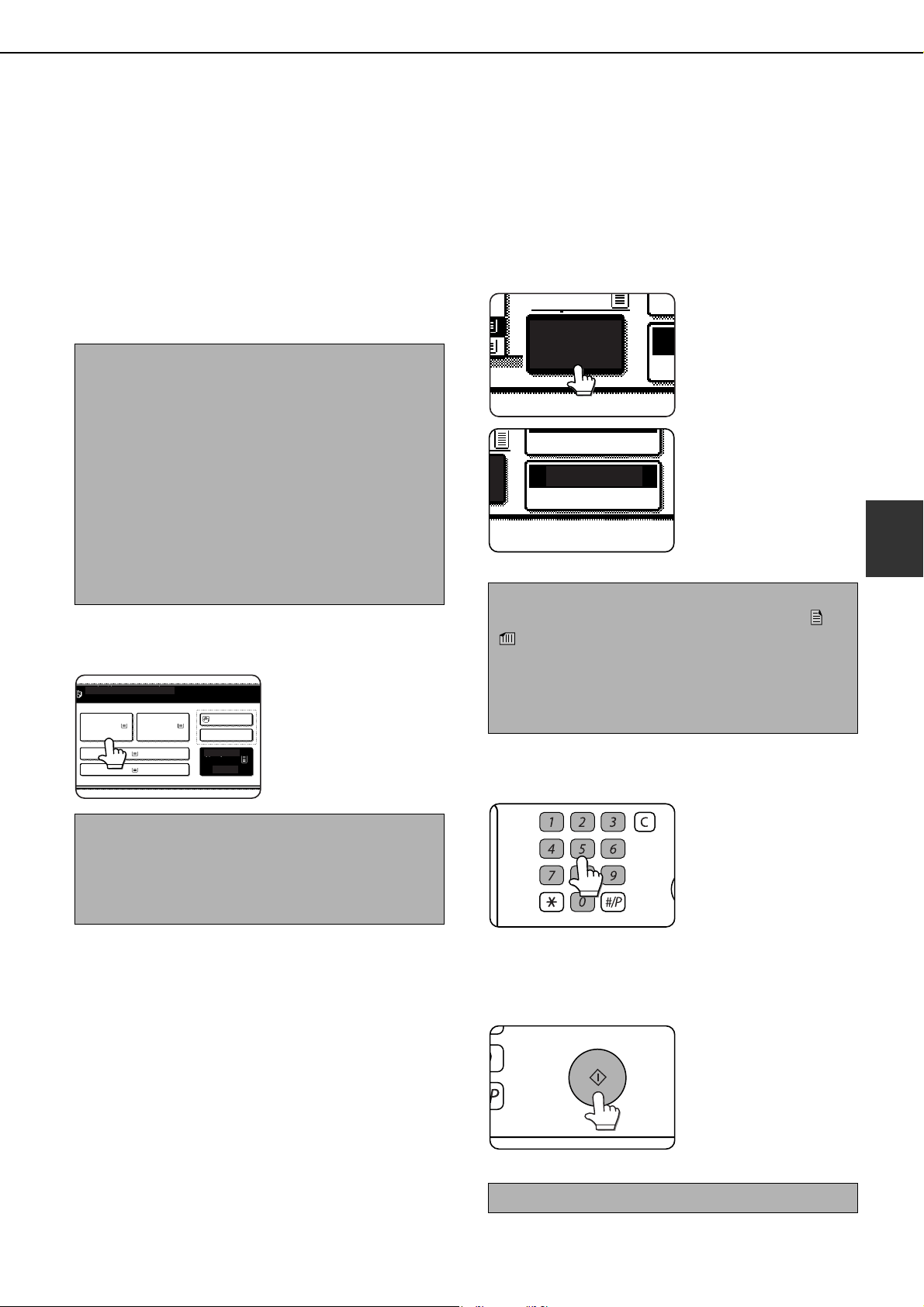
4-15
4
REDUCTION/ENLARGEMENT/ZOOM
Reduction and enlargement ratios can be selected automatically or manually.
● Automatic selection: Auto image (see below)
● Manual selection: Preset copy ratios/zoom (see page 4-16)
Automatic selection (auto image)
The reduction or enlargement ratio will be selected automatically based on the original size and the selected paper size.
1
Place the original in the document feeder
tray or on the document glass. (pages 4-3
to 4-6)
The detected original size will be displayed.
2
Touch the [PAPER SELECT] key and then
select the desired paper size.
The selected paper size
key is highlighted and
the paper selection
screen closes.
3
Touch the [AUTO IMAGE] key.
The [AUTO IMAGE] key
will be highlighted and
the best reduction or
enlargement ratio for the
original size and the
selected paper size will
be selected and
displayed in the copy ratio display.
4
Use the numeric keys to set the desired
number of copies.
Up to 999 can be set.
If you are only making a
single copy, the copy can
be made with the copy
number display showing
"0".
Use the [C] (clear) key to
cancel an entry if a mistake has been made.
5
Press the [START] key.
If you placed the original
on the document glass,
set the output mode to
"Sort", and pressed the
[START] key, you must
touch the [READ-END]
key after all pages of the
original have been scanned. (Step 7 on page 4-12)
NOTE
Automatic ratio adjustment can only be used for the
following original and paper sizes. It cannot be used
for other sizes. However, in the case of non-standard
original and paper sizes, the sizes can be entered to
make automatic ratio adjustment possible for those
sizes.
Original sizes:Standard sizes (see "Original size
detection function" on page 4-3.)
Paper size: 11" x 17", 8-1/2" x 14", 8-1/2" x 11", 8-
1/2" x 11"R, or 5-1/2" x 8-1/2"R (A3,
B4, A4, A4R, B5, B5R, or A5R)
NOTE
If paper of the desired size is not loaded in any tray,
load paper of the required size in a paper tray or the
bypass tray. (See "Setting the paper type and paper
size" on page 2-14.)
READY TO SCAN FOR COPY.
1. 8 x11
PLAIN PLAIN PLAIN
HEAVY PAPER
PLAIN
PLAIN
3. 8 x11
4. 11x17
2. 8 x11
5. 8 x11
8 x11
1
/
2
1
/
2
1
/
2
1
/
2
1
/
2
NOTE
If the message "ROTATE ORIGINAL FROM TO
" is displayed, change the orientation of the
original as indicated in the message. When the
message above is displayed, copying can be done
without changing the orientation, but the image will
not fit the paper correctly.
To cancel the auto image mode, touch the [CA] key.
5.8 x11
AUTO
IMAGE
1
/
2
O
GE
129%
PAPER SELECT
COPY RATIO
LOGOUT
dragonII_copy_sec.book 15 ページ 2006年10月18日 水曜日 午後7時39分
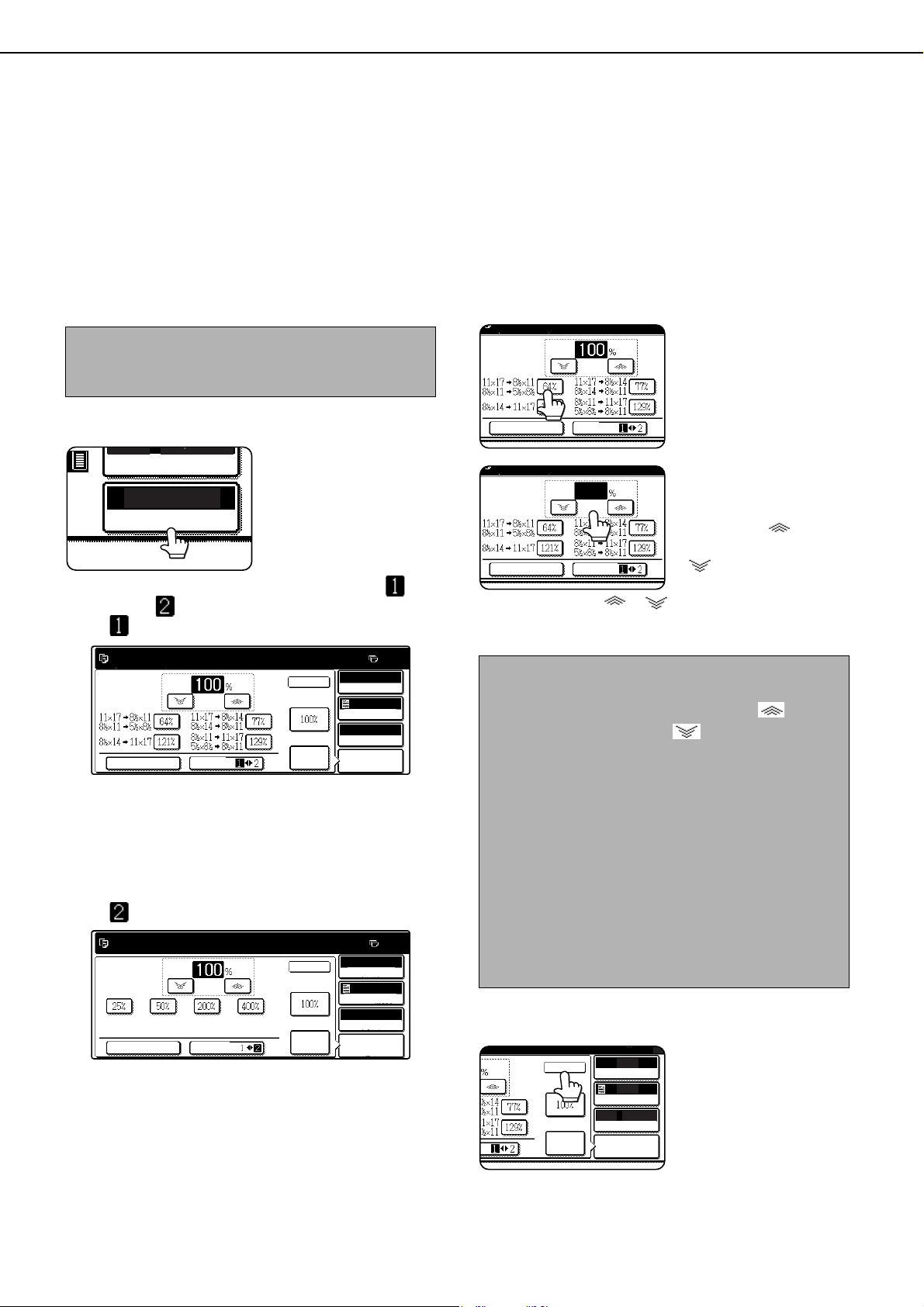
REDUCTION/ENLARGEMENT/ZOOM
4-16
Manual selection (preset copy ratios/zoom)
Five preset enlargement and five preset reduction copy ratios (max. 400%, min. 25%) can be selected. In addition,
the zoom keys can be used to select any ratio from 25% to 400% in increments of 1%.
<The administrator settings on page 16 of the administrator settings guide can be used to set two additional
enlargement ratios and two additional reduction ratios.>
1
Place the original in the document feeder
tray or on the document glass. (pages 4-3
to 4-6)
2
Touch the [COPY RATIO] key.
3
Use the [MENU] key to select menu " " or
menu " " for copy ratio selection.
Menu
●A.Preset reduction copy ratios are:
77% and 64% (for the inch system).
70%, 81% and 86% (for the AB system).
●
B.Preset enlargement copy ratios are:
121% and 129% (for the inch system).
115%, 122% and 141% (for the AB system).
Menu
●A.Preset reduction copy ratios are:
50% and 25%.
●B.Preset enlargement copy ratios are:
200% and 400%.
(The custom ratios set by the administrator appear
in ratio menu 2.)
4
Use the reduction, enlargement, and
[ZOOM] keys on the touch panel to set the
desired copy ratio.
Zoom ratios: Any ratio
from 25% to 400% can
be set in 1% increments.
Touch the [ ] key to
increase the ratio, or the
[ ] key to decrease
the ratio. (If you continue
to touch the [ ]/[ ] key, the ratio will change
automatically. After 3 seconds, the ratio will
change rapidly.)
5
Touch the [OK] key.
NOTE
When the original is placed in the document feeder,
the ratio can be set from 25% to 200%.
AUTO
100%
8 X11
/
2
PAPER SELECT
COPY RATIO
AUTO
AUTO
AUTO 8 x11
ORIGINAL
PAPER SELECT
COPY RATIO
AUTO
IMAGE
EXPOSURE
0
XY ZOOM
MENU
ZOOM
READY TO SCAN FOR COPY.
OK
1
/
2
AUTO
AUTO
AUTO
8 x11
ORIGINAL
PAPER SELECT
COPY RATIO
AUTO
IMAGE
EXPOSURE
0
XY ZOOM
OK
MENU
ZOOM
1
/
2
NOTES
● Touch a reduction or enlargement key to set the
approximate ratio, then touch the [ ] key to
increase the ratio or the [ ] key to decrease the
ratio.
● Automatic changing of the ratio when a zoom key
is continuously touched can be disabled in the
administrator settings (see "Key operation setting
(prohibit key repeat)" on page 10 of the
administrator settings guide).
● If the message "IMAGE IS LARGER THAN COPY
PAPER." appears when a ratio is selected, the
image may not fit on the copy paper.
● To set the horizontal and vertical copy ratios
separately, use the XY ZOOM feature. See page
4-18.
XY ZOOM
MENU
ZOOM
XY ZOOM
MENU
ZOOM
64
AUTO
AUTO
AUTO 8 x11
ORIGINAL
PAPER SELECT
COPY RATIO
AUTO
IMAGE
EXPOSURE
0
IO
OK
1
/
2
dragon_04.fm 16 ページ 2006年10月19日 木曜日 午後12時59分
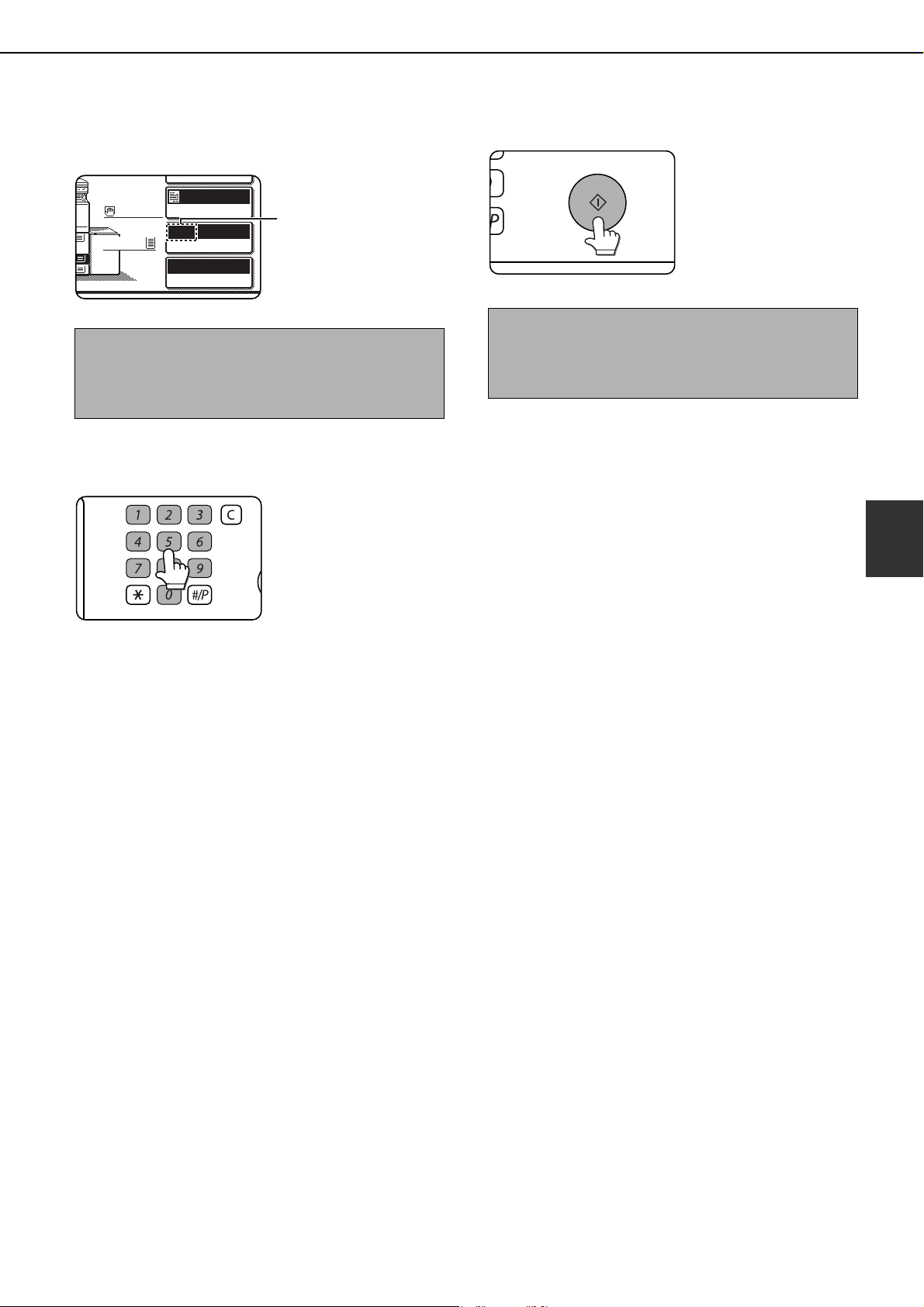
REDUCTION/ENLARGEMENT/ZOOM
4-17
4
6
Make sure that an appropriate paper size
has been selected based on the selected
ratio.
Auto paper select display
7
Use the numeric keys to set the desired
number of copies.
Up to 999 can be set.
If you are only making a
single copy, the copy can
be made with the copy
number display showing
"0".
Use the [C] (clear) key to
cancel an entry if a mistake has been made.
8
Press the [START] key.
If you placed the original
on the document glass,
set the output to "Sort",
and pressed the
[START] key, you must
touch the [READ-END]
key after all pages of the
original have been scanned. (Step 7 on page 4-12)
NOTE
If the auto paper select display does not appear, a
tray with the correct size of paper for the selected
ratio will not be automatically selected.
5.
4
AUTO
AUTO
64%
8 x11
ORIGINAL
PAPER SELECT
COPY RATIO
EXPOSURE
8 x11
1
/
2
8 x11
1
/
2
1
/
2
LOGOUT
To return the ratio to 100%
To return the ratio setting to 100%, touch the [COPY
RATIO] key to display the ratio menu and then touch
the [100%] key. (Steps 2 and 3 on page 4-16.)
dragonII_copy_sec.book 17 ページ 2006年10月18日 水曜日 午後7時39分

REDUCTION/ENLARGEMENT/ZOOM
4-18
XY ZOOM
The XY ZOOM feature allows the horizontal and vertical copy ratios to be changed separately. The ratios can be set
from 25% to 400% in increments of 1%.
Example: Selecting 100% for the length and 50% for the width
1
Place the original in the document feeder
tray or on the document glass. (pages 4-3
to 4-6)
2
Touch the [COPY RATIO] key.
3
Touch the [XY ZOOM] key.
4
Touch the [X] key.
The initial state of the [X]
key is selected
(highlighted), so this
step normally is not
necessary. Touch the [X]
key only if it is not
highlighted yet.
5
Use the reduction, enlargement, and
ZOOM ([ ], [ ]) keys to change the
copy ratio in the horizontal (X) direction.
A fixed ratio key will not
become highlighted
when touched.
Zoom ratios: Any ratio
from 25% to 400% can
be set in 1% increments.
Touch the [ ] key to
increase the ratio, or the
[ ] key to decrease
the ratio. (If you continue
to touch the [ ]/[ ] key, the ratio will change
automatically. After 3 seconds, the ratio will
change rapidly.)
6
Touch the [Y] key.
Original
Copy
NOTE
When the original is placed in the document feeder,
the ratio can be set from 25% to 200%.
AUTO
100%
A4
PAPER SELECT
COPY RATIO
XY ZOOM
MENU
ZOOM
100
100
Y
X
NOTES
● Touch a reduction or enlargement key to set the
approximate ratio, then touch the [ ] key to
increase the ratio or the [ ] key to decrease the
ratio.
● Automatic changing of the ratio when a zoom key
is continuously touched can be disabled in the
administrator settings (see "Key operation setting
(prohibit key repeat)" on page 10 of the
administrator settings guide).
XY ZOOM
ZOOM
50%
10Y
64%
ZOOM
50
100
Y
X
ZOOM
50
100Y
X
dragon_04.fm 18 ページ 2006年10月18日 水曜日 午後8時55分
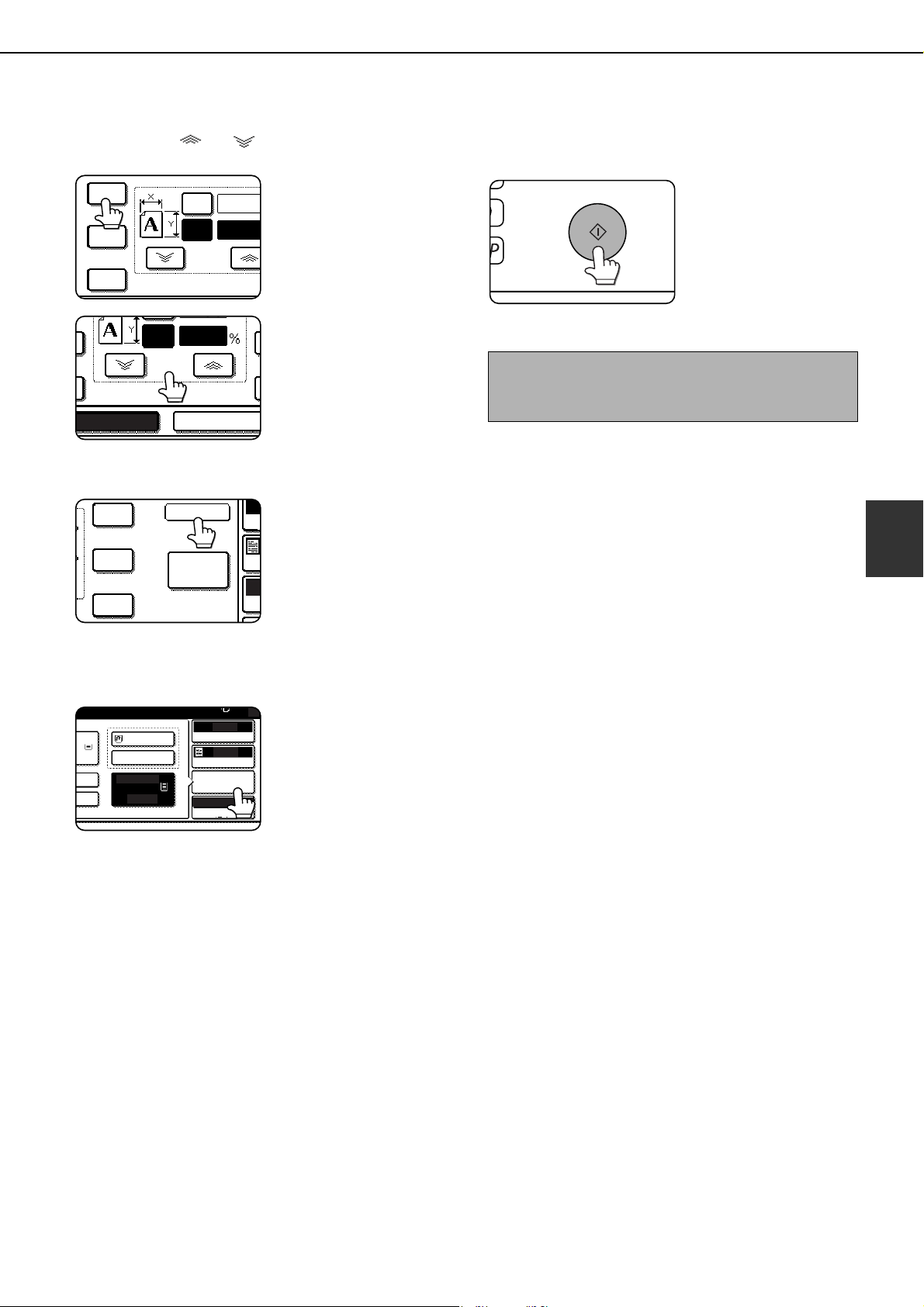
REDUCTION/ENLARGEMENT/ZOOM
4-19
4
7
Use the reduction, enlargement, and
ZOOM ([ ], [ ]) keys to change the
copy ratio in the vertical (Y) direction.
A fixed ratio key will not
become highlighted
when touched.
The zoom keys can be
used to change the ratio
from 25% to 400% in
increments of 1%.
If needed, you can touch
the [X] key once again to
readjust the X zoom.
8
Touch the [OK] key.
9
If needed, touch the [PAPER SELECT] key
and select the paper size.
If the AUTO PAPER
SELECT mode is on, the
appropriate copy paper
size will have been
automatically selected
based on the original
size and selected copy
ratios.
10
Select any desired copy settings such as
the exposure or number of copies, and
then press the [START] key.
ZOOM
50%
50
70Y
X
64%
77%
XY ZOOM
CANCEL
ZOOM
50
77Y
A
OK
PA
400%
200%
100%
129%
AUTO
AUTO
X-50% Y-70%
ORIGINAL
PAPER SELECT
COPY RATIO
EXPOSURE
0
N PLAIN
APER
N
PLAIN
5.
8 x11
8 x11
1
/
2
1
/
2
To cancel an X or Y zoom setting...
Touch the [XY ZOOM] key or the [CANCEL] key in
the ratio selection screen (step 3 or 5 on page 4-18).
dragonII_copy_sec.book 19 ページ 2006年10月18日 水曜日 午後7時39分
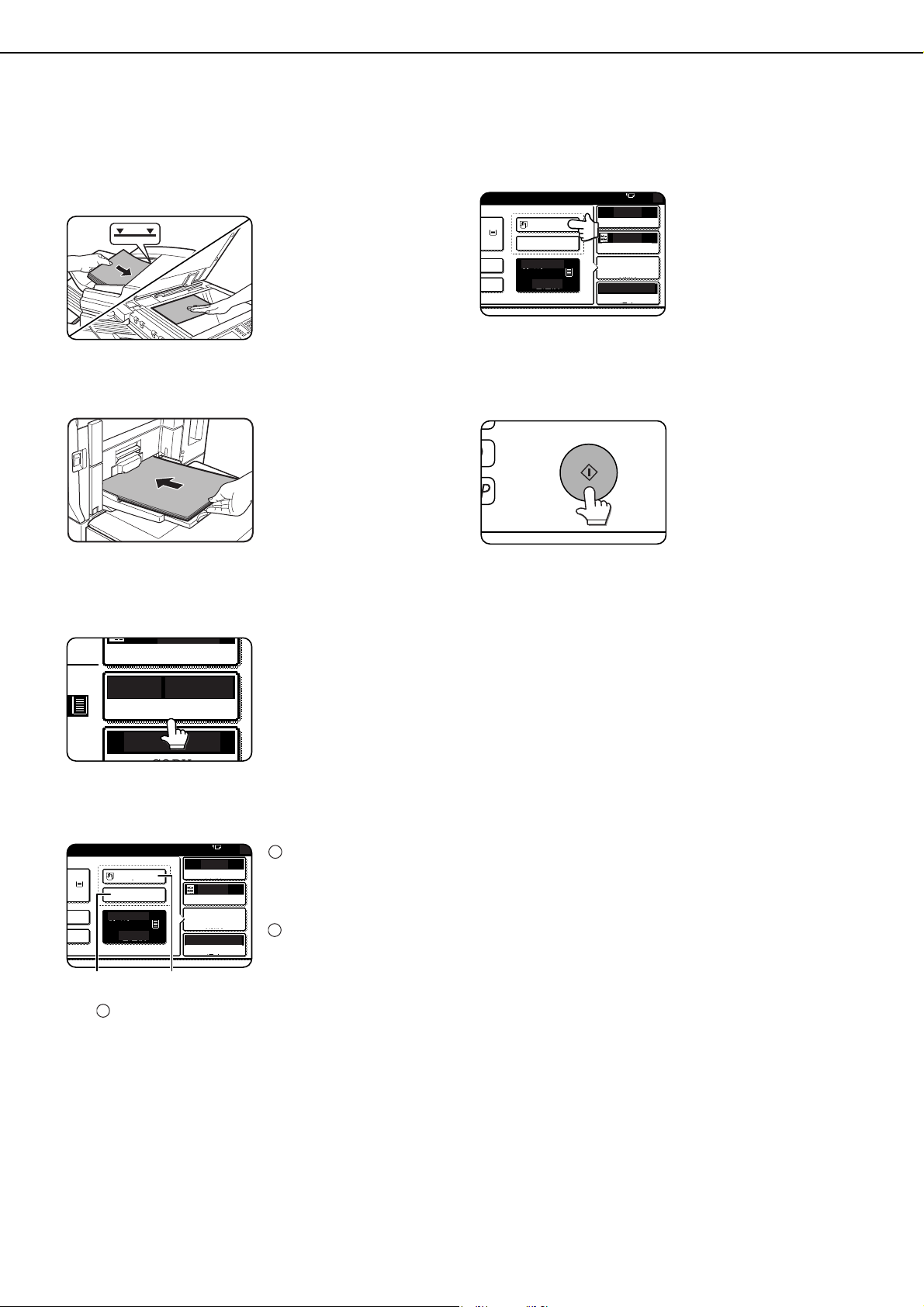
4-20
SPECIAL PAPERS
Special papers including transparency film, postcards and tabbed paper must be fed through the bypass tray.
1
Place the original in the document feeder
tray or on the document glass. (pages 4-3
to 4-6)
2
Load the special paper in the bypass tray.
See page 2-12 for the
specifications of paper
that can be used in the
bypass tray.
For the paper loading
instructions, see
"Loading paper in the
bypass tray" (page 2-
10).
3
Touch the [PAPER SELECT] key.
4
Set the type and size of paper loaded in the
bypass tray.
The (X) key shows the
currently selected
paper type.
The (Y) key shows the
size of paper loaded
in the bypass tray.
To change the displayed paper type, touch the
(X) key before touching the (Y) key. When
loading paper, if you changed the paper size
from an inch size to an AB size (or from an AB
size to an inch size), or if you changed the paper
type, be sure to change the paper type and size
settings as explained in steps 5 to 7 on page 2-
14, and steps 8 to 10 on page 2-15.
5
Select the bypass tray.
6
Select any desired copy settings such as
the exposure or number of copies, and
then press the [START] key.
When copying from the
document glass in the
sort mode using the
[START] key, touch the
[READ-END] key after
all originals have been
scanned (step 7 on page
4-12).
AUTO
AUTO
100%
8 x11
PAPER SELECT
COPY
EXPOSURE
4
1
/
2
AUTO
AUTO
100%
ORIGINAL
PAPER SELECT
COPY RATIO
EXPOSURE
0
N HEAVY PAPER
APER
N
PLAIN
5. 8 x11
8 x11
(X) (Y)
1
/
2
1
/
2
1
2
3
AUTO
AUTO
100%
ORIGINAL
PAPER SELECT
COPY RATIO
EXPOSURE
0
N HEAVY PAPER
PAPER
N
PLAIN
5.
8 x11
8 x11
1
/
2
1
/
2
dragonII_copy_sec.book 20 ページ 2006年10月18日 水曜日 午後7時39分

5-1
CHAPTER 5
CONVENIENT COPY
FUNCTIONS
This chapter explains special-purpose functions, storing of copy
settings, and other convenient functions. Please select and read
sections of this chapter as needed.
Page
SPECIAL MODES................................................................................... 5-2
●
General procedure for using special functions................................ 5-2
●
Margin shift...................................................................................... 5-3
●
Erase............................................................................................... 5-4
●
Dual page copy ............................................................................... 5-5
●
Pamphlet copy................................................................................. 5-6
●
Job build.......................................................................................... 5-8
●
Tandem copy................................................................................... 5-10
●
Covers/inserts ................................................................................. 5-12
●
Transparency film with insert sheets ............................................... 5-23
●
Multi shot......................................................................................... 5-24
●
Book copy ....................................................................................... 5-26
●
Tab copy.......................................................................................... 5-27
●
Card shot......................................................................................... 5-29
●
Mirror image.................................................................................... 5-31
●
B/W reverse..................................................................................... 5-31
●
Print menu....................................................................................... 5-32
STORING, USING AND DELETING JOB PROGRAMS......................... 5-44
●
Storing a job program...................................................................... 5-44
●
Calling up a job program................................................................. 5-45
●
Deleting a stored job program......................................................... 5-45
INTERRUPTING A COPY RUN.............................................................. 5-46
dragonII_copy_sec.book 1 ページ 2006年10月18日 水曜日 午後7時39分
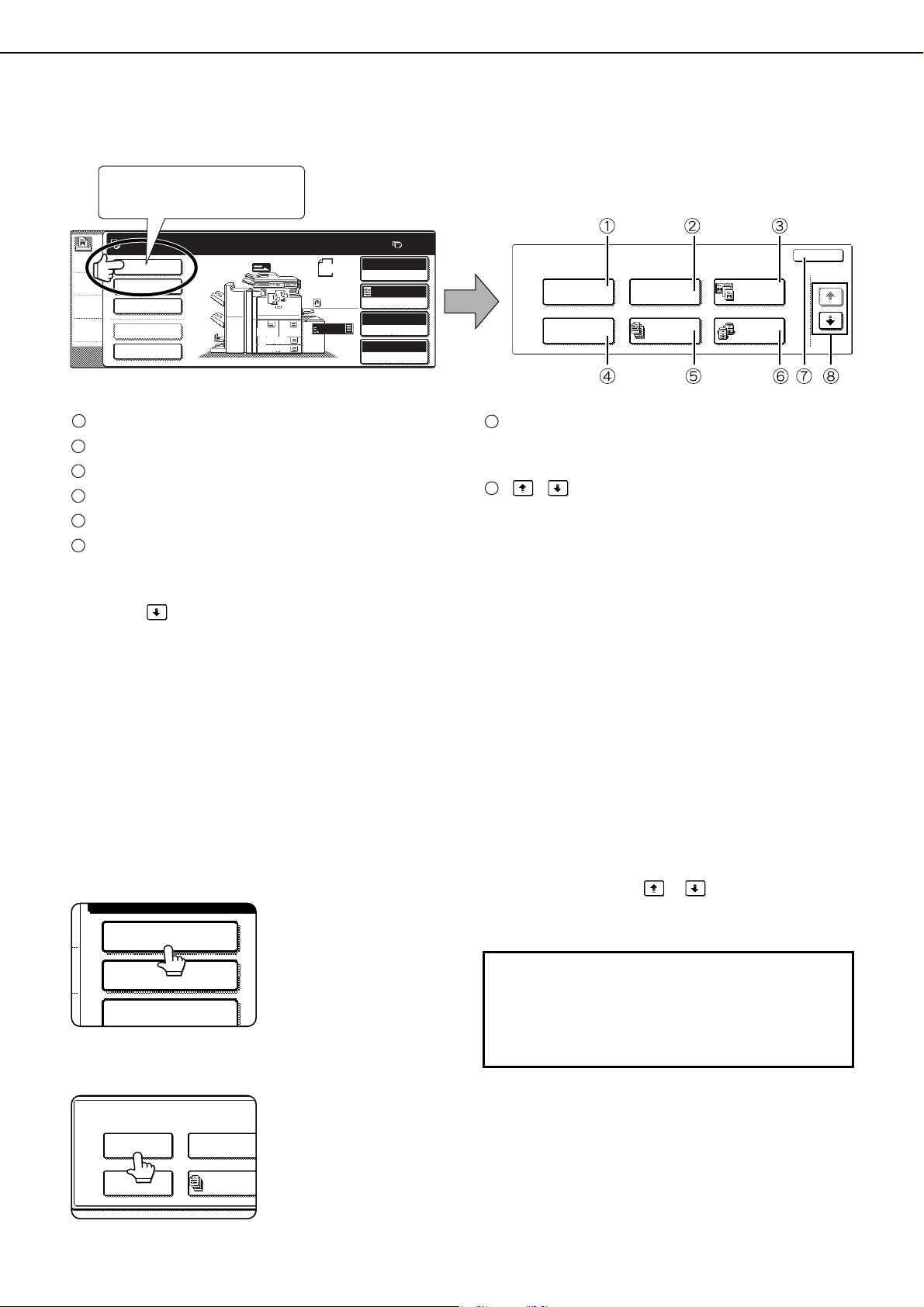
5-2
SPECIAL MODES
Touch the [SPECIAL MODES] key in the main screen of copy mode to open the special modes screen. The following
functions can be selected in the special modes screen.
Margin shift (page 5-3)
Erase (page 5-4)
Dual page copy (page 5-5)
Pamphlet copy (page 5-6)
Job build (page 5-8)
Tandem copy (page 5-10)
[OK] key on the special modes screen
Touch the [OK] key to return to the main screen of
copy mode.
/ key
Touch these keys to change the special modes
screen.
There are three special modes screens.
Touch the key to change to the other two screens.
●The following special functions can be selected in the 2nd screen (2/3).
Covers/inserts (page 5-12)
Transparency inserts (page 5-23)
Multi shot (page 5-24)
Book copy (page 5-26)
Tab copy (page 5-27)
Card shot (page 5-29)
●The following special functions can be selected in the 3rd screen (3/3).
Mirror image (page 5-31)
Print menu (page 5-32)
B/W reverse (page 5-31)
General procedure for using special functions
1
Touch the [SPECIAL MODES] key.
2
Touch the key for the desired special
mode.
Example:
Selecting the margin
shift function
To select a special function in one of the other two
screens, use the / keys to change the
screen.
SPECIAL MODES
MARGIN SHIFT
PAMPHLET COPY
ERASE
OK
1/3
DUAL PAGE
COPY
JOB
BUILD
TANDEM
COPY
SPECIAL MODES
2-SIDED COPY
OUTPUT
QUICK FILE
FILE
READY TO SCAN FOR COPY.
AUTO
AUTO
AUTO
100%
8 x11
ORIGINAL
PAPER SELECT
COPY RATIO
EXPOSURE
0
ORIGINAL
8 x11
1
/
2
8 x14
11x17
1
/
2
8 x11
1
/
2
1.
3.
4.
2.
8 x11
1
/
2
8 x11
1
/
2
8 x11
1
/
2
1
/
2
Touch the [SPECIAL MODES]
key in the main screen.
1
2
3
4
5
6
7
8
SPECIAL MODES
2-SIDED COPY
OUTPUT
SPECIAL MODES
MARGIN SHIFT
PAMPHLET COPY
ERASE
JOB
BUILD
Setting procedures for modes requiring setting
screens start on the next page.
The dual page copy, job build, tandem copy,
mirror image and B/W reverse functions do not
require setting screens.
dragonII_copy_sec.book 2 ページ 2006年10月18日 水曜日 午後7時39分
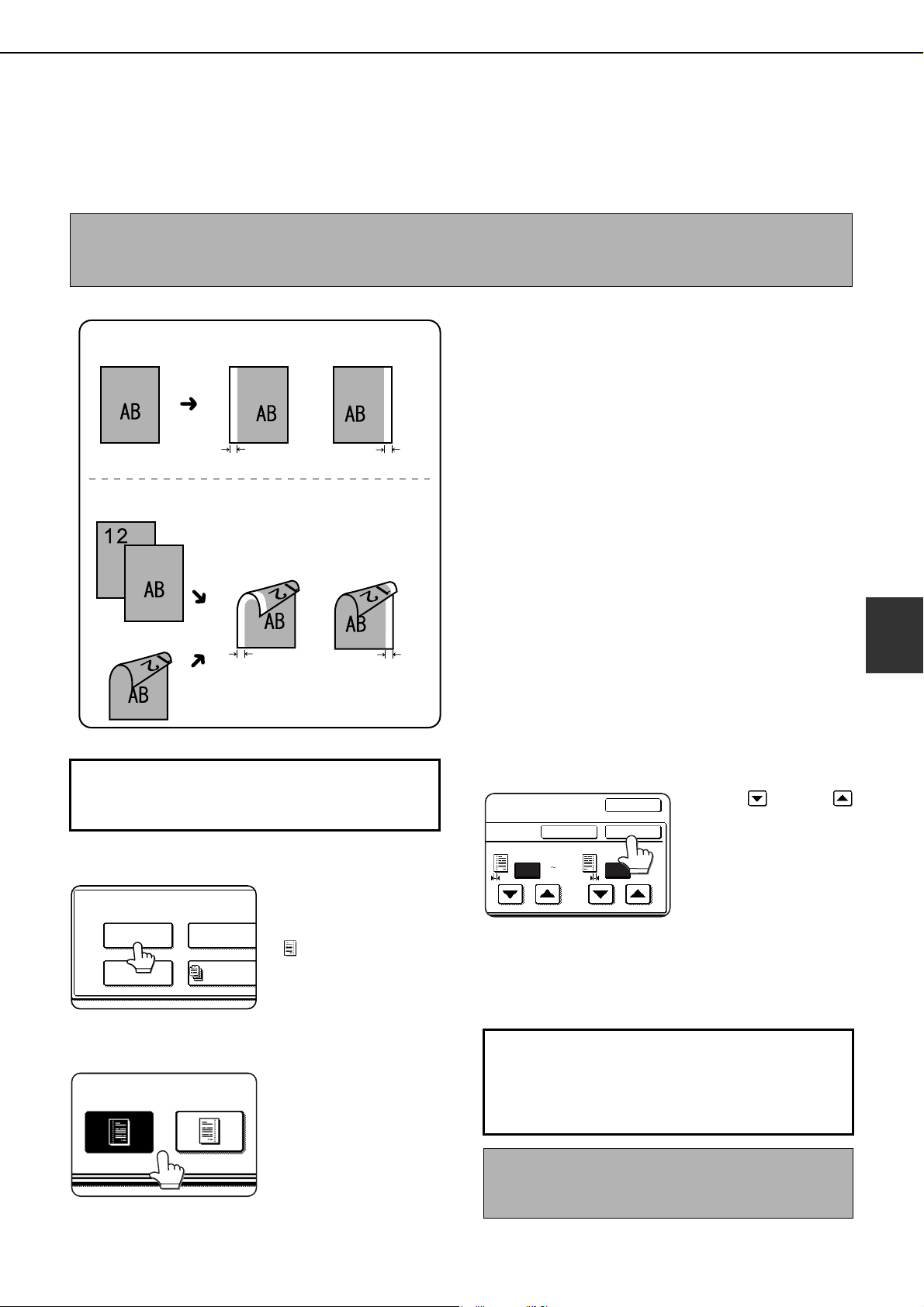
SPECIAL MODES
5-3
5
Margin shift
The margin shift function will automatically shift the text or image on the copy paper approximately 1/2" (10 mm) in
its initial setting.
This function is convenient when stapling or binding copies with a string.
1
Touch the [MARGIN SHIFT] key on the
special modes screen.
The margin shift setting
screen will appear.
The margin shift icon
( ) will also appear in
the upper left of the
screen to indicate that
the function is turned on.
2
Select the shift direction.
Touch a shift direction
key to select right or left.
The selected key will be
highlighted.
3
Set the shift amount as needed and touch
the [OK] key.
Use the and the
keys to set the shift
amount. The shift
amount can be set from
0" to 1" in 1/8" (0 to 20
mm in 1 mm)
increments.
4
Touch the [OK] key on the special modes
screen.
You will return to the main screen of copy mode.
NOTE
The initial setting for the margin width can be changed in the administrator settings to any value from 0" to 1" (0
to 20 mm) (page 16 of the administrator settings guide).
Image shifted
to the right
Image shifted
to the left
Margin
Margin
Original
Two-sided copying
Image shifted
to the right
Margin
Image shifted
to the left
Margin
Or
One-sided copying
Original
●The shift direction can be selected from right or left
shift as shown in the illustration.
To display the special modes screen...
See "General procedure for using special
functions" on page 5-2.
SPECIAL MODES
MARGIN SHIFT
PAMPHLET COPY
ERASE
JOB
BUILD
RIGHT
LEFT
About the steps that follow
If an automatic document feeder is being used,
see pages 4-7 through 4-10. If the document
glass is being used, see pages 4-11 through 4-
13.
To cancel the margin shift function, touch the
[CANCEL] key on the margin shift setting screen
(step 3).
SIDE 1
(0 1)
inch
(0 1)
inch
SIDE 2
OKCANCEL
OK
1/2 1/2
dragon_05.fm 3 ページ 2006年10月19日 木曜日 午後1時0分
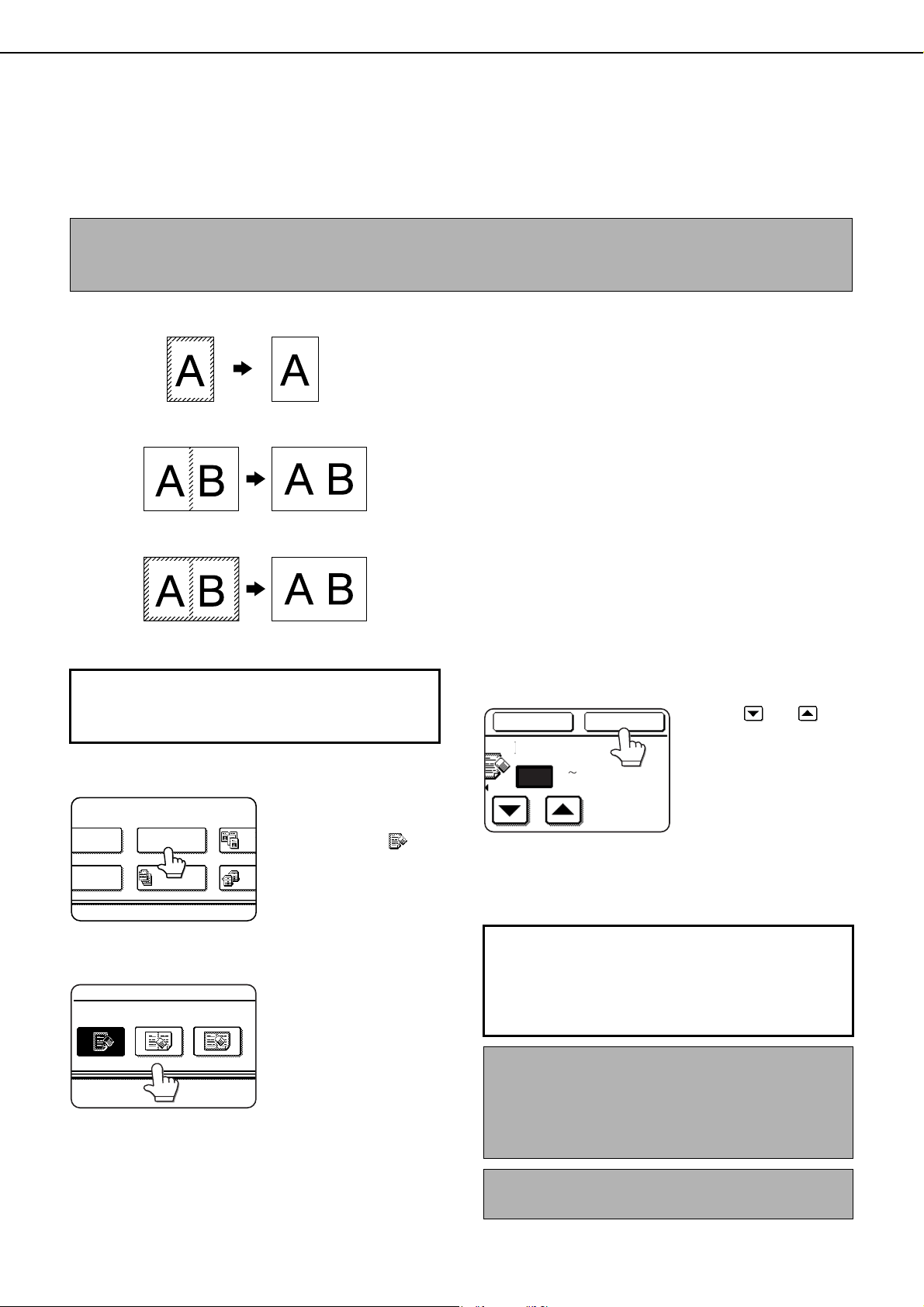
SPECIAL MODES
5-4
Erase
The erase function is used to erase the shadow lines on copies produced when copying thick originals or books. The
erase modes that can be selected are shown below. The erase width is approximately 1/2" (10 mm) in it's initial
setting.
EDGE ERASE
Eliminates shadow lines around the edges of
copies caused when heavy paper or a book is used
as an original.
CENTER ERASE
Eliminates shadow lines produced by the bindings
of bound documents.
EDGE + CENTER ERASE
Eliminates shadow lines around the edges of copies
and eliminates the shadow at the center of copies.
1
Touch the [ERASE] key on the special
modes screen.
The erase setting screen
will appear.
The erase icon ( ) will
also appear in the upper
left of the screen to
indicate that the function
is turned on.
2
Select the desired erase mode.
Select one of the three
erase modes. The
selected key will be
highlighted.
3
Adjust the amount of erase and touch the
[OK] key.
Use the and keys
to set the erase width to
any value from 0" to 1" in
increments of 1/8" (0 to
10 mm in 1 mm).
4
Touch the [OK] key on the special modes
screen.
You will return to the main screen of copy mode.
NOTE
The initial setting for the erasure width can be changed in the administrator settings to any value from 0" to 1" (0
to 20 mm) (page 16 of the administrator settings guide).
Original Copy
To display the special modes screen...
See "General procedure for using special
functions" on page 5-2.
MODES
RGIN SHIFT
PHLET COPY
ERASE
DUAL
C
JOB
BUILD
TAN
C
EDGE
ERASE
ERASE
CENTER
ERASE
EDGE+CENTER
ERASE
About the steps that follow
If an automatic document feeder is being used,
see pages 4-7 through 4-10. If the document
glass is being used, see pages 4-11 through 4-
13.
NOTE
When erase is used, edge erase takes place at the
edges of the original image. If you also use a ratio
setting, the edge erase width will change according
to the set ratio.
To cancel the erase function, touch the [CANCEL]
key on the erase setting screen (step 3).
EDGE
CANCEL OK
1/2
(0 1)
inch
dragon_05.fm 4 ページ 2006年10月19日 木曜日 午後1時0分
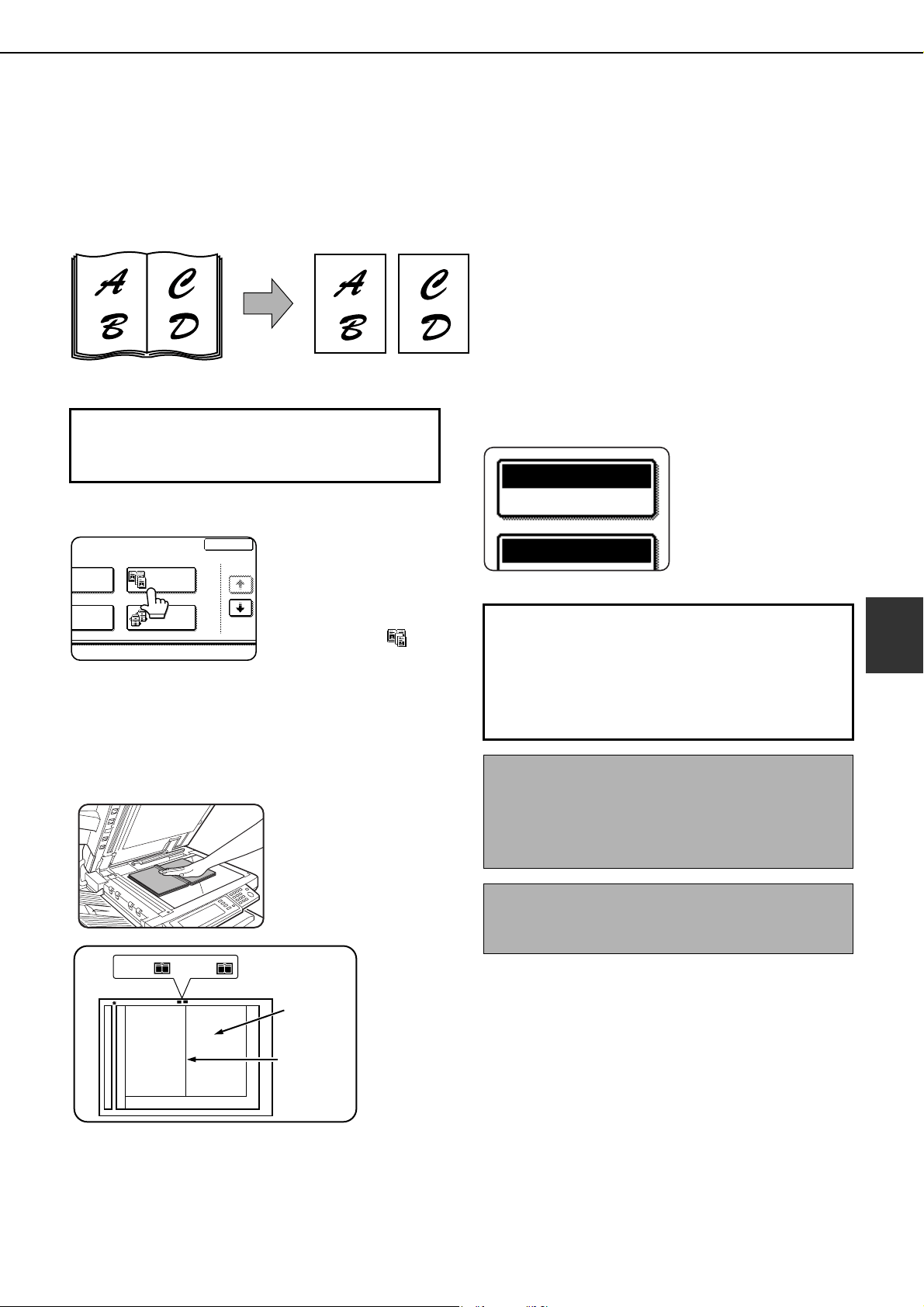
SPECIAL MODES
5-5
5
Dual page copy
The dual page copy function produces separate copies of two documents placed side by side on the document glass.
This function is especially useful when copying books and other bound documents.
[Example] Copying right and left pages of a book
1
Touch the [DUAL PAGE COPY] key on the
special modes screen.
The [DUAL PAGE
COPY] key will be
highlighted to indicate
that the function is
turned on, and the dual
page copy icon ( ) will
appear in the upper left
of the screen.
2
Touch the [OK] key on the special modes
screen.
You will return to the main screen of copy mode.
3
Place the originals on the document glass.
When copying a thick
book, press down lightly
on the book to flatten it
against the document
glass.
Place the opened original on the document glass so
that the first page you wish to copy is on the right and
the center of the original is aligned with the size mark.
4
Ensure that 8-1/2" x 11" (A4) size paper is
selected.
If 8-1/2" x 11" (A4) size
paper is not selected,
touch the [PAPER
SELECT] key to select
8-1/2" x 11" (A4) size
paper.
●The dual page copy function can be used only
when copying from the document glass. The
automatic document feeder cannot be used with
this function.
●Only 8-1/2" x 11" (A4) paper can be used.
Book original Dual page copy
To display the special modes screen...
See "General procedure for using special
functions" on page 5-2.
RASE
OK
1/3
DUAL PAGE
COPY
JOB
BUILD
TANDEM
COPY
Index
11" x 17"
Center line of
original
A4
This page
is copied
first.
8 " x 11"
8 "
x 11"
1
/
2
1
/
2
(A4) (A3)
About the steps that follow
For two-sided copying, follow steps 2 through 4
on page 4-13 and then follow steps 4 through 6
on page 4-12.
For one-sided copying, follow steps 4 through 6
on page 4-12.
NOTE
To erase shadows caused by document binding, use
the edge erase function (page 5-4). (Center Erase
and Edge + Center Erase cannot be used in
combination.)
To cancel the dual page copy function, touch the
[DUAL PAGE COPY] key on the special modes
screen (screen of step 1).
PAPER SELECT
AUTO 8 x11
1
/
2
100%
dragonII_copy_sec.book 5 ページ 2006年10月18日 水曜日 午後7時39分
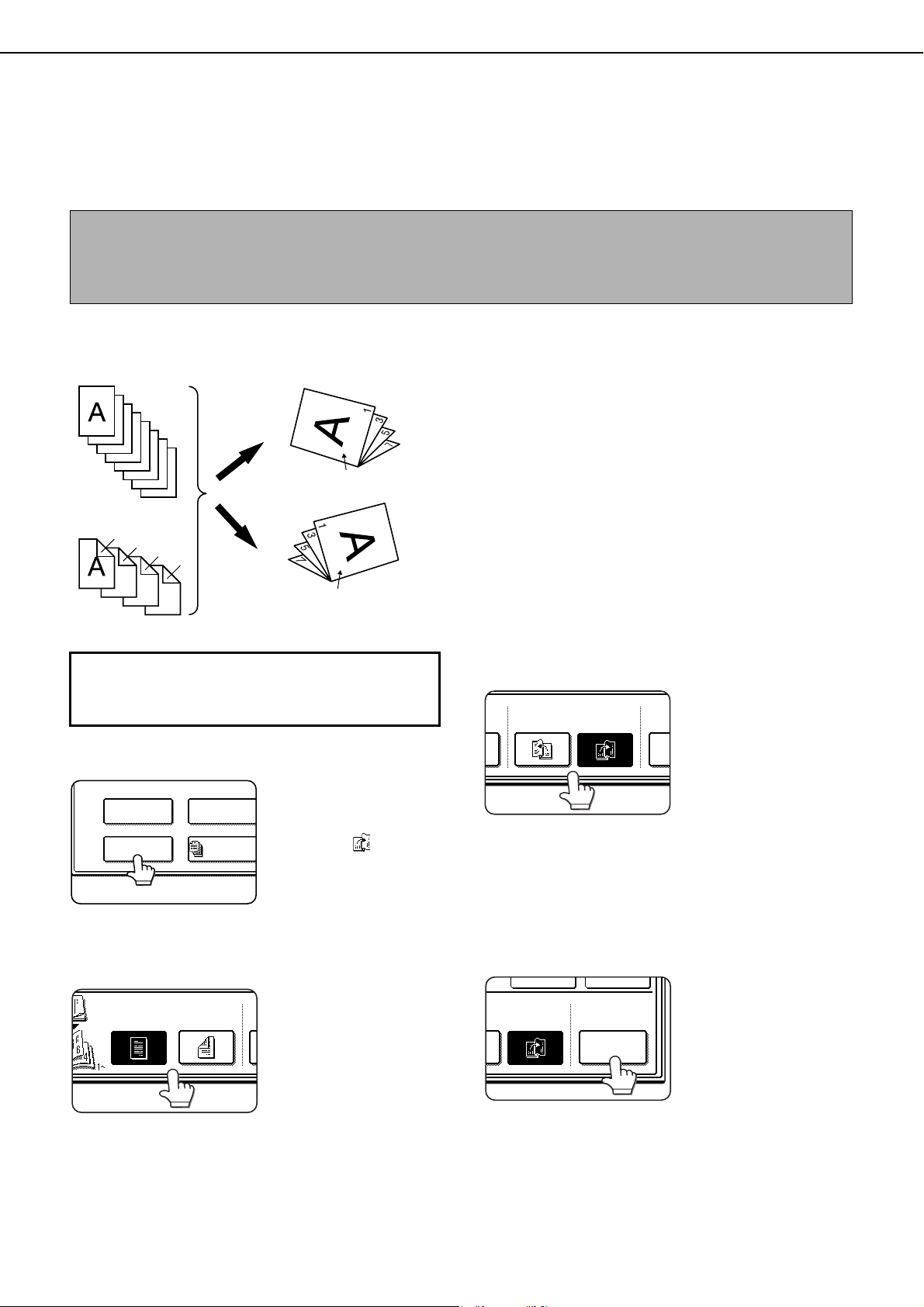
SPECIAL MODES
5-6
Pamphlet copy
The pamphlet copy function is used to arrange copies in proper order for eventual center-stapling and folding into a
booklet. Two original pages are copied onto each side of copy paper. Four pages are, therefore, copied onto one sheet.
This function is convenient for arranging copies into an attractive booklet or pamphlet.
[Example] Copying eight originals in the pamphlet copy mode
● Scan the originals from the first page to the last
page. The order of copying will be automatically
adjusted by the machine.
● Either left binding (right to left turning) or right
binding (left to right turning) can be selected.
●
Four originals will be copied onto one sheet.
Blank pages may be automatically produced at
the end depending on the number of the originals.
● If a saddle stitch finisher is installed, copies can
be stapled in two positions along the center of
copies and folded at the center.
1
Touch the [PAMPHLET COPY] key on the
special modes screen.
The PAMPHLET COPY
setting screen will
appear. The pamphlet
copy icon ( , etc.) will
also appear in the upper
left corner of the screen
to indicate that the
function is turned on.
2
Designate the type of originals to be
copied: 1-sided or 2-sided.
Select the [2-SIDED] key
if you wish to scan a two-
sided original using the
automatic document
feeding function.
3
Select the binding position (left binding or
right binding).
If you wish to insert a different type of paper for use as
a cover, follow steps 4 through 12 below.
If you do not wish to insert paper for a cover, continue
from step 8 on the next page.
4
Touch the [COVER SETTING] key.
NOTE
To make pamphlet copies of a book or other bound original, use the book copy function (page 5-26). The book copy
function scans the opened original in two-page units. (Two pages are scanned at each scan, reducing the number
of repetitions of the scanning operation by a half.)
Finished copies are
folded in two.
Originals
(one-sided)
1
2
3
4
5
6
7
8
7
8
5
6
3
4
Originals
(two-sided)
1
2
Left binding
Right binding
First page
First page
To display the special modes screen...
See "General procedure for using special
functions" on page 5-2.
SPECIAL MODES
MARGIN SHIFT
PAMPHLET COPY
ERASE
JOB
BUILD
2-SIDED
ORIGINAL
1-SIDED
RIGHT
BINDING
C
SE
LEFT
BINDING
CANCEL OK
RIGHT
BINDING
COVER
SETTING
NG
dragonII_copy_sec.book 6 ページ 2006年10月18日 水曜日 午後7時39分
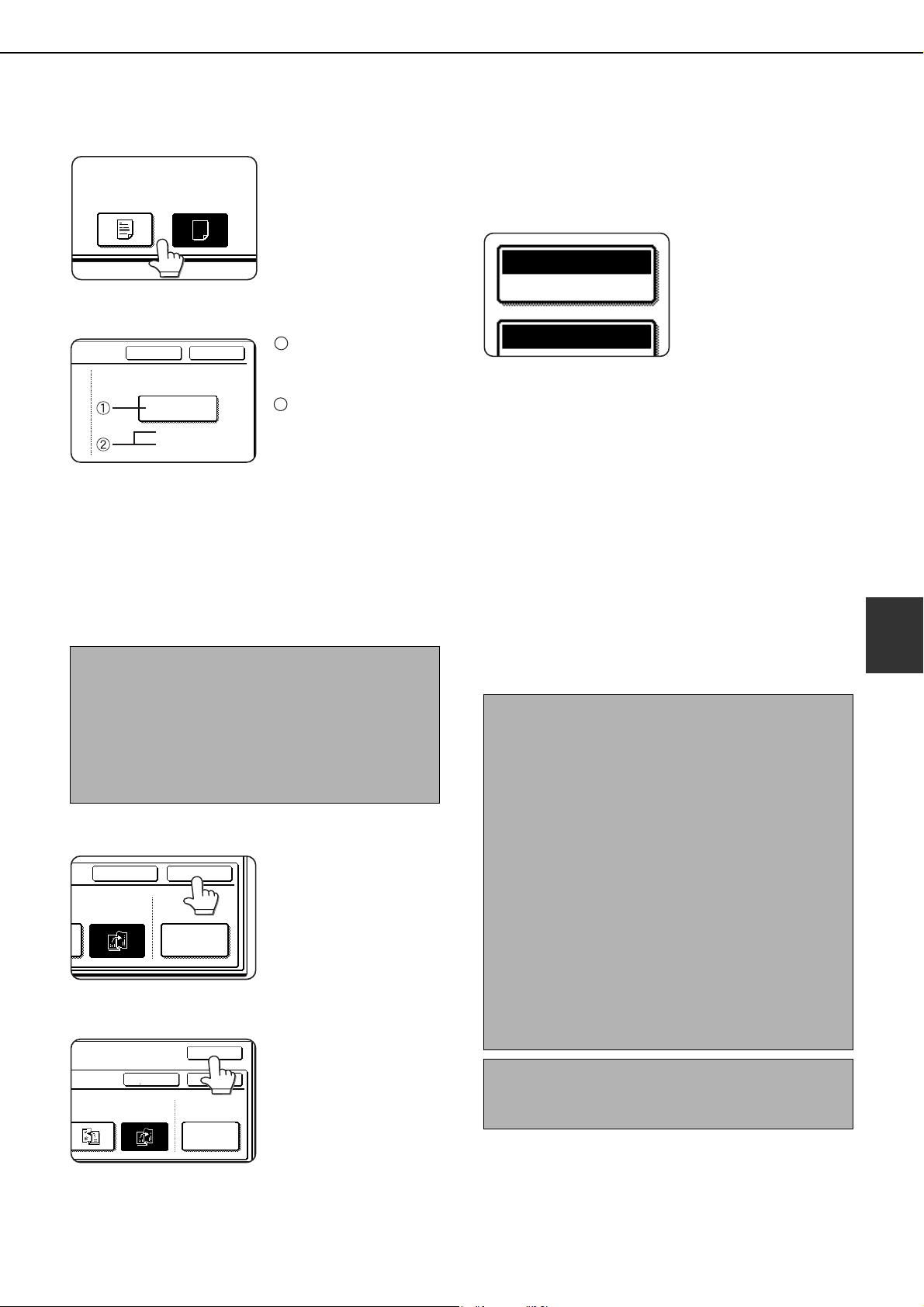
SPECIAL MODES
5-7
5
5
Select whether or not you wish to copy on
the cover ("YES" or "NO").
6
Select the paper tray for the cover.
The currently selected
paper tray for the
cover is displayed.
The size and type of
paper in the currently
selected tray is
displayed.
In the example screen above, 8-1/2" x 11" (A4)
size plain paper is loaded.
To change the paper tray for the cover, touch the
tray selection key. (In the screen example, the
"BYPASS TRAY" display is the tray selection key.)
The tray selection screen appears when the tray
selection key is touched. Select the desired tray in
this screen.
7
Touch the [OK] key.
8
Touch the [OK] key.
Return to the main
screen of copy mode.
9
Place the original in the document feeder
or on the document glass. (page 4-3)
10
Ensure that the desired paper size has
been automatically selected based on the
original size.
To select another size
paper, select the desired
size and touch the
[AUTO IMAGE] key. The
appropriate copy ratio
will be selected
automatically based on
the original size and the paper size. (See steps 2
and 3 on page 4-15.)
11
Select any desired copy settings such as
the exposure or number of copies, and
then press the [START] key.
12
[When using the automatic document
feeder:]
Copying will start after all originals have been
scanned. (The next step is not needed.)
[When using the document glass:]
Replace the original with the next original and
press the [START] key. Repeat this operation until
all originals have been scanned and then touch
the [READ-END] key.
NOTES
● When the cover paper is fed from the inserter, the
cover cannot be copied on.
● Two-sided copying is not possible on label sheets,
transparency film, and tabbed paper. When
copying on a cover, do not select a tray that has
one of these types of paper.
NO
PRINT ON COVER
YES
CANCEL OK
BYPASS
TRAY
PAPER TRAY
8 x11
PLAIN
1
/
2
1
2
CANCEL OK
RIGHT
BINDING
COVER
SETTING
G
CANCEL
OK
OK
RIGHT
BINDING
COVER
SETTING
LEFT
BINDING
NOTES
● When the pamphlet copy function is set, the two-
sided copying mode will be automatically selected.
● If this function is used in combination with the
pamphlet copy function (pamphlet stapling) and
the number of origial pages exceeds the number
of pages that can be stapled, a message asking
you to select "CANCEL", "CONTINUE", or
"DIVIDE" will appear.
To cancel the job, select "CANCEL". To make
pamphlet copies without stapling, select
"CONTINUE". To divide the pages into sets that
can be stapled, select "DIVIDE".
If you performed steps 4 to 6 to insert cover paper,
divided stapling is not possible. You can either
continue pamphlet copying without stapling, or
cancel the job.
To cancel the pamphlet copy function, touch the
[CANCEL] key on the pamphlet copy setting screen
(step 2).
PAPER SELECT
AUTO 11x17
100%
dragonII_copy_sec.book 7 ページ 2006年10月18日 水曜日 午後7時39分
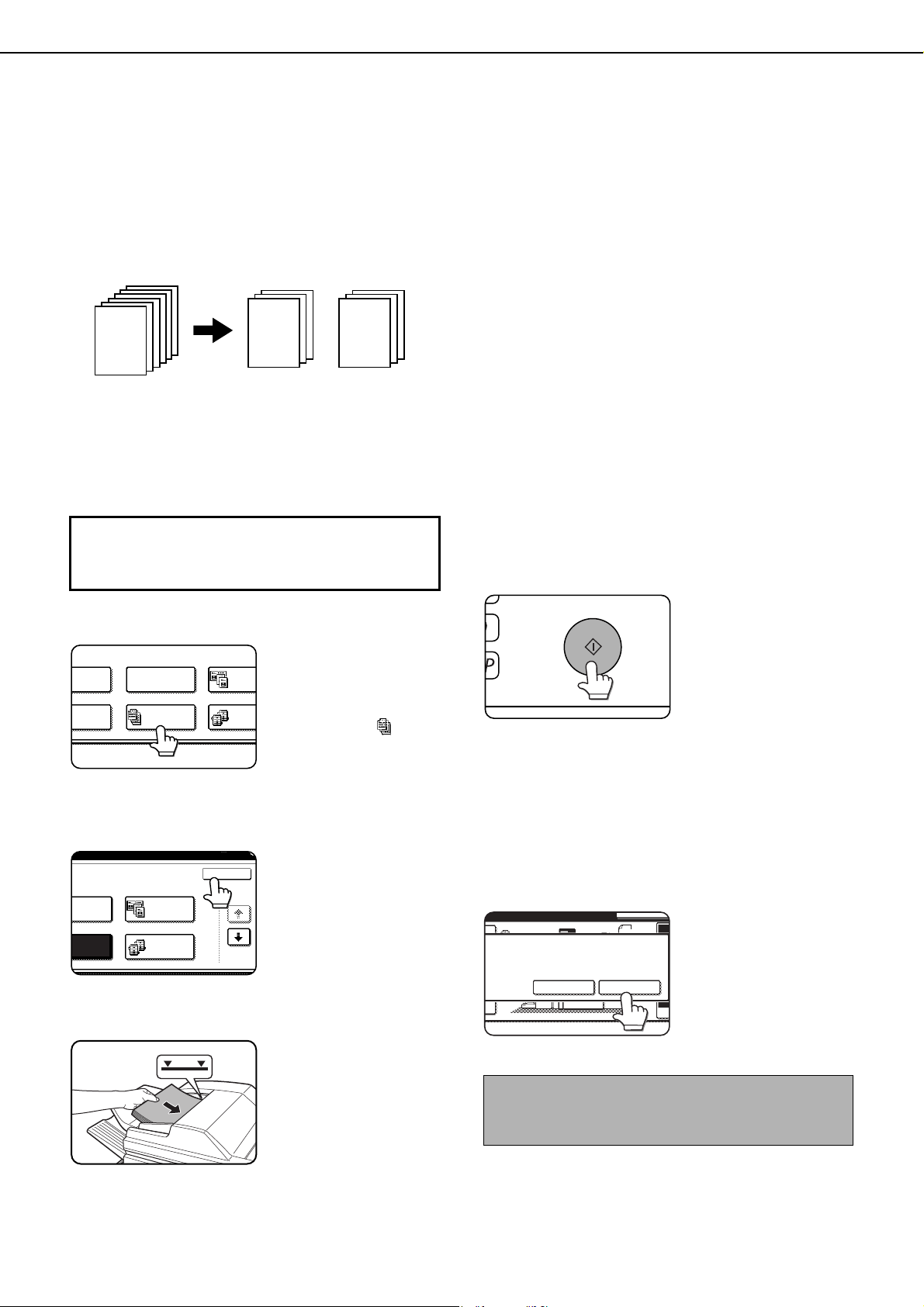
SPECIAL MODES
5-8
Job build
Use job build mode when you need to copy more original pages than can be loaded at once in the document feeder
(the maximum number of pages that can be loaded is 150). This function allows the original pages to be scanned in
sets.
[Example] Copying 300 pages of 8-1/2" x 11" originals
1
Touch the [JOB BUILD] key on the special
modes screen.
The [JOB BUILD] key
will be highlighted to
indicate that the function
is turned on, and the job
build icon (
)
will
appear in the upper left
of the screen.
2
Touch the [OK] key on the special modes
screen.
Return to the main
screen of copy mode.
3
Place the first set of originals in the
document feeder tray. (page 4-3)
4
Make sure that the desired paper size is
selected, select the number of copies or
other copy settings, and press the
[START] key.
Scanning of originals will
start. After scanning of
the first set of originals (A
in the example above) is
completed, remove the
scanned originals, place
the next set of originals
(set B in the example) and press the [START] key.
Repeat this operation until all sets of originals have
been scanned.
If you wish to adjust the copy settings each time
you place a set of originals, see "Changing the
copy settings for each set of originals" on the next
page.
5
Touch the [READ-END] key.
Originals
*Divide the originals into sets of 150 pages each.
Scan the originals starting from the first page of set
A. Scan set B next, taking care to keep the correct
page order.
A:150 sheets B:150 sheets
300 original pages
1
1
151
To display the special modes screen...
See "General procedure for using special
functions" on page 5-2.
ES
N SHIFT
LET COPY
ERASE
DUAL
COP
JOB
BUILD
TANDE
COPY
RASE
OK
1/3
DUAL PAGE
COPY
JOB
BUILD
TANDEM
COPY
To cancel the job build function, touch the [JOB
BUILD] key on the special modes screen (step 1).
The highlighted display will be canceled.
READ-END
PLACE NEXT ORIGINAL. PRESS [START].
TO CHANGE COPY SETTINGS,
PRESS [CHANGE].
INTERRUPT
CHANGE
4.
11x17
ORIGINAL
8 x11
1
/
2
ES
C
dragonII_copy_sec.book 8 ページ 2006年10月18日 水曜日 午後7時39分
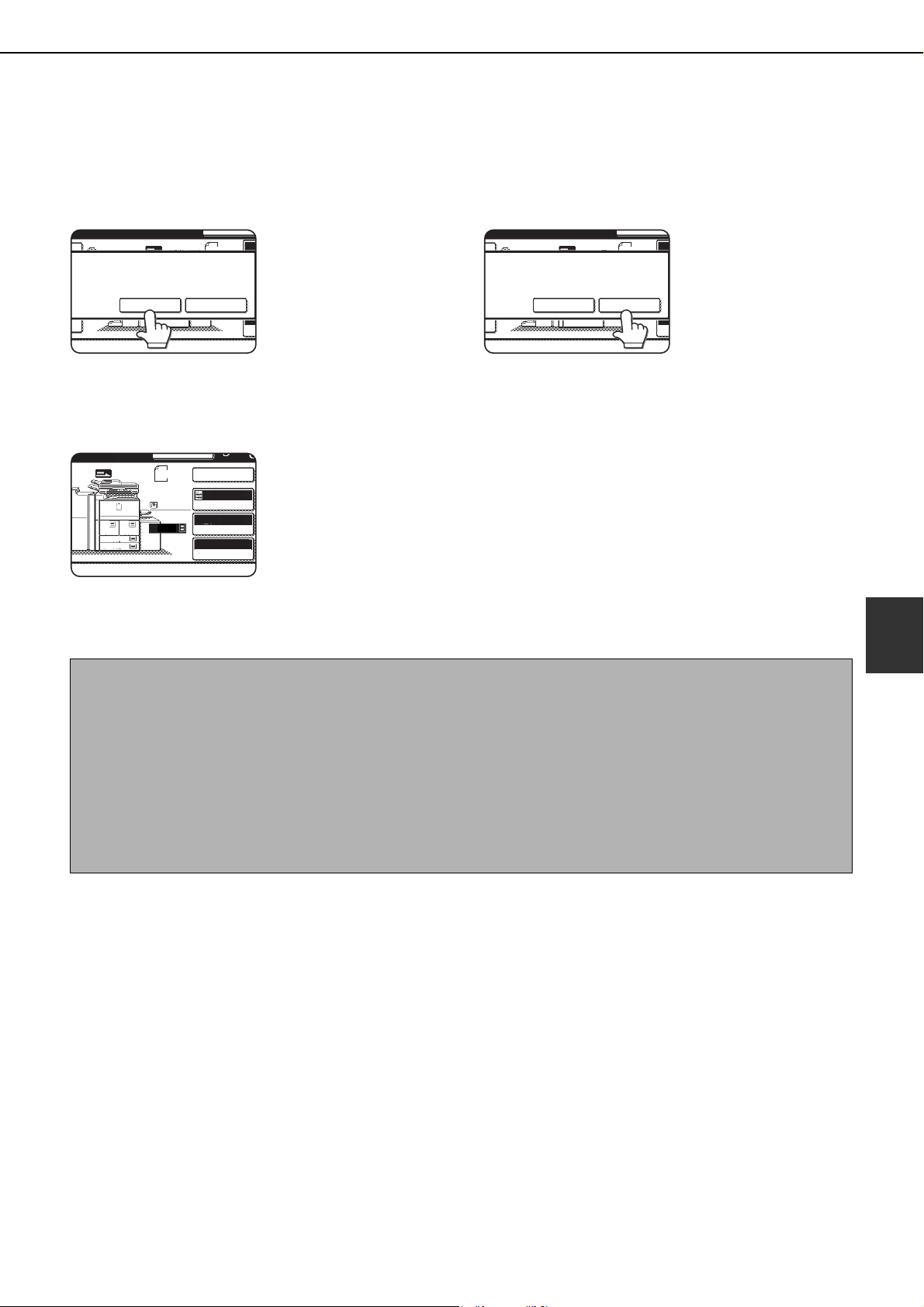
SPECIAL MODES
5-9
5
■ Changing the copy settings for each set of originals
When using job build mode, you can change the copy settings each time you place a set of originals.
After performing step 4 on page 5-8, follow the steps below.
5
Touch the [CHANGE] key.
6
Select the desired copy settings in the
screen that appears and press the
[START] key.
The copy settings that
can be selected are
"EXPOSURE", "PAPER
SELECT", and "COPY
RATIO".
If you touch the [READ-
END] key now, copying
will begin without
scanning the new set of
originals.
7
Touch the [READ-END] key.
READ-END
PLACE NEXT ORIGINAL. PRESS [START].
TO CHANGE COPY SETTINGS,
PRESS [CHANGE].
INTERRUPT
CHANGE
4.
11x17
ORIGINAL
8 x11
1
/
2
ES
C
READ-END
INTERRUPT
4.
11x17
COPY RATIO
[START].
3.
8 x14
1
/
2
8 x11
1
/
2
8 x11
1
/
2
1. 2.
5.
8 x11
1
/
2
EXPOSURE
PAPER SELECT
100%
AUTO
AUTO
8 x11
ORIGINAL
8 x11
1
/
2
8 x11
1
/
2
1
/
2
READ-END
PLACE NEXT ORIGINAL. PRESS [START].
TO CHANGE COPY SETTINGS,
PRESS [CHANGE].
INTERRUPT
CHANGE
4.
11x17
ORIGINAL
8 x11
1
/
2
ES
C
NOTES
● If the original size was set manually at the beginning of the job build procedure, it will not be possible to change
the original size setting. If the automatic original detection function is operating, the original size will be detected
for each set of originals placed.
● When the bypass tray is selected, it is not possible to change the paper type.
● If "XY ZOOM" was initially set for the ratio, it will not be possible to change the ratio setting.
● When job build mode is used in combination with any of the following functions, the [CHANGE] key will not
appear in the screen of step 5.
Pamphlet copy, tandem copy, covers/inserts, transparency inserts, multi-shot, book copy, tab copy, staple sort,
saddle stitch
dragonII_copy_sec.book 9 ページ 2006年10月18日 水曜日 午後7時39分
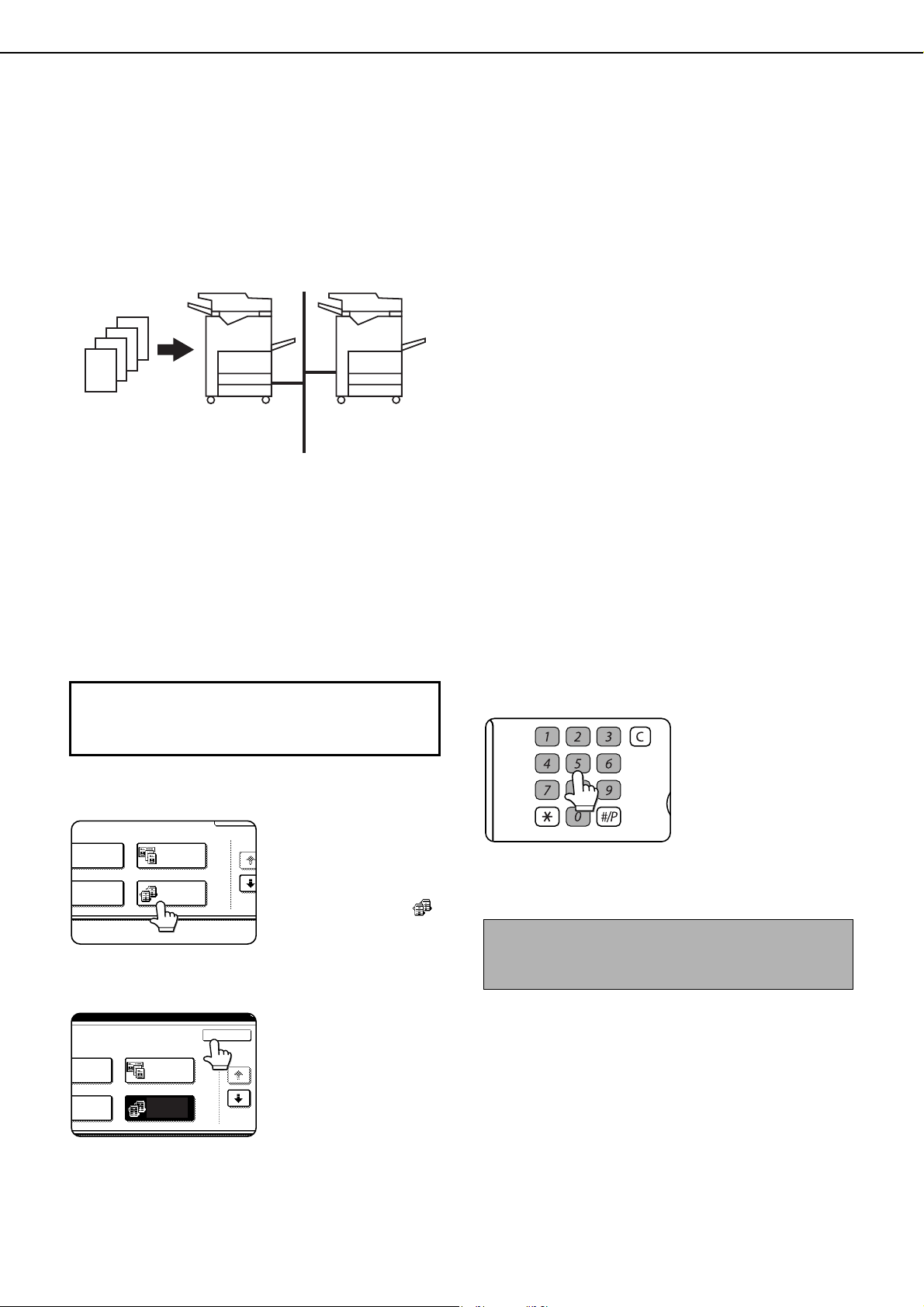
SPECIAL MODES
5-10
Tandem copy
Two machines connected to the same network can be used to run a large copy job in parallel.
By dividing the job in half, approximately half the time is required to complete the job.
To use this function, two machines must be connected to your network as network printers. Even if more machines
are connected to the network, this function can only be used to have one other machine share a job.
Server machine and client machine
●In the following explanations, the machine on which
the copy job is initially set up and tandem copy
selected is called the server machine. The other
machine that is asked to share the job is called the
client machine.
●To use the tandem copy function, the tandem
settings must be configured in the administrator
settings. (See page 13 of the "Administrator settings
guide")
●When configuring the tandem settings in the server
machine, the IP address of the client machine must
be entered. For the port number, it is best to use the
initial setting (50001). Unless you experience
difficulty with this setting, do not change it. The
tandem settings should be configured by your
network administrator. If the server and client
machines will alternate server and client roles, the IP
address of the server machine must also be entered
in the client machine.The same port number can be
set in both machines.
1
Touch the [TANDEM COPY] key on the
special modes screen.
The [TANDEM COPY]
key will be highlighted to
indicate that the function
is turned on, and the
tandem copy icon ( )
will appear in the upper
left of the screen.
2
Touch the [OK] key on the special modes
screen.
You will return to the
main screen of copy
mode.
3
Set the number of copies with the numeric
keys.
Up to 999 copies can be
set. When the [START]
key is pressed, the
copies will automatically
be divided between the
server and client
machines. If an odd
number of copies is set, the server machine will
make the extra set.
4
Place the original in the document feeder
or on the document glass. (page 4-3)
100 sets of
copies
50 sets of
copies
50 sets of
copies
To display the special modes screen...
See "General procedure for using special
functions" on page 5-2.
ERASE
OK
1/3
DUAL PAGE
COPY
JOB
BUILD
TANDEM
COPY
RASE
OK
1/3
DUAL PAGE
COPY
JOB
BUILD
TANDEM
COPY
If an incorrect number of copies is set...
Press the clear key and set the correct number of
copies.
LOGOUT
dragon_05.fm 10 ページ 2006年10月19日 木曜日 午後1時0分
SPECIAL MODES
5-11
5
5
Press the [START] key.
NOTES
● To perform tandem copying, the server machine
and client machine must meet certain conditions.
After the [START] key is pressed on the server
machine, the server machine verifies that the
conditions have been met. If the conditions have
not been met, tandem copying does not begin
and "TANDEM OUTPUT IS NOT ALLOWED.
OUTPUT ALL SETS USING MASTER
MACHINE?" appears in the display. To have the
server machine make all the copies, touch the
[OK] key. To cancel the job, touch the [CANCEL]
key.
• As an example, the following conditions must
be met when a staple finisher is installed on the
server machine and not on the client machine:
(1) If tandem copying is executed for a two-
sided copy job with the number of copies
set to 999 and "Non-staple" is selected,
tandem copying will take place.
(2) If tandem copying is executed for a two-
sided copy job with the number of copies
set to 999 and "Staple" is selected,
tandem copying will not take place
because the client machine does not have
a finisher.
● After the [START] key is pressed, if the client
machine cannot print because it is out of paper or
other reason, the server machine will print its half
of the job. The other half of the job will be stored in
the client machine and the job will be printed when
the client machine is able to print.
● If auditing mode is enabled on both the server and
client machines, the same account number must
be entered on both machines.
● If auditing mode is enabled on the client machine
but not on the server machine, tandem copying
cannot be performed.
To cancel the tandem copy function, touch the
[TANDEM COPY] key on the special modes screen
(step 1). The highlighted display will be canceled.
dragonII_copy_sec.book 11 ページ 2006年10月18日 水曜日 午後7時39分
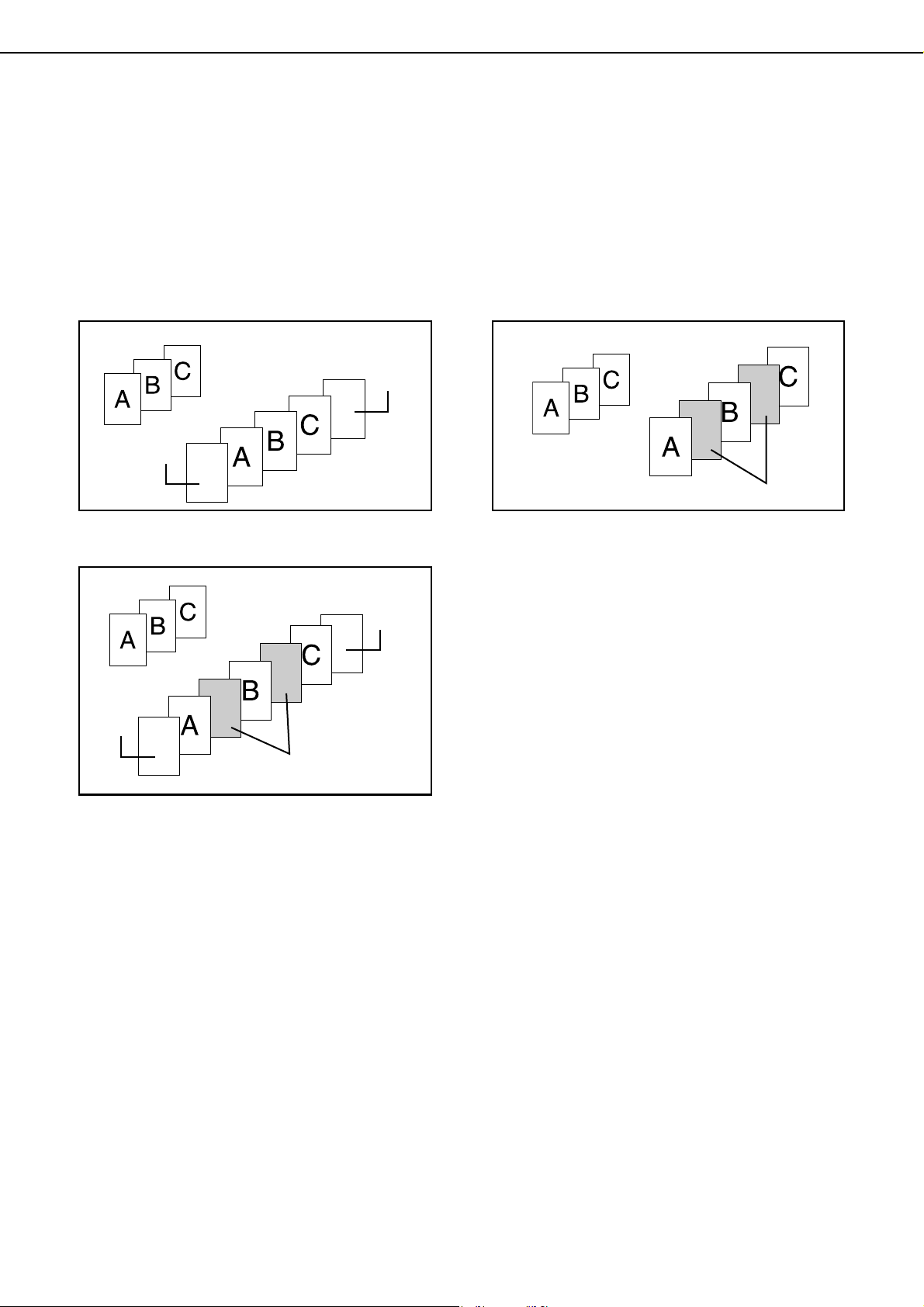
SPECIAL MODES
5-12
Covers/inserts
A different type of paper can be inserted in positions corresponding to front and back covers of a copy job when the
automatic document feeding function is used. A different type of paper can also be automatically added as an insert
at specified pages.
As an example, tabbed paper can be added as inserts at the beginning of chapters or at other pages to create an
indexed document.
● Covers/inserts can be disabled in the administrator settings (page 11 of the administrator settings guide).
Example of adding covers
Example of adding covers and inserts
Example of adding inserts
About the explanations of covers and
inserts
There are various ways of using covers and inserts.
To keep the explanations simple, covers and inserts
are explained separately. The procedure for
inserting covers is explained on page 5-13. The
procedure for adding inserts is explained on page 5-
14. After reading these explanations, see the
examples of using covers and inserts on pages 5-
17 to 5-22.
■ Preparations for using covers and inserts
● Load the cover/insert paper in the tray before using the cover/insert function.
● Use the same size of paper for the covers/inserts as for the copies. (For the procedures for loading paper, see
pages 2-2 to 2-17.)
● Before selecting the cover/insert function, place the originals in the document feeder, select one-sided or two-
sided copying, and select the number of copies and any other desired copy settings as explained on pages 4-
7 to 4-10. When these settings have been completed, perform the procedure to select covers/inserts on the
following page.
● The original must be scanned from the document feeder. The document glass cannot be used.
● Tabbed paper can be used for cover/ inserts, however, two-sided copying cannot be performed on the tabbed
paper. Tabbed paper can be fed from the bypass tray, tray 3, and the inserter. The other trays cannot be used.
● Up to 100 covers/inserts can be inserted. Two covers/inserts cannot be inserted between the same pages.
● Pamphlet copying cannot be used in combination with covers/inserts.
● When performing two-sided copying of two-sided originals, an insert cannot be added between the front and
back sides of an original page.
Front cover
Back cover
Originals
Inserts
Front
cover
Back
cover
Originals
Originals
Inserts
dragonII_copy_sec.book 12 ページ 2006年10月18日 水曜日 午後7時39分
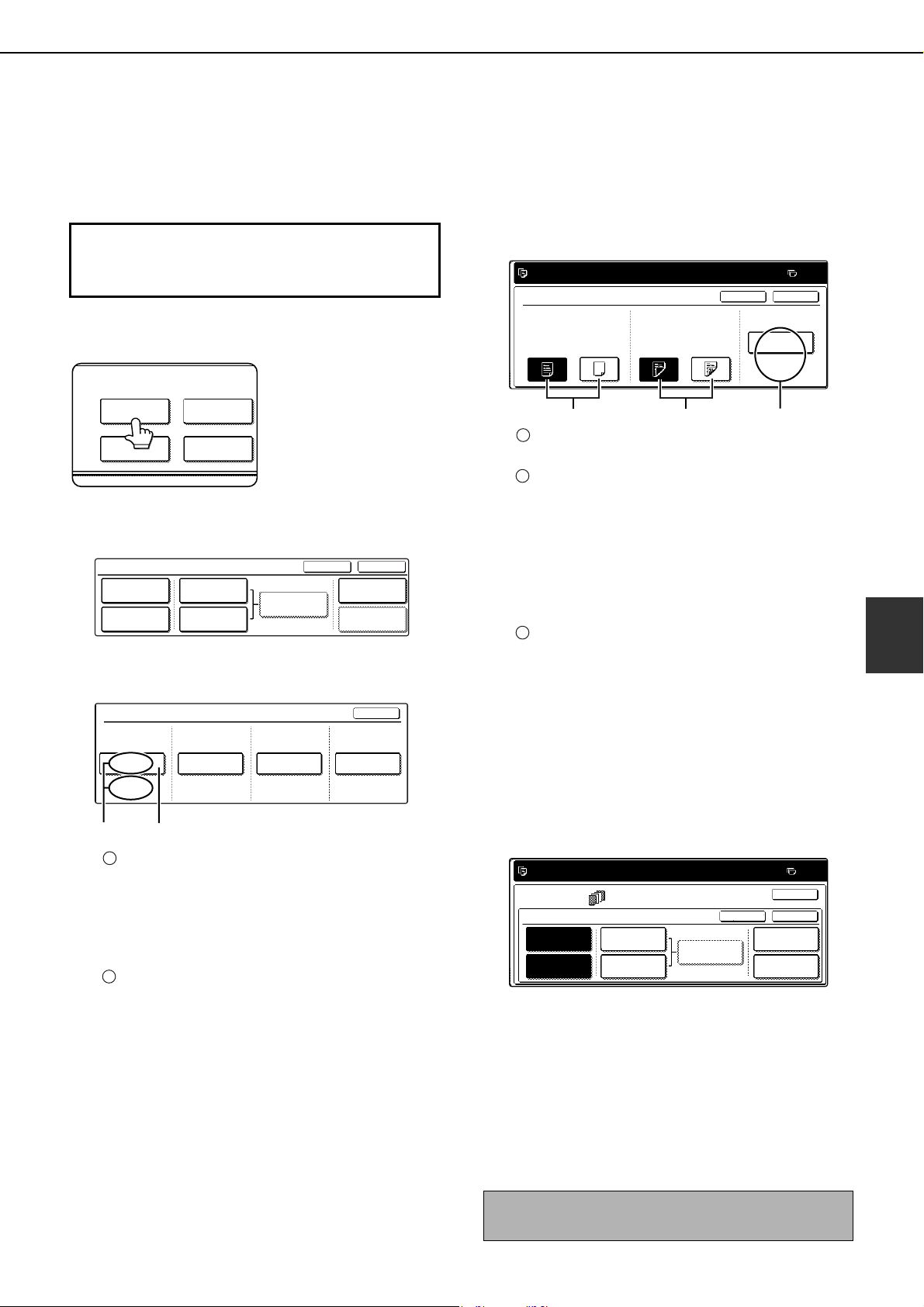
SPECIAL MODES
5-13
5
■ Procedure for inserting front and back cover paper
The paper for the front cover is called the front cover paper ("FRONT COVER" in the touch panel). The paper
for the back cover is called the back cover paper ("BACK COVER" in the touch panel).
●Examples of insertion methods for the front and back cover paper are given on pages 5-18 to 5-21.
1
Touch the [COVERS/INSERTS] key in the
special modes screen (2nd screen).
2
Touch the [PAPER TRAY SETTINGS] key.
3
Select the tray used for the front cover
paper.
The tray name (tray position) selected for the
front cover paper and the paper size and type
are shown in (X). If the tray in which you
loaded paper for the front cover is shown, touch
the [OK] key. You will return to the screen of step
2.
If the correct tray for the cover sheet paper does
not appear in (X), touch the (Y) key. The tray
selection screen will appear. Select the tray in
which you loaded paper for the front cover. You
will return to the screen of above.
4
Touch the [FRONT COVER] key in the
screen of step 2.
5
Set the insertion conditions for the front
cover paper.
Select whether or not the front cover paper is to be
copied on with the (X) keys ([YES] or [NO]).
Select whether one-sided copying or two-sided
copying is to be performed on the front cover
paper with the (Y) keys. This selection is only
possible when the [YES] key of (X) has been
selected. (The one-sided/two-sided selection
made here only applies to the front cover paper.
When the back cover paper is selected, the
selection only applies to the back cover paper.)
The (Z) key shows the tray selected for the front
cover paper in step 3 and the paper size and
type.
6
Touch the [OK] key in the screen of step 5.
You will return to the screen of step 2.
When you return to the screen of step 2, the
[FRONT COVER] key will be highlighted.
7
To insert back cover paper, repeat steps 2
through 6, using the [BACK COVER] key
instead of the [FRONT COVER] key.
8
Touch the [PAGE LAYOUT] key in the
screen of step 7 to display a list of the
selected settings (page 5-16).
To edit or delete a cover/insert, follow
steps 1 and 2 on page 5-16. To exit the
cover/insert settings, touch the upper
[OK] key in the screen of step 7.
9
Press the [START] key.
To display the special modes screen...
See "General procedure for using special
functions" on page 5-2.
SPECIAL MODES
COVERS/INSERTS
TRANSPARENCY
INSERTS
TAB COPYBOOK COPY
FRONT COVER
BACK COVER
INSERTION
TYPE A SETTING
PAPER TRAY
SETTINGS
PAGE LAYOUT
CANCEL OK
INSERTION
SETTINGS
COVERS/INSERTS
INSERTION
TYPE B SETTING
8 x11
PLAIN
1
/
2
PAPER TRAY SETTINGS
FRONT COVER
BYPASS
TRAY
BYPASS
TRAY
BYPASS
TRAY
BYPASS
TRAY
BACK COVER
INSERTION
TYPE A
INSERTION
TYPE B
OK
8 x11
PLAIN
1
/
2
8 x11
PLAIN
1
/
2
8 x11
PLAIN
1
/
2
(X) (Y)
1
2
To cancel covers/inserts settings...
Touch the [CANCEL] key in the screen of step 2.
PLEASE SET UP A FRONT COVER.
FRONT COVER SETTING
PRINT ON FRONT COVER
YES NO
1-SIDED 2-SIDED
0
OK
CANCEL
PAPER TRAY
BYPASS
TRAY
8 x11
PLAIN
1
/
2
(X)
(Y)
(Z)
1
2
3
PLEASE SET UP COVERS/INSERTS.
SPECIAL MODES
COVERS/INSERTS
FRONT COVER
INSERTION
TYPE A SETTINGS
PAPER TRAY
SETTINGS
PAGE LAYOUT
INSERTION
SETTINGS
INSERTION
TYPE B SETTINGS
BACK COVER
0
OK
OK
CANCEL
dragonII_copy_sec.book 13 ページ 2006年10月18日 水曜日 午後7時39分
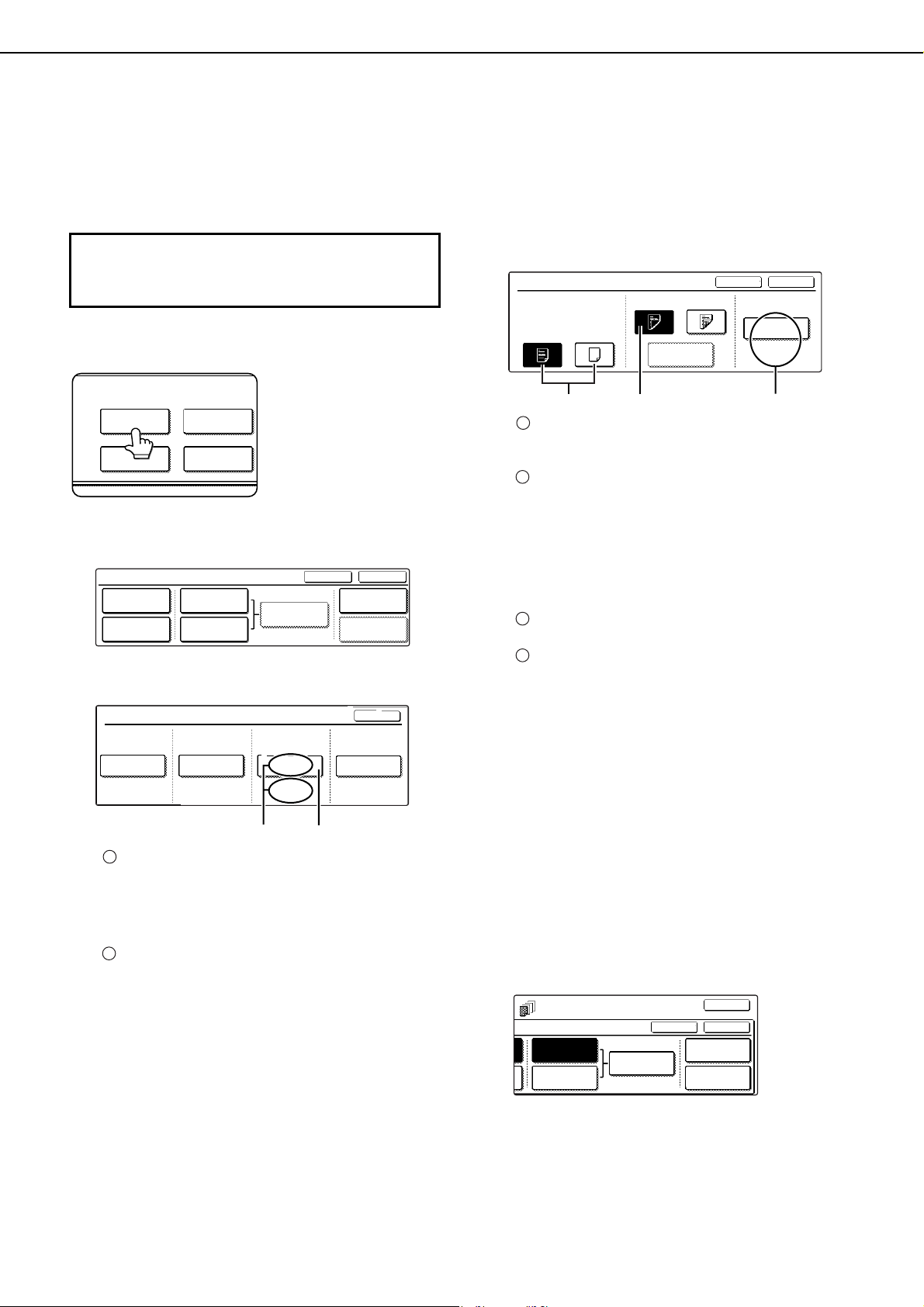
SPECIAL MODES
5-14
■ Procedure for adding inserts
You can have different paper automatically inserted as an insert at a specified pages. Two types of insert paper
can be used. These are specified with the [INSERTION TYPE A SETTING] key and [INSERTION TYPE B
SETTING] in the touch panel. Tabbed paper can be used as an insert.
●Examples of insertion methods for insert paper are given on page 5-22.
1
Touch the [COVERS/INSERTS] key in the
special modes screen (2nd screen).
2
Touch the [PAPER TRAY SETTINGS] key.
3
Select the tray used for insertion type A.
The tray name (tray position) selected for
insertion type A and the paper size and type are
shown in (X). If the tray in which you loaded
paper for insertion type A is shown, touch the
[OK] key. You will return to the screen of step 2.
If the correct tray for insertion type A does not
appear in (X), touch the (Y) key. The tray
selection screen will appear. Select the tray in
which you loaded paper for insertion type A. You
will return to the screen of step 2.
4
Touch the [INSERTION TYPE A SETTING]
key in the screen of step 2
5
Set the insertion conditions for insertion
type A .
Select whether or not insertion type A paper is
to be copied on with the (X) keys ([YES] or
[NO]).
Select whether one-sided copying or two-sided
copying is to be performed on insertion type A
with the (Y) keys. This selection is only possible
when the [YES] key of (X) has been selected.
(The one-sided/two-sided selection made here
only applies to insertion type A paper. When
insertion type B is selected, the selection only
applies to insertion type B paper.)
The (Z) key shows the tray selected for insertion
type A in step 3 and the paper size and type.
If a paper tray with tabbed paper is selected in
the screen of step 3, you can touch the [TAB
COPY] key. This allows you to select the tab
width. Two-sided copying is not possible on
tabbed paper.
6
Touch the [OK] key in the screen of step 5.
You will return to the screen of step 2.
When you return to the screen of step 2, the
[INSERTION TYPE A SETTING] key will be
highlighted.
7
If you wish to insert a different paper with
the [INSERTION TYPE B SETTING] key,
repeat steps 2 through 6. Use the
[INSERTION TYPE B SETTING] key instead
of the [INSERTION TYPE A SETTING] key,
and the [INSERTION TYPE B] key instead
of the [INSERTION TYPE A] key.
To display the special modes screen...
See "General procedure for using special
functions" on page 5-2.
SPECIAL MODES
COVERS/INSERTS
TRANSPARENCY
INSERTS
TAB COPYBOOK COPY
FRONT COVER
BACK COVER
INSERTION
TYPE A SETTING
PAPER TRAY
SETTINGS
PAGE LAYOUT
CANCEL OK
INSERTION
SETTINGS
COVERS/INSERTS
INSERTION
TYPE B SETTING
PAPER TRAY SETTINGS
FRONT COVER
BYPASS
TRAY
BYPASS
TRAY
BYPASS
TRAY
BYPASS
TRAY
BACK COVER
INSERTION
TYPE A
INSERTION
TYPE B
OK
8 x11
PLAIN
1
/
2
8 x11
PLAIN
8 x11
PLAIN
1
/
2
1
/
2
8 x11
PLAIN
1
/
2
(X) (Y)
1
2
INSERTION TYPE A SETTING
PRINT ON INSERT SHEETS
YES NO
1-SIDED 2-SIDED
OK
CANCEL
PAPER TRAY
TAB COPY
8 x11
PLAIN
1
/
2
BYPASS
TRAY
(X)
(Y)
(Z)
1
2
3
4
TS
INSERTION
TYPE A SETTING
PAPER TRAY
SETTINGS
PAGE LAYOUT
INSERTION
SETTINGS
INSERTION
TYPE B SETTING
OK
OK
CANCEL
dragonII_copy_sec.book 14 ページ 2006年10月18日 水曜日 午後7時39分
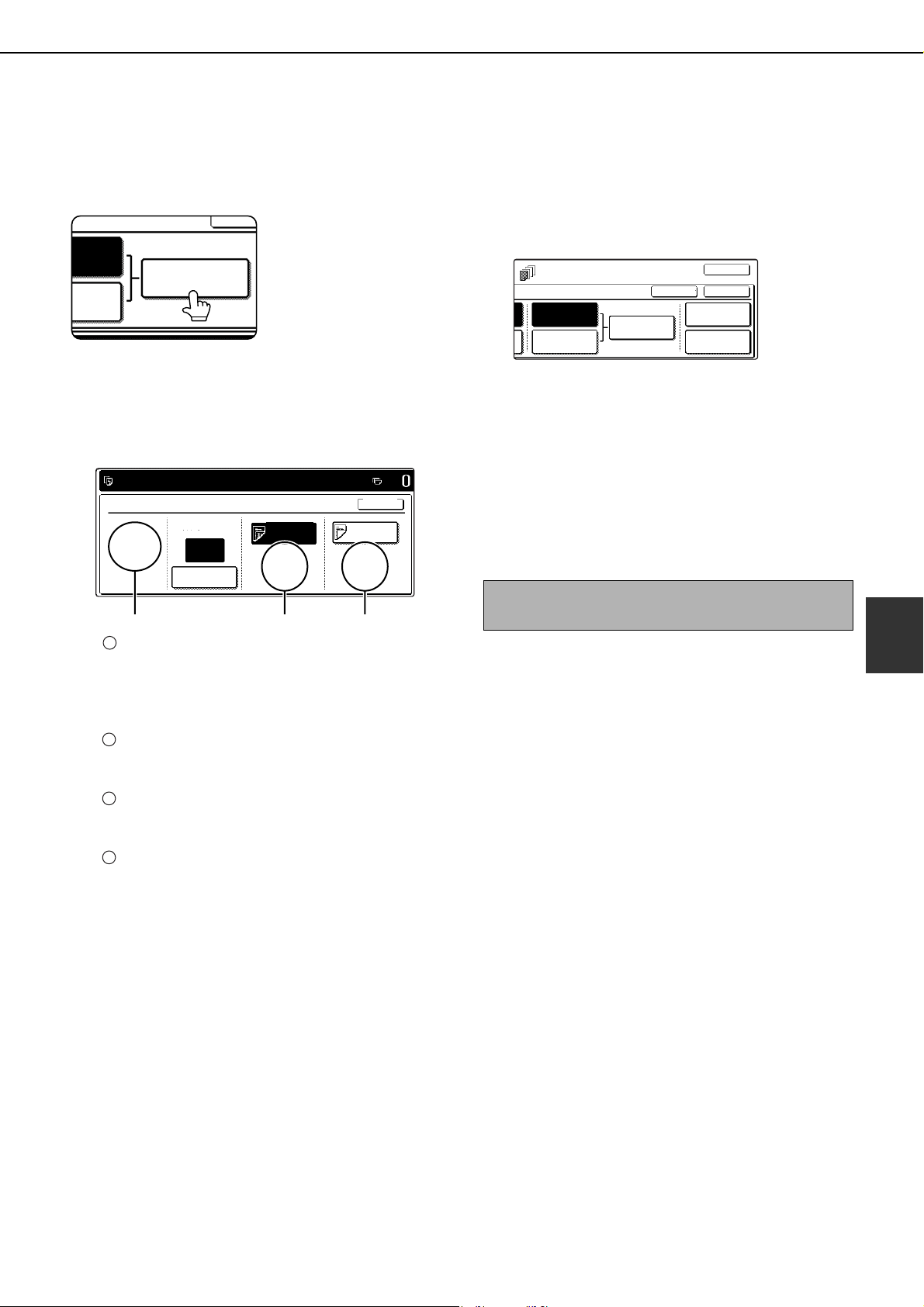
SPECIAL MODES
5-15
5
8
Touch the [INSERTION SETTINGS] key to
specify the pages where you wish to insert
the insert papers of [INSERTION TYPE A
SETTING] and [INSERTION TYPE B
SETTING].
9
Touch the [INSERTION TYPE A] key or the
[INSERTION TYPE B] key, enter the page
number where you wish to insert the insert
paper with the numeric keys, and then
touch the [ENTER] key.
(X) shows the total number of inserts. Up to 100
inserts can be added. When inserting multiple
inserts, touch the [ENTER] key after each entry
of an insertion page number (insertion position)
with the numeric keys.
(Y) shows the tray selected in step 3 for
[INSERTION TYPE A SETTING] and the paper
size and type.
(Z) shows the tray selected in step 3 for
[INSERTION TYPE B SETTING] and the paper
size and type.
When the [INSERTION TYPE A] key is
highlighted, the insert settings apply to
[INSERTION TYPE A SETTING]. When the
[INSERTION TYPE B] key is highlighted, the
insert settings apply to [INSERTION TYPE B
SETTING].
10
Touch the [OK] key in the screen of step 9.
You will return to the screen of step 2.
When you return to the screen of step 2, the
[INSERTION TYPE A SETTING] key will be
highlighted.
11
If you wish to insert a different paper with
the [INSERTION TYPE B SETTING] key,
repeat steps 2 through 6. Use the
[INSERTION TYPE B SETTING] key instead
of the [INSERTION TYPE A SETTING] key,
and the [INSERTION TYPE B] key instead
of the [INSERTION TYPE A] key.
12
Touch the [PAGE LAYOUT] key in the
screen of step 11 to display a list of the
selected settings (page 5-16).
To edit or delete a cover/insert, follow
steps 1 and 2 on page 5-16. To exit the
cover/insert settings, touch the upper
[OK] key in the screen of step 11.
13
Press the [START] key.
INSERTION
SETTINGS
RTION
SETTING
TION
SETTING
CANCE
INSERTION SETTINGS
INPUT THE PAGE NUMBER AND
PRESS [ENTER]. USE [C] KEY TO AMEND.
INSERTION
TOTAL:0
ENTER
8 x11
PLAIN
1
/
2
INSERTION PAGE
BYPASS
TRAY
BYPASS
TRAY
8 x11
PLAIN
1
/
2
8 x11
PLAIN
1
/
2
INSERTION
TYPE A
3
INSERTION
TYPE B
OK
(X) (Y) (Z)
1
2
3
4
To cancel covers/inserts settings...
Touch the [CANCEL] key in the screen of step 2.
TS
INSERTION
TYPE A SETTING
PAPER TRAY
SETTINGS
PAGE LAYOUT
INSERTION
SETTINGS
INSERTION
TYPE B SETTING
OK
OK
CANCEL
dragonII_copy_sec.book 15 ページ 2006年10月18日 水曜日 午後7時39分

SPECIAL MODES
5-16
■ Checking, editing, and deleting cover/insert pages
The [PAGE LAYOUT] key appears after covers/inserts settings are configured (the settings of step 1 through
step 7 on pages 5-13 and 5-14).
The [PAGE LAYOUT] key is used for the following:
● To display the status of covers/inserts pages
● To edit, delete, or add inserted pages
1
Touch the [PAGE LAYOUT] key.
2
The set covers/inserts pages are shown.
If there are multiple screens, touch the or
key to change screens.
Displayed icons:
: Front side copy only
: Back side copy only
: Two-sided copy
: No copying
For inserts, the insertion page also appears.
" " represents a page number.
/- : Front side copy only at page
/ : Two-sided copy at page /
-/ : Back side copy only at page
< : Insert non-copied insert at page
To edit or delete an inserted page, touch the key
of the page you wish to edit or delete in the page
layout screen. When the key is touched, the
[CANCEL], [DELETE], and [AMEND] keys
appear.
●To cancel, touch the [CANCEL] key.
●To delete an inserted page, touch the
[DELETE] key.
●To edit an inserted page, touch the [AMEND]
key. The screen of step 5 on page 5-13 or the
screen of step 5 on page 5-14 appears. Edit
the page as explained in step 5 on page 5-13
or step 5 on page 5-14.
3
When you have finished checking the
pages, touch the [OK] key.
To display the [PAGE LAYOUT] key...
Configure the settings in step 1 through step 7
on pages 5-13 and 5-14.
TS
INSERTION
TYPE A SETTING
PAPER TRAY
SETTINGS
PAGE LAYOUT
INSERTION
SETTINGS
INSERTION
TYPE B SETTING
OK
OK
CANCEL
PAGE LAYOUT
FRONT COVER
INSERTION
TYPE A
<4
INSERTION
TYPE B
7/8
INSERTION
TYPE A
12/-
OK
1/2
1
2
3
AMEND THE INSERTION?
CANCEL DELETE AMEND
INSERTION
TYPE B
BYPASS
OK
dragonII_copy_sec.book 16 ページ 2006年10月18日 水曜日 午後7時39分
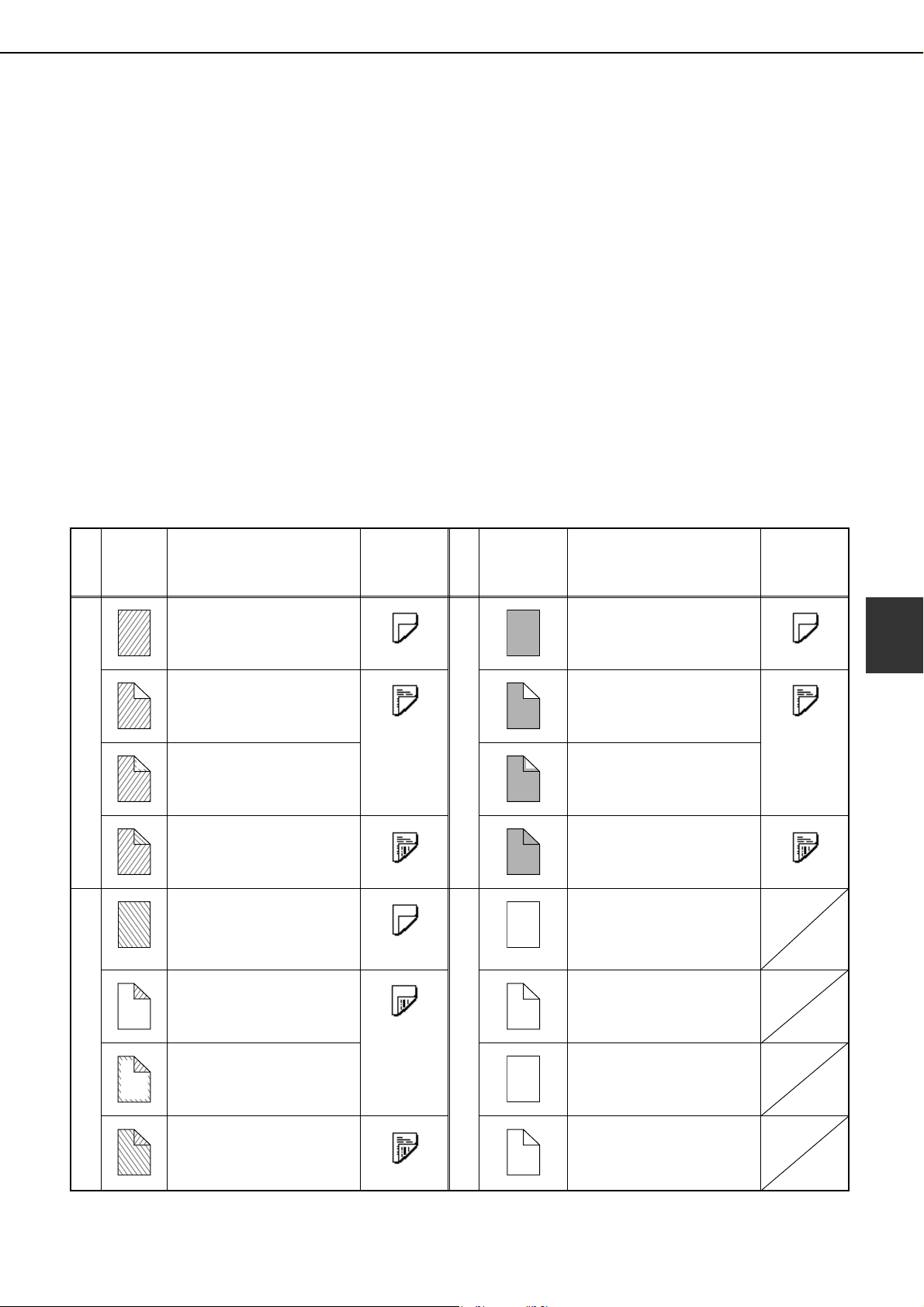
SPECIAL MODES
5-17
5
■ Examples of covers and inserts
The relations between the originals and finished copies when covers or inserts are inserted are shown on the
following pages.
Covers
●One-sided copying of one-sided originals
(page 5-18)
●One-sided copying of two-sided originals
(page 5-20)
●Two-sided copying of one-sided originals
(page 5-19)
●Two-sided copying of two-sided originals
(page 5-21)
Inserts
●One-sided copying of one-sided originals
(page 5-22)
●One-sided copying of two-sided originals
(page 5-22)
●Two-sided copying of one-sided originals
(page 5-22)
●Two-sided copying of two-sided originals
(page 5-22)
■ Symbols used for covers and inserts
The following symbols are used to make the explanations easier to understand.
The numbers that appear indicate relations between the originals and copies, and will vary depending on the
settings.
Type
Symbol Meaning
Icon
appearing
in display
Type
Symbol Meaning
Icon
appearing
in display
Front cover
Front cover when not
copied on.
Inserts
Insert when not copied on.
Front cover after one-sided
copying.
Insert after one-sided
copying.
Front cover after two-sided
copying. (One page is not
copied on.)
Insert after one-sided
copying. (One page is not
copied on.)
Front cover after two-sided
copying.
Insert after two-sided
copying.
Back cover
Back cover when not
copied on.
Other
One-sided original or
output page of regular one-
sided copying
Back cover after one-sided
copying of one-sided
original.
Two-sided original or
output page of regular two-
sided copying.
Back cover after two-sided
copying. (One page is not
copied on.)
One-sided original or
output page of regular one-
sided copying.
Back cover after two-sided
copying.
One-sided original or
output page of regular one-
sided copying.
1
3
1
3
1
2
3
4
1
6
1
2
6
6
6
5 5
dragonII_copy_sec.book 17 ページ 2006年10月18日 水曜日 午後7時39分
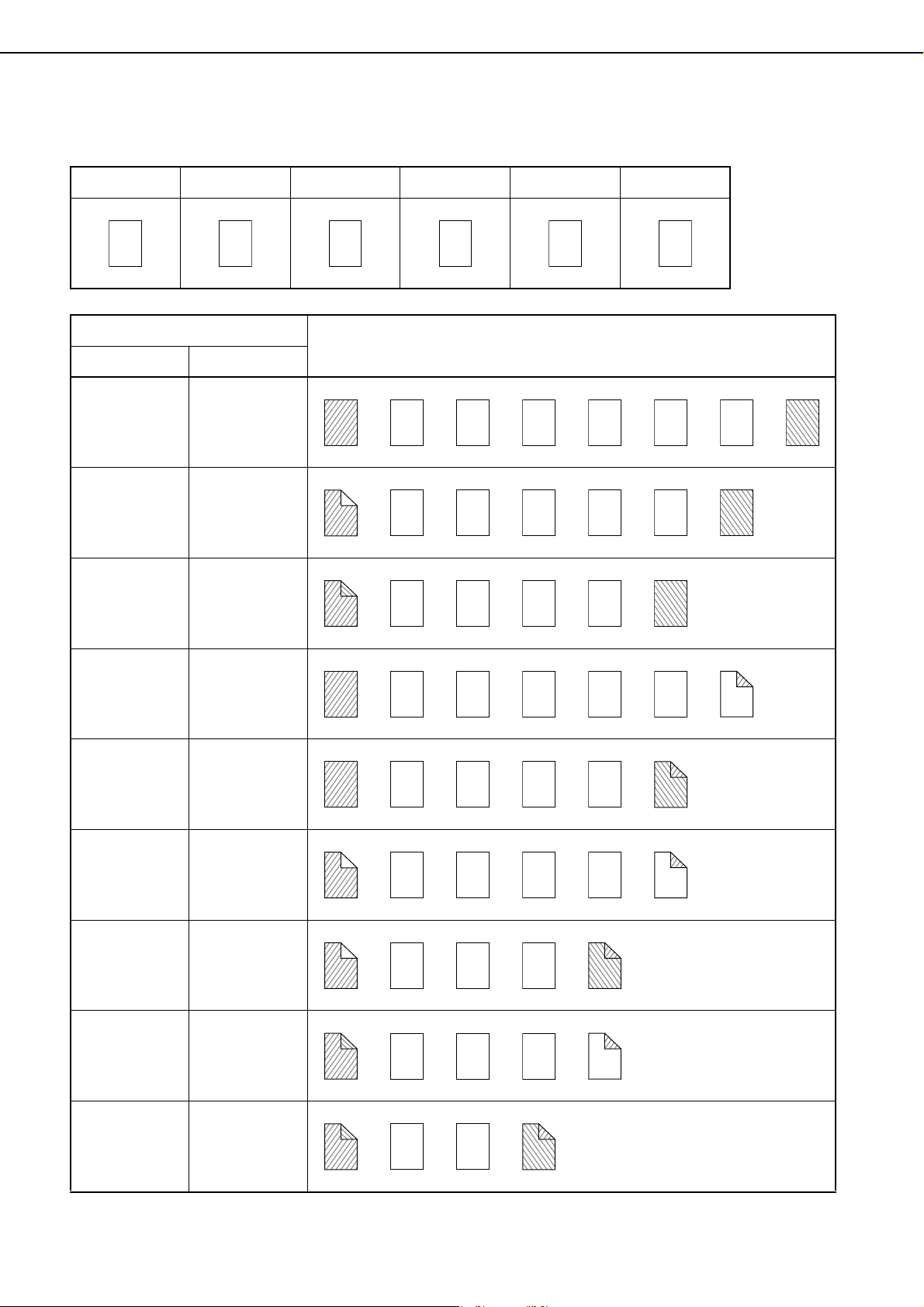
SPECIAL MODES
5-18
■ Covers (One-sided copying of one-sided originals)
One-sided copies are made of the following one-sided originals.
1st page 2nd page 3rd page 4th page 5th page 6th page
1
2 3 4 5 6
Copying on cover
Resulting copies
Front cover Back cover
No copying No copying
One-sided
copying
No copying
Two-sided
copying
No copying
No copying
One-sided
copying
No copying
Two-sided
copying
One-sided
copying
One-sided
copying
One-sided
copying
Two-sided
copying
Two-sided
copying
One-sided
copying
Two-sided
copying
Two-sided
copying
1
2 3 4 5 6
1
2 3 4 5 6
1
2
3 4 5 6
1
2 3 4 5
6
1
2 3 4
6
5
1
2 3 4 5
6
1
2 3 4
6
5
1
2
3 4 5
6
1
2
3 4
6
5
dragonII_copy_sec.book 18 ページ 2006年10月18日 水曜日 午後7時39分
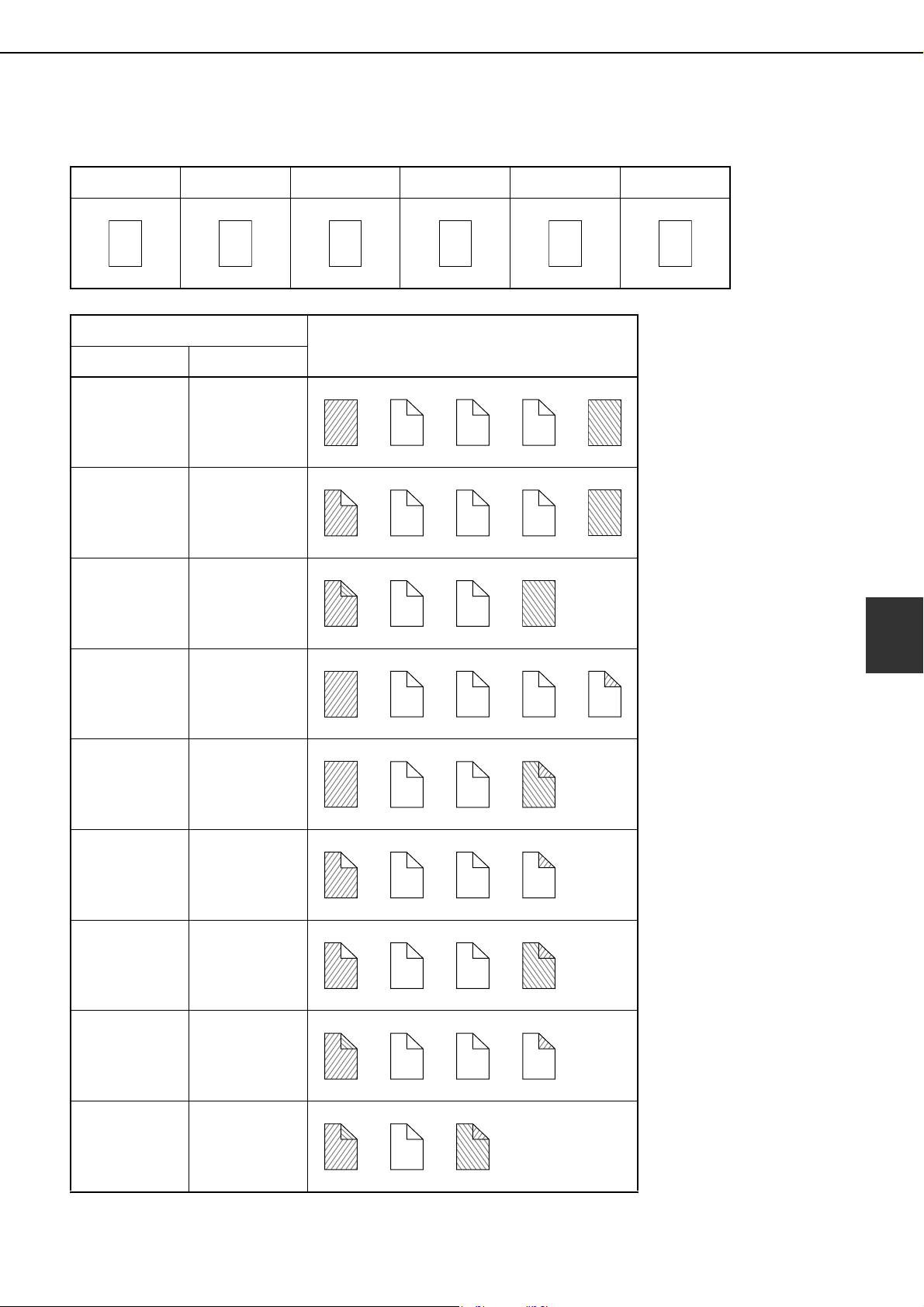
SPECIAL MODES
5-19
5
■ Covers (Two-sided copying of one-sided originals)
Two-sided copies are made of the following one-sided originals.
1st page 2nd page 3rd page 4th page 5th page 6th page
1
2 3 4 5 6
Copying on cover
Resulting copies
Front cover Back cover
No copying No copying
One-sided
copying
No copying
Two-sided
copying
No copying
No copying
One-sided
copying
No copying
Two-sided
copying
One-sided
copying
One-sided
copying
One-sided
copying
Two-sided
copying
Two-sided
copying
One-sided
copying
Two-sided
copying
Two-sided
copying
1
2
3
4
5
6
1 2
3
4
5
6
1
2
3
4
5
6
1
2
3
4
5
6
1
2
3
4
6
5
1 2
3
4
5
6
1 2
3
4
6
5
1
2
3
4
5
6
1
2
3
4
6
5
dragonII_copy_sec.book 19 ページ 2006年10月18日 水曜日 午後7時39分
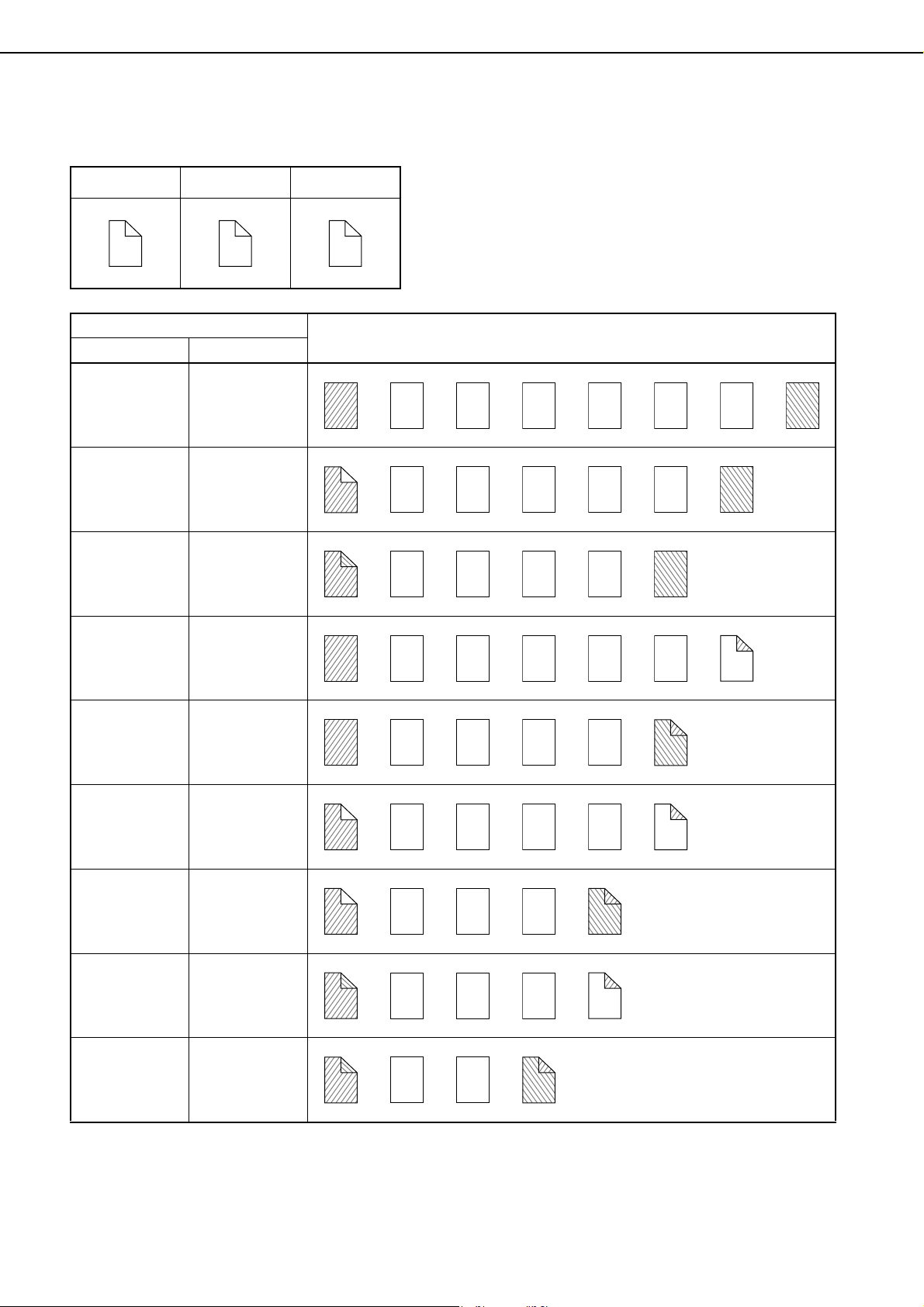
SPECIAL MODES
5-20
■ Covers (One-sided copying of Two-sided originals)
One-sided copies are made of the following two-sided originals.
1st page 2nd page 3rd page
1
2
3
4
5
6
Copying on cover
Resulting copies
Front cover Back cover
No copying No copying
One-sided
copying
No copying
Two-sided
copying
No copying
No copying
One-sided
copying
No copying
Two-sided
copying
One-sided
copying
One-sided
copying
One-sided
copying
Two-sided
copying
Two-sided
copying
One-sided
copying
Two-sided
copying
Two-sided
copying
1
2 3 4 5 6
1
2 3 4 5 6
1
2
3 4 5 6
1
2 3 4 5
6
1 2 3 4
6
5
1
2 3 4 5
6
1
2 3 4
6
5
1
2
3 4 5
6
1
2
3 4
6
5
dragonII_copy_sec.book 20 ページ 2006年10月18日 水曜日 午後7時39分
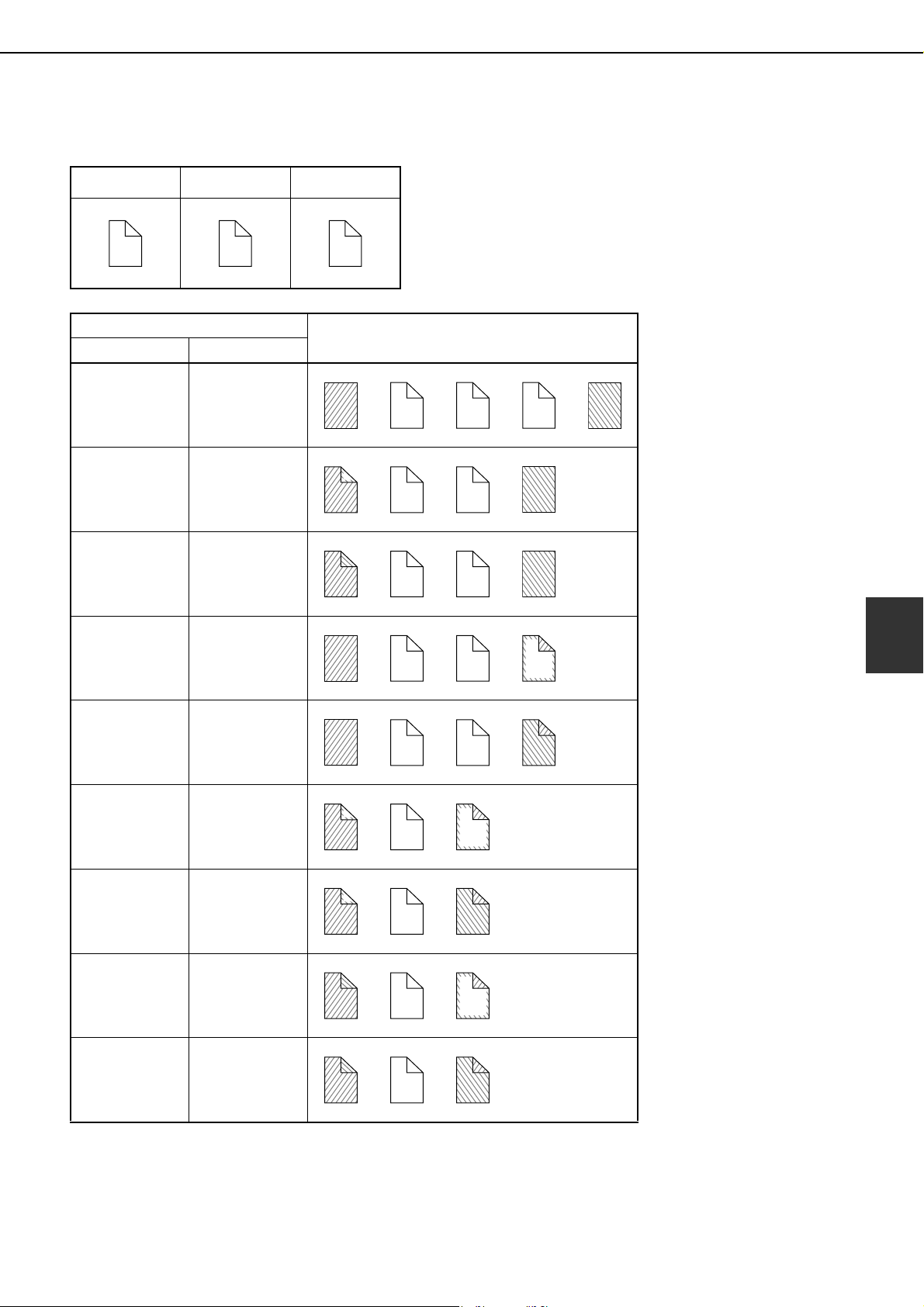
SPECIAL MODES
5-21
5
■ Covers (Two-sided copying of two-sided originals)
Two-sided copies are made of the following two-sided originals.
1st page 2nd page 3rd page
1
2
3
4
5
6
Copying on cover
Resulting copies
Front cover Back cover
No copying No copying
One-sided
copying
No copying
Two-sided
copying
No copying
No copying
One-sided
copying
No copying
Two-sided
copying
One-sided
copying
One-sided
copying
One-sided
copying
Two-sided
copying
Two-sided
copying
One-sided
copying
Two-sided
copying
Two-sided
copying
1
2
3
4
5
6
1
3
4
5
6
1
2
3
4
5
6
1
2
3
4
6
1
2
3
4
6
5
1
3
4
6
1
3
4
6
5
1
2
3
4
6
1
2
3
4
6
5
dragonII_copy_sec.book 21 ページ 2006年10月18日 水曜日 午後7時39分
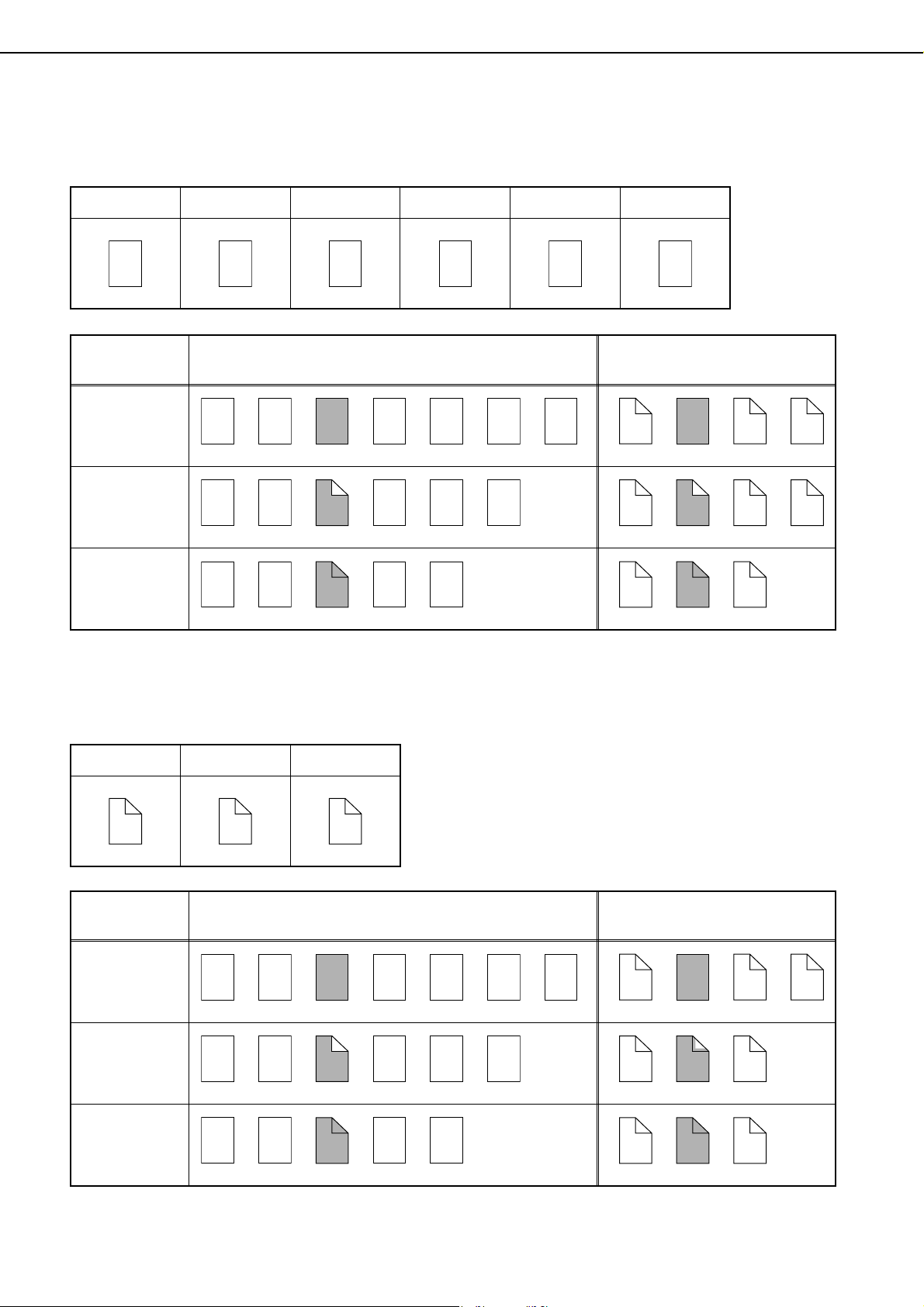
SPECIAL MODES
5-22
■ Inserts (One-sided copying of one-sided originals)
One-sided and two-sided copying is performed using the following one-sided originals. The insert is added as
the third page.
■ Inserts (One-sided copying of two-sided originals)
One-sided and two-sided copying is performed using the following two-sided originals.
1st page 2nd page 3rd page 4th page 5th page 6th page
1 2 3 4 5 6
Copying on
insert
Resulting copies (one-sided copying)
Resulting copies
(two-sided copying)
No copying
One-sided
copying
Two-sided
copying
1
2 3 4 5 6
1
2
3
4
5
6
1
2
3
4 5 6
1
2
3 4
5
6
1 2
3
4
5 6
1
2
3
4
5
6
1st page 2nd page 3rd page
1
2
3
4
5
6
Copying on
insert
Resulting copies (one-sided copying)
Resulting copies
(two-sided copying)
No copying
One-sided
copying
Two-sided
copying
1
2 3 4 5 6
1
2
3
4
5
6
1
2
3
4 5 6
1
2
3 5
6
1
2
3
4
5 6
1
2
3
4
5
6
dragonII_copy_sec.book 22 ページ 2006年10月18日 水曜日 午後7時39分
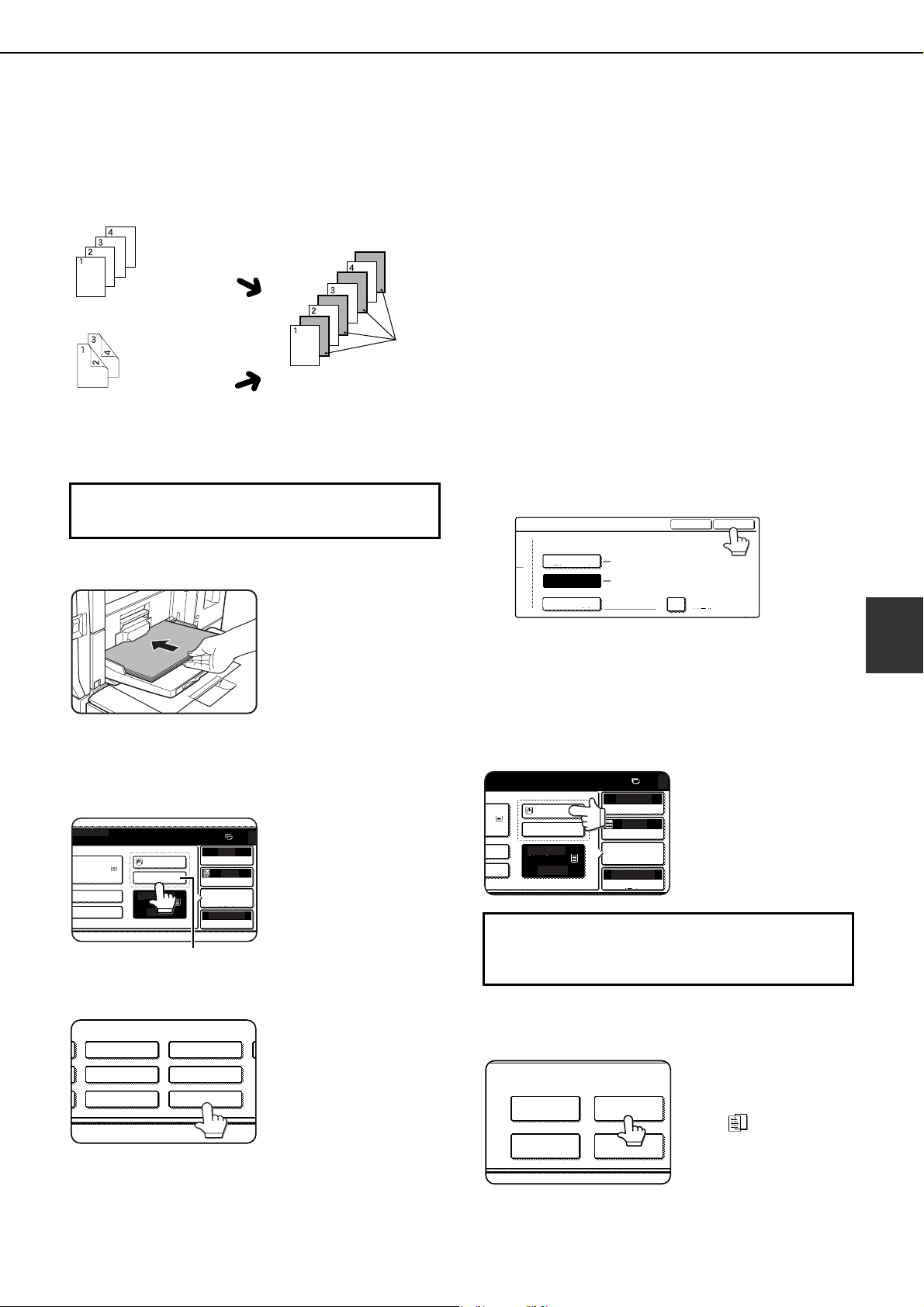
SPECIAL MODES
5-23
5
Transparency film with insert sheets
When copying onto transparency film, blank insert sheets can be placed between transparent sheets.
●
This function only operates in "one-sided to one-
sided" and "two-sided to one-sided" modes.
● Multiple copies cannot be selected in this mode.
●
The inserts are inserted under each transparency
as shown at left.
●
Select insert paper that is the same size as the
transparencies.
● When feeding insert paper from an inserter,
copying on the insert paper is not possible.
● Transparencies can be fed from the bypass tray
or tray 3.
●
If the transparencies are loaded in tray 3, be sure
to set the paper size and paper type as explained
on pages 2-14 and 2-15.
1
Load transparency film into the bypass
tray.
Remove any paper
already in the bypass
tray before loading the
transparency film. (To
load paper in the bypass
tray, see pages 2-10 and
2-11.)
2
Touch the [PAPER SELECT] key in the
main screen and select the bypass tray
paper type in the paper setting screen
(touch (X) below).
3
Touch the [TRANSPARENCY] key.
4
Touch the [OK] key.
If the paper size was changed from an inch size to
an AB size, or from an AB size to an inch size, be
sure to set the paper type and size as explained on
steps 5 to 7 on page 2-14 and steps 8 to 10 on
page 2-15.
5
Select the bypass tray.
6
Touch the [TRANSPARENCY INSERTS]
key in the special modes screen (2nd
screen).
The Transparency inserts
setting screen will appear.
The transparency inserts
icon ( , etc.) will also
appear in the upper left
corner of the screen to
indicate that the function
is turned on.
Insert sheets
Example: Inserting insert sheets between transparencies
Originals (1-sided)
Originals (2-sided)
Two-sided originals are
only supported when
automatic document
feeding is used.
Inserts can also be
copied on.
If the transparencies are loaded in tray 3, steps
1 to 5 below are not necessary.
FOR COPY.
AUTO
AUTO
100%
ORIGINAL
PAPER SELECT
COPY RATIO
EXPOSURE
0
PLAIN PLAIN
HEAVY PAPER
PLAIN
PLAIN
2. 8 x11
5. 8 x11
1
/
2
8 x11
1
/
2
1
/
2
(X)
HEAVY PAPER
TYPE.
LETTER HEAD
LABELSPRE-PUNCHED
COLOR
TRANSPARENCY
To display the special modes screen...
See "General procedure for using special
functions" on page 5-2.
TYPE
NON STANDARD SIZE
OK
SIZE
AUTO-INCH
AUTO-AB
SIZE INPUT
8 X11
A4,B5
TYPE/SIZE SETTING
2/2
1
/
2
AUTO
AUTO
100%
ORIGINAL
PAPER SELECT
COPY RATIO
EXPOSURE
0
N PLAIN
Y
N
PLAIN
5. 8 x11
8 x11
1
/
2
1
/
2
SPECIAL MODES
COVERS/INSERTS
TRANSPARENCY
INSERTS
TAB COPYBOOK COPY
dragonII_copy_sec.book 23 ページ 2006年10月18日 水曜日 午後7時39分
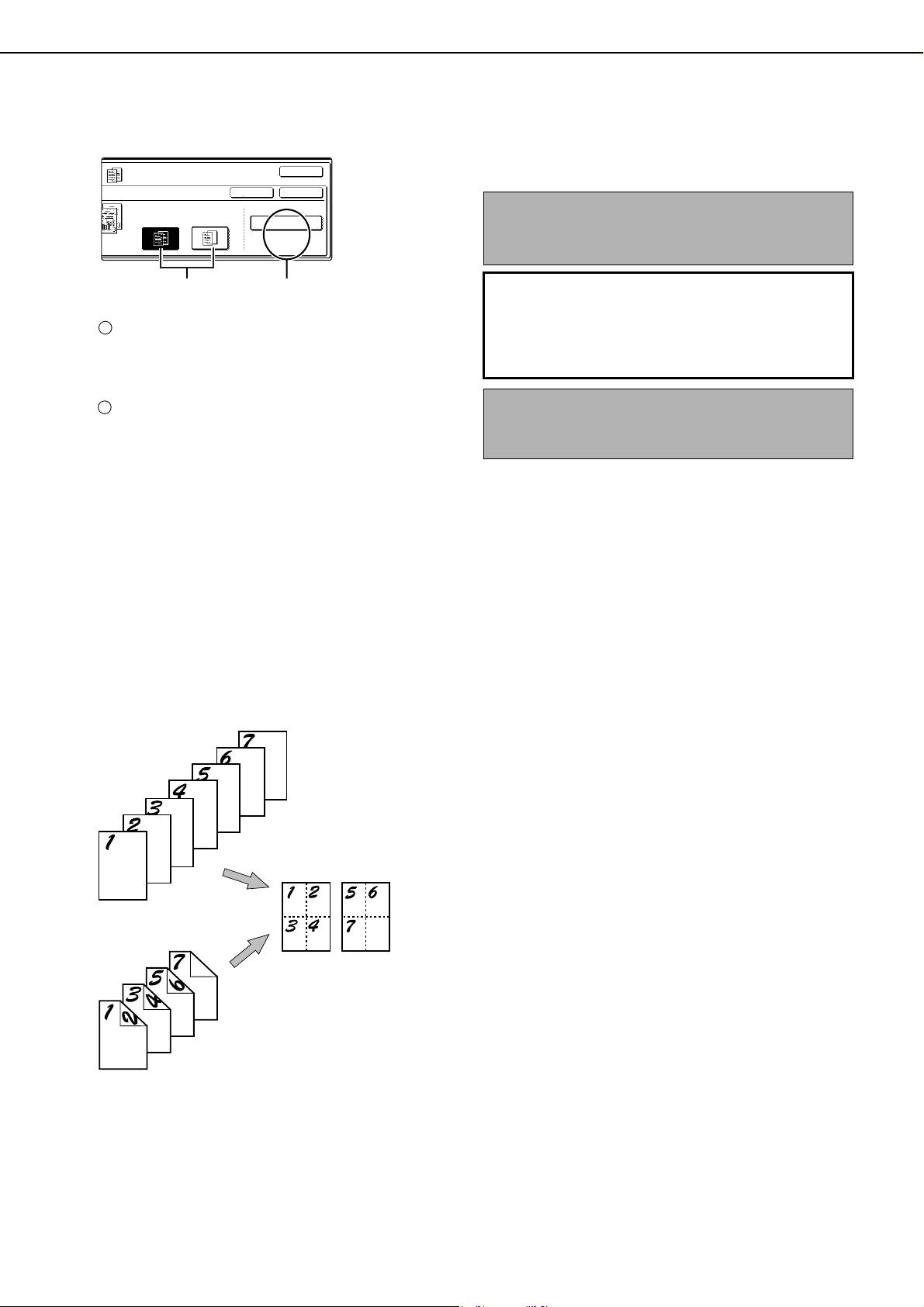
SPECIAL MODES
5-24
7
Set the insertion conditions for the insert
paper.
Select whether or not the insert paper will be
copied on with the (X) keys ([YES] or [NO]). If
[YES] is selected, insert paper cannot be fed
from an inserter.
The (Y) key shows the tray selected for the insert
paper and the paper size and type. To select a
different tray, touch this key to display the tray
selection screen and select the tray that has the
insert paper.
8
Touch the outer [OK] key in the screen of
step 7.
You will return to the main screen of copy mode.
Multi shot
Multiple original pages can be copied onto one sheet of copy paper in a uniform layout. Select 2in1 to copy two
original pages onto one sheet, or 4in1 to copy four original pages onto one sheet. This function is convenient when
you wish to present multiple pages in a compact format, or show a view of all pages in a document.
[Example] Copying 4 original pages onto one sheet of paper
(Page number : 4in1, layout : left top : right top (see the next page))
● When using the multi shot function, place the
originals, select the desired paper size, and
select the copying mode before selecting the
multi shot function on the special modes screen.
● When using the multi shot function, the
appropriate copy ratio will be automatically set
based on the original size, paper size, and the
number of originals to be copied onto one sheet.
The minimum reduction ratio is 25%. The
original size, copy paper size, and selected
number of original pages may require that the
ratio be less than 25%. As copying will take
place at 25% in this case, part of the original
images may be cut off.
PRINT ON INSERT SHEETS
YES NO
OK
OK
CANCEL
INSERTION SHEET
TRAY5
8 x11
1
/
2
PLAIN
(X) (Y)
1
2
NOTE
If insert paper is fed from an inserter, the output will
be delivered to the finisher (or saddle stitch finisher).
About the steps that follow
If an automatic document feeder is being used,
see pages 4-7 through 4-10. If the document
glass is being used, see pages 4-11 through 4-
13.
To cancel the Transparency film with insert sheets
function, touch the [CANCEL] key on the
Transparency film with insert sheets setting screen.
One-sided copies from
one-sided originals
One-sided copies from
two-sided originals
Copies
dragonII_copy_sec.book 24 ページ 2006年10月18日 水曜日 午後7時39分
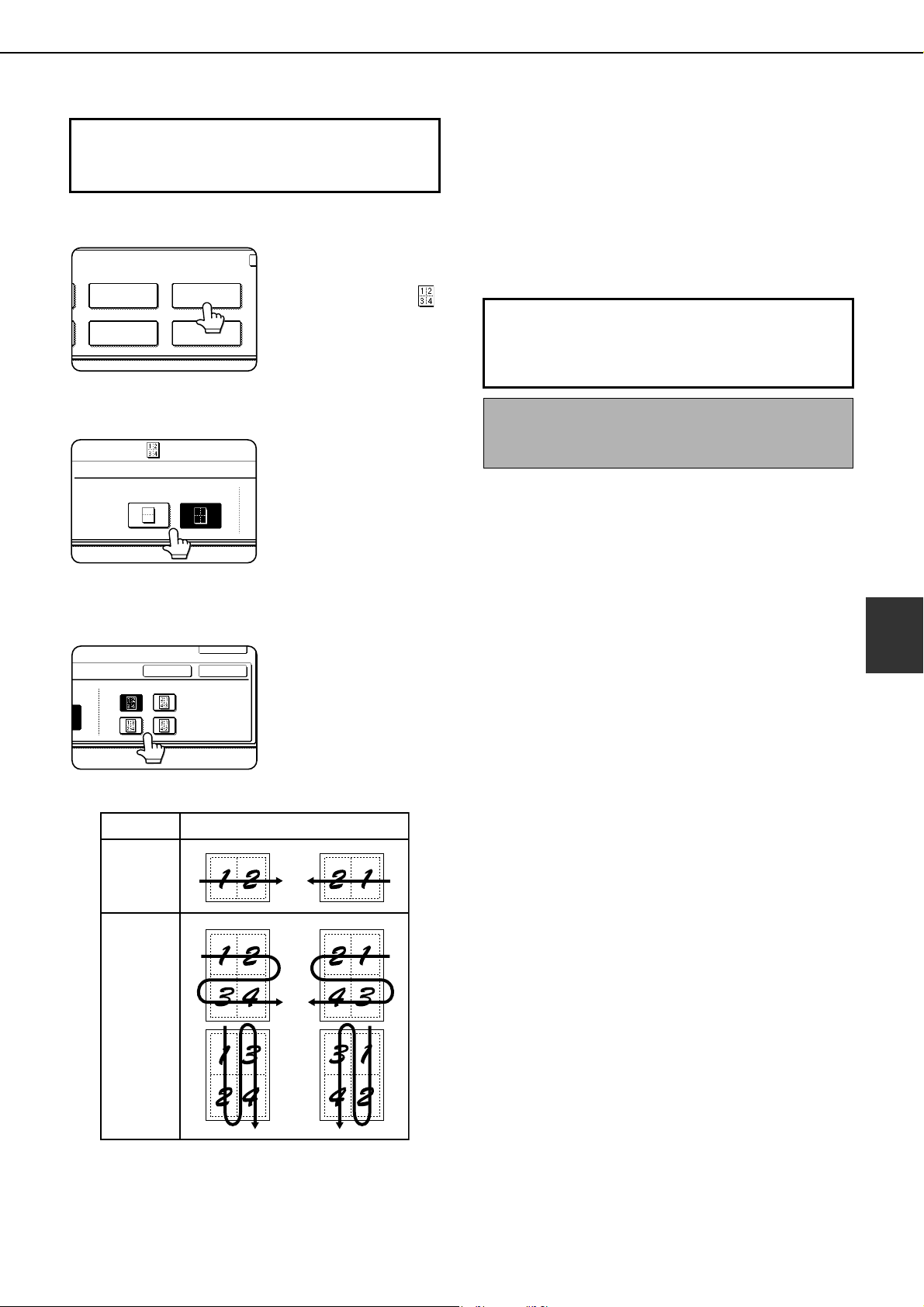
SPECIAL MODES
5-25
5
1
Touch the [MULTI SHOT] key in the special
modes screen (2nd screen).
The MULTI SHOT setting
screen will appear.
A multi shot icon ( ,
etc.) will also appear in
the upper left of the
screen to indicate that
the function is turned on.
2
Select the number of images to be copied
onto one sheet of copy paper.
If needed, the
orientation of the copy
paper and the
orientation of the images
will be rotated.
3
Select the layout.
Select the order in which
the originals will be
arranged on the copy.
The arrows in the above diagram indicate the
directions in which the images are arranged.
4
Touch the [OK] key (inside [OK] key) on
the multi shot setting screen.
You will return to the special modes screen.
5
Touch the [OK] key in the special modes
screen.
You will return to the main screen of copy mode.
To display the special modes screen...
See "General procedure for using special
functions" on page 5-2.
TRANSPARENCY
INSERTS
MULTI SHOT
CARD SHOTTAB COPY
SPECIAL MODES
MULTI SHOT
2in1 4in1
LAYOUT
CANCEL OK
OK
2in1
4in1
Shot number
Layout
About the steps that follow
If an automatic document feeder is being used, see
pages 4-7 through 4-10. If the document glass is
being used, see pages 4-11 through 4-13.
To cancel the multi shot function, touch the [CANCEL]
key in the multi shot setting screen (the screen of step
2).
dragonII_copy_sec.book 25 ページ 2006年10月18日 水曜日 午後7時39分
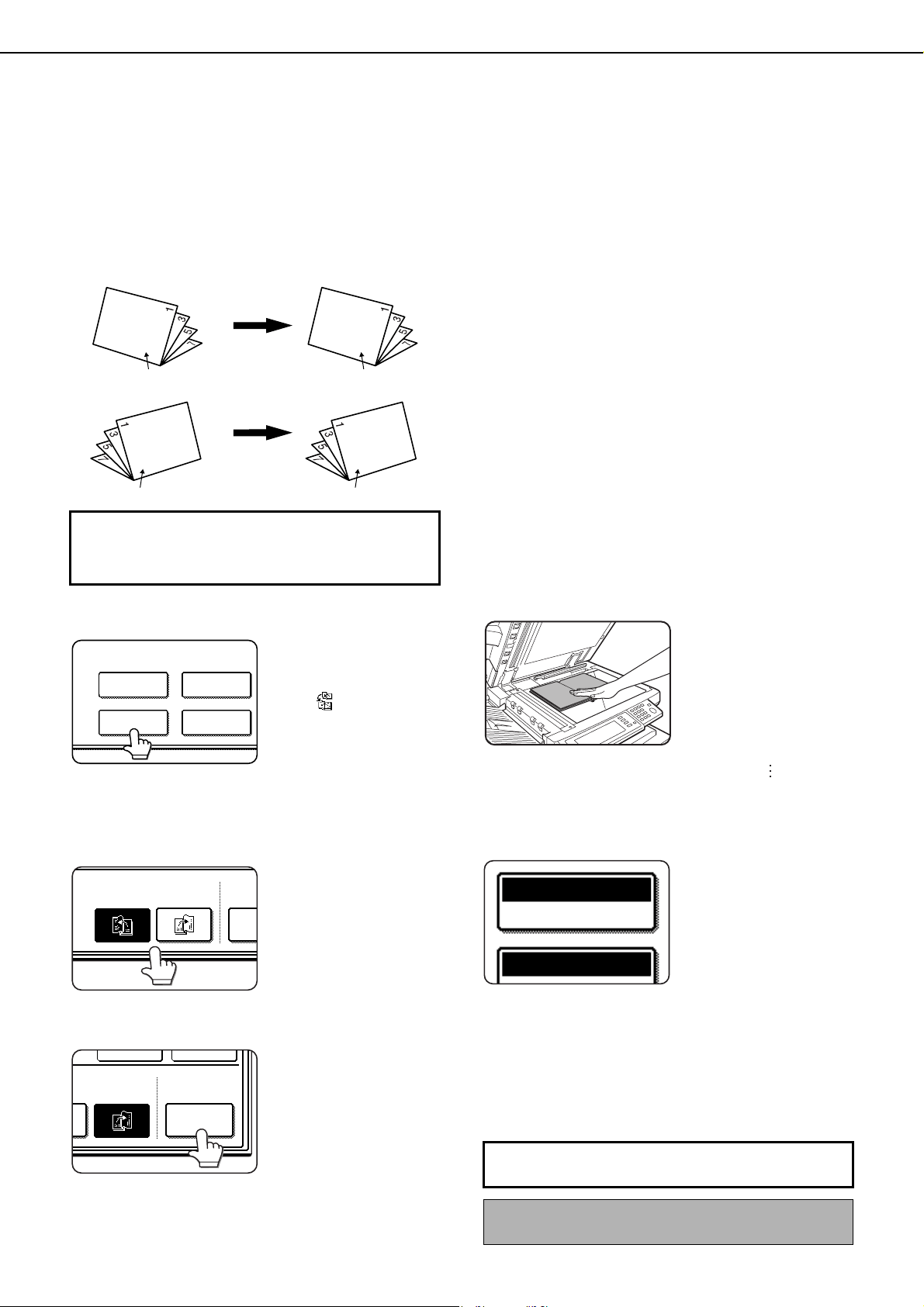
SPECIAL MODES
5-26
Book copy
This function is convenient when you wish to compile copies of books or other bound originals into an attractive
pamphlet format. The two pages of the open book are scanned as a set, and two pages each are copied onto the
front and back sides of the copy paper (four pages are copied onto one sheet of copy paper). This allows the copies
to be folded down the center and made into a pamphlet.
[Example] Book copying an 8-page pamphlet
● Scan the originals from the first page to the last
page. The order of copying will be automatically
adjusted by the machine.
● Either left binding (right to left turning) or right
binding (left to right turning) can be selected.
●
Four originals will be copied onto one sheet.
Blank pages may be automatically produced at
the end depending on the number of the originals.
● If a saddle stitch finisher is installed, book copy
can be used in combination with the pamphlet
function to staple and fold the copies at the
centerline.
1
Touch the [BOOK COPY] key in the special
modes screen (2nd screen).
The BOOK COPY
setting screen will
appear. The book copy
icon ( , etc.) will also
appear in the upper left
corner of the screen to
indicate that the function
is turned on.
2
Select whether the book opens to the left or
to the right, and touch the [OK] key in the
book copy setting screen.
You will return to the
special modes screen.
3
Select any desired cover settings.
If you wish to use a
different type of paper for
the cover, perform steps
4 to 12 on pages 5-6 to 5-
7.
If you do not wish to use
a different type of paper,
continue from step 4.
4
Touch the [OK] key in the special modes
screen.
You will return to the main screen of copy mode.
5
Place the originals on the document glass.
(page 4-3)
Scan the original pages in
the following order:
Opened front and back
cover
Opened inside of front
cover and 1st page
Opened 2nd and 3rd
page
Opened last page and
inside of back cover
6
Make sure that the desired paper size has
been selected.
If the desired paper size
is not selected, select
the desired size.
7
Select the number of copies and any other
desired copy settings, and then press the
[START] key.
8
Place the next two pages and press the
[START] key. Repeat until all pages have
been scanned, and then touch the [READ-
END] key.
Finished copies are
folded in two.
Originals
Left binding
Right binding
First page
First page
First page
First page
To display the special modes screen...
See "General procedure for using special
functions" on page 5-2.
SPECIAL MODES
COVERS/INSERTS
TRANSPARENCY
INSERTS
TAB COPYBOOK COPY
RIGHT
BINDING
CO
SET
LEFT
BINDING
CANCEL OK
RIGHT
BINDING
COVER
SETTING
NG
When book copy is selected, two-sided
copying is automatically selected.
To cancel the book copy function, touch the [CANCEL] key
in the book copy setting screen (the screen of step 2).
PAPER SELECT
AUTO 11x17
100%
dragonII_copy_sec.book 26 ページ 2006年10月18日 水曜日 午後7時39分
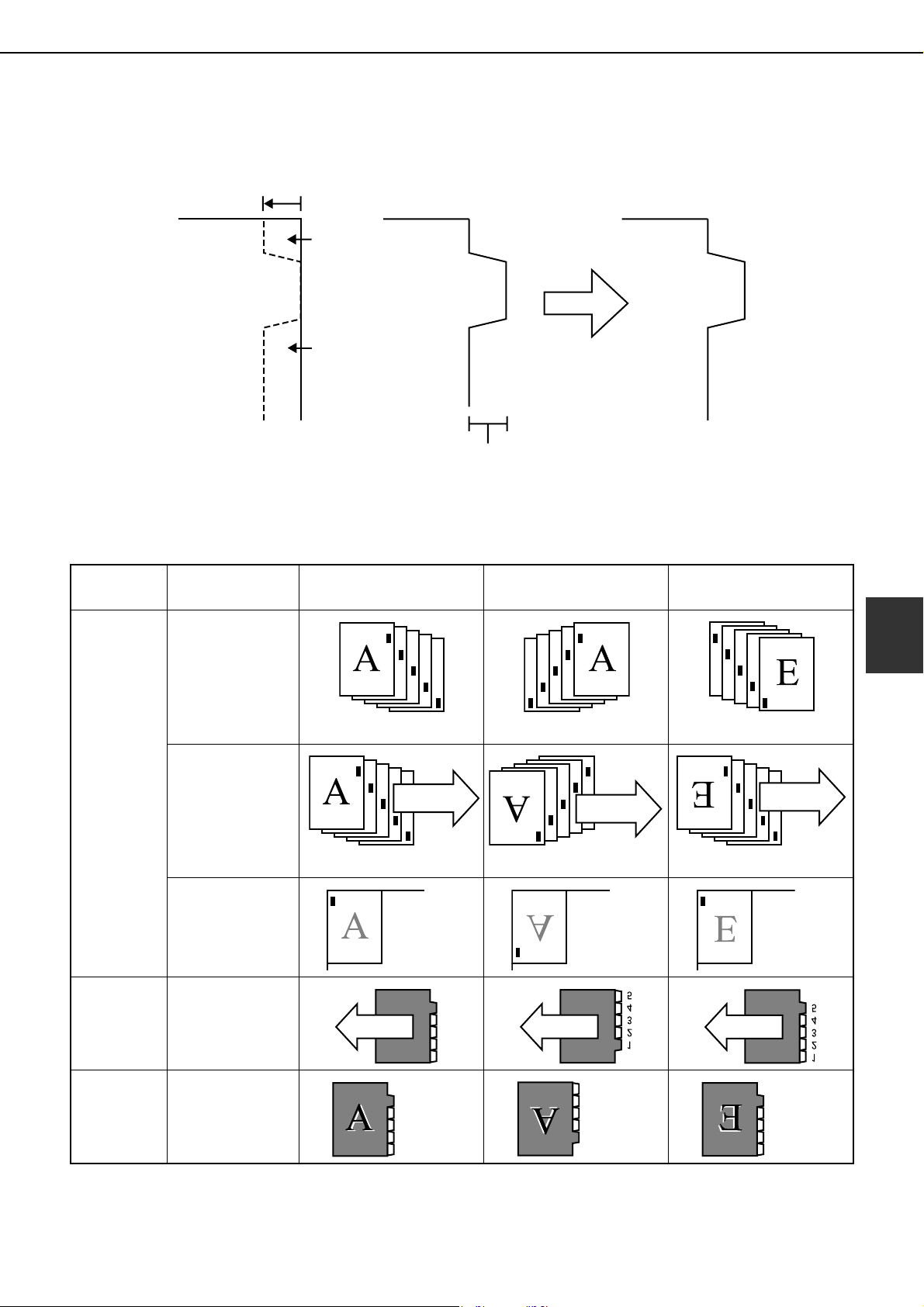
SPECIAL MODES
5-27
5
Tab copy
Copying is possible on the tabs of tabbed paper. Prepare appropriate originals for the tab captions.
[Example]
Relations between originals and tabbed paper
Original Tabbed paper Copy
Tab width
8-1/2" x 11" : Maximum of 5/8"
(A4 : Maximum of 20 mm)
INDEX
INDEX
Area A
Area B
●The tab caption is shifted by the amount of the tab width setting, so keep areas A and B blank.
Left binding
(normal top-bottom)
Right binding
(Inverted top-bottom)
Right binding
(Inverted top-bottom)
Originals
Prepare these
originals
Originals placed
face up in the
document feeder
Originals placed
on the document
glass
Tabbed
paper
Load tabbed
paper in the
bypass tray or
tray 3
Result
(Normal orderA-E)
(Normal orderA-E)
(Reverse orderE-A)
Leading edge
of original
(Normal orderA-E)
Leading edge
of original
(Normal orderA-E)
Leading edge
of original
(Reverse orderE-A)
(Normal
order A-E)
(Normal
orderA-E)
(Reverse
orderE-A)
1
2
3
4
5
Feeding
direction
Feeding
direction
Feeding
direction
(Top-bottom
normal)
(Top-bottom
reversed)
(Top-bottom
reversed)
dragonII_copy_sec.book 27 ページ 2006年10月18日 水曜日 午後7時39分
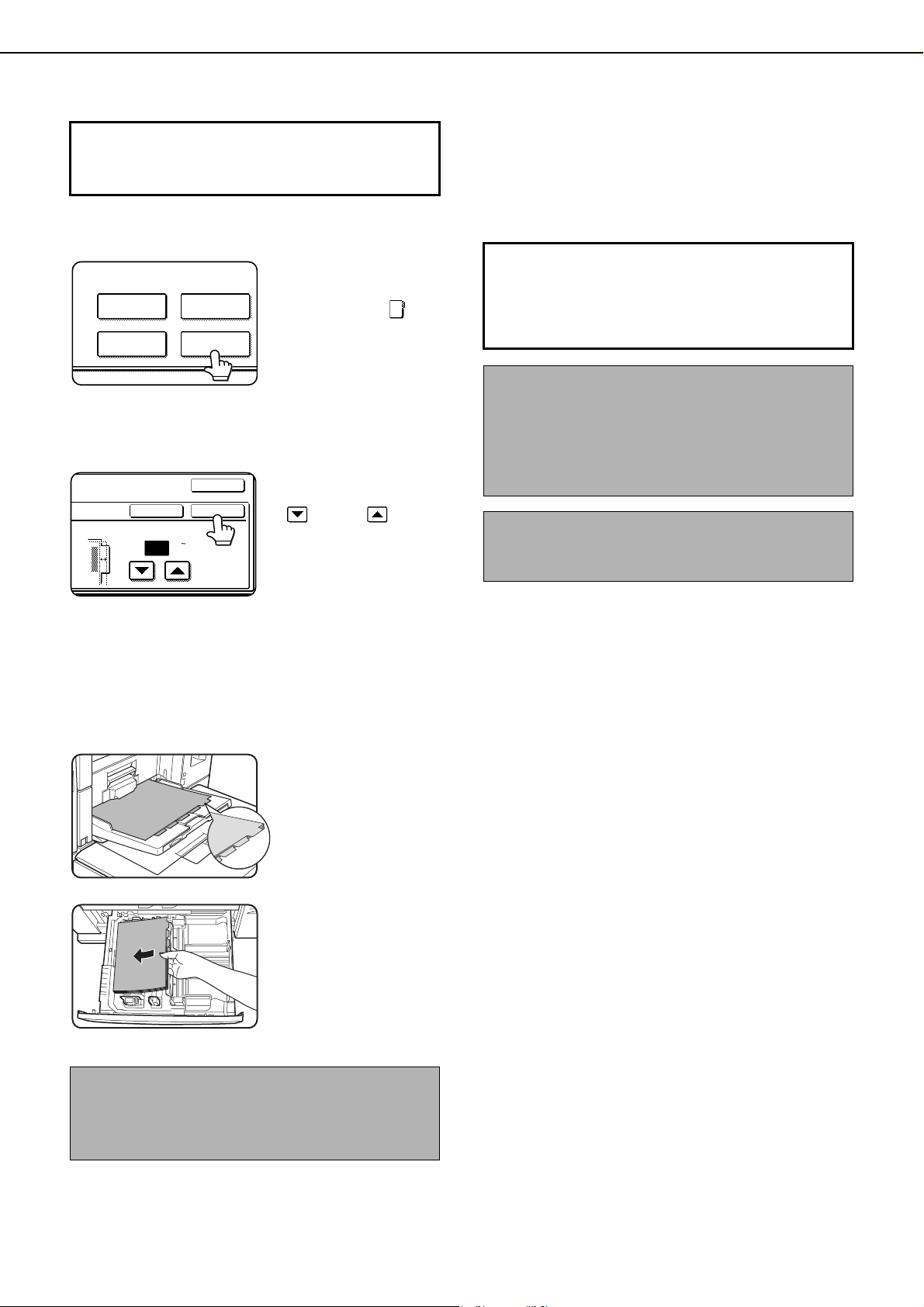
SPECIAL MODES
5-28
1
Touch the [TAB COPY] key in the special
modes screen (2nd screen).
The TAB COPY setting
screen will appear. A
tab copy icon ( ) will
also appear in the
upper left corner of the
screen to indicate that
the function is turned
on.
2
If necessary, set the image shift width (tab)
and touch the [OK] key.
Set the image shift
width (tab) with the
and keys.
The width can be set
from 0 to 5/8" (0 to 20
mm) in increments of 1/
8" (1 mm).
3
Touch the [OK] key in the special modes
screen.
You will return to the main screen of copy mode.
4
Load tabbed paper in the bypass tray.
Place the tabbed paper
so that the edges with
the tabs are the trailing
edge.
To use tab paper in tray
3, set the paper type
setting of tray 3 to "TAB
PAPER" in the tray
settings of the system
settings (page 2-14).
To load tabbed paper in
tray 3, see "Loading tabbed paper" on page 2-6.
5
Select "TAB PAPER" for the paper type
setting.
The paper type setting is explained in “Setting the
paper type and paper size” (page 2-14).
If you are using tray 3, see “Setting the paper size
when a special size is loaded” (page 2-17).
To display the special modes screen...
See "General procedure for using special
functions" on page 5-2.
NOTE
The width of the tabbed paper can be up to 8-1/2" x
11" width (8-1/2") + 5/8" (or A4 width (210 mm) + 20
mm).
SPECIAL MODES
COVERS/INSERTS
TRANSPARENCY
INSERTS
TAB COPYBOOK COPY
IMAGE SHIFT
1/2
OK
OK
CANCEL
(0 5/8)
inch
About the steps that follow
If an automatic document feeder is being used,
see pages 4-7 through 4-10. If the document
glass is being used, see pages 4-11 through 4-
13.
When performing tab copying with a right
binding
If you are using left-binding tabbed paper for a right
binding, either stack the sheets in reverse order or
scan the originals in reverse order.(See the table on
the previous page.)
To cancel the tab copy function, touch the [CANCEL]
key in the tab copy setting screen (the screen of step
2).
dragonII_copy_sec.book 28 ページ 2006年10月18日 水曜日 午後7時39分
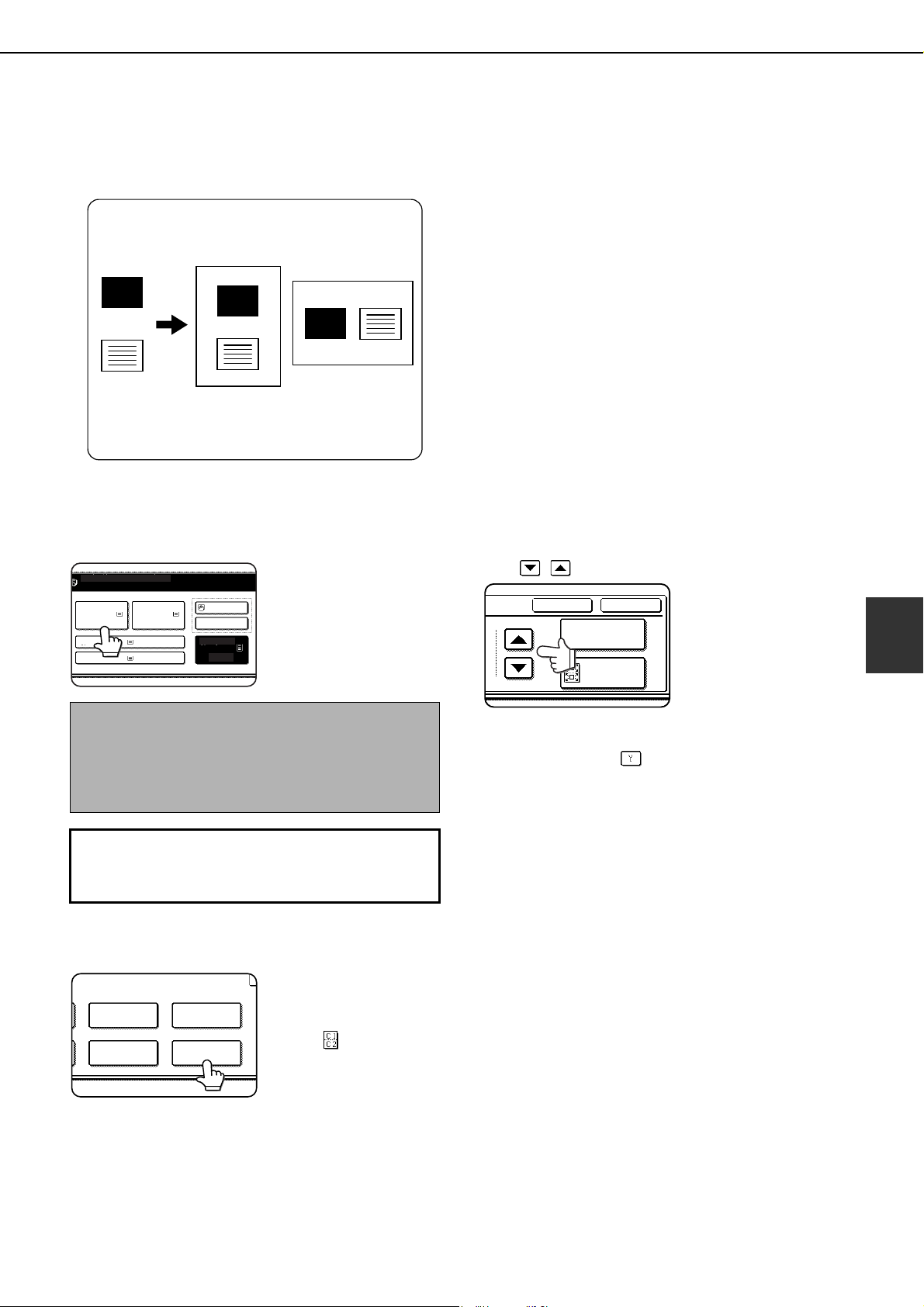
SPECIAL MODES
5-29
5
Card shot
When copying a card, this function allows you to combine the front and back sides on a single sheet of paper.
● Copying is only possible on standard size paper.
● A copy ratio cannot be selected when using this
function.
● The image cannot be rotated when using this
function.
1
Touch the [PAPER SELECT] key and then
select the desired paper size.
The selected paper size
key is highlighted and
the paper selection
screen closes.
2
Touch the [CARD SHOT] key in the special
modes screen (2nd screen).
The CARD SHOT
setting screen will
appear. A card shot
icon ( , etc.) will also
appear in the upper left
corner of the screen to
indicate that the
function is turned on.
3
Enter the X dimension (width) and Y
dimension (length) of the original with the
keys.
●X (width) is initially selected. Enter X and then
touch the Y ( ) key to enter Y.
●To return the X and Y values to the initial
settings configured in the administrator
settings, touch the [SIZE RESET] key. (See
"CARD SHOT SETTINGS" on page 16 of the
administrator settings guide.)
●To have the images enlarged or reduced by a
suitable ratio based on the entered original
size so that the front and back sides fit into the
selected paper size, touch the [FIT TO PAGE]
key.
Original
Example:
Portrait
8-1/2" (A4) size
Example:
Landscape
8-1/2" (A4) size
Copy
Back of
card
Front of
card
CARD
CARD
CARD
NOTE
If paper of the desired size is not loaded in any tray,
load paper of the required size in a paper tray or the
bypass tray. (See "Setting the paper type and paper
size" on page 2-14.)
To display the special modes screen...
See "General procedure for using special
functions" on page 5-2.
READY TO SCAN FOR COPY.
1. 8 x11
PLAIN PLAIN PLAIN
HEAVY PAPER
PLAIN
PLAIN
3. 8 x11
4. 11x17
2. 8 x11
5. 8 x11
8 x11
1
/
2
1
/
2
1
/
2
1
/
2
1
/
2
TRANSPARENCY
INSERTS
MULTI SHOT
CARD SHOTTAB COPY
SIZE RESET
CANCEL OK
FIT TO
PAGE
dragon_05.fm 29 ページ 2006年11月2日 木曜日 午後12時7分
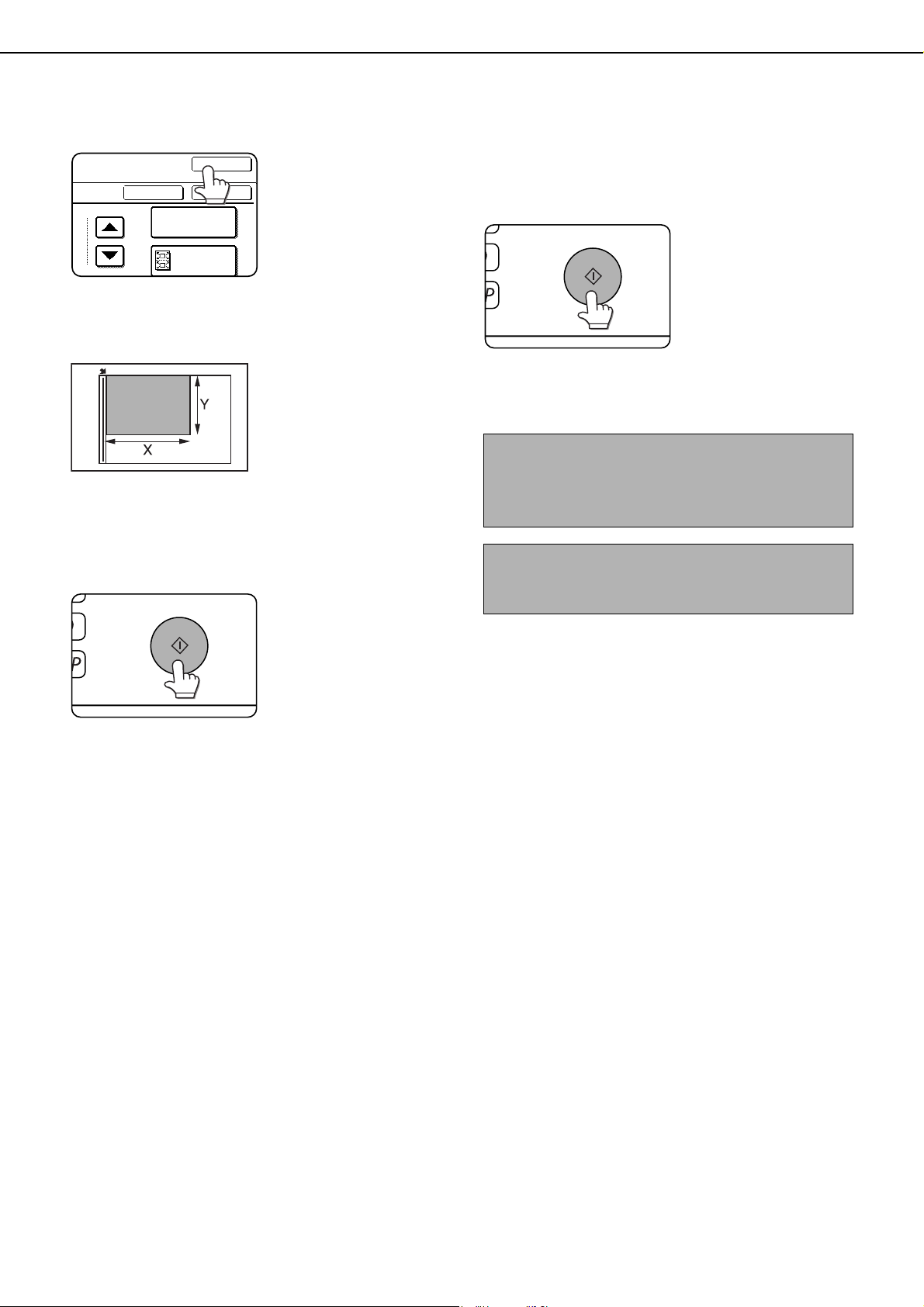
SPECIAL MODES
5-30
4
Touch the outer [OK] key.
You will return to the
main screen of copy
mode.
5
Place the original on the document glass.
Place the front side of
the original face down
and close the
document cover.
6
Follow steps 4 through 5 of "Copying from
the document glass" (page 4-12).
7
Press the [START] key.
The front side of the
card is scanned.
8
Place the back side of the original face
down on the document glass (see step 5).
9
Press the [START] key.
The back side of the
card is scanned.
10
Touch the [READ-END] key.
SIZE RESET
CANCEL OK
OK
FIT TO
PAGE
NOTE
The original must be placed on the document glass.
The document feeder (automatic document feeding
function) cannot be used.
To cancel the card shot function, touch the
[CANCEL] key in the card shot setting screen (the
screen of step 4).
dragonII_copy_sec.book 30 ページ 2006年10月18日 水曜日 午後7時39分
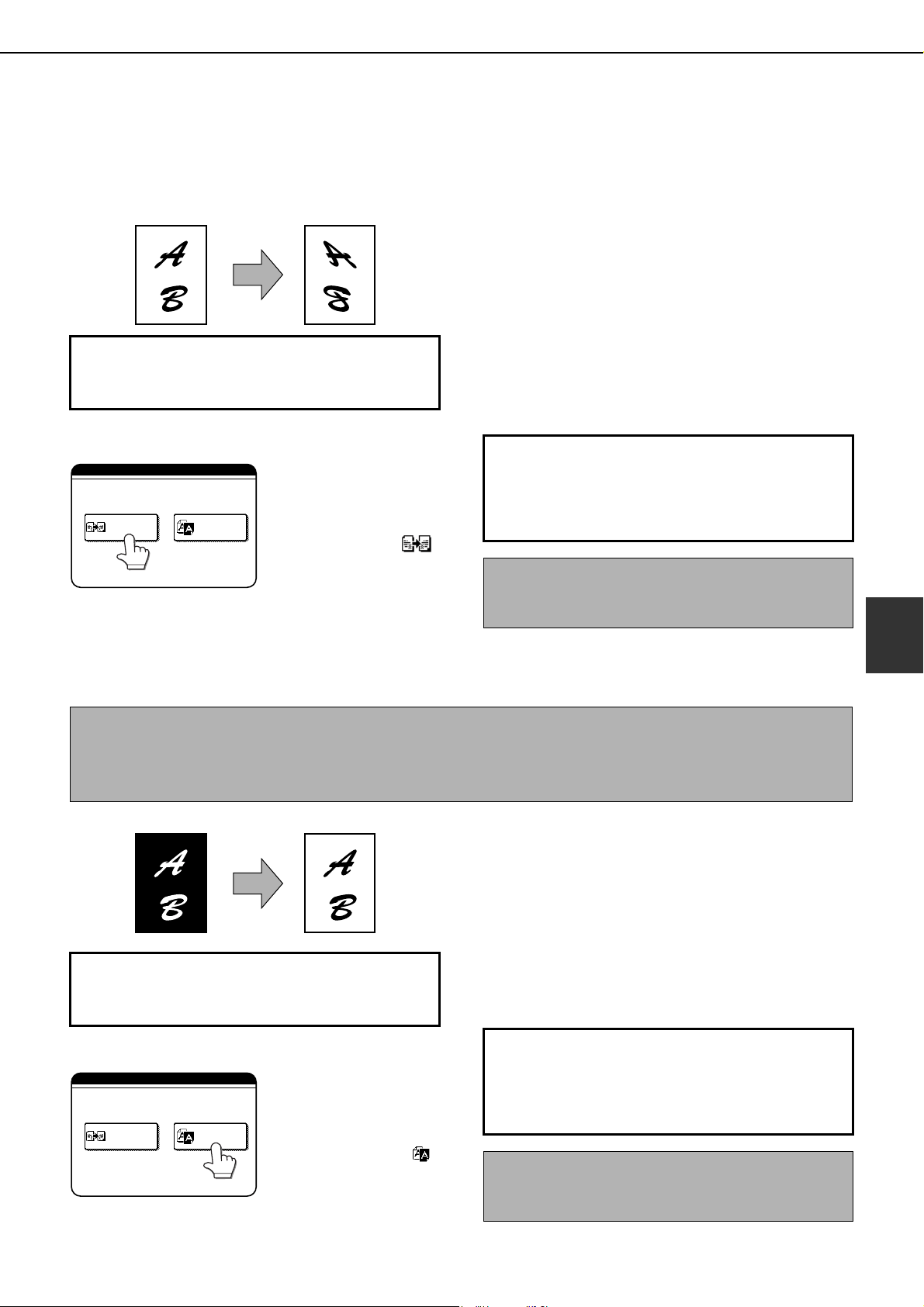
SPECIAL MODES
5-31
5
Mirror image
This function is used to print a mirror image of the original. The images will be inverted in the right to left direction
on the copies.
1
Touch the [MIRROR IMAGE] key in the
special modes screen (3rd screen).
The [MIRROR IMAGE]
key will be highlighted to
indicate that the function
is turned on, and the
mirror image icon ( )
will appear in the upper
left of the screen.
2
Touch the [OK] key on the special modes
screen.
You will return to the main screen of copy mode.
B/W reverse
Black and white are reversed in the copy to create a negative image.
1
Touch the [B/W REVERSE] key in the
special modes screen (3rd screen).
The [B/W REVERSE]
key will be highlighted to
indicate that the function
is turned on, and the
mirror image icon ( )
will appear in the upper
left of the screen.
2
Touch the [OK] key in the special modes
screen.
You will return to the main screen of copy mode.
Original Copy
To display the special modes screen...
See "General procedure for using special
functions" on page 5-2.
ECIAL MODES
MIRROR
IMAGE
B/W
REVERSE
About the steps that follow
If an automatic document feeder is being used,
see pages 4-7 through 4-10. If the document
glass is being used, see pages 4-11 through 4-
13.
To cancel the mirror image function, touch the
[MIRROR IMAGE] key in the special modes screen
(the screen of step 1).
NOTES
● When this function is selected, the exposure mode setting (page 4-14) automatically changes to "Text".
● Originals with large black areas (which use a large amount of toner) can be printed with black/white reverse
to reduce toner consumption.
Original B/W reverse copy
To display the special modes screen...
See "General procedure for using special
functions" on page 5-2.
ECIAL MODES
MIRROR
IMAGE
B/W
REVERSE
About the steps that follow
If an automatic document feeder is being used,
see pages 4-7 through 4-10. If the document
glass is being used, see pages 4-11 through 4-
13.
To cancel the B/W reverse function, touch the [B/W
REVERSE] key in the special modes screen (the
screen of step 1).
dragonII_copy_sec.book 31 ページ 2006年10月18日 水曜日 午後7時39分
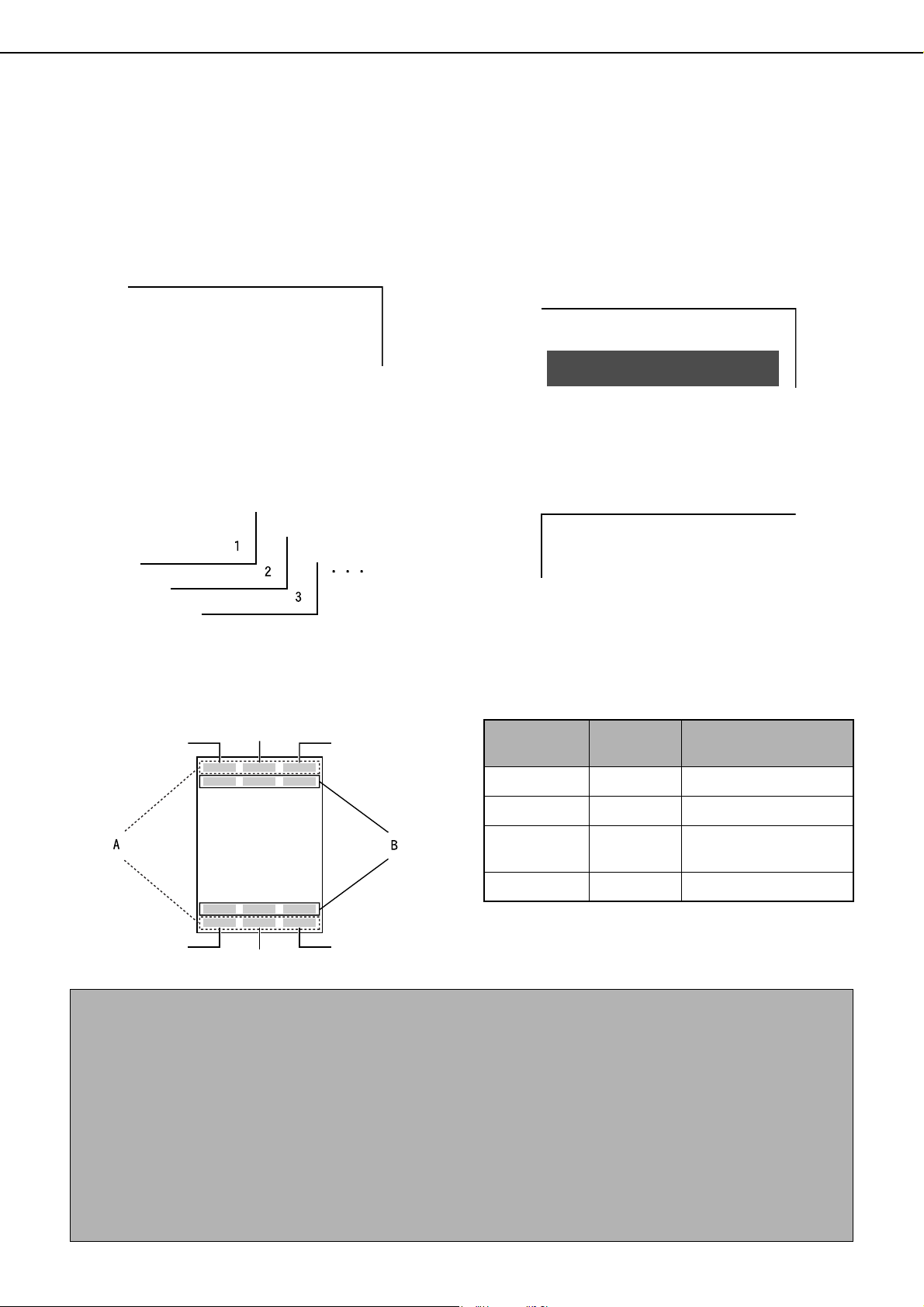
SPECIAL MODES
5-32
Print menu
The date, a stamp, page numbers, and entered text can be printed on copies. Four selections are available for the
PRINT MENU:
• Date print (page 5-35)
This prints the date on the paper.
[Example] Printing 2010/APR/4 in the upper right-
hand corner of the paper
The format of the date and the character that
separates the year, month, and day can be changed.
• Page numbering (page 5-37)
Page numbers can be printed on copies.
[Example] Printing page numbers in the bottom right-
hand corner of the paper
The format of the page number can be changed.
• Stamp (page 5-36)
Print a message such as "CONFIDENTIAL" in
reverse text on the paper.
[Example] Printing "CONFIDENTIAL" in the upper
right-hand corner of the paper
One of 12 stamps can be selected.
• Text (page 5-41)
Entered text can be printed.
[Example] Printing "Meeting" in the upper left-hand
corner of the paper
Up to 50 characters can be printed. You can store up
to 30 sequences of frequently used text.
Six printing positions are available: left, center, or right of the top or bottom of the page.
Each printing position is divided into an area for the date, page number, and text (A below), and an area for the stamp
(B below).
2010/APR/4
CONFIDENTIAL
Meeting
Top left Top right
Top center
Bottom left Bottom right
Bottom center
Print menu
Printing
area
Maximum number of
settings
DATE A One position only
STAMP B 6 positions
PAGE
NUMBERING
A One position only
TEXT A 6 positions
NOTES
● A part that overlaps the printed text will not be copied.
● If the set text content overlaps the print content of another position, the central print content will be moved to the
bottom, the content on the left will be next, and the content on the right will be placed on top in that order such
that only the content visible at the top is printed. Content that is hidden due to overlapping will not be printed.
● The printed text will be printed at the set size regardless of the copy ratio or paper size.
● The printed text will also be printed at the set density regardless of the copy exposure.
● Some copy paper sizes may cause the printed contents to be cut off or the print position to shift.
● If a copy job with a print menu setting is saved using the document filing function, the print menu setting will not
be saved. If you wish to print a file saved in copy mode and use a print menu setting, use the special modes in
the Job settings / print screen (or the document filing print screen in the Web page if the machine is connected
to a network) to select the print menu setting. (A print menu setting cannot be selected when printing a file saved
in a mode other than copy mode.)
dragonII_copy_sec.book 32 ページ 2006年10月18日 水曜日 午後7時39分
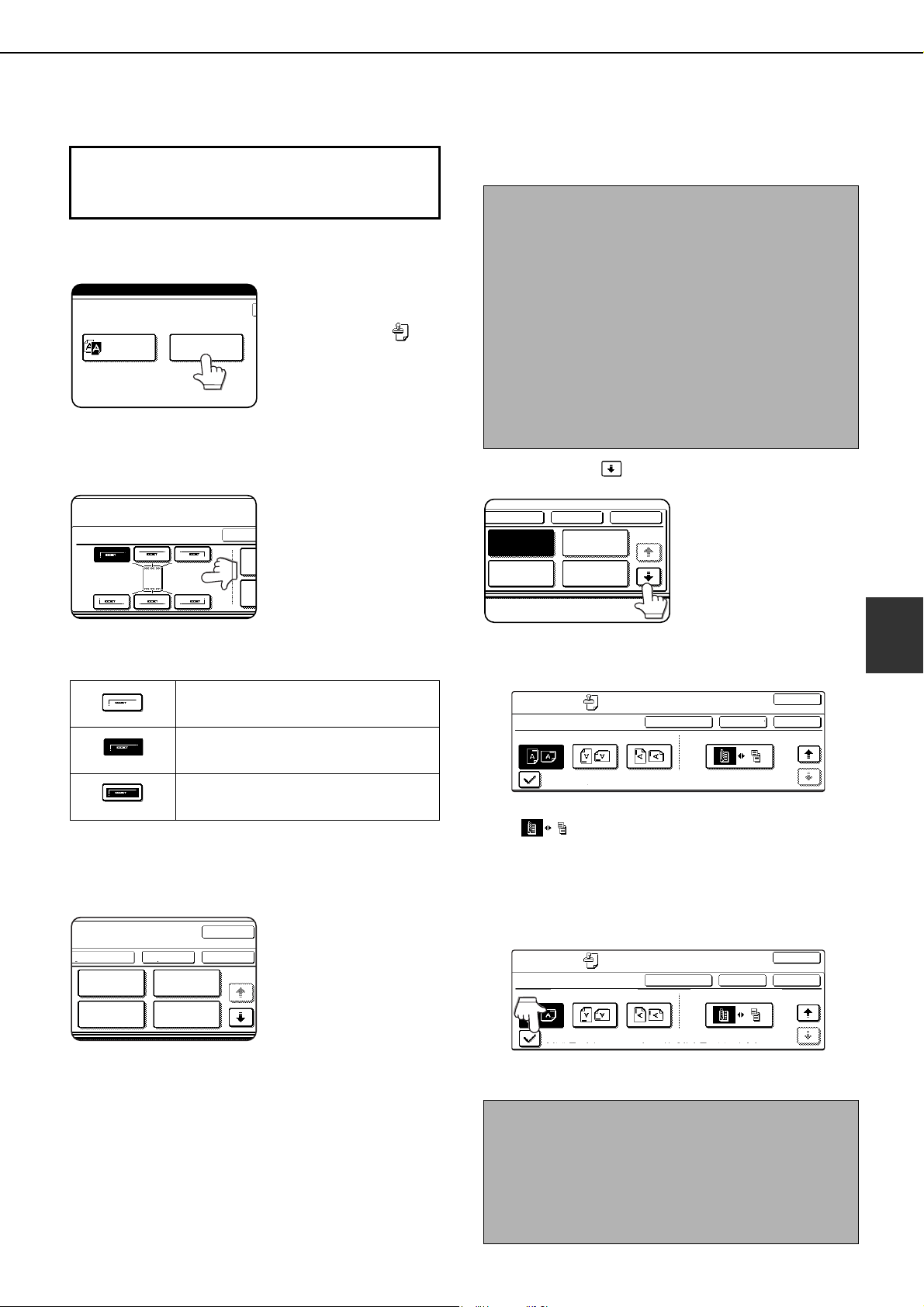
SPECIAL MODES
5-33
5
■ Common operation procedure for using the print menu
1
Touch the [PRINT MENU] key in the special
modes screen (3rd screen).
The print menu setting
screen will appear. The
print menu icon ( ) will
also appear in the upper
left corner of the screen
to indicate that the
function is turned on.
2
Select the print position.
Six positions are
available: left, center,
or right of the top or
bottom of the page.
The touched key is
highlighted.
The keys indicating the print position appear as
follows depending on the state of the setting:
The image displayed within each key varies
depending on the key position.
3
Select the print menu.
The settings screen of
the print menu
appears.
For information on
each of the print
menus, see the
settings of each.
● DATE (page 5-35) ● STAMP (page 5-36)
● PAGE NUMBERING (page 5-37) ● TEXT (page 5-
41)
4
To select print menu settings at another
print position, repeat steps 2 and 3.
5
Touch the key.
6
To specify the orientation of the original,
touch the [ORIGINAL ORIENTATION] key.
If you placed a two-sided original, touch the
[ ] key to specify the binding style (book or
tablet). The icon of the selected binding style is
highlighted.
7
If you are adding covers or inserts, select
whether or not you wish to print on the
covers or inserts.
If you do not wish to print on covers or inserts,
touch the checkbox to remove the checkmark.
To display the special modes screen...
See "General procedure for using special functions" on
page 5-2.
Not selected, print menu setting has not
been selected.
Selected during selection of the print
menu setting.
Not selected, print menu setting has
already been selected.
PRINT MENU
B/W
REVERSE
SPECIAL MODES
PRINT MENU
LAYOU
N
OK
OKCANCELLAYOUT
DATE STAMP
TEXT
PAGE
NUMBERING
1/2
NOTES
● If the [DATE], [PAGE NUMBERING], or [TEXT] key
is touched when other than a "STAMP" print menu
setting has been selected for the print position
selected in step 2, a message will appear. To
overwrite the previously set print content of the
print menu that you touched, touch the [YES] key.
To keep the previous settings, touch the [NO] key.
●
The "DATE" and "PAGE NUMBERING" cannot be set
in multiple positions. If either of these keys is touched
when a date or page numbering setting has already
been configured, a message will appear asking you if
you wish to move the print settings to the position that
you selected in step 2. To move the print settings,
touch the [YES] key. Otherwise touch the [NO] key.
NOTES
●
If you are not copying on covers or inserts, printing will
not take place on these even if a checkmark appears.
● A page number is never printed on covers or
inserts, regardless of the above setting.
● If covers/inserts have been disabled in the
administrator settings, the checkbox will be grayed
out to prevent selection.
1/2
LAYOUT CANCEL OK
STAMP
TEXT
DATE
PAGE
NUMBERING
OK
CANCEL
OK
LAYOUT
SPECIAL MODES
PRINT MENU
ORIGINAL ORIENTATION 2-SIDED ORIGINAL TYPE
PRINT ON COVERS/INSERTS WHEN COPYING ON COVERS/INSERTS
2/2
OK
CANCEL
OK
LAYOUT
SPECIAL MODES
PRINT MENU
ORIGINAL ORIENTATION 2-SIDED ORIGINAL TYPE
PRINT ON COVERS/INSERTS WHEN COPYING ON COVERS/INSERTS
2/2
dragonII_copy_sec.book 33 ページ 2006年10月18日 水曜日 午後7時39分
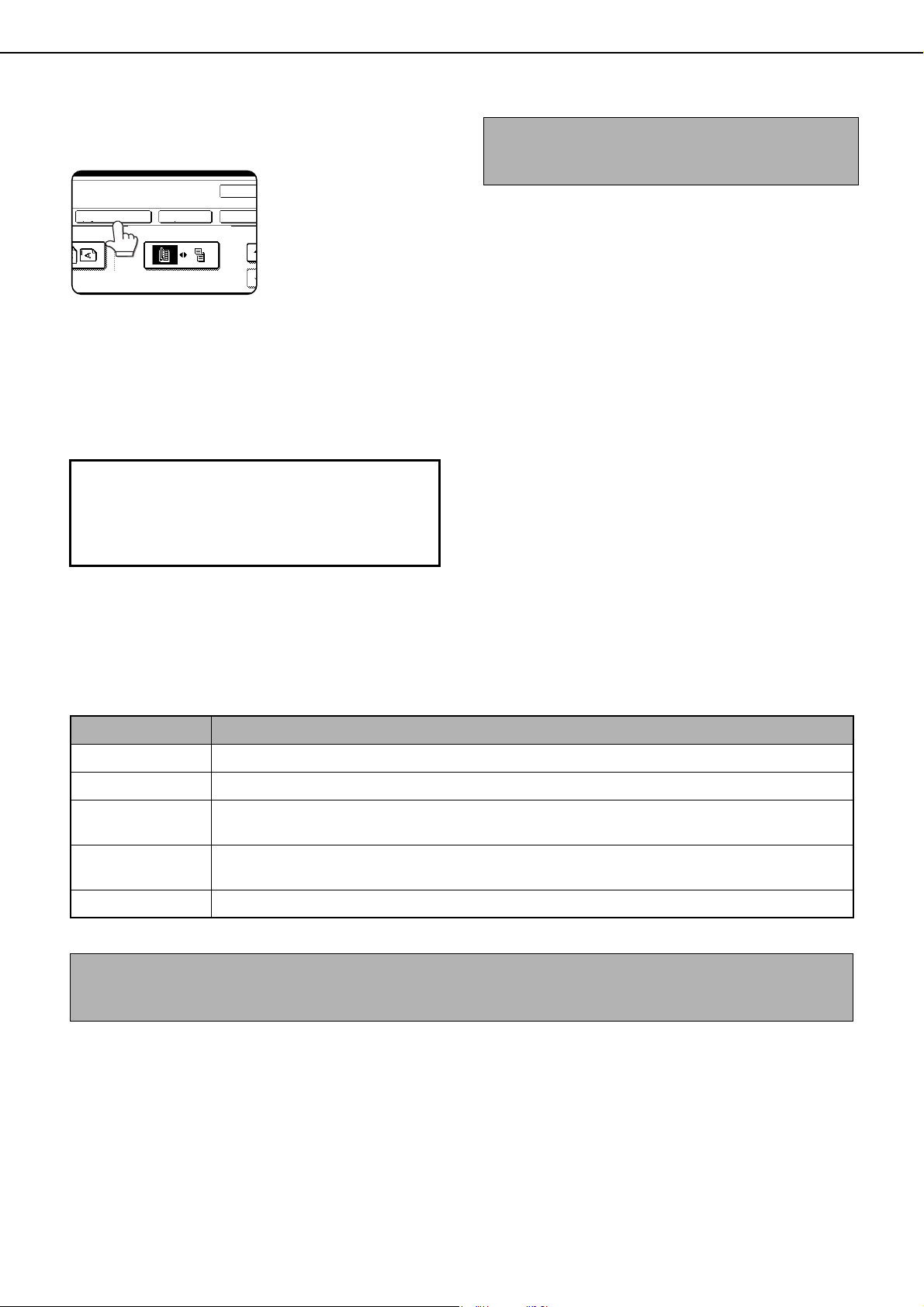
SPECIAL MODES
5-34
8
Check the print layout if needed (page 5-
43).
To display the layout
and print content of the
configured print menu,
touch the [LAYOUT]
key. The position can
be changed and
settings canceled if
needed.
9
Touch the [OK] key on the print menu
setting screen.
10
Touch the [OK] key on the special modes
screen.
Printing in combination with other special functions
When a print menu is combined with one of the following special modes, printing will reflect the selected special
mode.
About the steps that follow
If an automatic document feeder is being used, see
pages 4-7 through 4-10.
If the document glass is being used, see pages 4-11
through 4-13.
2
OK
OK
LAYOUT
CANCEL
S WHEN COPYING ON COVERS/INSERTS
2-SIDED ORIGINAL TYPE
NOTE
To cancel print menu...
Touch the [CANCEL] key in the screen of step 3.
Special modes Printing operation
Margin shift Like the copy image, the printed contents are shifted in accordance with the set margin.
Dual page copy The print content is printed on each copy sheet.
Pamphlet copy
Book copy
The print content is printed on each page of the "book".
Multi shot
Card shot
The print content is printed on each copy sheet.
Covers/inserts In the print menu settings, specify whether or not the print content is printed on covers and inserts.
NOTE
When combined with "Erase", "Job build", "Mirror image", "B/W reverse", or "Tab copy", printing takes place
normally at the set position on the paper.
dragonII_copy_sec.book 34 ページ 2006年10月18日 水曜日 午後7時39分
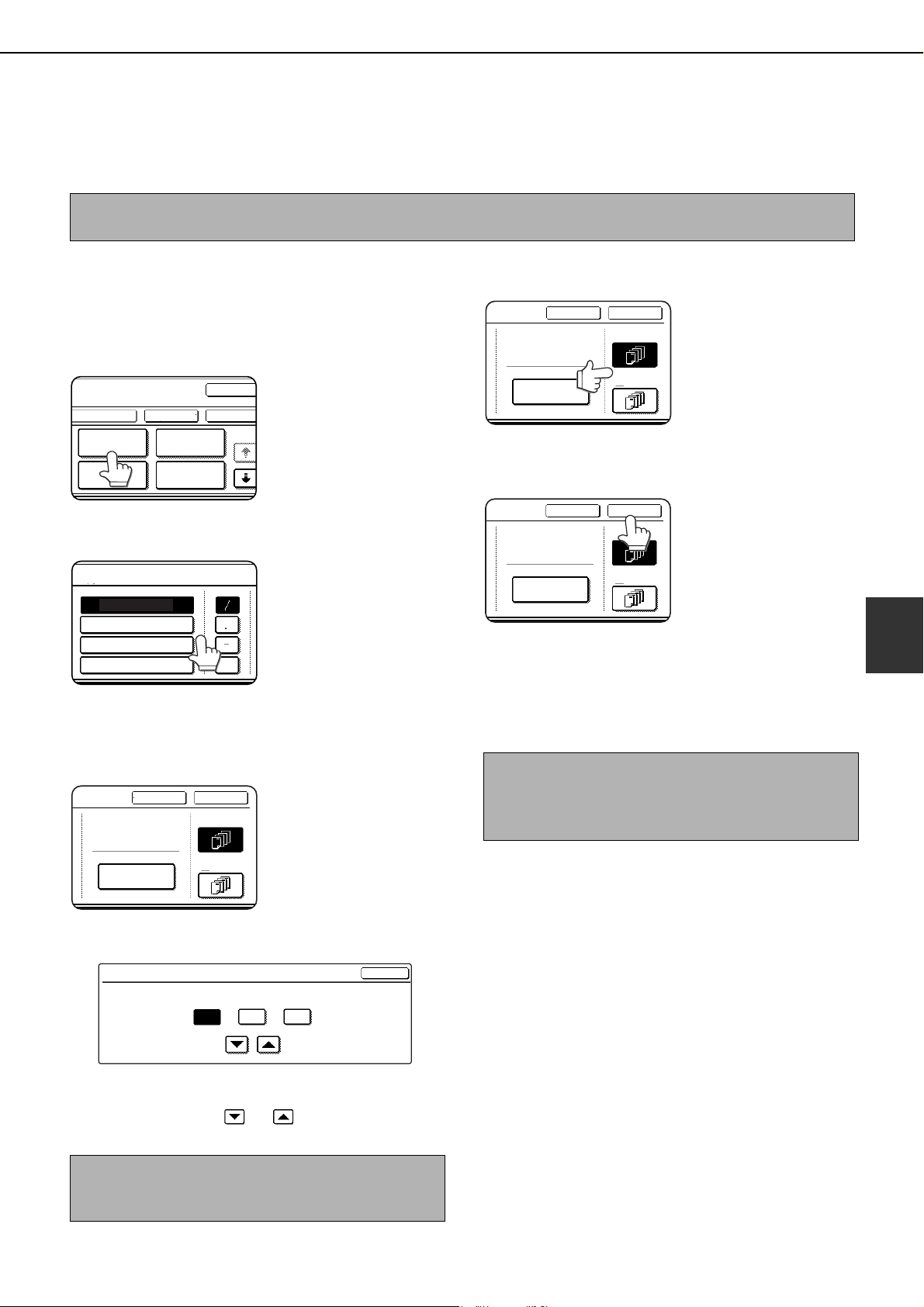
SPECIAL MODES
5-35
5
■ Printing the date on copies
The date can be printed on copies. Four selections each are available for the date format and the character that
separates the year, month, and day.
1
Follow steps 1 and 2 of "Common
operation procedure for using the print
menu" (page 5-33).
2
Touch the [DATE] key.
3
Select the date format.
The selected date format
is highlighted.
If you selected [YYYY/
MM/DD], [MM/DD/YYYY],
or [DD/MM/YYYY], you
can select the character
that separates the year,
month, and date. Select [/] (slash), [.] (period), [-]
(hyphen), or [ ] (space).
4
Check the date and format.
The date to be printed
is displayed in
"CURRENT SETTING"
in the selected format.
The date that appears
is the date set in the
machine. If you need to
change the date, touch the [DATE CHANGE] key.
The following screen appears.
Touch the key of the number (year, month, or day)
that needs to be changed, and then adjust the
number with the or key. When finished,
touch the [OK] key.
5
Select the pages to be printed on.
Select whether to print
on only the first page,
or all pages. The
touched key is
highlighted.
6
Touch the [OK] key.
7
Continue from step 4 of "Common
operation procedure for using the print
menu" (page 5-33).
NOTE
The date must be previously set in the system settings. (See page 2-18.)
NOTE
If you select a non-existent date (for example, Feb. 30),
the [OK] key will gray out to prevent entry of the date.
PAGE
NUMBERING
OK
OK
CANCEL
LAYOUT
STAMP
DATE
TEXT
1/2
DATE
YYYY/MM/DD
MM/DD/YYYY
DD/MM/YYYY
MM DD, YYYY
OK
CANCEL
FIRST PAGE
ALL PAGES
CURRENT SETTING
2010/APR/04
DATE CHANGE
OK
DATE CHANGE
04 042010
YEAR
MONTH DAY
NOTE
To cancel a date print setting...
Touch the [CANCEL] key in the date selection screen.
(The screen of step 6.)
OK
CANCEL
FIRST PAGE
ALL PAGES
CURRENT SETTING
2010/APR/04
DATE CHANGE
OK
CANCEL
FIRST PAGE
ALL PAGES
CURRENT SETTING
2010/APR/04
DATE CHANGE
dragonII_copy_sec.book 35 ページ 2006年10月18日 水曜日 午後7時39分
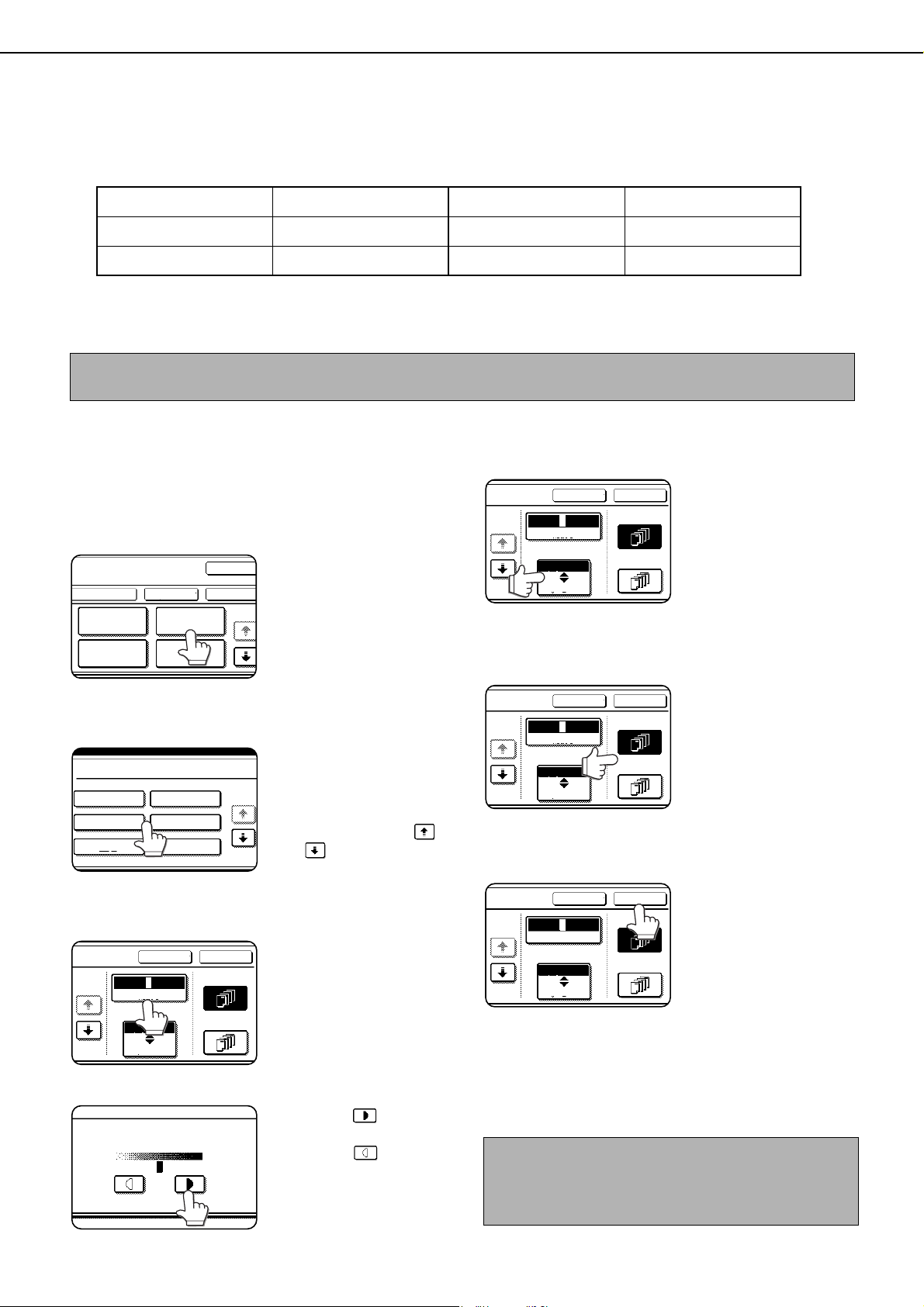
SPECIAL MODES
5-36
■ Printing a stamp (reverse text) on copies
A message such as "CONFIDENTIAL" can be printed in reverse text on copies.
The following 12 messages are available.
You can select from three density levels for the background of the stamp.
Two selections are available for the size of the stamp.
1
Follow steps 1 and 2 of "Common
operation procedure for using the print
menu" (page 5-33).
2
Touch the [STAMP] key.
3
Select the stamp that you wish to print.
The selected stamp is
highlighted. If the
desired stamp does not
appear, change
screens with the
or key.
4
Adjust the exposure as needed.
The density of the
background of the
stamp can be adjusted.
Touch the [EXPOSURE]
key to display the
following screen.
Touch the key for a
darker background.
Touch the key for a
lighter background (3
levels).
When finished, touch
the [OK] key.
5
Select the desired stamp size.
"LARGER" is initially
selected. To make the
stamp smaller, touch
the [LARGER/
SMALLER] key.
"Smaller" is selected
when [SMALLER] is
highlighted.
6
Select the pages to be printed on.
Select whether to print
on only the first page,
or all pages. The
touched key is
highlighted.
7
Touch the [OK] key.
8
Continue from step 4 of "Common
operation procedure for using the print
menu" (page 5-33).
CONFIDENTIAL PRIORITY PRELIMINARY FINAL
FOR YOUR INFO. DO NOT COPY IMPORTANT COPY
URGENT DRAFT TOP SECRET PLEASE REPLY
NOTE
The text of the stamp cannot be edited.
PAGE
NUMBERING
OK
OK
CANCEL
LAYOUT
STAMP
DATE
TEXT
1/2
1/2
PRIORITY
STAMP
CONFIDENTIAL
FOR YOUR INFO.
DO NOT COPY
URGENT
DRAFT
CANCEL OK
1/2
EXPOSURE
SMALLER
FIRST PAGE
ALL PAGES
1 32
LARGER
SIZE
21 3
EXPOSURE
NOTE
To cancel a stamp setting...
Touch the [CANCEL] key in the stamp selection
screen. (The screen of step 7.)
CANCEL OK
1/2
EXPOSURE
SMALLER
FIRST PAGE
ALL PAGES
1 32
LARGER
SIZE
CANCEL OK
1/2
EXPOSURE
SMALLER
FIRST PAGE
ALL PAGES
1 32
LARGER
SIZE
CANCEL OK
1/2
EXPOSURE
SMALLER
FIRST PAGE
ALL PAGES
1 32
LARGER
SIZE
dragonII_copy_sec.book 36 ページ 2006年10月18日 水曜日 午後7時39分
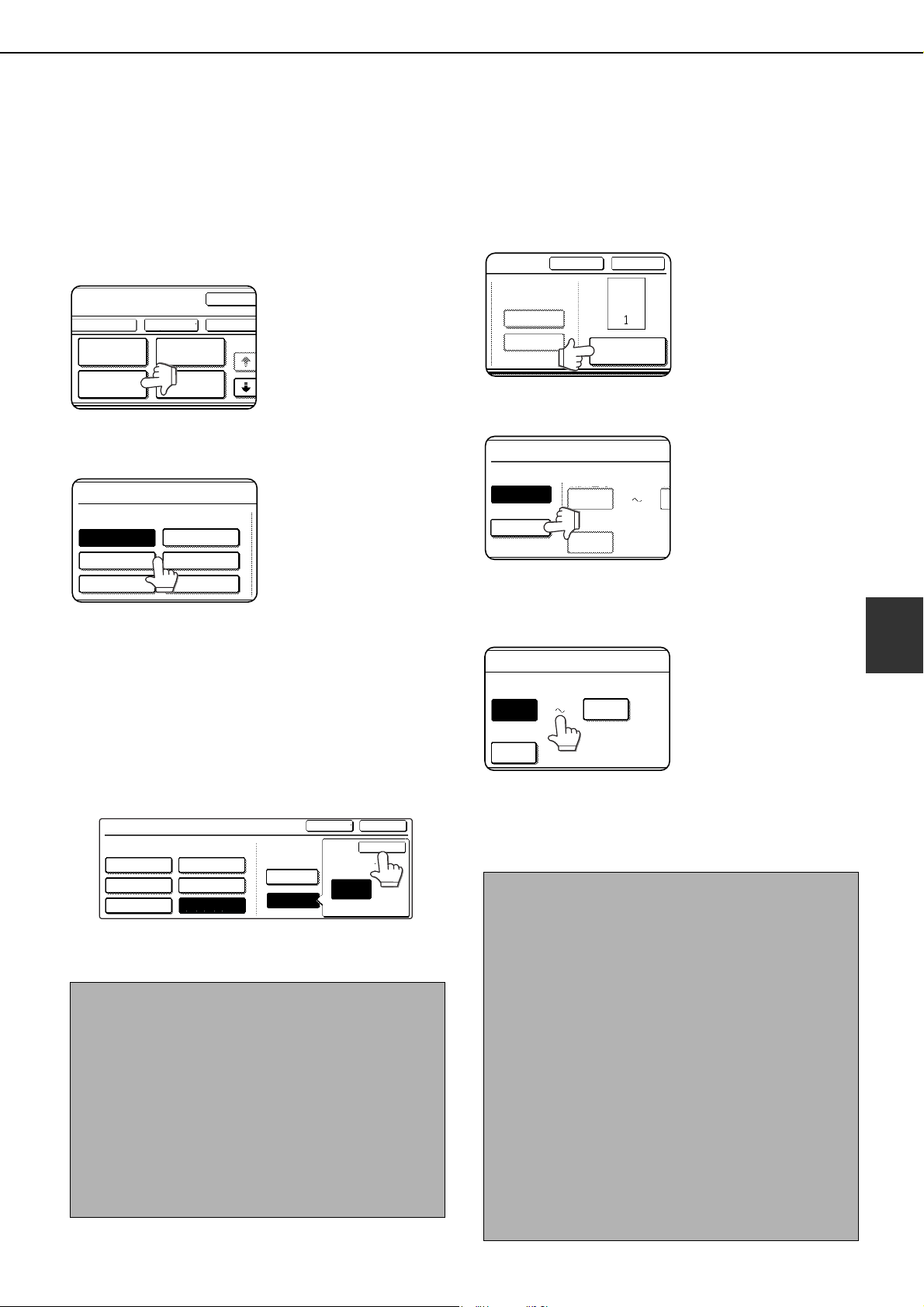
SPECIAL MODES
5-37
5
■ Printing the page number on copies
The page number can be printed on copies. One of 6 formats can be selected for the page number.
1
Follow steps 1 and 2 of "Common
operation procedure for using the print
menu" (page 5-33).
2
Touch the [PAGE NUMBERING] key.
3
Select the page number format.
The selected format is
highlighted.
If you selected "1/5, 2/5, 3/5",
"PAGE NUMBER/TOTAL PAGES" will be printed.
"AUTO" is initially selected for "TOTAL PAGE",
which means that the number of scanned original
pages is automatically used. If you need to enter
the total pages manually (for example, when a
large number of originals are scanned in batches),
touch the [MANUAL] key to display the total page
entry screen.
Enter the total pages (1 to 999) with the numeric
keys and touch the [OK] key.
4
If you need to change the starting or ending
number of page numbering, the first page
printed on, or the print settings for covers/
inserts, touch the [PAGE NUMBER] key.
5
Touch the [MANUAL] key.
6
Enter settings for "FIRST NUMBER",
"LAST NUMBER", and "PRINTING
STARTS FROM SHEET".
Touch each key so that
it is highlighted, and
then enter the number
with the numeric keys
(1 to 999).
To return a number to
its initial value (FIRST
NUMBER: 1, LAST NUMBER: AUTO, PRINTING
STARTS FROM SHEET: 1), touch the [C] (clear)
key while the key of the number is highlighted. If
you enter the wrong number, press the [C] (clear)
key and enter the correct number.
NOTES
● When two-sided copying is performed, each side of
the paper is counted as a page. If the last page is
blank, it will not be included in the total pages.
However, if [COUNT BACK COVER] is selected,
the last page will be counted. (See step 7.)
● When used in combination with "Dual page copy",
"Multi shot", or "Card shot", the number of copied
images is the total pages.
● When used in combination with "Pamphlet copy" or
"Book copy", the number of pages in the "book" is
the total pages.
PAGE
NUMBERING
OK
OK
CANCEL
LAYOUT
STAMP
DATE
TEXT
1/2
PAGE NUMBERING
PAGE NUMBERING FORMAT
1,2,3..
(1),(2),(3)..
P.1,P.2,P.3..
-1-,-2-,-3-..
<1>,<2>,<3>..
1/5,2/5,3/5..
PAGE NUMBERING
PAGE NUMBERING FORMAT
1,2,3..
-1-,-2-,-3-..
<1>,<2>,<3>..
(1),(2),(3)..
P.1,P.2,P.3..
1/5,2/5,3/5..
OKCANCEL
OK
TOTAL PAGE
TOTAL PAGE
AUTO
MANUAL
30
PAGE
NOTES
● A last number smaller than the "FIRST NUMBER"
cannot be set.
● "LAST NUMBER" is initially set to "AUTO", which
means that the page number is printed on each
page through the final page in accordance with the
"FIRST NUMBER" and "PRINTING STARTS
FROM SHEET" settings.
● A number less than the total page number is set as
the last number, the page number will not be
printed on the pages that follow the set number.
●
Unlike the first and last page numbers, "PRINTING
STARTS FROM SHEET" specifies the sheet of paper
(not the page number) from which printing of the page
number begins.
For example, when "3" is selected for one-sided
copying, printing of the page number will start from the
3rd sheet of copy paper (the copy of the 3rd original
page). When "3" is selected for two-sided copying,
printing of the page number will start from the 3rd sheet
of copy paper, which is the copy of the 5th original page.
CANCEL
OK
TOTAL PAGE
AUTO
MANUAL
PAGE NUMBER
PAGE NUMBER
AUTO
MANUAL
FIRST NUMBER
PRINTING STARTS FROM
LA
1
1
FIRST NUMBER
PRINTING STARTS FROM SHEET
1
1
LAST NUMBER
AUTO
dragonII_copy_sec.book 37 ページ 2006年10月18日 水曜日 午後7時39分
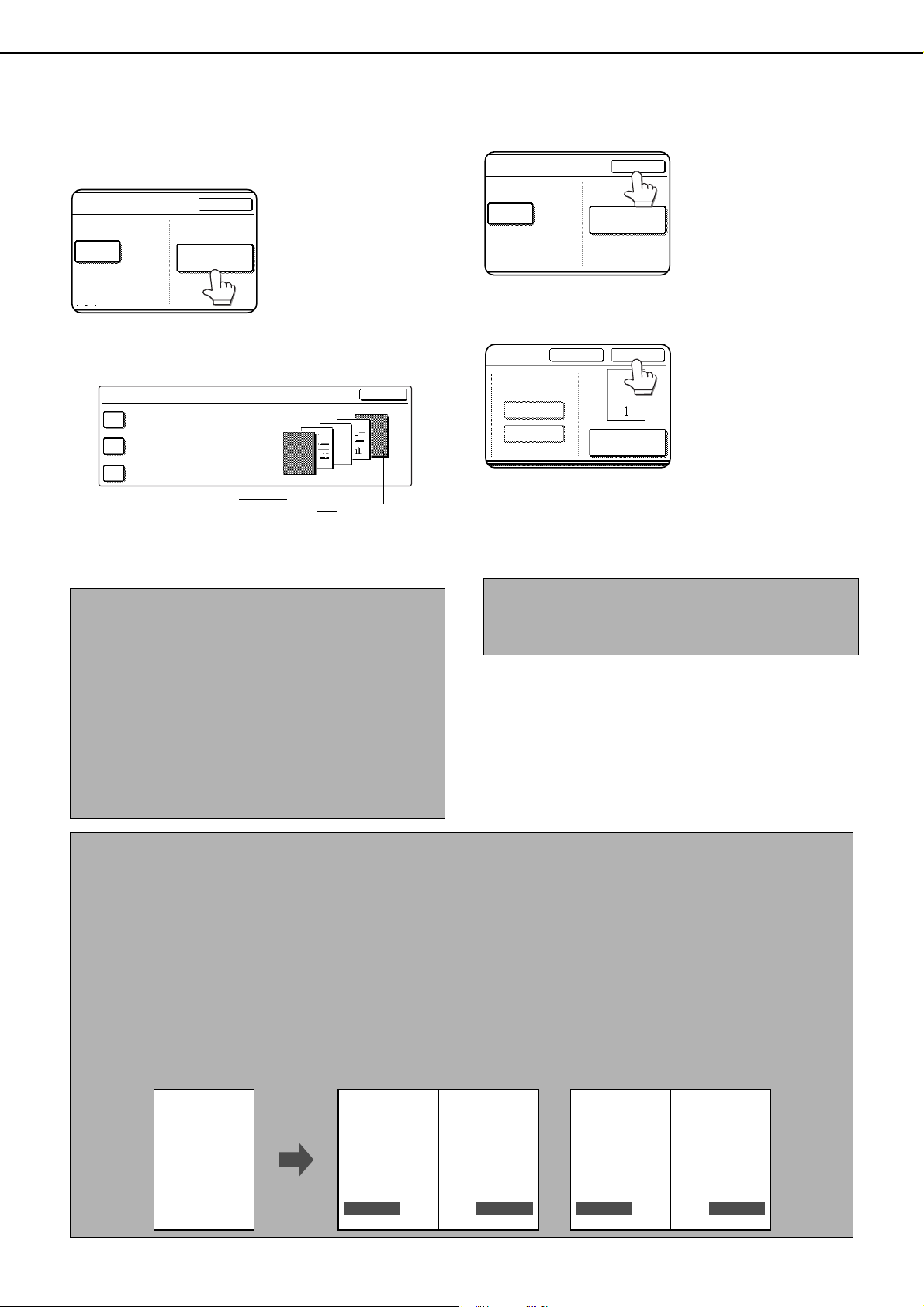
SPECIAL MODES
5-38
7
When covers/inserts are added and you
wish to include the covers/inserts in the
page number count, touch the [COVERS/
INSERTS COUNTING] key.
8
Select the checkboxes of the items that
you wish to include in the page number
count and then touch the [OK] key.
Items that are selected are reflected in the print
image on the right side of the screen.
9
Touch the [OK] key.
10
Touch the [OK] key.
11
Continue from step 4 of "Common
operation procedure for using the print
menu" (page 5-33).
NOTES
● When an item is selected, one inserted sheet (front
cover, insert, or back cover) is counted as one page
during one-sided copying, and two pages during
two-sided copying. However, if one-sided copying
is used for the body pages and two-sided copying is
used for the inserted sheets, each body page will
be counted as one page and each inserted sheet
will be counted as two pages.
●
Printing never takes place on the front cover and back
cover, regardless of whether or not these are counted.
● To print on an insert, the insert must be counted
and it must be copied on.
OK
LAST NUMBER
AUTO
COVERS/INSERTS
COUNTING
OK
COVERS/INSERTS COUNTING
COUNT FRONT COVER
COUNT INSERTS
COUNT BACK COVER
2
1
Front cover
image
Back cover
image
Insert
image
NOTE
To cancel a page number setting...
Touch the [CANCEL] key in the page number
selection screen. (The screen of step 10.)
OK
LAST NUMBER
AUTO
COVERS/INSERTS
COUNTING
CANCEL
OK
TOTAL PAGE
AUTO
MANUAL
PAGE NUMBER
NOTES
●
Copying in group mode is not possible when page number printing is selected. The mode will automatically switch to sort mode.
● When the page number print position is set to the left or right side and "Pamphlet copy" or "Book copy" is
selected, the position of the page numbers will alternate so that they are always on the outside when the
pamphlet/book is opened. If a stamp is set in an area with a page numbering setting, the position of the stamp
will alternate in the same way.
If another item is set in a position that changes, that item will appear in the position that alternates with the page
number position.
Print menus not related to the alternating print positions will appear in their set positions.
[Example] When the page number format "1, 2, 3.." is selected when performing pamphlet copying of 4 pages,
the copies will appear as shown below.
In this example, the page number is at the bottom of the page and the date is at the top, so the
position of the date does not change.
Date
Page numbering
Text
Stamp
2010/APR/4 2010/APR/4
41
Print settings Front
2010/APR/4 2010/APR/4
2
Minutes of meeting
3
Back
Minutes of meetingMinutes of meetingMinutes of meeting
CONFIDENTIAL CONFIDENTIAL CONFIDENTIALCONFIDENTIAL
dragonII_copy_sec.book 38 ページ 2006年10月18日 水曜日 午後7時39分
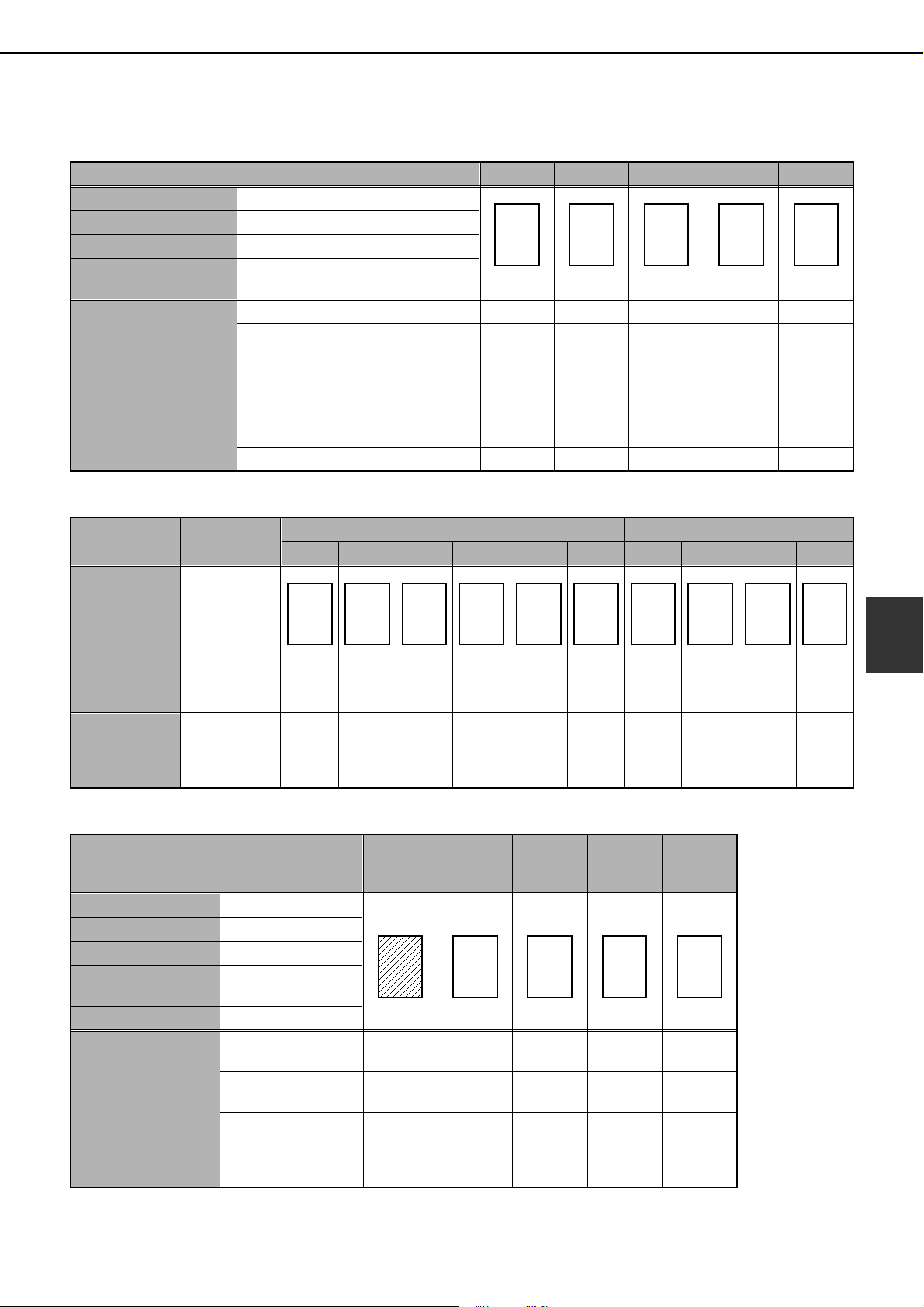
SPECIAL MODES
5-39
5
Examples of page number printing
Page number printing during one-sided copying (5 originals)
Page number printing during two-sided copying (9 originals)
Page number printing during one-sided copying of body pages with covers inserted (4 originals)
When a back cover is inserted, page numbers are counted and printed in the same way.
Note that page numbers are never printed on front and back covers.
Setting Value 1st page 2nd page 3rd page 4th page 5th page
TOTAL PAGE AUTO
FIRST NUMBER 1
LAST NUMBER AUTO
PRINTING STARTS
FROM SHEET
1
Printed contents when
settings are changed as
follows
FIRST NUMBER: 11 11/15 12/15 13/15 14/15 15/15
FIRST NUMBER: 11
LAST NUMBER: 13
11/13 12/13 13/13
Not printed Not printed
TOTAL PAGE: 2 1/2 2/2
Not printed Not printed Not printed
TOTAL PAGE: 15
FIRST NUMBER: 11
LAST NUMBER: 13
11/15 12/15 13/15
Not printed Not printed
PRINTING STARTS FROM SHEET: 3
Not printed Not printed
1/3 2/3 3/3
A
1/5
B
2/5
C
3/5
D
4/5
E
5/5
Setting Value
1st page 2nd page 3rd page 4th page 5th page
Front Back Front Back Front Back Front Back Front Back
TOTAL PAGE AUTO
FIRST
NUMBER
1
LAST NUMBER AUTO
PRINTING
STARTS FROM
SHEET
1
Printed contents
when settings
are changed as
follows
PRINTING
STARTS
FROM
SHEET: 3
Not
printed
Not
printed
Not
printed
Not
printed
1/52/53/54/55/5
Not
printed
A
1/9
B
2/9
C
3/9
D
4/9
E
5/9
F
6/9
G
7/9
H
8/9
I
9/9
Setting Value
1st page
(Front
cover)
2nd page 3rd page 4th page 5th page
TOTAL PAGE AUTO
FIRST NUMBER 1
LAST NUMBER AUTO
PRINTING STARTS
FROM SHEET
1
COUNT FRONT COVER
Not selected
Printed contents when
settings are changed
as follows
PRINTING STARTS
FROM SHEET: 2
Not printed Not printed
1/3 2/3 3/3
COUNT FRONT
COVER: Selected
Not printed
(count)
2/5 3/5 4/5 5/5
COUNT FRONT
COVER: Selected
PRINTING STARTS
FROM SHEET: 2
Not printed
(count)
1/4 2/4 3/4 4/4
A
1/4
B
2/4
C
3/4
D
4/4
dragonII_copy_sec.book 39 ページ 2006年10月18日 水曜日 午後7時39分
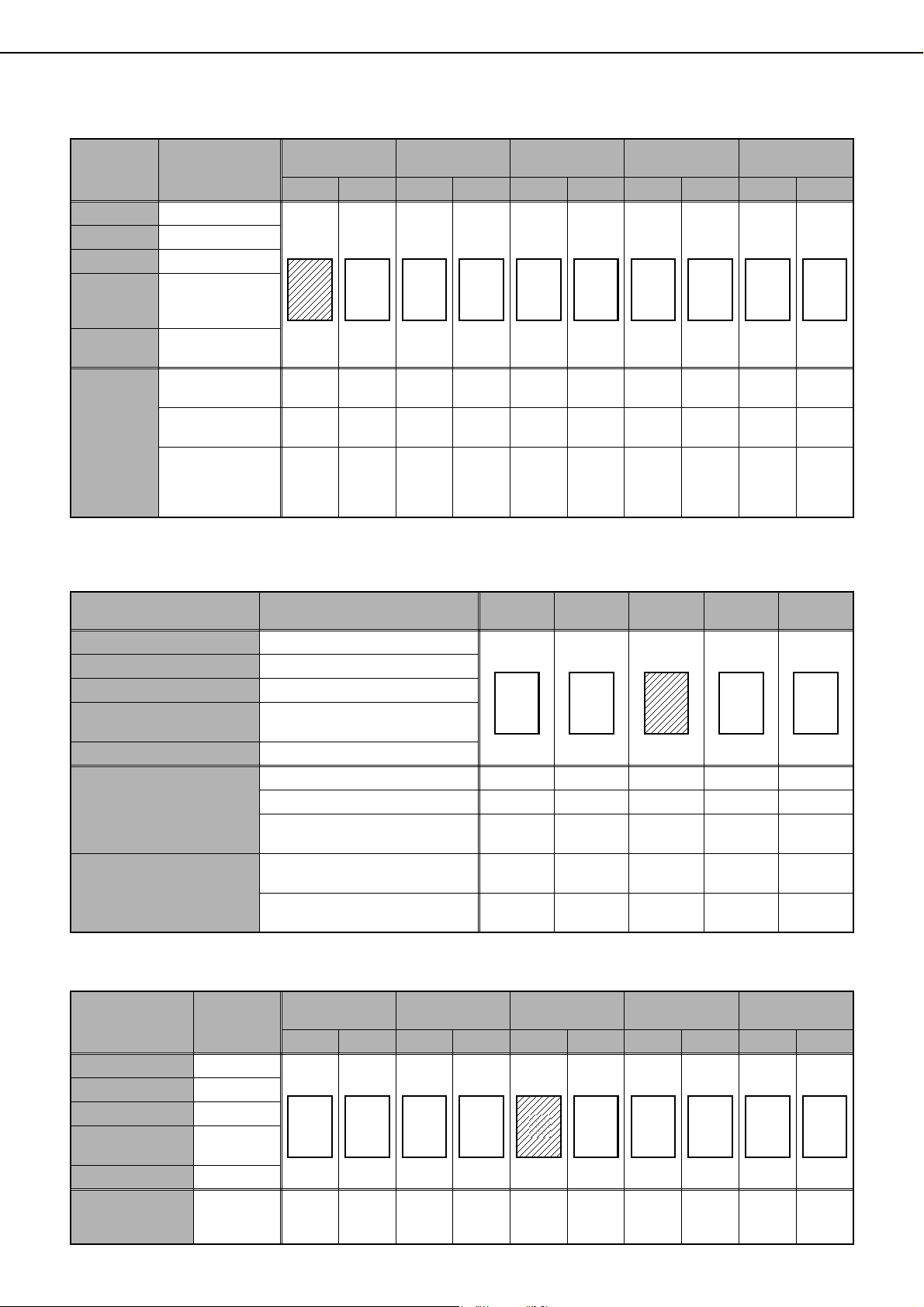
SPECIAL MODES
5-40
Page number printing during two-sided copying of body pages with covers (one-side copying) inserted (9 originals)
When a back cover is inserted, page numbers are counted and printed in the same way.
Note that page numbers are never printed on front and back covers.
Page number printing during one-sided copying with inserts (4 originals; 5 originals when copying on inserts)
When inserts are not copied on, the page number is not printed.
Page number printing during two-sided copying of body pages with inserts (one-side copying) (9 originals)
Setting Value
1st page
(front cover)
2nd page 3rd page 4th page 5th page
Front Back Front Back Front Back Front Back Front Back
TOTAL PAGE
AUTO
FIRST NUMBER
1
LAST NUMBER
AUTO
PRINTING
STARTS
FROM SHEET
1
COUNT FRONT
COVER
Not selected
Printed
contents
when
settings are
changed as
follows
PRINTING STARTS
FROM SHEET: 3
Not
printed
Not
printed
Not
printed
Not
printed
Not
printed
Not
printed
1/4 2/4 3/4 4/4
COUNT FRONT
COVER: Selected
Not printed
(count)
Not printed
(count)
3/10 4/10 5/10 6/10 7/10 8/10 9/10 10/10
COUNT FRONT
COVER: Selected
PRINTING STARTS
FROM SHEET: 3
Not
printed
(count)
Not
printed
(count)
Not
printed
Not
printed
1/62/63/64/65/66/6
A B
1/8
C
2/8
D
3/8
E
4/8
F
5/8
G
6/8
H
7/8
I
8/8
Setting Value 1st page 2nd page
3rd page
(insert)
4th page 5th page
TOTAL PAGE AUTO
FIRST NUMBER 1
LAST NUMBER AUTO
PRINTING STARTS FROM
SHEET
1
COUNT INSERTS Not selected
Printed contents when
copying on inserts and
settings are changed as
follows
PRINTING STARTS FROM SHEET: 3
Not printed Not printed Not printed
1/2 2/2
COUNT INSERTS: Selected 1/5 2/5
3/5 (count)
4/5 5/5
COUNT INSERTS: Selected
PRINTING STARTS FROM SHEET: 3
Not printed Not printed 1/3 (count)
2/3 3/3
Printed contents when not
copying on inserts and
settings are changed as
follows
COUNT INSERTS: Selected 1/5 2/5
Not printed
(count)
4/5 5/5
COUNT INSERTS: Selected
PRINTING STARTS FROM SHEET: 3
Not printed Not printed
Not printed
(count)
2/3 3/3
A
1/4
B
2/4
C D
3/4
E
4/4
Setting Value
1st page 2nd page
3rd page
(insert)
4th page 5th page
Front Back Front Back Front Back Front Back Front Back
TOTAL PAGE AUTO
FIRST NUMBER 1
LAST NUMBER AUTO
PRINTING STARTS
FROM SHEET
1
COUNT INSERTS Not selected
Printed contents
when settings are
changed as follows
COUNT
INSERTS:
Selected
1/10 2/10 3/10 4/10 5/10
Not
printed
(count)
7/10 8/10 9/10 10/10
A
1/8
B
2/8
C
3/8
D
4/8
E F
5/8
G
6/8
H
7/8
I
8/8
dragonII_copy_sec.book 40 ページ 2006年10月18日 水曜日 午後7時39分
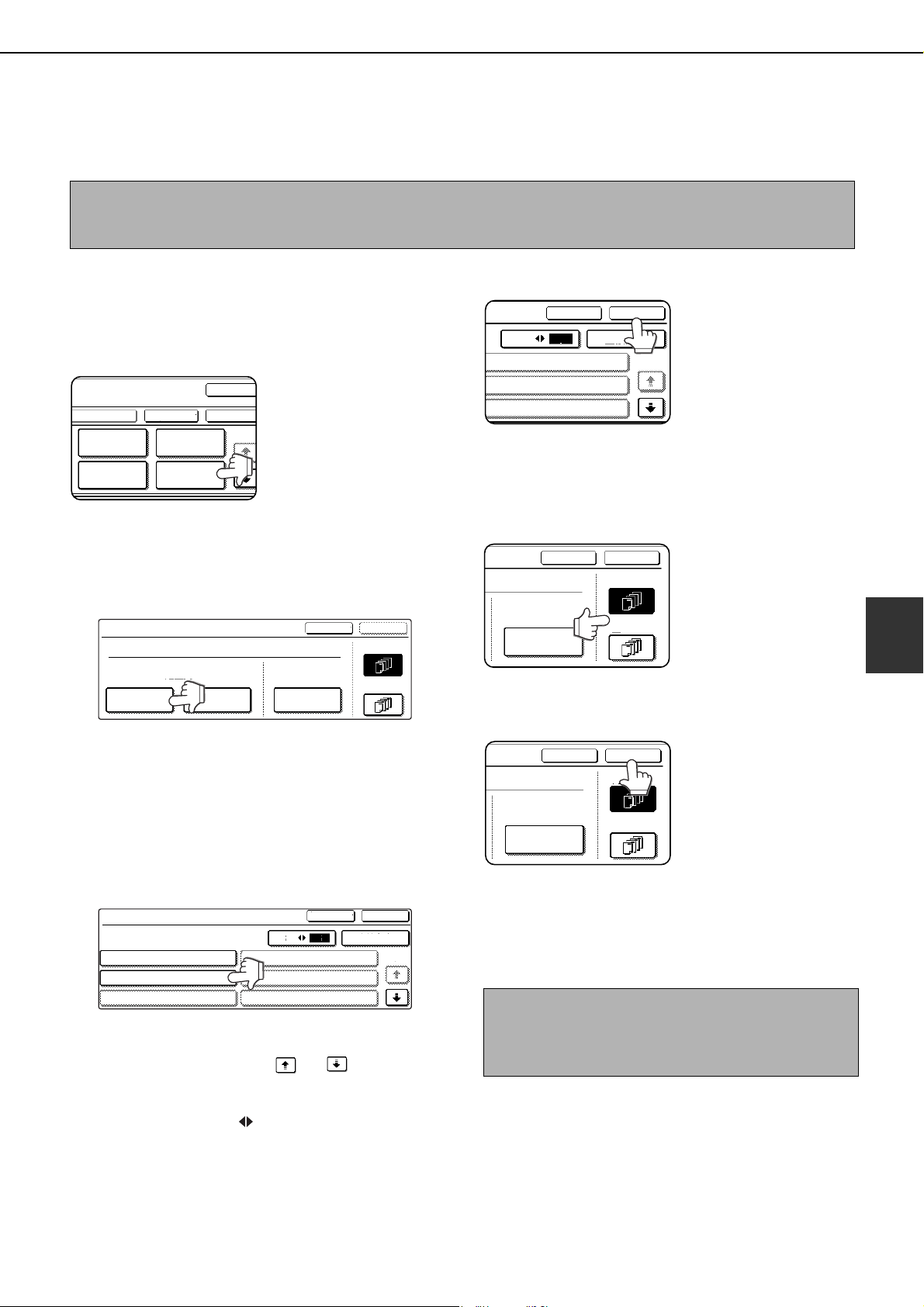
SPECIAL MODES
5-41
5
■ Printing entered text on copies
Entered text can be printed on copies. Up to 50 characters can be printed.
Up to 30 sequences of frequently used text can be stored. See "Storing text sequences" (page 5-42).
1
Follow steps 1 and 2 of "Common
operation procedure for using the print
menu" (page 5-33).
2
Touch the [TEXT] key.
3
If you wish to use one of the preset text
sequences, touch the [RECALL] key. To
directly enter the text, touch the [DIRECT
ENTRY] key.
If you touch the [DIRECT ENTRY] key, a character
entry screen will appear. For information on
entering characters, see page
7-29. When
finished, click the [OK] key to close the character
entry screen. (Go to step 6.)
4
The stored text sequences will appear as
keys. Touch the key of the desired text
sequence.
The selected text sequence key is highlighted.
If the desired text sequence key does not appear,
change screens with the or key.
The display is initially set to show 6 keys per
screen. This can be changed to 3 keys per screen
by touching the [3 6] key. When 3 keys are
displayed, the entire text sequence will appear in
each key. (When 6 keys are displayed, up to 22
characters appear in each key.)
5
Touch the [OK] key.
To edit the selected text
sequence, touch the
[DIRECT ENTRY] key
to display the character
entry screen. The
selected text sequence
is entered. For
information on entering characters, see page
7-29.
When finished, touch the [OK] key to close the
character entry screen.
6
Select the pages to be printed on.
Select whether to print
on only the first page,
or all pages. The
touched key is
highlighted.
7
Touch the [OK] key.
8
Continue from step 4 of "Common
operation procedure for using the print
menu" (page 5-33).
NOTE
When the machine is connected to a network, the printed text sequences can be stored and deleted in the Web
page. For details, see Help in the Web page.
PAGE
NUMBERING
OK
OK
CANCEL
LAYOUT
STAMP
DATE
TEXT
1/2
TEXT
OK
CANCEL
FIRST PAGE
PRE-SET
ALL PAGES
DIRECT ENTRYSTORE/DELETERECALL
TEXT
RECALL
No.01 TARO YAMADA
No.02 Meeting
No.03
No.04
No.05
No.06
3
6
DIRECT ENTRY
1/5
OK
CANCEL
NOTE
To cancel a text setting...
Touch the [CANCEL] key in the text print screen. (The
screen of step 7.)
OK
CANCEL
DIRECT ENTRY
1/5
6
3
04
05
06
OK
CANCEL
FIRST PAGE
DIRECT ENTRY
ALL PAGES
OK
CANCEL
FIRST PAGE
DIRECT ENTRY
ALL PAGES
dragonII_copy_sec.book 41 ページ 2006年10月18日 水曜日 午後7時39分
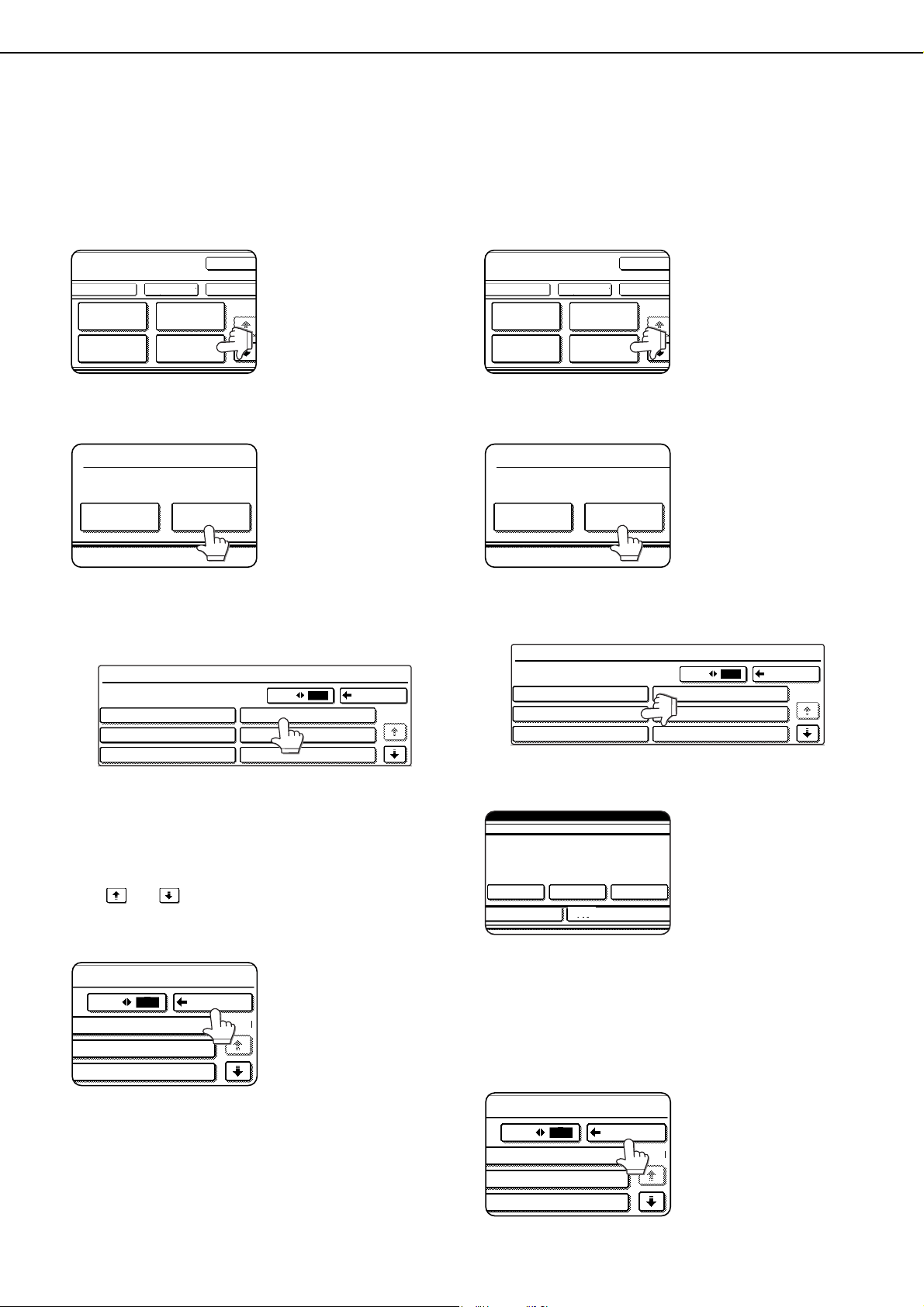
SPECIAL MODES
5-42
Storing text sequences
1
Follow steps 1 and 2 of "Common
operation procedure for using the print
menu" (page 5-33).
2
Touch the [TEXT] key.
3
Touch the [STORE/DELETE] key.
4
Touch a key that has not been
programmed (a key in which No. xx
appears).
When touched, the character entry screen
appears. Enter the text (max. 50 characters). For
information on entering characters, see page
7-29.
When finished, touch the [OK] key to close the
character entry screen.
If no free keys appear, change screens with the
or key.
5
Touch the [BACK] key.
The entered text is
stored.
Editing and deleting stored text
1
Follow steps 1 and 2 of "Common
operation procedure for using the print
menu" (page 5-33).
2
Touch the [TEXT] key.
3
Touch the [STORE/DELETE] key.
4
Touch the text key that you wish to edit or
delete.
5
To edit the text, touch the [AMEND] key. To
delete the text, touch the [DELETE] key.
When the [AMEND] key is
touched, the character
entry screen appears.
The selected text
sequence is entered. For
information on entering
characters, see page
7-
29
. When finished, touch the [OK] key to close the
character entry screen.
If you touch the [DELETE] key, the text will be deleted
and you will return to the screen of step 4.
To cancel editing or deletion, touch the [CANCEL] key.
6
Touch the [BACK] key.
PAGE
NUMBERING
OK
OK
CANCEL
LAYOUT
STAMP
DATE
TEXT
1/2
RECALL STORE/DELETE
PRE-SET
TEXT
STORE/DELETE
No.01 TARO YAMADA
No.02 Meeting
No.03
No.04
No.05
No.06
BACK
1/5
3 6
3 6
BACK
1/5
06
05
04 Minutes of meeting
PAGE
NUMBERING
OK
OK
CANCEL
LAYOUT
STAMP
DATE
TEXT
1/2
RECALL STORE/DELETE
PRE-SET
TEXT
STORE/DELETE
No.01 TARO YAMADA
No.02 Meeting
No.03
No.04 Minutes of meeting
No.05
No.06
BACK
1/5
3 6
A TEXT HAS BEEN ALREADY STORED TO
LOCATION. CHANGE THE TEXT?
No.06
CANCEL DELETE AMEND
3 6
BACK
1/5
06
05
04 Minutes of meeting
dragonII_copy_sec.book 42 ページ 2006年10月18日 水曜日 午後7時39分
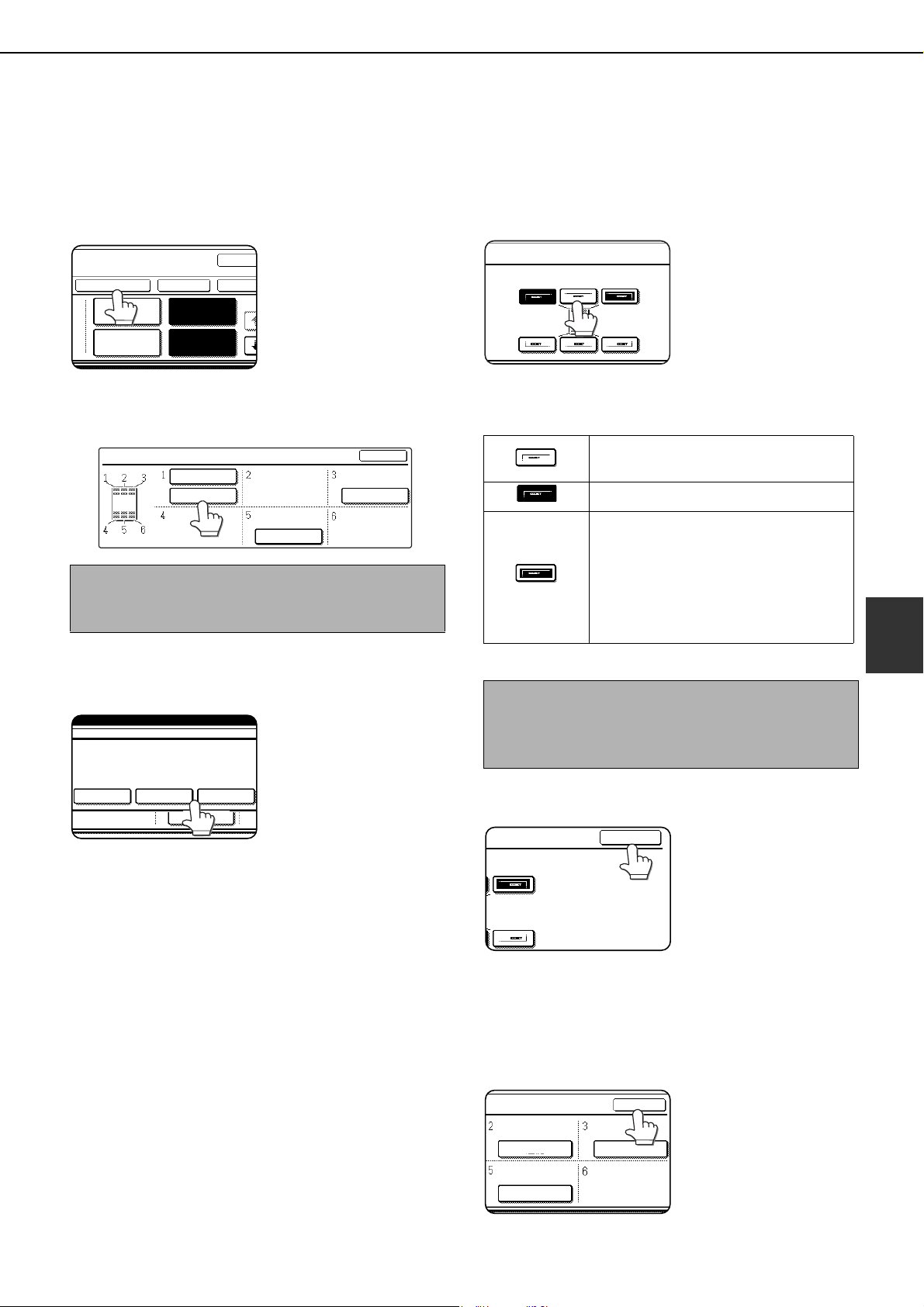
SPECIAL MODES
5-43
5
■ Checking and changing the print layout
You can check the print layout after the print items have been selected. If needed you can change the print
position or delete print content.
1
Touch the [LAYOUT] key on the print menu
screen.
2
Touch the key in which you wish to change
the print position or delete print content.
3
To change the print position, touch the
[MOVE] key. To delete print content, touch
the [DELETE] key.
If you touched the
[MOVE] key, the new
position selection
screen appears.
If you touched the
[DELETE] key, the print
content is deleted. (Go
to step 6.)
4
Touch the key of the new position.
The selected key is
highlighted and the
print position changes
to the new position.
The keys indicating the print position appear as
follows depending on the state of the setting:
5
Touch the [OK] key.
If you attempt to move
print content to a
position that already
has print content set, a
message will appear
asking you if you wish
to overwrite the
previously set content.
To overwrite the content, touch the [YES] key. To
cancel the move and return to the condition before
the [OK] key was touched, touch the [NO] key.
6
Touch the [OK] key.
NOTE
Up to 14 characters of the print text appears in the
key.
OK
OK
CANCEL
STAMP
TEXT
1/
LAYOUT
DATE
PAGE
NUMBERING
LAYOUT
TARO YAMADA
CONFIDENTIAL
OK
DO NOT COPY
1,2,3..
DO YOU WANT TO MOVE OR DELETE THE
SELECTED ITEM?
CANCEL
DELETE MOVE
1,2,3..
Print position without any set print
menus.
Currently set print position.
Print position with another competing
print menu set.
(When moving a stamp, this indicates
that another stamp has been set. When
moving a print menu other than a stamp,
this indicates that the date, page number,
or text has been set.)
NOTE
If you wish to swap the contents of two positions,
temporarily move the content of one position to an
unused position and then complete the swap.
SELECTED ITEM.
OK
OK
DO NOT COPY
1,2,3..
CONFIDENTIAL
dragonII_copy_sec.book 43 ページ 2006年10月18日 水曜日 午後7時39分
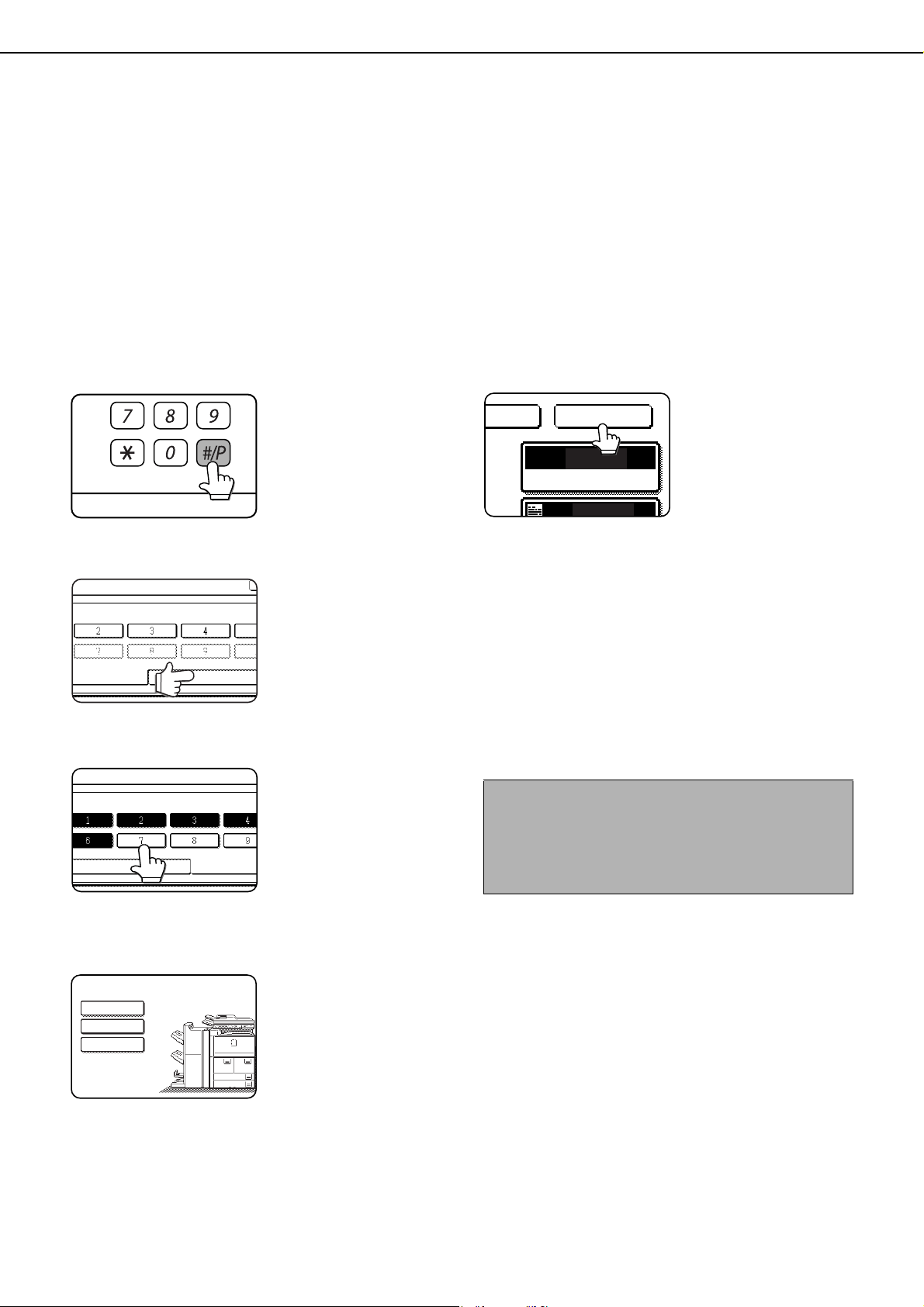
5-44
STORING, USING AND DELETING
JOB PROGRAMS
The steps of up to 10 copy jobs can be stored as job programs. Job programs can be called up with ease, and are
retained even when the power is turned off. By storing frequently used copy settings in a job program, you can
eliminate the bother of selecting the settings each time you use them for a copy job.
●If any settings related to the steps of a job program are changed in the administrator settings after the job program
is stored, the steps related to the changed settings will not be included when the job program is called up.
●To exit the job programs mode, press the [CA] (clear all) key on the operation panel or touch the [EXIT] key on the
touch panel.
Storing a job program
1
Press the [#/P] key.
2
Touch the [STORE/DELETE] key.
3
Touch the number key ([1] to [10]) in which
you wish to store the job program.
Number keys in which
job programs are
already stored are
highlighted.
4
Select the copy settings that you wish to
store in the job program.
The number of copies
cannot be stored.
5
Touch the [OK] key.
The selected settings
will be stored in the
number key selected in
step 3.
■ If a number key is selected in step 3 that has
already been programmed.
A setting confirmation screen will appear. To replace
the existing program with the new program, touch
the [STORE] key and continue from step 4. If you do
not wish to replace the existing program, touch the
[CANCEL] key to return to the screen of step 3 and
select a different number key.
LOGOUT
M NUMBER.
RECALL STORE/DELETE
PROGRAMS
ESS PROGRAM NUMBER.
RECALL STORE/
8 x11
1
/
2
8 x14
11x17
1
/
2
8 x11
1
/
2
1.
3.
4.
2.
SPECIAL MODES
TO STORE, MAKE SELECTIONS AND PRESS
[OK], TO DELETE, PRESS [CANCEL].
2-SIDED COPY
OUTPUT
NOTE
If overwriting of programmed copy settings has been
prohibited in the administrator settings, it will not be
possible to store or delete a job program. (See page
17 of the administrator settings guide.)
AUTO
AUTO
ORIGINAL
OKNCEL
dragon_05.fm 44 ページ 2006年10月19日 木曜日 午後1時0分
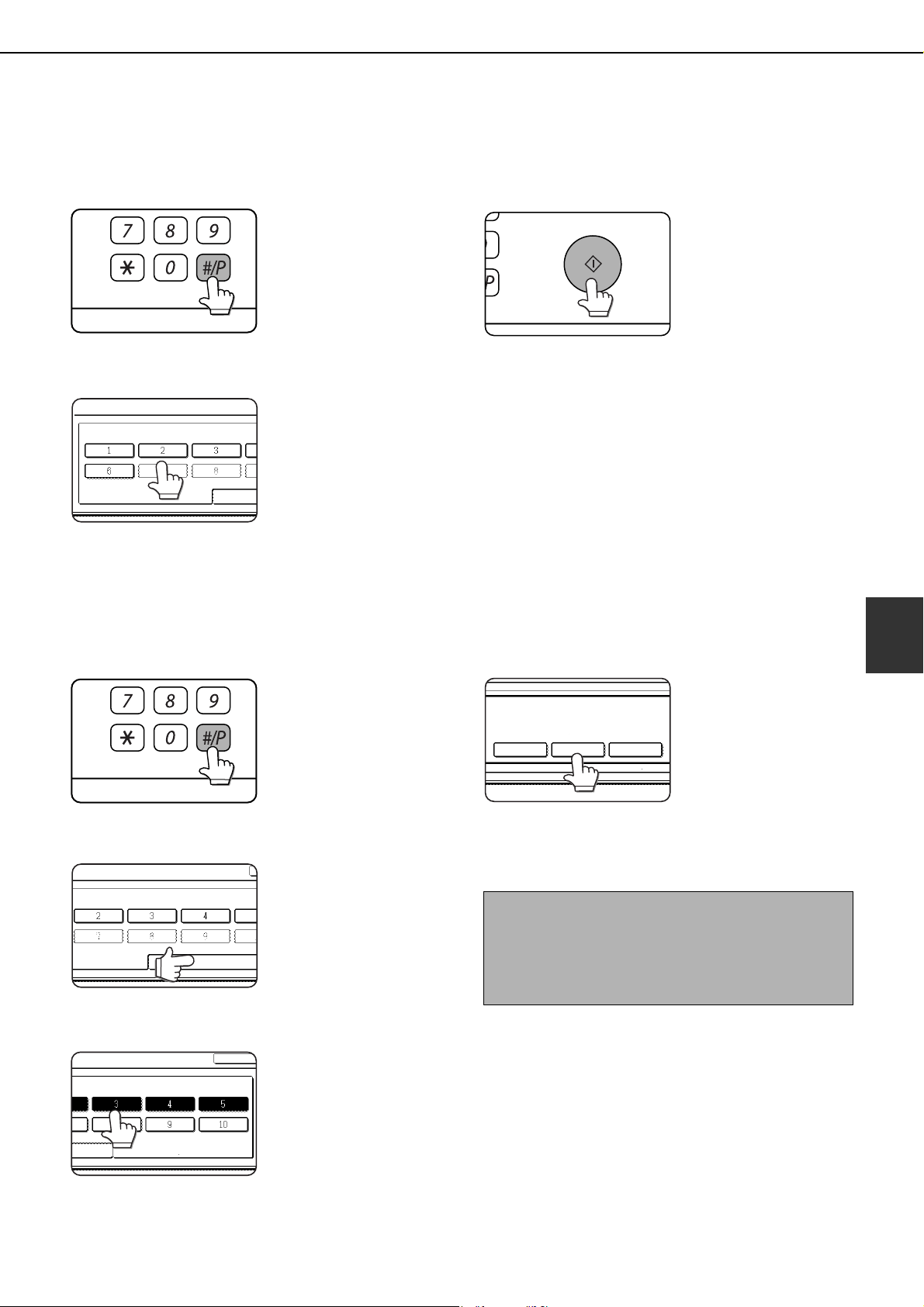
STORING, USING AND DELETING JOB PROGRAMS
5-45
5
Calling up a job program
1
Press the [#/P] key.
2
Touch the number key of the desired job
program.
The screen
automatically closes and
the job program is called
up. A number key that
does not have a job
program cannot be
selected.
3
Set the number of copies if needed and
then press the [START] key.
Copying will begin using
the settings of the job
program.
Deleting a stored job program
1
Press the [#/P] key.
2
Touch the [STORE/DELETE] key.
3
Select a storage register number of the
program to be deleted.
If a number key for which
no job program has been
stored is selected, the
screen will change to the
screen of step 4 on the
previous page for storing
a job program.
4
Touch the [DELETE] key.
The selected program is
deleted and you return
to the screen of step 3.
To return to the screen of
step 3 without deleting
the job program, touch
the [CANCEL] key. In
both cases, touch the
[EXIT] key displayed in the screen of step 3 to exit
the job program mode.
LOGOUT
JOB PROGRAMS
PRESS PROGRAM NUMBER.
RECALL
LOGOUT
M NUMBER.
RECALL STORE/DELETE
EXIT
STORE/DELETE
NOTE
If overwriting of programmed copy settings has been
prohibited in the administrator settings, it will not be
possible to store or delete a job program. (See page
17 of the administrator settings guide.)
RECALL STORE/DELETE
A JOB PROGRAM HAS BEEN ALREADY STORED
IN THIS LOCATION.
CANCEL DELETE STORE
dragon_05.fm 45 ページ 2006年10月19日 木曜日 午後1時1分
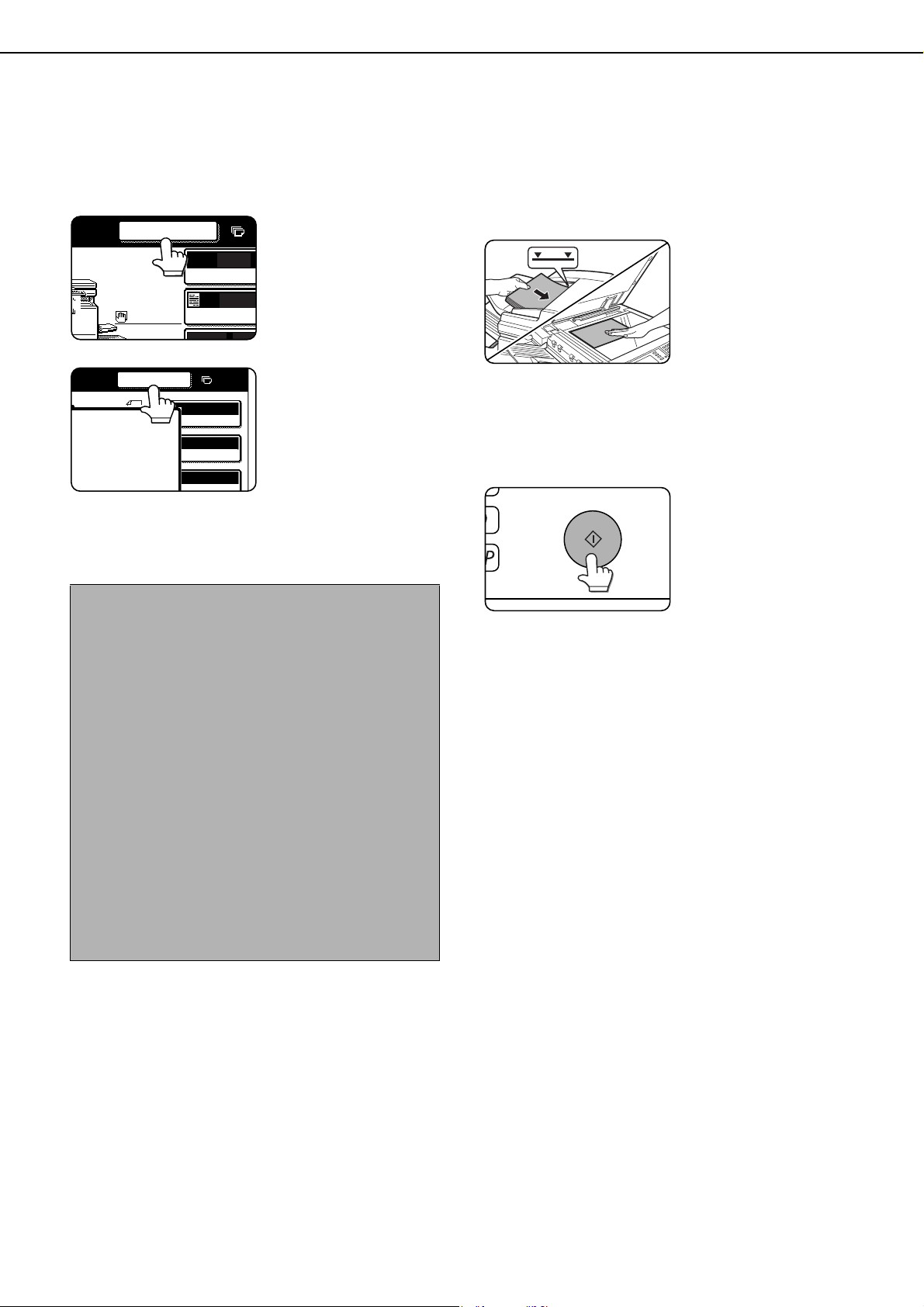
5-46
INTERRUPTING A COPY RUN
The copy of the original scanned in interrupt mode is output before the remainder of the interrupted copy job.
1
Touch the [INTERRUPT] key.
If interrupt copying is
possible during a copy
run, the [INTERRUPT]
key will appear. (If the
key does not appear,
interrupt copying is not
possible.)
When the [INTERRUPT]
key is touched in step 1,
the [INTERRUPT] key
will be replaced by the
[CANCEL] key as shown
in the illustration.
To cancel an interrupt
copy job while the interrupt original is being
scanned or while you are selecting copy settings,
touch the [CANCEL] key.
2
Place the original for the interrupt copy job
in the document feeder or on the
document glass (page 4-3).
3
Select the exposure mode, paper size,
number of copies, and any other copy
settings as needed, and then press the
[START] key.
4
The previous copy job automatically
resumes after the interrupt job finishes.
NOTES
● If you touch the [INTERRUPT] key when auditing
mode is enabled, the display will prompt you to
enter your account number. Enter your account
number with the numeric keys. The copies you
make will be added to the count of the entered
account number.
● If a copy is being printed when the [INTERRUPT]
key is pressed, interrupt mode will begin after the
copy is finished.
● If the copy run to be interrupted is using paper
from the bypass tray, the paper size and type of the
bypass tray cannot be changed for use by the
interrupt job.
● If the document glass is used for an interrupt copy
job, two-sided copying, sort copying, and staple
sort copying cannot be selected. If any of these
functions are necessary, use the document feeder.
AUTO
AUTO
AUTO A4
ORIGINA
EXPOSUR
8 x11
2
3
INTERRUPT
1
/
2
AUTO
EXPOSURE
AUTO 8 x11
1
/
2
PAPER SELECT
100%
COPY RATIO
CANCEL
ORIGINAL
0
A4
dragonII_copy_sec.book 46 ページ 2006年10月18日 水曜日 午後7時39分

6-1
CHAPTER 6
MACHINE MAINTENANCE
(FOR COPYING)
This chapter explains procedures for cleaning the machine, and
troubleshooting.
Page
USER MAINTENANCE........................................................................... 6-2
●
Cleaning the document glass and the automatic document feeder .......
6-2
TROUBLESHOOTING ............................................................................ 6-3
dragonII_copy_sec.book 1 ページ 2006年10月18日 水曜日 午後7時39分
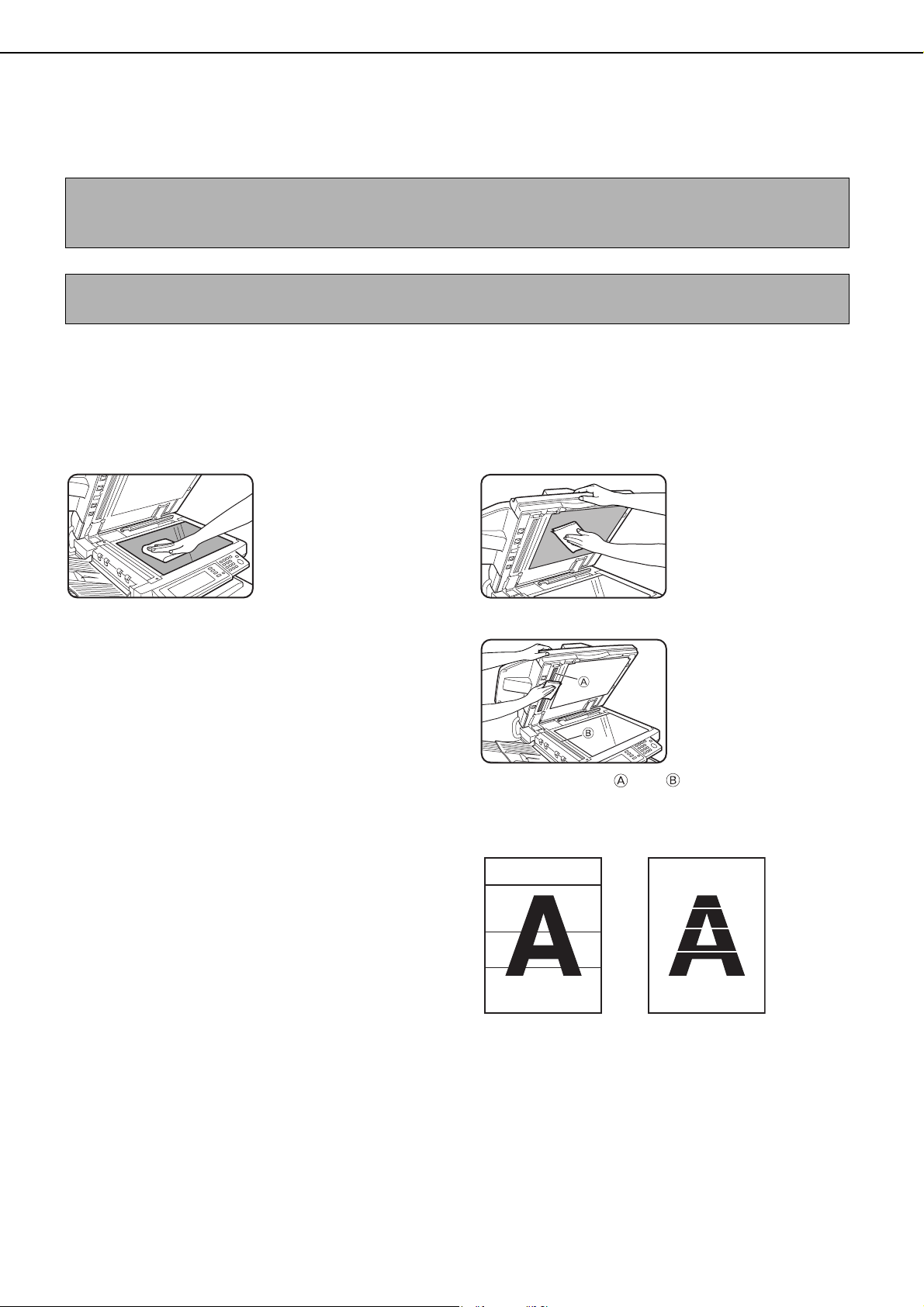
6-2
USER MAINTENANCE
To ensure good service from this product over a long period of time, it is recommended that the following
maintenance procedures be performed on a regular basis.
Cleaning the document glass and the automatic document
feeder
If the document glass, document cover or automatic document scanning unit have dirty spots, these spots will form
lines in scanned images. These will show up as defects when the images are printed. Always keep these parts clean.
Wipe with a clean, soft cloth. If necessary, moisten the
cloth with water or a small amount of neutral detergent.
When finished, wipe dry with a clean cloth.
If black or white stripes
appear on printed
images of originals that
were fed through the
automatic document
feeder, wipe the long
narrow glasses in the
scanning unit ( and in the illustration).
CAUTION
Do not use flammable spray to clean the machine. If gas from the spray comes in contact with hot electrical
components or the fusing unit inside the machine, fire or electrical shock may result.
NOTE
When cleaning, do not use thinner, benzene, or similar volatile cleaning agents.
Example of dirty print image
Black stripes White stripes
dragonII_copy_sec.book 2 ページ 2006年10月18日 水曜日 午後7時39分
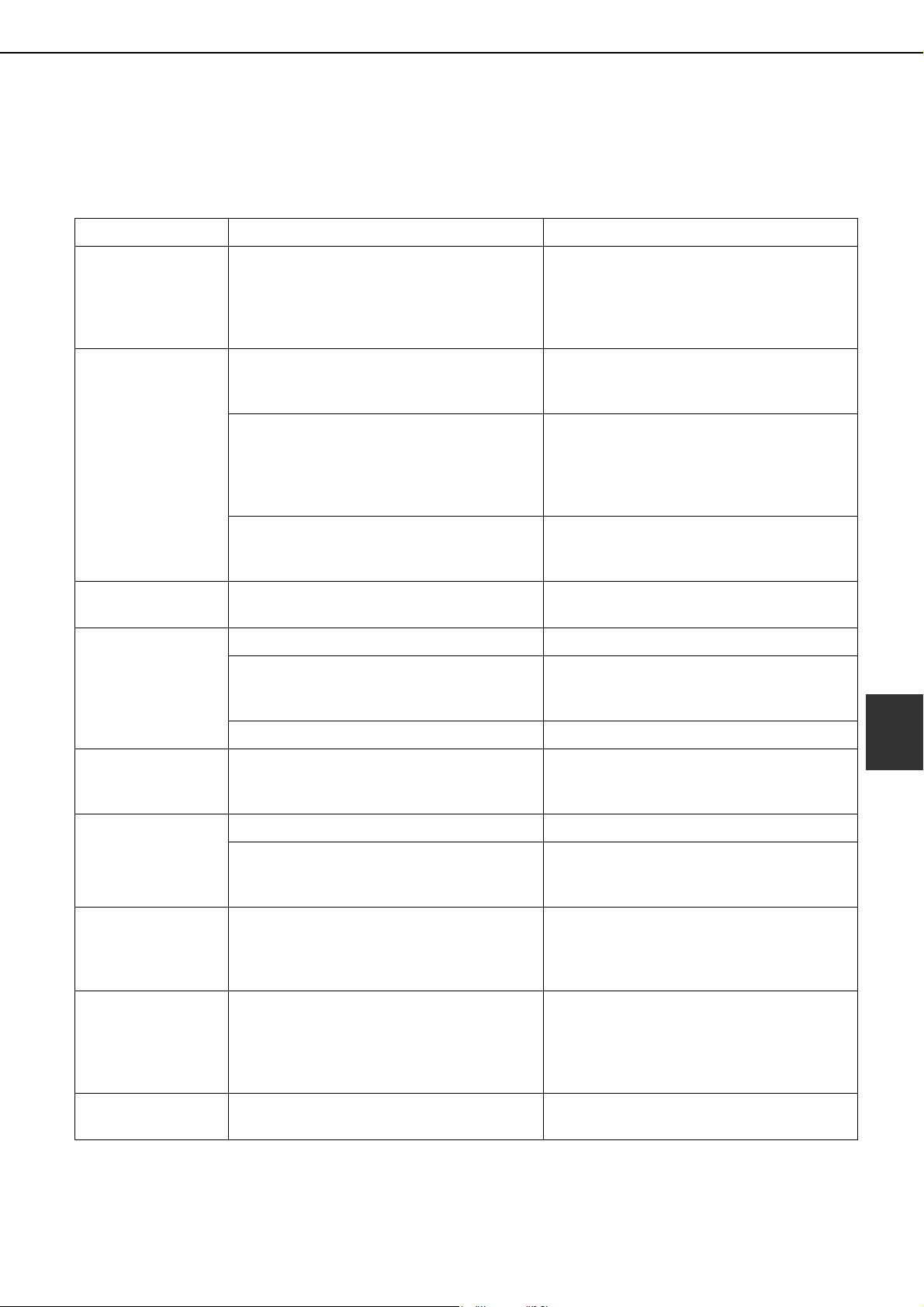
6-3
6
TROUBLESHOOTING
Check the following troubleshooting list before requesting service as many problems can be fixed by the user. If you
are unable to solve the problem by checking the list, turn off the main power switch and the power switch, and unplug
the power cord.
Problems related to the copy function are described below. For problems related to general use of the machine, see
page 2-32.
Problem Check Solution
Machine does not
operate.
Is the [START] key indicator off? This indicates that the machine is warming
up (warming up lasts no more than 120
seconds after the power switch is turned on).
Copying is not possible during this time. Wait
until the [START] key light illuminates.
Copies are too dark
or too light.
Is the original image too dark or too light? Select an appropriate exposure mode for the
original being copied and adjust the copy
exposure. (See page 4-14.)
Is the exposure mode set to "AUTO"? The exposure level for "AUTO" can be
adjusted using "Exposure adjustment" in the
administrator settings. Contact your
administrator. (See page 16 of the
administrator settings guide.)
An appropriate exposure mode for the
original has not been selected.
Change the exposure mode to "AUTO" or
manually select an appropriate resolution
setting. (See page 4-14.)
Text is not clear on a
copy.
An appropriate exposure mode for the
original has not been selected.
Change the exposure mode to "TEXT". (See
page 4-14.)
Smudges appear on
copies.
Document glass or document cover dirty? Clean regularly. (See page 6-2.)
Black lines appear on copies when the
automatic document feeding function is
used.
Clean the original scanning area. (See page
6-2.)
Original smudged or blotchy? Use a clean original.
Image cannot be
rotated.
Is the auto paper select or auto image
function selected?
Rotation copy functions only if the machine
is either in the auto paper select mode or in
the auto image mode. (See page 4-15.)
Part of original
image is not copied.
Is the original positioned correctly? Set the original properly. (See page 4-3.)
Is the copy ratio proper for the original and
paper sizes?
Use the auto image function to select the
appropriate copy ratio based on the original
and copy sizes. (See page 4-15.)
Blank copies Is the original placed correctly? When using the document glass, place the
original face down.
When using the automatic document feeder,
place original face up. (See page 4-3.)
Order of copies
incorrect
Is the order of originals correct? When using the document glass, place the
originals from the first page one sheet at a
time.
When using the automatic document feeder,
place the originals with the first page up.
Job cancelation
needed
Is a message requesting cancelation of job
displayed?
Press the [CA] key to cancel the current job.
dragon_06.fm 3 ページ 2006年10月19日 木曜日 午後1時1分

dragonII_copy_sec.book 4 ページ 2006年10月18日 水曜日 午後7時39分

7-1
CHAPTER 7
DOCUMENT FILING
FUNCTION
Page
OVERVIEW ............................................................................................. 7-2
●
Document filing function.................................................................. 7-2
TO USE THE DOCUMENT FILING FUNCTION..................................... 7-4
●
A look at the operation panel .......................................................... 7-4
●
Saving files...................................................................................... 7-4
●
Main screen of document filing ....................................................... 7-5
●
Document filing icons...................................................................... 7-5
SAVING A DOCUMENT IMAGE FILE .................................................... 7-6
●
Quick File ........................................................................................ 7-6
●
Filing................................................................................................ 7-7
●
Print jobs ......................................................................................... 7-9
●
Scan Save....................................................................................... 7-10
CALLING UP AND USING A FILE.......................................................... 7-13
●
Searching for and calling up a saved file......................................... 7-13
●
Calling up and using a saved file..................................................... 7-15
SYSTEM SETTINGS .............................................................................. 7-24
●
Creating, editing, and deleting user names and folders.................. 7-24
ENTERING CHARACTERS.................................................................... 7-29
TROUBLESHOOTING ............................................................................ 7-31
dragonII_copy_sec.book 1 ページ 2006年10月18日 水曜日 午後7時39分
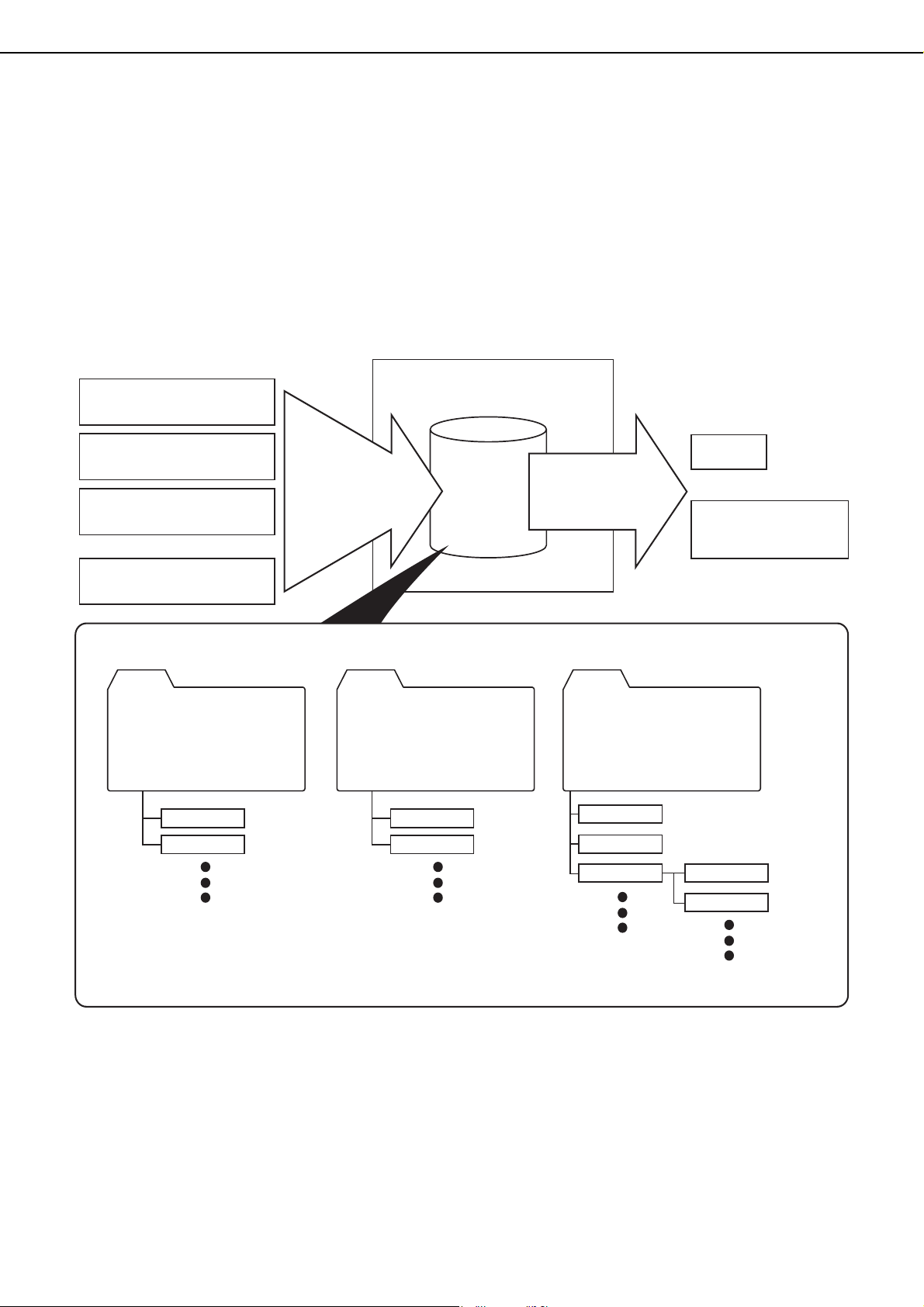
7-2
OVERVIEW
Document filing function
The document filing function allows you to save a document image in the machine's hard disk as a data file. The
image can be called up and printed or transmitted as needed.
The scanned document image is saved when printing or transmitting a document in copy mode, printer mode, or
image send mode ("QUICK FILE" or "FILE"). A document can also be scanned and saved without being printed,
copied, or transmitted ("scan save").
To allow you to search for the file and call it up, names (user name, file name, etc.) can be assigned to the file (except
when using Quick File).
■ Data flow
File 1
File 2
QUICK FILE FOLDER
File 1
File 2
MAIN FOLDER CUSTOM FOLDER
A password
can be set
A password
can be set
A password
can be set
Folder 1
Folder 2
Folder 3 File 1
File 2
Machine hard disk
Machine hard disk
Print
Save to machine's
hard disk
HDD
and
Send
(facsimile or image send
function must be required)
Printing in copy mode (Quick
File saving, page 7-6)
Printing from a computer (printer
data, page 7-9)
Transmission in fax/image send
mode (filing, page 7-7)
Scanning a document only
(scan save, page 7-10)
Data is saved by job
A user name and file name is
specified for each saved job
A user name and file name can
be specified for each file and
the file saved to a folder with
any desired name assigned.
Call up a saved
file to reuse it.
●A stored file can be moved to a different folder under certain conditions (page 7-22).
dragonII_copy_sec.book 2 ページ 2006年10月18日 水曜日 午後7時39分

OVERVIEW
7-3
7
■ Quick File folder
When [QUICK FILE FOLDER] is selected in the main screen of any of the modes, the file is saved in this folder.
Up to 1000 files can be saved in the Quick File folder. All files in the Quick File Folder can be deleted using the
administrator settings. If you have a file that you do not want deleted, set the file attribute to [PROTECT] (up to 500
files can be protected). (See [Property change] on page 7-21)
The following user and file names are automatically assigned (the names cannot be selected):
User name : User unknown
File name (example) : COPY_04042010_113050AM (job mode and month, day, year, hour, minute, second, AM/
PM of save). (In the example, the file was saved on 4/4/2010 at 11:30 and 50 sec in copy mode.)
When saved, jobs are classified by mode. A saved job can be called up from the COMPLETE job status screen.
■ Main folder
When saving a file, a previously stored user name (see [SYSTEM SETTINGS] on page 7-24) can be specified and
any file name can be assigned.
A password can also be set for a saved file ([CONFIDENTIAL] save). (See [Property change] on page 7-21.)
If a user name and file name are not selected, a name in the same format as Quick File is automatically assigned.
■ Custom folder
Up to 500 folders (named as desired) can be created in this folder. When saving a file in one of these folders, a
previously stored user name (see [SYSTEM SETTINGS] on page 7-24) can be specified and any file name can be
assigned.
A password can be set for a file saved in one of these folders.
■ Attributes of saved files
The protect setting can be selected for files saved with the document filing function. This prevents a file from being
moved or automatically or manually deleted.
Three attributes are available for saved files: [SHARING], [PROTECT], and [CONFIDENTIAL]. When saved with
the [SHARING] attribute, a file is not protected. When saved with the [PROTECT] or [CONFIDENTIAL] attribute, a
file is protected.
Files saved to the Quick File folder are all [SHARING]. When saving a file to the main folder or a custom folder,
[SHARING] or [CONFIDENTIAL] can be selected.
● A [SHARING] file can be changed to a [PROTECT]
or [CONFIDENTIAL]
file using
[Property change] (page 7-21).
● A password is set for a [CONFIDENTIAL] file to protect it. (The password must be entered to call up the file.)
● A password cannot be set for a [PROTECT] file, however, as long as the file is not changed to [SHARING] with
[PROPERTY CHANGE], the file will be protected.
CAUTION
● Documents saved with [QUICK FILE] are shared files that can be called up by anyone and printed or transmitted. For this
reason, do not use Quick File for sensitive documents or documents that you do not want to be reused by others.
● When saving a document with [FILE], set the attribute to [CONFIDENTIAL] and set a password to prevent others from
reusing the document.
● Even when a file is saved with the [CONFIDENTIAL] attribute, the attribute can be changed afterward to [SHARING] using
[Property change] (page 7-21). For this reason, do not save sensitive documents or documents that you do not want to be
reused by others.
● Except in cases provided for by law, SHARP Corporation bears no responsibility for any damages that result from the
leaking of sensitive information due to 1) manipulation by a third party of any data saved using the Quick File function or
filing function, or 2) incorrect operation of the Quick File function or filing function by the operator that saves the data.
dragonII_copy_sec.book 3 ページ 2006年10月18日 水曜日 午後7時39分
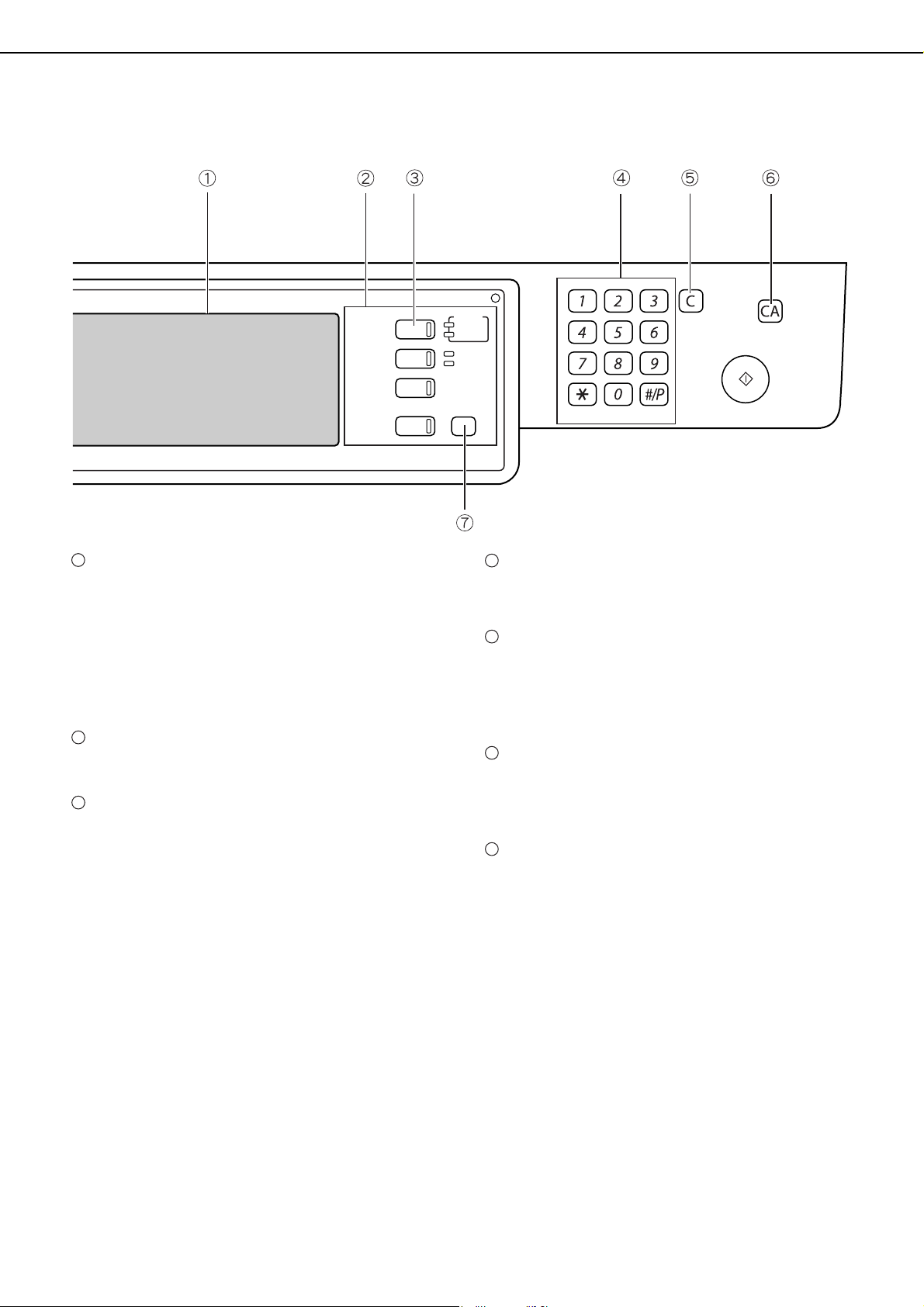
7-4
TO USE THE DOCUMENT FILING FUNCTION
A look at the operation panel
Touch panel (see the next page)
This displays messages and keys. Keys can be
touched to select and enter settings.
When a key is touched, a beep will sound and the
key will be highlighted to indicate that it is selected.
When a key cannot be selected in a screen, it will
be grayed out. If touched, a warning beep will
sound to alert you that it cannot be selected.
Mode select keys
Use this key to select the mode.
[DOCUMENT FILING] key
Touch this key to display the main screen of
document filing mode.
Numeric keys
Use these keys to enter a password or a numeric
value for a setting.
[C] key (Clear key)
Use this key if you make a mistake when entering a
password or numeric setting.
This key is also used to cancel scanning of a
document.
[CA] key (Clear all key)
Use this key to cancel a setting procedure and
return to the main screen. The key is also used to
cancel a special function.
[SYSTEM SETTINGS] key
Use this key to store, edit or delete a user name or
custom folder.
Saving files
To save files to the main folder or custom folders, a user name must be previously stored. To create a folder in the
custom folder, the folder name must be stored. These settings are configured in the system settings.
Follow the procedures explained in "Programming a user name", "Editing and deleting a user name", "Creating a
custom folder", and "Editing/deleting a custom folder" on pages 7-25 to 7-28.
LOGOUT
DOCUMENT
FILING
IMAGE SEND
COPY
JOB STATUS
SYSTEM
SETTINGS
LINE
DATA
PRINT
READY
DATA
1
2
3
4
5
6
7
dragonII_copy_sec.book 4 ページ 2006年10月18日 水曜日 午後7時39分
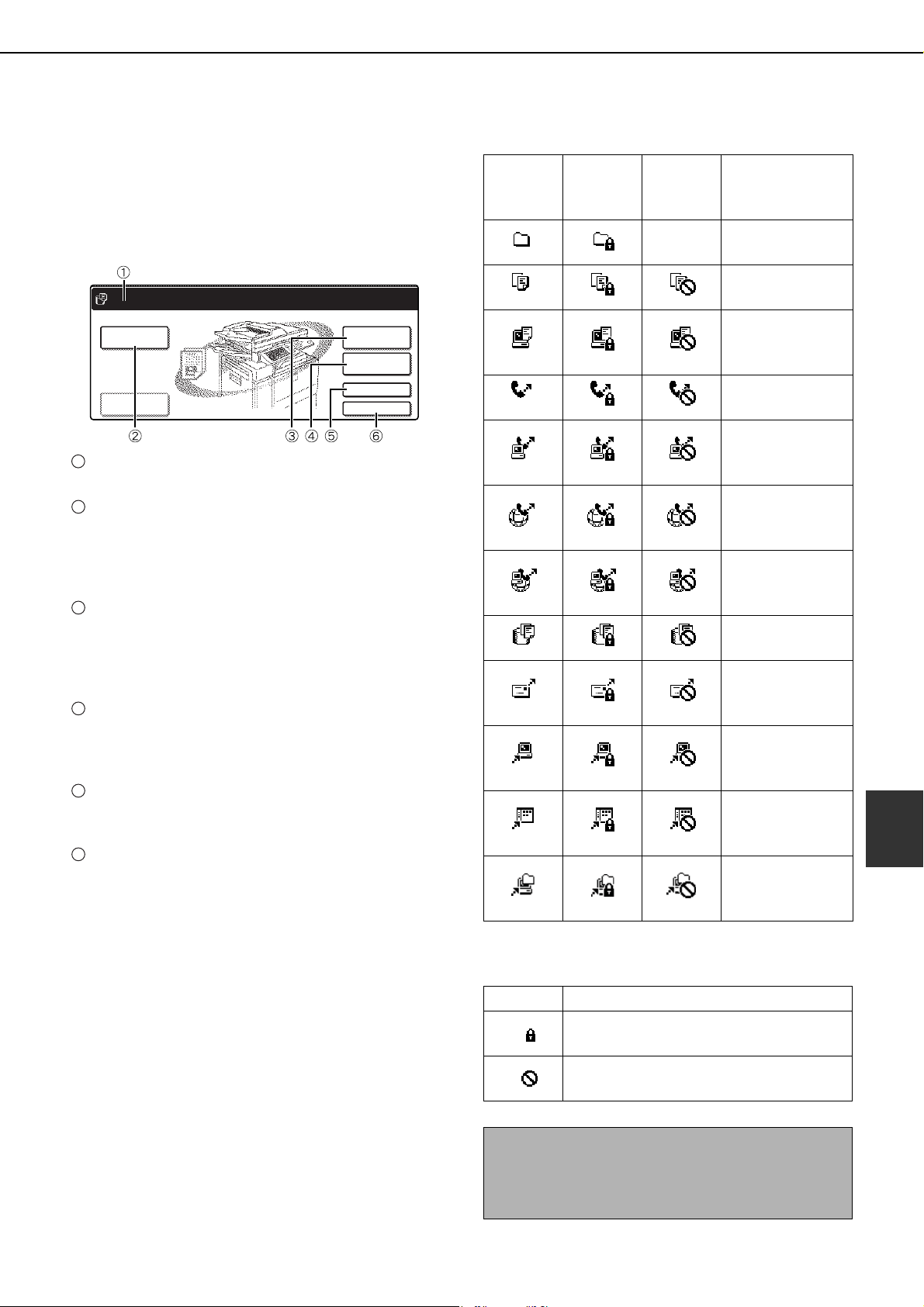
TO USE THE DOCUMENT FILING FUNCTION
7-5
7
Main screen of document filing
To display the main screen of document filing, press
the [DOCUMENT FILING] key when the touch panel
shows the copy mode screen, image send mode, or the
job status screen.
The main screen shows messages, keys, and items
that can be selected for document filing.
Message display
Displays messages.
[SCAN TO HDD] key
Touch to select scan save. Scan save is used to save
the image file of a scanned document in the main
folder or a custom folder without printing or
transmitting the document.
[FILE FOLDER] key
Touch to call up a file from the main folder or the
custom folder.
When the key is touched, the files in
the main folder or the folders in the custom folder
appear.
[QUICK FILE FOLDER] key
Touch to call up a file from the Quick File folder.
When the key is touched, the files in the Quick File
folder appear.
[SEARCH] key
Touch to search for a file by user name, file name,
or folder name.
[HDD STATUS] key
Touch to check the use of the machine's hard disk.
Document filing icons
The following icons may appear added to a main icon
or alone.
HDD STATUS
SEARCH
SCAN TO HDD
FILE
FOLDER
QUICK FILE
FOLDER
FILE RETRIEVE
FILE STORE
GLOBAL ACCESS
1
2
3
4
5
6
Main
icon
Icon of
confidential
file or folder
Icon of
protected
file
Meaning
Folder
Copy job file
Print job file
(including direct
print jobs)
Fax transmission
job file
PC-FAX
transmission job
file
Internet fax
transmission job
file
PC-Internet fax
transmission job
file
Scan save file
E-mail
transmission job
file
FTP
transmission job
file
Desktop
transmission job
file
Network Folder
transmission job
file
Icon
Meaning
Confidential file or folder
Protected file
NOTE
When the file of a job that was saved using scan save
is printed in job settings, the icon of the job is
highlighted.
dragon_07-1.fm 5 ページ 2006年11月29日 水曜日 午後9時40分
7-6
SAVING A DOCUMENT IMAGE FILE
Quick File
When printing or transmitting a document in copy mode, printer mode, or fax/image transmission mode,"QUICK
FILE" can be selected to save an image of the document to the Quick File folder.
The image can be called up at a later time, allowing you to print or transmit the document without having to locate
the original.
1
Place the original in the document feeder
and select resolution and exposure
settings.
See steps 1 to 8 of
"Making copies with the
automatic document
feeding function" on
pages 4-7 to 4-8 and
"ADJUSTING THE
EXPOSURE" on page 4-
14.
2
Touch the [QUICK FILE] key in the main
screen.
The [QUICK FILE] key
will be highlighted to
indicate that the function
is selected.
If the [FILE] key is
grayed out, only the
[QUICK FILE] key can
be selected.
When you touch the [QUICK FILE] key, a message
asking you to confirm the save will appear. Touch
the [OK] key in the message screen and go to the
next step.
If you wish to cancel the save, touch the [QUICK
FILE] key after touching the [OK] key so that the
[QUICK FILE] key is no longer highlighted.
3
Press the [START] key on the operation
panel.
To prevent accidental
saving of the document,
the warning "THE
SCANNED DATA IS
STORED IN THE
QUICK FILE FOLDER."
appears for 6 seconds
after the [START] key is pressed.
When copying begins, the image is saved.
4
The saved image can be called up from the
Quick File folder or the job status screen.
●To call the image up from the Quick File folder,
see "Calling up and using a saved file" on
page 7-15.
●To call the job up from the finished job status
screen, see "Calling up and manipulating a
file from the job status screen" on page 7-23.
5
The following operations can be
performed on the image that was called up
in step 4.
●Print the image (page 7-17)
●Transmit the image (page 7-20)
●Change the attribute (page 7-21)
●Move the image (page 7-22)
●Delete the image (page 7-22)
●Check details on the image (page 7-22)
NOTE
As an example, the procedure for saving a document to the Quick File folder while copying using the automatic
document feeding function is explained below.
AUTO
AUTO
AUTO
ORIGINAL
EXPOSURE
8 x11
1
/
2
QUICK FILE
FILE
dragonII_copy_sec.book 6 ページ 2006年10月18日 水曜日 午後7時39分
SAVING A DOCUMENT IMAGE FILE
7-7
7
Filing
When printing or transmitting a document in copy mode, printer mode, or image send mode, "FILE" can be selected
to save an image of the document to the main folder or a previously created custom folder. The image can be called
up at a later time, allowing you to print or transmit the document without having to locate the original.
1
Place the original in the document feeder
and select resolution and exposure
settings.
See steps 1 to 8 of
"Making copies with the
automatic document
feeding function" on
pages 4-7 to 4-8 and
"ADJUSTING THE
EXPOSURE" on page 4-
14.
2
Touch the [FILE] key in the main screen.
An information entry
screen appears.
3
Touch the [USER NAME] key.
4
Touch the desired user name in the list of
user names that appears.
User names must be previously stored
("Programming a user name" on page 7-25).
5
Touch the [OK] key.
The touched user name is selected and you return to the
screen of step 3. The selected user name appears.
6
Touch the [FILE NAME] key.
A character entry screen
appears. Enter a file
name (maximum of 30
characters). (See page
7-29 to enter
characters.)
7
Touch the [STORED TO:] key.
8
Touch the desired folder name in the list of
folder names that appears
Folder names must be previously stored.
("Creating a custom folder" on page 7-27). If a
password has been set for the folder, a password
entry screen will appear. Enter the 5-digit
password for the folder.
NOTE
As an example, the procedure for using the filing function while copying using the automatic document feeding
function is explained below.
AUTO
AUTO
AUTO
ORIGINAL
EXPOSURE
8 x11
1
/
2
QUICK FILE
FILE
USER NAME
CONFIDENTIAL
MAI
COPY
FILE NAME
STORED TO:
Suzuki
Ono
Hasegawa
Sasaki
UVWXYZOPQRSTJKLMNEFGHIABCD
ALL USERS
Yamada
Nakata
1/1
NOTE
If you do not select a user name, the following name
is automatically selected:
Example : User unknown
NOTE
If you do not enter a file name, a file name in the
following format is automatically assigned:
Auto generated file name : Month, day, year, hour,
minute, second, AM/PM
(Example : COPY_04042010_113050AM)
USER NAME
FILE NAME
STORED TO:
MAI
COPY
USER NAME
FILE NAME
STORED TO:
MAIN
COPY
ALL FOLDERS
CUSTOM FOLDER 1
CUSTOM FOLDER 3
CUSTOM FOLDER 5
CUSTOM FOLDER 7
CUSTOM FOLDER 6
CUSTOM FOLDER 4
CUSTOM FOLDER 2
CUSTOM FOLDER 8
ABCD EFGHI JKLMN OPQRS
UVWXY
1/2
dragonII_copy_sec.book 7 ページ 2006年10月18日 水曜日 午後7時39分
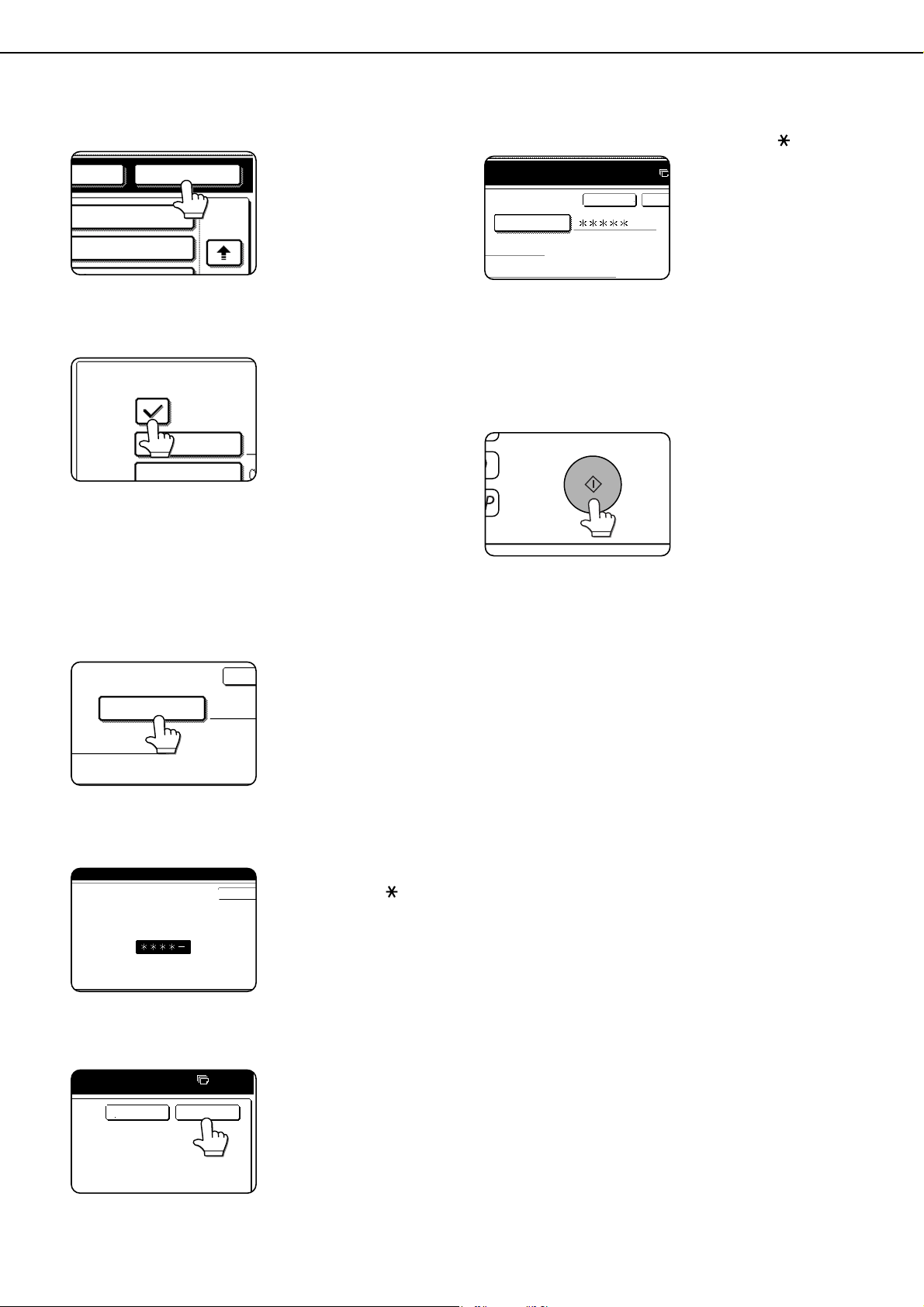
SAVING A DOCUMENT IMAGE FILE
7-8
9
Touch the [OK] key.
The touched folder is
selected and you return
to the screen of step 5.
The selected folder
name is displayed.
10
If needed, select the [CONFIDENTIAL]
checkbox (only in copy mode).
When this is selected, the
file is stored with the
attribute [CONFIDENTIAL].
To call up the file, the
password that will be set in
the following steps must be
entered.
●If you selected the [CONFIDENTIAL]
checkbox, touch the [PASSWORD] key and
enter a password.
●If you did not select the [CONFIDENTIAL]
checkbox, go to step 16. The file will be saved
as a [SHARING] file.
11
Touch the [PASSWORD] key.
The password entry
screen appears.
12
Enter a 5-digit password with the numeric
keys.
As each digit is entered,
"
-
" changes to " ".
13
Touch the [OK] key.
14
You will return to the screen of step 4. The
set password is displayed with " ".
15
Touch the [OK] key.
You will return to the main screen.
16
Press the [START] key on the operation
panel.
When copying begins,
the image is saved.
17
The saved image can be called up using
the file name, folder name, or user name,
or from the filing folder.
●To call up the image by entering the file name,
folder name, or user name, see "Searching for
and calling up a saved file" on page 7-13.
●To call up the image from the filing folder, see
"Calling up and using a saved file" on page 7-
15.
18
The following operations can be
performed on the image that was called
up:
●Print the image (page 7-17)
●Transmit the image (page 7-20)
●Change the attribute (page 7-21)
●Move the image (page 7-22)
●Delete the image (page 7-22)
●Check details on the image (page 7-22)
OK
FOLDER
2/2
USER NAME
FILE NAME
CONFIDENTIAL
FILE INFORMATION
PASSWORD
CAN
XYYY
ENTER PASSWORD VIA THE 10-KEY PAD.
CANCEL
CANCEL
0
OK
10-KEY PAD.
XYYY
OK
CANCEL
PASSWORD
dragonII_copy_sec.book 8 ページ 2006年10月18日 水曜日 午後7時39分

SAVING A DOCUMENT IMAGE FILE
7-9
7
Print jobs
Print jobs sent to the machine using the machine's
printer driver can be saved in the main folder or a
previously created custom folder when printed. The
saved print data can be called up and printed or
transmitted without having to open the original file on
your computer.
This section gives an overview of this function and
explains the procedure for printing from the operation
panel of the machine.
For the procedures that are performed at your
computer when initiating printing such as selecting the
save location and file attribute, see the printer driver
Help file.
■ Using a print job file (printing,
deleting, transmitting, etc.)
1
Press the [DOCUMENT FILING] key on the
operation panel.
2
Touch the [FILE FOLDER] key or the
[QUICK FILE FOLDER] key depending on
where the file is saved.
●Touch the [FILE FOLDER] key if the file is
saved in the main folder or the custom folder.
Touch the [QUICK FILE FOLDER] key if the
file is saved in the Quick File folder.
If you touched the [FILE FOLDER] key, the
files in the main folder or the folders in the
custom folder appear. If you open the wrong
folder, touch the [MAIN FOLDER] key or the
[CUSTOM FOLDER] key and open the
correct folder.
●If the desired file is saved in the main folder,
go to step 4. If the desired file is saved in a
custom folder, go to step 3.
●If you touched the [QUICK FILE FOLDER]
key, the files in the Quick File folder appear.
Go to step 4.
3
Touch the key of the folder that contains
the desired file.
If a password is set for
the selected folder, a
password entry screen
will appear. Enter the 5-
digit password with the
numeric keys.
4
Touch the printer icon ( ) tab and then
touch the key of the desired file.
The following screen appears if the [QUICK FILE
FOLDER] key is touched in step 2.
Touch the key of the file that you wish to call up. A
menu screen will appear.
If a password is set for the file, a password entry
screen will appear. Enter the 5-digit password with
the numeric keys.
5
Touch the key of the operation that you
wish to perform.
(1) [PRINT] key (see page 7-17)
(2) [SEND] key (see page 7-20)
(3) [PROPERTY CHANGE] key (see page 7-21)
(4) [MOVE] key (see page 7-22)
(5) [DELETE] key (see page 7-22)
(6) [DETAIL] key (see page 7-22)
The setting screen of the selected operation
appears. See the indicated page.
DOCUMENT
FILING
IMAGE SEND
COPY
JOB STATUS
SYSTEM
SETTINGS
LINE
DATA
PRINT
READY
DATA
FILE
FOLDER
QUICK FILE
FOLDER
FILE RETRIEVE
SEARCH
HDD STATUS
OPQRSJKLMNEFGHIABCD
CUSTOM FOLDER
CUSTOM FOLDER 1
CUSTOM FOLDER 3
CUSTOM FOLDER 5
CUSTOM FOLDER 7
CUSTO
CUSTO
CUSTO
CUSTO
ALL FOLDERS
MAIN FOLDER
MAIN FOLDER
SEARCHCUSTOM FOLDER BACK
1/1
FILE NAME
Basic
Yamada
2003/10/01
2003/10/01
2003/10/01
Sato
Akata
presentation
Product
PRINTS
USER NAME DATE
BATCH P.
1
1
QUICK FILE FOLDER
SEARCH BACK
FILE NAME
Tanaka7890123456
User unknown
2003/10/01
2003/10/01
User unknown
Suzuki7890123456
PRINTS
USER NAME DATE
1
1
BATCH P.
(1) (2) (3)
(4) (5) (6)
SELECT THE JOB.
PRINT
MOVE
SEND
DELETE
PROPERTY
CHANGE
DETAIL
JOB SETTINGS
Basic specifications Yamada Taro
CANCEL
8 "x11"
1
/
2
dragon_07-1.fm 9 ページ 2006年11月30日 木曜日 午前9時34分
SAVING A DOCUMENT IMAGE FILE
7-10
Scan Save
Scan save is used to save a scanned document image in the main folder or the custom folder without copying or transmitting it.
1
Press the [DOCUMENT FILING] key on the
operation panel.
2
Touch the [SCAN TO HDD] key.
3
Touch the [SPECIAL MODES] key.
Select any special
functions that you wish
to use (otherwise skip
this step).
When the [SPECIAL
MODES] key is touched,
the special modes
selection screen appears. (See "Using special
functions for scan save" on page 7-12.)
4
Touch the [FILE INFORMATION] key.
5
The screens for selecting the user name, file
name, folder, and attribute appear. Configure the
settings as explained in step 3 to step 15 on
pages 7-7 to 7-8. When step 15 is completed, you
will return to the main screen of document filing.
6
Perform any of the following steps 7 to 16
as needed. When finished, go to step 17 on
page 7-11.
●To set the original size, perform steps 7 to 10.
●To set the resolution, perform steps 11 to 13
on page
7-11
.
●To select the exposure, perform steps 14 to 16
on page
7-11
.
●If you no not wish to select any of the above
settings, go to step 17 on page 7-11.
7
Touch the [ORIGINAL] key.
8
To set the original size, see "Manually
setting the scanning size" on page 4-5.
9
If the original is two-sided, touch the [2-
SIDED BOOKLET] key or the [2-SIDED
TABLET] key depending on where the
pages are bound.
10
Touch the [OK] key.
You will return to the
screen of step 7.
NOTE
For explanations of the special functions, see page
7-12 and chapter 5.
DOCUMENT
FILING
IMAGE SEND
COPY
JOB STATUS
SYSTEM
SETTINGS
LINE
DATA
PRINT
READY
DATA
SCAN TO HDD
FILE STORE
SPECIAL MODES
FILE
INFORMATION
FILE
INFORMATION
SPECIAL MODES
SCAN TO HDD
FILE
FOLDER
QUICK FILE
FOLDER
FILE STORE
FILE RETRIEVE
SEARCH
HDD STATUS
GLOBAL ACCESS
NOTE
If the original pages are bound at the side, the
document is a "booklet". If the original pages are
bound at the top, the document is a "tablet".
ORIGINAL
RESOLUTION
AUTO
300x300dpi
2-SIDED
BOOKLET
2-SIDED
TABLET
SCAN SIZE STORE SIZ
100%
AUTO AUTO
OK
STORE SIZE
AUTO
IDED
dragon_07-1.fm 10 ページ 2006年11月30日 木曜日 午前9時0分
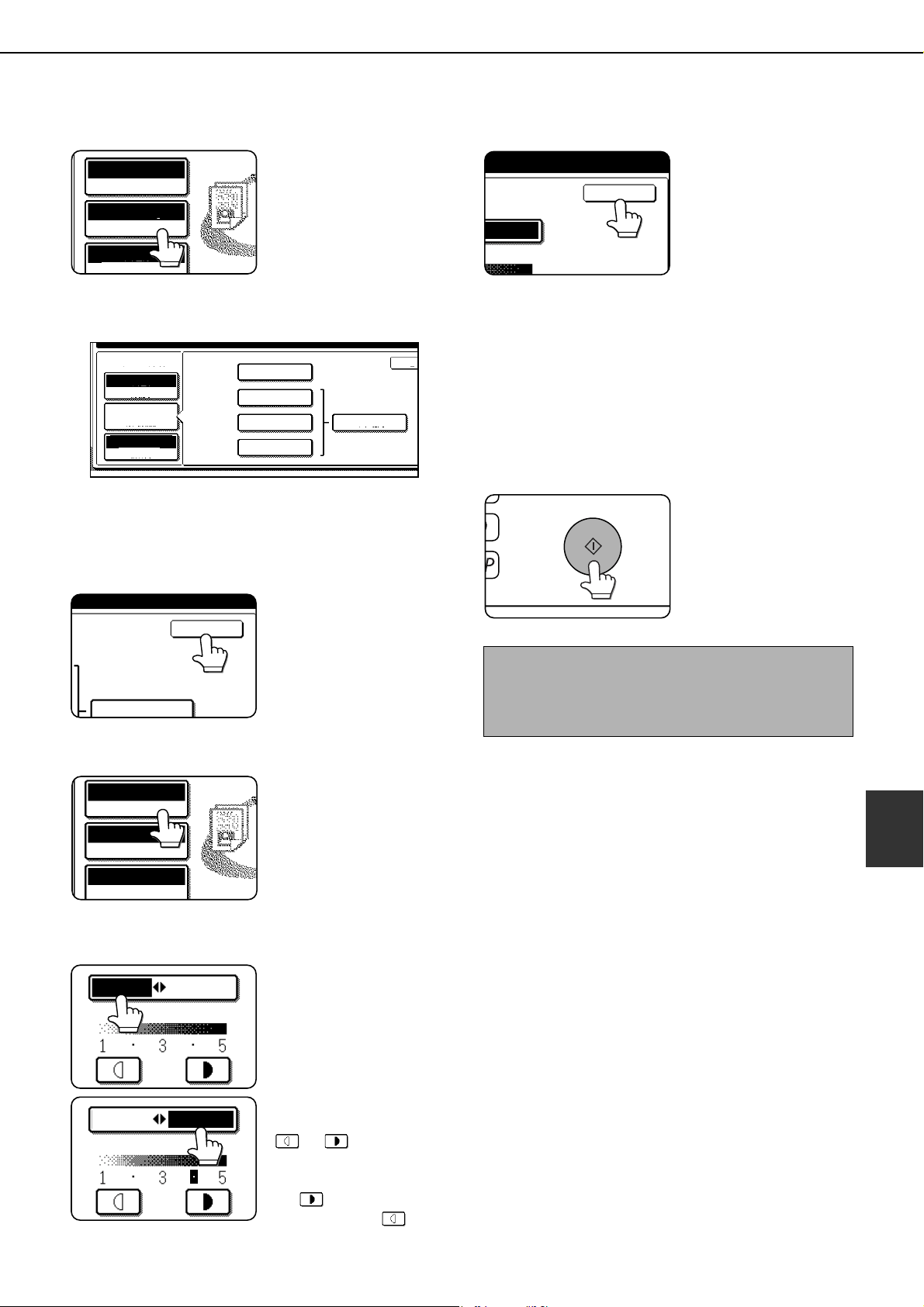
SAVING A DOCUMENT IMAGE FILE
7-11
7
11
Touch the [RESOLUTION] key.
12
Touch the key of the desired resolution.
Select one of four resolution levels as appropriate
for the original.
The selected resolution key is highlighted.
13
Touch the [OK] key.
You will return to the
screen of step 11.
14
Touch the [EXPOSURE] key.
15
Select [AUTO] or [MANUAL].
To have the exposure
adjusted automatically,
select [AUTO].
If you selected
[MANUAL], touch the
or key to adjust
the exposure.
(For a darker image, touch
the key. For a lighter
image, touch the key.)
16
Touch the [OK] key.
You will return to the
screen of step 14.
17
Place the original and touch the [START]
key.
[Placing the original]
●For information on placing the original, see
"NORMAL COPYING" in chapter 4.
●If you selected the "Card Shot" special function,
the document glass must be used.
●If you selected job build mode, the automatic
document feeding function must be used.
Scanning begins.
If you are using the
document glass, touch
the [READ-END] key
after all pages have
been scanned.
18
The saved image can be called up using
the file name, folder name, or user name,
or from the filing folder.
●To call up the image by entering the file name,
folder name, or user name, see "Searching for
and calling up a saved file" on page 7-13.
●To call up the image from the filing folder, see
"Calling up and using a saved file" on page 7-
15.
19
The following operations can be
performed on the image that was called up
in step 18:
●Print the image (page 7-17)
●Transmit the image (page 7-20)
●Change the attribute ((page 7-21)
●Move the image (page 7-22)
●Delete the image (page 7-22)
●Check details on the image (page 7-22)
ORIGINAL
RESOLUTION
EXPOSURE
AUTO
AUTO
300x300dpi
PRESS
[START]
TO
SCAN
ORIGINAL
.
SCAN TO HDD
EXPOSURE
ORIGINAL
RESOLUTION
200x200dpi
O
K
400x400dpi
600x600dpi
300x300dpi
HALF TONE
AUTO
AUTO
OK
HALF TONE
ORIGINAL
RESOLUTION
EXPOSURE
AUTO
AUTO
300x300dpi
MANUAL
AUTO
MANUAL
AUTO
NOTE
This completes the scan save procedure. Follow the
steps below when you wish to call up the image and
print or transmit it.
MANUAL
OK
dragonII_copy_sec.book 11 ページ 2006年10月18日 水曜日 午後7時39分
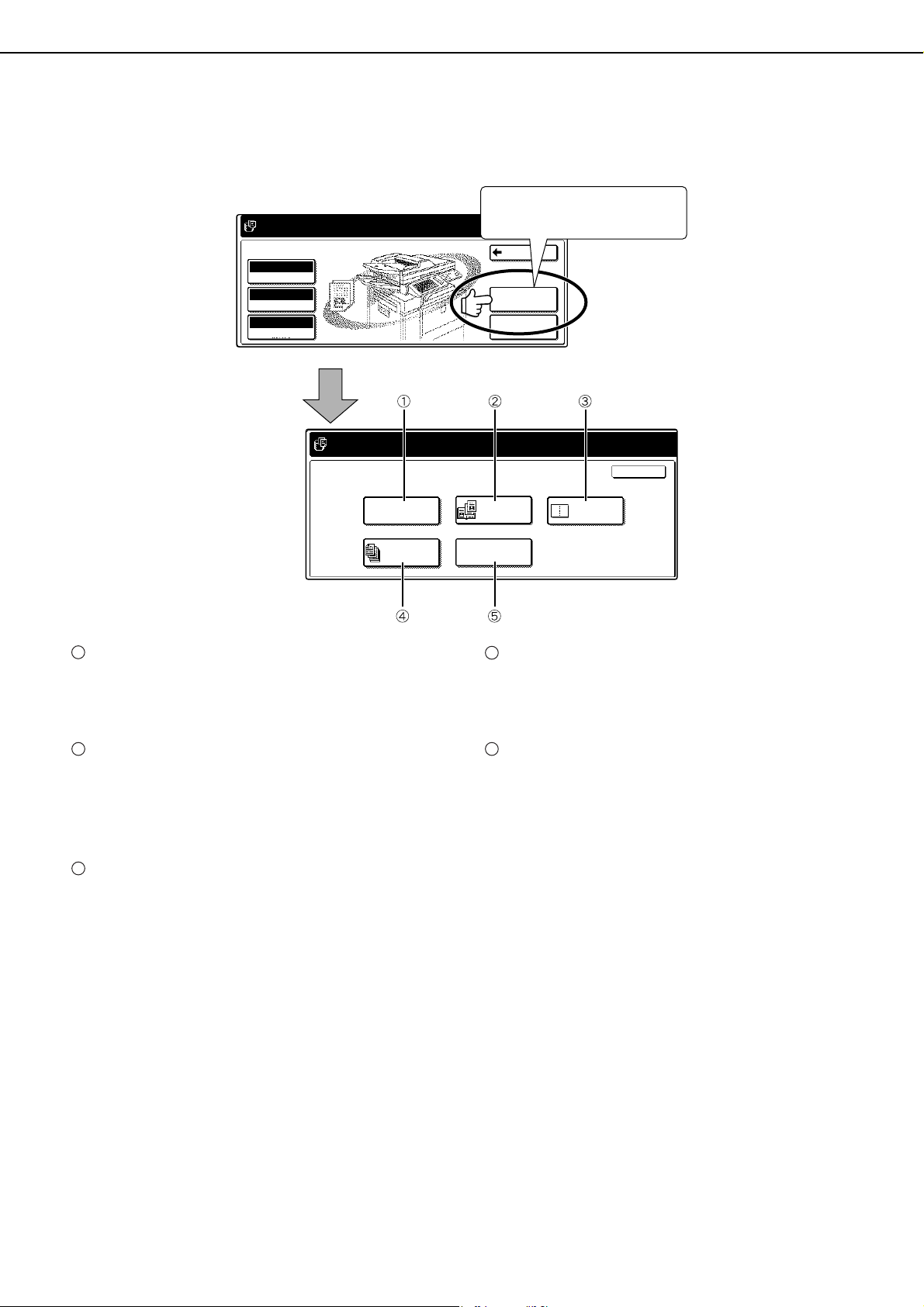
SAVING A DOCUMENT IMAGE FILE
7-12
■ Using special functions for scan save
Touch the [SPECIAL MODES] key in the main scan save screen to display the special modes screen.
The functions below can be selected in this screen.
[ERASE] key (see page 5-4)
Use this function to erase shadows that can appear
around the edges of the image when books and
other thick originals are scanned.
[DUAL PAGE SCAN] key (see page 5-5)
(Equivalent to Dual page copy in copy mode)
This function is used to save the opened pages of
a book in order one page at a time (left page then
right page).
[2in1] key (
see page 5-24
)
(When the fax or image send function is installed,
this corresponds to the 2in1 function explained in
the fax and network scanner manuals. This also
corresponds to the "Multishot" function in copy
mode, however, only "2in1" is possible for scan
save. )
This function reduces two original pages and
arranges the images on a single page in a uniform
layout.
[JOB BUILD] key (see page 5-8)
When you have more pages than can be placed in
the document feeder at once, this function allows
you to scan the pages in sets.
[CARD SHOT] key (see page 5-29)
This function allows you to save the front and back
side of a card on a single page (instead of saving
each side as a separate file).
ORIGINAL
RESOLUTION
BACK
SPECIAL MODES
FILE
INFORMATION
EXPOSURE
SCAN TO HDD
AUTO
AUTO
READY TO SCAN TO HDD.
PRESS [START] TO SCAN ORIGINAL.
300x300dpi
[READY TO SCAN TO HDD.
PRESS [START] TO SCAN ORIGINAL.
SPECIAL MODES
ERASE
DUAL PAGE
SCAN
CARD SHOT
JOB
BUILD
2in1
21
OK
Touch the [SPECIAL MODES]
key in the main screen.
1
2
3
4
5
dragonII_copy_sec.book 12 ページ 2006年10月18日 水曜日 午後7時39分
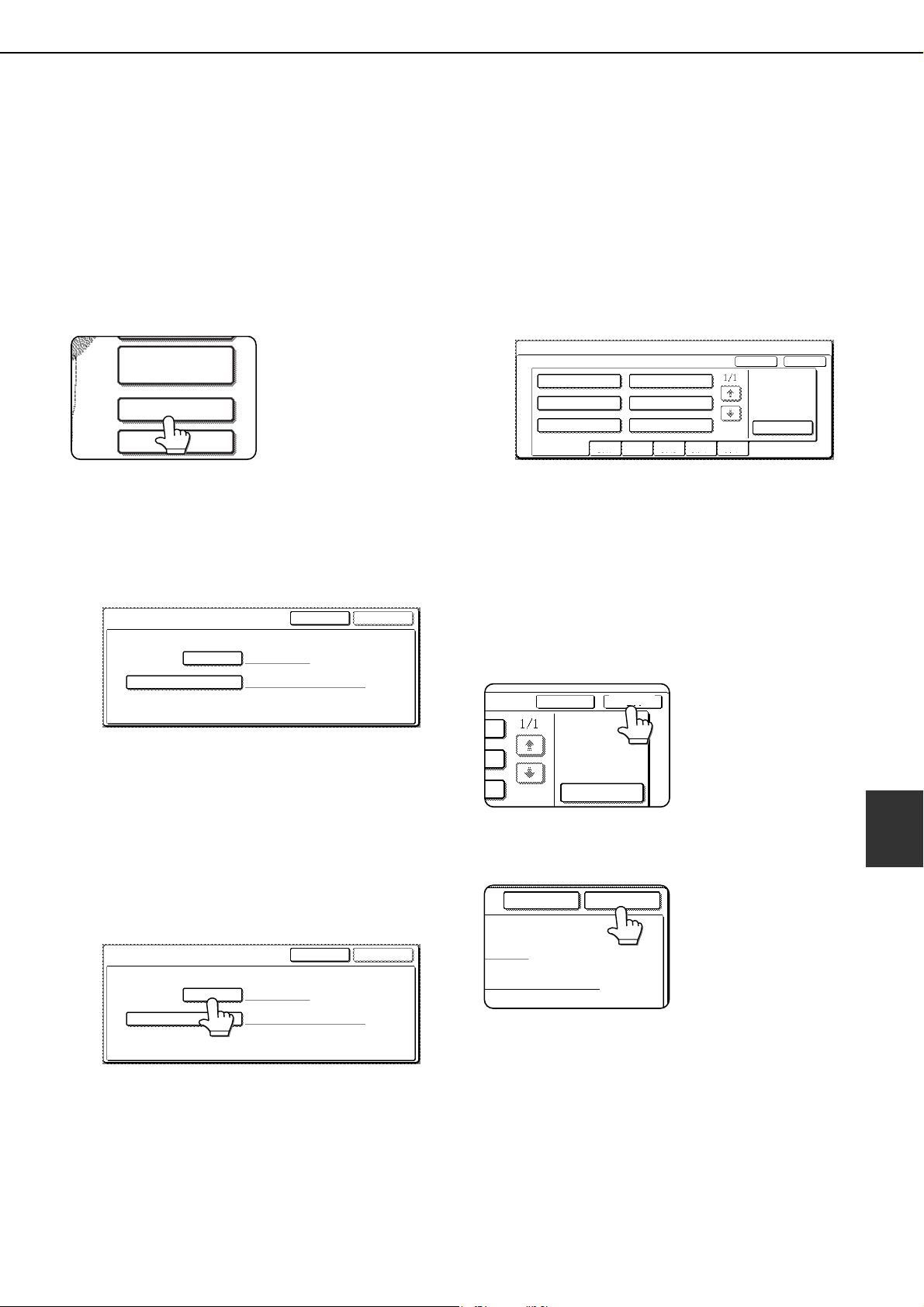
7-13
7
CALLING UP AND USING A FILE
Searching for and calling up a saved file
When calling up a file, you can enter the file name, folder name, or user name to quickly search for the file.
To search for a file, touch the [SEARCH] key in the main screen of document filing mode or in a screen that shows
folders or files in a folder. A data search screen will appear.
■ Procedure for searching for a file
1
Touch the [SEARCH] key in the main
screen of document filing mode or in a
screen that shows folders or files in a
folder.
If you touch the
[SEARCH] key in the
screen that shows the
folders in the custom
folder or a screen that
shows the files in a
folder, the [SEARCH
WITHIN CURRENT FOLDER] checkbox will
appear. Select this checkbox to search for a file
only in the selected folder.
2
In the data search screen, select whether
you will search by [USER NAME] or [FILE
OR FOLDER NAME].
●
To search by user name, follow steps 3 to 6.
●To search by file name or folder name,
perform step 8.
●To stop searching, touch the [CANCEL]key.
[Searching by user name]
3
Touch the [USER NAME] key.
4
Touch the one-touch key of the user name
that you wish to use to search for the file.
If you wish to directly enter the user name,
touch the [DIRECT ENTRY] key.
●The selected user name is highlighted.
●If you select the wrong user name, touch the
key of the correct name.
●If you touch the [DIRECT ENTRY] key, a
character entry screen will appear. Enter the
user name.
See page 7-29 for the procedure for entering
characters.
5
Touch the [OK] key.
You will return to the
screen of step 2 and the
selected user name will
appear.
6
Touch the [START SEARCH] key.
HDD STATUS
SEARCH
FILE
FOLDER
CANCEL
USER NAME
SEARCH
FILE OR FOLDER NAME
START SEARCH
CANCEL
USER NAME
SEARCH
FILE OR FOLDER NAME
START SEARCH
SEARCH
SELECT USER NAME.
Suzuki
Ono
Hasegawa
Sasaki
CANCEL
DIRECT ENTRY
UVWXYZOPQRSTJKLMNEFGHIABCDALL USERS
OK
Yamada
Nakata
CANCEL
DIRECT ENTRY
OK
CANCEL
START SEARCH
dragon_07-2.fm 13 ページ 2006年11月29日 水曜日 午後10時6分
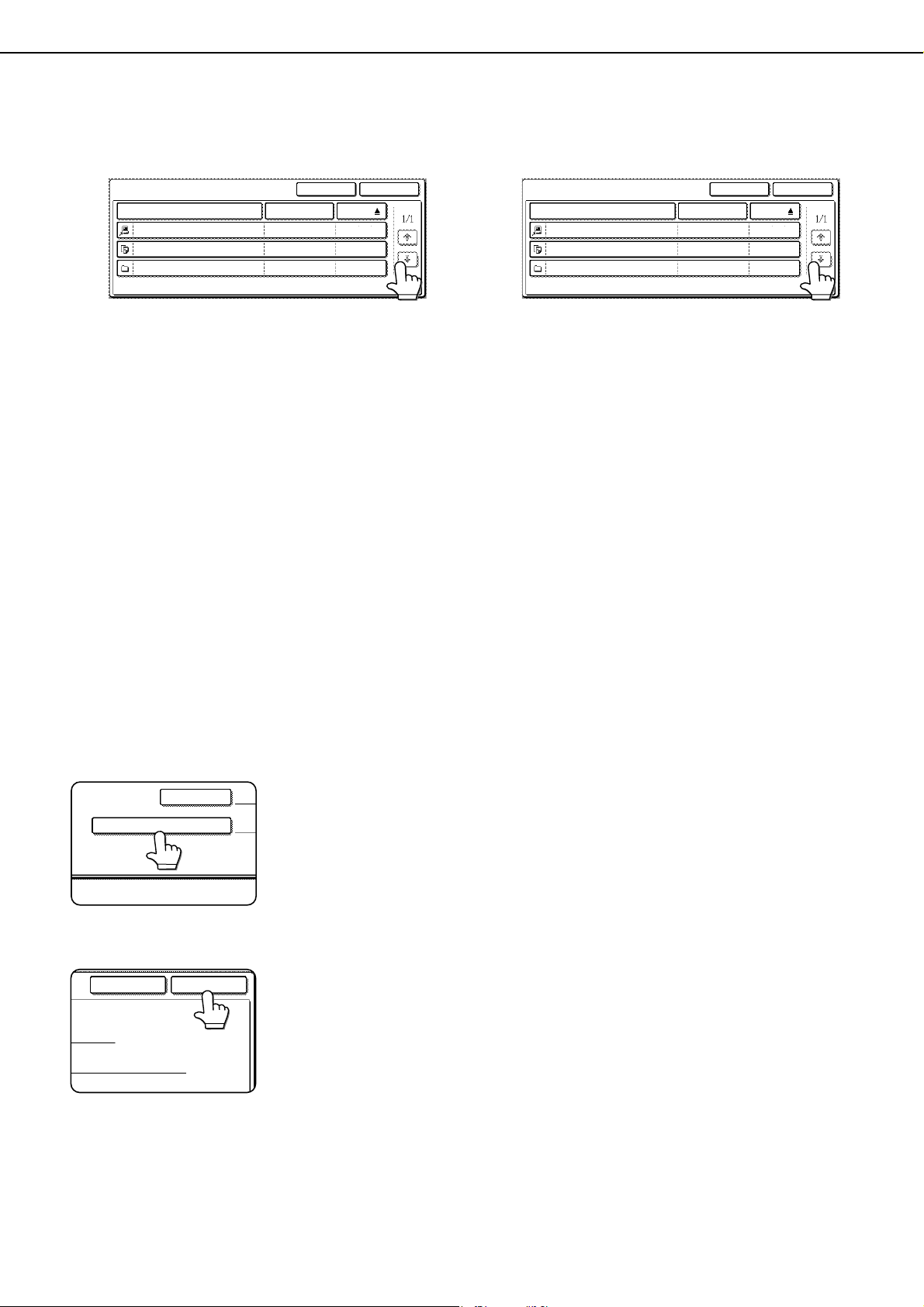
CALLING UP AND USING A FILE
7-14
7
The results of the user name search
appear. Touch the desired file name or
folder name.
●See page 7-5 for a list of the document filing
icons.
●When a file name is touched, the operation
selection screen appears. (To perform an
operation using the file, go to step 5 on
page 7-16.)
●When a folder name is touched, all files in the
folder are displayed. Touch the desired file.
(To perform an operation using the file, go
to step 5 on page 7-16.)
●To change the order of file display, touch the
[FILE OR FOLDER NAME] key, [USER
NAME] key, or [DATE] key.
If you touch a file name or folder name that
has a password, a password entry screen will
appear. Enter the 5-digit password with the
numeric keys.
[Searching by file or folder name]
8
Touch the [FILE OR FOLDER NAME] key.
A character entry screen
appears. Enter the file
name or folder name to
be used for the search.
See page 7-29 to enter
characters.
9
Touch the [START SEARCH] key.
10
The results of the file or folder name
search appear. Touch the desired file
name or folder name.
●See page 7-5 for a list of the document filing
icons.
●When a file name is touched, the operation
selection screen appears. (To perform an
operation using the file, go to step 5 on
page 7-16.)
●When a folder name is touched, all files in the
folder are displayed. Touch the desired file.
(To perform an operation using the file, go
to step 5 on page 7-16.)
●To change the order of file display, touch the
[FILE OR FOLDER NAME] key, [USER
NAME] key, or [DATE] key.
If you touch a file name or folder name that
has a password, a password entry screen will
appear. Enter the 5-digit password with the
numeric keys.
SEARCH
FILE OR FOLDER NAME USER NAME
AAA
AAA
AAA
Product SpecA
Product B
Product 2
2003/10/20
2003/10/20
2003/10/20
SEARCH AGAINCANCEL
DATE
USER NAME
FILE OR FOLDER NAME
CANCEL
START SEARCH
SEARCH
FILE OR FOLDER NAME USER NAME
SEARCH AGAINCANCEL
DATE
Yamada
Sato
Akata
Product specifications
Products
Product_info
2002/12/30
2002/12/30
dragonII_copy_sec.book 14 ページ 2006年10月18日 水曜日 午後7時39分
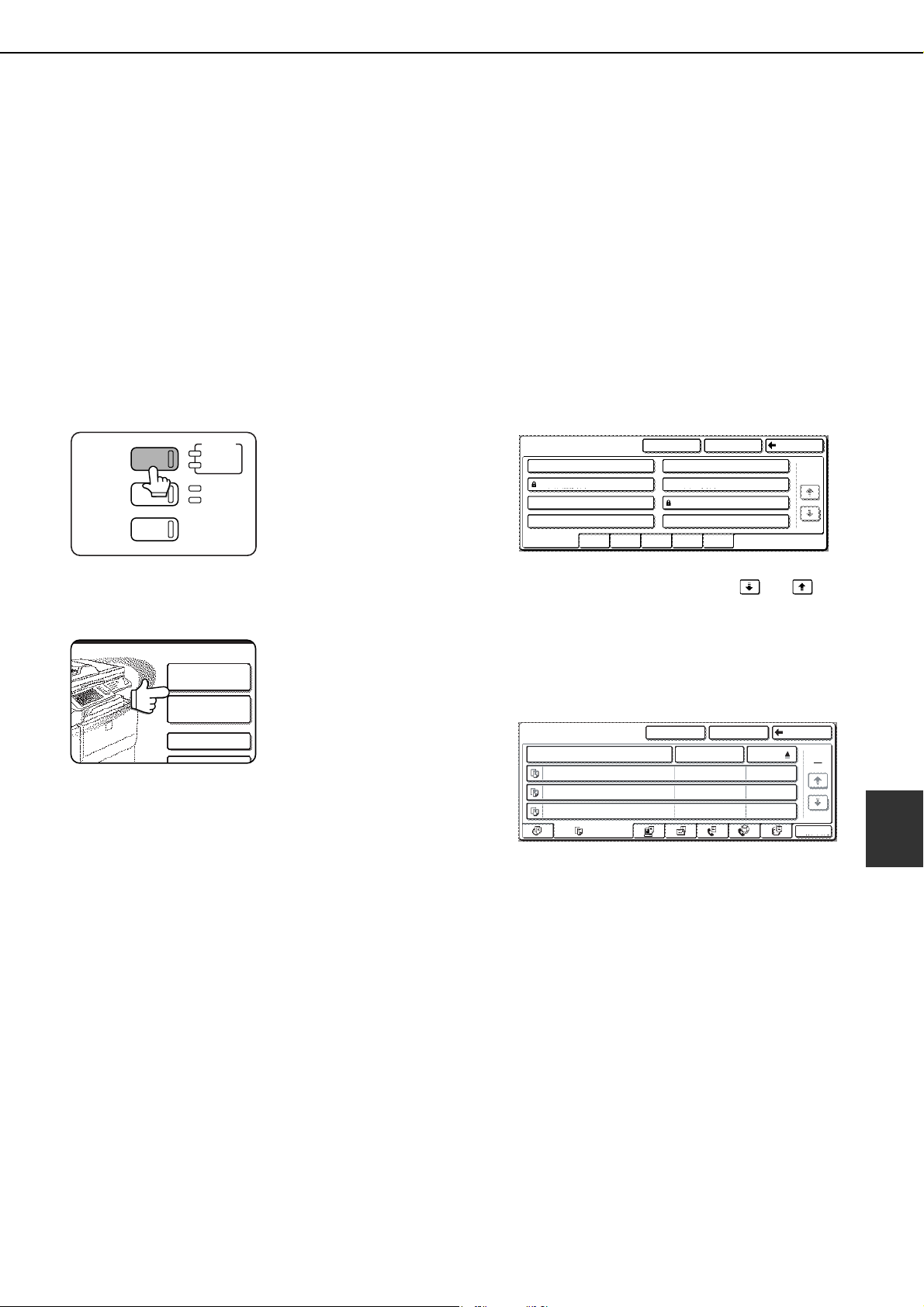
CALLING UP AND USING A FILE
7-15
7
Calling up and using a saved file
A file saved with the document filing function can be called up and printed or manipulated as needed.
The following operations can be performed:
● [Print] : Print the file (page 7-17).
● [Send] : Transmit the saved file (page 7-20). The file can be transmitted by Scan to E-mail, Scan to FTP, Scan to
Network Folder, fax, or Internet fax. (All of these methods require installation of the appropriate options.)
(Page 1-12)
● [Property change] : Change the attribute of the saved file (page 7-21).
● [Move] : Move the file (page 7-22).
● [Delete] : Delete the file (page 7-22).
● [Detail] : Show details on the saved file (page 7-22).
■ General procedure for using a saved file
1
Press the [DOCUMENT FILING] key on the
operation panel.
2
Touch the [FILE FOLDER] key or the
[QUICK FILE FOLDER] key depending on
where the file is saved.
●Touch the [FILE FOLDER] key if the file is
saved in the main folder or the custom folder.
Touch the [QUICK FILE FOLDER] key if the
file is saved in the Quick File folder.
If you touched the [FILE FOLDER] key, the
files in the main folder or the folders in the
custom folder appear. If you open the wrong
folder, touch the [MAIN FOLDER] key or the
[CUSTOM FOLDER] key and open the
correct folder.
●If the desired file is saved in the main folder,
go to step 4. If the desired file is saved in a
custom folder, go to step 3.
●If you touched the [QUICK FILE FOLDER]
key, the files in the Quick File folder appear.
Go to step 4.
3
Touch the key of the folder that contains
the desired file.
If there are more custom folder keys than can
appear in one screen, touch the or keys
to change screens.
If a password is set for the selected folder, a
password entry screen will appear. Enter the 5-
digit password with the numeric keys.
4
Touch the desired file key.
Touch the key of the file that you wish to use.
(Parts of the screen that are framed in black are
keys that can be touched.)
A menu screen will appear.
If a password is set for the file, a password entry
screen will appear. Enter the 5-digit password with
the numeric keys.
DOCUMENT
FILING
IMAGE SEND
COPY
JOB STATUS
SYSTEM
SETTINGS
LINE
DATA
PRINT
READY
DATA
FILE
FOLDER
QUICK FILE
FOLDER
FILE RETRIEVE
SEARCH
HDD STATUS
UVWXYZOPQRSTJKLMNEFGHIABCD
CUSTOM FOLDER
CUSTOM FOLDER 1
CUSTOM FOLDER 3
CUSTOM FOLDER 5
CUSTOM FOLDER 7
CUSTOM FOLDER 2
CUSTOM FOLDER 4
CUSTOM FOLDER 6
CUSTOM FOLDER 8
ALL FOLDERS
MAIN FOLDER SEARCH BACK
1/1
MAIN FOLDER
SEARCHCUSTOM FOLDER BACK
FILE NAME
Basic specifications
Yamada
2003/10/20
2003/10/20
2003/10/20
Sato
Akata
presentaion_0903
Product_info
COPY
USER NAME
DATE
BATCH P.
1
1
dragon_07-2.fm 15 ページ 2006年11月30日 木曜日 午前9時39分
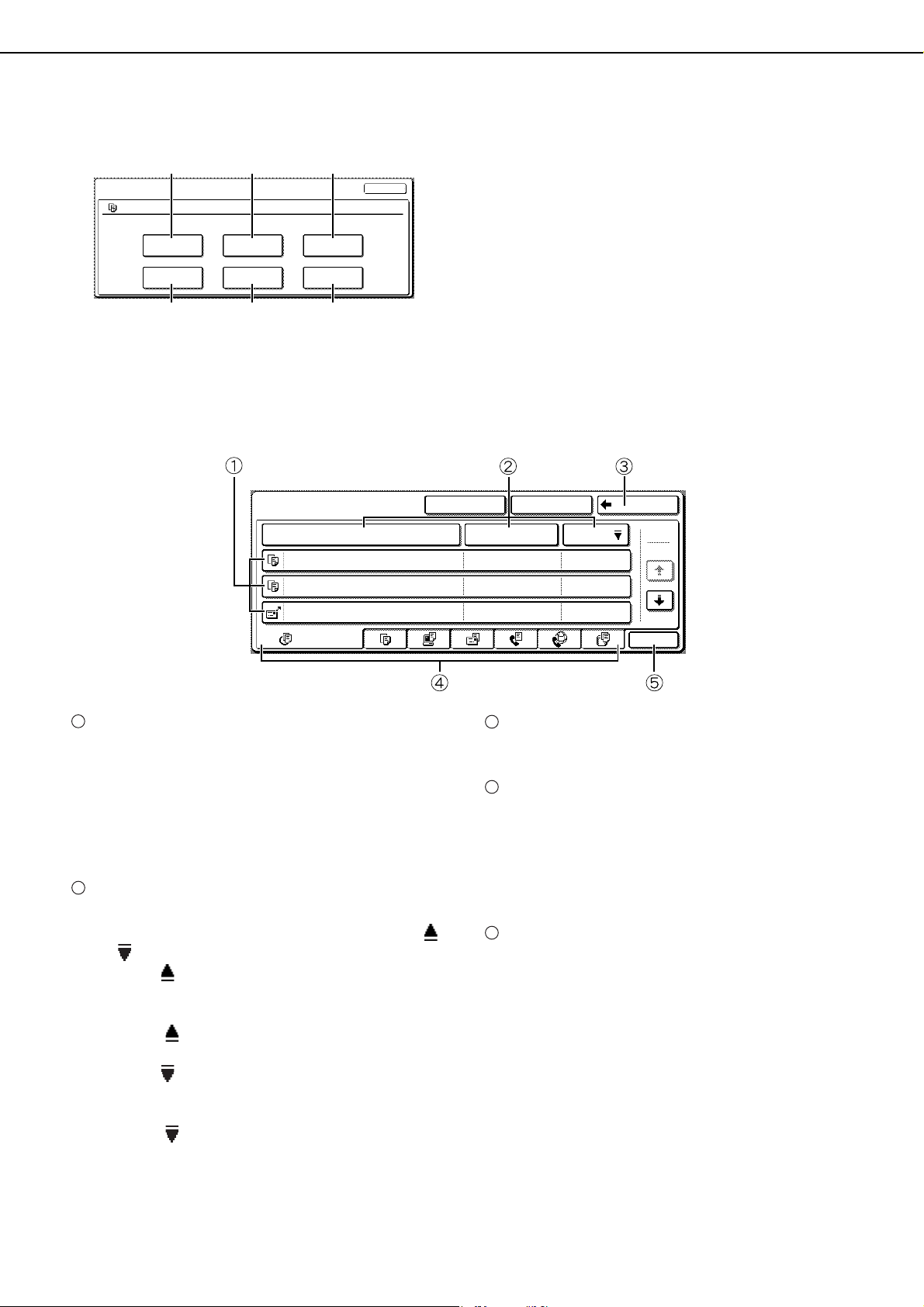
CALLING UP AND USING A FILE
7-16
5
Touch the key of the operation that you
wish to perform.
(1) [PRINT] key (see page 7-17)
(2) [SEND] key (see page 7-20)
(3) [PROPERTY CHANGE] key (see page 7-21)
(4) [MOVE] key (see page 7-22)
(5) [DELETE] key (see page 7-22)
(6) [DETAIL] key (see page 7-22)
The setting screen of the selected operation
appears. See the indicated page.
FILE SELECTION SCREEN
The file selection screen of the Quick File folder, Main folder, and custom folders is explained below.
File keys
The stored files are displayed. An icon showing
which mode the file was stored from, the file name,
the user name, and the date the file was stored
appear in each file key.
When a file is touched, the job setting screen
appears.
[File Name] key, [User Name] key, [Date] key
Use these keys to change the order of display of
the file keys. When one of the keys is touched,
or appears in the key.
● When appears in the [File Name] key or [User
Name] key, the files appear by file name or user
name in ascending order.
When appears in the [Date] key, the files
appear in order from the oldest date.
● When appears in the [File Name] key or [User
Name] key, the files appear by file name or user
name in descending order.
When appears in the [Date] key, the files
appear in order from the most recent date.
[Back] key
Touch this key to return to the screen one level up.
Select displayed files by job type.
You can select the file keys that are displayed by
job type.
[ALL FILES] is initially selected.
Touch a tab to show a list of the files that were
stored from that mode.
[Batch Print] key
Touch this key to print all files in a folder.
For detailed information on batch printing, see 7-
18.
(1) (2) (3)
(4) (5) (6)
SELECT THE JOB.
PRINT
MOVE
SEND
DELETE
PROPERTY
CHANGE
DETAIL
JOB SETTINGS
Basic specifications Yamada Taro
CANCEL
8 "x11"
1
/
2
CUSTOM FOLDER SEARCH BACK
MAIN FOLDER
Basic specifications
Yamada 2006/10/20
Products
Sato 2006/10/20
Product_info
Akata 2006/10/20
3
1
BATCH P.
ALL FILES
FILE NAME USER NAME DATE
1
2
3
4
5
dragon_07-2.fm 16 ページ 2006年10月22日 日曜日 午後3時27分
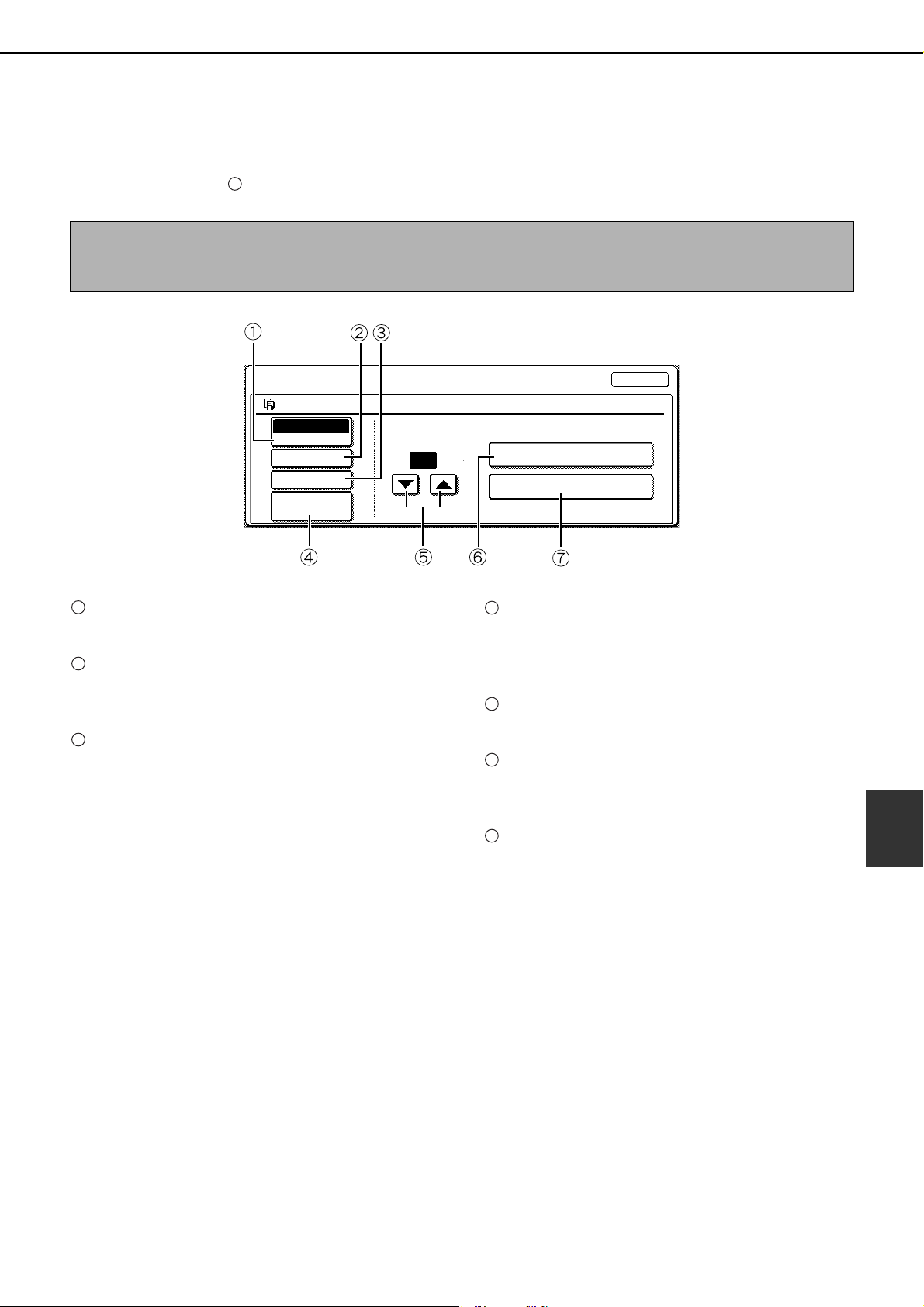
CALLING UP AND USING A FILE
7-17
7
■ [Print]
A saved file can be printed.
The screen below appears when the [PRINT] key is selected in the operation selection screen. To begin printing,
touch the [PRINT] ( ) key. Printing settings can be selected in this screen before printing. The settings that were
in effect when the file was saved appear initially. The settings can be changed as needed.
[PAPER SELECT] key
Use this key to set the paper size.
[OUTPUT] key
Use this key to select sort, group or staple sort
functions, and to select the output tray.
[2-SIDED] key
When performing two-sided printing, use this key to
select the orientation of the image on the back side
of the paper. To have the front and back images
oriented in the same direction, touch the [2-SIDED
BOOKLET] key. To have the front and back images
oriented opposite to each other, touch the [2-
SIDED TABLET] key. Note that the size and
orientation of the saved image may cause these
keys to have the opposite effect. If neither key is
selected, one-sided printing will take place.
[TANDEM PRINT] key
If the conditions for tandem printing are met (page
5-10), touch this key to enable tandem printing.
See page 5-10 for more information.
[NUMBER OF PRINTS] setting key
Use this key to set the number of copies.
[PRINT AND DELETE THE DATA] key
Touch this key to print a file and then have it
automatically deleted.
[PRINT AND SAVE THE DATA] key
Touch this key to print a file. The file will not be
automatically deleted after printing.
7
NOTES
● When print settings are changed with this procedure, only the value for the number of copies is overwritten.
● The printing speed will be slower for image files saved using certain resolution settings. (See page 7-31.)
PRINT AND DELETE THE DATA
PRINT AND SAVE THE DATA
NUMBER OF PRINTS
CANCEL
1
(1~999)
PAPER SELECT
TANDEM PRINT
2-SIDED
OUTPUT
AUTO
JOB SETTINGS / PRINT
Basic specifications
Yamada Taro
8 x11
1
/
2
1
2
3
4
5
6
7
dragonII_copy_sec.book 17 ページ 2006年10月18日 水曜日 午後7時39分
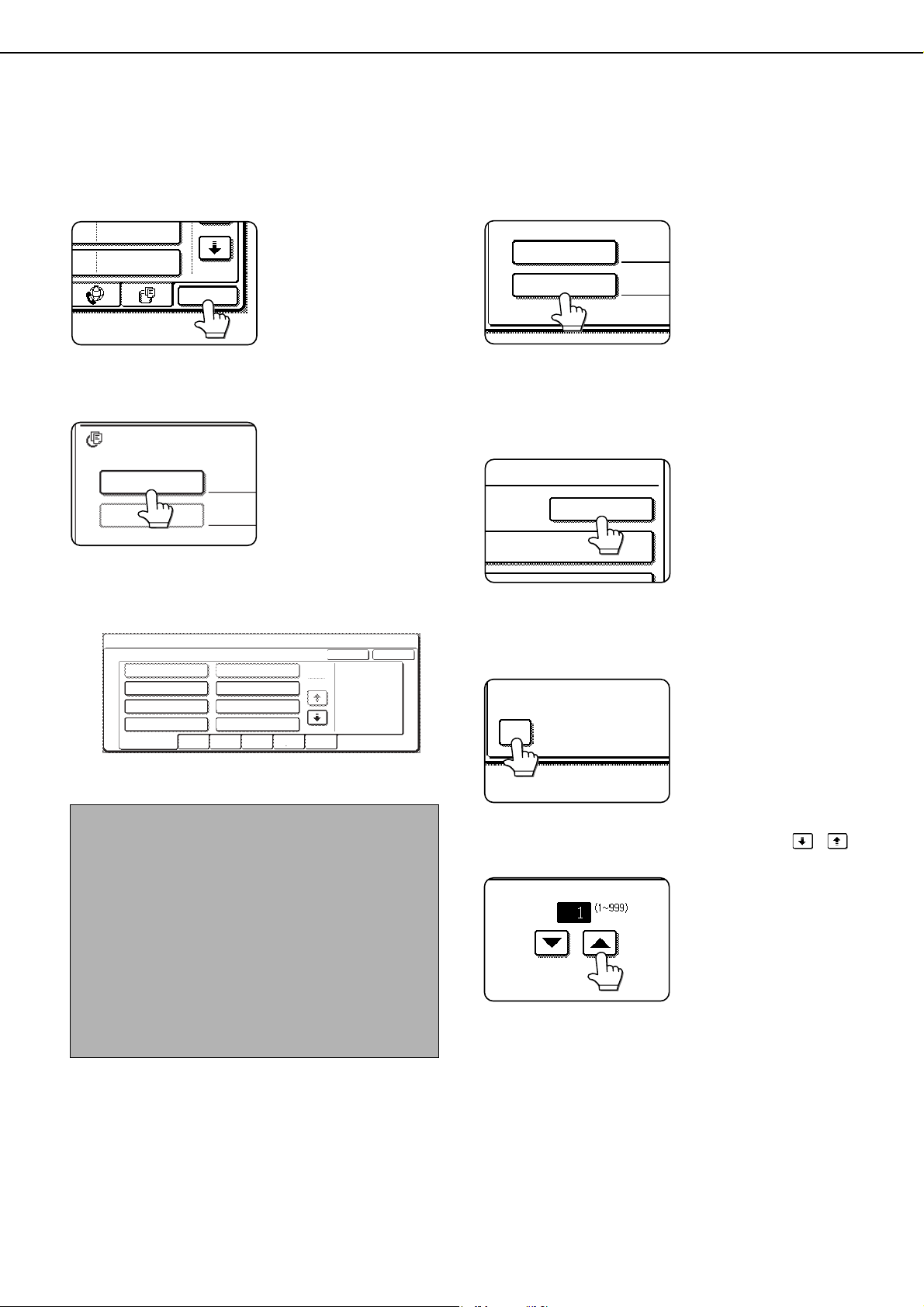
CALLING UP AND USING A FILE
7-18
■ Batch printing
All files in a folder that have the same user name and password can be printed at once.
1
Touch the [BATCH P.] key in the file list
screen of document filing mode.
To print all files of a
specific type of job,
touch the desired job
tab. The files shown on
that tab can be printed
as a batch.
2
Touch the [USER NAME] key.
3
Touch the user name of the files that you
wish to print by batch printing.
4
If a password has been established, touch
the [PASSWORD] key.
Enter the password with
the numeric keys (5 to 8
digits) and touch the
[OK] key. Only files that
have the same
password will be
selected.
If you do not wish to enter a password, go to the
next step.
5
To set the number of copies, touch the
[CHANGE PRT.NO.] key.
If you wish to use the
number of copies stored
with each file, go to step
9.
6
Touch the [APPLY THE NUMBER FROM
STORED SETTING OF EACH JOB]
checkbox to remove the checkmark.
7
Set the number of copies with the
keys.
The number of copies
can be also set with the
numeric keys.
NOTE
When [SELECTION OF [ALL USERS] IS NOT
ALLOWED.] checkbox and [SELECTION OF [USER
UNKNOWN] IS NOT ALLOWED.] checkbox are
disabled in the administrator settings, the [ALL
USERS] key and [USER UNKNOWN] key can be
selected.
The [ALL USERS] key can be touched to select all
files in the folder (the files of all users).
The [USER UNKNOWN] key can be touched to
select all files in the folder that do not have a user
name.
2006/01/01
2006/01/01
BATCH P.
USER NAME
PASSWORD
ALL FILES
BATCH PRINT
SELECT USER NAME.
ALL USERS
Hasegawa
Ono
Suzuki
USER UNKNOWN
CANCEL
UVWXYZOPQRSTJKLMNEFGHIABCDALL USERS
OK
Nakata
Yamada
Sasaki
2
1
USER NAME
PASSWORD
Suzuki
CHANGE PRT.NO.
NT AND DELETE THE DATA
APPLY THE NUMBER FRO
EACH JOB
R FROM STORED SETTING OF
dragon_07-2.fm 18 ページ 2006年10月20日 金曜日 午後3時28分
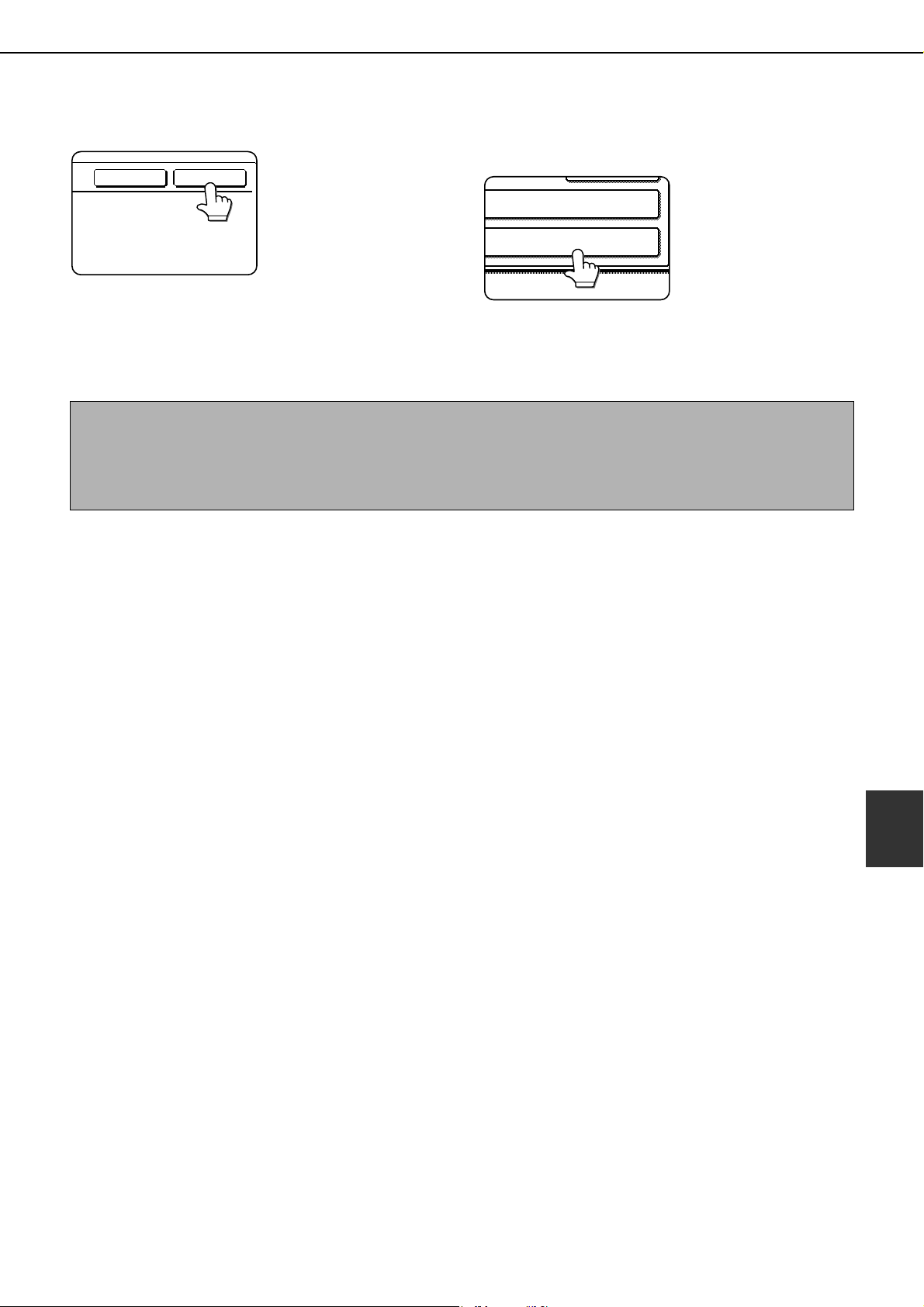
CALLING UP AND USING A FILE
7-19
7
8
Touch the [OK] key.
9
Touch the [PRINT AND DELETE THE
DATA] key or the [PRINT AND SAVE THE
DATA] key.
If the [PRINT AND
DELETE THE DATA] key
is touched, the files will
be automatically deleted
after printing.
If the [PRINT AND SAVE
THE DATA] key is
touched, the files will be saved after printing.
If there are no files that match the search
conditions, you will return to the file list screen.
CANCEL OK
PRINT AND DELETE THE DATA
PRINT AND SAVE THE DATA
NOTE
● If "Auditing mode" is enabled in the administrator settings for copy mode, print mode, or document filing mode,
it will not be possible to perform batch printing of [ALL FILES].
● To display the job tab of a mode for which "Auditing mode" is enabled in the administrator settings, the account
number must be entered.
dragonII_copy_sec.book 19 ページ 2006年10月18日 水曜日 午後7時39分
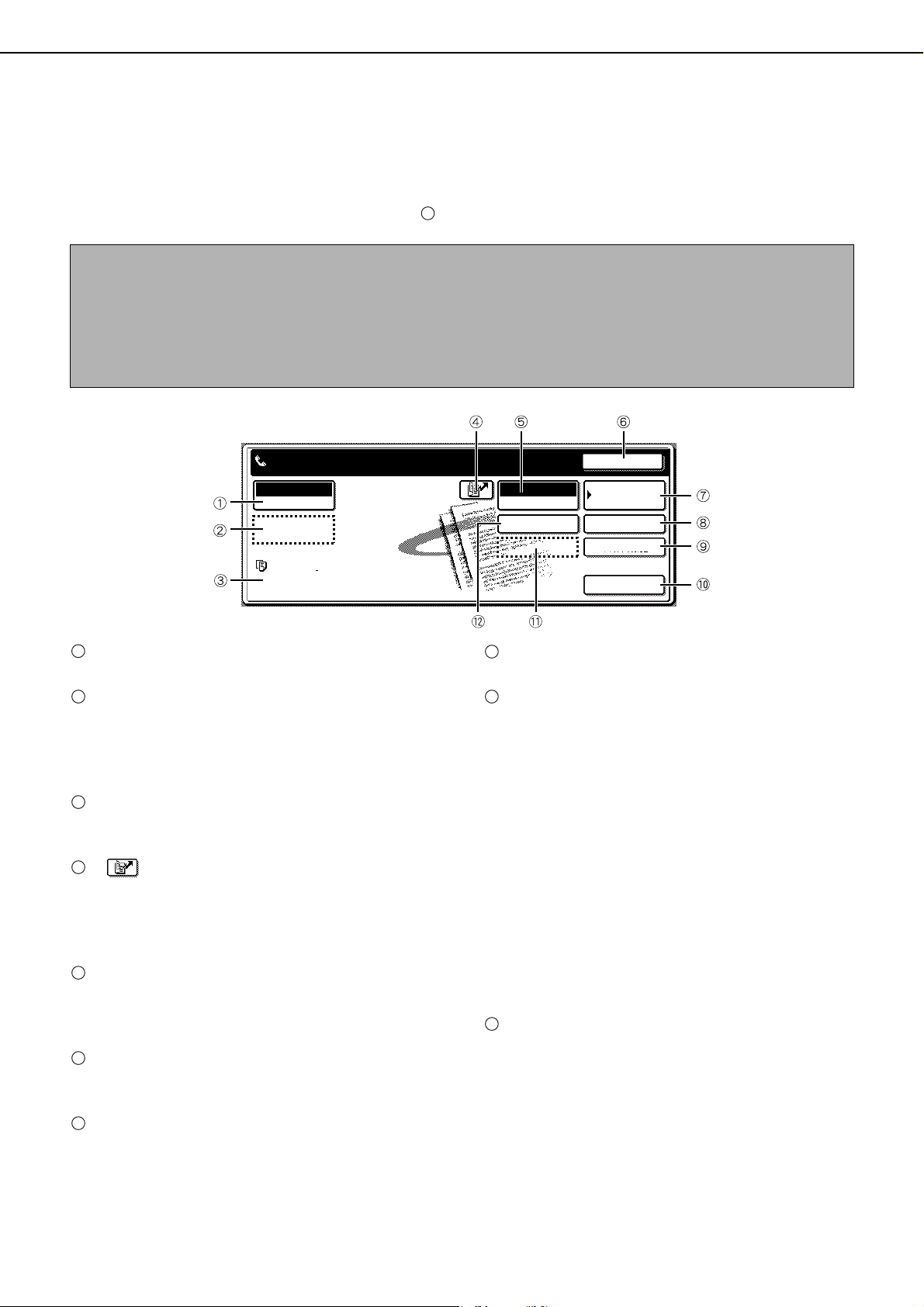
CALLING UP AND USING A FILE
7-20
■ [Send]
A saved file can be transmitted by Scan to E-mail, Scan to FTP, Scan to Network Folder, fax, or Internet fax.
These transmission methods require installation of the appropriate options.
The following screen appears when the [SEND] key is touched. Select the destination and other settings required
for transmission and then touch the [SEND] ( ) key to transmit the file. Transmission settings include the
resolution and transmission functions such as a timer setting. Change or select these settings as needed.
[RESOLUTION] key
Use this key to set the resolution.
[FILE FORMAT] key
The [FILE FORMAT] key appears in scan mode
(Scan to E-mail, Scan to FTP, or Scan to Network
Folder). Touch this key to set the file format of scan
images that you transmit.
[FILE NAME/USER NAME] display
This shows the file name and user name of the file
to be transmitted.
[ ] key (Speed dial key)
Use this key to specify a destination by entering the
3-digit number that is assigned to an e-mail
address or fax number when it is stored in a one-
touch key or group key.
[MODE SWITCH] key
Use this key to select the transmission mode (Scan
to E-mail, Scan to FTP, Scan to Network Folder,
fax, or Internet fax).
[CANCEL] key
Touch this key to return to the operation selection
screen.
[ADDRESS BOOK] key
Touch this key to display the destinations stored in
the directory.
[ADDRESS REVIEW] key
Touch this key to display the destinations.
[SPECIAL MODES] key
Touch this key to display the special function menu.
The functions that can be selected vary depending
on the transmission mode:
● Scan to E-mail/FTP/Network Folder
TIMER : The transmission time can be specified.
● FAX
TIMER : The transmission time can be specified.
FAX OWN ADDRESS SENDING: Your sender's
information can be included on the fax pages
printed out by the receiving machine.
● Internet FAX
TIMER : The transmission time can be specified.
I-FAX OWN ADDRESS SEND: Your sender's
information can be included on the Internet fax
pages printed out by the receiving machine.
[SEND] key
Touch this key after selecting transmission settings
to begin transmission. (The [START] key can also
be pressed to begin transmission.)
NOTE
Jobs that use the following special functions cannot be transmitted when called up. (The [SEND] key is grayed out
in the operation selection screen.)
Pamphlet copying, covers/insert, card shot, Multi shot.
Jobs that use the following functions can be transmitted with certain restrictions when called up:
Card shot:Can be transmitted if saved by scan save or image send.
Multi shot (2in1):Can be transmitted if saved as 2in1 using a portrait original.
10
CANCEL
ADDRESS BOOK
ADDRESS REVIEW
SPECIAL MODES
MODE SWITCH
FAX
RESOLUTION
Basic specifications
Yamada Taro
STANDARD
SUB ADDRESS
SEND
[Example of FAX mode]
1
2
3
4
5
6
7
8
9
10
dragonII_copy_sec.book 20 ページ 2006年10月18日 水曜日 午後7時39分
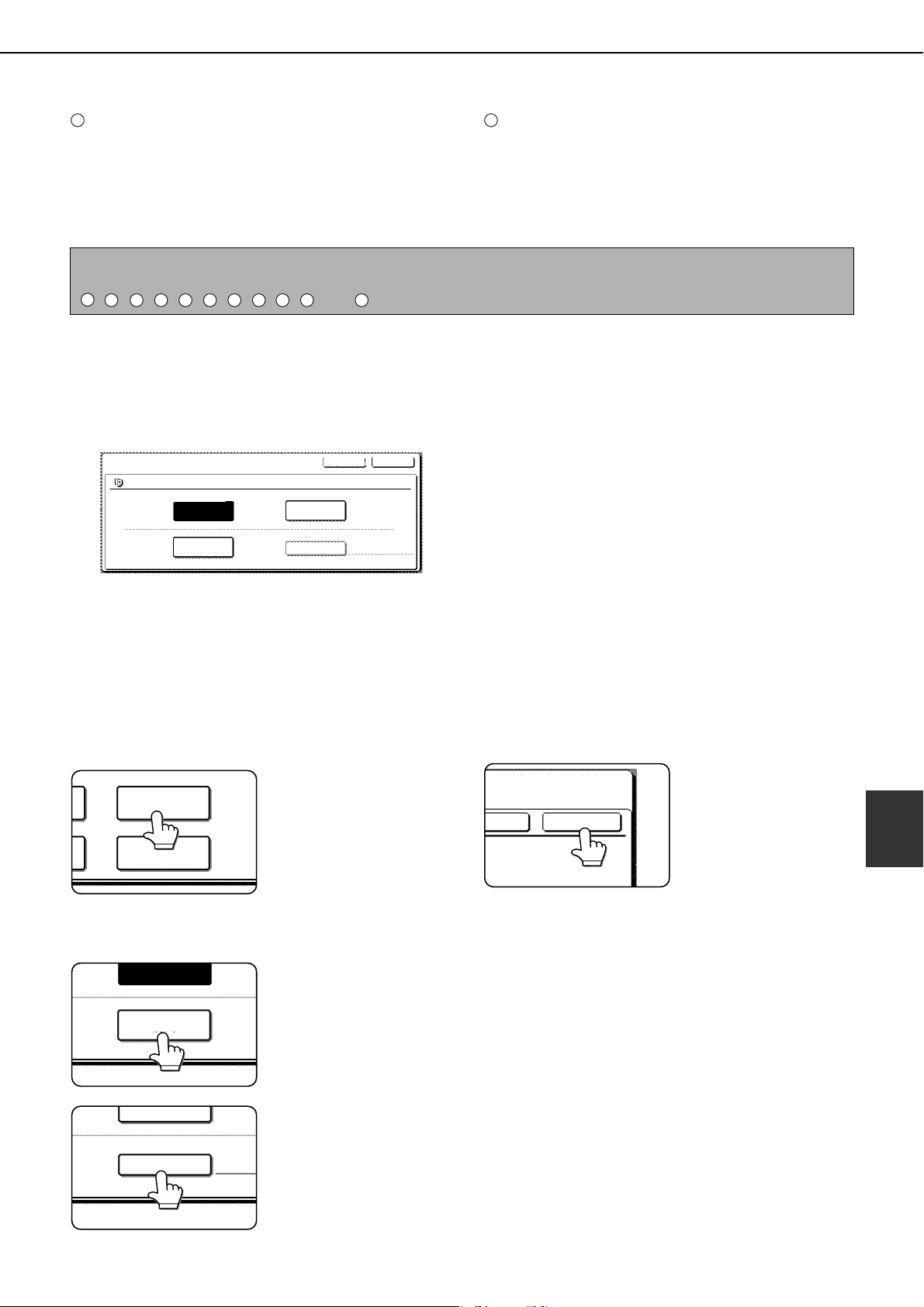
CALLING UP AND USING A FILE
7-21
7
[SEND SETTINGS] key
The [SEND SETTINGS] key is displayed in
scanner mode and in Internet fax mode.
Touch this key to set the subject and file name. In
scanner mode, the sender name can also be set.
[SUB ADDRESS] key or [ADDRESS ENTRY] key
● Touch this key to directly enter the destination for
a Scan to E-mail, Scan to FTP, Scan to Network
Folder, or Internet fax transmission.
● Touch this key to enter the sub-address and
passcode for an F-code fax transmission.
■ [Property change]
Select this operation to change the attribute of a saved file. Three attributes are available: [SHARING],
[PROTECT], and [ CONFIDENTIAL].
The following screen appears when the [PROPERTY CHANGE] key is selected in the operation selection screen.
Note the restrictions below on changing the attribute.
[Restrictions on changing the attribute]
●A file that is set to [SHARING] can be
changed to [PROTECT] or [CONFIDENTIAL].
However, a [SHARING] file that is saved in the
Quick File folder can only be changed to
[PROTECT].
●A file that is set to [PROTECT] can be
changed to [SHARING] or [CONFIDENTIAL].
However, a [PROTECT] file that is saved in
the Quick File folder can only be changed to
[SHARING].
●A file that is saved in the Quick File folder
cannot be changed to [CONFIDENTIAL].
1
Touch the [PROPERTY CHANGE] key in
the operation selection screen.
2
Touch the key of the desired attribute.
If you are changing a
[SHARING] or
[PROTECT] file to
[CONFIDENTIAL],
touch the [PASSWORD]
key and enter the
password.
3
Touch the [OK] key.
11 12
NOTE
See the "Operation manual (for facsimile)" and "Operation manual (for image send)" for detailed explanations of
, , , , , , , , , , and .
1
2
3 4 5
6
7 8
9
11 12
JOB SETTINGS / PROPERTY CHANGE
Basic specifications Yamada Taro
CANCEL OK
SHARING
CONFIDENTIAL
PROTECT
PASSWORD
8 x11
1
/
2
PROPERTY
CHANGE
DETAIL
SHARING
CONFIDENTIAL
PROTECT
PASSWORD
OK
NCEL
dragonII_copy_sec.book 21 ページ 2006年10月18日 水曜日 午後7時39分
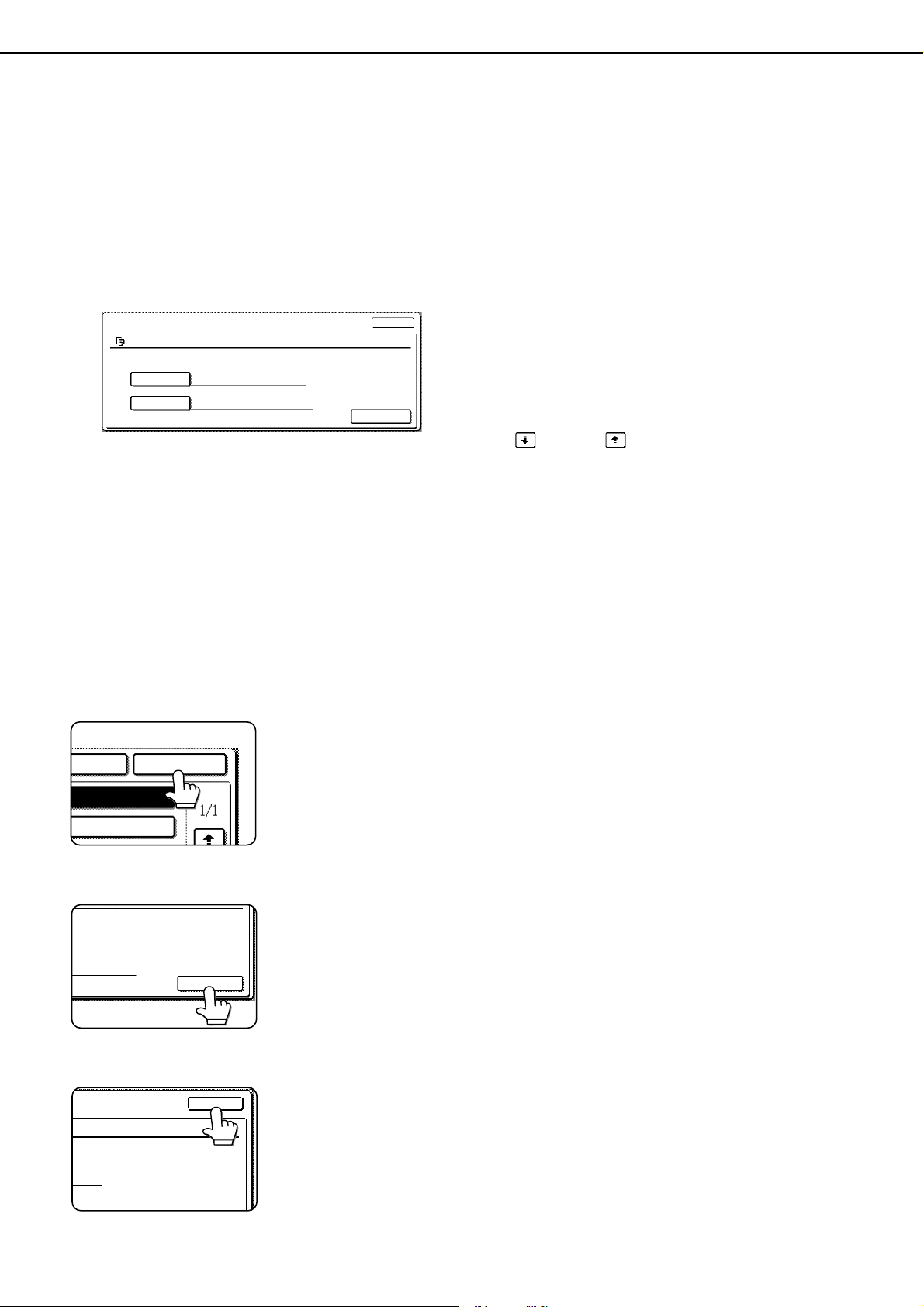
CALLING UP AND USING A FILE
7-22
■ [Move]
This operation is used to move a file to a different
folder.
The following screen appears when the [MOVE]
key is selected.
Only [SHARING] and [CONFIDENTIAL] files can
be moved. A [PROTECT] file can be moved by first
using [PROPERTY CHANGE] to change the
attribute to [SHARING] or [CONFIDENTIAL].
1
Touch the [MOVE TO:] key and select the
folder to which you wish to move the file.
●Select the main folder or a folder in the
custom folder. A file cannot be moved to the
Quick File folder.
●The file name can be changed when moving a
file. To change the name, touch the [FILE
NAME] key and enter the desired file name.
See page 7-29 for the procedure for entering
characters.
2
Touch the [OK] key.
3
Touch the [MOVE] key.
4
Touch the [CANCEL] key.
You will return to the
operation selection
screen.
■ [Delete]
This operation is used to delete the selected file.
Touch the [DELETE] key in the operation select
screen. A message asking you to confirm the
deletion will appear. Touch the [YES] key to delete
the file.
Only [SHARING] or [CONFIDENTIAL] files can be
deleted. (A [PROTECT] file can be deleted by first
using [PROPERTY CHANGE] to change the
attribute to [SHARING].)
■ [Detail]
This operation is used to show detailed information
on the selected file.
Touch the [DETAIL] key to display the information.
The information appears on two screens. Touch the
key or key to move between the two
screens.
The file name can be changed in the information
screen. To change the name, touch the [FILE
NAME] key and enter the desired file name in the
character entry screen that appears. See page 7-
29 for the procedure for entering characters.
JOB SETTINGS / MOVE
SELECT THE FOLDER THE FILE IS MOVED TO.
FILE NAME
MOVE TO:
CANCEL
Basic specifications
Basic specifications
Yamada Taro A4
MOVE
8 x11
1
/
2
N FOLDER OK
OVED TO.
ations
amada Taro A4
MOVE
CANCEL
aro A4
8 x11
1
/
2
dragonII_copy_sec.book 22 ページ 2006年10月18日 水曜日 午後7時39分
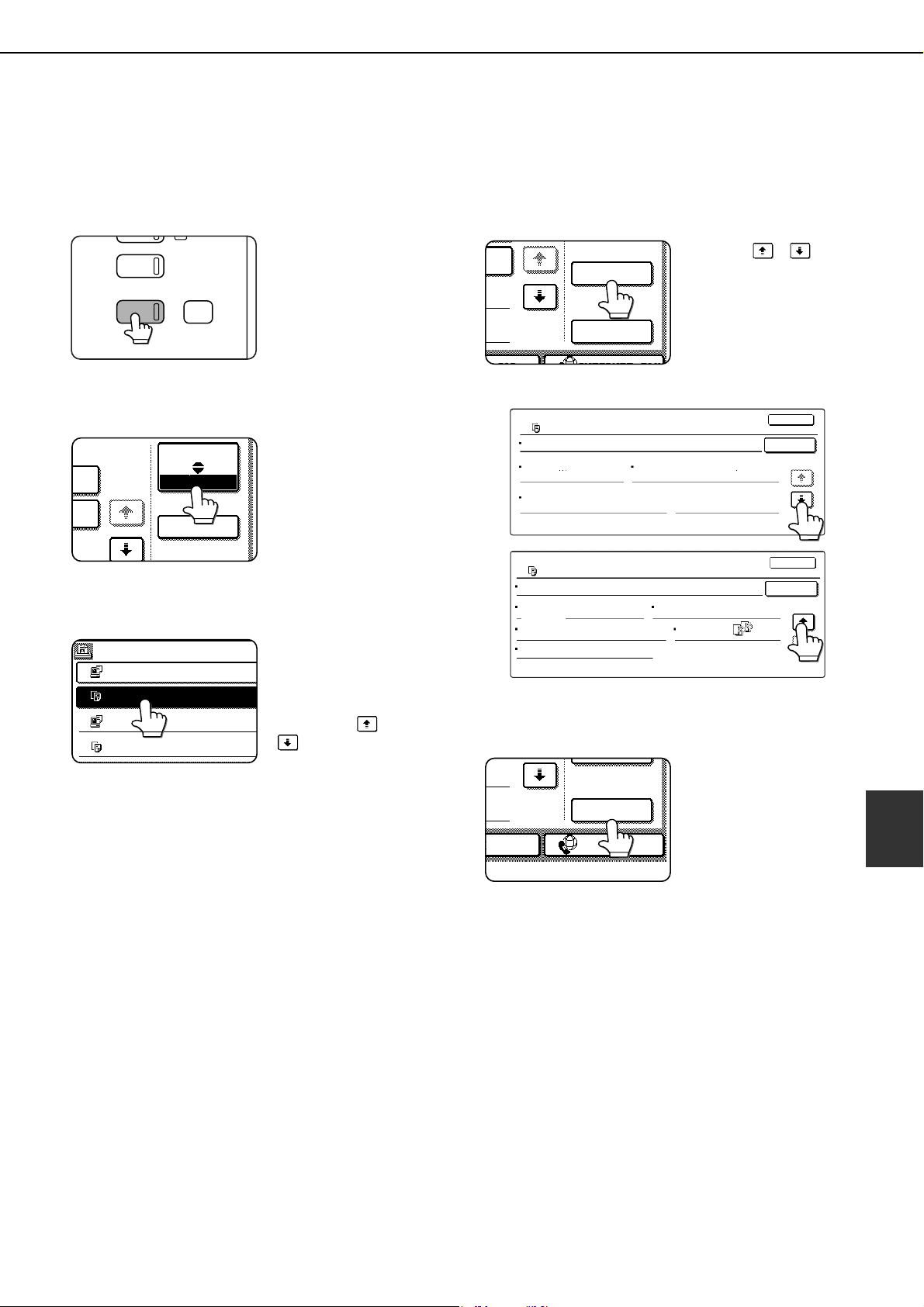
CALLING UP AND USING A FILE
7-23
7
■ Calling up and manipulating a file from the job status screen
Files saved using the "FILE" and "QUICK FILE" functions appear as keys in the finished job status screen.
You can view information on a file that appears in this screen and manipulate the file.
1
Press the [JOB STATUS] key.
The job status screen
appears.
2
Touch the [COMPLETE] key.
The finished job screen
appears.
3
Touch the key of the desired file.
If there are more keys
than can appear in one
screen and the desired
file does not appear,
touch the key or
key to change
screens.
The touched key is highlighted.
4
To view information on the file, touch the
[DETAIL] key.
Use the keys
to change screens.
When you are finished,
touch the [OK] key to
return to the screen of
step 3.
5
Touch the [CALL] key.
The operation selection
screen appears.
Select and perform the desired operation as
explained in "Calling up and using a saved file"
(page 7-15).
AGE SEND
COPY
JOB STATUS
SYSTEM
SETTINGS
DATA
JOB QUEUE
DETAIL
1/8
COMPLETE
JOBS COMPLETED
Suzuki7890123456 14:09 12/09 00
COPY 13:27 12/09 00
COPY 14:38 12/09 00
Tanaka7890123456 14:38 12/09 01
SET TIME
NUM
DETAIL
CALL
INTERNET FAXX JOB
FILE NAME:
DETAIL OF
COPY
COPY_20031021_153050
SIZE:8 x11
DATE:2003/10/10 15:30
RESOLUTION:600x600dpi
PAGES:10
OK
CALL
1
/
2
1/2
FILE NAME
DETAIL OF
DATA SIZE: 21,987,543KB
1-SIDED
OUTPUT:
SPECIAL
MODES:
DOCUMENT
STYLE:
FILE FORMAT:
OK
COPY_20031021_153050
CALL
COPY
2/2
CALL
INTERNET-FAXX JOB
dragonII_copy_sec.book 23 ページ 2006年10月18日 水曜日 午後7時39分
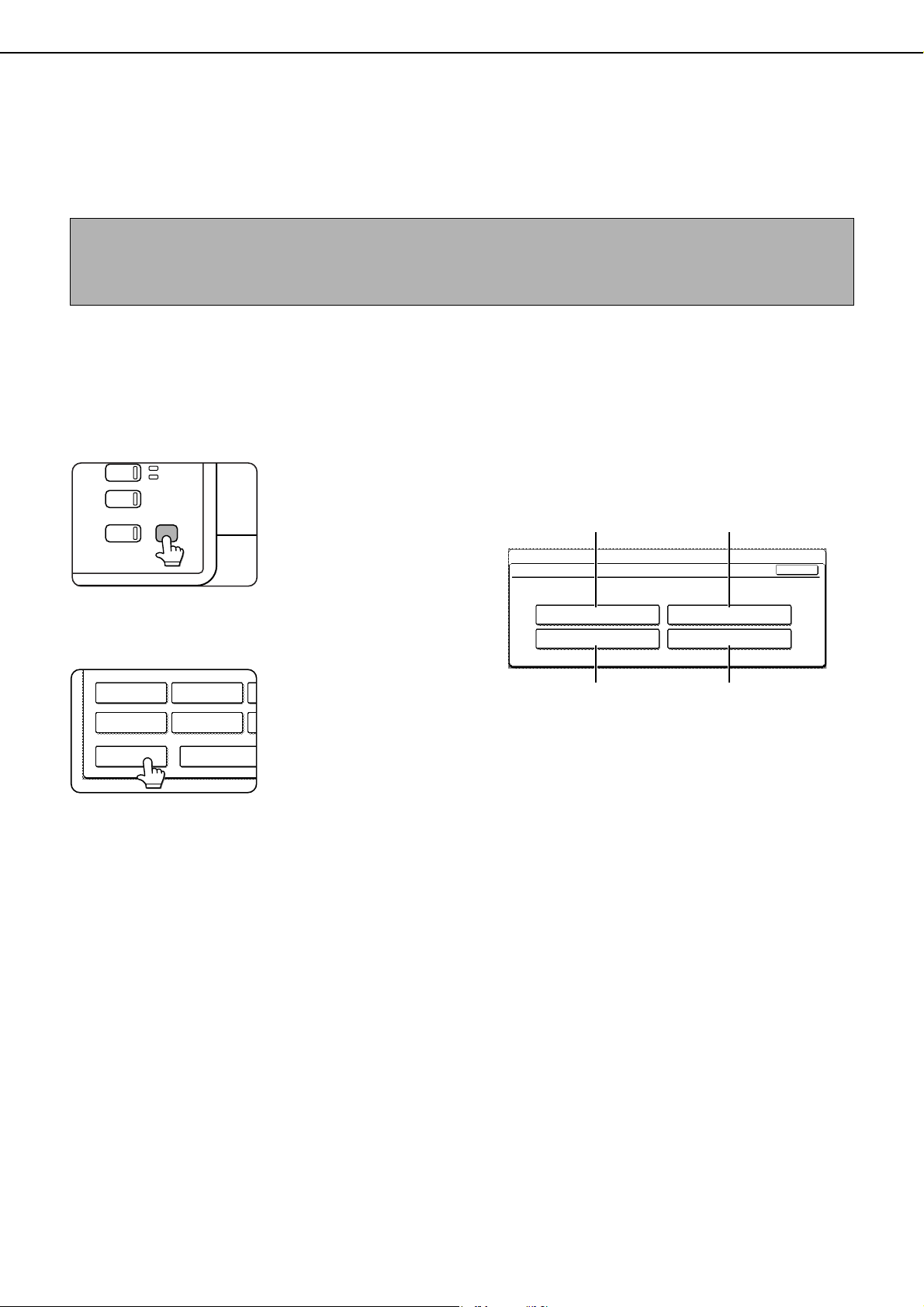
7-24
SYSTEM SETTINGS
Creating, editing, and deleting user names and folders
This section explains how to create, edit, and delete user names and custom folders for saving files with the
document filing function. User names and custom folders are created and edited at the operation panel of the
machine or in the Web page.
■ General procedure for creating, editing, and deleting user names and folders
Follow steps 1 to 3 below to create, edit, or delete a user name or custom folder. In step 3, select the key for the
specific operation that you wish to perform.
1
Press the [SYSTEM SETTINGS] key.
2
Touch the [DOCUMENT FILING CONTROL]
key.
3
Touch the key of the operation that you
wish to perform.
Go to the page indicated below for the selected
operation.
(1) [USER NAME REGISTRATION] key
Program a user name. (See the next page)
(2) [AMEND/DELETE USER NAME] key
Edit or delete a user name. (See page 7-26)
(3) [CUSTOM FOLDER REGISTRATION] key
Create a custom folder. (See page 7-27)
(4) [AMEND/DELETE CUSTOM FOLDER] key
Edit or delete a custom folder. (See page 7-28)
NOTES
● A previously stored name cannot be used when creating a new user name or custom folder. However, the same password
can be used more than once.
● A password cannot be omitted when creating a user name.
AGE SEND
COPY
JOB STATUS
SYSTEM
SETTINGS
LINE
DATA
DEFAULT
SETTINGS
SENDER CONTROL
ADMINISTRATOR
ADDRESS CONTROL
TOTAL COUNT
DOCUMENT FILING
CONTROL
SYSTEM SETTINGS
DOCUMENT FILING CONTROL
USER NAME REGISTRATION
CUSTOM FOLDER REGISTRATION
AMEND/DELETE USER NAME
AMEND/DELETE CUSTOM FOLDER
OK
(1) (2)
(3) (4)
dragonII_copy_sec.book 24 ページ 2006年10月18日 水曜日 午後7時39分

SYSTEM SETTINGS
7-25
7
■ Programming a user name
To program a user name, follow steps 1 and 2 on page 7-24, touch the [USER NAME REGISTRATION] key in
step 3, and then follow these steps:
1
Touch the [USER NAME] key.
The lowest number that
has not yet been
programmed appears
automatically in "No.".
Touch the number to
display a character entry
screen and enter a user
name (maximum of 16 characters). See page 7-29
for the procedure for entering characters.
2
Touch the [INITIAL] key.
A character entry screen
appears. Enter up to 10
search characters.
See
page 7-29 for the
procedure for entering
characters.
3
Touch the [PASSWORD] key.
A password cannot be
omitted.
4
Set a password for the user name (enter a
5-digit password with the numeric keys).
This will be the password
for the user name
entered in step 1.
As each digit is entered,
"
-
" changes to " ". If
you make a mistake,
press the [C] key and
then enter the correct number.
5
Touch the [OK] key.
6
If you wish to specify a folder for the user
name, touch the [STORED TO:] key. If you
wish to use the main folder, go to step 8.
7
The folders that have been created appear.
Touch the desired folder. If you wish to
create a new folder, or if no folders have
been created, touch the [ADD NEW] key.
If you touched the [ADD NEW] key, program a
name for the folder as explained on page 7-27.
The user name programmed in step 1 is selected
as the user name of the folder.
8
Touch the [EXIT] key.
You will return to the
"USER NAME
REGISTRATION"
screen.
"REGISTRATION IS
COMPLETED." will
appear highlighted next
to "No.".
9
To exit, touch the [EXIT] key. To program
another user name, touch the [NEXT] key.
If you touched the [EXIT]
key, you will return to the
screen of step 3 on page
7-24. If you touched the
[NEXT] key, a new user
entry screen will appear.
Repeat steps 1 to 9 to
program a new user.
SYSTEM SETTINGS
No.001
USER NAME
PASSWORD
STORED TO:
SELECT THE DEFAULT FOLDER THE F
INITIAL
NEXT
R THE FILE WITH THIS USER NAME IS STORED.
SYSTEM SETTINGS
No.001
USER NAME
PASSWORD
STORED TO:
SELECT THE DEFAULT FOLDER THE FIL
Yamada
CANCEL
ENTER PASSWORD VIA THE 10-KEY PAD.
CANCEL
EXIT
OK
10-KEY PAD.
REGISTRATION IS COMPLETED.
No.001
USER NAME
PASSWORD
STORED TO:
SELECT THE DEFAULT FOLDER THE FILE
Yamada
MAIN FOLDER
STORED TO:
ALL FOLDERS
CUSTOM FOLDER 1
CUSTOM FOLDER 3
CUSTOM FOLDER 5
CUSTOM FOLDER 7
CUSTOM FOLDER 6
CUSTOM FOLDER 4
CUSTOM FOLDER 2
CUSTOM FOLDER 8
ABCD EFGHI JKLMN OPQRS
UVWXY
MAIN FOLDER ADD NEW
1/1
– – – – –
EXIT
INITIAL
EXIT
NEXT
WITH THIS USER NAME IS STORED.
Yamada
dragonII_copy_sec.book 25 ページ 2006年10月18日 水曜日 午後7時39分
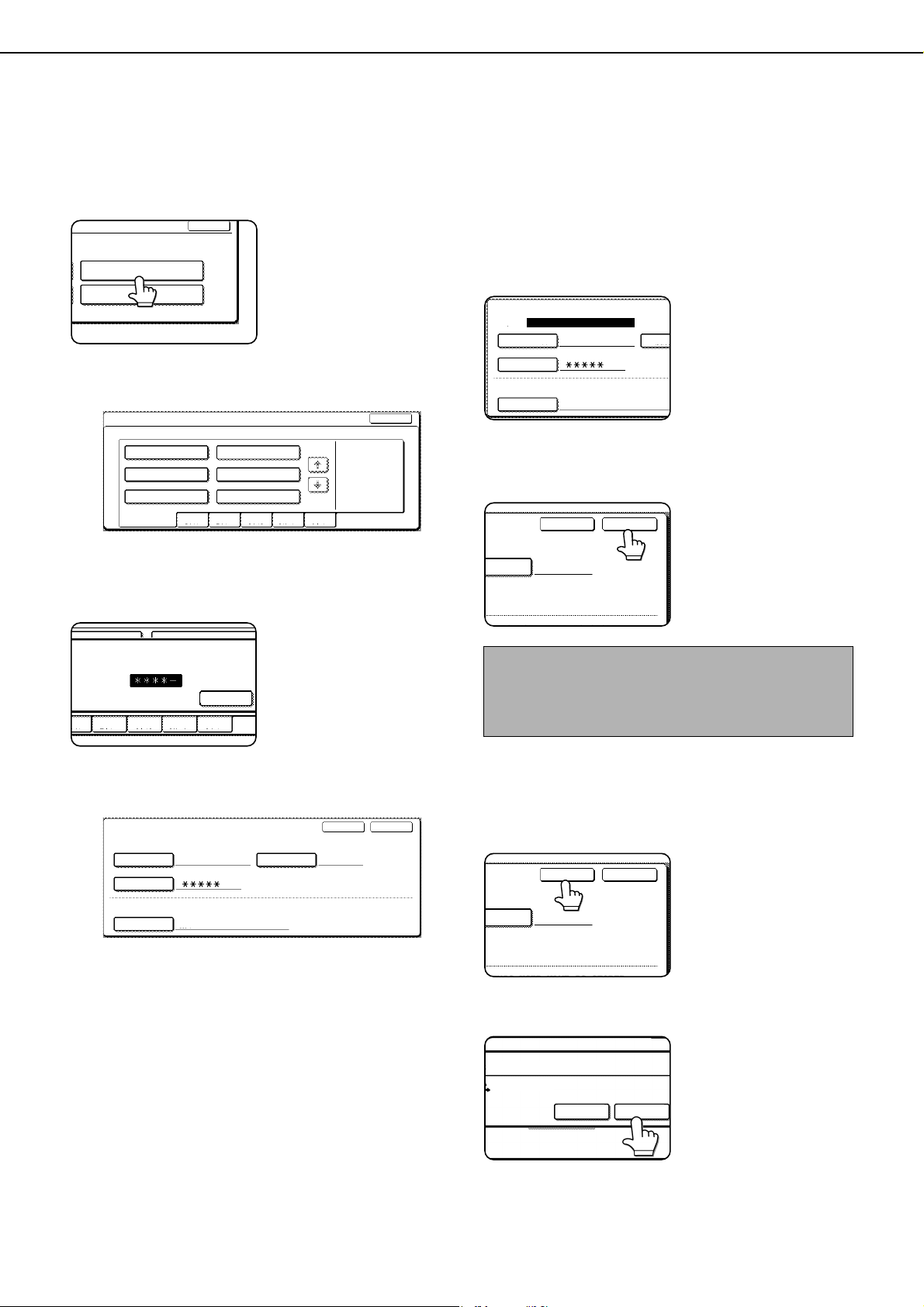
SYSTEM SETTINGS
7-26
■ Editing and deleting a user name
To edit or delete a user name, follow steps 1 and 2 on page 7-24 and then follow these steps:
1
Touch the [AMEND/DELETE USER NAME]
key.
2
Touch the [USER NAME] key that you wish
to edit or delete.
A password entry screen will appear.
3
Enter the 5-digit password with the
numeric keys.
After entering the password, the following screen
will appear.
● To edit a user name, perform steps 4 and 5.
● To delete a user name, perform steps 6 and 7.
[Editing]
4
Touch the key of each item that you wish to
edit (edit as explained in steps 1 to 9 in
"Programming a user name" on page 7-
25).
When you have finished
editing the items,
"REGISTRATION IS
COMPLETED." will
appear highlighted next
to "NO.".
5
When you have finished editing the
desired items, touch the [EXIT] key.
To edit another user
name, repeat steps 2 to
4.
To exit, touch the [EXIT]
key in the screen of step
2.
[Deleting]
6
Touch the [DELETE] key.
7
Touch the [YES] key.
You will return to the
screen of step 2. To
delete another user
name, repeat steps 2, 3,
5 and 6.
To exit, touch the [EXIT]
key in the screen of step
2.
OK
AMEND/DELETE USER NAME
AMEND/DELETE CUSTOM FOLDER
USER NAME / AMEND/DELETE
SELECT USER NAME TO AMEND/DELETE.
Suzuki
Ono
Hasegawa
Sasaki
EXIT
UVWXYZOPQRSTJKLMNEFGHIABCD
ALL USERS
Yamada
Nakata
1/1
ENTER PASSWORD VIA THE 10-KEY PAD.
CANCEL
BCD
EFGHI JKLMN OPQRST UVWXYZ
USER NAME / AMEND/DELETE
No.001
USER NAME INITIAL Yamada
Yamada
MAIN FOLDER
PASSWORD
STORED TO:
SELECT THE DEFAULT FOLDER THE FILE WITH THIS USER NAME IS STORED.
DELETE EXIT
NOTE
When a user name is changed, the change is not
updated to any previously saved data (files or
folders).
USER NAME / AMEND/DELETE
No.001
REGISTRATION IS COMPLETED.
USER NAME INIT
Yamada
MAIN FOLDER
PASSWORD
STORED TO:
SELECT THE DEFAULT FOLDER THE FILE WITH
ITIAL Yamada
THIS USER NAME IS STORED
DELETE
EXIT
ITIAL Yamada
H THIS USER NAME IS STORED
DELETE EXIT
DELETE THE USER NAME?
Yamada
NO
YES
dragonII_copy_sec.book 26 ページ 2006年10月18日 水曜日 午後7時39分
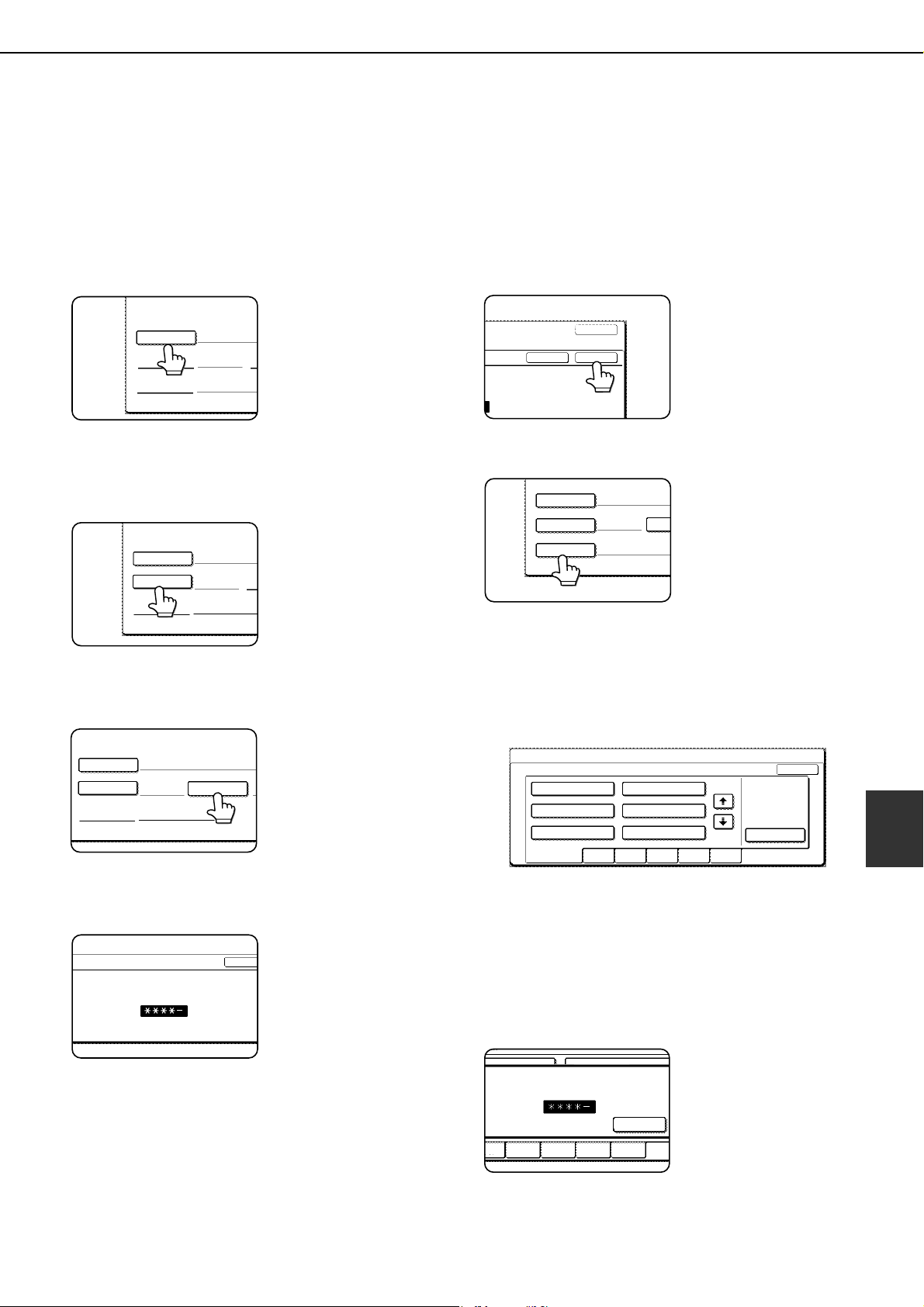
SYSTEM SETTINGS
7-27
7
■ Creating a custom folder
Up to 500 custom folders can be created. When no further folders can be created, delete unneeded folders (page
7-28) and then create a new folder. A password can be omitted when creating a folder. To create a custom folder,
follow steps 1 and 2 on page 7-24, touch the [CUSTOM FOLDER REGISTRATION] key in step 3, and then follow
the steps below.
1
Touch the [FOLDER NAME] key.
The lowest number that
has not yet been
programmed appears
automatically in "No.".
Touch the number to
display a character entry
screen and enter a folder
name (maximum of 28 characters). See page 7-29
for the procedure for entering characters.
2
Touch the [INITIAL] key.
A character entry screen
appears. Enter up to 10
search characters.
See
page 7-29 for the
procedure for entering
characters.
3
If you wish to set a password for the new
folder, touch the [PASSWORD] key.
A password can be
omitted.
If you are omitting a
password, go to step 6.
4
Set a password for the folder (enter a 5-
digit password with the numeric keys).
This will be the password
for the folder name
entered in step 1.
5
Touch the [OK] key.
6
Touch the [USER NAME] key.
You will select a user
name that will be
associated with the
folder name you are
programming.
Selection of a user name
cannot be omitted.
7
The programmed user names appear.
Touch the desired user name. If you do not
wish to use any of the user names that
appear, touch the [ADD NEW] key to
program a new user name.
When you touch a user name, a password entry
screen appears.
If you touched the [ADD NEW] key, program a user
name as explained on page 7-25. The folder name
programmed in step 1 will be selected as the folder
for the user.
8
Enter the 5-digit password of the selected
user name with the numeric keys.
CUSTOM FOLDER REGISTRATION
No.001
FOLDER NAME
INITIAL
USER NAME
CUSTOM FOLDER REGISTRATION
No.001
FOLDER NAME
INITIAL
USER NAME
USER FOLDER 1
P
CUSTOM FOLDER REGISTRATION
No.001
FOLDER NAME
INITIAL
USER NAME
USER FOLDER 1
PASSWORD
CANCEL
ENTER PASSWORD VIA THE 10-KEY PAD.
CANCEL
ENTER PASSWORD VIA THE 10-KEY PAD.
CANCEL
EXIT
OK
10-KEY PAD.
No.001
FOLDER NAME
USER FOLDER 1
INITIAL
USER1
USER NAME
PAS
CUSTOM FOLDER REGISTRATION
SELECT USER NAME.
OK
ALL FOLDERS
ABCD EFGHI JKLMN OPQRST
UVWXYZ
ADD NEW
1/1
Suzuki Sasaki
Nakata
Yamada
Hasegawa
Ono
ENTER PASSWORD VIA THE 10-KEY PAD.
CANCEL
BCD
EFGHI JKLMN OPQRST UVWXYZ
dragonII_copy_sec.book 27 ページ 2006年10月18日 水曜日 午後7時39分
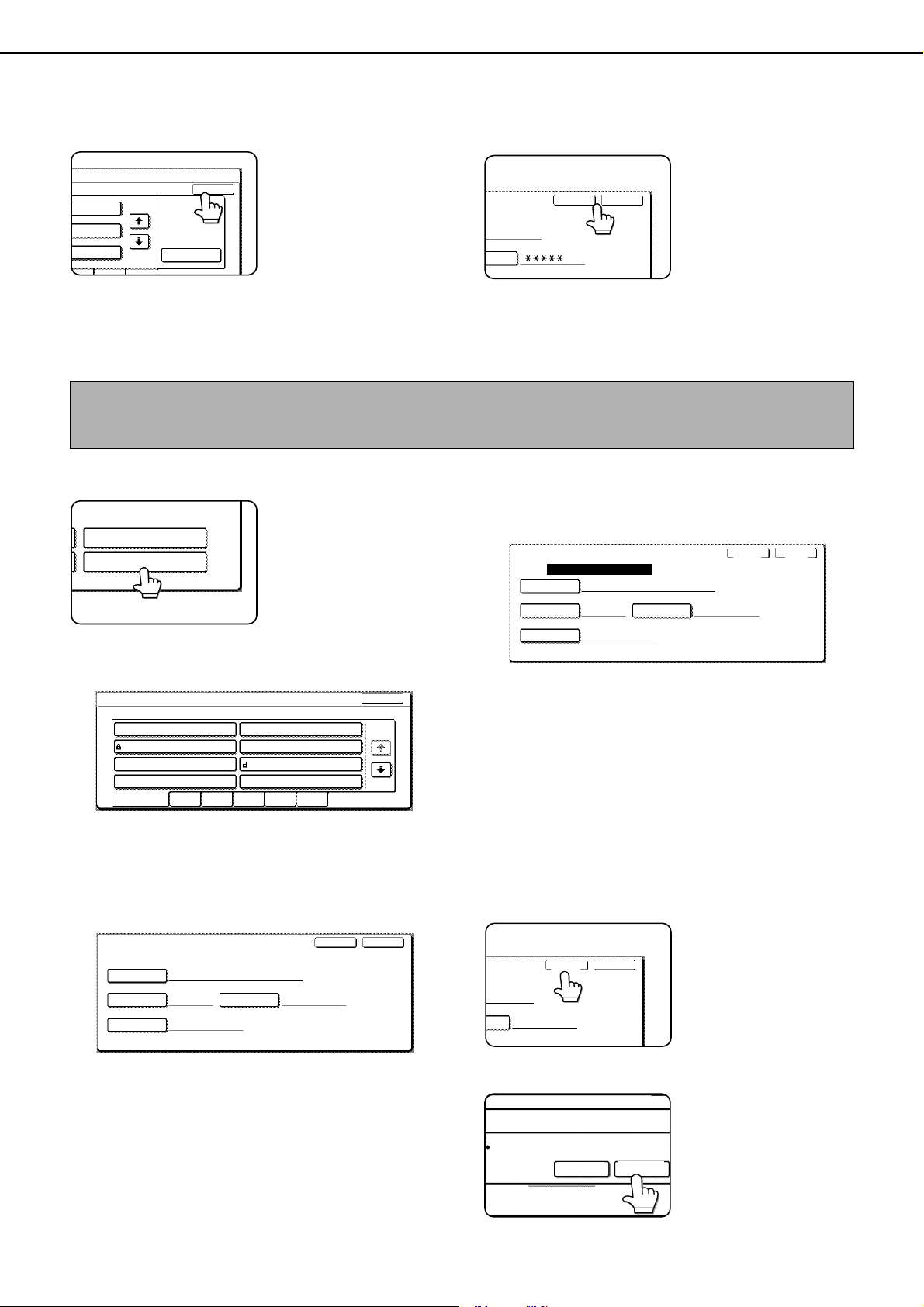
SYSTEM SETTINGS
7-28
9
Touch the [OK] key.
10
To exit, touch the [EXIT] key. To create
another folder, touch the [NEXT] key.
If you touched the [EXIT]
key, you will return to the
screen of step 3 on page
7-24. If you touched the
[NEXT] key, a new folder
screen will appear.
Repeat steps 1 to 10 to
create a new folder.
■ Editing/deleting a custom folder
To edit a previously created folder (change the folder name, initial, password, or user name), or to delete a folder,
follow steps 1 and 2 on page 7-24 and then follow the steps below.
1
Touch the [AMEND/DELETE CUSTOM
FOLDER] key.
2
Touch the [FOLDER NAME] key that you
wish to edit or delete.
If a password has been set for the folder, a
password entry screen will appear. Enter the
correct 5-digit password with the numeric keys.
3
Edit or delete the folder.
●To edit the folder, perform steps 4 and 5.
●To delete the folder, perform steps 6 and 7.
●To exit, touch the [EXIT] key.
[Editing]
4
Touch the key of each item that you wish to
edit (edit as explained in steps 1 to 10 of
"Creating a custom folder" on page 7-27).
After editing the items and returning to the screen of
step 3, "REGISTRATION IS COMPLETED." will be
highlighted to the right of "No.".
To stop using a password, touch the
[PASSWORD] key and then touch the [OK] key
without entering anything for the password. [-] will
appear and the password will be canceled.
5
When you have finished editing the items,
touch the [EXIT] key.
To edit another folder, repeat steps 2 to 5.
[Deleting]
6
Touch the [DELETE] key.
7
Touch the [YES] key.
You will return to the
screen of step 2.
To delete another folder,
repeat steps 2, 6, and 7.
To exit, touch the [EXIT]
key in the screen of step
2.
OK
JKLMN OPQRST
UVWXYZ
ADD NEW
1/1
SWORD
EXIT
NEXT
When deleting a folder...
A folder that contains files cannot be deleted. Either move the files to a different folder or delete them before deleting the folder.
: [MOVE] (see page 7-22) : [DELETE] (see page 7-22)
AMEND/DELETE USER NAME
AMEND/DELETE CUSTOM FOLDER
CUSTOM FOLDER 1
CUSTOM FOLDER 3
CUSTOM FOLDER 5
CUSTOM FOLDER 7
ALL FOLDERS
CUSTOM FOLDER / AMEND/DELETE
SELECT CUSTOM FOLDER TO AMEND/DELETE.
CUSTOM FOLDER 6
CUSTOM FOLDER 8
CUSTOM FOLDER 4
CUSTOM FOLDER 2
ABCD EFGHI JKLMN OPQRST
UVWXYZ
EXIT
1/2
CUSTOM FOLDER / AMEND/DELETE
No.001
FOLDER NAME
USER FOLDER 1
INITIAL
USER1
*****
Yamada
USER NAME
EXITDELETE
PASSWORD
No.001
FOLDER NAME
USER FOLDER 1
INITIAL
USER1
Yamada
USER NAME
EXITDELETE
PASSWORD
REGISTRATION IS COMPLETED.
CUSTOM FOLDER / AMEND/DELETE
– – – – –
EXIT
ORD
DELETE
DELETE THE FOLDER?
USER FOLDER 1
NO
YES
dragonII_copy_sec.book 28 ページ 2006年10月18日 水曜日 午後7時39分
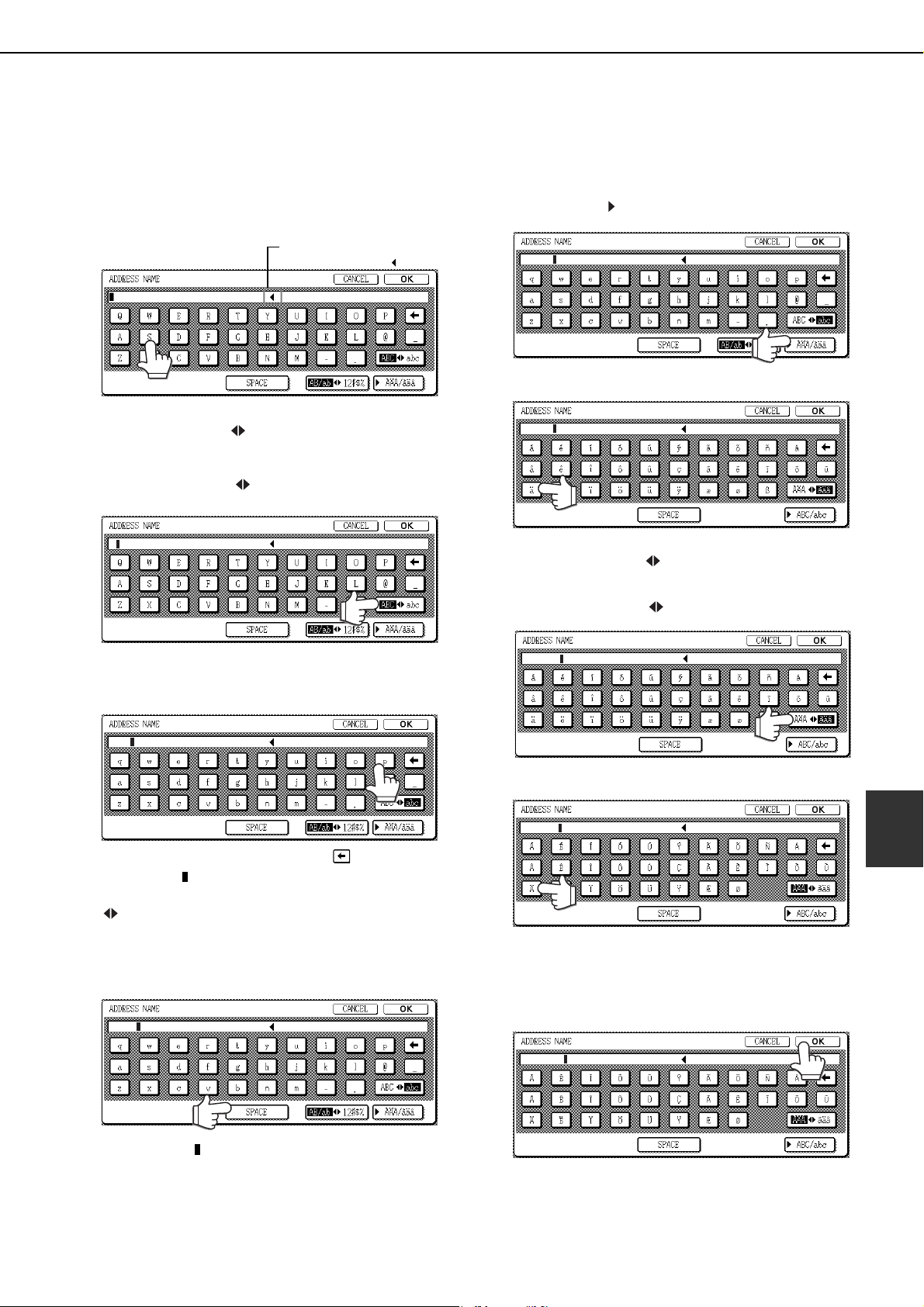
7-29
7
ENTERING CHARACTERS
To enter or edit characters in setting screens such as auto dial key programming screens, follow the steps below.
Characters that can be entered are alphabetical characters, special characters, numbers, and symbols.
■ Entering alphabetical characters
(Example: Sharp äÄ)
1
Touch the [S] key.
To switch between upper case and lower case,
touch the [ABC abc] key. When ABC is
highlighted, upper case letters are entered.
2
Touch the [ABC abc] key.
3
Touch the [h] key, [a] key, [r] key, and [p]
key.
If you make a mistake, touch the key to move
the cursor ( ) back one space and then enter the
correct character. You can also press the [AB/ab
12#$%] key during entry to enter a number or
symbol.
4
Touch the [SPACE] key.
The cursor ( ) moves forward and a space is
entered.
5
Touch the [ ÃÄÂ/ãäâ] key.
6
Touch the [ä] key.
To switch between upper case and lower case,
touch the [ÃÄÂ ãäâ] key. When ãäâ is
highlighted, lower case letters are entered.
7
Touch the [ÃÄÂ ãäâ] key.
8
Touch the [Ä] key.
You can press the [ABC/abc] key during entry to
return to alphabetical character entry. You can
also enter numbers and symbols.
9
When finished, touch the [OK] key.
You will exit the character entry screen and return
to the programming screen. If you touch the
[CANCEL] key, you will return to the programming
screen without storing the entered characters.
Characters cannot be
entered beyond the " " mark.
S
Shar
Sharp
Sharp
Sharp
Sharp ä
Sharp ä
Sharp äÄ
dragonII_copy_sec.book 29 ページ 2006年10月18日 水曜日 午後7時39分
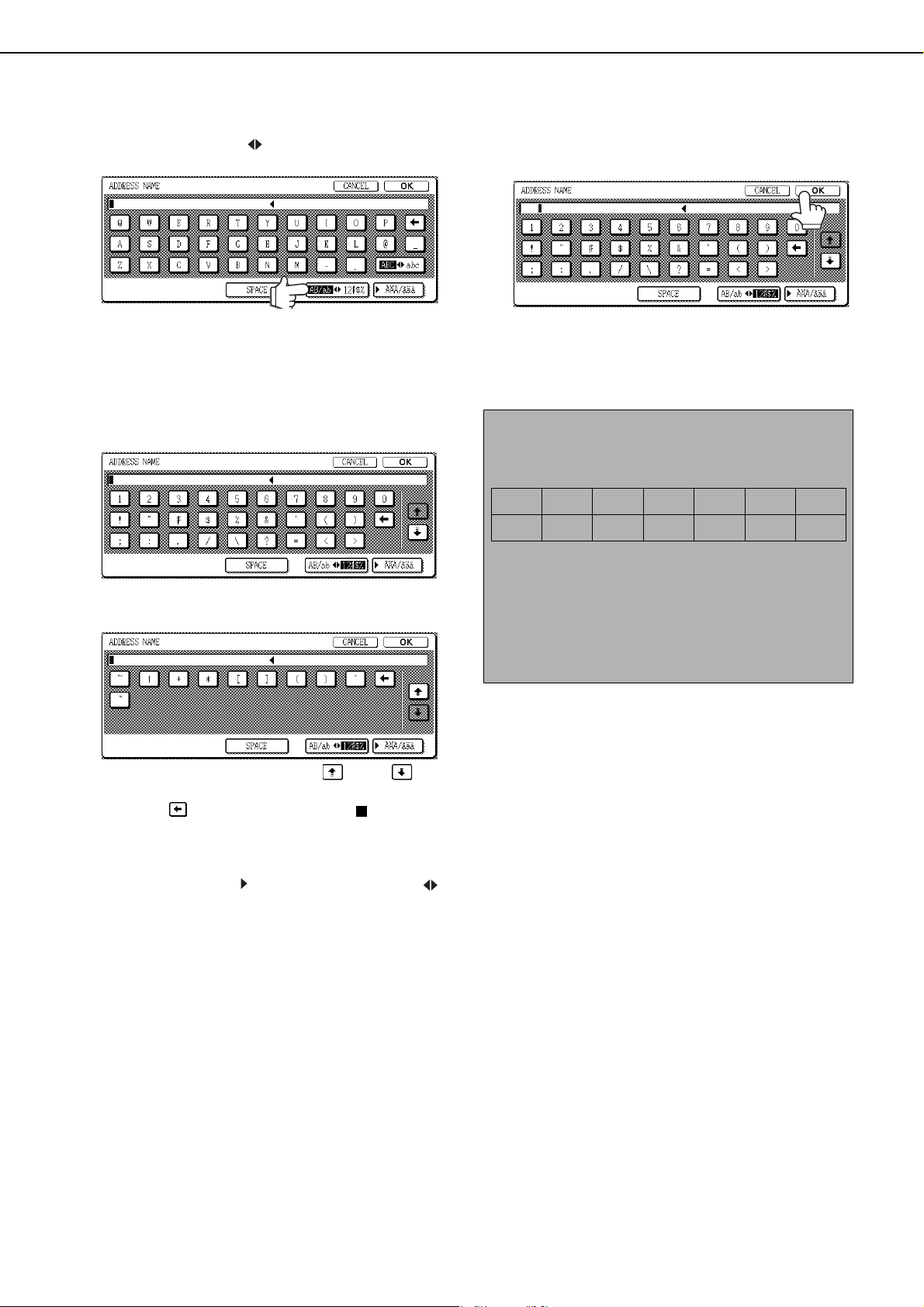
ENTERING CHARACTERS
7-30
■ Entering numbers and symbols
1
Touch the [AB/ab 12#$%] key.
When the characters "12#$%" are highlighted,
number/symbol entry mode is selected.
2
Enter the desired number or symbol.
Numbers and symbols that can be entered are as
follows:
Screen 1/2
Screen 2/2
Change screens by touching the key or key
displayed in the screen. If you make a mistake,
touch the key to move the cursor ( ) back one
space and then enter the correct character.
You can continue touching keys to enter
characters. You can also touch another character
type selection key ([ ÃÄÂ/ãäâ] key or [AB/ab
12#$%] key) to enter characters other than
numbers and symbols.
3
When you have finished entering
characters, touch the [OK] key.
You will exit the character entry screen and return
to the programming screen. If you touch the
[CANCEL] key, you will return to the programming
screen without storing the entered characters.
NOTE
The following symbols cannot be used when
entering a file name or folder name.
Depending on the environment of use of the OS, it
may not be possible to use spaces and the symbols
indicated below.
For example, hyperlinks will not operate correctly or
nonsense characters may appear.
$ % ' ( ) + - . = @ [ ] ^ ` { } _
1&1
\?/"; :,
<> ! * |&#
dragon_07-3.fm 30 ページ 2007年2月16日 金曜日 午後1時33分
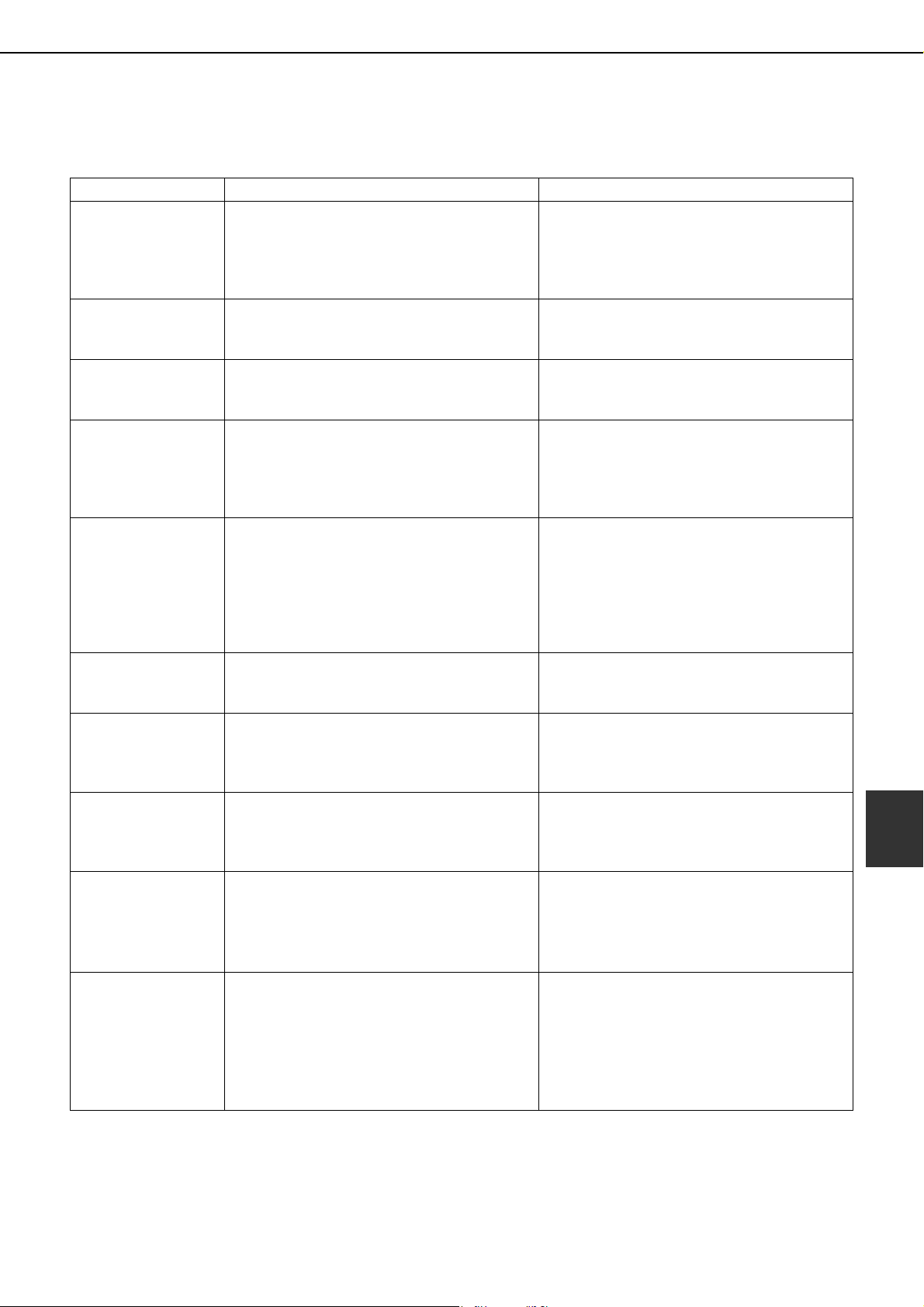
7-31
7
TROUBLESHOOTING
This section explains problems frequently encountered when using the document filing function. If you experience
any difficulty, refer to the following table. For information on general machine problems, printer problems, fax
problems, and network scanner problems, please see the troubleshooting sections of the appropriate manuals.
Problem Check Cause and solution
A saved file has
disappeared.
Was the file called up and then printed by
touching the [PRINT AND DELETE THE
DATA] key?
A file that is printed using the [PRINT AND
DELETE THE DATA] key is automatically
deleted after being printed. To print a file
without deleting it, use the [PRINT AND
SAVE THE DATA] key.
A file cannot be
deleted.
Is the file's attribute set to [PROTECT]? A file cannot be deleted when its attribute is
set to [PROTECT]. Change the attribute to
[SHARING] and then delete the file.
A file's attribute
cannot be set to
[CONFIDENTIAL].
Is the file in the main or custom folder? A file in the Quick File folder cannot be set to
[CONFIDENTIAL]. Move the file to a
different folder or set it to [PROTECT].
A file's attribute
cannot be changed
to [PROTECT].
Is the file set to [CONFIDENTIAL]? A file cannot be simultaneously set to
[CONFIDENTIAL] and [PROTECT]. If set to
[CONFIDENTIAL], use [PROPERTY
CHANGE] (page 7-21) to change the
attribute to [PROTECT].
A name in the Quick
File folder is cut off.
Was the name programmed in the advanced
transmission settings?
If the name was programmed in the
advanced transmission settings before the
file was saved in the Quick File folder, that
name will be used. However, if the name is
longer than the maximum name length of the
Quick File folder (30 characters), the excess
characters will be discarded.
Resolution settings
are not possible.
Was the file saved at low resolution? A saved file cannot be transmitted at a
resolution higher than the resolution at
which it was saved.
A file name cannot
be stored or
changed.
Have you entered prohibited characters in
the file name?
Certain characters (symbols) cannot be
used in file names. See "ENTERING
CHARACTERS" (entering numbers and
symbols) on page 7-29.
A custom folder
name cannot be
stored or changed.
Have you entered prohibited characters in
the folder name?
Certain characters (symbols) cannot be
used in folder names. See "ENTERING
CHARACTERS" (entering numbers and
symbols) on page 7-29.
The printing speed
of a saved file is
slow.
The file was saved using one of the following
resolution settings:
●
200 x 200 dpi resolution.
●
STANDARD (200 x 100 dpi) or FINE (200
x 200 dpi)
When a file is saved using one of the
resolutions setting at left, the printing speed
will be slower than when other resolution
settings are used.
Black dots appear
when a file that was
saved with the
document filing
function is printed.
Was the file saved at other than the following
resolutions?
●
600x600dpi
●
600x600dpi and HALF TONE
To check the resolution of the saved file,
touch the [DETAIL] key in step 5 on page 7-
16.
This problem can be alleviated by setting the
resolution to 600x600dpi when saving a file
with scan save. The problem can be further
alleviated by selecting HALF TONE after
setting the resolution to 600x600dpi, as light
images will be printed lightly.
dragonII_copy_sec.book 31 ページ 2006年10月18日 水曜日 午後7時39分

dragonII_copy_sec.book 32 ページ 2006年10月18日 水曜日 午後7時39分

8-1
CHAPTER 8
SPECIFICATIONS
This chapter contains useful information about the machine.
Page
SPECIFICATIONS................................................................................... 8-2
INDEX ..................................................................................................... 8-4
dragonII_copy_sec.book 1 ページ 2006年10月18日 水曜日 午後7時39分
8-2
SPECIFICATIONS
Automatic document feeder
Type Console
Print system Electrophotographic system
Exposure system OPC
Developer system Dry-type two-component magnetic brush development
Paper feed system 4 trays and bypass tray
Fusing system Heater roller
Resolution Scan: 600 x 600 dpi, output: 600 x 600 dpi
Gradation 256 levels
Originals Sheets, bound documents
Maximum size: 11" x 17" or A3
Copy paper Plain paper and special papers
Copy sizes Max. 11" x 17" or A3, min. 5-1/2" x 8-1/2"R or A5R, Postcard
Image loss: Max 21/64" or 8 mm (leading edge and trailing edge in total),
max. 21/64" or 8 mm (along all other edges in total)
Warm-up time 120 seconds or less
First-copy time
MX-M550U/MX-M620U/MX-M550N/MX-M620N
4.0 seconds or less*
MX-M700U/MX-M700N
3.5 seconds or less*
* When 8-1/2
"
x 11
"
(A4) size paper is fed horizontally from tray1
Copy ratio Variable: 25 to 400% in 1% increments, total 376 steps
Fixed presets: 25%, 64%, 77%, 100%, 121%, 129%, 200% and 400% for inch
system, 25%, 50%, 70%, 81%, 86%, 100%, 115%, 122%, 141%, 200% and
400% for AB system.
Continuous copy 999 copies
Dimensions
(including automatic
document feeder)
28-43/64" (W) x 26-47/64" (D) x 46-15/16" (H)
(728 mm (W) x 679 mm (D) x 1192 mm (H))
Weight (main unit only) Approx. 408 lbs. (Approx. 185 kg)
Overall dimensions
(When tray is extended)
49-23/32" (W) x 26-47/64"(D) (1263 mm (W) x 679 mm (D))
Required power supply USA: AC120V, 60Hz, 16A
Power consumption 1.8 kW
Operating conditions Temperature: 50ºF to 86ºF (10ºC to 30ºC)
Humidity: 20% to 85%
Type Two-side simultaneous scanning system
Original size 11" x 17" to 5-1/2" x 8-1/2" (A3 to A5)
Capacity Maximum of 150 sheets (20 lbs. (80 g/m
2
)) or total stack height of 49/64" (19.5
mm) or less.
Original exchange speed One-sided: 65 pages/min.
Two-sided: 76 sides/min.
Power supply Supplied from machine
Some discrepancies may exist in the illustrations and content due to improvements to the machine.
dragon_08.fm 2 ページ 2006年11月29日 水曜日 午後9時11分
SPECIFICATIONS
8-3
8
* Noise emission when peripheral devices are installed
Continuous copying speed (when the offset function is not used)
MX-M550U/MX-M550N MX-M620U/MX-M620N MX-M700U/MX-M700N
Copy paper size 100% / Reduced / Enlarged
11" x 17" (A3) 30 copies/min. 34 copies/min. 39 copies/min.
8-1/2" x 14" (B4) 35 copies/min. 39 copies/min. 45 copies/min.
8-1/2" x 11" (A4) 55 copies/min. 62 copies/min. 70 copies/min.
8-1/2" x 11"R (A4R) 40 copies/min. 45 copies/min. 48 copies/min.
7-1/4" x 10-1/2" (B5) 55 copies/min. 62 copies/min. 70 copies/min.
7-1/4" x 10-1/2"R (B5R) 40 copies/min. 45 copies/min. 48 copies/min.
8-1/2" x 5-1/2"R (A5R) 40 copies/min. 45 copies/min. 48 copies/min.
Center tray specifications
Output method Face-down output
Maximum number
of sheets
(20lbs. (80g/m
2
)
/recommended
paper)
250 sheets*
Paper type Plain paper and special paper
* The maximum number of pages that can be held varies
depending on ambient conditions in the installation
location, the type of paper, and the storage conditions of
the paper.
Acoustic Noise Emission (measurement according to ISO7779)
Printing mode Standby mode
Sound power level
LwA 7.3B 5.0B
Sound pressure level L
pA
(reference)
Bystander positions 58dB(A) 34dB(A)
Operator position 58dB(A) 35dB(A)
Emission Concentration (measurement according to RAL-UZ62: Edition Jan. 2002)
Ozone 0.02 mg/m
3
or less
Dust 0.075 mg/m
3
or less
Styrene 0.07 mg/m
3
or less
dragonII_copy_sec.book 3 ページ 2006年10月18日 水曜日 午後7時39分

8-4
INDEX
[ ] key................................................................. 1-13
[#/P] key ............................................................... 1-13
■ Numerics
1-sided copy.................................................. 4-7, 4-11
1-sided copy-Automatic document feeder.............. 4-7
1-sided copy-Document glass.............................. 4-11
256MB expansion memory board ........................ 1-12
2in1 ............................................................. 5-24, 7-12
2-sided copy.........................................1-3, 4-10, 4-13
■ A
Acceptable originals ............................................... 4-2
Account number ................................................... 1-18
Additional fax memory.......................................... 1-12
Address control .................................................... 2-18
Adjusting the exposure.................................. 1-3, 4-14
Administrator settings........................................... 2-18
Alarm display........................................................ 3-16
All custom setting list............................................ 2-20
Application communication module............. 1-12, 3-19
Application integration module ............................. 1-12
Attributes ................................................................ 7-3
Auditing mode ...................................................... 1-18
Auto image ........................................................... 4-15
Auto power shut-off mode ...................................... 1-9
Automatic copy image rotation ............................... 4-4
Automatic document feeder .................1-10, 2-31, 4-2
Automatic document feeder .........................................
-1-sided copies.................................................... 4-7
-Acceptable originals........................................... 4-2
-Automatic two-sided copying ........................... 4-10
-Misfeed original................................................ 2-31
-Setting originals ................................................. 4-3
-User maintenance.............................................. 6-2
Automatic exposure adjustment ........................... 4-14
Automatic selection .............................................. 4-15
Automatic two-sided copying
-Automatic document feeder ............................. 4-10
-Document glass ............................................... 4-13
Automatic two-sided printing ................................ 2-13
Auxiliary tray......................................................... 2-10
■ B
B/W reverse............................................1-6, 5-2, 5-31
Barcode font kit .................................................... 1-12
Binding change .................................................... 4-13
Book copy ..............................................1-5, 5-2, 5-26
Book original .......................................................... 5-5
Bypass tray.........................................1-10, 2-28, 4-20
■ C
[C] key ........................................................... 1-13, 7-4
[CA] key......................................................... 1-13, 7-4
Call for service ..................................................... 2-32
[CALL] key............................................................ 1-16
Calling up and using a file .................................... 7-13
Calling up and using a saved file.......................... 7-15
-Delete............................................................... 7-22
-Detail................................................................ 7-22
-Move ................................................................ 7-22
-Print.................................................................. 7-17
-Property change .............................................. 7-21
-Send................................................................. 7-20
-Card shot ..................................1-6, 5-2, 5-29, 7-12
Centre erase........................................................... 5-4
Centre tray..................................................... 1-10, 4-9
[CENTRE TRAY] key.............................................. 3-6
Changing the paper size in paper tray .........2-3 to 2-6
Clear all key................................................... 1-13, 7-4
Clear key ....................................................... 1-13, 7-4
Clock .................................................................... 2-18
Confidential ............................................................ 7-3
Contents....................................................... 0-5 to 0-6
Continuous copying speed ..................................... 8-3
[COPY] key........................................................... 1-13
Cover of the duplex unit........................................ 1-11
Covers/inserts ........................................1-5, 5-2, 5-12
Creating a custom folder ...................................... 7-27
Custom folder...........................7-3, 7-24, 7-27 to 7-28
■ D
Data security kit.................................................... 1-12
Default settings..................................................... 2-20
[DETAIL] key......................................................... 1-16
Display contrast.................................................... 2-20
Display switching keys.......................................... 1-16
Disposal of hole punch scrap ............................... 3-10
Document feeder tray...................................... 4-2, 4-3
Document filing control......................................... 2-18
Document filing function.................................. 1-8, 7-1
Document filing user / folder list ........................... 2-20
[DOCUMENT FILING] key ............................ 1-13, 7-4
Document glass
-1-sided copies.................................................. 4-11
-Automatic two-sided copying ........................... 4-13
-Placing originals................................................. 4-3
-User maintenance.............................................. 6-2
Document transfer cover ............................... 2-31, 4-3
Dual page copy ........................................1-4, 5-2, 5-5
DUAL PAGE SCAN .............................................. 7-12
Duplex unit ........................................................... 1-11
■ E
Editing and deleting
-Custom folder................................................... 7-28
-User names...................................................... 7-26
Energy saving features........................................... 1-9
Energy Star guidelines ........................................... 1-9
Enlargement......................................................... 4-15
Entering characters .................................. 7-29 to 7-30
Erase...............................................1-4, 5-2, 5-4, 7-12
dragon_08.fm 4 ページ 2006年10月22日 日曜日 午後7時40分

INDEX
8-5
8
Examples of covers and inserts ............... 5-17 to 5-22
-Covers.................................................. 5-18 to 5-21
-Inserts.............................................................. 5-22
External account module............................. 1-12, 3-20
■ F
Facsimile expansion kit ........................................ 1-12
Fax data receive/forward ...................................... 2-18
[FAX JOB] key...................................................... 1-16
Features ................................................................. 1-3
[FILE FOLDER] key................................................ 7-5
Finisher ......................................................... 1-10, 3-2
[FINISHER TRAY] key............................................ 3-6
Front cover .................................................... 1-10, 3-2
Fusing unit..........................................1-11, 2-23, 2-24
■ G
General procedure for using special functions....... 5-2
Grayed out............................................................ 1-14
Group .......................................................1-3, 3-4, 4-9
[GROUP] key.......................................................... 3-6
■ H
[HDD STATUS] key................................................. 7-5
Heavy paper................................................ 2-12, 2-13
Highlighted ........................................................... 1-14
Hole punching ................................................. 1-8, 3-5
■ I
Icon ......................................................1-14, 5-17, 7-5
[IMAGE SEND] key .............................................. 1-13
Information ........................................................... 2-23
Inserter.................................................1-8, 1-10, 3-14
Installation requirements ........................................ 0-2
Interior.................................................................. 1-11
Internet fax expansion kit ..................................... 1-12
[INTERNET-FAX] key ........................................... 1-16
Interrupting a copy run .................................. 1-7, 5-46
■ J
Job build..........................................1-5, 5-2, 5-8, 7-12
Job programs ....................................1-6, 5-44 to 5-45
-Calling up......................................................... 5-45
-Deleting............................................................ 5-45
-Storing ............................................................. 5-44
Job status screen................................................. 1-15
[JOB STATUS] key ............................................... 1-13
■ K
Keyboard select.................................................... 2-20
■ L
Labels................................................................... 2-12
Landscape.............................................................. 1-2
Large capacity tray (AR-LC6)...............1-10, 2-7, 2-29
Large capacity tray (AR-LC7)...............1-10, 2-8, 2-30
Left cover of paper drawer ................................... 1-11
Left side cover release ......................................... 1-11
List print................................................................ 2-20
Loading paper ........................................................ 2-2
-bypass tray....................................................... 2-10
-tray 1 - tray 2 ...................................................... 2-2
-tray 3 .................................................................. 2-5
-tray 5 ........................................................ 2-7 to 2-9
LOGOUT .............................................................. 1-13
[LOGOUT] key............................................. 1-13, 1-18
Lower cover............................................................ 3-2
■ M
Main features................................................ 1-3 to 1-8
Main folder.............................................................. 7-3
Main power switch....................................... 1-11, 1-17
Main screen............................................................ 5-2
Manual exposure adjustment ............................... 4-14
Manual selection .................................................. 4-16
Margin Shift ..............................................1-4, 5-2, 5-3
Meaning of "R" ....................................................... 1-2
Mirror image ...........................................1-6, 5-2, 5-31
Misfeed...................... 2-23 to 2-31, 3-11 to 3-12, 3-18
Misfeed in the paper feed area................. 2-26 to 2-30
Misfeed original .................................................... 2-31
Misfeed removal ................................................... 2-23
-Tray 1 - tray 2 ................................................... 2-26
-Tray 3 - tray 4 ................................................... 2-27
-Automatic document feeder ............................. 2-31
-Bypass tray ...................................................... 2-28
-Finisher/saddle stitch finisher........................... 3-11
-Inserter............................................................. 3-17
-Transport area, fusing area, and exit area ....... 2-24
-Tray 5 ................................................... 2-29 to 2-30
-Duplex unit ....................................................... 2-25
Mode select key ................................................... 1-15
Mode select keys........................................... 1-13, 7-4
More information on plain paper........................... 2-13
More information on special media ...................... 2-13
Multi shot................................................1-5, 5-3, 5-24
■ N
Network expansion kit .......................................... 1-12
Network scanner expansion kit ............................ 1-12
Non-standard sizes .....................2-12, 2-14, 2-17, 4-5
Number of pages printed...................................... 1-18
number of pages transmitted (scanned)............... 1-18
Numeric keys................................................. 1-13, 7-4
■ O
Offset............................................................... 1-7, 3-4
[OFFSET] key......................................................... 3-6
Operation panel........................................... 1-10, 1-13
-Document filing function..................................... 7-4
-Inserter............................................................. 3-15
Original guides ....................................................... 4-3
Original orientation .......................................... 3-5, 4-4
Original size .............................................4-2, 4-5, 4-6
Output .............................................3-4, 3-6, 4-9, 4-12
Output tray..................................................... 1-10, 4-9
dragon_08.fm 5 ページ 2006年10月23日 月曜日 午後12時2分

INDEX
8-6
■ P
Pamphlet copy..........................................1-4, 5-2, 5-6
Paper curled......................................................... 2-33
Paper tray settings ...................................... 2-14, 2-20
Part names
-Exterior ............................................................ 1-10
-Finisher and the saddle stitch finisher................ 3-2
-Inserter............................................................. 3-14
-Interior.............................................................. 1-11
-Operation panel ...............................1-13, 3-15, 7-4
-Trays................................................................... 2-2
Password................................................................ 7-8
Peripheral devices....................................... 1-10, 1-12
Photo.................................................................... 4-14
Photoconductive drum ......................................... 1-11
Placing originals..................................................... 4-3
Plain paper ............................................... 2-12 to 2-13
Portrait.................................................................... 1-2
Postcards ........................................ 2-10 to 2-11, 4-20
Power .......................................................... 1-17, 2-32
Power switch ............................................... 1-11, 1-17
Preheat mode......................................................... 1-9
Preset copy ratios................................................. 4-16
[PRINT JOB] key.................................................. 1-16
PRINT mode indicators ........................................ 1-13
Printer condition ................................................... 2-18
Printer test page................................................... 2-20
[PRIORITY] key.................................................... 1-16
Proper storage ..................................................... 2-22
Protect.................................................................... 7-3
PS3 expansion kit ................................................ 1-12
Punch module ............................................... 1-11, 3-2
[PUNCH] key................................................. 3-6, 3-15
■ Q
Quick File folder ..................................................... 7-3
[QUICK FILE FOLDER] key ................................... 7-5
■ R
[READ-END] key.................................4-12, 5-8 to 5-9
Reduction ............................................................. 4-15
Reduction/Enlargement................................. 1-4, 4-15
Replacing the toner cartridges ............................. 2-21
Right side cover.................................................... 1-11
Rotation copying .................................................... 4-4
■ S
Saddle stitch.................................................... 1-8, 3-5
Saddle stitch finisher ..................................... 1-10, 3-2
Saddle stitch tray.................................................... 3-2
[SADDLE STITCH] key .......................................... 3-6
Saving a document image file .................... 7-6 to 7-12
-Filing ........................................................ 7-7 to 7-8
-Print jobs............................................................ 7-9
-Quick file ............................................................ 7-6
-Scan save ............................................ 7-10 to 7-11
[SCAN TO] key..................................................... 1-15
[SCAN TO HDD] key .............................................. 7-5
[SEARCH] key........................................................ 7-5
Searching for a file ................................... 7-13 to 7-14
Selecting a function.............................................. 1-14
Selecting the exposure level................................. 4-14
Selecting the exposure mode............................... 4-14
Selecting the output tray......................................... 4-9
Sender control...................................................... 2-18
Sender control list ................................................ 2-20
Sending address list............................................. 2-20
Setting the paper size............................... 2-14 to 2-17
Setting the paper type .............................. 2-14 to 2-16
Sharing................................................................... 7-3
Sharp OSA ........................................................... 3-19
Sort...........................................................1-3, 3-4, 4-9
[SORT] key............................................................. 3-6
Special modes (Copier operation).......................... 5-2
Special modes (Document filing function)............ 7-12
Special paper ........................................... 2-12 to 2-13
Special papers ..................................................... 4-20
Specifications ............................................... 8-2 to 8-3
-Finisher/saddle stitch finisher................... 3-2 to 3-3
-Inserter............................................................. 3-14
-Large capacity tray (AR-LC6)............................. 2-7
-Large capacity tray (AR-LC7)............................. 2-8
-Punch module .................................................... 3-3
Specifications of paper trays ................................ 2-12
Standard sizes............................................... 1-2, 2-13
Standard sizes in both the inch and AB systems ... 1-2
Staple cartridge...................................................... 3-3
Staple cartridge replacement ....................... 3-7 to 3-8
Staple jam removal..................................... 3-9 to 3-10
Staple sort....................................................... 1-7, 3-4
[STAPLE SORT] key............................................... 3-6
[STAPLE] key ....................................................... 3-15
Stapler compiler ..................................................... 3-2
Stapling positions ................................................... 3-4
[START] key................................................. 1-13, 3-15
[STOP/DELETE] key ............................................ 1-16
Storage of supplies............................................... 2-22
System settings........................................... 2-18, 7-24
[SYSTEM SETTINGS] key ............................ 1-13, 7-4
■ T
Tab copy.................................................1-6, 5-2, 5-26
Tabbed paper
....... 2-6, 2-10, 2-12 to 2-13, 3-15, 4-20, 5-12, 5-27
Tandem copy..........................................1-5, 5-2, 5-10
Text....................................................................... 4-14
Text/photo............................................................. 4-14
The machine does not operate...................... 2-32, 6-3
Toner cartridge ............................................ 1-11, 2-21
Top cover................................................................ 3-2
Total count............................................................ 2-20
Total number of originals ........................................ 4-2
Touch panel...................................1-13, 1-14, 7-4, 7-5
Transparency film .............. 2-6, 2-12, 2-13, 4-20, 5-23
Transparency inserts ..............................1-5, 5-2, 5-23
Tray................................................................ 1-10, 3-2
Tray 1..........................................1-10, 2-2 to 2-4, 2-26
Tray 2..........................................1-10, 2-2 to 2-4, 2-26
Tray 3....................................................1-10, 2-5, 2-27
Tray 4....................................................1-10, 2-6, 2-27
Tray 5................................... 1-10, 2-7, 2-8, 2-29, 2-30
dragon_08.fm 6 ページ 2006年12月1日 金曜日 午前8時53分

INDEX
8-7
8
Troubleshooting
-Copier operation ................................................ 6-3
-Document filing function................................... 7-31
-Finisher/saddle stitch finisher........................... 3-13
-General information ............................. 2-32 to 2-34
-Inserter............................................................. 3-18
Types and sizes of paper ......................... 2-12 to 2-13
Types and sizes of paper that can be used.......... 2-12
■ U
Upper cover of large capacity tray........................ 1-11
User maintenance.................................................. 6-2
User name................................................ 7-24 to 7-26
■ W
Warming up.......................................................... 2-32
■ X
XY Zoom ....................................................... 1-4, 4-18
■ Z
Zoom .................................................................... 4-16
dragon_08.fm 7 ページ 2006年10月19日 木曜日 午後1時4分

dragonII_copy_sec.book 10 ページ 2006年10月18日 水曜日 午後7時39分

NOTICE
BE SURE TO ASK YOUR AUTHORIZED SHARP DEALER ABOUT THE WAR-RANTY THAT YOUR
SELLING DEALER EXTENDS TO YOU. In order to assure you, the end-user, of warranty protection,
Sharp extends a limited warranty to each of its authorized dealers and, in turn, requires each of its
authorized dealers to extend its own warranty to you on terms that are no less favorable than those
given to the dealer by Sharp. You should be aware, however, that Sharp does not itself extend any
warranties, either express or implied, directly to you, the end-user and no one is authorized to make
any representations or warranties on behalf of Sharp. Specifically, SHARP DOES NOT EXTEND TO
YOU, THE END-USER, ANY EXPRESS WARRANTY OR ANY IMPLIED WARRANTY OF
MERCHANTABILITY, FITNESS FOR USE OR FITNESS FOR ANY PARTICULAR PURPOSE IN
CONNECTION WITH THE HARDWARE, SOFTWARE OR FIRMWARE EMBODIED IN, OR USED
IN CONJUNCTION WITH THIS PRODUCT. Sharp is not responsible for any damages or loss, either
direct, incidental or consequential, which you, the end-user, may experience as a result of your
purchase or use of the hardware, software or firmware embodied in or used in conjunction with this
Product. Your sole remedy, in the event that you encounter any difficulties with this Product, is
against the authorized dealer from which you purchased the Product. In the event that this
authorized dealer does not honor its warranty commitments, please contact the General Manager,
Business Products Group, Sharp Electronics Corporation, Sharp Plaza, Mahwah, NJ 07430-1163,
so that Sharp can try to help assure complete satisfaction of all the warranty rights to which you are
entitled from the authorized dealer.
In the event that this authorized dealer does not honor its warranty commitments, please contact the
General Manager, Business Products Group, Sharp Electronics Corporation, Sharp Plaza, Mahwah,
NJ 07430-1163, so that Sharp can try to help assure complete satisfaction of all the warranty rights
to which you are entitled from the authorized dealer.
dragonII_copy_sec.book 1 ページ 2006年10月18日 水曜日 午後7時39分

PRINTED IN CHINA
2007C KS1
TINSE3584FCZ1
SHARP ELECTRONICS CORPORATION
Sharp Plaza, Mahwah, New Jersey 07430-1163.
www.sharpusa.com
SHARP ELECTRONICS OF CANADA LTD.
335 Britannia Road East, Mississauga, Ontario, L4Z 1W9
This manual has been printed using a vegetable-based soy oil ink
to help protect the environment.
Printed on 100% post-consumer recycled paper
MX-M550U/MX-M620U/MX-M700U/MX-M550N/MX-M620N/MX-M700N
OPERATION MANUAL (for general information and copier operation)
cover4.fm 1 ページ 2007年2月16日 金曜日 午後12時55分