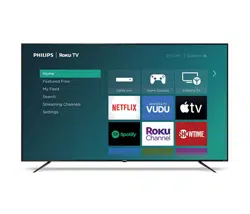
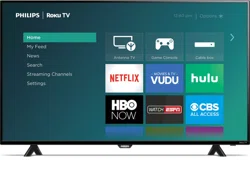
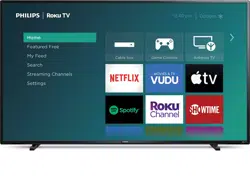
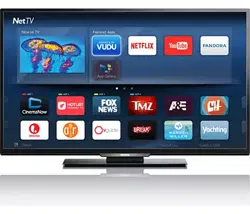
You can use your Remote Control to select channels which are Broadcast in Digital format and conventional Analog format. Also, Cable and Satellite subscribers can access their TV channels.
● Information display
You can display on the TV screen the Title, contents (DTV only) and other information on the current Program.
● Autoprogram
This Unit Automatically scans and memorizes channels available in your area, Eliminating difficult Setup procedures.
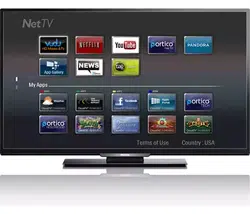
● Net TV
This unit lets you enjoy Internet services. Use the remote control to browse the Net TV pages. You can play movies and much more, all from your TV screen.
● Child lock
This feature allows you to Block children’s access to inappropriate Programs.
● Closed Caption decoder
Built-in Closed Caption decoder displays text for Closed Caption supported Programs.
● MTS / SAP tuner
Audio can be selected from the Remote Control.
● Auto Standby
If there is no Input Signal and no operation for 15 minutes, the Unit will go into Standby mode Automatically.
● Sleep Timer
You can set the Unit to go into Standby mode after a specific amount of time.
● Choices for On-screen language
Select your On-screen language: English, Spanish or French.
● Stereo sound function
● PLL frequency synthesized tuning
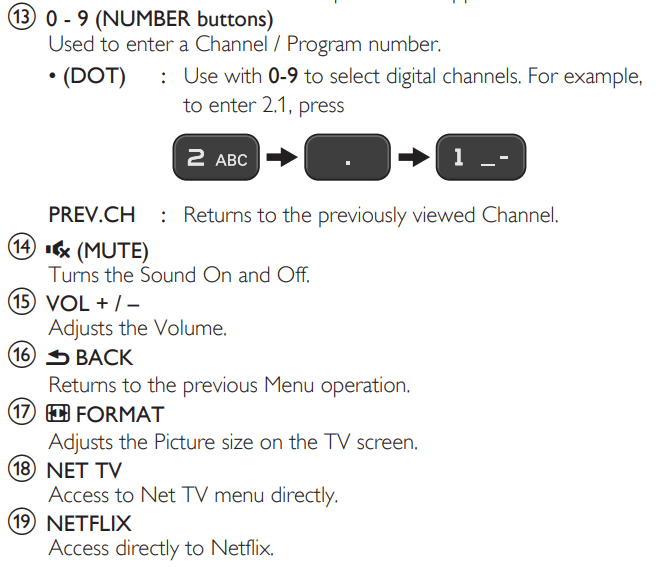
Provides free and easy channel selection and lets you tune directly to any channel using the number and decimal point “•” keys on the Remote Control.
● Various adjustments for Picture and Sound
Customizes picture quality suitable for your room and sets your sound preference.
● EasyLink via HDMI link
EasyLink allows your other HDMI link devices to be controlled by the HDMI cable connected to your TV.
● HDMI Input
● HDMI-DVI Input
If your Video Device has a DVI Output jack, use an HDMI-DVI Conversion Cable to connect the Unit.
● Component Video Input
● PC Input
● AV Input
Audio and Video Input from an External Device.
● USB terminal
The Picture (JPEG), Music (MP3) and Video files stored on a USB Memory Stick can be played back on this unit.
● Digital Audio Output
● Headphone Audio Output
Headphone 3.5mm Stereo jack for personal listening.
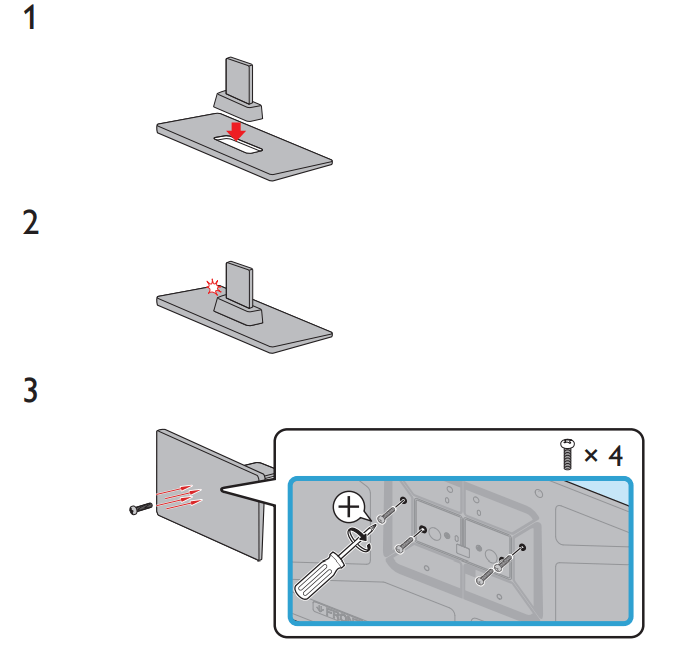
Stand Assembly
Managing Cables
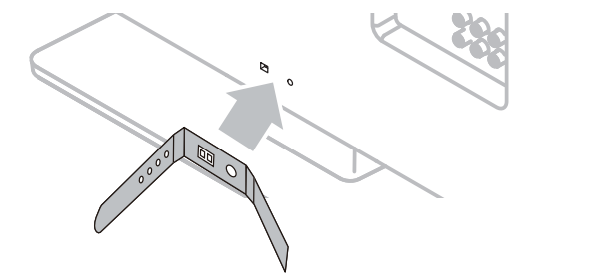
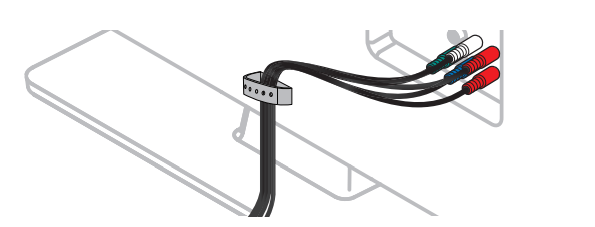
Route your antenna cable and all other cables through the cable management tie* at the back of the TV.
The holder helps keep your cables tidy and easily manageable.
1 Attach the cable management tie as illustrated below.
2 Pass cables through the cable management tie to avoid tangles.
* The cable management tie is not supplied with your TV. If you would like this part, please call our toll free customer support line found on the cover of this User Manual, and it will be sent to you for free of charge.
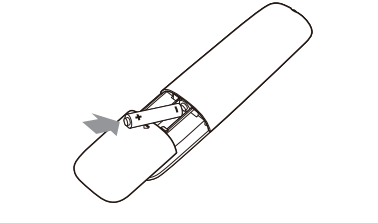
Installing the Remote Control Batteries
1. Slide the battery cover off the back of the Remote Control.
2. Insert 2 Supplied Batteries (AAA, 1.5V). Be sure the + and – ends of the Batteries line up with the markings inside the case.
3. Slide the cover back into position.
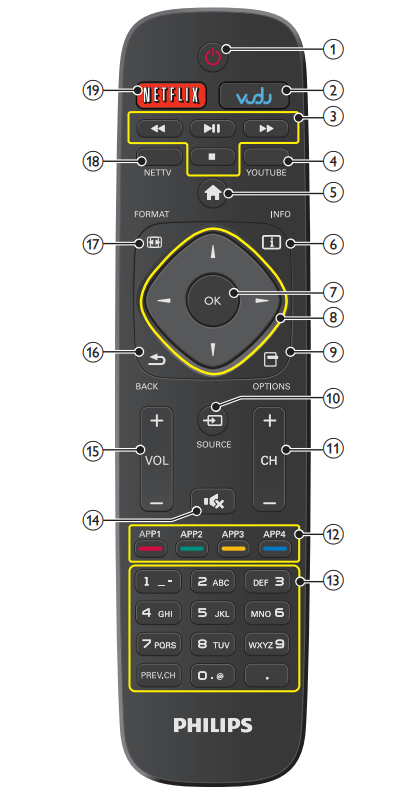
Remote Control
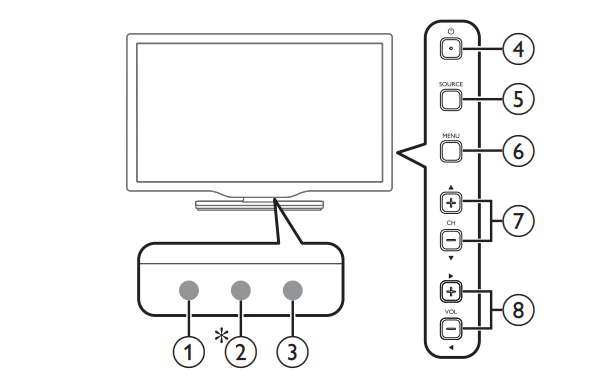
Control Panel
1. Remote Control Sensor
Receives IR signal from Remote control.
2. Ambient Light Sensor
Alters the brightness of the TV screen automatically by detecting your room lighting level. Do not block this Light Sensor window which allows proper operation.
Selects a Channel. In the Menu screen, moves the Cursor Up ()/ Down ().
8. VOL
Adjusts the Volume. In the Menu screen, moves the Cursor Left () / Right ().
VOL : Volume Down
VOL : Volume Up
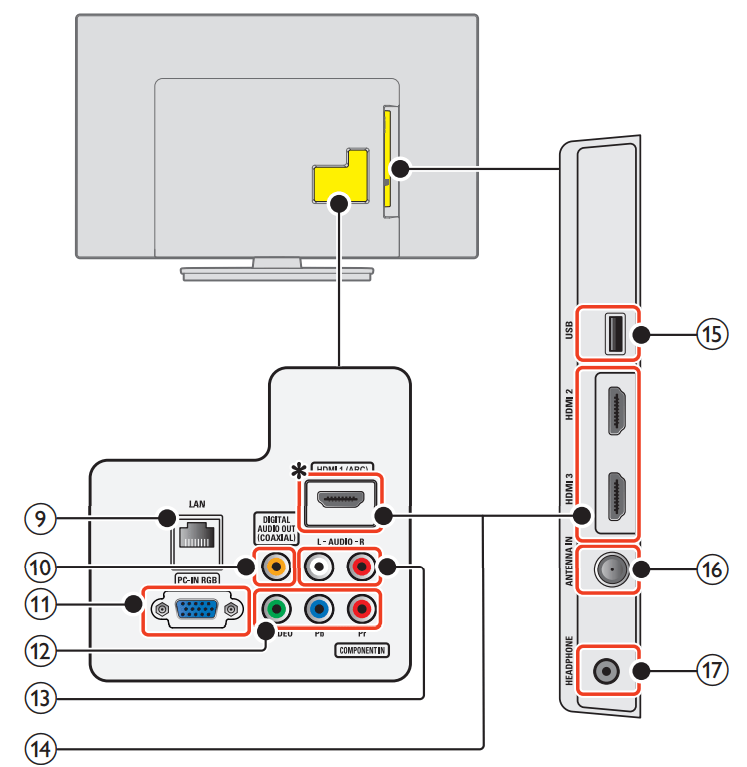
Terminals
9. Ethernet port
For Internet connection using an Ethernet cable with an RJ-45 connector.
10. Digital Audio Output jack
Digital Audio (S/PDIF) Output to home theaters and other Digital Audio systems.
11. PC Input jack
VGA cable connection for PC.
12. Component (Y/Pb/Pr) / Composite Video (VIDEO) Input jack(s) for VIDEO
Composite Video Input (VIDEO) jack is a shared jack with Component Video Input (Y) jack.
13. Analog Audio (L/R) Input jacks
Connect Analog Audio signals from;
– HDMI-DVI / Analog Audio (L/R) jacks signal
– Component Video / Analog Audio (L/R) jacks signal
– Composite Video / Analog Audio (L/R) jacks signal
– PC Connection / Analog Audio (L/R) jacks signal with Stereo mini 3.5mm plug Audio cable on PC
14. HDMI Input jack(s)
Digital Audio and Video Input from high definition Digital devices such as DVD / Blu-ray disc players, Cable / Satellite Set-top boxes, PC’s, etc.
* For HDMI 1 only
In addition to normal HDMI and HDMI-DVI functionality, it outputs TV Audio to an HDMI-ARC-compliant device, such as a home theater system.
15. USB terminal
Data Input from USB Memory Stick only.
Do not connect any device to this terminal such as Digital camera, keyboard, mouse, etc.
16. 75 ohm Cable / Antenna connection
Signal Input from an Antenna or Cable / Satellite Set-top boxes.
17. Headphone Audio Output jack
Headphone 3.5mm stereo jack for personal listening.
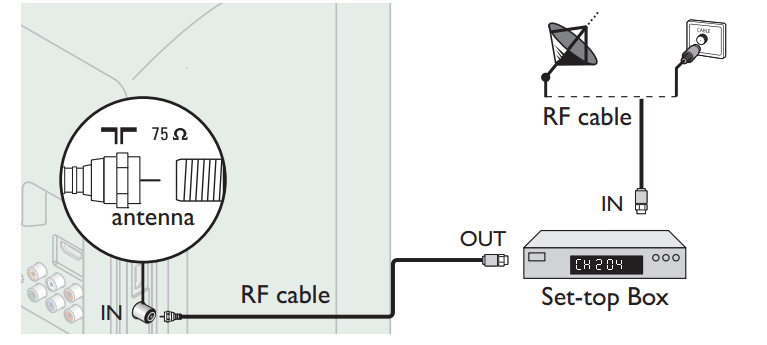
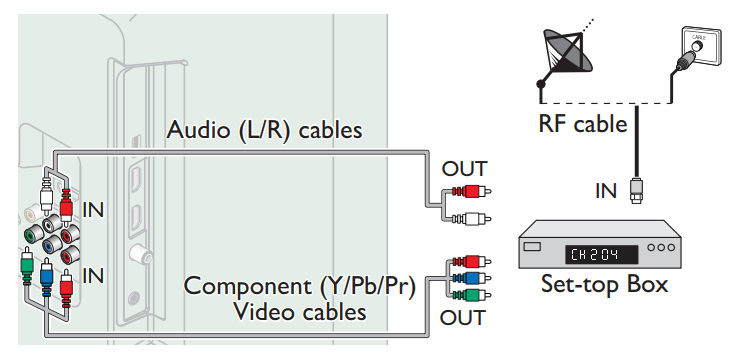
Connecting Antenna or Cable / Satellite / IPTV Box
Be sure your Antenna or another Device is connected properly before plugging in the AC Power Cord.
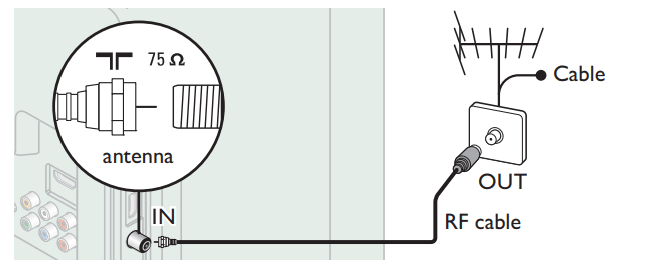
If connecting to an Antenna through an RF cable
Any DTV Programs that are Broadcast in your area can be received for free through an Antenna Connection.
If connecting Cable / Satellite / IPTV Set-top box using an RF cable
If the TV is connected to a Cable / Satellite Set-top Box via a Coaxial Connection, set the TV to channel 3/4 or the channel specified by the service provider.
If connecting Cable / Satellite / IPTV Set-top Box using an HDMI cable
If the TV is connected to a Cable / Satellite Set-top Box via an HDMI cable, make sure you select the correct Source by using SOURCE.
If connecting Cable / Satellite / IPTV Set-top box using Component Video Input
If the TV is connected to a cable / satellite set-top box via Component Video Input, make sure you select the correct Component Video Source by using SOURCE.
Features
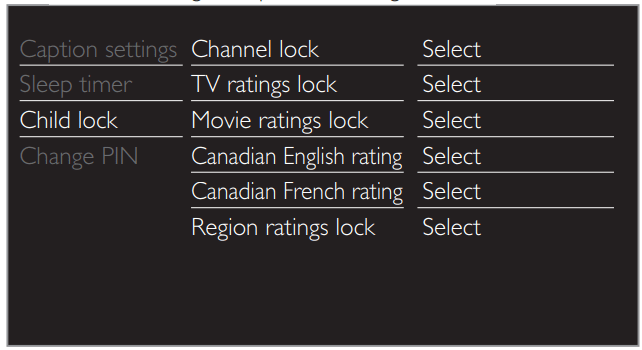
Child and Ratings Lock
You can prevent your children from watching certain Programs or certain Channels by locking the TV Controls and by using Ratings.
1. Use to select Child lock, then press OK
2. Use the NUMBER buttons to enter the 4-digit numbers for your PIN code.
● When you have not set up your PIN code, enter 0, 0, 0, 0.
● When the PIN code is correct, Child lock menu is displayed.
See the following description for setting each item.
Channel lock
Particular Channels or External Input modes can be invisible in this function.
3. Use to select Channel lock, then press OK.
4. Use to Select the Particular Channels or External Input, then press OK Repeatedly to Switch between Block and View.
● indicates that the Channel or Input Source is Locked (Block).
● indicates that the Channel or Input Source is Not Locked (View)
FAQ
Question
Answer
My Remote Control does not work.
What should I do?
● Check the Antenna or Cable Connection to the Main Unit.
● Check the Batteries on the Remote Control.
● Check if there is an obstacle between the infrared sensor window and the Remote Control.
● Test the IR Signal Output use IR Signal Check. If okay, then possible Infrared Sensor trouble.
● Aim the Remote Control directly at the infrared sensor window on the front of the Unit.
● Reduce the distance to the Unit.
● Re-insert the Batteries with their Polarities (+/–) as indicated.
● When there is an infrared-equipped device such as PC near this Unit, it may interrupt the Remote Control signal on this Unit. Move the infrared-equipped device away from this Unit, change the angle of the Device's infrared sensor or Turn Off the infrared communication function.
How come the Initial Setup appears every time I Turn On this Unit?
● Make sure to complete the Initial Setup before the Unit goes into Standby mode.
Why can I not watch some RF signal TV Programs?
● Autoprogram must be completed when you Set Up the Unit for the First time or Move it to a location where previously unavailable channels are broadcast.
● Make sure Autoprogram has been completed.
● The selected channel may not be broadcasting.
● When Autoprogram is interrupted and not completed, some channels will not be received. Make sure to complete the Autoprogram.
● The selected channel cannot be viewed by the Child and Ratings Lock setting.
● The Unit requires some kind of Antenna Input. An indoor Antenna (Digital or VHF / UHF), an External Antenna (Digital or VHF / UHF) or an RF Coaxial Cable from your wall Cable / Satellite Set-top Box needs to be plugged into the Unit
How come there is no image from the Connected External Devices?
● Check if the correct Input mode is selected by pressing SOURCE.
● Check the Antenna, Cable or other Input Connection to the Unit.
● When using the Component Video Connection check that the Green (Y), Blue (Pb/Cb) and Red (Pr/Cr) connectors are connected to their corresponding colored jacks on the Unit.
When I enter a channel number, why does it change Automatically?
● Many Digital channels have alternate channel numbers. The Unit changes the numbers Automatically to the ones signifying the Broadcasting Station's channel number. These basic numbers used for the previous Analog Broadcasts. (e.g., Input Digital ch# 30 Automatically changes to Digital ch# 8.1)
Why are captions not displayed Entirely? Or why are captions delayed behind the dialog?
● Closed Captions that are delayed a few seconds behind the actual dialog are common for Live broadcasts. Most captioning production companies can display a dialog to maximum of 220 words per minute. If a dialog exceeds that rate, selective editing is used to insure that the Closed Captions remain up-to date with the current TV screen dialog
How can I set the clock?
● There is No clock function on this Unit.
My PIN code no longer works, how can I change the Child Lock setting?
● Although the default PIN code (0000) is supplied with the Unit, the PIN code will be required once you set a PIN code in Child and ratings lock. When you forget your PIN code, enter 0711 in Change PIN to reset the PIN code.
When I start up the TV or a net service, a message appears on the screen prompting for software update again.
● When you start up the TV or a net service after executing the software update, a message may appear on the screen prompting for software update again. In this case, please select Update to start USB update or network update
Troubleshooting
If the Unit does not perform properly when operated as instructed in this User Manual,
check the following Troubleshooting tips and all connections once before calling for service.
Power
No Power
● Make sure the AC Power Cord is plugged in.
● Make sure that the AC outlet supplies the proper voltage, plug another electrical appliance into the AC outlet to ensure that the AC outlet operates normally.
● If a Power Failure occurs, Unplug the AC Power Cord for 1 minute to allow the Unit to Reset Itself.
Remote
Control buttons do not work.
● Do NOT press more than one button at the same time.
● Ensure that no buttons on the Remote Control are depressed and move freely.
Universal Remote Control does not work properly.
● Refer to the user manual of the universal remote control for the Philips code.
Picture
Power is ON but no screen image.
● Check whether the Connection for the Antenna, Cable or Satellite Set-top Box is Connected Correctly.
● Check whetherAll the Cables to the Unit are connected to the correct Output Jack on your device like Blu-ray / DVD recorder.
● Make sure that the selected Input mode is connected to the working Input jack.
● Check if your computer is NOT in Sleep Mode when the Input mode of this unit is in PC mode. Tap any key on the Computer Keyboard to Wake it up.
● Check if the correct input mode is selected by pressing SOURCE.
No Color
● View other TV channels. The problem might be limited to the broadcasting station.
● Adjust Color in Picture settings.
Picture Poor
● Adjust Contrast and Brightness in Picture settings.
● For the Best Picture Quality, watch “High Definition” wide screen Programs. If the HD content is Not available, watch “Standard Definition” Programs instead.
You see Pixelation on the Screen.
● When the capabilities of the Unit exceed the capabilities of the Digital Broadcasting, the signal will be increased to match the capabilities of the Display on the Unit. This may cause Pixelation, Noise or Trash.
Unusual picture appears and the TV does Not operate.
● Press the power button first. If it does not solve, follow the procedure below.
① Press the buttons on the remote control in the order shown below.
② Unplug the AC Power Cord once, and wait for 1 minute, and then plug it in again.
Sound
No sound, distorted sound or incorrect Audio Sound is heard when using the HDMI-DVI Connections.
● Make sure that the Analog Audio signals from the HDMI-DVI device are connected to the Analog Audio L/R Input jacks.
● When using Component Analog Video, Composite Analog Video or PC VGA Video make sure that the Analog Audio (L/R) connectors are mounted into the Audio (L/R) Input jacks
Sound Intermittent or No Sound.
● Check if the Audio Cable is connected into the Unit correctly
You Switch to a Different Input and the Volume Changes.
● This Unit will Memorize the Volume Level from the last time you adjusted it.
● If the Volume of the Sound from another Device is Higher or Lower, then the Loudness will Change.
● Make sure Auto volume leveling is set to On
Picture & Sound
No Picture or Sound
● Check if the Power is on.
● Check whether All the cables to the Unit are connected to the correct Output jack of your device like Blu-ray / DVD Recorder.
● Check whether All the Cables to the Unit are connected to the correct Output Jack on your separate Device like Blu-ray Disc / DVD Recorder.
● View other TV channels. The problem might be limited to the Broadcasting Station or Weak Signal Strength.
● Unplug the AC Power Cord and wait for about 1 minute, then Plug the AC Power Cord and turn On the Unit again.
● Check whether the connection of the Antenna or Cable / Satellite set-top box is connected correctly.
● Make sure that the selected Input mode is connected to the working Input jack.
● Check if your computer is NOT in sleep mode when the Input mode of this Unit is in PC mode. Tap any key on the keyboard to wake up your computer.
● Make sure that the sound is not muted. Press so that the volume bar and current volume level will appear on the TV screen.
● Make sure that the volume is NOT set to 0 or If so, use VOL + / – to adjust to the desired volume.
● Make sure that the headphone is NOT connected to the Headphone Audio Output jack.
● Make sure that the TV speakers is NOT set to Off.
Adjusted Picture or Sound settings are not effective every time the Unit is turned On
● You must set Home in Location. (Otherwise, the settings you adjusted will not be memorized after the Unit goes into Standby Mode.)
You see a Distorted Picture or Hear an Unusual Sound. (Analog TV - NTSC signal)
● You may be getting NTSC (Analog) TV signal (not HDTV signal) interference from electrical appliances, automobiles, motorcycles or fluorescent lights.
● Try moving the Unit to another Location to see if this is the Cause of the Problem.
Ghosts, lines or streaks in picture.
● Electrical Interference from nearby appliances may affect Picture Quality.
● View other TV channels. The problem might be limited to the broadcasting station or weak signal strength.
Picture Poor, Sound Intermittent or No Sound
● View other TV channels. The problem might be limited to the broadcasting station or weak signal strength.
Child and Rating Lock
Forgotten PIN code.
● Enter “0711” to clear your password.
Screen
You Switch to a different Input and the Screen Size changes.
● This unit will memorize the viewing mode from the last time you used the particular input modes.
The display image does not cover the entire screen.
● If you are using the Unit as a PC Monitor, make sure that Horizontal position and Vertical position in Picture are set correctly.
● If you are watching TV or using the Composite Video, Component Video or HDMI with 480i Input, press FORMAT Repeatedly to Switch to various Screen Modes.
Different color marks on the TV screen
● View other TV channels. The problem might be limited to the broadcasting station, missing data or pixelation due to weak signal strength.
Closed Captions
Closed Captions are displayed as a white box. No Closed Captions are displayed in the Closed Captions-Supported Program.
● Interference from buildings or weather conditions may cause Closed Captions to be incomplete if watching Analog TV signals.
● Broadcasting Station may shorten the program to insert advertisements. The Closed Caption Decoder cannot read the information of the shortened program
Black Box is displayed on the TV Screen.
● The text mode is selected for caption. Select CC-1, CC-2, CC-3 or CC-4.
Software update
A message appears on the screen prompting for software update again.
● When you start up the TV or a net service after executing the software update, a message may appear on the screen prompting for software update again. In this case, please select Update to start USB update or network update.
Network
Cannot connect to the network.
● Check if the Ethernet cable connection is properly made. Turn On the modem or broadband router.
● Check the network settings.
● Check if the broadband router and/or modem is correctly connected.
Sometimes video quality is poor when using the wireless LAN.
● The wireless network connection quality varies depending on the distance or obstacles (e.g. wall, basement, 2nd floor) between the TV Wireless LAN Adapter and the wireless router (access point), from other wireless networks, and brand and type of the wireless router (access point). When using the Wireless LAN of the TV, it is suggested to place the wireless router as close as possible to the Television.
Wireless LAN connection fails or wireless connection is poor.
● Check the installation location of the TV and wireless router (access point). Signal quality may be affected for the following reasons.
– Interference of other wireless devices, microwaves, fluorescent lights, etc., are placed nearby.
– There are floors or walls between the wireless router and TV.
– If the problems continue even after checking the above, try making a wired LAN connection.
Cannot use the wireless connection.
● Check if the Wireless LAN Access Point (AP) (e.g. wireless router) is oriented properly or not placed too close between them.
● Once you have activated the wireless connection please wait 30 seconds for the connection to be established after Turning On the Unit, before trying to access network features such as Net TV.
Cannot use Netflix feature.
● Check if the network connection is properly made.
● Visit netflix website on your PC and become a Netflix member.
● Some network services may not be available in your country.
Cannot add movies or TV episodes to the Instant Queue.
● Visit netflix website on your PC.
Even though the speed of the Internet connection improves during playback, the picture quality of Netflix streaming movie does not improve.
● The picture quality does not change during playback. It differs depending on the speed of Internet connection at the time of loading
Cannot use VUDU feature.
● VUDU is available only in the United States.
● Check if the network connection is properly made.
Cannot rent or buy movies / TV episodes on VUDU.
● You need to activate the VUDU account. For detailed information, please visit the service providers website at vudu website
● Log into your account at http://my.vudu.com and check your payment information.
The picture quality of a streaming movie (Netflix or VUDU) is poor.
● Check the speed of your Internet connection. You need speeds of at least 8 Mbps to this player for high quality uninterrupted playback.
Streaming movie (Netflix or VUDU) often stops or starts buffering during playback.
● Contact your Internet service provider to troubleshoot your Internet connection for speed and line quality. Consistent line quality and speed are very important for Internet video playback.
Cannot connect to the network while my PC is connected to the network.
● Check the content of your Internet service contract to see if your Internet Service Provider prevents multiple terminals connecting at the same time.
Cannot use Easy Connect (WPS) to connect to the Access Point.
● Connect the Unit to the Access Point using Scan or Manual entry mode. If the Access Point’s security mode is set to WEP*, change the setting to WPA or WPA2 (recommended), then try Easy connect (WPS) again. (For Access Point configuration, please consult its user manual or manufacturer.)
* WEP is not recommended to be used due to its Major security flaws. Change the Security protocol on the wireless router to WPA or WPA2 (recommended) mode.
Folder or files stored on DLNA home media server are not displayed in the file list or cannot be played back.
● Check the setting on your home media server. (Refer to the user manual of the home media server.)
● Check the network connection and settings.
Cannot use Pandora feature.
● Check if the network connection is properly made.
● Pandora is available only in the United States.
● You must create a Pandora account and activate this Unit. Activating Pandora
Cannot get into the PC's screen even the Philips Wirelessconnect is launched.
● Make sure if the network connection is connected properly.
● Check if your PC runs Philips Wirelessconnect.
● Make sure your TV and PC are connected on the same network.
I have a 1.8GHz CPU but Wirelessconnect does not work on my PC.
● For smooth operation of your PC while Philips Wirelessconnect is running you need a mainstream dual core processor from IntelN or AMD.
IntelN : Core™ 2 Duo or Core™ i3/5/7 @ 1.8GHz or higher.
AMD : Athlon™ II X2, Turion™ II Dual-Core or Phenom™ X2 @ 2GHz or higher.
Maintenance
Cabinet Cleaning
● Wipe the front panel and other exterior surfaces of the Unit with a soft cloth.
● Never use a solvent or alcohol. Do Not spray insecticide liquid near the Unit. Such chemicals may cause damage and discoloration to the exposed surfaces.
Panel Cleaning
Wipe the panel of the Unit with a soft cloth. Before cleaning the panel, disconnect the AC Power Cord.
Servicing
Should your unit become inoperative, do not try to correct the problem yourself. There are no user serviceable parts inside. Call our toll free customer support line found on the cover of this User Manual to locate an authorized service center.
IR Signal Check
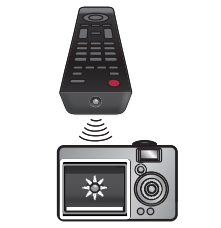
If the Remote Control is not working properly, you can use a Digital or Cell Phone Camera to see if it is sending out an infrared signal.
e.g.) With a Digital Camera:
Point the Digital Camera towards the Remote Control infrared diode at the front of the Remote Control. Press any key on the Remote Control and look at the Camera Display. If an infrared pulsating light appears on the Display, the Remote Control is sending out an IR signal.
Note: Some Cameras have an IR Filter and will not Display the IR signal.
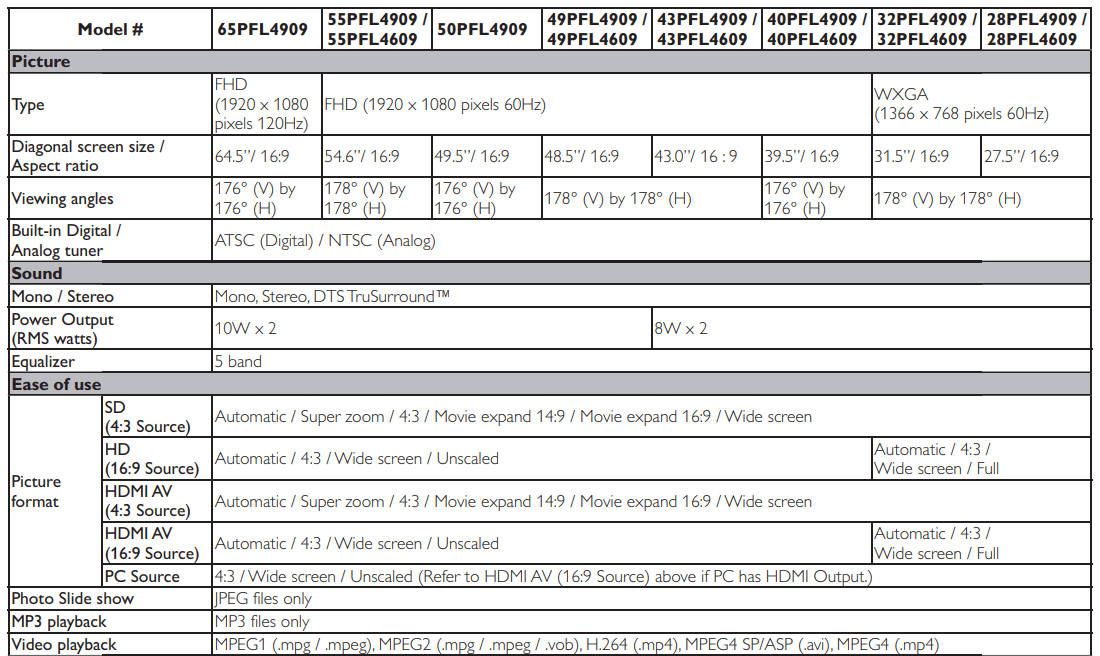
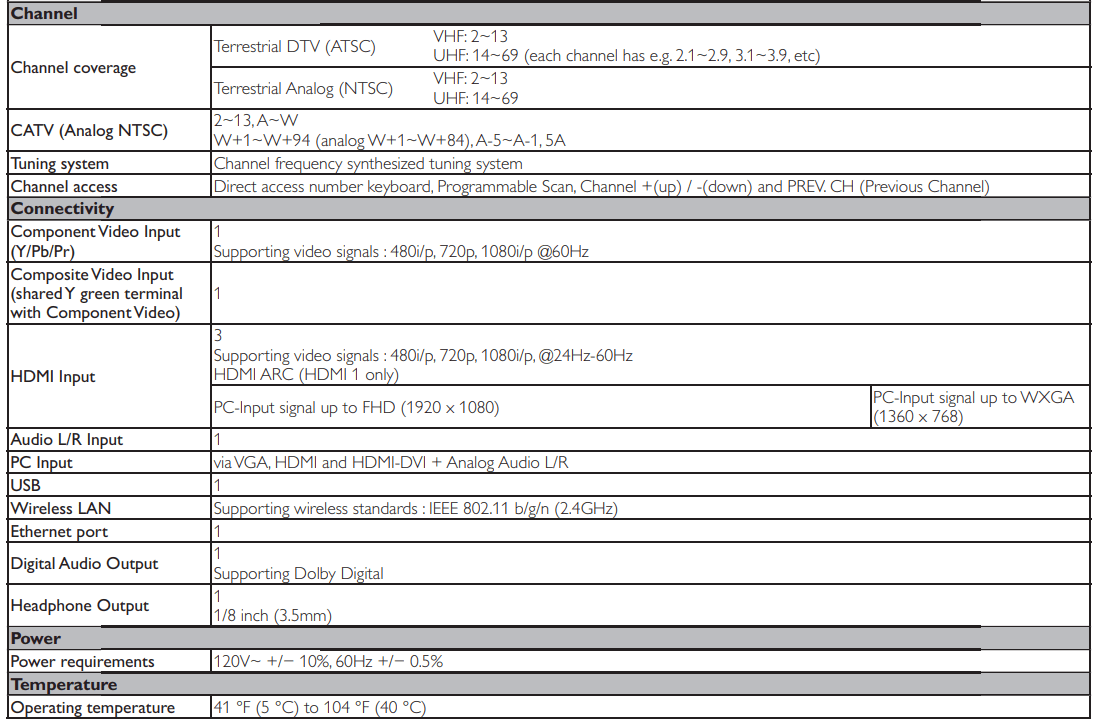
Specifications
● Specifications are Subject to Change without Prior Notice.
Q: Can I hook up a headphone to listen to this TV at the same time as another person listens to the audio of the same program with me? In other words, does using headphones disable the TV speaker audio? Reply
Q: why does my tv keep changing hdmi when I turn it on Reply
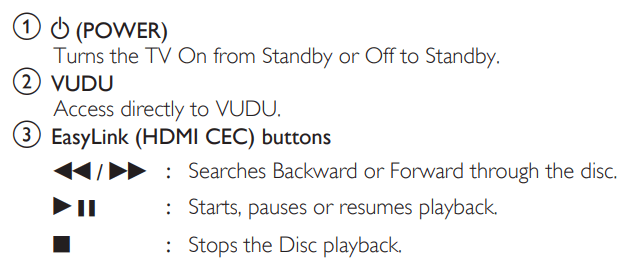
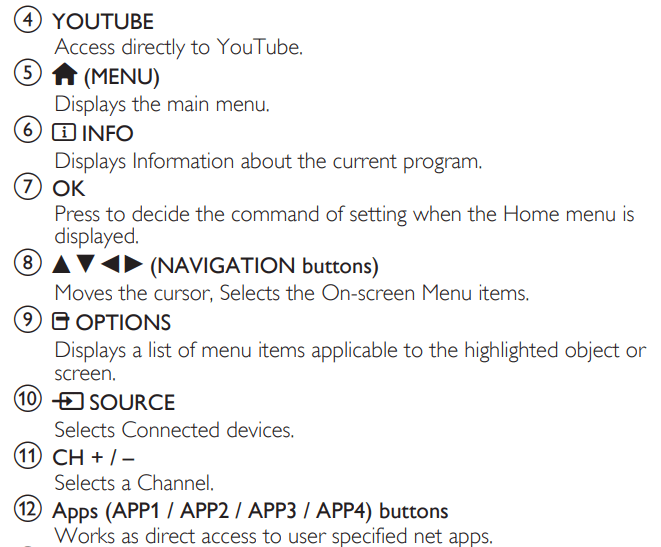
 (POWER)
 )/ Down (
 ).
).
 ) / Right (
 ).
).
 SOURCE.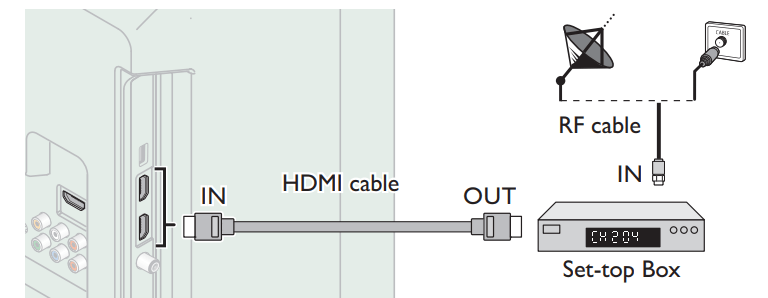
 to select Child lock, then press OK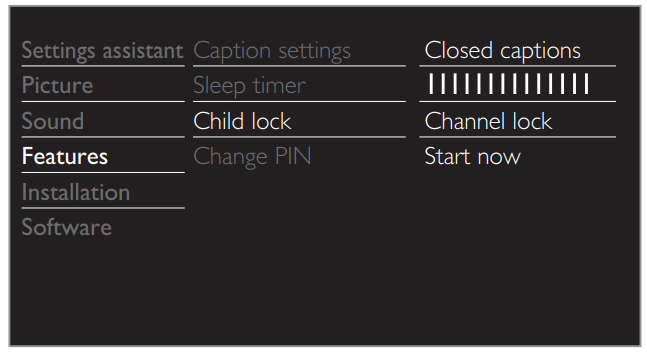
 indicates that the Channel or Input Source is Locked (Block).
  indicates that the Channel or Input Source is Not Locked (View)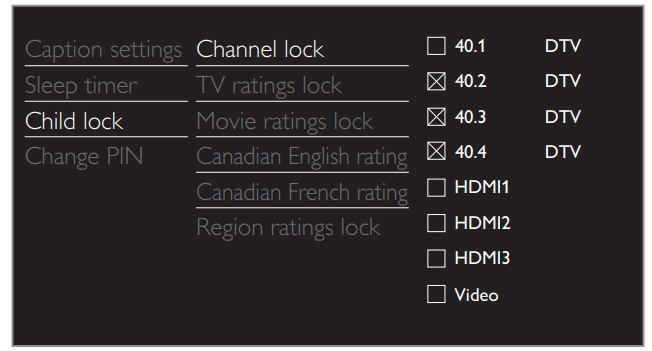
 SOURCE.
 so that the volume bar and current volume level will appear on the TV screen.
 If so, use VOL + / – to adjust to the desired volume.
 FORMAT Repeatedly to Switch to various Screen Modes.