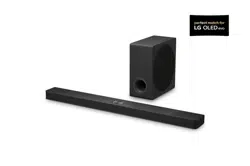
Please read this manual carefully before operating
your set and retain it for future reference.
LAS350B (LAS350B, S35A1-W)
OWNER’S MANUAL
2.1 ch
Sound Bar
www.lg.com
Getting Started2
Getting Started
1
Safety Information
CAUTION
RISK OF ELECTRIC SHOCK
DO NOT OPEN
CAUTION: TO REDUCE THE RISK OF ELECTRIC
SHOCK DO NOT REMOVE COVER (OR BACK) NO
USER-SERVICEABLE PARTS INSIDE REFER SERVICING
TO QUALIFIED SERVICE PERSONNEL.
This lightning ash with
arrowhead symbol within an
equilateral triangle is intended to
alert the user to the presence of
uninsulated dangerous voltage
within the product’s enclosure
that may be of sucient
magnitude to constitute a risk of
electric shock to persons.
The exclamation point within an
equilateral triangle is intended
to alert the user to the presence
of important operating and
maintenance (servicing)
instructions in the literature
accompanying the product.
WARNING: This product contains chemicals known
to the State of California to cause cancer and birth
defects or other reproductive harm. Wash hands
after handling.
WARNING: TO PREVENT FIRE OR ELECTRIC SHOCK
HAZARD, DO NOT EXPOSE THIS PRODUCT TO RAIN
OR MOISTURE.
CAUTION: The apparatus shall not be exposed to
water (dripping or splashing) and no objects lled
with liquids, such as vases, shall be placed on the
apparatus.
WARNING: Do not install this equipment in a
conned space such as a book case or similar unit.
CAUTION: Do not use high voltage products
around this product. (ex. Electrical swatter) This
product may malfunction due to electrical shock.
CAUTION: Do not block any ventilation openings.
Install in accordance with the manufacturer’s
instructions.
Slots and openings in the cabinet are provided for
ventilation and to ensure reliable operation of the
product and to protect it from over heating. The
openings shall be never be blocked by placing
the product on a bed, sofa, rug or other similar
surface. This product shall not be placed in a built-
in installation such as a bookcase or rack unless
proper ventilation is provided or the manufacturer’s
instruction has been adhered to.
CAUTION concerning the Power Cord
Most appliances recommend they be placed upon
a dedicated circuit;
That is, a single outlet circuit which powers only
that appliance and has no additional outlets or
branch circuits. Check the specication page of this
owner’s manual to be certain. Do not overload wall
outlets. Overloaded wall outlets, loose or damaged
wall outlets, extension cords, frayed power cords, or
damaged or cracked wire insulation are dangerous.
Any of these conditions could result in electric
shock or re. Periodically examine the cord of your
appliance, and if its appearance indicates damage
or deterioration, unplug it, discontinue use of the
appliance, and have the cord replaced with an
exact replacement part by an authorized service
center. Protect the power cord from physical or
mechanical abuse, such as being twisted, kinked,
pinched, closed in a door, or walked upon. Pay
particular attention to plugs, wall outlets, and
the point where the cord exits the appliance. The
Power Plug is the disconnecting device. In case of
an emergency, the Power Plug must remain readily
accessible
NOTICE: For Product Identication and
Compliance/Safety labeling information please
refer to Main Label on the bottom of Unit.
Getting Started 3
Getting Started
1
This device is equipped with a portable battery or
accumulator.
Safety way to remove the battery from the
equipment: Remove the old battery or battery
pack, follow the steps in reverse order than
the assembly. To prevent contamination of the
environment and bring on possible threat to
human and animal health, the old battery or
the battery put it in the appropriate container
at designated collection points. Do not dispose
of batteries or battery together with other
waste. It is recommended that you use local,
free reimbursement systems batteries and
accumulators. The battery should not be exposed
to excessive heat such as sunshine, re or the like.
IMPORTANT SAFETY
INSTRUCTIONS
1. Read these instructions.
2. Keep these instructions.
3. Heed all warnings.
4. Follow all instructions.
5. Do not use this apparatus near water.
6. Clean only with dry cloth.
7. Do not block any ventilation openings.
Install in accordance with the manufacturer’s
instructions.
8. Do not install near any heat sources such
as radiators, heat registers, stoves, or other
apparatus (including amplifiers) that produce
heat.
9. Do not defeat the safety purpose of the
polarized or grounding-type plug. A polarized
plug has two blades with one wider than the
other. A grounding type plug has two blades
and a third grounding prong. The wide blade or
the third prong are provided for your safety. If
the provided plug does not fit into your outlet,
consult an electrician for replacement of the
obsolete outlet.
10. Protect the power cord from being walked on
or pinched particularly at plugs, convenience
receptacles, and the point where they exit from
the apparatus.
11. Only use attachments/accessories specified by
the manufacturer.
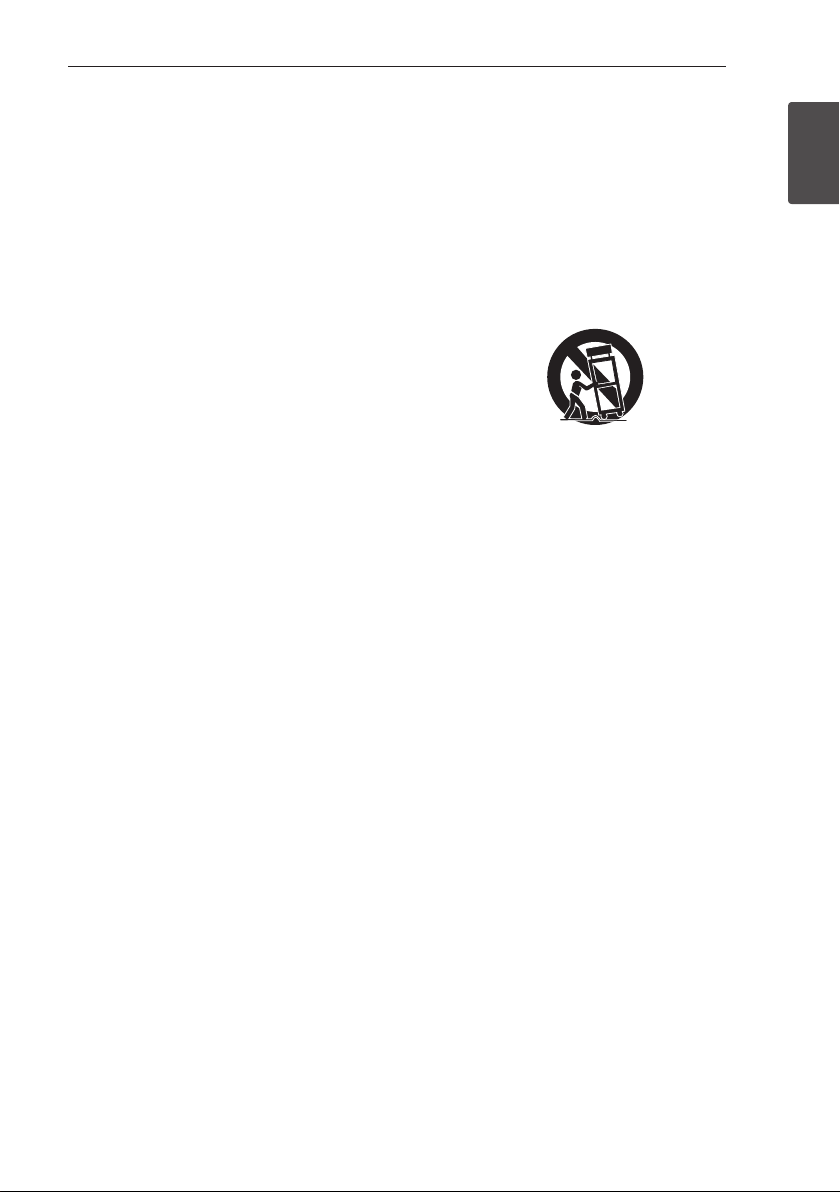
12. Use only with the cart, stand, tripod, bracket, or
table specified by the manufacturer, or sold with
the apparatus. When a cart is used, use caution
when moving the cart/apparatus combination
to avoid injury from tip-over.
13. Unplug this apparatus during lightning storms
or when unused for long periods of time.
14. Refer all servicing to qualified service personnel.
Servicing is required when the apparatus has
been damaged in any way, such as power-
supply cord or plug is damaged, liquid has been
spilled or objects have fallen into the apparatus,
the apparatus has been exposed to rain or
moisture, does not operate normally, or has
been dropped.

Getting Started4
Getting Started
1
FCC Compliance Statement
This device complies with part 15 of the FCC
rules. Operation is subject to the following two
conditions:
(1) This device may not cause harmful interference,
and
(2) This device must accept any interference
received, including interference that may cause
undesired operation.
NOTE: This equipment has been tested and found
to comply with the limits for a Class B digital device,
pursuant to Part 15 of the FCC Rules. These limits are
designed to provide reasonable protection against
harmful interference in a residential installation. This
equipment generates, uses, and can radiate radio
frequency energy and, if not installed and used
in accordance with the instructions, may cause
harmful interference to radio communications.
However, there is no guarantee that interference
will not occur in a particular installation.
If this equipment does cause harmful interference
to radio or television reception, which can be
determined by turning the equipment o and
on, the user is encouraged to try to correct the
interference by one or more of the following
measures:
y
Reorient or relocate the receiving antenna.
y
Increase the separation between the equipment
and receiver.
y
Connect the equipment into an outlet on a
circuit dierent from that to which the receiver is
connected.
y
Consult the dealer or an experienced radio/TV
technician for help.
CAUTION : Any changes or modications not
expressly approved by the party responsible for
compliance could void the user’s authority to
operate this equipment.
FCC WARNING: This equipment may generate
or use radio frequency energy. Changes or
modications to this equipment may cause harmful
interference unless the modications are expressly
approved in the instruction manual. The user could
lose the authority to operate this equipment if an
unauthorized change or modication is made.
FCC RF Radiation Exposure Statement : This
equipment complies with FCC radiation exposure
limits set forth for an uncontrolled environment.
This equipment should be installed and operated
with minimum distance 20 cm between the
radiator and your body. End users must follow the
specic operating instructions for satisfying RF
exposure compliance. This transmitter must not be
co-located or operating in conjunction with any
other antenna or transmitter.
CAUTION: Regulations of the FCC and FAA prohibit
airborne operation of radio-frequency wireless
devices because their signals could interfere with
critical aircraft instruments.
Responsible Party :
LG Electronics USA, Inc. 1000 Sylvan Avenue
Englewood Clis, NJ 07632
TEL. : +1-800-243-0000
Table of Contents 5
1
2
3
4
5
6
Table of Contents
1 Getting Started
2 Safety Information
6 Unique features
6 Introduction
6 – Symbols used in this manual
6 Accessories
7 Remote control
8 Front panel
8 Rear panel
9 Installing the sound bar
9 – Installing the cover
foot
10 Mounting the main unit on a wall
2 Connecting
12 Connecting the subwoofer
12 – Attaching the subwoofer to the unit
12 Connecting to your TV
12 – Using an OPTICAL cable
13 Optional equipment connection
13 – OPTICAL IN connection
13 – PORTABLE IN connection
3 Operating
14 Operations
14 – DRC (Dynamic Range Control)
14 – Turn off the sound temporarily
14 – AV Sync
14 – Displaying input information
14 – Sleep timer setting
14 – Adjusting the brightness of the
display window
15 – Using your TV remote control
16 – AUTO POWER On/Off
16 – Auto function change
17 – LG Sound Sync
18 Using BLUETOOTH® technology
19 – Listening to music stored on the
BLUETOOTH devices
20 Using BLUETOOTH App
20 – Install “Music Flow Bluetooth” App
onto Your BLUETOOTH Device
21 – Activate BLUETOOTH with “Music
Flow Bluetooth” App
22 Sound adjustment
22 – Setting sound effect
22 – Adjust volume level automatically
23 – Adjust the Treble/Bass
23 – Adjust the woofer level settings
23 – Night mode
4 Troubleshooting
24 Troubleshooting
5 Appendix
26 Trademarks and licenses
27 Specifications
29 Maintenance
29 – Handling the unit

Getting Started6
Getting Started
1
Unique features
Auto power down
This unit will turn o by itself for energy saving
consumption.
Portable In
Listens to music from your portable device. (MP3,
Notebook, etc)
LG Sound Sync
Controls volume level of this unit by the remote
control of your LG TV that is compatible with LG
Sound Sync.
Introduction
Symbols used in this manual
,
Note
Indicates special notes and operating features.
>
Caution
Indicates cautions for preventing possible damages
from abuse.
Accessories
Please check and identify the supplied accessories.
Designs and specications of the accessories are
subject to change without prior notice.
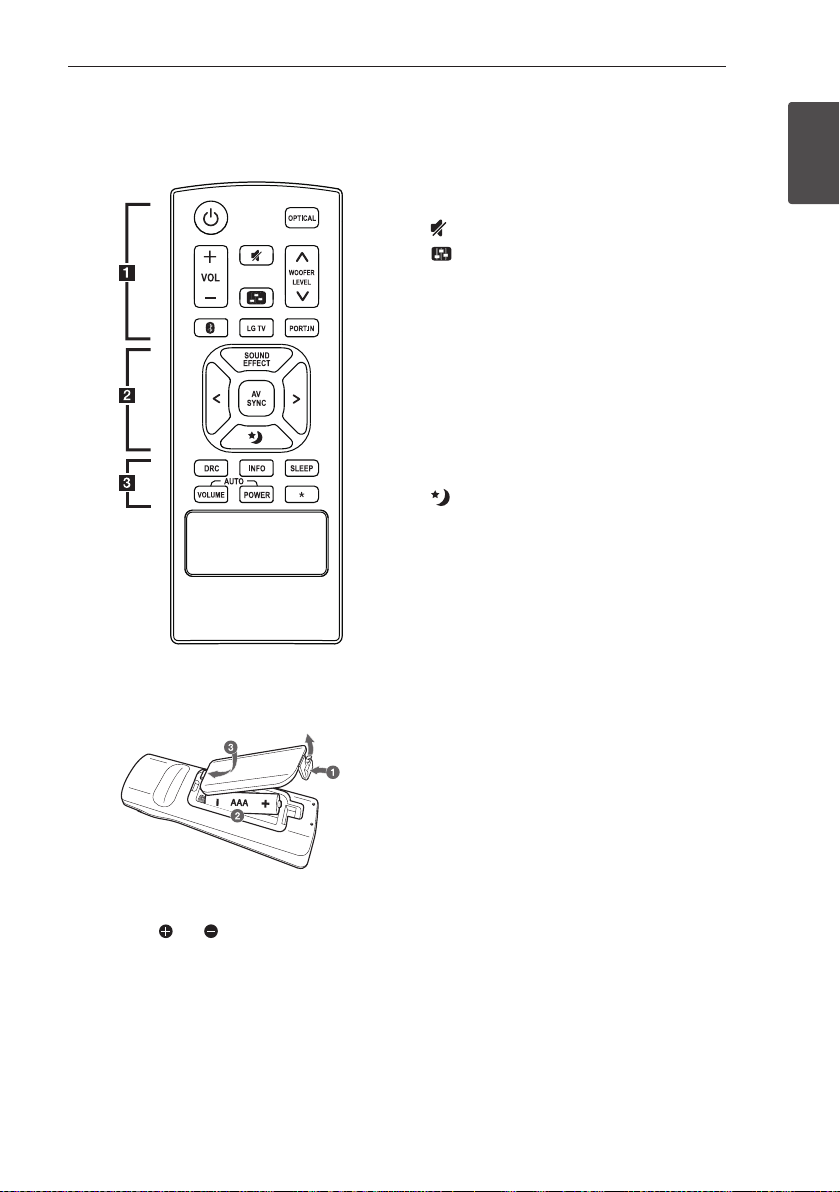
Remote control (1) Batteries (2)
Wall bracket (2) Wall bracket install
guide (1)
Screws (2) Cover foot (2)
Optical cable (1)
Getting Started 7
Getting Started
1
Remote control
Battery Installation
Remove the battery cover on the rear of the
Remote Control, and insert two R03 (size AAA)
batteries with and matched correctly.
• • • • • • • • • •
a
• • • • • • • • •
1
(Power) : Switches the unit ON or OFF. / Switches
to the standby mode.
OPTICAL : Changes input source to OPTICAL.
VOL
o
/
p
: Adjusts speaker volume.
(Mute) : Mutes the sound.
: Adjusts sound level of Treble or Bass.
WOOFER LEVEL
W
/
S
: Adjusts sound level of
Sub-woofer.
h
: Changes input source to Bluetooth.
LG TV : Changes input source to LG TV
PORT.IN : Changes input source to Portable.
• • • • • • • • • •
b
• • • • • • • • •
SOUND EFFECT : Selects a sound eect mode.
AV SYNC : Synchronizes the audio and video.
A/D
: Selects Sound Eects or adjusts AV sync.
(Night mode) : Turns on or o Night mode.
• • • • • • • • • •
c
• • • • • • • • •
DRC : Turns on or o DRC function.
INFO :
- Displays the information of an input source and
Bluetooth address.
- Controls TV remote (Refer to the page 15)
SLEEP : Sets the system to turn o automatically at
a specied time.
AUTO VOLUME : Turns on and o the AUTO
VOLUME mode.
AUTO POWER : Turns on or o AUTO POWER
function. (Refer to the page 16.)
?
: This button is not available.
Getting Started8
Getting Started
1
A
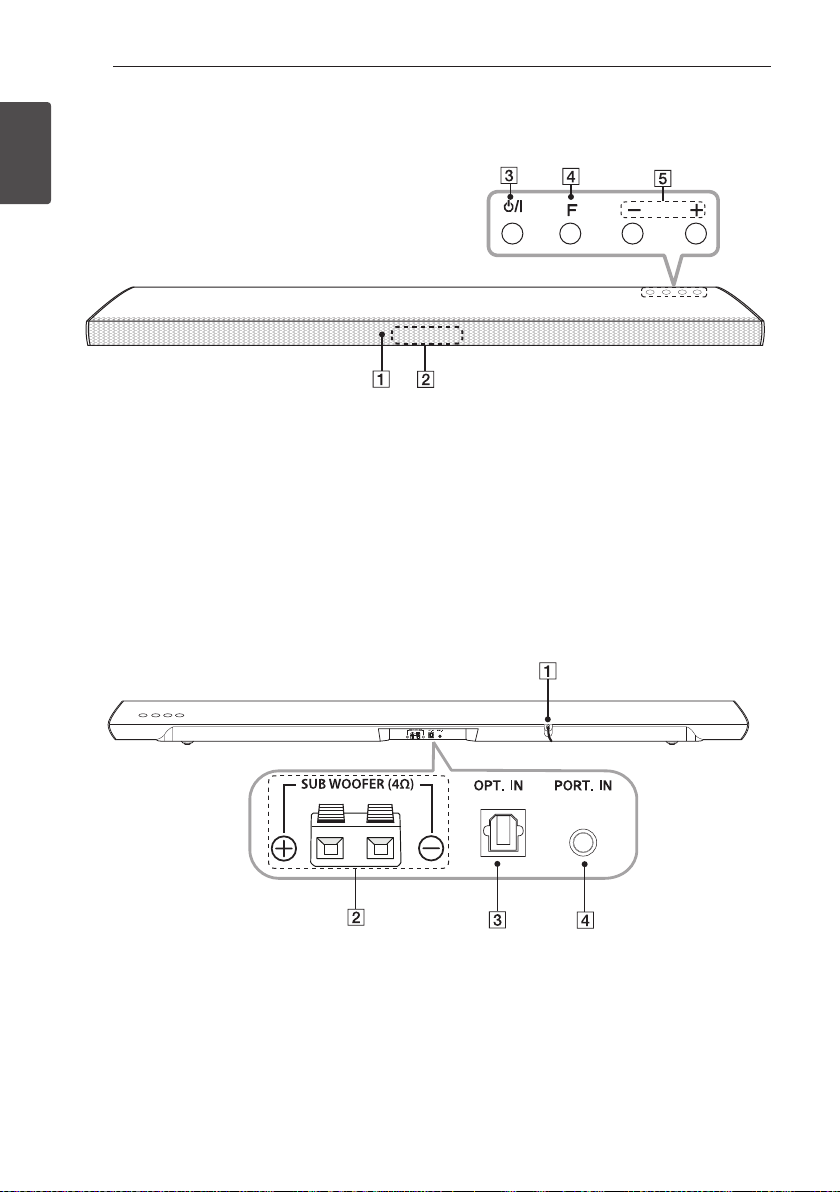
Remote sensor
B
Display window
Standby LED
It lights up in red on standby mode.
C 1/!
(Standby/On)
D
F (Function)
Selects the function and input source.
E
p/o
(Volume)
Adjusts volume level.
Front panel
A
Power cord
B
SUB WOOFER(4Ω) Connector
C
OPT. IN : Optical input
D
PORT. IN : Portable input
Rear panel
Getting Started 9
Getting Started
1
Installing the sound
bar
You can hear the sound by connecting the unit to
the other device : TV, Blu-ray disc player, DVD player,
etc.
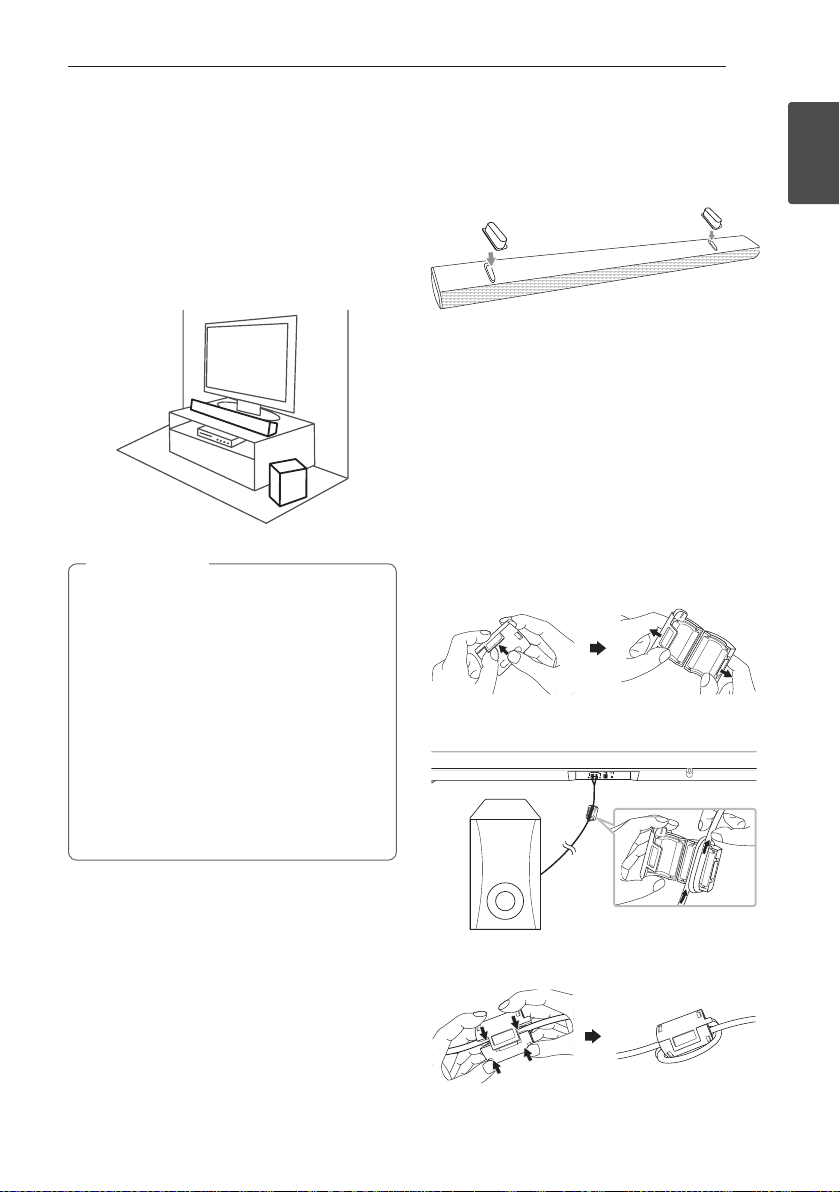
Place the unit in front of the TV and connect it to
the device you want. (Refer to pages 12 - 13.)
y
For best performance of wireless
connection such as Bluetooth,
do not install the unit on Metallic
furniture because wireless connection
communicates through a module
positioned on the bottom of the unit.
y
Be careful not to make scratches on the
surface of the Unit /Sub-Woofer when
installing or moving them.
y
Use caution when handling the Sub
Woofer. The speaker on the rear is
exposed. Avoid making contact with the
exposed speaker.
>
Caution
Installing the cover
foot
You can extend the height of the unit by using
cover foot (height : 17 mm)
1. Turn the unit upside down.
2. Peel off a sticker attached to the cover foot.
Then place it on the existing foot of the unit.
3. Press the cover foot with adequate force to get
it rmly xed.
How to Affix the Ferrite Core
(Optional)
You may need to attach Ferrite core in order to
reduce or eliminate any electrical interference.
1. Open
2. Wind (Twice)
3. Close
Getting Started10
Getting Started
1
Mounting the main
unit on a wall
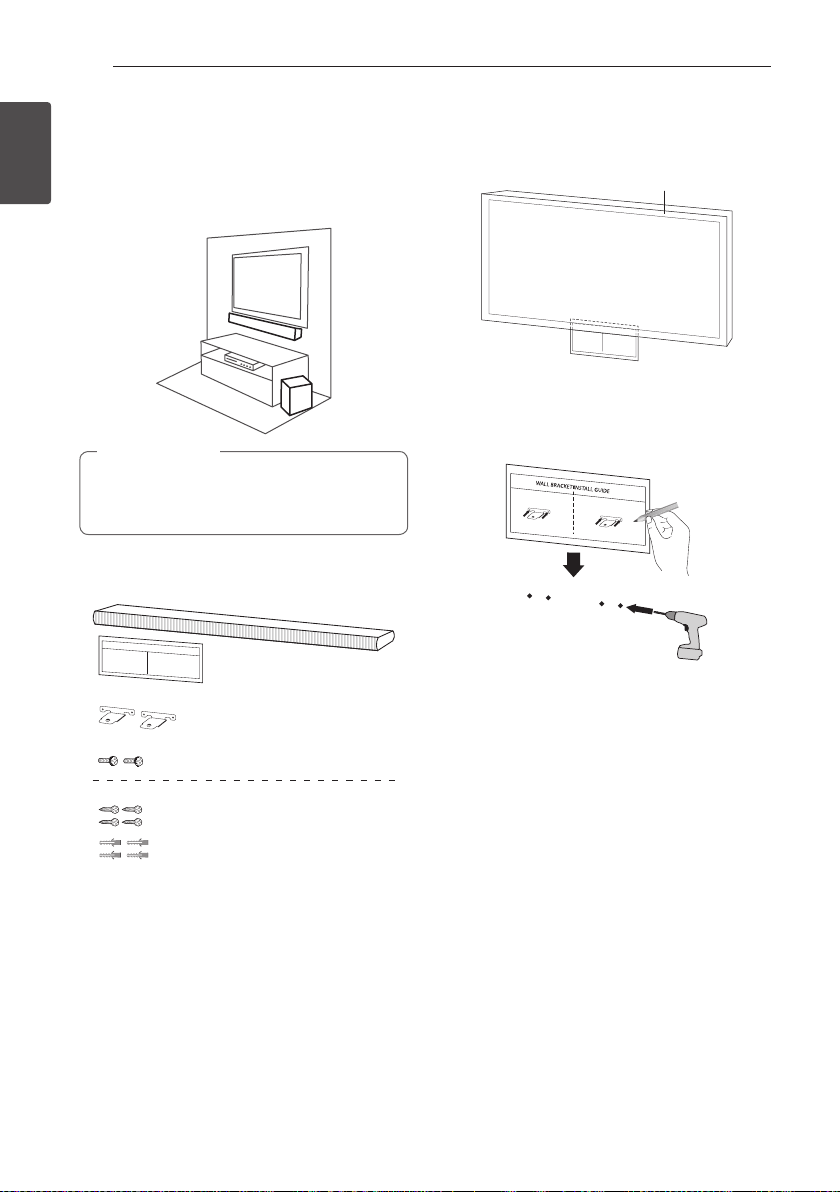
You can mount the main unit on a wall.
Because it is dicult to make a connection
after installing this unit, you should connect
the cables before installation.
>
Caution
Preparation materials
Unit
Wall bracket install guide
Screws
Screws (A)
Wall plug
Wall bracket
(Not supplied)
1. Match the TV’s BOTTOM EDGE of Wall bracket
install guide with the bottom of TV and attach
to the position.
TV
2. When you mount it on a wall (concrete), use the
wall plugs. You should drill some holes. A guide
sheet (Wall bracket install guide) is supplied to
drill. Use the sheet to check the point to drill.
3. Remove the Wall bracket install guide.
Getting Started 11
Getting Started
1
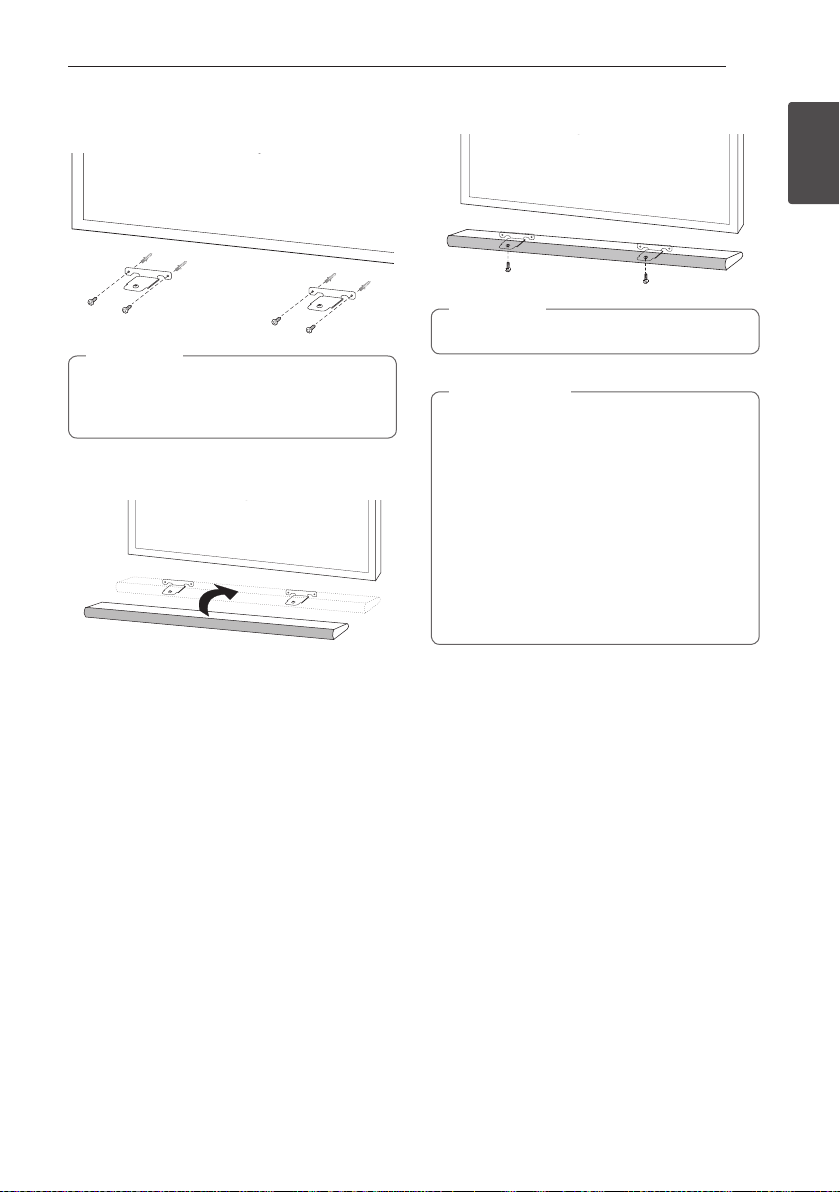
4. Fix the brackets with screws (A) as shown in the
illustration below.
Screws (A) and Wall Plugs are not supplied for
mounting the unit. We recommend the Hilti
(HUD-1 6 x 30) for the mounting.
,
Note
5. Put the unit on the brackets to match screw
holes on the bottom of the unit.
6. Fix the unit with the screws firmly.
To detach the unit, perform it in reverse order.
,
Note
y
Do not install this unit upside down. It can
damage the parts of this unit or be the
cause of personal injury.
y
Do not hang onto the installed unit and
avoid any impact to the unit.
y
Secure the unit rmly to the wall so that it
does not fall o. If the unit falls o, it may
result in an injury or damage to the product.
y
When the unit is installed on a wall, please
make sure that a child does not pull any of
connecting cables, as it may cause it to fall.
>
Caution
Connecting12
Connecting
2
Connecting the
subwoofer
Attaching the subwoofer to
the unit
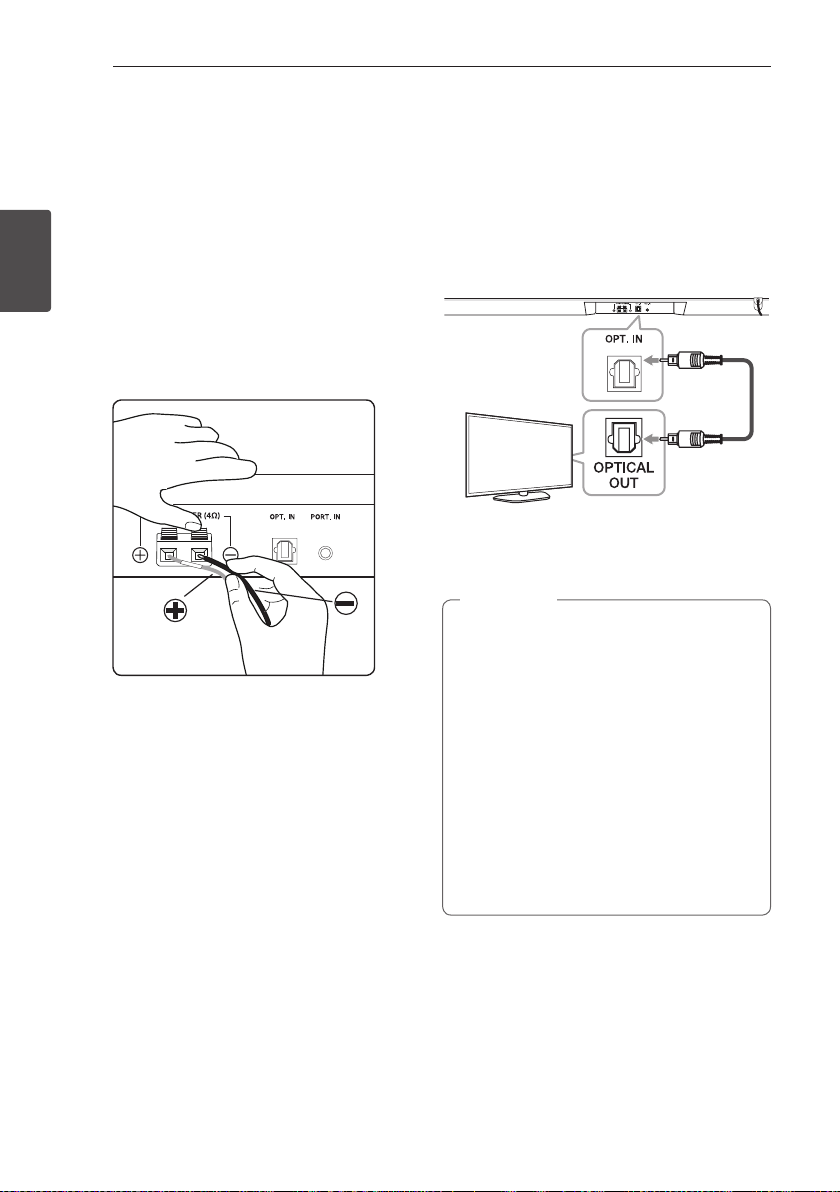
To connect the cable to the unit, press each plastic
nger pad to open the connection terminals on the
unit. Insert the wire and release the nger pad.
Connect the black wire to the terminals marked
- (minus) and the other end to the terminals(red
tube) marked + (plus).
Connecting to your TV
Using an OPTICAL cable
1. Connect the OPT. IN jack on the back of the
unit to OPTICAL OUT jack on the TV using an
OPTICAL cable.
Optical
cable
2. Set the INPUT source to OPTICAL. Press
OPTICAL on the remote control or F on the unit
until the function is selected.
y
Before connecting the optical cable, be sure
to remove the protection plug cover if your
cable has the cover.
y
You can enjoy the TV audio through the
speakers of this unit. In the case of some
TV models, you must select the external
speaker option from the TV menu. (For
details, reference your TV user manual.)
y
Set up the sound output of TV to listen to
the sound through this unit :
TV setting menu
[
[Sound]
[
[TV Sound
output]
[
[External speaker (Optical)]
y
Details of TV setting menu vary depending
on the manufacturers or models of your TV.
,
Note
Connecting 13
Connecting
2
Optional equipment
connection
OPTICAL IN connection
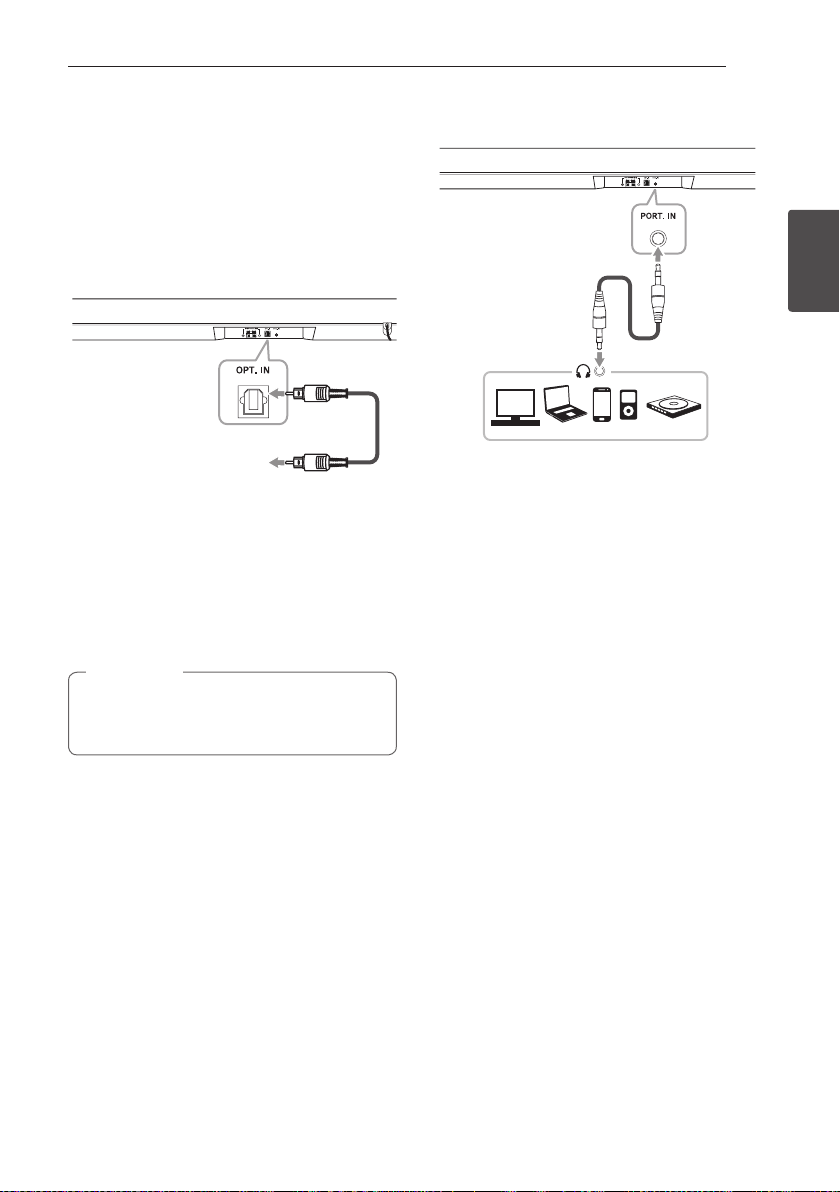
Connect an optical output jack of external devices
to the OPTICAL IN jack.
To the optical output jack of
external device
1. Connect the OPTICAL IN jack on the back of
the unit to optical out jack of your TV (or digital
device etc.)
2. Select the input source to OPTICAL by pressing
OPTICAL on the remote control or F on the
unit until the function is selected.
3. Listen to sound.
Before connecting the optical cable, be sure to
remove the protection plug cover if your cable
has the cover.
,
Note
PORTABLE IN connection
MP3 player, etc...
Listening to music from your
portable player
The unit can be used to play the music from many
types of portable players or external devices.
1. Connect the portable player to the
PORTABLE IN connector of the unit by using 3.5
mm stereo cable.
2. Turn the power on by pressing
1
(Power).
3. Select the PORTABLE function by pressing
PORT.IN on the remote control or F on the unit
until the function is selected.
4. Turn on the portable player or external device
and start playing it.
Operating14
Operating
3
Operations
DRC (Dynamic Range Control)
Make the sound clear when the volume is turned
down and prevent sudden increase of sound
(Dolby Digital only). Set to [DRC ON] by using DRC.
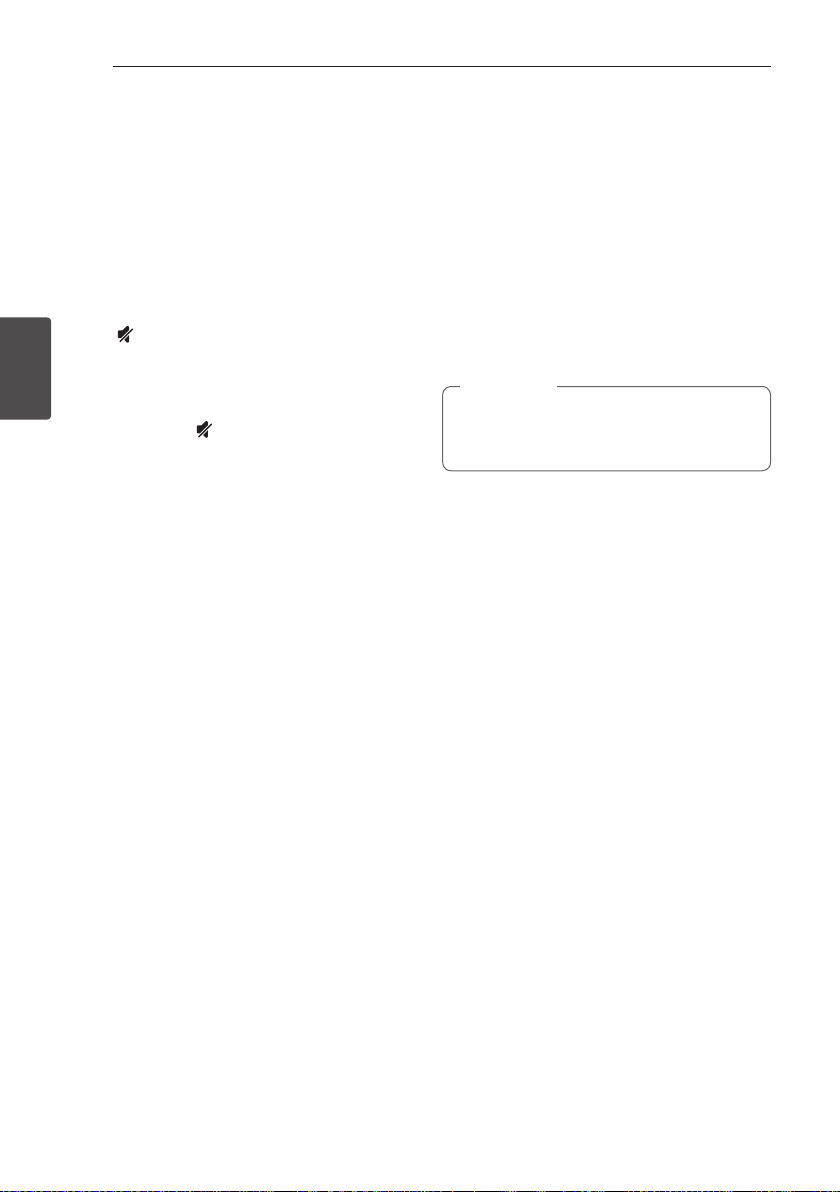
Turn off the sound temporarily
Press (Mute) to mute your unit.
You can mute your unit, for example, to answer
the telephone, “MUTE” is displayed in the display
window.
To cancel it, press (Mute) again on the remote
control or change the volume level.
AV Sync
When receiving audio signals from TV, sound and
images may not be matched. In the case, this
function can adjust the delay time.
1. Press AV SYNC.
2. Use
A/D
to scroll up and down through the
delay amount, which you can set at anything
between 0 and 300 ms.
Displaying input information
You can display various information by pressing
INFO.
OPTICAL: Audio format, Audio channel
Bluetooth: Address of connected Bluetooth
device
Sleep timer setting
This unit will be turned o automatically by your
timer set.
Press SLEEP repeatedly to select the desired time
period options (in minutes):
DISPLAY OFF (display window will turns o) ->
DIMMER (display window will be darkened by half )
-> Sleep timer value (180 ~ 10) -> Display on
To check the remaining time, press SLEEP.
To cancel the sleep function, press SLEEP
repeatedly until “SLEEP 10” appears, and then press
SLEEP once again while “SLEEP 10” is displayed.
You can check the remaining time before the
unit turns o . Press SLEEP the remaining time
appears in the display window.
,
Note
Adjusting the brightness of
the display window
It helps you to watch TV without interruptions due
to the light from the display window of this unit.
DISPLAY OFF
Select DISPLAY OFF to turn o the display window
of this unit. If you input the buttons of the unit or
the remote control, display shows the status of the
unit and then turns o again after several seconds.
DIMMER
Select DIMMER to dim the display window.
Operating 15
Operating
3
Using your TV remote control
You can control some functions of this unit by
your TV remote control even by other company’s
product.
Controllable functions are volume up/down and
mute.
Press and hold INFO on the remote control for
about 3 seconds. “ON - TV REMOTE” appears and
you can control this unit by your TV remote control.
To check the status of this function, press and hold
INFO.
To turn off this function, press and hold INFO
and press it once again while “ON - TV REMOTE” is
scrolled.
y
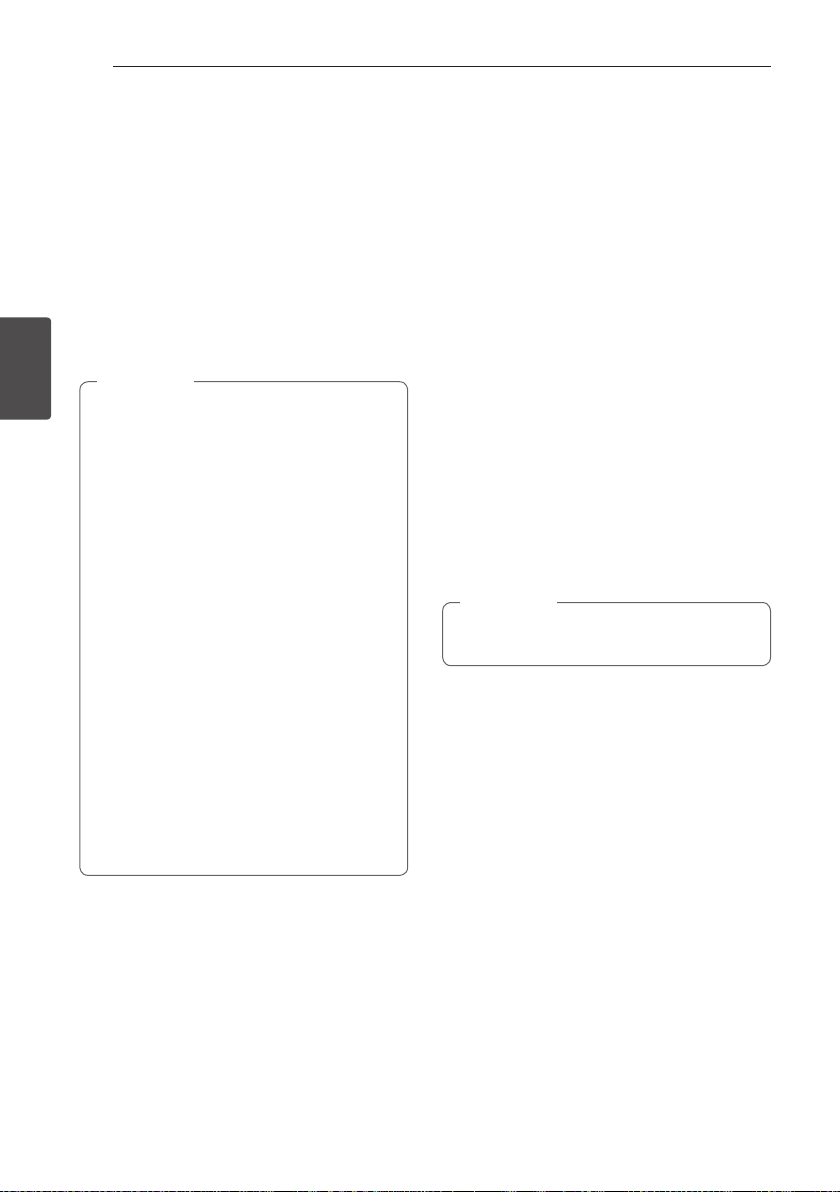
Supported TV brands
LG Panasonic Philips Samsung
Sharp Sony Toshiba Vizio
y
Make sure that the sound output of your TV
is set to [External speaker].
y
Depending on the remote control, this
function may not work well.
y
This function may not work well when you
use LG Sound Sync.
,
Note
Auto power down
This unit will be o itself to save electric
consumption in the case main unit is not
connected to external device and is not used for 20
minutes.
So does this unit after six hours since Main unit
has been connected to other device using analog
input. (Ex : Portable, etc..)
Operating16
Operating
3
AUTO POWER On/Off
This unit automatically turns on by an input source :
Optical, LG TV or Bluetooth.
When you turn on your TV or an external device
connected to this unit, this unit recognizes the
input signal and select the suitable function. You
can hear the sound from your device.
If you try to connect your Bluetooth device, this
unit turns on and ready to pair. Connect your
Bluetooth device and play your music.
This function turns on or o each time you press
AUTO POWER.
y
After the unit is turned on by AUTO POWER
function, it will be automatically turned o if
there is no signal for a certain period of time
from the TV connected by LG Sound Sync
(Optical/Wireless).
y
After the unit is turned on by AUTO POWER
function, it will be automatically turned o if
there is no signal for a certain period of time
from the external device.
y
If you turned o the unit directly, it cannot
be turned on automatically by AUTO POWER
function. However the unit can be turned
on by AUTO POWER function when optical
signal comes in after 5 seconds of no signal.
y
Depending on the connected device, this
function may not operate.
y
If you disconnect Bluetooth connection
by this unit, some Bluetooth devices try to
connect to the unit continually. Therefore
it is recommended to disconnect the
connection before turn o the unit.
y
When you turn on this unit for the rst time,
Auto Power function is turned on status.
,
Note
Auto function change
This unit recognizes input signals such as optical,
Bluetooth and LG TV and then changes suitable
function automatically.
When optical signal comes in
When you turn on the external device connected
to this unit by an optical cable, this unit change the
function to optical. You can hear the sound from
your device.
When you try to connect
BLUETOOTH device
When you try to connect your Bluetooth device to
this unit, Bluetooth function is selected. Play your
music on the Bluetooth device.
When LG TV signal comes in
When you turn on your LG TV connected by
LG Sound Sync (Wireless connection), this unit
changes the function to LG TV. You can hear the
sound from your TV.
To change to optical function, it needs 5
seconds of no signal.
,
Note
Operating 17
Operating
3
LG Sound Sync
You can control some functions of this unit by
your TV's remote control with LG Sound Sync. It
is compatible with the LG TV that is supported LG
Sound Sync. Make sure of the LG Sound Sync logo
on your TV.
Controllable function by LG TV's remote control :
Volume up/down, mute
Refer to the TV's instruction manual for the details
of LG Sound Sync.
Make one of the following connections, depending
on the capabilities of your equipment.
y
You can also use the remote control of
this unit while using LG Sound Sync. If you
use TV's remote control again, the unit
synchronizes with the TV.
y
When the connection fails, make sure of the
condition of the TV and power.
y
Make sure of the condition of this unit and
the connection in the cases below when
using LG Sound Sync.
-
Turn o the unit.
-
Changing the function to the others.
-
Disconnecting the optical cable.
-
Disconnecting the wireless connection
caused by interference or a distance.
y
The amount of time to turn o this unit is
dierent depending on your TV when you
set AUTO POWER function to ON.
y
Details of TV setting menu vary depending
on the models of your TV.
,
Note
With wired connection
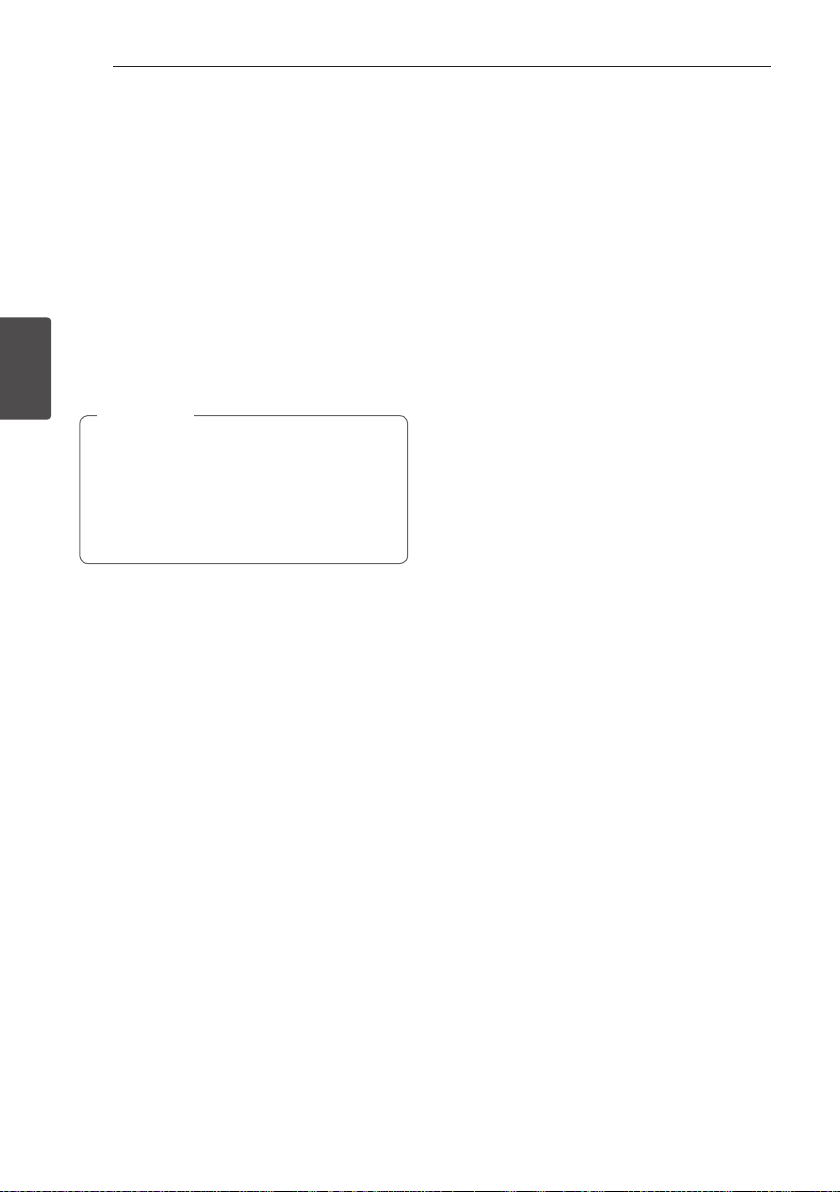
1. Connect your LG TV to the unit by using an
optical cable.
Optical
cable
2. Set up the sound output of TV to listen to the
sound through this unit :
TV setting menu
[
[Sound]
[
[TV Sound
output]
[
[LG Sound Sync (Optical)]
3. Turn on the unit by pressing
1
(Power) on the
remote control.
4. Select OPTICAL function by using OPTICAL on
the remote control or F on the unit until the
function is selected.
You can see "LG OPT" on the display window
if connecting normally between this unit and
your TV.
Operating18
Operating
3
With wireless connection
1. Turn on the unit by pressing
1
(Power) on the
remote control.
2. Select LG TV function by using LG TV on
the remote control or F on the unit until the
function is selected.
3. Set up the sound output of TV to listen to the
sound through this unit :
TV setting menu
[
[Sound]
[
[TV Sound
output]
[
[LG Sound Sync (Wireless)]
"PAIRED" appears on the display window for
about 3 seconds and then you can see "LG TV"
on the display window if connecting normally
between this unit and your TV.
y
If you turned o the unit directly by pressing
1
(Power), LG Sound Sync (Wireless) will
be disconnected. To use this function again,
you should reconnect the TV and the unit.
y
Details of TV setting menu vary depending
on the models of your TV.
,
Note
Using BLUETOOTH®
technology
About BLUETOOTH
Bluetooth is wireless communication technology
for short range connection.
The sound may be interrupted when the
connection interfered by the other electronic wave
or you connect the Bluetooth in the other rooms.
Connecting individual devices under Bluetooth
wireless technology does not incur any charges. A
mobile phone with Bluetooth wireless technology
can be operated via the Cascade if the connection
was made via Bluetooth wireless technology.
Available Devices : Mobile phone, MP3, Laptop,
PDA etc.
BLUETOOTH Profiles
In order to use Bluetooth wireless technology,
devices must be able to interpret certain profiles.
This unit is compatible with following profile.
A2DP (Advanced Audio Distribution Profile)
Operating 19
Operating
3
Listening to music stored on
the BLUETOOTH devices
Pairing your unit and BLUETOOTH
device
Before you start the pairing procedure, make
sure the Bluetooth feature is turned on in to
your Bluetooth device. Refer to your Bluetooth
device’s user guide. Once a pairing operation is
performed, it does not need to be performed again.
1. Select the Bluetooth function by using
h
on
the remote control or F on the unit until the
function is selected.
Appears “BT” and then “BT READY” in display
window.
2.
Operate the Bluetooth device and perform the
pairing operation. When searching for this unit
with the Bluetooth
device, a list of the devices
found may appear in the Bluetooth device
display depending on the type of Bluetooth
device. Your unit appears as “LG LAS350B (XX)”.
y
XX means the last two digits of
Bluetooth address. For example, if your
unit has a Bluetooth address such as
9C:02:98:4A:F7:08, you will see
“LG LAS350B (08)” on your Bluetooth
device.
y
Depending on the Bluetooth device type,
some device have a dierent pairing way.
Enter the PIN code (0000) as needed.
y
You can connect this unit with up to 3
Bluetooth device simultaneously same
method as above description.
y
The multi pairing connection is only
supported on Android or iOS devices. (Multi
pairing connection may not be supported
depending on the connected device
specications.)
y
Removable/detachable Bluetooth device
(Ex : Dongle etc..) doesn't supported multi
pairing.
,
Note
3. When this unit is successfully connected
with your Bluetooth device, “PAIRED” will be
appear on the display window and change to
Bluetooth device name soon.
y
"PAIRED" will be momentarily appear on the
display when you connect other devices for
multi pairing.
y
If it is unavailable to display device name on
the unit, "_" will be displayed.
,
Note
4. Listen to music.
To play a music stored on your Bluetooth
device, refer to your Bluetooth device’s user
guide.
y
When using Bluetooth technology, you
have to make a connection between the
unit and the Bluetooth device as close as
possible and keep the distance.
However it may not work well in the case
below :
-
There is a obstacle between the unit and
the Bluetooth device.
-
There is a device using same frequency
with Bluetooth technology such as a
medical equipment, a microwave or a
wireless LAN device.
y
You should connect your Bluetooth device
to this unit again when you restart it.
y
Even if this unit connected up to 3
Bluetooth devices, you can play and
control music by using only one of the
connected devices.
y
When this unit connected with multiple
Bluetooth devices, only one device
which you are playing keeps Bluetooth
connection when you change the function
to the others.
,
Note
Operating20
Operating
3
y
The sound may be interrupted when
the connection interfered by the other
electronic wave.
y
You may not control the Bluetooth device
with this unit.
y
Depending on the type of the device, you
may not be able to use the Bluetooth
function.
y
You can enjoy wireless system using phone,
MP3, Notebook, etc..
y
The more distance between the unit and
the Bluetooth device, the lower the sound
quality becomes.
y
Bluetooth connection will be disconnected
when the unit is turned o or the
Bluetooth device gets far from the unit.
y
When Bluetooth connection is
disconnected, connect the Bluetooth
device to the unit again.
y
When not connected the Bluetooth, “BT
READY” appears on the display window.
y
When you connect Bluetooth device
(iOS device etc.) to this unit or operate
the device, the volume level can be
synchronized with each other.
,
Note
Using BLUETOOTH
App
Only Android OS is available to use “Music Flow
Bluetooth” app with this unit.
,
Note
About “Music Flow Bluetooth” App
“Music Flow Bluetooth” app brings a suite of new
features to this unit.
To enjoy more features, you are recommended to
download and install free “Music Flow Bluetooth”
app.
Install “Music Flow Bluetooth”
App onto Your BLUETOOTH
Device
There are two ways to install “Music Flow Bluetooth”
App onto Your Bluetooth Device.
Install “Music Flow Bluetooth” App
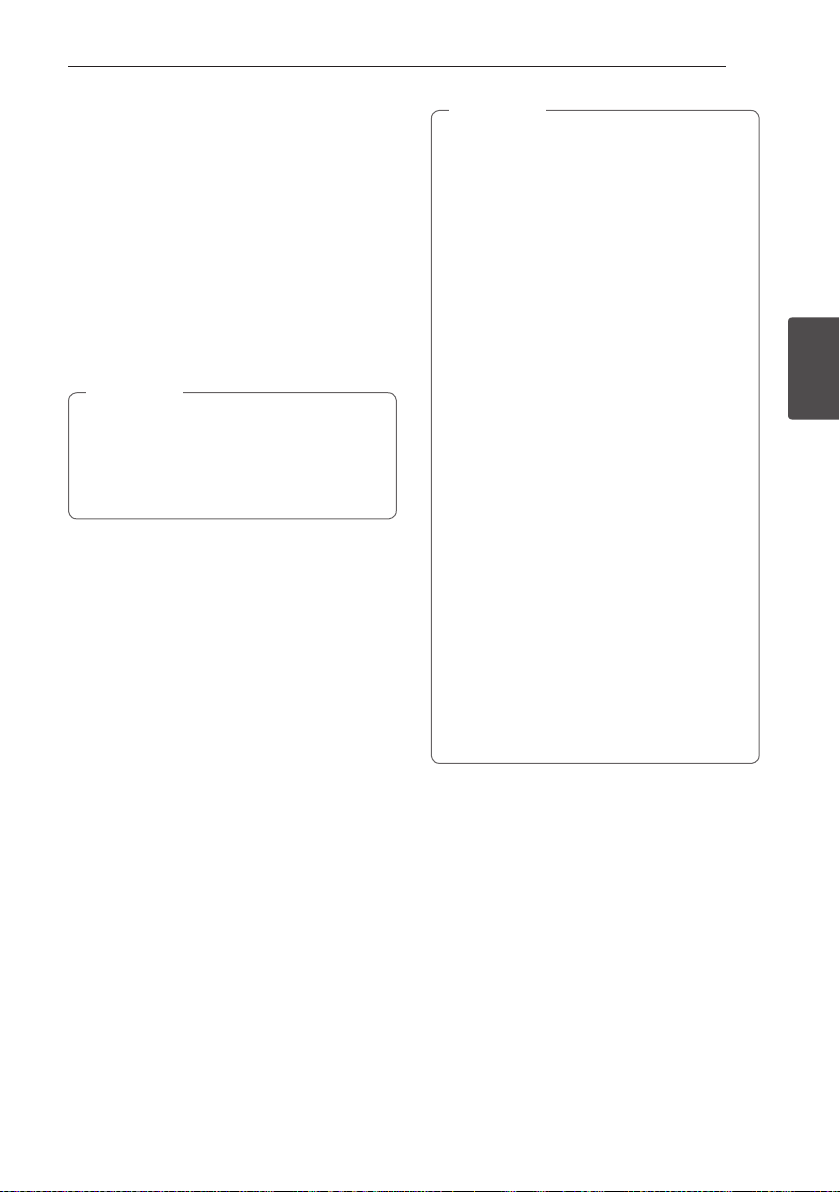
through QR code
1. Install “Music Flow Bluetooth” app through QR
code. Use the scanning software to scan the QR
code.
2. Tap an icon for installation.
3. Tap an icon for downloading.
y
Make sure that your Bluetooth device is
connected to the Internet.
y
Make sure that your Bluetooth device has
a scanning software application. If you don’t
have one, download one from “Google
Android Market (Google Play Store)”.
y
Depending on area, QR code may not work.
,
Note
Operating 21
Operating
3
Install “Music Flow Bluetooth” App
through “Google Android Market
(Google Play Store)”
1. Tap the “Google Android Market (Google Play
Store)” icon.
2. In the search bar, type in the “Music Flow
Bluetooth” and search it.
3. In the search result list, find and tap “Music Flow
Bluetooth” to start downloading Bluetooth
app.
4. Tap an icon for installation.
5. Tap an icon for downloading.
y
Make sure that your Bluetooth device is
connected to the Internet.
y
Make sure that your Bluetooth device is
equipped with “Google Android Market
(Google Play Store)”.
,
Note
Activate BLUETOOTH with
“Music Flow Bluetooth” App
“Music Flow Bluetooth” app helps to connect your
Bluetooth device to this unit.
1. Tap “Music Flow Bluetooth” app icon on the
home screen to open “Music Flow Bluetooth”
app, and go to the main menu.
2. Tap [Menu] and select the unit you want.
3. If you want to get more information to operate,
tap [Setting] and turn on the User guide.
y
“Music Flow Bluetooth ” app will be available
in the software version as follow;
-
Android O/S : Ver 4.0.3 (or later)
y
If you use “Music Flow Bluetooth ” app for
operation, there would be some dierences
between “Music Flow Bluetooth ” app
and the supplied remote control. Use the
supplied remote control as necessary.
y
Depending on the Bluetooth device,
“Music Flow Bluetooth ” app may not work.
y
After connection of “Music Flow Bluetooth”
app, music may be output from your device.
In this case, try connecting procedure again.
y
If you operate the other applications or
change the settings on your Bluetooth
device while using “Music Flow Bluetooth
” app, “Music Flow Bluetooth ” app may
operate abnormally.
y
When “Music Flow Bluetooth ” app operates
abnormally, check your Bluetooth
device and the connection of “Music Flow
Bluetooth ” app and then try to connect
again.
y
Depending on the smart phone's operating
system, you have some dierences for
“Music Flow Bluetooth ” operation.
y
Even though Bluetooth connection will
be disconnected, you can use “Music Flow
Bluetooth ” app when you change the
function.
,
Note
Operating22
Operating
3
Sound adjustment
Setting sound effect
This system has a number of pre-set surround
sound fields. You can select a desired sound mode
by using SOUND EFFECT.
Press SOUND EFFECT repeatedly or press SOUND
EFFECT and then, press
A/D
.
The displayed items for the equalizer may be
different depending on sound sources and effects.
On Display Description
STANDARD
You can enjoy optimized
sound.
MUSIC
You can enjoy comfortable
and natural sound.
CINEMA
You can enjoy more
immersive and cinematic
surround sound.
FLAT Provides balanced sound.
BOOST
Boosts the mid-range for
sound reinforcement.
TRE / BASS
(TREBLE / BASS)
Reinforces the treble and
bass.
y
In some of sound eect mode, some
speakers, there’s no sound or low sound.
It depends on the mode of sound and the
source of audio, it is not defective.
y
You may need to reset the sound eect
mode, after switching the input, sometimes
even after the sound le changed.
,
Note
Adjust volume level
automatically
This unit supports Auto volume function that
automatically adjusts the volume level.
When the output sound is too loud or too low,
press AUTO VOLUME on the remote control. So
you can enjoy the sound with appropriate levels.
To cancel this function, press the button again.

Operating 23
Operating
3
Adjust the Treble/Bass
You can adjust the sound level of Treble, Bass as
your preference.
TREBLE/BASS : - 5 dB to 5 dB
1. Press button repeatedly to select TREBLE or
BASS
2. Press VOL
o
/
p
to adjust the sound level.
Adjust the woofer level
settings
You can adjust the sound level of woofer from - 20
dB to + 6 dB.
Press WOOFER LEVEL
W
or WOOFER LEVEL
S
to
adjust the sound level of the woofer.
Night mode
This function is useful when you want to watch
movies at low volume late at night.
Press button on the remote control. So you can
activate Night mode. To cancel it, press button
again.
4 Troubleshooting
Troubleshooting24
Troubleshooting
4
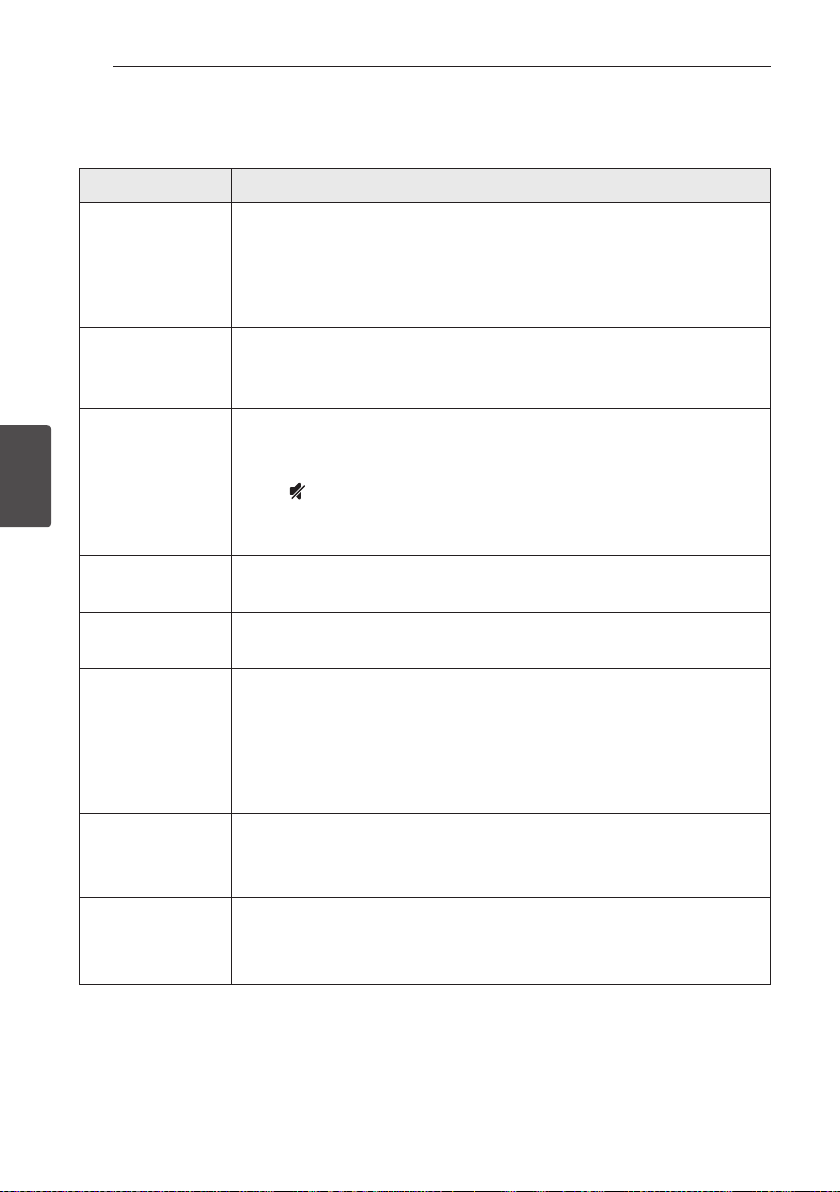
Troubleshooting
PROBLEM CAUSE & CORRECTION
The unit does not
work properly.
y
Turn o the power of this unit and the connected external device (TV, Woofer,
DVD-player, Amplier, etc.) and turn it on again.
y
Disconnect the power cord of this unit and the connected external device (TV,
Woofer, DVD-player, Amplier, etc.) and then try connecting again.
y
Previous setting may not be saved when device power is shut o.
No Power
y
The power cord is unplugged.
Plug in the power cord.
y
Check the condition by operating other electronic devices.
No sound
y
Incorrect input source is selected.
Check the input source and select the correct input source.
y
The mute function is activated.
Press (Mute) or adjust the volume level to cancel the mute function.
y
When you are using connection with a external device (set top box, Bluetooth
device etc.), adjust volume level of the device.
No woofer sound
y
Connect the unit and the subwoofer. (Refer to the page 12)
No display
y
The DISPLAY OFF function is activated.
Press SLEEP repeatedly to cancel the function. (Refer to the page 14)
The remote control
does not work
properly.
y
The remote control is too far from the unit.
Operate the remote control within about 7 m.
y
There is an obstacle in the path of the remote control and the unit.
Remove the obstacle.
y
The batteries in the remote control is exhausted.
Replace the batteries with new one.
The AUTO POWER
function does not
work.
y
Check connection of the external device such as TV, DVD/Blu-Ray player or
Bluetooth device.
y
Depending on the connected device, this function may not operate.
LG Sound Sync does
not work.
y
Check whether your LG TV supports LG Sound Sync.
y
Check connection of LG Sound Sync (Optical or wireless).
y
Check sound setting of your TV and this unit.
Troubleshooting 25
Troubleshooting
4
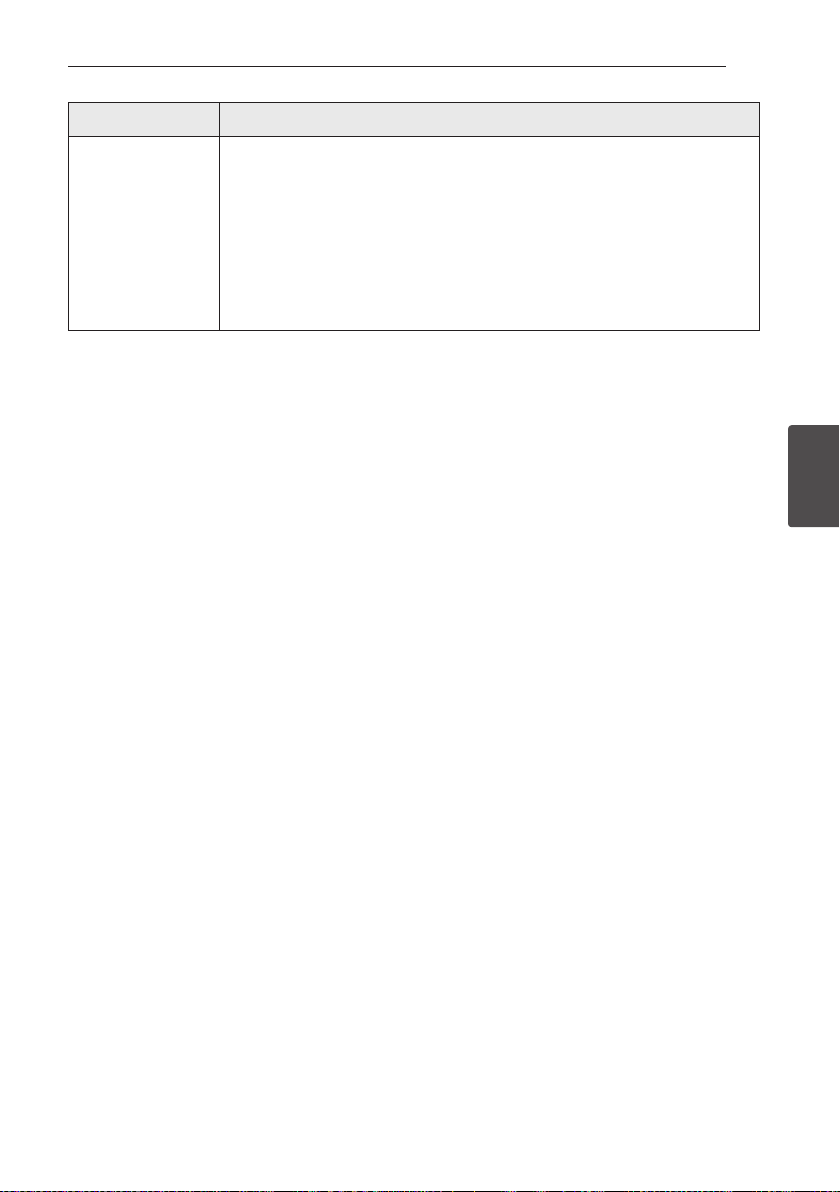
PROBLEM CAUSE & CORRECTION
When you feel the
output sound of the
unit is low.
Check the details below and adjust the unit according to them.
y
Switch [ON] state of DRC function to [OFF] by using remote controller.
y
With the sound bar connected with TV, change the AUDIO DIGITAL OUT setting
on TV Setup Menu from [PCM] to [AUTO] or [BITSTREAM].
y
With the sound bar connected with Player, change the AUDIO DIGITAL OUT
setting on Player Setup Menu from [PCM] to [PRIMARY PASS-THROUGH] or
[BITSTREAM].
y
Change Audio DRC setting on Player setup menu to [OFF] state.
5 Appendix
Appendix26
Appendix
5
Trademarks and
licenses
All other trademarks are trademarks of their
respective owners.
Manufactured under license from Dolby
Laboratories. Dolby and the double-D symbol
are trademarks of Dolby Laboratories.
For DTS patents, see http://patents.dts.com.
Manufactured under license from DTS Licensing
Limited. DTS, the Symbol, & DTS and the Symbol
together are registered trademarks, and DTS
Digital Surround is a trademark of DTS, Inc. ©
DTS, Inc. All Rights Reserved.
Bluetooth® wireless technology is a system
which allows radio contact between electronic.
Connecting individual devices under Bluetooth®
wireless technology does not incur any charges.
A mobile phone with Bluetooth® wireless
technology can be operated via the Cascade
if the connection was made via Bluetooth®
wireless technology.
The Bluetooth® word mark and logos are owned
by the Bluetooth® SIG, Inc. and any use of such
marks by LG Electronics is under license.
Other trademarks and trade names are those of
their respective owners.
Appendix 27
Appendix
5
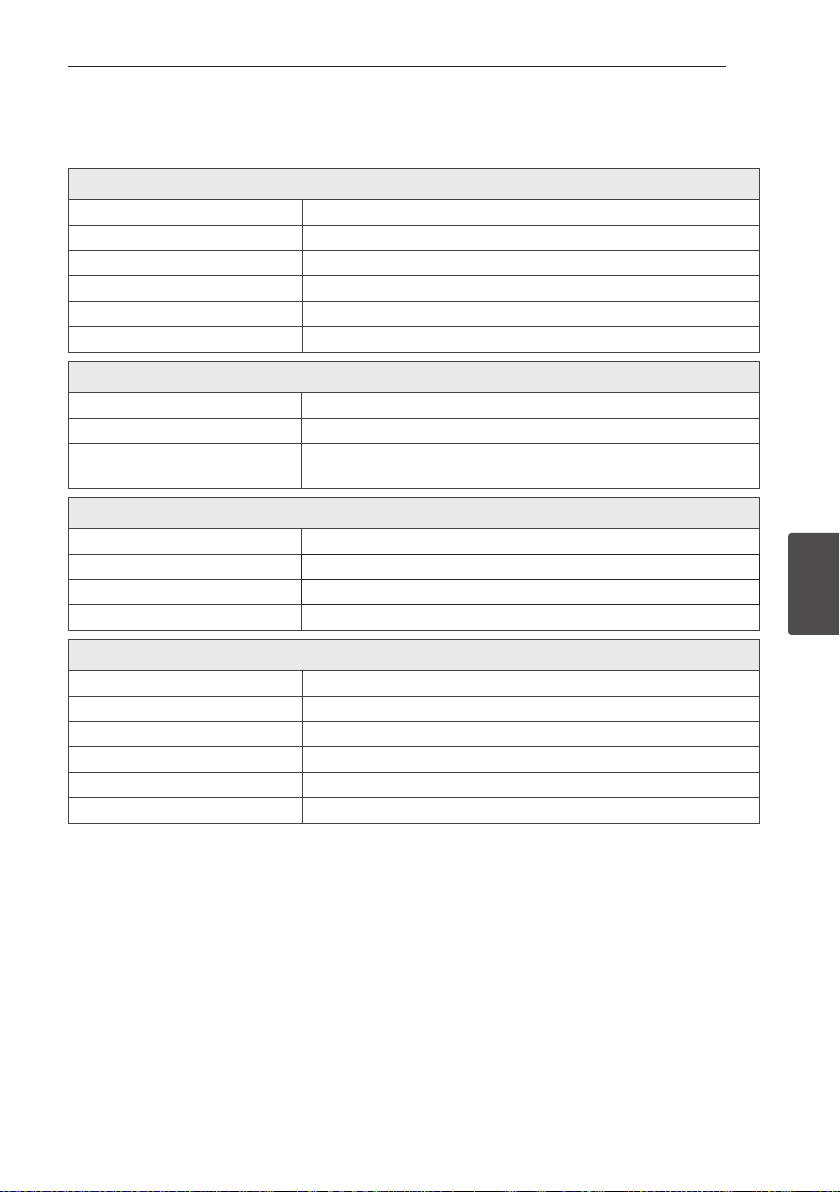
Specifications
General (LAS350B)
Power requirements 120 V ~ 60 Hz
Power consumption 21 W
Dimensions (W x H x D) 880 mm x 59 mm x 90 mm (34.6 inch x 2.3 inch x 3.5 inch)
Net Weight (Approx.) 1.9 kg (4.2 lb)
Operating temperature 41 °F to 95 °F (5 °C to 35 °C)
Operating humidity 5 % to 90 %
Input/Output
OPT. IN 3 V (p-p), Optical jack x 1
PORT. IN 0.5 Vrms (3.5 mm stereo jack) x 1
Available Digital Input Audio
Sampling Frequency
32 kHz, 44.1 kHz, 48 kHz, 96 kHz
Amplier
Total 120 W
Front 25 W x 2 (6 Ω at 1 kHz)
Subwoofer 70 W (4 Ω at 100 Hz)
THD 10 %
Subwoofer (S35A1-W)
Type 1 Way 1 Speaker
Impedance 4 Ω
Rated Input Power 70 W
Max. Input Power 140 W
Dimensions (W x H x D) 156 mm x 300 mm x 288 mm (6.1 inch x 11.8 inch x 11.3 inch)
Net Weight (Approx.) 2.9 kg (6.4 lb)
Appendix28
Appendix
5
Bluetooth
Codec SBC
y
Designs and specications are subject to change without prior notice.

Appendix 29
Appendix
5
Maintenance
Handling the unit
When shipping the unit
Please save the original shipping carton and
packing materials. If you need to ship the unit, for
maximum protection, re-pack the unit as it was
originally packed at the factory.
Keeping the exterior surfaces clean
y
Do not use volatile liquids such as insecticide
spray near the unit.
y
Wiping with strong pressure may damage the
surface.
y
Do not leave rubber or plastic products in
contact with the unit for a long period of time.
Cleaning the unit
To clean the player, use a soft, dry cloth. If the
surfaces are extremely dirty, use a soft cloth lightly
moistened with a mild detergent solution. Do not
use strong solvents such as alcohol, benzine, or
thinner, as these might damage the surface of the
unit.
LG Customer Information Center
1-800-243-0000 USA, Consumer
1-888-865-3026 USA, Commercial
Register your product Online!
www.lg.com