1
Projector
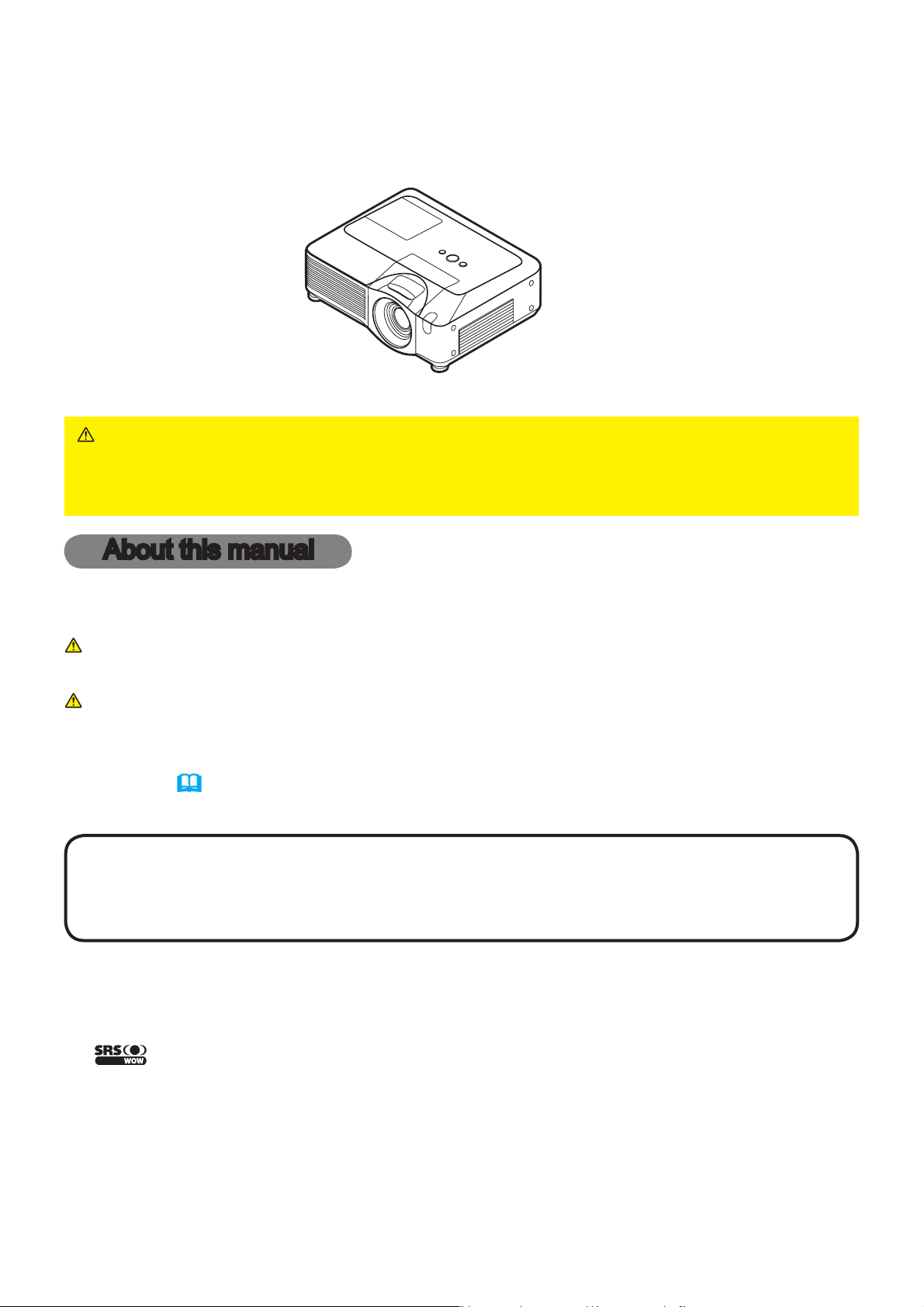
CP-X505/CP-X605
User's Manual – Operating Guide
Thank you for purchasing this projector.
WARNING ŹBefore using this product, please read the "User's Manual -
Safety Guide" and related manuals to ensure the proper use of this product.
After reading them, store them in a safe place for future reference.
About this manual
Various symbols are used in this manual. The meanings of these symbols are
described below.
WARNING This symbol indicates information that, if ignored, could possibly
result in personal injury or even death due to incorrect handling.
CAUTION This symbol indicates information that, if ignored, could possibly
result in personal injury or physical damage due to incorrect
handling.
Please refer to the pages written following this symbol.
NOTE • The information in this manual is subject to change without notice.
• The manufacturer assumes no responsibility for any errors that may appear in this manual.
• The reproduction, transfer or copy of all or any part of this document is not permitted
without express written consent.
Trademark acknowledgment
• Mac is registered trademarks of Apple Computer, Inc.
• VESA and SVGA are trademarks of the Video Electronics Standard Association.
• Windows is a registered trademark of Microsoft Corporation.
•
is a trademark of SRS Labs, Inc.
• WOW technology is incorporated under license from SRS Labs, Inc.
All other trademarks are the properties of their respective owners.

2
About this manual.......... 1
Content . ................. 2
Projector features.......... 3
Preparations .............. 3
Contents of package .............3
Fastening the lens cover ..........3
Part names . .............. 4
Projector . .....................4
Control panel ...................5
Rear panel .....................5
Remote control . ................6
Setting up . ............... 7
Arrangement . ..................8
Adjusting the projector's elevator . . .9
Using the security bar and slot . ....9
Connecting your devices .........10
Connecting power supply . .......12
Remote control ........... 13
Laser pointer ..................13
Putting batteries . ..............13
About the remote control signal ....14
Changing the frequency of remote
control signal
.................14
Using as a wired remote control . . .15
Using as a
simple PC mouse & keyboard . . .15
Power on/off . ............ 16
Turning on the power ............16
Turning off the power ............16
Operating . .............. 17
Adjusting the volume ............17
Temporarily muting the sound .....17
Selecting an input signal .........17
Searching an input signal . .......18
Selecting an aspect ratio .........18
Adjusting the zoom and focus .....19
Adjusting the lens shift . .........19
Using the automatic adjustment feature
..19
Adjusting the position . ..........20
Correcting the keystone distortions .20
Using the magnify feature ........21
Freezing the screen .............21
Temporarily blanking the screen . . .22
Using the menu function .........23
EASY MENU. ............. 24
ASPECT, AUTO KEYSTONE EXECUTE,
K
EYSTONE , KEYSTONE
,
PICTURE MODE,
B
RIGHTNESS, CONTRAST, COLOR, TINT, SHARPNESS,
W
HISPER, MIRROR, RESET, FILTER TIME,
Content
Content
(EASY MENU continued)
L
ANGUAGE, Go to Advanced Menu...
PICTURE menu . .......... 26
BRIGHTNESS, CONTRAST, GAMMA, COLOR TEMP,
C
OLOR, TINT, SHARPNESS, ACTIVE IRIS, MY MEMORY
IMAGE menu . ............ 29
A
SPECT
, O
VER SCAN
, V
POSITION
, H
POSITION
,
H
PHASE
, H
SIZE
, A
UTO ADJUST EXECUTE
INPUT menu . ............ 31
P
ROGRESSIVE
, V
IDEO NR
, 3
D
-
YCS
,
C
OLOR SPACE
, C
OMPONENT
, V
IDEO FORMAT
,
M1-
D
, F
RAME LOCK
, R
GB IN
, R
ESOLUTION
SETUP menu ............. 35
A
UTO KEYSTONE EXECUTE,
K
EYSTONE ,
KEYSTONE
,WHISPER,
M
IRROR
AUDIO menu . ............ 37
V
OLUME, TREBLE, BASS, SRS WOW,
S
PEAKER, AUDIO
SCREEN menu............ 38
L
ANGUAGE, MENU POSITION, BLANK,
S
TART UP, MyScreen, MyScreen Lock,
M
ESSAGE, SOURCE NAME
OPTION menu . ........... 42
A
UTO SEARCH, AUTO KEYSTONE ,
A
UTO ON, AUTO OFF, LAMP TIME,
F
ILTER TIME, MY BUTTON, SERVICE,
S
ECURITY
NETWORK menu .......... 53
D
HCP
, I
P ADDRESS
, S
UBNET MASK
,
D
EFAULT GATEWAY
, T
IME DIFFERENCE
,
D
ATE AND TIME
, e-
SHOT
, I
NFORMATION
, S
ERVICE
Network functions . ....... 55
Maintenance ............. 56
Lamp ........................56
$LU¿OWHU ......................58
Internal clock battery ............60
Other care ....................61
Troubleshooting . ......... 62
Related messages ..............62
Regarding the indicator lamps .....63
Phenomena that may be easy
to be mistaken for machine defects
..65
Warranty and after-service
... 68
6SHFLÀFDWLRQV ............ 68

3
Fastening the lens cover
To avoid losing the lens cover, please fasten the lens cover to the projector using
the included strap.
1.
Fix the strap to the strap hole of the lens
cover.
2.
Put one side of the strap into the groove on
the rivet.
3.
Push the rivet into the rivet hole.
Projector features / Preparations
Projector features
This projector is used to project various picture signals onto a screen. This
projector requires only a minimal amount of space for installation and can produce
a large projected image from even a short distance.
Preparations
Contents of package
Please see the “Contents of package” in the “User’s Manual (concise)” which
is a book. Your projector should come with the items shown there. Contact
immediately your dealer if anything is missing.
NOTE • Keep the original packing materials for future reshipment. Be sure
to use the original packing materials when moving the projector. Use special
caution for the lens.
Strap hole
Rivet hole
Bottom
4
Part names
Part names
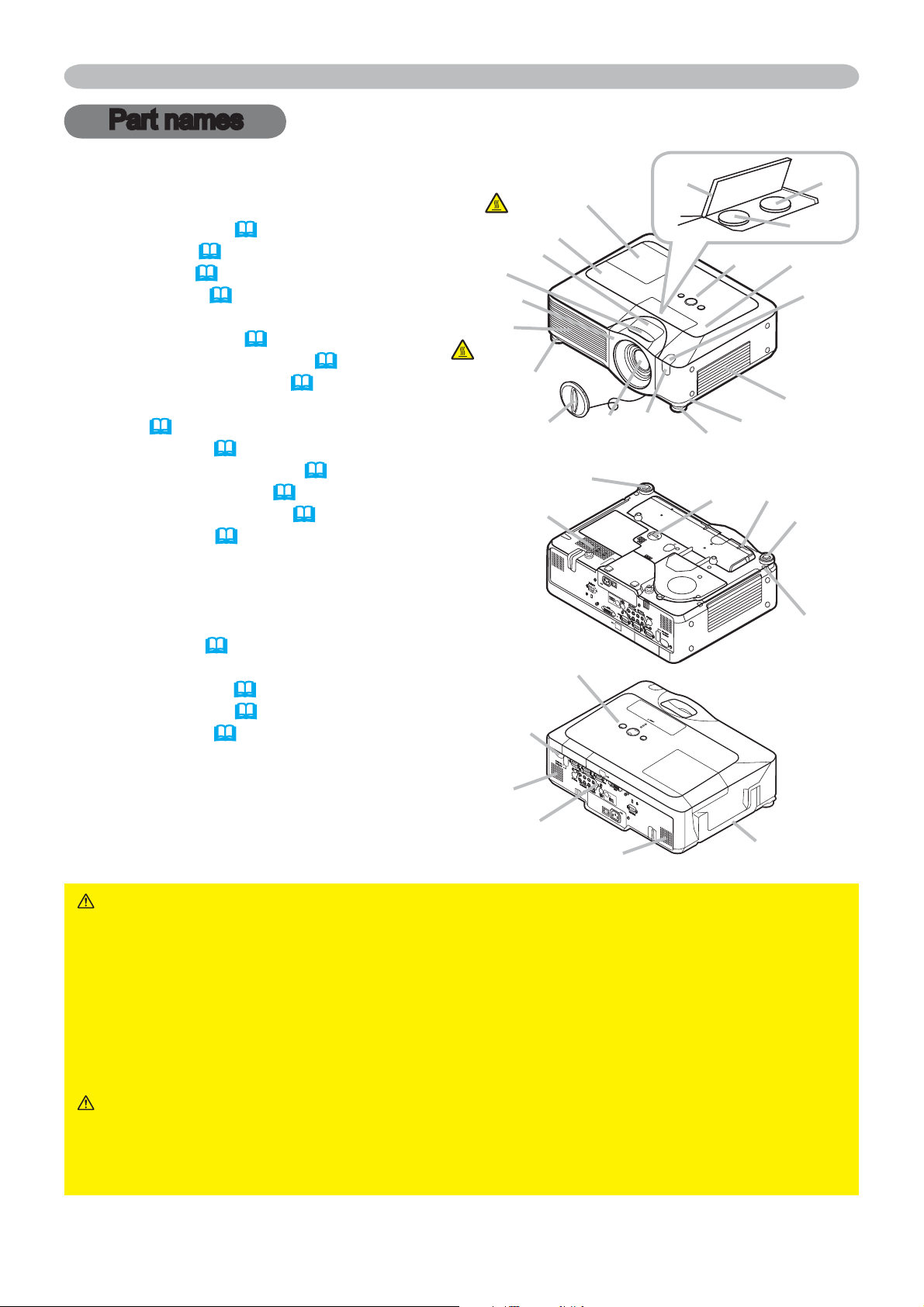
Projector
(1) Speakers (x 4) (
37).
(2) Focus ring (
19)
(3) Zoom ring (
19)
(4) Lamp cover (
56)
The lamp unit is inside.
(5) Lens shift cover (
19)
(6) Horizontal lens shift dial (
19)
(7) Vertical lens shift dial (
19)
(8) Front cover
(9) Lens (
61)
(10) Lens cover (
3)
(11) Remote sensors (x 3) (
14)
(12) Elevator feet (x 2) (
9)
(13) Elevator knobs (x 2) (
9)
(14) Filter cover (
58)
7KHDLU¿OWHUDQGLQWDNHYHQWDUH
inside.
(15) Exhaust vents
(16) Intake vents
(17) Rivet hole (
3)
(18) Handle
(19) Battery cover (
60)
(20) Control panel (
5)
(21) Rear panel (
5)
WARNING ŹHOT! : Do not touch around the lamp cover and the exhaust
vents during use or just after use, since it is too hot.
Ź'RQRWORRNLQWRWKHOHQVRUYHQWVZKLOHWKHODPSLVRQVLQFHWKHVWURQJOLJKW
is not good for your eyes.
Ź'RQRWJUDEWKHIURQWFRYHUWRKROGWKHSURMHFWRUXSVLQFHWKHSURMHFWRUPD\
drop down.
Ź'RQRWKDQGOHWKHHOHYDWRUNQREVZLWKRXWKROGLQJWKHSURMHFWRUVLQFHWKH
projector may drop down.
CAUTION Ź0DLQWDLQQRUPDOYHQWLODWLRQWRSUHYHQWWKHSURMHFWRUIURP
heating up. Do not cover, block or plug up the vents. Do not place anything that
FDQVWLFNRUEHVXFNHGWRWKHYHQWVDURXQGWKHLQWDNHYHQWV&OHDQWKHDLU¿OWHU
periodically.
(12)
(12)
(13)
(17)
(19)
(16)
(20)
(11)
(1)
(1)
(21)
(18)
(2)
(3)
(1)
(8)
(15)
(12)
(10)
(9)
(11)
(12)
(13)
(14)
(11)
(1)
(20)
(4)
HOT!
HOT!
(7)
(6)
(5)
5
Part names
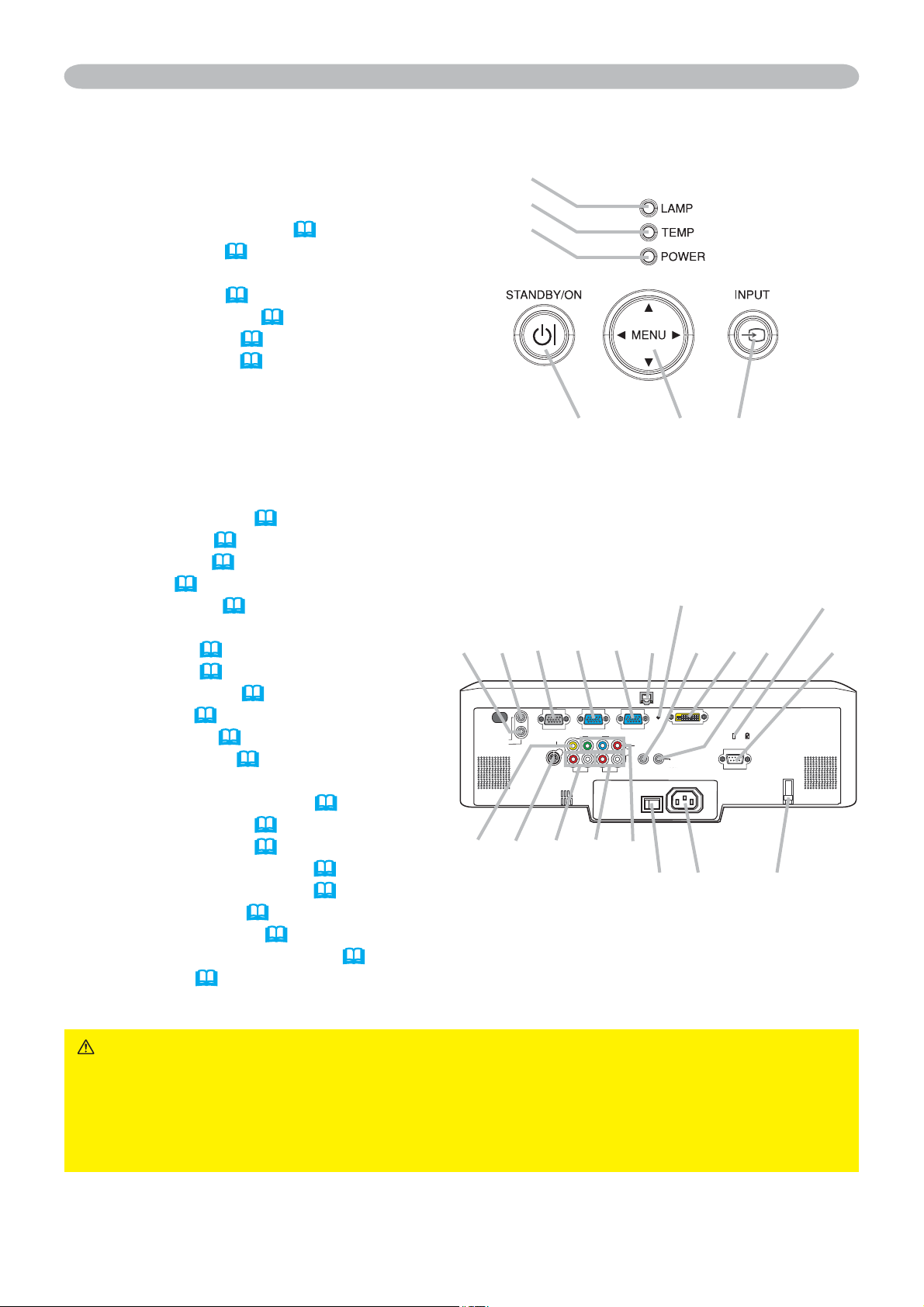
Control panel
(1) STANDBY/ON button (
16)
(2) MENU button (
23)
It consists of four cursor buttons.
(3) INPUT button (
17)
(4) POWER indicator (
16)
(5) TEMP indicator (
63)
(6) LAMP indicator (
63)
Rear panel
(1) Shutdown switch (
65)
(2) Security slot (
9)
(3) Security bar (
9)
(4) AC inlet (
12)
(5) Power switch (
16)
(6) RGB1 port (
10)
(7) RGB2 port (
10)
(8) CONTROL port (
10)
(9) M1-D port (
10)
(10) VIDEO port (
10)
(11) S-VIDEO port (
10)
(12) COMPONENT
(Y, C
B
/P
B
, C
R
/P
R
) ports (
10)
(13) AUDIO IN1 port (
10)
(14) AUDIO IN2 port (
10)
(15) AUDIO IN3 (R/L) ports (
10)
(16) AUDIO IN4 (R/L) ports (
10)
(17) RGB OUT port (
10)
(18) AUDIO OUT port (
10)
(19) REMOTE CONTROL port (
10)
(20) LAN port (
10)
CAUTION Ź'RQRWXVHWKHVHFXULW\EDUDQGWKHVHFXULW\VORWWRSUHYHQWWKH
projector from falling down, since it is not designed for it.
Ź8VHWKHVKXWGRZQVZLWFKRQO\ZKHQWKHSURMHFWRULVQRWWXUQHGRIIE\QRUPDO
procedure, since pushing this switch stops operation of the projector without
cooling it down.
(6)
(5)
(4)
(1) (2) (3)
!
(14) (13) (17) (6) (7) (20) (18) (9) (19) (8)
(2)(1)
(10) (11) (15) (16) (12)
(5) (4) (3)
6
Part names
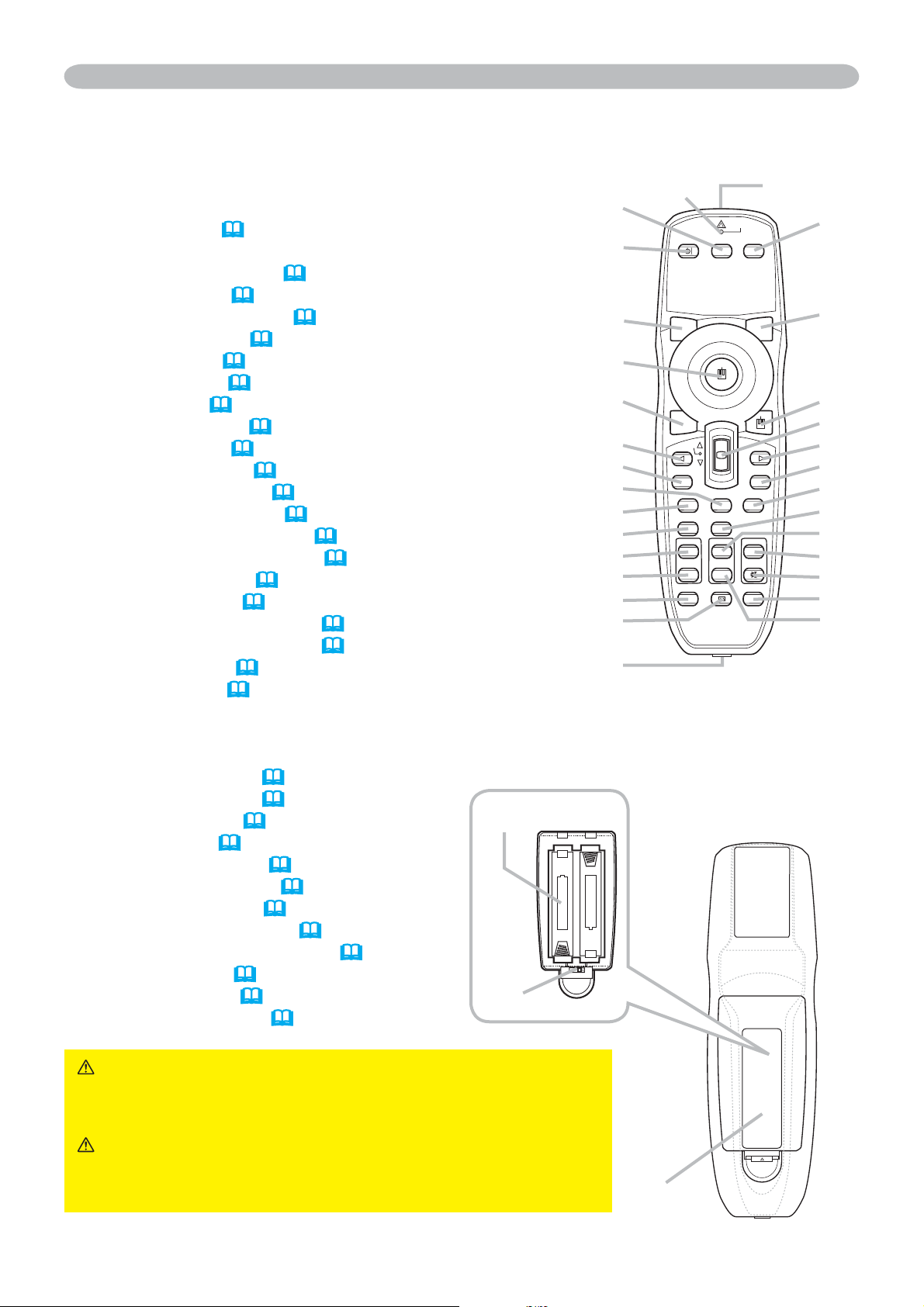
Remote control
(1) Laser pointer (
13)
It is a beam outlet.
(2) LASER INDICATOR (
13)
(3) LASER button (
13)
(4) STANDBY/ON button (
16)
(5) VOLUME button (
17)
(6) MUTE button (
17)
(7) VIDEO button (
18)
(8) RGB button (
17)
(9) SEARCH button (
18)
(10) AUTO button (
19)
(11) ASPECT button (
18)
(12) POSITION button (
20)
(13) KEYSTONE button (
20)
(14) MAGNIFY - ON button (
21)
(15) MAGNIFY - OFF button (
21)
(16) FREEZE button (
21)
(17) BLANK button (
22)
(18) MY BUTTON - 1 button (
44)
(19) MY BUTTON - 2 button (
44)
(20) MENU button (
23)
(21) Lever switch (
23) : acting 3 functions as below.
&XUVRUEXWWRQŸWRVOLGHWRZDUGWKHVLGHPDUNHGŸ
&XUVRUEXWWRQźWRVOLGHWRZDUGWKHVLGHPDUNHGź
ENTER button : to push down the center point.
&XUVRUEXWWRQŻ
23)
&XUVRUEXWWRQŹ
23)
(24) RESET button (
23)
(25) ESC button (
23)
(26) Mouse left button (
15)
(27) Mouse right button (
15)
(28) PAGE UP button (
15)
(29) PAGE DOWN button (
15)
(30) Wired remote control port (
15)
(31) Battery cover (
13)
(32) Battery holder (
13)
(33) Frequency switch (
14)
WARNING Ź'RQRWORRNLQWRWKHEHDPRXWOHWDQG
point the beam at people and pets while pressing the
LASER button, since the beam is not good for eyes.
CAUTION Ź1RWHWKDWWKHODVHUEHDPPD\UHVXOW
in hazardous radiation exposure. Use the laser pointer
only for pointing on the screen.
BLANK LASER
ASPECT
ESC MENU RESET
POSITION AUTO
MAGNIFY
MY BUTTON
VOLUME
ON 1
MUTE
OFF 2
FREEZE KEYSTONE SEARCH
PUSH
ENTER
PAGE UP
PAGE DOWN
STANDBY/ON
VIDEO RGB
LASER
INDICATOR
(11)
(22)
(28)
(20)
(25)
(12)
(14)
(15)
(16)
(13)
(30)
(27)
(21)
(23)
(29)
(24)
(10)
(18)
(5)
(6)
(9)
(19)
(26)
(17)
(4)
(7)
(2) (1)
(3)
(8)
Back of
the remote control
(32)
(33)
(31)

7
Setting up
Setting up
Install the projector according to the environment and manner the projector will be
used in.
WARNING ŹPlace the projector in a stable horizontal position. If the
projector falls or is knocked over it could cause injury and/or damage to the
SURMHFWRU8VLQJDGDPDJHGSURMHFWRUFRXOGWKHQUHVXOWLQ¿UHDQGRUHOHFWULF
shock.
• Do not place the projector on an unstable, slanted or vibrational surface such
as a wobbly or inclined stand.
• Do not place the projector on its side, front or rear position.
• Consult with your dealer before a special installation such as suspending from
a ceiling.
Ź3ODFHWKHSURMHFWRULQDFRROSODFHDQGHQVXUHWKDWWKHUHLVVXI¿FLHQW
YHQWLODWLRQ7KHKLJKWHPSHUDWXUHRIWKHSURMHFWRUFRXOGFDXVH¿UHEXUQVDQGRU
malfunction of the projector.
• Do not stop-up, block or otherwise cover the projector's vents.
• Keep a space of 30 cm or more between the sides of the projector and other
objects such as walls.
• Do not place the projector on metallic thing or anything weak in heat.
• Do not place the projector on carpet, cushions or bedding.
• Do not place the projector in direct sunlight or near hot objects such as
heaters.
• Do not place anything near the projector lens or vents, or on top of the
projector.
• Do not place anything that may be sucked into or stick to the vents on the
bottom of the projector. This projector has some intake vents also on the
bottom.
Ź'RQRWSODFHWKHSURMHFWRUDQ\SODFHZKHUHLWPD\JHWZHW*HWWLQJWKH
SURMHFWRUZHWRULQVHUWLQJOLTXLGLQWRWKHSURMHFWRUFRXOGFDXVH¿UHHOHFWULFVKRFN
and/or malfunction of the projector.
• Do not place the projector in a bathroom or the outdoors.
• Do not place anything containing liquid near the projector.
CAUTION Ź$YRLGSODFLQJWKHSURMHFWRULQVPRN\KXPLGRUGXVW\SODFH
3ODFLQJWKHSURMHFWRULQVXFKSODFHVFRXOGFDXVH¿UHHOHFWULFVKRFNDQGRU
malfunction of the projector.
• Do notSODFHWKHSURMHFWRUQHDUKXPLGL¿HUVVPRNLQJVSDFHVRUDNLWFKHQ
Ź3RVLWLRQWKHSURMHFWRUWRSUHYHQWOLJKWIURPGLUHFWO\KLWWLQJWKHSURMHFWRUV
remote sensor.
8
Arrangement
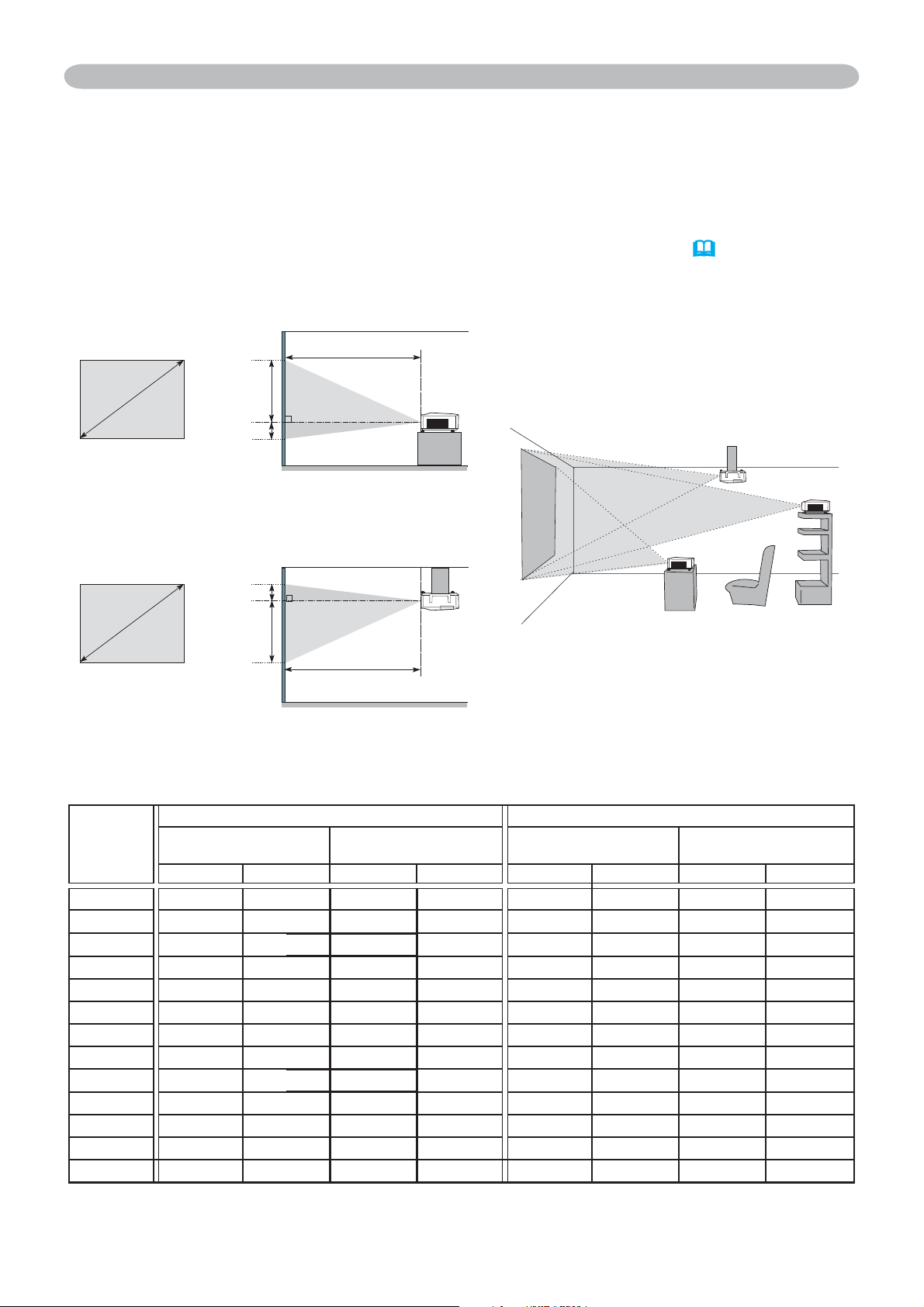
Refer to the illustrations and tables below to determine screen size and projection distance.
The values shown in the table are calculated for a full size screen: 1024×768
(a) Screen size (diagonal)
(b) Projection distance (±10%)
(c) Screen height (±10%), when the vertical lens shift is set full upward (
19)
Setting up
(a) Screen
size
[inch (m)]
4 : 3 screen 16 : 9 screen
(b) Projection distance
[m (inch)]
(c) Screen height
[cm (inch)]
(b) Projection distance
[m (inch)]
(c) Screen height
[cm (inch)]
min. max. down up min. max. down up
30 (0.8) 0.9 (35) 1.1 (42)
5(2)
41 (16)
1.0 (38) 1.2 (46)
-1 (0) 39 (15)
40 (1.0) 1.2 (47) 1.4 (57) 6 (2) 55 (22) 1.3 (51) 1.6 (62) -2 (-1) 51 (20)
60 (1.5) 1.8 (71) 2.2 (86) 9 (4) 82 (32) 2.0 (78) 2.4 (94) -2 (-1) 77 (30)
70 (1.8) 2.1 (83) 2.6 (100) 11 (4) 96 (38) 2.3 (91) 2.8 (110) -3 (-1) 90 (35)
80 (2.0) 2.4 (96) 2.9 (115) 12 (5) 110 (43) 2.6 (104) 3.2 (126) -3 (-1) 103 (41)
90 (2.3) 2.7 (108) 3.3 (130) 14 (5) 123 (49) 3.0 (117) 3.6 (141) -4 (-1) 116 (46)
100 (2.5) 3.0 (120) 3.7 (144) 15 (6) 137 (54) 3.3 (131) 4.0 (157) -4 (-2) 129 (51)
120 (3.0) 3.7 (144) 4.4 (174) 18 (7) 165 (65) 4.0 (157) 4.8 (189) -5 (-2) 154 (61)
150 (3.8) 4.6 (181) 5.5 (217) 23 (9) 206 (81) 5.0 (197) 6.0 (237) -6 (-2) 193 (76)
200 (5.1) 6.1 (241) 7.4 (291) 30 (12) 274 (108) 6.7 (263) 8.0 (317) -8 (-3) 257 (101)
250 (6.4) 7.7 (302) 9.2 (364) 38 (15) 343 (135) 8.4 (329) 10.1 (396) -10 (-4) 322 (127)
300 (7.6) 9.2 (363) 11.1 (437) 46 (18)
411 (162)
10.0 (395) 12.1 (476)
-12 (-5) 386 (152)
350 (8.9) 10.8 (424) 13.0 (510) 53 (21) 480 (189) 11.7 (462) 14.1 (556) -15 (-6) 450 (177)
(a)
(b)
(a)
(c) up
(c) down
(b)
(c) up
(c) down
On a horizontal
surface
Suspended from
the ceiling
• Keep a space of 30 cm or more
between the sides of the projector
and other objects such as walls.
• Consult with your dealer before
a special installation such as
suspending from a ceiling.
9
Adjusting the projector's elevator
When the place to put the projector is slightly uneven to the left or right, use the
elevator feet to place the projector horizontally.
Using the feet can also tilt the projector in order to project at
a suitable angle to the screen, elevating the front side of the
projector within 8 degrees.
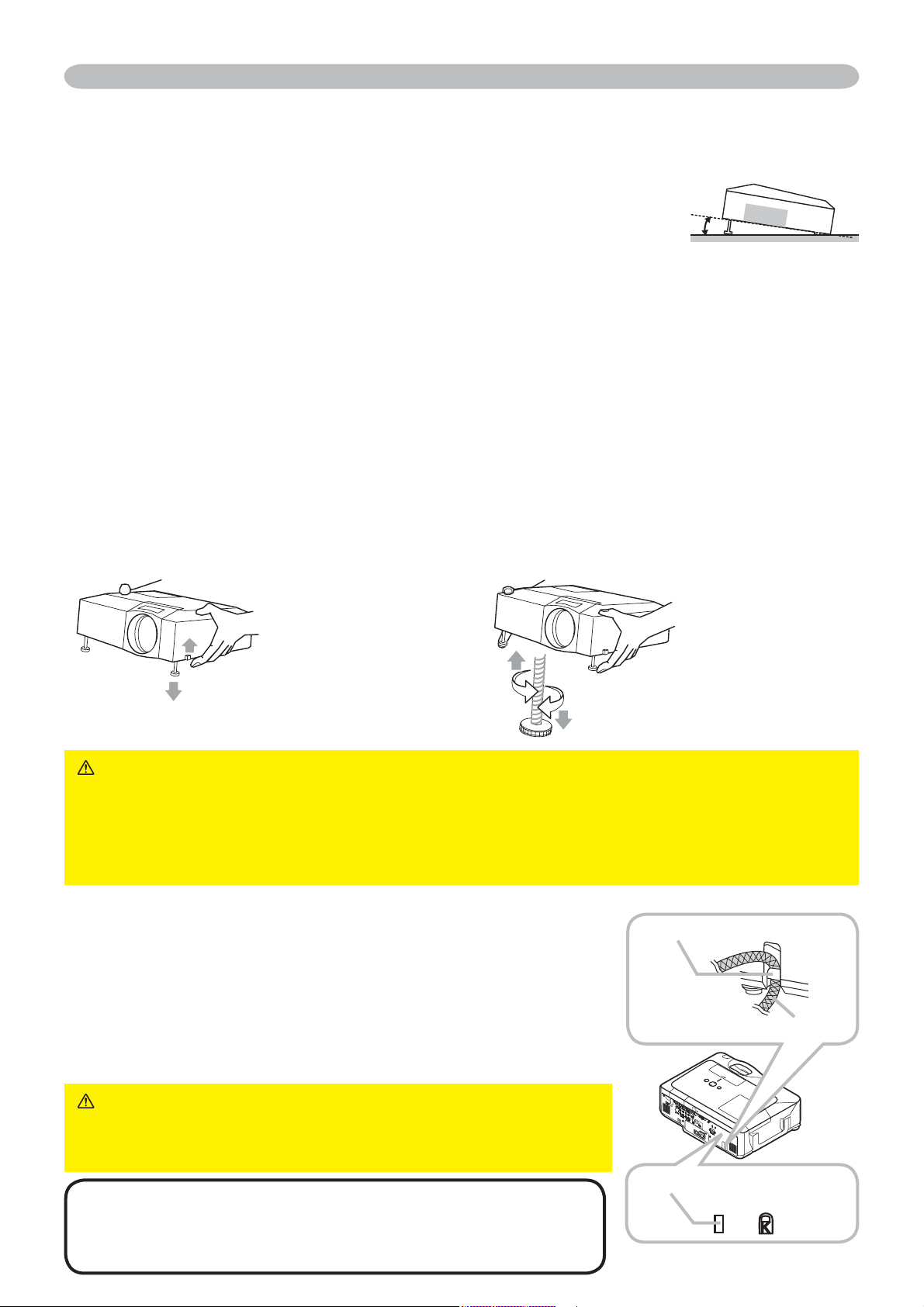
This projector has 2 elevator feet and 2 elevator knobs. An elevator foot is
adjustable while pulling up the elevator knob on the same side as it.
1.
Holding the projector, pull the elevator knobs up to loose the elevator feet.
2.
Position the front side of the projector to the desired height.
3.
Release the elevator knobs in order to lock the elevator feet.
4.
After making sure that the elevator feet are locked, put the projector gently.
5.
If necessary, the elevator feet can be manually twisted to make more precise
adjustments. Hold the projector when twisting the feet.
Setting up
To loose an elevator foot,
pull up the elevator knob
on the same side as it.
CAUTION Ź'RQRWKDQGOHWKHHOHYDWRUNQREVZLWKRXWKROGLQJWKHSURMHFWRU
since the projector may drop down.
Ź'RQRWWLOWWKHSURMHFWRURWKHUWKDQLWHOHYDWLQJLWVIURQWZLWKLQGHJUHHVXVLQJ
the adjuster feet. A tilt of the projector exceeding the restriction could cause
malfunction or shortening the lifetime of consumables, or the projector itself.
Using the security bar and slot
A commercial anti-theft chain or wire up to 10 mm in
diameter can be attached to the security bar on the
projector.
Also this product has the security slot for the Kensington
lock.
For details, see the manual of the security tool.
WARNING Ź'RQRWXVHWKHVHFXULW\EDUDQGWKH
security slot to prevent the projector from falling down,
since it is not designed for it.
NOTE •
The security bar and the security slot are not
comprehensive theft prevention measures. They are intended
to be used as supplemental theft prevention measure.
7R¿QHO\DGMXVWWZLVW
the foot.
q
Security slot
Anti-theft chain or wire
Security bar
10
Setting up
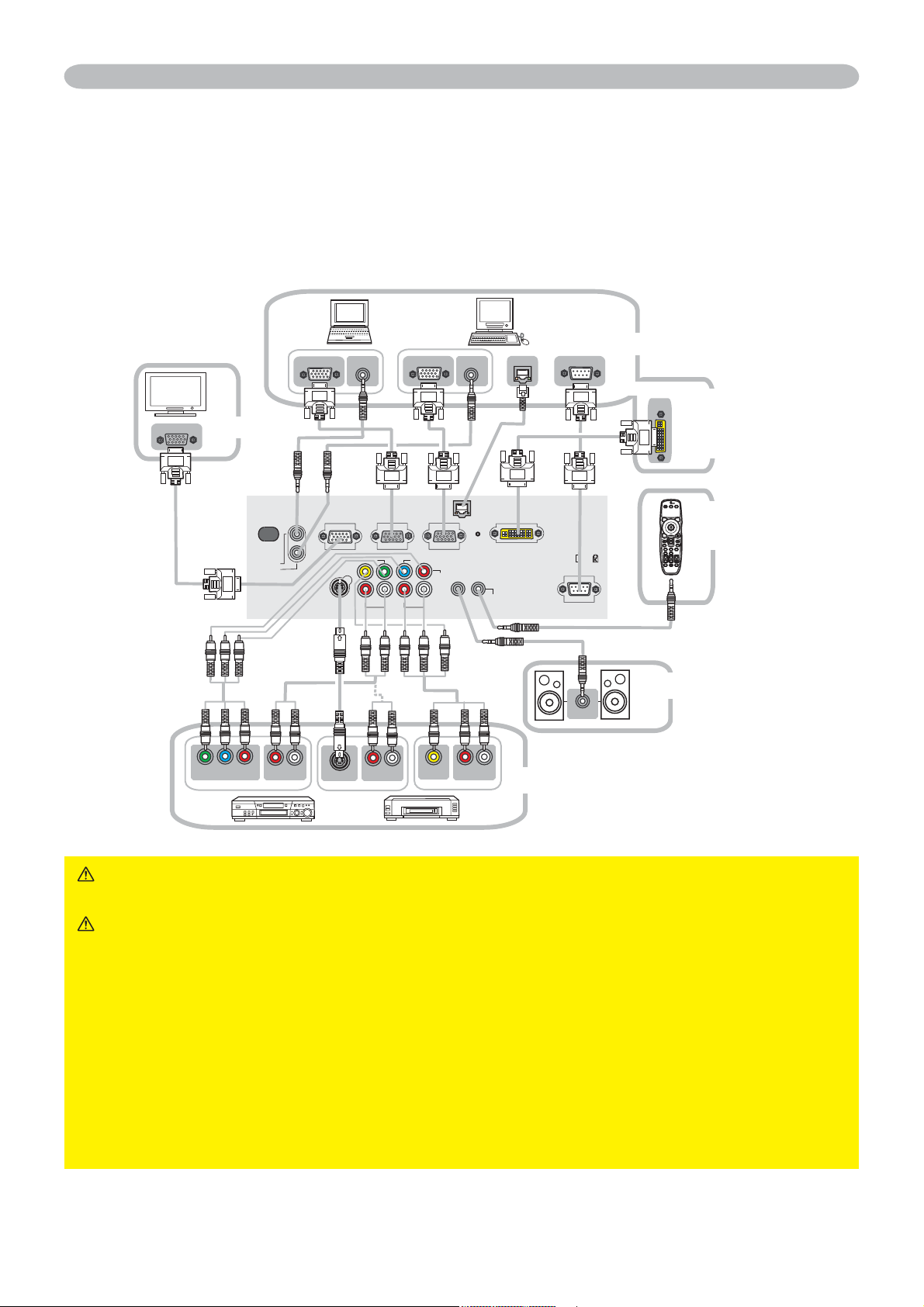
Connecting your devices
Be sure to read the manuals for devices before connecting them to the projector.
Make sure that all the devices are suitable to be connected with this product, and
prepare the cables required to connect.
Please refer to the following illustrations to connect them.
WARNING Ź'RQRWGLVDVVHPEOHRUPRGLI\WKHSURMHFWRU
Ź%HFDUHIXOQRWWRGDPDJHWKHFDEOHVDQGGRQRWXVHGDPDJHGFDEOHV
CAUTION Ź7XUQRIIDOOGHYLFHVDQGXQSOXJWKHLUSRZHUFRUGVSULRUWR
connecting them to projector. Connecting a live device to the projector may
generate extremely loud noises or other abnormalities that may result in
malfunction or damage to the device and the projector.
Ź8VHDSSURSULDWHDFFHVVRU\RURWKHUZLVHGHVLJQHGFDEOHV$VN\RXUGHDOHU
DERXWQRQDFFHVVRU\FDEOHVZKLFKPD\KDYHWREHRIDVSHFL¿FOHQJWKRU
equipped with a core. For cables with a core only at one end, connect the end
with the core to the projector.
Ź0DNHVXUHWKDWGHYLFHVDUHFRQQHFWHGWRWKHFRUUHFWSRUWV$QLQFRUUHFW
connection may result in malfunction or damage to the device and the projector.
VIDEO
CONTROL
AUDIO IN 1
AUDIO IN 2
REMOTE
CONTROL
S-VIDEO
AUDIO
OUT
RL R L
AUDIO IN 3 AUDIO IN 4
RGB
OUT
RGB1 RGB2 M1-D
CB/PB
B
L
A
N
K
L
A
S
E
R
A
S
P
E
C
T
P
U
S
H
E
N
T
E
R
L
A
S
E
R
I
N
D
I
C
A
T
O
R
AUDIO IN
Y CB/PB CR/PR
COMPONENT VIDEO OUT
RL
AUDIO IN OUT
M1-D
RGB IN
RGB OUT
AUDIO OUT
RGB OUT
AUDIO OUT
RS-232C
VIDEO OUT
RL
AUDIO IN OUT
RL
AUDIO IN OUT
S-VIDEO OUT
Y
C
R/PR
LAN
LAN
Monitor
PC
M1-D
signal
source
Remote
control
Speakers
VCR/DVD player

11
Setting up
NOTE • Be sure to read the manuals for devices before connecting them to the
projector, and make sure that all the devices are suitable to be connected with this
product. Before connecting to a PC, check the signal level, the signal timing, and the
resolution.
- Do not connect LAN port to any network that might have the excessive voltage.
- Some signal may need an adapter to input this projector.
- Some PCs have multiple screen display modes that may include some signals which
are not supported by this projector.
- Although the projector can display signals with resolution up to UXGA (1600X1200),
the signal will be converted to the projector’s panel resolution before being displayed.
The best display performance will be achieved if the resolutions of the input signal and
the projector panel are identical.
:KLOHFRQQHFWLQJPDNHVXUHWKDWWKHVKDSHRIWKHFDEOHVFRQQHFWRU¿WVWKHSRUWWR
connect with. And be sure to tighten the screws on connectors with screws.
• When connecting a laptop PC to the projector, be sure to activate the PC’s external
RGB output. (Set the laptop PC to CRT display or to simultaneous LCD and CRT
display.) For details on how this is done, please refer to the instruction manual of the
corresponding laptop PC.
• When the picture resolution is changed on a computer depending on an input,
automatic adjustment function may take some time and may not be completed. In this
case, you may not be able to see a check box to select “Yes/No” for the new resolution
on Windows. Then the resolution will go back to the original. It might be recommended
to use other CRT or LCD monitors to change the resolution.
• In some cases, this projector may not display a proper picture or display any picture on
screen. For example, automatic adjustment may not function correctly with some input
signals. An input signal of composite sync or sync on G may confuse this projector, so
the projector may not display a proper picture.
• The M1-D port of this model is compatible with HDCP (High-bandwidth Digital Content
Protection) and therefore capable of displaying a video signal from HDCP compatible
DVD players or the like.
About Plug-and-Play capability
Plug-and-Play is a system composed of a computer, its operating system and peripheral
equipment (i.e. display devices). This projector is VESA DDC 2B compatible. Plug-and-
Play can be used by connecting this projector to a computer that is VESA DDC (display
data channel) compatible.
• Take advantage of this feature by connecting an RGB cable to the RGB1 port (DDC
2B compatible). Plug-and-Play may not work properly if any other type of connection is
attempted.
• Please use the standard drivers in your computer as this projector is a Plug-and-Play
monitor.
Connecting your devices (continued)
12
Setting up
Connecting power supply
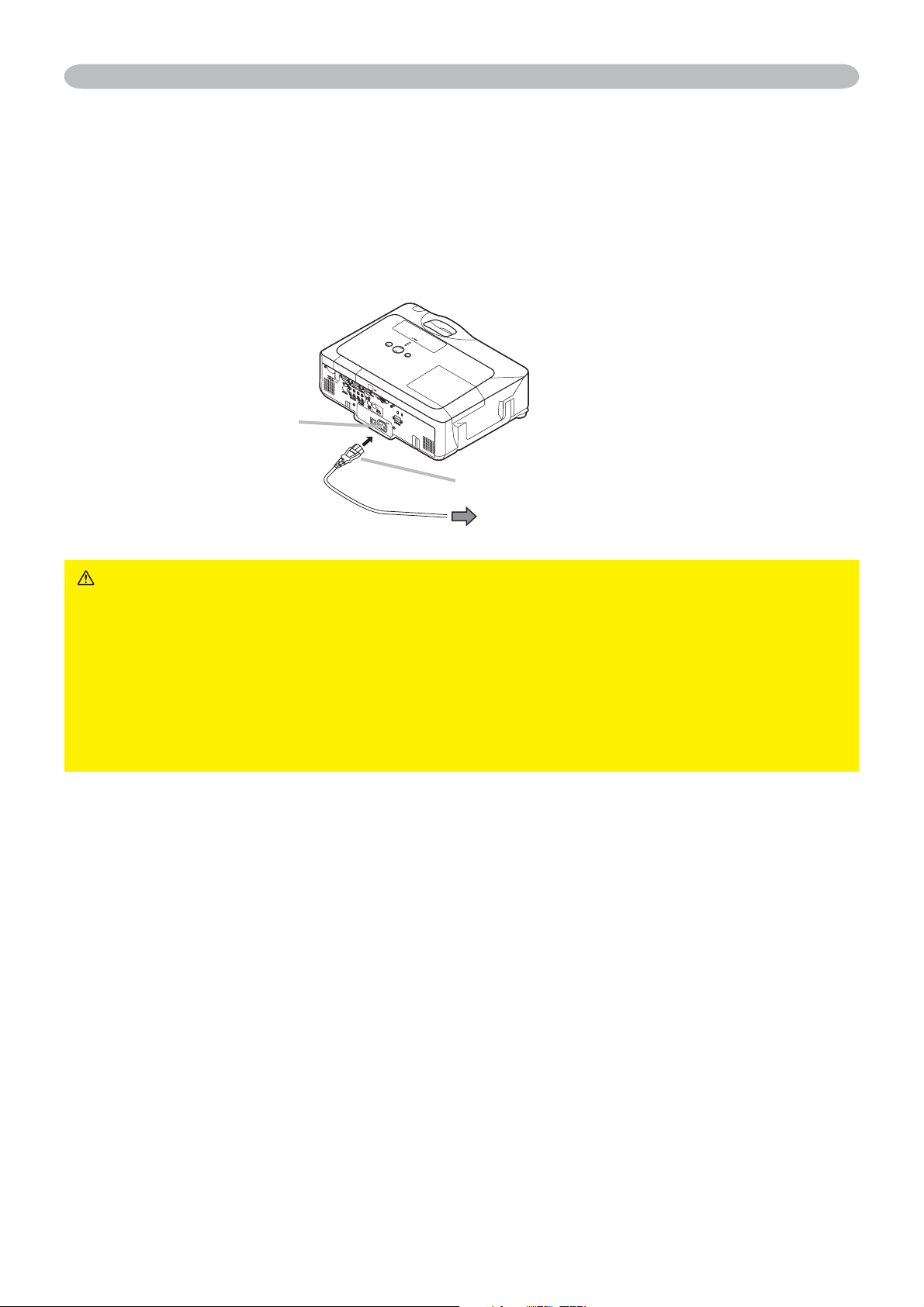
1.
Connect the connector of the power cord to the AC inlet of the projector.
2.
Firmly plug the power cord's plug into the outlet.
WARNING ŹPlease use extra caution when connecting the power cord, as
LQFRUUHFWRUIDXOW\FRQQHFWLRQVPD\UHVXOWLQ¿UHDQGRUHOHFWULFDOVKRFN
• Only use the power cord that came with the projector. If it is damaged, contact
your dealer to newly get correct one.
• Only plug the power cord into an outlet rated for use with the power cord's
VSHFL¿HGYROWDJHUDQJH
• Never modify the power cord. Never attempt to defeat the ground connection
of the three-pronged plug.
AC inlet
to the outlet
Connector of the power cord
13
Remote control
Putting batteries
Please load the batteries before using the remote control. If the remote control starts to
malfunction, replace the batteries. If you will not use the remote control for an extended
period, remove the batteries from the remote control and store them in a safe place.
1.
Slide back and remove the
battery cover in the direction
of the arrow.
2.
Align and insert the two AA
batteries according to their
plus and minus terminals as indicated in the remote control.
3.
Replace the battery cover in the direction of the arrow and snap it back into place.
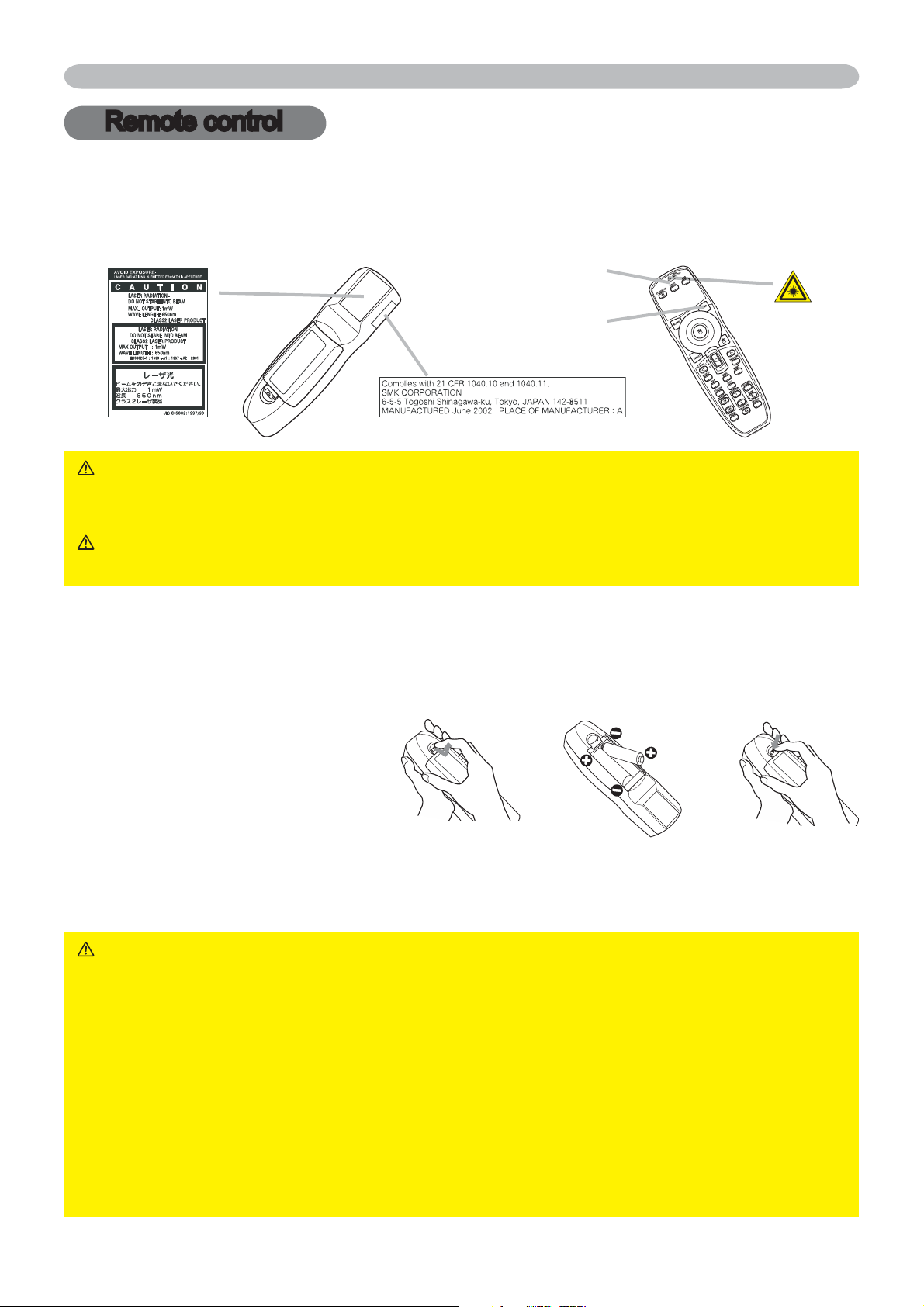
Laser pointer
7KLVUHPRWHFRQWUROKDVDODVHUSRLQWHULQSODFHRID¿QJHURUURG7KHODVHUEHDPZRUNV
and the LASER INDICATOR lights while the LASER button is pressed.
Remote control
WARNING ŹThe laser pointer of the remote control is used in place of a
¿QJHURUURG1HYHUORRNGLUHFWO\LQWRWKHODVHUEHDPRXWOHWRUSRLQWWKHODVHU
beam at other people. The laser beam can cause vision problems.
CAUTION ŹUse of controls or adjustments or performance of procedures
RWKHUWKDQWKRVHVSHFL¿HGKHUHLQPD\UHVXOWLQKD]DUGRXVUDGLDWLRQH[SRVXUH
WARNING ŹAlways handle the batteries with care and use them only as
directed. Improper use may result in battery explosion, cracking or leakage,
ZKLFKFRXOGUHVXOWLQ¿UHLQMXU\DQGRUSROOXWLRQRIWKHVXUURXQGLQJHQYLURQPHQW
%HVXUHWRXVHRQO\WKHEDWWHULHVVSHFL¿HG'RQRWXVHEDWWHULHVRIGLIIHUHQW
types at the same time. Do not mix a new battery with used one.
•
Make sure the plus and minus terminals are correctly aligned when loading a battery.
• Keep a battery away from children and pets.
• Do not recharge, short circuit, solder or disassemble a battery.
•
'RQRWDOORZDEDWWHU\LQD¿UHRUZDWHU.HHSEDWWHULHVLQDGDUNFRRODQGGU\SODFH
•
,I\RXREVHUYHDOHDNDJHRIDEDWWHU\ZLSHRXWWKHÀRZHUDQGWKHQUHSODFHDEDWWHU\
,IWKHÀRZHUDGKHUHV\RXUERG\RUFORWKHVULQVHZHOOZLWKZDWHULPPHGLDWHO\
LASER INDICATOR
LASER button
14
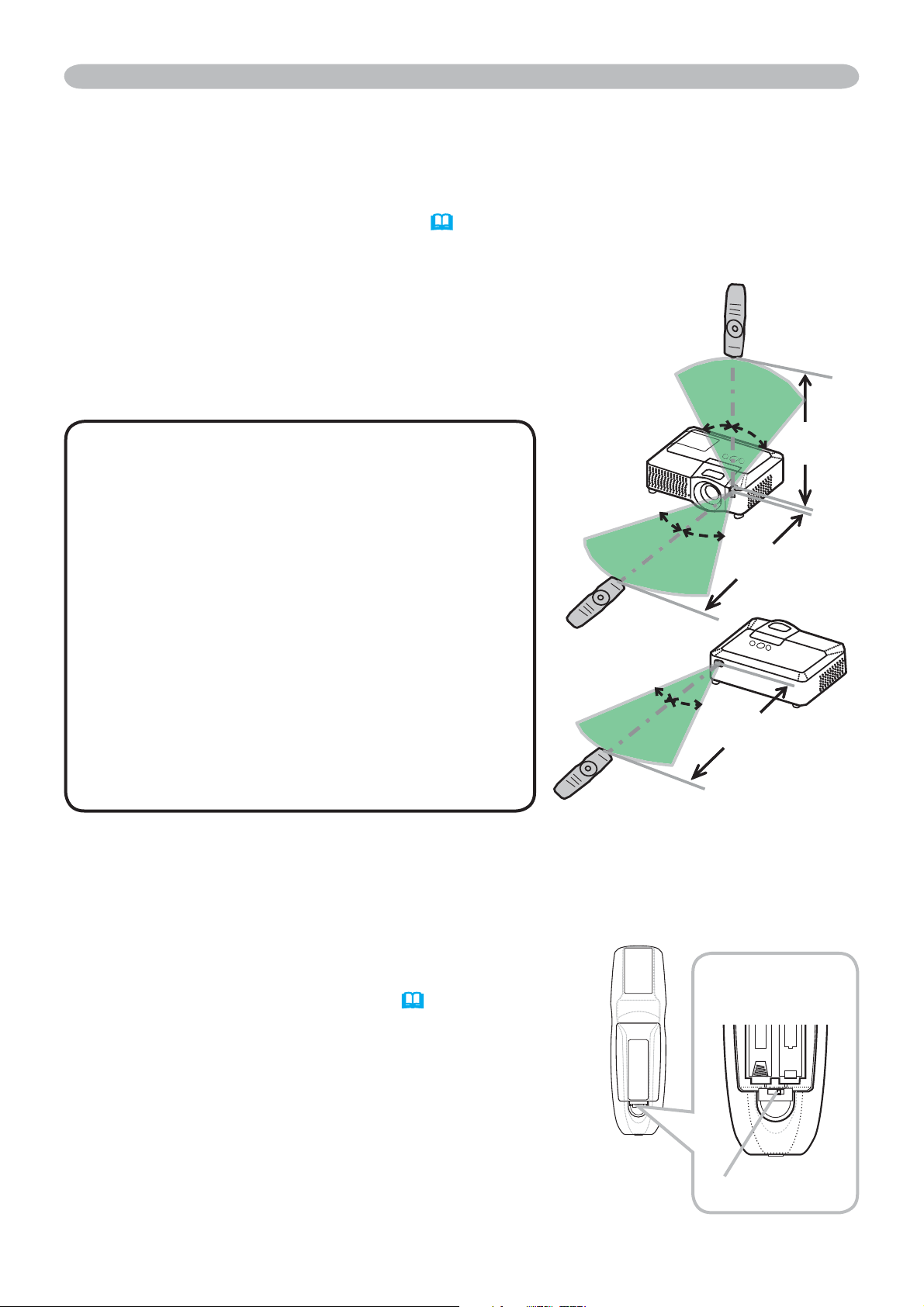
Changing the frequency of remote control signal
The accessory remote control has the choice of the
mode 1 or the mode 2, in the frequency of its signal.
If the remote control does not function properly,
attempt to change the signal frequency.
Please remember that the “REMOTE FREQ.” in
SERVICE item of OPTION menu (
46) of the
projector to be controlled should be set to the same
mode as the remote control.
To set the mode of the remote control, slide the
knob of the frequency switch inside the battery
cover into the position indicated by the mode
number to choose.
About the remote control signal
The remote control works with the projector’s remote sensors. This projector has three
remote sensors on the front, on the top, and on the back.
The sensors can be respectively turned active or inactive using the “REMOTE RECEIV”
in the SERVICE item of OPTION menu (
46). Each sensor senses the signal within the
following range when the sensor is active.
The front and top sensors:
60 degrees (30 degrees to the left and right of the
sensor) within 3 meters about.
The back sensor:
40 degrees (20 degrees to the left and right of the
sensor) within 3 meters about.
Remote control
NOTE •
7KHUHPRWHFRQWUROVLJQDOUHÀHFWHG
in the screen or the like may be available. If it is
GLI¿FXOWWRVHQGWKHVLJQDOWRWKHVHQVRUGLUHFWO\
DWWHPSWWRPDNHWKHVLJQDOUHÀHFW
• The remote control uses infrared light to send
signals to the projector (Class 1 LED), so be sure
to use the remote control in an area free from
obstacles that could block the remote control’s
signal to the projector.
• The remote control may not work correctly if
strong light (such as direct sun light) or light from
an extremely close range (such as from an inverter
ÀXRUHVFHQWODPSVKLQHVRQWKHUHPRWHVHQVRU
of the projector. Adjust the position of projector
avoiding those lights.
Approx.
3 m
30º
30º
30º
30º
Approx.
3 m
20º
20º
Approx.
3 m
21
Back of the
remote control
Inside of
the battery cover
Frequency switch
15
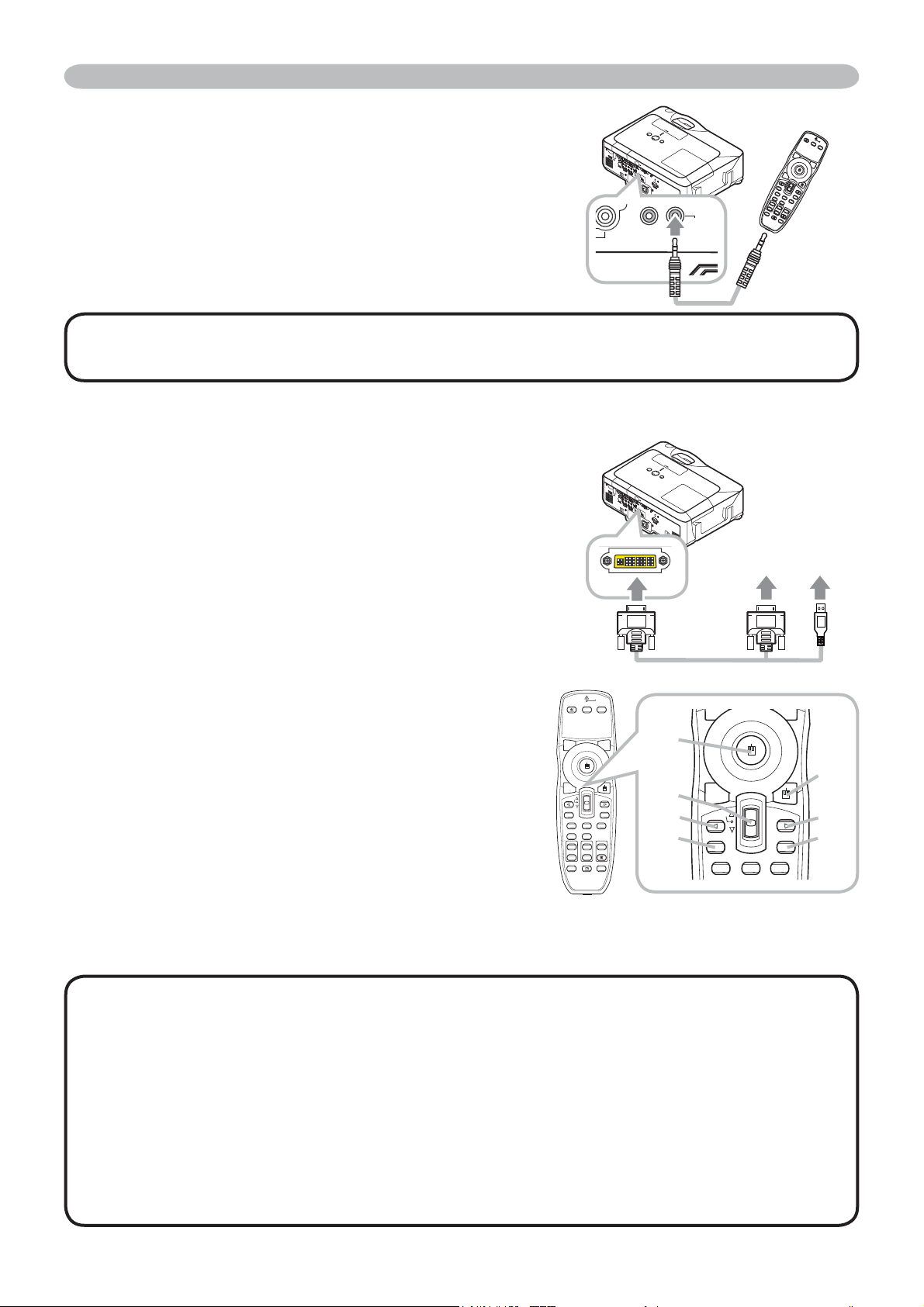
Using as a wired remote control
The accessory remote control works as a wired remote
control, when the wired control port at the bottom of the
remote control connects with the REMOTE CONTROL
port on the back of the projector via an audio cable with 3.5
diameter stereo mini plugs.
When the remote control signal is hard to reach surely to
the projector in the environment, this function is effective.
Remote control
NOTE •
To connect the remote control with the projector, use an audio cable with
3.5 diameter stereo mini plugs.
Using as a simple PC mouse & keyboard
The accessory remote control works as a simple mouse
and keyboard of the PC, when an M1-D/USB cable
connects this projector’s M1-D port with the PC’s DVI-D
and USB (A type) ports.
(1) Mouse left button
Pushing the button into the center point works instead
of clicking the mouse's left button.
Tilting this button to one of eight directions moves the
PC's move pointer on the screen in the direction.
(2) Mouse right button
Pressing the button works instead of clicking the
mouse’s right button.
(3) Lever switch
6OLGLQJWRZDUGWKHVLGHPDUNHGŸZRUNVLQVWHDGRIWKH
>Ĺ@NH\RQWKHNH\ERDUG6OLGLQJWRZDUGWKHVLGHPDUNHG
źZRUNVLQVWHDGRIWKH>Ļ@NH\RQWKHNH\ERDUG
&XUVRUEXWWRQŻ
7KLVEXWWRQZRUNVLQVWHDGRIWKH>ĸ@NH\RQWKH
keyboard.
&XUVRUEXWWRQŹ
7KLVEXWWRQZRUNVLQVWHDGRIWKH>ĺ@NH\RQWKHNH\ERDUG
(6) PAGE UP button
This button works instead of the PAGE UP key on the key board.
(7) PAGE DOWN button
This button works instead of the PAGE DOWN key on the key board.
NOTE •
When the simple mouse & keyboard function of this product does not work
correctly, please check the following.
- When an M1-D/USB cable connects this projector with a PC having a built-in pointing
device (e.g. track ball) like a notebook PC, open BIOS setup menu, then select the
external mouse and disable the built-in pointing device, because the built-in pointing
device may have priority to this function.
- Windows 95 OSR 2.1 or higher is required for this function. And also this function may
QRWZRUNGHSHQGLQJRQWKH3&¶VFRQ¿JXUDWLRQVDQGPRXVHGULYHUV
-
Operating simultaneously two or more keys is void except for mouse drag and drop operation.
- This function is activated only when the projector is working properly.
BL
ANK
L
A
S
ER
ASP
E
C
T
PU
S
H
ENT
ER
L
ASER
IN
D
ICA
T
O
R
to a signal
source
BLANK LASER
ASPECT
ESC MENU RESET
POSITION AUTO
MAGNIFY
MY BUTTON
VOLUME
ON 1
MUTE
OFF 2
FREEZE KEYSTONE SEARCH
PUSH
ENTER
PAGE UP
PAGE DOWN
STANDBY/ON
VIDEO RGB
LASER
INDICATOR
BLANK LASER
ASPECT
ESC MENU RESET
POSITION AUTO
PUSH
ENTER
PAGE UP
PAGE DOWN
(3)
(4)
(6)
(2)
(5)
(7)
(1)
16
Power on/off
Turning on the power
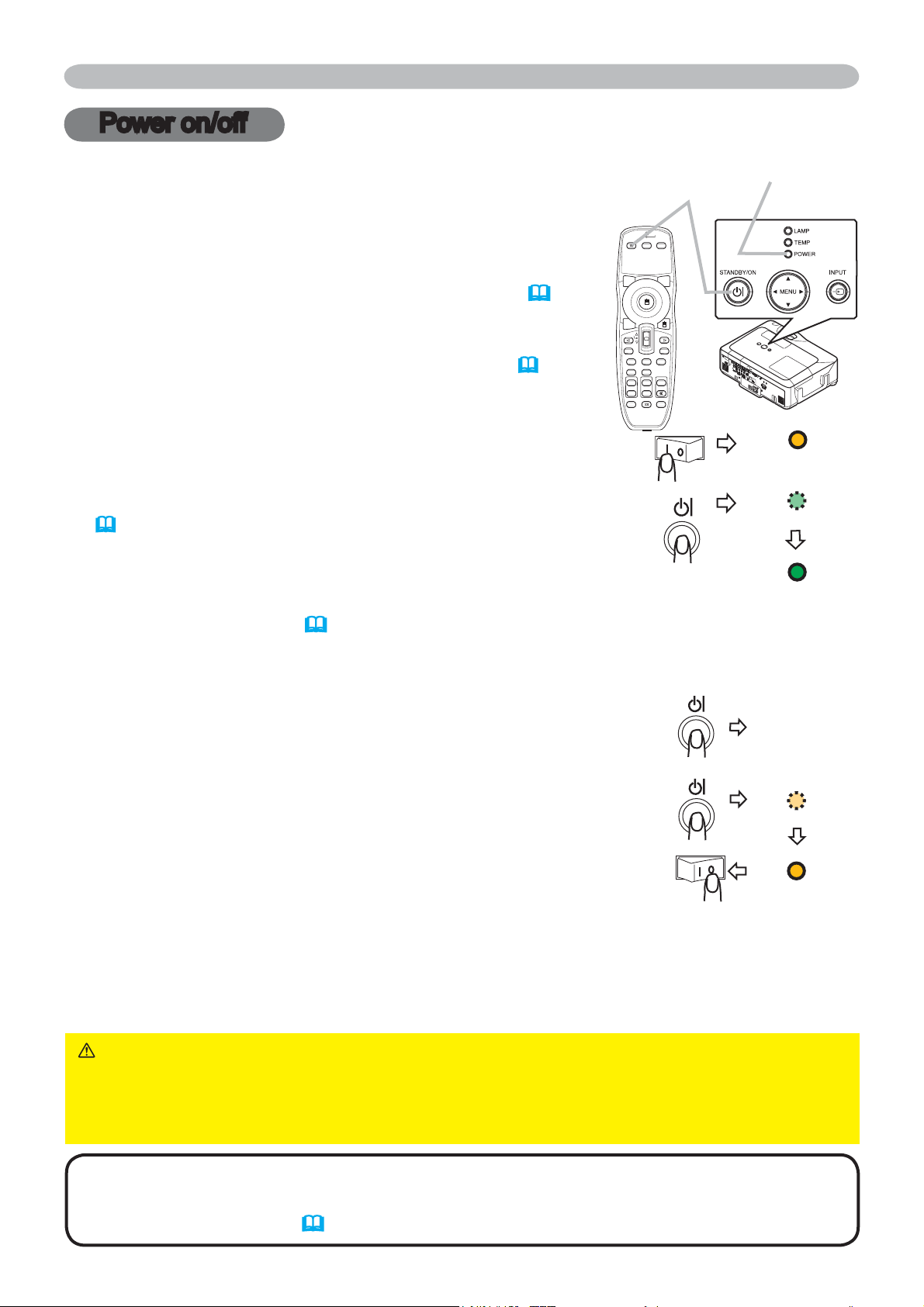
1.
0DNHVXUHWKDWWKHSRZHUFRUGLV¿UPO\DQG
correctly connected to the projector and the outlet.
2.
Remove the lens cover, and set the power switch to
the ON position.
The power indicator will light up in steady orange (
63).
Then wait several seconds because the buttons may not
function for these several seconds.
(1)
When AUTO ON in OPTION menu is set to TURN ON
(
42)
:
The lamp will only be automatically turned on when the
Power switch is turned on after the power was turned off by
Power switch last time. Afterwards the POWER indicator
will begin blinking in green. When the power is completely
on, the indicator will stop blinking and light in green.
(2)
When AUTO ON in the OPTION menu is set to TURN OFF
(
42): Please see step 3.
3.
Press the STANDBY/ON button on the projector or the
remote control.
To display the picture, select an input signal according to the section
"Selecting an input signal" (
18).
Turning off the power
1.
Press the STANDBY/ON button on the projector or the remote
control.
The message "Power off?" will appear on the screen for about 5
seconds.
2.
Press the STANDBY/ON button on the projector or the remote
control again while the message appears.
The projector lamp will go off, and the POWER indicator will begin
blinking in orange.
Then the POWER indicator will stop blinking and light in steady
orange when the lamp cooling is complete.
3.
Make sure that the power indicator lights in steady orange, and set the power
switch to the OFF position. The POWER indicator will go off. Attach the lens cover.
Do not turn the projector on for 10 minutes or more after turning it off. Turning the projector
on again too soon could shorten the lifetime of some consumable parts of the projector.
POWER
(Steady orange)
POWER
(Blinking in green)
POWER
(Steady green)
BLANK LASER
ASPECT
ESC MENU RESET
POSITION AUTO
MAGNIFY
MY BUTTON
VOLUME
ON 1
MUTE
OFF 2
FREEZE KEYSTONE SEARCH
PUSH
ENTER
PAGE UP
PAGE DOWN
STANDBY/ON
VIDEO RGB
LASER
INDICATOR
STANDBY/ON
button
POWER
indicator
Power off?
WARNING
Ź
A strong light is emitted when the projector’s power is on. Do not look into
the lens of the projector or look inside of the projector through any of the projector’s openings.
Ź
Do not touch around the lamp cover and the exhaust vents during use or just
after use, since it is too hot.
NOTE •
Turn the power on/off in right order. Please power on the projector prior
to the connected devices. Power off the projector later than the connected devices.
•
Use the shutdown switch
(
65)
only when the projector is not turned off by normal procedure.
Power on/off
POWER
(Blinking in orange)
POWER
(Steady orange)
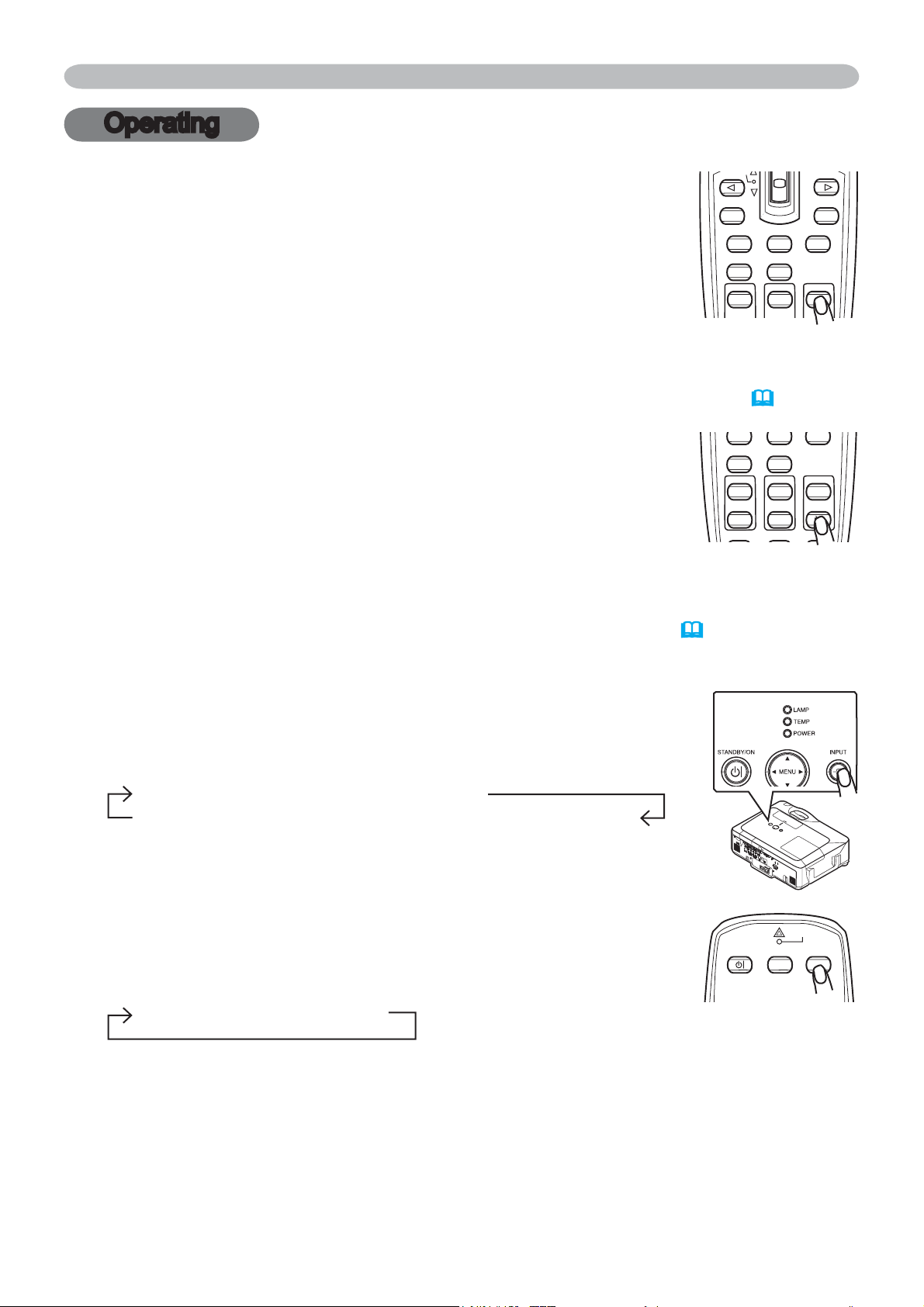
17
Operating
Operating
Adjusting the volume
1.
Press the VOLUME button on the remote control.
A dialog will appear on the screen to aid you in adjusting the volume.
2.
8VHWKHFXUVRUEXWWRQVŸźWRDGMXVWWKHYROXPH
To close the dialog and complete the operation, press the
VOLUME button again. Even if you do not do anything, the
dialog will automatically disappear after a few seconds.
Ɣ:KHQQRDXGLRSRUWLVVHOHFWHGIRUFXUUHQWSLFWXUHLQSXWSRUWWKHYROXPH
adjustment is disable. Please see the AUDIO item of AUDIO menu.
(
37)
Temporarily muting the sound
1.
Press the MUTE button on the remote control.
A dialog will appear on the screen indicating that you have muted the sound.
To restore the sound, press the MUTE or VOLUME button.
Even if you do not do anything, the dialog will automatically
disappear after a few seconds.
Ɣ$VORQJDVQRDXGLRLQSXWLVVHOHFWHGIRUFXUUHQWSLFWXUHLQSXWSRUWWKHVRXQGLV
always muted. Please see the AUDIO item of AUDIO menu.
(
37)
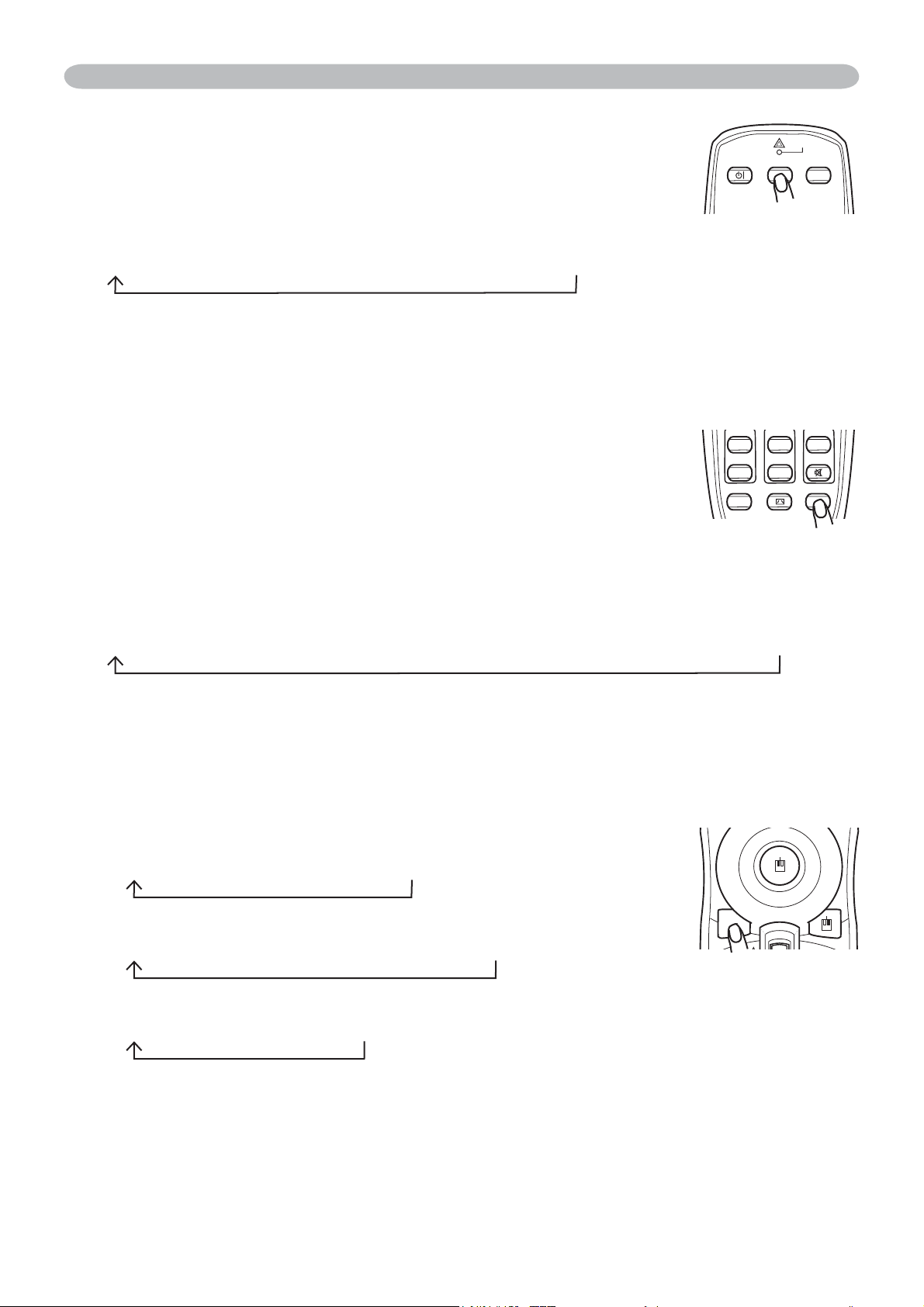
Selecting an input signal
1.
Press the INPUT button on the projector.
Each time you press the button, the projector switches its
input port as below.
RGB 1
Æ
RGB 2
Æ
M1-D
VIDEO
Æ
S-VIDEO
Æ
COMPONENT (Y, C
B
/R
B
, C
R
/B
R
)
1.
Press the RGB button on the remote control to select an
input port for the RGB signal.
Each time you press the button, the projector switches its RGB
input port as below.
RGB 1
Æ
RGB 2
Æ
M1-D
Ɣ,IWKH5*%EXWWRQLVSXVKHGZKHQVZLWFKLQJIURP9,'(2WR5*%VLJQDOV
when TURN ON is selected for the AUTO SEARCH item in the OPTION menu
WKHSURMHFWRUZLOOFKHFNWKH5*%SRUW¿UVW,IQRLQSXWLVGHWHFWHGDWWKHSRUW
the projector will check other port in above order.
ESC MENU RESET
POSITION AUTO
MAGNIFY
MY BUTTON
VOLUME
ON 1
MUTE
PUSH
ENTER
PAGE UP
PAGE DOWN
POSITION AUTO
MAGNIFY
MY BUTTON
VOLUME
ON 1
MUTE
OFF 2
FREEZE KEYSTONE SEARCH
STANDBY/ON
VIDEO RGB
LASER
INDICATOR
(continued on next page)
18
Operating
Searching an input signal
1.
Press the SEARCH button on the remote control.
The projector will start to check its input ports in order to
¿QGDQ\LQSXWVLJQDOV
When an input is found, the projector will stop searching and display the image.
If no signal is found, the projector will return to the state selected before the
operation.
RGB 1
Æ
RGB 2
Æ
M1-D
Æ
COMPONENT (Y, C
B
/R
B
, C
R
/B
R
)
Æ
S-VIDEO
Æ
VIDEO
MAGNIFY
MY BUTTON
VOLUME
ON 1
MUTE
OFF 2
FREEZE KEYSTONE SEARCH
Selecting an input signal (continued)
1.
Press the VIDEO button on the remote control to select an
input for video signal.
Each time you press the button, the projector switches its
video input port as below.
COMPONENT
(Y, C
B
/R
B
, C
R
/B
R
)
Æ
S-VIDEO
Æ
VIDEO
Ɣ,IWKH9,'(2EXWWRQLVSXVKHGZKHQVZLWFKLQJIURP5*%WR9,'(2VLJQDOV
when TURN ON is selected for the AUTO SEARCH item in the OPTION menu
the projector will check the COMPONENT
(Y, C
B
/R
B
, C
R
/B
R
)
SRUW¿UVW,IQRLQSXW
is detected at the port, the projector will check other ports in above order.
STANDBY/ON
VIDEO RGB
LASER
INDICATOR
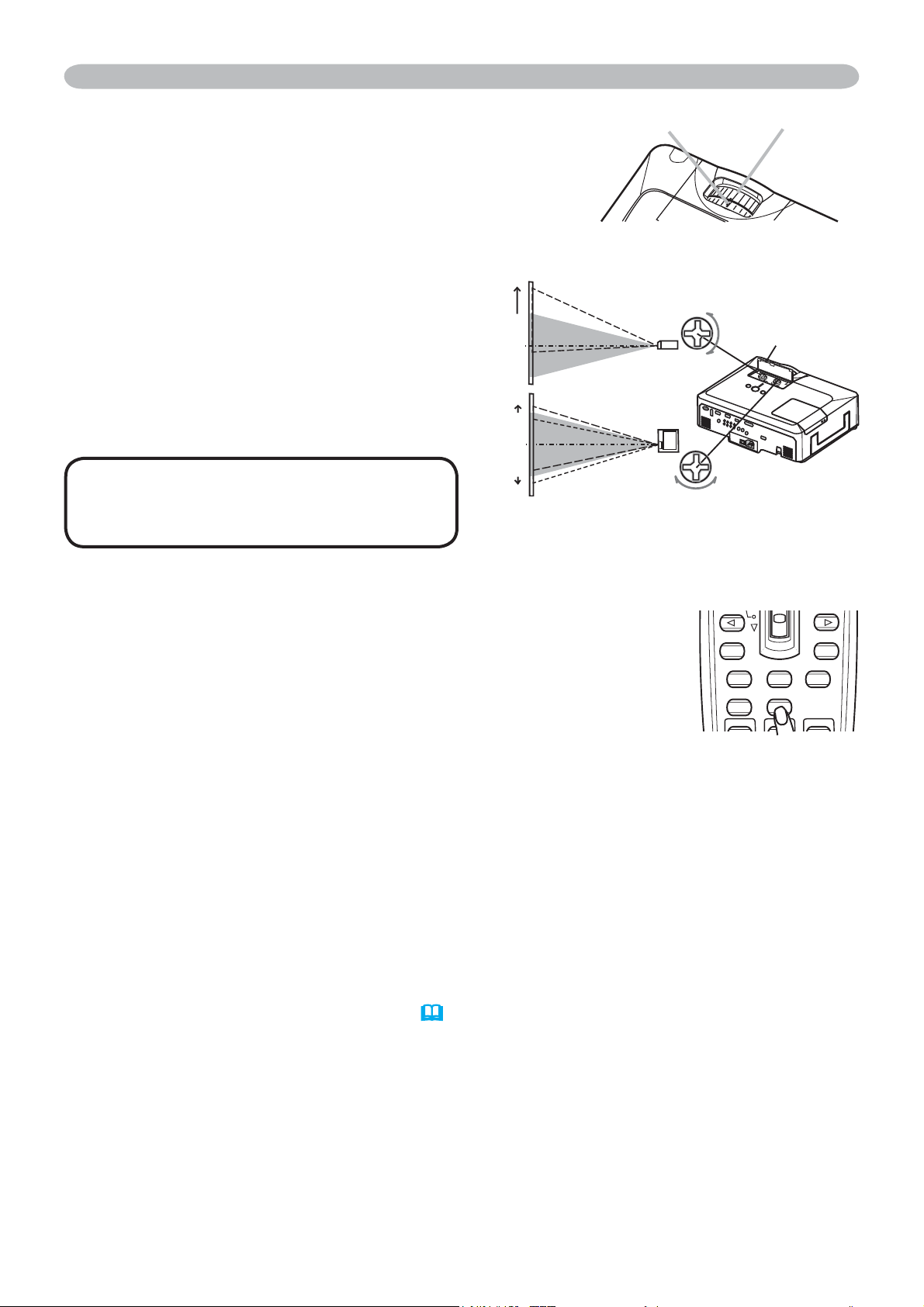
Selecting an aspect ratio
1.
Press the ASPECT button on the remote control.
Each time you press the button, the projector switches the mode for aspect
ratio in turn.
For an RGB signal
NORMAL
Æ
4:3
Æ
16:9
Æ
SMALL
For an M1-D signal
NORMAL
Æ
4:3
Æ
16:9
Æ
14:9
Æ
SMALL
For a video signal, s-video signal or component video signal
4:3
Æ
16:9
Æ
14:9
Æ
SMALL
For no signal
¿[HG
Ɣ7KH1250$/PRGHNHHSVWKHRULJLQDODVSHFWUDWLRRIWKHVLJQDO
Ɣ3HUIRUPLQJWKHDXWRPDWLFDGMXVWPHQWLQLWLDOL]HVWKHDVSHFWUDWLRVHWWLQJ
ASPECT
19
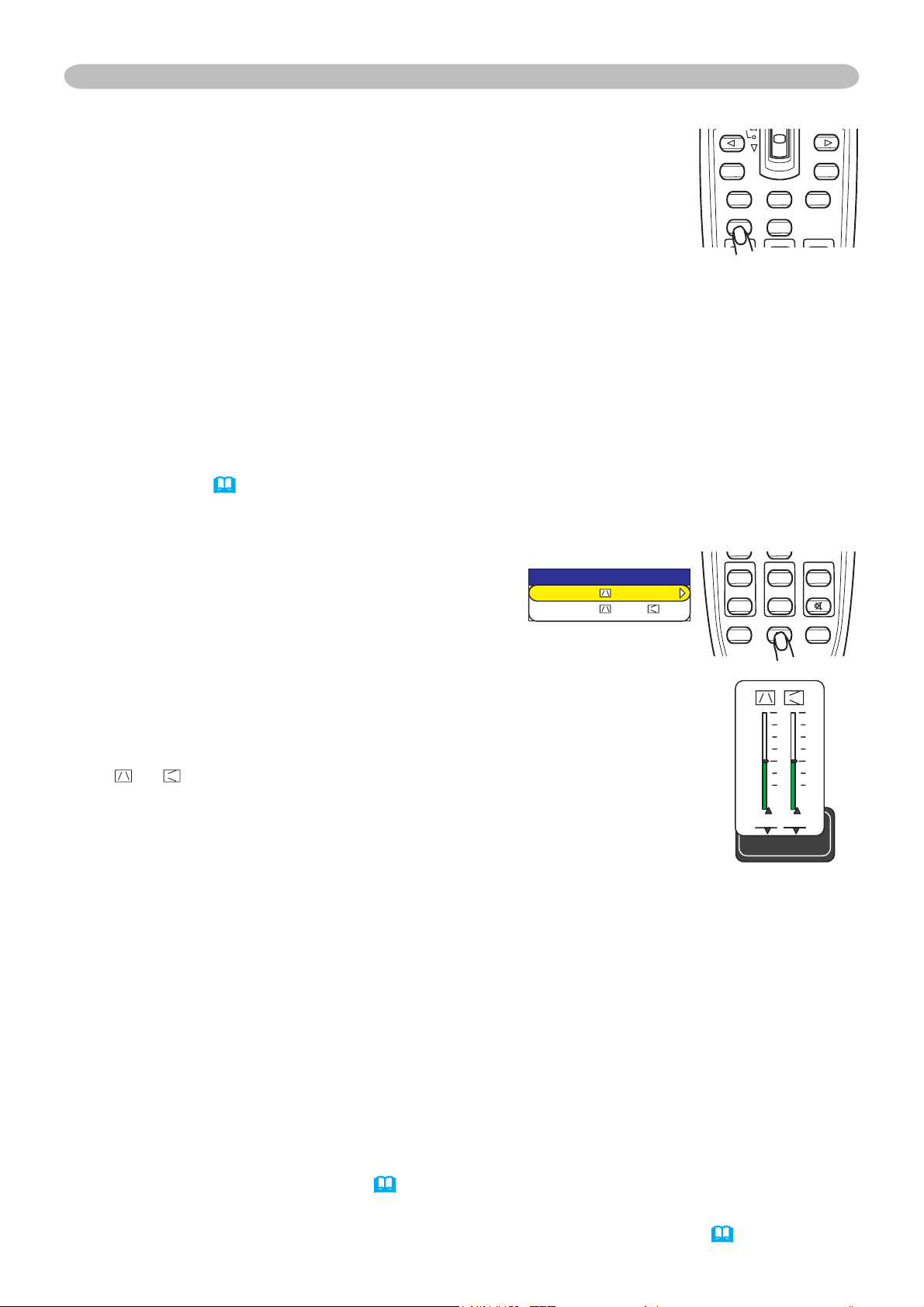
Adjusting the zoom and focus
1.
Use the zoom ring to adjust the screen size.
2.
Use the focus ring to focus the picture.
Operating
Focus ring
Zoom ring
Adjusting the lens shift
1.
Use the vertical lens shift dial to shift
the picture upward or downward.
2.
Use the horizontal lens shift dial to
shift the picture left or right.
Using the automatic adjustment feature
1.
Press the AUTO button on the remote control.
For an RGB signal
The vertical position, the horizontal position, the horizontal
phase and the horizontal size will be automatically adjusted.
And the aspect ratio will be automatically set to default. Make sure that the
application window is set to its maximum size prior to attempting to use this
feature. A dark picture may still be incorrectly adjusted. Use a bright picture
when adjusting.
For an M1-D signal
The aspect ratio will be automatically set to default.
For a video signal or s-video signal
The video format best suited for the respective input signal will be selected
automatically.
This function is available only when the AUTO is selected to the VIDEO
FORMAT item in INPUT menu
(
32)
. For a component video signal, the
VLJQDOW\SHLVLGHQWL¿HGDXWRPDWLFDOO\LQGHSHQGHQWO\RIWKLVIXQFWLRQ
For a video signal, s-video signal or component video signal
The vertical position, horizontal position and aspect ratio will be automatically
set to default.
For a component video signal
The horizontal phase will be automatically set to default.
Ɣ7KHDXWRPDWLFDGMXVWPHQWRSHUDWLRQUHTXLUHVDERXWVHFRQGV$OVRSOHDVH
note that it may not function correctly with some input.
ESC MENU RESET
POSITION AUTO
MAGNIFY
MY BUTTON
VOLUME
ENTER
PAGE UP
PAGE DOWN
2/5
1/10
1/10
UP
DOWN
RIGHT
Lens shift cover
LEFT
NOTE • When the vertical lens
shift is adjusted, it is recommended to
shift the picture upward.
Top
20
Adjusting the position
1.
Press the POSITION button on the remote control.
The “POSITION” indication will appear on the screen.
2.
8VHWKHFXUVRUEXWWRQVŸźŻŹWRDGMXVWWKHSLFWXUH
position.
When you want to reset the operation, press the RESET button on the remote
control during the operation.
To complete this operation, press the POSITION button again. Even if you do
not do anything, the dialog will automatically disappear after a few seconds.
Ɣ
When this function is performed on a video signal, s-video signal or component video
signal, some image such as an extra-line may appear at outside of the picture.
Ɣ
When this function is performed on a video signal, s-video signal, or component video signal
of 525i (480i) or 625i (576i), the range of this adjustment depends on the OVER SCAN in
IMAGE menu
(
29)
setting. It is not possible to adjust when the OVER SCAN is set to 10.
ESC MENU RESET
POSITION AUTO
MAGNIFY
MY BUTTON
VOLUME
PUSH
ENTER
PAGE UP
PAGE DOWN
Operating
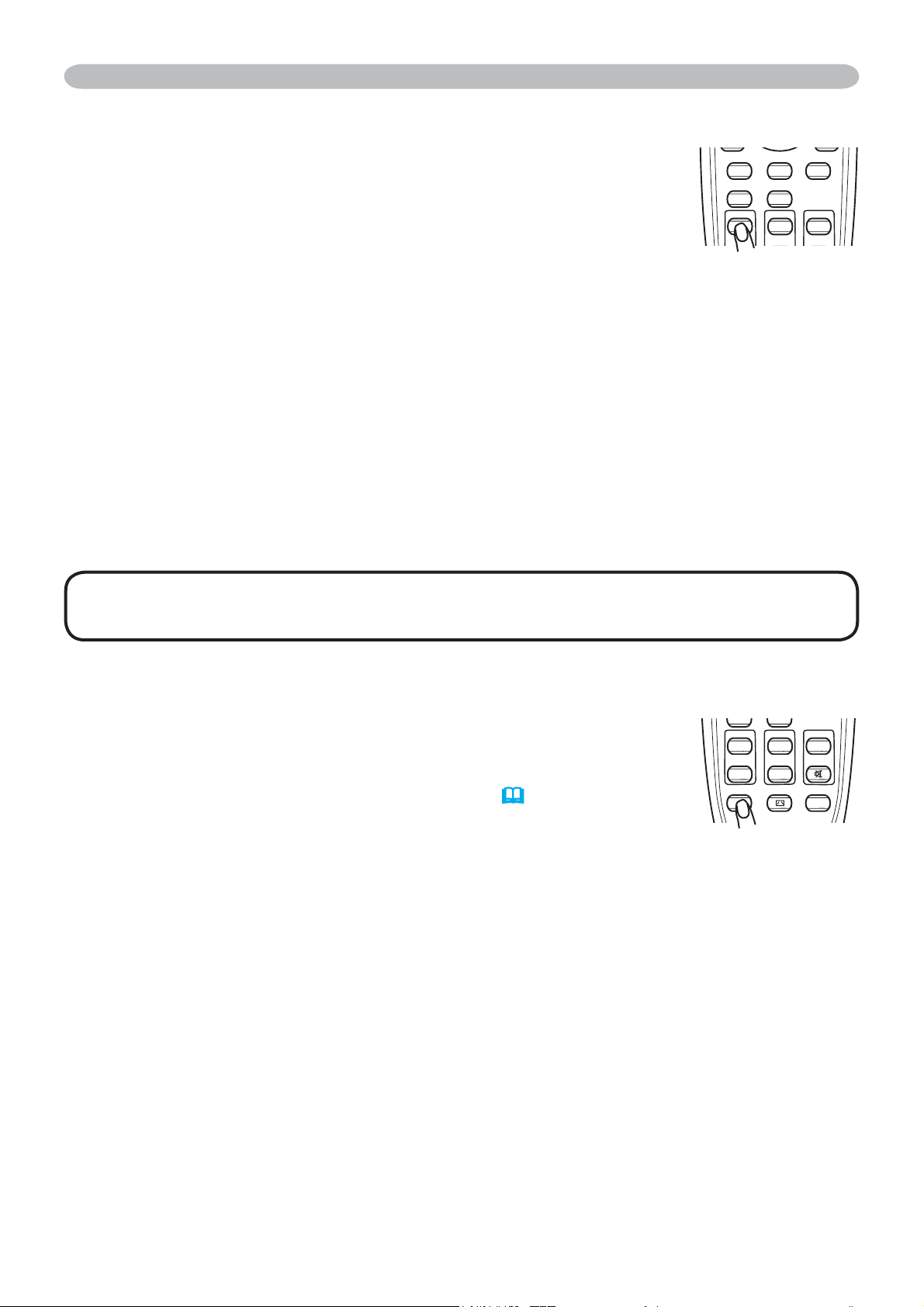
Correcting the keystone distortions
1.
Press the KEYSTONE button on the
remote control. A dialog will appear on the
screen to aid you in correcting the distortion.
2.
Use the cursor buttons
Ÿ
/
ź
to select AUTO or
MANUAL operation, and press the button
Ź
to perform the following.
1) AUTO executes automatic vertical keystone correction.
2) Manual displays a dialog for keystone correction.
8VHWKHFXUVRUEXWWRQVŻŹWRVHOHFWWKHGLUHFWLRQWRFRUUHFW
(
or ) then use the buttonsŸźIRUDGMXVWPHQW
To close the dialog and complete this operation, press the
KEYSTONE button again. Even if you don’t do anything,
the dialog will automatically disappear after a few seconds.
Ɣ7KHDGMXVWDEOHUDQJHRIWKLVIXQFWLRQZLOOYDU\DPRQJLQSXWV)RUVRPHLQSXW
this function may not work well.
Ɣ:KHQ9,19(57RU+9,19(57LVVHOHFWHGWRWKH0,5525LWHPLQWKH
SETUP menu, if the projector screen is inclined or angled downward, this
function may not work correctly.
Ɣ:KHQWKH]RRPDGMXVWPHQWLVVHWWRWKH7(/(WHOHSKRWRIRFXVWKLVIXQFWLRQ
may be excessive. This function should be used when the zoom adjustment is
set to the full WIDE (wide-angle focus) whenever possible.
Ɣ
When the projector is placed on the level (about ±3°), this function may not work.
ƔWhen the projector is inclined to near ±30 degree or over, this function may not
work well.
Ɣ
When the vertical lens shift is not set fully upward (not set fully downward for the
optional lens type FL-601 only
(
45)
), this function may not work well.
Ɣ
When the horizontal lens shift is not set to the center, this function may not work well.
ƔThis function will be unavailable when Transition Detector is on
(
51).
MAGNIFY
MY BUTTON
VOLUME
ON 1
MUTE
OFF 2
FREEZE KEYSTONE SEARCH
-';5610'
#761':'%76'
/#07#.
-';5610'
21
Operating
Using the magnify feature
1.
Press the ON button of MAGNIFY on the remote control.
The “MAGNIFY” indication will appear on the screen
(although the indication will disappear in several seconds with
no operation), and the projector will go into the MAGNIFY
mode.
2.
8VHWKHFXUVRUEXWWRQVŸźWRDGMXVWWKH]RRPOHYHO
To move the zoom area, press the POSITION button in the MAGNIFY mode,
WKHQXVHWKHFXUVRUEXWWRQVŸźŻŹWRPRYHWKHDUHD$QGWR¿QDOL]HWKH
zoom area, press the POSITION button again.
To exit from the MAGNIFY mode and restore the screen to normal, press the
OFF button of MAGNIFY on the remote control.
Ɣ7KHSURMHFWRUDXWRPDWLFDOO\H[LWVIURPWKH0$*1,)<PRGHZKHQWKHLQSXW
signal is changed, or when the display condition is changed.
Ɣ$OWKRXJKLQWKH0$*1,)<PRGHWKHNH\VWRQHGLVWRUWLRQFRQGLWLRQPD\YDU\LW
will be restored when the projector exits from the MAGNIFY mode.
ESC MENU RESET
POSITION AUTO
MAGNIFY
MY BUTTON
VOLUME
ON 1
MUTE
Freezing the screen
1.
Press the FREEZE button on the remote control.
The “FREEZE” indication will appear on the screen (although
the indication will not appear when the TURN ON is selected
to the MESSAGE item of SCREEN menu
(
41)
), and the
projector will go into the FREEZE mode.
To exit the FREEZE mode and restore the screen to normal, press the FREEZE
button again.
Ɣ7KHSURMHFWRUDXWRPDWLFDOO\H[LWVIURPWKH)5((=(PRGHZKHQWKHLQSXWVLJQDO
changes, or when one of the projector’s buttons or the remote control buttons
of STANDBY/ON, SEARCH, RGB, VIDEO, BLANK, AUTO, ASPECT, VOLUME,
MUTE, KEYSTONE, POSITION, MENU, MAGNIFY and MY BUTTON is
pressed.
Ɣ,IWKHSURMHFWRUFRQWLQXHVSURMHFWLQJDVWLOOLPDJHIRUDORQJWLPHWKH/&'SDQHO
might possibly be burned in. Do not leave the projector in the FREEZE mode
for too long.
MAGNIFY
MY BUTTON
VOLUME
ON 1
MUTE
OFF 2
FREEZE KEYSTONE SEARCH
NOTE • 7KH]RRPOHYHOFDQEH¿QHO\DGMXVWHG&ORVHO\ZDWFKWKHVFUHHQWR
¿QGWKHOHYHO\RXZDQW

22
Operating
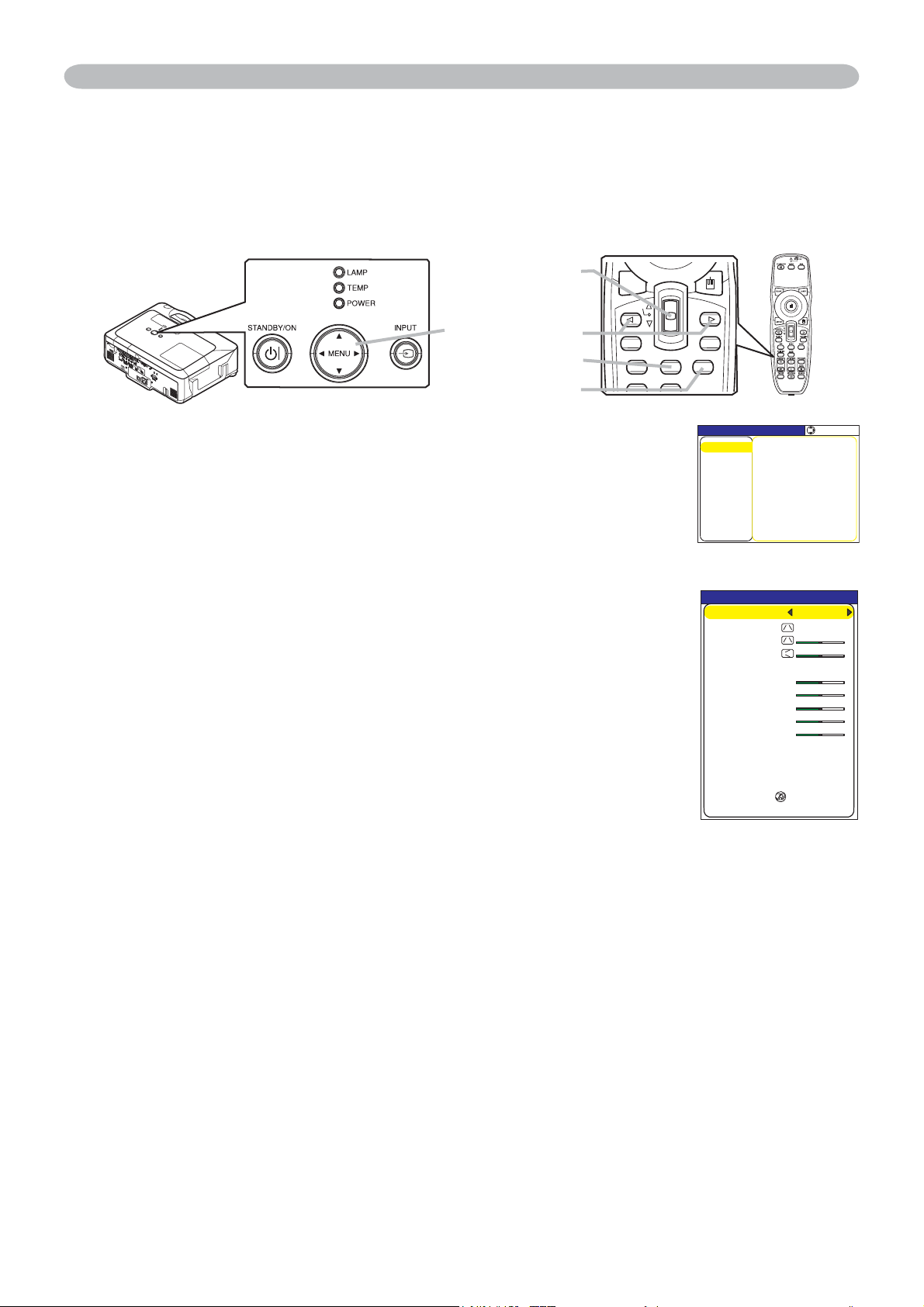
Temporarily blanking the screen
1.
Press the BLANK button on the remote control.
The blank screen will be displayed instead of the screen
of input signal. Please refer to the BLANK item in SCREEN
menu
(
38).
To exit from the blank screen and return to the input signal screen, press the
BLANK button again.
Ɣ7KHSURMHFWRUDXWRPDWLFDOO\UHWXUQVWRWKHLQSXWVLJQDOVFUHHQZKHQRQHRI
the projector’s buttons or the remote control buttons is pressed or one of the
commands (except get commands) is transmitted to the control port.
BLANK LASER
NOTE • The sound is not connected with the blank screen function. If
QHFHVVDU\VHWWKHYROXPHRUPXWH¿UVW
23
Operating
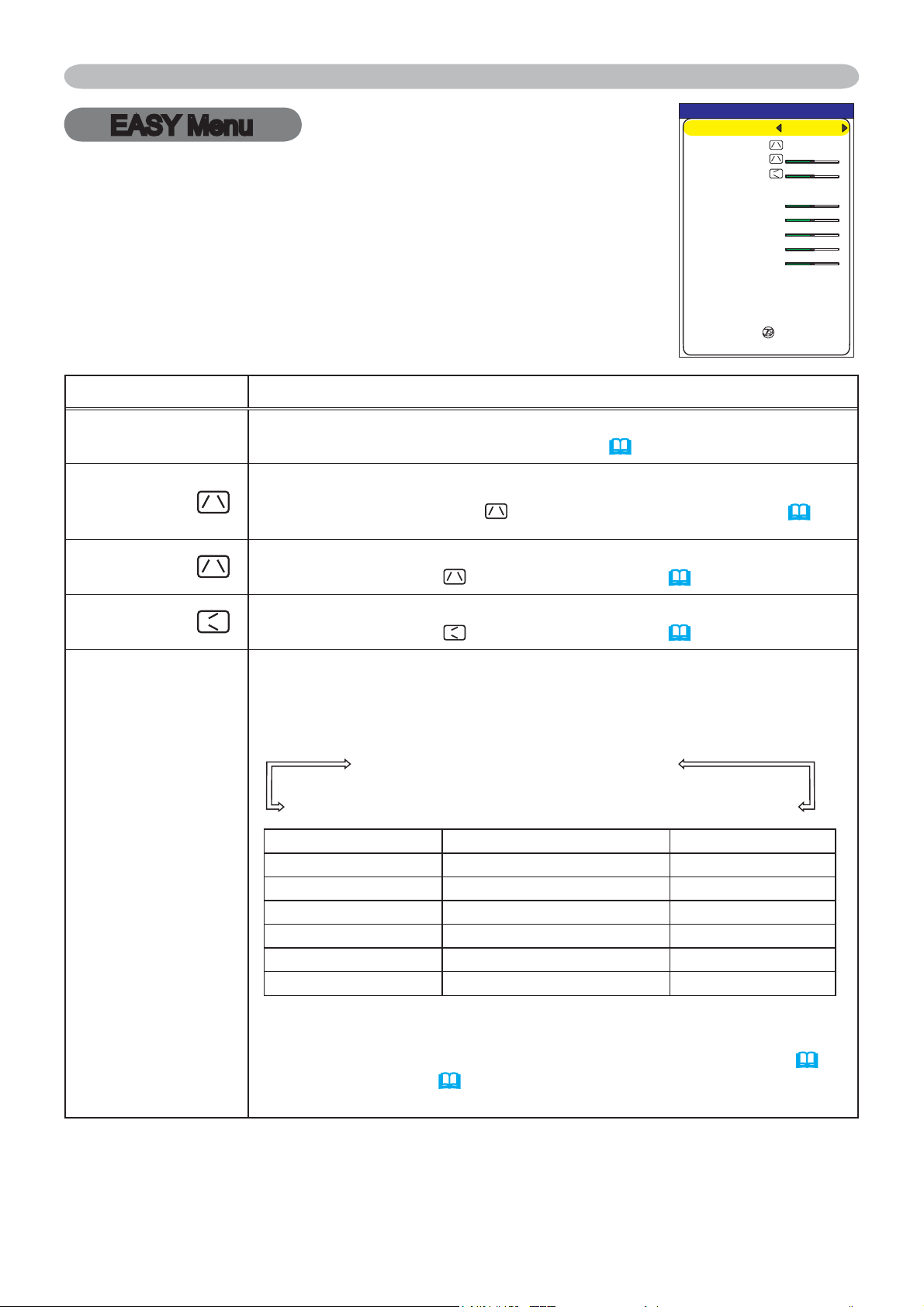
Using the menu function
This projector has the following menus: PICTURE, IMAGE, INPUT, SETUP, AUDIO,
SCREEN, OPTION, NETWORK, and EASY MENU. EASY MENU consists of functions
RIWHQXVHGDQGWKHRWKHUPHQXVDUHFODVVL¿HGLQWRHDFKSXUSRVH(DFKRIWKHVHPHQXVLV
operated using the same methods. The basic operations of these menus are as follows.
1.
Press the MENU button on the remote control or one of
the cursor buttons on the projector.
The Advanced MENU, or EASY MENU that has priority just
after powered on, will appear.
In the EASY MENU
2.
If you want to change it to the Advanced MENU, select the
"Go to Advanced Menu..."
3.
8VHWKHFXUVRUEXWWRQVŸźWRVHOHFWDQLWHPWRRSHUDWH
4.
8VHWKHFXUVRUEXWWRQVŻŹWRRSHUDWHWKHLWHP
In the Advanced MENU
2.
8VHWKHFXUVRUEXWWRQVŸźWRVHOHFWDPHQX
If you want to change it to the EASY MENU, select the
EASY MENU.
7KHQSUHVVWKHFXUVRUEXWWRQŹRQWKHSURMHFWRURUUHPRWH
control, or the ENTER button on the remote control to select
an item. The display of the selected menu will be active.
3.
8VHWKHFXUVRUEXWWRQVŸźWRVHOHFWDQLWHPWRRSHUDWH
Then press the cursor button
Ź
on the projector or remote control, or the ENTER button
on the remote control to progress. The operation menu of the selected item will appear.
4.
8VHWKHFXUVRUEXWWRQVŸźWRRSHUDWHWKHLWHP
Ɣ
When you want to reset the operation, press the RESET button on the remote control
during the operation. Note that items whose functions are performed simultaneously
with operation (ex. LANGUAGE, H PHASE, VOLUME etc.) cannot be reset.
Ɣ
In the Advanced MENU, when you want to return to the previous display, press the
cursor button
Ż
on the projector or remote control, or the ESC button on the remote
control.
5.
Press the MENU button on the remote control again to close the menu
and complete this operation. Even if you do not do anything, the dialog will
automatically disappear after about 10 seconds.
Ɣ6RPHIXQFWLRQVFDQQRWEHSHUIRUPHGZKHQDFHUWDLQLQSXWSRUWLVVHOHFWHGRU
when a certain input signal is displayed.
'#5;/'07=4)$?
#52'%6
':'%76'
)QVQ#FXCPEGF/GPW
014/#.
014/#.
014/#.
J
'0).+5*
#761-';5610'
-';5610'
-';5610'
2+%674'/1&'
$4+)*60'55
%1064#56
%1.14
6+06
5*#420'55
9*+52'4
/+4414
4'5'6
(+.6'46+/'
.#0)7#)'
/'07=4)$?
+/#)'
5'672
#7&+1
2+%674'
+0276
126+10
5%4''0
5*#420'55
$4+)*60'55㧗
%1064#56㧗
%1.14㧗
6+06㧗
%1.146'/2
/+&
)#//#
&'(#7.6
5'.'%6
0'6914-
'#5;/'07
#%6+8'+4+567401((
/;/'/14;5#8'
RESET button
ENTER button
MENU button
Cursor buttons
ASPECT
ESC MENU RESET
POSITION AUTO
PUSH
ENTER
PAGE UP
PAGE DOWN
24
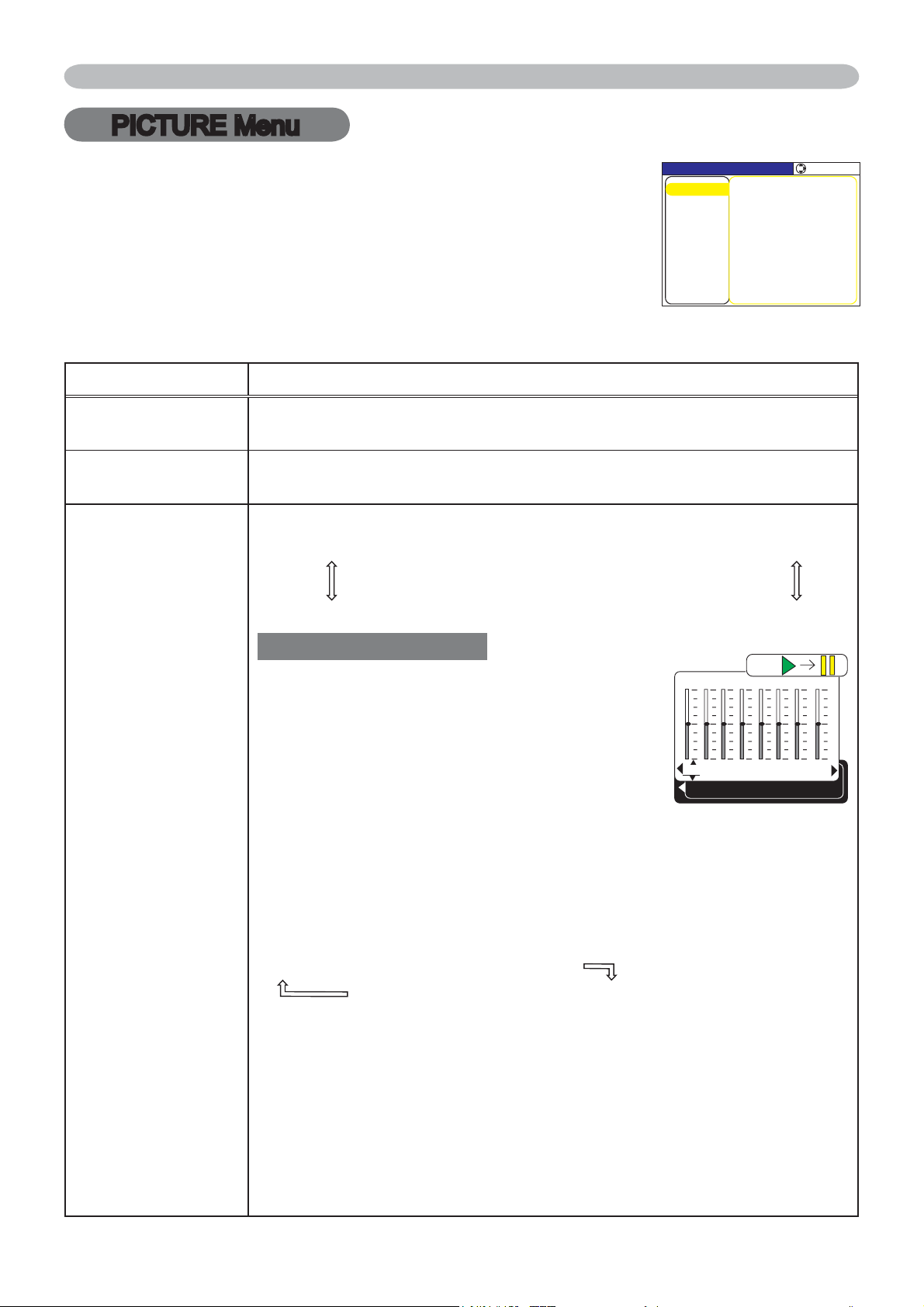
EASY Menu
EASY Menu
Item Description
ASPECT
8VLQJWKHŻŹEXWWRQVVZLWFKHVWKHPRGHIRUDVSHFWUDWLR
See the ASPECT item in IMAGE menu (
29).
AUTO
KEYSTONE
EXECUTE
8VLQJWKHŹEXWWRQH[HFXWHVWKHDXWRNH\VWRQHIXQFWLRQ
See the AUTO KEYSTONE EXECUTE item in SETUP menu
(
35).
KEYSTONE
8VLQJWKHŻŹEXWWRQVFRUUHFWVWKHYHUWLFDONH\VWRQHGLVWRUWLRQ
See the KEYSTONE
item in SETUP menu (
35).
KEYSTONE
8VLQJWKHŻŹEXWWRQVFRUUHFWVWKHKRUL]RQWDONH\VWRQHGLVWRUWLRQ
See the KEYSTONE
item in SETUP menu (
35).
PICTURE MODE
8VLQJWKHŻŹEXWWRQVVZLWFKHVWKHSLFWXUHPRGH
The picture modes are combinations of GAMMA and COLOR
TEMP settings. Choose a suitable mode according to the projected
source.
NORMAL
Ù
CINEMA
Ù
DYNAMIC
WHITEBOARD
Ù
BOARD(GREEN)
Ù
BOARD(BLACK)
COLOR TEMP GAMMA
NORMAL MID DEFAULT #1 DEFAULT
CINEMA LOW DEFAULT #2 DEFAULT
DYNAMIC HIGH DEFAULT #3 DEFAULT
BOARD(BLACK) Hi-BRIGHT-1 DEFAULT #4 DEFAULT
BOARD(GREEN) Hi-BRIGHT-2 DEFAULT #4 DEFAULT
WHITEBOARD MID DEFAULT #5 DEFAULT
• When the combination of GAMMA and COLOR TEMP differs
from pre-assigned modes above, the display on the menu for the
PICTURE MODE is “CUSTOM”. Please refer to the GAMMA (
26)
and COLOR TEMP (
27) items in PICTURE menu.
•
When this function is performed, a certain extra such as a line may appear.
From the EASY MENU, items shown in the table below can
be performed.
Select an item using theŸź cursor buttons on the
projector or remote control. Then perform it according to the
following table.
'#5;/'07=4)$?
#52'%6
':'%76'
)QVQ#FXCPEGF/GPW
014/#.
014/#.
014/#.
J
'0).+5*
#761-';5610'
-';5610'
-';5610'
2+%674'/1&'
$4+)*60'55
%1064#56
%1.14
6+06
5*#420'55
9*+52'4
/+4414
4'5'6
(+.6'46+/'
.#0)7#)'
(continued on next page)

25
EASY Menu
Item Description
BRIGHTNESS
8VLQJWKHŻŹEXWWRQVDGMXVWVWKHEULJKWQHVV
See the BRIGHTNESS item in PICTURE menu (
26).
CONTRAST
8VLQJWKHŻŹEXWWRQVDGMXVWVWKHFRQWUDVW
See the CONTRAST item in PICTURE menu
(
26).
COLOR
8VLQJWKHŻŹEXWWRQVDGMXVWVWKHVWUHQJWKRIZKROHFRORU
See the COLOR item in PICTURE menu (
27).
TINT
8VLQJWKHŻŹEXWWRQVDGMXVWVWKHWLQW
See the TINT item in PICTURE menu (
27).
SHARPNESS
8VLQJWKHŻŹEXWWRQVDGMXVWVWKHVKDUSQHVV
See the SHARPNESS item in PICTURE menu
(
27).
WHISPER
8VLQJWKHŻŹEXWWRQVWXUQVRIIRQWKHZKLVSHUPRGH
See the WHISPER item in SETUP menu (
36).
MIRROR
8VLQJWKHŻŹEXWWRQVVZLWFKHVWKHPRGHIRUPLUURUVWDWXV
See the MIRROR item in SETUP menu (
36).
RESET
Performing this item resets all of the EASY MENU items except the
FILTER TIME and LANGUAGE.
$GLDORJLVGLVSOD\HGIRUFRQ¿UPDWLRQ6HOHFWLQJWKH5(6(7XVLQJ
WKHŸEXWWRQSHUIRUPVUHVHWWLQJ
FILTER TIME
3HUIRUPLQJWKLVLWHPUHVHWVWKH¿OWHUWLPHZKLFKFRXQWVXVDJHWLPH
RIWKHDLU¿OWHU
$GLDORJLVGLVSOD\HGIRUFRQ¿UPDWLRQ6HOHFWLQJWKH5(6(7XVLQJ
WKHŸEXWWRQSHUIRUPVUHVHWWLQJ
See the FILTER TIME item in OPTION menu (
43).
LANGUAGE
8VLQJWKHŻŹEXWWRQVFKDQJHVWKHGLVSOD\ODQJXDJH
See the LANGUAGE item in SCREEN menu
(
38).
Go to
Advanced Menu...
Select “Go to Advanced Menu…” on the menu, and press the
Ź
or ENTER button to use the menu of PICTURE, IMAGE, INPUT,
SETUP, AUDIO, SCREEN, OPTION or NETWORK.
EASY Menu (continued)
26
PICTURE Menu
PICTURE Menu
Item Description
BRIGHTNESS
8VLQJWKHŸźEXWWRQVDGMXVWVWKHEULJKWQHVV
Light
Ù
Dark
CONTRAST
8VLQJWKHŸźEXWWRQVDGMXVWVWKHFRQWUDVW
Strong
Ù
Weak
GAMMA
8VLQJWKHŸźEXWWRQVVZLWFKHVWKHJDPPDPRGH
#1 DEFAULT
Ù
#1 CUSTOM
Ù
#2 DEFAULT
Ù
#2 CUSTOM
Ù
#3 DEFAULT
#5 CUSTOM
Ù
#5 DEFAULT
Ù
#4 CUSTOM
Ù
#4 DEFAULT
Ù
#3 CUSTOM
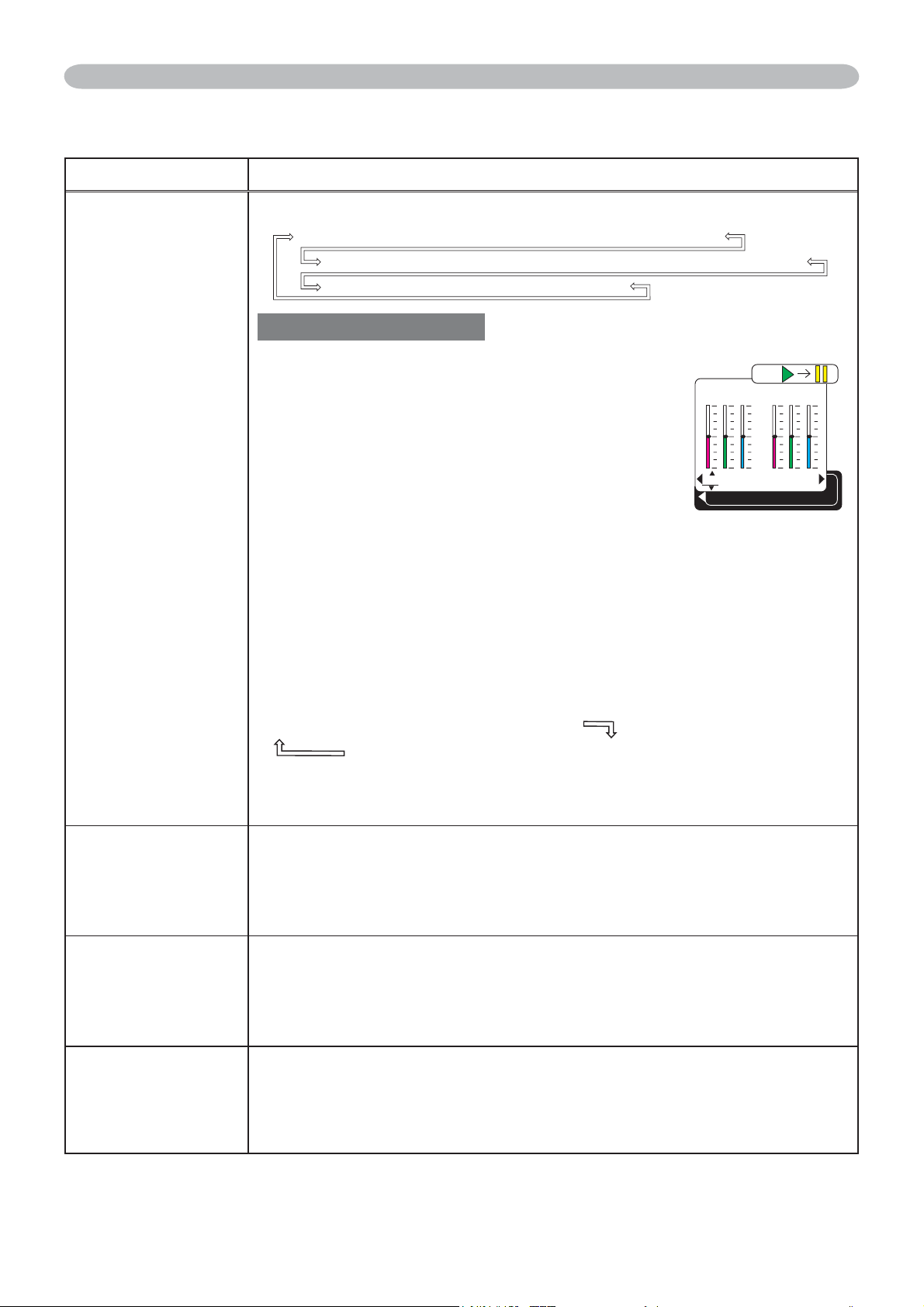
To adjust CUSTOM
Selecting a mode whose name includes
&867
20DQGWKHQSUHVVLQJWKHŹEXWWRQ
or the ENTER button displays a dialog to aid
you in adjusting the mode.
This function is useful when you want to
change the brightness of particular tones.
&KRRVHDQLWHPXVLQJWKHŻŹEXWWRQVDQG
DGMXVWWKHOHYHOXVLQJWKHŸźEXWWRQV
You can display a test pattern for checking the effect of your
adjustment by pressing the ENTER button.
Each time you press the ENTER button, the pattern changes as
below.
No pattern
Ö
Gray scale of 9 steps
Ramp
Õ
Gray scale of 15 steps
The eight equalizing bars correspond to eight tone levels of the test
pattern except the darkest in the left end. If you want to adjust the
2nd tone from left end on the test pattern (Gray scale of 9 steps),
use the equalizing adjustment bar “1”. The darkest tone at the left
end of the test pattern cannot be controlled with any of equalizing
adjustment bar.
• When this function is performed, lines or other distortion may
appear.
From the PICTURE menu, items shown in the table below
can be performed.
Select an item using theŸź cursor buttons on the
projector or remote control, and press theŹ cursor button
on the projector or remote control, or the ENTER button
on the remote control to execute the item. Then perform it
according to the following table.
1
+0
2
+0
3
+0
4
+0
5
+0
6
+0
7
+0
8
+0
GAMMA
[
CUSTOM 1
]
ENTER :
/'07=4)$?
+/#)'
5'672
#7&+1
2+%674'
+0276
126+10
5%4''0
5*#420'55
$4+)*60'55㧗
%1064#56㧗
%1.14㧗
6+06㧗
%1.146'/2
/+&
)#//#
&'(#7.6
5'.'%6
0'6914-
'#5;/'07
#%6+8'+4+567401((
/;/'/14;5#8'
(continued on next page)
27
Item Description
COLOR TEMP
8VLQJWKHŸźEXWWRQVVZLWFKHVWKHFRORUWHPSHUDWXUHPRGH
To adjust CUSTOM
Selecting a mode whose name includes
&867
20DQGWKHQSUHVVLQJWKHŹEXWWRQRUWKH
ENTER button displays a dialog to aid you in
adjusting the OFFSET and GAIN of the selected
mode.
OFFSET adjustments change the color intensity
on the whole tones of the test pattern.
GAIN adjustments mainly affect color intensity
on the brighter tones of the test pattern.
&KRRVHDQLWHPXVLQJWKHŻŹEXWWRQVDQGDGMXVWWKHOHYHOXVLQJ
WKHŸźEXWWRQV
You can display a test pattern for checking the effect of your
adjustment by pressing the ENTER button.
Each time you press the ENTER button, the pattern changes as
below.
No pattern
Ö
Gray scale of 9 steps
Ramp
Õ
Gray scale of 15 steps
• When this function is performed, lines or other distortion may
appear.
COLOR
8VLQJWKHŸźEXWWRQVDGMXVWVWKHVWUHQJWKRIZKROHFRORU
Strong
Ù
Weak
• This item can be selected only for a video signal, s-video or
component video signal.
TINT
8VLQJWKHŸźEXWWRQVDGMXVWVWKHWLQW
Greenish
Ù
Reddish
• This item can be selected only for a video signal, s-video or
component video signal.
SHARPNESS
8VLQJWKHŸźEXWWRQVDGMXVWVWKHVKDUSQHVV
Strong
Ù
Weak
• 7KHUHPD\EHVRPHQRLVHDQGRUWKHVFUHHQPD\ÀLFNHUIRUD
moment when an adjustment is made. This is not a malfunction.
PICTURE Menu
PICTURE Menu (continued)
R
+0
G
+0
B
+0
COLOR TEMP [CUSTOM-1]
ENTER :
OFFSET
R
+0
G
+0
B
+0
GAIN
HIGH DEFAULT
HIGH CUSTOM
MID DEFAULT
MID CUSTOM
LOW DEFAULT
LOW CUSTOM
Hi-BRIGHT-1 DEFAULT
Hi-BRIGHT-1 CUSTOM
Hi-BRIGHT-2 DEFAULT
Hi-BRIGHT-2 CUSTOM
(continued on next page)

28
PICTURE Menu
Item Description
ACTIVE IRIS
8VLQJWKHŸźFXUVRUEXWWRQVFKDQJHVWKHDFWLYHLULVFRQWUROPRGH
PRESENTATION
Ù
THEATER
Ù
TURN OFF
Feature
PRESENTATION
The active iris displays the best presentation
image for both bright and dark scenes.
THEATER
The active iris displays the best theater image for
both bright and dark scenes.
TURN OFF The active iris is always open.
•7KHVFUHHQPD\ÀLFNHUZKHQWKH35(6(17$7,21RU7+($7(5
modes are selected. If this occurs select TURN OFF.
MY MEMORY
This projector has 4 memories for adjustment data (for all the items
of the PICTURE menu).
6HOHFWLQJDIXQFWLRQXVLQJWKHŸźEXWWRQVDQGSUHVVLQJWKHŹRU
ENTER button performs each function.
LOAD1
Ù
LOAD2
Ù
LOAD3
Ù
LOAD4
SAVE4
Ù
SAVE3
Ù
SAVE2
Ù
SAVE1
LOAD1, LOAD2, LOAD3, LOAD4
Performing a LOAD function loads the data from the memory linked
in the number included in the function’s name, and adjusts the
picture automatically depending on the data.
• The LOAD functions whose linked memory has no data are
skipped.
• Remember that the current adjusted condition will be lost by
loading data. If you want to keep the current adjustment, please
save it before performing a LOAD function.
7KHUHPD\EHVRPHQRLVHDQGWKHVFUHHQPD\ÀLFNHUIRUD
moment when loading data. This is not malfunction.
• The LOAD functions can be also performed by the MY MEMORY
button which can be set by the MY BUTTON item in OPTION menu
(
44).
SAVE1, SAVE2, SAVE3, SAVE4
Performing a SAVE function saves the current adjustment data into
the memory linked in the number included in the function’s name.
• Remember that the current data being stored of a memory will be
lost by saving a new data into the memory.
PICTURE Menu (continued)
29
IMAGE Menu
IMAGE Menu
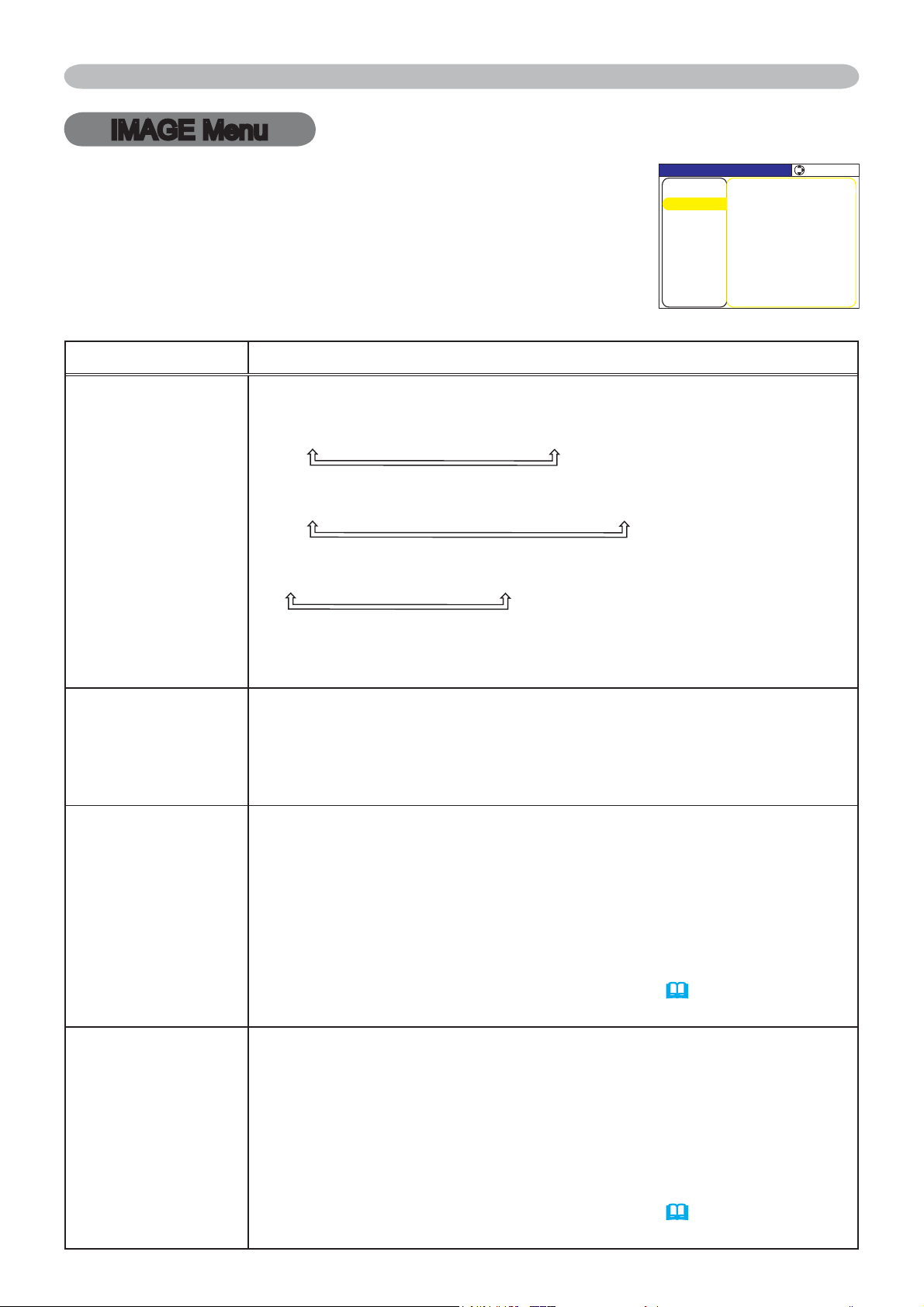
Item Description
ASPECT
8VLQJWKHŸźEXWWRQVVZLWFKHVWKHPRGHIRUDVSHFWUDWLR
For an RGB signal
NORMAL
Ù
4:3
Ù
16:9
Ù
SMALL
For an M1-D signal
NORMAL
Ù
4:3
Ù
16:9
Ù
14:9
Ù
SMALL
For a Video signal, S-video signal or Component video signal
4:3
Ù
16:9
Ù
14:9
Ù
SMALL
For no signal
¿[HG
• The NORMAL mode keeps the original aspect ratio of the signal.
OVER SCAN
8VLQJWKHŸźEXWWRQVDGMXVWVWKHRYHUVFDQUDWLR
Large (It reduces picture)
Ù
6PDOO,WPDJQL¿HVSLFWXUH
•
This item can be selected only for a video, s-video and component signal.
• When this adjustment is too large, certain degradation may appear
at the frame area of the picture. In such a case, please adjust small.
V POSITION
8VLQJWKHŸźEXWWRQVDGMXVWVWKHYHUWLFDOSRVLWLRQ
Up
Ù
Down
• Over-adjusting the vertical position may cause noise to appear
on the screen. If this occurs please reset the vertical position to the
default setting. Pressing the RESET button when the V POSITION
is selected will reset the V POSITION to the default setting.
• When this function is performed on a video signal, s-video signal,
or component video signal of 525i (480i) or 625i (576i), the range of
this adjustment depends on the OVER SCAN (
above) setting. It is
not possible to adjust when the OVER SCAN is set to 10.
H POSITION
8VLQJWKHŸźEXWWRQVDGMXVWVWKHKRUL]RQWDOSRVLWLRQ
Left
Ù
Right
•
Over-adjusting the horizontal position may cause noise to appear
on the screen. If this occurs please reset the horizontal position to the
default setting. Pressing the RESET button when the H POSITION is
selected will reset the H POSITION to the default setting.
• When this function is performed on a video signal, s-video signal,
or component video signal of 525i (480i) or 625i (576i), the range of
this adjustment depends on the OVER SCAN (
above) setting. It is
not possible to adjust when the OVER SCAN is set to 10.
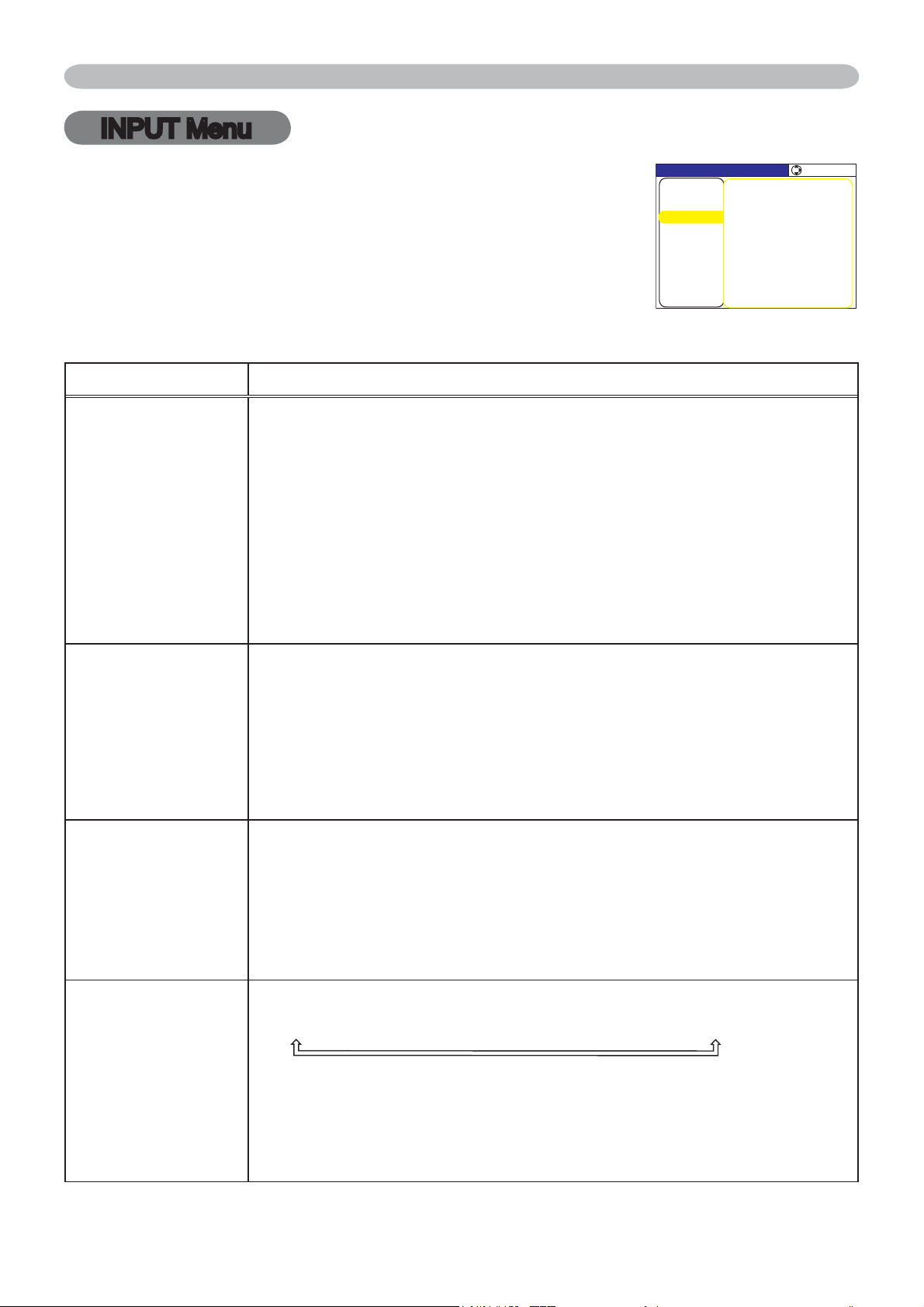
From the IMAGE menu, items shown in the table below
can be performed.
6HOHFWDQLWHPXVLQJWKHŸźFXUVRUEXWWRQVRQWKH
SURMHFWRURUUHPRWHFRQWURODQGSUHVVWKHŹFXUVRUEXWWRQ
on the projector or remote control, or ENTER button on
the remote control to execute the item. Then perform it
according to the following table.
/'07=4)$?
+/#)'
2+%674'
5'.'%6
#761#&,756':'%76'
#52'%6
18'45%#0
*2*#5'
*5+<'
*215+6+10
8215+6+10
5'672
+0276
5%4''0
126+10
#7&+1
0'6914-
'#5;/'07
(continued on next page)

30
IMAGE Menu
Item Description
H PHASE
8VLQJWKHŸźEXWWRQVDGMXVWVWKHKRUL]RQWDOSKDVHWRHOLPLQDWHÀLFNHU
Right
Ù
Left
• This item can be selected only for an RGB signal or a component
video signal. (except 525i (480i), 625i (576i), SCART RGB)
H SIZE
8VLQJWKHŸźEXWWRQVDGMXVWVWKHKRUL]RQWDOVL]H
Large
Ù
Small
• This item can be selected only for an RGB signal.
• When this adjustment is excessive, the picture may not be
displayed correctly. In such a case, please reset the adjustment
by pressing the RESET button on the remote control during this
operation.
AUTO ADJUST
EXECUTE
Selecting this item performs the automatic adjustment feature.
For an RGB signal
The vertical position, the horizontal position, the horizontal phase
and the horizontal size will be automatically set to default. And the
aspect ratio will be automatically selected.
Make sure that the application window is set to its maximum size
prior to attempting to use this feature. A dark picture may still be
incorrectly adjusted. Use a bright picture when adjusting.
For an M1-D signal
The aspect ratio will be automatically set to default.
For a Video signal or S-video signal
The video format best suited for the respective input signal will be
selected automatically.
This function is available only when the AUTO mode is selected to
the VIDEO FORMAT item in INPUT menu. For a component video
VLJQDOWKHVLJQDOW\SHLVLGHQWL¿HGDXWRPDWLFDOO\LQGHSHQGHQWO\RI
this function.
For a Video signal, S-video signal or Component video signal
The vertical position, horizontal position and aspect ratio will be
automatically set to default.
For a Component video signal
The horizontal phase will be automatically set to default.
• The automatic adjustment operation requires about 10 seconds.
Also please note that it may not function correctly with some input.
IMAGE Menu (continued)
31
INPUT Menu
INPUT Menu
Item Description
PROGRESSIVE
8VLQJWKHŸźEXWWRQVVZLWFKHVWKHSURJUHVVPRGH
TV
Ù
FILM
Ù
TURN OFF
• This function is performed only for an interlaced signal of a VIDEO
input, an S-VIDEO input or COMPONENT VIDEO input of 525i
(480i), 625i (576i) or 1125i (1080i) signal.
• When TV or FILM is selected, the screen image will be sharp.
FILM adapts to the 2-3 Pull-Down conversion system. But these
may cause a certain defect (for example, jagged line) of the picture
for a quick moving object. In such a case, please select TURN OFF,
even though the screen image may lose the sharpness.
VIDEO NR
8VLQJWKHŸźEXWWRQVVZLWFKHVWKHQRLVHUHGXFWLRQPRGH
HIGH
Ù
MID
Ù
LOW
• This function performs only at a VIDEO input, an S-VIDEO or
COMPONENT VIDEO input of 525i(480i), 625i(576i) or 1125i (1080i)
signal.
• When this function is excessive, it may cause a certain
degradation of the picture.
3D-YCS
8VLQJWKHŸźEXWWRQVVZLWFKHVWKH'<&6PRGH
STILL
Ù
MOVIE
Ù
TURN OFF
• This function performs only at a VIDEO input of NTSC, and PAL.
• MOVIE is the mode for images with a lot of motions like movies,
and STILL is the mode for images with few motions or completely
still ones like slides.
COLOR SPACE
8VLQJWKHŸźEXWWRQVVZLWFKHVWKHPRGHIRUFRORUVSDFH
AUTO
Ù
RGB
Ù
SMPTE240
Ù
REC709
Ù
REC601
• This item can be selected only for an RGB signal or a component
video signal (except 525i (480i), 625i (576i) and SCART RGB).
• The AUTO mode automatically selects the optimum mode.
• The AUTO operation may not work well at some signals. In such a
case, it might be good to select a suitable mode except AUTO.
From the INPUT menu, items shown in the table below can
be performed.
6HOHFWDQLWHPXVLQJWKHŸźFXUVRUEXWWRQVRQWKH
SURMHFWRURUUHPRWHFRQWURODQGSUHVVWKHŹFXUVRUEXWWRQ
on the projector or remote control, or ENTER button on
the remote control to execute the item. Then perform it
according to the following table.
/'07=4)$?
5'.'%6
8+&'1(14/#6#761
%1.1452#%'#761
&;%556+..
(4#/'.1%-674010
4'51.76+10
4)$+0
/&014/#.
%1/210'06%1/210'06
241)4'55+8'68
8+&'104/+&
+/#)'
2+%674'
5'672
+0276
5%4''0
126+10
#7&+1
0'6914-
'#5;/'07
(continued on next page)
32
Item Description
COMPONENT
8VLQJWKHŸźEXWWRQVVZLWFKHVWKHIXQFWLRQRIWKH&20321(17
(Y, C
B/PB, CR/PR) port.
COMPONENT
Ù
SCART RGB
When the SCART RGB is selected, the COMPONENT (Y, C
B/PB,
CR/PR) and VIDEO ports will function as a SCART RGB port. A
SCART adapter or SCART cable is required for a SCART RGB
input to the projector. For details, contact your dealer.
VIDEO FORMAT
Set the video format for the s-video port and video port.
(1) Use thHŻŹEXWWRQVWRVHOHFWWKHLQSXWSRUW
8VLQJWKHŸźEXWWRQVVZLWFKHVWKHPRGH
for video format.
AUTO
Ù
NTSC
Ù
PAL
Ù
SECAM
N-PAL
Ù
M-PAL
Ù
NTSC4.43
• This item is performed only for a video signal
from the VIDEO port or the S-VIDEO port.
• The AUTO mode automatically selects the optimum mode.
• The AUTO operation may not work well for some signals. If the
picture becomes unstable (e.g. an irregular picture, lack of color),
please select the mode according to the input signal.
M1-D
8VLQJWKHŸźFXUVRUEXWWRQVFKDQJHVWKH0'VLJQDOPRGH
NORMAL
Ù
ENHANCED
Feature
NORMAL Suitable for DVD signals (16-235)
ENHANCED Suitable for VGA signals (0-255)
• If the contrast of the screen image is too strong or too weak, try
¿QGLQJDPRUHVXLWDEOHPRGH
INPUT Menu
INPUT Menu (continued)
8+&'1(14/#6
58+&'1
#761
065%
2#.
5'%#/
065%
/2#.
02#.
8+&'1
(continued on next page)
VIDEO
AUDIO IN 1
AUDIO IN 2
S-VIDEO
RL R L
AUDIO IN 3 AUDIO IN 4
CB/PBY
C
R/PR
SCART OUT
Video G B R
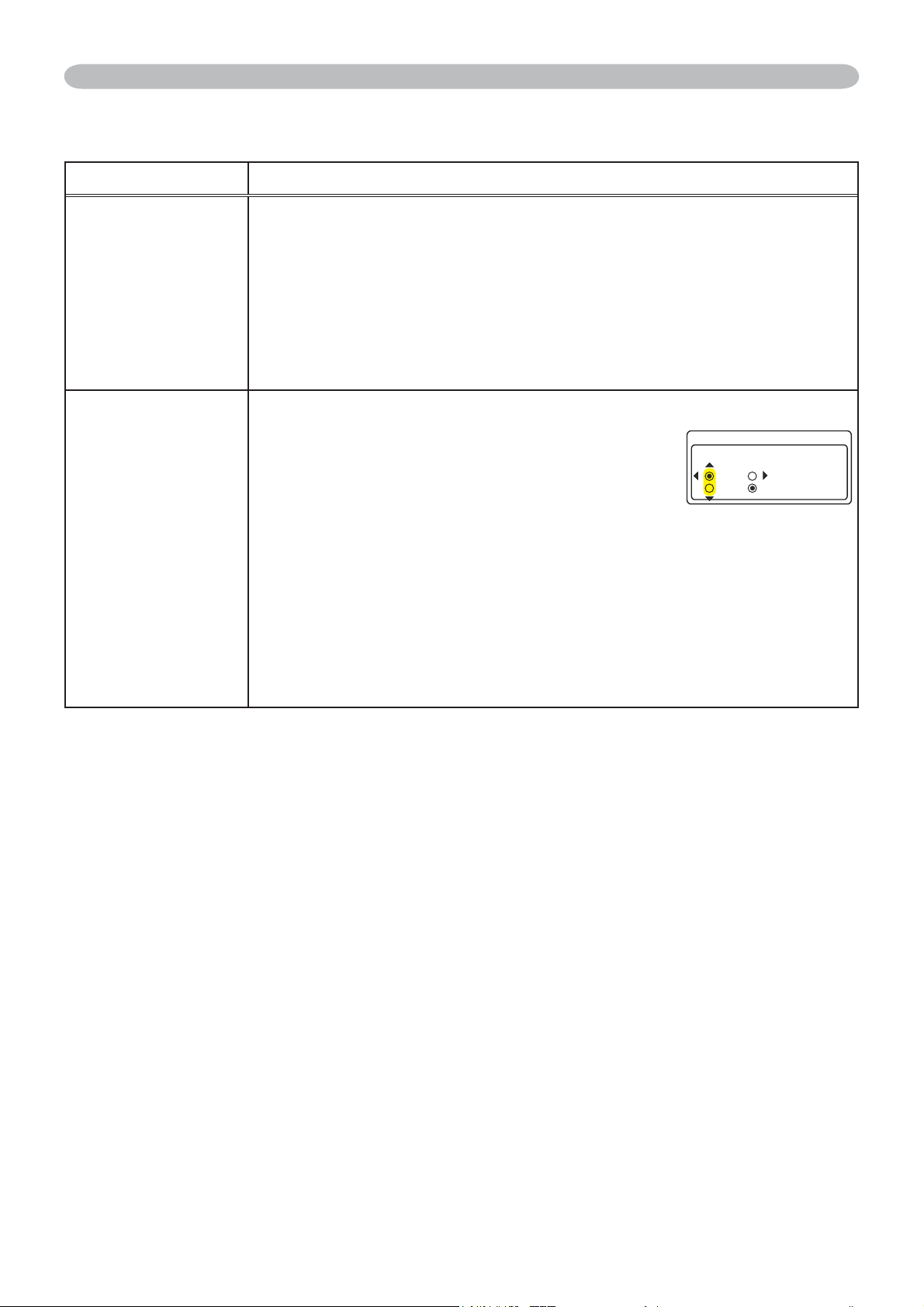
33
Item Description
FRAME LOCK
8VLQJWKHŸźEXWWRQVWXUQVWKHIUDPHORFNIXQFWLRQRQRII
TURN ON
Ù
TURN OFF
• This item can be performed only on an RGB signal with a vertical
frequency of 50 to 60 Hz.
• When the TURN ON is selected, a moving pictures are displayed
more smoothly.
• This function may cause a certain degradation of the picture. In
such a case, please select the TURN OFF.
RGB IN
Set the RGB input signal type for the RGB port.
(1) Use thHŻŹEXWWRQVWRVHOHFWWKH5*%
port to be set.
RGB1
Ù
RGB2
8VHWKHŸźEXWWRQVWRVHOHFWWKH5*%
input signal type.
SYNC ON G ON
Ù
SYNC ON G OFF
• Selecting the SYNC ON G ON turns the SYNC ON G mode on.
The SYNC ON G mode allows reception of a sync on G signal.
• In the SYNC ON G mode, the picture may be distorted with certain
input signals. In such a case, remove the signal connector so that
no signal is received and turn the SYNC ON G mode off, and then
reconnect the signal.
INPUT Menu
INPUT Menu (continued)
4)$+0
4)$
5;0%10)1((
5;0%10)10
4)$
(continued on next page)
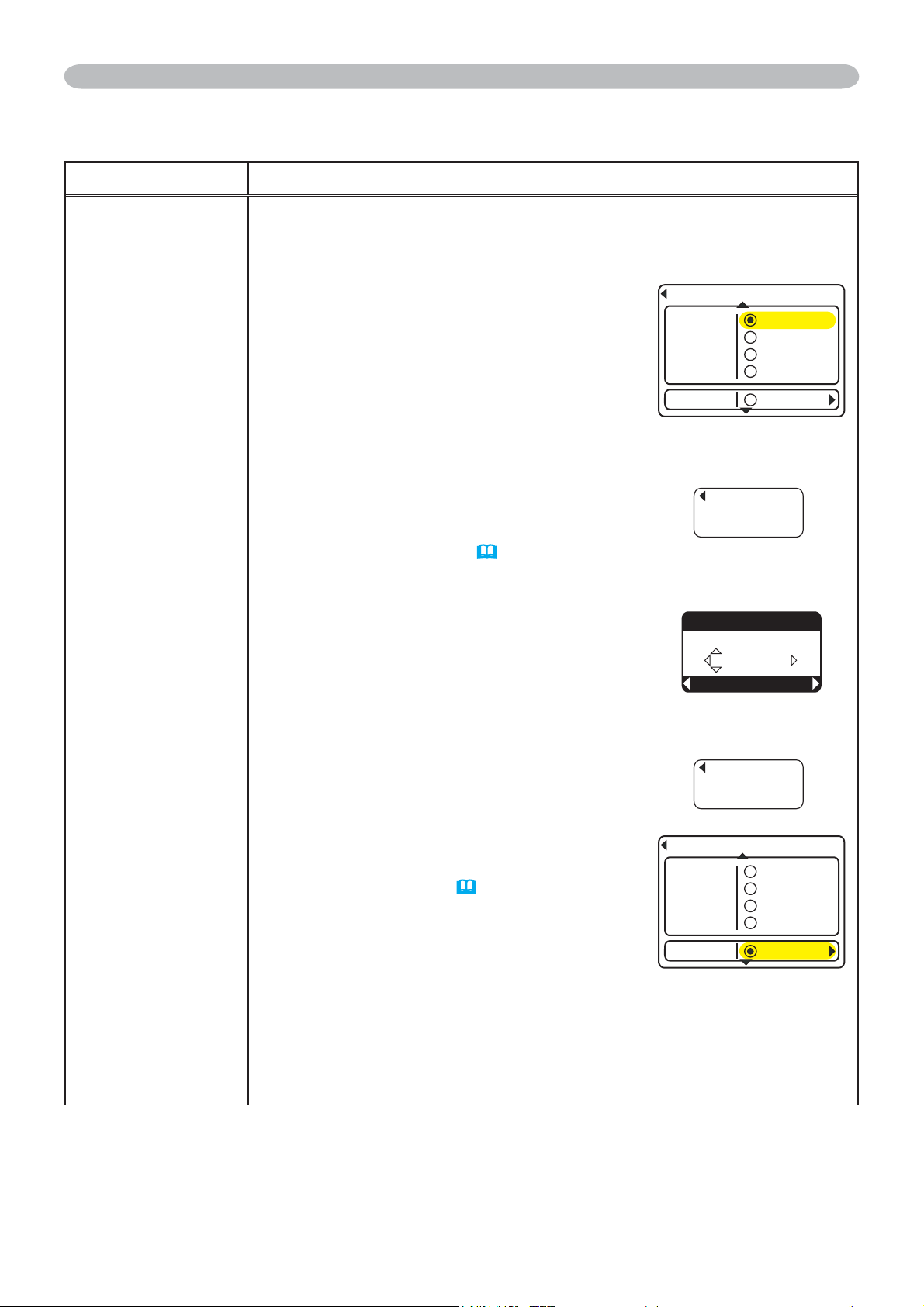
34
INPUT Menu
Item Description
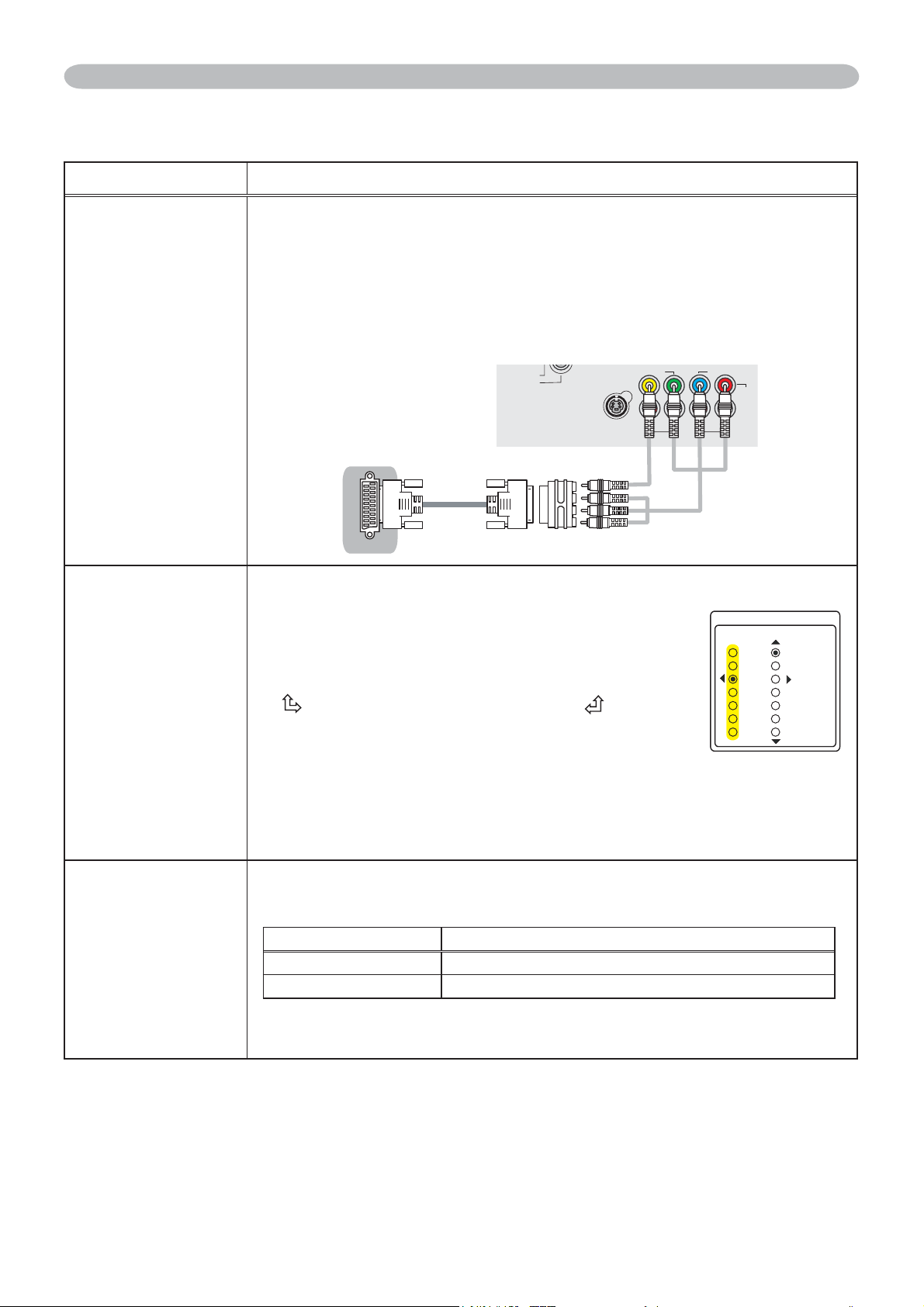
RESOLUTION
The resolution for the RGB1 and RGB2 input signals can be set on
this projector.
,QWKH,1387PHQXVHOHFWWKH5(62/87,21XVLQJWKHŸźEXWWRQVDQG
SUHVVWKHŹEXWWRQ
The RESOLUTION menu will be displayed.
(2) In the RESOLUTION menu select the
UHVROXWLRQ\RXZLVKWRGLVSOD\XVLQJWKHŸź
buttons.
Selecting AUTO will set a resolution
appropriate to the input signal.
3UHVVLQJWKHŹRU(17(5EXWWRQZKHQ
selecting a STANDARD resolution will
automatically adjust the horizontal and
vertical positions, clock phase and horizontal
size and automatically select an aspect ratio.
The INFORMATION dialog (
46) will be
displayed.
7RVHWDFXVWRPUHVROXWLRQXVHWKHŸ
źEXWWRQVWRVHOHFWWKH&86720DQG
the CUSTOM RESOLUTION BOX will be
displayed. Set the horizontal (HORZ) and
YHUWLFDO9(57UHVROXWLRQVXVLQJWKHŸźŻ
ŹEXWWRQV
Although not all resolutions are guaranteed.
(5) To save the setting place the cursor on the
ULJKWPRVWGLJLWDQGSUHVVWKHŹEXWWRQ
The horizontal and vertical positions,
clock phase and horizontal size will be
automatically adjusted and an aspect ratio will
be automatically selected.
After the INFORMATION(
46) dialog has
displayed for about 10 seconds the screen will
return to the RESOLUTION menu displaying
the changed resolution.
(6) To revert back to the previous resolution
without saving changes place the cursor on
WKHOHIWPRVWGLJLWDQGSUHVVWKHŻEXWWRQ
The screen will then return to the RESOLUTION menu displaying the
previous resolution.
• For some pictures, this function may not work well.
INPUT Menu (continued)
4'51.76+10
56#0&
%7561/
#761
Z
Z
Z
Z
RESOLUTION MENU
INFORMATION
RGB1
1280x 768@ 60
INFORMATION
RGB1
992x 744@ 60
4'51.76+10
56#0&
%7561/
#761
Z
Z
Z
Z
%7561/4'51.76+10
5'6
*14<Z8'46
Z
37+6
CUSTOM RESOLUTION
BOX

35
SETUP Menu
SETUP Menu
Item Description
AUTO
KEYSTONE
EXECUTE
Selecting this item performs the Automatic keystone distortion
correction. Projector automatically corrects vertical keystone
distortion due to the (forward/backward) setup angle by itself.
This function will be executed only once when selected in the Menu.
When the slant of the projector is changed, executes this function again.
• The adjustable range of this function will vary among inputs. For
some input, this function may not work well.
•
When V:INVERT or H&V:INVERT is selected to the MIRROR item in the
SETUP menu, if the projector screen is inclined or angled downward, this
function may not work correctly.
•
When the zoom adjustment is set to the TELE (telephoto focus), this
function may be excessive. This function should be used when the zoom
adjustment is set to the full WIDE (wide-angle focus) whenever possible.
•
When the projector is placed on the level (about ±3°), this function may not work.
• When the projector is inclined to near ±30 degree or over, this
function may not work well.
•
When the vertical lens shift is not set fully upward (not set fully downward for
the optional lens type FL-601 only
(
45)
), this function may not work well.
• When the horizontal lens shift is not set to the center, this function
may not work well.
•
This function will be unavailable when the Transition Detector is on
(
51)
.
KEYSTONE
8VLQJWKHŸźEXWWRQVFRUUHFWVWKHYHUWLFDONH\VWRQHGLVWRUWLRQ
Shrink the top of the image
Ù
Shrink the bottom of the image
• The adjustable range of this function will vary among inputs. For
some input, this function may not work well.
•
When the vertical lens shift is not set fully upward (not set fully downward for
the optional lens type FL-601 only
(
45)
), this function may not work well.
•
When the horizontal lens shift is not set to the center, this function may not work well.
•
This function will be unavailable when the Transition Detector is on
(
51)
.
KEYSTONE
8VLQJWKHŸźEXWWRQVFRUUHFWVWKHKRUL]RQWDONH\VWRQHGLVWRUWLRQ
Shrink the right of the image
Ù
Shrink the left of the image
• The adjustable range of this function will vary among inputs. For
some input, this function may not work well.
•
When the horizontal lens shift is not set to the center, this function may not work well.
•
This function will be unavailable when the Transition Detector is on
(
51)
.
From the SETUP menu, items shown in the table below
can be performed.
6HOHFWDQLWHPXVLQJWKHŸźFXUVRUEXWWRQVRQWKH
SURMHFWRURUUHPRWHFRQWURODQGSUHVVWKHŹFXUVRUEXWWRQ
on the projector or remote control, or the ENTER button
on the remote control to execute the item. Then perform it
according to the following table.
/'07=4)$?
5'.'%6
-';5610'
#761-';5610'':'%76'
9*+52'4014/#.
/+4414014/#.
-';5610'
+/#)'
2+%674'
5'672
+0276
5%4''0
126+10
#7&+1
0'6914-
'#5;/'07
(continued on next page)
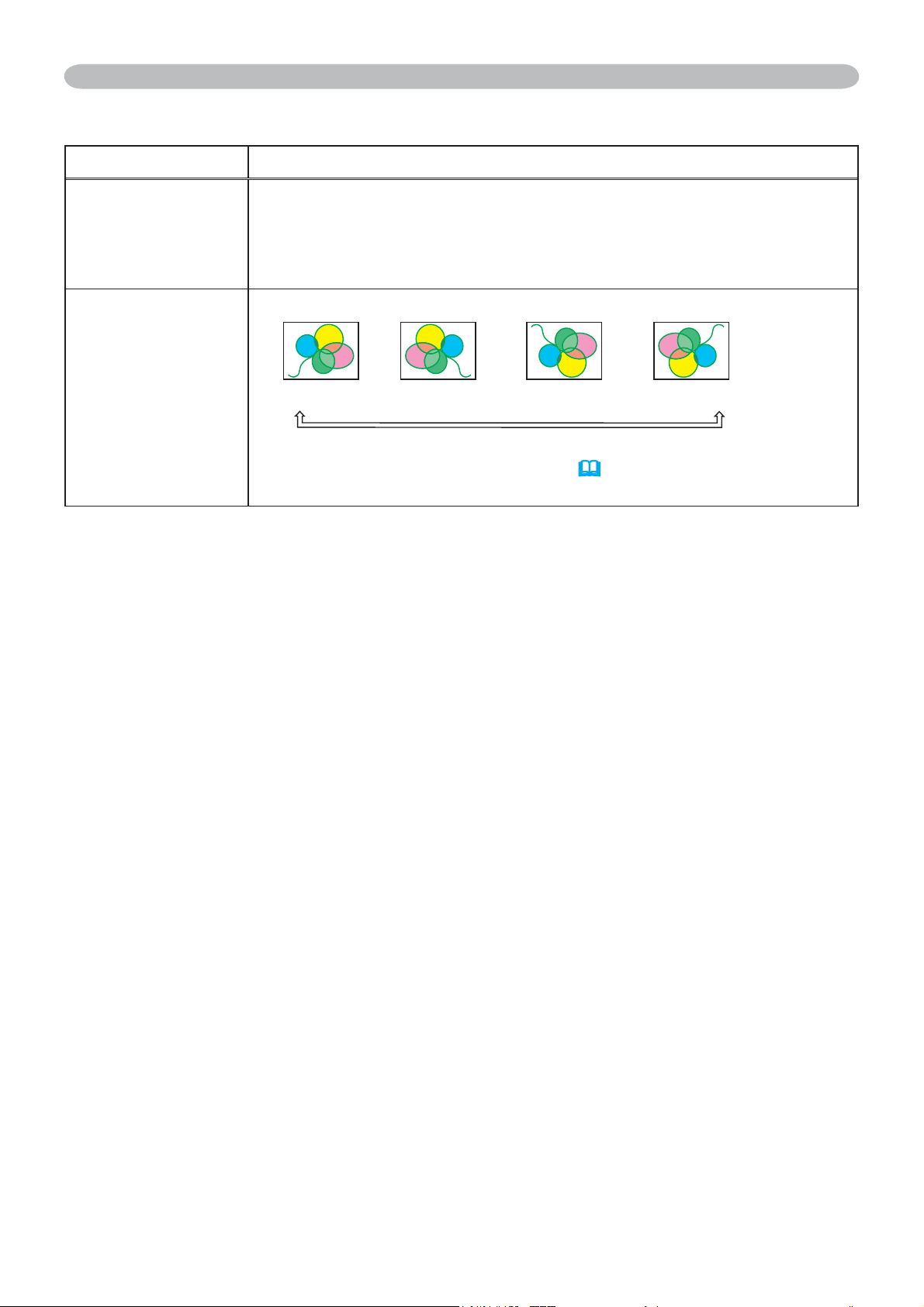
36
SETUP Menu
SETUP Menu (continued)
Item Description
WHISPER
8VLQJWKHŸźEXWWRQVWXUQVRIIRQWKHZKLVSHUPRGH
NORMAL
Ù
WHISPER
• When the WHISPER is selected, acoustic noise and screen
brightness are reduced.
MIRROR
8VLQJWKHŸźEXWWRQVVZLWFKHVWKHPRGHIRUPLUURUVWDWXV
NORMAL
Ù
H:INVERT
Ù
V:INVERT
Ù
H&V:INVERT
If the Transition Detector is TURN ON and MIRROR status is
changed, Transition Detector Alarm (
51) will be displayed when
projector is restarted after the power switch is turned off.
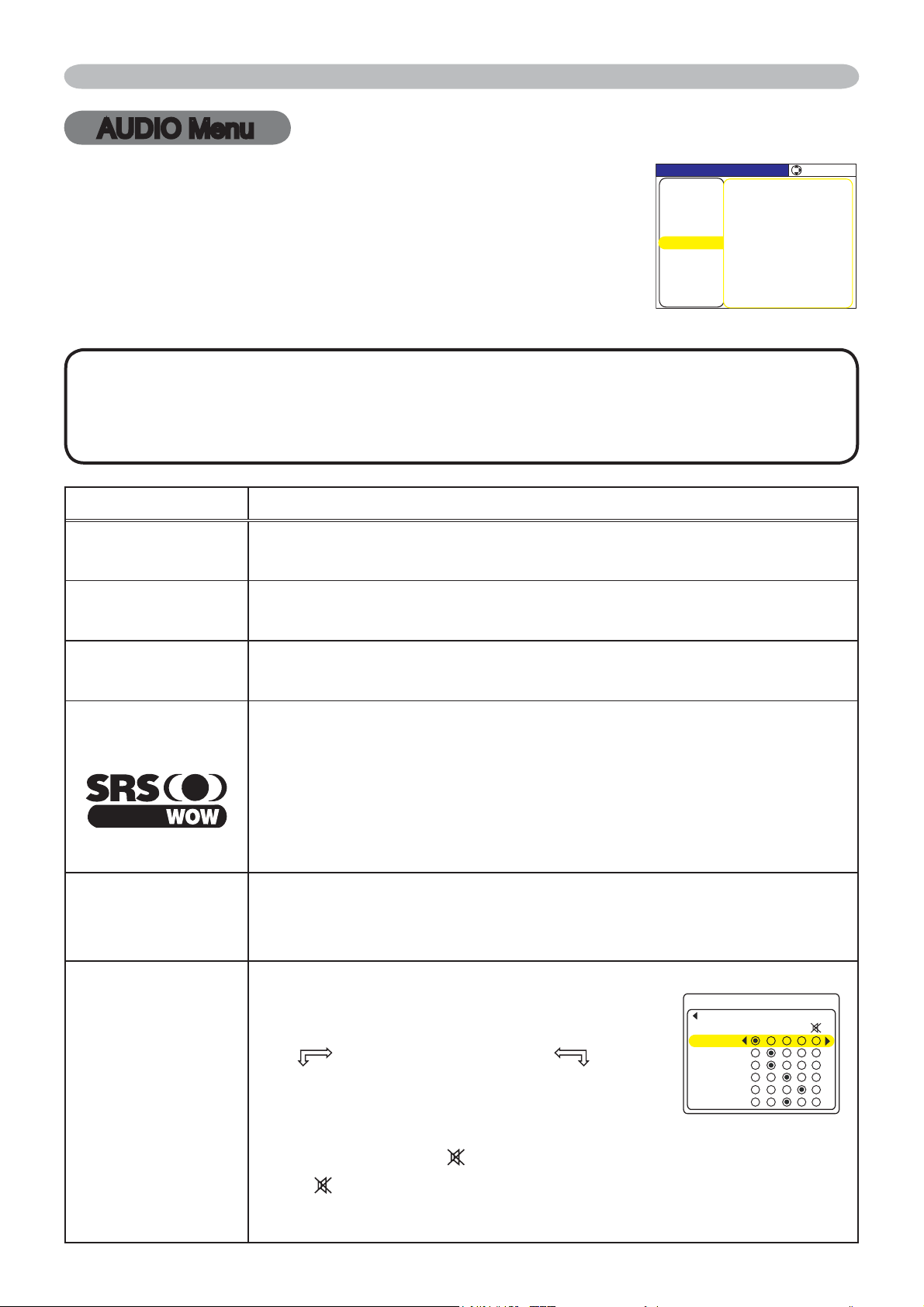
37
AUDIO Menu
AUDIO Menu
Item Description
VOLUME
8VLQJWKHŸźEXWWRQVDGMXVWVWKHYROXPH
High
Ù
Low
TREBLE
8VLQJWKHŸźEXWWRQVDGMXVWVWKHWUHEOHOHYHO
High
Ù
Low
BASS
8VLQJWKHŸźEXWWRQV adjusts the bass level.
High
Ù
Low
SRS WOW
8VLQJWKHŸźEXWWRQV switches the mode for SRS WOW mode.
HIGH
Ù
MID
Ù
OFF
• SRS WOW™ accomplishes this by providing a panoramic three-
GLPHQVLRQDODXGLRLPDJHWKDWH[WHQGVWKHVRXQG¿HOGLQERWKWKH
horizontal and vertical planes, and lowers the perceived bass
response well beyond the low frequency limitations of the drivers.
Adjust it depending on the user's preference.
SPEAKER
8VLQJWKHŸźEXWWRQV turns the speaker function on/off.
TURN ON
Ù
TURN OFF
• When the TURN ON is selected the built-in speaker works.
AUDIO
Allocates the audio ports.
&KRRVHDSLFWXUHLQSXWSRUWXVLQJWKHŸź
buttons.
RGB1
Ù
RGB2
Ù
M1-D
VIDEO
Ù
S-VIDEO
Ù
COMPONENT
(2) Select the audio port to be interlocked with
WKHLQSXWSRUWXVLQJWKHŻŹEXWWRQV
1
Ù
2
Ù
3
Ù
4
Ù
When is selected to an input port, any audio ports do not work
interlocking with the input port, and any items in AUDIO menu are
invalid.
From the AUDIO menu, items shown in the table below can
be performed.
6HOHFWDQLWHPXVLQJWKHŸźFXUVRUEXWWRQVRQWKH
SURMHFWRURUUHPRWHFRQWURODQGSUHVVWKHŹFXUVRUEXWWRQ
on the projector or remote control, or ENTER button on
the remote control to execute the item. Then perform it
according to the following table.
/'07=4)$?
+/#)'
2+%674'
+0276
126+10
0'6914-
'#5;/'07
5%4''0
5'.'%6
81.7/'
64'$.'
$#55
545919
52'#-'4
#7&+1
/+&
674010
5'672
#7&+1
#7&+1
4)$
/&
37+6
4)$
58+&'1
8+&'1
%1/210'06
NOTE • The speaker sound may distorted or the case may be trembling
when the volume is too high or treble/bass is emphasized or WOW is activated.
In that case, make the volume reduced, bass/treble low or WOW effect to be
weakend.
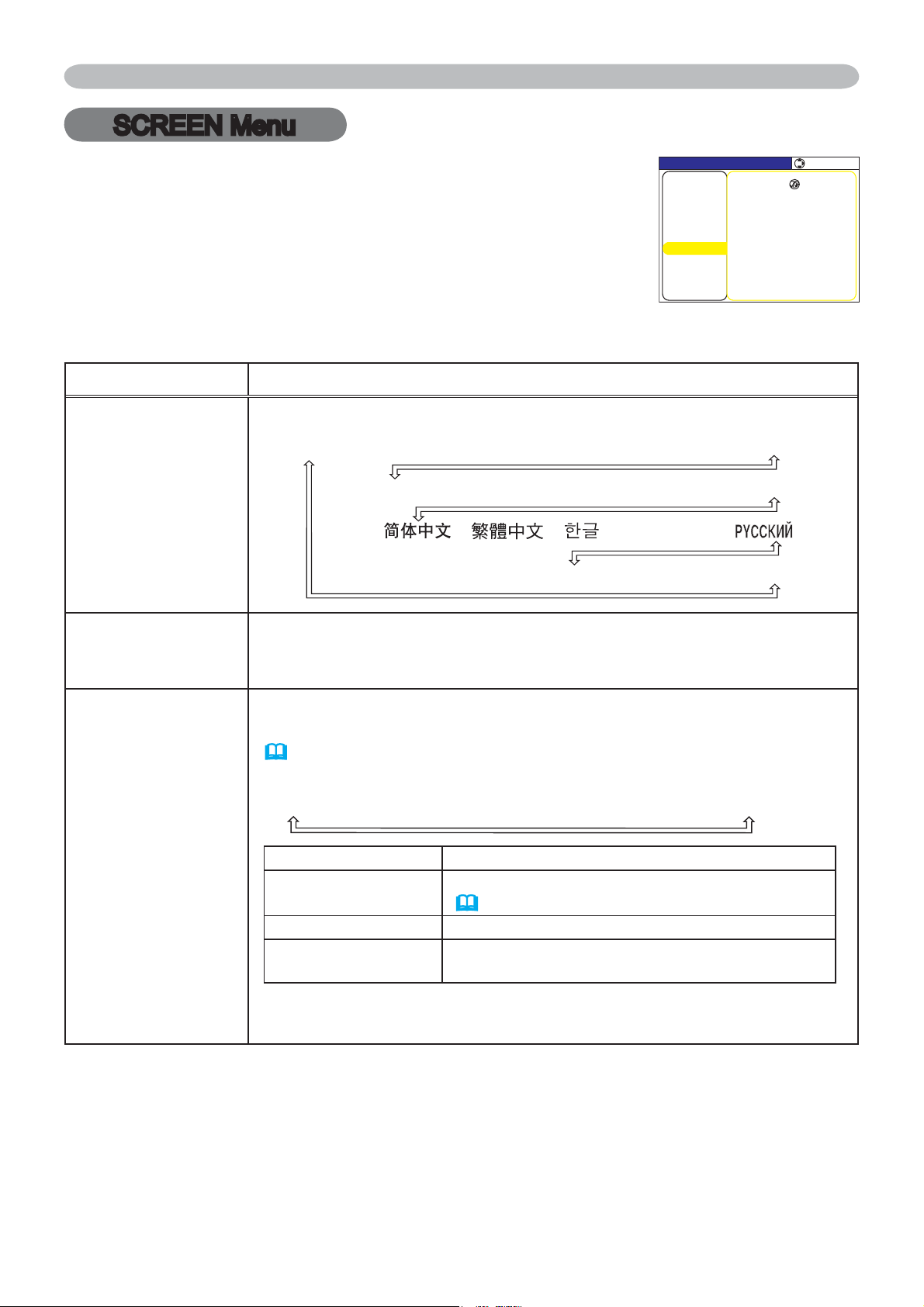
38
SCREEN Menu
SCREEN Menu
Item Description
LANGUAGE
8VLQJWKHŸźEXWWRQVVZLWFKHVWKH26'2Q6FUHHQ'LVSOD\ODQJXDJH
SUOMI Ù POLSKI Ù TÜRKÇE
ENGLISH Ù FRANÇAIS Ù DEUTSCH Ù ESPAÑOL Ù ITALIANO
NORSK Ù NEDERLANDS Ù PORTUGUÊS Ù ᣣᧄ⺆
Ù Ù Ù SVENSKA Ù
MENU POSITION
8VLQJWKHŻŹŸźEXWWRQVDGMXVWVWKHPHQXSRVLWLRQ
To quit the operation, press the MENU button on the remote control
or keep no operation for about 10 seconds.
BLANK
8VLQJWKHŸźEXWWRQVVZLWFKHVWKHPRGHIRUWKHEODQNVFUHHQ
The blank screen is a screen for the temporarily blanking feature
(
22). It is displayed by pressing the BLANK button on the remote
control.
MyScreen
Ù
ORIGINAL
Ù
BLUE
Ù
WHITE
Ù
BLACK
Feature
MyScreen
Screen can be registered by the MyScreen item
(
40)
.
ORIGINAL Screen preset as the standard screen.
BLUE, WHITE,
BLACK
Plain screens in each color.
• To avoid remaining as an afterimage, the MyScreen or ORIGINAL
screen will change to the plain black screen after several minutes.
From the SCREEN menu, items shown in the table below
can be performed.
6HOHFWDQLWHPXVLQJWKHŸźFXUVRUEXWWRQVRQWKH
SURMHFWRURUUHPRWHFRQWURODQGSUHVVWKHŹFXUVRUEXWWRQ
on the projector or remote control, or ENTER button on
the remote control to execute the item. Then perform it
according to the following table.
/'07=4)$?
5'.'%6
.#0)7#)''0).+5*
/'07215+6+10
56#467214+)+0#.
/[5ETGGP
/[5ETGGP.QEM67401((
5174%'0#/'
/'55#)'674010
$.#0-$.#%-
+/#)'
2+%674'
5'672
+0276
5%4''0
126+10
#7&+1
0'6914-
'#5;/'07
(continued on next page)
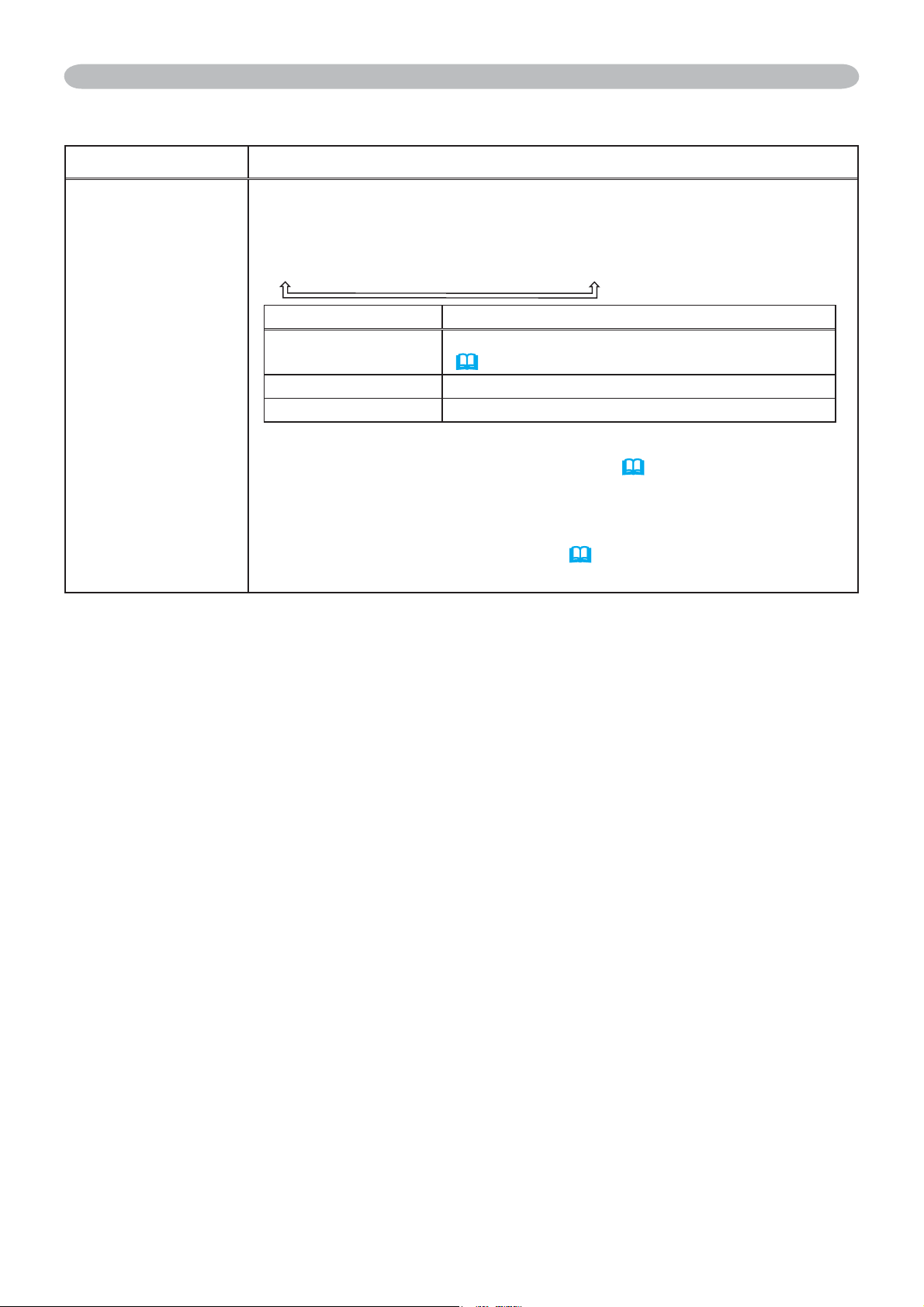
39
SCREEN Menu
Item Description
START UP
8VLQJWKHŸźEXWWRQVVZLWFKHVWKHPRGHIRUWKHVWDUWXSVFUHHQ
The start-up screen is a screen displayed when no signal or an
unsuitable signal is detected.
MyScreen
Ù
ORIGINAL
Ù
TURN OFF
Feature
MyScreen
Screen can be registered by the MyScreen item
(
40)
.
ORIGINAL Screen preset as the standard screen.
TURN OFF Plain black screen.
• To avoid remaining as an afterimage, the MyScreen or ORIGINAL
screen will change to the BLANK screen (
38) after several
minutes. If also the BLANK screen is the MyScreen or ORIGINAL,
the plain black screen is instead used.
• When the TURN ON is selected to the MyScreen PASSWARD of
SECURITY item in OPTION menu (
48), the START UP is fixed to
MyScreen.
SCREEN Menu (continued)
(continued on next page)
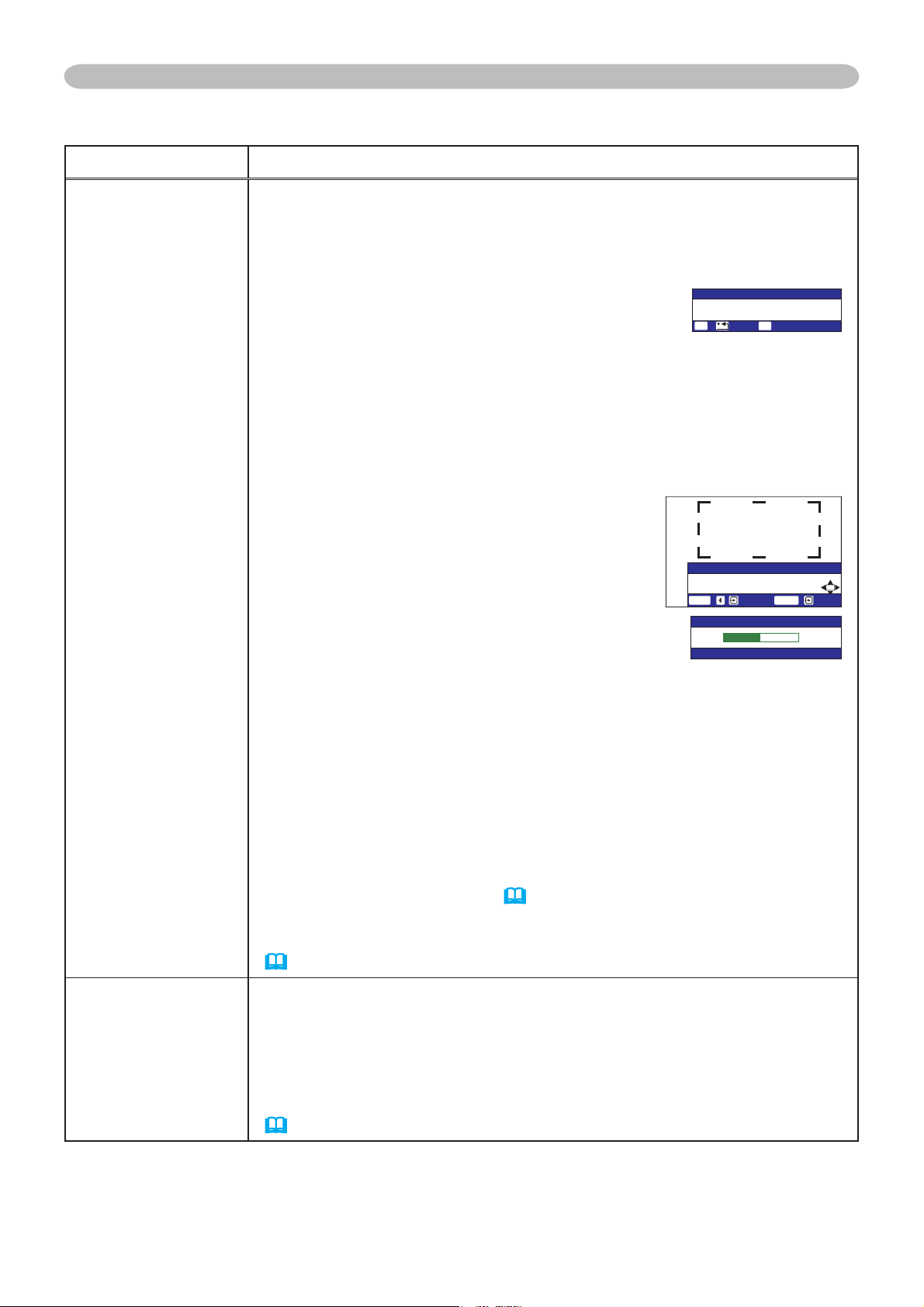
40
SCREEN Menu
Item Description
MyScreen
This item allows you to capture an image for use as a MyScreen
image which can be used as the BLANK screen and START UP
screen. Display the image you want to capture before executing the
following procedure.
1. Selecting this item displays a dialog
titled “MyScreen”. It will ask you if
you start capturing an image from the
current screen.
Please wait for the target image to be displayed, and press
the ENTER button on the remote control when the image is
displayed. The image will freeze and the frame for capturing will
appear.
To stop performing, press the RESET or ESC button on the
remote control.
8VLQJWKHŸźŻŹEXWWRQVDGMXVWV
the frame position.
Please move the frame to the position
of the image which you want to use. The
frame may not be able to be moved for
some input signals.
To start registration, press the ENTER
button on the remote control.
To restore the screen and return to the previous dialog, press the
RESET or ESC button on the remote control.
Registration takes several minutes.
When the registration is completed, the registered screen and the
following message is displayed for several seconds:
³0\6FUHHQUHJLVWUDWLRQLV¿QLVKHG´
If the registration failed, the following message is displayed:
³$FDSWXULQJHUURUKDVRFFXUUHG3OHDVHWU\DJDLQ´
• This item cannot be selected for an M1-D signal.
• This function cannot be selected when the TURN ON is selected
to the MyScreen Lock item (
below).
• This function cannot be selected when the TURN ON is selected
to the MyScreen PASSWARD of SECURITY item in OPTION menu
(
48).
MyScreen Lock
8VLQJWKHŸźEXWWRQVWXUQVRQRIIWKH0\6FUHHQORFNIXQFWLRQ
TURN ON
Ù
TURN OFF
When the TURN ON is selected, the item MyScreen is locked. Use
this function for protecting the current MyScreen.
• This function cannot be selected when the TURN ON is selected
to the MyScreen PASSWARD of SECURITY item in OPTION menu
(
48).
SCREEN Menu (continued)
/[5ETGGP
&Q[QWUVCTVECRVWTKPIVJKURKEVWTG!
01;'5
'5%
'06
/[5ETGGP
/QXGVJGECRVWTGCTGC
CU[QWYCPV
4'67400':6
4'5'6 '06'4
/[5ETGGP
ٌ
ٕ
(continued on next page)
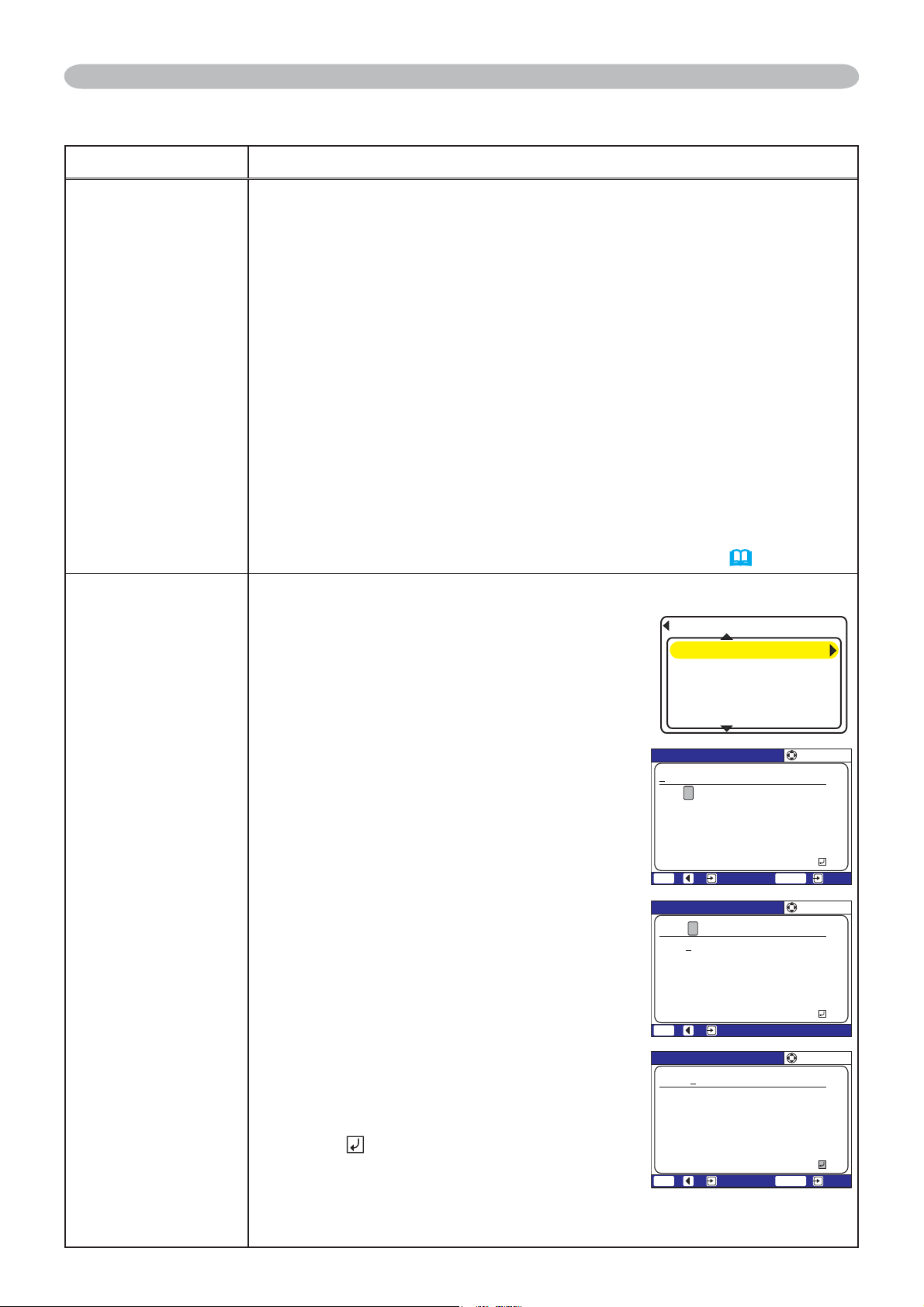
41
SCREEN Menu
Item Description
MESSAGE
8VLQJWKHŸźEXWWRQVWXUQVRQRIIWKHPHVVDJHIXQFWLRQ
TURN ON
Ù
TURN OFF
When the TURN ON is selected, the following message function works.
“AUTO IN PROGRESS” while automatically adjusting
“NO INPUT IS DETECTED”
“SYNC IS OUT OF RANGE”
“Searching….” while searching for the input
“Detecting….” while an input signal is detected
The indication of the input signal displayed by changing
The indication of the aspect ratio displayed by changing
The indication of the PICTURE MODE displayed by changing
The indication of the ACTIVE IRIS displayed by changing
The indication of the MY MEMORY displayed by changing
The indication of "FREEZE" and "II" while freezing the screen by
pressing the FREEZE button.
• When the TURN OFF is selected, please remember if the picture
is freezing. Do not mistake freezing for a malfunction (
21).
SOURCE NAME
Each input port for this projector can have a name applied to it.
(1) Use the
Ÿź
buttons on the SCREEN menu to
select SOURCE NAME and press the
Ź
button.
The SOURCE NAME menu will be displayed.
8VHWKHŸźEXWWRQVRQWKH6285&(
NAME menu to select the port to be named
DQGSUHVVWKHŹEXWWRQ5LJKWVLGHRIWKH
PHQXLVEODQNXQWLODQDPHLVVSHFL¿HG
The SOURCE NAME dialog will be displayed.
(3) The current name will be displayed on the
¿UVWOLQH8VHWKH
ŸźŻŹ
buttons and the
ENTER or INPUT button to select and enter
characters. The RESET button can be used to
erase 1 character at a time. The name can be a
maximum of 16 characters.
(4) To change an already inserted character, press
the
Ÿ
EXWWRQZKLOHWKHFXUVRULVRQWKH>$1@
row to move the cursor to the name displayed on
WKH¿UVWOLQHDQGXVHWKH
ŻŹ
buttons to select
character to be changed. Once a character in the
name is selected use the
ź
button to move the
cursor back down to the character entry area to
select and enter characters as described above.
(5) Select and press the ENTER or
,1387EXWWRQVZKHQ¿QLVKHGHQWHULQJWH[W
To revert to the previous name without
VDYLQJFKDQJHVSUHVVWKH(6&RUŻEXWWRQ
and the INPUT button simultaneously.
SCREEN Menu (continued)
0#/'4)$
4)$
#$%&'()*+,-./0
123456789:;<
CDEFGHIJKLMNOP
QRSTUVWXYZ[\
A!
5'.'%6
'06'40':6'5%37+6
5174%'0#/'
4)$
4)$&'5-6122%
%1/210'06&8&
58+&'1%#/'4#
8+&'1864
0#/'4)$
4)$
#$%&'()*+,-./0
123456789:;<
CDEFGHIJKLMNOP
QRSTUVWXYZ[\
A!
5'.'%6
'5%37+6
0#/'4)$
4)$
#$%&'()*+,-./0
123456789:;<
CDEFGHIJKLMNOP
QRSTUVWXYZ[\
A!
5'.'%6
'06'40':6'5%37+6
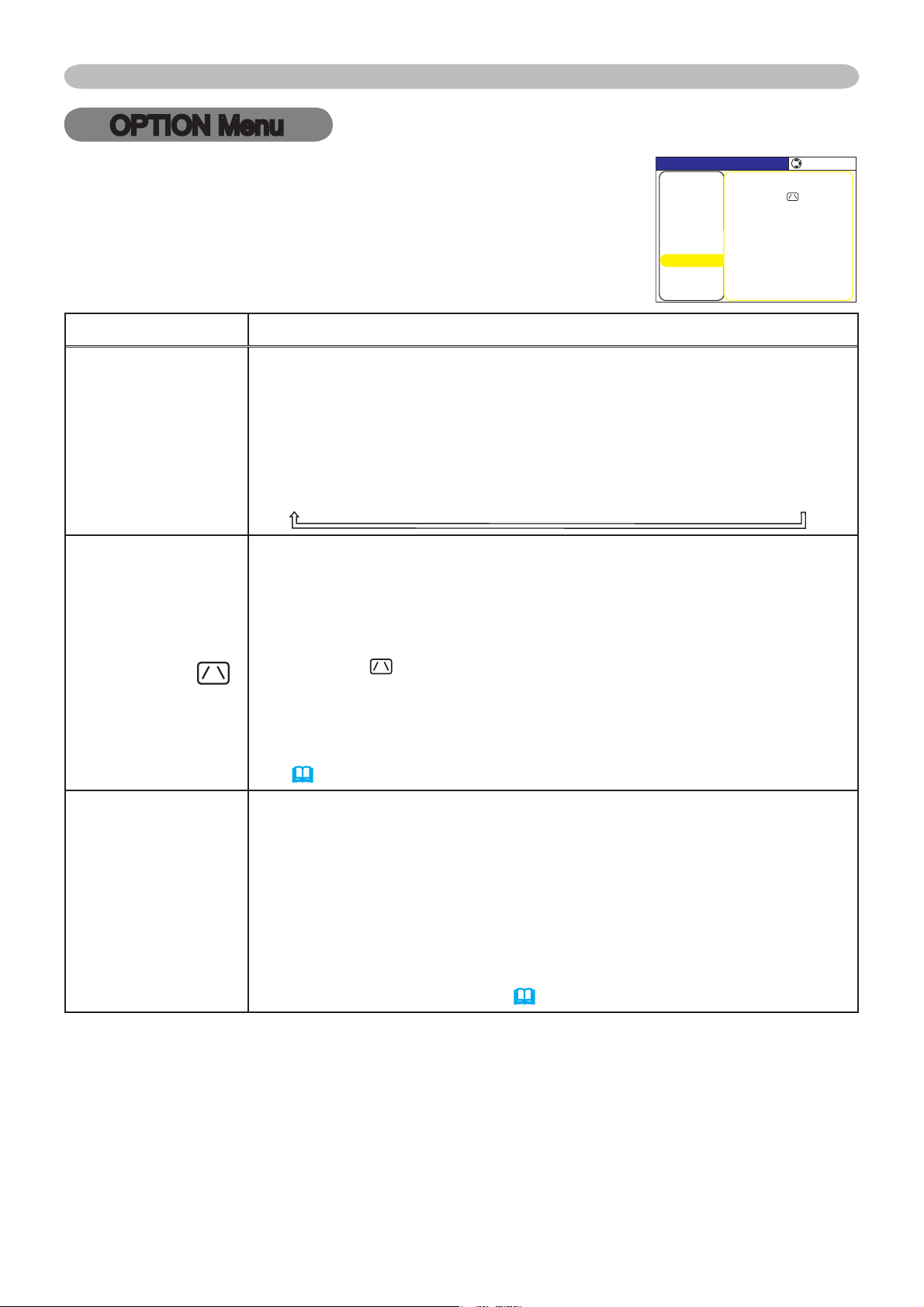
42
OPTION Menu
OPTION Menu
Item Description
AUTO SEARCH
8VLQJWKHŸźEXWWRQVWXUQVRQRIIWKHDXWRPDWLFVLJQDOVHDUFKIXQFWLRQ
TURN ON
Ù
TURN OFF
When the TURN ON is selected, detecting no signal automatically cycles
through input ports in the following order. The search is started from the
current port. Then when an input is found, the projector will stop searching
and display the image.
RGB 1
Ö
RGB 2
Ö
M1-D
Ö
COMPONENT
Ö
S-VIDEO
Ö
VIDEO
AUTO
KEYSTONE
8VLQJWKHŸźEXWWRQVWXUQVRQRIIWKHDXWRPDWLFNH\VWRQHIXQFWLRQ
TURN ON
Ù
TURN OFF
TURN ON : Automatic keystone distortion correction will be
executed whenever changing the slant of the projector.
TURN OFF : This function is disabled. Please execute the AUTO
KEYSTONE
EXECUTE in the SETUP Menu for automatic
keystone distortion correction.
• When the projector is suspended from the ceiling this feature will
not function properly so select the TURN OFF.
• This function will be unavailable when the Transition Detector is
on
(
51)
.
AUTO ON
8VLQJWKHŸźEXWWRQVWXUQVRQRIIWKH$87221IXQFWLRQ
TURN ON
Ù
TURN OFF
When set to the TURN ON, the lamp in projector will be automatically
turned on without the usual procedure, only when the projector is supplied
with the power.
• This function does not work as long as the power has been supplied to
the projector while the lamp is off.
• After turning the lamp on by the AUTO ON function, if neither input nor
operation is detected for about 30 minutes, the projector is turned off, even
though the AUTO OFF function
(
43)
is disabled.
From the OPTION menu, items shown in the table below can be
performed.
6HOHFWDQLWHPXVLQJWKHŸźFXUVRUEXWWRQVRQWKHSURMHFWRURU
UHPRWHFRQWURODQGSUHVVWKHŹFXUVRUEXWWRQRQWKHSURMHFWRURU
remote control, or ENTER button on the remote control to execute
the item, except for the items LAMP TIME and FILTER TIME.
Then perform it according to the following table.
/'07=4)$?
5'.'%6
#7611((OKP
.#/26+/'J
(+.6'46+/'J
#7615'#4%*67401((
#761-';5610'
67401((
#7611067401((
/;$76610
5'48+%'
5'%74+6;
+/#)'
2+%674'
5'672
+0276
5%4''0
126+10
#7&+1
0'6914-
'#5;/'07
(continued on next page)
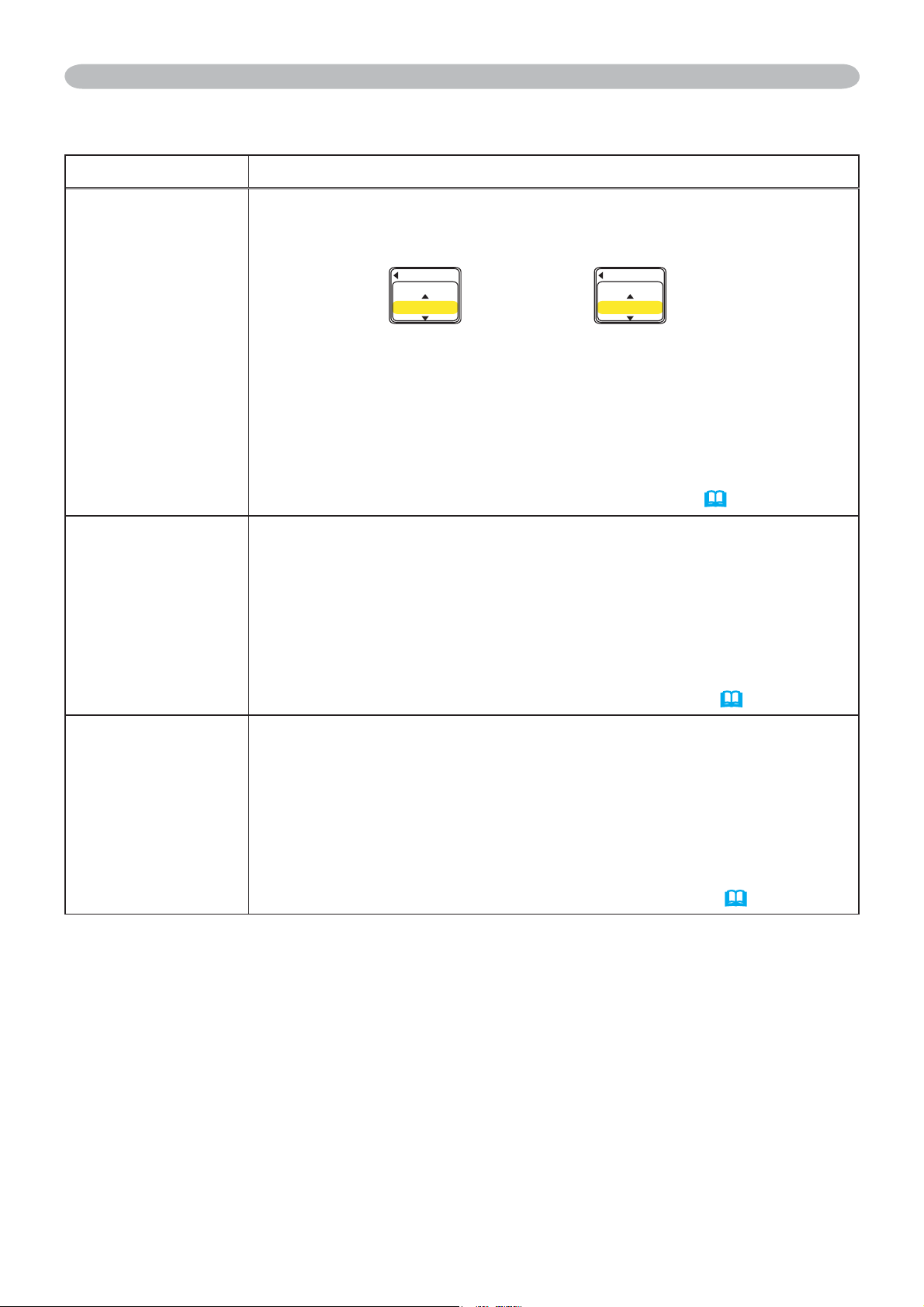
43
Item Description
AUTO OFF
8VLQJWKHŸźEXWWRQVDGMXVWVWKHWLPHWRFRXQWGRZQWR
automatically turn the projector off.
Long (max. 99 minutes)
Ù
Short (min. 0 minute = DISABLE)
AUTO OFF
ENABLE
1
AUTO OFF
DISABLE
0
When the time is set to 0, the projector is not turned off automatically.
When the time is set to 1 to 99, and when the passed time with no-
signal or an unsuitable signal reaches at the set time, the projector
lamp will be turned off.
If one of the projector's buttons or the remote control buttons
is pressed or one of the commands (except get commands) is
transmitted to the control port during the corresponding time,
projector will not be turned off.
Please refer to the section “Turning off the power” (
16).
LAMP TIME
The lamp time is the time counted after the last resetting. It is
shown in the OPTION menu as the usage time of the lamp.
3UHVVLQJWKH5(6(7EXWWRQRQWKHUHPRWHFRQWURORUWKHŹEXWWRQ
of the projector displays a dialog.
7RUHVHWWKHODPSWLPHVHOHFWWKH5(6(7XVLQJWKHŸEXWWRQ
RESET
Õ
CANCEL
• Please reset the lamp time only when you have replaced the lamp,
for a suitable indication about the lamp.
• For the lamp replacement, see the section "Lamp" (
56, 57).
FILTER TIME
7KH¿OWHUWLPHLVWKHWLPHFRXQWHGDIWHUWKHODVWUHVHWWLQJ,WLVVKRZQ
LQWKH237,21PHQXDVWKHXVDJHWLPHRIWKHDLU¿OWHU
3UHVVLQJWKH5(6(7EXWWRQRQWKHUHPRWHFRQWURORUWKHŹEXWWRQ
of the projector displays a dialog.
7RUHVHWWKH¿OWHUWLPHVHOHFWWKH5(6(7XVLQJWKHŸEXWWRQ
RESET
Õ
CANCEL
•
3OHDVHUHVHWWKH¿OWHUWLPHRQO\ZKHQ\RXKDYHFOHDQHGRUUHSODFHG
WKHDLU¿OWHUIRUDVXLWDEOHLQGLFDWLRQDERXWWKHDLU¿OWHU
•)RUWKHDLU¿OWHUFOHDQLQJVHHWKHVHFWLRQ$LU¿OWHU(
58, 59).
OPTION Menu
OPTION Menu (continued)
(continued on next page)
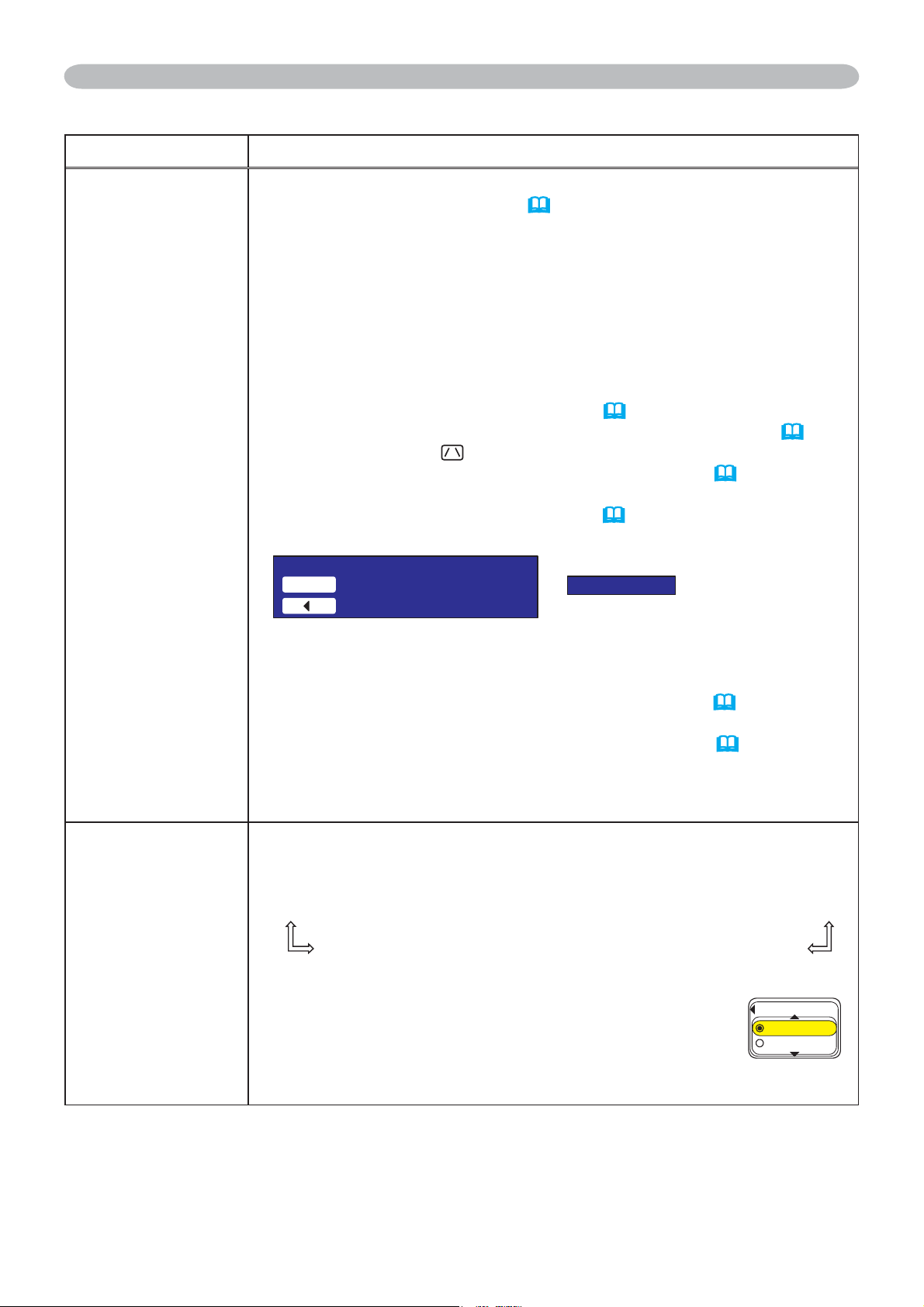
44
Item Description
MY BUTTON
This item is to assign one of the following function to MY BUTTON
1 and 2 on the remote control (
6).
&KRRVHRURQWKH0<%87721PHQXXVLQJWKHŻŹEXWWRQ
¿UVW7KHQXVLQJWKHŸźEXWWRQVVHWVRQHRIWKHIROORZLQJIXQFWLRQV
to the chosen button.
• RGB1: Sets port to RGB1.
• RGB2: Sets port to RGB2.
• M1-D: Sets port to M1-D.
• COMPONENT: Sets port to COMPONENT (Y, C
B/PB, CR/PR).
• S-VIDEO: Sets port to S-VIDEO.
• VIDEO: Sets port to VIDEO.
• e-SHOT: Displays the e-SHOT menu (
54).
•
INFORMATION: Displays a dialog of INPUT INFORMATION
(
46).
• AUTO KEYSTONE
EXECUTE:
Performs automatic keystone distortion correction (
35).
• MY MEMORY:
Loads one of adjustment data stored (
28).
•
When the current adjustment is not saved to memory a dialog is displayed.
,I\RXZDQWWRNHHSWKHFXUUHQWDGMXVWPHQWSOHDVHSUHVVWKHŻ
button to quit. Otherwise the current adjusted condition will be lost
by loading a data.
• PICTURE MODE: Changes the PICTURE MODE (
24).
• FILTER RESET:
'LVSOD\VWKH¿OWHUWLPHUHVHWFRQ¿UPDWLRQGLDORJXH(
43).
• ACTIVE IRIS: Changes the active iris mode.
• VOLUME+: Set the volume up.
• VOLUME-: Set the volume down.
SERVICE
Selecting this item displays the SERVICE menu.
6HOHFWDQLWHPXVLQJWKHŸźEXWWRQVDQGSUHVVWKHŹEXWWRQRU
the ENTER button on the remote control to execute the item.
FAN SPEED
Ù
AUTO ADJUST
Ù
GHOST
Ù
FILTER MESSAGE
Ù
LENS TYPE
Ù
KEY LOCK
FACTORY RESET
Ù
INFORMATION
Ù
REMOTE FREQ.
Ù
REMOTE RECEIV.
FAN SPEED
8VLQJWKHŸźEXWWRQVVZLWFKHVWKHURWDWLRQVSHHG
of the cooling fans. The HIGH is the mode for use at
highlands etc. Note that the projector is noisier when
the HIGH is selected.
HIGH
Ù
NORMAL
OPTION Menu (continued)
OPTION Menu
6GORQTCT[EQPFKVKQP
/'/14;4GECNNUCXGFRCTCOGVGTU
3WKV
0QUCXGFFCVC
(#052''&
*+)*
014/#.
(continued on next page)
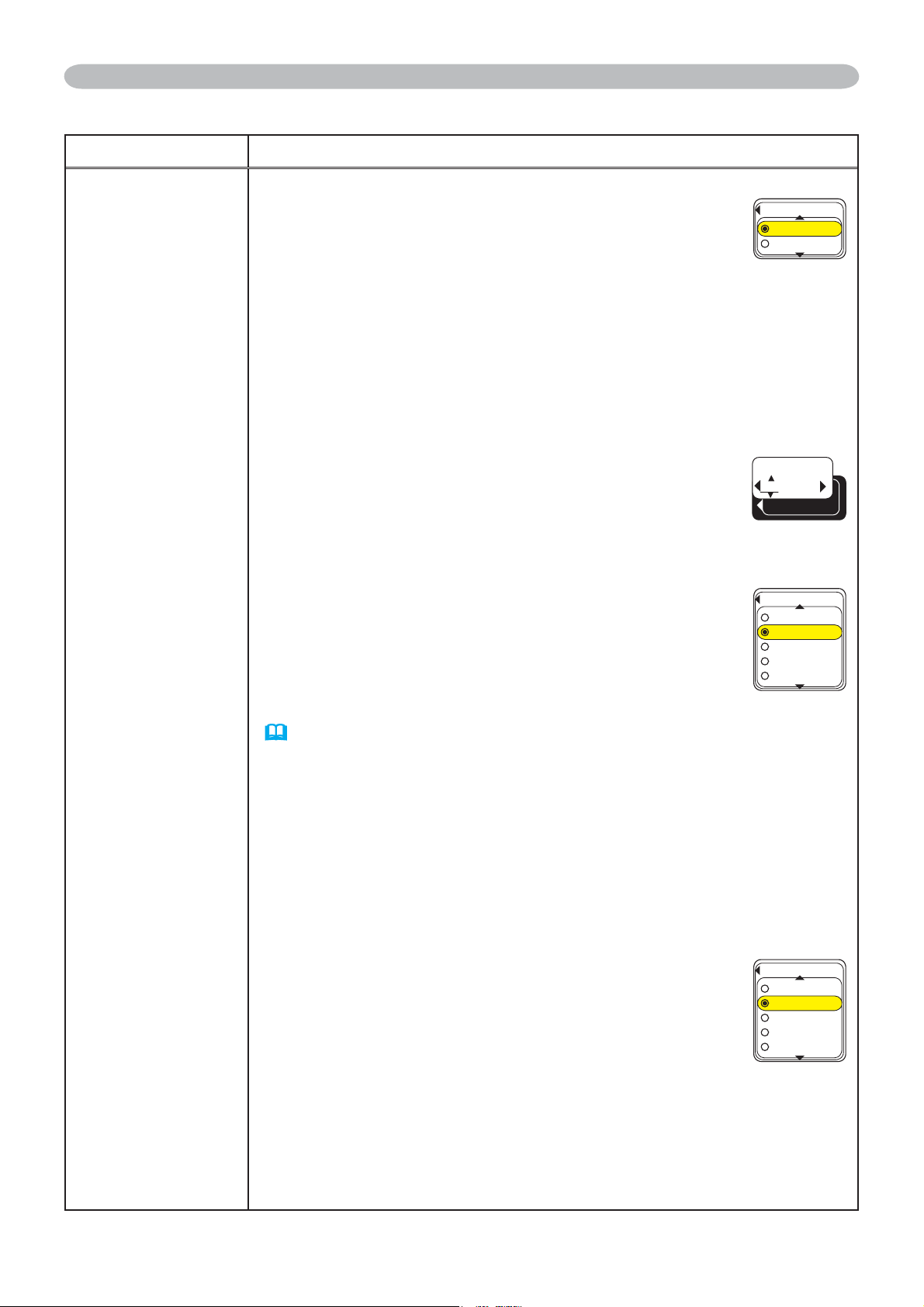
45
Item Description
SERVICE
AUTO ADJUST
8VLQJWKHŸźEXWWRQVHQDEOHVGLVDEOHVWKH
automatic adjustment.When DISABLE is selected,
the automatic adjustment feature is disabled,
although rough adjustment is automatically performed
depending on the basic setting.
ENABLE
Ù
DISABLE
• Depending on conditions, such as input image, signal cable to
the projector, environment around the projector, etc., the automatic
adjustment may not work correctly. In such a case, please
choose DISABLE to disable the automatic adjustment, and make
adjustment manually.
GHOST
6HOHFWDFRORUHOHPHQWRIJKRVWXVLQJWKHŻŹ
buttons.
2.
$GMXVWWKHVHOHFWHGHOHPHQWXVLQJWKHŸźEXWWRQVWR
disappear ghost.
FILTER MESSAGE
8VHWKHŸźEXWWRQWRVHWWKHWLPHUIRUWKHLQWHUYDOWR
VKRZWKHPHVVDJHIRUFOHDQLQJXSWKHDLU¿OWHU
50h
Ù
100h
Ù
200h
Ù
300h
Ù
TURN OFF
After selecting “50h”, “100h”, “200h”, or “300h”, the
message “REMINDER
***
HRS PASSED AFTER THE
LAST FILTER CHECK” will appear after the timer
reaches the interval time set by the menu.
(
62) :KHQWKH³78512))´LVFKRVHQWKHDLU¿OWHU
cleaning message will not appear.
•3OHDVHFKHFNDQGFOHDQWKHDLU¿OWHUSHULRGLFDOO\HYHQLIWKHUHLVQR
PHVVDJH,IWKHDLU¿OWHUEHFRPHVWREHEORFNHGE\GXVWRURWKHUV
the internal temperature will rise, which could cause malfunction, or
reduce the lifetime of the projector.
• It is recommended to choose “100h” in general. Please be careful
with the operating environment of the projector and the condition of
WKHDLU¿OWHUHVSHFLDOO\ZKHQWKH³K´³K´RU³78512))´LV
chosen.
LENS TYPE
6HOHFWWKHOHQVW\SHFXUUHQWO\XVHGXVLQJWKHŸź
buttons.
1
Ù
2
Ù
3
Ù
4
Ù
5
Please select one of them referring to the following.
1: for a standard lens (Type NL-600)
IRUD¿[HGVKRUWWKURZOHQV7\SH)/
3: for a short throw lens (Type SL-602)
4: for a long throw lens (Type LL-603)
5: for an ultra long throw lens (Type UL-604)
•7KLVVHWWLQJKDVDQLQÀXHQFHRQWKHNH\VWRQHGLVWRUWLRQHWF
• About the optional lens, ask you dealer.
OPTION Menu (continued)
OPTION Menu
#761#&,756
'0#$.'
&+5#$.'
)*156
4)$
(+.6'4/'55#)'
J
J
J
J
67401((
.'056;2'
(continued on next page)
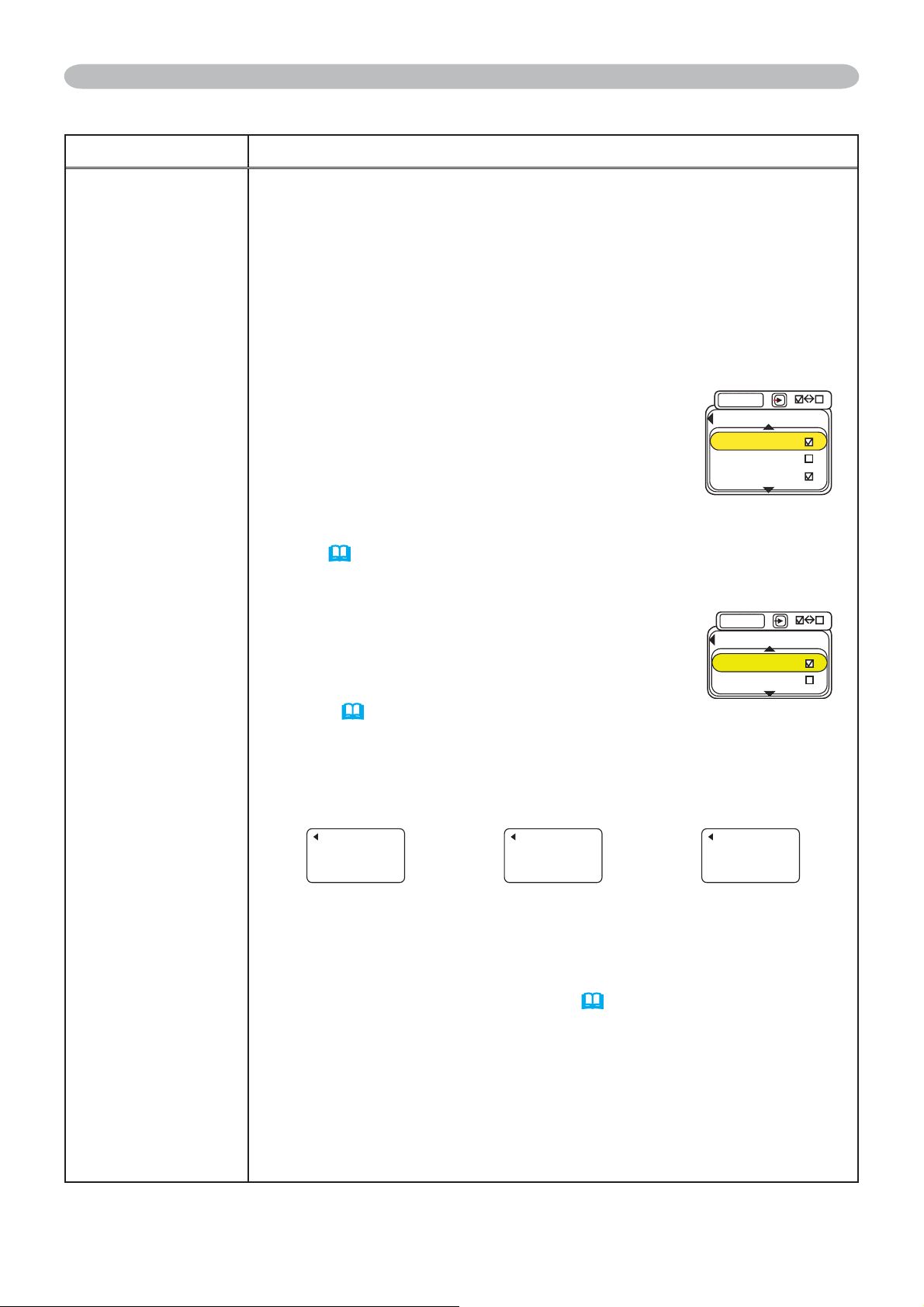
46
Item Description
SERVICE
KEY LOCK
8VLQJWKHŸźEXWWRQVWXUQVRQRIIWKHNH\ORFNIHDWXUH:KHQ
TURN ON is selected, the buttons on the projector except the
STANDBY/ON button are locked.
TURN ON
Ù
TURN OFF
• Please use to avoid a mischief and touching accidentally. This
function does not have any effect on the remote control.
REMOTE RECEIV.
6HOHFWDUHPRWHVHQVRUXVLQJWKHŸźEXWWRQ
1:FRONT
Ù
2:TOP
Ù
3:REAR
(2) Switch it using the ENTER button
(off)
Ù;
(on)
• A sensor cannot be turned off when the other
two are off. Always at least one sensor is on.
REMOTE FREQ.
8VHWKHŸźEXWWRQWRFKDQJHWKH3URMHFWRUVUHPRWHVHQVRU
setting (
14).
1:NORMAL
Ù
2:HIGH
Items with a checkmark are on. The factory
default setting is for both 1:NORMAL and 2:
HIGH to be on. If the remote control does not
function correctly set the this to either only
1 or only 2 as described in Remote Control
Settings (
14).
Neither can be turned off at the same time.
INFORMATION
Selecting this item displays a dialog titled “INPUT INFORMATION”.
It shows the information about the current input.
INPUT-INFORMATION
RGB1
1024x768 @60Hz
FRAME LOCK
INPUT-INFORMATION
S-VIDEO
SECAM
AUTO
INPUT-INFORMATION
COMPONENT
576i @50
SCART RGB
• The “FRAME LOCK” message on the dialog means the frame lock
function is working.
• The “SCART RGB” message means the COMPONENT VIDEO
port is working as a SCART RGB input port. Please refer to the
COMPONENT item in INPUT menu (
32).
• This item can't be selected for no signal and sync out.
FACTORY RESET
6HOHFWLQJ5(6(7XVLQJWKHEXWWRQŸSHUIRUPVWKLVIXQFWLRQ%\
this function, all the items in all of menus will collectively return to
the initial setting. Note that the items LAMP TIME, FILTER TIME,
LANGUAGE and SECURITY are not reset.
RESET
Õ
CANCEL
OPTION Menu (continued)
OPTION Menu
(4106
612
4'/16'4'%'+8
'06'4
4'#4
㪜㪥㪫㪜㪩
(continued on next page)
4'/16'(4'3
014/#.
*+)*
'06'4
㪜㪥㪫㪜㪩
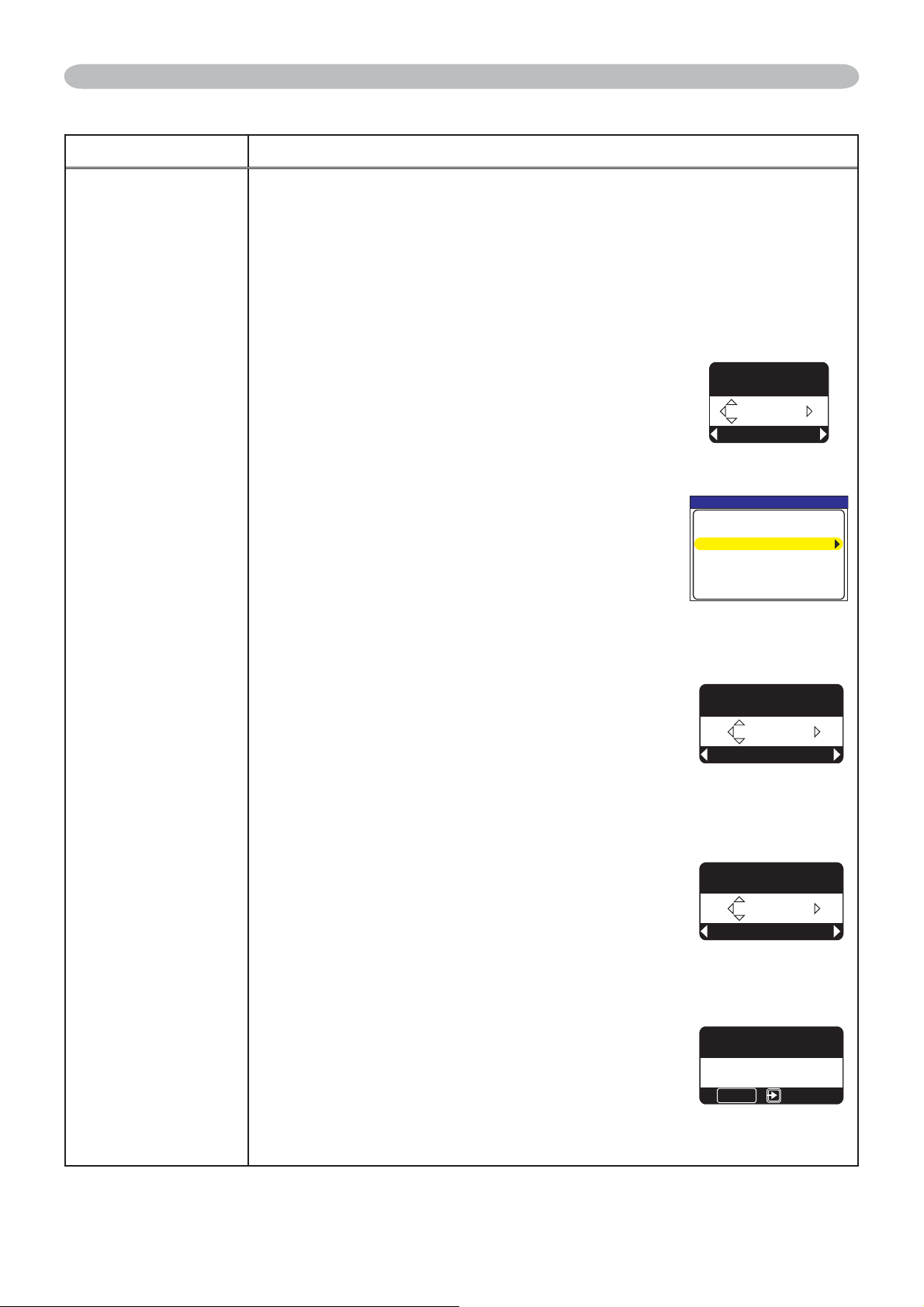
47
Item Description
SECURITY
This projector is equipped with security functions.
User registration is required before using the security functions.
Please contact your local dealer.
1. Using Security Features
1.1 Inputting the PASSWORD
8VHWKHŸźEXWWRQVRQWKH237,21
PHQXWRVHOHFW6(&85,7<DQGSUHVVWKHŹ
button. The ENTER PASSWORD box will be
displayed. The factory default PASSWORD is
2400. This PASSWORD can be changed (1.2
Changing the PASSWORD).
• It is strongly recommended the factory default
PASSWORD to be changed as soon as possible.
8VHWKHŸźŻŹEXWWRQVWRHQWHUWKH
registered PASSWORD. Move the cursor to
the right side of the ENTER PASSWORD
%2;DQGSUHVVWKHŹEXWWRQWRGLVSOD\WKH
SECURITY menu. If an incorrect PASSWORD
is input the ENTER PASSWORD BOX will
be displayed again. If incorrect PASSWORD
is input 3 times the projector will turn off.
Afterwards the projector will turn off every time
an incorrect PASSWORD is input.
1.2 Changing the PASSWORD
8VHWKHŸźEXWWRQVRQWKH6(&85,7<PHQX
to select SECURITY PASSWORD CHANGE
DQGSUHVVWKHŹEXWWRQWRGLVSOD\WKH(17(5
NEW PASSWORD BOX.
8VHWKHŸźŻŹEXWWRQVWRHQWHUWKHQHZ
PASSWORD.
1.2-3 Move the cursor to the right side of the
ENTER NEW PASSWORD BOX and press
WKHŹEXWWRQWRGLVSOD\WKH1(:3$66:25'
AGAIN BOX, enter the same PASSWORD
again.
1.2-4 Move the cursor to the right side of the NEW
3$66:25'$*$,1%2;DQGSUHVVWKHŹ
button and the NOTE NEW PASSWORD BOX
will be displayed for about 20 seconds, please
make note of the PASSWORD during this time.
Pressing the ENTER button on the remote
controll or INPUT button on the projector will
close the NOTE NEW PASSWORD BOX.
• Please do not forget your PASSWORD.
OPTION Menu (continued)
OPTION Menu
5'%74+6;
'06'42#55914&
0':6
37+6
ENTER PASSWORD
BOX
5'%74+6;
5'%74+6;2#55914&%*#0)'
/[5ETGGP2#55914&67401((
2+0.1%-67401((
64#05+6+10&'6'%614
67401((
SECURITY MENU
5'%74+6;
'06'40'92#55914&
0':6
37+6
ENTER NEW PASSWORD
BOX
5'%74+6;
0'92#55914&#)#+0
1-
%#0%'.
NEW PASSWORD
AGAIN BOX
5'%74+6;
016'0'92#55914&
':+6
'06'4
NOTE NEW
PASSWORD BOX
(continued on next page)
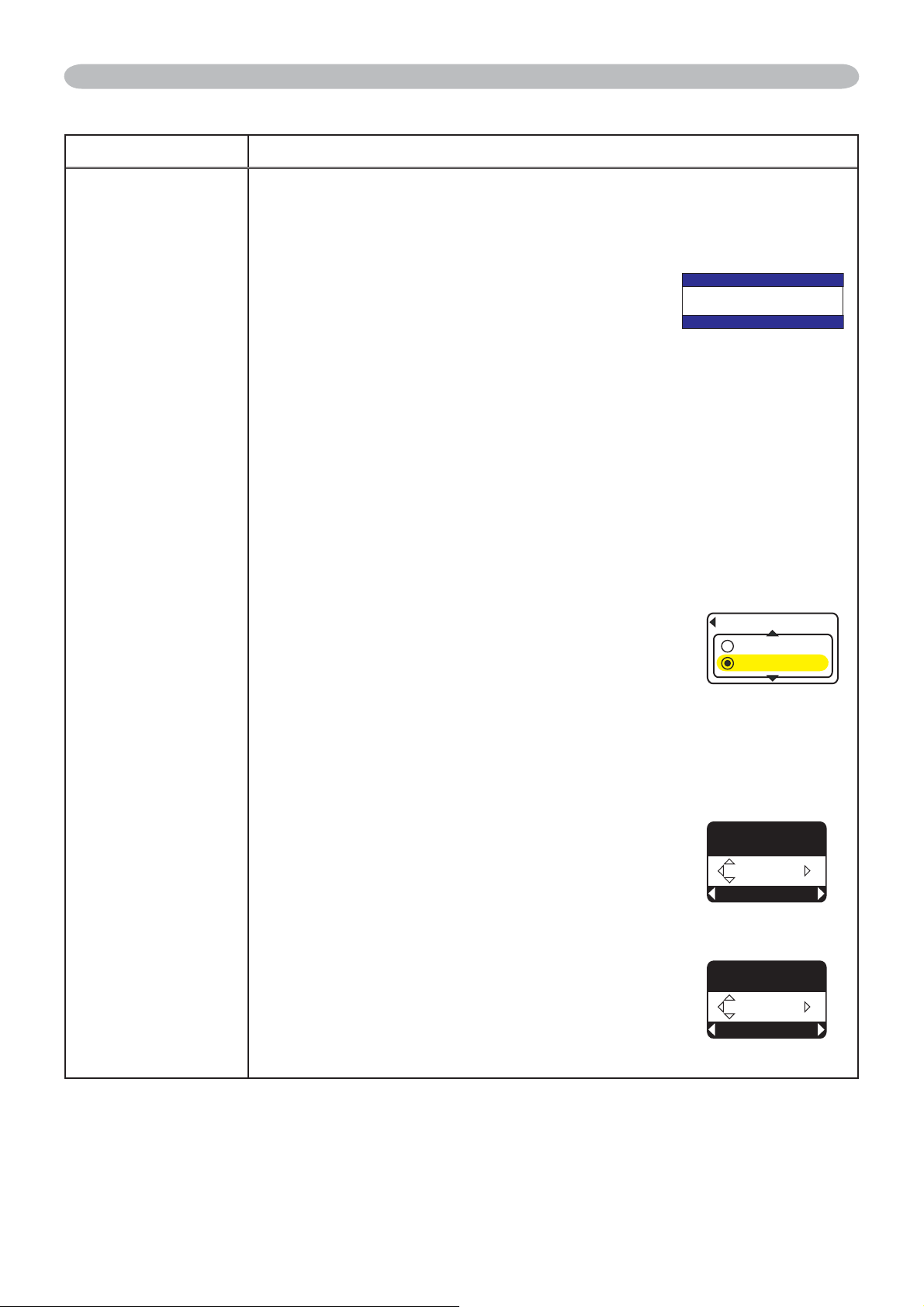
48
Item Description
SECURITY
1.3 If you have forgotten your PASSWORD
1.3-1 Follow the procedure in 1.1-1 to display the
ENTER PASSWORD BOX.
1.3-2 While the ENTER PASSWORD BOX is
displayed, press and hold the RESET button
on the remote control for about 3 seconds or
SUHVVDQGKROGWKH,1387DQGŹEXWWRQVRQ
the projector for about 3 seconds.
The 10 digit Inquiring Code will be displayed.
NOTE: If there is no key input for about 55 seconds
while the Inquiring Code is displayed the menu will
close. If necessary repeat the process from 1.3-1.
1.3-3 Contact your dealer with the 10 digit Inquiring Code. Your PASSWORD
ZLOOEHVHQWDIWHU\RXUXVHUUHJLVWUDWLRQLQIRUPDWLRQLVFRQ¿UPHG
2. Using the MyScreen PASSWORD Function
The MyScreen PASSWORD function can be used to prohibit access to the
MyScreen function and prevent the currently registered MyScreen image
from being overwritten.
2.1 Turning on the MyScreen
PASSWORD
Function
8VHWKHŸźEXWWRQVRQWKH6(&85,7<
menu to select MyScreen PASSWORD and
SUHVVWKHŹEXWWRQWRGLVSOD\WKH0\6FUHHQ
PASSWORD on/off menu.
2.2 Setting the PASSWORD
2.2-1 Display the MyScreen on/off menu using the
procedure in 2.1-1.
8VHWKHŸźEXWWRQVRQWKH0\6FUHHQ
PASSWORD on/off menu to select TURN ON.
The ENTER PASSWORD BOX (small) will be
displayed.
8VHWKHŸźŻŹEXWWRQVWRHQWHUWKH
PASSWORD. Move the cursor to the right
side of the ENTER PASSWORD BOX
VPDOODQGSUHVVWKHŹEXWWRQWRGLVSOD\WKH
CHECK PASSWORD BOX, enter the same
PASSWORD again.
5'%74+6;2#55914&
+PSWKTKPI%QFG
OPTION Menu (continued)
OPTION Menu
/[5ETGGP
'06'42#55914&
0':6
37+6
Inquiring Code
(PASSWORD)
/[5ETGGP
%*'%-2#55914&
0':6
37+6
CHECK PASSWORD
BOX
/[5ETGGP2#55914&
674010
67401((
MyScreen PASSWORD
on/off menu
ENTER PASSWORD
BOX (small)
(continued on next page)
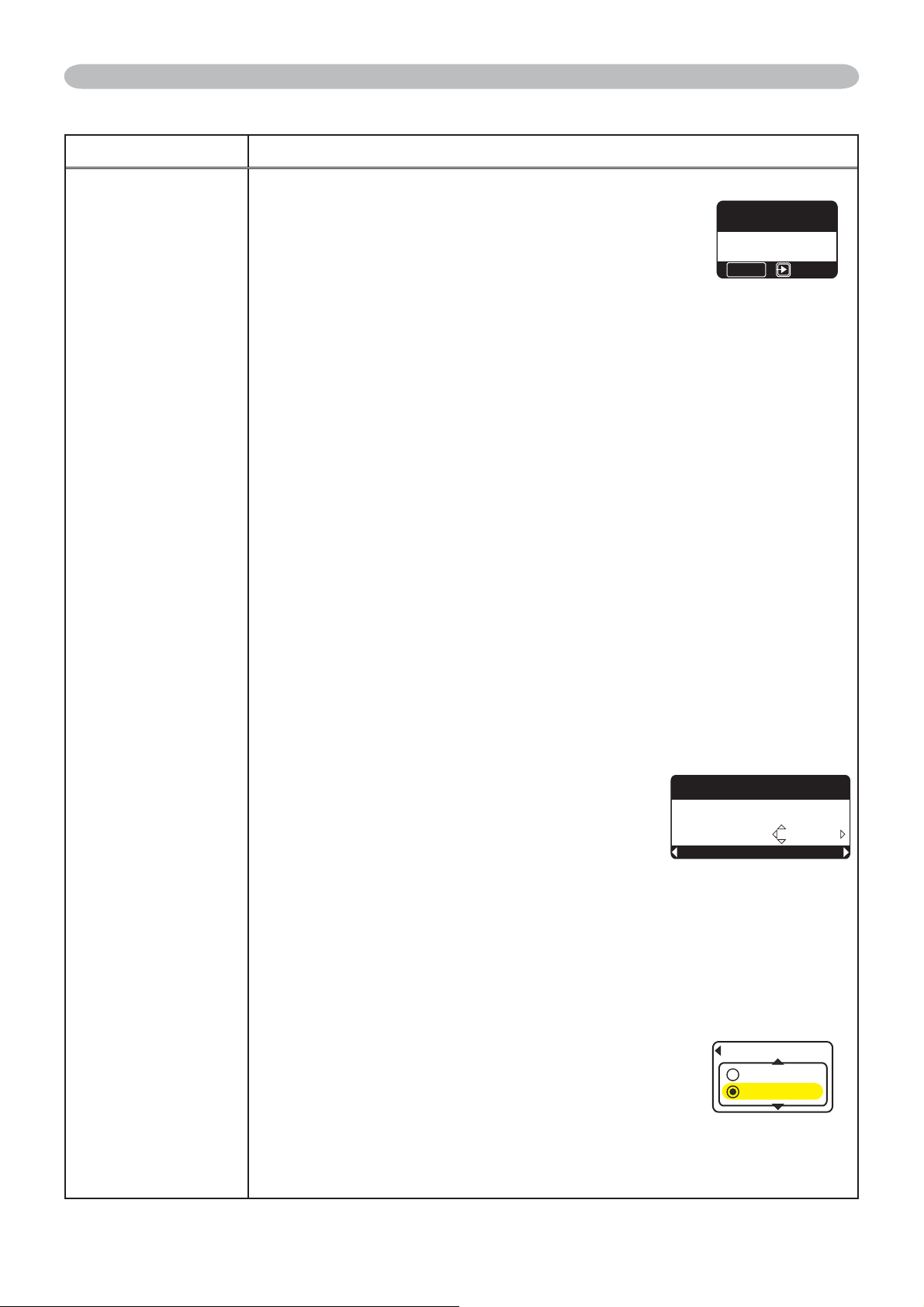
49
Item Description
SECURITY
2.2-4 Move the cursor to the right side of the
CHECK PASSWORD BOX and press the
ŹEXWWRQWRGLVSOD\WKH3$66:25'IRU
about 20 seconds, please make note of the
PASSWORD during this time.
Pressing the ENTER button on the remote control
or INPUT button on the projector will return to
MyScreen PASS WORD on/off menu.
When a PASSWORD is set for MyScreen:
•
The MyScreen registration function (and menu) will be unavailable.
•
The MyScreen Lock function (and menu) will be unavailable.
•
The START UP setting will be locked on MyScreen (and the menu will be
unavailable).
Turning the MyScreen PASSWORD off will allow normal operation of both
functions.
•
Please do not forget your MyScreen PASSWORD.
2.3 Turning the PASSWORD off
2.3-1 Follow the procedure in 2.1-1 to display the MyScreen PASSWORD
on/off menu.
2.3-2 Select TURN OFF to display the ENTER PASSWORD BOX (large).
Enter the registered PASSWORD and the screen will return to the
MyScreen on/off menu.
If an incorrect PASSWORD is input the menu will close. If necessary repeat
the process from 2.3-1.
2.4 If you have forgotten your PASSWORD
2.4-1 Follow the procedure in 2.1-1 to display the MyScreen PASSWORD
on/off menu.
2.4-2 Select TURN OFF to display the ENTER
PASSWORD BOX (large). The 10 digit
Inquiring Code will be displayed inside the
BOX.
2.4-3 Contact your dealer with the 10 digit Inquiring
Code. Your PASSWORD will be sent after
\RXUXVHUUHJLVWUDWLRQLQIRUPDWLRQLVFRQ¿UPHG
3. Using the PIN LOCK Function
PIN LOCK is a function which prevents the projector from being used unless
a registered Code is input.
3.1 Registering the PIN Code
8VHWKHŸźEXWWRQVRQWKH6(&85,7<PHQX
WRVHOHFW3,1/2&.DQGSUHVVWKHŹEXWWRQ
or the ENTER button to display the PIN LOCK
on/off menu.
8VHWKHŸźEXWWRQVRQWKH3,1/2&.RQRII
menu to select TURN ON and the PIN BOX
will be displayed.
0':637+6
+PSWKTKPI%QFG
/[5ETGGP
'06'42#55914&
OPTION Menu (continued)
OPTION Menu
/[5ETGGP
%1/2.'6'
':+6
'06'4
ENTER PASSWORD BOX
(large)
PASSWORD BOX
2+0.1%-
674010
67401((
PIN LOCK on/off
menu
(continued on next page)
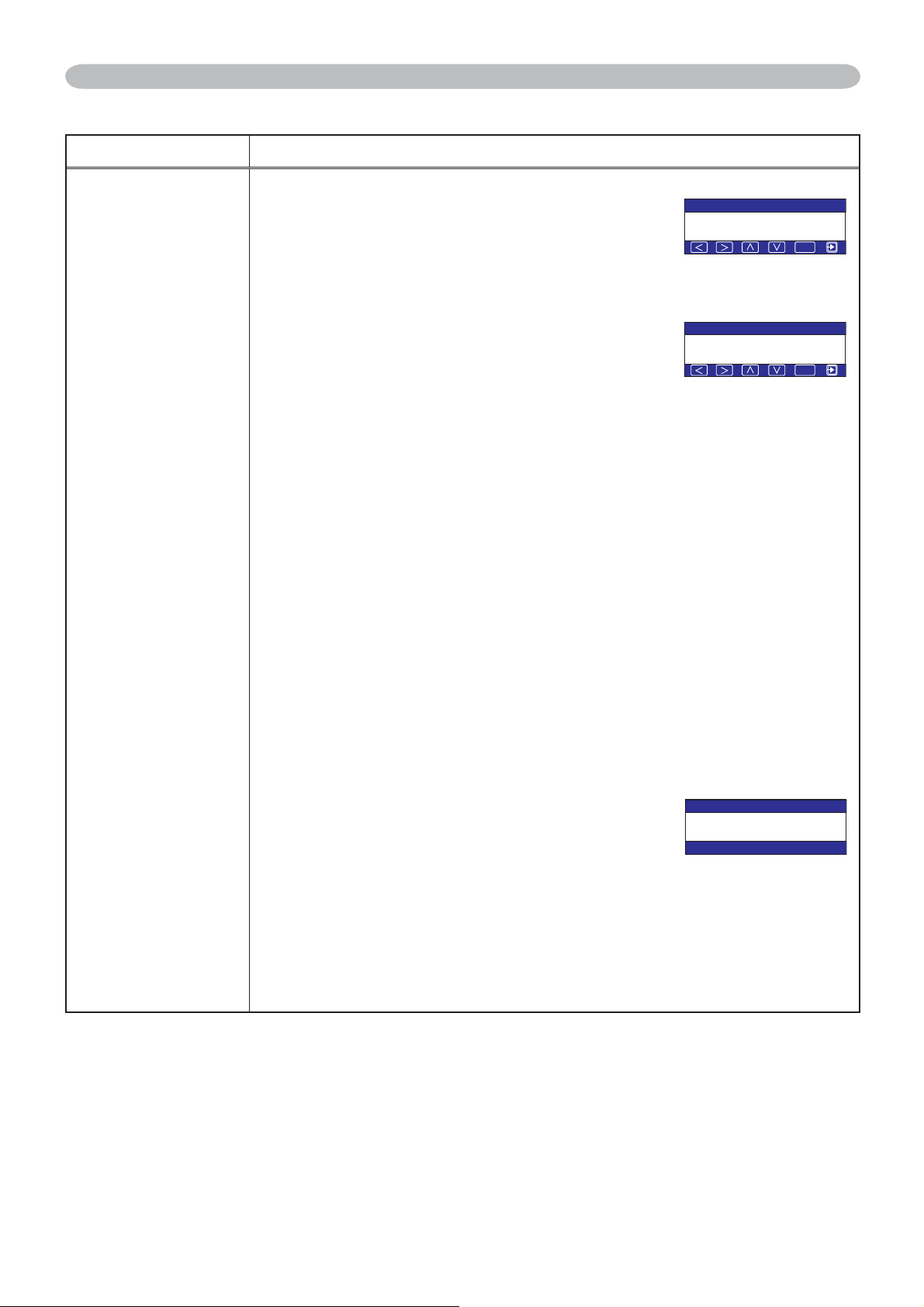
50
Item Description
SECURITY
,QSXWDSDUW3,1&RGHXVLQJWKHŸźŻŹ
/RGB and INPUT buttons.
A CONFIRMATION BOX will appear. Reenter the
same PIN Code. This will complete the PIN Code
registration.
NOTE: If there is no key input for about 55 seconds
while the PIN BOX or the CONFIRMATION BOX are
displayed the menu will close. If necessary repeat
the process from 3.1-1.
Afterwards, anytime the projector is restarted after
the power switch is turned off the PIN BOX will be
displayed. Enter the registered PIN Code.
The projector can be used after entering the
registered PIN Code. If an incorrect PIN Code is
input the PIN BOX will be displayed again.
If an incorrect PIN Code is input 3 times the projector will turn off. Afterwards
the projector will turn off every time an incorrect PIN Code is input. The
projector will also turn off if there is no key input for about 5 minutes while
the PIN BOX is displayed.
This function will activate only when the projector is started after the power
switch was turned off.
•
Please do not forget your PIN Code.
3.2 Turning Off the PIN LOCK Function
3.2-1 Follow the procedure in 3.1-1 to display the PIN LOCK on/off menu.
8VHWKHŸźEXWWRQVWRVHOHFW78512))DQGWKH3,1%2;ZLOOEH
displayed.
Enter the registered PIN Code to turn the PIN LOCK function off.
If an incorrect PASSWORD is entered the menu will close.
3.3 If you have forgotten your PIN Code
3.3-1 While the PIN BOX is displayed, press and
hold the RESET button for three seconds or
SUHVVDQGKROGWKH,1387DQGŹEXWWRQVIRU
three seconds. The 10 digit Inquiring Code will
be displayed.
NOTE: If there is no key input for about 5 minutes
while the Inquiring Code is displayed the projector
will turn off.
3.3-2 Contact your dealer with the 10 digit Inquiring Code. Your PASSWORD
ZLOOEHVHQWDIWHU\RXUXVHUUHJLVWUDWLRQLQIRUPDWLRQLVFRQ¿UPHG
OPTION Menu (continued)
OPTION Menu
PIN BOX
2+0$1:
4)$
+PRWV2+0%QFG
CONFIRMATION BOX
(PIN BOX)
2+0$1:
4)$
%QPHKTOCVKQP
2+0$1:
+PSWKTKPI%QFG
Inquiring Code
(PIN Code)
(continued on next page)
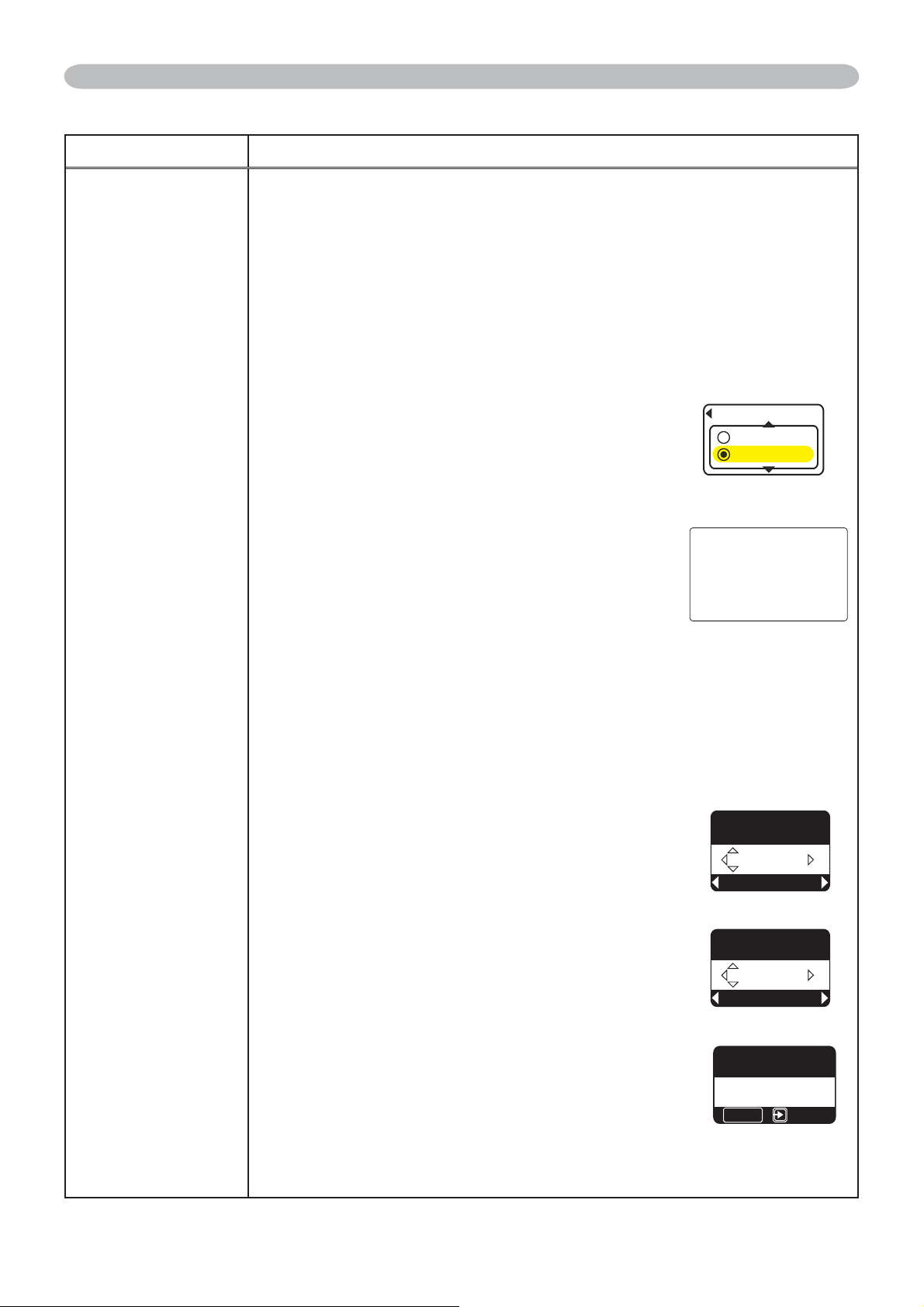
51
Item Description
SECURITY
4. Using the Transition Detector Function
While the Transition Detector function is ON, when power switch is started to
supply to the projector, it might react as below.
• Transition Detector alarm shown below might appear on screen, if the
projector has been moved or re-installed.
• Transition Detector alarm might appear on screen, if the MIRROR setting
has been changed.
• Keystone adjustment feature has been prohibited as long as the Transition
Detector function is ON.
4.1 Turning On the
Transition Detector
Function
4.1-1
8VHWKHŸźEXWWRQVRQWKH6(&85,7<PHQXWR
VHOHFW7UDQVLWLRQ'HWHFWRUDQGSUHVVWKHŹRUWKH
ENTER button to display the Transition Detector
on/off menu. Select TURN ON and the current
angle and mirror setting will be recorded.
NOTE: This feature may not function properly if the projector
is not in a stable position when TURN ON is selected.
4.1-2
If this function is set to TURN ON when the
vertical angle of the projector or mirror setting
at which the projector is turned on is different
than the previously recorded the Transition
Detector Alarm will be displayed and the
projector will not display the input signal.
If the Transition Detector ALARM is displayed for about 5 minutes the lamp will turn off.
This function will activate only when the projector is started after the power
switch was turned off.
4.2 Setting the
Transition Detector
PASSWORD
8VHWKHŸźEXWWRQVRQWKH6(&85,7<PHQXWRVHOHFW7UDQVLWLRQ
'HWHFWRUDQGSUHVVWKHŹRUWKH(17(5EXWWRQWRGLVSOD\WKH
Transition Detector on/off menu.
8VHWKHŸźEXWWRQVRQWKH7UDQVLWLRQ
Detector on/off menu to select TURN ON.
The ENTER PASSWORD BOX (small) will be
displayed.
8VHWKHŸźŻŹEXWWRQVWRHQWHUD
PASSWORD. Move the cursor to the right
side of the ENTER PASSWORD BOX
VPDOODQGSUHVVWKHŹEXWWRQWRGLVSOD\WKH
CHECK PASSWORD BOX, enter the same
PASSWORD again.
4.2-4 Move the cursor to the right side of the
CHECK PASSWORD BOX and press the
ŹEXWWRQWRGLVSOD\WKH3$66:25'IRU
about 20 seconds, please make note of the
PASSWORD during this time.
Pressing the ENTER button on the remote control or
the INPUT button on the projector will return to the
Transition Detector on/off menu.
• Please do not forget your Transition Detector PASSWORD.
OPTION Menu (continued)
OPTION Menu
64#05+6+10&'6'%614
674010
67401((
Transition Detector
on/off menu
Transition Detector
Alarm
2+0$1:
64#05+6+10&'6'%61410
6JGRTQLGEVQTJCUDGGPVTCPUHGTTGF
HTQORTGXKQWUN[KPUVCNNGFRQUKVKQP
+H[QWYKUJVQJCXGCUSWCTGKOCIG
QPUETGGPCICKP
FKUCDNG6TCPUKVKQP&GVGEVQTQP/GPW
64#05+6+10&'6'%614
'06'42#55914&
0':6
37+6
ENTER PASSWORD
BOX (small)
64#05+6+10&'6'%614
%*'%-2#55914&
0':6
37+6
CHECK PASSWORD
BOX
64#05+6+10&'6'%614
%1/2.'6'
':+6
'06'4
PASSWORD BOX
(continued on next page)
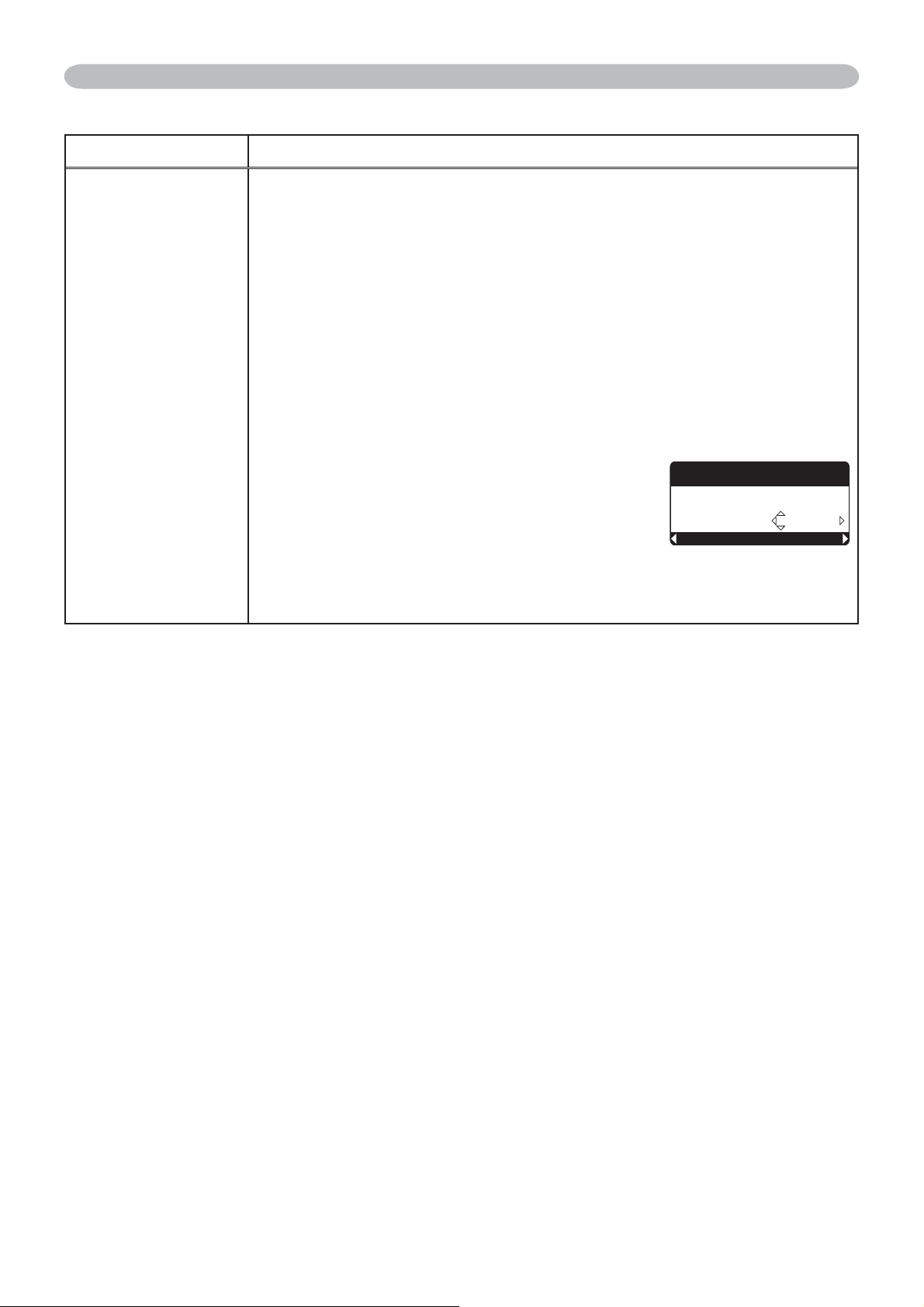
52
Item Description
SECURITY
4.3 Setting the Transition Detector off
4.3-1 Follow the procedure in 4.1-1 to display the Transition Detector on/off
menu.
4.3-2 Select TURN OFF to display the ENTER PASSWORD BOX (large).
Enter the registered PASSWORD and the screen will return to the
Transition Detector
on/off menu.
If an incorrect PASSWORD is input the menu will close. If necessary repeat
the process from 4.3-1.
4.4 If you have forgotten your PASSWORD
4.4-1 Follow the procedure in 4.1-1 to display the Transition Detector on/off
menu.
4.4-2 Select TURN OFF to display the ENTER
PASSWORD BOX (large). The 10 digit
Inquiring Code will be displayed inside the
BOX.
4.4-3 Contact your dealer with the 10 digit Inquiring
Code. Your PASSWORD will be sent after your
XVHUUHJLVWUDWLRQLQIRUPDWLRQLVFRQ¿UPHG
OPTION Menu (continued)
OPTION Menu
0':637+6
+PSWKTKPI%QFG
64#05+6+10&'6'%614
'06'42#55914&
ENTER PASSWORD BOX
(large)
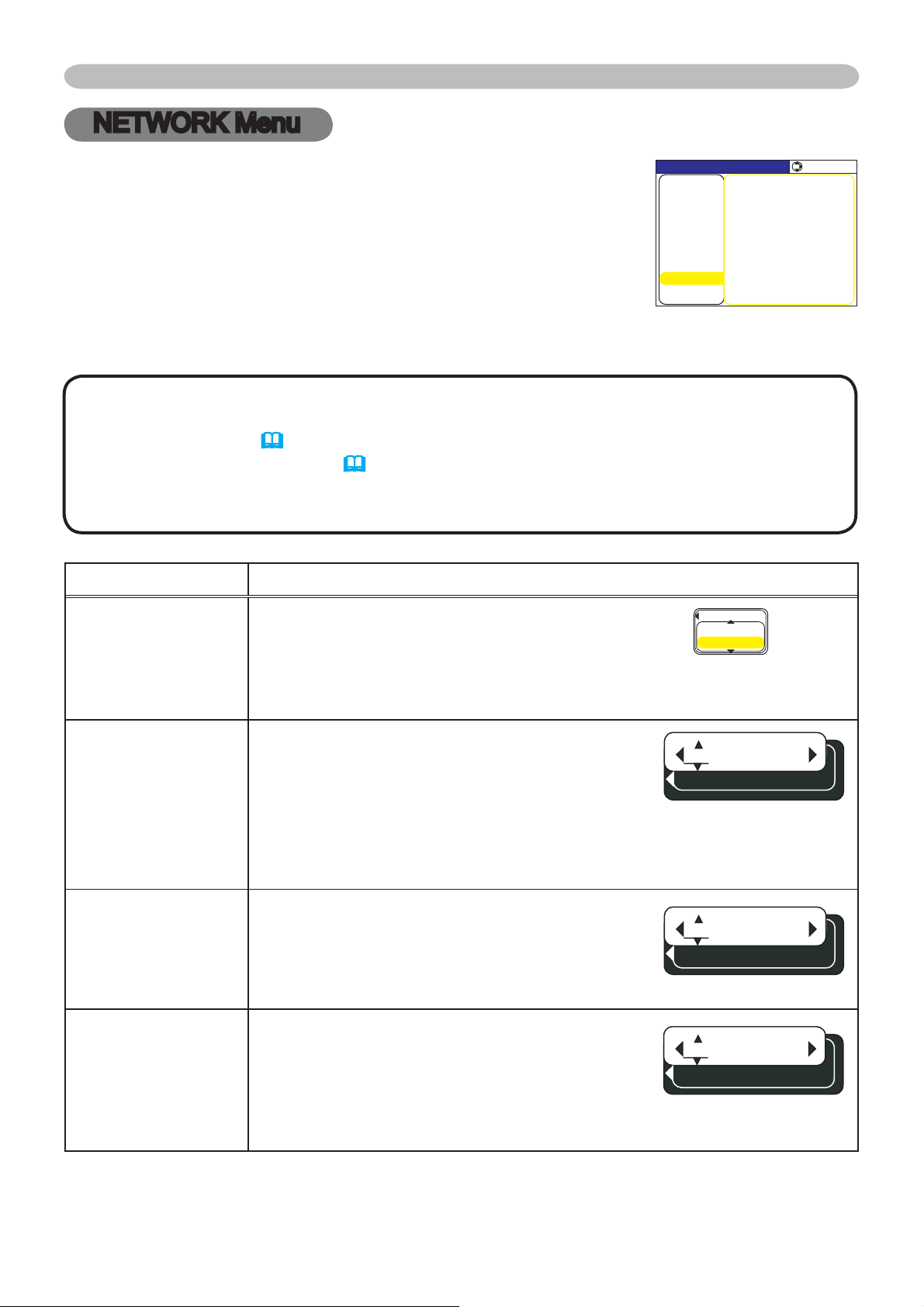
53
NETWORK Menu
/'07=4)$? 5'.'%6
+2#&&4'55
57$0'6/#5-
6+/'&+(('4'0%'
&*%2
674010
&'(#7.6)#6'9#;
'#0&6+/'
G5*16
+0(14/#6+10
5'48+%'
+/#)'
2+%674'
5'672
+0276
5%4''0
126+10
#7&+1
0'6914-
'#5;/'07
NETWORK Menu
Item Description
DHCP
(Dynamic Host
&RQ¿JXUDWLRQ
Protocol)
DHCP TURN ON/TURN OFF:
8VHWKHŸźEXWWRQVWRWXUQ'+&3RQRII
TURN ON
Ù
TURN OFF
Select TURN OFF when the network does not have DHCP
enabled.
IP ADDRESS
Entering the IP ADDRESS :
Use the ŸźŻŹEXWWRQVWRHQWHUWKH,3
ADDRESS. This function can only be used
when DHCP is set to “TURN OFF”.
• 7KH,3$''5(66LVWKHQXPEHUWKDWLGHQWL¿HVWKLVSURMHFWRU
on the network. You cannot have two devices with the same IP
ADDRESS on the same network.
SUBNET MASK
Entering the SUBNET MASK :
Use the ŸźŻŹEXWWRQV to enter the
same SUBNET MASK used by your PC.
This function can only be used when DHCP
is set to “TURN OFF”.
DEFAULT
GATEWAY
Entering the DEFAULT GATEWAY :
Use the
ŸźŻŹ
buttons to enter the
DEFAULT GATEWAY (a node on a computor
network that serves as an access point to
another network) address.This function can only
be used when DHCP is set to “TURN OFF”.
Consult with your network administrator before connecting to an
existing access point on your network. Incorrect network settings
on this projector may cause trouble on the network.
Select “NETWORK” from the main menu to access the following
functions.
6HOHFWDQLWHPXVLQJWKHŸźFXUVRUEXWWRQVRQWKHSURMHFWRURU
UHPRWHFRQWURODQGSUHVVWKHŹFXUVRUEXWWRQRQWKHSURMHFWRURU
remote control, or ENTER button on the remote control to execute
the item. Then perform it according to the following table.
NOTE • The factory default setting for DHCP is “TURN ON”. There is no need to set
XS>'+&3@>,3$''5(66@>68%1(70$6.@RU>'()$8/7*$7(:$<@LI\RXUQHWZRUN
has DHCP enabled. (
User’s Manual - Network Functions)
• If you are not utilizing SNTP (
User’s Manual - Network Functions), then you must
set the DATE AND TIME during the initial installation. Please refer to the item DATE
AND TIME on the following list.
&*%2
674010
67401((
+2#&&4'55
57$0'6/#5-
&'(#7.6)#6'9#;
(continued on next page)
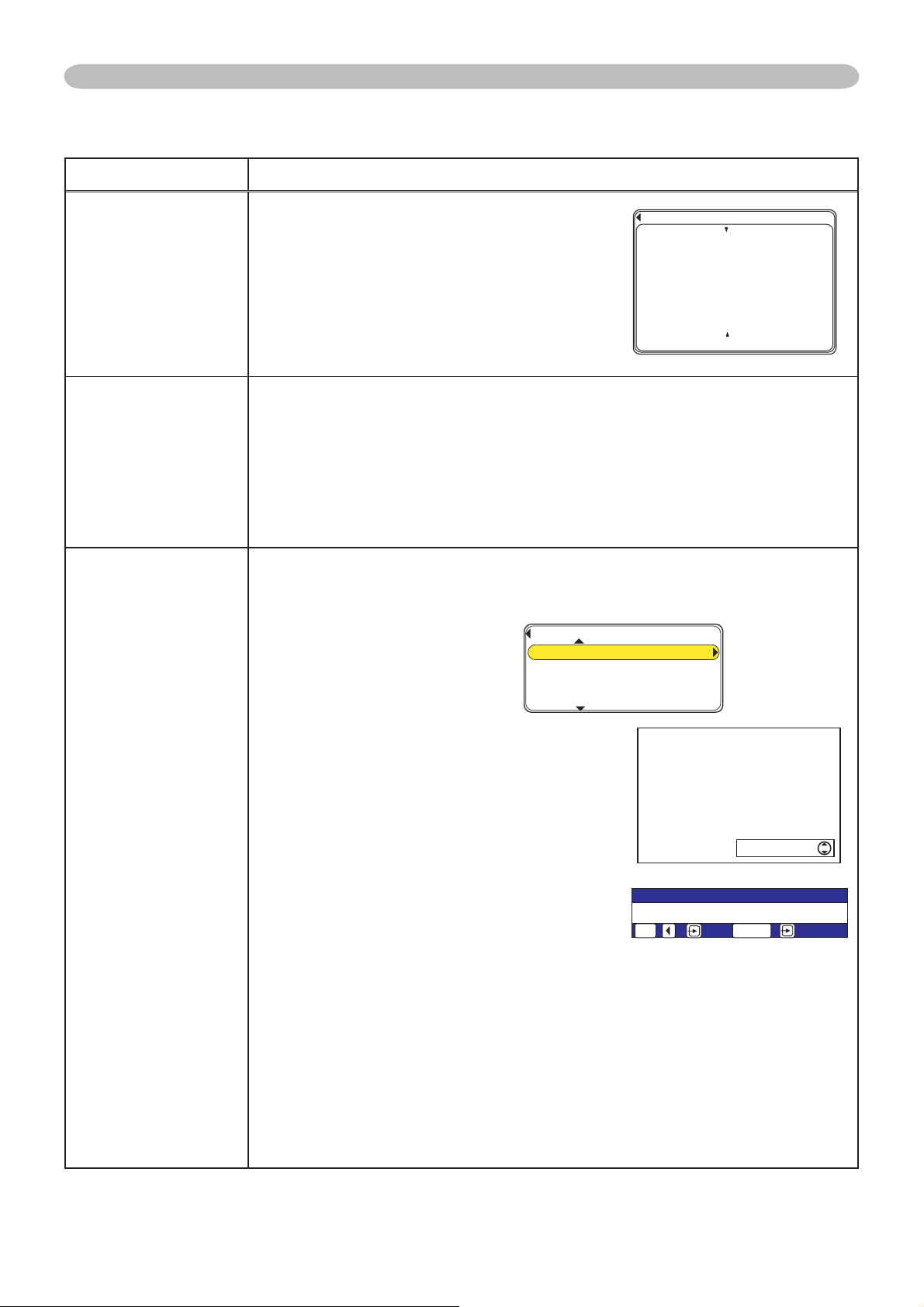
54
NETWORK Menu
Item Description
TIME
DIFFERENCE
Entering the TIME DIFFERENCE :
Use the Ÿź buttons to enter the
TIME DIFFERENCE.
Set the same TIME DIFFERENCE
as the one set on your PC. If unsure,
consult your network administrator.
8VHWKHŻEXWWRQWRUHWXUQWRWKHPHQX
after setting the TIME DIFFERENCE.
DATE AND TIME
Entering DATE AND TIME :
Use the ŸźŻŹEXWWRQVWRHQWHUWKH<HDUODVWWZRGLJLWV
Month, Date, Hour and Minute.
•
The projector will override this setting and retrieve DATE AND TIME
information from the Timeserver when SNTP is enabled. See [Date/
Time Settings] in [User’s Manual - Network Functions&RQ¿JXULQJ
and Controlling the Projector via a Web Browser] for SNTP settings.
e-SHOT
e-SHOT display :
8VHWKHŸźEXWWRQVWRVHOHFWDQLWHPDQGWKHŹ or ENTER
buttons to display the image.
Image1
Image2
Image3
Image4
File names of registered images are
displayed by 16 characters or less.
Example: DEMONSTRATION-01
“NEW” stamp is added to the head
of line when the image is registered
newly. After the image is displayed,
“NEW” stamp will be erased.
Once an image is displayed, you can
XVHWKHŸźEXWWRQVWRSDJHWKURXJK
WKHLPDJHV8VHWKHŻRU(6&EXWWRQV
to return to the menu.
3UHVVLQJWKH5(6(7EXWWRQRUWKHŹEXWWRQIRUDERXWVHFRQGV
while an image is being displayed will display the RESET menu.
The displayed image can be deleted from the RESET menu using
the ENTER button on the remote control or the INPUT button on the
projector.
If you do not wish to delete the image use the ESC button on the remote
control or push the
Ż
and INPUT buttons on the projector at the same time.
•
Items with no image stored cannot be selected.
•
Images can be changed using the
Ÿź
buttons while the image data downloads.
NETWORK Menu (continued)
G5*16
0GY+/#)'24'5'06#6+10(+.'
+/#)'&'/10564#6+10
+/#)'&'/10564#6+10
+/#)'6#$.'
G5*16
4'5'6+/#)'
01;'5
'5% '06'4
6+/'&+(('4'0%'
㪞㪤㪫㩷㩷㪇㪇㩷㪑㩷㪇㪇㩷
+/#)'
(continued on next page)
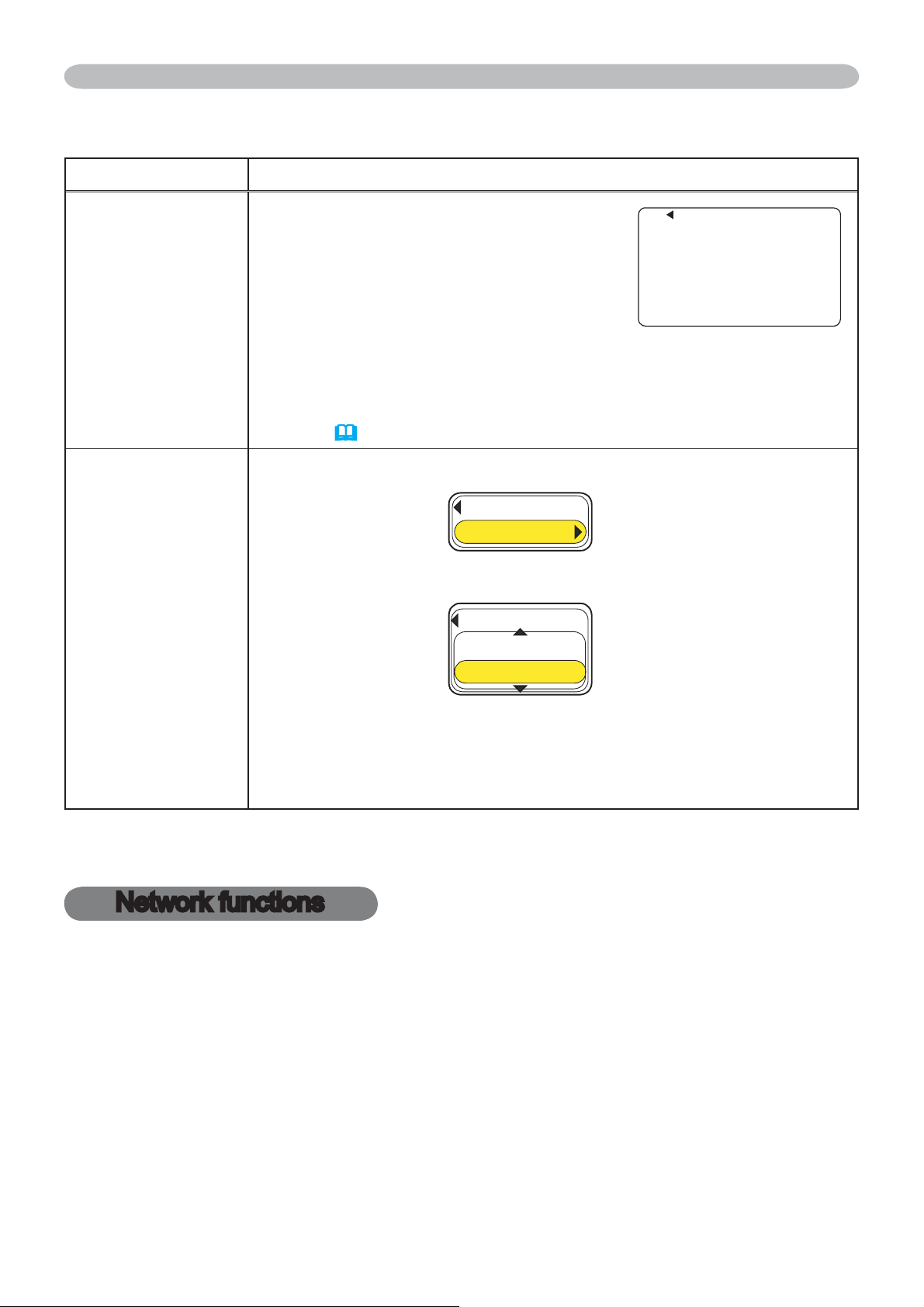
55
Item Description
INFORMATION
INFORMATION display :
8VHWKHŹRU(17(5EXWWRQVWRYLHZ
QHWZRUNLQIRUPDWLRQDQGFRQ¿UPVHWWLQJV
• 2QO\WKH¿UVWFKDUDFWHUVRIWKHSURMHFWRUQDPHDUHGLVSOD\HG
• The battery for the built in clock may be dead if the clock loses
time even when the DATE AND TIME have been set correctly.
Replace the battery by following the instructions on replacing the
battery. (
60)
SERVICE
&KRRVHWKH5(67$57XVLQJWKHŹEXWWRQ
7KHQXVHWKHŸEXWWRQWRH[HFXWH
Network will be once cut off when choose restart.
If DHCP is selected on, IP address may be changed.
After selecting RESTART, Network menu may not be controlled
approx. 20 seconds.
NETWORK Menu / Network functions
NETWORK Menu (continued)
Network functions
Refer to the separate volume on Network Functions.
+2#&&4'55
57$0'6/#5-
0'6914-+0(14/#6+10
&'(#7.6)#6'9#;
/#%#&&4'55
0#/'
#%%
6+/'&+(('4'0%')/6
'#0&6+/'
5'48+%'
4'56#46
4'56#46
':'%76'
%#0%'.
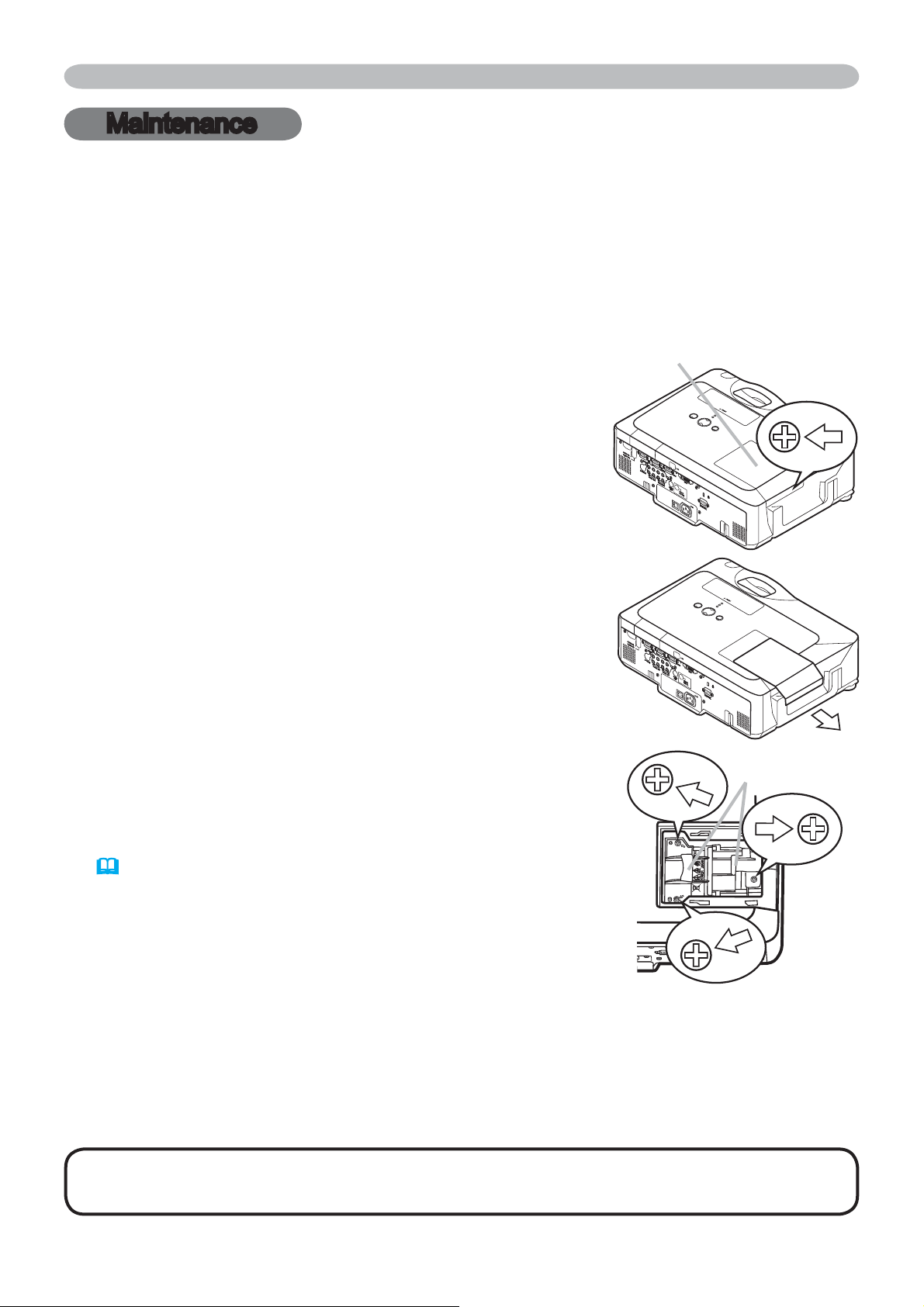
56
Maintenance
Lamp
$ODPSKDV¿QLWHSURGXFWOLIH8VLQJWKHODPSIRUORQJSHULRGVRIWLPHFRXOGFDXVH
the pictures darker or the color tone poor. Note that each lamp has a different
lifetime, and some may burst or burn out soon after you start using them.
Preparation of a new lamp and early replacement are recommended. To prepare
a new lamp, contact your dealer and tell the lamp type number.
Type number = DT00771
Replacing the lamp
1.
Turn the projector off, and unplug the power cord.
Allow the projector to cool for at least 45 minutes.
2.
Prepare a new lamp.
If the projector is mounted on a ceiling, or if the lamp
has broken, also ask the dealer to replace the lamp.
In case of replacement by yourself,
3.
Loosen the screw (marked by arrow) of the lamp cover
and then slide the lamp cover to the side to remove it.
4.
Loosen the 3 screws (marked by arrow) of the
lamp, and slowly pick up the lamp by the handles.
5.
,QVHUWWKHQHZODPSDQGUHWLJKWHQ¿UPO\WKH
3 screws of the lamp that are loosened in the
previous process to lock it in place.
6.
6OLGHWKHODPSFRYHUEDFNLQSODFHDQG¿UPO\
fasten the screw of the lamp cover.
7.
Turn the projector on and reset the lamp time
using the LAMP TIME item in the OPTION menu
(
43)
.
(1) Press the MENU button to display a menu.
(2) Point at the “Go to Advanced Menu …” in the menu
XVLQJWKHźŸEXWWRQWKHQSUHVVWKHŹEXWWRQ
(3) Point at the “OPTION” in the left column of the
PHQXXVLQJWKHźŸEXWWRQWKHQSUHVVWKHŹ
button.
3RLQWDWWKH³/$037,0(´XVLQJWKHźŸEXWWRQWKHQSUHVVWKHŹEXWWRQ$
dialog will appear.
3UHVVWKHŸEXWWRQWRVHOHFW³5(6(7´RQWKHGLDORJ,WSHUIRUPVUHVHWWLQJWKH
lamp time.
Maintenance
NOTE • Please reset the lamp time only when you have replaced the lamp,
for a suitable indication about the lamp.
The lamp cover
The handles
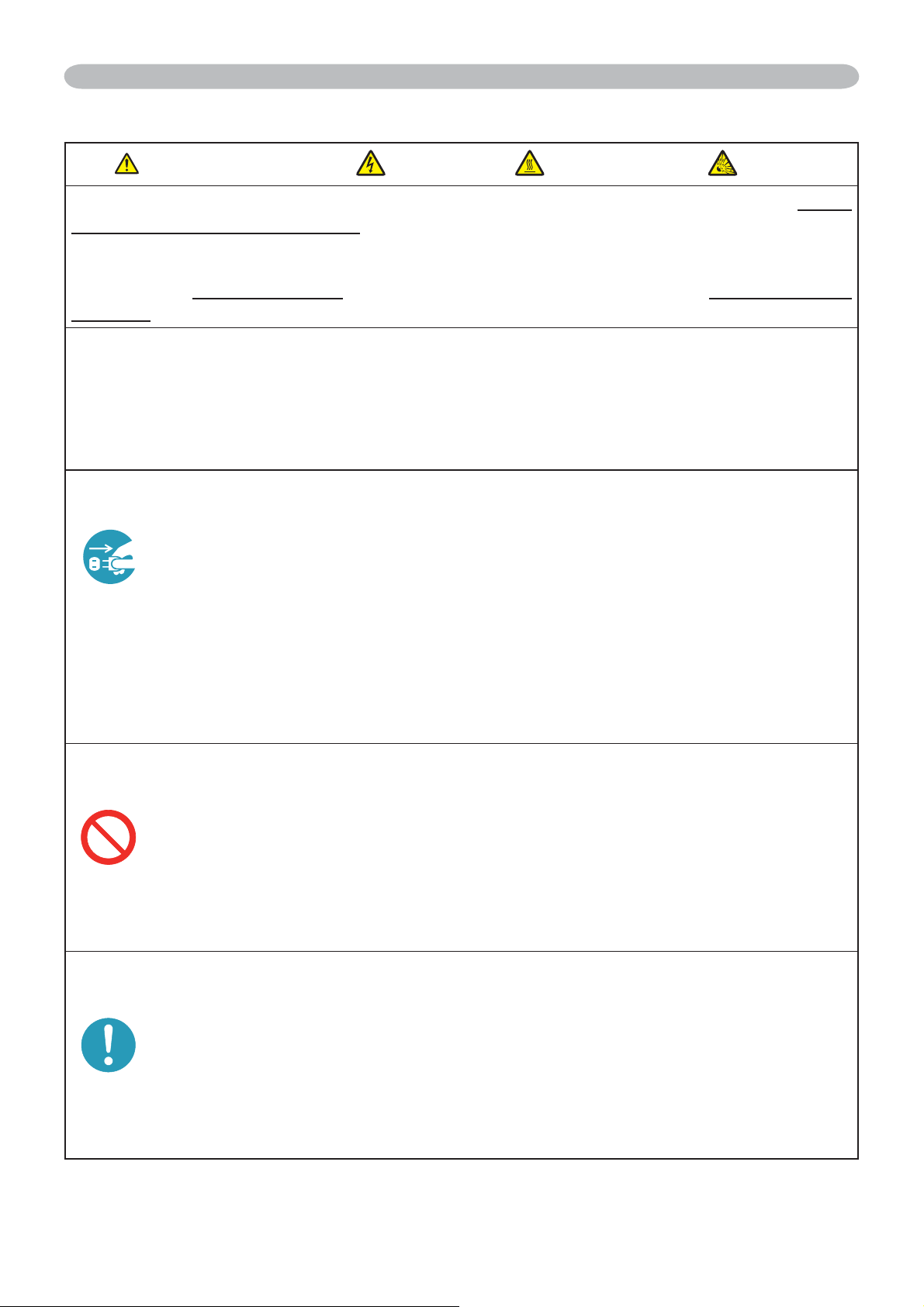
57
Maintenance
Lamp (continued)
WARNING
HIGH VOLTAGE
HIGH TEMPERATURE HIGH PRESSURE
ŹThe projector uses a high-pressure mercury glass lamp. The lamp can break
with a loud bang, or burn out, if jolted or scratched, handled while hot, or worn
over time. Note that each lamp has a different lifetime, and some may burst or
burn out soon after you start using them. In addition, when the bulb bursts, it is
possible for shards of glassWRÀ\LQWRWKHODPSKRXVLQJDQGIRUgas containing
mercury to escape from the projector’s vent holes.
ŹAbout disposal of a lamp • This product contains a mercury lamp; do not
put it in a trash. Dispose of it in accordance with environmental laws.
For lamp recycling, go to www.lamprecycle.org. (in the US)
For product disposal, contact your local government agency or www.eiae.org (in
the US) or www.epsc.ca (in Canada).
For more information, call your dealer.
• If the lamp should break (it will make a loud bang when it does), unplug
the power cord from the outlet, and make sure to request a replacement
lamp from your local dealer. Note that shards of glass could damage the
inside of the projector, or cause injury during handling, so please do not
try to clean the projector or replace the lamp yourself.
• If the lamp should break (it will make a loud bang when it does),
ventilate the room well, and make sure not to breathe the gas that
comes out of the projector vents, or get it in your eyes or mouth.
• Before replacing the lamp, turn the projector off and unplug the power
cord, then wait at least 45 minutes for the lamp to cool sufficiently.
Handling the lamp while hot can cause burns, as well as damaging the
lamp.
• Never unscrew except the appointed (marked by an arrow) screws.
• Do not open the lamp cover while the projector is suspended from
the ceiling. This is dangerous, since if the lamp’s bulb has broken, the
shards will fall out when the cover is opened. In addition, working in
high places is dangerous, so ask your local dealer to have the lamp
replaced even if the bulb is not broken.
• Do not use the projector with the lamp cover removed. To replace the
lamp, make sure that the screws are tightened firmly. Loose screws
could result in damage or injury.
• 8VHRQO\WKHODPSRIWKHVSHFL¿HGW\SH
• If the lamp breaks soon after the first time it is used, it is possible
that there are electrical problems elsewhere besides the lamp. If this
happens, contact your local dealer or a service representative.
•
Handle with care: jolting or scratching could cause the lamp bulb to burst during use.
• Using the lamp for long periods of time, could cause it dark, not to light
up or to burst. When the pictures appear dark, or when the color tone
is poor, please replace the lamp as soon as possible. Do not use old
(used) lamps; this is a cause of breakage.
Disconnect
the plug
from the
power
outlet
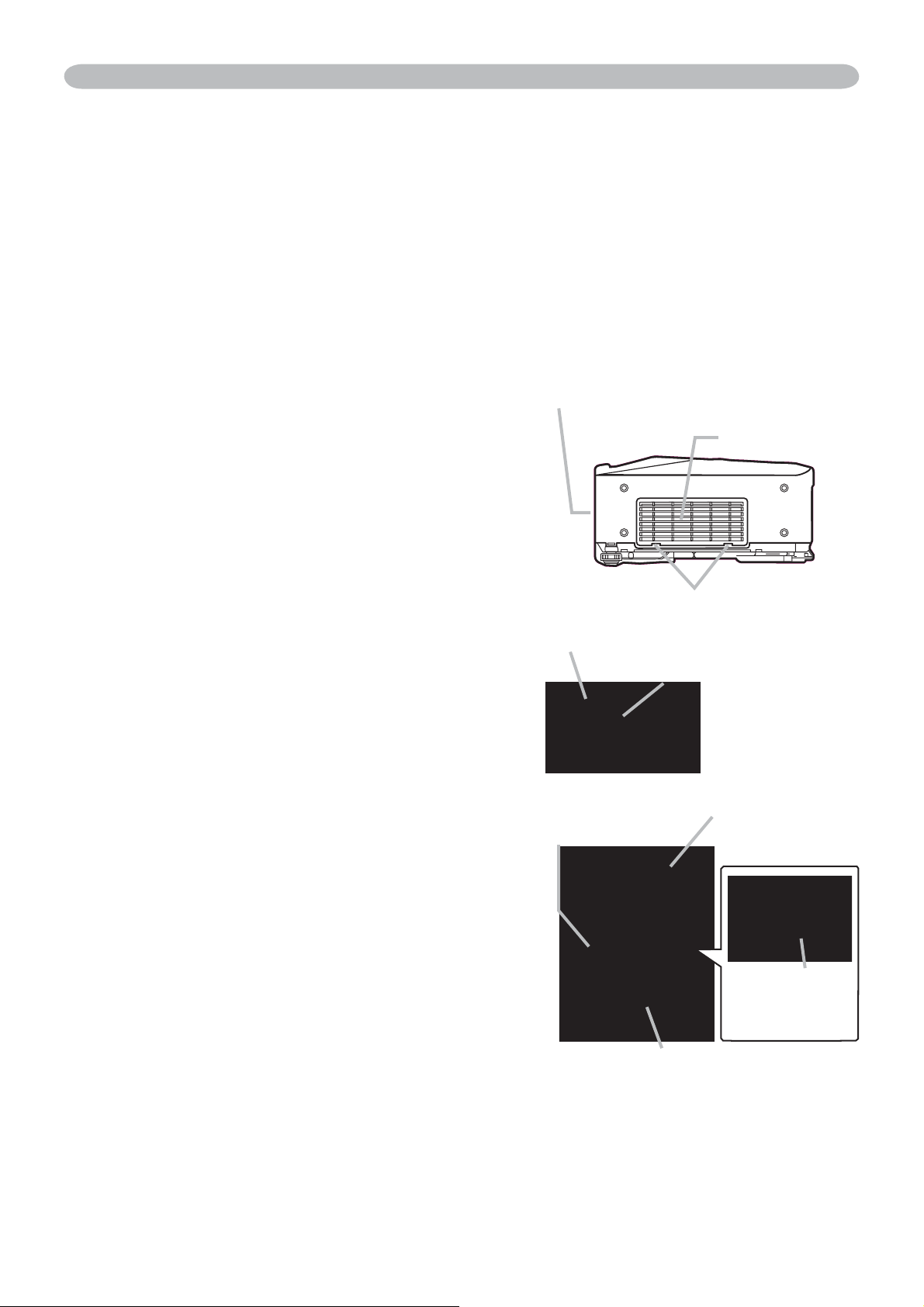
58
3OHDVHFKHFNDQGFOHDQWKHDLU¿OWHUSHULRGLFDOO\,IWKHDLU¿OWHUEHFRPHVFORJJHG
E\GXVWRUWKHOLNHLQWHUQDOWHPSHUDWXUHVULVHZKLFKFRXOGFDXVHD¿UHDEXUQRU
malfunction to the projector. When the indicators or a message prompts you to
FOHDQWKHDLU¿OWHUFRPSO\ZLWKLWDVVRRQDVSRVVLEOH1RWHWKDWWKHSURMHFWRUPD\
shut down, when the projector heats too much.
3OHDVHUHSODFHWKHDLU¿OWHUZKHQLWLVGDPDJHGRUWRRVRLOHG3UHSDUDWLRQRIDQHZ
DLU¿OWHULVUHFRPPHQGHG7RSUHSDUHDQHZDLU¿OWHUFRQWDFWZLWK\RXUGHDOHUDQG
WHOOWKHDLU¿OWHUW\SHQXPEHU
Type number = MU03642
&OHDQLQJWKHDLUÀOWHU
1.
Turn the projector off, and unplug the
power cord. Allow the projector to
VXI¿FLHQWO\FRROGRZQ
2.
Use a vacuum cleaner on and around the
¿OWHUFRYHU
3.
+ROGWKH¿OWHUFRYHUNQREVZKLOHOLIWLQJLW
7KH¿OWHUXQLWPDGHXSWKH¿OWHUFRYHUDQG
others will come off.
4.
8VHDYDFXXPFOHDQHUIRUWKH¿OWHUYHQWRI
WKHSURMHFWRUDQGWKH¿OWHUIUDPHVLGHRI
WKH¿OWHUXQLW
,IWKHDLU¿OWHULVGDPDJHGRUWRRVRLOHG
replace it according to the following
procedure number 5 to 7. Otherwise, please
jump to the procedure number 8.
5.
7RUHPRYHWKH¿OWHUIUDPHKROGWKH¿OWHU
FRYHUZKLOHKROGLQJDQGSXOOLQJWKH¿OWHU
frame’s knob by another hand.
6.
5HSODFHWKHDLU¿OWHUZLWKQHZRQH,WLV
UHFRPPHQGHGWKDWWKHÀXWHGVXUIDFHRI
WKHDLU¿OWHUIDFHVWKH¿OWHUFRYHU
7.
3XWWKH¿OWHUIUDPHEDFN
8.
3XWWKH¿OWHUXQLWEDFNLQWRWKHSURMHFWRU
Maintenance
$LUÀOWHU
The front side of the projector
7KH¿OWHUFRYHU
7KH¿OWHUFRYHUNQREV
7KH¿OWHUXQLW
7KH¿OWHUIUDPHNQRE
(continued on next page)
7KHDLU¿OWHU
7KH¿OWHUIUDPH
7KH¿OWHUFRYHU
7KHÀXWHG
surface of
WKHDLU¿OWHU
59
WARNING Ź%HIRUHWDNLQJFDUHRIWKHDLU¿OWHUPDNHVXUHWKHSRZHU
switch is off and the power cable is not plugged in, then allow the projector to
FRROVXI¿FLHQWO\7DNLQJFDUHRIWKHDLU¿OWHULQDKLJKWHPSHUDWXUHVWDWHRIWKH
projector could cause an electric shock, a burn or malfunction to the projector.
Ź8VHRQO\WKHDLU¿OWHURIWKHVSHFL¿HGW\SH'RQRWXVHWKHSURMHFWRUZLWKRXW
WKHDLU¿OWHURUWKH¿OWHUFRYHU,WFRXOGUHVXOWLQD¿UHRUPDOIXQFWLRQWRWKH
projector.
Ź&OHDQWKHDLU¿OWHUSHULRGLFDOO\,IWKHDLU¿OWHUEHFRPHVFORJJHGE\GXVWRUWKH
OLNHLQWHUQDOWHPSHUDWXUHVULVHDQGFRXOGFDXVHD¿UHDEXUQRUPDOIXQFWLRQWR
the projector.
NOTE3OHDVHUHSODFHWKHDLU¿OWHUZKHQLWLVGDPDJHGRUWRRVRLOHGDQG
also when you replace the lamp.
:KHQ\RXUHSODFHWKHSURMHFWLRQODPSSOHDVHUHSODFHWKHDLU¿OWHU$QDLU¿OWHU
RIVSHFL¿HGW\SHZLOOFRPHWRJHWKHUZLWKDUHSODFHPHQWODPSIRUWKLVSURMHFWRU
3OHDVHUHVHWWKH¿OWHUWLPHRQO\ZKHQ\RXKDYHFOHDQHGRUUHSODFHGWKHDLU
¿OWHUIRUDVXLWDEOHLQGLFDWLRQDERXWWKHDLU¿OWHU
• The projector may display the message such as “CHECK THE AIR FLOW” or
turn off the projector, to prevent the internal heat level rising.
Maintenance
9.
7XUQWKHSURMHFWRURQDQGUHVHWWKH¿OWHUWLPHXVLQJWKH),/7(57,0(LWHPLQ
the EASY MENU
(
25)
.
(1) Press the MENU button to display a menu.
3RLQWDWWKH³),/7(57,0(´XVLQJWKHźŸEXWWRQWKHQSUHVVWKHŹEXWWRQ$
dialog will appear.
3UHVVWKHŸEXWWRQWRVHOHFW³5(6(7´RQWKHGLDORJ,WSHUIRUPVUHVHWWLQJWKH
¿OWHUWLPH
$LU¿OWHUFRQWLQXHG

60
Maintenance
1.
Turn the projector off, and unplug the power cord. Allow the
SURMHFWRUWRFRROVXI¿FLHQWO\
2.
After making sure that the projector has cooled adequately,
slowly turn over the projector, so that the bottom is facing.
3.
Remove the battery cover.
Turn the battery cover in the direction indicated “OPEN”
using such as coins. Then the battery cover will come up. While
removing the battery cover, pick its knob.
4.
Take the old battery out.
Press the metal claw of the battery holder. Then the battery
will come up. Remove the battery.
5.
Put a new battery in.
Replace battery with HITACHI MAXELL, Part No.CR2032
RQO\8VHRIDQRWKHUEDWWHU\PD\SUHVHQWDULVNRI¿UHRU
explosion.
Insert a new battery in the battery holder according to its minus terminal
as indicated in the battery holder, so that the side marked by
+
is
IDFLQJ$QGSXVKWKHEDWWHU\LQWRWKHEDWWHU\KROGHUIXOO\WR¿[
6.
Close the battery cover.
Replace the battery cover in place, then turn it in the
GLUHFWLRQLQGLFDWHG³&/26(´XVLQJVXFKDVFRLQVWR¿[
%.15'
Battery Cover
12'0
Knob
Metal claw
“+” marking
WARNING Ź
Always handle the batteries with care and use them only as directed. Battery
PD\H[SORGHLIPLVWUHDWHG'RQRWUHFKDUJHGLVDVVHPEOHRUGLVSRVHRILQ¿UH
$QGDOVRLPSURSHUXVHPD\UHVXOWLQFUDFNLQJRUOHDNDJHZKLFKFRXOGUHVXOWLQ¿UHLQMXU\DQGRU
pollution of the surrounding environment.
•
%HVXUHWRXVHRQO\WKHEDWWHULHVVSHFL¿HG'RQRWXVHEDWWHULHVRIGLIIHUHQWW\SHVDWWKHVDPH
time. Do not mix a new battery with used one.
•
Make sure the plus and minus terminals are correctly aligned when loading a battery.
If the battery is placed in the battery holder upside-down, it may be hard to remove.
•
Keep a battery away from children and pets. If swallowed consult a physician immediately for emergency treatment.
•
Do not short circuit or solder a battery.
•
'RQRWDOORZDEDWWHU\LQD¿UHRUZDWHU.HHSEDWWHULHVLQDGDUNFRRODQGGU\SODFH
•
,I\RXREVHUYHDOHDNDJHRIDEDWWHU\ZLSHRXWWKHÀRZHUDQGWKHQUHSODFHDEDWWHU\,IWKHOLTXLG
adheres to your body or clothes, rinse well with water immediately.
•
Obey the local laws on disposing the battery.
Internal clock battery
Consumption of the battery makes the clock not to work correctly. When the clock is wrong or it has
stopped, please replace the battery according to the following procedures.
NOTE •
If the battery is placed in the battery holder upside-down, follow the procedure below
to remove and reload it properly.
1. Remove the battery cover as described in steps 1 through 3 above.
2. Turn the projector over again, so that the top of the projector is facing up.
3. While lifting the side of the projector closest to the lens, press the metal claw of the battery
holder. The battery will fall out of the holder, so be careful not to lose it.
4. Turn the projector over once more, so that the bottom faces up, and reload the battery correctly.
•
The internal clock’s time will be reset when the battery is removed.
3OHDVHUHFRQ¿JXUHWKHWLPHYLDWKHPHQXRUDZHEEURZVHUDIWHUUHSODFLQJWKHEDWWHU\
(Please refer to
55
and User’s Manual-Network Functions: Date/Time Settings for more information.)

61
Maintenance
Inside of the projector
In order to ensure the safe use of your projector, please have it cleaned and
inspected by your dealer about once every year.
Caring for the lens
,IWKHOHQVLVÀDZHGVRLOHGRUIRJJHGLWFRXOGFDXVHGHWHULRUDWLRQRIGLVSOD\
quality. Please take care of the lens, being cautious of handling.
1.
Turn the projector off, and unplug the power cord. Allow the projector to cool
VXI¿FLHQWO\
2.
After making sure that the projector is cool adequately, lightly wipe the lens
with a commercially available lens-cleaning wipe. Do not touch the lens
directly with your hand.
Caring for the cabinet and remote control
,QFRUUHFWFDUHFRXOGKDYHDGYHUVHLQÀXHQFHVXFKDVGLVFRORUDWLRQSHHOLQJSDLQW
etc.
1.
Turn the projector off, and unplug the power cord. Allow the projector to cool
VXI¿FLHQWO\
2.
After making sure that the projector is cool adequately, lightly wipe with gauze
or a soft cloth.
If the projector is extremely dirty, dip soft cloth in water or a neutral cleaner
diluted in water, and wipe lightly after wringing well. Then, wipe lightly with a
soft, dry cloth.
Other care
WARNING Ź%HIRUHFDULQJPDNHVXUHWKHSRZHUVZLWFKLVRIIDQGWKH
SRZHUFDEOHLVQRWSOXJJHGLQDQGWKHQDOORZWKHSURMHFWRUWRFRROVXI¿FLHQWO\
The care in a high temperature state of the projector could cause a burn and/or
malfunction to the projector.
Ź1HYHUWU\WRFDUHIRUWKHLQVLGHRIWKHSURMHFWRUSHUVRQDOO\'RLQJLVVR
dangerous.
Ź$YRLGZHWWLQJWKHSURMHFWRURULQVHUWLQJOLTXLGVLQWKHSURMHFWRU,WFRXOGUHVXOW
LQD¿UHDQHOHFWULFVKRFNDQGRUPDOIXQFWLRQWRWKHSURMHFWRU
• Do not put anything containing water, cleaners or chemicals near the
projector.
• Do not use aerosols or sprays.
CAUTION Ź3OHDVHWDNHULJKWFDUHRIWKHSURMHFWRUDFFRUGLQJWRWKH
IROORZLQJ,QFRUUHFWFDUHFRXOGFDXVHQRWRQO\DQLQMXU\EXWDGYHUVHLQÀXHQFH
such as discoloration, peeling paint, etc.
Ź'RQRWXVHFOHDQHUVRUFKHPLFDOVRWKHUWKDQWKRVHVSHFL¿HGLQWKLVPDQXDO
Ź'RQRWSROLVKRUZLSHZLWKKDUGREMHFWV
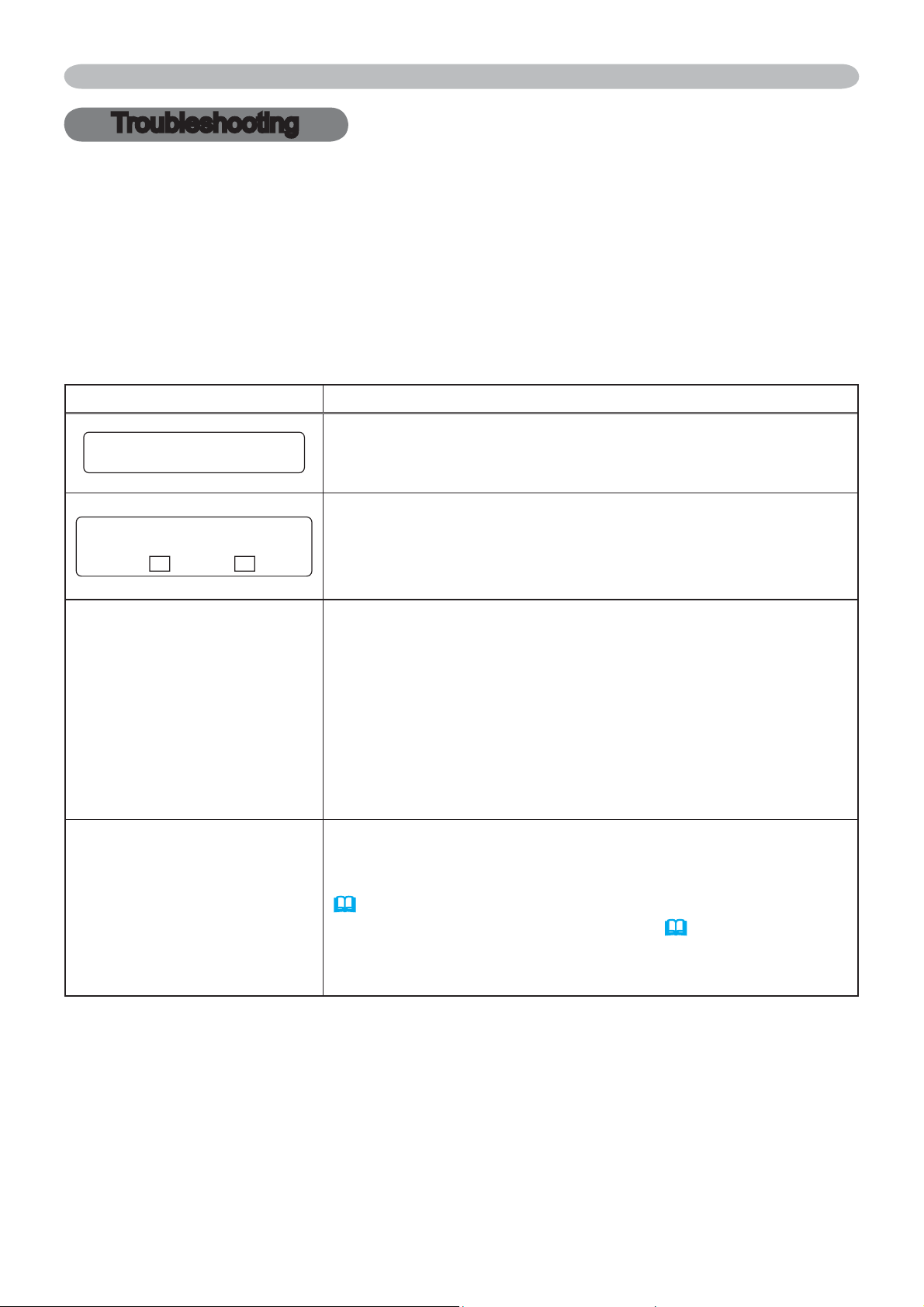
62
Troubleshooting
Related messages
When the unit's power is on, messages such as those shown below may be
displayed. When any such message is displayed on the screen, please follow the
instructions described below. If the same message is displayed after the remedy,
or if a message other than the following appears, please contact your dealer or
service company.
Although these messages will be automatically disappeared around several
minutes, it will be reappeared every time the power is turned on.
Message Description
NO INPUT IS DETECTED
½½½
There is no input signal.
3OHDVHFRQ¿UPWKHVLJQDOLQSXWFRQQHFWLRQDQGWKHVWDWXV
of the signal source.
SYNC IS OUT OF RANGE
½½½
fH ½½kHz fV ½½Hz
The horizontal or vertical frequency of the input signal
LVQRWZLWKLQWKHVSHFL¿HGUDQJH
3OHDVHFRQ¿UPWKHVSHFVIRU\RXUSURMHFWRURUWKHVLJQDO
source specs.
CHECK THE AIR FLOW
The internal temperature is rising.
Please turn the power off, and allow the projector to cool
GRZQDWOHDVWPLQXWHV$IWHUKDYLQJFRQ¿UPHGWKH
following items, please turn the power ON again.
• Is there blockage of the air passage aperture?
• ,VWKHDLU¿OWHUGLUW\"
• Does the peripheral temperature exceed 35°C?
If the same indication is displayed after the remedy, please set
FAN SPEED of the SERVICE item in the OPTION menu to HIGH.
REMINDER
*** HRS PASSED AFTER THE
LAST FILTER CHECK.
FILTER MAINTENANCE IS ESSENTIAL
TO REMOVE WARNING MESSAGE,
RESET FILTER TIMER.
SEE MANUAL FURTHER INFO.
$QRWHRISUHFDXWLRQZKHQFOHDQLQJWKHDLU¿OWHU
Please immediately turn the power off, and clean or change
WKHDLU¿OWHUUHIHUULQJWRWKH³$LU)LOWHU´VHFWLRQRIWKLVPDQXDO
(
58)$IWHU\RXKDYHFOHDQHGRUFKDQJHGWKHDLU¿OWHU
SOHDVHEHVXUHWRUHVHWWKH¿OWHUWLPHU(
43).
Troubleshooting
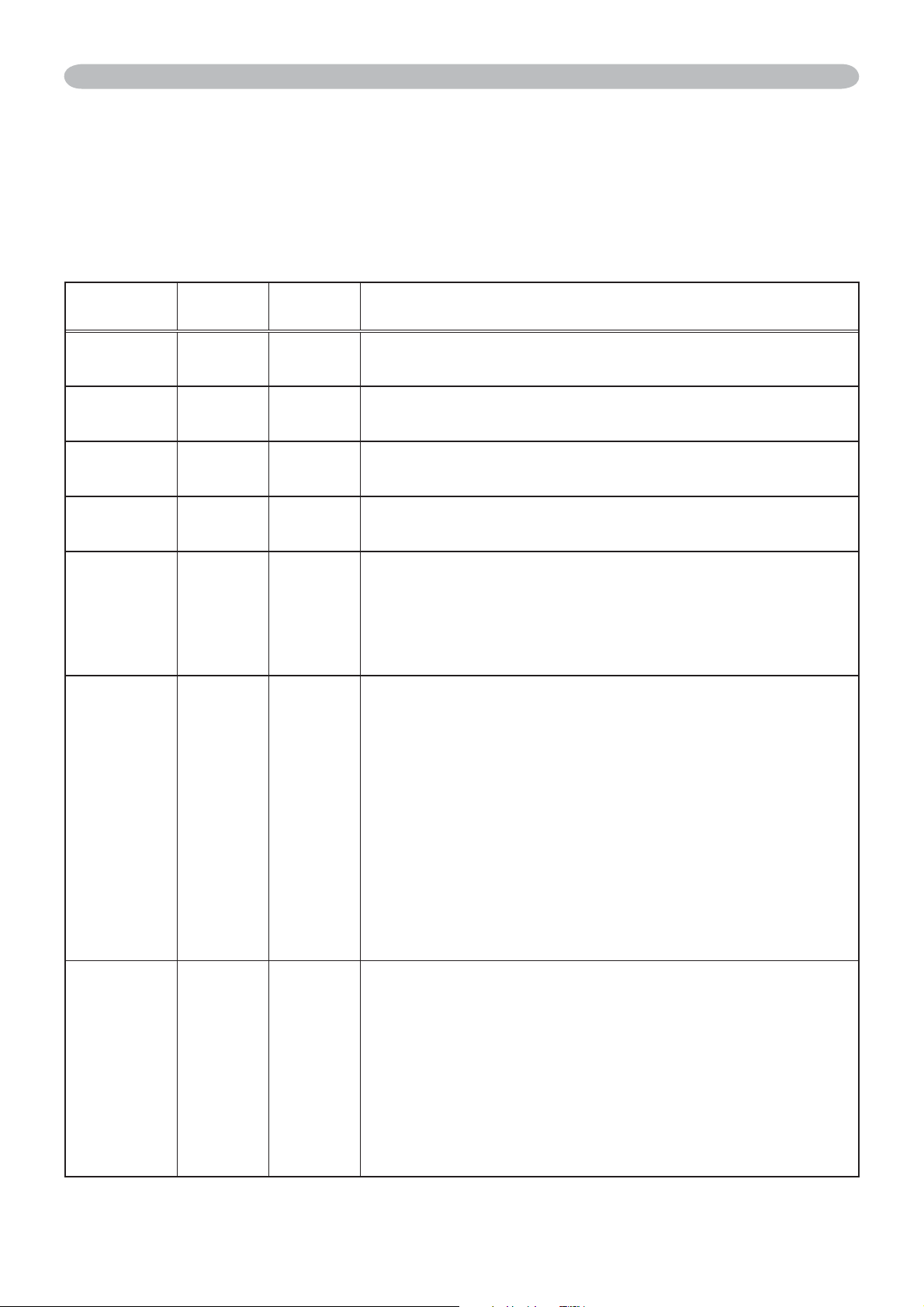
63
Troubleshooting
Regarding the indicator lamps
/LJKWLQJDQGÀDVKLQJRIWKH32:(5LQGLFDWRUWKH/$03LQGLFDWRUDQGWKH7(03
indicator have the meanings as described in the table below. Please follow the
instructions within the table. If the same indication is displayed after the remedy,
or if an indication other than the following is displayed, please contact your dealer
or service company.
POWER
indicator
LAMP
indicator
TEMP
indicator
Description
Lighting
In Orange
Turned
off
T
urned
off
The projector is in a standby state.
Please refer to the section “Power On/Off”.
Blinking
In Green
Turned
off
T
urned
off
The projector is warming up.
Please wait.
Lighting
In Green
Turned
off
T
urned
off
The projector is in an on state.
Ordinary operations may be performed.
Blinking
In Orange
Turned
off
T
urned
off
The projector is cooling down.
Please wait.
Blinking
In Red
(discre-
tionary)
(discre-
tionary)
The projector is cooling down. A certain error
has been detected.
3OHDVHZDLWXQWLOWKH32:(5LQGLFDWRU¿QLVKHV
blinking, and then perform the proper measure using
the item descriptions below.
Blinking
In Red
or
Lighting
In Red
Lighting
In Red
Turned
off
The lamp does not light, and there is a
possibility that interior portion has become
heated.
Please turn the power off, and allow the projector to
cool down at least 20 minutes. After the projector has
VXI¿FLHQWO\FRROHGGRZQSOHDVHPDNHFRQ¿UPDWLRQRI
the following items, and then turn the power on again.
• Is there blockage of the air passage aperture?
,VWKHDLU¿OWHUGLUW\"
• Does the peripheral temperature exceed 35°C?
If the same indication is displayed after the remedy,
please change the lamp referring to the section “Lamp”.
Blinking
In Red
or
Lighting
In Red
Blinking
In Red
Turned
off
7KHODPSFRYHUKDVQRWEHHQSURSHUO\¿[HG
Please turn the power off, and allow the projector to
cool down at least 45 minutes. After the projector has
VXI¿FLHQWO\FRROHGGRZQSOHDVHPDNHFRQ¿UPDWLRQ
of the attachment state of the lamp cover. After
performing any needed maintenance, turn the power
on again. If the same indication is displayed after
the remedy, please contact your dealer or service
company.
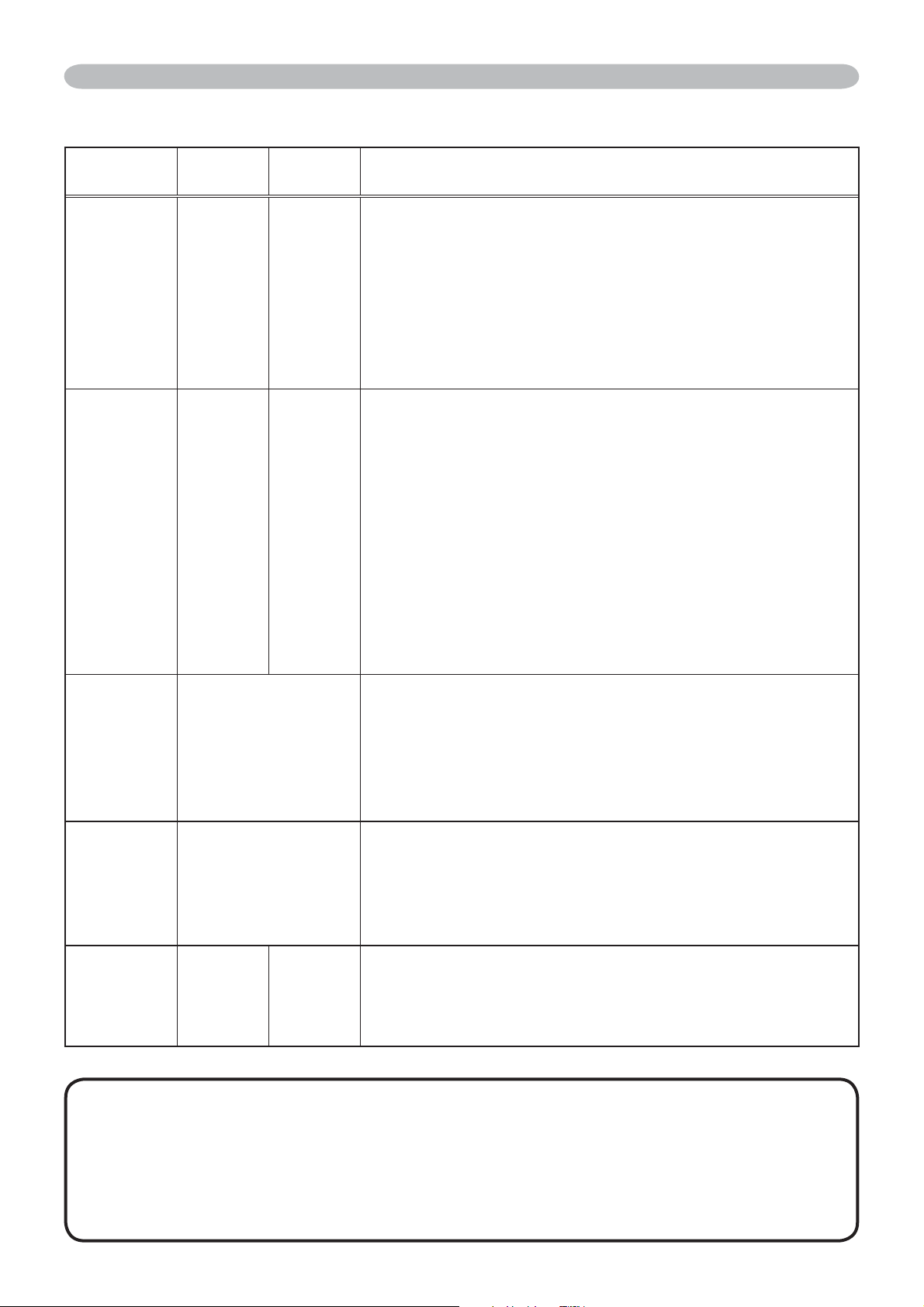
64
Troubleshooting
Regarding the indicator lamps (continued)
POWER
indicator
LAMP
indicator
TEMP
indicator
Description
Blinking
In Red
or
Lighting
In Red
Turned
off
Blinking
In Red
The cooling fan is not operating.
Please turn the power off, and allow the projector to
cool down at least 20 minutes. After the projector has
VXI¿FLHQWO\FRROHGGRZQSOHDVHPDNHFRQ¿UPDWLRQ
that no foreign matter has become caught in the fan,
etc., and then turn the power on again.
If the same indication is displayed after the remedy,
please contact your dealer or service company.
Blinking
In Red
or
Lighting
In Red
Turned
off
Lighting
In Red
There is a possibility that the interior portion
has become heated.
Please turn the power off, and allow the projector to
cool down at least 20 minutes. After the projector has
VXI¿FLHQWO\FRROHGGRZQSOHDVHPDNHFRQ¿UPDWLRQRI
the following items, and then turn the power on again.
• Is there blockage of the air passage aperture?
,VWKHDLU¿OWHUGLUW\"
• Does the peripheral temperature exceed 35°C?
If the same indication is displayed after the remedy,
please set FAN SPEED of the SERVICE item in the
OPTION menu to HIGH.
Lighting
In Green
Simultaneous
blinking in Red
,WLVWLPHWRFOHDQWKHDLU¿OWHU
Please immediately turn the power off, and clean or
FKDQJHWKHDLU¿OWHUUHIHUULQJWRWKHVHFWLRQ³$LU)LOWHU´
$IWHUFOHDQLQJRUFKDQJLQJWKHDLU¿OWHUSOHDVHEHVXUH
WRUHVHWWKH¿OWHUWLPHU$IWHUWKHUHPHG\UHVHWWKH
power to ON.
Lighting
In Green
Alternative
blinking in Red
There is a possibility that the interior portion
has become overcooled.
Please use the unit within the usage temperature
parameters (5°C to 35°C). After the treatment, reset
the power to ON.
Blinking in
Green for
approx. 3
seconds
T
urned
off
Turned
off
$WOHDVW³3RZHU21´VFKHGXOHLVVDYHGWRWKH
projector.
(Please refer to the User’s Manual-Network Functions:
Schedule Settings for more information.)
NOTE • When the interior portion has become overheated, for safety
purposes, the power source is automatically turned off, and the indicator lamps
may also be turned off. In such a case, press the “{” (OFF) side of the power
VZLWFKDQGZDLWDWOHDVWPLQXWHV$IWHUWKHSURMHFWRUKDVVXI¿FLHQWO\FRROHG
GRZQSOHDVHPDNHFRQ¿UPDWLRQRIWKHDWWDFKPHQWVWDWHRIWKHODPSDQGODPS
cover, and then turn the power on again.
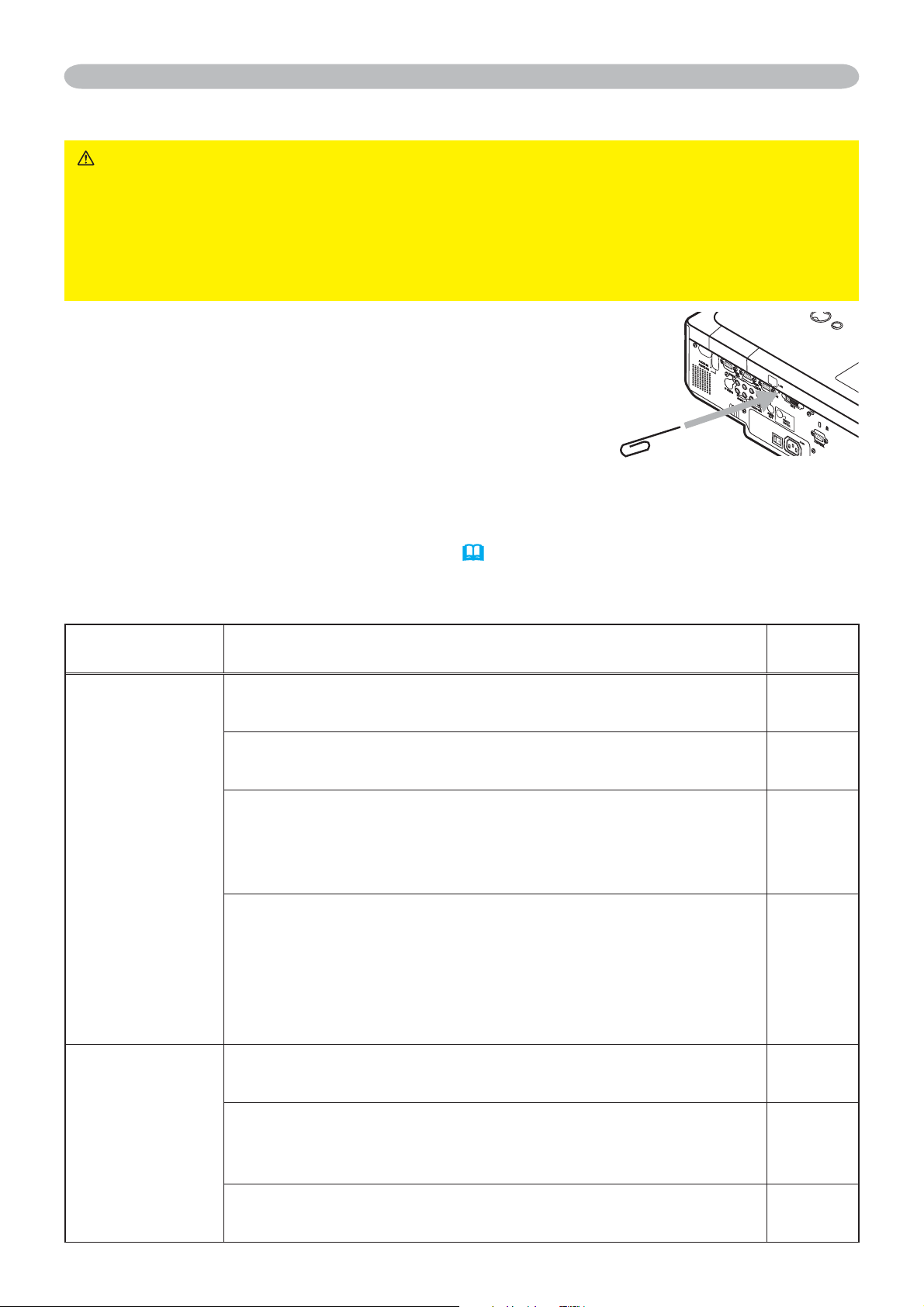
65
Troubleshooting
Phenomena that may be easy to be mistaken for machine defects
WARNING ŹNever use the projector if abnormal operations such as
smoke, strange odor, excessive sound, damaged casing or elements or cables,
penetration of liquids or foreign matter, etc. should occur. In such cases,
immediately turn off the power switch and then disconnect the power plug from
the power outlet. After making sure that the smoke or odor has stopped, contact
your dealer or service company.
1.
Before requesting repair, please check in accordance
with the following chart. This operation sometimes
resolves your problem.
If the situation cannot be corrected,
2.
The projector’s microprocessor may need to be reset.
Please push the Shutdown switch by using a pin or
similar and the projector will be turned off immediately.
Before turning it again, wait at least 10 minutes to make the projector cool down enough.
3.
Some setting may be wrong. Please use the FACTORY RESET function of the
SERVICE item in the OPTION menu
(
46)
to reset all settings to factory default.
Then, if the problem is not removed after the remedy, please contact your dealer
or service company.
Phenomenon Cases not involving a machine defect
Reference
page
Power does not
come on.
The electrical power cord is not plugged in.
Correctly connect the power cord.
12
The power switch is not set to the on position.
6HWWKHSRZHUVZLWFKWR>_@2Q
16
The main power source has been interrupted during
operation such as by a power outage (blackout), etc.
Please turn the power off, and allow the projector to cool
down at least 2 minutes, then turn the power on again.
16
Either there is no lamp and/or lamp cover, or either
RIWKHVHKDVQRWEHHQSURSHUO\¿[HG
Please turn the power off, and allow the projector to cool down
DWOHDVWPLQXWHV$IWHUWKHSURMHFWRUKDVVXI¿FLHQWO\FRROHG
GRZQSOHDVHPDNHFRQ¿UPDWLRQRIWKHDWWDFKPHQWVWDWHRIWKH
lamp and lamp cover, and then turn the power on again.
56
Neither sounds
nor pictures are
outputted.
The signal cables are not correctly connected.
Correctly connect the connection cables.
10
Signal source does not correctly work.
Correctly set up the signal source device by referring to the
manual of the source device.
–
The input changeover settings are mismatched.
Select the input signal, and correct the settings.
17, 18
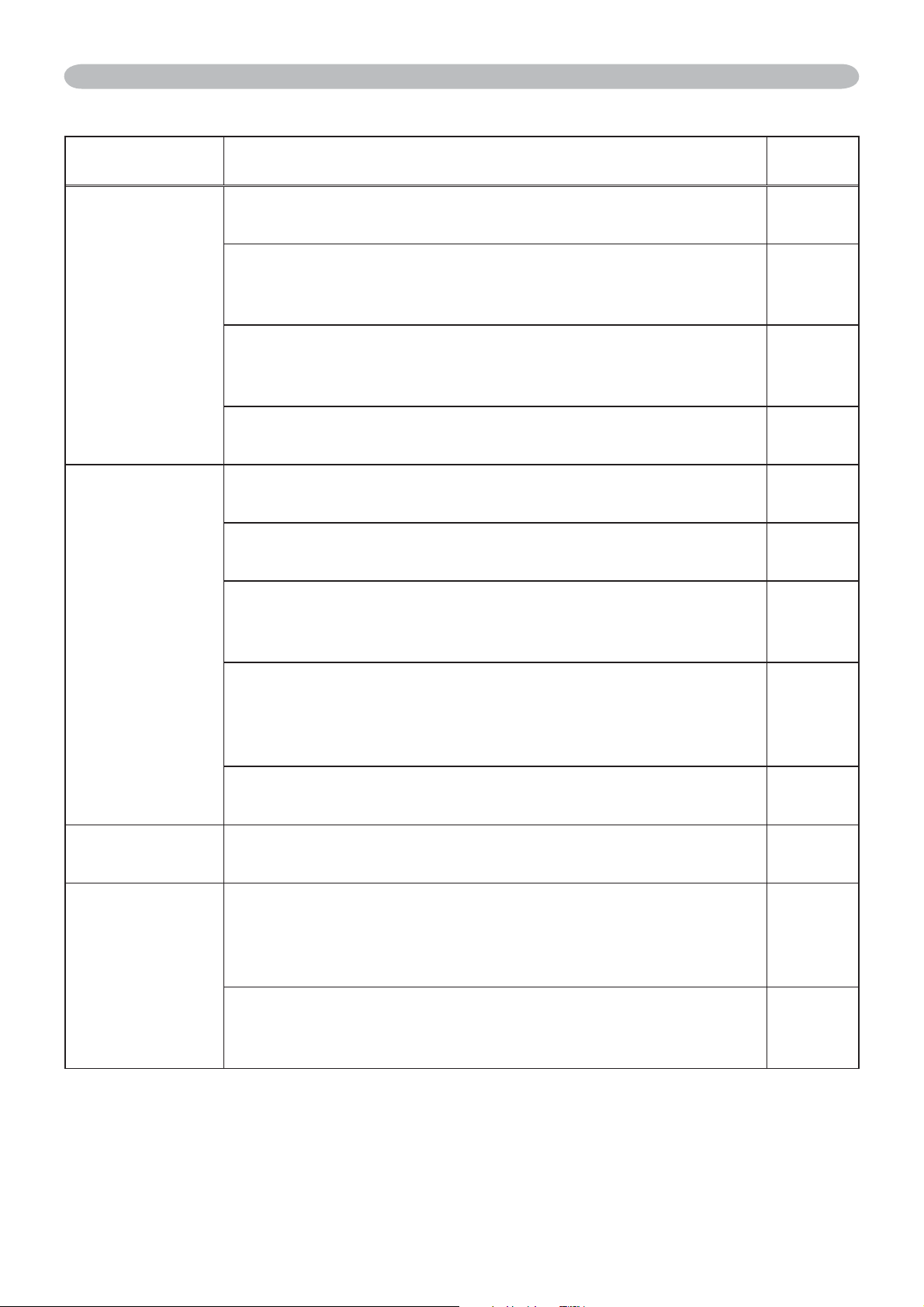
66
Phenomena that may be easy to be mistaken for machine defects (continued)
Phenomenon Cases not involving a machine defect
Reference
page
Sound does not
come out.
The signal cables are not correctly connected.
Correctly connect the audio cables.
10
The MUTE function is working.
Restore the sound pressing the MUTE or VOLUME button
on the remote control.
17
The volume is adjusted to an extremely low level.
Adjust the volume to a higher level using the menu function
or the remote control.
17
The AUDIO setting is not correct.
Correctly set the items in the AUDIO menu.
37
No pictures are
displayed.
The lens cap is attached.
Remove the lens cover.
4, 16
The signal cables are not correctly connected.
Correctly connect the connection cables.
10
The brightness is adjusted to an extremely low level.
Adjust BRIGHTNESS to a higher level using the menu
function or the remote control.
24, 26
The computer cannot detect the projector as a plug
and play monitor.
Make sure that the computer can detect a plug and play
monitor using another plug and play monitor.
11
The BLANK screen is displayed.
Press the BLANK button on the remote control.
22
Video screen
display freezes.
The FREEZE function is working.
Press the FREEZE button to restore the screen to normal.
21
Colors have a
faded- out
appearance, or
Color tone is
poor.
Color settings are not correctly adjusted.
Perform picture adjustments by changing the COLOR
TEMP, COLOR, TINT and/or COLOR SPACE settings,
using the menu functions.
25, 27,
31
COLOR SPACE setting is not suitable.
Change the COLOR SPACE setting to AUTO, RGB,
SMPTE240, REC709 or REC601.
31
Troubleshooting
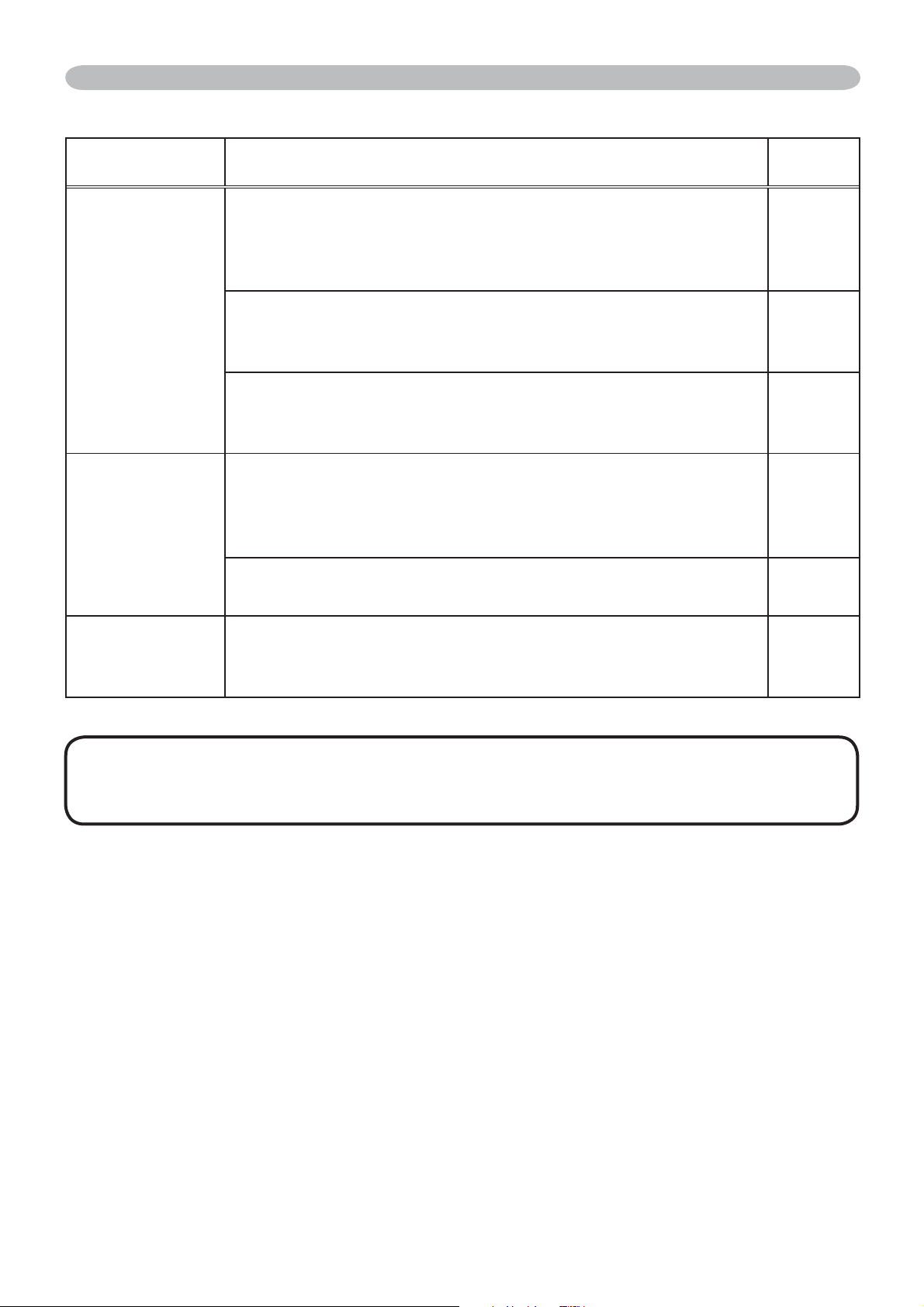
67
Phenomena that may be easy to be mistaken for machine defects (continued)
Phenomenon Cases not involving a machine defect
Reference
page
Pictures appear
dark.
The brightness and/or contrast are adjusted to an
extremely low level.
Adjust BRIGHTNESS and/or CONTRAST settings to a
higher level using the menu function.
24, 25,
26
The WHISPER function is working.
Select NORMAL for the WHISPER item in the SETUP
menu.
25, 36
The lamp is approaching the end of its product
lifetime.
Replace the lamp.
56, 57
Pictures appear
blurry.
Either the focus and/or horizontal phase settings are
not properly adjusted.
Adjust the focus using the focus ring, and/or H PHASE
using the menu function.
19, 30
The lens is dirty or misty.
Clean the lens referring to the section “Caring for the lens”.
61
Pictures are
trembling.
The exhaust ventilation holes at front is blocked by
some objects.
Remove any objects from front side of the projector.
4
Troubleshooting
NOTE • Although bright spots or dark spots may appear on the screen, this
is a unique characteristic of liquid crystal displays, and it does not constitute or
imply a machine defect.
68
:DUUDQW\$QG$IWHU6HUYLFH6SHFLÀFDWLRQ
Warranty and after-service
,IDSUREOHPRFFXUVZLWKWKHHTXLSPHQW¿UVWUHIHUWRWKH³7URXEOHVKRRWLQJ´DQGUXQ
through the suggested checks. If this does not resolve the problem, please contact your
dealer or service company. They will tell you what warranty condition is applied.
6SHFL¿FDWLRQ
Item 6SHFL¿FDWLRQ
Product name Liquid crystal projector
Liquid
Crystal
Panel
Panel size 2.0 cm (0.79 type)
Drive system TFT active matrix
Pixels 786,432 pixels (1024 horizontal x 768 vertical)
Lens Zoom lens F=1.7 ~ 2.1 f=24 ~ 29 mm
Lamp 285W UHB
Speaker 4W x 4
Power supply AC 100-120V/5.0A, AC220-240V/2.1A
Power consumption 460W
Temperature range 5 ~ 35°C (Operating)
Size
418 (W) x 139 (H) x 319 (D) mm
(Not including protruding parts)
3OHDVHUHIHUWRWKHIROORZLQJ¿JXUH
Weight (mass) 7.1 kg
Ports
Optional
parts
Lamp DT00771
$LU¿OWHU MU03642
Others * Please consult your dealer.
RGB input port
RGB1.......D-sub 15pin mini x1
RGB2.......D-sub 15pin mini x1
RGB output port
RGB OUT
..D-sub 15pin mini x1
Digital input port
M1-D..........................M1-D x1
Video input port
Y, C
B
/P
B,
C
R
/P
R
.......... RCA x3
S-VIDEO ................S-video x1
VIDEO .......................Video x1
Audio input port
AUDIO IN1 .......Stereo mini x1
AUDIO IN2 .......Stereo mini x1
AUDIO IN3 ................. RCA x2
AUDIO IN4 ................. RCA x2
Communication port
CONTROL..........
D-sub 9pin x1
Other ports
NETWORK....................RJ45
x1
REMOTE CONTROL
.........................Stereo mini x1
NOTE7KHVHVSHFL¿FDWLRQVDUHVXEMHFWWRFKDQJHZLWKRXWQRWLFH
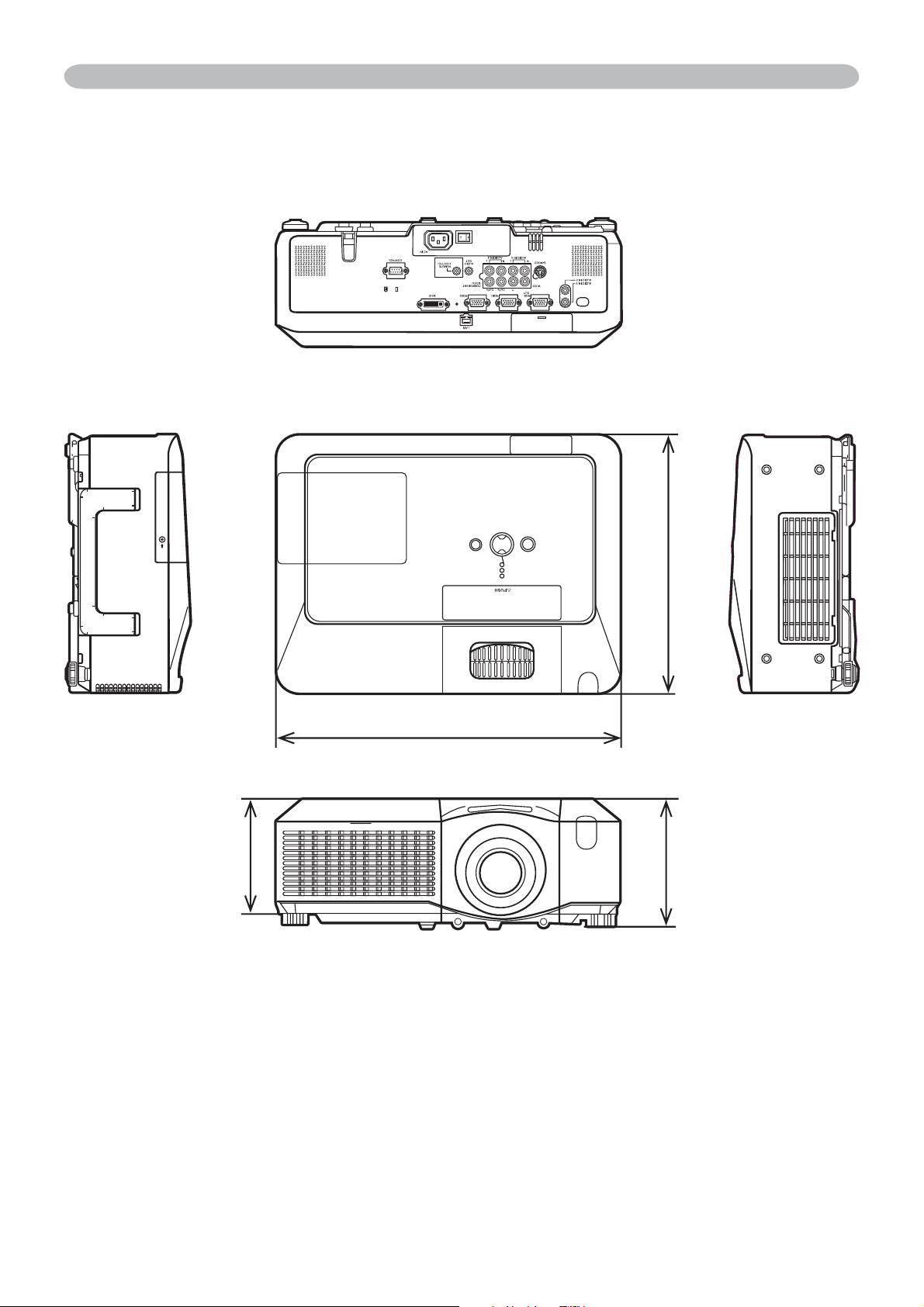
69
6SHFLÀFDWLRQV
6SHFL¿FDWLRQVFRQWLQXHG
418
319
154
139
>XQLWPP@