User manual Television
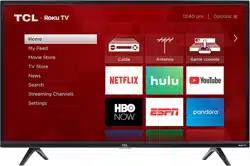
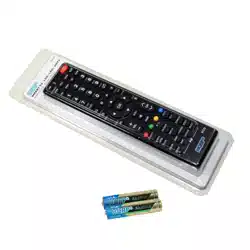
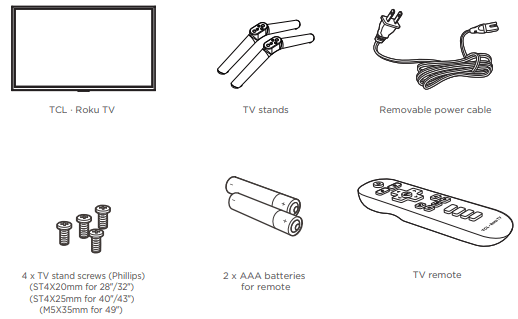
What’s in the box
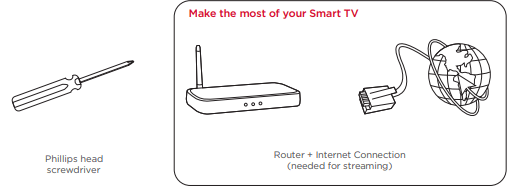
What you need
Step 1 Set up your TV
Ready for the step-by-step? You’re only minutes away from TV bliss!
Remove your TV from the box
Be careful, it’s heavy!
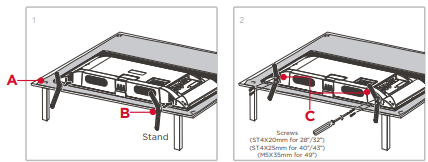
To use the stand
A To prevent damage to the screen, carefully place your TV on a soft, cushioned surface.
B Put the column of the stands into the TV, align the stands with the screw holes located on the TV.
C Secure the stands to the TV with four (4) screws.
To mount on a wall
If you are mounting your tv to the wall, don’t attach the stands.

The VESA number is the horizontal and vertical measurement of the mounting holes. For example, 200X200 refers to the fact that the mounting measurements are 200mm horizontally and 200mm vertically.
Follow the instructions that come with the wall mount.
Your wall mount must be able to bear a minimum of five times the TV’s net weight to avoid causing damage.
Warning:
Never place a television set in an unstable location. A television set may fall, causing serious personal injury or death. Many injuries, particularly to children, can be avoided by taking simple precautions such as:
- Using cabinets or stands recommended by the manufacturer of the television set.
- Only using furniture that can safely support the television set.
- Ensuring the television set is not overhanging the edge of the supporting furniture.
- Not placing the television set on tall furniture (for example, cupboards or bookcases) without anchoring both the furniture and the television set to a suitable support.
- Not placing the television set on cloth or other materials that may be located between the television set and supporting furniture.
- Educating children about the dangers of climbing on furniture to reach the television set or its controls.
If your existing television set is being retained and relocated, the same considerations as above should be applied.
Step 2 Power up
In this step, we’ll make sure all systems are GO!
Power your TV remote by inserting the included batteries.
Connect your power cable to the TV, then plug it in to the wall outlet.
Connect other devices by referencing port label and descriptions on the bottom of page 6.
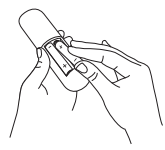
Power Tip! Always replace depleted batteries with two same brand-new batteries from the same manufacturer. Never use damaged batteries.
Step 3 Grab your remote
The TV remote should feel right at home in your hand. We designed it to be incredibly intuitive for watching TV and navigating on-screen menus.
Here’s some buttons you should know about.
A POWER Turn TV on and off
B BACK Return to previous screen
C HOME Return to Roku Home screen
D VOLUME Raise and lower volume
E INSTANT REPLAY Replay the last few seconds.
F OPTIONS View more options
G RWD SCAN Rewind streaming video, scroll left one page at a time
H FWD SCAN Fast forward streaming video, scroll right one page at a time

Tip! The  button gives you easy access to picture settings, display options, and more. Try it on every screen!
Step 4 Get to know your TV
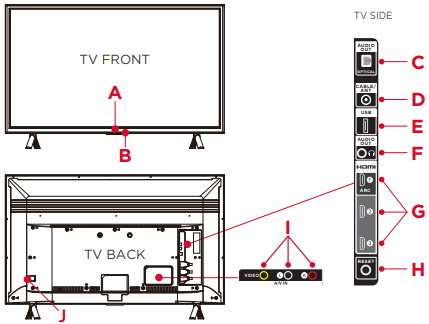
A STATUS LIGHT / REMOTE RECEIVER Point your TV remote here. Glows when the TV is in standby, flashes when the TV is busy, flashes once with each button press of the remote control.
B POWER and OPTIONS BUTTONS Found on the bottom surface of the TV for easy use.
C OPTICAL (AUDIO OUT) Connect an optical cable to an external digital audio system.
D CABLE/ANTENNA IN Connect an outdoor VHF/UHF antenna or Cable TV feed.
E USB PORT Connect a USB device to access your personal photos, music and movies.
F HEADPHONE OUT Connect headphones or other external speakers.
G 3 HDMI® PORTS Highest Quality audio/video connection. Connect cable box, Blu-ray player, gaming console, or other devices to your TV using HDMI cables. HDMI ARC PORT Connect HDMI ARC (audio return channel) capable audio devices like sound bars or AV receivers.
H RESET BUTTON Press and hold for factory reset. Careful, you will lose all your settings!
I A/V IN If your device isn’t able to connect using HDMI®, connect to your TV using standard red/white/yellow cables.
J AC POWER Plug your power cord here.
Step 5 Complete guided setup
Establish your network connection
It’s the final stretch—hurray!
Let’s Connect
Your TV will automatically detect wireless networks in your area. Have your network name and password handy and follow the easy on-screen instructions for the highest performance connection.
Once you’re connected, your TV will automatically update with the latest software—plus you can start streaming the entertainment you know and love. Unlike other TVs, your new TCL • Roku TV automatically receives regular software updates in the background when it’s connected to the internet. This allows it to give you a better and better experience.
If you aren’t ready to connect your TV to a wireless network, you can still use it as a regular TV.
And setup is done…congratulations!
Continue using the remote to personalize your Home screen and channel line-up, stream movies, and so much more.
If you have an antenna or cable connected, just click the tuner tile to watch broadcast TV channels. The fun has just begun!
Troubleshooting
Having trouble completing the guided setup? Don’t worry, it’s usually an easy fix
Cannot connect to wireless network (Wi-Fi)
- Select the correct wireless network name and verify the password entered (case sensitive).
- Relocate the router from objects that interfere with performance (cordless phones, baby monitors, etc. ).
- Reboot the router by disconnecting the power for more than 2 minutes and reconnect.
Problems connecting my cable/satellite box or antenna through a coax cable
- For best performance, use the HDMI connection. If not available, then:
- Make sure the cable connections to the TV and your device are securely fastened.
- Select cable/satellite box or antenna TV input.
- Select “start finding channels” and follow the on-screen instructions to perform a full channel scan.
How do I turn the Text-to-Speech (TTS) audio guide on or off?
Press “*” key on the remote controller four times to turn the audio guide on or off.
OR
- Select “Settings” at home screen
- Select “Accessibility”
- Select “Audio Guide” and turn it on or o�
My picture is too small (black bars on the side)
- Play your movie/video and press the (*) asterisk button.
- Select Picture Size, select the picture size of your preference.
How to install the Remote Control Mobile App
The free Roku app allows you to use your mobile device as a full functioning remote control with voice search & keypad.
- Download the Roku app to your phone or tablet through Google Play or iTunes.
- Simply search for “Roku App” and choose the Roku app by Roku Inc.
- Follow the onscreen prompts and you’re on your way!