En
2
Contents
How to read this manual
! Thank you for purchasing this Pioneer DJ product.
Be sure to read both this manual and the Operating Instructions
(Quick Start Guide). Both contain important information that you
should understand before using this product.
! In this manual, names of channels and buttons indicated on the
product, names of menus in the software, etc., are indicated within
square brackets ([ ]). (e.g. [CH1], [CUE] button, [Start] menu)
Before you start
Supported sources ..................................................................................... 3
Supported media ........................................................................................ 3
Supported music file formats .................................................................... 3
Preparing the software ............................................................................... 4
Obtaining the audio driver software ......................................................... 4
Installing the audio driver software ........................................................... 6
Setting utility software ................................................................................ 7
USB (LINK Export) connections driver software for rekordbox (Mac/
Windows) ..................................................................................................... 7
Connections
Connecting to the input/output terminals................................................ 8
Part names and functions
Power section ............................................................................................ 10
USB section............................................................................................... 10
Deck section .............................................................................................. 11
Browse section ......................................................................................... 16
Mixer/effect section .................................................................................. 23
Operation
Turning the power on ............................................................................... 26
Turning the power off ............................................................................... 26
Connecting and disconnecting USB devices ........................................ 26
Playback .................................................................................................... 26
Outputting sound ..................................................................................... 26
Using the quantize function .................................................................... 27
Calling out settings stored on a USB device .......................................... 27
Changing the color set in the USB device .............................................. 27
Changing the settings .............................................................................. 27
Auto-play mode ......................................................................................... 27
Auto standby function .............................................................................. 27
Language settings .................................................................................... 28
Setting preferences .................................................................................. 28
Using DJ software
Operating DJ software ............................................................................. 29
Additional information
Troubleshooting ........................................................................................ 30
Error messages ......................................................................................... 31
Icons displayed on the display of the main unit..................................... 32
iPhone/iPod ............................................................................................... 32
Trademarks and registered trademarks ................................................. 32
Software license notice ............................................................................ 32
Cautions on copyrights ............................................................................ 32
En
3
Before you start
Before you start
Supported sources
This unit supports the following sources
! USB devices
! Computers
Supported media
This unit supports USB mass storage class devices (external hard disks,
portable flash memory devices, digital audio players, etc.).
Folder levels
Up to 8 levels (files in folders beyond the 8th
level cannot be played)
Maximum number of folders
Unlimited (folders beyond the 10,000th folder
within a single folder cannot be displayed)
Maximum number of files
Unlimited (files beyond the 10,000th file within a
single folder cannot be displayed)
File systems FAT16, FAT32 and HFS+ (NTFS is not supported)
! Tracks managed by rekordbox can be played with this unit by connecting a
mobile device on which rekordbox (for rekordbox (iOS/Android)) is installed with
this unit via USB.
For the latest supported devices, see the following Pioneer DJ support site.
pioneerdj.com/support/
! For details on rekordbox (iOS/Android), see the rekordbox online support site
(rekordbox.com).
! It takes time to read a connected USB device if the device contains many folders
and files.
! Folders and files exceeding the upper limits cannot be displayed.
USB devices that cannot be used
! Optical disc devices such as external DVD/CD drives are not
supported.
! Do not use a USB hub.
! iPod cannot be used. (Music data on iPod touch or iPhone can only
be played on this unit if it is added to the rekordbox (iOS/Android)
library.)
Cautions on using USB devices
! Some USB devices may not operate properly when connected to this
unit. Pioneer DJ will accept no responsibility whatsoever for the loss
of data stored by the user on USB devices, or other direct or indirect
problems arising due to the connection of USB devices to this unit.
! When a current above the permissible level is passed through the
USB device insertion slot of this unit, the USB indicator will flash.
Communication may be stopped by stopping the power supply to
the USB device. To return to normal conditions, please remove the
USB device connected to this unit. Avoid re-using the USB device
for which an excess current has been detected. If the unit does not
return to the normal condition (no communication) after you perform
the above-mentioned procedure, turn the power of this unit off and
then on again.
! If multiple partitions are set on the USB device, only the first partition
can be used. (When rekordbox library information is present, the
partition containing the rekordbox library information has priority.)
! USB devices equipped with flash card readers may not operate when
connected to this unit.
! Depending on the USB device you are using, the desired perfor-
mance may not be achieved.
Supported music file formats
This unit supports the following music file formats.
Type File extension Compatible formats Bit depth Bit rate Sampling frequency
Encoding
method
MP3 .mp3 MPEG-1 AUDIO LAYER-3 16 bit 32 kbps to 320 kbps 32 kHz, 44.1 kHz, 48 kHz CBR, VBR
AAC .m4a, .aac and .mp4
MPEG-4 AAC LC 16 bit 16 kbps to 320 kbps 32 kHz, 44.1 kHz, 48 kHz CBR, VBR
MPEG-2 AAC LC 16 bit 16 kbps to 320 kbps 32 kHz, 44.1 kHz, 48 kHz CBR, VBR
WAV .wav WAV 16 bit, 24 bit — 44.1 kHz, 48 kHz Uncompressed PCM
AIFF .aif, .aiff AIFF 16 bit, 24 bit — 44.1 kHz, 48 kHz Uncompressed PCM
MP3 files
MP3 files support constant bit rate (CBR) and variable bit rate (VBR)
files. Files in both bit rates can be played with this unit, but the searching
speed is slower for VBR files than for CBR files. To prioritize operability,
we recommend recording files in CBR.
AAC files
! AAC is the abbreviation for “Advanced Audio Coding”, a basic format
of audio compression technology used for MPEG-2 and MPEG-4.
! The file format and extension of AAC data depend on the application
used to create the data.
! AAC files with the “.m4a” (encoded with iTunes
®
) , “.aac”, or “.mp4”
extension can be played with this unit. Copyright-protected files such
as those purchased from the iTunes Store cannot be played. Some
files cannot be played with this unit depending on the version of
iTunes used to encode the files.
ID3 tags
The tag information types which can be registered from a music file are
ID3 tags (v1, v1.1, v2.2.0, v2.3.0, and v2.4.0) or meta tags.
Music file artwork
JPEG files with the extension of “.jpg” or “.jpeg” can be added to music
files as artwork.
! Images larger than 800 x 800 pixels cannot be displayed.
Character displays
MP3/AAC
To display the information such as track names written in local charac-
ter codes other than Unicode, select the language in the [LANGUAGE]
setting.
= Language settings (p. 28 )
En
4
Preparing the software
Music management software, rekordbox, and the driver software are not
included with this product.
Access the rekordbox site and Pioneer DJ support site, and download
the rekordbox software and driver software respectively.
! Prepare a computer, network devices, etc., that are required to
access the internet.
rekordbox and rekordbox dj
! rekordbox is a composite software that enables track management
and DJ performances. Music files on computers and mobile devices
can be managed (analysis, setting, creation, and history storage)
with the music management software rekordbox. Excellent DJ per-
formances can be achieved by using the music files managed by
rekordbox together with this unit.
! Enter the license key included with this product to use “rekord-
box dj”, the DJ performance function of rekordbox.
! For information on the latest system requirements, compatibil-
ity, and supported operating systems of rekordbox, see [System
Requirements] from [Support] on the Pioneer DJ website (rekord-
box.com).
! Operation on all computers is not guaranteed, even if the computers
meet the required operating environment.
! The CPU and hard disc may not provide sufficient processing capa-
bilities depending on the power-saving setting, etc. on the computer.
Confirm that the computer meets the conditions to provide constant
high-performance (for example, connecting the computer to a power
outlet to maintain a stable power supply) especially when using
rekordbox on a laptop.
! A separate contract with an Internet service provider and payment of
the utilization fee are required to access the Internet.
! Use the latest version/service pack of the operating system.
Obtaining the rekordbox software
1 Launch a web browser on a computer and access
“rekordbox.com”.
2 Click [Download] in the [Download] menu of
“rekordbox.com”.
The rekordbox download page is displayed.
3 Click the download banner.
Downloading of rekordbox starts.
Installation (for Mac)
Do not connect this unit to a computer until installation and initial
setup have been completed.
! Close all the applications running on the computer before installing
the software.
1 Unzip the downloaded rekordbox software file.
2 Double-click the rekordbox software to launch the
installer.
3 Read the license agreement, and select [Agree] if you
agree to the terms.
Proceed by following the instructions on the screen.
! If you do not agree to the contents of the license agreement, click
[Disagree] to cancel the installation.
4 If the installation completion screen appears, click
[Close] to close the rekordbox installer.
Installation (for Windows)
Do not connect this unit to a computer until installation and initial
setup have been completed.
! Log in to the computer as the administrator before installation.
! Close all the applications running on the computer before installing
the software.
1 Unzip the downloaded rekordbox software file.
2 Double-click the rekordbox software to launch the
installer.
3 Read the license agreement, select [I agree to the
license terms and conditions] if you agree to the terms,
and click [Next].
After the installation destination is specified, the installation starts.
! If you do not agree to the license agreement, click [Close] to cancel
the installation.
4 If the installation completion screen appears, click
[Close] to close the rekordbox installer.
rekordbox (iOS/Android)
Tracks managed by rekordbox can be played by connecting the mobile
device on which rekordbox (iOS/Android) is installed via USB. For the
supported devices, see the Pioneer DJ website (rekordbox.com).
! For details on installing rekordbox (iOS/Android), see the Pioneer DJ
website (rekordbox.com).
Using the online support site
Before making inquiries on rekordbox operating procedures or technical
issues, read the rekordbox (Mac/Windows) user’s manual and online
manual and check the FAQ provided on the rekordbox online support
site.
<rekordbox online support site>
rekordbox.com
Obtaining the audio driver software
This driver software is dedicated to inputting sound to and outputting
sound from a computer. To use this unit while connected to a computer
with Windows, macOS or OS X installed, install this driver software on
the computer beforehand.
Software end user license agreement
This Software End User License Agreement (“Agreement”) is between
you (both the individual installing the Program and any single legal
entity for which the individual is acting) (“You” or “Your”) and Pioneer DJ
Corporation (“Pioneer DJ”).
TAKING ANY STEP TO SET UP OR INSTALL THE PROGRAM MEANS
THAT YOU ACCEPT ALL OF THE TERMS OF THIS LICENSE AGREEMENT.
PERMISSION TO DOWNLOAD AND/OR USE THE PROGRAM IS
EXPRESSLY CONDITIONED ON YOUR FOLLOWING THESE TERMS.
WRITTEN OR ELECTRONIC APPROVAL IS NOT REQUIRED TO MAKE
THIS AGREEMENT VALID AND ENFORCEABLE. IF YOU DO NOT
AGREE TO ALL OF THE TERMS OF THIS AGREEMENT, YOU ARE NOT
AUTHORIZED TO USE THE PROGRAM AND MUST STOP INSTALLING IT
OR UNINSTALL IT, AS APPLICABLE.
1 DEFINITIONS
1 “Documentation” means written documentation, specifications
and help content made generally available by Pioneer DJ to aid in
installing and using the Program.
2 “Program” means all or any part of Pioneer DJ’s software
licensed to You by Pioneer DJ under this Agreement.

En
5
Before you start
2 PROGRAM LICENSE
1 Limited License. Subject to this Agreement’s restrictions,
Pioneer DJ grants to You a limited, non-exclusive, non-transfer-
able, license (without the right to sublicense):
a To install a single copy of the Program in Your computer or
mobile device, to use the Program only for Your personal pur-
pose complying with this Agreement and the Documentation
(“Authorized Use”);
b To use the Documentation in support of Your Authorized Use;
and
c To make one copy of the Program solely for backup pur-
poses, provided that all titles and trademark, copyright and
restricted rights notices are reproduced on the copy.
2 Restrictions. You will not copy or use the Program or
Documentation except as expressly permitted by this Agreement.
You will not transfer, sublicense, rent, lease or lend the Program,
or use it for third-party training, commercial time-sharing or
service bureau use. You will not Yourself or through any third
party modify, reverse engineer, disassemble or decompile the
Program, except to the extent expressly permitted by applicable
law, and then only after You have notified Pioneer DJ in writing of
Your intended activities.
3 Ownership. Pioneer DJ or its licensor retains all right, title
and interest in and to all patent, copyright, trademark, trade
secret and other intellectual property rights in the Program and
Documentation, and any derivative works thereof. You do not
acquire any other rights, express or implied, beyond the limited
license set forth in this Agreement.
4 No Support. Pioneer DJ has no obligation to provide support,
maintenance, upgrades, modifications or new releases for the
Program or Documentation under this Agreement.
3 WARRANTY DISCLAIMER
THE PROGRAM AND DOCUMENTATION ARE PROVIDED “AS IS”
WITHOUT ANY REPRESENTATIONS OR WARRANTIES, AND YOU
AGREE TO USE THEM AT YOUR SOLE RISK. TO THE FULLEST EXTENT
PERMISSIBLE BY LAW, PIONEER DJ EXPRESSLY DISCLAIMS ALL
WARRANTIES OF ANY KIND WITH RESPECT TO THE PROGRAM AND
DOCUMENTATION, WHETHER EXPRESS, IMPLIED, STATUTORY,
OR ARISING OUT OF COURSE OF PERFORMANCE, COURSE OF
DEALING OR USAGE OF TRADE, INCLUDING ANY WARRANTIES
OF MERCHANTABILITY, FITNESS FOR A PARTICULAR PURPOSE,
SATISFACTORY QUALITY, ACCURACY, TITLE OR NON-INFRINGEMENT.
4 EXPORT CONTROL AND COMPLIANCE WITH LAWS
AND REGULATIONS
You may not use or otherwise export or re-export the Program except as
authorized by United States law and the laws of the jurisdiction in which
the Program was obtained. In particular, but without limitation, the
Program may not be exported or re-exported (a) into any U.S.-embargoed
countries or (b) to anyone on the U.S. Treasury Department’s Specially
Designated Nationals List or the U.S. Department of Commerce Denied
Persons List or Entity List. By using the Program, you represent and war-
rant that you are not located in any such country or on any such list. You
also agree that you will not use the Program for any purposes prohibited
by United States law, including, without limitation, the development,
design, manufacture, or production of nuclear, missile, or chemical or
biological weapons.
5 U.S. GOVERNMENT RESTRICTED RIGHTS
The Program and Documentations are “commercial computer software”
and “commercial computer software documentation” as those terms are
defined in 48 C.F.R. §252.227-7014 (a) (1) (2007) and 252.227-7014 (a) (5)
(2007). The U.S. Government’s rights with respect to the Program and
Documentations are limited by this license pursuant to 48 C.F.R. §12.212
(Computer software) (1995) and 48 C.F.R. §12.211 (Technical data) (1995)
and/or 48 C.F.R. §227.7202-3, as applicable. As such, the Program and
Documentations are being licensed to the U.S. Government end users:
(a) only as “commercial items” as that term is defined in 48 C.F.R. §2.101
generally and as incorporated in DFAR 212.102; and (b) with only those
limited rights as are granted to the public pursuant to this license. Under
no circumstance will the U.S. Government or its end users be granted
any greater rights than we grant to other users, as provided for in this
license. Manufacturer is Pioneer DJ Corporation, 6F, Yokohama i-Mark
Place, 4-4-5 Minatomirai, Nishi-ku, Yokohama, Kanagawa, 220-0012
Japan
6 DAMAGES AND REMEDIES FOR BREACH
You agree that any breach of this Agreement’s restrictions would cause
Pioneer DJ irreparable harm for which money damages alone would be
inadequate. In addition to damages and any other remedies to which
Pioneer DJ may be entitled, You agree that Pioneer DJ may seek injunc-
tive relief to prevent the actual, threatened or continued breach of this
Agreement.
7 TERMINATION
Pioneer DJ may terminate this Agreement at any time upon Your breach
of any provision. If this Agreement is terminated, You will stop using
the Program, permanently delete it from your computer or mobile
device where it resides, and destroy all copies of the Program and
Documentation in Your possession, confirming to Pioneer DJ in writing
that You have done so. Sections 2.2, 2.3, 2.4, 3, 4, 5, 6, 7 and 8 will con-
tinue in effect after this Agreement’s termination.
8 GENERAL TERMS
1 Limitation of Liability. In no event will Pioneer DJ or its subsidiar-
ies be liable in connection with this Agreement or its subject
matter, under any theory of liability, for any indirect, incidental,
special, consequential or punitive damages, or damages for lost
profits, revenue, business, savings, data, use, or cost of substi-
tute procurement, even if advised of the possibility of such dam-
ages or if such damages are foreseeable. In no event will Pioneer
DJ’s liability for all damages exceed the amounts actually paid by
You to Pioneer DJ or its subsidiaries for the Program. The parties
acknowledge that the liability limits and risk allocation in this
Agreement are reflected in the Program price and are essential
elements of the bargain between the parties, without which
Pioneer DJ would not have provided the Program or entered into
this Agreement.
2 The limitations or exclusions of warranties and liability contained
in this Agreement do not affect or prejudice Your statutory rights
as consumer and shall apply to You only to the extent such limita-
tions or exclusions are permitted under the laws of the jurisdic-
tion where You are located.
3 Severability and Waiver. If any provision of this Agreement is held
to be illegal, invalid or otherwise unenforceable, that provision
will be enforced to the extent possible or, if incapable of enforce-
ment, deemed to be severed and deleted from this Agreement,
and the remainder will continue in full force and effect. The
waiver by either party of any default or breach of this Agreement
will not waive any other or subsequent default or breach.
4 No Assignment. You may not assign, sell, transfer, delegate or
otherwise dispose of this Agreement or any rights or obligations
under it, whether voluntarily or involuntarily, by operation of law
or otherwise, without Pioneer DJ’s prior written consent. Any
purported assignment, transfer or delegation by You will be null
and void. Subject to the foregoing, this Agreement will be binding
upon and will inure to the benefit of the parties and their respec-
tive successors and assigns.
5 Entire Agreement. This Agreement constitutes the entire agree-
ment between the parties and supersedes all prior or contempo-
raneous agreements or representations, whether written or oral,
concerning its subject matter. This Agreement may not be modi-
fied or amended without Pioneer DJ’s prior and express written
consent, and no other act, document, usage or custom will be
deemed to amend or modify this Agreement.
6 You agree that this Agreement shall be governed and construed
by and under the laws of Japan.
Checking the latest information on the
driver software
For the latest information on the driver software, see the Pioneer DJ
support site below.
pioneerdj.com/support/
En
6
Installing the audio driver software
Notes on installation
! Read Software end user license agreement carefully before installing
the driver software.
! The driver installer includes installation programs in the following 12
languages.
English, French, German, Italian, Dutch, Spanish, Portuguese,
Russian, Chinese (simplified characters), Chinese (traditional char-
acters), Korean, Japanese.
! When using an operating system in languages other than the ones
listed above, select [English] for the installation procedure.
! The driver software is compatible with the following operating
systems.
Supported operating systems
Mac: macOS High Sierra 10.13/Sierra 10.12 (latest update), OS X
10.11 (latest update)
1
Windows: Windows
®
10, Windows
®
8.1,
Windows
®
7 (latest service pack)
32-bit version
1
64-bit version
1
! Turn this unit off, then disconnect the USB cable connecting this
unit and the computer.
! Close all the applications running on the computer before installing
the software.
! If you connect this unit to your computer without installing the driver
software first, an error may occur on your computer depending on
the system environment.
Obtaining the driver software
1 Launch a web browser on a computer and access the
following Pioneer DJ site.
pioneerdj.com
2 Click [Support].
3 Click [Software & firmware updates].
4 Click [XDJ-RR] in the [ALL-IN-ONE DJ SYSTEM]
category.
5 Click [Drivers].
6 Click [Download link] and save the file.
Download either the driver software for Mac or Windows.
Installation (for Mac)
Do not connect this unit and the computer until the installation is
completed.
! To install or uninstall the driver software, you need to be authorized
by the administrator of your computer. Have the name and password
of the administrator of your computer ready in advance.
! Close all the applications running on the computer before installing
the software.
1 Unzip the driver software for Mac (XDJRRM###dmg.
zip) downloaded in Obtaining the driver software.
### indicates the driver software’s version.
2 Double-click the downloaded file
(XDJ-RR_M_#.#.#.dmg).
The contents of [XDJ-RR_M_#.#.#.dmg] are displayed.
“#.#.#” indicates the driver software’s version.
3 Double-click [XDJ-RRAudioDriver.pkg].
The driver software installation screen appears.
4 Read the information displayed on the screen and
click [Continue Anyway] to proceed.
5 When the end user license agreement appears,
select the language for the installation, read [Software
end user license agreement] carefully, and then click
[Continue Anyway].
You can select the desired language from multiple languages according
to the system environment of your computer.
6 Click [I agree] box if you consent to provisions of the
[Software end user license agreement].
If you do not consent to the provisions of the [Software end user
license agreement], click [Disagree] and stop installation.
7 Complete the installation by following the
instructions on the screen.
! To cancel the installation after it has started, click [Cancel].
Precautions when installing the driver
software on macOS High Sierra 10.13
A new security function was added to macOS High Sierra 10.13.
When installing Pioneer DJ driver software on macOS High Sierra 10.13,
the procedure below must be performed to authenticate the driver
software.
The operations described here are required when installing new driver
software on macOS High Sierra 10.13.
These operations are not required for driver software that was already
installed on macOS and OS X before they were upgraded to macOS
High Sierra 10.13.
1 Install Pioneer DJ driver software on macOS High
Sierra 10.13.
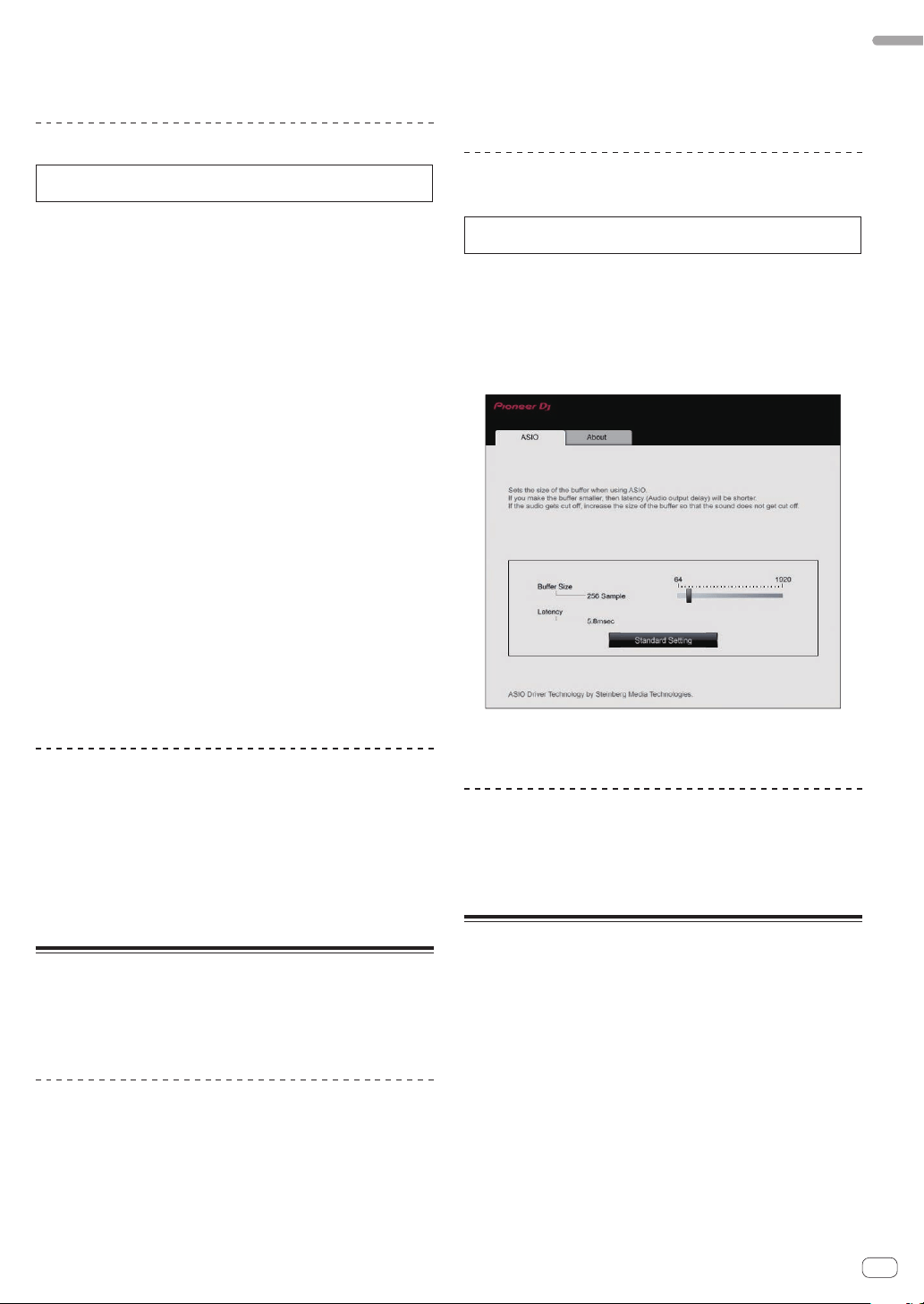
The following dialog box will appear during driver software installation.
2 Click [Security Setting].
The [Security & Privacy] dialog box is displayed.
3 Confirm that [System software from developer
“Pioneer DJ Corporation” was blocked from loading.] is
displayed at the bottom of the screen.
If it is not displayed, reinstall the driver software.
En
7
Before you start
4 Click [Allow] at the bottom right of the screen.
5 When this unit is connected to a Mac, disconnect the
USB cable and then reconnect it again.
Installation (for Windows)
Do not connect this unit and the computer until the installation is
completed.
! To install or uninstall the driver software, you need to be authorized
by the administrator of your computer. Log on as the administrator of
your computer before proceeding with the installation.
! Close all the applications running on the computer before installing
the software.
1 Unzip the driver software for Windows
(XDJRR####exe.zip) downloaded in Obtaining the driver
software.
#### indicates the driver software’s version.
2 Double-click the downloaded driver software
(XDJ-RR_#.###.exe).
The driver software installation screen appears.
#.### indicates the driver software’s version.
3 When the language selection screen appears, select
the language for the installation and then click [OK].
You can select the desired language from multiple languages according
to the system environment of your computer.
4 Read the license agreement, select [Agree] if you
agree to the terms, and click [OK].
If you do not agree to the license agreement, click [Cancel] to cancel the
installation.
5 Complete the installation by following the
instructions on the screen.
If [Windows Security] appears on the screen while the installation is in
progress, click [Install this driver software anyway] to continue the
installation.
! When the installation is completed, a completion message appears.
Connecting this unit and a computer
1 Connect this unit to your computer using a USB cable.
2 Press the [u] switch.
This unit turns on.
! The message [Installing device driver software] may appear when
the unit is first connected to a Windows computer, or when the unit
is connected to a different USB port on the computer. Wait a while
until the message [Your devices are ready for use] appears.
Setting utility software
The setting utility can be used to perform the checks and settings
described below.
— Adjusting the buffer size (when ASIO is used)
— Checking the version of the driver software
Displaying the setting utility
For Mac
Click the [Macintosh HD] icon > [Applications] > [Pioneer] >
[XDJ-RR] > [XDJ-RR driver version display utility].
For Windows 10
Click [Pioneer] > [XDJ-RR Setting Utility] from the [Start] menu.
For Windows 8.1
From [Apps view], click [Pioneer] > [XDJ-RR Setting Utility].
For Windows 7
Click [All Programs] > [Pioneer] > [XDJ-RR] > [XDJ-RR Setting
Utility] from the Windows [Start] menu.
Adjusting the buffer size (when ASIO is
used)
This function can only be used by those using a Windows operating
system.
This unit functions as an audio device conforming to the ASIO
standards.
! If an application using this unit as the default audio device (DJ soft-
ware, etc.) is running, quit the application before adjusting the buffer
size.
! Display the setting utility before starting.
% Click the [ASIO] tab.
! If the buffer size is made large, dropouts in the audio data (interrup-
tions in the sound), etc., tend to occur less, but the time lag due to
the transmission delay (latency) of the audio data may increase.
Checking the version of the driver
software
! Display the setting utility before starting.
% Click the [About] tab.
USB (LINK Export) connections
driver software for rekordbox (Mac/
Windows)
! Dedicated driver software is required for connecting the unit and
rekordbox (Mac/Windows) via USB (LINK Export).
! For the driver software, access the Pioneer DJ support site below and
download the software.
pioneerdj.com/support/
! For information on installing the driver software, see the Pioneer DJ
support site.
En
8
Connections
! Connect the power cord to a power outlet after all the connections are completed.
! Turn off this unit and disconnect the power cord from the power outlet before connecting components or changing the connections.
! Refer to the operating instructions for the components to be connected.
! Be sure to use the supplied power cord.
! Connect this unit and the computer directly using the included USB cable.
Connecting to the input/output terminals
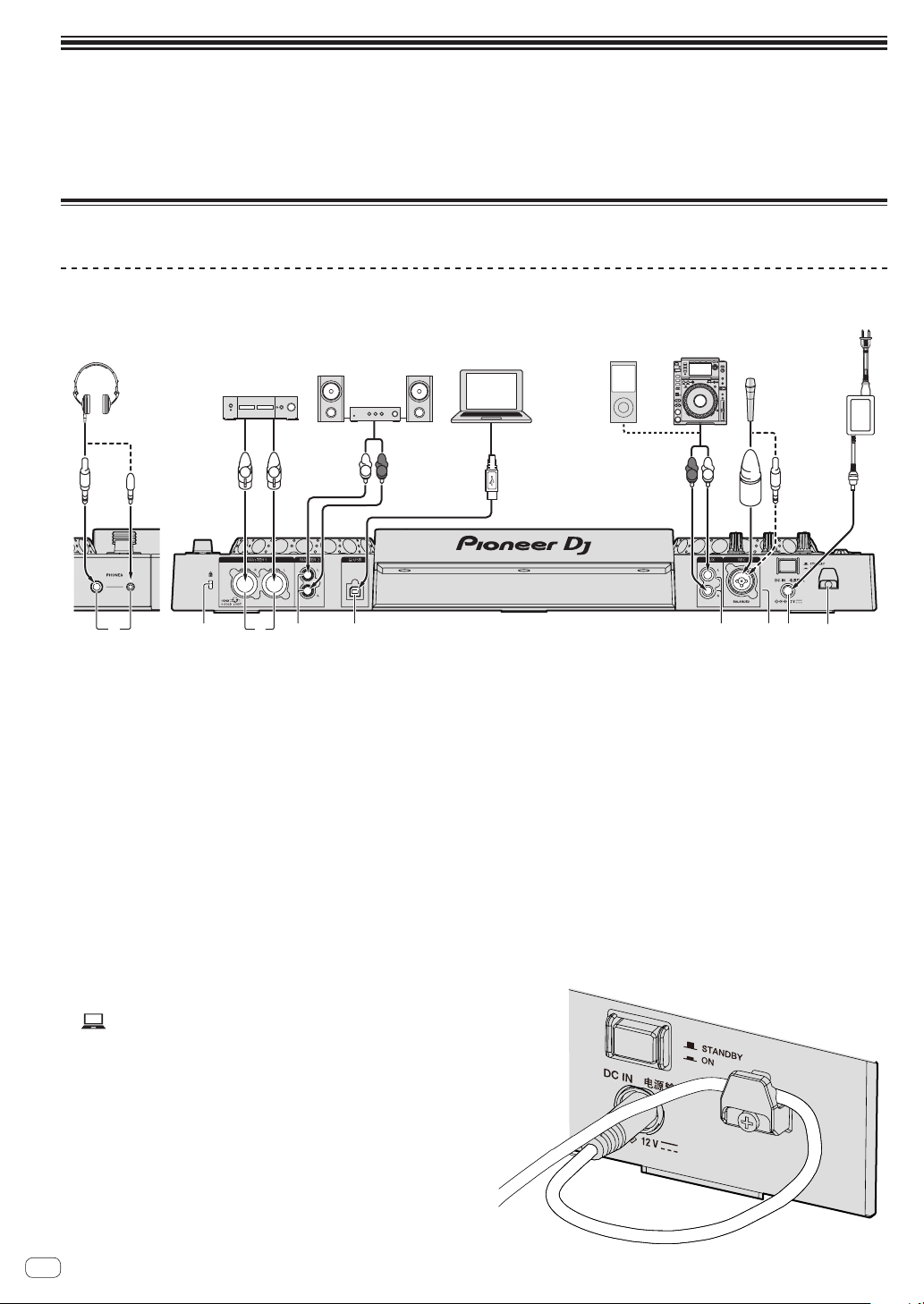
Rear panel, front panel
1 53 42 768
9
R
L
R
L
R
L
Front panel Rear panel
Power amplifier,
powered speakers,
etc.
DJ player
Headphone
s
Power amplifier,
powered speakers, etc.
Computer
Microphone
DJ
software
Portable
audio device
To power outlet
Power cord
(included)
AC adapter
(included)
1 PHONES terminals
Connect headphones.
Stereo phone plugs (ø 6.3 mm) and stereo mini phone plugs
(ø 3.5 mm) can be used.
! Do not use the two output terminals (one for a stereo phone
jack and one for a mini-phone jack) simultaneously. If a cable is
connected to or disconnected from one of the terminals while
another terminal is in use, the volume for the terminal in use may
increase or decrease unintentionally.
2 Kensington security slot
3 MASTER1 terminals
Connect to a power amplifier, powered speakers, etc.
Be sure to use these as balanced outputs.
! Be careful not to accidentally insert the power cord of
another unit.
! Do not connect a terminal that can supply phantom power.
4 MASTER2 terminals
Connect to a power amplifier, powered speakers, etc.
5 USB terminal
Connect to a computer.
! A USB hub cannot be used.
! Connect this unit and the computer directly using the included
USB cable.
! For connecting to XDJ-RR, be sure to use the USB cable supplied
with the unit for optimum performance.
6 AUX terminal
Connect a DJ player or a line level output component.
7 MIC terminal
Connect a microphone.
8 DC IN
Connect the AC adapter.
! Connect the power cord to a power outlet after all the connec-
tions are completed.
! Be sure to use the supplied power cord.
9 Cord hook
Hooking the AC adapter power cord onto the
cord hook
Fasten the AC adapter power cord into place by hooking it onto the cord
hook. This prevents the power cord from being accidentally pulled and
causing the plug to get disconnected from the terminal.
! Do not fasten with the base of the AC adapter power cord bent. If
used continuously under these conditions, the power cord may be
damaged, resulting in faulty contact.
! If the AC adapter is disconnected during playback, the sound will be
interrupted.
En
9
Connections
Basic style
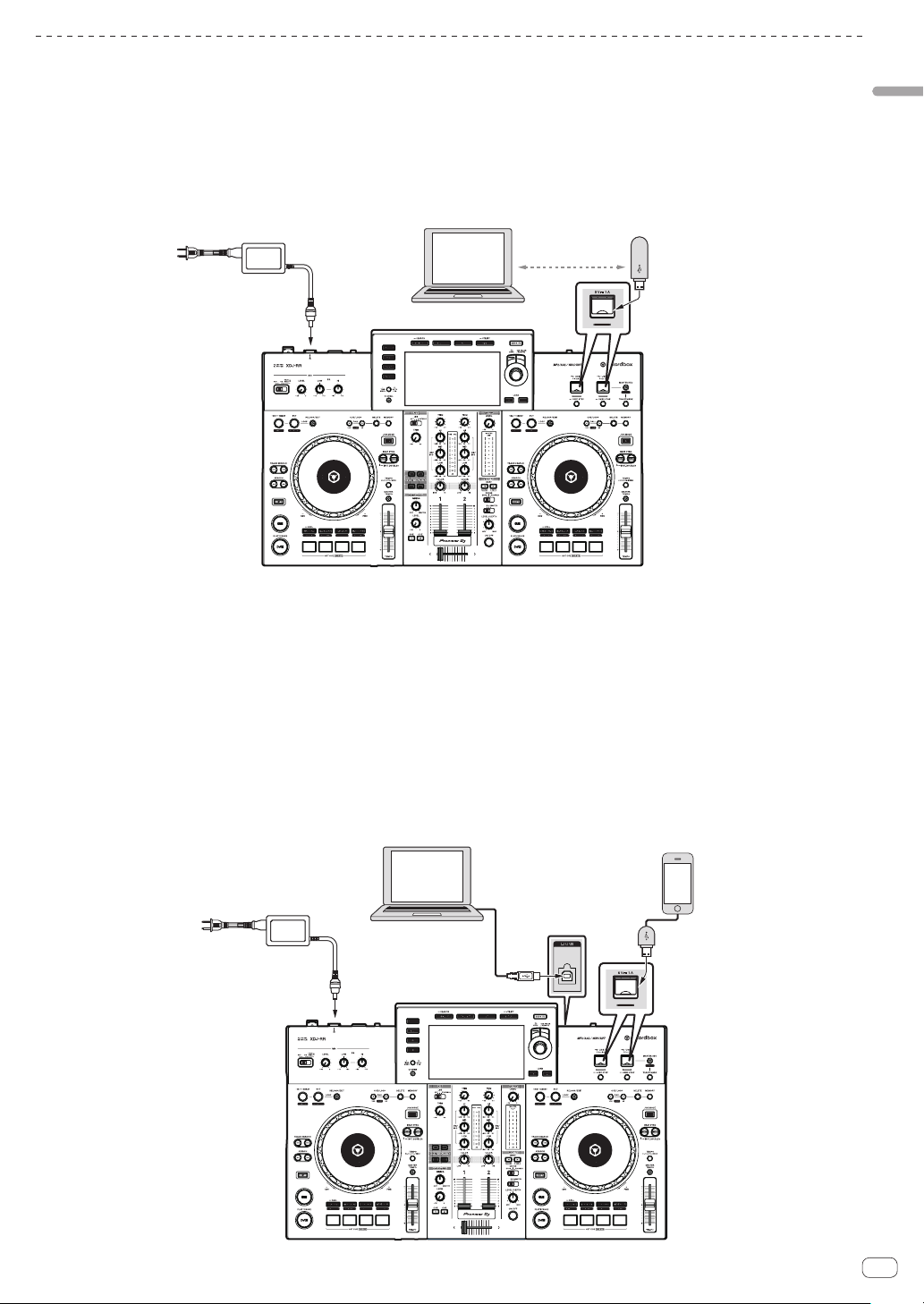
Playback on this unit is performed mainly using tracks prepared with rekordbox installed on a computer.
For rekordbox operations, see the rekordbox (Mac/Windows) user’s manual from the [Help] menu of rekordbox (Mac/Windows).
PRO DJ LINK (USB Export)
You can play music files prepared using rekordbox on this unit and also use the settings such as playlists, cues, loops and hot cues set by rekordbox.
Store music files and settings in a memory device (flash memory, hard disk, etc.) and connect it to this unit. Using PRO DJ LINK eliminates the need to
bring a computer into the DJ booth.
rekordbox
To power outlet
AC adapter
(included)
Computer
USB device on which
rekordbox data is recorded
PRO DJ LINK (LINK Export)
! When a computer on which rekordbox is installed is taken into the DJ booth and connected to this unit using a USB cable, tracks in rekord-
box can be selected and played. You can use the information such as playlists, cues, loops and hot cues that have been set with rekordbox for
performances.
! When a mobile device on which rekordbox (iOS/Android) is installed is connected using a USB cable, tracks in rekordbox can be selected and
played. This makes it possible to use the information such as playlists, cues, loops and hot cues that have been set ahead of time with rekordbox for
performances.
! Use your own cable when connecting this product to an iPhone or iPod.
! The driver software needs to be installed before connecting a computer on which rekordbox (Mac/Windows) is installed via a USB (LINK Export)
connection. For details, see USB (LINK Export) connections driver software for rekordbox (Mac/Windows) on page 7 .
Supported iPhone and iPod
! Made for iPhone X, iPhone 8, iPhone 8 Plus, iPhone 7, iPhone 7 Plus, iPhone SE, iPhone 6s, iPhone 6s Plus, iPhone 6, iPhone 6 Plus, iPhone 5s,
iPhone 5c, iPhone 5, iPod touch (5th and 6th generation).
! For the latest supported devices, see the following Pioneer DJ website.
pioneerdj.com/support/
To power outlet
AC adapter
(included)
Computer
Mobile device on which
rekordbox is installed
rekordbox
Part names and functions
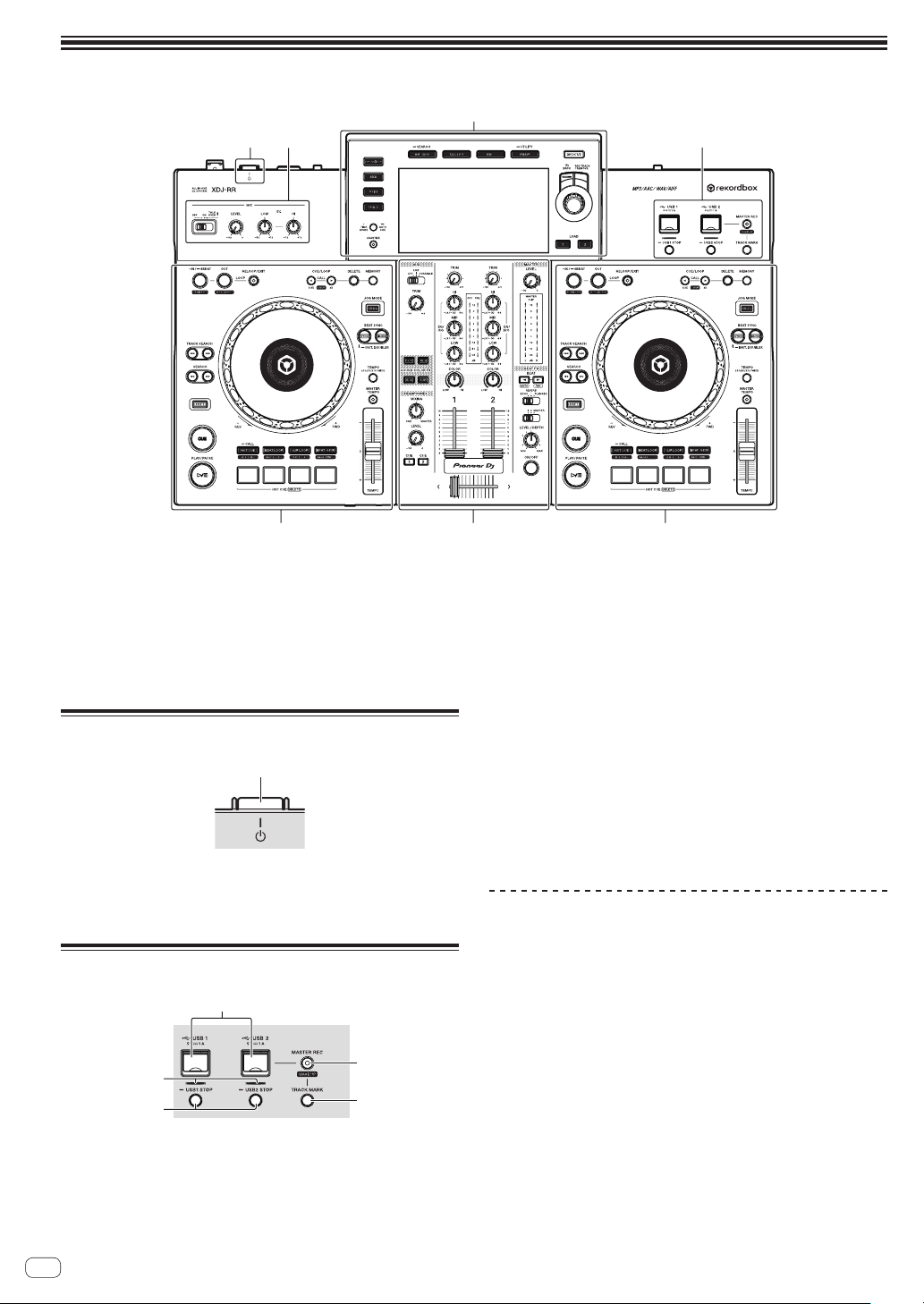
Part names and functions
1
2
3 35
5
4
1 Power section (page 10 )
2 USB section (page 10 )
3 Deck section (page 11 )
4 Browse section (page 16 )
5 Mixer/effect section (page 23 )
Power section
1
1 u switch
Press to turn this unit on and off.
= Turning the power on (p. 26 )
USB section
2
3
5
4
1
1 USB1,2 Insertion slots
Connect USB devices.
= Connecting and disconnecting USB devices (p. 26 )
2 MASTER REC (WAKE UP) button
! MASTER REC: Records sound output from the unit on a USB
device connected to the USB2 slot.
= Recording the performance (p. 10 )
! WAKE UP: Cancels the auto standby mode.
= Auto standby function (p. 27 )
3 TRACK MARK button
Splits a track while the track is being recorded on the USB device.
= Splitting a track while recording (p. 11 )
4 USB1,2 STOP buttons
Press for over 2 seconds before disconnecting USB devices from
this unit.
= Connecting and disconnecting USB devices (p. 26 )
5 USB1,2 indicators
Lights up or flashes when this unit is communicating with the USB
device.
= Connecting and disconnecting USB devices (p. 26 )
Recording the performance
The same sound as the sound being output from the [MASTER] terminal
can be recorded as a WAV file on a USB device.
! The name of the files created when the sound is recorded is in the
format [REC***.WAV] (*** is a 3-digit number).
1 Connect the USB device to the USB2 slot.
2 Press the [MASTER REC (WAKE UP)] button.
Recording starts.
The [MASTER REC (WAKE UP)] button flashes.
! When the [MASTER REC (WAKE UP)] button is pressed again, the
lighting of the [MASTER REC (WAKE UP)] button turns off and
recording stops.
! Up to approximately 90 minutes recording is possible with 1 GB USB
memory.
En
10
En
11
Part names and functions
Splitting a track while recording
Press the [TRACK MARK] button while recording.
The track currently being recorded is split and stored on the USB device.
The file is divided right at the point where the [TRACK MARK] button
is pressed. From this point onwards, the sound can continue to be
recorded as a new file.
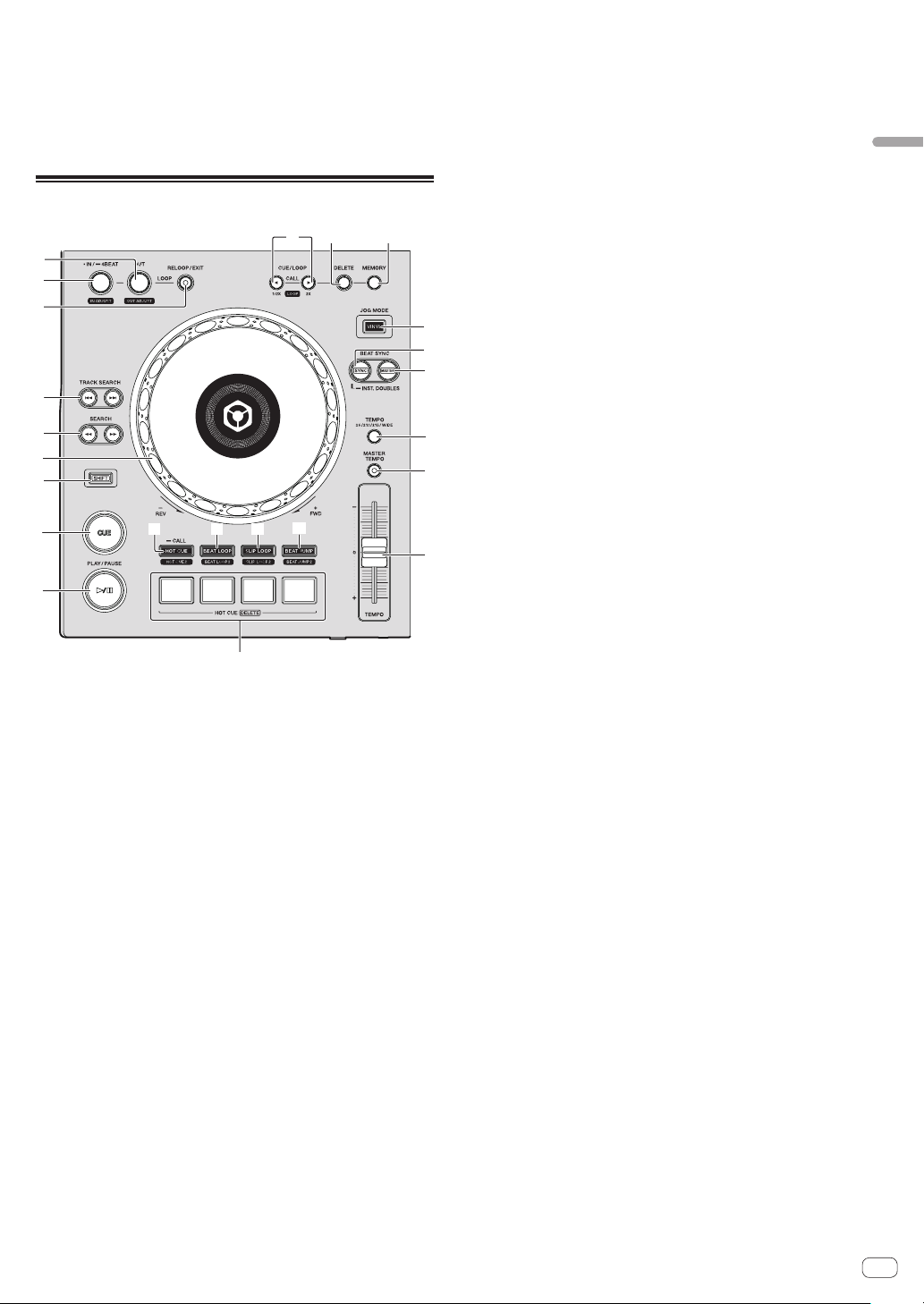
Deck section
k
n
m
l
j
g
f
h
i
1 2 3
4
6
7
8
9
5
e
b c
a
d
1 CUE/LOOP CALL, c (LOOP 1/2X), d (LOOP 2X) buttons
Calls out stored cue and loop points.
= Calling out stored cue or loop points (p. 14 )
When pressed during loop playback, the loop is cut or extended.
= Cutting loops (Loop Cut) (p. 14 )
= Extending loops (Loop Doubling) (p. 14 )
2 DELETE button
Deletes cue and loop points.
= Deleting stored cue or loop points (p. 14 )
3 MEMORY button
Store cue and loop points in the memory.
= Storing cue or loop points (p. 14 )
4 JOG MODE (VINYL) button
Switches between [VINYL] mode and normal mode.
= Switching the jog dial mode (p. 12 )
5 SYNC/INST.DOUBLES button
Synchronizes to the master deck’s tempo.
= Using the sync function (p. 16 )
6 MASTER button
Sets the track loaded in this unit as the master for the beat sync
function.
= Using the sync function (p. 16 )
7 TEMPO RANGE button
Changes the [TEMPO] slider’s range of variation each time the but-
ton is pressed.
= Selecting the playing speed adjustment range (p. 12 )
8 MASTER TEMPO button
Turns on and off the master tempo function.
= Adjusting the playing speed without changing the pitch (Master
Tempo) (p. 12 )
9 TEMPO slider
Adjusts the playing speed of tracks.
= Adjusting the playing speed (Tempo Control) (p. 12 )
a HOT CUE (CALL) button
Switches to hot cue mode.
= Using hot cues (p. 14 )
b BEAT LOOP button
Switches to beat loop mode.
= Using beat loops (p. 15 )
c SLIP LOOP button
Switches to slip loop mode.
= Using slip loop (p. 15 )
d BEAT JUMP button
Switches to beat jump mode.
= Using beat jump (p. 15 )
e Performance buttons
In hot cue mode
= Using hot cues (p. 14 )
In beat loop mode
= Using beat loops (p. 15 )
In slip loop mode
= Using slip loop (p. 15 )
In beat jump mode
= Using beat jump (p. 15 )
f f (PLAY/PAUSE) button
Plays or pauses the track.
= Playback (p. 12 )
g CUE button
Sets a cue point or moves the cue point.
= Setting the Cue point (p. 13 )
h SHIFT button
i Jog dial
! Scratch
When [VINYL] mode is set and the jog dial is turned while touch-
ing a metal part on the top of the dial, the sound is played accord-
ing to the direction and speed at which the jog dial is turned.
= Operating the jog dial (p. 12 )
! Pitch bend
The playing speed can be adjusted by turning the outer part of
the jog dial during playback.
= Operating the jog dial (p. 12 )
j SEARCH m, n buttons
Forwarded/reverses a track while the button is pressed.
= Forward and reverse scanning (p. 12 )
k TRACK SEARCH o, p buttons
Searches for the beginning of tracks.
l RELOOP/EXIT button
Starts loop playback (reloop) or cancels loop playback (loop exit).
= Returning to loop playback (Reloop) (p. 13 )
= Canceling loop playback (Loop Exit) (p. 13 )
m LOOP IN/4BEAT (IN ADJUST) button
Sets and fine-adjusts the loop in point.
= Setting loops (p. 13 )
n LOOP OUT (OUT ADJUST) button
Sets and fine-adjusts the loop out point.
= Setting loops (p. 13 )

Playback
Press the [f (PLAY/PAUSE)] button.
If the auto-play mode of the [UTILITY] screen is off, the track is played to
the end, and then playback stops. The next track is not played.
Pausing
During playback, press the [f (PLAY/PAUSE)] button.
! Playback resumes when the [f (PLAY/PAUSE)] button is pressed
again.
Forward and reverse scanning
Press one of the [SEARCH m, n] buttons.
The track is scanned in the forward or reverse direction while one of the
[SEARCH m, n] buttons is pressed.
! If the auto-play mode of the [UTILITY] screen is off, you cannot
rewind to the previous track or skip ahead to the next track.
! It is not possible to move to a different category or folder during
forward or reverse scanning.
Finding the beginnings of tracks (Track
Search)
Press one of the [TRACK SEARCH o, p] buttons.
Press the [p] to move to the beginning of the next track.
When [o] is pressed, playback returns to the beginning of the cur-
rently playing track. When pressed twice in a row, playback returns to
the beginning of the previous track.
! It is not possible to move to a different category or folder with the
track search function.
Super fast search
Turn the jog dial while pressing one of the
[SEARCH m, n] buttons.
The track is fast-forwarded/fast-reversed in the direction in which the jog
dial is turned.
! When the [SEARCH m, n] button is released, this function is
canceled.
! When you stop the jog dial from spinning, normal playback resumes.
! The fast-forward/fast-reverse speed can be adjusted according to the
speed at which the jog dial is spun.
Super fast track search
Turn the jog dial while pressing one of the
[TRACK SEARCH o, p] buttons.
The track is advanced at high speed in the direction in which the jog dial
is turned.
Adjusting the playing speed (Tempo
Control)
Move the [TEMPO] slider forward or backward.
The playing speed increases when the slider is moved to the [+] side
(towards you), and decreases when the slider is moved to the [–] side
(away from you).
The rate at which the playing speed is changed is indicated on the main
unit display.
Selecting the playing speed adjustment range
Press the [TEMPO RANGE] button.
The playing speed adjustment range switches each time the button is
pressed.
[WIDE, ±16, ±10, ±6] is displayed on the main unit display.
! The speed can be adjusted in increments of 0.02% in the [±6]% set-
ting, 0.05% in the [±10] and [±16]% settings, and 0.5% in the [WIDE]
setting.
! The [WIDE] adjustment range is ±100 %. When set to –100 %, play-
back stops.
Adjusting the playing speed without changing
the pitch (Master Tempo)
Press the [MASTER TEMPO] button.
The [MASTER TEMPO] button lights up. The pitch does not change even
when the playing speed is changed with the [TEMPO] slider.
! The sound is digitally processed, so the sound quality changes.
Operating the jog dial
! The top of the jog dial has an embedded switch. Do not place objects
on the jog dial or subject it to strong impact.
! Water or other liquids getting into the set will lead to a malfunction.
Switching the jog dial mode
The jog dial has two modes.
! [VINYL] mode: When a metal part on the top of jog dial is touched
during playback, playback stops, and when the jog dial is turned at
this point, the sound is output according to the rotation of the jog
dial.
! Normal mode: Playback does not stop even when a metal part on the
top of jog dial is touched. Also, such operations as scratching can-
not be performed.
Press the [JOG MODE (VINYL)] button.
Jog mode switches to [VINYL] mode and the [JOG MODE (VINYL)]
button lights up.
Scratch
When the jog dial is set to [VINYL] mode, the sound can be played
according to the direction and speed at which the jog dial is turned by
turning the jog dial while touching a metal part on the top of the dial.
1 Press the [JOG MODE (VINYL)] button.
Set the jog mode to the [VINYL] mode.
2 During playback, touch a metal part on the top of the
jog dial.
Playback stops.
3 While still touching the metal part on the top of the
jog dial, turn the jog dial in the direction and at the
speed at which you want to play the sound.
The sound is played according to the spinning direction and speed of the
jog dial.
4 Take your finger off the metal part on the top of the
jog dial.
Normal playback resumes.
Pitch bend
During playback, spin the outer section of the jog dial.
The playing speed increases when spun clockwise, and decreases when
spun counterclockwise. When spinning is stopped, playback returns to
the normal speed.
! When jog mode is set to normal mode, the same operation is pos-
sible by spinning the top of the jog dial.
En
12

En
13
Part names and functions
Frame search
In pause mode, spin the jog dial.
The position at which the track is paused can be moved in units of 0.5
frames.
! The approximate time for 0.5 frames is 6.7 msec.
! Spin clockwise to move in the direction of playback, and counter-
clockwise to move in the opposite direction. The position moves 1.8
seconds per one full rotation of the jog dial.
Setting the Cue point
1 During playback, press the [f (PLAY/PAUSE)]
button.
Playback is paused.
2 Press the [CUE] button.
The point at which the track is paused is set as the cue point.
The [f (PLAY/PAUSE)] button flashes and the [CUE] button lights up.
No sound is output at this time.
! When a new cue point is set, the previously set cue point is canceled.
Adjusting the cue point position
1 Press the [SEARCH m, n] buttons while paused at
the cue point.
The [f (PLAY/PAUSE)] and [CUE] buttons flash.
The cue point can be fine-adjusted in steps of 0.5 frames.
2 Press the [CUE] button.
The position at which the button is pressed is set as the new cue point.
! When a new cue point is set, the previously set cue point is canceled.
Returning to the cue point (Back Cue)
During playback, press the [CUE] button.
The set immediately returns to the currently set cue point and pauses.
! When the [f (PLAY/PAUSE)] button is pressed, playback starts
from the cue point.
Checking the cue point (Cue Point Sampler)
Keep pressing the [CUE] button after returning to the
cue point.
Playback starts from the set cue point. Playback continues while the
button is pressed.
! If the [f (PLAY/PAUSE)] button is pressed while sampling the
cue, playback continues even if the [CUE] button is released.
Setting the cue point during playback (Real Time
Cue)
During playback, press the [LOOP IN/4BEAT (IN ADJUST)]
button at the point at which you want to set the cue
point.
The point at which the button is pressed is set as the cue point.
Setting loops
Use this function to play specific sections repeatedly.
The loop playback interval cannot be set for a previous or next track.
! When the quantize function is on, there may be a slight delay in
operation of this function to synchronize the beat.
1 During playback, press the [LOOP IN/4BEAT
(IN ADJUST)] button at the point at which you want to
start loop playback (the loop-in point).
Sets the loop-in point.
! This operation is not necessary if you want to set the currently set
cue point as the loop-in point.
2 Press the [LOOP OUT (OUT ADJUST)] button at the
point at which you want to end loop playback (the loop-
out point).
The loop-out point is set, and loop playback starts.
Fine-adjusting the loop-in point (Loop In Adjust)
1 During loop playback, press the [LOOP IN/4BEAT
(IN ADJUST)] button.
The [LOOP IN/4BEAT (IN ADJUST)] button starts flashing rapidly, and
the [LOOP OUT (OUT ADJUST)] button turns off.
The time of the loop-in point is displayed on the main unit display.
2 Press one of the [SEARCH m, n] buttons.
The loop-in point can be adjusted in units of 0.5 frames.
! The same operation is possible using the jog dial.
! The loop-in point’s range of adjustment is ±30 frames.
! The loop-in point cannot be set at a point beyond the loop-out point.
3 Press the [LOOP IN/4BEAT (IN ADJUST)] button.
Loop playback resumes.
! Normal loop playback also resumes if no operation is performed for
over 10 seconds.
Fine-adjusting the loop-out point (Loop Out
Adjust)
1 During loop playback, press the [LOOP OUT
(OUT ADJUST)] button.
The [LOOP OUT (OUT ADJUST)] button starts flashing rapidly, and the
[LOOP IN/4BEAT (IN ADJUST)] button turns off.
The time of the loop-out point is displayed on the main unit display.
2 Press one of the [SEARCH m, n] buttons.
The loop-out point can be adjusted in units of 0.5 frames.
! The same operation is possible using the jog dial.
! The loop-out point cannot be set at a point before the loop-out point.
3 Press the [LOOP OUT (OUT ADJUST)] button.
Loop playback resumes.
! Normal loop playback also resumes if no operation is performed for
over 10 seconds.
Canceling loop playback (Loop Exit)
During loop playback, press the [RELOOP/EXIT] button.
Playback continues beyond the loop-out point without returning to the
loop-in point.
Returning to loop playback (Reloop)
After canceling loop playback, press the [RELOOP/EXIT]
button during playback.
Playback returns to the previously set loop-in point, and loop playback
resumes.
Setting loops automatically (4-beat Loop)
During playback, press the [LOOP IN/4BEAT (IN ADJUST)]
button for over 1 second.
A loop of 4 beats starting from the point at which the button is pressed
is set automatically according to the BPM of the currently playing track,
and loop playback starts.
! If the track’s BPM cannot be detected, the BPM is set to 120.
Cutting loops (Loop Cut)
During loop playback, press the [CUE/LOOP CALL, c
(LOOP 1/2X)] button.
The time the loop is played is cut in half each time the button is pressed.
Extending loops (Loop Doubling)
During loop playback, press the
[CUE/LOOP CALL, d(LOOP 2X)] button.
The loop’s length is doubled each time the button is pressed.
Using active loops
1 Connect the USB device to this unit.
2 Load a track for which an active loop has been set
with rekordbox.
One loop stored in rekordbox can be set as the active loop.
The set active loop point is displayed as a waveform, as indicated by 1
shown below.
1
When the set point is reached, the loop is set automatically and loop
playback begins.
Emergency loops
With this unit, a 4-beat loop is set automatically to prevent the sound
from being interrupted if a track cannot be played any longer.
! DJ playback is restricted during emergency looping. To cancel emer-
gency looping, load the next track.
Storing cue or loop points
1 Connect the USB device to this unit.
2 Set Cue Point or Loop Point.
3 Press the [MEMORY] button.
[ MEMORY] is displayed on the main unit display for several seconds,
then the point information is stored on the USB device.
Stored cue and loop points are indicated by a [b] at the top of the wave-
form display.
! To store loop points, press the [MEMORY] button during loop
playback.
Calling out stored cue or loop points
1 Connect the USB device to this unit.
2 Load the track containing the cue or loop points you
want to call out.
Stored cue and loop points are indicated by a [b] at the top of the wave-
form display.
3 Press the [CUE/LOOP CALL, c(LOOP 1/2X)] or
[CUE/LOOP CALL, d(LOOP 2X)] button.
Press the [CUE/LOOP CALL, c(LOOP 1/2X)] button to call
out a point before the currently playing position, and press the
[CUE/LOOP CALL, d(LOOP 2X)] button to call out a point after the cur-
rently playing position.
The track jumps to the called out point and pauses.
! When multiple points are stored, a different point is called out each
time the button is pressed.
! Loops set as active loops can also be called out as stored loops.
! If the called out point has a comment set by rekordbox, the comment
is displayed in the area where the name of the track is displayed.
! The set comment list can also be displayed on the track list in the
browse screen by pressing the rotary selector. Also, selecting a com-
ment from the displayed list and pressing the [LOAD 1,2] button will
call out the selected point.
4 Press the [f (PLAY/PAUSE)] button.
Normal or loop playback starts from the point that was called out.
Deleting stored cue or loop points
1 Connect the USB device to this unit.
2 Load the track containing the cue point or loop points
you want to delete.
Stored cue and loop points are indicated by a [b] at the top of the wave-
form display.
3 Press the [CUE/LOOP CALL, c(LOOP 1/2X)] or
[CUE/LOOP CALL, d(LOOP 2X)] button to call out the
point to be deleted.
The track jumps to the called out point and pauses.
! When multiple points are stored, a different point is called out each
time the button is pressed.
4 Press the [DELETE] button.
The main unit display shows [ DELETED], and the selected point
information is deleted.
! When a stored loop set as an active loop is deleted, the active loop is
also deleted.
Using hot cues
When a hot cue is set, that point can be called out and played instanta-
neously. Up to 8 hot cues can be set per music track.
Setting hot cues
1 Press the [HOT CUE (CALL)] button to switch to hot
cue mode.
2 During playback or while pausing, press one of the
Performance buttons at the point at which you want to
set the hot cue.
A hot cue is set at the position at which the button is pressed and the
Performance button lights up. The hot cue is simultaneously stored in
the USB device.
! By pressing the [HOT CUE (CALL)] button in hot cue mode, you can
switch between [HOT CUE] (A, B, C, D) and [HOT CUE2] (E, F, G, H).
! During loop playback, the loop is registered as a hot cue.
! The direction of playback is not recorded for hot cues.
! When a hot cue is set during scratch play, playback may stop
temporarily.
! When the quantize function is on, there may be a slight delay in
operation of this function to synchronize the beat.
! A hot cue which has already been recorded in the Performance
button cannot be re-recorded. To store a new Hot Cue, first delete the
stored Hot Cue.
! The color of the hot cue can be set on this unit or in rekordbox.
When [HOT CUE COLOR] in the [UTILITY] screen is set to [OFF]
Content stored in the hot cue Color
Cue Point Green
Loop Orange
When [HOT CUE COLOR] in the [UTILITY] screen is set to [ON]
En
14
En
15
Part names and functions
Content stored in the hot cue Color
Cue Point
Fixed color of each
button
Loop Orange
Playing hot cues
During playback or while pausing, press one of the
Performance buttons.
The hot cue stored on that button is called out and playback begins.
The information of the loop play stored in a Performance but-
ton is different from the loop playback set by using the
[LOOP IN/4BEAT (IN ADJUST)] or [LOOP OUT (OUT ADJUST)] buttons.
! After the loop stored in the Performance button is called out, you
can cancel the loop playback by using the [RELOOP/EXIT] but-
ton. You can also fine-tune the loop in point with the help of the
[LOOP IN/4BEAT (IN ADJUST)] button or the loop out point with the
help of the [LOOP OUT (OUT ADJUST)] button.
! The information stored in the Performance button changes if adjust-
ments are made.
Calling out hot cues
1 Connect the USB device to this unit.
2 Load the track containing the hot cue you want to call
out.
3 In hot cue mode, press the [HOT CUE (CALL)] button
for over 1 second.
The unit switches to the hot cue call out mode and the Performance but-
tons where hot cues are stored flash.
4 Press the Performance button corresponding to the
Hot Cue to be called out.
The hot cue is called out and the Performance button lights up.
! To not call out a hot cue, press the [HOT CUE (CALL)] button
for over 1 second without pressing the Performance button. The
Performance button for which the hot cue was not called out turns
off.
Calling out hot cues automatically when tracks
are loaded
The settings of this unit can be changed to calling out hot cues auto-
matically when tracks are loaded.
1 Press the [MENU (UTILITY)] button for over 1 second.
2 In the [UTILITY] screen, select [ON], [rekordbox
SETTING] or [OFF] for [HOT CUE AUTO LOAD].
— [ON]:
is displayed for all tracks and hot cues are automatically
called out when the tracks are loaded. Hot cues are also auto-
matically called out when track search is performed.
[A. HOT CUE] on the main unit display lights up in red.
— [rekordbox SETTING]:
is displayed only for the tracks set with rekordbox, and hot
cues are automatically called out when the tracks with dis-
played are loaded. Hot cues are not called out when track search
is performed.
[A. HOT CUE] on the main unit display lights up in white.
— [OFF]:
is not displayed. Hot cues are not called out when tracks are
loaded.
Deleting hot cues
Press one of the Performance buttons while keeping the
[SHIFT] button pressed.
The hot cue stored on the corresponding button is deleted, and a new
hot cue can be stored to the button.
Using beat loops
A loop with the specified number of beats is set based on the BPM and
loop playback starts.
1 Press the [BEAT LOOP] button to switch to beat loop
mode.
2 Press the Performance button corresponding to the
number of beats you want to set.
From the playback position where the Performance button was pressed,
the loops corresponding to the number of beats set are automatically set
according to the tempo (BPM), after which loop playback starts. During
loop playback, the Performance button will flash.
! By pressing the [BEAT LOOP] button in beat loop mode, you can
switch between [BEAT LOOP] (2 beats, 4 beats, 8 beats, or 16 beats)
and [BEAT LOOP2] (1/8 beat, 1/4 beat, 1/2 beat, or 1 beat).
! If the track’s BPM cannot be detected, the BPM is set to 120.
Canceling loop playback
To cancel a loop, either click the Performance button flashing when loop
playback is ON, or press [RELOOP/EXIT] button.
Using slip loop
1 Press the [SLIP LOOP] button to switch to slip loop
mode.
2 Press and hold the Performance button corresponding
to the number of beats you want to set.
Loop playback for which a loop has been set automatically begins.
Normal playback continues in the background even during loop
playback.
If a number of beats for which the length of the loop will exceed 8 sec-
onds has been selected, loop playback will not begin.
! By pressing the [SLIP LOOP] button in slip loop mode, you can
switch between [SLIP LOOP] (1/16 beat, 1/8 beat, 1/4 beat, or 1/2
beat) and [SLIP LOOP2] (1 beat, 2 beats, 1/3 beat, or 3/4 beat).
3 Release your finger from the Performance button.
Normal playback of the sound that was playing in the background
resumes.
Display of the position playing in the background
! When in slip mode, the position currently playing is indicated
by a yellow line on the main unit display’s waveform display
(overall waveform or enlarged waveform). The position playing
in the background is indicated by a white line on the main unit
display’s waveform display (overall waveform).
Using beat jump
The playback position can be moved according to the length of the
selected beat (1 beat, 2 beats, 4 beats, or 8 beats).
! If a loop is set, it operates as a loop move.
1 Press the [BEAT JUMP] button to switch to beat jump
mode.
2 Select the length of the beat and press the
Performance button.
The playback position is moved according to the length of the selected
beat.
! By pressing the [BEAT JUMP] button in beat jump mode, you can
switch between [BEAT JUMP] (1 beat or 2 beats) and [BEAT JUMP2]
(4 beats or 8 beats).
! If the track’s BPM cannot be detected, the BPM is set to 120.
! When the quantize function is on, there may be a slight delay in
operation of this function to synchronize the beat.
Using loop move
The playback position of the loop can be moved according to the length
of the selected beat (1 beat, 2 beats, 4 beats, or 8 beats).
1 Press the [BEAT JUMP] button to switch to beat jump
mode.
2 Set the loop.
3 Select the length of the beat and press the
Performance button.
The playback position of the loop can be moved according to the length
of the selected beat.
! By pressing the [BEAT JUMP] button in beat jump mode, you can
switch between [BEAT JUMP] (1 beat or 2 beats) and [BEAT JUMP2]
(4 beats or 8 beats).
! If the track’s BPM cannot be detected, the BPM is set to 120.
! When the quantize function is on, there may be a slight delay in
operation of this function to synchronize the beat.
Using the sync function
This function can be used to automatically synchronize the tempo (BPM)
and beat positions on the left and right decks based on the tracks’ beat
grid information as analyzed with rekordbox.
! Music files must be analyzed with rekordbox beforehand in order to
use the SYNC function. For instructions on analyzing music files with
rekordbox, see the rekordbox user’s manual.
! The following describes the procedure for synchronizing the
[DECK 2] track with the [DECK 1] track.
1 Play a track that has been analyzed with rekordbox
on [DECK 1].
The deck on which you play a track that has been analyzed with rekord-
box first is set as the master deck.
! The master deck can also be specified by pressing the [MASTER]
button.
2 Play a track that has been analyzed with rekordbox
on [DECK 2].
3 Press the [SYNC/INST.DOUBLES] button of [DECK 2].
[DECK 2] is synchronized to the tempo (BPM) and beat positions of the
track playing on [DECK 1].
! When the [SYNC/INST.DOUBLES] button is pressed again, the SYNC
function turns off.
! Use the procedure below to restore the currently playing
track’s tempo (BPM) to its original tempo after turning the SYNC
function off.
— Move the tempo slider to the position of the synchronized
[TEMPO] (BPM), and then set it back to the center position.
— Reload the same track.
! Depending on the track’s beat information, the sound may not be
synchronized in the SYNC state after the [SYNC/INST.DOUBLES]
button is pressed. If this happens, the sound can be re-synchronized
by pressing the [SYNC/INST.DOUBLES] button to turn SYNC off then
back on.
Using instant double
Playback of a track loaded in the deck not being operated can be started
from the same position on the deck on the operation side.
For details on the operations, see the following.
! Load the track loaded in the deck not being operated into the deck on
the operation side.
! Press the [SYNC/INST.DOUBLES] button of the deck on the opera-
tion side for over 1 second.
! Press the [LOAD 1,2] button twice.
Browse section
2
a
c
e
f
1
3 4
5
6
7
9
8
b
d
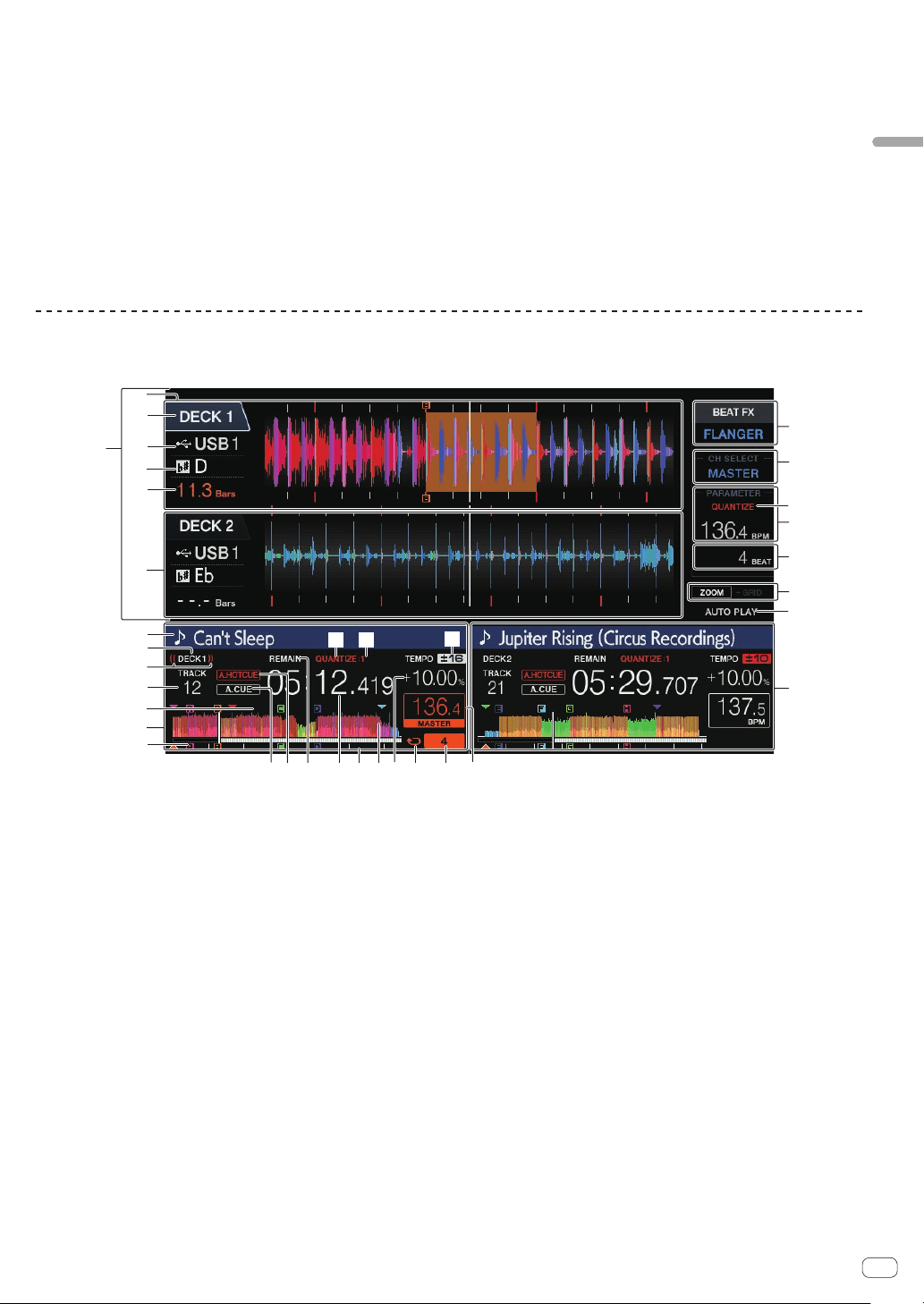
1 BROWSE(SEARCH) button
Displays the [BROWSE] screen.
= Switching to the browse screen (p. 18 )
2 TAG LIST button
Displays the [TAG LIST] screen.
= Editing tag lists (p. 21 )
3 INFO button
Displays the [INFO] screen.
= Displaying the details of the currently loaded track (p. 22 )
4 MENU (UTILITY) button
! Press:
Displays the menu screen.
! Press for over 1 second:
Displays the [UTILITY] screen.
= Changing the settings (p. 27 )
5 DECK1/2 button
! Switches to the deck want to be active.
6 BACK button
! Press:
The screen returns to the layer above.
= Moving back up to a higher layer (p. 19 )
! Press for over 1 second:
The screen moves to the top layer.
= Moving back up to a higher layer (p. 19 )
7 TAG TRACK/REMOVE button
Adds and removes tracks from the tag list.
= Adding tracks to tag lists (p. 21 )
= Removing tracks from tag lists (p. 21 )
8 Rotary selector
9 Main display
= Main display (p. 17 )
a LOAD 1/2 button
Loads the tracks on the specified [DECK].
= Playing music files on media connected to this unit (p. 26 )
b QUANTIZE button
Turns the quantize function on or off.
En
16
En
17
Part names and functions
! When the [QUANTIZE] button is pressed while pressing the
[SHIFT] button, switching is possible only for the deck for which
the [SHIFT] button is pressed.
= Using the quantize function (p. 27 )
c TIME MODE (AUTO CUE) button
! Press:
The main unit display’s time display mode switches to the
elapsed time or remaining time display.
When the [TIME MODE (AUTO CUE)] button is pressed while
pressing the [SHIFT] button, switching is possible only for the
deck for which the [SHIFT] button is pressed.
! Press for over 1 second:
When pressed for over 1 second, auto cue turns on or off.
= Setting auto cue (p. 18 )
d USB1,2 buttons
Press these buttons to display the music files stored on the USB
device connected to USB1 or USB2 and mobile devices on which
rekordbox is installed.
= Playing music files on media connected to this unit (p. 26 )
e MIDI button
Press this button to use rekordbox dj and other DJ software.
= Using DJ software (p. 29 )
f rekordbox button
Press this button to display the music files stored in rekordbox
(EXPORT MODE) connected via PRO DJ LINK (LINK Export).
= Playing the rekordbox library on a computer or mobile device
(p. 26 )
Main display
Normal playback screen
ig h l
2
3
5
7
8
9
6
b
c
e
f
k
q
t
1
2
3
a
d
j
m
po
v
w
x
4
n
u
s
r
1 Information display section
The enlarged waveform analyzed with rekordbox, etc., is displayed.
! The color of the enlarged waveform can be changed using
rekordbox or [MENU (UTILITY)] of this unit.
= Changing the color set in the USB device (p. 27 )
2 DECK1 information
Information regarding DECK1 is displayed.
3 DECK2 information
Information regarding DECK2 is displayed.
4 DECK
This indicates the number of the deck displaying information. It
also indicates whether that deck is active in the Information display
section.
5 Device
Indicates the location of the track.
6 DECK
Indicates the number of the deck whose information is displayed.
7 Key
Indicates the key of the track.
8 Beat count down
Indicates the number of bars or beats from the currently playing
position to the nearest stored cue point.
9 Track names
You can set the background color on rekordbox or this unit.
= Changing the color set in the USB device (p. 27 )
a On Air display
Displayed while sound is output from MASTER OUT.
b Track number display
Indicates the track number (01 – 999).
c Cue/loop/hot cue point memory display
Indicates the positions of cue points, loop points, and hot cue points
stored on the USB device with marks. The colors for cue points and
hot cue points can be set in rekordbox.
d Cue/loop/hot cue point display
Indicates the positions of the set cue points, loop points, and hot cue
points with marks.
e A. CUE
Lights up when auto cue is set.
= Setting auto cue (p. 18 )
f HOT CUE AUTO LOAD
Displayed when [HOT CUE AUTO LOAD] is turned on.
= Calling out hot cues automatically when tracks are loaded (p. 15 )
g REMAIN
Lights up when the time display is set to the remaining time.

h Time display (minutes, seconds, milliseconds)
Displays the remaining time or elapsed time.
i Playing address display/scale display (1-minute
intervals)
The track is displayed as a bar graph. The current playback position
is displayed as a white vertical line. When the elapsed time is dis-
played, the left edge of the graph lights up. When the remaining time
is displayed, the display turns off from the left side. The entire graph
flashes slowly when there are less than 30 seconds remaining in the
track, and begins flashing rapidly when less than 15 seconds remain.
j Waveform display
Displays the waveform of the sound.
The color of the enlarged waveform can be changed using rekordbox
or [MENU (UTILITY)] of this unit.
= Changing the color set in the USB device (p. 27 )
k Playing speed display
The value changes according to the position of the [TEMPO] slider.
l Loop display
Lights up during loop playback.
= Setting loops (p. 13 )
m Loop beat display
Indicates the number of beats currently set in the loop.
n BPM display section (for deck)
Displays BPM (Beats Per Minute) of the track currently being played.
o QUANTIZE (for deck)
Displayed when the quantize function of the deck operation is on.
Displayed in red when the quantize function is enabled, and in gray
when the function is disabled.
= Using the quantize function (p. 27 )
p QUANTIZE BEAT VALUE
Indicates the size of the beat of the quantize function.
q Playing speed adjustment range display
Indicates the range in which the playing speed can be adjusted with
respect to the original playing speed recorded on the medium.
r AUTO PLAY
Lights up when the auto play mode is on in the [UTILITY] screen.
= Auto-play mode (p. 27 )
s ZOOM and GRID ADJUST mode display
When the rotary selector is pressed for over 1 second, the mode
switches between [ZOOM] mode and [GRID ADJUST] mode.
! [ZOOM] mode: Two waveforms can be simultaneously zoomed in
on or out of when the rotary selector is turned.
! [GRID ADJUST] mode: The beat grid of the track loaded in the
active deck can be adjusted when the rotary selector is turned.
The beat grid can be adjusted using the [MENU (UTILITY)]
button.
— [RESET]: Resets the adjusted beat grid.
— [SNAP GRID (CUE)]: Moves the first beat to the position of the
currently set cue.
— [SHIFT GRID]: Reflects the results adjusted by using pitch
bend during SYNC on the beat grid.
t Parameter display section (BEAT)
Displays the parameters specified for the individual effects.
u BPM display section (for effects)
Displays the automatically detected BPM in auto mode.
The color of the characters turns green during manual input mode,
and [TAP] is displayed. This displays the manually input BPM value.
v QUANTIZE (for effects)
Displayed when the quantize function of the beat effect is on.
Displayed in red when the quantize function is enabled, and in gray
when the function is disabled.
= Using the quantize function (p. 27 )
w Channel select display section
The name of the channel to which the effect is applied is displayed.
x Effect name
The name of the selected effect is displayed.
= Using the beat effect function (p. 24 )
Setting auto cue
When a track is loaded or the track search operation is performed, the
silent section at the beginning of the track is skipped and the cue point
is automatically set at the point immediately before the sound starts.
Press the [TIME MODE (AUTO CUE)] button for over 1
second.
Auto cue is set to on.
[A. CUE] is displayed on the main unit display.
! When the [TIME MODE (AUTO CUE)] button is pressed again for
over 1 second, auto cue is set to off.
! The auto cue level setting remains in the memory, even when the
power is turned off.
! When the [TIME MODE (AUTO CUE)] button is pressed for over 1
second while pressing the [SHIFT] button, switching auto cue on/off
is possible only for the deck for which the [SHIFT] button is pressed.
Changing the auto cue level
The cue point to be set as the auto cue can be selected using one of the
methods below.
Setting the cue point by the acoustic pressure level
identified as a silent section (8 levels)
–36 dB, –42 dB, –48 dB, –54 dB, –60 dB, –66 dB, –72 dB and –78 dB
Automatically setting stored cues as cue points
MEMORY: The stored cue point nearest the beginning of the track is set
as the cue point for auto cueing.
! When [MEMORY] is set, [A. CUE] lights up in white on the main unit
display.
! The auto cue level setting remains in the memory, even when the
power is turned off.
1 Press the [MENU (UTILITY)] button for over 1 second.
The [UTILITY] screen is displayed.
2 Turn the rotary selector, then press it.
Select [AUTO CUE LEVEL].
3 Turn the rotary selector, then press it.
The auto cue level setting changes.
Browsing tracks
You can browse the connected devices and the library on the connected
computer to display the tracks in a list on this unit.
! When a USB device that does not contain the rekordbox library infor-
mation is browsed, the folders and tracks (music files) are displayed
in a list with a tree structure.
Switching to the browse screen
Press the device button that corresponds to the device
whose contents you want to display.
When a button is pressed, the contents of the corresponding source are
displayed in a list.
! When the browse screen is displayed, the [BROWSE(SEARCH)] but-
ton lights.
! When the [BROWSE(SEARCH)] button is pressed while the browse
screen is displayed, the browse screen closes and the screen returns
to the normal playback screen.
When the [BROWSE(SEARCH)] button is pressed again, the previous
browse screen opens.
En
18
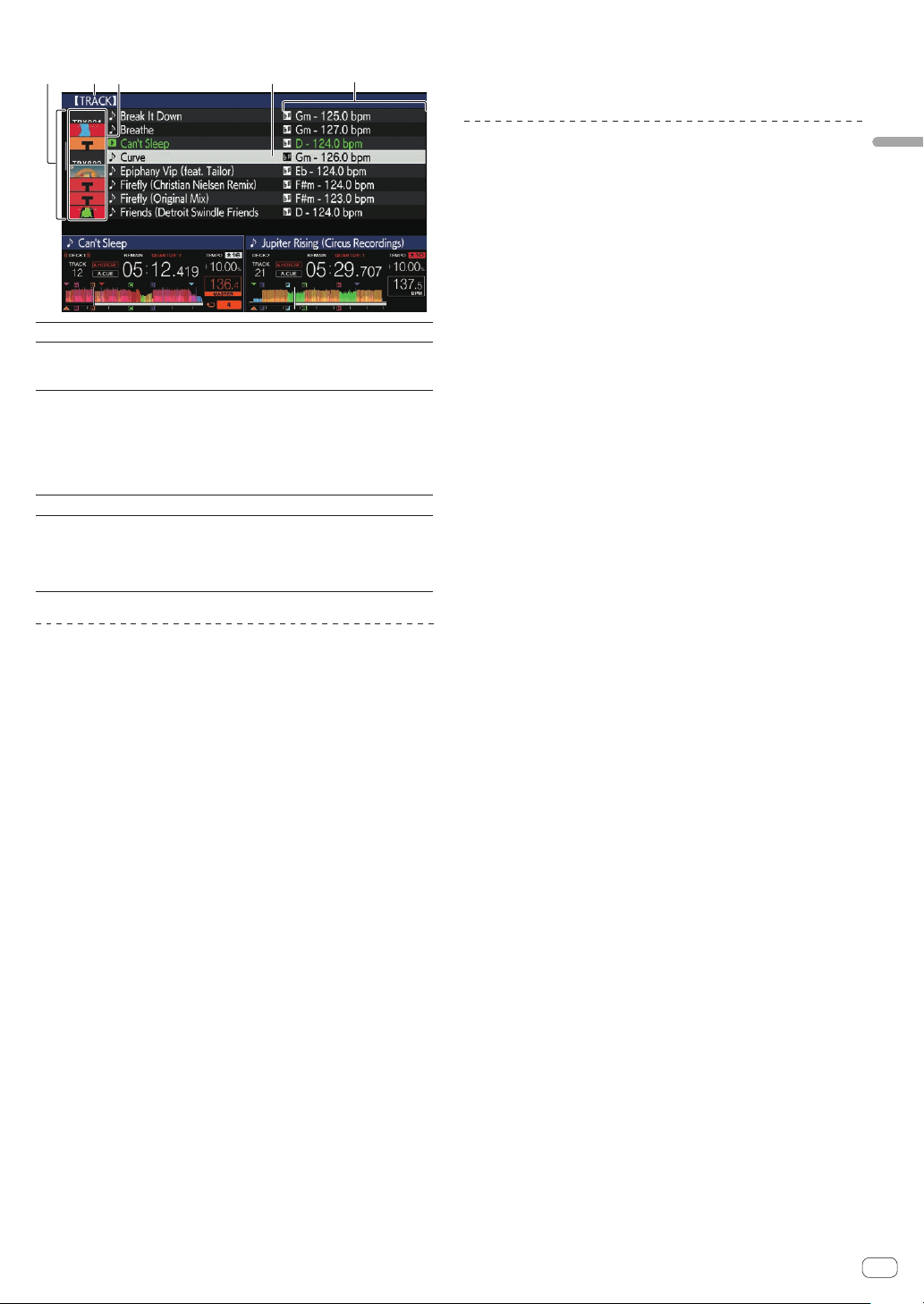
En
19
Part names and functions
Description of the screen
45132
1 List of contents
The contents of the selected medium are displayed.
2 Upper level
The name of the upper folder or media of the selected item
is displayed.
You can set the background color using rekordbox.
3 Jacket photo
Part of the artwork registered in rekordbox is displayed.
When the [INFO] button is pressed, the jacket photo turns off
and the track names are displayed along the left edge.
For lists of playlists and playing histories, a serial number is
displayed.
If there is no rekordbox library, the track names are con-
stantly displayed along the left edge.
4 Cursor
Turn the rotary selector to move the cursor up and down.
5 User-set
categories
The categories displayed in rekordbox can be selected.
When the [INFO] button is pressed, the details of the track
selected with the cursor are displayed.
If there is no rekordbox library, the details of the track
selected with the cursor are displayed.
Basic operations on the browse screen
Selecting items
1 Display the browse screen.
= Switching to the browse screen (p. 18 )
2 Turn the rotary selector to select an item.
The jump function can be used by pressing the rotary selector for over 1
second.
= Searching for tracks using the jump function (p. 19 )
3 Press the rotary selector to enter the item.
When there is a lower layer, that layer opens. When a menu, etc., is
displayed, the selected item is entered.
If the rotary selector is pressed while the cursor is placed over a track
title, the track menu is displayed.
= Track menu (p. 20 )
! If the [LOAD 1,2] button is pressed while the cursor is placed over a
track, the track is loaded to the specified deck of the unit.
Moving back up to a higher layer
Press the [BACK] button while the browse screen is
displayed.
The screen returns to the layer above.
! When the [BACK] button is pressed for over 1 second or the medium
button for the medium being browsed is pressed, the display moves
to the topmost level.
! To play a track on a USB device or a track in the rekordbox library on
a computer or a mobile device, the information below can be viewed
by pressing the [BACK] button at the topmost level.
— When there is no rekordbox library information on the USB
device: Free space and used space in the USB device
— When there is rekordbox library information on the USB device:
Free space and used space, as well as the number of tracks,
number of playlists and last modified datesrecorded in the library
information on the USB device
— rekordbox on a computer or mobile device: The number of tracks
and playlists registered in the library of rekordbox
Other browsing operations
Rearranging tracks (Sort menu)
While browsing, the sort menu can be used to change the order of the
tracks.
! This function only works in the following cases:
— When browsing the rekordbox library on a computer or mobile
device
— When browsing the rekordbox library on a USB device
1 Display the rekordbox library.
2 When a list of the tracks is displayed, press the
[MENU (UTILITY)] button.
The sort menu appears on the screen.
3 Use the rotary selector to select and enter the sort
item.
The tracks on the list are sorted according to the selected item.
! The sort items displayed on the sort menu can be changed in the
rekordbox settings. The rekordbox library on the USB device is
reflected once it is re-exported after changing the settings.
Searching for tracks
! This function only works in the following cases:
— When browsing the rekordbox library on a computer or mobile
device
— When browsing the rekordbox library on a USB device
Searching for tracks using the [SEARCH] category
In library browse mode, tracks can be search for using the [SEARCH]
category.
1 Display the rekordbox library.
2 Use the rotary selector to select and enter the
[SEARCH] category.
A character appears at the bottom of the main unit display.
The [SEARCH] screen can be started by the following methods.
— Press the [BROWSE(SEARCH)] button for over 1 second.
3 Use the rotary selector to input characters.
Only the tracks including the character you have input are displayed.
! When more characters are input, only the tracks including the char-
acter string you have input are displayed.
! When the [BACK] button is pressed, the category selection screen
reappears.
! Tracks can also be searched for by artist, album, comment or file
name.
! When searching for tracks by artist, album, or file name, select
[ARTIST], [ALBUM], or [FILE NAME] for the displayed category in
rekordbox.
Searching for tracks using the key of the track
currently playing
When the displayed category is the key display, the key icon turns green
for tracks whose key is a good match with the key of the track loaded in
the deck set as the sync master.
Searching for tracks using the jump function
The jump function can be used to instantaneously move to the track,
category or folder you want to play.
The jump function includes the two modes below.
! Letter jumping: Use this when the tracks are arranged or sorted in
alphabetical order.
! Page jumping: Use this when tracks are not in alphabetical order or
are not sorted.
Letter jump mode
1 Display a list sorted in alphabetical order.
Display a list sorted in alphabetical order, such as the rekordbox library
or the track list on a USB device.
2 Press the rotary selector for at least 1 second.
The mode switches to letter jump mode. The first letter of the track or
category selected with the cursor is enlarged.
3 Turn the rotary selector to select the character or
symbol.
The cursor moves to tracks or categories starting with the selected
character.
! If there are no tracks or categories starting with the selected charac-
ter on the list, the cursor does not move.
The characters displayed in letter jump mode are the letters A to Z,
numbers 0 to 9 and certain symbols.
Page jump mode
1 Display a list not sorted in alphabetical order.
Display a list that is not sorted in alphabetical order such as folders on a
USB device.
2 Press the rotary selector for at least 1 second.
The mode switches to page jump mode.
3 Turn the rotary selector to select the page.
The display moves to the selected page.
Using the information jump function
The categories to which tracks belong can be displayed by selecting
items displayed in the details. This function is convenient for search-
ing for tracks in the same genre as the loaded track, tracks with similar
BPMs, etc.
1 Load a track.
2 On the normal playback screen, press the [INFO]
button.
Details of the track are displayed.
= Displaying the details of the currently loaded track (p. 22 )
3 Select and enter the item.
The screen switches to the browse screen and the category for the
selected item is displayed.
! To close the browse screen, press the [BROWSE(SEARCH)] button.
! It may not be possible to select items, example, for items with noth-
ing to be displayed on the browse screen, items for which only icons
are displayed in the details, etc.
! When a track is selected, the browse screen displayed directly before
the track was loaded is displayed.
! If the connected USB device does not contain the rekordbox library,
the tracks can only be selected.
Track menu
When the rotary selector is pressed while the track is selected or one
of the comments in the comments list of loop/memory cue is selected,
track menu is displayed. The track menu can be executed by using rotary
selector.
Track
menu
Browse Tag List
Comments list of
memory cue/loop
LOAD TO
DECK1
The track is loaded in [DECK1] and
playback starts.
The selected point can be
called out to [DECK1].
LOAD TO
DECK2
The track is loaded in [DECK2] and
playback starts.
The selected point can be
called out to [DECK2].
Track
menu
Browse Tag List
Comments list of
memory cue/loop
CUE/LOOP
LIST
The comments list
for the memory cue
set in rekordbox is
displayed.
— —
CANCEL
Exiting from the Track menu.
Playing history (HISTORY)
The track playback history is stored and can be displayed in the
[HISTORY] category on the browse screen.
! Playlists can be created based on the playing history in [HISTORY]
using rekordbox. For details, see the rekordbox (Mac/Windows)
user’s manual.
Storing the playing history
1 Connect the USB device to this unit.
2 Play tracks.
Tracks that have been played for approximately 1 minute are stored on
the playing history list.
! When a USB device is connected to this unit for the first time or
when it is reconnected to this unit, a new playing history is automati-
cally created on the USB device.
! When the same track is played two or more times consecutively, it
may not be stored in the history.
! The maximum number of tracks that can be stored on a playing
history list is 999. From the 1 000th track on, the oldest entries on the
playing history are deleted to make room for new entries. Up to 999
playing history lists can be created.
! When tracks are registered on the playing history list, their track
names, etc., are displayed in green (indicating that they have been
played).
! Names, etc. of the tracks in the [PLAYLIST] category can be changed
to green (played) using the [MENU (UTILITY)] button. When
changed, the tracks are registered in the playing history list.
Deleting the playing history
1 Connect the USB device to this unit.
2 Display the rekordbox library.
3 Use the rotary selector to select and enter the
[HISTORY] category.
A list of the playing history lists is displayed.
4 Turn the rotary selector and select the playing history
list to be deleted.
5 Press the [MENU (UTILITY)] button.
The delete menu is displayed.
6 Turn the rotary selector to select and enter the
deletion range.
! [DELETE]: The currently selected playing history list is deleted.
! [ALL DELETE]: All the playing history lists are deleted.
! When a USB device’s playing history is loaded as a rekordbox playl-
ist, the previously loaded playing history is deleted from the USB
device.
! Names, etc. of the tracks in the [PLAYLIST] category can be changed
from green (played) to white (not played) using [MENU (UTILITY)].
When changed, the tracks are deleted from the playing history list.
7 Use the rotary selector to select and enter [OK].
En
20
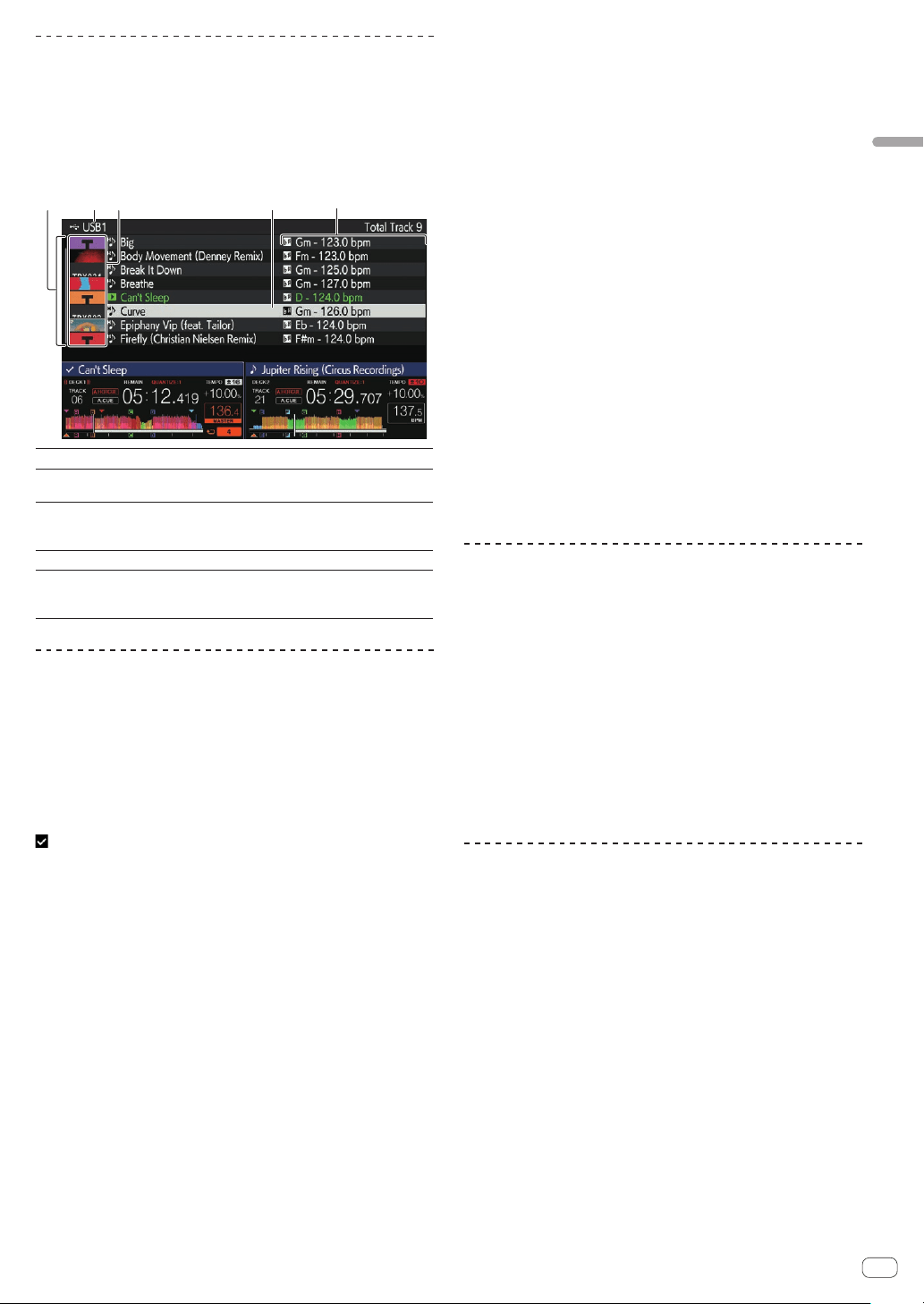
En
21
Part names and functions
Editing tag lists
Tracks to be played next or tracks selected according to DJ situations
can be marked and collected in lists. The list of collected tracks is called
a “tag list”.
! Up to 100 tracks per device can be added to a tag list.
! One tag list can be created per USB device. It is not possible to make
a tag list containing tracks on different USB devices.
! It is not possible to register the same track in the same folder twice.
45132
1 List of contents
The contents of the tag list are displayed.
2 Medium name
The name of the medium on which the track is recorded is
displayed.
3 Jacket photo
Part of the artwork registered in rekordbox is displayed.
When the [INFO] button is pressed, the jacket photo turns off
and serial numbers are displayed.
4 Cursor
Turn the rotary selector to move the cursor up and down.
5 User-set
categories
The categories displayed in rekordbox can be selected.
When the [INFO] button is pressed, the details of the track
selected with the cursor are displayed.
Adding tracks to tag lists
Selecting and adding tracks
1 Switch to the browse screen and display the list of
tracks.
2 Set the cursor to the track and press the [TAG TRACK/
REMOVE] button.
is displayed on the left side of the track, and the track is added to the
tag list of that USB device.
! Tracks can be recorded in the tag list before using rekordbox.
= For the operation, see the rekordbox (Mac/Windows)
user’s manual.
Adding loaded tracks
1 Load a track.
2 On the normal playback screen, press the [INFO]
button.
3 Press the [TAG TRACK/REMOVE] button.
The track loaded in this unit is added to the tag list.
! The track loaded in the active deck can also be added to the tag list
by pressing the [TAG TRACK/REMOVE] button in the normal play-
back screen.
Adding entire categories or folders
All the tracks in a selected category or folder can be added to a tag list.
1 Switch to the browse screen and select a category or
folder that has tracks directly under it.
A list of the tracks is displayed on the right half of the information display
screen.
2 Set the cursor to the category or folder, then press
the [TAG TRACK/REMOVE] button.
The category or folder name flashes, and all the tracks in that category or
folder are added to the tag list.
! When folders are added while in folder browse mode, tracks for
which ID3 tags, etc., have never been loaded are registered using the
file name as the track name. The artist names are not registered.
! After tracks have been added to the tag list, when the registered
tracks are displayed in the track list on the browse screen or are
loaded in a player and their ID3 tags, etc., are loaded, the file names
switch to the track names and the artist names are also registered.
Adding tracks from playlists
All the tracks on a selected playlist can be added to a tag list.
1 Switch to the browse screen and select and enter the
[PLAYLIST] category.
A list of the playlists is displayed, and a list of the tracks is displayed on
the right half of the information display screen.
2 Set the cursor to the playlist, then press the
[TAG TRACK/REMOVE] button.
The playlist name flashes, and all the tracks on that playlist are added to
the tag list.
Loading tracks from tag lists
1 Press the [TAG LIST] button.
The tag list is displayed.
2 Use the rotary selector to select and enter [USB1] or
[USB2].
The tag list in the selected USB device is displayed.
3 Use the rotary selector to select and enter the track
you want to load.
! If the rotary selector is pressed while the cursor is placed over a track
title, the track menu is displayed.
= Track menu (p. 20 )
! If the [LOAD 1,2] button is pressed while the cursor is placed over a
track, the track is loaded to the specified deck of the unit.
Removing tracks from tag lists
Tracks can be removed from tag lists.
Removing one track at a time
1 Press the [TAG LIST] button.
The tag list is displayed.
2 Use the rotary selector to select and enter [USB1] or
[USB2].
The tag list in the selected USB device is displayed.
3 Use the rotary selector to set the cursor to the track
you want to remove.
4 Press the [TAG TRACK/REMOVE] button for over 1
second.
Tracks can be removed from tag lists by pressing the [TAG TRACK/
REMOVE] button at the screens and in the situations described below.
! When the cursor is set to a track registered in the tag list on the
browse screen
! When the normal playback screen or a track’s details screen is
displayed while a track registered in the tag list is loaded
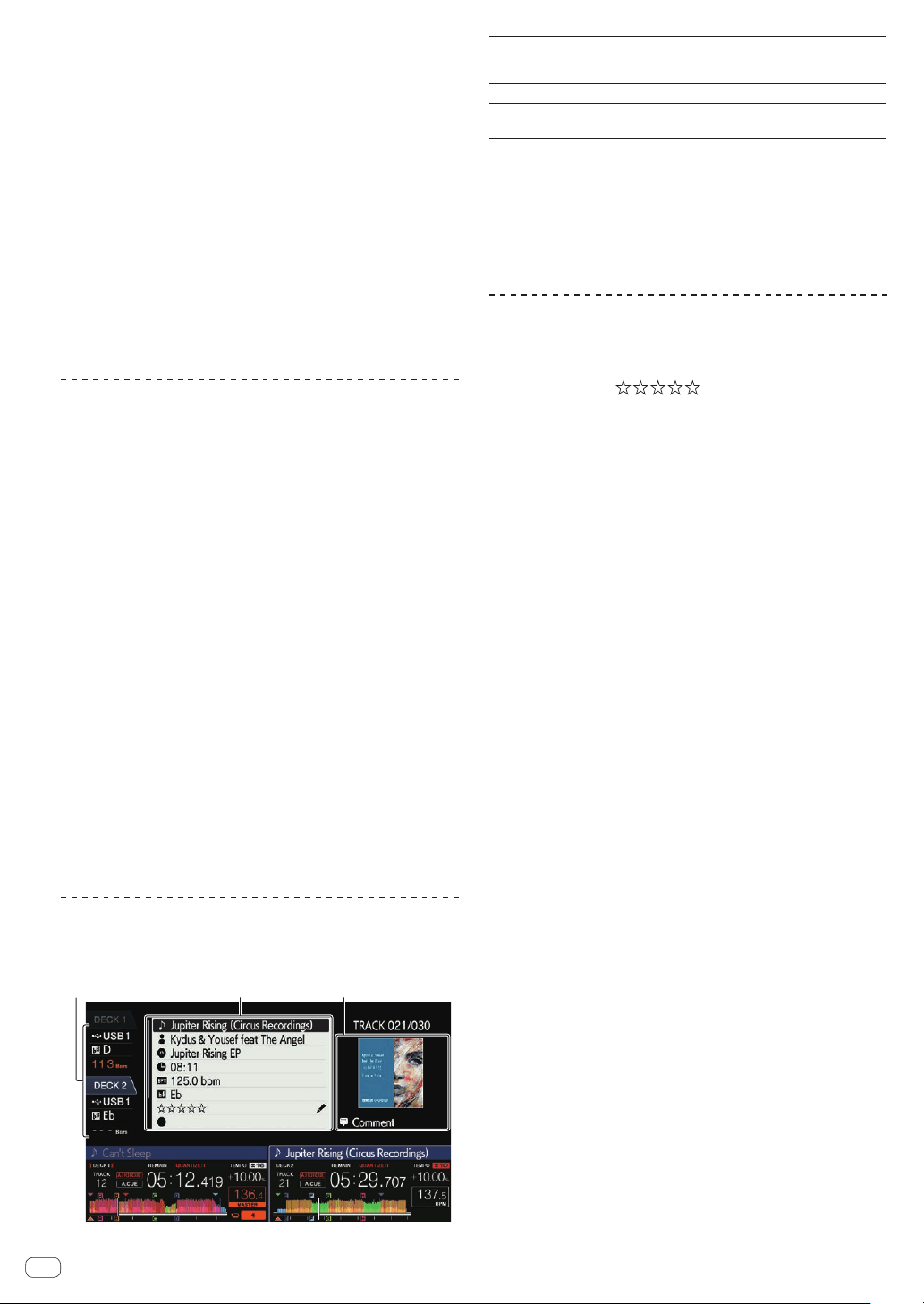
Removing all the tracks
1 Press the [TAG LIST] button.
The tag list is displayed.
2 Use the rotary selector to select and enter [USB1] or
[USB2].
The tag list in the selected USB device is displayed.
3 Press the [MENU (UTILITY)] button.
The [LIST MENU] is displayed.
4 Use the rotary selector to select and enter the
[TAGLIST MENU].
The [TAGLIST MENU] is displayed.
5 Use the rotary selector to select and enter [REMOVE
ALL TRACKS].
6 Use the rotary selector to select and enter [OK].
Transforming a tag list into a playlist
Tracks collected in tag lists can be converted into playlists.
! Converted playlists are displayed as items in the [PLAYLIST]
category.
1 Press the [TAG LIST] button.
The tag list is displayed.
2 Use the rotary selector to select and enter [USB1] or
[USB2].
The tag list in the selected USB device is displayed.
3 Press the [MENU (UTILITY)] button.
The [LIST MENU] is displayed.
4 Use the rotary selector to select and enter the
[TAGLIST MENU].
The [TAGLIST MENU] is displayed.
5 Use the rotary selector to select and enter [CREATE
PLAYLIST].
6 Use the rotary selector to select and enter [OK].
The contents of the tag list are converted into a playlist with the name
[TAG LIST XXX].
! If no rekordbox library information is stored on the USB device, the
tag list cannot be converted into a playlist.
! When tag lists include both tracks being managed with rekordbox
and tracks not being managed with rekordbox, only the tracks being
managed with rekordbox are converted into playlists.
Displaying the details of the currently
loaded track
The details of the currently loaded track can be checked.
132
1 Deck information
display
The deck where the track whose information is displayed
is loaded, and the information such as the interface where
the device containing the track is connected are displayed.
2 Track details
Detailed information on the loaded tracks is displayed.
3 Jacket photo and
comment
The jacket photo and comments about the loaded track
are displayed.
1 Load a track.
2 On the normal playback screen, press the [INFO]
button.
Details of the track are displayed.
! Use [DECK1/2] button to select the [DECK] on which you want to see
the track information.
Changing track ratings
The track ratings can be changed.
1 Select the rating displayed in the detailed information
(display example: ).
2 Press the rotary selector for over 1 second, then turn
the rotary selector clockwise or counterclockwise.
The rating of the loaded track is changed.
! Use the [DECK1/2] button to select the [DECK] to which the track
you want to edit is loaded.
En
22
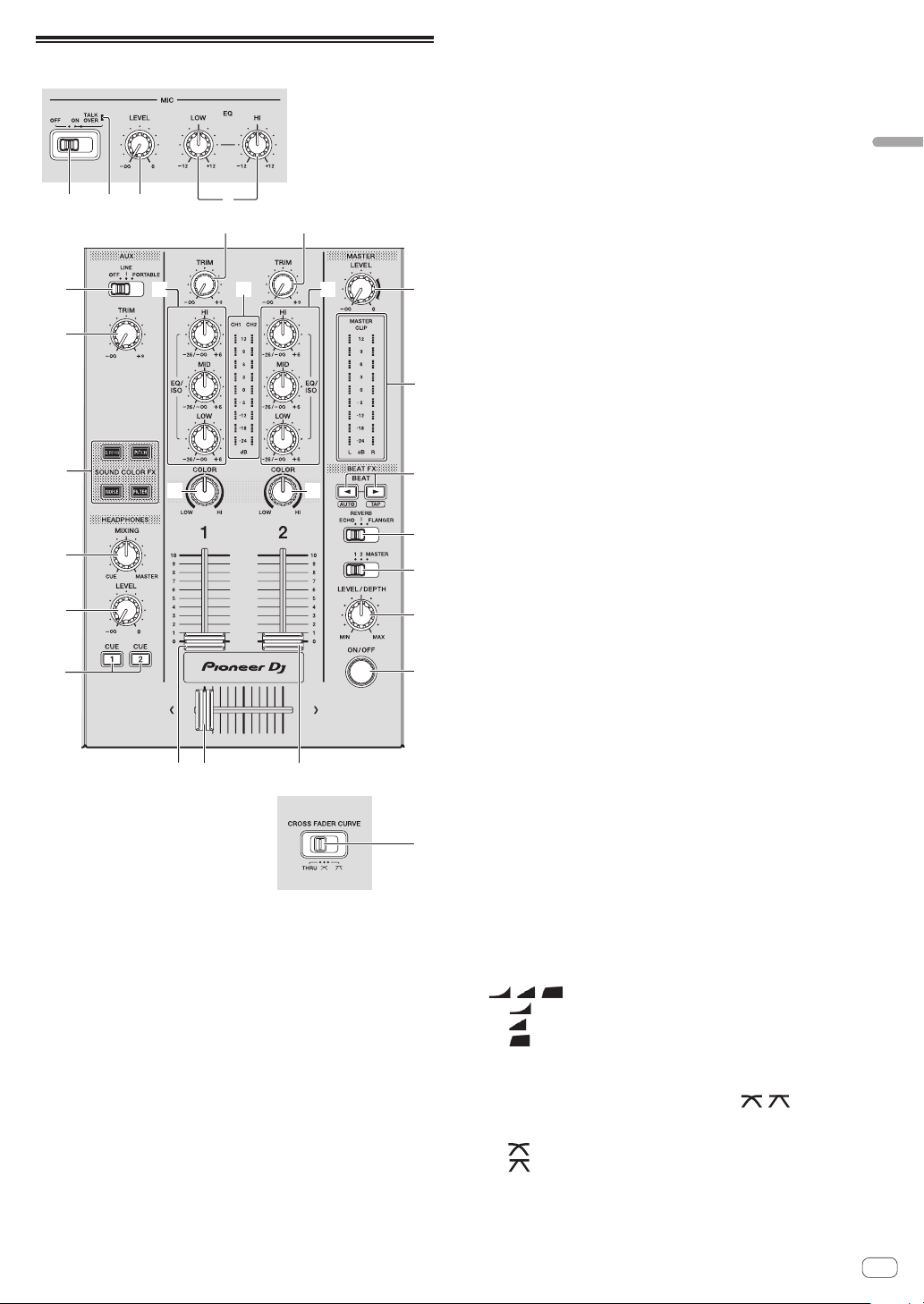
En
23
Part names and functions
Mixer/effect section
1 32
c
d
e
f
o
9
4
5 5
8
ghg
66 7
a
bb
i
j
k
m
n
l
Front panel
1 MIC (OFF, ON, TALK OVER) selector switch
Turns the microphone on and off.
= Using a microphone (p. 24 )
2 MIC (OFF, ON, TALK OVER) indicator
Lights up when the microphone is on, and flashes when the talk over
function is on.
= Using a microphone (p. 24 )
3 MIC LEVEL control
Adjusts the level of sound input to the [MIC] terminal.
= Using a microphone (p. 24 )
4 MIC EQ (HI, LOW) controls
Adjusts the sound quality of the microphones.
= Using a microphone (p. 24 )
5 TRIM control
Adjusts the level of sound input to each channel.
= Outputting sound (p. 26 )
6 EQ/ISO (HI, MID, LOW) controls
The control can be switched between [EQUALIZER] or [ISOLATOR]
through the settings on the [UTILITY] screen.
Adjusts the sound quality of each channel.
= Adjusting the sound quality (p. 24 )
7 Channel level indicator
Displays the sound levels of the respective channels.
8 MASTER LEVEL control
Adjusts the level of sound output from the [MASTER1] and
[MASTER2] terminals.
= Outputting sound (p. 26 )
9 Master level indicator
Displays the level of sound output to the master channel.
[CLIP] blinks when the output level is too high.
— Blinking slowly: indicates that the sound is about to be distorted.
— Blinking fast: indicates that the sound is distorted.
a BEAT c, d buttons
Press:
Set the beat fraction to synchronize the effect sound with.
= Using the beat effect function (p. 24 )
Press [SHIFT] + [BEAT c]:
— Auto mode: The BPM is measured automatically from the audio
signal being input. [AUTO] mode is set when the power of this
unit is turned on.
Press [SHIFT] + [BEAT d]:
— TAP mode: Sets the mode for inputting the BPM manually.
! The BPM measurement range in the AUTO mode is 70 BPM to
180 BPM. For some tracks, correct measurement may not be
possible.
! BPMs set in tap mode are only valid for the beat effect function.
= Inputting the BPM manually (p. 25 )
b COLOR control
Changes the parameters of the SOUND COLOR FX of the different
channels.
= Using the sound color FX function (p. 25 )
c BEAT EFFECTS selector switch
Switches between the various beat effects.
= Using the beat effect function (p. 24 )
d Effect channel selector switch
Switches to the channel to which the beat effect is applied.
= Using the beat effect function (p. 24 )
e LEVEL/DEPTH control
Adjusts the quantitative parameter of the beat effect.
= Using the beat effect function (p. 24 )
f ON/OFF button
Turns the beat effect on and off.
= Using the beat effect function (p. 24 )
g Channel fader
Switches the channel fader’s curve characteristics from
[ , , ] through the settings on the [UTILITY] screen.
— [ ]: The curve rises suddenly at the back side.
— [ ]: Creates a curve that rises gradually on average.
— [ ]: Creates a curve that rises steeply at the front side.
h Crossfader
The sound of the respective channels is output according to the
curve characteristics selected with the [THRU, , ] selector
switch.
— [THRU]: Select when not using the crossfader.
— [ ]: Creates a curve that rises gradually.
— [ ]: Creates a curve that rises steeply. (When the crossfader is
moved away from either the left or right edge, the sound is imme-
diately output from the opposite side.)
i CUE (CH1, CH2) buttons
Monitors the sound of the channel you want to monitor with the
headphones.
= Monitoring sound with headphones (p. 24 )
j HEADPHONES LEVEL control
Adjusts the level of sound output from the headphone terminal.
= Monitoring sound with headphones (p. 24 )
k HEADPHONES MIXING control
Adjusts the balance of the volume between the channels for which
the [CUE] button is pressed and the MASTER.
= Monitoring sound with headphones (p. 24 )
l SOUND COLOR FX (DUB ECHO, PITCH, NOISE, FILTER)
buttons
These turn the respective SOUND COLOR FX on and off.
= Using the sound color FX function (p. 25 )
m AUX TRIM control
Adjusts the sound level of the AUX input.
= Using the AUX function (p. 24 )
n AUX selector switch
Switches the AUX input according to the connected devices.
= Using the AUX function (p. 24 )
o CROSS FADER CURVE (THRU, , ) (crossfader
curve selector switch)
Sets the curve characteristics of the crossfader.
Adjusting the sound quality
Turn the [HI], [MID], [LOW] controls for the respective
channels.
Switching the function of the [EQ/ISO (HI, MID,
LOW)] control
The control can be switched between [EQUALIZER] or [ISOLATOR]
through the settings on the [UTILITY] screen.
— [EQUALIZER]: Adjusts the equalizer settings.
— [ISOLATOR]: Adjusts the isolator settings.
Monitoring sound with headphones
1 Connect headphones to the [PHONES] terminal.
= Connecting to the input/output terminals (p. 8 )
2 Press the [CUE] button of the channel to be
monitored.
Select the channel you want to monitor.
The [MONO SPLIT, STEREO] setting can be changed in the settings of
the [UTILITY] screen.
! [MONO SPLIT]: Outputs the sound of the channel selected with
the [CUE] button to [L] and the sound of [MASTER] to [R].
! [STEREO]: Outputs the sound selected with the [CUE] button in
stereo.
3 Rotate the [HEADPHONES MIXING] control.
Adjust the balance of the volume between the channel selected with the
[CUE] button and [MASTER].
4 Rotate the [HEADPHONES LEVEL] control.
Sound is output from the headphones.
Using the AUX function
1 Switch the AUX input selector switch.
— OFF: Mutes the input sound.
— LINE: Use this setting when a device other than a portable device
is connected.
— PORTABLE: Use this setting when a portable device is
connected.
2 Turn the [TRIM] control.
Adjust the level of sound input to the [AUX IN] channel.
Using a microphone
1 Connect the microphone to the [MIC] jack.
2 Set the [OFF, ON, TALK OVER] selector switch to [ON]
or [TALK OVER].
— [ON]: The [MIC (OFF, ON, TALK OVER)] indicator turns on.
— [TALK OVER]: The [MIC (OFF, ON, TALK OVER)] indicator
flashes.
! When set to [TALK OVER], the sound of channels other than the
[MIC] channel is attenuated by –20 dB when a sound of –10 dB or
greater is input to the microphone.
3 Turn the [MIC LEVEL] control.
Adjust the level of sound output from the [MIC] channel.
! The sound is output at a loud volume if the control is rotated to the
extreme right.
4 Input audio to the microphone.
Adjusting the sound quality
Turn the [MIC EQ (HI, LOW)] control of the [MIC] channel.
— When turned fully clockwise, the attenuation of the bass sound is
at the maximum level.
— When turned fully counterclockwise, the attenuation of the treble
sound is at the maximum level.
Using the beat effect function
You can set various effects according to the tempo (BPM = Beats Per
Minute) of the track currently playing using the BEAT FX function.
1 Turn the [BEAT EFFECTS] selector switch.
Selects the type of effect.
2 Turn the effect channel selector switch.
Selects the channel to apply the effect to.
! [1], [2]: The effect is applied to the sound of the respective channel.
! [MASTER]: Applies the effect to the sound of the [MASTER] channel.
3 Press the [BEAT c, d] buttons.
Set the beat fraction to synchronize the effect sound with.
The effect time corresponding to the beat fraction is set automatically.
4 Press the [ON/OFF] button of the beat effect.
The effect is applied to the sound.
The effect’s quantitative parameter can be adjusted by turning the
[LEVEL/DEPTH] control.
The [ON/OFF] button flashes when the effect is on.
! Press the [ON/OFF] button again to turn the effect off.
Types of BEAT EFFECT
Effect
name
Descriptions Parameter
ECHO
A delayed sound is output
several times and gradually
attenuated according to the
beat fraction set with the
[BEAT c, d] buttons.
With 1/1 beat echoes, the delay
sounds are faded out according
to the track’s tempo even after
the input sound has been cut.
BEAT c, d: From 1/16 beat to 16/1
beats
Level/depth: Sets the balance
between the original sound and the
echo sound.
Quantize: Enabled
En
24
En
25
Part names and functions
Effect
name
Descriptions Parameter
REVERB
A reverberation effect is applied
to the input sound.
BEAT c, d: From 1% to 100%
Level/depth: Sets the balance
between the original sound and the
effect sound.
Quantize: Disabled
FLANGER
A 1-cycle flanger effect is
produced according to the
beat fraction set with the
[BEAT c, d] buttons.
BEAT c, d: From 1/16 beat to 64/1
beats
Level/depth: The further the control
is turned clockwise, the more the
effect is stressed. When turned all
the way counterclockwise, only the
original sound is output.
Quantize: Enabled
! [BEAT c, d] indicates the range that can be set with the [BEAT c, d] button
when the effect is used.
! “LEVEL/DEPTH” indicates the quantitative parameter that can be set with the
[LEVEL/DEPTH] control.
! “QUANTIZE” indicates whether the effect supports the quantize function or not.
Inputting the BPM manually
Tap [SHIFT] + [BEAT d] two or more times according to
the beat (quarter note) of the sound currently playing.
The average value of the intervals that the [SHIFT] + [BEAT d] is tapped
is displayed on the BPM (EFFECT) display section.
! To return to AUTO mode, press [SHIFT] + [BEAT c].
Using the sound color FX function
These effects change in association with the [COLOR] controls for the
different channels.
1 Press one of the [SOUND COLOR FX
(DUB ECHO, PITCH, NOISE, FILTER)] buttons.
Selects the type of effect.
The pressed button flashes.
! The same effect is set for [CH1] and [CH2].
2 Rotate the [COLOR] control.
The effect is applied to the channel for which the control is rotated.
Types of SOUND COLOR FX effects
Effect name Descriptions [COLOR] control
DUB ECHO
Outputs delayed sounds repeat-
edly after the original sound
and gradually attenuates the
delayed sounds to achieve an
echo effect.
Turn counterclockwise: Applies
the echo effect to the mid-range
only.
Turn clockwise: Applies the echo
effect to the high-range only.
PITCH
Changes the sound pitch.
Turn counterclockwise: The
pitch descends.
Turn clockwise: The pitch rises.
NOISE
White noise generated inside
the unit is mixed in via the filter
and output.
! Turn the [TRIM] control of
the respective channel to
control the volume. Sound
quality can be controlled by
turning [EQUALIZER/ISO
(HI, MID, LOW)] controls.
Turn counterclockwise:
Gradually decreases the cut-off
frequency of the filter through
which the white noise passes.
Turn clockwise: Gradually
increases the cut-off frequency
of the filter through which the
white noise passes.
FILTER
Outputs sound that has passed
through a filter.
Turn counterclockwise:
Gradually decreases the low-
pass filter’s cut-off frequency.
Turn clockwise: Gradually
increases the high-pass fil-
ter’s cut-off frequency.
Operation
Turning the power on
1 Plug the power cord into a power outlet after all the
connections between devices are completed.
= Connections (p. 8 )
2 Press the [u] switch.
The indicators on this unit light up and the power turns on.
Turning the power off
Press the [u] switch.
This unit turns off.
! Do not disconnect the USB device or turn off this unit while the USB
indicator is lit or flashing. Doing so could delete the management
data of this unit and damage the USB device, resulting in unreadable
data.
Connecting and disconnecting USB
devices
Connecting a USB device
Open the USB slot cover and connect a USB device.
Disconnecting a USB device
1 Press the [USB STOP] button for over 2 seconds.
Do not disconnect the USB device or turn off this unit while the USB
indicator is lit or flashing. Doing so could delete the management data
of this unit and damage the USB device, resulting in unreadable data.
2 Disconnect the USB device.
3 Close the USB slot cover.
Playback
This section describes basic track selection operations and how to
switch the screen.
Playing music files on media connected
to this unit
1 Open the USB slot cover and connect a USB device.
2 Press the [USB1] or [USB2] button.
Tracks and folders on the connected USB device are displayed in a list.
You can switch the device from which to display the contents to the main
display.
[USB1]: Displays the music files stored on the USB device connected to
USB1 and mobile devices on which rekordbox is installed.
[USB2]: Displays the music files stored on the USB device connected to
USB2 and mobile devices on which rekordbox is installed.
3 Rotate the rotary selector.
Move the cursor to select an item.
! Press the rotary selector to move to a lower level in the folder. Press
the [BACK] button to return to the level above.
! When the [BACK] button is pressed for over 1 second or the medium
button for the medium being browsed is pressed, the display moves
to the topmost level.
4 Use the rotary selector to select the track you want to
load.
If the rotary selector is pressed while the cursor is placed over a track
title, the track menu is displayed.
5 Press the [LOAD 1,2] button.
The track is loaded into the specified deck of the unit and begins playing.
When the track is loaded, the screen switches to the normal playback
screen.
! When a track is loaded while paused, press the [f (PLAY/PAUSE)]
button to start playback.
! When auto cue is turned on, the disc pauses at the audio start posi-
tion. In this case, press the [f (PLAY/PAUSE)] to start playback.
= Setting auto cue (p. 18 )
If the medium contains the rekordbox library
The rekordbox library is displayed if it is stored in the connected USB
device.
! Music files are displayed by categories (album, artist, etc.) set with
rekordbox.
Playing the rekordbox library on a
computer or mobile device
Music files are displayed by categories (album, artist, etc.) set with
rekordbox.
1 Press the [rekordbox] button.
The library for rekordbox (EXPORT MODE) appears on the main display
of this unit.
! Press the [USB] button to select a mobile device connected by USB.
2 Rotate the rotary selector.
Move the cursor to select an item.
3 Use the rotary selector to select the track you want to
load.
If the rotary selector is pressed while the cursor is placed over a track
title, the track menu is displayed.
4 Press the [LOAD 1,2] button.
The track is loaded into the specified deck of the unit and begins playing.
When the track is loaded, the screen switches to the normal playback
screen.
Outputting sound
Check that the unit and the external devices are properly connected
before outputting sound.
= Connecting to the input/output terminals (p. 8 )
Set the volume of the power amplifier or powered speakers connected to
the [MASTER1] and [MASTER2] terminals to an appropriate level. Note
that loud sound may be output if the volume is set too high.
Outputting the sound of channel 1 [CH1]
When you want to output the sound of [CH2] (channel 2), replace
[CH1] with [CH2] in the procedure below.
En
26
En
27
Operation
1 Rotate the [TRIM] control in the [CH1] section
clockwise.
Adjust the level of sound input to the [CH1] terminal.
The [CH1] level indicator lights up when audio signals are properly input
to [CH1].
Rotate the [TRIM] control to confirm that the orange indicator lights up
at the highest volume for the track.
! Make sure that the red indicator does not lights up, or the sound may
be distorted.
2 Move the [CH1] channel fader to the back side.
The level of the sound output from the [CH1] terminals is adjusted.
3 Set the [CROSS FADER CURVE THRU, , ] switch
(the crossfader curve selector switch).
Sets the curve characteristics of the crossfader.
4 Set the crossfader.
Switch the channel whose sound is output from the speakers.
— Left edge: The [CH1] sound is output.
— Center position: The sound of [CH1] and [CH2] is mixed and
output.
— Right edge: The [CH2] sound is output.
! This operation is not necessary when the [CROSS FADER CURVE
(THRU, , )] switch (crossfader curve selector switch) is set to
[THRU].
5 Rotate the [MASTER LEVEL] control clockwise.
Sound is output from the speakers.
The master level indicator lights up.
Rotate the [MASTER LEVEL] control to confirm that the orange indicator
lights up at the highest volume for the track.
! Make sure that the master level indicator does not light up, or the
sound may be distorted.
Using the quantize function
This function can be used to play beat loops and apply beat effects in
tempo with the currently playing track based on the track’s beat grid
information as analyzed with rekordbox.
! Music files must be analyzed with rekordbox beforehand in order to
use the quantize function. For instructions on analyzing music files
with rekordbox, see the rekordbox user’s manual.
Press the [QUANTIZE] button.
Turns the quantize function on.
If the quantize function is on, the closest point is automatically set as the
beat position when beat loop, cue, or hot cue is set.
Beat loop, hot cue, and beat effect can be used without disrupting the
beat.
! When the [QUANTIZE] button is pressed again, the quantize func-
tion turns off.
! When the [QUANTIZE] button is pressed while pressing the [SHIFT]
button, switching the quantize function on/off is possible only for the
deck in which the [SHIFT] button is pressed.
! The quantize function is not available for the [REVERB] beat effect.
Calling out settings stored on a USB
device
[UTILITY] settings and other settings stored on a USB device can be
called out.
1 Set the USB device for calling out the setting details.
2 Press the [USB] button.
3 Press the [MENU (UTILITY)] button.
4 Use the rotary selector to select and enter [LOAD] in
[MY SETTINGS].
The settings are called out.
Changing the color set in the USB
device
The colors of parts of the screen display can be changed.
1 Loading USB devices.
2 Press the [USB] button.
3 Press the [MENU (UTILITY)] button.
4 Use the rotary selector to select and enter
[BACKGROUND COLOR] in [MY SETTINGS] or
[WAVEFORM COLOR].
— [BACKGROUND COLOR]: Select to change the colors of parts of
the screen display.
— [WAVEFORM COLOR]: Select to change the color of the overall
waveform or enlarged waveform.
! The colors can be changed for USB devices that include music files
or management data exported from rekordbox.
5 Use the rotary selector to select and enter the color to
be set.
Changing the settings
1 Press the [MENU (UTILITY)] button for over 1 second.
The [UTILITY] screen is displayed.
2 Use the rotary selector to change the setting.
3 Press the rotary selector.
The changed settings are stored.
! To close the [UTILITY] screen, press the [MENU (UTILITY)] button.
Auto-play mode
! When the auto-play mode is turned on, the auto-play mode icon in
the normal playback screen lights up and [A. CUE] turns off, and the
tracks in the category or folder containing the currently loaded track
are played consecutively until the end of the last track.
! The songs are played in the order that they were loaded.
Auto standby function
When the auto standby function is turned on, the power is automatically
set to standby mode after four hours have passed with all of the follow-
ing conditions met.
— None of this unit’s buttons or controls are operated.
— That this unit’s channel level indicator is not lit.
— That the playback function is not operating.
— No PRO DJ LINK connections are made.
— There is no input for AUX or MIC.
— A USB device is not connected to the USB device insertion slot (Type
A terminal) on the top panel of the unit.
— That no computer is connected to the [ USB] terminal (Type B
terminal) on the unit’s rear panel.
! When the [MASTER REC (WAKE UP)] button is pressed, standby
mode is canceled.
! This unit is shipped with the auto standby function turned on. If you
do not want to use the auto standby function, set [AUTO STANDBY]
to [OFF].
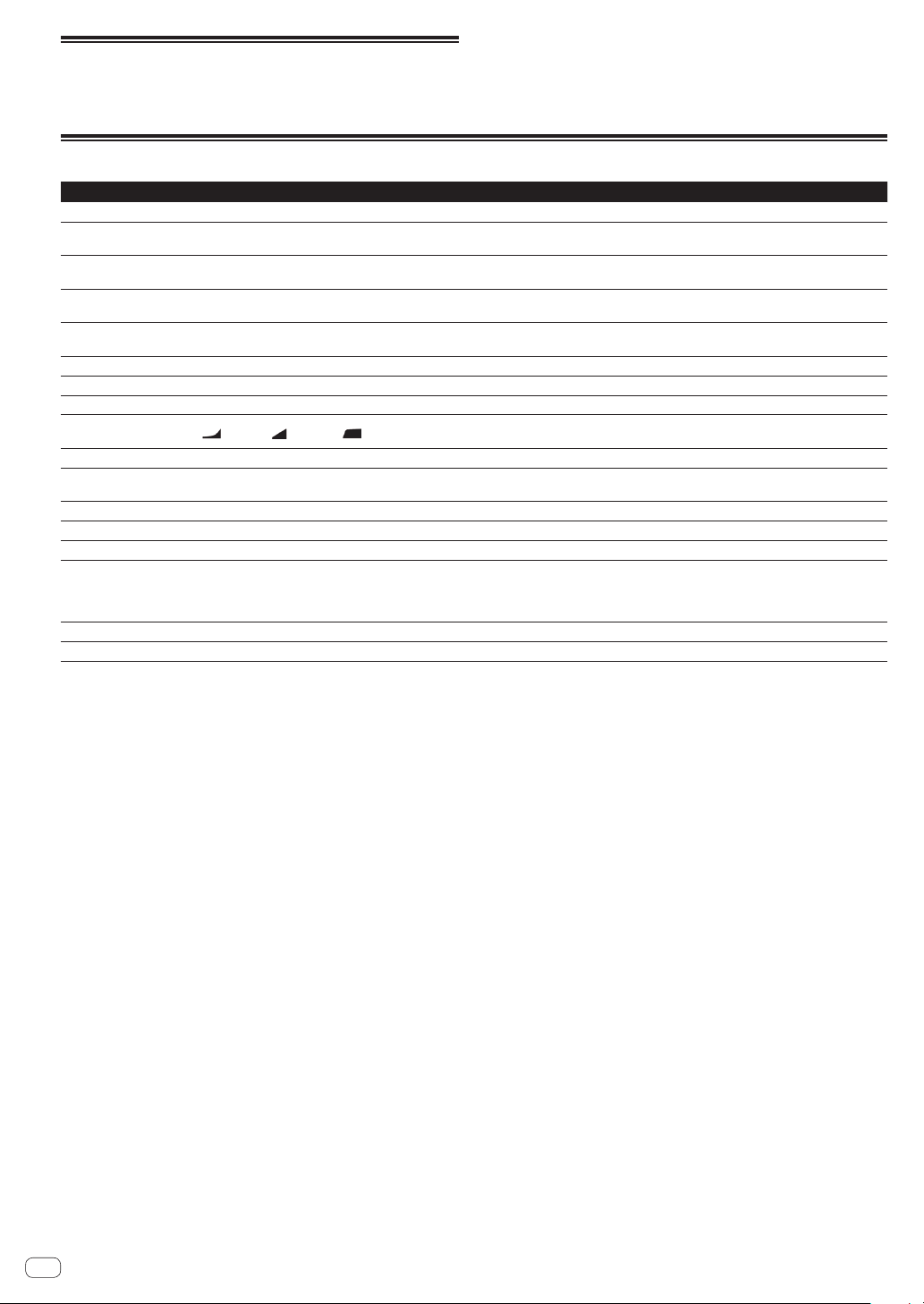
Language settings
Select the language in which the track names and messages are dis-
played on the screen.
! When the language is changed, the messages on the main unit
display are displayed in the selected language.
! To display the information such as track names written in local
character codes other than Unicode, select the language in the
[LANGUAGE] setting.
Setting preferences
Option settings Setting ranges Descriptions
LOAD LOCK
LOCK/UNLOCK* Sets whether to disable or enable the loading of new tracks during playback.
QUANTIZE BEAT VALUE
(DECK)
1/8, 1/4, 1/2, 1* Changes the beat size of QUANTIZE.
HOT CUE AUTO LOAD ON/rekordbox SETTING*/OFF
For details, see Calling out hot cues automatically when tracks are loaded on
page 15 .
HOT CUE COLOR
ON/OFF*
Sets the color of hot cues.
For details, see Setting hot cues on page 14 .
AUTO CUE LEVEL
–36 dB/–42 dB/–48 dB/–54 dB/–60 dB/–66 dB/–72 d
B/–78 dB/MEMORY*
Sets the auto cue level.
= For details, see Changing the auto cue level on page 18 .
ON AIR DISPLAY
ON*/OFF Sets whether to display/hide the [ON AIR DISPLAY].
AUTO PLAY MODE
ON/OFF*
= For details, see Auto-play mode on page 27 .
EQUALIZER CURVE
EQUALIZER*/ISOLATOR Sets the EQ/ISO (HI, MID, LOW) control function to [EQUALIZER] or [ISOLATOR].
CHANNEL FADER
CURVE
[
]CURVE1/[ ]CURVE2*/[ ]CURVE3
Sets the channel fader curve.
= For details, see Mixer/effect section on page 23 .
MASTER ATTENUATOR.
+12 dB, –6 dB, 0 dB* Sets the master output attenuator.
HEADPHONES MONO
SPLIT/STEREO
MONO SPLIT/STEREO*
Switches the headphones output between MONO SPLIT and STEREO.
For details, see Monitoring sound with headphones on page 24 .
MIXER MODE
XDJ-RR/MIDI CONTROL*
= For details, see Changing the [MIXER MODE] on page 29 .
LANGUAGE
— Sets the main unit display’s language.
LCD BRIGHTNESS 1, 2, 3*, 4, 5
Sets the main unit display’s brightness.
SCREEN SAVER
ON*/OFF
When set to [ON], the screen saver starts up in any of the following cases:
! When no track is loaded in this unit for over 5 minutes
! When no operation is performed for over 100 minutes while in the pause or cue
standby mode or when [END] is displayed on the deck display section.
AUTO STANDBY
ON*/OFF
= For details, see Auto standby function on page 27 .
VERSION No.
— Displays this unit’s software version.
*: Setting upon purchase
En
28
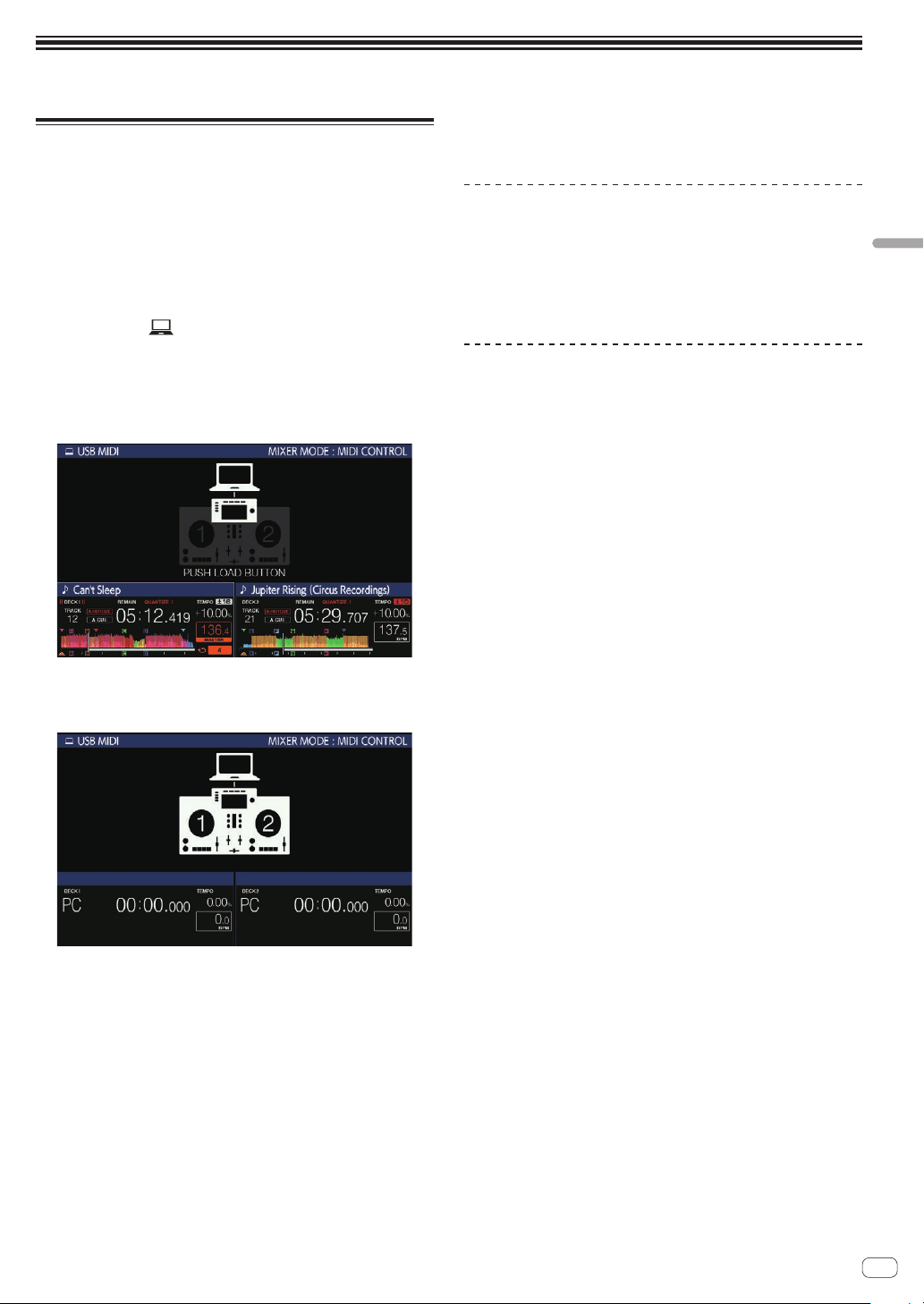
En
29
Using DJ software
Operating DJ software
This unit outputs the operation information of buttons and controls in
universal MIDI format. When this unit is connected by USB cable to a
computer on which a MIDI-compatible DJ software program is installed,
the DJ software can be operated from the unit. The sound of the music
file that is playing on the computer can be output from this unit.
To use this unit as an audio device, install the driver software on
the computer beforehand. This unit must also be selected in the DJ
software’s audio output device settings. For details, see your DJ soft-
ware’s operating instructions.
1 Connect the [ USB] terminal of the unit to your
computer.
= Connecting to the input/output terminals (p. 8 )
2 Press the [BROWSE] button, and then press the [MIDI]
button.
The connection screen is displayed.
3 Press the [LOAD 1,2] button.
The deck or the mixer section for which the [LOAD 1,2] button is pressed
switches to control mode.
4 Launch the DJ software.
Communication with the DJ software starts.
! The DJ software on the computer can be operated using the buttons
and rotary selector on this unit.
! You may not be able to use some of the buttons to operate the DJ
software, depending on the button. For details, see [Software Info]
on the Pioneer DJ support site. (pioneerdj.com/support/)
! When there is a connection with rekordbox dj, the tracks and folders
are displayed in a list on the [BROWSE] screen.
! When the [MIXER MODE] is set to [XDJ-RR], the DJ software does
not work in the mixer section.
! The control mode for the loaded deck or mixer section is canceled,
when a track is loaded in the unit.
5 Change the control deck.
! Use [DECK1/2] to switch the control deck from 1, 2 to 3, 4.
! When [DECK1/2] is pressed while pressing the [SHIFT] button, only
the deck for which the [SHIFT] button is pressed can be changed.
MIDI messages
For details on the MIDI messages on this unit, see “List of MIDI
Messages”.
! “List of MIDI Messages” can be obtained from [MIDI-compatible
software] of [Software Info] of [XDJ-RR] on the Pioneer DJ support
site below.
pioneerdj.com/support/
Changing the [MIXER MODE]
There are two types of DJ software mixing modes, one for mixing using
an external mixer and one for mixing within the DJ software. On this unit,
either mixing mode can be used by changing the [MIXER MODE] setting
on the [UTILITY] screen.
1 Press the [MENU (UTILITY)] button for over 1 second.
The [UTILITY] screen is displayed.
2 Turn the rotary selector, select [MIXER MODE], then
press the rotary selector.
3 Turn the rotary selector, select the mode you want to
set, then press the rotary selector.
— [XDJ-RR]: The sound is mixed by using the mixer section of the
unit.
— [MIDI CONTROL]: The sound is mixed within the DJ software.
! To close the [UTILITY] screen, press the [MENU (UTILITY)] button.
! When connected to rekordbox dj, only the configuration for rekord-
box dj can be changed. [MIXER MODE] cannot be changed from the
[UTILITY] screen.
Using DJ software
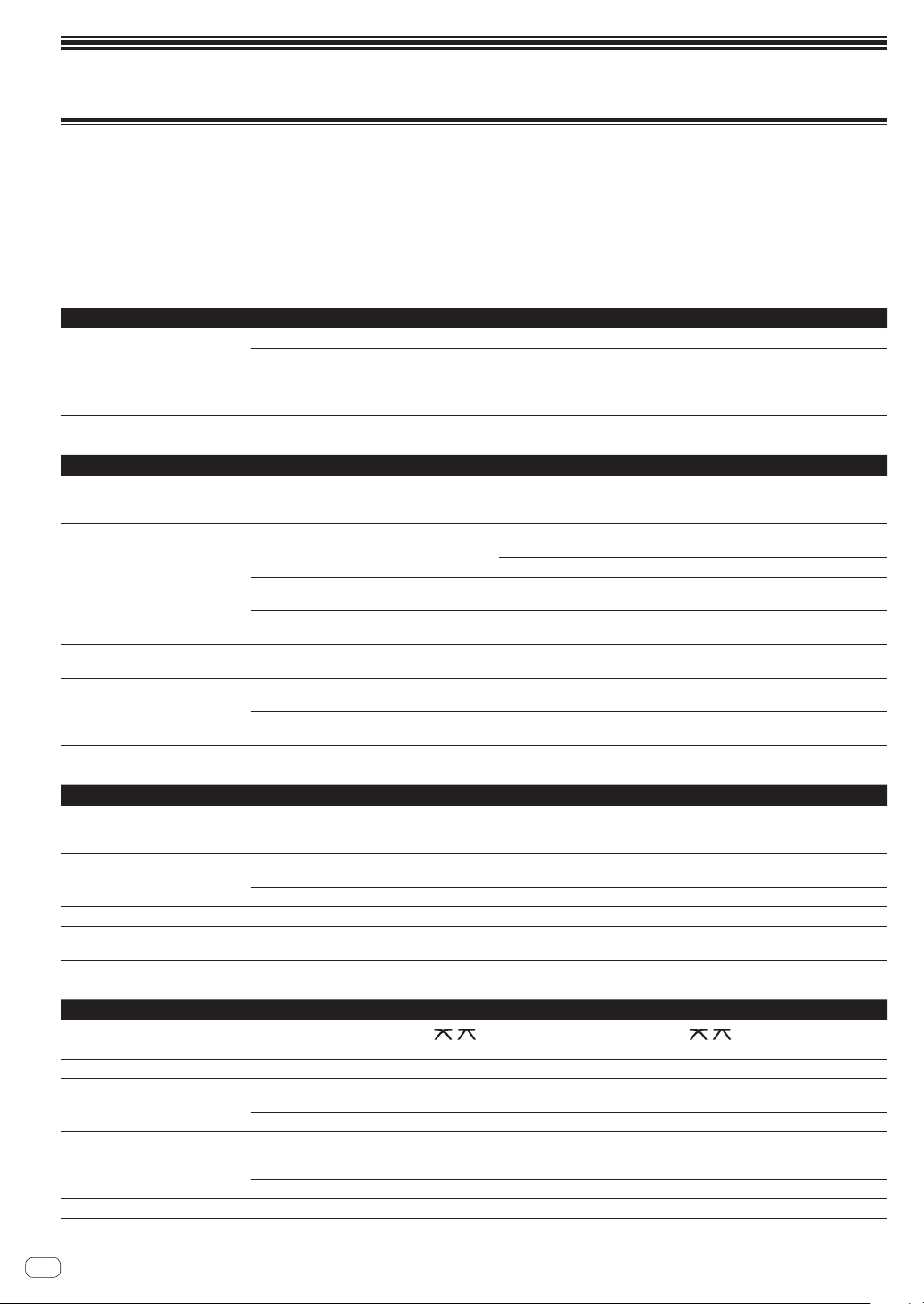
Additional information
Troubleshooting
! Improper operation is often mistaken for trouble or a malfunction that occurred in the device. If something is wrong with this unit, check the follow-
ing issues, and also access the following Pioneer DJ support site and check [FAQ] for [XDJ-RR].
pioneerdj.com/support/
Some problems occur due to the connected components. If the problem cannot be resolved after checking the connected components, contact the
service center or your dealer for repairs.
! The unit may not operate properly due to static electricity or other external influences. In such cases, disconnect the power cord and connect it
again to restore normal operation.
Power supply
Problem Check Remedy
The unit does not turn on.
The indicators do not light up.
Is the power cord properly connected? Connect the power cord to an AC outlet. (page 8 )
Is the [u] switch turned on? Turn on the [u] switch.
The power suddenly turns off. Is the auto standby function activated?
(When auto standby is functioning, the
[MASTER REC (WAKE UP)] button is lit in red.)
This unit is shipped with the auto standby function set to on. If you do not
want to use the auto standby function, set [AUTO STANDBY] to [OFF] on the
[MENU (UTILITY)] screen.
Audio output
Problem Check Remedy
Sound is not output, or sound is too
small.
Are the [TRIM] control, channel faders, crossfader
and [MASTER LEVEL] control set to the proper
positions?
Set the [TRIM] control, channel faders, crossfader and [MASTER LEVEL] control
to the proper positions. (page 26 )
Sound is distorted. Is the [MASTER LEVEL] control set to the proper
position?
Adjust the [MASTER LEVEL] control so that the master channel level indicator
lights around [0 dB] at the peak level.
Set [MASTER ATTENUATOR.] to [-6 dB] or [+12 dB] in the [UTILITY] screen.
Is the [TRIM] control set to the proper position? Adjust the [TRIM] control to confirm that the channel level indicator lights up in
orange at the highest volume. (page 26 )
Is the level of sound input to the [MIC] terminal set
to an appropriate level?
Set the [MIC LEVEL] control to the proper position.
Sound is not output, or the output
sound is distorted or noisy.
Is this unit placed near a TV? Turn the TV off, or place this unit farther away from the TV.
Microphone sound is not output or
the volume is low.
Is the [MIC LEVEL] control set to the proper
position?
Set the [MIC LEVEL] control to the proper position.
Is the switch on this unit or the microphone
turned off?
Turn the switch on.
Display
Problem Check Remedy
Playing address is not displayed in the
remaining time display.
— Playing address may not be displayed for files recorded in VBR. This happens
when it takes time for the unit to detect the length of the track and display the
playing address.
The category is not displayed. Is the rekordbox library information stored on the
USB device?
Use a USB device containing the library information that is exported from
rekordbox to the device..
Is the USB device write-protected? Disable write-protection on the USB device to make it writable.
The scale is not displayed. Is the track over 15 minutes long? The scale is not displayed for tracks whose playing time is over 15 minutes.
The enlarged waveform is not
displayed.
Is the track over 60 minutes long? The enlarged waveform is not displayed for tracks whose playing time is over 60
minutes.
Functions and operations
Problem Check Remedy
The crossfade function does not work.
Is the [CROSS FADER CURVE (THRU,
, )]
(crossfader curve selector) switch set to [THRU]?
Set the [CROSS FADER CURVE (THRU, , )] (crossfader curve selector)
switch to a position other than [THRU]. (page 26 )
The back cue function does not work. Is a cue point set? Set a cue point.
Beat effect does not work. Is the [LEVEL/DEPTH] control set to the center
position?
Rotate the [LEVEL/DEPTH] control clockwise or counterclockwise.
Is the [TRIM] control set to the proper position? Set the [TRIM] control to the proper position.
Color effect does not work. Is the [SOUND COLOR FX
(DUB ECHO, PITCH, NOISE, FILTER)] button
pressed?
Press the [SOUND COLOR FX (DUB ECHO, PITCH, NOISE, FILTER)] button.
Is the [COLOR] control set to the proper position? Set the [COLOR] control to the proper position.
The SYNC function does not work. Has the music file been analyzed? Perform file analysis.
En
30
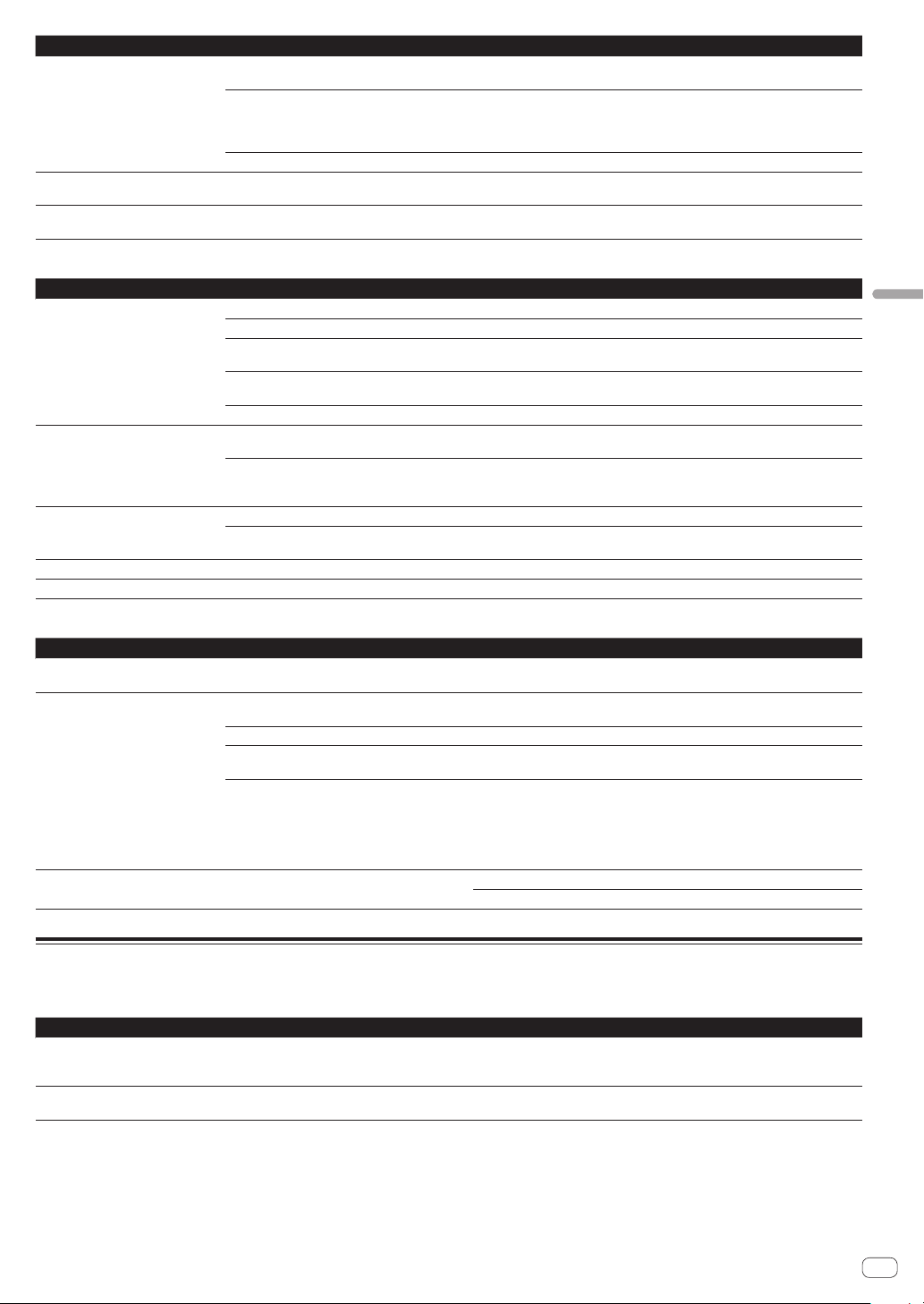
En
31
Additional information
Problem Check Remedy
The SYNC function does not work
even when files are analyzed.
Is the beat grid irregular?
Is the beat grid properly tapped?
Set the beat grid properly.
Are the BPMs of the tracks in the two decks too
different?
The SYNC function does not work properly if the BPM of the track on the deck
for which the [SYNC/INST.DOUBLES] button is pressed is not within the adjust-
able tempo range of the track on the deck for which the [SYNC/INST.DOUBLES]
button is not pressed.
Are you scratching? The SYNC function is disabled while scratching.
Settings are not stored in the memory. Did you turn this unit off directly after changing
the settings?
Turn this unit off 10 seconds after changing the settings.
Make sure to press the [u] switch to turn this unit off.
PRO DJ LINK does not work correctly. Is the USB (LINK Export) connections driver
software installed?
For a USB connection, install the USB (LINK Export) connections driver soft-
ware. (page 7 )
USB devices
Problem Check Remedy
USB device is not recognized. Is the USB device properly connected? Connect the USB device securely (all the way in).
Is the USB device connected via a USB hub? Do not use a USB hub.
Is the USB device supported by this unit? This unit supports USB mass storage devices that can be used as external hard
disks and portable flash memory devices.
Is the file format supported by this unit? Check that the file format of the connected USB device is supported by the unit.
(page 3 )
— Turn the unit off, wait for 1 minute, and then turn the unit on.
It takes time to read USB devices
(flash memory drives and hard discs).
Are many folders and files stored on the USB
device?
It takes time to read a connected USB device if the device contains many folders
and files.
Are files other than music files stored on the USB
device?
It takes time to read a connected USB device if files other than music files are
stored in folders. Do not store files or folders other than music files on the USB
device.
Playback does not start when a track
is loaded from a USB device.
Are the files playable? Check that the file format of the track is supported by the unit.
Is the auto cue function enabled? Press and hold the [TIME MODE(AUTO CUE)] button for approximately 1
second or more, and disable the auto cue function.
Files cannot be played. Is the file copyright-protected (by DRM)? Copyright-protected files cannot be played.
Music files cannot be played. Are the music files damaged? Play music files that are not damaged.
DJ software
Problem Check Remedy
The DJ software on a computer can-
not be operated.
Is the USB cable properly connected? Connect the unit and the computer directly using the USB cable. USB hubs
cannot be used. (page 8 )
Sound of the DJ software is not
properly output.
Are the DJ software settings and the [MIXER
MODE] setting of this unit properly set?
Check the DJ software settings, and then check the settings of this unit on the
[UTILITY] screen and set the proper signal path.
Is the driver software properly set? Set the driver software properly.
— If your computer has more than one USB terminal, check using a different USB
terminal.
Is the sound setting on the computer set properly? Mac: After disconnecting the USB cable connected to this unit, launch the
[Audio MIDI Setting] utility software for macOS or OS X, and display [MIDI
Window] or [MIDI Studio]. Select the [XDJ-RR] icon, and click [Delete Unit].
(The [USB MIDI Unit] icon may be displayed instead of [XDJ-RR]. If this hap-
pens, select [USB MIDI Unit].) When this unit is connected using the USB cable
again, the [XDJ-RR] icon will appear.
Sound is interrupted when the DJ
software is used.
Is the latency value of the driver software properly
set?
Set the latency of the driver software to a suitable value.
Set the latency of the DJ software to a suitable value.
Error messages
When this unit cannot operate normally, an error code appears on the display. Check the table below and take the measures indicated. If an error code
not shown on the table below is displayed, or if the same error code is displayed again after taking the indicated action, contact your store of purchase.
Error code Error type Description of error Cause and action
E-8302
CANNOT PLAY TRACK
Track data (files) on the storage device cannot
be read correctly.
The track data (file) may be corrupted. dCheck if the track can be
played with another player that supports the same formats as this
unit.
E-8304
E-8305
UNSUPPORTED FILE FORMAT
Music files that cannot be played with this unit
are loaded.
The format is not supported by this unit.dLoad music files in the
supported formats.
Icons displayed on the display of the main unit
Genre Deck number (1 to 2) Computers Close folder Playing
Artist Edit the rating Year Remixer Bit rate
Album Registered in tag list Label Original artist WAIT
Track/file name Tempo (BPM) Key Search
Playlist
HISTORY
Color rekordbox DJ play count
Rating USB
MEMORY CUE
comments
Date library added
Time Hot cue Open folder Comment
iPhone/iPod
! This product has been developed and tested for the iPhone/iPod
software versions listed on the Pioneer DJ support site. (pioneerdj.
com/support/)
! Installing software versions not listed on the Pioneer DJ support site
to your iPhone/iPod may result in incompatibility with this product.
! Operation of iPhone/iPod devices are not covered by the warranty.
! Pioneer DJ will accept no responsibility for the data stored on the
iPhone/iPod that is lost during use.
! iPhone/iPod devices are licensed to users only for the reproduction
of non-copyrighted materials or materials the user is legally permit-
ted to duplicate or reproduce for their own personal use. Copyright
infringement is prohibited by law.
Trademarks and registered
trademarks
! Pioneer DJ is a trademark of Pioneer DJ Corporation and is used
under license. rekordbox is a registered trademark or trademark of
Pioneer DJ Corporation.
! Windows is a registered trademark of Microsoft Corporation in the
United States and other countries.
! Adobe and Reader are either registered trademarks or trademarks
of Adobe Systems Incorporated in the United States and/or other
countries.
! Use of the Made for Apple badge means that an accessory has been
designed to connect specifically to the Apple product(s) identified
in the badge, and has been certified by the developer to meet Apple
performance standards. Apple is not responsible for the operation of
this device or its compliance with safety and regulatory standards.
Please note that the use of this accessory with an Apple product may
affect wireless performance.
! iPhone, iPod, iPod touch, macOS, OS X, and Mac are trademarks of
Apple Inc., registered in the U.S. and other countries.
! Android
™
is a trademark of Google Inc.
! iOS is a trademark on which Cisco holds the trademark right in the
US and certain other countries.
! ASIO is a trademark of Steinberg Media Technologies GmbH.
! The names of companies and products mentioned herein are trade-
marks or registered trademarks of their respective owners.
Software license notice
! This software is based in part on the work of the Independent JPEG
Group.
Using MP3 files
This product has been licensed for nonprofit use. This product has not
been licensed for commercial purposes (for profit-making use), such
as broadcasting (terrestrial, satellite, cable or other types of broadcast-
ing), streaming on the Internet, Intranet (corporate networks) or other
types of networks or distributing of electronic information (online digi-
tal music distribution services). You need to acquire the corresponding
licenses for such uses. For details, see http://www.mp3licensing.com.
Cautions on copyrights
rekordbox restricts playback and duplication of copyright-protected
music contents.
! When coded data, etc., for protecting the copyright is embedded in
the music contents, it may not be possible to operate the program
normally.
! When rekordbox detects that coded data, etc., for protecting the
copyright is embedded in the music contents, processing (playback,
reading, etc.) may stop.
Recordings you have made are for your personal enjoyment and accord-
ing to copyright laws may not be used without the consent of the copy-
right holder.
! Music recorded from CDs, etc., is protected by the copyright laws of
individual countries and by international treaties. It is the full respon-
sibility of the person who has recorded the music to ensure that it is
used legally.
! When handling music downloaded from the Internet, etc., it is the
full responsibility of the person who has downloaded the music to
ensure that it is used in accordance with the contract concluded
with the download site.
— The specifications and design of this product are subject to change
without notice.
© 2018 Pioneer DJ Corporation. All rights reserved.
<DRI1568-A>
En
32