FR Manuel d’Utilisation
EN User Manual
ES Manual del Usuario
EN: For further assistance, call the customer support service in your country.
• To obtain assistance in the U.S.A., Canada, Puerto Rico, or the U.S. Virgin Islands, contact
Philips Customer Care Center at 1-866-309-0846
FR: Pour obtenir de l’aide supplémentaire, communiquez avec le centre de service à la clientèle de
votre pays.
•
Pour obtenir de l’aide aux États-Unis, au Canada, à Puerto Rico ou aux Îles Vierges
américaines,
communiquez avec le centre de service à la clientèle Philips au : 1-866-309-0846
ES: Para obtener más información, llame al servicio de soporte al cliente de su país.
•
Para obtener asistencia en los Estados Unidos, en Canadá, Puerto Rico o en las Islas Vírgenes de los
Estados Unidos, comuníquese con Centro de atención al cliente de Philips al 1-866-309-0846
Lea este manual antes de usar el product.
EN:
To obtain a more detailed electronic copy of this manual, go to
www.philips.com/support
FR:
Pour obtenir une copie électronique plus détaillée de ce manuel, allez sur
www.philips.com/support
ES:
Para obtener una copia electrónica más detallada de este manual, visite
www.philips.com/support
DVP3345VB
Register your product and get support at
www.philips.com/support
E8E2CCD_E8E2CCH_EN_v1.book Page 1 Friday, March 9, 2012 6:37 PM
EN - 2
English
2
Introduction
Visit our World Wide Web Site at http://www.philips.com/support
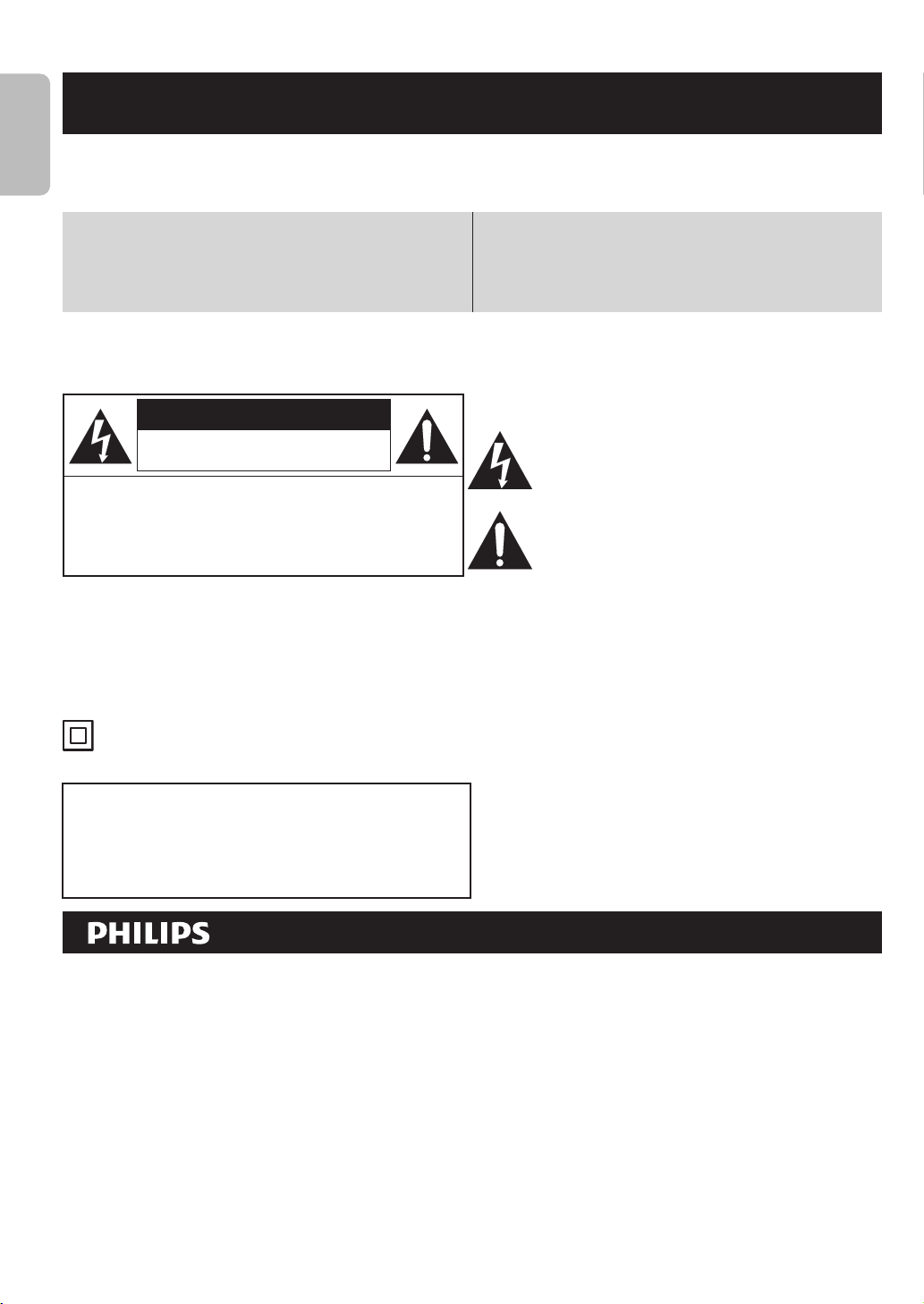
This “bolt of lightning” indicates uninsulated material
within your unit may cause an electrical shock. For
the safety of everyone in your household, please do
not remove product covering.
The “exclamation point” calls attention to features
for which you should read the enclosed literature
closely to prevent operating and maintenance
problems.
Know these
safety symbols
CAUTION
RISK OF ELECTRIC SHOCK
DO NOT OPEN
CAUTION:
TO REDUCE THE RISK OF
ELECTRIC SHOCK, DO NOT REMOVE COVER (OR
BACK). NO USER-SERVICEABLE PARTS INSIDE. REFER
SERVICING TO QUALIFIED SERVICE PERSONNEL.
* Additional Benefits
Registering your product guarantees that you’ll
receive all of the privileges to which you’re entitled,
including special money-saving offers.
* Product Safety Notification
By registering your product, you’ll receive notification -
directly from the manufacturer - in the rare case of a
product recall or safety defect.
Registering your model with Philips makes you eligible for all of the valuable benefits listed below, so don’t
miss out. Complete and return your Product Registration Card at once, or register online at
www.philips.com/support to ensure:
Return your Product Registration Card or register online at
www.philips.com/support today to get the very most from your purchase.
The symbol for CLASS ll (Double Insulation)
WARNING
:
To reduce the risk of fire or electric shock, this apparatus should not be exposed to rain or
moisture, and objects filled with liquids, such as vases, should not be placed on this apparatus.
CAUTION: To prevent electric shock, match wide blade of plug to wide slot, fully insert.
ATTENTION:
Pour éviter les chocs électriques, introduire la lame la plus large de la fiche dans la borne correspondante
de la prise et pousser jusqu’au fond.
The important note and rating are located on the rear or bottom of the cabinet.
For Customer Use
Model No. ___________________________________
Serial No. ___________________________________
Please write the model and serial number of your unit (located
on the cabinet) in the space below for future reference.
E8E2CCD_E8E2CCH_EN_v1.book Page 2 Friday, March 9, 2012 6:37 PM
EN - 3
English
3
Safety Informations
IMPORTANT SAFETY INSTRUCTIONS
1. Read these instructions.
2. Keep these instructions.
3. Heed all warnings.
4. Follow all instructions.
5. Do not use this apparatus near water.
6. Clean only with dry cloth.
7. Do not block any ventilation openings. Install in accordance with the manufacturer’s instructions.
8. Do not install near any heat sources such as radiators, heat registers, stoves, or other apparatus (including
amplifiers) that produce heat.
9. Do not defeat the safety purpose of the polarized or grounding-type plug. A polarized plug has two blades
with one wider than the other. A grounding type plug has two blades and a third grounding prong. The
wide blade or the third prong are provided for your safety. If the provided plug does not fit into your
outlet, consult an electrician for replacement of the obsolete outlet.
10. Protect the power cord from being walked on or pinched particularly at plugs, convenience receptacles,
and the point where they exit from the apparatus.
11. Only use attachments/accessories specified by the manufacturer.
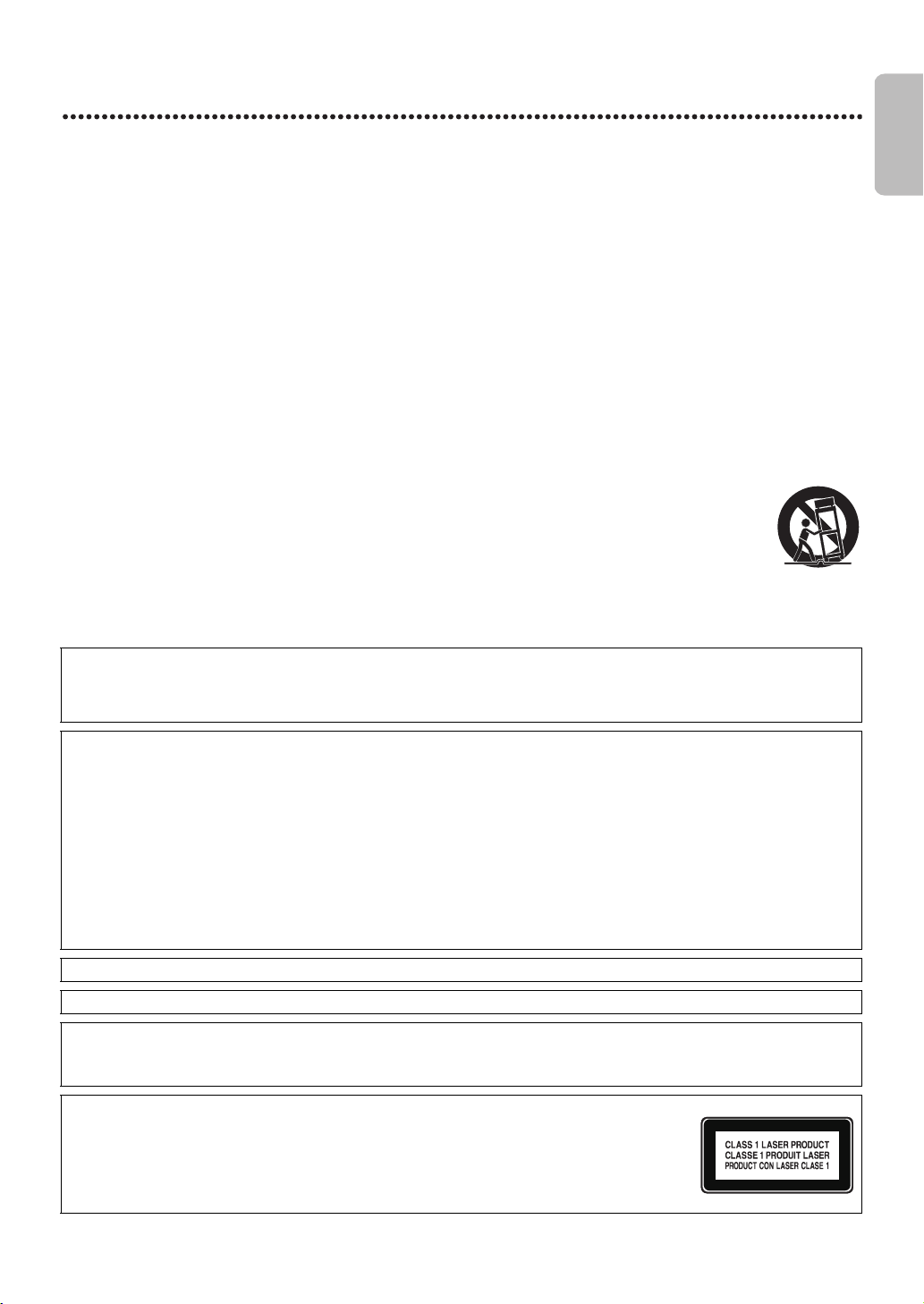
12. Use only with the cart, stand, tripod, bracket, or table specified by the manufacturer, or sold
with the apparatus. When a cart is used, use caution when moving the cart / apparatus
combination to avoid injury from tip-over.
13. Unplug this apparatus during lightning storms or when unused for long periods of time.
14. Refer all servicing to qualified service personnel. Servicing is required when the apparatus has been damaged in
any way, such as power-supply cord or plug is damaged, liquid has been spilled or objects have fallen into the
apparatus, the apparatus has been exposed to rain or moisture, does not operate normally, or has been dropped.
FCC WARNING
This equipment may generate or use radio frequency energy. Changes or modifications to this equipment may cause
harmful interference unless the modifications are expressly approved in the manual. The user could lose the authority to
operate this equipment if an unauthorized change or modification is made.
RADIO-TV INTERFERENCE
This equipment has been tested and found to comply with the limits for a Class B digital device, pursuant to Part 15 of the
FCC Rules. These limits are designed to provide reasonable protection against harmful interference in a residential
installation. This equipment generates, uses, and can radiate radio frequency energy and, if not installed and used in
accordance with the instructions, may cause harmful interference to radio communications. However, there is no
guarantee that interference will not occur in a particular installation. If this equipment does cause harmful interference to
radio or television reception, which can be determined by turning the equipment off and on, the user is encouraged to try
to correct the interference by one or more of the following measures:
1. Reorient or relocate the receiving antenna.
2. Increase the separation between the device and the receiver.
3. Connect the device into an outlet on a circuit different from that to which the receiver is connected.
4. Consult the dealer or an experienced radio / TV technician for help.
Disconnect the mains plug to shut off when find trouble or not in use. The mains plug shall remain readily operable.
This Class B digital apparatus complies with Canadian ICES-003.
CAUTION:
Danger of explosion if battery is incorrectly replaced. Replace only with the same or equivalent type.
WARNING:
Batteries (Battery pack or battery installed) shall not be exposed to excessive heat such as sunshine, fire
or the like.
LASER SAFETY
This apparatus is classified as a CLASS 1 LASER PRODUCT. This apparatus employs a laser.
Only a qualified service person should remove the cover or attempt to service this apparatus,
due to possible eye injury.
CAUTION: Use of controls or adjustments or performance of procedures other than
those specified herein may result in hazardous radiation exposure.
E8E2CCD_E8E2CCH_EN_v1.book Page 3 Friday, March 9, 2012 6:37 PM

EN - 4
English
4
Safety Information (cont’d)
To Avoid the Hazards of Electrical Shock and Fire
• Do not handle the AC power cord with wet hands.
• Do not pull on the AC power cord when disconnecting it from an AC outlet. Grasp it by the plug.
• Do not put your fingers or objects into the unit.
Location and Handling
• Do not install the unit in direct sunlight, near strong magnetic fields, or in a place subject to dust or strong vibration.
• Avoid a place with drastic temperature changes.
• Install the unit in a horizontal and stable position. Do not place anything directly on top or bottom of the unit. Depending
on your external devices, noise or disturbance in the picture and/or sound may be generated if the unit is placed too
close to them. In this case, please ensure enough space between the external devices and the unit.
• Depending on the environment, the temperature of this unit may increase slightly. This is not a malfunction.
• Be sure to remove the disc and unplug the AC power cord from the outlet before carrying the unit.
Dew Condensation Warning
• Dew condensation may form inside the unit in the following conditions. If so, do not use this unit at least for a few hours
until its inside gets dry.
- The unit is moved from a cold place to a warm place.
- Under conditions of high humidity.
- After heating a cold room.
Notice for Progressive Scan Use
Consumers should note that not all high definition television sets are fully compatible with this product and may cause
artifacts to be displayed in the picture.In case of picture problems with 525 (480) progressive scan output, it is
recommended that the user switch the connection to the ‘standard definition’ output. If there are questions regarding your
TV set compatibility with this 525p (480p) DVD player, please contact our customer service center.
Maintenance
Servicing
• Please refer to relevant topics on “Helpful Hints” on pages59-61 before returning the product.
• If you need to call a customer service representative, please know the model number and serial number of your product
before you call. This information is displayed on the back of the product. Also, please take a moment to identify the
problem you are having, and be prepared to explain this to the representative. If you believe the representative will need
to help you with operations, please stay near the product. Our representatives will be happy to assist you. For online
reference, please visit our website at www.philips.com/support
Cleaning the Cabinet
• Wipe the front panel and other exterior surfaces of the unit with a soft cloth.
• Never use a solvent, thinner, benzene or alcohol to clean the unit. Do not spray insecticide liquid near the unit. Such
chemicals may discolor the surface or damage the unit.
Cleaning Discs
• When a disc becomes dirty, clean it with a cleaning cloth. Wipe the disc from the center to outside. Do not wipe in a
circular motion.
• Do not use solvents such as benzine, thinner, commercially available cleaners, detergent, abrasive cleaning agents or
antistatic spray intended for analog records.
IMPORTANT COPYRIGHT INFORMATION
Unauthorized copying, broadcasting, public performance and lending of discs are prohibited. This item incorporates copy
protection technology that is protected by U.S. patents and other intellectual property rights of Rovi Corporation.
Reverse engineering and disassembly are prohibited.
Never use a gas duster on this unit.
The gas trapped inside of this unit may cause ignition and explosion.
Do not place the unit on the furniture that is capable of being tilted by a child and an adult leaning, pulling, standing or
climbing on it. A falling unit can cause serious injury or even death.
This apparatus should not be placed in a built-in installation such as a bookcase or rack unless proper ventilation is
provided. Make sure to leave a space of 7.8 inches (20cm) or more around this apparatus.
E8E2CCD_E8E2CCH_EN_v1.book Page 4 Friday, March 9, 2012 6:37 PM
EN - 5
English
5
Safety Information (cont’d)
Cleaning the Disc Lens
• If this unit still does not perform properly although you refer to the relevant sections and to “Helpful Hints” in this user
manual, the laser optical pickup unit may be dirty. Consult your dealer or an Authorized Service Center for inspection
and cleaning of the laser optical pickup unit.
Disc Handling
• Handle the discs so that fingerprints and dust do not adhere to the surfaces of the discs.
• Always store the disc in its protective case when it is not used.
• Note that discs with special shapes (heart-shaped discs, octagonal discs, etc.) cannot be played back on this unit. Do not
attempt to play such discs, as they may damage the unit.
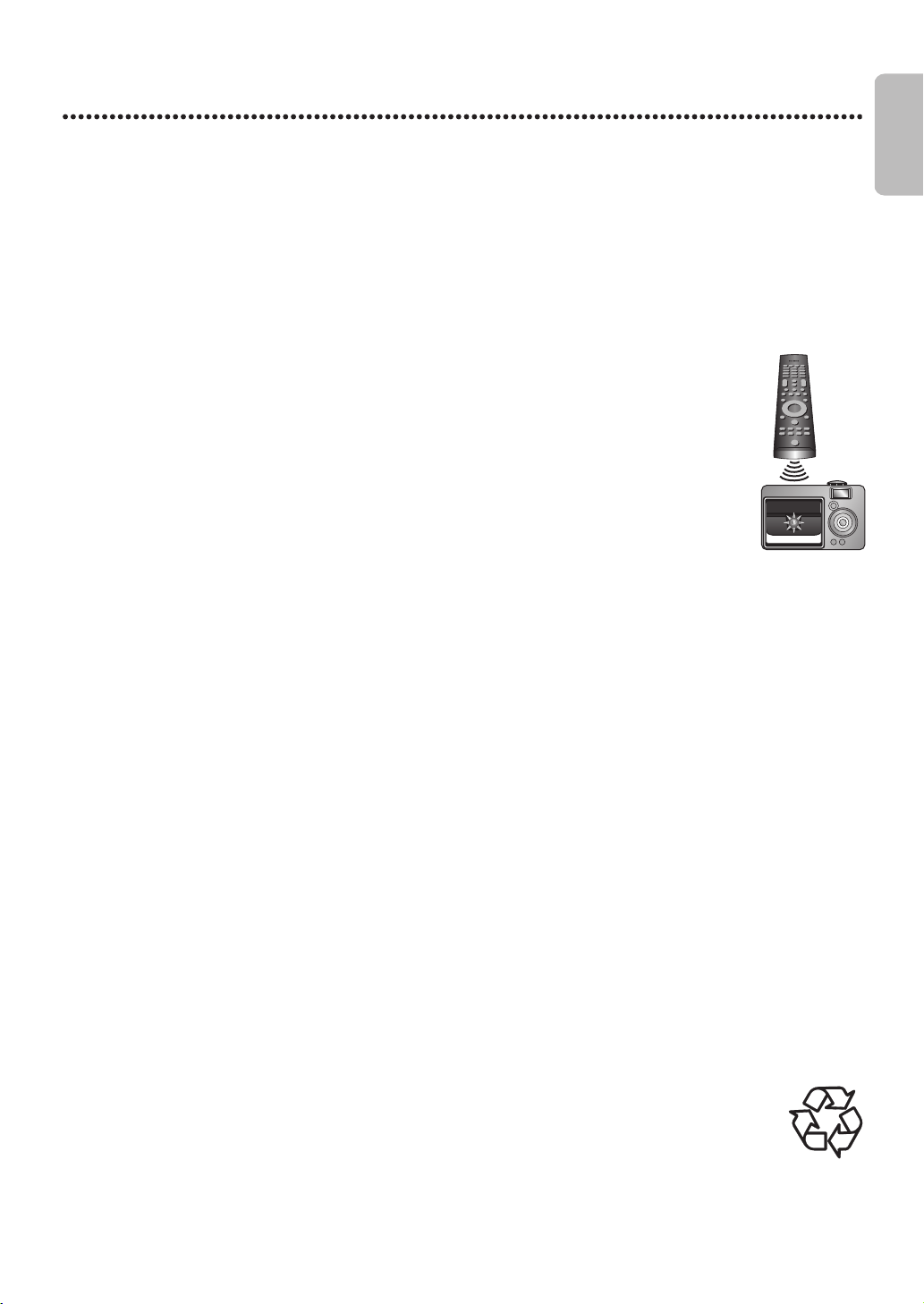
Testing the Remote Control
• If the remote control is not working properly, you can use a digital camera (including a cellular phone with built-in
camera) to see if it is sending out an infrared signal.
How to perform the test?
1. Point the IR transmitter of the remote control towards the lens of the digital camera (or cell phone camera).
2. Turn on the digital camera and look at the IR transmitter of the remote control through the LCD
display of the digital camera.
3. While looking at the LCD, press the buttons on your remote control you want to test.
a. If your remote control is working properly, the IR transmitter of the remote control will create a
noticeable flash on the LCD of the digital camera.
b. If it does not flash, replace the batteries in your remote with new batteries and try again. If it still does not flash,
your remote control may be damaged or defective. Please contact customer service for replacement options.
Notice
Specifications are subject to change without notice. Trademarks are the property of Koninklijke Philips Electronics N.V. or
their respective owners. P&F USA reserves the right to change products at any time without being obliged to adjust earlier
supplies accordingly. The material in this manual is believed adequate for the intended use of the system. If the product, or
its individual modules or procedures, are used for purposes other than those specified herein, confirmation of their validity
and suitability must be obtained. P&F USA warrants that the material itself does not infringe any United States patents. No
further warranty is expressed or implied. P&F USA cannot be held responsible neither for any errors in the content of this
document nor for any problems as a result of the content in this document. Errors reported to P&F USA will be adapted
and published on the P&F USA support website as soon as possible.
Warranty
No components are user serviceable. Do not open or remove covers to the inside of the product. Repairs may only be
done by Service Centers and official repair shops. Failure to do so shall void any warranty, stated or implied. Any operation
expressly prohibited in this manual, any adjustments, or assembly procedures not recommended or authorized in this
manual shall void the warranty.
Important
Registering your model with Philips makes you eligible for all of the valuable benefits listed below, so don’t miss out.
Complete and return your Product Registration Card at once, or register online at www.philips.com/support to ensure:
Product Safety Notification
By registering your product you receive notification - directly from the manufacturer - in the rare case of a product recall
or safety defect.
Additional Benefits of Product Ownership
Registering your product guarantees that you receive all of the privileges to which you’re entitled, including special money-
saving offers.
For further assistance
For further assistance, call the customer support service in your country.
• To obtain assistance in the U.S.A., Canada, Puerto Rico, or the U.S. Virgin Islands, contact Philips Customer Care Center
at 1-866-309-0846
Environmental Care
The packaging of this product is intended to be recycled. Contact your local authorities for information
about how to recycle the packaging. For Product recycling information, please visit -
www.recycle.philips.com
Disposal of used batteries
The batteries supplied do not contain the heavy metals mercury and cadmium. Nevertheless, in many areas batteries may
not be disposed of with your household waste. Please ensure you dispose of batteries according to local regulations.
E8E2CCD_E8E2CCH_EN_v1.book Page 5 Friday, March 9, 2012 6:37 PM

English
6
EN - 6
Contents
Introduction
Safety Informations ........................................................... 3
Introduction........................................................................ 7
Playable Discs and Video Cassettes.............................. 8
Initial DVD/VCR Setup
Hookups .............................................................................. 9
Remote Control Setup ..................................................14
First-time DVD/VCR Setup ..........................................15
Basic Playback
Video Cassette Playback................................................16
Disc Playback....................................................................17
Basic DVD/VCR Controls
Display Panel.....................................................................18
Front Panel, Rear Panel and Remote Control..........19
Additional VCR Setup
Clock (VCR) .....................................................................20
Language (VCR) ...............................................................21
VCR Status Displays .......................................................21
VCR Recording Options
Videotape Recording ......................................................22
One-Touch Recording ...................................................23
Rerecording (Tape Duplication) ..................................24
Timer Recording..............................................................25
Satellite Link......................................................................27
DVD to Videotape Duplication....................................29
Video Cassette Playing Options
Repeat Playback ...............................................................30
Tape Counter...................................................................30
Time Search, Index Search............................................31
Special Effects Playback ..................................................32
Automatic Operation Features....................................32
Additional VCR Features
Hi-Fi Stereo ......................................................................33
Disc Playback Features
Menus ................................................................................ 33
Fast Forward/Fast Reverse ........................................... 34
x1.3 and x0.8 Rapid Play with Voice .......................... 34
Title/Chapter/Time Search........................................... 35
Track Search .................................................................... 36
Paused and Step-by-Step Playback, Resume On...... 37
Repeat, A-B Repeat........................................................ 38
Markers ............................................................................. 39
Subtitles, Camera Angles .............................................. 40
Audio Language, Stereo Sound Mode........................ 41
Slow Motion, Zoom....................................................... 42
Program/Random Playback........................................... 43
MP3/Windows Media™ Audio/JPEG Playback ........ 44
On-Screen Displays........................................................ 46
Black Level........................................................................ 48
Initializing .......................................................................... 48
DVD Player Setup Options
Language............................................................................ 49
Display............................................................................... 51
Progressive Scan.............................................................. 52
Audio ................................................................................. 53
Parental Password .......................................................... 54
Parental Levels................................................................. 55
Others ............................................................................... 56
Information You May Need
Glossary ............................................................................ 58
Helpful Hints.................................................................... 59
Care and Maintenance................................................... 62
Specifications.................................................................... 62
Ninety (90) day Limited Warranty ............................. 63
Information Index ........................................................... 64
E8E2CCD_E8E2CCH_EN_v1.book Page 6 Friday, March 9, 2012 6:37 PM

EN - 7
English
7
Introduction
Welcome!
This DVD/VCR combines a Digital Video Disc (DVD) player and a Hi-Fi Video Cassette Recorder (VCR) into one unit,
letting you play DVDs, Audio Compact Discs (Audio CDs), and Video Cassettes on one piece of equipment.
Read this owner’s manual carefully to learn how to use the features listed below.
VCR Features
Disc Features
Package Contents
The following items are provided with your new DVD/VCR.
• Remote Control and two AA (1.5 V) batteries
• One set of Audio (red and white tips) and Video (yellow tips) cables
• This Owner’s Manual and Quick Start Guide
DVD Disc Menus...
Some explanations in this manual describe DVD Disc Menus. DVD manufacturers set the menus, which vary among DVDs.
Not all DVDs have menus. If the DVD has a menu, access it by pressing DVD, then DISCMENU on the remote control.
Details are on page 33.
DVD Player Setup Menu...
Some instructions explain how to use the DVD player’s Setup Menu to set up features of the DVD player or a DVD.
Access the DVD player menu by pressing SETUP on the remote control when playback is stopped. Even if a feature is set in
the DVD player’s menu, it may not be available if the current DVD does not include that feature.
Available Disc Features...
All features described in this manual are not available on every disc. If the feature is not available on the disc,
you cannot use the DVD / VCR to make it available. An “X” will appear in the top right corner of the TV screen
if you try to access a feature that is not currently available.
• Automatic Head Cleaner
• English, French and Spanish Menus and Displays
• 19 Micron head
• Recording : One-Touch and Timer
•Repeat Playback
• Satellite Link
• Searching : Time, Index, Forward and Reverse
• Slow Motion
• Still Picture
• Tape Counter
•Tracking Adjustment
• Audio Language choices *
• Camera Angles *
• DVD menus in a desired language *
•Markers
• MP3 Playback
•JPEG Playback
• Windows Media™ Audio Playback
• Dual Playback
• Parental Control *
• Paused / Fast / Slow / Step-by-Step
Playback
• Program Playback
• Progressive Scan
• Random Playback
•Repeat: A-B Repeat
• Resume On
• Specific Time / Title/ Chapter / Track
Search
• Subtitles *
•Zoom
* If available on the disc
E8E2CCD_E8E2CCH_EN_v1.book Page 7 Friday, March 9, 2012 6:37 PM
EN - 8
English
8
Playable Discs and Video Cassettes
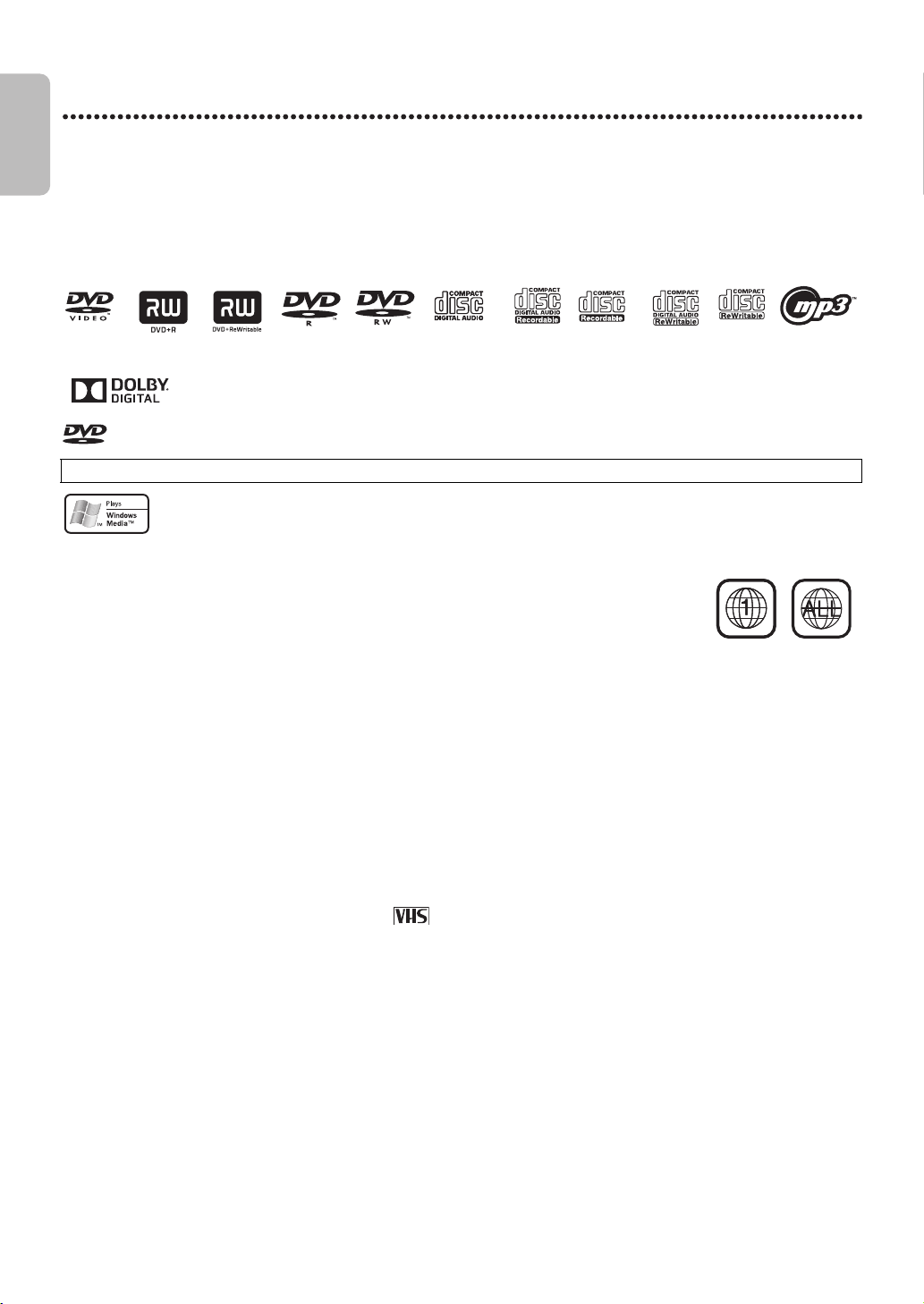
Playable Discs
The DVD player will play Digital Video Discs (DVDs); finalized Digital Video Discs Recordable (DVD+R, DVD-R); finalized
Digital Video Discs Rewritable (DVD+RW, DVD-RW); Audio Compact Discs (CDs); finalized Compact Discs Recordable
(CD-R) and Compact Discs Rewritable (CD-RW).
To play a DVD, make sure it meets the requirements for Region Codes and Color Systems as described below. Discs that
have the following logos will play on the DVD player. Other disc types are not guaranteed to play in the DVD / VCR.
• Do not stand the unit up vertically. Install the unit in a horizontal and stable position.
• Be sure to remove the disc and unplug the AC power cord from the outlet before carrying the unit.
Manufactured under license from Dolby Laboratories. Dolby and the double-D symbol are
trademarks of Dolby Laboratories.
is a trademark of DVD Format/Logo Licensing Corporation.
Windows Media and the Windows logo are trademarks or registered trademarks of Microsoft Corporation
in the United States and/or other countries.
This unit is not compatible with Multiple Bit Rate
(MBR : a file that contains the same content encoded at several different bit rates).
Region Codes
DVDs must be labeled for ALL regions or for Region 1 in order to play on this DVD player. You
cannot play DVDs that are labeled for other regions.
Look for the symbols below on your DVDs. If these region symbols do not appear on your DVD, you cannot play the DVD
in this player.
The number inside the globe refers to a region of the world. Region 1 represents the United States, Canada, upper regions
of North America, Bermuda, the U.S.Virgin Islands, and small regions near Australia. A disc encoded in a specific region
format can only play on DVD players with the same region code. For example, if a disc is labeled for Region 2, you cannot
play the DVD on this player.
Color Systems
Different color systems are available throughout the world. The most common color systems are NTSC, which is used
primarily in the United States and North America, PAL, and SECAM.
This DVD player will play both NTSC and PAL DVDs. You cannot play DVDs recorded in other formats.
The color system of the DVD may be listed on the DVD or on the disc case. Your TV must have the NTSC and / or PAL
color system as well.
Playable Video Cassettes
The VCR of this DVD / VCR has a High Quality (HQ) system and is compatible with existing Video Home System (VHS)
equipment. Use only video cassettes that have the mark. The use of other tapes may result in poor picture quality
and excessive deposits on the video heads, which may not be covered by the warranty if damage occurs.
The VCR also has a 19 micron head, which provides a better picture when you view tapes recorded in slow speed (SLP).
Unacceptable Discs
If you insert an unacceptable type of disc, a Disc Error message may appear on the TV screen. The following discs will not
play on this DVD player.
On the following disc, the sound may not be heard.
• Super Audio CD - Only the sound on the CD layer can be heard. The sound on the high-density Super Audio CD layer
cannot be heard.
MPEG Layer-3 audio coding technology licensed from Fraunhofer IIS and Thomson.
•CD-ROM
• Video Single Disc (VSD)
•Unfinalized disc
• Non-compatible recording mode
• Compact Disc-Interactive (CD-I)
• DVD-ROM
• DVD contains MP3, Windows
Media™ Audio or JPEG files
•DVD-RAM
•DVD-Audio
•Blu-ray Disc™
DVD+RW DVD-R MP3 filesCD-RWCD-RAudio CDDVD-RWDVD+RDVD
E8E2CCD_E8E2CCH_EN_v1.book Page 8 Friday, March 9, 2012 6:37 PM

EN - 9
English
9
Initial DVD/VCR Setup
Hookups
Determining the best possible connection...
Your hookup will be determined primarily by your existing equipment, especially your TV. These guidelines describe which
options have the best picture and sound quality. You will not use all the jacks on the DVD / VCR.
Before you begin...
● Refer to the manuals of your TV, Cable Box, Stereo or other devices as necessary. Note the style of jacks and
connectors on the other equipment. Determine how to choose different Audio and Video In channels on your other
equipment so you can see and hear the DVD / VCR material playing on the TV, Stereo, etc.
● Disconnect all equipment from the power outlets. Connect the equipment to power only after you have finished hooking
up everything. Never make or change connections with equipment connected to power.
Remember...
● Set the TV to the correct Video In channel. Such channels may be called AUX or AUXILIARY IN, AUDIO/VIDEO or
A/V IN, EXT1 or External In, etc. These channels often are located near channel zero (0). Or, your TV’s remote may
have a button or switch that selects the Video Input channel. See your TV manual for details. If you do not see the DVD
or VCR playback on the TV, go to the lowest TV channel (01 or 02) and change channels downward until you see the
DVD or VCR picture on the TV. To help you find the right Audio / Video In channel, turn on the DVD/VCR. Press DVD
to put the DVD / VCR in DVD mode.With no disc in the player, a large DVD Video logo will appear on the TV screen
when you get the TV on the correct Audio / Video In channel.
● Set the Stereo to the correct channel or “source” mode.
● Depending on your connection, you may need to purchase additional cables or adaptors. If your TV or monitor has
BNC-type connectors, you will need an adaptor.
Once you determine the best option, find your choice on pages10-13. Follow the steps for the hookup you
choose. Then, go to page 15 to complete the first-time setup.
★★★★ If your TV has Component Video In jacks (which could be labeled Y CR CB, Y PR PB or YUV and may be
green, blue and red), use the Component Video jacks (Y C
B/PB CR/PR) for the best picture quality. If you use
only this video connection, only the DVD picture will be available. To see DVD features on the TV, set the TV
to its Component Video In channel. Component Video provides the best picture quality. See page 11.
Progressive Scan provides less flickering and higher image resolution than traditional (525i / 480i or interlace)
TV signals.
If your TV has Progressive Scan (525p/480p or progressive), connect the TV to the DVD / VCR’s
COMPONENT VIDEO OUT (Y C
B/PB CR/PR) jacks. Set Progressive Scan (PROG. SCAN) to ON in the DVD/
VCR’s DISPLAY Menu. See pages51-52. P.SCAN will appear on the DVD / VCR’s display panel. Set your TV
to Progressive Scan also.
If your TV does not have Progressive Scan but has Component Video In jacks, connect them to the
DVD / VCR’s COMPONENT VIDEO OUT jacks (Y C
B/PB CR/PR). Set Progressive Scan (PROG. SCAN) to
OFF either in the DISPLAY Menu or by pressing and holding PLAY B (DVD) on the front of the DVD / VCR
for more than 5 seconds. See pages51-52.
★★★ If your TV has an S-Video In jack (which also may be labeled Y/C or S-VHS), use the S-VIDEO OUT jack for
excellent picture quality. If you use only this video connection, only the DVD picture will be available. To see
DVD features on the TV, set the TV to its S-Video In channel. See page 11.
★★ If your TV has a single yellow Video In jack (which also may be labeled CVBS, Composite or baseband), use
the yellow DVD/VCR VIDEO OUT jack for good picture quality. This connection provides a picture for both
the DVD player and the VCR. To see DVD or VCR features on the TV, set the TV to its Video In channel. See
page 10.
★★★★ If you have a Stereo with a Coaxial Digital Audio In jack, this provides the clearest sound for the DVD player.
Connect the DVD/VCR’s COAXIAL DIGITAL AUDIO OUT jack to your Stereo for the best sound quality. If
you use only this audio connection, only disc sound (no VCR) will be available. See page 13.
★★★ If digital audio connections are not possible, connect the DVD/VCR’s red and white DVD/VCR AUDIO OUT
jacks to the Audio In jacks of your Stereo or TV. This connection provides sound for both the DVD player
and the VCR. See pages11-12.
E8E2CCD_E8E2CCH_EN_v1.book Page 9 Friday, March 9, 2012 6:37 PM
EN - 10
English
10
Hookups (cont’d)
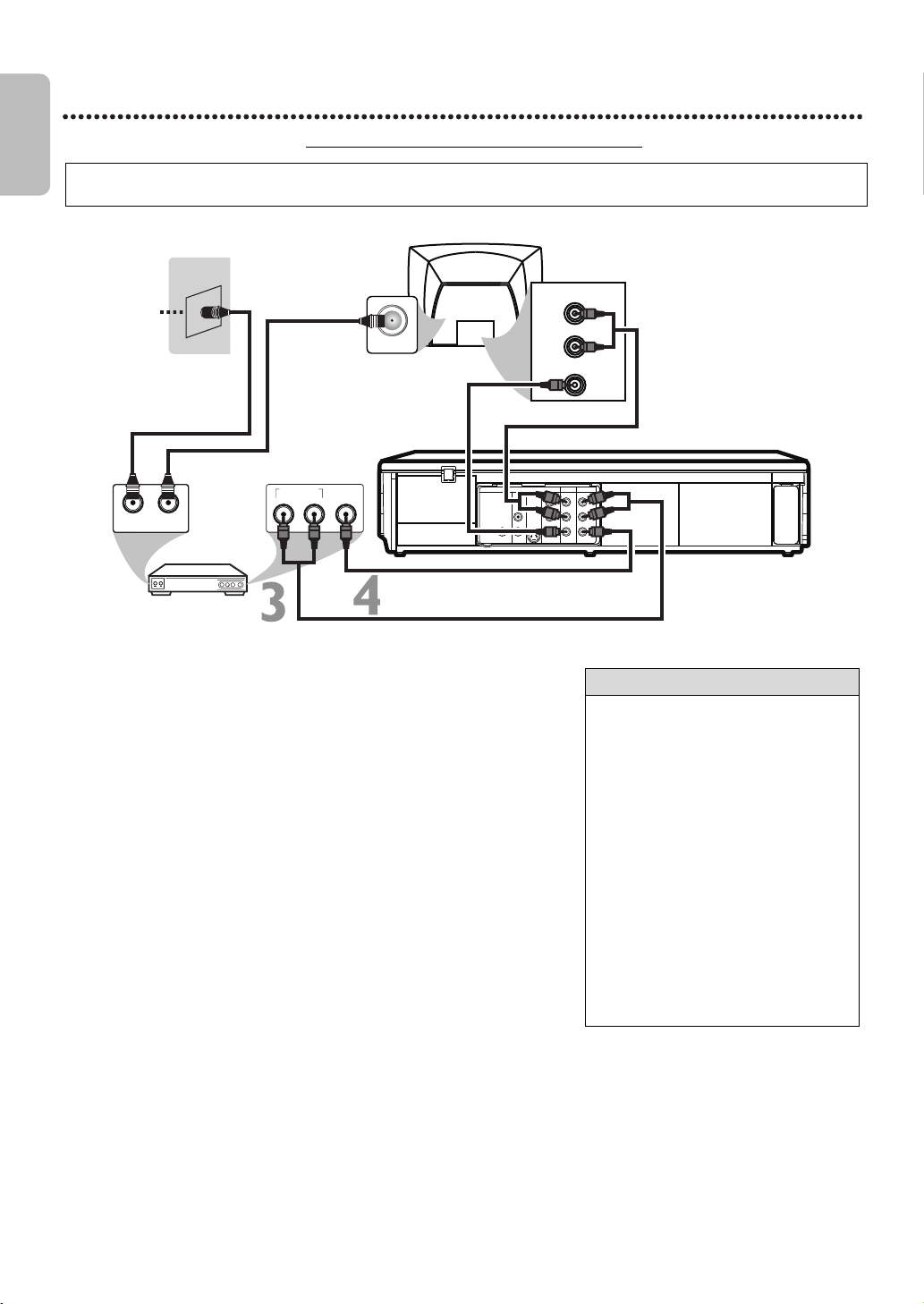
DVD / VCR to An External Tuner
e.g.)
Connections
● You can record any unscrambled channel by selecting the channel on the
external tuner. Be sure that the external tuner is turned on.
● Signal from the external tuner can be output only on CVBS output even
when the power of the DVD/VCR is off.
● You cannot record one channel while watching another channel.
This DVD / VCR does not have a tuner input jack. To record TV programs on your DVD / VCR, you need to connect this
DVD / VCR to an external tuner device (e.g., set top box, cable box or satellite receiver) that has audio / video output jacks.
1
Connect a TV signal to the IN jack on the external tuner.
2
Use an RF coaxial cable (not supplied) to connect the Out jack
on the external tuner to the ANT. IN jack on the TV.
3
Connect the red and white audio cable (supplied) to the red
and white AUDIO OUT jacks on the external tuner and to the
red and white VCR AUDIO IN jacks on the DVD/VCR.
4
Connect the yellow video cable (supplied) to the yellow VIDEO
OUT jack on the external tuner and to the VCR VIDEO IN jack
on the DVD/VCR.
5
Connect another red and white audio cable (not supplied) to
the red and white DVD/VCR AUDIO OUT jacks on the DVD/
VCR and to the red and white Audio In jacks on the TV.
6
Connect another yellow video cable (not supplied) to the DVD/
VCR VIDEO OUT jack on the DVD/VCR and to the Video In
jack on the TV.
7
Connect the power cords of the TV and the DVD/VCR to a
power outlet. Turn on the TV and set it to the correct Video In
channel.
8
You are ready to turn on the DVD/VCR. Go to page 15 to
complete the first-time setup.
DIGITAL
AUDIO OUT
COAXIAL
AUDIO
OUT
DVD
L
R
L
R
L
R
S-VIDEO
OUT
COMPONENT
VIDEO OUT
Y
C
B
/
P
B
AUDIO OUT
DVD/VCR
VCR
VIDEO OUT
AUDIO IN
VIDEO IN
C
R
/
P
R
AUDIO IN
VIDEO IN
L
R
ANT. IN
AUDIO OUT
LR
VIDEO
OUT
OUTIN
12
6
5
TV Signal
RF coaxial cable
(not supplied)
Back of TV
Audio Cable
(not supplied)
Video Cable
(not supplied)
External tuner
Video Cable (supplied)
Audio Cable (supplied)
DVD / VCR
RF coaxial cable
(not supplied)
Helpful Hint
• If your TV has antenna in jack only,it is
still possible to connect this unit to
your TV by using a commercially
available stereo audio/video RF
modulator. Refer to the manual
accompanying the modulator for more
information.
• Required cables and connecting
methods differ depending on the
external tuner. For more information,
please contact your external tuner
provider.
• Instead of using video out jack of this
DVD/VCR, you can also use S-video
out jack or component video output
jack for connecting to your TV.
• Refer to the manual accompanying
external devices for more information.
E8E2CCD_E8E2CCH_EN_v1.book Page 10 Friday, March 9, 2012 6:37 PM
EN - 11
English
11
Hookups (cont’d)
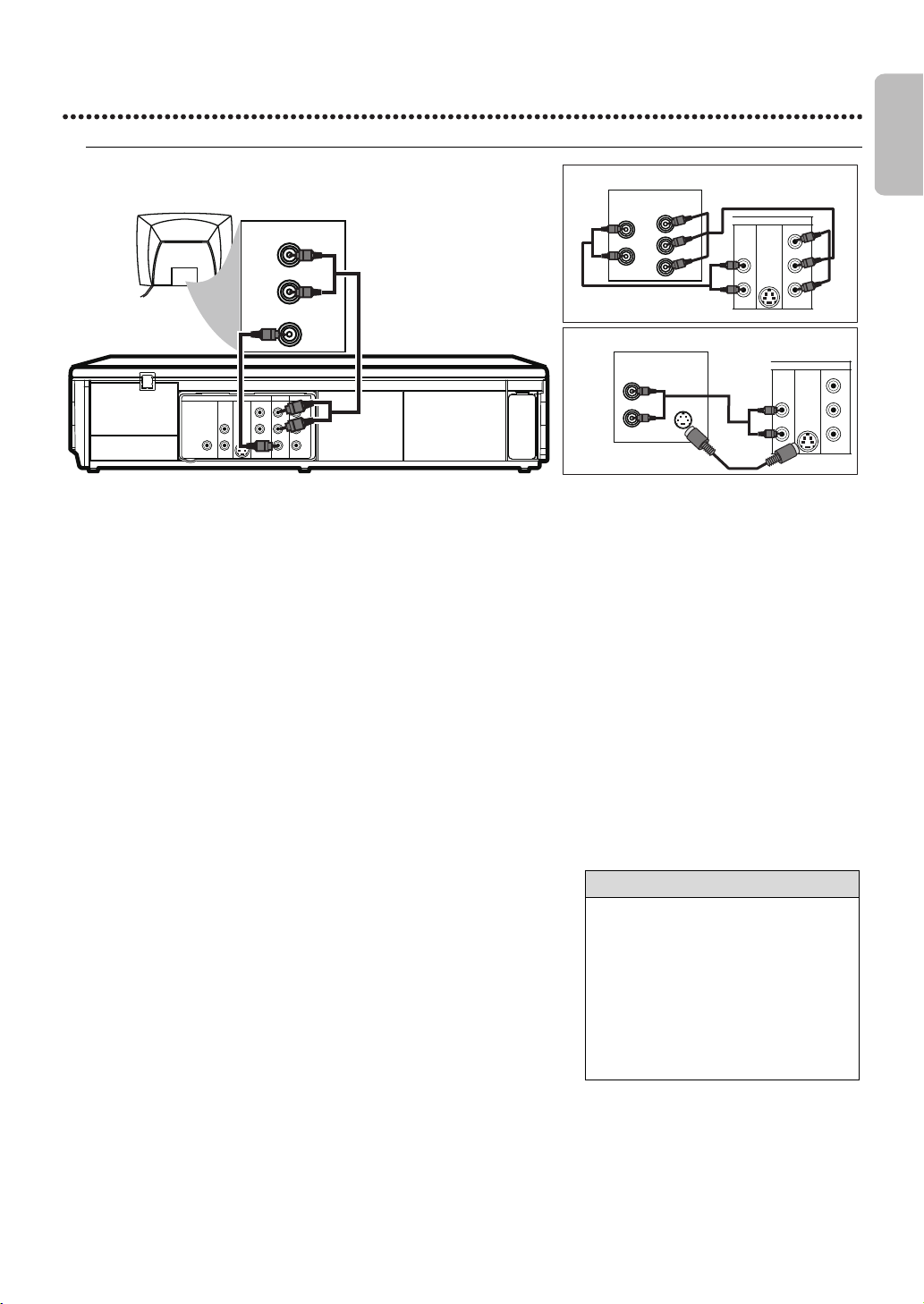
DVD/VCR to a TV that has Audio/ Video, Component Video or S-Video In jacks
1
Connect the red and white audio cable (supplied) to the red
and white DVD or DVD/VCR AUDIO OUT jacks on the DVD/
VCR and to the red and white Audio In jacks on the TV.
● If you are using DVD/VCR AUDIO OUT jacks for your audio
connection, use 2a method for your video connection. If you are using
DVD AUDIO OUT jacks for your audio connection, use 2b or 2c
method for your video connection.
2
a
Connect the yellow video cable (supplied) to the DVD/VCR
VIDEO OUT jack on the DVD/VCR and to the Video In jack
on the TV. The Video In jack on the TV is usually yellow and may
be labeled CVBS, Composite or Baseband video.
2
b
Connect component video cable (not supplied) to the
COMPONENT VIDEO OUT jacks on the DVD/VCR and to
the Component Video In jacks on the TV. The Component
Video In jacks on the TV are usually red, blue and green.
2
c
Connect an S-Video cable (not supplied) to the S-VIDEO
OUT jack on the DVD/VCR and to the S-Video In jack on
the TV.
3
Connect the power cords of the TV and the DVD/VCR to a
power outlet. Turn on the TV and set it to the correct Video In
channel.
If you are using the yellow video cable for VCR playback, choose the
Video In channel at your TV. To find the correct Video In channel, go to
your lowest TV channel and change channels downward until you see
VCR playback on the TV screen. To help you find the right Video In
channel,turn on the DVD/VCR. Press DVD to put the DVD/VCR in
DVD mode. With no disc in the player, a large DVD Video logo will
appear on the TV screen when you get the TV on the correct Video In
channel.
4
You are ready to turn on the DVD/VCR. Go to page 15 to
complete the first-time setup.
DIGITAL
AUDIO OUT
COAXIAL
AUDIO
OUT
DVD
L
R
L
R
L
R
S-VIDEO
OUT
COMPONENT
VIDEO OUT
Y
C
B
/
P
B
AUDIO OUT
DVD/VCR
VCR
VIDEO OUT
AUDIO IN
VIDEO IN
C
R
/
P
R
AUDIO IN
S-VIDEO IN
L
R
AUDIO
OUT
DVD
L
R
S-VIDEO
OUT
COMPONENT
VIDEO OUT
Y
C
B
/
P
B
C
R
/
P
R
AUDIO IN
Y
Cb/Pb
Cr/Pr
COMPONENT
VIDEO IN
L
R
AUDIO
OUT
DVD
L
R
S-VIDEO
OUT
COMPONENT
VIDEO OUT
Y
C
B
/
P
B
C
R
/
P
R
AUDIO IN
VIDEO IN
L
R
1
2
a
1
2
c
2
b
1
Audio and Video IN
Jacks on TV
Audio Cable (supplied)
Back of TV
Back of TV
Video Cable
(supplied)
Helpful Hint
• Match the cable colors to the jack
colors. If the TV has a single Audio In
jack, use the white audio cable to
connect the DVD/VCR’s white
AUDIO OUT (left) jack to the TV’s
Audio In jack. You will not use the red
cable. Or, purchase a “splitter” audio
cable to go from the left/right AUDIO
OUT jacks of the DVD/VCR to the
TV’s single Audio In jack.
E8E2CCD_E8E2CCH_EN_v1.book Page 11 Friday, March 9, 2012 6:37 PM
EN - 12
English
12
Hookups (cont’d)
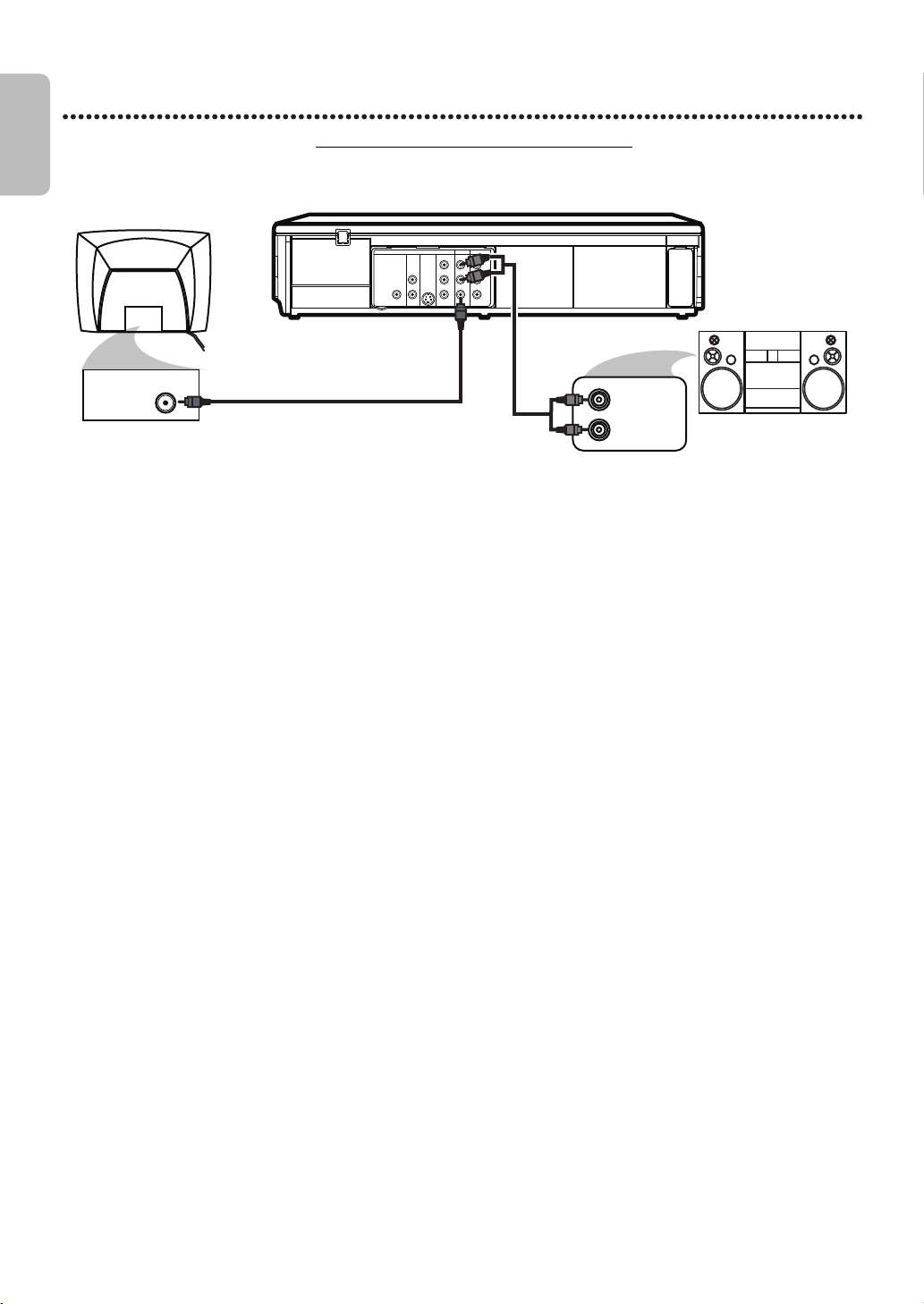
DVD/VCR to a TV and a Stereo
1
Connect the supplied red and white audio cable to the red and white DVD/VCR AUDIO OUT jacks
on the DVD/VCR and to the red and white Audio In jacks on the Stereo. Match the cable colors to the
jack colors.
2
Connect the supplied yellow video cable to the DVD/VCR VIDEO OUT jack on the DVD/VCR and to
the Video In jack on the TV.
To use Component Video cable or S-Video cable instead for the DVD player, see page 11. You will still need the
yellow video cable for VCR features.
3
Connect the power cords of the DVD/VCR, TV and Stereo to a power outlet. Turn on the TV and
set it to the Video In channel. Or, simply go to your TV’s lowest channel (01 or 02) and continue changing
channels downward at the TV until you see VCR or DVD playback on the TV screen.
To help you find the right Video In channel at the TV, turn on the DVD/VCR. Press DVD to put the DVD/VCR in
DVD mode. With no disc in the player, a large DVD Video logo will appear on the TV screen when you get the TV
on the correct Video In channel.
Turn on the Stereo and set it to the correct auxiliary or source mode. Check your Stereo manual for
details.
4
You are ready to turn on the DVD/VCR. Go to page 15 before turning on the DVD/VCR.
DIGITAL
AUDIO OUT
COAXIAL
AUDI O
OUT
DVD
L
R
L
R
L
R
S-VIDEO
OUT
COMPONENT
VIDEO OUT
Y
C
B
/
P
B
AUDIO OUT
DVD/VCR
VCR
VIDEO OUT
AUDIO IN
VIDEO IN
C
R
/
P
R
VIDEO IN
AUDIO (LEFT) IN
AUDIO (RIGHT) IN
2
1
Back of TV
(example only)
Video Cable
(supplied)
Audio Cable
(supplied)
Stereo
E8E2CCD_E8E2CCH_EN_v1.book Page 12 Friday, March 9, 2012 6:37 PM
EN - 13
English
13
Hookups (cont’d)
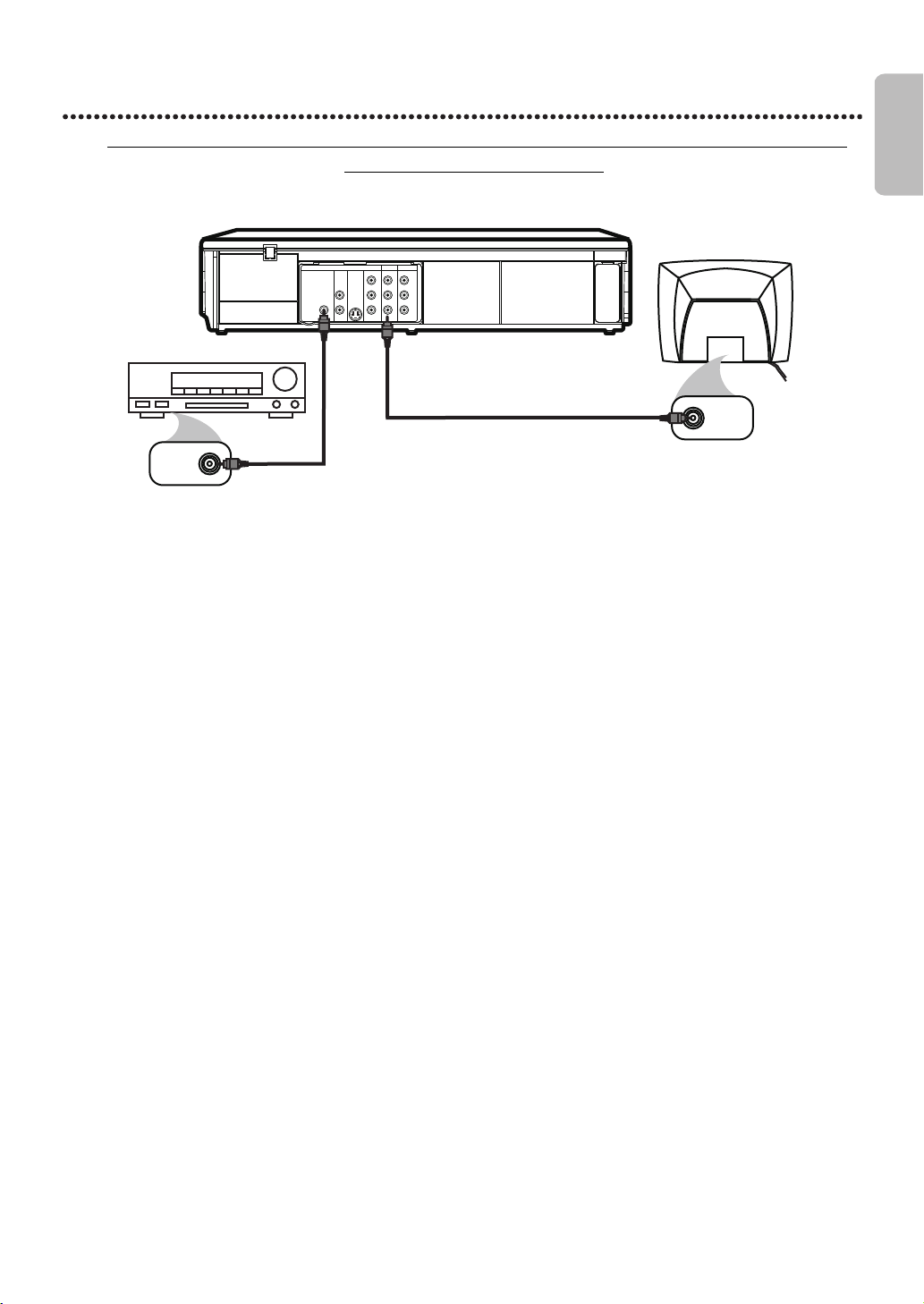
DVD/VCR to a TV and to a Stereo that is Dolby Digital-compatible Using
Digital Audio connections
Remember...
Some DVDs are recorded in Dolby Digital Multi-channel Surround Sound. Select Dolby Digital Multi-channel Surround
Sound in the DVD Disc Menu. If Dolby Digital Surround Sound is not recorded on the disc, you will not have surround
sound available.
If you connect the DVD/VCR to a Dolby Digital Stereo, set DOLBY DIGITAL to BITSTREAM in the DVD player’s Setup
Menu. Details are on page 53. If the DVD/VCR is not connected to a Dolby Digital-compatible Stereo, set DOLBY
DIGITAL to PCM. Incorrect settings may cause noise distortion and damage the speakers.
1
Connect a coaxial digital audio cable (not supplied) to the DVD/VCR’s COAXIAL DIGITAL AUDIO
OUT jack and to the Coaxial Digital Audio In jack on the Stereo. This digital audio connection only
provides sound for the DVD player of the DVD/VCR. So, in order to use the VCR features, connect the supplied
red/white audio cable. To connect the red/white audio cable, see step 5 on page 10.
2
Connect the supplied yellow video cable to the yellow DVD/VCR VIDEO OUT jack on the DVD/VCR
and to the Video In jack on the TV. To use component video cable or S-Video cable instead for the DVD
player, see page 11. You will still need the yellow video cable for VCR features.
3
Plug in the power cords of the Stereo, TV and DVD/VCR. Turn on the Stereo and select its Auxiliary
IN channel. Turn on the TV and set it to the correct Video In channel. Go to your TV’s lowest channel
(01 or 02) and change channels downward until you see DVD or VCR material on the TV screen.
To help you find the right Video In channel on the TV, turn on the DVD/VCR. Press DVD to put the DVD/VCR in
DVD mode. With no disc in the player, a large DVD Video logo will appear on the TV screen when you get the TV
on the correct Video In channel.
Make sure Progressive Scan (PROG. SCAN) is OFF and P.SCAN does not appear on the DVD/VCR’s display panel.
Disable Progressive Scan either in the DISPLAY Menu or by pressing and holding PLAY B (DVD) on the front of
the DVD/VCR for more than 5 seconds. Details are on pages9 and 52.
4
You are ready to turn on the DVD/VCR. Go to page 15 before turning on the DVD/VCR.
DIGITAL
AUDIO OUT
COAXIAL
AUDIO
OUT
DVD
L
R
L
R
L
R
S-VIDEO
OUT
COMPONENT
VIDEO OUT
Y
C
B
/
P
B
AUDIO OUT
DVD/VCR
VCR
VIDEO OUT
AUDIO IN
VIDEO IN
C
R
/
P
R
VIDEO IN
COAXIAL
DIGITAL
AUDIO IN
1
2
Stereo
Coaxial Digital Audio
Cable (not supplied)
Video Cable
(supplied)
Back of TV
(example only)
E8E2CCD_E8E2CCH_EN_v1.book Page 13 Friday, March 9, 2012 6:37 PM
EN - 14
English
14
Remote Control Setup
Putting Batteries in the Remote Control
Using the Remote Control
● Point the remote control at the DVD/VCR’s remote sensor (see page 19)
when using the remote to operate the DVD/VCR. Do not point the remote
at the TV.
● Do not put objects between the remote and the DVD/VCR.
Recycling Guidelines/Battery Safety
● Your new product and its packaging contain materials that can be recycled
and reused. Specialized companies can recycle your product to increase the
amount that needs to be properly disposed. Your product uses batteries
that should not be thrown away when depleted but should be disposed of as
small chemical waste. Please find out about the local regulations on disposal
of your old product, batteries and packaging whenever you replace existing
equipment.
● Battery Usage CAUTION
Incorrect use of batteries can result in hazards such as leakage and bursting.
Please observe the following:
• Lithium or ni-cad and ni-mh rechargeable batteries are not
recommended to use for remote control.
• Do not mix different types of batteries such as alkaline and standard
(carbon-zinc).
• Do not mix new and old batteries together.
• Do not use different kinds of batteries together. Although they may look
similar, different batteries may have different voltages.
• Make sure that the + and - ends of each battery match the indications in
the battery compartment.
• Remove batteries from battery compartment, when the remote is not
going to be used for a month or more.
• When disposing of used batteries, please comply with governmental
regulations or environmental public rules that apply in your country or
area.
• Do not recharge, short-circuit, heat, burn or disassemble batteries.
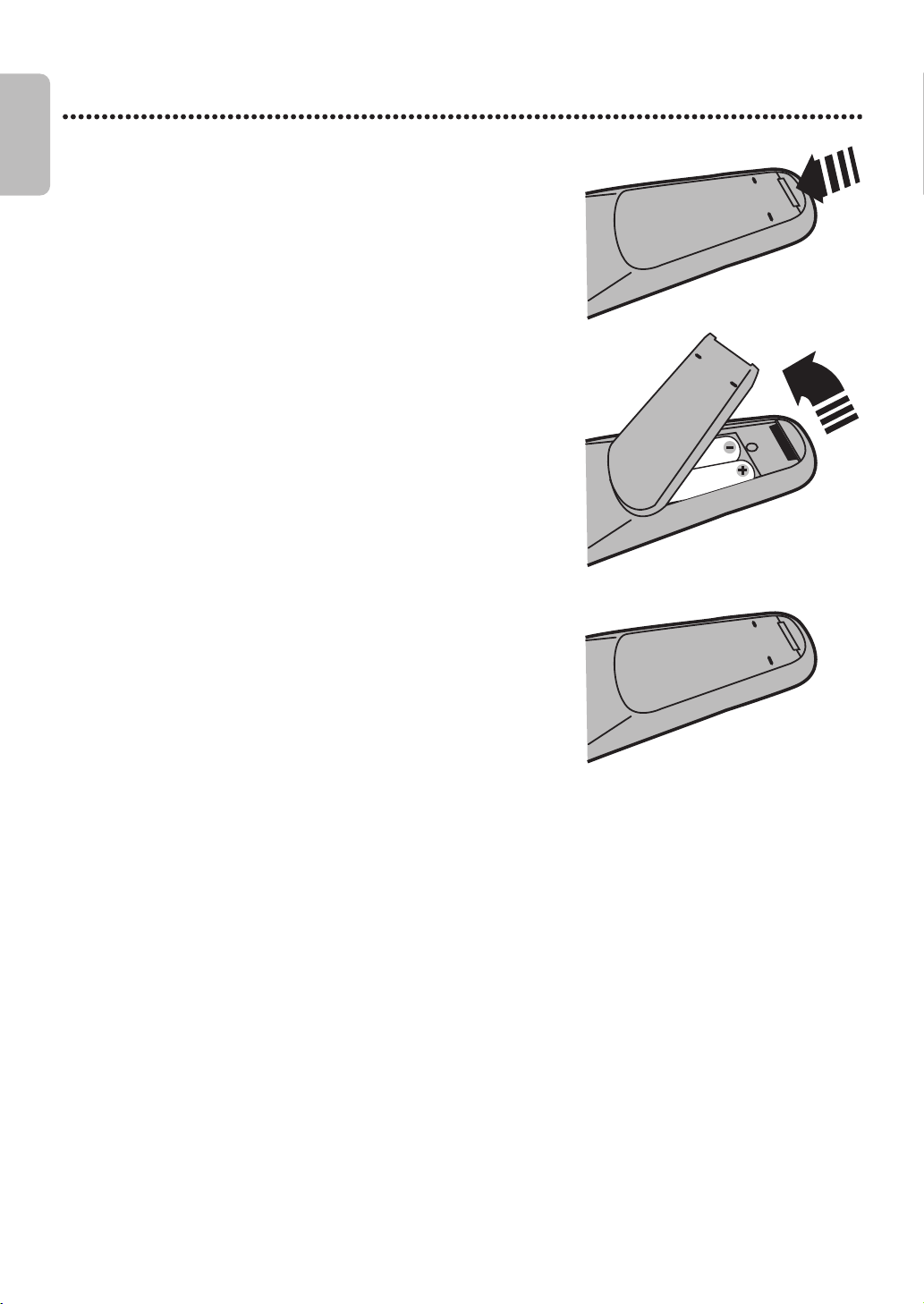
1
Remove the battery compartment lid on the bottom of the
remote control by pressing the tab, then lifting the lid.
2
Place two AA (1.5 V) batteries inside the battery compartment
with their + and – ends aligned as indicated.
3
Replace the battery compartment lid.
1
2
3
E8E2CCD_E8E2CCH_EN_v1.book Page 14 Friday, March 9, 2012 6:37 PM
EN - 15
English
15
First-time DVD/VCR Setup
Before turning on your DVD/VCR,make sure batteries are in the remote control and the DVD/VCR and TV are connected
correctly.
These menus may not appear if you have already turned on the DVD/VCR.
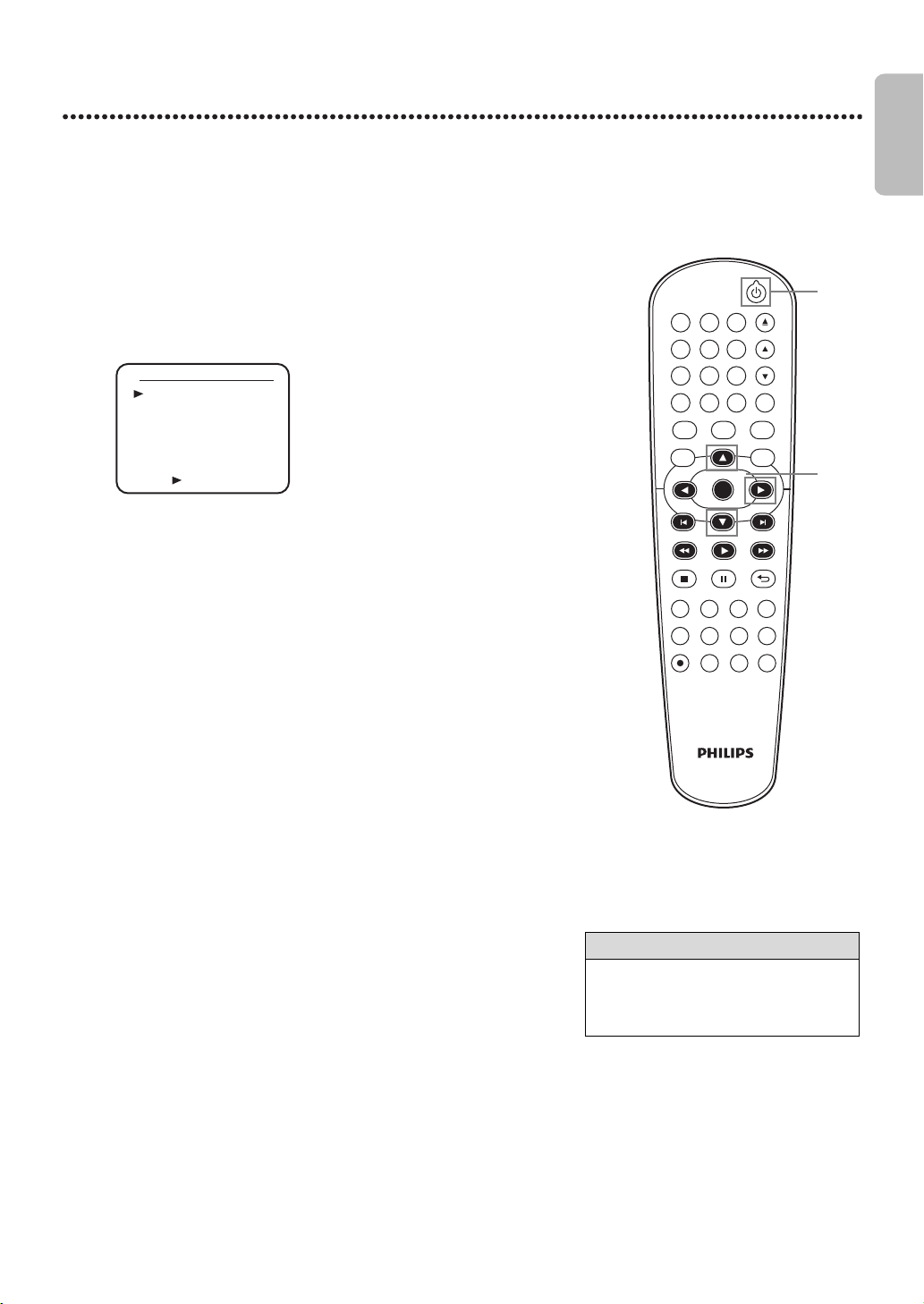
1
Turn on the TV. Set it to the correct Video In channel.
(Check your TV owner’s manual for details.)
2
Press y. VCR light will appear on the front of the DVD/VCR. The
display shown below will appear.
These menus may not appear if you have already turned on the DVD/
VCR. You may have turned on the DVD/VCR before to find the Audio/
Video In channel of the TV, for example. If so, follow the steps on
page 21 to select a language for the VCR menus.
3
Press ▲ or ▼ to select ENGLISH, FRANCAIS (French) or
ESPAÑOL (Spanish) as the language for VCR On-Screen Displays
and menus.
Then, press ►.
● To put the DVD/VCR in VCR mode, press VCR so VCR light appears.
DVDVCR SETUP
INPUT
MENU
REC SPEED MODE
ANGLE SEARCH REPEAT
DISPLAY SUBTITLE ZOOM
TIMER SET
REPEAT
A-B
AUDIO
BACKPAUSESTOP
PLAY
OK
FFW
REW
CLEAR TITLE
DISC
TRACKING
OPEN/CLOSE
12
6
5
4
7
89
0
+10
3
Helpful Hint
• To skip this feature and play a tape
immediately, insert a tape with its
record tab removed.
• Repeat this process if the power fails.
2
1
3
Turn on the TV.
LANGUAGE SELECT
ENGLISH
FRANÇAIS
ESPAÑOL
[ON]
PUSH
E8E2CCD_E8E2CCH_EN_v1.book Page 15 Friday, March 9, 2012 6:37 PM
EN - 16
English
16
Basic Playback
Video Cassette Playback
Read and follow the steps below to play a tape.
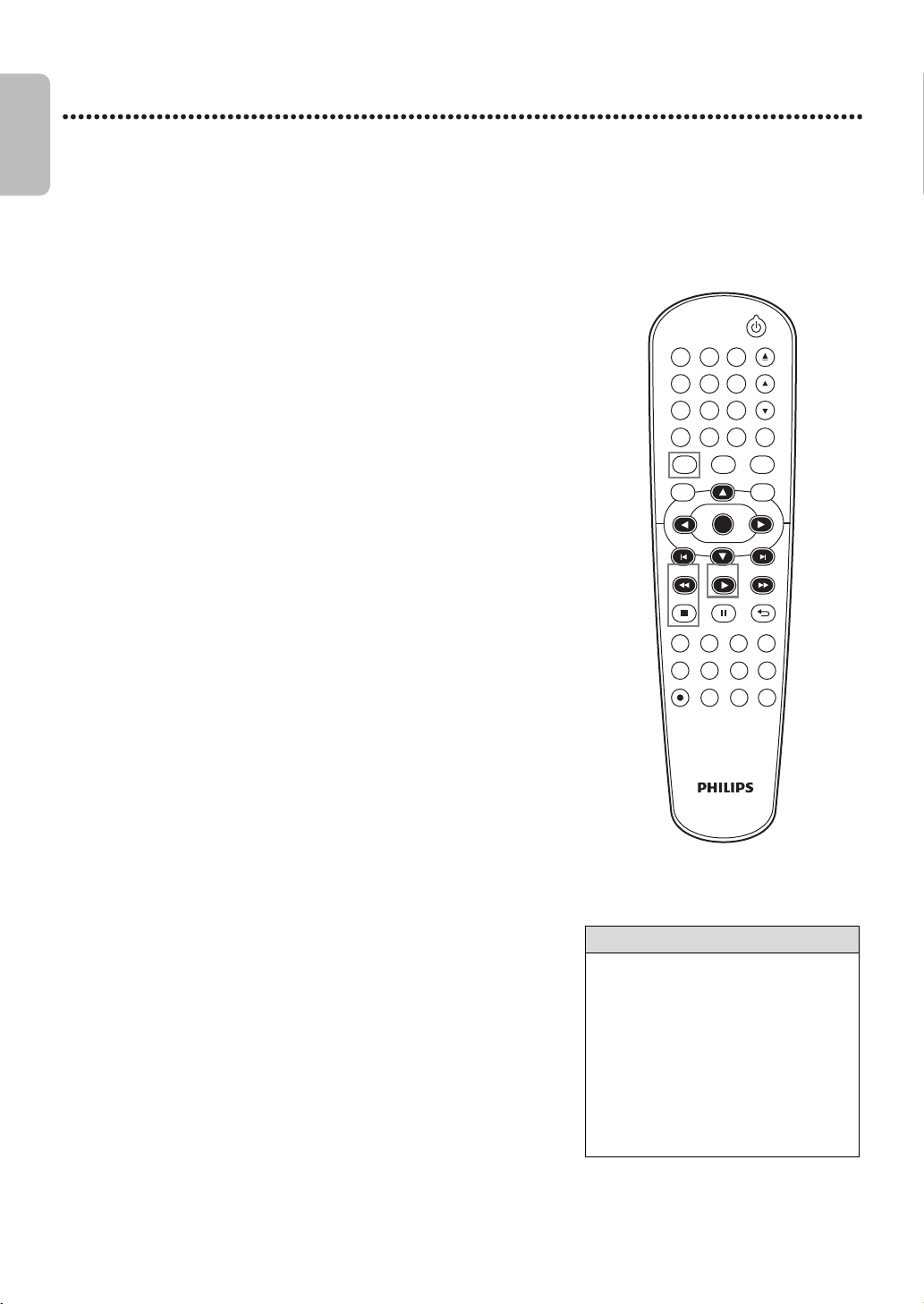
1
Turn on the TV. Set it to the correct Video In channel. (Check
your TV owner’s manual for details.)
Details are on page 9.
2
Insert a tape in the cassette compartment of the DVD/VCR.
VCR light will appear on the front of the DVD/VCR. If the tape’s
record tab has been removed, playback will start automatically.
If the DVD/VCR power is already on, press VCR to put the DVD/VCR
in VCR mode if necessary. VCR light will appear on the front of the
DVD/VCR.
● If playback does not start automatically, press VCR, then press
PLAY B.
● Press STOP C to stop playback.
● Press REW E to rewind the tape.
● After the tape stops, press STOP/EJECT C A on the front of the
DVD/VCR to remove the tape.
Helpful Hint
• Other tape playback features are on
pages30-33.
• If AUTO REPEAT is ON, playback will
begin when you insert a tape, even
when the record tab is intact. Details
are on page 30.
• You must connect the DVD/VCR to a
TV using the audio/video cables in
order to use the VCR features. These
hookups are explained on pages10 and
12.
DVDVCR SETUP
INPUT
MENU
REC SPEED MODE
ANGLE SEARCH REPEAT
DISPLAY SUBTITLE ZOOM
TIMER SET
REPEAT
A-B
AUDIO
BACKPAUSESTOP
PLAY
OK
FFW
REW
CLEAR TITLE
DISC
TRACKING
OPEN/CLOSE
12
6
5
4
7
89
0
+10
3
1
Turn on the TV.
2
Insert a tape in the DVD/
VCR.
E8E2CCD_E8E2CCH_EN_v1.book Page 16 Friday, March 9, 2012 6:37 PM
EN - 17
English
17
Disc Playback
Before you begin, turn on the TV, Stereo and other equipment connected to the DVD/VCR. Make sure the TV and the
Stereo (if applicable) are set to the correct channel. Details are on pages9-13.
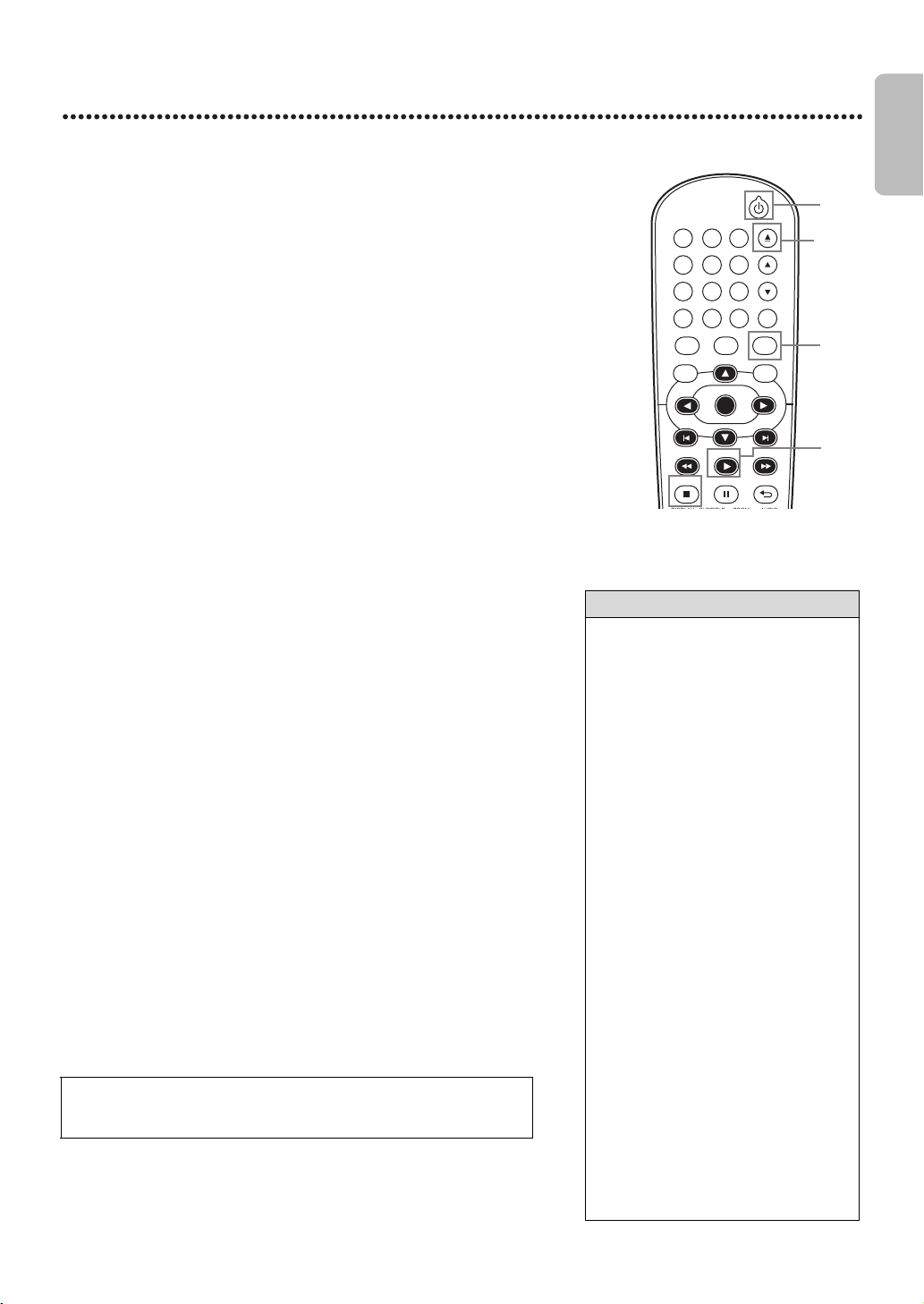
1
Press y to turn on the DVD/VCR.
2
Press DVD so DVD light appears on the front of the DVD/VCR.
3
Press OPEN/CLOSE A to open the disc tray.
4
Place a disc onto the tray. If the DVD is recorded on only one side,
place the disc on the tray with the label facing up and the shiny side
facing down. Some DVDs are recorded on both sides. Make sure the
label of the side you want to play is facing up.
5
Press PLAY B to close the tray. The tray will close and playback
will begin. If playback does not start automatically, press PLAY B again.
If a DVD Menu appears instead, see page 33.
To play MP3, Windows Media™ Audio or JPEG files, see pages44-45.
You also can close the tray by pressing OPEN/CLOSE A.
● Press STOP C to stop playback.
REMINDER : This DVD/VCR will play
only certain discs.
See page 8 for details.
Helpful Hint
• An “X” may appear at the top right
corner of the TV screen when you try
a feature. Either the feature is not
available on the disc, or the DVD/VCR
cannot access the feature at this time.
This does not indicate a problem with
the DVD/VCR.
• If a disc is dirty or scratched, the
picture may appear distorted or
playback may stop. In such cases,
remove the disc and turn off the DVD/
VCR. Disconnect the power cord,
then reconnect it. Clean the disc, then
turn on the DVD/VCR again and
reinsert the disc for playback.
• If a disc has multiple layers, the picture
may freeze occasionally. This happens
when the first layer switches to the
second layer. This is not a malfunction.
• When the DVD or CD light appears
on the display panel, the disc is loaded
and ready for playback.
• When you press OPEN/CLOSE A or
PLAY B (DVD) on the front of the
DVD/VCR when the power is off, the
DVD/VCR will turn on in DVD mode.
Otherwise, the DVD/VCR will turn on
in the mode in which it was turned off.
• If you use PLAY B to close the disc
tray, playback starts automatically. If
you use OPEN/CLOSE A to close the
disc tray, you have to press PLAY B to
start playback.
DVDVCR SETUP
INPUT
MENU
DISPLAY SUBTITLE ZOOM AUDIO
BACKPAUSESTOP
PLAY
OK
FFWREW
CLEAR TITLE
DISC
TRACKING
OPEN/CLOSE
12
6
5
4
7
89
0
+10
3
1
3,5
2
5
4
Insert a disc.
E8E2CCD_E8E2CCH_EN_v1.book Page 17 Friday, March 9, 2012 6:37 PM
EN - 18
English
18
Basic DVD/VCR Controls
Display Panel
STOP PLAY
REW F.FWD PLAY
RECSTOP/EJECT
VIDEO AUDIOLR
ONE TOUCH RECORDING • LONG PLAY
SOURCE
STANDBY-ON
VCR DVD
DVD
OPEN/CLOSE
REC
PM
GROUP P.SCAN
DVD
CD
DVD VIDEO PLAYER
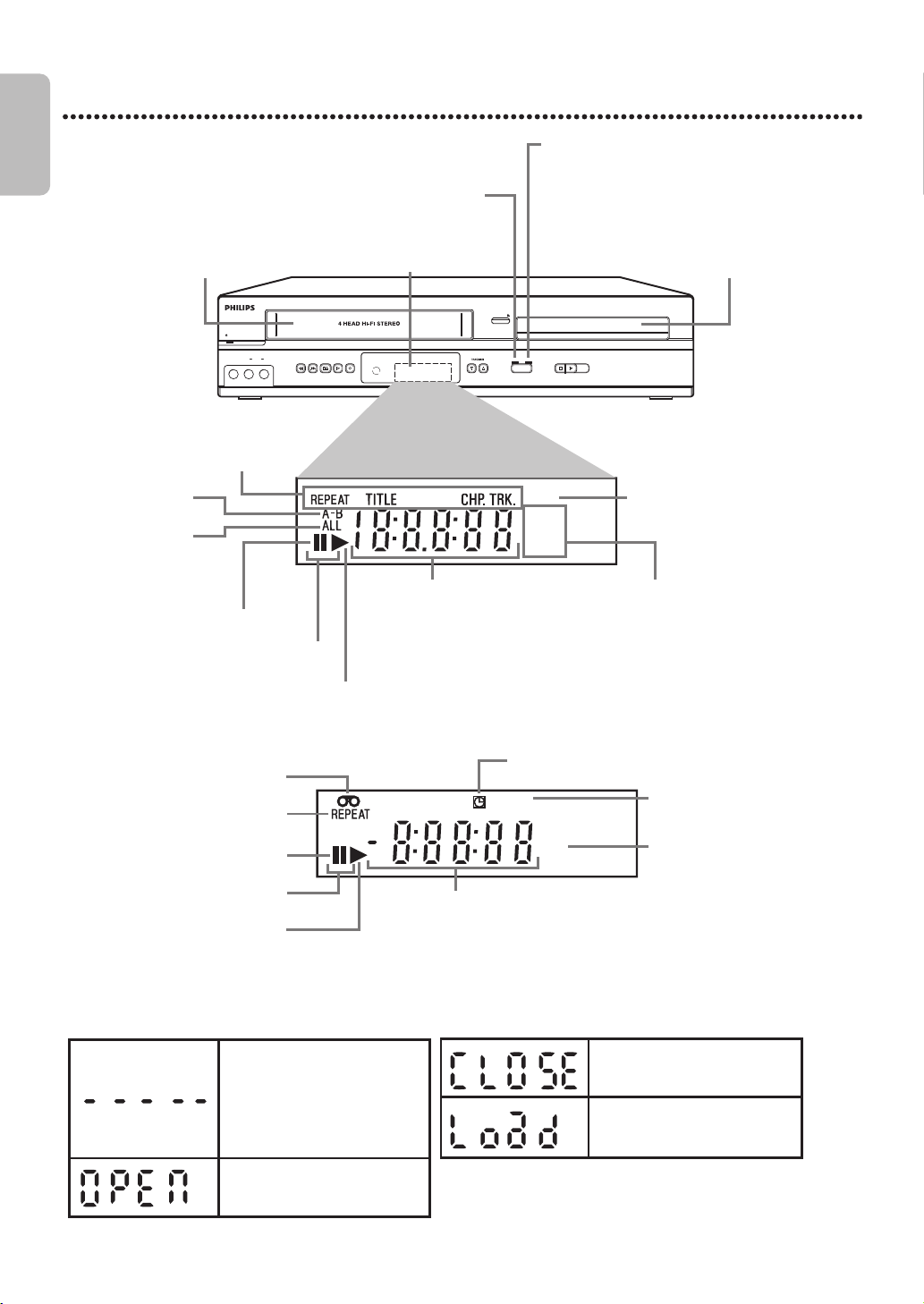
VCR Display Panel
DVD Display Panel
Display Messages
Appears after the disc tray closes if the
tray is empty, if there is an error
reading the disc, or if an unacceptable
disc is installed.
Tray is opening or is open.
Disc is loading.
Tray is closing.
Appears after the disc tray closes if the
tray is empty, if there is an error
reading the disc, or if an unacceptable
disc is installed.
Disc is loading.
Tray is closing.
VCR light
This light appears when the DVD/VCR is in VCR mode. You can only watch
videotapes or access VCR features when VCR light is on. To make VCR light
come on, press VCR on the remote control or SOURCE on the front of the
DVD/VCR.
DVD light
This light appears when the DVD/VCR is in DVD mode. You
can only watch DVDs when DVD light is on. To make DVD
light come on, press SOURCE on the front of the DVD/VCR
or DVD on the remote control.
Disc tray
Insert a disc here.
Display
Messages about current disc operations appear
here. See Display Messages below.
Cassette Compartment
Insert a video cassette here.
Cassette Compartment
Insert a video cassette here.
Appears when a repeat function is active.
Appears when A-B
Repeat is on.
Appears when ALL
Repeat is on.
(CD, MP3, Windows
Media™ Audio and
JPEG)
Appears when disc playback is paused.
Appears during Slow Motion Playback (DVD).
Appears during disc playback.
Displays the elapsed time of the title or
track. The number of a new title, chapter,
or track is displayed for 3 seconds when a
chapter or track is switched, or DISPLAY
is pressed during playback.
Appears when Progressive Scan is active.
Displays the current disc type.
•DVD: DVD
• CD : Audio CD, MP3, Windows
Media™ Audio, JPEG
Appears when an OTR, Timer Recording, or Satellite Link has
been set.
Appears during recording; flashes
when recording is paused.
Indicates current time is P.M. There is
no A.M. indication.
Indicates the elapsed playing time of a tape; also displays a selected external
input channel, tape speed, remaining time for an OTR or the current time.
Indicates a tape is in the DVD/VCR.
Appears during playback when the Auto
Repeat function is on.
Appears if tape playback is paused.
Appears during Slow Motion Playback.
Appears during tape playback.
E8E2CCD_E8E2CCH_EN_v1.book Page 18 Friday, March 9, 2012 6:37 PM
EN - 19
English
19
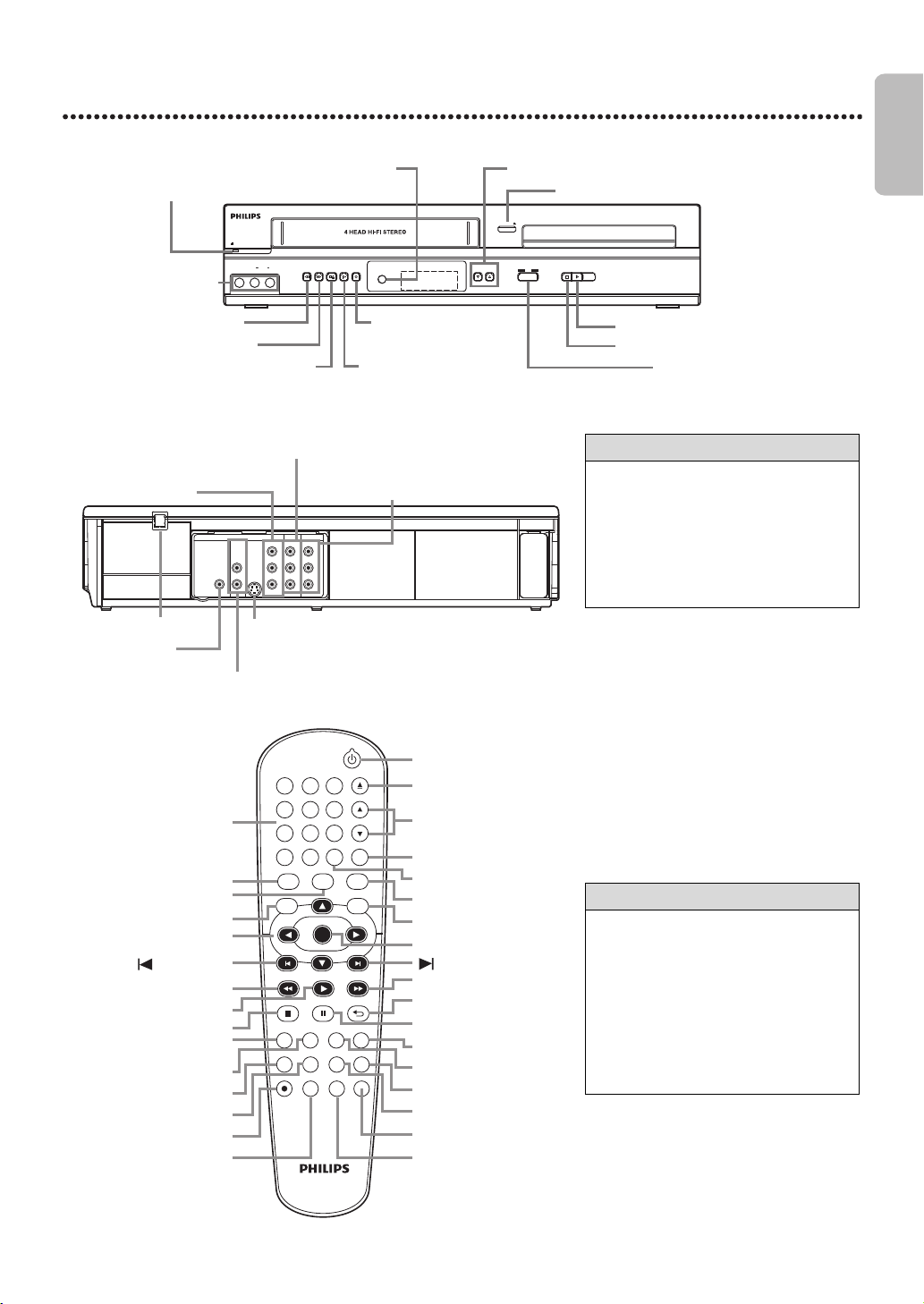
Front Panel, Rear Panel and Remote Control
DVDVCR SETUP
INPUT MENU
REC SPEED MODE
ANGLE SEARCH REPEAT
DISPLAY SUBTITLE ZOOM
TIMER SET
REPEAT
A-B
AUDIO
BACKPAUSESTOP
PLAY
OK
FFW
REW
CLEAR TITLE
DISC
TRACKING
OPEN/CLOSE
12
6
5
4
7
8
9
0
+10
3
DIGITAL
AUDIO OUT
COAXIAL
AUDIO
OUT
DVD
L
R
L
R
L
R
S-VIDEO
OUT
COMPONENT
VIDEO OUT
Y
C
B
/
P
B
AUDIO OUT
DVD/VCR
VCR
VIDEO OUT
AUDIO IN
VIDEO IN
C
R
/
P
R
STOP PLAY
REW F.FWD PLAY
TRACKINGSTOP/EJECT
VIDEO AUDIOLR
ONE TOUCH RECORDING • LONG PLAY
SOURCE
STANDBY-ON
VCR DVD
DVD
OPEN/CLOSE
DVD VIDEO PLAYER
REC
Helpful Hint
• For DVD player features, press DVD
before pressing other buttons.
To put the DVD/VCR in DVD mode,
press DVD or SOURCE so DVD light
appears on the front of the DVD/VCR.
• For VCR features, press VCR before
pressing other buttons. To put the
DVD/VCR in VCR mode, press VCR
or SOURCE so VCR light appears on
the front of the DVD/VCR.
Helpful Hint
• The DVD S-VIDEO OUT, DVD
COMPONENT VIDEO OUT, DVD
AUDIO OUT and DVD COAXIAL
DIGITAL AUDIO OUT jacks are only
useful in DVD mode. To have sound
and picture in VCR mode, you must
connect the audio/video cables
supplied. Details are on pages10-12.
Front Panel
Rear Panel
Remote Control
y (STANDBY-ON) Button
OPEN/CLOSE A Button
TRACKING K / L Button
TITLE Button
CLEAR Button
DVD Button
DISCMENU Button
OK Button
(SKIP) Button
FFW D Button
BACK U Button
PAUSE F Button
AUDIO Button
ZOOM Button
A-B REPEAT Button
REPEAT Button
MODE Button
TIMER SET Button
Number Buttons
VCR Button
SETUP Button
INPUT Button
0 1 K L Buttons
(SKIP) Button
REW E Button
PLAY B Button
STOP C Button
DISPLAY Button
SUBTITLE Button
ANGLE Button
SEARCH Button
REC I Button
SPEED Button
TRACKING K / L Buttons
OPEN/CLOSE A Button (DVD)
PLAY B Button (DVD)
STOP C Button (DVD)
SOURCE Button
REC I Button (VCR)
DVD/VCR AUDIO and VIDEO OUT jacks
STOP/EJECT C A Button (VCR)
F.FWD g Button (VCR)
REW E Button (VCR)
VCR AUDIO and
VIDEO IN jacks (L2)
y STANDBY-ON Button
Remote Sensor
DVD COMPONENT
VIDEO OUT jack
AC Power Cord
VCR AUDIO and VIDEO IN jacks (L1)
DVD S-VIDEO OUT jack
DVD AUDIO OUT jacks
DVD COAXIAL
DIGITAL AUDIO
OUT jack
PLAY B Button (VCR)
E8E2CCD_E8E2CCH_EN_v1.book Page 19 Friday, March 9, 2012 6:37 PM
EN - 20
English
20
Additional VCR Setup
Clock (VCR)
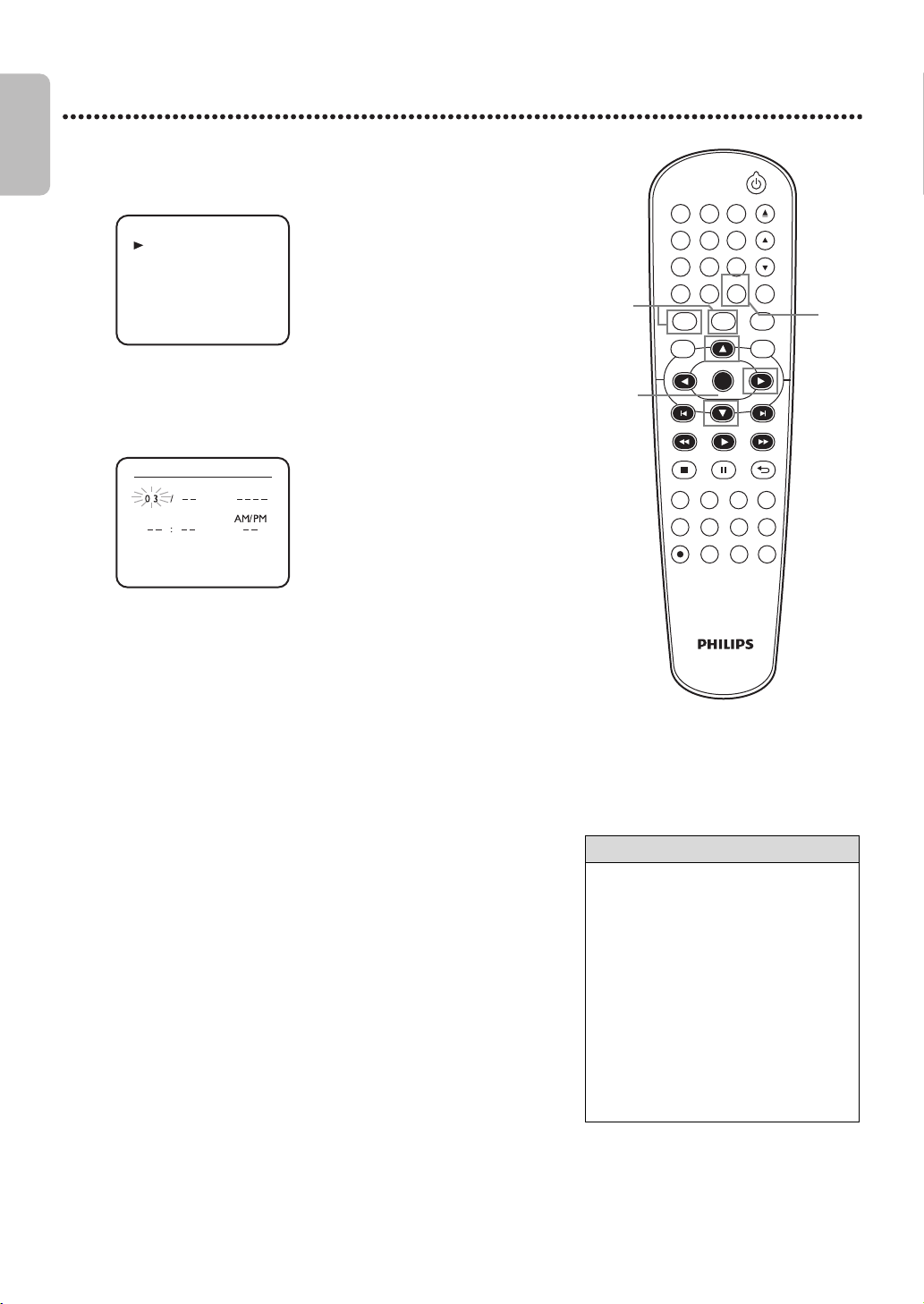
Follow these steps to set the VCR clock. Make sure :
1
Press VCR, then press SETUP so MENU appears. If the clock has
never been set, the CLOCK SET Menu may appear when you press
SETUP. If so, follow the instructions from step 3 on this page.
2
Press ▲ or ▼ to select CLOCK SET. Then, press ►.
3
While the MONTH space is flashing, press ▲ or ▼ until the
month appears. Then, press ►.
4
While the DAY space is flashing, press ▲ or ▼ until the day
appears. Then, press ►.
5
While the YEAR space is flashing, press ▲ or ▼ until the year
appears. Then, press ►. The day of the week will appear
automatically.
6
While the HOUR space is flashing, press ▲ or ▼ until the hour
appears. Then, press ►.
7
While the MINUTE space is flashing, press ▲ or ▼ until the
minute appears. Then, press ►.
8
While the AM or PM space is flashing, press ▲ or ▼ to point to
AM or PM.
Your selection will flash on the screen in the AM/PM space.
9
Press CLEAR or ► to start the clock.
DVDVCR SETUP
INPUT
MENU
REC SPEED MODE
ANGLE SEARCH REPEAT
DISPLAY SUBTITLE ZOOM
TIMER SET
REPEAT
A-B
AUDIO
BACKPAUSESTOP
PLAY
OK
FFW
REW
CLEAR TITLE
DISC
TRACKING
OPEN/CLOSE
12
6
5
4
7
89
0
+10
3
Helpful Hint
• If the clock has never been set, the
CLOCK SET Menu may appear when
you press SETUP. If so, follow the
instructions from step 3 above.
• Press DISPLAY repeatedly to show the
time on the TV screen.
• Power failures of more than 30
seconds can erase the Clock Setting.
• To reset the clock, follow steps 1-2.
Select the information you want to
change using ◄ or ►. When the
information is flashing, use ▲ or ▼ to
enter the correct information. Press
CLEAR to set the clock.
9
1
2-9
SATELLITE LINK
AUTO REPEAT [OFF]
CLOCK SET
LANGUAGE SELECT
TIMER PROGRAMMING
- M E N U -
MINUTEHOUR
YEAR
CLOCK SET
DAYMONTH
E8E2CCD_E8E2CCH_EN_v1.book Page 20 Friday, March 9, 2012 6:37 PM
EN - 21
English
21
Language (VCR)
Follow the steps below to change the language of the VCR On-Screen Displays and menus.
VCR Status Displays
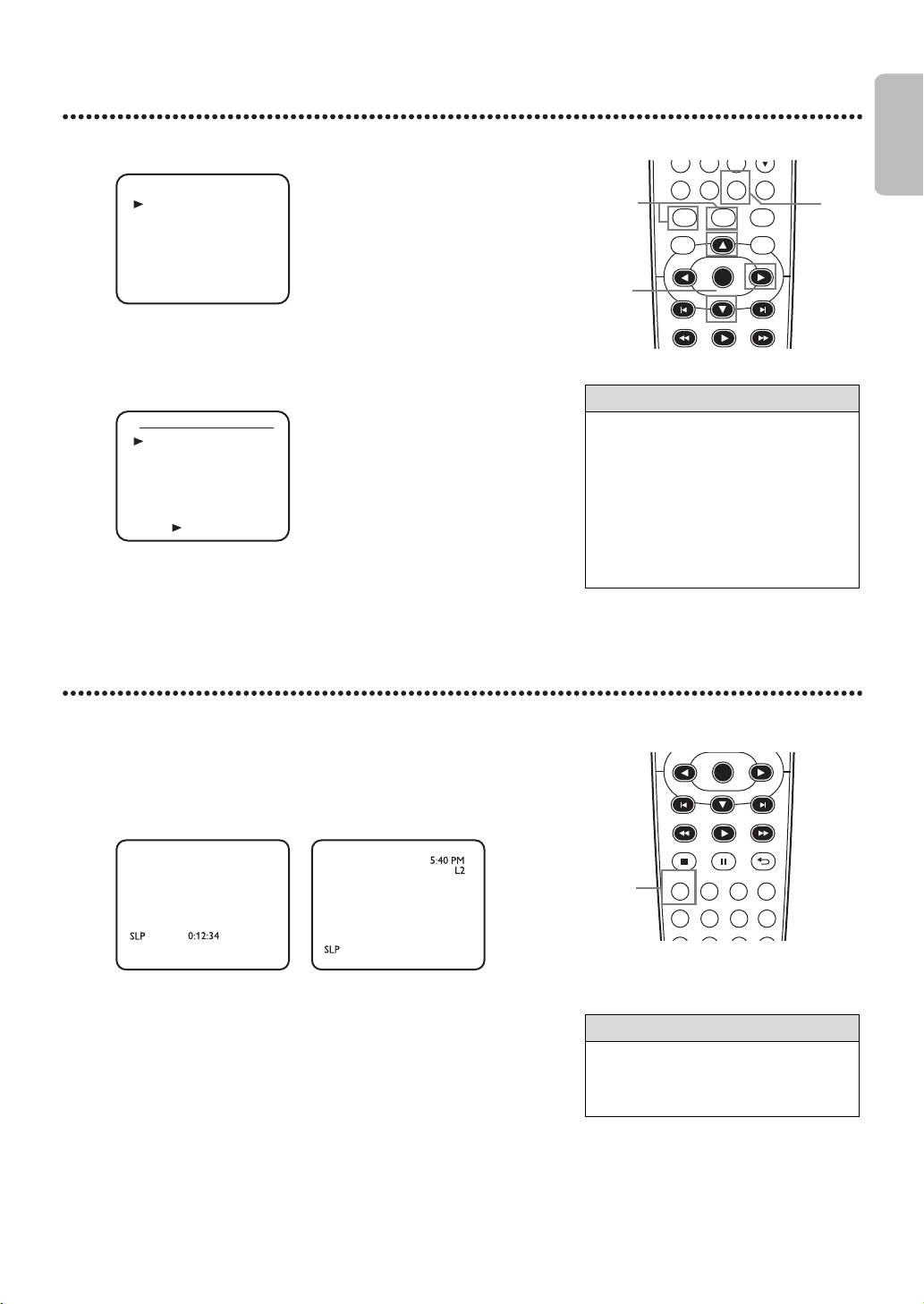
You may access Status Displays by pressing DISPLAY. The displays may include the current time, external input channel and
other information.
1
Press VCR, then press SETUP so MENU appears.
2
Press ▲ or ▼ to choose LANGUAGE SELECT, then press ►.
3
Press ▲ or ▼ to choose ENGLISH, FRANCAIS (French) or
ESPAÑOL (Spanish).
4
Press CLEAR to remove the menu.
1
Press DISPLAY. The Count Display will appear for 5 seconds. After 5
seconds, only the real-time tape counter will appear. This counter
shows you the elapsed playing time of the tape (from the point at which
the counter was set to 0). The counter also will appear on the display
panel on the front of the DVD/VCR.
2
Press DISPLAY again. The CLOCK Display will appear for 5
seconds. After 5 seconds, only the time will appear. The time also will
appear on the display panel on the front of the DVD/VCR.
3
Press DISPLAY again to remove all the displays.
Helpful Hint
• If you select FRANCAIS (French) or
ESPAÑOL (Spanish) and need English :
1. Press SETUP so MENU appears.
2. Press ▼ to choose SELECTION
LANGUE or SELEC. IDIOMA, then
press ►.
3. Press ▲ or ▼ to select ENGLISH.
4. Press CLEAR.
DVDVCR SETUP
INPUT
MENU
PLAY
OK
FFWREW
CLEAR TITLE
DISC
7
89
0
+10
2-3
1
4
SATELLITE LINK
AUTO REPEAT [OFF]
CLOCK SET
LANGUAGE SELECT
TIMER PROGRAMMING
- M E N U -
LANGUAGE SELECT
ENGLISH
FRANÇAIS
ESPAÑOL
[ON]
PUSH
Helpful Hint
• You cannot access a Status Display
when viewing a still picture, during
slow motion, or during Forward and
Reverse Searching.
REC SPEED MODE
ANGLE SEARCH REPEAT
DISPLAY SUBTITLE ZOOM
TIMER SET
REPEAT
A-B
AUDIO
BACKPAUSESTOP
PLAY
OK
FFWREW
1-3
STOP
STOP
E8E2CCD_E8E2CCH_EN_v1.book Page 21 Friday, March 9, 2012 6:37 PM
EN - 22
English
22
VCR Recording Options
Videotape Recording
Read and follow the steps below to record a television program onto a
videotape.
Before you begin :
● This DVD/VCR does not have a tuner input jack. To record TV
programs on your DVD/VCR, you need to connect this DVD/VCR
to an external tuner device (e.g., set top box, cable box or satellite
receiver) that has audio/video output jacks. See page 10 on how to
connect the DVD/VCR to the external tuner.
● Make sure the DVD/VCR is in VCR mode. Press VCR so VCR light appears
on the front of the DVD/VCR.
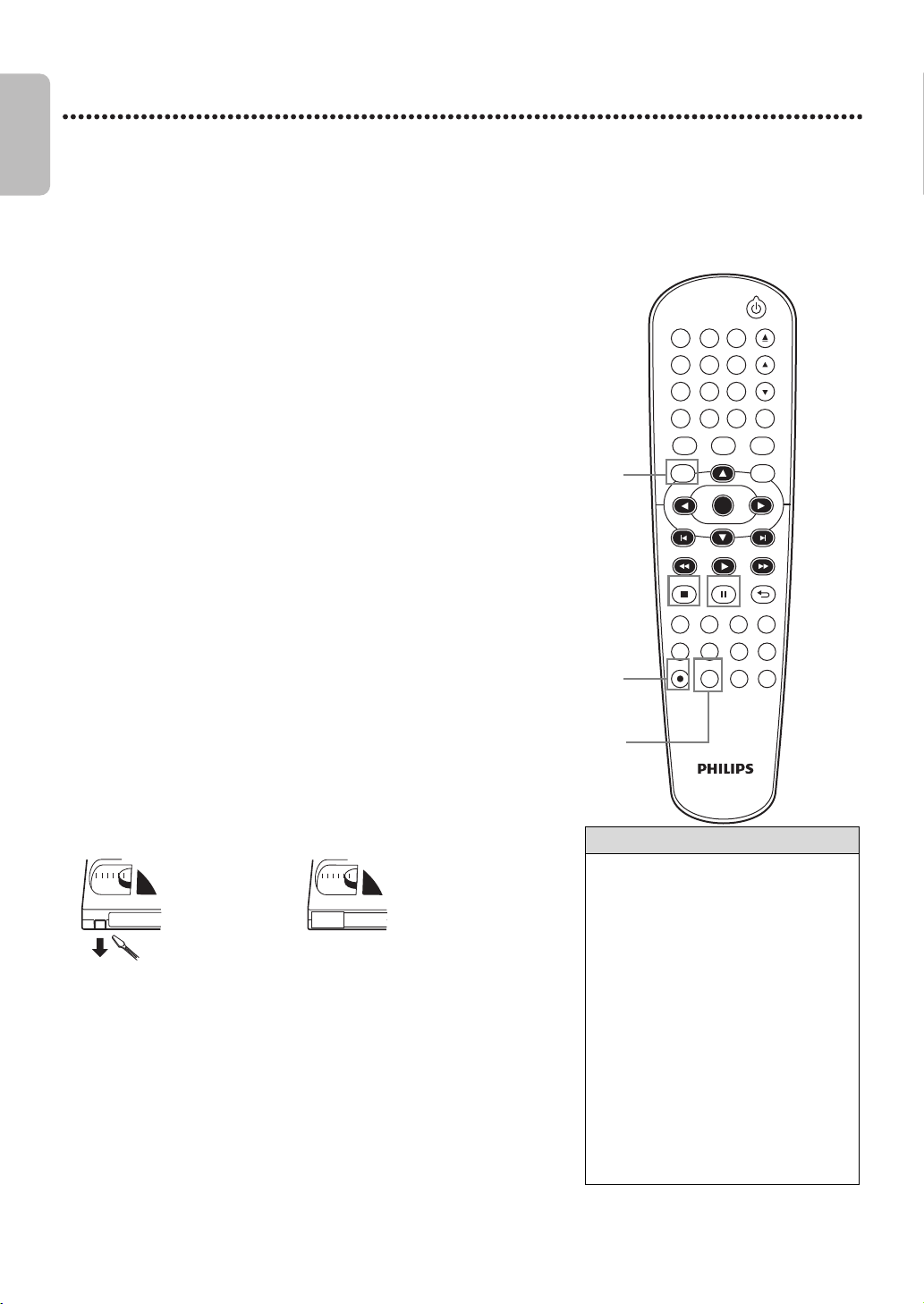
Recording Prevention
Video cassettes have record tabs to ensure that recordings are
not accidentally erased.
● To prevent recording,break off the tab with a screwdriver.
● To allow recording,cover the hole with clear tape.
1
Turn on your external tuner, and turn on the TV and set it to
the correct Video In channel. (Check your TV owner’s manual for
details.)
2
Insert a tape with its record tab intact into the cassette
compartment of the DVD/VCR.
If tape playback begins, press STOP
C
.
3
Press SPEED repeatedly until the desired tape speed (SP or
SLP) appears briefly on the screen. Details about tape speed are on
page 58.
4
Press INPUT to select the appropriate external input channel
(L1/L2) to which your external tuner is connected. Then select
the desired channel to record on the external tuner.
5
Press REC I to start recording. “REC” will appear on the DVD/
VCR’s display panel.
● To pause the recording, press PAUSE F once. “REC” will flash. To
resume recording, press REC I or press PAUSE F again. “REC” will
reappear.
● To stop recording, press STOP C.
DVDVCR SETUP
INPUT
MENU
REC SPEED MODE
ANGLE SEARCH REPEAT
DISPLAY SUBTITLE ZOOM
TIMER SET
REPEAT
A-B
AUDIO
BACKPAUSESTOP
PLAY
OK
FFW
REW
CLEAR TITLE
DISC
TRACKING
OPEN/CLOSE
12
6
5
4
7
89
0
+10
3
Helpful Hint
• Other recording options are on
pages23-29.
• The VCR will record in a preset
volume.
• Pause will switch to stop after 5
minutes to protect the VCR and the
tape from damage. When a recording
is paused, review the pause time
remaining with the C marks on the
screen. Each C mark equals 1 minute
remaining. During the last minute of
paused recording, the C mark will
flash.
• If any menu is on the TV screen, REC
I
on the remote does not function. Press
CLEAR to remove the menu. Then,
press REC
I
. Or, use REC
I
on the
front of the DVD/VCR.
1
Turn on the TV.
2
Insert a tape in the DVD/
VCR.
4
5
3
Remove the tab
to prevent
recording.
Cover the hole
to allow
recording.
E8E2CCD_E8E2CCH_EN_v1.book Page 22 Friday, March 9, 2012 6:37 PM
EN - 23
English
23
One-Touch Recording
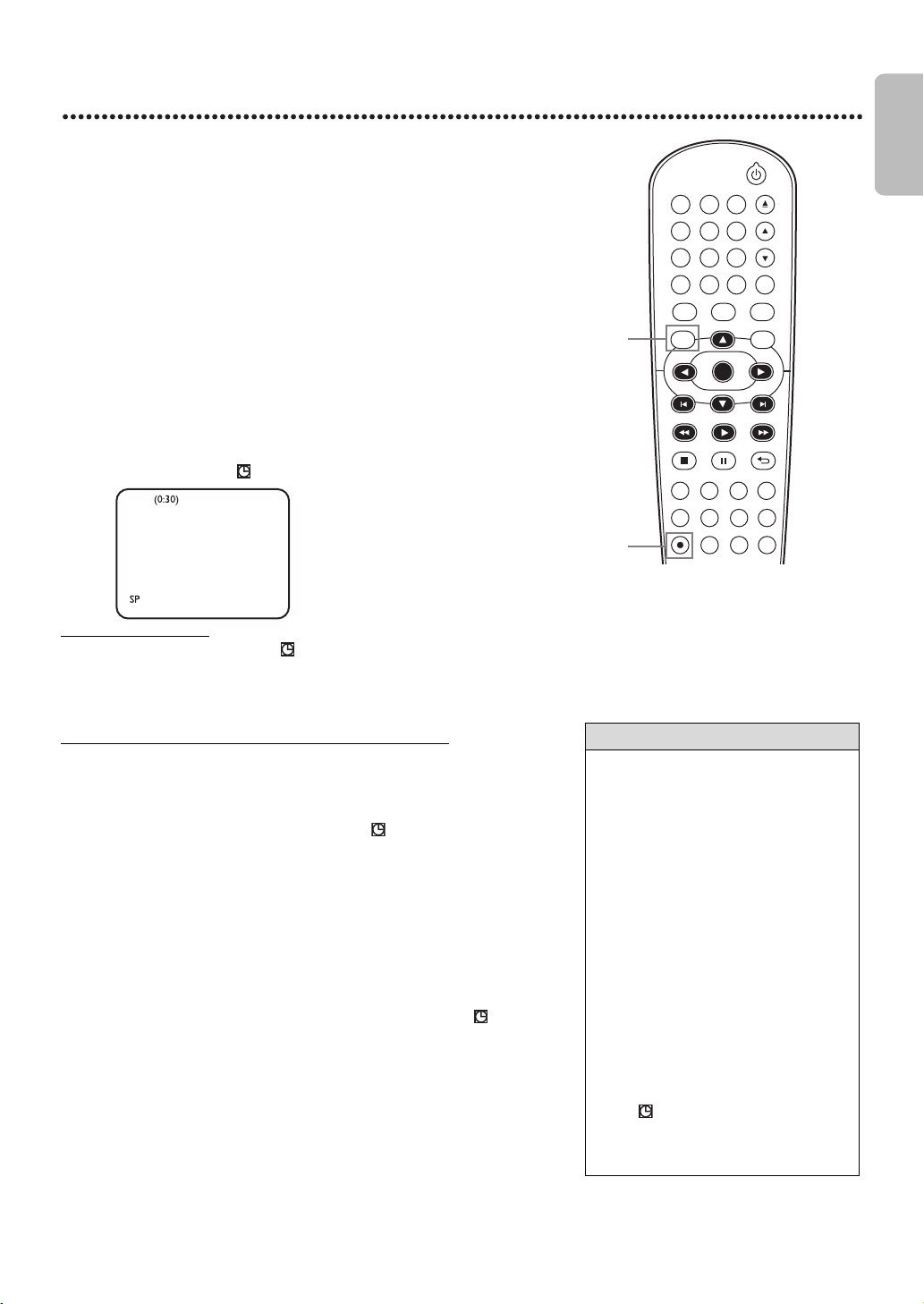
One-Touch Recording (OTR) lets you set a timed recording 30 minutes to 8
hours long.
Before you begin :
● This DVD/VCR does not have a tuner input jack. To record TV
programs on your DVD/VCR, you need to connect this DVD/VCR
to an external tuner device (e.g., set top box, cable box or satellite
receiver) that has audio/video output jacks. See page 10 on how to
connect the DVD/VCR to the external tuner.
● Place the DVD/VCR in VCR mode. Press VCR so VCR light appears on the
front of the DVD/VCR.
● Select a recording speed (SP,SLP) by pressing SPEED.
● Put a videotape in the cassette compartment. Make sure the tape’s record
tab is intact and the tape is long enough to record the program(s).
When an OTR ends
The DVD/VCR will turn off and “ ” on the DVD/VCR’s display panel will
flash indicating that the recording is complete, then goes into the timer
standby mode again. (It may switch to DVD mode automatically.) At this point,
you cannot use the VCR unless you release the DVD/VCR from the timer
standby mode.
To release the DVD/VCR from timer standby mode
● If the DVD component is active and no more Timer Recordings are on
standby, you can cancel the timer standby mode by pressing TIMER SET or
VCR on the remote control or by pressing SOURCE or STOP/EJECT C A
on the front panel.
● If the DVD component is not active, or the “ ” is not flashing but lit
indicating there are more Timer Recordings on standby, you can cancel the
timer standby mode only by pressing TIMER SET on the remote control or
by pressing STOP/EJECT C A on the front panel.
● After releasing the DVD/VCR from timer standby mode, you can use it as
usual.
Stopping an OTR
● To stop an OTR before recording is finished, press STOP C on the remote
control or STOP/EJECT C A on the front of the DVD/VCR.
● To cancel the OTR but continue recording, press REC I repeatedly until
REC appears in the upper left corner of the TV screen, and “ ” disappears.
1
Press INPUT to select the appropriate external input channel
(L1/L2) to which your external tuner is connected. Then select
the desired channel to record on the external tuner.
2
Press REC I repeatedly until the desired recording length (30
minutes to 8 hours) appears on the TV screen. Recording will
begin. “REC” and “ ” will appear on the DVD/VCR’s display panel.
Helpful Hint
• The remaining recording time will
appear on the display panel during an
OTR. Press DISPLAY to see it on the
TV screen.
• To change the recording length while
an OTR is in progress, press REC I
repeatedly.
• You cannot pause an OTR.
• If the preset time for a Timer
Recording comes up during an OTR,
the OTR has priority. The Timer
Recording will not take place.
• If the end of the tape is reached during
an OTR, the VCR will stop recording,
eject the tape, and switch to DVD
mode or turn off.
• If one or more Timer Recordings are
on standby when one OTR ends, the
DVD/VCR will turn off automatically
and “ ” will appear on the DVD/
VCR’s display panel indicating that it is
now ready for another Timer
Recording.
DVDVCR SETUP
INPUT
MENU
REC SPEED MODE
ANGLE SEARCH REPEAT
DISPLAY SUBTITLE ZOOM
TIMER SET
REPEAT
A-B
AUDIO
BACKPAUSESTOP
PLAY
OK
FFW
REW
CLEAR TITLE
DISC
TRACKING
OPEN/CLOSE
12
6
5
4
7
89
0
+10
3
1
2
OTR
E8E2CCD_E8E2CCH_EN_v1.book Page 23 Friday, March 9, 2012 6:37 PM
EN - 24
English
24
Rerecording (Tape Duplication)
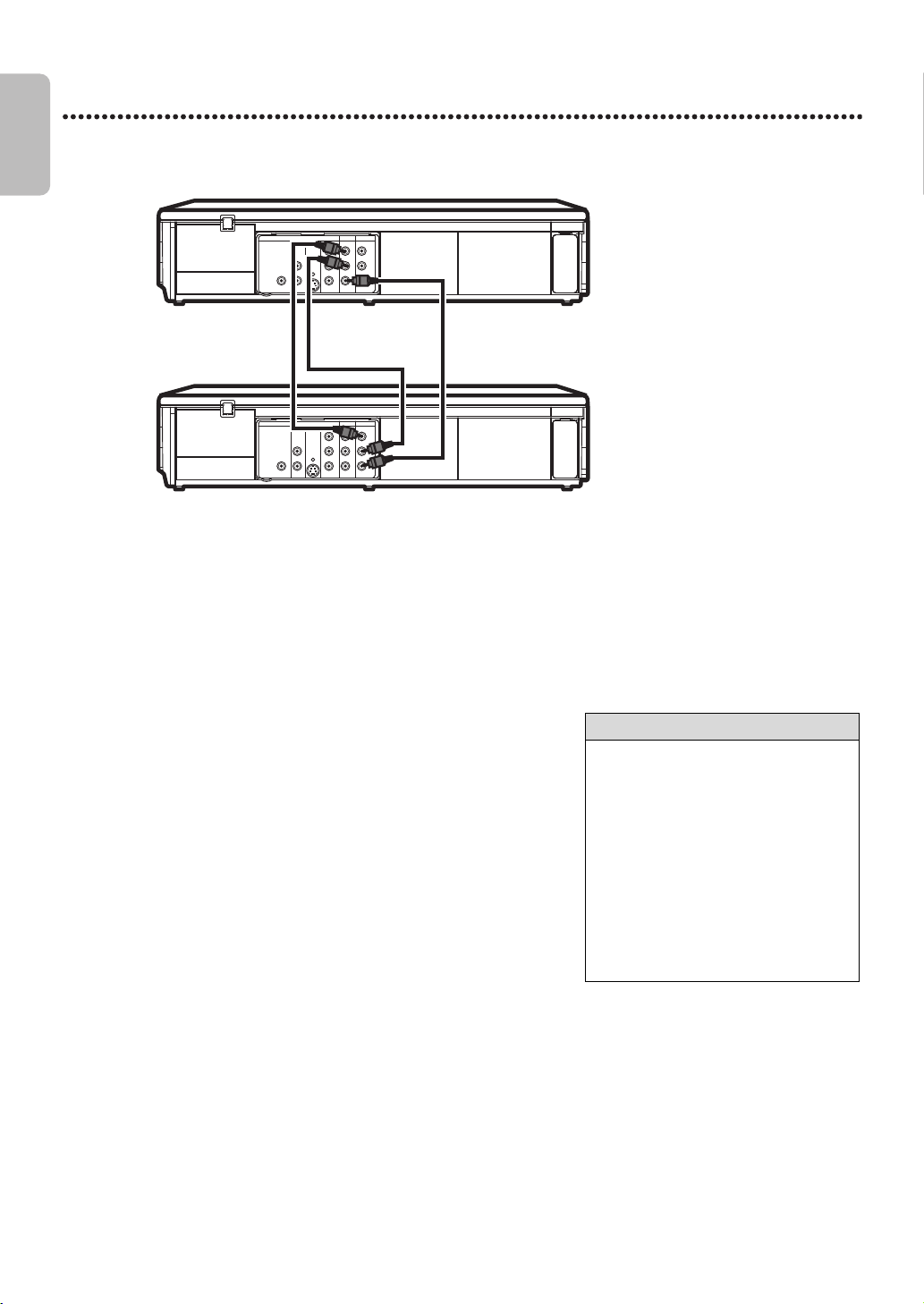
These instructions are made on the premise that the DVD/VCR 1 is already connected to the TV. The instructions show
you how to copy videotapes. The illustration uses two DVD/VCRs.Other VCRs or Camcorders may operate differently.
1
Make the connections shown above.
2
DVD/VCR 1 will play your tape. Put a prerecorded tape into the
cassette compartment of DVD/VCR 1. Press VCR to put the unit
in VCR mode if necessary.
3
DVD/VCR 2 will record your tape. Insert a blank tape in the
cassette compartment of DVD/VCR 2. Press VCR to put the unit
in VCR mode if necessary.
4
Turn on the TV and set it to the correct Video In channel.
(Check your TV owner’s manual for details.)
5
Point the remote control at DVD/VCR 2. Press INPUT to
select the appropriate external input channel. (See Helpful Hint
to the right.)
6
Press SPEED to select SP or SLP at DVD/VCR 2. Details about
tape speed are on page 58.
7
Press PLAY B (VCR) on the front of DVD/VCR 1 and REC I
on the front of DVD/VCR 2 at the same time.
● To stop recording, press STOP/EJECT C A on DVD/VCR 2, then
press STOP/EJECT C A on DVD/VCR 1.
DIGITAL
AUDIO OUT
COAXIAL
AUDI O
OUT
DVD
L
R
L
R
L
R
S-VIDEO
OUT
COMPONENT
VIDEO OUT
Y
C
B
/
P
B
AUDIO OUT
DVD/VCR
VCR
VIDEO OUT
AUDIO IN
VIDEO IN
C
R
/
P
R
DIGITAL
AUDIO OUT
COAXIAL
AUDI O
OUT
DVD
L
R
L
R
L
R
S-VIDEO
OUT
COMPONENT
VIDEO OUT
Y
C
B
/
P
B
AUDIO OUT
DVD/VCR
VCR
VIDEO OUT
AUDIO IN
VIDEO IN
C
R
/
P
R
1. Audio cable from AUDIO OUT jacks (red and white) of DVD/VCR 1 to
AUDIO IN jacks of DVD/VCR 2
2. Video cable from yellow VIDEO OUT jack of
DVD/VCR 1 to VIDEO IN jack of DVD/VCR 2
DVD/VCR 2
Recording unit
DVD/VCR 1
Playing unit
Helpful Hint
• If you use the AUDIO and VIDEO IN
jacks on the back of DVD/VCR 2,
select L1 at step 5.
• If you use the AUDIO and VIDEO IN
jacks on the front of DVD/VCR 2,
select L2 at step 5.
• Unauthorized recording of copyrighted
television programs, video tapes or
other materials may infringe on the
rights of copyright owners and violate
copyright laws.
• If a program has copyright protection,
it may not be recorded clearly.
E8E2CCD_E8E2CCH_EN_v1.book Page 24 Friday, March 9, 2012 6:37 PM
EN - 25
English
25
Timer Recording
Follow the steps below to program the VCR of the DVD/VCR to record TV
programs while you’re away from home.
Before you begin :
● This DVD/VCR does not have a tuner input jack. To record TV
programs on your DVD/VCR, you need to connect this DVD/VCR
to an external tuner device (e.g., set top box, cable box or satellite
receiver) that has audio/video output jacks. See page 10 on how to
connect the DVD/VCR to the external tuner.
● Set the clock. Details are on page 20.
● Put a tape in the cassette compartment of the DVD/VCR. Make sure the
tape’s record tab is intact and the tape is long enough to record the
program(s).
● Press VCR so VCR light appears on the front of the DVD/VCR.
● Turn on your external tuner.
Instructions continue on the next page.
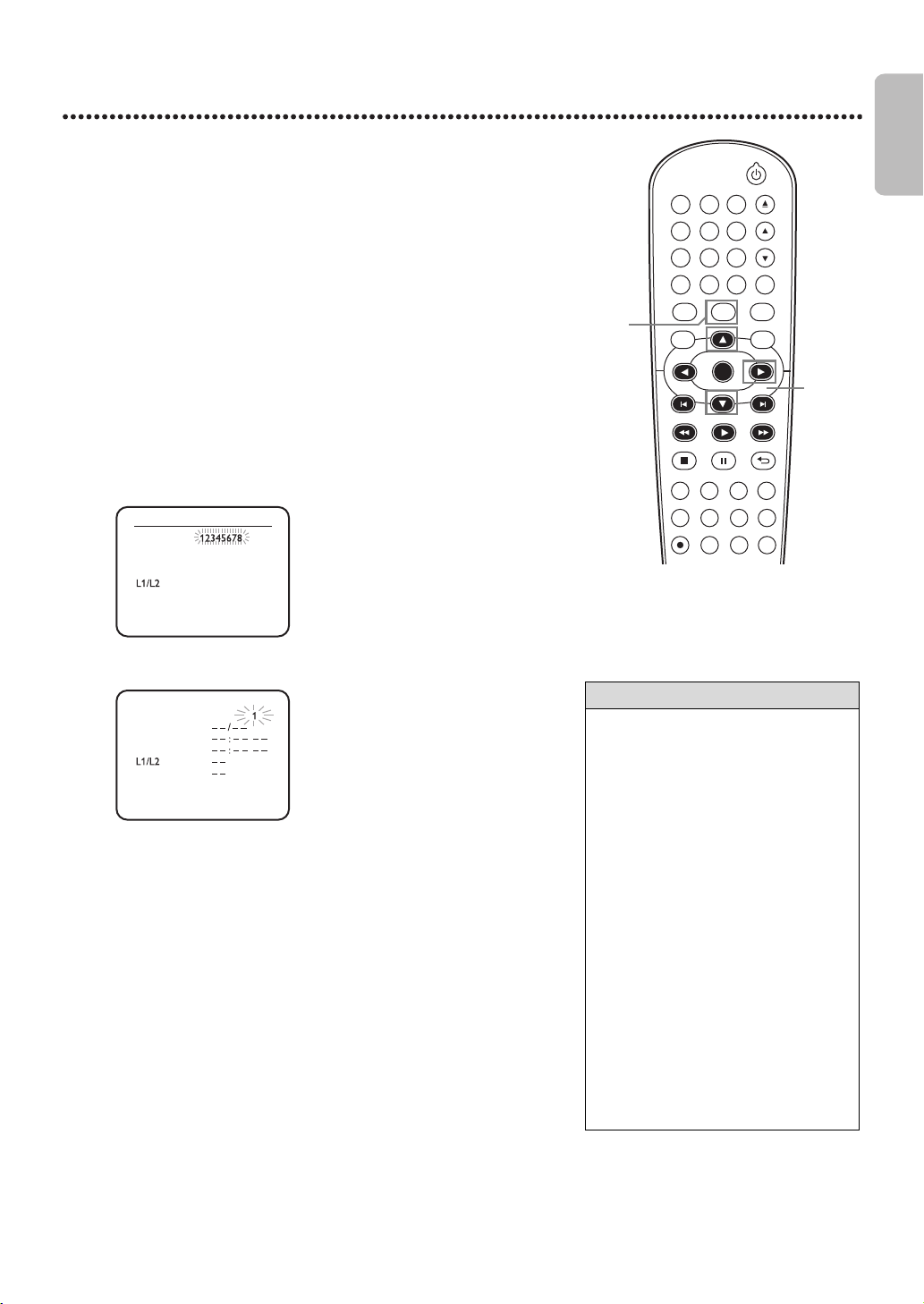
1
Press SETUP so MENU appears.
2
Press ▲ or ▼ to select TIMER PROGRAMMING.
Then, press ►. Program numbers that do not have a Timer Recording
stored will flash.
3
Press ▲ or ▼ to select an empty program.
Then, press ►.
4
Press ▲ or ▼ to select ONCE, DAILY or WEEKLY.
Then, press ►.
● ONCE - The VCR will record a TV program on any day you choose,
up to 12 months away.
● DAILY - The VCR will record a TV program at the same time on the
same channel every day, Monday through Friday.
● WEEKLY - The VCR will record a TV program at the same time on
the same channel every week, for example,every Monday.
5
To set the recording date and time, press ▲ or ▼ until the
desired setting appears, then press ►.
6
Press ▲ or ▼ to select the appropriate external input channel
(L1/L2) to which your external tuner is connected. Then select
the desired channel to record on the external tuner.
● Leave the external tuner on for the Timer Recording. Details are on
page 10.
Helpful Hint
• You cannot access the TIMER
PROGRAMMING Menu at step 2 if the
clock is not set. The CLOCK SET
Menu will appear. Follow the steps on
page 20 to set the clock.
• Only programs that will air Monday-
Friday can be recorded on a DAILY
basis. If you select DAILY at step 4,
then enter a Saturday or Sunday DATE
at step 5, the correct program will not
be recorded. The VCR will alter the
recording date and record a different
program than the one you intended.
• If you connected the external tuner to
the AUDIO IN and VIDEO IN jacks on
the front of the DVD/VCR, choose L2.
If you connected the external tuner to
the AUDIO IN and VIDEO IN jacks on
the back of the DVD/VCR, choose L1.
• Enter the information while the space
is flashing.
• You cannot program more than one
year in advance.
DVDVCR SETUP
INPUT
MENU
REC SPEED MODE
ANGLE SEARCH REPEAT
DISPLAY SUBTITLE ZOOM
TIMER SET
REPEAT
A-B
AUDIO
BACKPAUSESTOP
PLAY
OK
FFW
REW
CLEAR TITLE
DISC
TRACKING
OPEN/CLOSE
12
6
5
4
7
89
0
+10
3
1
2-6
TIMER PROGRAMMING
PROG.
DATE
START TIME
END TIME
REC SPEED
PROGRAM NUMBER
DATE
REC SPEED
END TIME
START TIME
E8E2CCD_E8E2CCH_EN_v1.book Page 25 Friday, March 9, 2012 6:37 PM
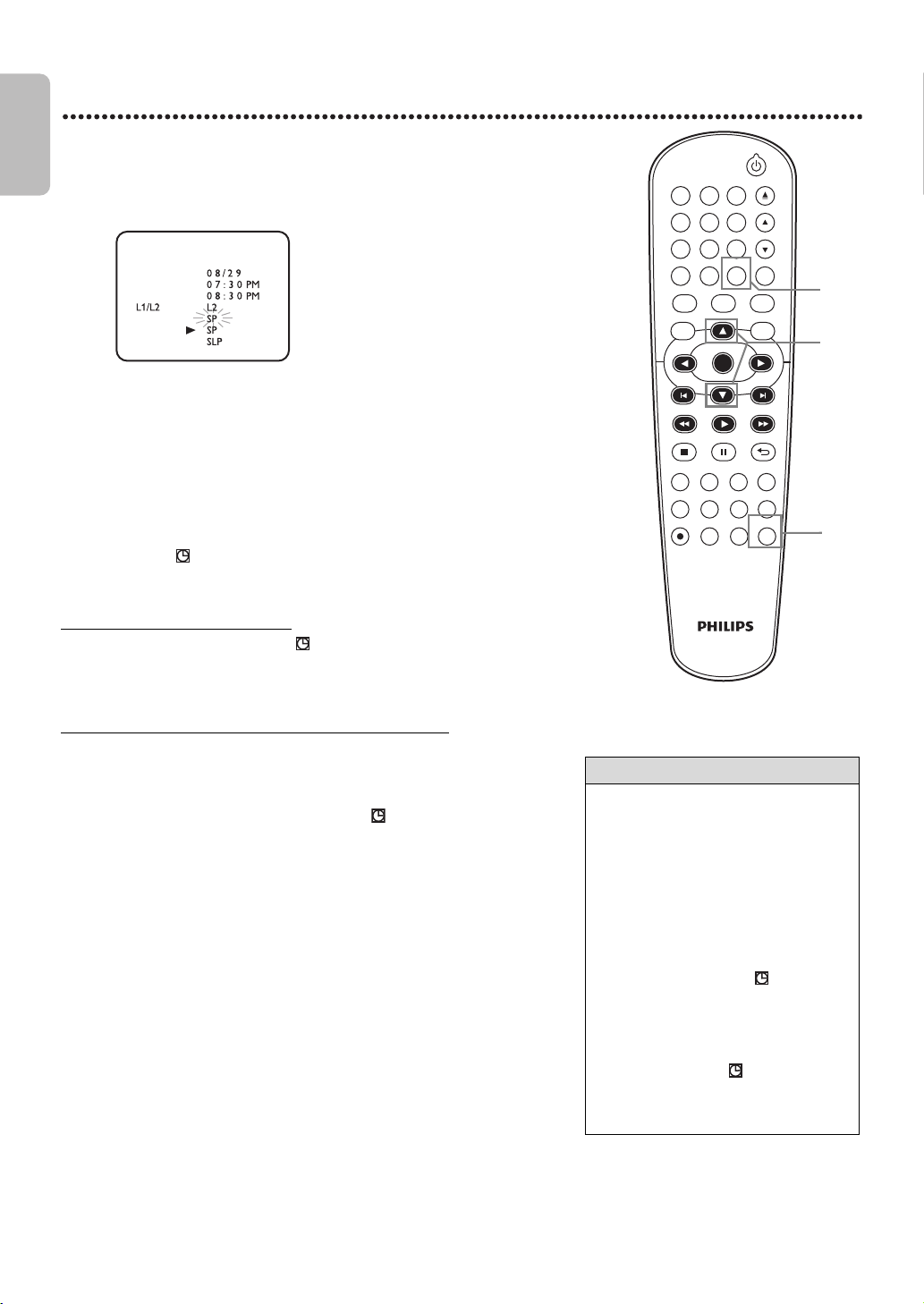
EN - 26
English
26
Timer Recording (cont’d)
When a Timer Recording ends
● The DVD/VCR will turn off and “ ” on the DVD/VCR’s display panel will
flash indicating that the recording is complete, then goes into the timer
standby mode again. (It may switch to DVD mode automatically.) At this
point, you cannot use the VCR unless you release the DVD/VCR from the
timer standby mode.
To release the DVD/VCR from timer standby mode
● If the DVD component is active and no more Timer Recordings are on
standby, you can cancel the timer standby mode by pressing TIMER SET or
VCR on the remote control or by pressing SOURCE or STOP/EJECT C A
on the front panel.
● If the DVD component is not active, or the “ ” is not flashing but lit
indicating there are more Timer Recordings on standby, you can cancel the
timer standby mode only by pressing TIMER SET on the remote control or
by pressing
STOP/EJECT
C
A on the front panel.
● After releasing the DVD/VCR from timer standby mode, you can use it as usual.
Canceling a Timer Recording Before the Recording Starts
7
Press ▲ or ▼ to select a recording tape speed. The arrow will
appear beside your choice. The selected speed will flash beside REC
SPEED. Details about tape speed are on page 58.
You must select the recording speed to complete the timer
programming.
8
Press CLEAR to remove the menu.
9
Press TIMER SET.
● In some cases, the DVD/VCR will switch to DVD mode instead. You
may use the DVD player during a Timer Recording.
● If you want to use the VCR until time for the recording, don’t press
TIMER SET
until a few minutes before the recording should start. Or,
press
TIMER SET
only when you know you won’t be using the VCR
anymore (until after the recording).
● When “ ” is lit (not flashing), you cannot put the DVD/VCR in VCR mode
by pressing VCR or SOURCE. You must first press TIMER SET on the
remote control or STOP/EJECT
C
A
on the front panel to cancel the
Timer Recording temporarily. Then, you can use the VCR features again.
1
Press VCR, then press SETUP so MENU appears.
2
Press ▲ or ▼ to select TIMER PROGRAMMING, then press ►.
3
Press ▲ or ▼ to find the program you want to cancel.
4
While the program number is flashing, press ◄ to clear all the
information for that program.
5
Press CLEAR to remove the menu.
Helpful Hint
• To stop a started Timer Recording,
press
STOP/EJECT
C
A on the front of
the DVD/VCR. (You cannot stop a
started Timer Recording with STOP C
on the remote.)
• To change incorrect information, press
◄ or ► to choose the item you want
to change. Press ▲ or ▼ to adjust the
information.
• If there is no tape in the VCR when
you press
TIMER SET
, “ ” will flash.
Insert a tape.
• If one or more Timer Recordings are
on standby when one Timer Recording
ends, the DVD/VCR will turn off
automatically and “ ” will appear on
the DVD/VCR’s display panel indicating
that it is now ready for another Timer
Recording.
DVDVCR SETUP
INPUT
MENU
REC SPEED MODE
ANGLE SEARCH REPEAT
DISPLAY SUBTITLE ZOOM
TIMER SET
REPEAT
A-B
AUDIO
BACKPAUSESTOP
PLAY
OK
FFW
REW
CLEAR TITLE
DISC
TRACKING
OPEN/CLOSE
12
6
5
4
7
89
0
+10
3
9
7
8
DATE
START TIME
END TIME
WED
1
REC SPEED
PROGRAM NUMBER
ONE TIME PROGRAM
E8E2CCD_E8E2CCH_EN_v1.book Page 26 Friday, March 9, 2012 6:37 PM
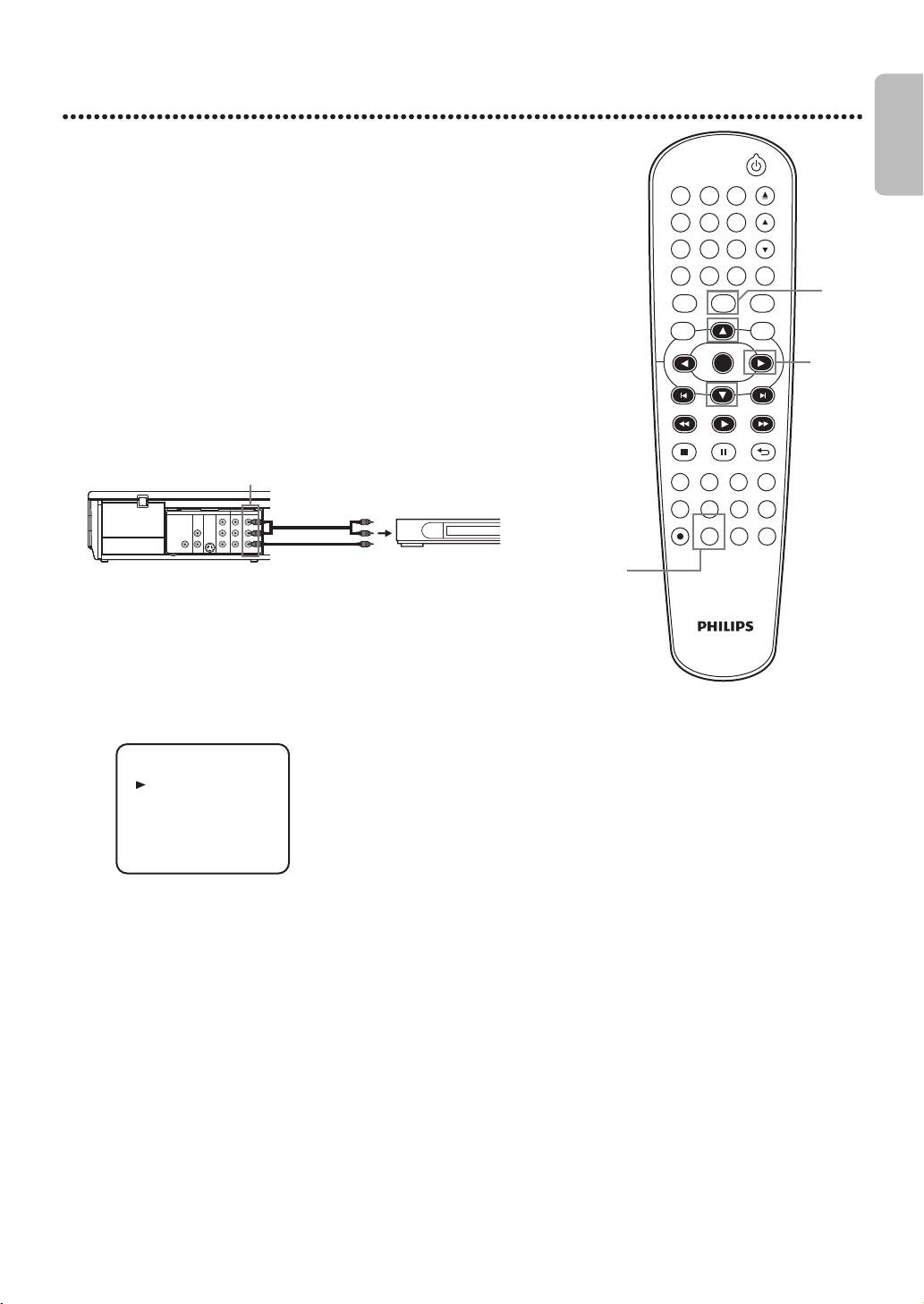
EN - 27
English
27
Satellite Link
You can set the DVD/VCR to start recording whenever it detects a video
signal from the external tuner.
Before you begin :
● Set the clock. Details are on page 20.
● Put a tape in the cassette compartment of the DVD/VCR. Make sure the
tape’s record tab is intact and the tape is long enough to record the
program(s).
● Press VCR so VCR light appears on the front of the DVD/VCR.
● Turn on the external tuner.
● Use the VCR AUDIO and VIDEO IN jacks on the rear (L1) to connect the
DVD/VCR to the external tuner. VCR AUDIO and VIDEO jacks on the
front (L2) cannot read any signal from the external tuner.
● If the external tuner is equipped with some kind of timer function, set it to
output audio/video signals when it comes to the time you want to start
recording and stop when it comes to the time you want to stop recording.
Refer to the tuner’s manual on how to set the timer.
● If the external tuner is not equipped with timer function, leave it on for
Satellite Link Recording.
Instructions continue on the next page.
1
Press SPEED repeatedly until the desired tape speed (SP or
SLP) appears briefly on the screen. Details about tape speed are on
page 58.
2
In stop mode, press SETUP.
3
Press ▲ or ▼to select SATELLITE LINK, then press B.
DVDVCR SETUP
INPUT
MENU
REC SPEED MODE
ANGLE SEARCH REPEAT
DISPLAY SUBTITLE ZOOM
TIMER SET
REPEAT
A-B
AUDIO
BACKPAUSESTOP
PLAY
OK
FFW
REW
CLEAR TITLE
DISC
TRACKING
OPEN/CLOSE
12
6
5
4
7
89
0
+10
3
2
3-6
1
DIGITAL
AUDIO OUT
COAXIAL
AUDIO
OUT
DVD
L
R
S-VIDEO
OUT
DIGITAL
AUDIO OUT
COAXIAL
AUDIO
OUT
DVD
L
R
S-VIDEO
OUT
L
R
L
R
Y
C
B
/
P
B
AUDIO OUT
DVD/VC R
VCR
VIDEO OUT
AUDIO IN
VIDEO IN
C
R
/
P
R
COMPONENT
VIDEO OUT
DIGITAL
AUDIO OUT
COAXIAL
AUDIO
OUT
DVD
L
R
S-VIDEO
OUT
L1
External tuner
To audio/video
input jacks
Audio/Video Cables
(supplied)
DVD/VCR
SATELLITE LINK
AUTO REPEAT [OFF]
CLOCK SET
LANGUAGE SELECT
TIMER PROGRAMMING
- M E N U -
E8E2CCD_E8E2CCH_EN_v1.book Page 27 Friday, March 9, 2012 6:37 PM
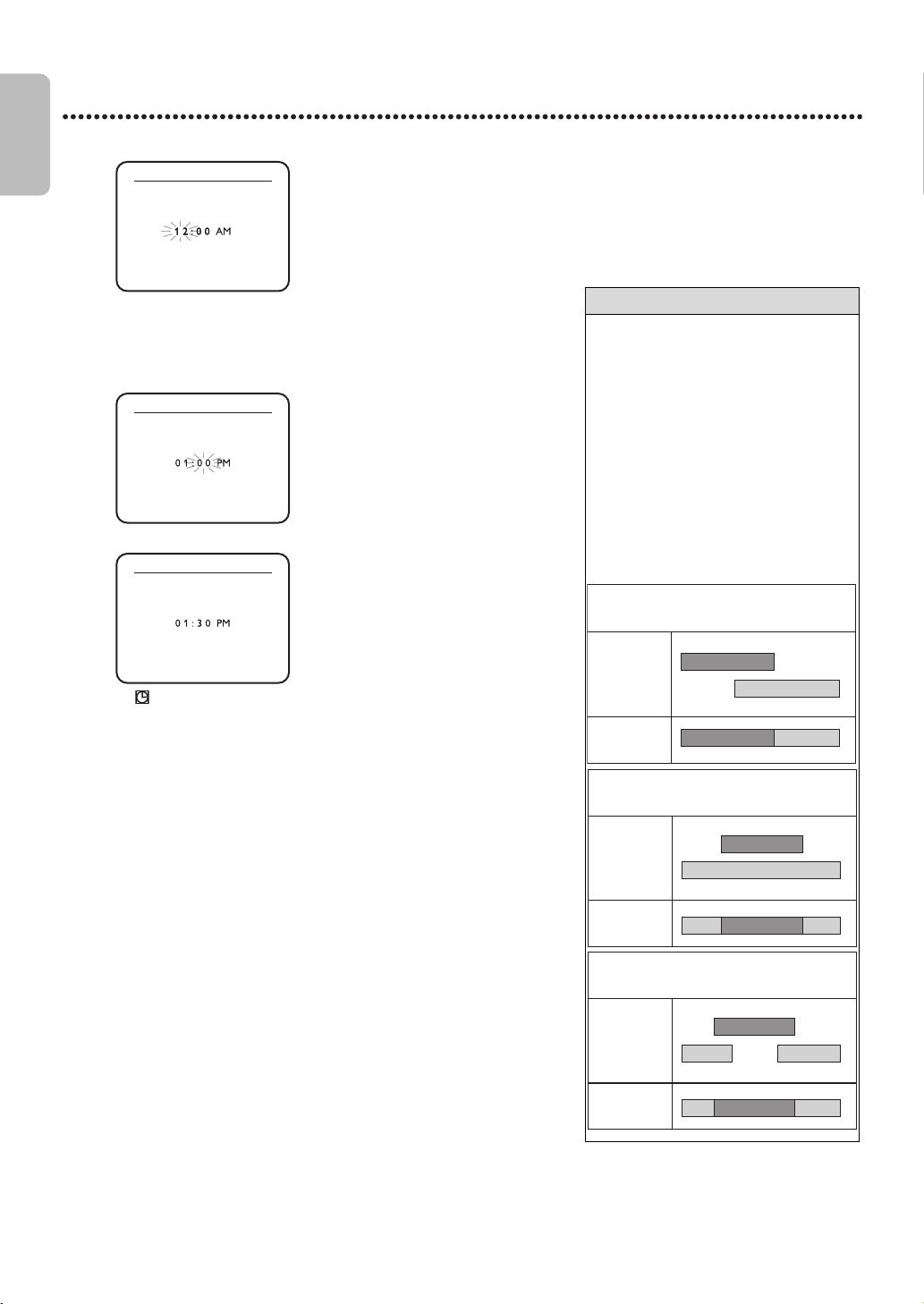
EN - 28
English
28
Satellite Link (cont’d)
4
Press ▲ or ▼ to set the desired start hour, then press ►.
● The hour can be selected from 1-12 with AM or PM.
● When the external tuner signal is stopped, recording will be stopped
also.
5
Press ▲ or ▼ to set the desired start minutes.
If you wish to go back to the left, press ◄.
6
Press ► to set Satellite Link standby mode.
● “ ” on the DVD/VCR’s display panel lights up and the DVD/VCR
goes to the DVD mode. If you do not use DVD function, turn off the
DVD/VCR.
● If the external tuner is not equipped with timer function, leave it on
for Satellite Link Recording.
● To cancel the Satellite Link function in standby mode :
Press TIMER SET on the remote control or STOP/EJECT C A on this
DVD/VCR.
● To cancel the Satellite Link function while the Satellite Link Recording
is in progress :
Press STOP/EJECT C A on the DVD/VCR.
Helpful Hint
• If you have not set the clock, CLOCK
SET menu will appear at step 3. Refer
to “Clock (VCR)” on page 20.
• You cannot set the ending time for the
Satellite Link Timer Recording on this
DVD/VCR.
• Recording picture will be distorted if
the copy protection signal is being
detected during Satellite Link Timer
Recording.
• When a regular Timer Recording and
the Satellite Link Timer Recording are
overlapped, those recordings are
recorded as illustrated below.
e.g.)In case of the Satellite Link Timer Recording is
overlapped on the existing Timer Recording.
Timer
Recording
recording
result
Satellite Link
e.g.)In case of the Timer Recording is overlapped
on the existing Satellite Link Timer Recording.
Timer
Recording
recording
result
Satellite Link
e.g.)In case of the Timer Recording is programmed
in the middle of the Satellite Link Timer Recording.
Timer
Recording
recording
result
Satellite Link
SATELLITE LINK
SATELLITE LINK
SATELLITE LINK
[ON]
E8E2CCD_E8E2CCH_EN_v1.book Page 28 Friday, March 9, 2012 6:37 PM
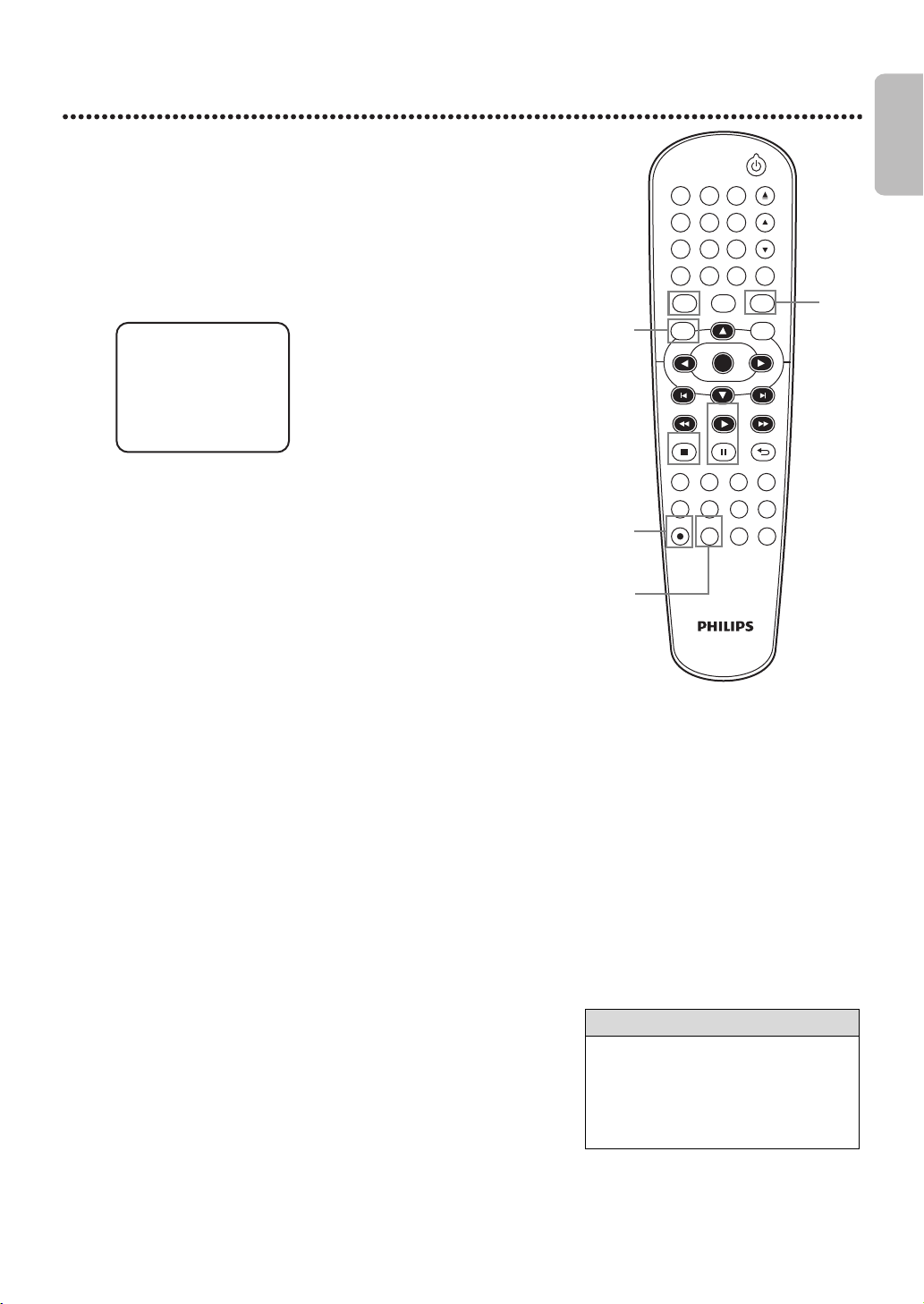
EN - 29
English
29
DVD to Videotape Duplication
Follow the steps below to copy a DVD to a videotape. This will be possible
only if the DVD is not copy protected.
Before you begin :
● Put a videotape in the cassette compartment. Make sure the tape’s record
tab is intact and the tape is long enough to record the DVD.
● Put the DVD you want to copy in the disc tray.
● Press VCR so VCR light appears on the front of the DVD/VCR.
● Turn on the TV and set it to the correct Video In channel.
(Check your TV owner’s manual for details.)
1
Press INPUT repeatedly until “DISC” appears on the TV screen.
2
Press SPEED repeatedly until the desired tape speed (SP or
SLP) appears briefly on the screen. Details about tape speed are on
page 58.
3
Press REC I to start recording. “REC” will appear on the display
panel.
4
Press DVD. Press PLAY B to play the disc.
● To pause the recording, press VCR, then press PAUSE F once. “REC”
will flash.
● To resume recording, press REC I or press PAUSE F again. “REC”
will reappear.
● To stop recording, press VCR, then press STOP C.
Helpful Hint
• A Timer Recording or Satellite Link is
not available during DVD to videotape
duplication.
• You cannot copy a DVD to a
videotape if you are using Progressive
Scan.
DVDVCR SETUP
INPUT
MENU
REC SPEED MODE
ANGLE SEARCH REPEAT
DISPLAY SUBTITLE ZOOM
TIMER SET
REPEAT
A-B
AUDIO
BACKPAUSESTOP
PLAY
OK
FFW
REW
CLEAR TITLE
DISC
TRACKING
OPEN/CLOSE
12
6
5
4
7
89
0
+10
3
2
3
1
4
DISC
E8E2CCD_E8E2CCH_EN_v1.book Page 29 Friday, March 9, 2012 6:37 PM
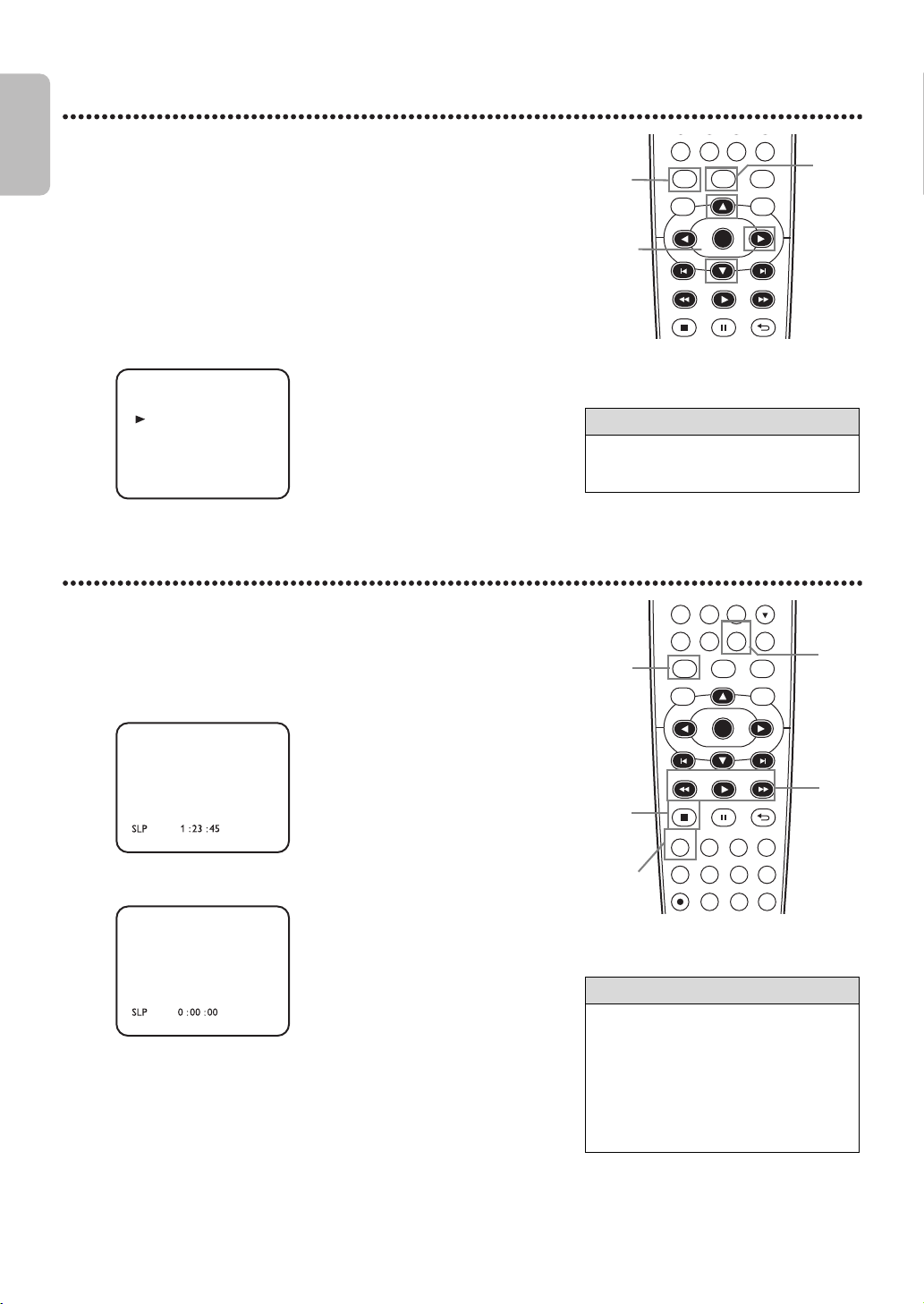
EN - 30
English
30
Video Cassette Playing Options
Repeat Playback
Follow the steps below to play a videotape repeatedly.
Tape Counter
Follow the steps below to reset the VCR’s real-time tape counter to 0 at a
tape location you want to refer to later.
1
Press VCR, then press SETUP so MENU appears.
2
Press ▲ or ▼ to select AUTO REPEAT.
3
Press ► so ON appears next to AUTO REPEAT. Tape playback
will begin immediately. AUTO REPEAT will appear on the TV screen
briefly. (If you are fast forwarding or rewinding the tape, press CLEAR to
remove the menu, then press PLAY B to begin tape playback.) The tape
will play to the end, rewind, then play again.
1
Press VCR, then play, fast forward or rewind a tape to the
location that you would like to refer to later. Press STOP C to
stop the tape.
2
Press DISPLAY to see the Status Display.
3
While the counter is on the screen, press CLEAR to reset the
counter to 0.
4
When you later want to return to this point on the tape, press
DISPLAY so you can see the counter (while tape playback is
stopped). Press REW E or FFW D.
As the tape rewinds or forwards,watch the counter. When it reaches 0,
press PLAY B to play the tape.
Helpful Hint
• To cancel Auto Repeat, follow steps 1-
2. At step 3, press ► so OFF appears
beside AUTO REPEAT. Press CLEAR.
DVDVCR SETUP
INPUT
MENU
BACKPAUSESTOP
PLAY
OK
FFWREW
CLEAR TITLE
DISC
0
+10
1
2-3
1
SATELLITE LINK
AUTO REPEAT [ON]
CLOCK SET
LANGUAGE SELECT
TIMER PROGRAMMING
- MENU -
Helpful Hint
• You may only set the counter to 0 at
one location at a time. Setting the
counter to zero at a second location
will erase the previous 0 setting.
• If you remove the tape, the counter
will reset to 0 at the point at which
you last stopped playback whenever
you reinsert the tape.
DVDVCR SETUP
INPUT
MENU
REC SPEED MODE
ANGLE SEARCH REPEAT
DISPLAY SUBTITLE ZOOM
TIMER SET
REPEAT
A-B
AUDIO
BACKPAUSESTOP
PLAY
OK
FFW
REW
CLEAR TITLE
DISC
TRACKING
7
89
0
+10
3
2,4
1
4
1
STOP
STOP
E8E2CCD_E8E2CCH_EN_v1.book Page 30 Friday, March 9, 2012 6:37 PM
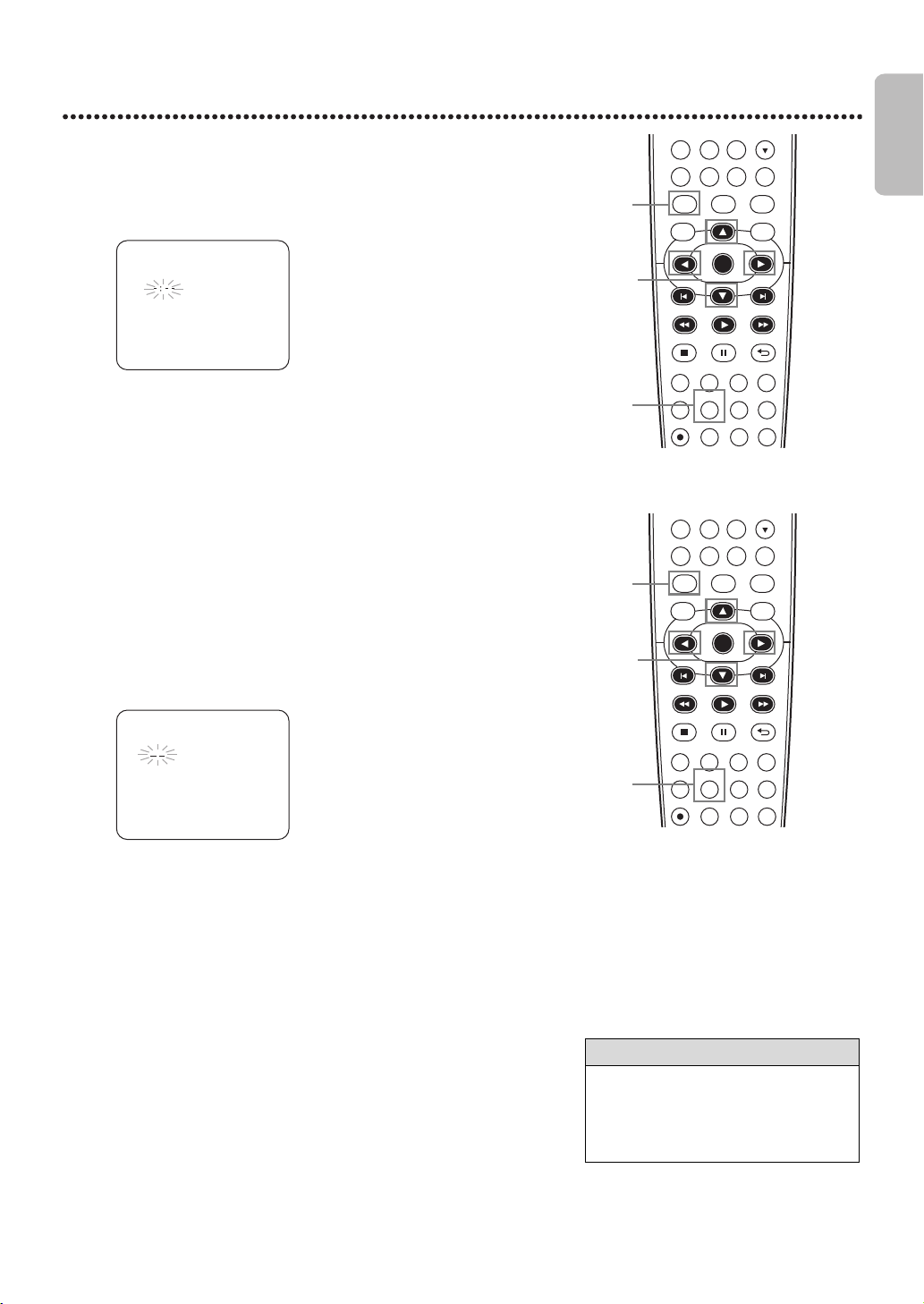
EN - 31
English
31
Time Search, Index Search
Time Search
Follow the steps below to search forward or backward on a tape a specific
length of time. There must be a tape in the cassette compartment.
Index Search
An Index Mark is made automatically at the beginning of each recording.
Essentially, an Index Mark is a “bookmark.” Find the start of a recording by
following these steps.
1
Press VCR, then press SEARCH repeatedly until the TIME
SEARCH Screen appears.
2
Within 30 seconds, press ▲ or ▼ until your desired length of
time appears. Or, press and hold ▲ or ▼ until you reach the desired
length of time. You can set a Time Search for up to 9 hours and 59
minutes (9:59).
3
Within 30 seconds, press ◄ (for a reverse search) or ► (for a
forward search). The VCR begins rewinding or fast forwarding the tape.
When the tape finishes rewinding or fast forwarding the time you
specified, playback will begin. The time will count down beneath TIME
SEARCH during the search. If the end of the tape is reached during the
search, the search will stop and the tape may rewind. Details are on
page 32.
1
Press VCR, then press SEARCH repeatedly until the INDEX
SEARCH Screen appears.
2
Within 30 seconds, press ▲ or ▼ until the number of programs you
want to skip appears beneath INDEX SEARCH. Include the current
program in your number.
3
Within 30 seconds, press ◄ (for a reverse search) or ► (for a
forward search). When the tape finishes rewinding or
forwarding,playback will start. The program numbers will count down
beneath INDEX SEARCH during the search. If the end of the tape is
reached during the search, the search will stop and the tape may rewind.
Details are on page 32. Recordings should be at least 1 minute long in SP
speed and 3 minutes in SLP. Otherwise, the Index Mark will not be
available. Details on tape recording speeds are on page 58.
Helpful Hint
• Time Search and Index Search are not
available during recording.
• To remove a Search Display, press
CLEAR.
• To cancel a search, press STOP C.
DVDVCR SETUP
INPUT
MENU
REC SPEED MODE
ANGLE SEARCH REPEAT
DISPLAY SUBTITLE ZOOM
TIMER SET
REPEAT
A-B
AUDIO
BACKPAUSESTOP
PLAY
OK
FFW
REW
CLEAR TITLE
DISC
TRACKING
7
8
9
0
+10
2-3
11
1
DVDVCR SETUP
INPUT
MENU
REC SPEED MODE
ANGLE SEARCH REPEAT
DISPLAY SUBTITLE ZOOM
TIMER SET
REPEAT
A-B
AUDIO
BACKPAUSESTOP
PLAY
OK
FFW
REW
CLEAR TITLE
DISC
TRACKING
7
8
9
0
+10
2-3
11
1
TIME SEARCH
INDEX SEARCH
E8E2CCD_E8E2CCH_EN_v1.book Page 31 Friday, March 9, 2012 6:37 PM
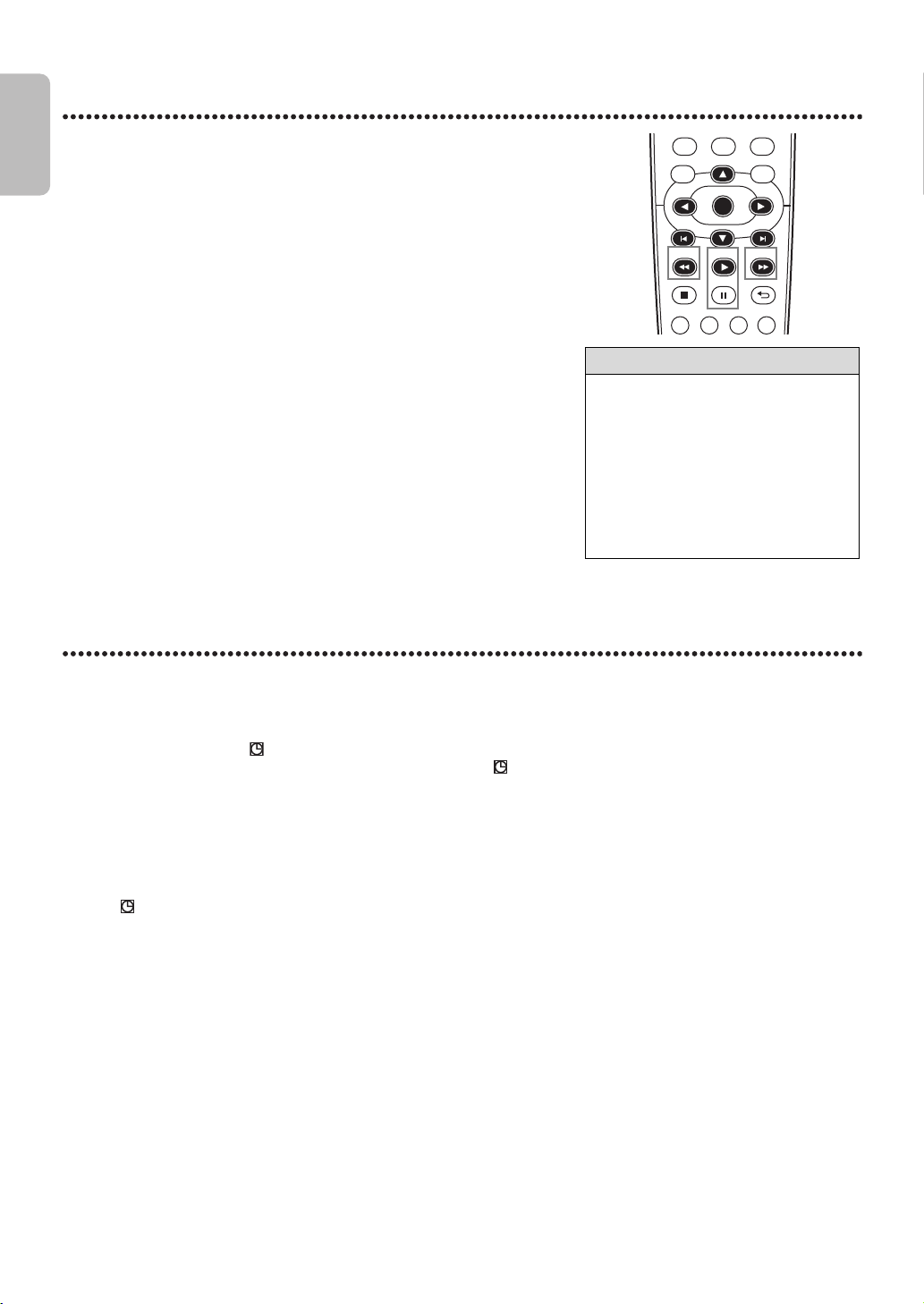
EN - 32
English
32
Special Effects Playback
● Before you begin, press VCR so VCR light appears on the front of the DVD/
VCR.
Forward and Reverse Searching (SP/LP/SLP) / Super High Speed
Searching (LP/SLP)
Viewing a Still Picture
Viewing a Slow Motion Picture
Automatic Operation Features
The following tape features are available in VCR mode. Press VCR so VCR light appears on the front of the DVD/VCR, if
necessary.
Automatic Playback
When you put a tape in the DVD/VCR, the power will come on.If the tape’s record tab is missing,playback will begin. If a
Timer Recording is set and “ ” is flashing in the display panel, the power will not come on automatically when you insert
a tape with the record tab intact. If a Timer Recording is set and “ ” is flashing in the display panel, the DVD/VCR will
eject the tape if the record tab is missing.
Automatic Rewind, Eject
When a tape is played, fast forwarded or recorded to its end, the tape will rewind to the beginning, stop and eject itself.
This feature does not operate if AUTO REPEAT is ON. Details are on page 30.
Tape Eject
A tape can be ejected with the DVD/VCR power on or off (but the DVD/VCR must be plugged in). If a Timer Recording is
set and “ ” is shown on the display panel, press TIMER SET on the remote control or STOP/EJECT C A on the front
panel to cancel the timer standby mode,and then press STOP/EJECT C A to remove the tape. Remember to insert a tape
and press TIMER SET to reset the Timer Recording.
Automatic Tracking Adjustment
The VCR adjusts tracking automatically to give you the best possible picture quality. With some recordings, however, you
may get a better picture using manual tracking.
Manual Tracking
To manually adjust the tracking during normal playback and Slow Motion Playback of a videotape, press TRACKING
K
/
L
.
Tracking will return to Automatic Tracking when you press STOP
C
or insert a tape. You can also press TRACKING
K
/
L
to remove vertical jitter in a Still picture.
1
During tape playback, press and release FFW D or REW E.
A fast forward or reverse picture search will begin.
Press FFW D or REW E, then press again. The search speed
will increase. Repeatedly pressing FFW D or REW E will switch
between Regular and High Speed Searching.
2
To return to normal playback, press PLAY B.
1
During tape playback, press PAUSE F. A still picture will appear
on the screen.
● To advance the still picture one frame at a time, press PAUSE F
repeatedly.
● To release the still picture and return to playback, press PLAY B.
1
During tape playback, press PAUSE F, then press FFW D.
The tape will play in slow motion.
● To change the playback speed, press FFW D or REW E.
● To return to normal playback, press PLAY B.
Helpful Hint
• Slow and still modes will switch to stop
mode after 5 minutes to protect the
DVD/VCR and the tape from damage.
• SP/LP/SLP means this feature will work
with tapes recorded in Standard
Playback, Long Playback or Super Long
Playback. LP/SLP means this feature
will work with tapes recorded in Long
Playback or Super Long Playback. Tape
speed details are on page 58.
DVDVCR SETUP
INPUT
MENU
DISPLAY SUBTITLE ZOOM AUDIO
BACKPAUSESTOP
PLAY
OK
FFWREW
DISC
E8E2CCD_E8E2CCH_EN_v1.book Page 32 Friday, March 9, 2012 6:37 PM
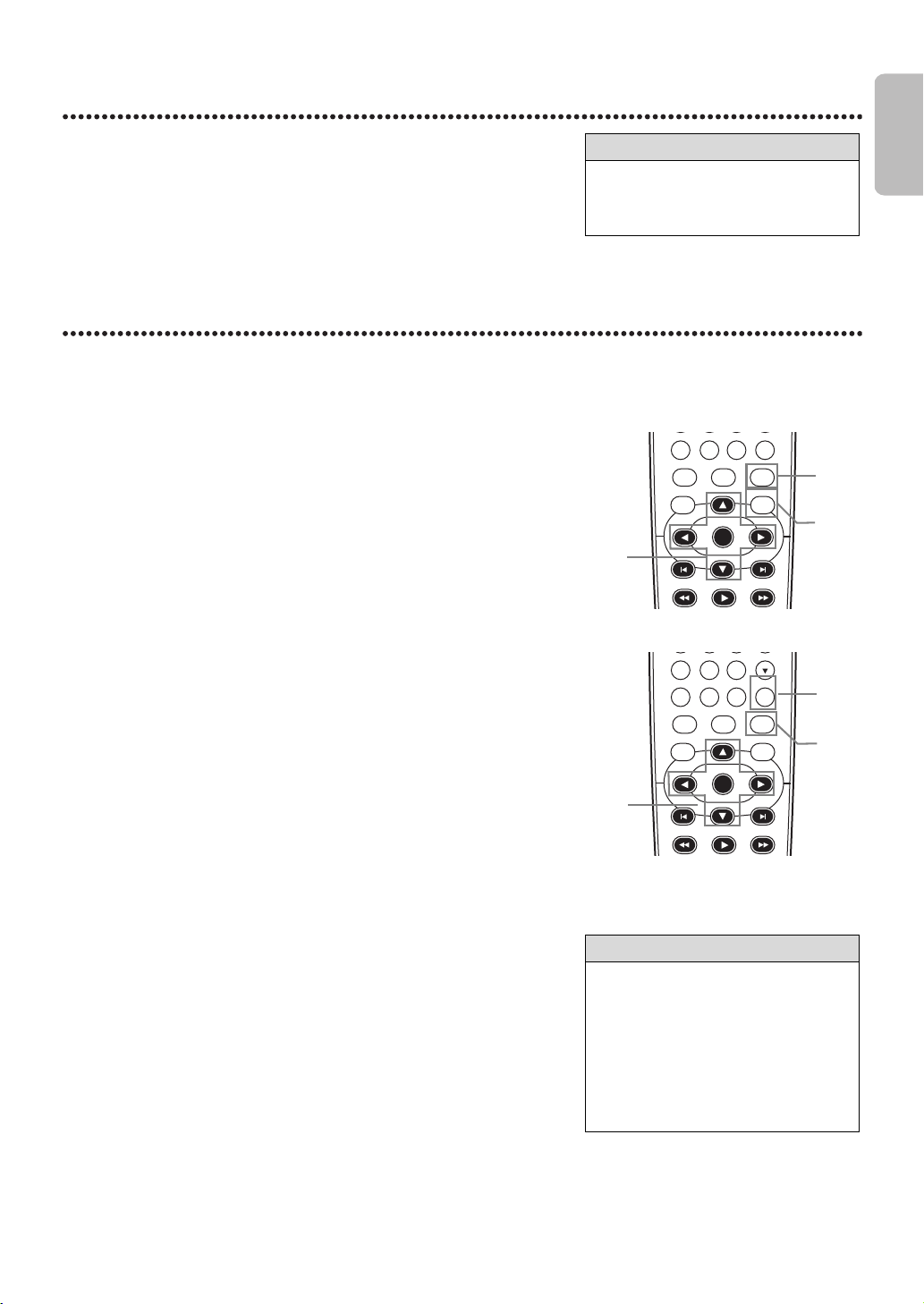
EN - 33
English
33
Additional VCR Features
Hi-Fi Stereo
Hi-Fi Stereo
To play in Hi-Fi stereo the tapes recorded in Hi-Fi stereo, press AUDIO to
switch HI-FI or MONO.
Disc Playback Features
Menus
DVD Disc Menus
Some DVDs contain menus that describe the contents of the disc or allow you to customize disc playback. For example,
the menu may offer choices for subtitle languages, director’s commentary or Sound Track Playback. To use the DVD Menu
and select playback features, follow these steps.
Using the Title Menu
Some DVDs have a Title Menu, which lists the titles available on the DVD. Use
the Title Menu to play a specific title.
1
Press DVD to put the DVD/VCR in DVD mode.
DVD light will appear on the front of the DVD/VCR.
2
Press DISCMENU. The DVD’s main Disc Menu will appear.
3
Press ▲, ▼, ◄ or ► to select an item, then press OK. Continue
this process to set up all the features you want.
1
Press DVD to put the DVD/VCR in DVD mode.
DVD light will appear on the front of the DVD/VCR.
2
Press TITLE. The Title Menu will appear.
If a Title Menu is not available, the “X” may appear on the TV screen.
Or, if the DVD only has a main Disc Menu as described above, it may
appear when you press TITLE.
3
Press ▲, ▼, ◄ or ► to select a title, then press OK. Playback will
begin at the title you selected.
Helpful Hint
• The audio level of a tape recorded in
Hi-Fi stereo will differ from the audio
level of a tape not recorded in Hi-Fi
stereo.
Helpful Hint
• Menus vary among discs. Follow the
literature accompanying the disc for
details.
• Not all DVDs have Disc or Title
Menus.
• Some DVDs may refer to chapters as
“scenes.” Some DVDs may refer to the
Title Menu as the “scene index.”
• TITLE will not be active with all DVDs.
DVDVCR SETUP
INPUT
MENU
PLAY
OK
FFWREW
CLEAR TITLE
DISC
0
+10
1
3
2
DVDVCR SETUP
INPUT
MENU
PLAY
OK
FFWREW
CLEAR TITLE
DISC
TRACKING
7
89
0
+10
2
3
1
E8E2CCD_E8E2CCH_EN_v1.book Page 33 Friday, March 9, 2012 6:37 PM
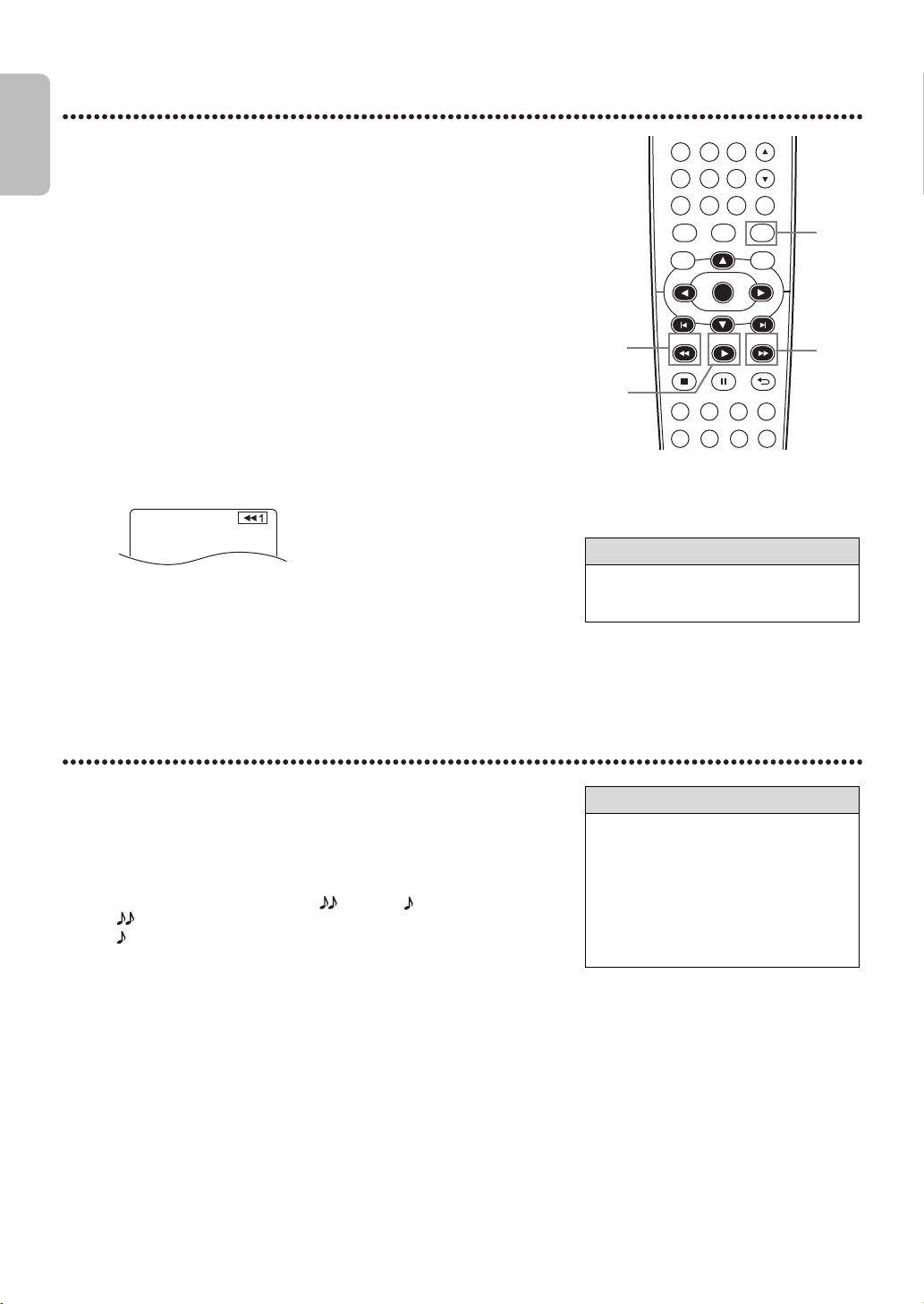
EN - 34
English
34
Fast Forward/Fast Reverse
x1.3 and x0.8 Rapid Play with Voice
Rapid Play with Voice is available only during playback on the discs recorded in
the Dolby Digital format. Rapid Play with Voice plays back in slightly faster/
slower speed while keeping the sound quality as in the normal playback.
1
Press DVD to put the DVD/VCR in DVD mode.
DVD light will appear on the front of the DVD/VCR.
2
During playback, press FFW D or REW E on the remote
control.
● During DVD playback, pressing FFW D or REW E will forward or
reverse the picture at approximately 2, 8, 20, 50 or 100 times the
normal speed. The speed may vary depending on the disc. g 1,
g 2, g 3, g 4 or g 5 will appear briefly on the TV screen to
indicate Forward Searching. Or, h 1, h 2, h 3, h 4 or
h 5 will indicate fast reverse. For DVD playback, the sound will be
mute during the search.
● For Audio CDs, MP3 or Windows Media™ Audio playback, pressing
FFW D or REW E will forward or reverse the picture or sound at
approximately 2, 8 or 30 times the normal speed. The speed may vary
depending on the disc. g 1, g 2 or g 3 will appear briefly on
the TV screen to indicate Forward Searching. Or, h 1, h 2 or
h 3 will indicate fast reverse. For Audio CD, MP3 or Windows
Media™ Audio playback, the sound will be intermittent during the
search.
3
Press PLAY B to return to normal playback.
1
During playback, press MODE.
The current setting appears.
2
Press OK to switch among (x1.3), (x0.8) and OFF.
: Plays back approximately at 1.3 times of normal playback.
: Plays back approximately at 0.8 times of normal playback.
OFF : No effects.
● To resume normal playback, press PLAY B.
Helpful Hint
• If you use FFW D or REW E
during Dual Playback, JPEG playback
will be paused.
DVDVCR SETUP
INPUT
MENU
ANGLE SEARCH REPEAT
DISPLAY SUBTITLE ZOOM
REPEAT
A-B
AUDIO
BACKPAUSESTOP
PLAY
OK
FFWREW
CLEAR TITLE
DISC
TRACKING
6
5
4
7
89
0
+10
1
2
2
3
Example : Playing a DVD in
reverse at twice the normal
playing speed.
Helpful Hint
• During Rapid Play with Voice;
- Audio Language Setting and Black
Level Setting cannot be changed.
- the PCM sound will be output if using
the digital audio connection
(COAXIAL).
- depending on the scenes you are
playing, Rapid Play with Voice may be
unavailable.
E8E2CCD_E8E2CCH_EN_v1.book Page 34 Friday, March 9, 2012 6:37 PM
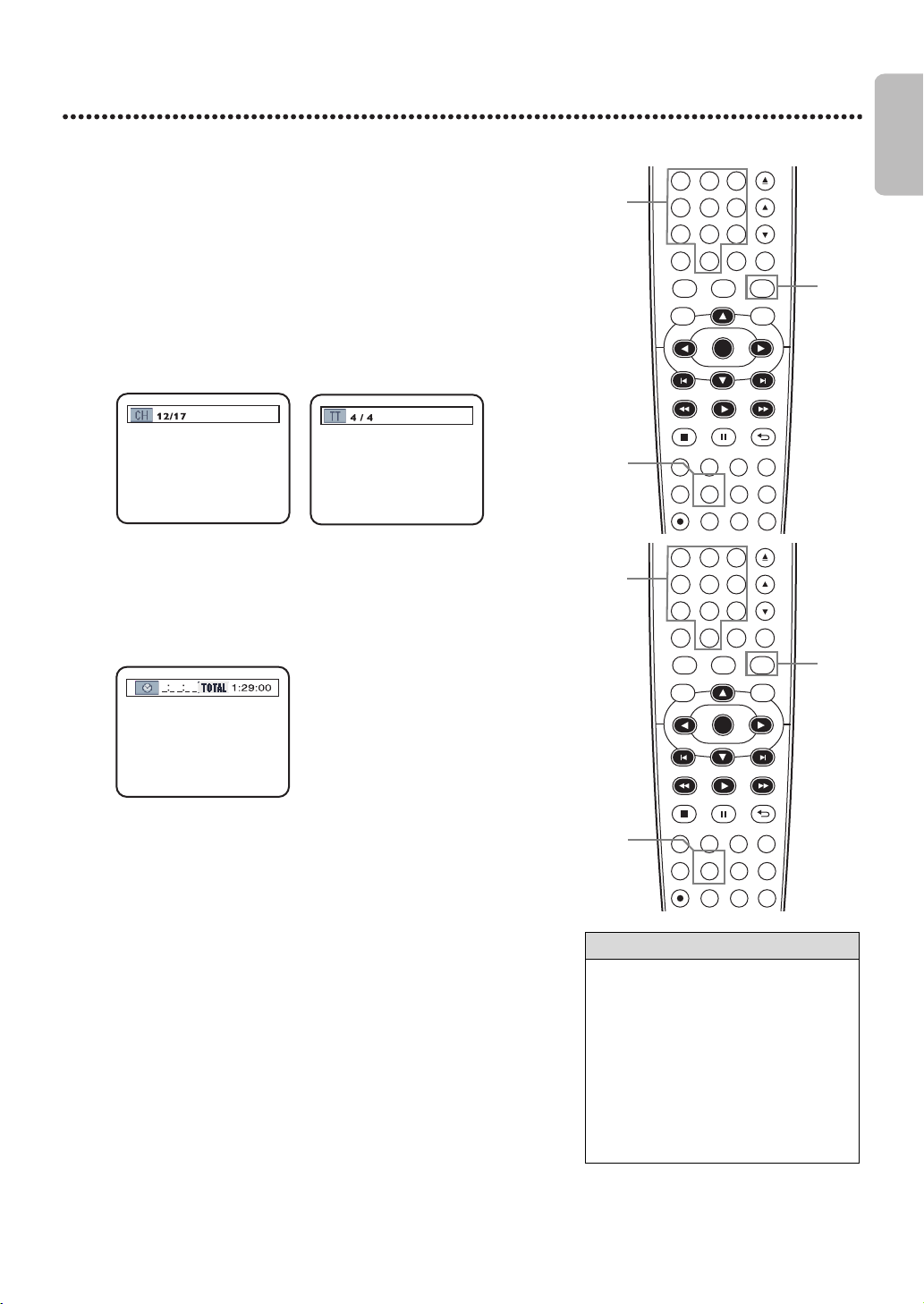
EN - 35
English
35
Title/Chapter/Time Search
Title/Chapter Search
Title/Chapter Search
1
Press DVD to put the DVD/VCR in DVD mode.
DVD light will appear on the front of the DVD/VCR.
2
During DVD playback, press SEARCH repeatedly until CH (for
chapter) or TT (for title) appears on the TV screen. The number of
available titles or chapters will appear at the right ( /4, for example).
3
Enter the title or chapter number using theNumberbuttons.
The title or chapter will play.
● To select a single-digit track number when there are more than 10
tracks, press OK to play the track.
● If you enter a track number that is not available on the Disc, playback
will not begin (or the current track will continue to play).
1
Press DVD to put the DVD/VCR in DVD mode.
DVD light will appear on the front of the DVD/VCR.
2
During DVD or Audio CD playback, press SEARCH repeatedly
until the Time Search Display appears.
3
Within 30 seconds, use theNumberbuttons to enter the
elapsed playing time (of the track or title) at which you want
playback to begin. Enter the time in hours, minutes and seconds.
Within a few seconds, playback will start at the specified time.
● Example : 1 hour, 23 minutes and 30 seconds
1 → 2 → 3 → 3 → 0
● Make sure the time you enter is within the total time of the current
title or track. If it is not, the time space will clear and playback will
continue at its current point. The total time available in the current
track or title will appear in the Time Search Display.
● If you make a mistake entering the time, press CLEAR to clear the
time area. Enter the correct information.
Helpful Hint
• When playback is stopped, use
theNumberbuttons to select a title
for immediate playback. During
playback, use theNumberbuttons to
choose a chapter for immediate
playback.
• Title/Chapter Search is not available
with some DVDs.
• Time Search is not available for MP3,
Windows Media™ Audio and JPEG
files.
DVDVCR SETUP
INPUT
MENU
REC SPEED MODE
ANGLE SEARCH REPEAT
DISPLAY SUBTITLE ZOOM
TIMER SET
REPEAT
A-B
AUDIO
BACKPAUSESTOP
PLAY
OK
FFW
REW
CLEAR TITLE
DISC
TRACKING
OPEN/CLOSE
12
6
5
4
7
8
9
0
+10
3
3
1
2
DVDVCR SETUP
INPUT
MENU
REC SPEED MODE
ANGLE SEARCH REPEAT
DISPLAY SUBTITLE ZOOM
TIMER SET
REPEAT
A-B
AUDIO
BACKPAUSESTOP
PLAY
OK
FFW
REW
CLEAR TITLE
DISC
TRACKING
OPEN/CLOSE
12
6
5
4
7
89
0
+10
3
3
1
2
E8E2CCD_E8E2CCH_EN_v1.book Page 35 Friday, March 9, 2012 6:37 PM
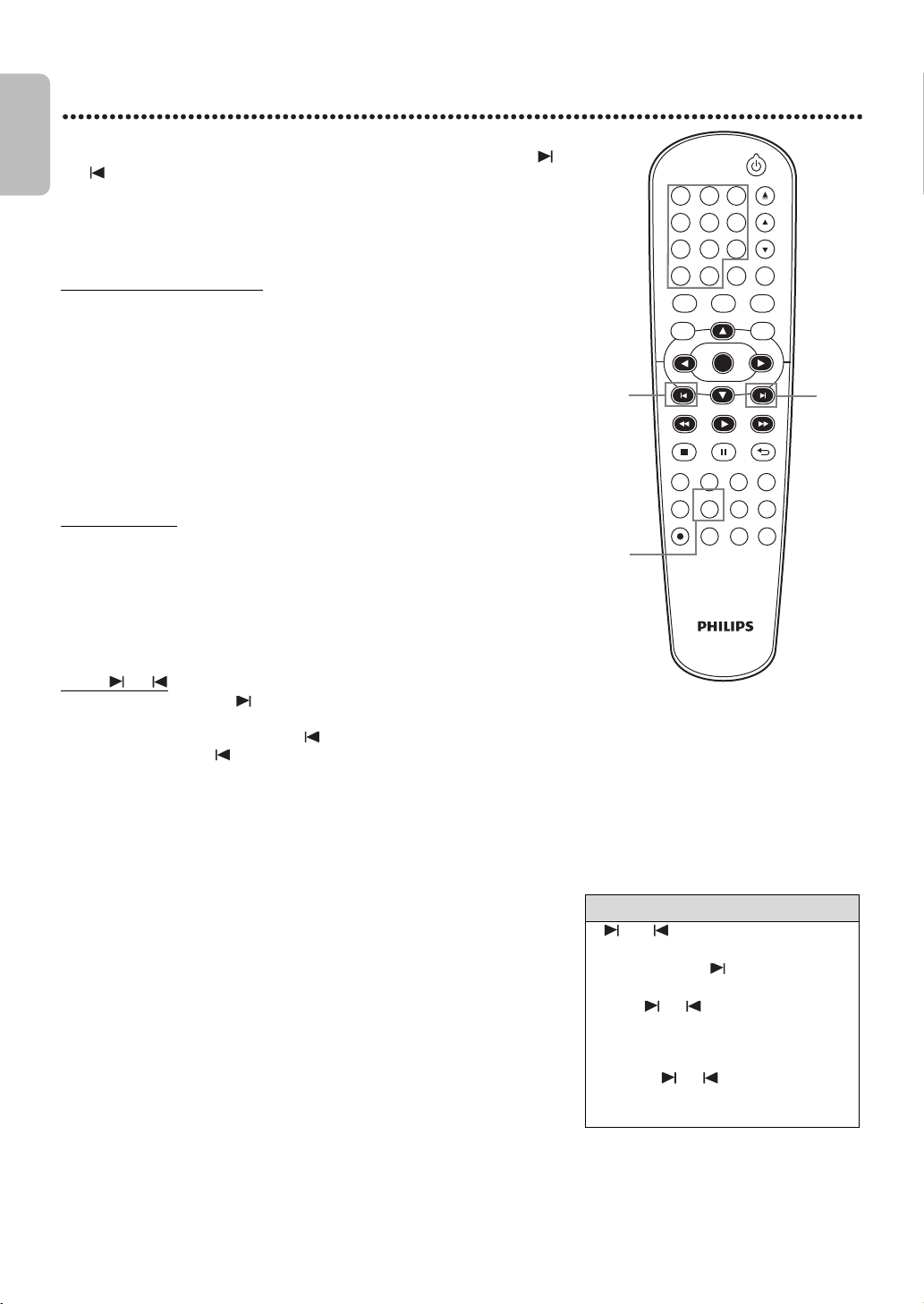
EN - 36
English
36
Track Search
There are three ways to play a specific Audio CD, MP3, Windows Media™
Audio or JPEG track : Use theNumberbuttons, the SEARCH button or
and .
● Before you begin, press DVD so DVD light appears on the front of the
DVD/VCR.
A
Using theNumberbuttons
Press theNumberbuttons to enter a track number.
Playback will start at the selected track. For tracks 10 and above, press the
+10 button so the Search Display (TR _ _ /12 - an example of total tracks)
appears on the TV screen. Press the Number button of the first digit, then
press the Number button of the second digit. For example,to play track 26,
press +10, then Number 2, then Number 6 (Each number must be pressed
within 30 seconds of the previous number). For single-digit tracks (1-9), press
a single Number button. If you enter a track number that is not available on
the disc, play will not begin (or the current track will continue to play).
B
Using SEARCH
Press SEARCH so the Track Search Display (TR) appears. Within 30
seconds, press theNumberbuttons to select the track number.
Playback will begin at the selected track. For a single-digit track (1-9), enter 0
first. For example, to play track 5, press 0,5. You do not have to use the +10
button in search mode.
C
Using or
During playback, press to skip the current track and move to the
next track. The track number will appear briefly on the DVD/VCR display
panel. Or, during playback, press to return to the beginning of the
current track. Press repeatedly to go to previous tracks. The track
number will appear briefly on the DVD/VCR display panel.
Helpful Hint
• and does not function when
playback is stopped.
• You cannot use to go from the last
track on the disc to the first track.
• Using or during Dual Playback
will only affect MP3 files. If you want to
skip JPEG files during Dual Playback,
press ◄ or ►. Please note that
pressing or will affect both MP3
and JPEG files if SLIDE SHOW is set to
MUSIC.
DVDVCR SETUP
INPUT
MENU
REC SPEED MODE
ANGLE SEARCH REPEAT
DISPLAY SUBTITLE ZOOM
TIMER SET
REPEAT
A-B
AUDIO
BACKPAUSESTOP
PLAY
OK
FFW
REW
CLEAR TITLE
DISC
TRACKING
OPEN/CLOSE
12
6
5
4
7
89
0
+10
3
C
C
B
A,B
E8E2CCD_E8E2CCH_EN_v1.book Page 36 Friday, March 9, 2012 6:37 PM
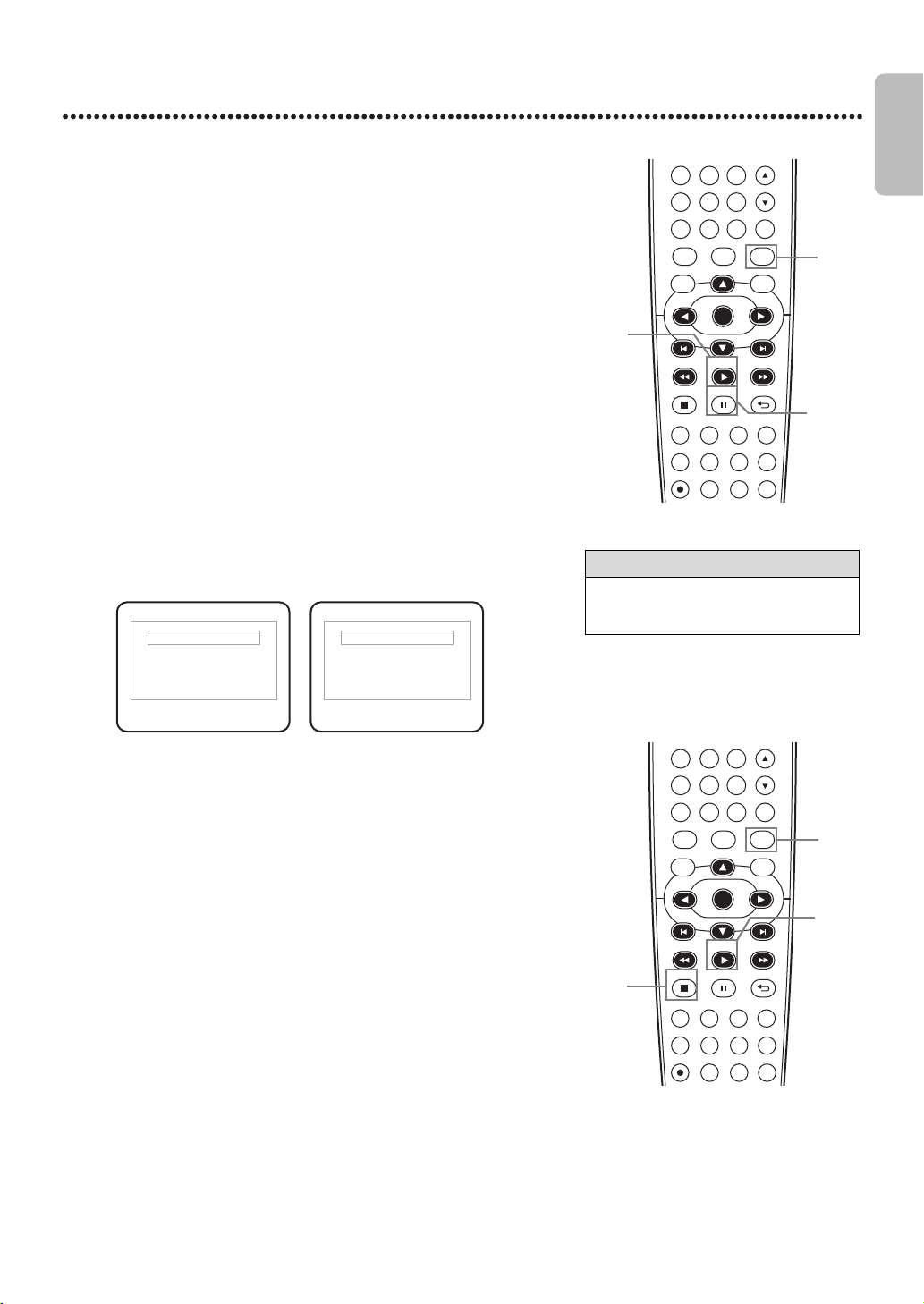
EN - 37
English
37
Paused and Step-by-Step Playback, Resume On
Paused and Step-by-Step Playback
Resume On
1
Press DVD to put the DVD/VCR in DVD mode.
DVD light will appear on the front of the DVD/VCR.
2
During disc playback, press PAUSE F. Playback will pause and the
sound will be mute.
● Pressing PAUSE F once during Dual Playback will pause a JPEG file
only. Pressing PAUSE F one more time will pause an MP3 playback.
3
When playing a DVD, press PAUSE F repeatedly to see the
picture advance one frame (or step) at a time. The sound will
remain mute. Pressing PAUSE F repeatedly during Audio CD, MP3,
Windows Media™ Audio or JPEG playback will have no effect.
4
Press PLAY B to resume playback.
1
Press DVD to put the DVD/VCR in DVD mode.
DVD light will appear on the front of the DVD/VCR.
2
Press STOP C during playback. In a few seconds, the
following Resume message will appear on the TV screen.
3
Press PLAY B. In a few seconds, playback will resume from the point
at which it stopped last. You can Resume Playing at the same point even
if you turn off the DVD/VCR, then turn it on again later. However,
opening the disc tray will cancel the Resume feature. Playback will start
at the beginning the next time you insert the disc. For MP3, Windows
Media™ Audio and JPEG playback will resume from the beginning of the
current track. To cancel Resume and start playing the disc from the
beginning, press STOP C again while playback is in the resume stop
mode. As for MP3, Windows Media™ Audio and JPEG playback, File List
will appear when you cancel Resume. Press PLAY B to start playing the
disc from the beginning.
● The resume information will be cleared if you change the parental
level when the resume information is on.
DVDVCR SETUP
INPUT
MENU
REC SPEED MODE
ANGLE SEARCH REPEAT
DISPLAY SUBTITLE ZOOM
TIMER SET
REPEAT
A-B
AUDIO
BACKPAUSESTOP
PLAY
OK
FFW
REW
CLEAR TITLE
DISC
TRACKING
6
5
4
7
89
0
+10
1
4
2-3
DVDVCR SETUP
INPUT
MENU
REC SPEED MODE
ANGLE SEARCH REPEAT
DISPLAY SUBTITLE ZOOM
TIMER SET
REPEAT
A-B
AUDIO
BACKPAUSESTOP
PLAY
OK
FFW
REW
CLEAR TITLE
DISC
TRACKING
6
5
4
7
8
9
0
+10
1
2
3
Helpful Hint
• Set STILL MODE to FIELD in the
DISPLAY Menu if paused images are
blurry. Details are on pages51-52.
Resume ON
Press ‘PLAY’ to play from here.
To play the beginning,
press ‘STOP’ first and then ‘PLAY’.
Resume ON
Press ‘PLAY’ to play from the
beginning of current track.
To play the beginning,
press ‘STOP’ first and then ‘PLAY’.
For DVD or AudioCD : For MP3, Windows
Media™ Audio or JPEG:
E8E2CCD_E8E2CCH_EN_v1.book Page 37 Friday, March 9, 2012 6:37 PM
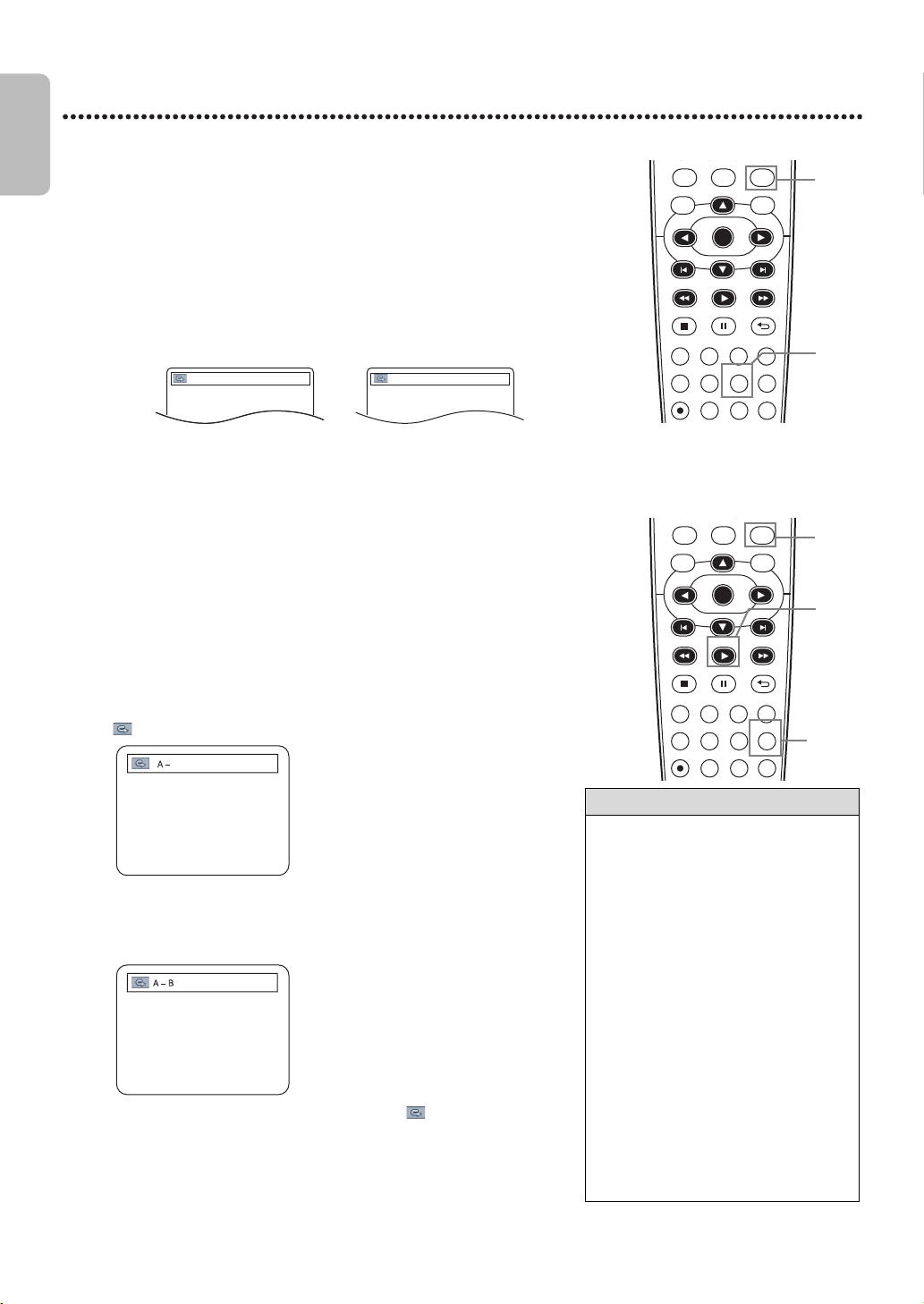
EN - 38
English
38
Repeat, A-B Repeat
Repeat
A-B Repeat
You can play a specified section of a DVD or Audio CD repeatedly. Follow
these steps to set up the section you want to repeat.
1
Press DVD to put the DVD/VCR in DVD mode.
DVD light will appear on the front of the DVD/VCR.
2
During DVD, Audio CD, MP3, Windows Media™ Audio or
JPEG playback, press REPEAT repeatedly until the repeat
mode you want appears on the TV screen. On a DVD, select
CHAPTER, TITLE or OFF. On an Audio CD, select TRACK, ALL (all
tracks on the disc) or OFF. With MP3, Windows Media™ Audio or
JPEG tracks,select TRACK, GROUP (all tracks in the current folder),
ALL or OFF. Selecting a new track,chapter or title will cancel Repeat
Playback.
1
Press DVD to put the DVD/VCR in DVD mode.
DVD light will appear on the front of the DVD/VCR.
2
Press PLAY B to play the disc to the point at which you want
repeated playback to begin.
3
Press A-B REPEAT to set the starting point (A). If you make a
mistake, press CLEAR. This will erase point A and let you start over.
OFF will appear briefly on the TV screen.
4
Play the disc to the point at which you want repeated playback
to end, then press A-B REPEAT again. Within a few seconds, the
A-B section will begin to play repeatedly. The segment will play over and
over until you cancel the A-B Repeat feature.
● To cancel A-B Repeat, press A-B REPEAT. OFF will appear on the
TV screen. Regular playback will resume.
Helpful Hint
• Repeat Playback and A-B Repeat are
not available with some discs.
• The entire A-B Repeat section must be
within a single title or track.If you do
not enter Point B before the end of the
track or title is reached, the end of the
track or title will become Point B
automatically.
• Point B must be later on the disc than
Point A.
• A-B Repeat is not available with MP3,
Windows Media™ Audio and JPEG
files.
• If you choose GROUP Repeat during
Dual Playback, all tracks or files in each
folder will play repeatedly. For
example if you choose GROUP Repeat
during Dual Playback of MP3 folder A
and JPEG folder B, all MP3 files in
folder A and all JPEG files in folder B
will be repeated.
DVDVCR SETUP
INPUT
MENU
REC SPEED MODE
ANGLE SEARCH REPEAT
DISPLAY SUBTITLE ZOOM
TIMER SET
REPEAT
A-B
AUDIO
BACKPAUSESTOP
PLAY
OK
FFW
REW
DISC
1
2
DVDVCR SETUP
INPUT
MENU
REC SPEED MODE
ANGLE SEARCH REPEAT
DISPLAY SUBTITLE ZOOM
TIMER SET
REPEAT
A-B
AUDIO
BACKPAUSESTOP
PLAY
OK
FFW
REW
DISC
1
2
3-4
CHAPTER
TRACK
Example : Repeat a DVD
chapter
Example : Repeat an Audio CD
track
E8E2CCD_E8E2CCH_EN_v1.book Page 38 Friday, March 9, 2012 6:37 PM
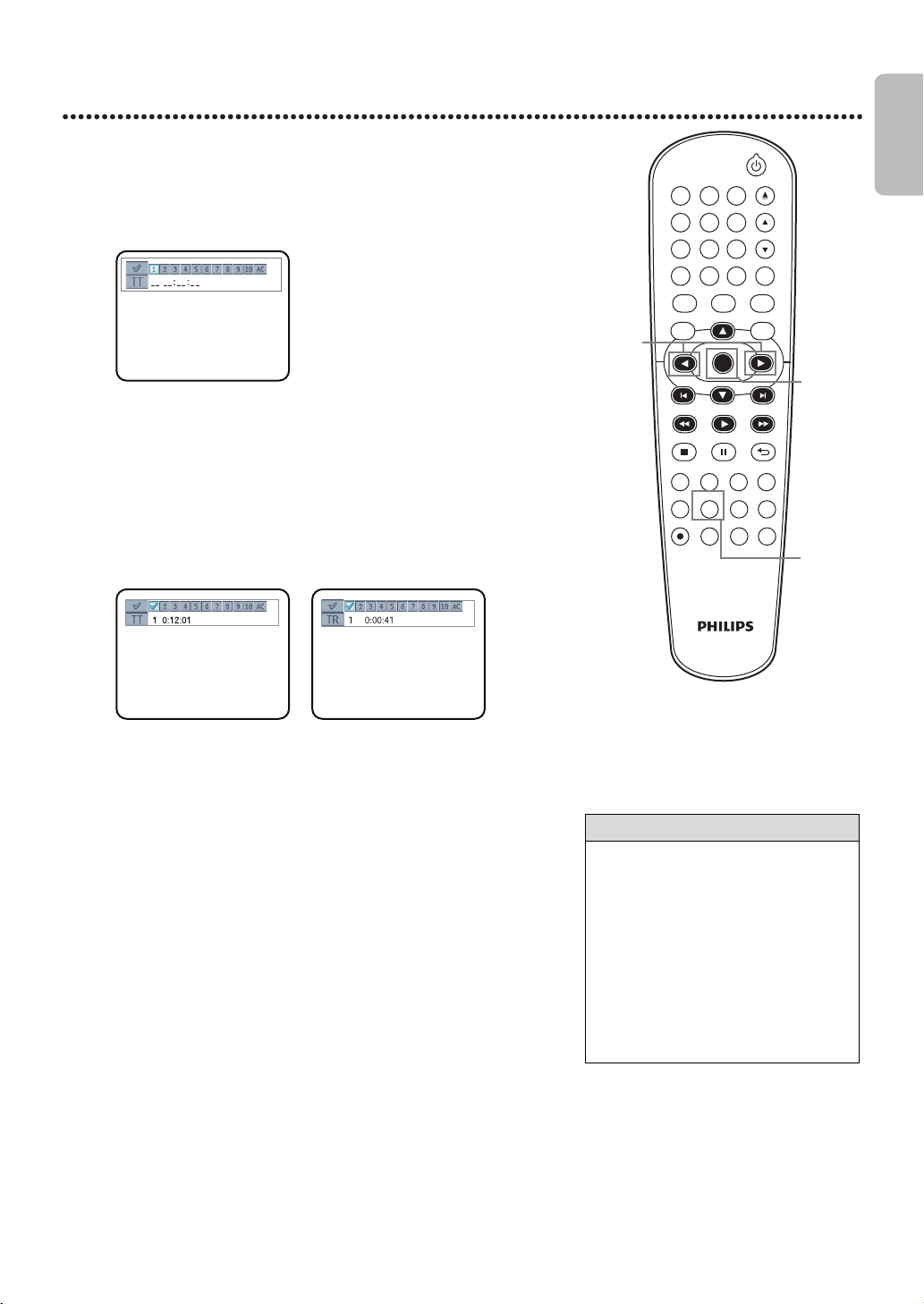
EN - 39
English
39
Markers
Use Markers to remember your favorite places on a DVD or Audio CD.
● Before you begin, place the DVD/VCR in DVD mode. Press DVD so DVD
light appears on the front of the DVD/VCR.
1
Play the disc to within 30 seconds of the point at which you
want to set the Marker. Press SEARCH repeatedly until
Marker Display appears.
2
Within 30 seconds, press ◄ or ► to select a Marker (1-10).
Make sure _ _ :_ _ :_ _ appears beneath the number.
3
When the playback reaches the point you want to remember,
press OK. The title or track number and its elapsed playing time will
appear beneath the Markers. A checkmark will replace the Marker
number. The Marker Display will disappear in about 30 seconds, or
press BACK U to remove it.
4
To return to a Marker during playback, press SEARCH
repeatedly until Marker Display appears. Press ◄ or ► to
choose the Marker you want, then press OK. Disc playback will
continue from the marked point.
Helpful Hint
• Opening the disc tray or turning off the
DVD/VCR will erase all the Markers.
• To erase a single Marker, press
SEARCH repeatedly until Marker
Display appears. Press ◄ or ► to
select a Marker. Press CLEAR. Press
BACK U to remove the display.
• To erase all the Markers, press
SEARCH repeatedly until Marker
Display appears. Press ► to select AC,
then press OK. Press BACK U to
remove the display.
DVDVCR SETUP
INPUT
MENU
REC SPEED MODE
ANGLE SEARCH REPEAT
DISPLAY SUBTITLE ZOOM
TIMER SET
REPEAT
A-B
AUDIO
BACKPAUSESTOP
PLAY
OK
FFW
REW
CLEAR TITLE
DISC
TRACKING
OPEN/CLOSE
12
6
5
4
7
89
0
+10
3
2,4
3-4
1,4
Example : DVD
Example : DVD Example : Audio CD
E8E2CCD_E8E2CCH_EN_v1.book Page 39 Friday, March 9, 2012 6:37 PM
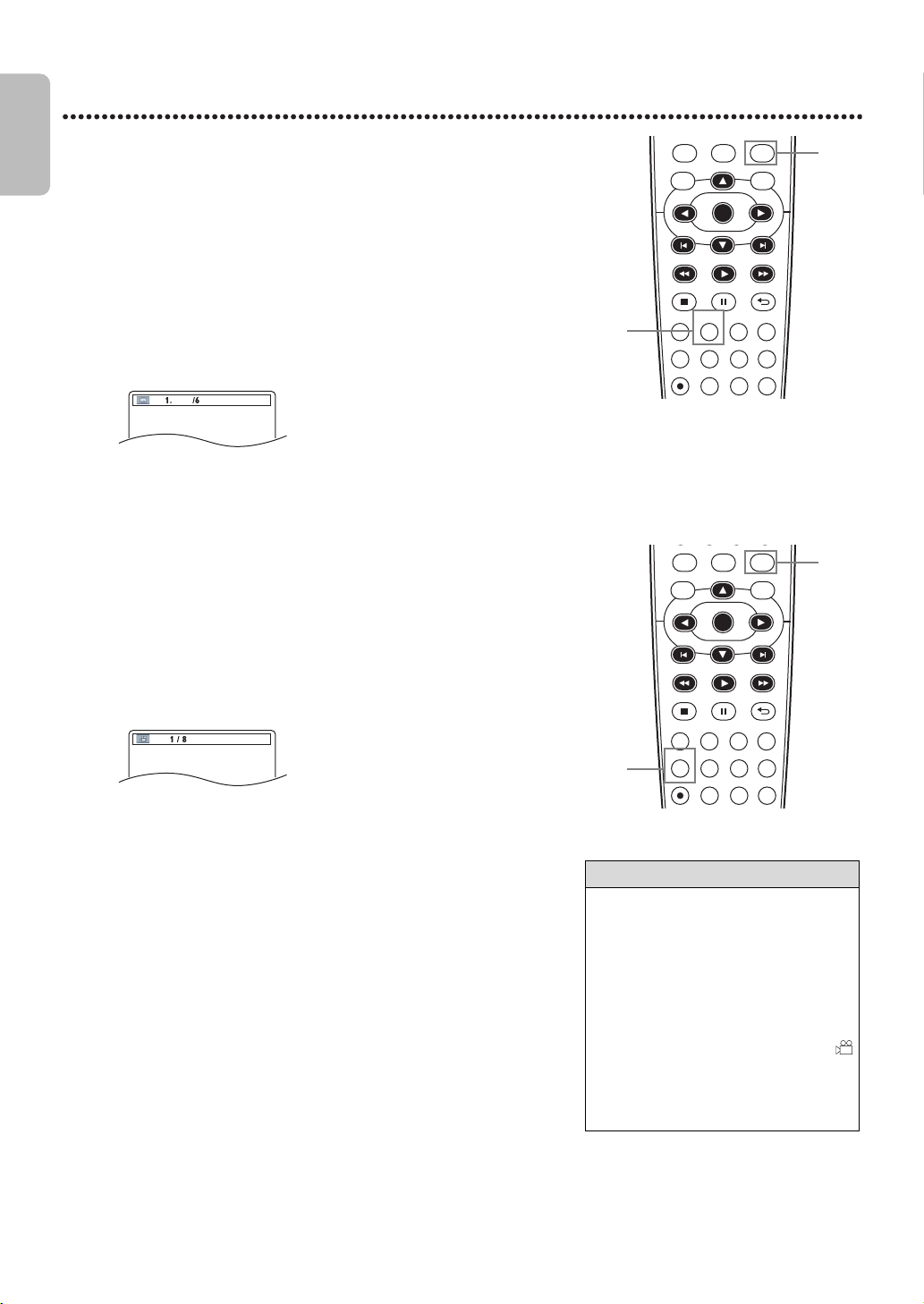
EN - 40
English
40
Subtitles, Camera Angles
Subtitles
The DVD/VCR allows you to select a language for subtitles during playback.
You may select only languages that are available on the DVD.
Camera Angles
Some DVDs contain scenes recorded from different angles or perspectives.
The perspective will not change if the DVD does not contain sequences
recorded from different camera angles.
1
Press DVD to put the DVD/VCR in DVD mode.
DVD light will appear on the front of the DVD/VCR.
2
During playback, press SUBTITLE repeatedly to select a
subtitle language. The number of available languages appears at the
right of the Subtitle Display. In the example below, six languages are
available ( /6). After a few seconds, the subtitles will appear. Or, press
SUBTITLE repeatedly to turn off subtitles. When no subtitles are
available, “NOT AVAILABLE” appears at the right of the Subtitle
Display.
1
Press DVD to put the DVD/VCR in DVD mode.
DVD light will appear on the front of the DVD/VCR.
2
During playback, press ANGLE repeatedly to select a different
perspective. The number of available angles appears at the right of the
Angle Display. In this example, eight angles are available ( /8).
Helpful Hint
• With some DVDs, you must select a
subtitle language in the Disc Menu.
• If the desired language does not appear
after pressing SUBTITLE several times,
the disc does not have subtitles in that
language.
• Opening the disc tray will cancel your
Subtitle Setting.
• If the ANGLE ICON Setting is ON,
will appear on the TV screen when the
current portion of the disc has multiple
camera angles. To set the ANGLE
ICON ON or OFF, see pages56-57.
DVDVCR SETUP
INPUT
MENU
REC SPEED MODE
ANGLE SEARCH REPEAT
DISPLAY SUBTITLE ZOOM
TIMER SET
REPEAT
A-B
AUDIO
BACKPAUSESTOP
PLAY
OK
FFW
REW
DISC
2
1
DVDVCR SETUP
INPUT
MENU
REC SPEED MODE
ANGLE SEARCH REPEAT
DISPLAY SUBTITLE ZOOM
TIMER SET
REPEAT
A-B
AUDIO
BACKPAUSESTOP
PLAY
OK
FFW
REW
DISC
2
1
ENG
Example: English as first of six
available subtitles
Example : Angle 1 of eight
available angles
E8E2CCD_E8E2CCH_EN_v1.book Page 40 Friday, March 9, 2012 6:37 PM
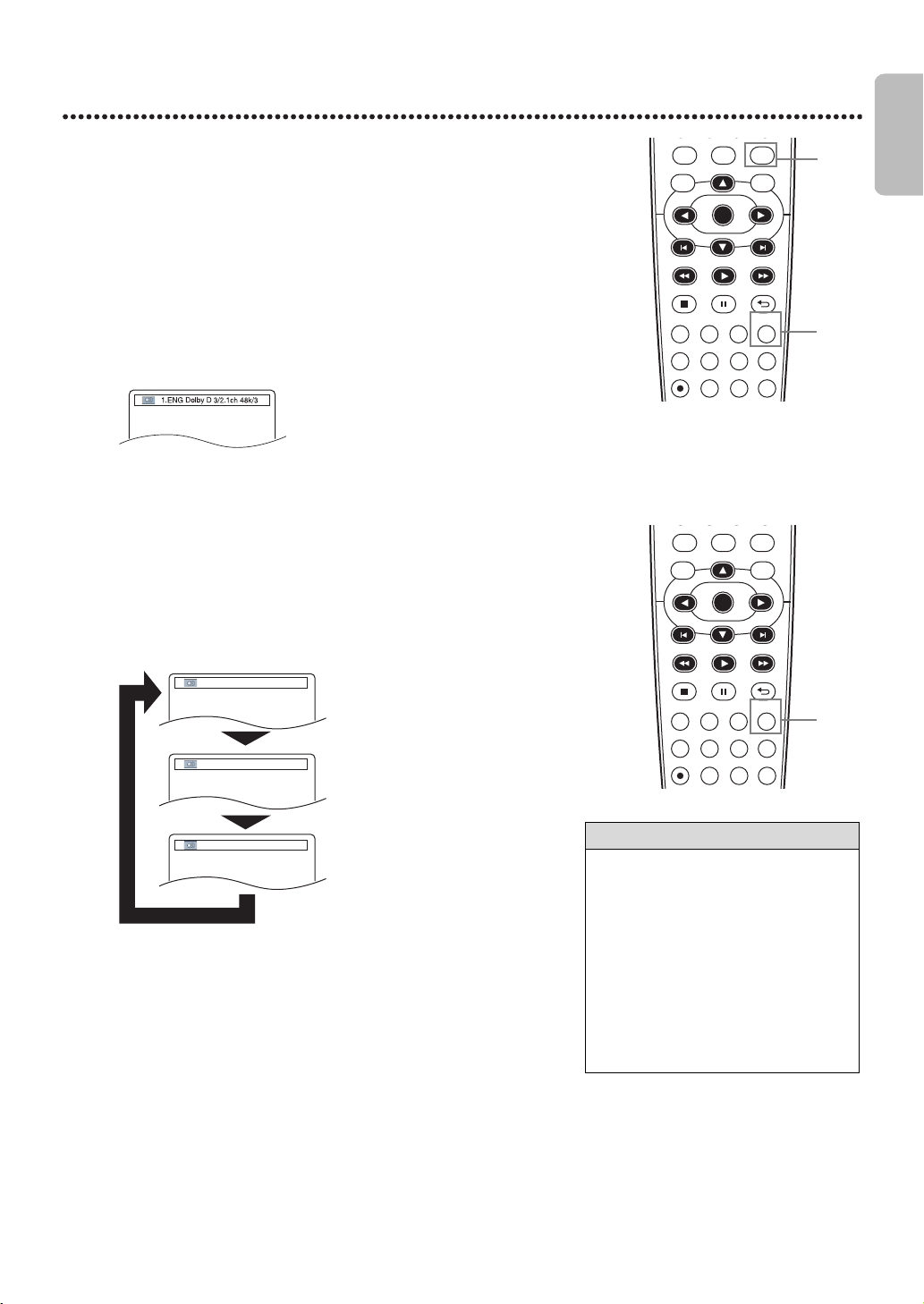
EN - 41
English
41
Audio Language, Stereo Sound Mode
Audio Language
You can select a language for DVDs during playback if multiple
languages are available.
Stereo Sound Mode
Adjust Stereo Sound to determine whether you will hear the left channel, the
right channel or both channels (stereo) during Audio CD playback. If you
connected the DVD/VCR to a Stereo using the COAXIAL DIGITAL AUDIO
OUT jack as described on page 13, you cannot adjust stereo sound mode.
1
Press DVD to put the DVD/VCR in DVD mode.
DVD light will appear on the front of the DVD/VCR.
2
During DVD playback, press AUDIO repeatedly to choose one
of the available languages. Audio Display appears at the top of the
TV screen, and the new audio will be heard. The display will disappear
after about 5 seconds. The Audio Display may show the current settings
for the Dolby Digital or Multi-channel sound,if they are available on the
disc,and the sampling rate of the disc. The number of available languages
appears after the “ / ” at the right of the display ( /3, for example).
1
Press AUDIO repeatedly during Audio CD playback to choose
STEREO, L-ch or R-ch.
Helpful Hint
• If a language is not available after
pressing AUDIO several times, the
DVD does not have that language.
• Some DVDs only let you change the
language in the Disc Menu.
• Audio languages may be abbreviated
(such as ENG for English). Or, three
dashes (- - -) may appear instead of an
abbreviation.
• Audio language selection cannot be
made during Rapid Play with Voice.
(Refer to page 34.)
DVDVCR SETUP
INPUT
MENU
REC SPEED MODE
ANGLE SEARCH REPEAT
DISPLAY SUBTITLE ZOOM
TIMER SET
REPEAT
A-B
AUDIO
BACKPAUSESTOP
PLAY
OK
FFW
REW
DISC
1
22
DVDVCR SETUP
INPUT
MENU
REC SPEED MODE
ANGLE SEARCH REPEAT
DISPLAY SUBTITLE ZOOM
TIMER SET
REPEAT
A-B
AUDIO
BACKPAUSESTOP
PLAY
OK
FFW
REW
DISC
1
Example : English audio
STEREO
R-ch
L-ch
Both right and left channels are
heard (stereo).
Only the left channel is heard.
Only the right channel is heard.
E8E2CCD_E8E2CCH_EN_v1.book Page 41 Friday, March 9, 2012 6:37 PM
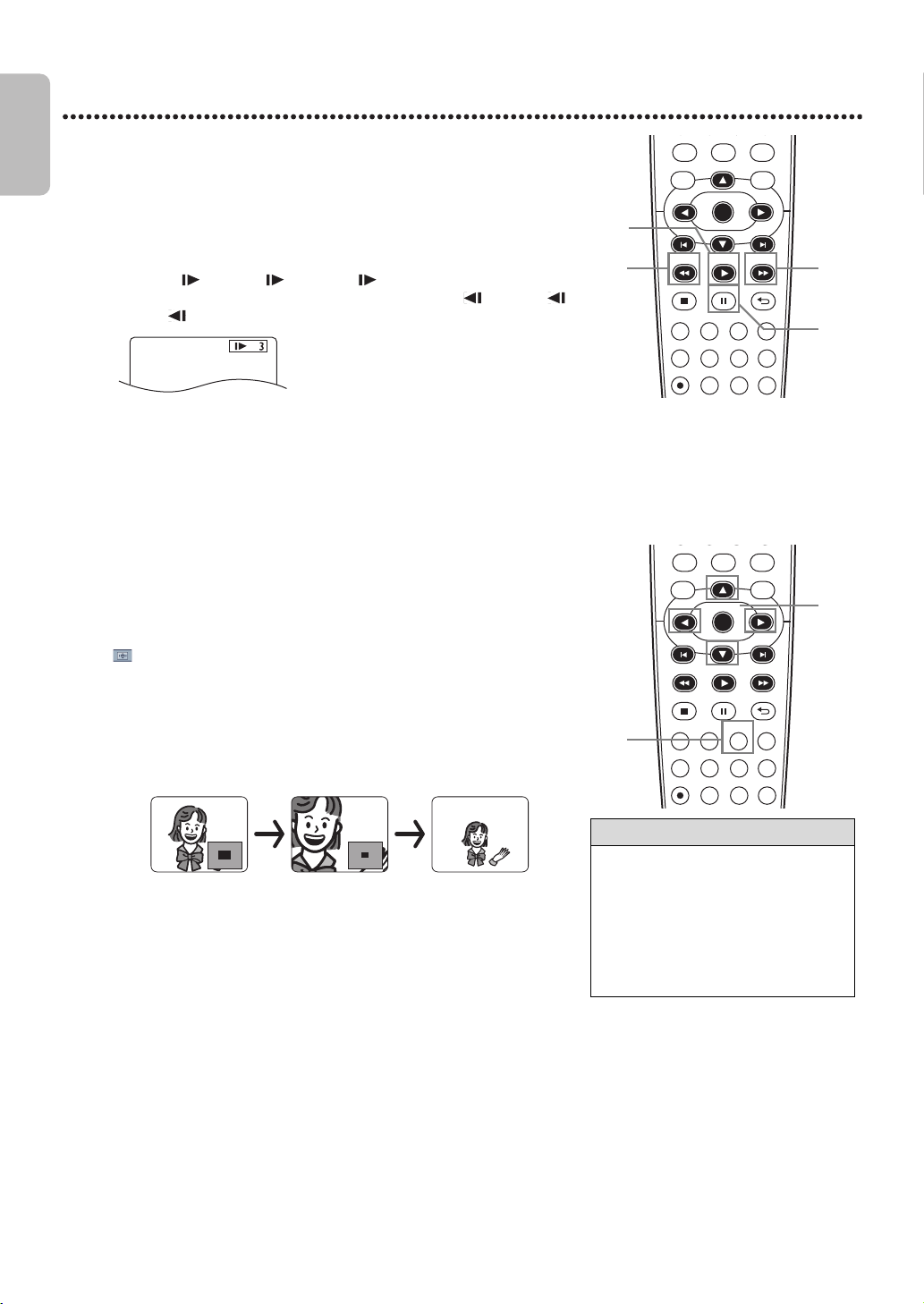
EN - 42
English
42
Slow Motion, Zoom
Slow Motion
Zoom
Zooming lets you enlarge the playback image of DVDs or JPEG files, and lets
you pan through the enlarged image.
1
Press PAUSE F during DVD playback.
2
Press FFW D or REW E. Slow Motion Playback will begin. Press
FFW D or REW E repeatedly during Slow Motion Playback to play a
DVD forward or backward at approximately 1/16, 1/8 or 1/2 the normal
speed. An 1 (1/16), 2 (1/8) or 3 (1/2) will appear briefly on
the TV screen to indicate Slow Forward Playback. An 1 (1/16), 2
(1/8) or 3 (1/2) will indicate Slow Reverse Playback.
3
Press PLAY B to return to normal playback.
1
Press ZOOM during playback or when playback is paused. The
picture will appear twice as large. Press ZOOM again to make the
picture four times larger than normal. Either x2 or x4 will appear beside
icon in the upper left corner of the TV screen.
2
While the picture is enlarged, press ▲, ▼, ◄ or ► to move the
zoomed image up, down, left or right. The gray box with an inner
blue box that shows during Zoomed Playback is the position guide. To
remove it or show it, press OK. The position of the blue box inside the
gray box indicates the position of the zoomed image within the overall
picture.
● To return the picture to normal, press ZOOM repeatedly.
Helpful Hint
• The sound will be mute during
Paused or Slow Motion Playback.
• You cannot zoom a Disc Menu.
• The x4 zooming is not active with
some discs. Only x2 zooming is
available for JPEG files.
• Position guide is not available for
JPEG playback.
DVDVCR SETUP
INPUT
MENU
REC SPEED MODE
ANGLE SEARCH REPEAT
DISPLAY SUBTITLE ZOOM
TIMER SET
REPEAT
A-B
AUDIO
BACKPAUSESTOP
PLAY
OK
FFW
REW
DISC
22222
1
3
DVDVCR SETUP
INPUT
MENU
REC SPEED MODE
ANGLE SEARCH REPEAT
DISPLAY SUBTITLE ZOOM
TIMER SET
REPEAT
A-B
AUDIO
BACKPAUSESTOP
PLAY
OK
FFW
REW
DISC
2
1
Example : Playing a DVD forward
at half the normal speed.
E8E2CCD_E8E2CCH_EN_v1.book Page 42 Friday, March 9, 2012 6:37 PM
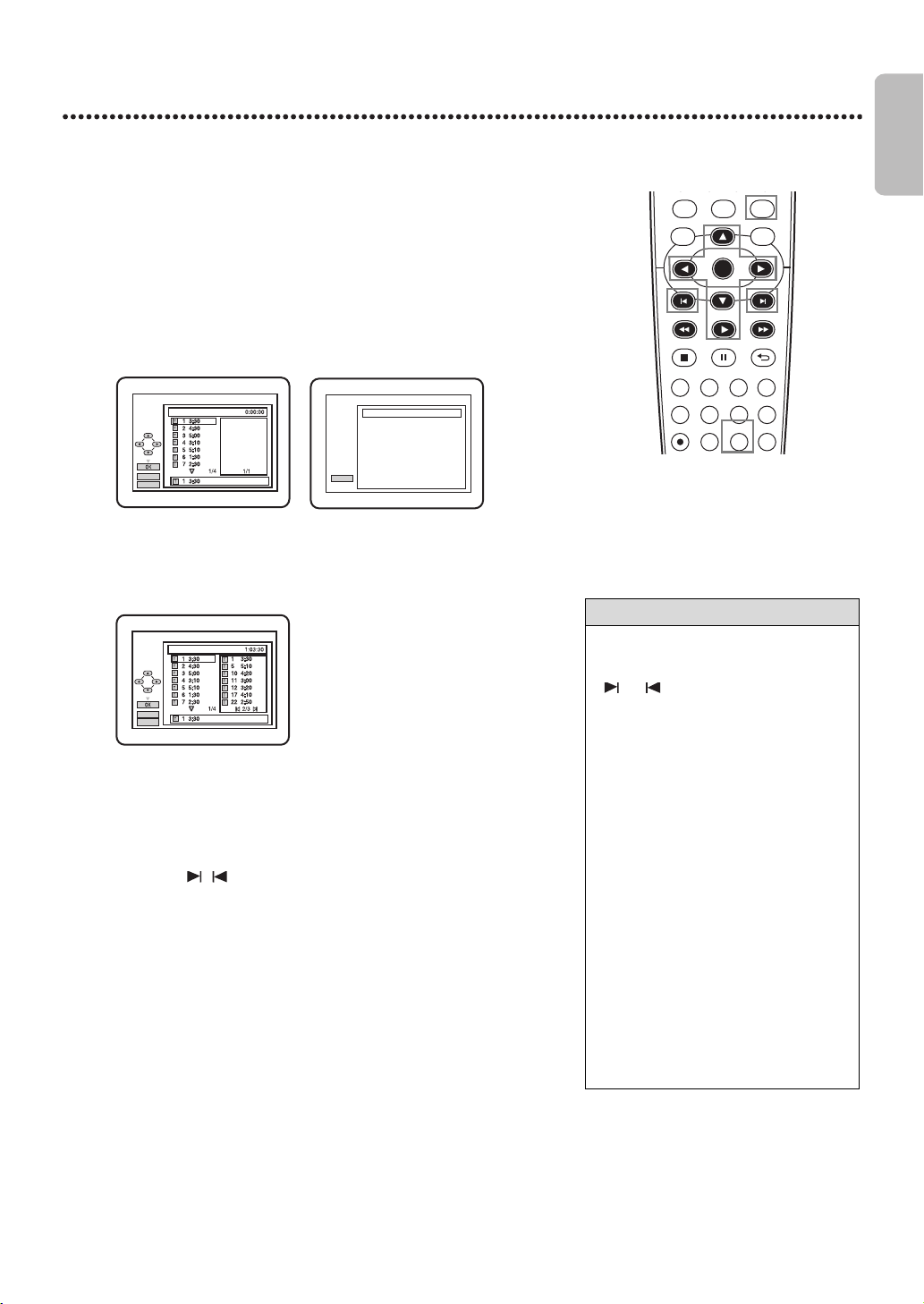
EN - 43
English
43
Program/Random Playback
Program Playback
You may determine the order in which Audio CD, MP3, Windows Media™
Audio or JPEG tracks will play.
Random Playback
You may play the tracks of an Audio CD in Random order instead of the order
in which they are recorded (1,2,3...). You can also use this feature for MP3,
Windows Media™ Audio and JPEG tracks. Turn on your external tuner.
Program Playback
Random Playback
1
Press DVD to put the DVD/VCR in DVD mode.
DVD light will appear on the front of the DVD/VCR.
2
While playback is stopped, press MODE repeatedly until the
PROGRAM/RANDOM Screen appears.
3
Press ▲ or ▼ to select a track you want to play, then press OK.
Press CLEAR to erase the last track in the program if you make an
error. Additional tracks may be on other screens. Press ▼ to go on to
the next page, and press ▲ to go back to the previous page. Repeat this
step until you have selected all the tracks you wish to play in the
program. To see tracks in a program when there are more than 8
tracks, use , to see all the tracks. For MP3, Windows Media™
Audio or JPEG folders, press ◄ or ► to go to the previous or next
level of folders. Press TITLE to return to the first item in the highest
level.
4
Press PLAY B. The tracks will play once in the order you set. Turning
off the player or opening the disc tray will erase the program.
3
While the RANDOM Screen appears, press PLAY B. The tracks
will play in random order. After all the tracks play once, playback will
stop.
Helpful Hint
• You cannot use theNumberbuttons
or SEARCH to select another track
during Program/Random Playback. Use
or to select other tracks.
• You cannot combine Random Playback
with a program.
• You may play a program or a track
within a program repeatedly. During
Program Playback, press REPEAT so
ALL (all tracks in the program) or
TRACK appears. The entire program
or the current track will play over and
over.
• You cannot alter a program during
playback.
• You can start Program Playback only
while in the PROGRAM Screen.
• A program can have a maximum of 99
tracks.
• To erase all tracks in the program,
select ALL CLEAR at step 3.
• Program/Random Playback of MP3,
Windows Media™ Audio or JPEG
tracks is not available while DUAL
PLAYBACK is ON.
DVDVCR SETUP
INPUT
MENU
REC SPEED MODE
ANGLE SEARCH REPEAT
DISPLAY SUBTITLE ZOOM
TIMER SET
REPEAT
A-B
AUDIO
BACKPAUSESTOP
PLAY
OK
FFW
REW
DISC
CLEAR
PLAY
PROGRAM
CD-DA TOTAL
PLAY
RANDOM
Disc name
RANDOM PROGRAM
-- no indication --
Example: Audio CD
Example: MP3
(DUAL PLAYBACK - OFF)
CD-DA
CLEAR
PLAY
PROGRAM
TOTAL
Example: Audio CD
E8E2CCD_E8E2CCH_EN_v1.book Page 43 Friday, March 9, 2012 6:37 PM
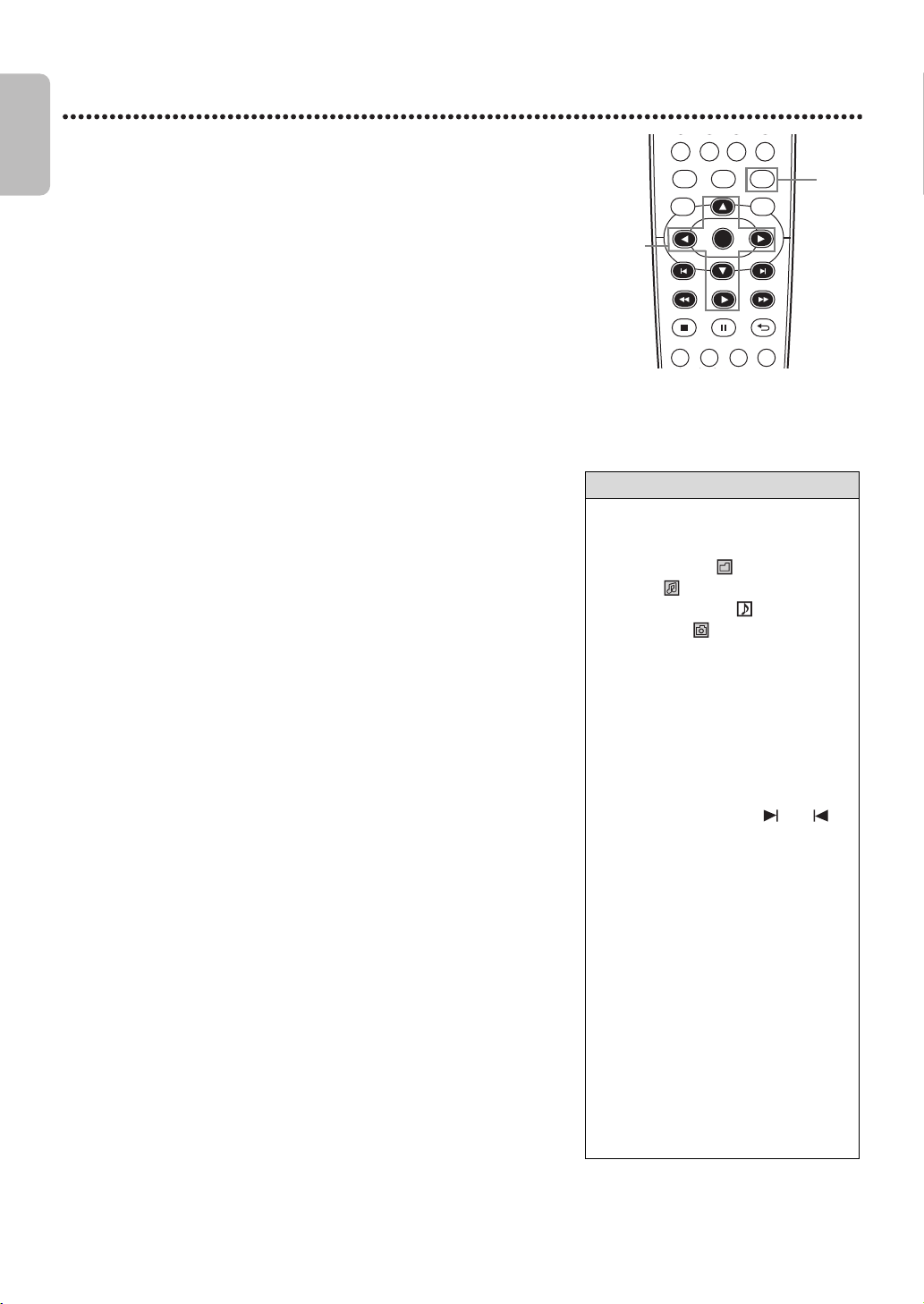
EN - 44
English
44
MP3/Windows Media™ Audio/JPEG Playback
The DVD/VCR will play MP3, Windows Media™ Audio and JPEG files that you
record and finalize on a CD-R (Compact Disc-Recordable) or CD-RW
(Compact Disc-Rewritable).
These discs may contain pictures in a JPEG format or audio tracks in an MP3
or Windows Media™ Audio format.For example, you may have photographic
film developed by a retailer that places the pictures on a CD-R for you. These
pictures may be in JPEG format. Or, you may copy or download MP3/
Windows Media™ Audio music files from certain legal Internet sites, then
copy those files onto a CD-R or CD-RW. You cannot make or record such
discs using this DVD/VCR. See your computer manual for details on recording.
Keep these characteristics in mind when making discs you intend to play on
the DVD player of this DVD/VCR.
● Record MP3 files at a sampling frequency of 44.1 kHz or 48 kHz. Record in a
constant bit rate between 32 kbps and 320 kbps.
● Record Windows Media™ Audio tracks at a sampling frequency of 44.1kHz
or 48kHz. Record in a constant bit rate between 48 kbps and 192kbps.
● When recording JPEG files, the size of the picture should be between 32 x
32 and 6300 x 5100 dots.
1
Press DVD to put the DVD/VCR in DVD mode.
DVD light will appear on the front of the DVD/VCR.
2
When you put a CD-R or CD-RW with MP3, Windows Media™ Audio
or JPEG files in the DVD/VCR, a File List will appear automatically. Or if
the disc is already in the DVD/VCR and you want to call up the File List,
press DISCMENU. (If you use PLAY B to close the disc tray, Playback
starts automatically.) Press ▲ or ▼ to select a folder, MP3,
Windows Media™ Audio or JPEG file.
3
If you choose a track or file, press PLAY B or OK. Starting with
the track or file you selected, the tracks/files will play in the order they
were recorded, i.e.1,2,3.
If you select a folder and press OK, the tracks or files within
that folder will appear. Press ▲ or ▼ to select the track or file
you want to play, then press PLAY B or OK.
● Press TITLE to return to the first item in the highest level of folders
or files. You also can press ◄or ► to return to previous or next
levels.
● To change the Transition Mode for JPEG playback, press MODE
repeatedly until Transition Mode appears on top of the TV screen
during playback. Then press ◄, ► or OK to switch CUT IN/OUT
and FADE IN/OUT. If you choose CUT IN/OUT, the images will cut
in and out sharply as playback progresses. If you choose FADE IN/
OUT, the images will fade in and out as playback progresses.
● To change the size of the playback image, press MODE repeatedly
until SIZE MODE appears at the top of the TV screen during playback.
Then press ◄, ► or OK to switch NORMAL (100%) and SMALL
(95%).
● Press MODE or BACK U to remove the display.
● During JPEG playback, press ANGLE to rotate a picture 90 degrees
clockwise.
● To stop playback, press STOP C.
Helpful Hint
• MP3/Windows Media™ Audio tracks
and JPEG images are known as
files.Groups of files are called folders.
• Folders have the icon, MP3 files
have the icon, Windows Media™
Audio files have the icon, and JPEG
files have the icon.
• A maximum of 255 folders can be
recognized. A maximum of 999 files
can be recognized.
• If you use PLAY B to close the disc
tray, playback starts automatically. If
you use OPEN/CLOSE A to close the
disc tray, you have to press PLAY B to
start playback.
• During playback, use
theNumberbuttons or and to
change tracks. If a track is not available,
“X” will appear on the TV screen, and
playback may resume at an incorrect
track or may continue with its current
track.
• To see the File List during playback,
press DISCMENU. The current track
will be highlighted.
• Progressive JPEGs (JPEG files saved in
the progressive format) will not play
on this DVD/VCR.
• Copyright protected Windows
Media™ Audio files will not play on
this DVD/VCR.
• High resolution JPEG files takes longer
to be displayed.
• SIZE MODE may have no effect on some
files (e.g. files with a small picture size).
DVDVCR SETUP
INPUT
MENU
GSC
DISPLAY SUBTITLE ZOOM
AUDIO
BACKPAUSESTOP
PLAY
OK
FFWREW
CLEAR TITLE
DISC
0
+10
1
2-3
E8E2CCD_E8E2CCH_EN_v1.book Page 44 Friday, March 9, 2012 6:37 PM
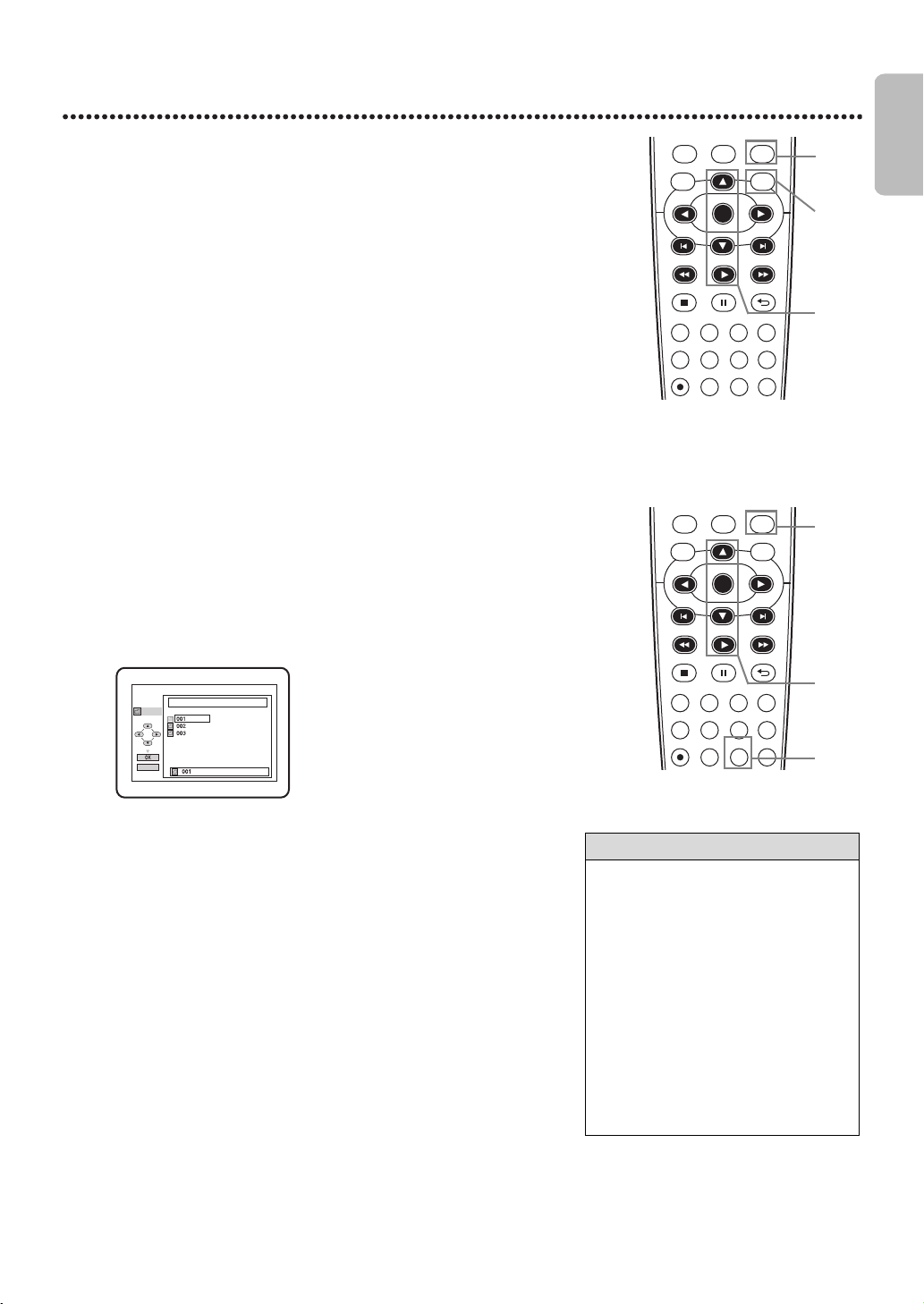
EN - 45
English
45
MP3/Windows Media™ Audio/JPEG Playback (cont’d)
Dual Playback
This feature lets you play MP3 and JPEG files simultaneously. Available only
when DUAL PLAYBACK is ON. See pages56-57 on how to set the DUAL
PLAYBACK ON or OFF.
Folder Playback
You may select to play a folder containing MP3 and JPEG files. Available only
when DUAL PLAYBACK is ON. See pages56-57 on how to set the DUAL
PLAYBACK ON or OFF.
1
Press DVD to put the DVD/VCR in DVD mode.
DVD light will appear on the front of the DVD/VCR.
2
Press DISCMENU during MP3/JPEG playback. A File List will
appear.
3
Press ▲ or ▼ to select a desired MP3/JPEG file from the list
and press PLAY B or OK.
● To stop playback, press STOP C.
1
Press DVD to put the DVD/VCR in DVD mode.
DVD light will appear on the front of the DVD/VCR.
2
While playback is stopped, press MODE.
A Folder List will appear.
3
Press ▲ or ▼ to select a folder, then pre PLAY B or OK.
● MP3 and JPEG files in the selected folder will play simultaneously.
● If Windows Media™ Audio files are in the folder, those files will be
skipped during Folder Playback.
Helpful Hint
• If you press PLAY B directly after you
inserted a disc which contains both
MP3 and JPEG files and if the DUAL
PLAYBACK Setting is ON, Dual
Playback will start automatically.
• You can not play Windows Media™
Audio and JPEG files together at the
same time. If you choose a Windows
Media™ Audio file during Dual
Playback, only Windows Media™
Audio file will play.
• Dual Playback may not function
properly if MP3 and JPEG files on the
disc interfere each other due to the
difference in their data size.
DVDVCR SETUP
INPUT
MENU
REC SPEED MODE
ANGLE SEARCH REPEAT
DISPLAY SUBTITLE ZOOM
TIMER SET
REPEAT
A-B
AUDIO
BACKPAUSESTOP
PLAY
OK
FFW
REW
DISC
1
2
3
DVDVCR SETUP
INPUT
MENU
REC SPEED MODE
ANGLE SEARCH REPEAT
DISPLAY SUBTITLE ZOOM
TIMER SET
REPEAT
A-B
AUDIO
BACKPAUSESTOP
PLAY
OK
FFW
REW
DISC
1
3
2
FOLDER LIST
FOLDER
PLAY
DISC NAME
ALL
E8E2CCD_E8E2CCH_EN_v1.book Page 45 Friday, March 9, 2012 6:37 PM
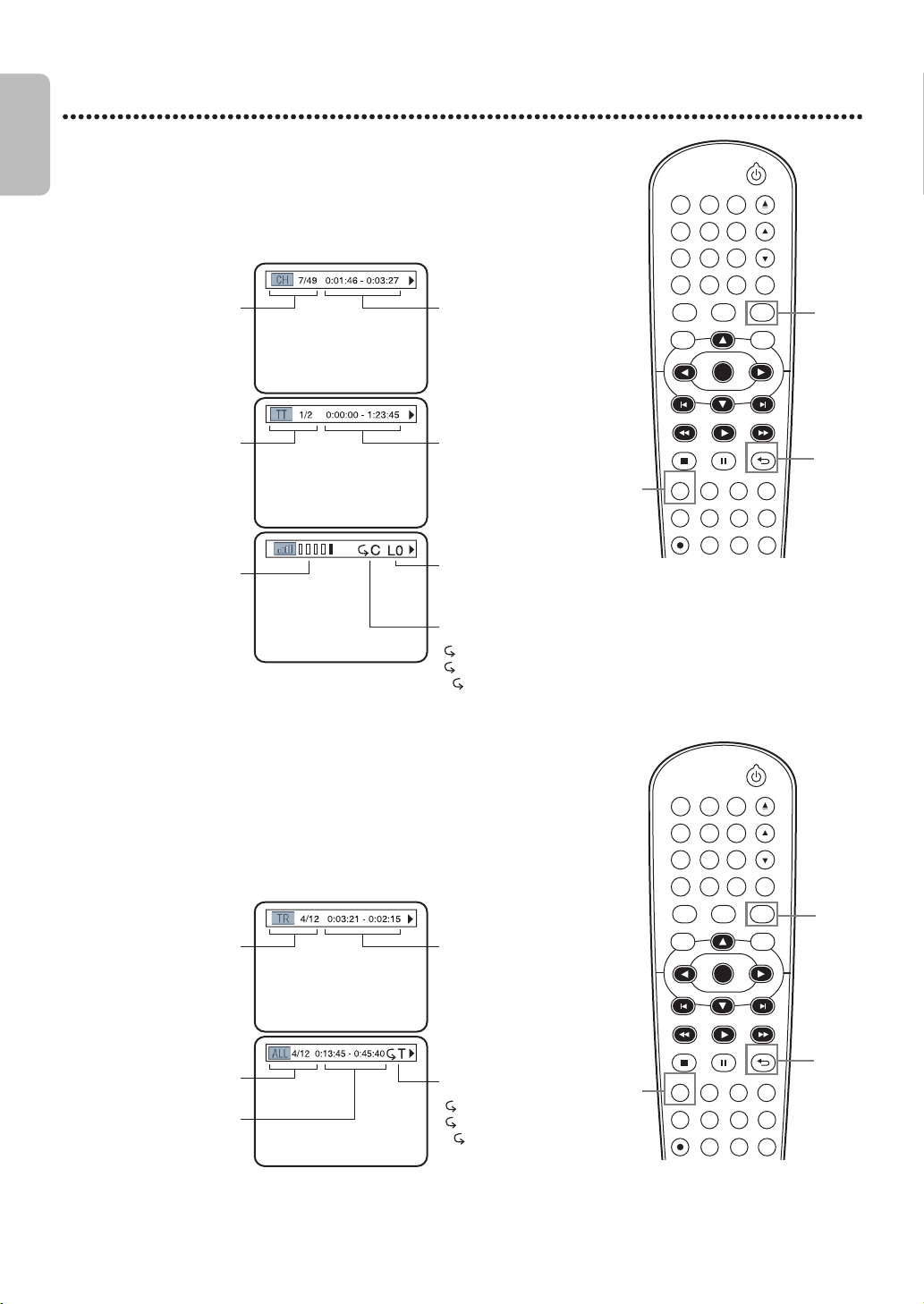
EN - 46
English
46
On-Screen Displays
DVD Displays
Audio CD Displays
1
Press DVD to put the DVD/VCR in DVD mode.
DVD light will appear on the front of the DVD/VCR.
2
Press DISPLAY repeatedly to see the following displays during
DVD playback.
3
Press DISPLAY repeatedly or press BACK U to remove the
display.
1
Press DVD to put the DVD/VCR in DVD mode.
DVD light will appear on the front of the DVD/VCR.
2
Press DISPLAY repeatedly to see the following displays during
Audio CD playback.
3
Press DISPLAY repeatedly or press BACK U to remove the
display.
DVDVCR SETUP
INPUT
MENU
REC SPEED MODE
ANGLE SEARCH REPEAT
DISPLAY SUBTITLE ZOOM
TIMER SET
REPEAT
A-B
AUDIO
BACKPAUSESTOP
PLAY
OK
FFW
REW
CLEAR TITLE
DISC
TRACKING
OPEN/CLOSE
12
6
5
4
7
89
0
+10
3
1
3
2-3
DVDVCR SETUP
INPUT
MENU
REC SPEED MODE
ANGLE SEARCH REPEAT
DISPLAY SUBTITLE ZOOM
TIMER SET
REPEAT
A-B
AUDIO
BACKPAUSESTOP
PLAY
OK
FFW
REW
CLEAR TITLE
DISC
TRACKING
OPEN/CLOSE
12
6
5
4
7
89
0
+10
3
1
3
2-3
Elapsed playing time of
the current chapter;
remaining playing time
of the current chapter
CH (chapter): Current
chapter number/total
chapters
Elapsed playing time of
the current title;
remaining playing time
of the current title
TT (title): Current title
number/total titles
Layer number, appears
only when playing a
two-layered disc.
L0: Layer 0 is playing
L1: Layer 1 is playing
BIT RATE: The amount
of audio and video data
currently being read.
Current Repeat Setting,
if active
C: Chapter Repeat
T: Title Repeat
AB: A-B Repeat
Elapsed playing time of
the current track;
remaining playing time
of the current track
TR (track) : Current
track number/total
tracks
ALL:
Current track number/
total tracks
Current Repeat Setting,
if active
T: Track Repeat
A: All Tracks Repeat
AB: A-B Repeat
Elapsed playing time of
the entire disc;
remaining playing time
of the entire disc
E8E2CCD_E8E2CCH_EN_v1.book Page 46 Friday, March 9, 2012 6:37 PM
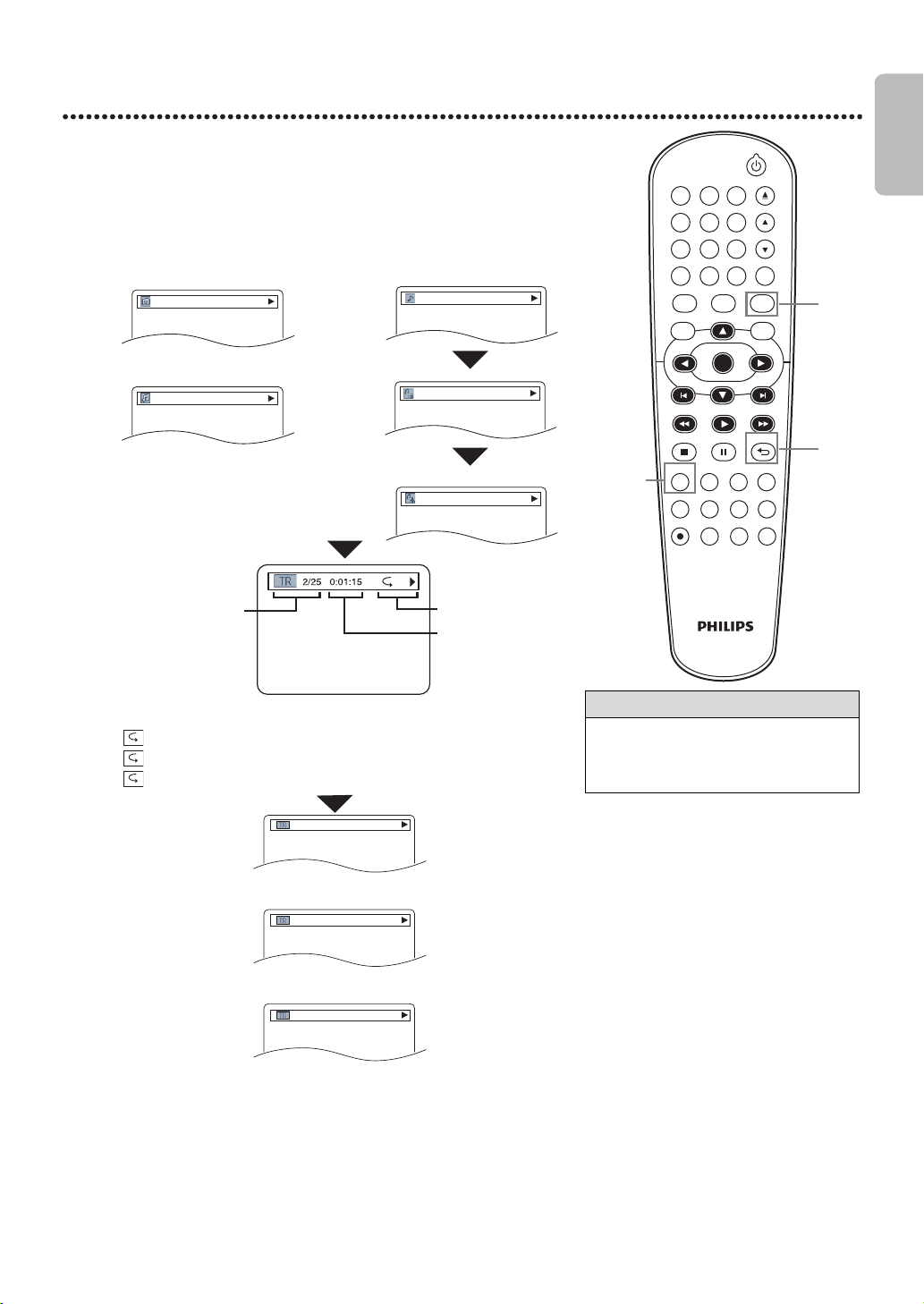
EN - 47
English
47
On-Screen Displays (cont’d)
MP3/Windows Media™ Audio/JPEG Displays
1
Press DVD to put the DVD/VCR in DVD mode.
DVD light will appear on the front of the DVD/VCR.
2
Press DISPLAY repeatedly until the current track or file information
appears.
● Program and Random Playback is available only when DUAL
PLAYBACK is OFF.
● Folder Playback is available only when DUAL PLAYBACK is ON.
3
Press DISPLAY or BACK U to remove the display.
Helpful Hint
• For MP3 files recorded with Variable
Bit Rate (VBR), the elapsed time
displayed on the screen may vary from
the actual elapsed time.
DVDVCR SETUP
INPUT
MENU
REC SPEED MODE
ANGLE SEARCH REPEAT
DISPLAY SUBTITLE ZOOM
TIMER SET
REPEAT
A-B
AUDIO
BACKPAUSESTOP
PLAY
OK
FFW
REW
CLEAR TITLE
DISC
TRACKING
OPEN/CLOSE
12
6
5
4
7
89
0
+10
3
1
2-3
11
3
JPEG file name
FOLDER PLAYBACK
RANDOM
PROGRAM
T
MP3 file name
track name
title name
artist name
During Windows Media™ Audio playback
During JPEG playback
or
During MP3 playback
● If Dual Playback is on, MP3 file
name will be displayed after
JPEG file name.
Example: MP3 playback
The following may appear to indicate Repeat Playback.
T: The current track will play repeatedly.
G: Tracks in the current folder (group) will play repeatedly.
A: All tracks will play repeatedly.
only during PROGRAM Playback
or
only during RANDOM Playback
or
only during FOLDER Playback
Current Repeat Setting
Elapsed playing time of
the current track (for
MP3/Windows Media™
Audio only)
TR (track):
Current track number/
total tracks
E8E2CCD_E8E2CCH_EN_v1.book Page 47 Friday, March 9, 2012 6:37 PM
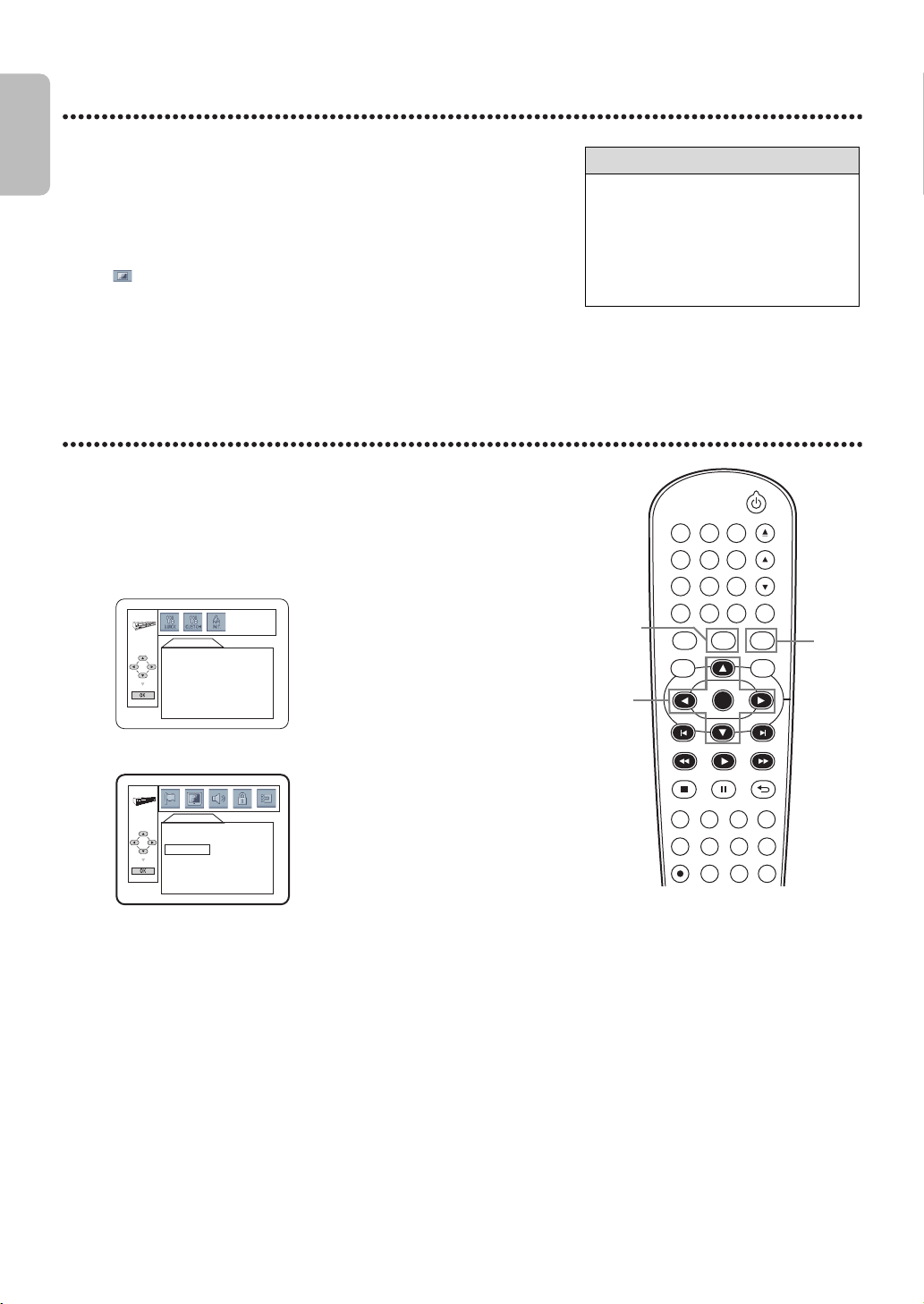
EN - 48
English
48
Black Level
Black Level
Adjust Black Level to brighten the DVD picture.
Initializing
Use INITIALIZE to return all your DVD player’s Setup Menu items (except
PARENTAL) to their default settings.
1
Press DVD to put the DVD/VCR in DVD mode.
DVD light will appear on the front of the DVD/VCR.
2
During DVD playback, press MODE so the Black Level icon shows
in the top left corner of the TV screen.
ON
3
While the Black Level icon is shown, press ◄, ► or OK
repeatedly to choose ON or OFF. ON brightens the dark parts of
the picture. OFF shows the original picture as recorded. The icon will
disappear after about 10 seconds.
1
Press DVD to put the DVD/VCR in DVD mode.
DVD light will appear on the front of the DVD/VCR.
2
While playback is stopped, press SETUP.
The QUICK SETUP Screen appears.
3
Press ◄ or ► to select INIT. (INITIALIZE) at the top of the
menu, then press OK.
● Press ▲ or ▼ to select YES. Then press OK twice. To cancel the
process, select NO instead.
4
Press SETUP to remove the menu.
Helpful Hint
• Black Level is not available for a PAL
DVD.
• The Black Level Settings will be saved
even if the player is turned off.
• The Black Level Settings cannot be
used during x1.3 and x0.8 Rapid Play
with Voice (refer to page 34).
DVDVCR SETUP
INPUT
MENU
REC SPEED MODE
ANGLE SEARCH REPEAT
DISPLAY SUBTITLE ZOOM
TIMER SET
REPEAT
A-B
AUDIO
BACKPAUSESTOP
PLAY
OK
FFW
REW
CLEAR TITLE
DISC
TRACKING
OPEN/CLOSE
12
6
5
4
7
89
0
+10
3
1
2,4
3
QUICK SETUP
OSD LANGUAGE
TV ASPECT
PROG. SCAN
DOLBY DIGITAL
ENGLISH
4:3 LETTER BOX
OFF
BITSTREAM
INITIALIZE
Initialize?
NO
YES
E8E2CCD_E8E2CCH_EN_v1.book Page 48 Friday, March 9, 2012 6:37 PM
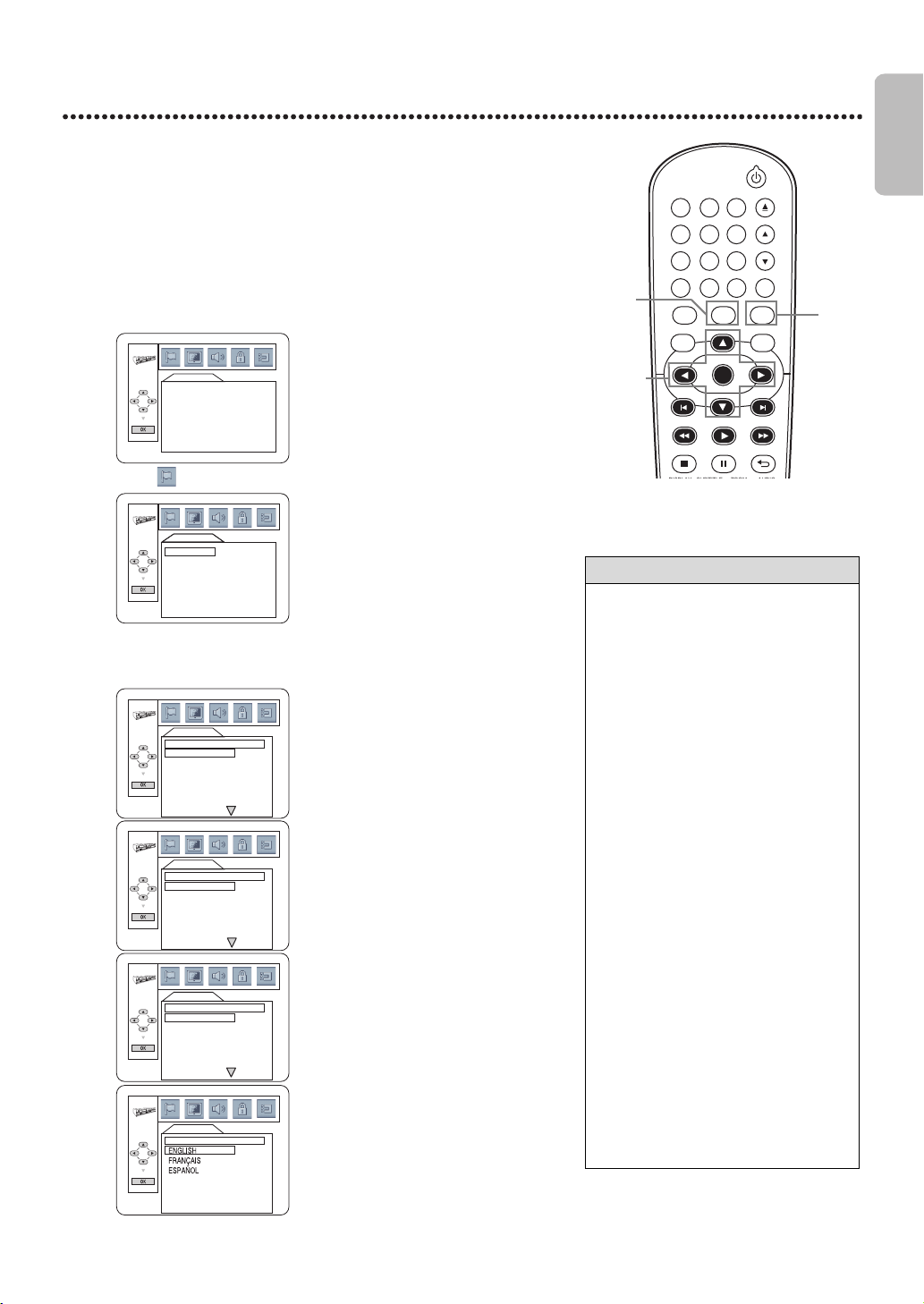
EN - 49
English
49
DVD Player Setup Options
Language
You can select different languages for the Audio or Subtitles of DVDs, as well
as languages for DVD Disc Menus and the Setup Menus of the DVD player.
1
Press DVD to put the DVD/VCR in DVD mode.
DVD light will appear on the front of the DVD/VCR.
2
While playback is stopped, press SETUP.
The QUICK SETUP Screen appears.
3
Press ◄ or ► to select CUSTOM at the top of the menu, then
press OK.
4
With (LANGUAGE) selected, press OK.
5
Press ▲ or ▼ to select AUDIO, SUBTITLE, DISC MENU or
OSD LANGUAGE. Press OK.
The language options for the selected item will appear.
Helpful Hint
• If the DVD’s default settings for Audio
and Subtitle are the same language, the
subtitles may not show unless you turn
them on.
•Use the AUDIO and SUBTITLE
buttons to select Audio and Subtitles
available on the DVD. Details are on
pages40-41.
• If you set AUDIO to ORIGINAL, the
default setting of the DVD Audio will
play.
• If you set OSD LANGUAGE to
FRANÇAIS (French) or ESPAÑOL
(Spanish) and need English : Follow
steps 1-2. At step 3, the IDIOMA or
LANGUE Menu will appear. Press OK.
Press ▼ to select LANGUE OSD or
IDIOMA PANT., then press OK. Press
▲ to select ENGLISH, then press OK.
The menus will change to English.
Press SETUP to remove the menus.
• You can change the OSD LANGUAGE
in the QUICK SETUP Menu that
appears when you first press SETUP.
With QUICK SETUP selected, press
OK. OSD LANGUAGE will be
selected. Press OK. Press ▲ or ▼ to
choose a language, then press OK.
Press SETUP to remove the menu.
• The Language Settings may not take
effect until you restart disc playback
from the beginning.
DVDVCR SETUP
INPUT
MENU
DISPLAY SUBTITLE ZOOM AUDIO
BACKPAUSESTOP
PLAY
OK
FFWREW
CLEAR TITLE
DISC
TRACKING
OPEN/CLOSE
12
6
5
4
7
8
9
0
+10
3
1
3-5
2
LANGUAGE
AUDIO
SUBTITLE
DISC MENU
OSD LANGUAGE
ORIGINAL
OFF
ENGLISH
ENGLISH
LANGUAGE
AUDIO
SUBTITLE
DISC MENU
OSD LANGUAGE
ORIGINAL
OFF
ENGLISH
ENGLISH
LANGUAGE
AUDIO
ORIGINAL
ENGLISH
FRENCH
SPANISH
GERMAN
ITALIAN
SWEDISH
LANGUAGE
SUBTITLE
OFF
ENGLISH
FRENCH
SPANISH
GERMAN
ITALIAN
SWEDISH
LANGUAGE
DISC MENU
DUTCH
ENGLISH
FRENCH
SPANISH
GERMAN
ITALIAN
SWEDISH
LANGUAGE
OSD LANGUAGE
AUDIO: The DVD’s audio plays in the
selected language.
The default setting is ORIGINAL.
SUBTITLE: Subtitles appear in the selected
language.
The default setting is OFF.
DISC MENU: A DVD’s Disc Menu appears
in the selected language.
The default setting is ENGLISH.
OSD LANGUAGE: The DVD player’s Setup
Menu can be in English, French or Spanish
only.
The default setting is ENGLISH.
E8E2CCD_E8E2CCH_EN_v1.book Page 49 Friday, March 9, 2012 6:37 PM
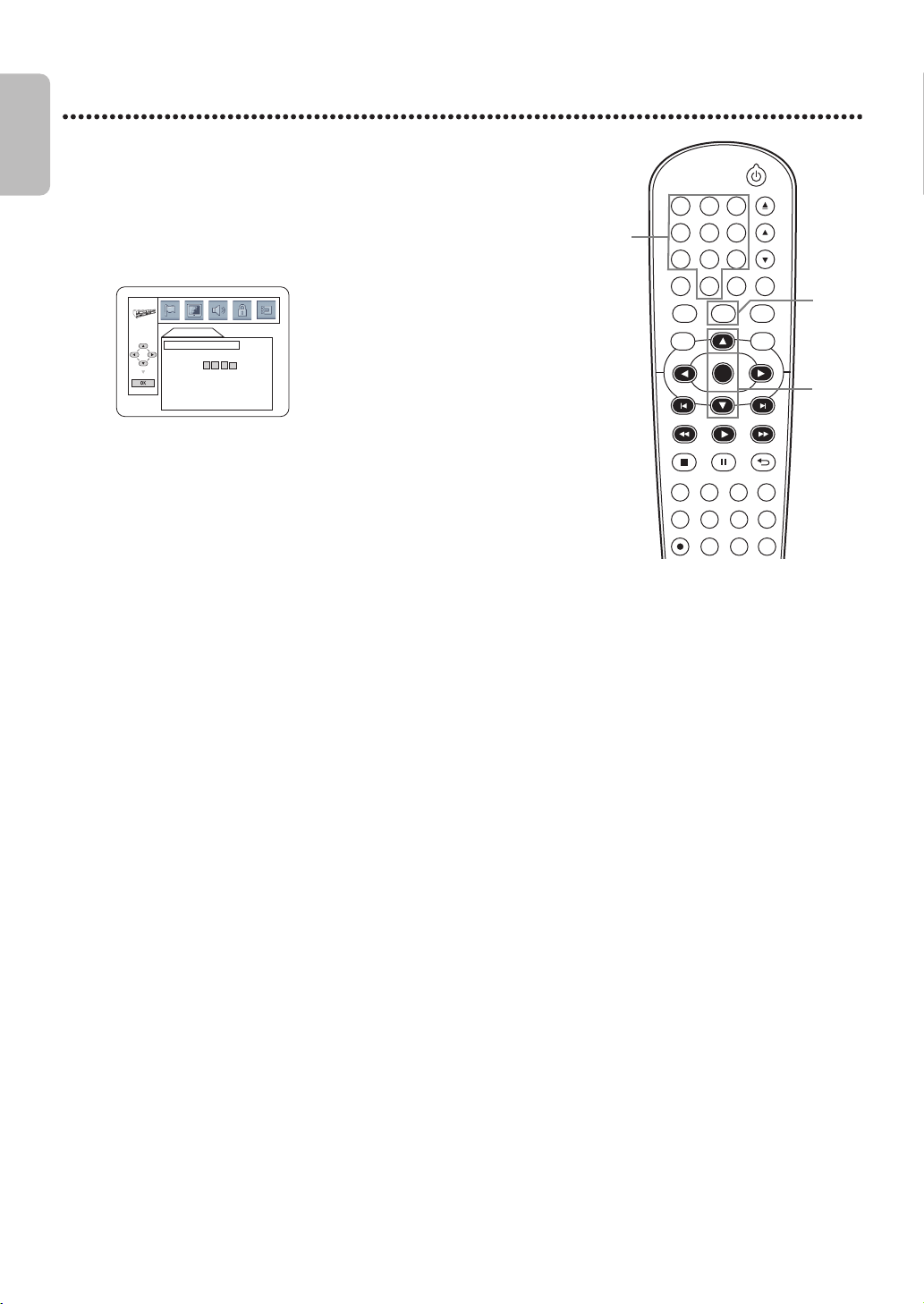
EN - 50
English
50
Language (cont’d)
Language Codes
6
Press ▲ or ▼ to select a language, then press OK.
The language lists may continue on multiple screens. Press ▲ or ▼ to
move to the other screens.
● If you select OTHER for AUDIO, SUBTITLE, or DISC
MENU, press four Number buttons to enter the code for the
language you desire. Use one of the Language Codes listed below. The
language or language code you select will appear in the Language
Menu beside AUDIO, SUBTITLE, or DISC MENU.
● You can select other languages for AUDIO, SUBTITLE and DISC
MENU only if the language is available on the disc. If the language you
select is not recorded on the DVD, changing these settings will have
no effect.
7
Press SETUP to remove the menu.
DVDVCR SETUP
INPUT
MENU
REC SPEED MODE
ANGLE SEARCH REPEAT
DISPLAY SUBTITLE ZOOM
TIMER SET
REPEAT
A-B
AUDIO
BACKPAUSESTOP
PLAY
OK
FFW
REW
CLEAR TITLE
DISC
TRACKING
OPEN/CLOSE
12
6
5
4
7
8
9
0
+10
3
7
6
6
LANGUAGE
LANGUAGE CODE
Please enter a 4-digit language code.
A-B
Abkhazian 4748
Afar 4747
Afrikaans 4752
Albanian 6563
Amharic 4759
Arabic 4764
Armenian 5471
Assamese 4765
Aymara 4771
Azerbaijani 4772
Bangla 4860
Bashkir 4847
Basque 5167
Bengali 4860
Bhutani 5072
Bihari 4854
Bislama 4855
Breton 4864
Bulgarian 4853
Burmese 5971
Byelorussian 4851
C-E
Cambodian 5759
Catalan 4947
Chinese 7254
Corsican 4961
Croatian 5464
Czech 4965
Danish 5047
Dutch 6058
English 5160
Esperanto 5161
Estonian 5166
F-H
Faroese 5261
Fiji 5256
Finnish 5255
French 5264
Frisian 5271
Gaelic (Scots) 5350
Galician 5358
Georgian 5747
German 5051
Greek 5158
Greenlandic 5758
Guarani 5360
Gujarati 5367
Hausa 5447
Hebrew 5569
Hindi 5455
Hungarian 5467
I-K
Icelandic 5565
Indonesian 5560
Interlingua 5547
Interlingue 5551
Inupiak 5557
Irish 5347
Italian 5566
Japanese 5647
Javanese 5669
Kannada 5760
Kashmiri 5765
Kazakh 5757
Kinyarwanda 6469
Kirghiz 5771
Kirundi 6460
Korean 5761
Kurdish 5767
L-N
Laothian 5861
Latin 5847
Latvian 5868
Lettish 5868
Lingala 5860
Lithuanian 5866
Macedonian 5957
Malagasy 5953
Malay 5965
Malayalam 5958
Maltese 5966
Maori 5955
Marathi 5964
Moldavian 5961
Mongolian 5960
Nauru 6047
Nepali 6051
Norwegian 6061
O-R
Occitan 6149
Oriya 6164
Oromo (Afan) 6159
Panjabi 6247
Pashto 6265
Persian 5247
Polish 6258
Portuguese 6266
Pushto 6265
Quechua 6367
Rhaeto-Romance 6459
Romanian 6461
Russian 6467
S
Samoan 6559
Sangho 6553
Sanskrit 6547
Serbian 6564
Serbo-Croatian 6554
Sesotho 6566
Setswana 6660
Shona 6560
Sindhi 6550
Singhalese 6555
Siswat 6565
Slovak 6557
Slovenian 6558
Somali 6561
Spanish 5165
Sundanese 6567
Swahili 6569
Swedish 6568
T
Tagalog 6658
Tajik 6653
Tamil 6647
Tatar 6666
Telugu 6651
Thai 6654
Tibetan 4861
Tigrinya 6655
Tonga 6661
Tsonga 6665
Turkish 6664
Turkmen 6657
Twi 6669
U-Z
Ukrainian 6757
Urdu 6764
Uzbek 6772
Vietnamese 6855
Volapuk 6861
Welsh 4971
Wolof 6961
Xhosa 7054
Yiddish 5655
Yoruba 7161
Zulu 7267
E8E2CCD_E8E2CCH_EN_v1.book Page 50 Friday, March 9, 2012 6:37 PM
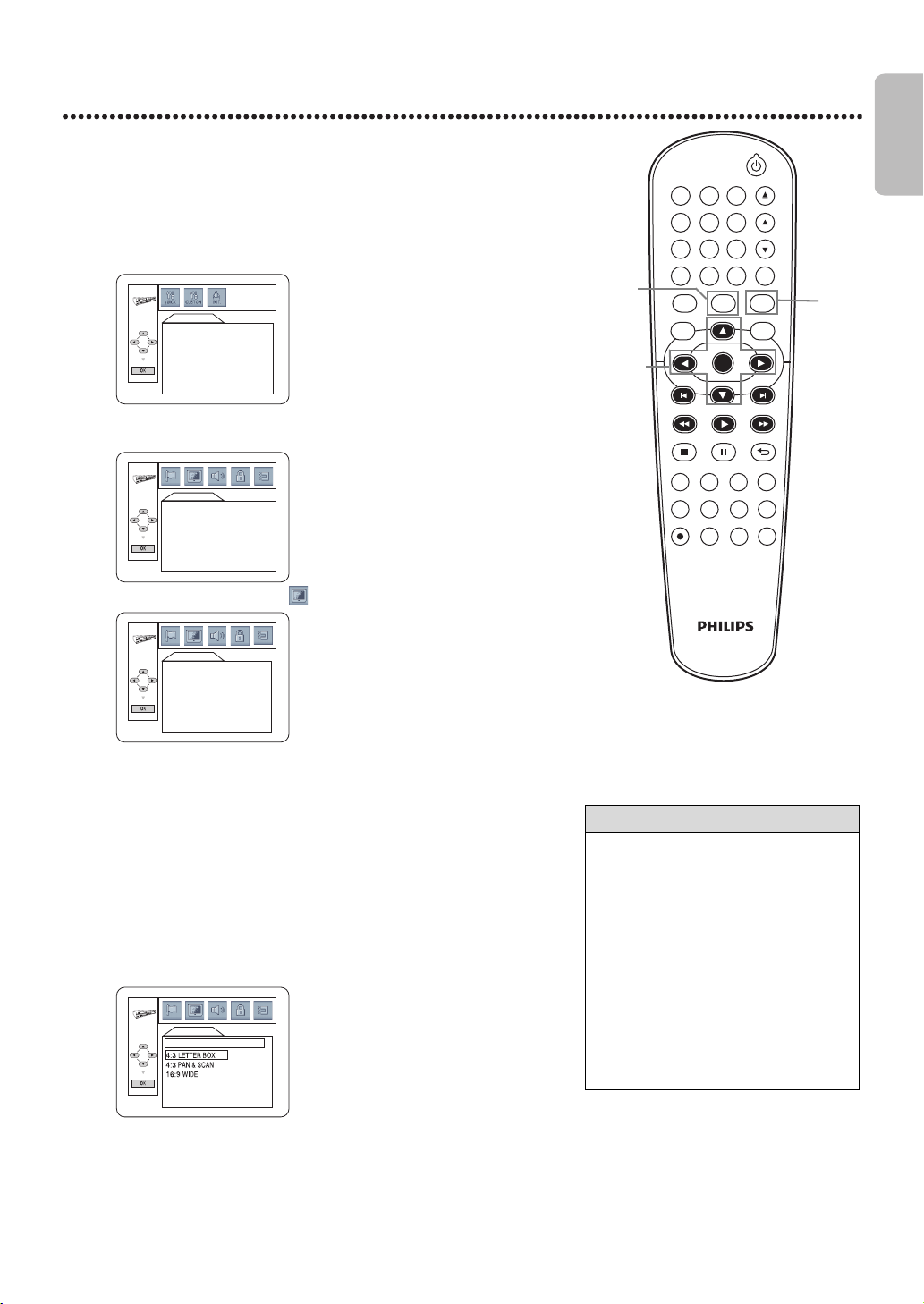
EN - 51
English
51
Display
You may adjust the TV Aspect ratio and still mode clarity, and Progressive
Scan compatibility.
1
Press DVD to put the DVD/VCR in DVD mode.
DVD light will appear on the front of the DVD/VCR.
2
When playback is stopped, press SETUP.
The QUICK SETUP Screen will appear.
3
Press ◄ or ► to select CUSTOM at the top of the menu, then
press OK.
4
Press ◄ or ► to select (DISPLAY), then press OK.
5
Press ▲or ▼ to select an item, then press OK.
● If you selected TV ASPECT, press ▲ or ▼ to select a setting,
then press OK.
Choose 4:3 LETTER BOX if you want to see the entire,widened
picture with black bars at the top and bottom of the screen. This
looks like the picture you see when watching movies in a theater. This
setting is possible only if the DVD was recorded in the letterbox or
widescreen format. Choose 4:3 PAN & SCAN for a full height picture,
with both sides trimmed.Some companies refer to this as reformatting
the picture to fit your TV screen and may call it the regular or normal
format. Choose 16:9 WIDE if you connected a widescreen TV to the
DVD player.
The default setting is 4:3 LETTER BOX.
Helpful Hint
• Selecting a different TV ASPECT
Setting is only effective if it is available
on the DVD. Check the DVD Disc
Menu or case for details.
• You also can adjust TV ASPECT in the
QUICK SETUP Menu that appears
when you first press SETUP. With
QUICK SETUP selected, press OK.
Press ▼ to select TV ASPECT, then
press OK. Press ▲ or ▼ to choose a
setting, then press OK. Press SETUP
to remove the menu.
• This unit does not set the TV aspect
automatically.
DVDVCR SETUP
INPUT
MENU
REC SPEED MODE
ANGLE SEARCH REPEAT
DISPLAY SUBTITLE ZOOM
TIMER SET
REPEAT
A-B
AUDIO
BACKPAUSESTOP
PLAY
OK
FFW
REW
CLEAR TITLE
DISC
TRACKING
OPEN/CLOSE
12
6
5
4
7
89
0
+10
3
3-5
1
2
QUICK SETUP
OSD LANGUAGE
TV ASPECT
PROG. SCAN
DOLBY DIGITAL
ENGLISH
4:3 LETTER BOX
OFF
BITSTREAM
LANGUAGE
AUDIO
SUBTITLE
DISC MENU
OSD LANGUAGE
ORIGINAL
OFF
ENGLISH
ENGLISH
DISPLAY
TV ASPECT
STILL MODE
PROG. SCAN
4:3 LETTER BOX
AUTO
OFF
DISPLAY
TV ASPECT
TV ASPECT
E8E2CCD_E8E2CCH_EN_v1.book Page 51 Friday, March 9, 2012 6:37 PM
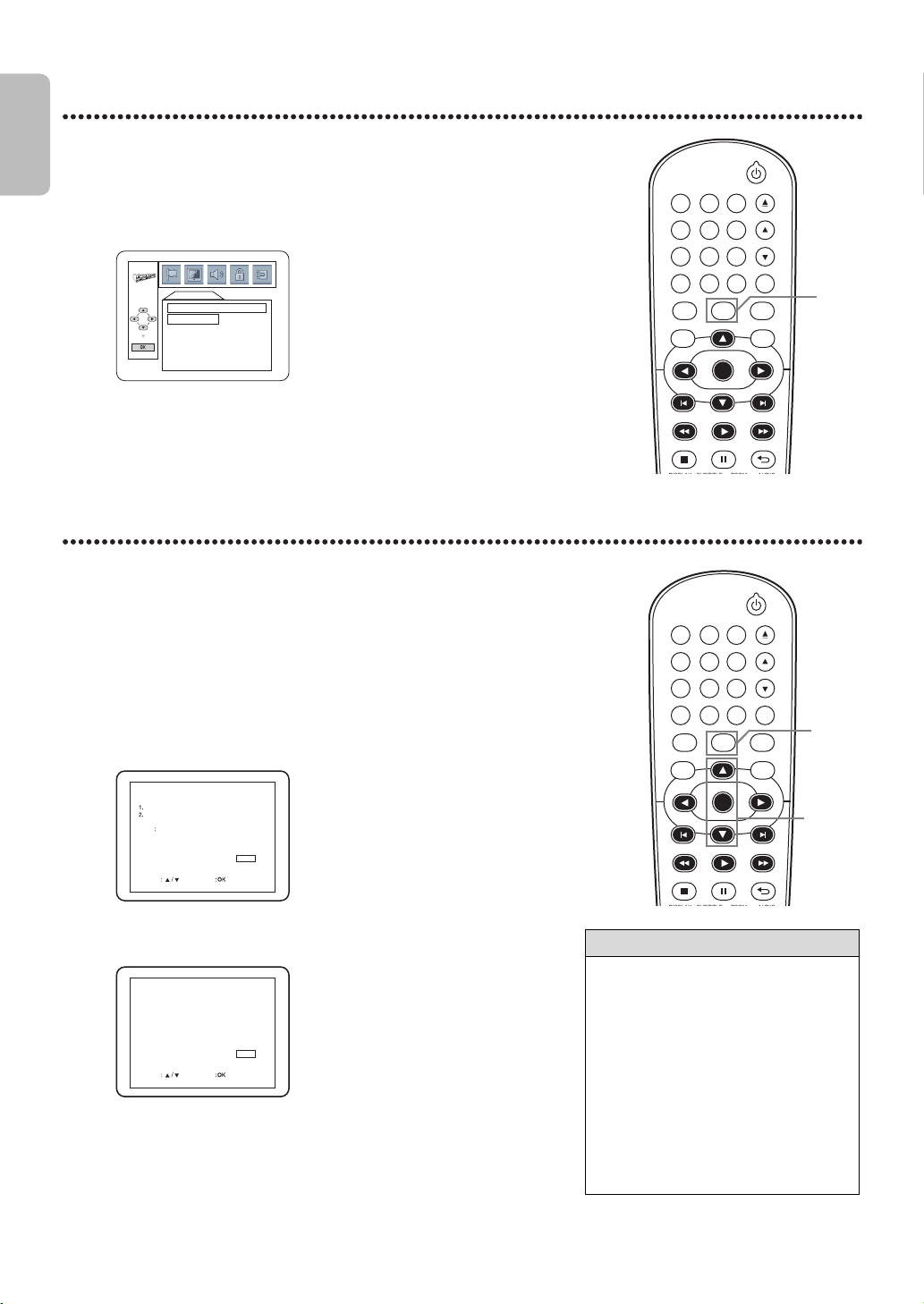
EN - 52
English
52
Display (cont’d)
Progressive Scan
You may adjust the Progressive Scan compatibility.
● If you selected STILL MODE, press ▲ or ▼ to select a
setting, then press OK. This determines the quality of an image in
still mode. If you select FIELD, still images will be stabilized but coarse
due to the small amount of data. If you select FRAME, the images will
be highly defined due to the simultaneous output of two fields.
The default setting is AUTO.
6
Press SETUP to remove the menu.
1
Follow the steps 1-4 in the Display setup on page 51.
2
Press ▲ or ▼ to select PROG. SCAN, then press OK
repeatedly to turn PROG. SCAN ON or OFF. Choose ON if your
TV has Progressive Scan and if the TV is connected to the player’s
COMPONENT VIDEO OUT jacks. Choose OFF otherwise.
The default setting is OFF.
3
Press SETUP to remove the menu.
● If PROG. SCAN is ON, this message appears :
Press ▲ or ▼ to make a selection, then press OK.
If you select NO, the menu disappears and
PROG. SCAN is OFF. If you select YES, this appears :
Confirm your setting, then press OK. The menu will disappear and
the Progressive Scan function will be activated. If you do not press any
buttons for 15 seconds, Progressive Scan will switch to OFF.
DVDVCR SETUP
INPUT
MENU
DISPLAY SUBTITLE ZOOM AUDIO
BACKPAUSESTOP
PLAY
OK
FFWREW
CLEAR TITLE
DISC
TRACKING
OPEN/CLOSE
12
6
5
4
7
8
9
0
+10
3
6
DISPLAY
STILL MODE
AUTO
FIELD
FRAME
STILL MODE
Helpful Hint
• You can set PROG. SCAN to OFF
either in the DISPLAY Menu or by
pressing and holding PLAY B (DVD)
on the front of the player for more
than 5 seconds.
• You can adjust Progressive Scan
Setting in the QUICK SETUP Menu
that appears when you first press
SETUP. With QUICK SETUP selected,
press OK. Press ▼ to select PROG.
SCAN. Press OK to choose OFF or
ON. Press SETUP to remove the
menu.
DVDVCR SETUP
INPUT
MENU
DISPLAY SUBTITLE ZOOM AUDIO
BACKPAUSESTOP
PLAY
OK
FFWREW
CLEAR TITLE
DISC
TRACKING
OPEN/CLOSE
12
6
5
4
7
89
0
+10
3
3
2-3
NO
YES
NOTE
SET
SELECT
Before proceeding...
Make sure your TV has progressive scan.
Connect with component video cable.
If there is no picture or picture is
distorted after selecting “YES” ,
Wait about 15 seconds for auto recovery.
Activate Progressive?
Confirm again to use progressive scan.
If Picture is good, Select “YES” .
NO
YES
SET
SELECT
E8E2CCD_E8E2CCH_EN_v1.book Page 52 Friday, March 9, 2012 6:37 PM
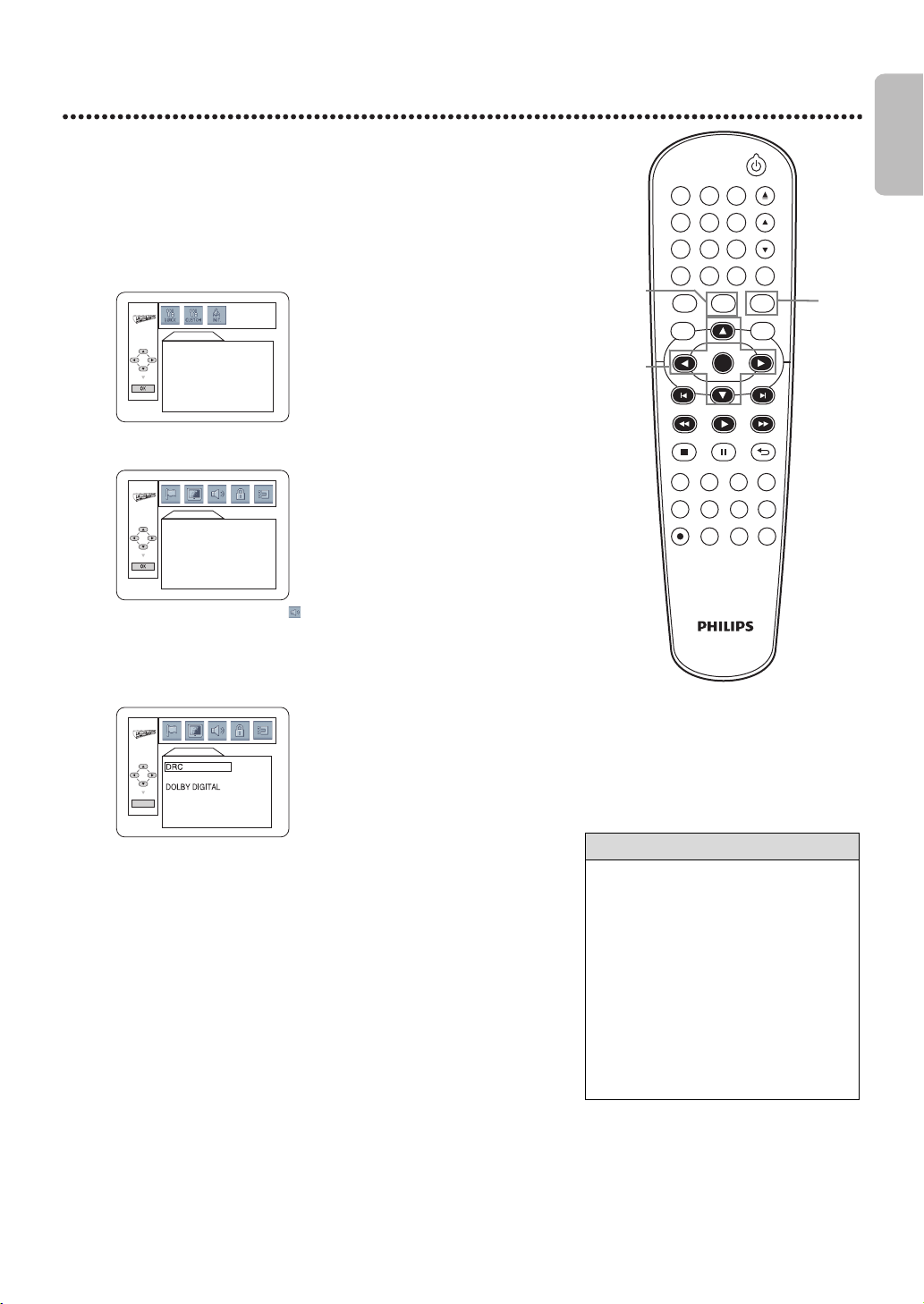
EN - 53
English
53
Audio
Change Audio Settings based on other equipment you connected to the DVD
player or according to your disc sound features. These setting only affect the
Audio from the DVD player of the DVD/VCR.
1
Press DVD to put the DVD/VCR in DVD mode.
DVD light will appear on the front of the DVD/VCR.
2
While playback is stopped, press SETUP.
The QUICK SETUP Screen will appear.
3
Press ◄ or ► to select CUSTOM at the top of the menu, then
press OK.
4
Press ◄ or ► to select (AUDIO) at the top of the menu,
then press OK.
5
Press ▲ or ▼ to select DRC, DOWN SAMPLING, or DOLBY
DIGITAL, then follow step 6 accordingly.
6
● If you selected DRC, press OK repeatedly to turn Dynamic
Range Control (DRC) ON or OFF. Choosing ON compresses
the range of volume by suppressing loud sounds and raising low
sounds. DRC is available only on discs recorded in the Dolby Digital
format. The default setting is ON.
● If you selected DOWN SAMPLING, press OK repeatedly to
choose ON or OFF. Choose ON to down sample the 96 kHz
sound source to 48 kHz. Choose OFF to output the sound source
without any down sampling. DOWN SAMPLING is available only
when the player is connected to a Stereo using the COAXIAL
DIGITAL AUDIO OUT jack as described on page 13. The default
setting is ON.
● If you selected DOLBY DIGITAL, press OK repeatedly to
select BITSTREAM or PCM. Select BITSTREAM if you used the
COAXIAL DIGITAL AUDIO OUT jack to connect the DVD player to
a stereo that is Dolby Digital compatible. Details are on page 13.
Otherwise, choose PCM. The default setting is BITSTREAM.
7
Press SETUP to remove the menu.
Helpful Hint
• Dolby Digital sound must be available
on the DVD.
• You can adjust DOLBY DIGITAL in the
QUICK SETUP Menu that appears when
you first press SETUP. With QUICK
SETUP selected, press OK. Press ▼ to
select DOLBY DIGITAL. Press OK to
choose BITSTREAM or PCM. Press
SETUP to remove the menu.
• When you play a disc that has
copyright protection, downsampling
will be at 48 kHz, even if you set
DOWN SAMPLING to OFF.
DVDVCR SETUP
INPUT
MENU
REC SPEED MODE
ANGLE SEARCH REPEAT
DISPLAY SUBTITLE ZOOM
TIMER SET
REPEAT
A-B
AUDIO
BACKPAUSESTOP
PLAY
OK
FFW
REW
CLEAR TITLE
DISC
TRACKING
OPEN/CLOSE
12
6
5
4
7
89
0
+10
3
3-6
1
2,7
QUICK SETUP
OSD LANGUAGE
TV ASPECT
PROG. SCAN
DOLBY DIGITAL
ENGLISH
4:3 LETTER BOX
OFF
BITSTREAM
LANGUAGE
AUDIO
SUBTITLE
DISC MENU
OSD LANGUAGE
ORIGINAL
OFF
ENGLISH
ENGLISH
AUDIO
OK
DOWN SAMPLING
ON
ON
BITSTREAM
E8E2CCD_E8E2CCH_EN_v1.book Page 53 Friday, March 9, 2012 6:37 PM
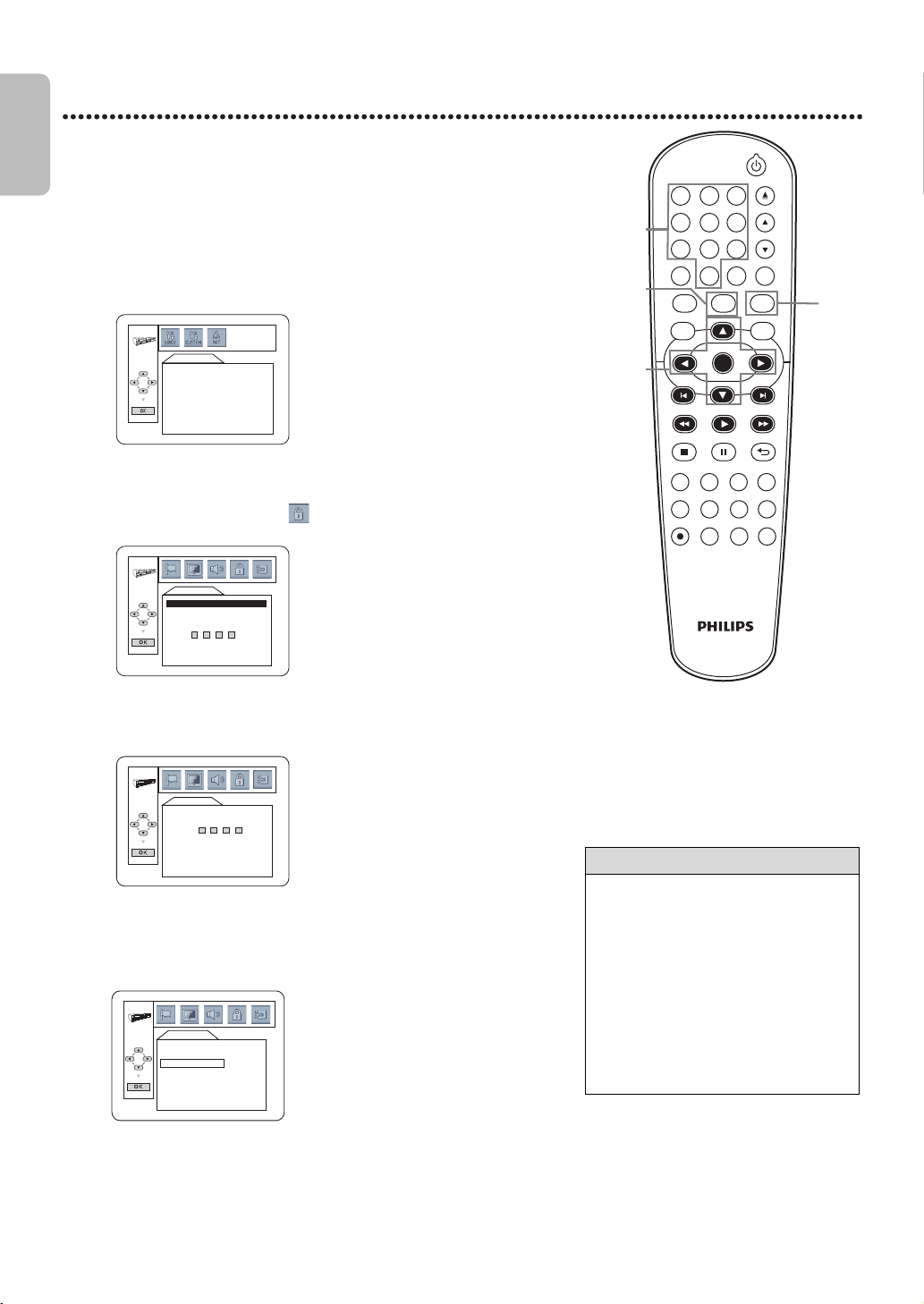
EN - 54
English
54
Parental Password
Parental Controls prevents viewing of DVDs that exceed your rating limits.
This feature will not limit viewing if the DVD is not rated or coded.Check your
DVDs and settings before letting children access the DVD/VCR. You will need
a password to change the Parental Settings or to play a blocked disc. Follow
these steps to change your password.
1
Press DVD to put the DVD/VCR in DVD mode.
DVD light will appear on the front of the DVD/VCR.
2
While playback is stopped, press SETUP.
The QUICK SETUP Screen appears.
3
Press ◄ or ► to select CUSTOM, then press OK.
4
Press ◄ or ► to select (PARENTAL), then press OK.
● If this is the first time you set a password, this menu will appear.
Press theNumberbuttons to enter a 4-digit password.
The password will appear on the screen. Write it down so you will not forget it.
Press OK, and proceed to step 7.
● If you have set a password before, this menu will appear.
Press theNumberbuttons to enter your current 4-digit
password. Asterisks (*) will appear instead of your password. This
protects its identity. Press OK, and proceed to step 7.
5
If you like to change the password, press ▲ or ▼ to select
PASSWORD CHANGE, then press OK.
6
Press theNumberbuttons to enter a 4-digit password. The
password numbers will appear on the screen.
Write down the password so you will not forget it. Press OK.
The previous menu will reappear.
7
Press SETUP to remove the menu.
Helpful Hint
• The default password is 4737. If you
forget your password, press
theNumberbuttons 4, 7, 3, 7 at step
4. You will be prompted to enter a
new 4-digit password. Use
theNumberbuttons to enter a new 4-
digit password, then press OK.
PARENTAL LEVEL will reset to ALL.
See page 55 to reset PARENTAL
LEVEL as you desire.
• A power failure will not erase your
password.
DVDVCR SETUP
INPUT
MENU
REC SPEED MODE
ANGLE SEARCH REPEAT
DISPLAY SUBTITLE ZOOM
TIMER SET
REPEAT
A-B
AUDIO
BACKPAUSESTOP
PLAY
OK
FFW
REW
CLEAR TITLE
DISC
TRACKING
OPEN/CLOSE
12
6
5
4
7
89
0
+10
3
3-6
1
2,7
4,6
QUICK SETUP
OSD LANGUAGE
TV ASPECT
PROG. SCAN
DOLBY DIGITAL
ENGLISH
4:3 LETTER BOX
OFF
BITSTREAM
PARENTAL
PASSWORD
Please enter a 4-digit password.
PARENTAL
Enter current password.
PARENTAL
PARENTAL LEVEL ALL
PASSWORD CHANGE
E8E2CCD_E8E2CCH_EN_v1.book Page 54 Friday, March 9, 2012 6:37 PM
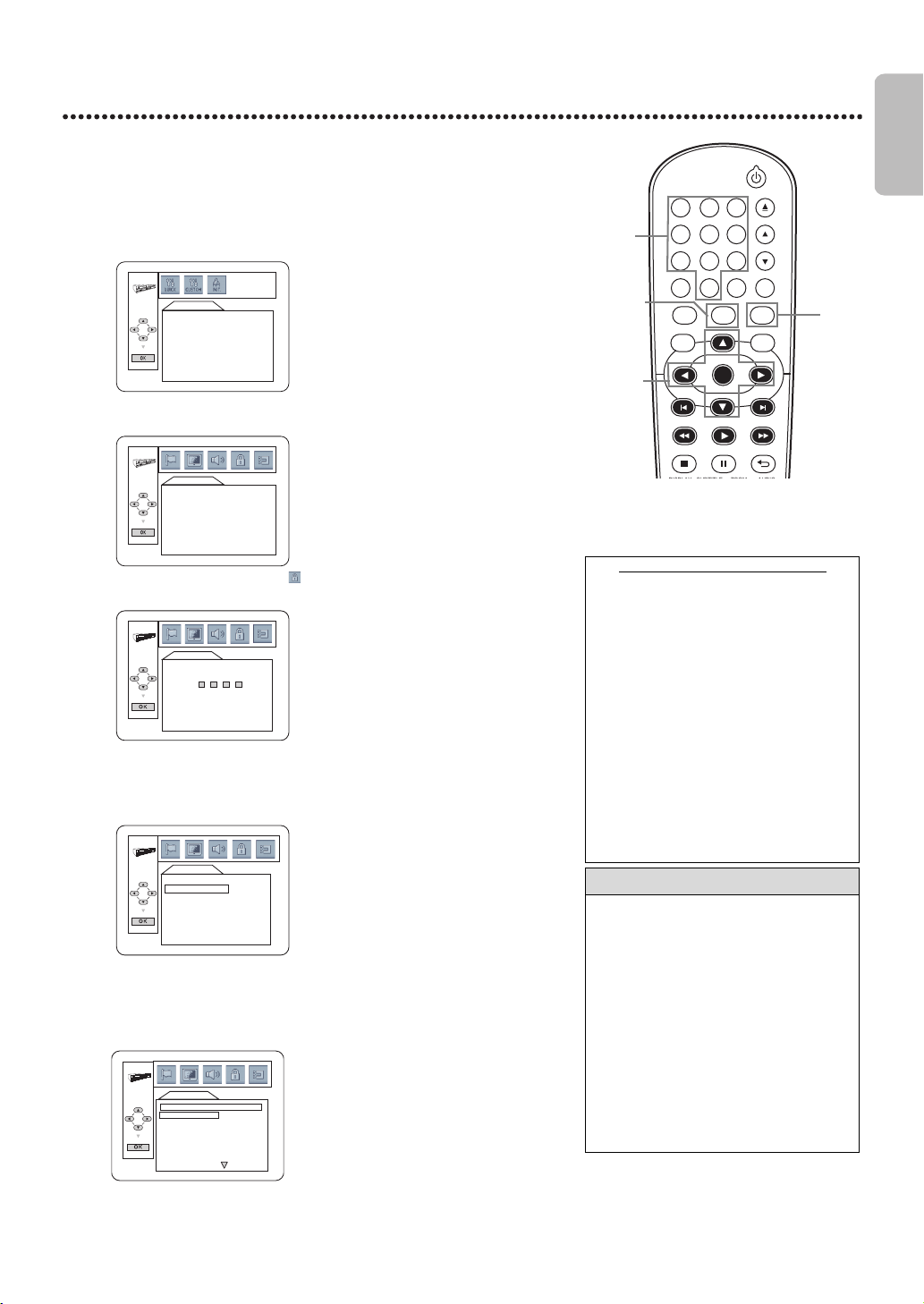
EN - 55
English
55
Parental Levels
Follow these steps to set the rating level for your DVDs.
DVDs whose ratings exceed the level you set will not play.
1
Press DVD to put the DVD/VCR in DVD mode.
DVD light will appear on the front of the DVD/VCR.
2
While playback is stopped, press SETUP.
The QUICK SETUP Screen appears.
3
Press ◄ or ► to select CUSTOM at the top of the menu, then
press OK.
4
Press ◄ or ► to select (PARENTAL), at the top of the menu,
then press OK.
5
Press theNumberbuttons to enter your 4-digit password.
6
Press ▲ or ▼ to select PARENTAL LEVEL, then press OK.
7
Press ▲ or ▼ to select a level, then press OK.
The rating levels continue on two menu screens. Press ▲ or ▼
repeatedly to move to the next or previous screen to find the rating level
you want. After making your selection, the previous menu will appear.
The level you selected will appear beside PARENTAL LEVEL.
8
Press SETUP to remove the menu.
RATING EXPLANATIONS
• ALL : Parental Control is inactive;all
discs can play.
• 8 [ADULT]: DVD softwares of any
grades (adult/general/children) can be
played back.
• 7 [NC-17]: No one under 17 admitted
• 6 [R]: Restricted;under 17 requires
accompanying parent or adult guardian
• 5 [PGR]: Parental Guidance
Recommended
• 4 [PG13]: Unsuitable for children
under 13
• 3 [PG]: Parental Guidance suggested
• 2 [G]: General Audience
• 1 [KID SAFE]: Suitable for children
Helpful Hint
• When you try to play a DVD whose
rating exceeds the level you set,an on-
screen message will indicate the DVD
cannot play. Remove the DVD, then
set PARENTAL LEVEL to ALL. Reload
the DVD and begin playback. Some
DVDs may let you enter your 4-digit
password to begin playback. Follow the
on-screen messages as prompted.
• You cannot use the default password
(4737) to play a DVD.
• The resume information will be
cleared if you change the parental level
when the resume information is on.
DVDVCR SETUP
INPUT
MENU
DISPLAY SUBTITLE ZOOM AUDIO
BACKPAUSESTOP
PLAY
OK
FFWREW
CLEAR TITLE
DISC
TRACKING
OPEN/CLOSE
12
6
5
4
7
89
0
+10
3
2,8
1
5
3-4,
6-7
QUICK SETUP
OSD LANGUAGE
TV ASPECT
PROG. SCAN
DOLBY DIGITAL
ENGLISH
4:3 LETTER BOX
OFF
BITSTREAM
LANGUAGE
AUDIO
SUBTITLE
DISC MENU
OSD LANGUAGE
ORIGINAL
OFF
ENGLISH
ENGLISH
PARENTAL
Enter current password.
PARENTAL
PARENTAL LEVEL ALL
PASSWORD CHANGE
PARENTAL
PARENTAL LEVEL
ALL
8 [ADULT]
7 [NC-17]
6 [R]
5 [PGR]
4 [PG13]
3 [PG]
E8E2CCD_E8E2CCH_EN_v1.book Page 55 Friday, March 9, 2012 6:37 PM
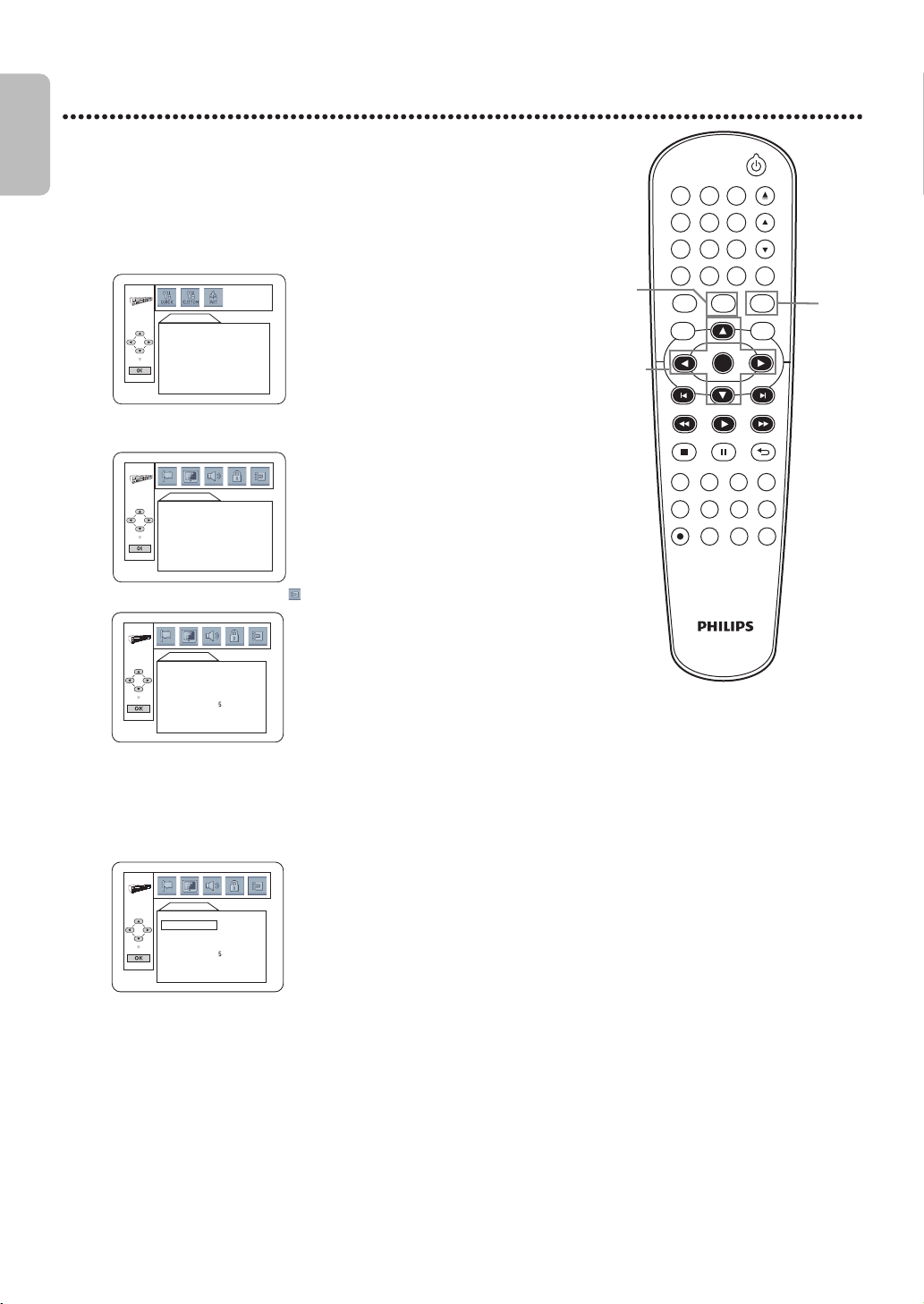
EN - 56
English
56
Others
You may adjust the Angle Icon, Automatic Power Off,
Dual Playback and Slide Show Settings.
1
Press DVD to put the DVD/VCR in DVD mode.
DVD light will appear on the front of the DVD/VCR.
2
While playback is stopped, press SETUP.
The QUICK SETUP Screen appears.
3
Press ◄ or ► to select CUSTOM at the top of the menu, then
press OK.
4
Press ◄ or ► to select (OTHERS), then press OK.
5
Press ▲ or ▼ to select an item, then press OK.
● If you selected ANGLE ICON, press OK repeatedly to select
ON or OFF. Choose ON to see the Angle icon when multiple
camera angles are available during DVD playback. Details are on
page 40. Choose OFF to disable the Angle icon.
The default setting is ON.
DVDVCR SETUP
INPUT
MENU
REC SPEED MODE
ANGLE SEARCH REPEAT
DISPLAY SUBTITLE ZOOM
TIMER SET
REPEAT
A-B
AUDIO
BACKPAUSESTOP
PLAY
OK
FFW
REW
CLEAR TITLE
DISC
TRACKING
OPEN/CLOSE
12
6
5
4
7
89
0
+10
3
3-5
1
2
QUICK SETUP
OSD LANGUAGE
TV ASPECT
PROG. SCAN
DOLBY DIGITAL
ENGLISH
4:3 LETTER BOX
OFF
BITSTREAM
LANGUAGE
AUDIO
SUBTITLE
DISC MENU
OSD LANGUAGE
ORIGINAL
OFF
ENGLISH
ENGLISH
OTHERS
ANGLE ICON
AUTO POWER OFF
DUAL PLAYBACK
SLIDE SHOW
ON
ON
OFF
sec
OTHERS
ANGLE ICON
AUTO POWER OFF
DUAL PLAYBACK
SLIDE SHOW
ON
ON
OFF
sec
ANGLE ICON
E8E2CCD_E8E2CCH_EN_v1.book Page 56 Friday, March 9, 2012 6:37 PM
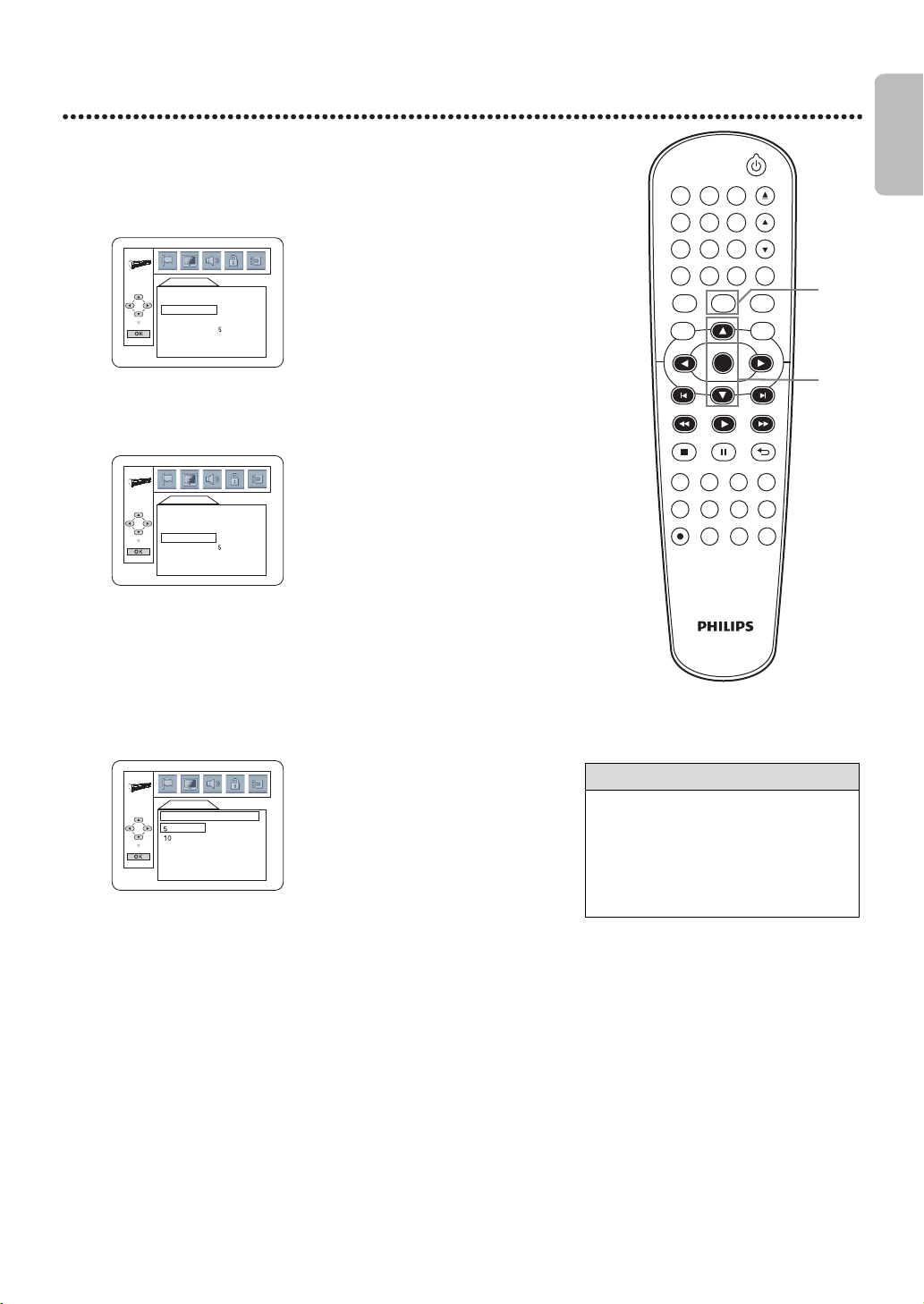
EN - 57
English
57
Others (cont’d)
Instructions continued from the previous
● If you selected AUTO POWER OFF, press OK repeatedly to
choose ON or OFF. Choose ON if you want the player to turn off
when there is no activity at the player or its remote for 25 minutes.
The default setting is ON.
● If you selected DUAL PLAYBACK, press OK to choose ON
or OFF. This feature lets you play MP3 and JPEG files simultaneously.
The default setting is OFF.
● If you selected SLIDE SHOW, press ▲ or ▼ to choose 5sec,
10sec or MUSIC, then press OK. This adjusts the playback speed
of the SLIDE SHOW.
Choose 5 sec to display each image for 5 seconds.
Choose 10 sec to display each image for 10 seconds.
Choose MUSIC to display an image for each MP3 sound file playback
when DUAL PLAYBACK is ON.
The default setting is 5 sec.
6
Press SETUP to remove the menu.
Helpful Hint
• When MUSIC is selected, the playback
speed of the SLIDE SHOW will be set
to 5 seconds under the conditions
listed below :
- When DUAL PLAYBACK is OFF.
- When DUAL PLAYBACK is ON, but
only the JPEG files are playing.
DVDVCR SETUP
INPUT
MENU
REC SPEED MODE
ANGLE SEARCH REPEAT
DISPLAY SUBTITLE ZOOM
TIMER SET
REPEAT
A-B
AUDIO
BACKPAUSESTOP
PLAY
OK
FFW
REW
CLEAR TITLE
DISC
TRACKING
OPEN/CLOSE
12
6
5
4
7
89
0
+10
3
6
5
OTHERS
ANGLE ICON
AUTO POWER OFF
DUAL PLAYBACK
SLIDE SHOW
ON
ON
OFF
sec
AUTO POWER OFF
OTHERS
ANGLE ICON
AUTO POWER OFF
DUAL PLAYBACK
SLIDE SHOW
ON
ON
OFF
sec
DUAL PLAYBACK
OTHERS
SLIDE SHOW
sec
MUSIC
sec
SLIDE SHOW
E8E2CCD_E8E2CCH_EN_v1.book Page 57 Friday, March 9, 2012 6:37 PM
EN - 58
English
58
Information You May Need
Glossary
AUDIO IN/OUT Jacks : jacks on the front and back of the DVD/VCR that receive audio from another source (IN) or
send audio to another system (OUT). These jacks are red (right) and white (left).
COAXIAL DIGITAL AUDIO OUT Jack : sends digital audio to a Stereo, allowing you to adjust the volume at the
Stereo. This connection provides the Multi-channel surround sound as heard in movie theaters. This jack on the DVD/VCR
is black.
COMPONENT VIDEO OUT
(Y CB/PB CR/PR) Jacks : jacks on the back of the DVD/VCR that send high-quality DVD
video to a TV with Component Video In jacks. This connection provides the best picture quality for the DVD player of the
DVD/VCR.
Dolby Digital
: a surround sound system that provides Multi-channel sound as used in movie theaters.
Dubbing
: copying a video cassette using another VCR.
HQ
: high quality; a feature in the VCR circuitry which provides enhanced picture detail.
External Input Channel
: the channel to which you set your DVD/VCR to receive the signal from the external tuner. If
you connected the external tuner to the AUDIO and VIDEO IN jacks on the front of the DVD/VCR, select L2. If you used
the AUDIO and VIDEO IN jacks on the back of the DVD/VCR, select L1.
OTR
: One-Touch Recording; a timed recording on the VCR that starts immediately and records for 30 minutes to 8
hours.
S-Video
: produces a clearer DVD picture by sending separate signals for the luminance and the color. S-Video only
provides a picture for the DVD player of the DVD/VCR.
Tape Speeds : how fast the video cassette travels during a recording or playback. The faster the tape speed, the better
the picture quality. Slower tape speeds affect picture quality, but you can record more onto a videotape.
• SP (Standard Playback) – fastest tape speed (recording time for a T120 tape is approximately 2 hours); best picture
quality.
• LP (Long Playback) – average tape speed. You cannot record in LP with this VCR. If tapes were recorded on a different
VCR in LP speed, the tape will play in LP on the DVD/VCR.
• SLP (Super Long Playback) – slowest tape speed (recording time for a T120 tape is approximately 6 hours). This speed
allows the maximum recording on a single videotape.
VIDEO IN/OUT Jacks
: jacks on the front and back of the DVD/VCR that receive video from another source (IN) or
send video to other video equipment or a TV (OUT). These jacks are yellow.
E8E2CCD_E8E2CCH_EN_v1.book Page 58 Friday, March 9, 2012 6:37 PM

EN - 59
English
59
Helpful Hints
If you are having problems with your product,check this list of problems and possible solutions before requesting service.
You may be able to solve the problem yourself.
If you need to call a customer service representative, please know the model number and serial number of your product
before you call. This information is displayed on the back of the product. Also, please take a moment to identify the
problem you are having, and be prepared to explain this to the representative. If you believe the representative will need to
help you with operations, please stay near the product. Our representatives will be happy to assist you.
For online reference, please visit our web site at http://www.philips.com/welcome
The DVD/VCR has no power.
• Make sure the power cord is connected completely to an AC (alternating current) outlet.
•Press y to turn on the DVD/VCR. The DVD/VCR usually turns on in the mode it was in when you turned it off. If there
has been a power failure, it will turn on in VCR mode. Press DVD to put the unit in DVD mode. Press VCR to put the
unit in VCR mode. Or press SOURCE to switch between the two modes.
The remote control will not operate the DVD/VCR.
• Aim the remote control directly at the remote sensor on the front of the DVD/VCR, not toward the TV. Details are on
page 19.
• Remove all obstacles between the remote control and the DVD/VCR.
• Inspect and/or replace the batteries in the remote control. Details are on page 14.
• Use the remote control within 23 feet (7m) of the DVD/VCR.
• When using the DVD player, press DVD, then try the other DVD feature buttons. Press DVD so DVD light appears on
the front of the DVD/VCR. This means the DVD/VCR is in DVD mode.
• To use the VCR, press VCR, then try the other VCR feature buttons. Press VCR so VCR light appears on the front of
the DVD/VCR. This means the DVD/VCR is in VCR mode.
There is no picture in DVD mode.
• Make sure the video cable is connected correctly. You may connect either the yellow video cable (supplied), an optional
S-Video cable,or optional component video cables. Make sure the TV is set to the correct Video In channel (usually the
AUX IN, A/V IN, Auxiliary In, EXT or External In, Component Video In or S-Video In channel). Check your TV owner’s
manual for details. Details are on page 9.
• Insert a DVD that is playable on this DVD/VCR.Details are on page 8.
• Make sure the DVD/VCR is in DVD mode. Press DVD or SOURCE so DVD light appears on the front of the DVD/VCR.
• Check if Progressive Scan is set correctly according to your connection to a TV. Details are on page 9. Enable
Progressive Scan at the DVD player only if you used the Component Video connection to a TV that has Progressive Scan.
Details are on pages9, 11 and 52.
Disc cannot be played.
• Insert a playable disc. Details are on page 8.
• Place the disc correctly in the disc tray. If the disc is one-sided,place the disc in the tray with the label facing up. If the disc
is two-sided, make sure the label of the side you want to play is facing up.
• Clean the disc. Make sure the disc is not scratched or warped.
• Cancel the Parental Controls, enter the password or change the control level. Details are on pages54-55.
• Make sure the disc is labeled for use in Region 1 or ALL regions and is NTSC or PAL compatible. Details are on page 8.
There is no sound.
• Connect the audio cable firmly. Make sure the cables are connected to the AUDIO IN jacks on the TV or Stereo. Details
are on pages9-13.
• Check the Audio Settings of the DVD player. Details are on page 53.
• Check the Audio Settings of the DVD. For example, you may have selected “soundtrack” playback or an unavailable Sound
Setting (such as Dolby Digital). Details are on pages41 and 53. Try other sound options provided in the DVD Disc Menu.
The picture is distorted.
• Connect the DVD/VCR directly to the TV. Details are on pages9-13. Do not connect the DVD/VCR to a VCR, then
connect the VCR to the TV. Copyright protection systems in the VCR could distort the picture playing on the DVD/VCR.
• There are some cases where a disc or videotape picture may be distorted slightly because of the quality in which it was
recorded. This is not a malfunction of the DVD/VCR.
• Make sure the disc is compatible with the DVD player of the DVD/VCR. Details are on page 8.
• In case of picture problems with 525 (480) progressive scan output, it is recommended that the user switch the
connection to the ‘standard definition’ output. If there are questions regarding your TV set compatibility with this 525p
(480p) DVD player, please contact our customer service center.
• If your TV is not PAL compatible, DVDs recorded in the PAL color system may play only in black and white, the picture
may roll continuously, or the picture may appear distorted.
You cannot change the camera angle of a DVD.
• The DVD might not contain segments recorded from different camera angles. See if multiple angles are available by
referring to the disc case or DVD Disc Menu. Details are on page 40.
E8E2CCD_E8E2CCH_EN_v1.book Page 59 Friday, March 9, 2012 6:37 PM

EN - 60
English
60
Helpful Hints (cont’d)
You cannot change the audio or subtitle language of a DVD.
• The DVD does not contain audio or subtitles in the desired language. Not all DVDs contain audio or subtitles in multiple
languages. See if other languages are available by referring to the disc case or DVD Disc Menu. Details are on pages40-41.
An X appears in the top right corner of the TV screen when you try a DVD feature.
• The operation is not available at the current time or the feature is not available on the disc.Some features are only
available during playback. Others can be accessed only if playback is stopped. Try stopping or playing the disc, then try
the feature again.
The DVD/VCR switches from DVD mode to VCR mode after 25 minutes of no activity.
• When AUTO POWER OFF is set to ON, the DVD/VCR switches itself from DVD mode to VCR mode if disc playback
stops for more than 25 minutes and you press no buttons on the remote or the DVD/VCR. Details are on pages56-57.
This prevents possible damage to your TV’s picture tube that can occur if a still image is left on too long.
A screen saver appears on the TV screen during DVD mode.
• The screen saver appears when you leave the DVD/VCR in stop mode for about five minutes to protect the TV screen
from burn-in.
You want to use the DVD player during a VCR Timer Recording or while “ ” appears on the display panel.
•Press y to turn on the DVD/VCR. Press DVD to choose DVD mode, then continue with other DVD features as
described in this manual.
A maximum of 999 MP3/Windows Media™ Audio/JPEG files can be recognized.
Power Failure
• Clock and language setting will be lost after 30 seconds of power failure. See pages20-21 to set up the clock and
language again.
The VCR will not record a TV program.
• This DVD/VCR does not have a tuner to receive TV broadcasting.
• You must connect this DVD/VCR to an external tuner to record TV programs.
• Check the connections between the DVD/VCR and the external tuner. Details are on page 10.
• Put the DVD/VCR in VCR mode. Press VCR or SOURCE so VCR light appears on the front of the DVD/VCR.
• Make sure the video cassette has a record tab. Details are on page 22.
The VCR will not perform a Timer Recording.
• Make sure the recording start and stop times are set correctly. Details are on pages25-26.
• Make sure a tape is in the VCR and the tape has a record tab. Details are on page 22. If, after programming a Timer
Recording, you press TIMER SET without putting a tape in the DVD/VCR, “ ” will blink on the display panel.
• If the record tab on a tape is missing, the DVD/VCR will eject the tape. “ ” will blink.
• Press TIMER SET to put the DVD/VCR in standby mode for the Timer Recording.
• Make sure the VCR clock is set. Details are on page 20.
• The VCR may not perform or continue a Timer Recording if the power fails.
• Finish programming a Timer Recording at least 5 minutes before it is set to begin.
• 12 p.m. is noon; 12 a.m. is midnight.
There is no picture or the picture is noisy or has streaks during video cassette playback.
• Put the DVD/VCR in VCR mode. Press VCR or SOURCE so VCR light appears on the front of the DVD/VCR.
• Select the correct Video In channel at the TV. Details are on page 9.
• Adjust the tracking. Details are on page 32.
• TVs placed too close to the DVD/VCR can cause interference during tape playback. Move the DVD/VCR away from the TV.
TV programs cannot be watched normally.
• Check the connections between the DVD/VCR and the external tuner. Details are on page 10.
You cannot insert a video cassette.
• Insert the tape,window side up, with the record tab facing you.
• Make sure that there is no tape on the VCR by pressing STOP/EJECT C A on the front of the DVD/VCR.
• Gently push on the center of the tape when putting it in the VCR. Never force the tape into the VCR.
• If a Timer Recording is set, you cannot insert a tape without a record tab.
You cannot remove the tape.
• Make sure the power plug is completely connected to a power outlet.
• If a Timer Recording has been set, press TIMER SET on the remote control or STOP/EJECT C A on the front panel to
cancel the timer standby mode temporarily. “ ” will disappear from the display panel. Then, press STOP/EJECT C A on
the front of the DVD/VCR to eject the tape. Insert another tape and press TIMER SET to reset the Timer Recording.
• Unplug the DVD/VCR power cord for 5 minutes. Then,plug in the power cord again and press y on the DVD/VCR.
Press STOP/EJECT C A on the DVD/VCR 3 to 5 times. If the tape still does not eject, you may need to have an
authorized servicer remove the tape.
E8E2CCD_E8E2CCH_EN_v1.book Page 60 Friday, March 9, 2012 6:37 PM

EN - 61
English
61
Helpful Hints (cont’d)
DVD/VCR ejects the tape when you press REC I or TIMER SET.
• Make sure the tape has a record tab. Details are on page 22.
Hi-Fi Stereo Sound
• During playback, Hi-Fi audio may normally revert to normal audio when you adjust tracking.
• When connecting the DVD/VCR to a TV with the red and white audio cable, you will only get stereo sound if you
connect the DVD/VCR AUDIO OUT jacks on the DVD/VCR to the Audio In jacks on your TV, and if the TV is on its
Audio/Video In channel. See your TV owner’s manual for details.
• When you connect the DVD/VCR AUDIO OUT jacks on the DVD/VCR to the Audio In jacks on your TV, the stereo
light on the TV might not glow.
• Only tapes recorded in Hi-Fi audio will play in Hi-Fi audio. Tapes recorded in normal audio will play in monaural (single-
channel) audio.
Cleaning the video heads
• Your DVD/VCR automatically cleans the video heads of the VCR each time you insert a tape. However, the heads may
become dirty. If so, have an authorized servicer clean the video heads. Eventually, the heads may need to be replaced.
The playback picture is too dim, too bright or fluctuates in brightness.
• Some programs may be broadcast with copyright protection technology in order to protect the rights of copyright
owners. This technology is used on programs that are recorded on video cassettes or DVDs, as well as some programs
broadcast by antenna/cable/satellite television channels. Programs broadcast with copyright protection may not record
clearly. Likewise, if you play a tape that is a recording of a copyright protected program, the picture may not be clear.
Tapes of copyright protected programs may have a picture that is dark or dim, or the brightness of the picture may
fluctuate. Therefore, avoid recording or playing copies of copyright protected programs.
E8E2CCD_E8E2CCH_EN_v1.book Page 61 Friday, March 9, 2012 6:37 PM
EN - 62
English
62
Care and Maintenance
Cleaning the DVD/VCR
• Wipe the front panel and other exterior surfaces of the DVD/VCR with a soft cloth.
• Never use a solvent, thinner, benzene or alcohol to clean the DVD/VCR. Do not spray insecticide liquid near the DVD/
VCR. Such chemicals may discolor the surface or damage the DVD/VCR.
Cleaning a Disc
• Use a soft, dry cloth to wipe the disc.
• Wipe the disc in a straight line from the center to the edge. Never wipe the disc in a circular motion.
• Do not use detergent or abrasive cleaning agents.
• Handle the discs so fingerprints and dust do not adhere to the discs.
• Always store the disc in its protective case when it is not in use.
Checking the Laser
• If the DVD/VCR does not operate as described in this manual, the DVD player’s laser may be dirty. Consult an
Authorized Service Center for inspection and cleaning of the laser.
Caring for Video Cassettes
• Use only cassettes with the mark.
• Remove any light adhesive stick-on notes from the video cassette before putting the cassette in the VCR. Removable
labels can jam the VCR.
Caring for the VCR’s Video Heads
• Periodic maintenance is required to maintain your DVD/VCR’s excellent performance. The VCR has an Automatic Head
Cleaner. However, the video heads will require replacement eventually. Only an authorized service center should
perform this service.
Specifications
VCR Video Heads
4 heads - Hi-Fi
DVD Color System
NTSC
Frequency Response
DVD (linear sound) :
20 Hz to 22 kHz (sample rate :48 kHz)
20 Hz to 44 kHz (sample rate :96 kHz)
Audio CD :20 Hz to 20 kHz
Signal-to-Noise Ratio
Audio CD :100 dB JEITIA
(Japan Electronics and Information Technology Industries
Association)
Dynamic Range
DVD (linear sound) :90 dB
Audio CD :85 dB (JEITIA)
Total Distortion Factor
Audio CD :0.03% (JEITIA)
DVD :0.03%
Wow and Flutter
Below the measurement limitation
(±0.001% W PEAK) (JEITIA)
Power Requirement
120V AC +/- 10%, 60 Hz +/- 0.5%
Power Consumption
Power on : 18W
Power off : 2.95 W
Operating Temperature
41°F (5°C) to 104°F (40°C)
Relative Humidity
30% to 80%
Dimensions
17.1” (W) x 3.7” (H) x 9.2” (D)
(435mm x 94mm x 233mm)
Weight
5.8 lbs. (2.6 kg)
NOTE : Designs and specifications are subject to change
without notice.
E8E2CCD_E8E2CCH_EN_v1.book Page 62 Friday, March 9, 2012 6:37 PM

EN - 63
English
63
Ninety (90) day Limited Warranty
WARRANTY COVERAGE:
This warranty obligation is limited to the terms set forth
below.
WHO IS COVERED:
This product is warranted to the original purchaser or the per-
son receiving the product as a gift against defects in materials
and workmanship as based on the date of original purchase
(“Warranty Period”) from an Authorized Dealer. The original
sales receipt showing the product name and the purchase date
from an authorized retailer is considered such proof.
WHAT IS COVERED:
This warranty covers new products if a defect in material
or workmanship occurs and a valid claim is received within
the Warranty Period. At its option, the company will either (1)
repair the product at no charge, using new or refurbished
replacement parts, or (2) exchange the product with a product
that is new or which has been manufactured from new, or ser-
viceable used parts and is at least functionally equivalent or
most comparable to the original product in current inventory,
or (3) refund the original purchase price of the product.
The Company warrants replacement products or parts provided
under this warranty against defects in materials and workmanship
from the date of the replacement or repair for ninety (90) days
or for the remaining portion of the original product’s warranty,
whichever provides longer coverage for you. When a product or
part is exchanged, any replacement item becomes your property
and the replaced item becomes the company’s property. When a
refund is given, your product becomes the company’s property.
Note: Any product sold and identified as refurbished or
renewed carries a ninety (90) day limited warranty.
Replacement product can only be sent if all warranty
requirements are met. Failure to follow all
requirements can result in delay.
WHAT IS NOT COVERED - EXCLUSIONS AND
LIMITATIONS:
This Limited Warranty applies only to the new products that
can be identified by the trademark, trade name, or logo affixed
to it. This Limited Warranty does not apply to any non-Philips
hardware product or any software, even if packaged or sold
with the product. Non-Philips manufacturers, suppliers, or
publishers may provide a separate warranty for their own
products packaged with the bundled product.
The Company is not liable for any damage to or loss of any
programs, data, or other information stored on any media
contained within the product, or any non-Philips product or
part not covered by this warranty. Recovery or reinstallation
of programs, data or other information is not covered under
this Limited Warranty.
This warranty does not apply (a) to damage caused by accident,
abuse, misuse, neglect, misapplication, or non-Philips product,
(b) to damage caused by service performed by anyone other
than an Authorized Service Location, (c) to a product or
a part that has been modified without written permission,
or (d) if any serial number has been removed or defaced,
or (e) product, accessories or consumables sold “AS IS”
without warranty of any kind by including refurbished Philips
product sold “AS IS” by some retailers.
This Limited Warranty does not cover:
•
Shipping charges to return defective product.
•
Labor charges for installation or setup of the product, adjust-
ment of customer controls on the product, and installation or
repair of antenna/signal source systems outside of the product.
•
Product repair and/or part replacement because of improper
installation or maintenance, connections to improper voltage
supply, power line surge, lightning damage, retained images or
screen markings resulting from viewing fixed stationary con-
tent for extended periods, product cosmetic appearance items
due to normal wear and tear, unauthorized repair or other
cause not within the control of the company.
•
Damage or claims for products not being available for use, or
for lost data or lost software.
•
Damage from mishandled shipments or transit accidents when
returning product.
• A product that requires modification or adaptation to enable
it to operate in any country other than the country for which
it was designed, manufactured, approved and/or authorized, or
repair of products damaged by these modifications.
• A product used for commercial or institutional purposes
(including but not limited to rental purposes).
•
Product lost in shipment and no signature verification receipt
can be provided.
•
Failure to operate per Owner’s Manual.
TO OBTAIN ASSISTANCE IN THE U.S.A., CANADA,
PUERTO RICO, OR U.S. VIRGIN ISLANDS...
Contact Customer Care Center at:
1-866-309-0846
This warranty gives you specific legal rights. You may have other rights which vary from state/province to state/province.
P&F USA, Inc.
PO Box 2248 Alpharetta, GA 30023-2248
WARRANTY IS THE EXCLUSIVE REMEDY FOR THE CON-
SUMER. PHILIPS SHALL NOT BE LIABLE FOR ANY INCIDEN-
TAL OR CONSEQUENTIAL DAMAGES FOR BREACH OF
ANY EXPRESS OR IMPLIED WARRANTY ON THIS PROD-
UCT. EXCEPT TO THE EXTENT PROHIBITED BY APPLICABLE
LAW, ANY IMPLIED WARRANTY OF MERCHANTABILITY OR
FITNESS FOR A PARTICULAR PURPOSE ON THIS PRODUCT
IS LIMITED IN DURATION TO THE DURATION OF THIS
WARRANTY.
Some states do not allow the exclusions or limitation of incidental
or consequential damages, or allow limitations on how long
an implied warranty lasts, so the above limitations or exclusions
may not apply to you.
REPAIR OR REPLACEMENT AS PROVIDED UNDER THIS
E8E2CCD_E8E2CCH_EN_v1.book Page 63 Friday, March 9, 2012 6:37 PM

64
EN - 64
English
Information Index
A
a-b repeat ............................................... 38
a-b repeat button
............................. 19, 38
ac power cord
........................................ 19
angle button
...................................... 19, 40
angle icon
.......................................... 40, 56
arrow buttons
........................................ 19
audio button
..................................... 19, 41
audio in/out jacks
...................... 10, 19, 24
audio settings
.......................................... 53
auto power off
................................... 56-57
auto repeat
............................................. 30
B
back button............................................. 19
bit-rate display
........................................ 46
black level
............................................... 48
C
camera angle........................................... 40
cassette compartment
............................ 18
chapters
.................................................. 35
clear button
...................................... 19, 20
clock
........................................................ 20
coaxial digital audio out jack
............ 13, 19
component video out jacks
.............. 11, 19
contents
.................................................... 6
controls
dvd/vcr
........................................... 19
remote
........................................... 19
copyright protection
................... 4, 24, 61
counter
............................................. 21, 30
D
disc menu button ............................. 19, 33
disc menus
.................................. 33, 49-50
disc tray
.................................................. 18
display button
....................... 19, 21, 46-47
display messages
..................................... 18
display panel
........................................... 18
displays
........................................ 21, 46-47
dolby digital
............................................. 53
down sampling
........................................ 53
drc (dynamic range control)
.................. 53
dual playback
.......................................... 45
duplication (dvd to videotape)
............... 29
dvd button
.............................................. 19
dvd light
.................................................. 18
F
fast forward ...................................... 32, 34
fast reverse
....................................... 32, 34
ffw D button
........................................ 19
folder playback
....................................... 45
front panel
.............................................. 19
G
glossary ................................................... 58
H
head cleaner ........................................... 61
helpful hints
....................................... 59-61
hi-fi stereo sound
................................... 33
hookups
cable box/satellite receiver
........... 10
component video
.......................... 11
stereo
....................................... 12-13
S-video
........................................... 11
tv
................................................. 9-11
I
index search ........................................... 31
initializing
................................................ 48
input button
..................................... 19, 22
J
jpeg display ............................................. 47
jpeg playback
..................................... 44-45
L
language (dvd) ................................... 49-50
language (vcr)
......................................... 21
lp (long playback)
................................... 58
M
markers .................................................. 39
menus
................................................. 7, 33
mode button
.................................... 19, 43
mp3 display
............................................. 47
mp3 playback
..................................... 44-45
N
number buttons ..................................... 19
O
ok button................................................ 19
one-touch recording
.............................. 23
open/close A button
....................... 17, 19
P
parental................................................... 54
parental password
............................. 54-55
pause button
....................... 19, 32, 37, 42
play button
.................................. 16-17, 19
playing discs
............................................ 17
playing tapes
........................................... 16
program
.................................................. 43
progressive scan
..................................... 52
Q
quick setup ........................................ 49-53
R
random ................................................... 43
rapid play with voice
.............................. 34
rear panel
............................................... 19
rec I button
................................ 19, 22-23
recording
basic
............................................... 22
prevention
..................................... 22
remote control
batteries
........................................ 14
buttons
.......................................... 19
sensor
............................................ 19
repeat (discs)
.......................................... 38
repeat (tape)
........................................... 30
repeat button
................................... 19, 38
rerecording
............................................. 24
resume on
.............................................. 37
rew E button
........................... 19, 32, 34
S
safety information ................................. 2-5
satellite link
........................................ 27-28
search button
....................... 19, 31, 35-36
setup button
........................................... 19
skip buttons
...................................... 19, 36
slow motion
..................................... 32, 42
slp (super long playback)
....................... 58
source button
......................................... 19
sp (standard playback)
........................... 58
specifications
.......................................... 62
speed button
.................................... 19, 22
standby-on button
.................................. 19
step-by-step playback
............................. 37
stereo sound
........................................... 41
still mode
........................................... 51-52
still picture
.............................................. 32
stop C button
.......................................... 19
stop/eject CA (vcr) button
................... 19
subtitle button
................................. 19, 40
super high speed searching
..................... 32
s-video out jack
................................ 11, 19
T
tape
automatic playback
........................ 32
automatic rewind, eject
................. 32
duplication
...................................... 24
eject
............................. 16, 19, 32, 60
speed
.............................................. 58
time search
.............................................. 31
timer recording
canceling
......................................... 26
setting
....................................... 25-26
timer set button
............................... 19, 26
title button
....................................... 19, 33
titles
......................................................... 33
tracking
.................................................... 32
tracks
....................................................... 36
tv aspect
............................................ 51-52
V
vcr
button
............................................. 19
light
................................................. 18
video in/out jacks
........................ 10-13, 19
W
warranty.................................................. 63
Windows Media™ Audio display
........... 47
Windows Media™ Audio playback
........ 44
Z
zoom ....................................................... 42
zoom button
.................................... 19, 42
E8E2CCD_E8E2CCH_EN_v1.book Page 64 Friday, March 9, 2012 6:37 PM

E8E2CCD_E8E2CCH_ES_v1.book Page 1 Friday, March 9, 2012 6:38 PM
Meet Philips at the Internet
http://www.philips.com/support
P&F USA, Inc.
PO Box 2248 Alpharetta, GA 30023-2248
P&F Mexicana, S.A. de C.V.
Av. La Palma No. 6, Col. San Fernando La Herradura,
Huixquilucan Edo. de México C.P. 52787
*1VMN32793*
Printed In China
1VMN32793
★★★★★
E8E2CCD/E8E2CCH
Philips and Philips Shield are used under
license of Koninklijke Philips Electronics N.V.
E8E2CCD_E8E2CCH_EN_v1.book Page 65 Friday, March 9, 2012 6:37 PM