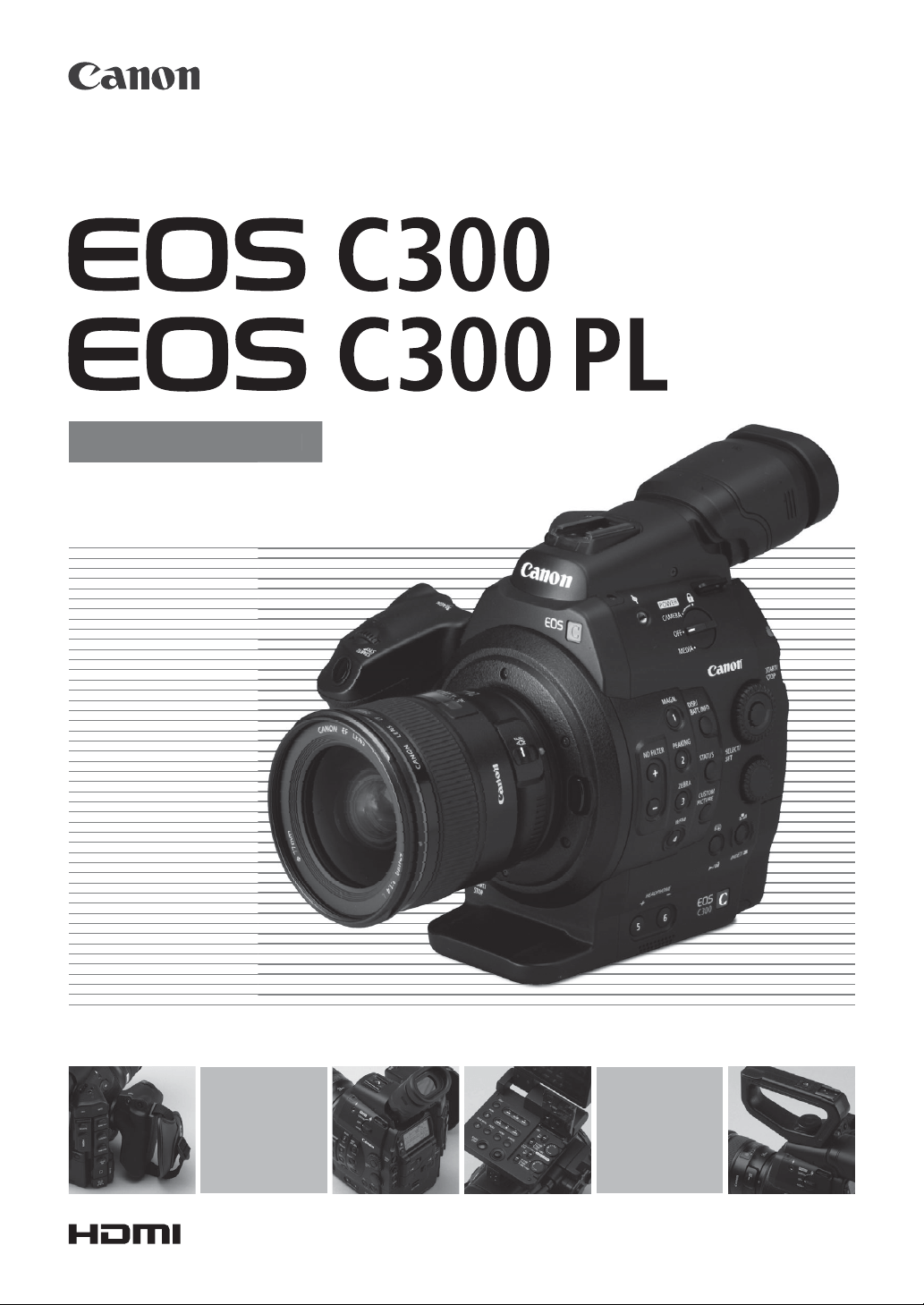
PUB. DIE-0440-002B
Instruction Manual
HD Camcorder
n
ua
l
Firmware ver. 1.1.8.1.00
Firmware ver. 2.1.9.1.00
2
Important Usage Instructions
WARNING
TO REDUCE THE RISK OF FIRE OR ELECTRIC SHOCK, DO NOT EXPOSE THIS PRODUCT TO RAIN OR
MOISTURE.
Apparatus shall not be exposed to dripping or splashing and no objects filled with liquids, such as vases,
shall be placed on the apparatus.
TO REDUCE THE RISK OF ELECTRIC SHOCK, DO NOT EXPOSE THIS PRODUCT TO DRIPPING OR
SPLASHING.
WARNING
TO REDUCE THE RISK OF ELECTRIC SHOCK AND TO REDUCE ANNOYING INTERFERENCE, USE THE
RECOMMENDED ACCESSORIES ONLY.
COPYRIGHT WARNING
Unauthorized recording of copyrighted materials may infringe on the rights of copyright owners and be
contrary to copyright laws.
FCC NOTICE
HD Camcorder, EOS C300 / EOS C300 PL
Systems.
This device complies with Part 15 of the FCC
Rules. Operation is subject to the following two
conditions: (1) This device may not cause
harmful interference, and (2) this device must
accept any interference received, including
interference that may cause undesired
operation.
Note: This equipment has been tested and
found to comply with the limits for class B digital
device, pursuant to Part 15 of the FCC Rules.
These limits are designed to provide reasonable
protection against harmful interference in a
residential installation. This equipment
generates, uses and can radiate radio frequency
energy and, if not installed and use in
accordance with the instructions, may cause
harmful interference to radio communications.
However, there is no guarantee that interference
will not occur in a particular installation. If this
equipment does cause harmful interference to
radio or television reception, which can be
determined by turning
the equipment off and on, the user is
encouraged to try to correct the interference by
one or more of the following measures:
• Reorient or relocate the receiving antenna.
• Increase the separation between the
equipment and receiver.
• Connect the equipment into an outlet on a
circuit different from that to which the receiver
is connected.
• Consult the dealer or an experienced radio/TV
technician for help.
Use of shielded cable is required to comply with
class B limits in Subpart B of Part 15 of FCC
Rules.
Do not make any changes or modifications to
the equipment unless otherwise specified in the
manual.
If such changes or modifications should be
made, you could be required to stop operation
of the equipment.
Canon U.S.A., Inc.
One Canon Park, Melville, NY 11747, USA
Tel No. 1-800-OK-CANON (1-800-652-2666)
The Mains plug is used as the disconnect device. The Mains plug shall remain readily operable to
disconnect the plug in case of an accident.
CAUTION
• Danger of explosion if the wrong type of batteries are attached. Use only the same type of batteries.
• Do not expose batteries or product to excessive heat such as the inside of a car under direct sunlight, fire, etc.
EOS C300 / EOS C300 PL / CA-945 / CG-945 identification plate is located on the bottom.
3
Only for European Union and EEA (Norway, Iceland and Liechtenstein)
These symbols indicate that this product is not to be disposed of with your household
waste, according to the WEEE Directive (2012/19/EU), the Battery Directive (2006/66/EC)
and/or national legislation implementing those Directives.
If a chemical symbol is printed beneath the symbol shown above, in accordance with the
Battery Directive, this indicates that a heavy metal (Hg = Mercury, Cd = Cadmium, Pb = Lead) is present in
this battery or accumulator at a concentration above an applicable threshold specified in the Battery
Directive.
This product should be handed over to a designated collection point, e.g., on an authorized one-for-one
basis when you buy a new similar product or to an authorized collection site for recycling waste electrical
and electronic equipment (EEE) and batteries and accumulators. Improper handling of this type of waste
could have a possible impact on the environment and human health due to potentially hazardous
substances that are generally associated with EEE. Your cooperation in the correct disposal of this product
will contribute to the effective usage of natural resources.
For more information about the recycling of this product, please contact your local city office, waste
authority, approved scheme or your household waste disposal service or
visit www.canon-europe.com/weee
, or www.canon-europe.com/battery.
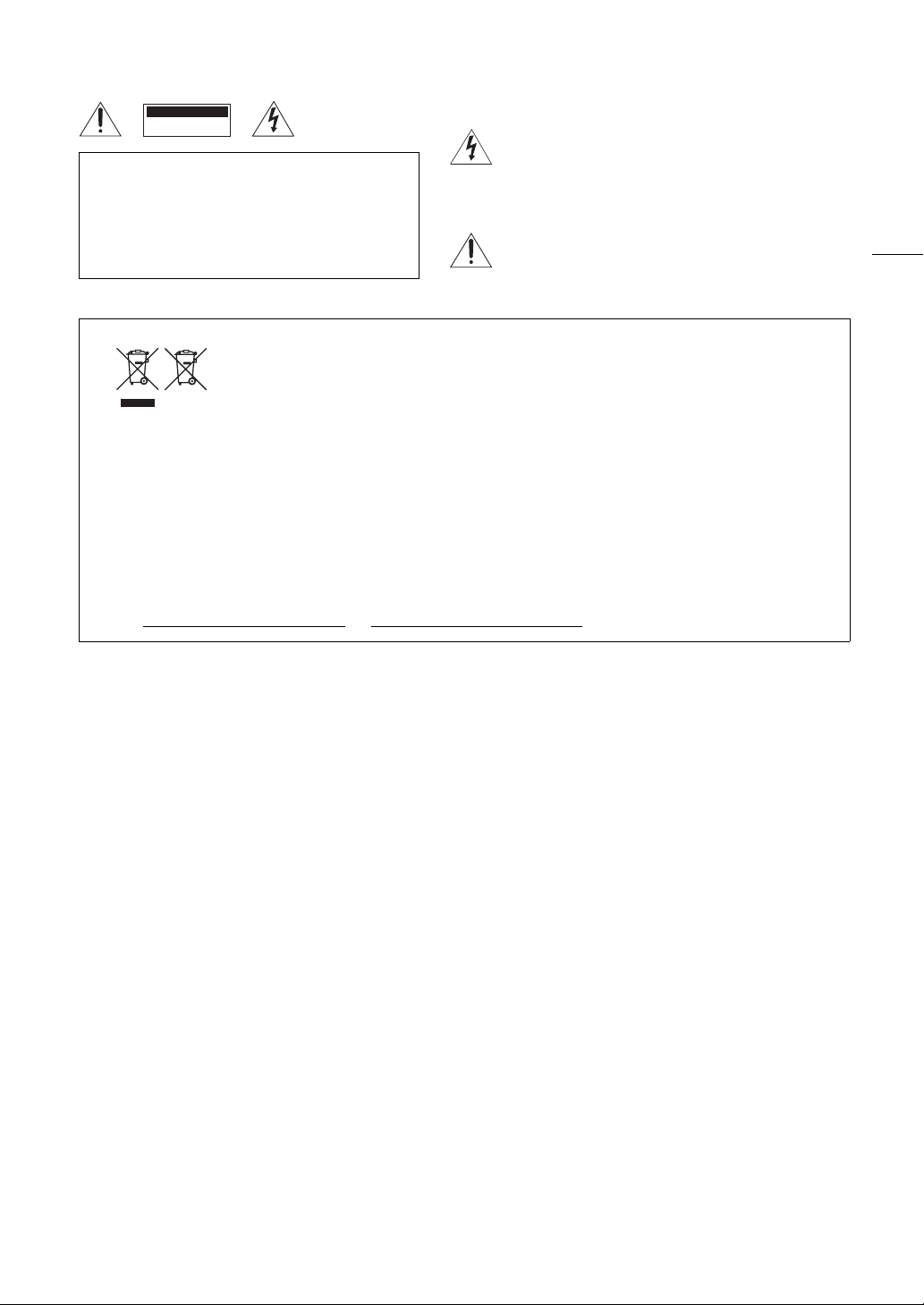
CAUTION:
TO REDUCE THE RISK OF ELECTRIC
SHOCK, DO NOT REMOVE COVER (OR
BACK). NO USER-SERVICEABLE
PARTS INSIDE. REFER SERVICING TO
QUALIFIED SERVICE PERSONNEL.
CAUTION
RISK OF ELECTRIC SHOCK
DO NOT OPEN
The lightning flash with arrowhead symbol, within an
equilateral triangle, is intended to alert the user to
the presence of uninsulated “dangerous voltage”
within the product’s enclosure, that may be of
sufficient magnitude to constitute a risk of electric
shock to persons.
The exclamation point, within an equilateral triangle, is
intended to alert the user to the presence of important
operating and maintenance (servicing) instructions in
the literature accompanying the product.
4
Important Safety Instructions
CAN ICES-3(B)/NMB-3(B)
In these safety instructions the word “apparatus”
refers to the Canon HD Camcorder EOS C300 / EOS
C300 PL and all its accessories.
1. Read these instructions.
2. Keep these instructions.
3. Heed all warnings.
4. Follow all instructions.
5. Do not use this apparatus near water.
6. Clean only with dry cloth.
7. Do not block any ventilation openings. Install in
accordance with the manufacturer’s instructions.
8. Do not install near any heat sources such as
radiators, heat registers, stoves, or other
apparatus (including amplifiers) that produce
heat.
9. Do not defeat the safety purpose of the polarized
or grounding-type plug. A polarized plug has two
blades with one wider than the other.
A grounding type plug has two blades and a third
grounding prong. The wide blade or the third
prong are provided for your safety. If the provided
plug does not fit into your outlet, consult an
electrician for replacement of the obsolete outlet.
10. Protect the power cord from being walked on or
pinched particularly at plugs, convenience
receptacles, and the point where they exit from
the apparatus.
11. Only use attachments/accessories specified by
the manufacturer.
12. Unplug this apparatus during lightning storms or
when unused for long periods of time.
13. Refer all servicing to qualified service personnel.
Servicing is required when the apparatus has
been damaged in any way, such as power-supply
cord or plug is damaged, liquid has been spilled
or objects have fallen into the apparatus, the
apparatus has been exposed to rain or moisture,
does not operate normally, or has been dropped.
Trademark Acknowledgements
• SD and SDHC Logos are trademarks of SD-3C, LLC.
• CompactFlash is a trademark of SanDisk Corporation.
• The CF Logo is a trademark of CompactFlash Association.
• Microsoft and Windows are trademarks or registered trademarks of Microsoft Corporation in the United
States and/or other countries.
• Apple, Mac OS, Final Cut Pro are trademarks of Apple Inc., registered in the U.S. and other countries.
• Avid, Media Composer and NewsCutter are trademarks or registered trademarks of Avid Technology, Inc. or
its subsidiaries in the United States and/or other countries.
• Wi-Fi is a registered trademark of the Wi-Fi Alliance.
• HDMI, the HDMI logo and High-Definition Multimedia Interface are trademarks or registered trademarks of
HDMI Licensing LLC in the United States and other countries.
• Other names and products not mentioned above may be trademarks or registered trademarks of their
respective companies.
• This device incorporates exFAT technology licensed from Microsoft.
• ANY USE OF THIS PRODUCT OTHER THAN CONSUMER PERSONAL USE IN ANY MANNER THAT
COMPLIES WITH THE MPEG-2 STANDARD FOR ENCODING VIDEO INFORMATION FOR PACKAGED
MEDIA IS EXPRESSLY PROHIBITED WITHOUT A LICENSE UNDER APPLICABLE PATENTS IN THE MPEG-2
PATENT PORTFOLIO, WHICH LICENSE IS AVAILABLE FROM MPEG LA, L.L.C., 250 STEELE STREET,
SUITE 300, DENVER, COLORADO 80206.

5
Highlights of the EOS C300/C300 PL
The Canon HD Camcorder EOS C300/C300 PL has been designed to meet the demanding needs and highest
expectations of industry professionals. The following are just some of the many features that will help turn your
creative vision into reality.
HD Recording
Large Super 35mm CMOS sensor and DIGIC DV
III image processor
The camcorder is equipped with a large Super
35mm CMOS sensor that captures video at an
effective pixel count of 8.29 megapixels
(3840x2160). Combined with the DIGIC DV III image
processor, the camcorder offers a center resolution
of 1,000 TV lines*. Furthermore, thanks to its fast
scanning speed, the camcorder produces
spectacular video with true-to-life color reproduction
while reducing noise and “rolling shutter” artifacts.
* Varies depending on the lens used.
Interchangeable Lenses
Enjoy the freedom and creative versatility of using
interchangeable lenses to achieve exactly the look
you want. The EOS C300 features an EF lens
mount, allowing you to use a huge variety of high-
quality Canon EF lenses, including the new high-end
Cinema lenses, as well as other lenses. The EOS
C300 PL features a PL lens mount, allowing you to
use a vast array of Super 35mm cinematography
lenses commonly used in motion picture production.
Superb HD video
The camcorder uses the MPEG-2 Long GOP codec.
Your recordings are saved as Material eXchange
Format (MXF) files, which are compatible with major
non-linear editing (NLE) software.
Moreover, the camcorder offers you a whole array of
options when it comes to the video configuration of
your recordings. By controlling the type of recording
(NTSC-compatible, PAL-compatible or true 24.00P),
bit rate, resolution and frame rate of your recordings
you can select a video configuration to suit your
needs from a total of 29 different combinations.
Operability and Adaptability
Freely customizable compact design
At its most compact configuration, the camcorder
offers convenient and hassle-free hand-held
operation. Modular components, including the
supplied handle unit, monitor unit and grip unit will
let you expand and adapt the configuration to match
your shooting conditions (A 32).
Improved displays
The articulated monitor unit can be rotated 270º,
allowing for easy monitoring and operation from the
side of the camcorder. When using the viewfinder, its
improved ergonomic design will ensure a tight and
comfortable fit. Both the 10.1 cm (4 in.) LCD screen
and the viewfinder have 100% coverage so you can
always perfectly frame your shots. Additionally, the
rear panel will provide a quick and convenient
overview of the main shooting functions currently in
use.
Recording media
The camcorder records video and audio to
CompactFlash (CF) cards. You can even make
lengthy recordings without worry because the
camcorder features two CF card slots. When one
CF card becomes full, the recording will
automatically continue on the other one without
interruption when you use relay recording (A 46). In
addition, using double slot recording (A 47) lets
you record the same clip simultaneously to both CF
cards.
Canon XF Utility software
Managing your recordings is as simple as using the
Canon XF Utility software. You can transfer your
recordings to your computer, where you can view
and manage them. Using the associated plugins,
you can then use the recordings with major NLE
software*.
* Refer to
Saving Clips to a Computer
(A 145) for details
on compatible software.
Versatile Artistic Expression
Special recording modes
The special recording modes (A 108) give you
more creative control over your recordings. You can
create a slow motion or fast motion effect in your
recordings, record a certain number of frames at a
set interval (ideal for nature shots and other subjects
with little movement) or record a certain number of
frames every time you press a button (ideal for stop
motion animation).

6
Custom picture settings
With custom picture settings (A 116), you can enjoy
unparalleled image control to deliver the “look” you
want by adjusting parameters, such as gamma and
sharpness. The custom picture settings can be
recorded onto an SD card, which allows multiple
camcorders to use the same settings, or embedded
in the recording itself.
Canon Log gamma for spectacular dynamic range
You can easily apply the [/ CINEMA Locked] preset
settings, especially designed with professional
cinematography in mind (A 58). Using the Canon
Log gamma, you can get recordings with amazing
dynamic range, allowing you to realize in post-
production the artistic vision you desire.
Advanced Professional Features and
Flexibility
Pro-level connectivity
An industry-standard HD/SD SDI terminal (A 143)
for uncompressed HD signal output, embedded
audio and SMPTE time code (LTC) give the
camcorder the functionality of professional broadcast
cameras. Genlock synchronization (A 90), the TIME
CODE terminal (A 91, 92) and SYNC OUT terminal
allow the camcorder to be part of any multi-camera
shooting setup.
Customization
The camcorder features several customization
options. You can assign often-used functions to
assignable buttons (A 113) so that you can call up
those functions with the press of a single button. You
can also register frequently-used menu settings in an
easy-to-access personal menu (My Menu, A 30).
Custom functions (A 125) and custom onscreen
displays (A 125) give you even more freedom to
control many aspects of the camcorder’s operation.
Save custom picture and menu settings to an SD
card so that you can transfer your setting preferences
to other C300 / C300 PL camcorders in order to use
them in the same way.
Other Functions
#Automatic Functions (AF/AE)
With compatible EF lenses, you can automatically
adjust the aperture or focus once with the press of a
single button (A 71, 81) and even use continuous
autofocus (A 82), making it easier to support a
simple one-person operation.
Remote operation via Wi-Fi
You can attach the optional WFT-E6 or WFT-E8
Wireless File Transmitter to the camcorder and
operate it remotely via Wi-Fi using the Wi-Fi Remote
application (A 49). The Wi-Fi Remote application
lets you monitor the image through live view and
remotely control the focus, shutter speed, ISO
speed/gain and other settings.
Audio
Sound is recorded as 2-channel linear PCM audio
(16-bit/48 kHz). You can use the MIC terminal for
microphones with a Ø 3.5 mm mini-stereo plug or the
two XLR audio input terminals (with phantom power
supply) when recording.
Video scopes
Check the brightness of the image using the
waveform monitor (A 101), the color of the image
using the vectorscope (A 102), or the focus using
the edge monitor (A 102).
Added and improved functionality
Other functions include the option to add metadata
(A 98) and, using the optional GP-E1 GPS
Receiver, even geotagging data (A 105) to your
recordings, and the Intelligent System-compatible
battery pack (A 184).

7
1. Introduction 11
About this Manual 11
Conventions Used in this Manual 11
Supplied Accessories 13
Names of Parts 14
Monitor Unit 19
Grip Unit 21
Handle Unit 21
2. Preparations 23
Preparing the Power Supply 23
Using a Battery Pack 23
Using a Power Outlet 25
Turning the Camcorder On and Off 26
Date, Time and Language Settings 27
Setting the Date and Time 27
Changing the Time Zone 27
Displaying the Date and Time while Recording 28
Changing the Language 28
Using the Menus 29
Selecting an Option from the Menu 29
Using the Customized Submenu (My Menu) 30
Preparing the Camcorder 32
Preparing the Lens 32
Attaching and Removing the Monitor Unit 36
Using the Viewfinder 37
Using the LCD Panel 38
Adjusting the Viewfinder/LCD Screen 39
Using a Tripod 40
Removing and Attaching the Grip Unit 40
Attaching the Handle Unit 41
Attaching a Shoulder Strap 41
Removing and Attaching the Terminal Covers 42
Preparing Recording Media 43
Inserting a CF Card 43
Checking the Status of the CF Card Slots 44
Removing a CF card 44
Inserting and Removing an SD Card 44
Initializing the Recording Media 45
Switching Between the CF Card Slots 46
Selecting the CF Card Recording Method 46
Checking the Available Recording Time for CF
Cards 47
Recovering Data on the CF Card 47
Adjusting the Black Balance 48
Operating the Camcorder Remotely 49
Using the RC-V100 Remote Controller 49
Using the WFT-E6 or WFT-E8 Wireless File
Transmitter 50
3. Recording 51
Recording Video 51
Preparing to Record 51
Recording 51
Remote Operation Using Wi-Fi Remote 54
Onscreen Displays 55
Rear Panel Displays 57
Canon Log Gamma and CINEMA Preset 58
Using the Fan 58
Video Configuration: Type of Recording, Bit Rate,
Resolution and Frame Rate 59
Changing Main Camera Functions with the FUNC.
Button 61
Using the Direct Setting Mode 61
Shutter Speed 62
Changing the Shutter Speed Mode and Value 63
Remote Operation Using Wi-Fi Remote 63
Flicker Reduction 64
ISO Speed/Gain 65
Changing the ISO Speed or Gain Value 65
Using the Control Dial 66
Remote Operation Using Wi-Fi Remote 67
ND Filter 68
Using the ND Filter 68
Remote Operation Using Wi-Fi Remote 68
# Adjusting the Aperture 69
Manual Aperture 69
Momentary Automatic Aperture - Push Auto
Iris 71
Automatic Aperture 72
Exposure Compensation - AE Shift 73
Light Metering Mode 74
White Balance 75
Setting the White Balance 75
Remote Operation Using Wi-Fi Remote 76
Table of Contents

8
Adjusting the Focus 78
Manual Focus 78
# One-Shot AF 81
# Continuous AF 82
# Zooming 83
Onscreen Markers and Zebra Patterns 84
Displaying Onscreen Markers 84
Displaying Zebra Patterns 85
Setting the Time Code 86
Selecting the Running Mode 86
Selecting Drop or Non-Drop Frame 87
Putting the Time Code Display on Hold 88
Setting the User Bit 89
Synchronizing with an External Device 90
Connecting an External Device 90
Reference Video Signal Input (Genlock
Synchronization) 90
Time Code Signal Input 91
Reference Video Signal Output 92
Time Code Signal Output 92
Recording Audio 93
Connecting an External Microphone or External
Audio Input Source to the Camcorder 93
Selecting the Audio Input from the XLR
Terminals 94
Adjusting the Audio Level from the XLR
Terminals 95
Adjusting the Audio Level from the MIC
Terminal 96
Monitoring the Audio with Headphones 97
Selecting the Audio Channel 97
Using Metadata 98
Setting a User Memo Created with Canon XF
Utility 98
Setting a User Memo Using Wi-Fi Remote 99
Colors Bars/Audio Reference Signal 100
Recording Color Bars 100
Recording an Audio Reference Signal 100
Video Scopes 101
Displaying a Video Scope 101
Configuring the Waveform Monitor 101
Configuring the Vectorscope 102
Configuring the Edge Monitor 102
Adding Marks while Recording 103
Adding Shot Marks while Recording 103
Remote Operation Using Wi-Fi Remote 103
Adding an $ Mark or % Mark to the Last Clip
Recorded 104
Remote Operation Using Wi-Fi Remote 104
Recording GPS Information (Geotagging) 105
Reviewing a Recording 107
Special Recording Modes 108
Interval Recording Mode 108
Frame Recording Mode 109
Slow & Fast Motion Mode 110
Pre-recording Mode 112
4. Customization 113
Assignable Buttons 113
Changing the Assigned Function 113
Using an Assignable Button 114
Custom Picture Settings 116
Selecting Custom Picture Files 116
Editing a Custom Picture File’s Settings 117
Renaming Custom Picture Files 117
Protecting Custom Picture Files 118
Transferring Custom Picture Files 118
Embedding Custom Picture Settings in a
Recording 119
Available Custom Picture Settings 119
Customizing Functions and Onscreen
Displays 125
Customizing Functions 125
Customizing Onscreen Displays 125
Saving and Loading Camera Settings 126
Saving Camera Settings to an SD Card 126
Loading Camera Settings from an SD Card 126
5. Playback 127
Playback 127
Clip Index Screen 127
Playing Back Clips 129
Onscreen Displays 130
Playback Controls 131
Adjusting the Volume 131

9
Clip Operations 132
Using the Clip Menu 133
Displaying Clip Information 133
Adding $ Marks or % Marks 134
Deleting $ Marks or % Marks 135
Copying Clips 135
Deleting Clips 136
Deleting the User Memo and GPS
Information 136
Copying a Custom Picture File Embedded in a
Clip 137
Displaying an Index Screen of Shot Marks 137
Displaying a Frame Index Screen of a Single
Clip 138
Adding Shot Marks 139
Deleting Shot Marks 139
Changing a Clip’s Thumbnail 140
6. External Connections 141
Video Output Configuration 141
Video Output Configuration by Terminal 141
Connecting to an External Monitor 142
Connection Diagram 142
Using the HD/SD SDI Terminal 143
Using the HDMI OUT Terminal 143
Using the SYNC OUT Terminal 143
SD Output 144
Superimposing Onscreen Displays to Appear on
an External Monitor 144
Saving Clips to a Computer 145
7. Photos 147
Taking Photos 147
Taking Photos in CAMERA Mode 147
Capturing Photos in MEDIA Mode 147
Photo Playback 149
Displaying the [Photos] Index Screen 149
Viewing Photos 149
Photo Operations 150
Using the Photo Menu 150
Deleting Photos 150
Protecting Photos 151
Copying Custom Picture Files 152
Photo Numbering 153
8. Additional Information 155
Menu Options 155
Displaying the Status Screens 165
Troubleshooting 172
List of Messages 175
Handling Precautions 178
Maintenance/Others 181
Optional Accessories 183
Specifications 187
Appendix: Compatible Lenses and Functions 191
Index 193

10

1
11
Introduction
About this Manual
Thank you for purchasing the Canon EOS C300/C300 PL. Please read this manual carefully before you use the
camcorder and retain it for future reference. Should the camcorder fail to operate correctly, refer to
Troubleshooting
(A 172).
Conventions Used in this Manual
• IMPORTANT: Precautions related to the camcorder’s operation.
• NOTES: Additional topics that complement the basic operating procedures.
• A: Reference page number.
• #: Text that applies only to the model shown in the icon.
• The following terms are used in this manual.
“Screen” refers to the LCD screen and the viewfinder screen.
“CF card” refers to a CompactFlash (CF) card.
“SD card” refers to an SD or SDHC memory card.
“Recording media” refers to CF cards and SD cards.
• Photographs in the manual are simulated pictures taken with a still camera. Some screenshots have been
altered to make them easier to read.
• Illustrations in the manual show the Canon EOS C300 camcorder with a Canon EF 50mm f/1.4 USM lens
attached.
About this Manual
12
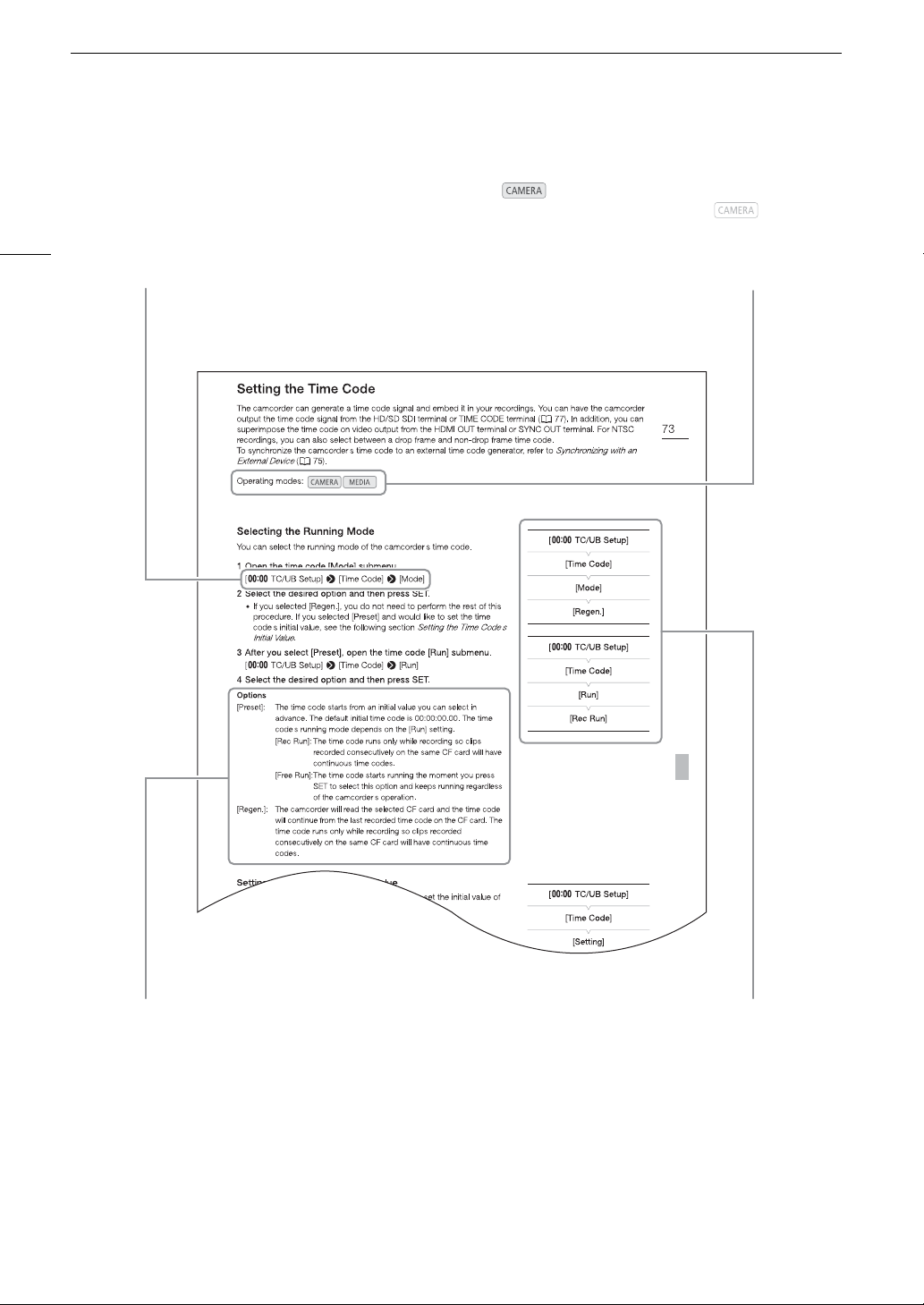
Operating modes
indicates that a function is available in the
operating mode indicated and indicates
that the function is not available. For a detailed
explanation, refer to
Turning the Camcorder On
and Off
(A 26).
When a function requires the use of the menu,
the quick reference shows the submenus and,
when applicable, the default setting for the menu
item. The example illustration indicates that you
can find the function by selecting the
[¤ TC/UB Setup] menu and then the
[Time Code] menu item.
The arrow is used to abbreviate menu
selections. For a detailed explanation on how to
use the menus, refer to
Using the Menus
(A 29). For a concise summary of all available
menu options and settings, refer to the appendix
Menu Options
(A 155).
When a procedure requires selecting an option,
the available options are listed within or after the
procedure. Brackets [ ] are used to refer to menu
options as they are displayed on screen.
13
Supplied Accessories
Supplied Accessories
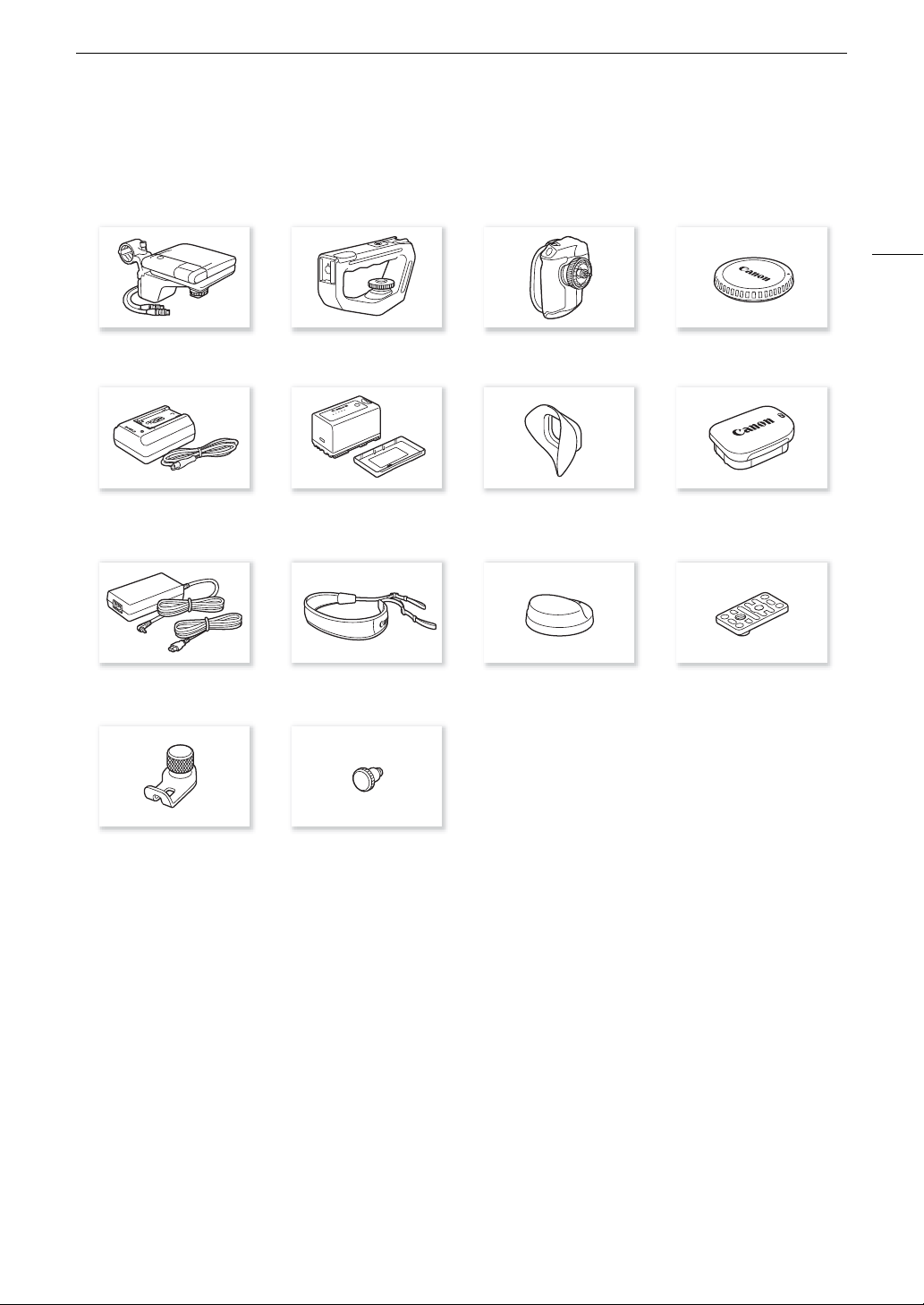
The following accessories are supplied with the camcorder.
1
Comes pre-attached to the camcorder.
2
Used to secure the optional WFT-E6 or WFT-E8 Wireless File Transmitter or optional GP-E1 GPS Receiver, when it is attached to
the camcorder.
Monitor Unit Handle Unit Grip Unit
1
Body Cap
1
Battery Charger CG-945
(incl. power cord)
BP-955 Battery Pack
(incl. terminal cover)
Eye Cup Viewfinder Cap
CA-945 AC Adapter
(incl. power cord)
SS-1200 Shoulder Strap Thumb Rest Adapter Base for 0.64 cm (1/4 in.)
Tripods
WFT Attachment Bracket
2
Tape Measure Hooks
1
(x 2)
Names of Parts
14
Names of Parts
6
7
8
9
10
11
12
13
16
5
4
3
2
1
1514
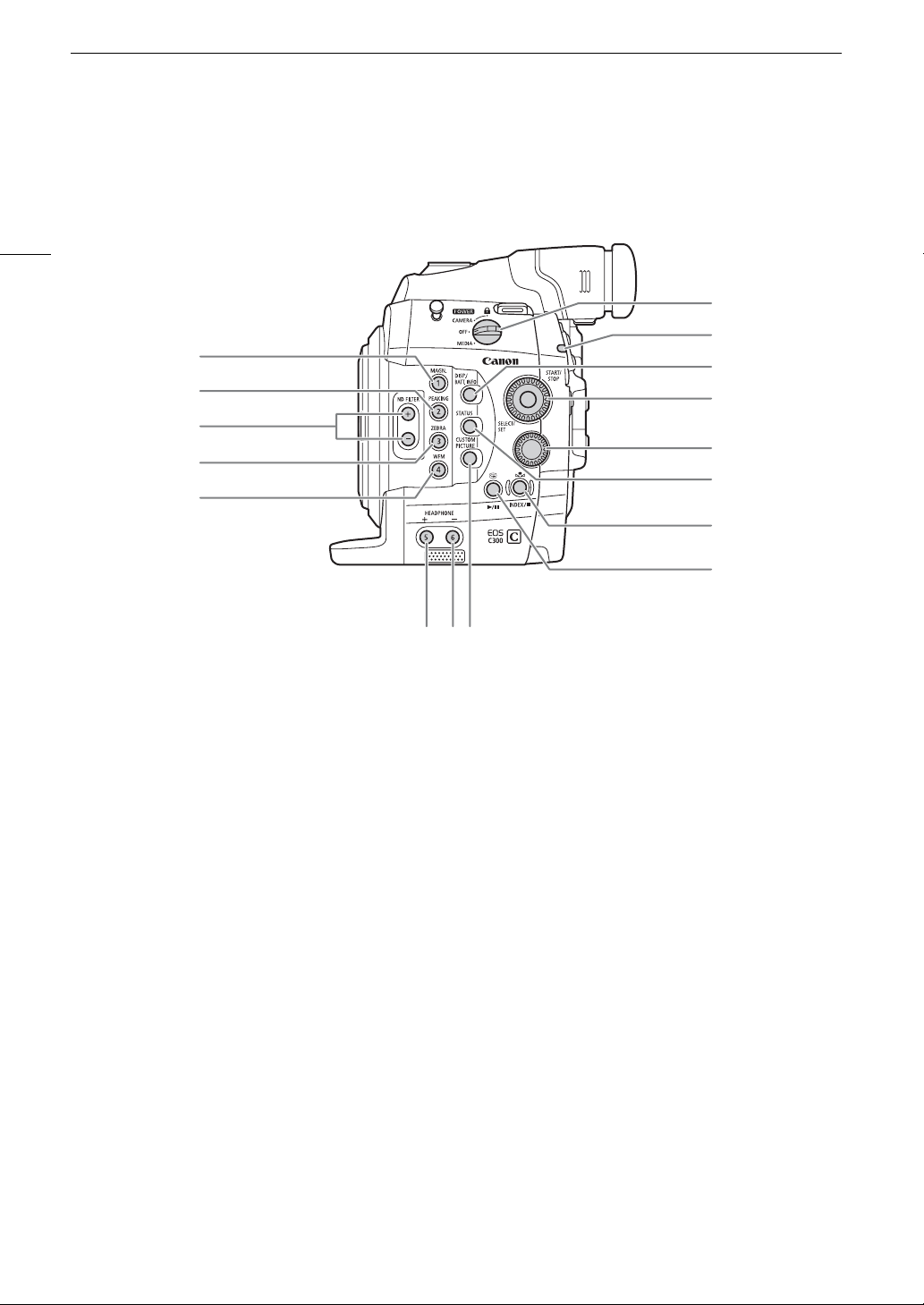
1 MAGN. (magnification) button (A 80)/
Assignable button 1 (A 113)
2 PEAKING button (A 80) /
Assignable button 2 (A 113)
3 ND FILTER +/- buttons (A 68)
4 ZEBRA button (A 85)/
Assignable button 3 (A 113)
5 WFM (waveform monitor) button (A 101)/
Assignable button 4 (A 113)
6 Q switch (A 26)
7 Tally lamp (A 51)
8 DISP. (display) button (A 55,130)/BATT. INFO
(battery information) button (A 24)
9 SELECT dial/SET button (A 29)
10 Control dial (A 66, 69)
11 STATUS button (A 165)
12 Å (white balance adjustment) button (A 75)/
INDEX button (A 128)/Ñ (stop) button (A 129)
13 u (review recording) button (A 107)/Ò
(play/pause) button (A 129)
14 HEADPHONE + button (A 131)/Assignable
button 5 (A 113)
15 HEADPHONE - button (A 131)/Assignable
button 6 (A 113)
16 CUSTOM PICTURE button (A 116)
15
Names of Parts
29
17
18
19
20
21
22
23
24
25
26
27
28
30
31
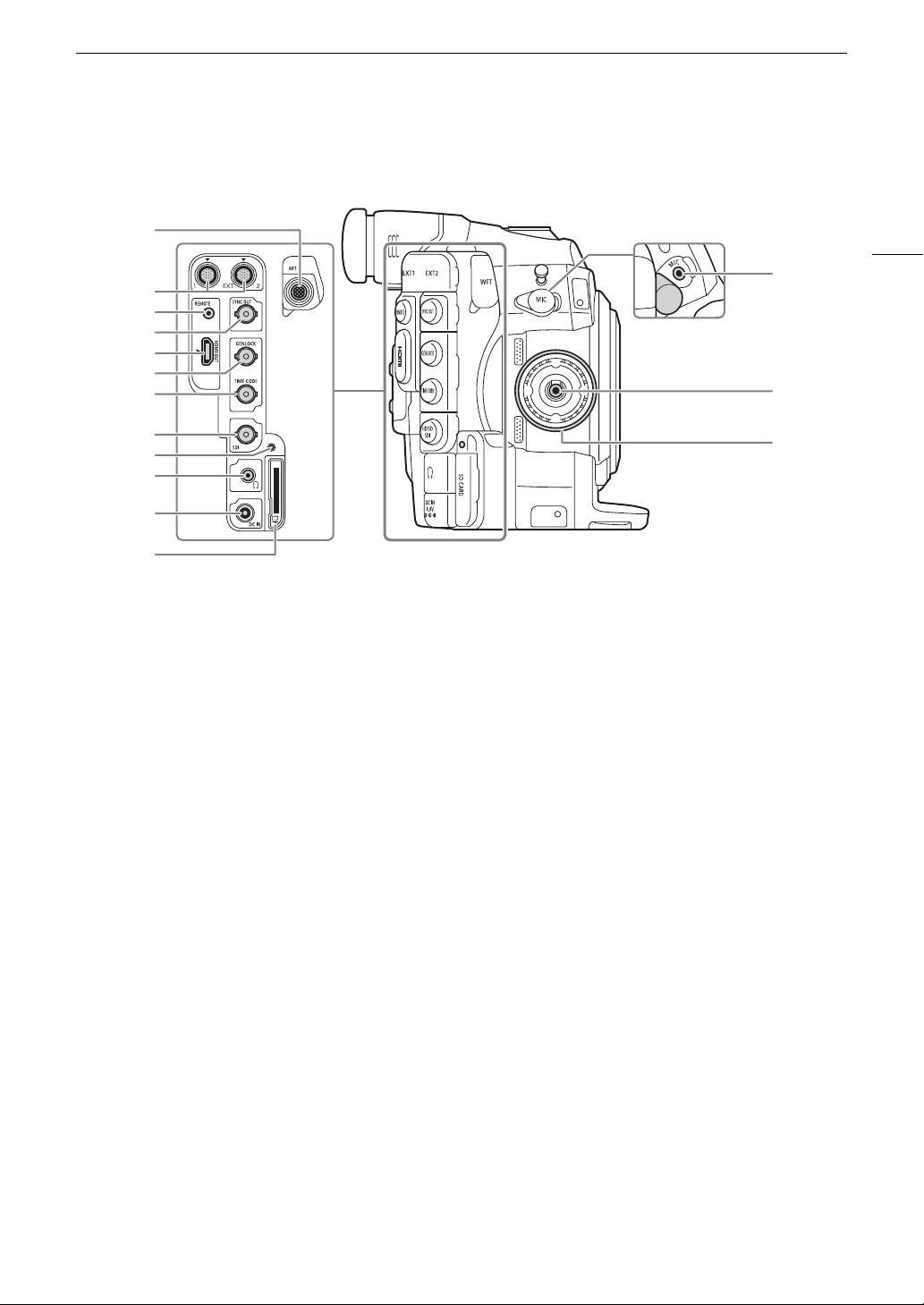
17 WFT terminal (A 49, 105)
18 EXT (external signal) terminals 1 and 2 (A 36)
19 REMOTE terminal
For connecting commercially available remote
controllers.
20 SYNC OUT (synchronizing signal output) terminal
(A 92,143)
21 HDMI OUT terminal (A 143)
22 GENLOCK terminal (A 90)
23 TIME CODE terminal (A 91, 92)
24 HD/SD SDI terminal (A 143)
25 SD card access indicator (A 44)
26 × (headphone) terminal (A 97)
27 DC IN terminal (A 25)
28 SD card slot (A 44)
29 MIC (microphone) terminal (A 93)
30 Grip Unit connection terminal (A 40)
31 Grip Unit attachment thread (A 40)
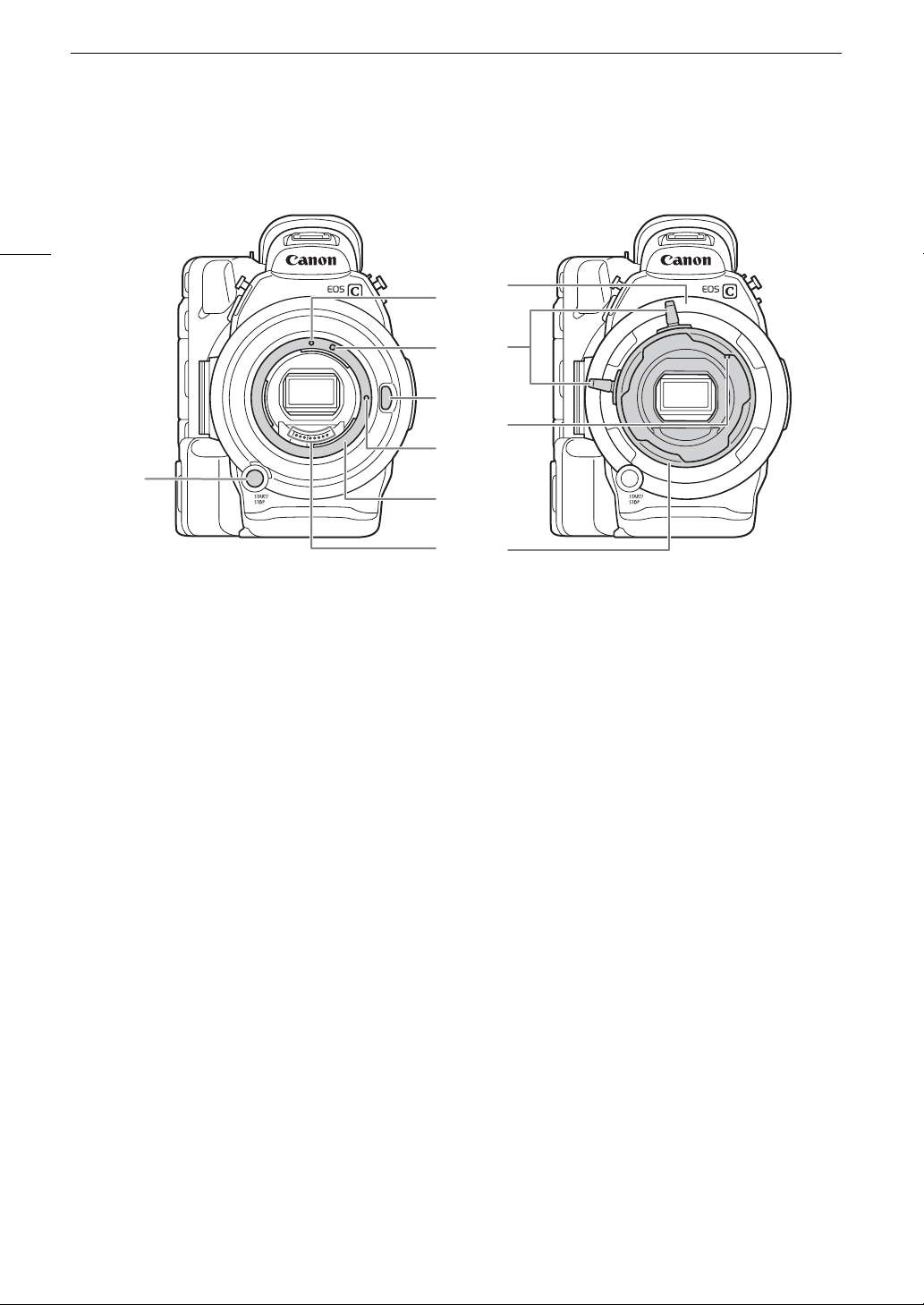
Names of Parts
16
33
39
40
41
42
34
35
36
37
38
32
#$
32 START/STOP button (A 51)
33 # EF Lens mount index (A 32)
34 # EF-S Lens mount index (A 32)
35 # Lens release button (A 32)
36 # EF Lens lock pin (A 32)
37 # EF Lens mount (A 32)
38 # EF Lens contacts (A 32)
39 $ PL Lens mount (A 36)
40 $ Bayonet ring handles (A 36)
41 $ PL Lens index pin (A 36)
42 $ Bayonet ring (A 36)
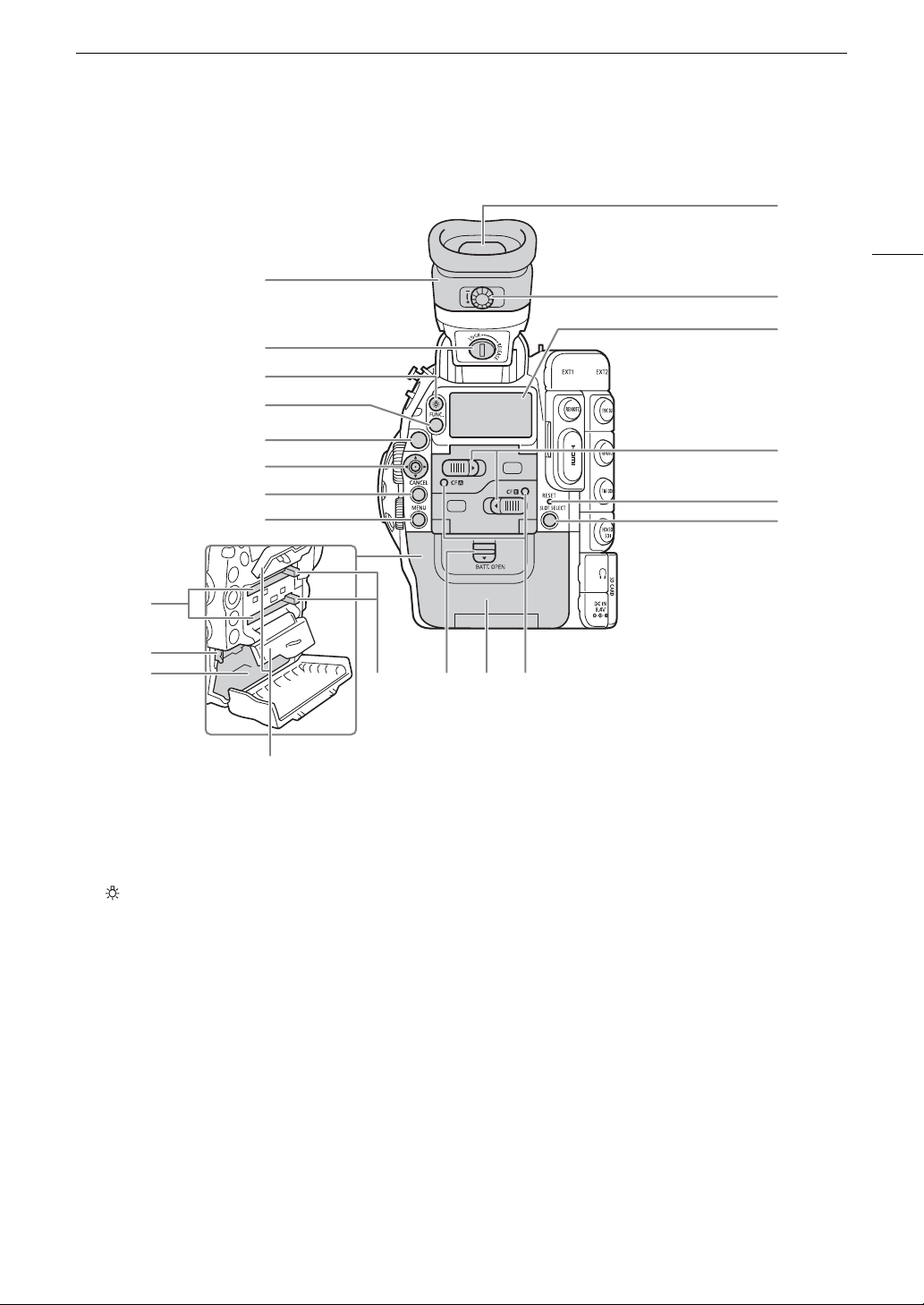
17
Names of Parts
54
55
56
57
58
59
64636261
60
53
52
51
50
49
48
47
46
45
44
43
43 Viewfinder unit
44 Viewfinder unit LOCK/RELEASE screw (A 181)
45 (rear panel’s backlight) button (A 57)
46 FUNC. (main functions) button (A 61)
47 START/STOP button (A 51)
48 Joystick (A 29)/SET button (A 29)
49 CANCEL button (A 29)
50 MENU button (A 29)
51 CF card slots A (top) and B (bottom) (A 43)
52 RELEASE (battery release) latch (A 24)
53 Battery compartment (A 24)
54 Viewfinder (A 37, 39)
55 Dioptric adjustment dial (A 38)
56 Rear panel (A 57)
57 CF card slot cover switches for CF card slots A
(top) and B (bottom) (A 43)
58 RESET button (A 174)
59 SLOT SELECT (CF card slot selection) button
(A 46, 128)
60 CF card slot covers for CF card slots A (top) and B
(bottom)
61 CF card release buttons for CF card slots A (top)
and B (bottom) (A 44)
62 BATT. OPEN (open battery compartment) switch
(A 24)
63 Battery compartment cover (A 24)
64 CF2 (CF card slot A) and CF3 (CF card slot B)
access indicators (A 44)
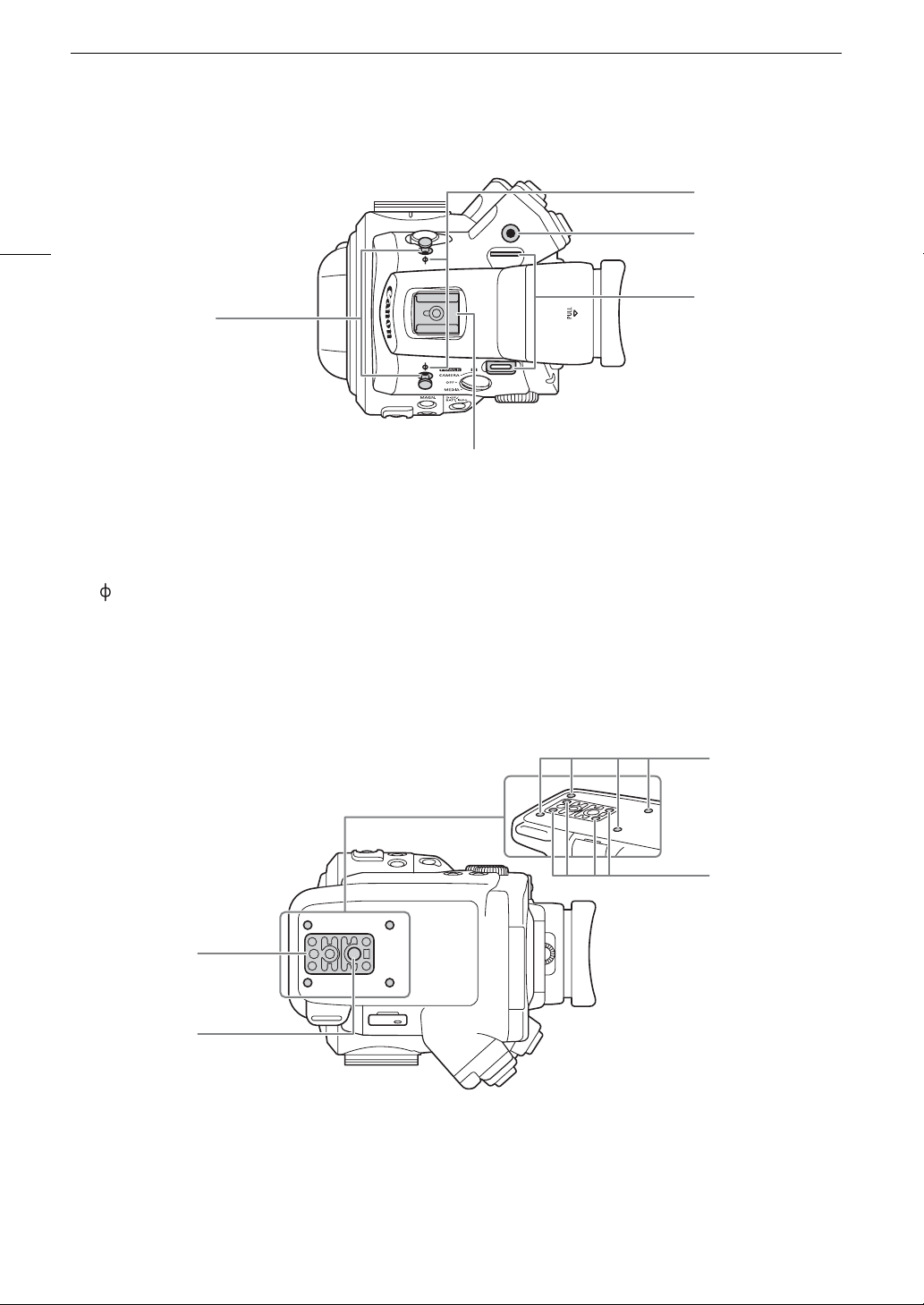
Names of Parts
18
66
67
68
69
65
65 Tape measure hooks
Use the hooks to accurately measure the distance
from the focal plane.
66 Focal plane marks
67 Socket for the WFT Attachment Bracket (A 49)
68 Strap mounts (A 41)
69 Accessory shoe with mounting hole for
0.64 cm (1/4 in.) screws
For attaching accessories such as the optional
VL-10Li II Battery Video Light.
72
73
71
70
70 TB-1 Tripod Base for tripods with 0.95 cm (3/8 in.)
screws (A 40)
71 Tripod socket (A 40)
72 Attachment sockets for the optional TA-100 Tripod
Adapter (A 40)
73 Tripod base screws (A 40)
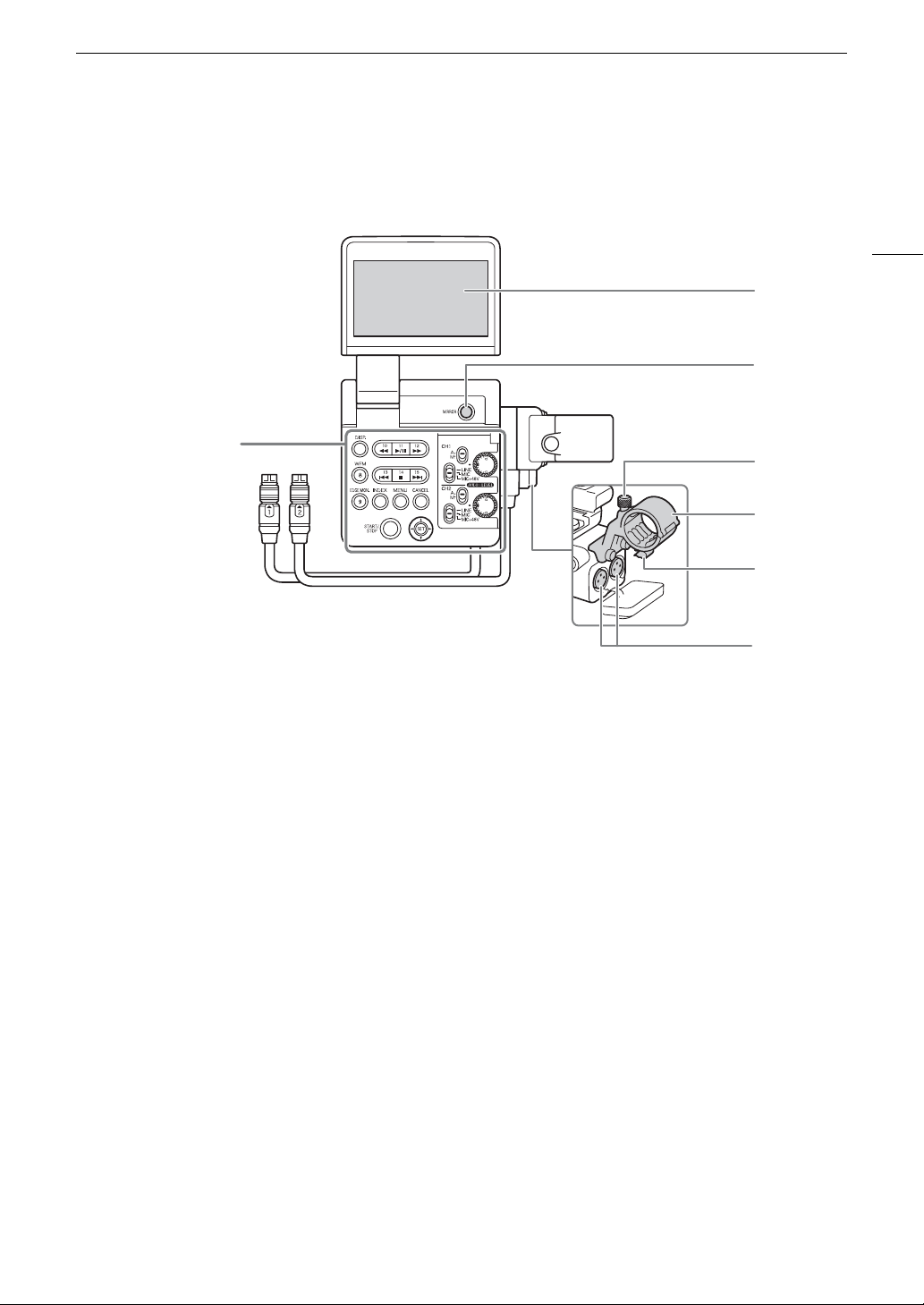
Names of Parts
20
Operation panel
19
20
24232221
12
11
10
9
8
7
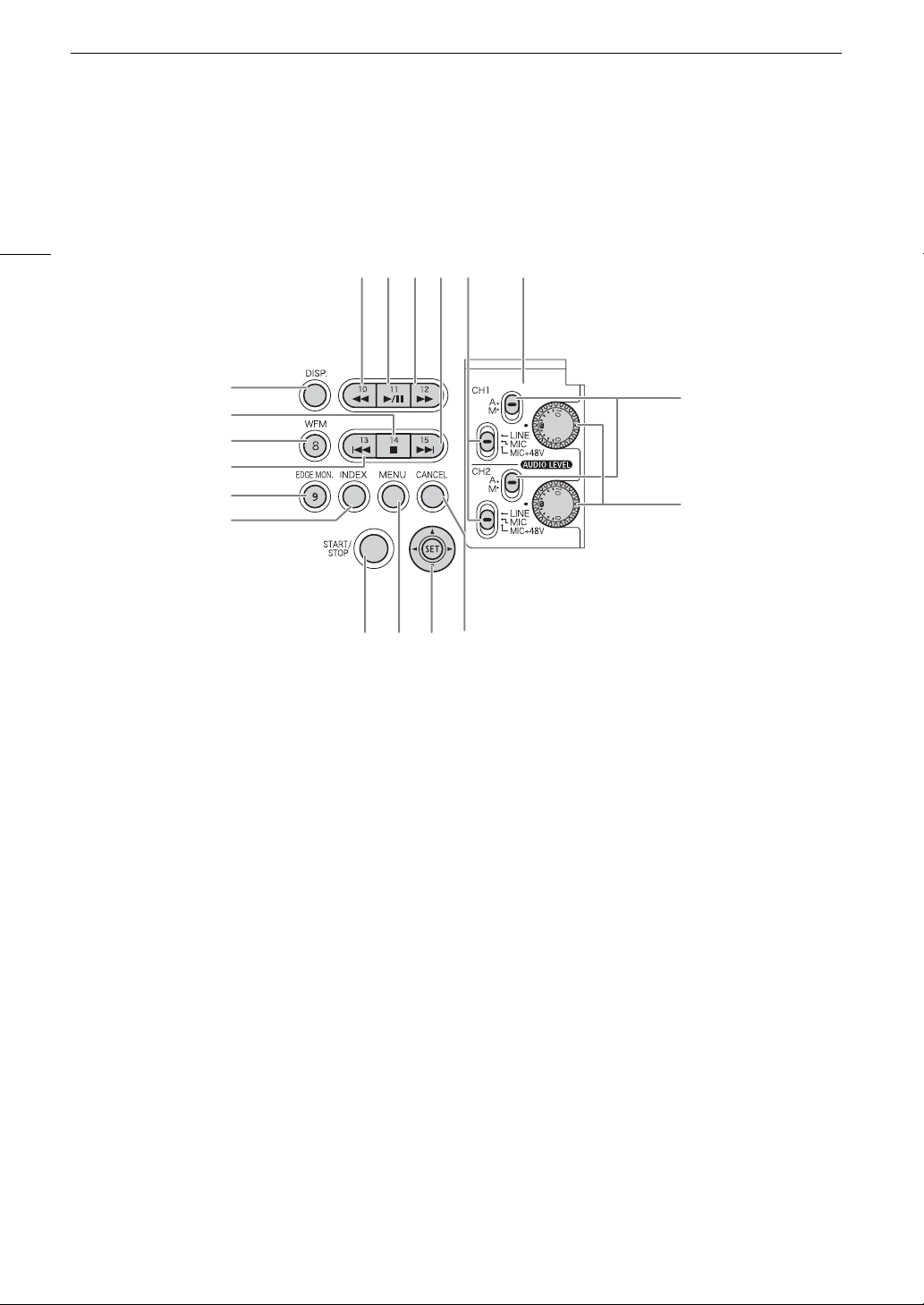
13 14 15 16 17 18
7 DISP. (display) button (A 55, 130)
8 Ñ (stop) button (A 129)/
Assignable button 14 (A 113)
9 WFM (waveform monitor) button (A 101)/
Assignable button 8 (A 113)
10 Ú (skip backward) button (A 131)/
Assignable button 13 (A 113)
11 EDGE MON. (edge monitor) button (A 101)/
Assignable button 9 (A 113)
12 INDEX button (A 128)
13 Ø (fast reverse playback) button (A 131)/
Assignable button 10 (A 113)
14 Ò (play/pause) button (A 129)/
Assignable button 11 (A 113)
15 × (fast playback) button (A 131)/
Assignable button 12 (A 113)
16 Ù (skip forward) button (A 131)/
Assignable button 15 (A 113)
17 XLR terminal switches for CH1 (top) and CH2
(bottom) (A 94)
18 Protective cover for XLR audio controls (A 95)
19 ã switches for CH1 (top) and CH2
(bottom) (A 95)
20 ã dials for CH1 (top) and CH2 (bottom)
(A 95)
21 START/STOP button (A 51)
22 MENU button (A 29)
23 Joystick (A 29)/SET button (A 29)
24 CANCEL button (A 29)
21
Names of Parts
Grip Unit
Handle Unit
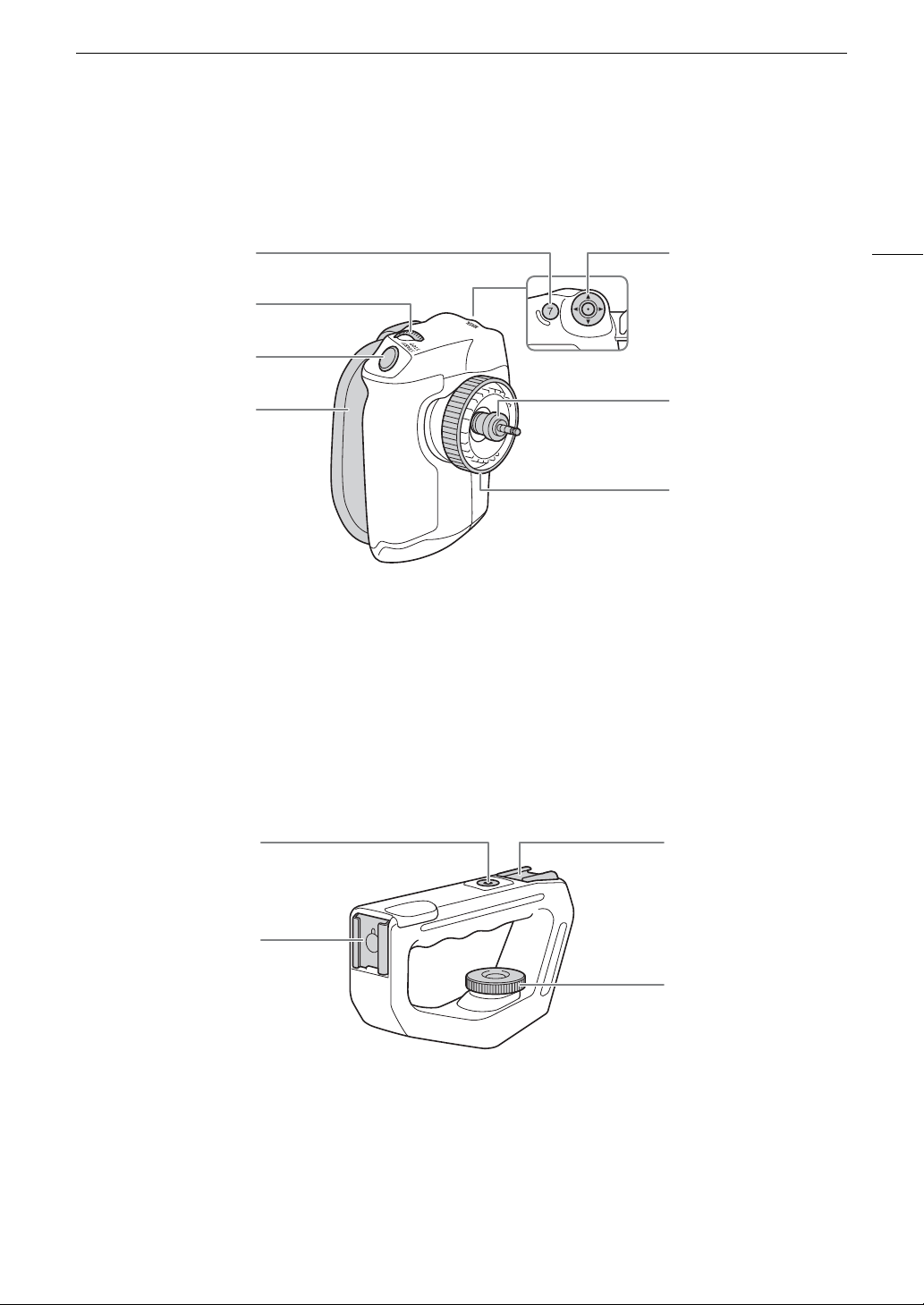
5
6
7
1
2
3
4
1 MAGN. (magnification) button (A 80)/
Assignable button 7 (A 113)
2 Control dial (A 66, 69)
3 START/STOP button (A 51)
4 Grip belt (A 41)
5 Joystick (A 29)/SET button (A 29)
6 Connection plug (A 40)
7 Lock screw (A 40)
31
2
4
1 Mounting hole for 0.64 cm (1/4 in.) screws
2 Front accessory shoe
3 Top accessory shoe
4 Lock screw (A 41)

Names of Parts
22
2
23
Preparations
Preparing the Power Supply
You can power the camcorder using a battery pack or directly using the AC adapter. If you connect the AC
adapter to the camcorder while a battery pack is attached, the camcorder will draw power from the power
outlet.
Charge battery packs before use. For approximate charging times and recording/playback times with a fully
charged battery pack, refer to
Charging Times
(A 184) and
Recording and Playback Times
(A 184).
Using a Battery Pack
You can power the camcorder using the supplied BP-955 or an optional BP-950G, BP-970G or BP-975 Battery
Pack*. All four are compatible with Intelligent System, meaning that you can check the remaining battery time.
* The optional BP-970G / BP-975 Battery Pack was not originally designed for use with this camcorder. Because of its size, you
will not be able to close the battery compartment cover when using one (A 179).
Charging the Battery Pack
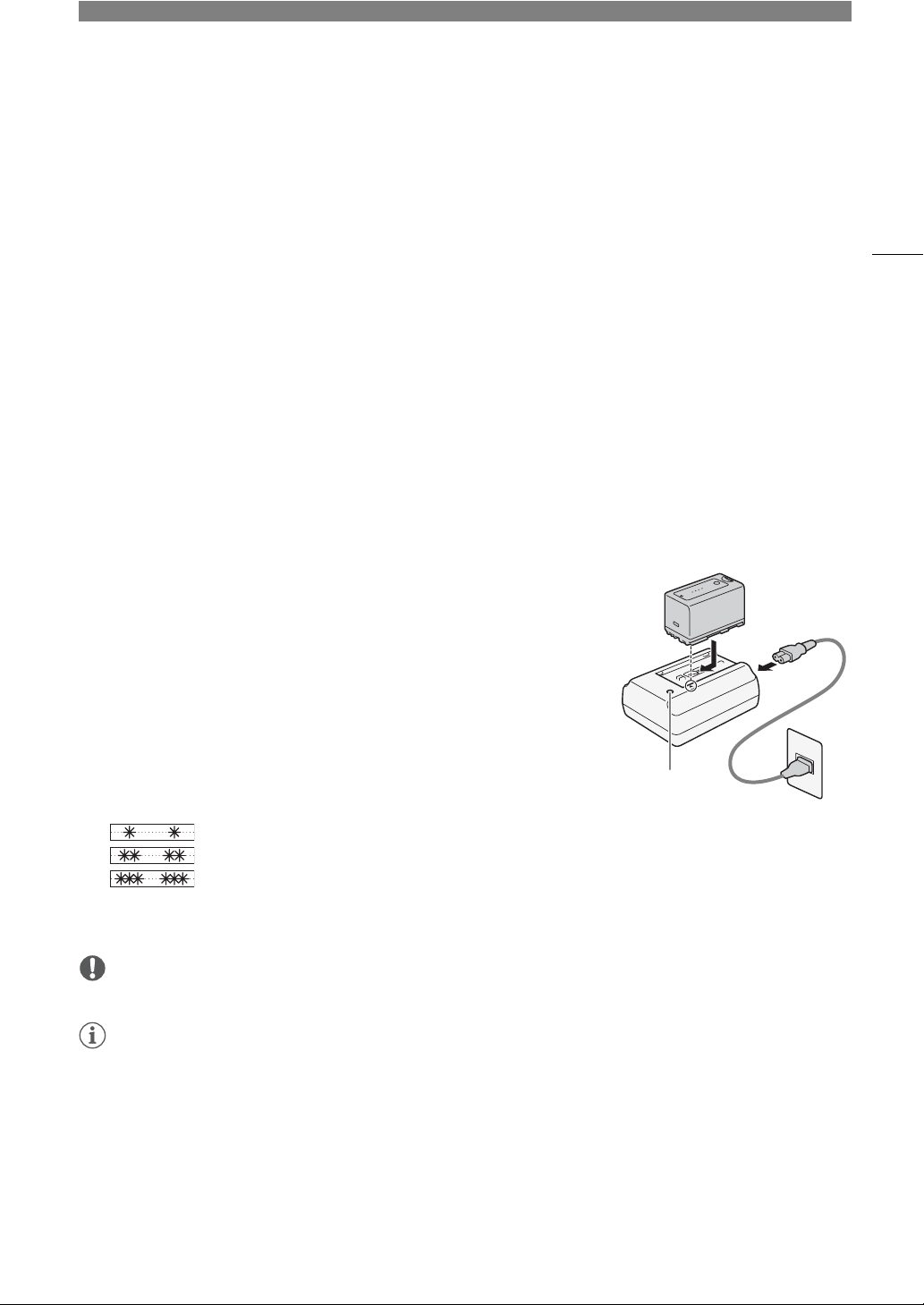
Charge battery packs using the supplied CG-945 Battery Charger. Before
using a battery pack, remove the terminal cover in advance.
1 Connect the power cord to the battery charger.
2 Plug the power cord into a power outlet.
3 Attach the battery pack to the battery charger.
• Press lightly and slide the battery pack in the direction of the arrow until it clicks.
• The CHARGE indicator starts flashing and also indicates the battery
pack’s approximate charge. The indicator will stay on when charging has
completed.
0-34%: Flashes once per second
35-69%: Flashes twice per second
70-99%: Flashes 3 times per second
4 When charging has completed, remove the battery pack from the battery charger.
5 Unplug the power cord from the power outlet and disconnect it from the battery charger.
IMPORTANT
• Do not connect to the battery charger any product that is not expressly recommended for use with this camcorder.
NOTES
• We recommend charging the battery pack in temperatures between 10 ºC and 30 ºC (50 ºF and 86 ºF).
Outside the temperature range of 0 ºC to 40 ºC (32 ºF to 104 ºF), charging will not start.
• If there is a malfunction with the battery charger or battery pack, the charge indicator will go out and charging
will stop.
• For handling precautions regarding the battery pack, refer to
Battery Pack
(A 178).
• Charged battery packs continue to discharge naturally. Therefore, charge them on the day of use, or the day
before, to ensure a full charge.
• We recommend that you prepare battery packs to last 2 to 3 times longer than you think you might need.
햲
햴
햳
CHARGE indicator
Preparing the Power Supply
24
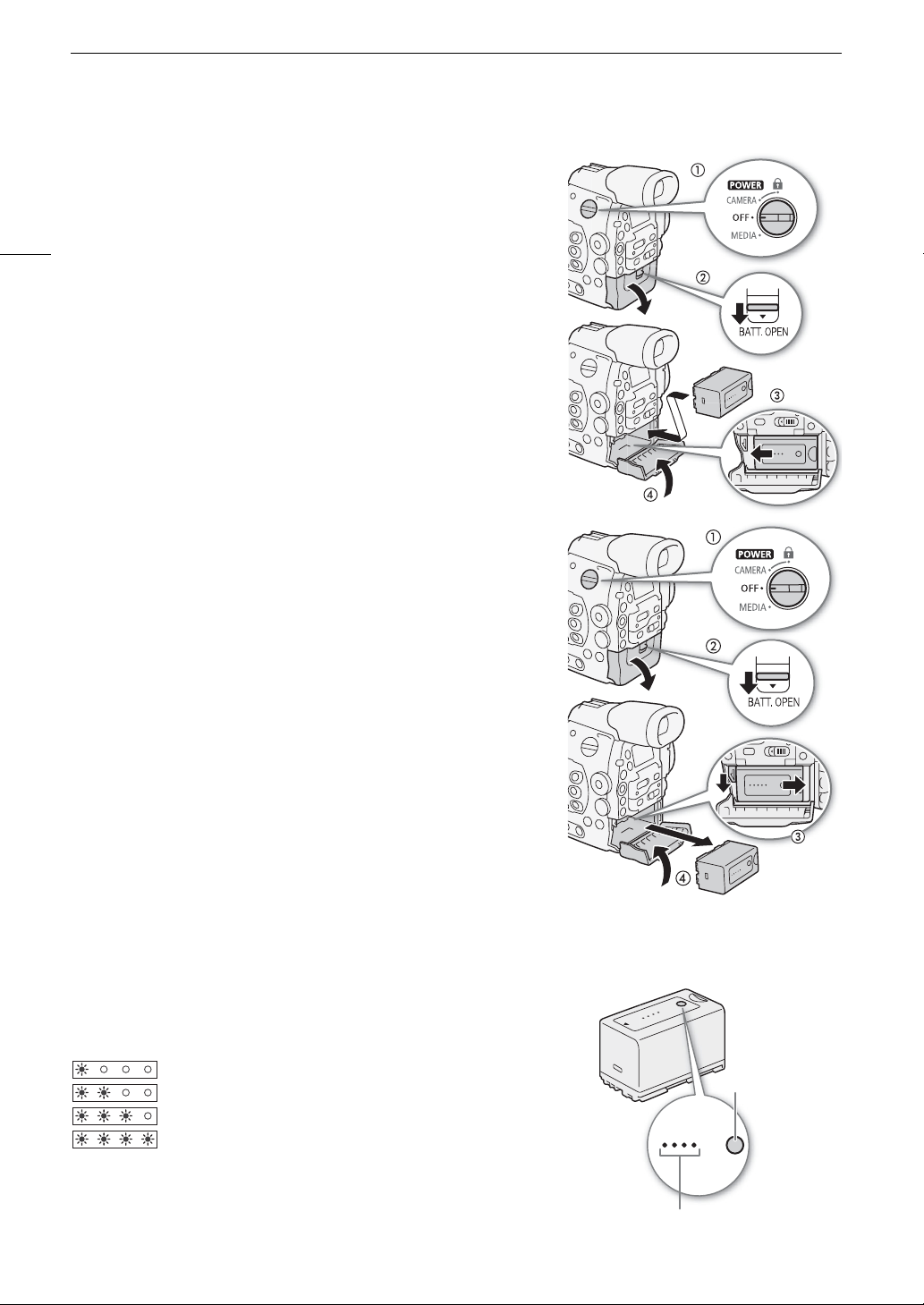
Attaching the Battery Pack
1 Set the Q switch to OFF.
2 Slide the BATT. OPEN switch in the direction of the arrow and open
the battery compartment cover.
3 Insert the battery pack all the way into the compartment as shown
in the illustration and press it gently toward the left until it clicks.
4 Close the battery compartment cover.
Removing the Battery Pack
1 Set the Q switch to OFF.
2 Slide the BATT. OPEN switch in the direction of the arrow and open
the battery compartment cover.
3 Holding down the RELEASE latch, slide the battery pack toward the
right and then pull it out.
4 Close the battery compartment cover.
Checking the Remaining Battery Charge
When the camcorder is turned on, you can check the remaining battery charge by looking at any recording/
playback screen or the [Battery/Hour Meter] status screen (A 169). When the camcorder is turned off, use one
of the following methods to check the approximate remaining battery charge.
Press the CHECK button on the battery pack. An indicator will light for
approximately 3 seconds and show the approximate remaining battery
charge.
0-25%
26-50%
51-75%
76-100%
0100%
CHECK button
Battery charge indicator
25
Preparing the Power Supply
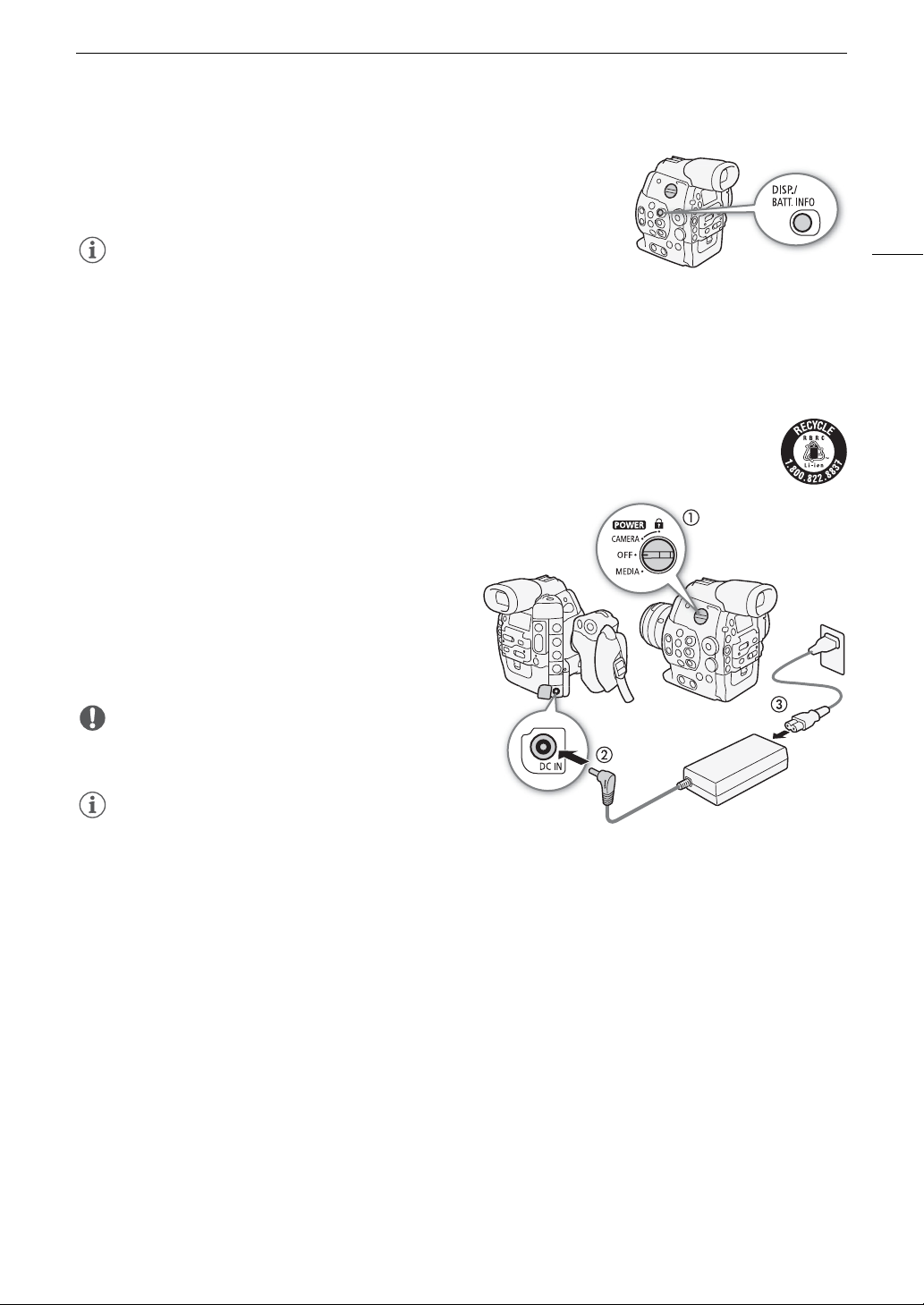
Press the BATT. INFO button to display the remaining battery charge for 5
seconds. Depending on the battery life, the battery information may not be
displayed.
NOTES
• The first time you use a battery pack, fully charge it and then use the
camcorder until the battery pack is completely exhausted. Doing so will ensure that the remaining recording
time will be displayed accurately.
• Repeatedly charging and discharging the battery pack will eventually shorten its battery life. You can check the
battery life on the [Battery/Hour Meter] status screen (A 169) or the battery information screen (press the
BATT. INFO button while the camcorder is turned off). Fully charging the battery pack and then discharging it
will give you a more accurate reading.
• USA and Canada only: The Lithium ion/polymer battery that powers the product is recyclable.
Please call 1-800-8-BATTERY for information on how to recycle this battery.
Using a Power Outlet
You can also power the camcorder directly from a
power outlet using the supplied CA-945 AC Adapter.
1Set the Q switch to OFF.
2 Connect the AC adapter’s DC plug to the DC IN
terminal on the camcorder.
3 Connect the power cord to the AC adapter and plug
it into a power outlet.
IMPORTANT
• Turn off the camcorder before connecting or
disconnecting the AC adapter.
NOTES
• When using the camcorder with a power outlet, you
can change the battery pack while the power is on.
DC IN
terminal
Preparing the Power Supply
26
Turning the Camcorder On and Off
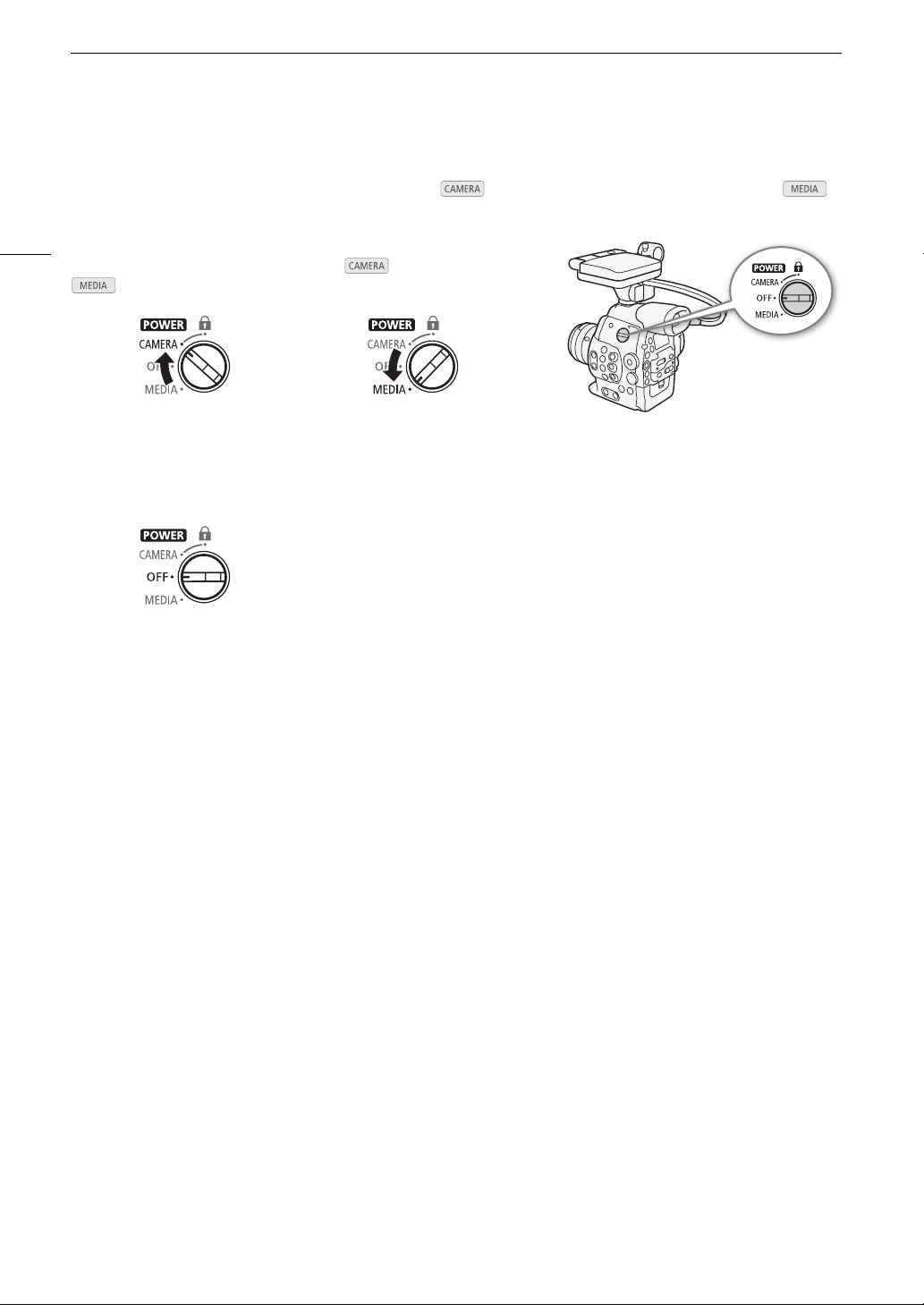
The camcorder has two operating modes: CAMERA ( ) mode for making recordings and MEDIA ( )
mode for playing back recordings. Select the operating mode using the Q switch.
To turn on the camcorder
Set the Q switch to CAMERA for mode or MEDIA for
mode.
To turn off the camcorder
Set the Q switch to OFF.
CAMERA mode MEDIA mode
27
Date, Time and Language Settings
Date, Time and Language Settings
Setting the Date and Time
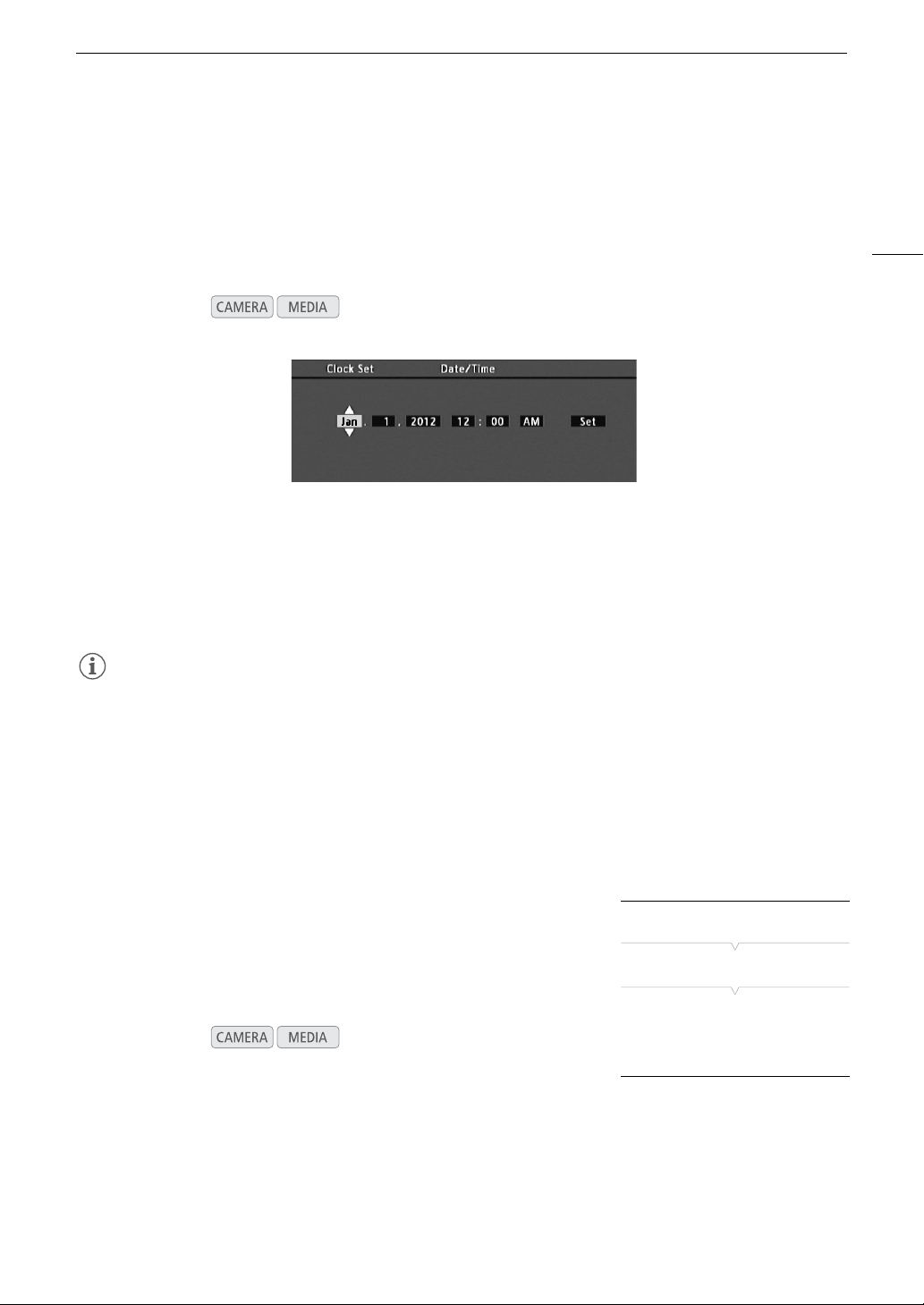
You will need to set the date and time of the camcorder before you can start using it. When the camcorder’s
clock is not set, the [Date/Time] screen will appear automatically with the first field selected (month or day,
depending on the country/region of purchase).
1 Push the joystick up/down or turn the SELECT dial to change the month/day then move (Ð) to the
next field.
• To move to the next field you can also press SET (press the joystick itself or press the SET button).
2 Change the rest of the fields in the same way.
3 Select (Ð) [Set] and then press SET to start the clock and close the screen.
NOTES
• You can change the date format and the clock format (12/24 hours) with the [w Other Functions] >
[Set Clock] > [Date Format] setting.
• You can also change the date and time later on (not during the initial setup) with the [w Other Functions] >
[Set Clock] > [Date/Time] setting.
• When the built-in rechargeable lithium battery is exhausted, the date and time setting may be lost. In such
case, recharge the built-in lithium battery (A 180) and set the time zone, date and time again.
• Using the optional GP-E1 GPS Receiver, you can have the camcorder adjust settings automatically according
to the date/time information received from the GPS signal (A 105).
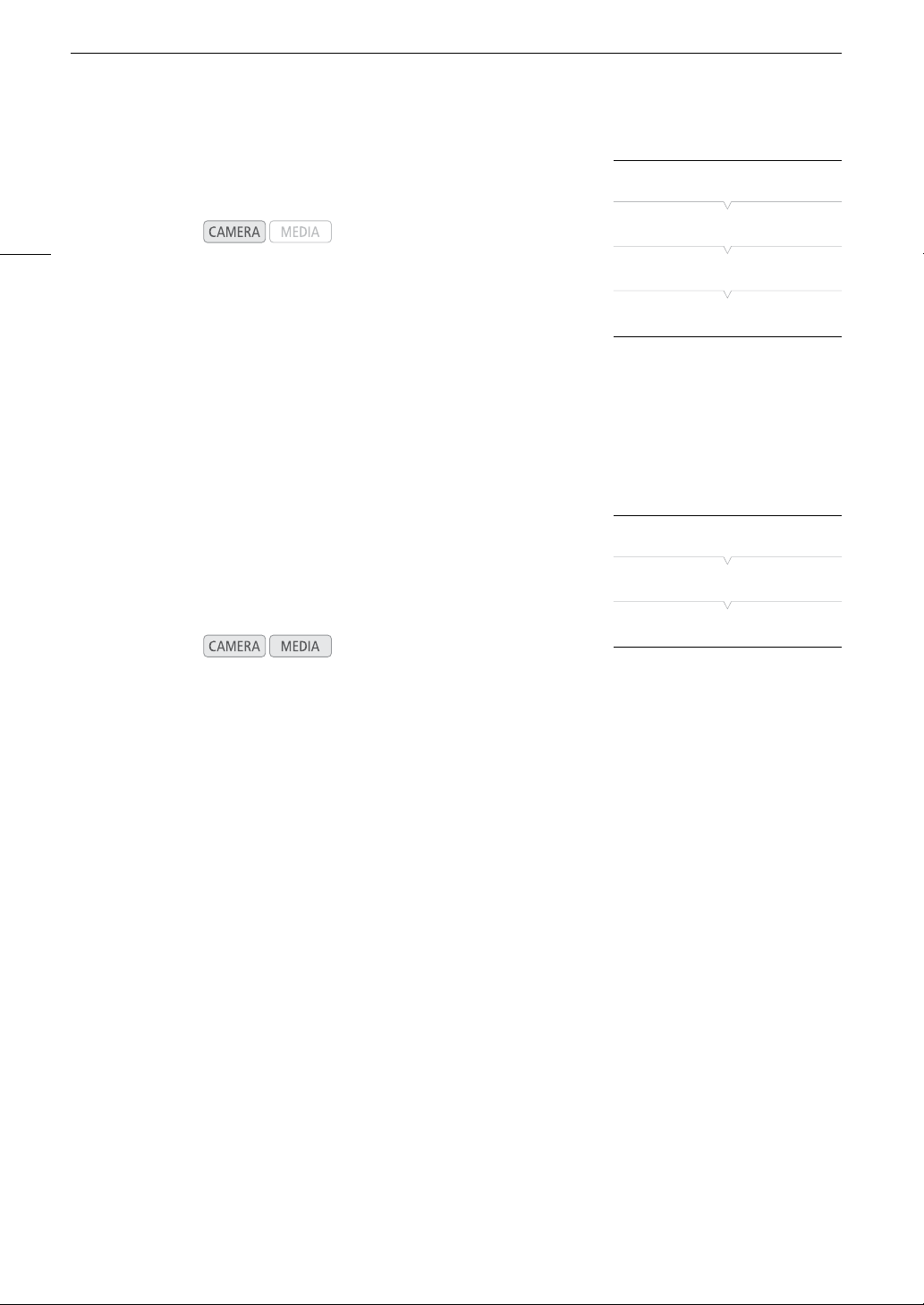
Changing the Time Zone
Change the time zone to match the time zone of your location. The default
setting is [UTC-05:00 New York] or [UTC+01:00 Central Europe],
depending on the country/region of purchase. The time zones are based
on Coordinated Universal Time (UTC).
1 Press the MENU button.
2 Push the joystick up/down or turn the SELECT dial to select
[
w Other Functions].
3 Select [Time Zone] in a similar fashion.
4 Push the joystick up/down or turn the SELECT dial to change the time zone.
5 Press SET to set the time zone and then press the MENU button to close the menu.
Operating modes:
Operating modes:
* Depending on the country/region of
purchase.
[w Other Functions]
[Time Zone]
[UTC-05:00 New York]
or
[UTC+01:00 Central Europe]*
Date, Time and Language Settings
28
Displaying the Date and Time while Recording
You can display the date and time on the screen.
1 Press the MENU button.
2 Push the joystick up/down or turn the SELECT dial to select
[£ LCD/VF Setup].
3 Select [Custom Display 2] and then [Date/Time] in a similar fashion.
4 Push the joystick up/down or turn the SELECT dial to select the information to display.
• Select [Off] to record without displaying the date and time.
5 Press SET and then press the MENU button to close the menu.
• The selected date/time display will appear at the bottom of the screen.
Changing the Language
The default language of the camcorder is English. You can change it to
German, Spanish, French, Italian, Polish, Russian, Simplified Chinese,
Korean or Japanese. Please note that some settings and screens will be
displayed in English, regardless of the language setting.
1 Press the MENU button.
2 Push the joystick up/down or turn the SELECT dial to select [w Other Functions].
3 Select [Language !] in a similar fashion.
4 Push the joystick up/down or turn the SELECT dial to select a language.
5 Press SET to change the language and then press the MENU button to close the menu.
Operating modes:
Operating modes:
[£ LCD/VF Setup]
[Custom Display 2]
[Date/Time]
[Off]
[w Other Functions]
[Language !]
[English]
29
Using the Menus
Using the Menus
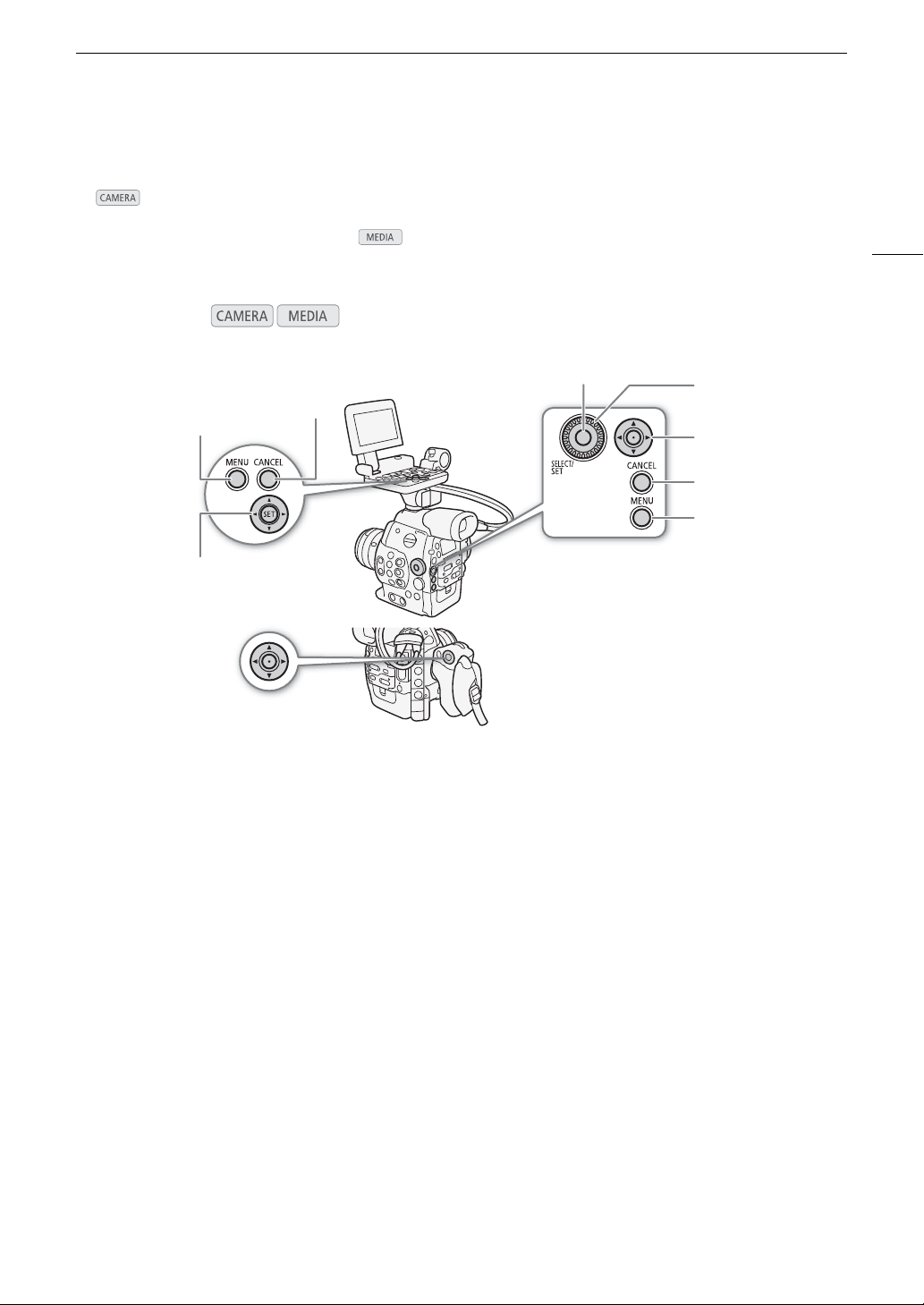
In mode, many of the camcorder’s functions can be adjusted from the menu for general settings, which
opens after pressing the MENU button. You can also register frequently used menu settings in a customized
submenu (My Menu) for easy access. In mode, press the MENU button to open the menu for general
settings or SET to open the clip menu for clip operations. For details about the available menu options and
settings, refer to
Menu Options
(A 155).
Selecting an Option from the Menu
The following is a step-by-step explanation of how to select an option from the menu. In the procedures
throughout the rest of this manual, opening and closing the menu is assumed and not included in the procedure.
1 Press the MENU button.
• The menu opens with the orange selection frame indicating the menu item that was selected the previous
time the menu was closed (unless the camcorder was turned off).
2 Push the joystick up/down or turn the SELECT dial to select the desired submenu.
3 Push the joystick right or press SET.
• The orange selection frame will appear on a menu item in the submenu.
• Press the CANCEL button, push the joystick left, or select [L] to return to the previous submenu.
4 Push the joystick up/down or turn the SELECT dial to select the desired menu item.
• If a submenu contains many menu items, a scroll bar will appear on the right side of the submenu indicating
that you must scroll up or down to see other menu items.
•A
Ð mark next to a menu item indicates another submenu. Repeat steps 3 and 4.
5 Push the joystick right or press SET.
Operating modes:
MENU button
Press to open the menu and then press again to
close the menu after adjusting desired settings.
CANCEL button
Press to return to the previous menu or to stop
some operations that are in progress.
SET button
Note that while only the joystick on the monitor
unit is labeled as “SET”, all three joysticks will
function as the SET button when pressed down.
SELECT dial
Turn the dial to move the orange selection frame
up or down in the menu.
Joystick
Push the joystick to move the orange selection
frame in the menu. Then, press the joystick itself
or the SET button at the center of the SELECT
dial to select the menu item indicated by the
orange selection frame.
CANCEL button
MENU button
SET button
Joystick
Joystick
SELECT dial
MENU button
CANCEL button

Using the Menus
30
• The orange selection frame will appear on a setting option.
• Press the CANCEL button to return to the previous submenu.
6 Push the joystick up/down or turn the SELECT dial to select the desired setting option and then
press SET.
• Depending on the menu item, additional selections may be necessary.
7 Press the MENU button to close the menu.
NOTES
• Unavailable items may appear grayed out.
• Pressing the MENU button at any time closes the menu.
• When an optional RC-V100 Remote Controller is connected to the camcorder, you can use the remote
controller’s up/down/left/right/SET buttons in the same way as the camcorder’s joystick.
• You can check the current settings on the status screens (A 165).
Using the Customized Submenu (My Menu)
You can register up to 14 frequently used menu settings under the My Menu submenu for easy access.
Furthermore, if you set an assignable button to [My Menu] (A 113), you can press the button to access your
registered menu settings even faster and more easily.
Adding Menu Settings
1 Open the My Menu [Register] screen.
[My Menu] > [Edit] > [Register]
• The menu will change to blue to indicate you are selecting menu
settings to add to the My Menu submenu.
• Press the CANCEL button to cancel the operation and return to the
regular menu.
2 Navigate the menus to find the menu setting you want to add and then press SET.
3 Select [OK] and then press SET twice.
• The menu setting you registered will now appear under the My Menu submenu.
Rearranging Menu Settings
1 Open the My Menu [Move] screen.
[My Menu] > [Edit] > [Move]
2 Push the joystick up/down or turn the SELECT dial to select the setting
you want to move and then press SET.
• An orange icon will appear next to the setting you selected to
move.
3 Push the joystick up/down or turn the SELECT dial to move the setting to the desired position and then press
SET.
[ My Menu]
[Edit]
[Register]
[ My Menu]
[Edit]
[Move]

31
Using the Menus
Removing Menu Settings
1 Open the My Menu [Delete] screen.
[My Menu] > [Edit] > [Delete]
2 Push the joystick up/down or turn the SELECT dial to select the setting
you want to remove and then press SET.
3 Select [OK] and then press SET twice.
Resetting the My Menu Submenu
1 Reset all the menu settings registered to the My Menu submenu.
[My Menu] > [Edit] > [Reset All]
2 Select [OK] and then press SET twice.
[ My Menu]
[Edit]
[Delete]
[ My Menu]
[Edit]
[Reset All]
Preparing the Camcorder
32
Preparing the Camcorder
This section outlines the basic preparations for the camcorder such as attaching a lens and attaching the
modular units to the camcorder: monitor unit, grip unit, handle unit, thumb rest, eye cup, etc. Your camcorder is
nothing if not versatile and you can choose the configuration that best fits your needs and shooting conditions.
NOTES
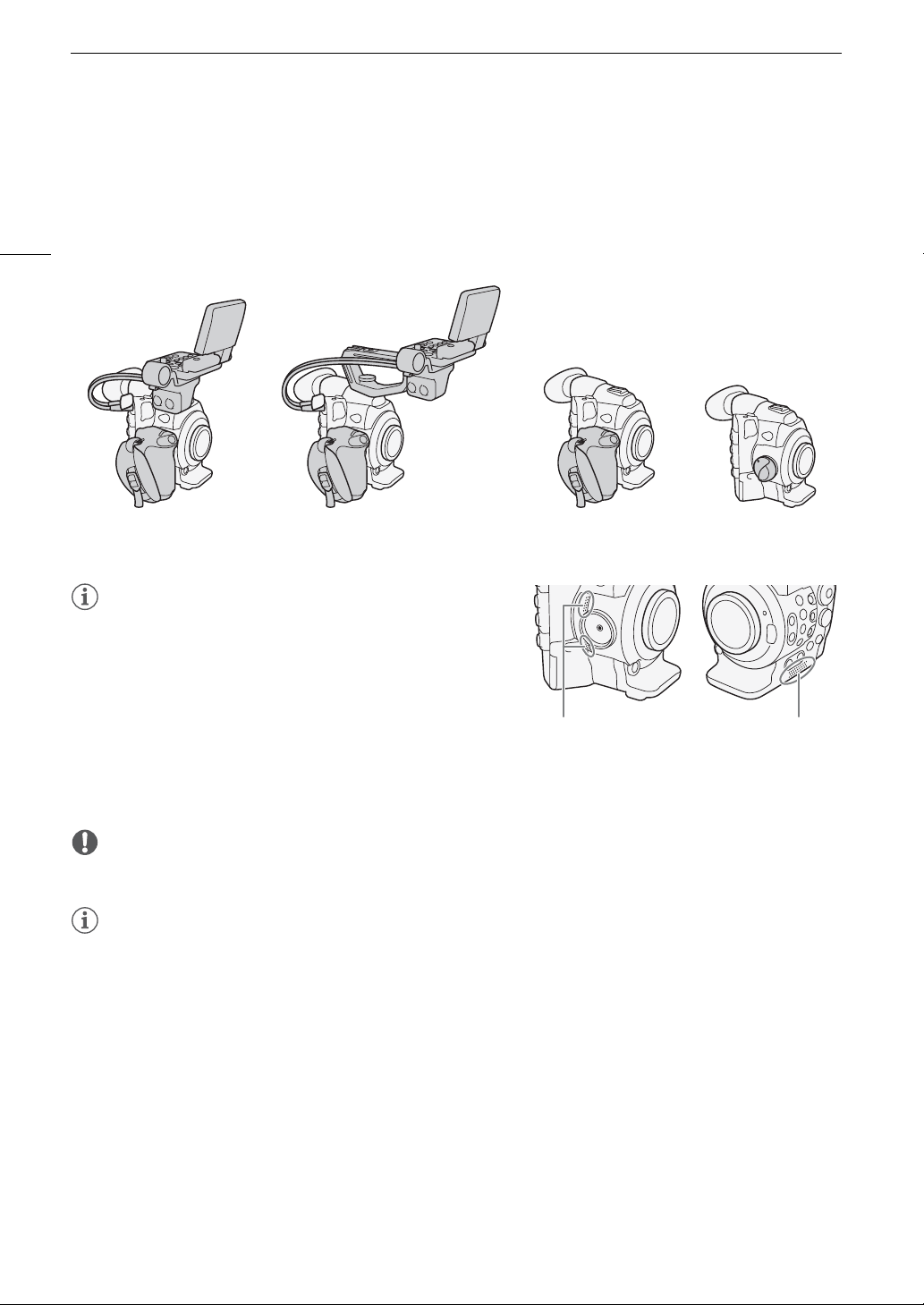
• When changing the camcorder’s configuration, be careful not
to cover with tape or otherwise obstruct the cooling fan’s air
intake vents (marked as AIR INTAKE).
Preparing the Lens
As much as possible, attach and remove the lens quickly and in a clean environment free of dust. Refer also to
the instruction manual of the lens used.
IMPORTANT
• When attaching/removing a lens, avoid direct sunlight or strong light sources. Also, be careful not to drop the
camcorder or lens.
NOTES
• Be careful not touch the lens mount or any components inside the lens mount area.
• Replace the body cap to the lens mount immediately after removing the lens from the camcorder.
• Keep the body cap clean and free from dust or dirt particles.
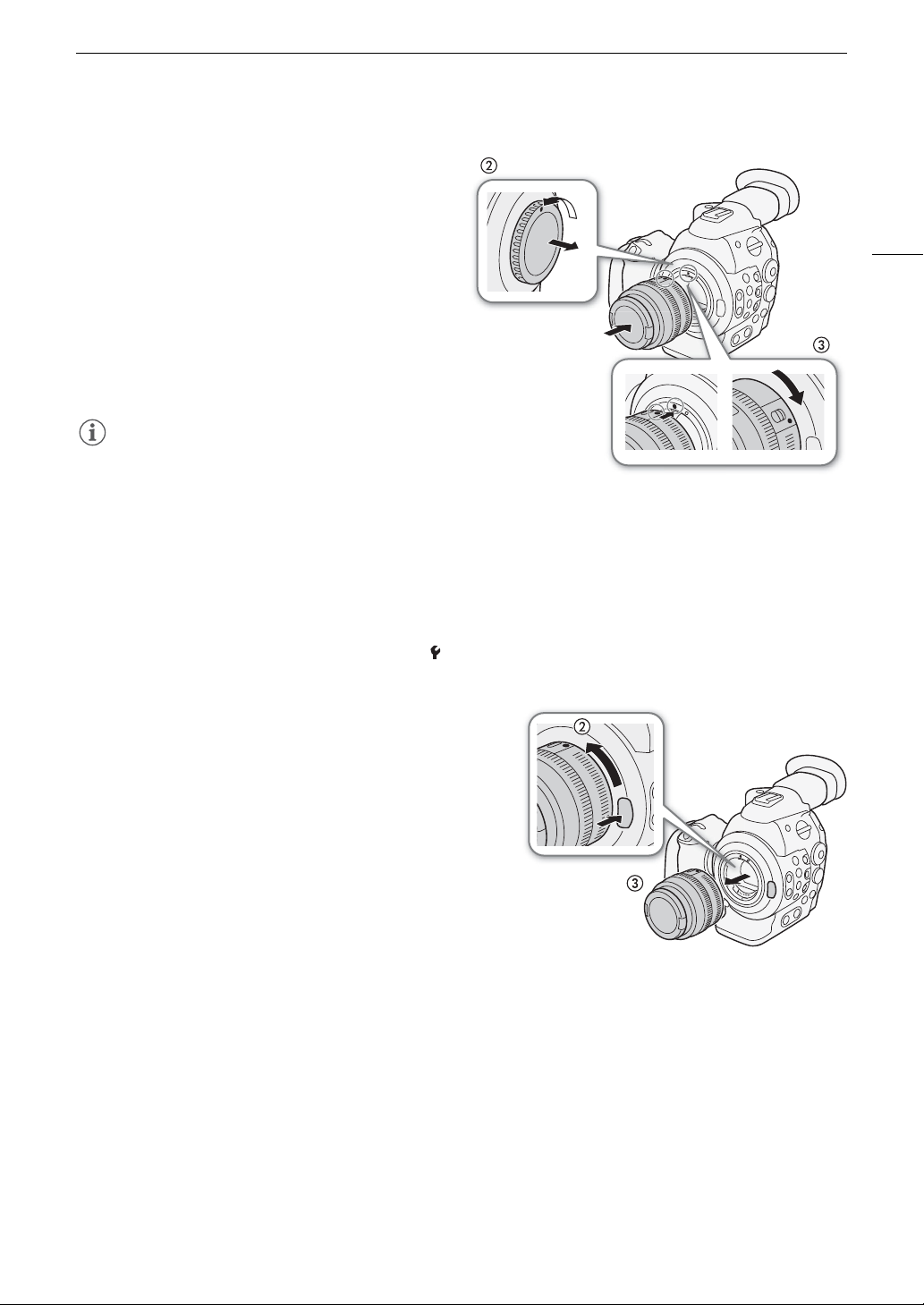
Configuration with monitor Configuration with monitor
and handle for easy carrying
Light configuration with grip
for hand-held shooting
Minimal configuration with
thumb rest
Intake vents Intake vents
33
Preparing the Camcorder
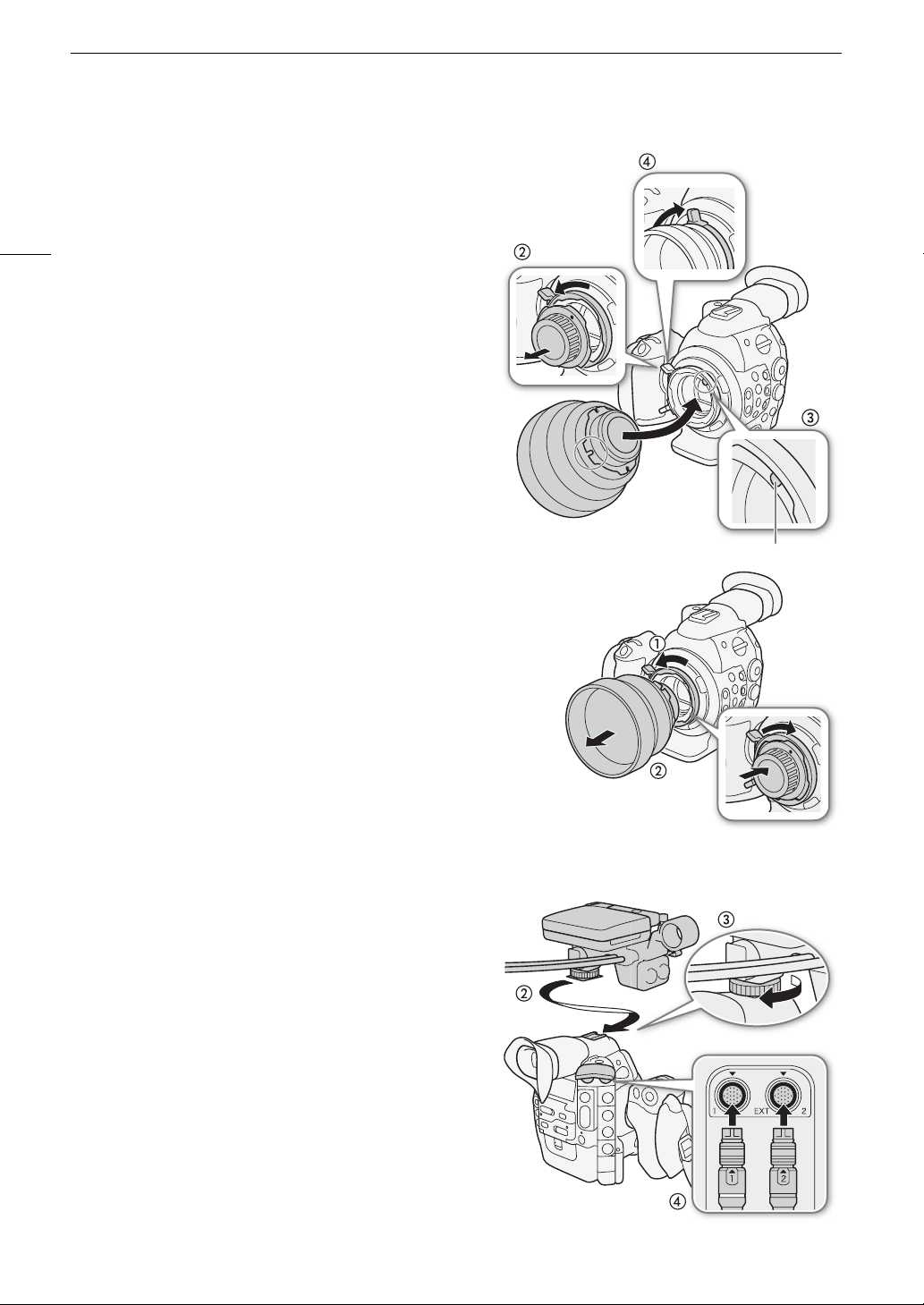
# Attaching an EF Lens
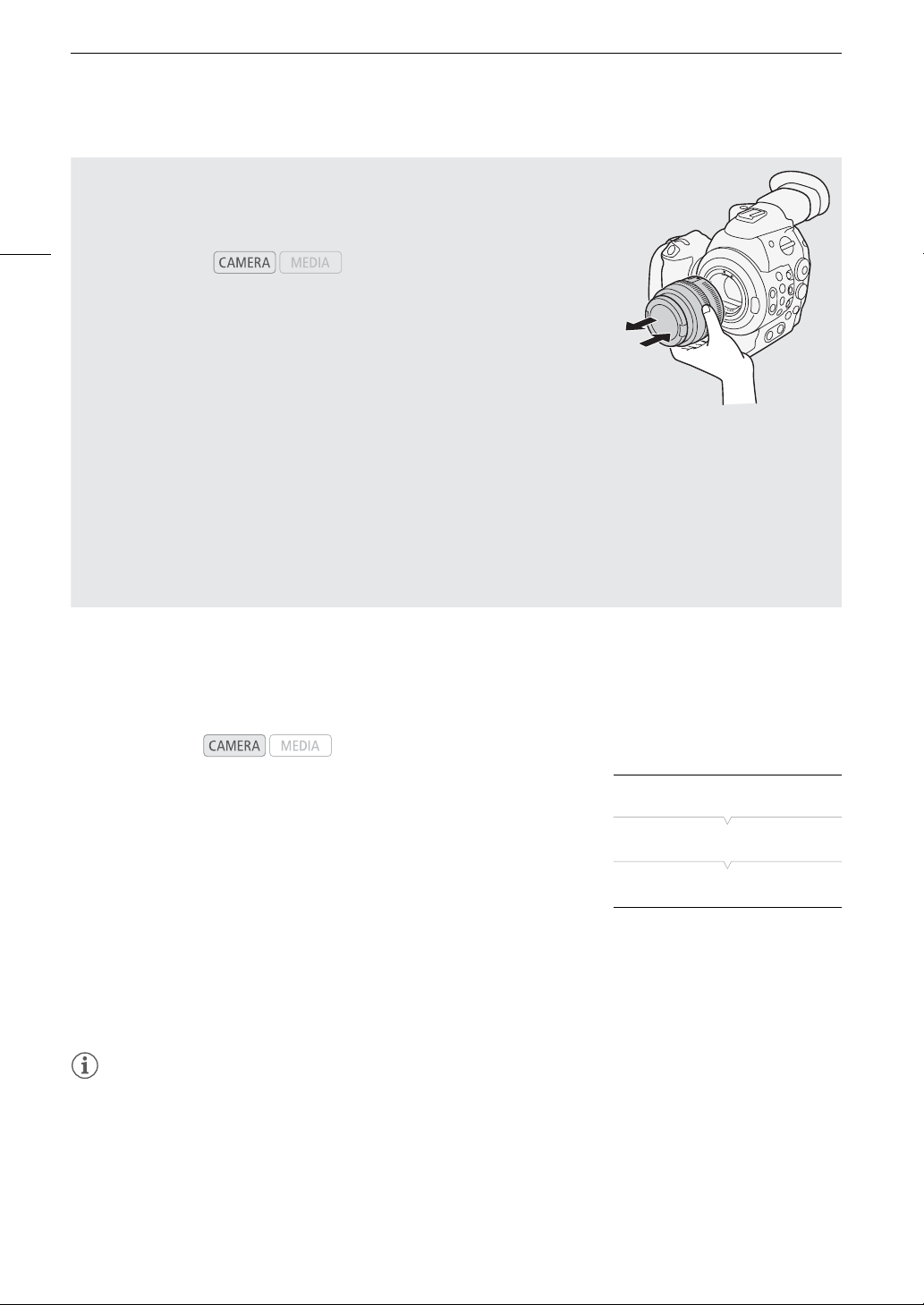
1Set the Q switch to OFF.
2 Remove the body cap from the camcorder and any
dust caps from the lens.
3 Attach the lens to the camcorder and turn the lens
in the direction of the arrow until it clicks in place.
• EF lenses: Align the red mark on the lens with the
red EF Lens mount index mark on the camcorder.
• EF-S lenses: Align the white mark on the lens with
the white EF-S Lens mount index mark on the
camcorder.
NOTES
• Turning on the image stabilization function of an EF
lens may reduce the effective usage time of the
battery pack. When image stabilization is not
necessary, for example if the camcorder is fixed to a tripod, it is recommended to turn it off.
• Depending on the lens used, you may experience one or more of the following limitations.
- The lens model name may be shortened when displayed on the screen.
- You may not be able to focus manually when the focus mode switch is set to AF.
- You may not be able to use the focus preset function (super telephoto lenses).
• You cannot use the power zoom function on lenses with that function.
• When using a compatible lens, you can use the [ Other Functions] > [Custom Function] > [Retract Lens]
setting (A 125) to retract the lens automatically when the camcorder’s power is turned off.
# Removing an EF Lens
1Set the Q switch to OFF.
2 Hold down the lens release button and turn the lens all the
way in the direction of the arrow until it stops.
3 Remove the lens and replace the body cap to the
camcorder and the dust cap to the lens.
Preparing the Camcorder
34
# Peripheral Illumination Correction
Depending on the characteristics of the lens used, the image around the corners of the picture may seem darker
due to light fall-off or peripheral illumination drop. If the camcorder has correction data available for the EF lens
used, it can apply this correction data to compensate as necessary.
1 Attach the lens you want to use.
2 Open the peripheral illumination correction screen.
[~ Camera Setup] > [Periph. Illum. Corr.]
• If correction data is available, the lens model name will appear on the
screen.
• If correction data is not available, [Periph. Illum. Corr.] will appear
grayed out. Visit your local Canon Web site and check if there is
correction data available for the lens you are using. If so, download the necessary update package and
upgrade the camcorder’s firmware following the instructions supplied therein.
3 Select [On] and then press SET.
•As long as [~ Camera Setup] > [Periph. Illum. Corr.] is set to [On], the camcorder will automatically apply
the appropriate correction data.
NOTES
• About lens correction data:
- The camcorder contains a register of correction data for compatible lenses that were available at the time
the camcorder went on sale. Correction data for future lenses will be made available as part of the regular
updates released for the camcorder’s firmware. For more details, visit your local Canon Web site.
- Depending on the recording conditions, noise may appear in the periphery of the image as a result of the
correction.
- The level of correction will be lower for lenses that cannot provide distance information.
Operating modes:
Changing a Lens While Maintaining the Time Code’s Progress
If you set an assignable button to [LENS EXCHANGE] (A 113), you can press
the button to change the lens while the camcorder is turned on and the time
code is running.
1 Set an assignable button to [LENS EXCHANGE] (A 113).
2 Press and hold the assignable button for 1 second.
• The camcorder enters lens exchange mode and the tally lamp will flash
twice every 2 seconds. During this time, the time code will continue
running.
• While the camcorder is in lens exchange mode, only the Q switch
and the selected assignable button can be operated. Also, the LCD screen will turn off and output from
the video terminals will be put on hold.
3 Remove the lens attached to the camcorder and attach the new lens.
• Do not set the Q switch to OFF.
4 Press the assignable button again.
• The camcorder exits lens exchange mode.
• Opening a CF card slot cover or removing the SD card will also cause the camcorder to exit lens
exchange mode.
Operating modes:
[~ Camera Setup]
[Periph. Illum. Corr.]
[Off]
35
Preparing the Camcorder
- The level of correction will be lower the higher the ISO speed/gain setting used.
- No correction will be applied when correction data is not available for the lens attached.
- When using EF-S lenses, peripheral illumination fall-off may be more pronounced.
- When using non-Canon lenses, peripheral illumination will not be corrected. Even if the [~ Camera Setup]
> [Periph. Illum. Corr.] setting is available (not grayed out), it is recommended to set it to [Off].
# Updating the Firmware of an EF Lens
You can update the lens firmware of the EF lens attached to the camcorder. For details about firmware updates
for EF lenses, visit your local Canon Web site.
1 Download the lens firmware update file from the Canon Web site and
save it on an SD card. Insert the SD card containing the lens firmware
update into the SD card slot.
2 Attach to the camcorder the lens you wish to update and open the
[Lens Firmware] submenu.
[w Other Functions] > [Lens Firmware]
• The current lens firmware version will appear on the screen.
• If the [Lens Firmware] submenu is grayed out, the attached lens may not support firmware updates or the
SD card used may not contain a valid lens firmware file. Check the lens and SD card and repeat the
procedure from the beginning.
3 Select [OK] and then press SET.
4 Select the lens firmware file (file extension .LFU) and then press SET.
5 Select [OK] and then press SET.
• The lens firmware will be updated. Once in progress, the lens firmware update cannot be canceled.
6 When the confirmation message appears, press SET.
IMPORTANT
• Be sure to observe the following precautions while the lens firmware is being updated.
- Do not disconnect the power source or turn off the camcorder.
- Do not remove the lens.
- Do not operate any buttons or controls on the camcorder.
- Do not open the SD card compartment cover and do not remove the SD card.
NOTES
• The lens firmware cannot be updated while pre-recording is activated.
• We recommend that you power the camcorder from a power outlet using the AC adapter or use a sufficiently
charged battery pack.
• When using an optional EF Extender, remove the Extender before performing the procedure.
Operating modes:
[w Other Functions]
[Lens Firmware]
Preparing the Camcorder
36
$ Attaching a PL Lens
1 Set the Q switch to OFF.
2 Hold a bayonet ring handle and turn the bayonet ring
counter-clockwise to remove the body cap and remove
any dust caps from the lens.
3 Attach the lens to the camcorder aligning a groove on the
lens with the PL lens index pin on the mount.
4 Turn the bayonet ring clockwise to fix the lens in place.
$ Removing a PL Lens
1 Turn the bayonet ring counter-clockwise.
2 Remove the lens and replace the body cap to the camcorder and the
dust cap to the lens.
Attaching and Removing the Monitor Unit
You can attach the monitor unit to the accessory shoe on the camcorder or that on the handle unit. Further
ahead you will find details about using the LCD panel and adjusting the LCD screen (A 38).
Attaching the Monitor Unit
1 Set the Q switch to OFF.
2 Insert the attachment base of the monitor unit to the
camcorder’s or the handle unit’s accessory shoe.
• Use the attachment base at the bottom of the monitor
unit to attach it directly to the camcorder. Use the
attachment base at the back of the monitor unit to
attach it to the accessory shoe on the front of the
handle unit.
3 Tighten the monitor unit’s lock screw.
4 Connect the monitor unit’s cables to the camcorder.
•Align the Î marks on the cables and terminals. Then,
connect cable number 1 (with the white line) to the
camcorder’s EXT 1 terminal and cable number 2 to the
EXT 2 terminal.
PL lens index pin
37
Preparing the Camcorder
Removing the Monitor Unit
1Set the Q switch to OFF.
2 Disconnect the monitor unit’s cables from the camcorder’s EXT 1 and EXT 2 terminals.
• Pull back the metallic tips of the cable to release the cable and then disconnect the cable.
3 Unscrew the lock screw and then gently slide out the monitor unit from the accessory shoe.
Using the Viewfinder
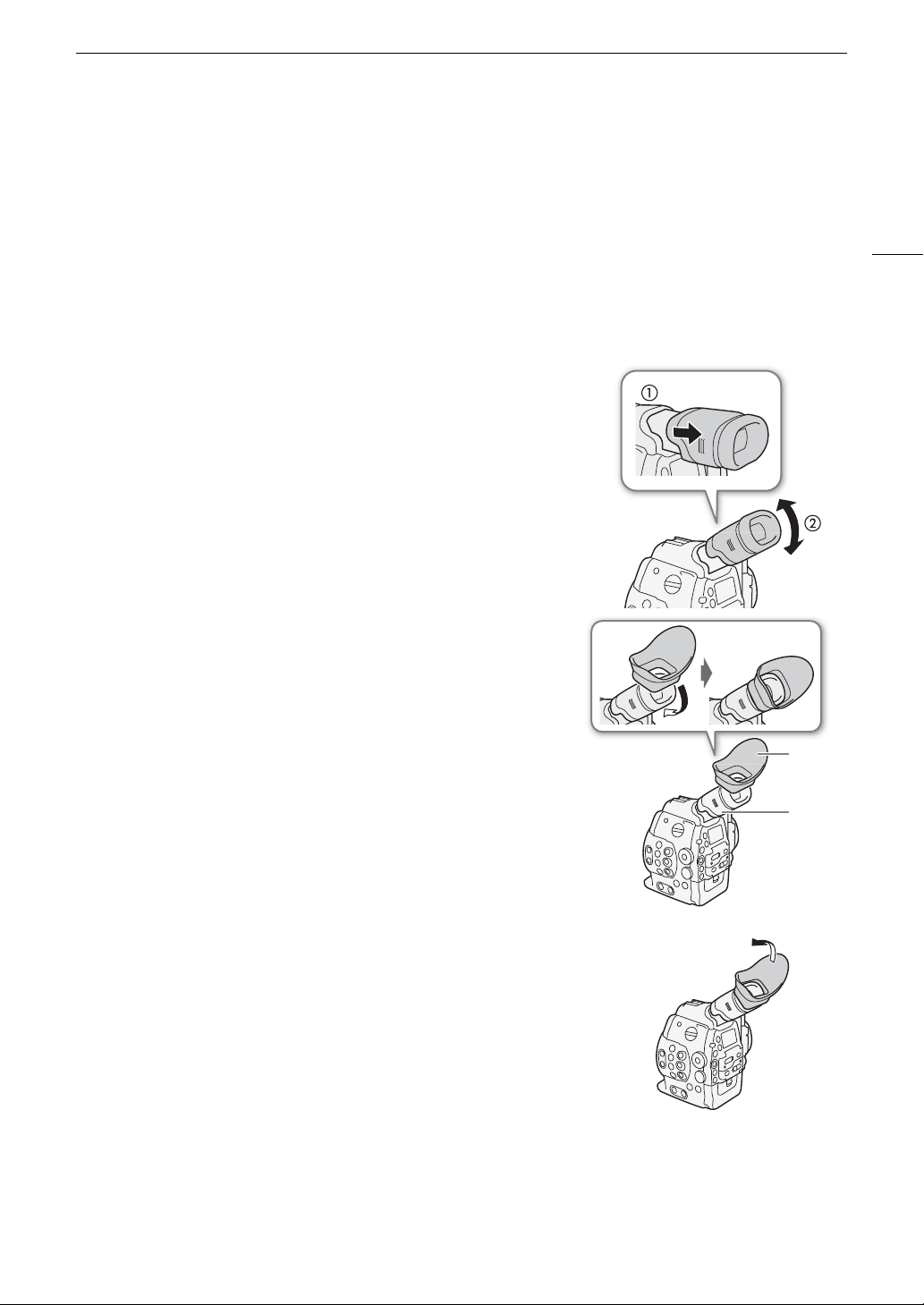
Adjusting the Viewfinder’s Position
1 Gently pull out the viewfinder until it stops.
2 Adjust the viewfinder’s angle as necessary.
Attaching and Detaching the Eye Cup
Attach the eye cup so that it covers the rubber portion of the viewfinder
unit.
• The dioptric adjustment dial can be operated even with the eye cup
attached.
• For left eye use, attach the eye cup so that the protruding portion faces
the opposite side.
Detach the eye cup as shown in the illustration.
Eye cup
Viewfinder
unit
Preparing the Camcorder
38
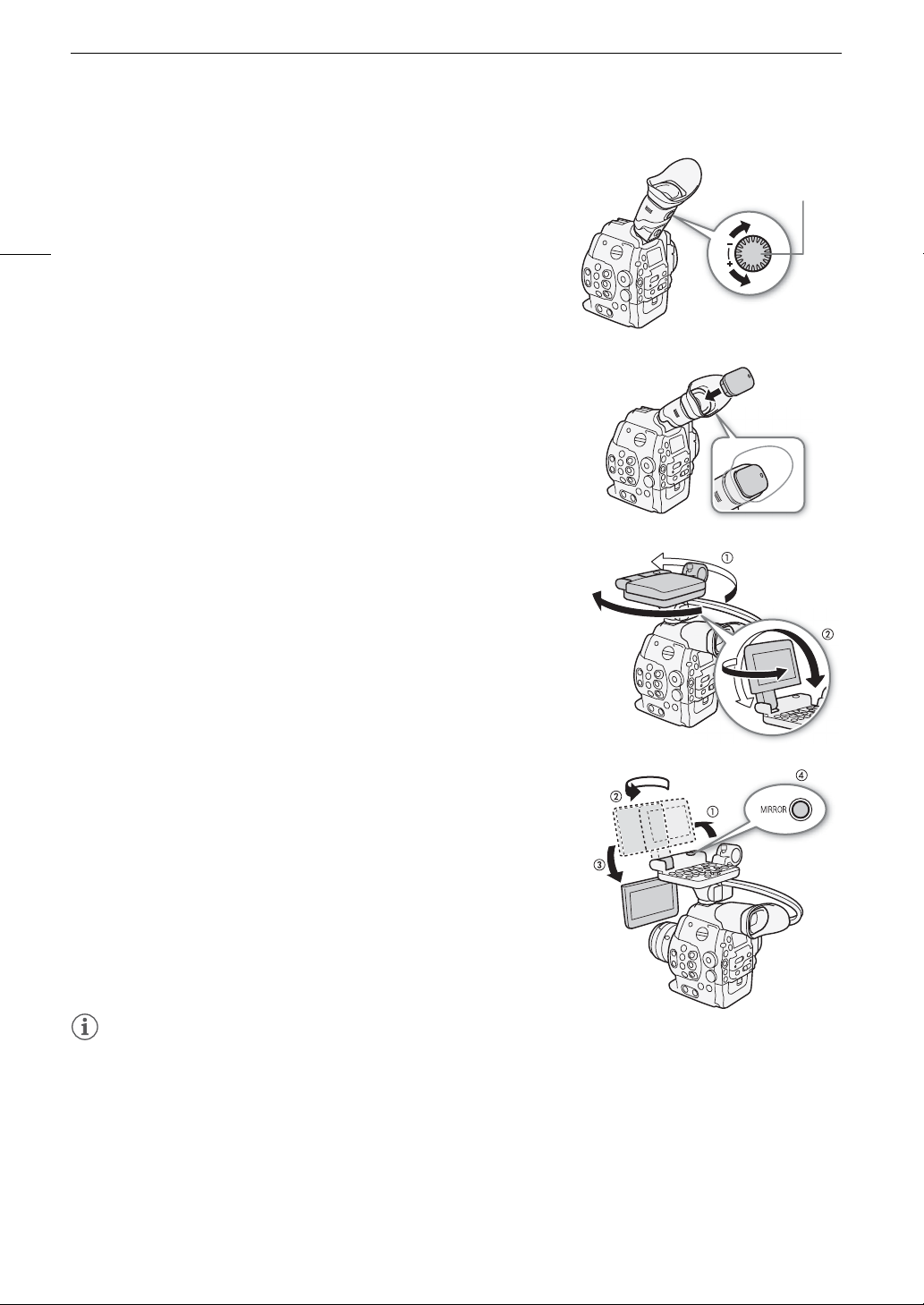
Dioptric Adjustment
Turn on the camcorder and adjust the dioptric adjustment dial.
Attaching the Viewfinder Cap
Pointing the viewfinder lens at the sun or other strong light sources may
cause damage to internal components. When you are not using the
viewfinder, make sure to attach the viewfinder cap to the viewfinder. This
will also protect the viewfinder from scratches and dirt. Attach the
viewfinder cap by inserting it into the rubber portion of the viewfinder unit.
Using the LCD Panel
The whole monitor unit can be rotated 270º sideways allowing for easy
monitoring and operation from the side of the camcorder. Additionally, the
independently articulated LCD panel can be rotated 180º sideways and
270º up and down. In combination, you can position the LCD panel at a
comfortable angle whatever the shooting style you need.
1 Rotate the monitor unit sideways to the desired angle.
2 Open the LCD panel and adjust the screen to the desired position.
Adjusting the LCD Panel for Shoulder Mounted Use
1 Open the LCD panel 90º until it is perpendicular to the monitor unit.
2 Rotate the LCD panel 180º left.
3 Rotate the LCD panel 180º forward.
4 Press the MIRROR button until the image is displayed in the correct
orientation.
• Repeatedly pressing the MIRROR button will change the displayed
image in the following order: Image inverted horizontally ´ Image
inverted horizontally and vertically ´ Image inverted vertically ´
Original image.
NOTES
• About the LCD and viewfinder screens: The screens are produced using
extremely high-precision manufacturing techniques, with more than 99.99% of the pixels operating to
specification. Less than 0.01% of the pixels may occasionally misfire or appear as black, red, blue or green
dots. This has no effect on the recorded image and does not constitute a malfunction.
• You can set the LCD screen to black & white (A 39).
• When you use a commercially available lens adapter and the image on the screen is inverted, you can use the
[w Other Functions] > [Custom Function] > [Scan Reverse Rec] setting to return the image to the correct
orientation.
Dioptric
adjustment
dial
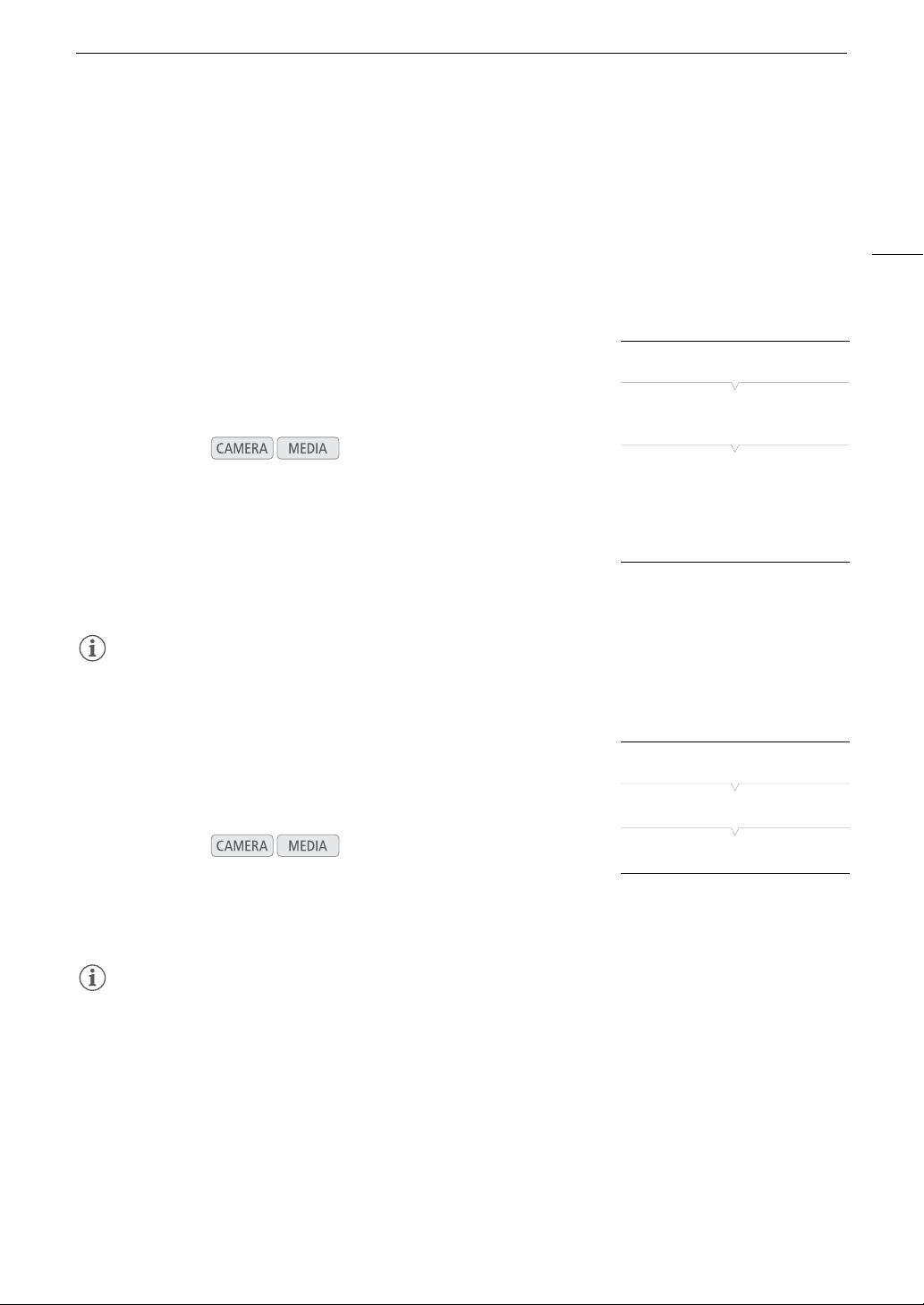
You can use the viewfinder and watch
the LCD screen at the same time
39
Preparing the Camcorder
• If you are not interested in using the viewfinder while the monitor unit is attached, you can set [£ LCD/VF
Setup] > [LCD/VF Simul.] to [Off] to conserve the camcorder’s power. Even when [LCD/VF Simul.] is set to
[Off], closing the LCD panel will automatically activate the viewfinder.
• While recording with the LCD panel rotated in a different direction or angle (for example, facing toward the
subject), you can press the MIRROR button repeatedly to invert the image on the screen horizontally, vertically
or both ways.
Adjusting the Viewfinder/LCD Screen
You can adjust the brightness, contrast, color, sharpness, and backlight
of the viewfinder and LCD screen independently of each other. These
adjustments will not affect your recordings.
1 Open the setup menu for the viewfinder or LCD screen.
[£ LCD/VF Setup] > [LCD Setup] or [VF Setup]
2 Select [Brightness], [Contrast], [Color], [Sharpness] or [Backlight] and
then press SET.
3 Adjust the setting and then press SET.
• Repeat steps 2 and 3 to adjust other settings as necessary.
NOTES
• If you set an assignable button to [LCD Setup] or [VF Setup] (A 113), you can press the button to open the
respective submenu.
Setting the Screen to Black & White
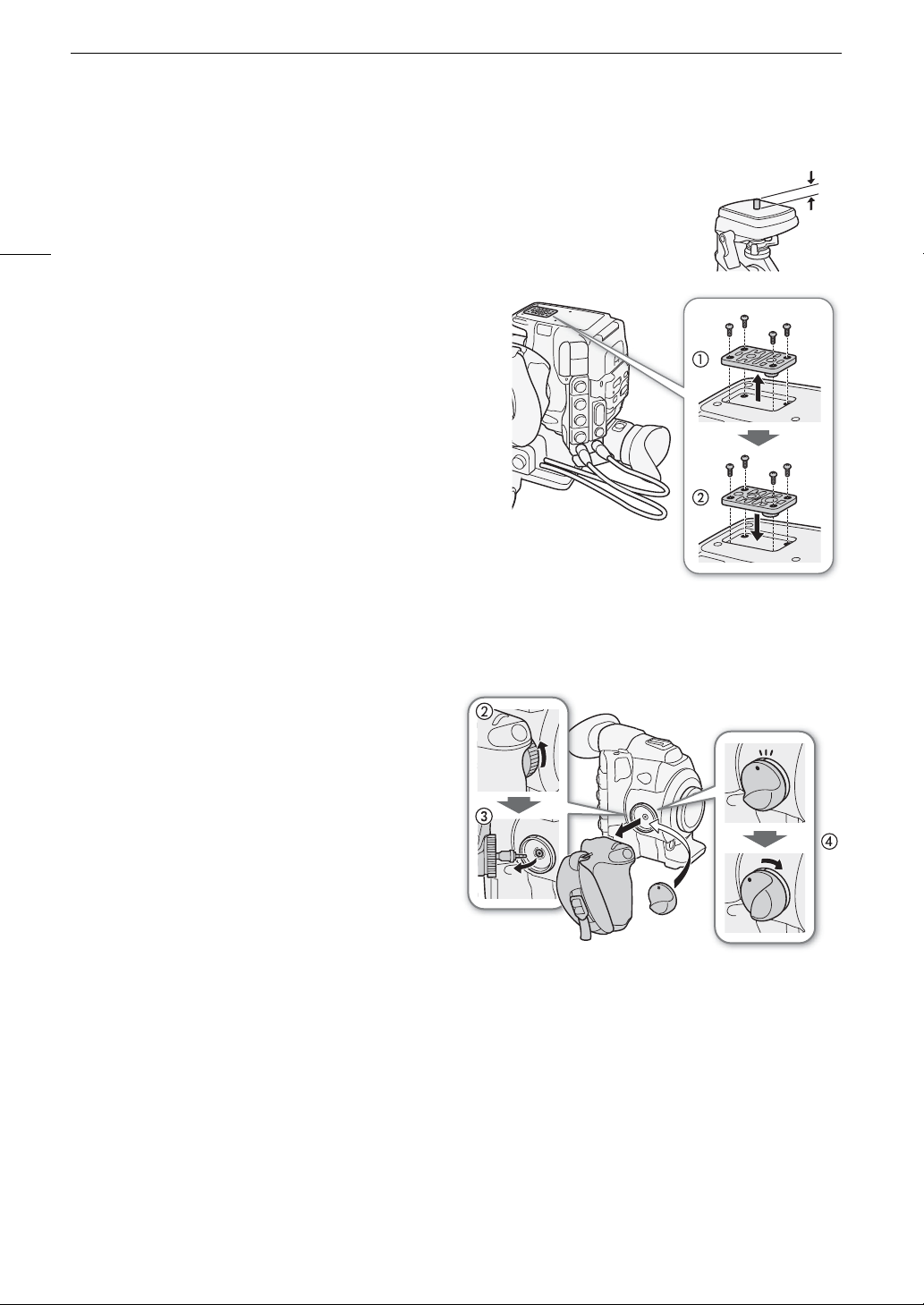
The viewfinder and LCD screen display in color by default but you can set
them to black & white. Even when the screen is black & white, onscreen
text and icons will still be displayed in color.
1 Open the [LCD/VF B&W] submenu.
[£ LCD/VF Setup] > [LCD/VF B&W]
2 Select [On] and then press SET.
NOTES
• If you set an assignable button to [LCD/VF B&W] (A 113), you can press the button to turn the black & white
display on and off.
Operating modes:
Operating modes:
[£ LCD/VF Setup]
[LCD Setup]
[VF Setup]
[Brightness: ±0]
[Contrast: ±0]
[Color: ±0]
[Sharpness: 2]
[Backlight: Normal]
[£ LCD/VF Setup]
[LCD/VF B&W]
[Off]
Preparing the Camcorder
40
Using a Tripod
The camcorder is shipped with the TB-1 Tripod Base for tripods with 0.95 cm (3/8 in.)
screws. You can mount the camcorder on a tripod but do not use tripods with mounting
screws longer than 5.5 mm (0.2 in.) as this may cause damage to the camcorder.
Using a Tripod with 0.64 cm (1/4 in.) Mounting
Screws
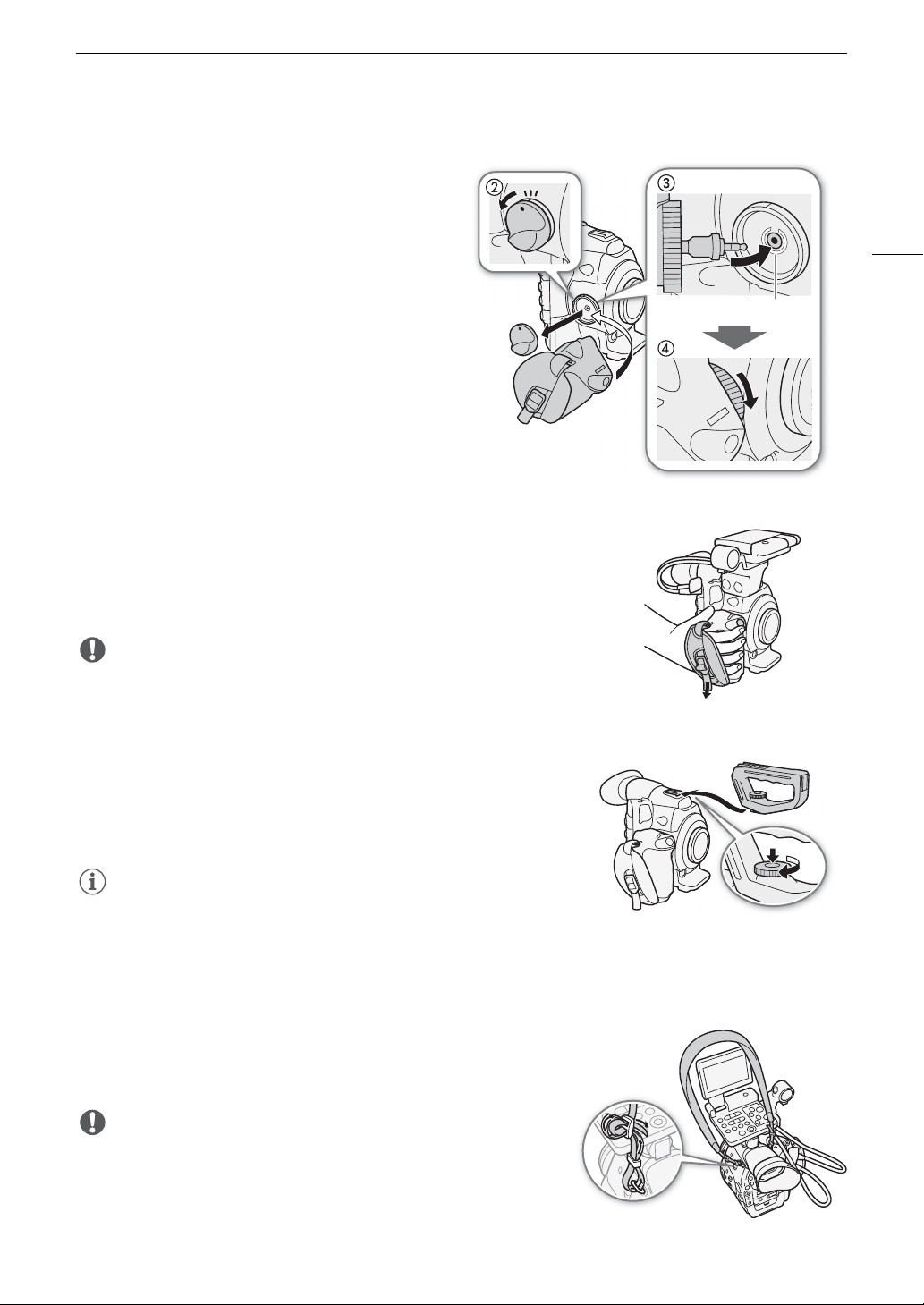
To use a tripod with 0.64 cm (1/4 in.) mounting screws, first
attach the supplied tripod adapter base to the camcorder and
then attach the tripod to the adapter base.
1 Remove the original TB-1 tripod base from the camcorder.
• Remove the 4 screws and then remove the base.
2 Attach the supplied tripod adapter base for 0.64 cm (1/4 in.)
tripods.
• Firmly screw in the 4 screws.
3 Attach the tripod.
• Firmly screw in the tripod screw.
Removing and Attaching the Grip Unit
The grip unit comes originally attached to the camcorder. You can remove it and replace it with the thumb rest
should the minimal configuration be necessary.
Removing the Grip Unit
1 Set the Q switch to OFF.
2 Unscrew the grip unit’s lock screw and gently detach
the grip unit.
• The grip unit contains an internal connection cable
so be sure not to pull it too forcefully.
3 Disconnect the grip unit’s connection plug.
4 Screw the thumb rest onto the camcorder.
5.5 mm
41
Preparing the Camcorder
Attaching the Grip Unit
The grip unit can be attached in any of 24 positions (at
15º intervals) to give you a convenient grip angle for
high- and low-angle shooting.
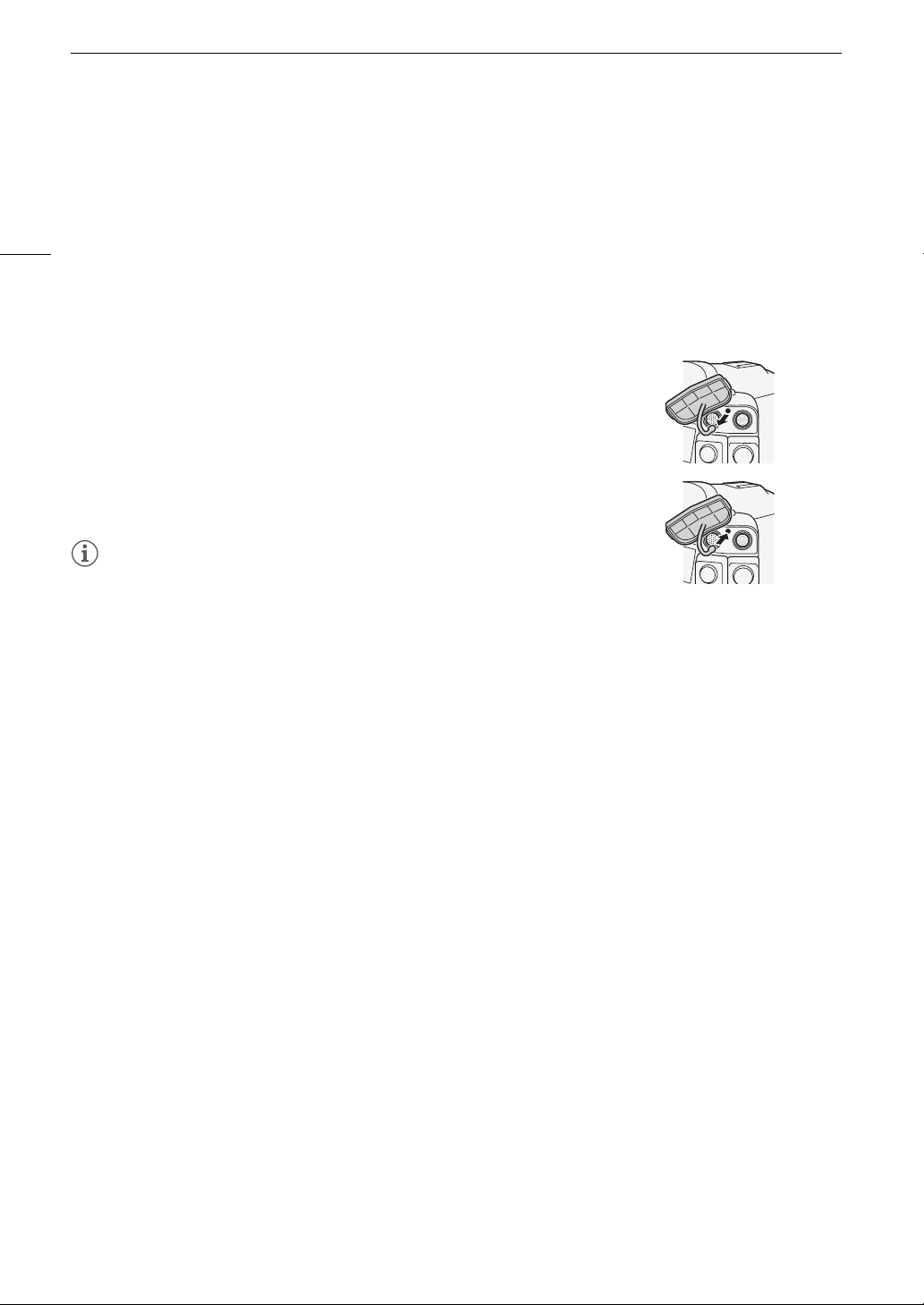
1Set the Q switch to OFF.
2 Unscrew the thumb rest and remove it from the
camcorder.
3 Firmly insert the grip unit’s plug all the way into the
grip unit connection terminal on the camcorder.
• Make sure to insert the plug all the way in, until the
white line around the terminal is not visible.
• If the plug is not correctly connected (for example, if
the white line around the terminal is partly visible), all
the controls on the camcorder may be disabled.
4 Attach the grip unit to the camcorder aligning it at the
desired angle and tighten the grip unit’s lock screw.
Adjusting the Grip Belt
Adjust the grip belt so that you can reach the START/STOP button
on the grip unit with your index finger but still have a comfortable but
secure grip.
IMPORTANT
• Be careful not to drop the camcorder when adjusting the grip belt.
Attaching the Handle Unit
1 Insert the attachment base at the bottom of the handle unit to the
camcorder’s accessory shoe.
2 Tighten the handle unit’s lock screw while gently pressing it down.
NOTES
• You can use the accessory shoe or the socket for 0.64 cm (1/4 in.)
screws on the handle unit to attach a variety of commercially available
accessories.
Attaching a Shoulder Strap
Pass the ends through the strap mount and adjust the length of
the strap.
IMPORTANT
• Be careful not to drop the camcorder when attaching or adjusting the
shoulder strap.
White line
햳
햲
Preparing the Camcorder
42
Removing and Attaching the Terminal Covers
You can remove the plastic covers of the following terminals and SD card slot to access them more readily.
Removing the Terminal Covers
Open the terminal cover and gently pull it straight out.
Attaching the Terminal Covers
Insert the connecting strip into the opening to attach the terminal cover.
NOTES
• If the connecting strip is difficult to grasp, use a pair of tweezers or similar
tool.
• EXT 1 and EXT 2
•SYNC OUT
• GENLOCK and TIME CODE
• HD/SD SDI
• CH1 and CH2
(XLR terminals on the monitor unit)
• × (headphones)
•DC IN
•SD card slot
• REMOTE and HDMI OUT
•MIC
•WFT
43
Preparing Recording Media
Preparing Recording Media
The camcorder records clips to 1 CompactFlash (CF) cards and photos* to . SD and / SDHC memory
cards. The camcorder is equipped with two CF card slots. Initialize recording media (A 45) when you use them
with this camcorder for the first time.
* The camcorder can record custom picture files and a camera settings file onto the SD card as well. The SD card serves also to
store user memo files created with the Canon XF Utility software (A 145) that you can then read and embed in the clips’
metadata.
Compatible CF cards
You can use UDMA-compatible* Type I CF cards with a capacity of at least 512 MB with the camcorder. For
more details on cards that can be used, visit your local Canon Web site.
* The Ultra Direct Memory Access (UDMA) specification allows data to be transferred between the CF card and device at high
transfer speeds (measured in MB/s). Depending on the CF card, you may not be able to record even when using a UDMA-
compatible CF card.
IMPORTANT
• About high capacity CF cards You can use CF cards with a capacity of 128 GB or larger with this
camcorder but such CF cards are initialized using the exFAT file system.
- When using exFAT-formatted CF cards with other devices (digital recorders, card readers, etc.), make sure
that the external device is compatible with exFAT. For more information on compatibility, contact the
computer, operating system or memory card manufacturer.
- If you use exFAT-formatted CF cards with a computer OS that is not exFAT-compatible, you may be
prompted to format the CF card. In such case, cancel the operation to prevent data loss.
NOTES
• Proper operation cannot be guaranteed for all CF cards.
Inserting a CF Card
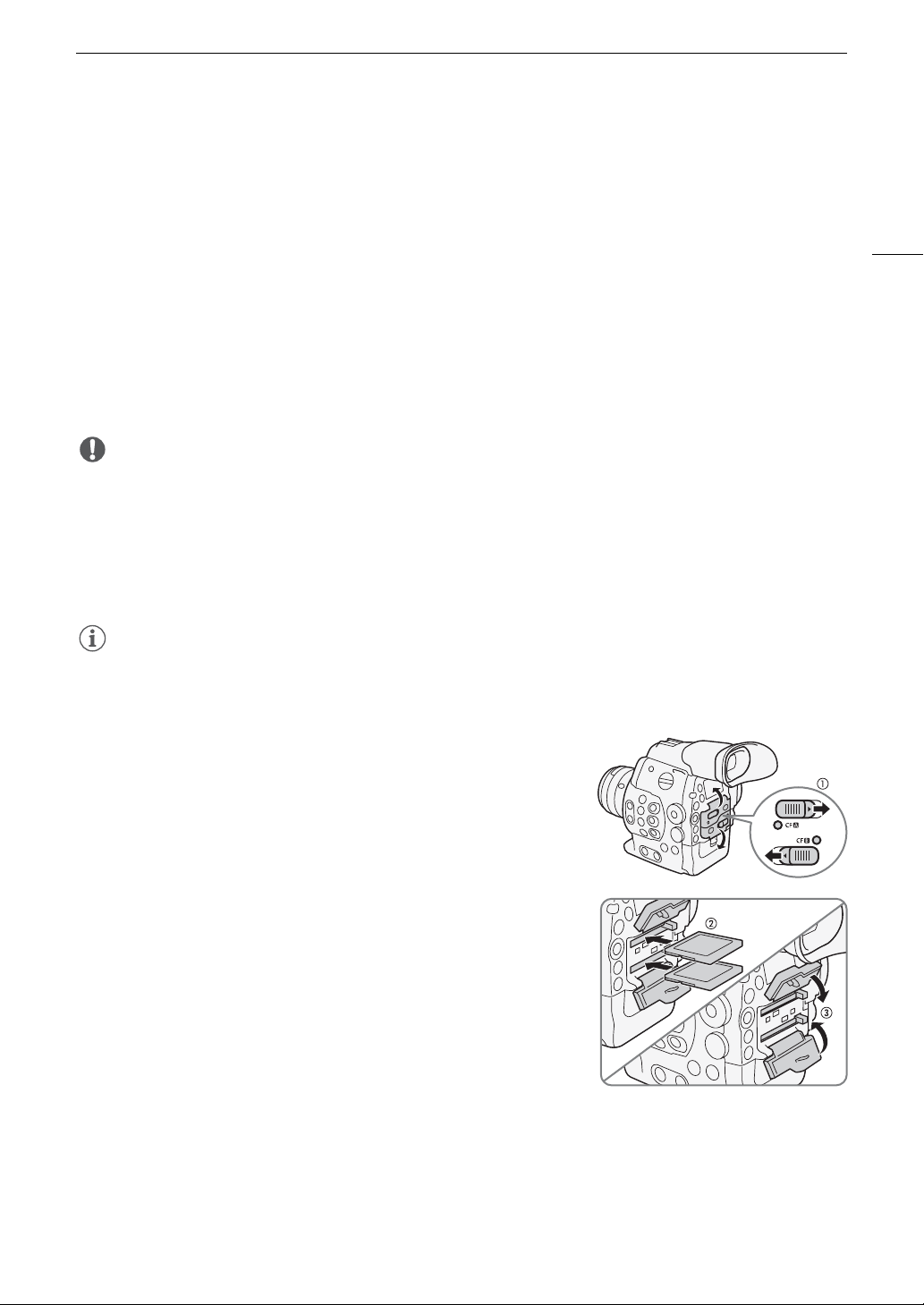
You can insert a CF card into CF card slot A or slot B. If you have two CF
cards, you can use both slots.
1 Slide the CF card slot cover switch in the direction of the arrow.
• The CF card slot cover will open upward (slot A) or downward
(slot B).
2 Insert the CF card straight, with the label facing up, all the way into
the slot.
3 Close the CF card slot cover.
• Do not force the cover closed if the CF card is not correctly inserted.
Preparing Recording Media
44
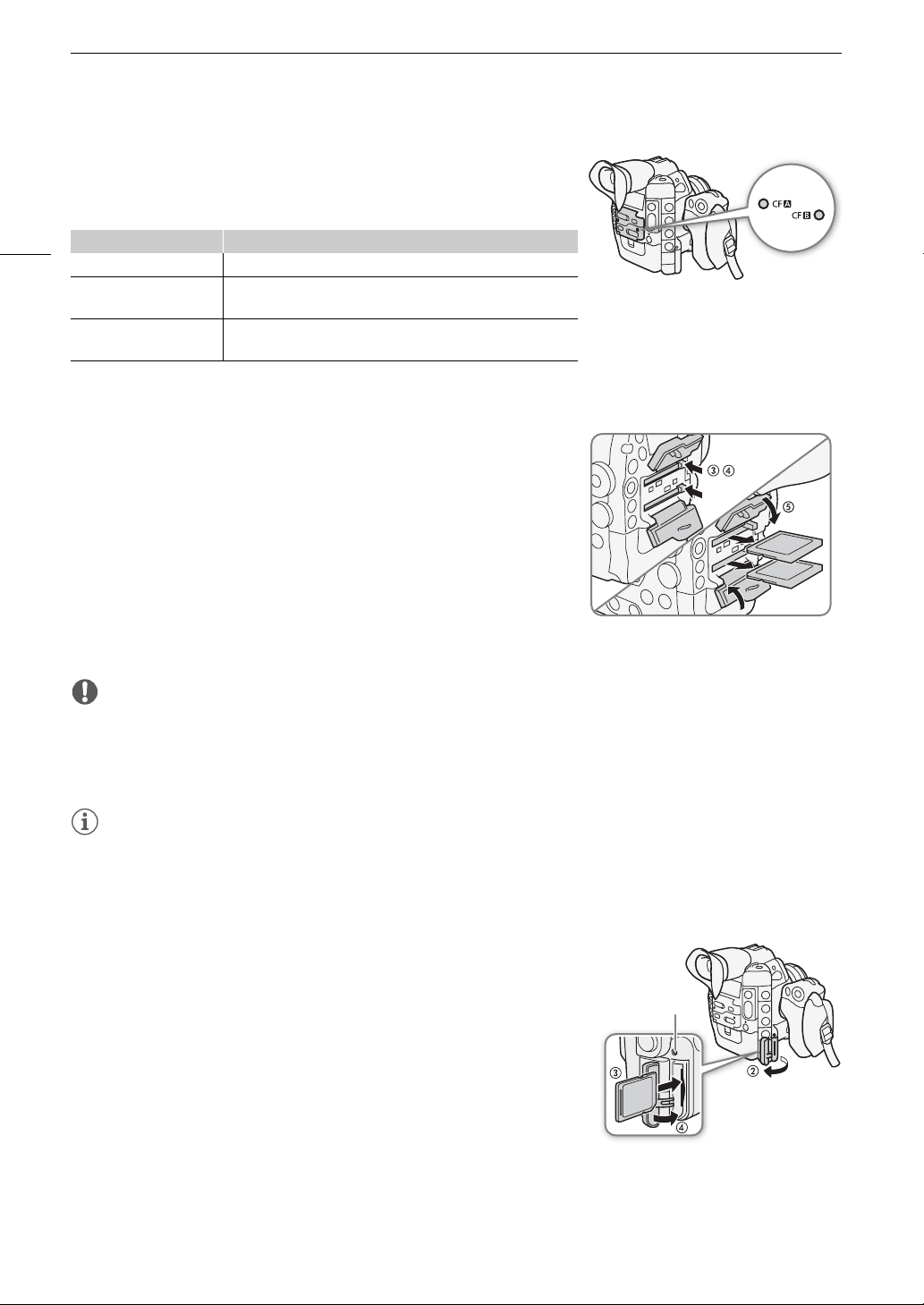
Checking the Status of the CF Card Slots
You can check the status of the CF card slots immediately by looking at the
CF2/CF3 access indicator. Refer to the following table.
Removing a CF card
1 Wait until the access indicator for the card slot with the CF card
to be removed is off.
2 Slide the CF card slot cover switch in the direction of the arrow.
• The CF card slot cover will open upward (slot A) or downward (slot B).
3 Push the CF card release button.
• The release button partially pops out.
4 Push in the CF card release button to release the CF card.
5 Pull the CF card all the way out and close the CF card slot cover.
IMPORTANT
• Observe the following precautions while the CF2 or CF3 access indicator is illuminated in red. Failure to do
so may result in permanent data loss.
- Do not disconnect the power source or turn off the camcorder.
- Do not open the cover of the CF card slot being accessed.
NOTES
• If you set the [w Other Functions] > [Media Access LED] function to [Off], the access indicators will not
illuminate.
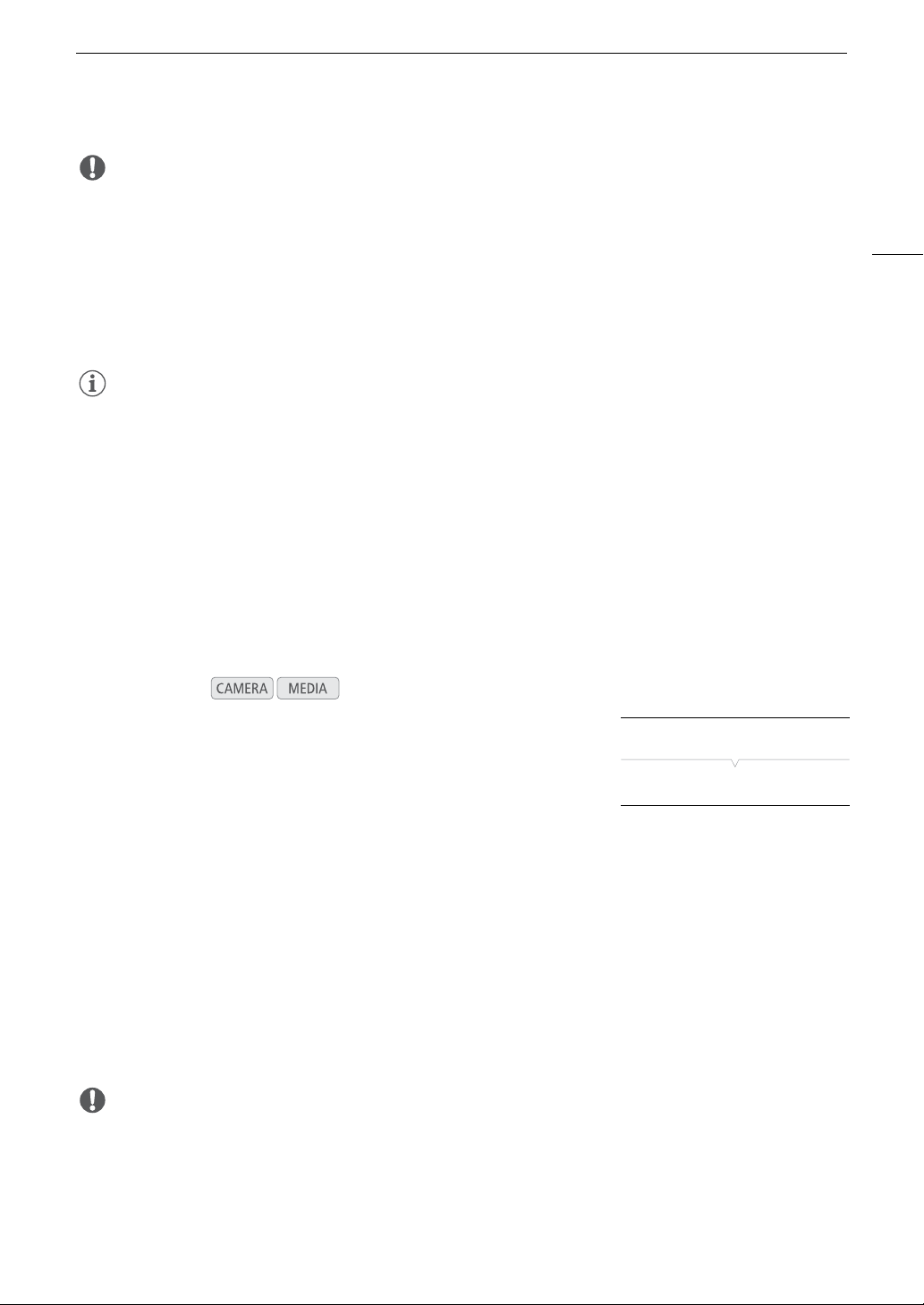
Inserting and Removing an SD Card
1 Turn off the camcorder.
2 Open the SD card slot cover.
3 Insert the SD card all the way into the SD card slot until it clicks.
• The SD card slot is positioned at an angle. Align the SD card straight in
relation to the SD card slot, with the label facing the lens.
4 Close the SD card slot cover.
• Do not force the cover closed if the SD card is not correctly inserted.
Access indicator color CF card slot status
Red Accessing CF card.
Green
Recording/playback is possible and the CF card slot is selected
for recording/playback.
Indicator off
A CF card is not inserted, the CF card slot is not currently
selected, or the CF card is not being accessed.
,
SD card access
indicator
45
Preparing Recording Media
IMPORTANT
• Observe the following precautions while the SD card access indicator is flashing. Failure to do so may result in
permanent data loss.
- Do not disconnect the power source or turn off the camcorder.
- Do not remove the SD card.
• Turn off the camcorder before inserting or removing an SD card. Inserting or removing the SD card with the
camcorder on may result in permanent data loss.
• SD cards have front and back sides that are not interchangeable. Inserting an SD card facing the wrong
direction can cause a malfunction of the camcorder. Be sure to insert the SD card as described in step 3.
NOTES
• To remove the SD card: Push the SD card once to release it. When the SD card springs out, pull it all the way
out.
• If you set the [w Other Functions] > [Media Access LED] function to [Off], the access indicators will not
illuminate.
Initializing the Recording Media
The first time you use any recording media with this camcorder, initialize it first. You can also initialize a recording
media to permanently delete all the data it contains.
When initializing an SD card, you can select quick initialization, which clears the file allocation table but does not
physically erase the stored data, or complete initialization, which deletes all data completely.
1 Open the [Initialize Media] submenu.
[w Other Functions] > [Initialize Media]
2 Select [CF A], [CF B] or [SD Card] and then press SET.
To initialize a CF card
3 Select [OK] and then press SET.
4 When the confirmation message appears, press SET.
• The CF card is initialized and all the data it contains is erased.
To initialize an SD card
3 Select [Complete] (complete initialization) or [Quick] (quick initialization) and then press SET.
4 Select [OK] and then press SET.
• If you are using the [Complete] initialization option, press SET twice to cancel the operation while it is in
progress. You can use the SD card but all data will be erased.
5 When the confirmation message appears, press SET.
• The SD card is initialized and all the data it contains is erased.
IMPORTANT
• Initializing a recording media will permanently erase all data, including clips with an $ mark, protected photos,
and custom picture files. Lost data cannot be recovered. Make sure you save important recordings in
advance.
• Depending on the SD card, the complete initialization may take up to a few minutes.
Operating modes:
[w Other Functions]
[Initialize Media]
Preparing Recording Media
46
NOTES
• While recording on a CF card, you can initialize another CF card in the other CF card slot.
• If you set an assignable button to [Initialize Media] (A 113), you can press the button to open the initialization
submenu.
Switching Between the CF Card Slots
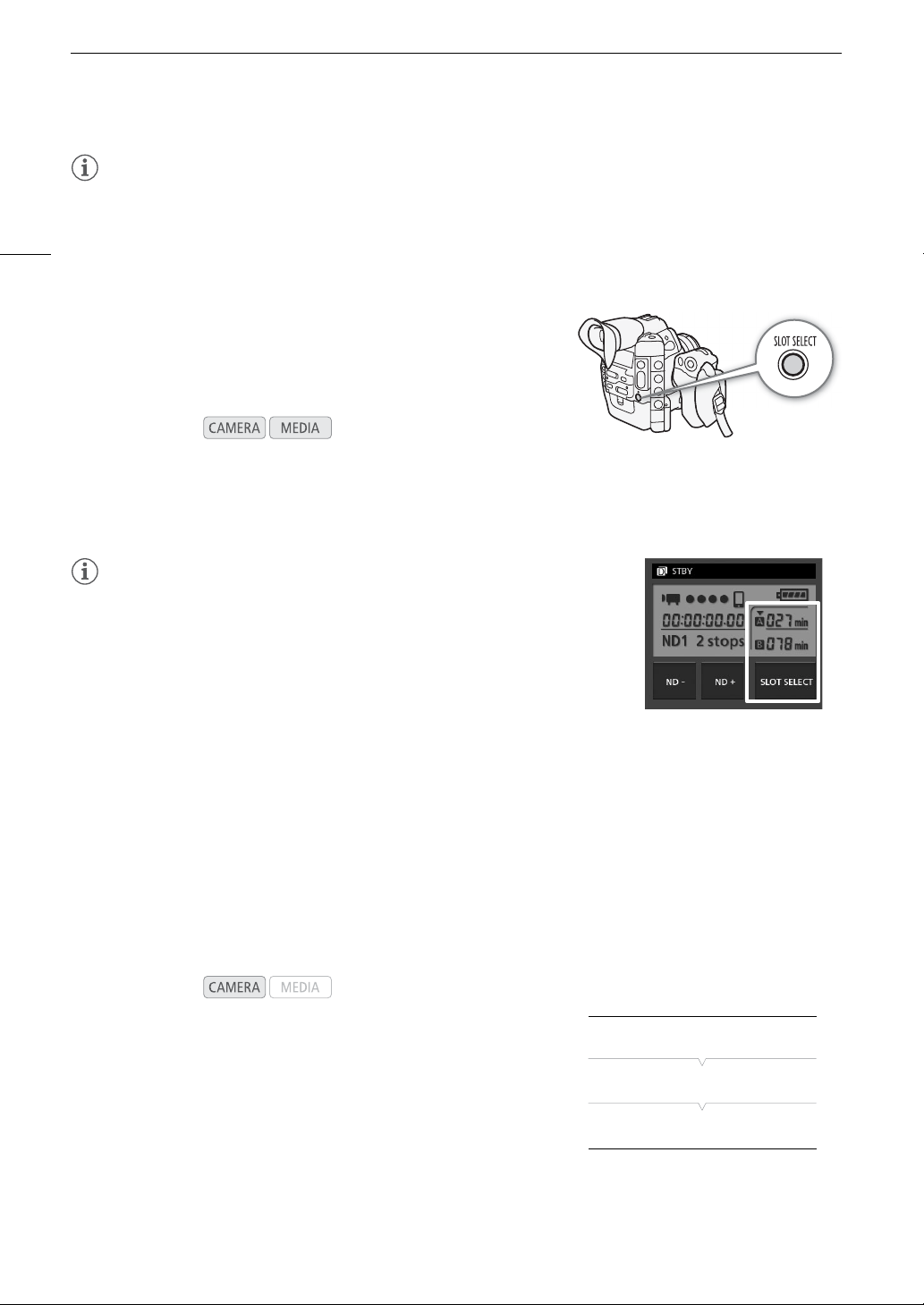
The camcorder features two CF card slots, CF2 (CF card slot A) and
CF3 (CF card slot B). If both slots contain a CF card, you can switch
between them as necessary.
Press the SLOT SELECT button.
• The access indicator of the selected CF card slot will illuminate in green. On the screen, the CF card selected
is indicated with a Ð mark next to CF card icon and in the rear panel, with a Î mark on top of the CF card
icon.
NOTES
• If both CF card slots contain a CF card and you open the cover of the selected
slot, the camcorder will automatically switch to the other slot.
• You cannot use the SLOT SELECT button to switch between CF card slots
while recording.
• When using an optional wireless file transmitter, you can also switch between
CF card slots remotely by pressing [SLOT SELECT] on the Wi-Fi Remote
screen.
Selecting the CF Card Recording Method
The camcorder features two useful CF card recording methods, relay recording and double slot recording.
Relay recording: This function allows you to continue recording on another CF card without interruption if the CF
card you are using becomes full. Relay recording is available from CF card slot A to CF card slot B, and vice
versa.
Double slot recording: This function records the same clip simultaneously to both CF cards, which is a
convenient way to make a backup copy of your recording while you record.
To use relay recording
By default, this function is activated. If it has been deactivated, follow the
procedure below to activate it.
1 Open the [Relay Rec] submenu.
[w Other Functions] > [Relay Rec]
2 Select [On] and then press SET.
Operating modes:
Operating modes:
[w Other Functions]
[Relay Rec]
[On]
47
Preparing Recording Media
To use double slot recording
1 Open the [Double Slot Rec] submenu.
[w Other Functions] > [Double Slot Rec]
2 Select [On] and then press SET.
NOTES
• When the bit rate is set to 50 Mbps (A 59), relay recording is not
available during slow motion recording.
• If a CF card becomes full during double slot recording, recording on both cards will stop. On the other hand, if
an error occurs with one of the cards, recording will continue on the other card.
• Double slot recording cannot be used with relay recording or slow & fast motion recording.
Checking the Available Recording Time for CF Cards
When the camcorder is in mode, the display on the upper left of the screen indicates which CF card slot
is in use and the available recording time (in minutes*) that remains on each CF card. The same information is
displayed in the rear panel. When the camcorder is in mode, the available recording time is displayed only
in the rear panel.
On the [Media] status screen (A 167), you can check the total space and used space of each recording media,
as well as the available recording time* on each CF card and the available number of photos on the SD card.
* The approximate available recording time is based on the current bit rate (A 59).
Recovering Data on the CF Card
Some actions, such as suddenly turning off the camcorder or removing the CF card while data is being
recorded, can cause data errors on the CF card. In such case, you may be able to recover the data on the CF
card.
1 Insert the CF card with the data to be recovered into the camcorder.
2 When the screen prompts you to recover the data, select [OK] and then press SET.
3 When the confirmation message appears, press SET.
NOTES
• This procedure will delete clips shorter than 10 seconds in length. Additionally, up to 10 seconds will be
deleted from the end of clips on the CF card.
• In some cases, data may not be recovered, such as when the FAT32 file system is corrupted or the CF card is
physically damaged.
• While recording on a CF card, you can recover data from another CF card by inserting it into the other CF card
slot.
Operating modes:
[w Other Functions]
[Double Slot Rec]
[Off]
Adjusting the Black Balance
48
Adjusting the Black Balance
You can have the camcorder adjust the black balance automatically when ambient temperature changes
considerably or if there is a noticeable change in a true black video signal.
1 Open the [ABB] screen.
[~ Camera Setup] > [ABB]
2 Attach the body cap to the lens mount.
• If a lens was attached, remove the lens and replace the body cap.
3 Select [OK] and then press SET.
• The automatic black balance procedure will start.
4 When the confirmation message appears, press SET.
• If the body cap is not correctly attached, [Error] will appear on the screen. Press SET and repeat the
procedure from the beginning.
NOTES
• Adjusting the black balance may be necessary in the following cases:
- When using the camcorder for the very first time or after a long period of not using it.
- After sudden or extreme changes in ambient temperature.
- After changing the ISO speed/gain settings.
• The automatic black balance procedure will take approximately 40 seconds when the frame rate is set to
23.98P or 24.00P.
• During the adjustment of the black balance, you may notice some irregular displays appear on the screen. This
is not a malfunction.
• Resetting the camcorder’s settings using the [w Other Functions] > [Reset] > [All Settings] or
[Camera Settings] menu option will reset also the black balance adjustment. In such case, perform the
procedure again.
Operating modes:
[~ Camera Setup]
[ABB]
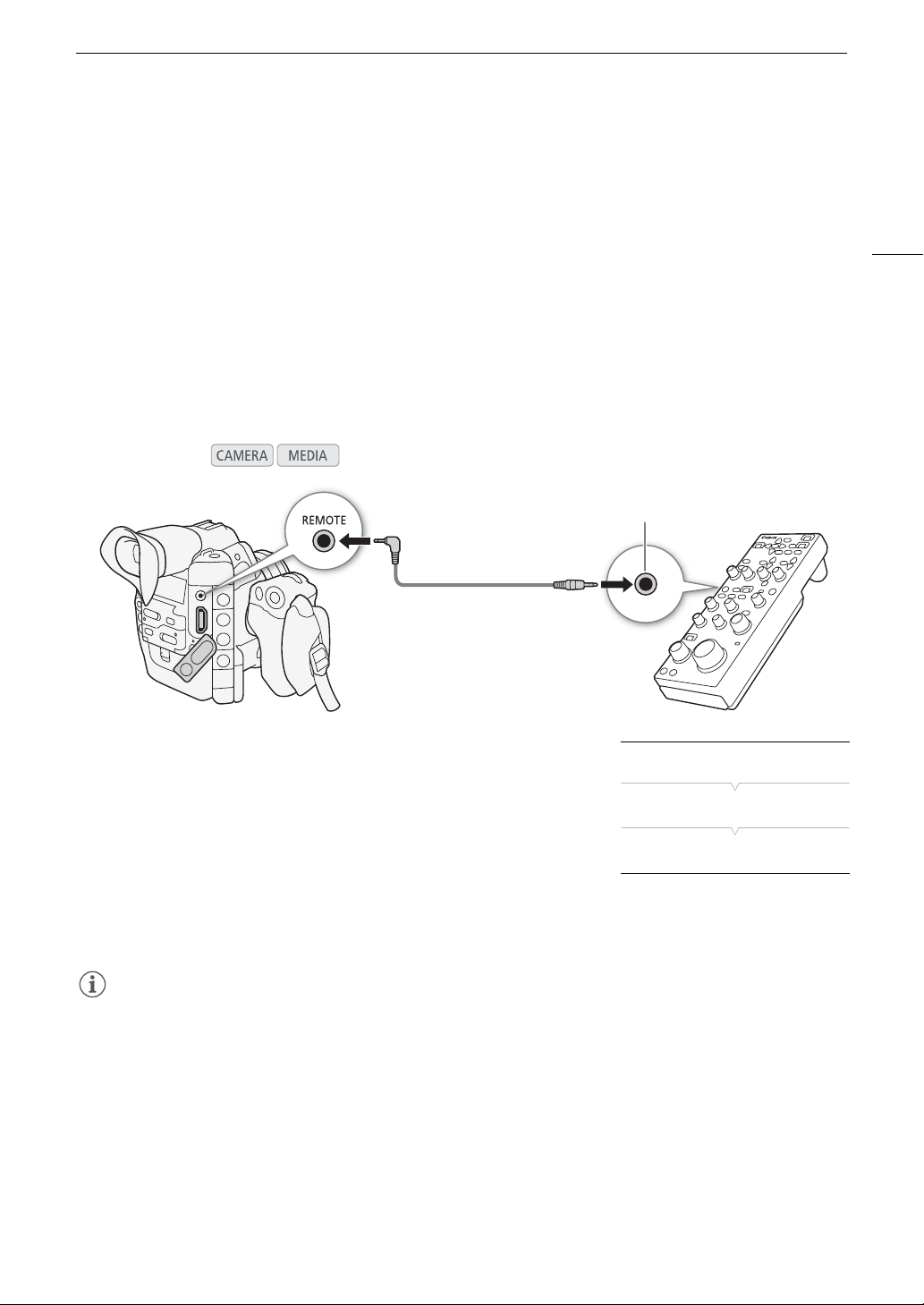
49
Operating the Camcorder Remotely
Operating the Camcorder Remotely
There are two methods in which the camcorder can be operated remotely. The first is to connect the optional
RC-V100 Remote Controller to the camcorder’s REMOTE terminal. The second is to attach the optional WFT-E6
or WFT-E8 Wireless File Transmitter to the camcorder’s WFT terminal to use the Wi-Fi Remote application.
Using the RC-V100 Remote Controller
You can connect the optional RC-V100 Remote Controller to control the camcorder (including the advanced
recording functions) from a distance. The remote controller lets you turn the camcorder on, navigate the menus
and remotely control the aperture (#) and shutter speed, change picture-related settings like the knee and
sharpness, and more.
Use the cable supplied with the remote controller to connect it to the camcorder. For details on how to connect
and use the remote controller, refer to its instruction manual.
1 Turn off the camcorder and connect the optional RC-V100
Remote Controller to the camcorder.
2 Turn on the camcorder and open the [REMOTE Term.] submenu.
[w Other Functions] > [REMOTE Term.]
3 Select [RC-V100] and then press SET.
Options
NOTES
• The camcorder’s ND filter cannot be changed using the ND button on the remote controller.
• The following controls on the remote controller will not operate the camcorder: AGC button, AUTO KNEE
button, AWB button and AF button.
• # The AUTO IRIS button on the remote controller will operate the camcorder only when a compatible EF
lens (A 191) is attached to the camcorder.
• Adjusting picture-related settings with the remote controller can be performed only after a custom picture file is
selected (A 116).
• The ZOOM dial on the remote controller will have an effect only when a compatible EF Cinema lens (A 191) is
attached to the camcorder.
Operating modes:
[RC-V100]: Select this option to use the optional RC-V100 Remote Controller.
[Standard]: Select this option to use commercially available remote controls.
Remote cable
(supplied with the RC-V100)
REMOTE A terminal
[w Other Functions]
[REMOTE Term.]
[Standard]
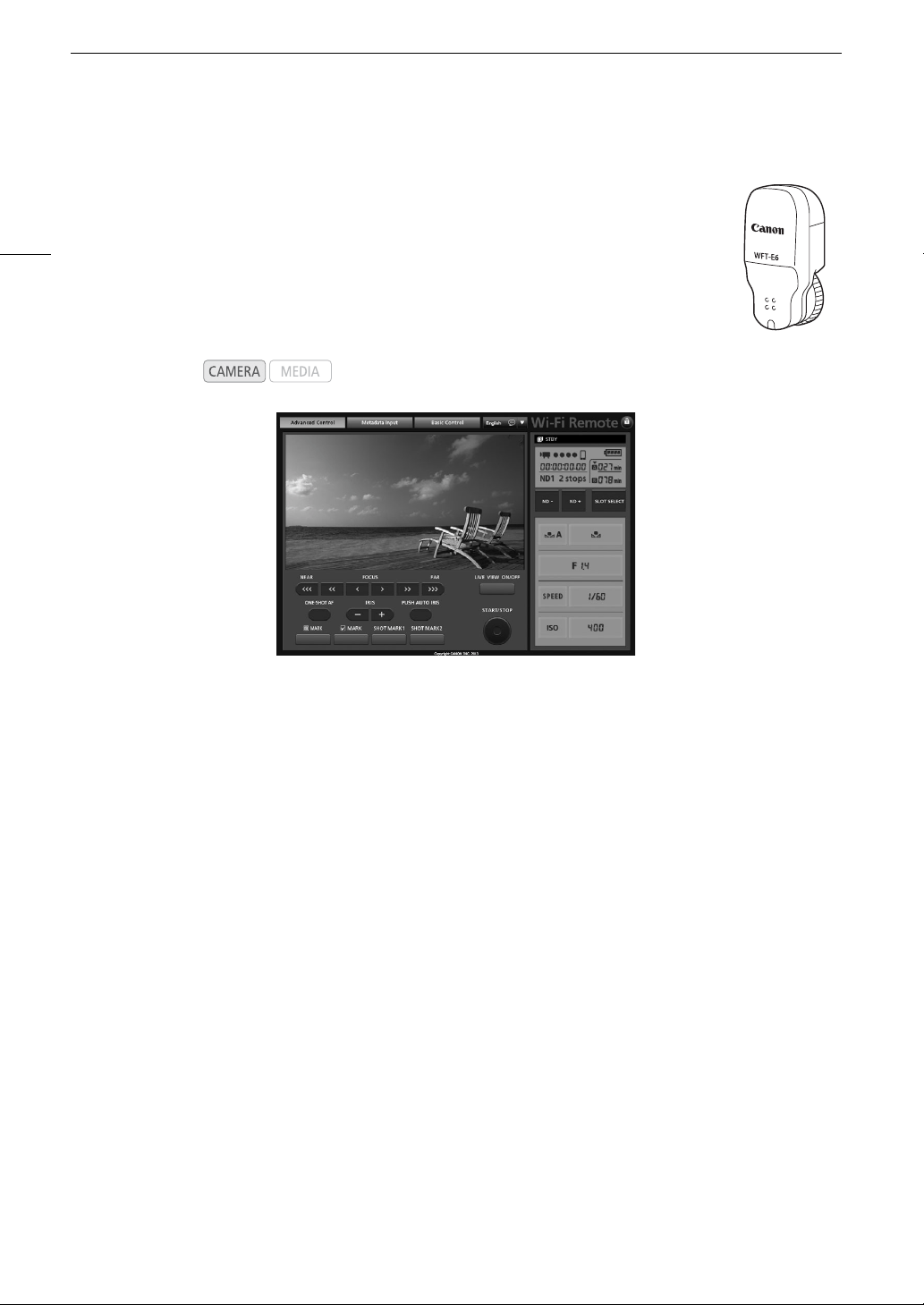
Operating the Camcorder Remotely
50
Using the WFT-E6 or WFT-E8 Wireless File Transmitter
You can attach an optional WFT-E6 or WFT-E8 Wireless File Transmitter to the camcorder’s
WFT terminal and operate the camcorder remotely via Wi-Fi Remote, a Web browser
application that can be accessed using the Web browser on any device compatible with
Wi-Fi networks*. The Wi-Fi Remote application lets you monitor the image through live view,
start and stop recording and remotely control the shutter speed, ISO speed/gain and other
settings. You can also create, edit and transfer a metadata profile, set various shot marks
and check the recording media, remaining recording time, time code, etc.
* For details about compatible devices, operating systems, Web browsers, etc. please visit your local Canon
Web site.
Preparing the System for Wi-Fi Remote
To be able to operate the camcorder remotely via the Wi-Fi Remote application you will need to attach an
optional wireless file transmitter to the camcorder’s WFT terminal and complete the wireless network setup.
Download ‘WFT-E6/WFT-E8 Wireless File Transmitter - Guide for the Canon EOS C300 models (PDF file) from
your local Canon Web site and follow the instructions to complete the necessary setup.
Operating modes:
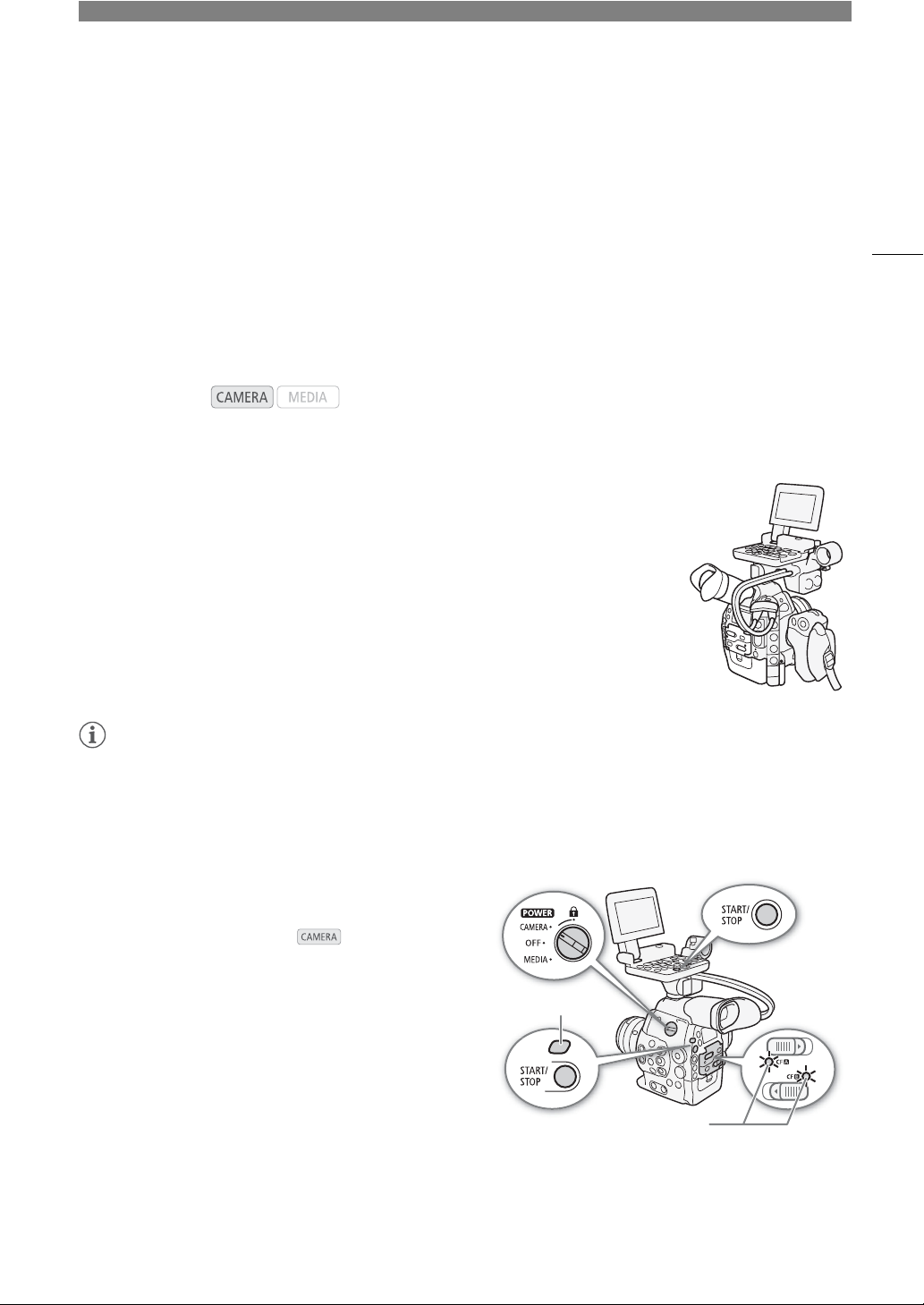
3
51
Recording
Recording Video
This section explains the recording basics. Before you begin recording, make a test recording first to check if the
camcorder operates correctly. Record for approximately 6 minutes at 50 Mbps (A 59). Should the camcorder
fail to operate correctly, refer to
Troubleshooting
(A 172).
For details on recording audio, refer to
Recording Audio
(A 93).
Preparing to Record
1 Attach the monitor unit, handle unit, grip unit, etc. as necessary to build the
desired configuration (
A 32).
2 Attach a charged battery pack to the camcorder (
A 24).
3 Insert a CF card into a CF card slot (
A 43).
• Insert another CF card into the other CF card slot to use relay recording (A 46) or
double slot recording (A 47).
4 Attach a lens (A 32, 36).
5 Adjust the viewfinder.
NOTES
• The camcorder can add a user memo (A 98) to a clip as you record. It can be used to store information such
as the clip name, camera operator and filming location. However, you must set the user memo before
recording.
Recording
1 Set the Q switch to CAMERA (A 26).
• The camcorder turns on in mode and enters
record pause mode.
• The access indicator for the CF card slot selected for
recording illuminates in red and then changes to green.
Operating modes:
Tal l y l am p
Access indicators
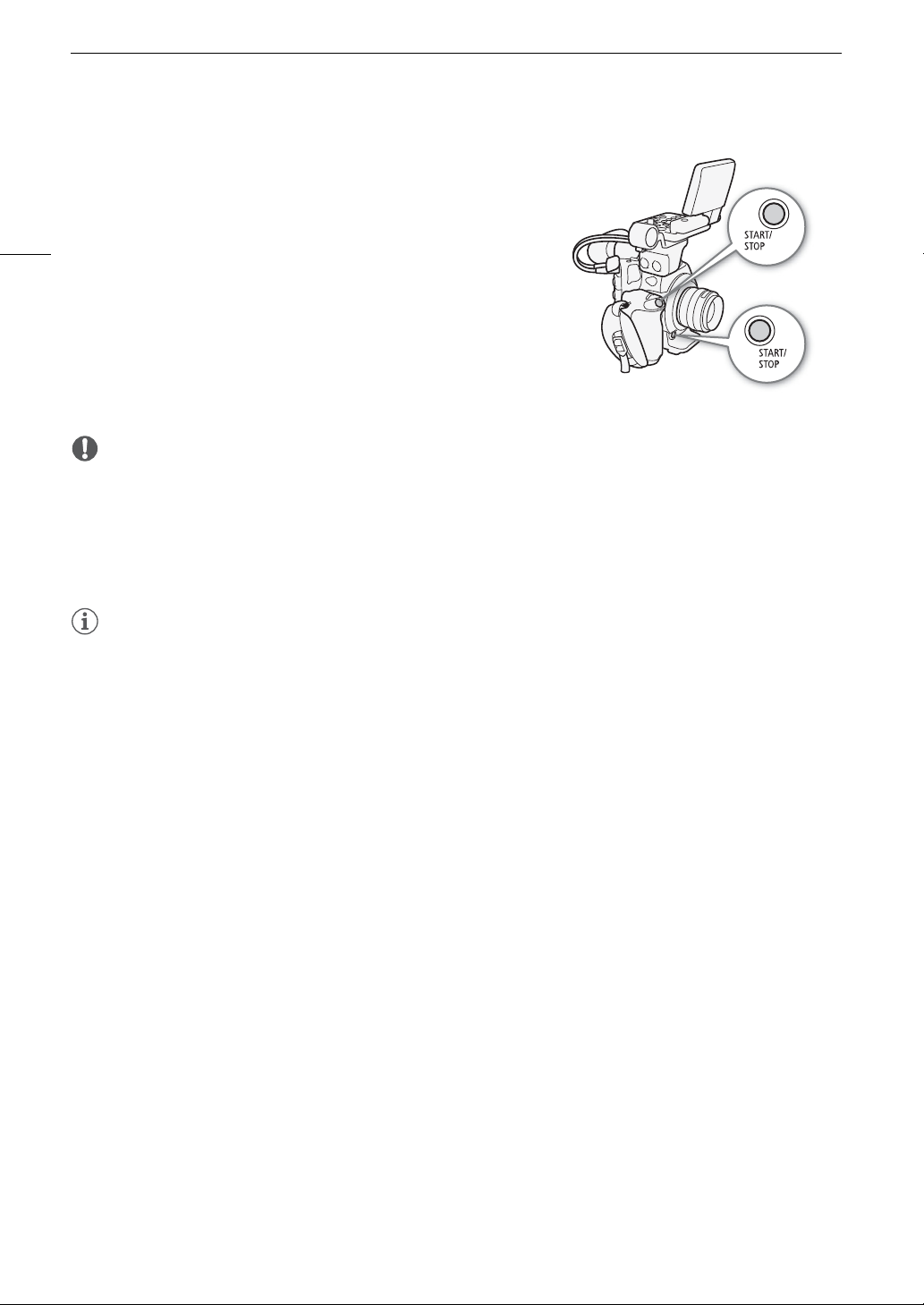
Recording Video
52
2 Press the START/STOP button to begin recording.
• Recording starts. The tally lamp illuminates and the recording
indicator [ÜREC] appears at the top of the screen.
• You can use the START/STOP button on the back of the
camcorder, the front of the camcorder (next to the lens
mount), the grip unit or the monitor unit.
3 Press the START/STOP button to pause the recording.
• The clip* is recorded to the CF card and the camcorder enters
record pause mode. The tally lamp will also go out.
* “Clip” refers to one movie unit from the point you press the START/STOP
button to start recording until you press again to pause the recording. You can
also include custom picture settings (A 116) and metadata (A 98) with the
clip.
IMPORTANT
• Observe the following precautions while the CF2 or CF3 access indicator is illuminated in red. Failure to do
so may result in permanent data loss.
- Do not open the CF card slot cover of the CF card slot being accessed and remove the CF card.
- Do not disconnect the power source or turn off the camcorder.
• Be sure to save your recordings regularly (A 145), especially after making important recordings. Canon shall
not be liable for any loss or corruption of data.
NOTES
•By default, [w Other Functions] > [Fan] is set to [Automatic] and the internal cooling fan will be activated
during record pause mode. While recording, when the camcorder’s internal temperature decreases below a
predetermined level, the fan will be turned off. You can also set the fan to run at all times.
• You can use [w Other Functions] > [Rec Review] (A 107) to review part or all of the last clip recorded.
• If you set an assignable button to [Add $ Mark] or [Add % Mark] (A 113), you can press the button to add
an $ mark or % mark to the last clip recorded.
• You can use [w Other Functions] > [Clips] > [Delete Last Clip] (A 162) to delete the last clip recorded.
However, you cannot delete the last clip if double slot recording is on.
• When you set the [w Other Functions] > [SDI Rec Command] setting to [On] and you connect the
camcorder to another device using the HD/SD SDI terminal, if you start or stop recording with the camcorder,
the other device will also start or stop recording.
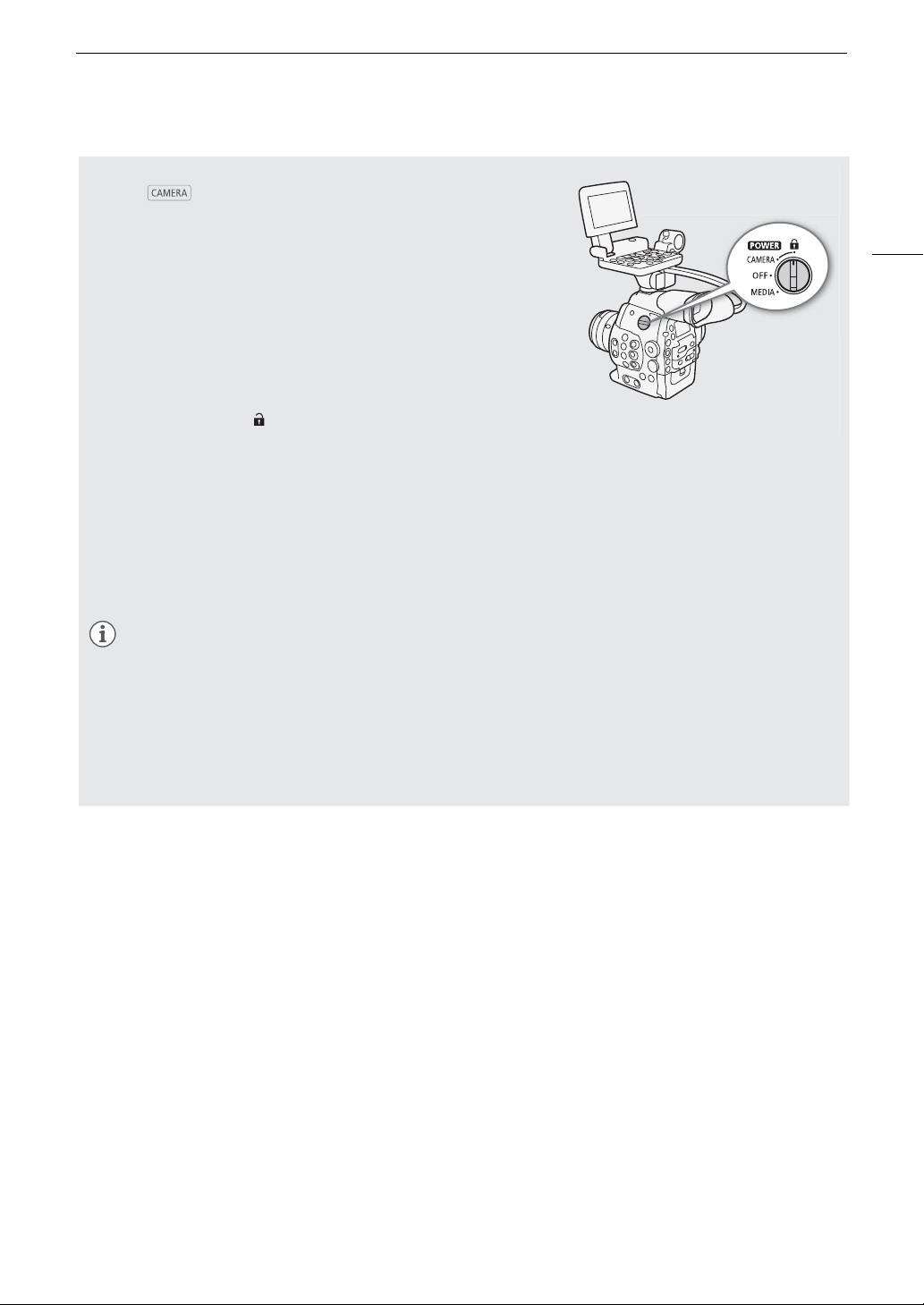
53
Recording Video
Locking the Controls in Recording Mode
Once in mode, you can set the Q switch to C (key lock)
to lock all the physical controls (buttons and switches) on the
camcorder*, save for the START/STOP button. With the
[w Other Functions] > [Custom Function] > [C START/STOP]
setting, you can even choose to lock all buttons, including the
START/STOP button. In such case, you can use Wi-Fi Remote to
operate the camcorder. This is useful in preventing settings from
being changed due to inadvertently pressing one of the buttons.
Return the Q switch to the CAMERA position to reactivate the
controls.
* The Wi-Fi Remote application also has a key lock function that is limited only to
the controls on the application’s screens (you will still be able to use the controls
on the camcorder). Press [ ] to lock the application’s controls; press [C] to
reactivate them.
About Clips
When the camcorder records a clip, it also assigns a 6-character clip name consisting of a 2-character prefix
(letters or numerals) and 4 numerals (for example, “AA0001”). The last 4 numbers serve as a running counter
that increases every time a clip is recorded. You can set the initial clip name in advance using the
[w Other Functions] > [Clips] > [Title Prefix] and [Number Setting] settings. You cannot change the clip
name after the clip is recorded.
NOTES
• If you are recording with two CF cards and the CF card you are using becomes full while recording, the clip
will continue uninterrupted on the other CF card when relay recording (A 46) is activated. In such case,
the recording will be recorded as separate clips.
• If you record using the custom picture and metadata settings, those settings will be recorded with the clip.
For more details, refer to
Custom Picture Settings
(A 116) and
Using Metadata
(A 98).
• The video (stream) file in a clip will be split approximately every 2 GB for clips with a long recording time
(approximately every 1 GB during slow motion recording). Even in such case, playback will be continuous.
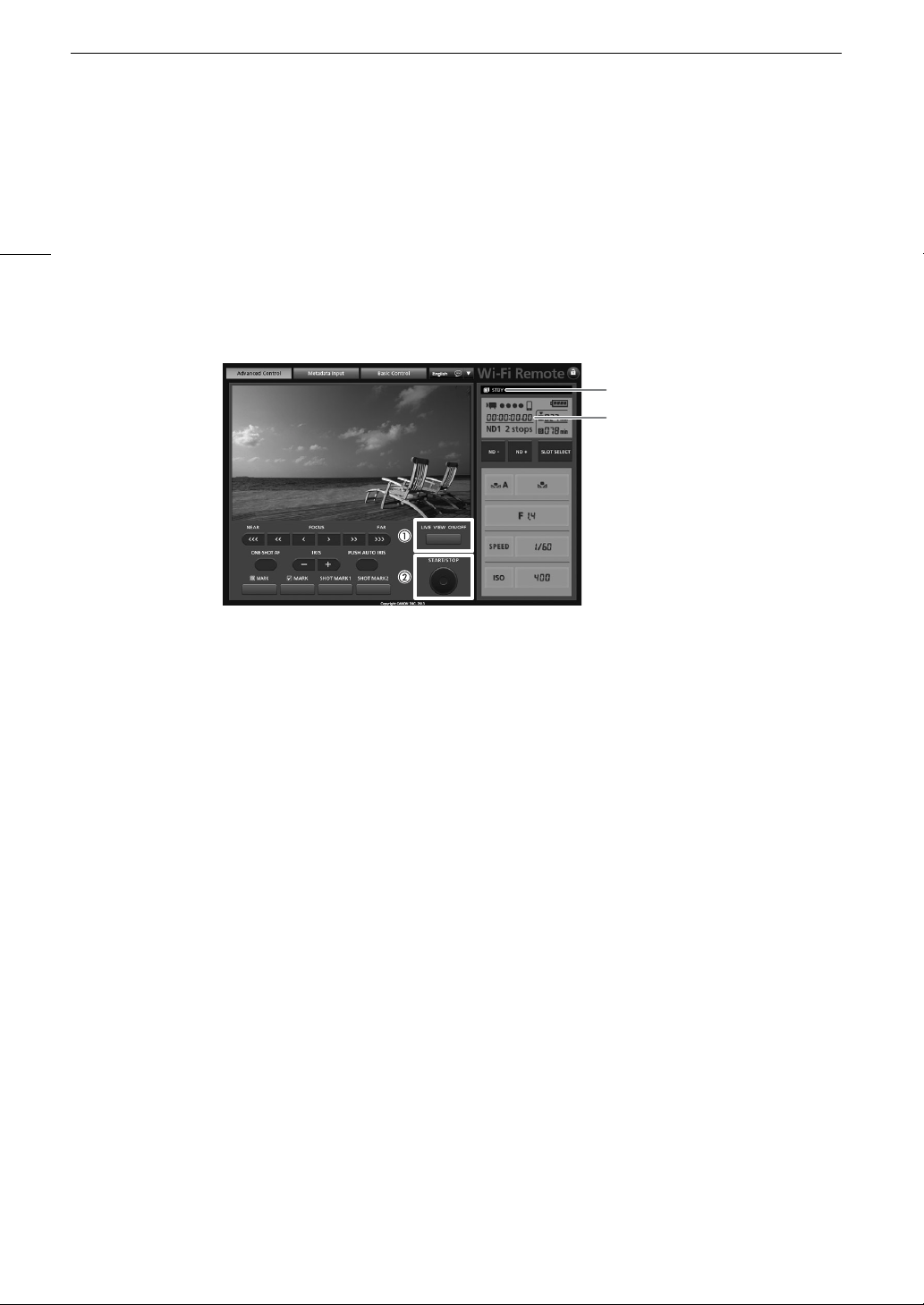
Recording Video
54
Remote Operation Using Wi-Fi Remote
After completing the necessary preparations (A 49), you can start and stop recording from a Wi-Fi-enabled
device using the Wi-Fi Remote application.
1 Press [LIVE VIEW ON/OFF] to show the camcorder’s live view image on the Wi-Fi Remote screen.
2 Press [START/STOP] to begin recording.
• The recording operation indicator changes from [STBY] to [ÜREC], the center of the START/STOP button
lights up in red and the time code display starts running on the Wi-Fi Remote screen.
• Press [START/STOP] again to pause the recording.
Recording operation
Time code
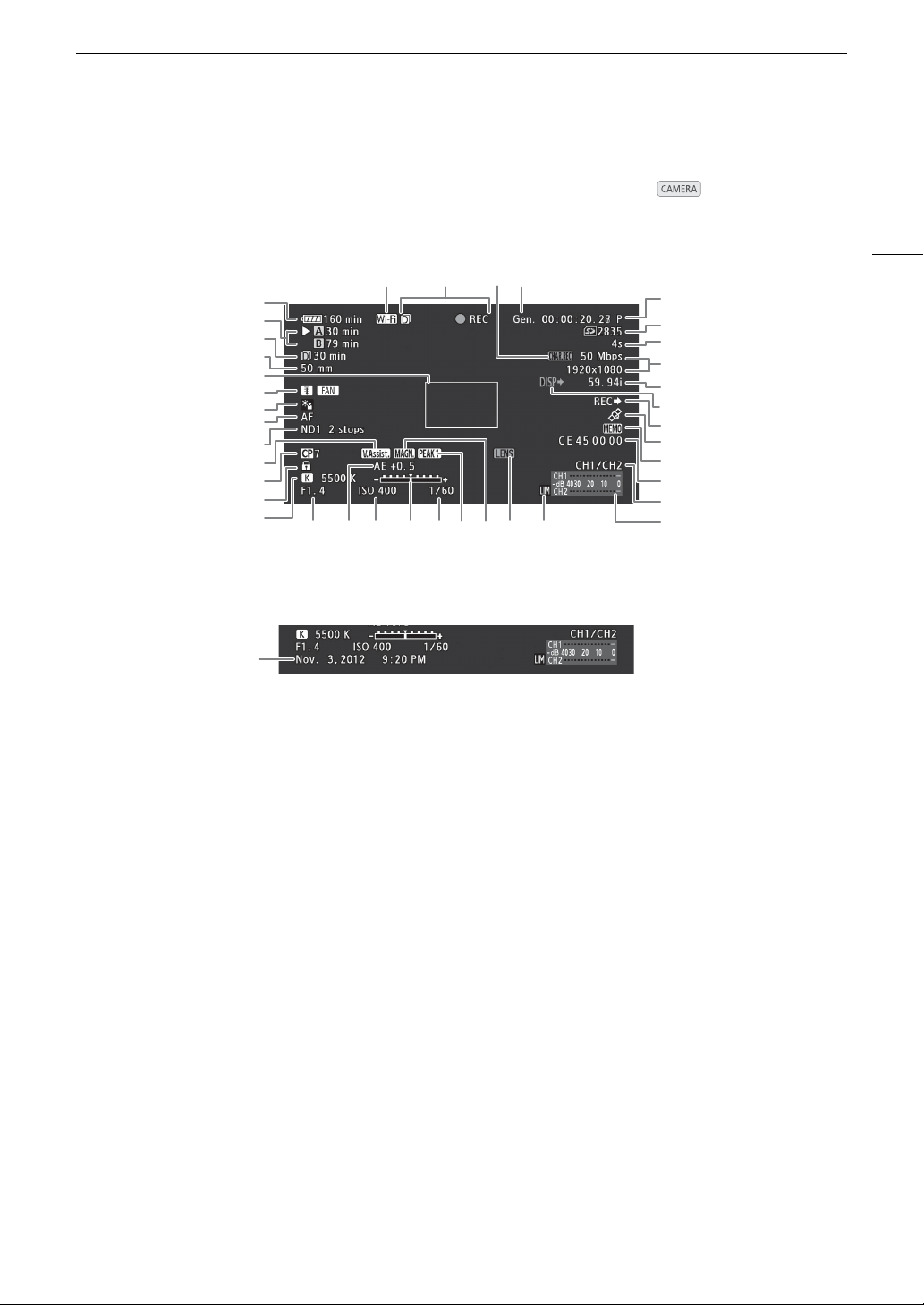
55
Recording Video
Onscreen Displays
Refer to this section for an explanation of the various screen displays that appear in mode. You can use
the custom display function (A 125) to turn off individual onscreen displays if they are not required.
When displaying the date and time (A 28):
1
The displayed value is an estimate.
2
Only when an optional wireless file transmitter is connected to the camcorder.
3
During slow & fast motion recording mode, this indicates the shooting frame rate.
4
Only when an optional GP-E1 GPS Receiver is attached to the camcorder.
14 15 16 17
19
18
22
24
26
25
27
28
29
23
20
21
1
2
30 3231 383733 34 35 36
5
6
3
4
7
8
9
10
11
12
13
39
1 Remaining battery time (A 56)
2 CF card status/available recording time (A 56)
3 Remaining recording time for double slot
recording (A 47)
4 # Current focal length of an attached EF lens
1
5 # One-shot AF’s autofocus frame (A 81)
6 Temperature warning (A 173) / Fan (A 58)
7 # Light metering (A 74)
8 # Focus mode (A 78)
9 ND filter (A 68)
10 View assistance (A 58)
11 Custom picture (A 116)
12 Key lock (A 53)
13 White balance (A 75)
14 Wi-Fi
2
(A 49) white - connected to a Wi-Fi
network; yellow - connecting to or disconnecting
from a Wi-Fi network; red - the optional wireless
file transmitter's temperature is too high and Wi-Fi
functions have been stopped.
15 Recording operation (A 56)
16 Character recording (A 125)
17 Genlock (A 90)
18 Time code (A 86)
19 SD card status
20 Interval counter (A 108)
21 Bit rate/Resolution (A 59)
22 Frame rate
3
(A 59)
23 Output displays (A 144)
24 SDI recording command (A 164)
25 GPS signal
4
(A 105). Continuously on - satellite
signal acquired; blinking - satellite signal not
acquired.
26 User memo (A 98)
27 User bit (A 89)
28 Audio output channel (A 97)
29 Audio level meter (A 95, 96)
30 # Aperture value (A 69)
31 # AE shift (A 73)
32 ISO speed/Gain (A 65)
33 # Exposure bar (A 73)
34 Shutter speed (A 62)
35 Peaking (A 80)
36 Magnification (A 80)
37 # Lens error warning (A 175)
38 Audio peak limiter (A 95)
39 Date/time (A 28)

Recording Video
56
NOTES
• You can press the DISP. button to switch the onscreen displays in the following sequence.
Show all onscreen displays show only onscreen markers* hide all onscreen displays.
* Only when the [£ LCD/VF Setup] > [Markers] setting is enabled.
1 Remaining battery time
• The icon shows a rough estimate of the remaining charge as a percentage of the full charge of the battery
pack. The remaining recording/playback time of the battery pack is displayed, in minutes, next to the icon.
• è é ê ë ì (in red).
When ì is displayed, replace the battery pack with a fully charged one.
• Depending on the conditions under which the camcorder and the battery pack are used, the actual
battery charge may not be indicated accurately.
2 CF card status/available recording time
• The following indicates the CF card status.
2/3 Can record on CF card
4/5 No CF card or cannot record on CF card
The CF card selected for recording is indicated with a Ð mark.
14 Recording operation
• When double slot recording (A 47) is activated, the 4 icon will appear to the left of the operation indicator.
Ü
REC Recording
STBY Record pause
ÜINT REC Interval recording
INT STBY (INT flashes) Interval record pause
ÜFRM REC Frame recording
ÜFRM STBY Frame record pause (after starting recording)
FRM STBY (FRM flashes) Frame record pause (before starting recording)
ÜS&F REC Slow & fast motion recording
S&F STBY Slow & fast motion record pause
ÜPRE REC Pre-recording (after pressing the START/STOP button)
PRE REC STBY Pre-recording (before pressing the START/STOP button)
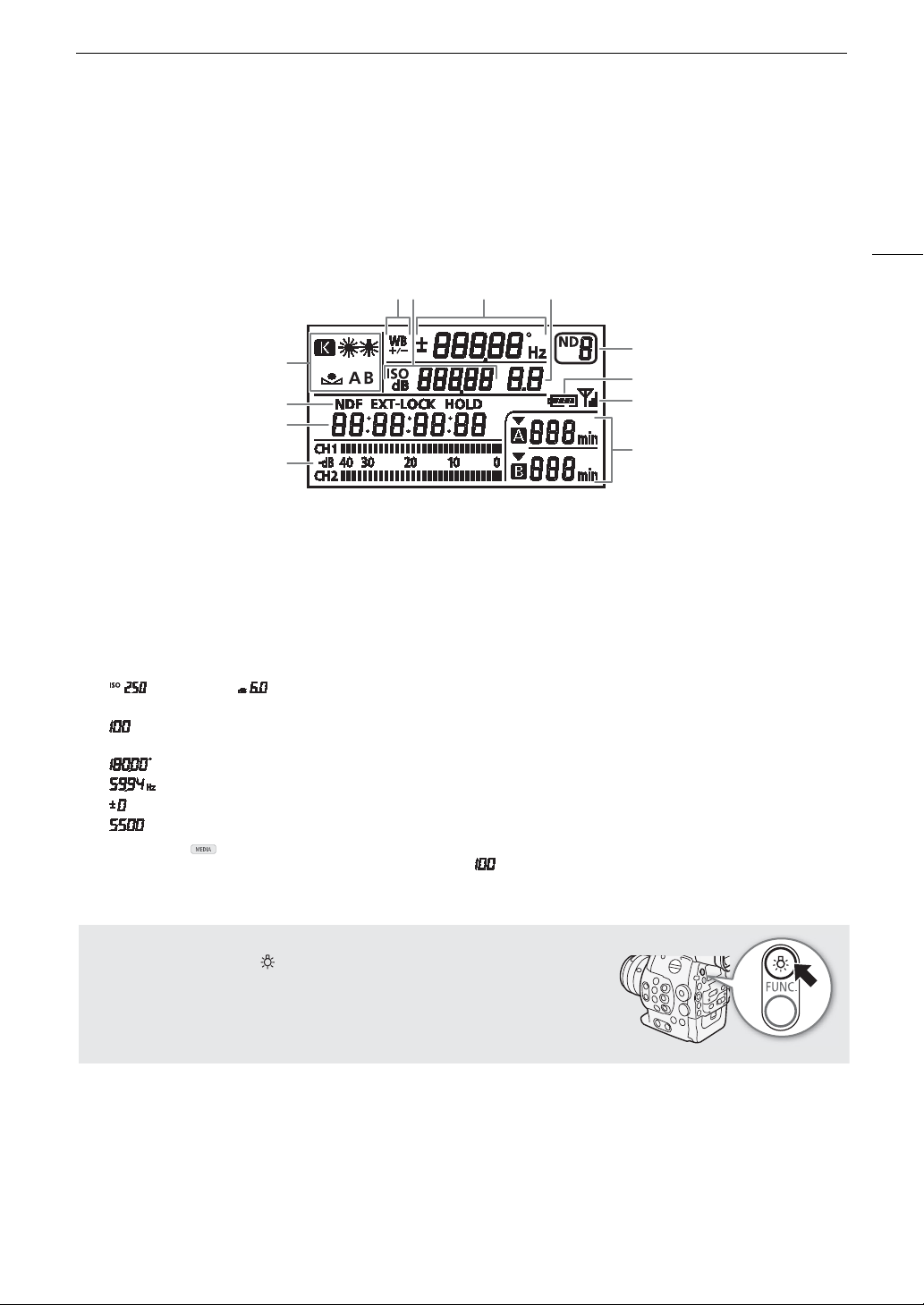
57
Recording Video
Rear Panel Displays
You can check the following information on the rear panel. This allows you to easily adjust main camera functions
like the shutter speed, white balance and ISO speed/gain even when the monitor unit is not attached to the
camcorder without having to use the viewfinder.
1
Displayed also in mode.
2
In these shutter speed modes, only the denominator is displayed - indicates a shutter speed of 1/100, etc.
3
Only displayed while adjusting the setting.
4
Only when an optional wireless file transmitter is connected to the camcorder.
1
2
3
4
5
678
9
10
11
12
1 White balance (A 75)
2 Time code settings: NDF Non-drop frame (A 87)
/EXT-LOCK External time code signal locked
(A 91) / HOLD Time code display on hold
(A 88)
3Time code (A 86)
4 Audio level meter
1
(A 95, 96)
5 White balance fine-tuning (A 76)
6 ISO speed/ Gain (A 65)
7 Shutter speed (A 62)/White balance
Shutter speed
2
(mode set to [Speed], [Slow]
or [Off])
Shutter speed (mode set to [Angle])
Shutter speed (mode set to [Clear Scan])
White balance fine-tuning
3
(A 76)
White balance, color temperature
3
(A 76)
8 # Aperture value (A 69)
9 ND filter (A 68)
10 Approximate remaining battery time
1
11 Wi-Fi
4
(A 49)
12 CF card status and available recording time
1
Adjusting the Brightness of the Rear Panel
Repeatedly pressing the (backlight) button will change the brightness of
the rear panel in the following order: Backlight on (bright) Backlight on
(dim) Backlight off.
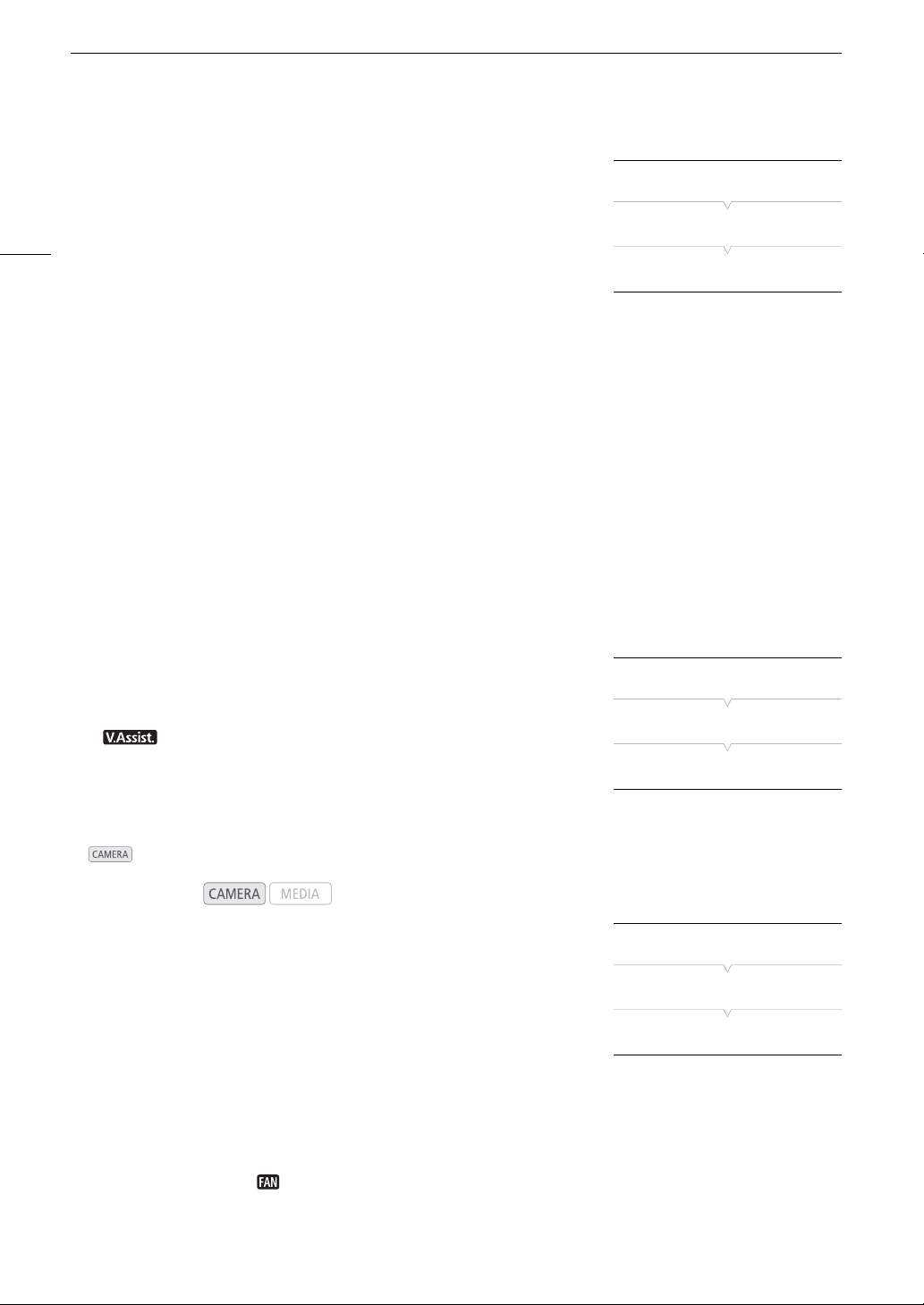
Recording Video
58
Canon Log Gamma and CINEMA Preset
You can easily set the camcorder to use a number of preset picture-
related settings especially designed with professional cinematography
and motion picture production in mind. With the CINEMA preset settings,
the gamma and color matrix (A 119) will be set to the advanced Canon
Log setting, which makes full use of the newly developed image sensor to
offer spectacular dynamic range. On the other hand, other custom picture
settings will not be available.
Clips recorded using Canon Log gamma need to be processed in post-production. During post-production, you
can apply a LUT (look-up table) to clips recorded using Canon Log gamma to view the clips with more natural
colors. For details about available LUTs, visit your local Canon Web site.
1 Open the [/ CINEMA Locked] submenu.
[~ Camera Setup] > [/ CINEMA Locked]
2 Select [On] and then press SET.
• All picture-related settings will be set according to the CINEMA preset values.
•[/ LOCKED] appears on the left of the screen.
Checking Clips Recorded with Canon Log Gamma (View Assistance)
When Canon Log gamma is used, the image displayed on the screen will appear darker than usual. You can use
the view assistance function to display an image that approximates the one that would be obtained using normal
gamma settings. View assistance is only applied on the camcorder screen; it will not affect your recordings or the
video signal output from the various terminals.
1 Open the [View Assist.] submenu.
[£ LCD/VF Setup] > [View Assist.]
2 Select [On] and then press SET.
• will appear on the lower left of the screen.
Using the Fan
In mode, the camcorder uses an internal cooling fan to reduce the camcorder’s internal heat.
1 Open the [Fan] submenu.
[w Other Functions] > [Fan]
2 Select the desired option and then press SET.
Options
Operating modes:
[On]: The fan runs at all times regardless of the camcorder’s internal
temperature.
[Automatic]: During record pause mode, the fan is always turned on. While you
are recording (while [Ü REC] appears on the screen), if the
camcorder’s internal temperature decreases below a predetermined
level, the fan will be turned off. If the camcorder’s internal
temperature rises to a predetermined level, the fan will be activated
automatically ( will appear on the screen), even while you are
recording.
[~ Camera Setup]
[/ CINEMA Locked]
[Off]
[£ LCD/VF Setup]
[View Assist.]
[Off]
[w Other Functions]
[Fan]
[Automatic]
59
Video Configuration: Type of Recording, Bit Rate, Resolution and Frame Rate
Video Configuration: Type of Recording, Bit Rate, Resolution and
Frame Rate
Before you record, select the bit rate, resolution (frame size) and frame rate that best match your creative needs.
The options available will depend on the type of recordings you select: NTSC-compatible, PAL-compatible or
true 24.00P recordings. A single CF card can contain only one type of recordings.
Selecting the Type of Recording
For true 24.00P recordings
1 Open the [24.00P] submenu.
[w Other Functions] > [24.00P]
2 Select [On] and then press SET.
• The camcorder will reset and restart in 24.00P mode.
For recordings compatible with analog NTSC/PAL broadcast
standards
1 Open the [NTSC/PAL] submenu.
[w Other Functions] > [NTSC/PAL]
2 Select [NTSC] or [PAL] and then press SET.
• The camcorder will reset and restart in the selected mode.
Selecting the Bit Rate and Resolution
1 Open the [Bit Rate/Resolution] submenu to set the bit rate and
resolution.
[w Other Functions] > [Bit Rate/Resolution]
2 Select the desired option and then press SET.
• The selected bit rate and resolution will appear on the upper right of
the screen.
Selecting the Frame Rate
This procedure is not necessary for true 24.00P recordings.
1 Open the [Frame Rate] submenu to set the frame rate.
[w Other Functions] > [Frame Rate]
2 Select the desired option and then press SET.
• The selected frame rate will appear on the upper right of the screen.
NOTES
• A single CF card cannot be used to record different types of recordings (NTSC/PAL/24.00P).
• For details on the signal output from each terminal, refer to
Video Output Configuration
(A 141).
Operating modes:
[w Other Functions]
[24.00P]
[Off]
* Depending on the country/region
of purchase.
[w Other Functions]
[NTSC/PAL]
[NTSC] or [PAL]*
[w Other Functions]
[Bit Rate/Resolution]
[50 Mbps 1920x1080]
* Depending on the country/region
of purchase.
[w Other Functions]
[Frame Rate]
[59.94i] or [50.00i]*
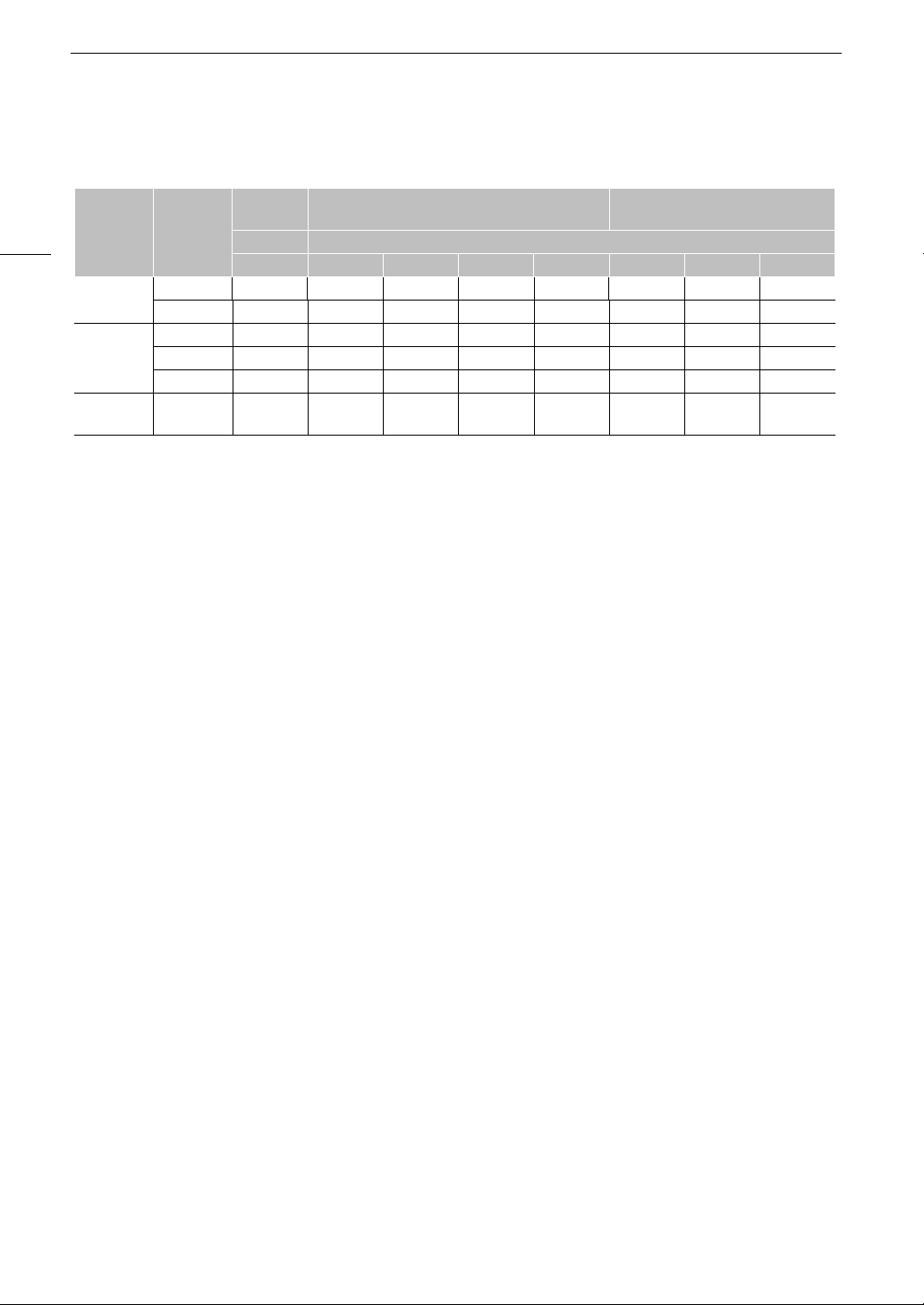
Video Configuration: Type of Recording, Bit Rate, Resolution and Frame Rate
60
Available bit rate, resolution and frame rate settings
* The first line indicates the bit rate (in Mbps); the second line indicates in parentheses whether the bit rate is constant (CBR) or
variable (VBR), and the color sampling.
Bit rate* Resolution
[24.00P] set
to [On]
[NTSC/PAL] set to [NTSC] [NTSC/PAL] set to [PAL]
Frame rate [Frame Rate] setting
24.00P 59.94i 59.94P 29.97P 23.98P 50.00i 50.00P 25.00P
50 Mbps
(CBR 4:2:2)
1920 x 1080 Ü Ü – Ü Ü Ü – Ü
1280 x 720 Ü – Ü Ü Ü – Ü Ü
35 Mbps
(VBR 4:2:0)
1920 x 1080 – Ü – Ü Ü Ü – Ü
1440 x 1080 – Ü – – – Ü – –
1280 x 720 – – Ü Ü Ü – Ü Ü
25 Mbps
(CBR 4:2:0)
1440 x 1080 – Ü – Ü Ü Ü – Ü
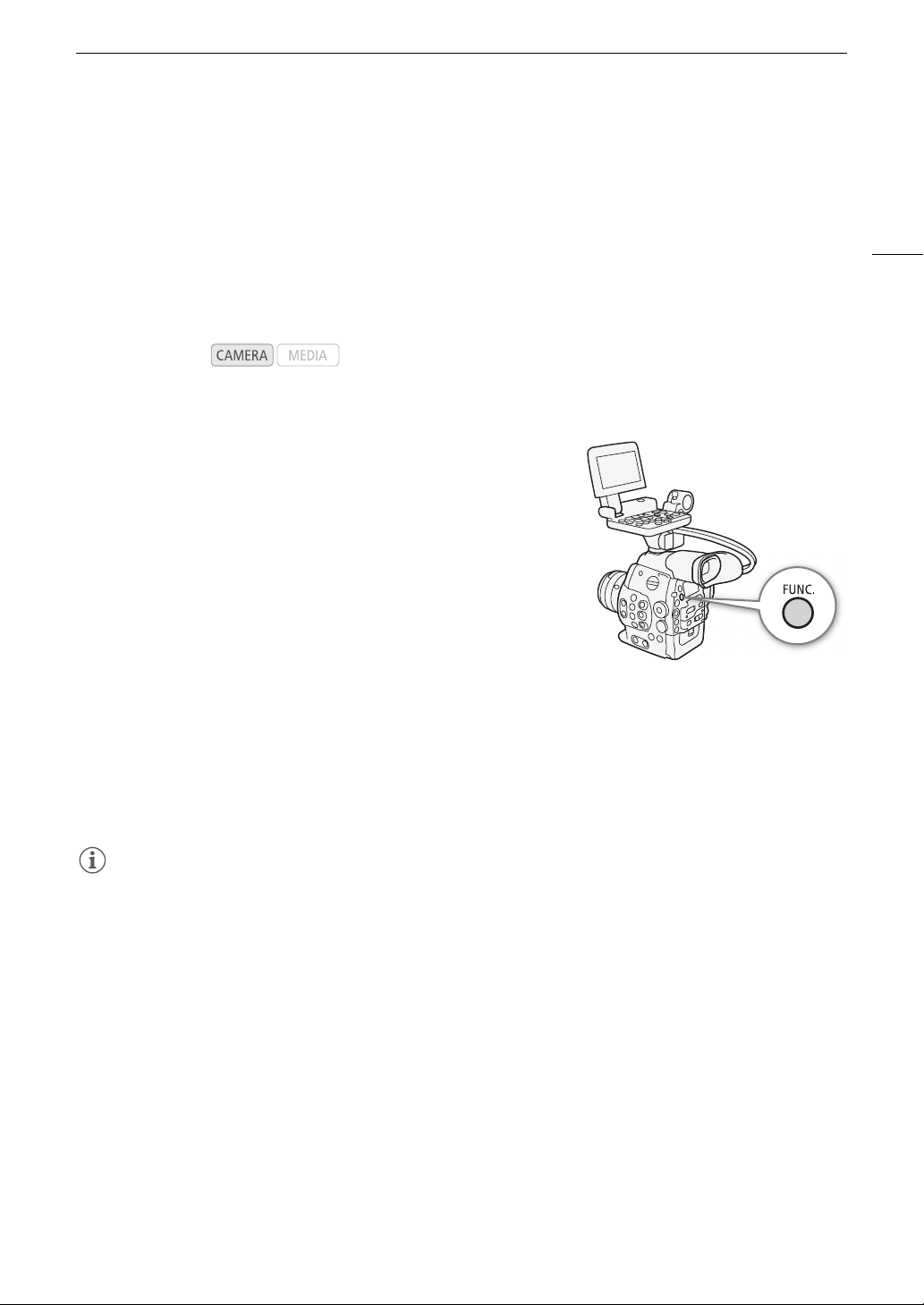
61
Changing Main Camera Functions with the FUNC. Button
Changing Main Camera Functions with the FUNC. Button
You can adjust three main camera functions –shutter speed, white balance and ISO speed/gain– using the
FUNC. button (direct setting mode). In direct setting mode, you can change settings using the LCD screen/
viewfinder or using only the rear panel, which is convenient when the monitor unit is not attached to the
camcorder.
This section will explain the basic operation of the direct setting mode. For specific details about the functions
please refer to the each function’s section: shutter speed (A 62), white balance (A 75), ISO speed/gain
(A 65).
Using the Direct Setting Mode
1 Press the FUNC. button.
• On the screen: The onscreen display of the function to be adjusted
will be highlighted in orange.
On the rear panel: Only the icon (white balance) or value (ISO
speed, gain, shutter speed) of the function to be adjusted will be
displayed.
• Repeatedly pressing the FUNC. button or pushing the joystick left/
right will change the function to be adjusted in the following order:
White balance Color temperature/preset white balance ISO
speed/gain Shutter speed Direct setting mode off.
2 Push the joystick up/down or turn the SELECT dial to select the desired value (ISO speed, gain,
shutter speed) or desired white balance mode and then press SET.
• The selected value will be set and the camcorder will exit the direct setting mode.
• On the screen: The onscreen display of the selected function will return to normal.
On the rear panel: The display will return to normal (all displays will reappear).
• Depending on the function selected, additional adjustment may be possible or necessary before pressing
SET.
NOTES
• The camcorder will automatically end the direct setting mode in the following cases.
- If no operation was performed for more than 6 seconds.
- If the menu, custom picture menu or a status screen was opened.
- If the aperture was adjusted or the ND filter setting was changed.
- If the control dial’s function is set to [ISO/Gain] and you operate the control dial while adjusting the white
balance or shutter speed in direct setting mode.
• If you set an assignable button to [FUNC.] (A 113), you can press that button instead of the FUNC. button to
enter the direct setting mode.
Operating modes:
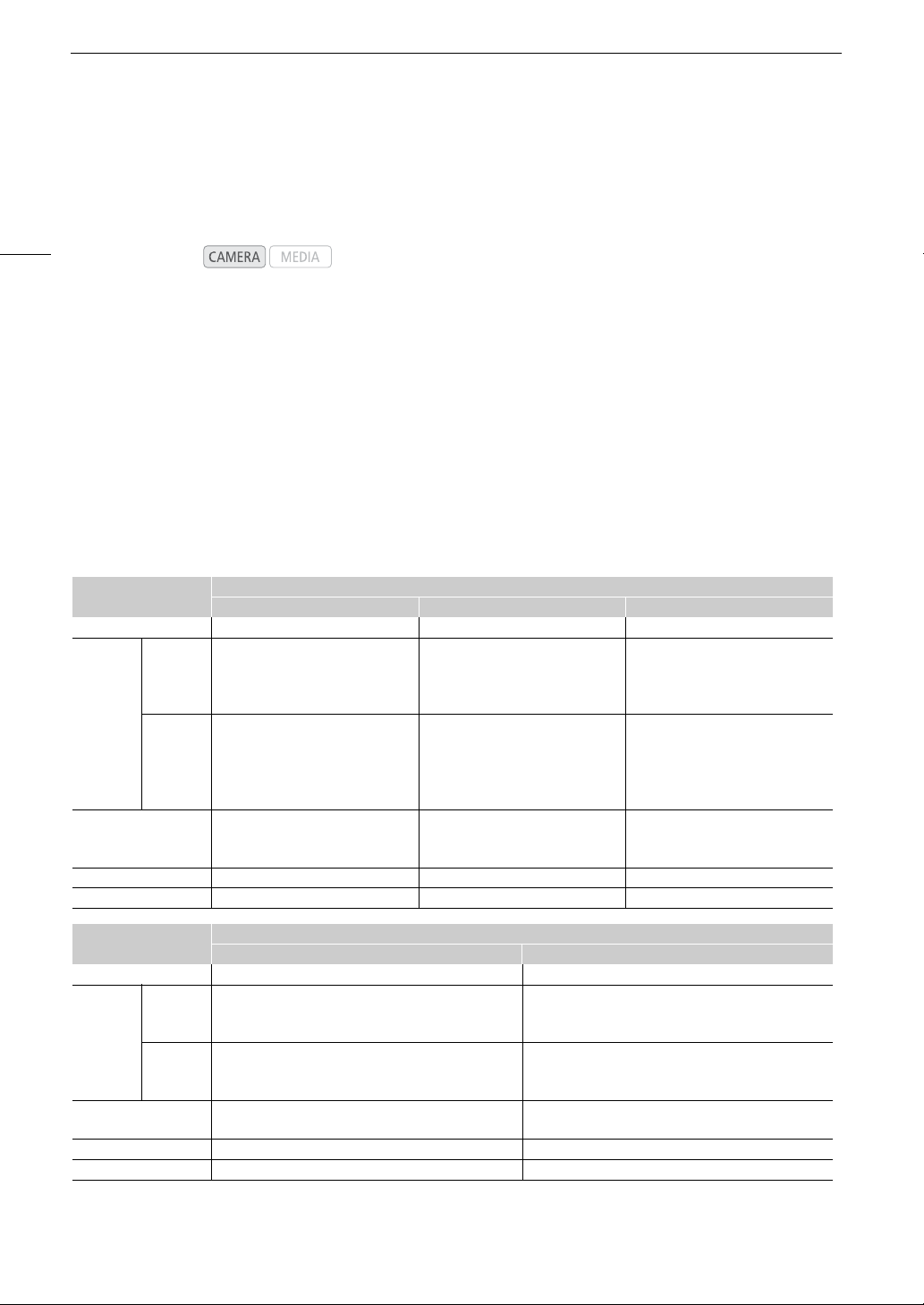
Shutter Speed
62
Shutter Speed
Set the shutter speed based on the recording conditions. For example, you may want to set slower shutter
speeds in darker environments. The camcorder offers the following 5 modes.
[Speed]: Allows you to set the shutter speed (in fractions of a second). You can select the increment to use when
adjusting the shutter speed between 1/3-stop and 1/4-stop increments.
[Angle]: You can set the shutter angle to determine the shutter speed.
[Clear Scan]: Set the frequency in order to record CRT computer monitors without displaying black bands or
flicker on the screen.
[Slow]: You can set slower shutter speeds to obtain brighter recordings in places with insufficient lighting. This
mode is not available during slow & fast motion recording mode.
[Off]: The camcorder uses a standard shutter speed based on the frame rate.
Operating modes:
Available Shutter Speeds
The available shutter speeds vary depending on the frame rate.
1
During slow & fast motion recording mode, available values will vary depending on the selected shooting frame rate.
2
In the Wi-Fi Remote application, all shutter speeds (1/3-stop and 1/4-stop increments) will be available from the same list.
3
Not available during slow & fast motion recording mode.
Shutter speed mode
Frame rate (NTSC and 24.00P recordings)
59.94i / 59.94P 29.97P 23.98P / 24.00P
Off
1
1/60 1/30 1/24
Speed
1,2
1/3-stop
increments
1/60, 1/80, 1/100, 1/125, 1/160, 1/200,
1/250, 1/320, 1/400, 1/500, 1/640,
1/800, 1/1000, 1/1250, 1/1600, 1/2000
1/30, 1/40, 1/50, 1/60, 1/80, 1/100,
1/125, 1/160, 1/200, 1/250, 1/320,
1/400, 1/500, 1/640, 1/800, 1/1000,
1/1250, 1/1600, 1/2000
1/25, 1/30, 1/40, 1/50, 1/60, 1/80,
1/100, 1/125, 1/160, 1/200, 1/250,
1/320, 1/400, 1/500, 1/640, 1/800,
1/1000, 1/1250, 1/1600, 1/2000
1/4-stop
increments
1/60, 1/75, 1/90, 1/100, 1/120, 1/150,
1/180, 1/210, 1/250, 1/300, 1/360,
1/420, 1/500, 1/600, 1/720, 1/840,
1/1000, 1/1200, 1/1400, 1/1700,
1/2000
1/30, 1/34, 1/40, 1/48, 1/60, 1/75, 1/90,
1/100, 1/120, 1/150, 1/180, 1/210, 1/250,
1/300, 1/360, 1/420, 1/500, 1/600, 1/720,
1/840, 1/1000, 1/1200, 1/1400, 1/1700,
1/2000
1/24, 1/30, 1/34, 1/40, 1/48, 1/60, 1/75,
1/90, 1/100, 1/120, 1/150, 1/180, 1/210,
1/250, 1/300, 1/360, 1/420, 1/500, 1/600,
1/720,1/840, 1/1000, 1/1200, 1/1400,
1/1700, 1/2000
Angle
1
360°, 240°, 216°, 180°, 120°, 90°,
60°, 45°, 30°, 22.5°, 15°, 11.25°
360°, 240°, 216°, 180°, 120°, 108°,
90°, 60°, 45°, 30°, 22.5°, 15°,
11.25°
360°, 345.6°, 288°, 240°, 180°,
172.8°, 144°, 120°, 90°, 86.4°, 72°,
60°, 45°, 30°, 22.5°, 15°, 11.25°
Clear Scan
1
59.94 Hz to 250.27 Hz 29.97Hz to 250.27 Hz 23.98 Hz or 24.00 Hz to 250.27 Hz
Slow
3
1/4, 1/8, 1/15, 1/30 1/4, 1/8, 1/15 1/3, 1/6, 1/12
Shutter speed mode
Frame rate (PAL recordings)
50.00i / 50.00P 25.00P
Off
1
1/50 1/25
Speed
1,2
1/3-stop
increments
1/50, 1/60, 1/80, 1/100, 1/125, 1/160, 1/200, 1/250, 1/320,
1/400, 1/500, 1/640, 1/800, 1/1000, 1/1250, 1/1600,
1/2000
1/25, 1/30, 1/40, 1/50, 1/60, 1/80, 1/100, 1/125, 1/160,
1/200, 1/250, 1/320, 1/400, 1/500, 1/640, 1/800, 1/1000,
1/1250, 1/1600, 1/2000
1/4-stop
increments
1/50, 1/60, 1/75, 1/90, 1/100, 1/120, 1/150, 1/180, 1/210,
1/250, 1/300, 1/350, 1/400, 1/500, 1/600, 1/700, 1/800,
1/1000, 1/1200, 1/1400, 1/1600, 1/2000
1/25, 1/29, 1/33, 1/40, 1/50, 1/60, 1/75, 1/90, 1/100, 1/120,
1/150, 1/180, 1/210, 1/250, 1/300, 1/350, 1/400, 1/500, 1/600,
1/700, 1/800, 1/1000, 1/1200, 1/1400, 1/1600, 1/2000
Angle
1
360°, 300°, 240°, 180°, 150°, 120°, 90°, 60°, 45°, 30°,
22.5°, 15°, 11.25°
360°, 300°, 240°, 180°, 150°, 120°, 90°, 75°, 60°, 45°,
30°, 22.5°, 15°, 11.25°
Clear Scan
1
50.00 Hz to 250.78 Hz 25.00 Hz to 250.78 Hz
Slow
3
1/3, 1/6, 1/12, 1/25 1/3, 1/6, 1/12
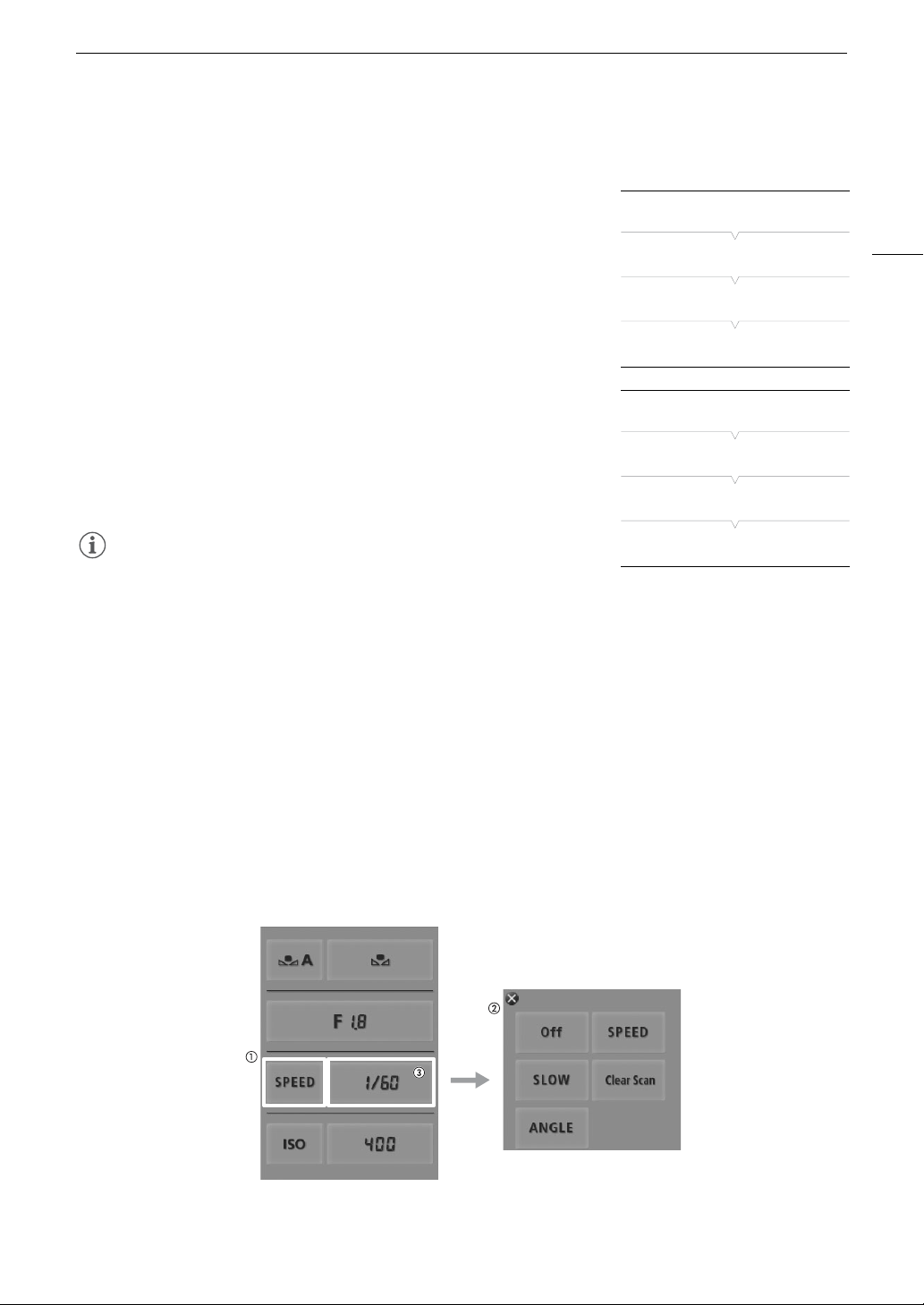
63
Shutter Speed
Changing the Shutter Speed Mode and Value
1 Open the shutter [Mode] submenu.
[~ Camera Setup] > [Shutter] > [Mode]
2 Select the desired mode and then press SET.
• If you selected [Speed] (the default value) you can select the
increment scale to use when adjusting the shutter speed; otherwise,
skip to step 5.
3 Open the [Shutter Increment] submenu.
[~ Camera Setup] > [Shutter] > [Shutter Increment]
4 Select [1/3 stop] or [1/4 stop] and then press SET.
5 Adjust the shutter speed, angle value or clear scan frequency
using the direct setting mode.
• Repeatedly press the FUNC. button to highlight the shutter speed
display, select the desired value and then press SET. For details refer
to
Using the Direct Setting Mode
(A 61).
NOTES
• If you set an assignable button to [FUNC. Shutter] (A 113), you can
press the button to enter the direct setting mode with the shutter speed
highlighted and ready to be adjusted.
Remote Operation Using Wi-Fi Remote
After completing the necessary preparations (A 49), you can adjust the shutter speed remotely from a Wi-Fi-
enabled device using the Wi-Fi Remote application.
1 Press [SPEED] on the Wi-Fi Remote screen.
2 Select the desired mode.
3 Press the current shutter speed, angle value or clear scan frequency and select the desired value
from the list.
• You may need to scroll up/down to see all the available values.
• The selected value will be displayed on the Wi-Fi Remote screen and will be applied on the camcorder.
[~ Camera Setup]
[Shutter]
[Mode]
[Speed]
[~ Camera Setup]
[Shutter]
[Shutter Increment]
[1/4 stop]
Shutter Speed
64
NOTES
• Closing down the aperture when recording under bright conditions may cause the picture to appear soft or out
of focus. To avoid the loss of sharpness due to diffraction, use a faster shutter speed, a denser ND filter
(A 68) or open up the aperture.
• When the shutter speed mode is set to [Slow], bright red, green or blue dots may appear on the screen. In
such case, use a faster shutter speed or select a lower ISO speed or gain value (A 65).
• Even when using the [C7: EOS Std.] preset custom picture file, if you set the camcorder to a certain shutter
speed, you may not get the exactly the same image brightness as you would on an EOS digital SLR camera
set to the same shutter speed.
• When an optional RC-V100 Remote Controller is connected to the camcorder, you can change the shutter
mode with the remote controller’s SHUTTER SELECT button.
Flicker Reduction
You can perform the following procedure to have the camcorder
automatically detect and reduce flicker.
1 Open the [Flicker Reduction] submenu.
[~ Camera Setup] > [Flicker Reduction]
2 Select [Automatic] and then press SET.
NOTES
• When recording under artificial light sources such as fluorescent, mercury or halogen lamps, the screen may
flicker depending on the shutter speed. You may be able to avoid flicker by setting the shutter mode to
[Speed] and the shutter speed to a value matching the frequency of the local electrical system: 1/50* or 1/100
for 50 Hz systems, 1/60 or 1/120 for 60 Hz systems.
* May not be available depending on the frame rate.
Using Slow Shutter Mode
When recording in dark surroundings, you can obtain a brighter picture by using slow shutter mode. You can
also use this mode when you wish to add certain effects to your recordings, such as blurring the background
during panning shots or recording a moving subject with an afterimage trail.
• Image quality may not be as good as when using faster shutter speeds in brighter surroundings.
[~ Camera Setup]
[Flicker Reduction]
[Off]
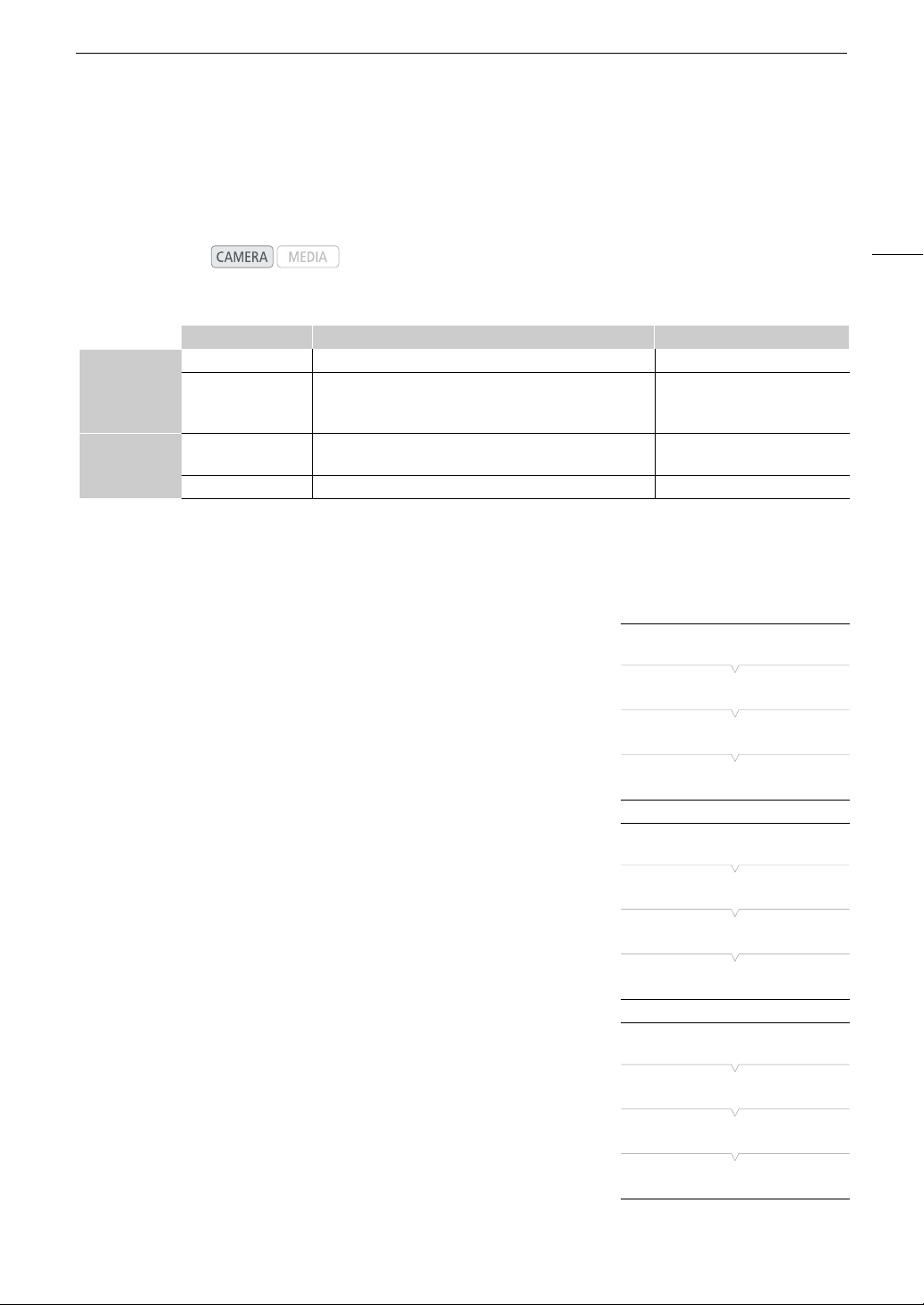
65
ISO Speed/Gain
ISO Speed/Gain
Depending on the shooting conditions you may want to adjust the brightness of the image. You can do so by
changing the ISO speed or gain value to adjust the sensitivity of the sensor.
Available ISO speed and gain settings
1
Settings available only when [~ Camera Setup] > [ISO/Gain] > [Extended Range] is set to [On].
2
The minimum and maximum ISO speeds are available even when the 1-stop increment scale is selected.
3
ISO speed required for a suitable dynamic range for Canon Log gamma. Equivalent to a gain value of 2.5 dB.
4
This value is only available when [Extended Range] is set to [Off].
Changing the ISO Speed or Gain Value
1 Open the ISO Speed/Gain [Select] submenu.
[~ Camera Setup] > [ISO/Gain] > [Select]
2 Select [ISO] or [Gain] and then press SET.
If you selected [ISO] (the default value):
3 Open the [ISO Increment] submenu to select the increment to
use when adjusting the ISO speed.
[~ Camera Setup] > [ISO/Gain] > [ISO Increment]
4 Select [1 stop] or [1/3 stop] and then press SET.
5 Adjust the ISO speed using the direct setting mode.
• Repeatedly press the FUNC. button to highlight the ISO speed
display, select the desired value and then press SET. For details refer
to
Using the Direct Setting Mode
(A 61).
If you selected [Gain]:
3 Open the [Gain] submenu to select the increment to use when
adjusting the gain.
[~ Camera Setup] > [ISO/Gain] > [Gain]
4 Select [Normal] (3-dB increment) or [Fine] (0.5-dB increment) and
then press SET.
5 Adjust the gain using the direct setting mode.
• Repeatedly press the FUNC. button to highlight the gain display,
select the desired value and then press SET. For details refer to
Using
the Direct Setting Mode
(A 61).
Operating modes:
Increment Normal range Extended range
1
ISO Speed
1-stop increments 320
2
, 400, 800, <850>
3
, 1600, 3200, 6400, 12800, 20000
2, 4
25600, 51200, 80000
2
1/3-stop increments
320, 400, 500, 640, 800, <850>
3
, 1000, 1250, 1600, 2000,
2500, 3200, 4000, 5000, 6400, 8000, 10000, 12800, 16000,
20000
25600, 32000, 40000, 51200,
64000, 80000
Gain
Normal
-6 dB, -3 dB, 0 dB, 3 dB, 6 dB, 9 dB, 12 dB, 15 dB, 18 dB,
21 dB, 24 dB, 27 dB, 30 dB
33 dB, 36 dB, 39 dB, 42 dB
Fine 0 dB to 24 dB in 0.5 dB increments –
[~ Camera Setup]
[ISO/Gain]
[Select]
[ISO]
[~ Camera Setup]
[ISO/Gain]
[ISO Increment]
[1/3 stop]
[~ Camera Setup]
[ISO/Gain]
[Gain]
[Normal]
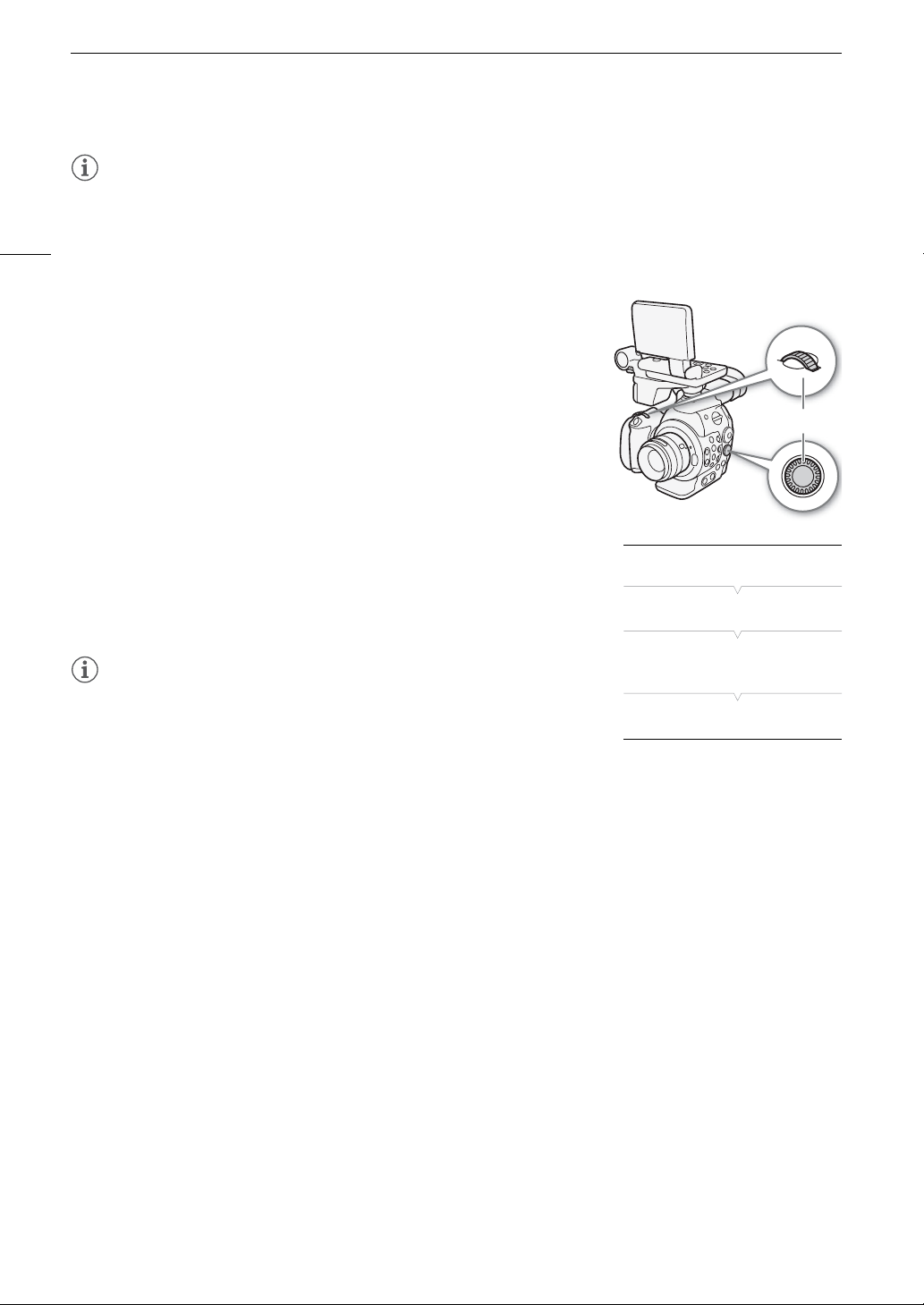
ISO Speed/Gain
66
NOTES
• If you set an assignable button to [FUNC. ISO/Gain] (A 113), you can press the button to enter the direct
setting mode with the ISO speed/gain highlighted and ready to be adjusted.
Using the Control Dial
You can adjust the value of the ISO speed or gain using the control dial on
the camcorder or that on the grip unit.
You will need to set a control dial’s function to [ISO/Gain] in advance. You can
select the function assigned to each control dial independently.
Assigning ISO Speed/Gain Control to a Control Dial
1 Open the [Control Dial] (control dial on the camcorder) or [Grip Ctrl Dial]
(control dial on the grip unit) submenu.
[w Other Functions] > [Custom Function] > [Control Dial] or
[Grip Ctrl Dial]
2 Select [ISO/Gain] and then press SET.
Changing the ISO Speed or Gain Value
To select whether to change the ISO speed or the gain, perform steps 1 to 4
in the previous procedure. Turn the control dial assigned to [ISO/Gain] to set
the desired ISO speed or gain value.
NOTES
• You can use the [
w
Other Functions]
>
[Custom Function]
>
[Control Dial Dir.]
or [Grip Ctrl Dial Dir.] setting (
A
125) to change the direction of the adjustment
when you turn the control dial on the camcorder or on the grip unit, respectively.
Control dial
[w Other Functions]
[Custom Function]
[Control Dial]
[Grip Ctrl Dial]
# [Iris], $ [Off]
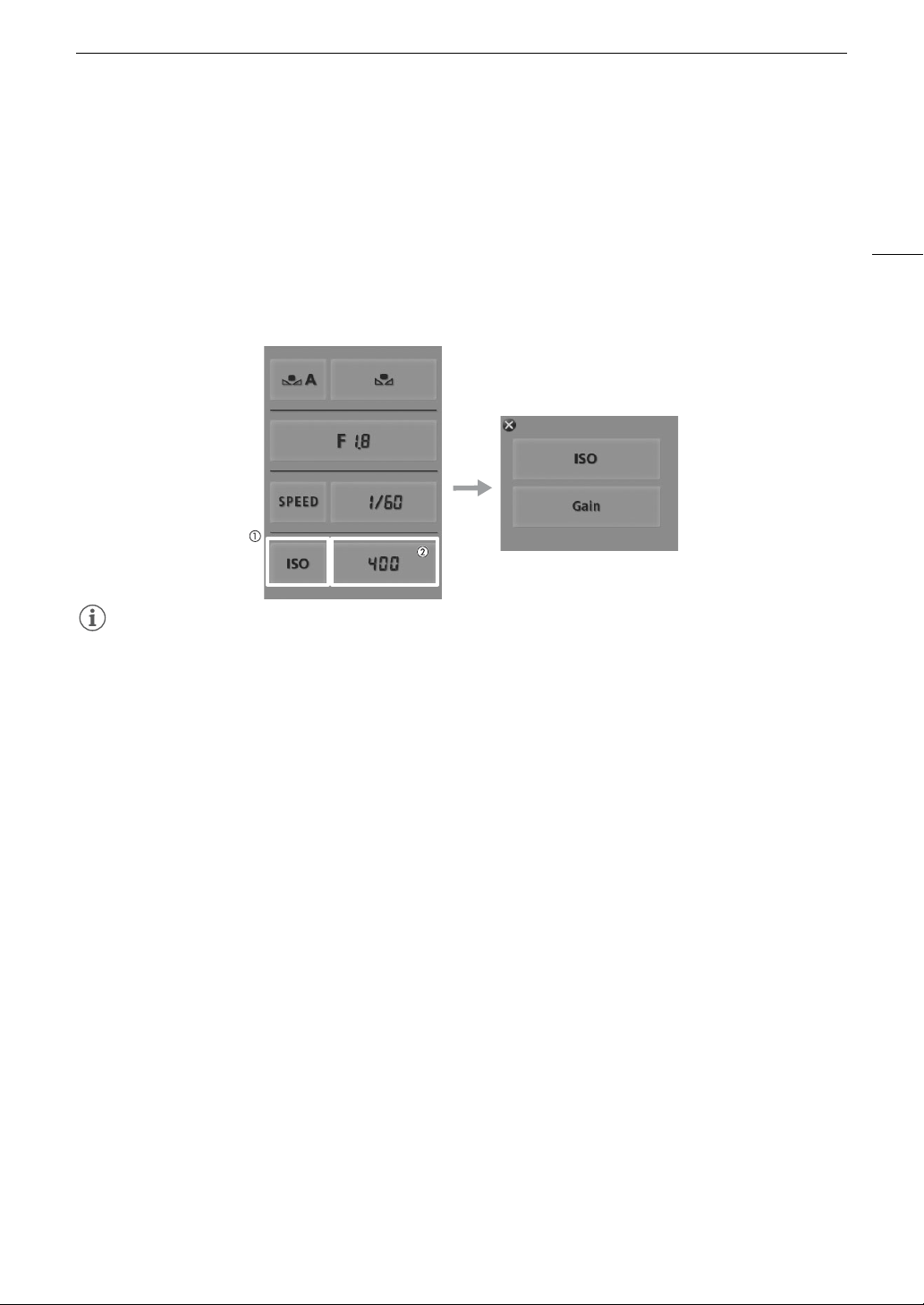
67
ISO Speed/Gain
Remote Operation Using Wi-Fi Remote
After completing the necessary preparations (A 49), you can adjust the ISO speed/gain remotely from a Wi-Fi-
enabled device using the Wi-Fi Remote application.
1 To change the gain value, press [ISO] and then [Gain] on the Wi-Fi Remote screen.
2 Press the current ISO speed or gain value and select the desired value from the list.
• You may need to scroll up/down to see all the available values.
• The selected value will be displayed on the Wi-Fi Remote screen and will be applied on the camcorder.
NOTES
• When high ISO speeds or gain levels are set, the picture may flicker slightly.
• When high ISO speeds or gain levels are set, bright red, green or blue dots may appear on the screen. In such
case, use a faster shutter speed (A 62) or select a lower ISO speed or gain value.
• When the ISO speed or gain level is changed, some noise may appear momentarily on the screen. Do not
adjust the ISO speed/gain level while recording.
• When an optional RC-V100 Remote Controller is connected to the camcorder, you can adjust the ISO speed
or gain value with the remote controller’s ISO/GAIN Í/Î buttons.
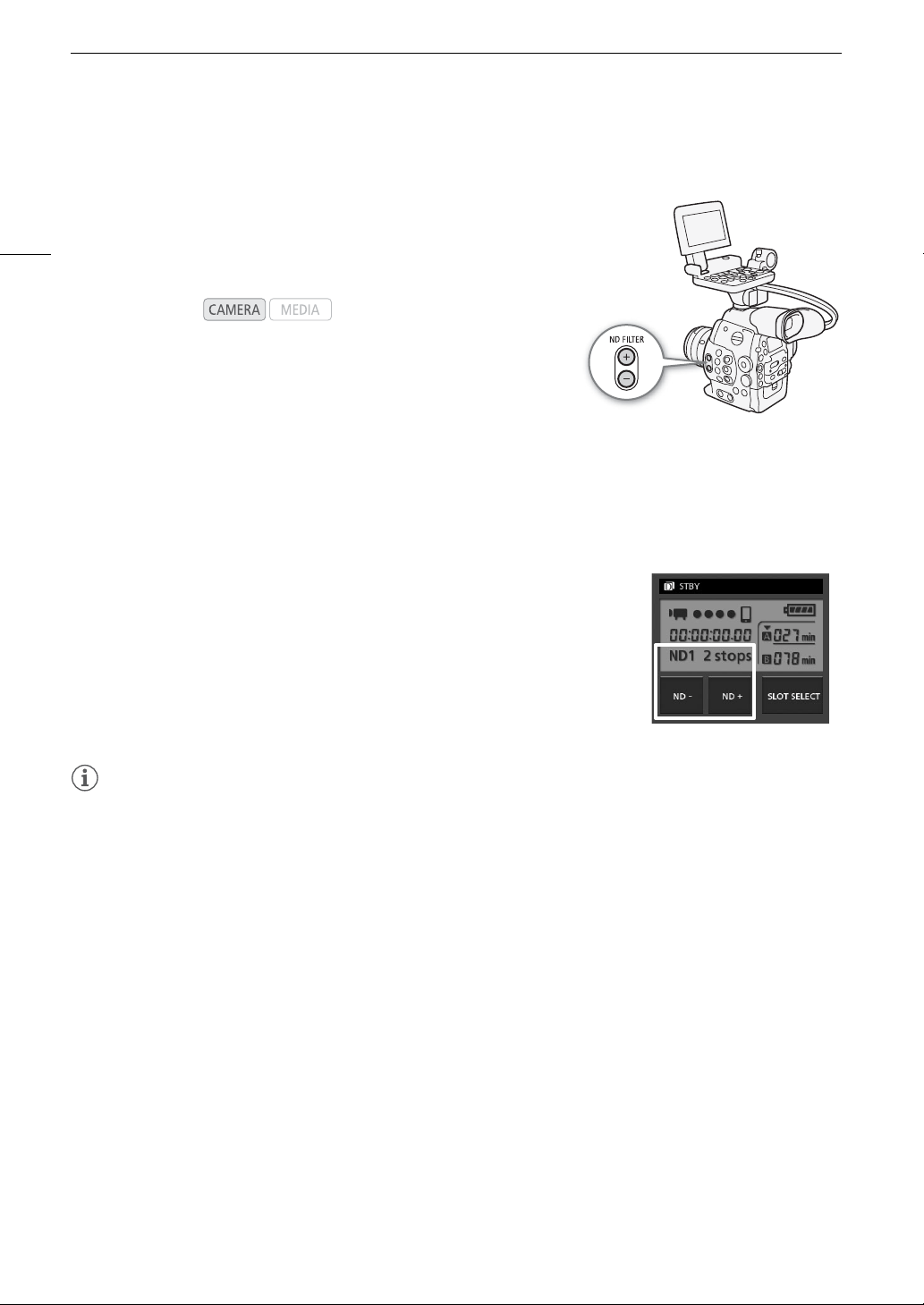
ND Filter
68
ND Filter
Using the ND filters allows you keep the aperture within an appropriate
range when recording in bright surroundings*.
* Closing down the aperture when recording under bright conditions may cause the
picture to appear soft or out of focus. To avoid the loss of sharpness due to diffraction,
use a denser ND filter or a faster shutter speed (A 62).
Using the ND Filter
Press the ND FILTER + or - button to select the desired ND filter setting.
• Repeatedly pressing ND FILTER + button will change the ND filter setting in the following order: [ND1 2 stops]
[ND2 4 stops] [ND3 6 stops] ND filter off. (The ND FILTER - button cycles through the settings in
reverse order.)
Remote Operation Using Wi-Fi Remote
After completing the necessary preparations (A 49), you can adjust the ND filter
remotely from a Wi-Fi-enabled device using the Wi-Fi Remote application.
Press [ND +] or [ND -] on the Wi-Fi Remote screen.
• The function is identical to that of the ND FILTER + and - buttons on the
camcorder.
• The selected ND filter setting will be displayed on the Wi-Fi Remote screen and
will be applied on the camcorder.
NOTES
• Depending on the scene, the color may change when turning the ND filter on/off. Setting a custom white
balance (A 75) may be effective in such case.
• If you set an assignable button to [ND +] or [ND -] (A 113), you can press the button to cycle through the ND
filter settings.
• When an optional RC-V100 Remote Controller is connected to the camcorder, you can use the remote
controller’s ND button in the same way as the camcorder’s ND FILTER + button.
Operating modes:
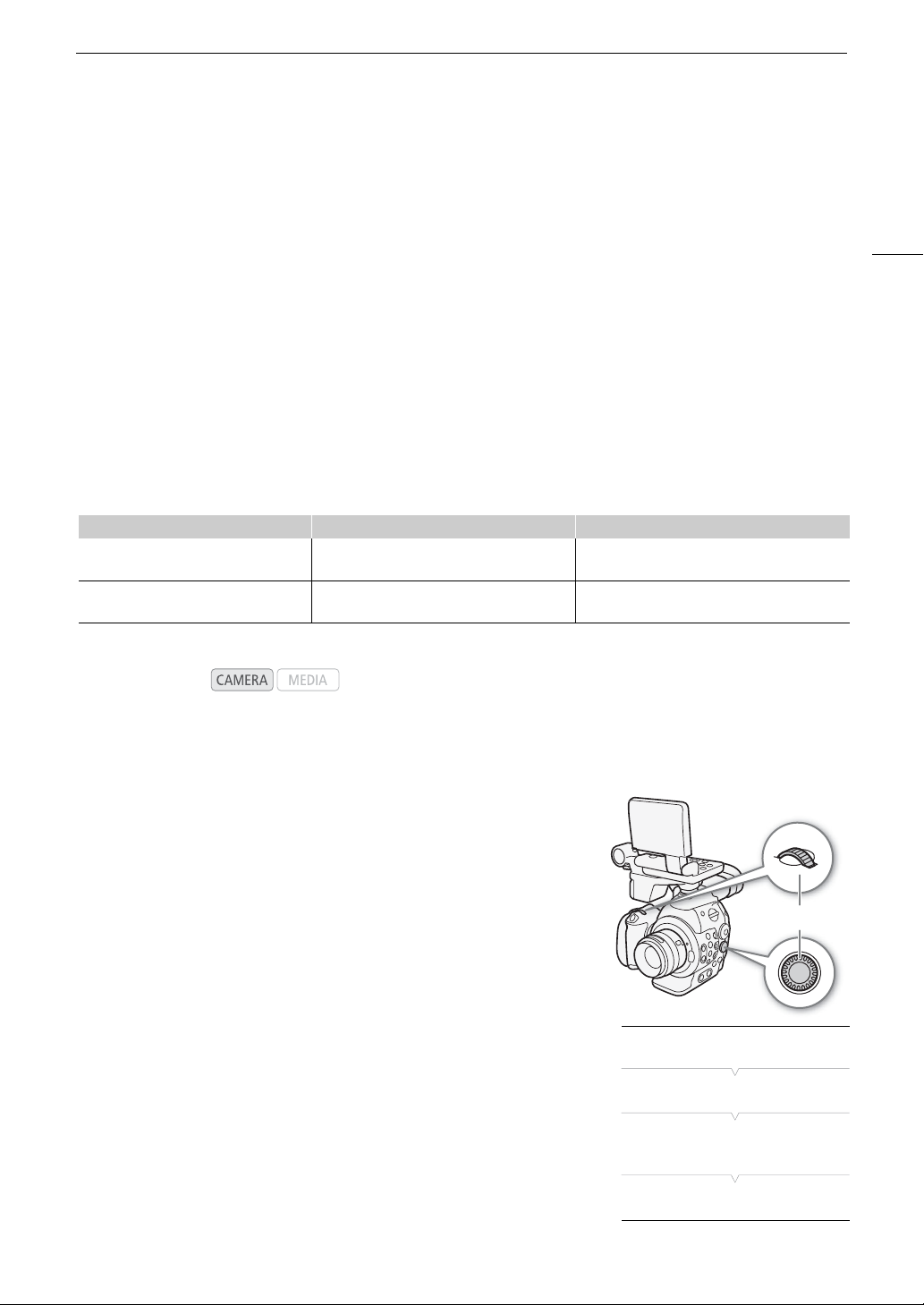
69
# Adjusting the Aperture
# Adjusting the Aperture
You can affect the brightness of your recordings or change the depth of field by adjusting the aperture. For
example, use a small aperture value for a shallow depth of field that isolates the subject in focus and nicely blurs
the background. Available aperture values will vary depending on the lens attached to the camcorder.
By default, the camcorder is set to manual aperture but, depending on the lens used, the camcorder offers 3
ways to adjust the aperture. Refer to the list of compatible lenses and functions that can be used (A 191).
Manual aperture: Adjust the aperture value manually using the control dial on the camcorder or on the grip unit,
or remotely, using the Wi-Fi Remote application.
Momentary automatic aperture - Push Auto Iris: During manual aperture, press an assignable button or use the
Wi-Fi Remote application to temporarily adjust the aperture automatically.
Automatic aperture: The camcorder adjusts the aperture automatically.
Required settings on EF Cinema lenses
To adjust the aperture from the camcorder, you will need to enable automatic adjustment using the controls on
the lens. Required settings vary depending on the lens. Refer to the following table and the instruction manual of
the lens used.
Manual Aperture
Using the Control Dial
You can adjust the aperture value of an EF lens using the control dial on the
camcorder or that on the grip unit. You can select the function assigned to
each control dial independently.
By default, both control dials’ function is set to aperture control. If it has
been changed, follow the procedure below to set a control dial’s function to
[Iris] in advance.
To assign aperture control to a control dial
1 Open the [Control Dial] (control dial on the camcorder) or [Grip Ctrl Dial]
(control dial on the grip unit) submenu.
[w Other Functions] > [Custom Function] > [Control Dial] or
[Grip Ctrl Dial]
2 Select [Iris] and then press SET.
Lens Part used on the lens Setting for automatic adjustment
CN7x17 KAS S/E1
CN20x50 IAS H/E1
Iris operation change-over switch A
CN-E18-80mm T4.4 L IS KAS S
CN-E70-200mm T4.4 L IS KAS S
Iris auto/manual change-over switch A
Operating modes:
Control dial
[w Other Functions]
[Custom Function]
[Control Dial]
[Grip Ctrl Dial]
[Iris]
# Adjusting the Aperture
70
To change the aperture mode and value
1 Open the aperture [Mode] submenu.
[~ Camera Setup] > [Iris] > [Mode]
• This submenu is available only with lenses compatible with automatic
aperture. Otherwise, start from step 3.
2 Select [Manual] and then press SET.
• When using a compatible EF Cinema lens, enable automatic
adjustment on the lens (A 69).
3 Open the [Iris Increment] submenu.
[~ Camera Setup] > [Iris] > [Iris Increment]
4 Select [1/2 stop], [1/3 stop] or [Fine] and then press SET.
5 Turn the control dial assigned to [Iris] to adjust the aperture.
• The selected aperture value will appear on the lower left of the screen.
• When [~ Camera Setup] > [Iris] > [Iris Increment] is set to [Fine],
the actual increments will be smaller than 1/3 stop but the onscreen
display will show the closest 1/3-stop aperture value.
NOTES
• You can use the [w Other Functions] > [Custom Function] > [Control Dial Dir.] or [Grip Ctrl Dial Dir.] setting
(A 125) to change the direction of the adjustment when you turn the control dial on the camcorder or on the
grip unit, respectively.
• If you set an assignable button to [Iris +] or [Iris -] (A 113), you can press the button to respectively open up
or close the aperture.
Remote Operation Using Wi-Fi Remote
After completing the necessary preparations (A 49), you can adjust the aperture value remotely from a Wi-Fi-
enabled device using the Wi-Fi Remote application.
1 On the camcorder, set [~ Camera Setup] > [Iris] > [Mode] to [Manual] (A 70).
• This is only necessary when using a lens compatible with automatic aperture. For other lenses, [Manual] is
the default setting and cannot be changed.
2 Press the current aperture value on the Wi-Fi Remote screen.
3 Select the desired aperture value from the list.
• You may need to scroll up/down to see all the available values.
• Alternatively, you can press IRIS [+] to open the aperture or IRIS [-] to close the aperture in 1/8-stop
increments. (Onscreen displays will show the closest 1/3-stop aperture value.)
• The selected value will be displayed on the Wi-Fi Remote screen and will be applied on the lens.
[~ Camera Setup]
[Iris]
[Mode]
[Manual]
[~ Camera Setup]
[Iris]
[Iris Increment]
[1/3 stop]
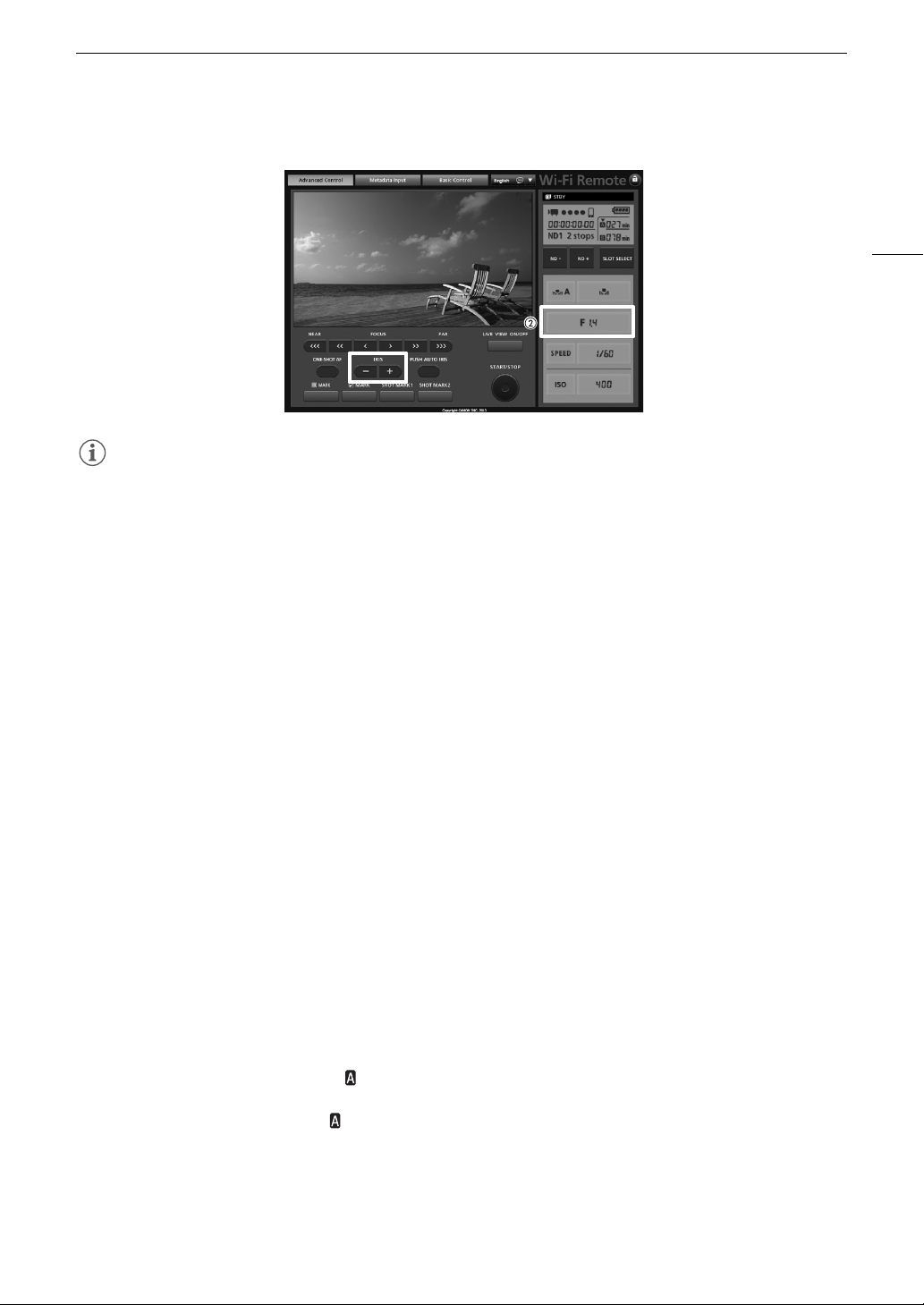
71
# Adjusting the Aperture
NOTES
• When using an EF lens with no lens contacts or most EF Cinema lenses*, you cannot adjust the aperture using
the camcorder. Adjust the aperture using the lens.
* Select EF Cinema lenses (A 191) support iris adjustment from this camcorder.
• When using an EF lens that can correct the aperture value according to the position of the zoom, you can use
the [~ Camera Setup] > [Iris] > [Zoom-Iris Correct.] setting to activate this correction.
• When an optional RC-V100 Remote Controller is connected to the camcorder, you can adjust the aperture
with the remote controller’s IRIS dial. By default, turn the dial right to open up the aperture (smaller F value) and
left to close the aperture (larger F value).
• When using an EF Cinema lens compatible with iris adjustment from the camcorder, when you change the
aperture value from a position of fully open or fully closed iris, multiple adjustment operations may be required
until the aperture changes.
Momentary Automatic Aperture - Push Auto Iris
During manual aperture, you can use the push auto iris function to have the camcorder temporarily take control
and automatically adjust the aperture (f/stop) for an optimal exposure.
Using an Assignable Button
To use the push auto iris function, you must first set an assignable button to [PUSH AUTO IRIS] in advance.
1Set [~ Camera Setup] > [Iris] > [Mode] to [Manual] (A 70).
• This is only necessary when using a lens compatible with automatic aperture. For other lenses, [Manual] is
the default setting and cannot be changed.
• When using a compatible EF Cinema lens, enable automatic adjustment on the lens (A 69).
2 Set an assignable button to [PUSH AUTO IRIS] (A 113).
3 Press and hold the assignable button.
• The camcorder will automatically adjust the aperture to obtain optimal exposure. As long as you hold the
assignable button pressed down, will appear on the screen next to the aperture value.
• When you release the assignable button, the selected f/stop will be set as the aperture value. Automatic
aperture mode will end and the icon next to the aperture value will disappear.
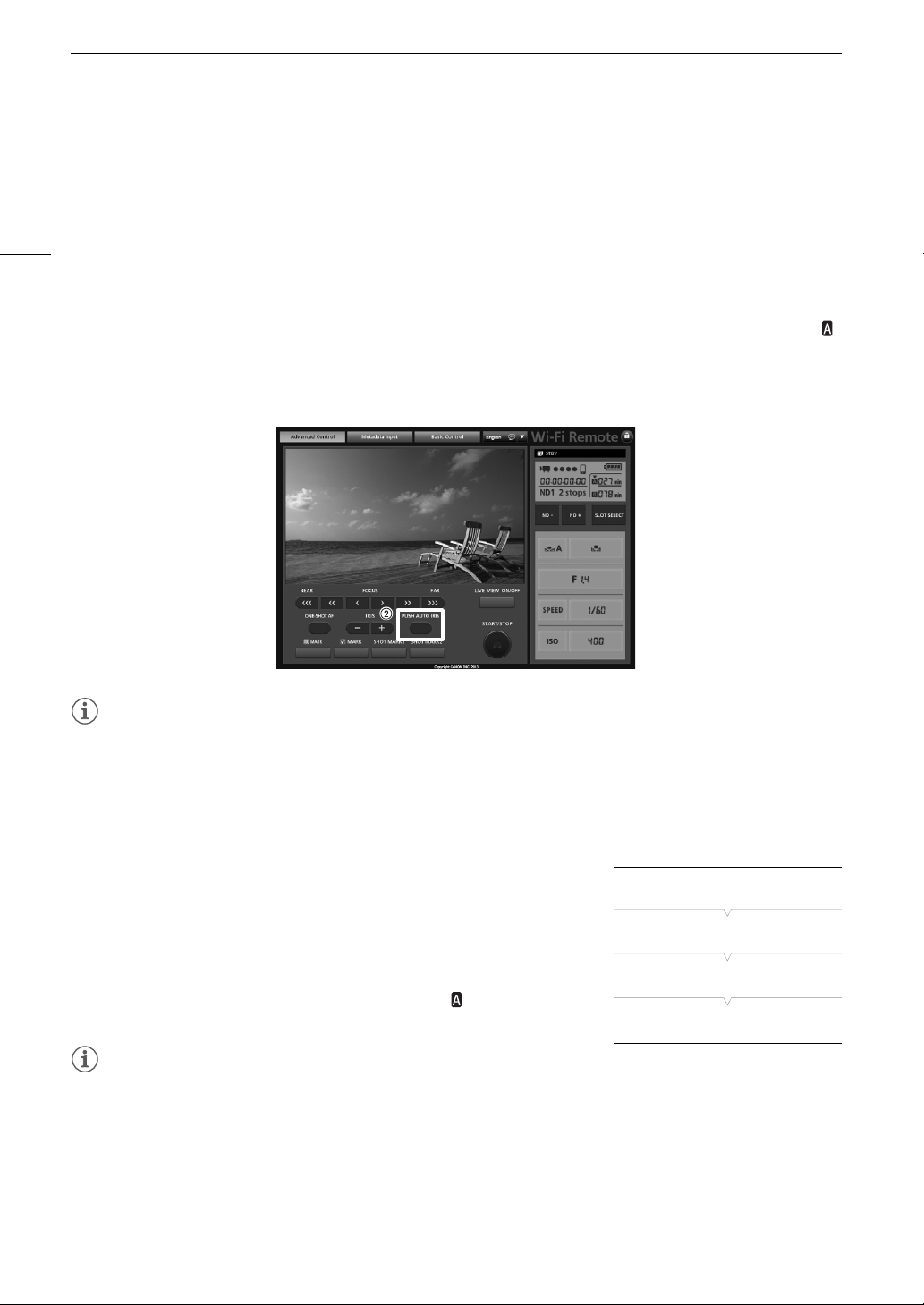
# Adjusting the Aperture
72
Remote Operation Using Wi-Fi Remote
After completing the necessary preparations (A 49), you can activate the push auto iris function remotely from
a Wi-Fi enabled device using the Wi-Fi Remote application.
1 On the camcorder, set [~ Camera Setup] > [Iris] > [Mode] to [Manual] (A 70).
• This is only necessary when using a lens compatible with automatic aperture. For other lenses, [Manual] is
the default setting and cannot be changed.
2 Press [PUSH AUTO IRIS].
• The camcorder will automatically adjust the aperture to obtain optimal exposure. During the adjustment,
will appear on the camcorder’s screen next to the aperture value.
• During the automatic adjustment, the aperture value on the Wi-Fi Remote screen will be grayed out. Once
the adjustment is finished, the aperture value will turn black and be available again.
NOTES
• Push auto iris is not available when slow & fast motion recording is activated.
Automatic Aperture
When a lens compatible with automatic aperture is attached to the camcorder, you can have the camcorder
automatically adjust the aperture (f/stop).
1 Open the aperture [Mode] submenu.
[~ Camera Setup] > [Iris] > [Mode]
2 Select [Automatic] and then press SET.
• When using a compatible EF Cinema lens, enable automatic
adjustment on the lens (A 69).
• When the camcorder is set to automatic aperture, will appear on
the screen next to the aperture value.
NOTES
• If you set an assignable button to [Iris Mode] (A 113), you can press the button to toggle between the
[Automatic] and [Manual] settings when a lens compatible with automatic aperture is attached to the
camcorder.
• Automatic aperture is not available when slow & fast motion recording is activated.
• The aperture value may change in the following cases.
- While using the built-in extender or iris compensation function of an EF Cinema lens, when you switch from
automatic aperture to manual aperture.
[~ Camera Setup]
[Iris]
[Mode]
[Manual]
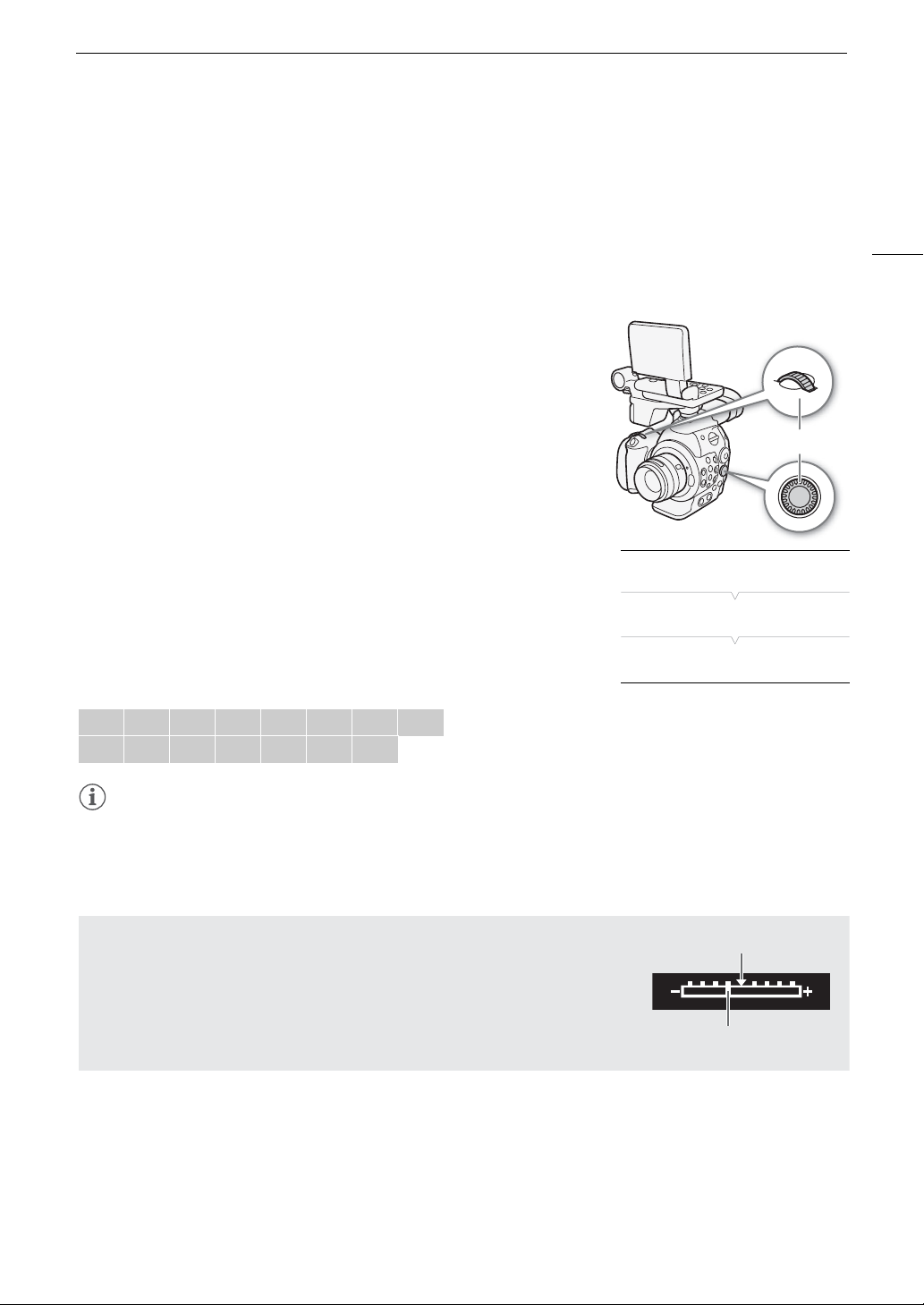
73
# Adjusting the Aperture
- When the aperture’s onscreen display is changed between T values/F values.
- When the aperture controls on the lens are switched between automatic/manual mode.
• When using EF lenses that let you adjust the aperture gain, if the aperture gain is set too high, the aperture
adjustment may not be stable (aperture hunting), depending on the shooting conditions. In such case, reset
the lens's aperture gain to its initial value.
Exposure Compensation - AE Shift
Use AE shift to compensate the exposure that was set using automatic
aperture, in order to darken or lighten the image. You can select from 15
available AE shift levels.
You can compensate the exposure using the control dial on the camcorder
or that on the grip unit. By default, both control dials’ function is set to
aperture control. If it has been changed, set a control dial’s function to [Iris]
in advance (A 69).
1 Open the [AE Shift] submenu.
[~ Camera Setup] > [AE Shift]
2 Select an AE shift level and then press SET.
• The selected AE shift level will be displayed above the exposure bar
and the camcorder will attempt to adjust the exposure accordingly.
Available AE Shift Levels
NOTES
• During manual aperture, you can also set the AE shift level by turning a control dial assigned to [Iris] while
holding the assignable button set to [PUSH AUTO IRIS] pressed down.
• If you set an assignable button to [AE Shift +] or [AE Shift -] (A 113), you can press the button to adjust the
AE shift level.
+2.0 +1.5 +1.25 +1.0 +0.75 +0.5 +0.25 ±0
-0.25 -0.5 -0.75 -1.0 -1.25 -1.5 -2.0
Control dial
[~ Camera Setup]
[AE Shift]
[±0]
The Exposure Bar
The Î on top of the exposure bar indicates optimal exposure without any shift
(AE±0); the scale markings indicate the deviation from optimal exposure in
1/2 EV increments. The indicator inside the exposure bar represents the current
exposure. When the difference between current and optimal exposure is larger
than ±2 EV, the indicator will flash at the edge of the exposure bar. Optimal
exposure will change depending on the light metering mode (A 74) used.
Optimal exposure AE±0
Current exposure
# Adjusting the Aperture
74
Light Metering Mode
Select the light metering mode to match the recording conditions. Using the appropriate setting will ensure that
the camcorder obtains the most suitable exposure level when automatic aperture is used.
1 Open the [Light Metering] submenu.
[~ Camera Setup] > [Light Metering]
2 Select the desired option and then press SET.
• The icon of the selected mode appears on the left of the screen.
Options
NOTES
• If you set an assignable button to [Backlight] or [Spotlight] (A 113), you can press the button to change the
light metering mode.
[Backlight] °: Suitable when recording backlit scenes.
[Standard]: Averages the light metered from the entire screen, giving more weight to the subject in the center.
[Spotlight] ®: Use this option when recording a scene in which only a certain part of the picture is lit, for example,
when the subject is lit by a spotlight.
[~ Camera Setup]
[Light Metering]
[Standard]

75
White Balance
White Balance
The camcorder uses an electronic white balance process to calibrate the picture and ensure accurate colors
under different lighting conditions. There are 3 methods of setting the white balance. When recording under
fluorescent lights, we recommend setting the custom white balance.
Custom white balance: You can use a gray card or white object with no pattern to calibrate the white balance
and set it to one of two custom white balance positions, ÅA or ÅB.
Set color temperature: Allows you to set the color temperature between 2,000 K and 15,000 K.
Preset white balance: Set the white balance to ¼ (daylight) or (tungsten lamp). Preset white balance settings
can be further fine-tuned within a range of -9 to 9.
NOTES
• The [Color Matrix] and [White Balance] custom picture settings (A 123) take precedence over the white
balance settings.
• You can use the [w Other Functions] > [Custom Function] > [Shockless WB] setting (A 125) to make the
transition look smoother when you change the white balance settings.
• When an optional RC-V100 Remote Controller is connected to the camcorder, you can adjust the white
balance with the remote controller’s A/B, PRESET and Å buttons.
Setting the White Balance
1 Set the white balance mode using the direct setting mode.
• Press the FUNC. button to highlight the white balance icon and select
the desired white balance mode.
• To apply the setting as it is, press SET. To establish the custom white
balance, fine-tune the preset white balance settings or change the
color temperature, continue the procedure as described below before
pressing SET.
• For details refer to
Using the Direct Setting Mode
(A 61).
If you selected one of the custom white balance settings ÅA or ÅB:
If a custom white balance has not yet been stored, the custom white
balance icon ÅA or ÅB and default value (5,500 K) will flash slowly.
To establish the custom white balance:
2 Point the camcorder at a gray card or white object so that it fills the whole screen.
• Use the same lighting conditions you plan to use when recording.
3 Press the Å button.
•The Å A or Å B icon will flash quickly.
• Make sure the gray card or white object fills the screen until the procedure is completed.
• After the icon stops flashing, the procedure is completed and the camcorder will exit the direct setting
mode. The setting is retained even if you turn off the camcorder.
Operating modes:

White Balance
76
If you selected one of the preset white balance settings, ¼ or :
You can fine-tune the preset values within a range of -9 to 9.
2 Press the FUNC. button or Å button, or push the joystick right.
• On the screen: The adjustment value ±0 will appear next to the white balance icon, highlighted in orange.
On the rear panel: The adjustment value ±0 will appear.
3 Push the joystick up/down or turn the SELECT dial to change the adjustment value and then press SET.
• The selected adjustment value will be set and the camcorder will exit the direct setting mode.
• On the screen: The selected adjustment value will appear next to the white balance icon.
On the rear panel: The adjustment value display will disappear and the display will return to normal (all displays
will reappear). The white balance fine-tuning icon will appear to indicate that an adjustment has been made.
If you selected the color temperature setting, :
You can set the color temperature between 2,000 K and 15,000 K in 100 K increments.
2 Press the FUNC. button or Å button, or push the joystick right.
• On the screen: The default color temperature value (5,500 K) will be highlighted in orange.
On the rear panel: The default color temperature value will appear.
3 Push the joystick up/down or turn the SELECT dial to change the color temperature value and then
press SET.
• The selected color temperature will be set and the camcorder will exit the direct setting mode.
• On the screen: The selected color temperature will appear next to the white balance icon.
On the rear panel: The color temperature value will disappear and the display will return to normal (all
displays will reappear).
NOTES
• If you set an assignable button to [FUNC. WB] (A 113), you can press the button to enter the direct setting
mode with the white balance icon highlighted and ready to be adjusted.
Remote Operation Using Wi-Fi Remote
After completing the necessary preparations (A 49), you can adjust the white balance remotely from a Wi-Fi-
enabled device using the Wi-Fi Remote application.
1 Press [ÅA] on the Wi-Fi Remote screen.
2 Select the desired white balance mode.
If you selected ¼, or :
3 Press the adjustment value [ ±0] (¼, ) or color temperature [5500K] ( ) and then select the
desired value from the list.
• You may need to scroll up/down to see all the available values.
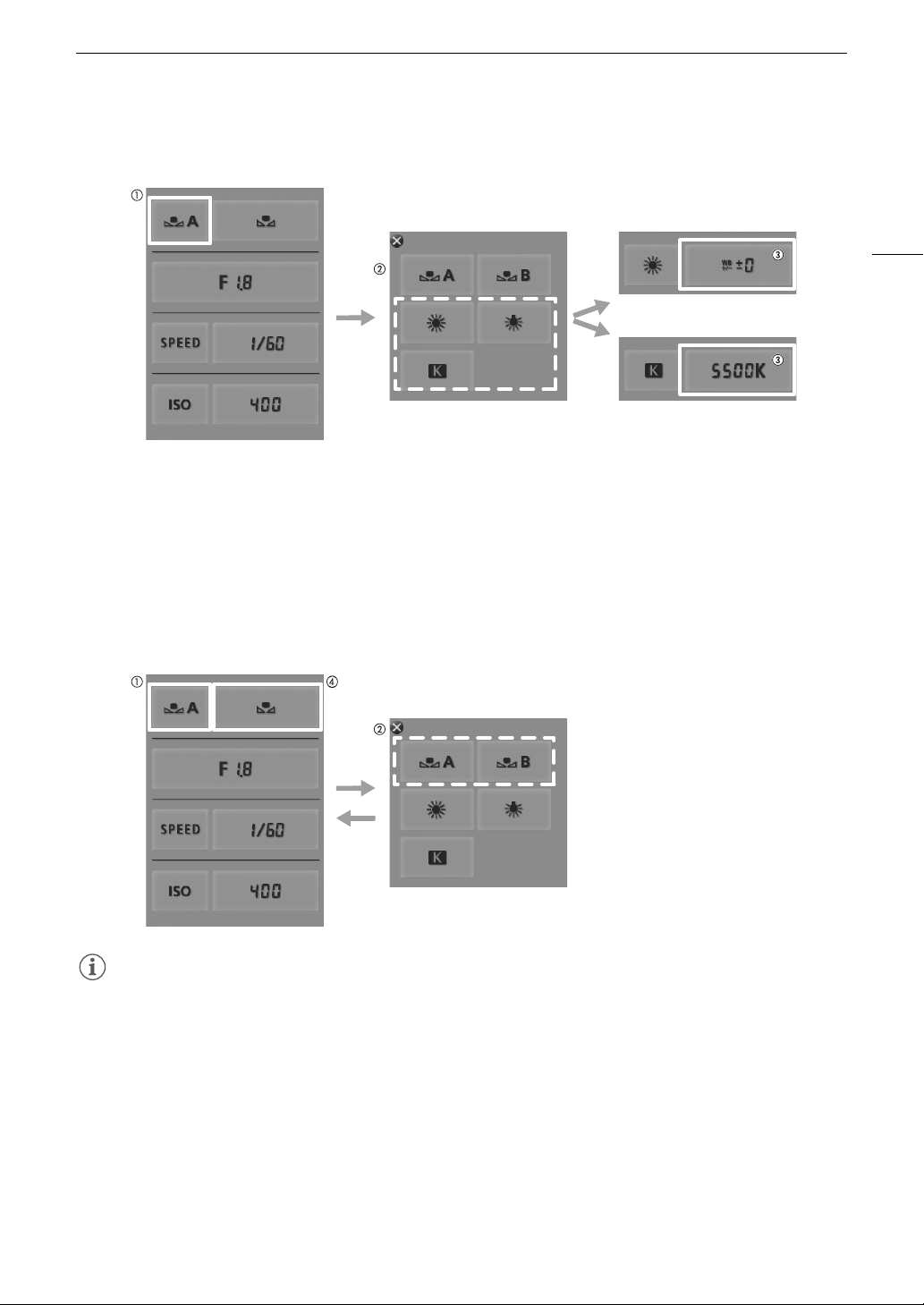
77
White Balance
• The selected value will be displayed on the Wi-Fi Remote screen and will be applied on the camcorder.
If you selected ÅA or ÅB:
3 Point the camcorder at a white object so that it fills the whole screen.
• Use the same lighting conditions you plan to use when recording.
• Make sure the white object fills the screen until the procedure is completed.
4 Press [Å].
• If a custom white balance has not yet been stored, [Å] will flash slowly.
• During the procedure, [Å] will flash quickly. When it stops flashing, the procedure is completed and the
setting will be applied on the camcorder.
NOTES
• Using the custom white balance setting:
- Readjust the custom white balance if you turn the ND filter on/off or when the light source has changed.
- Very rarely and depending on the light source, Å may keep flashing (it will change to a slow flashing). You
can still use the setting even in such case.
White balance fine-tuning
Color temperature
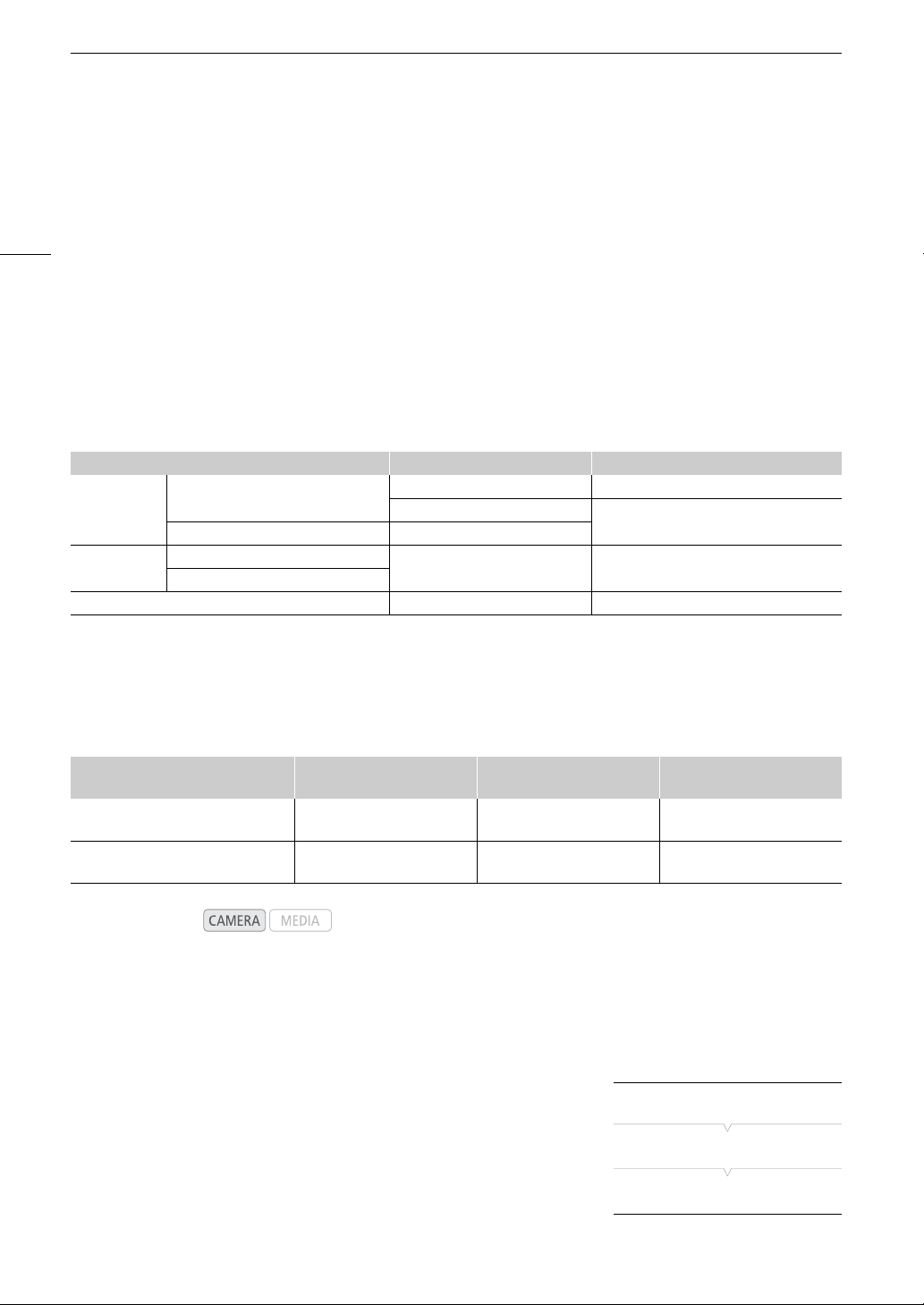
Adjusting the Focus
78
Adjusting the Focus
$ The camcorder does not have automatic focus control and focusing is done manually using the focus
ring on the attached lens.
# Depending on the lens used, the camcorder offers several ways to focus. For a list of compatible lenses
and functions that can be used, refer to the appendix (A 191).
Manual focus: Adjust the focus manually using the focus ring on the attached lens, or remotely, using the Wi-Fi
Remote application.
One-shot AF*: During manual focus, press an assignable button or use the Wi-Fi Remote application to
temporarily let the camcorder focus automatically.
Continuous AF*: The camcorder focuses automatically all the time.
* # only. Not available when a manual focus lens is attached to the camcorder.
# Focusing Methods and Required Settings
1
For the necessary settings on compatible EF Cinema lenses, see the following table.
2
Depending on the lens, the focus ring may be disabled when the focus mode switch is set to AF.
Required settings on EF Cinema lenses
To adjust the focus from the camcorder, you will need to change the focus mode using the controls on the lens.
Required settings vary depending on the lens. Refer to the following table and the instruction manual of the lens
used.
Manual Focus
Using the Focus Ring
1 Open the [AF Mode] submenu.
[~ Camera Setup] > [AF Mode]
2 Select [One Shot] and then press SET.
• On an EF lens, you can set the lens’s focus mode switch to MF. On a
compatible EF Cinema lens, you can enable manual adjustment on the
lens (see above).
3 Turn the focus ring on the lens to adjust the focus.
Focusing Method Focus Mode Switch on an EF Lens
1
[~ Camera Setup] > [AF Mode] setting
Manual Focus
Focus Ring
MF –
AF
2
[One Shot]
Wi-Fi Remote AF
One-shot AF
Assignable Button set to [ONE-SHOT AF]
AF [One Shot]
Wi-Fi Remote
Continuous AF AF [Continu.]
Lens Part used on the lens
Setting for automatic
adjustment
Setting for manual
adjustment
CN7x17 KAS S/E1
CN20x50 IAS H/E1
Focus operation
change-over knob
SERVO MANU.
CN-E18-80mm T4.4 L IS KAS S
CN-E70-200mm T4.4 L IS KAS S
Autofocus/Manual Focus
change-over switch
AF MF
Operating modes:
[~ Camera Setup]
[AF Mode]
[One Shot]
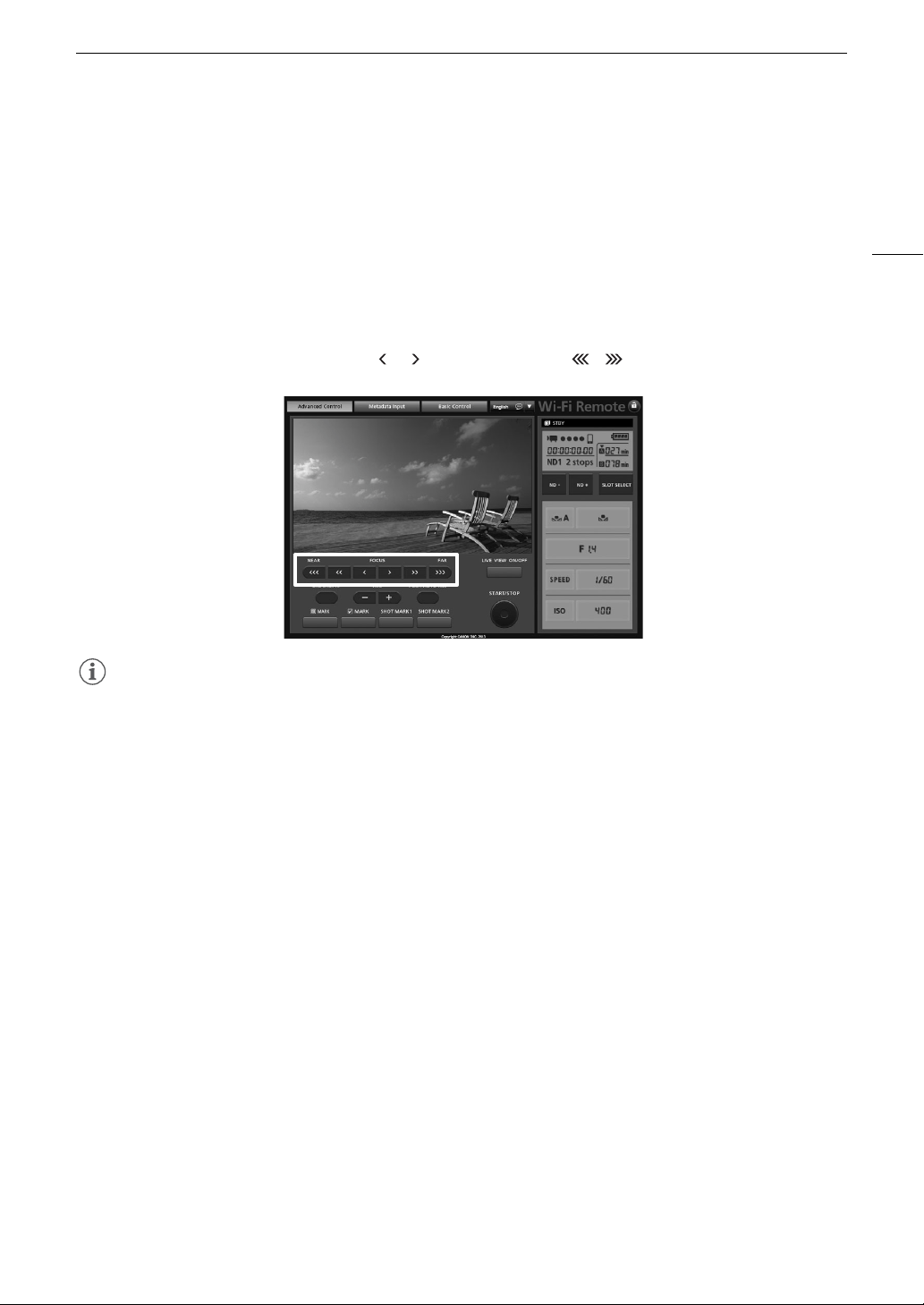
79
Adjusting the Focus
# Remote Operation Using Wi-Fi Remote
After completing the necessary preparations (A 49), you can adjust the focus remotely from a Wi-Fi-enabled
device using the Wi-Fi Remote application.
1 Set the focus mode switch on the EF lens to AF (autofocus) mode.
• [AF] will appear on the left of the screen.
2 Press one of the [FOCUS] controls to adjust the focus as necessary.
• Press one of the controls on the [NEAR] side to focus closer or one of the controls on the [FAR] side to focus
farther away.
• There are three levels of adjustment - [ ]/[ ] is the smallest and [ ]/[ ] the largest.
NOTES
• # With some EF lenses, you may be able to operate the focus ring even when the focus mode switch on
the lens is set to AF.
• If you operate the zoom after focusing, the focus on the subject may be lost.
• If you focus manually and then leave the camcorder with the power turned on, the focus on the subject may
be lost after a while. This possible slight shift in focus is a result of the internal temperature rising in the
camcorder and lens. Check the focus before resuming shooting.
• While the camcorder is focusing, do not touch the end of the lens or focus ring while they are moving.
• When an optional RC-V100 Remote Controller is connected to the camcorder, you can adjust the focus with
the remote controller’s FOCUS dial. Turn the dial right to focus farther and left to focus nearer.
Using the Focus Assistance Functions
In order to focus more accurately, you can use two focus assistance functions – peaking, which creates a clearer
contrast by emphasizing the outlines of the subject, and magnification, which enlarges the image on the screen.
You can use both functions simultaneously for greater effect.
You can also use the [w Other Functions] > [Custom Function] > [F. Assist. B&W] setting (A 125) to switch
the screen to black & white while using the focus assistance functions.

Adjusting the Focus
80
Peaking
The camcorder offers two peaking levels.
1 Press the PEAKING button.
• The peaking icon (J or K) appears at the lower center of
the screen and the outlines in the image will be emphasized,
depending on the focus.
• Press the button again to turn off peaking.
• Alternatively, you can use the [£ LCD/VF Setup] > [Peaking]
setting to turn peaking on and off.
2 Open the [Select] submenu (under [Peaking]) to select the peaking
level.
[£ LCD/VF Setup] > [Select] (under [Peaking])
3 Select the desired level and then press SET.
Magnification
1 Press the MAGN. button.
• ^ appears at the lower center of the screen and the center of the screen is magnified approximately
2times*.
• A white frame representing the whole screen area is displayed on the top left of the screen. The orange
frame within it represents the approximate part of the image shown magnified.
2 If necessary, use the joystick (ÝÞ) or SELECT dial to move the orange frame around and check other
parts of the image.
• # Set the focus mode switch on an EF lens to MF in advance.
• You can move the orange frame 5 steps vertically or horizontally. Press the CANCEL button to return the
magnification frame to the center position.
3 Press the MAGN. button again to cancel the magnification.
* The magnification that appears on the LCD screen and on the viewfinder screen is different. The magnification also differs based
on the video configuration.
NOTES
• Peaking/Magnification appears only on the camcorder screen. It will not appear on an external monitor
connected to the camcorder and will not affect your recordings.
• You can use the [£ LCD/VF Setup] > [Peaking 1] and [Peaking 2] settings to set the color, gain and
frequency of the two peaking levels independently of each other.
• When using the camcorder’s screen to focus:
- The camcorder features professional video scopes (A 101). You can display the edge monitor to help you
focus even more accurately.
- You can use peaking together with the edge monitor. In such case, the gain and frequency of the peaking
effect will be adjusted automatically according to the gain settings of the edge monitor.
[£ LCD/VF Setup]
[Select]
(under [Peaking])
[Peaking 1]

81
Adjusting the Focus
# One-Shot AF
During manual focus, you can use the one-shot AF function to have the camcorder focus automatically only
once on the subject at the center of the screen.
Using an Assignable Button
To use the one-shot AF function, you must first set an assignable button to [ONE-SHOT AF] in advance.
1 Open the [AF Mode] submenu.
[~ Camera Setup] > [AF Mode]
2 Select [One Shot] and then press SET.
3 Set the focus mode switch on the EF lens to AF (autofocus) in
advance.
• On a compatible EF Cinema lens, enable automatic adjustment on the
lens (A 78).
• [AF] will appear on the left of the screen.
4 Set an assignable button to [ONE-SHOT AF] (A 113).
5 Press and hold the assignable button.
• The AF frame will appear at the center of the screen and the camcorder will focus automatically. When
correct focus has been achieved, the AF frame turns green.
• If the camcorder cannot focus automatically, the AF frame will turn red.
• The AF frame will disappear when you release the assignable button.
Remote Operation Using Wi-Fi Remote
After completing the necessary preparations (A 49), you can use the one-shot AF function remotely from a
Wi-Fi enabled device using the Wi-Fi Remote application.
1 On the camcorder, set [~ Camera Setup] > [AF Mode] to [One Shot] (A 81).
• This is only necessary when using a lens compatible with continuous AF. For other lenses, [One Shot] is the
default setting and cannot be changed.
2 Press [ONE-SHOT AF].
• An AF frame appears at the center of the live view screen and the camcorder will focus automatically.
• The AF frame turns green (correct focus) or red (when the camcorder cannot focus automatically) and then
disappears after a few seconds.
[~ Camera Setup]
[AF Mode]
[One Shot]
Adjusting the Focus
82
NOTES
• One-shot AF will not work in the following cases.
- When slow & fast motion recording is activated.
- When the shutter speed mode is set to [Slow] and the shutter speed is set to 1/4 or 1/3.
# Continuous AF
When a compatible EF lens is attached to the camcorder, you can have the camcorder focus automatically.
1 Set the focus mode switch on the EF lens to AF (autofocus) in
advance.
• On a compatible EF Cinema lens, enable automatic adjustment on
the lens (A 78).
• [AF] will appear on the left of the screen.
2 Open the [AF Mode] submenu.
[~ Camera Setup] > [AF Mode]
3 Select [Continu.] and then press SET.
NOTES
• About the autofocus (AF) functions:
- One-shot AF is available for any EF lens equipped with autofocus (AF) function; continuous AF is available
only for EF lenses compatible with this function (A 191). Refer to the instruction manual of the lens used.
- The point where the camcorder focuses may change slightly depending on shooting conditions, such as
subject, brightness and zoom position. Check the focus before resuming shooting.
• Autofocus may take longer in the following cases.
- When the frame rate is set to 29.97P, 25.00P, 24.00P or 23.98P.
- With some EF lenses, the camcorder may take longer to focus automatically or may not be able to focus
correctly. Visit your local Canon Web site for the latest information.
• Continuous AF will not work in the following cases.
- When using an EF lens that does not have a focus mode switch.
- While adjusting the aperture, except when using an EF lens compatible with automatic aperture (A 191).
- While adjusting the focus using a remote controller attached to the REMOTE terminal.
- When slow & fast motion recording is activated.
• Autofocus may not work well on the following subjects or in the following cases. In such case, focus manually.
- When an ISO speed or gain value in the extended range is selected (A 65).
- When the [Gamma] setting in the custom picture file (A 119) is set to [Canon Log] or [Wide DR].
- When using small apertures.
- When subjects at different distances appear inside the AF frame.
[~ Camera Setup]
[AF Mode]
[One Shot]
- Reflective surfaces
- Subjects with low contrast or without vertical lines
- Fast moving subjects
- Through dirty or wet windows
-Night scenes
- Subjects with a repetitive pattern
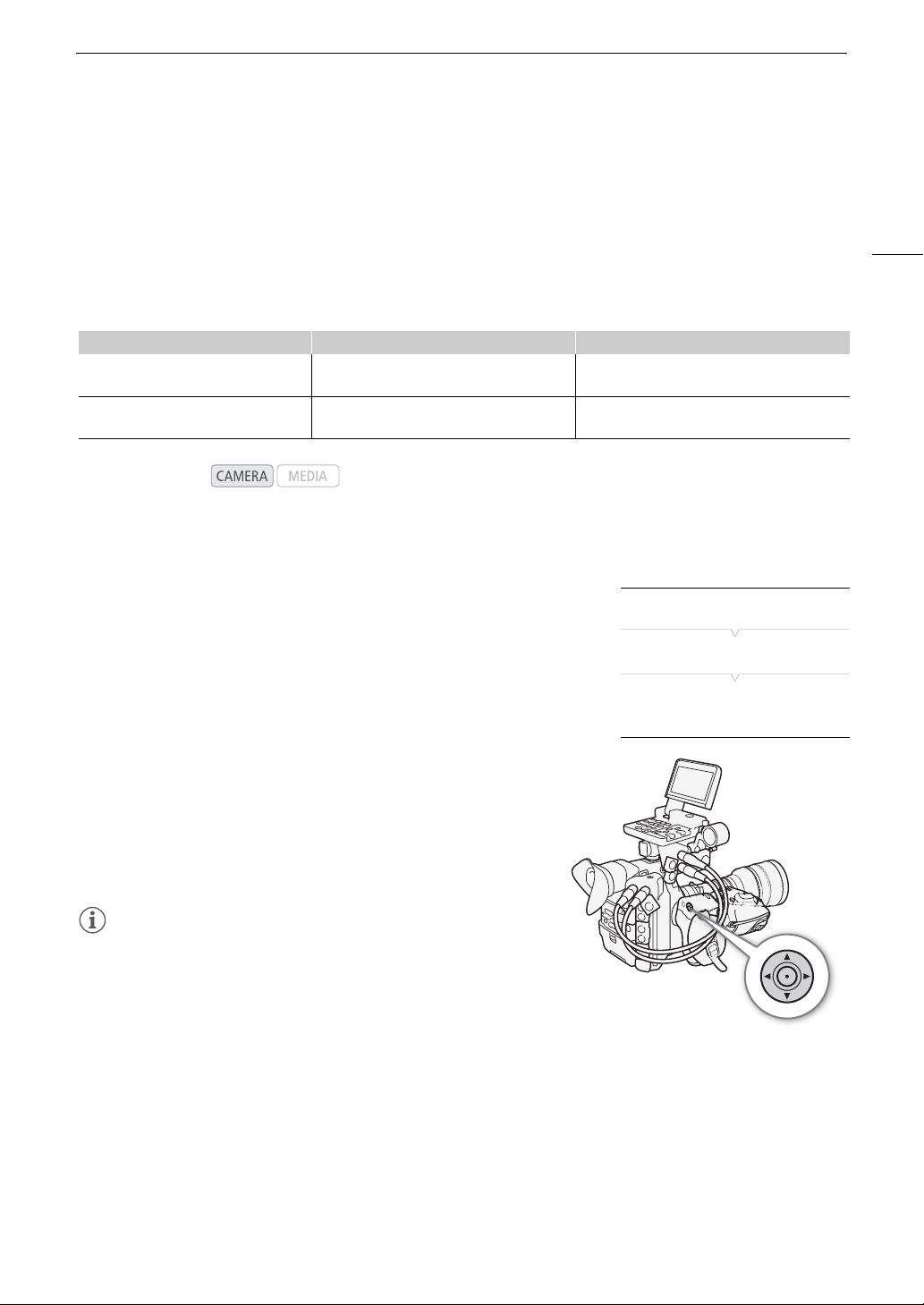
83
# Zooming
# Zooming
When a compatible EF Cinema lens (A 191) is attached to the camcorder, you can use the joystick on the grip
unit to operate the zoom.
Required settings on EF Cinema lenses
To operate the zoom from the camcorder, you will need to enable automatic adjustment using the controls on
the lens. Required settings vary depending on the lens. Refer to the following table and the instruction manual of
the lens used.
Using the Joystick
1 Enable automatic zoom adjustment on the lens.
2 Open the zoom’s [Setting] submenu.
[~ Camera Setup] > [Camera Grip Zoom] > [Setting]
3 Select [On] and then press SET.
4 Open the zoom’s [Speed] submenu.
[~ Camera Setup] > [Camera Grip Zoom] > [Speed]
5 Select the desired zoom speed and then press SET.
• Zoom speeds are constant; [1] being the slowest and [16] the
fastest.
6 Close the menu and use the joystick on the grip unit to
zoom.
• Push the joystick up to zoom in (telephoto) and push it down to
zoom out (wide-angle).
NOTES
• When an optional RC-V100 Remote Controller is connected to
the camcorder and the lens is correctly set, you can zoom with
the remote controller’s ZOOM dial.
• When using slow zoom speeds, it may take longer for the lens to
start moving.
Lens Part used on the lens Setting for automatic adjustment
CN7x17 KAS S/E1
CN20x50 IAS H/E1
Zoom operation change-over knob SERVO
CN-E18-80mm T4.4 L IS KAS S
CN-E70-200mm T4.4 L IS KAS S
Zoom change-over switch SERVO
Operating modes:
[~ Camera Setup]
[Camera Grip Zoom]
[Setting] ….. [Off]
[Speed] ….. [8]
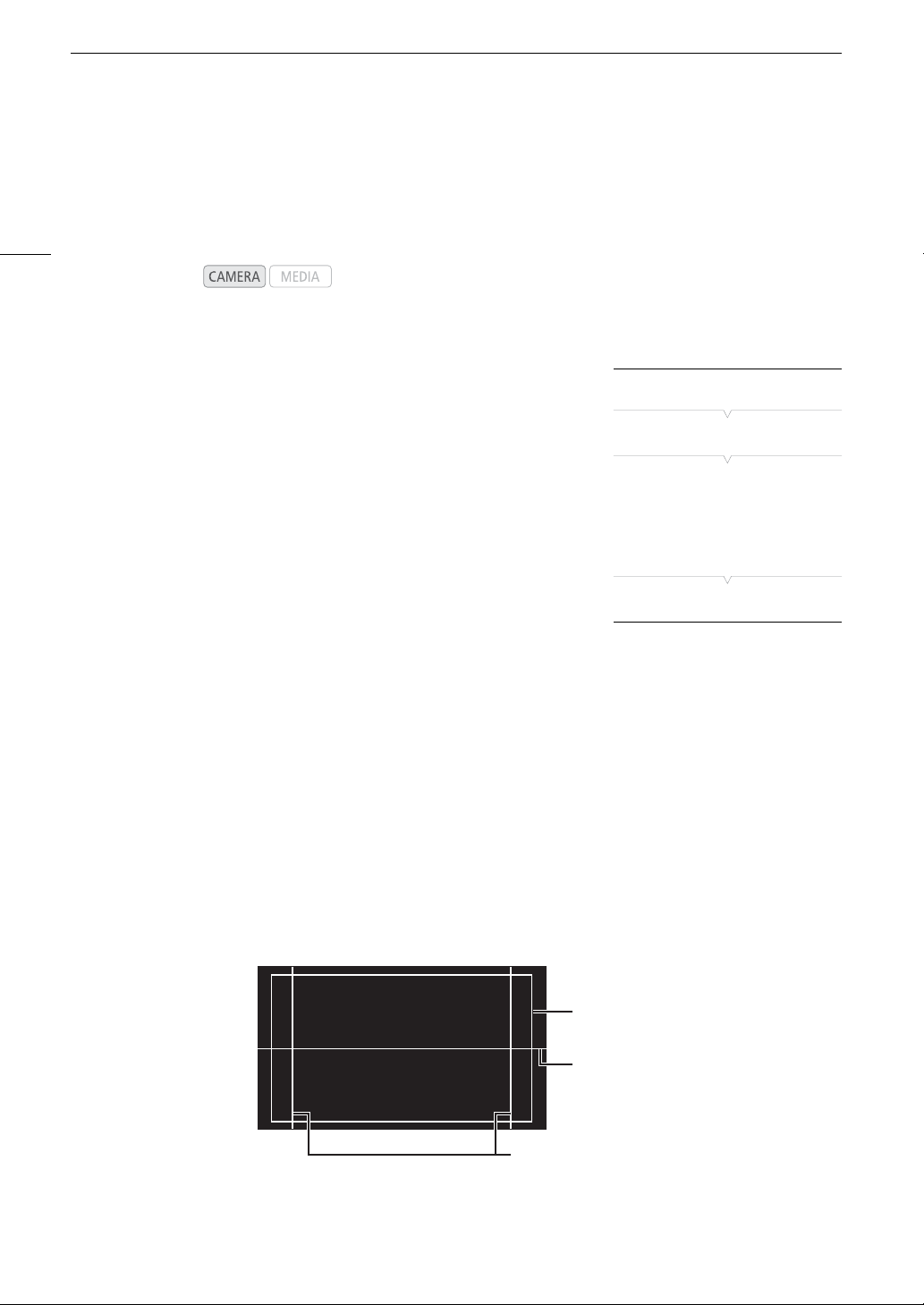
Onscreen Markers and Zebra Patterns
84
Onscreen Markers and Zebra Patterns
Using onscreen markers allows you to make sure your subject is correctly framed and is within the appropriate
safe area. The zebra patterns help you identify areas that are overexposed. The onscreen markers and zebra
pattern will not affect your recordings.
Displaying Onscreen Markers
The camcorder offers 5 types of onscreen markers. You can display
multiple onscreen markers simultaneously.
1 Open the [Markers] submenu.
[£ LCD/VF Setup] > [Markers]
2 Select a marker you wish to display, select [White] or [Gray] and
then press SET.
• Select [Off] to turn off the selected marker.
• You can display multiple markers simultaneously. Repeat this step as
necessary.
• If you selected [Safety Zone] or [Aspect Marker], continue to step 3.
Otherwise, you can skip to step 4.
3 Select [Safety Zone Area] or [Aspect Ratio], select the desired option and then press SET.
4 Select [Enable], select [On] and then press SET to enable the onscreen markers.
• All of the selected onscreen markers will be displayed.
• Select [Off] to turn off all onscreen markers.
Options
Operating modes:
[Center]: Displays a small marker that indicates the center of the screen.
[Horizontal]: Displays a horizontal line to help you compose level shots.
[Grid]: Displays a grid that allows you to frame your shots correctly (horizontally and vertically).
[Safety Zone]: Displays indicators that show various safe areas, such as the action safe area and text safe area.
Available options for [Safety Zone Area] are [95%], [92.5%], [90%] and [80%].
[Aspect Marker]: Displays markers that indicate various aspect ratios to help you keep your shot within that area.
Available options for [Aspect Ratio] are [2.35:1], [1.85:1], [1.75:1], [1.66:1], [14:9], [13:9] and [4:3].
[£ LCD/VF Setup]
[Markers]
[Center]
[
Horizontal]
[Grid]
[Safety Zone]
[Aspect Marker]
[Off]
Aspect guide 4:3
Level marker
Safety zone 80%
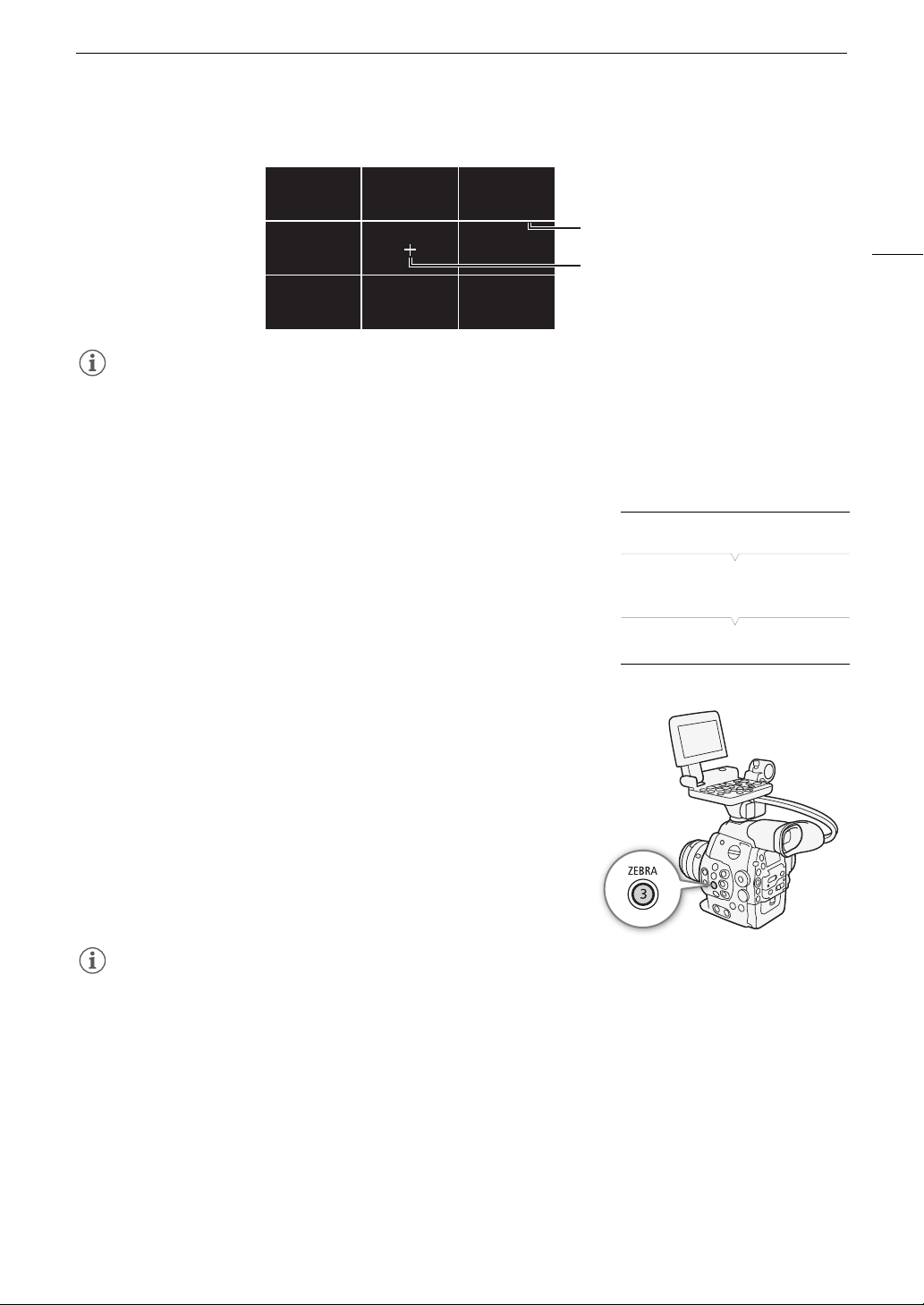
85
Onscreen Markers and Zebra Patterns
NOTES
• You can turn off all other onscreen displays, leaving only the onscreen markers (A 55).
• If you set an assignable button to [Markers] (A 113), you can press the button to turn the onscreen markers
on and off.
Displaying Zebra Patterns
The camcorder has a zebra pattern feature that shows black and white
diagonal stripes over areas that are overexposed. This is displayed only
on the screen and will not affect your recordings. There are two types of
zebra patterns and you can display both simultaneously. Zebra 1 lets you
identify areas within a certain range (±5% of a specified level) while zebra
2 lets you identify areas that are over a specified level. When you display
both simultaneously and they overlap, only zebra 1 will be displayed in
those areas.
1 Open the zebra pattern [Select] submenu.
[£ LCD/VF Setup] > [Select] (under [Zebra])
2 Select [Zebra 1], [Zebra 2] or [Zebra 1&2] and then press SET.
3 Open the zebra level submenu.
[£ LCD/VF Setup] > [Zebra 1 Level] or [Zebra 2 Level]
4 Select a zebra level and then press SET.
5 Press the ZEBRA button to activate the selected zebra pattern.
• Alternatively, before closing the menu, you can also select [Zebra],
select [On] and then press SET.
NOTES
• You can use the [£ LCD/VF Setup] > [Zebra HD Output] setting to display the zebra pattern on an external
monitor connected to the HD/SD SDI terminal (HD output only), SYNC OUT terminal (HD-Y signal output only)
or HDMI OUT terminal (HD output only).
Center marker
Grid
[£ LCD/VF Setup]
[Select]
(under [Zebra])
[Zebra 1]
Setting the Time Code
86
Setting the Time Code
In mode, the camcorder can generate a time code signal and embed it in your recordings. You can have
the camcorder output the time code signal from the HD/SD SDI terminal or TIME CODE terminal (A 92). In
mode, you can output the time code of the clip being played back through the same terminals.
Additionally, you can superimpose the time code on video output from the HDMI OUT terminal or SYNC OUT
terminal. For NTSC recordings, you can also select between a drop frame and non-drop frame time code.
To synchronize the camcorder’s time code to an external time code generator, refer to
Synchronizing with an
External Device
(A 90).
Selecting the Running Mode
You can select the running mode of the camcorder’s time code.
1 Open the time code [Mode] submenu.
[¤ TC/UB Setup] > [Time Code] > [Mode]
2 Select the desired option and then press SET.
• If you selected [Regen.], you do not need to perform the rest of this
procedure. If you selected [Preset] and would like to set the time
code’s initial value, see the following section
Setting the Time Code’s
Initial Value
.
3 After you select [Preset], open the time code [Run] submenu.
[¤ TC/UB Setup] > [Time Code] > [Run]
4 Select the desired option and then press SET.
Options
Operating modes:
[Preset]: The time code starts from an initial value you can select in
advance. The default initial time code is 00:00:00.00. The time
code’s running mode depends on the [Run] setting.
[Rec Run]: The time code runs only while recording so clips
recorded consecutively on the same CF card will have
continuous time codes.
[Free Run]:The time code starts running the moment you press
SET to select this option and keeps running regardless
of the camcorder’s operation.
[Regen.]: The camcorder will read the selected CF card and the time code
will continue from the last recorded time code on the CF card. The
time code runs only while recording so clips recorded
consecutively on the same CF card will have continuous time
codes.
[¤ TC/UB Setup]
[Time Code]
[Mode]
[Regen.]
[¤ TC/UB Setup]
[Time Code]
[Run]
[Rec Run]

87
Setting the Time Code
Setting the Time Code’s Initial Value
If you set the time code mode to [Preset], you can set the initial value of
the time code.
1 Open the time code [Setting] submenu.
[¤ TC/UB Setup] > [Time Code] > [Setting]
2 Select [Set] and then press SET.
• The time code setting screen appears with an orange selection frame
indicating the hours.
• To reset the time code to [00:00:00.00], select [Reset] instead. If the running mode is set to [Free Run], the
time code will be reset the moment you press SET and keep running continuously from 00:00:00.00.
3Use the joystick (Ý) or SELECT dial to set the hours and press SET to move to the minutes.
4 Change the rest of the fields (minutes, seconds, frame) in the same way.
• Press the CANCEL button to close the screen without setting the time code.
5 Select [Set] and press SET to close the screen.
• If the running mode is set to [Free Run], the time code will start running from the selected time code the
moment you press SET.
Selecting Drop or Non-Drop Frame
When [w Other Functions] > [NTSC/PAL] is set to [NTSC], you can
select between a drop frame (DF) or non-drop frame (NDF) time code,
depending on how you plan to use your recordings.
In the following cases, the time code is set to non-drop frame (NDF) and
cannot be changed.
-[w Other Functions] > [NTSC/PAL] is set to [PAL]
-[w Other Functions] > [24.00P] is set to [On]
-[w Other Functions] > [NTSC/PAL] is set to [NTSC] and the frame rate
is set to 23.98P
1 Open the [DF/NDF] submenu.
[¤ TC/UB Setup] > [Time Code] > [DF/NDF]
2 Select [DF] or [NDF] and then press SET.
• The time code display will differ depending on the setting. When you select [DF], the time code will appear
as [00:00:00.00]; when you select [NDF], it will appear as [00:00:00:00].
[¤ TC/UB Setup]
[Time Code]
[Setting]
[¤ TC/UB Setup]
[Time Code]
[DF/NDF]
[DF]
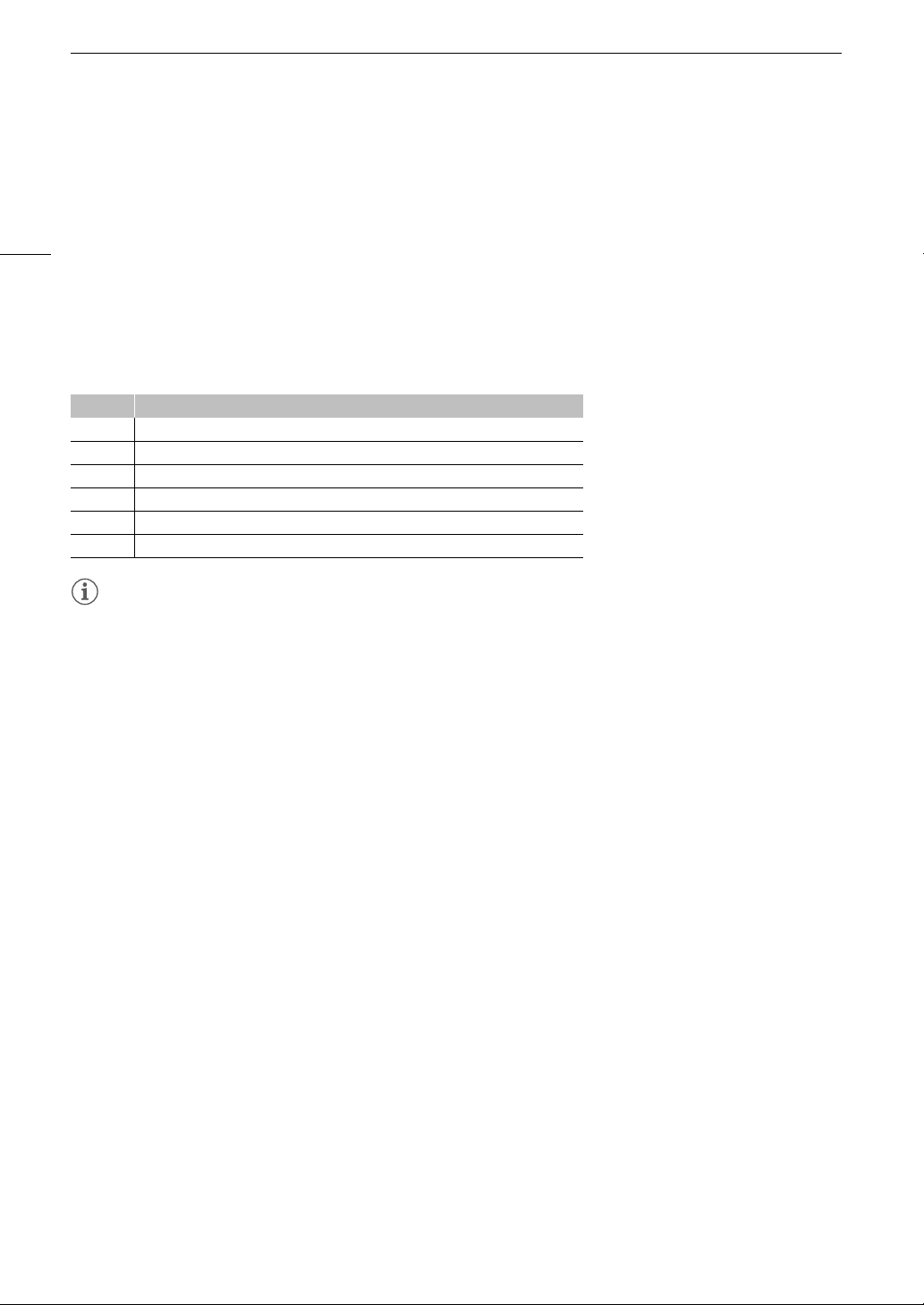
Setting the Time Code
88
Putting the Time Code Display on Hold
If you set an assignable button to [Time Code Hold] (A 113), you can press the button to freeze the display of
the time code*. While the time code display is put on hold, [H] will appear on the screen next to the time code
and [HOLD] will appear on the rear panel.
The time code continues to run normally while the time code display is on hold. When you resume the time code
display, the current time code will be displayed.
* The time code signal output from the HD/SD SDI terminal or TIME CODE terminal will not be put on hold. The time code
superimposed on the video signal output from the other terminals will be put on hold.
About the Time Code Display
An icon may appear next to the time code depending on the operation. Refer to the following table.
NOTES
• When [w Other Functions] > [24.00P] is set to [On] or [w Other Functions] > [Frame Rate] is set to
[23.98P], the frames value in the time code runs from 0 to 23. When [Frame Rate] is set to [25.00P], [50.00i] or
[50.00P], it runs from 0 to 24. For other [Frame Rate] settings, it runs from 0 to 29.
• When you are using interval recording, frame recording or slow & fast motion recording mode, you cannot
select the [Free Run] running mode. Conversely, when you are using pre-recording mode, [Free Run] is set
automatically and cannot be changed.
• When you mix drop frame and non-drop frame time codes, there might be a discontinuity in the time code at
the point where the recording starts.
• As long as the built-in rechargeable lithium battery is charged and you selected the [Free Run] running mode,
the time code continues to run even if you disconnect all other power sources. However, this is less accurate
than when the camcorder is on.
• If you set an assignable button to [Time Code] (A 113), you can press the button to open the
[¤ TC/UB Setup] > [Time Code] submenu.
Icon Description
R The time code is set to [Regen.].
P The time code is set to [Preset] and the running mode is set to [Rec Run].
F The time code is set to [Preset] and the running mode is set to [Free Run].
E Time code signal is coming from an external source.
H Time code display is on hold.
No icon Time code during clip playback.
89
Setting the User Bit
Setting the User Bit
The user bit display can be selected from the date or the time of
recording, or an identification code consisting of 8 characters in the
hexadecimal system. There are sixteen possible characters: the numbers
0 to 9 and the letters A to F.
If user bit information is being received along with an external time code,
you can also record the external user bit on the recording media.
1 Open the user bit [Type] submenu.
[¤ TC/UB Setup] > [User Bit] > [Type]
2 Select the desired user bit type and press SET.
• Select [Setting] to set your own identification code, [Time] to use the time as user bit, or [Date] to use the
date as the user bit.
• If you selected [Time] or [Date], you do not need to perform the rest of the procedure. If you selected
[Setting], continue the procedure to set the identification code.
3 Select [Set] and then press SET.
• The user bit setting screen appears with an orange selection frame on the leftmost digit.
• To reset the user bit to [00 00 00 00], select [Reset] instead.
4 Use the joystick (Ý) or SELECT dial to select the first character and press SET to move to the next
digit.
• Change the rest of the digits in the same way.
• Press the CANCEL button to close the screen without setting the user bit.
5 Select [Set] and press SET to close the screen.
Operating modes:
[¤ TC/UB Setup]
[User Bit]
[Type]
[Setting]
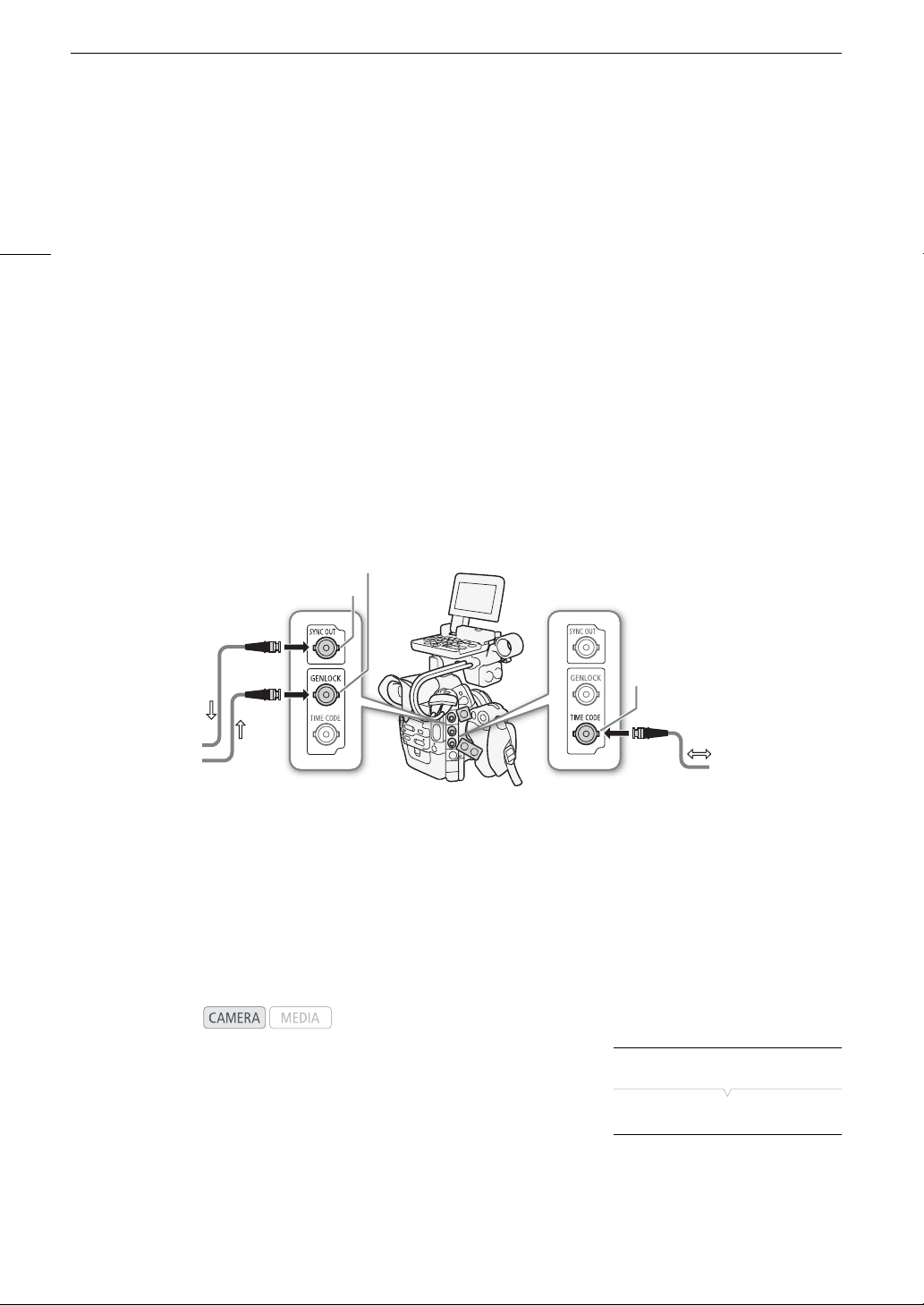
Synchronizing with an External Device
90
Synchronizing with an External Device
Using genlock synchronization, you can synchronize this camcorder’s video signal to that of an external video
device. Similarly, using an external time code signal, you can synchronize this camcorder’s time code to the
external signal. Using the external time code signal with multiple cameras allows you to set up a multi-camera
recording. You can also output the time code signal from this camcorder to achieve the same result. If you
output the time code from the HD/SD SDI terminal to an editing device, the editor can create video with the
same time code.
Connecting an External Device
When synchronizing the camcorder to an external signal, input a reference video signal* through the GENLOCK
terminal or output the camcorder’s signal as a reference signal for an external device through the SYNC OUT
terminal.
When synchronizing a time code signal, use the TIME CODE terminal. Be sure to set the TIME CODE terminal to
input or output in advance.
Connect the external device to the camcorder as shown in the following diagram.
* For the reference video signal, you can use an analog blackburst or tri-level signal.
Connection Diagram
Reference Video Signal Input (Genlock Synchronization)
When a reference sync signal (analog blackburst or tri-level signal) is input through the GENLOCK terminal, the
phases of the camcorder’s V and H sync will automatically be synchronized to it. The phase difference between
the external Genlock signal and the camcorder is initially set to 0. The H phase can be adjusted within the range
of approximately ±0.4 H (HD equivalent).
1 Open the [Genlock Adjust.] submenu.
[w Other Functions] > [Genlock Adjust.]
2 Adjust the phase to the desired level, select [Set] and then press
SET.
•Use the joystick (Ý) or SELECT dial to select the value for each field
and press SET to move to the next field.
Operating modes:
SYNC OUT terminal
TIME CODE terminal
GENLOCK
synchronization
Time code
synchronization
GENLOCK terminal
[w Other Functions]
[Genlock Adjust.]
91
Synchronizing with an External Device
Time Code Signal Input
An external SMPTE-standard LTC timing signal received from the TIME
CODE terminal will be recorded as the time code. The user bit of the
external timing signal can also be recorded. Before connecting the device,
set the TIME CODE terminal to input. Also, you must set the running
mode of the time code to [Free Run] (A 86).
1 Open the [TC In/Out] submenu.
[¤ TC/UB Setup] > [Time Code] > [TC In/Out]
2 Select [In] and then press SET.
Recording the User Bit of an External Signal
The user bit of an external time code signal can also be recorded with the
time code itself.
1 Open the user bit [Rec Mode] submenu.
[¤ TC/UB Setup] > [User Bit] > [Rec Mode]
2 Select [External] and then press SET.
NOTES
• The Genlock signal synchronization stabilizes after approximately 10 seconds. When the camcorder locks on
an external Genlock signal, U will appear on the upper right of the screen.
• If the external Genlock signal is incorrect or there is no input signal, the external time code that is recorded
may be incorrect.
• While a time code signal is being received, the external time code’s drop-frame bit will be used (if the external
time code is non-drop frame, [NDF] will appear on the rear panel).
• When an external time code signal is received, the camcorder’s own time code will be synchronized to it and
the synchronization will be maintained even if you disconnect the cable from the TIME CODE terminal.
However, performing any of the following actions while the cable is not connected will cause the
synchronization to be disrupted; the correct time code will be restored once you reconnect the cable.
- Turning the camcorder off/on
- Changing the operating mode to mode
- Changing the video configuration
- Changing the frame rate
• If the external time code signal is incorrect or there is no input signal, the internal time code set in the
[¤ TC/UB Setup] > [Time Code] submenu will be recorded instead.
• When the camcorder locks on an external time code signal, [EXT-LOCK] appears on the rear panel.
Operating modes:
[¤ TC/UB Setup]
[Time Code]
[TC In/Out]
[In]
[¤ TC/UB Setup]
[User Bit]
[Rec Mode]
[Internal]
Synchronizing with an External Device
92
Reference Video Signal Output
You can output the camcorder’s video signal as a reference sync signal (analog blackburst or tri-level signal)
through the SYNC OUT terminal to synchronize an external device to this camcorder.
1 Open the [SYNC Output] submenu.
[¢ Video Setup] > [SYNC Output]
2 Select [HD Sync] (tri-level signal) or [Blk Burst]* (black burst) and
then press SET.
* Not available for 24.00P recordings.
Time Code Signal Output
The time code will be output from the TIME CODE terminal as an SMPTE-standard LTC timing signal. The user
bit will also be output. Before connecting the device, set [¤ TC/UB Setup] > [Time Code] > [TC In/Out] to
[Out] to change the TIME CODE terminal to output (A 91). If you set the [¢ Video Setup] > [SDI Output]
setting to [HD] or [SD], the embedded time code will be output from the HD/SD SDI terminal.
NOTES
• The user bit of the time code signal is output while the camcorder is recording in mode or during
playback of a clip in mode. When [w Other Functions] > [24.00P] is set to [On] or [w Other
Functions] > [Frame Rate] is set to [23.98P] and the [¤ TC/UB Setup] > [User Bit] > [Output Mode]
setting is set to [Pulldown], the user bit will be 2:3 pulldown data. In other words, when a 23.98P or 24.00P
recording is output from the HD/SD SDI terminal, the signal is converted to 59.94i / 59.94P or 60.00i / 60.00P
using the 2:3 pulldown method. An external device can receive the data used in this conversion (2:3 pulldown
data) to convert the signal to the original 1080/23.98P or 1080/24.00P specifications.
Operating modes:
Operating modes:
[¢ Video Setup]
[SYNC Output]
[Composite]
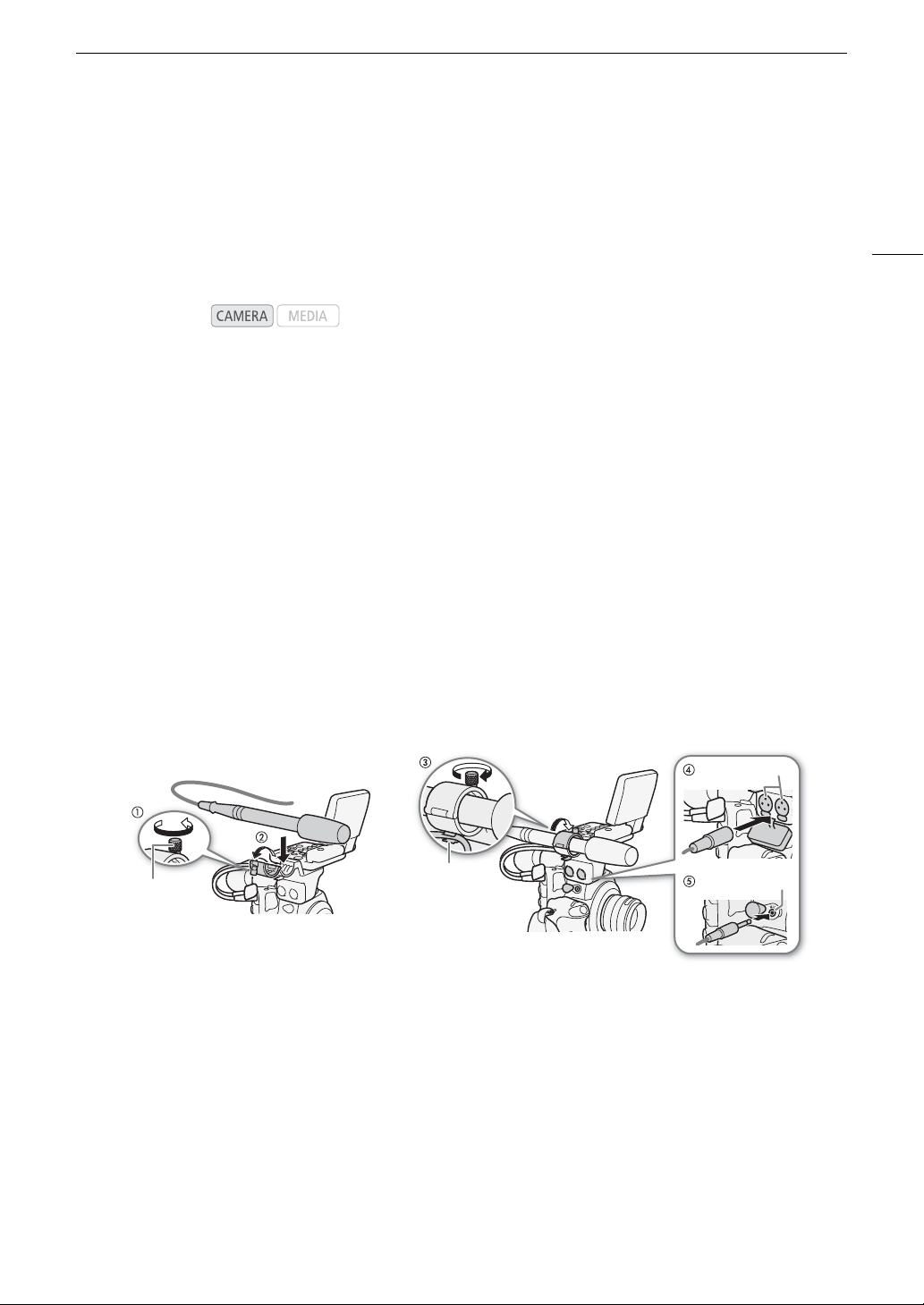
93
Recording Audio
Recording Audio
The camcorder features two-channel linear PCM audio recording and playback with a sampling frequency of
48 kHz. You can record audio using commercially available microphones (XLR terminal, MIC terminal) or line
input (XLR terminal). You can select the audio input independently for channel 1 and channel 2.
An audio signal will also be output with the video signal from the HD/SD SDI terminal. You can record this audio
signal on an external recorder.
Connecting an External Microphone or External Audio Input Source to the Camcorder
In order to use the XLR terminals, the monitor unit must be attached to the camcorder. The monitor unit features
two XLR terminals (CH1/CH2) that can be used to record audio independently to the two audio channels.
In addition to XLR microphones, you can also attach to the camcorder’s MIC terminal commercially available
condenser microphones with their own power supply and a ∅ 3.5 mm mini-stereo plug*. If the monitor unit is
attached to the camcorder, you can use the microphone holder on the monitor unit.
* For PAL recordings, use commercially available microphones with a cable no longer than 3 m.
Follow the procedure below to attach a microphone (refer also to the following illustration). To connect an
external device to the camcorder, plug the device’s cable into the camcorder’s XLR terminal (햵).
1 Loosen the microphone lock screw (햲), open the microphone holder and insert the microphone (햳).
2 Tighten the lock screw and put the microphone cable through the microphone cable clamp under
the microphone holder (햴).
3 Plug the microphone cable into the desired XLR terminal (햵) or the MIC terminal (햶).
Operating modes:
Microphone
lock screw
MIC terminal
Cable clamp
XLR terminals
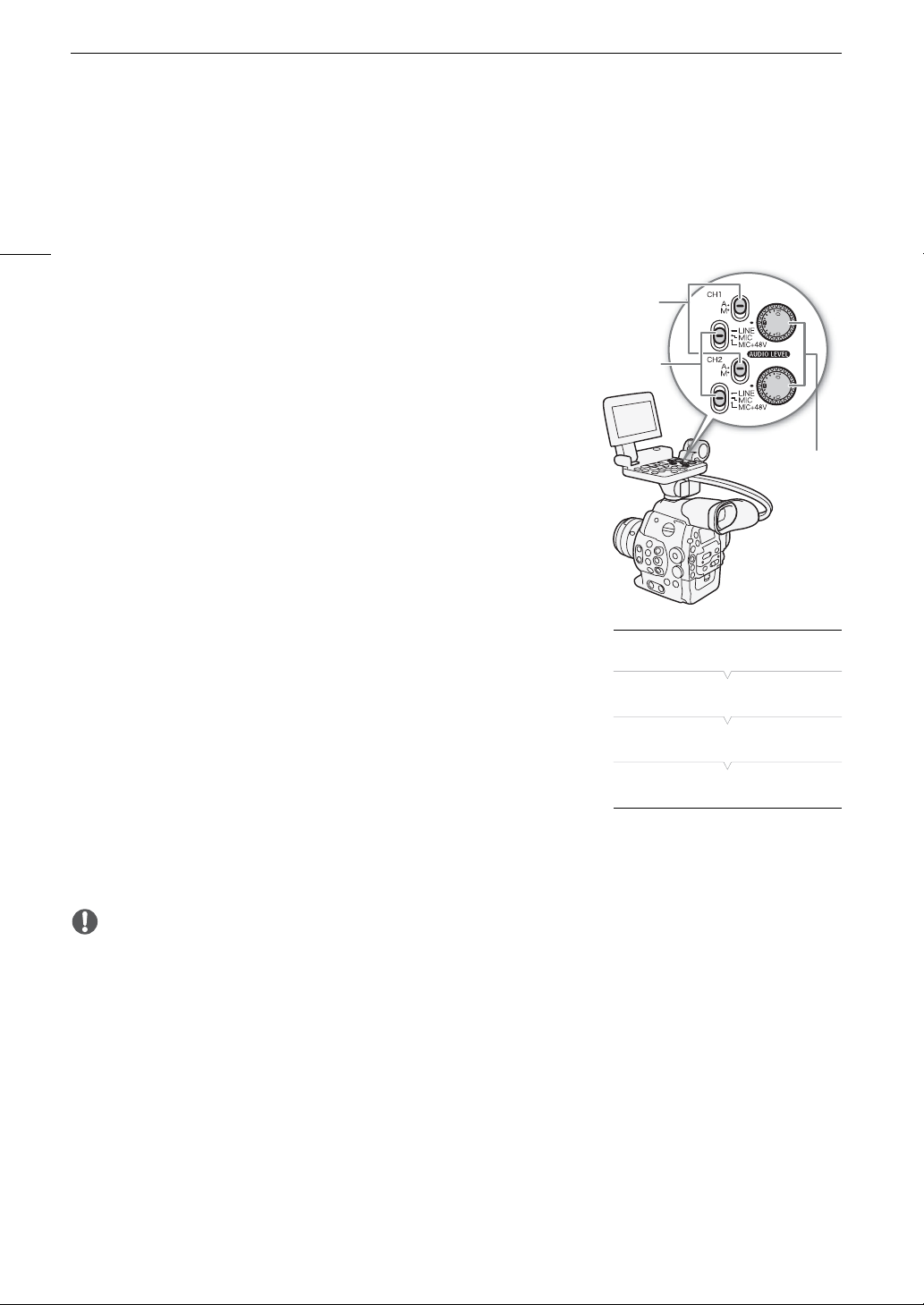
Recording Audio
94
Selecting the Audio Input from the XLR Terminals
Using the XLR terminals CH1 and CH2, you can record audio independently to the two audio channels from a
microphone or analog audio input source. Note that the camcorder’s MIC terminal is given priority over the XLR
terminals. To record audio from the XLR terminals, be sure not to connect any microphones to the MIC terminal.
Switching Between Microphone and Line Input
Set the XLR terminal switch of the desired channel to LINE or MIC.
• To supply a microphone with phantom power, set the switch to
MIC+48V instead. Make sure to connect the microphone first, before
turning the phantom power on. Keep the microphone connected
when turning off the phantom power.
• When using the XLR terminal to record to only one channel, use the
CH1 terminal.
Selecting the Recording Channel
You can select to which channel the camcorder will record audio.
1 Open the [XLR Rec Channel] submenu.
[¡ Audio Setup] > [Audio Input] > [XLR Rec Channel]
2 Select the desired option and then press SET.
Options
IMPORTANT
• When connecting a microphone or device that does not support phantom power, make sure to set the XLR
terminal switch to MIC or LINE, respectively. If you set the switch to MIC+48V, the microphone or device may
be damaged.
[CH1]: Records audio to each channel separately. Audio input
into CH1 is recorded to channel 1, while audio input into
CH2 is recorded to channel 2.
[CH1/CH2]: Audio input into CH1 is recorded to both channels. Audio
input into CH2 will not be recorded.
CH1/CH2
ã
switches
XLR
terminal
switches
CH1/CH2
ã
dials
[¡ Audio Setup]
[Audio Input]
[XLR Rec Channel]
[CH1]
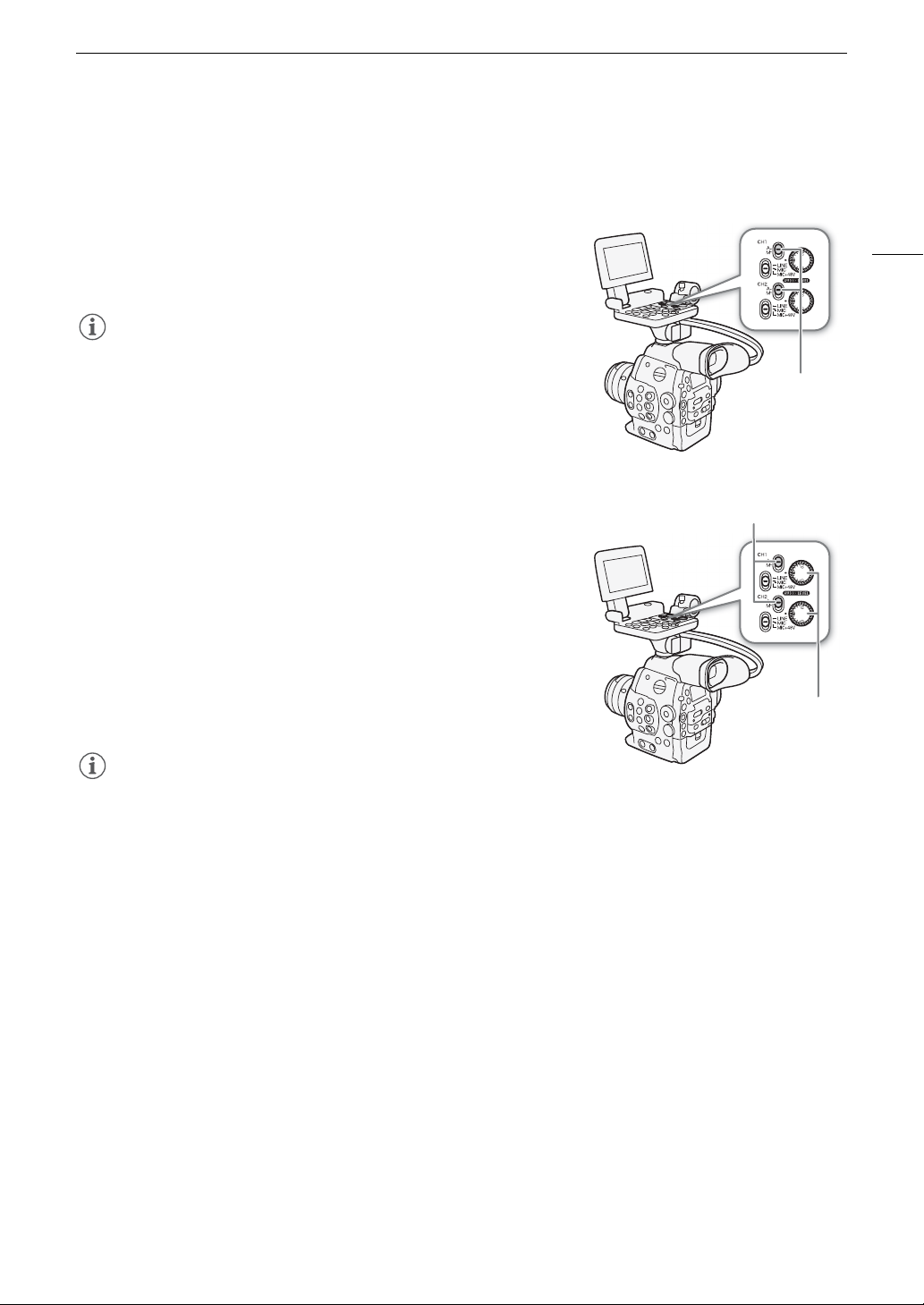
95
Recording Audio
Adjusting the Audio Level from the XLR Terminals
You can set the audio recording level for audio input from the XLR terminals to auto or manual for each channel.
Automatic Audio Level Adjustment
Set the ã switch of the desired channel to A (automatic) to let
the camcorder automatically adjust that channel’s audio level.
NOTES
• When both CH1 and CH2 are set to the same audio input (external
microphone or external line input), if the audio level is set to automatic,
you can use the [¡ Audio Setup] > [Audio Input] > [XLR ALC Link]
setting to link the audio level adjustment of both channels.
Manual Audio Level Adjustment
You can set the audio level for each channel manually from -G to 18 dB.
1Set the ã switch of the desired channel to M.
2 Turn the corresponding ã dial to adjust the audio level.
• For reference, the 0 corresponds to -G, 5 corresponds to 0 dB,
and 10 corresponds to +18 dB.
• As a guideline, adjust the audio recording level so that the audio level
meter on the screen or rear panel will go to the right of the 18 dB
mark (one mark right of the 20 dB mark) only occasionally.
• Closing the protective cover for XLR audio controls will prevent the
audio controls from being changed inadvertently.
NOTES
• If at least one of the channels is set to manual audio level adjustment, you can also activate the audio peak
limiter to prevent audio distortions. When activated, the audio peak limiter will limit the amplitude of audio input
signals when they exceed -6 dBFS. Use the [¡ Audio Setup] > [Audio Input] > [Limiter] setting.
• We recommend using headphones when adjusting the audio level. If the input level is too high, audio may
become distorted even if the audio level indicator shows an appropriate level.
• If you set an assignable button to [Audio Level] (A 113), you can press the button to turn the onscreen audio
level indicator on and off.
Adjusting the Microphone’s Sensitivity
You can adjust the microphone’s sensitivity if the XLR terminal switch is set to MIC or MIC+48V.
1 Open the desired XLR terminal’s sensitivity submenu.
[¡ Audio Setup] > [Audio Input] > [XLR1 Mic Trimming] or [XLR2 Mic Trimming]
2 Select the desired level and then press SET.
CH1/CH2
ã
switches
CH1/CH2
ã
switches
CH1/CH2
ã
dials
Recording Audio
96
Available Sensitivity Levels
Activating the Microphone’s Attenuator
You can activate the microphone’s attenuator (20 dB) if the XLR terminal
switch is set to MIC or MIC+48V.
1 Open the desired XLR terminal’s microphone attenuator submenu.
[¡ Audio Setup] > [Audio Input] > [XLR1 Mic Att.] or
[XLR2 Mic Att.]
2 Select [On] and then press SET.
Adjusting the Audio Level from the MIC Terminal
You can adjust the audio recording level of a microphone attached to the
MIC terminal to auto or manual. You can set the audio level manually
within a range of 0 to 99.
1 Open the [MIC Mode] submenu.
[¡ Audio Setup] > [Audio Input] > [MIC Mode]
2 Select [Automatic] or [Manual] and then press SET.
• If you selected [Automatic], you do not need to perform the rest of the
procedure. If you selected [Manual], continue the procedure to set the
microphone’s audio recording level.
3 Open the [MIC Level] submenu.
[¡ Audio Setup] > [Audio Input] > [MIC Level]
4 Use the joystick (Ý) or SELECT dial to set the audio recording
level and then press SET.
• As a guideline, adjust the audio recording level so that the audio level
meter on the screen or rear panel will go to the right of the 18 dB
mark (one mark right of the 20 dB mark) only occasionally.
NOTES
• When adjusting the audio level manually, you can activate the audio peak limiter with the [¡ Audio Setup] >
[Audio Input] > [Limiter] setting. When activated, the audio peak limiter will limit the amplitude of audio input
signals when they exceed -6 dBFS.
• We recommend using headphones when adjusting the audio level. If the input level is too high, audio may
become distorted even if the audio level indicator shows an appropriate level.
• If you set an assignable button to [Audio Level] (A 113), you can press the button to turn the onscreen audio
level indicator on and off.
+12 dB +6 dB 0 dB -6 dB -12 dB
[¡ Audio Setup]
[Audio Input]
[XLR1 Mic Trimming]
[XLR2 Mic Trimming]
[0 dB]
[¡ Audio Setup]
[Audio Input]
[XLR1 Mic Att.]
[XLR2 Mic Att.]
[Off]
[¡ Audio Setup]
[Audio Input]
[MIC Mode]
[Automatic]
[¡ Audio Setup]
[Audio Input]
[MIC Level]
[50]
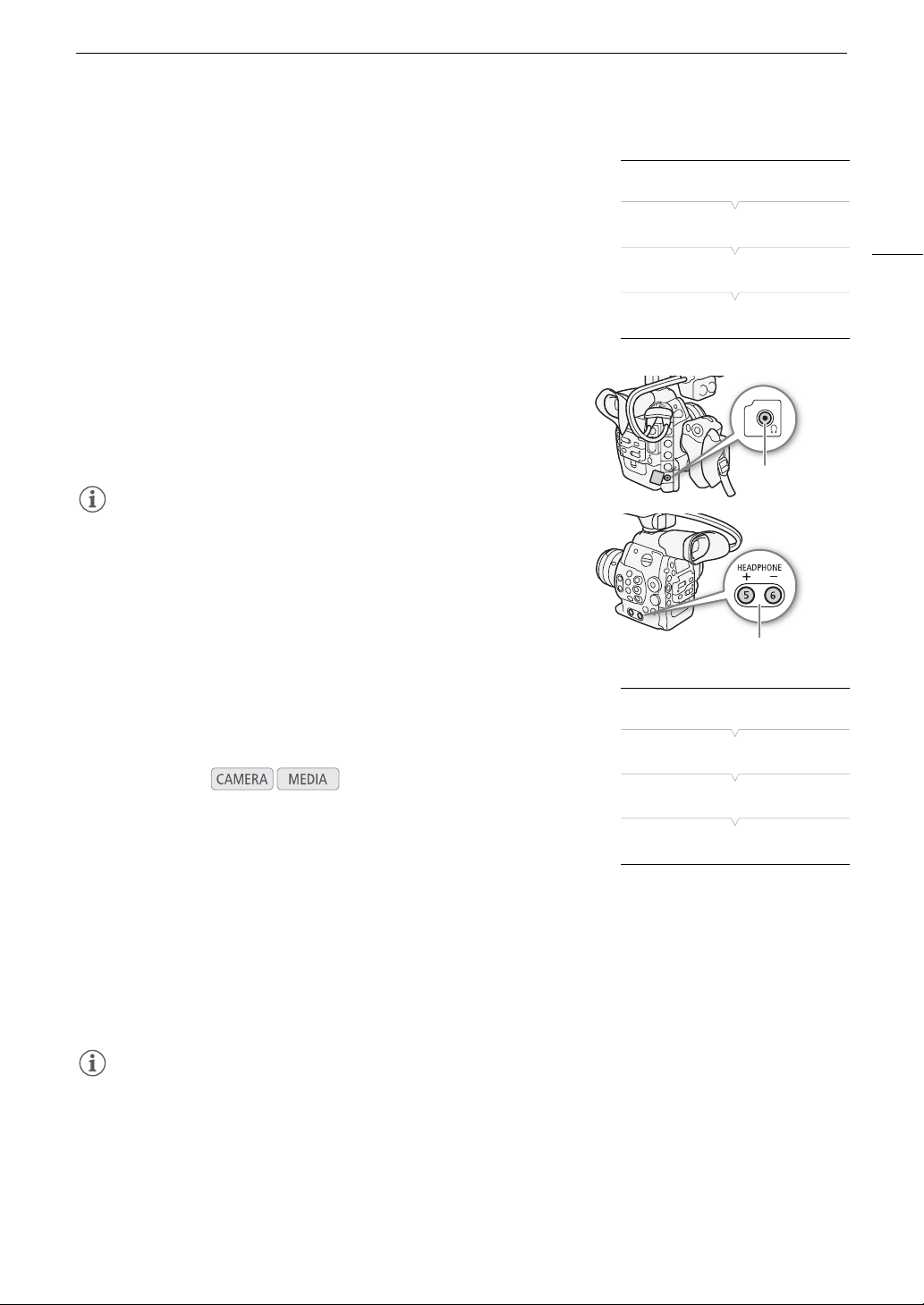
97
Recording Audio
Activating the Microphone’s Attenuator
If the audio level is too high and the sound sounds distorted, activate the
microphone attenuator (20 dB).
1 Open the [MIC Att.] submenu.
[¡ Audio Setup] > [Audio Input] > [MIC Att.]
2 Select [On] and then press SET.
Monitoring the Audio with Headphones
Connect headphones* to the × (headphone) terminal to monitor the
recorded audio. Press the HEADPHONE +/- buttons to adjust the volume.
* For PAL recordings, use commercially available headphones with a cable no longer
than 3 m.
NOTES
• You can also adjust the headphone volume with the [¡ Audio Setup]
> [Audio Output] > [Headphone Volume] setting.
Selecting the Audio Channel
You can select the audio channel that is output from the × (headphone)
terminal.
1 Open the [Channel] submenu.
[¡ Audio Setup] > [Audio Output] > [Channel]
2 Select the desired option and then press SET.
Options
NOTES
• If you set an assignable button to [Audio Output CH] (A 113), you can press the button to change the audio
channel directly.
Operating modes:
[CH1/CH2]: Audio from CH1 is output from the left audio channel and audio from CH2 is output from the right audio
channel.
[CH1/CH1]: Audio from CH1 is output from both the left and right audio channels.
[CH2/CH2]: Audio from CH2 is output from both the left and right audio channels.
[All/All]: Audio from CH1 and CH2 is mixed and output from both the left and right audio channels.
[¡ Audio Setup]
[Audio Input]
[MIC Att.]
[Off]
HEADPHONE +/-
buttons
× (headphone)
terminal
[¡ Audio Setup]
[Audio Output]
[Channel]
[CH1/CH2]
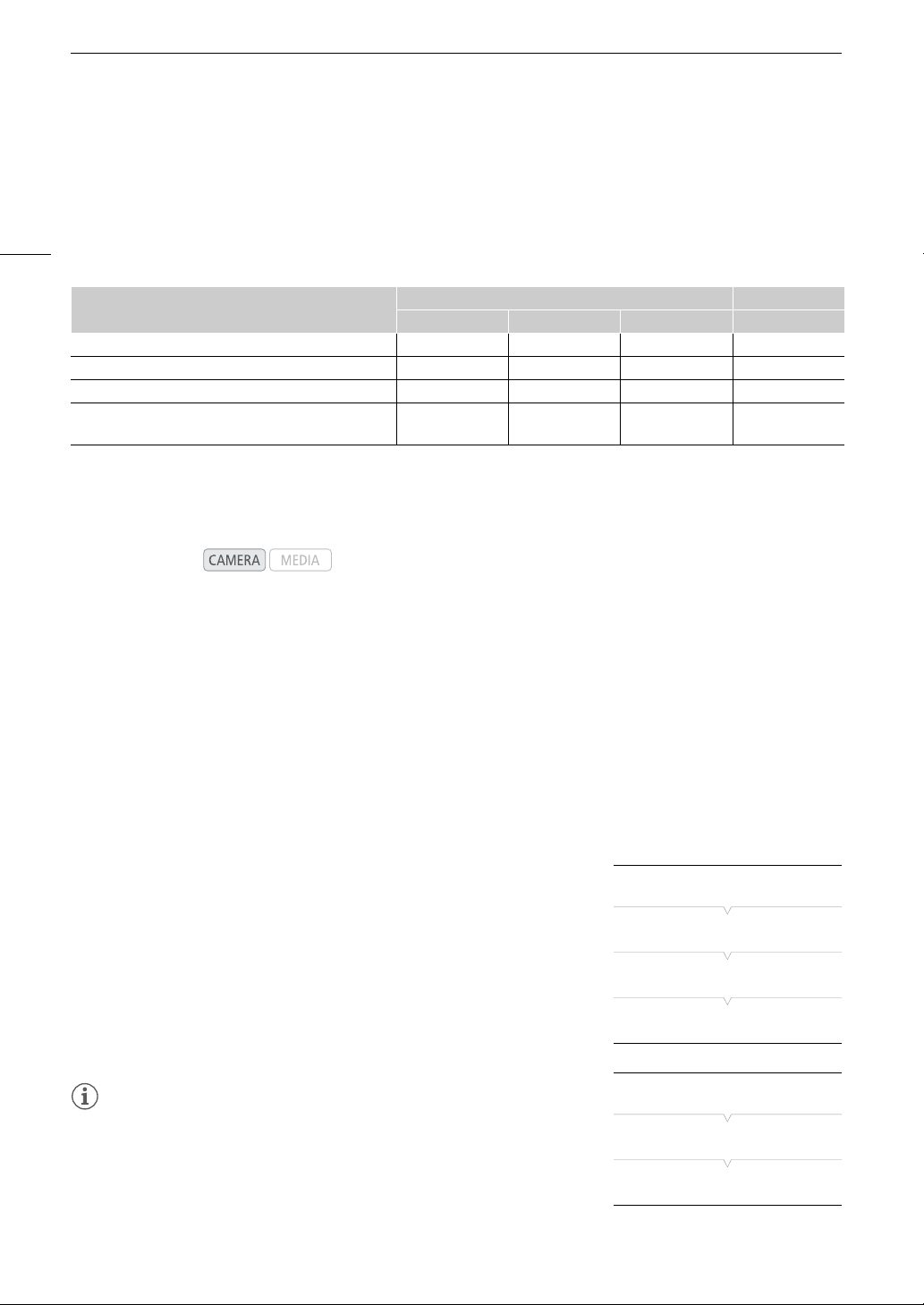
Using Metadata
98
Using Metadata
The camcorder automatically adds metadata to clips while they are being recorded. You can use the Canon XF
Utility software to check and search for specific metadata. You can also create and transfer a user memo
remotely using the Wi-Fi Remote application (A 49).
Metadata Components
1
User memo files need to be created using the software and saved on the SD card in advance.
2
Only when an optional GP-E1 GPS Receiver is attached to the camcorder. While recording, GPS information is recorded
automatically by the camcorder (A 105).
3
GPS information can only be added to clips already recorded.
4
Recording data is logged automatically by the camcorder.
Setting a User Memo Created with Canon XF Utility
Before you can add a user memo, you must first install the Canon XF Utility software (A 145). Next, create the
user memo and then save it to an SD card. Once you insert the SD card in the camcorder and select the user
memo, it will be added to clips you record.
For details on using the software, refer to the instruction manual that is installed with the Canon XF Utility
software (A 145).
1Use Canon XF Utility to save a user memo to an SD card.
• For details, refer to
Managing User Memo Profiles
in the Canon XF Utility Instruction Manual.
2 Insert the SD card into the SD card slot of the camcorder.
3 Open the metadata [Setting] submenu.
[w Other Functions] > [Set Metadata] > [Setting]
4 Select [SD Card] and then press SET.
5 Open the [User Memo] submenu.
[w Other Functions] > [Set Metadata] > [User Memo]
6 Select the file name of the desired user memo and then press SET.
•The Q icon appears on the right of the screen.
• Select [Off] to record clips without a user memo.
NOTES
• After you set a user memo, do not remove the SD card while you are
recording. If the SD card is removed, the user memo will not be added
to the clip.
• You must set the user memo before you start recording for it to be added to
the clip. You cannot change the user memo already added to a clip using
the camcorder but you can do so with the
Canon XF Utility
software.
Metadata
Entering content Checking content
Camcorder Canon XF Utility Wi-Fi Remote Canon XF Utility
User Memo: clip title, creator, location and description. – Ü
1
Ü Ü
GPS information: altitude, latitude and longitude. Ü
2
Ü
3
Ü Ü
Recording data: Shutter speed, ISO speed/gain value, etc. –
4
– – Ü
Unique Material Identifiers (UMID): country, organization
and user codes based on the SMPTE standard.
Ü
(A 163)
– – –
Operating modes:
[w Other Functions]
[Set Metadata]
[Setting]
[SD Card]
[w Other Functions]
[Set Metadata]
[User Memo]
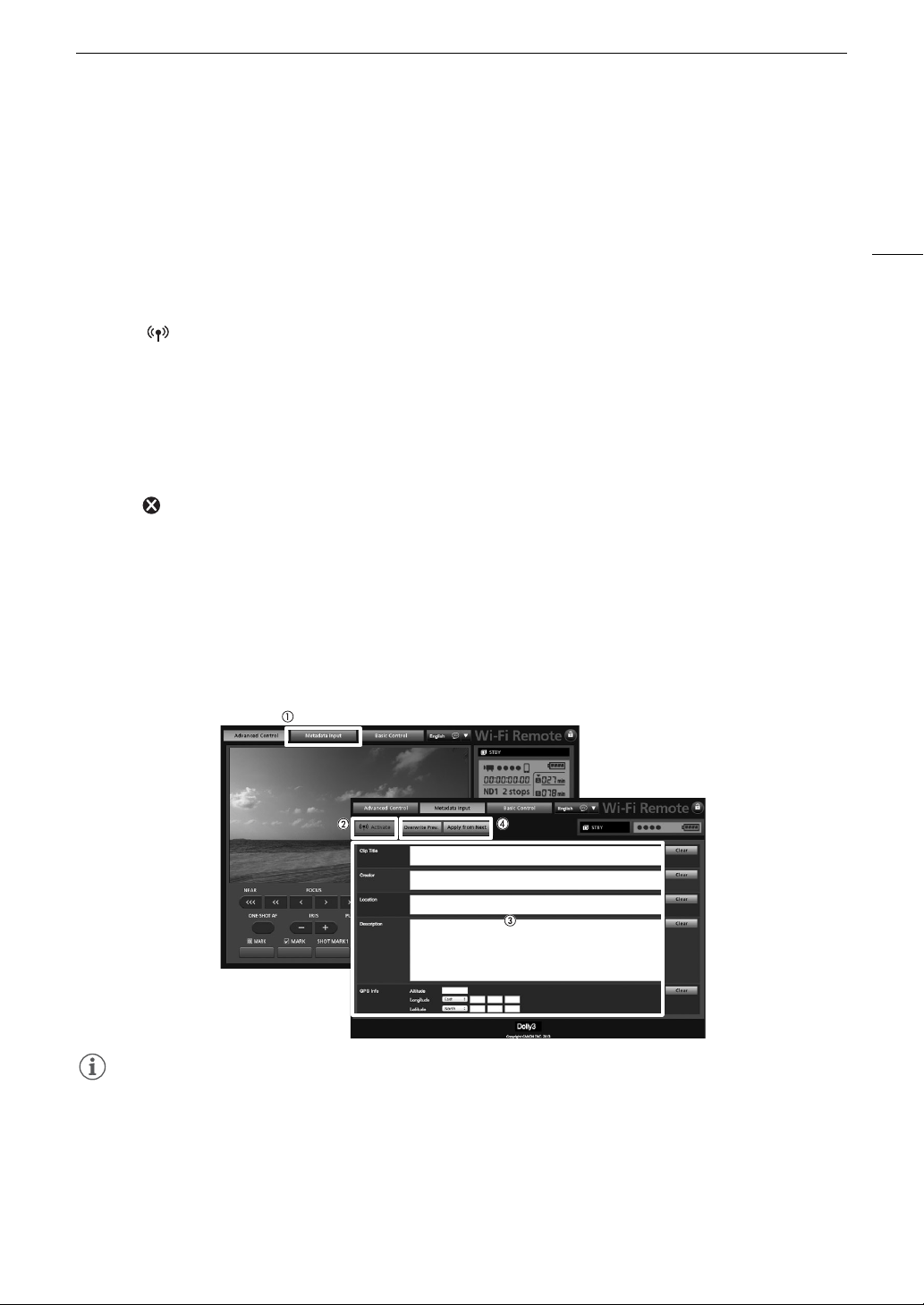
99
Using Metadata
Setting a User Memo Using Wi-Fi Remote
After completing the necessary preparations (A 49), you can create a user memo profile and transfer it to the
camcorder from a Wi-Fi-enabled device using the Wi-Fi Remote application. Using the Wi-Fi Remote application
you have two additional advantages over user memos created with Canon XF Utility: you can change the user
memo of the last clip recorded, even if you did not specify a user memo in advance; and you can enter manually
the GPS information of your shooting location.
1 Press the [Metadata Input] tab on the Wi-Fi Remote screen.
2 Press [ Activate].
• Alternatively, on the camcorder, you can set [w Other Functions] > [Set Metadata] > [Setting] to [Remote].
3 Fill the necessary user memo and GPS information fields.
• You can press [Clear] to clear the information entered into each field.
4 Press one of the transfer options to transfer the metadata to the camcorder.
• [Metadata correctly transferred] will be displayed on the Wi-Fi Remote screen and the metadata will be
transferred and applied to the clips on the camcorder.
5 Press to close the message.
Options
NOTES
• The metadata sent to the camcorder from Wi-Fi Remote will be lost in the following cases.
- If the camcorder was turned off.
- If the [w Other Functions] > [Set Metadata] > [Setting] setting was changed.
• Metadata sent to the camcorder from Wi-Fi Remote will not be added to relay clips recorded before the switch
to the current CF card.
[Apply from Next]: Adds the metadata you set in Wi-Fi Remote to all clips recorded after the transfer.
[Overwrite Prev.]: Only available after recording a clip. Adds the metadata you set in Wi-Fi Remote to all clips recorded
after the transfer and also to the last clip recorded (overwriting any user memo that may have been
recorded previously with the clip).
[Overwrite]: Only available while recording a clip. Adds the metadata you set in Wi-Fi Remote to the clip that is
being recorded (overwriting any previous user memo). It will also add this metadata to all clips
recorded after the transfer.
Colors Bars/Audio Reference Signal
100
Colors Bars/Audio Reference Signal
You can have the camcorder generate and record color bars and a 1 kHz audio reference signal and output
them from the HD/SD SDI terminal, HDMI OUT terminal, SYNC OUT terminal
1
and × (headphone) terminal
2
.
1
Outputs color bars only.
2
Outputs audio reference signal only.
Recording Color Bars
You can choose between SMPTE standard-definition color bars, EBU
color bars and ARIB multi-format HDTV color bars.
1 Open the color bars [Type] submenu.
[~ Camera Setup] > [Color Bars] > [Type]
2 Select the type of color bars and then press SET.
3 Open the [Enable] submenu to activate the color bars.
[~ Camera Setup] > [Color Bars] > [Enable]
4 Select [On] and then press SET.
• The selected color bars appear on the screen and will be recorded
when you press the START/STOP button.
• Turning the camcorder off or changing the operating mode to
mode will deactivate the color bars.
• Alternatively, if you set an assignable button to [Color Bars] (A 113),
you can press the button to activate the color bars.
Recording an Audio Reference Signal
The camcorder can output a 1 kHz audio reference signal with the color
bars.
1 Open the [1 kHz Tone] submenu.
[¡ Audio Setup] > [Audio Input] > [1 kHz Tone]
2 Select the desired level and then press SET.
• Available levels are -12 dB, -18 dB and -20 dB.
• Select [Off] to turn off the signal.
• The signal is output at the selected level and will be recorded when you press the START/STOP button.
Operating modes:
[~ Camera Setup]
[Color Bars]
[Type]
[SMPTE] or [EBU]*
* Depending on the country/region
of purchase.
[~ Camera Setup]
[Color Bars]
[Enable]
[Off]
[¡ Audio Setup]
[Audio Input]
[1 kHz Tone]
[Off]
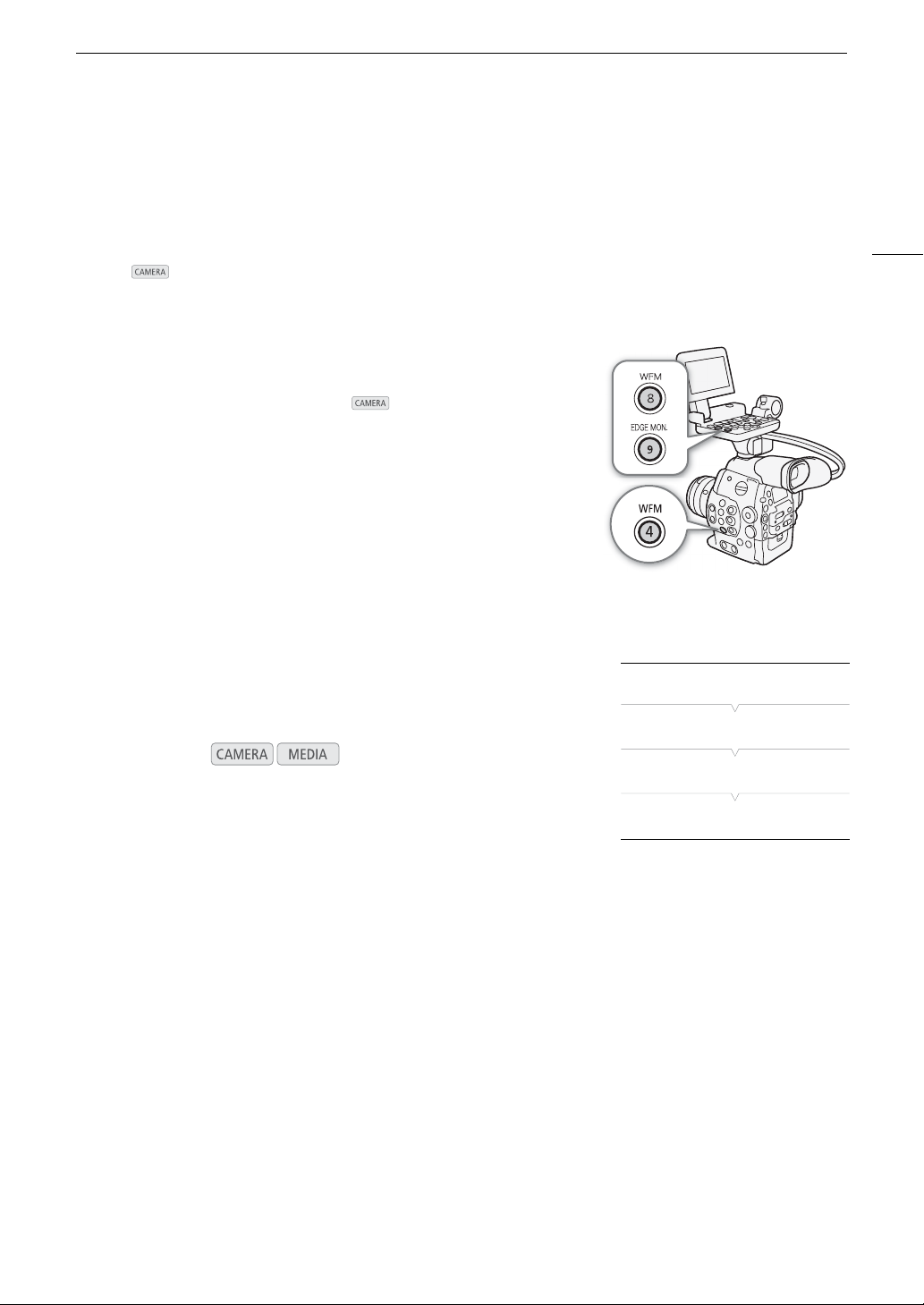
101
Video Scopes
Video Scopes
The camcorder can display a simplified waveform monitor or vectorscope. It can also display an edge monitor*
to help you focus. The video scopes appear only on the LCD screen. They do not appear in the viewfinder or on
an external monitor. In order to use the video scopes, the monitor unit must be attached to the camcorder.
* The edge monitor looks at the focus of the entire picture and displays the results as a waveform. The edge monitor is available
only in mode.
Displaying a Video Scope
Press the WFM button (waveform monitor or vectorscope) or EDGE
MON. button (edge monitor, only in mode).
• The waveform monitor will appear in a window on the lower right of the
screen.
• You can repeatedly press the WFM button to activate the video scopes
in the following sequence.
Waveform monitor Vectorscope Off
• Alternatively, you can display the video scopes using [w Other
Functions] > [WFM (LCD)] > [Setting]. Select [WFM] for the waveform
monitor, [VS] for the vectorscope or [Edge Mon.] for the edge monitor.
Configuring the Waveform Monitor
The camcorder’s waveform monitor function offers 5 modes. You can also
change the gain.
1 Open the [Waveform Monitor] submenu.
[w Other Functions] > [WFM (LCD)] > [Waveform Monitor]
2 Select the desired option and then press SET.
• If you do not need to change the gain, you do not need to perform steps 3 and 4.
3 Open the waveform monitor [Gain] submenu.
[w Other Functions] > [WFM (LCD)] > [Gain] (under [Waveform Monitor])
4 Select [1x] or [2x] and then press SET.
Options
Operating modes:
[Line]: Sets the waveform monitor to line display mode.
[Line+Spot]: The waveform of the area in the red frame is displayed in red on top of the [Line] mode waveform.
[Field]: Sets the waveform monitor to field display mode.
[RGB]: Functions like an RGB parade scope.
[YPbPr]: Functions like a YPbPr parade scope.
[w Other Functions]
[WFM (LCD)]
[Waveform Monitor]
[Line]

Video Scopes
102
Configuring the Vectorscope
The camcorder’s vectorscope function offers 2 modes. You can also
change the gain.
1 Open the [Vectorscope] submenu.
[w Other Functions] > [WFM (LCD)] > [Vectorscope]
2 Select the desired option and then press SET.
• If you do not need to change the gain, you do not need to perform steps 3 and 4.
3 Open the vectorscope [Gain] submenu.
[w Other Functions] > [WFM (LCD)] > [Gain] (under [Vectorscope])
4 Select [1x] or [5x] and then press SET.
Options
Configuring the Edge Monitor
Using this video scope allows you to focus with more precision. You can
use the edge monitor along with the other focus assistance functions
(A 79). The edge monitor features 2 modes.
1 Open the [Edge Monitor] submenu.
[w Other Functions] > [WFM (LCD)] > [Edge Monitor]
2 Select the desired option and then press SET.
• If you do not need to change the gain, you do not need to perform steps 3 and 4.
3 Open the edge monitor [Gain] submenu.
[w Other Functions] > [WFM (LCD)] > [Gain] (under [Edge Monitor])
4 Select the desired gain value and then press SET.
Options
Operating modes:
[Spot]: The color signal of the area in the red frame is displayed in red on top of the [Normal] mode waveform.
[Normal]: Displays the vectorscope.
Operating modes:
[Type 1]: The waveform that represents the focus of the entire picture is displayed in green. In addition, the waveform
of the area in the three red frames is displayed in red on top of the previous waveform.
[Type 2]: This mode displays the edge monitor with the waveform monitor in [Line+Spot] mode. The waveform
monitor appears on the left in green while the edge monitor appears on the right in blue. The waveform of
the area in the red frame is displayed in red on top of the edge monitor waveform.
[w Other Functions]
[WFM (LCD)]
[Vectorscope]
[Normal]
[w Other Functions]
[WFM (LCD)]
[Edge Monitor]
[Type 1]
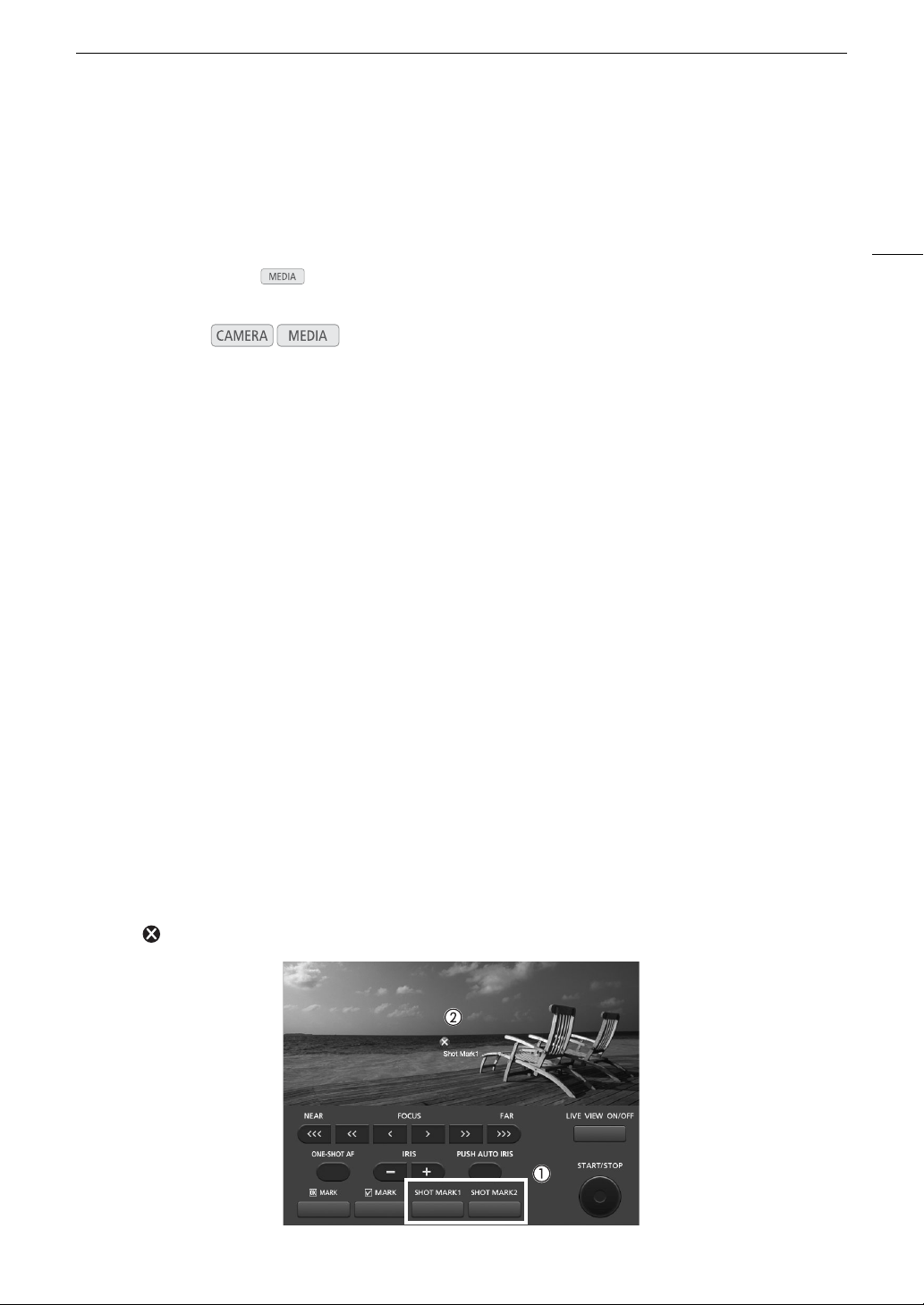
103
Adding Marks while Recording
Adding Marks while Recording
When recording, you can flag an important shot in a clip by adding a “shot mark” (!). There are two types of
shot marks, shot mark 1 (") and shot mark 2 (#), and you can add either or both types to a single clip. You can
also add an OK mark ($) or check mark (%) to the entire clip to flag clips you want to set apart. You can add all
four types of marks remotely using the Wi-Fi Remote application.
When the camcorder is in mode, you can add or delete shot marks (A 139). You can also display an
index screen of all the shot marks (A 137), allowing you to find a particular scene in a clip more quickly.
Adding Shot Marks while Recording
To add a shot mark to a clip while recording, you must first set in advance an assignable button to [Add Shot
Mark 1] or [Add Shot Mark 2].
1 Set an assignable button to [Add Shot Mark 1] or [Add Shot Mark 2] (A 113).
• To add both shot marks, set one assignable button to [Add Shot Mark 1] and another assignable button to
[Add Shot Mark 2].
2 While you are recording, press the assignable button at the beginning of the shot you wish to mark.
• A message indicating the shot mark will appear and the selected shot mark will be added to the current
frame of the clip.
• You can press the button again to add another shot mark. Up to 100 shot marks (" and # marks
combined) can be added to a single clip.
Remote Operation Using Wi-Fi Remote
After completing the necessary preparations (A 49), you can set a shot mark (" or #) remotely from a Wi-Fi-
enabled device using the Wi-Fi Remote application.
1 While recording a clip, press [SHOT MARK1] on the Wi-Fi Remote screen to set a shot mark 1 or
[SHOT MARK2] to set a shot mark 2.
• [Shot Mark1] or [Shot Mark2] will be displayed on the Wi-Fi Remote screen and the shot mark will be applied
to the clip.
2 Press to close the message.
Operating modes:
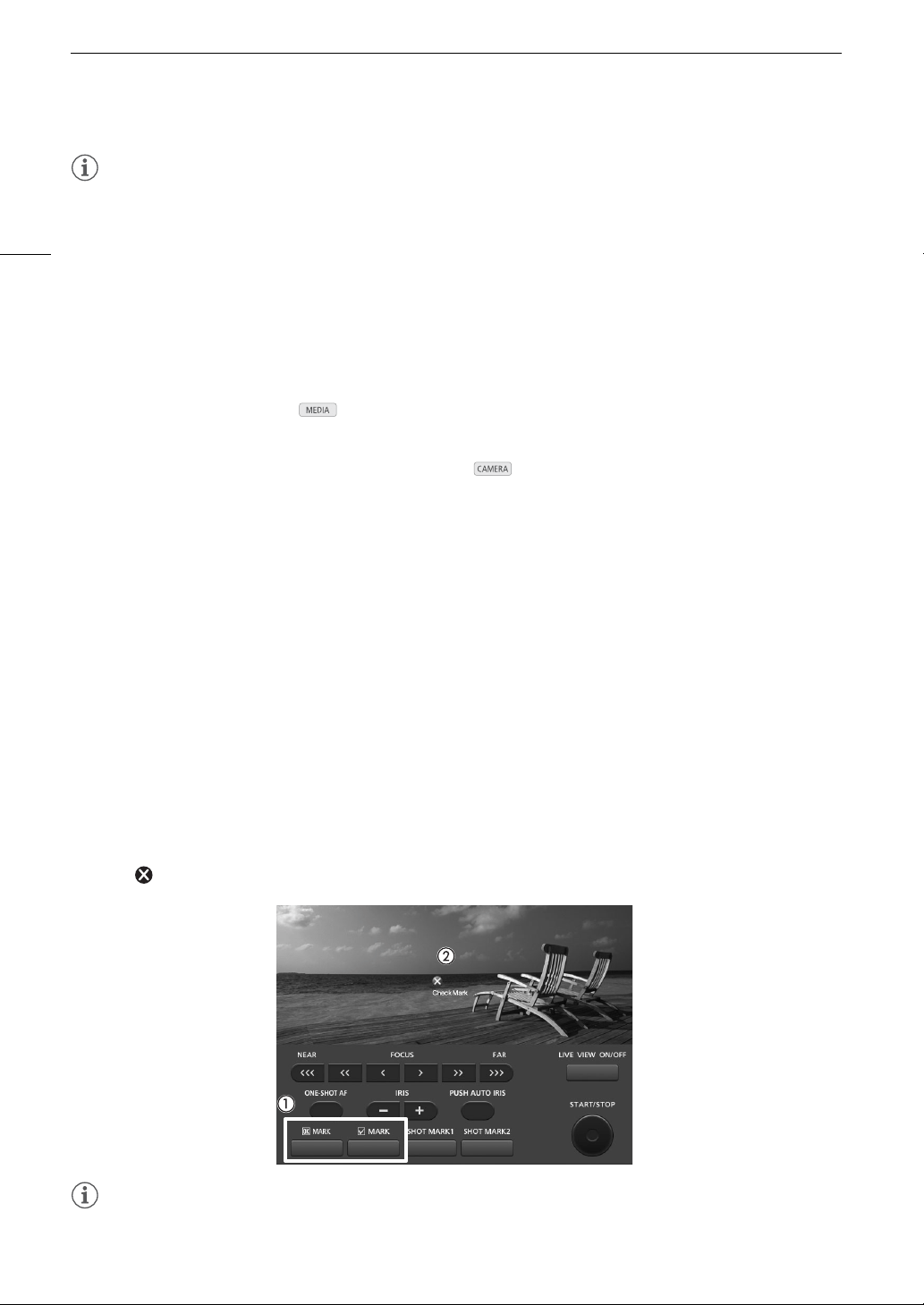
Adding Marks while Recording
104
NOTES
• There may be up to a 0.5 second delay from when you press the button to when the camcorder adds the shot
mark. When using the Wi-Fi Remote application, the delay may be longer depending on the conditions of the
wireless signal.
• When you are using interval recording or frame recording mode, you cannot add shot marks to a clip.
• When a clip contains either shot mark, ! will appear next to the clip’s thumbnail in the playback index screen.
Adding an $ Mark or % Mark to the Last Clip Recorded
After recording an important clip, you can add an OK mark ($) or check mark (%) to the clip to flag it and set it
apart. When the camcorder is in mode, you can display an index screen that contains only clips with an
$ mark or only clips with a % mark (A 128). Furthermore, you can use the $ mark to protect important clips,
as clips with an $ mark cannot be deleted.
To add an $ mark or % mark to the last clip recorded in mode, you must first set in advance an
assignable button to [Add $ Mark] or [Add % Mark].
1 Set an assignable button to [Add $ Mark] or [Add % Mark] (A 113).
• To add both types of clip marks (to different clips), set one assignable button to [Add $ Mark] and another
assignable button to [Add % Mark].
2 After recording a clip, press the assignable button.
• A message indicating the clip mark will appear and the selected clip mark will be added to the clip.
Remote Operation Using Wi-Fi Remote
After completing the necessary preparations (A 49), you can set an $ mark or a % mark remotely from a
Wi-Fi-enabled device using the Wi-Fi Remote application.
1 After recording a clip, press [$ MARK] on the Wi-Fi Remote screen to set a an $ mark or
[% MARK] to set a % mark.
• [OK Mark] or [Check Mark] will be displayed on the Wi-Fi Remote screen and the mark will be applied to the
clip.
2 Press to close the message.
NOTES
• A clip cannot have both an $ mark and a % mark at the same time.
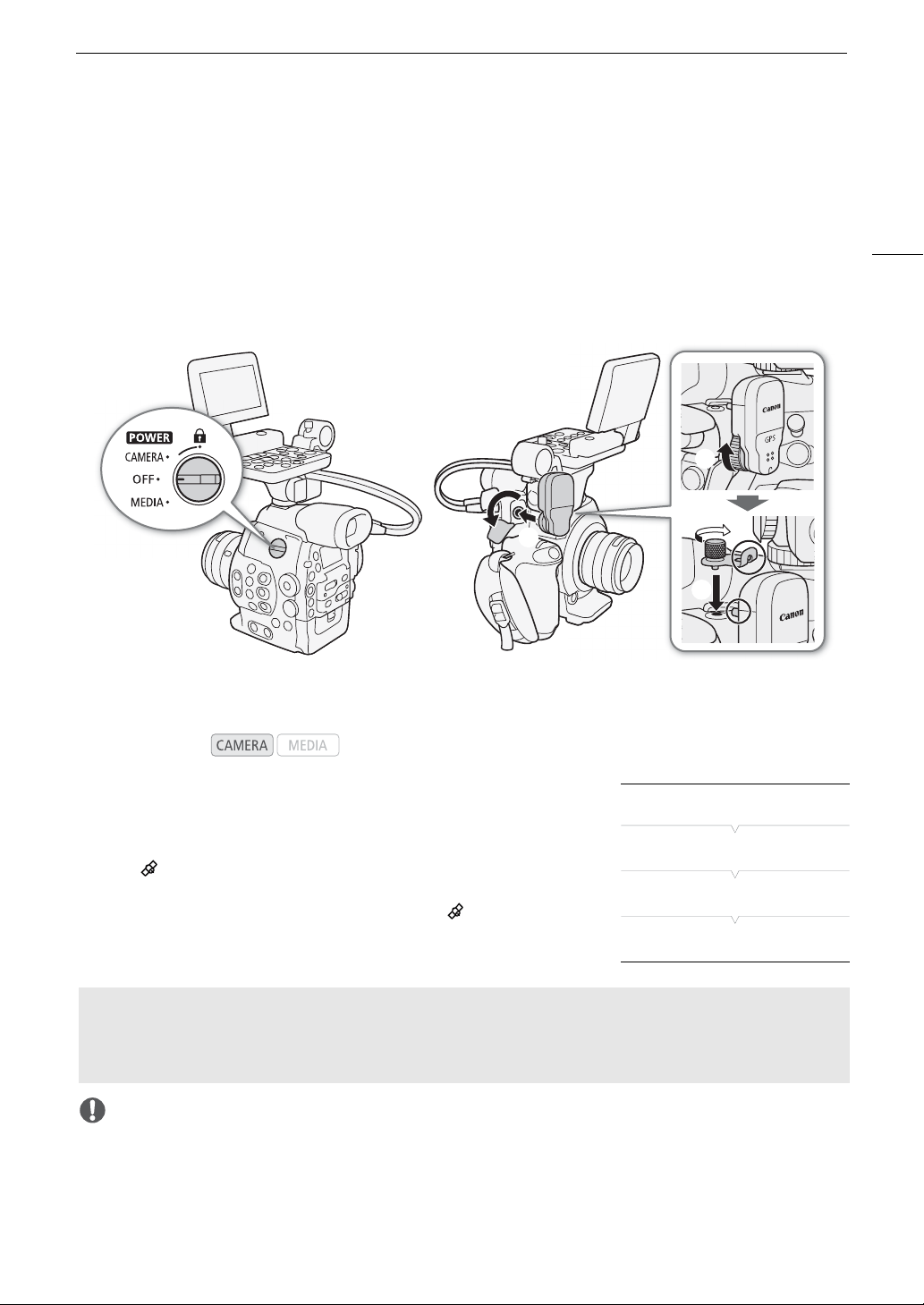
105
Recording GPS Information (Geotagging)
Recording GPS Information (Geotagging)
When the optional GP-E1 GPS Receiver is attached to the camcorder’s WFT terminal, the camcorder will
automatically record the GPS information (latitude, longitude and altitude) in the metadata of each clip recorded
(A 98). For details about attaching and configuring the receiver, refer to the GP-E1’s instruction manual.
Attaching the GPS Receiver
Turn off the camcorder and attach the optional GP-E1 GPS Receiver to the camcorder’s WFT terminal.
Activating the GPS Receiver
1 Open the GPS [Setting] submenu.
[w Other Functions] > [GPS] > [Setting]
2 Select [On] and then press SET.
• The icon appears on the right of the screen and will blink as the
receiver tries to acquire satellite signals.
• When satellite signals are correctly acquired, the icon will stay
continuously on. GPS functions will be activated and clips recorded
thereafter will be geotagged.
IMPORTANT
• In certain countries/regions, the use of GPS may be restricted. Be sure to use the GPS receiver in accordance
with local laws and regulations of the country/region where the receiver is used. Be particularly careful when
traveling outside of your home country.
• Be careful about using the GPS receiver in places where the use of electronic devices is restricted.
Operating modes:
햲
햳
햷
햴
햵
햶
[w Other Functions]
[GPS]
[Setting]
[Off]
Adjusting the Date/Time Automatically According to GPS Position
Setting the [w Other Functions] > [GPS] > [Auto Time Setting] to [On], you can have the camcorder
automatically adjust its date and time settings according to the information received from the GPS signal while
an optional GP-E1 GPS Receiver is attached to the camcorder.

Recording GPS Information (Geotagging)
106
• The GPS information recorded with clips may contain data that can lead others to locate or identify you. Be
careful when sharing geotagged recordings with others or when uploading them to the Web.
• Do not leave the GPS receiver near strong electromagnetic fields such as near powerful magnets and motors.
NOTES
• On the [GPS Information Display] status screen (A 171), you can check the current GPS information and
satellite signal strength.
• GPS signal reception may take some time after replacing the battery pack or when first turning on the
camcorder after a long period without use.
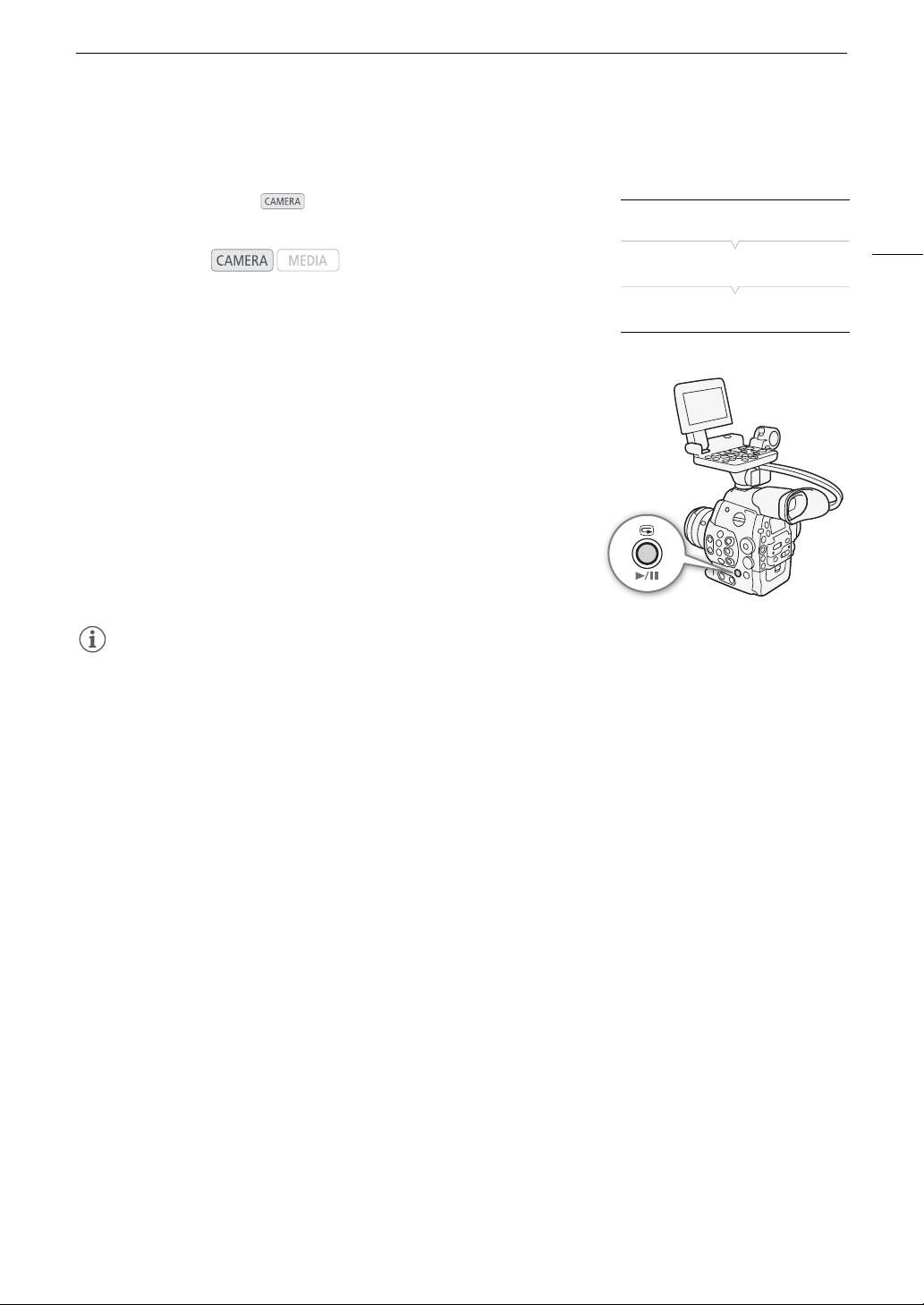
107
Reviewing a Recording
Reviewing a Recording
When the camcorder is in mode, you can review the last clip that
was recorded.
1 Open the [Rec Review] submenu to set the review length.
[w Other Functions] > [Rec Review]
2 Select the desired option and then press SET.
3 After you finish recording, press the
u button.
• The last clip that was recorded is played back without audio for the
selected duration. [Ð REVIEW] appears at the top of the screen.
• Press the CANCEL button to stop reviewing the clip and change the
camcorder back to record pause mode.
• After the clip finishes playing back, the camcorder returns to record
pause mode.
Options
NOTES
• When you are using a special recording mode (A 108), you cannot review a clip.
• If the camcorder switched CF cards during a recording, the camcorder will play back the clip on the CF card
most recently recorded on.
Operating modes:
[Entire Clip]: Allows you to review the entire clip.
[Last 4 sec]: Allows you to review just the last 4 seconds of the clip.
[w Other Functions]
[Rec Review]
[Entire Clip]
Special Recording Modes
108
Special Recording Modes
The camcorder features 4 special recording modes.
Interval recording ([Interval Rec]): The camcorder will automatically record a pre-defined number of frames at a
pre-defined interval. This mode is suitable for recording subjects with little movement, such as natural
surroundings or plants.
Frame recording ([Frame Rec]): The camcorder will record a pre-defined number of frames every time you press
the START/STOP button. This mode is suitable for recording stop motion animation.
Slow & fast motion recording ([Slow & Fast Motion]): This mode allows you to change the shooting frame rate to
achieve a slow motion or fast motion effect during playback.
Pre-recording ([Pre Rec]): The camcorder will start recording approximately 3 seconds before you press the
START/STOP button. This is especially useful when it is difficult to predict when to start recording.
Interval Recording Mode
Set the interval and number of frames in advance. Sound is not recorded
in this mode.
Configuring Interval Recording Mode
1 Open the [Interval] submenu.
[w Other Functions] > [Interval Rec] > [Interval]
2 Select the desired interval and then press SET.
• See the following table for the available intervals.
3 Select [Rec Frames], select the desired number of frames and then
press SET.
• Available options depend on the frame rate used: 1, 3, 6 and 9
frames (when [w Other Functions] > [24.00P] is set to [On] or
[Frame Rate] is set to [23.98P], [29.97P] or [59.94i]), or 2, 6 and 12
frames (when [w Other Functions] > [Frame Rate] is set to [25.00P],
[50.00i], [50.00P] or [59.94P]).
Available Intervals
Activating Interval Recording Mode and Recording
1 Open the [Special Rec] submenu.
[w Other Functions] > [Special Rec]
2 Select [Interval Rec] and then press SET.
• [INT STBY] appears at the top of the screen (with [INT] flashing).
3 Press the START/STOP button to begin recording.
• The camcorder automatically records the set number of frames at the set interval.
• The tally lamp illuminates.
Operating modes:
1 sec 2 sec 3 sec 4 sec 5 sec 6 sec 7 sec 8 sec 9 sec
10 sec 15 sec 20 sec 30 sec 40 sec 50 sec 1 min 2 min 3 min
4 min 5 min 6 min 7 min 8 min 9 min 10 min
[w Other Functions]
[Interval Rec]
[Interval]
[1 sec]
[w Other Functions]
[Interval Rec]
[Rec Frames]
[1]
[w Other Functions]
[Special Rec]
[Off]

109
Special Recording Modes
• [INT STBY] changes to [Ü INT REC] while recording frames and [Ü INT STBY] while between intervals.
4 Press the START/STOP button again to stop recording.
• All of the recorded frames are joined together into one clip.
• The tally lamps go out and [INT STBY] appears at the top of the screen (with [INT] flashing).
NOTES
• This special recording mode is not available when [w Other Functions] > [Bit Rate/Resolution] is set to
[35 Mbps 1440x1080]. Also, you can use only one special recording mode at a time.
• While recording, you cannot change the interval or number of frames.
• Some frames at the point the recording was stopped may be recorded and added to the end of the clip.
• Interval recording mode will be deactivated if the special recording mode is changed or turned off. It will be
deactivated also if you change the video configuration.
• During this special recording mode, the running mode of the time code (A 86) can be set to [Rec Run] or
[Regen.] and the time code advances by the number of frames recorded. If the running mode of the time code
is set to [Free Run] or the time code is input from an external source, the running mode will switch to [Rec Run]
during special recording mode. When special recording mode is deactivated, the running mode will return to
its previous setting.
• During special recording mode, the time code signal will not be output from the TIME CODE terminal or
HD/SD SDI terminal.
Frame Recording Mode
Set the number of frames in advance. We recommend operating the camcorder remotely or stabilizing the
camcorder, for example, on a tripod. Sound is not recorded in this mode.
Configuring Frame Recording Mode
1 Open the [Rec Frames] submenu.
[w Other Functions] > [Frame Rec] > [Rec Frames]
2 Select the desired number of frames and then press SET.
• Available options depend on the frame rate used: 1, 3, 6 and 9
frames (when [w Other Functions] > [24.00P] is set to [On] or
[Frame Rate] is set to [23.98P], [29.97P] or [59.94i]), or 2, 6 and 12
frames (when [w Other Functions] > [Frame Rate] is set to [25.00P],
[50.00i], [50.00P] or [59.94P]).
Activating Frame Recording Mode and Recording
1 Open the [Special Rec] submenu.
[w Other Functions] > [Special Rec]
2 Select [Frame Rec] and then press SET.
• [FRM STBY] appears at the top of the screen (with [FRM] flashing).
3 Press the START/STOP button to begin recording.
• The camcorder automatically records the set number of frames.
• The tally lamp illuminates.
• [FRM STBY] changes to [Ü FRM REC] while recording frames and [Ü FRM STBY] when frames are not
being recorded.
• Repeat until you finish recording.
[w Other Functions]
[
Frame Rec]
[Rec Frames]
[1]
[w Other Functions]
[Special Rec]
[Off]
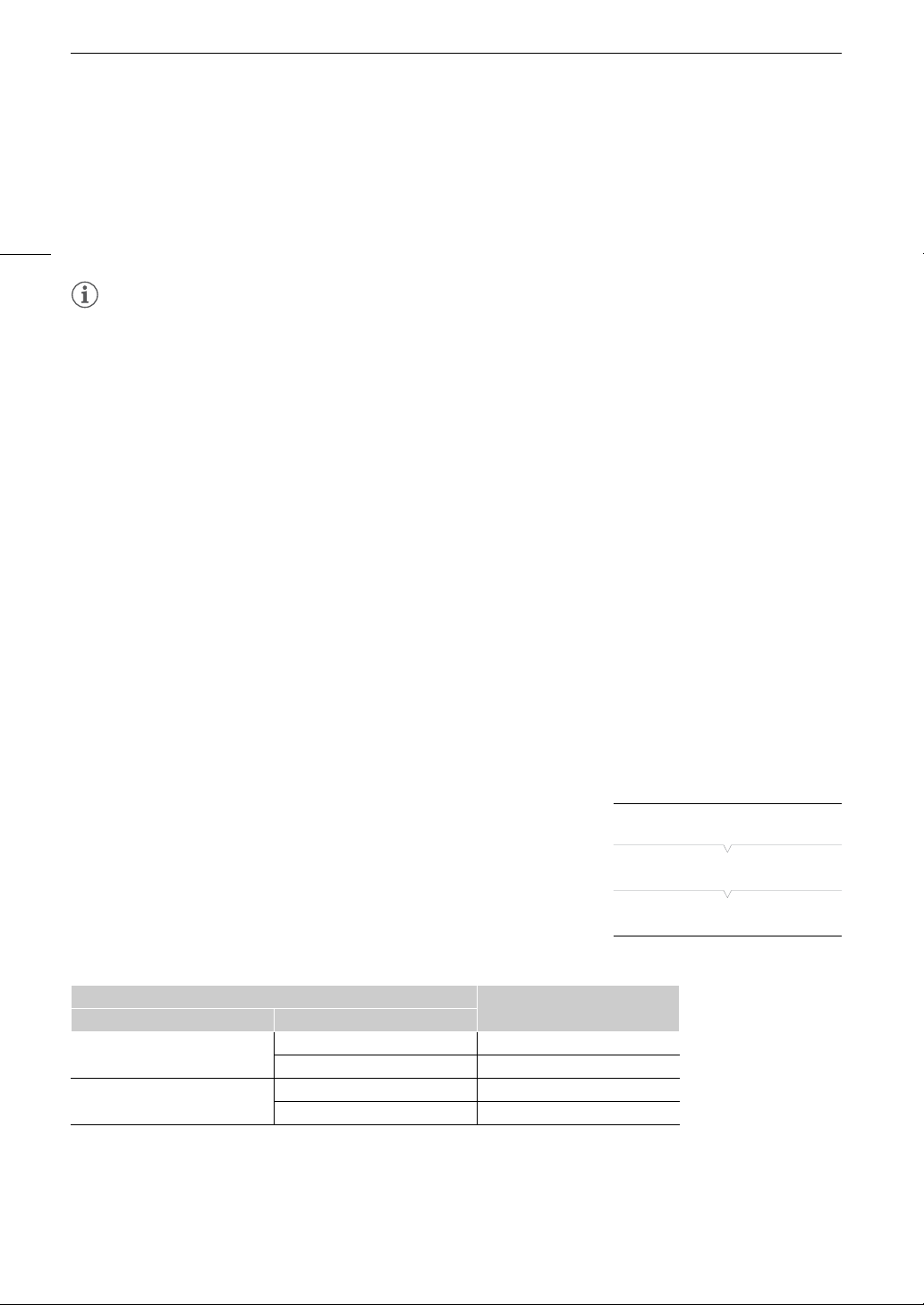
Special Recording Modes
110
4 Open the [Special Rec] submenu.
[w Other Functions] > [Special Rec]
5 Select [Off] and then press SET.
• Frame recording mode ends and all of the recorded frames are joined together into one clip.
• The tally lamp goes out and [STBY] appears at the top of the screen.
NOTES
• This special recording mode is not available when [w Other Functions] > [Bit Rate/Resolution] is set to
[35 Mbps 1440x1080]. Also, you can use only one special recording mode at a time.
• While recording, you cannot change the number of frames.
• Some frames at the point the recording was stopped may be recorded and added to the end of the clip.
• Frame recording mode will be deactivated if the special recording mode is changed or turned off. It will be
deactivated also if you change the video configuration.
• During this special recording mode, the running mode of the time code (A 86) can be set to [Rec Run] or
[Regen.] and the time code advances by the number of frames recorded. If the running mode of the time code
is set to [Free Run] or the time code is input from an external source, the running mode will switch to [Rec Run]
during special recording mode. When special recording mode is deactivated, the running mode will return to
its previous setting.
• During special recording mode, the time code signal will not be output from the TIME CODE terminal or
HD/SD SDI terminal.
Slow & Fast Motion Mode
When you set the frame rate to a progressive frame rate (A 59), the camcorder can record with a frame rate
(shooting frame rate) that is different from the playback frame rate. Recording a clip at a higher frame rate than
the [Frame Rate] setting will result in a slow motion effect during playback (up to 1/2.5 of the original speed).
Conversely, a lower frame rate will result in a fast motion effect (up to 60x the original speed). Sound is not
recorded in this mode.
Configuring Slow & Fast Motion Mode
1 Open the [S&F Frame Rate] submenu.
[w Other Functions] > [Slow & Fast Motion] > [S&F Frame Rate]
2 Select the desired shooting frame rate and then press SET.
• Available shooting frame rates depend on other video configuration
settings in use.
Available Shooting Frame Rates
Video Configuration
Shooting Frame Rates
(fps, in 1 fps increments)
Type of Recording Resolution
NTSC / 24.00P
1920 x 1080 1 to 30
1280 x 720 1 to 60
PAL
1920 x 1080 1 to 25
1280 x 720 1 to 50
[w Other Functions]
[Slow & Fast Motion]
[S&F Frame Rate]
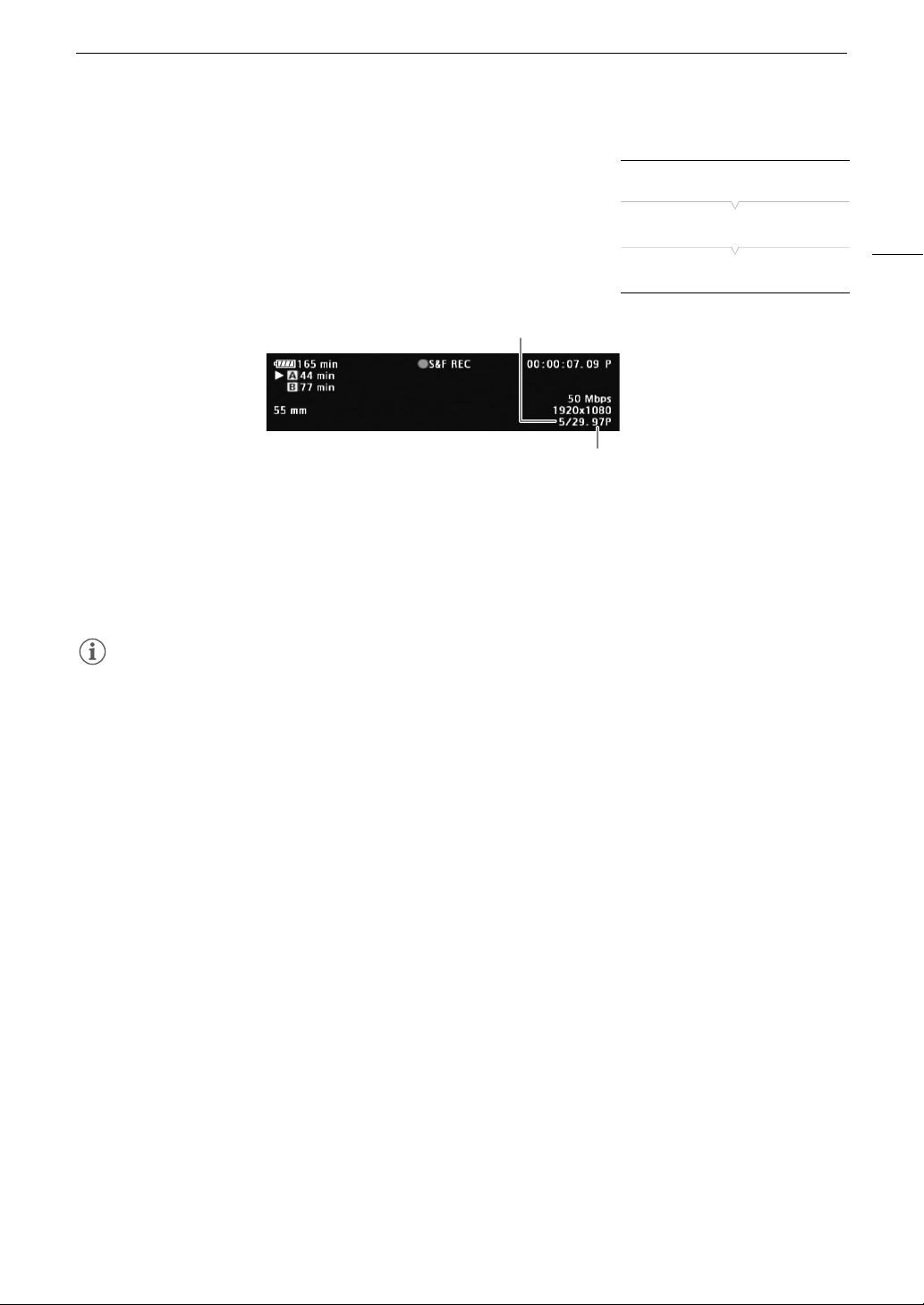
111
Special Recording Modes
Activating Slow & Fast Motion Mode and Recording
1 Open the [Special Rec] submenu.
[w Other Functions] > [Special Rec]
2 Select [Slow & Fast Motion] and then press SET.
• [S&F STBY] appears at the top of the screen.
• The selected shooting frame rate appears on the right of the screen
next to the frame rate setting (the playback frame rate).
3 Press the START/STOP button to begin recording.
• The tally lamp illuminates.
• [S&F STBY] changes to [Ü S&F REC] while recording.
4 Press the START/STOP button again to stop recording.
• The clip is recorded at the selected frame rate.
• The tally lamp goes out and [S&F STBY] appears at the top of the screen.
NOTES
• This special recording mode is not available when [w Other Functions] > [Bit Rate/Resolution] is set to
[35 Mbps 1440x1080]. Also, you can use only one special recording mode at a time. In addition, slow & fast
motion mode cannot be used with double slot recording.
• While recording, you cannot change the shooting frame rate.
• For lower shooting frame rates, it may take approximately 1 second to stop recording.
• Slow & fast motion mode will be deactivated if the special recording mode is changed or turned off. It will be
deactivated also if you change the video configuration.
• When the bit rate is set to 50 Mbps (A 59), relay recording is not available during slow motion recording.
• During this special recording mode, the running mode of the time code (A 86) can be set to [Rec Run] or
[Regen.] and the time code advances by the number of frames recorded. If the running mode of the time code
is set to [Free Run] or the time code is input from an external source, the running mode will switch to [Rec Run]
during special recording mode. When special recording mode is deactivated, the running mode will return to
its previous setting.
• During special recording mode, the time code signal will not be output from the TIME CODE terminal or
HD/SD SDI terminal.
[w Other Functions]
[
Special Rec]
[Off]
Shooting frame rate
Playback frame rate
Special Recording Modes
112
Pre-recording Mode
When pre-recording mode is activated, the camcorder starts recording
continuously into a temporary memory of approximately 3 seconds so
when you press the START/STOP button, the clip will contain also
approximately 3 seconds of video and audio recorded before you pressed
the button.
1 Open the [Special Rec] submenu.
[w Other Functions] > [Special Rec]
2 Select [Pre Rec] and then press SET.
• [PRE REC STBY] appears at the top of the screen.
3 Press the START/STOP button to begin recording.
• The tally lamp illuminates.
• [PRE REC STBY] changes to [Ü PRE REC] while recording.
4 Press the START/STOP button again to stop recording.
• The camcorder records the clip, including approximately 3 seconds of video and audio recorded before the
START/STOP button was pressed.
• The tally lamp goes out and [PRE REC STBY] appears at the top of the screen.
NOTES
• You can use only one special recording mode at a time.
• Pre-recording mode will be deactivated if the special recording mode is changed or turned off. It will be
deactivated also if you change the video configuration.
• During pre-recording mode, the time code will be recorded with the running mode (A 86) set to [Free Run],
regardless of the previous setting. Alternatively, you can use an external time code signal. When the time code
is recorded, it will include the 3 seconds before the START/STOP button was pressed. When special recording
mode is deactivated, the running mode will return to its previous setting.
[w Other Functions]
[
Special Rec]
[Off]
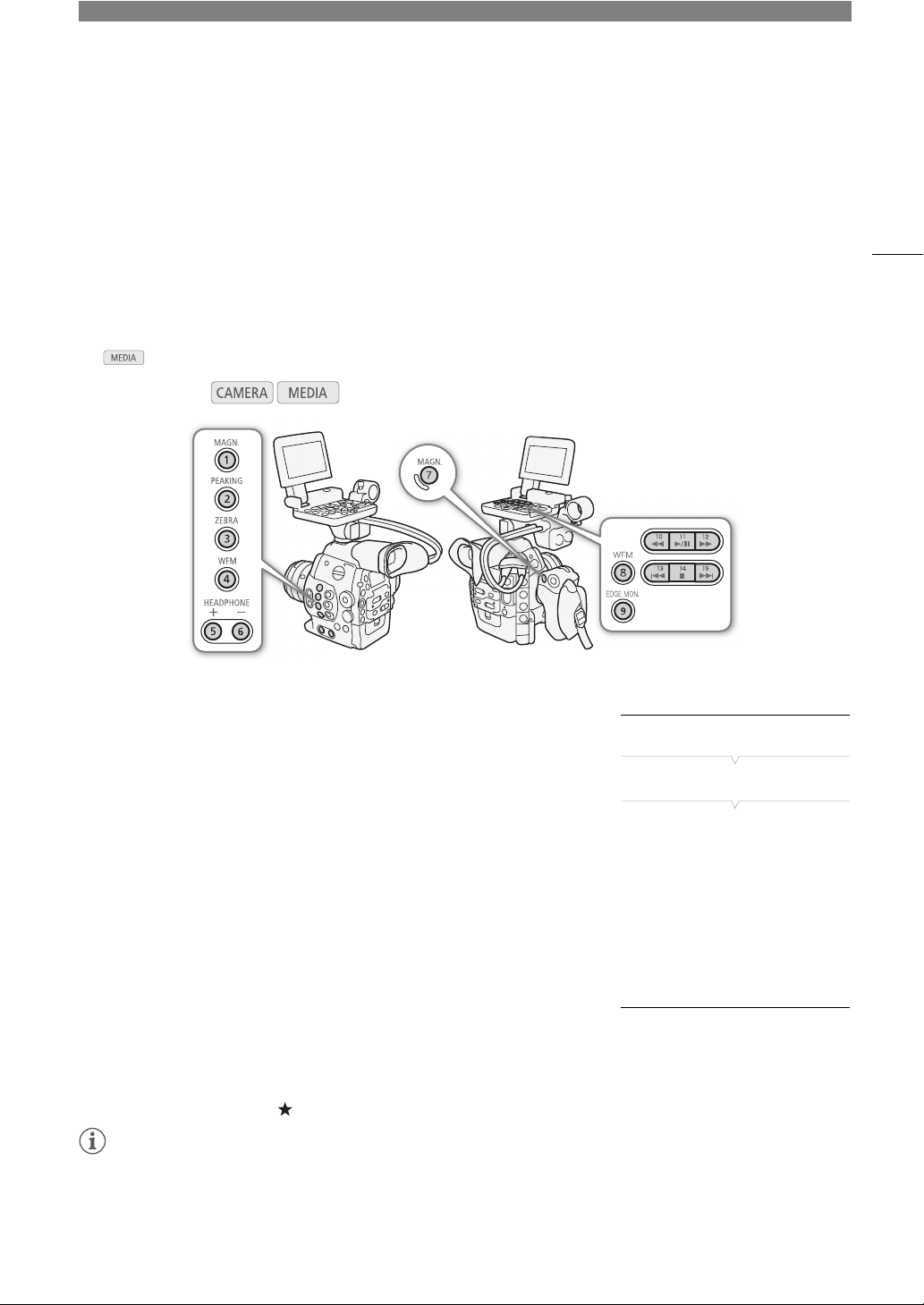
4
113
Customization
Assignable Buttons
The camcorder conveniently features 15* buttons to which you can assign various functions. By assigning often-
used functions, you can quickly access them with a single press of a button. Some assignable buttons are
located on the monitor unit or grip unit, so their availability depends on the camcorder configuration used.
* In mode, only assignable buttons 1 to 9 are available.
Changing the Assigned Function
1 Open the [Assign Button] submenu.
[w Other Functions] > [Assign Button]
2 Select the button to change and then press SET.
• A list of available functions appears.
• The quick reference shows the default settings for each assignable
button. For assignable buttons 1 to 9, the label on the camcorder,
grip unit or monitor unit indicates also the button’s default setting. By
default, buttons 10 to 15 have no assignable function set.
3 Select the desired function and then press SET.
• If you selected [User Setting (NONE)], the menu will change from
orange to blue to indicate you are selecting a menu setting to register.
Continue the procedure to register a menu setting. Otherwise, you do
not need to perform the rest of the procedure.
4 Navigate the menus to find the menu setting you want to register and then press SET.
• The selected menu setting will be registered to the customizable slot and to the assignable button.
• The name of the selected menu setting will be listed instead of [User Setting (NONE)] and the customizable
slot will be marked by a .
NOTES
• You can check the two [Assign Button] status screens (A 166) to see what functions are set for the
assignable buttons.
Operating modes:
On the monitor unit:
On the grip unit:
[w Other Functions]
[Assign Button]
[1 MAGN.]
[2 PEAKING]
[3 ZEBRA]
[4 WFM]
[5 Headphone +]
[6 Headphone -]
[7 MAGN.]
[8 WFM]
[9 EDGE MON.]
[10-15 (NONE)]
Assignable Buttons
114
• You can reset only the functions assigned to the assignable buttons, without affecting other camera settings,
with the [w Other Functions] >[Reset] > [Assignable Buttons] function. All the assignable buttons will return
to their default function.
Using an Assignable Button
After you assign a function to one of the buttons, press the button to activate the function. For some functions,
an options menu may appear. In such case, select the desired option and then press SET.
Assignable Functions
Functions can be set separately in mode and mode. Refer to the following table for assignable
functions and available modes.
Function name Description A
# [ONE-SHOT AF]* The camcorder focuses automatically one time only (One-shot AF function). Ü – 81
# [PUSH AUTO IRIS]* The camcorder automatically adjusts the aperture (f/stop). Ü – 71
# [Iris Mode] Switches the aperture adjustment mode between automatic and manual. Ü – 69
# [Iris +] Opens up the aperture. Ü –
70
# [Iris -] Closes the aperture. Ü –
[ND +] Cycles through ND filter settings in increasing (higher density) order. Ü – 68
[ND -] Cycles through ND filter settings in decreasing (lower density) order. Ü – 68
# [AE Shift +] Compensates the exposure making the image brighter. Ü –
73
# [AE Shift -] Compensates the exposure making the image darker. Ü –
# [Backlight] Turns the [Backlight] light metering option on/off. Ü –
74
# [Spotlight] Turns the [Spotlight] light metering option on/off. Ü –
[PEAKING] Turns peaking on/off. Ü – 80
[ZEBRA] Turns zebra patterns on/off. Ü – 85
[WFM]
Activates video scopes in the following sequence:
Waveform monitor J Vectorscope J Off
Ü Ü 101
[EDGE MON.] Turns the edge monitor on/off. Ü – 101
[MAGN.] Turns magnification on/off. Ü – 80
[Color Bars] Turns color bars on/off. Ü – 100
[Markers] Turns onscreen markers on/off. Ü – 84
[LCD Setup] Opens the [LCD Setup] submenu. Ü Ü 39
[VF Setup] Opens the [VF Setup] submenu. Ü Ü 39
[LCD/VF B&W] Turns the B&W mode of the LCD and viewfinder on/off. Ü Ü 39
[Onscreen Display]
Turns on/off the inclusion of onscreen displays on video output from the
camcorder’s terminals (both HD and SD video output).
Ü Ü 144
[Add Shot Mark 1] Adds an " mark to the clip. Ü Ü 103
[Add Shot Mark 2]* Adds an # mark to the clip. Ü Ü 103
[Add $ Mark] Adds an $ mark to the clip. Ü Ü 134
[Add % Mark] Adds a % mark to the clip. Ü Ü 134
[Time Code] Displays the [Time Code] submenu. Ü – 86
[Time Code Hold]* Puts the time code display on hold or resumes it. Ü Ü 88
[Headphone +] Increases the headphone volume. Ü Ü 131
[Headphone -] Reduces the headphone volume. Ü Ü 131
[Audio Output CH] Switches the audio output channel. Ü Ü 97
[Audio Level] Turns the audio level meter on/off. Ü Ü 95, 96
115
Assignable Buttons
* Function can be used only by assigning it to a button.
[Photo]* Records a photo. Ü Ü 147
[FUNC.]
Enters the direct setting mode, replicating the function of the camcorder’s FUNC.
button.
Ü – 61
[FUNC. Shutter]
Enters the direct setting mode with the shutter speed highlighted and ready to be
adjusted.
Ü – 63
[FUNC. ISO/Gain]
Enters the direct setting mode with the ISO speed or gain value highlighted and
ready to be adjusted.
Ü – 65
[FUNC. WB]
Enters the direct setting mode with the white balance highlighted and ready to
be adjusted.
Ü – 75
[My Menu] Opens the [My Menu] customized submenu. Ü – 30
[Initialize Media] Opens the [Initialize Media] submenu. Ü Ü 45
[LENS EXCHANGE]* Turns the lens exchange mode on/off. Ü – 34
[User Setting (NONE)]*
Customizable slot. Assign to the button any menu setting you would like to
register.
Ü Ü –
Function name Description A
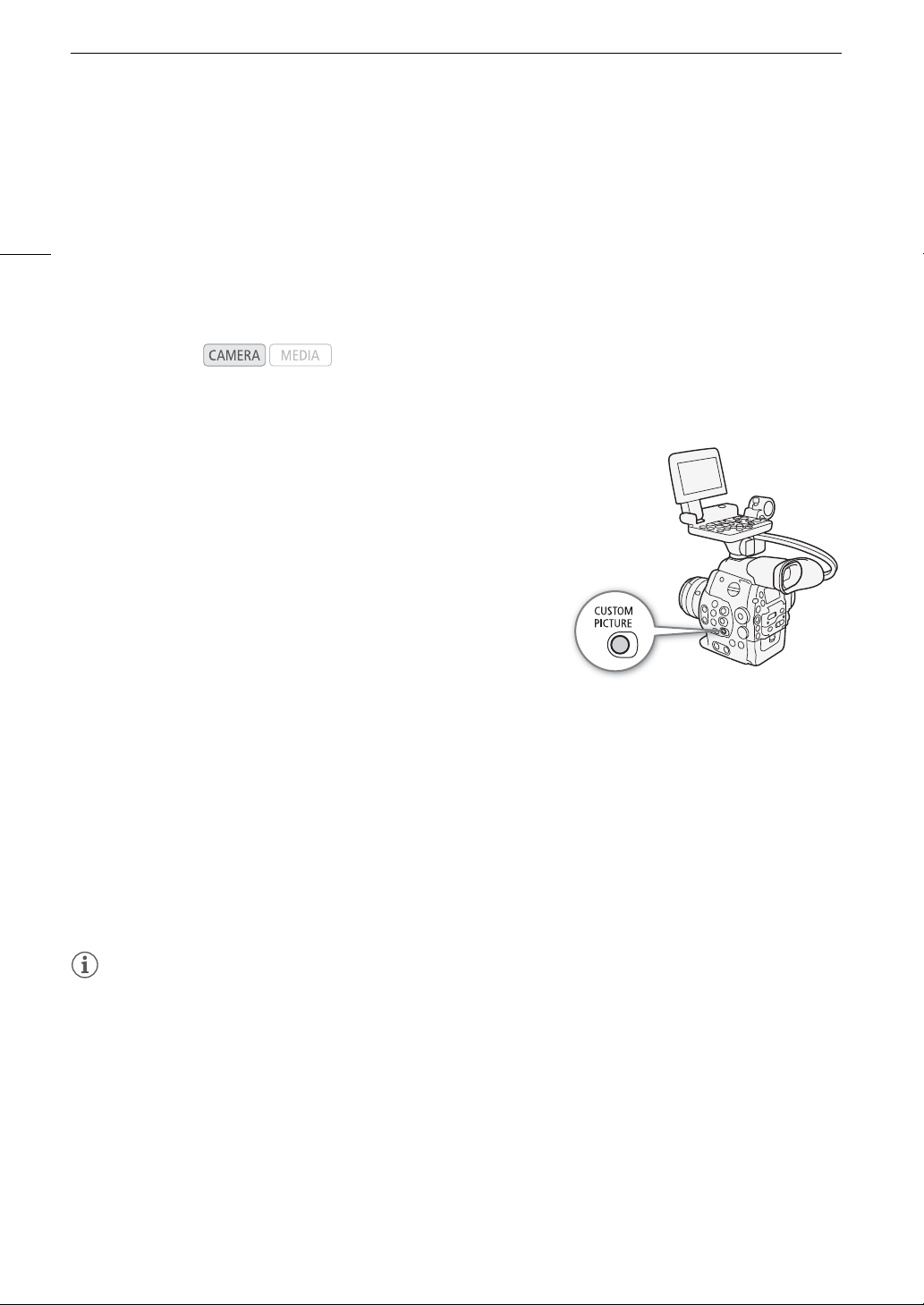
Custom Picture Settings
116
Custom Picture Settings
You can preset a number of picture-related settings (A 119). After changing individual settings to your
preference, you can save the whole set in the camcorder or SD card as a custom picture file. You can then load
the file at a later date to change the current settings to the preset levels you selected. You can even add custom
picture settings to clips recorded on a CF card or photos recorded on an SD card.
You can save up to 9 different custom picture files on the camcorder and up to 20 custom picture files on an SD
card. Custom picture files can be copied between the camcorder and recording media.
Custom picture files created with this camcorder are compatible only with other C300 and C300 PL camcorders.
Selecting Custom Picture Files
Select a custom picture file to apply its settings to your recordings or to
edit, rename, protect, or transfer it. When [~ Camera Setup] >
[/ CINEMA Locked] is set to [On], the custom picture menu cannot be
accessed and custom picture files cannot be used.
1 Press the CUSTOM PICTURE button.
• The custom picture menu appears. The currently selected file
appears next to the - icon or [Off] if no file is selected.
• When an optional RC-V100 Remote Controller is connected to the
camcorder, you can display the custom picture menu with the
CUSTOM PICT. button.
2Select [- / Select File] and then press SET.
• You can select from a list of custom picture files in the camcorder and SD card. Files in the camcorder begin
with [C1] to [C9]; those on the SD card begin with [SD1] to [SD20].
3 Select the desired file and then press SET.
• Select [Off] to record without applying any custom picture settings.
• To apply the custom picture settings of the selected file, continue to step 4. To perform other operations on
the selected file (edit settings, copy, protect, etc.), continue instead with the one of the procedures in the
following pages.
4 Press the CUSTOM PICTURE button to exit the custom picture menu.
• The selected custom picture file’s settings will be applied. / (camcorder) or . (SD card) and the custom
picture file’s number will appear on the left of the screen.
NOTES
• About changing custom picture related settings using the optional RC-V100 Remote Controller
- If a protected custom picture file or no custom picture file is selected on the camcorder ([-/ Select File]
is set to [Off]) custom picture related settings cannot be changed using the remote controller.
- While the remote controller is connected to the camcorder, custom picture files on the SD card ([SD1] to
[SD20]) cannot be used. If you connect the remote controller while a custom picture file on the SD card was
selected, the custom picture file will change automatically to [Off] (recording without custom picture
settings). To use the settings of a custom picture file saved on the SD card, copy the file in advance from the
SD card to an open file slot in the camcorder (A 118).
- Adjusting custom picture related settings using the remote controller will change the settings registered
under the currently selected custom picture file. If you want to keep an important custom picture file, copy it
in advance to the SD card or select in advance a custom picture file you do not mind changing.
Operating modes:

117
Custom Picture Settings
Editing a Custom Picture File’s Settings
1 After selecting a file, select [, / Edit File] and then press SET.
2 Select a setting and then press SET.
3 Change the setting to the desired level and then press SET.
• Refer to the table
Available Custom Picture Settings
(A 119) for details on the various settings.
• Repeat steps 2 and 3 for other settings, as necessary.
4 Press the CUSTOM PICTURE button to exit the custom picture menu.
• The new custom picture settings will be applied. / (camcorder) or . (SD card) and the custom picture
file’s number will appear on the left of the screen.
Resetting the current file’s settings to default values
1 Select [Reset] and then press SET.
2 Select the default values and then press SET.
• Select [NEUTRAL] to reset to neutral default values (equivalent to not using custom picture settings at all) or
[CINEMA], [Wide DR] or [EOS Std.] if you want to replicate these preset settings, for example as a starting
point to edit them further.
3 Select [OK] and then press SET.
Renaming Custom Picture Files
1 After selecting a file, open the [Rename] submenu.
[, / Edit File] > [Rename]
• A screen appears that displays the current file name with an orange
selection frame on the first character.
2 Select an alphanumeric character or symbol then move (Ð) to the next field.
• Change the rest of the name in the same way.
3 Select [Set] and then press SET.
4 Press the CUSTOM PICTURE button to exit the custom picture menu.
Preset Custom Picture Files
By default, the custom picture files in file slots [C7] to [C9] in the camcorder are protected. Remove the
protection (A 118) to edit the file. The following describes when to use the preset files.
[C7: EOS Std.]: Reproduces the image quality and look (high contrast, vibrant colors) of an EOS digital SLR
camera with its picture style set to [Standard] P.
[C8: Wide DR]: Applies a gamma curve with a very wide dynamic range and an appropriate color matrix that
nevertheless do not require post-production processing.
[C9: CINEMA]: Uses the Canon Log gamma and color matrix for an outstanding dynamic range and an
image suitable for processing in post-production.
[,
/ Edit File]
[Rename]

Custom Picture Settings
118
Protecting Custom Picture Files
Protecting a custom picture file prevents its settings from being
accidentally changed.
1 After selecting a file, open the [Protect] submenu.
[, / Edit File] > [Protect]
2 Select [Protect] and then press SET.
• In the custom picture menu, i will appear next to the file name.
• To remove protection settings, select [Unprotect] instead.
3 Press the CUSTOM
PICTURE
button to exit the custom picture menu.
Transferring Custom Picture Files
You can transfer custom picture files between the camcorder and SD card. When the selected custom picture
file is in the camcorder, use [Copy To *] or [Load From *] depending on the operation you wish to perform.
Similarly, when the selected custom picture file is on an SD card, use [Copy To Cam.] or [Load From Cam].
Copying a File from the Camcorder to an SD Card
1 After selecting a file in the camcorder, open the [Copy To *] submenu.
[+/Transfer File] > [Copy To *]
2 Select the file slot on the SD card under which to save the file and then
press SET.
• If there are available slots, you can select [New File] to save the file in the first available slot.
3 Select [OK] and then press SET.
• The currently selected file will be copied to the selected slot on the SD card, overwriting the file in that slot.
When the confirmation screen appears, press SET.
4 Press the CUSTOM PICTURE button to exit the custom picture menu.
Replacing a File in the Camcorder with a File on an SD Card
1 After selecting a file in the camcorder to replace, open the
[Load From *] submenu.
[+/Transfer File] > [Load From *]
2 Select the file to transfer to the camcorder and then press SET.
3 Select [OK] and then press SET.
• The file in the camcorder will be overwritten by the one on the SD card. When the confirmation screen
appears, press SET.
4 Press the CUSTOM PICTURE button to exit the custom picture menu.
Copying a File from an SD Card to the Camcorder
1 After selecting a file on the SD card, open the [Copy To Cam.]
submenu.
[+/Transfer File] > [Copy To Cam.]
2 Select the file slot under which to save the file and then press SET.
3 Select [OK] and then press SET.
• The currently selected file will be copied to the selected slot on the camcorder, overwriting the file in that
slot. When the confirmation screen appears, press SET.
[,
/ Edit File]
[Protect]
[+/Transfer File]
[Copy To *]
[+/Transfer File]
[Load From *]
[+/Transfer File]
[Copy To Cam.]
119
Custom Picture Settings
4 Press the CUSTOM PICTURE button to exit the custom picture menu.
Replacing a File on an SD Card with a File in the Camcorder
1 After selecting a file on the SD card to replace, open the
[Load From Cam.] submenu.
[+/Transfer File] > [Load From Cam.]
2 Select the file to transfer to the SD card and then press SET.
3 Select [OK] and then press SET.
• The file on the SD card will be overwritten by the one on the camcorder. When the confirmation screen
appears, press SET.
4 Press the CUSTOM PICTURE button to exit the custom picture menu.
NOTES
• You can also copy a custom picture file embedded in a clip to the camcorder (A 137).
Embedding Custom Picture Settings in a Recording
By default, when you record video or take a photo with custom picture
settings applied to it, the custom picture file used to record it is
embedded in the image file. Later, those embedded settings in the video
or photo can be copied to the camcorder (A 152) and be applied to
future recordings. You may find that embedding custom picture settings in
a recording helps you keep track of them, such as verifying what settings
were used for a particular recording.
1 Open the [Add / File] submenu.
[w Other Functions] > [Add / File]
2 Select [To Clip] or [To Photo] and then press SET.
• Selecting [To Clip] will embed the custom picture file in a clip while selecting [To Photo] will embed the file in
a photo.
3 Select [On] or [Off] and then press SET.
Available Custom Picture Settings
The following are the available settings. Even if no custom picture file is selected, the default settings are still
applied to the picture.
[Gamma]
The gamma curve changes the overall look of the image. Generally, this should be the same setting as [Select]
under [Color Matrix]. (Default: [Normal 1]).
[Normal 1] to [Normal 4]: These settings are suitable for viewing the image on a TV monitor. Highlights in [Normal
2] are brighter than those of [Normal 1]. Dark tones in the lower part of the gamma
curve for [Normal 3] (ITU-R BT.709 standard) and [Normal 4] are more pronounced than
those of [Normal 2].
[Cine 1] or [Cine 2]: Use [Cine 1] for a gamma curve that results in a picture with a cinema-like feel and
cinema-like tones. [Cine 2] has softer contrasts than does [Cine 1] but is also suitable
for creating a cinema-like picture.
[+/Transfer File]
[Load From Cam.]
[w Other Functions]
[Add / File]
[To Clip] … [On]
[To Photo] … [On]
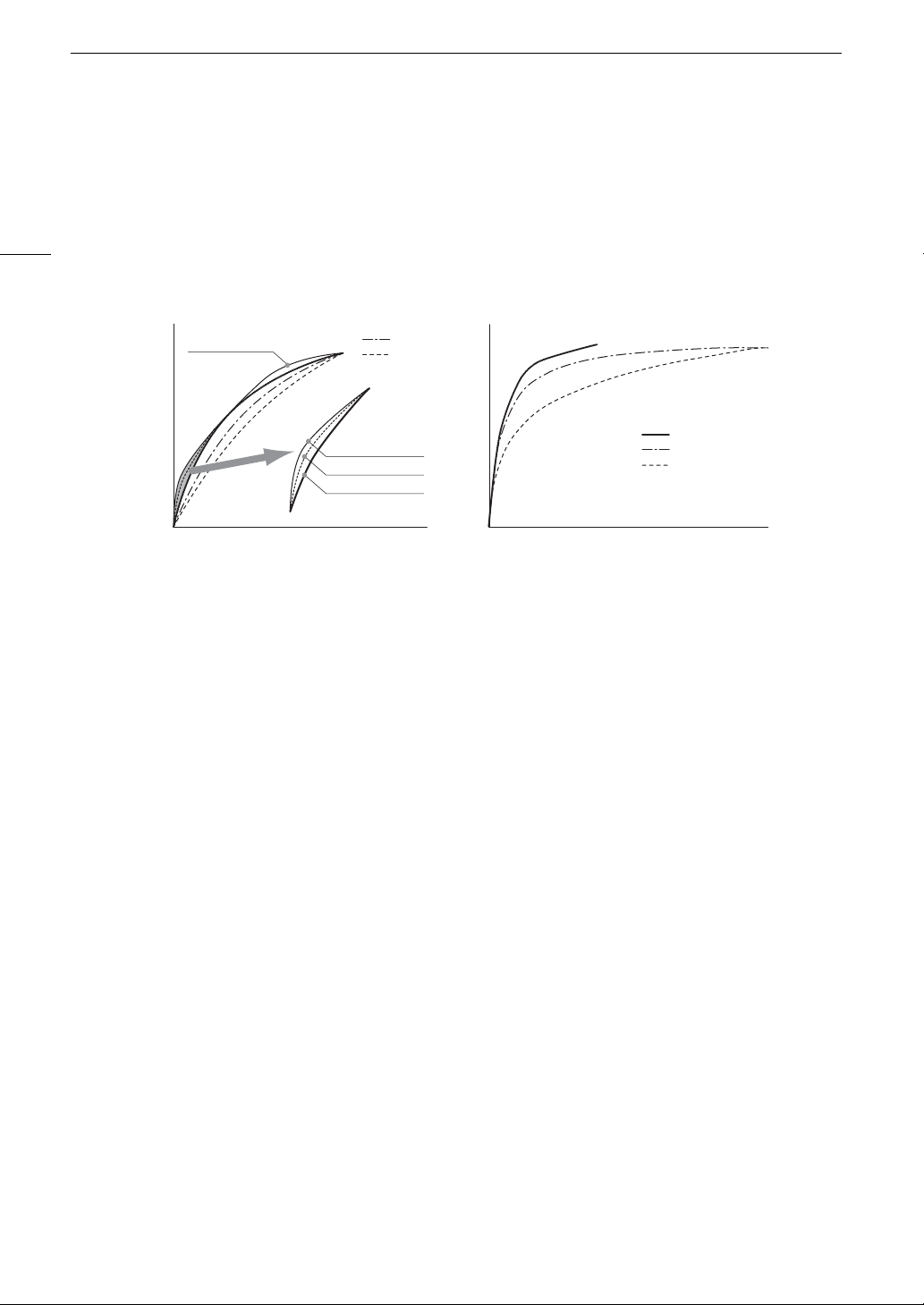
Custom Picture Settings
120
[EOS Std.]: This gamma curve approximates the look of an EOS digital SLR camera when the
picture style is set to [Standard] P (high contrast, vibrant colors).
[Wide DR]: Applies a gamma curve with a very wide dynamic range, optimized for playback on an
HDTV.
[Canon Log]: Applies a logarithmic gamma curve for outstanding dynamic range. Requires image
processing in post-production.
[Black]
Controls the black level and color cast of blacks.
[Master Pedestal]
The master pedestal increases or decreases the black level. Higher settings will make dark areas brighter but
decrease contrast. This setting can be adjusted from -50 to 50. (Default: ±0)
[Master Black]
Corrects color cast in blacks.
[Red]: -50 to 50 (Default: ±0)
[Green]: -50 to 50 (Default: ±0)
[Blue]: -50 to 50 (Default: ±0)
[Black Gamma]
Controls the lower part of the gamma curve (dark areas of the image). When [Gamma] is set to [Wide DR] or
[Canon Log], this setting has no effect on the picture.
[Level]: Raises or lowers the lower part of the gamma curve. This setting can be adjusted from -50 to 50.
(Default: ±0)
[Range]: Selects the range in which dark areas are affected. This setting can be adjusted from -5 to 50.
(Default: ±0)
[Point]: Determines the shape of the lower part of the gamma curve. This setting can be adjusted from -1 to 50.
(Default: ±0)
Normal 1
Wide DR
Canon Log
Input
Output
Canon log
Cine 1
Cine 2
Normal 4
Normal 2/3/4
Normal 3
Normal 1/2
Input
Output
Gamma
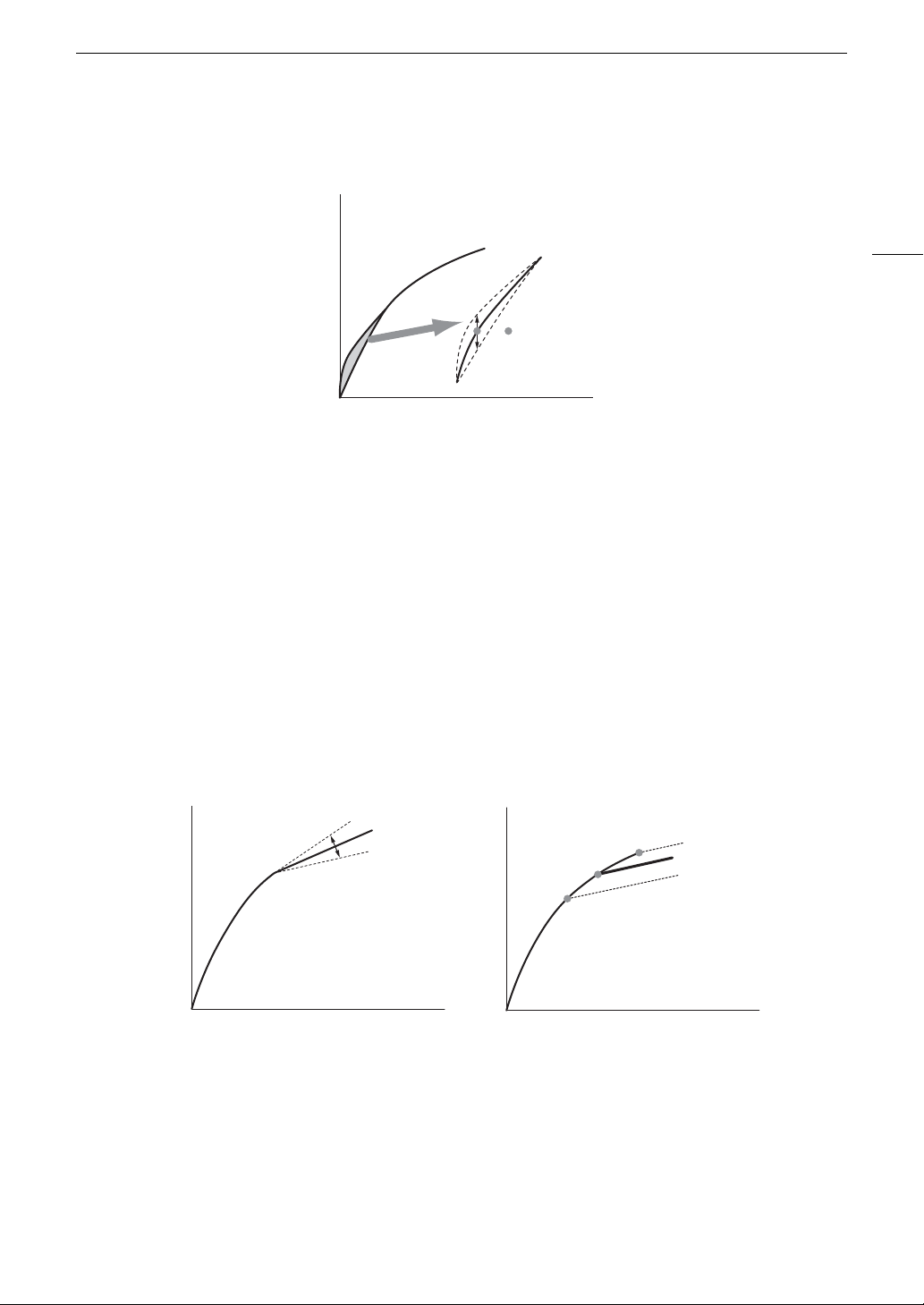
121
Custom Picture Settings
[Low Key Satur.]
Adjusts color saturation in dark areas.
[Enable]: Activates/deactivates the setting. (Default: [Off])
[Level]: Specifies how saturated colors are in dark areas. This setting can be adjusted from -50 to 50.
(Default: ±0)
[Knee]
Controls the upper part of the gamma curve (highlights of the image). By compressing the highlights, you can
prevent parts of the image from being overexposed. When [Gamma] is set to [Cine 1], [Cine 2], [EOS Std.], [Wide
DR] or [Canon Log], this setting has no effect on the picture.
[Enable]: Activates/deactivates the setting. (Default: [On])
[Slope]: Determines the slope of the gamma curve above the knee point. This setting can be adjusted from
-35 to 50. (Default: ±0)
[Point]: Sets the knee point of the gamma curve. This setting can be adjusted from 50 to 109. (Default: 95)
[Saturation]: Adjusts color saturation in highlights. This setting can be adjusted from -10 to 10. (Default: ±0)
[Sharpness]
Sets the sharpness of the output and recording signal.
[Level]: Sets the sharpness level. This setting can be adjusted from -10 to 50. (Default: ±0)
[H Detail Freq.]: Sets the center frequency of horizontal sharpness. Setting higher values increases the
frequency, which, in turn, increases the sharpness. This setting can be adjusted from -8 to 8.
(Default: ±0)
[Coring]: Reduces noise artifacts caused by high sharpness levels.
Input
Output
Point
Black Gamma
Input
Output
Input
Output
Knee Slope Knee Point

Custom Picture Settings
122
[Level]: Sets the coring level. Higher values prevent sharpness from being applied to minute details, resulting in
less noise. This setting can be adjusted from -30 to 50. (Default: ±0)
[D-Ofst]: You can use [D-Ofst], [D-Curve] and [D-Depth] to adjust the coring level based on brightness. [D-Ofst]
sets the coring level of the minimum brightness level. This setting can be adjusted from 0 to 50. (Default: 0)
[D-Curve]:
Sets the curve of the coring adjustment. This curve is the change from [Level] to [D-Ofst]. This setting
can be adjusted from 0 to 8.
(Default: 0)
[D-Depth]: Sets a multiplier to [D-Ofst] that determines the coring level adjustment based on brightness.
Positive values raise the coring level in dark areas and negative values lower the level. This setting can be
adjusted from -4 to 4. (Default: ±0)
[HV Detail Bal.]: Adjusts the ratio between horizontal and vertical detail. Higher values emphasize vertical detail
while lower values emphasize horizontal detail. This setting can be adjusted from -8 to 8.
(Default: ±0)
[Limit]: Restricts how much sharpness is applied. This setting can be adjusted from -50 to 50.
(Default: ±0)
[Select]: In addition to the sharpness set by [Level], [Select] sets the sharpness for areas with higher
frequencies. Higher values apply more sharpness to areas with higher frequencies. Use this for
subjects in which normal sharpening is not effective. This setting is not available when the video
configuration is 720P. This setting can be adjusted from 0 to 15. (Default: 0)
[
Knee Aperture
]: Allows you to set the sharpness of only the areas above the knee point by adjusting the gain and
slope. When [Gamma] is set to [Cine 1], [Cine 2], [EOS Std.], [Wide DR] or [Canon Log], this
setting has no effect on the picture.
[Gain]: Sets the
amount of sharpness
. This setting can be adjusted from 0 to 9. (Default: 0)
[Slope]: Sets the slope of the sharpness. This setting can be adjusted from 0 to 3, with 0 having no slope, 1
having a steep slope and 3 having a gradual slope. (Default: 1)
[Level Depend]: Lowers the amount of sharpness applied to dark areas of the image.
[Level]: Sets the brightness of the dark areas of the image that will be affected. This setting can be adjusted
from 0 to 50. (Default: 0)
[Slope]: Determines the slope of the area between the upper and lower parts of the gamma curve. This setting
can be adjusted from 0 to 3, with 0 having no slope, 1 having a steep slope and 3 having a gradual slope.
(Default: 0)
[Offset]: Adjusts the sharpness level of dark areas in the image. Setting higher values will lower the sharpness
level. This setting can be adjusted from 0 to 50. (Default: 0)
[Noise Reduction]
Reduces the amount of noise that appears in the image. Select a level from 1 (lowest level) to 12 (highest level),
or select [Off] to turn the noise reduction off. (Default: [Off])
[Skin Detail]
The camcorder applies a softening filter to areas in the picture with skin tones to give a more pleasant
appearance. By changing these settings, you can determine what areas will be detected as skin tones. A zebra
pattern will appear over areas on the screen that are detected as having skin tones.
[Effect Level]: Adjusts the level of the filter. The available options are [Off], [Low], [Middle] and [High]. (Default:
[Off])
[Hue]: Adjusts the hue for detection of skin tones. This setting can be adjusted from -16 to 16.
(Default: ±0)
[Chroma]: Adjusts the color saturation for detection of skin tones. This setting can be adjusted from 0 to 31.
(Default: 16)
[Area]: Adjusts the color range for detection of skin tones. This setting can be adjusted from 0 to 31.
(Default: 16)
[Y Level]: Adjusts the brightness for detection of skin tones. This setting can be adjusted from 0 to 31.
(Default: 16)

123
Custom Picture Settings
[Selective NR]
The camcorder detects the characteristics of a certain color or tone and applies a noise reduction filter to the
targeted areas. A zebra pattern will appear over targeted areas on the screen.
[Effect Level]: Adjusts the level of the noise reduction filter. The available options are [Off], [Low], [Middle] and
[High]. (Default: [Off])
[Hue]: Adjusts the hue for the color to be detected. This setting can be adjusted from 0 to 31. (Default: 0)
[Chroma]: Adjusts the color saturation for the color to be detected. This setting can be adjusted from 0 to 31.
(Default: 16)
[Area]: Adjusts the color range for the color to be detected. This setting can be adjusted from 0 to 31.
(Default: 16)
[Y Level]: Adjusts the brightness for the color to be detected. This setting can be adjusted from 0 to 31.
(Default: 16)
[Color Matrix]
Color matrix affects the color tones throughout the whole image. When [Gamma] is set to [Canon Log], this
setting has no effect on the picture.
[
Select
]: Available options are [Normal 1] to [Normal 4], [Cine 1] and [Cine 2], [EOS Std.], [Wide DR] and [Canon
Log]. Generally, this should be the same setting as [Gamma]. After selecting an option, you can make
more precise adjustments. (Default: [Normal 1])
[Gain]: Adjusts the color intensity. This setting can be adjusted from -50 to 50. (Default: ±0)
[Phase]: Adjusts the color phase. This setting can be adjusted from -18 to 18. (Default: ±0)
[R-G]: The R-G matrix changes the tint of the picture along the cyan/green and red/magenta gradations. This
setting can be adjusted from -50 to 50. (Default: ±0)
[R-B]: The R-B matrix changes the tint of the picture along the cyan/blue and red/yellow gradations. This
setting can be adjusted from -50 to 50. (Default: ±0)
[G-R]: The G-R matrix changes the tint of the picture along the magenta/red and green/cyan gradations. This
setting can be adjusted from -50 to 50. (Default: ±0)
[G-B]: The G-B matrix changes the tint of the picture along the magenta/blue and green/yellow gradations.
This setting can be adjusted from -50 to 50. (Default: ±0)
[B-R]: The B-R matrix changes the tint of the picture along the yellow/red and blue/cyan gradations. This
setting can be adjusted from -50 to 50. (Default: ±0)
[B-G]: The B-G matrix changes the tint of the picture along the yellow/green and blue/magenta gradations.
This setting can be adjusted from -50 to 50. (Default: ±0)
[White Balance]
Adjusts the amount of white balance throughout the whole image.
[R Gain]: Adjust the intensity of red tones. This setting can be adjusted from -50 to 50. (Default: ±0)
[G Gain]: Adjust the intensity of green tones. This setting can be adjusted from -50 to 50. (Default: ±0)
[B Gain]: Adjust the intensity of blue tones. This setting can be adjusted from -50 to 50. (Default: ±0)
[Color Correction]
The camcorder detects the characteristics of a certain color (color phase, chroma, area and Y level) and corrects
them when recording. You can set the color correction for up to two different areas (A and B).
[Select Area]: Selects the area or areas to correct. Available options are [Area A], [Area B] and [Area A&B].
Select [Off] to turn this setting off. (Default: [Off])
[Area A Setting]: Determines the area in which colors will be corrected.
[Phase]: Adjusts the color phase for area A. This setting can be adjusted from 0 to 31. (Default: 0)
[Chroma]: Adjusts the color saturation for area A. This setting can be adjusted from 0 to 31. (Default: 16)
[Area]: Adjusts the color range for area A. This setting can be adjusted from 0 to 31. (Default: 16)
[Y Level]: Adjusts the brightness for area A. This setting can be adjusted from 0 to 31. (Default: 16)

Custom Picture Settings
124
[Area A Revision]: Sets the amount of correction for area A.
[Level]: Adjusts the amount of correction to the color saturation. This setting can be adjusted from -50 to 50.
(Default: ±0)
[Phase]: Adjusts the amount of correction to the color phase. This setting can be adjusted from -18 to 18.
(Default: ±0)
[Area B Setting]: Determines the area in which colors will be corrected.
[Phase]: Adjusts the color phase for area B. This setting can be adjusted from 0 to 31. (Default: 0)
[Chroma]: Adjusts the color saturation for area B. This setting can be adjusted from 0 to 31. (Default: 16)
[Area]: Adjusts the color range for area B. This setting can be adjusted from 0 to 31. (Default: 16)
[Y Level]: Adjusts the brightness for area B. This setting can be adjusted from 0 to 31. (Default: 16)
[Area B Revision]: Sets the amount of correction for area B.
[Level]: Adjusts the amount of correction to the color saturation. This setting can be adjusted from -50 to 50.
(Default: ±0)
[Phase]: Adjusts the amount of correction to the color phase. This setting can be adjusted from -18 to 18.
(Default: ±0)
[Other Functions]
[Setup Level]: Adjusts the black level set by the [Black] and [Master Pedestal] settings.
[Level]: Determines the amount of adjustment to be made. This setting can be adjusted from -50 to 50.
(Default: ±0)
[Press]: Compresses the dynamic range of the video signal so that it does not exceed 100%. Available options
are [On] and [Off]. (Default: [Off])
[Clip At 100%]: When the video signal exceeds 100%, this function clips the white level at 100%. Available
options are [On] and [Off]. (Default: [Off])
NOTES
• When an optional RC-V100 Remote Controller is connected to the camcorder, the following custom picture
settings can be changed using the buttons and dials on the remote controller. They cannot be changed from
the camcorder while the RC-V100 is connected. If necessary, use the buttons and dials on the remote
controller to adjust them.
- [Black] > [Master Pedestal]; [Black] > [Master Black] > [Red], [Blue]
- [Black Gamma] > [Level]
- [Knee] > [Slope] and [Point] (only when [Knee] > [Enable] is set to [On])
- [Sharpness] > [Level]
- [White Balance] > [R Gain], [B Gain]
125
Customizing Functions and Onscreen Displays
Customizing Functions and Onscreen Displays
Customize the camcorder to match your shooting style and needs. Use the [w Other Functions] >
[Custom Function] setting to adjust how some of the camcorder’s controls and functions operate in
mode. Similarly, use the [£ LCD/VF Setup] > [Custom Display 1] or [Custom Display 2] setting to customize
the onscreen displays that appear during recording. You can save these preferences along with other menu
settings to an SD card and use them again later (A 126).
Customizing Functions
The following table describes which functions can be customized using
[Custom Function].
1 Open the [Custom Function] submenu.
[w Other Functions] > [Custom Function]
2 Select the desired function.
3 Change the setting option and then press SET.
Customizable Functions with [Custom Function]
Customizing Onscreen Displays
For details on which onscreen displays can be customized, refer to
Onscreen Displays
(A 55). For details on the setting options, refer to
[Custom Display 1] and [Custom Display 2]
(A 158).
1 Open the [Custom Display 1] or [Custom Display 2] submenu.
[£ LCD/VF Setup] > [Custom Display 1] or [Custom Display 2]
2 Select the desired onscreen display.
3 Change the setting option and then press SET.
Operating modes:
Menu item Description
[Shockless WB] Creates a softer transition when the white balance is changed.
# [AE Response] Controls the camcorder’s response ([Fast], [Normal] or [Slow]) when you change the automatic exposure setting.
[Control Dial] Selects the function of the control dial on the camcorder.
[Grip Ctrl Dial] Selects the function of the control dial on the grip unit.
[Control Dial Dir.] Changes the direction of the adjustment when operating the control dial on the camcorder.
[Grip Ctrl Dial Dir.] Changes the direction of the adjustment when operating the control dial on the grip unit.
[SELECT Dial Dir.] Changes the direction of the adjustment when operating the SELECT dial.
[Retract Lens]
When one of the following optional lenses is attached to the camcorder and the focus mode switch on the lens is set to AF,
if this setting is set to [On], the lens will retract fully when the camcorder is turned off.
• EF 40mm f/2.8 STM • EF-S 24mm f/2.8 STM • EF 50mm f/1.8 STM
[F. Assist. B&W]
Automatically switches the screen to B&W while the focus assist functions (peaking and magnification) are activated.
You can have the screen switch to B&W when only the peaking is activated, when only the magnification is activated or
when both are activated.
[Scan Reverse Rec] Inverts the recorded image horizontally and/or vertically.
[Character Rec] When this function is set to [On], all of the onscreen displays will be recorded to the clip exactly as they appear on the screen.
[C START/STOP] Selects whether the START/STOP button will be active or locked too when the Q switch is set to C (key lock) (A 53).
[w Other Functions]
[Custom Function]
[£ LCD/VF Setup]
[Custom Display 1]
[Custom Display 2]
Saving and Loading Camera Settings
126
Saving and Loading Camera Settings
After you adjust custom picture settings and settings in the various menus, you can save those settings on an
SD card. You can load those settings at a later date or on another C300 or C300 PL camcorder so that you can
use that camcorder in that same exact way.
Saving Camera Settings to an SD Card
1 Open the [Save To *] submenu.
[w Other Functions] > [Transfer Menu//] > [Save To *]
2 Select [Menu] or [Menu+/] and then press SET.
• Selecting [Menu] will save menu settings and [Menu+/] will save
menu and custom picture settings.
3 Select [OK] and press SET.
• The current settings are saved to the SD card. If the SD card already has camera settings on it, they will be
overwritten.
4 When the confirmation screen appears, press SET.
Loading Camera Settings from an SD Card
1 Open the [Load From *] submenu.
[w Other Functions] > [Transfer Menu//] > [Load From *]
2 Select [Menu] or [Menu+/] and then press SET.
• Selecting [Menu] will load menu settings and [Menu+/] will load
menu and custom picture settings.
3 Select [OK] and press SET.
• After the camcorder’s current settings are replaced with the settings saved on the SD card, the screen will
turn black momentarily and the camcorder will restart.
NOTES
• The SD card includes a text file that lists the camera settings. You can check the settings by using a USB card
reader to access the SD card on a computer. In the “PRIVATE\CAMSET” folder, open the file “CAMSET3.TXT”.
• When loading camera settings from an SD card, even protected custom picture files in the camcorder will be
replaced.
• For your protection, when the camcorder’s settings are saved on an SD card, the following settings under
[w Other Functions] > [Wi-Fi Remote] are not saved: the encryption key/WEP index key in the wireless LAN
setup of each of the configuration files [No. 1] to [No. 5] and the password in the camcorder settings.
• Only camera settings from other C300 / C300 PL camcorders can be used with this camcorder.
Operating modes:
[w Other Functions]
[Transfer Menu/
/]
[Save To *]
[w Other Functions]
[Transfer Menu//]
[Load From *]
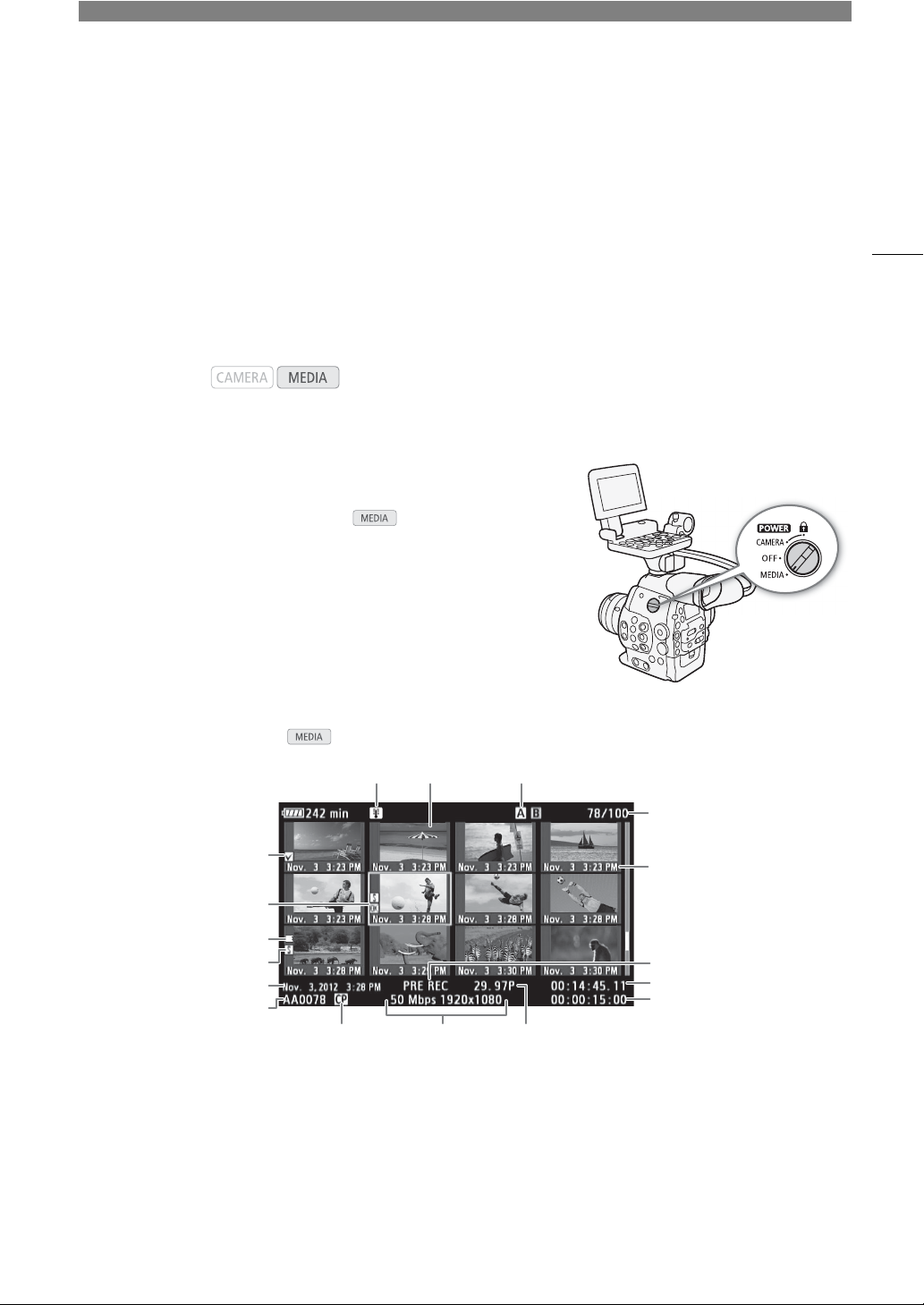
5
127
Playback
Playback
This section explains how to play back clips recorded on a CF card. For details on playing back clips using an
external monitor, refer to
Connecting to an External Monitor
(A 142). For details on viewing photos on the SD
card, refer to
Viewing Photos
(A 149).
Clip Index Screen
Playback functions are accessed from the clip index screen. To open the
clip index screen, set the camcorder to mode. If the CF card
contains a type of recordings (NTSC/PAL/24.00P) different from the
camcorder’s current settings, you will not be able to play back the clips. In
such case, change the [w Other Functions] > [24.00P] or [NTSC/PAL]
settings as necessary (A 59).
Set the Q switch to MEDIA.
• The camcorder switches to mode and the clip index screen appears.
Operating modes:
87 9
13
12
2
1
4
14
10
11
3
6
5
15
16 17
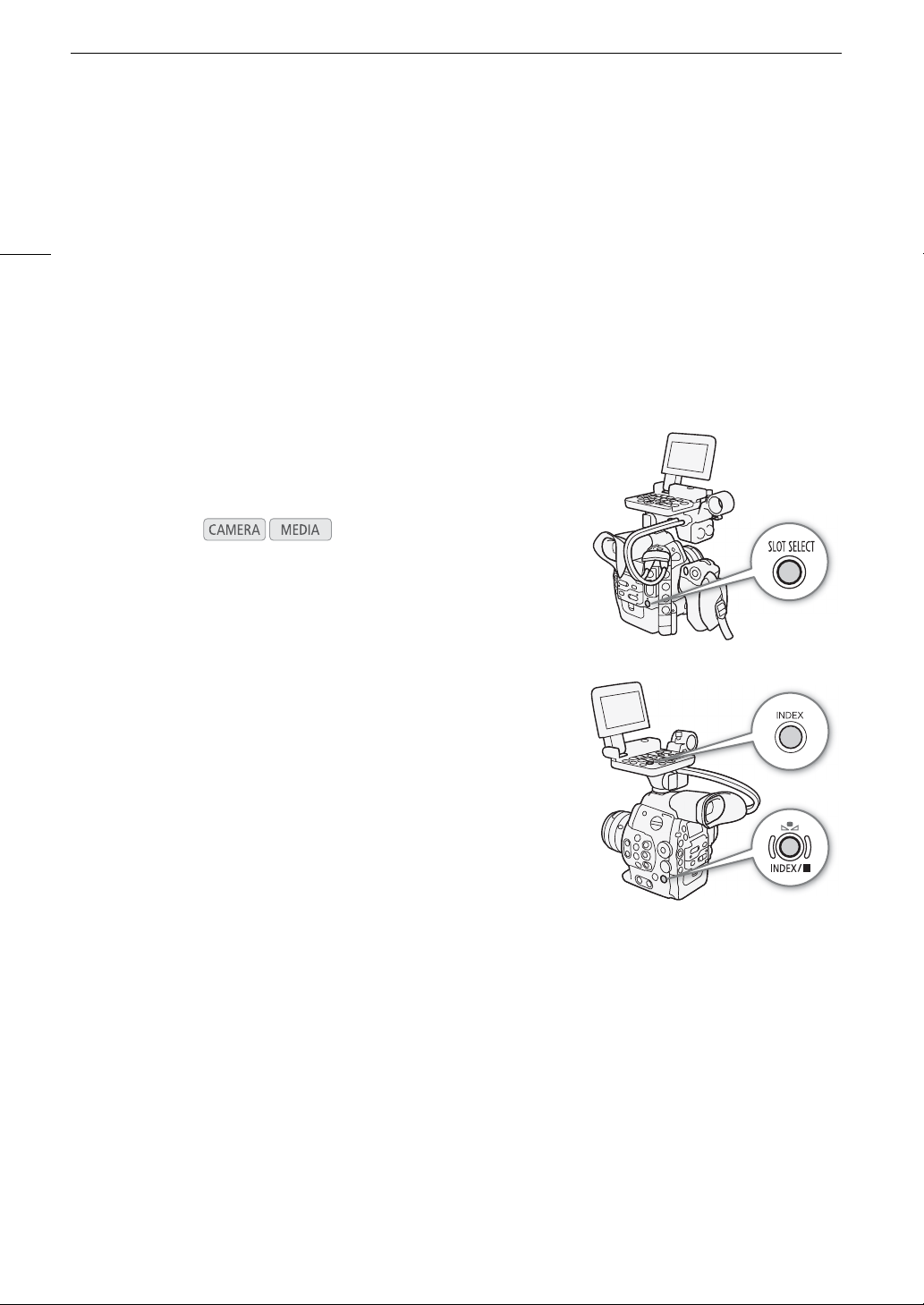
Playback
128
* For clips recorded using slow & fast motion mode, the shooting frame rate and playback frame rate will both be displayed.
v
Switching Between the CF Card Slots
If both CF card slots contain a CF card, you can switch between them as
necessary.
Press the SLOT SELECT button.
• The access indicator of the selected CF card slot will illuminate in green.
Switching to Other Index Screens
All of the clips on a CF card can be accessed from the clip index screen.
However, you can switch to other index screens that show only clips with
an $ mark ([$ Mark] index screen), clips with a % mark ([% Mark]
index screen), or photos* ([Photos] index screen).
* Photos are saved on the SD card.
1 Press the INDEX button.
• The index screen selection menu appears.
2 Select the desired index screen and then press SET.
• The selected index screen appears.
• Select [Cancel] instead to cancel the operation.
• Press the INDEX button again to return to the clip index screen.
Operating modes:
1 $ mark/% mark (A 104, 134)
2 Orange selection frame
3 Relay recording: Appears when a clip begins on
one CF card and continues on the other. (A 46)
4 Shot mark (A 103, 139)
5 Recording date and time
6 Clip name (A 53)
7 Temperature warning (A 173)
8 Clip thumbnail (A 140)
9 Currently selected CF card slot (A 46)
10 Clip number / Total number of clips
11 Recording date (month and day only) and time
12 Special recording mode (A 108)
13 Time code of thumbnail
14 Total recording time
15 Embedded custom picture file (A 116)
16 Bit rate and resolution (A 59)
17 Frame rate*

129
Playback
Playing Back Clips
You can play back clips from the clip index screen, [$ Mark] index screen
and [% Mark] index screen. Use the playback control buttons on the
monitor unit. When the monitor unit is not attached, you have limited
playback control options (play/pause/stop only) with the buttons on the
camcorder and full playback control options using the joystick and
joystick guide.
1 Move the orange selection frame to the clip you want to play
back.
2 Press the
Ò button to start playback.
• Playback will start from the clip selected and continue until the end of
the last clip in the index screen. When the last frame of the last clip is reached, playback will be paused.
•Press the Ò button again or press SET to pause/resume the playback.
•Press the Ñ button to stop the playback and return to the index screen.
IMPORTANT
• Observe the following precautions while the CF2 or CF3 access indicator is illuminated in red. Failure to do
so may result in permanent data loss.
- Do not disconnect the power source or turn off the camcorder.
- Do not open the cover of the CF card slot being accessed.
NOTES
• You may notice brief stops in video or audio playback between clips.
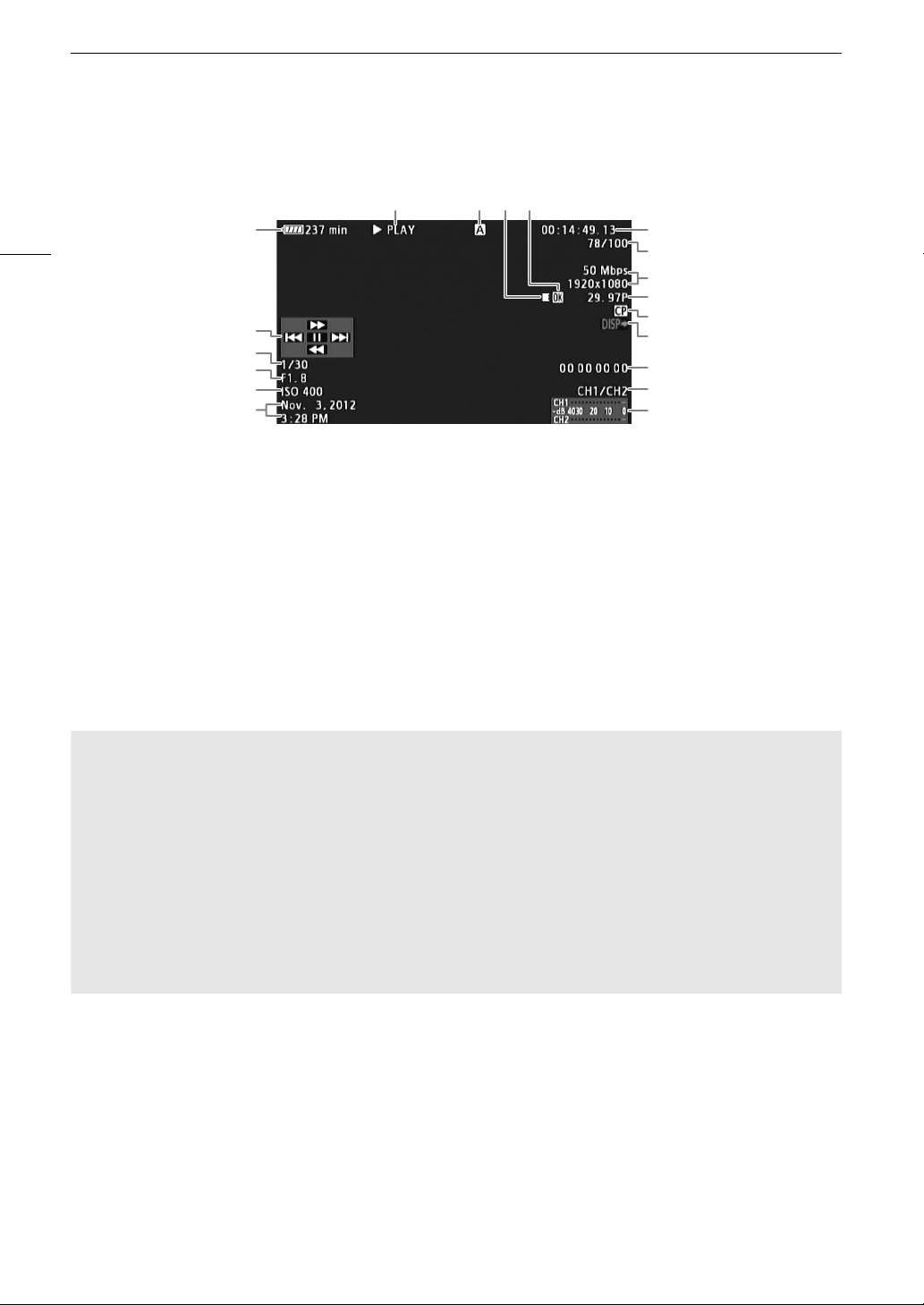
Playback
130
Onscreen Displays
1
Appears when [£ LCD/VF Setup] > [Metadata Display] > [Camera Data] is set to [On].
2
Appears when [£ LCD/VF Setup] > [Metadata Display] > [Date/Time] is set to [On].
3
For clips recorded using slow & fast motion mode, the shooting frame rate and playback frame rate will both be displayed.
7 8 910
14
11
12
17
18
19
1
2
4
5
6
13
15
3
16
1 Remaining battery time (A 56)
2 Joystick guide (A 131)
3 Shutter speed
1
(A 62)
4 # Aperture value
1
(A 69)
5 ISO Speed/Gain
1
(A 65)
6 Recording date and time
2
7 Playback operation
8 Selected CF card
9 Relay recording
10 $ mark/% mark (A 104, 134)
11 Time code (A 86)
12 Clip number / Total number of clips
13 Bit rate and resolution (A 59)
14 Frame rate
3
(A 59)
15 Embedded custom picture file (A 116)
16 Output displays (A 144)
17 User bit (A 89)
18 Audio output channel (A 97)
19 Audio level meter
7 Playback operation
* The playback speed (x5, x15 or x60) will also appear in the indicator.
9 Relay recording
Appears when a clip begins on one CF card and continues uninterrupted on the other. 5 indicates the first
part of the recording, 6 indicates the middle part(s) and 7 indicates the last part.
Ð PLAY Playback
Ý PAUSE Playback pause
Ô/Ó Frame reverse/Frame advance
F FWD × Fast playback*
Ø F REV Fast reverse playback*
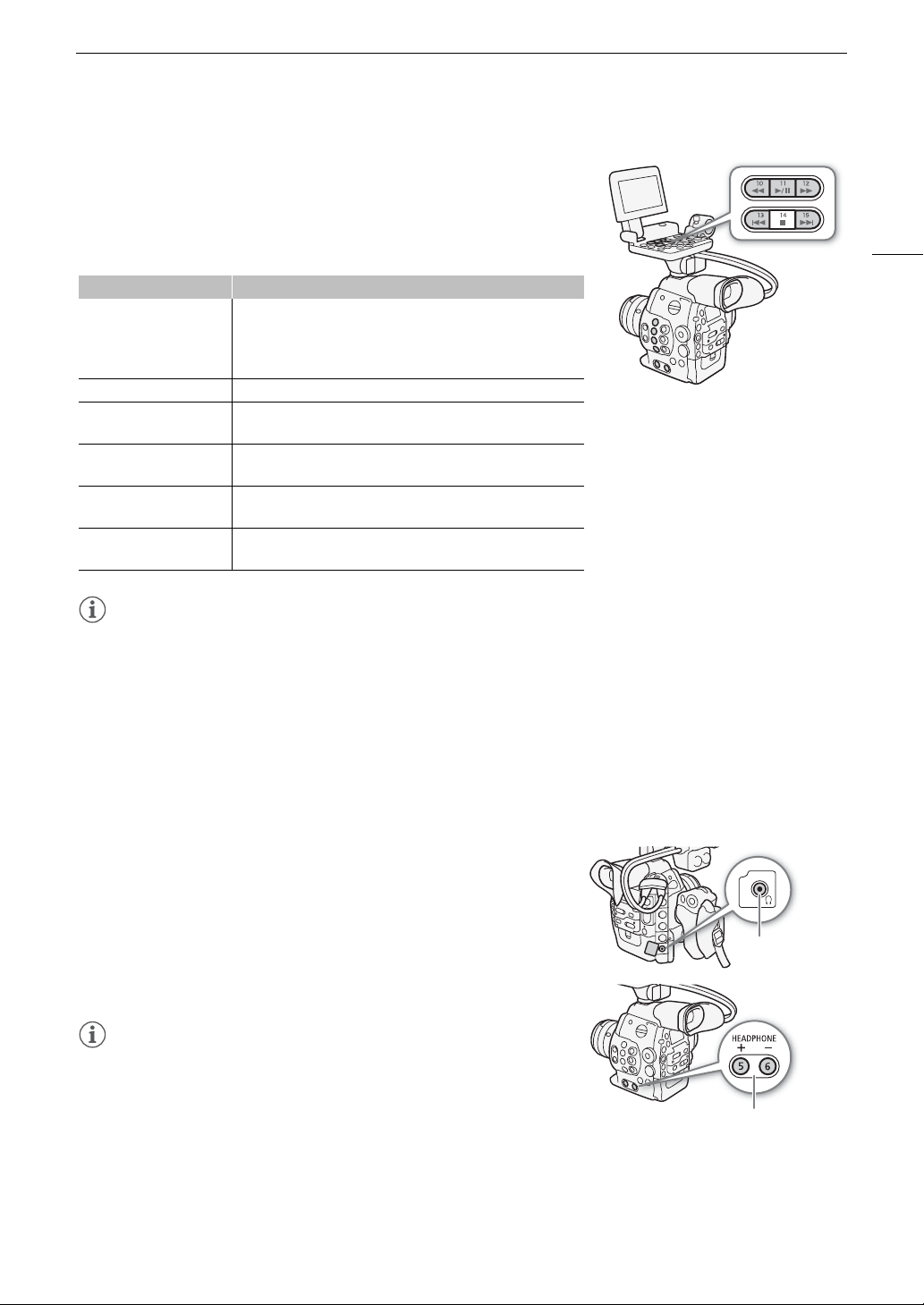
131
Playback
Playback Controls
When you play back a clip, operate the buttons on camcorder’s body or on
the monitor unit or use the joystick and joystick guide to use fast playback,
play back frame-by-frame or skip clips. Refer to the following table.
Available Playback Types
NOTES
• There is no audio during any of the playback types listed in the previous table.
• During some special playback modes, you may notice some anomalies (blocky video artifacts, banding, etc.)
in the playback picture.
• The speed indicated on the screen is approximate.
• During frame advance, the time advanced between frames depends on the video configuration used:
0.2 seconds (for 1280x720/24.00P, 1280x720/23.98P or 1280x720/59.94P), 0.25 seconds (for 1280x720/
50.00P) and 0.5 seconds for other video configurations.
• You can press the DISP. button to turn the joystick guide display on and off.
Adjusting the Volume
During playback, audio will be available through the × (headphone)
terminal; the audio signal will also be output through the HD/SD SDI
terminal and the HDMI OUT terminal.
Adjusting the Headphone Volume
Press the HEADPHONE +/- buttons to adjust the volume.
NOTES
• For details on changing the audio channel, refer to
Selecting the Audio
Channel
(A 97).
• You can also adjust the headphone volume with the [¡ Audio Setup]
> [Audio Output] > [Headphone Volume] setting.
Playback type Operation
Fast playback
Buttons: Press the Ø or × button.
Joystick: During playback, push the joystick up or down.
Repeat to increase the playback speed to approximately 5x J
15x J 60x the normal speed.
Frame advance/reverse Joystick: During playback pause, push the joystick up or down.
Skip to the beginning of
the next clip
Buttons: Press the Ù button.
Joystick: Push the joystick right.
Skip to the beginning of
the current clip
Buttons: Press the Ú button.
Joystick: Push the joystick left.
Skip to the previous clip
Buttons: Press the Ú button twice.
Joystick: Push the joystick left twice.
Return to playback mode
Buttons: Press the Ò button.
Joystick: Press the joystick itself (SET button).
× (headphone)
terminal
HEADPHONE +/- buttons
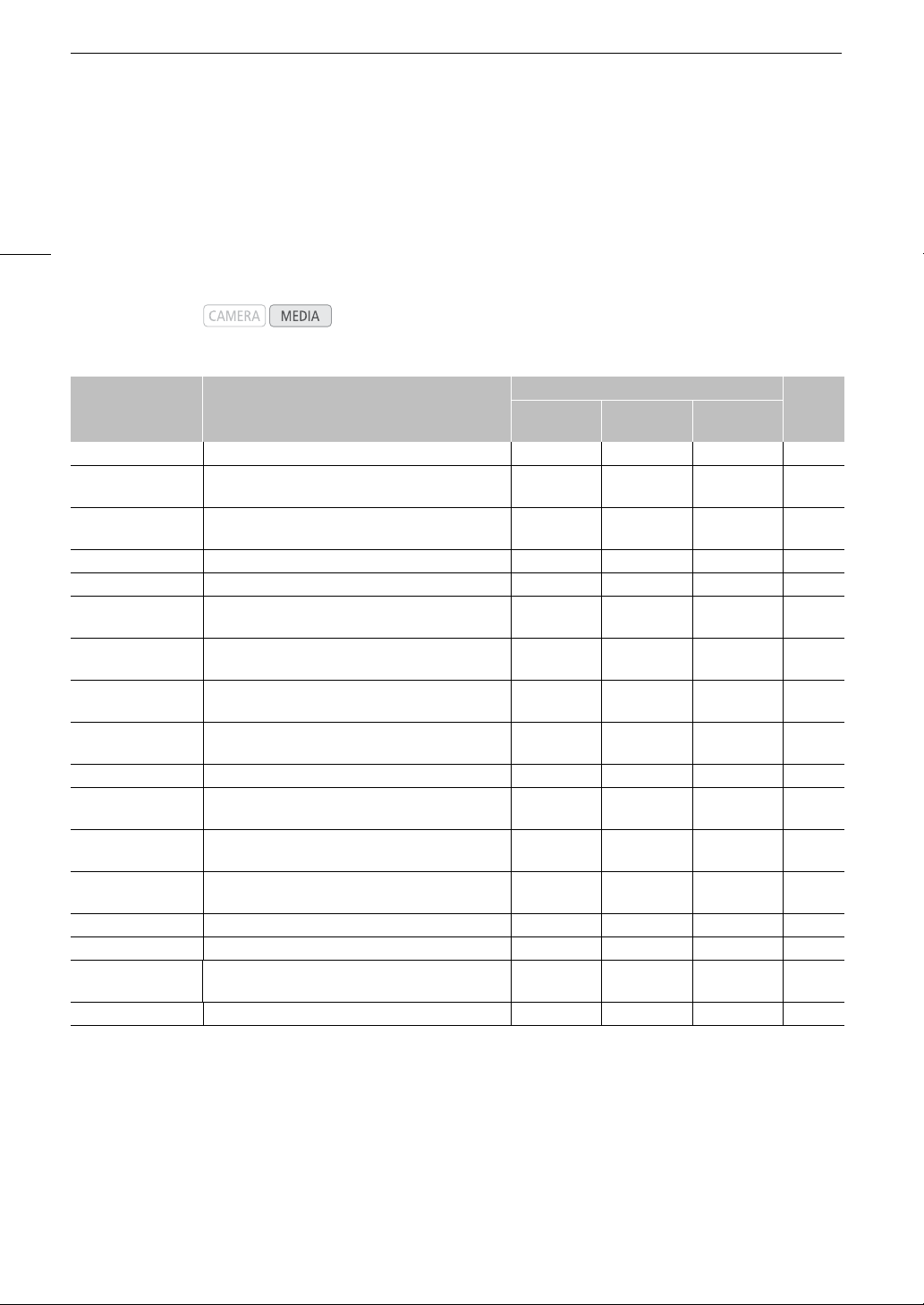
Clip Operations
132
Clip Operations
Besides playing back a clip, you can perform other operations such as deleting a clip or displaying clip
information. This is done through the clip menu, which contains different functions depending on the index
screen. You can use the functions in the [w Other Functions] menu to perform some of the operations on all the
clips. Refer to the following table for available functions and refer to the following pages for more details of the
functions.
Clip Menu Functions
1
Includes also the [Shot Mark 1] and [Shot Mark 2] index screens.
2
[$ Mark] index screen only.
3
[% Mark] index screen only.
4
[Expand Clip] index screen only.
Operating modes:
Menu item Description
Index screen
A
Clip
[$ Mark]/
[% Mark]
[Shot Mark]
1
/
[Expand Clip]
[Display Clip Info] Displays various information about a clip. Ü Ü – 133
[Add $ Mark]/
[Delete $ Mark]
Adds or deletes an $ mark. Ü Ü
2
– 134
[Add % Mark]/
[Delete % Mark]
Adds or deletes a % mark. Ü Ü
3
– 134
[Copy Clip] Copies a clip from one CF card to the other. Ü Ü
2
– 135
[Delete Clip] Deletes a clip. Ü Ü
3
– 136
[Shot Mark]
Displays an index screen of all the frames of a clip that
have either shot mark.
Ü Ü – 137
[Shot Mark 1]
Displays an index screen of all the frames of a clip that
have the " mark.
Ü Ü – 137
[Shot Mark 2]
Displays an index screen of all the frames of a clip that
have the # mark.
Ü Ü – 137
[Expand Clip]
Displays an index screen that shows frames of a clip at
a fixed interval.
Ü Ü – 138
[Delete User Memo] Deletes the user memo and GPS information of a clip. Ü Ü – 136
[Copy / File]
Copies the custom picture file from a clip to the
camcorder.
Ü Ü – 137
[Add Shot Mark 1]/
[Del. Shot Mark 1]
Adds or deletes a " mark. – – Ü 139
[Add Shot Mark 2]/
[Del. Shot Mark 2]
Adds or deletes a # mark. – – Ü 139
[Fewer Index Pics] Decreases the number of thumbnails that are displayed. – – Ü
4
138
[More Index Pics] Increases the number of thumbnails that are displayed. – – Ü
4
138
[Pause]
Switches to playback of a clip with playback paused on
the selected frame.
– – Ü –
[Set Index Picture] Sets the thumbnail used in the clip index screen. – – Ü 140
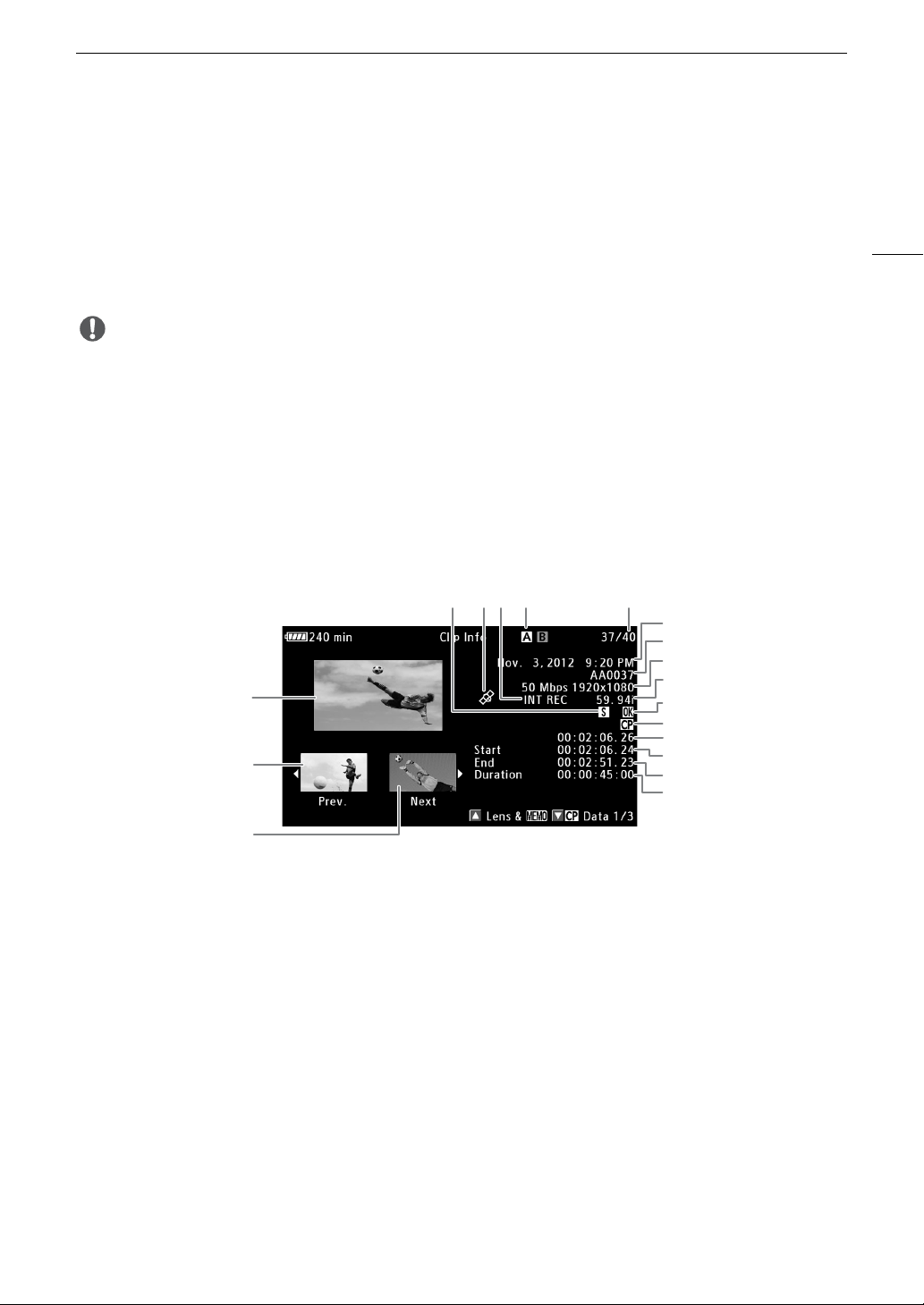
133
Clip Operations
Using the Clip Menu
1 Select a clip and then press SET.
• The clip menu appears. Available functions depend on the index screen and which functions are enabled.
2 Select the desired function and then press SET.
• The function is enabled. For some functions, further action may be required. Follow the onscreen directions.
• Press the CANCEL button instead to return to the clip index screen.
IMPORTANT
• Observe the following precautions while the CF2 or CF3 access indicator is illuminated in red. Failure to do
so may result in permanent data loss.
- Do not disconnect the power source or turn off the camcorder.
- Do not open the cover of the either CF card slot.
Displaying Clip Information
Select [Display Clip Info] in the clip menu to display the selected clip’s information screen ([Clip Info] screen).
Push the joystick left/right to switch to the previous/next clip. When you are finished, press the CANCEL button
to return to the clip index screen.
* For clips recorded using slow & fast motion mode, the shooting frame rate and playback frame rate will both be displayed.
10
467
1
2
3
9
11
14
15
16
17
18
12
13
5 8
1 Thumbnail of the selected clip
2 Thumbnail of the previous clip
3 Thumbnail of the next clip
4 Shot mark (A 103, 139)
5 Clip geotagged with GPS information (A 98,
105)
6 Special recording mode (A 108)
7 Currently selected CF card slot (A 46)
8 Clip number / Total number of clips
9 Recording date and time
10 Clip name (A 53)
11 Bit rate and resolution (A 59)
12 Frame rate* (A 59)
13 $ mark / % mark (A 104, 134)
14 Embedded custom picture file (A 116)
15 Time code of the clip thumbnail
16 Time code of the first frame in clip
17 Time code of the last frame in clip
18 Clip duration

Clip Operations
134
Displaying the Lens Information and User Memo
From the [Clip Info] screen, push the joystick up or turn the SELECT dial up to display the [Lens & Q] screen.
In this screen you can check details about the lens used to record the clip. If the clip has an embedded user
memo, you will see the user memo content in this screen as well. Push the joystick down or turn the SELECT
dial down to return to the [Clip Info] screen.
Displaying Custom Picture Settings
When displaying the [Clip Info] screen of a clip that has a custom picture file recorded with it, push the joystick
down or turn the SELECT dial down to display the first of three screens with the clip’s custom picture settings
([/ Data 1/3] screen). Push the joystick down or turn the SELECT dial down to switch the [/ Data 2/3] screen
J [/ Data 3/3] screen J [Lens & Q] screen J [Clip Info] screen.
Adding $ Marks or % Marks
If you add an OK mark ($) or check mark (%) to a clip, you can later display an index screen that shows only
the clips with an $ mark or only the clips with a % mark. Furthermore, you cannot delete clips with an $ mark
so you can use it to protect important clips.
Adding an $ Mark or % Mark during Playback
To add an OK mark ($) or check mark (%) to a clip during playback or playback pause, you must first set an
assignable button to [Add $ Mark] or [Add % Mark] in advance.
1 Set an assignable button to [Add $ Mark] or [Add % Mark] (A 113).
• To add both types of clip marks (to different clips), set one assignable button to [Add $ Mark] and another
assignable button to [Add % Mark].
2 During playback or playback pause, press the assignable button to add the clip mark.
• A message indicating the clip mark will appear and the selected clip mark will be added to the clip.
• Adding a clip mark to a clip during playback will pause the playback.
Adding an $ Mark or % Mark from the Index Screen
1 Select the desired clip and then press SET to open the clip menu.
2 Select [Add $ Mark] or [Add % Mark] and then press SET.
• The clip information screen appears and it prompts you to confirm the operation.
3 Select [OK] and then press SET.
• The screen changes back to the clip index screen and an $ mark or % appears next to the selected clip’s
thumbnail.
• Select [Cancel] instead to cancel the operation.
NOTES
• A clip cannot have both an $ mark and % mark at the same time. When you add a % mark to a clip with an
$ mark, the $ mark will be deleted. Similarly, when you add an $ mark to a clip with a % mark, the %
mark will be deleted.

135
Clip Operations
Deleting $ Marks or % Marks
Deleting an $ Mark or % Mark from a Clip
1 Select the desired clip and then press SET to open the clip menu.
2 Select [Delete $ Mark] or [Delete % Mark] and then press SET.
• The clip information screen appears and it prompts you to confirm the operation.
3 Select [OK] and then press SET.
• The screen changes back to the clip index screen the selected mark is deleted.
• Select [Cancel] instead to cancel the operation.
Deleting $ Marks from All Clips
1 Open the [Delete All $ Marks] submenu.
[w Other Functions] > [Delete All $ Marks]
2 Select [OK] and then press SET.
•All $ marks from clips on the selected CF card will be deleted.
• Select [Cancel] instead to cancel the operation.
•While the $ marks are being deleted, you can press SET to cancel.
3 When the confirmation message appears, press SET.
Copying Clips
You can copy clips from one CF card to the other. The copied clips will retain their original name.
Copying a Single Clip
1 Select the desired clip and then press SET to open the clip menu.
2 Select [Copy Clip] and then press SET.
• The clip information screen appears and it prompts you to confirm the operation. You can also check the
available space on both CF cards.
3 Select [OK] and then press SET.
• Select [Cancel] instead to cancel the operation.
• While the clip is being copied, you can press SET to cancel.
4 When the confirmation message appears, press SET.
• The selected clip is copied to the other CF card and the screen changes back to the clip index screen.
Copying All Clips
1 Open the [Copy All Clips] submenu.
[w Other Functions] > [Clips] > [Copy All Clips]
2 Select [OK] and then press SET.
• All of the clips on the selected CF card will be copied to the other CF
card.
• Select [Cancel] instead to cancel the operation.
• While the clips are being copied, you can press SET to cancel.
3 When the confirmation message appears, press SET.
[w Other Functions]
[Delete All $ Marks]
[w Other Functions]
[Clips]
[Copy All Clips]
Clip Operations
136
Copying All Clips with an $ Mark
1Open the [Copy $ Clips] submenu.
[w Other Functions] > [Clips] > [Copy $ Clips]
2 Select [OK] and then press SET.
• All of the clips with an $ mark on the selected CF card will be copied
to the other CF card.
• Select [Cancel] instead to cancel the operation.
• While the clips are being copied, you can press SET to cancel.
3 When the confirmation message appears, press SET.
NOTES
• You cannot copy a clip if either CF card slot cover is open.
• If a clip is being copied to a card that already has a clip with the same number (the last 4 digits in the clip
name), then the copied clip will be renamed with the following number.
Deleting Clips
You can delete any clip except those with an $ mark. To delete such clips, delete the $ mark beforehand.
Deleting a Single Clip
1 Select the desired clip and then press SET to open the clip menu.
2 Select [Delete Clip] and then press SET.
• The clip information screen appears and it prompts you to confirm the operation.
3 Select [OK] and then press SET.
• Select [Cancel] instead to cancel the operation.
• While the clip is being deleted, the operation cannot be canceled.
4 When the confirmation message appears, press SET.
Deleting All Clips
1 Open the [Delete All Clips] submenu.
[w Other Functions] > [Clips] > [Delete All Clips]
2 Select [OK] and then press SET.
• All of the clips (except for clips with an $ mark) on the selected CF
card will be deleted.
• Select [Cancel] instead to cancel the operation.
• While the clips are being deleted, you can press SET to cancel.
3 When the confirmation message appears, press SET.
Deleting the User Memo and GPS Information
1 Select the desired clip and then press SET to open the clip menu.
2 Select [Delete User Memo] and then press SET.
• The [Delete User Memo] screen appears and it prompts you to confirm the operation.
[w Other Functions]
[Clips]
[Copy $ Clips]
[w Other Functions]
[Clips]
[Delete All Clips]

137
Clip Operations
3 Select [OK] and then press SET.
• The user memo and GPS information is deleted and the screen changes back to the clip index screen.
• Select [Cancel] instead to cancel the operation.
Copying a Custom Picture File Embedded in a Clip
You can copy the custom picture file embedded in a clip to the camcorder.
1 Select the desired clip (a clip with the / icon) and then press SET to open the clip menu.
2 Select [Copy / File] and then press SET.
•The [/ Data 1/3] screen appears with the orange selection frame indicating a custom picture file slot in the
camcorder.
• Alternatively, you can press the CUSTOM PICTURE button.
• You can push the joystick up/down or turn the SELECT dial to display the [/ Data 2/3] and [/ Data 3/3]
screens.
3 Push the joystick left/right to select the desired file slot and then press SET.
4 Select [OK] and then press SET.
• The custom picture file already in the selected file slot will be overwritten.
• Select [Cancel] instead to cancel the operation.
5 When the confirmation message appears, press SET.
NOTES
• You cannot copy the custom picture file to a file slot with a protected file.
• By default, file slots [C7] to [C9] are protected.
Displaying an Index Screen of Shot Marks
After you add shot marks to a clip, you can display an index screen that contains all the frames in a clip with
either shot mark, only the " mark or only the # mark. When you play back a clip from this index screen,
playback will start from the frame indicated by the shot mark. You can also perform other operations from this
index screen, such as adding and deleting shot marks.
1 Select the desired clip and then press SET to open the clip menu.
2 Select [Shot Mark] and then press SET.
• The [Shot Mark] index screen appears, which contains all the frames with shot marks in the clip. Select
instead [Shot Mark 1] to display an index screen only of the frames with the " mark or [Shot Mark 2] to
display an index screen only of the frames with the # mark.
• The time code under the thumbnail indicates the time code of the frame with the shot mark.
• Press the INDEX button or CANCEL button to return to the clip index screen.
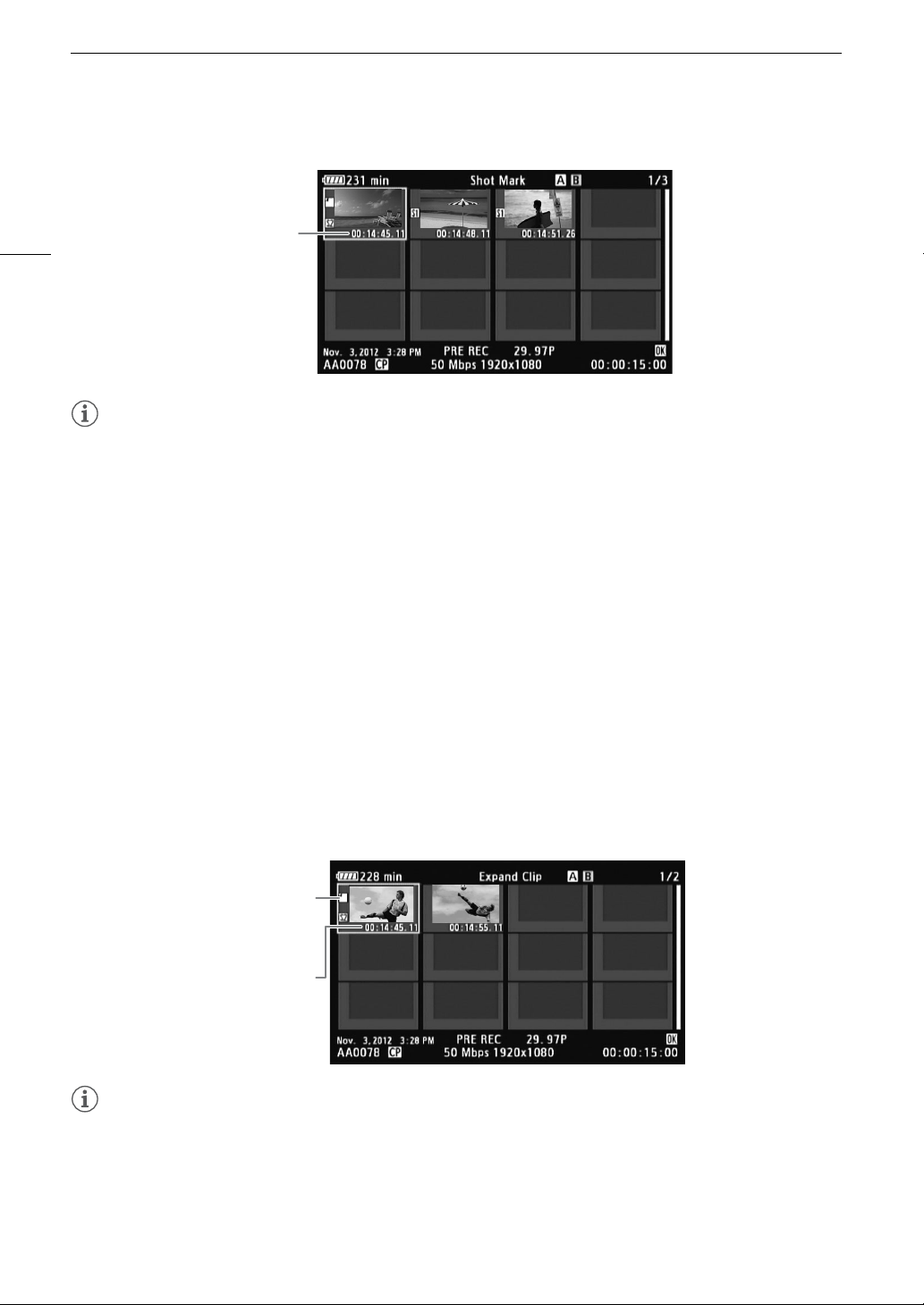
Clip Operations
138
NOTES
• After you finish playing back a clip from this index screen, the index screen that was open before the [Shot
Mark] index screen will appear.
Displaying a Frame Index Screen of a Single Clip
You can display an index screen of a single clip broken down as frames at fixed intervals. This is useful when you
have a long clip or wish to play back a clip from a certain point. You can change how many thumbnails are
displayed. You can also perform other operations from this index screen, such as adding and deleting shot
marks.
1 Select the desired clip and then press SET to open the clip menu.
2 Select [Expand Clip] and then press SET.
• The [Expand Clip] index screen appears, which shows thumbnails of frames taken from the clip at fixed
intervals. The time code under the thumbnail indicates the time code of the frame.
• You can change the fixed interval between frames by showing more or fewer thumbnails. To show more
thumbnails, open the clip menu and select [More Index Pics] and then press SET. To show fewer
thumbnails, select [Fewer Index Pics] and then press SET.
• Press the INDEX button or CANCEL button to return to the clip index screen.
NOTES
• After you finish playing back a clip from this index screen, the index screen that was open before the [Expand
Clip] index screen will appear.
Time code of the
frame with the
shot mark
Time code of the
displayed frame
Thumbnail icon:
Indicates the frame
used as the clip
thumbnail in the clip
index screen.

139
Clip Operations
Adding Shot Marks
You can add shot marks (", # or both) to shots in a clip you want to set apart. Later, you can display an index
screen that shows only the clips with a " mark, only the clips with a # mark, or only clips with either shot mark.
Adding Shot Marks during Playback
To add an " mark or # mark to a clip during playback or playback pause, you must first set an assignable
button to [Add Shot Mark 1] or [Add Shot Mark 2] in advance.
1 Set an assignable button to [Add Shot Mark 1] or [Add Shot Mark 2] (A 113).
2 During playback or playback pause, press the assignable button at the point in the clip to add the
shot mark.
• A message indicating the shot mark appears on the screen and the shot mark is added to the clip.
• Adding a shot mark to a clip during playback will pause the playback.
Adding Shot Marks from the Index Screen
1 Open the [Shot Mark] index screen or [Expand Clip] index screen.
2 Select the desired frame (thumbnail) and then press SET to open the clip menu.
3 Select [Add Shot Mark 1] or [Add Shot Mark 2] and then press SET.
• The clip information screen appears and it prompts you to confirm the operation.
4 Select [OK] and then press SET.
• The screen changes back to the previous index screen and the selected shot mark appears next to the
selected clip’s thumbnail.
• Select [Cancel] instead to cancel the operation.
NOTES
• Up to 100 shot marks (" and # marks combined) can be added to a single clip.
• There may be up to a 0.5 second delay from when you press the button to when the camcorder adds the shot
mark.
Deleting Shot Marks
1 Open the [Shot Mark] index screen or [Expand Clip] index screen.
2 Select the desired frame (thumbnail) and then press SET to open the clip menu.
3 Select [Del. Shot Mark 1] or [Del. Shot Mark 2] and then press SET.
• The clip information screen appears and it prompts you to confirm the operation.
4 Select [OK] and then press SET.
• The selected mark is deleted and the screen changes back to the previous index screen.
• If a frame has no shot marks, it will no longer appear in the [Shot Mark] index screen.
• Select [Cancel] instead to cancel the operation.

Clip Operations
140
Changing a Clip’s Thumbnail
You can change the thumbnail that appears in the clip index screen to a thumbnail of a frame that appears in the
[Shot Mark] index screen or [Expand Clip] index screen.
1 Open the [Shot Mark] index screen or [Expand Clip] index screen.
2 Select the desired frame (thumbnail) and then press SET to open the clip menu.
3 Select [Set Index Picture] and then press SET.
• The clip information screen appears and it prompts you to confirm the operation.
4 Select [OK] and then press SET.
• The selected frame is set as the thumbnail and the screen changes back to the previous index screen.
R appears next to the thumbnail of the selected frame.
• Select [Cancel] instead to cancel the operation.
NOTES
• When playing back a clip from the clip index screen, playback will start from the beginning of the clip,
regardless of the thumbnail.
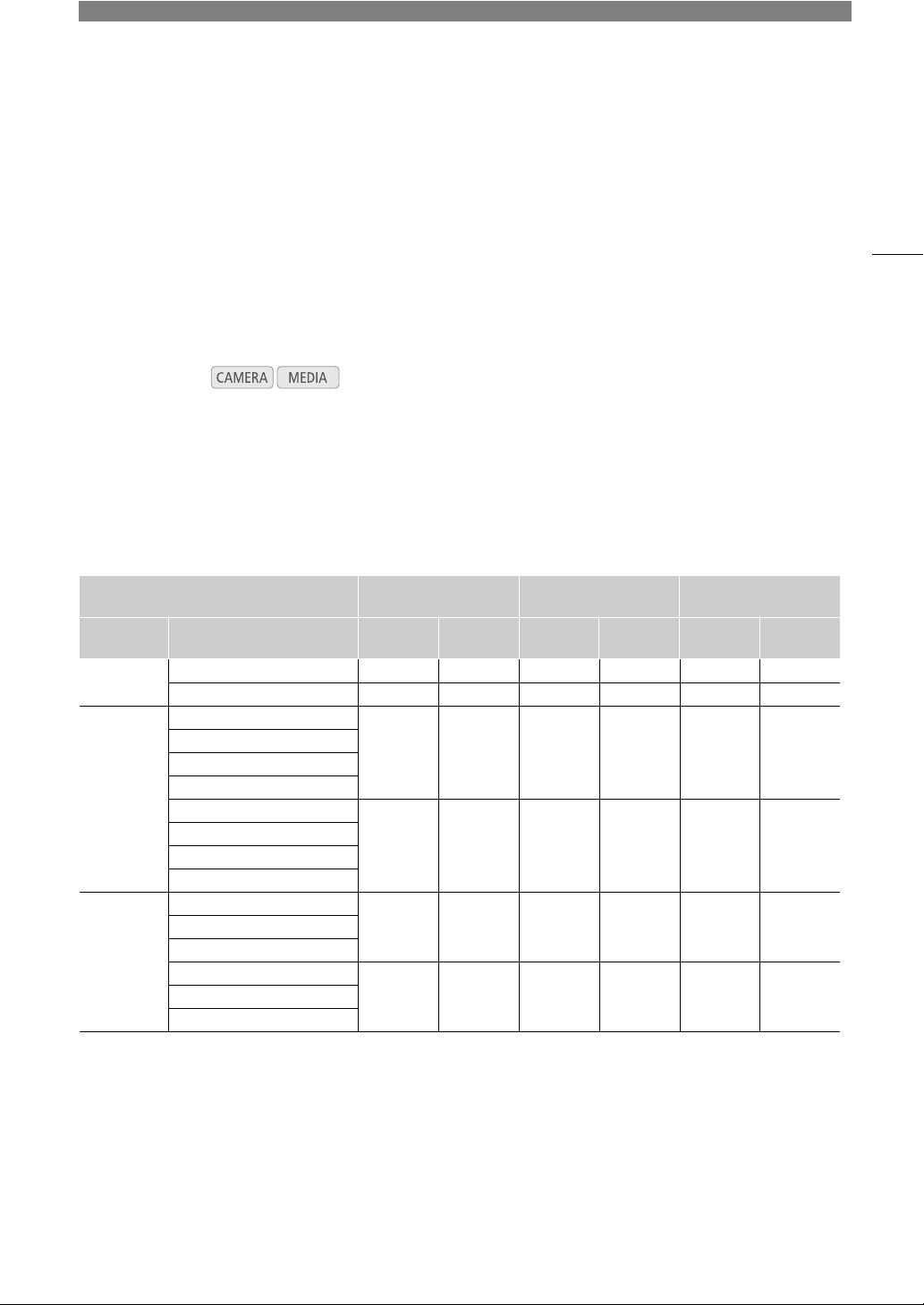
6
141
External Connections
Video Output Configuration
The video signal output from the HD/SD SDI, HDMI OUT and SYNC OUT terminals depends on the clip’s video
configuration, the capability of the external monitor (for video output from the HDMI OUT terminal) and on various
menu settings.
Video Output Configuration by Terminal
Refer to the following table for the video output configuration from each terminal. If necessary, you can
superimpose the onscreen displays on the video displayed on the external monitor (A 144).
Operating modes:
Video Output Configuration by Terminal
1
Set [¢ Video Setup] > [SDI Output] to [HD], [SD] or [Off].
2
When you set [£ LCD/VF Setup] > [Zebra HD Output] to [On], you can display zebra patterns on an external monitor. (HD
output only. During SD output the zebra pattern will not be output.)
3
Video output will automatically switch to HD or SD, depending on the capability of the external monitor.
4
Set [¢ Video Setup] > [SYNC Output] to [HD-Y] (HD component video, luminance signal) or [Composite] (SD analog
composite signal).
5
When the camcorder is connected via HDMI OUT terminal to an external monitor, the video signal output from the HD/SD SDI
terminal will be the same as that from the HDMI OUT terminal.
Terminal J
Video configuration L
HD/SD SDI
1, 2
HDMI OUT
2, 3
SYNC OUT
4
Type of
recording
Resolution (vertical)/Frame rate HD output SD Output
5
HD output SD output HD Output SD Output
24.00P
1080/24.00P 1080/60.00i – 1080/60.00i – 1080/60.00i –
720/24.00P 720/60.00P – 720/60.00P – 720/60.00P –
NTSC
1080/59.94i
1080/59.94i 480/59.94i 1080/59.94i 480/59.94P 1080/59.94i 480/59.94i
1080/29.97P
1080/23.98P
1080/slow or fast motion
720/59.94P
720/59.94P 480/59.94i 720/59.94P 480/59.94P 720/59.94P 480/59.94i
720/29.97P
720/23.98P
720/slow or fast motion
PAL
1080/50.00i
1080/50.00i 576/50.00i 1080/50.00i 576/50.00P 1080/50.00i 576/50.00i1080/25.00P
1080/slow or fast motion
720/50.00P
720/50.00P 576/50.00i 720/50.00P 576/50.00P 720/50.00P 576/50.00i720/25.00P
720/slow or fast motion
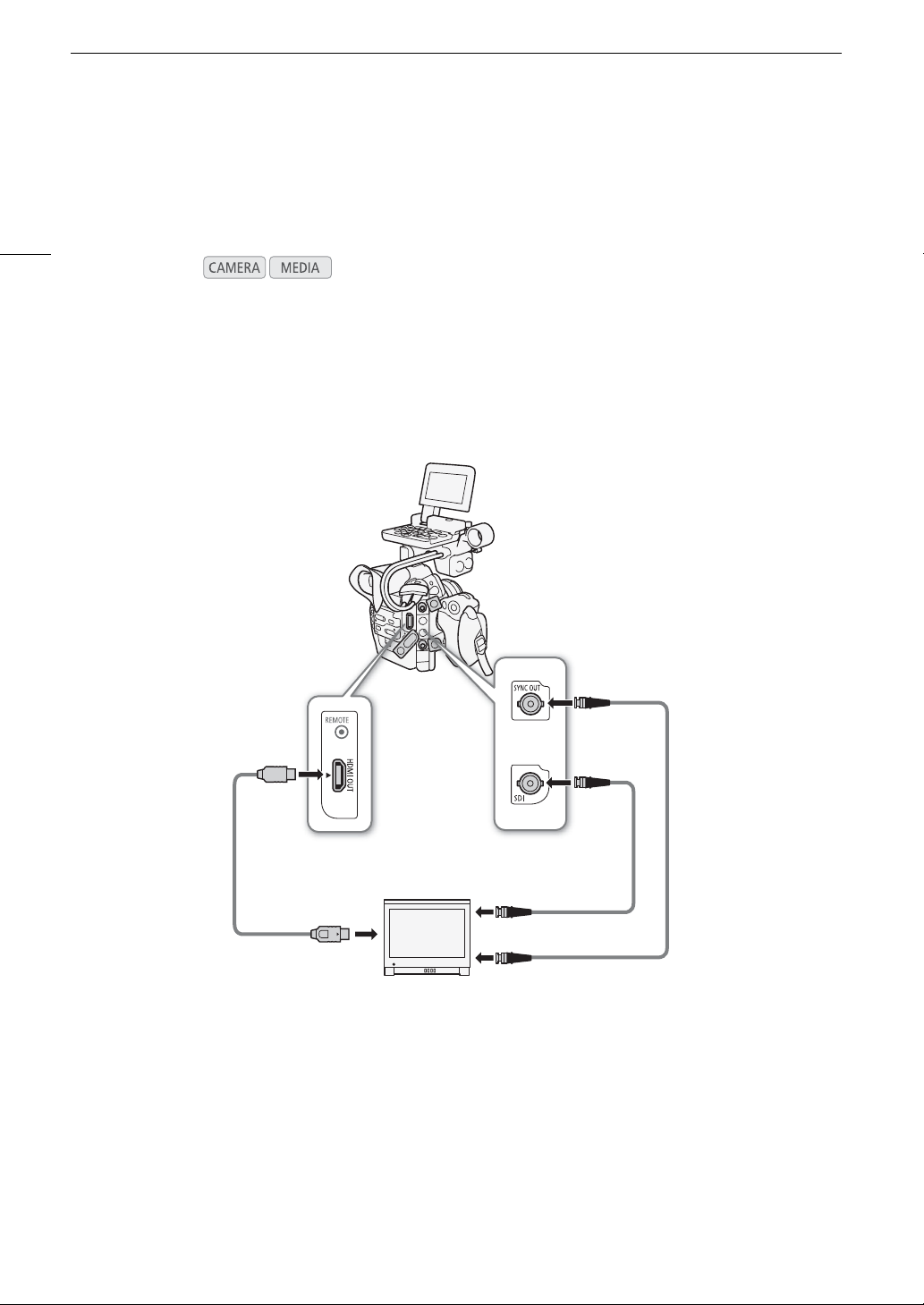
Connecting to an External Monitor
142
Connecting to an External Monitor
When you connect the camcorder to an external monitor for recording or playback, use the terminal on the
camcorder that matches the one you wish to use on the monitor. Then, select the video signal output
configuration (A 141). The camcorder can output video from all of the video output terminals simultaneously.
Connection Diagram
When you connect the camcorder to an external monitor using the SYNC OUT terminal, use headphones to
monitor the sound (A 97).
We recommend that you power the camcorder from a power outlet using the AC adapter.
Operating modes:
HDMI IN
VIDEO IN or COMPONENT IN (Y)
SDI IN
BNC cable
(commercially
available)
BNC cable
(commercially
available)
HDMI cable
(commercially
available)
HDMI OUT
terminal
HD/SD SDI
terminal
SYNC OUT
terminal
143
Connecting to an External Monitor
Using the HD/SD SDI Terminal
The digital signal output from the HD/SD SDI terminal includes the video
signal, audio signal and time code signal. If necessary, perform the
following procedure to change the output to HD or SD*. Turning the
output off will conserve the camcorder’s power.
* Not available for 24.00P recordings.
1 Open the [SDI Output] submenu.
[¢ Video Setup] > [SDI Output]
2 Select the desired option and then press SET.
• If you selected [SD], you can select the SD output method (A 144).
NOTES
• If necessary, you can superimpose the onscreen displays on the video displayed on the external monitor
(A 144).
Using the HDMI OUT Terminal
The HDMI
TM
OUT terminal also offers a digital connection and outputs both a video and audio signal. The output
signal will automatically switch to HD or SD* depending on the capability of the external monitor.
* Not available for 24.00P recordings.
NOTES
• Correct operation cannot be guaranteed when connecting the camcorder to DVI monitors.
• Video may not be output correctly depending on the monitor. In such case, use another terminal.
• The HDMI OUT terminal is for output only. Do not connect the camcorder to another device’s output terminal
using the HDMI OUT terminal as this will cause a malfunction.
• If necessary, you can superimpose the onscreen displays on the video displayed on the external monitor
(A 144).
• You can select the SD output method (A 144).
Using the SYNC OUT Terminal
In addition to its function as a synchronization signal output terminal, you
can use the SYNC OUT terminal also as a terminal for analog video signal
output. You can output an HD component video luminance signal or a
down-converted SD composite video signal*.
* Not available for 24.00P recordings.
1 Open the [SYNC Output] submenu.
[¢ Video Setup] > [SYNC Output]
2 Select [HD-Y] or [Composite] and then press SET.
• If you selected [HD-Y] (HD component video, luminance signal), no more settings are necessary. If you
selected [Composite] (SD analog composite signal), you can select the SD output method with the following
procedure.
NOTES
• When you play back a clip on a monitor with a 4:3 aspect ratio, the monitor will switch automatically to
widescreen mode if it is compatible with the Video ID-1 or WSS system.
[¢ Video Setup]
[SDI Output]
[HD]
[¢ Video Setup]
[SYNC Output]
[Composite]
Connecting to an External Monitor
144
• If necessary, you can superimpose the onscreen displays on the video displayed on the external monitor
(A 144).
SD Output
When HD video with a 16:9 aspect ratio is converted and output from the
HD/SD SDI terminal, HDMI OUT terminal or SYNC OUT terminal as SD
video with a 4:3 aspect ratio, you can choose how it appears on the
external monitor.
1 Open the [SD Output] submenu.
[¢ Video Setup] > [SD Output]
2 Select the desired option and then press SET.
Options
Superimposing Onscreen Displays to Appear on an
External Monitor
You can choose to superimpose onscreen displays on the video output
from the HD/SD SDI terminal, HDMI OUT terminal or SYNC OUT terminal.
Doing so will display the onscreen displays on an external monitor. You
can set this function separately for HD and SD output. This setting will not
affect your recordings.
1 Open the [HD Onscreen Disp.] or [SD Onscreen Disp.] submenu.
[¢ Video Setup] > [HD Onscreen Disp.] or [SD Onscreen Disp.]
2 Select [On] and then press SET.
• T appears on the upper right of the screen (when [£ LCD/VF Setup] > [Custom Display 2] >
[Output Display] is set to [On]).
NOTES
• Onscreen displays will not appear on an external monitor for SD output if [¢ Video Setup] > [SD Output] is
set to [Side Crop].
• If you set an assignable button to [Onscreen Display] (A 113), you can press the button to turn on and off the
superimposing of onscreen displays on video output from the camcorder’s terminals (simultaneously for HD
and SD video).
[Squeeze]: The image is squeezed from the left and right so that the entire image fits within the screen. The image
will appear normal if the external monitor also has a 16:9 aspect ratio.
[Letterbox]: The 16:9 aspect ratio is maintained but black letterbox bars are added to the top and bottom of the
image.
[Side Crop]: The left and right sides of the image are cropped so that the central part of the image fits within the
screen.
Original image (16:9) [Squeeze] setting [Letterbox] setting [Side Crop] setting
[¢ Video Setup]
[SD Output]
[Letterbox]
[¢ Video Setup]
[HD Onscreen Disp.]
[SD Onscreen Disp.]
[Off]

145
Saving Clips to a Computer
Saving Clips to a Computer
You can use Canon XF Utility to save and organize clips on a computer and the Canon XF plugins to easily use
the clips directly from major non-linear editing (NLE) applications. The software and plugins are available as free
downloads from your local Canon Web site. Check the download page for the system requirements and the
latest information about the software and supported non-linear editing (NLE) applications.
You will find detailed instructions about installing and uninstalling the software in the “Read This First” PDF file
included in the compressed file you will download from the Web site. For details about using the software, refer
to the instruction manual (PDF file) that is installed with the software.
Canon XF Utility: Software application that allows you to save clips on a computer, check, play back and
organize clips and grab still frames from clips. The software is available for Windows and Mac OS (OS X).
Canon XF Plugin for Avid Media Access: Plugin that allows you to easily import clips from a recording media or a
local folder in the computer to the compatible version of Avid Media Composer (an NLE application compatible
with Avid Media Access), directly from within the application. The plugin is available for the Windows and Mac
OS (OS X) versions of Avid Media Composer.
Canon XF Plugin for Final Cut Pro X: Plugin that allows you to easily transfer clips from a recording media or a
local folder in the computer to the compatible version of Apple’s Final Cut Pro X, directly from within the NLE
application.

Saving Clips to a Computer
146
7
147
Photos
Taking Photos
You can take photos when the camcorder is in mode or you can capture a photo from a clip when the
camcorder is in mode. Photos are saved onto the SD card. In mode, photo size is 1920x1080*. In
mode, photo size depends on the resolution setting of the clip that the photo is captured from. If the clip
is 1920x1080 or 1440x1080, the photo size is 1920x1080. If the clip is 1280x720, the photo size is 1280x720.
* At this size, the camcorder can save approximately 670 photos on a 1 GB SD card.
Taking Photos in CAMERA Mode
You can take a photo while the camcorder is recording a clip or is in record pause mode. If a custom picture file
is selected in advance, it will be recorded with the photo (A 116). To take a photo, set an assignable button to
[Photo] in advance.
1 Set an assignable button to [Photo] (A 113).
2 Press the assignable button to take a photo.
• * and the number of available photos appear on the upper right of the screen.
• If a custom picture file is selected, it will be recorded with the photo.
• The SD card access indicator will flash as the photo is being recorded.
NOTES
• Photo recording is disabled while Wi-Fi communication is turned on ([w Other Functions] > [Wi-Fi Remote]
> [Select] is set to a setting other than [Off]).
Capturing Photos in MEDIA Mode
You can capture a photo from a clip during playback pause. To capture a photo, set an assignable button to
[Photo] in advance.
1 Set an assignable button to [Photo] (A 113).
2 Select the desired clip and press the Ò button to start playback.
3 Pause the playback at the point you want to capture.
4 Press the assignable button to capture a photo.
• The screen will momentarily turn black as if a camera shutter had released.
• * and the number of available photos appear on the upper right of the screen.
• The SD card access indicator will flash as the photo is being recorded.
5 Press the Ñ button to stop playback.
Operating modes:
Operating modes:

Taking Photos
148
IMPORTANT
• Observe the following precautions while the SD card access indicator is flashing. Failure to do so may result in
permanent data loss.
- Do not disconnect the power source or turn off the camcorder.
- Do not remove the SD card.
NOTES
• If the LOCK switch on the SD card is set to prevent writing, you will not be able to record a photo. Change the
position of the LOCK switch in advance.
• Even if [Other Functions] > [Custom Function] > [Scan Reverse Rec] is set to a setting other than [Off],
photos will not be inverted.
149
Photo Playback
Photo Playback
You can view the photos that you took with the camcorder.
Displaying the [Photos] Index Screen
Display the [Photos] index screen to view photos.
1 Set the Q switch to MEDIA.
• The camcorder switches to mode and the clip index screen
appears.
2 Press the INDEX button.
• The index screen selection menu appears.
3 Select [Photo Index] and then press SET.
• The [Photos] index screen appears.
• After you are finished viewing photos, press the INDEX button to
return to the clip index screen.
Viewing Photos
1 Move the orange selection frame to the desired photo.
2 Press the Ò button to view the photo.
• The photo playback screen appears and the selected photo is
displayed.
•Use the Ú/Ù buttons or push the joystick left/right to switch to
the previous/next photo.
• Press the DISP. button to hide/show the onscreen displays.
• Press the Ñ button to return to the [Photos] index screen.
IMPORTANT
• Observe the following precautions while the SD card access indicator is flashing. Failure to do so may result in
permanent data loss.
- Do not disconnect the power source or turn off the camcorder.
- Do not remove the SD card.
NOTES
• The following photos may not be displayed correctly.
- Photos not recorded with this camcorder.
- Photos created or edited on a computer.
- Photos whose file names have been changed.
Operating modes:
Photo Operations
150
Photo Operations
You can use the photo menu to protect or unprotect a photo, delete a photo, or copy a custom picture file
embedded in a photo. You can display the photo menu from the [Photos] index screen or photo playback
screen.
Using the Photo Menu
1 From the [Photos] index screen, select a photo and then press SET.
• If you are viewing a photo, simply press SET.
• The photo menu appears. Available functions depend on the photo’s settings.
2 Select the desired function and then press SET.
Deleting Photos
You can delete a photo you no longer need. When you do so, however, the custom picture file embedded in it
will also be deleted. Photos can be deleted one at a time from the photo playback screen or [Photos] index
screen.
Deleting a Photo from the Playback Screen
1 Display the photo to be deleted (A 149).
2 Press SET to open the photo menu.
3 Select [Delete] and then press SET.
• The screen prompts you to confirm the operation.
4 Select [OK] and then press SET.
• Select [Cancel] instead to cancel the operation.
• The selected photo is deleted and the next photo is displayed.
• If a custom picture file is embedded in the photo, it is also deleted.
5 When the confirmation message appears, press SET.
Deleting a Photo from the Index Screen
1 Open the [Photos] Index Screen (A 149).
2 Move the orange selection frame to the photo to be deleted.
3 Press SET to open the photo menu.
4 Select [Delete] and then press SET.
• The screen prompts you to confirm the operation.
5 Select [OK] and then press SET.
• Select [Cancel] instead to cancel the operation.
• The selected photo is deleted.
• If a custom picture file is embedded in the photo, it is also deleted.
6 When the confirmation message appears, press SET.
Operating modes:
151
Photo Operations
Deleting All Photos
1 Open the [Delete All Photos] submenu.
[w Other Functions] > [Delete All Photos]
2 Select [OK] and then press SET.
• All of the photos on the SD card, except for protected ones, will be
deleted.
• Select [Cancel] instead to cancel the operation.
• While the photos are being deleted, you can press SET to cancel.
3 When the confirmation message appears, press SET.
IMPORTANT
• Be careful when deleting photos. Deleted photos cannot be recovered.
Protecting Photos
You can protect photos to prevent accidental erasure. The custom picture file embedded in such a photo is also
protected. Photos can be protected from the photo playback screen or [Photos] index screen.
Protecting a Photo from the Playback Screen
1 Display the photo to be protected (A 149).
2 Press SET to open the photo menu.
3 Select [Protect] and then press SET.
• To remove protection settings from a protected photo, select [Unprotect] instead.
• The screen prompts you to confirm the operation.
4 Select [OK] and then press SET.
• Select [Cancel] instead to cancel the operation.
• The selected photo is protected and i appears on the lower left of the screen.
• If a custom picture file is embedded in the photo, it is also protected.
Protecting a Photo from the Index Screen
1 Open the [Photos] Index Screen (A 149).
2 Move the orange selection frame to the photo to be protected.
3 Press SET to open the photo menu.
4 Select [Protect] and then press SET.
• To remove protection settings from a protected photo, select [Unprotect] instead.
• The screen prompts you to confirm the operation.
5 Select [OK] and then press SET.
• The selected photo is protected and i appears next to the photo’s thumbnail.
• Select [Cancel] instead to cancel the operation.
• If a custom picture file is embedded in the photo, it is also protected.
Operating modes:
[w Other Functions]
[Delete All Photos]
Photo Operations
152
IMPORTANT
• Initializing an SD card will permanently erase all the data it contains, including protected photos and custom
picture files.
Copying Custom Picture Files
You can copy to the camcorder a custom picture file embedded in a photo. Custom picture files can be copied
from the photo playback screen or [Photos] index screen.
Copying a File from the Playback Screen
1 Display the photo with the custom picture file to be copied (A 149).
2 Press SET to open the photo menu.
3 Select [Copy / File] and then press SET.
•The [/ Data 1/3] screen appears with the orange selection frame indicating a file slot in the camcorder.
• Alternatively, you can press the CUSTOM PICTURE button.
• You can push the joystick up/down or turn the SELECT dial to display the [/ Data 2/3] and [/ Data 3/3]
screens.
4 Push the joystick left/right to select the desired file slot and then press SET.
5 Select [OK] and then press SET.
• The custom picture file embedded in the selected photo is copied, overwriting the file in that slot.
• Select [Cancel] instead to cancel the operation.
6 When the confirmation message appears, press SET.
Copying a File from the Index Screen
1 Open the [Photos] Index Screen (A 149).
2 Move the orange selection frame to the photo with the custom picture file to be copied.
3 Press SET to open the photo menu.
4 Select [Copy / File] and then press SET.
•The [/ Data 1/3] screen appears with the orange selection frame indicating a file slot in the camcorder.
• Alternatively, you can press the CUSTOM PICTURE button.
• You can push the joystick up/down or turn the SELECT dial to display the [/ Data 2/3] and [/ Data 3/3]
screens.
5 Push the joystick left/right to select the desired file slot and then press SET.
6 Select [OK] and then press SET.
• The custom picture file embedded in the selected photo is copied, overwriting the file in that slot.
• Select [Cancel] instead to cancel the operation.
7 When the confirmation message appears, press SET.
NOTES
• You cannot copy the custom picture file to a file slot with a protected file.
• By default, file slots [C7] to [C9] are protected.
Operating modes:
153
Photo Operations
Photo Numbering
Photos are automatically assigned consecutive numbers from 0101 to
9900, and stored on the SD card in folders containing up to 100 photos.
Folders are numbered from 101 to 998. You can select the photo
numbering method to be used.
The photo number indicates the name and location of the file on the SD
card. For example, a photo numbered 101-0107 is located in the
“DCIM\101CANON” folder as the file “IMG_0107.jpg”.
1 Open the [Photo Numbering] submenu.
[w Other Functions] > [Photo Numbering]
2 Select the desired option and the press SET.
Options
NOTES
• If you select [Continu.] and the SD card you insert already contains a photo with a larger number, a new photo
will be assigned a number one higher than that of the last photo on the SD card.
• We recommend using the [Continu.] setting.
Operating modes:
[Reset]: Photo numbers will restart from 101-0101 every time you insert a new SD card. If an SD card already
contains photos, photo numbers will continue from the number following that of the last photo on the SD
card.
[Continu.]: Photo numbers will continue from the number following that of the last photo recorded with the
camcorder.
[w Other Functions]
[Photo Numbering]
[Continu.]

Photo Operations
154

8
155
Additional Information
Menu Options
For details about how to select an item, refer to
Using the Menus
(A 29). For details about each function, see
the reference page. Menu items without a reference page are explained after the tables. Setting options in
boldface indicate default values. Menu items not available appear grayed out.
To skip directly to the page of a specific menu:
[~ Camera Setup] menu A 155
[¡ Audio Setup] menu A 156
[¢ Video Setup] menu A 156
[£ LCD/VF Setup] menu A 157
[¤ TC/UB Setup] menu A 160
[w Other Functions] menu A 160
[ My Menu] customized menu A 164
[~ Camera Setup] menu ( mode only)
* The default value depends on the country/region or purchase.
Menu item Submenu Setting options A
# [Light Metering] [Backlight], [Standard], [Spotlight] 74
# [AE Shift] [+2.0], [+1.5], [+1.25], [+1.0], [+0.75], [+0.5], [+0.25], [±0], [-0.25],
[-0.5], [-0.75], [-1.0], [-1.25], [-1.5], [-2.0]
73
[ISO/Gain] [Select] [ISO], [Gain]
65
[Extended Range] [On], [Off]
[ISO Increment] [1 stop], [1/3 stop]
[Gain] [Normal], [Fine]
# [Iris] [Mode]* [Automatic], [Manual]
69[Iris Increment] [1/2 stop], [1/3 stop], [Fine]
[Zoom-Iris Correct.] [On], [Off]
[Shutter] [Mode] [Speed], [Angle], [Clear Scan], [Slow], [Off]
62
[Shutter Increment] [1/3 stop], [1/4 stop]
# [AF Mode] [One Shot], [Continu.] 78
[Flicker Reduction] [Automatic], [Off] 64
[/ CINEMA Locked] [On], [Off] 58
[Camera Grip Zoom] [Setting] [On], [Off]
83
[Speed] 1 to 16 (8)
[ABB] [Cancel], [OK] 48
[Color Bars] [Enable] [On], [Off]
100
[Type] [SMPTE], [EBU]*, [ARIB]
# [Periph. Illum. Corr.] [On], [Off] 34
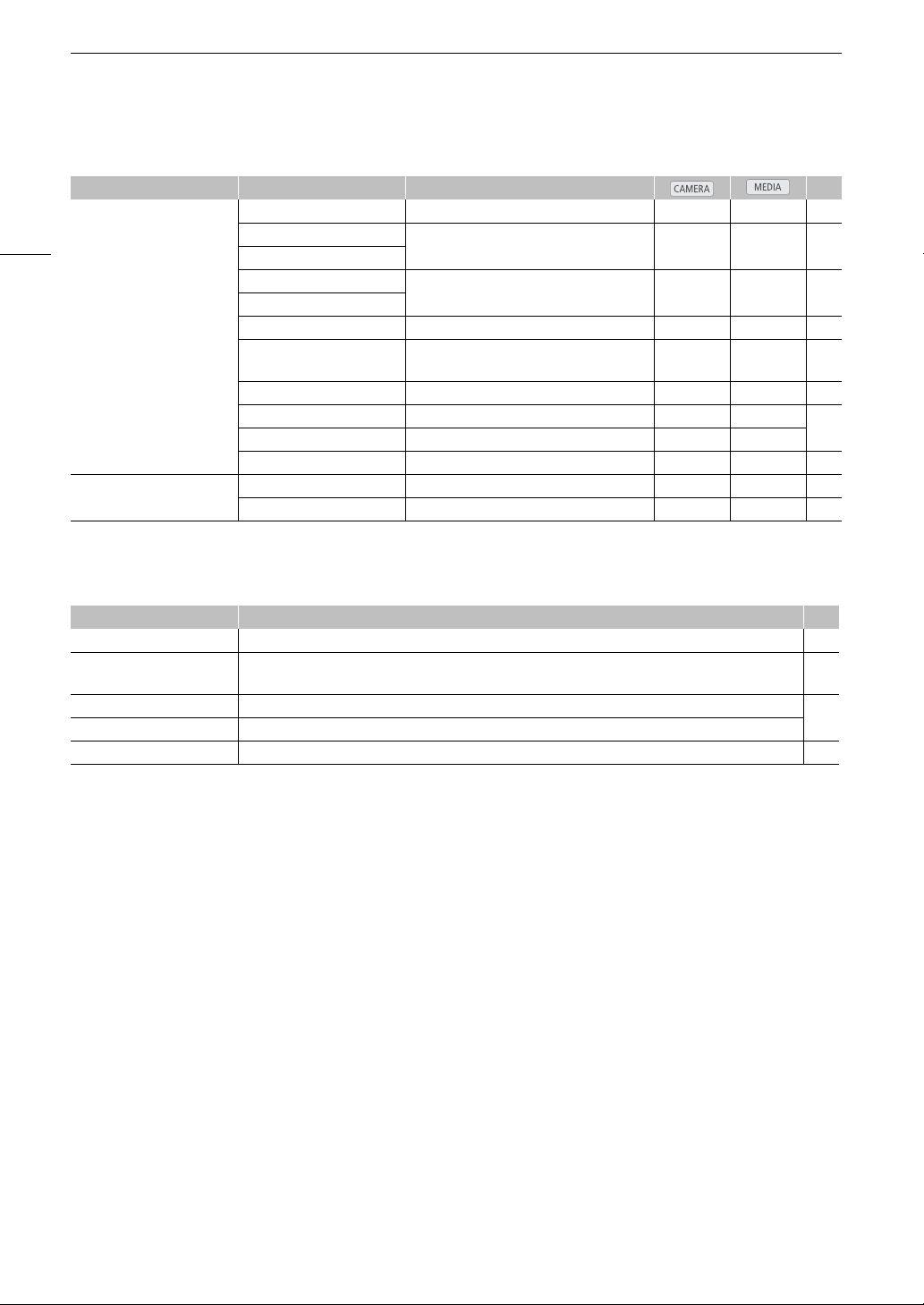
Menu Options
156
[¡ Audio Setup] menu
* Not available in the [Photos] index screen.
[¢ Video Setup] menu
* Not available for 24.00P recordings.
Menu item Submenu Setting options A
[Audio Input] [XLR Rec Channel] [CH1], [CH1/CH2] Ü – 94
[XLR1 Mic Trimming] [+12 dB], [+6 dB], [0 dB], [-6 dB], [-12 dB]
Ü – 95
[XLR2 Mic Trimming]
[XLR1 Mic Att.] [On], [Off]
Ü – 96
[XLR2 Mic Att.]
[XLR ALC Link] [Linked], [Separated] Ü – 95
[Limiter] [On], [Off]
Ü –
95,
96
[1 kHz Tone] [-12 dB], [-18 dB], [-20 dB], [Off] Ü – 100
[MIC Mode] [Automatic], [Manual] Ü –
96
[MIC Level] 0 to 99 (50) Ü –
[MIC Att.] [On], [Off] Ü – 97
[Audio Output]* [Channel] [CH1/CH2], [CH1/CH1], [CH2/CH2], [All/All] Ü Ü 97
[Headphone Volume] [Off], 1 to 15 (8) Ü Ü 131
Menu item Setting options A
[SDI Output] [HD], [SD]*, [Off] 143
[SYNC Output] [HD-Y], [HD Sync], [Blk Burst]*, [Composite]*, [Off] 92,
143
[HD Onscreen Disp.] [On], [Off]
144
[SD Onscreen Disp.]* [On], [Off]
[SD Output]* [Squeeze], [Letterbox], [Side Crop] 144
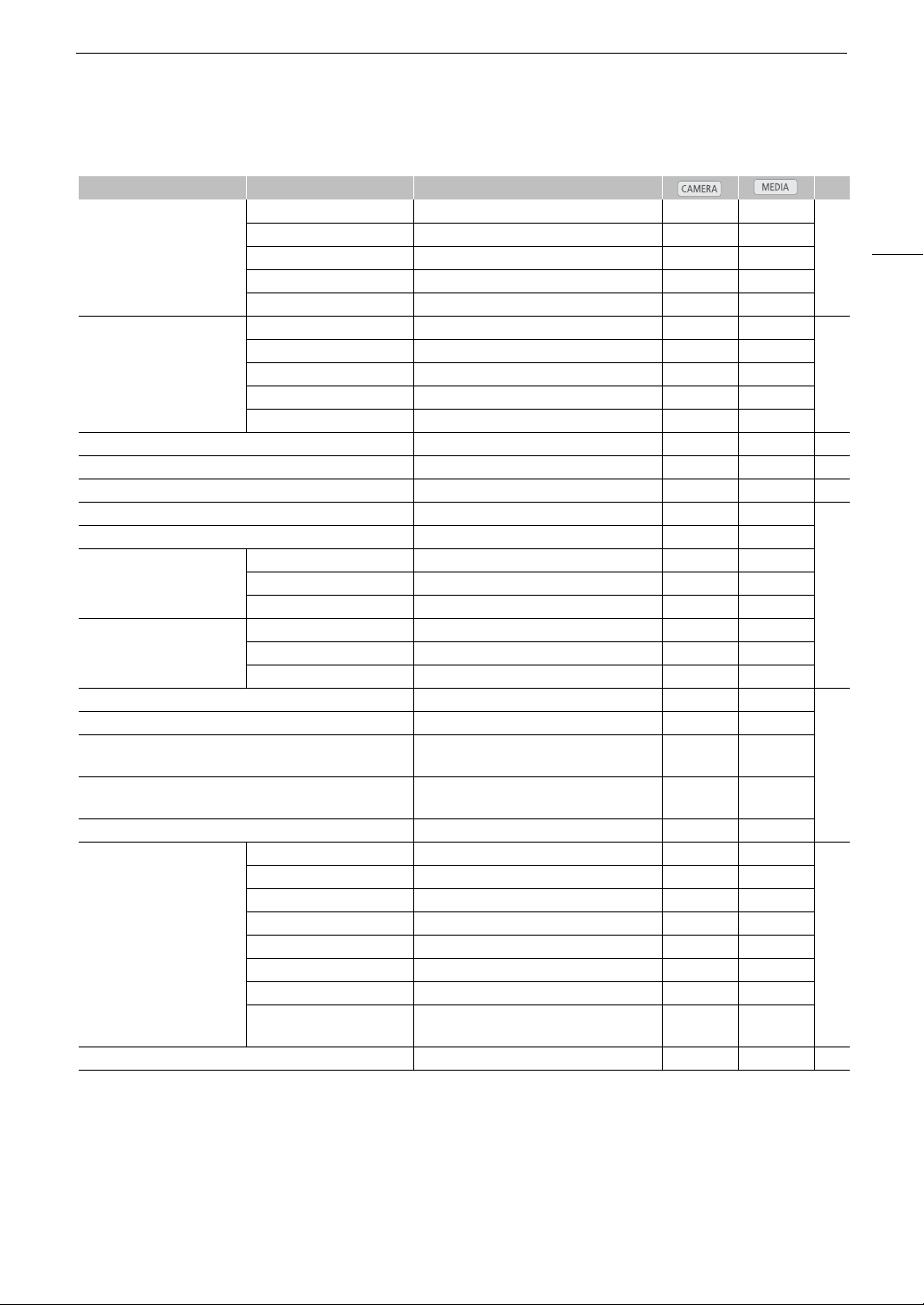
157
Menu Options
[£ LCD/VF Setup] menu
Menu item Submenu Setting options A
[LCD Setup] [Brightness] -99 to 99 (±0) Ü Ü
39
[Contrast] -99 to 99 (±0) Ü Ü
[Color] -20 to 20 (±0) Ü Ü
[Sharpness] 1 to 4 (2) Ü Ü
[Backlight] [Normal], [Bright] Ü Ü
[VF Setup] [Brightness] -99 to 99 (±0) Ü Ü
39
[Contrast] -99 to 99 (±0) Ü Ü
[Color] -20 to 20 (±0) Ü Ü
[Sharpness] 1 to 4 (2) Ü Ü
[Backlight] [Normal], [Bright] Ü Ü
[LCD/VF B&W] [On], [Off] Ü Ü 39
[LCD/VF Simul.] [On], [Off] Ü Ü 39
[View Assist.] [On], [Off] Ü – 58
[Peaking] [On], [Off] Ü –
80
[Select] [Peaking 1], [Peaking 2] Ü –
[Peaking 1] [Color] [White], [Red], [Yellow], [Blue] Ü –
[Gain] [Off], 1 to 15 (8) Ü –
[Frequency] 1 to 4 (2) Ü –
[Peaking 2] [Color] [White], [Red], [Yellow], [Blue] Ü –
[Gain] [Off], 1 to 15 (15) Ü –
[Frequency] 1 to 4 (1) Ü –
[Zebra] [On], [Off] Ü –
85
[Select] [Zebra 1], [Zebra 2], [Zebra 1&2] Ü –
[Zebra 1 Level] [70 ±5%], [75 ±5%], [80 ±5%], [85 ±5%],
[90 ±5%], [95 ±5%]
Ü –
[Zebra 2 Level] [70%], [75%], [80%], [85%], [90%], [95%],
[100%]
Ü –
[Zebra HD Output] [On], [Off] Ü –
[Markers] [Enable] [On], [Off] Ü –
84
[Center] [White], [Gray], [Off] Ü –
[Horizontal] [White], [Gray], [Off] Ü –
[Grid] [White], [Gray], [Off] Ü –
[Safety Zone] [White], [Gray], [Off] Ü –
[Safety Zone Area] [80%], [90%], [92.5%], [95%] Ü –
[Aspect Marker] [White], [Gray], [Off] Ü –
[Aspect Ratio] [4:3], [13:9], [14:9], [1.66:1], [1.75:1],
[1.85:1], [2.35:1]
Ü –
[Audio Level]* [On], [Off] – Ü –
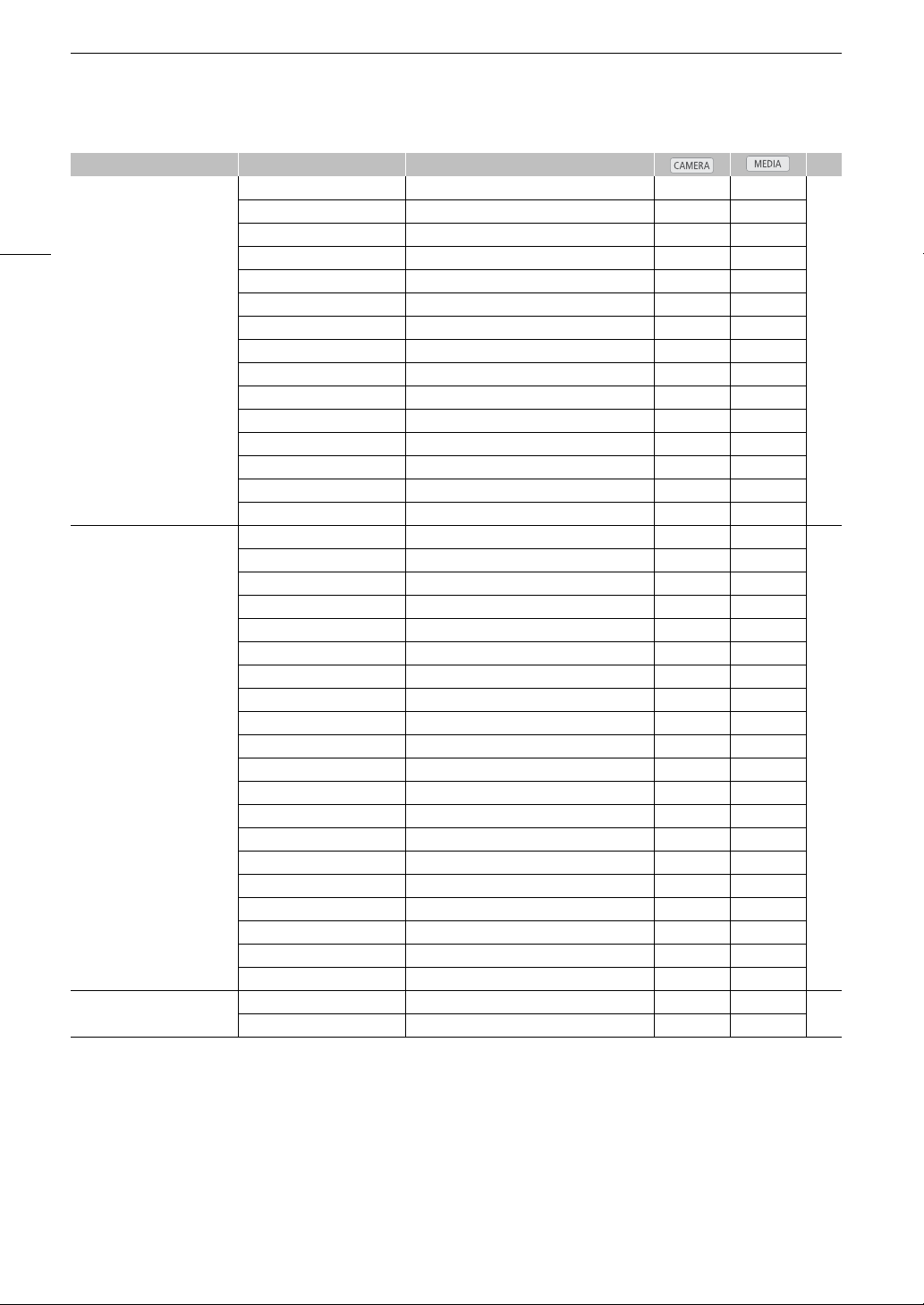
Menu Options
158
* Not available in the [Photos] index screen.
[Audio Level]: Displays the audio level meter when set to [On].
[Custom Display 1] settings
# [Light Metering]: When set to [On], the light metering icon (° or ®) is displayed if [~ Camera Setup]
> [Light Metering] is set to [Backlight] or [Spotlight].
[Custom Picture]: Displays the custom picture icon (/) when set to [On], indicating that a custom picture
profile will be recorded with a clip.
[Custom Display 1] # [Light Metering] [On], [Off] Ü – –
[Custom Picture] [On], [Off] Ü –
# [Focal Length] [On], [Off] Ü –
[ND Filter] [On], [Off] Ü –
# [AF Mode] [On], [Off] Ü –
[Key Lock] [On], [Off] Ü –
[White Balance] [On], [Off] Ü –
# [Exposure] [On], [Off] Ü –
# [Iris] [On], [Off] Ü –
[ISO/Gain] [On], [Off] Ü –
[Shutter] [On], [Off] Ü –
[Peaking] [On], [Off] Ü –
[Magnification] [On], [Off] Ü –
[View Assist.] [On], [Off] Ü –
# [Lens] [On], [Off] Ü –
[Custom Display 2] [Remaining Battery] [Warning], [Normal], [Off] Ü – –
[Remaining Rec Time] [Warning], [Normal], [Off] Ü –
[Rec Mode] [On], [Off] Ü –
[Genlock] [On], [Off] Ü –
[Time Code] [On], [Off] Ü –
[Interval Counter] [On], [Off] Ü –
[SD Card Status] [Warning], [Normal], [Off] Ü –
[Temperature/Fan] [On], [Off] Ü –
[Bit Rate/Resolution] [On], [Off] Ü –
[Frame Rate] [On], [Off] Ü –
[Character Rec] [On], [Off] Ü –
[Output Display] [On], [Off] Ü –
[SDI Rec Command] [On], [Off] Ü –
[User Memo] [On], [Off] Ü –
[User Bit] [On], [Off] Ü –
[Audio Output CH] [On], [Off] Ü –
[Audio Level] [On], [Off] Ü –
[Wi-Fi] [On], [Off] Ü –
[GPS] [On], [Off] Ü –
[Date/Time] [Date/Time], [Time], [Date], [Off] Ü –
[Metadata Display]* [Date/Time] [On], [Off] – Ü
–
[Camera Data] [On], [Off] – Ü
Menu item Submenu Setting options A

159
Menu Options
# [Focal Length]: Displays the current focal length of an attached EF lens when set to [On].
[ND Filter]: Displays the ND filter indicator when set to [On].
# [AF Mode]: When set to [On], displays the autofocus icon (AF) if the focus mode switch on the attached
EF lens is set to AF.
[Key Lock]: Displays the key lock icon (C) when set to [On].
[White Balance]: Displays the white balance indicator when set to [On].
# [Exposure]: Displays the exposure bar when set to [On].
# [Iris]: Displays the aperture setting when set to [On].
[ISO/Gain]: Displays the ISO speed or gain setting when set to [On].
[Shutter]: Displays the shutter speed setting when set to [On].
[Peaking]: Displays the peaking icon (J or K) when set to [On].
[Magnification]: Displays the screen magnification icon (^) when set to [On], indicating that the image on
the screen is being magnified.
[View Assist.]: Displays the view assistance icon ( ) when set to [On].
# [Lens]: Displays the lens warning icon (i) when set to [On].
[Custom Display 2] settings
[Remaining Battery]: Controls when the remaining battery indicator appears.
[Normal]: Always appears on the screen.
[Warning]: Appears only when there is a warning.
[Remaining Rec Time]: Displays the remaining recording time.
[Normal]: Always appears on the screen.
[Warning]: Appears only when there is a warning.
[Rec Mode]: Displays the recording operation indicator ([STBY] in record pause mode, for example) when set
to [On].
[Genlock]: Displays the Genlock synchronization icon (U) when set to [On].
[Time Code]: Displays the time code when set to [On].
[Interval Counter]: Displays the countdown during interval recording mode when set to [On].
[SD Card Status]: Controls when the SD card status indicator appears.
[Normal]: Always appears on the screen.
[Warning]: Appears only when there is a warning.
[Temperature/Fan]: Displays the cooling system warning icons ( and/or ) when set to [On].
[Bit rate/Resolution]: Displays the bit rate and resolution when set to [On].
[Frame Rate]: Displays the frame rate when set to [On].
[Character Rec]: Displays the character recording warning icon (S) when set to [On], indicating that the
onscreen displays will be recorded on the clip.
[
Output Display]: Displays the output display warning icon (T) when set to [On], indicating that the
onscreen displays will be output to an external monitor.
[SDI Rec Command]: Displays the status of the SDI recording command that is being output when
[w Other Functions] > [SDI Rec Command] is set to [On].
[User Memo]: Displays the user memo icon (Q) when set to [On], indicating that a user memo will be
recorded with a clip.
[User Bit]: Displays the user bit when set to [On].
[Audio Output CH]: Displays the audio output channel when set to [On].
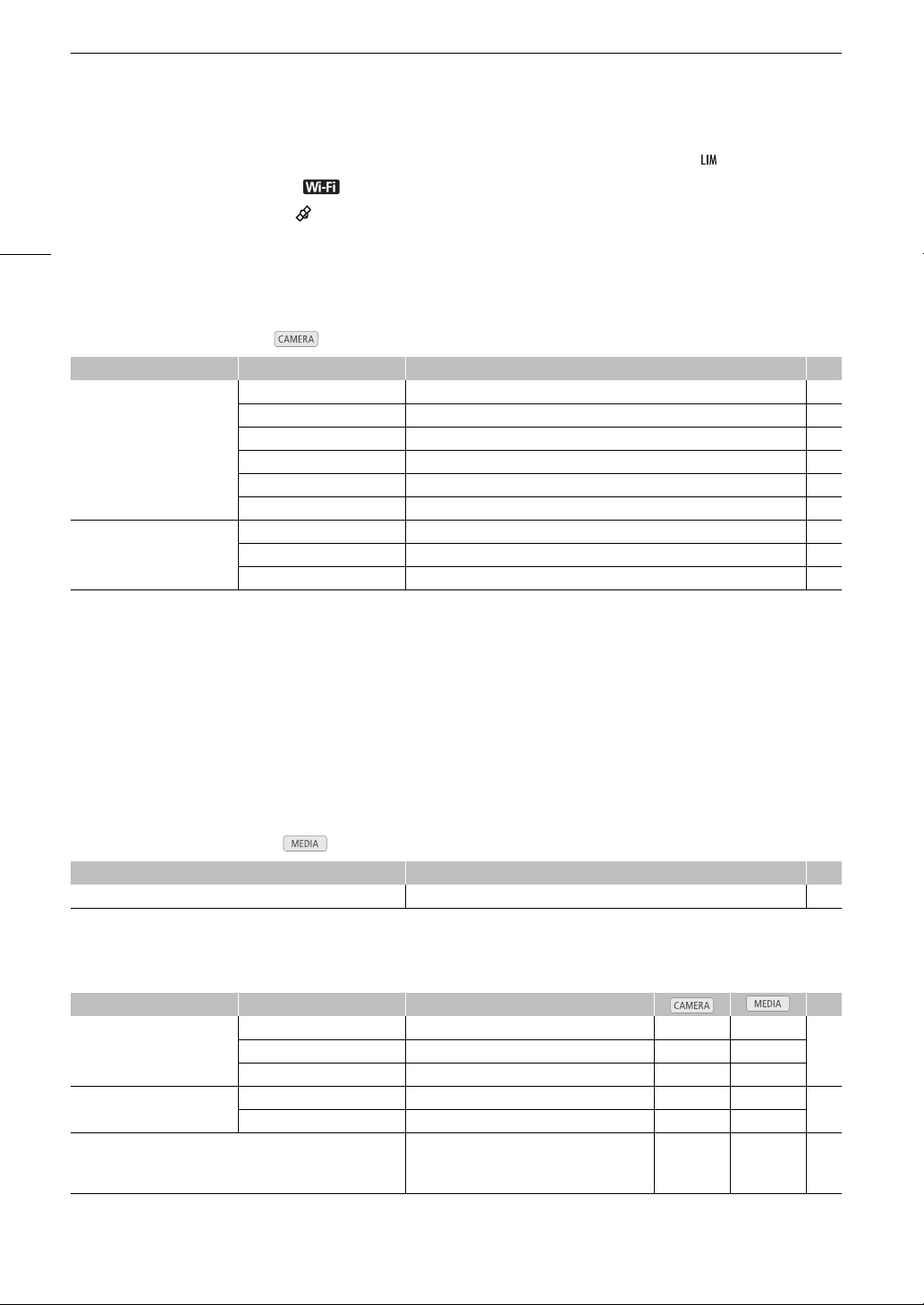
Menu Options
160
[Audio Level]: Displays the audio level indicator and, if activated, the audio peak limiter icon ( ) when set to [On].
[Wi-Fi]: Displays the Wi-Fi icon ( ) when set to [On].
[GPS]: Displays the GPS icon ( ) when set to [On].
[Date/Time]: Displays the date and time when set to [On].
[Metadata Display]: Displays the date and time of recording and/or the camera data (shutter speed, aperture
value, gain) during playback.
[¤ TC/UB Setup] menu ( mode only)
* In the following cases, the time code is set to [NDF] and this setting cannot be changed:
- [w Other Functions] > [24.00P] is set to [On]
- [w Other Functions] > [NTSC/PAL] is set to [PAL]
- [w Other Functions] > [NTSC/PAL] is set to [NTSC] and the frame rate is set to 23.98P
[24P TC/Sync]: Determines the frequency for time code input and output and for Genlock synchronization when
the frame rate is set to 23.98P or 24.00P.
[XF Legacy]: Synchronization mode compatible with Canon XF series camcorders. Synchronizes the time
code at a 30-frame signal and the Genlock signal at a 59.94i or 60.00i signal.
[Normal]: Standard synchronization mode. Synchronizes the time code at a 24-frame signal and the Genlock
signal at a 23.98P or 24.00P signal.
[¤ User Bit Setup] menu ( mode only*)
* Not available in the [Photos] index screen.
[w Other Functions] menu
Menu item Submenu Setting options A
[Time Code] [Mode] [Preset], [Regen.] 86
[Run] [Rec Run], [Free Run] 86
[DF/NDF]* [DF], [NDF] 87
[Setting] [Set], [Reset] 87
[TC In/Out] [In], [Out] 91
[24P TC/Sync] [XF Legacy], [Normal] –
[User Bit] [Rec Mode] [Internal], [External] 91
[Output Mode] [Fixed], [Pulldown] 92
[Type] [Setting], [Time], [Date] 89
Menu item Setting options A
[Output Mode] [Fixed], [Pulldown] 92
Menu item Submenu Setting options A
[Reset] [All Settings] [Cancel], [OK] Ü Ü
–[Camera Settings] [Cancel], [OK] Ü –
[Assignable Buttons]
1
[Cancel], [OK] Ü Ü
[Transfer Menu//] [Save To *] [Menu], [Menu+/] Ü Ü
126
[Load From *] [Menu], [Menu+/] Ü Ü
[Time Zone] List of world time zones.
[UTC-05:00 New York] or [UTC+01:00
Central Europe]
2
Ü Ü 27
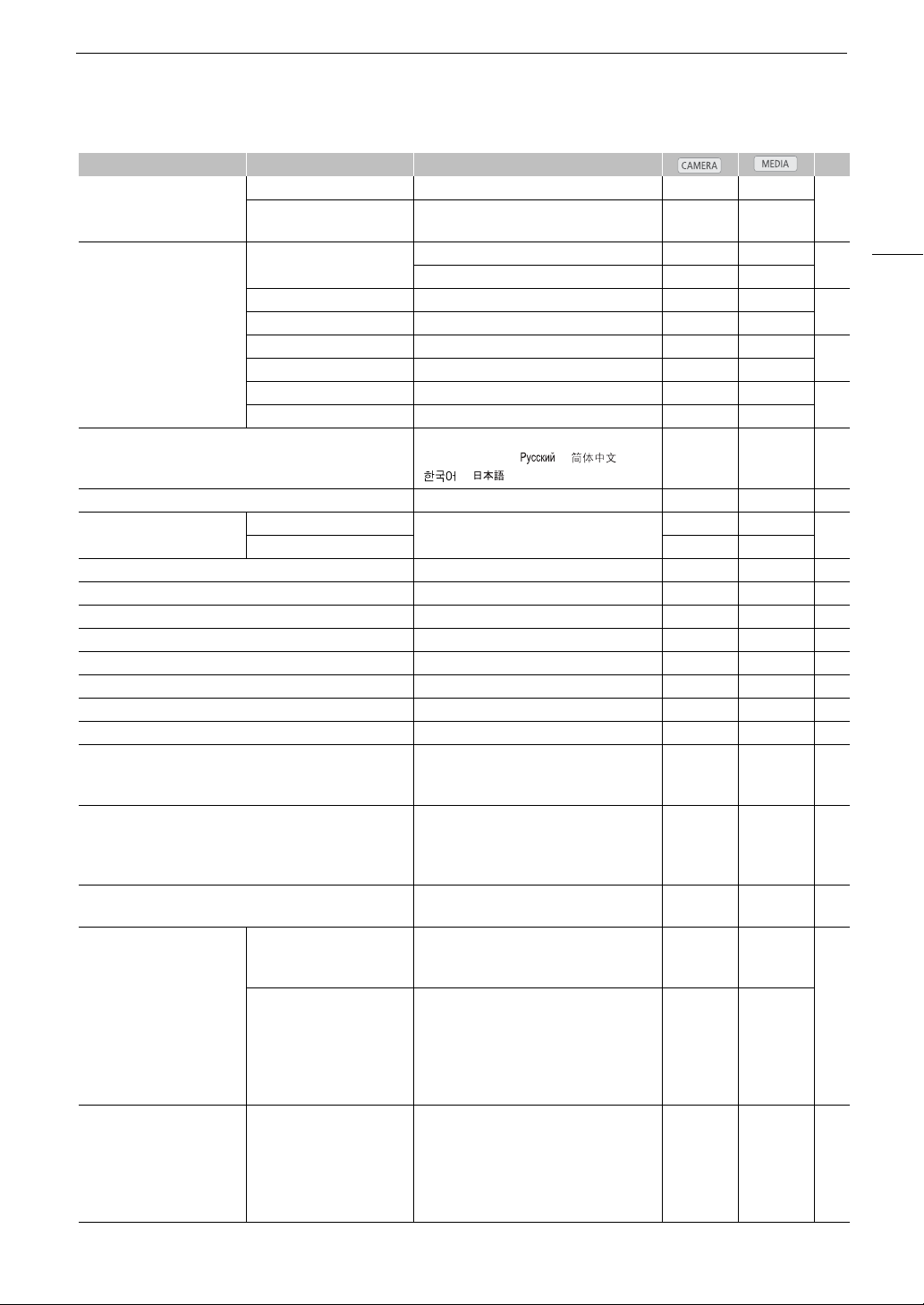
161
Menu Options
[Set Clock] [Date/Time] – Ü Ü
27
[Date Format] [YMD], [YMD/24H], [MDY], [MDY/24H],
[DMY], [DMY/24H]
2
Ü Ü
[WFM (LCD)]
1
[Setting] [WFM], [VS], [Edge Mon.], [Off] Ü –
101
[WFM], [VS], [Off] – Ü
[Waveform Monitor] [Line], [Line+Spot], [Field], [RGB], [YPbPr] Ü Ü
101
[Gain] [1x], [2x] Ü Ü
[Vectorscope] [Spot], [Normal] Ü Ü
102
[Gain] [1x], [5x] Ü Ü
[Edge Monitor] [Type 1], [Type 2] Ü –
102
[Gain] [Off], 1 to 15 (12) Ü –
[Language !] [Deutsch], [English], [Español], [Français],
[Italiano], [Polski], [ ], [],
[], []
Ü Ü 28
[REMOTE Term.] [RC-V100], [Standard] Ü Ü 49
[Assign Button]
1
[1] to [15] See footnote 3
Ü –
113
[1] to [9] – Ü
[Tally Lamp] [On], [Off] Ü – –
[Media Access LED] [On], [Off] Ü Ü –
[Fan] [On], [Automatic] Ü – 58
[Genlock Adjust.] -1023 to +1023 (000) Ü – –
[24.00P]
1
[On], [Off] Ü Ü 59
[NTSC/PAL]
1
[NTSC], [PAL]
2
Ü Ü 59
[Relay Rec] [On], [Off] Ü – 46
[Double Slot Rec] [On], [Off] Ü – 47
[Bit Rate/Resolution]
[50 Mbps 1920x1080]
, [50 Mbps 1280x720],
[35 Mbps 1920x1080], [35 Mbps 1440x1080],
[35 Mbps 1280x720], [25 Mbps 1440x1080]
Ü – 59
[Frame Rate] When [NTSC/PAL] is set to [NTSC]:
[59.94i]
, [59.94P], [29.97P], [23.98P]
When [NTSC/PAL] is set to [PAL]:
[50.00i]
, [50.00P], [25.00P]
Ü – 59
[Special Rec] [Interval Rec], [Frame Rec], [Pre Rec],
[Slow & Fast Motion], [Off]
Ü – 108
[Interval Rec] [Interval] [1 sec] to [10 sec], [15 sec], [20 sec],
[30 sec], [40 sec], [50 sec],
[1 min] to [10 min]
Ü –
108
[Rec Frames] When [24.00P] is set to [On] or [Frame Rate]
is set to [23.98P], [29.97P] or [59.94i]:
1, 3, 6, 9
When [Frame Rate] is set to [25.00P],
[50.00i], [50.00P] or [59.94P]:
2, 6, 12
Ü –
[Frame Rec] [Rec Frames] When [24.00P] is set to [On] or [Frame Rate]
is set to [23.98P], [29.97P] or [59.94i]:
1, 3, 6, 9
When [Frame Rate] is set to [25.00P],
[50.00i], [50.00P] or [59.94P]:
2, 6, 12
Ü – 109
Menu item Submenu Setting options A
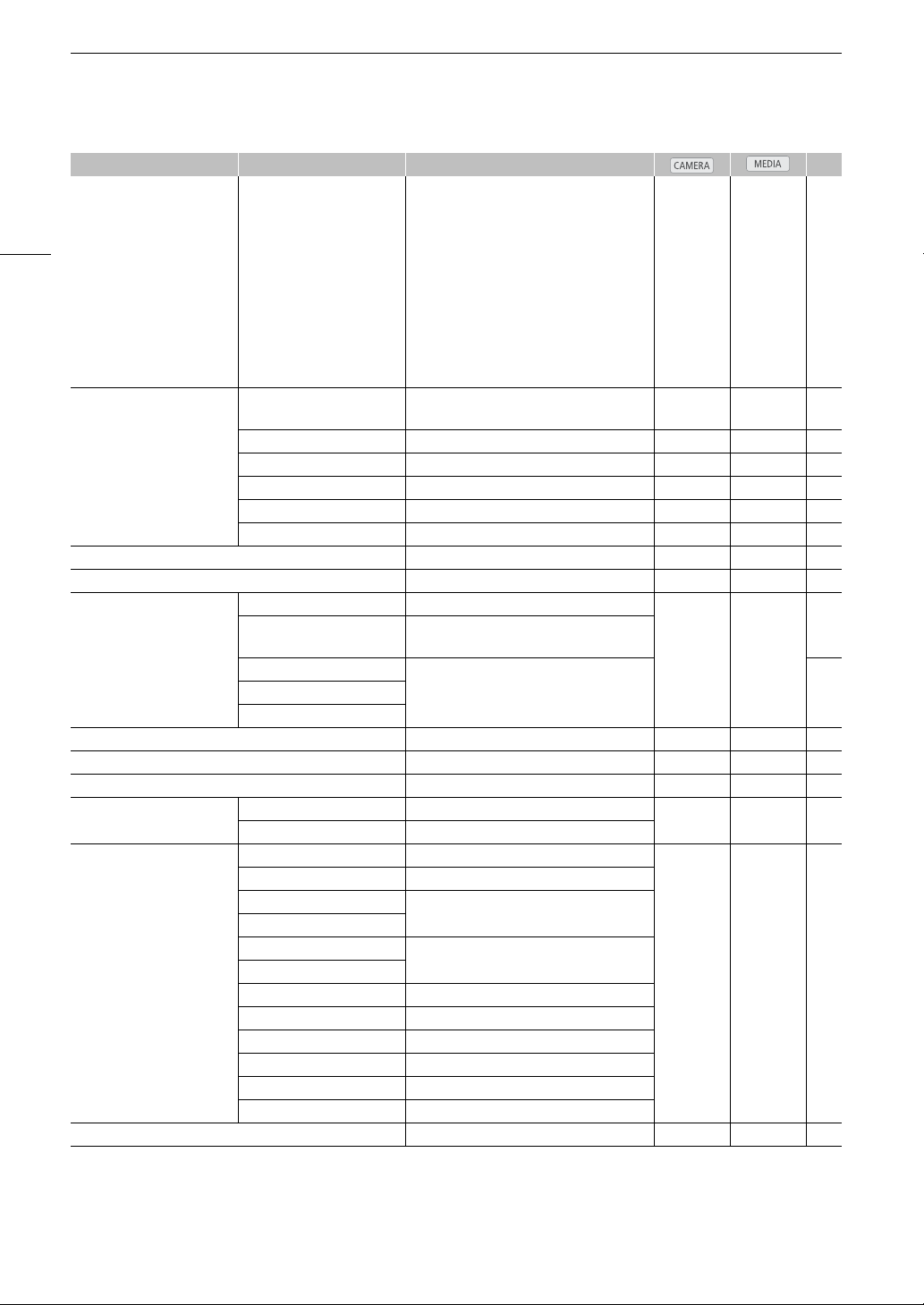
Menu Options
162
[Slow & Fast Motion] [S&F Frame Rate] When [24.00P] is set to [On] or [NTSC/PAL] is
set to [NTSC]:
1 to 30 (fps) (30) if [Bit Rate/Resolution] is
set to an option with 1080 vertical resolution
1 to 60 (fps) (30) if [Bit Rate/Resolution] is
set to an option with 720 vertical resolution
When [NTSC/PAL] is set to [PAL]:
1 to 25 (fps) (25) if [Bit Rate/Resolution] is
set to an option with 1080 vertical resolution
1 to 50 (fps) (25) if [Bit Rate/Resolution] is
set to an option with 720 vertical resolution
Ü – 110
[Clips] [Title Prefix] Two characters, each:
[A] to [Z], [0] to [9] ([AA])
Ü – –
[Number setting] [Set], [Reset] Ü – –
[Delete Last Clip] [Cancel], [OK] Ü – –
[Copy All Clips]
4
[Cancel], [OK] – Ü 135
[Copy $ Clips]
5
[Cancel], [OK] – Ü 136
[Delete All Clips]
4
[Cancel], [OK] – Ü 136
[Delete All $ Marks]
5
[Cancel], [OK] – Ü 135
[Rec Review] [Entire Clip], [Last 4 sec] Ü – 107
[Set Metadata] [Setting] [Remote], [SD Card]
Ü –
98
[User Memo] [Off], list of user memo files available on the
SD card
[Country Code] Letters A to Z, numbers 0 to 9, plus sign (+),
minus sign (-), colon (:), space
–[Organization]
[User Code]
[SDI Rec Command] [On], [Off] Ü – –
[Photo Numbering]
1
[Reset], [Continu.] Ü Ü 153
[Delete All Photos]
6
[Cancel], [OK] – Ü 151
[Add / File] [To Clip] [On], [Off]
Ü – 119
[To Photo] [On], [Off]
[Custom Function] [Shockless WB] [On], [Off]
Ü – 125
# [AE Response] [Fast], [Normal], [Slow]
[Control Dial] # [Iris], [ISO/Gain], [Off]
$ [ISO/Gain], [Off]
[Grip Ctrl Dial]
[Control Dial Dir.] [Reverse], [Normal]
[Grip Ctrl Dial Dir.]
[SELECT Dial Dir.] [Reverse], [Normal]
[Retract Lens] [On], [Off]
[F. Assist. B&W] [Both], [Magnify], [Peaking], [Off]
[Scan Reverse Rec] [Both], [Vertical], [Horizontal], [Off]
[Character Rec] [On], [Off]
[C START/STOP] [On], [Off]
[Reset Hour Meter] [Cancel], [OK] Ü Ü –
Menu item Submenu Setting options A
163
Menu Options
1
Not available in the [Photos] index screen.
2
The default value depends on the country/region or purchase.
3
Setting options for [Assign Button]: [(NONE)], [ONE-SHOT AF]*, [PUSH AUTO IRIS]*, [Iris Mode]*, [Iris +]*, [Iris -]*, [ND +], [ND -],
[AE Shift +]*, [AE Shift -]*, [Backlight]*, [Spotlight]*, [PEAKING], [ZEBRA], [WFM], [EDGE MON.], [MAGN.], [Color Bars], [Markers],
[LCD Setup], [VF Setup], [LCD/VF B&W], [Onscreen Display], [Add Shot Mark 1], [Add Shot Mark 2], [Add $ Mark], [Add %
Mark], [Time Code], [Time Code Hold], [Headphone +], [Headphone -], [Audio Output CH], [Audio Level], [Photo], [FUNC.],
[FUNC. Shutter], [FUNC. ISO/Gain], [FUNC. WB], [My Menu], [Initialize Media], [LENS EXCHANGE], [User Setting (NONE)].
* - # only.
The default settings are as follows. [1]: [MAGN.], [2]: [PEAKING], [3]: [ZEBRA], [4]: [WFM], [5]: [Headphone +], [6]: [Headphone -],
[7]: [MAGN.], [8]: [WFM], [9]: [EDGE MON.], [10] to [15]: [(NONE)].
4
Available in the clip index screen only.
5
Available in the clip index screen and [$ Mark] index screen only.
6
Available in the [Photos] index screen only.
7
Available only when the optional WFT-E6 or WFT-E8 Wireless File Transmitter is attached to the camcorder.
8
Available only when the optional GP-E1 GPS Receiver is attached to the camcorder.
[Reset]: Reset various camcorder settings.
[All Settings]: Resets all the camcorder’s settings to default settings, except for the hour meter.
[Camera Settings]: Resets the white balance, iris (# only), ISO speed, gain, shutter speed,
[~ Camera Setup] settings and custom picture settings to default settings.
[Assignable Buttons]: Resets the assignable buttons to default settings.
[Tally Lamp]: Allows you to set whether the tally lamp illuminates while the camcorder is recording.
[Media Access LED]: Allows you to set whether the CF card access indicators or the SD card access indicator
illuminates while the camcorder is accessing a CF card or SD card.
[Genlock Adjust.]: The phase difference between the external Genlock signal and the camcorder is initially set to
0. This function allows you to adjust it within the range of approx. ±0.4 H (-1023 to 1023). When setting to 1000
or more or -1000 or less, set the first field to 10 or -10, respectively.
[Clips] settings
[Title Prefix]: Determines the first 2 characters of the clip name. Combined with the [Number Setting] setting,
this constitutes the 6-character clip name.
[Number Setting]: Determines the last 4 digits of the clip name. Combined with the [Title Prefix] setting, this
constitutes the 6-character clip name. Select [Set] to assign a desired number to the first clip you record or
select [Reset] to reset the number to [0001].
The numerals increase every time a clip is recorded.
[Delete Last Clip]: Deletes the last clip you recorded. This setting option will not appear if you turned the
camcorder off since recording the last clip.
[Country Code]: This identifier is the country code defined by ISO-3166-1 and is to be entered starting from the left.
[Wi-Fi Remote]
7
[Set Up New] For details refer to “WFT-E6/WFT-E8
Wireless File Transmitter - Guide for the
Canon EOS C300 models” (PDF file).
Ü – –
[Select]
[Edit]
[Camera Settings]
[Select User]
[User Setting]
[GPS]
8
[Setting] [On], [Off] Ü –
105
[Auto Time Setting] [On], [Off] Ü –
[Initialize Media] [CF A] [Cancel], [OK]
Ü Ü
45[CF B]
[SD Card] [Complete], [Quick] Ü Ü
# [Lens Firmware] – Ü – 35
[Firmware] – Ü – –
Menu item Submenu Setting options A
Menu Options
164
[Organization]: This identifier represents the organization that owns or operates the camcorder and can be
obtained by registering with the SMPTE Registration Authority. If the organization is not registered, enter [0000].
[User Code]: This identifier designates the user. Leave this blank if [Organization] is set to [0000].
[SDI Rec Command]: When you connect the camcorder to another device using the HD/SD SDI terminal, if you
start or stop recording with the camcorder, the other device will also start or stop recording.
[Reset Hour Meter]: The camcorder has two “hour meters” – the first keeps track of total operation time and the
second keeps track of operation time since the last time the second hour meter was reset with this function.
[Firmware]: You can verify the current version of the camcorder’s firmware. This menu option is usually unavailable.
[ My Menu] ( mode only)
Menu item Submenu Setting options A
[Edit] [Register] [Cancel], [OK] 30
[Move] [Cancel], [OK]
[Delete] [Cancel], [OK]
[Reset All] [Cancel], [OK]
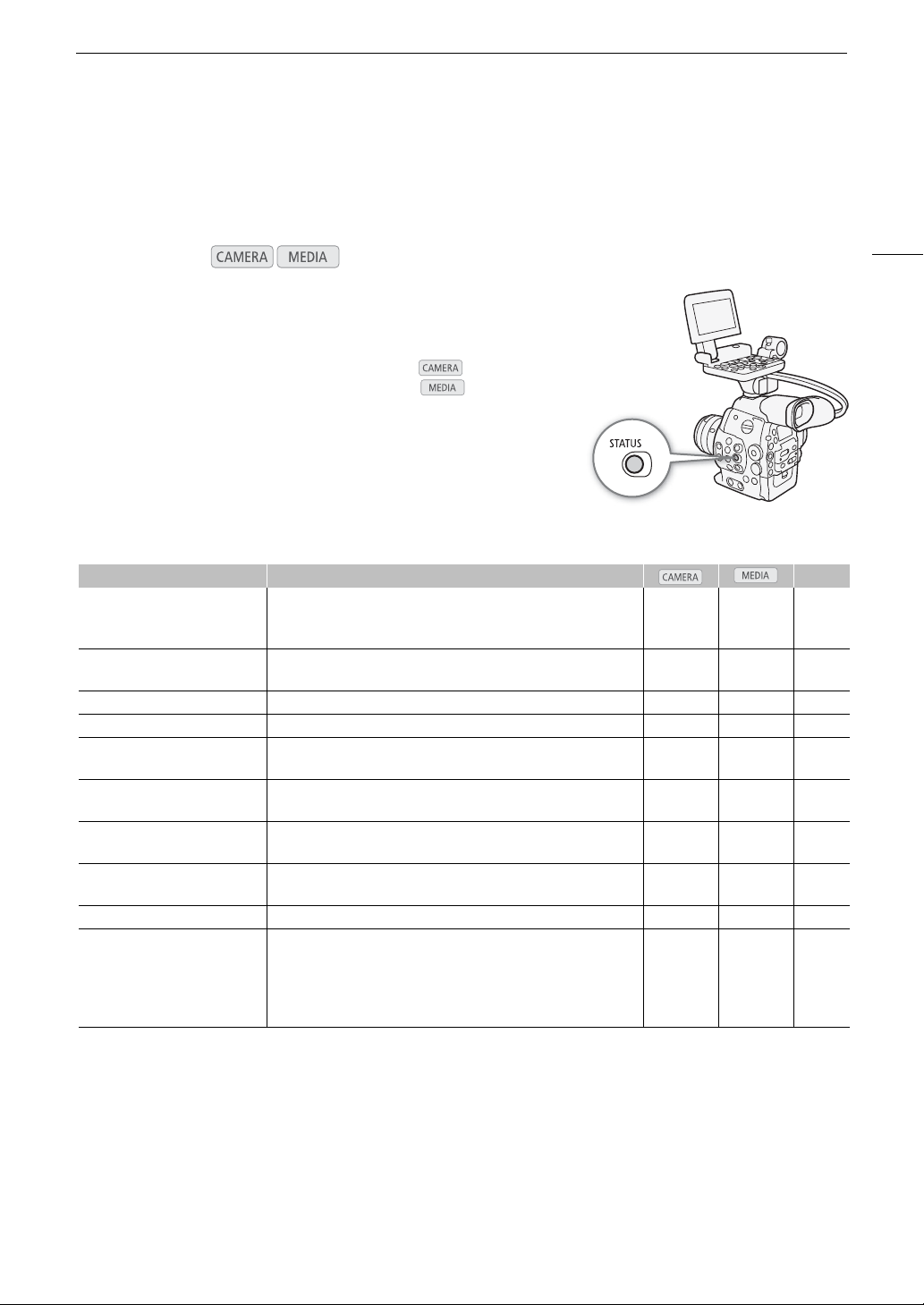
165
Displaying the Status Screens
Displaying the Status Screens
You can use the status screens to check the camcorder’s various recording- and playback-related settings. You
can also output the status screens on an external monitor.
1 Press the STATUS button.
• The status screen most recently displayed will appear unless you
turned off the camcorder or changed the operating mode. In such
case, the [Camera] status screen appears in mode and the
[Assign Button 1/2] status screen appears in mode.
2 Push the joystick up/down or use the SELECT dial to scroll
through the status screens.
3 When you are finished, press the STATUS button again to exit
the status screens.
• Alternatively, you can press the MENU or CUSTOM PICTURE
button. Doing so will exit the status screen and open the respective menu.
,
1
# only.
2
Does not appear in the [Photos] index screen.
3
These screens appear only after a custom picture file has been selected.
4
This screen appears only when an optional GP-E1 GPS Receiver is attached to the camcorder.
5
These screens appear only when the optional WFT-E6 or WFT-E8 Wireless File Transmitter is attached to the camcorder and an
active access point has been activated with the [w Other Functions] > [Wi-Fi Remote] setting.
Operating modes:
Status screen Description A
[Camera] Displays settings related to recording, such as ISO speed/gain, iris
1
and shutter speed increments, peripheral illumination correction
1
and
attached lens model information
1
.
Ü – 166
[Assign Button 1/2],
[Assign Button 2/2]
Allows you to verify the current function of each assignable button. Ü Ü
2
166
[Audio] Displays settings related to audio. Ü Ü 167
[Media] Displays information about the recording media. Ü Ü 167
[Video] Displays the settings for the video terminals and which special
recording mode is in effect.
Ü Ü 168
[Metadata 1/2], [Metadata 2/2] Displays the user memo and other metadata that will be recorded
with clips.
Ü – 168
[Battery/Hour Meter] Allows you to check the remaining battery time, battery life and how
long the camcorder has been in operation.
Ü Ü 169
[/ Data 1/3], [/ Data 2/3],
[/ Data 3/3]
3
Displays the settings for the custom picture file that will be
embedded into clips.
Ü –
169,
170
[GPS Information Display]
4
Displays GPS information. Ü – 171
[Wi-Fi Remote 1/4] to
[Wi-Fi Remote 4/4]
5
Displays settings related to the configuration of the optional wireless
file transmitter and the Wi-Fi network setup. For more details,
download the “WFT-E6/WFT-E8 Wireless File Transmitter - Guide for
the Canon EOS C300 models” (PDF file) from your local Canon Web
site and follow the instructions to complete the necessary setup.
Ü – –

Displaying the Status Screens
166
[Camera] Status Screen ( mode only)
[Assign Button 1/2], [Assign Button 2/2] Status Screen
* Assignable buttons 10 to 15 do not appear in mode.
1
2
3
4
5
6
7
8
1 ISO speed/Gain increment (A 65)
2 # Iris mode (A 69)
3 # Iris increment (A 69)
4 Shutter speed increment (A 63)
5 # Correction for peripheral illumination
(A 34)
6 # AF mode (A 78)
7 # Flicker reduction (A 64)
8 # Lens model name info (A 32)
1
1
1 Assignable buttons 1 to 15* (A 113)
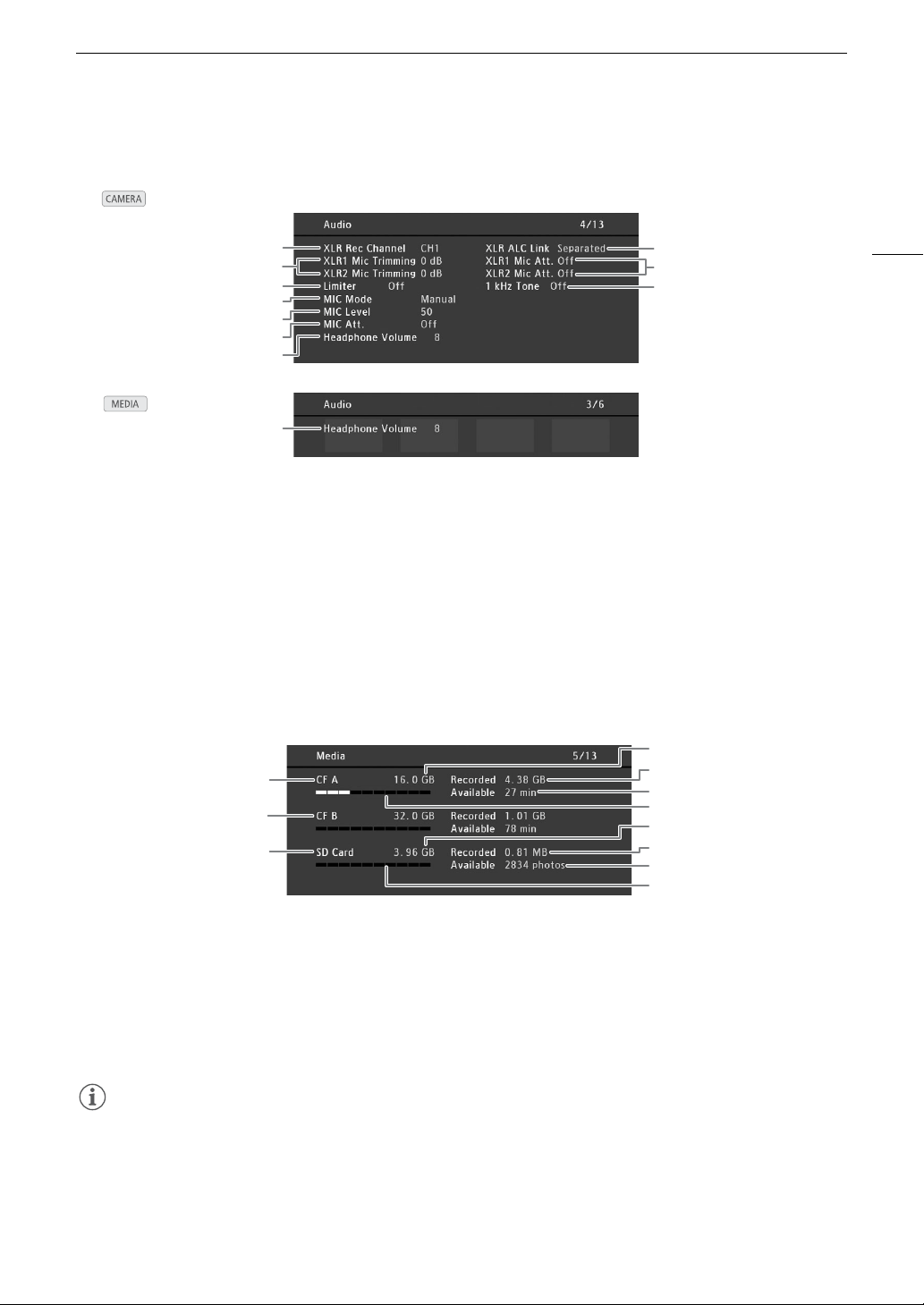
167
Displaying the Status Screens
[Audio] Status Screen
[Media] Status Screen
NOTES
• Depending on the recording media, the total space displayed on the screen may differ from the nominal
capacity listed on the CF card or SD card.
1
8
9
10
7
3
2
4
5
6
7
In mode
In mode
1 XLR terminal recording channel (A 94)
2 Microphone sensitivity (XLR terminal) (A 95)
3 Audio peak limiter (A 95, 96)
4 Microphone mode (MIC terminal) (A 96)
5 Microphone recording level (MIC terminal) (A 96)
6 Microphone attenuator (MIC terminal) (A 97)
7 Headphone volume (A 131)
8 Linking recording levels of XLR terminals (A 95)
9 Microphone attenuator (XLR terminal) (A 96)
10 Audio reference signal (A 100)
1
6
4
7
8
5
9
10
11
2
3
1 CF card A
2 CF card B
3 SD card
4 Total space on CF card A
5 Used space on CF card A
6 Available recording time on CF card A
7 Approximate used space on CF card A
8 Total space on SD card
9 Used space on SD card
10 Available number of shots on SD card
11 Approximate used space on SD card
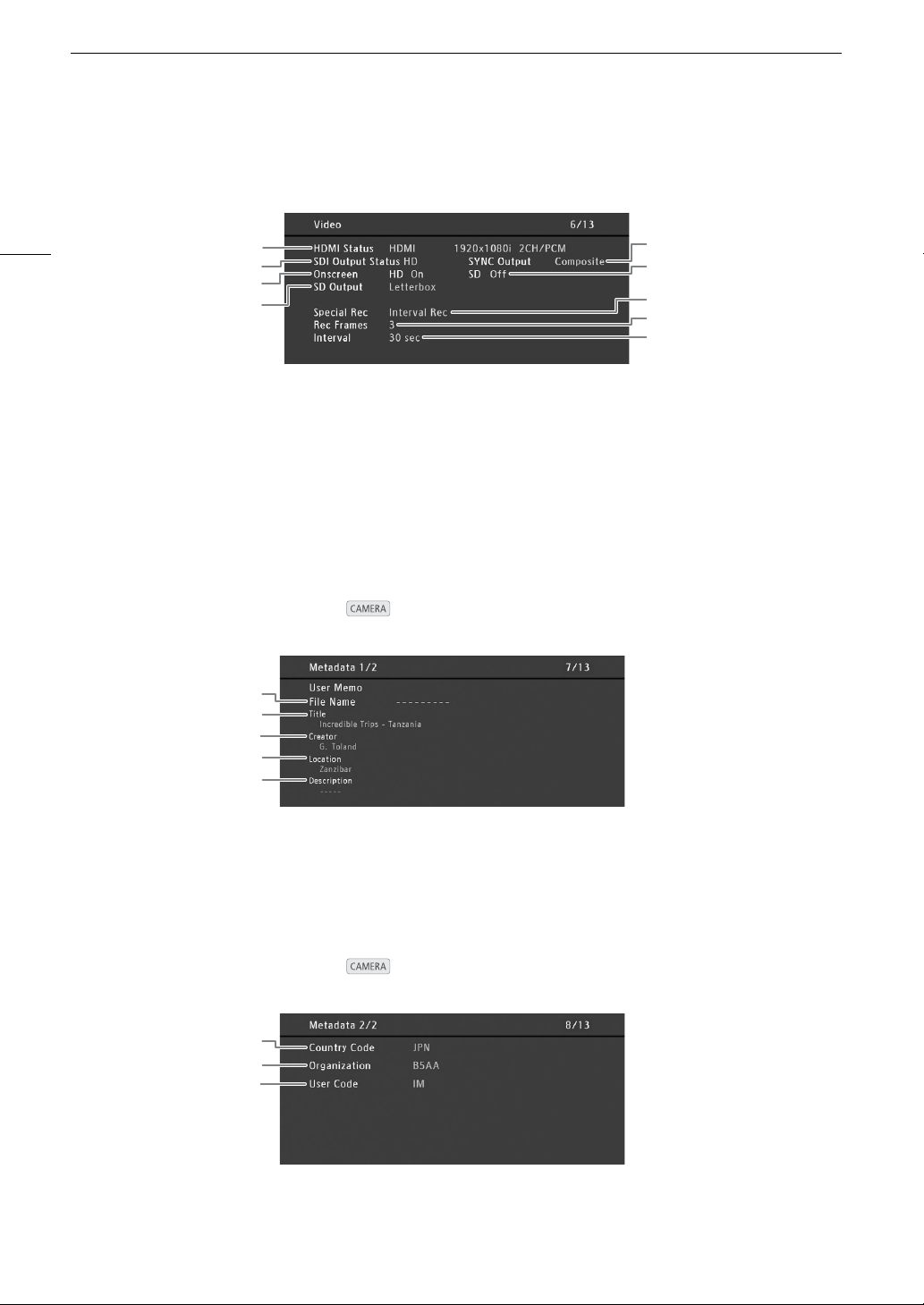
Displaying the Status Screens
168
[Video] Status Screen
[Metadata 1/2] Status Screen
( mode only)
[Metadata 2/2] Status Screen ( mode only)
1
6
7
5
8
9
2
3
4
1 HDMI OUT terminal status
2 HD/SD SDI terminal output setting (A 143)
3 Superimposing onscreen displays to HD output
(A 144)
4 SD output setting (A 144)
5 SYNC OUT terminal output status (A 143)
6 Superimposing onscreen displays to SD output
(A 144)
7 Special recording mode (A 108)
8 Number of frames for interval recording mode
(A 108) or frame recording mode (A 109)
9 Interval length for interval recording mode
(A 108)
1
3
2
5
4
1 User memo file name (A 98)
2 Clip title
3 Camera operator
4 Filming location
5 Clip description
1
3
2
1 Country code (A 163)
2 Organization code
3User code

169
Displaying the Status Screens
[Battery/Hour Meter] Status Screen
[/ Data 1/3] Status Screen
( mode only)
1
2
3
4
5
1 Remaining recording time
2 Remaining recording time indicator
3 Battery life indicator
4 Total operation time (A 164)
5 Operation time since using [Reset Hour Meter]
(A 164)
1
3
2
5
6
7
8
9
4
1 Custom picture file name (A 116)
2Gamma (A 119)
3 Master pedestal (A 120)
4 Master black RGB levels (A 120)
5 Black gamma settings (level, range and point)
(A 120)
6 Knee settings (slope, point and saturation)
(A 121)
7 Skin detail settings (hue, chroma, area and Y
level) (A 122)
8 Selective NR settings (hue, chroma, area and Y
level) (A 123)
9 Low key saturation (A 121)
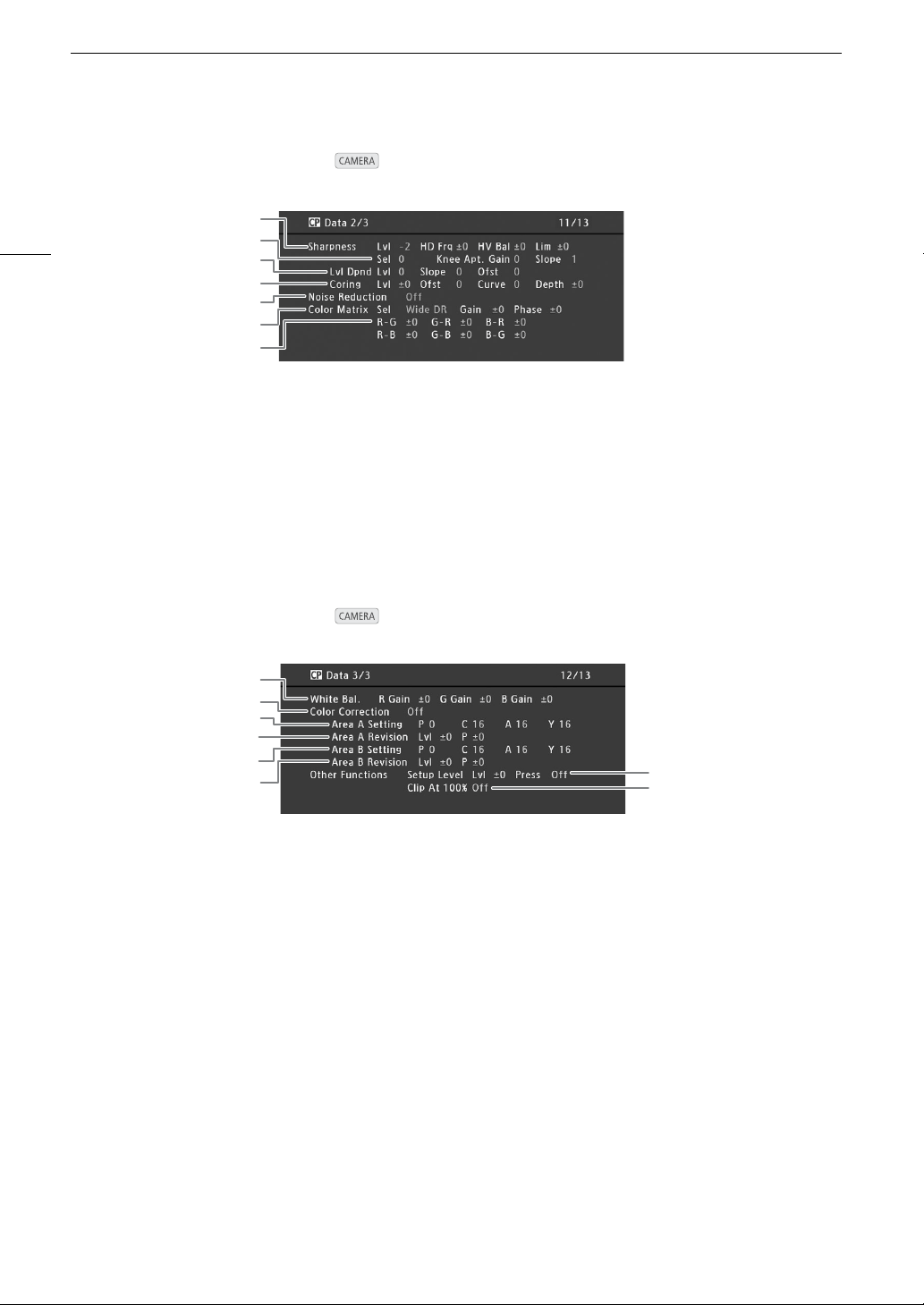
Displaying the Status Screens
170
[/ Data 2/3] Status Screen ( mode only)
[/ Data 3/3] Status Screen ( mode only)
1
3
2
5
6
7
4
1 Sharpness settings (level, horizontal detail
frequency, horizontal/vertical detail balance, and
limit) (A 121)
2 Sharpness settings (select, knee aperture gain
and slope) (A 121)
3 Level depend settings (level, slope and offset)
(A 122)
4 Coring settings (level, offset, curve and depth)
(A 121)
5Noise reduction (A 122)
6 Color matrix settings (select, gain and phase)
(A 123)
7 Color matrix settings (A 123)
1
3
2
5
6
7
8
4
1 White balance RGB gain (A 123)
2 Color correction (A 123)
3 Area A settings (phase, chroma, area and Y level)
(A 123)
4 Area A revision settings (level and phase)
(A 123)
5 Area B settings (phase, chroma, area and Y level)
(A 123)
6 Area B revision settings (level and phase)
(A 123)
7 Setup level and press (A 124)
8 Clip at 100% (A 124)
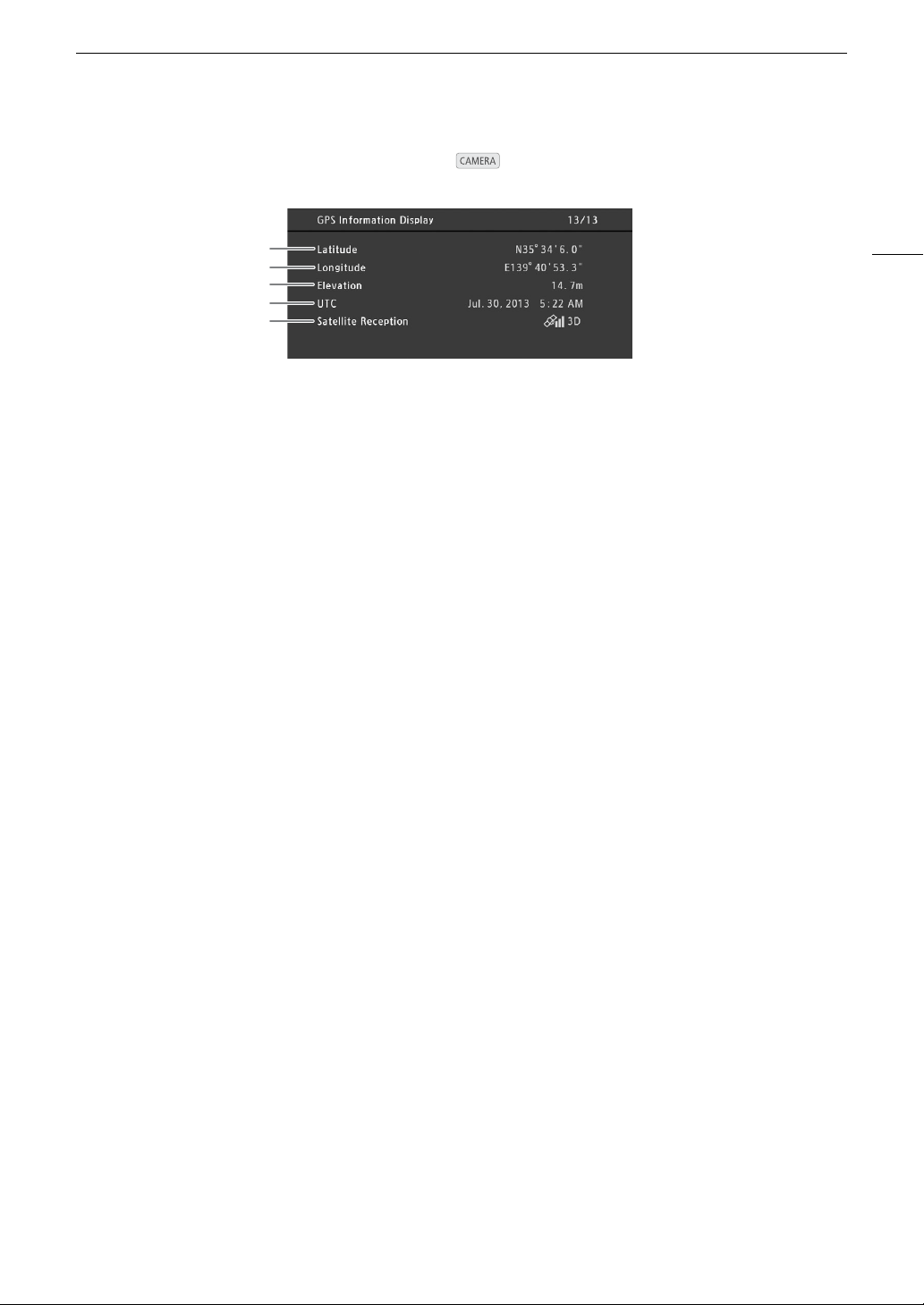

Troubleshooting
172
Troubleshooting
If you have a problem with your camcorder, refer to this section. Consult your dealer or a Canon Service Center
if the problem persists.
Power source
The camcorder will not turn on or it turns off by itself.
- The battery pack is exhausted. Replace or charge the battery pack.
- Remove the battery pack and reattach it correctly.
Shortly after turning it on, the camcorder turns off on its own.
- You are using a DC coupler or a battery pack that is not compatible for use with this camcorder. Use a recommended
battery pack (A 184).
Cannot charge the battery pack.
- The temperature of the battery pack is outside the charging range. If the battery pack’s temperature is below 0 °C
(32 °F), warm it before charging it; if it is above 40 °C (104 °F), let the battery pack cool down before charging it.
- Charge the battery pack in temperatures between 0 °C and 40 °C (32 °F and 104 °F).
- The battery pack is faulty. Replace the battery pack.
The battery pack is exhausted extremely quickly even at normal temperatures.
- Check the [Battery/Hour Meter] status screen (A 169) to see whether the battery pack is at the end of its service life.
If so, buy a new battery pack.
Recording
The camcorder’s controls are not responsive/disabled
- The grip unit’s plug may not be correctly connected to the camcorder. When attaching the grip unit to the camcorder,
make sure the grip unit’s plug is firmly inserted all the way into the connection terminal on the camcorder (A 41). If
you changed the angle of the grip unit, make sure you did not partially disconnect the plug by mistake.
- When the Q switch is set to C, all buttons except for the START/STOP button are locked and cannot be
operated. (Depending on the [Other Functions] > [Custom Function] > [C START/STOP] setting, the START/STOP
may be locked as well.) Set the Q switch to CAMERA.
Pressing the START/STOP button will not start recording.
- The CF card is full or it already contains the maximum number of clips (999 clips). Delete some clips (A 136) or save
your clips (A 145) and initialize the CF card (A 45) to free some space. Alternatively, replace the CF card.
- The camcorder is in lens exchange mode. Press the assignable button set to [LENS EXCHANGE] to exit this mode.
The point where the START/STOP button was pressed does not match the beginning/end of the recording.
- There is a slight interval between pressing the START/STOP button and the actual start/end of recording. This is not a
malfunction.
The camcorder will not focus.
- The viewfinder is not adjusted. Use the dioptric adjustment dial to make the proper adjustment (A 38).
- The lens is dirty. Clean the lens with a soft lens-cleaning cloth.
When a subject flits across in front of the lens, the image appears slightly bent.
- This is a phenomenon typical of CMOS image sensors. When a subject crosses very quickly in front of the camcorder,
the image may seem slightly warped. This is not a malfunction.
Bright red, green or blue dots appear on the screen.
- The camcorder’s CMOS sensor is a delicate piece of precision engineering. Direct exposure of the sensor to ion rays or other
types of cosmic radiation may affect it and this may rarely appear as bright colored dots on the screen. This is the nature of
CMOS image sensors and does not represent a malfunction. Adjusting the black balance (A 48) may help solve the problem.
- The effects of the damage may be more noticeable when the camcorder is used in places subject to high
temperatures, when a high ISO speed or gain level is used and when slow shutter speeds are used.
Changing between recording (ÜREC) and record pause (STBY) takes longer than usual.
- When the CF card contains a large number of clips, some operations may take longer than usual. Save your clips
(A 145) and initialize the CF card (A 45). Alternatively, replace the CF card.
The camcorder cannot record to a CF card properly.
- This may occur as recordings are made and deleted over time. Save your clips (A 145) and initialize the CF card (A 45).
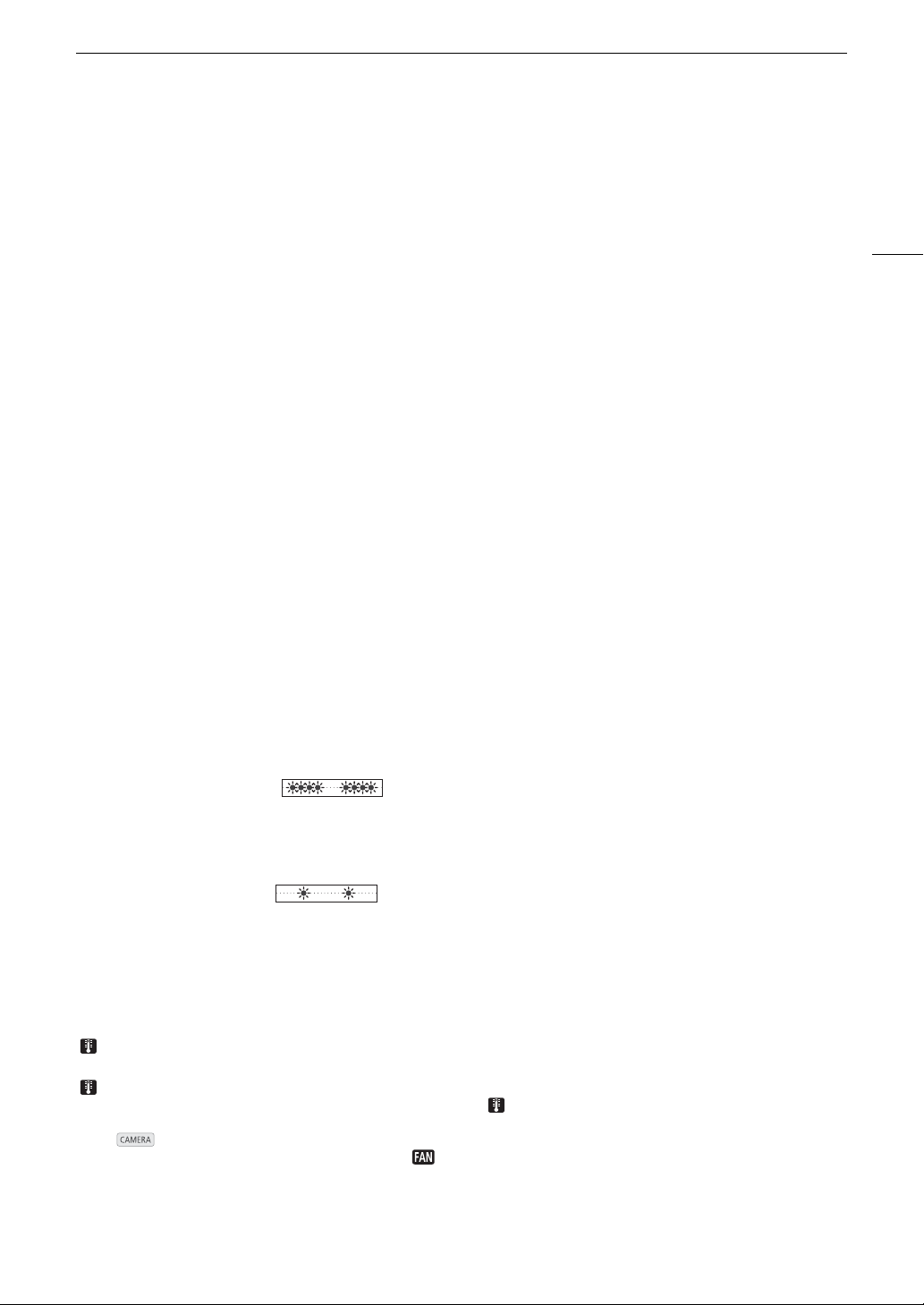
173
Troubleshooting
After using the camcorder for a long time, it becomes hot.
- The camcorder may become hot after using it continuously for long periods of time; this is not a malfunction. If the
camcorder becomes unusually hot or it becomes hot after using it only for a short while, it may indicate a problem with
the camcorder. Consult a Canon Service Center.
The built-in ND filter is stuck and does not change.
- The electronic motor that drives the ND filter may not be working correctly. As an emergency measure, you can
operate the ND filter manually (A 182). Eventually, consult a Canon Service Center.
Playback
Cannot delete a clip.
- You cannot delete clips with an $ mark. Remove the $ mark (A 135) to delete the clip.
Deleting clips takes longer than usual.
- When the CF card contains a large number of clips, some operations may take longer than usual. Save your clips
(A 145) and initialize the CF card (A 45).
Cannot delete a photo.
- The photo is protected. Remove the protection (A 151).
- The LOCK switch on the SD card is set to prevent accidental erasure. Change the position of the LOCK switch.
Cannot copy clips.
- There is not enough available space on the CF card being copied to or the CF card already contains the maximum
number of clips (999 clips). Delete some clips (A 136) to free some space or replace the CF card.
Indicators and Onscreen Displays
ì appears in red on the screen.
- Battery pack is exhausted. Replace or charge the battery pack.
í appears on the screen.
- The camcorder cannot communicate with the battery pack attached so the remaining battery time cannot be
displayed.
The tally lamp does not illuminate.
- Set [Other Functions] > [Tally Lamp] to [On].
The tally lamp flashes quickly. (4 flashes per second)
- The battery pack is exhausted. Replace or charge the battery pack.
- There is not enough available space on the CF card. Delete some clips (A 136) to free some space or replace the CF
card.
- A system error has occurred. Turn off the camcorder and back on again. If this does not solve the problem, consult a
Canon Service Center.
The tally lamp flashes slowly. (1 flash per second)
- The combined available space on both CF cards is low. Replace the CF card that is not being recorded onto.
* appears in red on the screen.
- An SD card error occurred. Turn off the camcorder. Remove and reinsert the SD card. Initialize the SD card if the
display does not change back to normal.
- The SD card is full. Replace the SD card or delete some photos (A 150) to free some space on the SD card.
Even after stopping recording, the CF2/CF3 access indicator stays illuminated in red.
- The clip is being recorded. This is not a malfunction.
appears in yellow on the screen.
- The camcorder’s internal temperature has reached a predetermined level. You can continue using the camcorder.
appears in red on the screen.
- The camcorder’s internal temperature has risen further while appeared in yellow on the screen.
- If [Other Functions] > [Fan] is set to [On], turn off the camcorder and wait until the temperature has decreased.
- In mode, when [Other Functions] > [Fan] is set to [Automatic] and the cooling fan is turned off while you are
shooting, the fan will be activated automatically ( appears on the screen).
i appears on the screen.
- The camcorder and lens cannot communicate normally. Clean the lens’s contacts and reattach the lens.

Troubleshooting
174
Picture and Sound
Screen displays turn on and off repeatedly.
- The battery pack is exhausted. Replace or charge the battery pack.
- Remove the battery pack and reattach it correctly.
Abnormal characters appear on the screen and the camcorder does not operate properly.
- Disconnect the power source and reconnect it after a short time. If the problem still persists, perform one of the
following actions.
• Disconnect the power source and press the RESET button. This resets all the camcorder’s settings to default values
except for custom picture settings and the hour meter.
• Use the [Other Functions] > [Reset] > [All Settings] function. This resets all the camcorder’s settings to default
values except for the hour meter.
Video noise appears on screen.
- Keep a distance between the camcorder and devices that emit strong electromagnetic fields such as near powerful
magnets and motors, MRI machines or high-voltage power lines.
Horizontal bands appear on the screen.
- This is a phenomenon typical of CMOS image sensors when recording under some types of fluorescent, mercury or
sodium lamps. This is not a malfunction. You may be able to reduce the symptoms by setting [Camera Setup] >
[Flicker Reduction] to [Automatic] and/or by setting the shutter mode to [Speed] and the shutter speed to a value
matching the frequency of the local electrical system: 1/50* or 1/100 for 50 Hz systems, 1/60 or 1/120 for 60 Hz
systems.
* May not be available depending on the frame rate.
Audio cannot be recorded.
- An external microphone connected to the XLR terminal requires phantom power. Set the XLR terminal switch to
MIC+48V (A 94).
- The camcorder’s MIC terminal is given priority over the XLR terminals. To record audio from the XLR terminals, be sure
not to connect any microphones to the MIC terminal.
Audio is recorded at an extremely low level.
- When using the XLR terminals: The AUDIO LEVEL switch is set to M, and the recording level is set too low. When using
the MIC terminal: [Audio Setup] > [Audio Input] > [MIC Mode] is set to [Manual] and the [MIC Level] setting is too
low. Check the audio level meter on the screen or rear panel and adjust the audio level correctly (A 95, 96).
- The microphone attenuator is on. Turn off the microphone attenuator (A 96, 97).
Sound is distorted or is recorded at lower levels.
- When recording near loud sounds (such as fireworks, shows or concerts), sound may become distorted or it may not
be recorded at the actual levels. Activate the microphone attenuator (A 96, 97), or adjust the audio recording level
manually.
Recording Media and Accessories
Cannot insert the recording media.
- The CF card or SD card you are trying to insert is not facing the correct direction. Turn it over and insert it.
Cannot record on the CF card.
- A compatible CF card must be used (A 43).
- Initialize the CF card (A 45) when you use it with the camcorder for the first time.
- The CF card is full or it already contains the maximum number of clips (999 clips). Delete some clips (A 136) to free
some space or replace the CF card.
Cannot record on the SD card.
- Initialize the SD card (A 45) when you use it with the camcorder for the first time.
- The LOCK switch on the SD card is set to prevent accidental erasure. Change the position of the LOCK switch.
- The SD card is full. Delete some photos (A 150) to free some space or replace the SD card.
- The folder and file numbers have reached their maximum value. Set the [Other Functions] > [Photo Numbering]
setting to [Reset] and insert a new SD card.
Recording to and playing back from a CF card is slow.
- This may occur as video is recorded/deleted over time. Save your clips (A 145) and initialize the CF card (A 45).
Recording to and playing back from an SD card is slow.
- This may occur as photos are recorded/deleted over time. Save your photos and initialize the SD card (A 45).

175
Troubleshooting
The optional RC-V100 Remote Controller or commercially available remote control does not work.
- Make sure that the [Other Settings] > [REMOTE Term.] setting is set to [RC-V100] when using the optional RC-V100
Remote Controller or [Standard] when using a commercially available remote control.
- When [Camera Setup] > [CINEMA Locked] is set to [On] or a custom picture file is not selected, custom picture
settings cannot be adjusted using the RC-V100. Set [CINEMA Locked] to [Off] or select a custom picture file ([C1] to
[C9]) (A 116).
- Turn off the camcorder, reconnect the remote controller and then turn the camcorder back on again.
Connections with External Devices
Video noise appears on a nearby TV screen.
- When using the camcorder in a room where a TV is located, keep a distance between the AC adapter and the power or
antenna cables of the TV.
Playback looks fine on the camcorder but there is no image on the external monitor.
- The camcorder is not connected correctly to the external monitor. Make sure you are using the correct connection (
A
142).
- The video input on the external monitor is not set to the video terminal to which you connected the camcorder. Select
the correct video input.
The camcorder is connected using a commercially available HDMI cable, but there is no picture or sound from the
external monitor.
- Disconnect the HDMI cable and then restore the connection or turn the camcorder off and then on again.
List of Messages
Refer to this section if a message appears on the screen. The messages in this section appear in alphabetical
order. For error messages related to the optional wireless file transmitter refer to the
Troubleshooting
section of
the ‘WFT-E6/WFT-E8 Wireless File Transmitter - Guide for the Canon EOS C300 models’ (A 37).
Accessing CF A/CF B Do not remove
- You opened the CF card slot cover while the camcorder was accessing the CF card. Close the CF card slot cover.
# Camera b Lens communication error. Clean the lens’s contacts and reattach the lens.
- The camcorder cannot correctly communicate with the lens due to dirty lens contacts. After the message disappears,
the i icon appears on the screen. Clean the lens’s contacts and reattach the lens.
Cannot acquire battery information
- Battery information can be displayed only for batteries bearing the Intelligent System mark.
Cannot communicate with the battery pack. Continue using this battery pack?
- You attached a battery pack that does not bear the Intelligent System mark.
- If you are using a battery pack that bears the Intelligent System mark, there may be a problem with the camcorder or
battery pack. Consult a Canon Service Center.
Cannot play back
- The file control information is corrupted or there was a decoder error. Turn off the camcorder and back on again. If this
does not solve the problem, consult a Canon Service Center.
• Corrupted file control information cannot be recovered. CF cards or clips with corrupt file control information cannot
be read by the Canon XF Utility software or associated plugins.
Cannot record
- The file control information is corrupted or there was an encoder error. Turn off the camcorder and back on again.
Then, remove the CF card being used and reinsert it. Alternatively, replace the CF card. If this does not solve the
problem, consult a Canon Service Center.
• Corrupted file control information cannot be recovered. CF cards or clips with corrupt file control information cannot
be read by the Canon XF Utility software or associated plugins.
Cannot switch CF card slots
- The SLOT SELECT button was pressed while the camcorder is recording. Wait until recording is finished to change the
selected CF card slot.
CF A/CF B Buffer overflow. Recording was stopped.
- The data transfer rate was too high for the CF card in use and the recording was stopped. Use a recommended card (
A
43).
CF A/CF B Cannot restore
- Could not recover data on the CF card. Save your clips (A 145) and initialize the CF card (A 45).

Troubleshooting
176
CF A/CF B error
- The CF card cannot be recognized or cannot be accessed. Check that the CF card is inserted correctly and not malfunctioning.
CF A/CF B Management data is not supported and will be deleted
- This message may appear if you insert into the camcorder a CF card that was initialized by another Canon
professional camcorder. Check the contents of the CF card.
CF A/CF B Management file error Cannot record
- Cannot record because the camcorder cannot write to the file control information. This may occur if the files on the CF
card were accessed using another device. Save your clips (A 145) and initialize the CF card (A 45).
• During double slot recording, both “CF A” and “CF B” will appear in the message.
CF A/CF B Media full
- CF card A or CF card B is full so recording will not start. Switch to the CF card in the other CF card slot to record.
CF A/CF B Media is not supported
- CF cards that are less than 512 MB or not UDMA-compatible cannot be used with the camcorder. Use a
recommended CF card (A 43).
CF A/CF B Number of clips already at maximum
- The CF card selected for recording already contains the maximum number of clips (999 clips). Replace the CF card or
use the CF card in the other CF card slot.
- Because both CF cards reached the maximum number of clips, double slot recording is not available.
• During double slot recording, both “CF A” and “CF B” will appear in the message.
CF A/CF B Reached the recording limit for one clip. Recording was stopped.
- When recording a single clip for an extended period of time, the clip will be split into smaller video files every 2 GB (or
1 GB when recording in slow motion). This message will appear when the number of smaller video files reaches 99.
CF A/CF B Recording was stopped.
- The file control information is corrupted or there was an encoder error. Turn off the camcorder and back on again.
Then, remove the CF card being used and reinsert it. Alternatively, replace the CF card. If this does not solve the
problem, consult a Canon Service Center.
• Corrupted file control information cannot be recovered. CF cards or clips with corrupt file control information cannot
be read by the Canon XF Utility software or associated plugins.
CF A/CF B Using a card that supports UDMA mode 4 or higher is recommended
- The CF card’s UDMA mode is lower than UDMA4. We recommend using a CF card that with a UDMA mode of at least
UDMA4.
CF AJCF B / CF BJCF A Switched
- This message appears when you use the SLOT SELECT button to switch the CF card slot in use or recording
continued from one CF card to the other.
CF AJCF B / CF BJCF A Will switch in a moment
- The CF card is almost full so recording will continue on the other CF card in approximately 1 minute.
Change the battery pack
- The battery pack is exhausted. Replace or charge the battery pack.
% / $ Mark Error
- Could not add a % mark or $ mark. If the message appears in mode, try adding the mark again. If that does
not work, add the mark in mode. If the message appears in mode, turn off the camcorder and then back
on. Then, try to add the mark again.
Check the data on CF A/CF B Initializing the card is also recommended
- The CF card cannot be used for any of the following reasons.
• A problem has occurred with the CF card.
• The camcorder cannot read the CF card’s data.
• The CF card was initialized using a computer.
• The CF card has been partitioned.
- Save your clips (A 145) and initialize the CF card (A 45).
Check the SD card
- The SD card cannot be accessed. Check that the SD card is inserted correctly and not malfunctioning.
- Due to an SD card error, photos cannot be taken or viewed. Remove and then reinsert the SD card or use a different SD card.
Cover is open
- The CF card slot cover was open when the camcorder was switched to or turned on in mode. Close the cover.
Data on CF A/CF B needs recovering Attempt to recover?
- If data on the CF card is corrupted, such as when the power suddenly turned off while recording, the data must be
recovered. When this message appears, select [OK] and press SET.

177
Troubleshooting
Fan error
- The cooling fan may not be working properly. Consult a Canon Service Center.
File name error
- The folder and file numbers have reached their maximum value. Set [Other Functions]
> [Photo Numbering] to
[Reset] and delete all the photos on the SD card (A 150) or initialize it (A 45).
Invalid operation
- The following operations cannot be performed.
• Adding a shot mark to a clip that already has a shot mark or to a clip in frame recording mode or interval recording
mode.
• Adding an $ mark to clip that already has an $ mark or adding a % mark to a clip that already has a % mark.
• In mode, immediately reviewing a recording made in a special recording mode.
• Pressing the START/STOP button when there is no CF card in the camcorder.
# Lens error Change the frame rate
- The lens attached to the camcorder is not compatible for shooting at the frame rate selected on the camcorder. Select
a different the frame rate (A 59).
# Lens error Turn the camcorder off, then on again.
- There was a communication error between the camcorder and the lens. Turn the camcorder off and then on again.
# Lens firmware update Firmware update failed. Try updating again.
- The lens’s firmware could not be correctly updated. Try updating the lens’s firmware again.
Media full
- CF card A and CF card B are full. Delete some clips (A 136) to free some space or replace a CF card.
Media is almost full
- The amount of available space on CF card A and CF card B combined is low. Replace the CF card that is not selected.
No clips
- There are no clips on the CF card to play back. Clips must be recorded (A 51) in order to play them back.
No photos
- There are no photos on the SD card to play back. Photos must be taken (A 147) in order to view them.
No Shot Marks
- This message appears if shot marks in a clip were deleted from the [Shot Mark] index screen. Press the INDEX button
to return to the clip index screen.
Number of Shot Marks at maximum
- The shot mark could not be added because the clip already contains 100 shot marks (" and # marks combined). You
must delete shot marks (A 139) before adding any more.
Recorded in 24.00P standard Check the data on CF A/CF B Initializing the card is also recommended.
- The CF card contains 24.00P recordings. To record on this CF card, save your clips (A 145) and initialize the CF card
(A 45). To play back the recordings on the CF card, set [Other Functions] > [24.00P] to [On].
Recorded in NTSC/PAL standard Check the data on CF A/CF B Initializing the card is also recommended
- The CF card contains clips that were recorded using a recording type other than the one currently used by the
camcorder. To record on this CF card, save your clips (A 145) and initialize the CF card (A 45). To play back the
recordings on the CF card, set [Other Functions] > [NTSC/PAL] to [NTSC] or [PAL] as necessary, so the camcorder
matches the CF card.
SD card error
- You inserted a MultiMedia Card (MMC) into the camcorder. Use a recommended SD card (A 43).
Sh
ot M
ark Error
- Could not add a shot mark. If the message appears in mode, try adding the mark again. If that does not work,
add the mark in mode after you finish recording. If the message appears in mode, turn off the
camcorder and then back on. Then, try to add the mark again.
System error
- Turn off the camcorder and back on again. If this does not solve the problem, there may be a malfunction with the
camcorder. Consult a Canon Service Center.
This photo cannot be displayed
- You may not be able to display photos taken with other devices or image files created or edited on a computer.
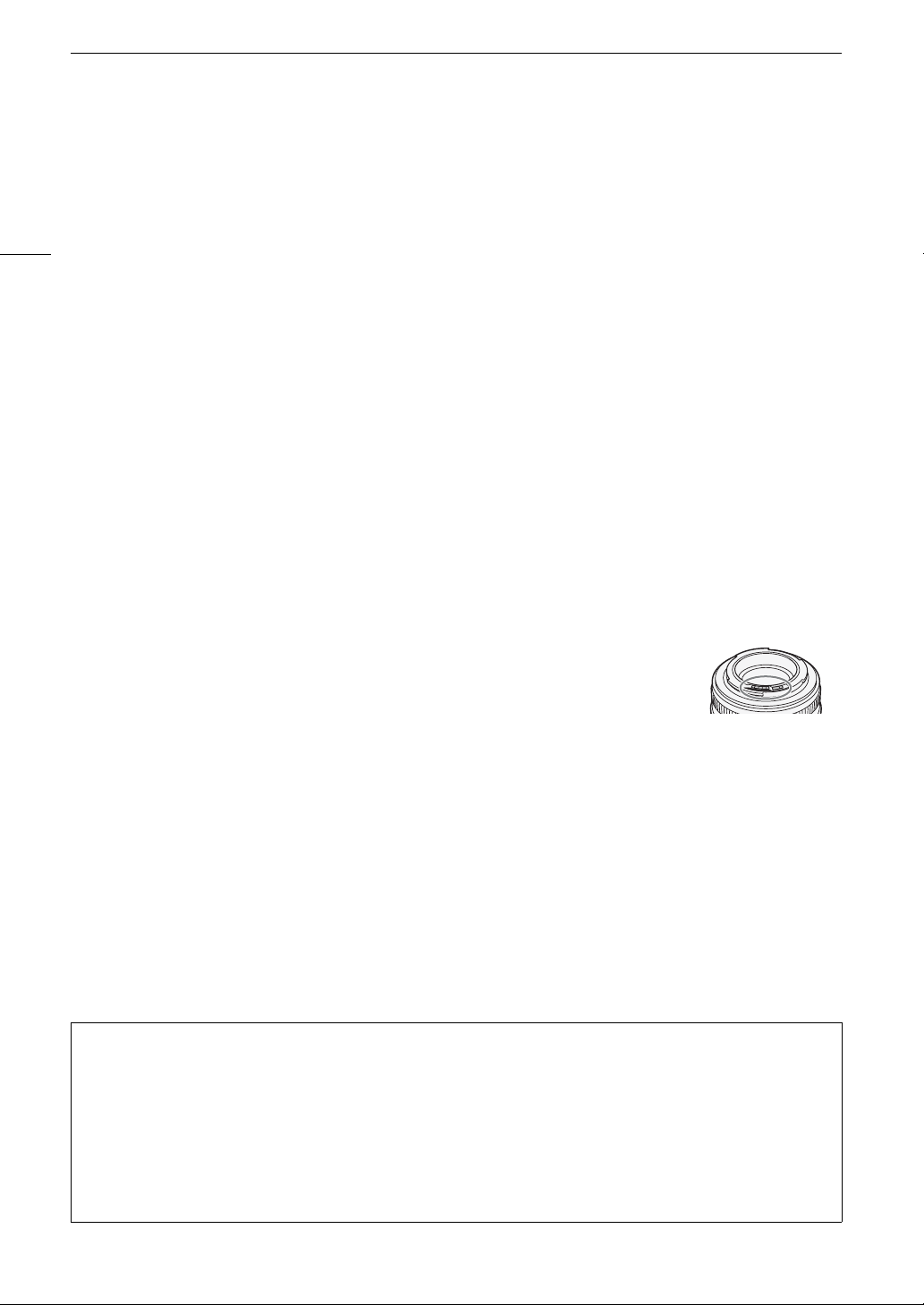
Handling Precautions
178
Handling Precautions
Camcorder
Be sure to observe the following precautions to ensure maximum performance.
• Do not carry the camcorder by the LCD panel or monitor unit. Be careful when closing the LCD panel.
• Do not leave the camcorder in places subject to high temperatures (like the inside of a car parked under direct
sunlight), or high humidity.
• Do not use the camcorder near strong electromagnetic fields such as near powerful magnets and motors, MRI
machines or high-voltage power lines. Using the camcorder in such places may cause anomalies in the video or
audio or video noise to appear.
• Do not use or store the camcorder in dusty or sandy places. The camcorder is not waterproof – avoid also
water, mud or salt. If any of the above should get into the camcorder it may damage the camcorder and/or the
lens. Consult a Canon Service Center as soon as possible.
• Be careful to avoid dust and dirt particles accumulating on the lens or entering the camcorder. When you finish using
the camcorder, make sure to attach the body cap to the lens mount and the lens cap and dust cap to the lens.
• Do not point the camcorder or viewfinder toward an intense light source, such as the sun on a sunny day or an
intense artificial light source. Doing so may damage the image sensor or the camcorder’s internal
components. Be careful especially when using a tripod or shoulder strap. When you are not using the
camcorder or viewfinder, make sure to attach the lens cap to the lens and the viewfinder cap to the viewfinder.
• Be careful of heat generated by lighting equipment.
• Do not disassemble the camcorder. If the camcorder does not function properly, consult qualified service
personnel.
• Do not touch the lens contacts on the lens mount. Dirty contacts may cause a poor
contact between the camcorder and the lens resulting in incorrect operation of the
camcorder. After removing the lens, make sure to attach the body cap to the lens
mount and the lens cap and dust cap to the lens.
• Handle the camcorder with care. Do not subject the camcorder to shocks or vibration
as this may cause damage. When using the shoulder strap, do not allow the
camcorder to swing and hit an object.
• To prevent equipment breakdowns and excessive heating, do not connect the supplied battery charger or AC
adapter to voltage converters for overseas travels or special power sources such as those on aircraft and
ships, DC-AC inverters, etc.
Long-term storage
If you do not intend to use the camcorder for a long time, store it in a place free of dust, in low humidity, and at
temperatures not higher than 30 °C (86 °F).
Battery Pack
DANGER!
Treat the battery pack with care.
• Keep it away from fire (or it might explode).
• Do not expose the battery pack to temperature higher than 60 °C (140 °F). Do not leave it near a heater or
inside a car in hot weather.
• Do not try to disassemble or modify it.
• Do not drop it or subject it to shocks.
• Do not get it wet.
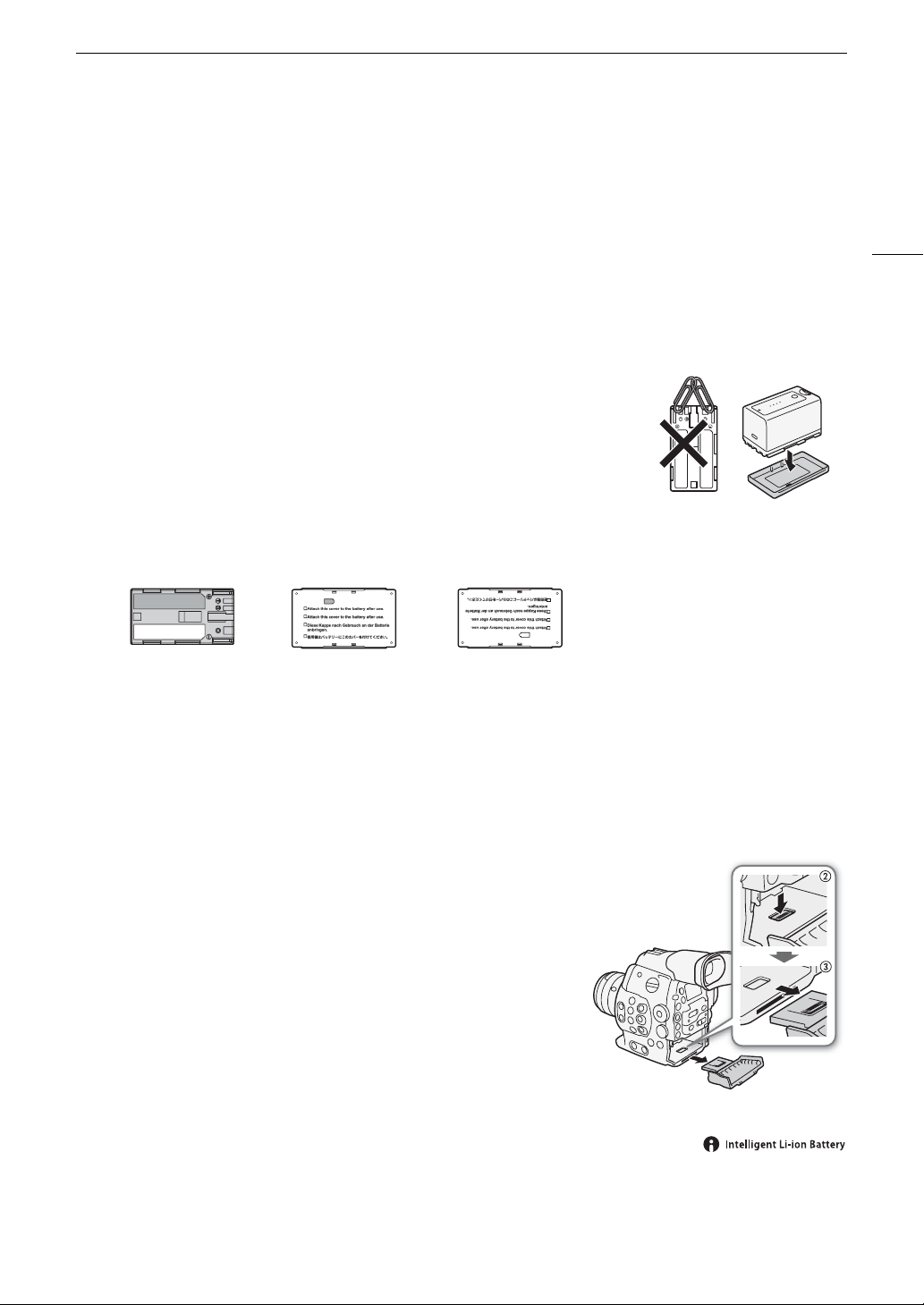
179
Handling Precautions
• Dirty terminals may cause a poor contact between the battery pack and the camcorder. Wipe the terminals
with a soft cloth.
Long-term storage
• Store battery packs in a dry place at temperatures no higher than 30 °C (86 °F).
• To extend the battery life of the battery pack, discharge it completely before storing it.
• Charge and discharge all your battery packs fully at least once a year.
Always attach the battery terminal cover.
Do not allow any metal objects to touch the terminals (figure 1), as this can
cause a short circuit and damage the battery pack. Attach the terminal cover
whenever the battery pack is not being used (figure 2).
The battery terminal cover has a [ð]-shaped hole. This is useful when you
wish to differentiate between charged and uncharged battery packs. For
example, with charged battery packs, attach the terminal cover so that the
[ð]-shaped hole shows the colored label.
Remaining battery time
If the remaining battery time displayed is not correct, charge the battery pack fully. Still, the correct time may not
be displayed if a fully charged battery pack is used continuously in high temperatures or it is left unused for long
periods of time. Also, the correct remaining time may not be displayed, depending on the battery life. Use the
time shown on the screen as an approximation.
Using higher capacity batteries
You can use the optional BP-970G / BP-975 battery packs with this
camcorder. However, as the battery compartment cover cannot be
closed when using these higher capacity battery packs, you will need to
remove it beforehand. Note that removing the battery compartment
cover will render the camcorder more exposed to moisture, dust and
foreign objects.
1 Slide down the BATT.OPEN switch and open the battery
compartment cover.
2 Push the latch at the bottom of battery compartment.
3 Gently pull out the battery compartment cover.
Regarding the use of non-Canon battery packs
• We recommend using genuine Canon battery packs bearing the Intelligent System
mark.
• If you attach to the camcorder battery packs that are not genuine Canon battery packs, the remaining battery
time will not be displayed.
Figure 1 Figure 2
Back side of the
battery pack
Uncharged
Terminal cover attached
Charged

Handling Precautions
180
Recording Media
• We recommend backing up the recordings on the recording media onto your computer. Data may be
corrupted or lost due to defects or exposure to static electricity. Canon shall not be liable for lost or corrupted
data.
• Do not touch or expose the terminals to dust or dirt.
• Do not use recording media in places subject to strong magnetic fields.
• Do not leave recording media in places subject to high humidity and high temperature.
• Do not disassemble, bend, drop, or subject recording media to shocks and do not expose them to water.
• Check the direction before inserting the recording media. Forcing recording media into the slot if it is not
correctly oriented may damage the recording media or the camcorder.
• Do not attach any labels or stickers on the recording media.
• SD cards: SD cards have a physical switch to prevent writing on the card so as to
avoid the accidental erasure of the card’s content. To write-protect the SD card,
set the switch to the LOCK position.
Disposal
When you delete data on the recording media, only the file allocation table is altered
and stored data is not physically erased. Take the necessary precautions when you dispose of the recording
media, for example by physically damaging it to prevent the leakage of private data.
If giving the recording media to another person, initialize it (using the [Complete] initialization option for SD cards,
A 45). Fill it up with unimportant recordings, and then initialize it again. This makes recovering the original
recordings very difficult.
Built-in Rechargeable Lithium Battery
The camcorder has a built-in rechargeable lithium battery to keep the date/time and other settings. The built-in
lithium battery is recharged while you use the camcorder; however, it will discharge completely if you do not use
the camcorder for about 3 months.
To recharge the built-in lithium battery: Connect the AC adapter to the camcorder and use a power outlet to
power the camcorder for 24 hours while it is turned off.
LOCK switch
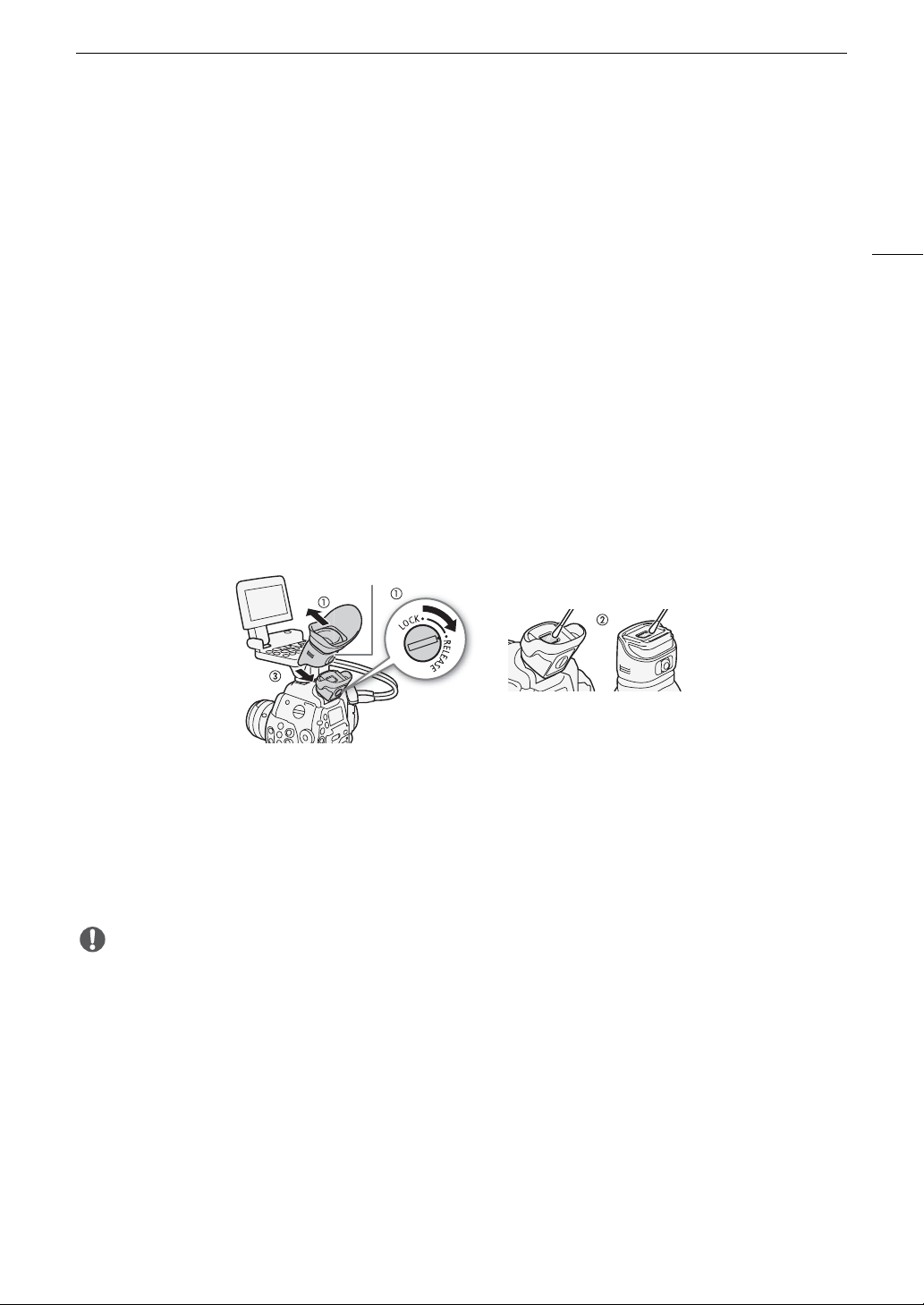
181
Maintenance/Others
Maintenance/Others
Cleaning
Camcorder Body
• Use a soft, dry cloth to clean the camcorder body. Never use chemically treated cloths or volatile solvents
such as paint thinner.
Lens
• Remove any dust or dirt particles using a non-aerosol type blower brush.
• Use a clean, soft lens-cleaning cloth to gently wipe the lens using commercially available cleaning fluid for
eyeglasses. Never use tissue paper.
LCD Screen
• Clean the LCD screen using a clean, soft lens-cleaning cloth.
• Condensation may form on the surface of the screen when the temperature changes suddenly. Wipe it with a
soft dry cloth.
Viewfinder
1 Slide the viewfinder unit’s LOCK/RELEASE screw to the RELEASE position and remove the
viewfinder unit by sliding it up.
2 Wipe away dirt with a cotton swab.
3 Reattach the viewfinder unit by sliding it back onto the camcorder and turn back the LOCK/
RELEASE screw to the LOCK position.
IMPORTANT
• Be careful not to scratch the glass and screen when cleaning them.
Viewfinder
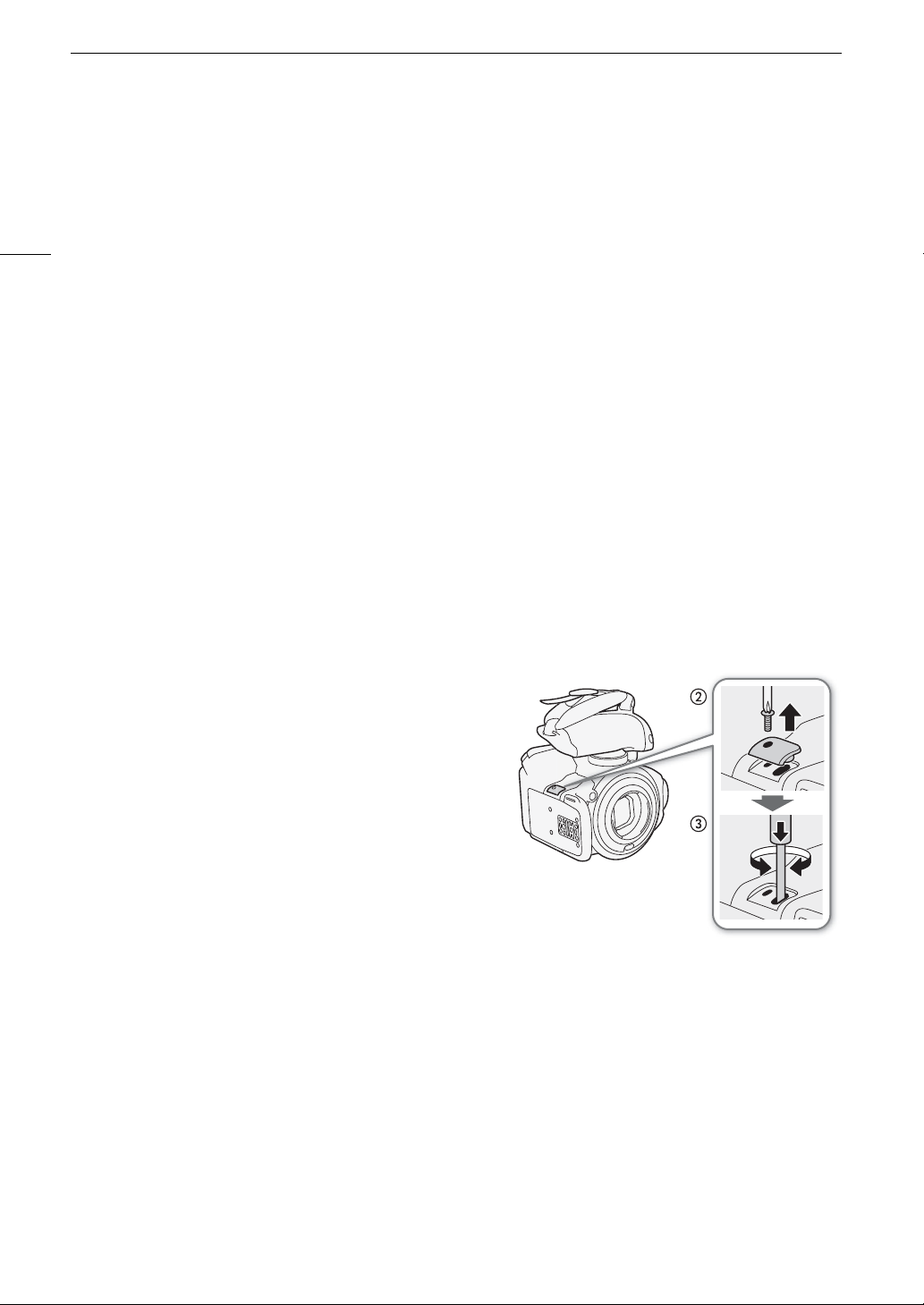
Maintenance/Others
182
Condensation
Moving the camcorder rapidly between hot and cold temperatures may cause condensation (water droplets) to
form on its internal surfaces. Stop using the camcorder if condensation is detected. Continued use may damage
the camcorder.
Condensation may form in the following cases:
• When the camcorder is moved quickly from cold to warm places
• When the camcorder is left in a humid room
• When a cold room is heated rapidly
To avoid condensation
• Do not expose the camcorder to sudden or extreme changes in temperature.
• Remove the recording media and battery pack. Then, place the camcorder in an airtight plastic bag and let it
adjust gradually to temperature changes before removing it from the bag.
When condensation is detected
The camcorder automatically shuts off.
The precise time required for water droplets to evaporate will vary depending on the location and weather
conditions. As a general rule, wait for 2 hours before resuming use of the camcorder.
Operating the ND Filter Manually
In the rare case that the internal electronic motor that drives the ND filter malfunctions, you can operate the ND
filter manually as an emergency measure.
1 Turn off the camcorder and remove the lens.
2 Unscrew the screw in the illustration and remove the
cover.
3 Pressing lightly, use a Phillips head screwdriver to turn
the ND filter as necessary.
• You can check the position of the ND filter through the
lens mount.
4 Return the cover and tighten the screw.
Using the Camcorder Abroad
Power Sources
You can use the AC adapter and battery charger to operate the camcorder and to charge battery packs in any
country with power supply between 100 and 240 V AC, 50/60 Hz. Consult a Canon Service Center for
information on plug adapters for overseas use.
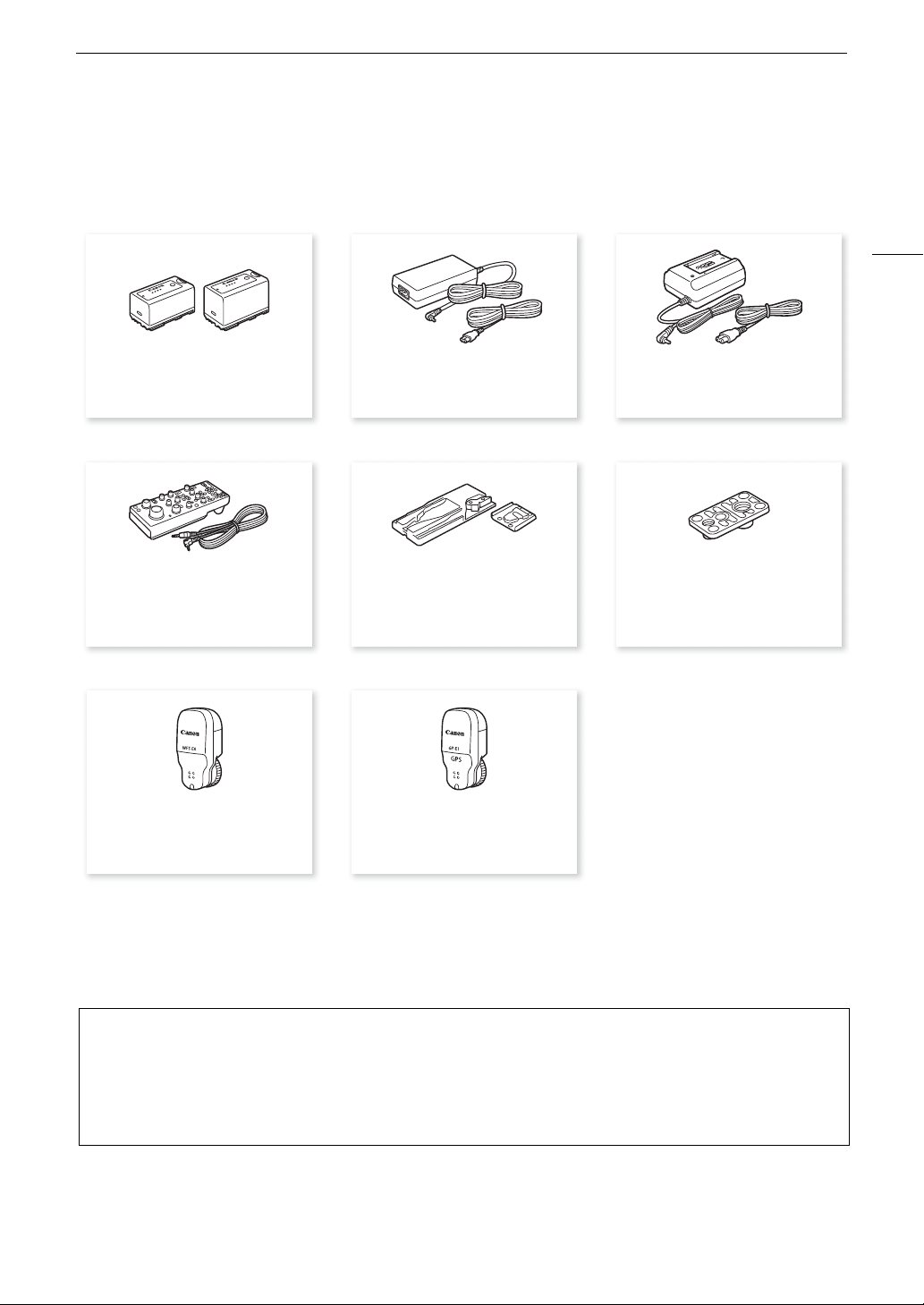
183
Optional Accessories
Optional Accessories
The following optional accessories are compatible with this camcorder. The availability differs from area to area.
* This accessory cannot be used to power this camcorder directly; it can only be used to charge the battery pack.
For our customers in the USA: Call or visit your local retailer/dealer for genuine Canon video accessories. You
can also obtain genuine accessories for your Canon camcorder by calling: 1-800-828-4040, Canon U.S.A.
Information Center.
Use of genuine Canon accessories is recommended.
This product is designed to achieve excellent performance when used with genuine Canon accessories.
Canon shall not be liable for any damage to this product and/or accidents such as fire, etc., caused by the
malfunction of non-genuine Canon accessories (e.g., a leakage and/or explosion of a battery pack). Please
note that this warranty does not apply to repairs arising out of the malfunction of non-genuine Canon
accessories, although you may request such repairs on a chargeable basis.
BP-950G, BP-955,
BP-970G, BP-975
Battery Pack
CA-945 AC Adapter CA-935 AC Adapter*
RC-V100 Remote
Controller
TA-1 0 0 Trip od Ada p t er TB-1 Tripo d Adapt e r
Base
GP-E1 GPS ReceiverWFT-E6 or WFT-E8
Wireless File Transmitter
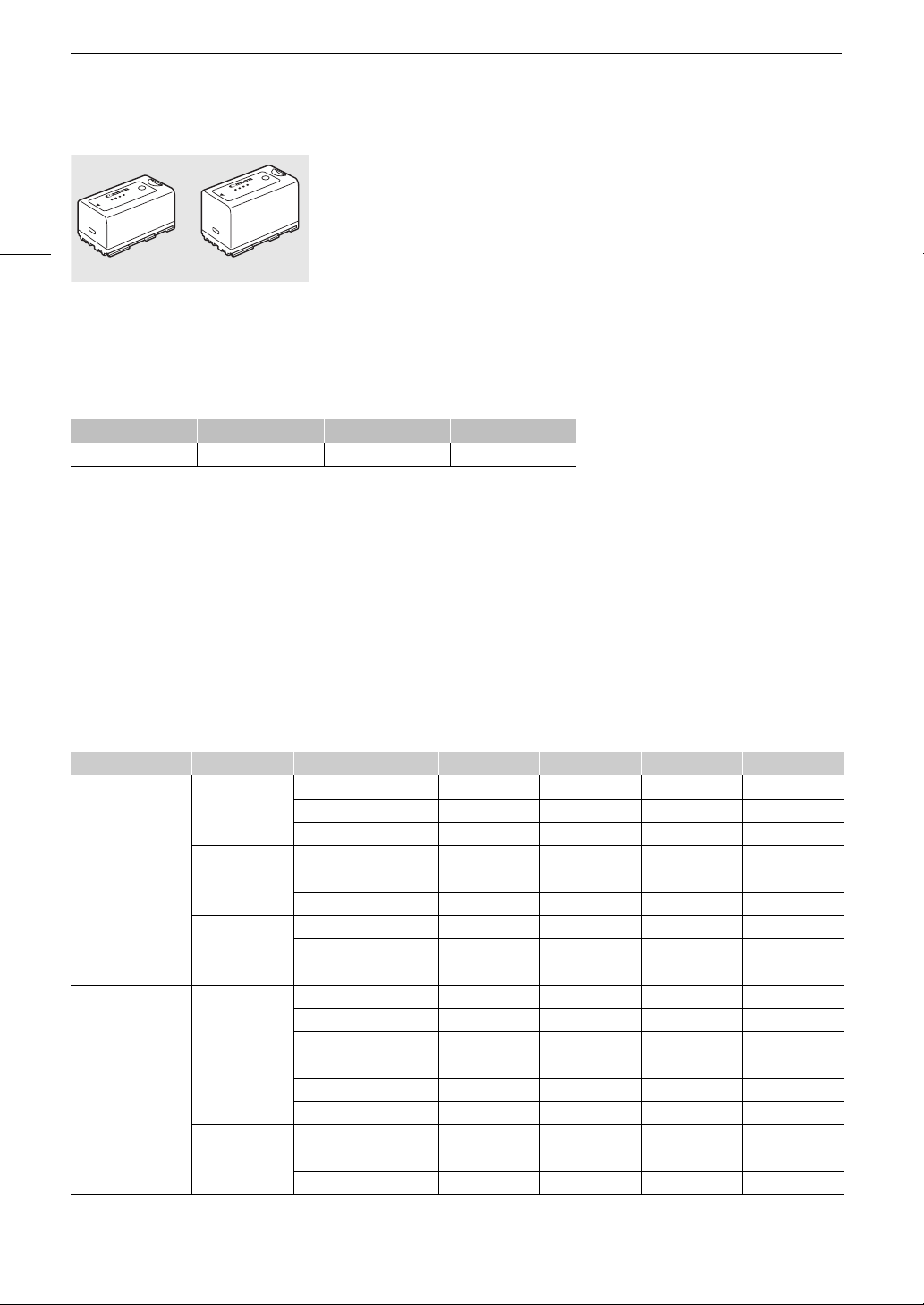
Optional Accessories
184
Battery Packs
When you need extra battery packs, select from the following: BP-950G,
BP-955, BP-970G*, BP-975*.
When you use battery packs bearing the Intelligent System mark, the
camcorder will communicate with the battery and display the remaining
usage time (accurate to 1 minute). You can only use and charge these battery
packs with camcorders and chargers compatible with Intelligent System.
*The optional BP-970G / BP-975 Battery Pack were not originally designed for use
with this camcorder. Because of its size, you will not be able to close the battery
compartment cover when using one (A 179).
Charging Times
Use the supplied CG-945 Battery Charger to charge battery packs. The charging times given in the following
table are approximate and vary according to charging conditions and initial charge of the battery pack.
Recording and Playback Times
Recording and playback times given in the following tables are approximate and vary according to recording
mode and charging, recording or playback conditions. The effective usage time of the battery pack may
decrease when recording in cold surroundings, when using the brighter screen settings, etc. The typical
shooting times listed below are approximate times for shooting with repeated operations such as start/stop, and
power on/off.
# EF lenses with lens contacts draw power from the camcorder to operate some functions. Effective usage
times may decrease depending on the lens used.
Other accessories attached to the camcorder, such as the optional wireless file transmitter or the GP-E1 GPS
Receiver, also draw power from the camcorder to operate. Effective usage times will decrease when such
accessories are used while shooting.
# Approximate times with the monitor unit attached (LCD screen + viewfinder), SDI output on
BP-950G BP-955 BP-970G BP-975
235 min. 190 min. 330 min. 275 min.
Type of recording Bit rate Usage time BP-950G BP-955 BP-970G BP-975
NTSC / 24.00P 50 Mbps Recording (maximum) 185 min. 180 min. 255 min. 275 min.
Recording (typical) 120 min. 115 min. 165 min. 175 min.
Playback 230 min. 230 min. 325 min. 345 min.
35 Mbps Recording (maximum) 185 min. 185 min. 260 min. 275 min.
Recording (typical) 120 min. 120 min. 165 min. 175 min.
Playback 230 min. 230 min. 325 min. 345 min.
25 Mbps Recording (maximum) 185 min. 185 min. 260 min. 275 min.
Recording (typical) 120 min. 120 min. 165 min. 180 min.
Playback 235 min. 230 min. 325 min. 350 min.
PAL 50 Mbps Recording (maximum) 190 min. 185 min. 265 min. 280 min.
Recording (typical) 120 min. 120 min. 170 min. 180 min.
Playback 240 min. 235 min. 335 min. 355 min.
35 Mbps Recording (maximum) 190 min. 185 min. 265 min. 280 min.
Recording (typical) 120 min. 120 min. 170 min. 180 min.
Playback 240 min. 240 min. 335 min. 355 min.
25 Mbps Recording (maximum) 190 min. 190 min. 265 min. 285 min.
Recording (typical) 120 min. 120 min. 170 min. 185 min.
Playback 240 min. 240 min. 335 min. 360 min.
BP-955 BP-975
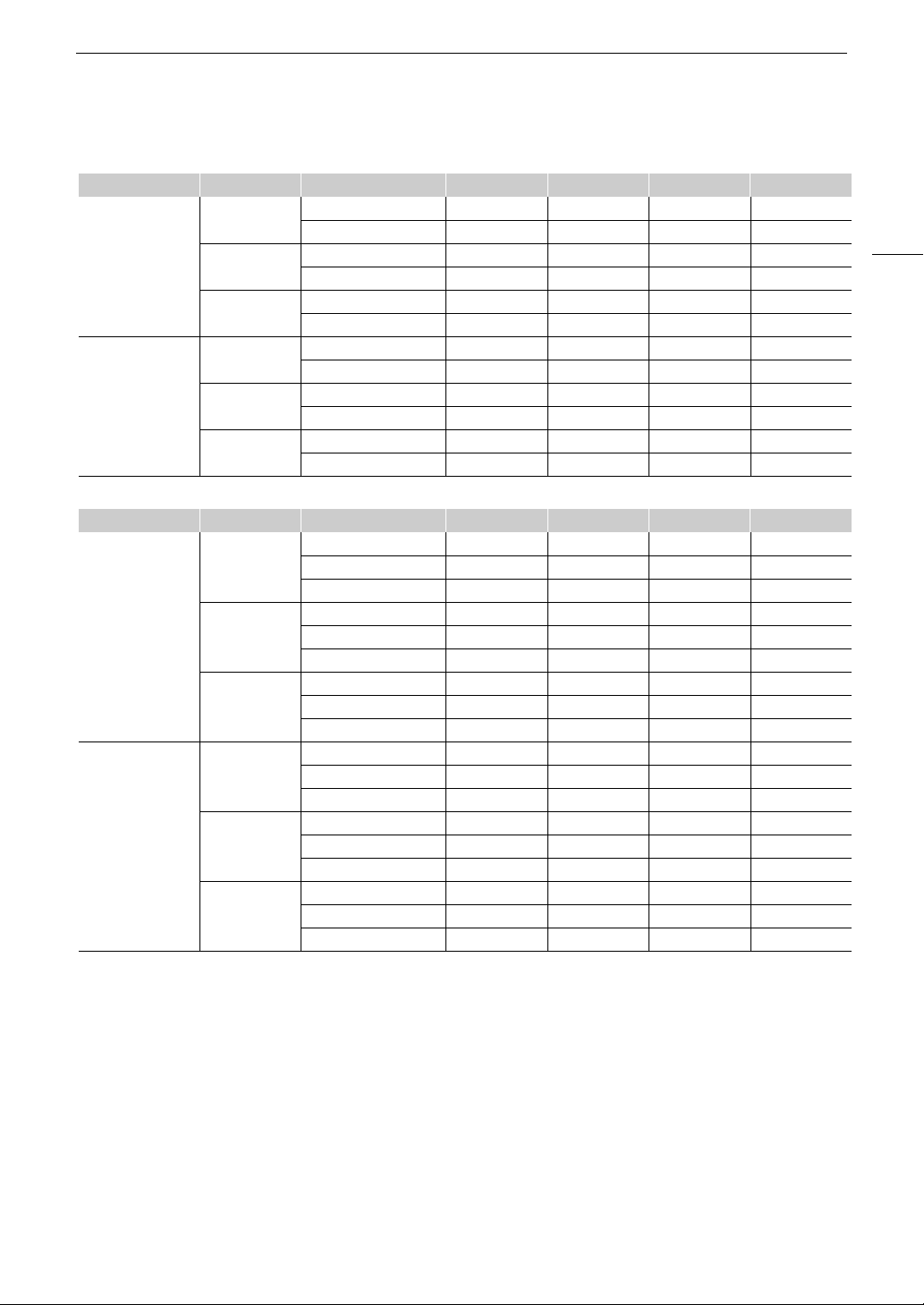
185
Optional Accessories
# Approximate times using the viewfinder (monitor unit not attached)
$ Approximate times with the monitor unit attached (LCD screen + viewfinder), SDI output on
Type of recording Bit rate Usage time BP-950G BP-955 BP-970G BP-975
NTSC / 24.00P 50 Mbps Recording (maximum) 200 min. 200 min. 280 min. 300 min.
Recording (typical) 130 min. 130 min. 180 min. 195 min.
35 Mbps Recording (maximum) 200 min. 200 min. 285 min. 300 min.
Recording (typical) 130 min. 130 min. 185 min. 195 min.
25 Mbps Recording (maximum) 205 min. 200 min. 285 min. 305 min.
Recording (typical) 130 min. 130 min. 185 min. 195 min.
PAL 50 Mbps Recording (maximum) 205 min. 205 min. 290 min. 310 min.
Recording (typical) 135 min. 130 min. 185 min. 200 min.
35 Mbps Recording (maximum) 210 min. 205 min. 290 min. 310 min.
Recording (typical) 135 min. 135 min. 190 min. 200 min.
25 Mbps Recording (maximum) 210 min. 210 min. 295 min. 310 min.
Recording (typical) 135 min. 135 min. 190 min. 200 min.
Type of recording Bit rate Usage time BP-950G BP-955 BP-970G BP-975
NTSC / 24.00P 50 Mbps Recording (maximum) 185 min. 185 min. 260 min. 275 min.
Recording (typical) 120 min. 120 min. 165 min. 175 min.
Playback 230 min. 230 min. 325 min. 345 min.
35 Mbps Recording (maximum) 185 min. 185 min. 260 min. 275 min.
Recording (typical) 120 min. 120 min. 165 min. 180 min.
Playback 235 min. 230 min. 325 min. 350 min.
25 Mbps Recording (maximum) 185 min. 185 min. 260 min. 280 min.
Recording (typical) 120 min. 120 min. 165 min. 180 min.
Playback 235 min. 230 min. 330 min. 350 min.
PAL 50 Mbps Recording (maximum) 190 min. 185 min. 265 min. 280 min.
Recording (typical) 120 min. 120 min. 170 min. 180 min.
Playback 240 min. 240 min. 335 min. 355 min.
35 Mbps Recording (maximum) 190 min. 190 min. 265 min. 280 min.
Recording (typical) 120 min. 120 min. 170 min. 180 min.
Playback 240 min. 240 min. 335 min. 360 min.
25 Mbps Recording (maximum) 190 min. 190 min. 265 min. 285 min.
Recording (typical) 120 min. 120 min. 170 min. 185 min.
Playback 240 min. 240 min. 340 min. 360 min.
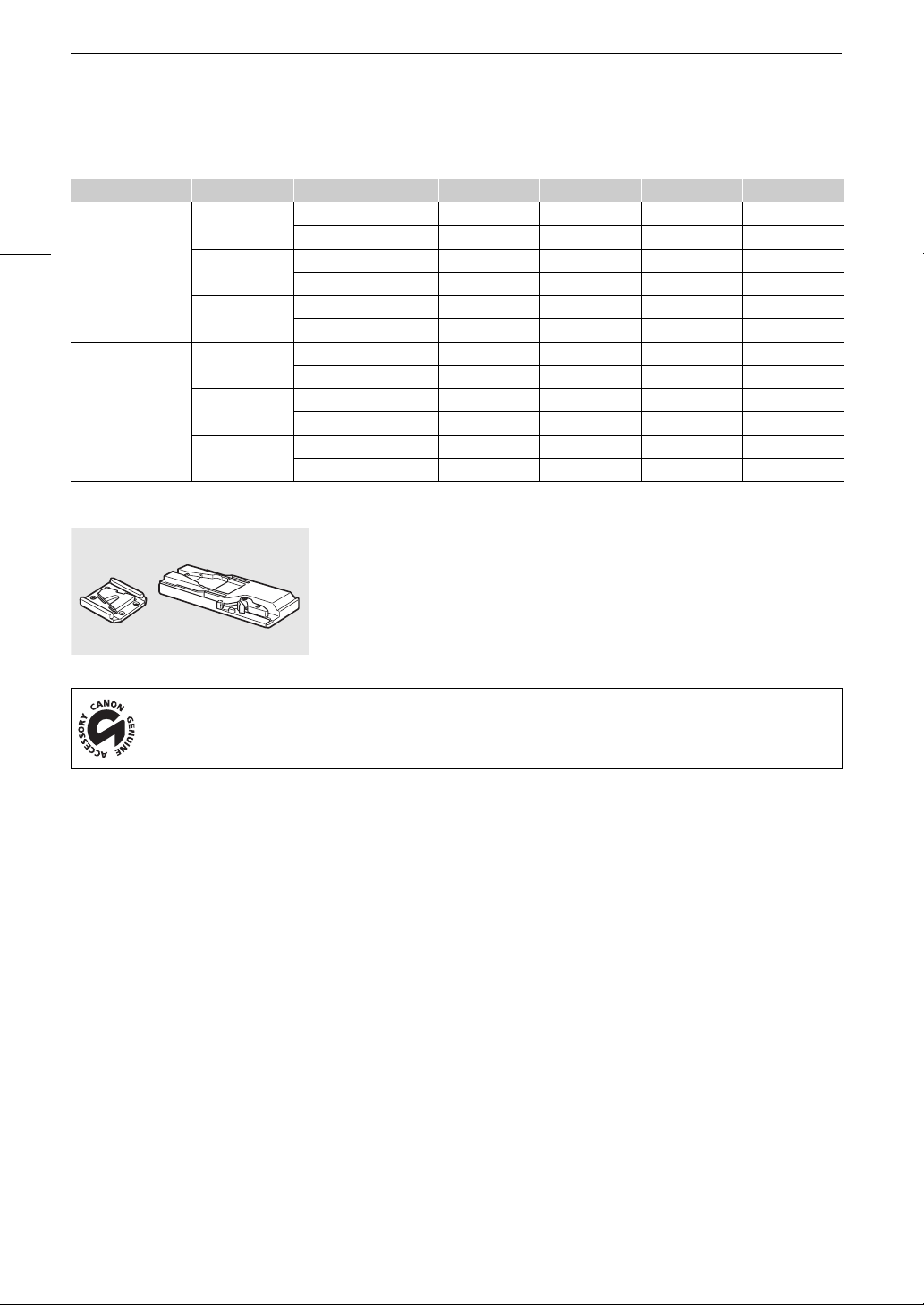
Optional Accessories
186
$ Approximate times using the viewfinder (monitor unit not attached)
TA-100 Tripod Adapter
The TA-100 allows you to quickly mount/unmount the
camcorder on/from a tripod.
Type of recording Bit rate Usage time BP-950G BP-955 BP-970G BP-975
NTSC / 24.00P 50 Mbps Recording (maximum) 205 min. 200 min. 285 min. 305 min.
Recording (typical) 130 min. 130 min. 185 min. 195 min.
35 Mbps Recording (maximum) 205 min. 205 min. 285 min. 305 min.
Recording (typical) 130 min. 130 min. 185 min. 195 min.
25 Mbps Recording (maximum) 205 min. 205 min. 290 min. 305 min.
Recording (typical) 130 min. 130 min. 185 min. 195 min.
PAL 50 Mbps Recording (maximum) 210 min. 210 min. 295 min. 315 min.
Recording (typical) 135 min. 135 min. 190 min. 200 min.
35 Mbps Recording (maximum) 210 min. 210 min. 295 min. 315 min.
Recording (typical) 135 min. 135 min. 190 min. 200 min.
25 Mbps Recording (maximum) 210 min. 210 min. 295 min. 315 min.
Recording (typical) 135 min. 135 min. 190 min. 205 min.
This mark identifies genuine Canon video accessories. When you use Canon video equipment, we
recommend Canon-brand accessories or products bearing the same mark.

187
Specifications
Specifications
C300 / C300 PL
System
•Recording System
Movies: Video compression: MPEG-2 Long GOP;
Audio compression: Linear PCM, 16 bits, 48 kHz, 2 channels
File type: MXF
Photos: DCF (Design rule for Camera File system), compatible with Exif Ver. 2.3, JPEG compression
• Video Configuration (recording/playback)
50 Mbps (CBR, 4:2:2, 422P@HL)
1920x1080: 59.94i, 50.00i, 29.97P, 25.00P, 24.00P, 23.98P
1280x720: 59.94P, 50.00P, 29.97P, 25.00P, 24.00P, 23.98P
35 Mbps (VBR, 4:2:0, MP@HL)
1920x1080: 59.94i, 50.00i, 29.97P, 25.00P, 23.98P
1440x1080: 59.94i, 50.00i
1280x720: 59.94P, 50.00P, 29.97P, 25.00P, 23.98P
25 Mbps (CBR, 4:2:0, MP@H14)
1440x1080: 59.94i, 50.00i, 29.97P, 25.00P, 23.98P
• Recording Media (not included)
Movies: CompactFlash (CF) Card Type I (two slots)
Photos: SD or SDHC (SD High Capacity) memory card
1
1
Custom picture files, camera settings and user memo files can be saved on and read from the SD/SDHC memory card as
well.
• Maximum Recording Time (approximate, continuous recording)
16 GB CF Card
50 Mbps: 40 min., 35 Mbps: 55 min., 25 Mbps: 80 min.
64 GB CF Card
50 Mbps: 160 min., 35 Mbps: 225 min., 25 Mbps: 310 min.
• Image Sensor: Super-35mm-equivalent CMOS sensor, approx. 8,290,000 pixels (3840x2160)
• Viewfinder: 1.3 cm (0.52 in.), approx. 1,555,000 dots, 100% coverage
• Lens Mount
# Canon EF mount compatible with Canon EF lenses (including EF-S lenses)
$ PL Lens mount without data interface terminals
Lens multiplication factor: approx. 1.534 (for 35mm equivalent focal length)
•ND Filter: Built-in (Off, 2, 4 or 6 stops), motor operated
• White Balance
Custom white balance (two sets, A and B), color temperature setting (2,000 K to 15,000 K); two preset
settings (daylight, 5,400 K
2
and tungsten lamp, 3,200 K
2
) that can be further fine-tuned
2
Color temperatures are approximate and given for reference purposes only.
• # Iris: Manual (1/2-stop increments, 1/3-stop increments, fine-tuning), push auto iris, automatic
• Focus: Manual, # one-shot AF, # continuous AF
• ISO Speed
ISO 320 to ISO 20000, ISO 25600
3
to ISO 80000
3
(1-stop or 1/3-stop increments)
•Gain
-6 dB to 30 dB (3-dB increments), 33 dB
3
to 42 dB
3
(3-dB increments), 0 dB to 24 dB (fine-tuning in 0.5-dB
increments)
3
With extended ISO/Gain range.

Specifications
188
• Shutter Speed
Speed (1/3-stop increments, 1/4-stop increments), angle, clear scan, slow, off
• # Lens Peripheral Illumination Correction: Available for Canon EF lenses
4
4
Some lenses are not compatible with in-camera correction.
• Sensor Sensitivity (ISO 640 (0 dB), 2000 lux, 89.9% reflection)
! F9 (1920x1080 at 59.94i) " F10 (1920x1080 at 50.00i)
• S/N Ratio (ISO 850, using Canon Log gamma)
54 dB (typical, 1920x1080, ! at 29.97P / " at 25.00P)
• Subject Illumination (24 dB, with a f/1.2 lens)
! 0.30 lux (29.97P, shutter speed 1/30)
" 0.25 lux (25.00P, shutter speed 1/25)
• Size of Photos
1920x1080 pixels, 1280x720 pixels (only when capturing a photo from a clip)
Terminals
• HD/SD SDI Terminal
BNC jack, output only, 0.8 Vp-p / 75 Ω, unbalanced
HD-SDI: SMPTE 292M
Video (1080i or 720P), embedded audio, time code (VITC/LTC)
SD-SDI: SMPTE 259M
Video (480i or 576i), embedded audio, time code (VITC/LTC)
• HDMI OUT Terminal
HDMI connector, output only
• SYNC OUT Terminal
BNC jack, output only, 1 Vp-p / 75 Ω
Output signal: HD component video luminance signal (HD-Y), HD analog tri-level signal, Analog blackburst
signal, SD composite video
•MIC Terminal
∅ 3.5 mm stereo mini-jack, -72 dBV (manual volume center, full scale -18 dB) / 600 Ω
Microphone attenuator: 20 dB
• × (Headphone) Terminal
∅ 3.5 mm stereo mini-jack, -G to -12 dBV (16 Ω load, volume range Min to Max) / 50 Ω or less
• GENLOCK Terminal
BNC jack, input only: 1 Vp-p / 75 Ω
• TIME CODE Terminal
BNC jack, input/output
Input: 0.5 Vp-p to 18 Vp-p / 10 kΩ
Output: 1 Vp-p / 75 Ω
• REMOTE Terminal
∅ 2.5 mm stereo mini-jack
• Grip Unit Connection Terminal
Proprietary connector for the supplied Grip Unit connection plug
• WFT Terminal
Proprietary connector for the optional WFT-E6 or WFT-E8 Wireless File Transmitter or GP-E1 GPS Receiver

189
Specifications
Power/Others
• Power Supply (rated)
7.4 V DC (battery pack), 8.4 V DC (DC IN)
• Power Consumption (recording at 50 Mbps, viewfinder/LCD screen normal brightness, SDI output on)
# LCD screen and viewfinder: 11.7 W (NTSC, 24.00P recordings), 11.4 W (PAL recordings)
Viewfinder only: 10.7 W (NTSC, 24.00P recordings), 10.4 W (PAL recordings)
$ LCD screen and viewfinder: 11.7 W (NTSC, 24.00P recordings), 11.4 W (PAL recordings)
Viewfinder only: 10.6 W (NTSC, 24.00P recordings), 10.2 W (PAL recordings)
Maximum rated power consumption: 20.9 W
• Operating Temperature
0 – 40 °C (32 – 104 °F)
• Dimensions (W x H x D)*
Minimal configuration with thumb rest:
# 133 x 179 x 171 mm (5.2 x 7.0 x 6.7 in.) $ 133 x 179 x 177 mm (5.2 x 7.0 x 7.0 in.)
Configuration with grip unit and grip belt:
# 174 x 179 x 171 mm (6.9 x 7.0 x 6.7 in.) $ 174 x 179 x 177 mm (6.9 x 7.0 x 7.0 in.)
Configuration with monitor unit:
185 x 249 x 187 mm (7.3 x 9.8 x 7.4 in.)
Configuration with handle unit and monitor unit:
185 x 284 x 301 mm (7.3 x 11.2 x 11.9 in.)
* All dimensions are approximate.
•Weight **
Camcorder unit only:
# 1430 g (3.2 lb.) $ 1630 g (3.6 lb.)
Camcorder with grip unit and grip belt, monitor unit, BP-955 battery pack and two CF cards:
# 2520 g (5.6 lb.) $ 2720 g (6.0 lb.)
Camcorder with grip unit and grip belt, monitor unit, handle unit, BP-955 battery pack and two CF cards:
# 2700 g (6.0 lb.) $ 2900 g (6.4 lb.)
**All weights are approximate.
Modular Units
Monitor Unit
Modular unit can be rotated 270º on its axis; includes the LCD panel, recording and playback controls, XLR
terminals and related audio controls.
• LCD Panel: Articulated panel, 270º vertical rotation, 180º lateral rotation
•LCD Screen: 10.1 cm (4.0 in.), wide, color, approx. 1,230,000 dots, 100% coverage
• CH1, CH2 Terminals
XLR jack (pin1: shield, pin2: hot, pin3: cold), 2 sets
Sensitivity
MIC setting: -60 dBu (manual volume center, full scale -18 dB) / 600 Ω
LINE setting: 4 dBu (manual volume center, full scale -18 dB) / 10 kΩ
Microphone attenuator: 20 dB
•Weight: Approx. 620 g (1.4 lb.)
Grip Unit
Modular unit can be attached at any of 24 positions (15º intervals); includes limited recording controls.
•Weight: Approx. 230 g (8.1 oz.)

Specifications
190
Handle Unit
Modular unit includes a cold accessory shoe and socket for 0.64 cm (1/4 in.) screws for other accessories.
•Weight: Approx. 180 g (6.3 oz.)
CA-945 AC Adapter
•Rated Input: 100 – 240 V AC, 50/60 Hz, 65 VA (100 V) – 85 VA (240 V)
•Rated Output: 8.4 V DC, 3.7 A
• Operating Temperature: 0 – 40 °C (32 – 104 °F)
• Dimensions (W x H x D): Approx. 65 x 35 x 145 mm (2.6 x 1.4 x 5.7 in.)
•Weight: 340 g (12.0 oz.)
CG-945 Battery Charger
•Rated input: 100 – 240 V AC, 50/60 Hz, 38 VA (100 V) – 50 VA (240 V)
•Rated Output: 8.4 V DC, 2.0 A
• Operating Temperature: 0 – 40 °C (32 – 104 °F)
• Dimensions (W x H x D): 85 x 51 x 110 mm (3.3 x 2.0 x 4.3 in.)
•Weight: Approx. 240 g (8.5 oz.)
BP-955 Battery Pack
• Battery Type
Rechargeable lithium ion battery, compatible with Intelligent System
• Rated Voltage
7.4 V DC
• Operating Temperature: 0 – 40 °C (32 – 104 °F)
• Battery Capacity
Typical: 5,200 mAh
Minimum: 37 Wh / 4,900 mAh
• Dimensions (W x H x D): 38.2 x 43.5 x 70.5 mm (1.5 x 1.7 x 2.8 in.)
•Weight: 220 g (7.8 oz)
Weight and dimensions are approximate. Errors and omissions excepted.
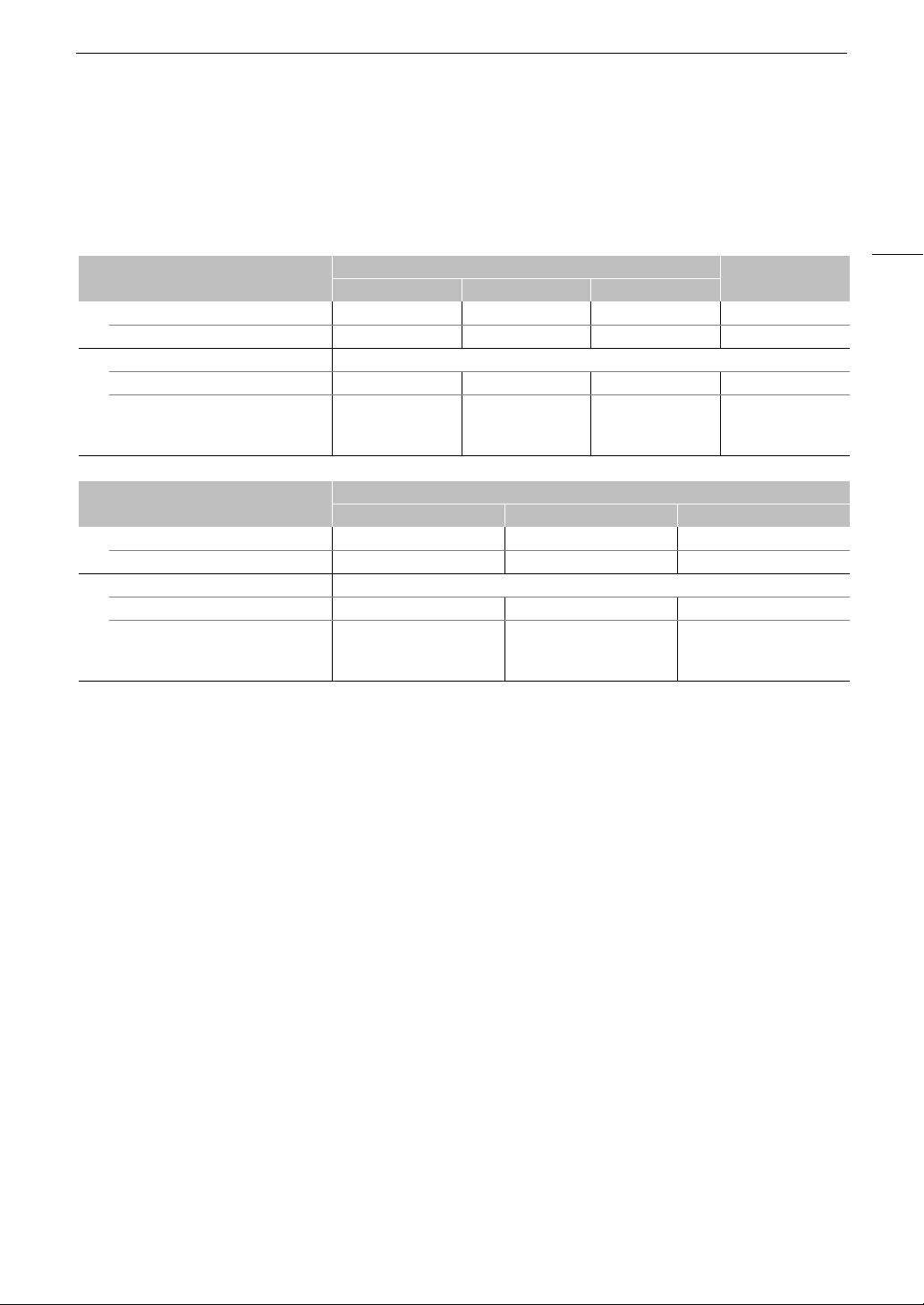
191
Appendix: Compatible Lenses and Functions
Appendix: Compatible Lenses and Functions
Following is a list of lenses compatible with this camcorder and the various functions that can be used
depending on the lens. Depending on the lens’s purchase date, you may need to update the lens’s firmware to
use these functions. For details, consult a Canon Service Center.
* # only with camcorders with the Dual Pixel CMOS AF upgrade.
• EF lenses compatible with auto iris:
Lens
Iris control from the camcorder
Zoom control
from the camcorder
Manual Push auto iris Automatic
EF lenses Ü Ü – –
EF lenses compatible with auto iris Ü Ü Ü –
EF Cinema lenses
CN20x50 IAS H/E1 Ü Ü Ü Ü
CN7x17 KAS S/E1
CN-E18-80mm T4.4 L IS KAS S
CN-E70-200mm T4.4 L IS KAS S
Ü Ü Ü Ü
Lens
Focus control from the camcorder
Manual One-shot AF Continuous AF
EF lenses Ü Ü Ü*
EF lenses compatible with auto iris Ü Ü Ü
EF Cinema lenses
CN20x50 IAS H/E1 Ü – –
CN7x17 KAS S/E1
CN-E18-80mm T4.4 L IS KAS S
CN-E70-200mm T4.4 L IS KAS S
Ü Ü* Ü*
EF-S 10-18mm f/4.5-5.6 IS STM EF-S 18-135mm f/3.5-5.6 IS STM
EF-S 18-55mm f/3.5-5.6 IS STM EF-S 55-250mm f/4-5.6 IS STM
EF 24-105mm f/3.5-5.6 IS STM EF-S 18-135mm f/3.5-5.6 IS USM

Appendix: Compatible Lenses and Functions
192

193
24.00P . . . . . . . . . . . . . . . . . . . . . . . . . . . . . . . .59
A
ABB (automatic black balance) . . . . . . . . . . . . .48
Accessories . . . . . . . . . . . . . . . . . . . . . . . . . . .183
AE shift . . . . . . . . . . . . . . . . . . . . . . . . . . . . . . .73
Air intake vents . . . . . . . . . . . . . . . . . . . . . . . . .32
Aperture* . . . . . . . . . . . . . . . . . . . . . . . . . . . . . .69
Aspect ratio . . . . . . . . . . . . . . . . . . . . . . . . . . .144
Assignable buttons . . . . . . . . . . . . . . . . . . . . .113
Audio peak limiter . . . . . . . . . . . . . . . . . . . .95, 96
Audio recording . . . . . . . . . . . . . . . . . . . . . . . . .93
Audio recording level . . . . . . . . . . . . . . . . . .95, 96
Audio reference signal . . . . . . . . . . . . . . . . . . .100
Automatic aperture (auto iris)* . . . . . . . . . . . . . .72
B
Battery pack . . . . . . . . . . . . . . . . . . . . . . . . . . .23
Bit rate . . . . . . . . . . . . . . . . . . . . . . . . . . . . . . . .59
Black balance . . . . . . . . . . . . . . . . . . . . . . . . . .48
Built-in backup battery . . . . . . . . . . . . . . . . . . .180
C
Camera settings . . . . . . . . . . . . . . . . . . . . . . . .126
CF card
Inserting . . . . . . . . . . . . . . . . . . . . . . . . .43
Recording method . . . . . . . . . . . . . . . . .46
Recovering data . . . . . . . . . . . . . . . . . . .47
Removing . . . . . . . . . . . . . . . . . . . . . . . .44
Switching CF card slots . . . . . . . . .46, 128
Check marks (%) . . . . . . . . . . . . . . . . . .104, 134
CINEMA (preset custom picture) . . . . . . . . . . . .58
Clips
Adding an $ mark/% mark . . . .104, 134
Adding/Deleting shot marks . . . . .103, 139
Copying . . . . . . . . . . . . . . . . . . . . . . . .135
Deleting . . . . . . . . . . . . . . . . . . . . . . . .136
Displaying clip information . . . . . . . . . .133
Playback . . . . . . . . . . . . . . . . . . . . . . . .129
Color bars . . . . . . . . . . . . . . . . . . . . . . . . . . . .100
Condensation . . . . . . . . . . . . . . . . . . . . . . . . .182
Connection to an external monitor . . . . . . . . . .142
Continuous AF* . . . . . . . . . . . . . . . . . . . . . . . . .82
Custom displays . . . . . . . . . . . . . . . . . . . . . . .125
Custom functions . . . . . . . . . . . . . . . . . . . . . . .125
Custom picture . . . . . . . . . . . . . . . . . . . . . . . .116
Custom picture settings . . . . . . . . . . . . . . . . . 119
D
Date and time . . . . . . . . . . . . . . . . . . . . . . . . . 27
Date format . . . . . . . . . . . . . . . . . . . . . . . . . . 161
DC IN terminal . . . . . . . . . . . . . . . . . . . . . . . . . 25
Direct setting mode . . . . . . . . . . . . . . . . . . . . . 61
Double slot recording . . . . . . . . . . . . . . . . . . . . 47
Drop frame (time code) . . . . . . . . . . . . . . . . . . 87
E
Edge monitor . . . . . . . . . . . . . . . . . . . . . . . . . 102
EF Cinema lenses . . . . . . . . . . . . . . . . . . . . . 191
EF lens mount* . . . . . . . . . . . . . . . . . . . . . . . . . 32
Exposure compensation . . . . . . . . . . . . . . . . . 73
EXT 1/2 terminals . . . . . . . . . . . . . . . . . . . . . . . 36
Eye cup . . . . . . . . . . . . . . . . . . . . . . . . . . . . . . 37
F
Fan . . . . . . . . . . . . . . . . . . . . . . . . . . . . . . . . . 58
Flicker reduction . . . . . . . . . . . . . . . . . . . . . . . . 64
Focus-related functions . . . . . . . . . . . . . . . . . . 78
Frame rate . . . . . . . . . . . . . . . . . . . . . . . . . . . . 59
Frame recording mode . . . . . . . . . . . . . . . . . . 109
Free-run (time code) . . . . . . . . . . . . . . . . . . . . . 86
G
Gain . . . . . . . . . . . . . . . . . . . . . . . . . . . . . . . . . 65
GENLOCK terminal . . . . . . . . . . . . . . . . . . . . . 90
GPS . . . . . . . . . . . . . . . . . . . . . . . . . . . . . . . . 105
Grip belt . . . . . . . . . . . . . . . . . . . . . . . . . . . . . . 41
Grip unit . . . . . . . . . . . . . . . . . . . . . . . . . . . . . . 40
H
Handle unit . . . . . . . . . . . . . . . . . . . . . . . . . . . 41
HD/SD SDI terminal . . . . . . . . . . . . . . . . . . . . 143
HDMI OUT terminal . . . . . . . . . . . . . . . . . . . . 143
Headphone terminal . . . . . . . . . . . . . . . . . . . . . 97
Hour meter . . . . . . . . . . . . . . . . . . . . . . . . . . 164
Index
*# only

194
I
Index screens
Changing clip thumbnail . . . . . . . . . . . .140
Clips . . . . . . . . . . . . . . . . . . . . . . . . . . .127
Expand clip . . . . . . . . . . . . . . . . . . . . .138
Shot marks . . . . . . . . . . . . . . . . . . . . .137
Initializing recording media . . . . . . . . . . . . . . . . .45
Interval recording mode . . . . . . . . . . . . . . . . . .108
Iris* . . . . . . . . . . . . . . . . . . . . . . . . . . . . . . . . . .69
ISO speed . . . . . . . . . . . . . . . . . . . . . . . . . . . . .65
J
Joystick . . . . . . . . . . . . . . . . . . . . . . . . . . . . . . .29
Joystick guide . . . . . . . . . . . . . . . . . . . . . . . . .131
K
Key lock . . . . . . . . . . . . . . . . . . . . . . . . . . . . . .53
L
Language . . . . . . . . . . . . . . . . . . . . . . . . . . . . .28
LCD screen . . . . . . . . . . . . . . . . . . . . . . . . . . . .39
Lens . . . . . . . . . . . . . . . . . . . . . . . . . . . . . . . . .32
Lens exchange mode . . . . . . . . . . . . . . . . . . . .34
Lens firmware* . . . . . . . . . . . . . . . . . . . . . . . . . .35
Light metering mode* . . . . . . . . . . . . . . . . . . . .74
LUT (lookup table) . . . . . . . . . . . . . . . . . . . . . . .58
M
Magnification . . . . . . . . . . . . . . . . . . . . . . . . . . .80
Menu settings . . . . . . . . . . . . . . . . . . . . . . . . .155
Message list . . . . . . . . . . . . . . . . . . . . . . . . . .175
Metadata . . . . . . . . . . . . . . . . . . . . . . . . . . . . . .98
MIC terminal . . . . . . . . . . . . . . . . . . . . . . . . . . .93
Microphone . . . . . . . . . . . . . . . . . . . . . . . . . . . .93
Microphone attenuator . . . . . . . . . . . . . . . .96, 97
Microphone sensitivity . . . . . . . . . . . . . . . . .95, 96
Monitor unit . . . . . . . . . . . . . . . . . . . . . . . . . . . .36
MXF file type . . . . . . . . . . . . . . . . . . . . . . . . . . . .5
My Menu . . . . . . . . . . . . . . . . . . . . . . . . . . . . . .30
N
ND filter . . . . . . . . . . . . . . . . . . . . . . . . . . . . . . .68
Non-drop frame (time code) . . . . . . . . . . . . . . . .87
NTSC . . . . . . . . . . . . . . . . . . . . . . . . . . . . . . . .59
O
OK marks ($) . . . . . . . . . . . . . . . . . . . . .104, 134
One-shot AF* . . . . . . . . . . . . . . . . . . . . . . . . . . .81
Onscreen markers . . . . . . . . . . . . . . . . . . . . . . .84
P
PAL . . . . . . . . . . . . . . . . . . . . . . . . . . . . . . . . . .59
Peaking . . . . . . . . . . . . . . . . . . . . . . . . . . . . . . .80
Peripheral illumination correction* . . . . . . . . . . .34
Phantom power (microphone) . . . . . . . . . . . . . .94
Photos
Copying custom picture files . . . . . . . .152
Deleting . . . . . . . . . . . . . . . . . . . . . . . .150
Protecting . . . . . . . . . . . . . . . . . . . . . . .151
Viewing . . . . . . . . . . . . . . . . . . . . . . . .149
PL lens mount** . . . . . . . . . . . . . . . . . . . . . . . . .36
Playback
Clips . . . . . . . . . . . . . . . . . . . . . . . . . . .129
Photos . . . . . . . . . . . . . . . . . . . . . . . . .149
Power supply . . . . . . . . . . . . . . . . . . . . . . . . . . .23
POWER switch . . . . . . . . . . . . . . . . . . . . . . . . .26
Pre-recording mode . . . . . . . . . . . . . . . . . . . . .112
Push auto iris* . . . . . . . . . . . . . . . . . . . . . . . . . .71
R
Rear panel . . . . . . . . . . . . . . . . . . . . . . . . . . . . .57
Rec run (time code) . . . . . . . . . . . . . . . . . . . . . .86
Recording
Clips . . . . . . . . . . . . . . . . . . . . . . . . . . . .51
Photos . . . . . . . . . . . . . . . . . . . . . . . . .147
Recording type . . . . . . . . . . . . . . . . . . . .59
Relay recording . . . . . . . . . . . . . . . . . . . . . . . . .46
Remaining battery . . . . . . . . . . . . . . . . . . . . . . .24
Remote operation . . . . . . . . . . . . . . . . . . . . . . .49
Resetting all camcorder settings . . . . . . . . . . .160
Resolution (frame size) . . . . . . . . . . . . . . . . . . . .59
Reviewing a recording . . . . . . . . . . . . . . . . . . .107
Running mode (time code) . . . . . . . . . . . . . . . . .86
S
Safety zone . . . . . . . . . . . . . . . . . . . . . . . . . . . .84
Saving clips to a computer . . . . . . . . . . . . . . .145
SD card . . . . . . . . . . . . . . . . . . . . . . . . . . . . . . .44
Shooting frame rate . . . . . . . . . . . . . . . . . . . . .110
Shot marks . . . . . . . . . . . . . . . . . . . . . . .103, 139
*# only **$ only

195
Shutter speed . . . . . . . . . . . . . . . . . . . . . . . . . .62
Slow & fast motion recording mode . . . . . . . . .110
Specifications . . . . . . . . . . . . . . . . . . . . . . . . .187
Status screens . . . . . . . . . . . . . . . . . . . . . . . . .165
SYNC OUT terminal . . . . . . . . . . . . . . . . . .92, 143
Synchronization . . . . . . . . . . . . . . . . . . . . . . . . .90
T
Tally lamp . . . . . . . . . . . . . . . . . . . . . . . . . . . .161
Terminal covers . . . . . . . . . . . . . . . . . . . . . . . . .42
Thumb rest . . . . . . . . . . . . . . . . . . . . . . . . . . . .40
Time code . . . . . . . . . . . . . . . . . . . . . . . . . . . . .86
TIME CODE terminal . . . . . . . . . . . . . . . . . .91, 92
Tripod . . . . . . . . . . . . . . . . . . . . . . . . . . . . . . . .40
Troubleshooting . . . . . . . . . . . . . . . . . . . . . . . .172
Turning the camcorder on/off . . . . . . . . . . . . . . .26
U
User bit . . . . . . . . . . . . . . . . . . . . . . . . . . . . . . .89
User memo . . . . . . . . . . . . . . . . . . . . . . . . . . . .98
V
Vectorscope . . . . . . . . . . . . . . . . . . . . . . . . . 102
Video configuration . . . . . . . . . . . . . . . . . . . . . 59
Video output configuration . . . . . . . . . . . . . . . 141
View assistance . . . . . . . . . . . . . . . . . . . . . . . . 58
Viewfinder . . . . . . . . . . . . . . . . . . . . . . . . . . . . 39
W
Waveform monitor . . . . . . . . . . . . . . . . . . . . . 101
WFT terminal . . . . . . . . . . . . . . . . . . . . . . 49, 105
White balance . . . . . . . . . . . . . . . . . . . . . . . . . 75
Wide DR . . . . . . . . . . . . . . . . . . . . . . . . 117, 120
Wi-Fi Remote . . . . . . . . . . . . . . . . . . . . . . . . . . 49
X
XLR terminals . . . . . . . . . . . . . . . . . . . . . . . . . . 93
Z
Zebra pattern . . . . . . . . . . . . . . . . . . . . . . . . . . 85
Zoom . . . . . . . . . . . . . . . . . . . . . . . . . . . . . . . . 83

196
CANON CINEMA EOS LIMITED WARRANTY FOR PRODUCTS PURCHASED IN THE UNITED
STATES
The limited warranty set forth below is given by Canon U.S.A., Inc. (‘Canon USA’) with respect to (a) the Canon Cinema EOS Product, and (b) the accessories
for the Canon Cinema EOS Product (if any), packaged with this limited warranty (collectively the “Products”)* and purchased in the United States. This limited
warranty is only effective upon presentation of your Bill of Sale or other proof of purchase. The Products are warranted to the original end-user purchaser,
when delivered in new condition in its original container, under normal use against defective materials or workmanship as follows: Parts: At Canon USA’s
option, defective parts will be exchanged for new parts or comparable rebuilt parts for a period of ONE YEAR from the date of original purchase. Labor: For a
period of ONE YEAR from the date of original purchase, labor will be provided free of charge by Canon USA’s factory service centers or designated service
facilities located in the United States. When returning Products under this warranty, you must pre-pay the shipping charges, and you must enclose a copy of
the Bill of Sale or other proof of purchase with a complete explanation of the problem. During the ONE-YEAR warranty period, repairs will be made and the
Products will be return-shipped to you free of charge. For repairs after the warranty period is over, you will be given an estimate of the cost of repair and an
opportunity to approve or disapprove of the repair expense before it is incurred. If you approve, repairs will be made and the Products will be returned to you
at your risk and expense. If you disapprove, we will return-ship the Products to you at no charge to you to an address within the United States.
This limited warranty only applies if the Products are used in conjunction with compatible computer equipment and compatible software, as
to which items Canon USA will have no responsibility. Canon USA shall have no responsibility under this limited warranty for use of the
Products in conjunction with incompatible peripheral equipment and/or incompatible software. Non-Canon brand peripheral equipment and
software which may be distributed with, or factory loaded on, the Products, are sold ‘AS IS’ without warranty of any kind by Canon USA,
including any implied warranty regarding merchantability or fitness for a particular purpose. The sole warranty with respect to such non-
Canon brand items is given by the manufacturer or producer thereof.
* Except for the battery pack packaged with the Products, which carries a separate ninety (90) day limited warranty.
In order to obtain warranty service, please contact the authorized Canon retail dealer from whom you purchased the Products or contact the CANON
INFORMATION CENTER AT 855-CINE-EOS (855-246-3367) or on the internet at pro.usa.canon.com/support
. You will be directed to the nearest service
facility for your Products.
This Limited Warranty covers all defects encountered in normal use of the Products and does not apply in the following cases:
A. Loss or damage to the Products due to abuse, mishandling, accident, improper maintenance, use of non-Canon accessories or failure to follow
operating, maintenance or environmental instructions prescribed in Canon USA’s user’s manual;
B. If the Products are defective as a result of leaking batteries, sand, dirt or water damage;
C. If defects or damages are caused by the use of parts or supplies (other than those sold by Canon USA) that cause damage to the Products or that
cause abnormally frequent service calls or service problems;
D. If defects or damages are caused by service other than Canon USA’s factory service centers or authorized service facilities;
E. Any internal modification to product hardware or firmware;
F. Any applicable fee for Maintenance of the Products;
G. If the Product has had its serial number or dating altered or removed.
This Limited Warranty does not apply to Products purchased outside the United States. This Limited Warranty does not apply to accessories or
consumables not originally packaged with the Product. Please retain this warranty card and your Bill of Sale as a permanent record of your purchase. This
card ensures that you are contacted promptly should there be a safety inspection, modification or Product recall under applicable laws or regulations.
NO IMPLIED WARRANTY, INCLUDING MERCHANTABILITY AND FITNESS FOR A PARTICULAR PURPOSE APPLIES TO THE PRODUCTS AFTER THE
APPLICABLE PERIOD OF EXPRESS WARRANTY OR GUARANTY (EXCEPT AS MENTIONED ABOVE) GIVEN BY ANY PERSON, FIRM OR CORPORATION
WITH RESPECT TO THE PRODUCTS SHALL BIND CANON USA (SOME STATES DO NOT ALLOW LIMITATIONS ON HOW LONG AN IMPLIED
WARRANTY LASTS, SO THE ABOVE LIMITATION OR EXCLUSION MAY NOT APPLY TO YOU). CANON USA SHALL NOT BE LIABLE FOR LOSS OF
REVENUES OR PROFITS, EXPENSE FOR SUBSTITUTE PRODUCTS OR SERVICE, STORAGE CHARGES, LOSS OR CORRUPTION OF DATA, INCLUDING
WITHOUT LIMITATION, LOSS OR CORRUPTION OF DATA STORED ON THE PRODUCTS’ HARD DRIVE, OR ANY OTHER SPECIAL, INCIDENTAL OR
CONSEQUENTIAL DAMAGES CAUSED BY THE USE, MISUSE OR INABILITY TO USE THE PRODUCTS, REGARDLESS OF THE LEGAL THEORY ON
WHICH THE CLAIM IS BASED, AND EVEN IF CANON USA HAS BEEN ADVISED OF THE POSSIBILITY OF SUCH DAMAGES. NOR SHALL RECOVERY
OF ANY KIND AGAINST CANON USA BE GREATER THAN THE PURCHASE PRICE OF THE PRODUCTS SOLD BY CANON USA AND CAUSING THE
ALLEGED DAMAGE. WITHOUT LIMITING THE FOREGOING, YOU ASSUME ALL RISK AND LIABILITY FOR LOSS, DAMAGE OR INJURY TO YOU AND
YOUR PROPERTY AND TO OTHERS AND THEIR PROPERTY ARISING OUT OF USE, MISUSE OR INABILITY TO USE THE PRODUCTS NOT CAUSED
DIRECTLY BY THE NEGLIGENCE OF CANON USA (SOME STATES DO NOT ALLOW THE EXCLUSION OR LIMITATION OF INCIDENTAL OR
CONSEQUENTIAL DAMAGES, SO THE ABOVE LIMITATION MAY NOT APPLY TO YOU).THIS LIMITED WARRANTY SHALL NOT EXTEND TO ANYONE
OTHER THAN THE ORIGINAL PURCHASER OF THE PRODUCTS OR THE PERSON FOR WHOM IT WAS PURCHASED AS A GIFT.
This warranty gives you specific legal rights, and you may also have other rights which vary from state to state.
CANON U.S.A., INC
USA
&

197
CANON CINEMA EOS LIMITED WARRANTY FOR PRODUCTS PURCHASED IN CANADA
The limited warranty set forth below is given by Canon Canada Inc. (‘Canon Canada’) with respect to (a) the Canon Cinema EOS product, and (b) the
accessories for the Canon Cinema EOS Product (if any), packaged with this limited warranty (collectively the “Products”)* and purchased in Canada. This
limited warranty is only effective upon presentation of your Bill of Sale or other proof of purchase. The Products are warranted to the original end-user
purchaser, when delivered in new condition in its original container, under normal use against defective materials or workmanship as follows: Parts: At
Canon Canada’s option, defective parts will be exchanged for new parts or comparable rebuilt parts for a period of ONE YEAR from the date of original
purchase. Labor: For a period of ONE YEAR from the date of original purchase, labor will be provided free of charge by Canon Canada’s factory service
center or designated service facilities located in Canada. When returning Products under this warranty, you must pre-pay the shipping charges, and you
must enclose a copy of the Bill of Sale or other proof of purchase with a complete explanation of the problem. During the ONE-YEAR warranty period,
repairs will be made and the Products will be return-shipped to you free of charge. For repairs after the warranty period is over, you will be given an
estimate of the cost of repair and an opportunity to approve or disapprove of the repair expense before it is incurred. If you approve, repairs will be made
and the Products will be returned to you at your risk and expense. If you disapprove, we will return-ship the Products to you at no charge to you to an
address within Canada.
This limited warranty only applies if the Products are used in conjunction with compatible computer equipment and compatible software, as to
which items Canon Canada will have no responsibility. Canon Canada shall have no responsibility under this limited warranty for use of the
Products in conjunction with incompatible peripheral equipment and/or incompatible software. Non-Canon brand peripheral equipment and
software which may be distributed with, or factory loaded on, the Products, are sold ‘AS IS’ without warranty of any kind by Canon Canada,
including any implied warranty or condition regarding merchantability or fitness for a particular purpose. The sole warranty with respect to such
non-Canon brand items is given by the manufacturer or producer thereof.
* Except for the battery pack packaged with the Products, which carries a separate ninety (90) day limited warranty.
In order to obtain warranty service, please contact the authorized Canon retail dealer from whom you purchased the Products or contact the CANON
PROFESSIONAL SERVICE CENTRE 1-800-667-2666 or on the internet at www.canon.ca/pro
. You will be directed to the nearest service facility for your
Products.
This Limited Warranty covers all defects encountered in normal use of the Products and does not apply in the following cases:
A. Loss or damage to the Products due to abuse, mishandling, accident, improper maintenance, use of non-Canon accessories or failure to follow
operating, maintenance or environmental instructions prescribed in Canon Canada’s user’s manual;
B. If the Products are defective as a result of leaking batteries, sand, dirt or water damage;
C. If defects or damages are caused by the use of parts or supplies (other than those sold by Canon Canada) that cause damage to the Products or
that cause abnormally frequent service calls or service problems;
D. If defects or damages are caused by service other than Canon Canada’s factory service centers or authorized service facilities;
E. Any internal modification to product hardware or firmware;
F. Any applicable fee for Maintenance of the Products;
G. If the Product has had its serial number or dating altered or removed.
This Limited Warranty does not apply to Products purchased outside Canada. This Limited Warranty does not apply to accessories or consumables not
originally packaged with the Product. Please retain this warranty card and your Bill of Sale as a permanent record of your purchase. This card ensures
that you are contacted promptly should there be a safety inspection, modification or Product recall under applicable laws or regulations.
NO IMPLIED WARRANTY OR CONDITION, INCLUDING MERCHANTABILITY AND FITNESS FOR A PARTICULAR PURPOSE APPLIES TO THE
PRODUCTS AFTER THE APPLICABLE PERIOD OF EXPRESS WARRANTY OR GUARANTY (EXCEPT AS MENTIONED ABOVE) GIVEN BY ANY PERSON,
FIRM OR CORPORATION WITH RESPECT TO THE PRODUCTS SHALL BIND CANON CANADA (SOME PROVINCES DO NOT ALLOW LIMITATIONS ON
HOW LONG AN IMPLIED WARRANTY OR CONDITION LASTS, SO THE ABOVE LIMITATION OR EXCLUSION MAY NOT APPLY TO YOU). CANON
CANADA SHALL NOT BE LIABLE FOR LOSS OF REVENUES OR PROFITS, EXPENSE FOR SUBSTITUTE PRODUCTS OR SERVICE, STORAGE
CHARGES, LOSS OR CORRUPTION OF DATA, INCLUDING WITHOUT LIMITATION, LOSS OR CORRUPTION OF DATA STORED ON THE PRODUCTS’
HARD DRIVE, OR ANY OTHER SPECIAL, INCIDENTAL OR CONSEQUENTIAL DAMAGES CAUSED BY THE USE, MISUSE OR INABILITY TO USE THE
PRODUCTS, REGARDLESS OF THE LEGAL THEORY ON WHICH THE CLAIM IS BASED, AND EVEN IF CANON CANADA HAS BEEN ADVISED OF THE
POSSIBILITY OF SUCH DAMAGES. NOR SHALL RECOVERY OF ANY KIND AGAINST CANON CANADA BE GREATER THAN THE PURCHASE PRICE OF
THE PRODUCTS SOLD BY CANON CANADA AND CAUSING THE ALLEGED DAMAGE. WITHOUT LIMITING THE FOREGOING, YOU ASSUME ALL RISK
AND LIABILITY FOR LOSS, DAMAGE OR INJURY TO YOU AND YOUR PROPERTY AND TO OTHERS AND THEIR PROPERTY ARISING OUT OF USE,
MISUSE OR INABILITY TO USE THE PRODUCTS NOT CAUSED DIRECTLY BY THE NEGLIGENCE OF CANON CANADA (SOME PROVINCES DO NOT
ALLOW THE EXCLUSION OR LIMITATION OF INCIDENTAL OR CONSEQUENTIAL DAMAGES, SO THE ABOVE LIMITATION MAY NOT APPLY TO YOU).
THIS LIMITED WARRANTY SHALL NOT EXTEND TO ANYONE OTHER THAN THE ORIGINAL PURCHASER OF THE PRODUCTS OR THE PERSON FOR
WHOM IT WAS PURCHASED AS A GIFT.
This warranty gives you specific legal rights, and you may also have other rights which vary from province to province.
CANON CANADA INC.
CANADA
0157W376 © CANON INC. 2017 PUB. DIE-0440-002B
The information in this document is verified as of November 2017. Subject to change without notice.
Visit your local Canon website to download the latest version.
USA http://pro.usa.canon.com
CANON U.S.A., INC.
http://pro.usa.canon.com/support
(855) CINE-EOS (855-246-3367)
(USA only)
UNITED KINGDOM
Canon UK Ltd
Unit 160, Centennial Park, Centennial Avenue,
Elstree, Hertfordshire, WD6 3SG
020-7660-0186
Canon Inc.
30-2, Shimomaruko 3-chome, Ohta-ku, Tokyo 146-8501, Japan
Canon Europa N.V.
Bovenkerkerweg 59, 1185 XB Amstelveen, The Netherlands http://www.canon-europe.com

