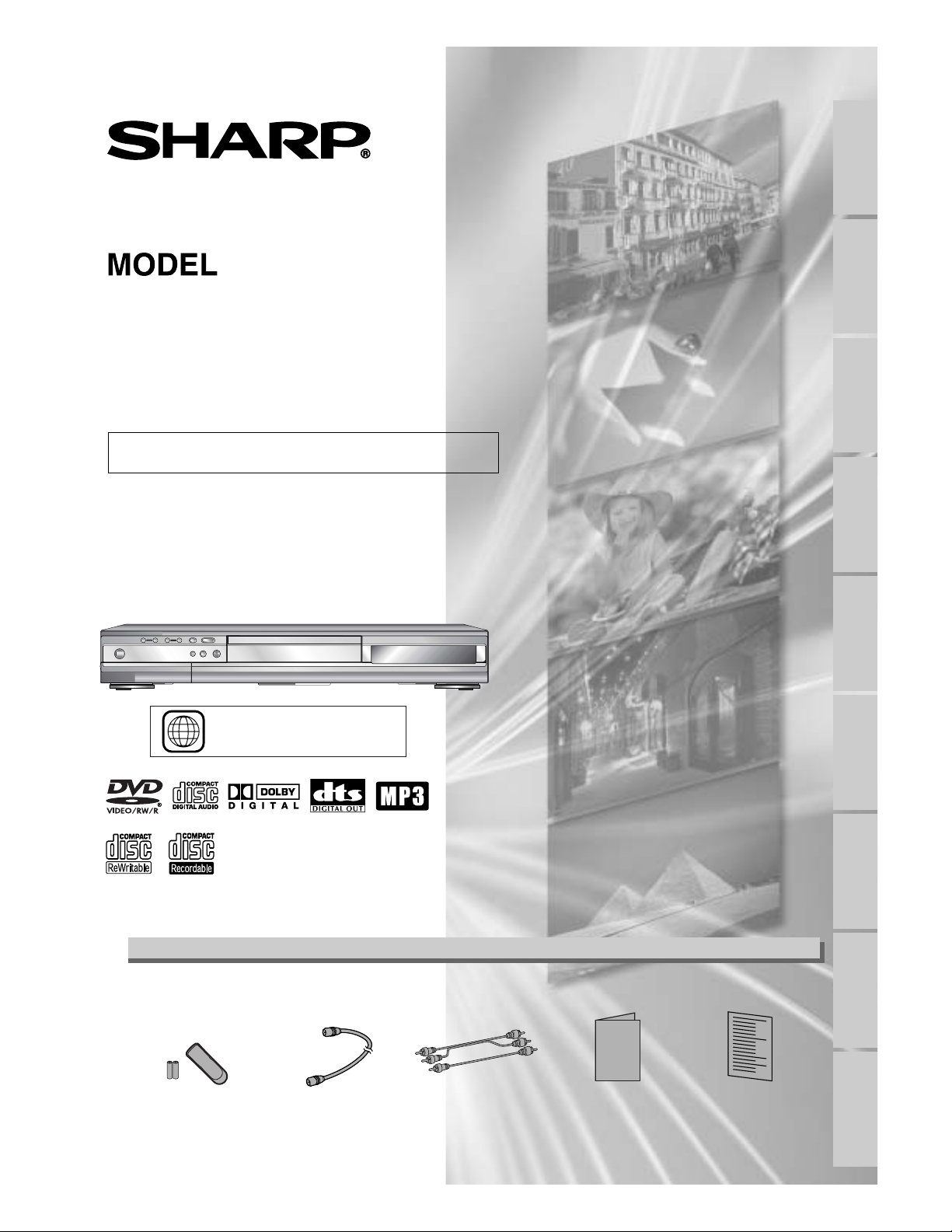
DVD RECORDER
OPERATION MANUAL
Please read this Operation Manual carefully before using
your DVD recorder.
1
The region number for this
DVD recorder is 1.
INSTRUCCIONES EN ESPAÑOL INCLUIDAS.
DV-SR45U
• Remote control
(9HSNB006UD)
with two “AA” size
batteries
• Round Coaxial cable
(9HSWPZ0901TM003)
• Audio/Video cables
(9HSWX1E56B5-001)
• Operation Manual
(9HS
1VMN20185)
• Quick Use Guide
(9HS1VMN20228)
Operation Manual
Recording Playing discs EditingBefore you start Connections Getting started
Changing the SETUP menu
Others Español
Supplied Accessory
Precautions
Before you start
2
WARNING: TO REDUCE THE RISK OF FIRE OR ELECTRIC SHOCK, DO
NOT EXPOSE THIS APPLIANCE TO RAIN OR MOISTURE.
CAUTION:TO PREVENT ELECTRIC SHOCK, MATCH WIDE BLADE OF PLUG TO
WIDE SLOT, FULLY INSERT.
ATTENTION: POUR ÉVITAR LES CHOC ÉLECTRIQUES, INTRODUIRE LA LAME
LA PLUS LARGE DE LA FICHE DANS LA BORNE CORRESPONDANTE DE LA
PRISE ET POUSSER JUSQU’AU FOND.
CAUTION:
THIS UNIT IS A CLASS 1 LASER PRODUCT.
USE OF CONTROLS OR ADJUSTMENTS OR PERFORMANCE OF PROCEDURES OTHER THAN THOSE SPECI-
FIED HEREIN MAY RESULT IN HAZARDOUS RADIATION EXPOSURE.
AS THE LASER BEAM USED IN THIS UNIT IS HARMFUL TO THE EYES, DO NOT ATTEMPT TO DISASSEMBLE THE
CABINET.
REFER SERVICING TO QUALIFIED PERSONNEL ONLY.
This symbol warns the user of uninsulated
voltage within the unit that can cause dan-
gerous electric shocks.
This symbol alerts the user that there are
important operating and maintenance
instructions in the literature accompanying
this unit.
CAUTION
:
TO REDUCE THE RISK OF ELECTRIC SHOCK, DO
NOT REMOVE COVER (OR BACK). NO USER SER-
VICEABLE PARTS INSIDE. REFER SERVICING TO QUAL-
IFIED SERVICE PERSONNEL.
CAUTION
RISK OF ELECTRIC SHOCK
DO NOT OPEN
For future reference, record the serial number (located on the rear of
the Unit) in the space provided.
Model No.:
DV-SR45U
Serial No.:
This device complies with Part 15 of the FCC Rules. Operation is subject to the following two conditions:
(
1) This device may not cause harmful interference, and
(2) this device must accept any interference received, including interference that may cause undesired operation.
INFORMATION
This equipment has been tested and found to comply with the limits for a Class B digital device, pursuant to Part 15
of the FCC Rules.These limits are designed to provide reasonable protection against harmful interference in a resi-
dential installation.This equipment generates, uses and can radiate radio frequency energy and, if not installed and
used in accordance with the instructions, may cause harmful interference to radio communications. However, there is
no guarantee that interference will not occur in a particular installation. If this equipment does cause harmful interfer-
ence to radio or television reception, which can be determined by turning the equipment off and on, the user is
encouraged to try to correct the interference by one or more of the following measures:
—Reorient or relocate the receiving antenna.
—Increase the separation between the equipment and receiver.
—Connect the equipment into an outlet on a circuit different from that to which the receiver is connected.
—Consult the dealer or an experienced radio/TV technician for help.
“WARNING—FCC Regulations state that any unauthorized changes or modi-
fications to this equipment not expressly approved by the manufacturer could
void the user’s authority to operate this equipment.”
This Class B digital apparatus complies with Canadian ICES-003.
Cet appareil numérique de la classe B est conforme à la norme NMB-003 du Canada.
Este aparato digital de la Clase B cumple con la norma ICES-003 de Canadá.
Recording Playing discs EditingBefore you start Connections Getting started
Changing the SETUP menu
Others Español
3
Before you start
Precautions (cont’d)
1. Read Instructions - All the safety and operating instructions
should be read before the appliance is operated.
2. Retain Instructions- The safety and operating instructions
should be retained for future reference.
3. Heed Warnings - All warnings on the appliance and in the
operating instructions should be adhered to.
4. Follow Instructions - All operating and use instructions
should be followed.
5. Cleaning - Unplug this video product from the wall outlet
before cleaning. Do not use liquid cleaners or aerosol clean-
ers. Use a damp cloth for cleaning.
EXCEPTION: A product that is meant for uninterrupted
service and, that for some specific reason, such as the pos-
sibility of the loss of an authorization code for a CATV con-
verter, is not intended to be unplugged by the user for
cleaning or any other purpose, may exclude the reference
to unplugging the appliance in the cleaning description oth-
erwise required in item 5.
6.Attachments - Do not use attachments not recommended by
the video product manufacturer as they may cause hazards.
7.
Water and Moisture- Do not use this video product near water,
for example, near a bath tub, wash bowl, kitchen sink, or laundry
tub, in a wet basement, or near a swimming pool, and the like.
8.Accessories - Do not place this video product on an unsta-
ble cart, stand, tripod, bracket, or table. The video product
may fall, causing serious injury to a child or adult, and seri-
ous damage to the appliance. Use only
with a cart, stand, tripod, bracket, or table
recommended by the manufacturer, or
sold with the video product.Any mount-
ing of the appliance should follow the
manufacturer's instructions and should
use a mounting accessory recommended
by the manufacturer.
9.
Transportation - A product and cart combination should be
moved with care. Quick stops, excessive force, and uneven sur-
faces may cause the appliance and cart combination to overturn.
10.Ventilation - Slots and openings in the cabinet are provided
for ventilation and to ensure reliable operation of the video
product and to protect it from overheating, and these open-
ings must not be blocked or covered. The openings should
never be blocked by placing the video product on a bed,
sofa, rug, or other similar surface.This video product should
not be placed in a built-in installation such as a bookcase or
rack unless proper ventilation is provided or the manufac-
turer's instructions have been adhered to.
11. Power Sources - This video product should be operated
only from the type of power source indicated on the mark-
ing label. If you are not sure of the type of power supply to
your home, consult your appliance dealer or local power
company. For products intended to operate from battery
power, or other sources, refer to the operating instructions.
12. Grounding or Polarization - This video product is equipped
with a polarized alternating-current line plug (a plug having
one blade wider than the other). This plug will fit into the
power outlet only one way.This is a safety feature. If you are
unable to insert the plug fully into the outlet, try reversing
the plug. If the plug should still fail to fit, contact your elec-
trician to replace your obsolete outlet. Do not defeat the
safety purpose of the polarized plug.
13. Power Cord Protection - Power supply cords should be
routed so that they are not likely to be walked on or
pinched by items placed upon or against them, paying par-
ticular attention to cords at plugs, convenience receptacles,
and the point where they exit from the appliance.
14. Outdoor Antenna Grounding - If an outside antenna or cable
system is connected to the video product, be sure the antenna
or cable system is grounded so as to provide some protection
against voltage surges and built-up static charges.Article 810 of
the National Electrical Code, ANSI/NFPA No. 70, provides
information with regard to proper grounding of the mast and
supporting structure, grounding of the lead-in wire to an anten-
na discharge unit, size of grounding conductors, location of
antenna-discharge unit, connection to grounding electrodes,
and requirements for the grounding electrode. (Fig.A)
15. Lightning - For added protection for this video product dur-
ing a lightning storm, or when it is left unattended and
unused for long periods of time, unplug it from the wall out-
let and disconnect the antenna or cable system. This will
prevent damage to the video product due to lightning and
power-line surges.
16. Power Lines - An outside antenna system should not be locat-
ed in the vicinity of overhead power lines or other electric
light or power circuits, or where it can fall into such power
lines or circuits.When installing an outside antenna system,
extreme care should be taken to keep from touching such
power lines or circuits as contact with them might be fatal.
17. Overloading - Do not overload wall outlets and extension
cords as this can result in a risk of fire or electric shock.
18. Object and Liquid Entry - Never push objects of any kind
into this video product through any openings as they may
touch dangerous voltage points or short-out parts that
could result in a fire or electric shock. Never spill liquid of
any kind on the video product.
19. Servicing - Do not attempt to service this video product
yourself as opening or removing covers may expose you to
dangerous voltage or other hazards. Refer all servicing to
qualified service personnel.
20. Damage Requiring Service - Unplug this video product from
the wall outlet and refer servicing to qualified service per-
sonnel under the following conditions:
a.When the power-supply cord or plug is damaged.
b. If liquid has been spilled, or objects have fallen into the video
product.
c. If the video product has been exposed to rain or water.
d. If the video product does not operate normally by follow-
ing the operating instructions. Adjust only those controls
that are covered by the operating instructions as an improp-
er adjustment of other controls may result in damage and
will often require extensive work by a qualified technician
to restore the video product to its normal operation.
e. If the video product has been dropped or damaged in any way.
f.When the video product exhibits a distinct change in per-
formance this indicates a need for service.
2
1. Replacement Parts - When replacement parts are required,
be sure the service technician has used replacement parts
specified by the manufacturer or have the same characteris-
tics as the original part. Unauthorized substitutions may
result in fire, electric shock or other hazards.
22. Safety Check - Upon completion of any service or repairs to
this video product, ask the service technician to perform
safety checks to determine that the video product is in
proper operating condition.
23. Heat - This video product should be situated away from heat
sources such as radiators, heat registers, stoves, or other
products (including amplifiers) that produce heat.
FIGURE A
EXAMPLE OF ANTENNA GROUNDING
AS PER NATIONAL ELECTRICAL CODE
ANTENNA
LEAD
WIRE
ANTENNA
DISCHARGE UNIT
(NEC SECTION 810-20)
GROUNDING CONDUCTORS
(NEC SECTION 810-21)
GROUND
CLAMP
GROUND CLAMP
ELECTRIC
SERVICE
EQUIPMENT
POWER SERVICE GROUNDING
ELECTRODE SYSTEM
(NEC ART 250, PART H)
NEC – NATIONAL ELECTRICAL CODE
S2898A
Important Safeguards
Precautions (cont’d)
Before you start
4
Copy Protection
Warning of Dew Formation
This Unit supports Macrovision copy protection.
On DVD discs that include a copy protection code, if the contents of the DVD disc are copied using the DVD recorder, the
copy protection code prevents the DVD copy from playing normally.
Moisture may form inside the DVD recorder under the following conditions:
• Immediately after a heater is turned on.
• In a steamy or humid room.
• When the DVD recorder is suddenly moved from a cold to warm environment.
If moisture forms inside this DVD recorder, it may not operate properly. In such case, turn on the power and wait for more
than two hours for the moisture to evaporate.
Notice for progressive scan outputs
Consumers should note that not all high definition television sets are fully compatible with this product and may cause artifacts
to be displayed in the picture. In case of 525 progressive scan picture problems, it is recommended that the user switch the
connection to the ‘standard definition’ output. If there are questions regarding our TV set compatibility with this model 525p
DVD player, please contact our customer service center.
Apparatus Claims of U.S. Patent Nos. 4,631,603, 4,577,216, 4,819,098 and 4,907,093 licensed for limited viewing uses only.
This product incorporates copyright protection technology that is protected by method claims of certain U.S. patents and
other intellectual property rights owned by Macrovision Corporation and other rights owners. Use of this copyright protec-
tion technology must be authorized by Macrovision Corporation, and is intended for home and other limited viewing uses
only unless otherwise authorized by Macrovision Corporation. Reverse engineering or disassembly is prohibited.
No Fingers or Other Objects Inside
Do not put your fingers or objects on the disc tray.
Location and Handling
Location and Handling
• Do not cover or place the DVD recorder in enclosed spaces to prevent excessive temperature build up.
• Do not place the DVD recorder in direct sunlight, or near heat sources.
• Depending on the use environment, the temperature of the DVD recorder may increase slightly.This is not a malfunction.
• Keep the DVD recorder away from strong magnetic objects.
• Do not stand the unit vertically. Install the unit in a horizontal and stable position.
• Do not place any object containing water or other liquids on the DVD recorder. In the event that liquid should enter the cabinet,
unplug the DVD recorder immediately and contact the retailer or service centre approved by SHARP immediately.
•
Do not remove the
DVD recorder
cabinet.Touching parts inside the cabinet could result in electric shock and/ or damage to the
DVD recorder
. For service and adjustment inside the cabinet, call a qualified dealer or service centre approved by SHARP.
Nonuse Periods
Location and Handling
• When the DVD recorder is not being used, switch the DVD recorder to the Standby mode.
• When left unused for a long period of time, the DVD recorder should be unplugged from the household AC outlet.
• Do not place the DVD recorder in direct sunlight, or near heat sources.
Manufactured under license from Dolby Laboratories.“Dolby” and the double-D symbol are trademarks of Dolby
Laboratories.
“DTS” and “DTS Digital Out” are trademarks of Digital Theater Systems, Inc.
Precautions (cont’d)
Before you start
Recording Playing discs EditingBefore you start Connections Getting started
Changing the SETUP menu
Others Español
5
SERVICING
1. Please refer to relevant topics in the Troubleshooting on pages 92-95 before returning the product.
2. Do not attempt to service this Unit yourself. Instead, unplug it and contact a Sharp Authorized Service Center for inspection.
(See
Service Information on page 97.)
3. Be sure the service technician uses authorized replacement parts or their equivalents. Unauthorized parts may cause fire, elec-
trical shock, or other hazards.
4. Following any service or repair, be sure the service technician performs safety checks to certify that this Unit is in safe operat-
ing order.
CLEANING THE CABINET
¡Use a soft cloth slightly moistened with a mild detergent solution. Do not use a solution containing alcohol, spirits, ammonia or
abrasive.
CLEANING DISCS
¡When a disc becomes dirty, clean it with a cleaning cloth.Wipe the disc from the center out. Do not wipe in a circular motion.
¡Do not use solvents such as benzine, thinner, commercially available cleaners, detergent, abrasive cleaning agents or antistatic
spray intended for analogue records.
RECOMMENDED MEASURES FOR OPTIMUM PICTURE EXCELLENCE
This Unit is a precision device constructed using extremely accurate technology.
¡The disc cannot be played if the disc drive component is worn out or if the internal pick up lens is dirty.
¡If this unit still does not perform properly although you refer to the relevant sections and to Troubleshooting on pages 92-95,
the laser optical pickup unit may be dirty. Consult a Sharp Authorized Service Center for inspection and cleaning of the laser
optical pickup unit.
DISC HANDLING
¡Handle the discs so that fingerprints and dust do not adhere to the surfaces of the discs.
¡Always store the disc in its protective case when it is not used.
Maintenance
A NOTE ABOUT RECYCLING
This product’s packaging materials are recyclable and can be reused. Please dispose of any materials in accordance with your
local recycling regulations.
Batteries should never be thrown away or incinerated but disposed of in accordance with your local regulations concerning
chemical wastes.
Make your contribution to the environment!!!
• Used up batteries do not belong in the dust bin.
• You can dispose of them at a collection point for used up batteries or special waste.
Contact your council for details.
Others
It is the intent of Sharp that this product be used in full compliance with the copyright laws of the United States and that prior
permission be obtained from copyright owners whenever necessary.
“Licensed under one or more of U.S. Pat. 4,972,484, 5,2
14,678, 5,323,396, 5,530,655, 5,539,829, 5,544,247, 5,606,618,
5,6
10,985, 5,740,317, 5,777,992, 5,878,080, or 5,960,037.”
Table of contents
Before you start
6
Pause . . . . . . . . . . . . . . . . . . . . . . . . . . . . . . . . . . . .47
Step by step playback . . . . . . . . . . . . . . . . . . . . . . . .48
Slow forward / Slow reverse play . . . . . . . . . . . . . . .48
Zoom . . . . . . . . . . . . . . . . . . . . . . . . . . . . . . . . . . .49
Marker Setup . . . . . . . . . . . . . . . . . . . . . . . . . . . . . .49
Search . . . . . . . . . . . . . . . . . . . . . . . . . . . . . . . . .50
Title/Chapter search . . . . . . . . . . . . . . . . . . . . . . . .50
Track search . . . . . . . . . . . . . . . . . . . . . . . . . . . . . .51
Time search . . . . . . . . . . . . . . . . . . . . . . . . . . . . . . .51
Repeat/Random/Program playback . . . . . . . . . .52
Repeat play . . . . . . . . . . . . . . . . . . . . . . . . . . . . . . .52
Random playback . . . . . . . . . . . . . . . . . . . . . . . . . . .52
Program play . . . . . . . . . . . . . . . . . . . . . . . . . . . . . .53
Selecting the format of audio and video . . . . . .54
Switching audio soundtrack . . . . . . . . . . . . . . . . . . .54
Switching subtitles . . . . . . . . . . . . . . . . . . . . . . . . . .55
Switching camera angles . . . . . . . . . . . . . . . . . . . . . .56
Reducing block noise . . . . . . . . . . . . . . . . . . . . . . . .56
Editing . . . . . . . . . . . . . . . . . . . . . . . . .57
Information on disc editing . . . . . . . . . . . . . . . . .57
Guide to a title list . . . . . . . . . . . . . . . . . . . . . . . . . .57
Editing discs with Video mode . . . . . . . . . . . . . . . . .57
Editing discs with VR mode . . . . . . . . . . . . . . . . . . .58
Editing DVD-RW discs in Video mode . . . . . . . .59
Deleting titles . . . . . . . . . . . . . . . . . . . . . . . . . . . . .59
Putting names on titles . . . . . . . . . . . . . . . . . . . . . .60
Setting or clearing chapter markers . . . . . . . . . . . . .62
Editing DVD-RW discs in VR mode (Original) . .63
Deleting titles . . . . . . . . . . . . . . . . . . . . . . . . . . . . .63
Deleting parts of titles . . . . . . . . . . . . . . . . . . . . . . .64
Putting names on titles . . . . . . . . . . . . . . . . . . . . . .65
Setting or clearing chapter markers . . . . . . . . . . . . .67
Setting pictures for thumbnails . . . . . . . . . . . . . . . . .68
Setting titles to protect . . . . . . . . . . . . . . . . . . . . . .70
Releasing titles from protecting . . . . . . . . . . . . . . . .7
1
Editing DVD-RW discs in VR mode (Playlist) . . .72
Deleting titles . . . . . . . . . . . . . . . . . . . . . . . . . . . . .72
Deleting parts of titles . . . . . . . . . . . . . . . . . . . . . . .73
Putting names on titles . . . . . . . . . . . . . . . . . . . . . .74
Setting or clearing chapter markers . . . . . . . . . . . . .76
Setting pictures for thumbnails . . . . . . . . . . . . . . . . .77
Adding titles to a Playlist . . . . . . . . . . . . . . . . . . . . .79
Deleting a Playlist . . . . . . . . . . . . . . . . . . . . . . . . . . .80
Editing DVD-R discs . . . . . . . . . . . . . . . . . . . . . .81
Deleting titles . . . . . . . . . . . . . . . . . . . . . . . . . . . . .81
Putting names on titles . . . . . . . . . . . . . . . . . . . . . .82
Changing the SETUP menu . . . . . . . . .83
Tour of the SETUP menu . . . . . . . . . . . . . . . . . .83
Language setting . . . . . . . . . . . . . . . . . . . . . . . . .84
Display setting . . . . . . . . . . . . . . . . . . . . . . . . . . .86
Audio setting . . . . . . . . . . . . . . . . . . . . . . . . . . . .88
Settings for Parental lock level . . . . . . . . . . . . . .90
Others . . . . . . . . . . . . . . . . . . . . . . . . .92
Troubleshooting . . . . . . . . . . . . . . . . . . . . . . . . .92
Language code . . . . . . . . . . . . . . . . . . . . . . . . . .95
Glossary . . . . . . . . . . . . . . . . . . . . . . . . . . . . . . . .96
Specifications . . . . . . . . . . . . . . . . . . . . . . . . . . .97
Service Information (For the U.S.) . . . . . . . . . . .97
Español . . . . . . . . . . . . . . . . . . . . . . . . .98
Before you start . . . . . . . . . . . . . . . . . . .2
Precautions . . . . . . . . . . . . . . . . . . . . . . . . . . . . . .2
Table of contents . . . . . . . . . . . . . . . . . . . . . . . . . .6
Features . . . . . . . . . . . . . . . . . . . . . . . . . . . . . . . .7
Functional overview . . . . . . . . . . . . . . . . . . . . . . .8
Installing batteries in the remote control . . . . . . . . .10
Using a remote control . . . . . . . . . . . . . . . . . . . . . .10
DISPLAY menu . . . . . . . . . . . . . . . . . . . . . . . . . . . .10
SETUP/DISC/CD menu . . . . . . . . . . . . . . . . . . . . . .11
Connections . . . . . . . . . . . . . . . . . . . . .13
Connection to a TV . . . . . . . . . . . . . . . . . . . . . . .13
Connection to a cable box or satellite box . . . .14
When connecting to a cable box or satellite box with
only a few scrambled channels . . . . . . . . . . . . . . . . .14
When connecting to a cable box or satellite box with
many scrambled channels . . . . . . . . . . . . . . . . . . . . .14
Connection to an Audio System . . . . . . . . . . . . .15
Getting started . . . . . . . . . . . . . . . . . . .16
Easy DVD recording . . . . . . . . . . . . . . . . . . . . . .16
Channel setting . . . . . . . . . . . . . . . . . . . . . . . . . .18
Getting channels automatically . . . . . . . . . . . . . . . . .18
Adding/deleting channels . . . . . . . . . . . . . . . . . . . . .19
Selecting the TV stereo or SAP . . . . . . . . . . . . .20
Setting the clock . . . . . . . . . . . . . . . . . . . . . . . . .21
Auto Clock Setting . . . . . . . . . . . . . . . . . . . . . . . . .21
Manual Clock Setting . . . . . . . . . . . . . . . . . . . . . . . .22
Setting the daylight saving time . . . . . . . . . . . . . . . .24
Selecting the TV aspect ratio . . . . . . . . . . . . . . .25
Recording . . . . . . . . . . . . . . . . . . . . . . .26
Information on DVD recording . . . . . . . . . . . . . .26
Information . . . . . . . . . . . . . . . . . . . . . . . . . . . . . . .26
Recording speed . . . . . . . . . . . . . . . . . . . . . . . . . . .26
Restrictions on recording . . . . . . . . . . . . . . . . . . . .26
Information on copy control . . . . . . . . . . . . . . . . . .27
Making discs playable in other DVD player (Finalize) 27
Formatting a disc . . . . . . . . . . . . . . . . . . . . . . . .28
Choosing the recording format of a blank disc . . . . .28
Reformatting a disc . . . . . . . . . . . . . . . . . . . . . . . . .30
Basic recording . . . . . . . . . . . . . . . . . . . . . . . . . .31
Checking the recording picture quality . . . . . . . . . .32
One-touch timer recording . . . . . . . . . . . . . . . .33
Timer recording . . . . . . . . . . . . . . . . . . . . . . . . .34
Hints for timer recording . . . . . . . . . . . . . . . . . . . . .36
Settings for an external source . . . . . . . . . . . . . .37
Connection to an external source . . . . . . . . . . . . . .37
Recording from an external source . . . . . . . . . . . . .38
Finalizing the discs . . . . . . . . . . . . . . . . . . . . . . .39
Setting a disc to protect . . . . . . . . . . . . . . . . . . .40
Playing discs . . . . . . . . . . . . . . . . . . . . .41
Information on DVD play . . . . . . . . . . . . . . . . . .41
Guide to displays . . . . . . . . . . . . . . . . . . . . . . . . . . .41
Basic playback . . . . . . . . . . . . . . . . . . . . . . . . . . .42
Playback . . . . . . . . . . . . . . . . . . . . . . . . . . . . . . . . . .42
Playing discs using the disc menu . . . . . . . . . . . . . . .44
Playing discs using the title menu . . . . . . . . . . . . . . .45
Special playback . . . . . . . . . . . . . . . . . . . . . . . . .46
Resume play . . . . . . . . . . . . . . . . . . . . . . . . . . . . . . .46
Fast forward / Fast reverse . . . . . . . . . . . . . . . . . . .46
Skipping TV commercials during play . . . . . . . . . . . .47
Before you start
Recording Playing discs EditingBefore you start Connections Getting started
Changing the SETUP menu
Others Español
7
Recording
This DVD recorder is compatible with both DVD-RW,
which is rewritable repeatedly, and DVD-R, which is avail-
able for recording once.You can choose either one for
your convenience.
Up to 8 program recording:
You can program the DVD recorder to record up to 8
programs, up to a year in advance. Daily or weekly pro-
gram recordings are also available.
One-touch timer recording:
You can easily set a recording time as you prefer. Every
time the REC button pressed during recording, the
recording time will be increased by 30 minutes up to 4
hours.The recording automatically stops when the record-
ing time you set is reached.
REC MONITOR:
You can confirm the picture quality for recording in the
current recording speed which you set. If you want to
change the recording speed, press REC MODE button to
set the desired recording mode.
Automatic Chapter marker setting:
Chapter markers will be put on recordings as you set in
SETUP menu before attempting to record.
Automatic Title menu making:
The DVD recorder makes title menus automatically when
finalizing the disc which are recorded in Video mode.
Automatic PLAYLIST making (VR mode):
A Playlist will be prepared from an Original list, so that
you can edit titles in a Playlist as you prefer.
An Original list is kept as it is.
Play
Theater surround sound in your home:
When connecting the DVD recorder to an amplifier or a
decoder which is compatible with Dolby Digital or DTS,
you are allowed to experience the theater surround sound
from discs with surround sound system.
Quick search for what you want to watch:
You can easily find the part you want to watch using the
search function. Search for a desired point on a disc by
title, chapter, or time.
Start to play from Original and Playlist:
Title playing is available from either an Original list or
Playlist.
Editing
Setting/Clearing chapter markers:
You can easily add chapter markers anywhere in your
recordings for easy editing. (VR mode)
Making your own Playlist:
With the original remains as it is, you can edit titles on
various Playlist as you prefer.
Putting names on titles
Setting pictures for thumbnails
Setting/clearing chapter markers
Deleting parts of titles etc
Protecting titles:
To avoid editing or erasing titles, the protect function is
useful when it is ON in the original list.
Compatibility
Available for playing discs recorded in Video mode
on a regular DVD player (Video mode):
Discs recorded in Video mode can be played on regular
DVD players, including computer DVD drives compatible
with DVD-Video playback*.You will need to finalize the
discs recorded in Video mode to play in other DVD play-
ers.
* DVD-Video Format (Video mode) is a new format for record-
ing on DVD-RW/R discs that was approved by the DVD Forum
in 2000. Adoption of this format is optional for manufactures of
DVD playback devices, and there are DVD-Video players, DVD-
ROM drives or other DVD playback devices that do not play
DVD-RW/R discs recorded in the DVD-Video Format.
Others
Progressive Scan system
Unlike conventional interlace scanning, the progressive scan
system provides less flickering and images in higher resolu-
tion than that of traditional television signals.
This DVD unit not only plays DVDs and CDs but also offers features for you to record to DVD discs and
edit them after that.
The following features are offered with this DVD recorder.
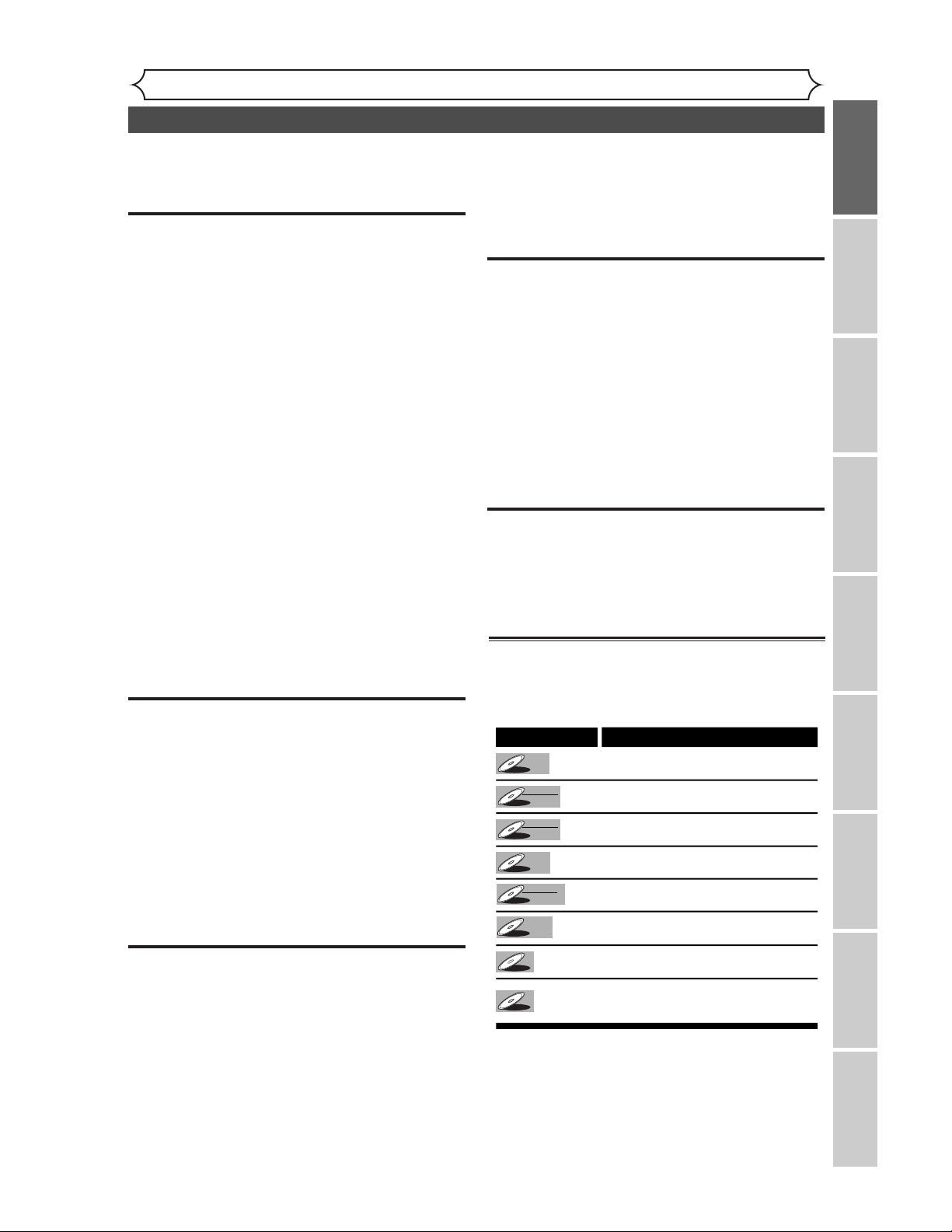
Symbol in this operation manual
Many functions of this DVD recorder are depending on
the disc type or the recording mode.
To specify for what disc type or recording mode each
function is, we put the following symbols at the beginning
of each item to operate.
Symbol
Description
Available to DVD Video discs
Avaialble to DVD-RW in Video mode
Avaialble to DVD-RW in VR mode
Available to DVD-R discs
Available to DVD+RW in Video mode
Available to DVD+R discs
Available to Audio CDs
Available to CD-RW/R discs with
MP3 files
DVD-RW
DVD-RW
VR
DVD-R
DVD-R
DVD-RW
DVD-RW
Video
DVD-V
DVD-V
CD
CD
MP3
MP3
DVD+R
DVD+R
DVD+RW
DVD+RW
Video
Features
Functional overview
Before you start
8
Front Panel
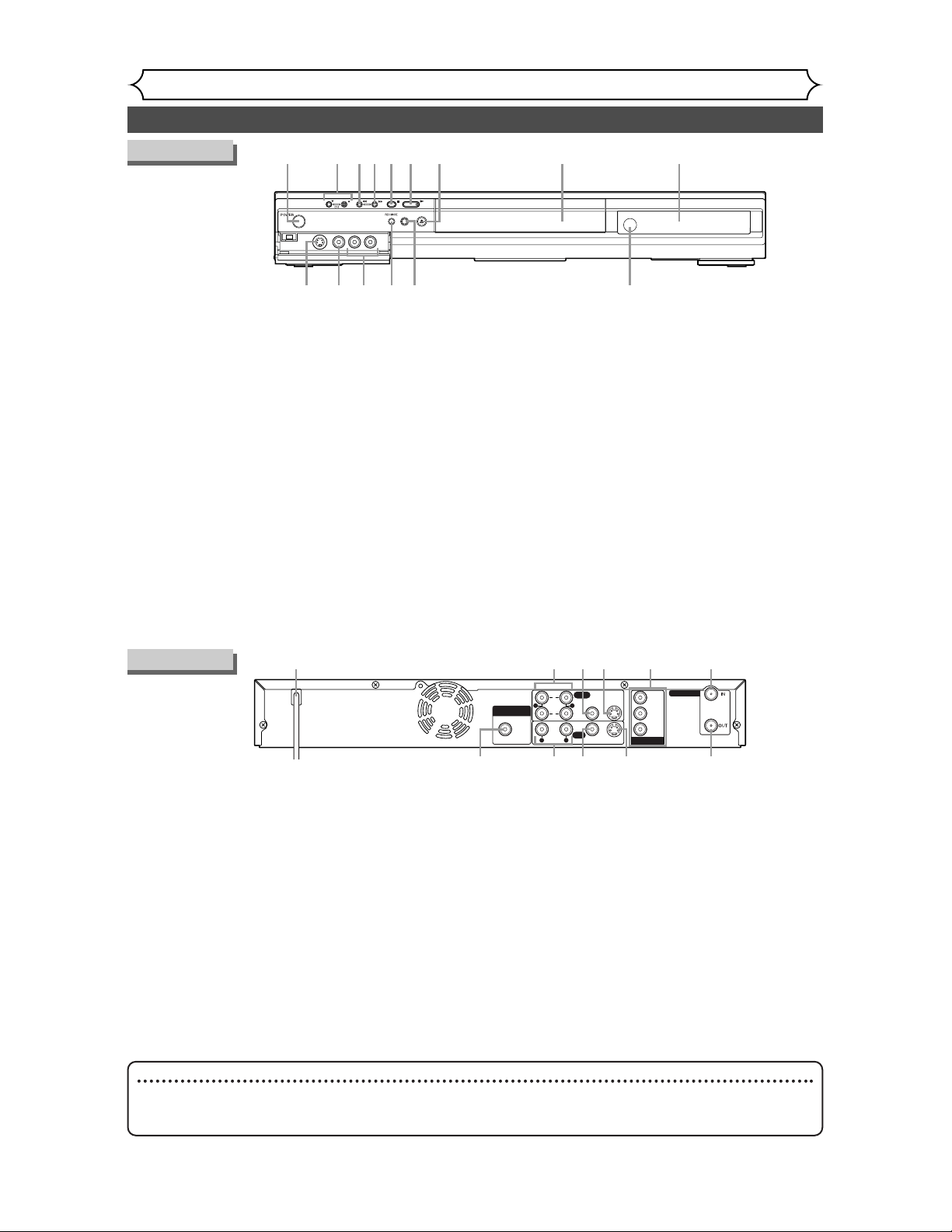
1. POWER button
Press to turn the DVD recorder on and off.
If timer programmings have been set, press to set the
unit in timer-standby mode.
2. CH L / K button
Press to change the channel up and down.
3. E (REV) button
During playback, press to skip to the previous chapter
or track.
During playback, press and hold for 1.5 seconds to fast reverse.
When playback is paused, press repeatedly to slow reverse.
4. D (FWD) button
During playback, press to skip to the next chapter or track.
During playback, press and hold for 1.5 seconds to
fast forward.
When playback is paused, press repeatedly to slow forward.
5. C (STOP) button*
Press to stop play or recording.
6. B (PLAY) button*
Press to start or resume play.
7. OPEN/CLOSE A button*
Press to open or close the disc tray.
8. Disc tray
Place a disc when open.
9. Display
Refer to “Front Panel Display Guide” on page 12.
10. Remote control sensor
Receive signals from your remote control so that you
can control the DVD recorder from a distance.
11. REC/OTR button
Press once to start a recording. Press repeatedly to
start a one-touch timer recording.
12. REC MODE button
Press to switch the recording speed.
13. AUDIO INPUT jacks (LINE2)
Use to connect external equipment with standard
audio cables.
14. VIDEO INPUT jack (LINE2)
Use to connect external equipment with a standard
video cable.
15. S-VIDEO INPUT jack (LINE2)
Use to connect the S-Video output of external equip-
ment with an S-Video cable.
Rear Panel
DIGITAL AUDIO OUTPUT
PCM / BITSTREAM
COAXIAL AUDIO
INPUT
COMPONENT
VIDEO OUTPUT
TV ANTENNA
OUTPUT
R
R
L
L
AUDIO
VIDEO
1
2
(L1)
VIDEO
S-VIDEO
S-VIDEO
P
R
/C
R
P
B
/C
B
Y
1 362
11 109
7
4
8
5
1. AC Power Cord
Connect to a standard AC outlet to supply power to this
unit.
2. AUDIO OUTPUT jacks 1, 2
Use to connect a TV monitor,AV receiver or other
equipment with standard audio cables.
3. VIDEO OUTPUT jack
Use to connect a TV monitor,AV receiver or other
equipment with a standard video cable.
4. S-VIDEO OUTPUT jack
Use to connect the S-Video input of a TV monitor,AV
receiver or other equipment with an S-Video cable.
5. COMPONENT VIDEO OUTPUT jacks
Use to connect a TV monitor with component video
inputs with component video cables.
6. TV ANTENNA IN jack
Use to connect an antenna.
7. TV ANTENNA OUT jack
Use to connect an antenna cable to pass the signal
from the TV ANTENNA IN to your TV monitor.
8. S-VIDEO INPUT jack(LINE1)
Use to connect the S-Video output of external equip-
ment with an S-Video cable.
9. VIDEO INPUT jack(LINE1)
Use to connect external equipment with a standard
video cable.
10. AUDIO INPUT jacks(LINE1)
Use to connect external equipment with standard
audio cables.
11. COAXIAL DIGITAL AUDIO OUTPUT jack
Use to connect an AV receiver, Dolby Digital decoder
or other equipment with a coaxial digital input jack
with a digital coaxial cable.
Note
• Do not touch the inner pins of the jacks on the rear panel. Electrostatic discharge may cause permanent damage to
the DVD recorder.
• This unit does not have an RF modulator
.
REC/OTR OPEN/CLOSE
1 2345*6*7* 8 9
12 11 1015 1314
(
*
) The unit can also
be turned on by
pressing these
buttons.
Functional overview (cont’d)
Before you start
Recording Playing discs EditingBefore you start Connections Getting started
Changing the SETUP menu
Others Español
9
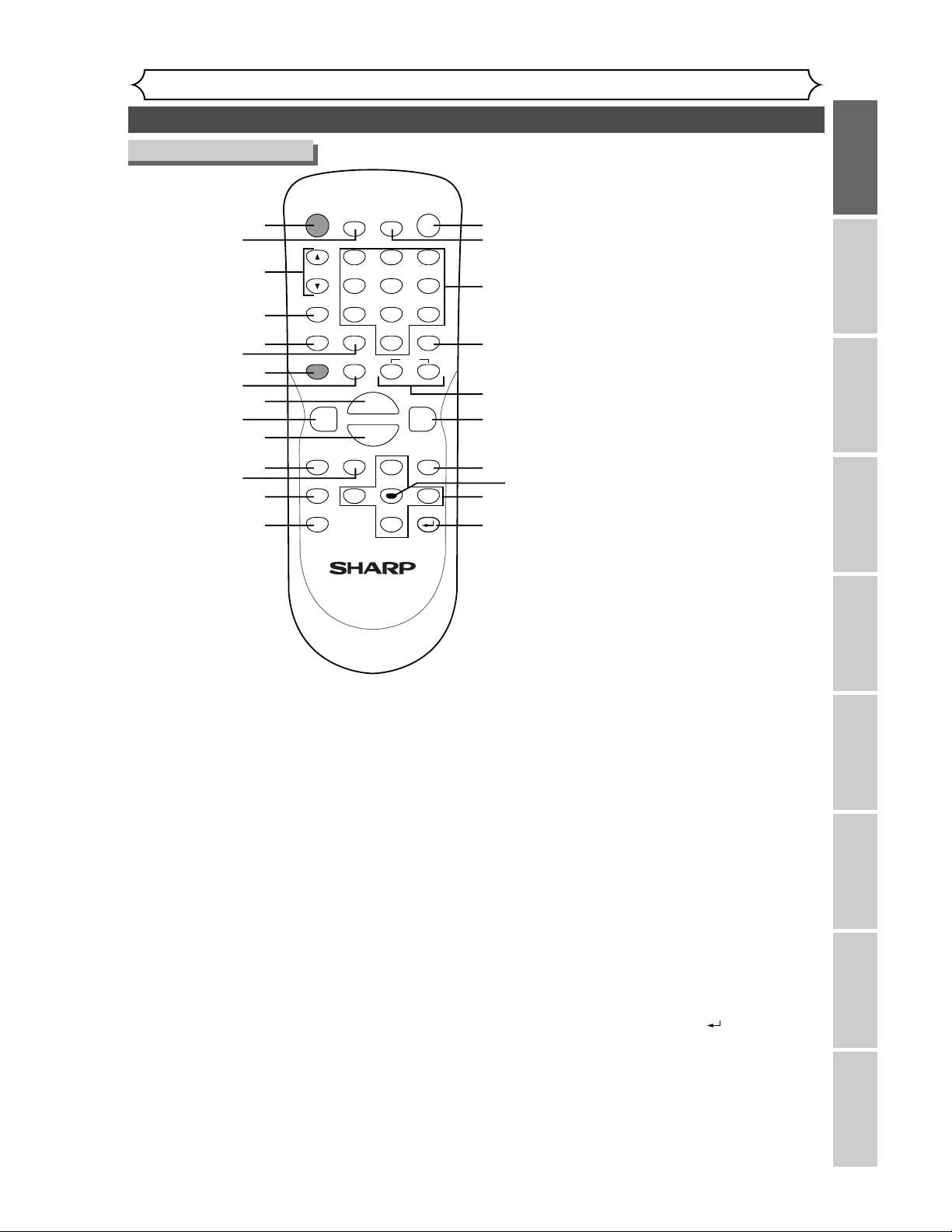
7. REC button
Press once to start a record-
ing. Press repeatedly to start a
One-Touch timer Recording.
8. PAUSE F button
Press to pause play or
recording.
9. PLAY B button*
Press to start or resume play.
10. REV E button
During playback, press to fast
reverse.
Or when playback is paused,
press to play slow reverse.
11. STOP C button*
Press to stop play or record-
ing.
12. SETUP button
Press to display the setup
menu.
During DVD playback, press
and hold for more than 3 sec-
onds to switch to the pro-
gressive scanning mode or
the interlace mode.
13. TOP MENU button
Press to display the top
menu.
1. POWER button
Press to turn the DVD
recorder on and off.
If timer programmings have
been set, press to set the unit
in timer-standby mode.
2. DISPLAY button
Press to display or change the
on-screen display.
3. CH K / L buttons
Press to change the channel
up and down.
4. REC MONITOR button
Press to check the video sig-
nal to be recorded before
attempting.
5. REC MODE button
Press to switch the recording
speed.
6. CLEAR button
Press to clear the password
once entered or to cancel the
programming for CD or to
clear the selecting marker num-
ber in the marker setup mode
or to clear the program once
entered in the timer recording
setting mode,etc.
14. REPEAT button
Press to display the repeat
setting menu.
15. ZOOM button
During playback, press to
enlarge the picture on the
screen.
16. OPEN/CLOSE A button*
Press to open or close the
disc tray.
17. TIMER PROG. button
Press to display the timer
program setting menu.
18. Number buttons
Press to select channel numbers.
Press to select a title/chap-
ter/track on display or a TV
channel.
Or press to enter values for
the settings in the SETUP
menu.
19. CM SKIP button
During playback, press to skip
30 seconds.
20. SKIP H button
During playback, press to skip to
the previous chapter or track. Or
when playback is paused, press to
play reverse step by step.
SKIP G button
During playback, press to skip to
the next chapter or track.
Or when playback is paused, press
to play forward step by step.
21. FWD D button
During playback, press to play
fast forward.
Or when playback is paused,
press to play slow forward.
22. MENU/LIST button
Press to display the Disc
menu.
To change ORIGINAL and
PLAYLIST on the TV screen.
(VR mode only)
23. ENTER button
Press to confirm or select
menu items.
24. K / L / { / B buttons
Press to select items or set-
tings.
25. RETURN button
Press to return to the previ-
ously displayed menu screen.
POWER
DISPLAY
REC MODE CLEAR
CM SKIP
SKIP
REC
PAUSE
SETUP
REPEAT
ZOOM
ENTER
RETURN
REC
MONITOR
OPEN/CLOSE
TIMER
PROG.
MENU/LIST
TOP MENU
SPACE
1
2
3
4
5
6
7
8
9
0
F
A
{B
FWD
g
STOP
C
PLAY
B
REV
h
HG
CH
.@/:
ABC
DEF
GHI
JKL
MNO
PQRS
TUV
WXYZ
K
L
12
1 16*
18
19
20
21
22
24
25
23
17
3
4
5
7
9*
11*
15
14
2
6
8
10
13
(
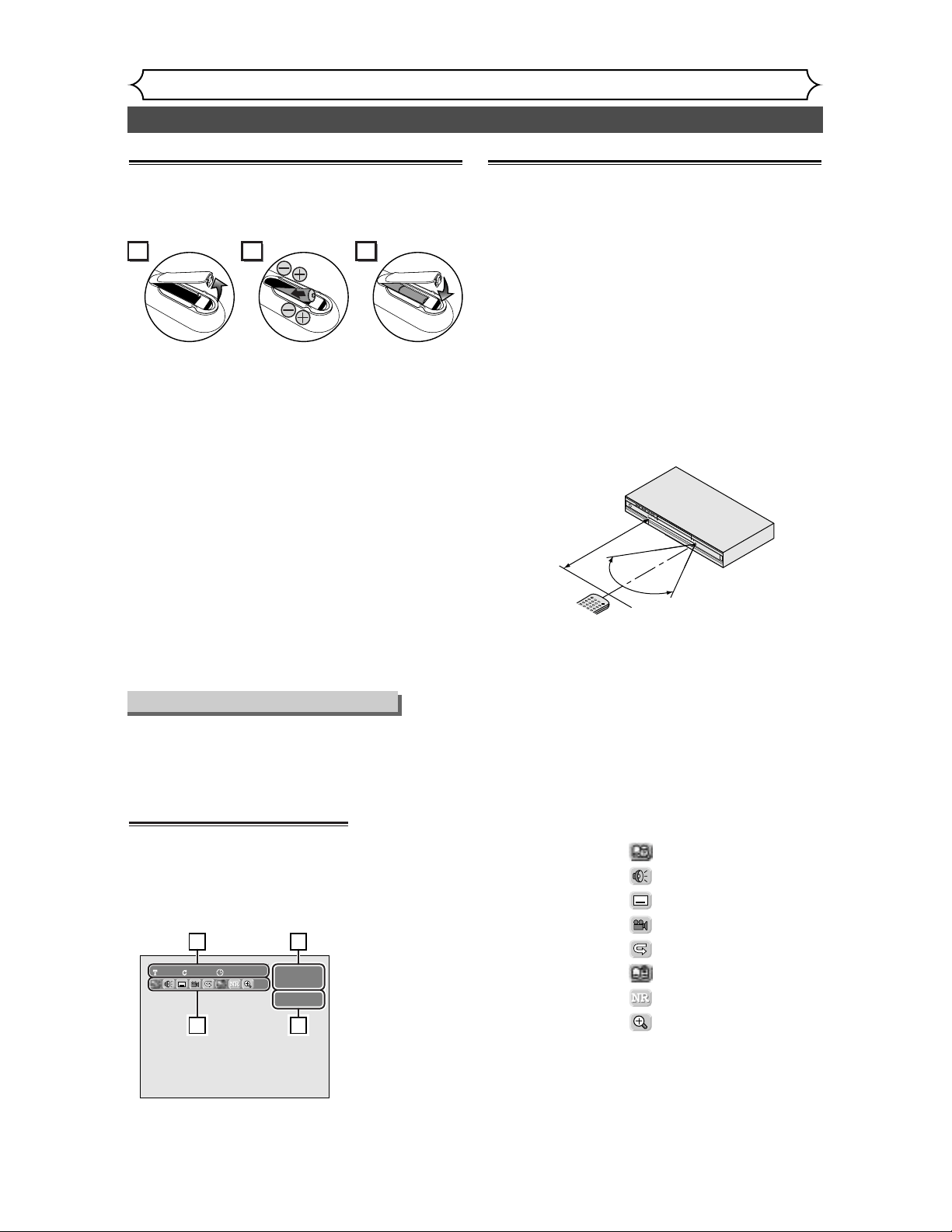
*
) The unit can also
be turned on by
pressing these
buttons.
Remote Control
Functional overview (cont’d)
Before you start
10
DISPLAY menu
Press DISPLAY button to call up
the display menu.This menu will
give you the information on the
playing disc. Some operations are
available while disc is playing.
Details are on page 41.
1. Indicates a disc type and a
format mode.
NOTE: In some descriptions
on this manual, only one disc
type is indicated as an exam-
ple.
2. Indicates a recording mode
and possible recording time.
3. Indicates a title number, chap-
ter number, and the time
lapse of disc play.
4. Each icon means:
: Search
: Audio
: Subtitle
: Angle (except VR mode
)
: Repeat
: Marker
: Noise Reduction
: Zoom
DVD-RW
SP 1:25 Rem.
Video mode
1 1 00:00:00
13
24
Using a remote control
Keep in mind the following when using the remote
control:
• Make sure that there is no obstacle between the
remote control and the remote sensor on the
DVD recorder.
• Use within the operating range and angle as
shown.
• Remote operation may become unreliable if strong
sunlight or fluorescent light is shining on the
remote sensor of the DVD recorder.
• Remote control for different devices can interfere
with each other. Avoid using remote control for
other equipment located close to the DVD
recorder.
• Replace the batteries when you notice a fall off in
the operating range of the remote control.
Installing batteries in the remote control
Install two “AA” size batteries (supplied) matching
the polarity indicated inside battery compartment of
the remote control.
Note:
Incorrect use of batteries can result in hazards such
as leakage and bursting. Please observe the following:
• Do not mix new and old batteries together.
• Do not use different kinds of batteries together,
although they may look similar, different batteries
may have different voltages.
• Make sure that the plus and minus ends of each
battery match the indications in the battery com-
partment.
• Remove batteries from equipment that is not going
to be used for a month or more.
• When disposing of used batteries, please comply
with governmental regulations or environmental
public instruction's rules that apply in your country
or area.
• Do not recharge, short-circuit, heat, burn or disas-
semble batteries.
P
O
W
E
R
D
I
S
P
LA
Y
R
E
C
S
P
E
E
D
C
L
E
A
R
C
M
S
KI
P
S
K
I
P
R
E
C
PA
U
S
E
P
E
N
T
E
R
R
E
C
M
ON
IT
OR
O
P
E
N
/
C
L
O
S
E
T
I
M
E
R
P
R
O
G
.
M
E
N
U
P
L
A
Y
L
I
S
T
T
O
P
M
E
N
U
/
O
R
IG
I
N
A
L
S
P
AC
E
1
2
3
4
5
6
7
8
9
0
F
W
D
S
T
O
P
P
L
AY
R
E
V
C
H
.
@
/
:
A
B
C
D
E
F
GH
I
J
K
L
M
N
O
P
Q
R
S
T
U
V
W
X
Y
Z
Remote
control
60˚
Within about
23feet (7m)
21 3
Guide to Displays on screen menu
This unit uses the following on screen menu for most operations: SETUP/DISC/CD menu,Title list, and DIS-
PLAY menu.They allow you to change the playing status of disc during play.
The DISPLAY menu also gives you information on the status of the disc.
Functional overview (cont’d)
Before you start
Recording Playing discs EditingBefore you start Connections Getting started
Changing the SETUP menu
Others Español
11
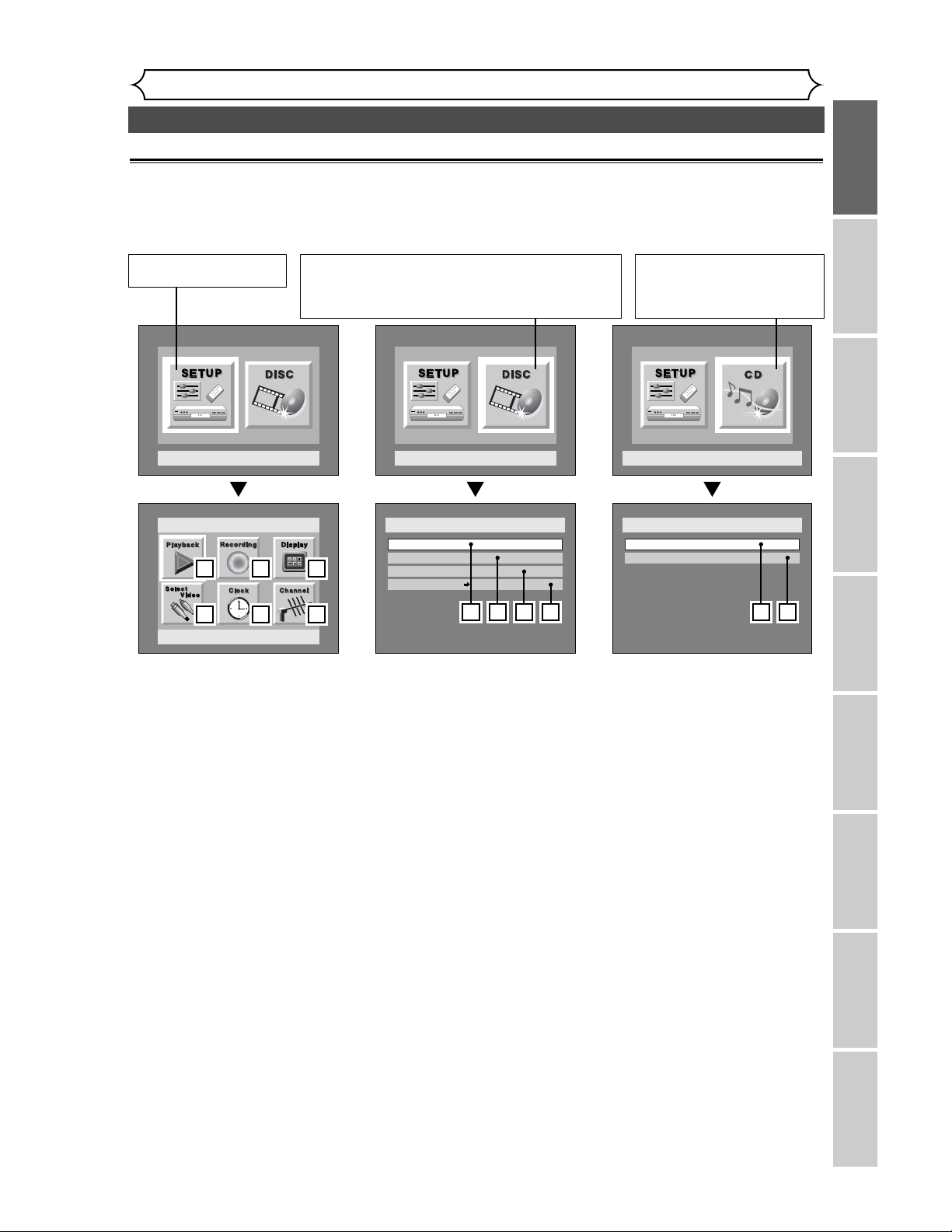
1. Playback:
To set up the DVD recorder to
play discs as you prefer.
2. Recording:
To set up the DVD recorder to
record to discs as you prefer.
3. Display:
To set up the OSD screen and the
front display of the DVD recorder
as you prefer.
4. Select Video:
To choose a line input to record
to DVD discs from other video
equipment.
5. Clock:
To set up the clock of the DVD
recorder as you need.
6. Channel:
To adjust the channel setting of
the DVD recorder as you prefer.
1. Edit:
Turns on a title list, (When a disc
with VR mode is inserted,
'Original' or 'PlayList' is available.),
which shows the recorded titles
on the disc.
2. Format (DVD-RW only):
Allows you to erase all of the
recorded content on the disc.
The disc will be completely blank.
• Erased content cannot be called
back. Please make sure before
you format a disc.
• A DVD-RW disc formatted with
this unit cannot be used in other
DVD recorders without any
recording using this unit.
•
If you want to use a disc only for-
matted with this unit on another
DVD recorder, you have to re-for-
mat the disc on that recorder
.
3. Finalize:
Allows you to finalize a disc
containing recorded titles.
4.
Disc Protect (VR mode only)
:
Allows you to protect a disc from
accidental editing or recording.
1. Random Play:
To activate the random playback
feature.
2. Program Play:
To activate the programmed play-
back feature.
CD Playback Mode
CD Playback Mode
Random Play
Program Play
1 2
Disc Setting
Disc
Edit
Format
Finalize
Disc Protect OFF ON
1 2 3
4
Setup Menu
Setup
Playback Setting
1 2 3
4 5 6
“SETUP” is available only
in the Stop mode.
“DISC” is available only when a DVD-RW/R disc is insert-
ed into the unit. When a DVD-Video disc (commercially
available), new DVD-R disc, or the finalized DVD-R disc is
inserted into the unit, you cannot select “DISC”.
“CD” is available only when an
Audio CD disc or a CD-RW/R
disc with MP3 files is inserted
into the DVD recorder.
SETUP/DISC/CD menu
Press SETUP button to display the setup main menu, then choose either of SETUP/DISC/CD by { / B button.
Then, press ENTER button to display each menu.
These menus provide entries to all main functions of the DVD recorder.
Functional overview (cont’d)
Before you start
12
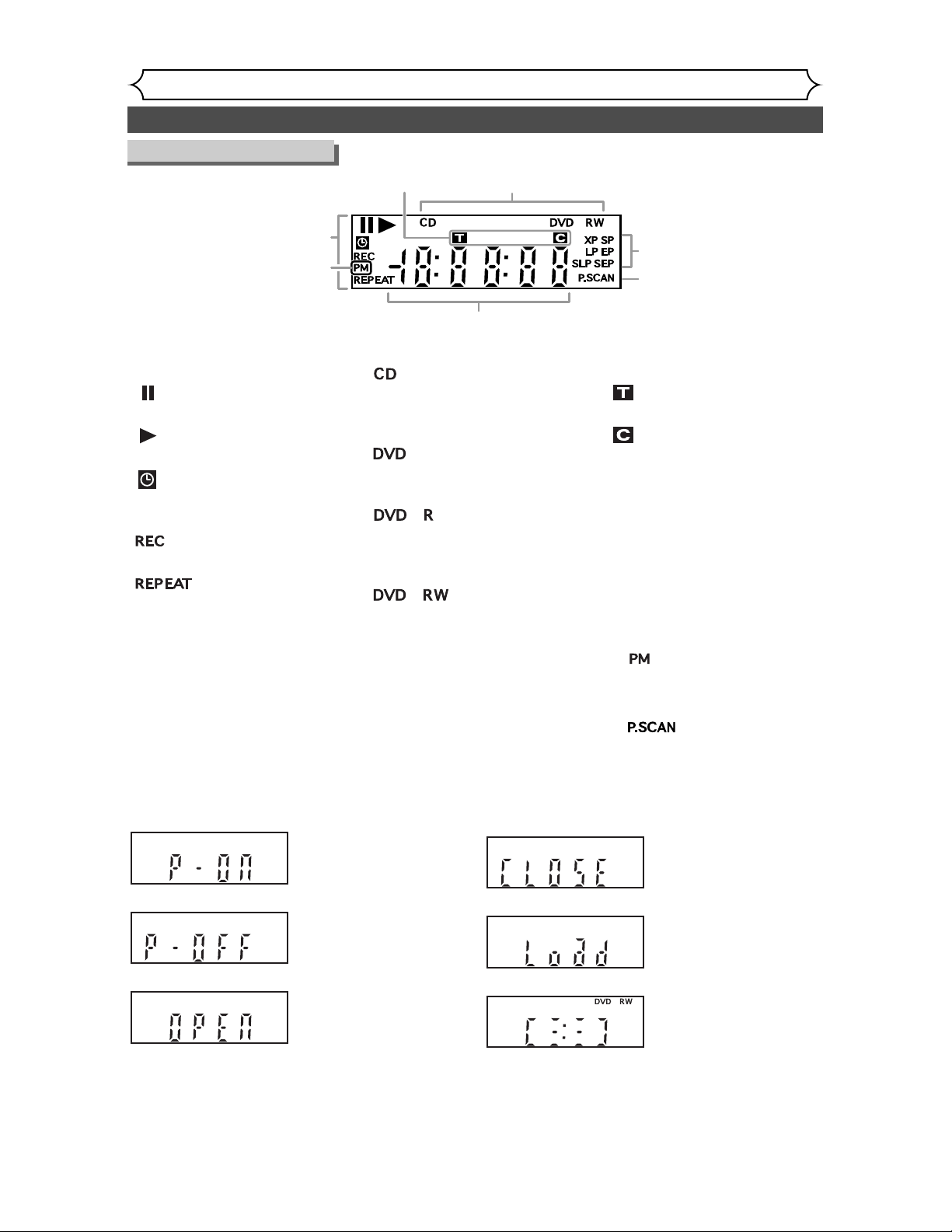
Front Panel Display Guide
1. Current status of the
DVD recorder
: Appears when disc play-
back is paused.
: Appears when playing a
disc.
: Appears when the timer
programming has been
set and is proceeding.
: Appears during recording
process.
:
Appears during repeat
play.
2. Disc type
: Appears when an audio
CD or a disc with MP3
files is inserted in the disc
tray.
: Appears when a DVD
disc is inserted in the
disc tray.
:
Appears when a DVD-R
disc is inserted in the
disc tray.
:
Appears when a DVD-
RW disc is inserted in
the disc tray.
3. Recording speed
Indicates the recording speed of
the disc.
Display message
4. Title/Track and Chapter
mark
: Appears when indicating
a title/track number.
: Appears when indicating
a chapter number.
5. Displays the following
• Playing time / remaining time
• Current title / chapter / track
number
• Recording time
• Clock
• Channel number
• OTR (one-touch timer
recording) remaining time
6. : Appears in the after-
noon with the clock
displaying.
7. :
Appears when the pro-
gressive scan system is
activated.
Appears when data is
being recorded on a disc.
1
6
3
7
5
2
4
Appears when the disc
tray is opening.
Appears when the DVD
recorder is turned on.
Appears when the DVD
recorder is turned off.
Appears when the disc
tray is closing.
Appears when a disc is
loaded on the disc tray.
Connection to a TV
Connections
Recording Playing discs EditingBefore you start Connections Getting started
Changing the SETUP menu
Others Español
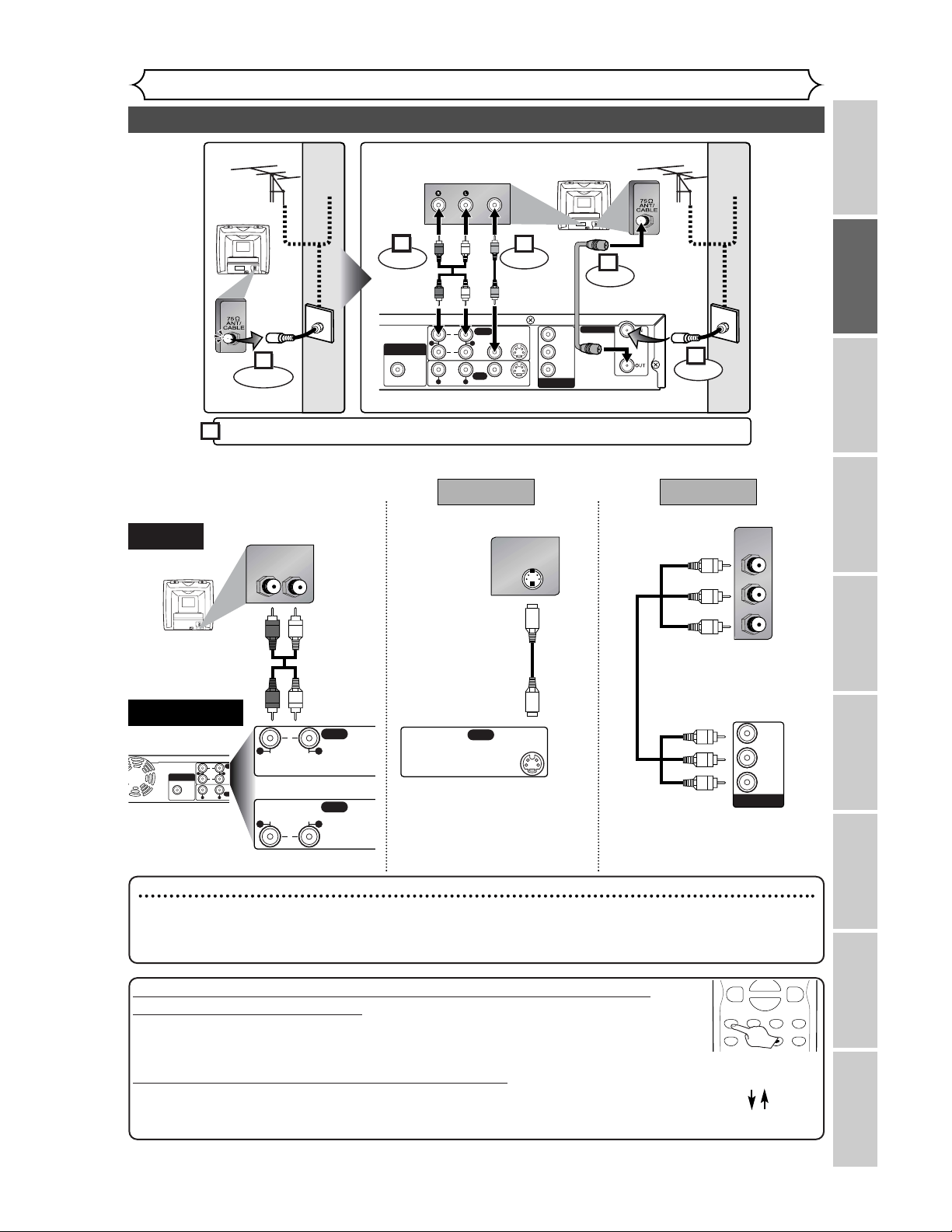
Make one of the following connections, depending on the capabilities of your existing equipment.
DIGITAL AUDIO OUTPUT
PCM / BITSTREAM
COAXIAL AUDIO
INPUT
COMPONENT
VIDEO OUTPUT
TV ANTENNA
OUTPUT
R
R
L
L
AUDIO
VIDEO
1
2
(L1)
VIDEO
S-VIDEO
S-VIDEO
P
R
/C
R
P
B
/C
B
Y
RL
OUTPUT
R
L
AUDIO
1
OUTPUT
R
L
AUDIO
2
or
S-VIDEO IN
OUTPUT
S-VIDEO
PB/CB
Y
P
R/CR
COMPONENT
VIDEO IN
COMPONENT
VIDEO OUTPUT
P
R
/C
R
P
B
/C
B
Y
AUDIO OUT
TV
Basic Audio
Method 1 Method 2
Better picture Best picture
S-VIDEO OUT
COMPONENT VIDEO OUT
Audio cable
(supplied)
S-Video
cable
(commercially
available)
Component
Video cables
(commercially
available)
DVD Recorder
DIGITAL AUDIO OUTPUT
PCM / BITSTREAM
COAXIAL AUDIO
INPUT
COMPONENT
VIDEO OUTPUT
TV ANTENNA
OUTPUT
R
R
L
L
AUDIO
VIDEO
1
2
(L1)
VIDEO
S-VIDEO
S-VIDEO
P
R
/C
R
P
B
/C
B
Y
AUDIO IN VIDEO
Round Coaxial Cable
(supplied)
Video
Cable
(supplied)
Audio
Cable
(supplied)
(Back of TV)
Plug in the AC power cord of the DVD recorder.
or
Cable
Signal
or
Cable
Signal
Connect
Connect
ConnectConnect
Disconnect
Antenna
Antenna
(Back of DVD recorder)
(Back of TV)
3
2
1
6
4
5
Note
• Connect this unit directly to the TV. If the A/V cables are connected to a VCR, pictures may be distorted
due to the copy protection system.
• When Progressive Scan mode is selected, no video signal will be output from the VIDEO
OUT or S-VIDEO OUT jack.
If your TV is compatible with Progressive Scan (480p) and you want to
enjoy that high quality picture;
You must select the connection Method 2 above and Progressive Scan mode.To set the
mode, press and hold the SETUP button on the remote control for more than 3 seconds
during DVD playback, so that “P.SCAN” will appear on the display of this unit.
If your TV is not compatible with Progressive Scan;
Use this unit in Interlace mode. Make sure that no “P.SCAN” is on the display of this unit.
If not, press and hold the SETUP button on the remote control for more than 3 seconds
during DVD playback, so that “P.SCAN” on the display of this unit will disappear.
SETUP
REPEAT
ZOOM
ENTER
RETURN
MENU/LIST
TOP MENU
{B
FWD
g
STOP
C
PLAY
B
REV
h
K
more than 3 seconds
during DVD playback
[Interlace mode]
[Progressive Scan mode]
13
Connection to a cable box or satellite box
Connections
14
Note to the Cable TV System Installer :
This reminder is provided to call the Cable TV system installer’s attention to Article 820-40 of the
National Electrical Code, which provides guidelines for proper grounding - in particular, specifying that the
cable ground shall be connected to the grounding system of the building, as close to the point of cable
entry as possible.
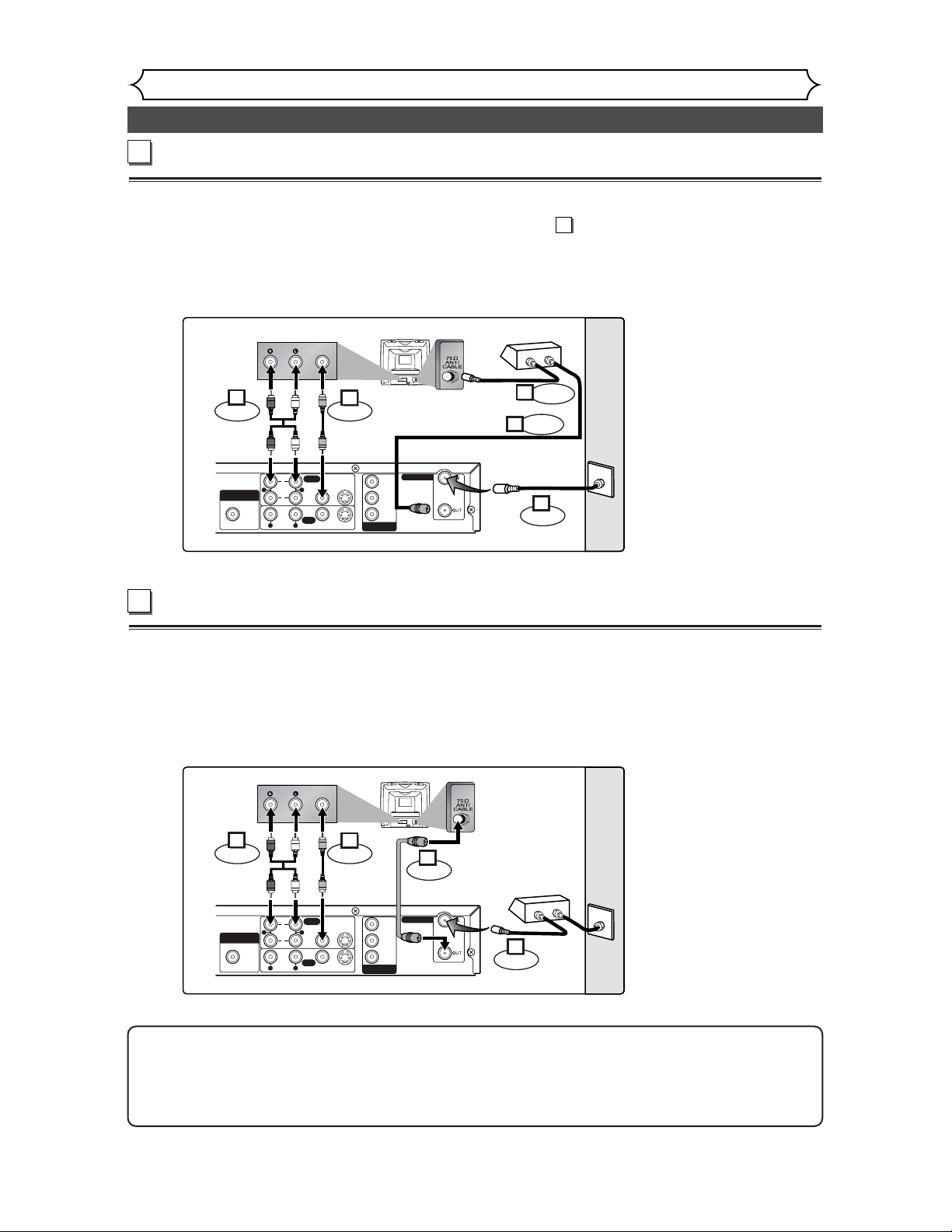
When connecting to a cable box or satellite box with only a few scrambled
channels
If you are using a cable box or satellite box with only a few scrambled channels, follow the setup on this
page. If many or all the channels are scrambled, use the connection on this page.
With this setup:
• You can record any unscrambled channel by selecting the channel on the DVD recorder.
• You cannot record scrambled channels that require a cable box or satellite box.
When connecting to a cable box or satellite box with many scrambled
channels
If many or all the channels you receive by cable or satellite are scrambled, we recommend using this setup.
With this setup:
• You can record any unscrambled channel by selecting the channel on the cable box or satellite box. Be sure
that the cable box or satellite box is turned on.
• You cannot record one channel while watching another channel.
DIGITAL AUDIO OUTPUT
PCM / BITSTREAM
COAXIAL AUDIO
INPUT
COMPONENT
VIDEO OUTPUT
TV ANTENNA
OUTPUT
R
R
L
L
AUDIO
VIDEO
1
2
(L1)
VIDEO
S-VIDEO
S-VIDEO
P
R
/C
R
P
B
/C
B
Y
AUDIO IN VIDEO
Round Coaxial
cable (supplied)
Video
cable
(supplied)
Audio
cable
(supplied)
(Back of TV)
Cable
Signal
Connect
Connect
ConnectConnect
(Back of DVD recorder)
2
1
3
4
IN
OUT
(Cable box or
Satellite box)
Round
Coaxial
cable
DIGITAL AUDIO OUTPUT
PCM / BITSTREAM
COAXIAL AUDIO
INPUT
COMPONENT
VIDEO OUTPUT
TV ANTENNA
OUTPUT
R
R
L
L
AUDIO
VIDEO
1
2
(L1)
VIDEO
S-VIDEO
S-VIDEO
P
R
/C
R
P
B
/C
B
Y
AUDIO IN VIDEO
Video
cable
(supplied)
Audio
cable
(supplied)
(Back of TV)
Cable
Signal
ConnectConnect
(Back of DVD recorder)
Round
Coaxial
cable
Connect
1
Connect
2
Round Coaxial cable
(supplied)
4
5
Round
Coaxial cable
IN
OUT
(Cable box or
Satellite box)
Connect
3
A
B
B
Connection to an Audio System
Connections
Recording Playing discs EditingBefore you start Connections Getting started
Changing the SETUP menu
Others Español
15
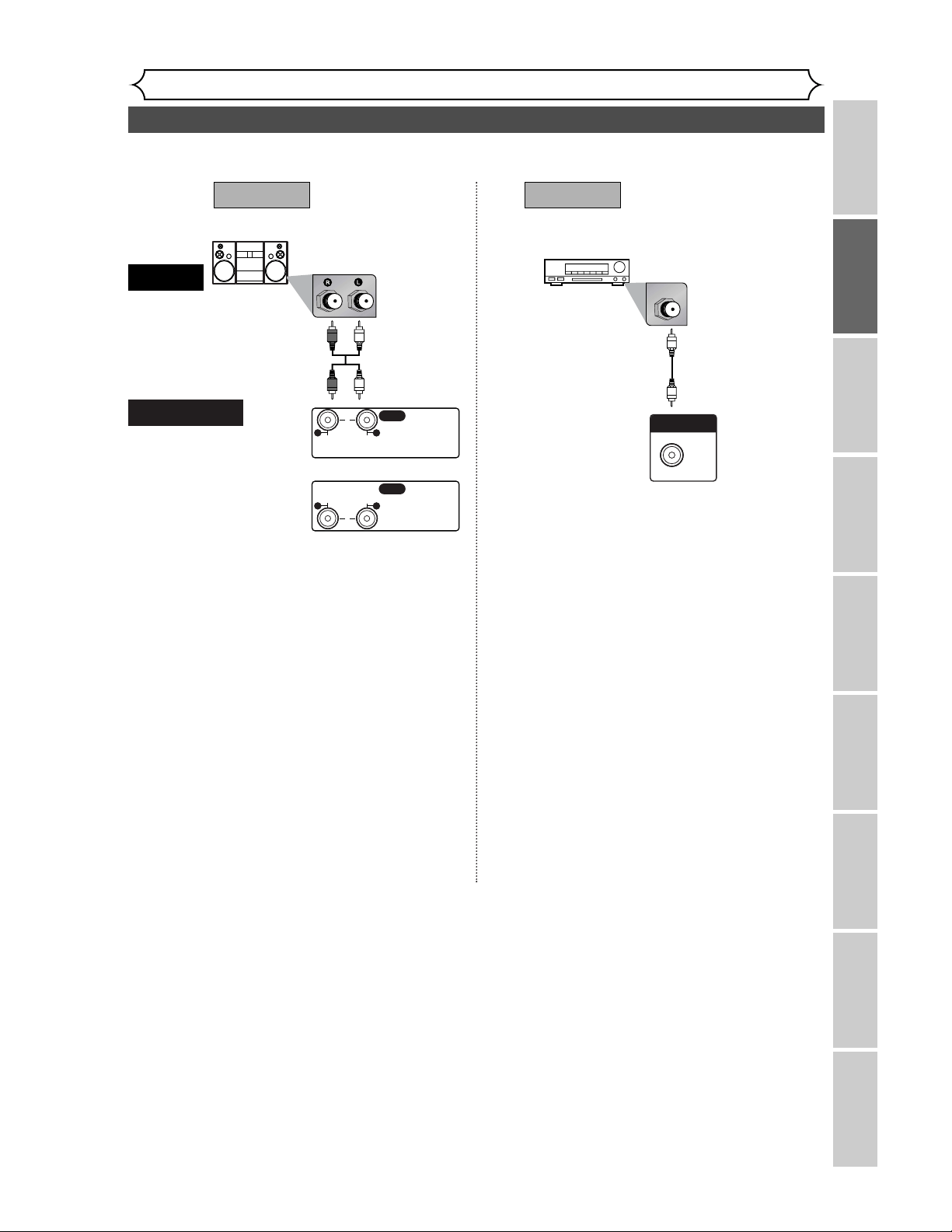
• When you change the connections, all devices should be turned off.
• Refer to the operation manual accompanying external devices for more information.
or
OUTPUT
R
L
AUDIO
1
OUTPUT
R
L
AUDIO
2
Stereo system
COAXIAL
DIGITAL AUDIO OUTPUT
PCM / BITSTREAM
COAXIAL
AUDIO
Method 1
Analog audio
input jacks
Digital audio
input jack
AUDIO OUT
DIGITAL
AUDIO OUT
Method 2
Audio cable
(supplied)
Audio Coaxial
Digital cable
(commercially
available)
Note
• If output is Dolby Digital encoded audio, connect to a
Dolby Digital decoder and set “Dolby Digital” to
“Stream” for the “Digital Out” setting in the SETUP
menu. (Refer to pages 88-89.)
• If output is DTS encoded audio, connect to a DTS
decoder and set “DTS” to “ON” for the “Digital Out”
setting in the SETUP menu. (Refer to pages 88-89.)
• The audio source on a disc in a Dolby Digital 5.1 channel
surround format cannot be recorded as digital sound by
an MD or DAT deck.
• Unless connected to a Dolby Digital decoder or a DTS
decoder, set “Dolby Digital” to “PCM” and “DTS” to “OFF”
for the “Digital Out” setting in the SETUP menu. Playing a
DVD using incorrect settings may generate noise distor-
tion and may also damage the speakers. (Refer to pages
88-89.)
• Set “Dolby Digital” to “PCM” for the “Digital Out” set-
ting in the SETUP menu for connecting to an MD deck
or DAT deck. (Refer to pages 88-89.)
• By hooking this unit up to a Multi-channel Dolby Digital
decoder, you can enjoy high-quality Dolby Digital 5.1
channel surround sound as heard in the movie theaters.
• By hooking this unit up to the DTS decoder, you can
enjoy 5.1channel surround system which reproduces the
original sound as truthfully as possible. 5.1channel sur-
round system is developed by the Digital Theater System,
Inc.
Dolby Digital decoder, DTS decoder or
MD deck or DAT deck
DVD Recorder
Easy DVD recording
Getting started
16
The following will help you to understand easily how to record to DVD discs.
Note:
Make sure batteries are in the remote control and you have connected this unit and the TV correctly.
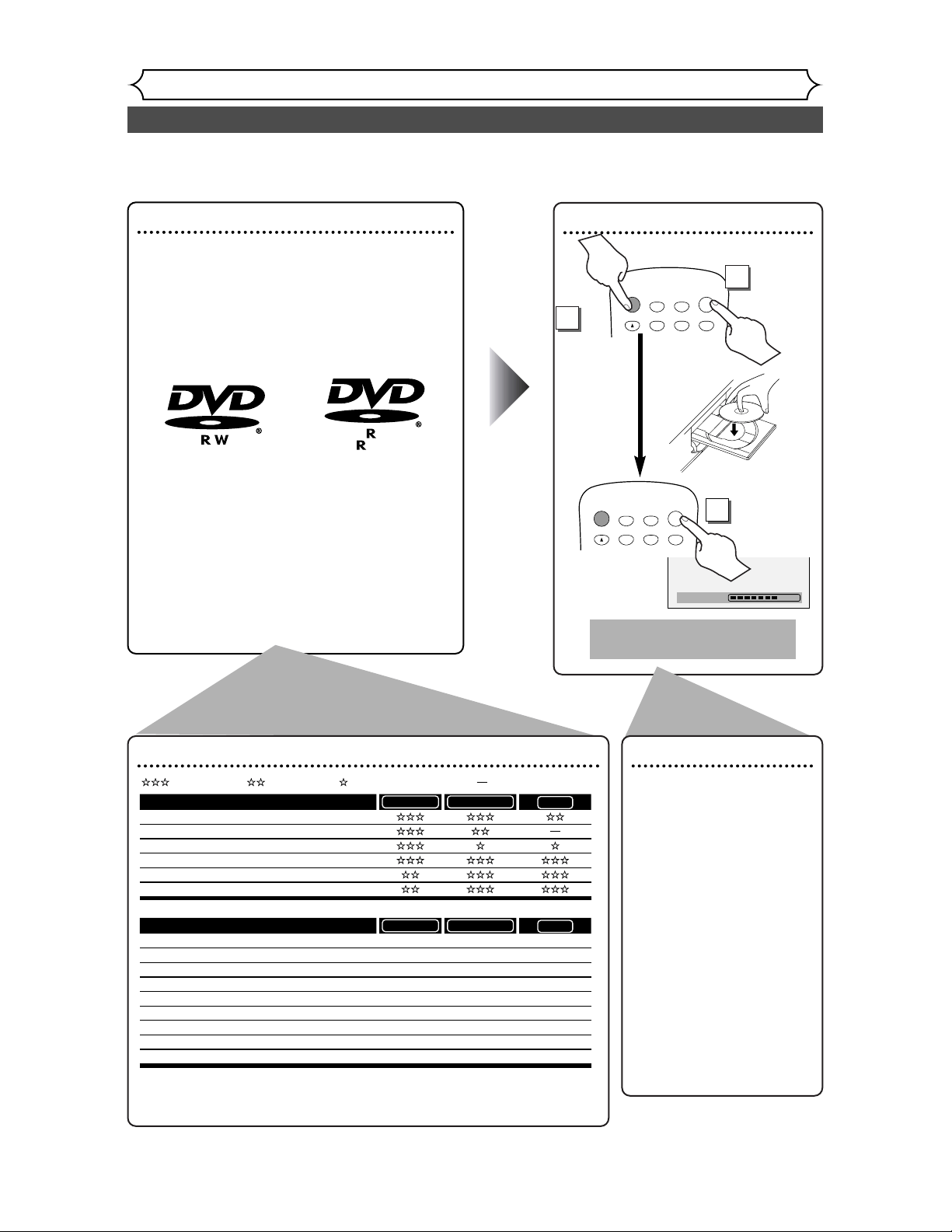
Step 1: Choose a disc type
There are several types of recordable DVD discs to
choose from. Choose a recordable DVD disc type
based on your playing/recording/editing reguire-
ments. See “DVD disc types” at the bottom of this
page for more information on the differences
between the different kinds of compatible media.
This DVD recorder can record on the following
type of discs.
* This unit cannot record on the following discs.
• DVD-RW Ver 1.2 / 2-4x CPRM compatible
• DVD-R General Ver 2.0 / 8x
For example, when you want to record repeated-
ly on the same disc, or when you want to edit the
disc after recording, select the rewritable DVD-
RW type disc.
When you want to save recordings without any
alteration, a non-rewritable DVD-R can be your
choice.
4.7
Step 2:
Insert a blank disc
POWER
DISPLAY
OPEN/CLOSE
TIMER
PROG.
1
2
3
A
CH
.@/:
ABC
DEF
GHI
JKL
MNO
POWER
DISPLAY
OPEN/CLOSE
TIMER
PROG.
1
2
3
A
CH
.@/:
ABC
DEF
GHI
JKL
MNO
Remote Control
To open
To Close
Format the disc
Insert the disc in the
recorder.Then, format the
disc from SETUP menu.Video
format (Video mode) or
Video recording format (VR
mode) will be available
depending on the disc type
inserted.This is necessary to
prepare the disc for record-
ing. Details are on pages 28-
30.
* When you format, the
entire contents on that disc
will be erased.
• The unit automatically
starts formatting when an
unused disc is inserted.
DVD disc types
.
DVD-RW VR DVD-RW Video
You want to
Record TV programs
Reuse by deleting unwanted contents
Edit recorded contents
Edit/Record from connected equipment
Copy discs for distribution
Play on other DVD equipment
*1
*1
DVD-RW VR DVD-RW Video
Features
Recording
Rewritable? Yes Yes
Can create chapters at fixed intervals (auto.) Yes Yes
Can create chapters wherever you like (manual) Yes No
Can record 16:9 size pictures Yes Yes
Can record Copy-Once programs Yes No
Editing
Can perform basic edit functions Yes Yes
Can perform advanced edit functions (Playlist edit) Yes No
No
Ye s
No
Ye s
No
Ye s
No
*1
DVD-RW (VR mode) can only be played on DVD
equipment that is VR compatible.
Note:
For details of the above functions and implied
restrictions, see the explanations inside the manual.
DVD-R
DVD-R
: Most suitable. : Can be used. : Some functions are limited. : Cannot be used.
2
To turn on
1
3
Loading
This operation may take a
while to be recognized.
Easy DVD recording (Cont’d)
Getting started
Recording Playing discs EditingBefore you start Connections Getting started
Changing the SETUP menu
Others Español
17
Step 3: Select the
recording
speed
POWER
DISPLAY
REC MODE CLEAR
CM SKIP
REC
REC
MONITOR
OPEN/CLOSE
TIMER
PROG.
SPACE
1
2
3
4
5
6
7
8
9
0
A
CH
.@/:
ABC
DEF
GHI
JKL
MNO
PQRS
TUV
WXYZ
Step 5: Record to
DVD discs
POWER
DISPLAY
REC MODE CLEAR
CM SKIP
SKIP
REC
PAUSE
REC
MONITOR
OPEN/CLOSE
TIMER
PROG.
SPACE
1
2
3
4
5
6
7
8
9
0
F
A
HG
CH
.@/:
ABC
DEF
GHI
JKL
MNO
PQRS
TUV
WXYZ
Step 4: Select the
desired
channel
POWER
DISPLAY
REC MODE CLEAR
CM SKIP
REC
REC
MONITOR
OPEN/CLOSE
TIMER
PROG.
SPACE
1
2
3
4
5
6
7
8
9
0
A
CH
.@/:
ABC
DEF
GHI
JKL
MNO
PQRS
TUV
WXYZ
SP 2:01 Rem.
Step 6: Stop the
record
REC MODE CLEAR
CM SKIP
SKIP
REC
PAUSE
SETUP
MENU/LIST
TOP MENU
SPACE
7
8
9
0
F
FWD
g
STOP
C
PLAY
B
REV
h
HG
K
CH 1
I
Writing to Disc
58%
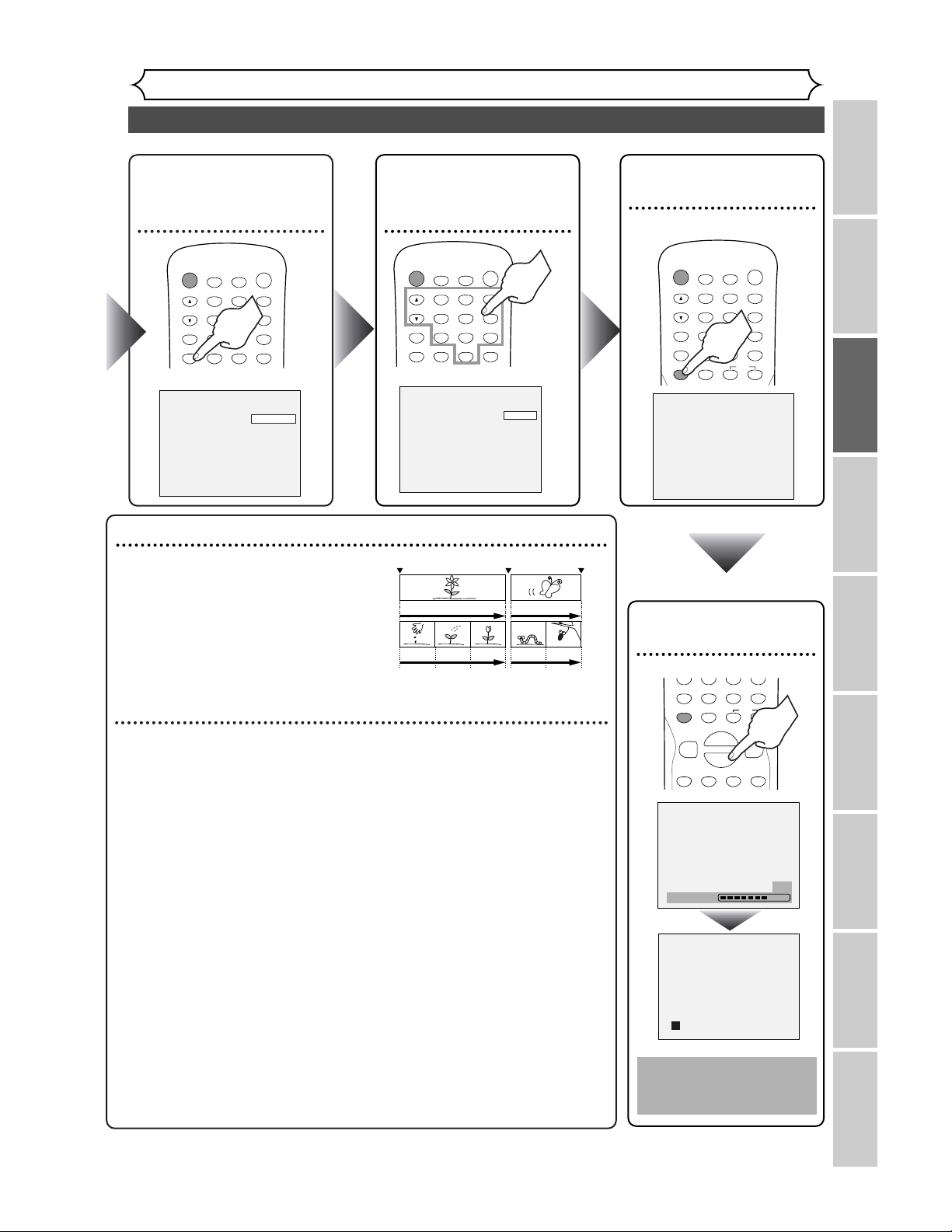
Hint 1: Play the recorded contents
You can select the title you want to play
from a displayed menu, and immediately
start to play. Recorded contents are easily
accessible, with simple procedure of choos-
ing a title on a chapter in the menu screen.
What is titles and chapters?
The contents of DVD disc are generally
divided into some titles.Titles may be
further divided into chapters.
Hint 2: Edit the recorded disc
You will find editing discs is easy.This unit offers convenient edit functions
which are possible only with DVD-R/RW discs.
You can edit the following from a title list.
• Putting names on titles
• Setting pictures for thumbnails (VR mode)
• Setting/clearing chapter markers
• Deleting parts of titles or scenes (VR mode)
Title Delete :This deletes an entire scene permanently from the disc.
Scene Delete :This allows a user to edit within a specific scene (ex. commercials).
Original and Playlist (VR mode)
You can edit the recordings in Playlist without changing the original record-
ings. Playlist does not take up much disc space.
What “Original” or “Playlist” is for?
Throughout this manual, you will find Original and Playlist to refer to the actu-
al content and the edited version.
• Original content refers to what’s actually recorded on the disc.
• Playlist content refers to the edited version of the disc; how the Original
content is to be played.
Finalizing a Disc
• This will allow a disc that is recorded on our unit to be played back on a differ-
ent DVD player- without finalization it will not be playable on another player.
•
After finalizing a disc if the recording was in video mode, you can not edit any
information that is on that disc.
• If you have recorded in VR mode on DVD-RW disc then editing is still per-
mitted after finalizing.
Start Rec. Stop/Start Stop Rec.
Title 1 Title 2
Chapter 1 Chapter 1Chapter 2 Chapter 3 Chapter 2
This operation may
take a while to be
completed.
Channel setting
Getting started
18
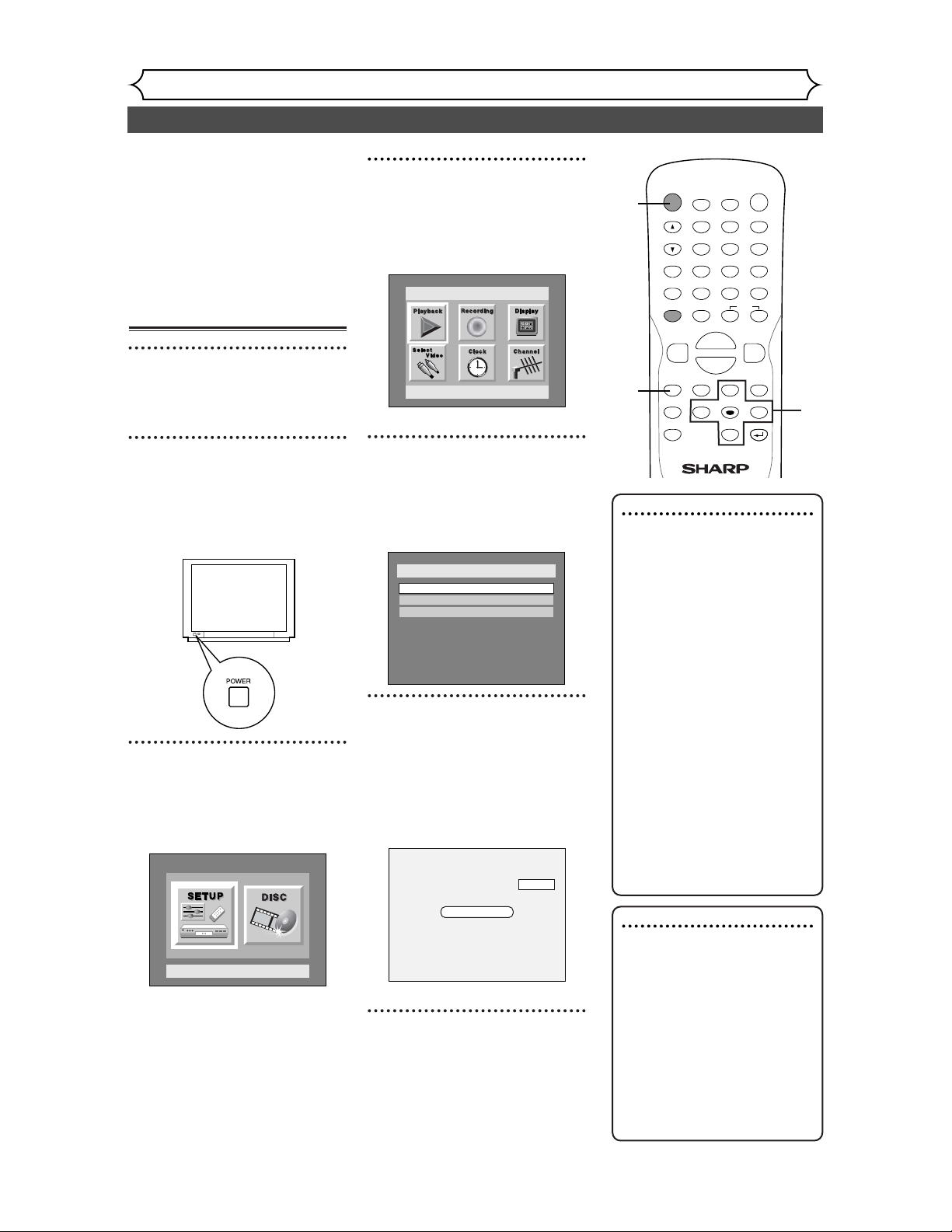
All channels are stored in the
DVD recorder when purchased.
We recommend that you get
available channels in your area
stored using “Auto Preset” in the
Channel Preset of the SETUP
menu.
Getting channels auto-
matically
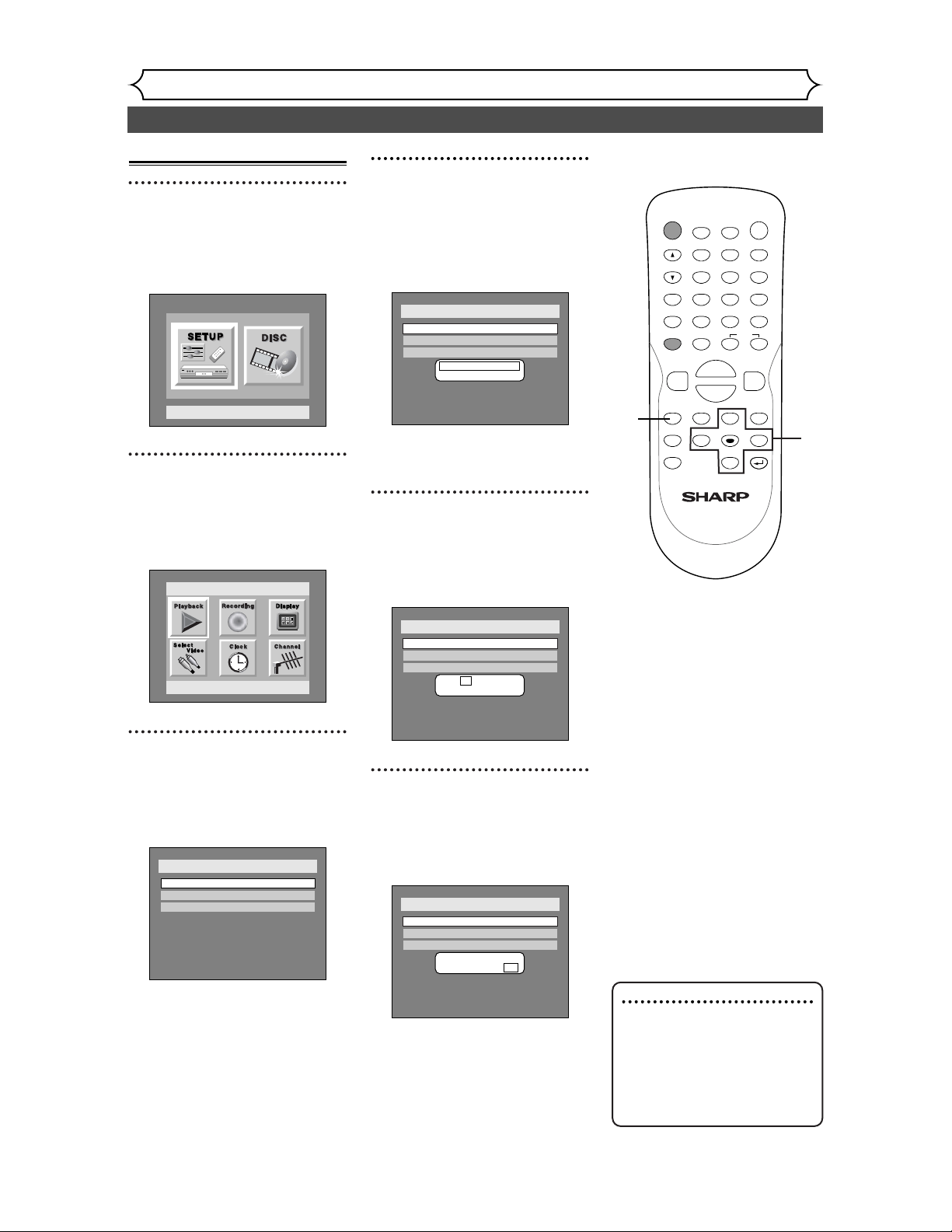
1
Press POWER button to turn
on the DVD recorder.
2
Turn the TV on and be sure
to select the input to which
the DVD recorder is connect-
ed.
3
Press SETUP button to dis-
play SETUP/DISC menu.
SETUP/DISC menu will appear.
Screen:
Setup Menu
4
Select “SETUP” using { / B
buttons, then press ENTER
button.
SETUP menu will appear.
5
Select “Channel” using K / L
/ { / B buttons, then press
ENTER button.
Channel Preset menu will appear.
6
Select “Auto Preset” using K
/ L buttons, then press
ENTER button.
The DVD recorder will start get-
ting channels available in your
area.
7
Press SETUP button to exit.
•You can select only the channels
memorized in this unit by using
the CHANNEL buttons.
Auto Presetting Now
CH 18
Setup > Channel Preset
Auto Preset
Manual Preset
TV Audio Select
Stereo
Setup
Playback Setting
Note
• If the auto presetting is can-
celled during presetting, some
channels not yet preset may
not be received.
• The selection will depend on
how you receive the TV chan-
nels.
To cancel the auto preset-
ting during scanning:
Press RETURN button or
SETUP button to cancel.
To select a channel
You can select a channel by
directly entering channel using
the Number buttons on the
remote control.
Notes for using the
Number buttons:
• When selecting cable channels
which are higher than 99,
enter channel numbers as a
three-digit number.(For exam-
ple: 117, press 1,1,7)
• You must precede single-digit
channel numbers with a zero
(For example: 02, 03, 04 and
so on).
• You can select the line input
mode (“L1” or “L2”). To select
“L1” by pressing [0], [0], [1].To
select “L2” by pressing [0], [0],
[2]. Details are on page 38.
POWER
DISPLAY
REC MODE CLEAR
CM SKIP
SKIP
REC
PAUSE
SETUP
REPEAT
ZOOM
ENTER
RETURN
REC
MONITOR
OPEN/CLOSE
TIMER
PROG.
MENU/LIST
TOP MENU
SPACE
1
2
3
4
5
6
7
8
9
0
F
A
{B
FWD
g
STOP
C
PLAY
B
REV
h
HG
CH
.@/:
ABC
DEF
GHI
JKL
MNO
PQRS
TUV
WXYZ
K
L
3
4
5
6
1
7
Channel setting (cont’d)
Getting started
Recording Playing discs EditingBefore you start Connections Getting started
Changing the SETUP menu
Others Español
19
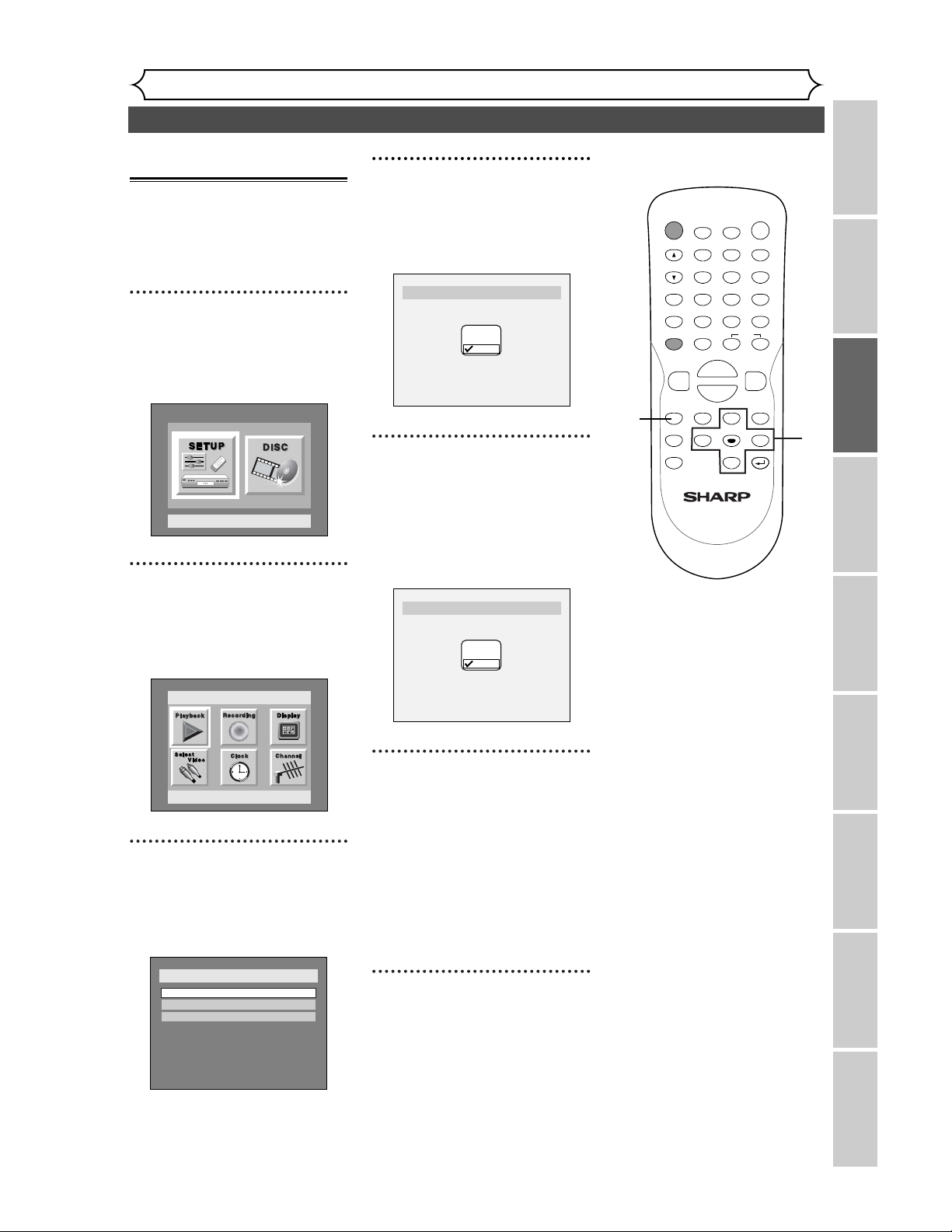
4
Select “Manual Preset” using
K / L buttons, then press
ENTER button.
Manual Preset menu will appear.
5
Select the channel number to
add or delete.
Press { button to move to a
lower channel number.
Press B button to move to a
higher channel number.
6
Select “Add” or “Delete”
using
K / L buttons, then
press ENTER button.
The channel number will be
added or deleted from a channel
memory.Then the next channel
number will appear so that you
can continue adding or deleting
channels.
7
Press SETUP button to exit.
Setup > Channel Preset > Manual Preset
CH18
Add
Delete
CH2
Add
Delete
Setup > Channel Preset > Manual Preset
Adding/deleting chan-
nels
The channels you no longer
receive or seldom watch can be
deleted from the memory.You also
may add channels into memory.
1
Press SETUP button to dis-
play SETUP/DISC menu.
SETUP/DISC menu will appear.
Screen:
2
Select “SETUP” using { / B
buttons, then press ENTER
button.
SETUP menu will appear.
3
Select “Channel” using K / L
/ { / B buttons, then press
ENTER button.
Channel Preset menu will appear.
Setup > Channel Preset
Auto Preset
Manual Preset
TV Audio Select
Stereo
Setup
Playback Setting
Setup Menu
POWER
DISPLAY
REC MODE CLEAR
CM SKIP
SKIP
REC
PAUSE
SETUP
REPEAT
ZOOM
ENTER
RETURN
REC
MONITOR
OPEN/CLOSE
TIMER
PROG.
MENU/LIST
TOP MENU
SPACE
1
2
3
4
5
6
7
8
9
0
F
A
{B
FWD
g
STOP
C
PLAY
B
REV
h
HG
CH
.@/:
ABC
DEF
GHI
JKL
MNO
PQRS
TUV
WXYZ
K
L
1
2
3
4
5
7
6
Selecting the TV stereo or SAP
Getting started
20
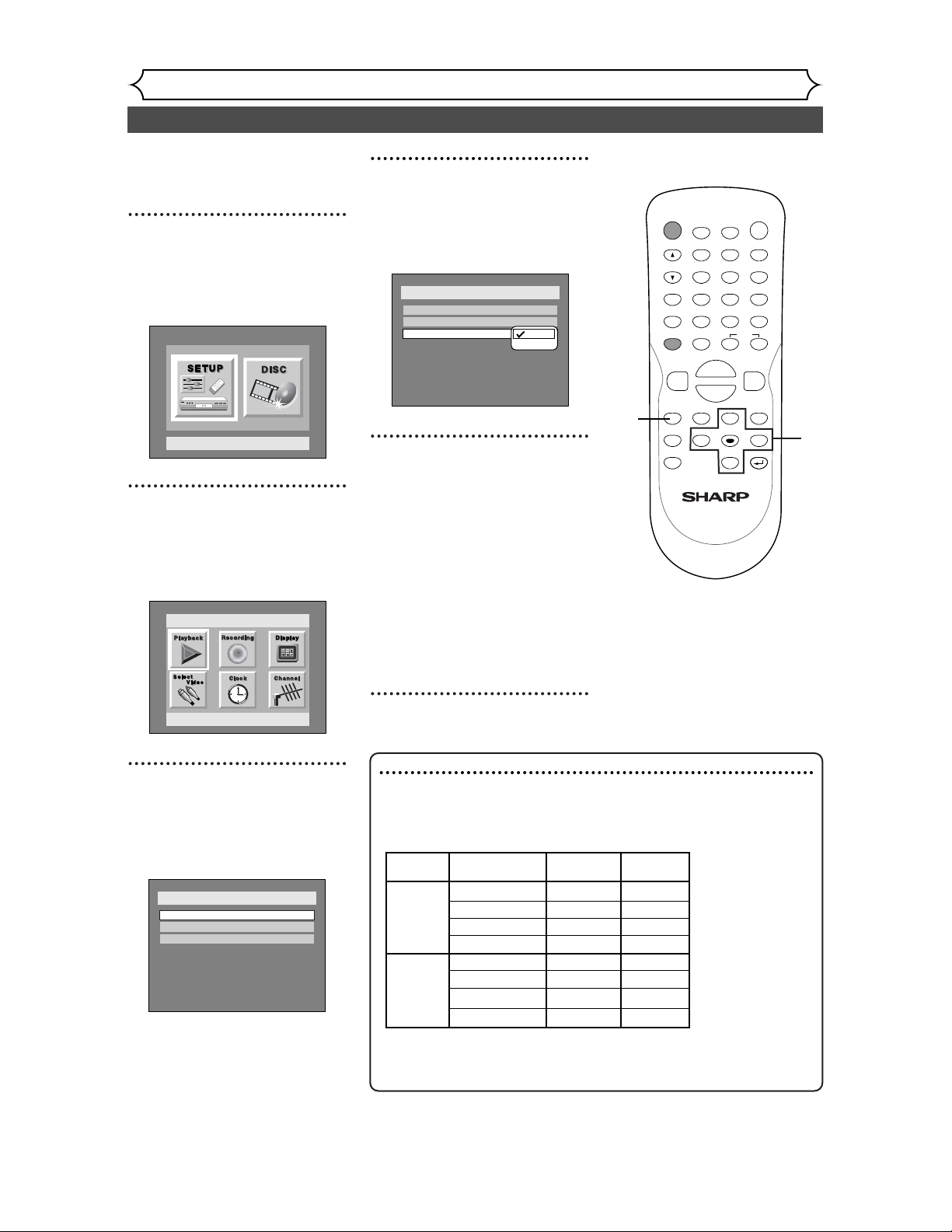
You can select a sound channel to
output from TV. “Stereo” has
been selected as the default.
1
Press SETUP button to dis-
play SETUP/DISC menu.
SETUP/DISC menu will appear.
Screen:
2
Select “SETUP” using { / B
buttons, then press ENTER
button.
SETUP menu will appear.
3
Select “Channel” using K / L
/ { / B buttons, then press
ENTER button.
Channel Preset menu will appear.
Setup > Channel Preset
Auto Preset
Manual Preset
TV Audio Select
Stereo
Setup
Playback Setting
Setup Menu
4
Select “TV Audio Select”
using K / L buttons, then
press ENTER button.
Option window will appear.
5
Select “Stereo” or “SAP”
using
K / L buttons, then
press ENTER button.
Stereo:
Outputs main-audio.
SAP:
(Secondary Audio Program)
Outputs Sub-audio.
Refer to the item in “Glossary”
on page 96 for more information.
6
Press SETUP button to exit.
Setup > Channel Preset
Auto Preset
Manual Preset
TV Audio Select
Stereo
Stereo
SAP
POWER
DISPLAY
REC MODE CLEAR
CM SKIP
SKIP
REC
PAUSE
SETUP
REPEAT
ZOOM
ENTER
RETURN
REC
MONITOR
OPEN/CLOSE
TIMER
PROG.
MENU/LIST
TOP MENU
SPACE
1
2
3
4
5
6
7
8
9
0
F
A
{B
FWD
g
STOP
C
PLAY
B
REV
h
HG
CH
.@/:
ABC
DEF
GHI
JKL
MNO
PQRS
TUV
WXYZ
K
L
1
2
3
4
5
6
Notes on TV channel audio
• When you record a TV program available in second audio or stereo
on a DVD-RW/R, you have to select either Stereo or SAP in the
Channel Preset screen beforehand. Refer to the following table to
check an appropriate setting.
• As can be seen in the above table, when a TV program is available in
second audion and you set Channel Preset to SAP, you can only play
the recording in second audio.
Selected Broadcast Disc Audio
audio audio recording output
Stereo STEREO+SAP STEREO STEREO
STEREO STEREO STEREO
MONO+SAP MONO MONO
MONO MONO MONO
SAP STEREO+SAP SAP SAP
STEREO STEREO STEREO
MONO+SAP SAP SAP
MONO MONO MONO
Setting the clock
Getting started
Recording Playing discs EditingBefore you start Connections Getting started
Changing the SETUP menu
Others Español
21
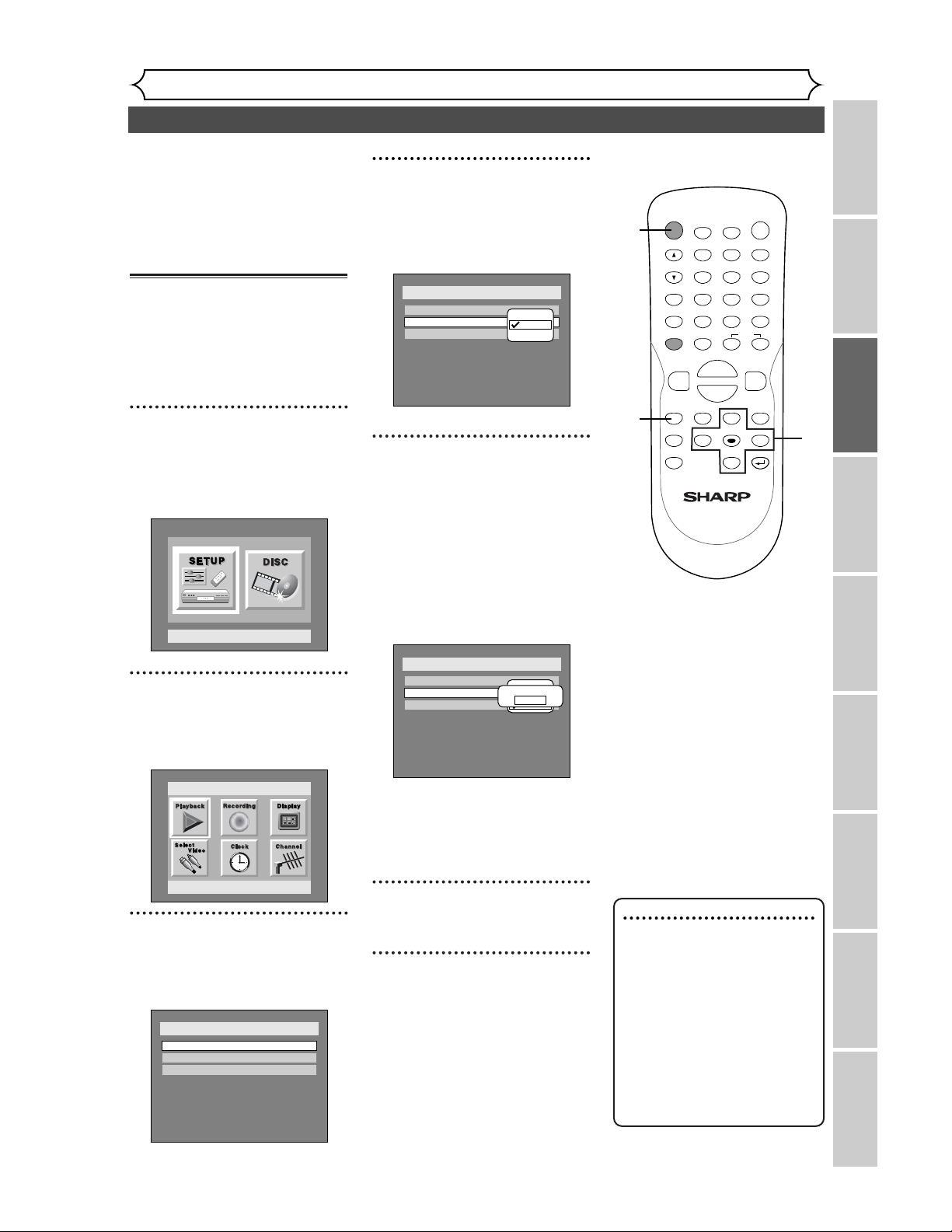
Set the clock before you try the
timer recording. If a Public
Broadcasting Station (PBS) is available
in your area, follow Auto Clock
Setting below. If not, follow Manual
Clock Setting on pages 22-23.
Auto Clock Setting
Make sure
• The antenna/Cable TV connec-
tions are correct.
• If this unit is connected to a
Cable Box or Satellite Box, select
the local PBS station on them to
set the clock automatically.
1
Press SETUP button to dis-
play SETUP/DISC menu.
SETUP/DISC menu will appear.
Screen:
2
Select “SETUP” using
{ / B
but-
tons, then press ENTER button.
SETUP menu will appear.
3
Select “Clock” using
K / L / { / B
buttons, then press ENTER button.
Clock menu will appear.
Setup > Clock
Clock Setting
Auto Clock Setting
Daylight Saving Time
Auto
ON
Setup
Playback Setting
Setup Menu
4
Select “Auto Clock Setting”
using K / L buttons, then
press ENTER button.
Option window will appear.
5
• If you do not know your
PBS channel number, select
“Auto” using K / L buttons,
then press ENTER button.
• If you know your PBS chan-
nel number, select “Manual”
using K / L buttons, then
press ENTER button.
Enter your PBS channel
number using Number or K
/ L buttons, then press
ENTER button.
6
Press SETUP button to exit.
7
Press POWER button to turn
off the DVD recorder. This unit
will search for the time only
when the power is off. Leave it off
for several minutes to give this
unit time to set the clock on the
front display of the front panel.
Setup > Clock
Clock Setting
Auto Clock Setting
Auto
Daylight Saving Time
Off
OFF
Auto
Manual
Set Channel No.
CH1
Setup > Clock
Clock Setting
Auto Clock Setting
Auto
Daylight Saving Time
Off
OFF
Auto
Manual
Note
• The clock may set itself auto-
matically after you connect the
antenna/cable signal to this
unit and plug in the power
cord. In this case, the current
time will appear on the front
panel display.
• If the current time is not dis-
played or the displayed clock
is not correct, set the clock
manually.
POWER
DISPLAY
REC MODE CLEAR
CM SKIP
SKIP
REC
PAUSE
SETUP
REPEAT
ZOOM
ENTER
RETURN
REC
MONITOR
OPEN/CLOSE
TIMER
PROG.
MENU/LIST
TOP MENU
SPACE
1
2
3
4
5
6
7
8
9
0
F
A
{B
FWD
g
STOP
C
PLAY
B
REV
h
HG
CH
.@/:
ABC
DEF
GHI
JKL
MNO
PQRS
TUV
WXYZ
K
L
1
2
3
4
5
6
7
Setting the clock (cont’d)
Getting started
22
Manual Clock Setting
1
Press SETUP button to dis-
play SETUP/DISC menu.
SETUP/DISC menu will appear.
Screen:
2
Select “SETUP” using { / B
buttons, then press ENTER
button.
SETUP menu will appear.
3
Select “Clock” using K / L /
{ / B buttons, then press
ENTER button.
Clock menu will appear.
Setup > Clock
Clock Setting
Auto Clock Setting
Daylight Saving Time
Auto
ON
Setup
Playback Setting
Setup Menu
4
Select “Clock Setting” using
K / L buttons, then press
ENTER button.
A clock setting window will
appear.
Press ENTER button again.
Default date will appear.
5
Enter the date (month / day /
year) using
K / L buttons.
Press { / B button to move the
cursor.
6
Enter the time (hour /
minute) using
K / L buttons,
then press { / B buttons.
A cursor will move on AM or PM.
Setup > Clock
Clock Setting
Auto Clock Setting
Daylight Saving Time
Auto
JAN / 12 / 2004 (MON)
09 : 24 AM
ON
Setup > Clock
Clock Setting
Auto Clock Setting
Auto
Daylight Saving Time
JAN / 12 / 2004 (MON)
12 : 00AM
ON
Setup > Clock
Clock Setting
Auto Clock Setting
Daylight Saving Time
Auto
- - - / - - / - - - - ( - - - )
- - : - -
ON
Note
•
Your clock setting will be lost if
either there is a power failure
or this unit has been unplugged
for more than 30 seconds
when you set the clock manu-
ally.
POWER
DISPLAY
REC MODE CLEAR
CM SKIP
SKIP
REC
PAUSE
SETUP
REPEAT
ZOOM
ENTER
RETURN
REC
MONITOR
OPEN/CLOSE
TIMER
PROG.
MENU/LIST
TOP MENU
SPACE
1
2
3
4
5
6
7
8
9
0
F
A
{B
FWD
g
STOP
C
PLAY
B
REV
h
HG
CH
.@/:
ABC
DEF
GHI
JKL
MNO
PQRS
TUV
WXYZ
K
L
1
2
3
4
5
6
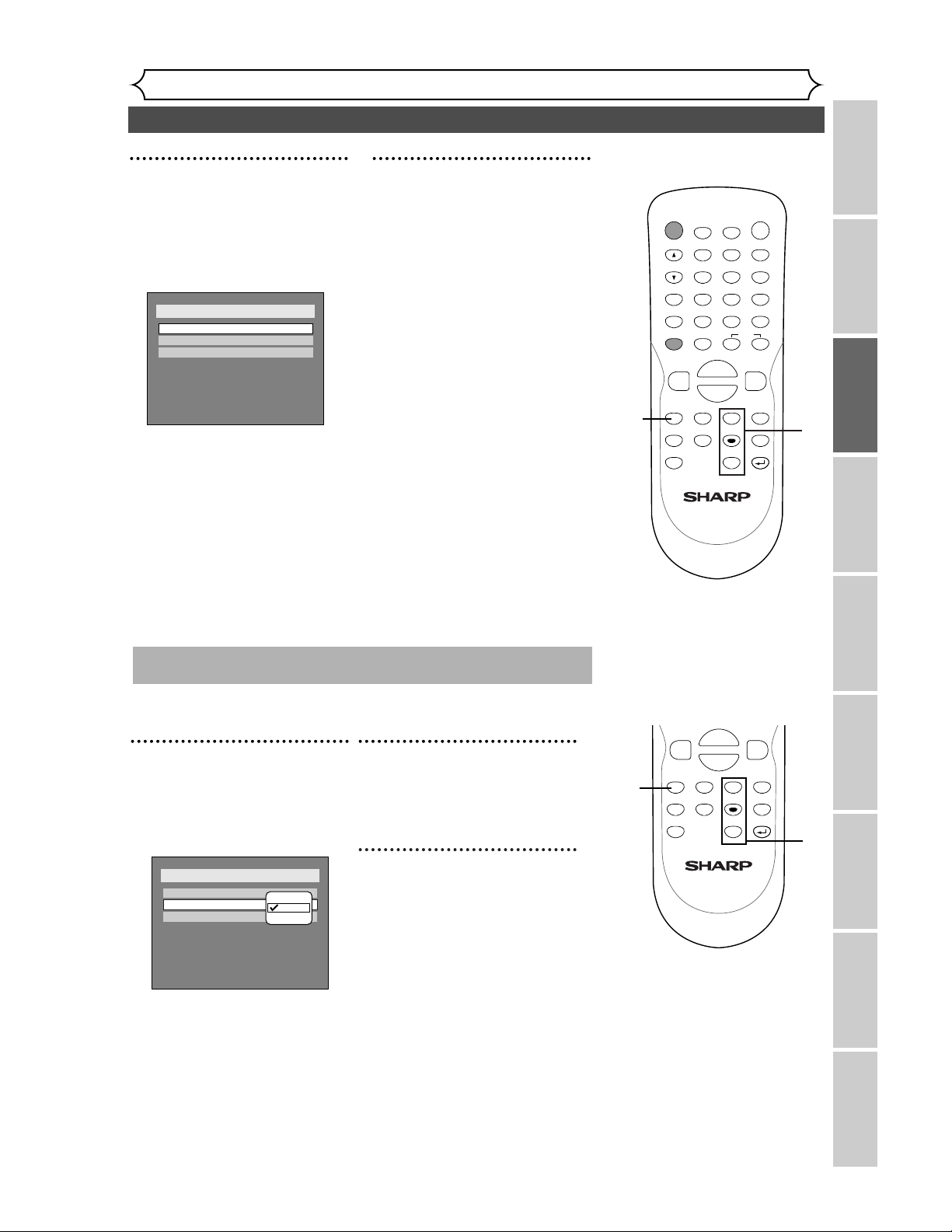
Setting the clock (cont’d)
Recording Playing discs EditingBefore you start Connections Getting started
Changing the SETUP menu
Others Español
Getting started
23
7
Press K / L buttons to select
AM or PM, then press ENTER
button.
Clock menu will appear, then the
settings will be activated.
Setup > Clock
Clock Setting
Auto Clock Setting
Daylight Saving Time
Auto
ON
8
Press SETUP button to exit.
Although seconds are not displayed,
they begin counting from zero.
POWER
DISPLAY
REC MODE CLEAR
CM SKIP
SKIP
REC
PAUSE
SETUP
REPEAT
ZOOM
ENTER
RETURN
REC
MONITOR
OPEN/CLOSE
TIMER
PROG.
MENU/LIST
TOP MENU
SPACE
1
2
3
4
5
6
7
8
9
0
F
A
{B
FWD
g
STOP
C
PLAY
B
REV
h
HG
CH
.@/:
ABC
DEF
GHI
JKL
MNO
PQRS
TUV
WXYZ
K
L
8
7
4
SETUP
REPEAT
ZOOM
ENTER
RETURN
MENU/LIST
TOP MENU
{B
FWD
g
STOP
C
PLAY
B
REV
h
K
L
6
5
4
Select “Auto Clock Setting”
using K / L buttons, then
press ENTER button.
Option window will appear.
Setup > Clock
Clock Setting
Auto Clock Setting
Auto
Daylight Saving Time
Off
OFF
Auto
Manual
Repeat steps (1) to (3) in “Manual Clock Setting”.
When “Auto Clock Setting” is selected to “Auto” or
“Manual”, change it to “OFF” as following steps.
5
Select “OFF” using K / L
buttons, then press ENTER
button.
6
Press SETUP button to exit.
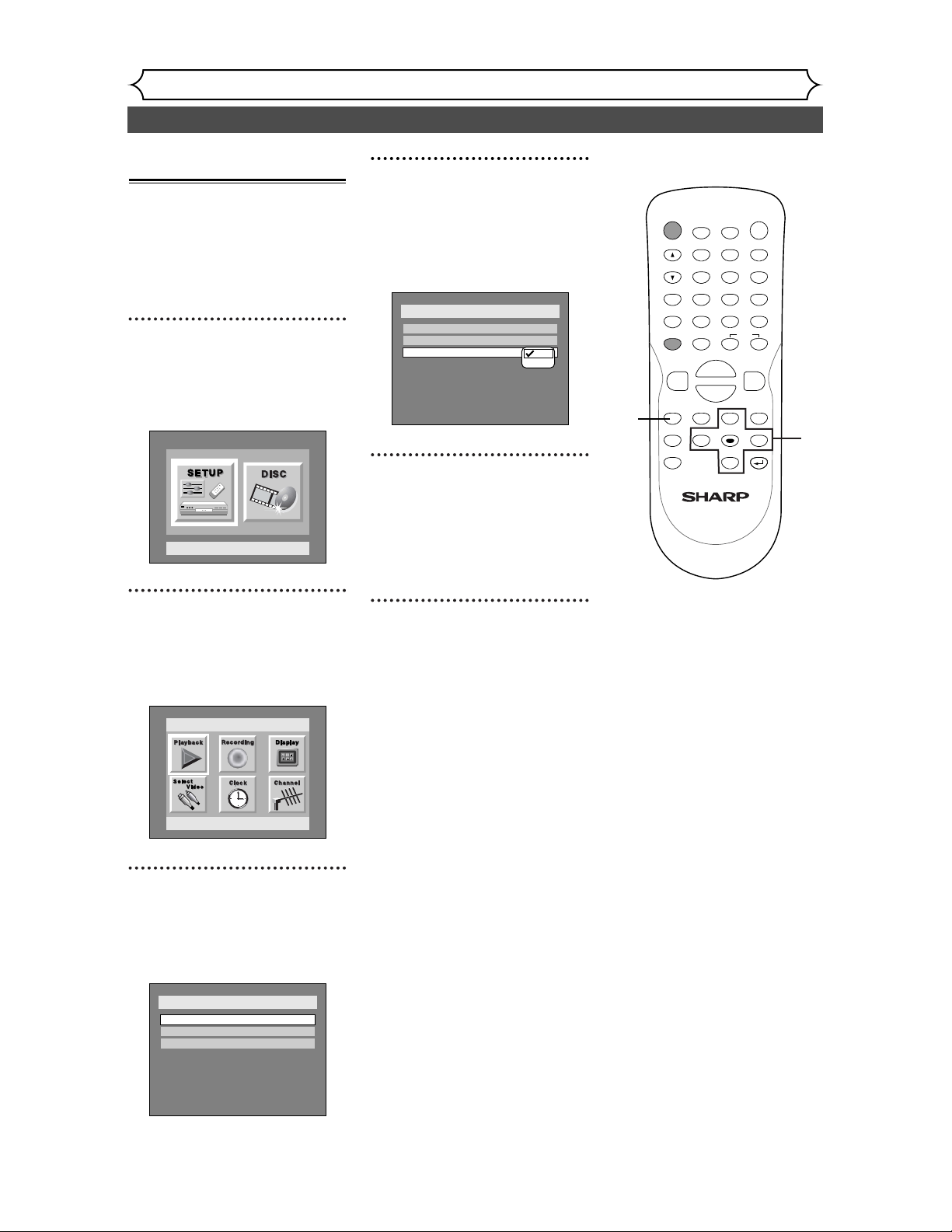
Setting the clock (cont’d)
Getting started
24
4
Select “Daylight Saving
Time” using K / L buttons,
then press ENTER button.
Daylight Saving Time options will
appear.
5
Select “ON” or “OFF” using
K / L buttons, then press
ENTER button.
Choose “ON” when currently
observing the daylight saving time.
6
Press SETUP button to exit.
Setup > Clock
Clock Setting
Auto Clock Setting
Daylight Saving Time
ON
OFF
Auto
Setting the daylight sav-
ing time
When Daylight Saving Time is
ON, the DVD recorder clock will
automatically move forward one
hour on the first Sunday in April
and move back one hour on the
last Sunday in October.
1
Press SETUP button to dis-
play SETUP/DISC menu.
SETUP/DISC menu will appear.
Screen:
2
Select “SETUP” using { / B
buttons, then press ENTER
button.
SETUP menu will appear.
3
Select “Clock” using K / L /
{ / B buttons, then press
ENTER button.
Clock menu will appear.
Setup > Clock
Clock Setting
Auto Clock Setting
Daylight Saving Time
Auto
ON
Setup
Playback Setting
Setup Menu
POWER
DISPLAY
REC MODE CLEAR
CM SKIP
SKIP
REC
PAUSE
SETUP
REPEAT
ZOOM
ENTER
RETURN
REC
MONITOR
OPEN/CLOSE
TIMER
PROG.
MENU/LIST
TOP MENU
SPACE
1
2
3
4
5
6
7
8
9
0
F
A
{B
FWD
g
STOP
C
PLAY
B
REV
h
HG
CH
.@/:
ABC
DEF
GHI
JKL
MNO
PQRS
TUV
WXYZ
K
L
1
2
3
4
5
6
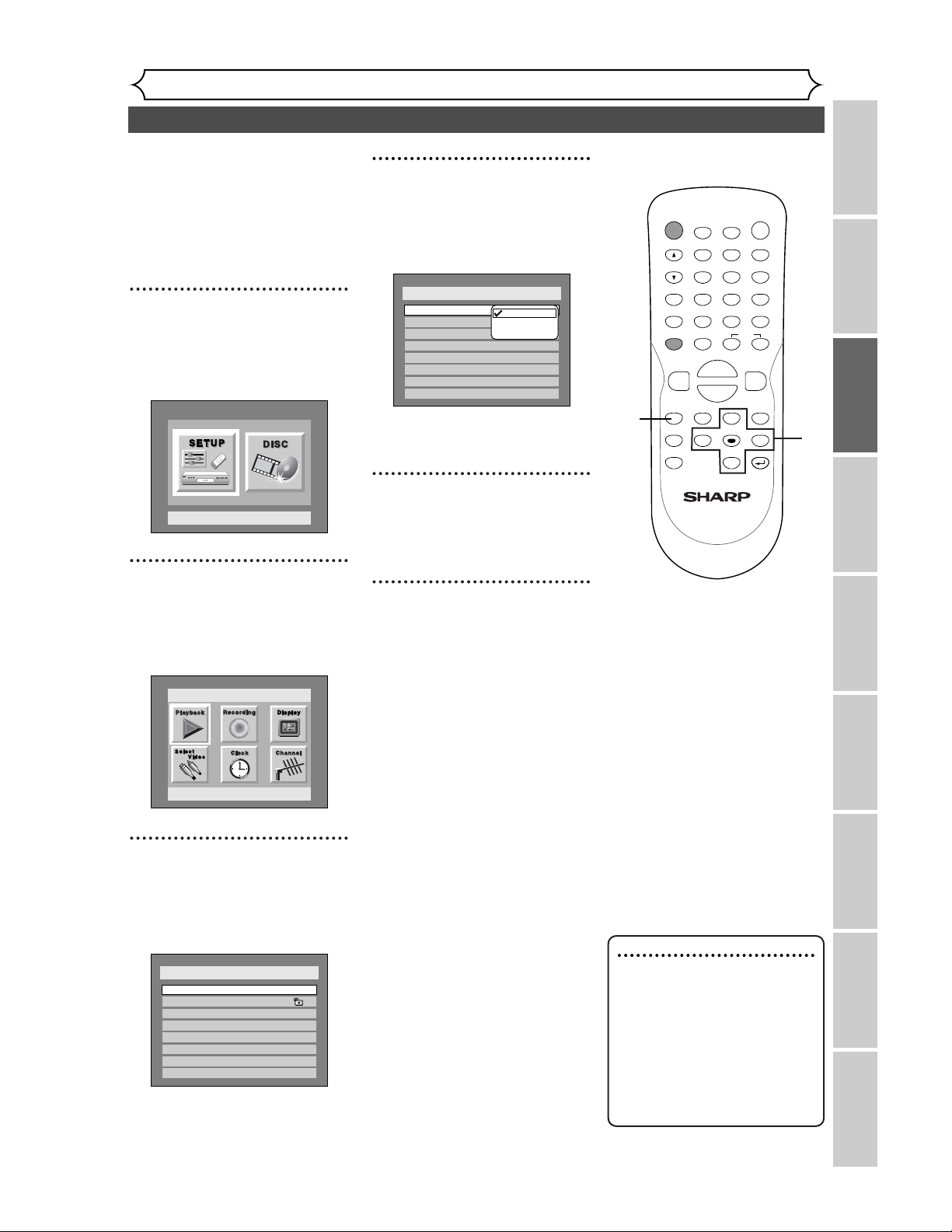
Selecting the TV aspect ratio
Getting started
Recording Playing discs EditingBefore you start Connections Getting started
Changing the SETUP menu
Others Español
25
You can select the TV aspect ratio
to match the formats of what you
are playing with the DVD
recorder and your TV screen (4:3
standard or 16:9 widescreen TV).
“4:3 Letter Box” has been select-
ed as the default.
1
Press SETUP button to dis-
play SETUP/DISC menu.
SETUP/DISC menu will appear.
Screen:
2
Select “SETUP” using { / B
buttons, then press ENTER
button.
SETUP menu will appear.
3
Select “Playback” using K / L
/ { / B buttons, then press
ENTER button.
Playback menu will appear.
Setup > Playback
TV Aspect
Parental Lock
Disc Menu Language
Audio Language
Subtitle Language
Digital Out
Dynamic Range Control
Fast Forward with Audio
4:3 Letter Box
All
English
Original
OFF
ON
OFF
Setup
Playback Setting
Setup Menu
4
Select “TV Aspect” using K /
L buttons, then press ENTER
button.
Option window will appear.
Refer to the Note on this
page.
5
Select a desired option using
K / L buttons, then press
ENTER button.
6
Press SETUP button to exit.
Setup > Playback
TV Aspect
Parental Lock
Disc Menu Language
Audio Language
Subtitle Language
Digital Out
Dynamic Range Control
Fast Forward with Audio
16:9 Wide
8
English
Original
OFF
ON
OFF
4:3 Letter Box
4:3 Pan & Scan
16:9 Wide
Note
If you have a standard TV:
Select “4:3 Letter Box”, so that
black bars appear on the top
and bottom of the screen.
Select “4:3 Pan & Scan” for a
full height picture with both
sides trimmed.
If you have a widescreen TV:
Select “16:9 Wide”.
POWER
DISPLAY
REC MODE CLEAR
CM SKIP
SKIP
REC
PAUSE
SETUP
REPEAT
ZOOM
ENTER
RETURN
REC
MONITOR
OPEN/CLOSE
TIMER
PROG.
MENU/LIST
TOP MENU
SPACE
1
2
3
4
5
6
7
8
9
0
F
A
{B
FWD
g
STOP
C
PLAY
B
REV
h
HG
CH
.@/:
ABC
DEF
GHI
JKL
MNO
PQRS
TUV
WXYZ
K
L
1
2
3
4
5
6
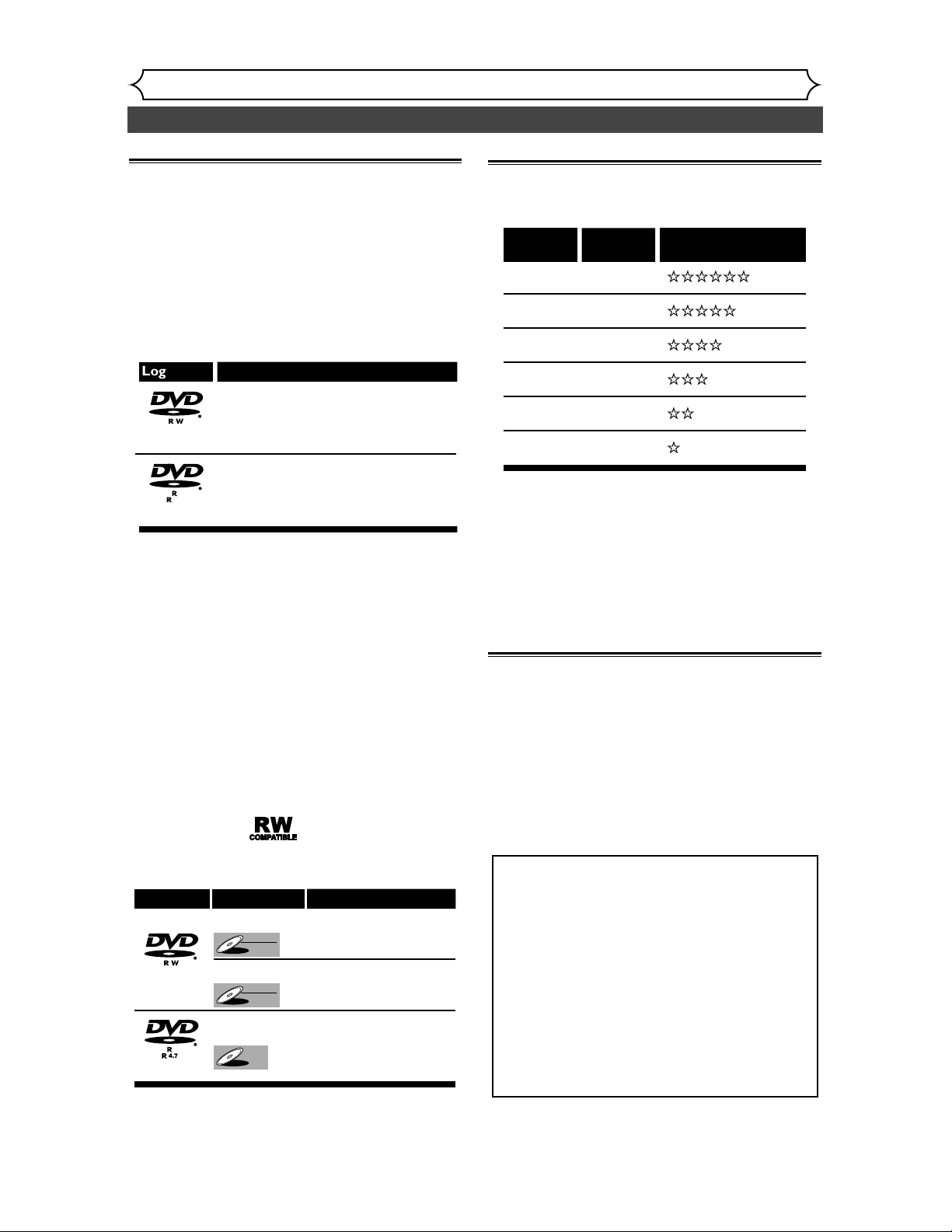
26
Information on DVD recording
Recording
Information
This DVD recorder can record to DVD-R and
DVD-RW discs.When recording, you will need to
select a recording format between Video mode and
VR mode depending on the disc format.The disc
format for DVD-R is always “Video format,” so a
recording format will be “Video mode”.
On the other hand, when recording to DVD-RW, a
recording format will be “Video mode” or “VR
mode” because a disc format is available between
“Video Recording format” and “Video format” for
DVD-RW.
* This unit cannot record on the following discs.
• DVD-RW Ver 1.2 / 2-4x CPRM compatible
• DVD-R General Ver 2.0 / 8x
About Video mode and VR (Video Recording)
mode
Video mode is the same recording format as DVD-
Video discs purchased locally, so that you can play in
most DVD players.To play in other DVD players,
you will need to finalize (see page 39). Unless final-
ized, you can play, record additionally or edit discs
recorded in Video mode with this unit.
VR (Video Recording) mode is a basic recording
format for DVD-RW.You can record and edit
repeatedly.
DVD players with are capable of playing
DVD-RW recorded in VR mode.
Recording speed
You can select a recording speed among 6 options,
and the recording time will depend on the record-
ing speed you select as follows.
* This table is designed for a new single-sided 12cm
disc as the standard.The recording time are esti-
mates and actual recording time may differ.
* The audio and video quality is getting poorer as
the Recording time becomes longer.
* Discs recorded in SLP or SEP on this recorder
may not be played back on other DVD recorders
or DVD players.
Restrictions on recording
You cannot record copy-protected video using this
DVD recorder. Copy-protected video includes
DVD-Video discs and some satellite broadcasts.
If copy-protected material is encountered during a
recording, recording will pause or stop automatically
and an error message will be displayed on-screen.
Video that is “copy-once only” can only be recorded
using a DVD-RW disc in VR mode with CPRM (see
below).
When recording a TV broadcast or through an
external input, you can display copy control informa-
tion on screen.
What is “CPRM”?
CPRM is a copy protection system with scram-
ble system regarding the recording of “copy
once” broadcast programs. CPRM stands for
Content Protection for Recordable Media.
This DVD recorder is CPRM compatible, which
means that you can record copy-once broad-
cast programs, but you cannot then make a
copy of those recordings. CPRM recordings can
only be made on DVD-RW discs formatted in
VR mode, and CPRM recordings can only be
played on players that are specifically compati-
ble with CPRM.
Recording
speed
XP
SP
LP
EP
SLP
SEP
Recording
time *
60 min
120 min
240 min
360 min
480 min
600 min
Video/Sound Quality
Disc type Disc format
Video mode
VR mode
Video mode
Functions
Playing, limited recording,
limited editing
Playing, recording,
Original/Playlist editing
Playing, limited recording,
limited editing
DVD-RW
DVD-R
DVD-RW
DVD-RW
VR
DVD-RW
DVD-RW
Video
DVD-R
DVD-R
4.7
Logo Attributes
8cm/12cm, single-sided, single layer disc
Approx. max. recording time (SEP mode):
600 minutes (4.7GB) (for 12cm)
180 minutes (1.4GB) (for 8cm)
8cm/12cm, single-sided, single layer disc
Approx. max. recording time (SEP mode):
600 minutes (4.7GB) (for 12cm)
180 minutes (1.4GB) (for 8cm)
DVD-RW
DVD-R
4.7
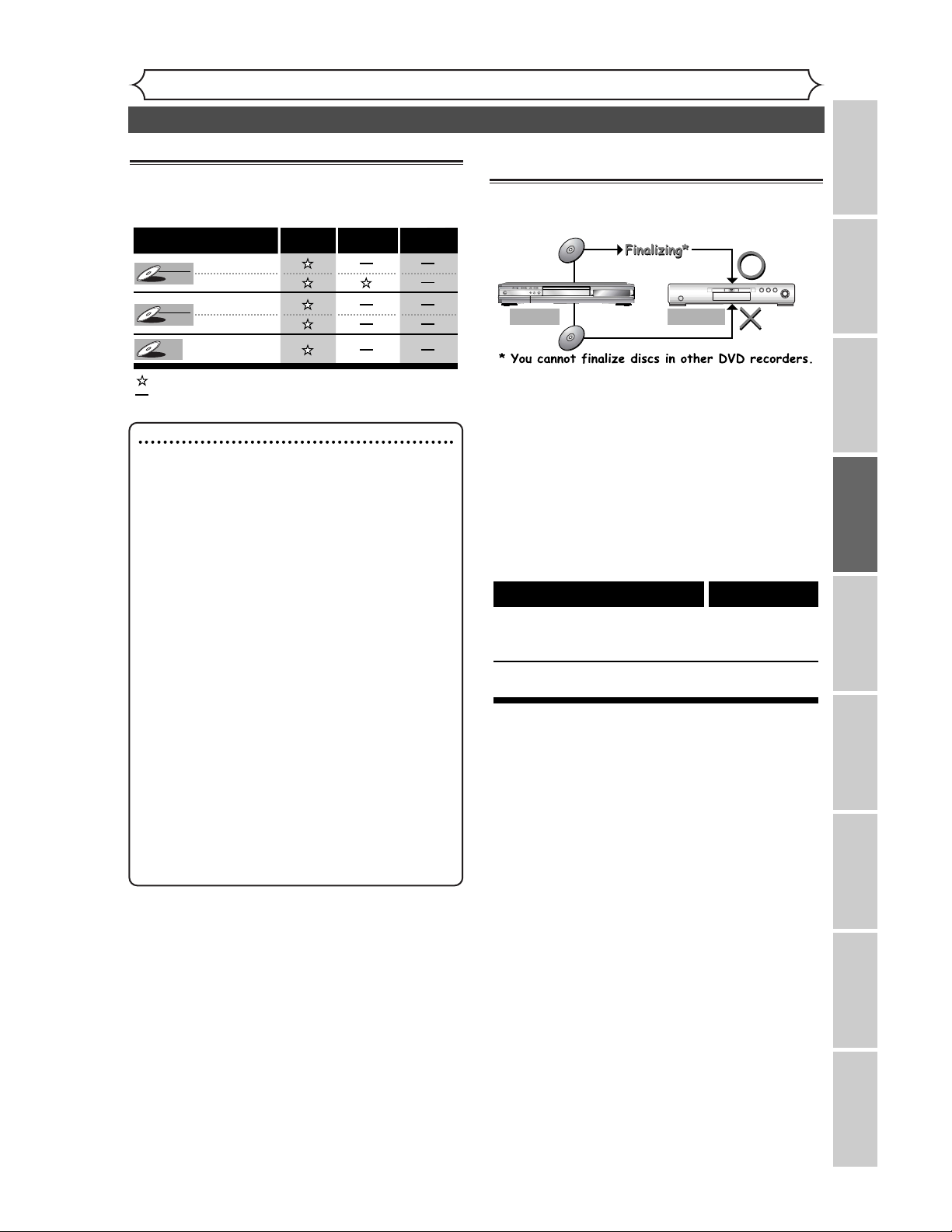
27
Recording
Information on copy control
Some satellite broadcasts include copy-protected
information. For recording these, refer to the fol-
lowing.
Making discs playable in other DVD
player (Finalize)
After recording, you must finalize disc in order to
play on anyother unit. (Refer to page 39.)
After finalizing:
• Once DVD-RW/R (Video mode) is finalized, you
cannot record additionally or edit.
• Even if DVD-RW (VR mode) is finalized, you can
record additionally or edit the disc.
• When DVD-RW/R (Video mode) is finalized, title
menu will be created automatically.
To play in other DVD players, finalize discs
recorded on this unit with the following
condition.
Disc type Mode
DVD-RW
ver.1.1
ver.1.1 CPRM compatible
Video mode
VR mode
DVD-R
ver.2.0
Video mode
Disc type / format
Copy-free Copy-once
Copy-
prohibited
Recordable
Not Recordable
DVD-RW
DVD-RW
VR
DVD-RW
DVD-RW
Video
DVD-R
DVD-R
ver.1.1
ver.1.1 CPRM compatible
ver.1.1
ver.1.1 CPRM compatible
ver.2.0
Note
• The audio and video quality is getting poorer as
the Recording time becomes longer.
• This recorder cannot record CD-RW or CD-R
discs.
• DVD-RW/R and CD-RW/R discs recorded using
a personal computer or a DVD or CD recorder
may not play if the disc is damaged or dirty or if
there is dirt of condensation on the player’s lens.
• If you record a disc using a personal computer,
even if it is recorded in a compatible format,
there are cases in which it may not play because
of the settings of the application software used
to create the disc. (Check with the software pub-
lisher for more detailed information.)
• Discs recorded in Video mode on this DVD
recorder cannot record additionally using other
DVD recorders.
• A DVD-RW disc formatted with this unit cannot be
used in other DVD recorders without any recording
using this unit.
• Since the recording is made by the variable bit
rate (VBR) method, depending on the picture you
are recording, the actual remaining time for
recording may be a little shorter than the
remaining time displayed on the OSD.
Information on DVD recording (cont’d)
Recording Playing discs EditingBefore you start Connections Getting started
Changing the SETUP menu
Others Español
This Unit DVD player
Not Playable
Playable
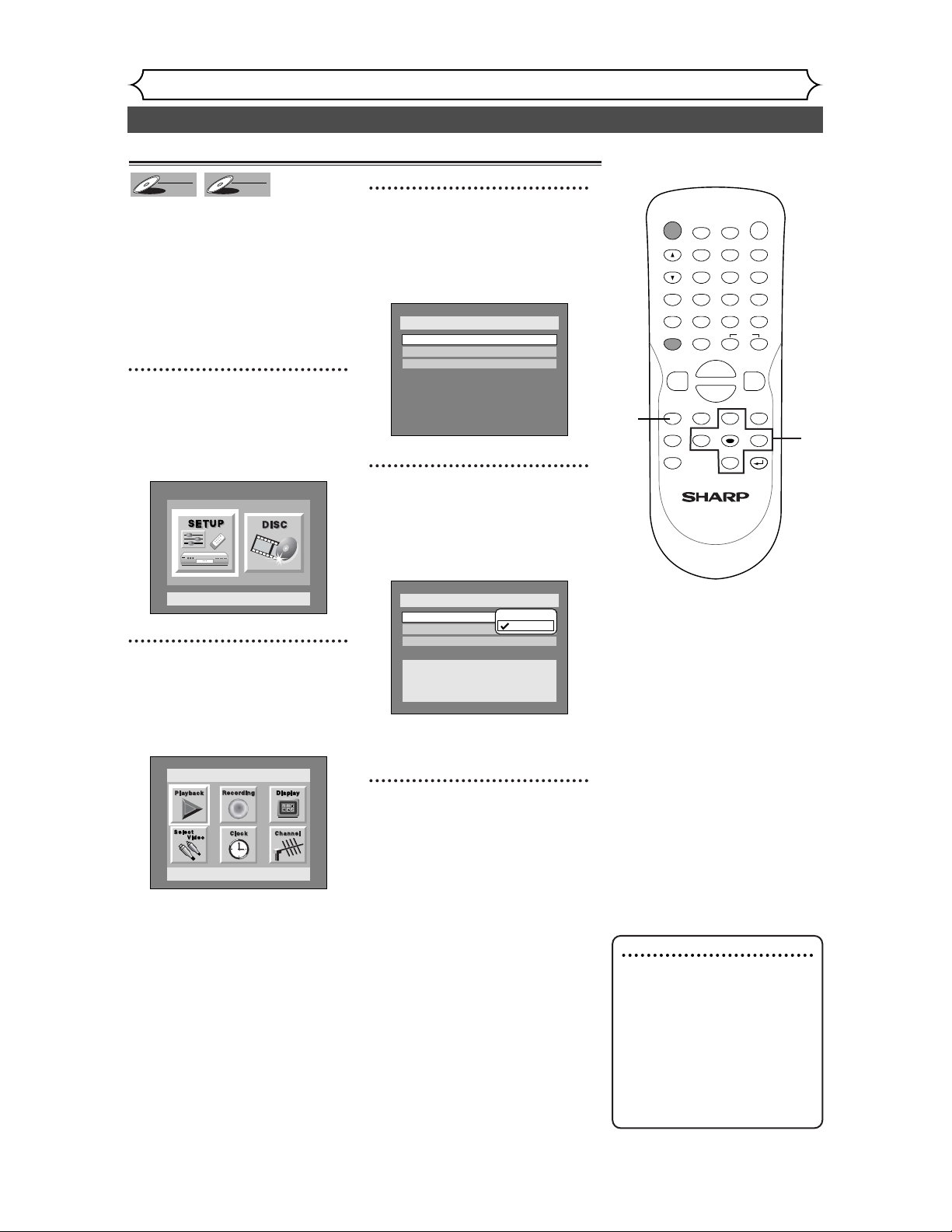
Choosing the recording format of a blank disc
28
Formatting a disc
Recording
When inserting a blank disc, the
DVD recorder starts to initialize
the blank disc.
After that, you can record to the
disc with the recording format
selected in SETUP menu.
You are allowed to set a specified
time for chapter marks.
1
Press SETUP button to dis-
play SETUP/DISC menu.
SETUP/DISC menu will appear.
Screen:
2
Select “SETUP” using { / B
buttons, then press ENTER
button.
SETUP menu will appear.
3
Select “Recording” using K /
L / { / B buttons, then press
ENTER button.
Recording menu will appear.
4
Select “DVD-RW Recording
Format” using K / L buttons,
then press ENTER button.
Option window will appear.
VR mode has been selected as the
default.
5
Select “Video mode” or “VR
mode” using
K / L buttons,
then press ENTER button.
The recording mode will be set.
Setup > Recording
Auto Chapter
Timer Programming
Video mode
DVD Player Compatibility mode.
VR mode
Editing possibility mode.
DVD-RW Recording Format
VR mode
10 minutes
Video mode
VR mode
Setup > Recording
Auto Chapter
Timer Programming
VR mode
DVD-RW Recording Format
10 minutes
Setup
Playback Setting
Setup Menu
DVD-RW
DVD-RW
VR
DVD-RW
DVD-RW
Video
Note
• When inserting a blank
DVD+R or DVD+RW disc,
the error message ("Disc
Error") will appear.This DVD
recorder is not compatible
with a DVD+RW/R disc.
• PLAYLIST will be created
automatically when recording
on DVD-RW in VR mode.
POWER
DISPLAY
REC MODE CLEAR
CM SKIP
SKIP
REC
PAUSE
SETUP
REPEAT
ZOOM
ENTER
RETURN
REC
MONITOR
OPEN/CLOSE
TIMER
PROG.
MENU/LIST
TOP MENU
SPACE
1
2
3
4
5
6
7
8
9
0
F
A
{B
FWD
g
STOP
C
PLAY
B
REV
h
HG
CH
.@/:
ABC
DEF
GHI
JKL
MNO
PQRS
TUV
WXYZ
K
L
1
2
3
4
5
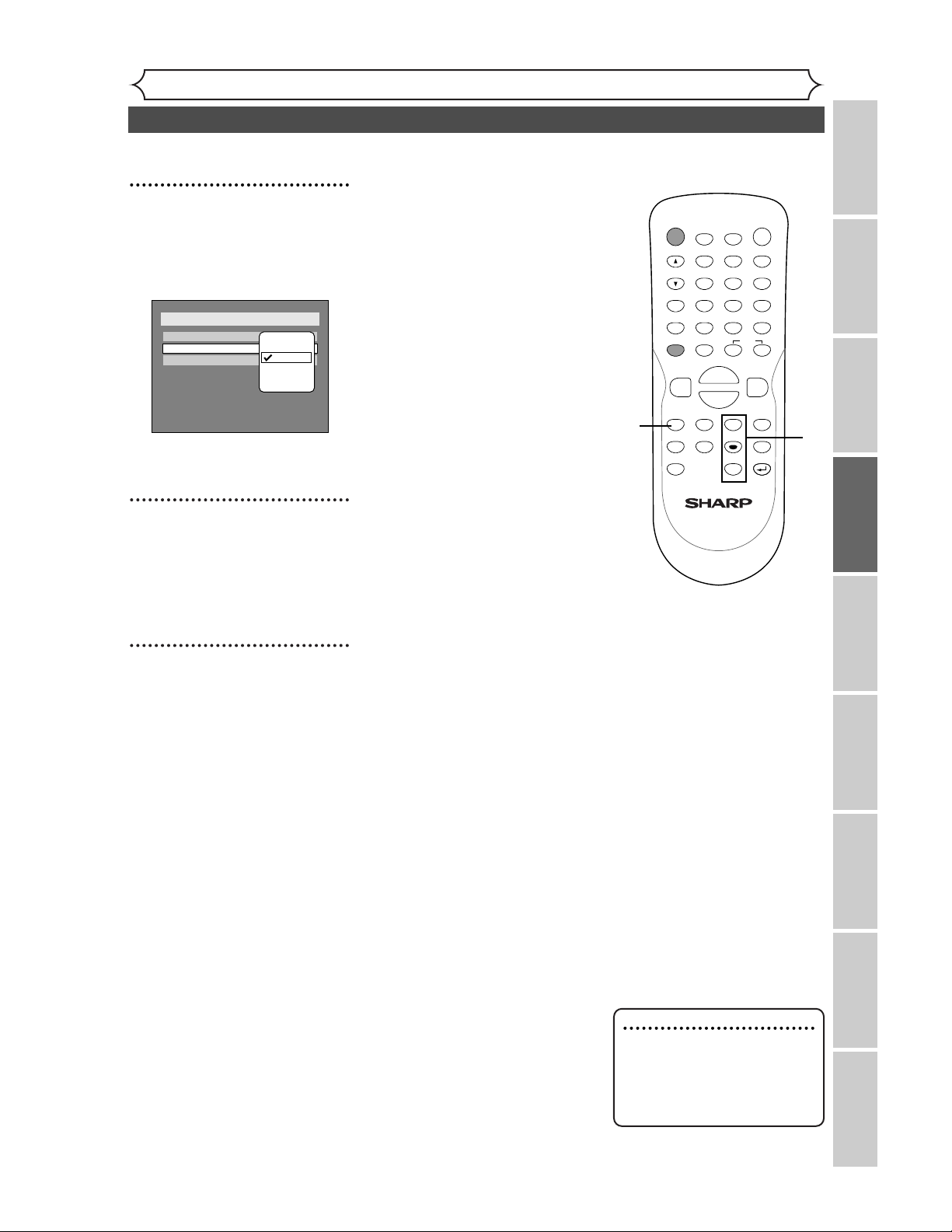
29
Recording
Formatting a disc (cont’d)
Recording Playing discs EditingBefore you start Connections Getting started
Changing the SETUP menu
Others Español
6
Select “Auto Chapter” using
K / L buttons, then press
ENTER button.
Option window will appear.
“10 minutes” has been selected as
the default.
7
Select a desired time option
using K / L buttons, then
press ENTER button.
Chapter marks will be put as you
specified.
8
Press SETUP button to exit.
Setup > Recording
Auto Chapter
Timer Programming
DVD-RW Recording Format
VR mode
10 minutes
OFF
5 minutes
10 minutes
15 minutes
30 minutes
60 minutes
6
POWER
DISPLAY
REC MODE CLEAR
CM SKIP
SKIP
REC
PAUSE
SETUP
REPEAT
ZOOM
ENTER
RETURN
REC
MONITOR
OPEN/CLOSE
TIMER
PROG.
MENU/LIST
TOP MENU
SPACE
1
2
3
4
5
6
7
8
9
0
F
A
{B
FWD
g
STOP
C
PLAY
B
REV
h
HG
CH
.@/:
ABC
DEF
GHI
JKL
MNO
PQRS
TUV
WXYZ
K
L
8
7
Note
• The time for chapter marks is
not accurate in Video mode.
• A blank chapter may be creat-
ed depending on the remain-
ing time of the disc.
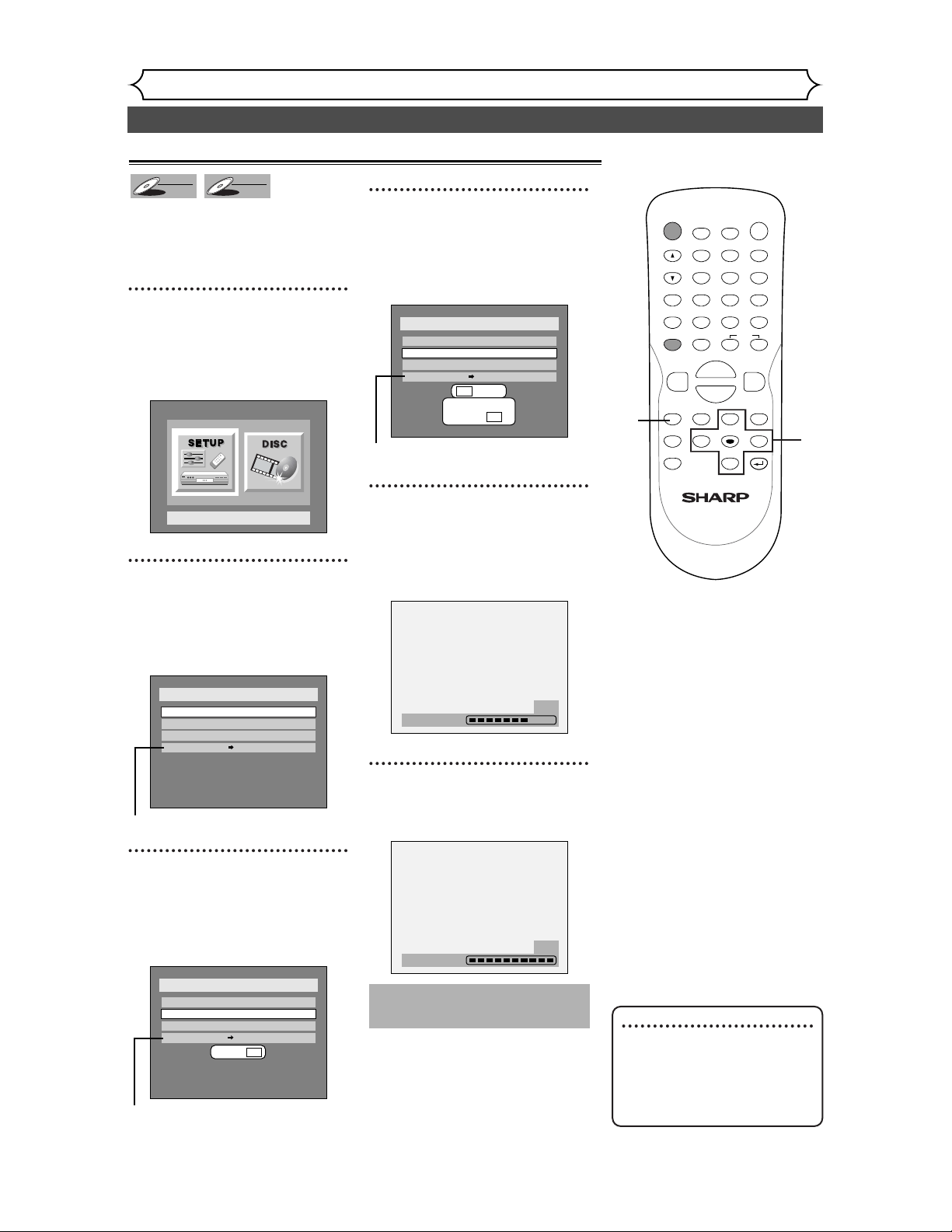
30
Formatting a disc (cont’d)
Recording
If you are using a DVD-RW disc,
by default it will be VR mode.You
can change this to Video mode
from SETUP menu.
1
Press SETUP button to dis-
play SETUP/DISC menu.
SETUP/DISC menu will appear.
Screen:
2
Select “DISC” using { / B
buttons, then press ENTER
button.
DISC menu will appear.
* VR mode only
3
Select “Format” using K / L
buttons, then press ENTER
button.
Option window will appear.
* VR mode only
4
Select “Yes” using { / B but-
tons, then press ENTER but-
ton.
Option window will appear.
* VR mode only
5
Select “Yes” using { / B but-
tons, then press ENTER but-
ton.
Formatting will start.
6
Formatting is complete.
100% will be indicated.
Formatting
100%
Formatting
58%
Disc
Edit
Format
Finalize
Yes No
Disc Protect OFF ON
Are you sure?
Yes No
Disc
Edit
Format
Finalize
Yes No
Disc Protect OFF ON
Disc
Edit
Format
Finalize
Disc Protect OFF ON
Setup Menu
DVD-RW
DVD-RW
VR
DVD-RW
DVD-RW
Video
Reformatting a disc
Note
• When you reformat the disc,
the contents of the disc will
be erased.
• If you want to cancel format
at step 5, select "No".
POWER
DISPLAY
REC MODE CLEAR
CM SKIP
SKIP
REC
PAUSE
SETUP
REPEAT
ZOOM
ENTER
RETURN
REC
MONITOR
OPEN/CLOSE
TIMER
PROG.
MENU/LIST
TOP MENU
SPACE
1
2
3
4
5
6
7
8
9
0
F
A
{B
FWD
g
STOP
C
PLAY
B
REV
h
HG
CH
.@/:
ABC
DEF
GHI
JKL
MNO
PQRS
TUV
WXYZ
K
L
1
2
3
4
5
This operation may take a
while to be completed.
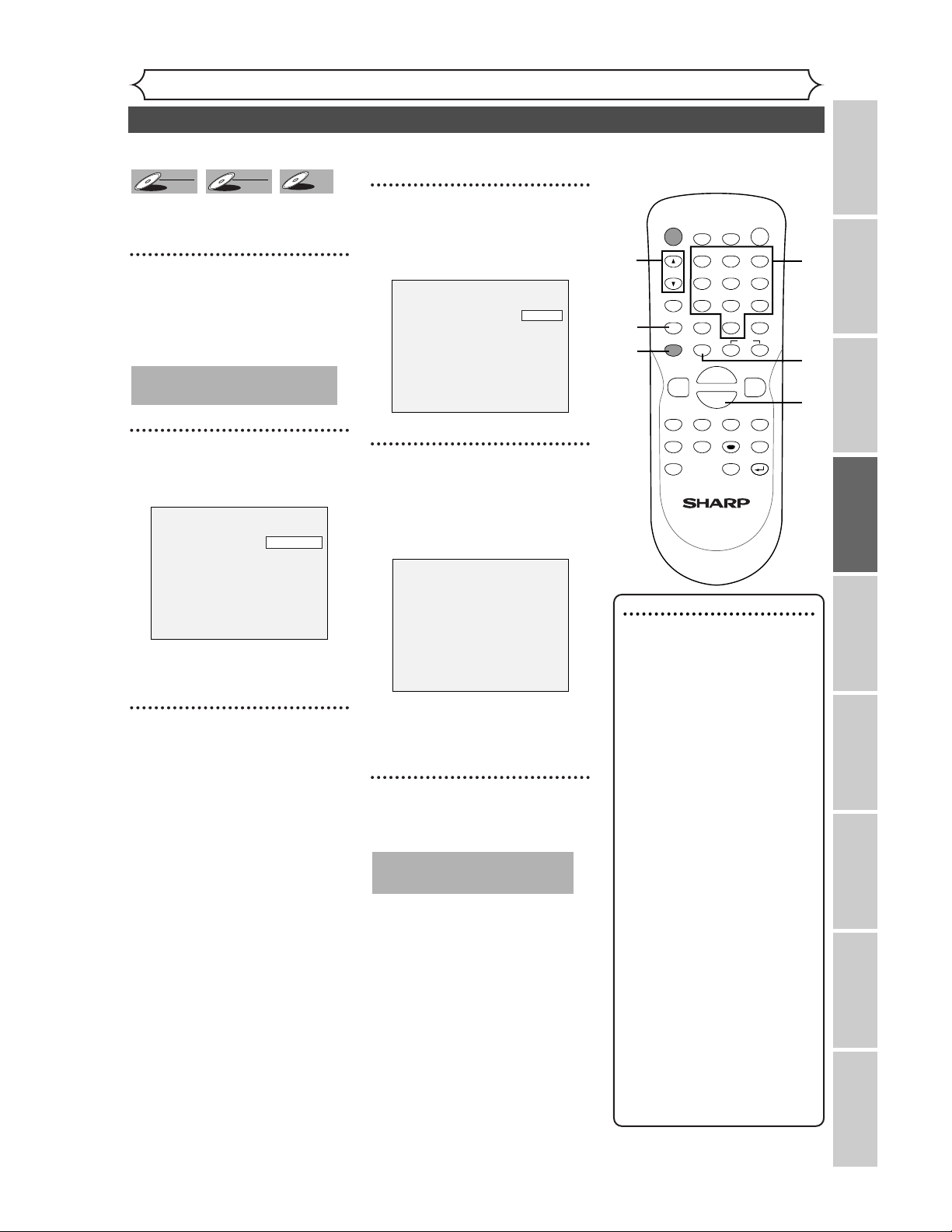
31
Recording
Basic recording
Recording Playing discs EditingBefore you start Connections Getting started
Changing the SETUP menu
Others Español
Note
• Recording starts immediately
and continues until the disc is
full or you stop recording.
• When the clock setting has
not been made, the space for
a date and time of title names
in the original or playlist will
be blank.
• When you record a TV pro-
gram which has Stereo and
SAP audio on a DVD-RW/R
(Video mode), you have to
select the TV channel audio
(Stereo or SAP) beforehand.
Only the selected channel
audio will be recorded. Refer
to “Selecting the TV stereo or
SAP” on page 20 for more
details.
• You cannot mix two formats
on one DVD-RW disc.
When you load a disc once
recorded before, the record-
ing format cannot be changed
even if you change it in
SETUP menu.
• You cannot change the
recording speed during the
REC pause mode.
• You can change a channel
during the REC pause mode.
Follow the steps below to record
TV programs.
1
Turn on the DVD recorder
and load a recordable disc.
Make sure that the TV input is set
on the DVD recorder.
2
Select a recording speed
using REC MODE button.
Refer to “Recording speed” on
page 26.
3
Make sure that the recording
format is set to the desired
mode.
Refer to “Formatting a disc” on
pages 28-30.
When a DVD-RW disc is
loaded:
You can choose Video mode or
VR mode from SETUP menu.
“VR mode” has been selected as
the default. Refer to “Choosing
the recording format of a blank
disc” on pages 28-29.
When a DVD-R disc is loaded:
DVD-R discs will always be in
Video mode.
4
Select a desired channel to
record using CH K / L but-
tons or number buttons.
5
Press REC button to start
recording.
REC mark will be displayed for 5
seconds.
To pause the recording, press
PAUSE F button. Press REC but-
ton to restart the recording.
6
Press STOP C button to stop
the recording.
This operation may take a
while to be completed.
I
CH 1
SP 2:01 Rem.
This operation may take a
while to be recognized.
DVD-R
DVD-R
DVD-RW
DVD-RW
VR
DVD-RW
DVD-RW
Video
POWER
DISPLAY
REC MODE CLEAR
CM SKIP
SKIP
REC
PAUSE
SETUP
REPEAT
ZOOM
ENTER
RETURN
REC
MONITOR
OPEN/CLOSE
TIMER
PROG.
MENU/LIST
TOP MENU
SPACE
1
2
3
4
5
6
7
8
9
0
F
A
{B
FWD
g
STOP
C
PLAY
B
REV
h
HG
CH
.@/:
ABC
DEF
GHI
JKL
MNO
PQRS
TUV
WXYZ
K
L
5
2
4
4
5
6
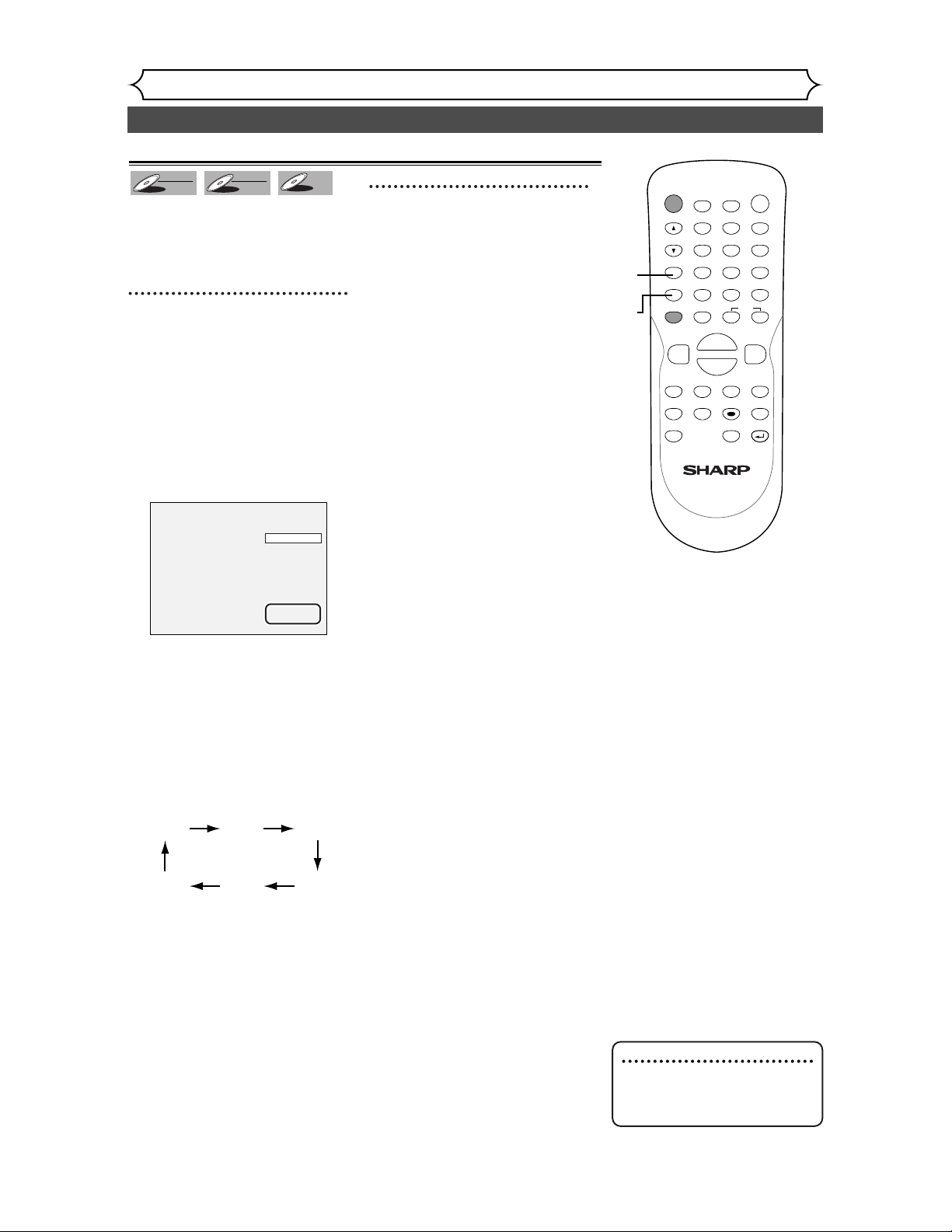
32
Basic recording (cont’d)
Recording
Note
• You cannot check the record-
ing sound with the Rec moni-
tor function.
You can confirm the recording pic-
ture quality with the recording
speed you have selected before
attempting to record to a DVD disc.
1
While the DVD recorder is in
STOP or REC with a DVD
disc to record inserted, press
REC MONITOR button.
The TV program will be on the
screen in the recording picture
quality with the recording speed
you have selected.
If you want to change the
recording speed, press REC
MODE button repeatedly.
The recording speed will be
changed as you press the button
as shown. Refer to “Recording
speed” on page 26.
• You cannot change the record-
ing speed during recording.
2
Press REC MONITOR button
again to exit.
XP SP LP
EPSLPSEP
CH 18
Rec Monitor
XP
DVD-R
DVD-R
DVD-RW
DVD-RW
VR
DVD-RW
DVD-RW
Video
Checking the recording picture quality
POWER
DISPLAY
REC MODE CLEAR
CM SKIP
SKIP
REC
PAUSE
SETUP
REPEAT
ZOOM
ENTER
RETURN
REC
MONITOR
OPEN/CLOSE
TIMER
PROG.
MENU/LIST
TOP MENU
SPACE
1
2
3
4
5
6
7
8
9
0
F
A
{B
FWD
g
STOP
C
PLAY
B
REV
h
HG
CH
.@/:
ABC
DEF
GHI
JKL
MNO
PQRS
TUV
WXYZ
K
L
1
2
1
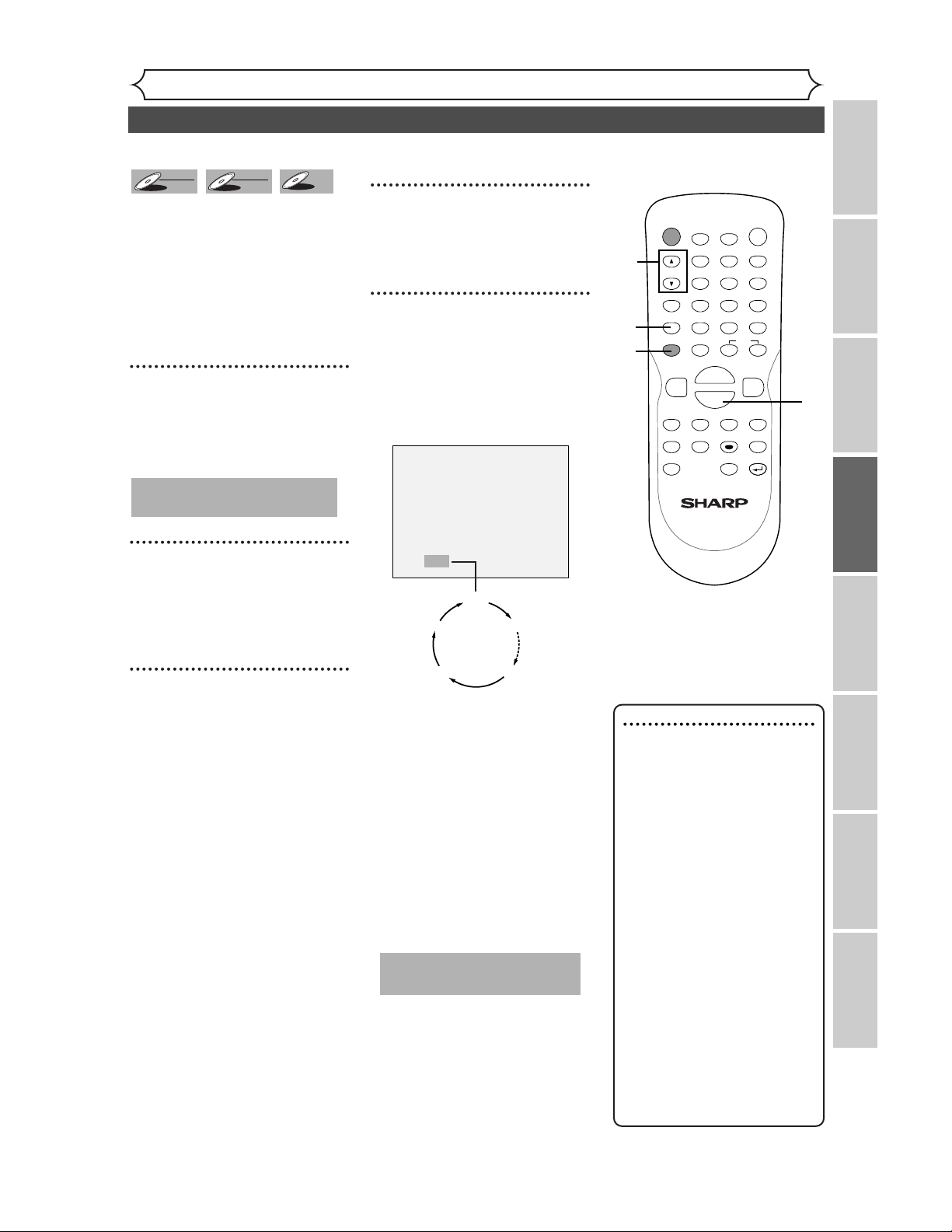
33
Recording
One-touch timer recording
Recording Playing discs EditingBefore you start Connections Getting started
Changing the SETUP menu
Others
Note
• The remaining recording time
will appear on the display
panel during an one-touch
timer recording. Press DIS-
PLAY button to see it on the
TV screen.
• You cannot pause a one-touch
timer recording.
• Unlike a timer recording, you
can perform the following
operations during a one-touch
timer recording.
- Turning the power off
- Using REC, STOP C,or
RETURN buttons.
• The unit will be turned off
automatically under the fol-
lowing conditions.
1) No space remained on the
disc.
2) When a power failure
occurs.
This is a simple way to set the
recording time in blocks of 30
minutes. Check that the disc you
are recording onto has enough
space for the time you set.
When the recording finishes the
recorder automatically goes into
standby.
1
Turn on the DVD recorder
and load a recordable disc.
Make sure that the TV input is set
on the DVD recorder.
2
Select a recording speed
using REC MODE button.
Refer to "Recording speed" on
page 26.
3
Make sure that the recording
format is set to the desired
mode.
Refer to "Formatting a disc" on
pages 28-30.
When a DVD-RW disc is
loaded:
You can choose Video mode or
VR mode from SETUP menu.
"VR mode" has been selected as
the default. Refer to pages 28-29
"Choosing the recording format
of a blank disc."
When a DVD-R disc is loaded:
DVD-R discs will always be in
Video mode.
4
Select a desired channel to
record using CH K / L but-
tons or number buttons.
5
Press REC button, then press
REC button repeatedly until a
desired recording time (30
minutes to 4 hours) appears
on the TV screen.
Recording will start.
When the DVD recorder reaches
the specified time, it will be
turned off automatically.
To change the recording length
during the one touch timer
recording, press REC button
repeatedly until the desired length
appear.
To cancel the one-touch timer
recording within the specified
time, press STOP C button.
0:30
(Normal Recording)
4:00 3:30
1:00
I
0:30
This operation may take a
while to be recognized.
DVD-R
DVD-R
DVD-RW
DVD-RW
VR
DVD-RW
DVD-RW
Video
POWER
DISPLAY
REC MODE CLEAR
CM SKIP
SKIP
REC
PAUSE
SETUP
REPEAT
ZOOM
ENTER
RETURN
REC
MONITOR
OPEN/CLOSE
TIMER
PROG.
MENU/LIST
TOP MENU
SPACE
1
2
3
4
5
6
7
8
9
0
F
A
{B
FWD
g
STOP
C
PLAY
B
REV
h
HG
CH
.@/:
ABC
DEF
GHI
JKL
MNO
PQRS
TUV
WXYZ
K
L
5
4
2
5
This operation may take a
while to be completed.
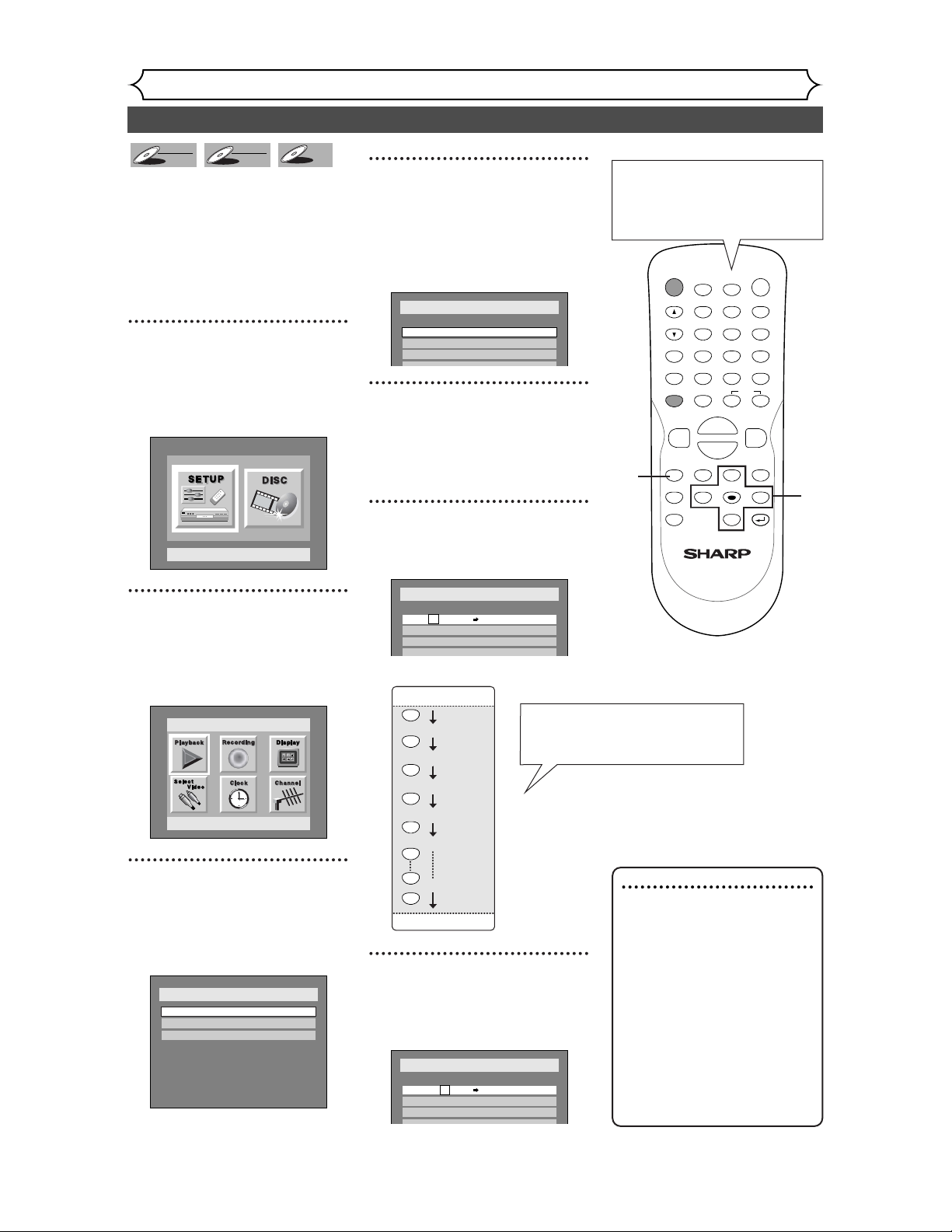
34
Timer recording
Recording
You can program the unit to
record up to 8 programs, up to a
year in advance. Daily or weekly
program recordings are also avail-
able.
• Be sure to set the clock before
making a timer programming.
• Insert a recordable disc.
1
Press SETUP button to dis-
play SETUP/DISC menu.
SETUP/DISC menu will appear.
Screen:
2
Select “SETUP” using { / B
buttons, then press ENTER
button.
SETUP menu will appear.
3
Select “Recording” using K /
L / { / B buttons, then press
ENTER button.
Recording menu will appear.
4
Select “Timer Programming”
using K / L buttons, then
press ENTER button.
Timer Programming list will
appear.
5
Select the program which is
not set up using K / L but-
tons, then press ENTER but-
ton.
6
Enter the date using K / L
buttons, then press B button.
e.g. January 1st
7
Enter the time to start and
to end using K / L buttons,
then press
B button.
Date Start End CH
1.
2.
3.
4
- - -
- - -
- - : - -AM
Speed
CH810 :00PMJAN/12
Setup > Recording > Timer Programming
Daily
L
L
MON-SAT
JAN/01
DEC/31
L
MON-FRI
L
SAT
L
FRI
L
SUN
L
L
Setup > Recording > Timer Programming
Date Start End CH Speed
1.
2.
3.
4.
- - -
JAN / 01
- - -
- - -
- - : - -AM- - : - -AM CH8
Setup > Recording > Timer Programming
Date Start End CH Speed
1.
2.
3.
4
- - -
- - -
- - -
Setup > Recording
Auto Chapter
Timer Programming
VR mode
DVD-RW Recording Format
10 minutes
Setup
Playback Setting
Setup Menu
DVD-R
DVD-R
DVD-RW
DVD-RW
VR
DVD-RW
DVD-RW
Video
POWER
DISPLAY
REC MODE CLEAR
CM SKIP
SKIP
REC
PAUSE
SETUP
REPEAT
ZOOM
ENTER
RETURN
REC
MONITOR
OPEN/CLOSE
TIMER
PROG.
MENU/LIST
TOP MENU
SPACE
1
2
3
4
5
6
7
8
9
0
F
A
{B
FWD
g
STOP
C
PLAY
B
REV
h
HG
CH
.@/:
ABC
DEF
GHI
JKL
MNO
PQRS
TUV
WXYZ
K
L
Note
• If you have not set the
clock yet:
A clock setting window will
appear after step 4. Continue
with the step 4 in “Auto
Clock Setting” on page 21 or
“Manual Clock Setting” on
page 22 before making a
timer programming.
• Press { or B buttons to
move the cursor to the left
and the right in the timer
programming menu.
1
2
3
4
5
You can choose the timer
programming menu by press-
ing TIMER PROG. button. In
this case, continue with step 5.
7
6
When pressing L button at the
current date, timer recording
mode will change as follows.
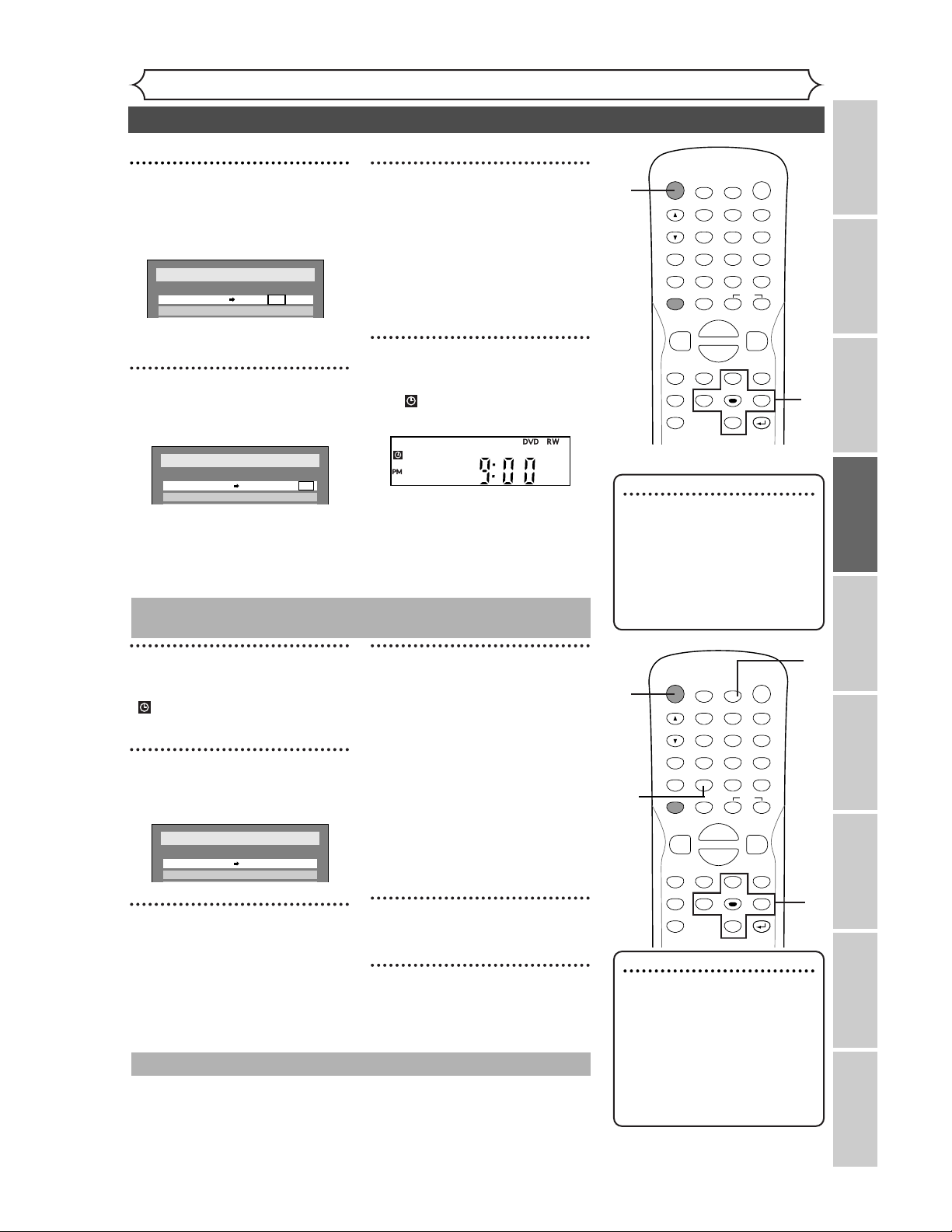
35
Recording
Timer recording (cont’d)
Recording Playing discs EditingBefore you start Connections Getting started
Changing the SETUP menu
Others Español
8
Select the channel number to
record using K / L buttons,
then press B button.
To record from external input, L1
or L2.
9
Select a recording speed
using K / L buttons.
Refer to “Recording speed” on
page 26.
10
Press ENTER button when all
information required is
entered. Your program setting
will be stored.
• To set another program, repeat
steps 5 to 10.
• To exit, press SETUP button.
11
Press POWER button to turn
off. indicator will appear on
the front display.
Date Start End CH Speed
1.
XP
2. - - -
CH810:30PM10:00PMJAN/12
Setup > Recording > Timer Programming
Date Start End CH Speed
1.
2. - - -
CH810:30PM10:00PMJAN/12
Setup > Recording > Timer Programming
POWER
DISPLAY
REC MODE CLEAR
CM SKIP
SKIP
REC
PAUSE
SETUP
REPEAT
ZOOM
ENTER
RETURN
REC
MONITOR
OPEN/CLOSE
TIMER
PROG.
MENU/LIST
TOP MENU
SPACE
1
2
3
4
5
6
7
8
9
0
F
A
{B
FWD
g
STOP
C
PLAY
B
REV
h
HG
CH
.@/:
ABC
DEF
GHI
JKL
MNO
PQRS
TUV
WXYZ
K
L
11
8
9
1
Press POWER button so that
indicator disappears from
the front display.
2
Press TIMER PROG. button.
Timer Programming list will appear.
3
Check the information on the
list you will need.
4
To clear the timer programming,
select your desired program
using K / L buttons.Then,
CLEAR button.
To correct the timer program-
ming, select your desired pro-
gram using
K / L buttons.Then,
press ENTER button. Next, cor-
rect the timer programming by using
press K/L/{/B buttons.
Finally, press ENTER button again.
5
Press TIMER PROG. button to exit.
6
Press POWER button to return
to the timer standby mode.
Date Start End CH Speed
1.
XP
2. - - -
CH810:30PM10:00PMJAN/12
Setup > Recording > Timer Programming
Checking, canceling, or correcting the timer programming
information
Note
• Press TIMER PROG. button to
check the timer programming
in process.
When the timer recording is
proceeding, that program will
be highlighted with red. In this
case, you cannot select any
other program.
10
Note
• After step 11, the DVD
recorder will be turned on
automatically 2 minutes in
advance of the recording time
to start and waits to start.
Then the recording will start
at the recording time you set.
POWER
DISPLAY
REC MODE CLEAR
CM SKIP
SKIP
REC
PAUSE
SETUP
REPEAT
ZOOM
ENTER
RETURN
REC
MONITOR
OPEN/CLOSE
TIMER
PROG.
MENU/LIST
TOP MENU
SPACE
1
2
3
4
5
6
7
8
9
0
F
A
{B
FWD
g
STOP
C
PLAY
B
REV
h
HG
CH
.@/:
ABC
DEF
GHI
JKL
MNO
PQRS
TUV
WXYZ
K
L
1
2
5
6
Press C (STOP) button on the front panel of the main unit.
STOP C button on the remote control is not effective.
To stop the timer recording in process
4
4
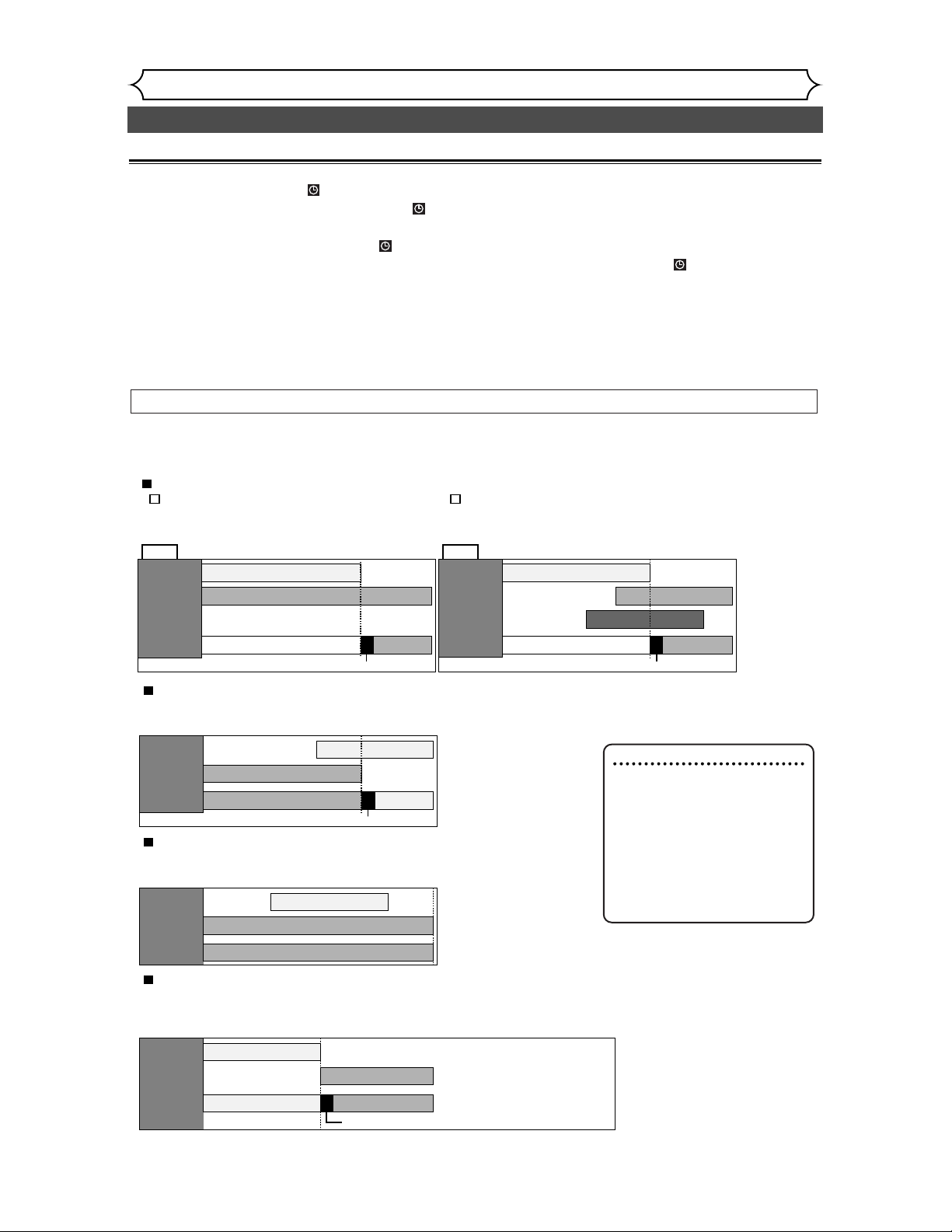
PROG. 1
PROG. 2
Actual
recording
The first 30 seconds (at the longest) will be cut off.
PROG. 2PROG. 1
When the End time of the programming currently being recorded and the Start time
of the subsequent program are same:
If PROG. 1 is a DVD recording program, the beginning of the PROG. 2 may be cut off.
The amount of time cut off differs depending on the recorded media.
For example, if both PROG. 1 and PROG. 2 are DVD recordings, the first 30 seconds (at the longest) will be cut off PROG.
PROG. 1
PROG. 2
Actual
recording
PROG. 2
When the recording time is entirely overlapped:
However, if you turn the power off for timer standby within 2 minutes
to the Start time for PROG. 1, PROG. 1 will be recorded first, and the
recording of PROG. 2 will start after the recording of PROG. 1 is completed.
PROG. 1
PROG. 2
Actual
recording
PROG. 2 PROG. 1
When the recording time is partially overlapped:
PROG. 1 will start after PROG. 2 is complete to be recorded.
However, PROG. 1 will be recorded if you turn the power off for timer standby within 2 minutes
to the Start time for PROG. 1.
The first 30 seconds (at the longest) will be cut off
PROG. 1
ex.1
PROG. 2
Actual
recording
PROG. 1 PROG. 2
PROG. 1
PROG. 2
Actual
recording
PROG. 1 PROG. 2
PROG. 3
ex. 2
A programming set previously has priority
When the starting time is the same:
A program set previously (PROG. 1) has priority.
When some programming have been
made at the end time of the
programming currently being recorded:
A program set previously (PROG. 2) has priority.
The first 30 seconds (at the longest) will be cut off The first 30 seconds (at the longest) will be cut off
Hints for timer recording
•
If there is a power failure or this unit has been unplugged for more than 30 seconds, the clock setting and all timer settings will be lost.
•
If a disc is not on the tray, the indicator flashes and timer recording cannot be performed. Please insert a recordable disc.
• When all the timer recording is completed, the indicator flashes.To play or eject the recorded disc, press POWER
button first, and then press PLAY
B or OPEN/CLOSE A button.
•
During timer recording or timer standby ( indicator is on the front display), any operations on the unit will not be
available.To make these operations available, cancel the timer recording or timer standby first ( indicator disappears).
• To cancel the timer standby mode, press POWER button.
• When the Start and the End time are the same, the length of the recording will be set for 24 hours.When the disc
reaches at the end during the recording, the DVD recorder turns itself off.
•
When the programmed Start and End time are earlier than the current time, the recording will be set on the same date in the next year.
• If your programmed Start time is within 2 minutes from the current time, the power will turn on for recording standby
right after you turn the power off.
• If the Start time is earlier and the End time is later than the current time, the recording will start right after you turn
the power off.
This unit records the programs according to priority if the timer programmings are overlapped.The timer programming
set previously has priority.
A timer recording of lower priority will be canceled, start from the middle or stop on the way.
Check the overlapped timer programmings and change the priority if necessary.
The priority of overlapped settings
36
Timer recording (cont’d)
Recording
Note
• When the recording time of
two programs are overlapped,
or the End time of a program
and the Start time of another
is the same, the first 30 sec-
onds (at the longest) of the
subsequent program will be
cut off.
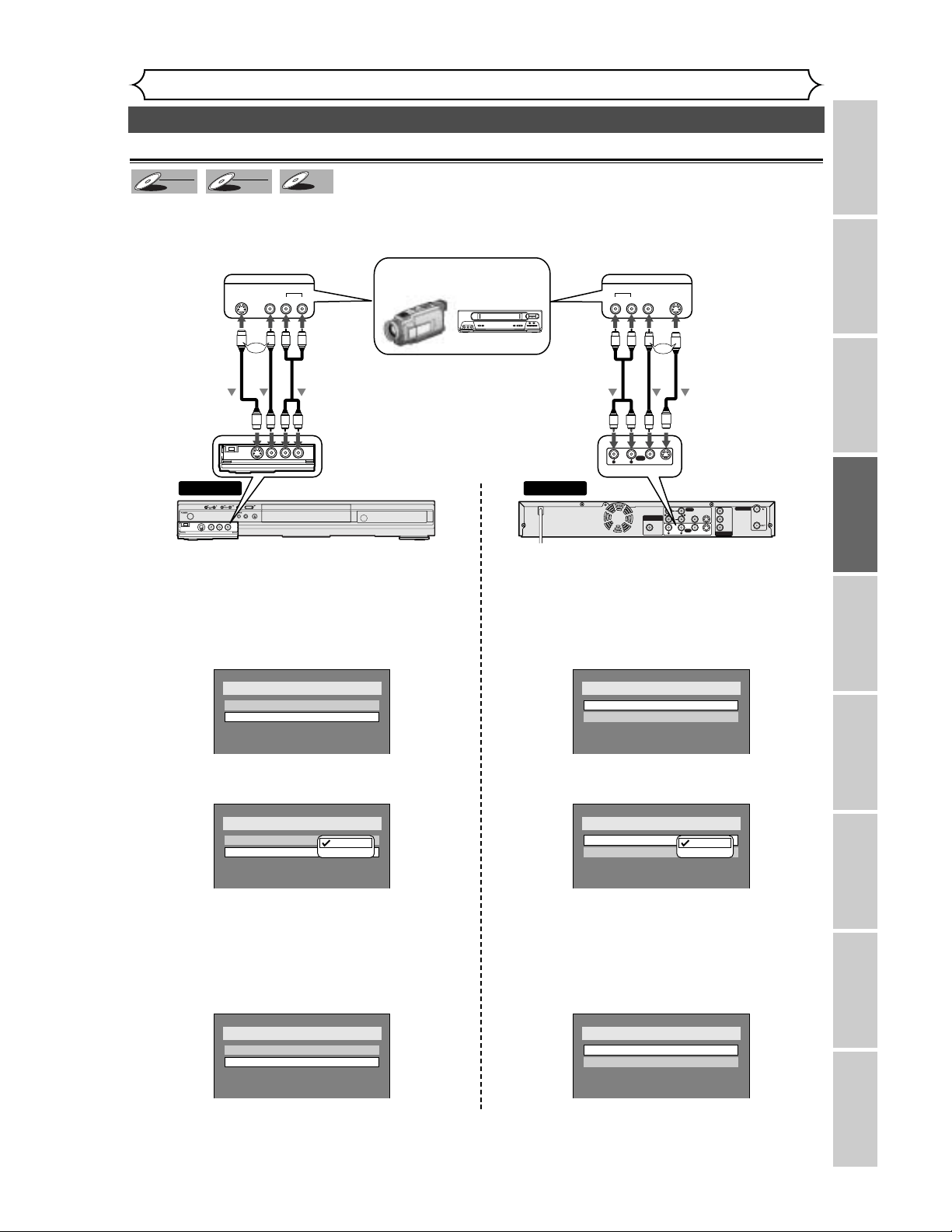
37
Connect the external source properly to the DVD recorder by using input jacks either LINE2 (Front) or
LINE1 (Rear).
Use commercially available S-Video or Video cable and an Audio cable for this connection.
DVD-R
DVD-R
DVD-RW
DVD-RW
VR
DVD-RW
DVD-RW
Video
Connection to an external source
1. Press SETUP button to display SETUP/DISC
menu.
2. Select “SETUP” using { / B buttons, then
press ENTER button.
3. Select “Select Video” using K / L / { / B
buttons, then press ENTER button.
4.
Select “L2 (Front)” using
K / L
buttons, then
press ENTER button.
5. Select the input jack type to connect using
K / L buttons, then press ENTER button.
If you want to use S-VIDEO INPUT, select “S-Video
In”.
If you want to use VIDEO INPUT (Composite),
select “Video In”.
Setup > Select Video
L1 (Rear)
L2 (Front)
S-Video In
Video In
Setup > Select Video
L1 (Rear)
L2 (Front)
Video In
Video In
Video In
S-Video In
Setup > Select Video
L1 (Rear)
L2 (Front)
Video In
Video In
1. Press SETUP button to display SETUP/DISC
menu.
2. Select “SETUP” using { / B buttons, then
press ENTER button.
3. Select “Select Video” using K / L / { / B
buttons, then press ENTER button.
4.
Select “L1 (Rear)” using
K / L
buttons, then
press ENTER button.
5. Select the input jack type to connect using
K / L buttons, then press ENTER button.
If you want to use S-VIDEO INPUT, select “S-Video
In”.
If you want to use VIDEO INPUT (Composite),
select “Video In”.
Setup > Select Video
L1 (Rear)
L2 (Front)
Video In
S-Video In
Setup > Select Video
L1 (Rear)
L2 (Front)
Video In
Video In
Video In
S-Video In
Setup > Select Video
L1 (Rear)
L2 (Front)
Video In
Video In
or
Settings for an external source
Recording
Recording Playing discs EditingBefore you start Connections Getting started
Changing the SETUP menu
Others Español
Front of DVD recorder
Rear of DVD recorder
DIGITAL AUDIO OUTPUT
PCM / BITSTREAM
COAXIAL AUDIO
INPUT
COMPONENT
VIDEO OUTPUT
TV ANTENNA
OUTPUT
R
R
L
L
AUDIO
VIDEO
1
2
(L1)
VIDEO
S-VIDEO
S-VIDEO
P
R
/C
R
P
B
/C
B
Y
REC/OTR OPEN/CLOSE
AUDIO
INPUT
R
L
(L1)
VIDEO S-VIDEO
To LINE 2 IN To LINE 1 IN
Another source
(VCR camcorder etc.)
VIDEOS- VIDEO AUDIO
RL
OUTPUT
Audio
cable
S-Video
cable
VIDEO S -VIDEOAUDIO
LR
OUTPUT
S-Video
cable
Audio
cable
Video
cable
Video
cable
or
or
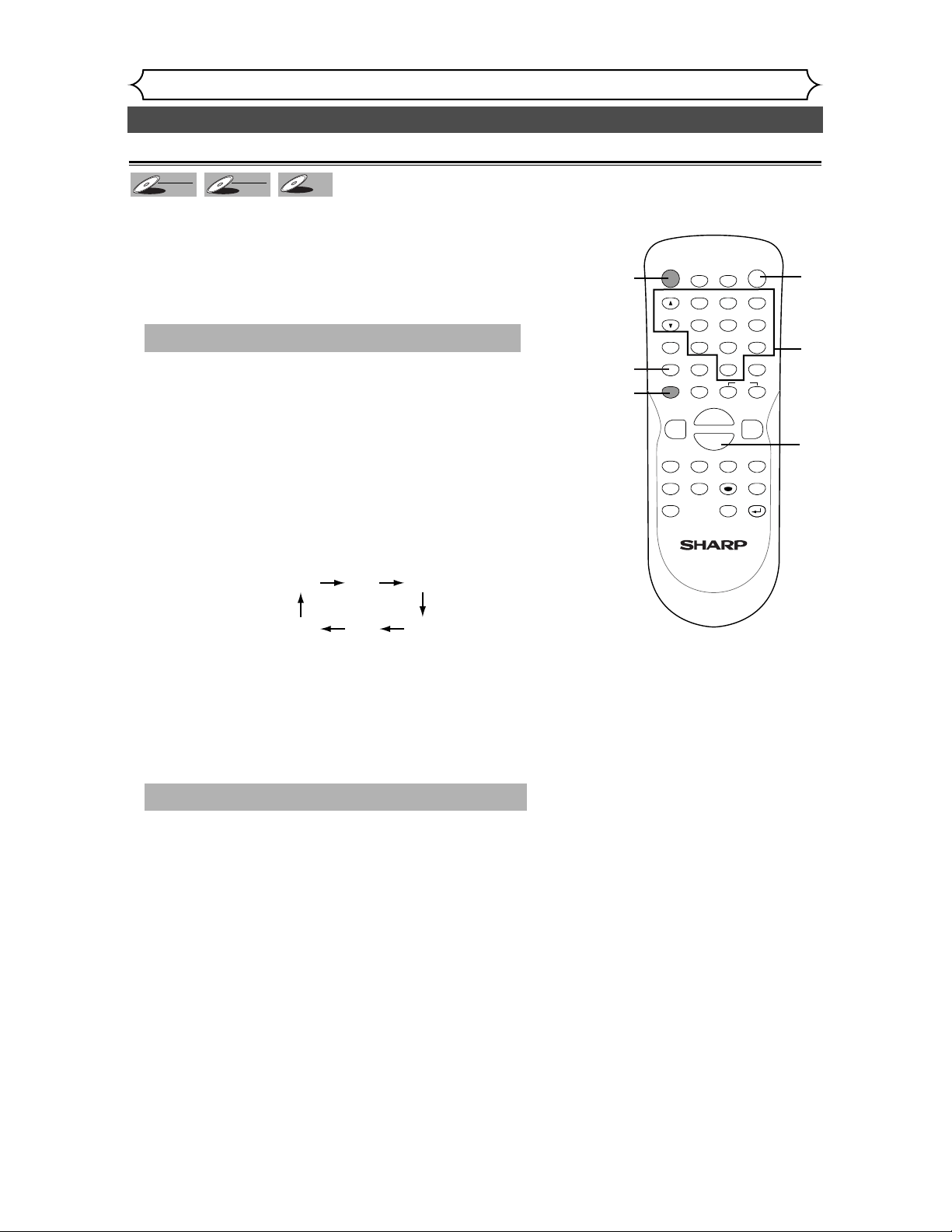
38
Settings for an external source (cont’d)
Recording
Before recording from an external source, see the instructions for the connection on page 37.
DVD-R
DVD-R
DVD-RW
DVD-RW
VR
DVD-RW
DVD-RW
Video
Recording from an external source
1. Turn the TV and the DVD recorder on, and be sure to select
the input of the TV to which the DVD recorder is connected.
2. Press OPEN/CLOSE A button to open the disc tray, then
place the disc to record properly.
3. Press OPEN/CLOSE A button to close the disc tray.
4
. Select the input of the DVD recorder which the external
equipment is connected. (L2 or L1)
• To use the input jacks on the back of this unit, select “L1” position by
pressing [0], [0], [1] on the remote control or the CH L / K buttons.
• To use the input jacks on the front of this unit, select “L2” position by
pressing [0], [0], [2] on the remote control or the CH L / K buttons.
5. Select a recording speed using REC MODE button. Refer to
“Recording speed” on page 26.
6. Press REC button on the DVD recorder to start recording.
7. Press Play button on the external source to record from.
8. Press STOP C button on the DVD recorder to stop record-
ing.
This operation may take a while to be completed.
XP SP LP
EPSLPSEP
This operation may take a while to be recognized.
POWER
DISPLAY
REC MODE CLEAR
CM SKIP
SKIP
REC
PAUSE
SETUP
REPEAT
ZOOM
ENTER
RETURN
REC
MONITOR
OPEN/CLOSE
TIMER
PROG.
MENU/LIST
TOP MENU
SPACE
1
2
3
4
5
6
7
8
9
0
F
A
{B
FWD
g
STOP
C
PLAY
B
REV
h
HG
CH
.@/:
ABC
DEF
GHI
JKL
MNO
PQRS
TUV
WXYZ
K
L
6
5
1
2
8
4
3
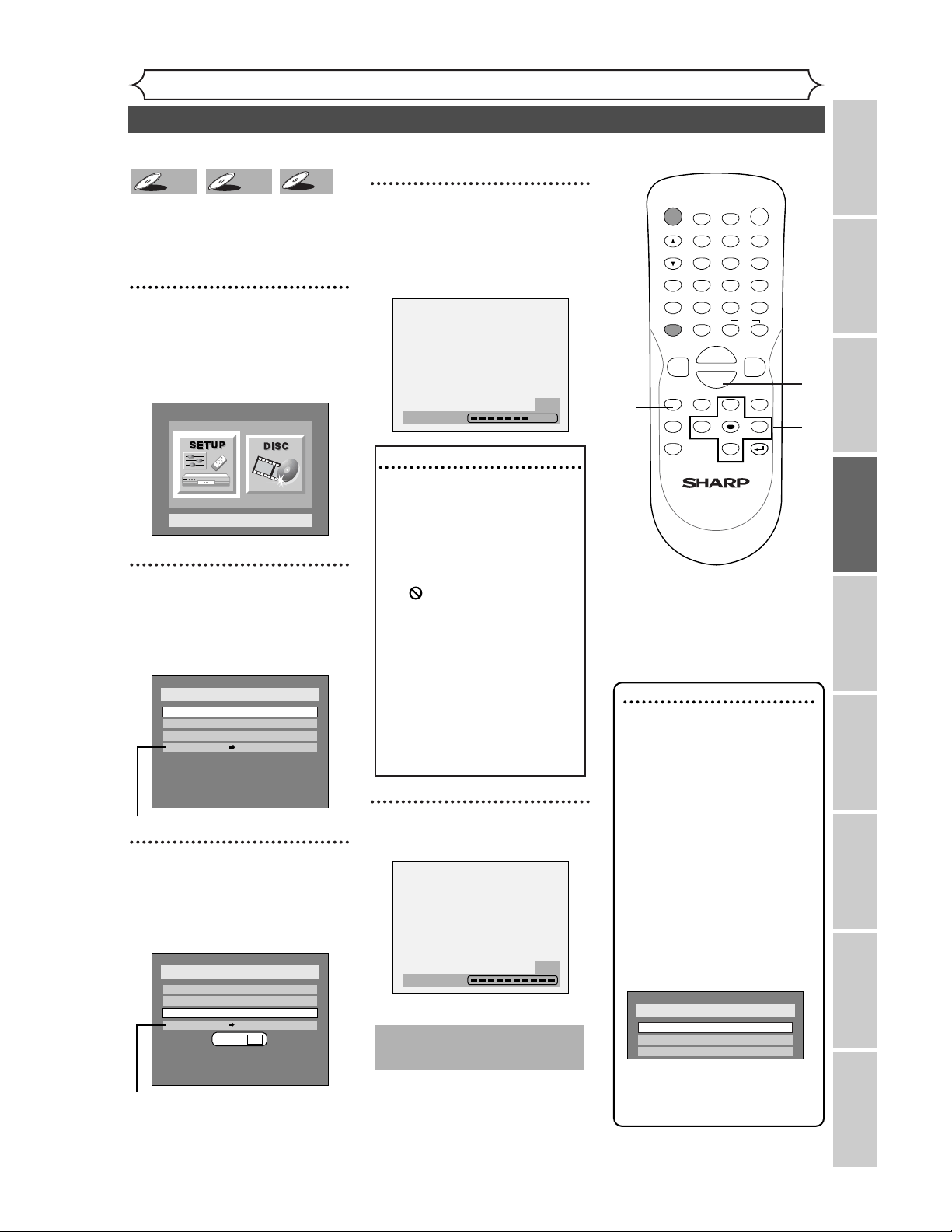
39
Recording
Finalizing the discs
Recording Playing discs EditingBefore you start Connections Getting started
Changing the SETUP menu
Others Español
Note
• Finalizing discs in Video mode
automatically creates title
menus.
• Once you have finalized a disc
recorded in Video mode, you
cannot edit or record anything
else on that disc.
Discs recorded in VR mode can
still be recorded and edited on
this recorder even after being
finalized.
• When you insert a DVD-RW
disc finalized with this DVD
recorder,“Undo Finalize” will
appear instead of “Finalize”.
To release the finalizing for the
disc, select “Undo Finalize” at
step 3.
Disc
Edit
Format
Undo Finalize
You will need to finalize the discs
recorded in Video mode to play in
other DVD players.
Details are on pages 26-27.
1
Press SETUP button to dis-
play SETUP/DISC menu.
SETUP/DISC menu will appear.
Screen:
2
Select “DISC” using { / B
buttons, then press ENTER
button.
DISC menu will appear.
* VR mode only
3
Select “Finalize” using K / L
buttons, then press ENTER
button.
Option window will appear.
* VR mode only
4
Select “Yes” using { / B but-
tons, then press ENTER but-
ton.
Finalizing will start.
5
Finalizing is complete.
Finalizing
100%
To cancel finalizing...
• To cancel finalizing at step 4,
press STOP C button, select
“YES”, then press ENTER
button. Finalizing is cancelled
and the DVD recorder will
be in stop mode.
•
If appear when pressing
STOP button, you cannot cancel
finalizing because the finalizing
has been in certain progress.
•
When selecting “No” and press
ENTER or RETURN button,
finalizing will be continued.
•
You cannot cancel finalizing the
DVD-R disc when it has been
started.
Finalizing
58%
Disc
Edit
Format
Finalize
Yes No
Disc Protect OFF ON
Disc
Edit
Format
Finalize
Disc Protect OFF ON
Setup Menu
DVD-R
DVD-R
DVD-RW
DVD-RW
VR
DVD-RW
DVD-RW
Video
POWER
DISPLAY
REC MODE CLEAR
CM SKIP
SKIP
REC
PAUSE
SETUP
REPEAT
ZOOM
ENTER
RETURN
REC
MONITOR
OPEN/CLOSE
TIMER
PROG.
MENU/LIST
TOP MENU
SPACE
1
2
3
4
5
6
7
8
9
0
F
A
{B
FWD
g
STOP
C
PLAY
B
REV
h
HG
CH
.@/:
ABC
DEF
GHI
JKL
MNO
PQRS
TUV
WXYZ
K
L
1
4
2
3
4
This operation may take a
while to be completed.
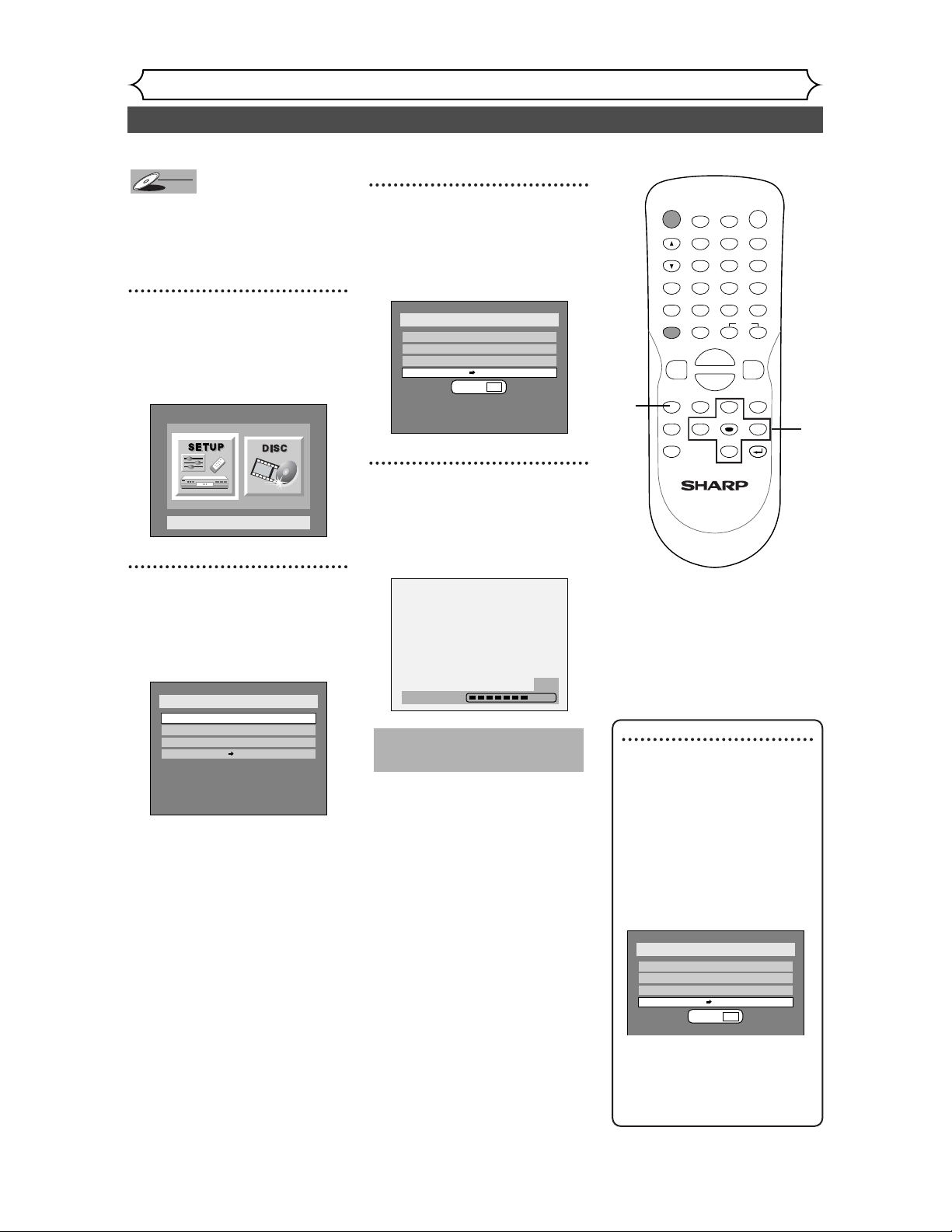
40
Setting a disc to protect
Recording
To prevent accidental recording,
editing, or erasing the titles, you
can protect them from DISC
menu.
1
Press SETUP button to dis-
play SETUP/DISC menu.
SETUP/DISC menu will appear.
Screen:
2
Select “DISC” using { / B
buttons, then press ENTER
button.
DISC menu will appear.
3
Select “Disc Protect OFF ➔
ON” using K / L buttons,
then press ENTER button.
Option window will appear.
4
Select “Yes” using { / B but-
tons, then press ENTER but-
ton.
A disc will be protected.
Writing to Disc
58%
Disc
Edit
Format
Finalize
Disc Protect OFF ON
Yes No
Disc
Edit
Format
Finalize
Disc Protect OFF ON
Setup Menu
DVD-RW
DVD-RW
VR
POWER
DISPLAY
REC MODE CLEAR
CM SKIP
SKIP
REC
PAUSE
SETUP
REPEAT
ZOOM
ENTER
RETURN
REC
MONITOR
OPEN/CLOSE
TIMER
PROG.
MENU/LIST
TOP MENU
SPACE
1
2
3
4
5
6
7
8
9
0
F
A
{B
FWD
g
STOP
C
PLAY
B
REV
h
HG
CH
.@/:
ABC
DEF
GHI
JKL
MNO
PQRS
TUV
WXYZ
K
L
1
2
3
4
This operation may take a
while to be completed.
Note
• The Disc Protect setting is
available only when a disc
with VR mode is inserted.
To cancel the disc protect:
• When you insert a disc pro-
tected with this unit,“Disc
Protect ON → OFF” will
appear instead of “OFF →
ON”.
To release the protect for the
disc, select “Disc Protect ON
→ OFF” at step 3, then select
“Yes”.
Disc
Edit
Format
Finalize
Disc Protect ON OFF
Yes No
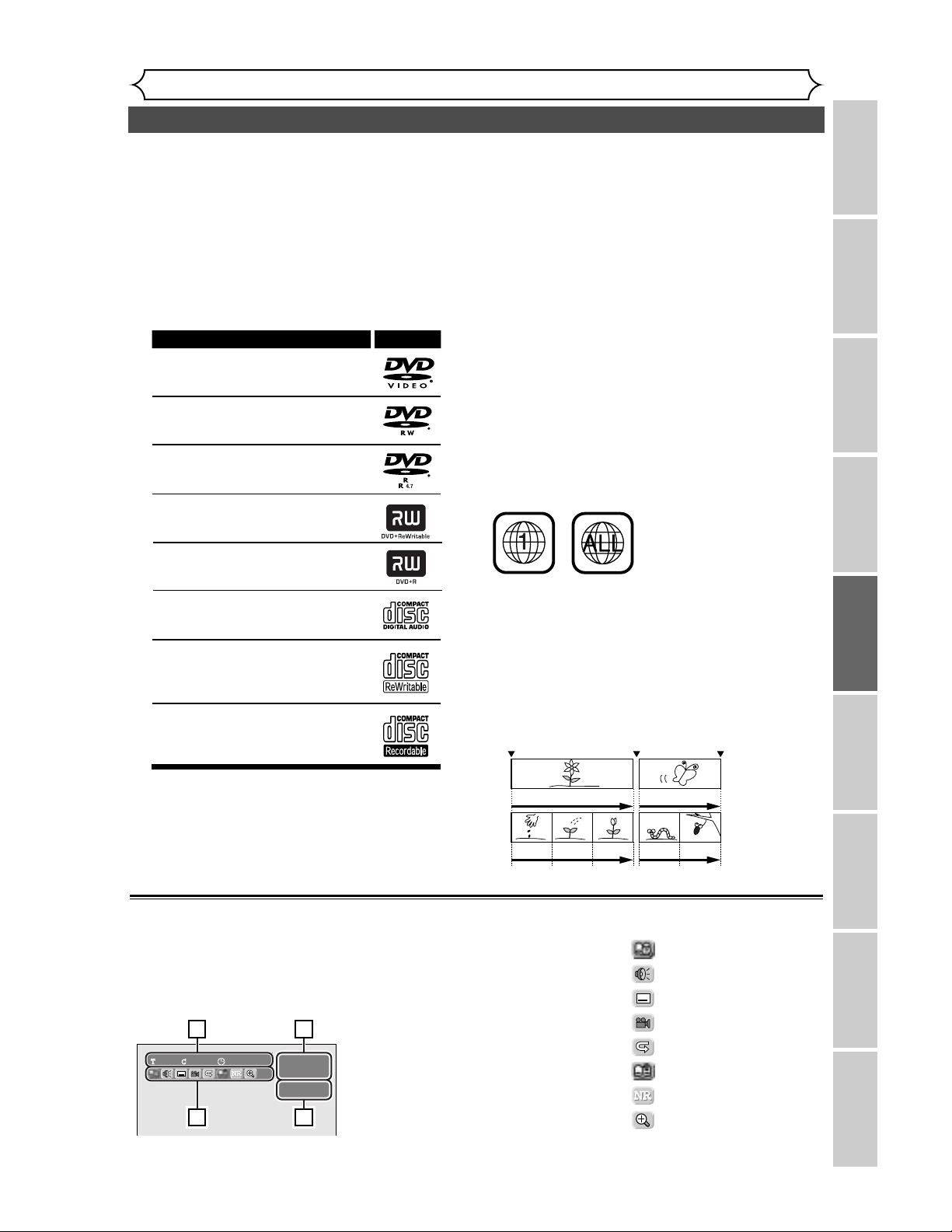
41
Information on DVD play
Playing discs
Recording Playing discs EditingBefore you start Connections Getting started
Changing the SETUP menu
Others Español
Before you attempt to play DVD discs, read the following information.
Press DISPLAY button to call up
the display menu.This menu will
give you the information on the
playing disc. Some operations are
available while disc is playing.
1. Indicates a disc type and a
format mode.
2. Indicates a recording speed
and possible recording time. /
Indicates a channel number.
3. Indicates a title number, chap-
ter number, and the time
lapse of disc play.
4. Each icon means:
: Search
: Audio
: Subtitle
: Angle (except VR mode
)
: Repeat
: Marker
: Noise Reduction
: Zoom
DVD-RW
SP 1:25 Rem.
Video mode
1 1 00:00:00
13
24
Guide to displays
Playable discs
This DVD recorder is compatible to play the follow-
ing discs.
To play a DVD, make sure that it meets the require-
ments for Region Codes and Color Systems as
described below. Discs that have the following logos
will play on the DVD recorder. Other Disc types
are not guaranteed to play.
Note:
The following discs can be played on this unit but
their performance is not guaranteed :
• DVD-RW Ver 1.2 / 2-4x CPRM compatible
• DVD-R General Ver 2.0 / 8x
Color systems
DVDs are recorded in different color systems
throughout the world.The most common color sys-
tem is NTSC (which is used primarily in the United
States and Canada).
This DVD Recorder uses NTSC, so DVDs you play
must be recorded in the NTSC system.You cannot
play DVDs recorded in other color system .
Region codes
This DVD recorder has been designed to play DVD
discs with Region One (1). DVDs must be labeled
for ALL regions or for Region 1 in order to play on
the DVD recorder.You cannot play DVDs that are
labeled for other regions. Look for the symbols
below on your DVDs. If these region symbols do
not appear on your DVD, you cannot play the DVD
in this DVD recorder.
The number inside the globe refers to region of the
world.
A DVD labeled for a specific region can only play on
the DVD recorder with the same region code.
Hint for DVD playback
The contents of DVD disc are generally divided into
titles.Titles may be further subdivided into chapters.
LogoDisc
DVD VIDEO
DVD-RW (VIDEO/VR mode)
DVD-R (VIDEO mode)
CD-DA (AUDIO CD)
CD-R (CD-DA FORMAT, MP3 files)
CD-RW (CD-DA FORMAT, MP3 files)
DVD+RW (VIDEO mode)
DVD+R (VIDEO mode)
Start Rec. Stop/Start Stop Rec.
Title 1 Title 2
Chapter 1 Chapter 1Chapter 2 Chapter 3 Chapter 2
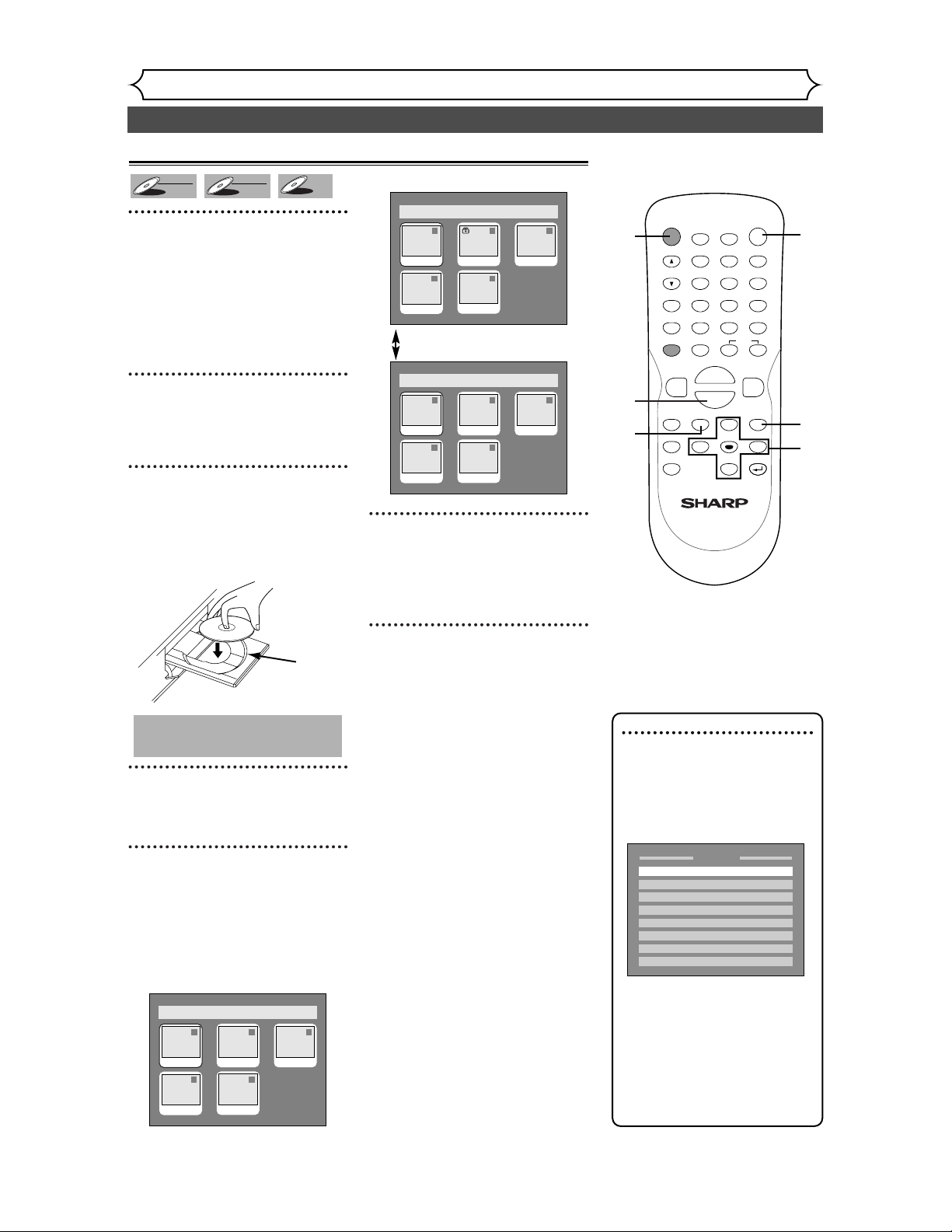
42
Basic playback
Playing discs
Note
• For DVD-R (Video mode)
and DVD-RW (Video mode)
discs which are already final-
ized, a title list will be dis-
played instead of thumbnails.
• You can resume play from
where you stopped playing
the disc. (Resume play)
Refer to page 46 for details
about resume play.
• Some discs may start playing
automatically.
1
XP
2
3
4
5
6
7
8
CH9612:24AMJAN/1
Title Menu
1
Press POWER button on the
remote control or the front
panel of the DVD recorder.
When you are playing a DVD, turn
the TV on and be sure to select
the input to which the DVD
recorder is connected.
2
Press OPEN/CLOSE A but-
ton to open the disc tray.
The disc tray will open.
3
Place the disc onto the disc
tray with its label facing up
and make sure to align the
disc to the disc tray guide.
4
Press OPEN/CLOSE A but-
ton to close the disc tray.
5
Press TOP MENU button to
display the title menu.
You can change “Original” or
“Playlist” of VR mode using
MENU / LIST button.
Video mode:
VR mode:
MENU / LIST button
6
Select a desired title using K /
L / { / B buttons, then press
ENTER button.
Playing will start.
7
Press STOP C button to stop
play.
To eject the disc, press
OPEN/CLOSE
A button to open
the disc tray, then remove the disc
before turning the DVD recorder
off.
Playlist
54
1 1 32
JAN/1 12:00AM
JAN/1 3:00AM
JAN/1 1:00AM JAN/1 2:00AM
JAN/1 4:00AM
Original
1 1 32
54
JAN/1 12:00AM
JAN/1 3:00AM
JAN/1 1:00AM JAN/1 2:00AM
JAN/1 4:00AM
Title List
1 1 32
54
JAN/1 12:00AM
JAN/1 3:00AM
JAN/1 1:00AM JAN/1 2:00AM
JAN/1 4:00AM
disc
tray
guide
DVD-R
DVD-R
DVD-RW
DVD-RW
VR
DVD-RW
DVD-RW
Video
POWER
DISPLAY
REC MODE CLEAR
CM SKIP
SKIP
REC
PAUSE
SETUP
REPEAT
ZOOM
ENTER
RETURN
REC
MONITOR
OPEN/CLOSE
TIMER
PROG.
MENU/LIST
TOP MENU
SPACE
1
2
3
4
5
6
7
8
9
0
F
A
{B
FWD
g
STOP
C
PLAY
B
REV
h
HG
CH
.@/:
ABC
DEF
GHI
JKL
MNO
PQRS
TUV
WXYZ
K
L
5
7
1
2
4
5
6
Playback
This operation may take a
while to be recognized.
7
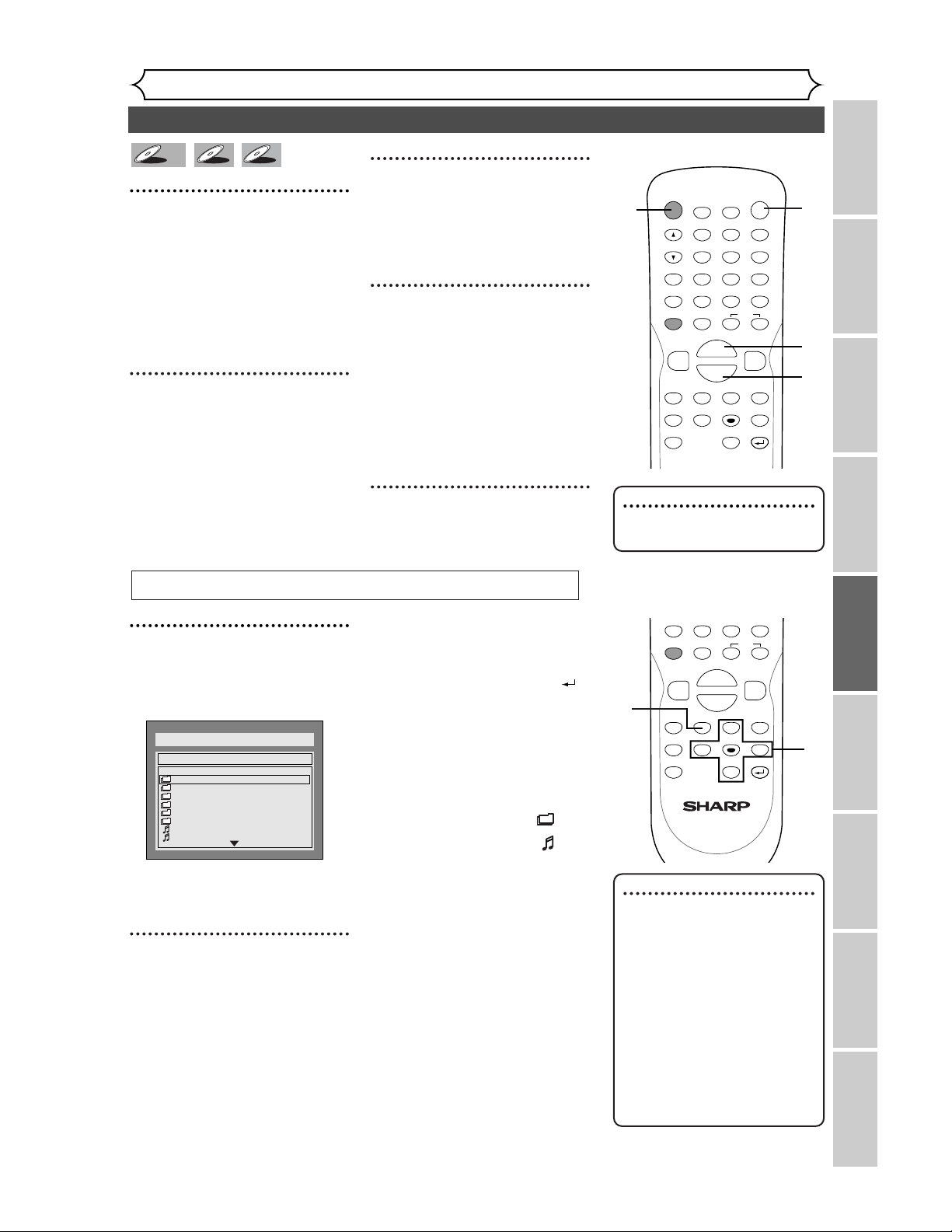
43
Basic playback (cont’d)
Playing discs
Recording Playing discs EditingBefore you start Connections Getting started
Changing the SETUP menu
Others Español
1
Press POWER button on the
remote control or the front
panel of the DVD recorder.
When you are playing a DVD, turn
the TV on and be sure to select
the input to which the DVD
recorder is connected.
2
Press OPEN/CLOSE A but-
ton to open the disc tray.
The disc tray will open.
3
Place the disc onto the disc
tray with its label facing up
and make sure to align the
disc to the disc tray guide.
4
Press PLAY B button to start
playing.
Playing will start.
If you are playing a DVD-Video
disc, a menu may appear.
Refer to pages 44-45 for details
about a disc menu.
5
Press STOP C button to stop
playing.
MP3
MP3
CD
CD
DVD-V
DVD-V
Note
• Some discs may start playing
automatically.
Note
• The audio source of MP3 files
cannot be recorded as digital
sound by an MD or DAT
deck.
• Files whose extension is
other than “.mp3(MP3)” will
not be listed in the MP3
menu.
• Some unplayable folders or
tracks may be listed in the
MP3 menu due to the record-
ing status.
POWER
DISPLAY
REC MODE CLEAR
CM SKIP
SKIP
REC
PAUSE
SETUP
REPEAT
ZOOM
ENTER
RETURN
REC
MONITOR
OPEN/CLOSE
TIMER
PROG.
MENU/LIST
TOP MENU
SPACE
1
2
3
4
5
6
7
8
9
0
F
A
{B
FWD
g
STOP
C
PLAY
B
REV
h
HG
CH
.@/:
ABC
DEF
GHI
JKL
MNO
PQRS
TUV
WXYZ
K
L
1
2
5
4
For MP3 playback
REC MODE CLEAR
CM SKIP
SKIP
REC
PAUSE
SETUP
REPEAT
ZOOM
ENTER
RETURN
MENU/LIST
TOP MENU
SPACE
0
F
{B
FWD
g
STOP
C
PLAY
B
REV
h
HG
K
L
1
2
1
In stop mode, press TOP
MENU button to call up the
MP3 menu.
• To exit the menu, press TOP
MENU button again.
2
Press K / L buttons to select a
desired folder (group) or track,
then press ENTER button.
When selecting track:
Playback will start.
When selecting the folder:
The files in folder will appear.
Press
K
/
L
buttons to select the track or fold-
er you want, then press ENTER button.
•
Press PLAY
B
, ENTER or
B
button
to move to the lower hierarchies.
•
Press
s
button or RETURN
button to the previous hierarchy.
• Press STOP button to return to
the first item.
Hints for MP3 files:
• Folders are known as Groups,
files are known as Tracks.
•
Folders are accompanied by icon.
•
MP3 files are accompanied by icon.
Reproduction will start from the select-
ed track and go to the next one in turn.
•
The system can recognize up to 255
groups (or folders) and up to 255 tracks.
•
The name of group and track can
be displayed in up to 32 charac-
ters. Unrecognizable characters
will be replaced with asterisks.
• If there are no files in the folder,
“No Files” will be displayed.
This unit recommends the files record-
ed under the following circumstances:
•
Sampling frequency: 44.1kHz or 48kHz.
•
Constant bit rate: 112kbps - 320kbps.
FOLDER NAME 1
FOLDER NAME 2
FOLDER NAME 3
FOLDER NAME 4
FOLDER NAME 5
FOLDER NAME 6
1 FILE NAME 1
2 FILE NAME 2
DISC NAME
List of MP3 Files
1/2
44
Basic playback (cont’d)
Playing discs
Note
• Menus vary among discs.
Refer to the information
accompanying the disc for
details.
Playing discs using the disc menu
A DVD disc contains a disc menu
that describes the contents or
allows you to customize the play-
back. For example, the menu may
offer choices for subtitle lan-
guages, special features, or chapter
selection.
Sometimes these are displayed
automatically when you start play-
back, otherwise only appear when
you press MENU / LIST button.
1
Press MENU / LIST button.
The DVD main menu will appear.
If the feature is not available,
may appear on the TV screen.
2
Select an item using K / L /
{ / B buttons, then press
ENTER button to confirm.
Continue this step to set up all
the features you want or to start
playing the disc from the menu.
MENU / LIST button:
Displays a DVD disc menu which
varies with the disc and may be
the same as the ‘Title menu.’
K / L / { / B buttons:
Moves the cursor around screen.
Enter button:
Selects the currently highlighted
menu option.
Number buttons:
Selects a numbered menu option
(some discs only). (Press ENTER
button after.)
3
Press MENU / LIST button to
exit the menu.
DVD-V
DVD-V
POWER
DISPLAY
REC MODE CLEAR
CM SKIP
SKIP
REC
PAUSE
SETUP
REPEAT
ZOOM
ENTER
RETURN
REC
MONITOR
OPEN/CLOSE
TIMER
PROG.
MENU/LIST
TOP MENU
SPACE
1
2
3
4
5
6
7
8
9
0
F
A
{B
FWD
g
STOP
C
PLAY
B
REV
h
HG
CH
.@/:
ABC
DEF
GHI
JKL
MNO
PQRS
TUV
WXYZ
K
L
2
3
2
1
2
45
Basic playback (cont’d)
Playing discs
Recording Playing discs EditingBefore you start Connections Getting started
Changing the SETUP menu
Others Español
Note
• The TOP MENU button will
not always be active with all
DVDs.
• Menus vary among discs.
Refer to the information
accompanying the disc for
details.
Playing discs using the title menu
Some DVDs have a title menu,
which lists the titles available on
them. It helps you to start play at
a specific title.
1
Press TOP MENU button.
The title menu will appear.
If the feature is not available,
may appear on the TV screen.
2
Select a title to play using the
K / L / { / B buttons, then
press ENTER button.
Play will begin at the title you
selected.
TOP MENU button:
Displays the ‘Title menu’ of a
DVD disc which varies with the
disc.
K / L / { / B buttons:
Moves the cursor around screen.
Enter button:
Selects the currently highlighted
menu option.
Number buttons:
Selects a numbered menu option
(some discs only). (Press ENTER
button after.)
3
Press TOP MENU button to
exit the title menu.
DVD-V
DVD-V
POWER
DISPLAY
REC MODE CLEAR
CM SKIP
SKIP
REC
PAUSE
SETUP
REPEAT
ZOOM
ENTER
RETURN
REC
MONITOR
OPEN/CLOSE
TIMER
PROG.
MENU/LIST
TOP MENU
SPACE
1
2
3
4
5
6
7
8
9
0
F
A
{B
FWD
g
STOP
C
PLAY
B
REV
h
HG
CH
.@/:
ABC
DEF
GHI
JKL
MNO
PQRS
TUV
WXYZ
K
L
2
3
2
1
2
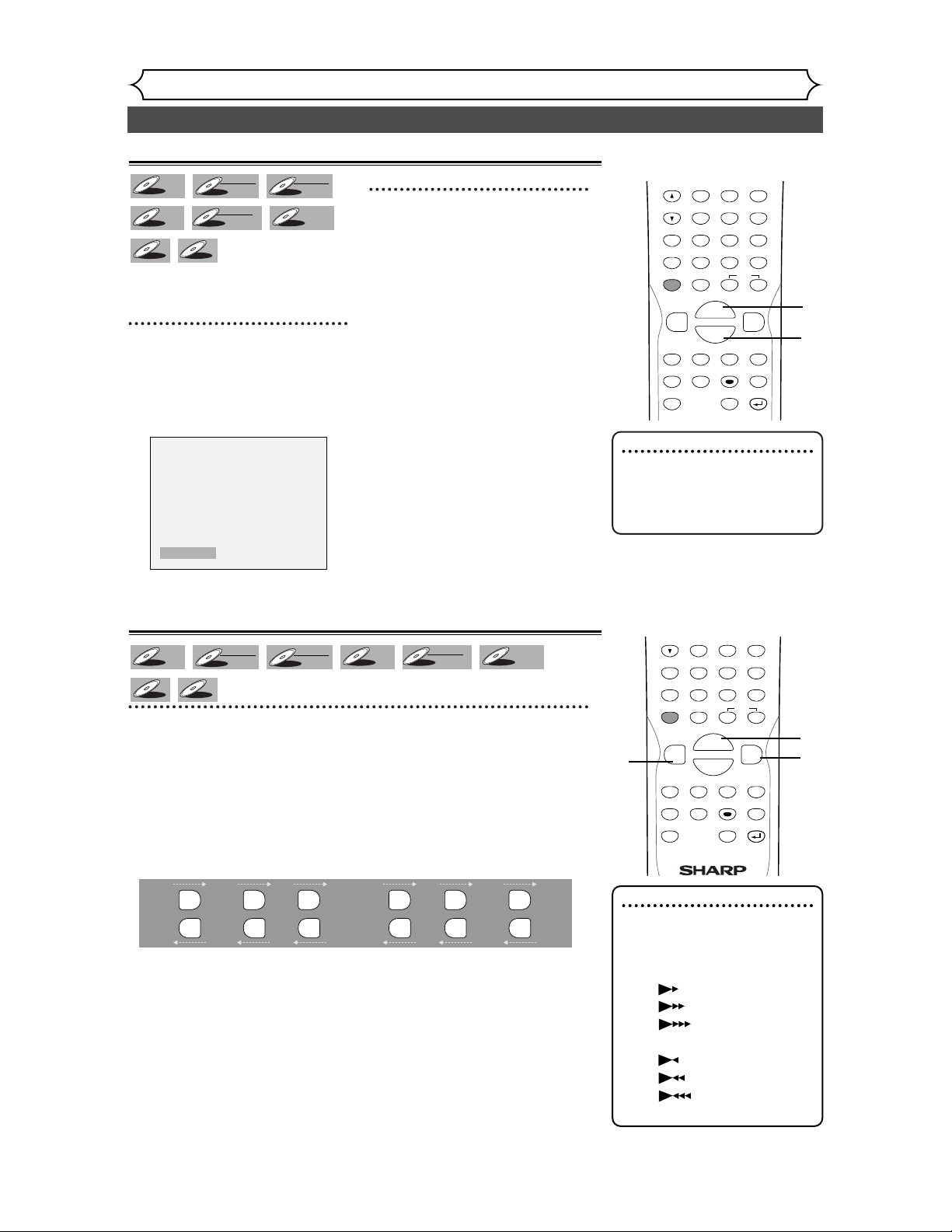
46
Special playback
Playing discs
Resume play
You can resume play from where
you stopped playing the disc last.
1
During play, press STOP C
button.
The resume message will appear.
Screen:
2
Press PLAY B button.
In a few seconds, play will resume
from the point at which it
stopped last.You can resume play
at the same point even if you turn
off the DVD recorder.
To cancel the resume play and
start playing the disc from the
beginning, press STOP C button
the second time while the play is
stopped.
Resume ON
MP3
MP3
CD
CD
DVD+R
DVD+R
DVD+RW
DVD+RW
Video
DVD-R
DVD-R
DVD-RW
DVD-RW
VR
DVD-RW
DVD-RW
Video
DVD-V
DVD-V
Fast forward / Fast reverse
1
During play, press FWD D or REV E button.
Every time you press FWD D or REV E button, approximate speed
will be changed as follows. For DVD discs, sound will be output during
fast forward in x2 only if you set “Fast Forward with Audio” to “ON”
for the “Playback” setting in the SETUP menu.
Fast forward or fast reverse playback across titles (for DVD discs) or
tracks (for MP3) is not possible.
For Audio CDs, approximate speed is fixed at x8 with sound.
For MP3 files, approximate speed is fixed at x16.
To return to the normal play, press PLAY B button.
x20
Normal
speed
playback
x2 x20x5 x40x40
FWD
g
REV
h
FWD
g
REV
h
FWD
g
REV
h
FWD
g
REV
h
FWD
g
REV
h
FWD
g
REV
h
MP3
MP3
CD
CD
DVD+R
DVD+R
DVD+RW
DVD+RW
Video
DVD-R
DVD-R
DVD-RW
DVD-RW
VR
DVD-RW
DVD-RW
Video
DVD-V
DVD-V
Note
• Forward/reverse speed will be
indicated with icons as fol-
lows.
Forward (Approx. Speed)
x2:
x20:
x40:
Reverse (Approx. Speed)
x5:
x20:
x40:
REC MODE CLEAR
CM SKIP
SKIP
REC
PAUSE
SETUP
REPEAT
ZOOM
ENTER
RETURN
REC
MONITOR
MENU/LIST
TOP MENU
SPACE
1
2
3
4
5
6
7
8
9
0
F
{B
FWD
g
STOP
C
PLAY
B
REV
h
HG
CH
.@/:
ABC
DEF
GHI
JKL
MNO
PQRS
TUV
WXYZ
K
L
1
2
2
REC MODE CLEAR
CM SKIP
SKIP
REC
PAUSE
SETUP
REPEAT
ZOOM
ENTER
RETURN
REC
MONITOR
MENU/LIST
TOP MENU
SPACE
4
5
6
7
8
9
0
F
{B
FWD
g
STOP
C
PLAY
B
REV
h
HG
CH
GHI
JKL
MNO
PQRS
TUV
WXYZ
K
L
1
1
1
Note
• For MP3 files, playback will
resume from the beginning of
the track at which playback
was stopped.
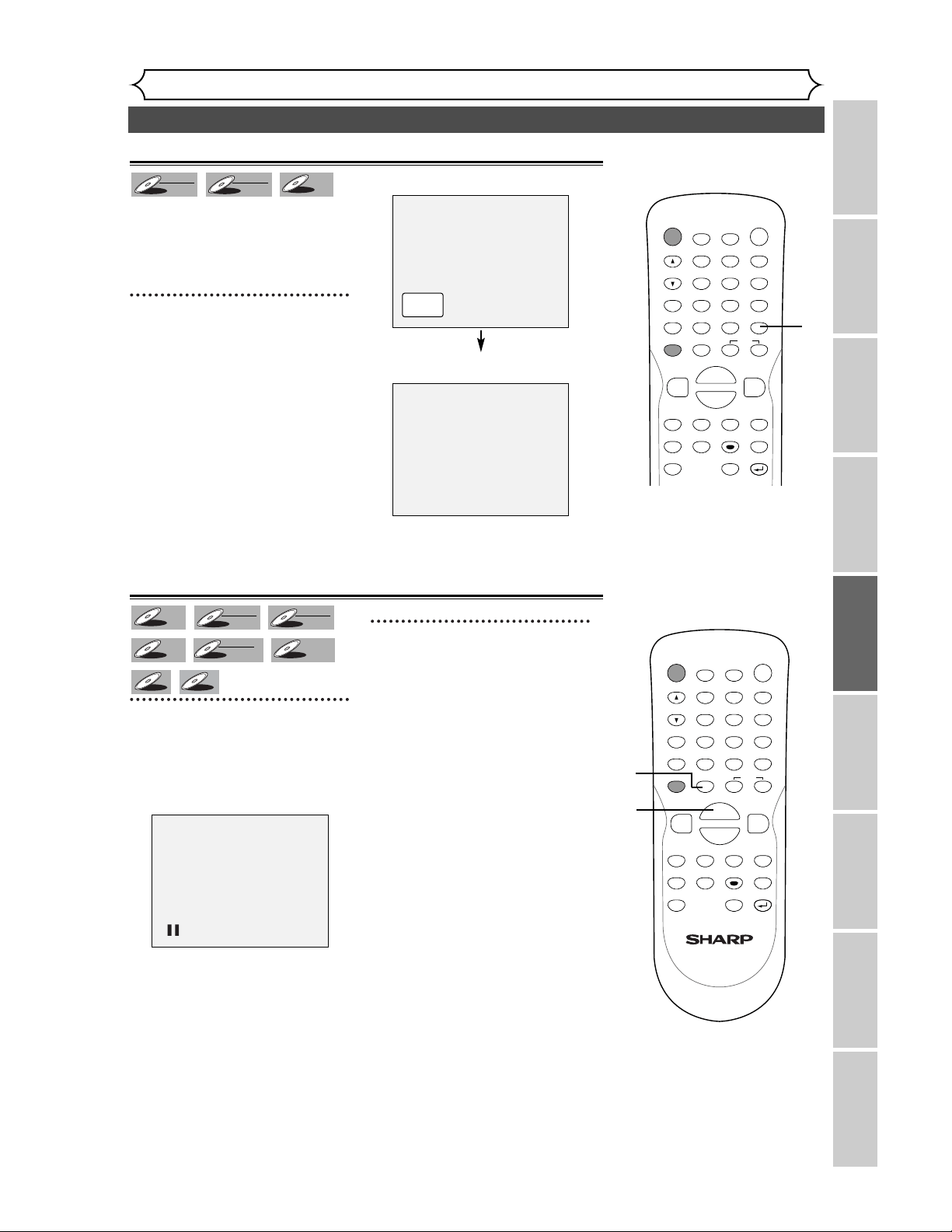
47
Special playback (cont’d)
Playing discs
Recording Playing discs EditingBefore you start Connections Getting started
Changing the SETUP menu
Others Español
Skipping TV commercials during play
You can skip TV commercials by
pressing CM SKIP button, so that
you can enjoy the recorded pro-
grams without interrupting.
1
During play, press CM SKIP
button.
Normal play will start at 30 sec-
onds ahead from the point you
press CM SKIP button.
Every time you press CM SKIP
button, the searching point will be
extended by 30 seconds ahead.
You can press up to 6 times (180
seconds).
e.g. Press CM SKIP button once
(forwarding 30 seconds.)
Playback will restart automatically.
B
CM Skip
30 sec.
DVD-R
DVD-R
DVD-RW
DVD-RW
VR
DVD-RW
DVD-RW
Video
Pause
1
During play, press PAUSE F
button.
Play will pause and sound will be
muted.
2
Press PLAY B button to
resume play.
MP3
MP3
CD
CD
DVD+R
DVD+R
DVD+RW
DVD+RW
Video
DVD-R
DVD-R
DVD-RW
DVD-RW
VR
DVD-RW
DVD-RW
Video
DVD-V
DVD-V
POWER
DISPLAY
REC MODE CLEAR
CM SKIP
SKIP
REC
PAUSE
SETUP
REPEAT
ZOOM
ENTER
RETURN
REC
MONITOR
OPEN/CLOSE
TIMER
PROG.
MENU/LIST
TOP MENU
SPACE
1
2
3
4
5
6
7
8
9
0
F
A
{B
FWD
g
STOP
C
PLAY
B
REV
h
HG
CH
.@/:
ABC
DEF
GHI
JKL
MNO
PQRS
TUV
WXYZ
K
L
1
POWER
DISPLAY
REC MODE CLEAR
CM SKIP
SKIP
REC
PAUSE
SETUP
REPEAT
ZOOM
ENTER
RETURN
REC
MONITOR
OPEN/CLOSE
TIMER
PROG.
MENU/LIST
TOP MENU
SPACE
1
2
3
4
5
6
7
8
9
0
F
A
{B
FWD
g
STOP
C
PLAY
B
REV
h
HG
CH
.@/:
ABC
DEF
GHI
JKL
MNO
PQRS
TUV
WXYZ
K
L
1
2
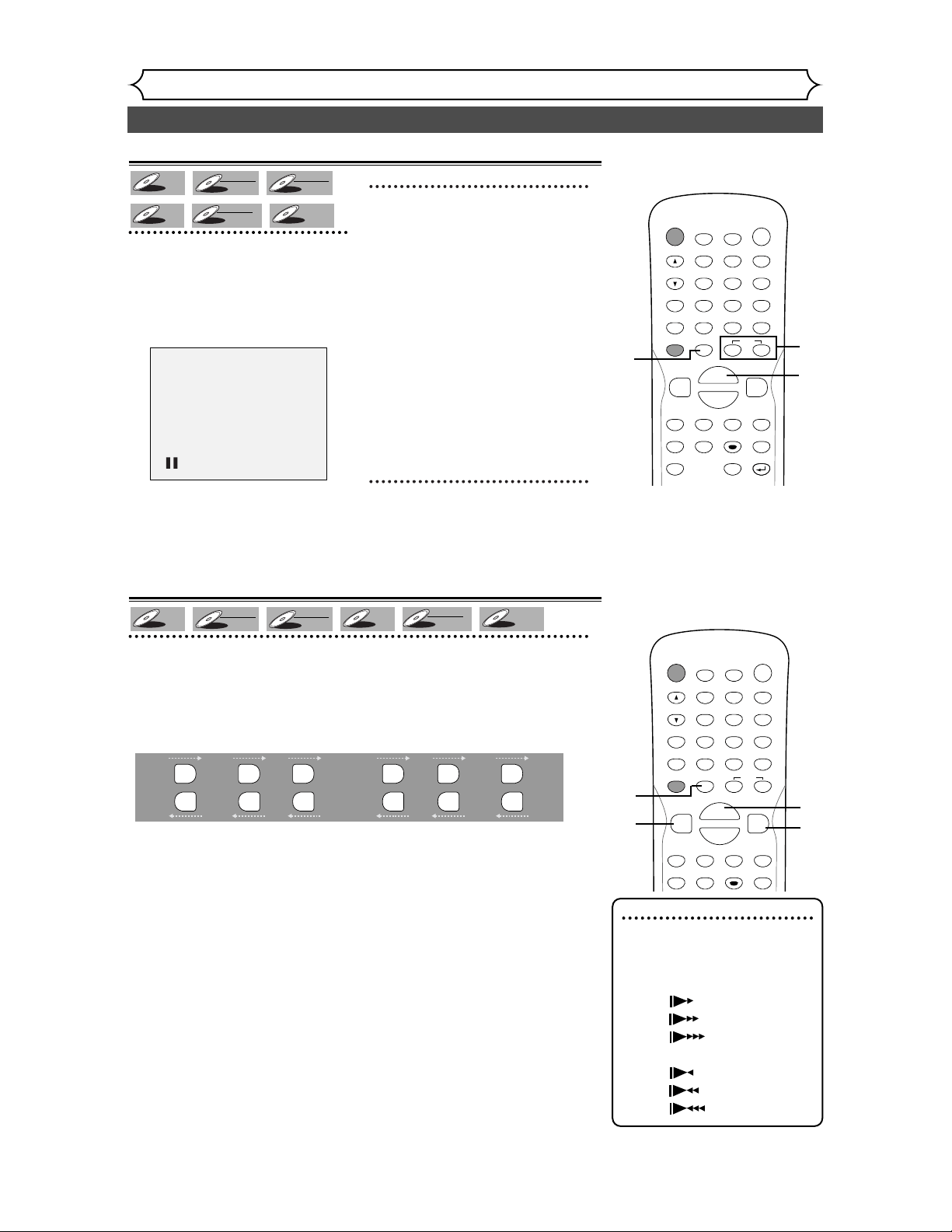
48
Special playback (cont’d)
Playing discs
Step by step playback
1
During play, press PAUSE F
button.
Play will pause and sound will be
muted.
2
Press SKIP G button
repeatedly.
The play will advance one frame
(or step) at a time when you
press the SKIP G button with
the sound muted.
To play step by step back-
ward:
Press SKIP H button repeatedly.
Every time you press the button,
the play will go backward by one
frame.
3
Press PLAY B button to
resume play.
DVD+R
DVD+R
DVD+RW
DVD+RW
Video
DVD-R
DVD-R
DVD-RW
DVD-RW
VR
DVD-RW
DVD-RW
Video
DVD-V
DVD-V
Slow forward / Slow reverse play
1
During play, press PAUSE k button, then press FWD D or
REV E button.
Every time you press FWD D or REV E button, approximate speed
will be changed as follows. (The sound will remain muted.)
To return to the normal play, press PLAY B button.
x1/8
Pause
x1/16x1/8x1/16x1/2x1/4
FWD
g
REV
h
FWD
g
REV
h
FWD
g
REV
h
FWD
g
REV
h
FWD
g
REV
h
FWD
g
REV
h
DVD+R
DVD+R
DVD+RW
DVD+RW
Video
DVD-R
DVD-R
DVD-RW
DVD-RW
VR
DVD-RW
DVD-RW
Video
DVD-V
DVD-V
Note
• Forward/reverse speed will be
indicated with icons as fol-
lows.
Forward (Approx. Speed)
x1/16:
x1/8:
x1/2:
Reverse (Approx. Speed)
x1/16:
x1/8:
x1/4:
POWER
DISPLAY
REC MODE CLEAR
CM SKIP
SKIP
REC
PAUSE
SETUP
REPEAT
ZOOM
ENTER
RETURN
REC
MONITOR
OPEN/CLOSE
TIMER
PROG.
MENU/LIST
TOP MENU
SPACE
1
2
3
4
5
6
7
8
9
0
F
A
{B
FWD
g
STOP
C
PLAY
B
REV
h
HG
CH
.@/:
ABC
DEF
GHI
JKL
MNO
PQRS
TUV
WXYZ
K
L
1
3
2
POWER
DISPLAY
REC MODE CLEAR
CM SKIP
SKIP
REC
PAUSE
SETUP
REPEAT
ENTER
REC
MONITOR
OPEN/CLOSE
TIMER
PROG.
MENU/LIST
TOP MENU
SPACE
1
2
3
4
5
6
7
8
9
0
F
A
{B
FWD
g
STOP
C
PLAY
B
REV
h
HG
CH
.@/:
ABC
DEF
GHI
JKL
MNO
PQRS
TUV
WXYZ
K
1
1
1
1
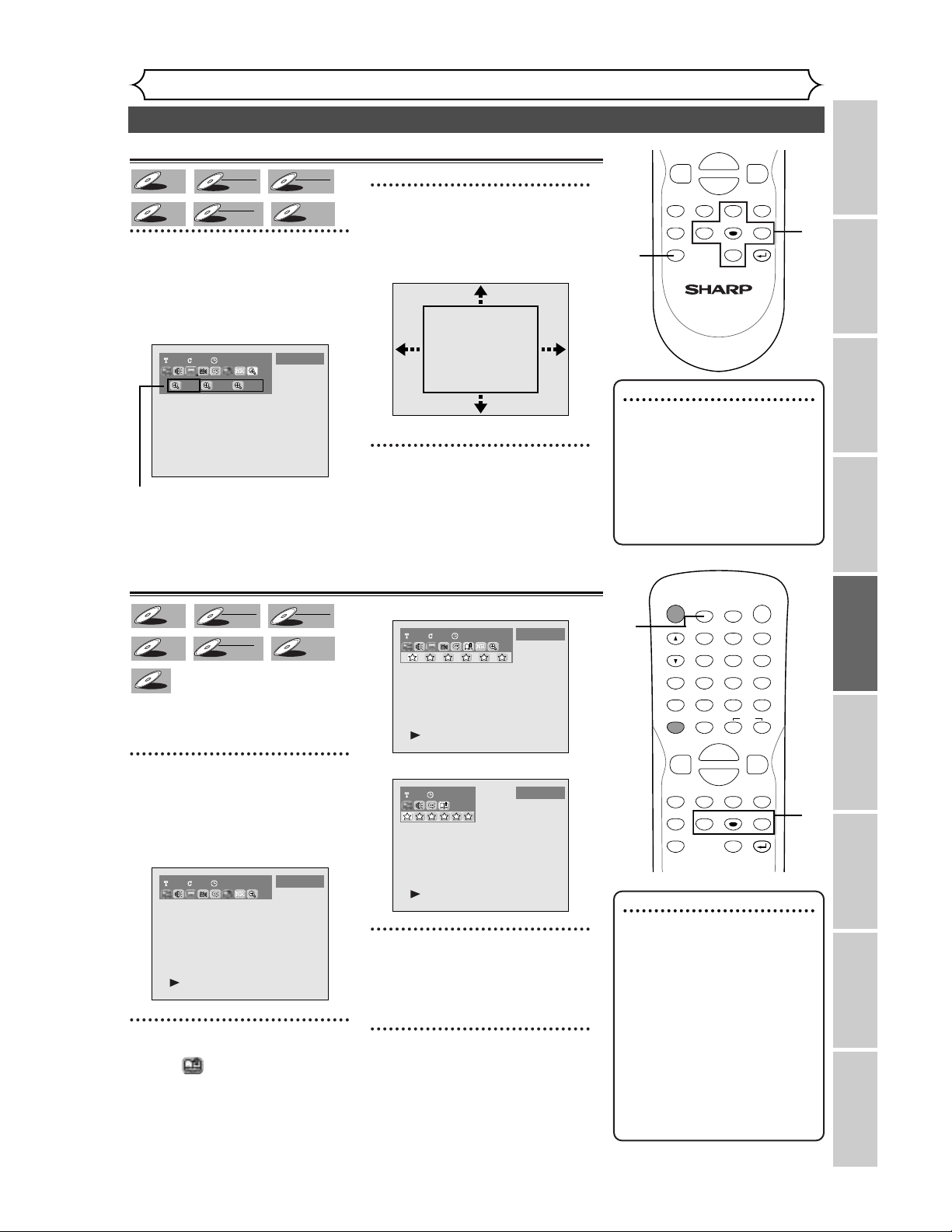
49
Special playback (cont’d)
Playing discs
Recording Playing discs EditingBefore you start Connections Getting started
Changing the SETUP menu
Others Español
Note
• When selecting a smaller factor
than the current one, the zoom
area will not be displayed.
• To remove the zoom menu, press
ZOOM button again at step 1.
• To cancel the zoom function,
select x1.0 using { / B buttons,
then press ENTER button.
Zoom
1
During play, press ZOOM but-
ton.
Zoom menu will appear.
Screen:
There are four options
(x1.0,x1.2,x1.5 and x2.0), these
are displayed excluding the cur-
rent zoom rate.
2
Select a desired zoom factor
to zoom using { / B buttons,
then press ENTER button.
The zoom area will be displayed.
3
Select a desired zoom position
using K / L / { / B buttons, then
press ENTER button.
The zoom play will start.
11
x1.2 x1.5 x2.0
01:23:45
DVD-Video
B
DVD+R
DVD+R
DVD+RW
DVD+RW
Video
DVD-R
DVD-R
DVD-RW
DVD-RW
VR
DVD-RW
DVD-RW
Video
DVD-V
DVD-V
SETUP
REPEAT
ZOOM
ENTER
RETURN
MENU/LIST
TOP MENU
{B
FWD
g
STOP
C
PLAY
B
REV
h
K
L
1
2
3
Marker Setup
This feature allows you to assign
a specific point on a disc to be
called back later.
1
During play, press DISPLAY
button.
The display menu will appear.
Screen:
2
Select icon using { / B
buttons, then press ENTER
button.
Marker setup menu will appear.
Screen for DVD:
Screen for CD:
3
Select a desired marker num-
ber using { / B buttons.
When it reaches the desired
point, press ENTER button.
4
To return to the marker later,
select the desired marker
number using { / B buttons,
then press ENTER button.
1 01:23:45
Audio CD
1 2 3 4 5 6
1101:23:45
DVD-Video
1 2 3 4 5 6
1101:23:45
DVD-Video
CD
CD
DVD+R
DVD+R
DVD+RW
DVD+RW
Video
DVD-R
DVD-R
DVD-RW
DVD-RW
VR
DVD-RW
DVD-RW
Video
DVD-V
DVD-V
Note
• To clear a marker, select the
marker number to be cleared,
then press CLEAR button.
• All markers will be erased
when you operate these opera-
tions listed below.
– Opening the disc tray.
– Turning off the power.
– Recording to a recordable
disc.
–
Changing the mode between
Original and Playlist.(VR mode)
•You can mark up to 6 points.
POWER
DISPLAY
REC MODE CLEAR
CM SKIP
SKIP
REC
PAUSE
SETUP
REPEAT
ZOOM
ENTER
RETURN
REC
MONITOR
OPEN/CLOSE
TIMER
PROG.
MENU/LIST
TOP MENU
SPACE
1
2
3
4
5
6
7
8
9
0
F
A
{B
FWD
g
STOP
C
PLAY
B
REV
h
HG
CH
.@/:
ABC
DEF
GHI
JKL
MNO
PQRS
TUV
WXYZ
K
L
2
3
4
1
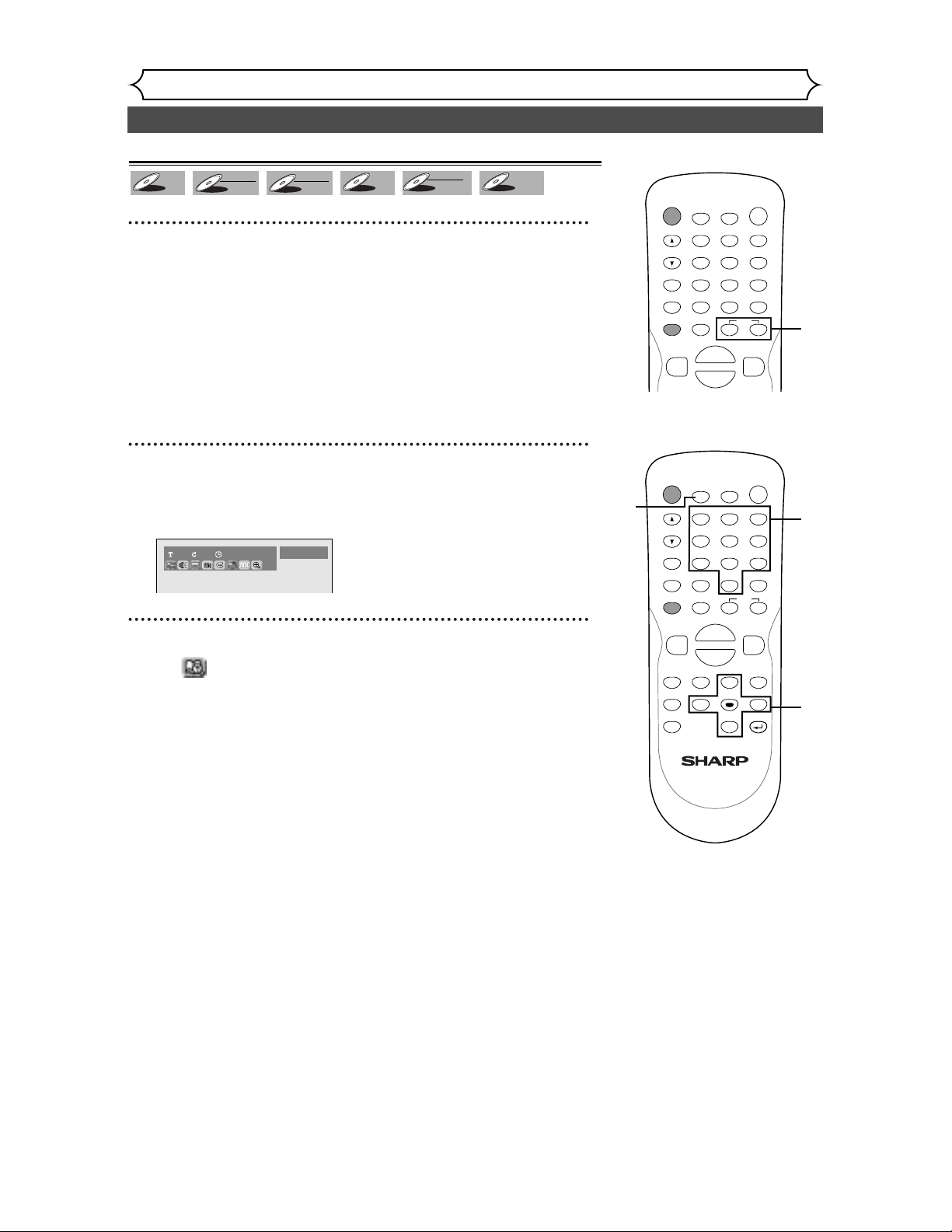
50
Search
Playing discs
Title/Chapter search
Using SKIP H / G buttons
1
During play, press SKIP G button to skip the current title or
chapter and move to the next.
The title or chapter will move forward by one at a time.
To go back to the previous title or chapter, press SKIP H button.The
title or chapter will move backward one title at a time.
DVD+R
DVD+R
DVD+RW
DVD+RW
Video
DVD-R
DVD-R
DVD-RW
DVD-RW
VR
DVD-RW
DVD-RW
Video
DVD-V
DVD-V
POWER
DISPLAY
REC MODE CLEAR
CM SKIP
SKIP
REC
PAUSE
REC
MONITOR
OPEN/CLOSE
TIMER
PROG.
SPACE
1
2
3
4
5
6
7
8
9
0
F
A
FWD
g
STOP
C
PLAY
B
REV
h
HG
CH
.@/:
ABC
DEF
GHI
JKL
MNO
PQRS
TUV
WXYZ
1
POWER
DISPLAY
REC MODE CLEAR
CM SKIP
SKIP
REC
PAUSE
SETUP
REPEAT
ZOOM
ENTER
RETURN
REC
MONITOR
OPEN/CLOSE
TIMER
PROG.
MENU/LIST
TOP MENU
SPACE
1
2
3
4
5
6
7
8
9
0
F
A
{B
FWD
g
STOP
C
PLAY
B
REV
h
HG
CH
.@/:
ABC
DEF
GHI
JKL
MNO
PQRS
TUV
WXYZ
K
L
2
2
1
Using DISPLAY button
1
During play, press DISPLAY button.
The display menu will appear.
Screen:
2
Select icon using { / B buttons, then press ENTER but-
ton.
‘T’ for title will be highlighted.
Title:
Enter a desired title number to search using K / L buttons or
number buttons, then press ENTER button.
Title search will start.
Chapter:
To move to ‘C’ for chapter, press B button.
Enter a desired chapter number to search using K / L buttons
or number buttons, then press ENTER button.
Chapter search will start.
1101:23:45
DVD-Video
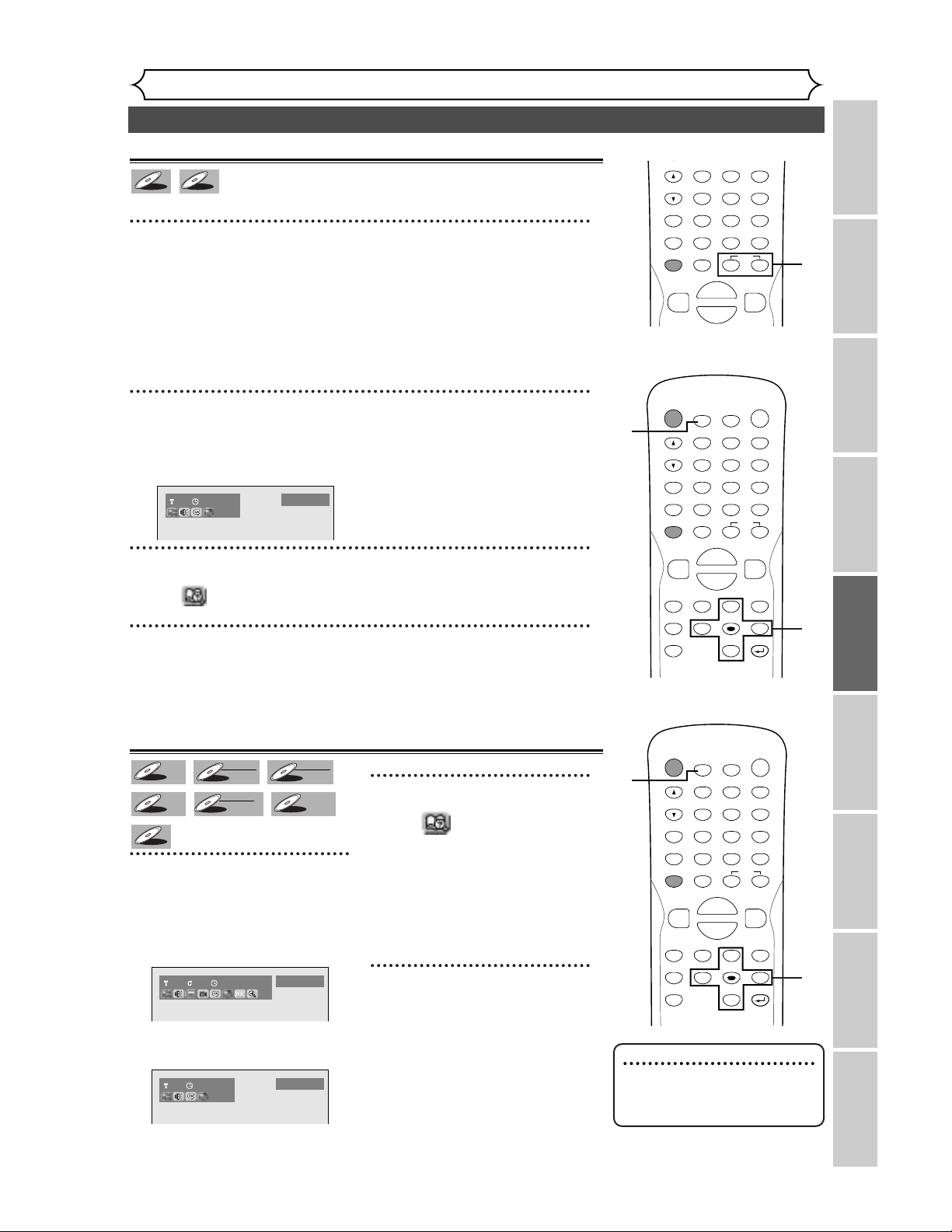
51
Search (cont’d)
Playing discs
Recording Playing discs EditingBefore you start Connections Getting started
Changing the SETUP menu
Others Español
Track search
Using SKIP H / G buttons
1
During play, press SKIP G button to skip the current track
and move to the next.
The track will move forward one at a time.
To go back to the previous track, press SKIP
H button.The track will
move backward one at a time.
MP3
MP3
CD
CD
REC MODE CLEAR
CM SKIP
SKIP
REC
PAUSE
REC
MONITOR
SPACE
1
2
3
4
5
6
7
8
9
0
F
FWD
g
STOP
C
PLAY
B
REV
h
HG
CH
.@/:
ABC
DEF
GHI
JKL
MNO
PQRS
TUV
WXYZ
1
POWER
DISPLAY
REC MODE CLEAR
CM SKIP
SKIP
REC
PAUSE
SETUP
REPEAT
ZOOM
ENTER
RETURN
REC
MONITOR
OPEN/CLOSE
TIMER
PROG.
MENU/LIST
TOP MENU
SPACE
1
2
3
4
5
6
7
8
9
0
F
A
{B
FWD
g
STOP
C
PLAY
B
REV
h
HG
CH
.@/:
ABC
DEF
GHI
JKL
MNO
PQRS
TUV
WXYZ
K
L
Time search
1
During play, press DISPLAY
button.
The display menu will appear.
Screen for DVD:
Screen for CD:
2
Select icon using { / B
buttons, then press ENTER
button.
‘T’ for title or track will be high-
lighted.
To move to the clock icon, press
B button.
3
Enter a desired time to
search using K / L buttons or
number buttons, then press
ENTER button.
Time search will start.
1 01:23:45
Audio CD
1101:23:45
DVD-Video
CD
CD
DVD+R
DVD+R
DVD+RW
DVD+RW
Video
DVD-V
DVD-V
DVD-RW
DVD-RW
VR
DVD-RW
DVD-RW
Video
DVD-R
DVD-R
Note
• Time search function is avail-
able only in the same track or
title.
3
2
1
Using DISPLAY button
1
During play, press DISPLAY button.
The display menu will appear.
Screen:
2
Select icon using { / B buttons, then press ENTER button.
‘T’ for track will be highlighted.
3
Enter a desired track number to search using K / L buttons or
number buttons, then press ENTER button.
Track search will start.
1 01:23:45
Audio CD
POWER
DISPLAY
REC MODE CLEAR
CM SKIP
SKIP
REC
PAUSE
SETUP
REPEAT
ZOOM
ENTER
RETURN
REC
MONITOR
OPEN/CLOSE
TIMER
PROG.
MENU/LIST
TOP MENU
SPACE
1
2
3
4
5
6
7
8
9
0
F
A
{B
FWD
g
STOP
C
PLAY
B
REV
h
HG
CH
.@/:
ABC
DEF
GHI
JKL
MNO
PQRS
TUV
WXYZ
K
L
3
2
1
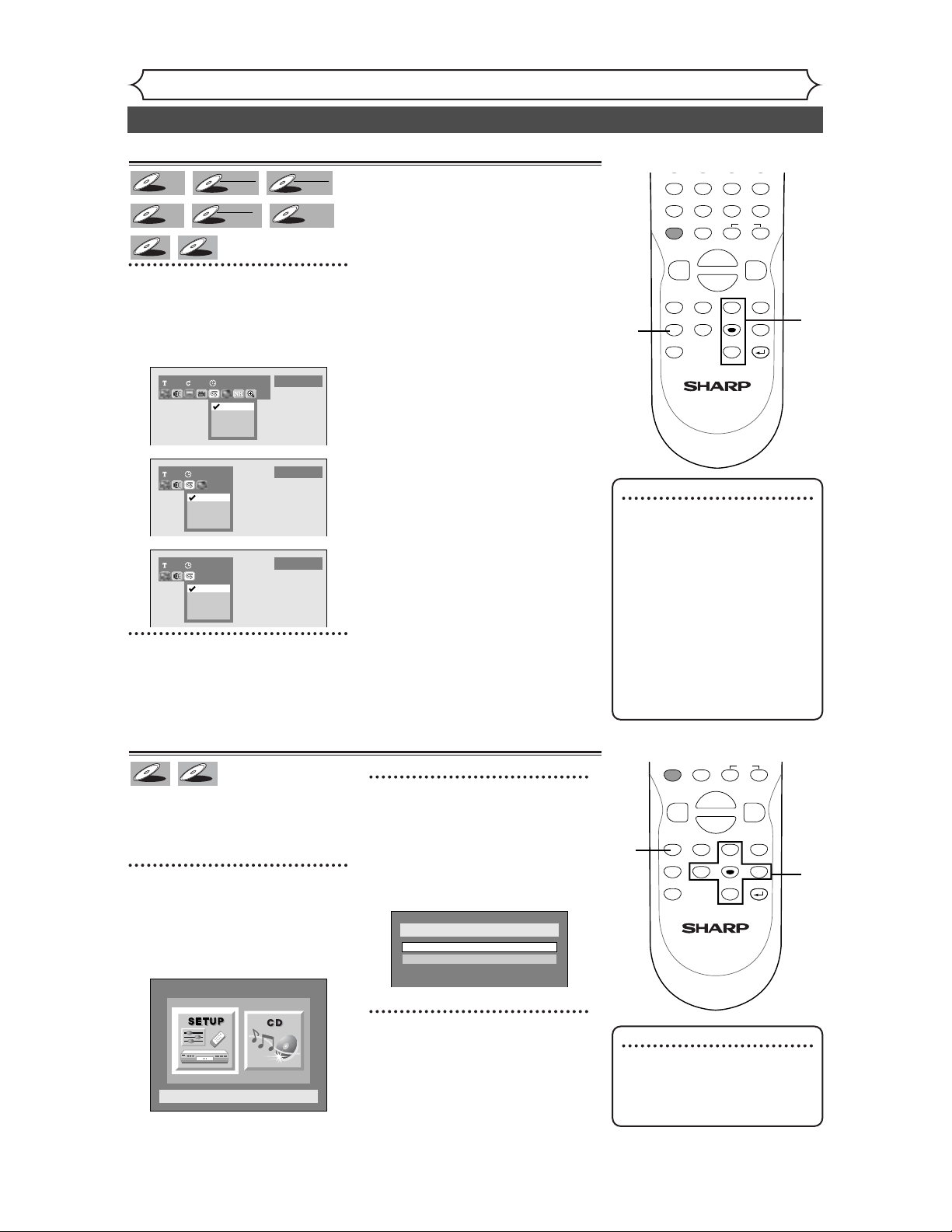
Repeat/Random/Program playback
52
Note
• The A-B Repeat playback can
only be set with in the cur-
rent title (for DVDs), or cur-
rent track (for Audio CDs).
• To cancel the repeat playback,
select OFF at step 2.The
repeat setting will also be
cancelled when you stop play-
back.
• You cannot select “Group”
during the random playback
of MP3 files.
Repeat play
1
During play, press REPEAT
button.
Repeat menu will appear.
Screen:
2
Select a desired option to
repeat using K / L buttons,
then press ENTER button.
The selected repeat play will start.
Title:
The current title will be played
repeatedly. (DVD only)
Chapter:
The current chapter will be played
repeatedly. (DVD only)
All:
The current disc will be played
repeatedly. (CD, MP3, DVD-RW
(VR mode) only)
A-B:
The A-B point will be played
repeatedly.
When pressing ENTER button
while A-B is highlighted, the start-
ing point (A) will be decided.
Press ENTER button again to
select the ending point (B).
Track:
The current track will be played
repeatedly. (CD, MP3 only)
Group:
The current group will be played
repeatedly. (MP3 only)
OFF
Track
All
Group
114 00:00:30
MP3
OFF
Track
All
A-B
2 00:00:30
Audio CD
OFF
Title
Chapter
A-B
1101:23:45
DVD-Video
MP3
MP3
CD
CD
DVD+R
DVD+R
DVD+RW
DVD+RW
Video
DVD-R
DVD-R
DVD-RW
DVD-RW
VR
DVD-RW
DVD-RW
Video
DVD-V
DVD-V
REC MODE CLEAR
CM SKIP
SKIP
REC
PAUSE
SETUP
REPEAT
ZOOM
ENTER
RETURN
REC
MONITOR
MENU/LIST
TOP MENU
SPACE
7
8
9
0
F
{B
FWD
g
STOP
C
PLAY
B
REV
h
HG
PQRS
TUV
WXYZ
K
L
1
2
Playing discs
Note
• To cancel random play, press
STOP C button twice during
random play.“Playmode OFF”
appears on the screen.
Random playback
With this function, you can play a
disc randomly instead of playing in
the original order.
1
Press SETUP button to dis-
play SETUP/CD menu.
SETUP/CD menu will appear.
Screen:
2
Select “CD” using { / B but-
tons, then press ENTER but-
ton.
CD Playback Mode menu will
appear.
3
Select “Random Play” using
K / L buttons, then press
ENTER button.
Random play will start.
CD Playback Mode
Random Play
Program Play
Setup Menu
MP3
MP3
CD
CD
SKIP
REC
PAUSE
SETUP
REPEAT
ZOOM
ENTER
RETURN
MENU/LIST
TOP MENU
F
{B
FWD
g
STOP
C
PLAY
B
REV
h
HG
K
L
2
3
1
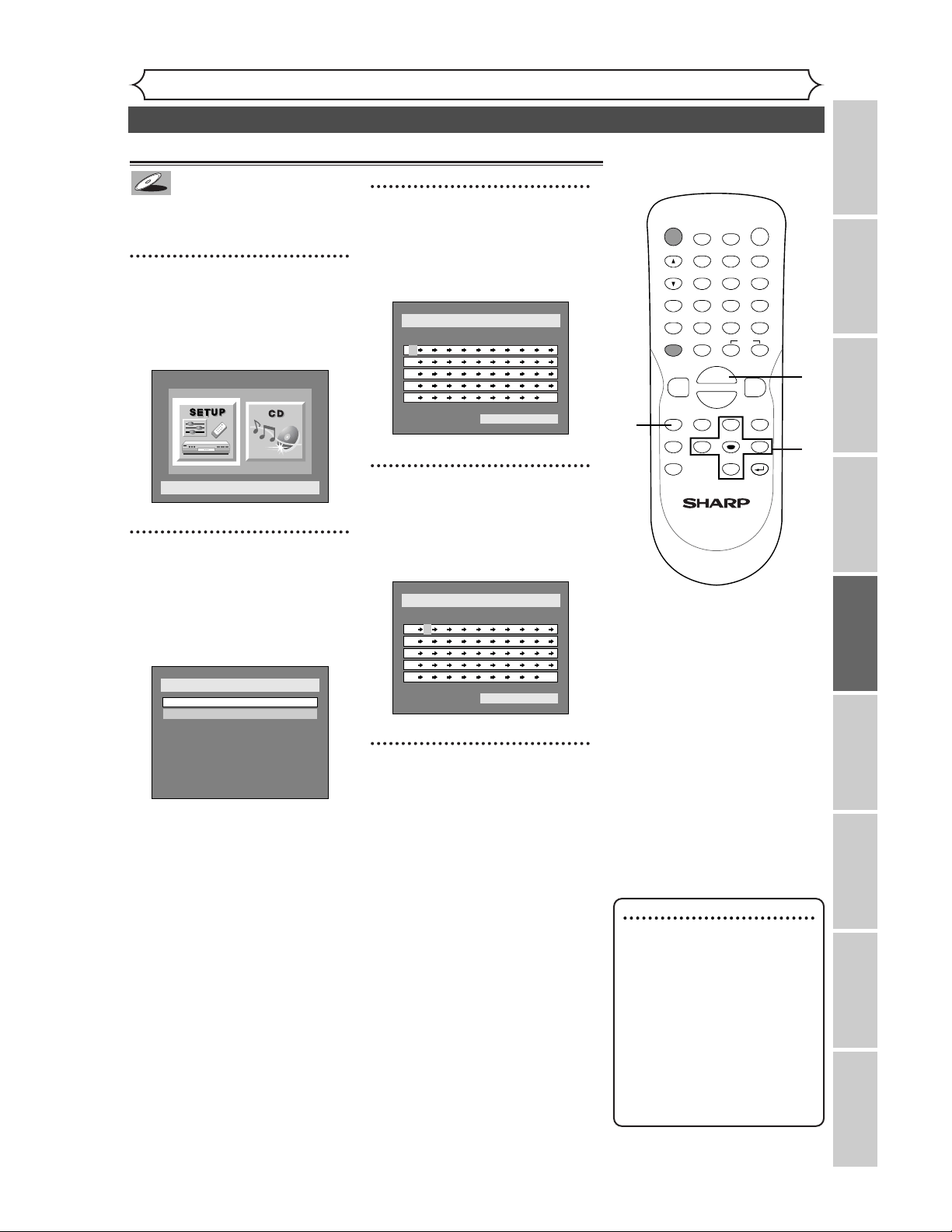
Recording Playing discs EditingBefore you start Connections Getting started
Changing the SETUP menu
Others Español
53
Repeat/Random/Program playback (cont’d)
Note
• To erase tracks you selected,
press CLEAR button.
• You can make program set-
tings up to 50.
• To cancel program play, press
STOP C button twice during
program play.“Playmode OFF”
appears on the screen.
• You may also select a desired
track using Number buttons
at step 4.
Program play
You can program the disc to play
in your desired order.
1
Press SETUP button to dis-
play SETUP/CD menu.
SETUP/CD menu will appear.
Screen:
2
Select “CD” using { / B but-
tons, then press ENTER but-
ton.
CD Playback Mode menu will
appear.
3
Select “Program Play” using
K / L buttons, then press
ENTER button.
Program play list will appear.
4
Select a desired track using K
/ L buttons, then press
ENTER button or B button.
A cursor will move to next.
5
Press PLAY B button to start
program play.
Program play will start.
CD Playback Mode > Program Play
Total 00:04:30
07
- - - - - - - - - - - - - -- -- -
- - - - - - - - - - - - - -- -- -
- - - - - - - - - - - - - -- -- -
- - - - - - - - - - - - - -- -- -
- - - - - - - - - - - - - -- -- -
- -
- -
- -
- -
CD Playback Mode > Program Play
Total 00:00:00
- - - - - - - - - - - - - - - - - - - -
- - - - - - - - - - - - - - - - - - - -
- - - - - - - - - - - - - - - - - - - -
- - - - - - - - - - - - - - - - - - - -
- - - - - - - - - - - - - - - - - - - -
CD Playback Mode
Random Play
Program Play
Setup Menu
CD
CD
POWER
DISPLAY
REC MODE CLEAR
CM SKIP
SKIP
REC
PAUSE
SETUP
REPEAT
ZOOM
ENTER
RETURN
REC
MONITOR
OPEN/CLOSE
TIMER
PROG.
MENU/LIST
TOP MENU
SPACE
1
2
3
4
5
6
7
8
9
0
F
A
{B
FWD
g
STOP
C
PLAY
B
REV
h
HG
CH
.@/:
ABC
DEF
GHI
JKL
MNO
PQRS
TUV
WXYZ
K
L
5
2
3
4
1
Playing discs
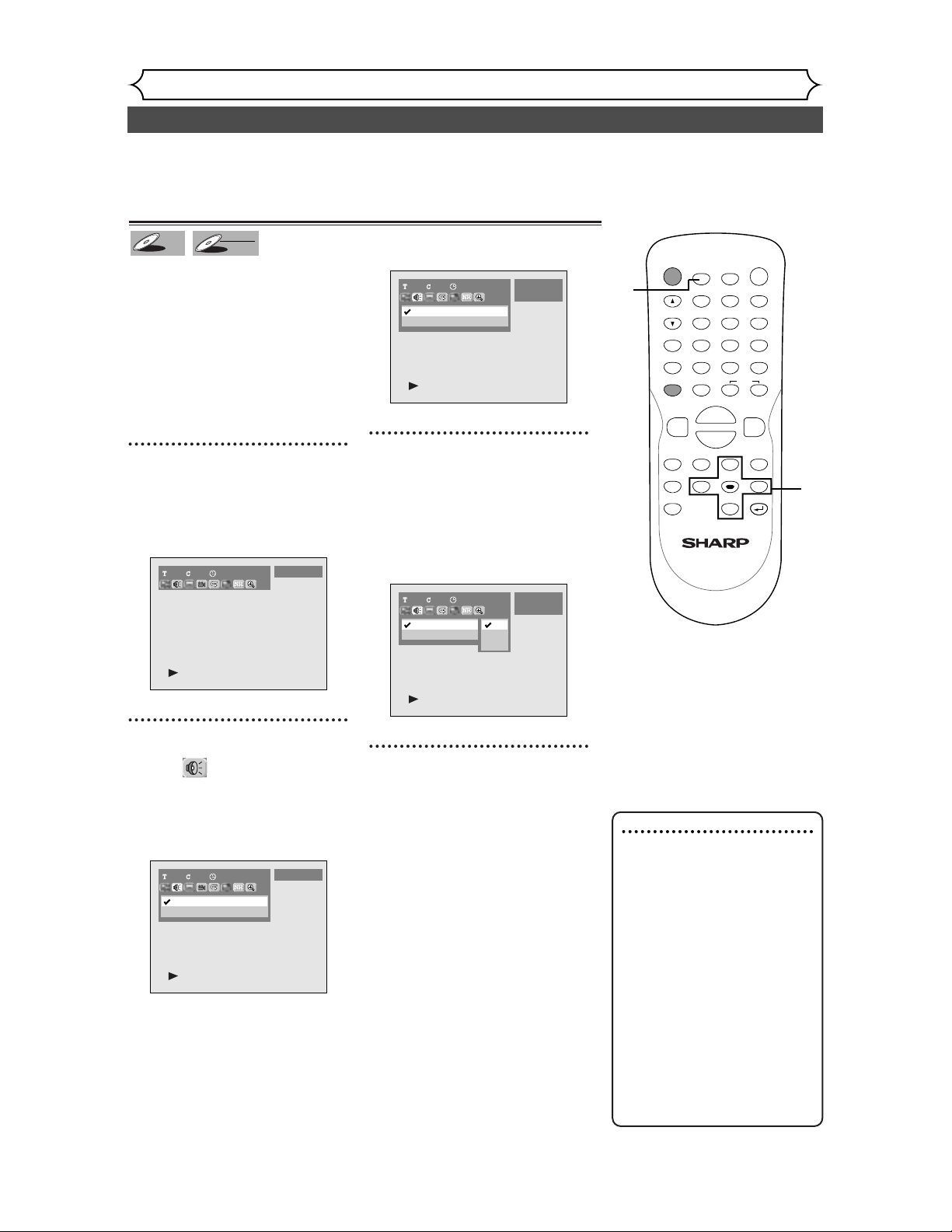
54
Selecting the format of audio and video
Playing discs
Note
•
Some discs will only allow
you to change the sound-
track from the disc’s menu.
Press TOP MENU button or
MENU / LIST button to dis-
play the disc’s menu.
•
On DVD-RW discs recorded
in VR mode that may have
both a main and a sub audio
channel, you can switch to
main (L), sub audio (R) or a
mix of both (L/R).
•
This unit CANNOT record in
both stereo and SAP
(Secondary Audio Program) at
the same time.
You can select the format of audio and video as you prefer depending
on the contents of the disc you are playing.
Switching audio soundtrack
When playing a DVD-Video disc
recorded with two or more
soundtracks (these are often in
different languages), you can
switch them during play.
On DVD-RW discs recorded in
VR mode, you can switch to main
(L), sub audio (R) or a mix of
both (L/R).
1
During play, press DISPLAY
button.
The display menu will appear.
Screen:
2
Select icon using { / B
buttons, then press ENTER
button.
Audio menu will appear.
<DVD-Video>
<DVD-RW VR mode>
3
Select a desired audio sound-
track using K / L buttons,
then press ENTER button.
Audio soundtrack will switch.
<DVD-RW VR mode>
4
Select a desired audio chan-
nel using K / L buttons, then
press ENTER button.
Audio channel will switch.
1 1 00:00:00
1 Dolby Digital Dual
2 Dolby Digital 2ch
DVD-RW
VR Original
L/R
L
R
1 1 00:00:00
1 Dolby Digital Dual L/R
2 Dolby Digital 2ch ----
DVD-RW
VR Original
1 1 00:00:00
1 Dolby Digital 5.1ch English
2 Dolby Digital 2ch Japanese
DVD-Video
1101:23:45
DVD-Video
DVD-RW
DVD-RW
VR
DVD-V
DVD-V
POWER
DISPLAY
REC MODE CLEAR
CM SKIP
SKIP
REC
PAUSE
SETUP
REPEAT
ZOOM
ENTER
RETURN
REC
MONITOR
OPEN/CLOSE
TIMER
PROG.
MENU/LIST
TOP MENU
SPACE
1
2
3
4
5
6
7
8
9
0
F
A
{B
FWD
g
STOP
C
PLAY
B
REV
h
HG
CH
.@/:
ABC
DEF
GHI
JKL
MNO
PQRS
TUV
WXYZ
K
L
2
3
1
4
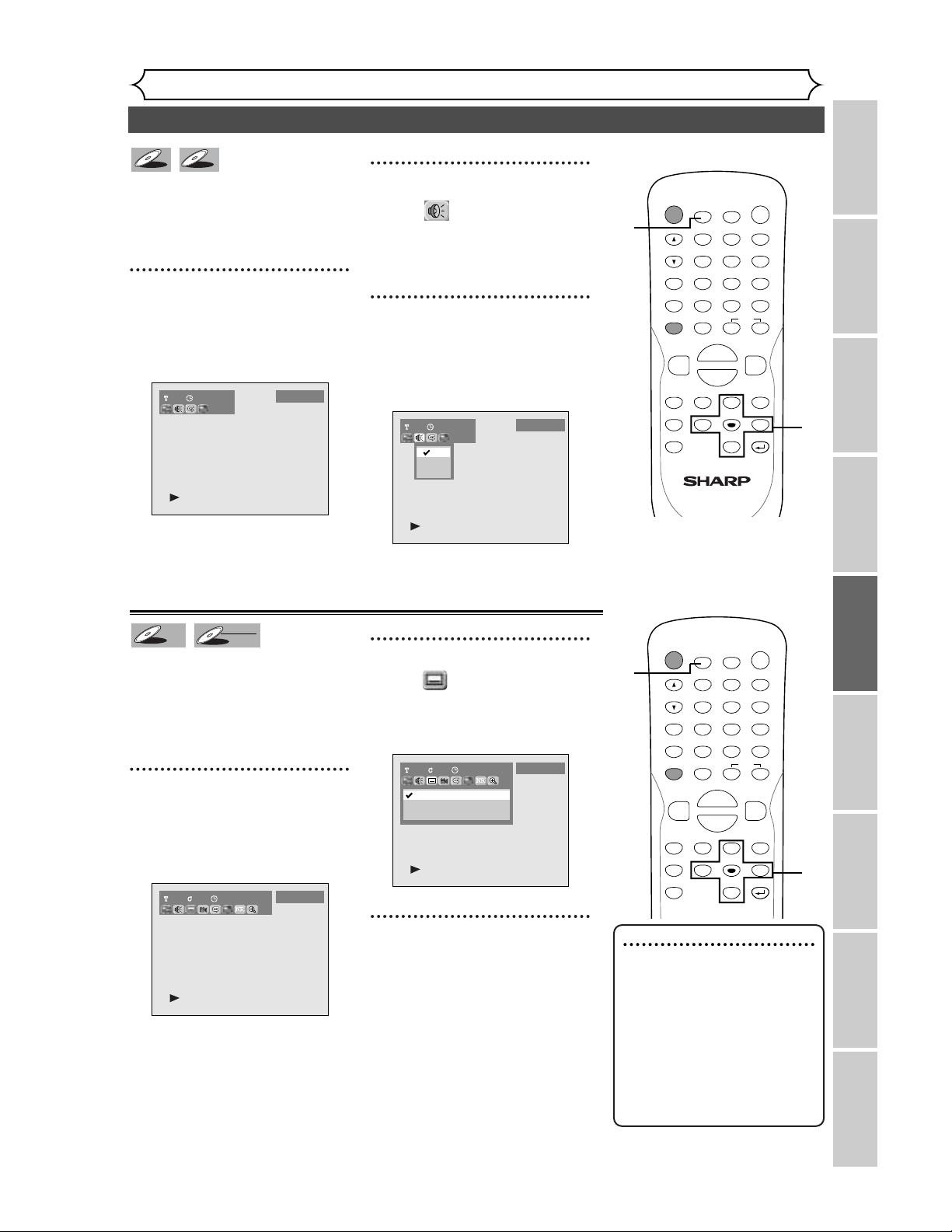
55
Selecting the format of audio and video (cont’d)
Playing discs
Recording Playing discs EditingBefore you start Connections Getting started
Changing the SETUP menu
Others Español
Note
• Some discs will only allow
you to change the subtitle
from the disc menu. Press
TOP MENU button or MENU
/ LIST button to display the
disc menu.
• If a 4-digit language code
appears in the subtitle menu
at step 2, please refer to the
Language code on page 95.
When playing Audio CDs or MP3
files you can switch between
stereo, just the left channel or
just the right channel.
1
During play, press DISPLAY
button.
The display menu will appear.
Screen:
2
Select icon using { / B
buttons, then press ENTER
button.
Audio menu will appear.
3
Select a desired audio chan-
nel using K / L buttons, then
press ENTER button.
Audio channel will switch.
1 00:00:00
Audio CD
L/R
L
R
1 00:00:00
Audio CD
MP3
MP3
CD
CD
Switching subtitles
Many DVD Video discs have subti-
tles in one or more languages –
the case usually tells you which
subtitle languages are available.
You can switch subtitle languages
anytime during playback.
1
During play, press DISPLAY
button.
The display menu will appear.
Screen:
2
Select icon using { / B
buttons, then press ENTER
button.
Subtitle menu will appear.
3
Select a desired subtitle lan-
guage using K / L buttons,
then press ENTER button.
Subtitle will be displayed in the
selected language.
When selecting “OFF,” subtitle will
disappear.
1 1 00:00:00
OFF
1English
2Japanese
DVD-Video
1101:23:45
DVD-Video
DVD-RW
DVD-RW
VR
DVD-V
DVD-V
POWER
DISPLAY
REC MODE CLEAR
CM SKIP
SKIP
REC
PAUSE
SETUP
REPEAT
ZOOM
ENTER
RETURN
REC
MONITOR
OPEN/CLOSE
TIMER
PROG.
MENU/LIST
TOP MENU
SPACE
1
2
3
4
5
6
7
8
9
0
F
A
{B
FWD
g
STOP
C
PLAY
B
REV
h
HG
CH
.@/:
ABC
DEF
GHI
JKL
MNO
PQRS
TUV
WXYZ
K
L
2
3
1
POWER
DISPLAY
REC MODE CLEAR
CM SKIP
SKIP
REC
PAUSE
SETUP
REPEAT
ZOOM
ENTER
RETURN
REC
MONITOR
OPEN/CLOSE
TIMER
PROG.
MENU/LIST
TOP MENU
SPACE
1
2
3
4
5
6
7
8
9
0
F
A
{B
FWD
g
STOP
C
PLAY
B
REV
h
HG
CH
.@/:
ABC
DEF
GHI
JKL
MNO
PQRS
TUV
WXYZ
K
L
2
3
1
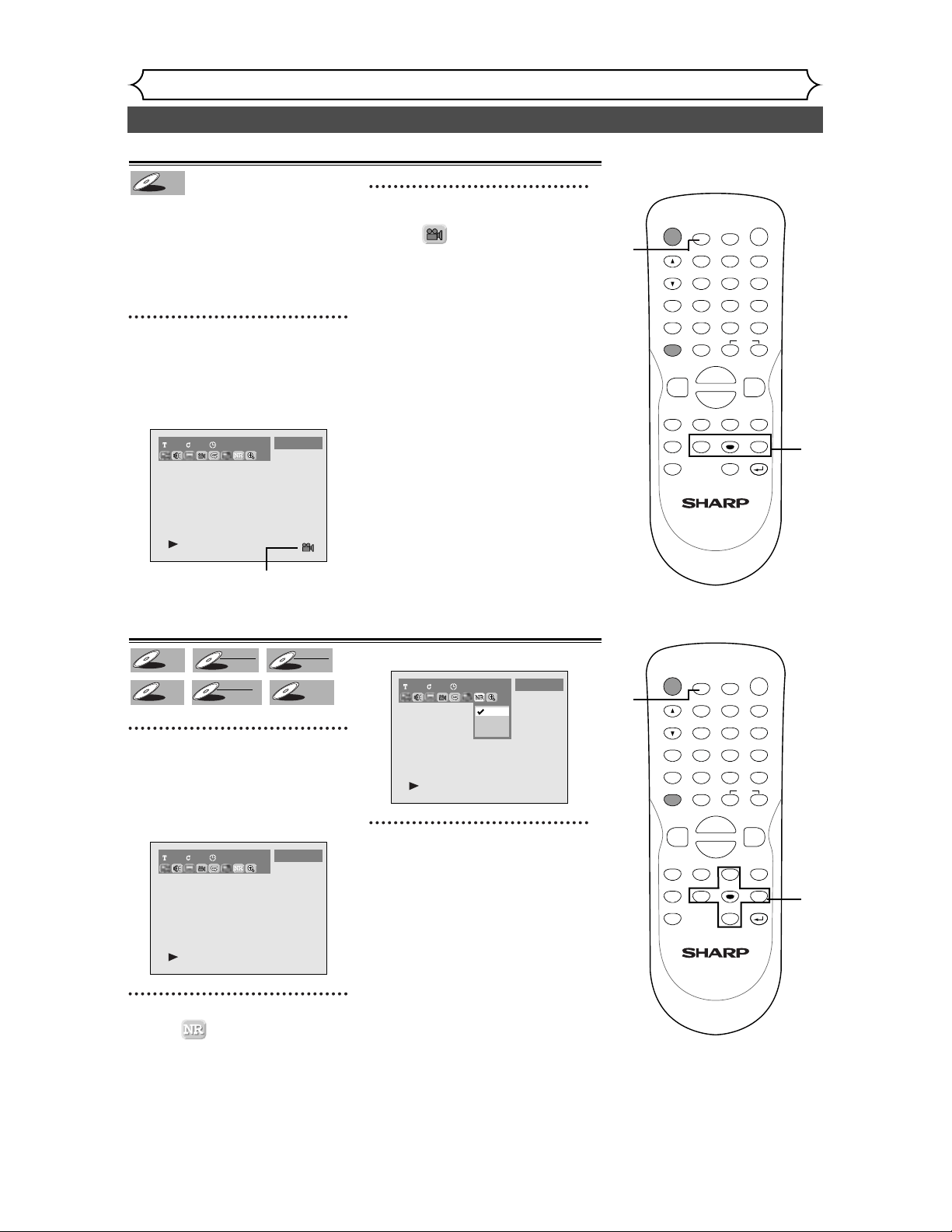
56
Selecting the format of audio and video (cont’d)
Playing discs
Switching camera angles
Some DVD Video discs feature
scenes shot from two or more
angles, check the case for details:
it should be marked with a angle
icon if it contains multi-angle
scenes.
1
During play, press DISPLAY
button.
The display menu will appear.
Screen:
Angle icon appears when a switch-
ing camera angle is available.
2
Select icon using { / B
buttons, then press ENTER
button.
Angle will switch each time you
press ENTER button.
1101:23:45
DVD-Video
DVD-V
DVD-V
Reducing block noise
1
During play, press DISPLAY
button.
The display menu will appear.
Screen:
2
Select icon using { / B
buttons, then press ENTER
button.
Noise Reduction menu will
appear.
3
Select a desired option using
K / L buttons, then press
ENTER button.
Your setting will be activated.
This function reduces noise in the
playback picture.When playing
back discs recorded in long time
mode such as SLP or SEP mode,
select "Type 1" or "Type 2".
("Type 2" is more effective.)
When playing back discs with a
few noises such as DVD-Video
discs, select "OFF".
1 1 00:00:00
OFF
Type 1
Type 2
DVD-Video
1101:23:45
DVD-Video
DVD+R
DVD+R
DVD+RW
DVD+RW
Video
DVD-R
DVD-R
DVD-RW
DVD-RW
VR
DVD-RW
DVD-RW
Video
DVD-V
DVD-V
POWER
DISPLAY
REC MODE CLEAR
CM SKIP
SKIP
REC
PAUSE
SETUP
REPEAT
ZOOM
ENTER
RETURN
REC
MONITOR
OPEN/CLOSE
TIMER
PROG.
MENU/LIST
TOP MENU
SPACE
1
2
3
4
5
6
7
8
9
0
F
A
{B
FWD
g
STOP
C
PLAY
B
REV
h
HG
CH
.@/:
ABC
DEF
GHI
JKL
MNO
PQRS
TUV
WXYZ
K
L
2
1
POWER
DISPLAY
REC MODE CLEAR
CM SKIP
SKIP
REC
PAUSE
SETUP
REPEAT
ZOOM
ENTER
RETURN
REC
MONITOR
OPEN/CLOSE
TIMER
PROG.
MENU/LIST
TOP MENU
SPACE
1
2
3
4
5
6
7
8
9
0
F
A
{B
FWD
g
STOP
C
PLAY
B
REV
h
HG
CH
.@/:
ABC
DEF
GHI
JKL
MNO
PQRS
TUV
WXYZ
K
L
2
3
1
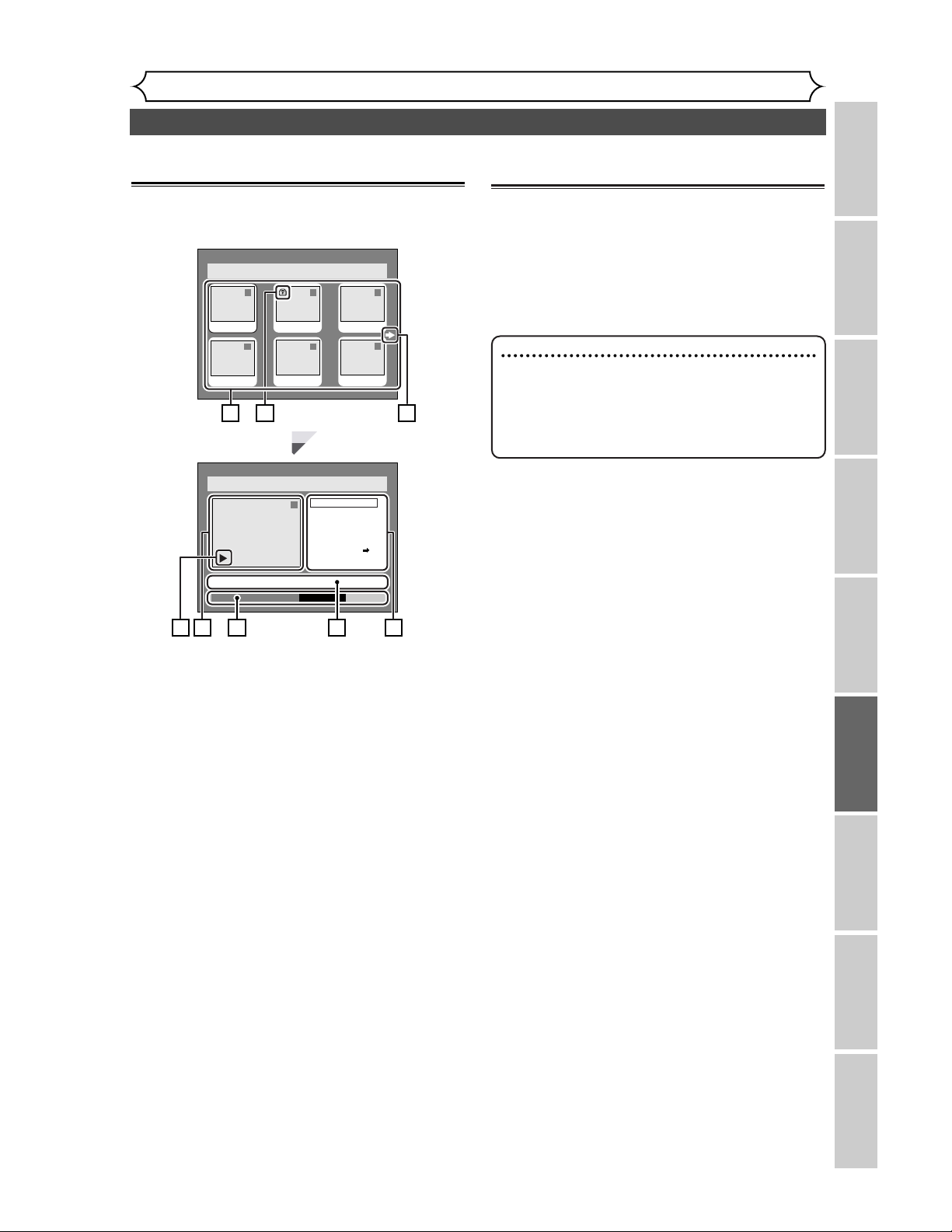
57
Information on disc editing
Editing
Recording Playing discs EditingBefore you start Connections Getting started
Changing the SETUP menu
Others Español
Guide to a title list
Title list allows you to check the titles recorded on
the disc easily.You can choose a title to play from this
screen and easily edit the titles as you prefer.
1. Titles recorded on the disc can be selected to
edit by pressing ENTER button with the cursor
on the title.
2. Protect icon, which appears when the title has
been protected.
3. The selected title thumbnails from the title list.
• The selected title will be pla
• A sound is not output.
yed back automat-
ically.
4. The menus in here for editing titles as you pre-
fer.The available menus depends on the disc
type and the format type.
5. The details of the title, which can be changed to
the title name you will edit.
6. Time status bar of the title.
7. The arrow icon, which means the title list
includes a next or a previous page. Press B or
{ button by following direction of the icon.
8. Playback status of the current disc.
Editing discs with Video mode
You can edit discs with Video mode for the following
items. Be sure that once you edit titles, they will not
remain as original.
• Deleting titles (Refer to page 59)
• Putting names on titles (Refer to pages 60-61)
• Setting or clearing chapter markers (Refer to page 62)
Disc > Edit > Original
1
JAN/1 1:00AM CH12 XP
0:01:25
Title Delete
Scene Delete
Edit Title Name
Chapter Mark
Index Picture Set
Protect OFF
Disc > Edit > Original
1 1 32
54
JAN/1 2:00AM JAN/1 3:00AM
6
JAN/1 6:00AM
JAN/1 5:00AM
JAN/1 1:00AM
JAN/1 4:00AM
ON
21
3 4
6 5
7
8
Note
•
Once a disc is finalized, editing the disc or
recording to the disc will not be available.
(Except DVD-RW discs in VR mode.)
•
A playlist is not available with the DVD-R discs
and DVD-RW discs in Video mode.
58
Information on disc editing (cont’d)
Editing
Editing original titles
The following items can be used to edit the original
titles.
• Deleting titles (Refer to page 63)
• Deleting parts of titles (Refer to pages 64-65)
• Putting names on titles (Refer to pages 65-66)
• Setting or clearing chapter markers (Refer to
pages 67-68)
• Setting pictures for thumbnails (Refer to pages
68-69)
• Setting titles to protect (Refer to page 70)
• Releasing titles from protecting (Refer to page 71)
Editing playlists
You can create a playlist from original titles, so that
you can edit as you prefer without losing original
titles.
The following items you can edit with a playlist.
• Deleting titles (Refer to page 72)
• Deleting parts of titles (Refer to pages 73-74)
• Putting names on titles (Refer to pages 74-75)
• Setting or clearing chapter markers (Refer to
pages 76-77)
• Setting pictures for thumbnails (Refer to pages
77-78)
• Adding titles to a playlist (Refer to page 79)
• Deleting a playlist (Refer to page 80)
Editing discs with VR mode
For discs with VR mode, you can edit from “Original” menu or “Playlist” menu, which is created from the
original.
Note
•
Original titles once edited will not remain as recorded originally.When you want to leave the original as
it is, edit the playlist as you prefer.
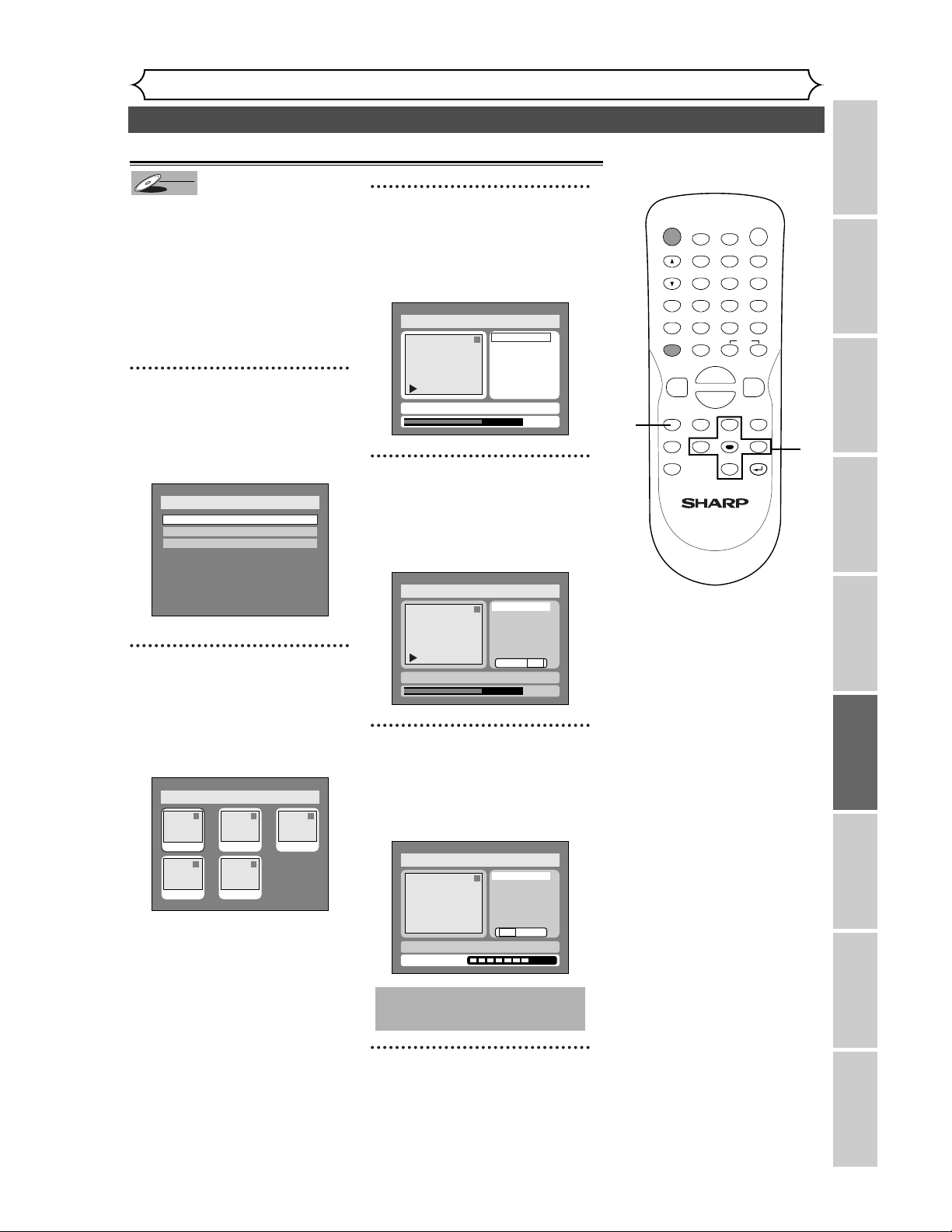
59
Editing DVD-RW discs in Video mode
Editing
Recording Playing discs EditingBefore you start Connections Getting started
Changing the SETUP menu
Others Español
Deleting titles
You can delete titles which you
do not need anymore.
Be advised that the titles once
deleted cannot be brought back
to the disc.
When the last title in the title list
in Video mode is deleted, the disc
space to record will be increased.
1
Press SETUP button. Select
“DISC” using
{ / B buttons,
then press ENTER button.
DISC menu will appear.
2
Select “Edit” using K / L but-
tons, then press ENTER but-
ton.
Titlelist will appear.
Screen:
3
Select a desired title using K /
L / { / B buttons, then press
ENTER button.
Edit menu will appear.
4
Select “Title Delete” using K
/ L buttons, then press
ENTER button.
Option window will appear.
5
Select “Yes” using { / B but-
tons, then press ENTER but-
ton.
Title will be deleted.
6
After writing to disc is com-
pleted, press SETUP button
to exit DISC menu.
This operation may take a
while to be completed.
Disc > Edit
1
Title Delete
Edit Title Name
Chapter Mark
Yes No
Writing to Disc
JAN/ 1 1:00AM CH12 XP
Disc > Edit
1
0:01:25
Title Delete
Edit Title Name
Chapter Mark
Yes No
JAN/ 1 1:00AM CH12 XP
Disc > Edit
1
Title Delete
Edit Title Name
Chapter Mark
0:01:25
JAN/ 1 1:00AM CH12 XP
Disc > Edit
1 1 32
54
JAN/1 1:00AM
JAN/1 4:00AM
JAN/1 2:00AM JAN/1 3:00AM
JAN/1 5:00AM
Disc
Edit
Format
Finalize
DVD-RW
DVD-RW
Video
POWER
DISPLAY
REC MODE CLEAR
CM SKIP
SKIP
REC
PAUSE
SETUP
REPEAT
ZOOM
ENTER
RETURN
REC
MONITOR
OPEN/CLOSE
TIMER
PROG.
MENU/LIST
TOP MENU
SPACE
1
2
3
4
5
6
7
8
9
0
F
A
{B
FWD
g
STOP
C
PLAY
B
REV
h
HG
CH
.@/:
ABC
DEF
GHI
JKL
MNO
PQRS
TUV
WXYZ
K
L
1
2
3
4
5
1
6
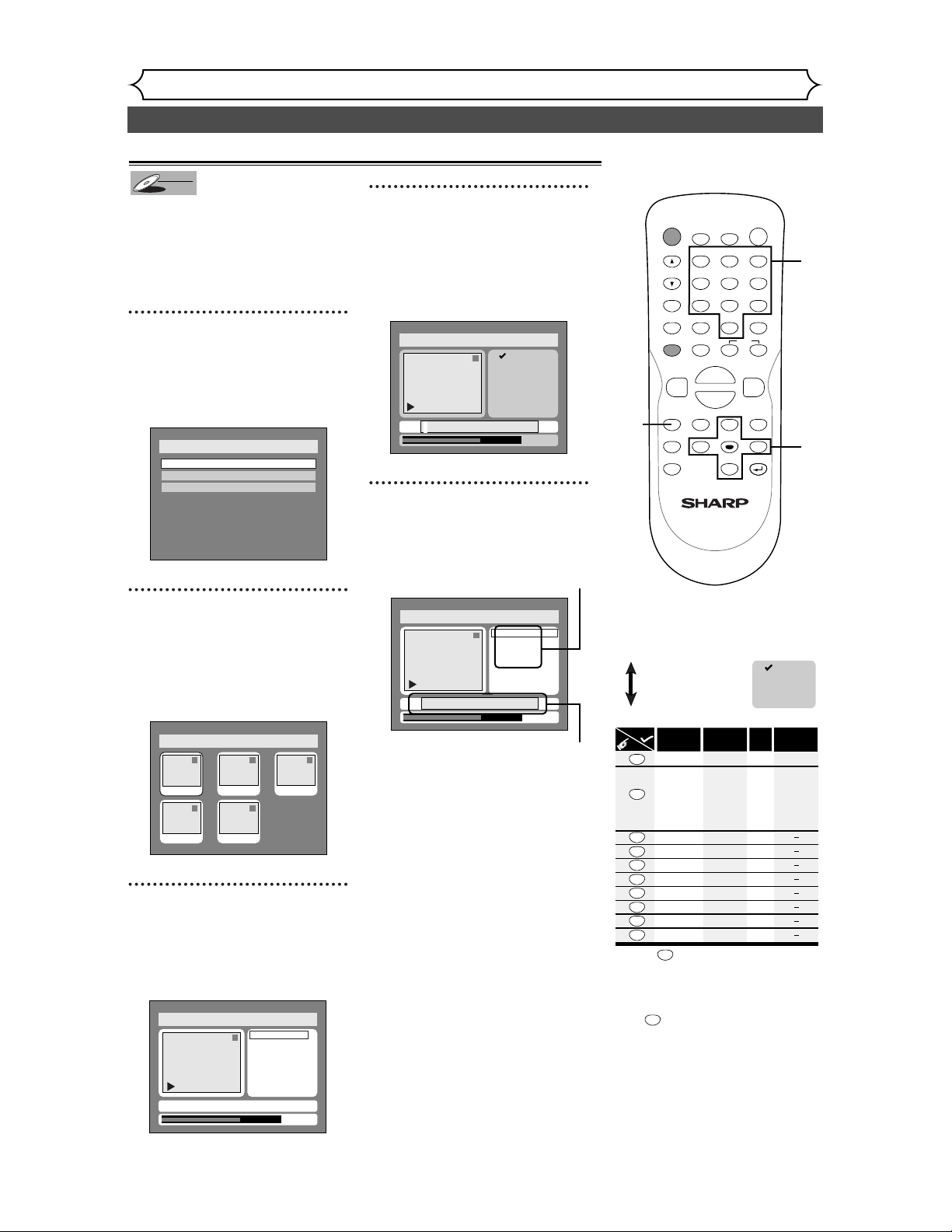
60
Editing DVD-RW discs in Video mode (cont’d)
Editing
You can put title names on the
titles and change the names from
this menu.
The names you put on the titles
will be displayed on a titlelist.
1
Press SETUP button. Select
“DISC” using
{ / B buttons,
then press ENTER button.
DISC menu will appear.
2
Select “Edit” using K / L but-
tons, then press ENTER but-
ton.
Titlelist will appear.
Screen:
3
Select a desired title using K /
L / { / B buttons, then press
ENTER button.
Edit menu will appear.
4
Select “Edit Title Name”
using K / L buttons, then
press ENTER button.
A window for entering a title
name will appear.
5
To enter a title name, follow
the steps of “Guide to edit
title name” on this page.
character set
area for entering title names
When you finish entering a title
name, press ENTER button.
Disc > Edit > Edit Title Name
1
0:01:25
A B C
a b c
1 2 3
@ ! ?
JAN/ 1 1:00AM CH12 XP
Disc > Edit > Edit Title Name
1
0:01:25
A B C
a b c
1 2 3
@ ! ?
JAN/ 1 1:00AM CH12 XP
Disc > Edit
1
Title Delete
Edit Title Name
Chapter Mark
0:01:25
JAN/ 1 1:00AM CH12 XP
Disc > Edit
1 1 32
54
JAN/1 1:00AM
JAN/1 4:00AM
JAN/1 2:00AM JAN/1 3:00AM
JAN/1 5:00AM
Disc
Edit
Format
Finalize
DVD-RW
DVD-RW
Video
Putting names on titles
Press
ABC
DEF
GHI
JKL
MNO
PQRS
TUV
WXYZ
<space>
abc
def
ghi
jkl
mno
pqrs
tuv
wxyz
<space> <space>
! ” # $ %
& ’ ( )
+ , - . / : ;
< = > ?
@ [ ] ^
_ { | }
2
3
4
5
6
7
8
9
0
1
ABC
abc
Select
@ ! ?
123
1
1
2
3
4
5
6
7
8
9
0
*1 Press button, character set will be changed
to the " @
!?
" mode automatically.
[
Step1
]
: Select a desired character set using K
/
L
buttons, then press
ENTER button.
[
Step2
]
: Press Number buttons following by the list
below.
[
Guide to edit title name
]
A B C
a b c
1 2 3
@ ! ?
• To delete letters, press CLEAR button repeatedly.
Holding CLEAR button to delete all letters.
• To go on to the next entering area for letters,
press button.
B
• You can enter up to 30 letters.
*1 *1
*
POWER
DISPLAY
REC MODE CLEAR
CM SKIP
SKIP
REC
PAUSE
SETUP
REPEAT
ZOOM
ENTER
RETURN
REC
MONITOR
OPEN/CLOSE
TIMER
PROG.
MENU/LIST
TOP MENU
SPACE
1
2
3
4
5
6
7
8
9
0
F
A
{B
FWD
g
STOP
C
PLAY
B
REV
h
HG
CH
.@/:
ABC
DEF
GHI
JKL
MNO
PQRS
TUV
WXYZ
K
L
5
1
3
2
5
4
1
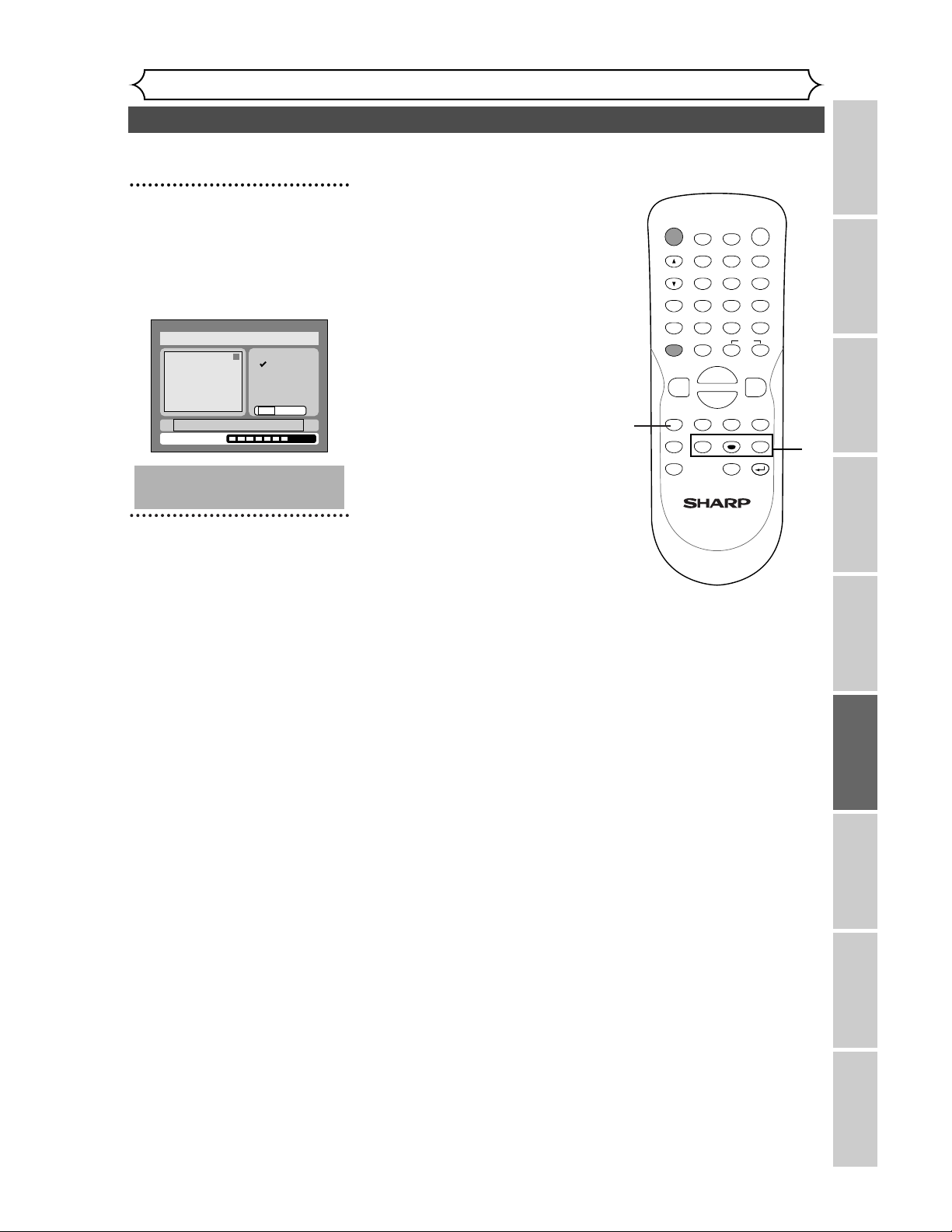
61
Editing DVD-RW discs in Video mode (cont’d)
Editing
Recording Playing discs EditingBefore you start Connections Getting started
Changing the SETUP menu
Others Español
6
Select “Yes” using { / B but-
tons, then press ENTER but-
ton.
The name you entered will be
activated for the title.
7
After writing to disc is com-
pleted, press SETUP button
to exit DISC menu.
This operation may take a
while to be completed.
Disc > Edit > Edit Title Name
1
A B C
a b c
1 2 3
@ ! ?
abc
Yes No
Writing to Disc
POWER
DISPLAY
REC MODE CLEAR
CM SKIP
SKIP
REC
PAUSE
SETUP
REPEAT
ZOOM
ENTER
RETURN
REC
MONITOR
OPEN/CLOSE
TIMER
PROG.
MENU/LIST
TOP MENU
SPACE
1
2
3
4
5
6
7
8
9
0
F
A
{B
FWD
g
STOP
C
PLAY
B
REV
h
HG
CH
.@/:
ABC
DEF
GHI
JKL
MNO
PQRS
TUV
WXYZ
K
L
6
7
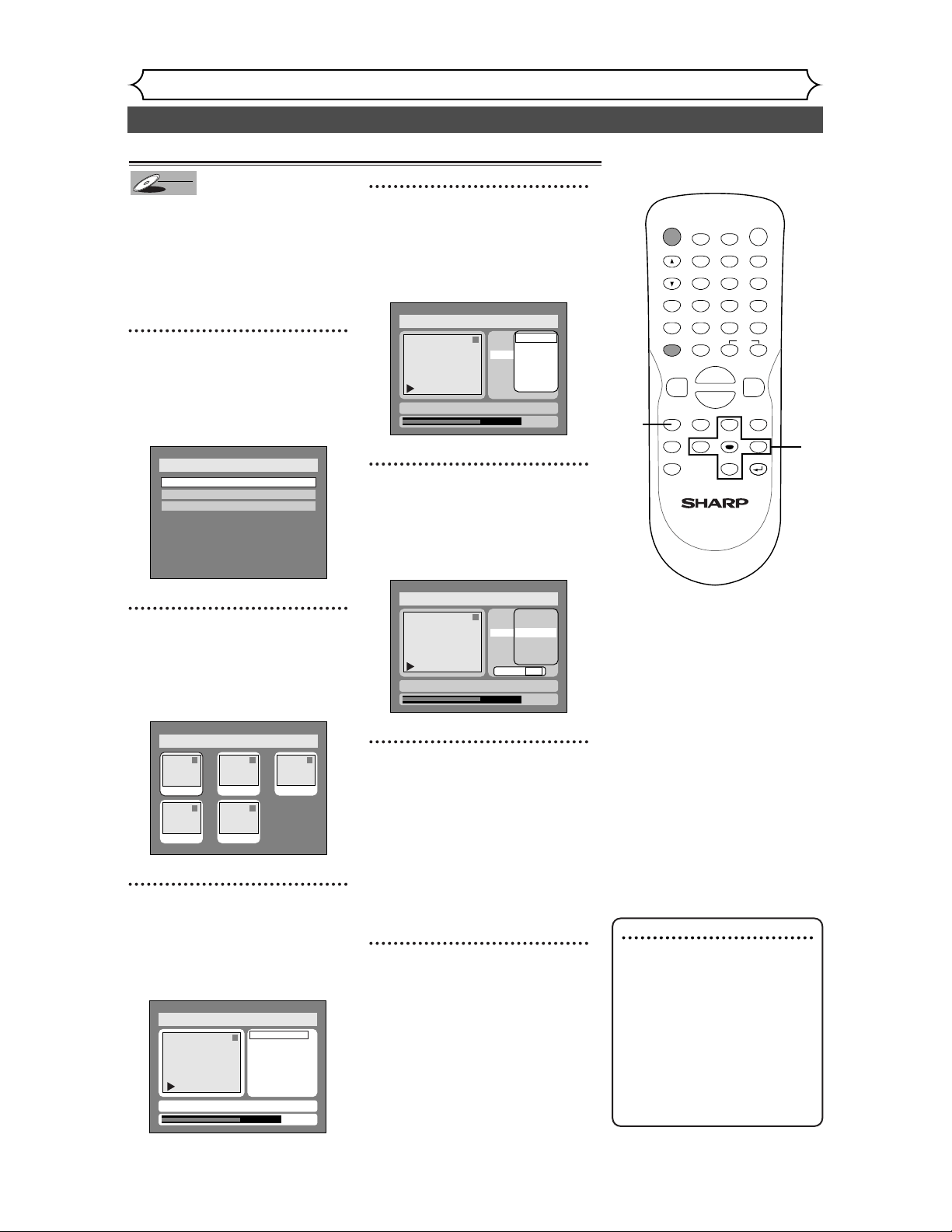
62
Editing DVD-RW discs in Video mode (cont’d)
Editing
Note
• You cannot select a time for
putting markers beyond a
length of a title.
• The length of chapters may
be slightly longer or shorter
than the one specified at the
step 5.
• A chapter marker may be
delayed according to the
recording content.
Setting or clearing chapter markers
You can put chapter markers in each
title. Once a chapter is marked, you can
use it for the chapter search feature.
You can set chapter markers at a speci-
fied time you selected for titles with
more than 5 minutes.
1
Press SETUP button. Select
“DISC” using
{ / B buttons,
then press ENTER button.
DISC menu will appear.
2
Select “Edit” using
K
/
L
but-
tons, then press ENTER button.
Titlelist will appear.
Screen:
3
Select a desired title using K /
L / { / B buttons, then press
ENTER button.
Edit menu will appear.
4
Select “Chapter Mark” using
K / L buttons, then press
ENTER button.
Option window will appear.
5
Select a desired time using K
/ L buttons, then press
ENTER button.
Option window will appear.
6
Select “Yes” using { / B but-
tons, then press ENTER but-
ton.
A chapter marker will be added.
If you select “OFF” at step 5, all
the chapter markers will be
erased.
7
After writing to disc is com-
pleted, press SETUP button
to exit DISC menu.
1
0:01:25
Title Delete
Edit Title Name
Chapter Mark
OFF
5 minutes
10 minutes
15 minutes
30 minutes
60 minutes
Yes No
Disc > Edit
JAN/ 1 1:00AM CH12 XP
1
0:01:25
Title Delete
Edit Title Name
Chapter Mark
OFF
5 minutes
10 minutes
15 minutes
30 minutes
60 minutes
Disc > Edit
JAN/ 1 1:00AM CH12 XP
Disc > Edit
1
Title Delete
Edit Title Name
Chapter Mark
0:01:25
JAN/ 1 1:00AM CH12 XP
Disc > Edit
1 1 32
54
JAN/1 1:00AM
JAN/1 4:00AM
JAN/1 2:00AM JAN/1 3:00AM
JAN/1 5:00AM
Disc
Edit
Format
Finalize
DVD-RW
DVD-RW
Video
POWER
DISPLAY
REC MODE CLEAR
CM SKIP
SKIP
REC
PAUSE
SETUP
REPEAT
ZOOM
ENTER
RETURN
REC
MONITOR
OPEN/CLOSE
TIMER
PROG.
MENU/LIST
TOP MENU
SPACE
1
2
3
4
5
6
7
8
9
0
F
A
{B
FWD
g
STOP
C
PLAY
B
REV
h
HG
CH
.@/:
ABC
DEF
GHI
JKL
MNO
PQRS
TUV
WXYZ
K
L
1
7
3
4
2
5
6
1
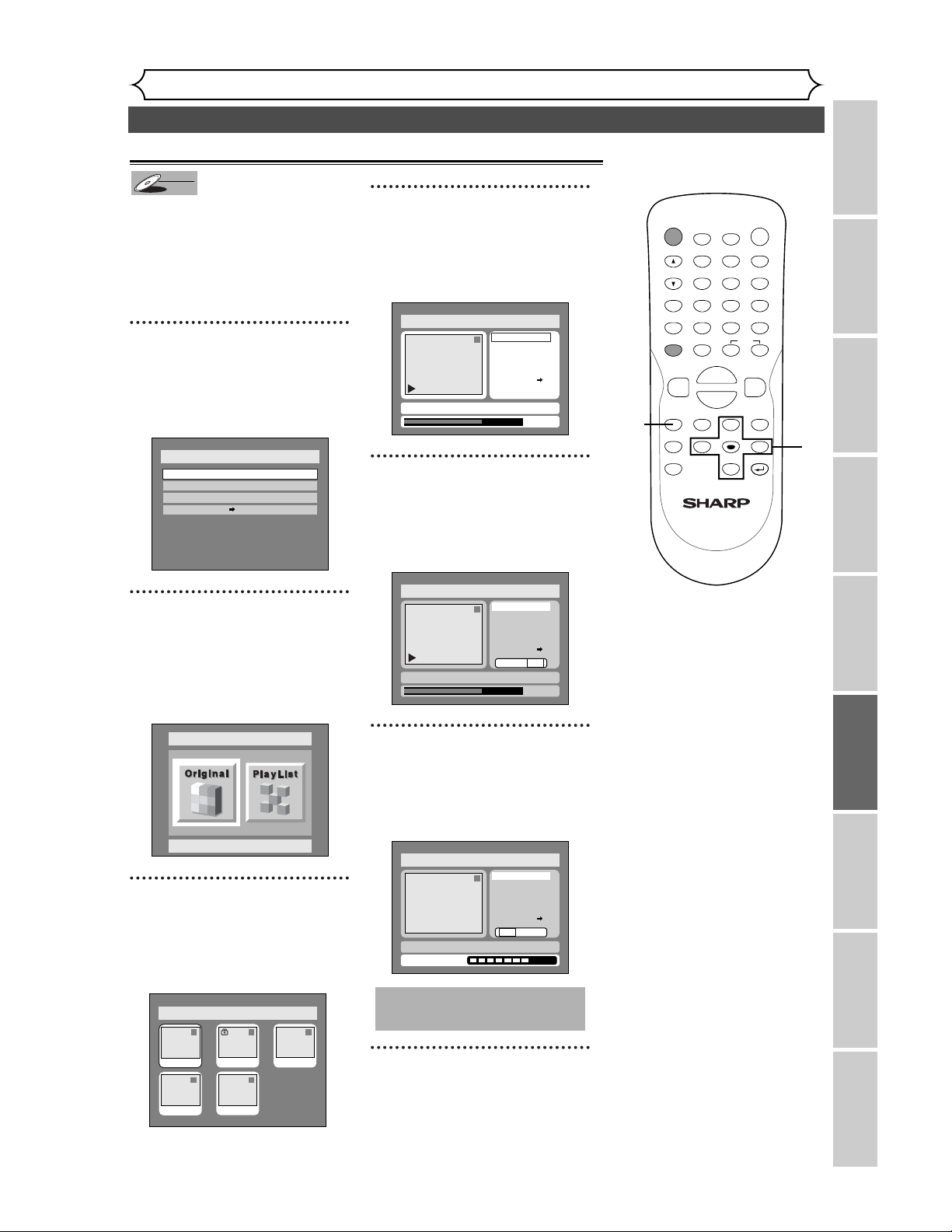
63
Editing DVD-RW discs in VR mode (Original)
Editing
Recording Playing discs EditingBefore you start Connections Getting started
Changing the SETUP menu
Others Español
When a title is deleted from an
original list in VR mode, the disc
space to record will be increased.
Be advised that the titles once
deleted cannot be brought back
to the disc.
1
Press SETUP button. Select
“DISC” using { / B buttons,
then press ENTER button.
DISC menu will appear.
2
Select “Edit” using K / L but-
tons, then press ENTER but-
ton.
Original/PlayList menu will appear.
Screen:
3
Select “Original” using { / B
buttons, then press ENTER
button.
Original list will appear.
.
4
Select a desired title using K /
L / { / B buttons, then press
ENTER button.
Original menu will appear.
5
Select “Title Delete” using K
/ L buttons, then press
ENTER button.
Option window will appear.
6
Select “Yes” using { / B but-
tons, then press ENTER but-
ton.
Title will be deleted.
7
After writing to disc is com-
pleted, press SETUP button
to exit DISC menu.
This operation may take a
while to be completed.
1
Title Delete
Scene Delete
Edit Title Name
Chapter Mark
Index Picture
Protect OFF
Yes No
Writing to Disc
JAN/ 1 1:00AM CH12 XP
ON
Disc > Edit > Original
1
0:01:25
Title Delete
Scene Delete
Edit Title Name
Chapter Mark
Index Picture
Protect OFF
Yes No
JAN/ 1 1:00AM CH12 XP
ON
Disc > Edit > Original
Disc > Edit > Original
1
Title Delete
Scene Delete
Edit Title Name
Chapter Mark
Index Picture Set
Protect OFF
JAN/ 1 1:00AM CH12 XP
0:01:25
ON
Disc > Edit > Original
1 1 32
54
JAN/1 1:00AM
JAN/1 4:00AM
JAN/1 2:00AM JAN/1 3:00AM
JAN/1 5:00AM
Disc > Edit
Original
Disc
Edit
Format
Finalize
Disc Protect OFF ON
DVD-RW
DVD-RW
VR
POWER
DISPLAY
REC MODE CLEAR
CM SKIP
SKIP
REC
PAUSE
SETUP
REPEAT
ZOOM
ENTER
RETURN
REC
MONITOR
OPEN/CLOSE
TIMER
PROG.
MENU/LIST
TOP MENU
SPACE
1
2
3
4
5
6
7
8
9
0
F
A
{B
FWD
g
STOP
C
PLAY
B
REV
h
HG
CH
.@/:
ABC
DEF
GHI
JKL
MNO
PQRS
TUV
WXYZ
K
L
1
7
3
4
2
5
6
1
Deleting titles
Deleting titles
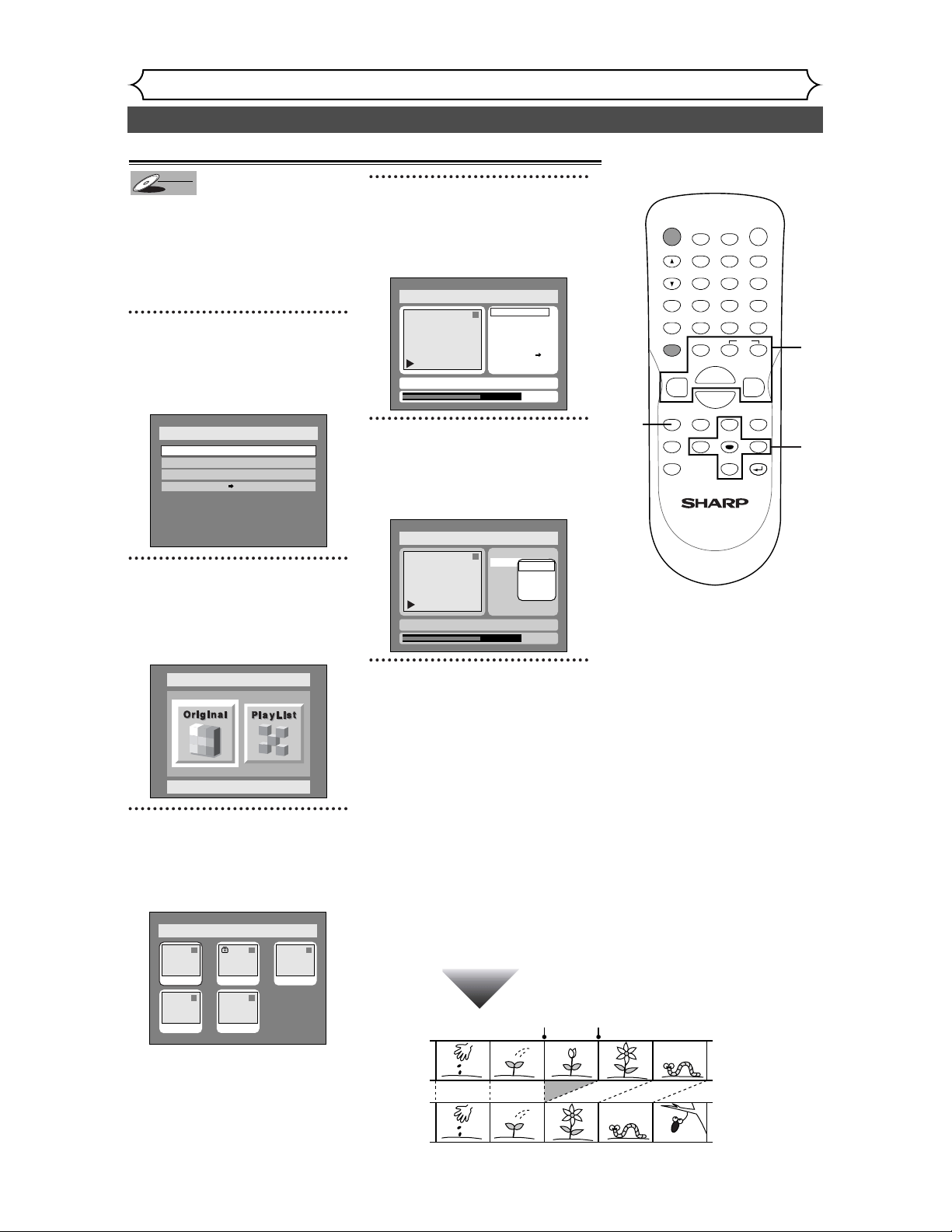
64
Editing DVD-RW discs in VR mode (Original) (cont’d)
Editing
Deleting parts of titles
Before
editing
<Preview>
Edited
Start point End point
You can delete part of a title, the
disc space to record will be
increased.
Be advised that the parts once
deleted cannot be brought back
to the disc.
1
Press SETUP button. Select
“DISC” using { / B buttons,
then press ENTER button.
DISC menu will appear.
2
Select “Edit” using K / L but-
tons, then press ENTER button.
Original/PlayList menu will appear.
Screen:
3
Select “Original” using { / B
buttons, then press ENTER
button.
Original list will appear.
4
Select a desired title using K /
L / { / B buttons, then press
ENTER button.
Original menu will appear.
5
Select “Scene Delete” using
K / L buttons, then press
ENTER button.
Option window will appear.
6
Use
SKIP H / G, REV E,
FWD D,
PLAY
B
, and PAUSE F
buttons to decide the start point,
then press ENTER.Then use
SKIP
H / G, REV E, FWD D,
PLAY
B
, and PAUSE
F
buttons
again to move to the end point,
and press ENTER. Press ENTER
again to start the preview.
A cursor will move to “Preview.”
You can check the preview by pressing
ENTER.
The bar at the bottom of the screen indi-
cates the total and the elapsed time of the
title, and the area selected for deletion will
be indicated in red during the preview.
1
0:00:55
Title Delete
Scene Delete
Edit Title Name
Chapter Mark
Index Picture
Protect OFF
Start
End
Preview
Delete
JAN/ 1 1:00AM CH12 XP
Disc > Edit > Original
Disc > Edit > Original
1
Title Delete
Scene Delete
Edit Title Name
Chapter Mark
Index Picture Set
Protect OFF
JAN/ 1 1:00AM CH12 XP
0:01:25
ON
Disc > Edit > Original
1 1 32
54
JAN/1 1:00AM
JAN/1 4:00AM
JAN/1 2:00AM JAN/1 3:00AM
JAN/1 5:00AM
Disc > Edit
Original
Disc
Edit
Format
Finalize
Disc Protect OFF ON
DVD-RW
DVD-RW
VR
POWER
DISPLAY
REC MODE CLEAR
CM SKIP
SKIP
REC
PAUSE
SETUP
REPEAT
ZOOM
ENTER
RETURN
REC
MONITOR
OPEN/CLOSE
TIMER
PROG.
MENU/LIST
TOP MENU
SPACE
1
2
3
4
5
6
7
8
9
0
F
A
{B
FWD
g
STOP
C
PLAY
B
REV
h
HG
CH
.@/:
ABC
DEF
GHI
JKL
MNO
PQRS
TUV
WXYZ
K
L
1
3
4
2
5
6
1
6
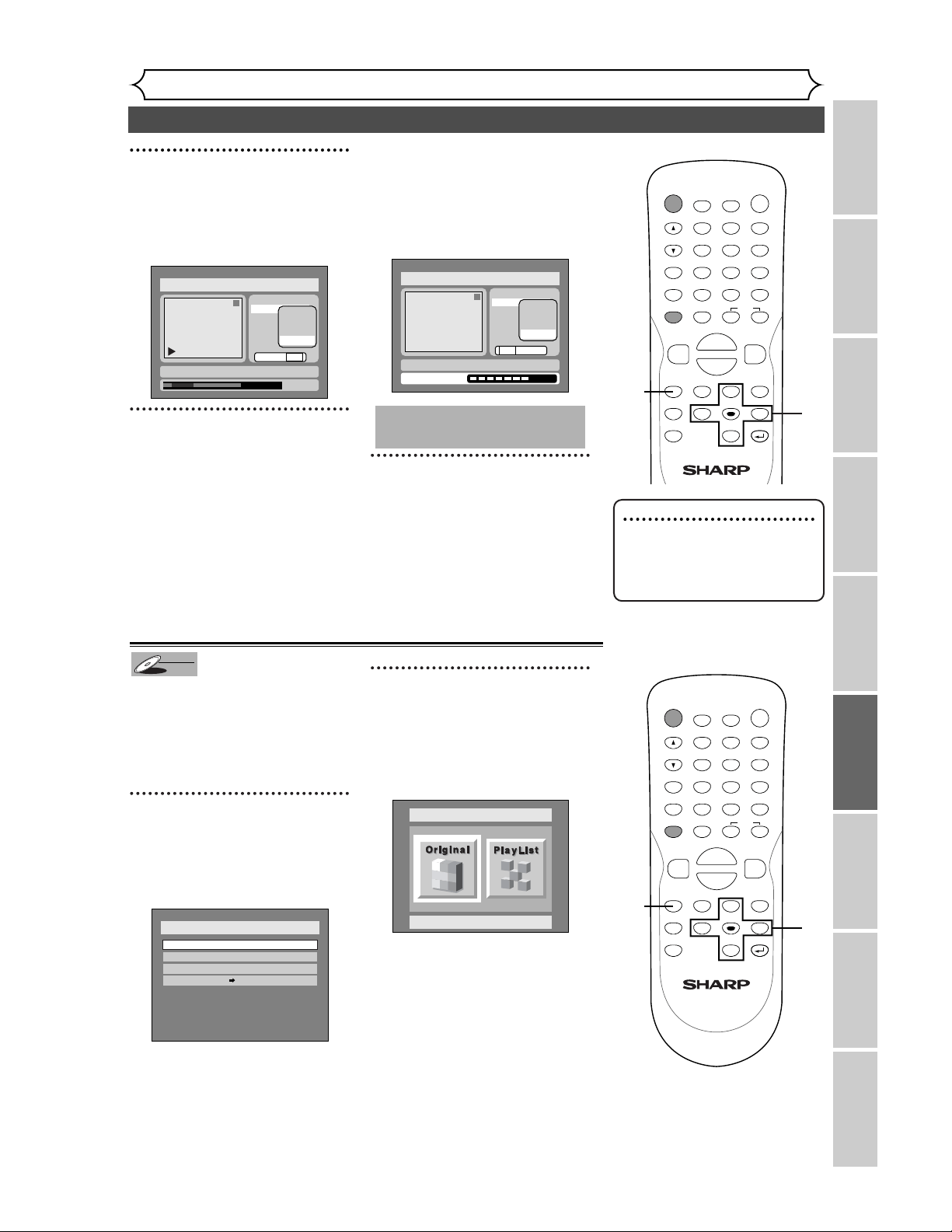
65
Editing DVD-RW discs in VR mode (Original) (cont’d)
Editing
Recording Playing discs EditingBefore you start Connections Getting started
Changing the SETUP menu
Others Español
7
Select “Delete” using K / L
buttons, then press ENTER
button.
Option window will appear.
8
Select “Yes” using { / B but-
tons, then press ENTER but-
ton.
Selected area will be deleted, and
a chapter marker is created auto-
matically where deletion is per-
formed.
If the thumbnail of the title is in
the deleted area, the thumbnail
will be set to the first picture of
the title.
Playback will start from the newly
created chapter marker.
9
After writing to disc is com-
pleted, press SETUP button
to exit DISC menu.
This operation may take a
while to be completed.
1
Title Delete
Scene Delete
Edit Title Name
Chapter Mark
Index Picture
Protect OFF
Start
End
Preview
Delete
Yes No
Writing to Disc
JAN/ 1 1:00AM CH12 XP
Disc > Edit > Original
1
0:01:25
Title Delete
Scene Delete
Edit Title Name
Chapter Mark
Index Picture
Protect OFF
Start
End
Preview
Delete
Yes No
JAN/ 1 1:00AM CH12 XP
Disc > Edit > Original
Putting names on titles
You can put title names on the
titles and change the names from
this menu.
The names you put on the titles
will be displayed on a titlelist.
1
Press SETUP button. Select
“DISC” using
{ / B buttons,
then press ENTER button.
DISC menu will appear.
2
Select “Edit” using K / L but-
tons, then press ENTER but-
ton.
Original/PlayList menu will appear.
Screen:
Disc > Edit
Original
Disc
Edit
Format
Finalize
Disc Protect OFF ON
DVD-RW
DVD-RW
VR
POWER
DISPLAY
REC MODE CLEAR
CM SKIP
SKIP
REC
PAUSE
SETUP
REPEAT
ZOOM
ENTER
RETURN
REC
MONITOR
OPEN/CLOSE
TIMER
PROG.
MENU/LIST
TOP MENU
SPACE
1
2
3
4
5
6
7
8
9
0
F
A
{B
FWD
g
STOP
C
PLAY
B
REV
h
HG
CH
.@/:
ABC
DEF
GHI
JKL
MNO
PQRS
TUV
WXYZ
K
L
9
8
7
POWER
DISPLAY
REC MODE CLEAR
CM SKIP
SKIP
REC
PAUSE
SETUP
REPEAT
ZOOM
ENTER
RETURN
REC
MONITOR
OPEN/CLOSE
TIMER
PROG.
MENU/LIST
TOP MENU
SPACE
1
2
3
4
5
6
7
8
9
0
F
A
{B
FWD
g
STOP
C
PLAY
B
REV
h
HG
CH
.@/:
ABC
DEF
GHI
JKL
MNO
PQRS
TUV
WXYZ
K
L
1
2
1
Note
• You cannot select “Scene
Delete” when the number of
chapter markers in the original
or playlist is more than 900.
Instructions continue on page 66
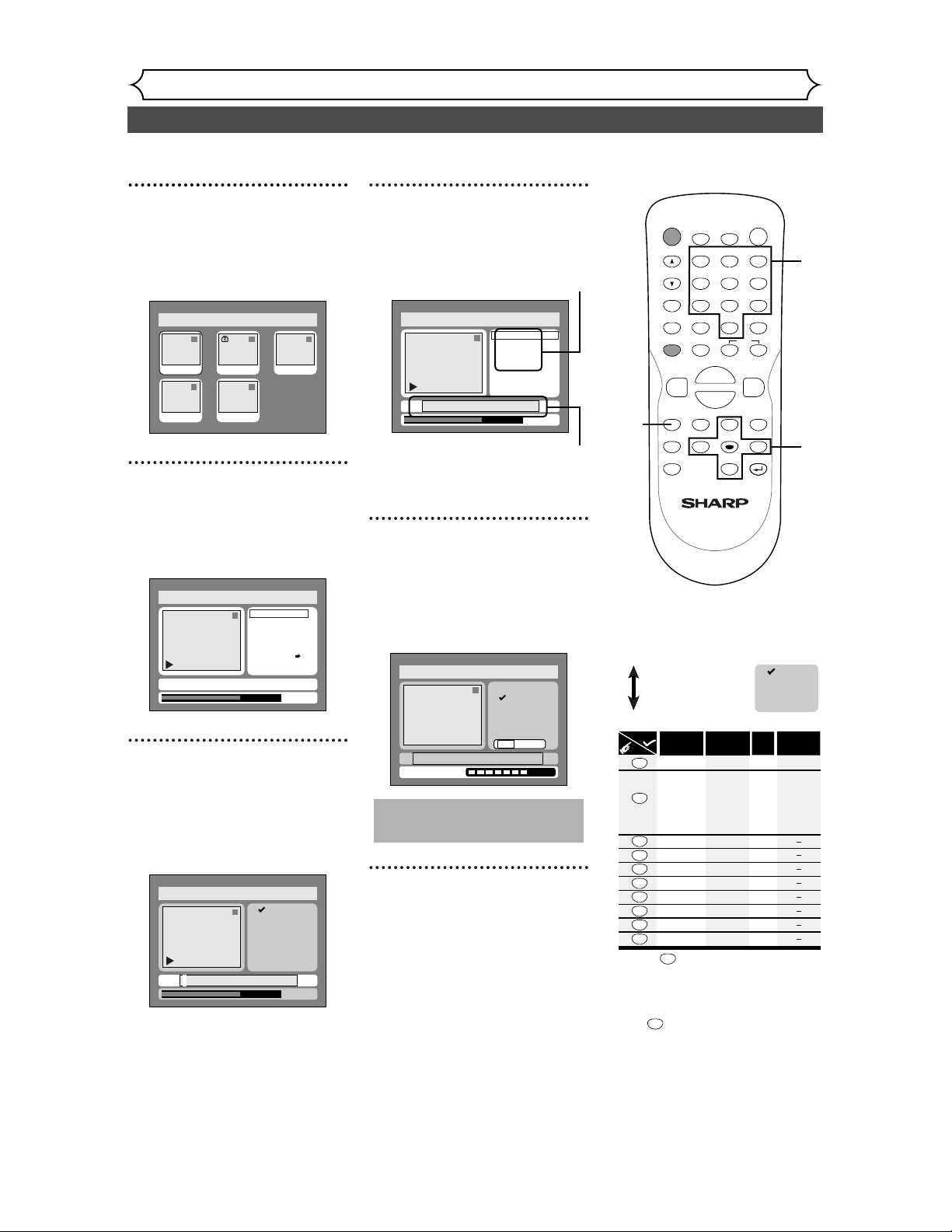
66
Editing DVD-RW discs in VR mode (Original) (cont’d)
Editing
3
Select “Original” using { / B
buttons, then press ENTER
button.
Original list will appear.
4
Select a desired title using K /
L / { / B buttons, then press
ENTER button.
Original menu will appear.
5
Select “Edit Title Name”
using
K / L buttons, then
press ENTER button.
A window for entering a title
name will appear.
6
To enter a title name, follow
the steps of “Guide to edit
title name” on this page.
character set
area for entering title names
When you finish entering a title
name, press ENTER button.
7
Select “Yes” using { / B but-
tons, then press ENTER but-
ton.
The name you entered will be
activated for the title.
8
After writing to disc is com-
pleted, press SETUP button
to exit DISC menu.
This operation may take a
while to be completed.
Disc > Edit > Original > Edit Title Name
1
A B C
a b c
1 2 3
@ ! ?
abc
Yes No
Writing to Disc
Disc > Edit > Original > Edit Title Name
1
0:01:25
A B C
a b c
1 2 3
@ ! ?
JAN/ 1 1:00AM CH12 XP
Disc > Edit > Original > Edit Title Name
1
0:01:25
A B C
a b c
1 2 3
@ ! ?
JAN/ 1 1:00AM CH12 XP
Disc > Edit > Original
1
Title Delete
Scene Delete
Edit Title Name
Chapter Mark
Index Picture Set
Protect OFF
JAN/ 1 1:00AM CH12 XP
0:01:25
ON
Disc > Edit > Original
1 1 32
54
JAN/1 1:00AM
JAN/1 4:00AM
JAN/1 2:00AM JAN/1 3:00AM
JAN/1 5:00AM
Press
ABC
DEF
GHI
JKL
MNO
PQRS
TUV
WXYZ
<space>
abc
def
ghi
jkl
mno
pqrs
tuv
wxyz
<space> <space>
! ” # $ %
& ’ ( )
+ , - . / : ;
< = > ?
@ [ ] ^
_ { | }
2
3
4
5
6
7
8
9
0
1
ABC
abc
Select
@ ! ?
123
1
1
2
3
4
5
6
7
8
9
0
*1 Press button, character set will be changed
to the " @
!?
" mode automatically.
[
Step1
]
: Select a desired character set using K
/
L
buttons, then press
ENTER button.
[
Step2
]
: Press Number buttons following by the list
below.
[
Guide to edit title name
]
A B C
a b c
1 2 3
@ ! ?
• To delete letters, press CLEAR button repeatedly.
Holding CLEAR button to delete all letters.
• To go on to the next entering area for letters,
press button.
B
• You can enter up to 30 letters.
*1 *1
*
POWER
DISPLAY
REC MODE CLEAR
CM SKIP
SKIP
REC
PAUSE
SETUP
REPEAT
ZOOM
ENTER
RETURN
REC
MONITOR
OPEN/CLOSE
TIMER
PROG.
MENU/LIST
TOP MENU
SPACE
1
2
3
4
5
6
7
8
9
0
F
A
{B
FWD
g
STOP
C
PLAY
B
REV
h
HG
CH
.@/:
ABC
DEF
GHI
JKL
MNO
PQRS
TUV
WXYZ
K
L
6
8
5
4
7
6
3
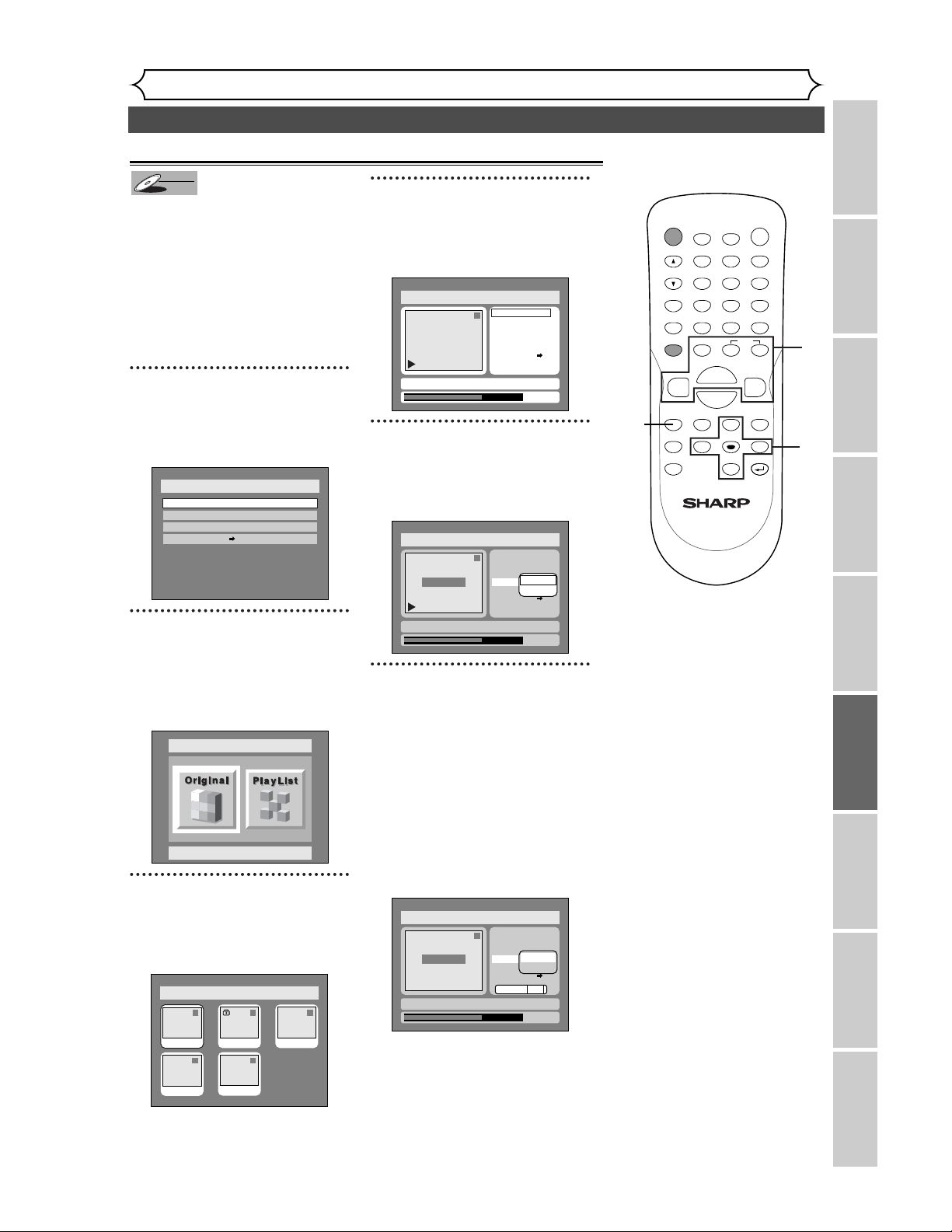
67
Editing DVD-RW discs in VR mode (Original) (cont’d)
Editing
Recording Playing discs EditingBefore you start Connections Getting started
Changing the SETUP menu
Others Español
Setting or clearing chapter markers
You can put chapter markers in
each title. Once a chapter is
marked, you can use it for the
chapter search feature.
You can put a chapter marker
anywhere you want.
When the number of chapter
markers in the original list comes
to 999 in total, you cannot add
any more chapter markers.
1
Press SETUP button. Select
“DISC” using { / B buttons,
then press ENTER button.
DISC menu will appear.
2
Select “Edit” using K / L but-
tons, then press ENTER but-
ton.
Original/PlayList menu will appear.
Screen:
3
Select “Original” using { / B
buttons, then press ENTER
button.
Original list will appear.
4
Select a desired title using K /
L / { / B buttons, then press
ENTER button.
Original menu will appear.
5
Select “Chapter Mark” using
K / L buttons, then press
ENTER button.
Option window will appear.
6
Use SKIP
H
/
G
, REV
E
,
FWD
D
, PLAY
B
, and PAUSE
F
buttons to decide the point at
which you will create a new
chapter marker. Or, use SKIP
H
/
G
to decide a chapter
marker that you will delete.
Select “Add” or “Delete”
accordingly using
K
/
L
buttons,
then press ENTER button.
Option window will appear.
<Add>:
1
0:01:25
Title Delete
Scene Delete
Edit Title Name
Chapter Mark
Index Picture
Protect OFF
Yes No
JAN/ 1 1:00AM CH12 XP
ON
Add
Delete
Disc > Edit > Original
Chapter 1/1
F
Disc > Edit > Original
1
0:01:25
Title Delete
Scene Delete
Edit Title Name
Chapter Mark
Index Picture
Protect OFF
JAN/ 1 1:00AM CH12 XP
ON
Add
Delete
Chapter 1/1
Disc > Edit > Original
1
Title Delete
Scene Delete
Edit Title Name
Chapter Mark
Index Picture Set
Protect OFF
JAN/ 1 1:00AM CH12 XP
0:01:25
ON
Disc > Edit > Original
1 1 32
54
JAN/1 1:00AM
JAN/1 4:00AM
JAN/1 2:00AM JAN/1 3:00AM
JAN/1 5:00AM
Disc > Edit
Original
Disc
Edit
Format
Finalize
Disc Protect OFF ON
DVD-RW
DVD-RW
VR
POWER
DISPLAY
REC MODE CLEAR
CM SKIP
SKIP
REC
PAUSE
SETUP
REPEAT
ZOOM
ENTER
RETURN
REC
MONITOR
OPEN/CLOSE
TIMER
PROG.
MENU/LIST
TOP MENU
SPACE
1
2
3
4
5
6
7
8
9
0
F
A
{B
FWD
g
STOP
C
PLAY
B
REV
h
HG
CH
.@/:
ABC
DEF
GHI
JKL
MNO
PQRS
TUV
WXYZ
K
L
1
1
2
3
4
5
6
Instructions continue on page 68
6
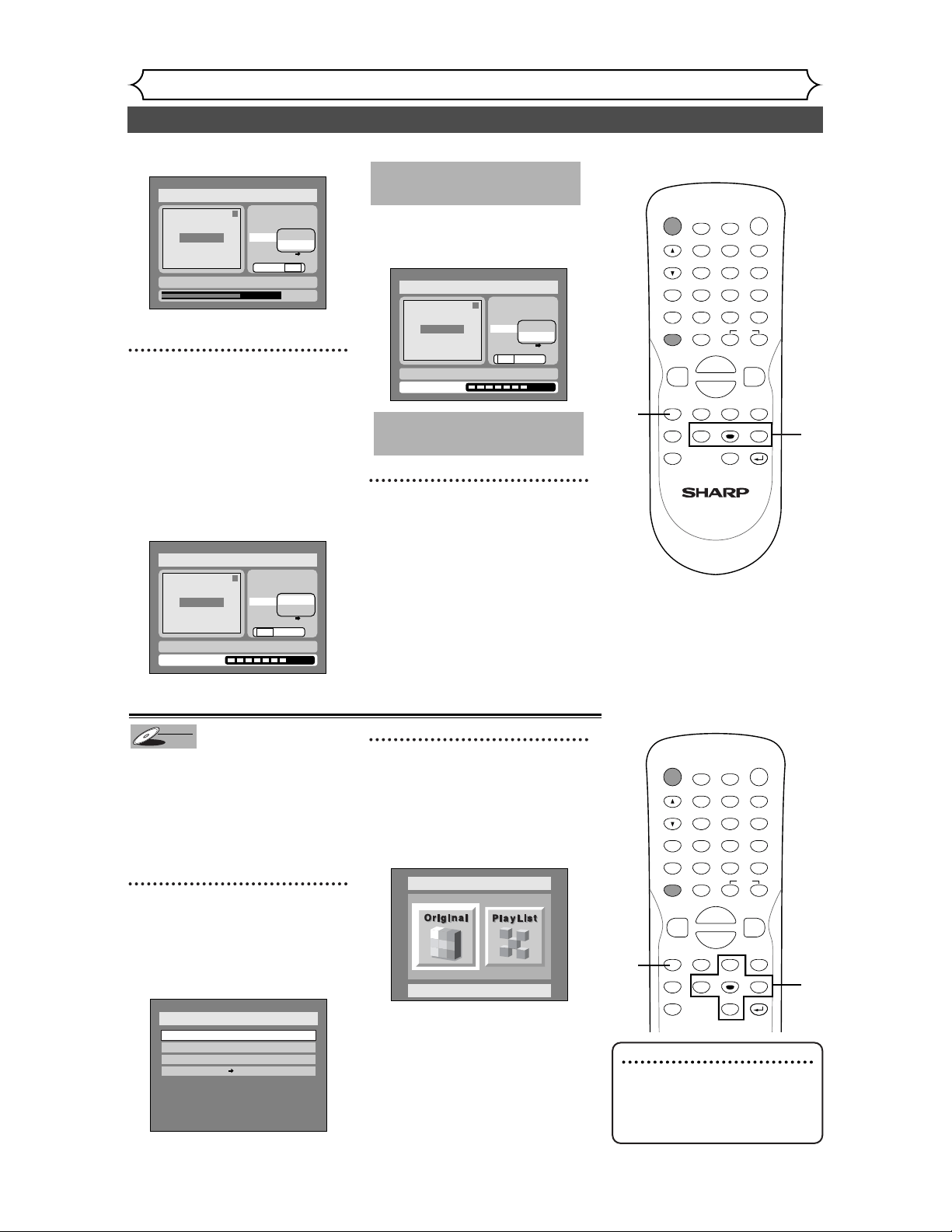
68
Editing DVD-RW discs in VR mode (Original) (cont’d)
Editing
<Delete>:
• You cannot delete the first
chapter marker of each title.
7
Select “Yes” using { / B but-
tons, then press ENTER button.
When you select “Add” at step 6, a
new chapter marker will be creat-
ed at the point you have decided.
When you select “Delete” at step
6, the chapter marker you have
selected will be deleted.
<Add>:
The chapter marker which you
selected will be deleted.
<Delete>:
8
After writing to disc is com-
pleted, press SETUP button
to exit DISC menu.
This operation may take a
while to be completed.
1
Title Delete
Scene Delete
Edit Title Name
Chapter Mark
Index Picture
Protect OFF
JAN/ 1 1:00AM CH12 XP
ON
Yes No
Writing to Disc
Add
Delete
Disc > Edit > Original
Chapter 2/2
This operation may take a
while to be completed.
1
Title Delete
Scene Delete
Edit Title Name
Chapter Mark
Index Picture
Protect OFF
JAN/ 1 1:00AM CH12 XP
ON
Yes No
Writing to Disc
Add
Delete
Disc > Edit > Original
Chapter 1/1
1
0:01:25
Title Delete
Scene Delete
Edit Title Name
Chapter Mark
Index Picture
Protect OFF
Yes No
JAN/ 1 1:00AM CH12 XP
ON
Add
Delete
Disc > Edit > Original
Chapter 2/2
F
Note
• If a selected picture for a
thumbnail is deleted by delet-
ing a part of a title, a default
picture will be selected.
You can set a picture to each title
for a thumbnail. It helps you to
remember the contents of the
title you are playing.The begin-
ning picture has been selected as
the default.
1
Press SETUP button. Select
“DISC” using
{ / B buttons,
then press ENTER button.
DISC menu will appear.
2
Select “Edit” using K / L but-
tons, then press ENTER but-
ton.
Original/PlayList menu will appear.
Screen:
Disc > Edit
Original
Disc
Edit
Format
Finalize
Disc Protect OFF ON
DVD-RW
DVD-RW
VR
Setting pictures for thumbnails
POWER
DISPLAY
REC MODE CLEAR
CM SKIP
SKIP
REC
PAUSE
SETUP
REPEAT
ZOOM
ENTER
RETURN
REC
MONITOR
OPEN/CLOSE
TIMER
PROG.
MENU/LIST
TOP MENU
SPACE
1
2
3
4
5
6
7
8
9
0
F
A
{B
FWD
g
STOP
C
PLAY
B
REV
h
HG
CH
.@/:
ABC
DEF
GHI
JKL
MNO
PQRS
TUV
WXYZ
K
L
8
7
POWER
DISPLAY
REC MODE CLEAR
CM SKIP
SKIP
REC
PAUSE
SETUP
REPEAT
ZOOM
ENTER
RETURN
REC
MONITOR
OPEN/CLOSE
TIMER
PROG.
MENU/LIST
TOP MENU
SPACE
1
2
3
4
5
6
7
8
9
0
F
A
{B
FWD
g
STOP
C
PLAY
B
REV
h
HG
CH
.@/:
ABC
DEF
GHI
JKL
MNO
PQRS
TUV
WXYZ
K
L
1
1
2
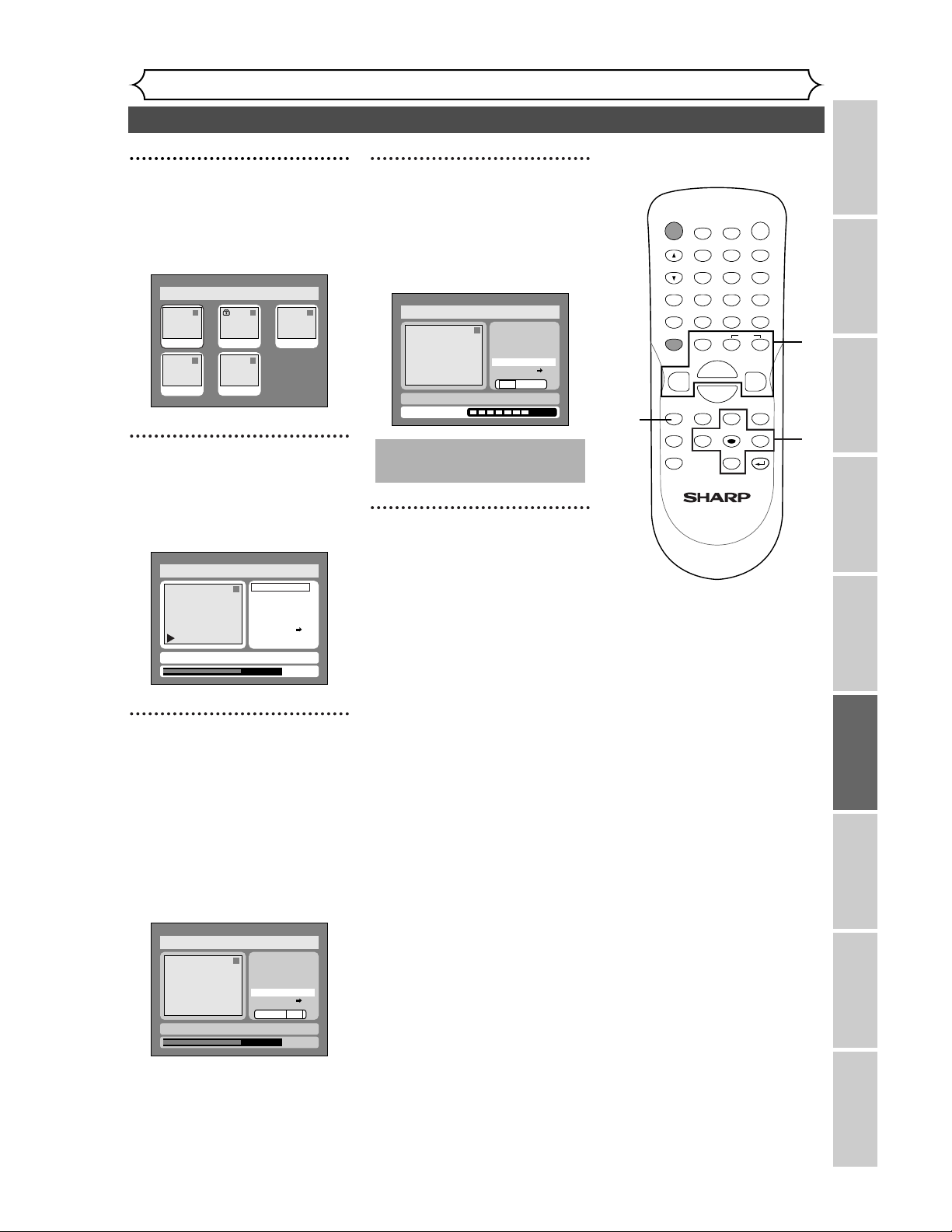
69
Editing DVD-RW discs in VR mode (Original) (cont’d)
Editing
Recording Playing discs EditingBefore you start Connections Getting started
Changing the SETUP menu
Others Español
3
Select “Original” using { / B
buttons, then press ENTER
button.
Original list will appear.
4
Select a desired title using K /
L / { / B buttons, then press
ENTER button.
Original menu will appear.
5
Select “Index Picture Set”
using
K / L buttons. Use SKIP
H / G, REV E, FWD D,
PLAY B, and PAUSE F but-
tons to decide the picture
you want to select as a
thumbnail.Then press ENTER
button.
Option window will appear.
6
Select “Yes” using { / B but-
tons, then press ENTER but-
ton.
A picture for thumbnail will be
set.
7
After writing to disc is com-
pleted, press SETUP button
to exit DISC menu.
This operation may take a
while to be completed.
Disc > Edit > Original
1
Yes No
Title Delete
Scene Delete
Edit Title Name
Chapter Mark
Index Picture Set
Protect OFF
ON
Writing to Disc
JAN/ 1 1:00AM CH12 XP
Disc > Edit > Original
1
0:01:25
Yes No
Title Delete
Scene Delete
Edit Title Name
Chapter Mark
Index Picture Set
Protect OFF
ON
JAN/ 1 1:00AM CH12 XP
F
Disc > Edit > Original
1
Title Delete
Scene Delete
Edit Title Name
Chapter Mark
Index Picture Set
Protect OFF
JAN/ 1 1:00AM CH12 XP
0:01:25
ON
Disc > Edit > Original
1 1 32
54
JAN/1 1:00AM
JAN/1 4:00AM
JAN/1 2:00AM JAN/1 3:00AM
JAN/1 5:00AM
POWER
DISPLAY
REC MODE CLEAR
CM SKIP
SKIP
REC
PAUSE
SETUP
REPEAT
ZOOM
ENTER
RETURN
REC
MONITOR
OPEN/CLOSE
TIMER
PROG.
MENU/LIST
TOP MENU
SPACE
1
2
3
4
5
6
7
8
9
0
F
A
{B
FWD
g
STOP
C
PLAY
B
REV
h
HG
CH
.@/:
ABC
DEF
GHI
JKL
MNO
PQRS
TUV
WXYZ
K
L
7
3
4
5
6
5
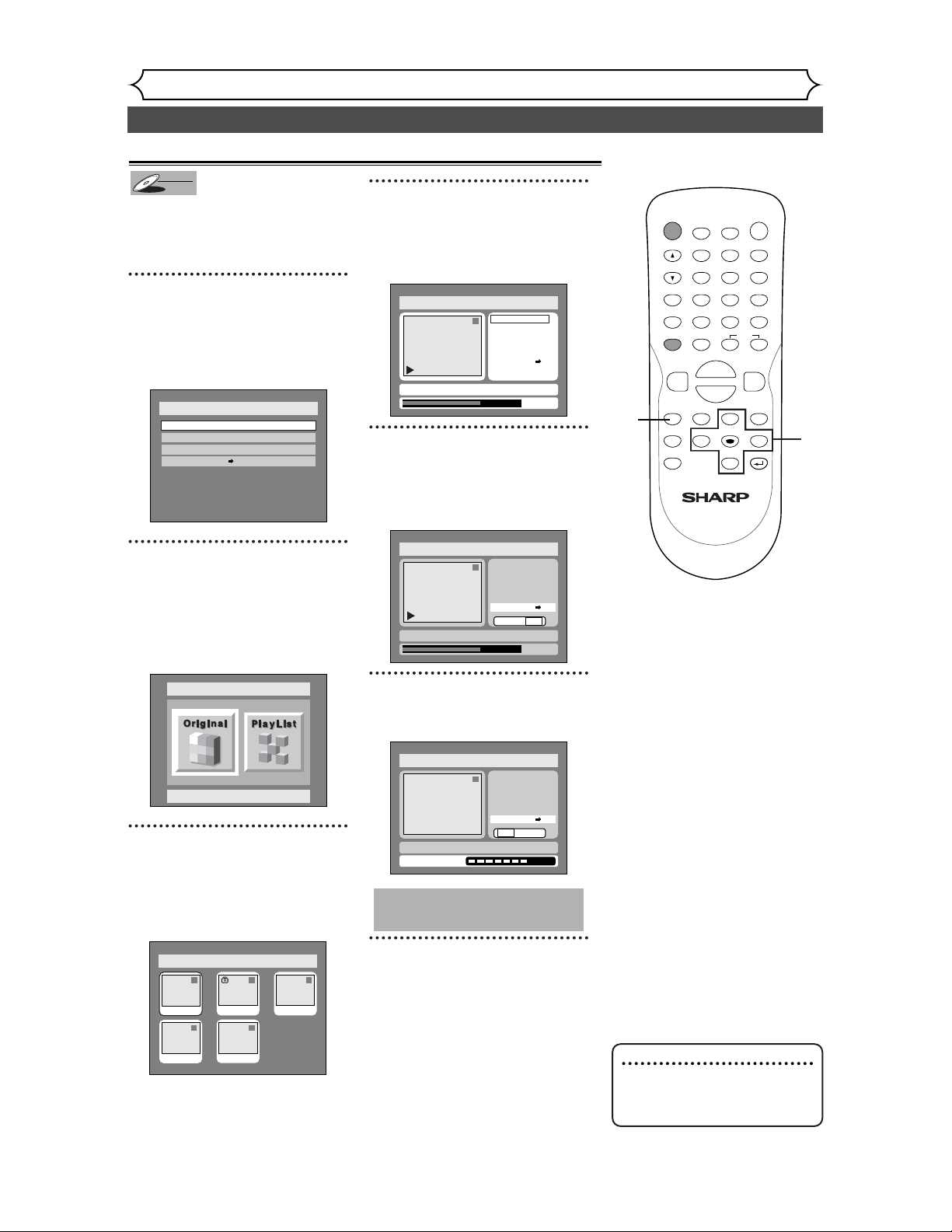
70
Editing DVD-RW discs in VR mode (Original) (cont’d)
Editing
To prevent accidental editing, or
erasing the titles, you can protect
them from the original menu.
1
Press SETUP button. Select
“DISC” using { / B buttons,
then press ENTER button.
DISC menu will appear.
2
Select “Edit” using K / L but-
tons, then press ENTER but-
ton.
Original/PlayList menu will appear.
Screen:
3
Select “Original” using { / B
buttons, then press ENTER
button.
Original list will appear.
4
Select a desired title using K /
L / { / B buttons, then press
ENTER button.
Original menu will appear.
5
Select “Protect OFF ➔ ON”
using K / L buttons, then
press ENTER button.
Option window will appear.
6
Select “Yes” using { / B but-
tons, then press ENTER button.
7
After writing to disc is com-
pleted, press SETUP button
to exit DISC menu.
To protect a whole disc
(DVD-RW VR mode Only):
Select “Disc Protect” from Disc
menu, then select “Yes”.
Refer to “Setting a disc to pro-
tect” on page 40.
This operation may take a
while to be completed.
Disc > Edit > Original
1
Yes No
Writing to Disc
JAN/ 1 1:00AM CH12 XP
ON
Title Delete
Scene Delete
Edit Title Name
Chapter Mark
Index Picture Set
Protect OFF
Disc > Edit > Original
1
0:01:25
Title Delete
Scene Delete
Edit Title Name
Chapter Mark
Index Picture Set
Protect OFF
Yes No
JAN/ 1 1:00AM CH12 XP
ON
Disc > Edit > Original
1
Title Delete
Scene Delete
Edit Title Name
Chapter Mark
Index Picture Set
Protect OFF
JAN/ 1 1:00AM CH12 XP
0:01:25
ON
Disc > Edit > Original
1 1 32
54
JAN/1 1:00AM
JAN/1 4:00AM
JAN/1 2:00AM JAN/1 3:00AM
JAN/1 5:00AM
Disc > Edit
Original
Disc
Edit
Format
Finalize
Disc Protect OFF ON
DVD-RW
DVD-RW
VR
Setting titles to protect
POWER
DISPLAY
REC MODE CLEAR
CM SKIP
SKIP
REC
PAUSE
SETUP
REPEAT
ZOOM
ENTER
RETURN
REC
MONITOR
OPEN/CLOSE
TIMER
PROG.
MENU/LIST
TOP MENU
SPACE
1
2
3
4
5
6
7
8
9
0
F
A
{B
FWD
g
STOP
C
PLAY
B
REV
h
HG
CH
.@/:
ABC
DEF
GHI
JKL
MNO
PQRS
TUV
WXYZ
K
L
1
1
2
3
4
7
5
6
Note
• The protected title will be
marked with a key icon in the
original list.
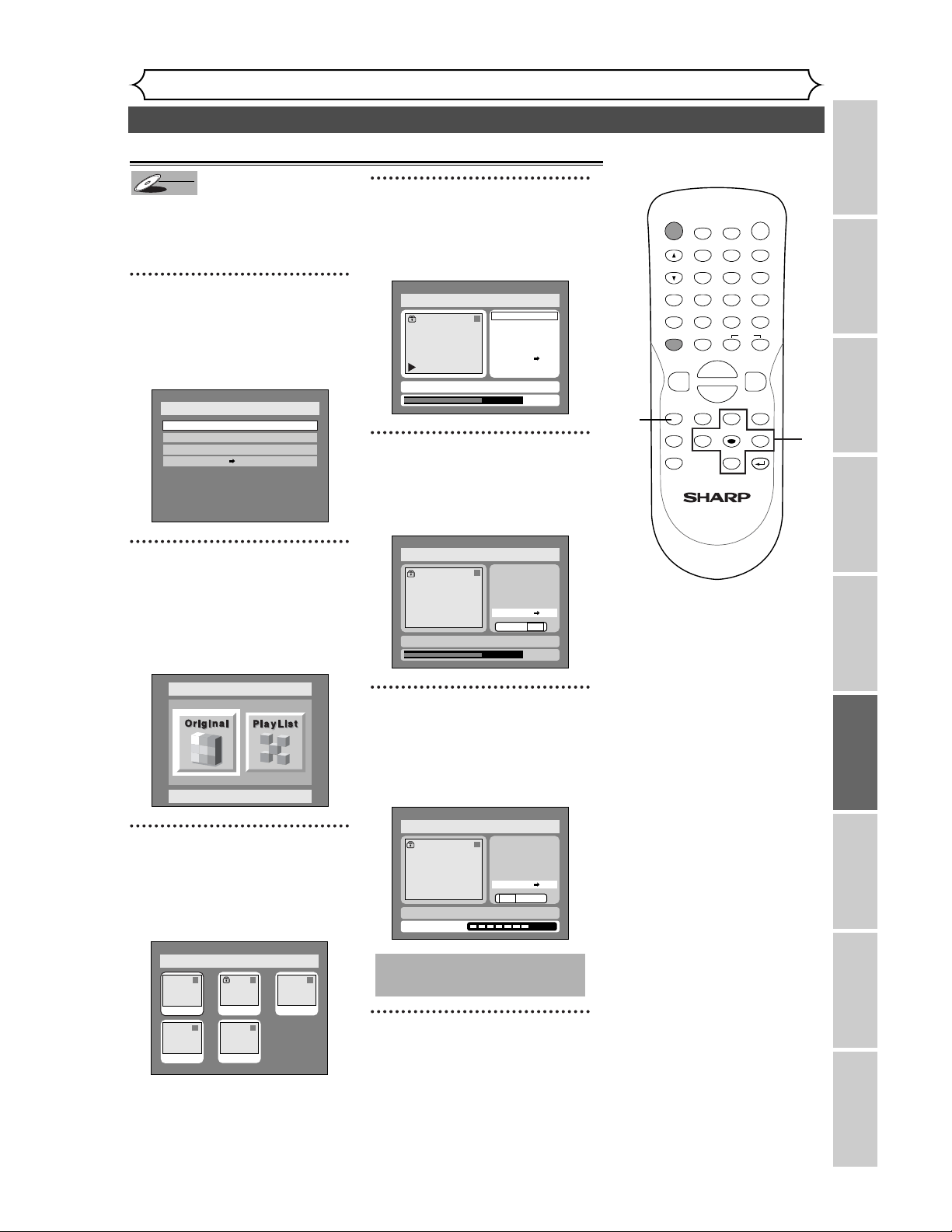
71
Editing DVD-RW discs in VR mode (Original) (cont’d)
Editing
Recording Playing discs EditingBefore you start Connections Getting started
Changing the SETUP menu
Others Español
You are allowed to release the
titles protecting feature once pro-
tected.
1
Press SETUP button. Select
“DISC” using { / B buttons,
then press ENTER button.
DISC menu will appear.
2
Select “Edit” using K / L but-
tons, then press ENTER but-
ton.
Original/PlayList menu will appear.
Screen:
3
Select “Original” using { / B
buttons, then press ENTER
button.
Original list will appear.
4
Select a desired title using K /
L / { / B buttons, then press
ENTER button.
Original menu will appear.
5
Select “Protect ON ➔ OFF”
using K / L buttons, then
press ENTER button.
Option window will appear.
6
Select “Yes” using { / B but-
tons, then press ENTER but-
ton.
The key icon will dissappear from
the title in the original list.
7
After writing to disc is com-
pleted, press SETUP button
to exit DISC menu.
This operation may take a
while to be completed.
Disc Edit > Original
2
Yes No
Writing to Disc
JAN/ 1 2:00AM CH12 XP
OFF
Title Delete
Scene Delete
Edit Title Name
Chapter Mark
Index Picture Set
Protect ON
Disc Edit > Original
2
0:01:25
Title Delete
Scene Delete
Edit Title Name
Chapter Mark
Index Picture Set
Protect ON
Yes No
JAN/ 1 2:00AM CH12 XP
OFF
B
Disc Edit > Original
2
Title Delete
Scene Delete
Edit Title Name
Chapter Mark
Index Picture Set
Protect ON
JAN/ 1 2:00AM CH12 XP
0:01:25
OFF
Disc > Edit > Original
1 1 32
54
JAN/1 1:00AM
JAN/1 4:00AM
JAN/1 2:00AM JAN/1 3:00AM
JAN/1 5:00AM
Disc > Edit
Original
Disc
Edit
Format
Finalize
Disc Protect OFF ON
DVD-RW
DVD-RW
VR
Releasing titles from protecting
POWER
DISPLAY
REC MODE CLEAR
CM SKIP
SKIP
REC
PAUSE
SETUP
REPEAT
ZOOM
ENTER
RETURN
REC
MONITOR
OPEN/CLOSE
TIMER
PROG.
MENU/LIST
TOP MENU
SPACE
1
2
3
4
5
6
7
8
9
0
F
A
{B
FWD
g
STOP
C
PLAY
B
REV
h
HG
CH
.@/:
ABC
DEF
GHI
JKL
MNO
PQRS
TUV
WXYZ
K
L
1
1
2
3
4
7
5
6
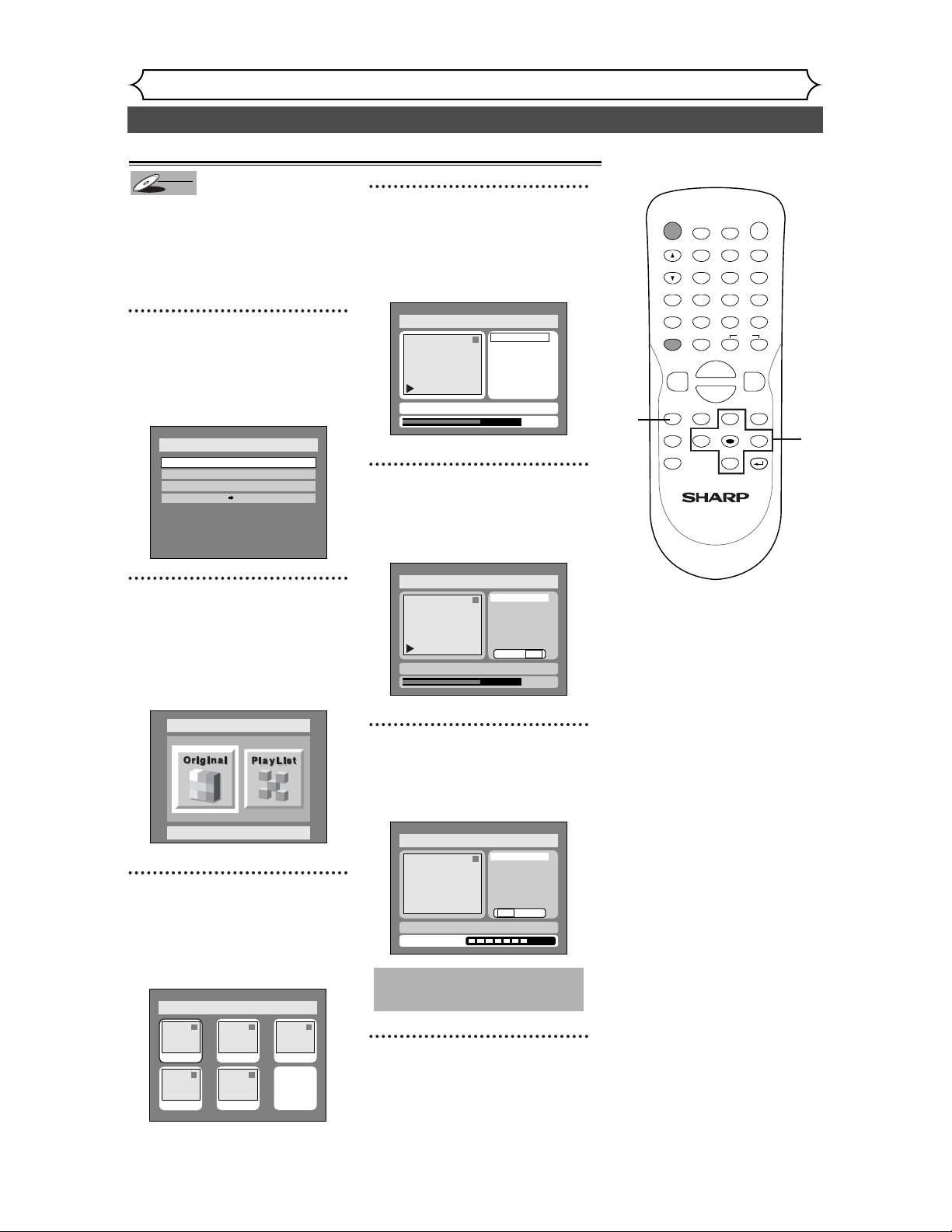
72
Editing DVD-RW discs in VR mode (Playlist)
Editing
In VR mode, even when a title is
deleted from a Playlist, the original
title will remain in an Original list.
The disc space to record will not
be increased.
1
Press SETUP button. Select
“DISC” using
{ / B buttons,
then press ENTER button.
DISC menu will appear.
2
Select “Edit” using K / L but-
tons, then press ENTER but-
ton.
Original/PlayList menu will appear.
Screen:
3
Select “PlayList” using { / B
buttons, then press ENTER
button.
Playlist will appear.
4
Select a desired title using K /
L / { / B buttons, then press
ENTER button.
Playlist menu will appear.
5
Select “Title Delete” using K
/ L buttons, then press
ENTER button.
Option window will appear.
6
Select “Yes” using { / B but-
tons, then press ENTER button.
Title will be deleted.
7
After writing to disc is com-
pleted, press SETUP button
to exit DISC menu.
This operation may take a
while to be completed.
Disc > Edit > Playlist
1
Title Delete
Scene Delete
Edit Title Name
Chapter Mark
Index Picture Set
Yes No
Writing to Disc
JAN/ 1 1:00AM CH12 XP
Disc > Edit > Playlist
1
0:01:25
Title Delete
Scene Delete
Edit Title Name
Chapter Mark
Index Picture Set
Yes No
JAN/ 1 1:00AM CH12 XP
Disc > Edit > Playlist
1
Title Delete
Scene Delete
Edit Title Name
Chapter Mark
Index Picture Set
0:01:25
JAN/ 1 1:00AM CH12 XP
Disc > Edit > Playlist
1 1 32
54
Add New
Title
Delete
Playlist
JAN/1 1:00AM
JAN/1 4:00AM
JAN/1 2:00AM JAN/1 3:00AM
JAN/1 5:00AM
Disc > Edit
Original
Disc
Edit
Format
Finalize
Disc Protect OFF ON
DVD-RW
DVD-RW
VR
Deleting titles
POWER
DISPLAY
REC MODE CLEAR
CM SKIP
SKIP
REC
PAUSE
SETUP
REPEAT
ZOOM
ENTER
RETURN
REC
MONITOR
OPEN/CLOSE
TIMER
PROG.
MENU/LIST
TOP MENU
SPACE
1
2
3
4
5
6
7
8
9
0
F
A
{B
FWD
g
STOP
C
PLAY
B
REV
h
HG
CH
.@/:
ABC
DEF
GHI
JKL
MNO
PQRS
TUV
WXYZ
K
L
1
1
2
3
4
7
5
6
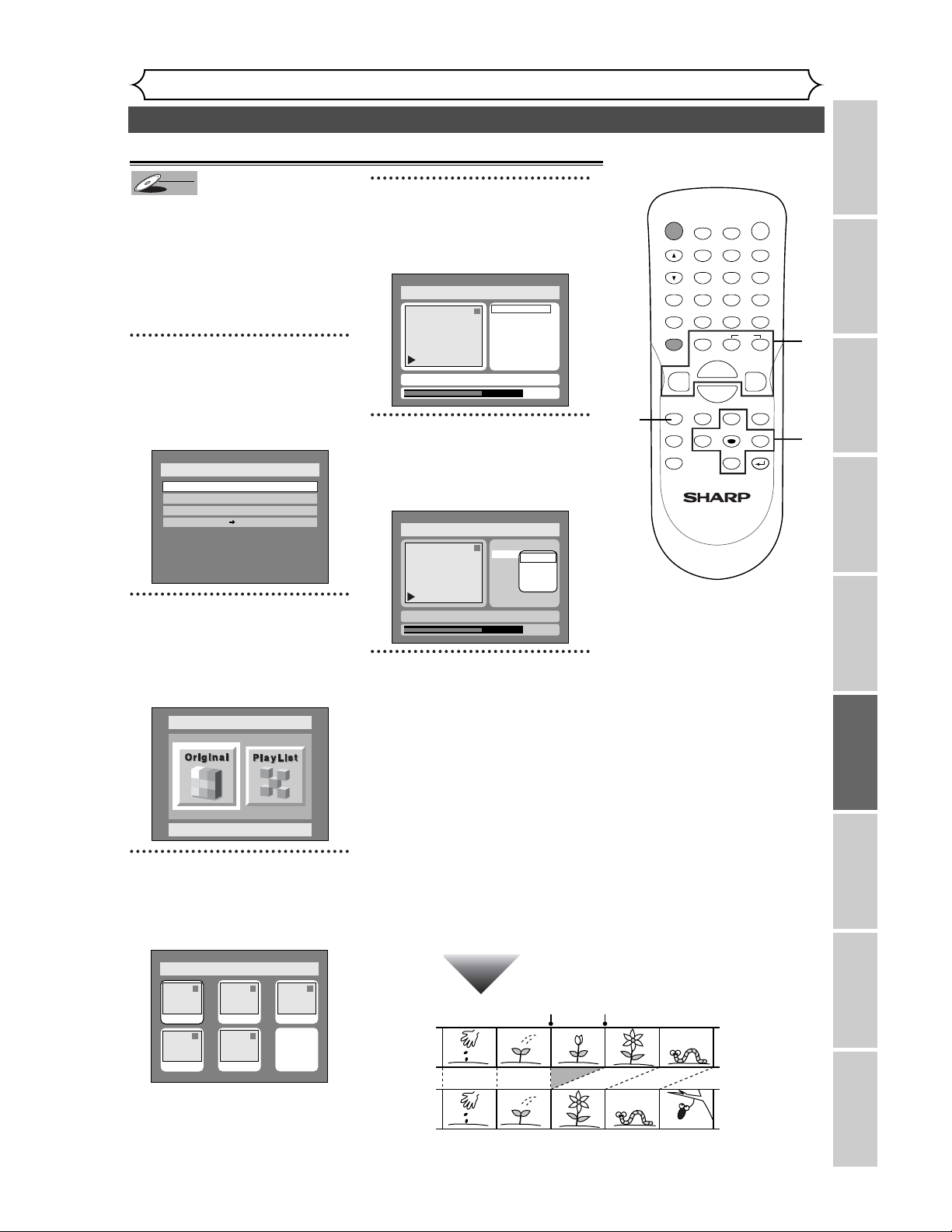
73
Editing DVD-RW discs in VR mode (Playlist) (cont’d)
Editing
Recording Playing discs EditingBefore you start Connections Getting started
Changing the SETUP menu
Others Español
Deleting parts of titles
You can delete a specific part of a
title.
Even when a title is deleted from
the playlist, the original title will
remain.
The disc space to record will not
be increased.
1
Press SETUP button. Select
“DISC” using { / B buttons,
then press ENTER button.
DISC menu will appear.
2
Select “Edit” using K / L but-
tons, then press ENTER button.
Original/PlayList menu will appear.
Screen:
3
Select “PlayList” using { / B
buttons, then press ENTER
button.
Playlist will appear.
4
Select a desired title using K /
L / { / B buttons, then press
ENTER button.
Playlist menu will appear.
5
Select “Scene Delete” using
K / L buttons, then press
ENTER button.
Option window will appear.
6
Use SKIP
H
/
G
, REV
E
,
FWD
D
, PLAY
B
, and PAUSE
F
buttons to decide the start point,
then press ENTER.Then use SKIP
H
/
G
, REV
E
, FWD
D
,
PLAY
B
, and PAUSE
F
buttons
again to move to the end point,
and press ENTER. Press ENTER
again to start the preview.
A cursor will move to “Preview.”
You can check the preview by
pressing ENTER.
The bar at the bottom of the
screen indicates the total and the
elapsed time of the title, and the
area selected for deletion will be
indicated in red during the preview.
Disc > Edit > Playlist
1
0:00:55
Title Delete
Scene Delete
Edit Title Name
Chapter Mark
Index Picture
Start
End
Preview
Delete
JAN/ 1 1:00AM CH12 XP
Disc > Edit > Playlist
1
Title Delete
Scene Delete
Edit Title Name
Chapter Mark
Index Picture Set
0:01:25
JAN/ 1 1:00AM CH12 XP
Disc > Edit > Playlist
1 1 32
54
Add New
Title
Delete
Playlist
JAN/1 1:00AM
JAN/1 4:00AM
JAN/1 2:00AM JAN/1 3:00AM
JAN/1 5:00AM
Disc > Edit
Original
Disc
Edit
Format
Finalize
Disc Protect OFF ON
DVD-RW
DVD-RW
VR
POWER
DISPLAY
REC MODE CLEAR
CM SKIP
SKIP
REC
PAUSE
SETUP
REPEAT
ZOOM
ENTER
RETURN
REC
MONITOR
OPEN/CLOSE
TIMER
PROG.
MENU/LIST
TOP MENU
SPACE
1
2
3
4
5
6
7
8
9
0
F
A
{B
FWD
g
STOP
C
PLAY
B
REV
h
HG
CH
.@/:
ABC
DEF
GHI
JKL
MNO
PQRS
TUV
WXYZ
K
L
1
1
2
3
4
5
6
Instructions continue on page 74
Before
editing
<Preview>
Edited
Start point End point
6
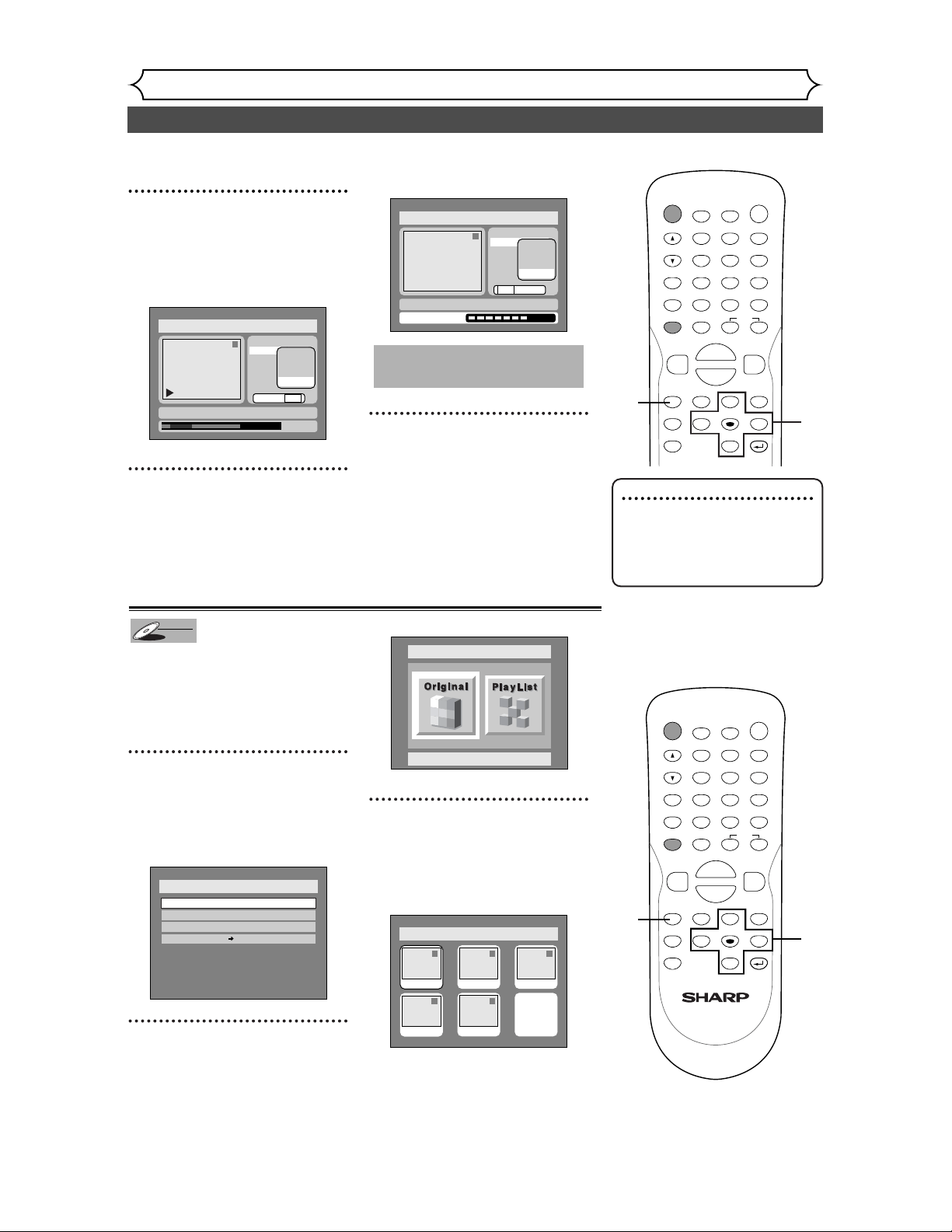
74
Editing DVD-RW discs in VR mode (Playlist) (cont’d)
Editing
7
Select “Delete” using K / L
buttons, then press ENTER
button.
Option window will appear.
8
Select “Yes” using { / B but-
tons, then press ENTER but-
ton.
Part of a title will be deleted.
9
After writing to disc is com-
pleted, press SETUP button
to exit DISC menu.
This operation may take a
while to be completed.
Disc > Edit > Playlist
1
Title Delete
Scene Delete
Edit Title Name
Chapter Mark
Index Picture
Start
End
Preview
Delete
Yes No
Writing to Disc
JAN/ 1 1:00AM CH12 XP
1
0:01:25
Title Delete
Scene Delete
Edit Title Name
Chapter Mark
Index Picture
Start
End
Preview
Delete
Yes No
JAN/ 1 1:00AM CH12 XP
Disc > Edit > Playlist
You can put title names on the
titles and change the names from
this menu.
The names you put on the titles
will be displayed on a titlelist.
1
Press SETUP button. Select
“DISC” using { / B buttons,
then press ENTER button.
DISC menu will appear.
2
Select “Edit” using K / L but-
tons, then press ENTER but-
ton.
Original/PlayList menu will appear.
Screen:
3
Select “PlayList” using { / B
buttons, then press ENTER
button.
Playlist will appear.
Disc > Edit > Playlist
1 1 32
54
Add New
Title
Delete
Playlist
JAN/1 1:00AM
JAN/1 4:00AM
JAN/1 2:00AM JAN/1 3:00AM
JAN/1 5:00AM
Disc > Edit
Original
Disc
Edit
Format
Finalize
Disc Protect OFF ON
DVD-RW
DVD-RW
VR
Putting names on titles
POWER
DISPLAY
REC MODE CLEAR
CM SKIP
SKIP
REC
PAUSE
SETUP
REPEAT
ZOOM
ENTER
RETURN
REC
MONITOR
OPEN/CLOSE
TIMER
PROG.
MENU/LIST
TOP MENU
SPACE
1
2
3
4
5
6
7
8
9
0
F
A
{B
FWD
g
STOP
C
PLAY
B
REV
h
HG
CH
.@/:
ABC
DEF
GHI
JKL
MNO
PQRS
TUV
WXYZ
K
L
9
7
8
POWER
DISPLAY
REC MODE CLEAR
CM SKIP
SKIP
REC
PAUSE
SETUP
REPEAT
ZOOM
ENTER
RETURN
REC
MONITOR
OPEN/CLOSE
TIMER
PROG.
MENU/LIST
TOP MENU
SPACE
1
2
3
4
5
6
7
8
9
0
F
A
{B
FWD
g
STOP
C
PLAY
B
REV
h
HG
CH
.@/:
ABC
DEF
GHI
JKL
MNO
PQRS
TUV
WXYZ
K
L
1
1
2
3
Note
• You cannot select “Scene
Delete” when the number of
chapter markers in the original
or playlist is more than 900.
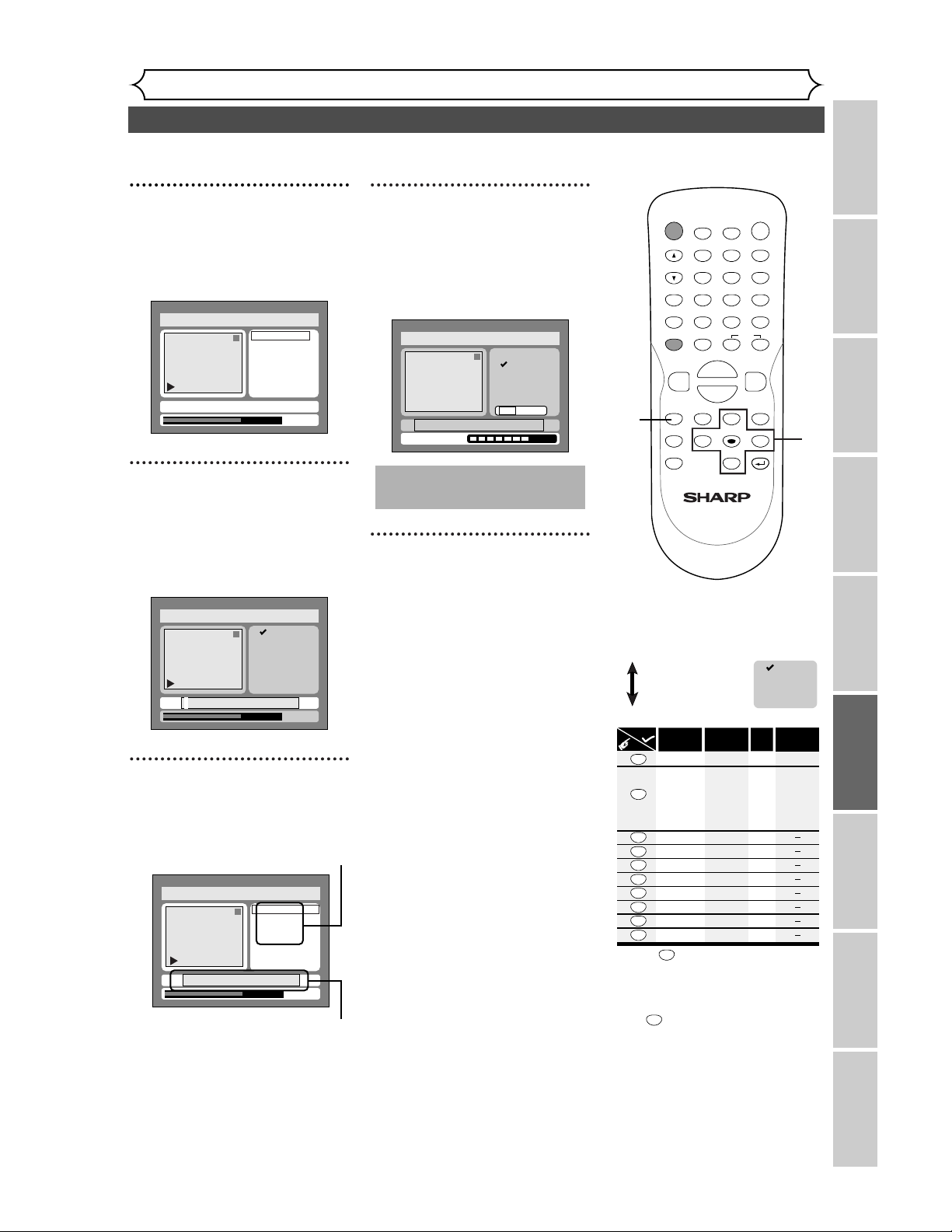
75
Editing DVD-RW discs in VR mode (Playlist) (cont’d)
Editing
Recording Playing discs EditingBefore you start Connections Getting started
Changing the SETUP menu
Others Español
4
Select a desired title using K /
L / { / B buttons, then press
ENTER button.
Playlist menu will appear.
5
Select “Edit Title Name”
using K / L buttons, then
press ENTER button.
A window for entering a title
name will appear.
6
To enter a title name, follow
the steps of “Guide to edit
title name” on this page.
character set
area for entering title names
When you finish entering a title
name, press ENTER button.
7
Select “Yes” using { / B but-
tons, then press ENTER but-
ton.
The name you entered will be
activated for the title.
8
After writing to disc is com-
pleted, press SETUP to exit
DISC menu.
This operation may take a
while to be completed.
1
A B C
a b c
1 2 3
@ ! ?
abc
Yes No
Writing to Disc
Disc > Edit > Playlist > Edit Title Name
Disc > Edit > Playlist > Edit Title Name
1
0:01:25
A B C
a b c
1 2 3
@ ! ?
JAN/ 1 1:00AM CH12 XP
Disc > Edit > Playlist > Edit Title Name
1
0:01:25
A B C
a b c
1 2 3
@ ! ?
JAN/ 1 1:00AM CH12 XP
Disc > Edit > Playlist
1
Title Delete
Scene Delete
Edit Title Name
Chapter Mark
Index Picture Set
0:01:25
JAN/ 1 1:00AM CH12 XP
Press
ABC
DEF
GHI
JKL
MNO
PQRS
TUV
WXYZ
<space>
abc
def
ghi
jkl
mno
pqrs
tuv
wxyz
<space> <space>
! ” # $ %
& ’ ( )
+ , - . / : ;
< = > ?
@ [ ] ^
_ { | }
2
3
4
5
6
7
8
9
0
1
ABC
abc
Select
@ ! ?
123
1
1
2
3
4
5
6
7
8
9
0
*1 Press button, character set will be changed
to the " @
!?
" mode automatically.
[
Step1
]
: Select a desired character set using K
/
L
buttons, then press
ENTER button.
[
Step2
]
: Press Number buttons following by the list
below.
[
Guide to edit title name
]
A B C
a b c
1 2 3
@ ! ?
• To delete letters, press CLEAR button repeatedly.
Holding CLEAR button to delete all letters.
• To go on to the next entering area for letters,
press button.
B
• You can enter up to 30 letters.
*1 *1
*
POWER
DISPLAY
REC MODE CLEAR
CM SKIP
SKIP
REC
PAUSE
SETUP
REPEAT
ZOOM
ENTER
RETURN
REC
MONITOR
OPEN/CLOSE
TIMER
PROG.
MENU/LIST
TOP MENU
SPACE
1
2
3
4
5
6
7
8
9
0
F
A
{B
FWD
g
STOP
C
PLAY
B
REV
h
HG
CH
.@/:
ABC
DEF
GHI
JKL
MNO
PQRS
TUV
WXYZ
K
L
8
4
5
6
7
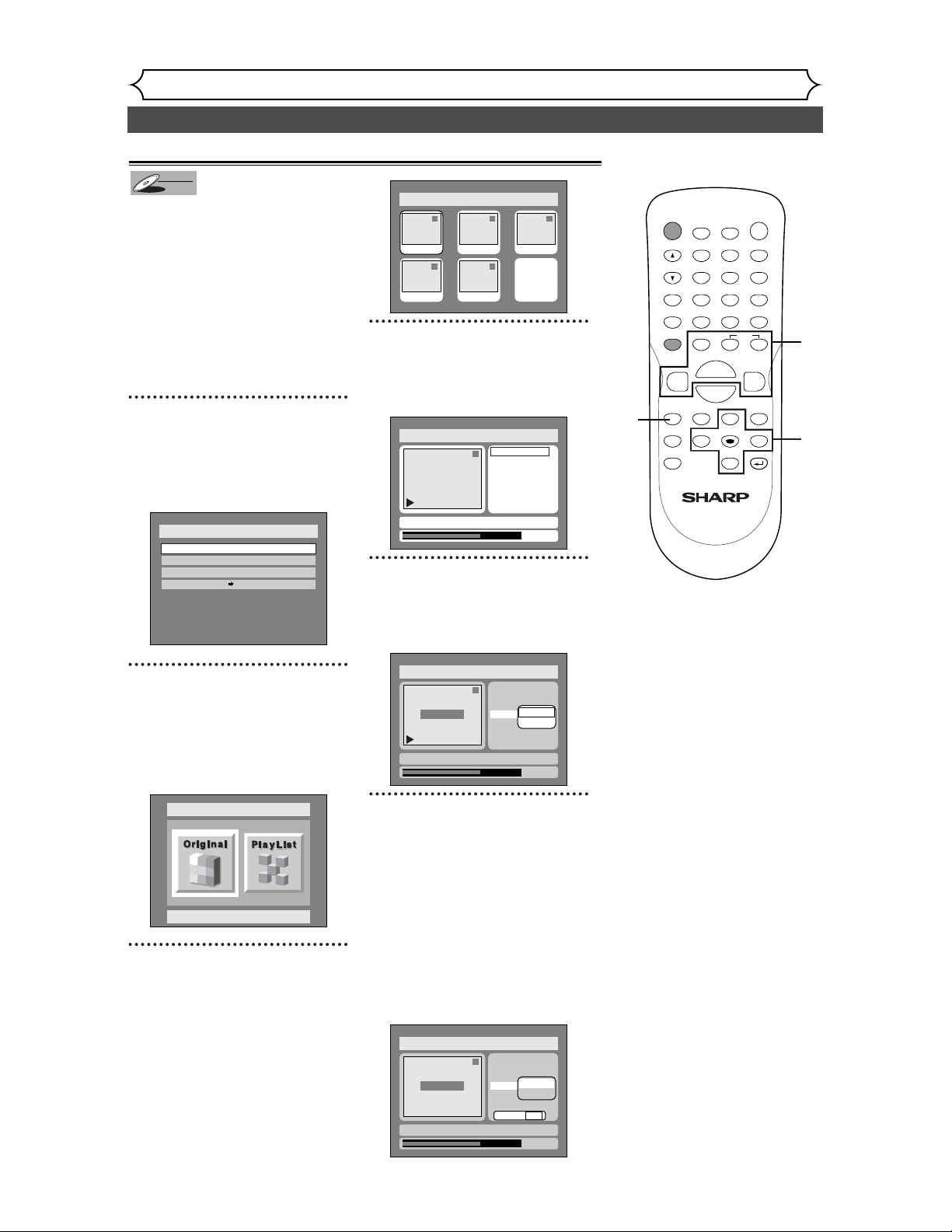
76
Editing DVD-RW discs in VR mode (Playlist) (cont’d)
Editing
You can put chapter markers in
each title. Once a chapter is
marked, you can use it for the
chapter search feature.
You can put a chapter marker
anywhere you want.
When the number of chapter
markers in the playlist comes to
999 in total, you cannot add any
more chapter markers.
1
Press SETUP button. Select
“DISC” using { / B buttons,
then press ENTER button.
DISC menu will appear.
2
Select “Edit” using K / L but-
tons, then press ENTER but-
ton.
Original/PlayList menu will appear.
Screen:
3
Select “PlayList” using { / B
buttons, then press ENTER
button.
Playlist will appear.
4
Select a desired title using K /
L / { / B buttons, then press
ENTER button.
Playlist menu will appear.
5
Select “Chapter Mark” using
K / L buttons, then press
ENTER button.
Option window will appear.
6
Use SKIP
H
/
G
, REV
E
,
FWD
D
, PLAY
B
, and PAUSE
F
buttons to decide the point at
which you will create a new
chapter marker. Or, use SKIP
H
/
G
to decide a chapter
marker that you will delete.
Select “Add” or “Delete”
accordingly using
K
/
L
buttons,
then press ENTER button.
Option window will appear.
<Add>:
1
0:01:25
Title Delete
Scene Delete
Edit Title Name
Chapter Mark
Index Picture Set
Add
Delete
Yes No
JAN/ 1 1:00AM CH12 XP
Disc > Edit > Playlist
Chapter 1/1
F
Disc > Edit > Playlist
1
0:01:25
Title Delete
Scene Delete
Edit Title Name
Chapter Mark
Index Picture Set
Add
Delete
JAN/ 1 1:00AM CH12 XP
Chapter 1/1
Disc > Edit > Playlist
1
Title Delete
Scene Delete
Edit Title Name
Chapter Mark
Index Picture Set
0:01:25
JAN/ 1 1:00AM CH12 XP
Disc > Edit > Playlist
1 1 32
54
Add New
Title
Delete
Playlist
JAN/1 1:00AM
JAN/1 4:00AM
JAN/1 2:00AM JAN/1 3:00AM
JAN/1 5:00AM
Disc > Edit
Original
Disc
Edit
Format
Finalize
Disc Protect OFF ON
DVD-RW
DVD-RW
VR
Setting or clearing chapter markers
POWER
DISPLAY
REC MODE CLEAR
CM SKIP
SKIP
REC
PAUSE
SETUP
REPEAT
ZOOM
ENTER
RETURN
REC
MONITOR
OPEN/CLOSE
TIMER
PROG.
MENU/LIST
TOP MENU
SPACE
1
2
3
4
5
6
7
8
9
0
F
A
{B
FWD
g
STOP
C
PLAY
B
REV
h
HG
CH
.@/:
ABC
DEF
GHI
JKL
MNO
PQRS
TUV
WXYZ
K
L
1
1
2
3
4
5
6
6
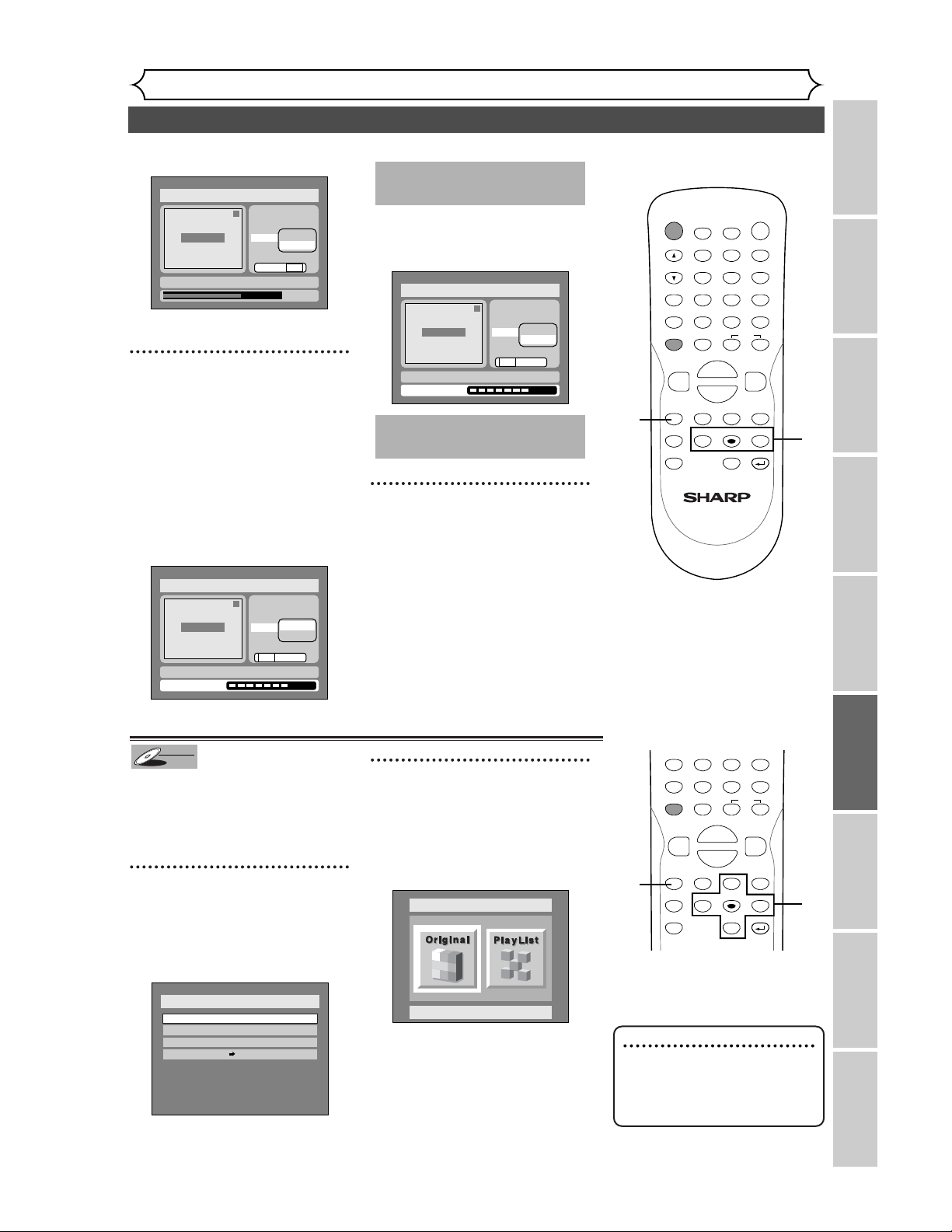
77
Editing DVD-RW discs in VR mode (Playlist) (cont’d)
Editing
Recording Playing discs EditingBefore you start Connections Getting started
Changing the SETUP menu
Others Español
<Delete>:
• You cannot delete the first
chapter of each title.
7
Select “Yes” using { / B but-
tons, then press ENTER button.
A chapter marker will be added.
When you select “Add” at step 6, a
new chapter marker will be creat-
ed at the point you have decided.
When you select “Delete” at step
6, the chapter marker you have
selected will be deleted.
<Add>:
The chapter marker which you
selected will be deleted.
<Delete>:
8
After writing to disc is com-
pleted, press SETUP button
to exit DISC menu.
This operation may take a
while to be completed.
1
Title Delete
Scene Delete
Edit Title Name
Chapter Mark
Index Picture Set
Add
Delete
Yes No
Writing to Disc
JAN/ 1 1:00AM CH12 XP
Disc > Edit > Playlist
Chapter 2/2
This operation may take a
while to be completed.
1
Title Delete
Scene Delete
Edit Title Name
Chapter Mark
Index Picture Set
Add
Delete
Yes No
Writing to Disc
JAN/ 1 1:00AM CH12 XP
Disc > Edit > Playlist
Chapter 1/1
1
0:01:25
Title Delete
Scene Delete
Edit Title Name
Chapter Mark
Index Picture Set
Add
Delete
Yes No
JAN/ 1 1:00AM CH12 XP
Disc > Edit > Playlist
Chapter 2/2
F
Note
• If a selected picture for a
thumbnail is deleted by delet-
ing a part of a title, a default
picture will be selected.
Setting pictures for thumbnails
You can set a picture to each title for
a thumbnail. It helps you to remember
the contents of the title you are play-
ing.The beginning picture has been
selected as the default.
1
Press SETUP button. Select
“DISC” using { / B buttons,
then press ENTER button.
DISC menu will appear.
2
Select “Edit” using K / L but-
tons, then press ENTER but-
ton.
Original/PlayList menu will appear.
Screen:
Disc > Edit
Original
Disc
Edit
Format
Finalize
Disc Protect OFF ON
DVD-RW
DVD-RW
VR
POWER
DISPLAY
REC MODE CLEAR
CM SKIP
SKIP
REC
PAUSE
SETUP
REPEAT
ZOOM
ENTER
RETURN
REC
MONITOR
OPEN/CLOSE
TIMER
PROG.
MENU/LIST
TOP MENU
SPACE
1
2
3
4
5
6
7
8
9
0
F
A
{B
FWD
g
STOP
C
PLAY
B
REV
h
HG
CH
.@/:
ABC
DEF
GHI
JKL
MNO
PQRS
TUV
WXYZ
K
L
8
7
REC MODE CLEAR
CM SKIP
SKIP
REC
PAUSE
SETUP
REPEAT
ZOOM
ENTER
RETURN
REC
MONITOR
MENU/LIST
TOP MENU
SPACE
7
8
9
0
F
{B
FWD
g
STOP
C
PLAY
B
REV
h
HG
PQRS
TUV
WXYZ
K
L
1
1
2
Instructions continue on page 78
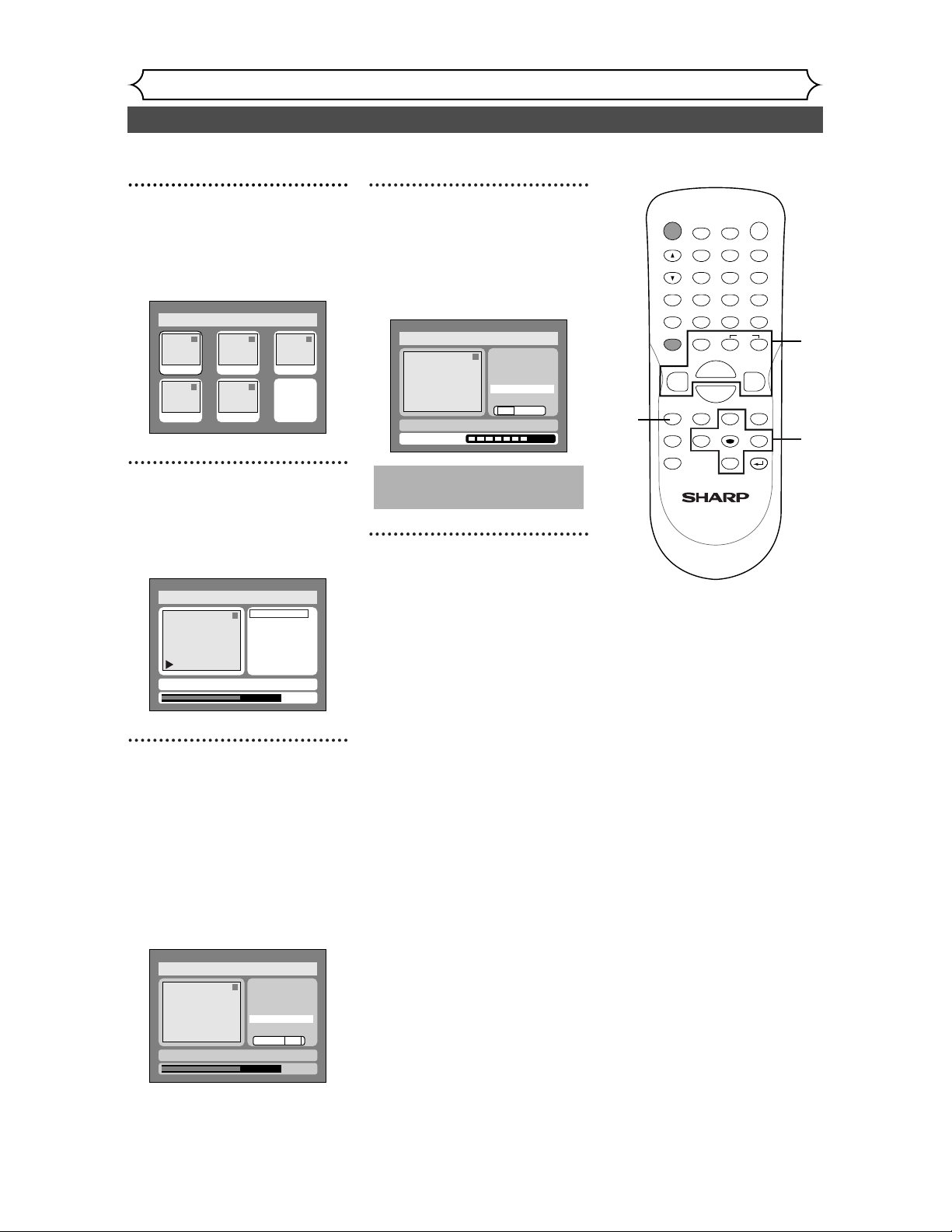
78
Editing DVD-RW discs in VR mode (Playlist) (cont’d)
Editing
3
Select “PlayList” using { / B
buttons, then press ENTER
button.
Playlist will appear.
4
Select a desired title using K /
L / { / B buttons, then press
ENTER button.
Playlist menu will appear.
5
Select “Index Picture Set”
using
K / L buttons. Use SKIP
H / G, REV E, FWD D,
PLAY B, and PAUSE F but-
tons to decide the picture
you want to select as a
thumbnail.Then press ENTER
button.
Option window will appear.
6
Select “Yes” using { / B but-
tons, then press ENTER but-
ton.
A picture for thumbnail will be
set.
7
After writing to disc is com-
pleted, press SETUP button
to exit DISC menu.
This operation may take a
while to be completed.
1
Yes No
Title Delete
Scene Delete
Edit Title Name
Chapter Mark
Index Picture Set
Writing to Disc
JAN/ 1 1:00AM CH12 XP
Disc > Edit > Playlist
Disc > Edit > Playlist
1
0:01:25
Yes No
Title Delete
Scene Delete
Edit Title Name
Chapter Mark
Index Picture Set
JAN/ 1 1:00AM CH12 XP
F
Disc > Edit > Playlist
1
Title Delete
Scene Delete
Edit Title Name
Chapter Mark
Index Picture Set
0:01:25
JAN/ 1 1:00AM CH12 XP
Disc > Edit > Playlist
1 1 32
54
Add New
Title
Delete
Playlist
JAN/1 1:00AM
JAN/1 4:00AM
JAN/1 2:00AM JAN/1 3:00AM
JAN/1 5:00AM
POWER
DISPLAY
REC MODE CLEAR
CM SKIP
SKIP
REC
PAUSE
SETUP
REPEAT
ZOOM
ENTER
RETURN
REC
MONITOR
OPEN/CLOSE
TIMER
PROG.
MENU/LIST
TOP MENU
SPACE
1
2
3
4
5
6
7
8
9
0
F
A
{B
FWD
g
STOP
C
PLAY
B
REV
h
HG
CH
.@/:
ABC
DEF
GHI
JKL
MNO
PQRS
TUV
WXYZ
K
L
7
3
4
5
6
5
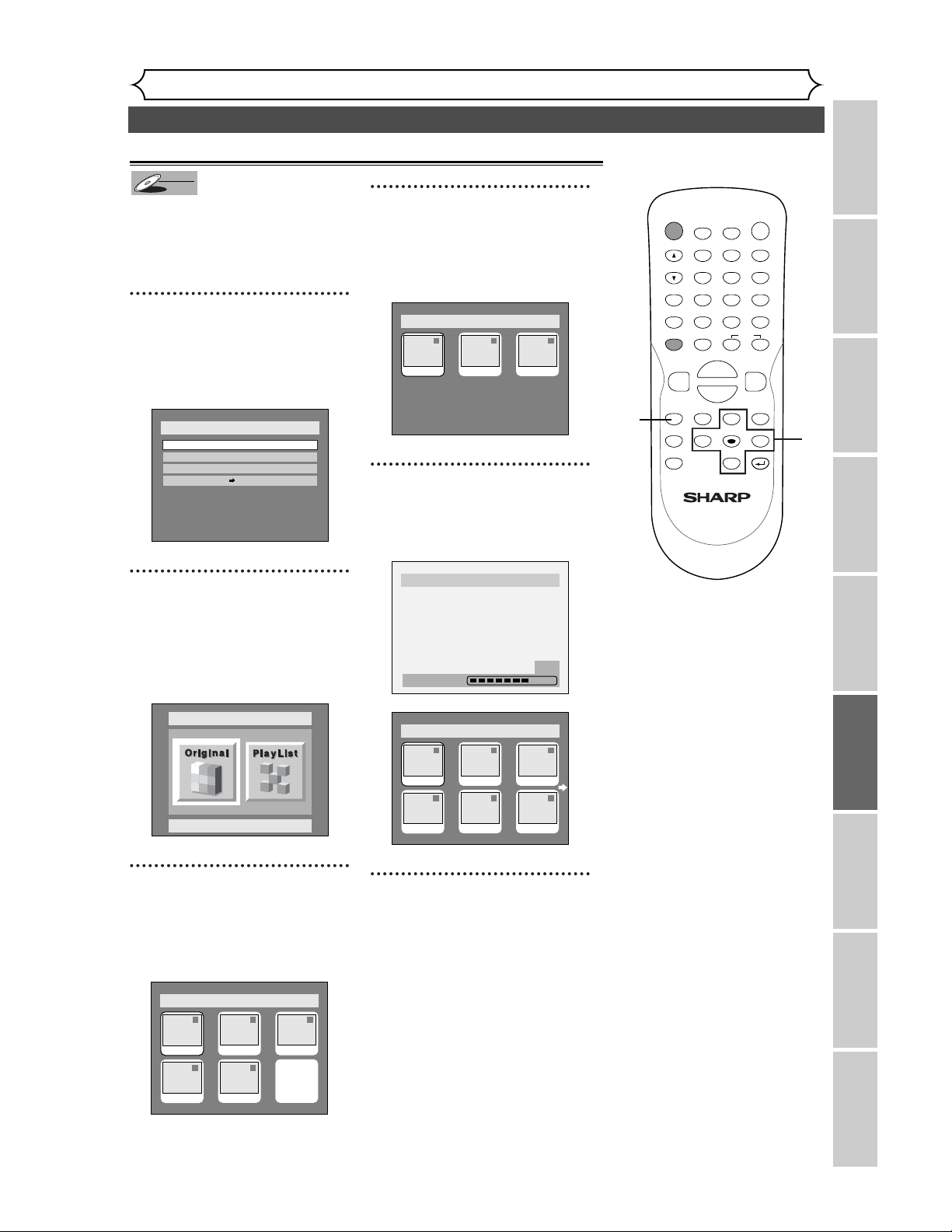
79
Editing DVD-RW discs in VR mode (Playlist) (cont’d)
Editing
Recording Playing discs EditingBefore you start Connections Getting started
Changing the SETUP menu
Others Español
You can add or delete a title in
the playlist as you prefer.
You can add titles to a Playlist up
to 99.
1
Press SETUP button. Select
“DISC” using { / B buttons,
then press ENTER button.
DISC menu will appear.
2
Select “Edit” using K / L but-
tons, then press ENTER but-
ton.
Original/PlayList menu will appear.
Screen:
3
Select “PlayList” using { / B
buttons, then press ENTER
button.
Playlist will appear.
4
Select “Add New Title” using
K / L / { / B buttons, then
press ENTER button.
Original list will appear.
5
Select a desired title using K /
L / { / B buttons, then press
ENTER button.
6
After writing to disc is com-
pleted, press SETUP button
to exit DISC menu.
To delete a title from Playlist,
refer to “Deleting titles” on page
72.
To delete a Playlist, refer to
“Deleting a Playlist” on page 80.
Disc > Edit > Playlist
6
1 1 32
54
JAN/1 1:00AM
JAN/1 4:00AM
JAN/1 2:00AM
JAN/1 5:00AM
JAN/1 3:00AM
JAN/12 8:00PM
Disc > Edit > Playlist > Add New Title
Writing to Disc
58%
Disc > Edit > Playlist > Add New Title
1 1 32
JAN/12 5:00PM JAN/12 8:00PMJAN/10 10:30AM
Disc > Edit > Playlist
1 1 32
54
Add New
Title
Delete
Playlist
JAN/1 1:00AM
JAN/1 4:00AM
JAN/1 2:00AM JAN/1 3:00AM
JAN/1 5:00AM
Disc > Edit
Original
Disc
Edit
Format
Finalize
Disc Protect OFF ON
DVD-RW
DVD-RW
VR
Adding titles to a Playlist
POWER
DISPLAY
REC MODE CLEAR
CM SKIP
SKIP
REC
PAUSE
SETUP
REPEAT
ZOOM
ENTER
RETURN
REC
MONITOR
OPEN/CLOSE
TIMER
PROG.
MENU/LIST
TOP MENU
SPACE
1
2
3
4
5
6
7
8
9
0
F
A
{B
FWD
g
STOP
C
PLAY
B
REV
h
HG
CH
.@/:
ABC
DEF
GHI
JKL
MNO
PQRS
TUV
WXYZ
K
L
1
1
2
3
4
6
5
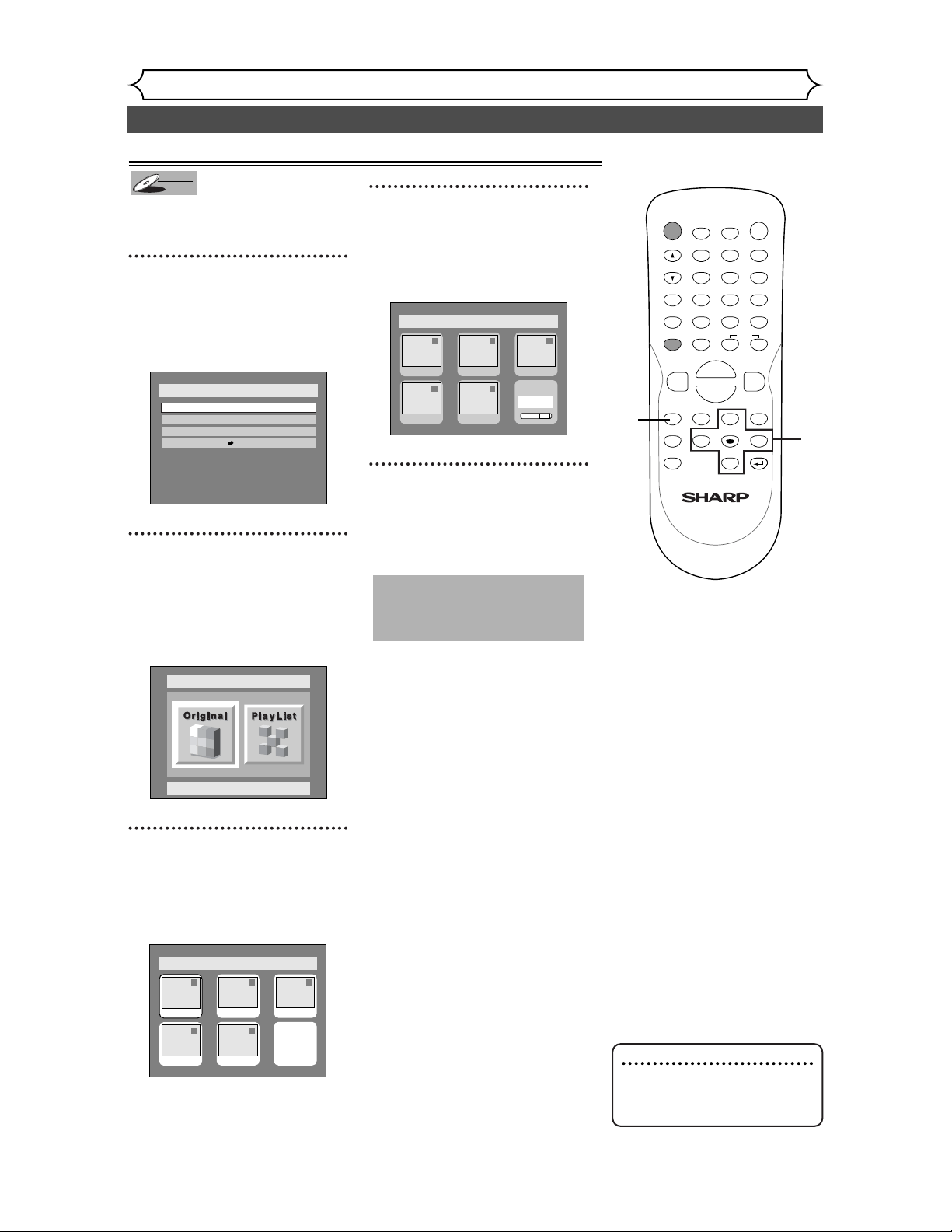
80
Editing DVD-RW discs in VR mode (Playlist) (cont’d)
Editing
Note
• Deleting a Playlist will not
increase the available record-
ing time.
A Playlist can be deleted if no
longer needed.
1
Press SETUP button. Select
“DISC” using { / B buttons,
then press ENTER button.
DISC menu will appear.
2
Select “Edit” using K / L but-
tons, then press ENTER but-
ton.
Original/PlayList menu will appear.
Screen:
3
Select “PlayList” using { / B
buttons, then press ENTER
button.
Playlist will appear.
4
Select “Delete Playlist” using
K / L / { / B buttons, then
press ENTER button.
Option window will appear.
5
Select “Yes” using { / B but-
tons, then press ENTER but-
ton.
A Playlist will be erased.
The unit will be in stop
mode after exiting the
DISC menu automatically.
1 1 32
54
JAN/1 2:00AM JAN/1 3:00AM
JAN/1 5:00AM
JAN/1 1:00AM
JAN/1 4:00AM
Add New
Title
Delete
Playlist
Yes No
Disc > Edit > Playlist
Disc > Edit > Playlist
1 1 32
54
Add New
Title
Delete
Playlist
JAN/1 1:00AM
JAN/1 4:00AM
JAN/1 2:00AM JAN/1 3:00AM
JAN/1 5:00AM
Disc > Edit
Original
Disc
Edit
Format
Finalize
Disc Protect OFF ON
DVD-RW
DVD-RW
VR
Deleting a Playlist
POWER
DISPLAY
REC MODE CLEAR
CM SKIP
SKIP
REC
PAUSE
SETUP
REPEAT
ZOOM
ENTER
RETURN
REC
MONITOR
OPEN/CLOSE
TIMER
PROG.
MENU/LIST
TOP MENU
SPACE
1
2
3
4
5
6
7
8
9
0
F
A
{B
FWD
g
STOP
C
PLAY
B
REV
h
HG
CH
.@/:
ABC
DEF
GHI
JKL
MNO
PQRS
TUV
WXYZ
K
L
1
1
2
3
4
5
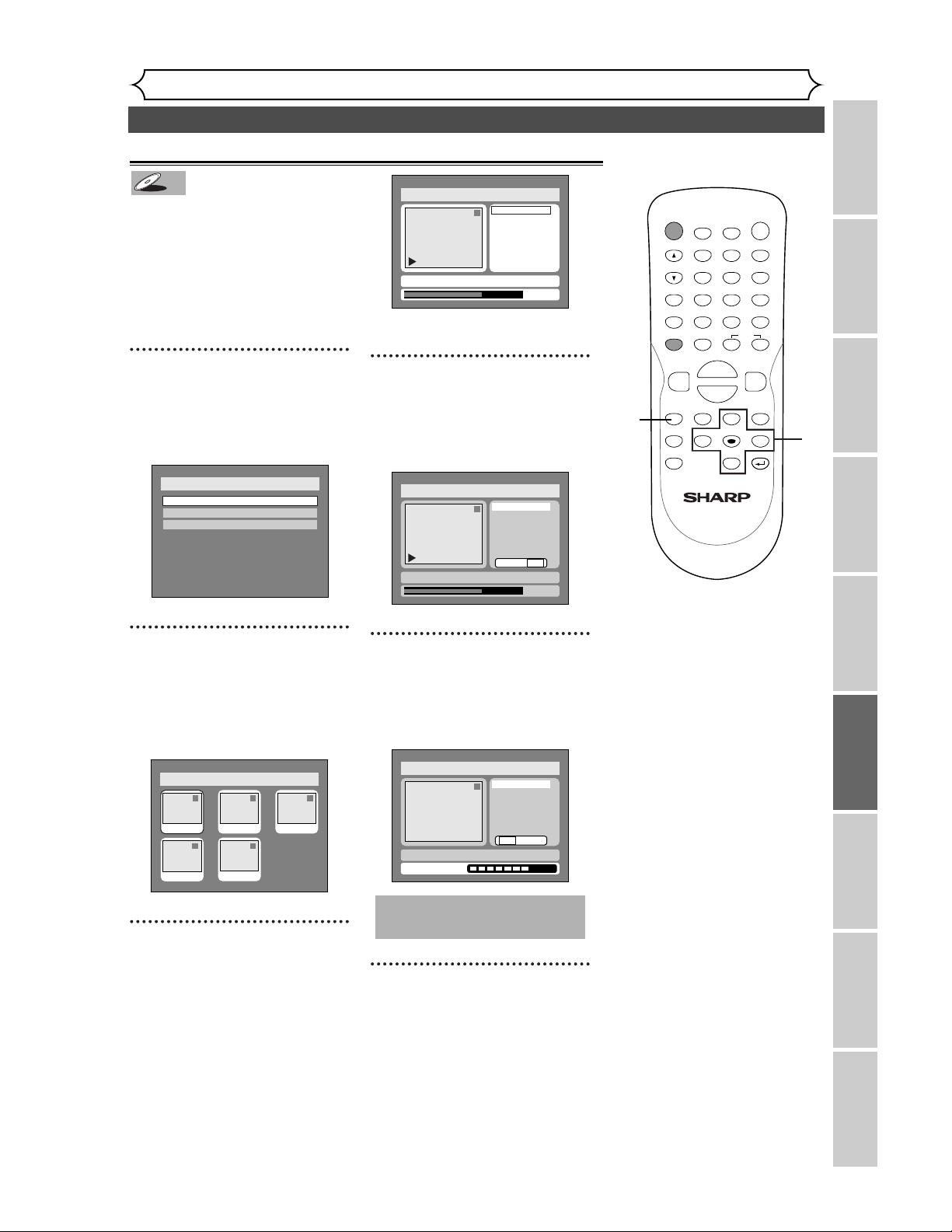
81
Editing DVD-R discs
Editing
Recording Playing discs EditingBefore you start Connections Getting started
Changing the SETUP menu
Others Español
You can delete titles which you
do not need, however the disc
space to record will not be
changed.
Be aware to know that the titles
once deleted cannot be brought
back to the disc.
1
Press SETUP button. Select
“DISC” using
{ / B buttons,
then press ENTER button.
DISC menu will appear.
2
Select “Edit” using K / L but-
tons, then press ENTER but-
ton.
Titlelist will appear.
Screen:
3
Select a desired title using K /
L / { / B buttons, then press
ENTER button.
Edit menu will appear.
You cannot select “Chapter Mark”.
4
Select “Title Delete” using K
/ L buttons, then press
ENTER button.
Option window will appear.
5
Select “Yes” using { / B but-
tons, then press ENTER but-
ton.
Title will be deleted.
6
After writing to disc is com-
pleted, press SETUP button
to exit DISC menu.
This operation may take a
while to be completed.
Disc > Edit
1
Title Delete
Edit Title Name
Chapter Mark
Yes No
Writing to Disc
JAN/ 1 1:00AM CH12 XP
Disc > Edit
1
0:01:25
Title Delete
Edit Title Name
Chapter Mark
Yes No
JAN/ 1 1:00AM CH12 XP
Disc > Edit
1
Title Delete
Edit Title Name
Chapter Mark
0:01:25
JAN/ 1 1:00AM CH12 XP
Disc > Edit
1 1 32
54
JAN/1 1:00AM
JAN/1 4:00AM
JAN/1 2:00AM JAN/1 3:00AM
JAN/1 5:00AM
Disc
Edit
Format
Finalize
DVD-R
DVD-R
Deleting titles
POWER
DISPLAY
REC MODE CLEAR
CM SKIP
SKIP
REC
PAUSE
SETUP
REPEAT
ZOOM
ENTER
RETURN
REC
MONITOR
OPEN/CLOSE
TIMER
PROG.
MENU/LIST
TOP MENU
SPACE
1
2
3
4
5
6
7
8
9
0
F
A
{B
FWD
g
STOP
C
PLAY
B
REV
h
HG
CH
.@/:
ABC
DEF
GHI
JKL
MNO
PQRS
TUV
WXYZ
K
L
1
1
2
3
4
6
5
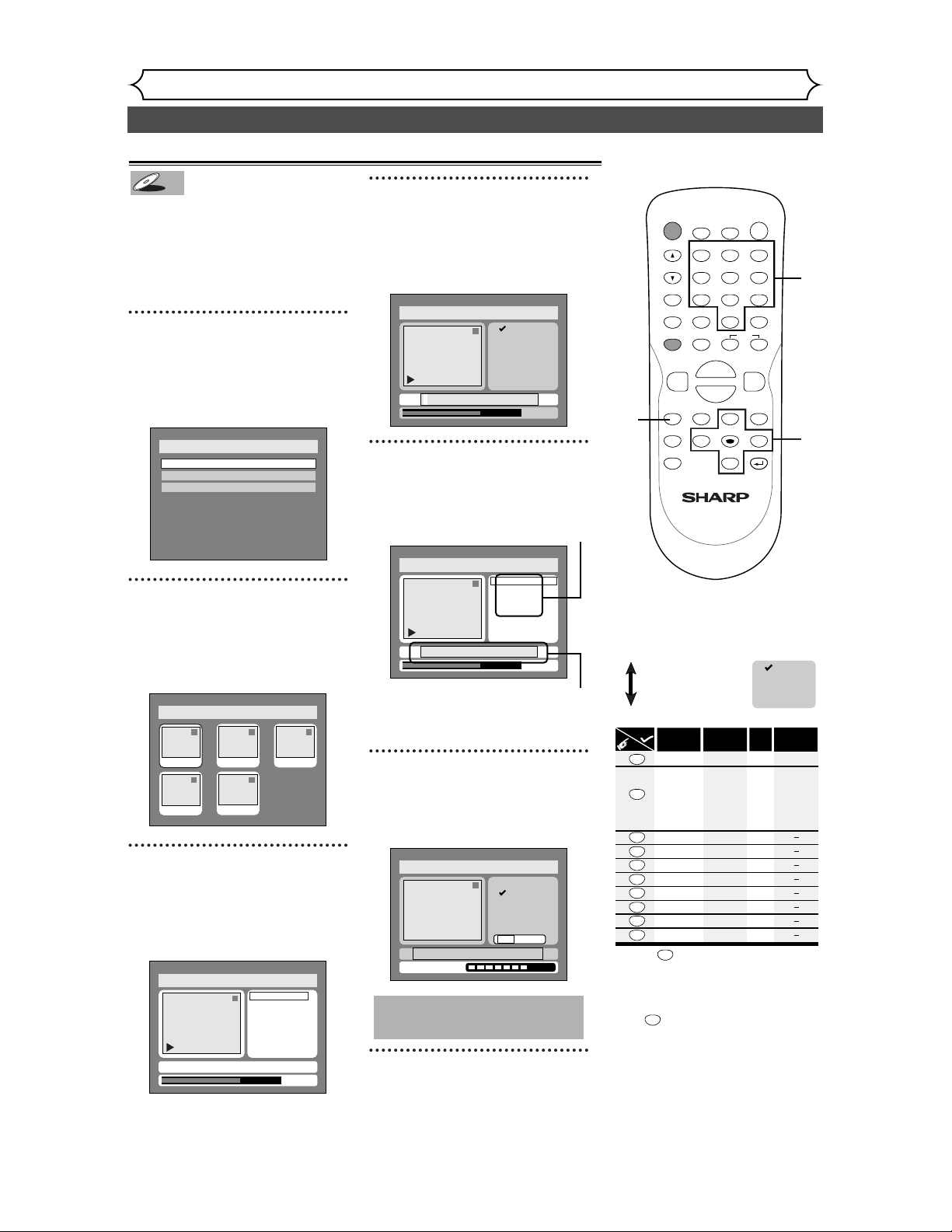
82
Editing DVD-R discs (cont’d)
Editing
You can put names on the titles
and change the names from this
menu.
The names you put on the titles
will be displayed on a titlelist.
1
Press SETUP button. Select
“DISC” using
{ / B buttons,
then press ENTER button.
DISC menu will appear.
2
Select “Edit” using
K / L
but-
tons, then press ENTER button.
Titlelist will appear.
Screen:
3
Select a desired title using K /
L / { / B buttons, then press
ENTER button.
Edit menu will appear.
You cannot select “Chapter Mark”.
4
Select “Edit Title Name”
using K / L buttons, then
press ENTER button.
A window for entering a title
name will appear.
5
To enter a title name, follow
the steps of “Guide to edit
title name” on this page.
character set
area for entering title names
When you finish entering a title
name, press ENTER button.
6
Select “Yes” using { / B but-
tons, then press ENTER but-
ton.
7
After writing to disc is com-
pleted, press SETUP button
to exit DISC menu.
This operation may take a
while to be completed.
Disc > Edit > Edit Title Name
1
A B C
a b c
1 2 3
@ ! ?
abc
Yes No
Writing to Disc
Disc > Edit > Edit Title Name
1
0:01:25
A B C
a b c
1 2 3
@ ! ?
JAN/ 1 1:00AM CH12 XP
Disc > Edit > Edit Title Name
1
0:01:25
A B C
a b c
1 2 3
@ ! ?
JAN/ 1 1:00AM CH12 XP
Disc > Edit
1
Title Delete
Edit Title Name
Chapter Mark
0:01:25
JAN/ 1 1:00AM CH12 XP
Disc > Edit
1 1 32
54
JAN/1 1:00AM
JAN/1 4:00AM
JAN/1 2:00AM JAN/1 3:00AM
JAN/1 5:00AM
Disc
Edit
Format
Finalize
DVD-R
DVD-R
Putting names on titles
Press
ABC
DEF
GHI
JKL
MNO
PQRS
TUV
WXYZ
<space>
abc
def
ghi
jkl
mno
pqrs
tuv
wxyz
<space> <space>
! ” # $ %
& ’ ( )
+ , - . / : ;
< = > ?
@ [ ] ^
_ { | }
2
3
4
5
6
7
8
9
0
1
ABC
abc
Select
@ ! ?
123
1
1
2
3
4
5
6
7
8
9
0
*1 Press button, character set will be changed
to the " @
!?
" mode automatically.
[
Step1
]
: Select a desired character set using K
/
L
buttons, then press
ENTER button.
[
Step2
]
: Press Number buttons following by the list
below.
[
Guide to edit title name
]
A B C
a b c
1 2 3
@ ! ?
• To delete letters, press CLEAR button repeatedly.
Holding CLEAR button to delete all letters.
• To go on to the next entering area for letters,
press button.
B
• You can enter up to 30 letters.
*1 *1
*
POWER
DISPLAY
REC MODE CLEAR
CM SKIP
SKIP
REC
PAUSE
SETUP
REPEAT
ZOOM
ENTER
RETURN
REC
MONITOR
OPEN/CLOSE
TIMER
PROG.
MENU/LIST
TOP MENU
SPACE
1
2
3
4
5
6
7
8
9
0
F
A
{B
FWD
g
STOP
C
PLAY
B
REV
h
HG
CH
.@/:
ABC
DEF
GHI
JKL
MNO
PQRS
TUV
WXYZ
K
L
1
1
2
3
4
7
5
6
5
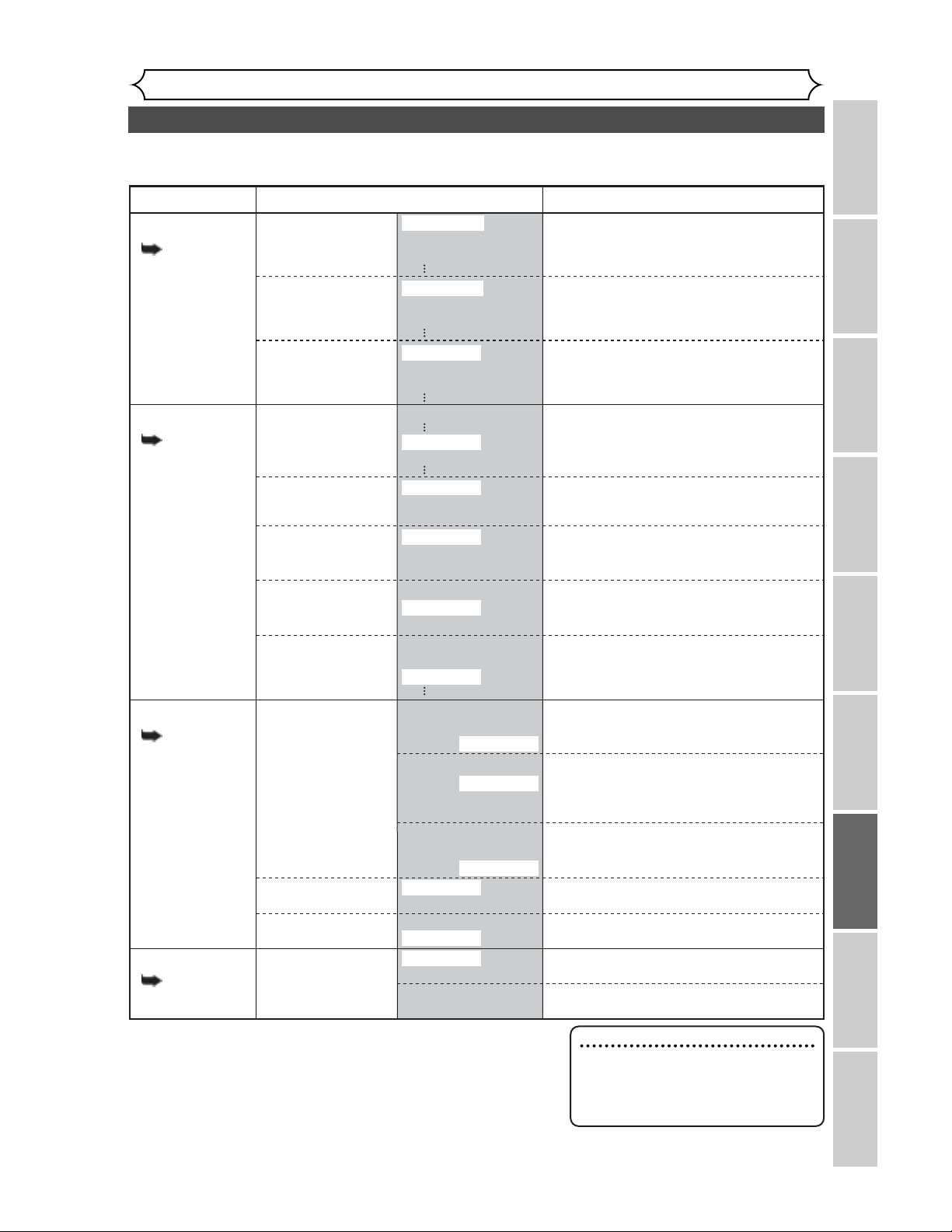
Tour of the SETUP menu
Changing the SETUP menu
Recording Playing discs EditingBefore you start Connections Getting started
Changing the SETUP menu
Others Español
83
Note
• If you change the setting in SETUP
menu, the information of contents
stays on even when the power is
switched off.
1.Language setting
Pages 84-85
Pages 86-87
Pages 88-89
Pages 90-91
2.Display setting
3.Audio setting
4.Parental setting
SETUP menu ContentsItems (highlight is the default)
Disc Menu Language
Audio Language
Subtitle Language
Set the language for disc menu.
Set the language for audio.
Set the language for subtitle.
Set the background transparency of OSD
screen.
Set the OSD screen color.
1 (Green), 2 (Blue), 3 (Red)
Set the language for OSD
(On Screen Display).
Set the brightness of front display.
Set the time to work the screen saver on
the screen.
Set the type of sound signal which outputs
from the digital audio output jack.
Set whether DTS signal will be output or
not.
Set whether the sound recorded in 96kHz
will be down sampled in 48kHz.
Compressing the range of sound volume.
Outputting the sound during play in fast
forward.
Set the parental level of your DVD discs.
Set and change the password.
OSD Background
Transparency
OSD Background
Color
OSD Language
FL Dimmer
Screen Saver
Digital Out
Dynamic Range
Control
Fast Forward with
Audio
Parental Lock
(Change password)
English
French
Spanish
Original
English
French
100%
35%
25%
OFF
English
French
OFF
5 minutes
10minutes
English
Français
Español
Auto
Bright
Dark
1
2
3
ON
OFF
PCM
Auto
48kHz
96kHz
Dolby Digital
PCM
Stream
DTS
ON
OFF
ON
OFF
ALL
level 8 to 1
Enter the current
four-digit password
The following table is the contents which you can set and the default settings.
Refer to the following table for useful operation.
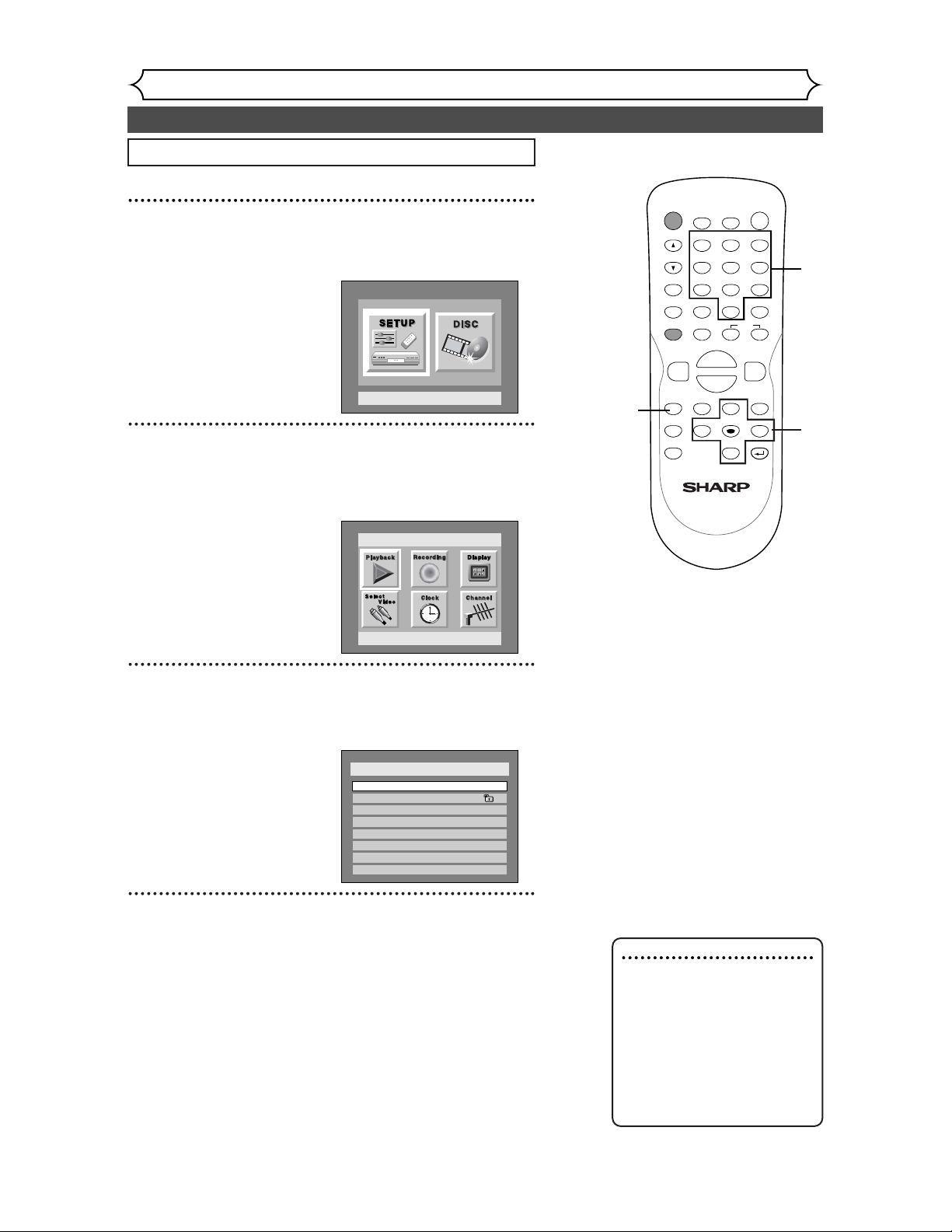
84
Language setting
Changing the SETUP menu
1
Press SETUP button to display SETUP/DISC menu.
SETUP/DISC menu will appear.
2
Select “SETUP” using { / B buttons, then press
ENTER button.
SETUP menu will appear.
3
Select “Playback” using K / L /
{ / B
buttons, then press
ENTER button.
Option window will appear.
4
Select a desired item using K / L buttons, then press
ENTER button.
Setup > Playback
TV Aspect
Parental Lock
Disc Menu Language
Audio Language
Subtitle Language
Digital Out
Dynamic Range Control
Fast Forward with Audio
4:3 Letter Box
All
English
Original
OFF
ON
OFF
Setup
Playback Setting
Setup Menu
Note
• Only the languages supported
by the disc can be selected.
• Audio Language setting may
not be available to some
discs.
• You can change or switch off
the subtitles on a DVD disc
also from the disc menu if it
is available.
84
POWER
DISPLAY
REC MODE CLEAR
CM SKIP
SKIP
REC
PAUSE
SETUP
REPEAT
ZOOM
ENTER
RETURN
REC
MONITOR
OPEN/CLOSE
TIMER
PROG.
MENU/LIST
TOP MENU
SPACE
1
2
3
4
5
6
7
8
9
0
F
A
{B
FWD
g
STOP
C
PLAY
B
REV
h
HG
CH
.@/:
ABC
DEF
GHI
JKL
MNO
PQRS
TUV
WXYZ
K
L
1
2
Press STOP button if you are playing a disc.
3
4
5
4
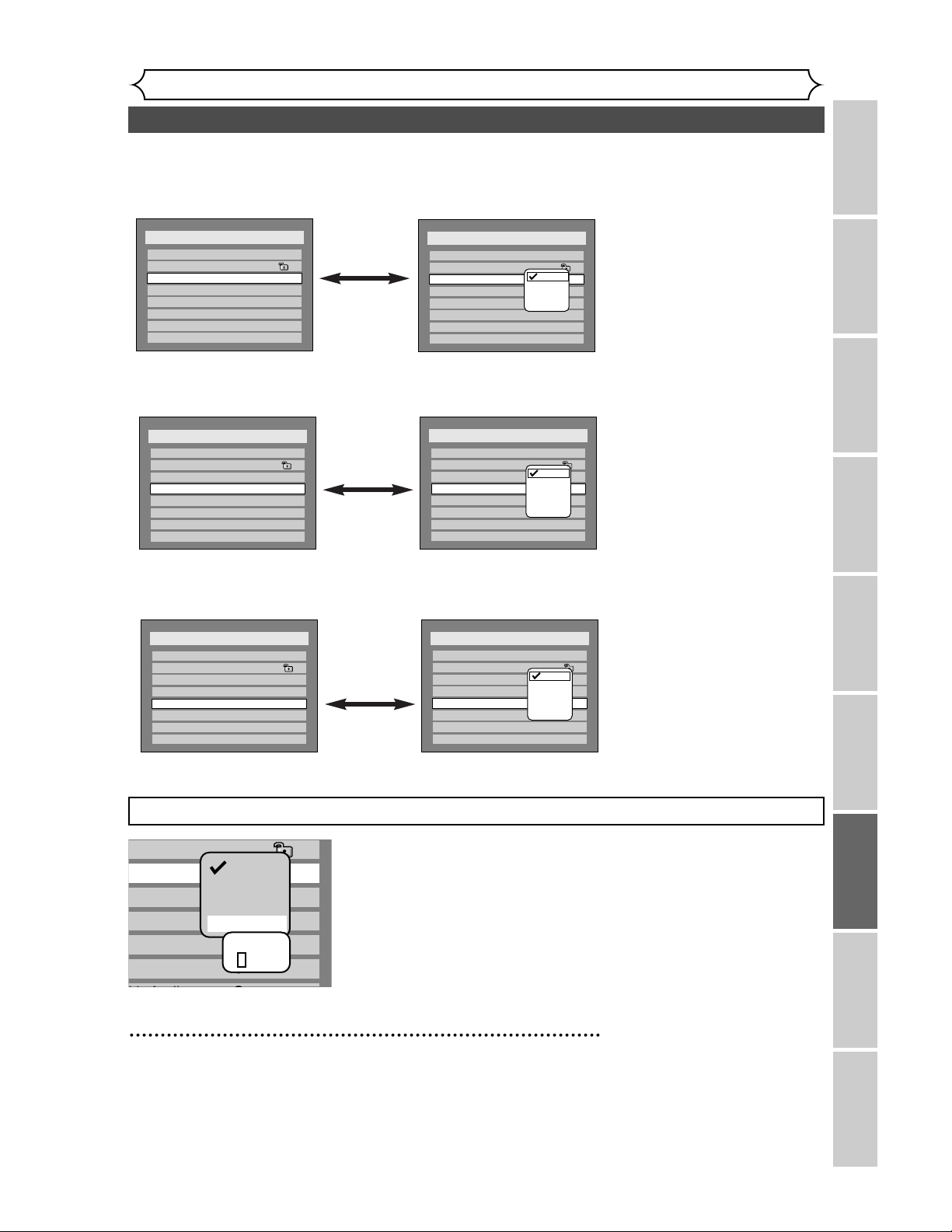
Language setting (cont’d)
Changing the SETUP menu
Recording Playing discs EditingBefore you start Connections Getting started
Changing the SETUP menu
Others Español
85
Setup > Playback
TV Aspect
Parental Lock
Disc Menu Language
Audio Language
Subtitle Language
Digital Out
Dynamic Range Control
Fast Forward with Audio
4:3 Letter Box
All
English
Original
OFF
ON
OFF
Setup > Playback
TV Aspect
Parental Lock
Disc Menu Language
Audio Language
Subtitle Language
Digital Out
Dynamic Range Control
Fast Forward with Audio
4:3 Letter Box
All
English
Original
OFF
ON
OFF
Setup > Playback
TV Aspect
Parental Lock
Disc Menu Language
Audio Language
Subtitle Language
Digital Out
Dynamic Range Control
Fast Forward with Audio
4:3 Letter Box
All
English
Original
OFF
ON
OFF
Setup > Playback
TV Aspect
Parental Lock
Disc Menu Language
Audio Language
Subtitle Language
Digital Out
Dynamic Range Control
Fast Forward with Audio
4:3 Letter Box
All
English
Original
OFF
ON
OFF
English
French
Spanish
Other
Setup > Playback
TV Aspect
Parental Lock
Disc Menu Language
Audio Language
Subtitle Language
Digital Out
Dynamic Range Control
Fast Forward with Audio
4:3 Letter Box
All
English
Original
OFF
ON
OFF
Original
English
French
Spanish
Other
Setup > Playback
TV Aspect
Parental Lock
Disc Menu Language
Audio Language
Subtitle Language
Digital Out
Dynamic Range Control
Fast Forward with Audio
4:3 Letter Box
All
English
Original
OFF
ON
OFF
OFF
English
French
Spanish
Other
Disc Menu Language (Default : English)
Set the language for Disc Menu.
•
Select a setting using K / L
buttons, then press ENTER
button.
Your setting will be activated.
•
Select a setting using K / L
buttons, then press ENTER
button.
Your setting will be activated.
• When Original is selected, the
audio language will be in the
disc’s default language.
•
Select a setting using K / L
buttons, then press ENTER
button.
Your setting will be activated.
Audio Language (Default : Original)
Set the Audio language.
Subtitle Language (Default : OFF)
Set the subtitle language.
If “Other” is selected, press 4-digit code using number buttons.
g
uage
e
a
ge
e
Control
ihA di
English
Original
All
OFF
ON
O
English
French
Spanish
Other
Code Input
- - - -
•
When you finish entering
the code, press ENTER
button. Refer to the lan-
guage code table on page
95.
5
Press SETUP button to exit SETUP menu.
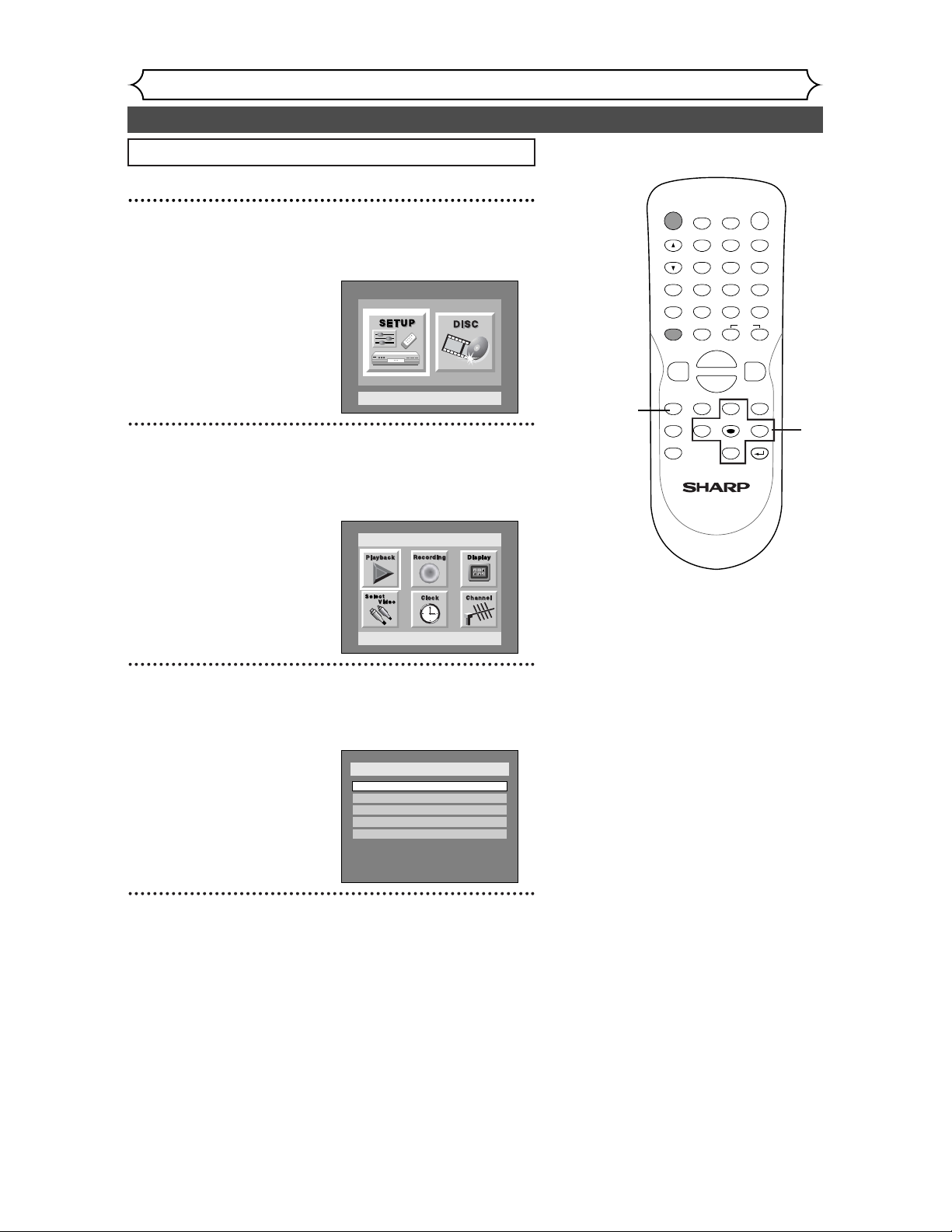
86
Display setting
Changing the SETUP menu
1
Press SETUP button to display SETUP/DISC menu.
SETUP/DISC menu will appear.
2
Select “SETUP” using { / B buttons, then press
ENTER button.
SETUP menu will appear.
3
Select “Display” using K / L /
{ / B
buttons, then press
ENTER button.
Option window will appear.
4
Select a desired item using K / L buttons, then press
ENTER button.
Setup > Display
OSD Background Transparency
OSD Background Color
OSD Language
FL Dimmer
Screen Saver
10 minutes
Bright
1
English
35%
Setup
Playback Setting
Setup Menu
86
POWER
DISPLAY
REC MODE CLEAR
CM SKIP
SKIP
REC
PAUSE
SETUP
REPEAT
ZOOM
ENTER
RETURN
REC
MONITOR
OPEN/CLOSE
TIMER
PROG.
MENU/LIST
TOP MENU
SPACE
1
2
3
4
5
6
7
8
9
0
F
A
{B
FWD
g
STOP
C
PLAY
B
REV
h
HG
CH
.@/:
ABC
DEF
GHI
JKL
MNO
PQRS
TUV
WXYZ
K
L
1
2
Press STOP button if you are playing a disc.
3
4
5
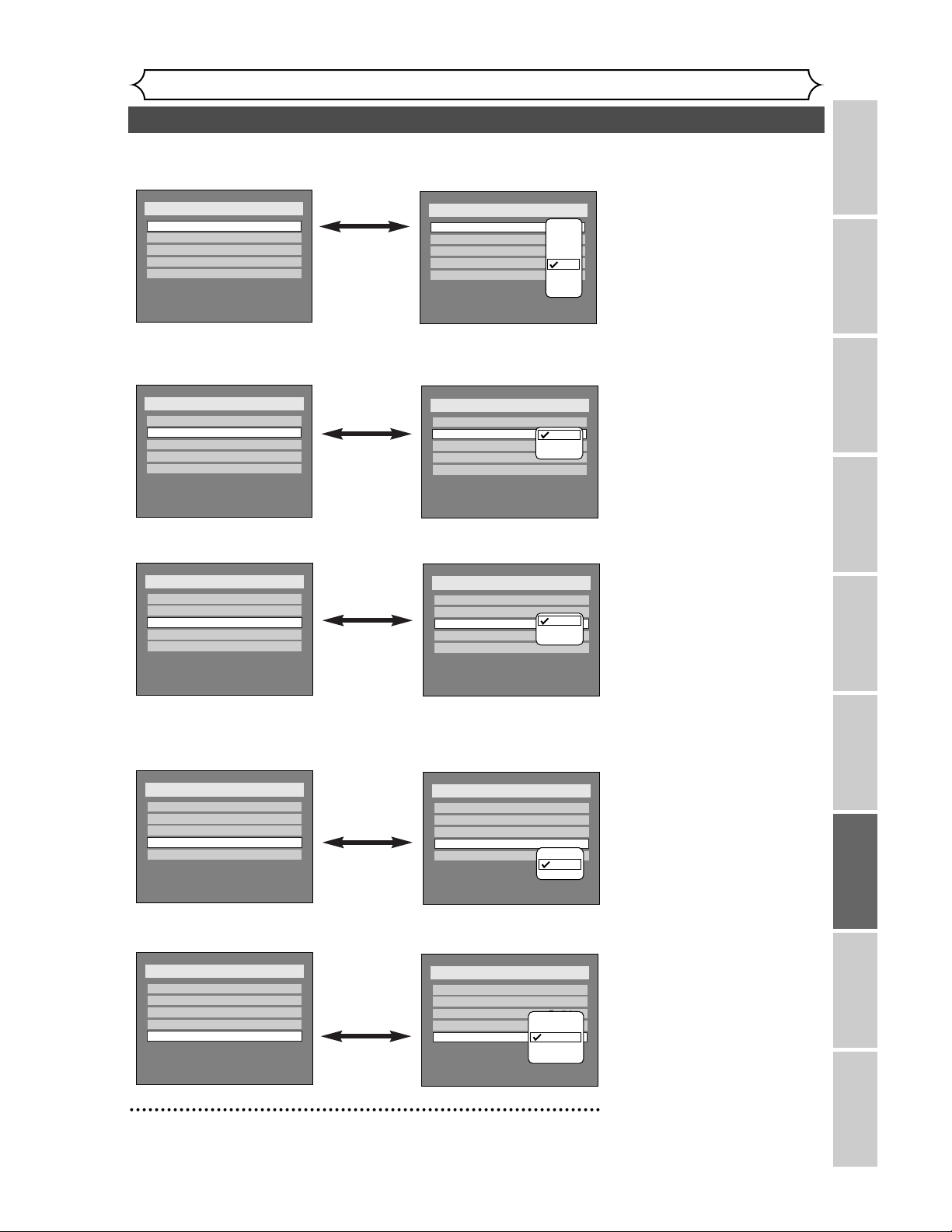
Display setting (cont’d)
Changing the SETUP menu
Recording Playing discs EditingBefore you start Connections Getting started
Changing the SETUP menu
Others Español
87
Setup > Display
OSD Background Transparency
OSD Background Color
OSD Language
FL Dimmer
Screen Saver
1
English
10 minutes
Bright
35%
Setup > Display
OSD Background Transparency
OSD Background Color
OSD Language
FL Dimmer
Screen Saver
1
English
10 minutes
Bright
35%
Setup > Display
OSD Background Transparency
OSD Background Color
OSD Language
FL Dimmer
Screen Saver
1
English
10 minutes
Bright
35%
Setup > Display
OSD Background Transparency
OSD Background Color
OSD Language
FL Dimmer
Screen Saver
1
English
10 minutes
Bright
35%
100%
85%
70%
50%
35%
25%
10%
0%
Setup > Display
OSD Background Transparency
OSD Background Color
OSD Language
FL Dimmer
Screen Saver
1
English
10 minutes
Bright
35%
1
2
3
Setup > Display
OSD Background Transparency
OSD Background Color
OSD Language
FL Dimmer
Screen Saver
1
English
10 minutes
Bright
35%
English
Français
Español
OSD Background Transparency (Default : 35%)
Set the background transparency of OSD screen.
You can choose one among 0% through 100%.
•
Select a setting using K / L
buttons, then press ENTER
button.
Your setting will be activated.
•
Select a setting using K / L
buttons, then press ENTER
button.
Your setting will be activated.
•
Select a setting using K / L
buttons, then press ENTER
button.
Your setting will be activated.
OSD Background Color (Default : 1 Green)
Set the OSD screen color.
You can choose one among 1(Green), 2(Blue), and 3(Red).
OSD Language (Default : English)
Set the language for OSD.
Setup > Display
OSD Background Transparency
OSD Background Color
OSD Language
FL Dimmer
1
English
Screen Saver
10 minutes
Bright
35%
Setup > Display
OSD Background Transparency
OSD Background Color
OSD Language
FL Dimmer
1
English
Screen Saver
10 minutes
Bright
35%
Auto
Bright
Dark
•
Select a setting using K / L
buttons, then press ENTER
button.
Your setting will be activated.
FL Dimmer (Default : Bright)
Set the brightness of front display.
You can choose one among “Auto”, ”Bright” and ”Dark”.
When “Auto” is selected, the display dims after 15 seconds of no use.
Setup > Display
OSD Background Transparency
OSD Background Color
OSD Language
FL Dimmer
Screen Saver
1
English
10 minutes
Bright
35%
Setup > Display
OSD Background Transparency
OSD Background Color
OSD Language
FL Dimmer
Screen Saver
1
English
10 minutes
Bright
35%
OFF
5 minutes
10 minutes
15 minutes
30 minutes
•
Select a setting using K / L
buttons, then press ENTER
button.
Your setting will be activated.
Screen Saver (Default : 10 minutes)
Set the time to work the screen saver function on the screen.
5
Press SETUP button to exit SETUP menu.
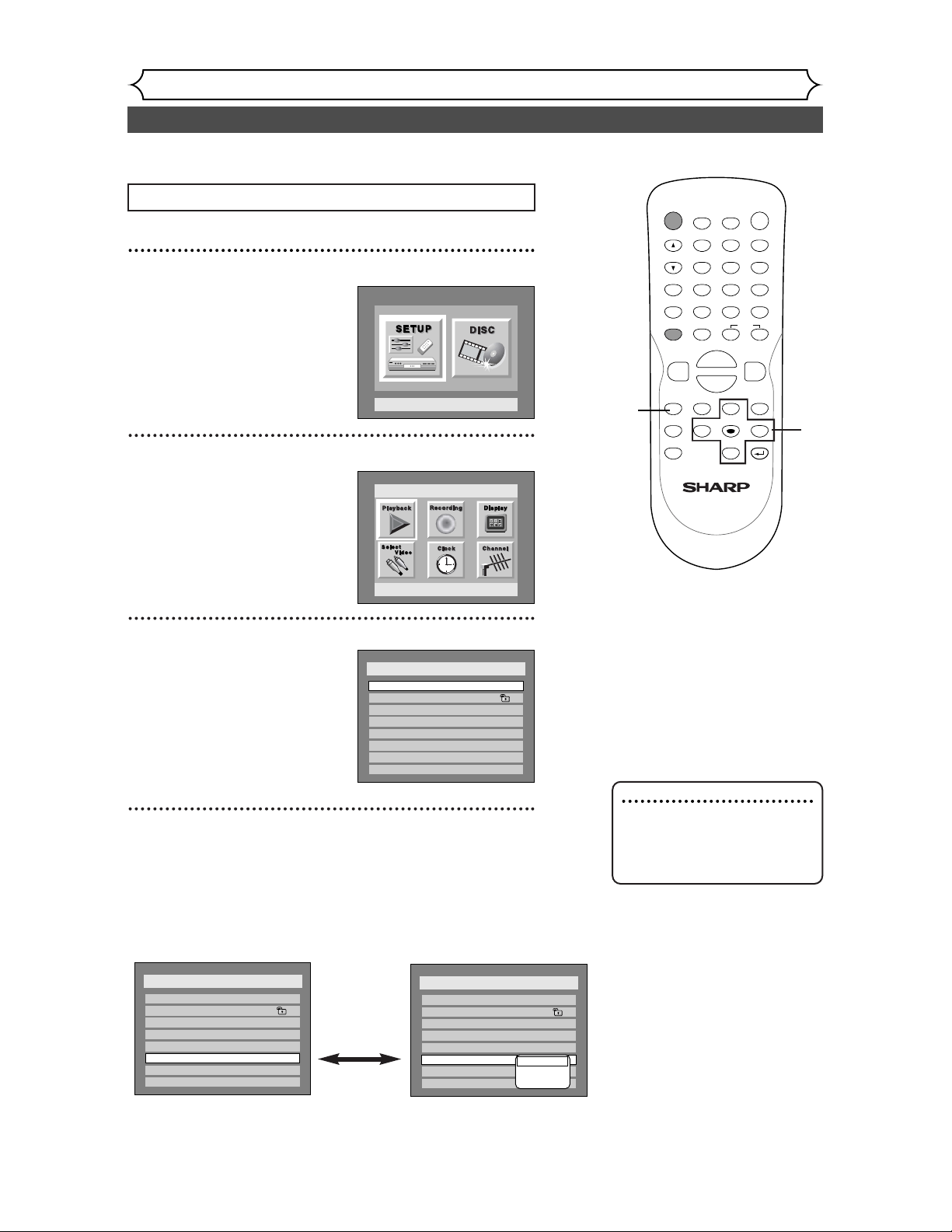
88
Audio setting
Changing the SETUP menu
1
Press SETUP button to display
SETUP/DISC menu.
SETUP/DISC menu will appear.
2
Select “SETUP” using { / B
buttons, then press ENTER
button.
SETUP menu will appear.
3
Select “Playback” using K / L /
{ / B
buttons, then press
ENTER button.
Option window will appear.
4
Select a desired item using K / L buttons, then press
ENTER button.
88
POWER
DISPLAY
REC MODE CLEAR
CM SKIP
SKIP
REC
PAUSE
SETUP
REPEAT
ZOOM
ENTER
RETURN
REC
MONITOR
OPEN/CLOSE
TIMER
PROG.
MENU/LIST
TOP MENU
SPACE
1
2
3
4
5
6
7
8
9
0
F
A
{B
FWD
g
STOP
C
PLAY
B
REV
h
HG
CH
.@/:
ABC
DEF
GHI
JKL
MNO
PQRS
TUV
WXYZ
K
L
1
2
Press STOP button if you are playing a disc.
3
4
5
Choose the appropriate Audio settings for your equipment.
It will only affect DVD discs during playback.
Note
• Dynamic Range Control func-
tion is available only on the
discs which are recorded in
the Dolby Digital format.
Setup Menu
Setup > Playback
TV Aspect
Parental Lock
Disc Menu Language
Audio Language
Subtitle Language
Digital Out
Dynamic Range Control
Fast Forward with Audio
OFF
4:3 Letter Box
All
English
Original
OFF
ON
Setup > Playback
TV Aspect
Parental Lock
Disc Menu Language
Audio Language
Subtitle Language
Digital Out
Dynamic Range Control
Fast Forward with Audio
OFF
4:3 Letter Box
All
English
Original
OFF
ON
PCM
Dolby Digital
DTS
Digital Out
Set the digital audio output.
•
Select a setting using K / L
buttons, then press ENTER
button.
Option window will appear.
Proceed to steps A, B or C.
Setup
Playback Setting
Setup > Playback
TV Aspect
Parental Lock
Disc Menu Language
Audio Language
Subtitle Language
Digital Out
Dynamic Range Control
Fast Forward with Audio
4:3 Letter Box
All
English
Original
OFF
ON
OFF
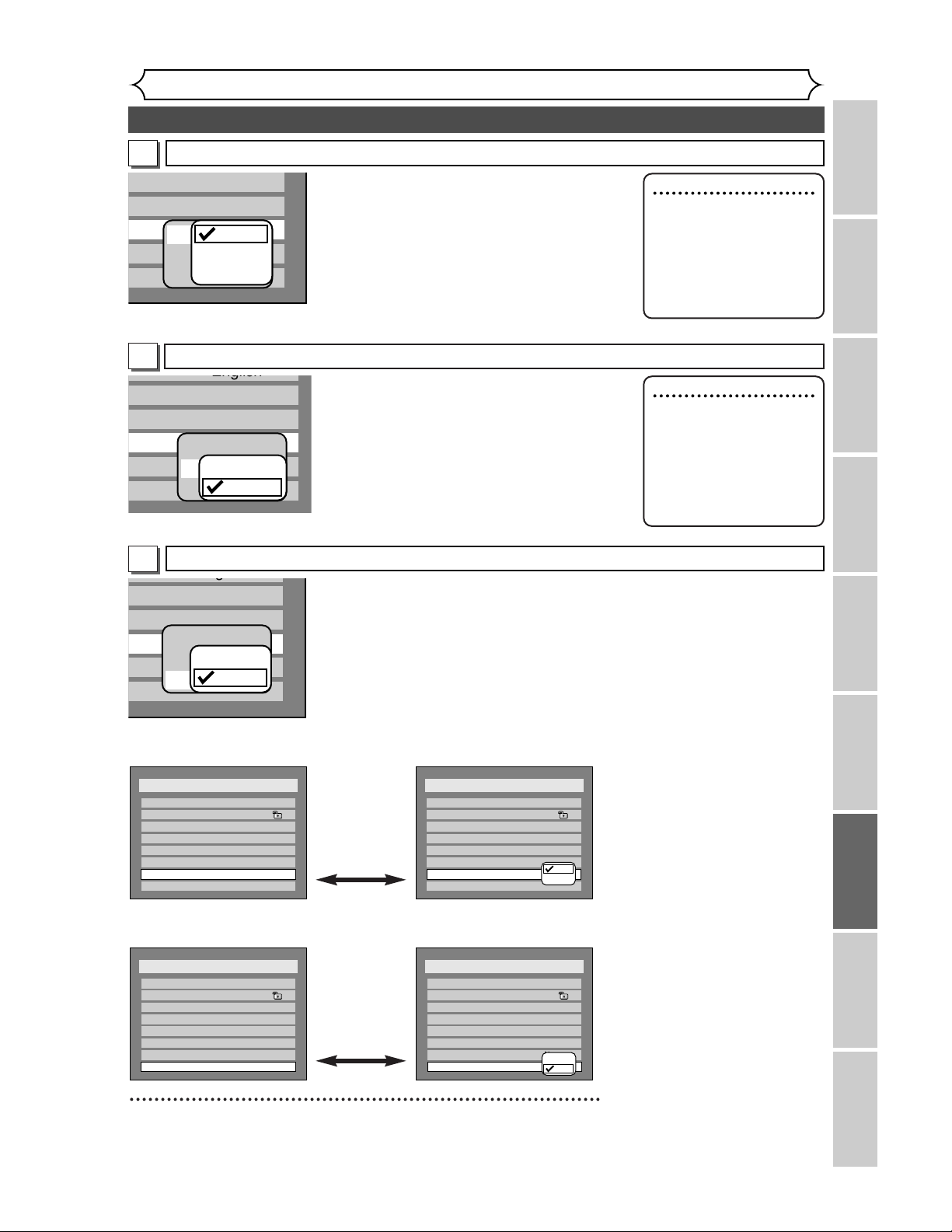
Audio setting (cont’d)
Changing the SETUP menu
Recording Playing discs EditingBefore you start Connections Getting started
Changing the SETUP menu
Others Español
89
Setup > Playback
TV Aspect
Parental Lock
Disc Menu Language
Audio Language
Subtitle Language
Digital Out
Dynamic Range Control
Fast Forward with Audio
4:3 Letter Box
All
English
Original
OFF
ON
OFF
Setup > Playback
TV Aspect
Parental Lock
Disc Menu Language
Audio Language
Subtitle Language
Digital Out
Dynamic Range Control
Fast Forward with Audio
4:3 Letter Box
All
English
Original
OFF
ON
OFF
Setup > Playback
TV Aspect
Parental Lock
Disc Menu Language
Audio Language
Subtitle Language
Digital Out
Dynamic Range Control
Fast Forward with Audio
4:3 Letter Box
All
English
Original
OFF
ON
OFF
ON
OFF
Setup > Playback
TV Aspect
Parental Lock
Disc Menu Language
Audio Language
Subtitle Language
Digital Out
Dynamic Range Control
Fast Forward with Audio
4:3 Letter Box
All
English
Original
OFF
ON
OFF
ON
OFF
•
Select a setting using K / L
buttons, then press ENTER
button.
Your setting will be activated.
• Dynamic Range Control func-
tion is effective only with analog
audio connection.
•
Select a setting using K / L
buttons, then press ENTER
button.
Your setting will be activated.
Dynamic Range Control (Default : ON)
Set to ON to compress the range between soft and loud sounds.
Fast Forward with Audio (Default : OFF)
Set to ON to output the sound during play in fast forward of x2.
5
Press SETUP button to exit SETUP menu.
Settings for Dolby Digital (Default : Stream)
age
o
ntrol
A
udio
English
Original
OFF
OFF
ON
PCM
Dolby Digital
DTS
PCM
Stream
•
Select a setting using K / L buttons, then
press ENTER button.
Your setting will be activated.
PCM : Convert the Dolby Digital into PCM(2
channel).
When your amplifier/decoder is NOT com-
patible with Dolby Digital, s
et to “PCM”
.
Stream : Outputs Dolby Digital signals
When your amplifier/decoder is compatible
with Dolby Digital,
set to “Stream”.
Settings for PCM (Default :Auto)
n
trol
u
dio
Original
OFF
OFF
ON
PCM
Dolby Digital
DTS
Auto
48kHz
96kHz
•
Select a setting using K / L buttons, then
press ENTER button.
Your setting will be activated.
Auto : Select “Auto” usually.
48kHz : If your amplifier/decoder is NOT com-
patible with 96kHz PCM, select “48kHz”.
96kHz sound will be output in 48kHz.
96kHz : If your amplifier/decoder is compatible
with 96kHz PCM, select “96kHz”. 96kHz
sound will be output.
B
A
Note
When playing disc with copy-
right protection
• If you select “Auto”, the sound
will be down sampled at 48kHz.
• If you select “96kHz”, no digital
sound will be output. Select
“Auto”, so that outputting
48kHz digital sound.
Note
When playing a DVD-RW
disc recorded in VR mode
• If the audio source on a disc is
Dolby Digital format, set “Dolby
Digital” to “PCM” so that you
can switch to main (L), sub
audio (R), or a mix of both (L/R)
with your amplifier/decoder.
Settings for DTS (Default : OFF)
n
trol
u
dio
g
Original
OFF
OFF
ON
PCM
Dolby Digital
DTS
ON
OFF
•
Select a setting using K / L buttons, then press ENTER button.
Your setting will be activated.
ON : Outputs DTS signals.
When your amplifier/decoder is compatible with DTS, set to “ON”.
OFF : No DTS, signal is output.
When your amplifier/decoder is NOT compatible with DTS, set to
“OFF”.
C
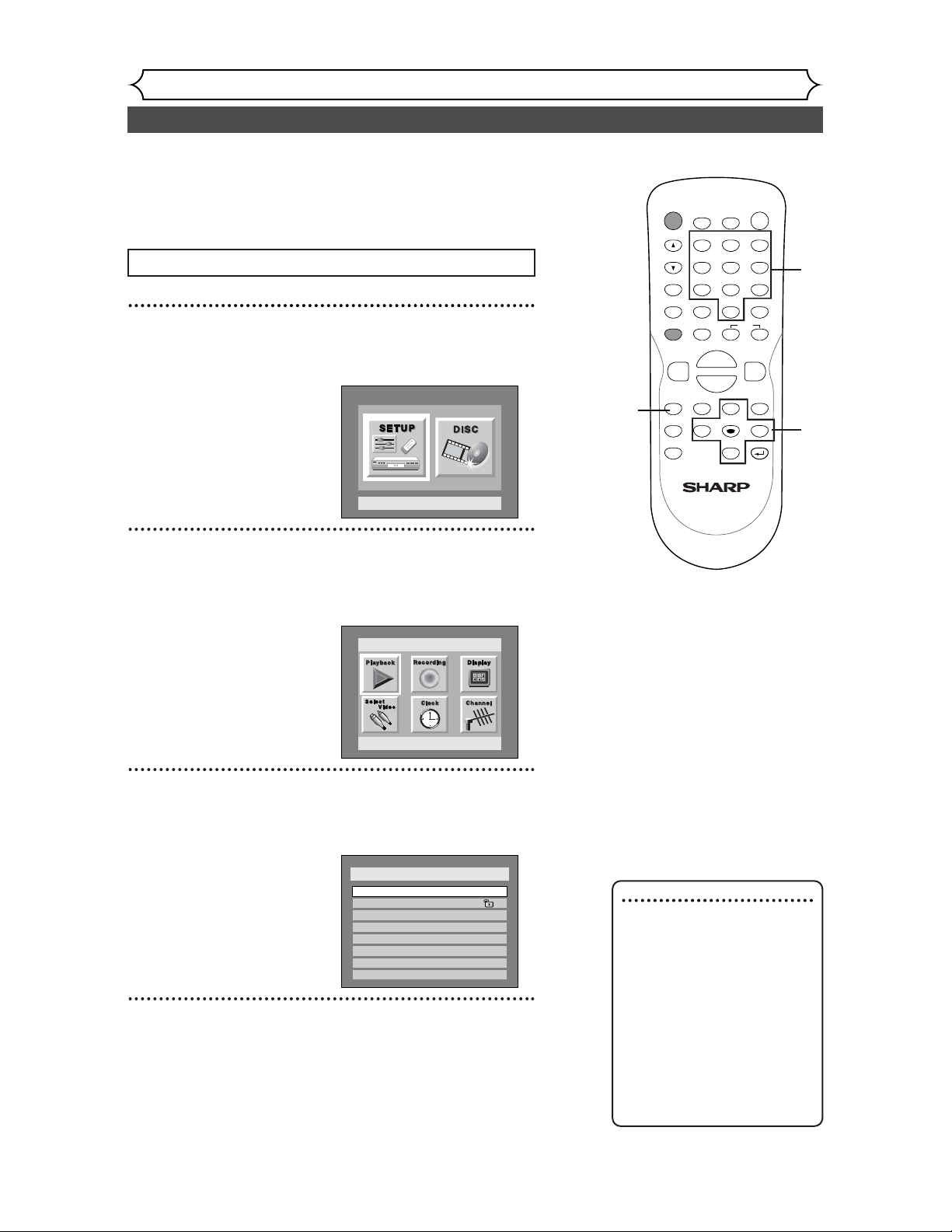
90
Settings for Parental lock level
Changing the SETUP menu
1
Press SETUP button to display SETUP/DISC menu.
SETUP/DISC menu will appear.
2
Select “SETUP” using { / B buttons, then press
ENTER button.
SETUP menu will appear.
3
Select “Playback” using K / L /
{ / B
buttons, then press
ENTER button.
Option window will appear.
4
Select “Parental Lock” using K / L buttons, then press
ENTER button.
Setup > Playback
TV Aspect
Parental Lock
Disc Menu Language
Audio Language
Subtitle Language
Digital Out
Dynamic Range Control
Fast Forward with Audio
4:3 Letter Box
All
English
Original
OFF
ON
OFF
Setup
Playback Setting
Setup Menu
90
POWER
DISPLAY
REC MODE CLEAR
CM SKIP
SKIP
REC
PAUSE
SETUP
REPEAT
ZOOM
ENTER
RETURN
REC
MONITOR
OPEN/CLOSE
TIMER
PROG.
MENU/LIST
TOP MENU
SPACE
1
2
3
4
5
6
7
8
9
0
F
A
{B
FWD
g
STOP
C
PLAY
B
REV
h
HG
CH
.@/:
ABC
DEF
GHI
JKL
MNO
PQRS
TUV
WXYZ
K
L
1
2
Press STOP button if you are playing a disc.
3
4
5
Some DVD-Video discs feature a Parental Lock level. Playback
will stop if the ratings exceed the levels you set, it will require
you to enter a password before the disc will playback.This fea-
ture prevents your children from viewing inappropriate materi-
al.
4
Note
• Parental lock function may
not be available to some
discs.
• With some DVDs, it may be
difficult to find if they are
compatible with parental lock.
Be sure to check if the
parental lock function oper-
ates in the way that you have
set.
• Record the password in case
you forget it.
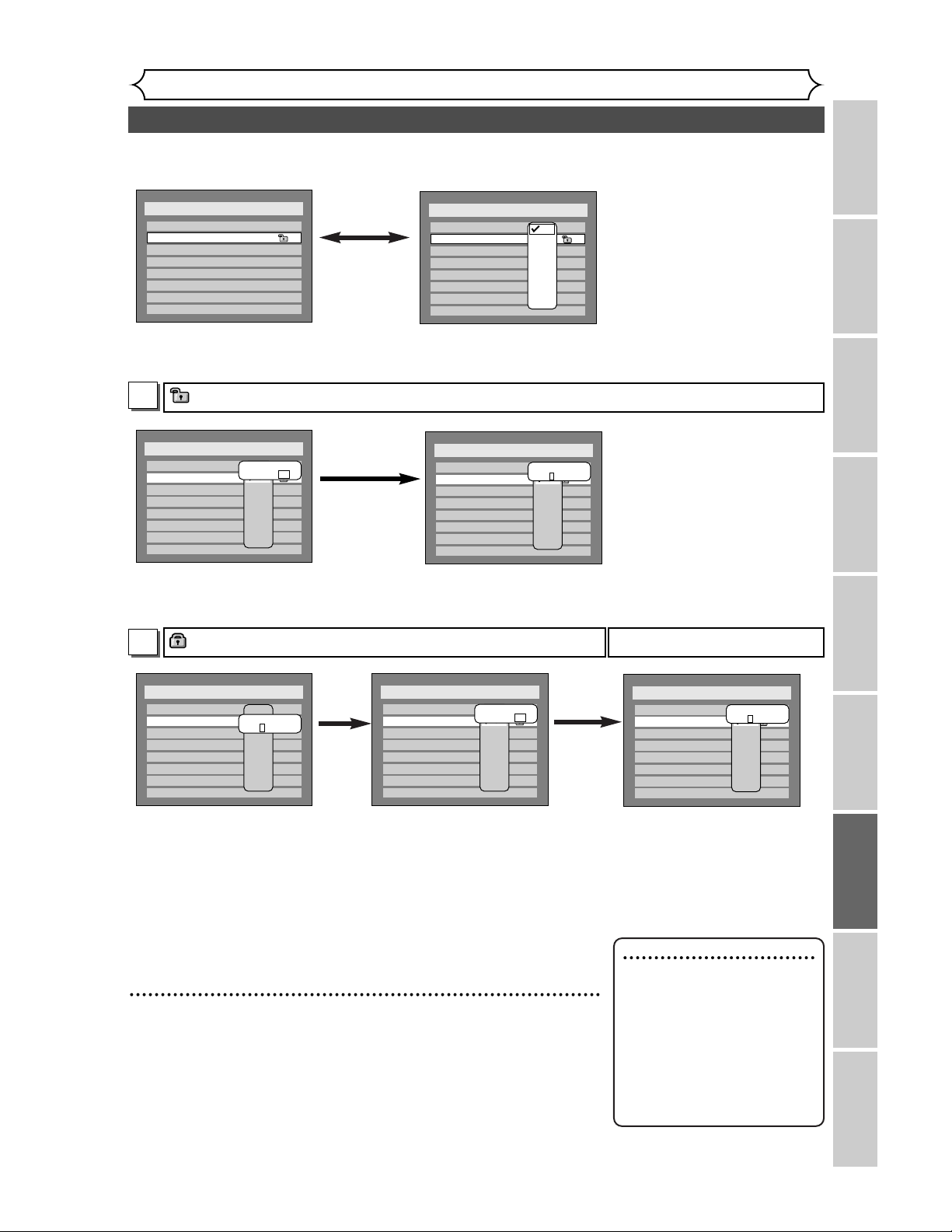
Settings for Parental lock level (cont’d)
Changing the SETUP menu
Recording Playing discs EditingBefore you start Connections Getting started
Changing the SETUP menu
Others Español
91
Setup > Playback
TV Aspect
Parental Lock
Disc Menu Language
Audio Language
Subtitle Language
Digital Out
Dynamic Range Control
Fast Forward with Audio
4:3 Letter Box
All
English
Original
OFF
ON
OFF
Setup > Playback
TV Aspect
Parental Lock
Disc Menu Language
Audio Language
Subtitle Language
Digital Out
Dynamic Range Control
Fast Forward with Audio
4:3 Letter Box
All
English
Original
OFF
ON
OFF
All
8
7
6
5
4
3
2
1
Setup > Playback
TV Aspect
Parental Lock
Disc Menu Language
Audio Language
Subtitle Language
Digital Out
Dynamic Range Control
Fast Forward with Audio
4:3 Letter Box
All
English
Original
OFF
ON
OFF
All
8
7
6
5
4
3
2
1
Password
- - - -
Parental Lock (Default :All)
Set the Parental Lock level.
•
Change the parental level
using K / L buttons, then
press ENTER button.
Option window will appear
Proceed to steps A or B.
•
Select “Yes” using s / B
buttons, then enter a new
password using Number
buttons.
Your setting will be activated.
•
Select “Yes” using s / B
buttons, then enter a new
password using Number
buttons.
Your setting will be activated.
5
Press SETUP button to exit SETUP menu.
A password has been set already
Setup > Playback
TV Aspect
Parental Lock
Disc Menu Language
Audio Language
Subtitle Language
Digital Out
Dynamic Range Control
Fast Forward with Audio
4:3 Letter Box
All
English
Original
OFF
ON
OFF
All
8
7
6
5
4
3
2
1
Change Password?
Yes No
Setup > Playback
TV Aspect
Parental Lock
Disc Menu Language
Audio Language
Subtitle Language
Digital Out
Dynamic Range Control
Fast Forward with Audio
4:3 Letter Box
All
English
Original
OFF
ON
OFF
All
8
7
6
5
4
3
2
1
Change Password?
Yes No
Setup > Playback
TV Aspect
Parental Lock
Disc Menu Language
Audio Language
Subtitle Language
Digital Out
Dynamic Range Control
Fast Forward with Audio
4:3 Letter Box
All
English
Original
OFF
ON
OFF
All
8
7
6
5
4
3
2
1
Password
- - - -
Setup > Playback
TV Aspect
Parental Lock
Disc Menu Language
Audio Language
Subtitle Language
Digital Out
Dynamic Range Control
Fast Forward with Audio
4:3 Letter Box
All
English
Original
OFF
ON
OFF
All
8
7
6
5
4
3
2
1
Password
* * * *
Change the password
• If you
select “No”, proceed
to Step 5.
Ye s
Ye s
Note
• Press CLEAR button to erase
numbers entered incorrectly.
• When you forget the pass-
word or you want to clear all
settings in Parental lock, enter
4,7,3,7 using Number buttons
in option window. Password
will be cleared and parental
levels will be set to All.
• If you
select “No”, proceed
to Step 5.
•
Enter the current password
using Number buttons.
A
B
A password has not been set yet
92
Troubleshooting
Others
Before requesting service for this DVD recorder, check the table below for a possible cause of the problem
you are experiencing. Some simple checks or a minor adjustment on your part may eliminate the problem
and restore proper operation.
Symptom Remedy
Power
The power does not turn on.
• Check that the AC power cord is connected securely.
• (In case of power failure) Check the braker.
Picture
There is no picture.
• Re-connect the connecting cord securely.
• The connecting cords are damaged.
• The Setup Display appears. Press RETURN button to turn
off the display.
• Check the connection to your TV (page 13).
• Check if the INTERLACE/PROGRESSIVE mode is set correctly
according to your TV (page 13).
•
Switch the input selector on your TV (such as to "LINE1") so that
the signal from the DVD recorder appears on the TV screen.
Picture noise appears.
• The disc is dirty or flawed.
• If the picture output signal from the DVD recorder passes
through your VCR to get to your TV, or if you are connected to
a combination TV/VIDEO player, the copy-protection signal
applied to some DVD programs could affect picture quality. If
you still experience this problem even when you connect the
DVD recorder directly to your TV, try connecting the DVD
recorder to your TV's S-VIDEO input.
TV program pictures are distorted. • Adjust TV antenna.
• Adjust the picture (see the TV's instruction manual).
• Place the DVD recorder and TV farther apart.
• Place the TV and any bunched antenna cables farther apart.
TV program reception does not fill the
screen.
•
Try to set the channels with "Auto Preset" in SETUP menu (page 18).
•
Select a channel of any TV program using the CH
o
/
p
buttons.
The playback picture or TV program from
the equipment connected through the
DVD recorder is distorted.
• If the playback picture output from a DVD player, VCR, or tuner
goes through the DVD recorder before reaching your TV, the
copy-protection signal applied to some programs could affect
picture quality. Disconnect the playback equipment in question
and connect it directly to your TV.
Sound
There is no sound.
• The disc is dirty or flawed.
• Re-connect all connections securely.
• The connecting cord is damaged.
• Check the connections to the amplifier input.
• The input source setting on the amplifier is incorrect.
• The recorder is in pause mode or in Slow-motion Play mode.
• The recorder is in fast forward or fast reverse mode.
•
If the audio signal does not come through the DIGITAL OUT (COAXIAL)
jack, check the Audio Setup settings (pages 88-89).
TV channels cannot be changed. • Switch the input to TV.
• Connect the antenna cable correctly (page 13).
Playback picture is distorted • Keep the equipment which may cause electrical disturbances,
such as a cellular phone, away.
Sound is noisy. • The disc is dirty or flawed.
Remote control
The remote control does not function.
• Batteries are weak.
•
There are obstacles between the remote control and the DVD recorder.
• The remote is far from the DVD recorder.
• There are no batteries in the remote.
• Turn on the DVD recorder.
• The remote control is not pointed at the remote sensor on the
DVD recorder.
• If above remedies do not solve the problem, please call the
Service Center for help.
93
Troubleshooting (cont’d)
Others
Recording Playing discs EditingBefore you start Connections Getting started
Changing the SETUP menu
Others Español
Symptom Remedy
Recording/Timer recording/Editing
The channel cannot be changed from the
channel you are recording.
• Set the TV's input to "TV."
The DVD recorder starts playing from the
disc automatically.
• The DVD VIDEO features an auto playback function.
Recording does not start immediately
after you press REC button.
• An unused DVD-R or DVD-RW was inserted. It takes a while
for the DVD recorder to automatically format a DVD-RW.
Some functions such as Stop, Search, or
Slow-motion Play cannot be performed.
•
Depending on the disc, you may not be able to do some of the
operations above. See the instruction manual supplied with the disc.
The language for the sound track cannot
be changed.
• Multilingual tracks are not recorded on the DVD VIDEO,
DVD-R or DVD-RW being played.
• The DVD VIDEO prohibits the changing of the language for the
sound track.
• Try changing the language using the DVD VIDEO's menu.
The angles cannot be changed. • Multi-angles are not recorded on the DVD VIDEO being played.
• You are trying to change the angles when icon does not
appear on the TV screen (page 56).
• The DVD VIDEO prohibits changing angles.
• Try changing the angle using the DVD VIDEO's menu.
Nothing was recorded even though you
set the timer setting correctly.
• There was a power failure during recording.
• The DVD recorder's internal clock stopped due to a power
failure that lasted for more than 30 seconds.
Reset the clock (pages 21-23).
• Disconnect the AC power cord from the AC outlet, and
connect it again.
• The program contains copy protection signals that restricts
copying.
• The timer setting overlapped with another setting that was set
later or has priority.
The subtitle language cannot be changed
or turned off.
• Multilingual subtitle are not recorded on the DVD VIDEO.
• The DVD VIDEO prohibits changing of the subtitles.
• Try changing the subtitle using the DVD VIDEO's menu.
The disc does not start playback from the
beginning.
•
Resume play was activated (page 46). Press STOP
C
button twice.
• You have inserted a disc whose Title menu or DVD menu
automatically appears on the TV screen when it is first insert.
Playback
The disc does not play.
• No disc is inserted.
• A blank disc is inserted.
• The disc is upside down. Insert the disc with the labeled side
facing up.
• The disc is not correctly inserted.
• The DVD recorder cannot play certain discs (such as a CD-
ROM) (page 41).
• The region code on the DVD VIDEO does not match the DVD
recorder (page 41).
• Moisture has condensed inside the DVD recorder. Remove the
disc and leave the DVD recorder turned on for about two
hours until the moisture evaporates (page 4).
• If the disc was recorded on another recorder, the DVD
recorder cannot play the disc if it was not finalized (page 39).
Playback image freezes for a second. • During the playback of two layered disc, picture may freeze for
a moment when the 1st layer switches to the 2nd layer. This is
not a malfunction.
Recording does not stop immediately
after you press STOP C button.
• It will take a few seconds for the DVD recorder to input disc
data before recording can stop.
Timer recording is not complete or did
not start from the beginning.
• The timer setting overlapped with another setting that was set
later or has priority (page 36).
• Disc space was not enough.
94
Troubleshooting (cont’d)
Others
Symptom Remedy
Others
The DVD recorder does not operate
properly.
• When static electricity, etc., causes the DVD recorder to
operate abnormally, unplug the DVD recorder and then plug it
in again.
The disc tray does not open when you
press OPEN/CLOSE A button.
• It may take a few seconds for the disc tray to open after you
have recorded or edited a disc.
• This is because the DVD recorder is adding disc data to the
disc.
"Repairing" appears on the display. • If there is a power failure or unplugging during recording,
finalizing, formatting or editing, a Repairing process will begin
automatically just after turning the unit on again.
It may take several minutes up to about four hours.
Repairing
Disc Error
Recording Error
Recording Error
Region Error
Parental Lock On
Recording Error
--- Please eject the disc. ---
Playback feature may not be
available on this Disc.
--- Please eject the disc. ---
Playback is not authorized in your
region.
--- Please eject the disc. ---
The current selected parental level
Prohibits playback.
This program is not allowed
to be recorded.
Recording Error
This program is not
recordable in Video mode.
This program is not allowed to
be recorded on this disc.
Unplayable disc is inserted
in the DVD recorder.
The disc is upside down.
Insert the standardized disc which
bear the marks on page 41.
Insert the disc with the labeled side
facing up.
Recording Error
This disc is protected and not
recordable.
Can not record on this disc.
CauseError message Solution
Playback is not authorized
in the region of the DVD-Video
disc which you inserted in the
DVD recorder.
The current selected parental
level in the SETUP Menu
prohibits playback.
The recording function encountered
the copy prohibited program.
You are trying to record the copy-
once program onto the DVD-RW
disc in Video mode.
You are trying to record onto the
disc which is unrecordable, or the
disc status is unable to record.
The disc is dirty.
The disc is damaged.
You are trying to record the copy-
once program onto the DVD-RW
disc which is not compatible with
CPRM.
You are trying to record on to the
protected disc which is set in the
Disc Setting Menu.
Insert the DVD-Video disc with
region codes 1 or ALL.
Check the "Parental Lock" setting
(pages 90-91).
You cannot record copy prohibited
programs.
Set "DVD-RW Recording Format"
to "VR mode" (page 28).
Release the disc protect setting
in the Disc Setting menu (page 40).
Insert the recordable disc, and
ensure the disc status satisfies the
recording requirements
(pages 26-27).
Clean the disc with a cleaning cloth.
Replace the disc.
Insert the DVD-RW disc
(ver.1.1 compatible with CPRM).
Recording Error
Disc is full.
You are trying to record onto
the disc which has no space
for recording.
Insert the recordable disc with
enough recording space.
(No area for new recording)
Troubleshooting (cont’d)
Others
Recording Playing discs EditingBefore you start Connections Getting started
Changing the SETUP menu
Others Español
Language Code Language Code Language CodeLanguage Code
(Afan) Oromo 6159
Abkhazian 4748
Afar 4747
Afrikaans 4752
Albanian 6563
Amharic 4759
Arabic 4764
Armenian 5471
Assamese 4765
Aymara 4771
Azerbaijani 4772
Bashkir 4847
Basque 5167
Bengali;Bangla 4860
Bhutani 5072
Bihari 4854
Bislama 4855
Breton 4864
Bulgarian 4853
Burmese 5971
Byelorussian 4851
Cambodian 5759
Catalan 4947
Chinese 7254
Corsican 4961
Croatian 5464
Czech 4965
Danish 5047
Dutch 6058
English 5160
Esperanto 5161
Estonian 5166
Faroese 5261
Fiji 5256
Finnish 5255
French 5264
Frisian 5271
Galician 5358
Georgian 5747
German 5051
Greek 5158
Greenlandic 5758
Guarani 5360
Gujarati 5367
Hausa 5447
Hebrew 5569
Hindi 5455
Hungarian 5467
Icelandic 5565
Indonesian 5560
Interlingua 5547
Interlingue 5551
Inupiak 5557
Irish 5347
Italian 5566
Japanese 5647
Javanese 5669
Kannada 5760
Kashmiri 5765
Kazakh 5757
Kinyarwanda 6469
Kirghiz 5771
Kirundi 6460
Korean 5761
Kurdish 5767
Laothian 5861
Latin 5847
Latvian; Lettish 5868
Sindhi 6550
Singhalese 6555
Siswat 6565
Slovak 6557
Slovenian 6558
Somali 6561
Spanish 5165
Sundanese 6567
Swahili 6569
Swedish 6568
Tagalog 6658
Tajik 6653
Tamil 6647
Tatar 6666
Telugu 6651
Thai 6654
Tibetan 4861
Tigrinya 6655
Tonga 6661
Tsonga 6665
Turkish 6664
Turkmen 6657
Twi 6669
Ukrainian 6757
Urdu 6764
Uzbek 6772
Vietnamese 6855
Volapuk 6861
Welsh 4971
Wolof 6961
Xhosa 7054
Yiddish 5655
Yoruba 7161
Zulu 7267
Lingala 5860
Lithuanian 5866
Macedonian 5957
Malagasy 5953
Malay 5965
Malayalam 5958
Maltese 5966
Maori 5955
Marathi 5964
Moldavian 5961
Mongolian 5960
Nauru 6047
Nepali 6051
Norwegian 6061
Occitan 6149
Oriya 6164
Panjabi 6247
Pashto; Pushto 6265
Persian 5247
Polish 6258
Portuguese 6266
Quechua 6367
Rhaeto-Romance 6459
Romanian 6461
Russian 6467
Samoan 6559
Sangho 6553
Sanskrit 6547
Scots Gaelic 5350
Serbian 6564
Serbo-Croatian 6554
Sesotho 6566
Setswana 6660
Shona 6560
Recording Error
You cannot record more
than 99 titles on one disc.
Recording Error
You cannot record more the
999 chapters on one disc.
Recording Error
You cannot record on this disc
as Control Information is full.
Recording Error
You cannot record on the
disc as Power Calibration
Area is full.
Recording Error
This disc is already finalized.
CauseError message Solution
You are trying to record onto the
disc on which the number of
recording titles comes up to the
maximum (99).
You are trying to record onto the
VR mode DVD-RW disc on which
the number of recording chapters
comes up to the maximum (999).
This disc has no space to write
the Control Information when
recording or deleting contents.
When editing has been repeatedly
performed, the control Information
area may come up to be full even
the recording area has enough space.
When recordings are performed
repeatedly onto an unstable disc,
this area may come up to be full.
Every time you insert a disc for
recording, the disc's working area
will be taken up. And if you repeat
this frequently, it will be used up
sooner and you may not be able to
record full 99 titles.
You are trying to record onto
the disc already finalized.
Delete unnecessary titles
(pages 59, 63, 72).
Delete unnecessary chapter
markers (pages 67, 76).
Delete unnecessary titles
(pages 59, 63, 72).
Insert a new disc.
Release the finalizing for this disc
(page 39).
(The maximum is 99)
(The maximum is 999)
95
Language code
96
Glossary
Others
Analog audio
An electrical signal that directly
represents sound. Compare this
to digital audio which can be an
electrical signal, but is an indirect
representation of sound. See also
Digital audio.
Aspect ratio
The width of a TV screen relative
to its height. Conventional TVs are
4:3 (in other words, the screen is
almost square); widescreen models
are 16:9 (the screen is almost
twice as wide as it is high).
Chapter
Just as a book is split up into sev-
eral chapters, a title on a DVD
disc is usually divided into chap-
ters. See also Title.
Component video output
Each signal of luminance(Y) and
component(PB/CB,PR/CR) is inde-
pendent to output so that you can
experience picture color as it is.
Also, due to compatibility with
progressive video (480p), you can
experience higher-density picture
than that in interlace (480i).
CPRM
(Content Protection for
Recordable Media)
CPRM is a copy protection sys-
tem with scramble system regard-
ing the recording of “copy-once”
broadcast programs (e.g. some
satellite broadcasts).
Digital audio
An indirect representation of
sound by numbers. During record-
ing, the sound is measured at dis-
crete intervals (44, 100 times a
second for CD audio) by an ana-
log-to-digital converter, generating
a stream of numbers. On playback,
a digital-to-analog converter gen-
erates an analog signal based on
these numbers. See also Sampling
frequency and Analog audio.
Dolby Digital
The system to compress digital
sound developed by Dolby
Laboratories. It offers you sound
of stereo(2ch) or multi-channel
audio (up to 5.1ch).
DTS (Digital Theater System)
DTS is a 5.1channel surround
sound system, but it is different
from Dolby Digital.The formats
were developed by Digital Theater
System, Inc.
Finalize
To make DVD discs, which have
been recorded on, possible to play
in DVD players.With this DVD
recorder, it is possible to finalize
DVD-R/DVD-RW discs.
MP3 (MPEG Audio Layer 3)
MP3 is a method of compressing
files.You can copy MP3 files on
CD-RW/R discs from the comput-
er and play the files on this unit.
PCM
(Pulse Code Modulation)
The most common system of
encoding digital audio, found on
CDs and DAT. Excellent quality,
but requires a lot of data com-
pared to formats such as Dolby
Digital and MPEG audio. For com-
patibility with digital audio
recorders (CD, MD and DAT) and
AV amplifiers with digital inputs,
this unit can convert Dolby Digital
and MPEG audio to PCM. See also
Digital audio.
Playlist
From this list you can play con-
tents of a disc as your desired
order or in sequence.Also it is
allowed to search a specific scene
directly.
Progressive Scan (480p)
A type of display that does not
split each frame into fields, and
instead scans directly through all
the scanlines of each frame in
order. Progressive Scan provides
less flickering and higher image
resolution than traditional (480i)
TV signals. Refer to page 13 for
instructions on selective
Progressive Scan mode.
Regions code
Regions associate discs and play-
ers with particular areas of the
world.This unit will only play discs
that have compatible region
codes.You can find the region
code of your unit by looking on
the rear panel. Some discs are
compatible with more than one
region (or all regions).
Sampling frequency
The rate which sound is measured
by a specified interval to turn into
digital audio data.The numbers of
sampling in one second defines as
sampling frequency.The higher the
rate, the better the sound quality
as possible as it is.
SAP
(Secondary Audio Program)
Sub-audio channel which is deliv-
ered separately from main-audio
channel.This audio channel is used
as an alternate in bilingual broad-
casting.
S-Video output
It delivers independently each signal
of color(C) and luminance(Y) to TV
as video signals, so that higher-quali-
ty picture will be gained.
Title (DVD only)
A collection of chapters on DVD
disc. See also chapter.
Track
Audio CDs use tracks to divide
up the content of a disc.The DVD
equivalent is called a chapter. See
also Chapter.
97
Specifications
Others
Recording Playing discs EditingBefore you start Connections Getting started
Changing the SETUP menu
Others Español
System
Power requirements
Power consumption
Weight
Dimensions (width x height x depth)
Operating temperature
Operating humidity
TV format
DVD-Video, DVD-RW/R, CD-DA, CD-RW/R
AC120 V, 60 Hz
23 W (standby: 4.0 W)
6.0 lbs ( 2.7 kg )
17 1/8" x 2 5/8" x 11 3/4" (435 x 66 x 297 mm)
41Fº to 104Fº (5ºC to 40ºC)
5% to 85% (no condensation)
NTSC
General
Receivable channels
VHF
UHF
CATV
2-13ch
14-69ch
C1-C125ch
Recording
Tuner
Input/Output
Recording format
Recordable discs
Video Recording format (DVD-RW only),
Video format (DVD-RW, DVD-R)
DVD-ReWritable, DVD-Recordable
Audio recording format
Sampling frequency
Compression format
Video recording format
Sampling frequency
Compression format
13.5MHz
MPEG
48kHz
Dolby Digital
Video input
Input level
Jacks
Video output
Output level
Jacks
Component video output
Output level
Jacks
S-Video input
Y (Iuminance) - Input level
C (color) - Input level
Jacks
Audio input
During audio input
Jacks
Audio output
During audio output
Jacks
S-Video output
Y (Iuminance) - Output level
C (color) - Output level
Jacks
VHF/UHF antenna input/output terminal
Input 1 (rear), 2 (front)
1 Vp-p (75Ω)
RCA jack
Output 1
1 Vp-p (75Ω)
RCA jack
Y: 1.0 Vp-p (75Ω), P
B/CB, PR/CR: 0.7 Vp-p (75Ω)
RCA jacks
Input 1 (rear), 2 (front)
1 Vp-p (75Ω)
286 mVp-p (75Ω)
4 pin mini DIN
Input 1 (rear), 2 (front) L/R
2V rms (Input impedance: more than 22kΩ)
RCA jacks
Output 1,2 L/R
2V rms (Output impedance: less than 1kΩ)
RCA jacks
Digital audio output
Output level
Jacks
500 mVp-p (75Ω)
RCA jack
1 Vp-p (75Ω)
286 mVp-p (75Ω)
4 pin mini DIN
VHF/UHF set 75Ω
Note:
The specifications and design of this product are subject to change without notice.
For the location of the nearest Sharp Authorized Service Center, or to obtain product literature, accessories,
supplies or customer assistance, please call 1-800-BE-SHARP (1-800-237-4277) or visit SHARP’s website
(http://www.sharpusa.com).
Service Information (For the U.S.)
98
Precaciones
Español
AVISO: PARA REDUCIR EL RIESGO DE INCENDIO O ELECTRO-
CHOQUE NO EXPONGA ESTE APARATO A LA HUMEDAD.
Este dispositivo cumple con la Parte 15 de las reglas de la FCC (Comisión Federal de Comunicaciones). La operación
se encuentra sujeta a las dos condiciones siguientes:
(1) Este dispositivo no debería producir interferencias perjudiciales, y
(2) este dispositivo debe aceptar cualquier interferencia recibida, incluyendo las que puedan producir una operación
indeseable.
INFORMACION
Este equipo se ha sometido a todo tipo de pruebas y cumple con las normas establecidas para dispositivo digital de
Clase B, de conformidad con la Parte
15 de las reglas de la FCC (Comisión Federal de Comunicaciones). Estas reglas
están diseñadas para asegurar una protección razonable contra interferencias perjudiciales en las instalaciones resi-
denciales. Este equipo genera, utiliza y puede emitir energía de radiofrecuencia y, si no se instala y utiliza debidamente,
es decir, conforme a las instrucciones, podrían producirse interferencias perjudiciales en las radiocomunicaciones. Sin
embargo, no se garantiza que estas interferencias no se produzcan en una instalación determinada. Si este equipo oca-
siona interferencias en la recepción de radio o televisión, lo cual puede comprobarse con sólo apagar y encender el
equipo, intente corregir el problema mediante una o una combinación de las siguientes medidas:
—Reoriente la antena receptora o cámbiela de lugar.
—Aumente la separación entre el equipo y el receptor.
—Enchufe el equipo a una toma de corriente situada en un circuito distinto del receptor.
—Consulte a su distribuidor o a un técnico experto en radio/televisión.
PRECAUCION:
ESTA UNIDAD HA SIDO CLASIFICADA COMO PRODUCTO CLASS 1 LASER.
EL USO DE MANDOS O AJUSTES O LA REALIZACION DE PROCEDIMIENTOS DISTINTOS DE LOS INDICA-
DOS EN LA PRESENTE IMPLICA EL RIESGO DE EXPOSICION A UNA RADIACION PELIGROSA.
COMO LOS RAYOS LASER UTILIZADOS EN ESTA UNIDAD PUEDEN RESULTAR PERJUDICIALES PARA SUS
OJOS, NO INTENTE DESARMAR EL GABINETE. SOLICITE EL SERVICIO UNICAMENTE A PERSONAL CUALIFI-
CADO.
“ADVERTENCIA—Las reglas de la FCC (Comisión Federal de Comunicaciones)
estipulan que cualquier modificación o cambio a este equipo no aprobado expre-
samente por el fabricante podrá anular la autorización del usuario para operar este
equipo”.
Este símbolo previene al usuario del voltaje ais-
lado dentro de la unidad que puede provocar
descargas eléctricas peligrosas.
Este símbolo advierte al usuario que existen
instrucciones de operación y de mantenimien-
to en la literatura incluida en esta unidad.
PRECAUCION:
TPARA REDUCIR EL RIESGO DE DESCARGA ELECTRICA,
NO QUITE LA CUBIERTA. EL USUARIO NO DEBERA DAR
NINGUN TIPO DE SERVICIO A NINGUNA PARTE INTER-
NA. DEBERA SER REALIZADO SOLO POR PERSONAL DE
SERVICIO CALIFICADO.
PRECAUCION
PELIGRO DE DESCARGA ELECTRICA NO
ABRIR DECLARACIÓN DE CONFORMIDAD
Para futura referencia, anote los números de modelo y de serie (indica-
dos en la parte posterior esta unidad) en el espacio provisto.
No. de modelo:
DV-SR45U
No. de serie:
This Class B digital apparatus complies with Canadian ICES-003.
Cet appareil numérique de la classe B est conforme à la norme NMB-003 du Canada.
Este aparato digital de la Clase B cumple con la norma ICES-003 de Canadá.
PRECAUCIÓN: PARA EVITAR DESCARGAS ELÉCTRICAS, HAGA QUE
LA PALETA ANCHA DEL ENCHUFE COINCIDA CON LA RANURA ANCHA
E INTRODÚZCALA HASTA EL FONDO.
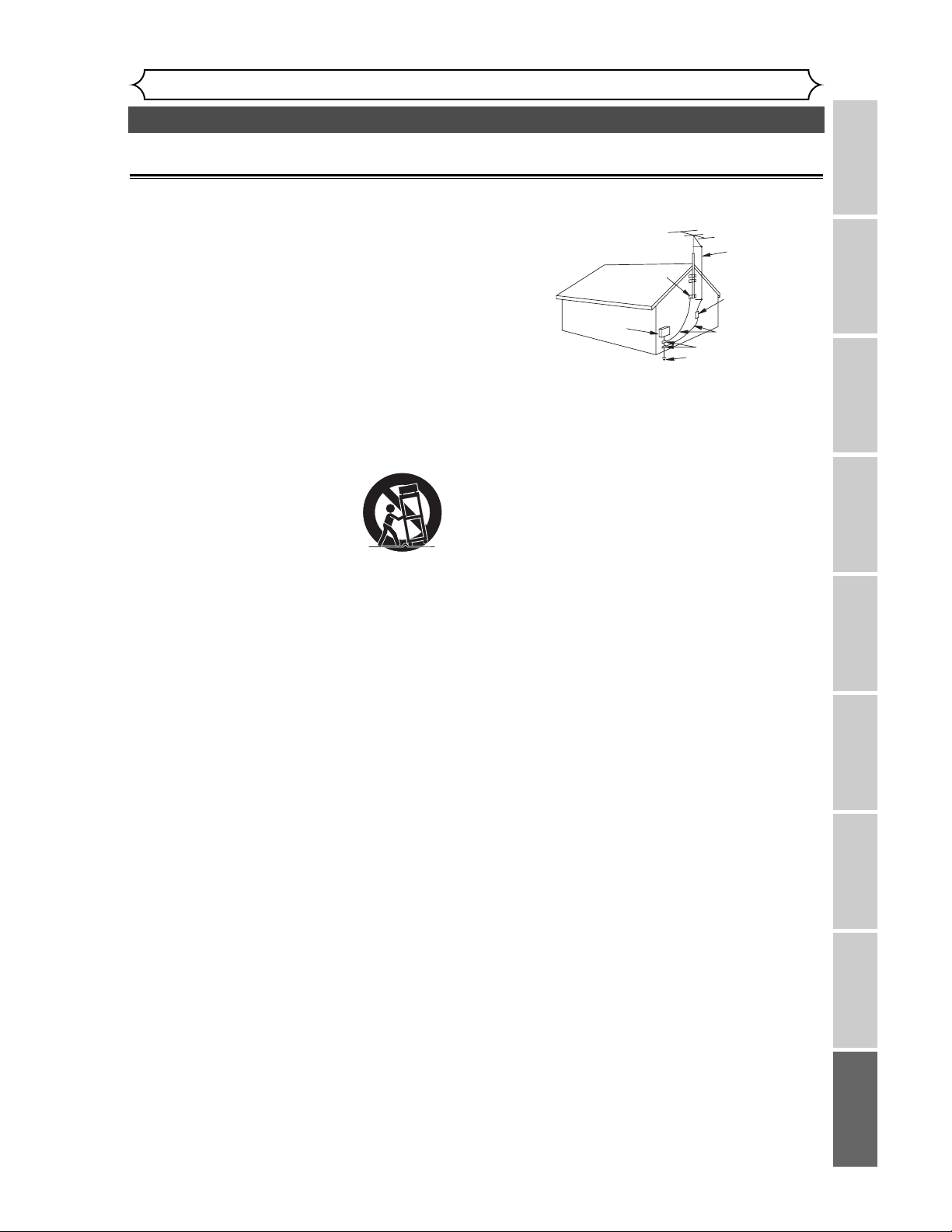
99
Precaciones (cont.)
Español
Recording Playing discs EditingBefore you start Connections Getting started
Changing the SETUP menu
Others Español
Importantes Medidas de Seguridad y Precauciones
1) Lea las instrucciones - Lea detenidamente todas las instruc-
ciones de seguridad y operación antes de usar el producto.
2) Conserve las instrucciones - Conserve las instrucciones de
seguridad y operación para consultas futuras.
3) Respete las advertencias - Observe estrictamente todas las
advertencias impresas en el producto y las incluidas en el
manual de instrucciones.
4)
Siga las instrucciones - Siga todas las instrucciones de operación.
5)
Limpieza - Desconecte el producto del tomacorriente mural
antes de limpiarlo. No use limpiadores líquidos ni aerosol. Use
un paño húmedo para la limpieza del producto.
6) Enchufes - No use enchfes no recomendados por el fabri-
cante del producto, ya que podría ser peligroso.
7)
Agua y humedad - No use este producto cerca del agua, por ejem-
plo, cerca de una bañera o lavamanos, cerca del fregadero de la
cocina o lavandería, en un piso mojado, cerca de una piscina, etc.
8) Accesorios - No instale este producto en un carro, soporte,
trípode o mesa inestables. El grabador de videocassettes
podría caerse, causando serias lesiones a un niño o adulto,
resultando también severamente dañado. Uselo sólo el un
carro, soporte, trípode o mesa
recomendados por el fabricante,
o vendidos con el producto.Toda
instalación del producto deberán
hacerse de acuerdo a las instruc-
ciones del fabricante, empleando
los accesorios de instalación
recomendados por el mismo.
9) La combinación de producto y
carro debe ser movida con cuidado. Las detenciones brus-
cas, la fuerza excesiva y las superficies disparejas podrán
hacer que el producto y el carro se vuelquen.
10)
Ventilación - El gabinete del producto tiene renuras y aberturas
de ventilación que garantizan el funcionamiento confiable del
producto, evitando que se recaliente. Estas aberturas no
deberán ser bloquear las aberturas, nunca setúe el grabador de
videocassettes encima de una cama, sofá, alfombra u otra
superficie similar. El grabador de videocassettes no debe ser
instalado en un mueble emportado, como una repisa para
libros o bastidor, a menos que se pueda garantizar una venti-
lación adecuada, o cuando las instrucciones del fabricante así lo
especifiquen.
11) Alimentación - Este grabador de videocassettes sólo debe
ser operado mediante el tipo de fuente de alimentación
especificado en la etiqueta indicadora. Si no seta seturo del
tipo de fuente de alimentación que tiene en su casa, con-
sulte a su distribuidor o a la compañía de electricidad local
En el caso de grabador de doseñados para funcionar a pilas
o con otras fuentes de alimentación, consulte el manuel de
instrucciones respectivo.
12)
Conexión a tierra o polarización - Este producto está equipa-
do con una clavija polarizada de corriente alterna (una clavija
que tiene una espiga más ancha que la otra). Esta clavija sola-
mente pordá ser insertada en el tomacorriente en una sola
dirección. Esta es una medida de seguridad. Si no puediera
insertar completamente la clavija en el tomacorriente, vuelva a
intentarlo invirtiendo la clavija. Si aún no fuera posible insertar
la clavija, tome contacto con un electricista para que repare su
tomacorriente obsoleto . No modifique las características de
seguridad de la clavija polarizada.
13)
Protección del cable de alimentación - Los cables de ali-
mentación deberán ser tendidos de manera tal que la proba-
bilidad de que sean pisados o aplastados por otros objetos sea
mínima.Preste especial atención a las clavijas de los cables, a los
receptáculos, y al punto por donde salen del producto.
14)
Conexión Tierra de una Antena Exterior: Si una antena exterior o
sistema de cable es conectado al aparato de vídeo, asegúrese de
que la antena o el cableado tenga conexión tierra para conseguir
de esta manera una protección contra voltajes no deseados y car-
gas estáticas. El artículo 810 del Código de Electricidad Nacional
ANSI/NFPA número 70, proporciona información acerca de la
manera adecuada de conexiones a tierra de la estructura del
mástil y la estructura soporte, sobre la unidad del cable del interi-
S3125A
ADVERTENCIA SOBRE EL USO
DE CARROS PORTÁTILES
or de cobre de antena, tamaño de los conductores tierra, ubi-
cación de la unidad de descarga de la antena, conexión a los elec-
trodos tierra, y requerimientos de los electrodos tierra (Fig.A).
15) Tormentas eléctricas - Como medida adicional de protec-
ción durante tormentas eléctricas, o cuando el producto
permanezca sin uso durante períodos prolongados de tiem-
po, desconéctelo del tomoacorriente mural y desconecte la
antena o sistema de cable. Esto evitará que el grabador de
videocassettes resulte dañado por tormentas eléctricas o
sobretensiones en la línea de alimentación.
16) Líneas de alimentación - Un antena exterior no debe ser
instalada en la cercanía de líneas de alimentación aéreas ni
de otros circuitos de potencial para iluminación eléctrica, o
donde pueda caerse y hacer contacto con tales líneas o cir-
cuitos.Al instalar un sistema de antena exterior, enta mucho
cuidado de no tocar tales líneas o circuitos de alimentación,
ya que el contacto con ellos podría será fatal.
17) Sobrecarga - No sobrecargue los tomacorrientes murales
ni los cables de extensión, ya que esto podría causar incen-
dios o descargas eléctricas.
18) Entrada de objetos y líquidos - Nunca introduzca objetos de
ningún tipo por las aberturas de sete producto, ya que por-
dría tocar peligrosos puntos de alta tensión o cortocircuitar
partes, provocando incendios o descargas elécticas. Nunca
derrame ningún tipo de líquido sobre el producto.
19)
Servicio - No intente reparar el producto usted mismo; al abrir
o desmontar las cobiertas usted se expondrá a alta tensión y a
otros peligros. Solicite todo servicio a personal calificado.
20) Daños que requieran reparación - En los siguientes casos,
desconecte el producto del tomacorriente mural y llame a
un técnico de servicio calificado:
a)
Cuando el cable de alimentación o la clavija estén dañados,
b) Si se ha derramado líquido sobre la unidad, o si algún
objeto ha caído dentro del producto,
c) Si el producto ha sido expuesto a la lluvia o al agua,
d) Cuando a pesar de haber sebuido las instrucciones de
operación, el producto no funcione normalmente.Ajuste
solamente los controles mencionados en el manual de
instrucciones; el ajuste incorrecto de otros controles
podrá causar daños a la unidad, la que por lo general
requerirá de un prolongado trabajo de reparación (por
un técnico calificado) para que sus condiciones normales
de operación puedan ser restablecidas,
e) Si el producto se ha caído o si el gabinete se ha dañado.
f) Cuando el producto muestre un cambio notorio en su
rendimiento.
21) Piezas de requesto - Cuando sea necesario reemplazar
piezas, asegúrese de que el técnico de servicio emplee las
piezas de requesto especificadas por el fabricante, o piezas
que tengan las mismas características que las piezas origi-
nales. Las sustituciones no autorizadas podrán causar incen-
dios, descargas eléctricas y otoros problemas.
22) Revisión de seguridad - Al finalizar cualquier servicio de
mantenimiento o reparación de este producto, solicítele al
técnico que efectúe comprobaciones de seguridad para
determinar si el producto se encuentra o no en condiciones
óptimas de operación.
23) Calor - Este producto debe colocarse fuera del alcance de
fuentes de calor tales como radiadores, rejillas de calefac-
ción, estufas o cualquier otro producto destinado a pro-
ducir calor, incluyendo los amplificadores.
FIGURA A
EJEMPLO DE CONEXIÓN A TIERRA DE ANTENA DE
ACUERDO CON EL CÓDIGO ELÉCTRICO NACIONAL.
CABLE DE COBRE
PARA LA ANTENA.
UNIDAD PARA LA DESCARGA
DE LA ANTENA
(NEC SECCIÓN 810-20)
CONDUCTORES TIERRA
(NEC SECCIÓN 810-21)
ABRAZADERA
DE LA ANTENA.
ABRAZADERA A TIERRA.
EQUIPO PARA EL
SERVICIO
ELÉCTRICO
SISTEMA DE ELECTRODOS PARA EL
SUMINISTRO DE TOMA A TIERRA
(NEC ARTÍCULO 250, PARTE H)
CÓDIGO DE NEC NATIONAL ELECTRIC
S2898A
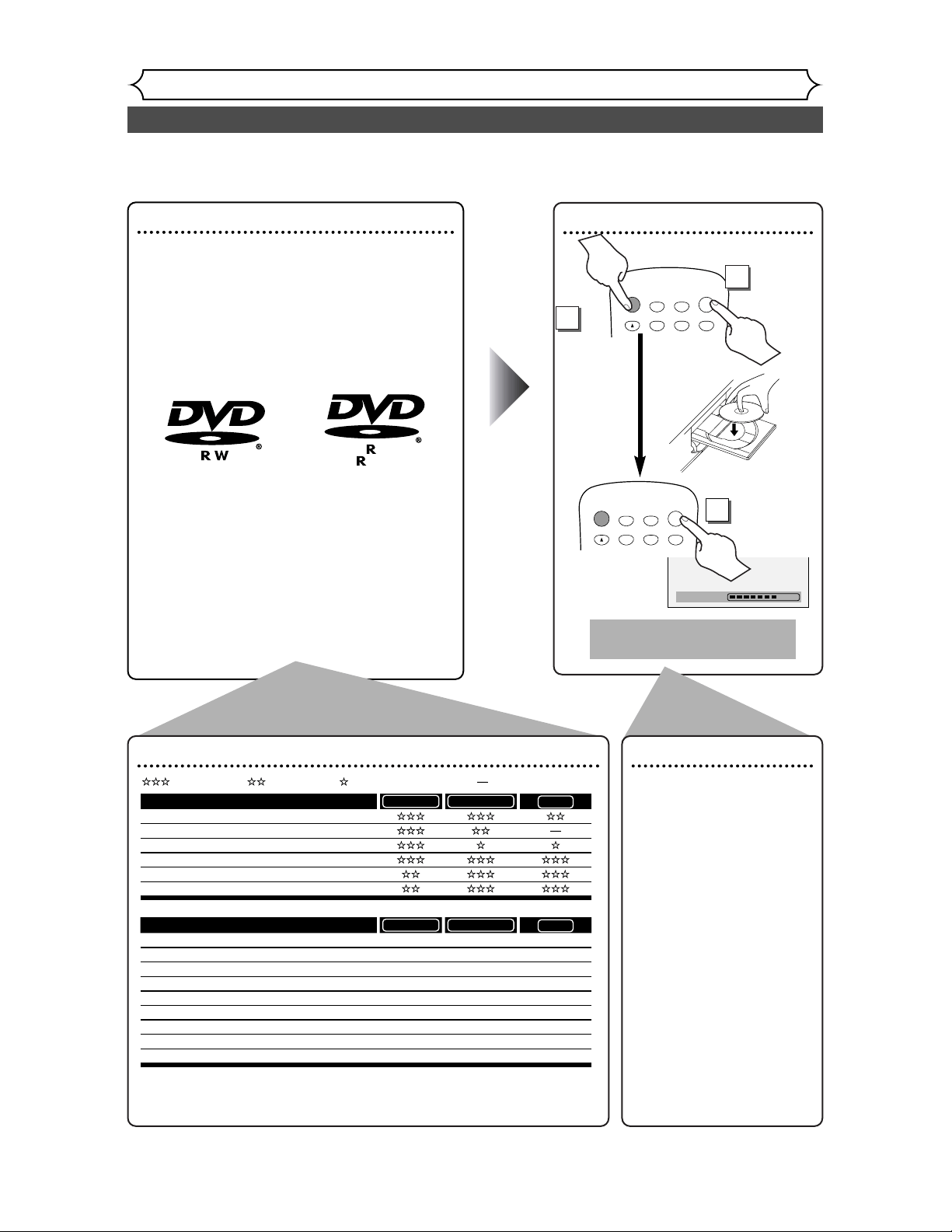
Fácil grabación de DVD
Español
100
Estas instrucciones le ayudarán a entender fácilmente cómo grabar discos DVD.
Nota:
Asegúrese que las pilas están en el mando a distancia y que ha conectado correctamente esta unidad y el TV.
Paso 1: Elija un tipo de disco
Puede elegir entre distintos tipos de discos DVD
grabables. Elija un tipo de disco DVD grabable de
acuerdo con sus necesidades de reproducción/
grabación.Vea los "tipos de discos DVD" en la parte
inferior de esta página para más detalles sobre las
diferencias entre los distintos medios compatibles.
Este grabador de DVD puede grabar los sigu-
ientes tipos de discos.
*
Esta unidad no puede grabar en los discos siguientes.
• DVD-RW Ver 1.2 / 2-4x compatible con CPRM
• DVD-R General Ver 2.0 / 8x
Por ejemplo, cuando desea grabar repetidamente
en el mismo disco o cuando desea editar el disco
después de grabar, seleccione el disco de tipo
regrabable DVD-RW.
Cuando desea guardar grabaciones sin alterarlos,
un DVD no regrabable DVD-R puede ser más
conveniente.
4.7
Paso 2: Coloque un disco en blanco
POWER
DISPLAY
OPEN/CLOSE
TIMER
PROG.
1
2
3
A
CH
.@/:
ABC
DEF
GHI
JKL
MNO
POWER
DISPLAY
OPEN/CLOSE
TIMER
PROG.
1
2
3
A
CH
.@/:
ABC
DEF
GHI
JKL
MNO
Mando a distancia
Para abrir
Para cerrar
Formato del disco
Coloque el disco en el
grabador. Haga el formato del
disco del menú SETUP, exis-
ten los formatos de video
(modo de Video) o de
grabación de video (modo
VR) según el tipo de disco
colocado. Esto es necesario
para preparar el disco para
grabación.Vea los detalles en
las páginas 28-30.
* Al formatear, todo el con-
tenido de ese disco se bor-
rarán.
• La unidad empieza a for-
matear automáticamente
cuando se inserta un disco
no usado.
Tipos de disco DVD
.
DVD-RW VR DVD-RW Video
Desea
Grabar programas de TV
Volver a utilizar borrando partes no deseadas
Editar las grabaciones
Editar/grabar de equipos conectados
Copiar discos para distribución
Reproducir en otro equipo de DVD
*1
*1
DVD-RW VR DVD-RW Video
Detalles
Grabación
¿Regrabable? Sí Sí
Puede crear capítulos a intervalos fijos (auto.) Sí Sí
Puede crear capítulos donde desee (manual) Sí No
Puede grabar imágenes de tamaño 16:9 Sí Sí
Puede grabar un programa de Copia-una-vez Sí No
Edición
Puede hacer funciones de edición básica Sí Sí
Puede hacer funciones de edición avanzadas (edición de lista a reproducir)
Sí No
No
Sí
No
Sí
No
Sí
No
*1
El DVD-RW (modo VR) sólo puede reproducirse
en equipos de DV compatibles con VR.
Nota:
Para más detalles sobre las funciones anteriores y las
limitaciones implícitas, lea las explicaciones en este manual.
DVD-R
DVD-R
: Más adecuado : Puede utilizar :
Algunas funciones son limitadas
: No puede utilizar
2
Para
encender
1
3
Cargando
Esta operación puede
demorar en reconocerse.
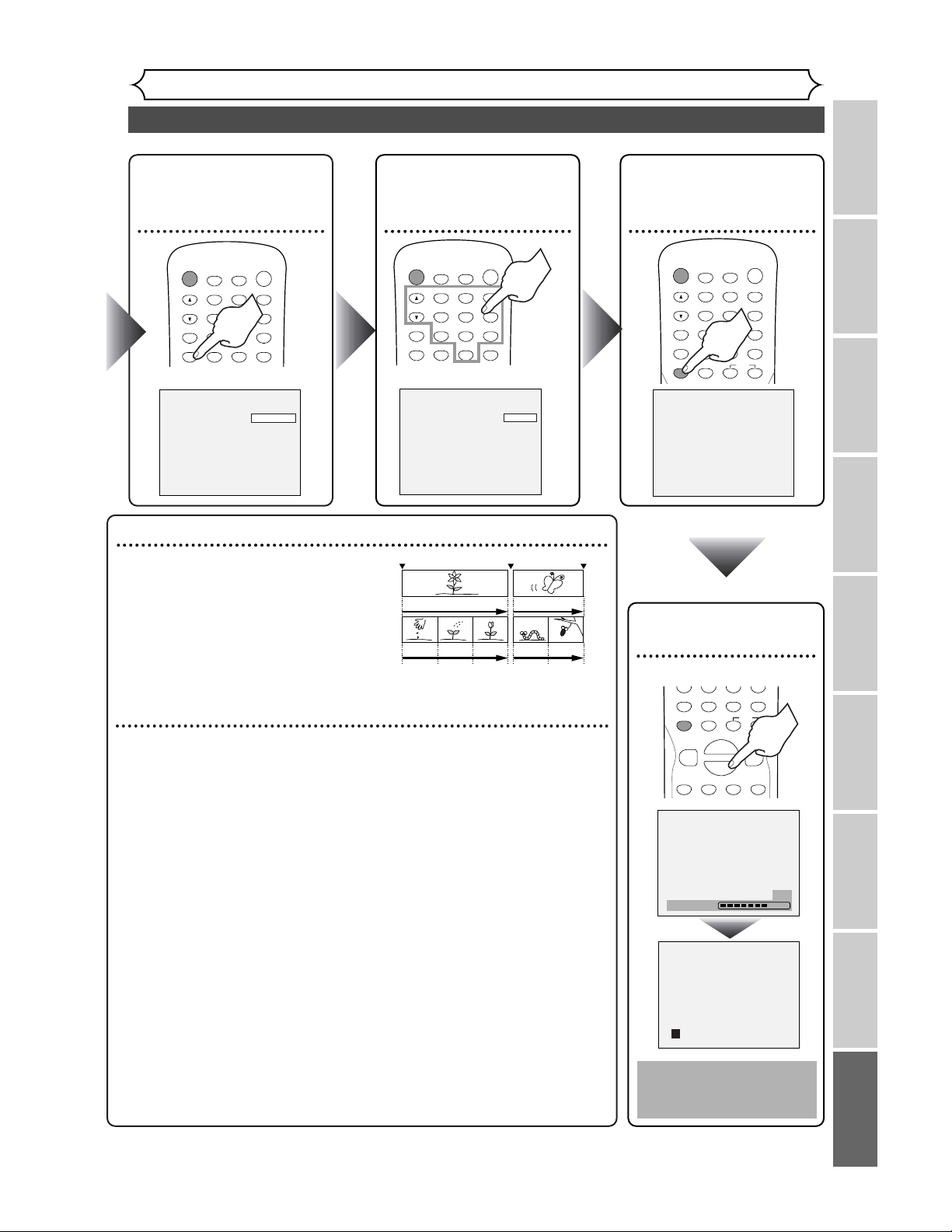
Fácil grabación de DVD (cont.)
Español
Recording Playing discs EditingBefore you start Connections Getting started
Changing the SETUP menu
Others Español
101
Paso 3: Seleccione la
velocidad de
grabación
POWER
DISPLAY
REC MODE CLEAR
CM SKIP
REC
REC
MONITOR
OPEN/CLOSE
TIMER
PROG.
SPACE
1
2
3
4
5
6
7
8
9
0
A
CH
.@/:
ABC
DEF
GHI
JKL
MNO
PQRS
TUV
WXYZ
Paso 5: Grabe en
discos
DVD
POWER
DISPLAY
REC MODE CLEAR
CM SKIP
SKIP
REC
PAUSE
REC
MONITOR
OPEN/CLOSE
TIMER
PROG.
SPACE
1
2
3
4
5
6
7
8
9
0
F
A
HG
CH
.@/:
ABC
DEF
GHI
JKL
MNO
PQRS
TUV
WXYZ
Paso 4: Seleccione
el canal
deseado
POWER
DISPLAY
REC MODE CLEAR
CM SKIP
REC
REC
MONITOR
OPEN/CLOSE
TIMER
PROG.
SPACE
1
2
3
4
5
6
7
8
9
0
A
CH
.@/:
ABC
DEF
GHI
JKL
MNO
PQRS
TUV
WXYZ
SP 2:01 Rem.
Paso 6: Pare la
grabación
REC MODE CLEAR
CM SKIP
SKIP
REC
PAUSE
SETUP
MENU/LIST
TOP MENU
SPACE
7
8
9
0
F
FWD
g
STOP
C
PLAY
B
REV
h
HG
K
CH 1
I
Escrit de datos
58%
Sugerencia 1: Reproduzca el contenido grabado
Puede seleccionar el título que desea reproducir de
un menú indicado y empiece a reproducir inmedi-
atamente. El contenido grabado se puede acceder
fácilmente con un simple procedimiento de elegir
un título en un capítulo en la pantalla del menú.
¿Qué son títulos y capítulos?
El contenido de un disco DVD se divide
generalmente en títulos. Los títulos pueden dividirse a su vez en capítulos.
Sugerencia 2: Edite el disco grabado
La edición de discos es fácil. Esta unidad ofrece convenientes funciones de
edición que sólo son posibles con discos DVD-R/RW.
Puede editar lo siguiente de la lista de títulos.
• Poniendo nombres en títulos
• Seleccionando imágenes para índices (modo VR)
• Seleccionando/borrando marcadores de capítulos
• Borrado de partes de títulos o escenas (modo VR)
Title Delete: Esto borra permanentemente una escena completa del disco.
Scene Delete: Esto permite que el usuario edite dentro de una escena específica (anuncios comerciales, por ejemplo).
Original y Playlist (modo VR)
Puede editar las grabaciones en la lista a reproducir sin cambiar las grabaciones
originales. Cualquier lista a reproducir no ocupa mucho espacio en el disco.
¿Qué significa "Original" o "Playlist"?
A lo largo de este manual encontrará Original y Playlist que se refieren a las
grabaciones reales y la versión editada.
• La grabación Original se refiere a la grabación real en el disco.
•
El Playlist se refiere a la versión editada del disco; cómo se va a reproducir la versión Original.
Finalización de un disco
•
Esto permitirá que un disco que se grabe en nuestra unidad pueda ser reproducido en un
reproductor DVD diferente. Un disco sin finalizar no se podrá reproducir en otro reproductor.
•
Después de finalizar un disco, si la grabación se hizo en el modo de vídeo, usted
no podrá editar ninguna información que se encuentre en ese disco.
• Si ha grabado en el modo VR en un disco DVD-RW, la edición podrá
realizarse incluso después de la finalización.
Inicio de grab. Parada/inicio Parada grab.
Título 1 Título 2
Capítulo 1 Capítulo 1Capítulo 2 Capítulo 3 Capítulo 2
Esta operación puede
demorar en comple-
tarse.

9HS1VMN20185
E6515UD★★★★★
1VMN20185
Printed in China
CONSUMER LIMITED WARRANTY
(Valid for warranty service in the U.S. only)
SHARP ELECTRONICS CORPORATION warrants to the first consumer purchaser that this Sharp brand product (the
“Product”), when shipped in its original container, will be free from defective workmanship and materials, and agrees that it
will, at its option, either repair the defect or replace the defective Product or part thereof with a new or
remanufactured equivalent at no charge to the purchaser for parts or labor for the period(s) set forth below.
This warranty does not apply to any appearance items of the Product nor to the additional excluded item(s) set forth
below nor to any Product the exterior of which has been damaged or defaced, which has been subjected to improper
voltage or other misuse, abnormal service or handling, or which has been altered or modified in design or
construction.
In order to enforce the rights under this limited warranty, the purchaser should follow the steps set forth below and
provide proof of purchase to the servicer.
The limited warranty described herein is in addition to whatever implied warranties may be granted to purchasers by law.
ALL IMPLIED WARRANTIES INCLUDING THE WARRANTIES OF MERCHANTABILITY AND FITNESS FOR USE ARE
LIMITED TO THE PERIOD(S) FROM THE DATE OF PURCHASE SET FORTH BELOW. Some states do not allow
limitations on how long an implied warranty lasts, so the above limitation may not apply to you.
Neither the sales personnel of the seller nor any other person is authorized to make any warranties other than those
described herein, or to extend the duration of any warranties beyond the time period described herein on behalf of
Sharp.
The warranties described herein shall be the sole and exclusive warranties granted by Sharp and shall be the sole and
exclusive remedy available to the purchaser. Correction of defects, in the manner and for the period of time described
herein, shall constitute complete fulfillment of all liabilities and responsibilities of Sharp to the purchaser with respect to
the Product, and shall constitute full satisfaction of all claims, whether based on contract, negligence, strict liability or
otherwise. In no event shall Sharp be liable, or in any way responsible, for any damages or defects in the Product which
were caused by repairs or attempted repairs performed by anyone other than an authorized servicer. Nor shall Sharp
be liable or in any way responsible for any incidental or consequential economic or property damage. Some states do not
allow the exclusion of incidental or consequential damages, so the above exclusion may not apply to you.
THIS WARRANTY GIVES YOU SPECIFIC LEGAL RIGHTS. YOU MAY ALSO HAVE OTHER RIGHTS WHICH VARY
FROM STATE TO STATE.
Model Specific Section
Your Product Model Number & Description:
Warranty Period for this Product:
Additional Item(s) Excluded from warranty
Coverage (if any):
Where to Obtain Service:
What to do to Obtain Service:
DV-SR45U DVD Recorder
(Be sure to have this information available when you need service
for your Product.)
One (1) year parts and ninety (90) days labor from date of purchase.
Non-rechargeable batteries.
Call Sharp Electronics corporation toll free at 1-800-BE-SHARP for
instructions on how to obtain service on your DVD recorder.
Ship your product, prepaid, as per the instruction given by the Sharp
representative at the toll free number (1-800-BE-SHARP). BE sure to
have your proof of purchase available. Be sure to ship the product
securely packaged and insured against shipping damage.
Osaka, JapanOsaka, Japan
SHARP ELECTRONICS CORPORATION
Sharp Plaza, Mahwah, New Jersey 07430-2135
SHARP CORPORATION
SHARP ELECTRONICS CORPORATION
Sharp Plaza, Mahwah, New Jersey 07430-2135
SHARP CORPORATION
TO OBTAIN SUPPLY, ACCESSORY OR PRODUCT INFORMATION, GO TO OUR WEBSITE AT www.sharpusa.com
OR CALL 1-800-BE-SHARP.