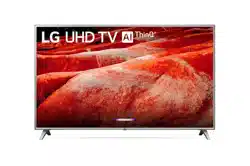
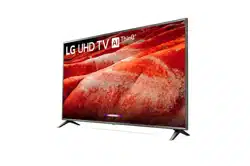
Owner's Guide Television
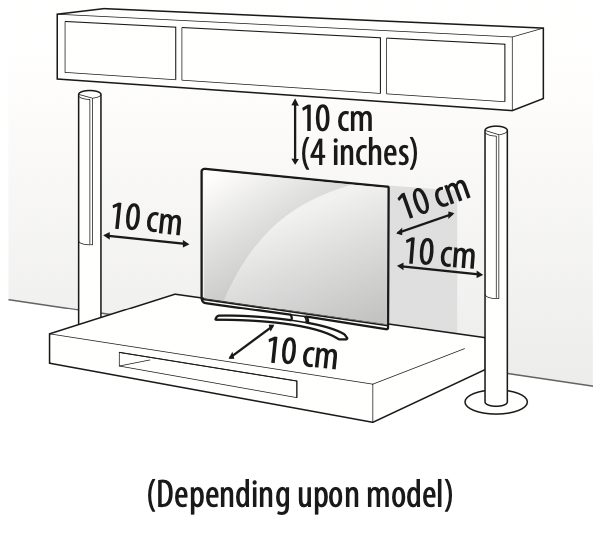
Mounting on the Table
- Lift and tilt the TV into its upright position on a table.
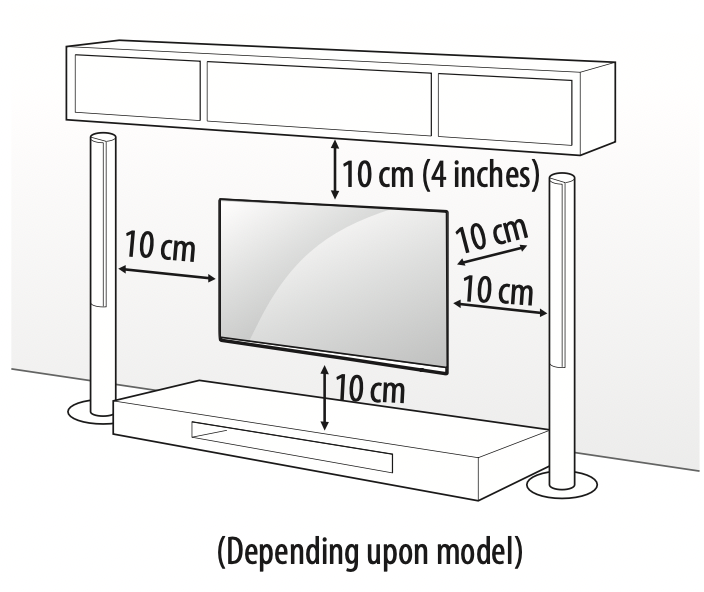
Leave a minimum of 10 cm (4 inches) space from the wall for proper ventilation.
- Connect the power cord to a wall outlet.
CAUTION:
- Do not apply foreign substances (oils, lubricants, etc.) to the screw parts when assembling the product.
(Doing so may damage the product.)
- If you install the TV on a stand, you need to take actions to prevent the product from overturning. Otherwise, the product may fall over, which may cause injury.
- Do not use any unapproved items to ensure the safety and product life span.
- Any damage or injuries caused by using unapproved items are not covered by the warranty.
- Make sure that the screws are fastened tightly. (If they are not fastened securely enough, the TV may tilt forward after being installed.)
- Do not fasten the screws with excessive force otherwise they may strip and become loose.
Securing TV to the Wall
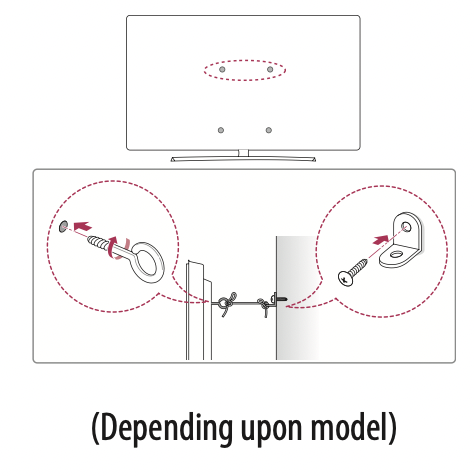
- Insert and tighten the eye-bolts, or TV brackets and bolts on the back of the TV.
If there are bolts inserted at the eye-bolts position, remove the bolts first.
- Mount the wall brackets with the bolts to the wall.
Match the location of the wall bracket and the eye-bolts on the rear of the TV.
- Connect the eye-bolts and wall brackets tightly with a sturdy rope. Make sure to keep the rope horizontal with the flat surface.
Use a platform or cabinet that is strong and large enough to support the TV securely.
Brackets, bolts and ropes are not provided. You can obtain additional accessories from your local dealer.
Mounting to the Wall
An optional wall mount can be used with your LG Television. Consult with your local dealer for a wall mount that supports the VESA standard used by your TV model. Carefully attach the wall mount bracket at the rear of the TV. Install the wall mount bracket on a solid wall perpendicular to the floor. If you are attaching the TV to other building materials, please contact qualified personnel to install the wall mount. Detailed instructions will be included with the wall mount. We recommend that you use an LG brand wall mount. The LG wall mount is easy to adjust or to connect the cables. When you do not use LG’s wall mount bracket, use a wall mount bracket where the device is adequately secured to the wall with enough space to allow connectivity to external devices. If you are using a non-adjustable mount, attach the mount to the wall. Attach the cables to the TV first, then attach the TV to the mount.
CAUTION:
- Remove the stand before installing the TV on a wall mount by performing the stand attachment in reverse.
- For more information of screws and wall mount bracket, refer to the Separate purchase.
- If you intend to mount the product to a wall, attach VESA standard mounting interface (optional parts) to the back of the product. When you install the set to use the wall mounting bracket (optional parts), fix it carefully so as not to drop.
- When mounting a TV on the wall, make sure not to install the TV by hanging the power and signal cables on the back of the TV.
- Do not install this product on a wall if it could be exposed to oil or oil mist. This may damage the product and cause it to fall.
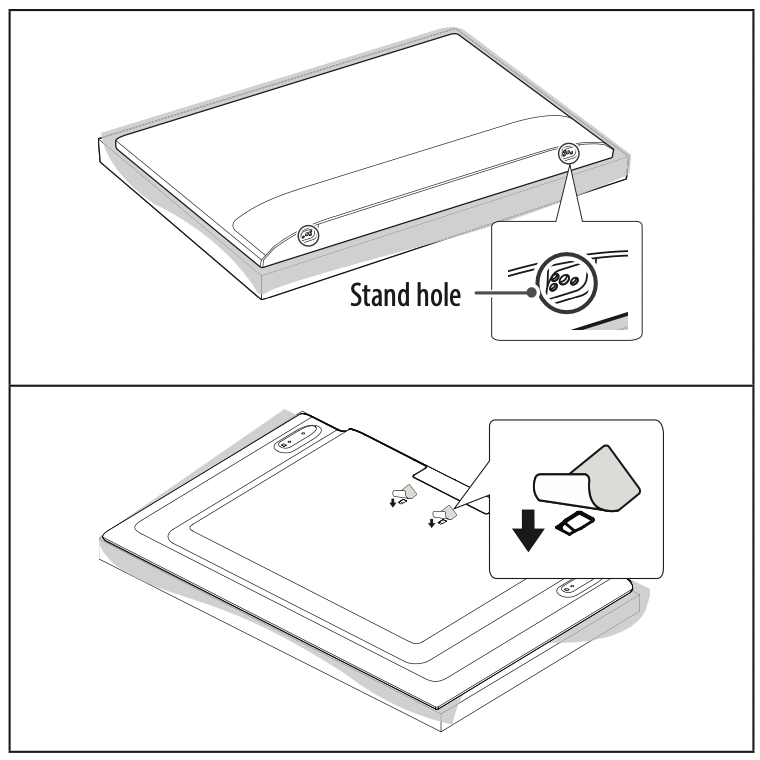
- When installing the wall mounting bracket, it is recommended to cover the stand hole using tape, in order to prevent the influx of dust and insects, (Depending upon model).
Connections
You can connect various external devices to the TV. For more information on external device’s connection, refer to the manual provided with each device.
Antenna/Cable
Connect an antenna, cable, or cable box to watch TV while referring to the following. The illustrations may differ from the actual items and an RF cable is optional.
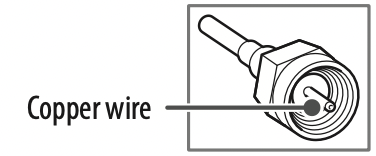
- Make sure not to bend the copper wire of the RF cable.
- Complete all connections between devices, and then connect the power cord to the power outlet to prevent damage to your TV.
- Use a signal splitter to use 2 TVs or more.
- DTV Audio Supported Codec: MPEG, Dolby Digital
- This TV cannot receive ULTRA HD (3840 x 2160 pixels) broadcasts directly because the related standards have not been confirmed.
Other connections
Connect your TV to external devices. For the best picture and audio quality, connect the external device and the TV with the HDMI cable.
HDMI
- When connecting the HDMI cable, the product and external devices should be turned off and unplugged.
- HDMI Audio Supported Format:
- (Depending upon model)
- DTS (44.1 kHz / 48 kHz / 88.2 kHz / 96 kHz),
- DTS HD (44.1 kHz / 48 kHz / 88.2 kHz / 96 kHz / 176.4 kHz / 192 kHz),
- True HD (48 kHz),
- Dolby Digital / Dolby Digital Plus (32 kHz / 44.1 kHz / 48 kHz),
- PCM (32 kHz / 44.1 kHz / 48 kHz / 96 kHz / 192 kHz)
- (Only UHD models)
 →
→  ( ) → [Picture] → [Additional Settings] → [HDMI ULTRA HD Deep Color]
- On: Support 4K @ 60 Hz (4:4:4, 4:2:2, 4:2:0)
- Off: Support 4K @ 60 Hz 8 bit (4:2:0)
- If the device connected to Input Port also supports ULTRA HD Deep Color, your picture may be clearer. However, if the device doesn’t support it, it may not work properly. In that case, change the TV’s [HDMI ULTRA HD Deep Color] setting to off.
- This feature is available only on certain models which support HDMI ULTRA HD Deep Color.
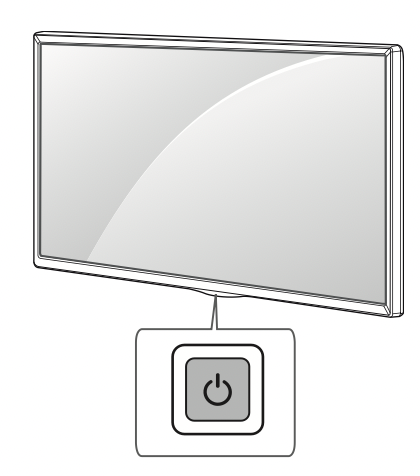
You can simply operate the TV functions, using the button.
Basic functions
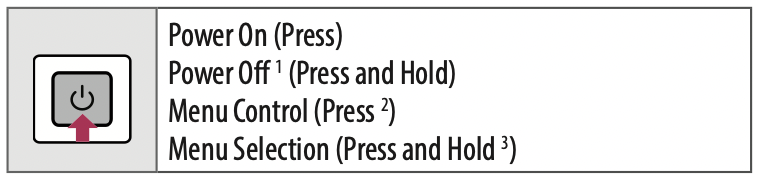
- All running apps will close.
- You can access and adjust the menu by pressing the button when TV is on.
- You can use the function when you access menu control.
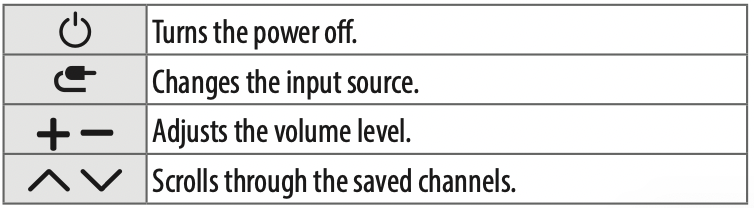
Adjusting the menu
When the TV is turned on, press the  button one time. You can adjust the Menu items using the button.
Using Remote Control
(Depending upon model)
The descriptions in this manual are based on the buttons on the remote control. Please read this manual carefully and use the TV correctly.
To install batteries, open the battery cover, replace batteries (1.5 V AAA) matching the  and
and  ends to the label inside the compartment, and close the battery cover. To remove the batteries, perform the installation actions in reverse. This remote uses infrared light. When in use, it should be pointed in the direction of the TV’s remote sensor.
Make sure to point the remote control toward the remote control sensor on the TV.
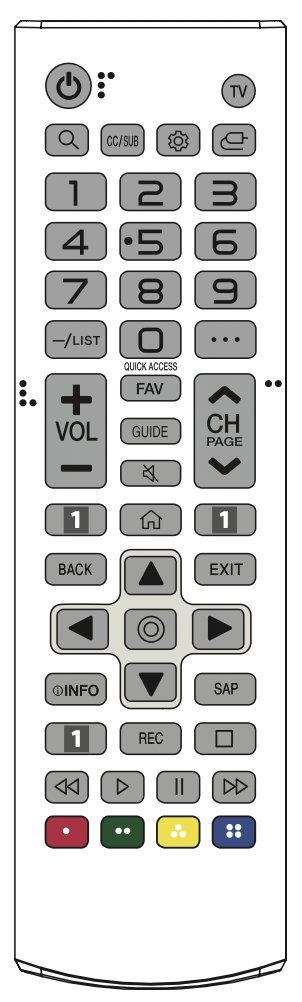
(Some buttons and services may not be provided depending upon models or regions.)
(POWER) Turns the TV on or off.
TV Returns to the last TV channel.
 (SEARCH) Shows the search mode.
CC/SUB Activates or deactivates the subtitles.
(Q. Settings) Accesses the Quick Settings.
 (INPUT) Changes the input source.
Number button Enters numbers.
 Accesses the [QUICK HELP].
 (DASH) Inserts a between numbers such as 2-1 and 2-2.
LIST Accesses the saved channels list.
 (MORE ACTIONS) Displays more remote control functions. QUICK ACCESS** Edits QUICK ACCESS.
QUICK ACCESS is a feature that allows you to enter a specified app or Live TV directly by pressing and holding the number buttons.
+ VOL - Adjusts the volume level.
FAV Accesses your favorite channel list.
GUIDE Displays the program event according to time scheduler.
 (MUTE) Mutes all sounds.
 (MUTE) Accesses the [Accessibility] menu.
 CH
CH  Scrolls through the saved channels.
PAGE Moves to the previous or next screen.
 Streaming Service buttons Connects to the Video Streaming Service.
 (HOME) Accesses the Home menu.
 (HOME) Shows the previous history.
BACK Returns to the previous screen.
EXIT Clears on-screen displays and returns to last input viewing.
Navigation button (up / down / left / right) Scrolls through menus or options.
 (OK) Selects menus or options and confirms your input.
 Shows information on the current program.
SAP Enables SAP (Secondary Audio Program) Feature.
REC Starts to record. (Only Time Machine Ready supported model)
 (Control buttons) Control buttons for media
 These access special functions in some menus.
Using Magic Remote Control
(Depending upon model)
The descriptions in this manual are based on the buttons on the remote control. Please read this manual carefully and use the TV correctly.
When the message [Magic remote battery is low. Please change the battery.] is displayed, replace the batteries.
To install batteries, open the battery cover, replace batteries (1.5 V AA) matching the and ends to the label inside the compartment, and close the battery cover. Be sure to point the magic remote toward the remote control sensor on the TV. To remove the batteries, perform the installation actions in reverse. This remote uses infrared light. When in use, it should be pointed in the direction of the TV’s remote sensor.
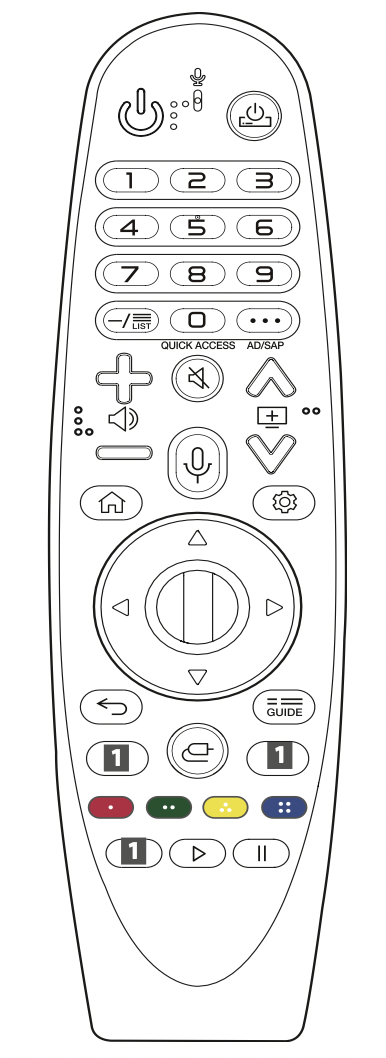
(Some buttons and services may not be provided depending upon models or regions.)
 (POWER) Turns the TV on or off.
 (STB POWER) You can turn your set-top box on or off by adding the set-top box to the universal remote control for your TV. Number buttons Enters numbers.
Accesses the [QUICK HELP].
(DASH) Inserts a between numbers such as 2-1 and 2-2.
 Accesses the saved channels list.
(MORE ACTIONS) Displays more remote control functions. QUICK ACCESS** Edits QUICK ACCESS.
- QUICK ACCESS is a feature that allows you to enter a specified app or Live TV directly by pressing and holding the number buttons.
AD/SAP** SAP (Secondary Audio Program) Feature can also be enabled by pressing the button.
 Adjusts the volume level.
(MUTE) Mutes all sounds.
(MUTE) Accesses the [Accessibility] menu.
 Scrolls through the saved channels.
 (Voice recognition) Network connection is required to use the voice recognition function. Once the voice display bar is activated on the TV screen, press and hold the button and speak your command out loud.
(HOME) Accesses the Home menu.
(HOME) Shows the previous history.
(Q. Settings) Accesses the Quick Settings.
 (Q. Settings) Displays the [All Settings] menu.
 Wheel (OK) Press the center of the Wheel button to select a menu. You can change channels by using the wheel button.
 (up/down/left/right) Press the up, down, left or right button to scroll the menu. If you press buttons while the pointer is in use, the pointer will disappear from the screen and Magic Remote will operate like a general remote control. To display the pointer on the screen again, shake Magic Remote to the left and right.
 (BACK) Returns to the previous screen.
 (BACK) Clears on-screen displays and returns to last input viewing.
 Displays the program event according to time scheduler.
Streaming Service buttons Connects to the Video Streaming Service.
(INPUT) Changes the input source.
 (INPUT) Accesses the [HOME DASHBOARD].
 These access special functions in some menus.
 (Control buttons) Controls media contents.
Registering Magic Remote Control
How to register the Magic Remote Control
To use the Magic Remote, first pair it with your TV.
- Put batteries into the Magic Remote and turn the TV on.
- Point the Magic Remote at your TV and press the Wheel (OK) on the remote control.
* If the TV fails to register the Magic Remote, try again after turning the TV off and back on.
How to deregister the Magic Remote Control
Press the (BACK) and (HOME) buttons at the same time, for five seconds, to unpair the Magic Remote with your TV.
* Pressing and holding the button will let you cancel and re-register Magic Remote at the same time.
Caution:
- Do not mix new batteries with old batteries. This may cause the batteries to overheat and leak.
- Failure to match the correct polarities of the battery may cause the battery to burst or leak, resulting in fire, personal injury, or ambient pollution.
- This apparatus uses batteries. In your community there might be regulations that require you to dispose of these batteries properly due to environmental considerations. Please contact your local authorities for disposal or recycling information.
- Batteries inside or inside the product shall not be exposed to excessive heat such as sunshine, fire or the like.
User Guide
For more information about this TV, read the USER GUIDE embedded in the product.
- To open the USER GUIDE → ( ) → [General] → [About This TV] → [User Guide]
Troubleshooting
Cannot control the TV with the remote control.
- Check if anything such as tape has been placed over the receiver.
- Check if there is any obstacle between the product and the remote control.
- Replace the batteries with new fresh ones.
No image display and no sound is produced.
- Check if the product is turned on.
- Check if the power cord is connected to a wall outlet.
- Check if there is a problem in the wall outlet by connecting other products.
The TV turns off suddenly.
- Check the power control settings. The power supply may be interrupted.
- Check if the auto-off function is activated in the settings menu.
- If there is no signal while the TV is on, the TV will turn off automatically after 15 minutes of inactivity.
Abnormal Display
- If the TV feels cold to the touch, there may be a small flicker when it is turned on. This is normal; there is nothing wrong with TV. Some minute dot defects may be visible on the screen, appearing as tiny red, green, or blue spots. However, they have no adverse effect on the TV’s performance. Avoid touching the LCD screen or holding your finger(s) against it for long periods of time. Doing so may produce some temporary distortion effects on the screen.
- This panel is an advanced product that contains millions of pixels. In a very few cases, you could see fine dots on the screen while you’re viewing the TV. Those dots are deactivated pixels and do not affect the performance and reliability of the TV.
- Displaying a still image for a prolonged period of time may cause an image sticking. Avoid displaying a fixed image on the TV screen for a extended length of time.
Generated Sound
- Cracking noise A cracking noise that occurs when watching or turning off the TV is generated by plastic thermal contraction due to temperature and humidity. This noise is common for products where thermal deformation is required.
- Electrical circuit humming/panel buzzing A low level noise is generated from a high-speed switching circuit, which supplies a large amount of current to operate a product. It varies depending upon the product. This generated sound does not affect the performance and reliability of the product.
Caution:
- When cleaning the product, be careful not to allow any liquid or foreign objects to enter the gap between the upper, left or right side of the panel and the guide panel, (Depending upon model).
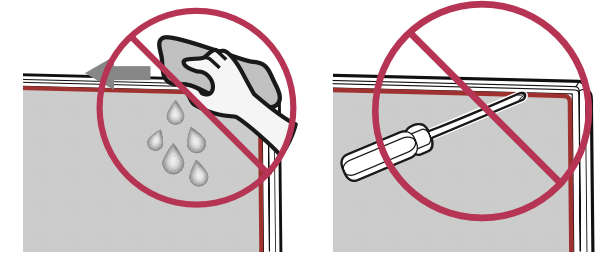
- Make sure to wring any excess water or cleaner from the cloth.
- Do not spray water or cleaner directly onto the TV screen.
- Make sure to spray just enough of water or cleaner onto a dry cloth to wipe the screen.