DIGITAL MULTIFUNCTIONAL
SYSTEM
OPERATION MANUAL
(for general information)
Page
PREPARATIONS
LOADING PAPER
MAKING COPIES
INSTALLING THE
SOFTWARE
PRINTER/SCANNER
FUNCTIONS
USER SETTINGS
TROUBLESHOOTING AND
MAINTENANCE
9
14
20
36
49
54
61
80
82
CONVENIENT COPY
FUNCTIONS
26
OPTIONAL EQUIPMENT
APPENDIX
AR-208S
AR-208D
MODEL
AR-208S/AR-208D
ED IN CHINA
2007M KS1
TINSE1862QSZZ
!AR-208S_208D.book 1 ページ 2007年12月3日 月曜日 午後3時33分
For users in the USA
Each instruction also covers the optional units used with these products.
Shielded interface cables must be used with this equipment to maintain
compliance with EMC regulations.
Do not make copies of anything which is prohibited from copying by law. The
following items are normally prohibited from copying by national law. Other
items may be prohibited by local law.
Money Stamps Bonds Stocks Bank drafts
Checks Passports Driver's licenses
FOR YOUR RECORDS ...
To protect against loss theft, record and retain for reference the
copier's serial number located on the back of the unit.
Model Number
Serial Number
Date of Purchase
Authorized Sharp Copier
Service Department Number
NOTICE
BE SURE TO ASK YOUR AUTHORIZED SHARP DEALER ABOUT THE WARRANTY THAT YOUR
SELLING DEALER EXTENDS TO YOU. In order to assure you, the end-user, of warranty protection,
Sharp extends a limited warranty to each of its authorized dealers and, in turn, requires each of its
authorized dealers to extend its own warranty to you on terms that are no less favorable than those
given to the dealer by Sharp. You should be aware, however, that Sharp does not itself extend any
warranties, either express or implied, directly to you, the end-user, and no one is authorized to make
any representations or warranties on behalf of Sharp. Specifically, SHARP DOES NOT EXTEND TO
YOU, THE END-USER, ANY EXPRESS WARRANTY OR ANY IMPLIED WARRANTY OF
MERCHANTABILITY, FITNESS FOR USE OR FITNESS FOR ANY PARTICULAR PURPOSE IN
CONNECTION WITH THE HARDWARE, SOFTWARE OR FIRMWARE EMBODIED IN, OR USED
IN CONJUNCTION WITH THIS PRODUCT. Sharp is not responsible for any damages or loss, either
direct, incidental or consequential, which you, the end-user, may experience as a result of your
purchase or use of the hardware, software or firmware embodied in or used in conjunction with this
Product. Your sole remedy, in the event that you encounter any difficulties with this Product, is
against the authorized dealer from which you purchased the Product.
AR-208S Digital Multifunctional System
AR-208D Digital Multifunctional System
In the event that this authorized dealer does not honor its warranty commitments, please contact the
General Manager, Business Products Group, Sharp Electronics Corporation, Sharp Plaza, Mahwah,
New Jersey 07430, so that Sharp can try to help assure complete satisfaction of the warranty rights
to which you are entitled from the authorized dealer.
!AR-208S_208D.book 0 ページ 2007年12月3日 月曜日 午後3時33分

1
CAUTIONS ................................................................................................................ 3
SOFTWARE LICENSE.............................................................................................. 4
ENVIRONMENTAL INFORMATION .......................................................................... 4
INTRODUCTION ....................................................................................................... 6
MAIN FEATURES...................................................................................................... 7
1 PREPARATIONS
PART NAMES.................................................................................................... 9
POWER ON AND OFF.................................................................................... 12
2 LOADING PAPER
PAPER............................................................................................................. 14
LOADING THE PAPER TRAY ......................................................................... 15
BYPASS FEED (including special paper) ........................................................ 17
CHANGING A TRAY'S PAPER SIZE SETTING .............................................. 19
3 MAKING COPIES
NORMAL COPYING........................................................................................ 20
SELECTING THE TRAY.................................................................................. 23
MAKING A COPY DARKER OR LIGHTER ..................................................... 24
REDUCTION/ENLARGEMENT/ZOOM........................................................... 25
4 CONVENIENT COPY FUNCTIONS
AUTOMATIC TWO-SIDED COPYING............................................................. 26
SORT COPY ................................................................................................... 29
COPYING MULTIPLE ORIGINALS ONTO A SINGLE SHEET OF PAPER
(2 IN 1 copy) .................................................................................................... 31
CREATING MARGINS WHEN COPYING (Margin shift) ................................. 34
5 INSTALLING THE SOFTWARE
SOFTWARE .................................................................................................... 36
BEFORE INSTALLATION ................................................................................ 37
INSTALLING THE SOFTWARE....................................................................... 38
SETTING UP BUTTON MANAGER ................................................................ 45
CONTENTS
!AR-208S_208D.book 1 ページ 2007年12月3日 月曜日 午後3時33分

2
6 PRINTER/SCANNER FUNCTIONS
USING THE PRINTER MODE ........................................................................ 50
BASIC PROCEDURE FOR PRINTING ........................................................... 50
USING THE SCANNER MODE....................................................................... 51
SCANNING USING THE KEYS ON THE MACHINE ...................................... 51
SCANNING FROM YOUR COMPUTER ......................................................... 52
OPERATION IN COPY, PRINTER, AND SCANNER MODES ........................ 52
HOW TO USE THE ONLINE MANUAL ........................................................... 53
7 USER SETTINGS
USER PROGRAMS......................................................................................... 54
SELECTING A SETTING FOR A USER PROGRAM...................................... 59
8 TROUBLESHOOTING AND MAINTENANCE
DISPLAY MESSAGES..................................................................................... 61
TROUBLESHOOTING THE MACHINE........................................................... 63
PROBLEMS DURING SETUP OF THE SOFTWARE ..................................... 67
MISFEED REMOVAL ...................................................................................... 70
TONER CARTRIDGE REPLACEMENT .......................................................... 74
SCAN HEAD LOCKING SWITCH ................................................................... 76
CHECKING THE TOTAL COUNT.................................................................... 77
MAINTENANCE REQUIRED .......................................................................... 77
CLEANING THE MACHINE ............................................................................ 78
9 OPTIONAL EQUIPMENT
SYSTEM CONFIGURATION ........................................................................... 80
FACSIMILE EXPANSION KIT (AR-FX13)........................................................ 80
NETWORK EXPANSION KIT (AR-NB2 A) ...................................................... 80
250-SHEET PAPER FEED UNIT (AR-D33) .................................................... 80
10 APPENDIX
SPECIFICATIONS ........................................................................................... 82
MATERIAL SAFETY DATA SHEET ................................................................. 87
INDEX.............................................................................................................. 95
!AR-208S_208D.book 2 ページ 2007年12月3日 月曜日 午後3時33分
3
CAUTIONS
Caution label on the machine
The label ( ) in the fusing area of the machine indicates the following:
: Caution, risk of danger
: Caution, hot surface
Cautions on using the machine
Follow the cautions below when using this machine.
Warning:
• The fusing area is hot. Exercise care in this area when removing misfed paper.
• Do not look directly at the light source. Doing so may damage your eyes.
Caution:
• Place the machine on a firm, level surface.
• Do not install the machine in a humid or dusty location.
• When the machine is not used for a long time, for example during prolonged
holidays, turn the power switch off and remove the power cord from the outlet.
• When moving the machine, be sure to turn the power switch off and remove the
power cord from the outlet.
• Do not switch the machine rapidly on and off. After turning the machine off, wait 10
to 15 seconds before turning it back on.
• Do not cover the machine with a dust cover, cloth or plastic film while the power is
on. Doing so may prevent heat radiation, damaging the machine.
• Use of controls or adjustments or performance of procedures other than those
specified herein may result in hazardous radiation exposure.
• The socket-outlet shall be installed near the machine and shall be easily
accessible.
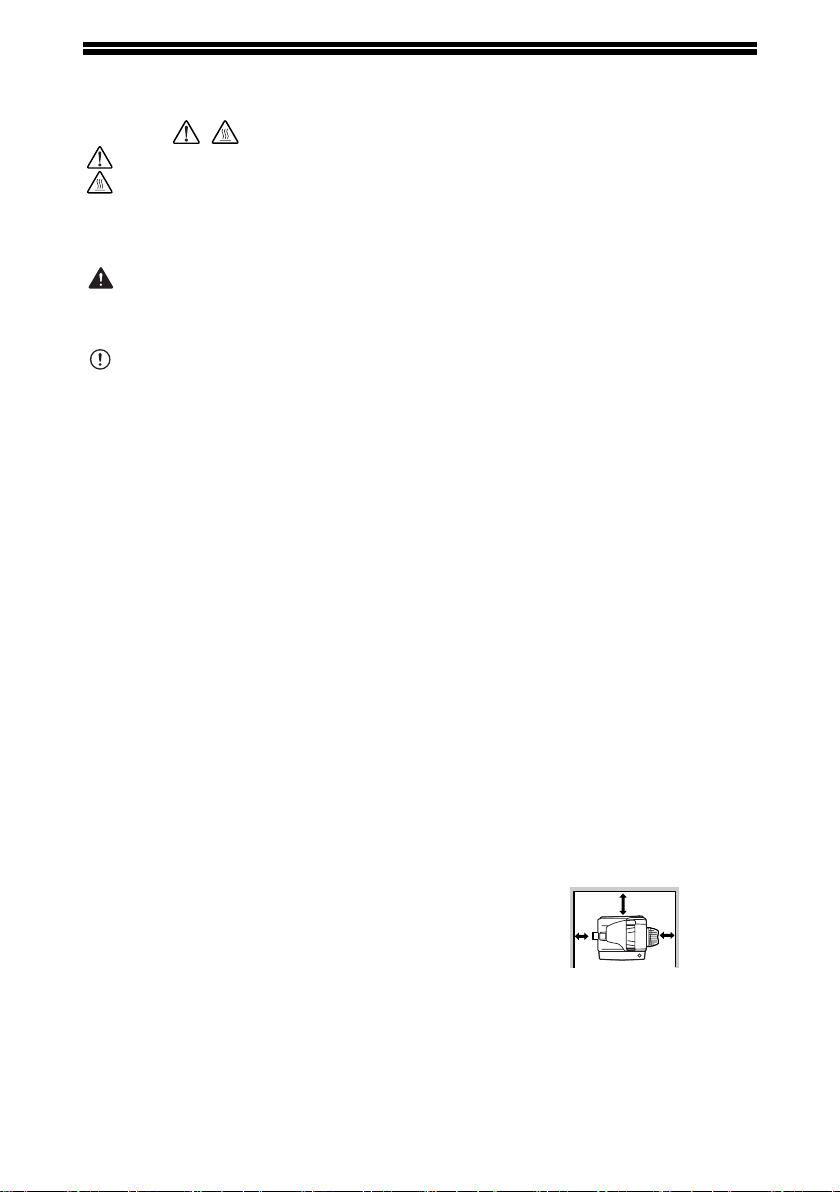
Important points when selecting an installation site
Do not install your machine in areas that are:
• damp, humid, or very dusty
• exposed to direct sunlight
• poorly ventilated
• subject to extreme temperature or humidity changes, e.g., near an air conditioner
or heater.
Be sure to allow the required space around the
machine for servicing and proper ventilation.
8" (20 cm)
4"
(10 cm)
4"
(10 cm)
!AR-208S_208D.book 3 ページ 2007年12月3日 月曜日 午後3時33分
4
Cautions on handling the machine
Be careful in handling the machine as follows to maintain the performance of this
machine.
Do not drop the machine, subject it to shock or strike it against any object.
Store spare toner cartridges in a cool dry place without removing from the
package before use.
• If they are exposed to direct sunlight or excessive heat, poor copies may result.
Do not touch the photoconductive drum (green portion).
• Scratches or smudges on the drum will cause dirty copies.
Trademark acknowledgements
•Microsoft
®
, Windows
®
, Windows
®
98, Windows
®
Me, Windows
®
2000,
Windows
®
XP, Windows Vista
®
and Internet Explorer
®
are registered trademarks
or trademarks of Microsoft Corporation in the U.S.A. and other countries.
• Macintosh is a trademark of Apple Inc., registered in the U.S. and other countries.
• IBM, PC/AT, and PowerPC are trademarks of International Business Machines
Corporation.
• Adobe, the Adobe logo, Acrobat, the Adobe PDF logo, and Reader are registered
trademarks or trademarks of Adobe Systems Incorporated in the United States
and other countries.
• All other trademarks and copyrights are the property of their respective owners.
SOFTWARE LICENSE
The SOFTWARE LICENSE will appear when you install the software from the CD-
ROM. By using all or any portion of the software on the CD-ROM or in the machine,
you are agreeing to be bound by the terms of the SOFTWARE LICENSE.
ENVIRONMENTAL INFORMATION
For users in the USA
Laser information
Products that have earned the ENERGY STAR
®
are designed to
protect the environment through superior energy efficiency.
Wave length 780 nm +15 nm
-10 nm
Pulse times (North America) 12.88 µs ±12.88 ns/7 mm
Output power Max 0.2 mW
At the production line, the output power of the scanner unit is adjusted to 0.18
MILLIWATT PLUS 5% and is maintained constant by the operation of the
Automatic Power Control (APC).
!AR-208S_208D.book 4 ページ 2007年12月3日 月曜日 午後3時33分
5
For users in Canada
Caution
Use of controls or adjustments or performance of procedures other than those
specified herein may result in hazardous radiation exposure.
This Digital Equipment is CLASS 1 LASER PRODUCT (IEC 60825-1 Edition 1.2-2001)
SAFETY PRECAUTIONS
This Digital Copier is rated Class 1 and complies with 21 CFR 1040.10 and
1040.11 of the CDRH standards. This means that the equipment does not produce
hazardous laser radiation. For your safety, observe the precautions below.
• Do not remove the cabinet, operation panel or any other covers.
• The equipment's exterior covers contain several safety interlock switches. Do not
bypass any safety interlock by inserting wedges or other items into switch slots.
A small amount of ozone is produced within the unit during operation. The
emission level is insufficient to cause any health hazard.
Note:
The present recommended long term exposure limit for ozone is 0.1ppm
(0.2mg/m
3
) calculated as an 8 hr. time-weighted average concentration.
However, since the small amount that is emitted may have an objectionable odor, it
is advisable to place the unit in a ventilated area.
The Environmental Choice Program guidelines are applied to
the products only in Canada. The products that meet the
Environmental Choice Program guidelines carry the logo
shown to the left. The products without the logo may not meet
the Environmental Choice Program guidelines.
!AR-208S_208D.book 5 ページ 2007年12月3日 月曜日 午後3時33分
6
INTRODUCTION
Using the manual
This machine has been designed to provide convenient copying features in a
minimum amount of office space and with maximum operational ease. To get full use
of all machine features, be sure to familiarize yourself with this manual and the
machine. For quick reference during machine use, keep this manual in a handy
location.
About the operation manuals
The operation manuals for the machine are as follows:
Operation Manual (this manual)
Explains the machine and how to use it as a copier. Also explains how to install the
software that allows the machine to be used as a printer and scanner for your
computer.
Online Manual (on the accessory CD-ROM)
This manual explains the procedures for using the machine as a printer or a
scanner.
Conventions used in this manual and online manual
• The illustrations in this manual show the AR-208D. The appearance of your
machine may be different depending on the model and options installed, however,
the basic operations are the same.
• Where "AR-XXXX" appears in this manual, please substitute the name of your
model for "XXXX". For the name of your model, see the operation panel on the
machine.
• Illustrations of driver screens and other computer screens show the screens that
appear in Windows XP Home Edition. Some of the names that appear in these
illustrations may differ slightly from the screens that appear in other operating systems.
• The explanations in this manual assume that the person who will install the product and
the users of the product have a working knowledge of Microsoft Windows.
• This operation manual refers to the Reversing Single Pass Feeder as the "RSPF".
• In this manual, the following icons are used to provide the user with information
pertinent to the use of the machine.
Some model may not be available in some countries.
Warns that injury may result if the contents of the warning are
not properly followed.
Cautions that damage to the machine or one of its components may
result if the contents of the caution are not properly followed.
Notes provide useful information on the specifications, functions,
performance, and operation of the machine.
The display screens, messages, and key names shown in the manual may differ
from those on the actual machine due to product improvements and modifications.
Note
Warning
Caution
Note
!AR-208S_208D.book 6 ページ 2007年12月3日 月曜日 午後3時33分
7
MAIN FEATURES
High-speed laser copying
First-copy time*
1
is only 8.0*
2
seconds.
Copying speed is 20 copies per minute. This is ideal for business use and provides a
big boost to workplace productivity.
*
1
The first-copy time is measured after the power save indicator turns off following
power on, using the document glass with the polygon rotating in the copy ready state
and "LSU SETTING" set to ON in the user programs (8-1/2" x 11", paper fed from
paper tray).
*
2
When user program 24 is set to OFF.
High-quality digital image
• High-quality copying at 600 dpi is performed.
• In addition to automatic exposure adjustment, two original modes can be selected:
"TEXT" for text-only originals, and "PHOTO" for photographs. The exposure can be
adjusted to five levels in each mode.
• The photo mode copying function allows clear copying of delicate halftone original
images such as monochrome photos and color photos.
Enhanced copying features
• Zoom copies can be made from 25% to 400% in increments of 1%. (When the
RSPF is being used, the zoom copy ratio range is 50% to 200%.)
• Continuous copying of up to 99 copies is possible.
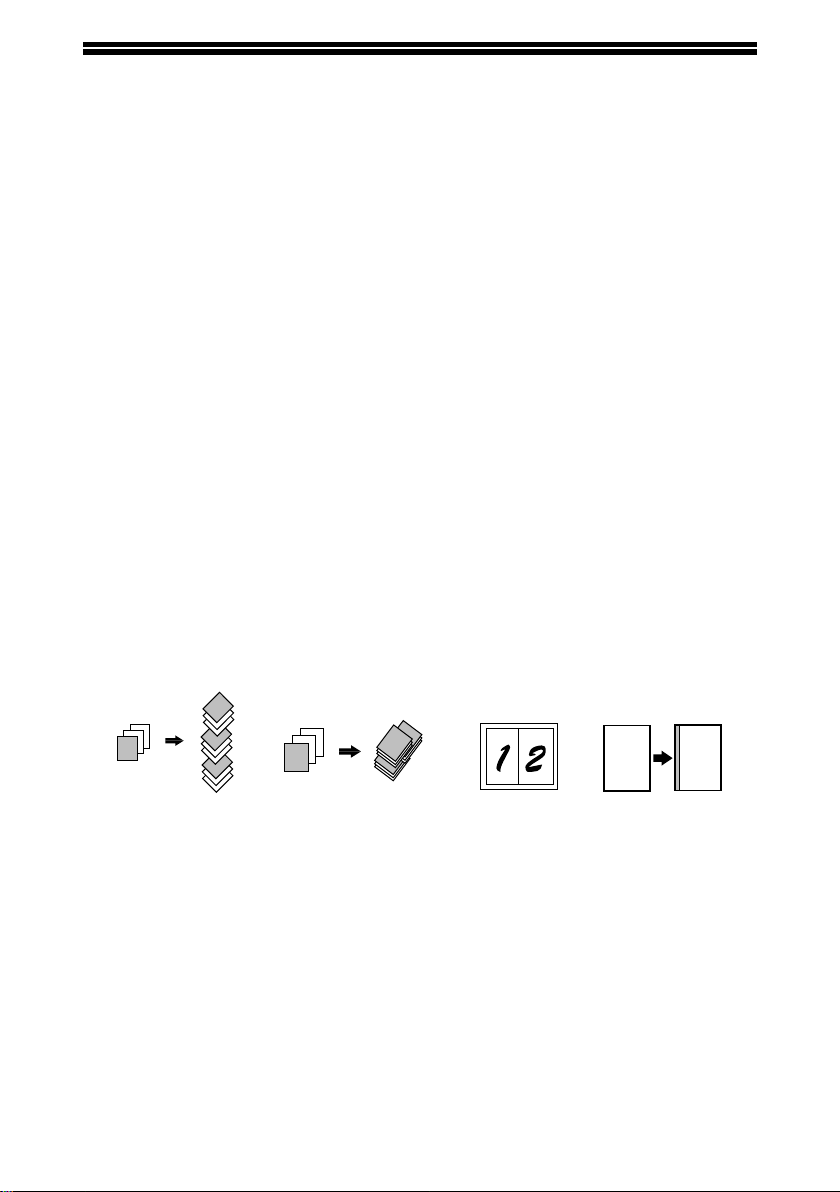
• Sets of output can be offset from each other for easy separation (offset function).
• Sorting by sets is possible without the need for a sorter or other special device
(Sort copy).
• Includes convenient features such as margin shift, 2 IN 1 copy, and automatic two-
sided copying.
Scan once/Print many
• The machine is equipped with a memory buffer allowing the machine to scan an
original once and make up to 99 copies of the scanned image. This improves
workflow, reduces operating noise from the machine and reduces wear and tear on
the scanning mechanism, which provides for a higher reliability.
A
Margin shift
Sort copy Offset function
2 IN 1 copy
2
1
3
2
1
3
1
2
3
2
1
3
1
1
1
2
3
A
!AR-208S_208D.book 7 ページ 2007年12月3日 月曜日 午後3時33分

8
LCD panel displays messages
• The LCD panel displays messages that show function settings and the status of
the machine.
Laser printer function
• The accompanying printer driver can be installed to enable use of the machine as
a printer.
Color scanner function
• The accompanying scanner driver can be installed and the machine connected to
a computer using a USB cable to enable use as a scanner.
Fax function (option)
• The optional Facsimile Expansion Kit can be installed to enable the machine to be
used as a fax machine. (Facsimile Expansion Kit Operation Manual)
Network connection (option)
• The optional Network Expansion Kit can be installed to enable the machine to be
used as a network printer and network scanner. (Network Expansion Kit Operation
Manual)
Environment and people friendly design
• Preheat mode and auto power shut-off mode are provided to reduce power
consumption when the machine is not in use.
• A universal design has been implemented in the product whereby the height of the
operation panel and shape of the keys are designed to be usable by as many
people as possible.
!AR-208S_208D.book 8 ページ 2007年12月3日 月曜日 午後3時33分
9
1
Chapter 1
1
This chapter provides basic information that you should know before using the machine.
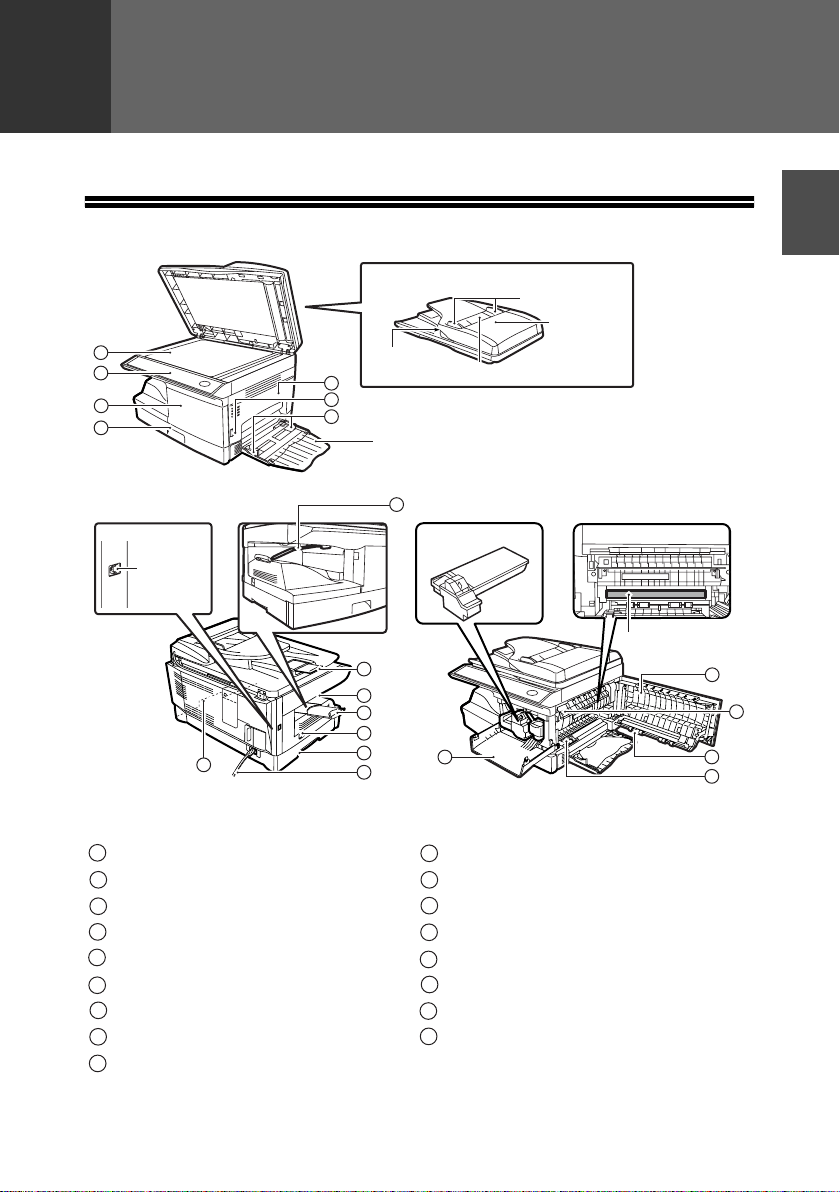
PART NAMES
Document glass Paper output tray extension
Operation panel Power switch
Front cover Handles
Paper tray Power cord
Side cover
Fusing unit release lever
Side cover open button Transfer charger
Bypass tray paper guides Charger cleaner
Original output tray extension Paper holder arm
Paper output tray
Photoconductive
drum
RSPF
Exit area
2
3
4
1
5
7
6
9
8
10
11
12
14
15
16
Bypass tray
Original guides
Document feeder tray
Document
feeder cover
5
3
13
12
Toner cartridge
Interface
USB
connector
17
1
10
2
11
3
12
4
13
5
14
6
15
7
16
8
17
9
PREPARATIONS
!AR-208S_208D.book 9 ページ 2007年12月3日 月曜日 午後3時33分
PREPARATIONS
10
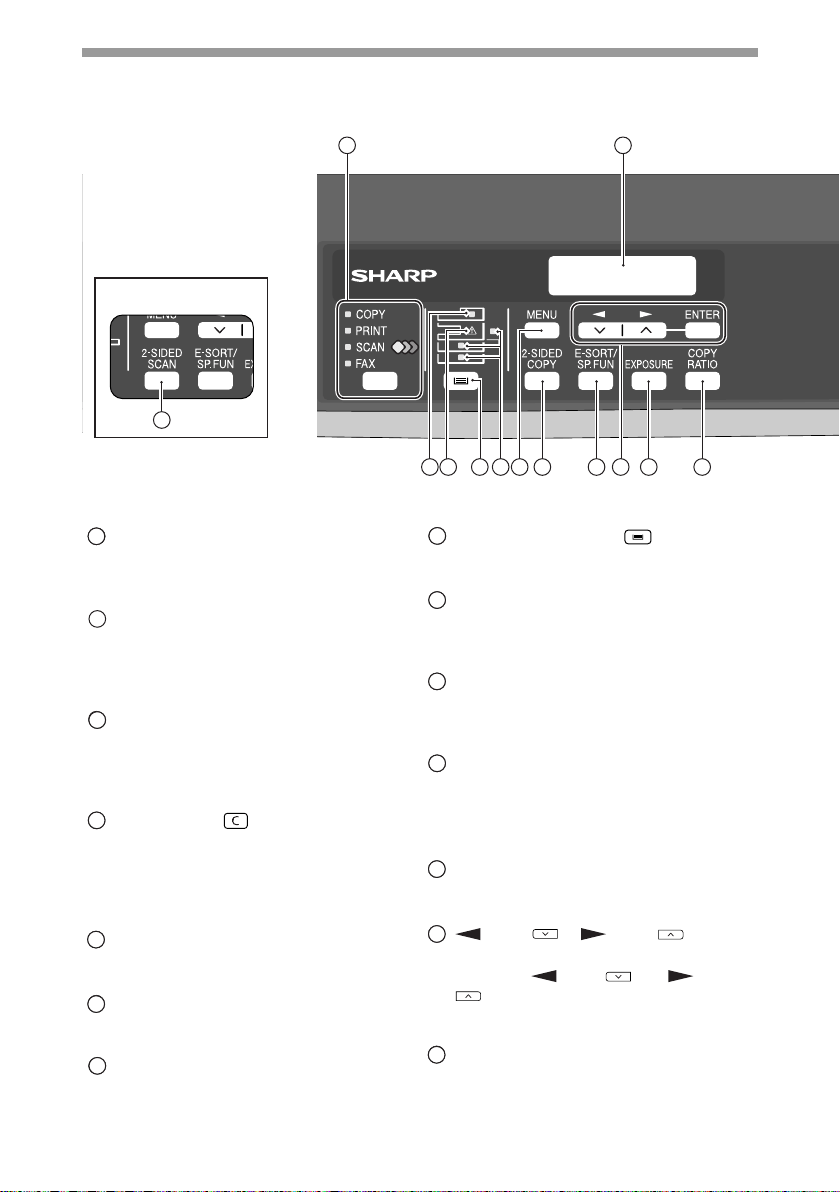
Operation panel
[MODE SELECT] key / Mode indicators
Press this key to select the mode. The
indicator of the selected mode lights (copy,
printer, scanner, fax mode indicators).
Display
This shows messages indicating the
machine status and any problems that
occur, as well as user programs and
function setting menus.
Numeric keys
Use these to enter the number of copies
and other numerical settings.
The keys can also be used to select
items in function setting menus.
[CLEAR] key ( )
Use this to clear the set number of
copies, as well as cancel a job that is in
progress. When a setting menu appears,
use this key to move back to the
previous menu level.
Power save indicator
This lights up when the power save
function is activated.
RSPF indicator
This lights up when an original is placed
in the RSPF.
Error indicator
This lights steadily or blinks when a
paper misfeed or other error occurs.
[TRAY SELECT] key ( )
Use to select the paper tray that has the
desired paper for copying.
Tray location indicator
Indicates the selected paper tray. The
indicator blinks when the tray is out of paper
during operation or is not closed properly.
[MENU] key
Press this key to select the paper size for
copying, to configure a user program or
to display the total count.
[2-SIDED COPY] key (AR-208D)
[2-SIDED SCAN] key (AR-208S)
Press in copy mode to select one-sided
or two-sided settings for the original and
for the output.
[E-SORT/SP.FUN] key
Press to select the sort function, 2 IN 1
copy function, or margin shift function.
[ ] key ( ), [ ] key ( ),
[ENTER] key
Press the [ ] key ( ) or [ ] key
( ) to select an item in a function
setting menu.
Press the [ENTER] key to enter a selection.
[EXPOSURE] key
Use to switch from auto exposure
adjustment to text mode or photo mode.
1
1
1
2
3
3
3
4
4
4
5
5
5
6
6
6
7
7
7
8
8
8
9
9
9
10
10
10
11
11
11
12
12
12
13
13
13
14
14
14
1 2
6 7 8
10 11 1312 14 15
9
AR-208S
11
!001-Introduction.fm 10 ページ 2007年12月18日 火曜日 午後1時28分
PREPARATIONS
11
1
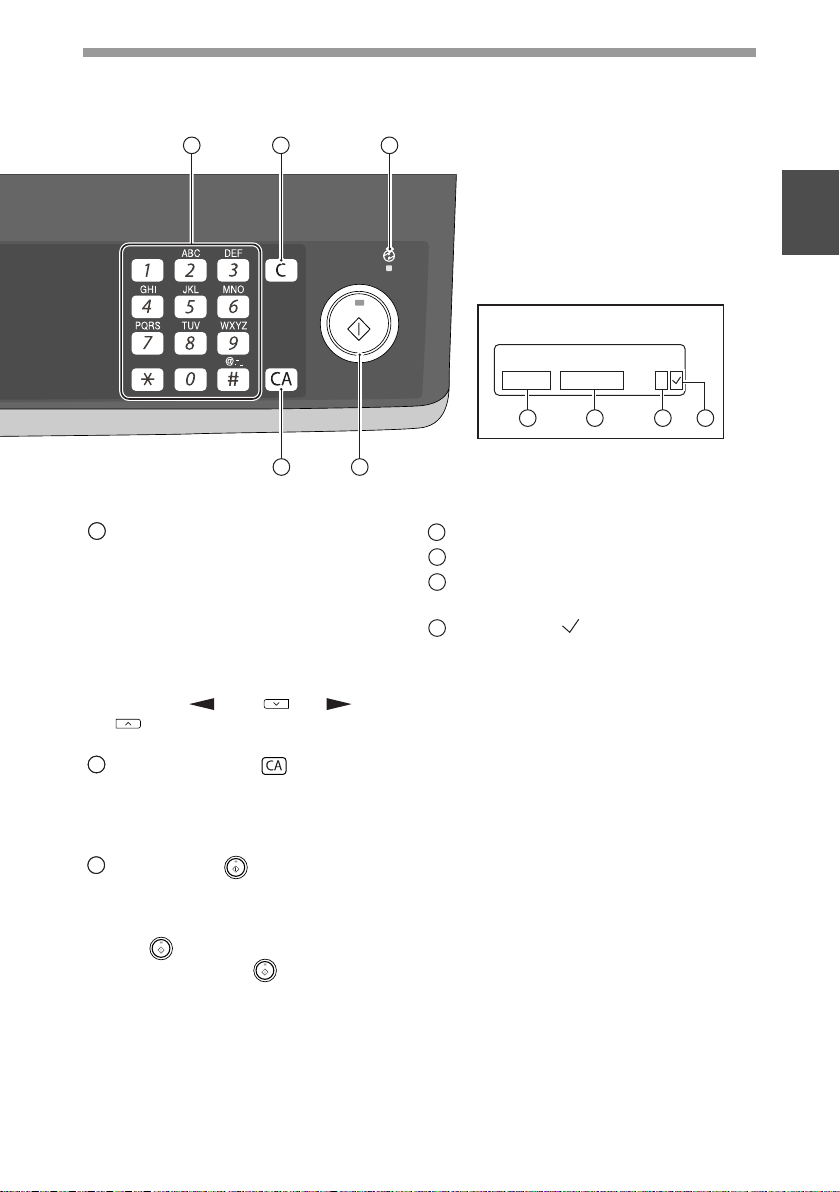
[COPY RATIO] key
Press to select an enlargement or
reduction ratio.
To select a preset ratio setting, press the
[COPY RATIO] key and select the
desired preset ratio. To select a ratio
that is not preset, press the [COPY
RATIO] key, select the preset ratio that
is closest to the desired ratio, and then
press the [ ] key ( ) or
[ ] key
( ) to increase or decrease the ratio in
increments of 1%.
[CLEAR ALL] key ( )
This returns all functions to the default
settings. When pressed in a setting
menu, this returns the settings and
display to the initial state.
[START] key ( ) / Ready indicator
The ready indicator lights up when
copying or scanning is possible.
To begin copying, press the [START]
key ( ).
The [START] key ( ) is also pressed
to return to normal operation from auto
power shut-off mode.
Shows the current copy ratio.
Shows the selected paper size.
Shows the number of copies that has
been entered with the numeric keys.
A checkmark " " appears when the
exposure has been changed, or when
two-sided copying, sort, 2 IN 1, or
margin shift is selected.
15
15
15
17
17
16
16
16
17
18
19
20
21
READY TO COPY.
100% 8.5x11 0
Display
16
18 19
20
21
3 4 5
17
!AR-208S_208D.book 11 ページ 2007年12月3日 月曜日 午後3時33分
12
POWER ON AND OFF
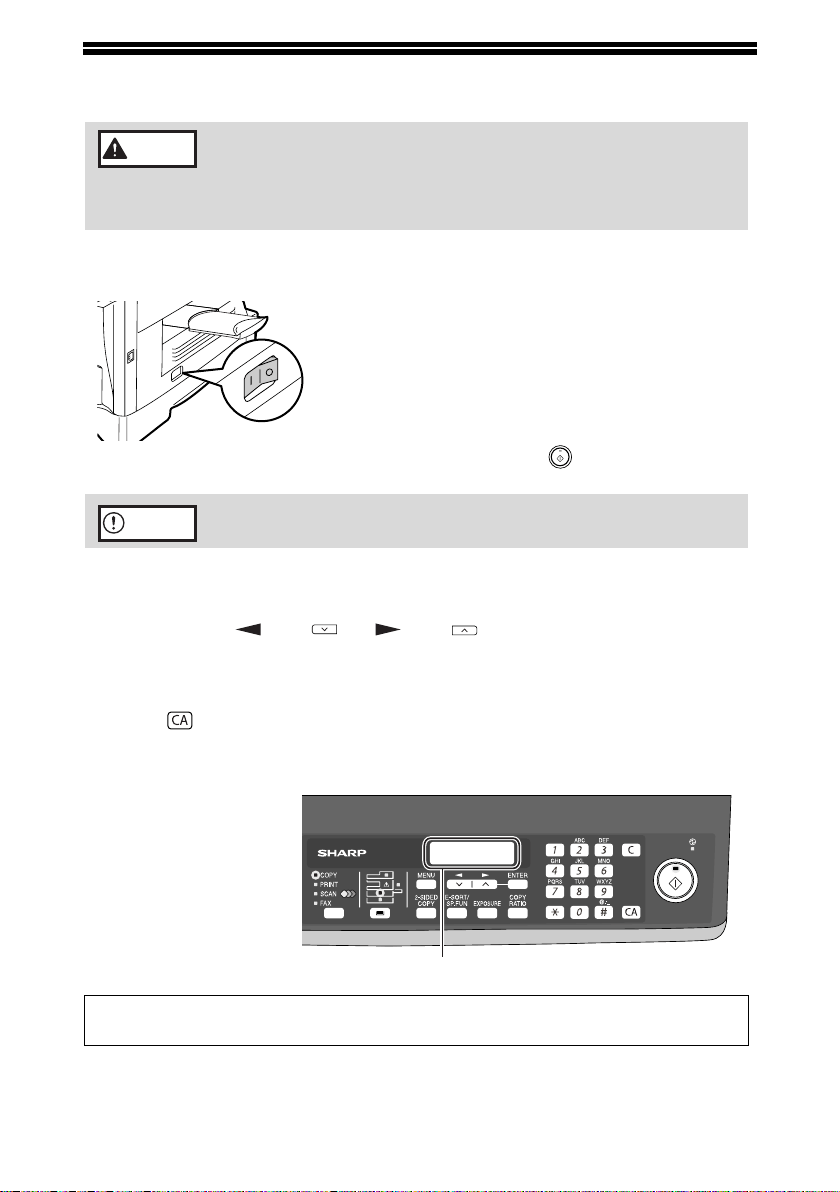
The power switch is located on the left side of the machine.
Power on
Turn the power switch to the "ON" position.
The ready indicator will light up and other indicators
which show the initial settings of the display will also
light up to indicate the ready condition. For the initial
settings, see "Initial settings" (below).
You can select copy settings and press the [START] key ( ) after the power
switch is turned on. Copying will start automatically.
Language setting
The first time the power is turned on after shipment from the factory, a message will
appear in English in the display prompting you to select the language. Select the
language with the [ ] key ( ) or [ ] key ( ) and then press the [ENTER] key.
The language can also be changed in the user programs (p.57).
Initial settings
The machine reverts to the initial settings when it is first turned on, when the [CLEAR
ALL] key ( ) is pressed, or when no keys are pressed for the preset "AUTO
CLEAR" time following the end of a copy job. When the machine reverts to the initial
settings, all settings and functions selected to that point are canceled. The "AUTO
CLEAR" can be changed in the user programs. (p.54)
Scanning unit (scan head)
When the machine is able to copy or scan (the ready indicator is on), the scanning
unit is lit.
If you use the machine in a country other than the country
where the machine was purchased, you will need to make sure
that your local power supply is compatible with your model. If
you plug the machine into an incompatible power supply,
irreparable damage to the machine will result.
Only insert the power cord into a properly grounded wall socket.
Do not use extension cords or power strips.
Copy ratio: 100%, Exposure: Automatic
Copy quantity: 0, All special copier modes: Off
Warning
Caution
The main screen of copy mode appears.
READY TO COPY.
100% 8.5x11 0
When in the copy mode
!AR-208S_208D.book 12 ページ 2007年12月3日 月曜日 午後3時33分
PREPARATIONS
13
1
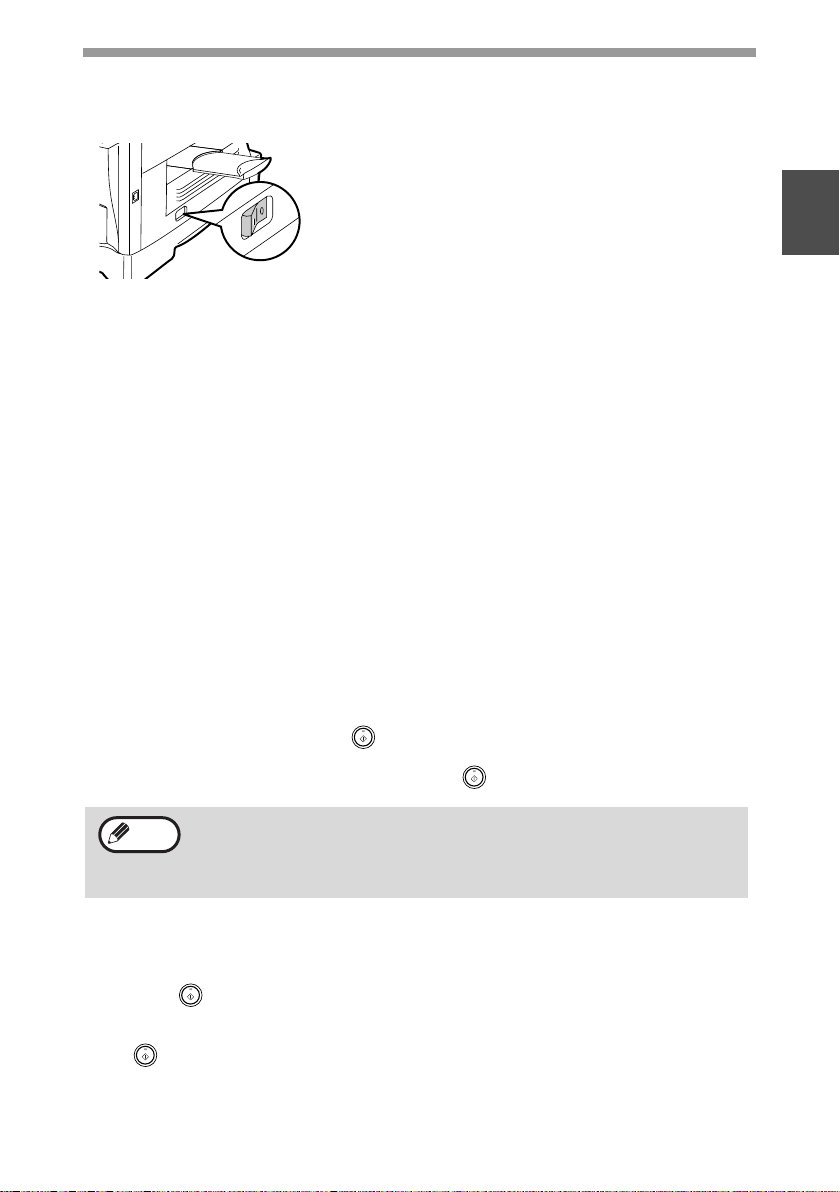
Power off
Make sure that the machine is not in operation and then turn the power
switch to the "OFF" position.
If the power switch is turned off while the machine is
in operation, a misfeed may occur and the job that
was in progress will be canceled.
In cases where the machine will not be used for a
long time, turn off the power switch and remove the
power cord from the outlet.
Check the following to make sure the machine is not in operation:
• The ready indicator is lit. (Initial state)
• The power save indicator is lit. (preheat mode or auto power shut-off mode)
Power save modes
The machine has two power save modes to reduce overall power consumption and
thereby reduce the cost of operation. In addition, these modes conserve natural
resources and help reduce environmental pollution. The two power save modes are
preheat mode and auto power shut-off mode.
Preheat mode
This function automatically switches the machine to a low power consumption state if
the set duration of time elapses without the machine being used when the power is
on. In this mode, the power save indicator lights up. Normal operation automatically
resumes when a key on the operation panel is pressed, an original is placed, a print
job is received.
Auto power shut-off mode
This function automatically switches the machine to a state that consumes even less
power than preheat mode if the set duration of time elapses without the machine being
used when the power is on. The power save indicator lights up, the display shows a
message indicating that the machine is in auto power shut-off mode. To resume normal
operation, press the [START] key ( ). Normal operation also resumes automatically
when a print job is received or scanning is begun from a computer. While in auto power
shut-off mode, no keys (except the [START] key ( )) can be used.
Check RSPF open function
When enabled, this function may help prevent wasteful use of toner that occurs
when the RSPF cover is not completely closed.
If the start ( ) key is pressed when the RSPF cover is not completely closed,
"CLOSE THE SPF/RSPF COVER." will appear in the display and copying may not
take place. If copying does not take place, copying can be performed by pressing the
start ( ) key again, however, the scan size set in "TRAY'S PAPER SIZE SETTING"
(p.19) or "VALID COPY WIDTH" (program number 25) (p.57) will be used.
If the RSPF cover is completely closed after "CLOSE THE SPF/RSPF COVER."
appears, copying will take place at the normal size.
The preheat activation time and the auto power shut-off time can be
changed with "PREHEAT MODE" and "AUTO SHUT-OFF TIME" in the
user programs. It is suggested that you set times that are appropriate
for your usage of the machine. (p.54 and p.55)
Note
!AR-208S_208D.book 13 ページ 2007年12月3日 月曜日 午後3時33分
14
2
Chapter 2
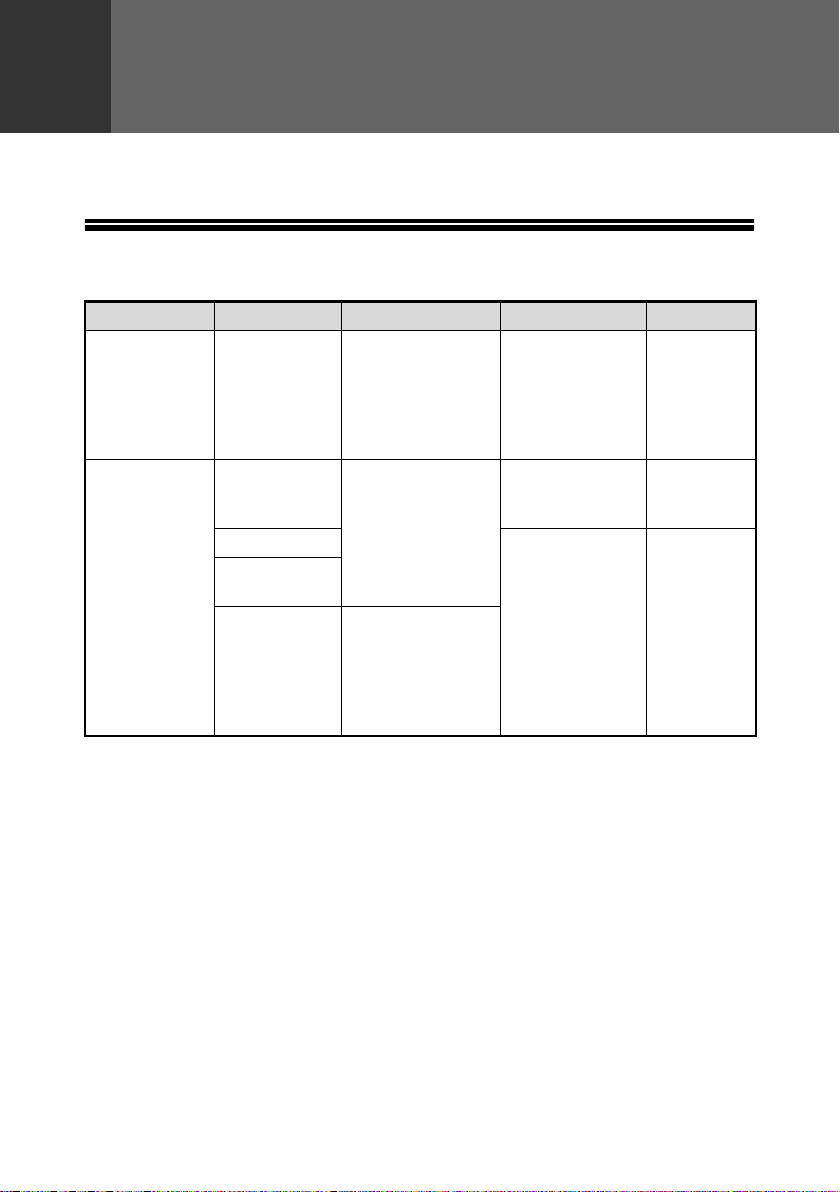
The tray location indicator will blink when there is no paper in the selected paper
tray, or when the selected paper tray is not closed or is improperly closed.
PAPER
For best results, use only SHARP recommended paper.
*
1
The number of sheets of paper that can be loaded varies depending on the weight of
the paper.
*
2
Do not use non-standard envelopes or envelopes that have metal clasps, plastic
snappers, strings, windows, linings, self-adhesive strips, patches or synthetic materials.
Do not use envelopes that are filled with air or envelopes that have labels or stamps
attached. These will damage the machine.
*
3
When using paper heavier than 28 lbs. (104 g/m
2
), use paper that is 8-1/2" x 11" or
smaller.
Paper tray type Paper type Size Weight Capacity
Paper tray Standard paper
Recycled paper
5-1/2" x 8-1/2"
(Invoice)
8-1/2" x 11" (Letter)
8-1/2" x 13"
(Foolscap)
8-1/2" x 14" (Legal)
15 lbs. to 21 lbs.
(56 g/m
2
to
80 g/m
2
)
250 sheets *
1
(The paper
should not
exceed the
line on the
tray)
Bypass tray Standard paper
Recycled paper
3-1/2" x 5-1/2" to
8-1/2" x 14"
15 lbs. to 21 lbs.
(56 g/m
2
to
80 g/m
2
)
50 sheets *
1
Thick paper 15 lbs. to 34.5 lbs.
(56 g/m
2
to
128 g/m
2
)*
3
Load one
sheet at a
time in the
bypass tray.
Transparency
film/Labels
Envelopes *
2
Monarch
(3-7/8" x 7-1/2")
Commercial 9
(3-7/8" x 8-7/8")
Commercial 10
(4-1/8" x 9-1/2")
LOADING PAPER
!AR-208S_208D.book 14 ページ 2007年12月3日 月曜日 午後3時33分
LOADING PAPER
15
2
Special papers
Follow these guidelines when using special papers.
● Use SHARP recommended transparency film and label sheets. Using other
than SHARP recommended paper may result in misfeeds or smudges on
the output. If other than SHARP recommended media must be used, feed
each sheet one at a time using the bypass tray (do not attempt continuous
copying or printing).
● There are many varieties of special paper available on the market, and
some cannot be used with this machine. Before using special paper,
contact a SHARP service center.
● Before using other than SHARP recommended paper, make a test copy to
see if the paper is suitable.
LOADING THE PAPER TRAY
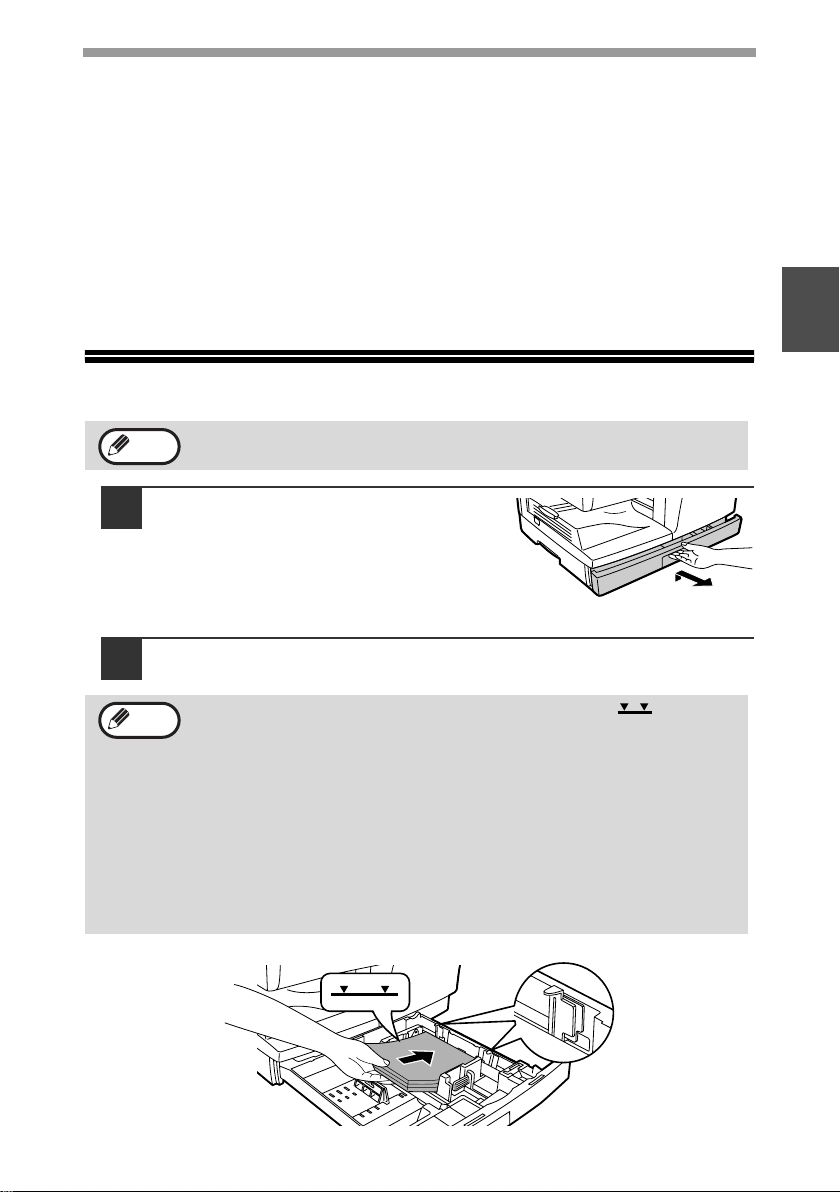
1
Raise the handle of the paper tray
and pull the paper tray out until it
stops.
2
Fan the paper and insert it into the tray. Make sure that the
edges go under the corner hooks.
Make sure that the paper is not torn, is free of dust, and has no wrinkles
or curled edges.
• Do not load paper above the maximum height line ( ).
Exceeding the line will cause a paper misfeed.
• If the paper is not fanned, double-feeds or misfeeds may occur.
• Make sure the stack of paper is straight before loading it. When
adding paper, take the remaining paper out and combine it into a
single stack with the new paper.
• Make sure that all the paper in the stack is the same size and type.
• When loading paper, ensure that there is no space between the
paper and the guide, and make sure that the guide is not set too
narrow and causes the paper to bend. Incorrect loading will cause the
paper to skew or misfeed.
Note
Note
!AR-208S_208D.book 15 ページ 2007年12月3日 月曜日 午後3時33分

LOADING PAPER
16
3
Gently push the paper tray back into the machine.
• If you loaded a paper size that is different from the previously loaded
paper size, change the paper size setting as explained in
"CHANGING A TRAY'S PAPER SIZE SETTING" (p.19)
• When not using the machine for an extended period, remove all
paper from the paper tray and store it in a dry place. If paper is left in
the machine for an extended period, the paper will absorb moisture
from the air, resulting in paper jams.
Note
!AR-208S_208D.book 16 ページ 2007年12月3日 月曜日 午後3時33分
17
2
BYPASS FEED (including special paper)
The bypass tray can be used to feed standard paper, transparency film, labels,
envelopes, and other special purpose paper.
Important points when inserting paper in the bypass tray
Up to 50 sheets of standard copy paper can be inserted in the bypass tray. (Capacity
will vary depending on the type of paper loaded.)
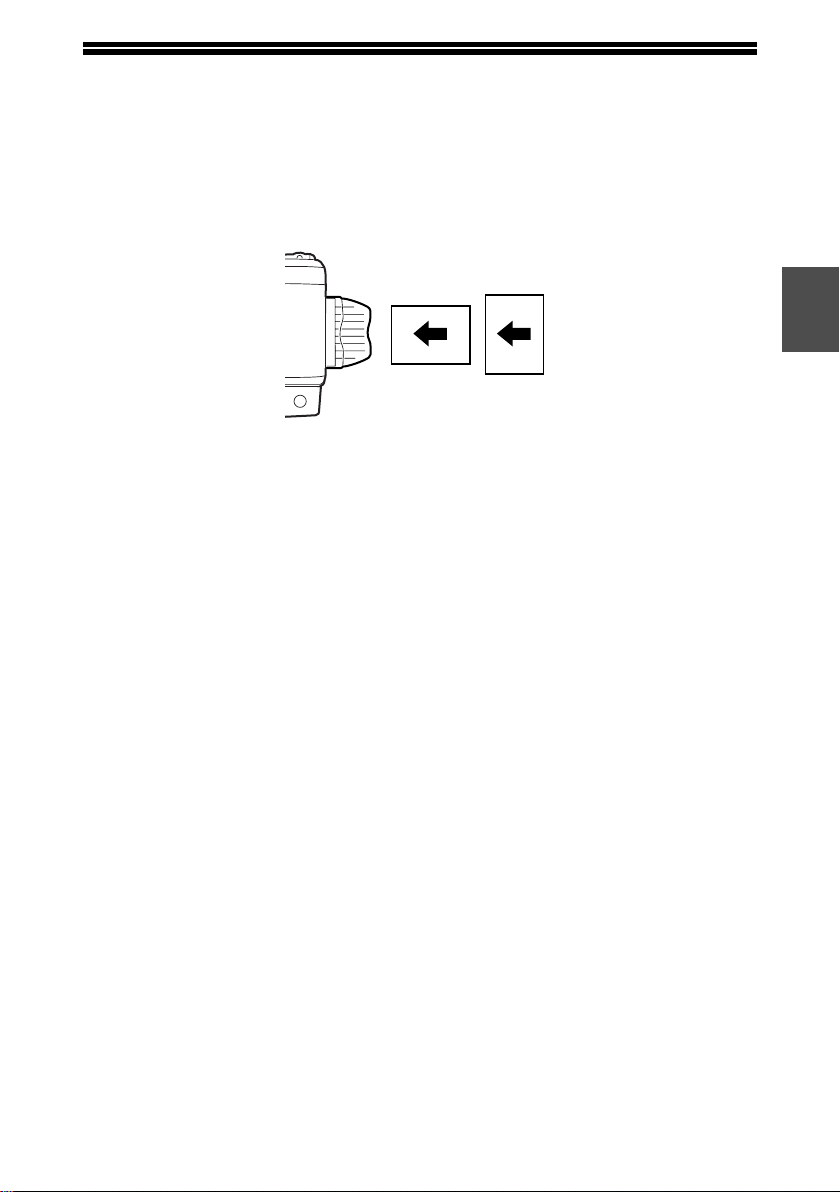
Be sure to place envelopes horizontally as shown in the following diagram.
• When loading envelopes, make sure that they are straight and flat and do not have
loosely glued construction flaps (not the closure flap).
• Special papers such as SHARP recommended transparency film, labels, and
envelopes must be fed one sheet at a time through the bypass tray.
• When adding paper, first remove any paper remaining in the tray, combine it with
the paper to be added and then reload as a single stack. The paper to be added
must be the same size and type as the paper already in the tray.
• Do not use paper that is smaller than the original. This may cause smudges or
unclean images.
• Do not use paper that has already been printed on by a laser printer or plain paper
fax machine. This may cause smudges or unclean images.
Envelopes
Do not use the following envelopes, as misfeeds will occur.
• Envelopes with metal tabs, clasps, strings, holes, or windows.
• Envelopes with rough fibers, carbon paper, or glossy surfaces.
• Envelopes with two or more flaps.
• Envelopes with tape, film, or paper attached to the flap.
• Envelopes with a fold in the flap.
• Envelopes with glue on the flap to be moistened for sealing.
• Envelopes with labels or stamps.
• Envelopes that are slightly inflated with air.
• Envelopes with glue protruding from the seal area.
• Envelopes with part of the seal area peeled off.
• Be sure to select com9, com10 or Monarch in the paper size setting of the printer
driver. (For detailed information on the printer driver, refer to the online manual.)
Available
Not
Available
!AR-208S_208D.book 17 ページ 2007年12月3日 月曜日 午後3時33分
LOADING PAPER
18
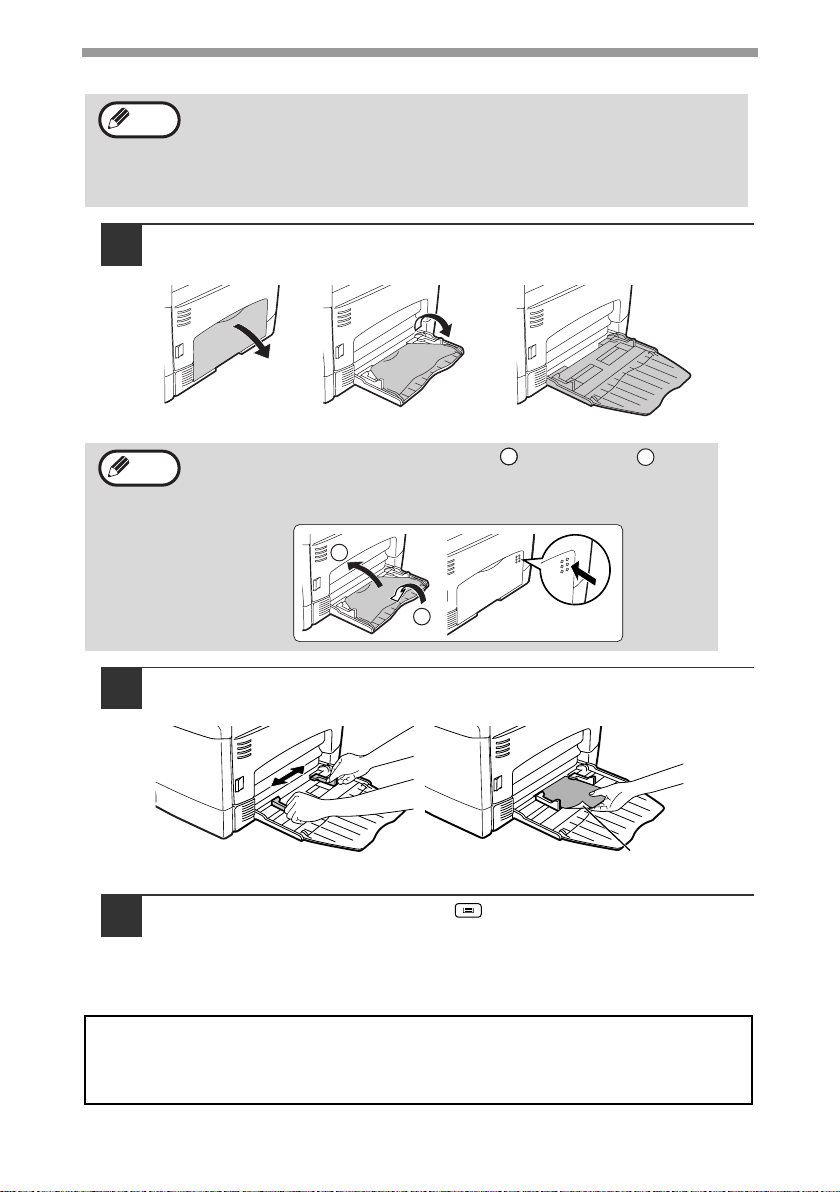
Loading paper in the bypass tray
1
Open the bypass tray and extend the tray.
2
Set the bypass tray paper guides to the paper width. Insert the
paper (print face down) all the way into the bypass tray.
3
Press the [TRAY SELECT] key ( ) to select the bypass tray.
• Paper must be fed narrow side first into the feed slot.
• Special papers such as transparency film, labels, and envelopes
must be fed one sheet at a time through the bypass tray.
• When copying onto transparency film, remove each copy promptly.
Do not let copies stack up.
To close the bypass tray, perform step and then step in the
illustration and push the round projections at the right of the tray
until they click.
Note for loading thick paper
Copying on thick paper requires higher fusing temperature setting. Set the user
program 29 to "2 (HEAVY PAPER)" when using thick paper. (See page 57.)
Note
Note
1
1
1
2
1
2
Print face
!002-Paper.fm 18 ページ 2007年12月20日 木曜日 午前10時2分
19
2
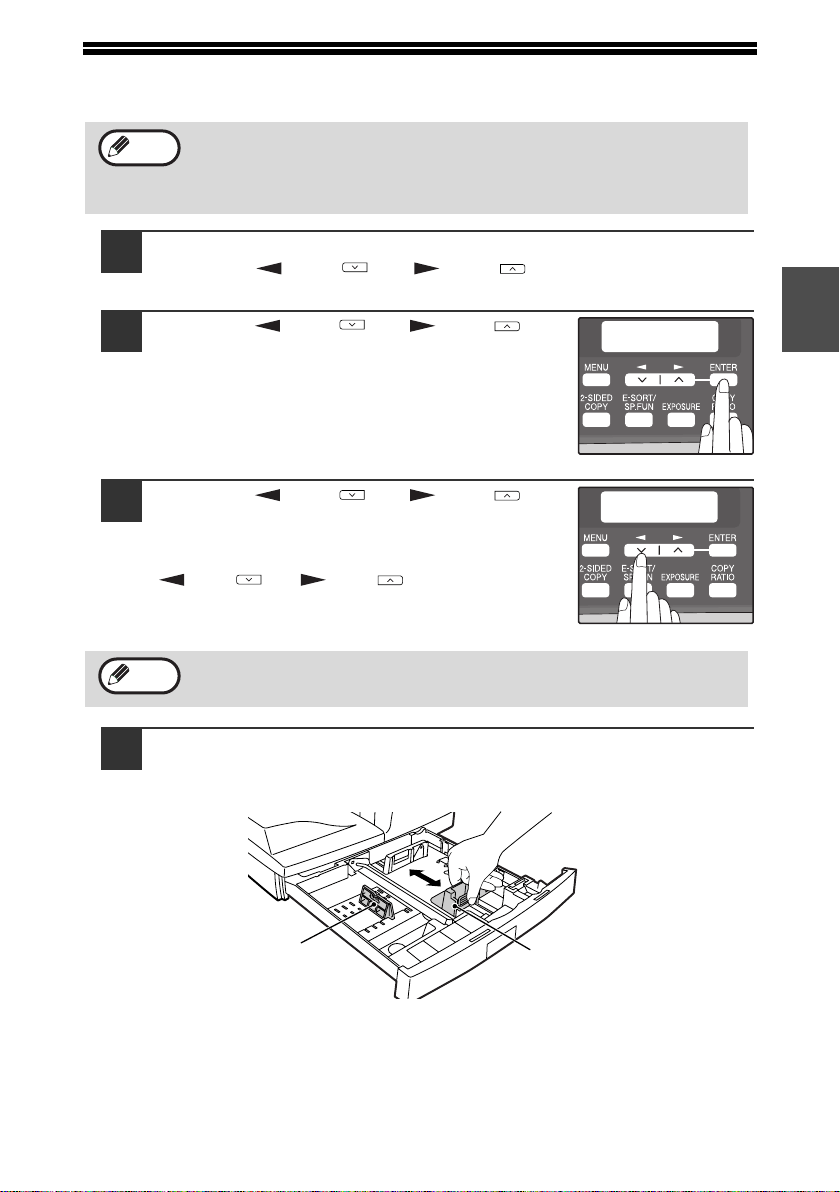
CHANGING A TRAY'S PAPER SIZE SETTING
Follow these steps to change a tray's paper size setting.
1
Press the [MENU] key.
Press the [ ] key ( ) or [ ] key ( ) until "PAPER SIZE"
appears, and then press the [ENTER] key.
2
Press the [ ] key ( ) or [ ] key ( ) to
select the tray, and then press the
[ENTER] key.
3
Press the [ ] key ( ) or [ ] key ( ) to
select the paper size, and then press the
[ENTER] key.
The paper size changes as follows each time the
[ ] key ( ) or [ ] key ( ) is pressed:
"8.5x14"→"8.5x13"→"8.5x11"→"5.5x8.5"
→"A4"→"B5"→"A5".
4
Squeeze the lock lever of the front guide and slide the front
guide to match the width of the paper, and move the left guide
to the appropriate slot as marked on the tray.
• The front guide is a slide-type guide. Grasp the locking knob on the guide
and slide the guide to the indicator line of the paper to be loaded.
• The left guide is an insert-type guide. Remove it and then insert it at the
indicator line of the paper to be loaded.
• The paper size setting cannot be changed when the machine has
stopped temporarily due to running out of paper or a misfeed.
• During printing (even in copy mode), the paper size setting cannot be
changed.
When you have finished configuring the tray's paper size setting,
press the [MENU] key.
Note
PAPER SIZE
1:TRAY1
TRAY1
1:8.5X14
Note
Left
guide
Front
guide
!AR-208S_208D.book 19 ページ 2007年12月3日 月曜日 午後3時33分
20
3
Chapter 3
This chapter explains basic copying functions.
NORMAL COPYING
Using the document glass
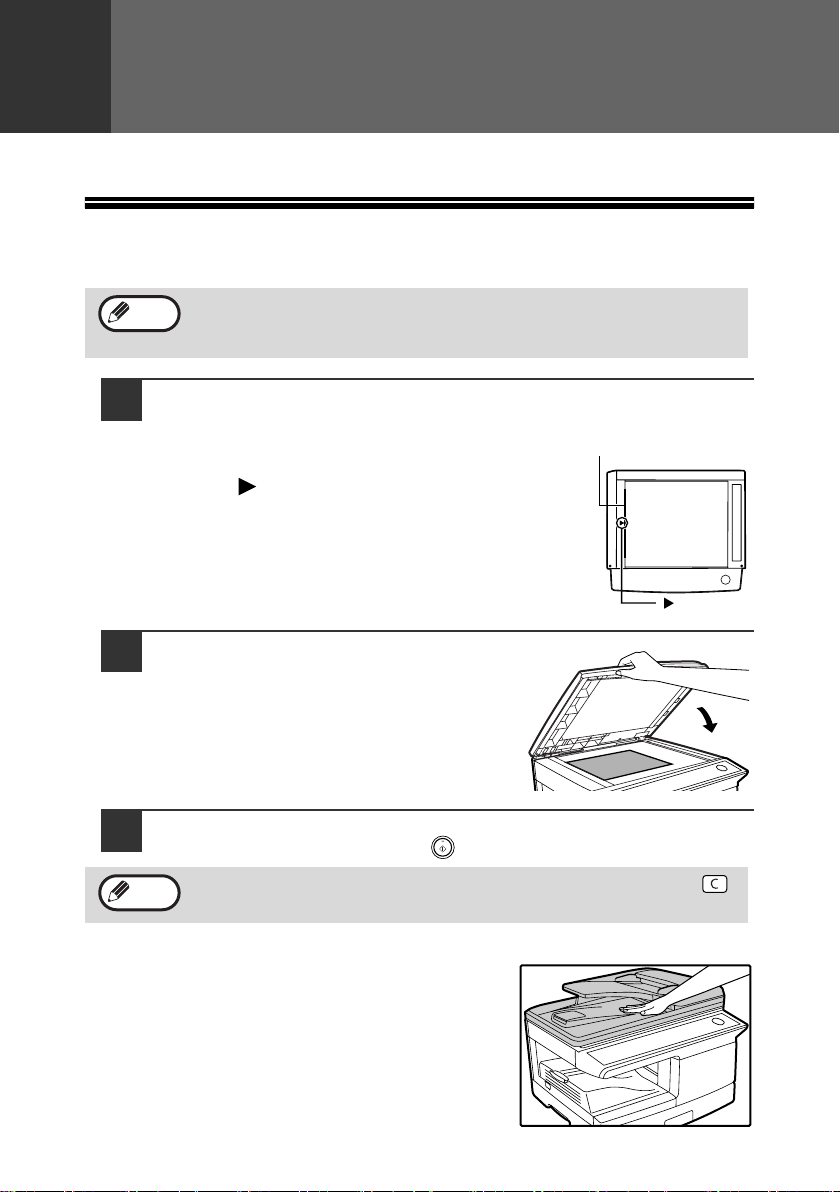
1
Open the RSPF, and place the original face down on the
document glass.
[How to place the original]
Align the original with the original scale and the
centering ( ) mark.
2
Gently close the RSPF.
3
Select the number of copies and any other copy settings, and
then press the [START] key ( ).
Copying books or originals with folds or creases
Press down on the RSPF while copying as shown. If
the RSPF is not completely closed, shadows may
appear on the copy or it may be fuzzy. Straighten
originals that have folds or creases before placing it
on the document glass.
• The document glass can scan up to 8-1/2" x 14" original.
• When a copy is made, the edges will not be copied (image loss). For
the image loss, see the "SPECIFICATIONS" (p.82).
• To stop copying in the middle of a run, press the [CLEAR] key ( ).
• For the copy settings, see pages 23 through 35.
Note
mark
Original scale
Note
MAKING COPIES
!003-making copies.fm 20 ページ 2007年12月14日 金曜日 午前8時40分
MAKING COPIES
21
3
Using the RSPF
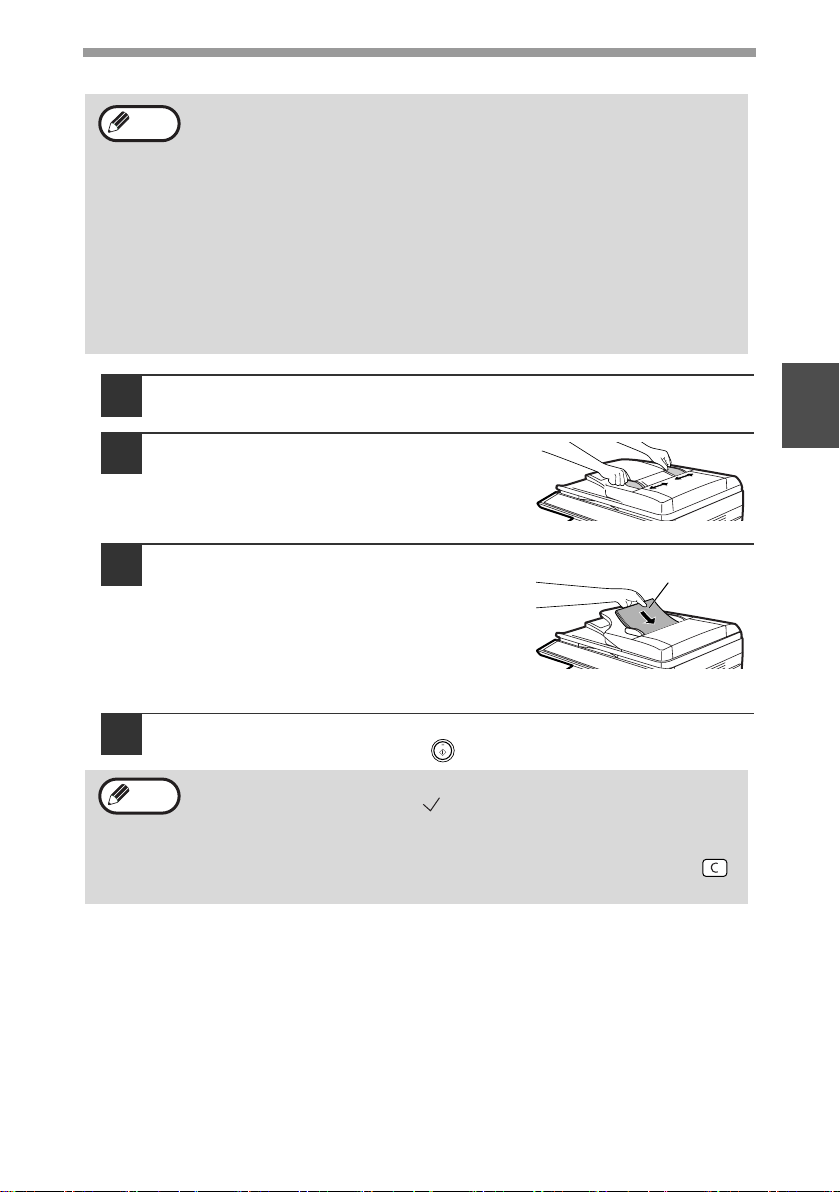
1
Make sure that an original has not been left on the document
glass.
2
Adjust the original guides to the size
of the originals.
3
Place the original(s) face up in the
document feeder tray without trying
to force them in.
The RSPF indicator on the operation panel
will light up. If this indicator does not light up,
the originals are not properly set or the RSPF
is not properly closed.
4
Select the number of copies and any other copy settings, and
then press the [START] key ( ).
• Originals that are 5-1/2" x 8-1/2" to 8-1/2" x 14" and 14 lbs. to 24 lbs.
(56 g/m
2
to 90 g/m
2
) can be used. A maximum of 50 pages can be
placed at once.
• Straighten curled originals before placing them in the document
feeder tray. Curled originals may cause misfeeds.
• Place originals horizontally.
• Before placing originals in the document feeder tray, be sure to
remove any staples or paper clips from them.
• When a copy is made, the edges will not be copied (
image loss).
For the image loss, see the "SPECIFICATIONS" (p.82).
• When using the margin shift function, check the position of the
margins carefully. (p.34)
• The default output mode for copying from the RSPF is sort mode
(P.29), and a checkmark " " will automatically appear in the display
(P.11). If "SORT AUTO SELECT" is disabled in the user programs,
the default output mode will be non-sort mode. (P.57)
• To stop copying in the middle of a run, press the [CLEAR] key ( ).
• For the copy settings, see pages 23 through 35.
Note
Original face up
Note
!003-making copies.fm 21 ページ 2007年12月14日 金曜日 午前9時51分
MAKING COPIES
22
Originals that cannot be used in the RSPF
The following originals cannot be used. These may cause misfeeds or smudging and
unclear images.
• Transparencies, tracing paper, other transparent or translucent paper, and
photographs.
• Carbon paper, thermal paper.
• Originals that are creased, folded, or torn.
• Glued originals, cut-out originals.
• Originals with binder holes.
• Originals printed using an ink ribbon (thermal transfer printing), originals on
thermal transfer paper.
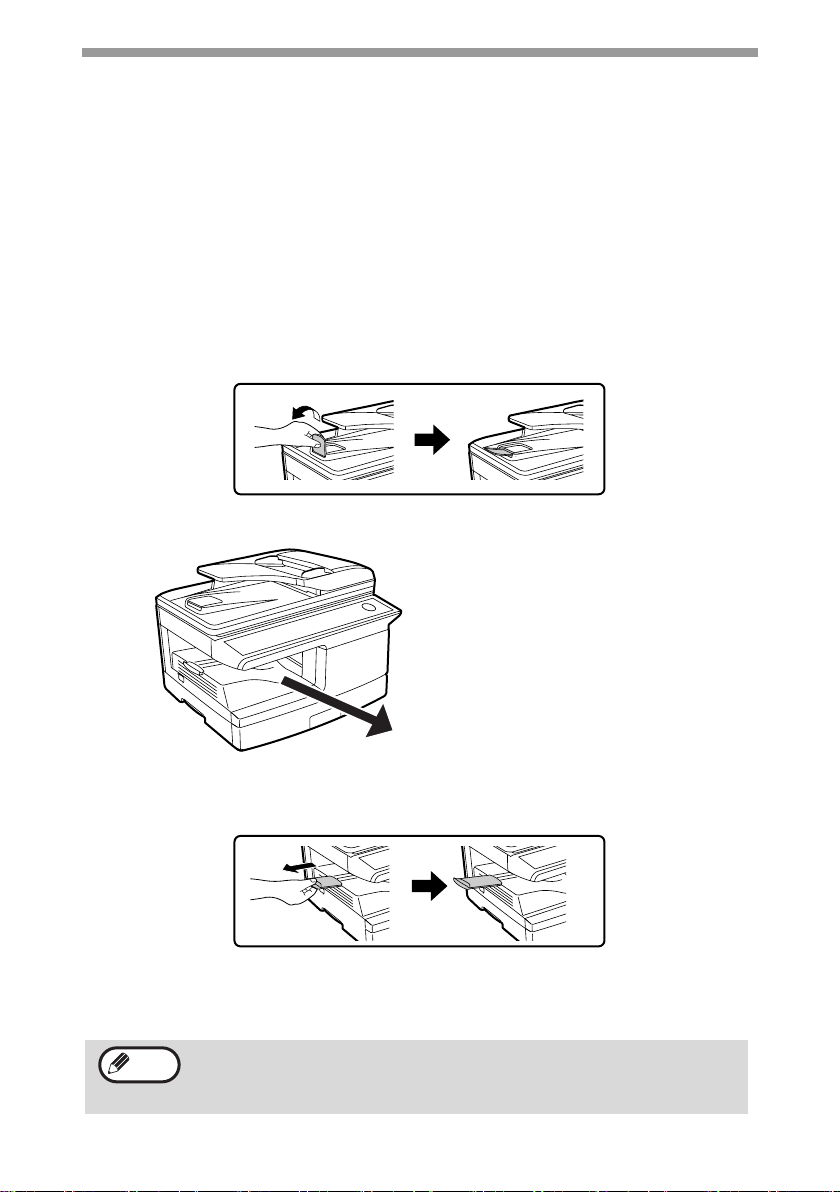
Original output tray extension
When placing an original larger than 8-1/2" x 11" size, pull out the original output tray
extension of the RSPF.
Capacity of paper output tray
Paper output tray extension
When copying onto paper larger than 8-1/2" x 11" size, pull out the paper output tray
extension.
Paper holder arm
The paper output tray has a paper holder arm. The paper holder arm presses gently
on the output paper to stack it (p.9).
After removing paper, if you need to return the paper to the paper
output tray, lift up the paper holder arm and place the paper under
the arm.
The paper output tray can hold a
maximum of 200 pages. If more
than 200 pages are allowed to
accumulate, a paper jam may occur.
Note
!AR-208S_208D.book 22 ページ 2007年12月3日 月曜日 午後3時33分
MAKING COPIES
23
3
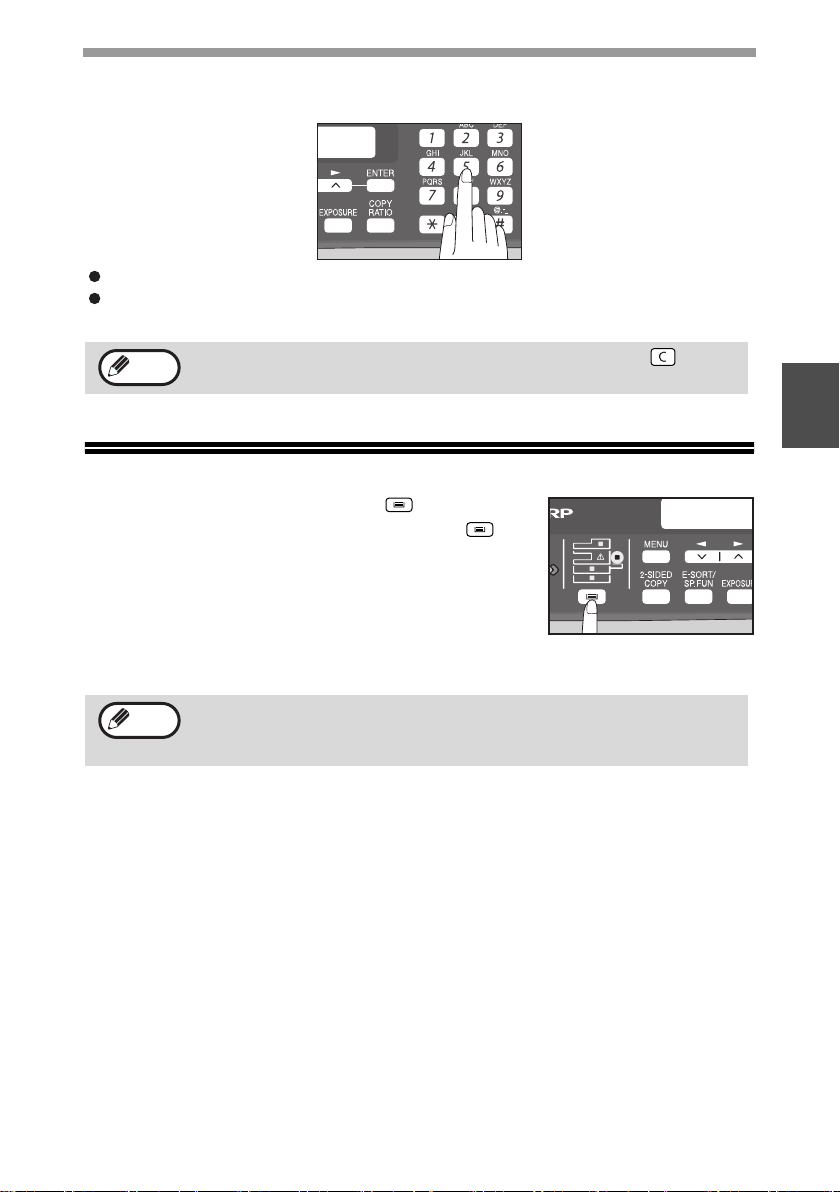
Setting the number of copies
Press the numeric keys to set the number of copies.
The set number of copies appears in the display. A maximum of 99 copies can be set.
If you wish to make only a single copy, copying is possible with the display
showing "0".
SELECTING THE TRAY
Press the [TRAY SELECT] key ( ).
Each time, you press the [TRAY SELECT] key ( ),
the location indicated by the tray location indicator
changes in the following order : paper tray→lower
paper tray (when the 250-sheet paper feed unit is
installed.)→bypass tray.
If you enter the wrong number, press the [CLEAR] key ( ) and
enter the correct number.
The tray location indicator will blink when there is no paper in the paper
tray during operations, or when the tray is not closed or is improperly
closed.
O
PY.
x
11 55
Note
READY TO COPY.
100% EXTRA
Note
!AR-208S_208D.book 23 ページ 2007年12月3日 月曜日 午後3時33分

24
MAKING A COPY DARKER OR LIGHTER
Automatic exposure adjustment is initially enabled. This function automatically
adjusts the copy image according to the original being copied. If you wish to select
the exposure level yourself, follow the steps below. (Select from 2 original types and
5 exposure levels for each original type.) The exposure level used in automatic
exposure adjustment can also be changed with "AE LEVEL ADJUST" in the user
programs (p.57).
Original types
● AUTO ...... Automatic exposure adjustment is enabled and the exposure is
automatically adjusted according to the original being copied. The
exposure is lowered for colored areas and background shadows.
● TEXT ....... The exposure is raised for light areas and lowered for dark
backgrounds to make text easier to read.
● PHOTO ... Halftones in the photo are reproduced with greater clarity.
1
Place the original(s).
2
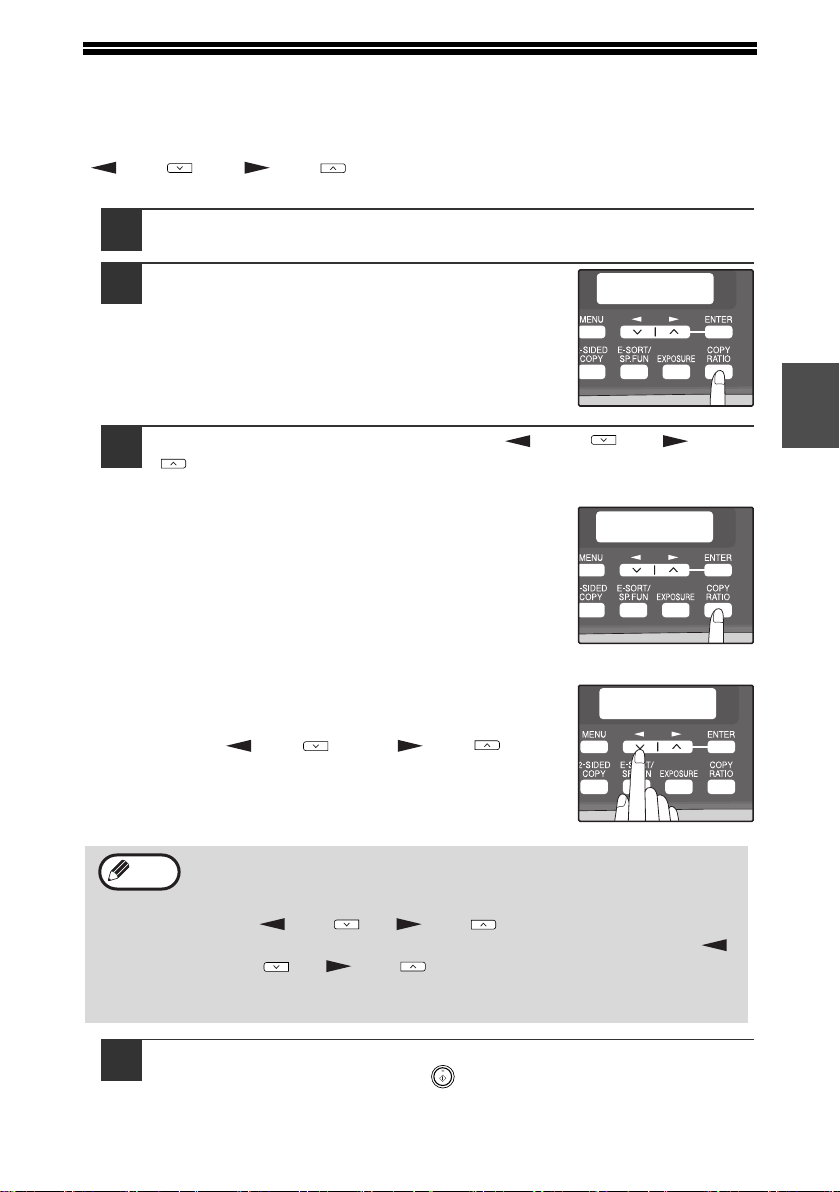
Press the [EXPOSURE] key to select the
original type.
The original image type changes as follows each
time the [EXPOSURE] key is pressed: "AUTO" →
"TEXT" → "PHOTO".
3
If needed, adjust the exposure level for
TEXT or PHOTO.
For a darker image, press the [ ] key ( ). For a
lighter image, press the [ ] key ( ).
4
Press the [ENTER] key.
5
Select the number of copies and any other copy settings, and
then press the [START] key ( ).
To return to auto exposure adjustment, press the [EXPOSURE] key
until "AUTO" appears.
Exposure value guidelines (When in "TEXT" setting)
TEXT
| | | | |
Note
TEXT
| | | | |
Note
TEXT
| | | | |
Normal originals
Colored text or text written in pencil
Dark originals like newspapers
!AR-208S_208D.book 24 ページ 2007年12月3日 月曜日 午後3時33分
25
3
REDUCTION/ENLARGEMENT/ZOOM
Copies can be reduced down to 25% or enlarged up to 400%. (When the RSPF is
being used, the zoom copy ratio range is 50% to 200%.) The [COPY RATIO] key can
be pressed to quickly select a ratio from among eight preset ratios. In addition, the
[ ] key ( ) and [ ] key ( ) can be pressed to select the ratio in increments of
1%.
1
Place the original(s) and check the paper size.
2
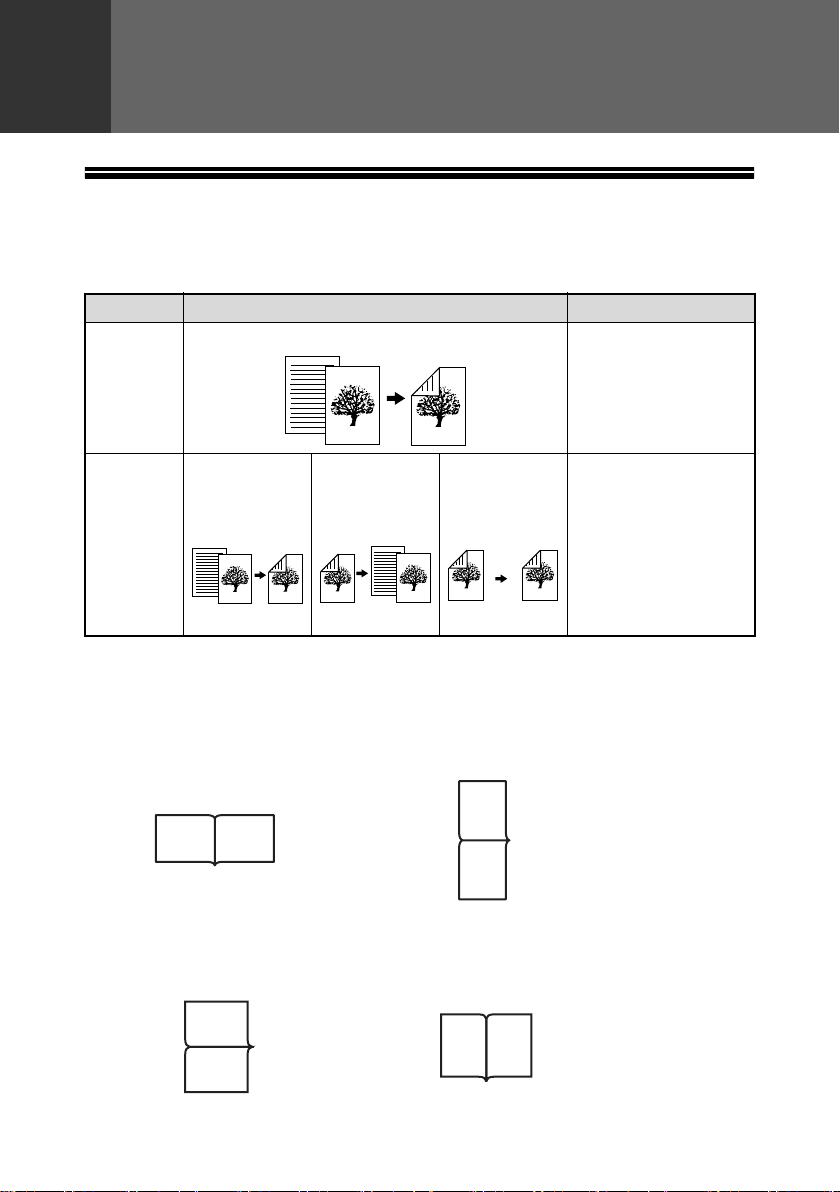
Press the [COPY RATIO] key.
3
Press the [COPY RATIO] key and/or [ ] key ( ) or [ ] key
( ) to select the desired copy ratio and then press the
[ENTER] key.
Selecting a preset ratio
The preset ratios change as follows each time the
[COPY RATIO] key is pressed:
"100%" → "78%" → "64%" → "50%" → "25%" →
"400%" → "200%" → "129%"
Fine adjustment of the ratio
The ratio can be adjusted from 25% to 400% in
increments of 1%.
Use the [ ] key ( ) or the [ ] key ( ) for
fine adjustment.
4
Select the number of copies and any other copy settings, and
then press the [START] key ( ).
The copy will be delivered to the paper output tray.
• To return the ratio to 100%, press the [COPY RATIO] key until 100%
appears.
• Press the [COPY RATIO] key to set the approximate ratio, then press
the [ ] key ( ) or [ ] key ( ).
• To decrease or increase the zoom ratio rapidly, hold down the [ ]
key ( ) or [ ] key ( ).
The ratio will stop changing at each of the preset ratios. To continue
changing the ratio, release the key and then hold it down again.
COPY RATIO
- 100% +
8.5x14 TO 8.5x11
- 78% +
ZOOM
- 99% +
Note
!AR-208S_208D.book 25 ページ 2007年12月3日 月曜日 午後3時33分
26
4
Chapter 4
AUTOMATIC TWO-SIDED COPYING
Two originals can be automatically copied onto both sides of a single sheet of paper.
When the RSPF is used, two-sided copies of two-sided originals can easily be made.
(On the AR-208S, only two-sided original → one sided copy is possible.)
* AR-208D only
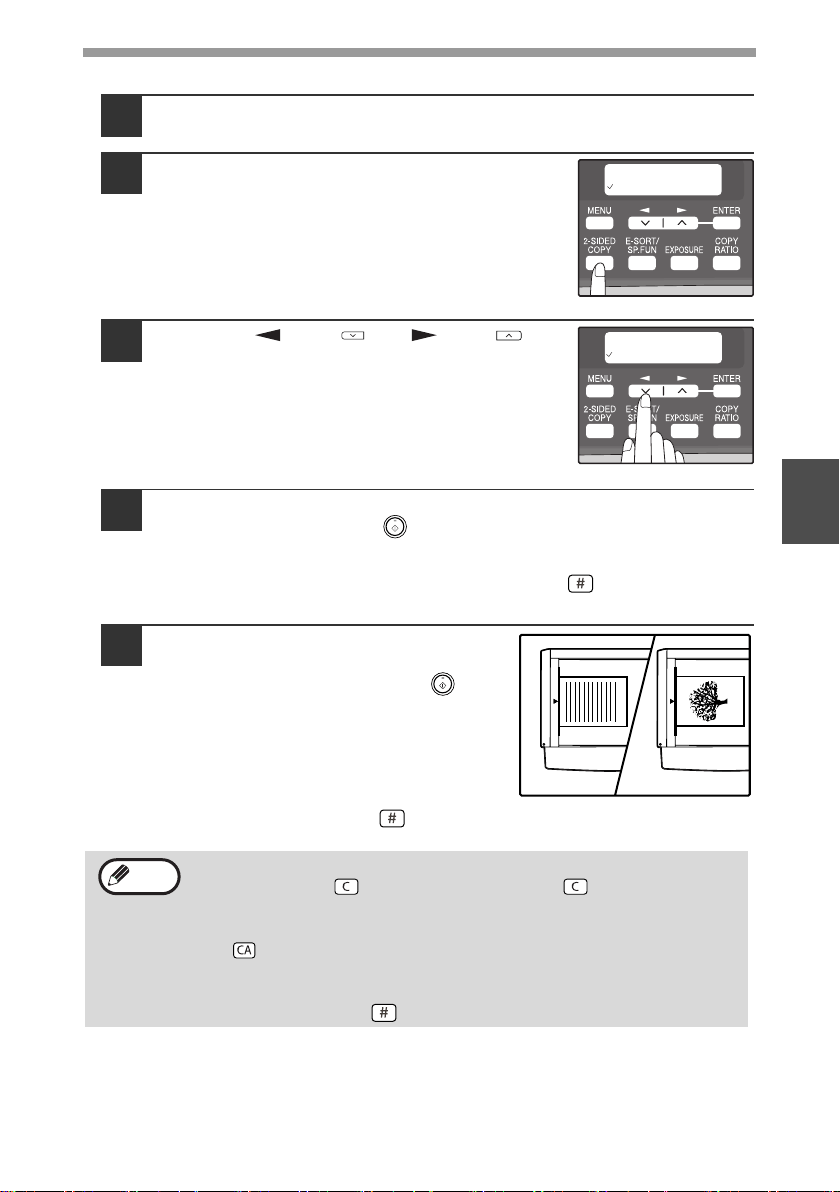
When performing automatic two-sided copying of one-sided originals, the orientation
of the copied image can be selected according to the binding position of the paper.
SHORT EDGE: Select when binding the paper at the short edge.
LONG EDGE: Select when binding the paper at the long edge.
Original → Paper Usable paper
Document
glass
One-sided original → Two sides*
5-1/2" x 8-1/2", 8-1/2" x
11", 8-1/2" x 13",
8-1/2" x 14"
• The bypass tray
cannot be used.
RSPF
One-sided
original →
Two sides*
Two-sided
original →
One side
Two-sided
original →
Two sides*
5-1/2" x 8-1/2", 8-1/2" x
11", 8-1/2" x 13",
8-1/2" x 14"
• Special paper cannot
be used.
• The bypass tray can
only be used when
making one-sided
copies from two-
sided originals.
(Paper orientation: Landscape) (Paper orientation: Portrait)
(Paper orientation: Landscape) (Paper orientation: Portrait)
AB
A
B
A
B
AB
CONVENIENT COPY
FUNCTIONS
!AR-208S_208D.book 26 ページ 2007年12月3日 月曜日 午後3時33分
CONVENIENT COPY FUNCTIONS
27
4
Using the document glass (AR-208D only)
1
Place the original that you wish to copy onto the front side of
the paper on the document glass and close the RSPF.
2
Press the [2-SIDED COPY] key until "1 TO
2" appears, and then press the [ENTER]
key.
3
Press the [ ] key ( ) or [ ] key ( ) to
select the binding edge and then press the
[ENTER] key.
Select "LONG EDGE" or "SHORT EDGE".
The "LONG EDGE" and "SHORT EDGE" are
shown in the illustration on the preceding page.
4
Select the number of copies and any other settings, and then
press the [START] key ( ).
"[START] : NEXT SCAN [#] : START PRINT" appears and the original is
scanned into memory.
To immediately print the scanned image, press the [ ] key.
5
Replace the original with the next
original and close the RSPF, and
then press the [START] key ( ).
Repeat step 5 until all originals have been
scanned.
Copies will be output each time two originals
have been scanned.
When the number of original pages is odd
and "[START] : NEXT SCAN [#] : START
PRINT" appears, press the [ ] key after all pages have been scanned.
• If you need to clear the data scanned into memory, press the
[CLEAR] key ( ). When the [CLEAR] key ( ) is pressed, the
number of copies setting is also cleared.
• To cancel automatic two-sided copying, press the [CLEAR ALL] key
( ) or press the [2-SIDED COPY] key, select the "1 TO 1", and then
press the [ENTER] key.
• If the special function sort mode was selected in step 4, copying will
not begin until the [ ] key is pressed.
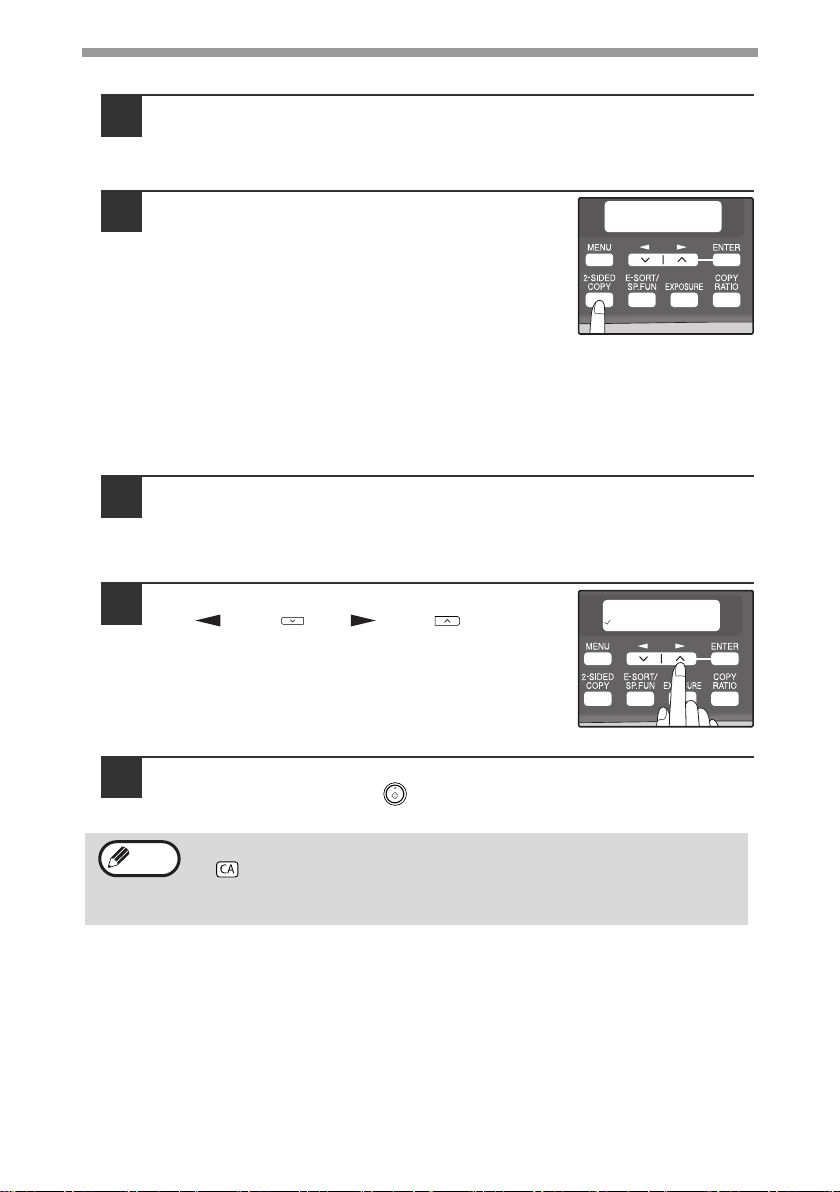
2-SIDED COPY
1 TO 2
BINDING EDGE
LONG EDGE
1
The first original
The second original
2
Note
!AR-208S_208D.book 27 ページ 2007年12月3日 月曜日 午後3時33分
CONVENIENT COPY FUNCTIONS
28
Using the RSPF
1
Place the original(s) in the RSPF. (p.21)
If you place an odd number of originals for one-sided to two-sided copying,
the last page will be one-sided.
2
Press the [2-SIDED COPY] key*
1
and select
the two-sided copy mode that you wish to
use.
The mode changes as follows each time you press
the [2-SIDED COPY] key*
1
:
"1 TO 1" → "1 TO 2"*
2
→ "2 TO 2"*
2
→ "2 TO 1"
•"1 TO 2"*
2
: Two-sided copies from one-sided originals
•"2 TO 2"*
2
: Two-sided copies from two-sided originals
• "2 TO 1": One-sided copies from two-sided originals
*
1
On the AR-208S, press the [2-SIDED SCAN] key.
*
2
AR-208D only
3
Press the [ENTER] key.
If you selected "1 TO 2" in step 2, select "LONG EDGE" or "SHORT EDGE"
and press the [ENTER] key. LONG EDGE and SHORT EDGE are shown in
the illustration on page 26.
4
If you selected "2 TO 1" or "2 TO 2", press
the [ ] key ( ) or [ ] key ( ) to select
the original size and then press the
[ENTER] key.
The following original sizes can be selected:
"8.5x14", "8.5x13", "8.5x11", "5.5x8.5", "A4", "B5",
"A5"
5
Select the number of copies and any other settings, and then
press the [START] key ( ).
The copy will be delivered to the paper output tray.
To cancel automatic two-sided copying, press the [CLEAR ALL] key
( ) or press the [2-SIDED COPY] key (On the AR-208S, press the [2-
SIDED SCAN] key.), select the "1 TO 1", and then press the [ENTER]
key.
2-SIDED COPY
2 TO 1
ORIG. SIZE ENTER
5.5x8.5
Note
!AR-208S_208D.book 28 ページ 2007年12月3日 月曜日 午後3時33分
29
4
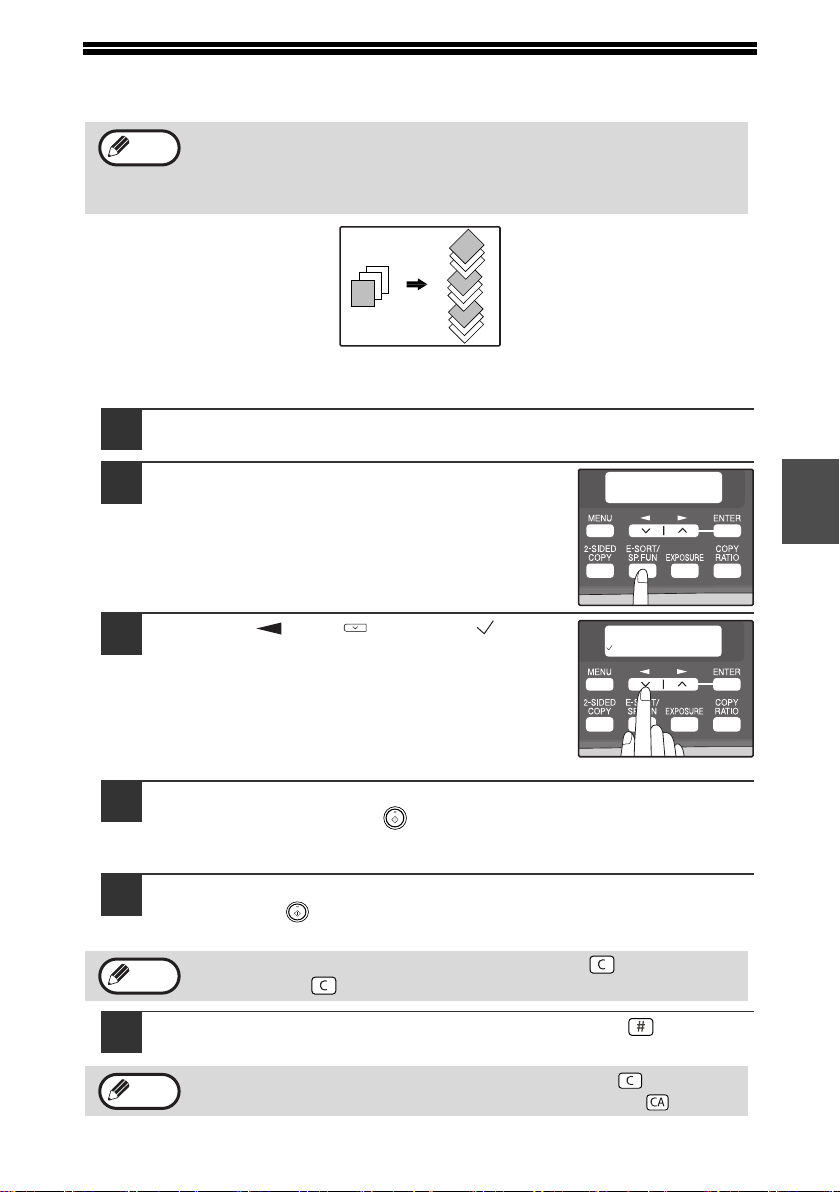
SORT COPY
Copies of multiple original pages can be sorted into sets.
Using the document glass
1
Place the first original. (p.20)
2
Press the [E-SORT/SP.FUN] key until
"SORT" appears and then press the
[ENTER] key.
3
Press the [ ] key ( ) to move " " to
the "ON" position and then press the
[ENTER] key.
4
Select the number of copies and any other settings, and then
press the [START] key ( ).
"[START] : NEXT SCAN [#] : START PRINT" appears and the original is
scanned into memory.
5
Replace the original with the next original, and then press the
[START] key ( ).
Repeat step 5 until all originals have been scanned into memory.
6
When all originals have been scanned, press the [ ] key.
The copies are delivered to the paper output tray.
The number of pages that can be scanned varies depending on the
original type (photo, text, etc.) and the amount of memory allocated to
the printer. The amount of memory allocated to the printer can be
changed with "MEM. FOR PRINTER" in the user programs. (p.56)
To clear the data in memory, press the [CLEAR] key ( ). When the
[CLEAR] key ( ) is pressed, the number of copies setting is also cleared.
• To cancel the sort copy job, press the [CLEAR] key ( ).
• To cancel sort copy mode, press the [CLEAR ALL] key ( ).
Note
2
1
3
2
1
3
1
2
3
2
1
3
Sort copy
SPECIAL FUNCTION
SORT
SORT
ON OFF
Note
Note
!AR-208S_208D.book 29 ページ 2007年12月3日 月曜日 午後3時33分
CONVENIENT COPY FUNCTIONS
30
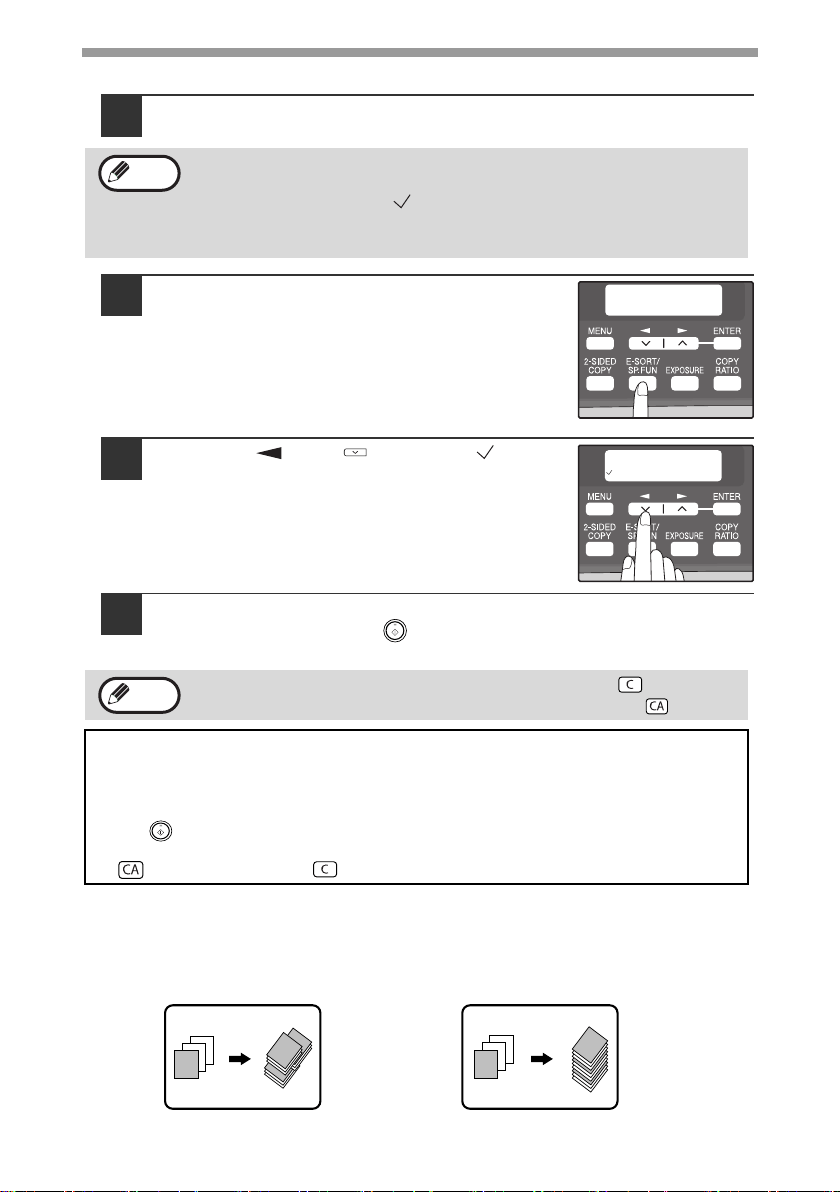
Using the RSPF
1
Place the originals. (p.21)
2
Press the [E-SORT/SP.FUN] key until
"SORT" appears and then press the
[ENTER] key.
3
Press the [ ] key ( ) to move " " to
the "ON" position and then the [ENTER]
key.
4
Select the number of copies and any other settings, and then
press the [START] key ( ).
The copies are delivered to the paper output tray.
Offset function during sort copy
The offset function shifts the position of each set of copies in the paper output tray
for easy separation.
The offset function can be changed with "OFFSET FUNCTION" in the user
programs. (p.55)
• If "SORT AUTO SELECT" is enabled in the user programs, the default output
mode for copying from the RSPF is sort mode (p.57). In this case go directly
to step 4. A checkmark " " will automatically appear in the display (p.11).
• If "SORT AUTO SELECT" is disabled, the default output mode will be non-
sort mode. Follow the steps below to select sort mode.
• To cancel the sort copy job, press the [CLEAR] key ( ).
• To cancel sort copy mode, press the [CLEAR ALL] key ( ).
If the memory becomes full
• If the memory becomes full while scanning the originals, "MEMORY FULL, PRESS
START TO RESUME" will appear in the display, and the machine will stop copying.
• To copy the originals that have been scanned up to that point, press the [START]
key ( ).
• To clear the data that has been scanned into memory, press the [CLEAR ALL] key
( ) or the [CLEAR] key ( ).
Note
SPECIAL FUNCTION
SORT
SORT
ON OFF
Note
1
1
1
2
3
1
1
2
3
Offset function
When offset function is disabled
!AR-208S_208D.book 30 ページ 2007年12月3日 月曜日 午後3時33分

31
4
COPYING MULTIPLE ORIGINALS ONTO A SINGLE
SHEET OF PAPER (2 IN 1 copy)
Multiple originals can be copied onto a single sheet of paper in a selected layout
pattern.
This function is convenient for compiling multi-page reference materials into a
compact format, or for providing an overview of all pages of a document on a single
page.
Using the document glass
1
Place the first original. (p.20)
2
Press the [E-SORT/SP.FUN] key until
"2IN1" appears and then press the
[ENTER] key.
3
Press the [ ] key ( ) to move " " to
the "ON" position and then press the
[ENTER] key.
• An appropriate ratio setting will be automatically selected based on
the size of the originals, the size of the paper. When using the
document glass, reduction is possible to 25%. When using the RSPF,
reduction is possible to 50%. Certain combinations of original size
and paper size may result in images being cut off.
• 2 IN 1 copying cannot be used in combination with the margin shift
copying.
• The 2 IN 1 layout pattern can be changed with "LAYOUT IN 2IN1" in
the user programs (p.55).
• The bypass tray cannot be used for 2 IN 1 copying.
Pattern 2
Pattern 1
Note
SPECIAL FUNCTION
2IN1
2IN1
ON OFF
!AR-208S_208D.book 31 ページ 2007年12月3日 月曜日 午後3時33分
CONVENIENT COPY FUNCTIONS
32
4
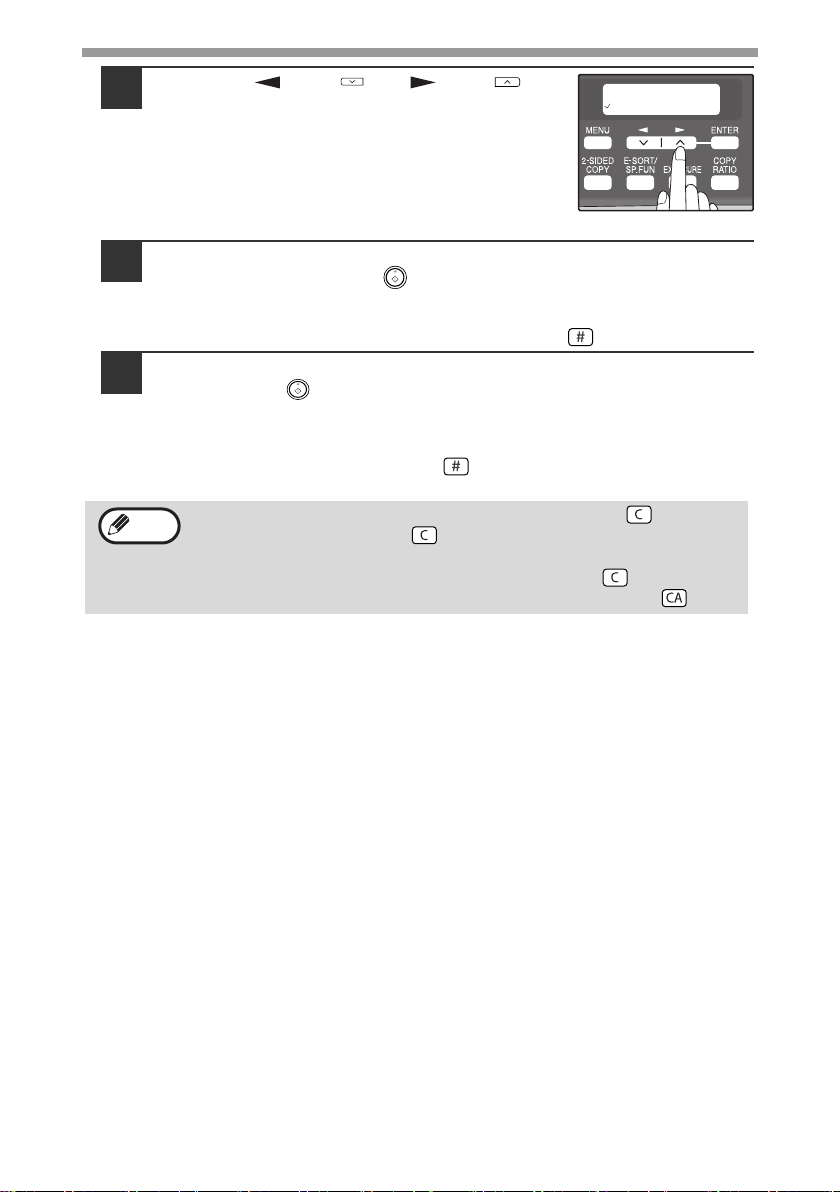
Press the [ ] key ( ) or [ ] key ( ) to
select the original size and then press the
[ENTER] key.
The following original sizes can be selected:
"8.5x14", "8.5x13", "8.5x11", "5.5x8.5", "A4", "B5",
"A5"
5
Select the number of copies and any other settings, and then
press the [START] key ( ).
"[START] : NEXT SCAN [#] : START PRINT" appears and the original is
scanned into memory.
To immediately print the scanned image, press the [ ] key.
6
Replace the original with the next original, and then press the
[START] key ( ).
Repeat step 6 until all originals have been scanned.
Copies will be output each time two originals have been scanned.
When the number of original pages is odd and "[START] : NEXT SCAN [#] :
START PRINT" appears, press the [ ] key after all pages have been
scanned.
• To clear the data in memory, press the [CLEAR] key ( ).
When the [CLEAR] key ( ) is pressed, the number of copies
setting is also cleared.
• To cancel 2 IN 1 copying, press the [CLEAR] key ( ).
• To cancel 2 IN 1 copy mode, press the [CLEAR ALL] key ( ).
ORIG. SIZE ENTER
5.5x8.5
Note
!AR-208S_208D.book 32 ページ 2007年12月3日 月曜日 午後3時33分
CONVENIENT COPY FUNCTIONS
33
4
Using the RSPF
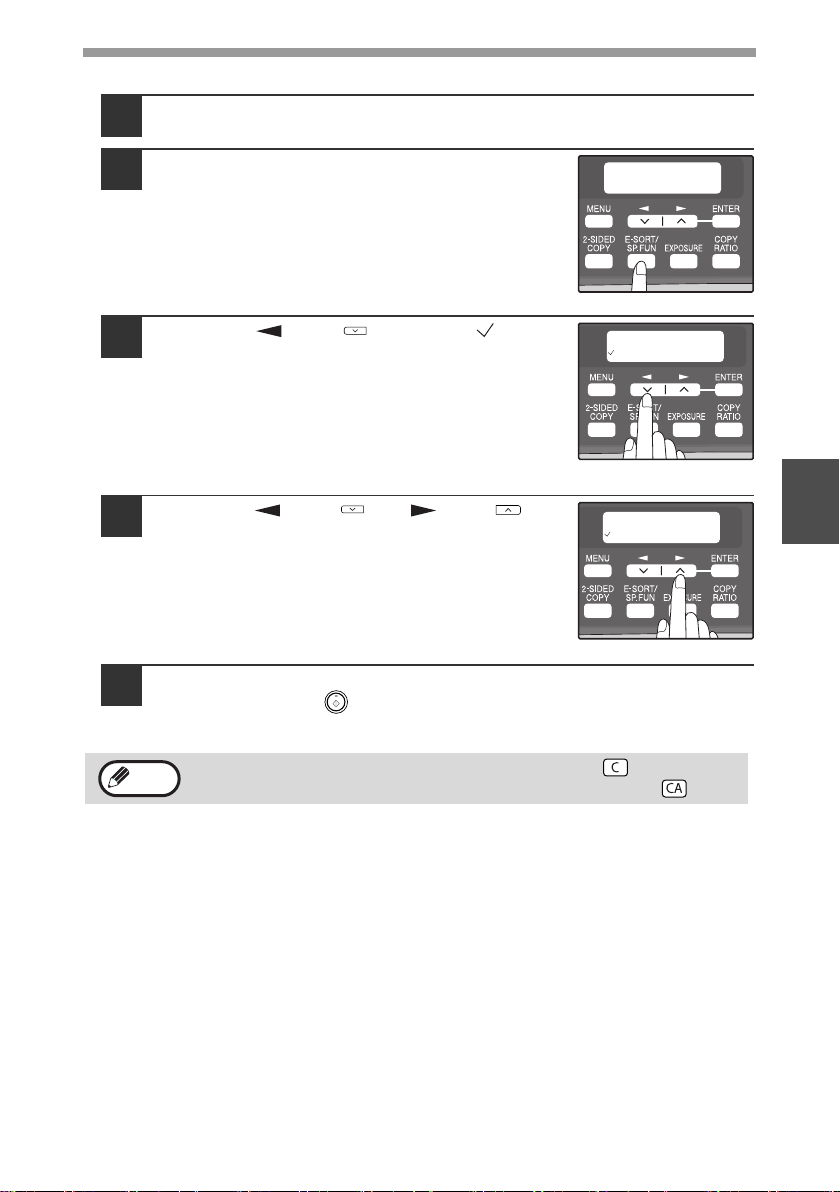
1
Place the originals. (p.21)
2
Press the [E-SORT/SP.FUN] key until
"2IN1" appears and then press the
[ENTER] key.
3
Press the [ ] key ( ) to move " " to
the "ON" position and then press the
[ENTER] key.
4
Press the [ ] key ( ) or [ ] key ( ) to
select the original size and then press the
[ENTER] key.
The following original sizes can be selected:
"8.5x14", "8.5x13", "8.5x11", "5.5x8.5", "A4", "B5",
"A5"
5
Select the number of copies and any other settings, and press
the [START] key ( ).
The copy is delivered to the paper output tray.
• To cancel 2 IN 1 copying, press the [CLEAR] key ( ).
• To cancel 2 IN 1 copy mode, press the [CLEAR ALL] key ( ).
SPECIAL FUNCTION
2IN1
2IN1
ON OFF
ORIG. SIZE ENTER
5.5x8.5
Note
!AR-208S_208D.book 33 ページ 2007年12月3日 月曜日 午後3時33分
34
CREATING MARGINS WHEN COPYING
(Margin shift)
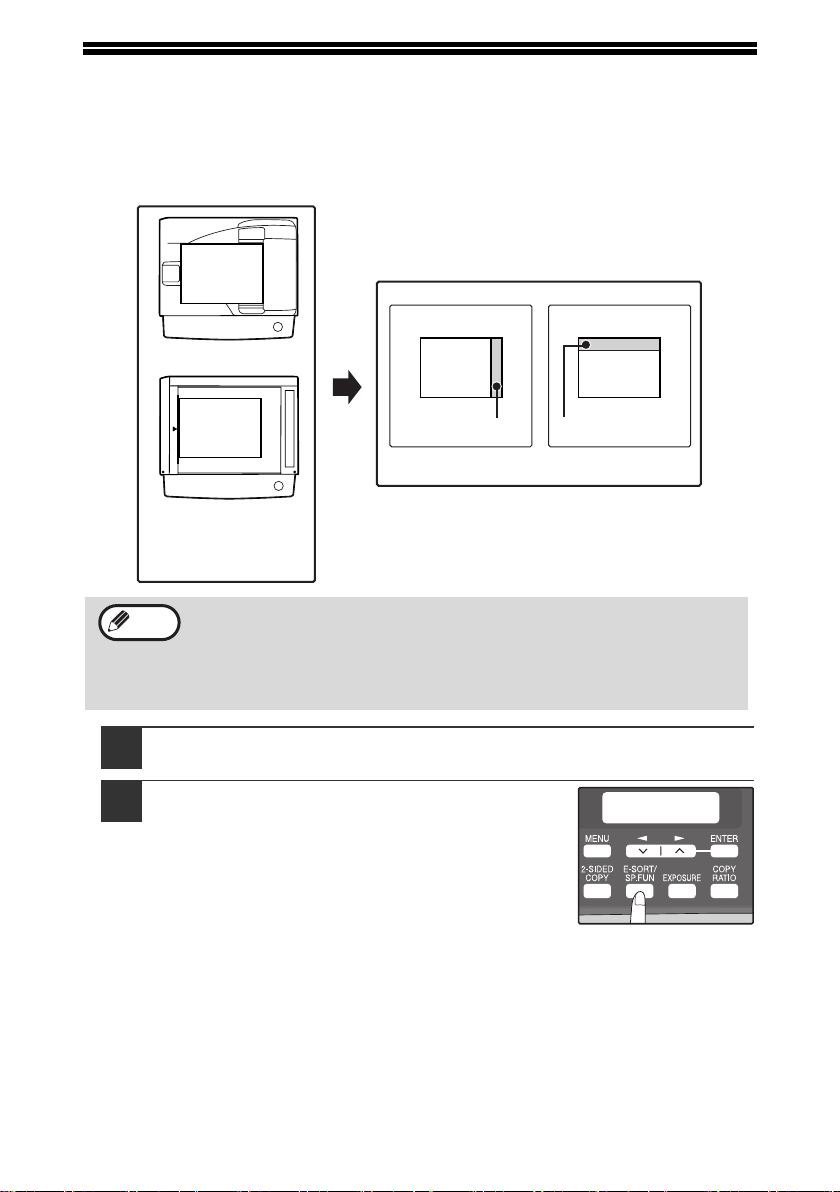
The margin shift function is used to automatically shift the text or image or the copy
paper approximately 1/2".
As shown below, LONG EDGE or SHORT EDGE can be selected.
1
Place the original(s).
2
Press the [E-SORT/SP.FUN] key until
"MARGIN SHIFT" appears and then press
the [ENTER] key.
• This feature cannot be used with the 2 IN 1 feature.
• The margin width can be changed with "MARGIN WIDTH" in the user
programs. (p.56)
• Note that a margin is created by shifting the image, and thus if the
image is shifted too far, the edge of the image may be cut off.
LONG EDGESHORT EDGE
RSPF
Document glass
Margin
Margin
Original
Copy
AB
AB
AB
AB
Note
SPECIAL FUNCTION
MARGIN SHIFT
!AR-208S_208D.book 34 ページ 2007年12月3日 月曜日 午後3時33分
CONVENIENT COPY FUNCTIONS
35
4
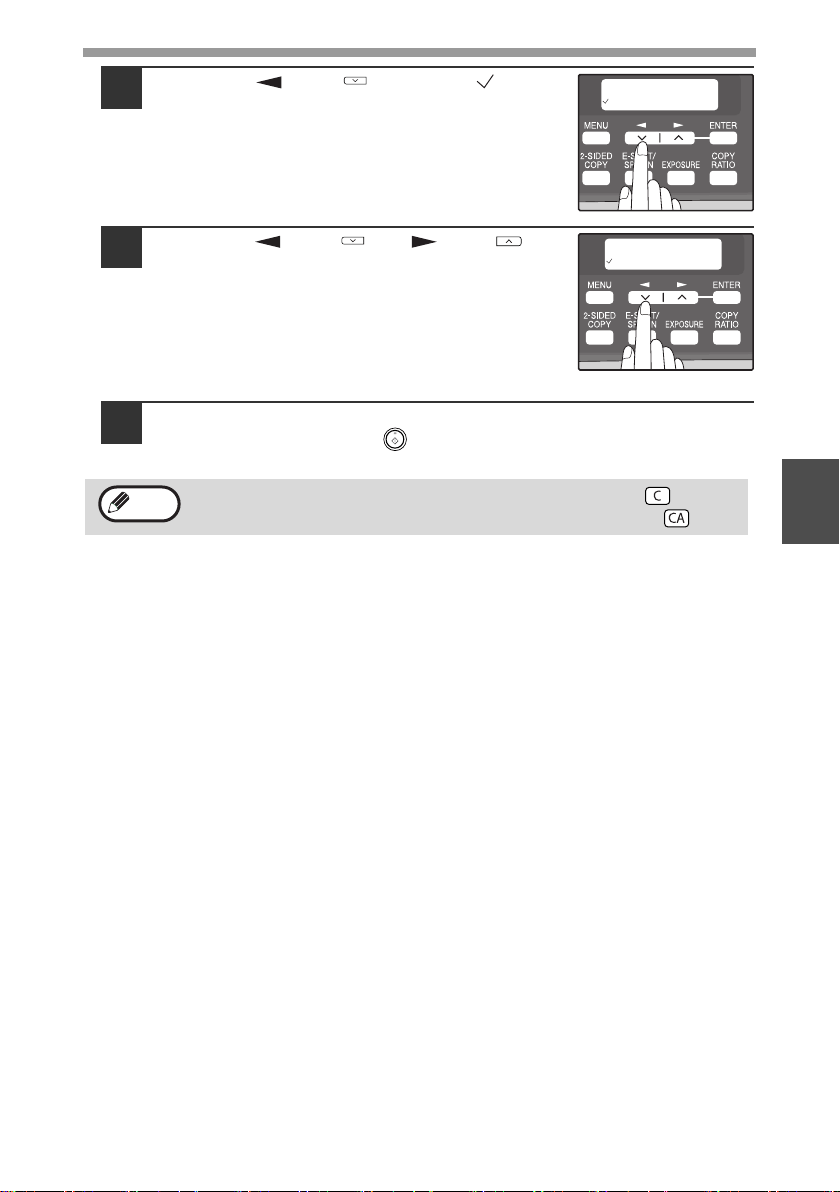
3
Press the [ ] key ( ) to move " " to
the "ON" position and then press the
[ENTER] key.
4
Press the [ ] key ( ) or [ ] key ( ) to
select the margin position and then press
the [ENTER] key.
Select "LONG EDGE" or "SHORT EDGE".
For the margin position, see the previous page.
5
Select the number of copies and any other settings, and then
press the [START] key ( ).
The copy is delivered to the paper output tray.
• To cancel margin shift copying, press the [CLEAR] key ( ).
• To cancel margin shift mode, press the [CLEAR ALL] key ( ).
MARGIN SHIFT
ON OFF
MARGIN SHIFT
LONG EDGE
Note
!AR-208S_208D.book 35 ページ 2007年12月3日 月曜日 午後3時33分

36
5
Chapter 5
This chapter explains how to install and configure the software that is required for the
printer and scanner functions of the machine. The procedure for viewing the Online
Manual is also explained.
SOFTWARE
The CD-ROM that accompanies the machine contains the following software:
MFP driver
Printer driver
The printer driver enables you to use the printer function of the machine.
The printer driver includes the Print Status Window. This is a utility that monitors
the machine and informs you of the printing status, the name of the document
currently being printed, and error messages.
Scanner driver
The scanner driver allows you to use the scanning function of the machine with
TWAIN-compliant and WIA-compliant applications.
Sharpdesk
Sharpdesk is an integrated software environment that makes it easy to manage
documents and image files, and launch applications.
Button Manager
Button Manager allows you to use the scanner menus on the machine to scan a
document.
This manual refers to the CD-ROM that accompanied the machine
simply as "CD-ROM".
Note
INSTALLING THE SOFTWARE
!AR-208S_208D.book 36 ページ 2007年12月3日 月曜日 午後3時33分
37
5
BEFORE INSTALLATION
Hardware and software requirements
Check the following hardware and software requirements in order to install the
software.
*
1
The machine's USB connector will transfer data at the speed specified by the USB 2.0
(Hi-Speed) only if the Microsoft USB 2.0 driver is installed in the computer.
*
2
Compatible with Windows 98, Windows Me, Windows 2000 Professional, Windows XP
or Windows Vista preinstalled model standardly equipped with a USB port.
*
3
Printing is not available in MS-DOS mode.
*
4
The machine does not support printing from a Macintosh environment.
*
5
Administrator's rights are required to install the software using the installer.
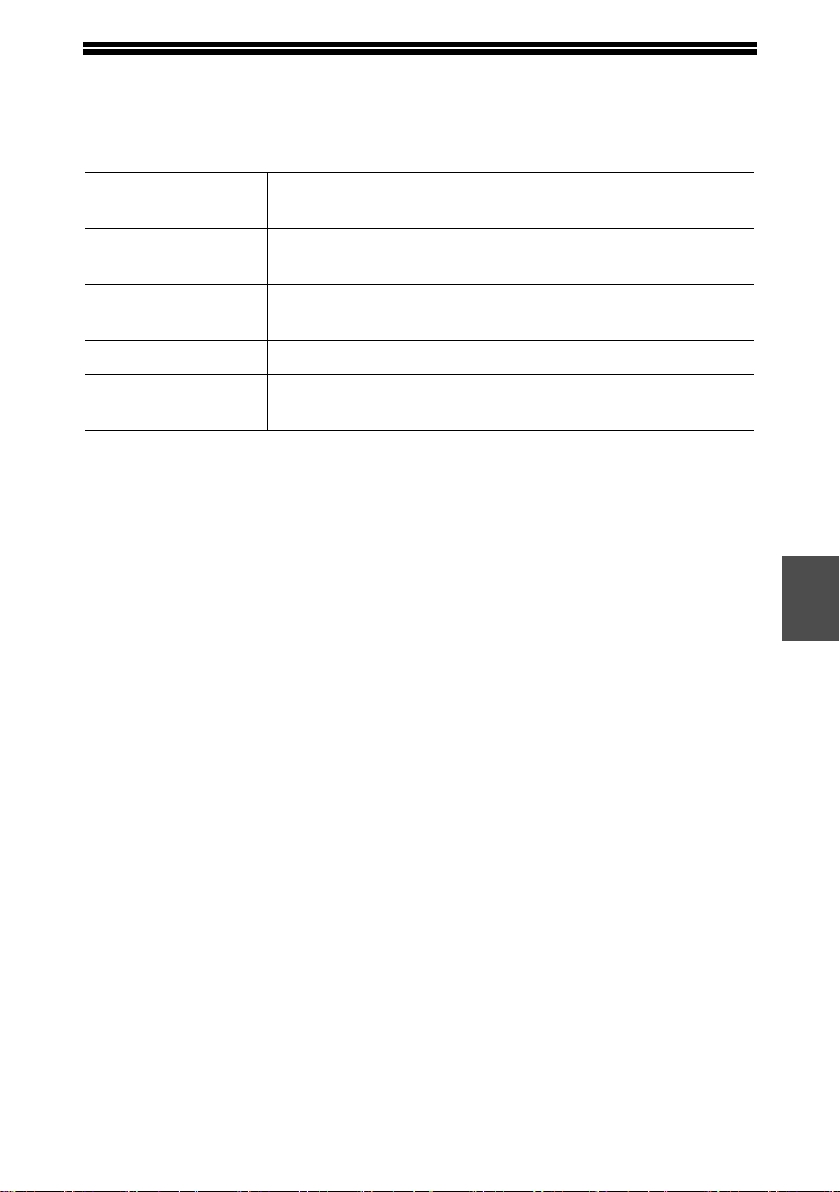
Computer type IBM PC/AT or compatible computer equipped with a
USB2.0*
1
/1.1*
2
Operating system*
3
*
4
Windows 98, Windows Me, Windows 2000 Professional*
5
,
Windows XP*
5
, Windows Vista*
5
Display 1024 x 768 dots resolution and 16-bit color or higher is
recommended.
Hard disk free space 150 MB or more
Other hardware
requirements
An environment on which any of the operating systems
listed above can fully operate
!AR-208S_208D.book 37 ページ 2007年12月3日 月曜日 午後3時33分
38
INSTALLING THE SOFTWARE
1
The USB cable must not be connected to the machine. Make
sure that the cable is not connected before proceeding.
If the cable is connected, a Plug and Play window will appear. If this
happens, click the "Cancel" button to close the window and disconnect the
cable.
2
Insert the CD-ROM into your computer's CD-ROM drive.
3
Click the "start" button, click "My Computer" ( ), and then
double-click the CD-ROM icon ( ).
• In Windows Vista, click the "Start" button, click "Computer", and then
double-click the CD-ROM icon.
• In Windows 98/Me/2000, double-click "My Computer", and then
double-click the CD-ROM icon.
4
Double-click the "setup" icon ( ).
In Windows Vista, if a message screen appears asking you for confirmation,
click "Allow".
5
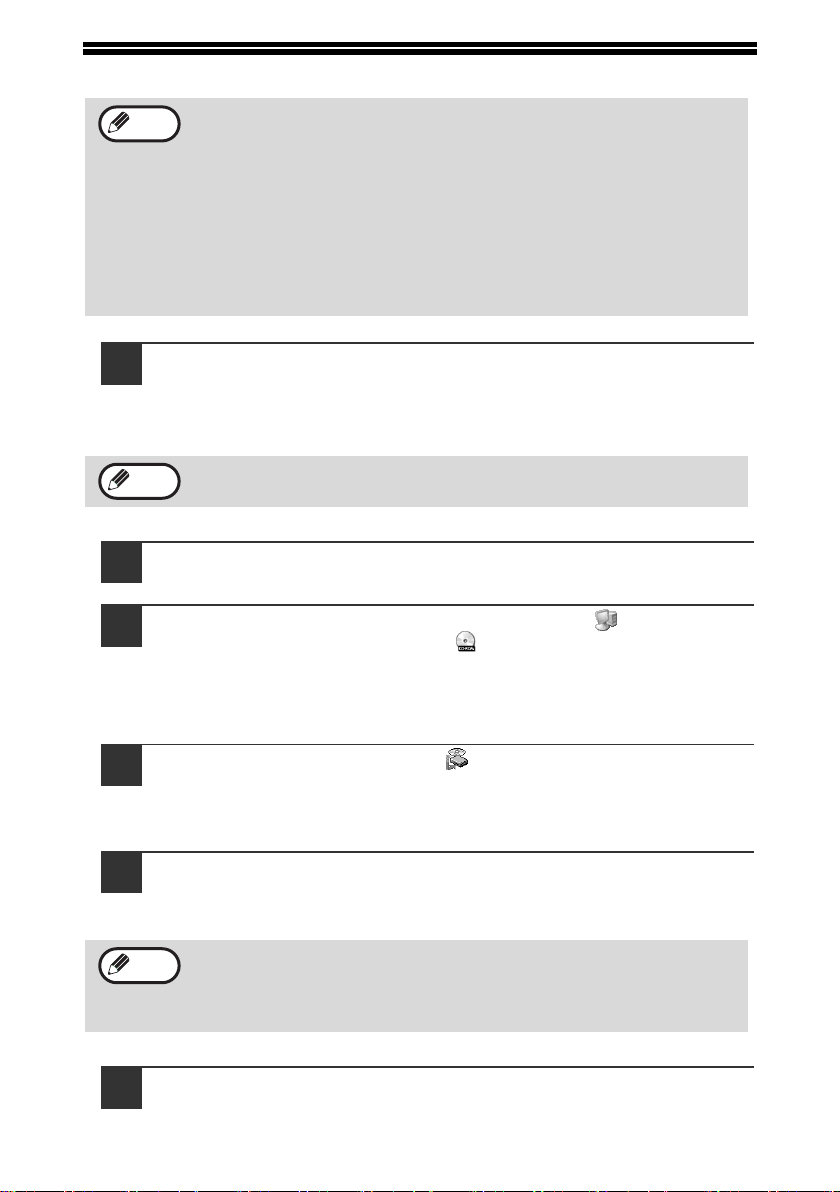
The "SOFTWARE LICENSE" window will appear. Make sure
that you understand the contents of the software license, and
then click the "Yes" button.
6
Read the "Readme First" in the "Welcome" window and then
click the "Next" button.
• The screen images in this manual are mainly for Windows XP. With
other versions of Windows, some screen images may be different
from those in this manual.
• In the following explanations it is assumed that the mouse is
configured for right hand operation.
• If an error message appears, follow the instructions on the screen to
solve the problem. After the problem is solved, the installation
procedure will continue. Depending on the problem, you may have to
click the "Cancel" button to exit the installer. In this case, reinstall the
software from the beginning after solving the problem.
The cable will be connected in step 13.
You can show the "SOFTWARE LICENSE" in a different language by
selecting the desired language from the language menu. To install the
software in the selected language, continue the installation with that
language selected.
Note
Note
Note
!AR-208S_208D.book 38 ページ 2007年12月3日 月曜日 午後3時33分
INSTALLING THE SOFTWARE
39
5
7
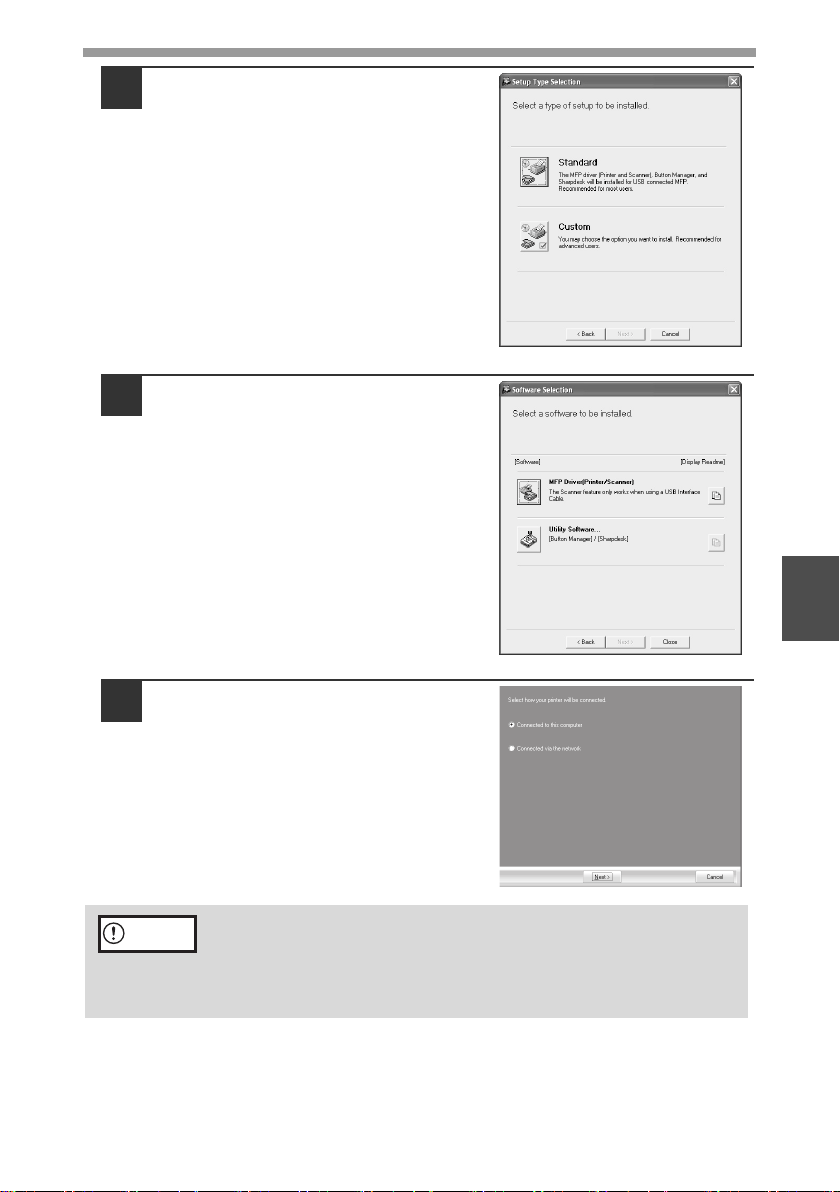
To install all of the software, click
the "Standard" button and go to
step 12.
To install particular packages,
click the "Custom" button and go
to next step.
8
Click the "MFP Driver" button.
Click the "Display Readme" button to
show information on packages that are
selected.
9
Select "Connected to this
computer" and click the "Next"
button.
Follow the on-screen instructions.
• If you are using Windows Vista and a security warning window
appears, be sure to click "Install this driver software anyway".
• If you are running Windows 2000/XP and a warning message
appears regarding the Windows logo test or digital signature, be sure
to click "Continue Anyway" or "Yes".
Caution
!AR-208S_208D.book 39 ページ 2007年12月3日 月曜日 午後3時33分
INSTALLING THE SOFTWARE
40
10
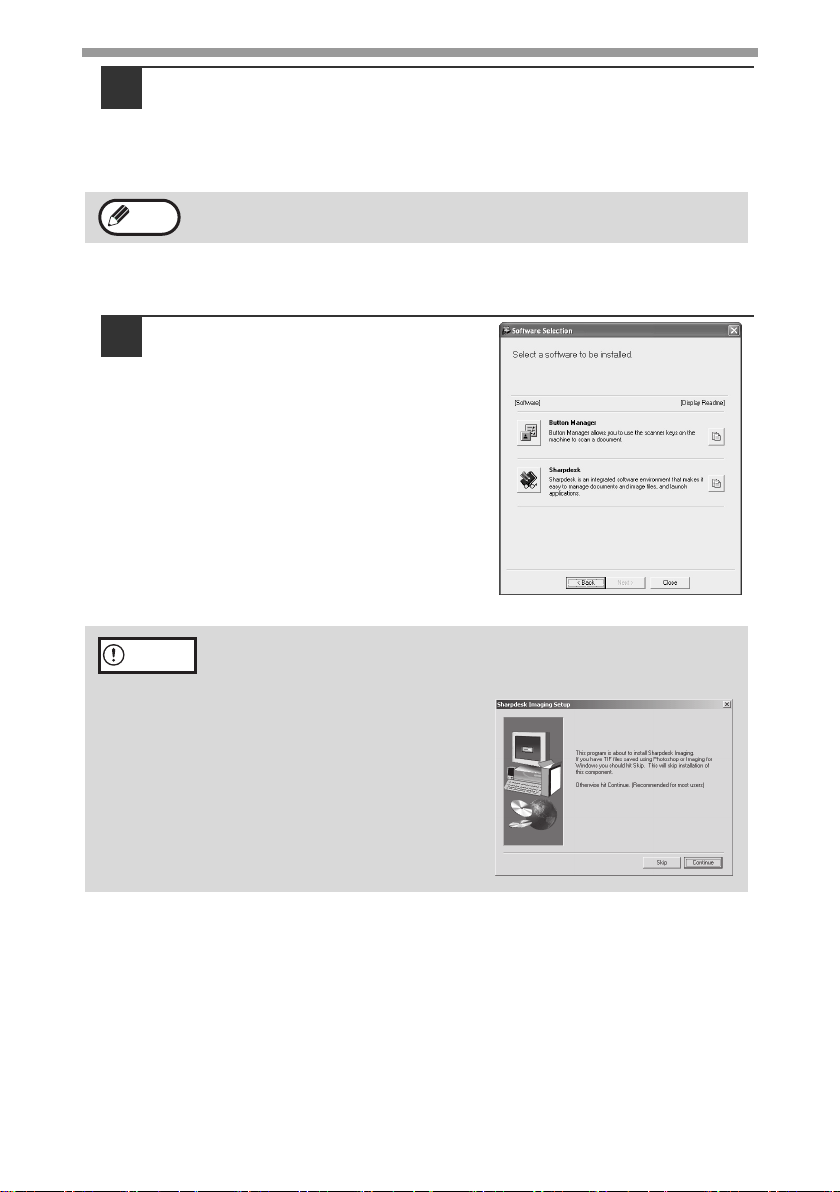
You will return to the window of step 8. If you wish to install
Button Manager or Sharpdesk, click the "Utility Software"
button.
If you do not wish to install the Utility Software, click the "Close" button and
go to step 12.
Installing the Utility Software
11
Click the "Button Manager" or the
"Sharpdesk" button.
Click the "Display Readme" button to
show information on packages that are
selected.
Follow the on-screen instructions.
After the installation, a message prompting you to restart your computer
may appear. In this case, click the "Yes" button to restart your computer.
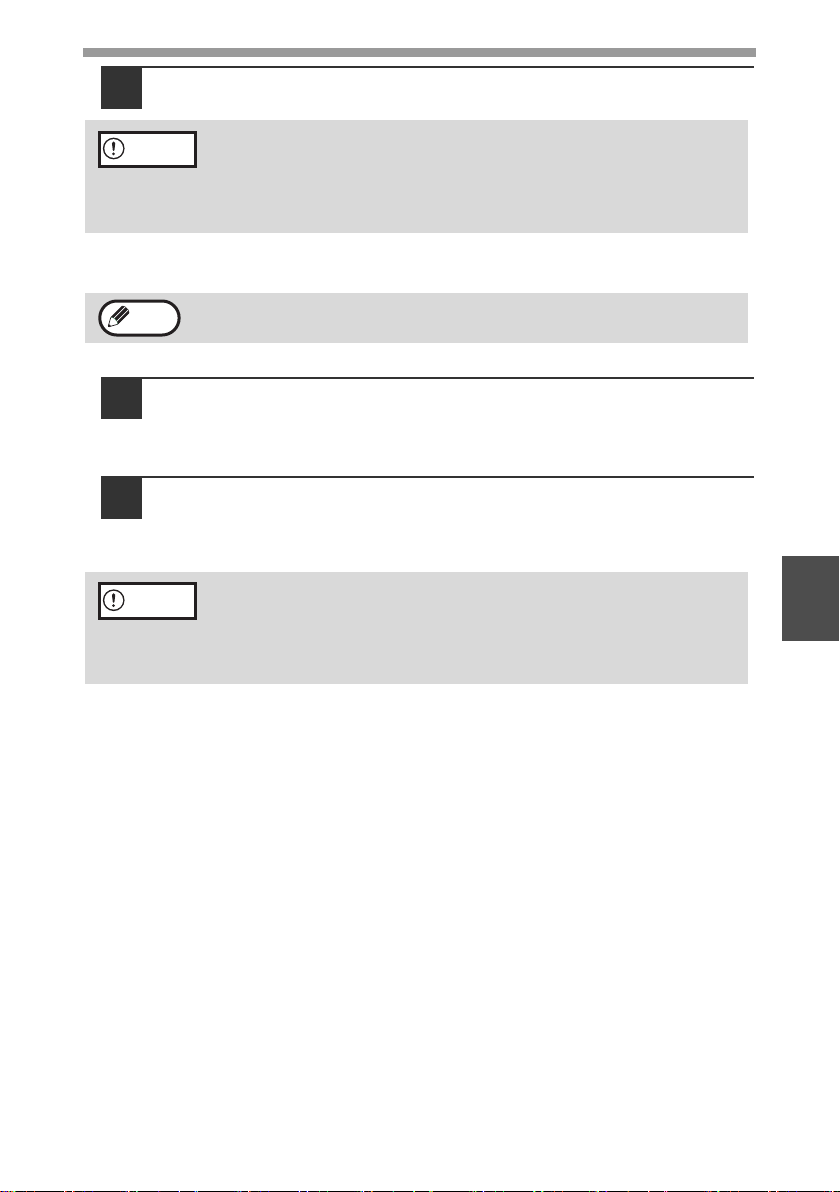
In Windows 98/Me/2000, if the following screen appears, click the "Skip"
button or the "Continue" button as appropriate to continue the
Sharpdesk installation.
If "Skip" is selected, the Sharpdesk
installation will continue without
installing Sharpdesk Imaging.
If "Continue" is selected,
Sharpdesk Imaging will be
installed. If Imaging for Windows is
installed on your computer,
Sharpdesk Imaging will overwrite
Imaging for Windows.
Note
Caution
!AR-208S_208D.book 40 ページ 2007年12月3日 月曜日 午後3時33分
INSTALLING THE SOFTWARE
41
5
12
When installing is finished, click the "Close" button.
A message will appear instructing you to connect the machine to your
computer. Click the "OK" button.
13
Make sure that the power of the machine is turned on, and then
connect the USB cable (p.42).
Windows will detect the machine and a Plug and Play screen will appear.
14
Follow the instructions in the plug and play window to install
the driver.
Follow the on-screen instructions.
This completes the installation of the software.
• If you installed Button Manager, set up Button Manager as explained in "SETTING
UP BUTTON MANAGER" (p.45).
• If you installed Sharpdesk, the Sharpdesk setup screen will appear. Follow the
instructions in the screen to set up Sharpdesk.
• If you are using Windows Vista and a security warning window
appears, be sure to click "Install this driver software anyway".
• If you are running Windows 2000/XP and a warning message
appears regarding the Windows logo test or digital signature, be sure
to click "Continue Anyway" or "Yes".
After the installation, a message prompting you to restart your computer
may appear. In this case, click the "Yes" button to restart your computer.
• If you are using Windows Vista and a security warning window
appears, be sure to click "Install this driver software anyway".
• If you are running Windows 2000/XP and a warning message
appears regarding the Windows logo test or digital signature, be sure
to click "Continue Anyway" or "Yes".
Caution
Note
Caution
!AR-208S_208D.book 41 ページ 2007年12月3日 月曜日 午後3時33分
INSTALLING THE SOFTWARE
42
Connecting a USB cable
Follow the procedure below to connect the machine to your computer.
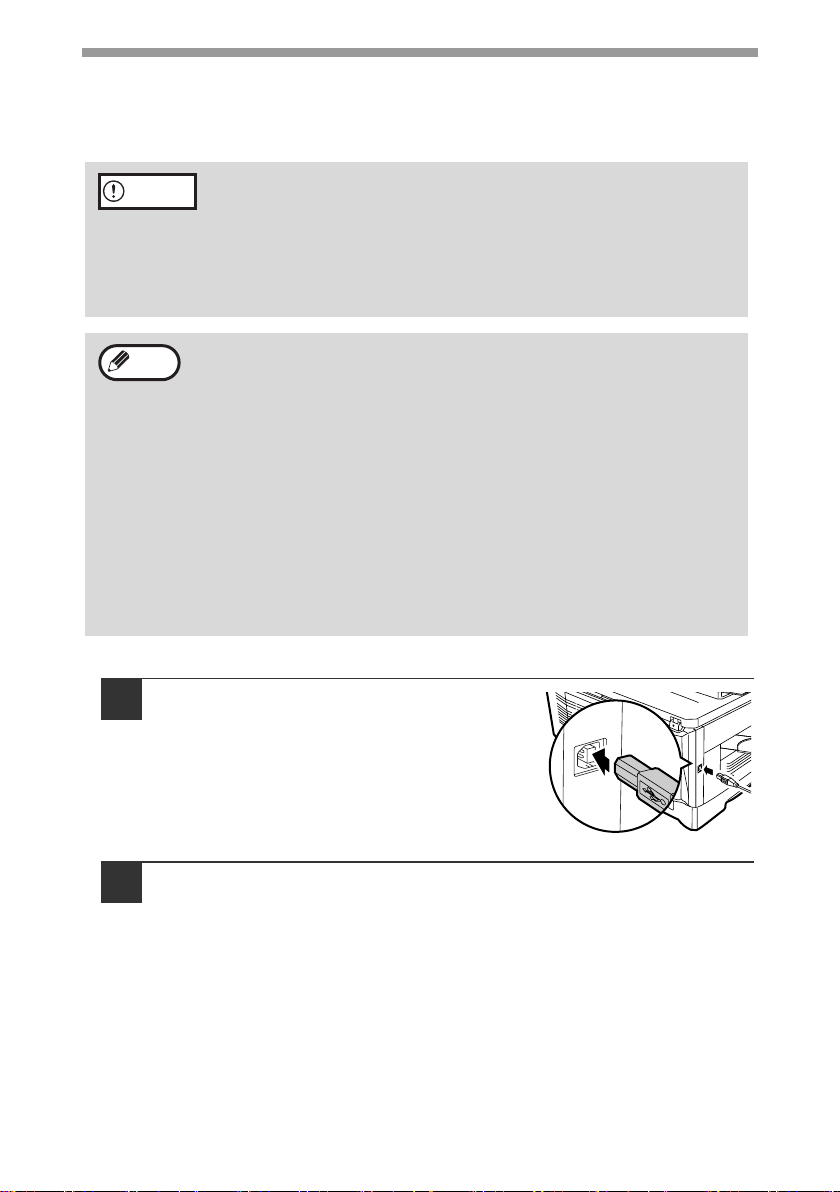
A USB cable for connecting the machine to your computer is not included with the
machine. Please purchase the appropriate cable for your computer.
1
Insert the cable into the USB
connector on the machine.
2
Insert the other end of the cable into your computer's USB port.
• USB is available with a PC/AT compatible computer that was
originally equipped with USB and had Windows 98, Windows Me,
Windows 2000 Professional, Windows XP or Windows Vista
preinstalled.
• Do not connect the USB cable before installing the printer driver. The
USB cable should be connected during installation of the printer
driver.
• If the machine will be connected using a USB 2.0 port of your
computer, please purchase a USB cable that supports USB 2.0.
• To obtain the fastest USB 2.0 data transfer speed, "USB2.0 MODE
SWITCH" in the machine's user programs must be set to
"HI-SPEED". For more information, see "USER PROGRAMS" (p.58).
• Use the machine's "HI-SPEED" mode only when using a computer
that is running Windows 2000/XP/Vista.
• Even when the Microsoft USB 2.0 driver is used, it may not be
possible to obtain full USB 2.0 speed if a PC card supporting USB 2.0
is used. To obtain the latest driver (which may enable a higher
speed), contact the manufacturer of your PC card.
• Connection is also possible using a USB 1.1 port on your computer.
However, the specifications will be USB 1.1 specifications
(Full-Speed).
Caution
Note
!AR-208S_208D.book 42 ページ 2007年12月3日 月曜日 午後3時33分
INSTALLING THE SOFTWARE
43
5
Using the machine as a shared printer
If the machine will be used as a shared printer on a network, follow these steps to
install the printer driver in the client computer.
1
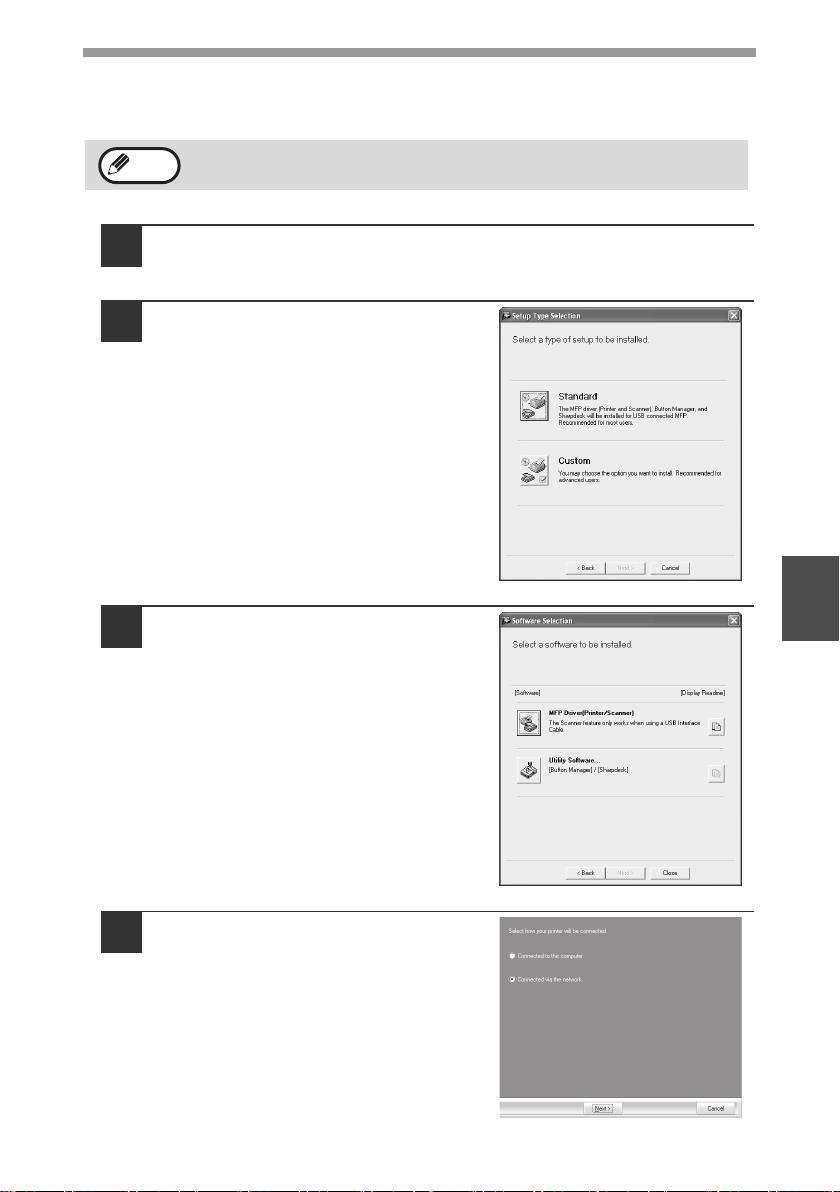
Perform steps 2 through 6 in "INSTALLING THE SOFTWARE"
(p.38).
2
Click the "Custom" button.
3
Click the "MFP Driver" button.
Click the "Display Readme" button to
show information on packages that are
selected.
4
Select "Connected via the
network" and click the "Next"
button.
To configure the appropriate settings in the print server, see the
operation manual or help file of your operating system.
Note
!AR-208S_208D.book 43 ページ 2007年12月3日 月曜日 午後3時33分
INSTALLING THE SOFTWARE
44
5
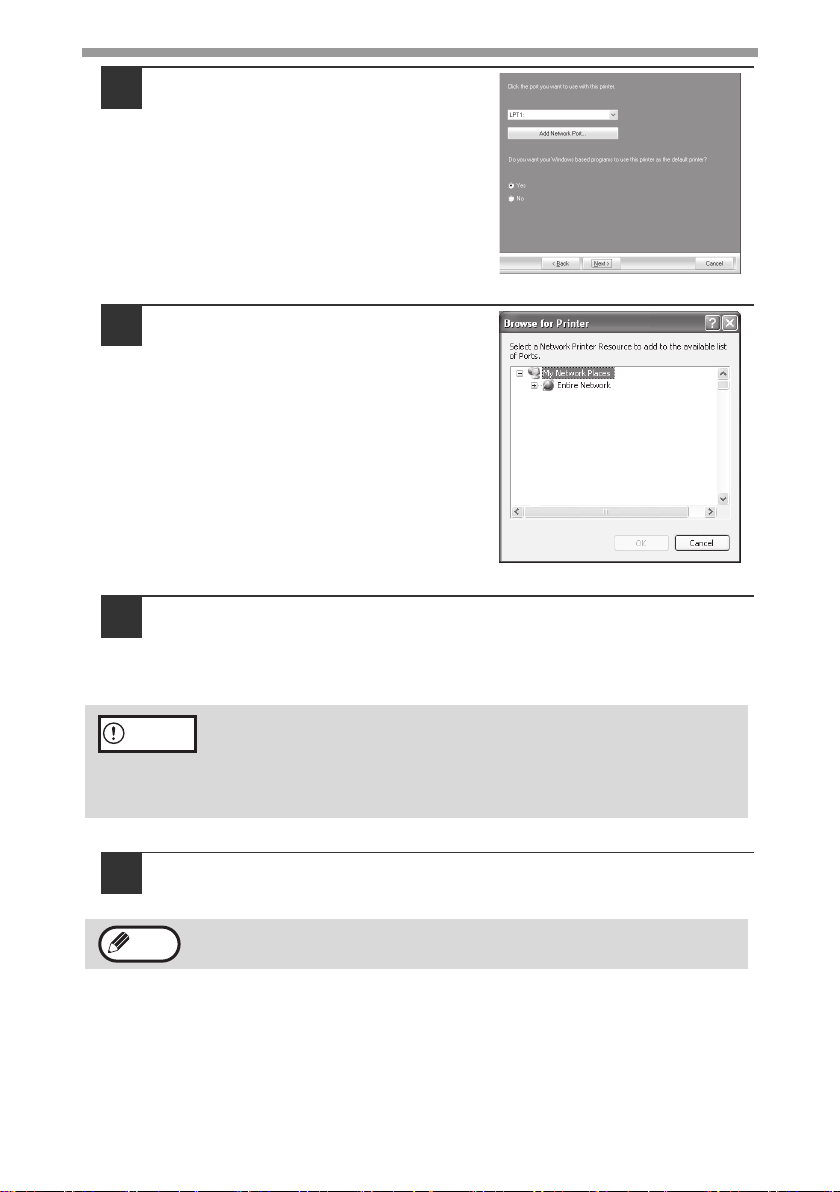
Click the "Add Network Port"
button.
In Windows Vista, the "Add Network
Port" button does not appear.
6
Select the network printer that is
shared and click the "OK" button.
Ask your network administrator for the
server name and printer name of the
machine on the network.
7
In the printer port selection window, verify the network printer
that is shared and whether the machine is to be used as the
default printer, make the selections and click the "Next" button.
Follow the on-screen instructions.
8
You will return to the window of step 3. Click the "Close"
button.
This completes the installation of the software.
• If you are using Windows Vista and a security warning window
appears, be sure to click "Install this driver software anyway".
• f you are running Windows 2000/XP and a warning message appears
regarding the Windows logo test or digital signature, be sure to click
"Continue Anyway" or "Yes".
After the installation, a message prompting you to restart your computer
may appear. In this case, click the "Yes" button to restart your computer.
Caution
Note
!AR-208S_208D.book 44 ページ 2007年12月3日 月曜日 午後3時33分
45
5
SETTING UP BUTTON MANAGER
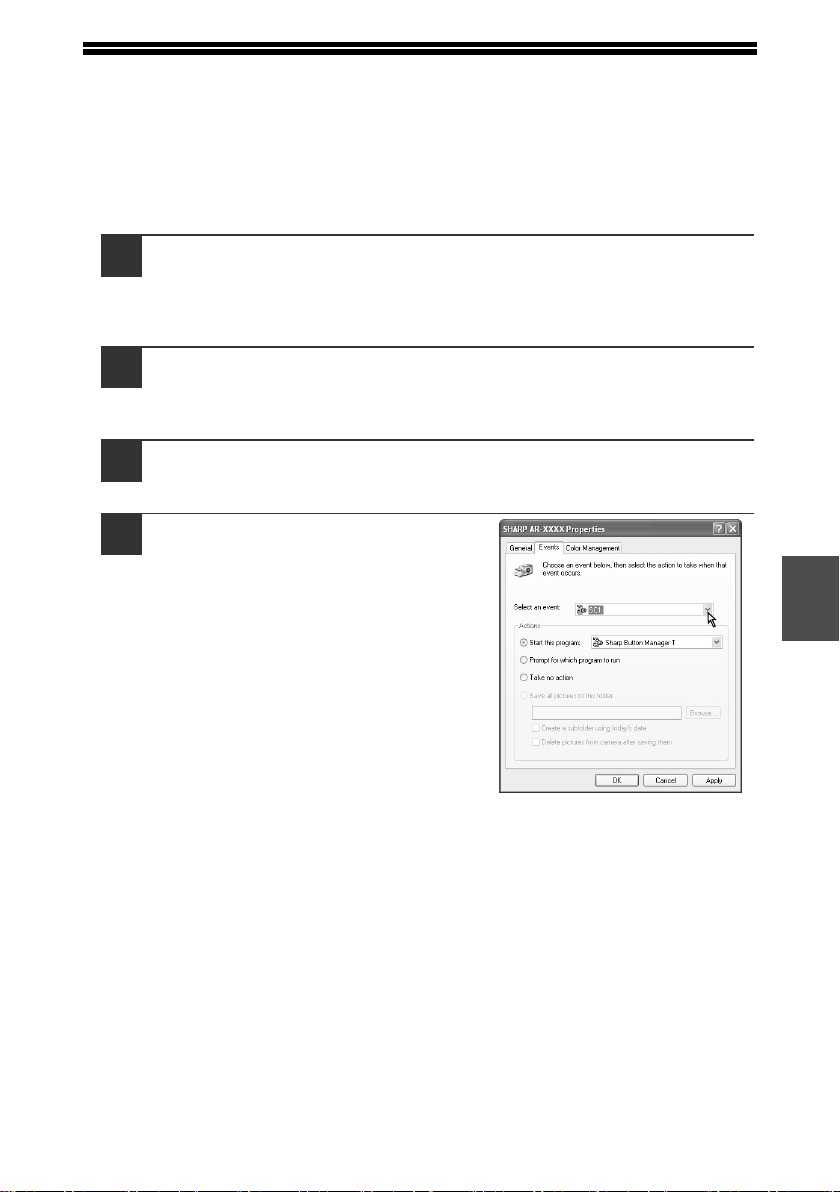
Button Manager is a software program that works with the scanner driver to enable
scanning from the machine.
To scan using the machine, Button Manager must be linked with the scan menu on
the machine. Follow the steps below to link Button Manager to scanner events.
Windows XP/Vista
1
Click the "start" button, click "Control Panel", click "Printers
and Other Hardware", and then click "Scanners and Cameras".
In Windows Vista, click the "Start" button, select "Control Panel" and click
"Hardware and Sound", and then click "Scanners and Cameras".
2
Click the "SHARP AR-XXXX" icon and select "Properties" from
the "File" menu.
In Windows Vista, select "Properties" from the "Organize" menu.
3
In the "Properties" screen, click the "Events" tab.
4
Select "SC1:" from the "Select an
event" pull-down menu.
!AR-208S_208D.book 45 ページ 2007年12月3日 月曜日 午後3時33分

INSTALLING THE SOFTWARE
46
5
Select "Start this program" and
then select "Sharp Button
Manager T" from the pull-down
menu.
6
Click the "Apply" button.
7
Repeat Steps 4 through 6 to link Button Manager to "SC2:"
through "SC6:".
Select "SC2:" from the "Select an event" pull-down menu. Select "Start this
program", select "Sharp Button Manager T" from the pull-down menu, and
then click the "Apply" button. Do the same for each ScanMenu through
"SC6:".
When the settings have been completed, click the "OK" button to close the
screen.
Button Manager is now linked to the scan menu (1 through 6).
The scan settings for each of scan menu 1 through 6 can be changed with
the setting window of Button Manager.
For the factory default settings of the scan menu and the procedures for
configuring Button Manager settings, see "Button Manager Settings" in the
Online Manual.
!AR-208S_208D.book 46 ページ 2007年12月3日 月曜日 午後3時33分

INSTALLING THE SOFTWARE
47
5
Windows 98/Me/2000
1
Click the "Start" button, select "Settings", and then click
"Control Panel".
2
Double-click the "Scanners and Cameras" icon.
3
Select "SHARP AR-XXXX" and click the "Properties" button.
In Windows Me, right click "SHARP AR-XXXX" and click "Properties" in the
pop-up menu.
4
In the "Properties" screen, click the "Events" tab.
5
Select "SC1:" from the "Scanner
events" pull-down menu.
If the "Scanners and Cameras" icon does not appear in Windows Me,
click "view all Control Panel options".
Note
!AR-208S_208D.book 47 ページ 2007年12月3日 月曜日 午後3時33分
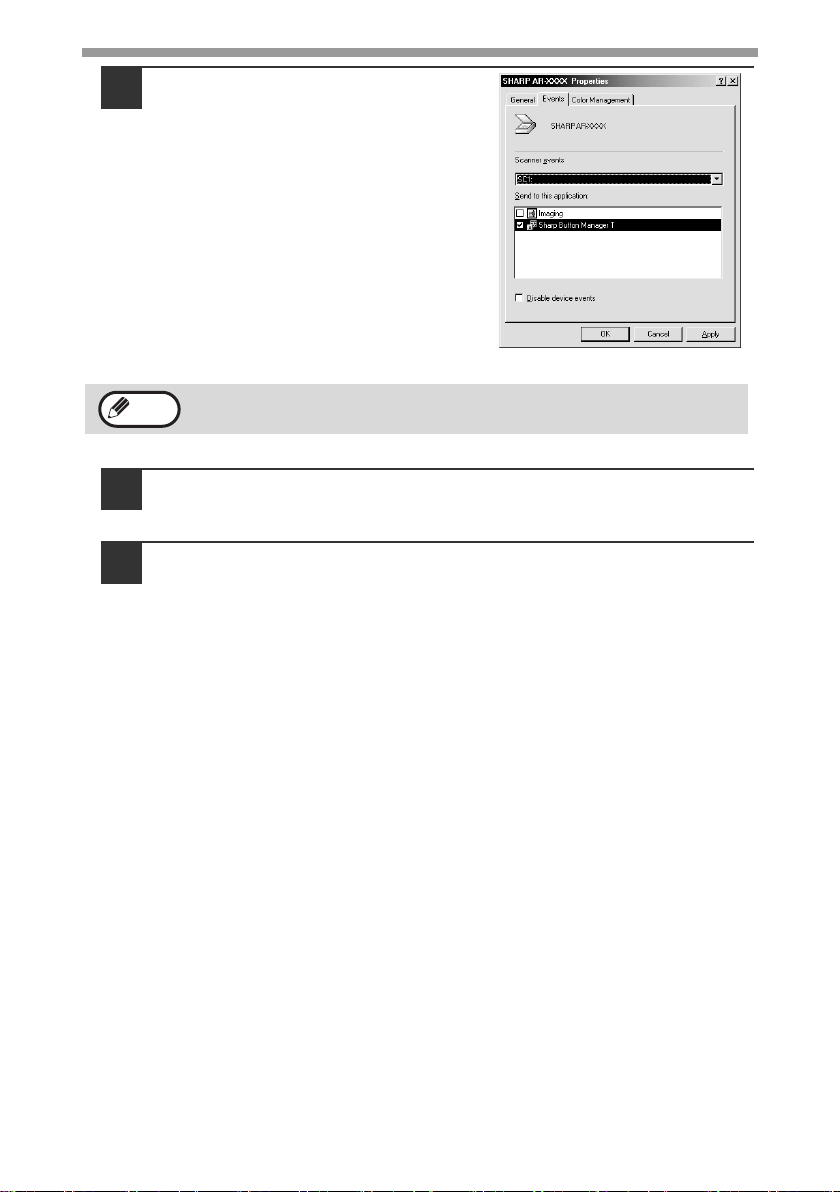
INSTALLING THE SOFTWARE
48
6
Select "Sharp Button Manager T"
in "Send to this application".
7
Click the "Apply" button.
8
Repeat Steps 5 through 7 to link Button Manager to "SC2:"
through "SC6:".
Select "SC2:" from the "Scanner events" pull-down menu. Select "Sharp
Button Manager T" in "Send to this application" and click the "Apply" button.
Do the same for each ScanMenu through "SC6:".
When the settings have been completed, click the "OK" button to close the
screen.
Button Manager is now linked to the scan menu (1 through 6).
The scan settings for each of scan menus 1 through 6 can be changed with
the setting window of Button Manager.
For the factory default settings of the scan menu and the procedures for
configuring Button Manager settings, see "Button Manager Settings" in the
Online Manual.
If other applications are shown, deselect the checkboxes for the other
applications and leave only the Button Manager checkbox selected.
Note
!AR-208S_208D.book 48 ページ 2007年12月3日 月曜日 午後3時33分
49
6
Chapter 6
6
The machine includes a USB connector as standard equipment.
The machine has the following features:
• High-speed data transfer (when connected to a USB 2.0 connector)
• ROPM* function
* ROPM is an acronym for "Rip Once Print Many" processing. The ROPM function stores
multiple pages of print data in memory before printing. When printing multiple copies,
this eliminates the need for the computer to repeatedly transmit the print data.
To use the machine as a printer or scanner, the printer driver or scanner driver must
first be installed as explained in the "INSTALLING THE SOFTWARE".
• If a problem occurs in printer or scanner mode, see the Online
Manual.
• When using USB 2.0 (Hi-Speed mode), be sure to read "System
requirements for USB 2.0 (Hi-Speed mode)" (below) to verify that
your system and the machine settings are configured appropriately.
System requirements for USB 2.0 (Hi-Speed mode)
The following system is required to use USB 2.0 (Hi-Speed mode):
• Your computer must be running Windows 2000 Professional/XP/Vista and the
Microsoft USB 2.0 driver must be installed.
• The "USB 2.0 MODE SWITCH" setting in the machine's user programs must be
set to "HI-SPEED". To change the setting, see "USB 2.0 MODE SWITCH" in the
user programs (p.58).
* Even when the Microsoft USB 2.0 driver is installed, some USB 2.0 expansion cards
are not capable of attaining the speed stipulated by the Hi-Speed standard. This
problem can often be fixed by installing a more recent driver for the card. To obtain
the most recent driver for your card, contact the card's manufacturer.
Note
PRINTER/SCANNER
FUNCTIONS
!AR-208S_208D.book 49 ページ 2007年12月3日 月曜日 午後3時33分
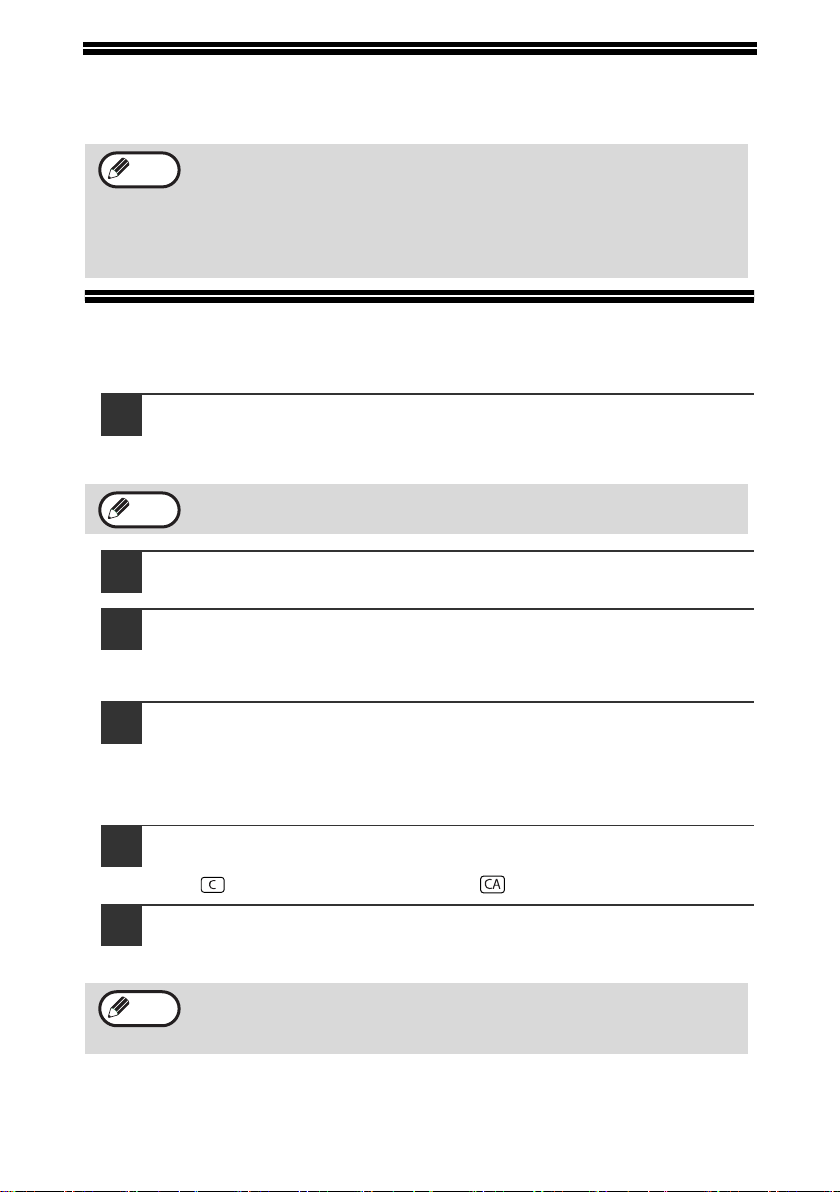
50
USING THE PRINTER MODE
The procedure for loading paper for printing is the same as for loading copy paper.
See "LOADING PAPER" (p.14).
BASIC PROCEDURE FOR PRINTING
The basic procedure for printing is explained in the following. To use convenient
printer functions, see the "Online Manual" or the printer driver help file.
1
Make sure that paper is loaded in the tray.
The procedure for loading paper is the same as for copying. See "LOADING
PAPER" (p.14) and make sure that the paper you wish to use is loaded.
2
Open the file that you wish to print and select "Print" from the
File menu.
3
Make sure that the printer driver for the machine is selected,
and select print settings in the printer driver.
For information on the settings in the printer driver, see the "Online Manual"
or the printer driver help file.
4
Click the "Print" button or the "OK" button to begin printing.
The print job will be delivered to the paper output tray.
Canceling a print job
1
Select printer mode with the [MODE SELECT] key on the
operation panel of the machine, and then press the [CLEAR]
key ( ) or the [CLEAR ALL] key ( ).
2
"CANCEL PRINT JOB?" will appear in the display. Make sure
that a checkmark appears in front of "YES" and press the
[ENTER] key.
• Print jobs received while the machine is copying will be stored in
memory. When the copy job is finished, the print jobs will begin
printing.
• Printing is not possible when the front or side cover is opened for
machine maintenance, or when a misfeed occurs or the machine
runs out of paper or toner.
Make sure that the paper size setting on the machine is the same as the
paper size set in the printer driver.
For limitations on copying in print mode, scanner mode limitations, and
print mode limitations in copy and scanner mode, see "OPERATION IN
COPY, PRINTER, AND SCANNER MODES" (p.52).
Note
Note
Note
!AR-208S_208D.book 50 ページ 2007年12月3日 月曜日 午後3時33分
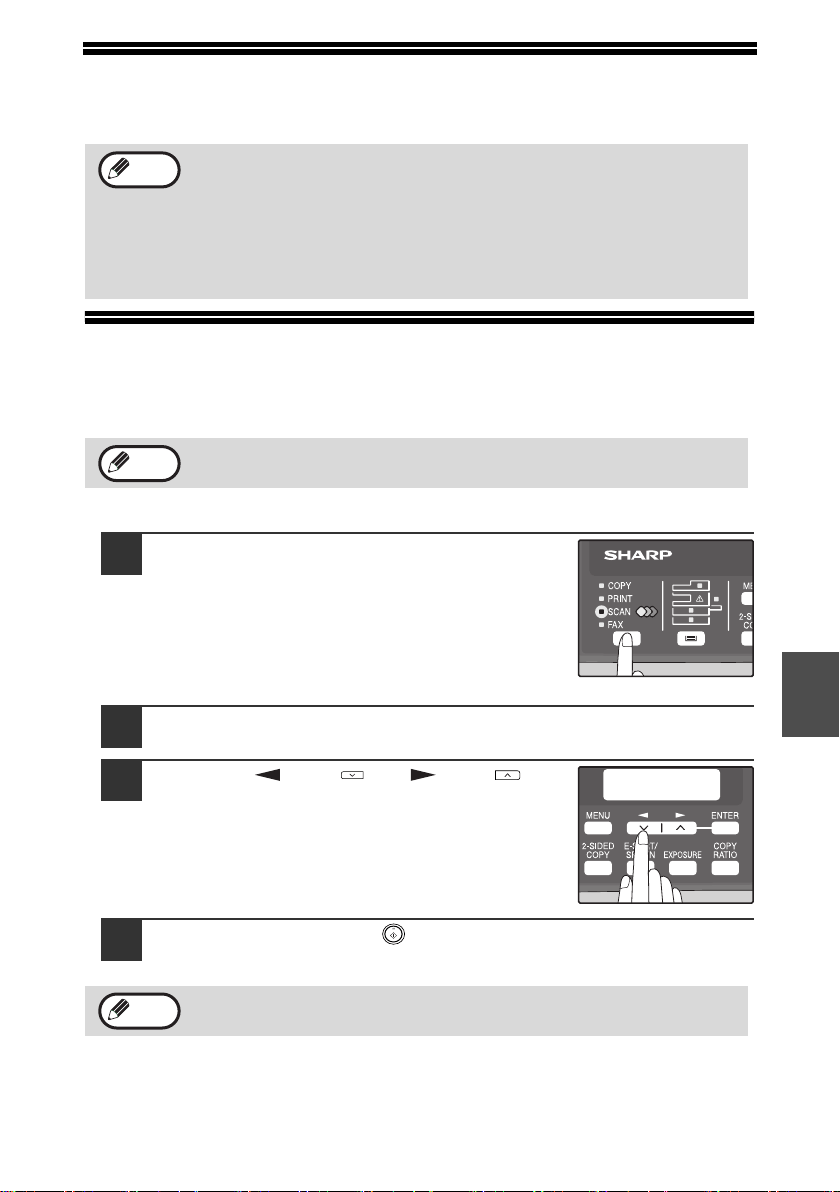
51
6
USING THE SCANNER MODE
The procedure for placing the original is the same as for copying. See "NORMAL
COPYING" (p.20).
SCANNING USING THE KEYS ON THE MACHINE
When scanning is performed by this method, the application that has been set in
Button Manager will automatically start and the scanned image will be pasted into
the application.
Scanning from the operation panel of the machine
1
Press the [MODE SELECT] key to select
scanner mode.
The "SCAN" indicator lights up to indicate that
scanner mode is selected.
2
Place the original. (p.20)
3
Press the [ ] key ( ) or [ ] key ( ) to
select the desired Button Manager scan
menu setting.
4
Press the [START] key ( ) to begin scanning.
Scanner mode cannot be used at the following times:
• A misfeed has occurred (paper misfeed or original misfeed in the
RSPF).
• The user programs are being used.
• The tray paper size is being set.
• The machine is being used in copy mode.
• The front cover or side cover is open.
If the machine is in copy mode, press the [MODE SELECT] key to
switch to scanner mode and clear the previously set copy settings.
Scanner mode remains selected after scanning is finished. (To change
to a different mode, use the [MODE SELECT] key.)
Note
Note
SCAN USING:
SC1:
Note
!AR-208S_208D.book 51 ページ 2007年12月3日 月曜日 午後3時33分
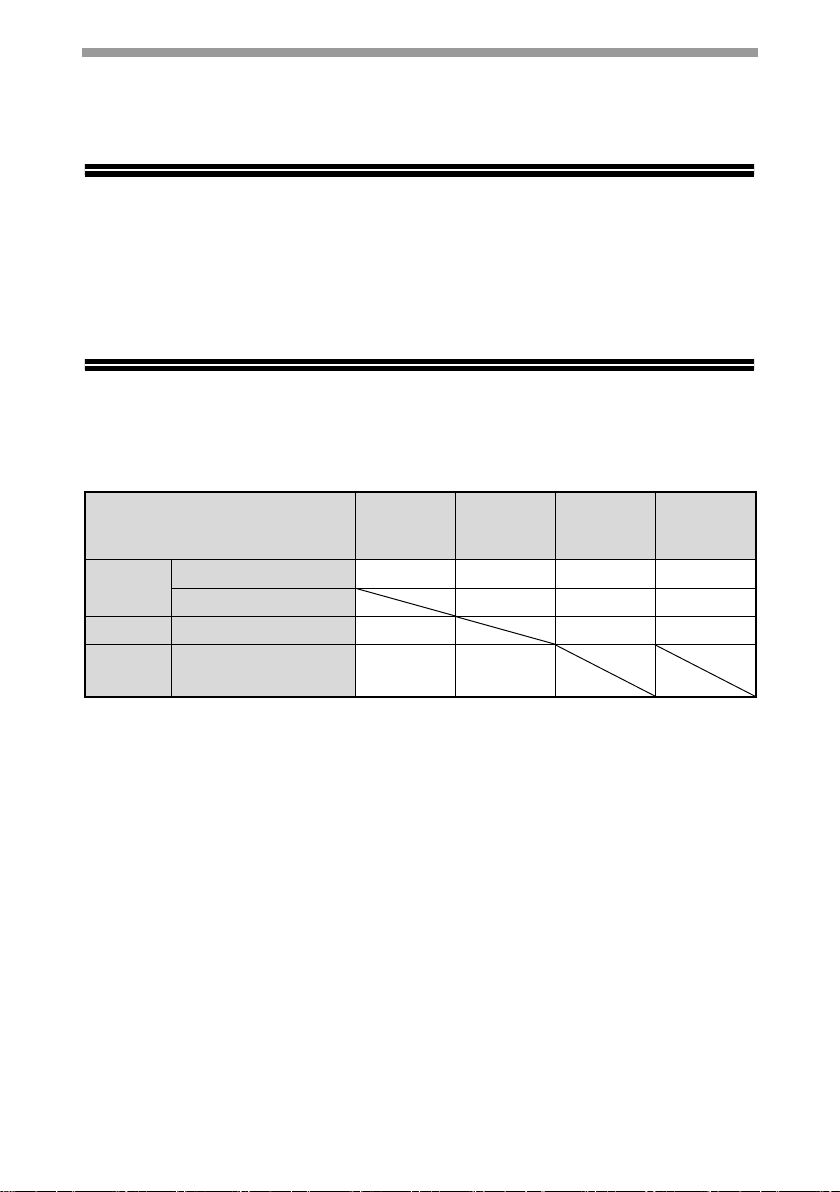
PRINTER/SCANNER FUNCTIONS
52
Button Manager scan menu
For information on Button Manager settings, see the Button Manager help file. The
names in the Button Manager menu ("xxxx" in "SC1:xxxx", etc.) can be changed.
See the online manual.
SCANNING FROM YOUR COMPUTER
The machine supports the TWAIN standard, making it possible to scan from TWAIN-
compliant applications. The machine also supports WIA (Windows Image
Acquisition), making it possible to scan from the "Scanner and Camera Wizard" in
Windows XP. See the Online Manual for the procedures for TWAIN and WIA
scanning. For information on TWAIN and WIA settings, see the help file for the
scanner driver or Windows Help.
OPERATION IN COPY, PRINTER, AND SCANNER
MODES
Some operations cannot be performed simultaneously when the machine is being
used in printer mode, copy mode, or scanner mode.
* During two-sided printing (AR-208D only), the copy job begins after the print job
finishes.
Modes Copying Printing
Scanning
from a
computer
Scanning
from the
machine
Copy
Copy key input Ye s Ye s Ye s N o
During copying No No No
Printer During printing Ye s * Ye s Ye s
Scanner
During scan preview/
during scanning
No Yes
!006-printer.fm 52 ページ 2007年12月14日 金曜日 午前8時55分
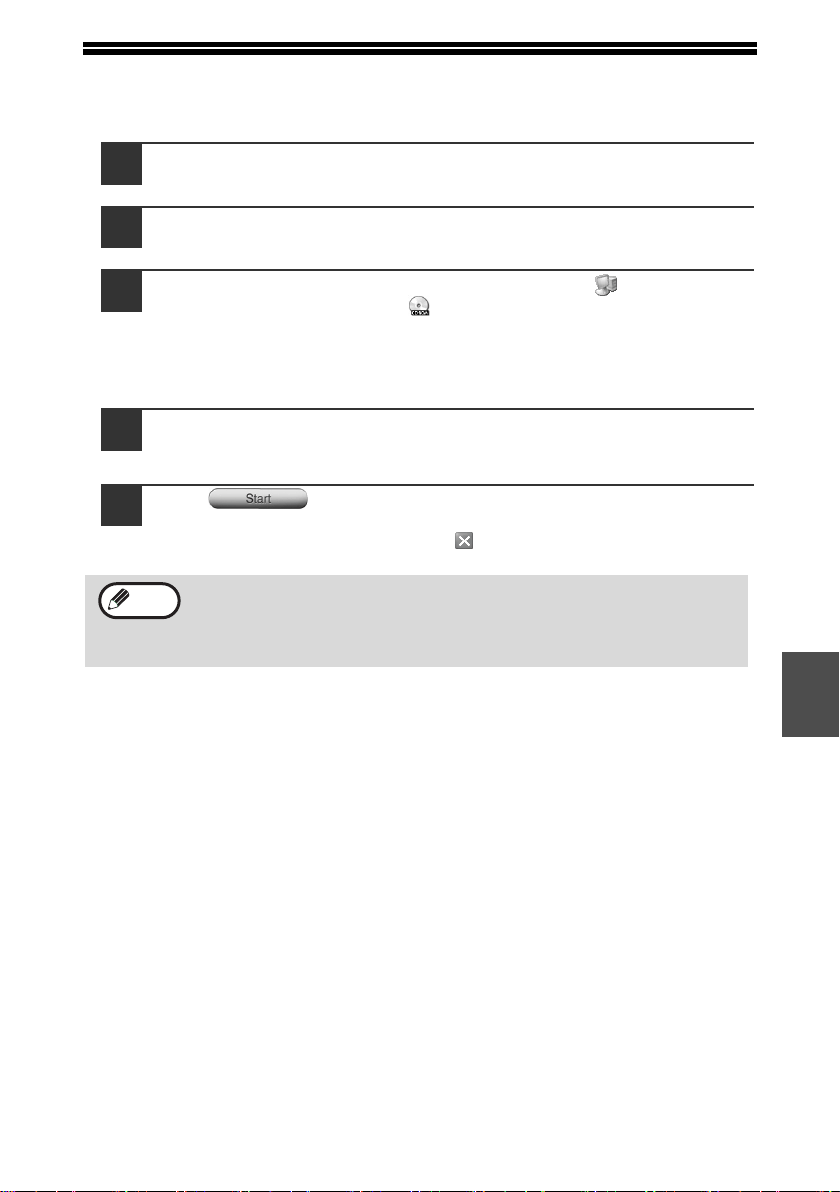
53
6
HOW TO USE THE ONLINE MANUAL
The online manual provides detailed instructions for operating the unit as a printer
and scanner. It also provides methods for dealing with printing or scanner problems.
1
Turn on your computer.
2
Insert the supplied CD-ROM into your CD-ROM drive.
3
Click the "start" button, click "My Computer" ( ), and then
double-click the CD-ROM ( ) icon.
• In Windows Vista, click the "Start" button, click "Computer", and then
double-click the CD-ROM icon.
• In Windows 98/Me/2000, double-click "My Computer" and then double-
click the CD-ROM icon.
4
Double-click the "Manual" folder, double-click the "EnglishA"
folder, and then double-click the "AR_208S_208D.pdf" icon.
5
Click to read the online manual.
To close the online manual, click the ( ) button located at the top-right of
the window.
Viewing the online manual
The "CD-ROM" that accompanies the machine contains an online manual in PDF
format. To view the manual in PDF format, Acrobat Reader or Adobe Reader of
Adobe Systems Incorporated is required. If neither program is installed on your
computer, the programs can be downloaded from the following URL:
http://www.adobe.com/
• The online manual can be printed out using Acrobat Reader. It is
useful to print out sections that you refer to frequently.
• Refer to Acrobat Reader "Help" for more details on the operation and
functions of Acrobat Reader.
Note
!AR-208S_208D.book 53 ページ 2007年12月3日 月曜日 午後3時33分
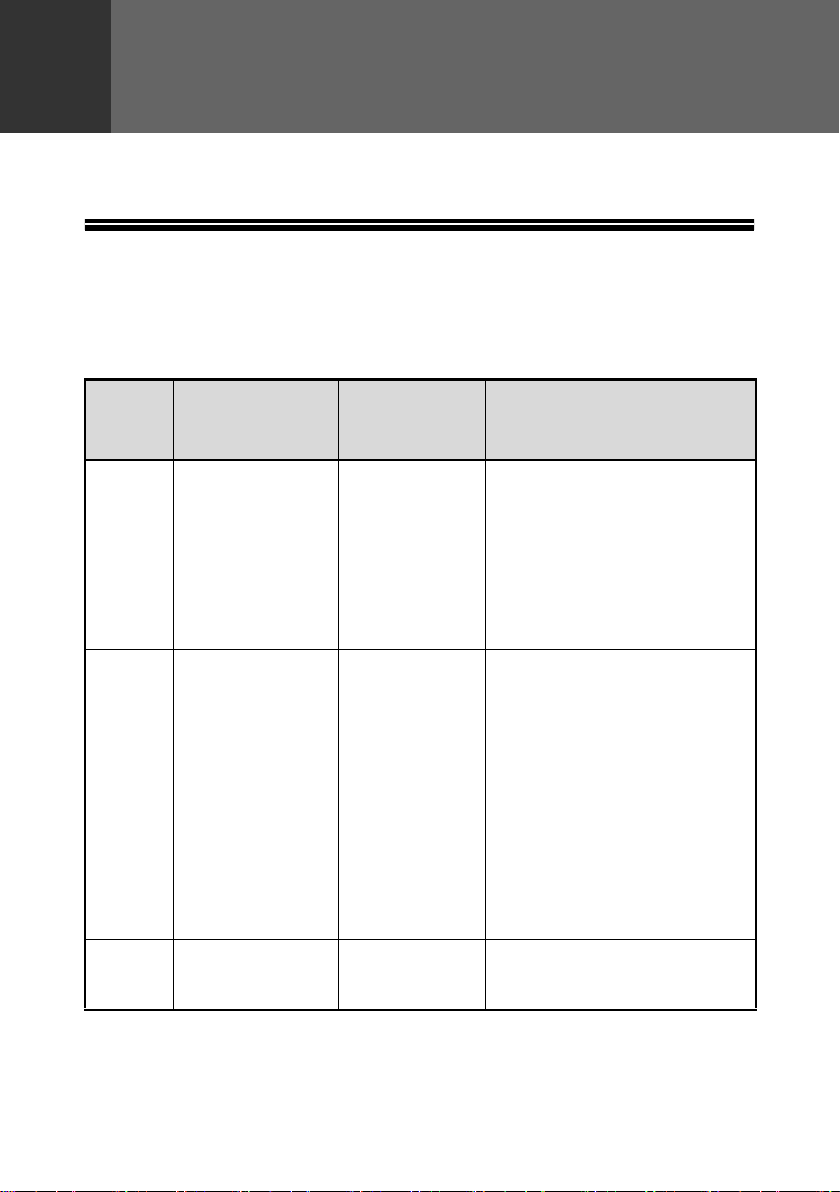
54
7
Chapter 7
The user settings allow you to customize machine settings to better meet your
needs.
USER PROGRAMS
The user settings consist of the following items.
To change a user program setting, see "SELECTING A SETTING FOR A USER
PROGRAM" (p.59).
Copy mode
Program
number
Program name
Setting codes
(factory default
setting appears
in bold)
Explanation
1 AUTO CLEAR
1: 10 SEC.
2: 30 SEC.
3: 60 SEC.
4: 90 SEC.
5: 120 SEC.
6: OFF
• Auto clear time automatically
returns the copy settings to
the initial settings (p.12) if no
keys are pressed for a preset
period of time following the
end of a copy job.
• This program is used to select
the period of time. Auto clear
time can also be disabled.
2 PREHEAT MODE
1: 30 SEC.
2: 1 MIN.
3: 5 MIN.
4: 30 MIN.
5: 60 MIN.
6: 120 MIN.
7: 240 MIN.
• This function automatically
switches the machine to a low
power consumption state if
the set duration of time
elapses without the machine
being used when the power is
on. The power save indicator
lights up, however, the keys
on the operation panel can be
used. Normal operation
automatically resumes when
a key on the operation panel
is pressed, an original is
placed, a print job is received.
3AUTO SHUT-OFF
1: ON
2: OFF
• Use this setting to enable or
disable auto power shut-off
mode.
USER SETTINGS
!AR-208S_208D.book 54 ページ 2007年12月3日 月曜日 午後3時33分
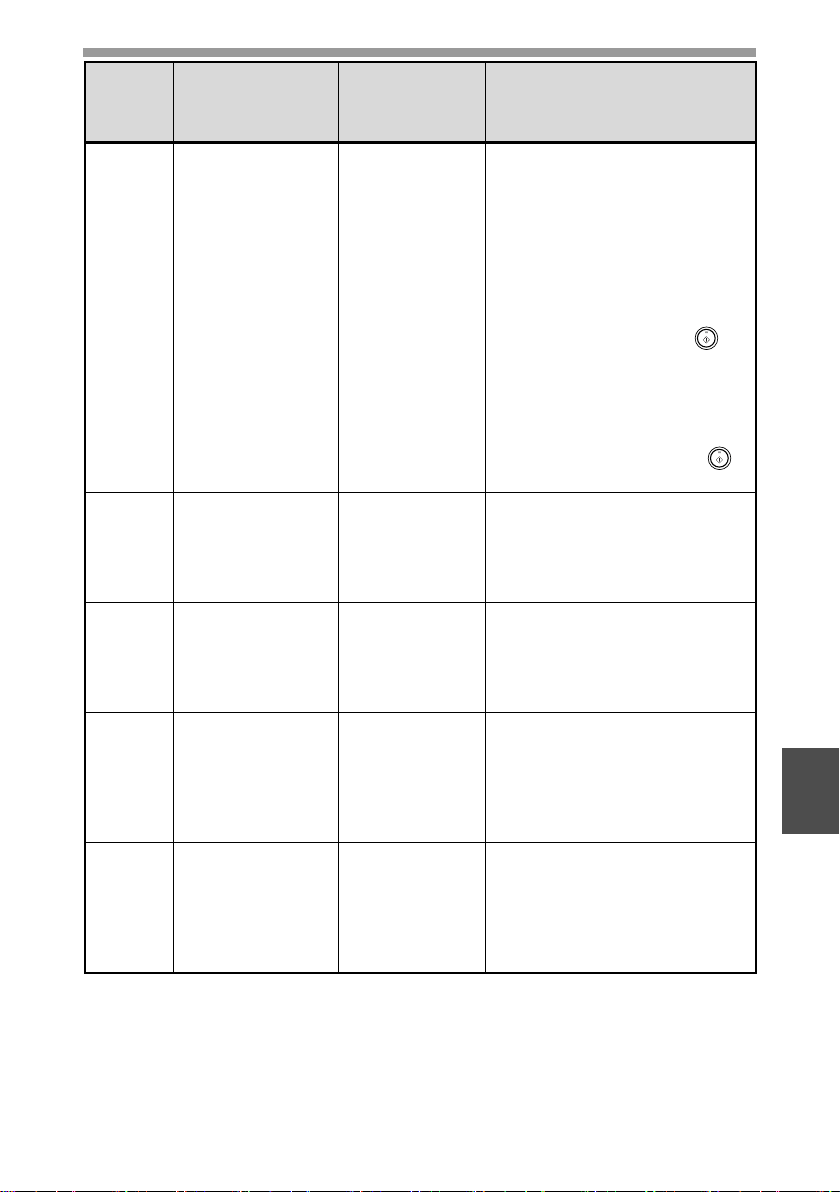
USER SETTINGS
55
7
4
AUTO SHUT-OFF
TIME
1: 5 MIN.
2: 30 MIN.
3: 60 MIN.
4: 120 MIN.
5: 240 MIN.
• This function automatically
switches the machine to a state
that consumes even less power
than preheat mode if the set
duration of time elapses without
the machine being used when
the power is on. All lights except
the power save indicator go off.
To resume normal operation,
press the [START] key ( ).
Normal operation also resumes
automatically when a print job is
received or scanning is begun
from a computer. While in auto
power shut-off mode, no keys
(except the [START] key ( ))
can be used.
7LAYOUT IN 2IN1
1: PATTERN 1
2: PATTERN 2
• Use this setting to select the
layout pattern when two original
pages are copied onto a single
sheet of paper (see page 31 for
the layout patterns).
8
OFFSET
FUNCTION
1: ON
2: OFF
• When enabled, this function
offsets the position of each
set of copies in the output tray
in copy mode, and each print
job in printer mode.
9
ROTATE ORIG.
IMAGE*
1: ON
2: OFF
• When two-sided copying is
performed, this function rotates
the image on the back of the
original. This is convenient
when binding the copies at the
top (tablet binding).
10
AE/TEXT
RESOLUTION
1: 300dpi
2: 600dpi
• This setting is used to change
the copy resolution in AUTO and
TEXT mode from 600 x 300 dpi
to 600 x 600 dpi (high-quality
mode). Scanning is slower
when high-quality mode is used.
Program
number
Program name
Setting codes
(factory default
setting appears
in bold)
Explanation
* AR-208D only
!AR-208S_208D.book 55 ページ 2007年12月3日 月曜日 午後3時33分
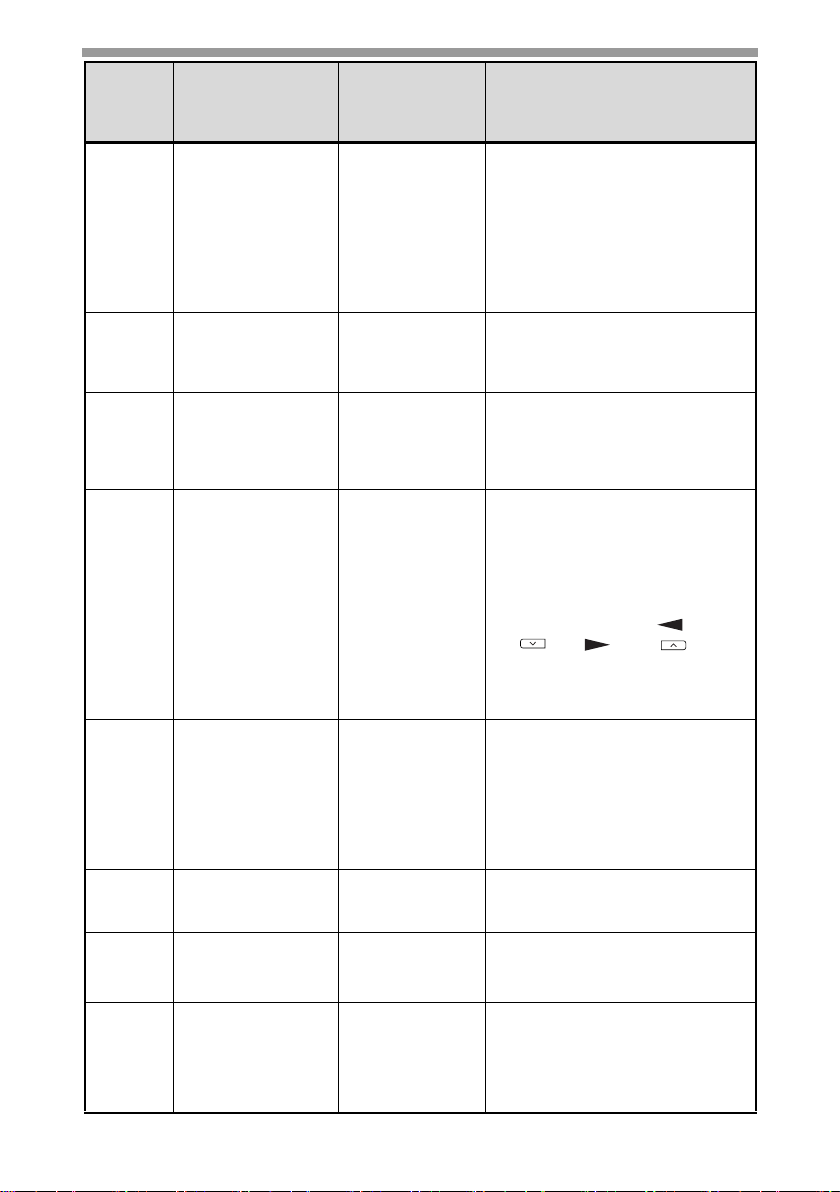
USER SETTINGS
56
11
2-SIDED COPY
MODE*
1: HI-SPEED
2: NORMAL
• If the memory fills up when two-
sided copying is performed,
"NORMAL" can be selected to
make copying possible.
However, "NORMAL" results in a
slower copying speed. Normally
"HI-SPEED" is selected to
enable fast two-sided copying.
12 MARGIN WIDTH
1: 1/4"
2: 1/2"
3: 3/4"
4: 1"
• Use this setting to set the
margin width.
13
MEM. FOR
PRINTER
1: 30%
2: 40%
3: 50%
4: 60%
5: 70%
• Use this to change the
proportion of machine
memory used for printer
mode.
14
AUTO KEY
REPEAT
1: ON
2: OFF
• Use this setting to select
whether or not holding down a
key causes repeated input of
the key. For keys that normally
cause a set value to decrease
or increase when held down
(for example, the [ ] key
( ) or [ ] key ( )), this
program can be used to have
the set value not change
when the key is held down.
15 KEY PRESS TIME
1: NORMAL
2: 0.5 SEC.
3: 1.0 SEC.
4: 1.5 SEC.
5: 2.0 SEC.
• Use this setting to select how
long a key must be pressed
for the input to be accepted.
By selecting a longer time,
you can prevent settings from
being changed by the
accidental pressing of a key.
16
KEY TOUCH
SOUND
1: LOW
2: HIGH
3: OFF
• This sets the volume of beep
signals. (p.60)
17
SOUND AT
DEFAULT
1: ON
2: OFF
• Use this to sound a beep
when a base setting is
selected. (p.60)
18
TONER SAVE
MODE
1: ON
2: OFF
• This mode reduces toner
usage by about 10% when
copying. Toner save mode is
effective when the exposure
mode is AUTO or TEXT.
Program
number
Program name
Setting codes
(factory default
setting appears
in bold)
Explanation
* AR-208D only
!AR-208S_208D.book 56 ページ 2007年12月3日 月曜日 午後3時33分
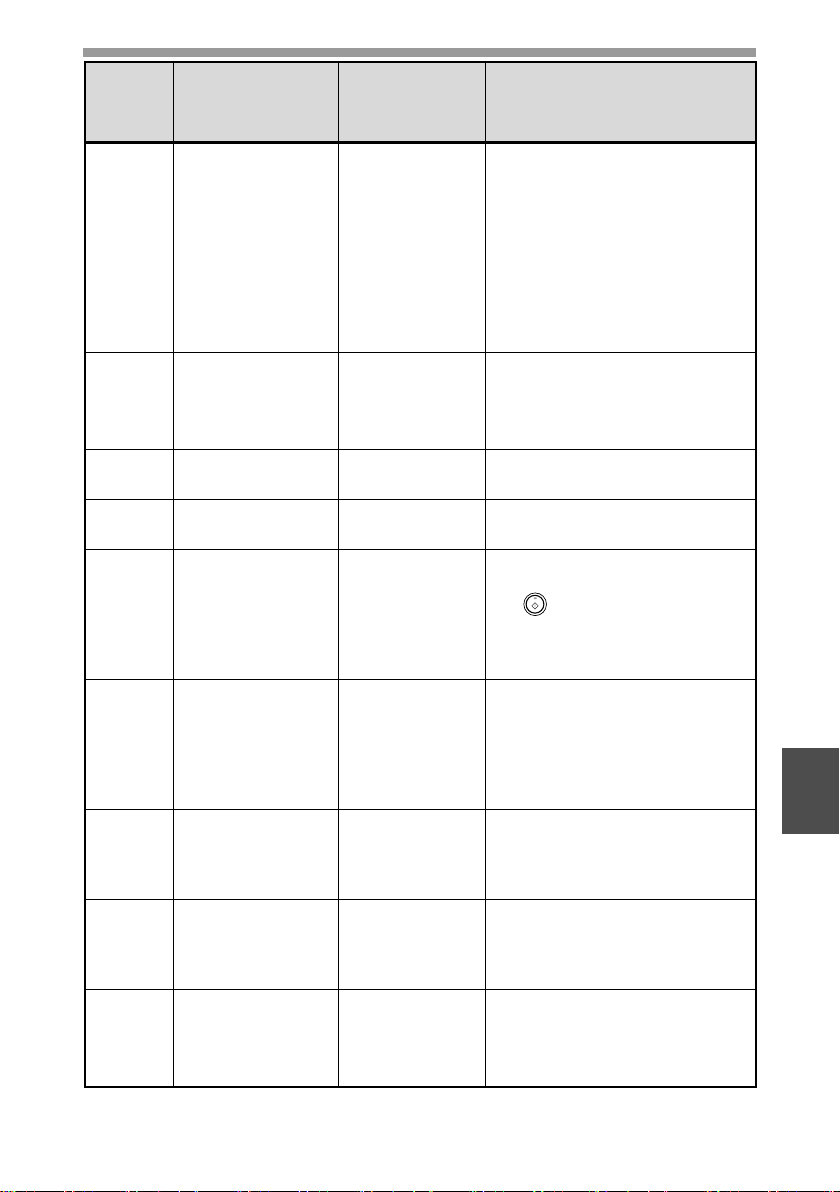
USER SETTINGS
57
7
19 AE LEVEL ADJUST
1: SPF/RSPF
(Adjustment to
5 levels is
possible.)
2: DOCUMENT
GLASS
(Adjustment to
5 levels is
possible.)
• This is used to adjust the
exposure level.
• The automatic exposure level can
be adjusted separately for the
document glass and the RSPF.
• For the procedure for adjusting
the exposure and guidelines
for numeric values, see page
24. The factory default setting
for the exposure level is center.
20 LANGUAGE
1: AMERICAN
ENGLISH
2: ENGLISH
3: FRENCH
4: SPANISH
• This is used to set the
language used in the display.
21 RESET FACTORY
1: YES
2: NO
• This is used to return all settings
to the factory default settings.
22
SORT AUTO
SELECT
1: ON
2: OFF
• Use this setting to enable or
disable sort auto select mode.
24
CHECK RSPF
OPEN
1: ON
2: OFF
• You can set the operation that
takes place if the [START] key
( ) is pressed when the
RSPF is not completely closed.
(For details on the "Check RSPF
open function", see page 13.)
25
VALID COPY
WIDTH
1: 8.5x11
2: 5.5x8.5
• Set the allowed paper sizes
for copying from the bypass
tray. When "5.5x8.5" is
selected, a copy of a letter
size original will only be
printed up to invoice size.
28 LSU SETTING
1: ON
2: OFF
• Select whether copying is only
allowed when the polygon
motor is rotating, or also when
the polygon motor is stopped.
29 PAPER TYPE
1: PLAIN PAPER
2:
HEAVY PAPER
• Set the temperature of the
fusing unit when the bypass
tray is used. Normally "PLAIN
PAPER" should be selected.
30
DISPLAY
CONTRAST
1: LIGHTER
2: LIGHT
3: NORMAL
4: DARK
5: DARKER
• Set the contrast of the display.
Program
number
Program name
Setting codes
(factory default
setting appears
in bold)
Explanation
!007-user settings.fm 57 ページ 2007年12月20日 木曜日 午前10時21分
USER SETTINGS
58
Print mode
*
1
The scanning speed increases when the USB 2.0 mode is set to "HI-SPEED",
however, the printing speed does not increase considerably.
*
2
When the 250-sheet paper feed unit is installed.
Program
number
Program name
Setting codes
(factory default
setting appears
in bold)
Explanation
1
FORCED
OUTPUT
1: ON
2: OFF
• When this function is enabled,
printing in printer mode will
automatically continue using a
different size of paper if the
specified size of paper runs
out in all trays. This feature
does not function in copy
mode.
2
USB 2.0 MODE
SWITCH*
1
1: FULL-SPEED
2: HI-SPEED
• This sets the USB 2.0 data
transfer speed. To obtain the
fastest speed when using the
USB 2.0 connector, first verify
that your computer meets the
system requirements
(operating system and driver),
and then use this program to
change the USB 2.0 mode to
"Hi-Speed". Note that the
setting should not be changed
while running a TWAIN driver.
(For the system requirements,
see "System requirements for
USB 2.0 (Hi-Speed mode)"
(p.49).)
3
AUTO TRAY
SWITCH*
2
1: ON
2: OFF
• If the paper runs out during
printing and there is paper of
the same size in another tray,
this function automatically
switches to that tray
(excluding the bypass tray).
The function can be disabled.
!AR-208S_208D.book 58 ページ 2007年12月3日 月曜日 午後3時33分
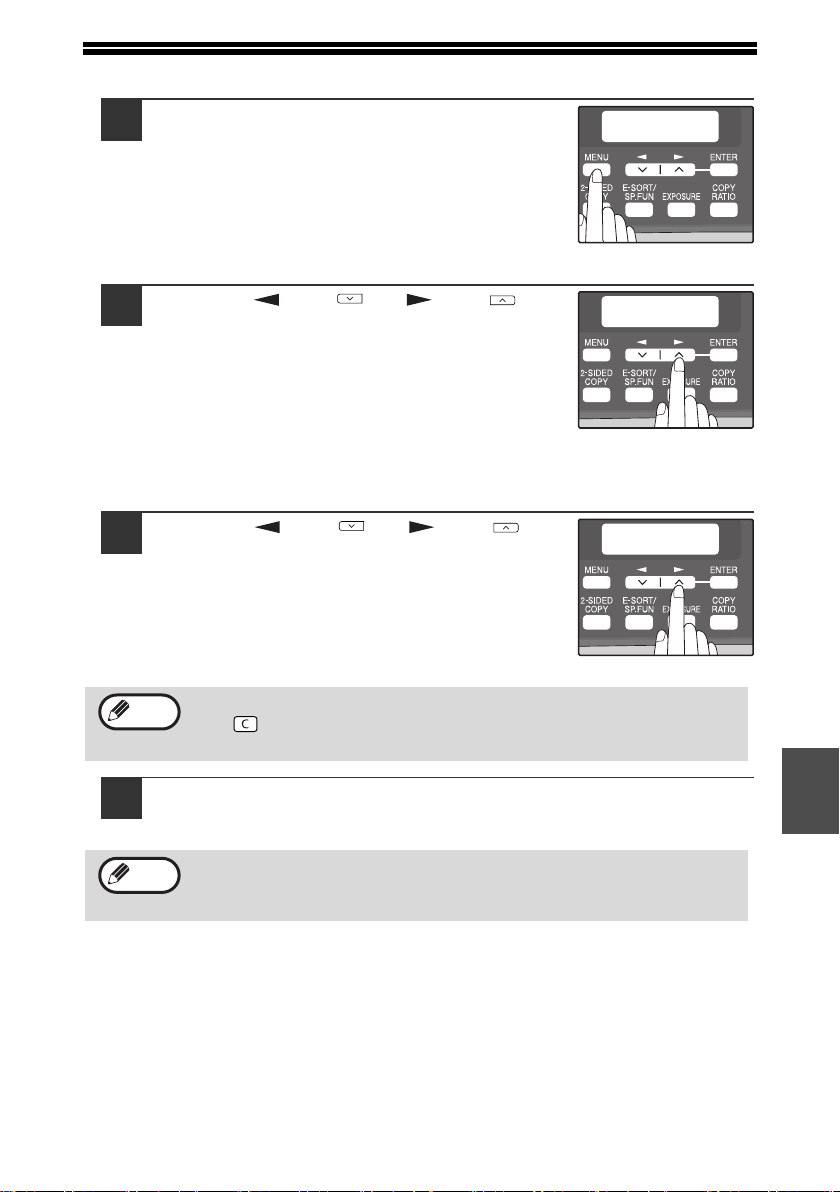
59
7
SELECTING A SETTING FOR A USER PROGRAM
1
Press the [MENU] key and then press the
[ENTER] key.
In printer mode, the user programs are accessed
by simply pressing the [MENU] key.
2
Press the [ ] key ( ) or [ ] key ( ) to
select the item that you wish to configure
in the USER PROGRAM items, and then
press the [ENTER] key.
• See "USER PROGRAM" (p.54 to p.58)
for the program name and program
code.
• You can also select a program by
directly entering the program number
with the numeric keys.
3
Press the [ ] key ( ) or [ ] key ( ) to
change the setting of the selected item.
See "USER PROGRAM" (p.54 to p.58) for the
program code.
4
Press the [ENTER] key.
Your selection appears briefly and then the previous screen appears.
• If you mistakenly select the wrong item, press the [CLEAR] key
( ) and repeat the procedure from step 2.
• To cancel a setting for a user program, press the [MENU] key.
When "AE LEVEL ADJUST" is selected in the user programs and the
[ENTER] key is pressed, the automatic exposure adjustment screen
appears. Adjust the exposure and press the [ENTER] key.
MAIN MENU
1:USER PROGRAM
USER PROGRAM
2:PREHEAT MODE
PREHEAT MODE
1:1 MIN
Note
Note
!AR-208S_208D.book 59 ページ 2007年12月3日 月曜日 午後3時33分

USER SETTINGS
60
Audible signals (key entry beep, invalid key beep, base setting beep)
The machine sounds three different types of beep signals: a key entry beep that
sounds when a valid key is pressed, an invalid key beep that sounds when an
invalid key is pressed, and a base setting beep that sounds when a setting is the
same as the base setting (base settings are explained below). The base setting
beep is initially disabled. If you wish to enable the base setting beep, see
"SOUND AT DEFAULT" on page 56. If you wish to change the volume of the beep
signals or disable them, see "KEY TOUCH SOUND" on page 56.
The beep patterns of each type of beep signal are as follows:
Key entry beep.....................One beep
Base setting beep........... Three beeps
Invalid key beep............... Two beeps
Base settings
The base settings are preset standard selections for each copy setting. The base
settings are as follows:
Copy ratio................................... 100%
Light and Dark level .................Center
Paper feed location .................Tray 1
(Upper paper tray)
AUTO/TEXT/PHOTO ................AUTO
!AR-208S_208D.book 60 ページ 2007年12月3日 月曜日 午後3時33分
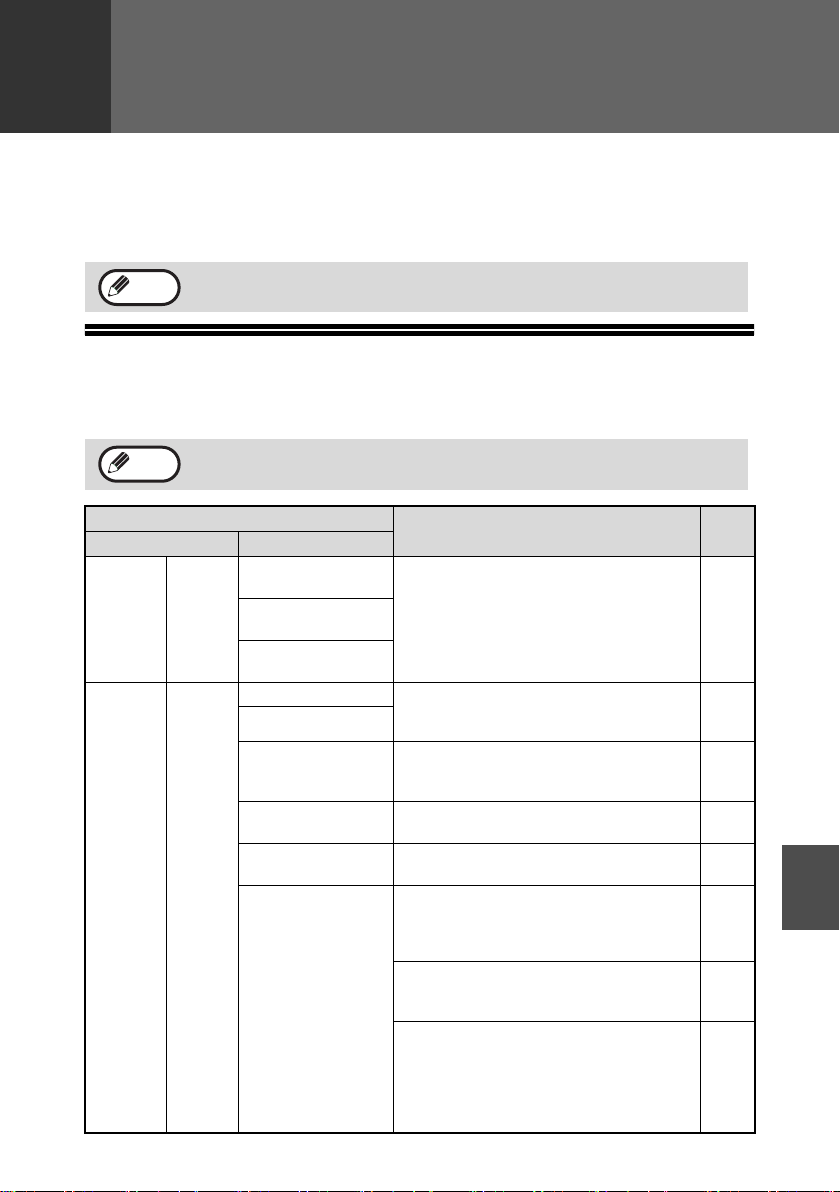
61
8
Chapter 8
8
Problems related to general use of the machine, the copy function, and software
setup are explained here. Be sure to check the problem carefully before calling for
service, as many problems can be solved by the user.
If you are unable to solve the problem, turn off the main switch, unplug the power
cord from the outlet, and contact your dealer.
DISPLAY MESSAGES
When the following indicators light up or blink on the operation panel or the following
alphanumeric codes appear in the display, solve the problem immediately referring
to both the table below and the indicated page.
For problems related to the printer and scanner functions, see the
online manual.
Be sure to use only genuine SHARP parts and supplies.
Indication
Cause and remedy Page
Lamp indicator Display
Tray
location
indicator
Blinks
BYPASS : ADD
PAPER
The indicated paper tray is not
attached, is attached incorrectly, or has
run out of paper. (The tray is indicated
in <*>.)
15
TRAY<*> : ADD
PAPER
CLOSE PAPER
TRAY<*>
Error
indicator
Blinks
CLEAR PAPER JAM.
A paper misfeed has occurred.
Remove the misfeed as explained in
"MISFEED REMOVAL".
70
SPF/RSPF JAM.
FRONT OR SIDE
COVER OPEN.
CLOSE COVERS.
The cover is open. Close the cover. -
CLOSE THE SPF/
RSPF COVER.
The RSPF cover is open. Close the
RSPF cover.
-
REPLACE THE
TONER CARTRIDGE.
The toner cartridge is empty. Replace
the toner cartridge with a new cartridge.
74
SYSTEM ERROR
[XX - XX] REFER
TO USER GUIDE
When [L1-00] appears, the scan head
locking switch is locked. Turn off the
power, release the scan head locking
switch, and turn the power back on.
76
When [F2-02] appears, check the toner
cartridge and make sure that the seal
is not still affixed.
-
The machine will not function. Turn the
power switch off, wait about 10 seconds,
and then turn on the switch again. If this
does not clear the error, remove the
power cord from the outlet, and contact
your SHARP service center.
-
Note
Note
TROUBLESHOOTING AND
MAINTENANCE
!AR-208S_208D.book 61 ページ 2007年12月3日 月曜日 午後3時33分
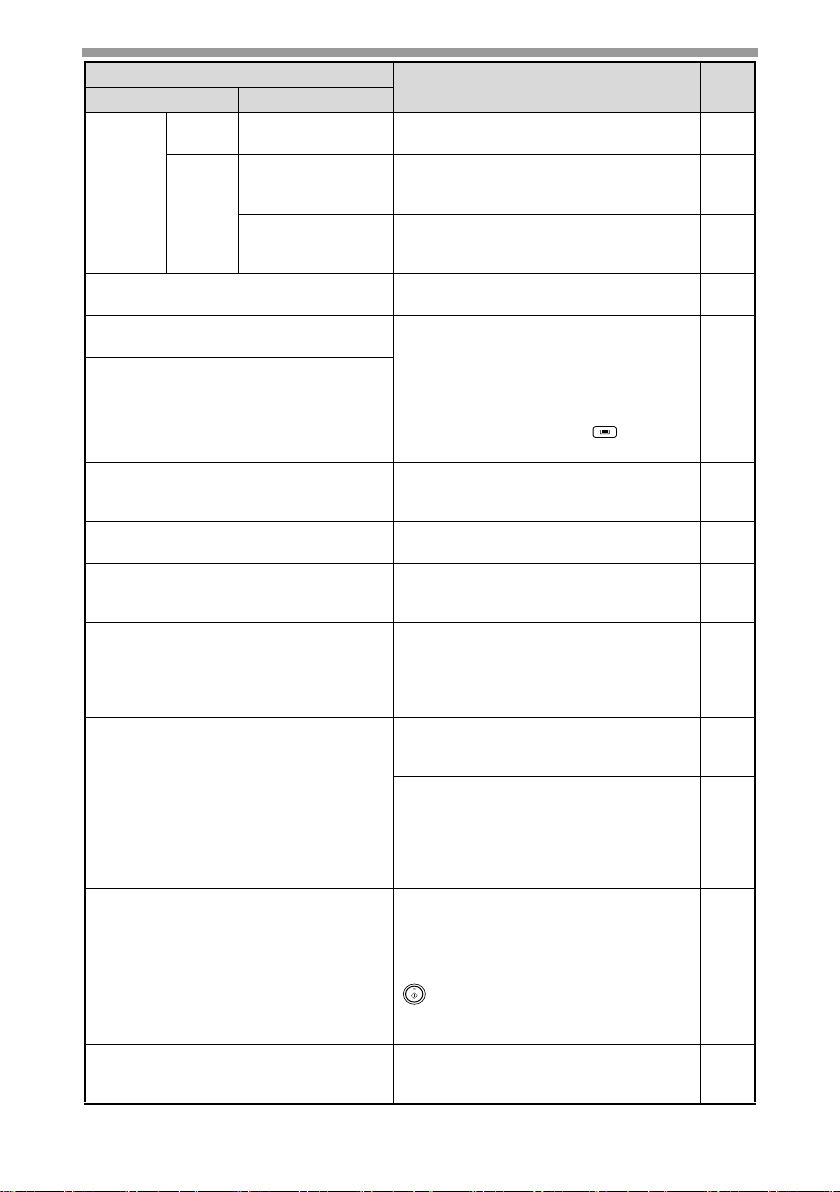
TROUBLESHOOTING AND MAINTENANCE
62
Error
indicator
Blinks
INSTALL A TONER
CARTRIDGE.
The toner cartridge is not installed
correctly. Reinstall the toner cartridge.
74
Steadily
lit
TONER
CARTRIDGE IS
NEAR EMPTY.
Replacement of toner cartridge will be
needed soon. Prepare a new cartridge.
74
MAINTENANCE
REQUIRED CALL
FOR SERVICE
Service by an authorized SHARP
service technician is required.
-
MEMORY FULL, PRESS START TO
RESUME.
Data is being held in memory. Print the
data or clear it from memory.
30
NO 2-SIDED COPY FROM BYPASS
TRAY.
Two sided printing or 2 IN 1 copying is
selected when the bypass tray is
already selected ,or the bypass tray is
selected when two-sided printing or 2
IN 1 copying is already selected.
The bypass tray cannot be used. Press
the [TRAY SELECT] key ( ) to select
a paper tray.
26
31
NO 2IN1 COPY FROM
BYPASS TRAY.
NO 2IN1 COPY WITH MARGIN SHIFT.
2 IN 1 copy and margin shift cannot be
used in combination. Cancel the
function that was selected last.
31
34
COPY RATIO CAN NOT BE
CHANGED IN 2IN1.
Copy ratio can not be changed in 2 IN
1 copy.
25
31
THIS MENU IS NOT SELECTABLE
WITH DATA.
This appears if you attempt to change
a user program setting while a print job
is in progress.
54
NO XXXX SIZE TRAY
There is no paper for printing. Press
the [MODE SELECT] key to switch to
printer mode and follow the instructions
in the display.
("XXXX" indicates paper size)
-
CHECK SPF/RSPF.
START TO RESUME.
An original remains on the document
glass, or the original is too thick to
scan. Remove the original.
21
If the message is not cleared when
there is no original on the document
glass, the underside of the RSPF is
dirty. Clean the underside of the RSPF.
(especially areas where black lines
appear.)
78
LOAD
XXXX
PAPER INTO TRAY<*>.
Printing is not possible if the paper size
setting is different from the size of
paper loaded in the tray. Load the
same size of paper as the paper size
setting and then press the [START] key
( ). Printing will begin.
("
XXXX
" indicates paper size. The tray
is indicated in <*>.)
15
NO PC COMMUNICATION; CHECK
CABLE.
The machine is not correctly connected
to the computer. Check the cable
(when using the scanner function).
42
Indication
Cause and remedy Page
Lamp indicator Display
!AR-208S_208D.book 62 ページ 2007年12月3日 月曜日 午後3時33分
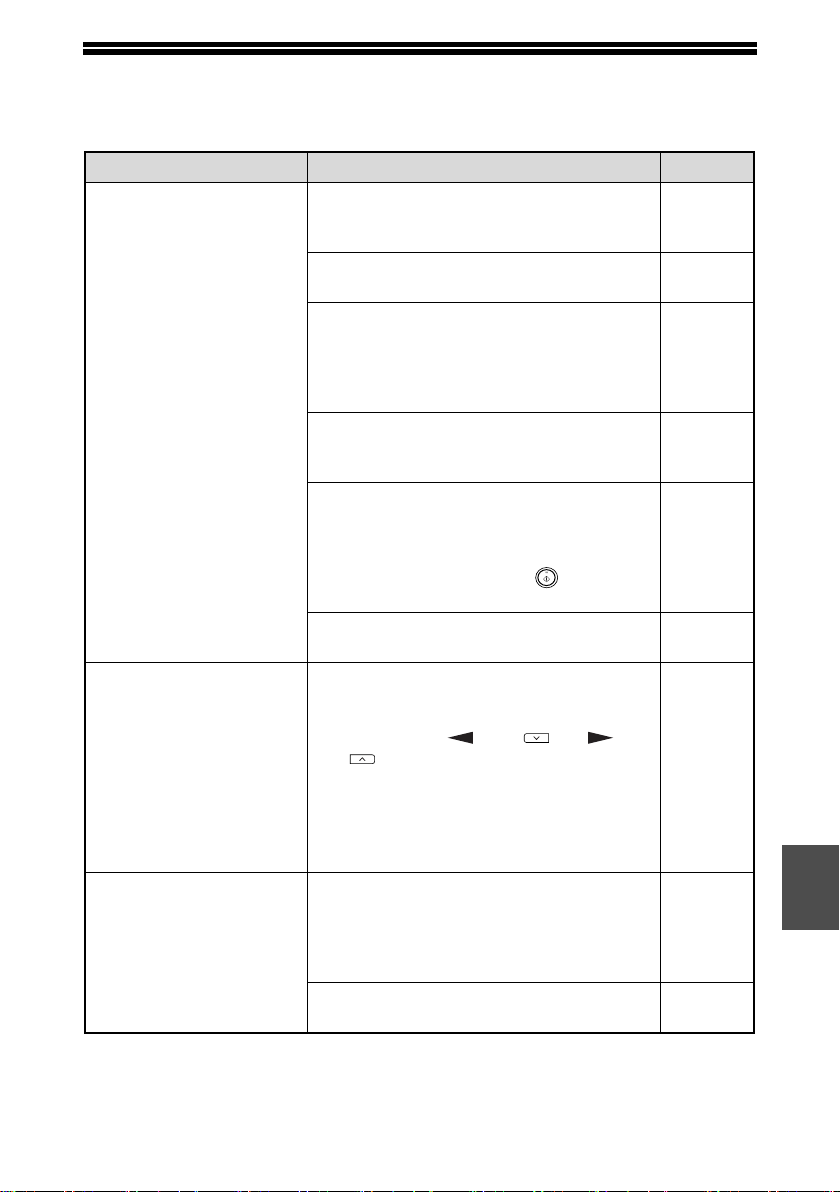
63
8
TROUBLESHOOTING THE MACHINE
The following problems are related to the general operation of the machine and
copying.
Problem Cause and solution Page
The machine does not
operate.
The machine is not plugged into a
power outlet.
→
Plug the machine into a grounded outlet.
-
Power switch OFF.
→ Turn the power switch ON.
12
The power save indicator is blinking.
Indicates that the machine is warming
up.
→ Copies cannot be made until the
machine has finished warming up.
-
The front cover or the side cover is not
completely closed.
→ Close the front cover or the side cover.
-
The machine is in auto power shut-off
mode.
→ In auto power shut-off mode, all lights
are off except the power save indicator.
Press the [START] key ( ) to resume
normal operation.
13
The scan head locking switch is locked.
→ Unlock the scan head locking switch.
76
Copies are too dark or
too light.
Select the correct original type for the
original.
→ Select AUTO with the [EXPOSURE] key
or press the [ ] key ( ) or [ ] key
( ) to manually select an appropriate
exposure.
→ If the copy is too light or too dark even
though AUTO was selected with the
[EXPOSURE] key, adjust the automatic
exposure level.
24
57
Blank copies.
The original is not placed face up in the
RSPF or face down on the document
glass.
→ Place the original face up in the RSPF
or face down on the document glass.
20, 21
The scan head locking switch is locked.
→ Unlock the scan head locking switch.
76
!AR-208S_208D.book 63 ページ 2007年12月3日 月曜日 午後3時33分
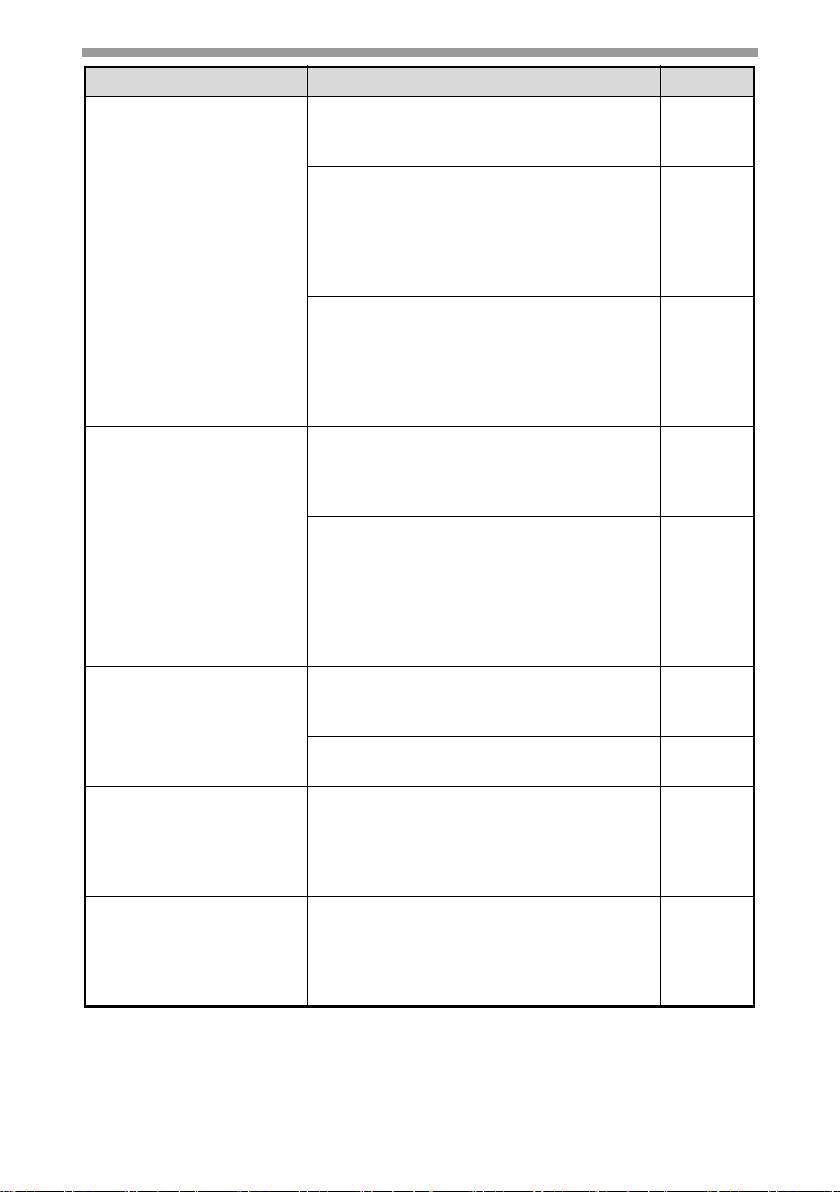
TROUBLESHOOTING AND MAINTENANCE
64
Problem Cause and solution Page
Part of the image is cut
off or there is too much
blank space.
The original was not placed in the
correct position.
→ Place the original correctly.
20, 21
An appropriate ratio was not used for
the size of the original and the size of
the paper.
→ Press the [COPY RATIO] key to change
the ratio to a setting that is suitable for
the original and the copy paper.
25
The size of paper loaded in the tray was
changed without changing the tray's
paper size setting.
→ Be sure to change the tray's paper size
setting whenever you change the size
of paper loaded in the tray.
19
Wrinkles appear in the
paper or the image
disappears in places.
The paper is outside of the specified
size and weight range.
→ Use copy paper within the specified
range.
14
Paper curled or damp.
→ Do not use curled or crimped paper.
Replace with dry copy paper. During
periods when the machine is not used
for a long time, remove the paper from
the tray and store it in a dark place in a
bag to prevent moisture absorption.
-
Copies are smudged or
dirty.
The document glass or the underside of
the RSPF is dirty.
→ Clean regularly.
78
Original smudged or blotchy.
→ Use a clean original.
-
Images rub off the copy
easily.
The fusing temperature is not
appropriate.
→ In the user programs, set "PAPER
TYPE" (program 29) to "2 (HEAVY
PAPER)".
57
Printing is not uniform
between the edges of
the paper and the
center.
The fusing temperature is not
appropriate.
→ In the user programs, set "PAPER
TYPE" (program 29) to "1 (PLAIN
PAPER)".
57
!008-troubleshooting.fm 64 ページ 2007年12月20日 木曜日 午前10時31分
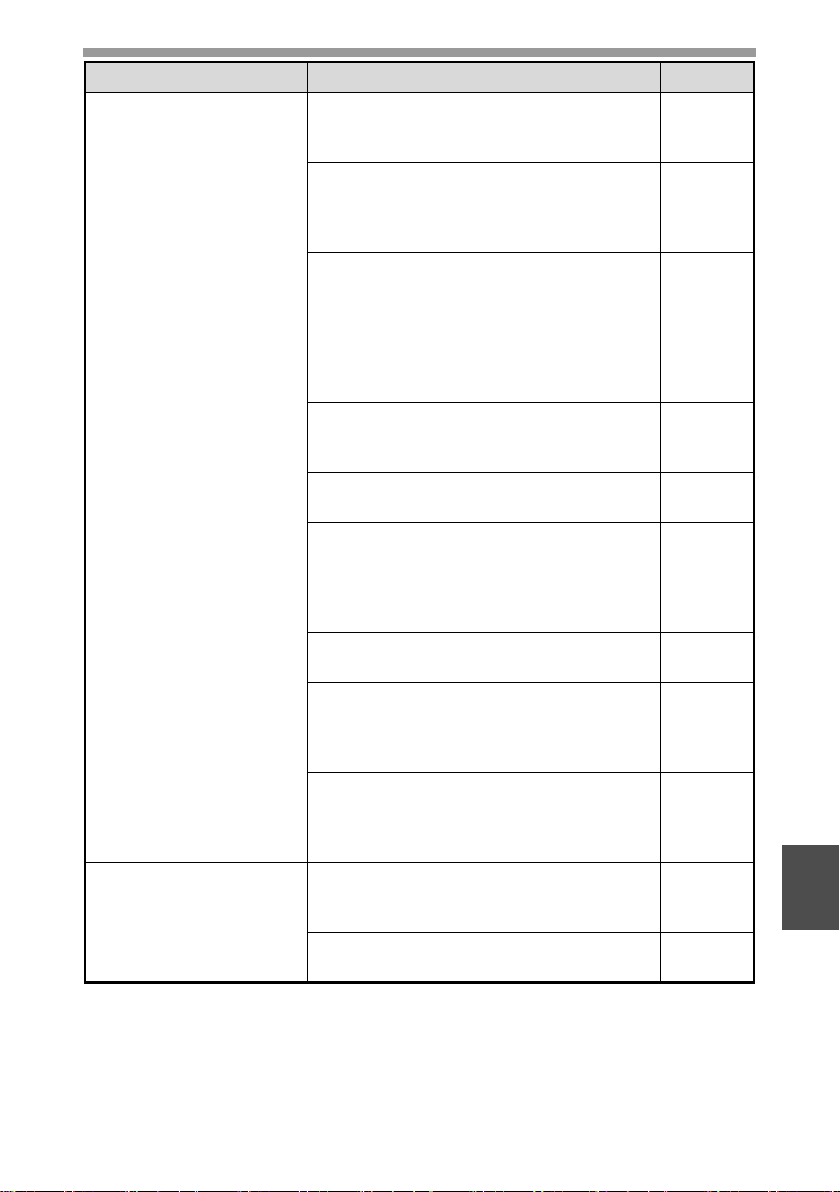
TROUBLESHOOTING AND MAINTENANCE
65
8
Paper misfeed.
Misfeed occur.
→ To remove the misfeed, see "MISFEED
REMOVAL".
70
The paper is outside of the specified
size and weight range.
→ Use copy paper within the specified
range.
14
Paper curled or damp.
→ Do not use curled or crimped paper.
Replace with dry copy paper. During
periods when the machine is not used
for a long time, remove the paper from
the tray and store it in a dark place in a
bag to prevent moisture absorption.
-
Paper is not loaded properly.
→ Make sure that the paper is properly
loaded.
15
Pieces of paper inside machine.
→ Remove all pieces of misfed paper.
71
Too much paper is loaded in the tray.
→ If the stack of paper is higher than the
indicator line on the tray, remove some
of the paper and reload so that the
stack does not exceed the line.
15
Some sheets of paper stick together.
→ Fan the paper well before loading it.
15
The guides on the bypass tray do not
match the width of the paper.
→ Adjust the guides to match the width of
the paper.
18
The bypass tray extension is not
opened.
→ When loading a large size of paper,
open the extension.
18
White or black lines
appear on copies.
The scanner glass for the RSPF is dirty.
→ Clean the long, narrow scanning
window.
78
The transfer charger is dirty.
→ Clean the transfer charger.
79
Problem Cause and solution Page
!AR-208S_208D.book 65 ページ 2007年12月3日 月曜日 午後3時33分

TROUBLESHOOTING AND MAINTENANCE
66
Paper size for a paper
tray cannot be set.
Copying or printing is performed.
→ Set the paper size after copying or
printing is complete.
-
The machine has stopped temporarily
due to running out of paper or a
misfeed.
→ Load paper or remove the misfeed, and
then set the paper size.
19, 70
Output does not stack
neatly in the paper
output tray.
Both ends of the paper are curled
upward.
→ Turning the paper over in the paper tray
may help.
15
A copy job stops before
it is finished.
"MEMORY FULL, PRESS START TO
RESUME." appears in the display.
→ The memory became full during sort
copy. Copy only the originals that have
been scanned to that point, or cancel
the job and clear the data from memory.
30
The tray is out of paper.
→ Load paper.
15
The power save
indicator is lit.
Other indicators are lit.
→ If other indicators are lit, the machine is
in preheat mode. Press any key on the
operation panel to resume normal
operation.
13
Only the power save indicator is lit.
→ If only the power save indicator is lit, the
machine is in auto power shut-off
mode. Press the [START] key ( ) to
resume normal operation.
13
Error indicator ( ) is
lit or blinking.
See "DISPLAY MESSAGES" to check the
meaning of the error indicator and error
message in the display, and take
appropriate action.
61
Lighting fixture flickers.
The same power outlet is used for the
lighting fixture and the machine.
→ Connect the machine to a power outlet
which is not used for other electric
appliances.
-
Problem Cause and solution Page
!AR-208S_208D.book 66 ページ 2007年12月3日 月曜日 午後3時33分
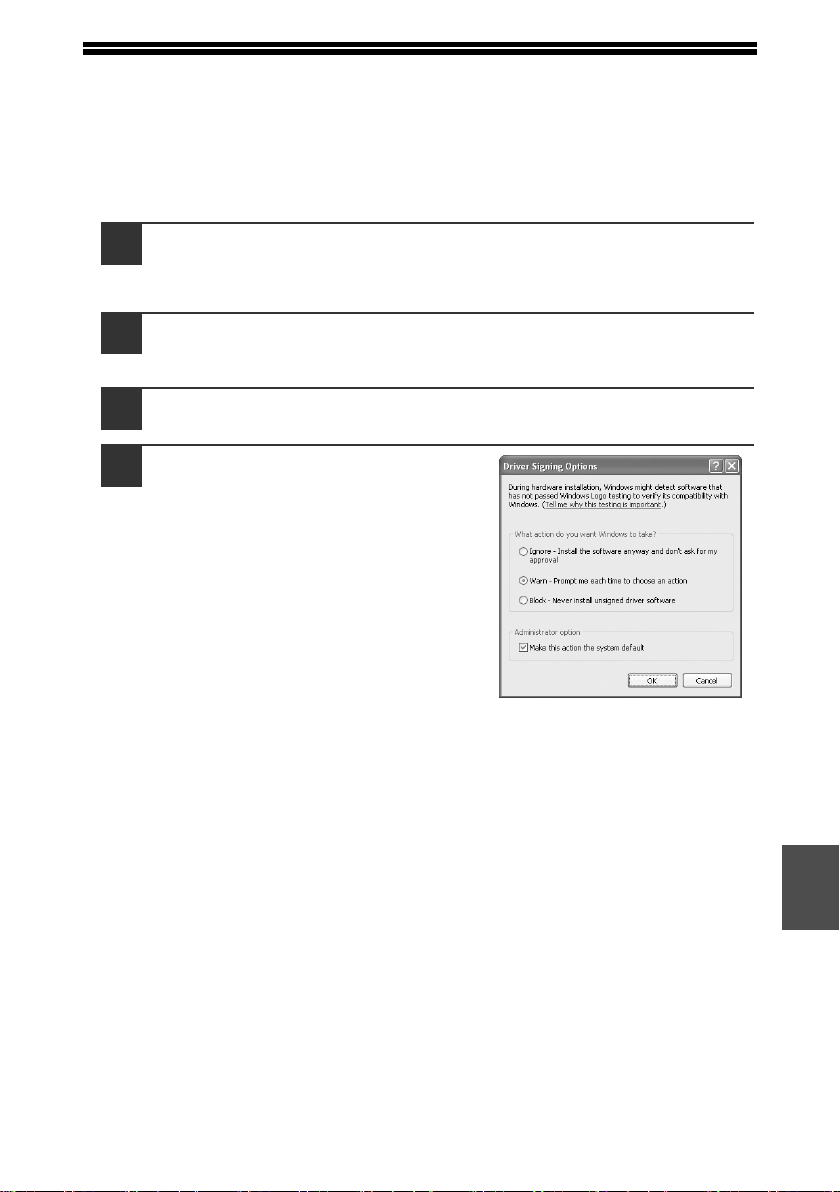
67
8
PROBLEMS DURING SETUP OF THE SOFTWARE
If the software does not install correctly, check the following items on your computer.
To remove the software, see "Removing the software" (p.69).
MFP driver cannot be installed (Windows 2000/XP)
If the MFP driver cannot be installed in Windows 2000/XP, follow these steps to
check your computer's settings.
1
Click the "start" button and then click "Control Panel".
In Windows 2000, click the "Start" button, select "Settings", and then click
"Control Panel".
2
Click "Performance and Maintenance", and then click
"System".
In Windows 2000, double-click the "System" icon.
3
Click the "Hardware" tab and then click the "Driver Signing"
button.
4
Check "What action do you want
Windows to take?" ("File
signature verification" in
Windows 2000).
If "Block" has been selected, it will not
be possible to install the MFP driver.
Select "Warn" and then install the MFP
driver as explained in "INSTALLING
THE SOFTWARE".
!AR-208S_208D.book 67 ページ 2007年12月3日 月曜日 午後3時33分
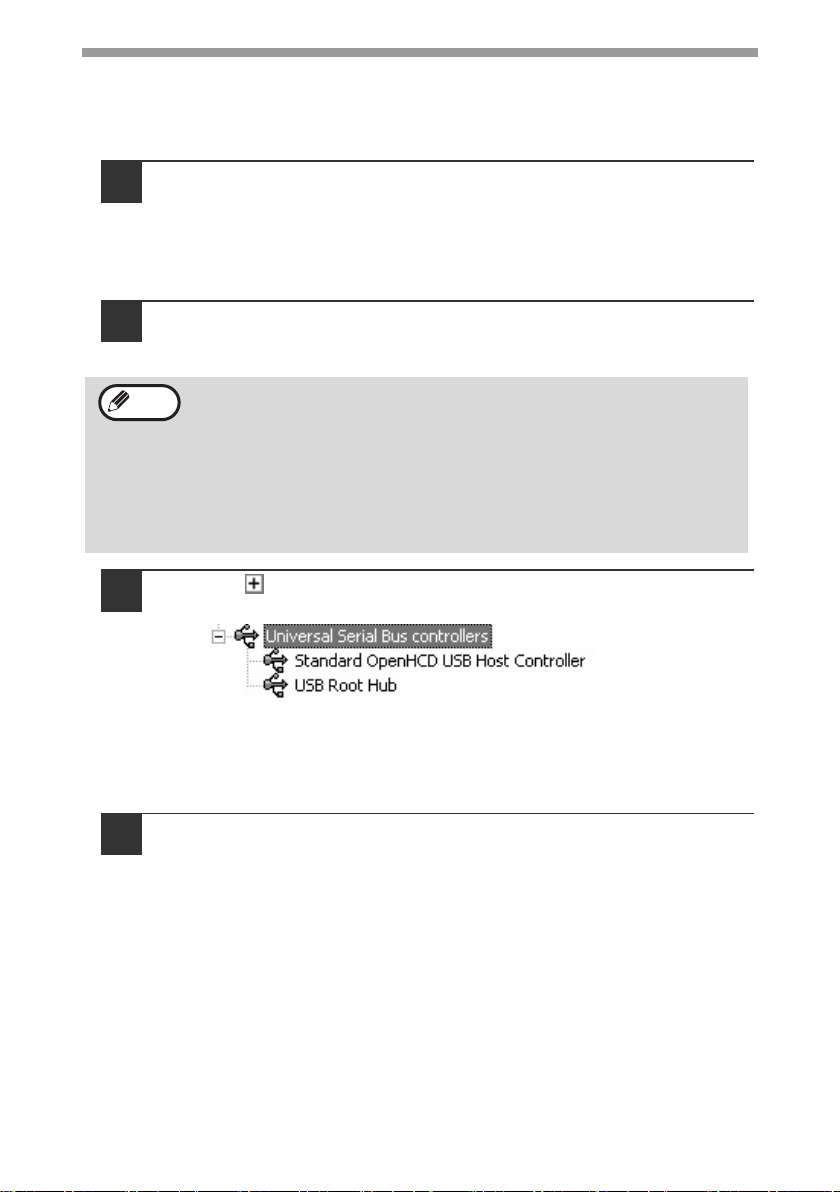
TROUBLESHOOTING AND MAINTENANCE
68
Plug and play screen does not appear
If the Plug and Play screen does not appear after you connect the machine to your
computer with a USB cable and turn on the machine, follow the steps below to verify
that the USB port is available.
1
Click the "start" button, click "Control Panel", and then click
"Performance and Maintenance".
• In Windows Vista, click the "Start" button, select "Control Panel", and then
click "System and Maintenance".
• In Windows 98/Me/2000, click the "Start" button, select "Settings", and
then click "Control Panel".
2
Click "System", click the "Hardware" tab, and click the "Device
Manager" button.
"Universal Serial Bus controllers" will appear in the list of devices.
3
Click the icon beside "Universal Serial Bus controllers".
Two items should appear: your controller chipset type and Root Hub. If
these items appear, you can use the USB port. If the "Universal Serial Bus
controllers" shows a yellow exclamation point or does not appear, you must
check your computer manual for USB troubleshooting or contact your
computer manufacturer.
4
Once you have verified that the USB port is enabled, install the
software as explained in "INSTALLING THE SOFTWARE".
• In Windows 98/Me, double-click the "System" icon and click the
"Device Manager" tab.
• In Windows 2000, double-click the "System" icon, click the
"Hardware" tab, and click the "Device Manager" button.
• In Windows Vista, click the "Device Manager", and if a message
screen appears asking you for confirmation, click "Continue".
• If the "System" icon does not appear in Windows Me, click "view all
Control Panel options".
Note
!AR-208S_208D.book 68 ページ 2007年12月3日 月曜日 午後3時33分
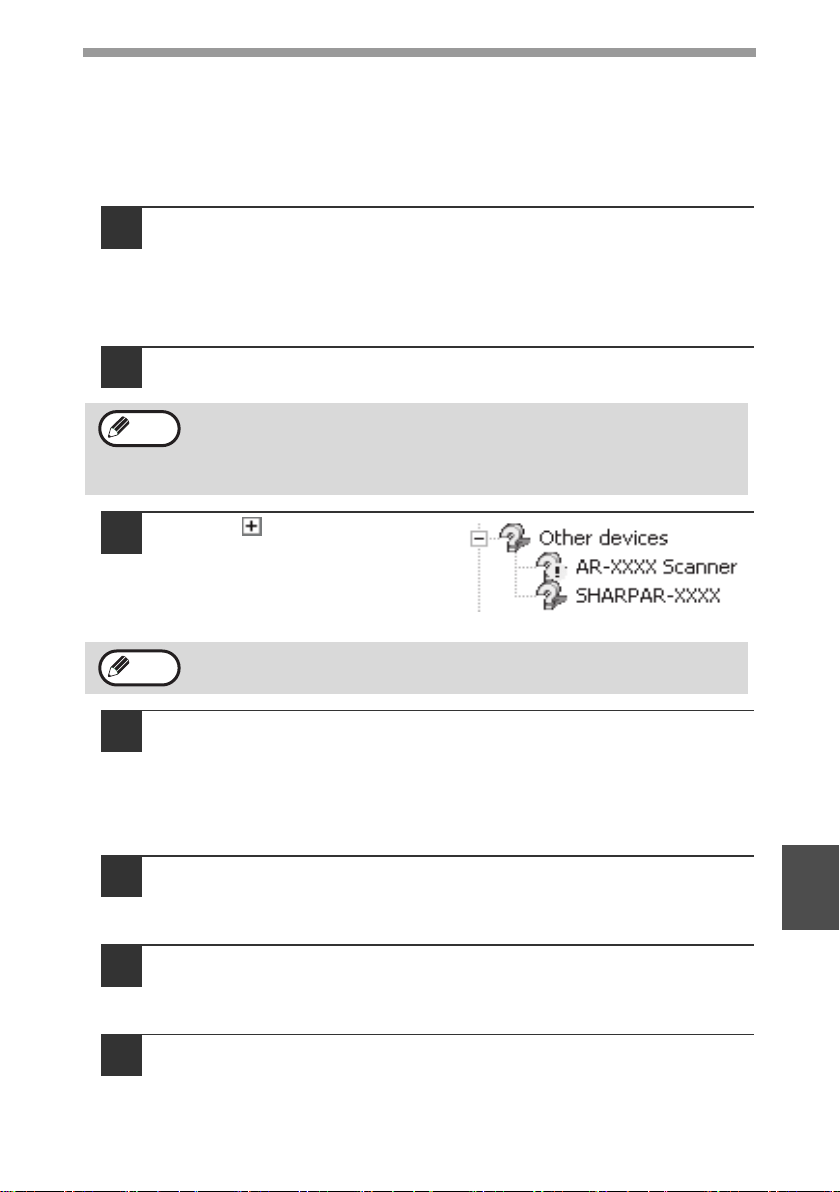
TROUBLESHOOTING AND MAINTENANCE
69
8
The MFP driver cannot be correctly installed by Plug and
Play (Windows 2000/XP/Vista)
In Windows 2000/XP/Vista, if the MFP driver cannot be correctly installed by Plug
and Play (for example, Plug and Play takes place without copying the required files
for the MFP driver installation), follow these steps to remove unneeded devices and
then install the MFP driver as explained in "INSTALLING THE SOFTWARE" (p.36).
1
Click the "start" button, click "Control Panel", and then click
"Performance and Maintenance".
• In Windows Vista, click the "Start" button, select "Control Panel", and then
click "System and Maintenance".
• In Windows 2000, click the "Start" button, select "Settings", and then click
"Control Panel".
2
Click "System", click the "Hardware" tab, and click the "Device
Manager" button.
3
Click the icon beside "Other
devices".
If "AR-XXXX" and "SHARP AR-
XXXX" appear, select and delete
both of these items.
4
Install the software as explained in "INSTALLING THE
SOFTWARE".
Removing the software
If you need to remove the software, follow these steps.
1
Click the "start" button and then click "Control Panel".
In Windows 98/Me/2000, click the "Start" button, select "Settings", and then
click "Control Panel".
2
Click "Add or Remove Programs".
• In Windows Vista, click the "Uninstall a program".
• In Windows 98/Me/2000, double-click the "Add/Remove Programs" icon.
3
Select "SHARP AR-208 Series MFP Driver" and Button Manager
from the list, and remove the software.
For more information, refer to your operating manual or to the help files for
your operating system.
• In Windows 2000, double-click the "System" icon, click the
"Hardware" tab, and click the "Device Manager" button.
• In Windows Vista, click the "Device Manager", and if a message
screen appears asking you for confirmation, click "Continue".
If "Other devices" does not appear, close the "Device Manager" window.
Note
Note
!AR-208S_208D.book 69 ページ 2007年12月3日 月曜日 午後3時33分
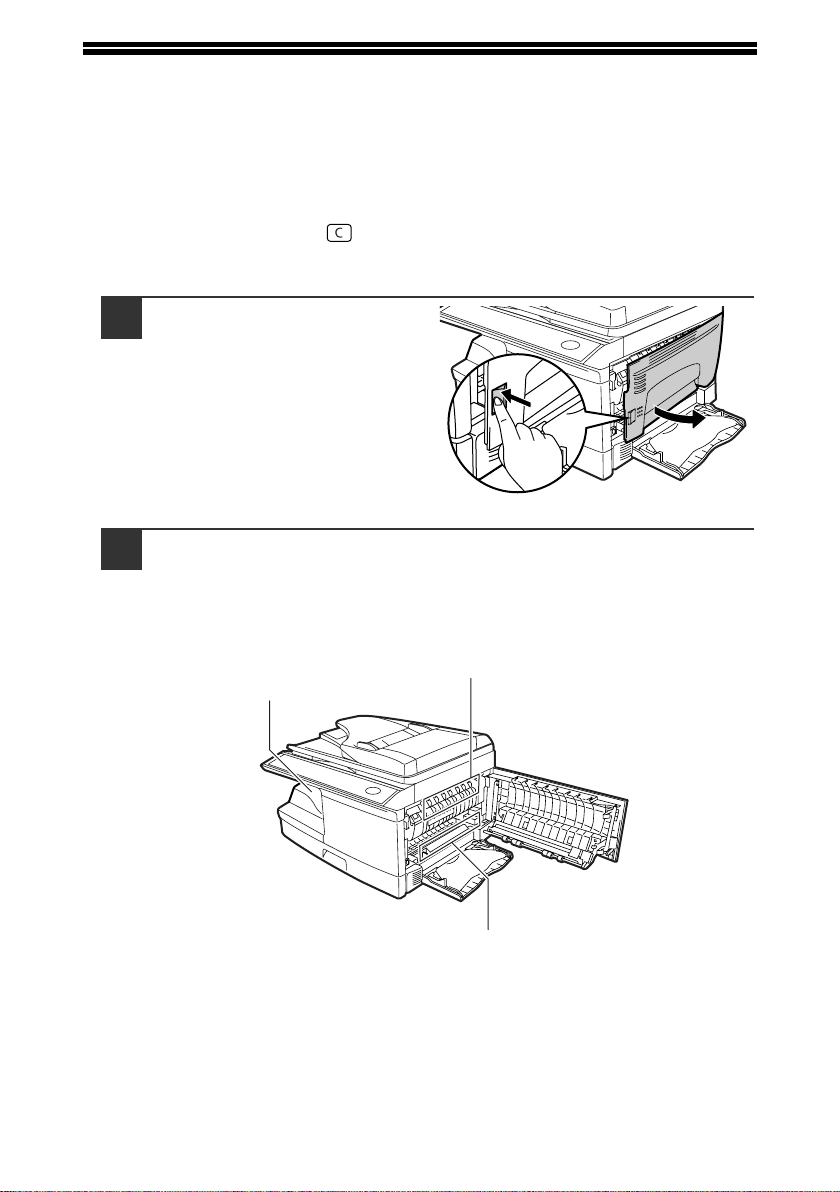
70
MISFEED REMOVAL
When a misfeed occurs, the error indicator blinks, "CLEAR PAPER JAM" appears in
the display, and the machine stops operating. If a misfeed occurs when using the
RSPF, "RETURN X ORIGINAL(S) START TO RESUME" will appear in the display.
("X" indicates the number of pages to be returned.). This indicates the number of the
originals that must be returned to the document feeder tray after a misfeed. Return
the required number of originals. This number will be cleared when copying is
resumed or the [CLEAR] key ( ) is pressed. If an original misfeed occurs in the
RSPF, the machine will stop and the error indicator will blink. To remove a misfeed
from the RSPF, see "D: Misfeed in the RSPF" (p.73).
1
Open the bypass tray, and
then open the side cover.
2
Check the misfeed location. Remove the misfed paper
following the instructions for each location in the illustration
below. If the error indicator blinks, proceed to "A: Misfeed in
the paper feed area" (p.71).
If paper is misfed here, proceed to "A:
Misfeed in the paper feed area". (p.71)
If paper is misfed here, proceed to "B:
Misfeed in the fusing area". (p.71)
If the misfed paper is seen from
this side, proceed to "C: Misfeed
in the transport area". (p.72)
!AR-208S_208D.book 70 ページ 2007年12月3日 月曜日 午後3時33分
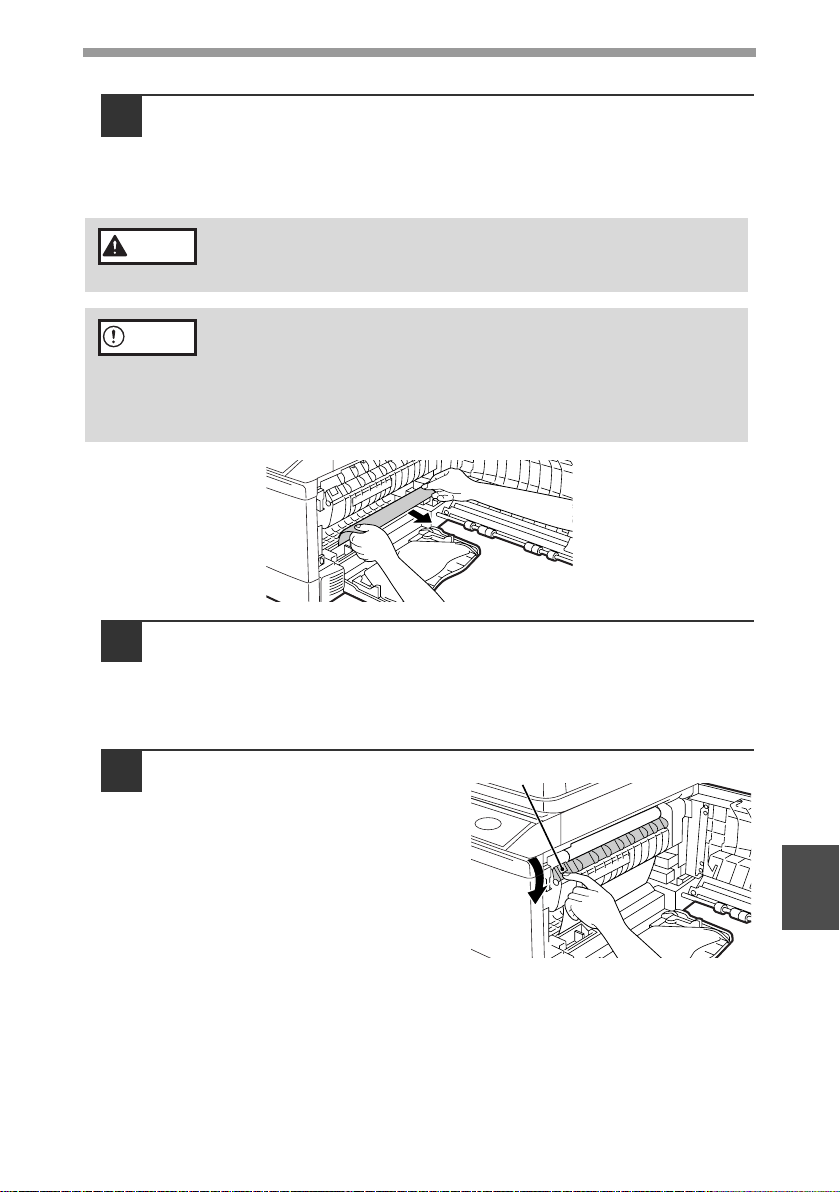
TROUBLESHOOTING AND MAINTENANCE
71
8
A: Misfeed in the paper feed area
1
Gently remove the misfed paper from the paper feed area as
shown in the illustration. If the error indicator blinks and the
misfed paper is not visible in the paper feed area, pull out the
paper tray and remove the misfed paper. If the paper cannot be
removed, proceed to "B: Misfeed in the fusing area".
2
Close the side cover by pressing the round projections near
the side cover open button. The error indicator will go out and
the ready indicator will light up.
B: Misfeed in the fusing area
1
Lower the fusing unit release
lever.
The fusing unit is hot. Do not touch the fusing unit when
removing misfed paper. Doing so may cause a burn or other
injury.
• Do not touch the photoconductive drum (green portion) when
removing the misfed paper. Doing so may damage the drum and
cause smudges on copies.
• If the paper has been fed through the bypass tray, do not remove the
misfed paper through the bypass tray. Toner on the paper may stain
the paper transport area, resulting in smudges on copies.
Warning
Caution
Fusing unit release lever
!AR-208S_208D.book 71 ページ 2007年12月3日 月曜日 午後3時33分
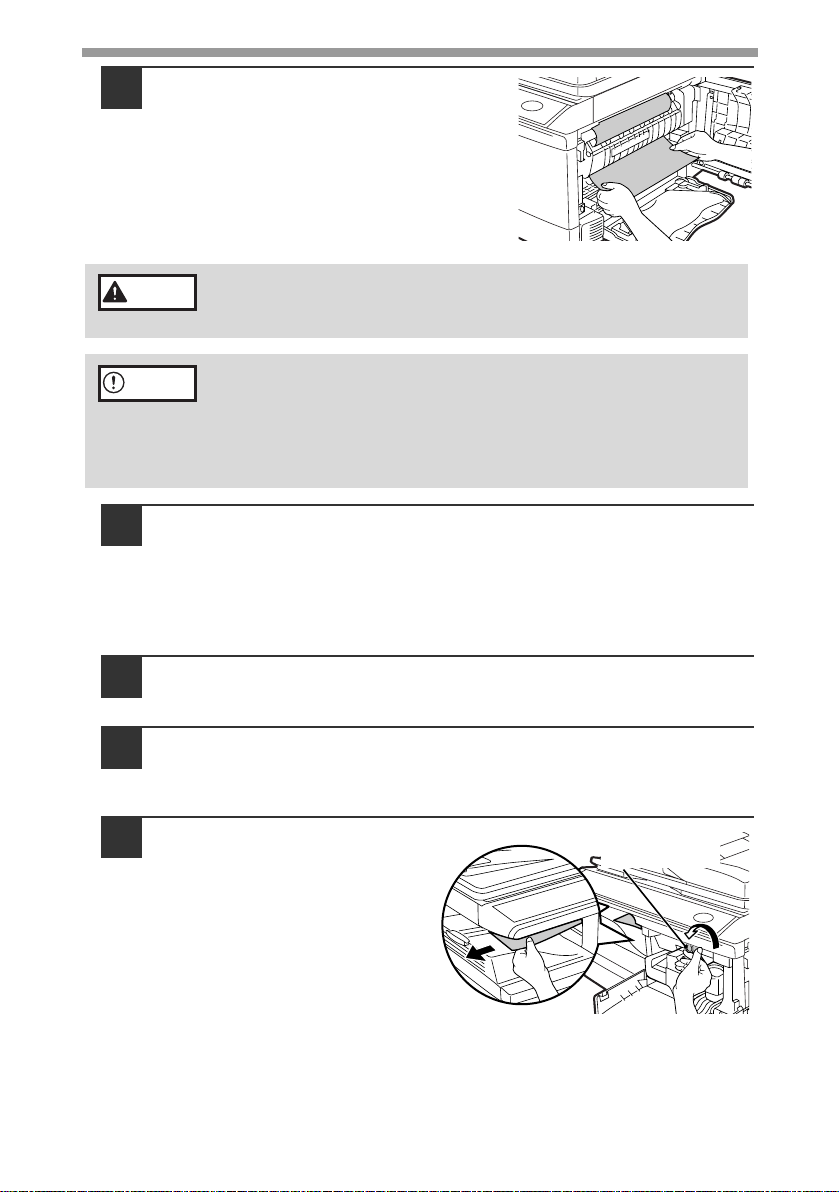
TROUBLESHOOTING AND MAINTENANCE
72
2
Gently remove the misfed paper
from under the fusing unit as shown
in the illustration. If the paper cannot
be removed, proceed to "C: Misfeed
in the transport area".
3
Raise the fusing unit release lever and then close the side
cover by pressing the round projections near the side cover
open button. The error indicator will go out and the ready
indicator will light up.
C: Misfeed in the transport area
1
Lower the fusing unit release lever.
See "B: Misfeed in the fusing area" (p.71).
2
Open the front cover.
To open the front cover, see "TONER CARTRIDGE REPLACEMENT"
(p.74).
3
Rotate the roller rotating
knob in the direction of the
arrow and gently remove the
misfed paper from the exit
area.
The fusing unit is hot. Do not touch the fusing unit when
removing misfed paper. Doing so may cause a burn or other
injury.
• Do not touch the photoconductive drum (green portion) when
removing the misfed paper. Doing so may damage the drum and
cause smudges on copies.
• Do not remove the misfed paper from above the fusing unit. Unfixed
toner on the paper may stain the paper transport area, resulting in
smudges on copies.
Warning
Caution
Roller rotating
knob
!AR-208S_208D.book 72 ページ 2007年12月3日 月曜日 午後3時33分
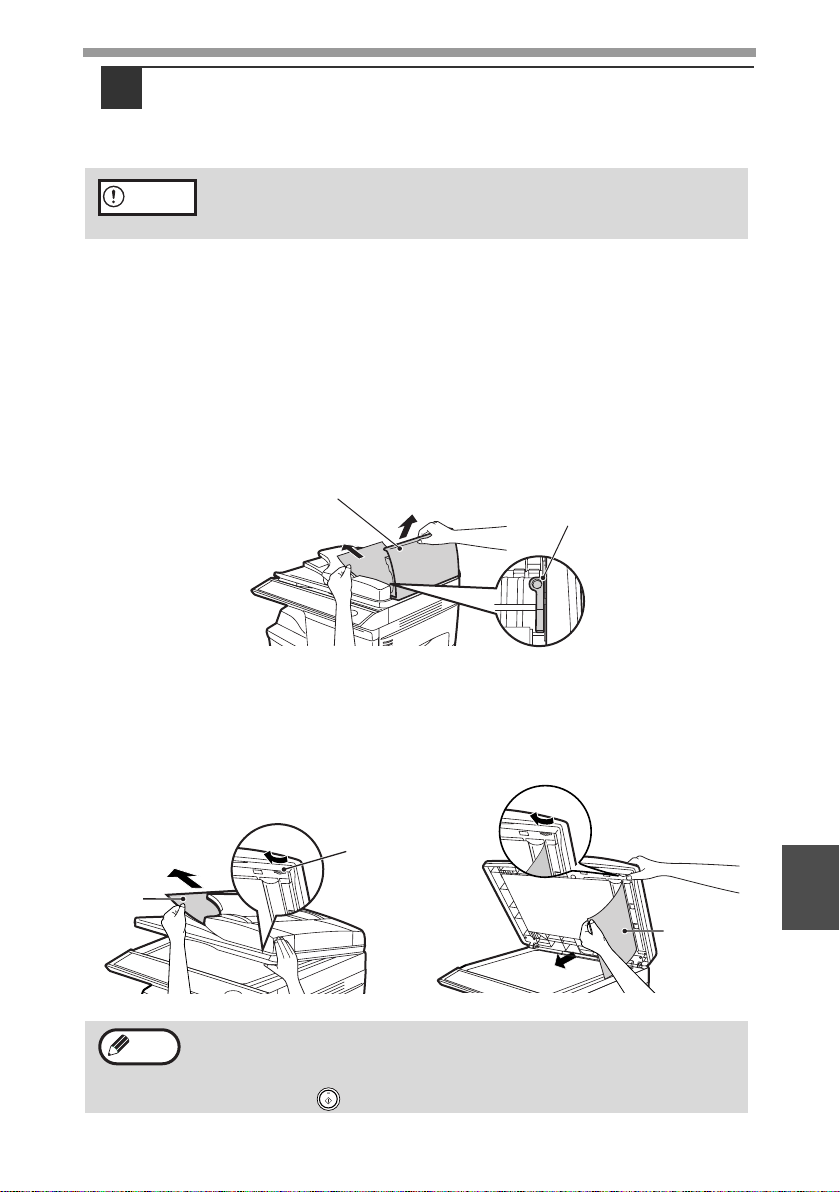
TROUBLESHOOTING AND MAINTENANCE
73
8
4
Raise the fusing unit release lever, close the front cover and
then close the side cover by pressing the round projections
near the side cover open button. The error indicator will go out
and the ready indicator will light up.
D: Misfeed in the RSPF
If the misfed original is at the top of the document feeder tray or in the exit area,
follow procedure (A) to remove the misfeed. If the misfed original is inside the
document feeder and is not visible, follow procedure (B).
(A) If the misfed original is at the top of the document feeder tray or in the exit
area, open the document feeder cover and pull out the original. If the
original resists your pulling, press down on the RSPF jam release lever
while pulling out the original. When finished, close the document feeder
cover.
(B) Open the document feeder cover. Next, open the RSPF and rotate the roller
in the direction of the arrow. If the misfed original is in the state (X), pull the
original out as it feeds out into the exit area. If the misfed original is in the
state (Y), pull the original down and out. When finished, lower the RSPF
and close the document feeder cover.
When closing the covers, be sure to close the front cover securely and
then close the side cover. If the covers are closed in the wrong order,
the covers may be damaged.
Open and close the RSPF to clear the error indicator. "RETURN X
ORIGINAL(S) START TO RESUME" will appear in the display. Return
the indicated number of pages to the document feeder tray. Press the
[START] key ( ) to resume copying.
Caution
Document feeder cover
RSPF jam release lever
Roller
(X)
(Y)
Note
!AR-208S_208D.book 73 ページ 2007年12月3日 月曜日 午後3時33分
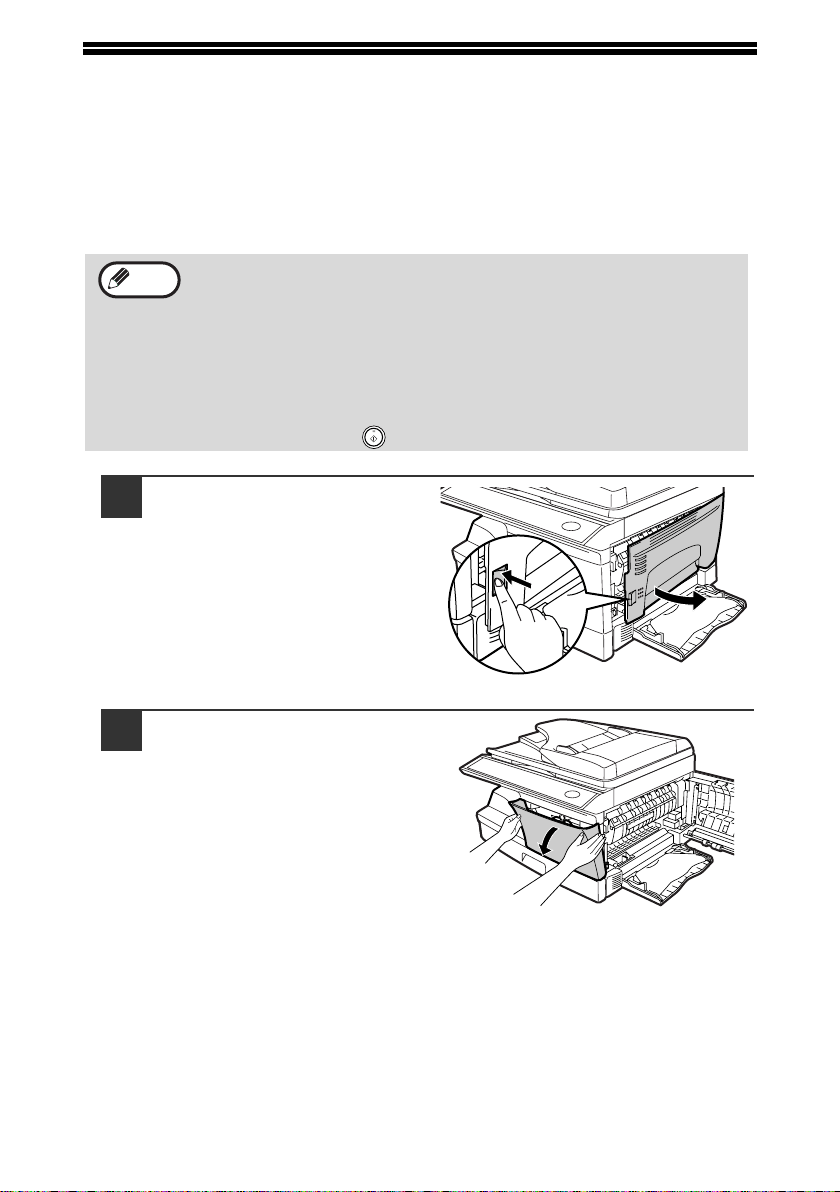
74
TONER CARTRIDGE REPLACEMENT
When toner is low, the error indicator will light up and "TONER CARTRIDGE IS
NEAR EMPTY." will appear in the display to alert you to purchase a new toner
cartridge. If copying is continued while the indicator is lit, copies will gradually
become lighter until the toner runs out. When the toner runs out, the machine will
stop operating, the error indicator will blink, and "REPLACE THE TONER
CARTRIDGE" will appear in the display. Follow the procedure below to replace the
toner cartridge.
1
Open the bypass tray, and
then open the side cover
while pressing the side
cover open button.
2
Push gently on both sides of
the front cover to open the
cover.
• After the machine stops, it may be possible to make a few more
copies by taking the
toner cartridge out of the machine, shaking it
horizontally, then reinstalling it. If copying is not possible after this
operation, replace the
toner cartridge.
• During a long copy run of a dark original, "TONER
REPLENISHMENT IN PROGRESS" appears in the display, and the
machine may stop even though toner is left. The machine will feed
toner up to 2 minutes and then the ready indicator will light up. Press
the [START] key ( ) to resume copying.
Note
!AR-208S_208D.book 74 ページ 2007年12月3日 月曜日 午後3時33分
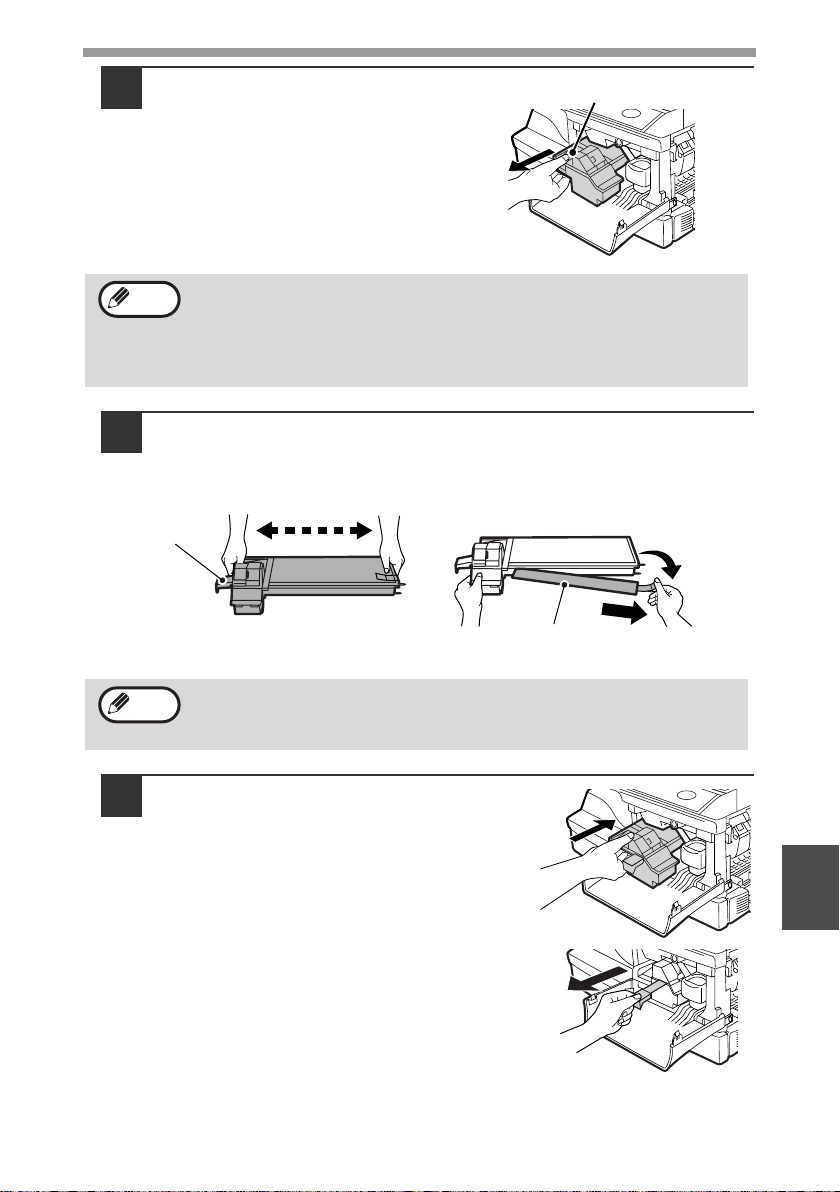
TROUBLESHOOTING AND MAINTENANCE
75
8
3
Gently pull the toner
cartridge out while pressing
the lock release lever.
4
Remove the toner cartridge from the bag. Grasp the cartridge
on both sides and shake it horizontally four or five times. After
shaking the cartridge, remove the toner seal.
5
Gently insert the toner cartridge
along the guides until it locks in
place while pushing the lock release
lever. Remove the tape from the
shutter. Pull the shutter out of the
toner cartridge as shown in the
illustration. Discard the shutter.
• After removing the toner cartridge, do not shake it or tap on it. Doing
so may cause toner to leak from the cartridge. Put the old cartridge
immediately in the bag contained in the box of the new cartridge.
• Dispose of the old toner cartridge in accordance with local
regulations.
Grasp the toner cartridge as shown in the illustration. Do not hold the
cartridge by the shutter. Be sure to only shake the cartridge before the
toner seal is removed.
Toner cartridge lock release lever
Note
4 or 5 times
Shutter
Toner seal
Note
!AR-208S_208D.book 75 ページ 2007年12月3日 月曜日 午後3時33分
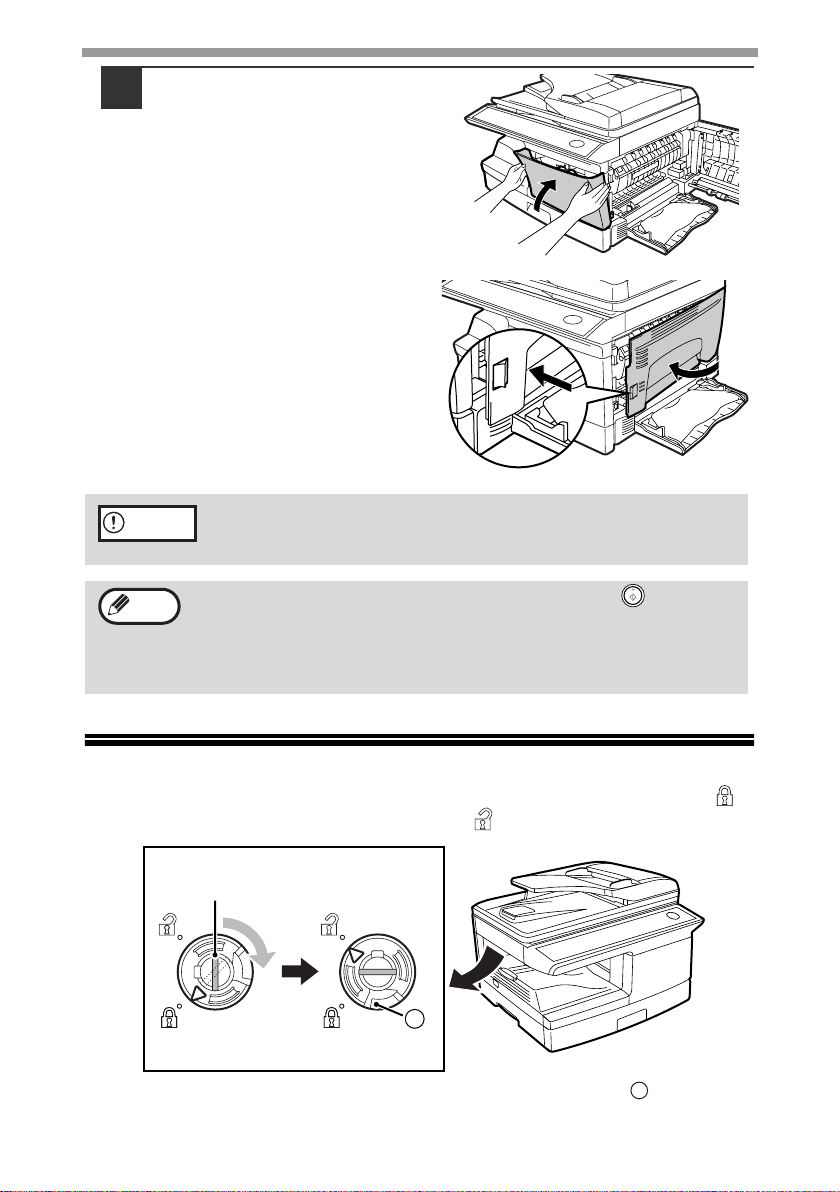
TROUBLESHOOTING AND MAINTENANCE
76
6
Close the front cover and
then the side cover by
pressing the round
projections near the side
cover open button. The error
indicator will go out and the
ready indicator will light up.
7
SCAN HEAD LOCKING SWITCH
The scan head locking switch is under the original table. If the switch is locked ( ),
the machine will not operate. Unlock the switch ( ) as shown below.
To lock the scan head locking switch, hold up the catch in illustration and turn the
center knob counter-clockwise 90 degrees until you hear a click.
When closing the covers, be sure to close the front cover securely and
then close the side cover. If the covers are closed in the wrong order,
the covers may be damaged.
Even after a new toner cartridge is installed, the start ( ) indicator
may not light up, indicating copying cannot be restarted (toner is not
sufficiently fed). In this case, open and close the side cover. The copier
will feed toner again approximately 2 minutes and then copying can be
restarted.
Caution
Note
Lock Unlock
Grasp here and turn in
the direction of the arrow.
A
A
!AR-208S_208D.book 76 ページ 2007年12月3日 月曜日 午後3時33分
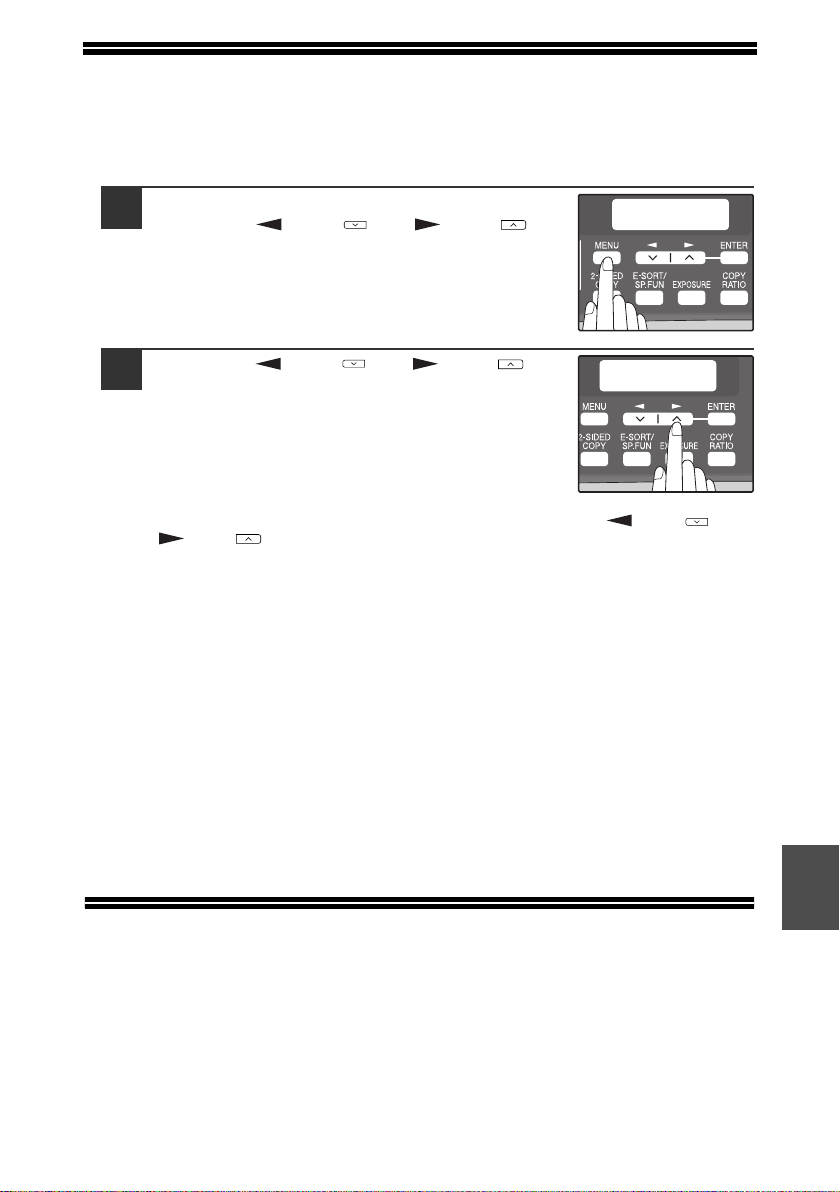
77
8
CHECKING THE TOTAL COUNT
You can check the total number of pages output by the machine (all pages printed by
the copy function and printer function), as well as the output counts of each function
(number of copies, number of scanned pages, number of faxes, etc.). When a count
reaches 999,999 it returns to 0.
1
Press the [MENU] key.
Press the [ ] key ( ) or [ ] key ( )
until "TOTAL COUNT" appears, and then
press the [ENTER] key.
2
Press the [ ] key ( ) or [ ] key ( ) to
display the count of each function.
The count of each function changes as follows each the [ ] key ( ) or
[ ] key ( )is pressed:
• "TOTAL OUTPUT": Total number of pages output by the machine
• "COPIES": Total number of copies
• "SPF/RSPF": Total number of pages scanned using the
RSPF
• "2-SIDED PRINT":*
1
Total number of pages printed by two-sided
print
• "PRINTS": Total number of pages printed the printer
function
• "FAX":*
2
Total number of sent and received faxes
• "FAX SEND":*
2
Total number of sent faxes
• "SCAN SEND": Total number of scans
• "TONER REMAINING": The approximate amount of toner remaining
in the toner cartridge is displayed as a
percentage.
*
1
AR-208D only
*
2
When the optional Facsimile Expansion Kit is installed.
MAINTENANCE REQUIRED
When the error indicator will blink and "MAINTENANCE REQUIRED CALL FOR
SERVICE" will appear in the display, service by an authorized SHARP service
technician is required. Contact your service center as soon as possible.
MAIN MENU
3:TOTAL COUNT
TOTAL OUTPUT
012,345
!AR-208S_208D.book 77 ページ 2007年12月3日 月曜日 午後3時33分
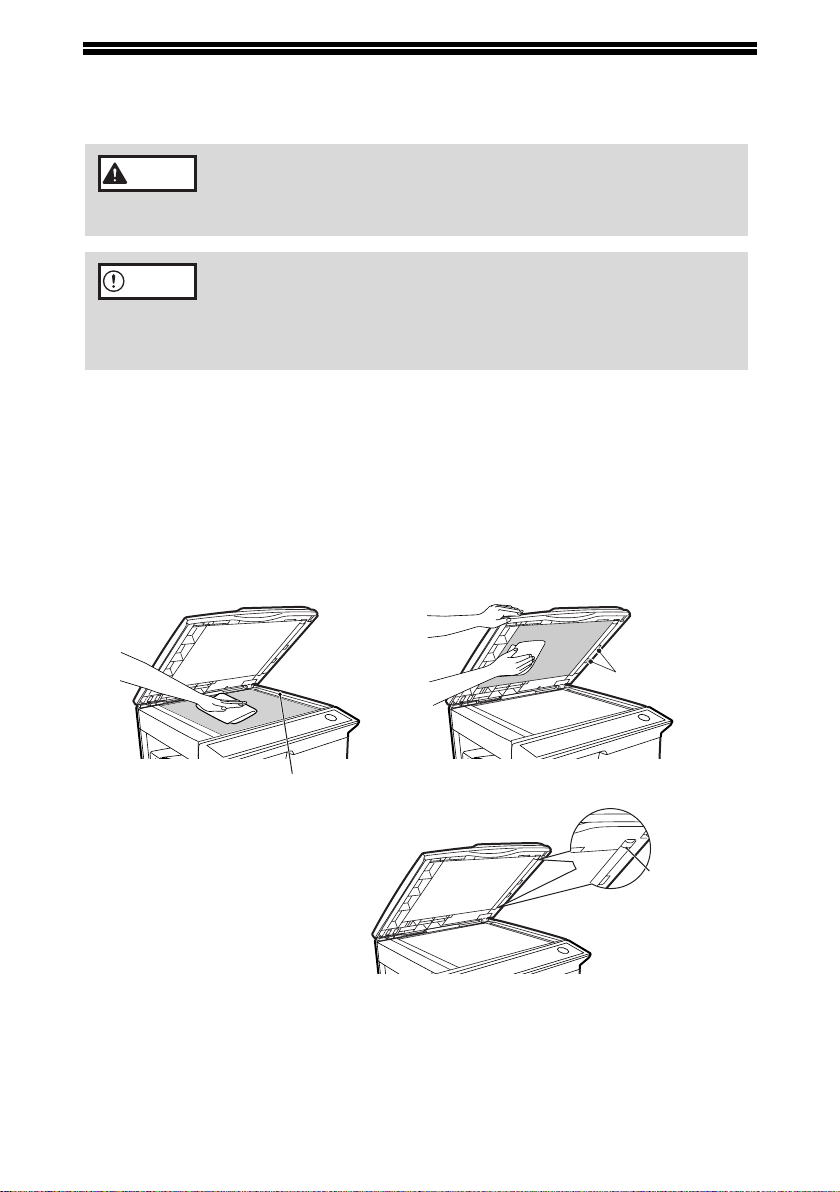
78
CLEANING THE MACHINE
Proper care is essential in order to get clean, sharp copies. Be sure to take a few
minutes to clean the machine on a regular basis.
Cabinet
Wipe the cabinet with a soft, clean cloth.
Document glass and the back side of the RSPF
Stains on the glass, RSPF scanning window, cover or RSPF roller will also be
copied. Wipe the glass, RSPF scanning window, cover and RSPF roller with a soft,
clean cloth. If necessary, dampen the cloth with a glass cleaner.
Do not spray flammable cleaner gas. Gas from the spray may
come in contact with the internal electrical components or high-
temperature parts of the fusing unit, creating a risk of fire or
electrical shock.
• Before cleaning, be sure to turn the power switch off and remove
the power cord from the outlet.
• Do not use thinner, benzene or other volatile cleaning agents.
Doing so may cause deformation, discoloration, deterioration or
malfunction.
Warning
Caution
Document glass/scanning window RSPF
RSPF roller
RSPF scanning window
Black line
If this area is dirty, copying from the RSPF will
not be possible.
!AR-208S_208D.book 78 ページ 2007年12月3日 月曜日 午後3時33分
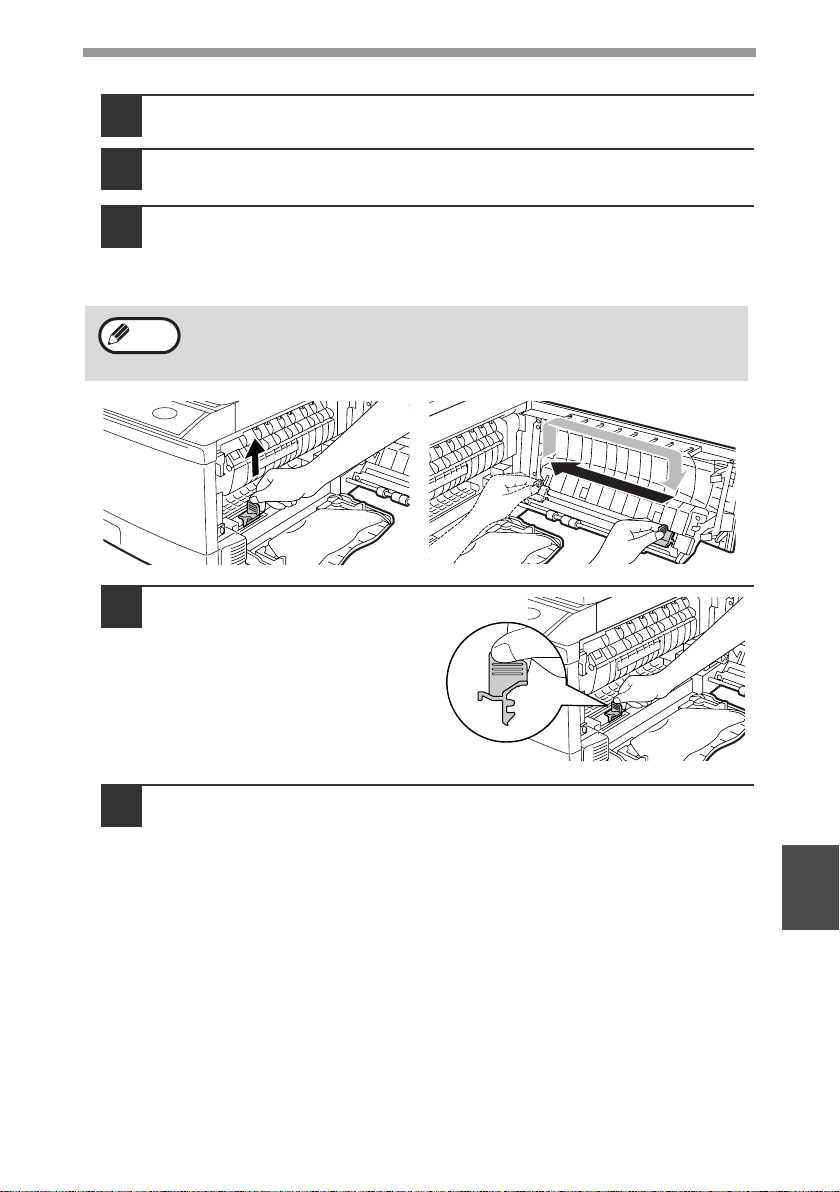
TROUBLESHOOTING AND MAINTENANCE
79
8
Transfer charger
1
Turn the power switch off. (p.13)
2
Ensure that the bypass tray is open and then open the side
cover while pressing the side cover open button.
3
Take the charger cleaner out by holding the tab. Set the charger
cleaner onto the right end of the transfer charger, gently slide
the cleaner to the left end, and then remove it. Repeat this
operation two or three times.
4
Return the charger cleaner
to its original position.
Close the side cover by
pressing the round
projections near the side
cover open button.
5
Turn the power switch on. (p.12)
Slide the charger cleaner from the right end to the left end along the
groove of the transfer charger. If the cleaner is stopped on the way,
smudges on copies may occur
.
Note
!AR-208S_208D.book 79 ページ 2007年12月3日 月曜日 午後3時33分
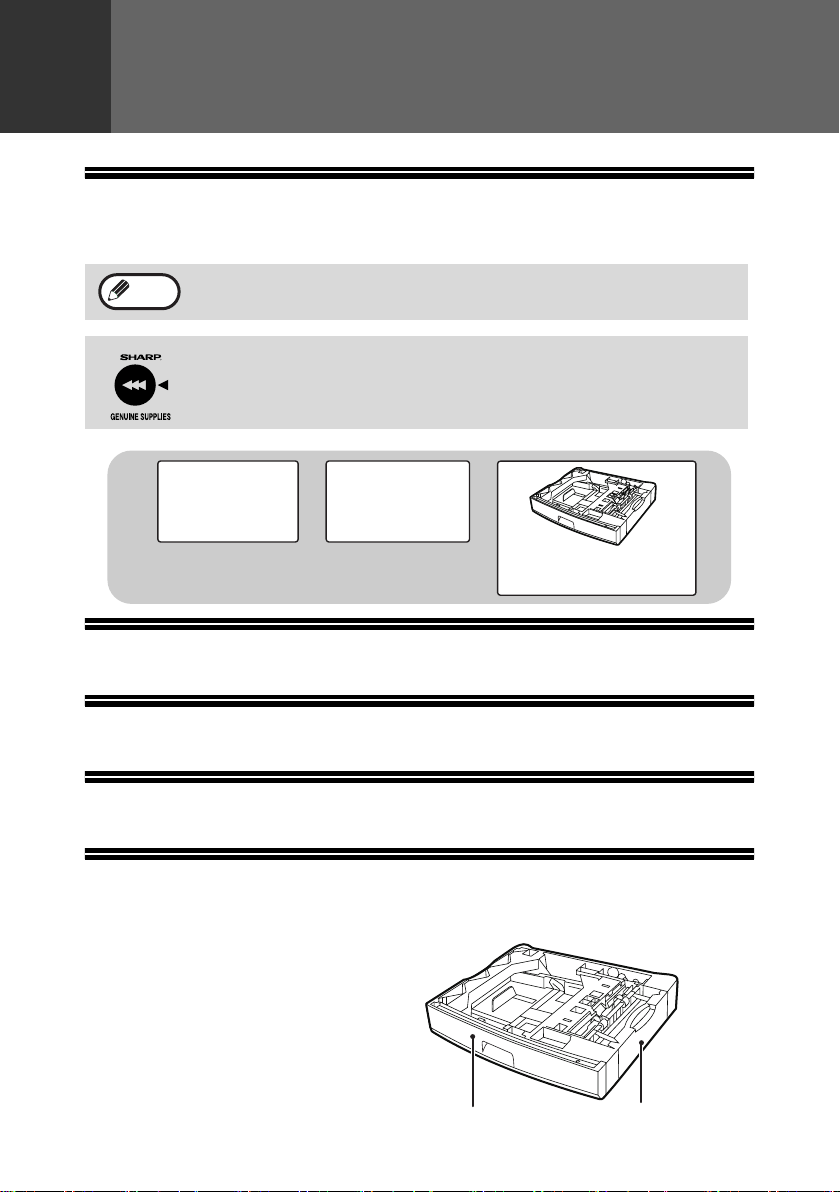
80
9
Chapter 9
SYSTEM CONFIGURATION
A number of options are available for the unit which allow you to configure a system
to meet your particular needs. The options include the following.
FACSIMILE EXPANSION KIT (AR-FX13)
This allows the machine to be used as a facsimile machine.
NETWORK EXPANSION KIT (AR-NB2 A)
This allows the machine to be used as a network printer/network scanner.
PS3 EXPANSION KIT (AR-PK1N)
This allows the machine to be used as a Postscript compatible printer.
250-SHEET PAPER FEED UNIT (AR-D33)
The paper feed unit provide the convenience of increased paper capacity for the unit
and a greater choice of paper size readily available for copying.
The procedures for loading paper in the
paper tray of paper feed unit, changing
the paper size, and selecting the paper
tray are same as for the paper tray in the
unit. See "LOADING THE PAPER
TRAY" (p.15) and "SELECTING THE
TRAY" (p.23).
Be sure to use only genuine SHARP parts and supplies.
For best copying results, be sure to use only SHARP Genuine Supplies
which are designed, engineered and tested to maximize the life and
performance of SHARP copiers. Look for the Genuine Supplies label on
the toner package.
Note
250-sheet paper
feed unit (AR-D33)
Facsimile
Expansion Kit
(AR-FX13)
Network
Expansion Kit
(AR-NB2 A)
Lower side cover
Tray
OPTIONAL EQUIPMENT
!009-troubleshooting.fm 80 ページ 2007年12月14日 金曜日 午前8時56分
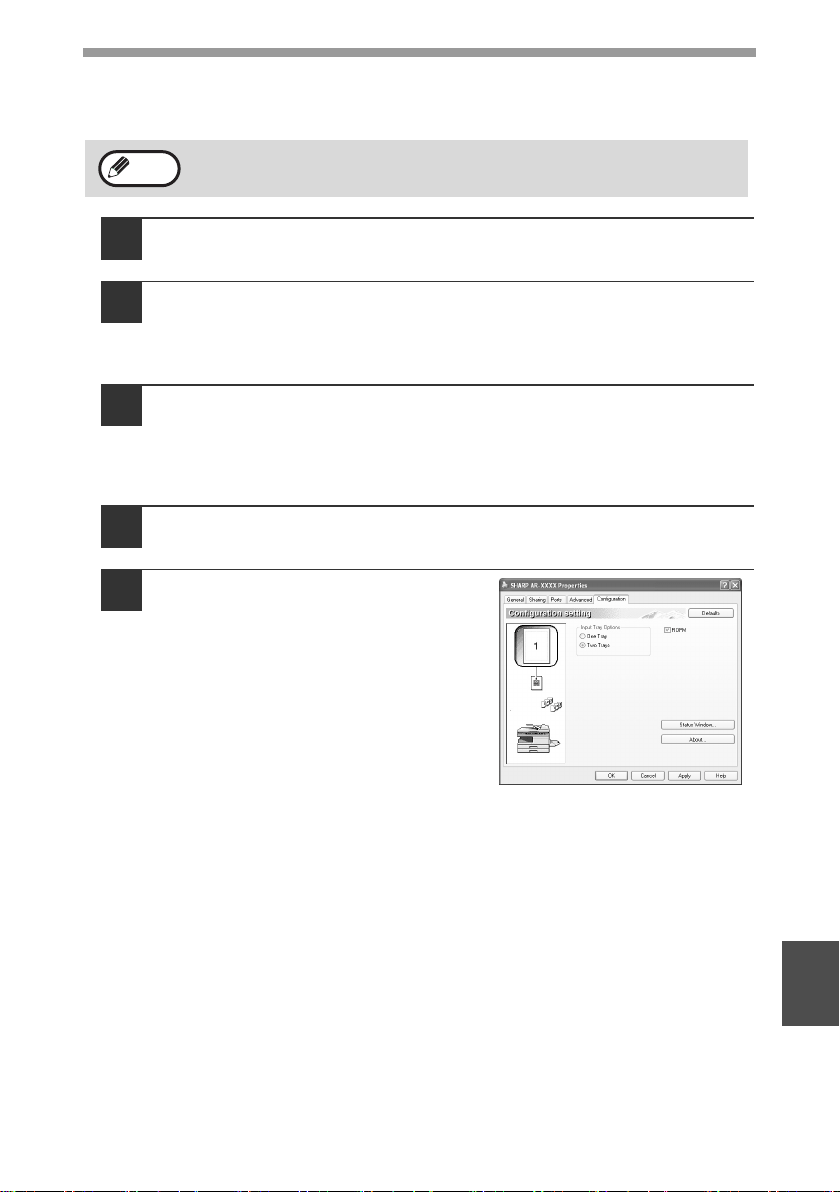
OPTIONAL EQUIPMENT
81
9
Using the AR-D33 with the printer function
To use the AR-D33 with the printer function, follow these steps to adjust the settings
in the printer driver.
1
Click the "start" button.
2
Click "Control Panel", select "Printer and Other Hardware", and
then click "Printer and Faxes".
• In Windows Vista, click "Control Panel", and then click "Printer".
• In Windows 98/Me/2000, select "Setting" and click "Printers".
3
Click the "SHARP AR-XXXX" printer driver icon and from the
"File" menu select "Properties".
• In Windows Vista, from the "Organize" menu select "Properties".
• In Windows 98/Me, click the "SHARP AR-XXXX" printer driver icon, select
"Properties" from the "File" menu, and then click the "Setup" tab.
4
Click the "Configuration" tab.
5
Select "Two trays" for "Input tray
option", and click "OK".
The printer driver closes. This completes
the settings needed to use the AR-D33.
Interface cable
Please purchase the appropriate cable for your computer.
USB interface cable
USB cable that supports USB 2.0.
The printer driver cannot be set for use with the AR-D33 when opened
from the application.
Note
!AR-208S_208D.book 81 ページ 2007年12月3日 月曜日 午後3時33分
82
10
Chapter 10
SPECIFICATIONS
Model AR-208S AR-208D
Type Digital Multifunctional System, Desktop
Photoconductive
type
OPC drum
Document glass
type
Fixed
Copy/printing
system
Dry, electrostatic transfer
Originals Sheets, bound documents
Originals size Max. 8-1/2" x 14"
Copy size
Max. 8-1/2" x 14"
Min. 3-1/2" x 5-1/2"
Image loss: Max. 11/64" (4 mm) (leading and trailing edges)
Max. 3/16" (4.5 mm) (along other edges in total)
Copying speed*
1
20 copies/min.
(8-1/2" x 11", one-sided copying at 100% copy ratio)
Continuous copy Max. 99 copies; subtractive counter
First-copy time*
2
8.0 seconds (When user program 24 is set to OFF)
10.7 seconds (When user program 24 is set to ON)
(paper: 8-1/2" x 11", exposure mode: AUTO,
copy ratio: 100%)
Warm-up time*
3
Approx. 0 sec.
Copy ratio
Document glass:
Variable: 25% to 400% in 1% increments (total 376 steps)
Fixed preset: 25%, 50%, 64%, 78%, 100%, 129%, 200%,
400%
RSPF:
Variable: 50% to 200% in 1% increments (total 151 steps)
Fixed preset: 50%, 64%, 78%, 100%, 129%, 200%
Exposure system
Document glass: Moving optical source, slit exposure
(stationary platen) with automatic
exposure function
RSPF: Moving original
Paper feed
One automatic feeding paper tray (250 sheets) + bypass tray
(50 sheets)
APPENDIX
!AR-208S_208D.book 82 ページ 2007年12月3日 月曜日 午後3時33分
APPENDIX
83
10
*
1
When making multiple duplex copies, the copy speed will vary based on the
environment conditions.
*
2
The first-copy time is measured after the power save indicator turns off following
power on, using the document glass with the polygon rotating in the copy ready
state and "LSU SETTING" set to ON in the user programs (8-1/2" x 11", paper fed
from paper tray).
The first-copy time may vary depending on machine operating conditions and
ambient conditions such as temperature.
The time from power off until the first copy is output varies depending on the
installation site and the state of the machine in use.
*
3
The warm-up time may vary depending on machine operating conditions and
ambient conditions such as temperature.
*
4
Not including toner cartridges.
Fusing system Heat rollers
Developer system Magnetic brush development
Light source
Cold cathode fluorescent lamp
(CCD: 3 components; R, G, and B)
Resolution
Scan: 600 x 300 dpi Output: 600 x 600 dpi(AUTO/TEXT mode)
Scan: 600 x 600 dpi Output: 600 x 600 dpi(PHOTO mode)
Gradation 256 tones (8 bits)
Power supply 120 V, 60 Hz, 8.0 A
Power consumption Max. 1.0 kW
Space requirements
(with trays extended)
31.6" (W) x 17.6" (D) (802 mm (W) x 445 mm (D))
Weight*
4
Approx. 43.9 lbs. (19.9 kg) Approx. 45.4 lbs. (20.6 kg)
Dimensions
20.4" (W) x 17.6" (D) x 14.6" (H)
(518 mm (W) x 445 mm (D) x 371 mm (H))
Operating
conditions
Temperature: 50°F to 86°F (10°C to 30°C)
Humidity: 20% to 85%
Noise level
Sound Power Level LwA(1B=10dB)
Copying: 6.2[B]
Standby: 3.2[B]
Sound Pressure Level Lp
A (bystander positions)
Copying: 48[dB(A)]
Standby: 17[dB(A)]
Sound Pressure Level Lp
A (operator position)
Copying: 52[dB(A)]
Standby: 17[dB(A)]
Noise emission measurement in accordance with ISO 7779.
Emission
concentration
(measured
according to RAL-
UZ62 : Edition Jan.
2002)
Ozone: 0.02 mg/m
3
or less
Dust: 0.075 mg/m
3
or less
Styrene: 0.07 mg/m
3
or less
!010-appendix.fm 83 ページ 2007年12月20日 木曜日 午前8時51分

APPENDIX
84
Printer Function
* When printing same document continuously on 8-1/2" x 11" plain paper in non-
offset mode, excluding processing time.
Print speed* 20 ppm
Resolution 600 dpi
Memory Approx. 30 MB
Emulation SPLC (Sharp Printer Language with Compression)
Interface USB 2.0 (Full-Speed/Hi-Speed compatible interface)
Interface cables
[USB cable]
USB cable that supports USB 2.0.
Please purchase a commercially available USB cable.
!010-appendix.fm 84 ページ 2007年12月4日 火曜日 午後5時8分
APPENDIX
85
10
Scanner Function
Type Flatbed scanner
Scanning method Document glass/RSPF
Light source
Cold cathode fluorescent lamp
(CCD: 3 components; R, G, and B)
Resolution
Basic: 600 dpi x 1200 dpi
Setting range: 50dpi - 9600dpi
Original types Sheet media, books
Effective scanning
area
8.5" (216 mm) (Lengthwise) x 14" (356 mm) (Width)
Scanning speed 2.88 msec/line
Input Data 1 bit or 12 bit
Output Data R.G.B 1 or 8 bits / pixel / A/D 16 bit
Scanning colors Black and white 2 value, Grayscale, Full color
Protocol
TWAIN
WIA (Windows XP/Vista only)
STI
Interface USB 2.0 (Full-Speed/Hi-Speed compatible interface)
Drop out color Ye s
Supported
operating systems
Windows 98/Me/2000 Professional/XP/Vista
(Detailed information can be found in "BEFORE
INSTALLATION" (p.37))
Void area None
Interface cables
[USB cable]
USB cable that supports USB 2.0.
Please purchase a commercially available USB cable.
Scanner utilities Button Manager / Sharpdesk
!010-appendix.fm 85 ページ 2007年12月20日 木曜日 午前8時51分
APPENDIX
86
250-sheet paper feed unit (AR-D33)
Paper size 5-1/2" x 8-1/2" to 8-1/2" x 14"
Paper weight 15 lbs. to 21 lbs. (56g/m
2
to 80g/m
2
)
Paper capacity
One paper tray with capacity for 250 sheets of 21 lbs. bond
paper
Weight 6.6 lbs. (3kg)
Dimensions
19.5" (W) x 15.6" (D) x 3.5" (H)
(495mm (W) x 395mm (D) x 88mm (H))
Power supply Drawn from the unit
As a part of our policy of continuous improvement, SHARP reserves
the right to make design and specification changes for product
improvement without prior notice. The performance specification
figures indicated are nominal values of production units. There may
be some deviations from these values in individual units.
Note
!AR-208S_208D.book 86 ページ 2007年12月3日 月曜日 午後3時33分
87
MATERIAL SAFETY DATA SHEET
Page : 1/4
Date Issued : Nov. 1, 2007
MSDS No. F-01601
1.PRODUCT AND COMPANY IDENTIFICATION
Product Name : AR-208NT/ AR-208T (Black Toner)
Supplier Identification : Sharp Corporation
22-22 Nagaike-cho, Abeno-ku, Osaka, Japan
Local suppliers are listed below. Please contact the nearest supplier for additional information.
Area (Country) (Name and Telephone Number)
U.S.A. Sharp Electronics Corporation
Sharp Plaza, Mahwah, NJ
Telephone number for information : 1-800-237-4277
Emergency telephone number : 1-800-255-3924
North
America
Canada Sharp Electronics of Canada Ltd.
Telephone number for information : 905-890-2100
Emergency telephone number : 1-800-255-3924
Oceania
Australia Sharp Corporation of Australia PTY. Ltd.
No1 Huntingwood Drive Huntingwood Blacktown N.S.W.
Telephone number for information : 1300-13-50-22
Germany Sharp Electronics (Europe) GMBH
Sonninstrasse 3, 20097 Hamburg
Telephone number to access MSDS : 040-2376-2185
For more information : 040-2376-2613
United
Kingdom
Sharp Electronics (U. K.) Ltd.
Telephone number for information : 08705-274-277
France Sharp Electronics France S.A.
Telephone number for information : 01-49-90-34-00
Austria Sharp Electronics GMBH
Telephone number for information : 01-727-19-0
Italy Sharp Electronics (Italy) S.P.A.
Telephone number for information : 02895951
Spain Sharp Electronics (Espana) S.A.
Telephone number for information : 93-581-97-00
Netherlands Sharp Electronics Benelux B.V.
Telephone number for information : 30-6359500
Sweden Sharp Electronics Nordic AB
Telephone number for information : 08-634-36-00
Europe
Switzerland Sharp Electronics(Schweiz)AG
Telephone number for information : 01-846-6111
Middle
East
U.A.E. Sharp Middle East FZE
P.O.Box 17115 Jebel Ali, Dubai
Telephone number for information : 04-815311
2.COMPOSITION / INFORMATION ON INGREDIENTS
Substance[ ] Preparation[X]
Ingredient
CAS No. Proportion OSHA PEL ACGIH TLV MAK-TWA NOHSC-TWA
Styrene-Acrylate
copolymer
Carbon black
Iron oxide
Metal Complex dye
*
29497-14-1
1333-86-4
1309-38-2
109125-51-1
84179-66-8
85-95%
5-10%
1-5%
< 2%
Not listed
3.5mg/m
3
Not listed
0.5mg/m
3
Not listed
3.5mg/m
3
Not listed
0.5mg/m
3
Not listed
Not listed
Not listed
Not listed
Not listed
3mg/m
3
Not listed
Not listed
* EC N0. : 400-110-2, Symbol letter : F,N , R Phrase : R11, R50/53
!AR-208S_208D.book 87 ページ 2007年12月3日 月曜日 午後3時33分
88
MATERIAL SAFETY DATA SHEET
Page : 2/4
Date Issued : Nov. 1, 2007
MSDS No. F-01601
3.HAZARDS IDENTIFICATION
Most Important Hazards and Effects of the Products
Human Health Effects : There are no anticipated carcinogenic effects from exposure based on animal tests
performed using toner. When used as intended according to instructions, studies do not
indicate any symptoms of fibrosis will occur.
Environmental Effects : Not toxic to aquatic organisms
[Estimated from the other product containing similar material]
Specific Hazards : Dust explosion (like most finely divided organic powders)
Directive 1999/45/EC(Europe) : Not classified as dangerous
4.FIRST-AID MEASURES
Route(s) of Entry : Inhalation? Skin? Ingestion?
Yes No Possible but very unusual.
Inhalation : Remove to fresh air. If symptoms occur, consult medical personnel.
Skin Contact : Wash with soap and water for 15 minutes or until particle is removed.
If irritation does occur, consult medical personnel.
Eye Contact : Flush eyes immediately with water for 15 minutes. If irritation does occur, consult medical personnel.
Ingestion : Rinse with water and drink several glasses of water. If irritation or discomfort does occur, consult
medical personnel.
5.FIRE-FIGHTING MEASURES
Extinguishing Media : Water, CO
2
, foam and dry chemicals
Special Fire Fighting Procedures : None
Fire and Explosion Hazards : Toner material, like most finely divided organic powders, may form an explosive
mixture.
6.ACCIDENTAL RELEASE MEASURES
Personal Precautions : None
Environmental Precautions : None
Methods for Cleaning Up : Wipe off with paper or cloth. Do not use vacuum cleaner when a large amount is
released. It, like most finely divided organic powders, is capable of creating a
dust explosion.
7.HANDLING AND STORAGE
Handling
Technical Measures : None
Precautions : None
Safe Handling Advice : Use of a dust mask is recommended when handling a large quantity of toner or during long
term exposure, as with any non-toxic dust. Try not to disperse the particles.
Storage
Technical Measures : None
Storage Conditions : Keep container closed and Store in a cool and dry place.
Keep out of the reach of children.
Incompatible Products : None
!AR-208S_208D.book 88 ページ 2007年12月3日 月曜日 午後3時33分

89
MATERIAL SAFETY DATA SHEET
Page : 3/4
Date Issued : Nov. 1, 2007
MSDS No. F-01601
8.EXPOSURE CONTROLS / PERSONAL PROTECTION
Engineering Measures
Ventilation : Not required under intended use.
Exposure Limit Values
OSHA-PEL(USA) : 15mg/m
3
(Total Dust), 5mg/m
3
(Respirable Dust)
ACGIH-TLV(USA) : 10mg/m
3
(Total Dust), 3mg/m
3
(Respirable Dust)
Personal Protective Equipment
Respiratory Protection : Not required under intended use.
Hand Protection : Not required under intended use.
Eye Protection : Not required under intended use.
Skin Protection : Not required under intended use.
Other Protective Equipment : Use of a dust mask and goggles are recommended when handling a large
quantity of toner or during long term exposure, as with any non-toxic dust.
9.PHYSICAL AND CHEMICAL PROPERTIES
Appearance
Physical State : Solid Form : Powder Color : Black Odor : odorless
Ph : Not applicable
Boiling / Melting Point : Not applicable
Softening Point(°C) : 100 - 130
Flash Point(°C) : Not applicable
lgnition Point(°C ) : > 350
Explosion Properties : No data
Density(g/cm³) : 1.1 (bulk density : 0.35)
Solubility in Water : Negligible
10.STABILITY AND REACTIVITY
Stability : Stable
Hazardous Reactions : Dust explosion, like most finely divided organic powders.
Conditions to Avoid : Electric discharge, throwing into fire.
Materials to Avoid : Oxidizing Materials
Hazardous Decomposition Products : CO, CO
2
and NO
X
Further Information : None
11.TOXICOLOGICAL INFORMATION
Acute Toxicity
Ingestion(oral) : LD
50
> 2500mg/kg [Estimated from the other product containing similar material]
Inhalation : No data
Eye irritation : Not an irritant [Estimated from the other product containing similar material]
Skin irritation : Not an irritant [Estimated from the other product containing similar material]
Skin sensitizer : No sensitized [Estimated from the other product containing similar material]
Mutagenicity : Negative (Ames Test) [Estimated from the other product containing similar material]
Carcinogenicity : In 1996 the IARC reevaluated carbon black as a Group 2B carcinogen (possible human
carcinogen). This classification is given to chemicals for which there is inadequate human
evidence, but sufficient animal evidence on which to base an opinion of carcinogenicity. The
classification is based upon the development of lung tumors in rats receiving chronic inhalation
exposures to free carbon black at levels that induce particle overload of the lung. Studies
performed in animal models other than rats did not show any association between carbon black
and lung tumors. Moreover, a two-year cancer bioassay using a typical toner preparation
containing carbon black demonstrated no association between toner exposure and tumor
development in rats.
!AR-208S_208D.book 89 ページ 2007年12月3日 月曜日 午後3時33分

90
MATERIAL SAFETY DATA SHEET
Page : 4/4
Date Issued : Nov. 1, 2007
MSDS No. F-01601
Chronic Effect : In a study in rats of chronic inhalation exposure to a typical toner, a mild to moderate degree of
lung fibrosis was observed in 92% of the rats in the high concentration (16mg/m
3
) exposure
group, and a minimal to mild degree of fibrosis was noted in 22% of the animals in the middle
(4mg/m
3
) exposure group, but no pulmonary change was reported in the lowest (1mg/m
3
)
exposure group, the most relevant level to potential human exposures.
12.ECOLOGICAL INFORMATION
Ecotoxicity : On available data, toner is not harmful to aquatic organisms
[Estimated from the other product containing similar material]
13.DISPOSAL CONSIDERATIONS
Waste from Residues : Waste material may be dumped or incinerated under conditions which meet all federal,
state and local environmental regulations.
Contaminated Packaging : Waste may be disposed or incinerated under conditions which meet all federal, state
and local environmental regulations.
14.TRANSPORT INFORMATION
UN Classification : None
Not classified as hazardous for transport.
15.REGULATORY INFORMATION
US Information
TSCA(Toxic Substances Control Act) :
All chemical substances in this product comply with all applicable rules or order under TSCA.
SARA(Superfund Amendments and Reauthorization Act) Title III
302 Extreme Hazardous Substance : None
311/312 Hazard Classification : None
EU Information
1999/45/EC and 67/548/EEC
Symbol & Indication : Not required
R-Phrase : Not required
76/769/EEC : All chemical substances in this product comply with all applicable rules or
order under 76/769/EEC.
16.OTHER INFORMATION
NFPA Rating (USA) : Health=1 Flammability=1 Reactivity=0
WHMIS Legislation (Canada) : This product is not a controlled product.
List of R phrases : R11 : Highly flammable
R50/53 : Very toxic to aquatic organisms, may cause long-term adverse effects in
the aquatic environment.
References
IARC(1996) : IARC monographs on the Evaluation of the Carcinogenic Risk of Chemicals to Humans, Vol. 65,
Printing Process And Printing Inks, Carbon Black and Some Nitro Compounds, Lyon, pp.149-261
H.Muhle, B.Bellmann, O.Creutzenberg, C.Dasenbrock, H.Ernst, R.Kilpper, J.C.MacKenzie, P.Morrow, U.Mohr,
S.Takenaka, and R.Mermelstein(1991) Pulmonary Response to Toner upon Chronic Inhalation Exposure in Rats.
Fundamental and Applied Toxicology 17, pp.280-299.
The information on this data sheet represents our current data and best opinion as to the proper use in handling of this
product under normal conditions. However, all materials may present unknown hazards and should be used with
caution. Although certain hazards are described herein, we do not guarantee that these are the only hazards which
exist.
!AR-208S_208D.book 90 ページ 2007年12月3日 月曜日 午後3時33分
91
MATERIAL SAFETY DATA SHEET
Page : 1/4
Date Issued : Nov.01, 2007
MSDS No. F-31601
1.PRODUCT AND COMPANY IDENTIFICATION
Product Name : AR-208ND / AR-208DV (Black Developer)
Supplier Identification : Sharp Corporation
22-22 Nagaike-cho, Abeno-ku, Osaka, Japan
Local suppliers are listed below. Please contact the nearest supplier for additional information.
Area (Country) (Name and Telephone Number)
U.S.A. Sharp Electronics Corporation
Sharp Plaza, Mahwah, NJ
Telephone number for information : 1-800-237-4277
Emergency telephone number : 1-800-255-3924
North
America
Canada Sharp Electronics of Canada Ltd.
Telephone number for information : 905-890-2100
Emergency telephone number : 1-800-255-3924
Oceania
Australia Sharp Corporation of Australia PTY. Ltd.
No1 Huntingwood Drive Huntingwood Blacktown N.S.W.
Telephone number for information : 1300-13-50-22
Germany Sharp Electronics (Europe) GMBH
Sonninstrasse 3, 20097 Hamburg
Telephone number to access MSDS : 040-2376-2185
For more information : 040-2376-2613
United
Kingdom
Sharp Electronics (U. K.) Ltd.
Telephone number for information : 08705-274-277
France Sharp Electronics France S.A.
Telephone number for information : 01-49-90-34-00
Austria Sharp Electronics GMBH
Telephone number for information : 01-727-19-0
Italy Sharp Electronics (Italy) S.P.A.
Telephone number for information : 02895951
Spain Sharp Electronics (Espana) S.A.
Telephone number for information : 93-581-97-00
Netherlands Sharp Electronics Benelux B.V.
Telephone number for information : 30-6359500
Sweden Sharp Electronics Nordic AB
Telephone number for information : 08-634-36-00
Europe
Switzerland Sharp Electronics(Schweiz)AG
Telephone number for information : 01-846-6111
Middle
East
U.A.E. Sharp Middle East FZE
P.O.Box 17115 Jebel Ali, Dubai
Telephone number for information : 04-815311
2.COMPOSITION / INFORMATION ON INGREDIENTS
Substance[ ] Preparation[X]
Ingredient
CAS No. Proportion OSHA PEL ACGIH TLV MAK-TWA NOHSC-TWA
Iron powder 7439-89-6 85-95 % Not listed Not listed Not listed Not listed
Styrene-Acrylate
copolymer
29497-14-1 5-10 % Not listed Not listed Not listed Not listed
Carbon black 1333-86-4 < 1 % 3.5mg/m
3
3.5mg/m
3
Not listed 3mg/m
3
!AR-208S_208D.book 91 ページ 2007年12月3日 月曜日 午後3時33分

92
MATERIAL SAFETY DATA SHEET
Page : 2/4
Date Issued : Nov.01, 2007
MSDS No. F-31601
3.HAZARDS IDENTIFICATION
Most Important Hazards and Effects of the Products
Human Health Effects : There are no anticipated carcinogenic effects from exposure based on animal tests
performed using toner. When used as intended according to instructions, studies do not
indicate any symptoms of fibrosis will occur.
Environmental Effects : Not toxic to aquatic organisms
[Estimated from the other product containing similar material]
Specific Hazards : Dust explosion (like most finely divided organic powders)
Directive 1999/45/EC(Europe) : Not classified as dangerous
4.FIRST-AID MEASURES
Route(s) of Entry : Inhalation? Skin? Ingestion?
No No Possible but very unusual.
Inhalation : Remove to fresh air. If symptoms occur, consult medical personnel.
Skin Contact : Wash with soap and water for 15 minutes or until particle is removed.
If irritation does occur, consult medical personnel.
Eye Contact : Flush eyes immediately with water for 15 minutes. If irritation does occur, consult medical personnel.
Ingestion : Rinse with water and drink several glasses of water. If irritation or discomfort does occur, consult
medical personnel.
5.FIRE-FIGHTING MEASURES
Extinguishing Media : Water, CO
2
, foam and dry chemicals
Special Fire Fighting Procedures : None
Fire and Explosion Hazards : Toner material, like most finely divided organic powders, may form an explosive
mixture.
6.ACCIDENTAL RELEASE MEASURES
Personal Precautions : None
Environmental Precautions : None
Methods for Cleaning Up : Wipe off with paper or cloth. Do not use vacuum cleaner when a large amount is
released. It, like most finely divided organic powders, is capable of creating a
dust explosion.
7.HANDLING AND STORAGE
Handling
Technical Measures : None
Precautions : None
Safe Handling Advice : Use of a dust mask is recommended when handling a large quantity of toner or during long
term exposure, as with any non-toxic dust. Try not to disperse the particles.
Storage
Technical Measures : None
Storage Conditions : Keep container closed and Store in a cool and dry place.
Keep out of the reach of children.
Incompatible Products : None
!AR-208S_208D.book 92 ページ 2007年12月3日 月曜日 午後3時33分

93
MATERIAL SAFETY DATA SHEET
Page : 3/4
Date Issued : Nov.01, 2007
MSDS No. F-31601
8.EXPOSURE CONTROLS / PERSONAL PROTECTION
Engineering Measures
Ventilation : Not required under intended use.
Exposure Limit Values
OSHA-PEL(USA) : 15mg/m
3
(Total Dust), 5mg/m
3
(Respirable Dust)
ACGIH-TLV(USA) : 10mg/m
3
(Total Dust), 3mg/m
3
(Respirable Dust)
Personal Protective Equipment
Respiratory Protection : Not required under intended use.
Hand Protection : Not required under intended use.
Eye Protection : Not required under intended use.
Skin Protection : Not required under intended use.
Other Protective Equipment : Use of a dust mask and goggles are recommended when handling a large
quantity of toner or during long term exposure, as with any non-toxic dust.
9.PHYSICAL AND CHEMICAL PROPERTIES
Appearance
Physical State : Solid Form : Powder Color : Black Odor : odorless
Ph : Not applicable
Boiling / Melting Point : Not applicable
Flash Point(°C) : Not applicable
lgnition Point(°C ) : No data
Explosion Properties : No data
Density(g/cm³) : 7.3 (bulk density : 2.0)
Solubility in Water : Negligible
10.STABILITY AND REACTIVITY
Stability : Stable
Hazardous Reactions : Dust explosion, like most finely divided organic powders.
Conditions to Avoid : Electric discharge, throwing into fire.
Materials to Avoid : Oxidizing Materials
Hazardous Decomposition Products : CO, CO
2
and NO
X
Further Information : None
11.TOXICOLOGICAL INFORMATION
Acute Toxicity
Ingestion(oral) : LD
50
> 2000mg/kg [Estimated from the other product containing similar material]
Inhalation : No data
Eye irritation : Not an irritant [Estimated from the other product containing similar material]
Skin irritation : Not an irritant [Estimated from the other product containing similar material]
Skin sensitizer : No sensitized [Estimated from the other product containing similar material]
Mutagenicity : Negative (Ames Test) [Estimated from the other product containing similar material]
Carcinogenicity : In 1996 the IARC reevaluated carbon black as a Group 2B carcinogen (possible human
carcinogen). This classification is given to chemicals for which there is inadequate human
evidence, but sufficient animal evidence on which to base an opinion of carcinogenicity. The
classification is based upon the development of lung tumors in rats receiving chronic inhalation
exposures to free carbon black at levels that induce particle overload of the lung. Studies
performed in animal models other than rats did not show any association between carbon black
and lung tumors. Moreover, a two-year cancer bioassay using a typical toner preparation
containing carbon black demonstrated no association between toner exposure and tumor
development in rats.
!AR-208S_208D.book 93 ページ 2007年12月3日 月曜日 午後3時33分

94
MATERIAL SAFETY DATA SHEET
Page : 4/4
Date Issued : Nov.01, 2007
MSDS No. F-31601
Chronic Effect : In a study in rats of chronic inhalation exposure to a typical toner, a mild to moderate degree of
lung fibrosis was observed in 92% of the rats in the high concentration (16mg/m
3
) exposure
group, and a minimal to mild degree of fibrosis was noted in 22% of the animals in the middle
(4mg/m
3
) exposure group, but no pulmonary change was reported in the lowest (1mg/m
3
)
exposure group, the most relevant level to potential human exposures.
12.ECOLOGICAL INFORMATION
Ecotoxicity : On available data, toner is not harmful to aquatic organisms
[Estimated from the other product containing similar material]
13.DISPOSAL CONSIDERATIONS
Waste from Residues : Waste material may be dumped or incinerated under conditions which meet all federal,
state and local environmental regulations.
Contaminated Packaging : Waste may be disposed or incinerated under conditions which meet all federal, state
and local environmental regulations.
14.TRANSPORT INFORMATION
UN Classification : None
Not classified as hazardous for transport.
15.REGULATORY INFORMATION
US Information
TSCA(Toxic Substances Control Act) :
All chemical substances in this product comply with all applicable rules or order under TSCA.
SARA(Superfund Amendments and Reauthorization Act) Title III
302 Extreme Hazardous Substance : None
311/312 Hazard Classification : None
EU Information
1999/45/EC and 67/548/EEC
Symbol & Indication : Not required
R-Phrase : Not required
76/769/EEC : All chemical substances in this product comply with all applicable rules or
order under 76/769/EEC.
16.OTHER INFORMATION
NFPA Rating (USA) : Health=1 Flammability=1 Reactivity=0
WHMIS Legislation (Canada) : This product is not a controlled product.
References
IARC(1996) : IARC monographs on the Evaluation of the Carcinogenic Risk of Chemicals to Humans, Vol. 65,
Printing Process And Printing Inks, Carbon Black and Some Nitro Compounds, Lyon, pp.149-261
H.Muhle, B.Bellmann, O.Creutzenberg, C.Dasenbrock, H.Ernst, R.Kilpper, J.C.MacKenzie, P.Morrow, U.Mohr,
S.Takenaka, and R.Mermelstein(1991) Pulmonary Response to Toner upon Chronic Inhalation Exposure in Rats.
Fundamental and Applied Toxicology 17, pp.280-299.
The information on this data sheet represents our current data and best opinion as to the proper use in handling of this
product under normal conditions. However, all materials may present unknown hazards and should be used with
caution. Although certain hazards are described herein, we do not guarantee that these are the only hazards which
exist.
!AR-208S_208D.book 94 ページ 2007年12月3日 月曜日 午後3時33分

95
INDEX
Symbols
[ ] key.......................... 10, 27, 29, 32
[ ] key ........................................... 10
[ ] key ........................................... 10
2
2 IN 1 copy ....................................... 31
250-sheet paper feed unit .......... 80, 86
[2-SIDED COPY] key ........... 10, 27, 28
[2-SIDED SCAN] key.................. 10, 28
A
About the operation manuals ............. 6
Appendix .......................................... 82
Audible signals ................................. 60
Auto clear ......................................... 12
Auto power shut-off mode ................ 13
Automatic two-sided copying............ 26
B
Basic procedure for printing ............. 50
Before installation............................. 37
Button Manager................................ 36
Bypass feed...................................... 17
Bypass tray................. 9, 17, 18, 70, 74
Bypass tray paper guides............. 9, 18
C
Canceling a print job......................... 50
Capacity of paper output tray ........... 22
Caution
- Handling the machine.................... 4
- Label on the machine .................... 3
- Selecting an installation site .......... 3
- Using the machine......................... 3
Changing a tray's paper size
setting............................................... 19
Charger cleaner............................ 9, 79
Checking the total count................... 77
Cleaning the machine
- Cabinet........................................ 78
- Document glass........................... 78
- RSPF........................................... 78
- RSPF scanning window .............. 78
- Transfer charger.......................... 79
[CLEAR ALL] key ................. 11, 12, 50
[CLEAR] key
............... 10, 20, 21, 23, 29, 30, 50, 70
Connecting the machine to your computer
- USB cable ................................... 42
Convenient copy functions ............... 26
Conventions used in this manual and
online manual ..................................... 6
[COPY RATIO] key..................... 11, 25
D
Display.............................................. 10
Display messages ............................ 61
Document feeder cover ................ 9, 73
Document feeder tray................... 9, 21
Document glass............................ 9, 31
E
[ENTER] key..................................... 10
Envelopes......................................... 17
Environmental information.................. 4
Error indicator....................... 10, 61, 70
[E-SORT/SP.FUN] key
............................ 10, 29, 30, 31, 33, 34
Exit area ............................................. 9
[EXPOSURE] key....................... 10, 24
Exposure value guidelines ............... 24
F
Facsimile expansion kit ..................... 80
Front cover ............................. 9, 72, 74
Fusing unit release lever ........ 9, 71, 72
H
Handles .............................................. 9
Hardware and software
requirements .................................... 37
How to place the original .................. 20
How to use the online manual .......... 53
!AR-208S_208D.book 95 ページ 2007年12月3日 月曜日 午後3時33分

96
I
Initial settings.................................... 12
Installing the software....................... 36
Interface cable.................................. 81
Introduction......................................... 6
L
Language setting .............................. 12
Loading paper .................................. 14
Loading paper in the bypass tray ..... 18
Loading the paper tray ..................... 15
Long edge ........................................ 26
M
Main features...................................... 7
Maintenance..................................... 61
Maintenance required....................... 77
Making copies .................................. 20
Margin shift....................................... 34
Margin width ..................................... 56
[MENU] key ...................................... 10
MFP driver........................................ 36
Misfeed removal
- Fusing area ................................. 71
- Paper feed area........................... 71
- RSPF........................................... 73
- Transport area............................. 72
Mode indicators ................................ 10
[MODE SELECT] key ....................... 10
N
Network expansion kit ...................... 80
Normal copying
- Document glass........................... 20
- RSPF........................................... 21
Numeric keys.............................. 10, 23
O
Offset function during sort copy........ 30
Operation in copy, printer, and scanner
modes............................................... 52
Operation panel............................ 9, 10
Optional equipment .......................... 80
Original guides ............................. 9, 21
Original output tray extension....... 9, 22
Original types ................................... 24
P
Paper................................................ 14
Paper holder arm.......................... 9, 22
Paper output tray................................ 9
Paper output tray extension ......... 9, 22
Paper tray..................................... 9, 15
Part names ......................................... 9
Photoconductive drum........................ 9
Plug and play screen does not
appear .............................................. 68
Power cord ......................................... 9
Power off .......................................... 13
Power on .......................................... 12
Power save indicator ........................ 10
Power save modes........................... 13
Power switch .......................... 9, 12, 13
Preheat mode................................... 13
Preparations ....................................... 9
Printer driver..................................... 36
Printer/scanner functions.................. 49
Problems during setup
of the software.................................. 67
!AR-208S_208D.book 96 ページ 2007年12月3日 月曜日 午後3時33分

97
R
Ready indicator .................... 11, 12, 76
Reduction/enlargement/zoom .......... 25
Removing the software..................... 69
Roller rotating knob .......................... 72
RSPF.................................................. 9
RSPF indicator ................................. 10
S
Scan head locking switch ................. 76
Scanner driver .................................. 36
Scanning from the operation panel .. 51
Scanning from your computer .......... 52
Selecting a setting for a user
program ............................................ 59
Selecting the tray.............................. 23
Setting the number of copies............ 23
Setting up button manager ............... 45
Sharpdesk ........................................ 36
Short edge........................................ 26
Side cover .............................. 9, 70, 74
Side cover open button ...................... 9
Sort copy .......................................... 29
Special papers.................................. 15
Specifications ................................... 82
[START] key ......................... 11, 20, 21
System configuration........................ 80
System requirements for USB 2.0 .... 49
T
Toner cartridge ............................. 9, 74
Toner cartridge lock release lever .... 75
Toner cartridge replacement ............ 74
Transfer charger................................. 9
Tray location indicator ................. 10, 61
[TRAY SELECT] key ............ 10, 18, 23
Troubleshooting................................ 61
U
USB connector ............................. 9, 42
User programs
- Copy mode.................................. 54
- Print mode................................... 58
User settings .................................... 54
Using the manual ............................... 6
Using the printer mode ..................... 50
Using the scanner mode .................. 51
!AR-208S_208D.book 97 ページ 2007年12月3日 月曜日 午後3時33分

98
INDEX BY PURPOSE
Preparations
Paper, loading
- Bypass tray................................... 17
- Paper tray..................................... 15
Power, turn off ................................... 13
Power, turn on ................................... 12
Scan head locking switch,
releasing............................................ 76
Tray's paper size, setting................... 19
User program, setting........................ 54
Making copies
Copying
- Document glass............................ 20
- RSPF............................................ 21
Enlarging/reducing copies ................. 25
Exposure, adjusting........................... 24
Exposure, selecting ........................... 24
Setting the number of copies............. 23
Tray, selecting ................................... 23
Using convenient copy functions
2 IN 1 copying, using
- Document glass............................ 31
- RSPF............................................ 33
Automatic two-sided copying
- Document glass............................ 27
- RSPF............................................ 28
Margin shift, using ............................. 34
Sort copying, using
- Document glass............................ 29
- RSPF............................................ 30
Connecting the computer
Basic procedure for printing .............. 50
Button Manager, setting up
- Windows 98/Me/2000................... 47
- Windows XP/Vista........................ 45
Installing the software........................ 38
Online manual, using......................... 53
Print job, canceling ............................ 50
Printer mode, using ........................... 50
Scanner mode, using ........................ 51
Scanning from your computer ........... 52
Scanning using the keys on
the machine....................................... 51
Troubleshooting and maintenance
Checking the total count.................... 77
Cleaning the machine
- Cabinet......................................... 78
- Document glass............................ 78
- RSPF............................................ 78
- Transfer charger........................... 79
Misfeeds, removing
- Fusing area .................................. 71
- RSPF............................................ 73
- Paper feed area............................ 71
- Transport area.............................. 72
Toner cartridge, replacing ................. 74
!AR-208S_208D.book 98 ページ 2007年12月3日 月曜日 午後3時33分

MEMO
!AR-208S_208D.book 62 ページ 2007年12月3日 月曜日 午後3時33分

MEMO
!AR-208S_208D.book 63 ページ 2007年12月3日 月曜日 午後3時33分

For users in the USA
This device complies with Part 15 of the FCC Rules. Operation is subject to the
following two conditions: (1) This device may not cause harmful interference,
and (2) this device must accept any interference received, including interference
that may cause undesired operation.
WARNING:
FCC Regulations state that any unauthorized changes or modifications to this
equipment not expressly approved by the manufacturer could void the user’s
authority to operate this equipment.
Note:
This equipment has been tested and found to comply with the limits for a Class
B digital device, pursuant to Part 15 of the FCC Rules. These limits are
designed to provide reasonable protection against harmful interference in a
residential installation. This equipment generates, uses and can radiate radio
frequency energy and, if not installed and used in accordance with the
instructions, may cause harmful interference to radio communications.
However, there is no guarantee that interference will not occur in a particular
installation. If this equipment does cause harmful interference to radio or
television reception, which can be determined by turning the equipment off and
on, the user is encouraged to try to correct the interference by one or more of
the following measures:
Reorient or relocate the receiving antenna.
Increase the separation between the equipment and receiver.
Connect the equipment into an outlet on a circuit different from that to which
the receiver is connected.
Consult the dealer or an experienced radio/TV technician for help.
●
●
●
●
♠♠♠♠♠♠♠♠♠♠♠♠♠♠♠♠♠♠♠♠♠♠♠♠♠♠♠♠♠♠♠♠♠♠♠♠♠♠♠♠♠♠♠♠♠♠♠
♠
♠
♠
♠
♠♠♠♠♠♠♠♠♠♠♠♠♠♠♠♠♠♠♠♠♠♠♠♠♠♠♠♠♠♠♠♠♠♠♠♠♠♠♠♠♠♠♠♠
♠
♠
♠
♠♠♠♠♠♠♠♠♠♠♠♠♠♠♠♠♠♠♠♠♠♠♠♠♠♠♠♠♠♠♠♠♠♠♠♠♠♠♠♠♠♠♠♠♠♠♠
♠
♠
♠
♠
♠♠♠♠♠♠♠♠♠♠♠♠♠♠♠♠♠♠♠♠♠♠♠♠♠♠♠♠♠♠♠♠♠♠♠♠♠♠♠♠♠♠♠♠
♠
♠
♠
This product utilizes tin-lead solder, and fluorescent lamp containing a small
amount of mercury. Disposal of these materials may be regulated due to
environmental consideration. For disposal or recycling information, please
contact your local authorities, the Electronics Industries Alliance:
www.eiae.org, the lamp recycling organization: www.lamprecycle.org or Sharp
at 1-800-BE-SHARP.
(For U.S.A. Only)
Notice for Users in U.S.A.
Declaration of Conformity
SHARP Digital Multifunctional System, AR-208S/AR-208D
This device complies with Part 15 of the FCC Rules. Operation is subject to the
following two conditions: (1) This device may not cause harmful interference, and (2)
this device must accept any interference received, including interference that may
cause undesired operation.
Responsible Party: SHARP ELECTRONICS CORPORATION
Sharp Plaza, Mahwah, New Jersey 07430
TEL: 1-800-BE-SHARP
!AR-208S_208D.book 63 ページ 2007年12月3日 月曜日 午後3時33分

PRINTED IN CHINA
2007M KS2
TINSE1862QSZZ
SHARP ELECTRONICS CORPORATION
1 Sharp Plaza, Mahwah, New Jersey 07430-1164.
www.sharpusa.com
SHARP ELECTRONICS OF CANADA LTD.
335 Britannia Road East, Mississauga, Ontario, L4Z 1W9
This manual has been printed using a vegetable-based
soy oil ink to help protect the environment.
Printed on 100% post-consumer recycled paper
!000-Cover4.fm 1 ページ 2007年12月14日 金曜日 午前9時7分
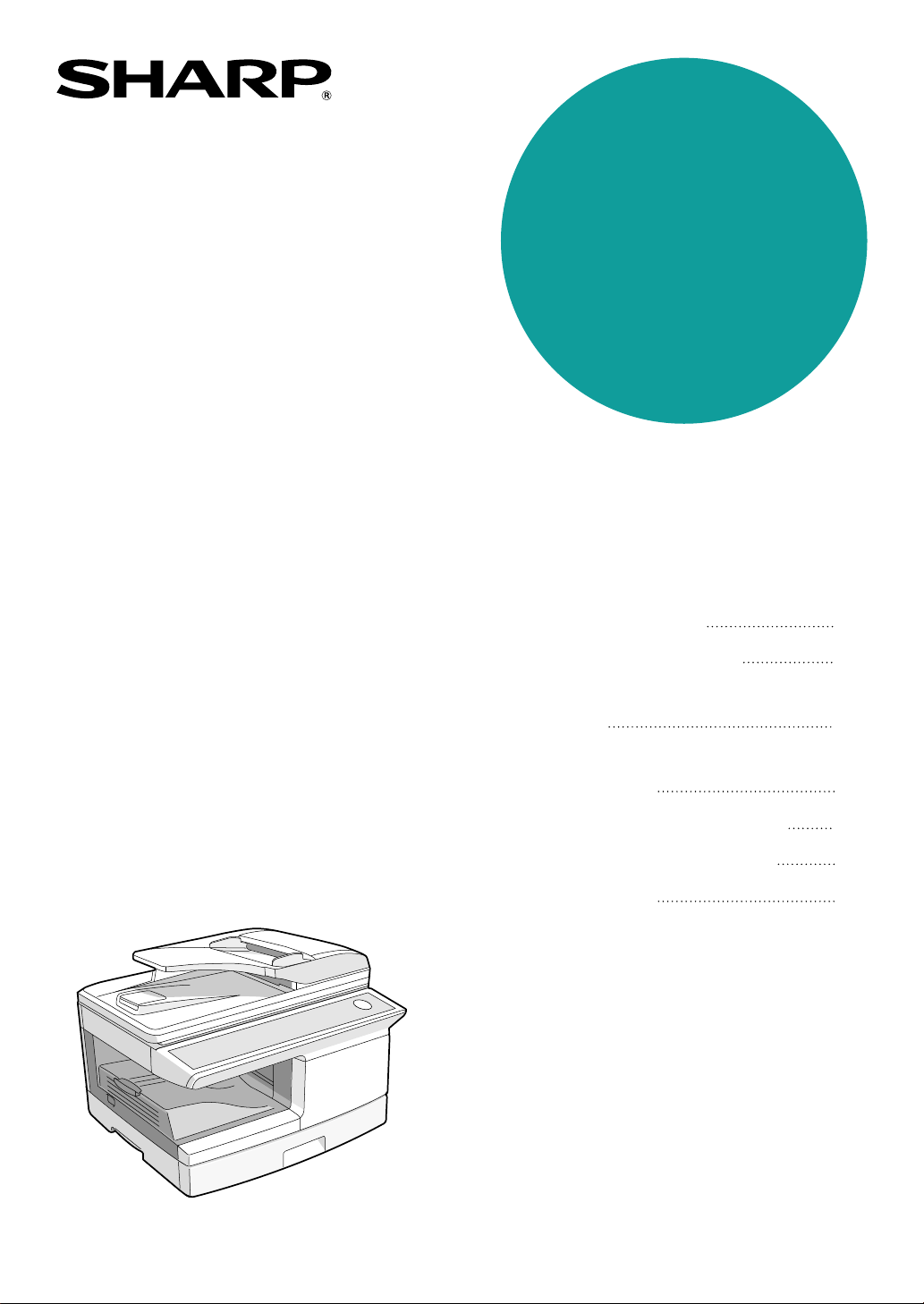
MODEL
AR-FX13
• INSTALLATION
• INITIAL SETTINGS
• CHOOSING SUITABLE
MEDIA
• HOW TO USE THE FAX
FUNCTION
• SPECIAL FUNCTIONS
• TROUBLESHOOTING
• APPENDIX
11
13
50
52
67
85
92
Page
FACSIMILE EXPANSION KIT
OPERATION MANUAL
!AR-FX13_sec.book 1 ページ 2007年11月28日 水曜日 午後4時22分
Caution
• Use only the line cable that was provided with the machine.
• To reduce the risk of fire, use only UL-Listed No.26 AWG or larger
telecommunication line cord.
Note
• This manual (fax function) describes the AR-208S/AR-208D model with
optional facsimile expansion kit (AR-FX13) installed. Depending on the
model you have and on the options installed, some of the illustrations in this
manual may be different, however, the basic operations are the same.
• This manual describes how to use the fax function of the machine.
Part names and functions shared with the copy function (for example, the
misfeed indicator and add paper indicator), are described in the Operation
Manual (for general information). For more information, please read the
Operation Manual (for general information).
• This operation manual refers to the Reversing Single Pass Feeder as the
"RSPF".
For users in the USA
This device complies with Part 15 of the FCC Rules. Operation is subject to the
following two conditions: (1) This device may not cause harmful interference,
and (2) this device must accept any interference received, including interference
that may cause undesired operation.
WARNING:
FCC Regulations state that any unauthorized changes or modifications to this
equipment not expressly approved by the manufacturer could void the user’s
authority to operate this equipment.
Note:
This equipment has been tested and found to comply with the limits for a Class
B digital device, pursuant to Part 15 of the FCC Rules. These limits are
designed to provide reasonable protection against harmful interference in a
residential installation. This equipment generates, uses and can radiate radio
frequency energy and, if not installed and used in accordance with the
instructions, may cause harmful interference to radio communications.
However, there is no guarantee that interference will not occur in a particular
installation. If this equipment does cause harmful interference to radio or
television reception, which can be determined by turning the equipment off and
on, the user is encouraged to try to correct the interference by one or more of
the following measures:
Reorient or relocate the receiving antenna.
Increase the separation between the equipment and receiver.
Connect the equipment into an outlet on a circuit different from that to which
the receiver is connected.
Consult the dealer or an experienced radio/TV technician for help.
●
●
●
●
♠♠♠♠♠♠♠♠♠♠♠♠♠♠♠ ♠♠♠♠♠♠♠♠♠♠♠♠♠♠♠♠♠♠♠♠♠♠♠♠♠♠♠♠♠♠♠♠
♠
♠
♠
♠
♠♠♠♠♠♠♠♠♠♠♠♠♠♠ ♠♠♠♠♠♠♠♠♠♠♠♠♠♠♠♠♠♠♠♠♠♠♠♠♠♠♠♠♠♠
♠
♠
♠
♠♠♠♠♠♠♠♠♠♠♠♠♠♠♠ ♠♠♠♠♠♠♠♠♠♠♠♠♠♠♠♠♠♠♠♠♠♠♠♠♠♠♠♠♠♠♠♠
♠
♠
♠
♠
♠♠♠♠♠♠♠♠♠♠♠♠♠♠ ♠♠♠♠♠♠♠♠♠♠♠♠♠♠♠♠♠♠♠♠♠♠♠♠♠♠♠♠♠♠
♠
♠
♠
This product utilizes a CR coin Lithium battery which contains a Perchlorate
material. Special handling for this material may apply, California residents, See
www.dtsc.ca.gov/hazardouswaste/perchlorate/
Others, consult local environmental officers.
!AR-FX13_sec.book 1 ページ 2007年11月28日 水曜日 午後4時22分

i
INTRODUCTION
TYPE OF SERVICE
This equipment may not be used on coin-operated (pay phone) phone service. Connection to party lines service is
subject to state tariffs. Contact your state's public utility commission, public service commission, or corporation
commission for more information.
ABOUT THE TELEPHONE CONSUMER PROTECTION ACT OF 1991
The Telephone Consumer Protection Act of 1991 makes it unlawful for any person to use a computer or other
electronic device, including FAX machines, to send any message unless such message clearly contains in a margin
at the top or bottom of each transmitted page or on the first page of the transmission, the date and time it is sent and
an identification of the business or other entity, or other individual sending the message and the telephone number
of the sending machine or such business, other entity, or individual.
(The telephone number provided may not be a 900 number or any other number for which charges exceed local or
long-distance transmission charges.)
In order to program this information into your FAX machine, you should complete the following steps:
See page 21 of this Operation Manual.
Important safety instructions
• If any of your telephone equipment is not operating properly, you should immediately remove it from your
telephone line, as it may cause harm to the telephone network.
• The AC power outlet shall be installed near the equipment and shall be easily accessible.
• Never install telephone wiring during a lightning storm.
• Never install telephone jacks in wet locations unless the jack is specifically designed for wet locations.
• Never touch uninsulated telephone wires or terminals unless the telephone line has been disconnected at the
network interface.
• Use caution when installing or modifying telephone lines.
• Avoid using a telephone (other than a cordless type) during an electrical storm. There may be a remote risk of
electric shock from lightning.
• Do not use a telephone to report a gas leak in the vicinity of the leak.
• Do not install or use the machine near water, or when you are wet. Take care not to spill any liquids on the
machine.
• Save these instructions.
!AR-FX13_sec.book i ページ 2007年11月28日 水曜日 午後4時22分

ii
FCC Notice to users:
This equipment complies with Part 68 of the FCC rules and the requirements adopted by the ACTA.
On this equipment is a label that contains, among other information, a product identifier in the format
US:AAAEQ##TXXXX.
If requested, this number must be provided to the telephone company.
The REN is used to determine the number of devices that may be connected to a telephone line.
Excessive RENs on a telephone line may result in the devices not ringing in response to an incoming call.
In most but not all areas, the sum of RENs should not exceed five (5.0).
To be certain of the number of devices that may be connected to a line, as determined by the total RENs, contact the
local telephone company.
For products approved after July 23, 2001, the REN for this product is part of the product identifier that has the
format US:AAAEQ##TXXXX.
The digits represented by ## are the REN without a decimal point (e.g., 03 is a REN of 0.3).
For earlier products, the REN is separately shown on the label.
If this equipment causes harm to the telephone network, your telephone company may disconnect your service
temporarily. If possible, They will notify you in advance. If advance notice is not practical, you will be notified as soon
as possible. You will also be advised of your right to file a compliant with the FCC.
Your telephone company may make changes in its facilities, equipment, operations, or procedures that could affect
the operation of your equipment. If this happens, the telephone company will provide advance notice in order for you
to make necessary modifications to maintain uninterrupted service. If the equipment is causing harm to the
telephone network, your telephone company may ask you to disconnect the equipment until the problem is resolved.
If you have any questions or problems which cannot be solved by reading this manual, please contact
A plug and jack used to connect this equipment to the premises wiring and telephone network must comply with the
applicable FCC Part 68 rules and requirements adopted by the ACTA.
A compliant telephone cord and modular plug is provided with this product.
It is designed to be connected to a compatible modular jack that is also compliant. See installation instructions for
details.
This equipment connects to the telephone network through a standard USOC RJ-11C network interface jack.
If your home has specially wired alarm equipment connected to the telephone line, ensure the installation of this
equipment does not disable your alarm equipment.
If you have questions about what will disable alarm equipment, consult your telephone company or a qualified
installer.
Sharp Electronics Corporation
1 Sharp Plaza,
Mahwah, New Jersey 07430
Telephone: 1-800-BE-SHARP
!AR-FX13_sec.book ii ページ 2007年11月28日 水曜日 午後4時22分

1
TABLE OF CONTENTS
INTRODUCTION ......................................................................................................................................... i
QUICK REFERENCE GUIDE .................................................................................................................... 3
LIST OF FAX FUNCTIONS........................................................................................................................ 6
1
INSTALLATION
CONNECTIONS .............................................. 11
●
CONNECTING THE TELEPHONE LINE CORD ...11
FINAL PREPARATIONS ................................ 12
● CONNECTING OTHER DEVICES ................12
2
INITIAL SETTINGS
PART NAMES................................................. 13
A LOOK AT THE FAX OPERATION PANEL ..... 14
ABOUT THE LIQUID CRYSTAL DISPLAY.... 16
USING THE ARROW KEYS ........................... 16
ADJUSTING THE BEEP VOLUME ................ 16
ADJUSTING THE RINGING VOLUME........... 17
SETTING THE LENGTH OF ALARM BEEPS .... 18
ADJUSTING THE ALARM BEEP VOLUME .. 19
FAX SETUP .................................................... 20
● HOW TO ENTER CHARACTERS .................20
●
ENTERING YOUR NAME AND FAX NUMBER.....21
● SETTING THE DATE AND TIME ..................22
● SELECTING THE TRANSMISSION MODE ..26
● SELECTING THE RECEPTION MODE.........27
● SETTING THE NUMBER OF RINGS FOR
AUTO RECEPTION .......................................28
● SETTING THE NUMBER OF RINGS FOR
MANUAL RECEPTION ..................................29
●
SELECTING THE RECEPTION PAPER SIZE..29
●
SETTING THE TRAY SELECTION...................30
● SETTING THE DIAL MODE ..........................31
●
SETTING THE NUMBER OF RECALL TIMES......32
● SETTING THE RECALL INTERVAL..............34
● SETTING THE INDEX FUNCTION................36
● SETTING RESOLUTION PRIORITY .............37
● SETTING UP THE MACHINE FOR USE WITH
A PC MODEM................................................38
● USING THE REMOTE RECEPTION
FUNCTION ....................................................39
● DISTINCTIVE RINGING ................................41
● STORING NUMBERS FOR AUTOMATIC
DIALING.........................................................42
●
STORING NUMBERS UNDER GROUP KEYS .....45
USING THE MACHINE WITH AN ANSWERING
MACHINE.........................................................48
● QUIET DETECT TIME .................................. 48
● ANSWERING MACHINE BACKUP............... 49
3
CHOOSING SUITABLE MEDIA
ORIGINALS SUITABLE FOR FAXING ...........50
● SIZE AND WEIGHT ...................................... 50
● UNSUITABLE ORIGINALS........................... 51
!AR-FX13_sec.book 1 ページ 2007年11月28日 水曜日 午後4時22分

2
4
HOW TO USE THE FAX FUNCTION
SENDING ORIGINALS ................................... 52
● SETTING THE ORIGINAL .............................52
OPTIONAL TRANSMISSION SETTINGS ...... 54
● ORIGINAL SIZE.............................................54
● RESOLUTION................................................55
● CONTRAST ...................................................55
● COVER SHEET .............................................56
● MESSAGE FUNCTION..................................57
● TWO-SIDED ORIGINAL TRANSMISSION
FUNCTION ....................................................58
DIALING AND TRANSMITTING..................... 59
● DIRECT KEYPAD DIALING...........................59
● RAPID KEY DIALING ....................................59
● SPEED DIALING ...........................................59
● CHAIN DIALING ............................................60
● NORMAL DIALING USING THE [SPEAKER]
KEY................................................................60
● USING THE SEARCH KEY ...........................61
● REDIALING....................................................61
IF THE MEMORY BECOMES FULL WHILE
SCANNING AN ORIGINAL............................. 62
CANCELING (DELETING) A STORED FAX JOB...62
RECEIVING FAXES........................................ 63
● USING AUTO MODE.....................................63
● USING MAN. MODE......................................63
● USING A.M. MODE .......................................63
OPTIONAL RECEPTION SETTINGS ............. 64
● TWO-SIDED RECEPTION (AR-208D only)...64
● RECEIVE REDUCE .......................................65
WHEN USING MANUAL SENDING AND
RECEIVING..................................................... 66
5
SPECIAL FUNCTIONS
MEMORY .........................................................67
DATA TRANSFER...........................................68
TRANSMISSION RESERVATION...................70
BROADCASTING ............................................71
POLLING .........................................................73
● POLLING ...................................................... 73
● SERIAL POLLING......................................... 74
● POLLING TRANSMISSION (MEMORY
POLLING) ..................................................... 75
● RESTRICTING POLLING MACHINES
(POLLING SECURITY)................................. 77
TIMER OPERATIONS .....................................79
●
CANCELING A TIMER TRANSMISSION JOB.. 80
ANTI JUNK FAX ..............................................81
OPERATION IN COPY, PRINTER, SCANNER,
AND FAX MODES ...........................................84
6
TROUBLESHOOTING
PRINTING OUT REPORTS .............................85
● ACTIVITY REPORT AUTO LISTING............ 88
● PRINTING TRANSACTION REPORTS........ 89
TROUBLESHOOTING.....................................90
MESSAGES AND SIGNALS ...........................91
● DISPLAY MESSAGES.................................. 91
● AUDIBLE SIGNALS ...................................... 91
7
APPENDIX
SPECIFICATIONS ...........................................92
INDEX ..............................................................93
!AR-FX13_sec.book 2 ページ 2007年11月28日 水曜日 午後4時22分
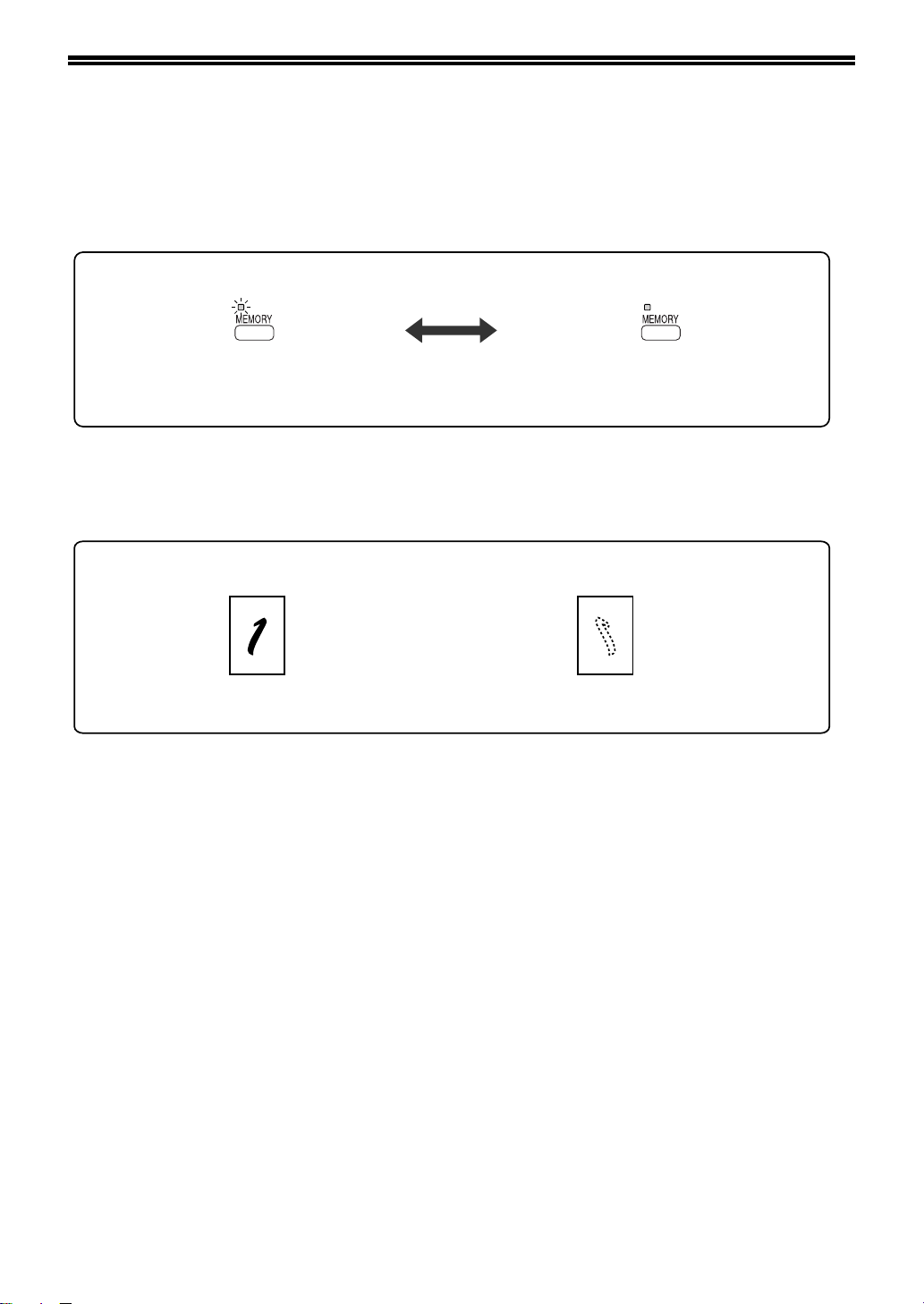
3
QUICK REFERENCE GUIDE
The following quick reference guide provides brief explanations the operation of the machine.
Selecting the transmission mode (p.26)
Memory transmission mode
The indicator lights up when
memory transmission mode
is selected.
Press the
[MEMORY] key
to change modes.
Direct transmission mode
The indicator is off when
direct transmission mode
is selected.
Place the original
Using the RSPF (p.52)
Place the original face up
(up to 50 pages at once)
Using the document glass (p.53)
Place the original face down
!AR-FX13_sec.book 3 ページ 2007年11月28日 水曜日 午後4時22分
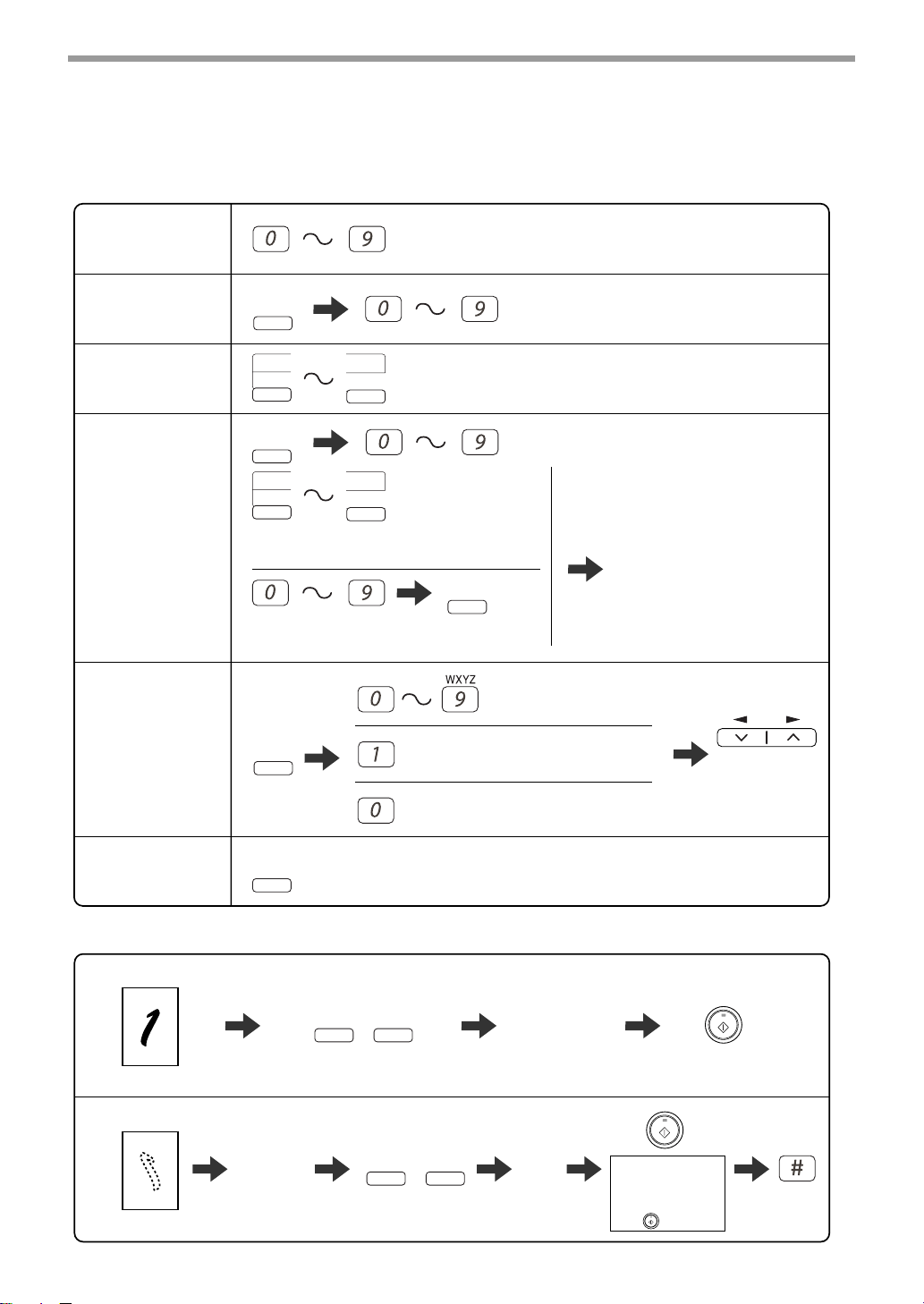
4
Sending a fax
Dialing methods
Search by fax numbers.
Speed Dial number or Rapid Key set for
Chain Dialing when stored.
Dial with the numeric keys and then
press the [REDIAL/PAUSE] key.
Direct Dialing
(p.59)
Press the numeric keys to dial.
Search Dialing
(p.61)
Speed Dialing
(p.59)
Enter a two-digit
Speed Dial number.
SPEED/
SEARCH
Rapid Key
Dialing (p.59)
* It is not necessary to press the [START] key
after pressing a Rapid Key.
09
18
01
10
09
18
01
10
REDIAL/
PAUSE
Redial the last number dialed.
REDIAL/
PAUSE
Chain Dialing
(p.60)
SPEED/
SEARCH
Dial the next part of the number
(a Group Key cannot be used).
Enter the first letter of the
stored name.
SPEED/
SEARCH
Select the
destination.
Press when the first character of the
name is a special character or number.
Sending a fax
Using the RSPF
Using the document glass
Dial.
Adjust the resolution
and contrast. (p.55)
CONTRAST
RESOLU-
TION
Place the original. (p.52)
Specify the
original size.
(p.54)
Dial.
Adjust the resolution
and contrast. (p.55)
CONTRAST
RESOLU-
TION
Place the original. (p.53)
Redialing
(p.61)
If you are faxing a
multi-page original,
change pages and
press the [START]
key ( ).
!AR-FX13_sec.book 4 ページ 2007年11月28日 水曜日 午後4時22分
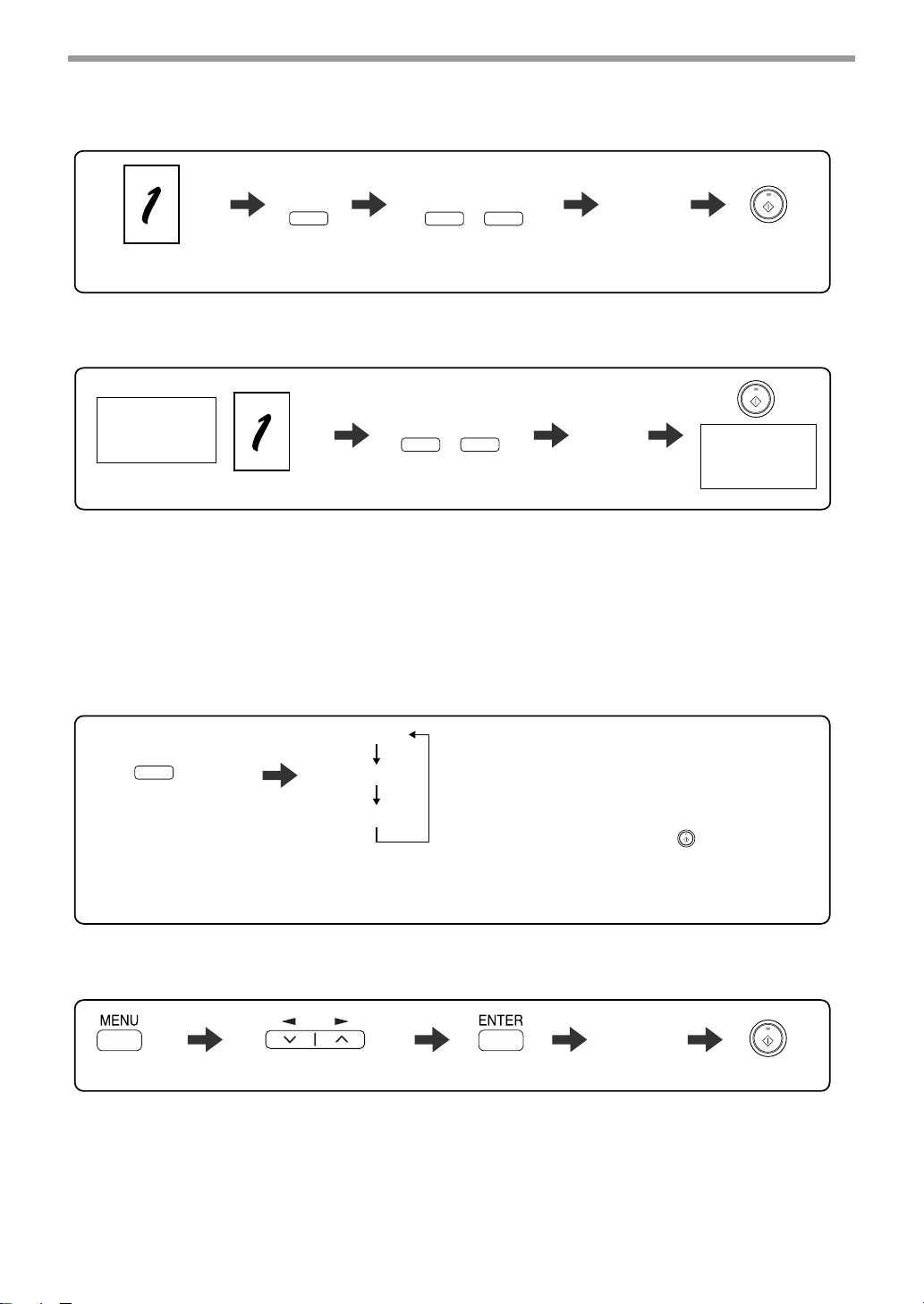
5
BROAD-
CAST
Sending a fax to multiple destinations (Broadcasting) (p.71)
Place the original.
Dial.
Adjust the resolution
and contrast. (p.55)
CONTRAST
RESOLU-
TION
Automatically sending a fax at a specified time (timer transmission)
To set up a timer transmission, see "TIMER OPERATIONS" (p.79).
Storing a fax job while another job is in progress
Place the original.
Fax transmission
or reception in
progress
Dial.
Adjust the resolution
and contrast. (p.55)
CONTRAST
RESOLU-
TION
The fax will be
transmitted after
previous jobs are
completed.
Receiving a fax
Select "POLLING MODE".
Press until the desired
reception mode appears
in the display.
* Another fax machine can also call your fax machine and request automatic transmission of a original placed in
your machine. For this to take place, the reception mode of your machine must be set to "AUTO".
Selecting the reception mode (p.63)
RECEPTION
MODE
"AUTO" :
"MAN." :
"A.M." :
Select this mode when an extension
phone is connected to the machine to
receive phone calls. To receive a fax,
answer the call on the phone and then
press the [START] ( ) key.
Select this mode when an answering
machine is connected to the machine.
Faxes will be received automatically.
Faxes are automatically received.
"AUTO"
"MAN."
"A.M."
Calling a fax machine and requesting automatic transmission of
an original placed in that machine (p.73)
Dial.
!AR-FX13_sec.book 5 ページ 2007年11月28日 水曜日 午後4時22分
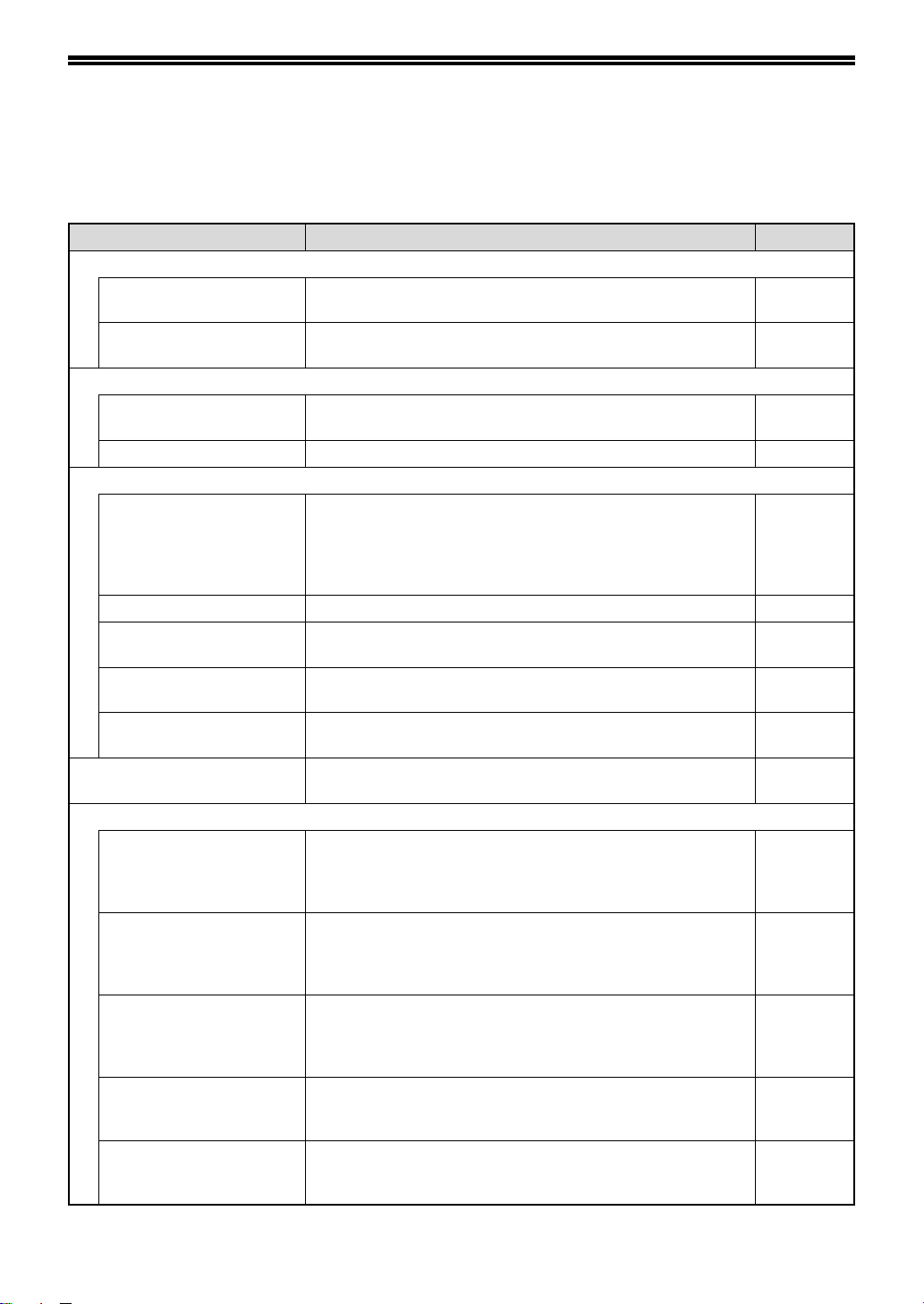
6
LIST OF FAX FUNCTIONS
The FAX MAIN MENU is used to configure settings for the fax function and program information such as the fax
number of the machine. The settings in the FAX MAIN MENU are shown below.
The procedure for configuring settings is explained in "SELECTING SETTINGS FOR THE FUNCTION" (p.10).
Menu item Settings (factory default setting appears in bold) Page
0 : RX DATA TRANSFER
1 : DATA TRANSFER Enable transfer of received faxes to another fax machine when
printing is not possible.
69
2 : FAX NUMBER Program the fax number of the machine to which received faxes
will be transferred.
68
1 : TIMER MODE
1 : SET Set up a transmission or polling job to take place automatically
at a specified time.
79
2 : CLEAR Cancel a timer transmission job. 79
2 : ENTRY MODE
1 : FAX NUMBER Store (or delete) fax numbers in Rapid Keys, Speed Dial
numbers, and Group Keys.
1 : RAPID KEY
2 : SPEED #
3 : GROUP KEY
42, 44,
45, 47
2 : DATE&TIME SET Set the date and time in the machine. 22
3 : OWN PASSCODE SET Program the name and phone number of the user of the
machine.
21
4 : PASSCODE # MODE Store fax numbers that are allowed to poll the machine when
polling security is used.
78
5 : DAY LIGHT SAVING Enable automatic adjustment of the clock at the beginning and
end of daylight savings time.
25
3 : MEMORY STATUS Check and delete stored fax jobs waiting for transmission and
automatic recall jobs.
62
4 : USER PROGRAM
1 : DOC. GLASS SIZE Set the size of an original faxed from the document glass.
1 : 8.5x11
2 : 8.5x14
3 : A4
54
2 : FIXED DOC. SIZE Set the default size of originals faxed from the document glass.
1 : 8.5x11
2 : 8.5x14
3 : A4
54
3 : RESO. PRIORITY Set the default resolution for fax transmission.
1 : STANDARD
2 : FINE
3 : SUPER FINE
37
4 : # OF RINGS (AUTO) Set the number of rings on which the machine answers calls in
automatic reception mode.
0 - 9 (2)
28
5 : # OF RINGS (MANUAL) Set the number of rings on which the machine answers calls in
manual reception mode.
0 - 9 (0)
29
!AR-FX13_sec.book 6 ページ 2007年11月28日 水曜日 午後4時22分
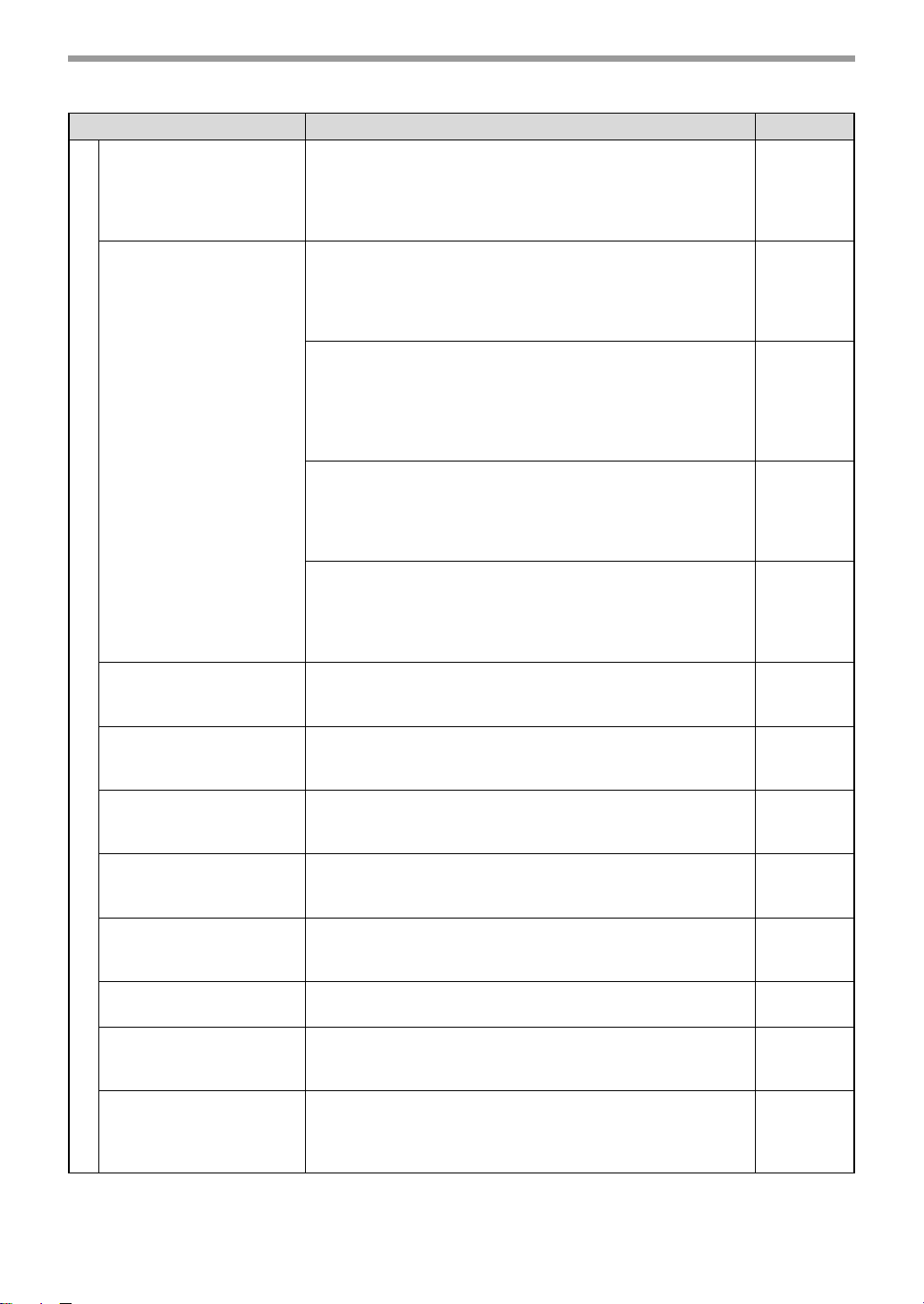
7
6 : AUTO LISTING Enable automatic printing of the Activity Report when
information on a total of 50 fax transmissions/receptions
accumulates.
1 : ON
2 : OFF
88
7 : PRINT SELECTION 1 : TRANSMISSION
Select the condition for printing reports on fax transmissions.
1 : ALWAYS PRINTS
2 : ERROR ONLY
3 : NEVER PRINTS
89
2 : BROADCAST
Select the condition for printing reports on broadcast
transmissions.
1 : ALWAYS PRINTS
2 : ERROR ONLY
3 : NEVER PRINTS
89
3 : RECEPTION
Select the condition for printing reports on received faxes.
1 : ALWAYS PRINTS
2 : ERROR ONLY
3 : NEVER PRINTS
89
4 : IMAGE MEM. PRINT
Enable printing of the original image on transaction reports.
1 : ALWAYS PRINTS
2 : ERROR ONLY
3 : NEVER PRINTS
89
8 : RECALL TIMES BUSY Set the number of recall attempts that are made when the line is
busy.
00 - 14 (02)
32
9 : RECALL TIMES ERR Set the number of recall attempts that are made when a
communication error occurs.
0 - 1 (1)
33
10 : RECALL INT. BUSY Set the interval between recall attempts when the line is busy. 1
to 15 minutes can be selected.
01 - 15 min. (03 min.)
34
11 : RECALL INT. ERR Set the interval between recall attempts when a communication
error occurs. 0 to 15 minutes can be selected.
00 - 15 min. (01 min.)
35
12 : SECURITY SELECT Enable the polling security function.
1 : ON
2 : OFF
77
13 : FAX REMOTE
NUMBER
Set the 1-digit number used to activate remote fax reception.
0 - 9 (5)
40
14 : REMOTE RECEPTION Enable the remote reception function.
1 : ON
2 : OFF
39
15 : FAX SIGNAL RCV Enable automatic fax reception when a fax tone is heard after
answering a call on an extension phone.
1 : ON
2 : OFF
38
Menu item Settings (factory default setting appears in bold) Page
!AR-FX13_sec.book 7 ページ 2007年11月28日 水曜日 午後4時22分
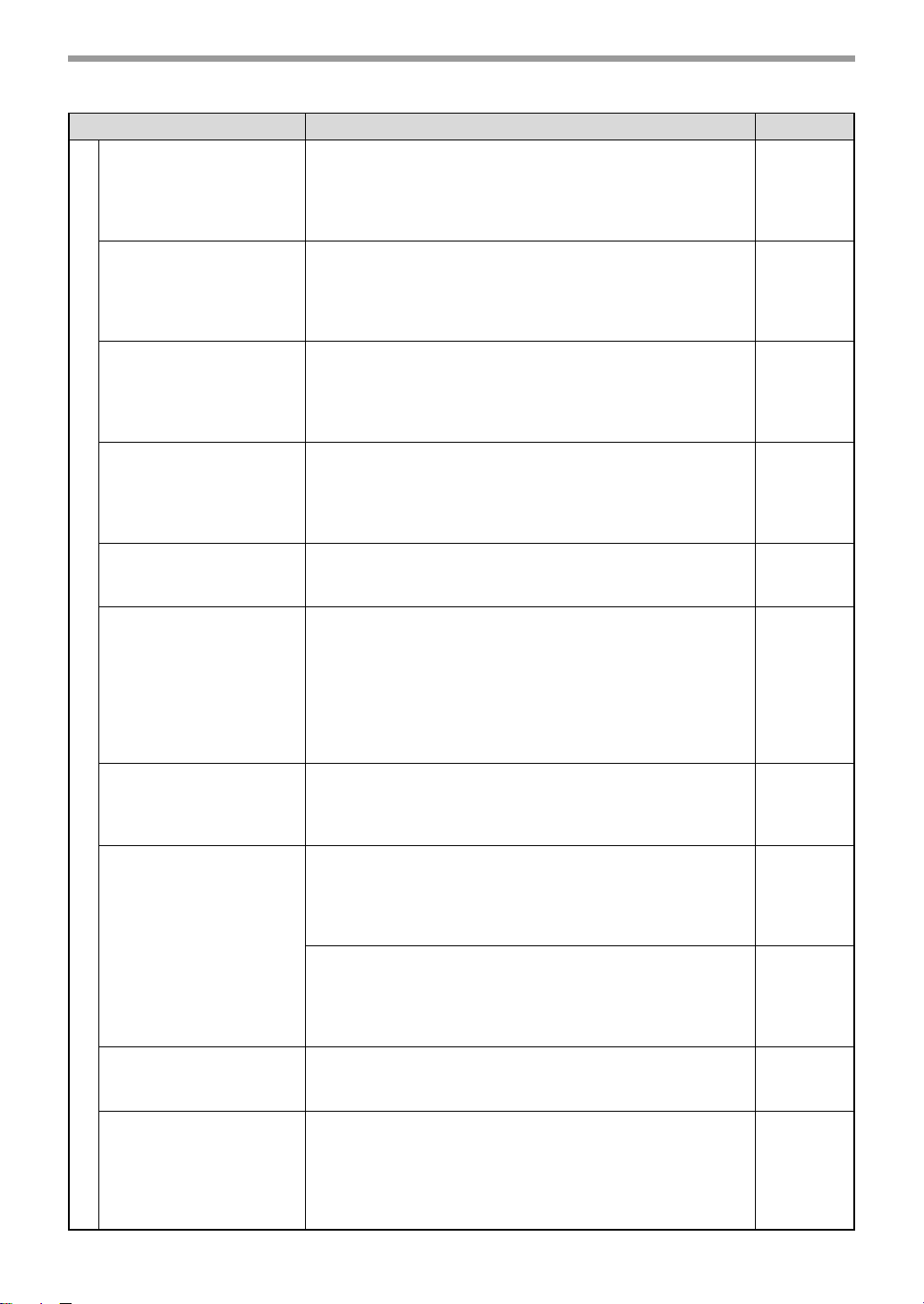
8
16 : RCV REDUCE When a fax is received that is larger that the printing paper,
enable reduction of the fax to the size of the paper to avoid the
fax being cut off.
1 : ON
2 : OFF
65
17 : BEEP LENGTH Set the length of the beep that sounds when fax transmission or
reception ends.
1 : 3 SEC
2 : 1 SEC
3 : NO BEEP
18
18 : RINGER VOLUME Set the volume of the ringer.
1 : OFF
2 : LOW
3 : MIDDLE
4 : HIGH
17
19 : BEEPER VOLUME Set the volume of the beep that sounds when a key is pressed.
1 : OFF
2 : LOW
3 : MIDDLE
4 : HIGH
19
20 : DIAL MODE Set the dial mode for the type of line you are on.
1 : TONE
2 : PULSE
31
21 : DISTINCTIVE RING Set the ring pattern for distinctive ring.
1 : OFF
2 : STANDARD
3 : PATTERN 1
4 : PATTERN 2
5 : PATTERN 3
6 : PATTERN 4
7 : PATTERN 5
41
22 : INDEX PRINT Enable printing of a black mark (index) at the top of each
received fax page.
1 : ON
2 : OFF
36
23 : DATE&TIME FORMAT 1 : TIME FORMAT
Select 12-hour or 24-hour format for the time set in the
machine.
1 : 12 HOUR
2 : 24 HOUR
23
2 : DATE FORMAT
Set the format of the date in the display and in printouts.
1 : MMDDYYYY
2 : DDMMYYYY
3 : YYYYMMDD
24
24 : 2-SIDED RX
(AR-208D only)
Print on both sides of the paper when a multi-page fax is received.
1 : ON
2 : OFF
64
25 : TRAY SELECTION
(When the 250-sheet paper
feed unit is installed.)
("24: TRAY SELECTION"
when the AR-208S is
used.)
Set the tray for printing received faxes.
1 : AUTO
2 : TRAY 1
3 : TRAY 2
30
Menu item Settings (factory default setting appears in bold) Page
!AR-FX13_sec.book 8 ページ 2007年11月28日 水曜日 午後4時22分
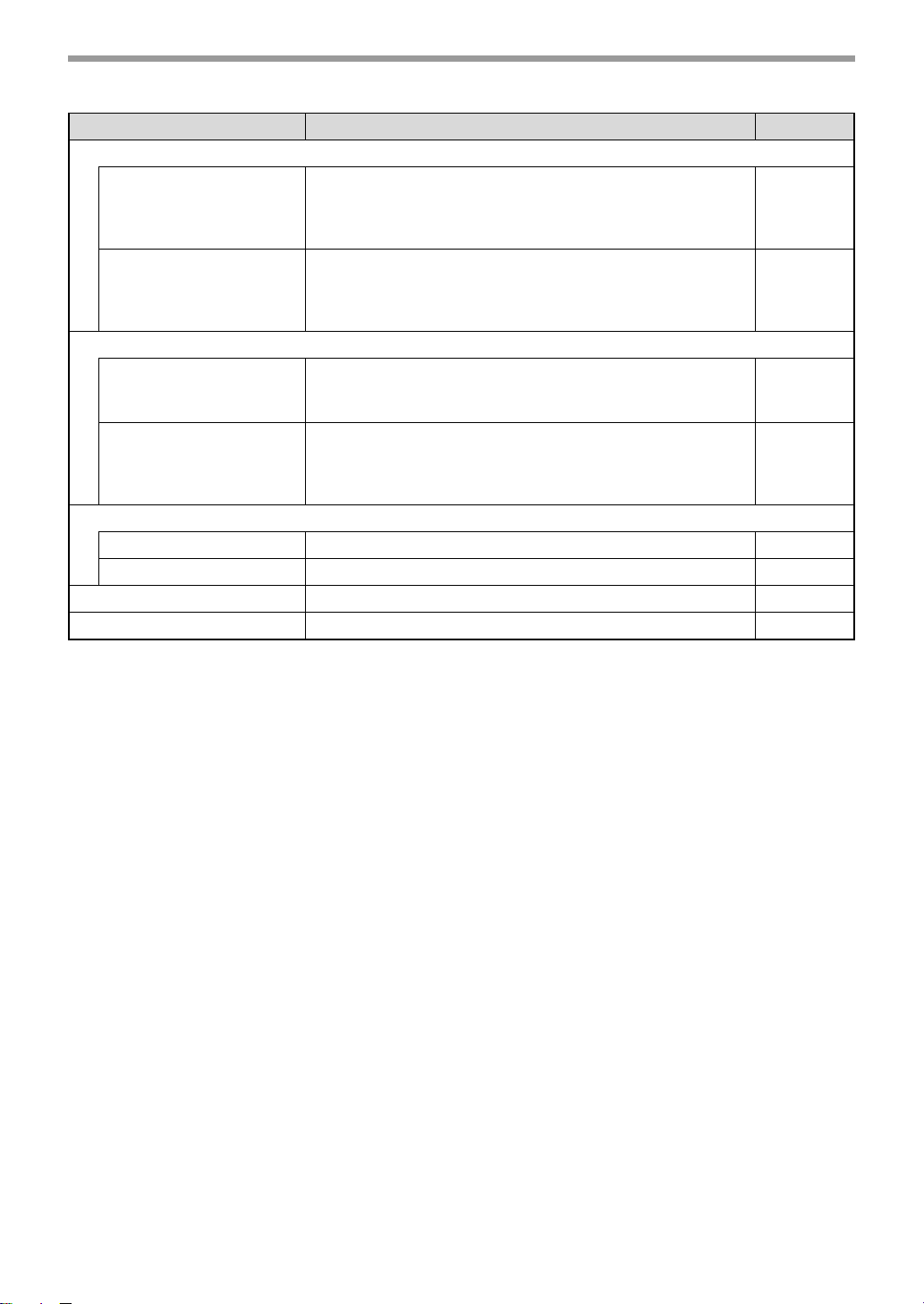
9
5 :ANTI JUNK FAX
1 : ANTI JUNK SELECT Enable the anti junk function to block fax reception from
specified fax numbers.
1 : ON
2 : OFF
81
2 : JUNK FAX # Program (or delete) fax numbers from which fax reception is to
be blocked.
1 : SET
2 : CLEAR
82
6 : A.M. MODE
1: QUIET DETECT TIME Activate fax reception when a period of silence longer than the
set time is detected.
00 - 10 (05)
48
2 : AUTO RECEIVE Enable fax reception when the answering machine is full and
cannot receive messages or otherwise fails.
1 : ON
2 : OFF
49
7 : MEMORY POLL MODE
1 : 1 TIME Perform polling transmission once. 75
2 : REPEAT Perform polling transmission repeatedly. 75
8 : POLLING MODE Poll another fax machine. 73
9 : SERIAL POLL MODE Sequentially poll multiple fax machines. 74
Menu item Settings (factory default setting appears in bold) Page
!AR-FX13_sec.book 9 ページ 2007年11月28日 水曜日 午後4時22分
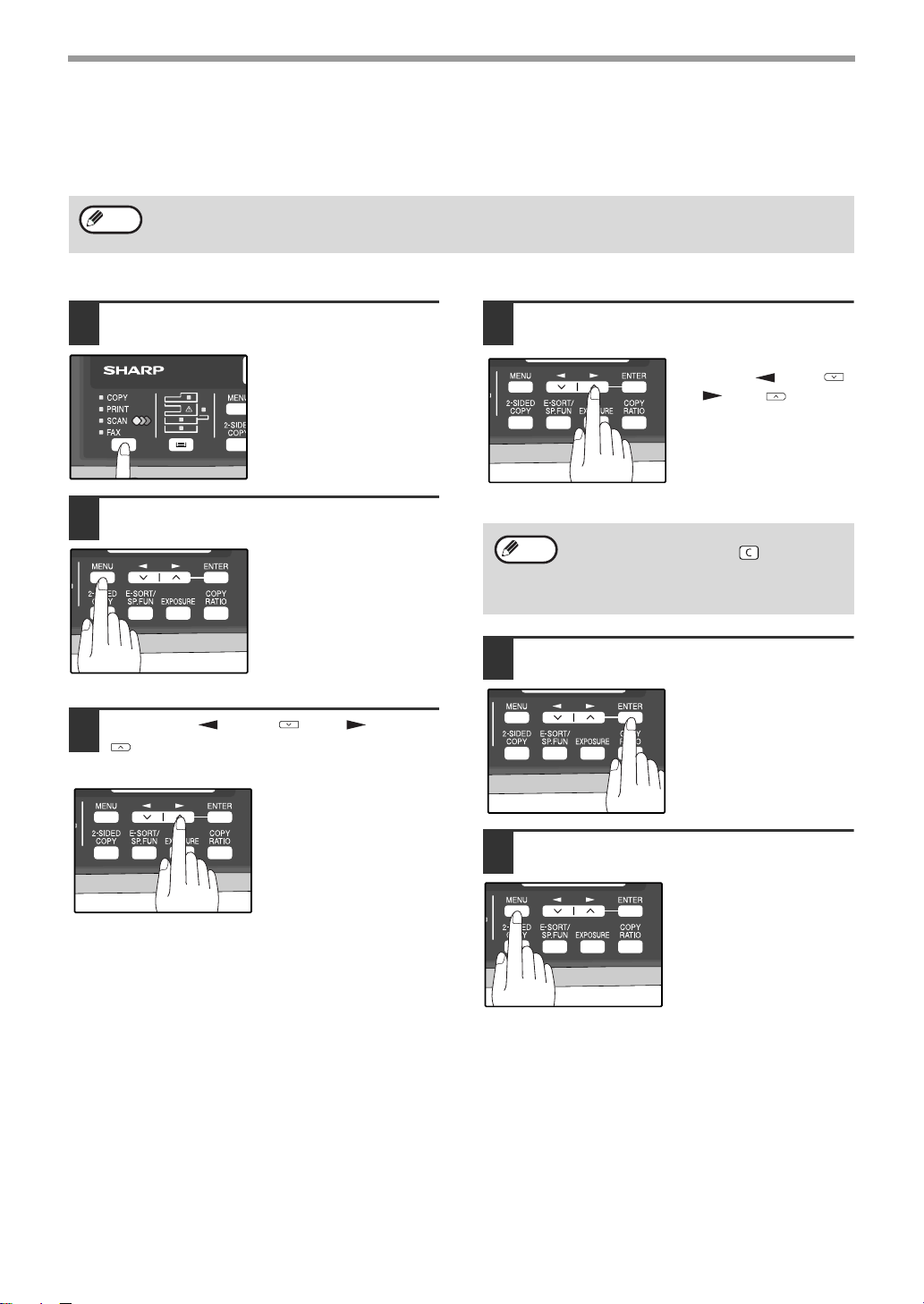
10
SELECTING SETTINGS FOR THE FUNCTION
The general procedure for configuring settings for the fax function is explained below. Follow this procedure to
configure the settings explained on pages 6 through 9.
1
Press the [MODE SELECT] key to
select fax mode.
The "FAX" indicator lights
up to indicate that fax
mode is selected.
2
Press the [MENU] key.
"FAX MAIN MANU" will
appear in the display.
3
Press the [ ] key ( ) or [ ] key
( ) to select a menu item and press
the [ENTER] key.
The item is selected.
Repeat this step until the
item that you wish to
configure appears.
4
Select a setting or enter information.
To select a setting:
Press the [ ] key ( )
or [ ] key ( ) until the
setting is selected.
To enter information:
Press the numeric keys
to enter characters or
numbers.
5
Press the [ENTER] key.
The setting or information
is entered.
6
Press the [MENU] key.
Press the [MENU] key to
exit.
An item can also be selected after pressing the [MENU] key by pressing the numeric key for the item (the key
corresponding to the number that appears in front of the item). When the numeric key is pressed, the item is
selected or entered.
Note
• If you mistakenly select the wrong item,
press the [CLEAR] key ( ) and repeat
the procedure from step 2.
• To cancel a setting for a fax function,
press the [MENU] key.
Note
!AR-FX13_sec.book 10 ページ 2007年11月28日 水曜日 午後4時22分
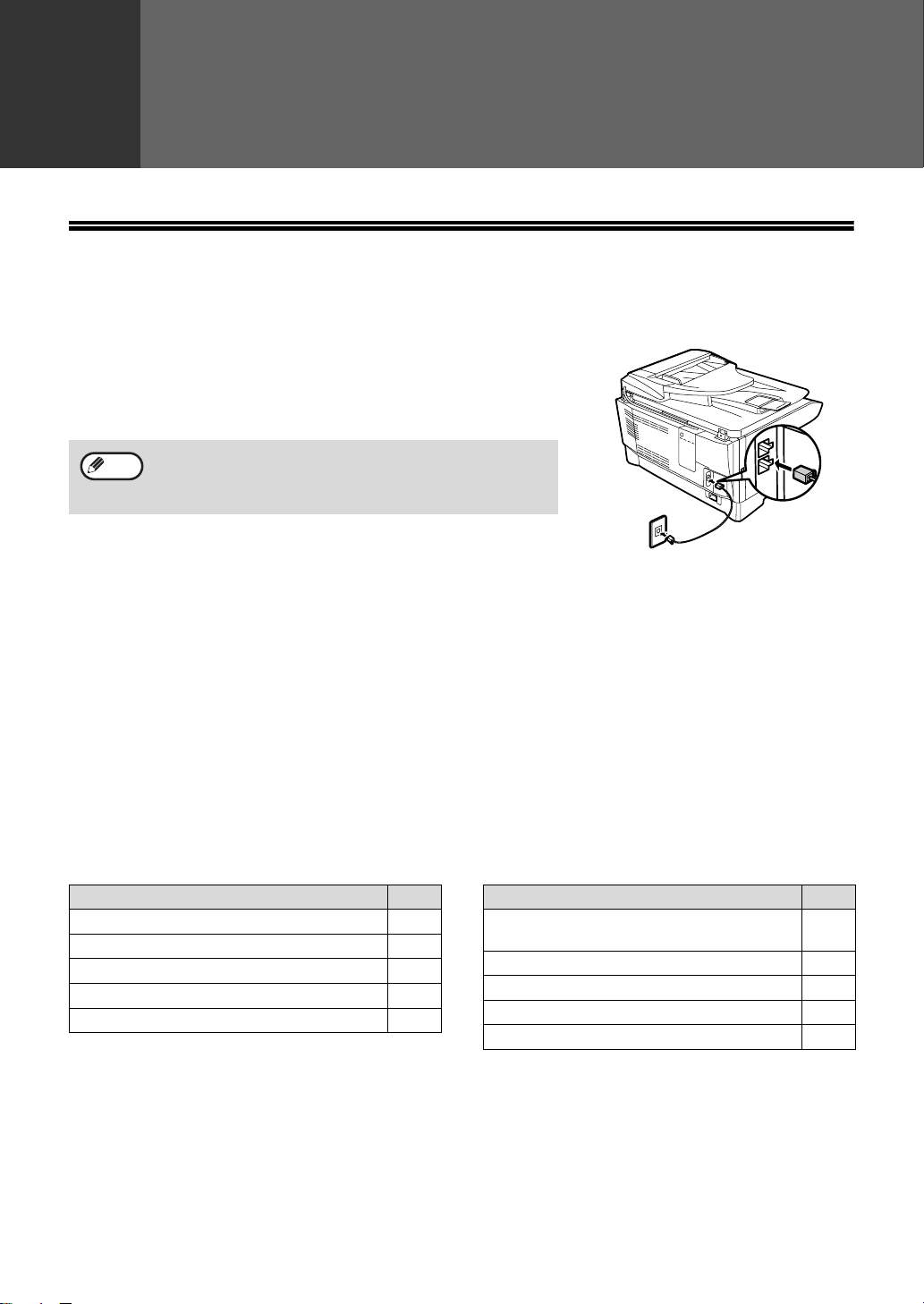
11
1
Chapter 1
INSTALLATION
CONNECTIONS
CONNECTING THE TELEPHONE LINE CORD
Plug one end of the telephone line cord into the jack on the machine marked
"LINE." Plug the other side into a standard (RJ11C) single-line telephone
wall jack. Be sure not to plug this telephone line cord into the "TEL" jack.
The "TEL" jack is used to attach an extension telephone or answering
machine to the machine. (See "CONNECTING OTHER DEVICES" (p.12))
ABOUT THE OPERATION MANUALS
The operation manuals for the machine are as follows:
Facsimile Expansion Kit Operation Manual (this manual)
This manual explains the procedures for using the machine as a fax machine.
This manual only explains the fax functions of the machine. For general information on using the machine, including
safety information, installation, paper loading, removal of paper misfeeds, and peripheral equipment, see the
operation manual for the machine.
Operation Manual (for general information)
Explains the machine and how to use it as a copier. Also explains how to install the software that allows the machine
to be used as a printer and scanner for your computer.
The following information is contained in the operation manual for the machine :
Online Manual (on the CD-ROM)
This manual explains the procedures for using the machine as a printer and a scanner.
If your area experiences a high incidence of lightning or power
surges, we recommend that you install surge protectors for the
power and telephone lines. Surge protectors can be purchased
from your retailer or at most telephone specialty stores.
LIN
E
TEL
Note
OPERATION MANUAL contents Page
CAUTIONS
3
PART NAMES 9
POWER ON AND OFF 12
LOADING THE PAPER TRAY 15
BYPASS FEED (including special paper) 17
OPERATION MANUAL contents Page
CHANGING A TRAY'S PAPER SIZE
SETTING
19
MISFEED REMOVAL 70
TONER CARTRIDGE REPLACEMENT 74
CHECKING THE TOTAL COUNT 77
CLEANING THE MACHINE 78
!AR-FX13_sec.book 11 ページ 2007年11月28日 水曜日 午後4時22分
12
FINAL PREPARATIONS
CONNECTING OTHER DEVICES
If desired, an answering machine or external telephone can be connected to the machine through the telephone
jack, labeled "TEL," on the rear of the machine.
● Connecting an answering machine to the machine allows you to receive both voice and fax messages when you
are out. To use this feature, first change the outgoing message of your answering machine, and then set the
reception mode of the machine to "A.M." (Answering Machine mode) when you go out.
Comments:
1. It is advisable to keep the length of the message under 10 seconds. If it is too long, you may have difficulty
receiving faxes sent by automatic dialing.
2. Your callers can even leave a voice message and send a fax message on the same call. Modify your outgoing
message to explain that this can be done by pressing their [START] key ( ) after leaving their voice message.
● You can connect an extension phone to the machine to make and receive calls like any other extension phone on
your line. Even if you pick up the extension phone and hear a fax tone, the machine will automatically cut in and
take over the line. Note, however, if you also have a PC modem on the same line, you must turn on the Remote
Reception function, and deactivate the Fax Signal Receive function. See "SETTING UP THE MACHINE FOR
USE WITH A PC MODEM" (p.38) and "USING THE REMOTE RECEPTION FUNCTION" (p.39).
If you are using distinctive ringing with an answering machine, you do not need to follow the procedure described
below. (Please note that when distinctive ringing is used, the answering machine must be distinctive ring
compatible.)
Note
The Remote Reception function is initially set to "ON".
Note
!AR-FX13_sec.book 12 ページ 2007年11月28日 水曜日 午後4時22分
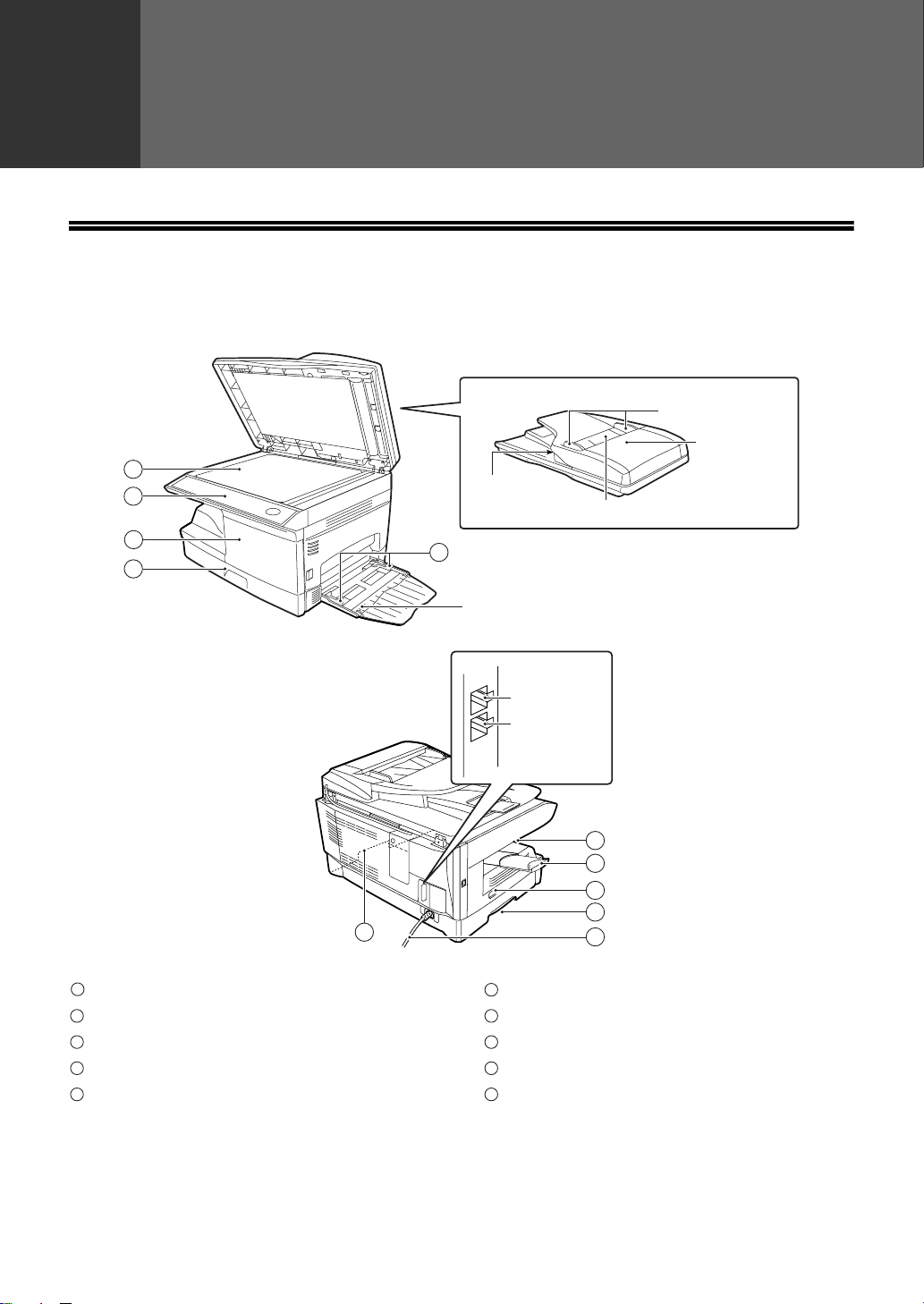
13
2
Chapter 2
INITIAL SETTINGS
PART NAMES
Document glass
Operation panel
Front cover
Paper tray
Bypass tray paper guides
Paper output tray
Paper output tray extension
Power switch
Handles
Power cord
RSPF
Exit area
Original guides
Document feeder tray
Document
feeder cover
LINE
TEL
2
3
4
1
5
6
7
8
9
TEL jack
LINE jack
Bypass tray
10
9
1
2
3
4
5
6
7
8
9
10
!AR-FX13_sec.book 13 ページ 2007年11月28日 水曜日 午後4時22分
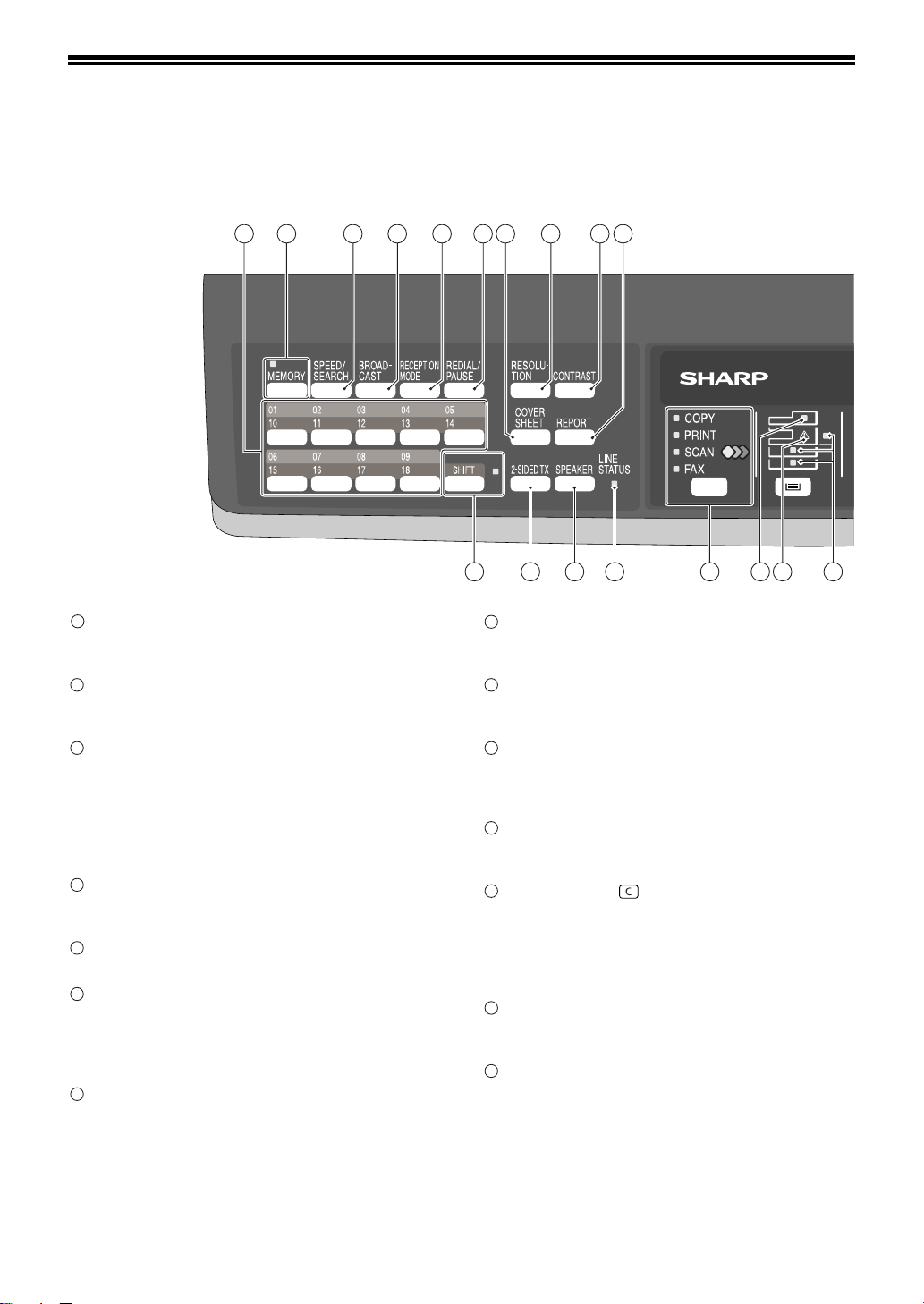
14
A LOOK AT THE FAX OPERATION PANEL
Rapid keys
Press one of these keys to dial a fax or telephone
number automatically.
[MEMORY] key / indicator
Used for sending faxes in memory (indicator is lit)
or direct sending (indicator is not lit).
[SPEED/SEARCH] key
Press this key to dial a two digit Speed Dial
number.
During character inputting, use this key to delete
an incorrect entry.
Also, press this key twice to search for an
automatic dialing number.
[BROADCAST] key
Press this key to send originals to a group of
receiving fax machines.
[RECEPTION MODE] key
Press this key to select the mode of reception.
[REDIAL/PAUSE] key
Press this key to automatically redial the last
number you dialed.
Also, press this key to insert a pause when
entering numbers.
[COVERSHEET] key
Press this key to automatically add a cover sheet
and message to a fax.
[RESOLUTION] key
Press this key to adjust the resolution before
sending faxes.
[CONTRAST] key
Press this key to adjust the contrast before sending
faxes.
[REPORT] key
Press this key to print out a report of a fax
transaction and also when receiving a confidential
fax.
Display
Shows various messages during fax operation and
programming.
[CLEAR] key ( )
Press this key to stop an operation before it is
completed, or to delete the number that was last
input.
When a setting menu appears, use this key to
move back to the previous menu level.
[SHIFT] key / indicator
Press this key to switch between upper and lower
case.
[2-SIDED TX] key
Press this key to fax a two-sided original.
1
2
17
3
4
5 6 8 9
10
7
1918 20
16151413
1
2
3
4
5
6
7
8
9
10
11
12
13
14
!AR-FX13_sec.book 14 ページ 2007年11月28日 水曜日 午後4時22分
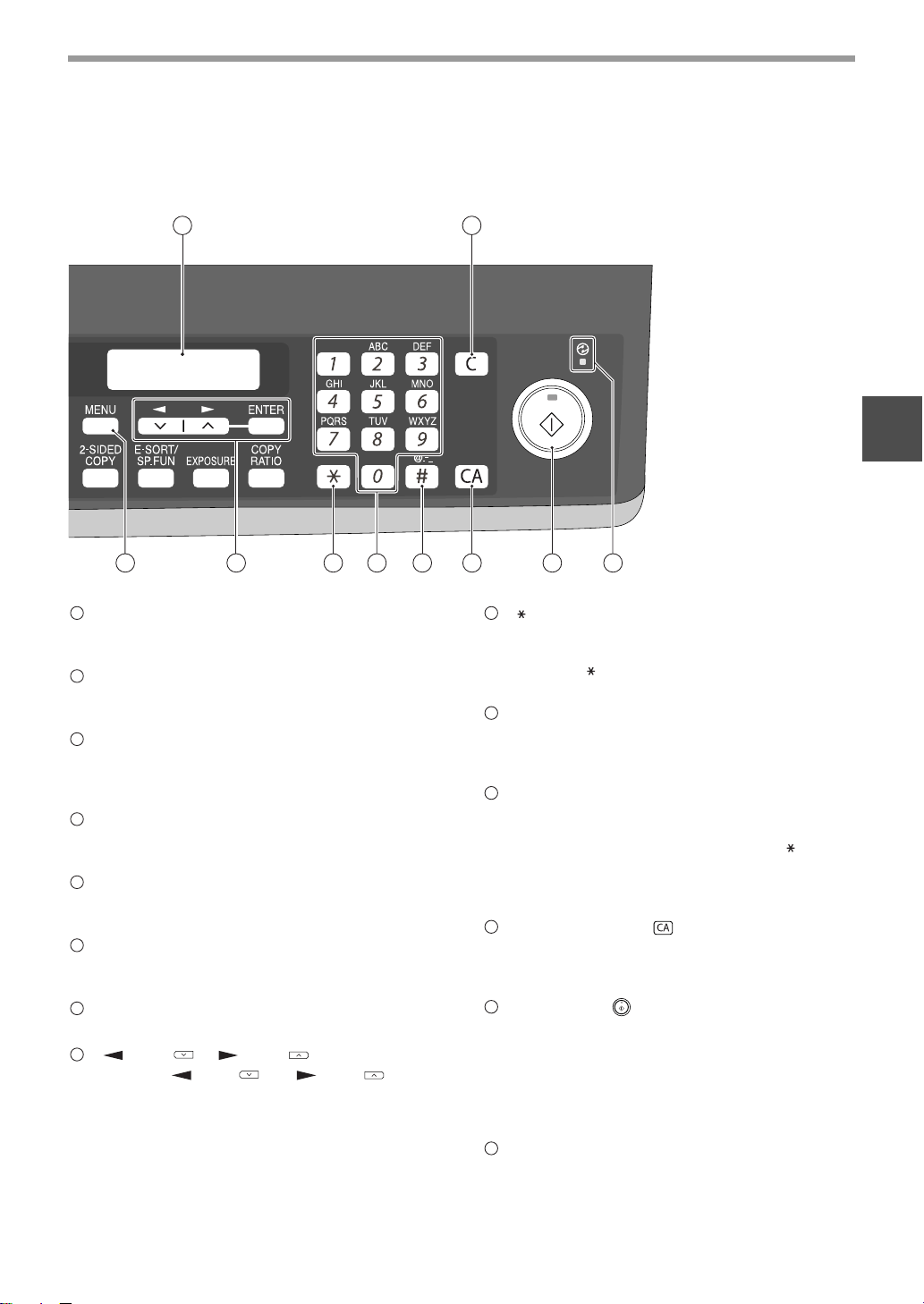
15
INITIAL SETTINGS
2
[SPEAKER] key
Press this key to begin manual dialing. (To close
the line, press the [SPEAKER] key again.)
LINE STATUS indicator
Lit when sending/receiving faxes, blinking when
receiving data.
[MODE SELECT] key / Mode indicators
Press this key to select the mode. The indicator of
the selected mode lights (copy, printer, scanner,
fax mode indicators).
RSPF indicator
This lights up when an original is placed in the
RSPF.
Error indicator
This lights steadily or blinks when a paper misfeed
or other error occurs.
Tray location indicator
Indicates the selected paper tray. The indicator
blinks when the tray is out of paper or is not closed.
[MENU] key
Press this key to configure a user program.
[ ] key ( ), [ ] key ( ), [ENTER] key
Press the [ ] key ( ) or [ ] key ( ) to
select an item in a function setting menu.
Press the [ENTER] key to enter a selection.
[] key
Press this key to enter symbols during a name
storing procedure.
Press the " " key to change from pulse dialing to
tone dialing mode.
Numeric keys
Press these keys to dial numbers, and enter
numbers and letters during number/name storing
procedures.
[#] key
Press this key to enter symbols during a name
storing procedure. The [#] key scrolls through
symbols in the opposite direction of the [ ] key.
When dialing, press this key after you are finished
scanning originals into memory from the document
glass.
[CLEAR ALL] key ( )
This returns all functions to the default settings.
When pressed in a setting menu, this returns the
settings and display to the initial state.
[START] key ( )/ indicator
Used for the following:
• To begin sending a fax.
• Reading an original into memory from the
document glass.
• Manually receiving a fax.
• Entering and setting information.
Power save indicator
This lights up when the power save function is
activated.
28
11 12
2725 2624
21
22 23
15
16
17
18
19
20
21
22
23
24
25
26
27
28
!AR-FX13_sec.book 15 ページ 2007年11月28日 水曜日 午後4時22分
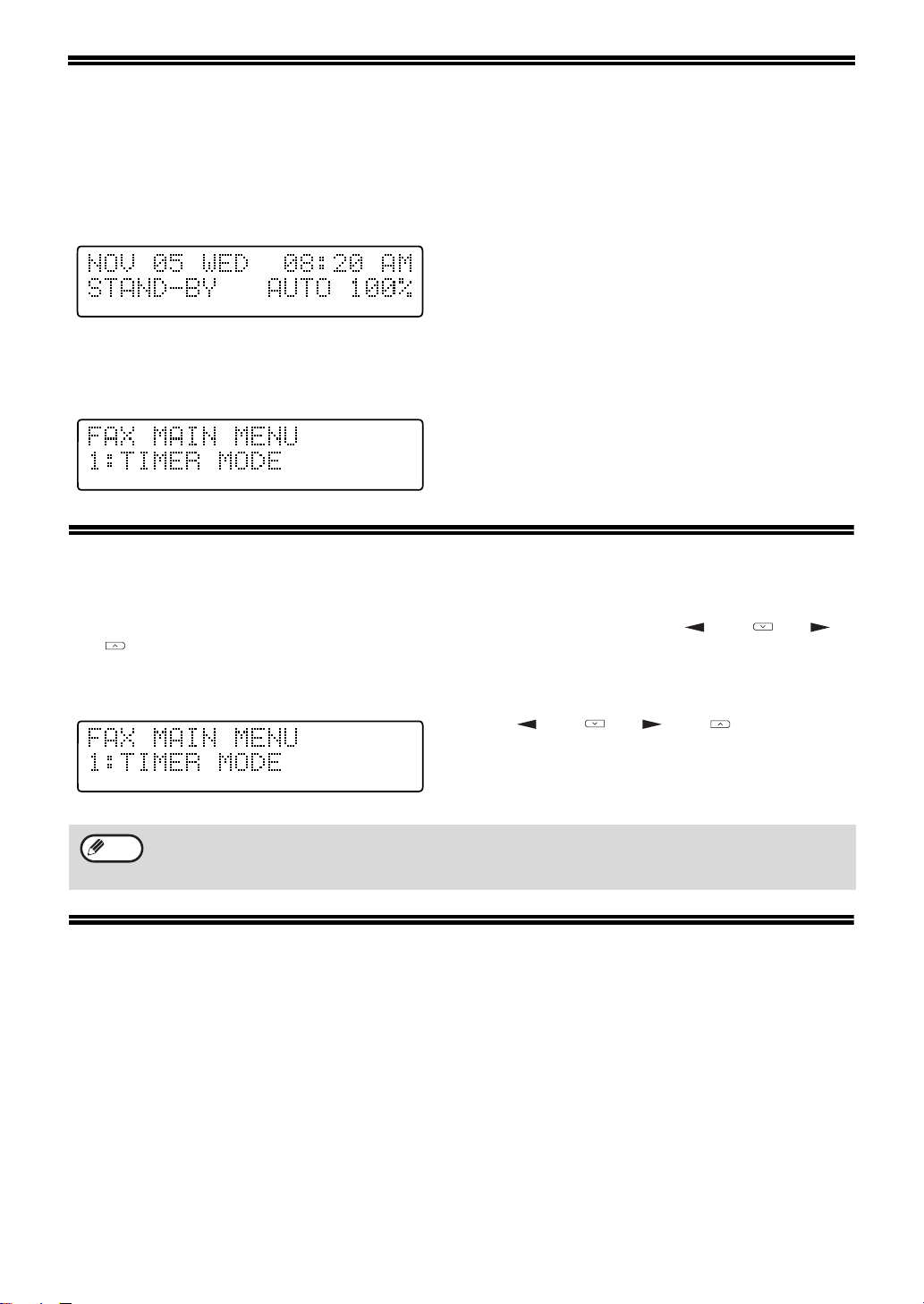
16
ABOUT THE LIQUID CRYSTAL DISPLAY
The machine is equipped with a two-line liquid crystal display (LCD) on the operation panel for displaying various
messages and settings during operation. This LCD can display up to 20 characters on each line. When the machine
is idle, the LCD shows the date, time, reception mode and the stand-by memory available.
Example:
When an original is placed in the RSPF, the second line
changes from "STAND-BY" to "SEND READY".
When the [MENU] key is pressed to configure a setting, the display appears as shown below.
Example:
The selected setting or entered information appears on the
second line.
USING THE ARROW KEYS
To configure settings and program information, press the [MENU] key and then press the [ ] key ( ) or [ ]
key ( ) to select the item that you wish to configure.
The arrows keys can also be used while entering characters to move the cursor.
Example:
Press the [ ] key ( ) or [ ] key ( ) to change the
item selection that appears on the second line.
ADJUSTING THE BEEP VOLUME
You can adjust the volume of the beep that sounds when a key is pressed.
The key beep volume is adjusted with "KEY TOUCH SOUND" (Program number 15) in the user programs of copy
mode. See "User Programs" in the Operation Manual (for general information).
An item can also be selected after pressing the [MENU] key by pressing the numeric key for the item
(the key corresponding to the number that appears in front of the item). When the numeric key is
pressed, the item is selected or entered.
Note
!AR-FX13_sec.book 16 ページ 2007年11月28日 水曜日 午後4時22分
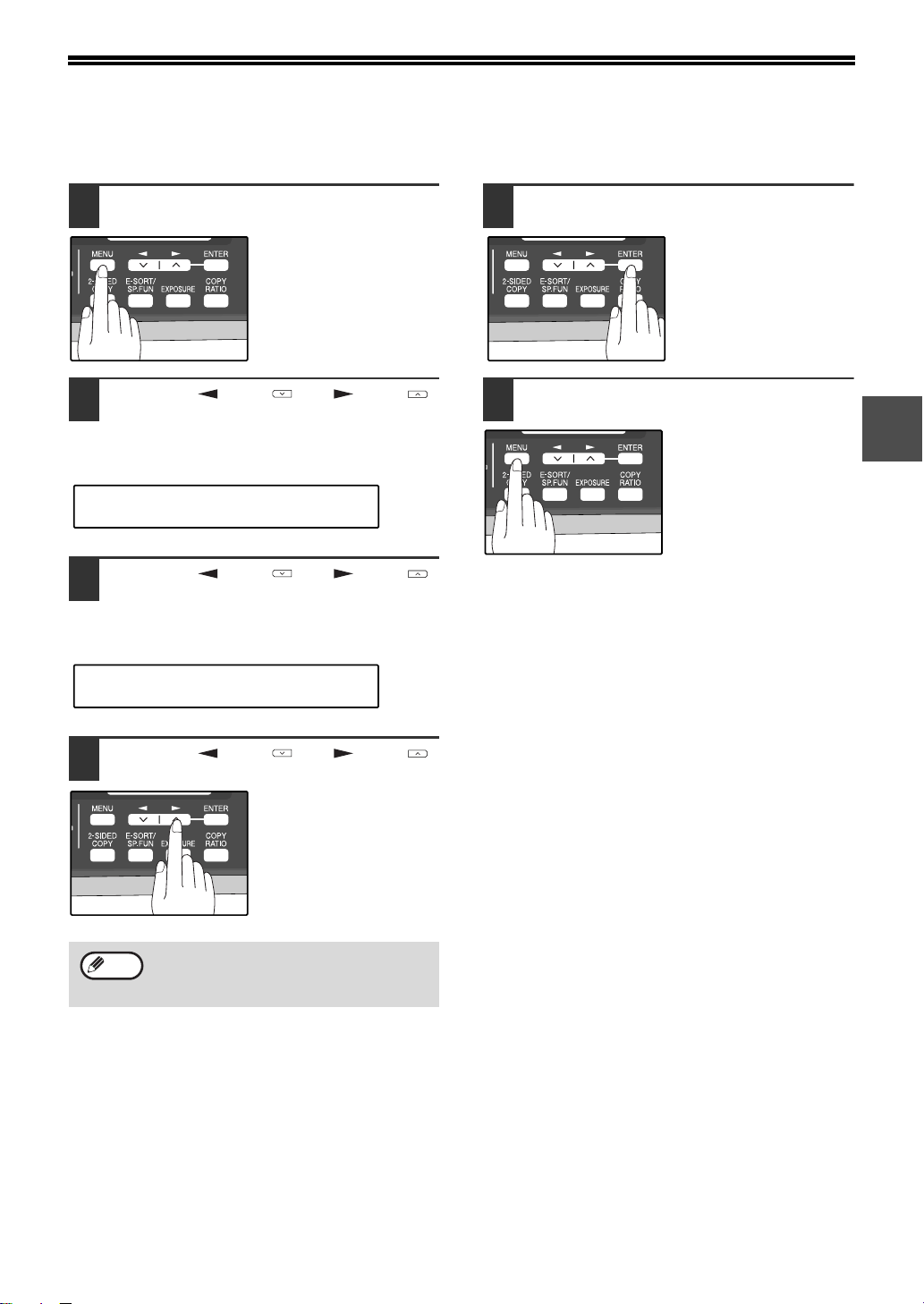
17
2
ADJUSTING THE RINGING VOLUME
Adjust the ringing volume of the machine following the procedure below.
1
Press the [MENU] key.
2
Press the [ ] key ( ) or [ ] key ( )
until "4:USER PROGRAM" appears,
and then press the [ENTER] key.
3
Press the [ ] key ( ) or [ ] key ( )
until "18:RINGER VOLUME" appears,
and then press the [ENTER] key.
4
Press the [ ] key ( ) or [ ] key ( )
to set the ringer volume.
The selections are as
follows:
1:OFF
2:LOW
3:MIDDLE
4:HIGH
To turn off the ringer,
select "1:OFF".
5
Press the [ENTER] key.
6
Press the [MENU] key.
Press the [MENU] key to
exit.
An extension phone will still ring when the
machine ringer is set to "1:OFF".
"4:USER PROGRAM"
Selection
"18:RINGER VOLUME"
Selection
Note
!AR-FX13_sec.book 17 ページ 2007年11月28日 水曜日 午後4時22分
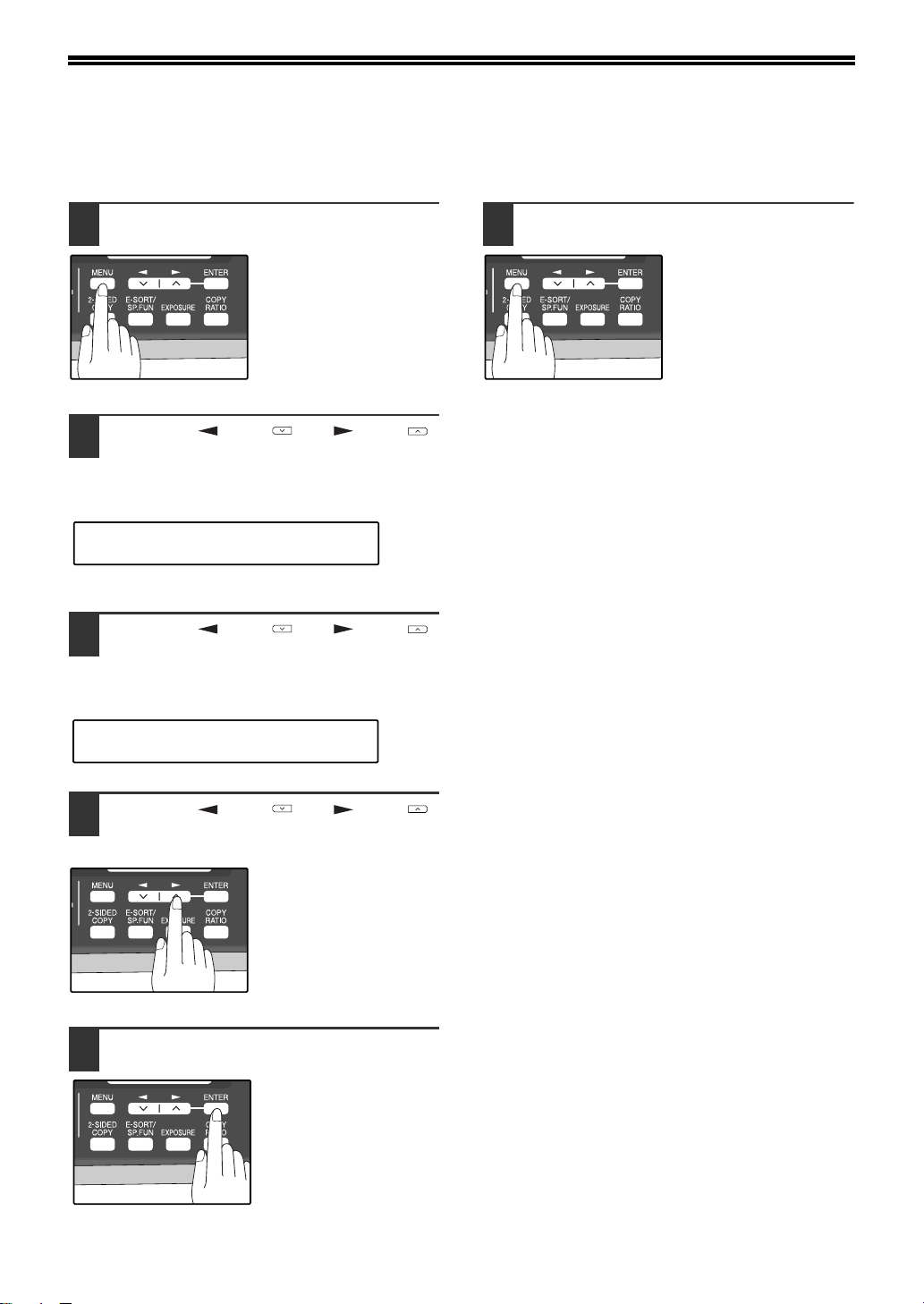
18
SETTING THE LENGTH OF ALARM BEEPS
You can select the length in seconds of the alarm beeps (emitted at the end of transmission and reception) following
the procedure below.
1
Press the [MENU] key.
2
Press the [ ] key ( ) or [ ] key ( )
until "4:USER PROGRAM" appears,
and then press the [ENTER] key.
3
Press the [ ] key ( ) or [ ] key ( )
until "17:BEEP LENGTH" appears,
and then press the [ENTER] key.
4
Press the [ ] key ( ) or [ ] key ( )
to set the alarm beeps to the desired
length or to turn them off.
The selections are as
follows:
1:3SEC
2:1SEC
3:NO BEEP
5
Press the [ENTER] key.
6
Press the [MENU] key.
Press the [MENU] key to
exit.
"4:USER PROGRAM"
Selection
"17:BEEP LENGTH"
Selection
!AR-FX13_sec.book 18 ページ 2007年11月28日 水曜日 午後4時22分
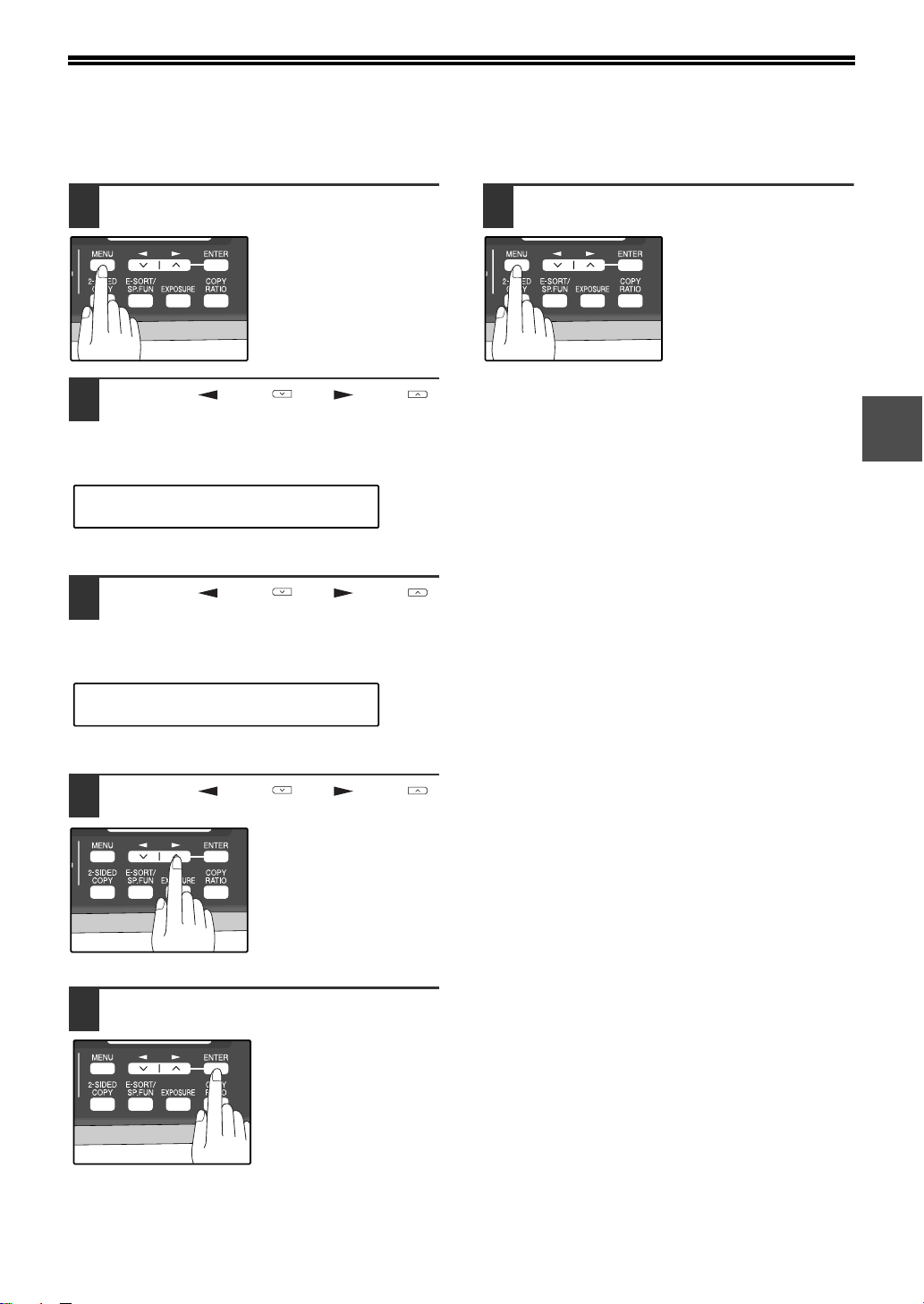
19
2
ADJUSTING THE ALARM BEEP VOLUME
Adjust the volume of alarm beeps (emitted at the end of transmission and reception) following the procedure below.
1
Press the [MENU] key.
2
Press the [ ] key ( ) or [ ] key ( )
until "4:USER PROGRAM" appears,
and then press the [ENTER] key.
3
Press the [ ] key ( ) or [ ] key ( )
until "19:BEEPER VOLUME" appears,
and then press the [ENTER] key.
4
Press the [ ] key ( ) or [ ] key ( )
to set the alarm volume.
The selections are as
follows:
1:OFF
2:LOW
3:MIDDLE
4:HIGH
To turn off the alarm,
select "1:OFF".
5
Press the [ENTER] key.
6
Press the [MENU] key.
Press the [MENU] key to
exit.
"4:USER PROGRAM"
Selection
"19:BEEPER VOLUME"
Selection
!AR-FX13_sec.book 19 ページ 2007年11月28日 水曜日 午後4時22分
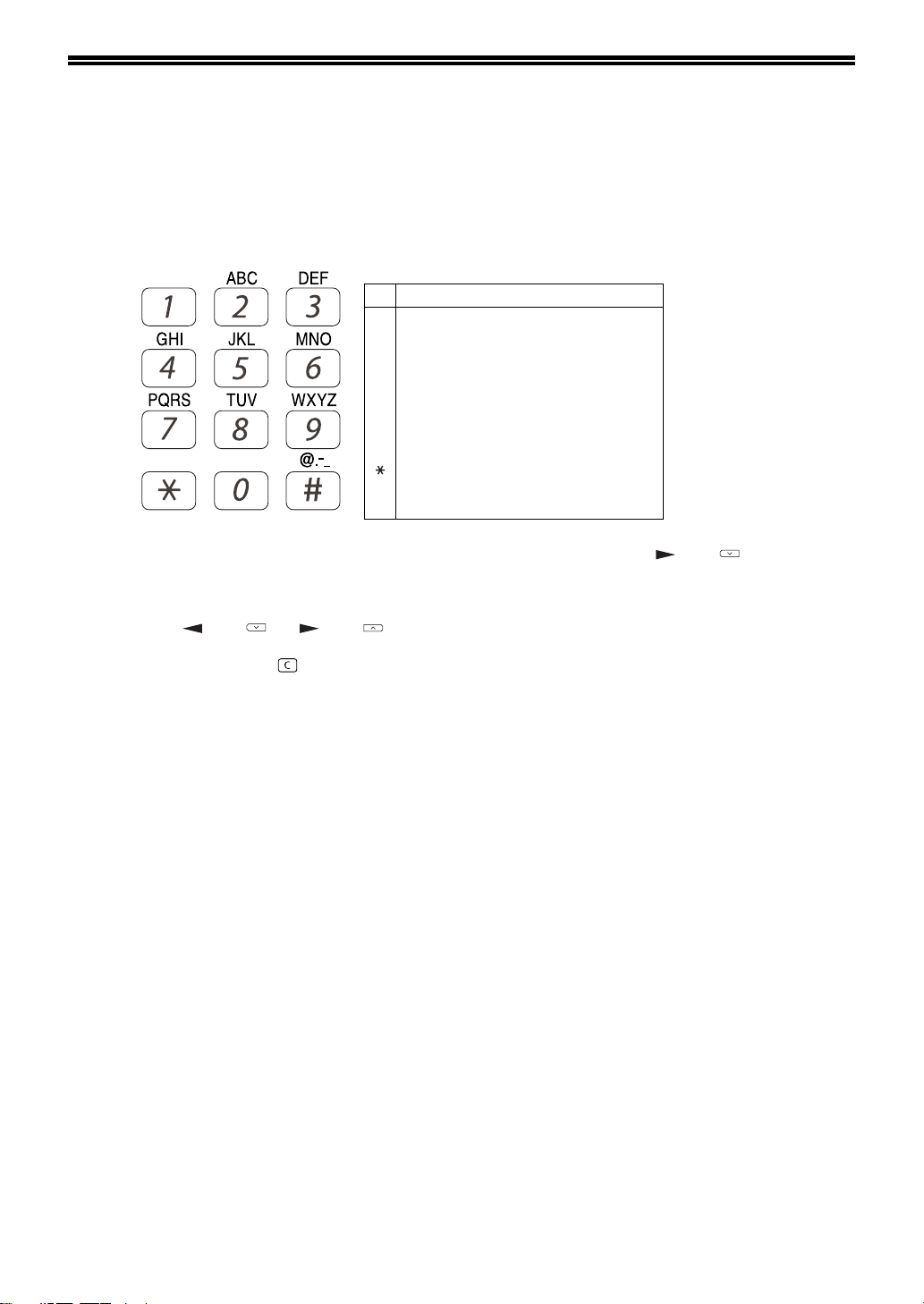
20
FAX SETUP
HOW TO ENTER CHARACTERS
You can enter letters with the numeric keys. Letters are marked above each of the numeric keys [2] through [9]. To
enter a letter, press the appropriate key repeatedly until the desired letter appears (the number of the key appears
first, followed by letters in the order marked above the key). The keys used for entering characters are shown below.
● To enter two characters in succession which require using the same key, press the [ ] key ( ) once after
entering the first character, and then enter the second character.
● If you enter an incorrect character or number, follow these steps to correct the mistake.
1. Press the [ ] key ( ) or [ ] key ( ) to move the cursor to the character immediately following the
incorrect character.
2. Press the [CLEAR] key ( ).
The character in front of the cursor is deleted.
3. Enter the correct character.
The character is inserted in front of the cursor.
1
2
3
4
5
6
7
8
9
0
#
* } { ] [ ? > = ; : , + ) ('& % $"!/_-.@ #
# @.-_/ !"$ % &'( )+ ,: ; = > ? [ ] { } *
The following characters can be entered with the numeric keys:
key Characters that can be entered
Space
1
A
D
G
J
M
P
T
W
0
B
E
H
K
N
Q
U
X
C
F
I
L
O
R
V
Y
2
3
4
5
6
S
8
Z
a
d
g
j
m
7
t
9
b
e
h
k
n
p
u
w
c
f
i
l
o
q
v
x
r
y
s
z
!AR-FX13_sec.book 20 ページ 2007年11月28日 水曜日 午後4時22分
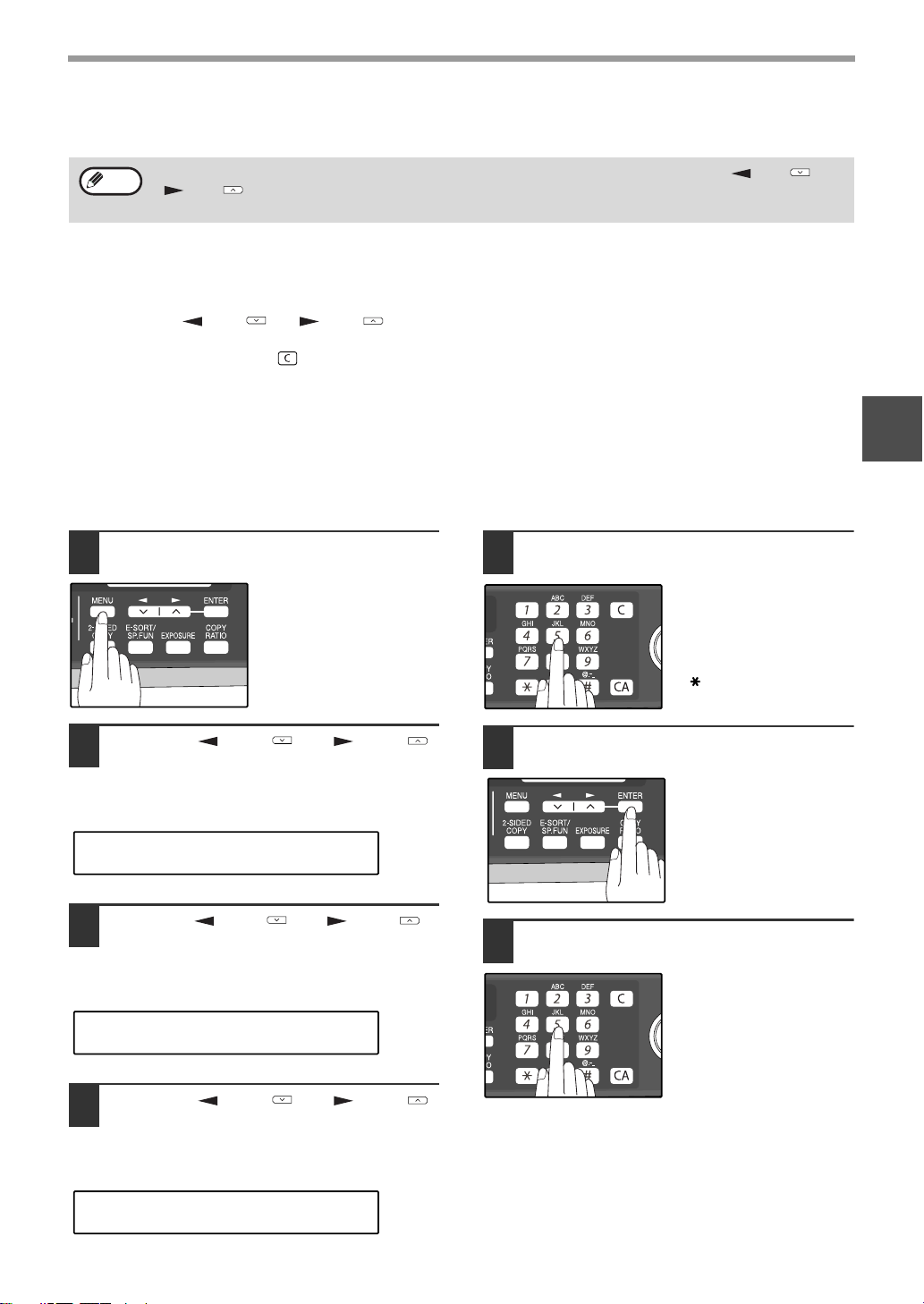
21
INITIAL SETTINGS
2
ENTERING YOUR NAME AND FAX NUMBER
To have your name and fax number printed at the top of every page you transmit, program them by pressing the
operation panel keys as shown below.
● If you enter an incorrect character or number, follow these steps to correct the mistake.
1. Press the [ ] key ( ) or [ ] key ( ) to move the cursor to the character immediately following the
incorrect character.
2. Press the [CLEAR] key ( ).The character in front of the cursor is deleted.
3. Enter the correct character.
IMPORTANT
FCC regulations require that your name, telephone/fax number, and the date and time appear on each fax message
you send. Enter your name and fax number here and set the date and time as explained in the following section to
have the fax machine include this information automatically at the top of your fax messages.
Use the following procedure to enter your name and fax number:
1
Press the [MENU] key.
2
Press the [ ] key ( ) or [ ] key ( )
until "2:ENTRY MODE" appears, and
then press the [ENTER] key.
3
Press the [ ] key ( ) or [ ] key ( )
until "3:OWN PASSCODE SET" appears,
and then press the [ENTER] key.
4
Press the [ ] key ( ) or [ ] key ( )
to select "1:SET" and then press the
[ENTER] key.
5
Enter your fax number with the
numeric keys.
Enter your own fax
number (maximum 20
digits) by pressing the
Numeric keys.
To insert a "+", press the
[ ] key.
6
Press the [ENTER] key.
"ENTER NAME" will
appear in the display.
7
Enter your name with the numeric
keys.
Enter your name by
pressing the appropriate
Numeric keys as shown
on the left. Press each
key repeatedly until the
desired letter appears in
the display (maximum of
36 characters).
To enter a space, press the [1] key twice.
You can view all of the items in the menu display by pressing the [MENU] key, then using the [ ] key ( ) or
[ ] key ( ) to scroll through the function list. Pressing the [ENTER] key chooses the displayed function.
Procedures for inputting various items (name, telephone number, date, etc.) are given as follows.
Note
"2:ENTRY MODE"
Selection
"3:OWN PASSCODE SET"
Selection
"1:SET"
Selection
!AR-FX13_sec.book 21 ページ 2007年11月28日 水曜日 午後4時22分
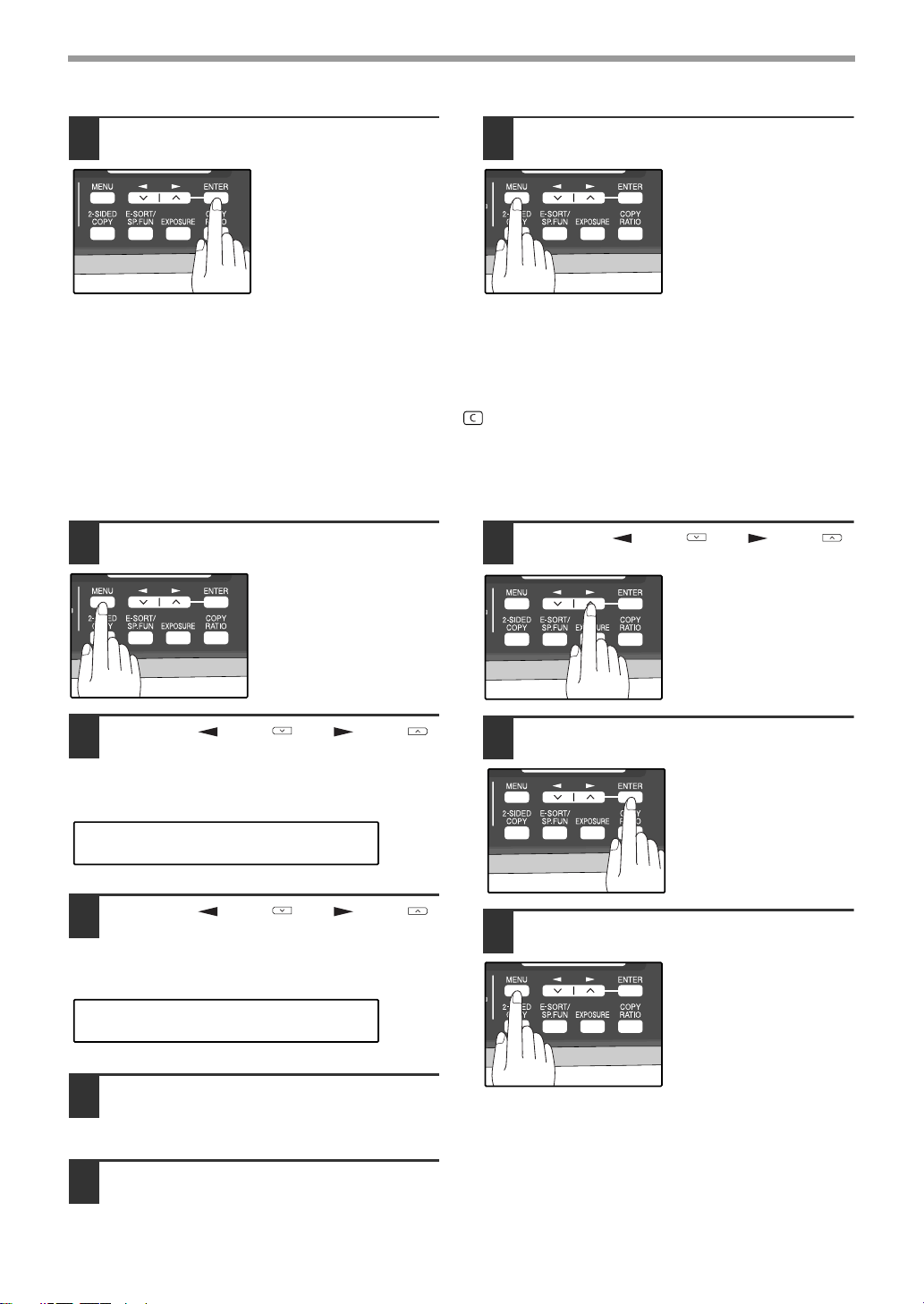
22
INITIAL SETTINGS
8
Press the [ENTER] key.
9
Press the [MENU] key.
Press the [MENU] key to
exit.
SETTING THE DATE AND TIME
The date and time that appear in the display are printed at the top of each page you transmit. Set the date and time
by pressing the keys on the operation panel as shown below.
If you enter an incorrect number, press the [CLEAR] key ( ) and re-enter the number.
The time can be displayed in 12-hour or 24-hour format. "Month/Day/Year", "Day/Month/Year" or "Year/Month/Day"
can be selected for the order of display of the date.
Use the following procedure to set the date and time:
1
Press the [MENU] key.
2
Press the [ ] key ( ) or [ ] key ( )
until "2:ENTRY MODE" appears, and
then press the [ENTER] key.
3
Press the [ ] key ( ) or [ ] key ( )
until "2:DATE&TIME SET" appears,
and then press the [ENTER] key.
4
Enter the year, month, and day with
the numeric keys and then press the
[ENTER] key.
5
Enter the time with the numeric keys.
6
Press the [ ] key ( ) or [ ] key ( )
to select "AM" or "PM".
When 24-hour format is
selected, do not perform
this step.
7
Press the [ENTER] key.
8
Press the [MENU] key.
Press the [MENU] key to
exit.
"2:ENTRY MODE"
Selection
"2:DATE&TIME SET"
Selection
!AR-FX13_sec.book 22 ページ 2007年11月28日 水曜日 午後4時22分
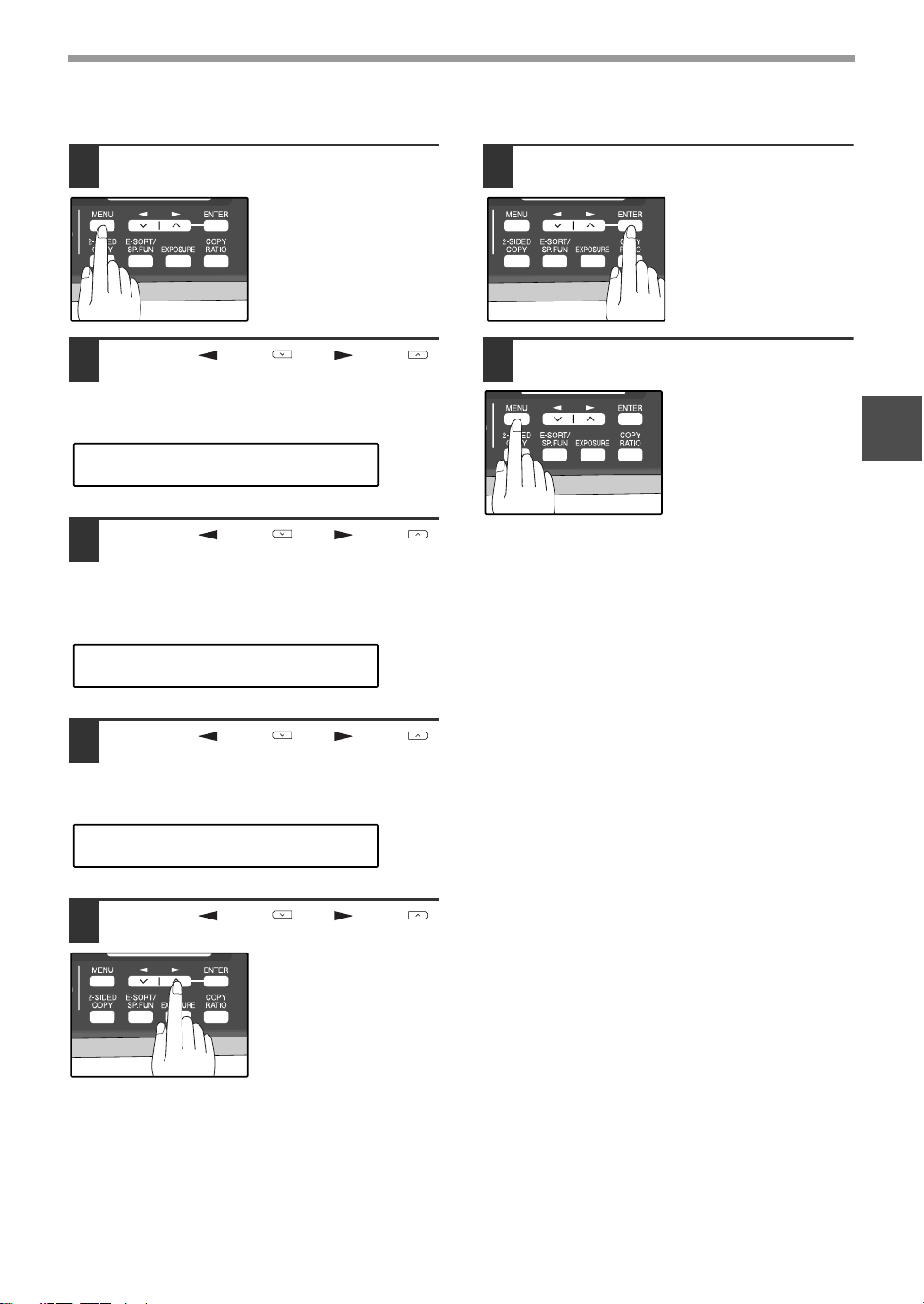
23
INITIAL SETTINGS
2
To change the display format to 12-hour or 24-hour format, follow the steps below:
1
Press the [MENU] key.
2
Press the [ ] key ( ) or [ ] key ( )
until "4:USER PROGRAM" appears,
and then press the [ENTER] key.
3
Press the [ ] key ( ) or [ ] key ( )
until "23:DATE&TIME FORMAT"
appears, and then press the [ENTER]
key.
4
Press the [ ] key ( ) or [ ] key ( )
until "1:TIME FORMAT" appears, and
then press the [ENTER] key.
5
Press the [ ] key ( ) or [ ] key ( )
to select "1:12HOUR" or "2:24HOUR".
6
Press the [ENTER] key.
7
Press the [MENU] key.
Press the [MENU] key to
exit.
"4:USER PROGRAM"
Selection
"23:DATE&TIME FORMAT"
Selection
"1:TIME FORMAT"
Selection
!AR-FX13_sec.book 23 ページ 2007年11月28日 水曜日 午後4時22分
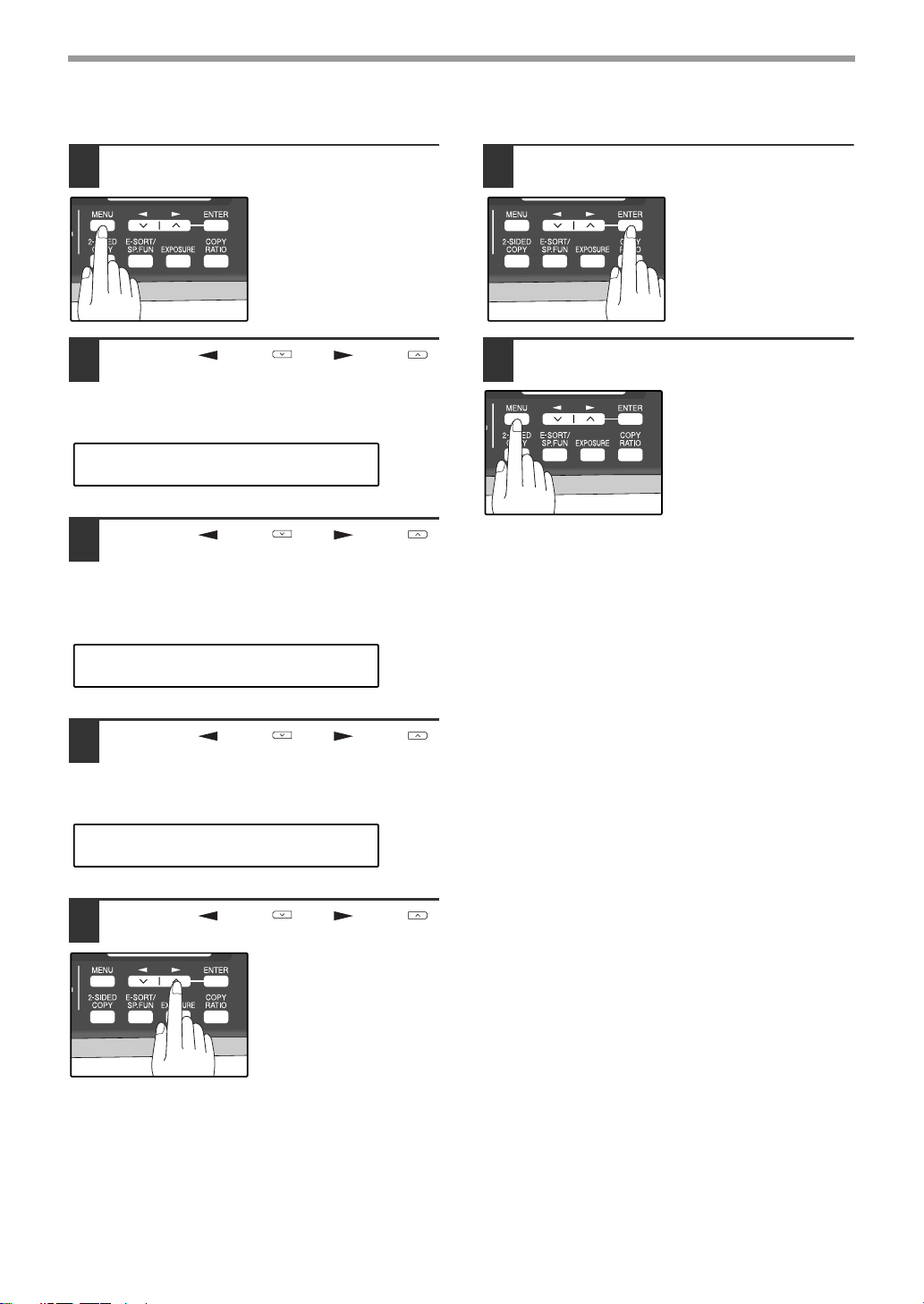
24
INITIAL SETTINGS
To change the order of display of the date, follow the steps below:
1
Press the [MENU] key.
2
Press the [ ] key ( ) or [ ] key ( )
until "4:USER PROGRAM" appears,
and then press the [ENTER] key.
3
Press the [ ] key ( ) or [ ] key ( )
until "23:DATE&TIME FORMAT"
appears, and then press the [ENTER]
key.
4
Press the [ ] key ( ) or [ ] key ( )
until "2:DATE FORMAT" appears, and
then press the [ENTER] key.
5
Press the [ ] key ( ) or [ ] key ( )
to select the display order.
The selections are as
follows:
1:MMDDYYYY
2:DDMMYYYY
3:YYYYMMDD
6
Press the [ENTER] key.
7
Press the [MENU] key.
Press the [MENU] key to
exit.
"4:USER PROGRAM"
Selection
"23:DATE&TIME FORMAT"
Selection
"2:DATE FORMAT"
Selection
!AR-FX13_sec.book 24 ページ 2007年11月28日 水曜日 午後4時22分
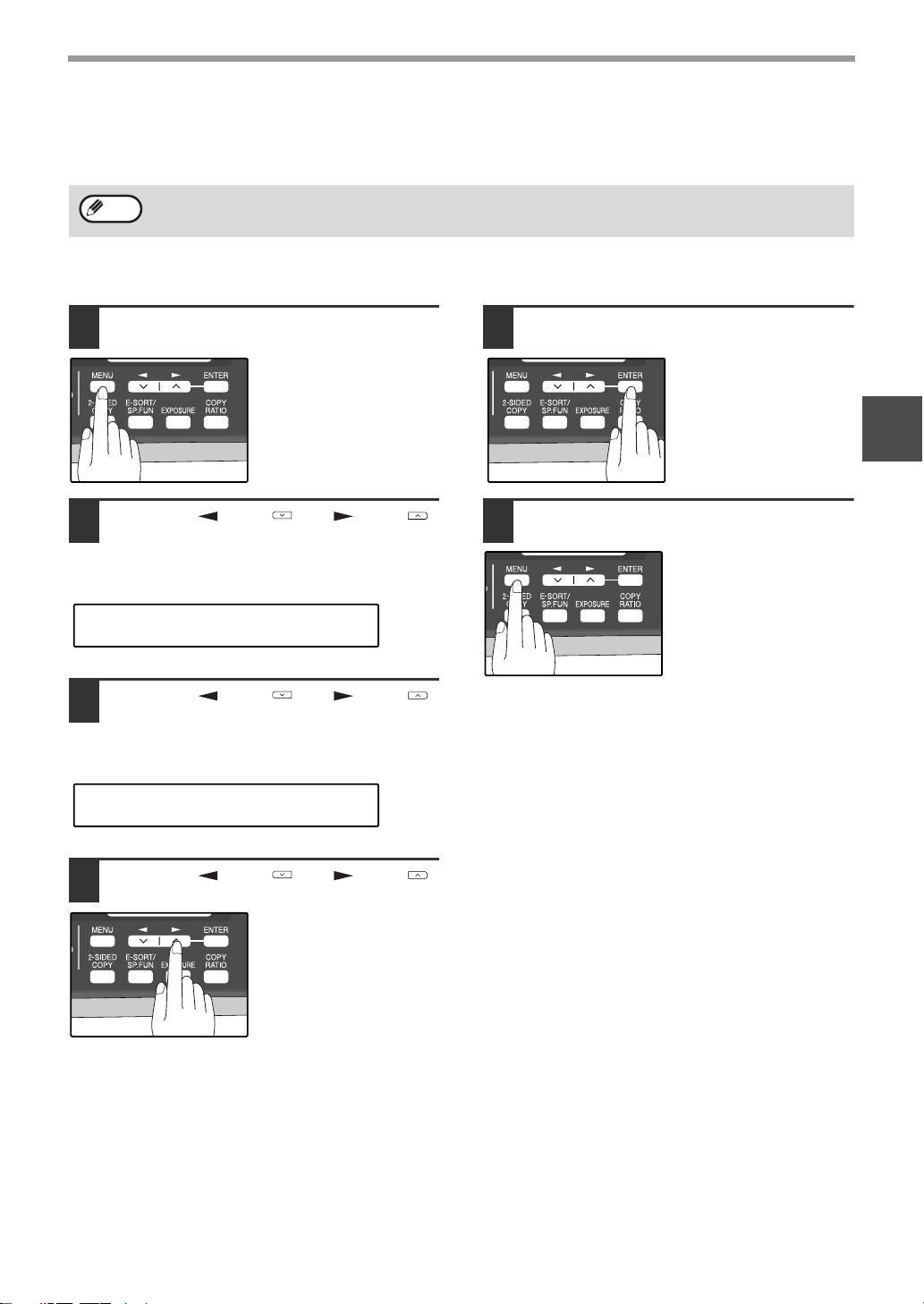
25
INITIAL SETTINGS
2
Daylight Saving Time Setting
Enable this setting to have the internal clock automatically move forward and backward at the beginning and end of
Daylight Saving Time.
Follow these steps to enable Daylight Saving Time.
1
Press the [MENU] key.
2
Press the [ ] key ( ) or [ ] key ( )
until "2:ENTRY MODE" appears, and
then press the [ENTER] key.
3
Press the [ ] key ( ) or [ ] key ( )
until "5:DAY LIGHT SAVING" appears,
and then press the [ENTER] key.
4
Press the [ ] key ( ) or [ ] key ( )
to select "1:ON" or "2:OFF".
Select "1:ON" to enable
the function.
Select "2:OFF" to disable
the function.
5
Press the [ENTER] key.
6
Press the [MENU] key.
Press the [MENU] key to
exit.
If a transmission is in progress when the clock adjustment time for daylight savings time arrives, the clock will not
be adjusted until the transmission ends.
Note
"2:ENTRY MODE"
Selection
"5:DAY LIGHT SAVING"
Selection
!AR-FX13_sec.book 25 ページ 2007年11月28日 水曜日 午後4時22分
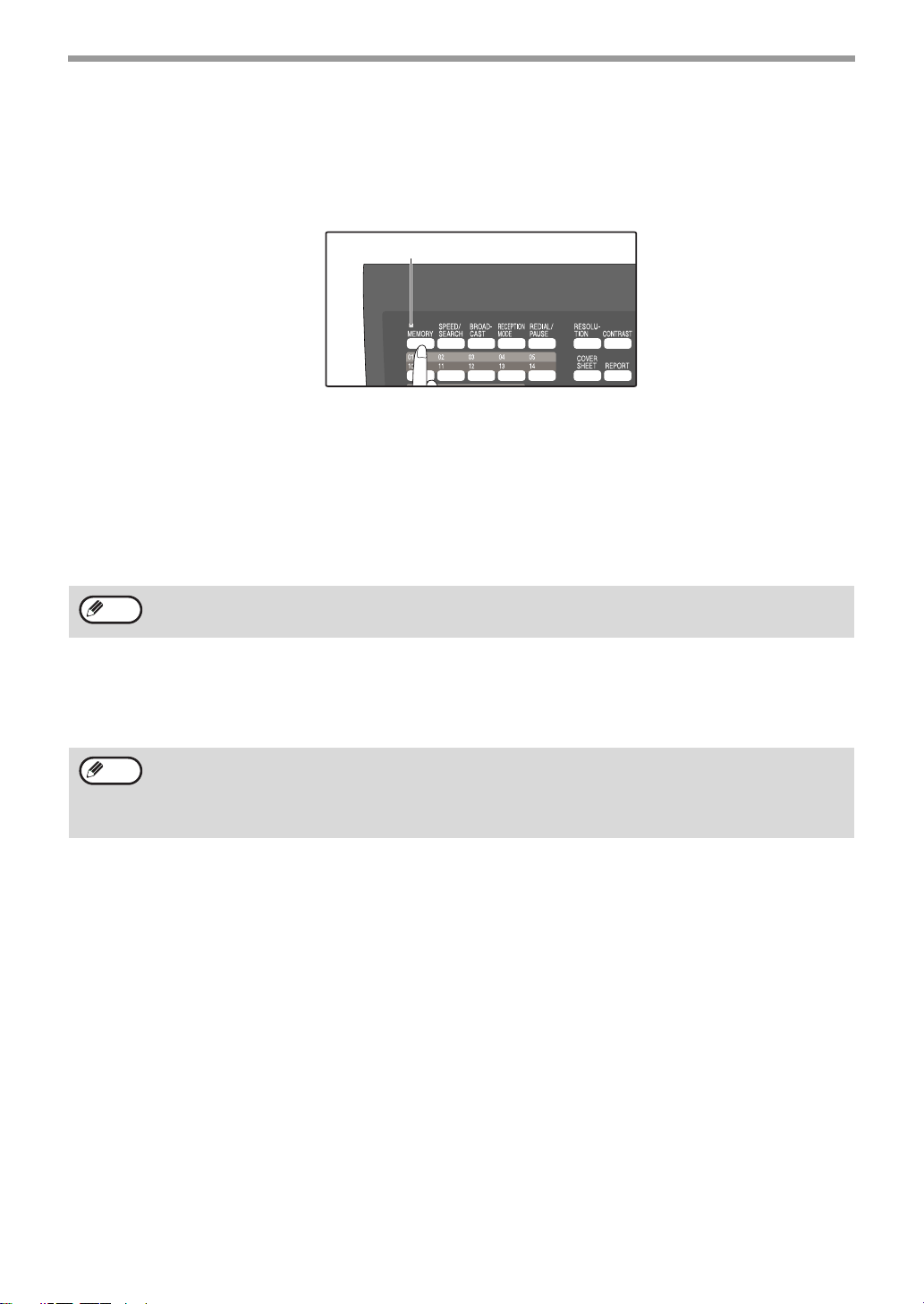
26
INITIAL SETTINGS
SELECTING THE TRANSMISSION MODE
The machine has two modes for sending faxes: memory transmission and direct transmission. To change modes,
press the [MEMORY] key. The MEMORY indicator lights up when memory transmission is selected, and goes off
when direct transmission is selected.
Transmission takes place as follows in each mode:
Memory transmission (the MEMORY indicator is lit)
When a fax is sent from the RSPF and there are no previously stored fax jobs and no job in progress (the telephone
line is not being used), dialing and scanning begin at the same time. Each page is transmitted after it is scanned.
This transmission method is called Quick Online transmission.
If there are previously stored fax jobs or a job in progress, or the fax is being sent from the document glass, the fax
is temporarily scanned into memory before transmission.
Direct transmission (the MEMORY indicator is off)
The fax is sent directly after the destination is dialed and the connection established.
The machine memory is not used for direct transmission, and thus direct transmission is possible even when the
memory is full.
When a fax is sent by transmission reservation (p.70), broadcast transmission (p.71), broadcasting using a Group
key (p.72), or timer transmission (p.79), the fax is scanned into memory before transmission.
• A fax job cannot be stored while a direct transmission is in progress.
• Only one page can be sent from the document glass by direct transmission.
• A subsequent function cannot be used while a direct transmission is in progress.
Transmission reservation (p.70), broadcast transmission (p.71), broadcasting using a Group key (p.72), or timer
transmission (p.79)
MEMORY indicator
Note
Note
!AR-FX13_sec.book 26 ページ 2007年11月28日 水曜日 午後4時22分
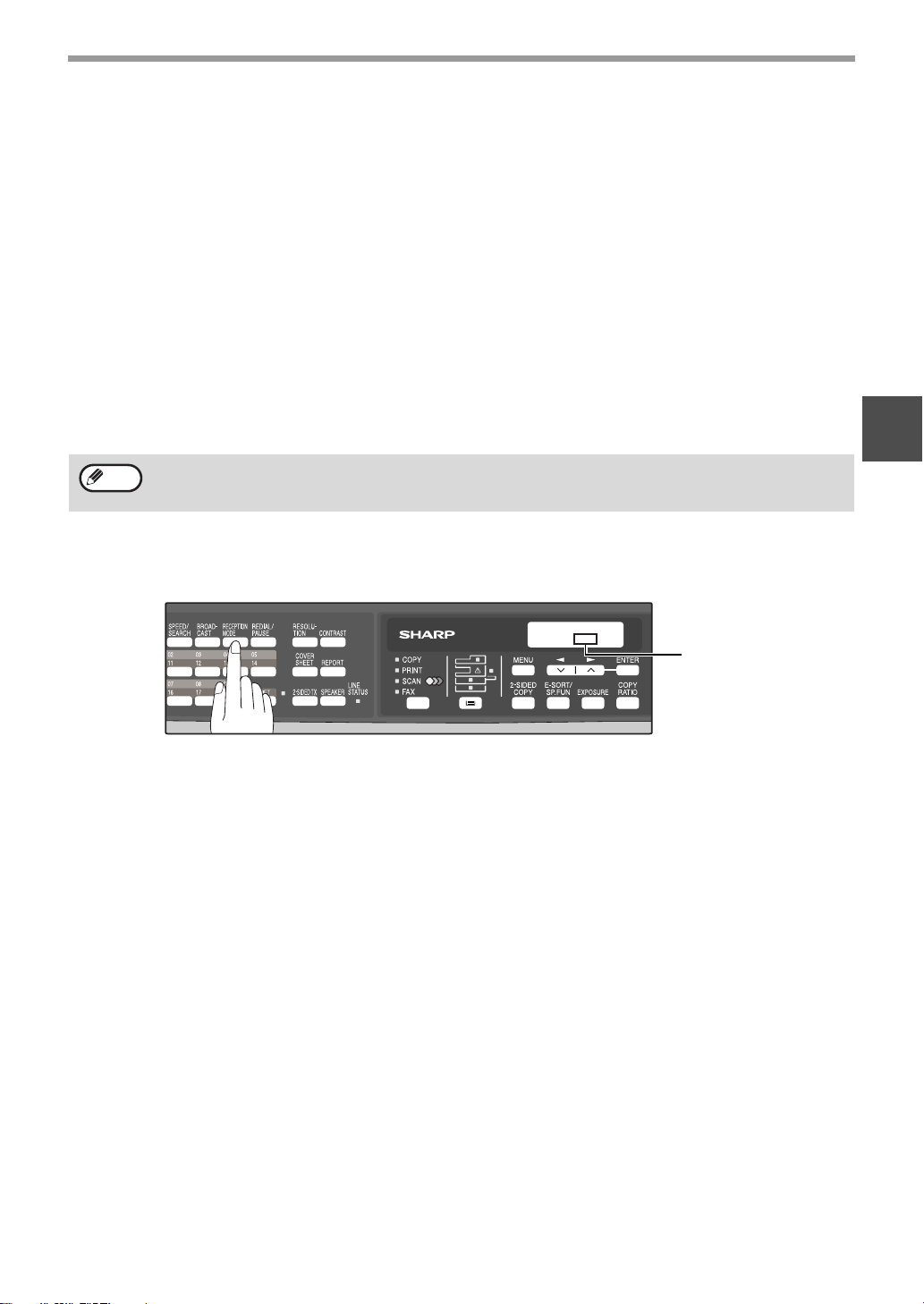
27
INITIAL SETTINGS
2
SELECTING THE RECEPTION MODE
Your machine has three modes for receiving incoming calls and faxes:
● AUTO mode:
Select this mode when you only want to receive faxes on your telephone line. The machine will automatically
answer all calls and receive incoming faxes.
● MAN. mode:
This is the most convenient mode for receiving phone calls if you have an extension phone. To have true manual
mode, the machine must be set to not answer while in MAN. mode (see "SETTING THE NUMBER OF RINGS
FOR MANUAL RECEPTION" (p.29)). You can also receive faxes; however, all calls must first be answered by
picking up the receiver on the extension phone.
● A.M. mode:
Select this mode when an answering machine is connected to the machine and you want the answering machine
to answer all calls. This allows you to receive both voice messages and faxes while you are out.
To select the reception mode, press the [RECEPTION MODE] key until the desired reception mode appears in the
display.
For more information on reception modes, refer to "RECEIVING FAXES" (p.63)".
If you are using distinctive ringing as described in "DISTINCTIVE RINGING" on page 41, you must set the
reception mode to AUTO. This is true, as well, if you are using an answering machine with distinctive ringing (in
this case, the answering machine must be connected to a separate wall jack, not to your
machine).
Note
The selected reception
mode appears.
NOV 05 WED 8:20 AM
STAD-BY AUTO 100%
!AR-FX13_sec.book 27 ページ 2007年11月28日 水曜日 午後4時22分

28
INITIAL SETTINGS
SETTING THE NUMBER OF RINGS FOR AUTO RECEPTION
You can set the number of rings before the machine answers in AUTO mode following the procedure below.
1
Press the [MENU] key.
2
Press the [ ] key ( ) or [ ] key ( )
until "4:USER PROGRAM" appears,
and then press the [ENTER] key.
3
Press the [ ] key ( ) or [ ] key ( )
until "4:# OF RINGS (AUTO)" appears,
and then press the [ENTER] key.
4
Press a numeric key to select the
number of rings.
Select the number of
rings you would like to
use (0 to 9).
5
Press the [ENTER] key.
6
Press the [MENU] key.
Press the [MENU] key to
exit.
"4:USER PROGRAM"
Selection
"4:# OF RINGS (AUTO)"
Selection
If an external telephone is connected, the
external telephone will ring one time when
auto reception is set to 0 rings.
Note
!AR-FX13_sec.book 28 ページ 2007年11月28日 水曜日 午後4時22分

29
INITIAL SETTINGS
2
SETTING THE NUMBER OF RINGS FOR MANUAL RECEPTION
The number of rings before the machine answers in MANUAL mode can also be set.
If you do not want the machine to answer at all in MANUAL Mode, select "0" in Step 4 below.
1
Press the [MENU] key.
2
Press the [ ] key ( ) or [ ] key ( )
until "4:USER PROGRAM" appears,
and then press the [ENTER] key.
3
Press the [ ] key ( ) or [ ] key ( )
until "5:# OF RINGS (MANUAL)"
appears, and then press the [ENTER]
key.
4
Press a numeric key to select the
number of rings.
Select the number of
rings you would like to
use (0 to 9).
5
Press the [ENTER] key.
6
Press the [MENU] key.
Press the [MENU] key to
exit.
SELECTING THE RECEPTION PAPER SIZE
Set the size of paper to be used to print received faxes. A size setting other than "A4", "8.5x11", or "8.5x14" is
regarded as out of paper. To set the paper size, see "LOADING PAPER" in the Operation Manual (for general
information).
"4:USER PROGRAM"
Selection
"5:# OF RINGS (MANUAL)"
Selection
!AR-FX13_sec.book 29 ページ 2007年11月28日 水曜日 午後4時22分
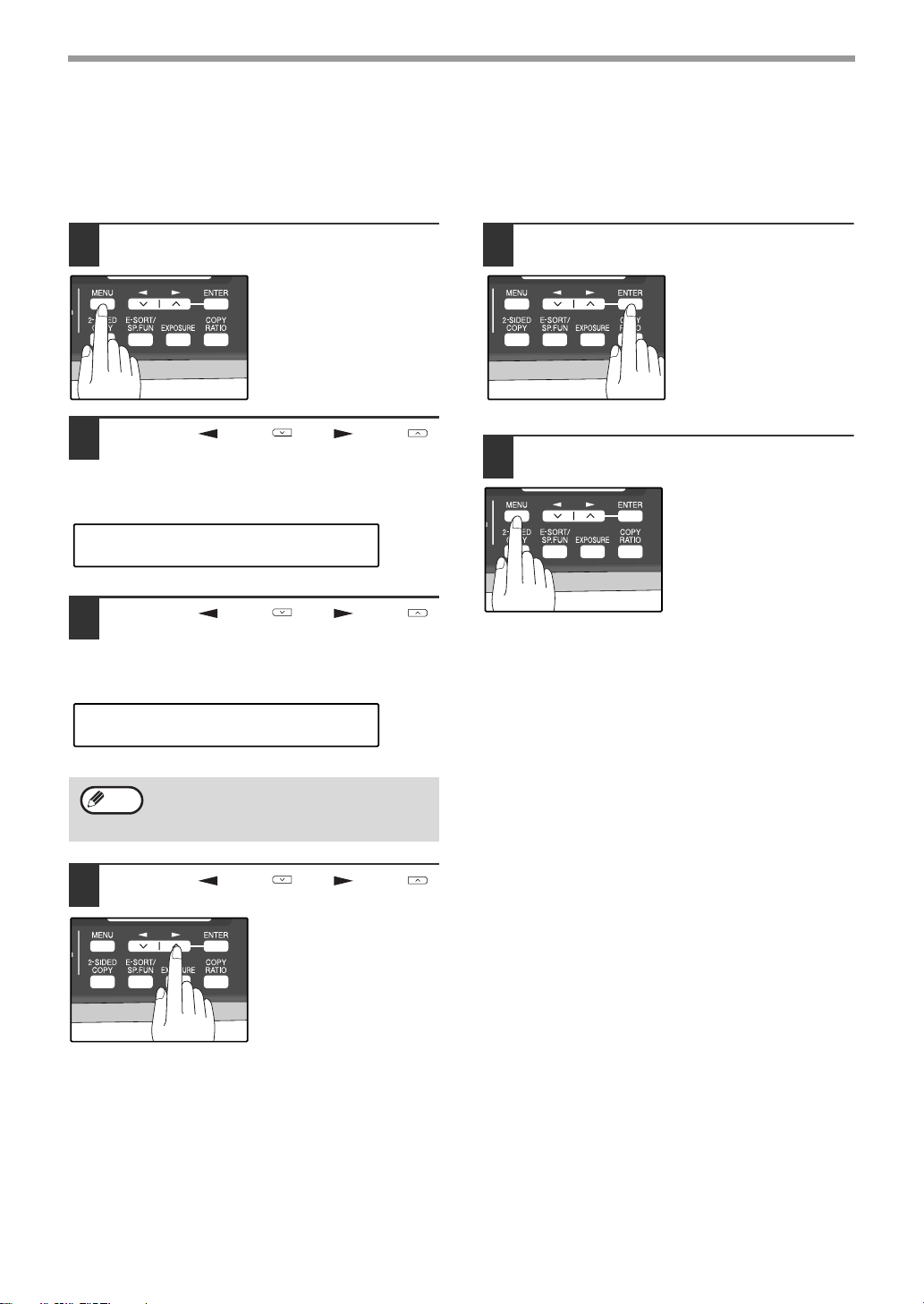
30
INITIAL SETTINGS
SETTING THE TRAY SELECTION
(when the 250-sheet paper feed unit is installed)
Follow the steps below to select the paper tray for received faxes.
1
Press the [MENU] key.
2
Press the [ ] key ( ) or [ ] key ( )
until "4:USER PROGRAM" appears,
and then press the [ENTER] key.
3
Press the [ ] key ( ) or [ ] key ( )
until "25:TRAY SELECTION" appears,
and then press the [ENTER] key.
4
Press the [ ] key ( ) or [ ] key ( )
to select the tray selection.
The selections are as
follows:
1:AUTO
2:TRAY 1
3:TRAY 2
5
Press the [ENTER] key.
6
Press the [MENU] key.
Press the [MENU] key to
exit.
Select "24: TRAY SELECTION" when the
AR-208S is used.
"4:USER PROGRAM"
Selection
"25:TRAY SELECTION"
Selection
Note
!AR-FX13_sec.book 30 ページ 2007年11月28日 水曜日 午後4時22分
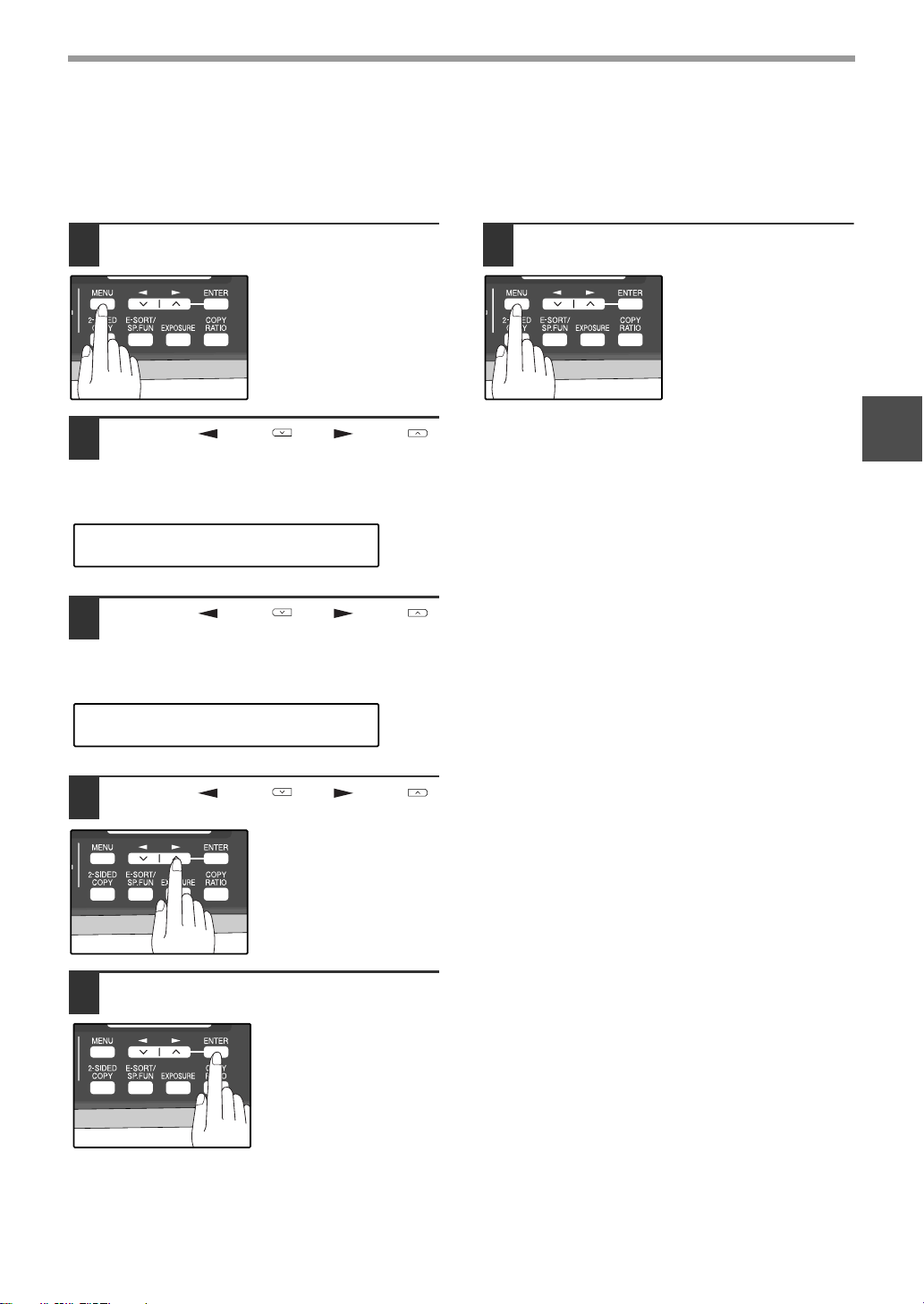
31
INITIAL SETTINGS
2
SETTING THE DIAL MODE
The machine can be used with both touch-tone and pulse telephone lines. Touch-tone uses tones of different
pitches for each numeric key, while pulse lines use a series of pulses. Your machine must be set to match the kind
of telephone line you are using: touch-tone or pulse.
1
Press the [MENU] key.
2
Press the [ ] key ( ) or [ ] key ( )
until "4:USER PROGRAM" appears,
and then press the [ENTER] key.
3
Press the [ ] key ( ) or [ ] key ( )
until "20:DIAL MODE" appears, and
then press the [ENTER] key.
4
Press the [ ] key ( ) or [ ] key ( )
to select the dial mode.
The selections are as
follows:
1:TONE
2:PULSE
5
Press the [ENTER] key.
6
Press the [MENU] key.
Press the [MENU] key to
exit.
"4:USER PROGRAM"
Selection
"20:DIAL MODE"
Selection
!AR-FX13_sec.book 31 ページ 2007年11月28日 水曜日 午後4時22分
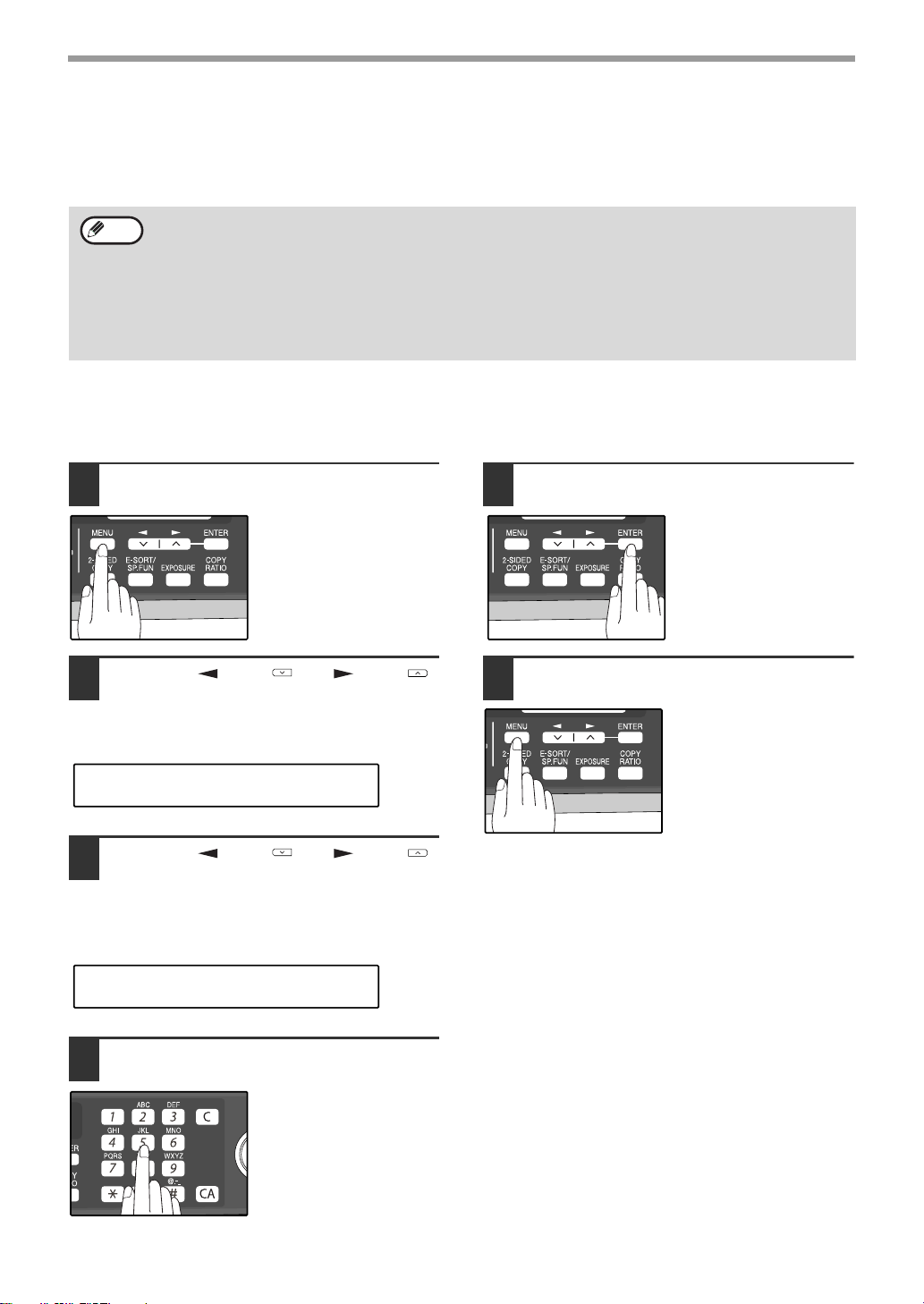
32
INITIAL SETTINGS
SETTING THE NUMBER OF RECALL TIMES
The machine will automatically reattempt transmission when a transmission is not successful because the line is
busy or a communication error occurs. This setting is used to select the number of recall attempts that will be made.
When the line is busy
You can select the number of recall attempts made when the line is busy.
If "00" is entered, the machine will not make any recall attempts.
1
Press the [MENU] key.
2
Press the [ ] key ( ) or [ ] key ( )
until "4:USER PROGRAM" appears,
and then press the [ENTER] key.
3
Press the [ ] key ( ) or [ ] key ( )
until "8:RECALL TIMES BUSY"
appears, and then press the [ENTER]
key.
4
Press the numeric keys to select the
number of recall attempts.
Enter the number of
recall times ("00" to "14").
5
Press the [ENTER] key.
6
Press the [MENU] key.
Press the [MENU] key to
exit.
• If a transmission is still not successful after the set number of recall attempts is made, a report will
print and the document will be cleared from memory.
• If a communication error occurs because the memory becomes full during transmission, no recall
attempts will be made.
• Recall attempts for a direct transmission will only be made when the RSPF is used. Recall attempts
will not be made when the document glass is used.
• When the machine is waiting to make a recall attempt for a direct transmission, other operations
such as storing a transmission or selecting a function cannot be performed.
Note
"4:USER PROGRAM"
Selection
"8:RECALL TIMES BUSY"
Selection
!AR-FX13_sec.book 32 ページ 2007年11月28日 水曜日 午後4時22分
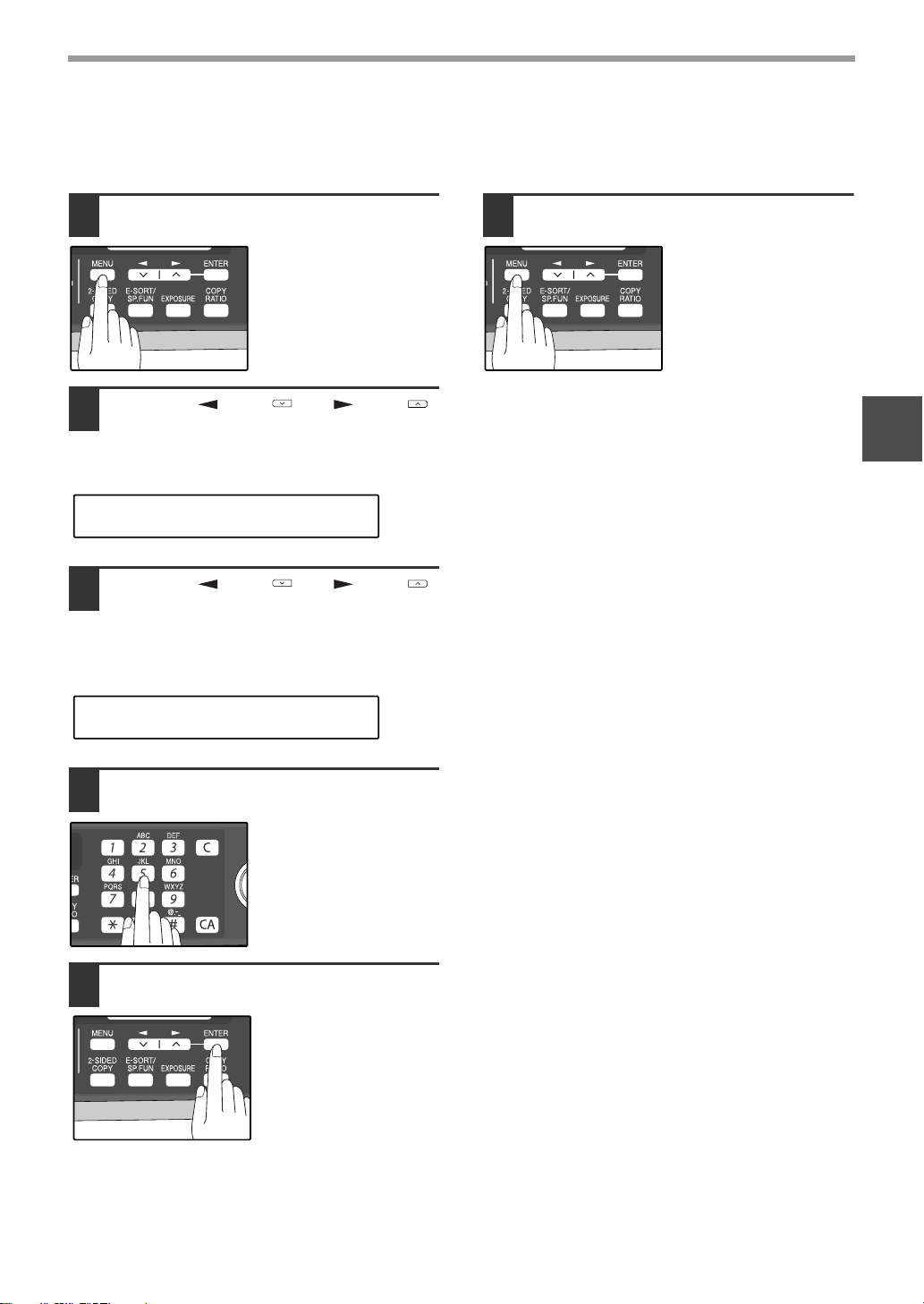
33
INITIAL SETTINGS
2
When a communication error occurs
You can select the number of recall attempts made when a communication error occurs.
If "0" is entered, the machine will not make any recall attempts.
1
Press the [MENU] key.
2
Press the [ ] key ( ) or [ ] key ( )
until "4:USER PROGRAM" appears,
and then press the [ENTER] key.
3
Press the [ ] key ( ) or [ ] key ( )
until "9:RECALL TIMES ERR"
appears, and then press the [ENTER]
key.
4
Press the numeric keys to select the
number of recall attempts.
Enter the number of
recall times ("0" or "1").
5
Press the [ENTER] key.
6
Press the [MENU] key.
Press the [MENU] key to
exit.
"4:USER PROGRAM"
Selection
"9:RECALL TIMES ERR"
Selection
!AR-FX13_sec.book 33 ページ 2007年11月28日 水曜日 午後4時22分
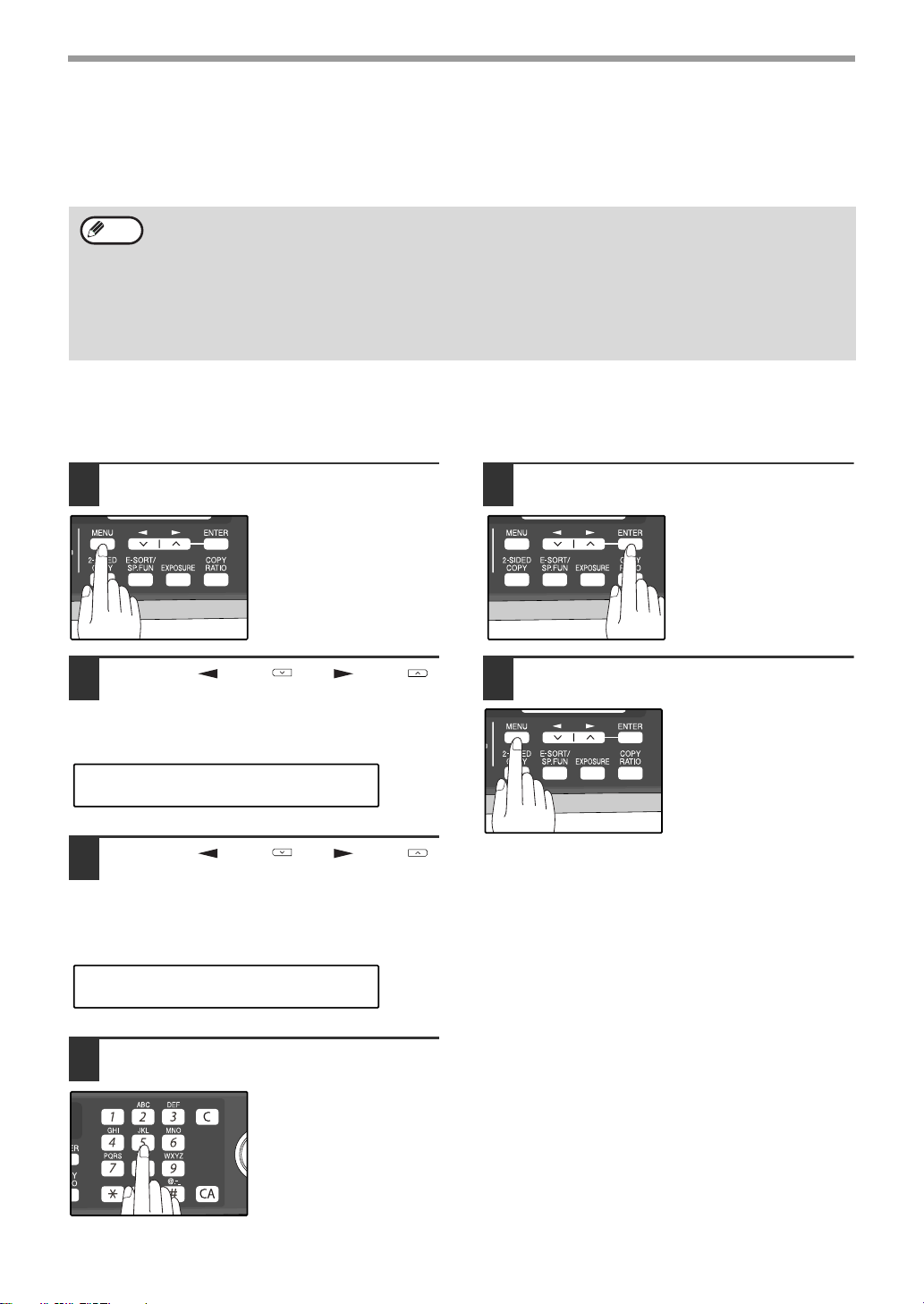
34
INITIAL SETTINGS
SETTING THE RECALL INTERVAL
The machine will automatically reattempt transmission when a transmission is not successful because the line is
busy or a communication error occurs. This setting is used to select the interval between recall attempts.
When the line is busy
You can select the interval between recall attempts when the line is busy. An interval from 1 to 15 minutes can be
selected.
1
Press the [MENU] key.
2
Press the [ ] key ( ) or [ ] key ( )
until "4:USER PROGRAM" appears,
and then press the [ENTER] key.
3
Press the [ ] key ( ) or [ ] key ( )
until "10:RECALL INT. BUSY"
appears, and then press the [ENTER]
key.
4
Press the numeric keys to select the
recall interval.
Enter the recall interval
("01" to "15").
5
Press the [ENTER] key.
6
Press the [MENU] key.
Press the [MENU] key to
exit.
• If a transmission is still not successful after the set number of recall attempts is made, a report will
print and the document will be cleared from memory.
• If a communication error occurs because the memory becomes full during transmission, no recall
attempts will be made.
• Recall attempts for a direct transmission will only be made when the RSPF is used. Recall attempts
will not be made when the document glass is used.
• When the machine is waiting to make a recall attempt for a direct transmission, other operations
such as storing a transmission or selecting a function cannot be performed.
Note
"4:USER PROGRAM"
Selection
"10:RECALL INT. BUSY"
Selection
!AR-FX13_sec.book 34 ページ 2007年11月28日 水曜日 午後4時22分
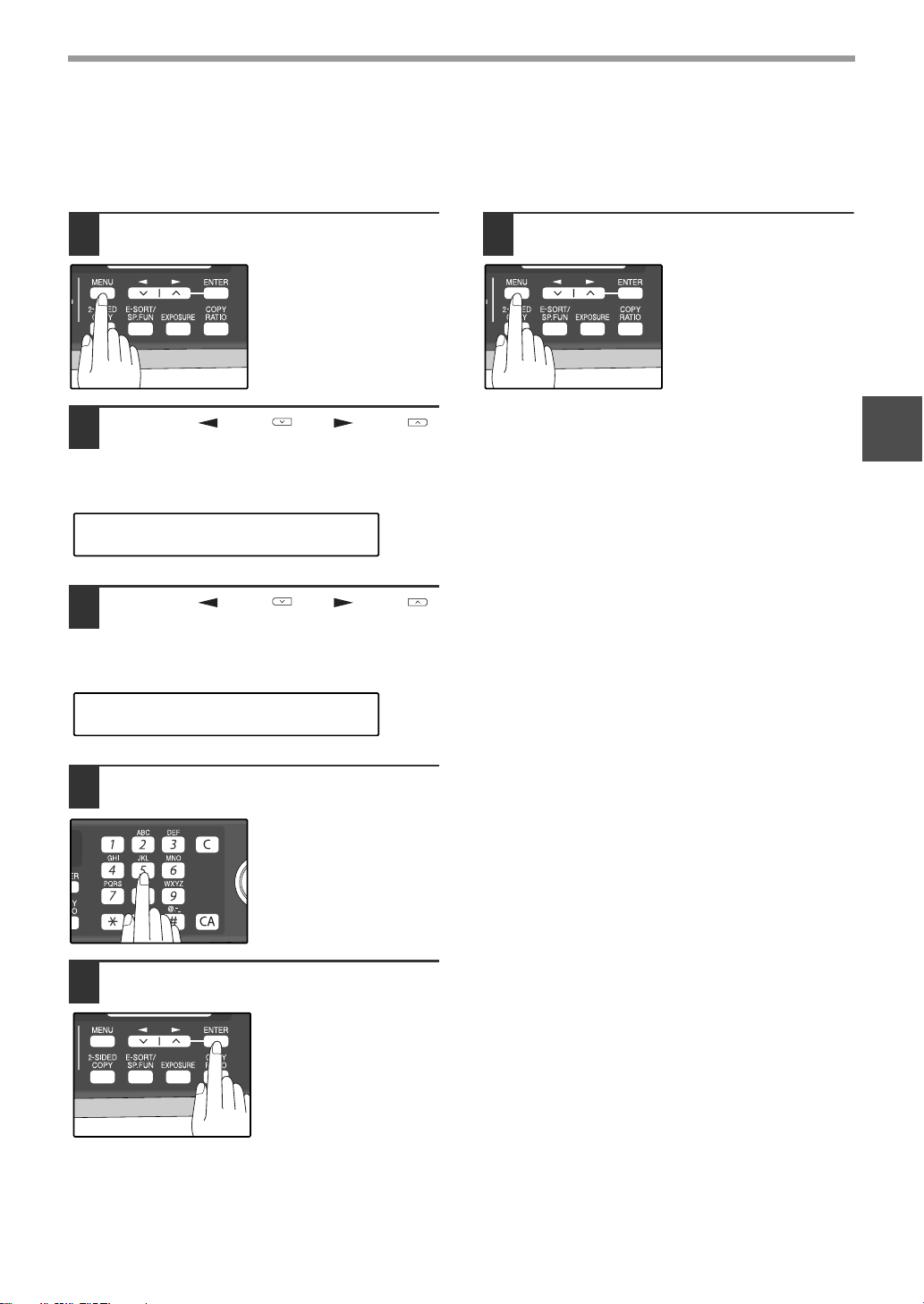
35
INITIAL SETTINGS
2
When a communication error occurs
You can select the interval between recall attempts when a communication error occurs. An interval from 0 to 15
minutes can be selected. If the recall interval is set to 0 minutes, the machine will immediately call again after
breaking the connection due to the communication error.
1
Press the [MENU] key.
2
Press the [ ] key ( ) or [ ] key ( )
until "4:USER PROGRAM" appears,
and then press the [ENTER] key.
3
Press the [ ] key ( ) or [ ] key ( )
until "11:RECALL INT. ERR" appears,
and then press the [ENTER] key.
4
Press the numeric keys to select the
recall interval.
Enter the recall interval
("00" to "15").
5
Press the [ENTER] key.
6
Press the [MENU] key.
Press the [MENU] key to
exit.
"4:USER PROGRAM"
Selection
"11:RECALL INT. ERR"
Selection
!AR-FX13_sec.book 35 ページ 2007年11月28日 水曜日 午後4時22分
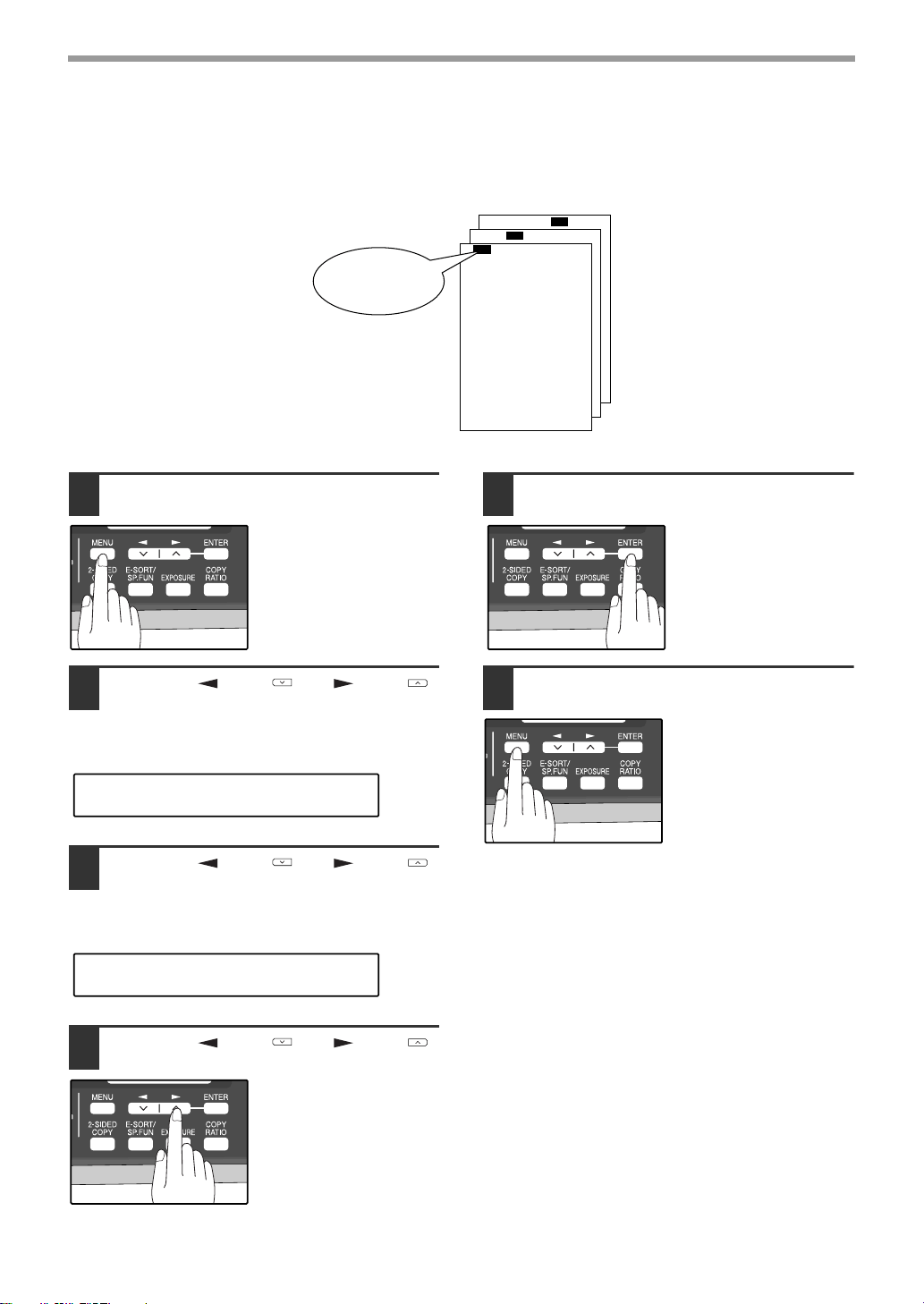
36
INITIAL SETTINGS
SETTING THE INDEX FUNCTION
You can print an index mark along the edge of the pages in each job. This makes it easy to separate different jobs
on the output tray.
Use the following procedure to set the index function:
1
Press the [MENU] key.
2
Press the [ ] key ( ) or [ ] key ( )
until "4:USER PROGRAM" appears,
and then press the [ENTER] key.
3
Press the [ ] key ( ) or [ ] key ( )
until "22:INDEX PRINT" appears, and
then press the [ENTER] key.
4
Press the [ ] key ( ) or [ ] key ( )
to select "1:ON" or "2:OFF".
Select "1:ON" to enable
the function.
Select "2:OFF" to disable
the function.
5
Press the [ENTER] key.
6
Press the [MENU] key.
Press the [MENU] key to
exit.
Separate faxes
with index marks.
"4:USER PROGRAM"
Selection
"22:INDEX PRINT"
Selection
!AR-FX13_sec.book 36 ページ 2007年11月28日 水曜日 午後4時22分
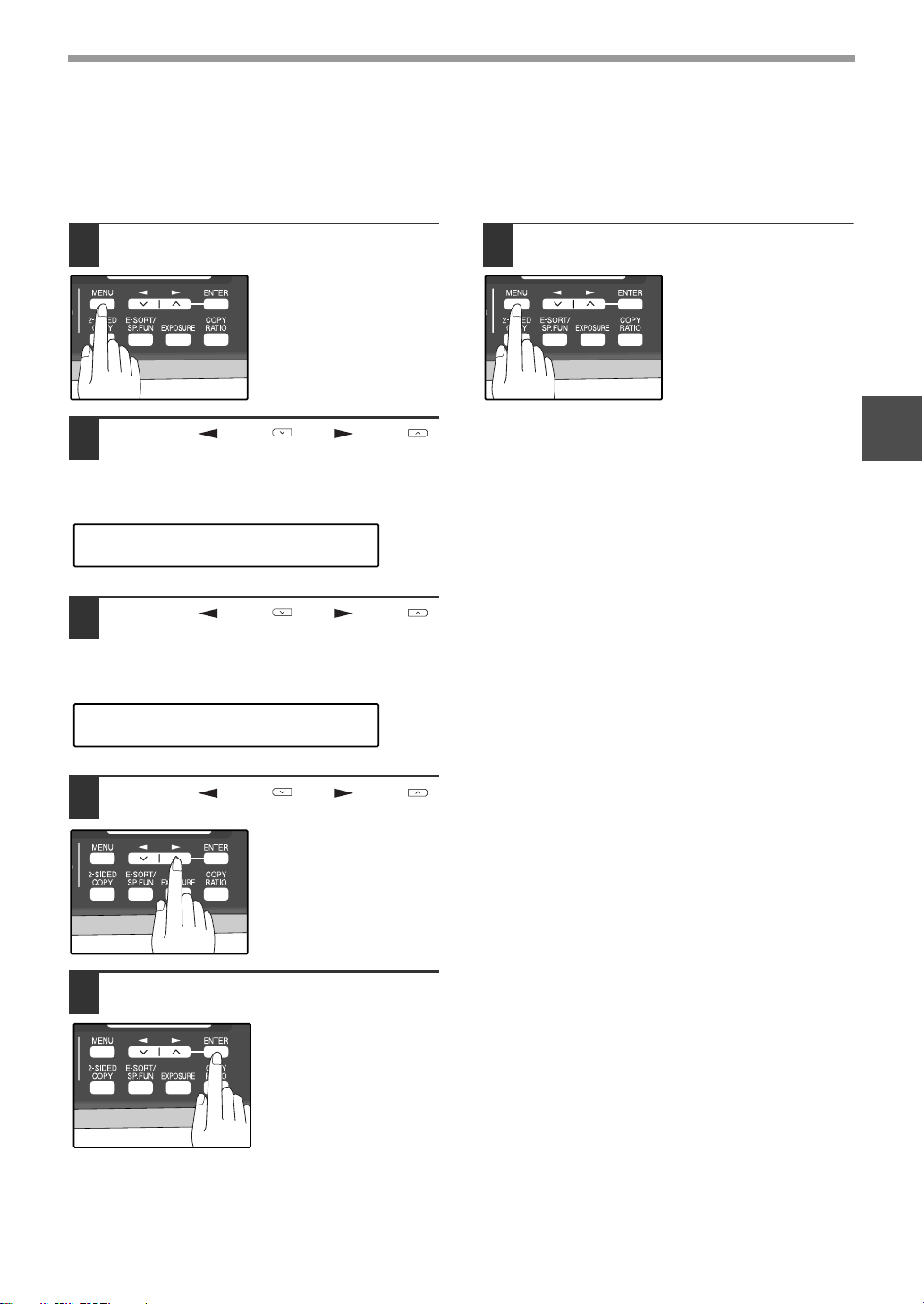
37
INITIAL SETTINGS
2
SETTING RESOLUTION PRIORITY
For most faxing jobs, you will most likely want to specify the resolution. However, you can also set a default
resolution when no setting is made using the [RESOLUTION] key.
To turn on this function, follow the procedure below:
1
Press the [MENU] key.
2
Press the [ ] key ( ) or [ ] key ( )
until "4:USER PROGRAM" appears,
and then press the [ENTER] key.
3
Press the [ ] key ( ) or [ ] key ( )
until "3:RESO. PRIORITY" appears,
and then press the [ENTER] key.
4
Press the [ ] key ( ) or [ ] key ( )
to select the transmission resolution.
The selections are as
follows:
1:STANDARD
2:FINE
3:SUPER FINE
5
Press the [ENTER] key.
6
Press the [MENU] key.
Press the [MENU] key to
exit.
"4:USER PROGRAM"
Selection
"3:RESO. PRIORITY"
Selection
!AR-FX13_sec.book 37 ページ 2007年11月28日 水曜日 午後4時22分
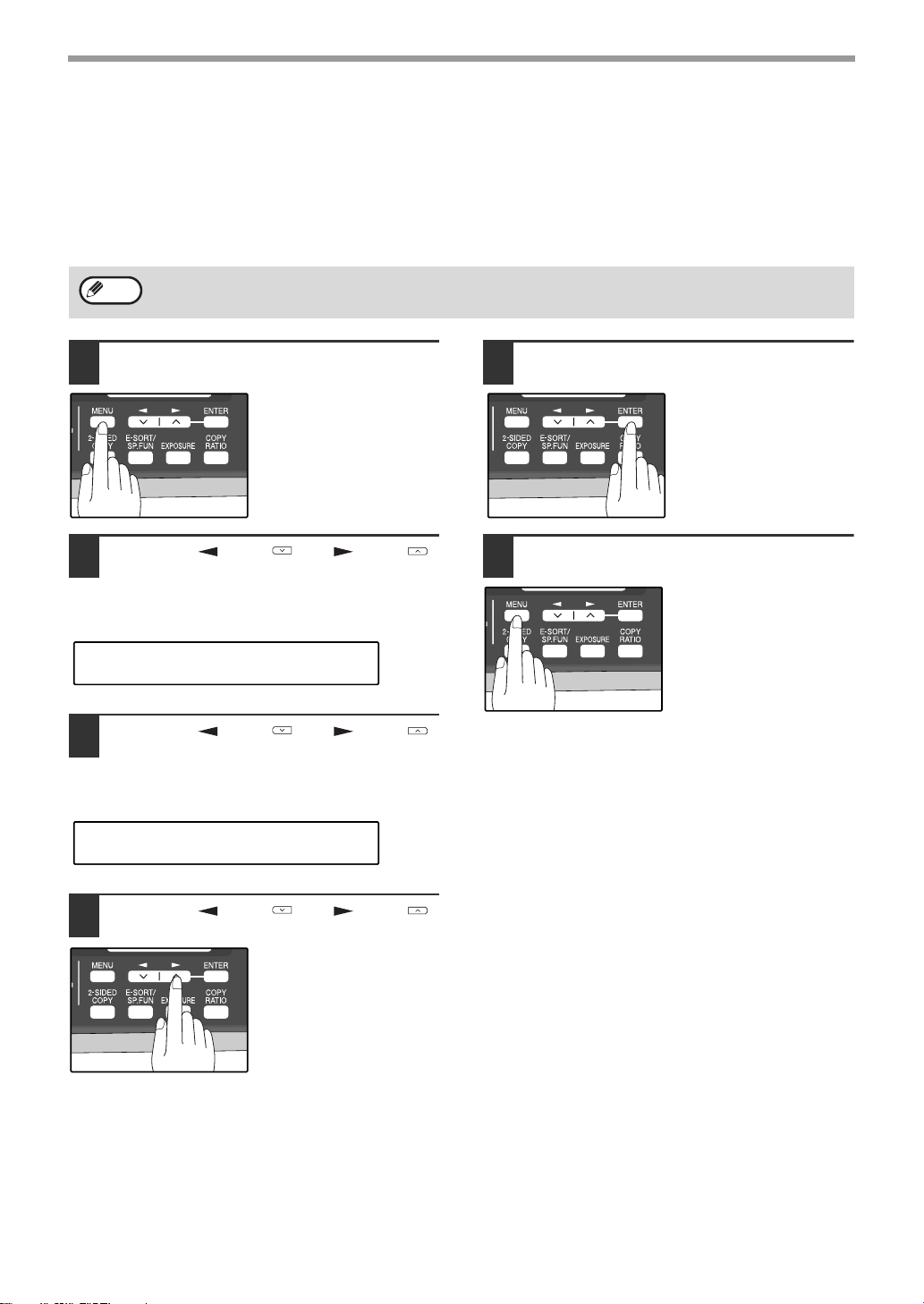
38
INITIAL SETTINGS
SETTING UP THE MACHINE FOR USE WITH A PC
MODEM
The machine is set to automatically begin reception if you pick up from an extension telephone and the machine
detects a fax tone. However, if you are using a modem on the same line, you must deactivate this function:
otherwise the machine will mistakenly attempt to receive the transmission from your computer. To turn off the Fax
Signal Receive function, follow the procedure below.
1
Press the [MENU] key.
2
Press the [ ] key ( ) or [ ] key ( )
until "4:USER PROGRAM" appears,
and then press the [ENTER] key.
3
Press the [ ] key ( ) or [ ] key ( )
until "15:FAX SIGNAL RCV" appears,
and then press the [ENTER] key.
4
Press the [ ] key ( ) or [ ] key ( )
to select "1:ON" or "2:OFF".
Select "1:ON" to enable
the function.
Select "2:OFF" to disable
the function.
5
Press the [ENTER] key.
6
Press the [MENU] key.
Press the [MENU] key to
exit.
If you turn off the Fax Signal Receive function, be sure to activate the Remote Reception function. See "USING
THE REMOTE RECEPTION FUNCTION" on page 39 for details on how to do this.
Note
"4:USER PROGRAM"
Selection
"15:FAX SIGNAL RCV"
Selection
!AR-FX13_sec.book 38 ページ 2007年11月28日 水曜日 午後4時22分
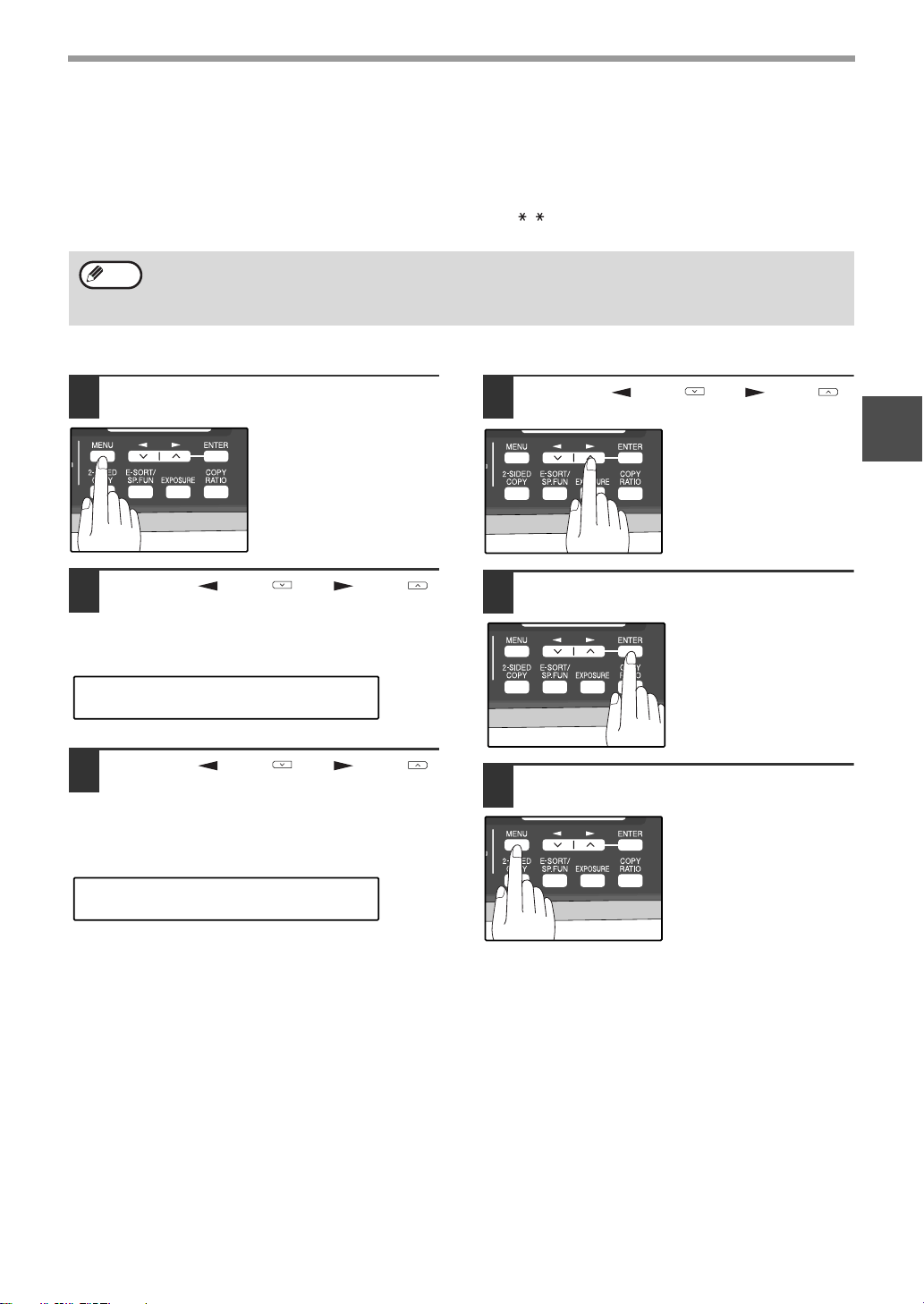
39
INITIAL SETTINGS
2
USING THE REMOTE RECEPTION FUNCTION
The machines Remote Reception feature is designed to allow you to activate fax reception from an extension
telephone. The Remote Reception function operates even when the FAX Signal Receive function is turned off. See
"SETTING UP THE MACHINE FOR USE WITH A PC MODEM" on page 38. When you hear the fax tone, simply
press the one-digit Fax Remote Number (Factory setting: 5) and . Follow the procedure below to use this
feature.
Turning on Remote Reception:
1
Press the [MENU] key.
2
Press the [ ] key ( ) or [ ] key ( )
until "4:USER PROGRAM" appears,
and then press the [ENTER] key.
3
Press the [ ] key ( ) or [ ] key ( )
until "14:REMOTE RECEPTION"
appears, and then press the [ENTER]
key.
4
Press the [ ] key ( ) or [ ] key ( )
to select "1:ON" or "2:OFF".
5
Press the [ENTER] key.
6
Press the [MENU] key.
Press the [MENU] key to
exit.
If you are not using a PC modem on the same line as your machine, and have not turned off the Fax Signal
Receive function, you do not need to make any changes to the Remote Reception function. Simply use the
factory settings. The machine will automatically take over the line should you answer from the extension phone
and a fax tone is detected.
Note
"4:USER PROGRAM"
Selection
"14:REMOTE RECEPTION"
Selection
!AR-FX13_sec.book 39 ページ 2007年11月28日 水曜日 午後4時22分

40
INITIAL SETTINGS
Setting a Fax Remote Number:
1
Press the [MENU] key.
2
Press the [ ] key ( ) or [ ] key ( )
until "4:USER PROGRAM" appears,
and then press the [ENTER] key.
3
Press the [ ] key ( ) or [ ] key ( )
until "13:FAX REMOTE NUMBER"
appears, and then press the [ENTER]
key.
4
Press a numeric key to enter the Fax
Remote Number.
Enter the number you
would like to use as the
Fax Remote Number ("0"
to "9").
5
Press the [ENTER] key.
6
Press the [MENU] key.
Press the [MENU] key to
exit.
"4:USER PROGRAM"
Selection
"13:FAX REMOTE NUMBER"
Selection
!AR-FX13_sec.book 40 ページ 2007年11月28日 水曜日 午後4時22分
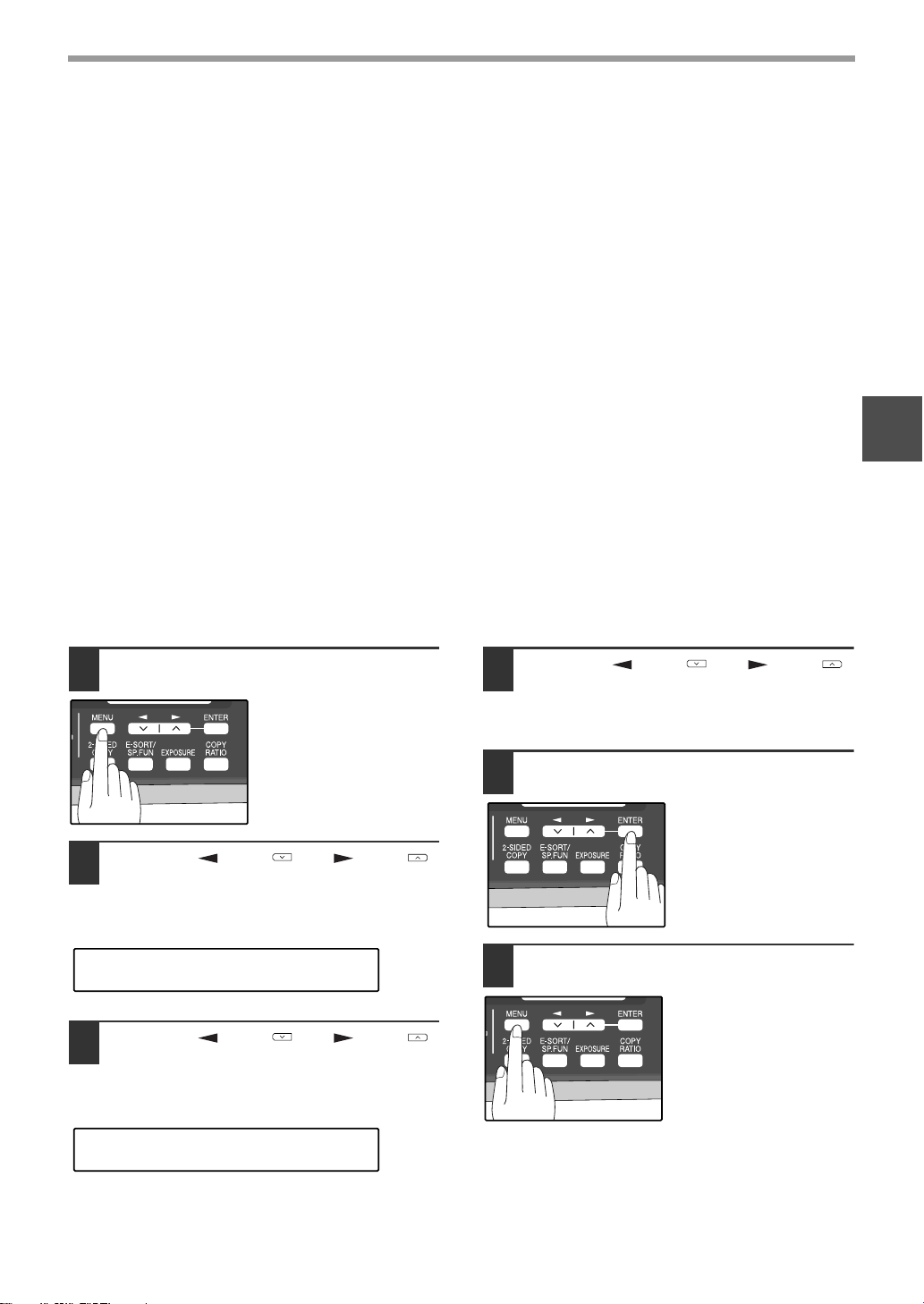
41
INITIAL SETTINGS
2
DISTINCTIVE RINGING
Distinctive ringing is a service offered by some telephone companies that allows you to use up to six different
telephone numbers, each with a distinctive ringing pattern, on your regular single line. If you subscribe to a
distinctive ringing service, you can set your fax to automatically answer when it detects one of these ringing patterns,
and use the number corresponding to that pattern as an exclusive fax number.
Important:
● To use distinctive ringing, you must subscribe to your phone company’s distinctive ringing service. Do not use this
setting if you do not subscribe to a distinctive ringing service.
When using this feature, you must set the reception mode of your machine to AUTO (See "SELECTING THE
RECEPTION MODE" (p.27)). When your designated fax number is dialed, the machine will automatically answer
and begin reception. Note that other devices you have connected on the same line will also ring until the machine
answers. If one of your other numbers is dialed, the machine will neither ring nor answer.
To use distinctive ringing, select the ringing pattern to which you want your machine to answer, as shown below.
The selections for ringing are:
1. OFF: Answers all ringing patterns (This turns distinctive ringing off.)
2. STANDARD: Your machine normal ringing pattern
3. PATTERN 1: Two short rings
4. PATTERN 2: One short, one long, and one short ring
5. PATTERN 3: Three short rings
6. PATTERN 4: Three rings
7. PATTERN 5: Two rings
Use the following procedure to change the ringing pattern.
1
Press the [MENU] key.
2
Press the [ ] key ( ) or [ ] key ( )
until "4:USER PROGRAM" appears,
and then press the [ENTER] key.
3
Press the [ ] key ( ) or [ ] key ( )
until "21:DISTINCTIVE RING" appears,
and then press the [ENTER] key.
4
Press the [ ] key ( ) or [ ] key ( )
to select a ringing pattern.
Select a ringing pattern by scrolling through them
with the arrow keys in the order of the above list.
5
Press the [ENTER] key.
6
Press the [MENU] key.
Press the [MENU] key to
exit.
"4:USER PROGRAM"
Selection
"21:DISTINCTIVE RING"
Selection
!AR-FX13_sec.book 41 ページ 2007年11月28日 水曜日 午後4時22分
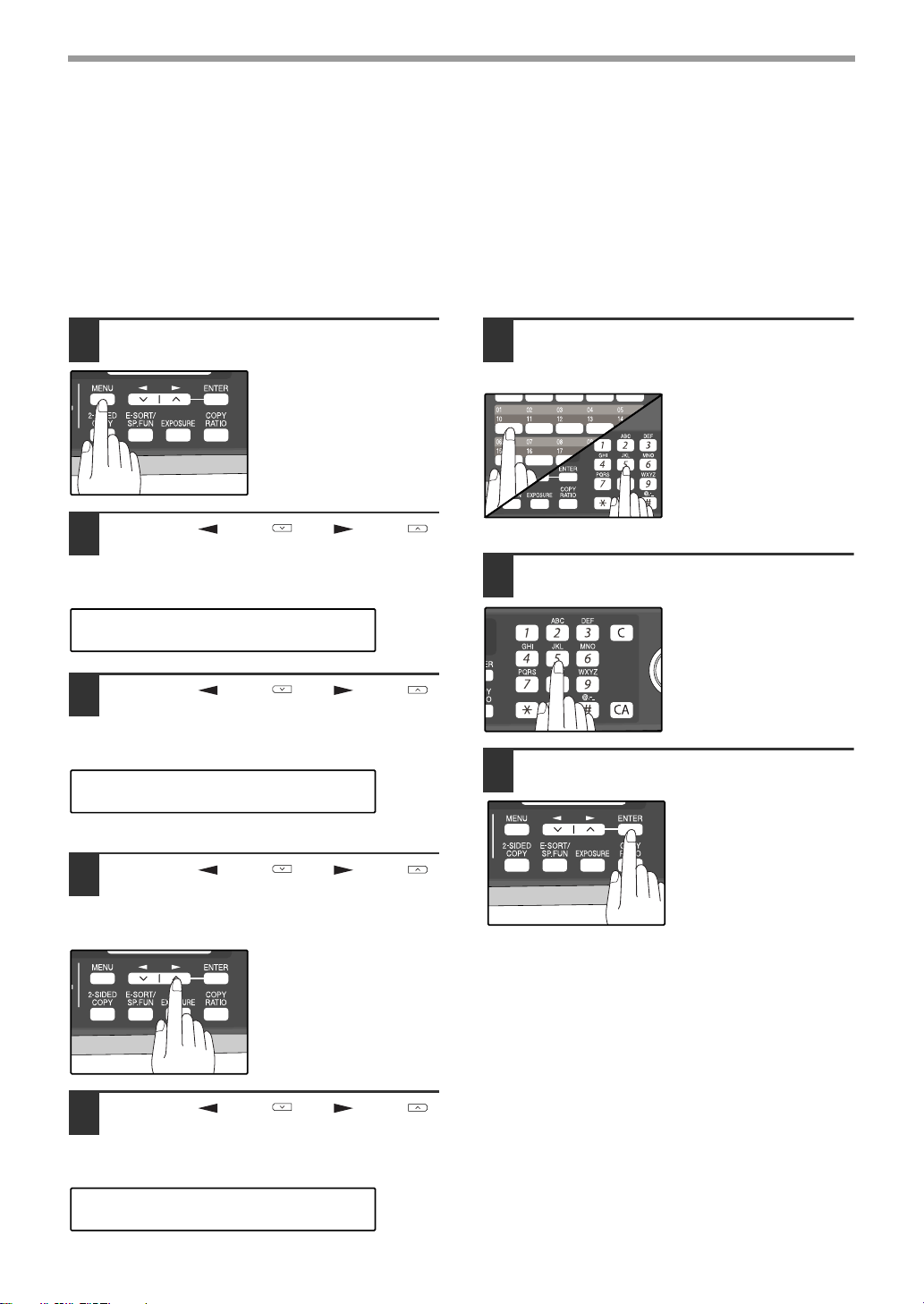
42
INITIAL SETTINGS
STORING NUMBERS FOR AUTOMATIC DIALING
Automatic Dialing is a quick and convenient way to dial by using only a Rapid key (Rapid Key Dialing), or pressing
the [SPEED/SEARCH] key and select the SPEED and entering a two digit number (Speed Dialing).
To use Automatic Dialing, you must first store the full number. The way you store it depends on whether you want to
use it for Rapid Key Dialing or Speed Dialing:
Storing numbers
Use the following procedure to store numbers for Rapid Key Dialing or Speed Dialing:
1
Press the [MENU] key.
2
Press the [ ] key ( ) or [ ] key ( )
until "2:ENTRY MODE" appears, and
then press the [ENTER] key.
3
Press the [ ] key ( ) or [ ] key ( )
until "1:FAX NUMBER" appears, and
then press the [ENTER] key.
4
Press the [ ] key ( ) or [ ] key ( )
to select the type of auto-dial number
that you wish to program and then
press the [ENTER] key.
To program a Rapid Key,
select "1:RAPID KEY".
To program a Speed Dial
number, select
"2:SPEED #".
5
Press the [ ] key ( ) or [ ] key ( )
to select "1:SET" and then press the
[ENTER] key.
6
Press the Rapid Key or enter the
Speed Dial number that you wish to
program.
To program a Rapid Key,
press a Rapid key ("01"
to "18").
To program a Speed Dial
number, press two
numeric keys ("00" to
"99") and then press the
[ENTER] key.
7
Enter the fax number with the numeric
keys.
Enter the fax number
(maximum of 40 digits
including pauses) using
the numeric keys.
8
Press the [ENTER] key.
"2:ENTRY MODE"
Selection
"1:FAX NUMBER"
Selection
"1:SET"
Selection
!AR-FX13_sec.book 42 ページ 2007年11月28日 水曜日 午後4時22分
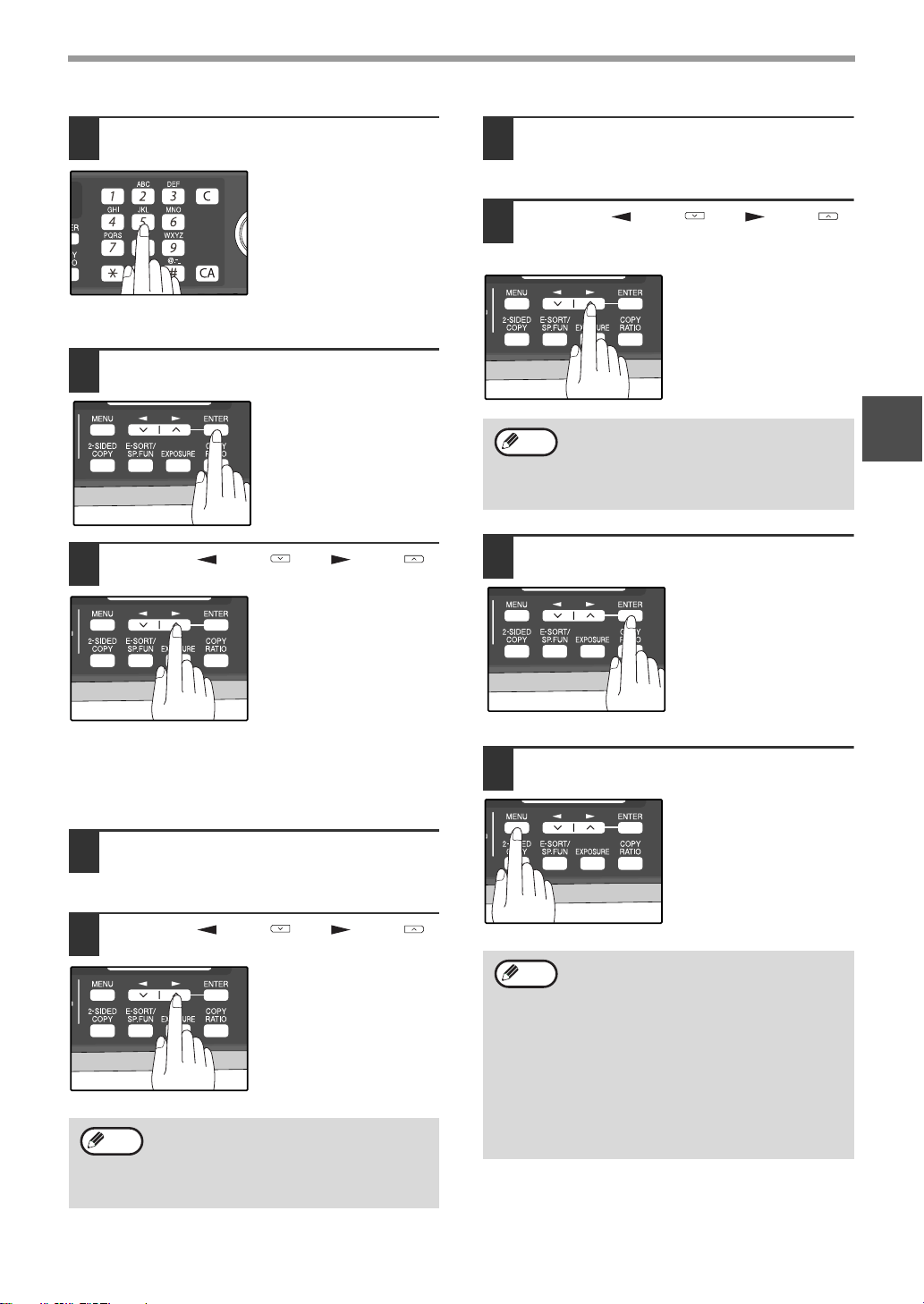
43
INITIAL SETTINGS
2
9
Enter the name of the destination with
the numeric keys.
Enter the name of the
location or party by
pressing numeric keys as
described in "HOW TO
ENTER CHARACTERS"
on page 20 (maximum of
20 characters). If you do
not want to enter a name,
skip this step.
10
Press the [ENTER] key.
11
Press the [ ] key ( ) or [ ] key ( )
to select a Chain Dial setting.
If you wish to set the
number as a Chain Dial
number, select "1:SET".
Otherwise, select
"2:CANCEL".
(See "CHAIN DIALING"
(p.60))
If the number is not set as a chain dial number,
the communication speed and international
communication mode cannot be selected. Press
the [ENTER] key and go to step 17.
12
Press the [ENTER] key.
13
Press the [ ] key ( ) or [ ] key ( )
to select the communication speed.
The selections are as
follows:
1:33600bps
2:14400bps
3:9600bps
4:4800bps
14
Press the [ENTER] key.
15
Press the [ ] key ( ) or [ ] key ( )
to select the international
communication mode.
The selections are as
follows:
1:NO
2:MODE 1
3:MODE 2
4:MODE 3
16
Press the [ENTER] key.
Return to Step 5 to store
another number.
17
Press the [MENU] key.
Press the [MENU] key to
exit.
If the number is a Rapid
key number, you can
write the name on the
label above the
appropriate Rapid key.
For international dialing, if you find that line
noise necessitates a slower transmission
speed, set the appropriate transmission
speed. If you are not sure if a slower speed
is required, set the speed normally.
Note
Sometimes when faxing internationally, line
noise can cause the transmission to stop
momentarily. To reduce these delays,
choose the appropriate international
transmission mode.
You may need to add a pause between
certain digits in the number to allow time for
connection. For example, if you are on a
PBX telephone system that requires an
access number, such as "9", to be dialed to
access an outside line, you will need to
enter a pause between the access number
and the fax number of the other party.
Pauses are entered by pressing the
[REDIAL/PAUSE] key (2 seconds per
pause). If necessary, several pauses can be
entered in a row.
Note
Note
!AR-FX13_sec.book 43 ページ 2007年11月28日 水曜日 午後4時22分
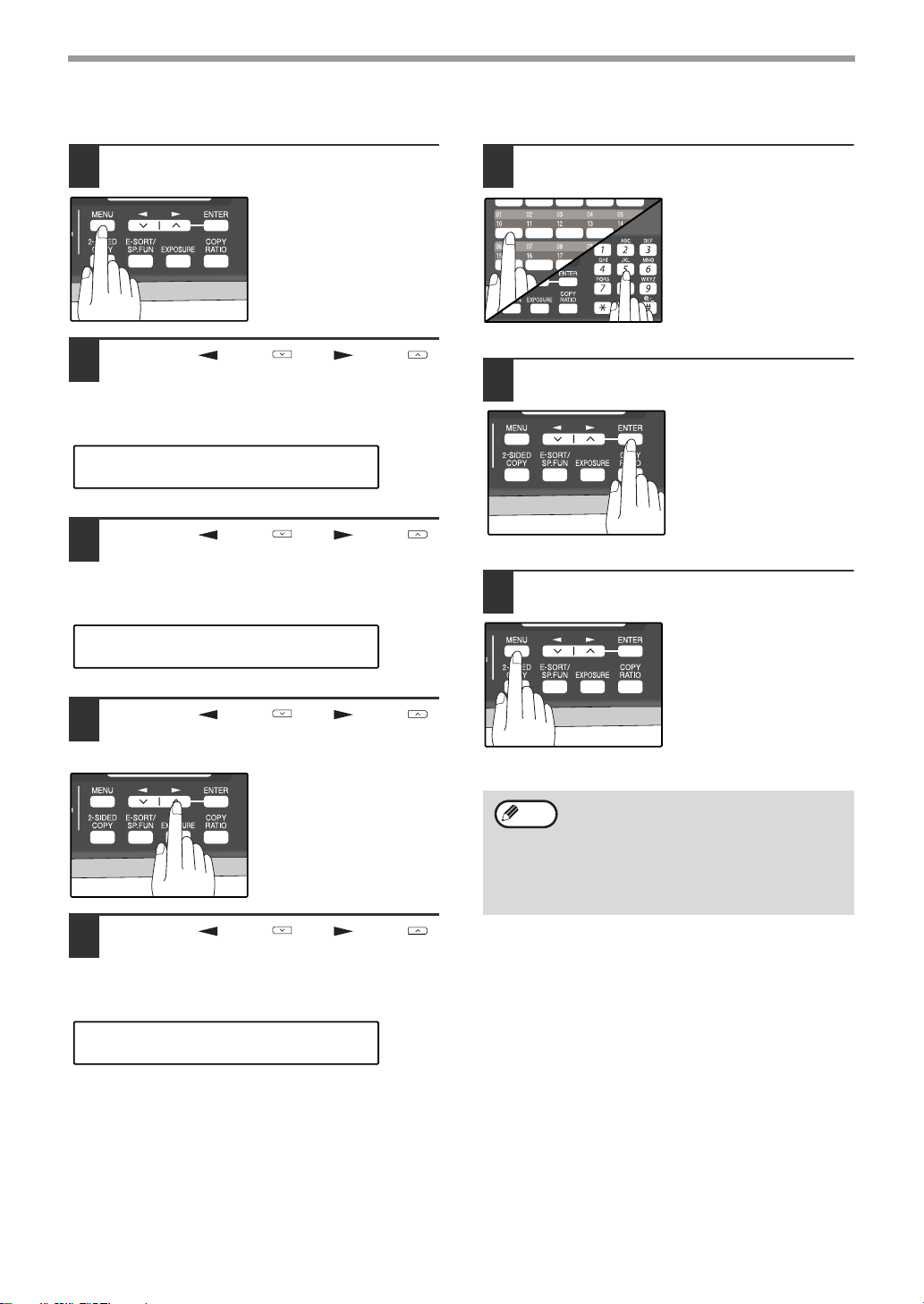
44
INITIAL SETTINGS
Use the following procedure to clear numbers:
1
Press the [MENU] key.
2
Press the [ ] key ( ) or [ ] key ( )
until "2:ENTRY MODE" appears, and
then press the [ENTER] key.
3
Press the [ ] key ( ) or [ ] key ( )
until "1:FAX NUMBER" appears, and
then press the [ENTER] key.
4
Press the [ ] key ( ) or [ ] key ( )
to select the type of auto-dial number
that you wish to delete.
To delete a Rapid Key,
select "1:RAPID KEY".
To delete a Speed Dial
number, select
"2:SPEED #".
5
Press the [ ] key ( ) or [ ] key ( )
until "2:CLEAR" appears, and then
press the [ENTER] key.
6
Enter the Rapid Key or Speed Dial
number that you wish to delete.
To delete a Rapid Key,
press the appropriate
Rapid key.
To delete a Speed Dial
number, enter the 2-digit
number with the numeric
keys and then press the
[ENTER] key.
7
Press the [ENTER] key.
Return to Step 5 to clear
another number.
8
Press the [MENU] key.
Press the [MENU] key a
number of times until you
exit.
"2:ENTRY MODE"
Selection
"1:FAX NUMBER"
Selection
"2:CLEAR"
Selection
• A Rapid Key or Speed Dial number cannot
be deleted if it has been stored in a Group
Key.
• A Rapid Key or Speed Dial number cannot
be deleted if it is being used for a
transmission that has been stored or is in
progress.
Note
!AR-FX13_sec.book 44 ページ 2007年11月28日 水曜日 午後4時22分
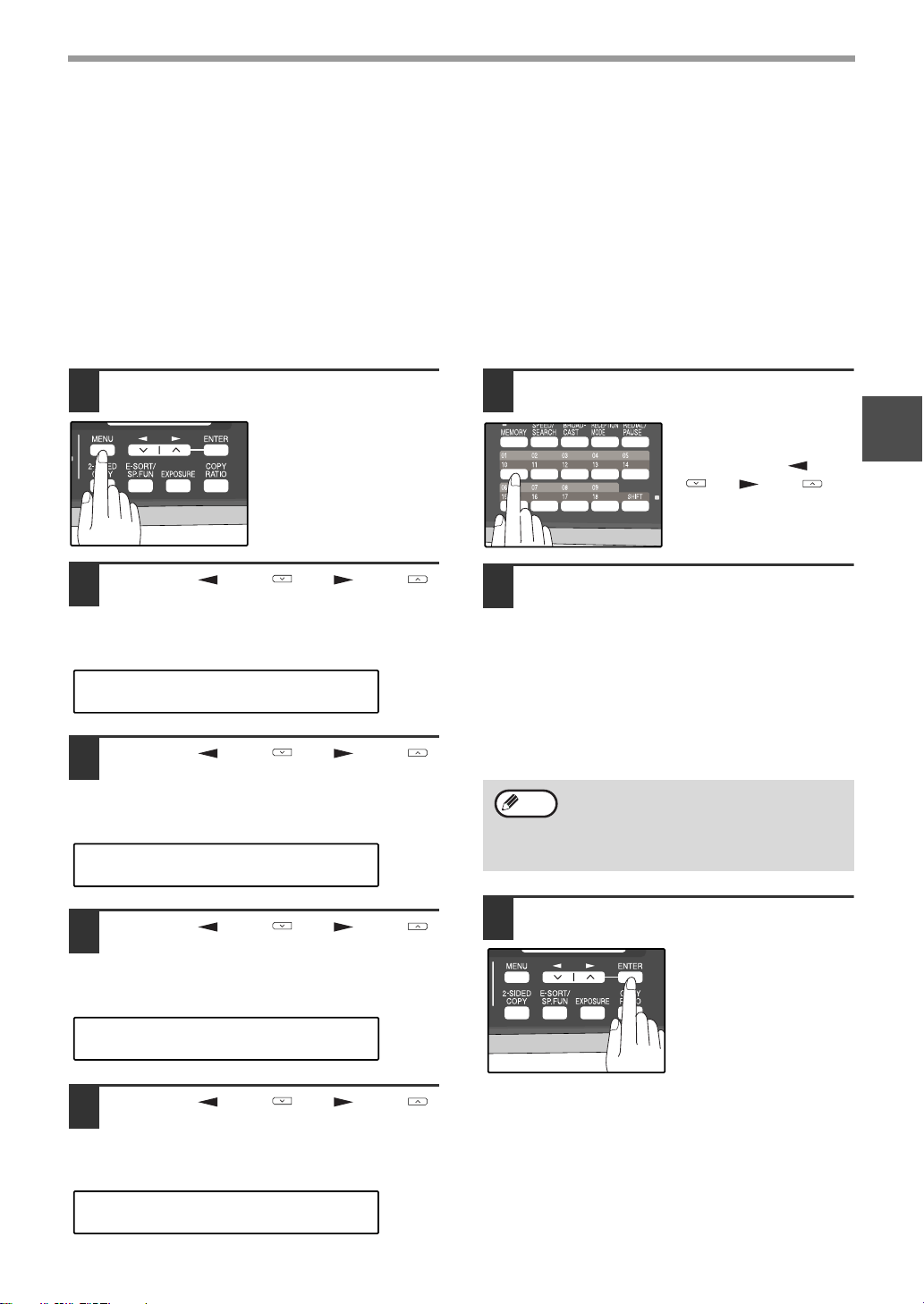
45
INITIAL SETTINGS
2
STORING NUMBERS UNDER GROUP KEYS
Group keys allow you to dial a group of fax numbers by simply pressing the appropriate Group key once. They are
convenient for the Broadcasting function, which is used to transmit an original to a group of fax machines.
All Rapid keys can be programmed as Group keys. To program or clear a group key, follow the steps below. Note
that one key cannot be programmed as both a Rapid key and a Group key at the same time.
● Up to 100 fax numbers can be stored in one Group key.
● Rapid Keys, Speed Dial numbers, and numbers directly entered with the numeric keys can be stored in Group
Keys.
Storing/adding numbers in a Group Key:
1
Press the [MENU] key.
2
Press the [ ] key ( ) or [ ] key ( )
until "2:ENTRY MODE" appears, and
then press the [ENTER] key.
3
Press the [ ] key ( ) or [ ] key ( )
until "1:FAX NUMBER" appears, and
then press the [ENTER] key.
4
Press the [ ] key ( ) or [ ] key ( )
until "3:GROUP KEY" appears, and
then press the [ENTER] key.
5
Press the [ ] key ( ) or [ ] key ( )
to select "1:SET" and then press the
[ENTER] key.
6
Press the Rapid key you wish to use
as a Group key .
To add numbers:
After pressing the Group
Key, press the [ ] key
( ) or [ ] key ( ) to
select "1:YES" and then
press the [ENTER] key.
7
Enter the numbers that you wish to
store in the Group Key.
Enter the fax numbers using any of the following
methods:
• Press a Rapid Key and then press the [ENTER]
key.
• Enter a Speed Dial number with the numeric
keys and then press the [ENTER] key.
• Enter a number with the numeric keys and then
press the [ENTER] key.
8
Press the [ENTER] key.
"2:ENTRY MODE"
Selection
"1:FAX NUMBER"
Selection
"3:GROUP KEY"
Selection
"1:SET"
Selection
• One Group Key cannot be stored in
another Group Key.
• A message will appear if you select a
Rapid Key or Speed Dial number that is
already stored in another Group Key.
Note
!AR-FX13_sec.book 45 ページ 2007年11月28日 水曜日 午後4時22分
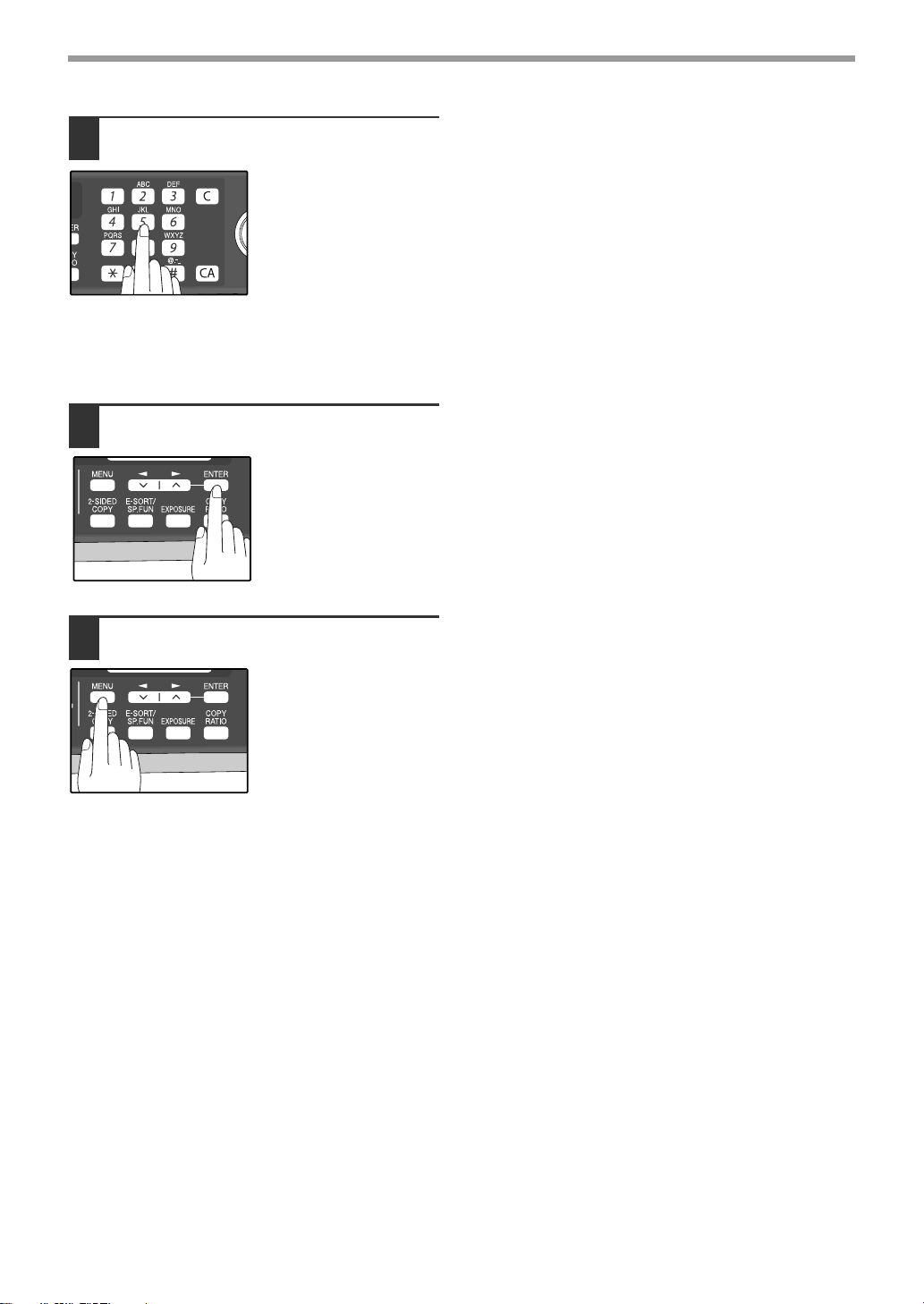
46
INITIAL SETTINGS
9
Enter a name for the Group Key with
the numeric keys.
Enter the name of the
group by pressing
numeric keys as
described in "HOW TO
ENTER CHARACTERS"
on page 20 (maximum of
20 characters). If you do
not want to enter a name,
skip this step.
To add numbers:
The entered name appears. Edit the name if you need
to make a change.
10
Press the [ENTER] key.
Return to Step 7 to
program another Group
key.
11
Press the [MENU] key.
Press the [MENU] key to
exit.
!AR-FX13_sec.book 46 ページ 2007年11月28日 水曜日 午後4時22分
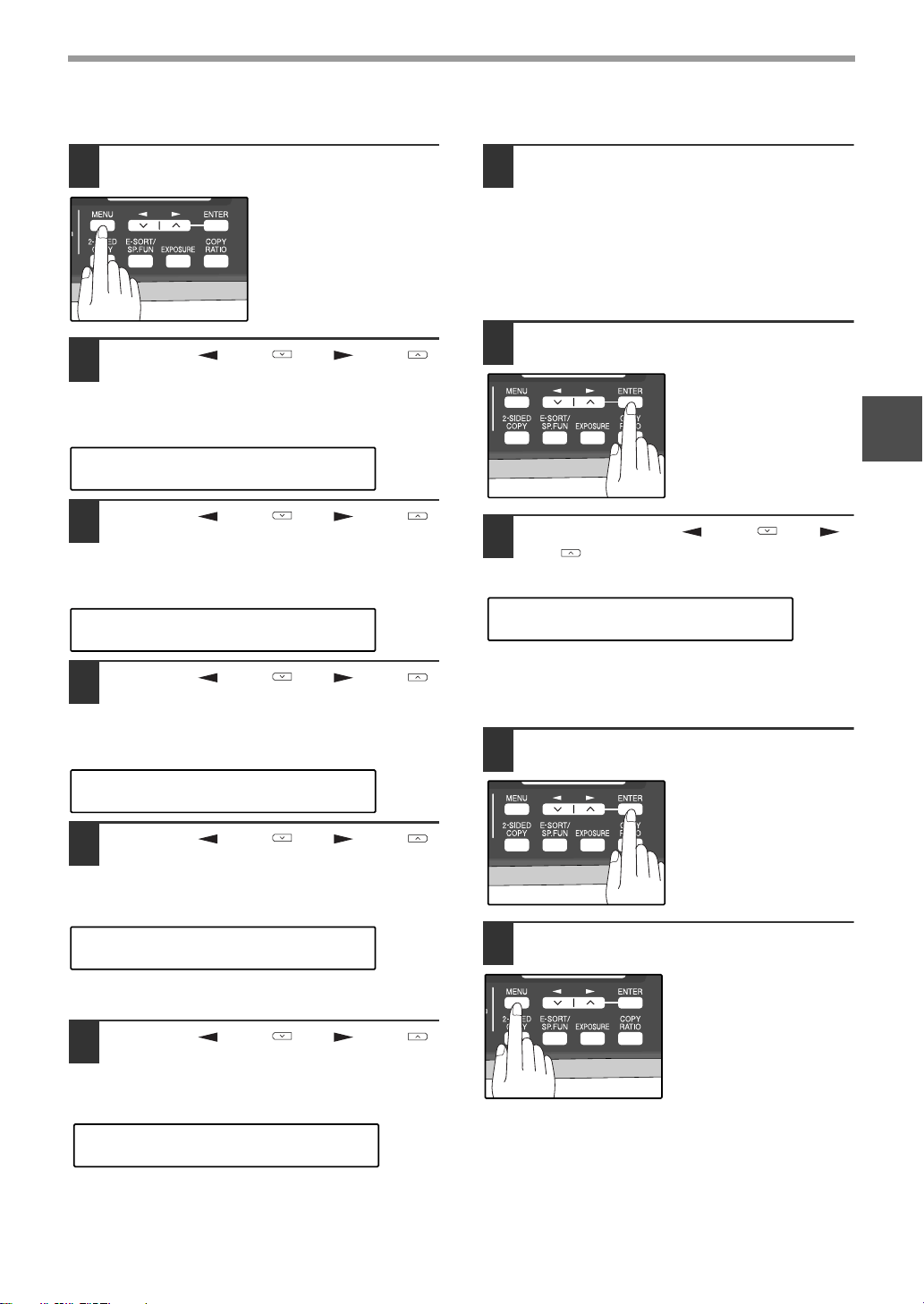
47
INITIAL SETTINGS
2
Deleting numbers from Group Keys:
1
Press the [MENU] key.
2
Press the [ ] key ( ) or [ ] key ( )
until "2:ENTRY MODE" appears, and
then press the [ENTER] key.
3
Press the [ ] key ( ) or [ ] key ( )
until "1:FAX NUMBER" appears, and
then press the [ENTER] key.
4
Press the [ ] key ( ) or [ ] key ( )
until "3:GROUP KEY" appears, and
then press the [ENTER] key.
5
Press the [ ] key ( ) or [ ] key ( )
to select "2:CLEAR" and then press
the [ENTER] key.
To delete a Group, press the appropriate Group key.
6
Press the [ ] key ( ) or [ ] key ( )
to select "1:FAX #" and then press the
[ENTER] key.
To delete all numbers from the Group Key:
Select "2:GROUP" and press the [ENTER] key.
7
Enter the numbers that you wish to
delete.
Enter the fax numbers using any of the following
methods:
• Press a Rapid Key.
• Enter a Speed Dial number with the numeric
keys.
• Enter a number with the numeric keys.
8
Press the [ENTER] key.
9
To exit, press the [ ] key ( ) or [ ]
key ( ) to select "2:END".
To program another Group Key, select
"1:CONTINUE", press the [ENTER] key, and return to
step 7.
10
Press the [ENTER] key.
11
Press the [MENU] key.
Press the [MENU] key to
exit.
"2:ENTRY MODE"
Selection
"1:FAX NUMBER"
Selection
"3:GROUP KEY"
Selection
"2:CLEAR"
Selection
"1:FAX #"
Selection
"2:END"
Selection
!AR-FX13_sec.book 47 ページ 2007年11月28日 水曜日 午後4時22分
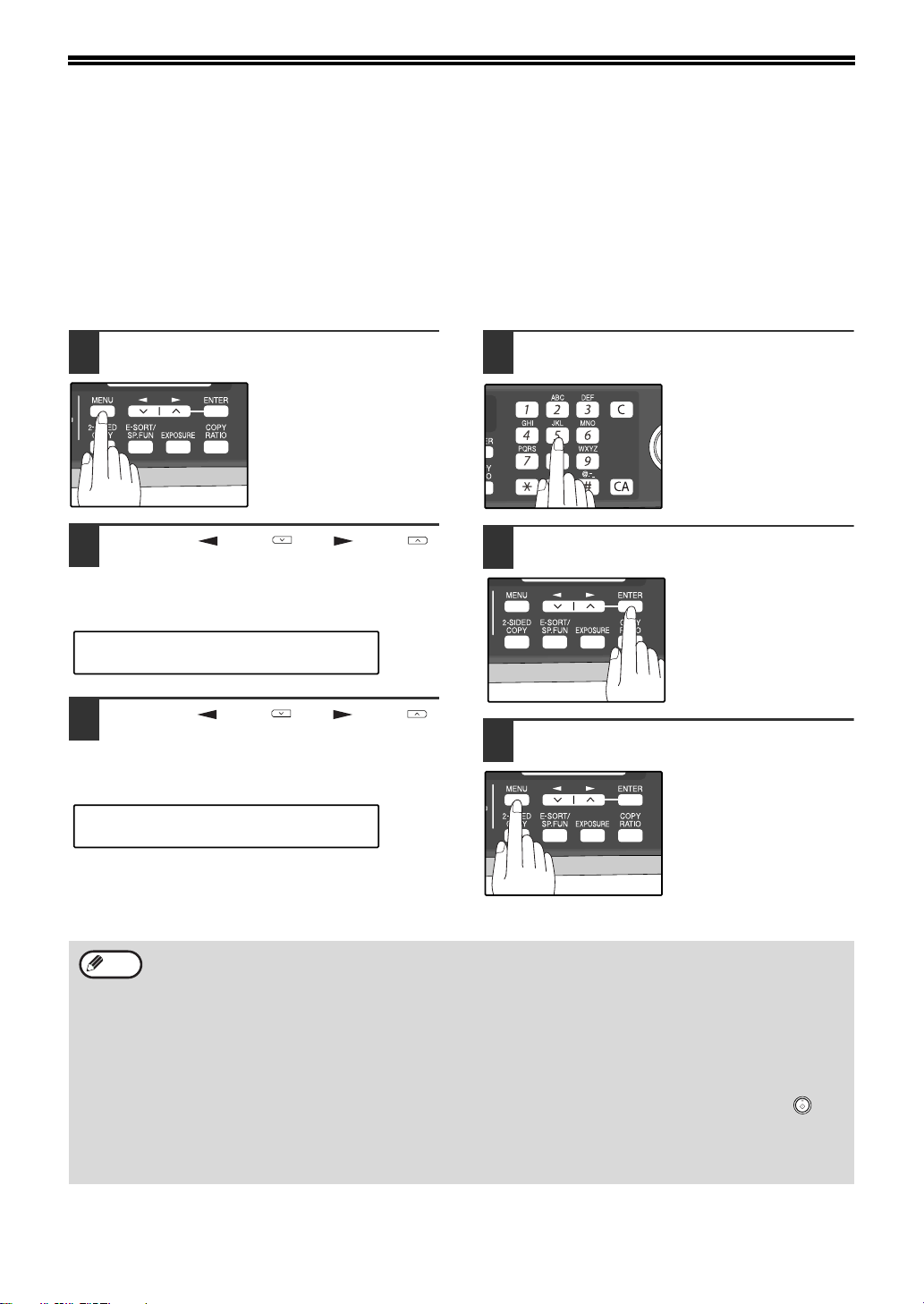
48
USING THE MACHINE WITH AN
ANSWERING MACHINE
QUIET DETECT TIME
Quiet Detect Time is the function that enables the machine to be used along with an answering machine for both
phone messages and faxes. After the answering machine has answered, any duration of silence longer than a
certain threshold time will prompt the machine to take over the line and prepare to receive a fax. The Quiet Detect
Time can be set from 00 to 10 seconds, following the procedure below.
1
Press the [MENU] key.
2
Press the [ ] key ( ) or [ ] key ( )
until "6:A.M. MODE" appears, and
then press the [ENTER] key.
s
3
Press the [ ] key ( ) or [ ] key ( )
until "1:QUIET DETECT TIME" appears,
and then press the [ENTER] key.
4
Enter the Quiet Detect Time with the
numeric keys.
Enter the Quiet Detect
Time in seconds, from 00
to 10. (setting "00" turns
off Quiet Detect Time)
5
Press the [ENTER] key.
6
Press the [MENU] key.
Press the [MENU] key to
exit.
"6:A.M. MODE"
Selection
"1:QUIET DETECT TIME"
Selection
• The machine has been set at the factory for a Quiet Detect Time of 5 seconds, which gives the best
performance for most answering machines. However, you may have to adjust the Quiet Detect Time depending
on your answering machine’s disconnect time, the time before the machine disconnects the line after a period
of silence. If your machine has a short disconnect time, you may have to shorten the Quiet Detect Time.
However, if the machine is interrupting callers in the middle of messages, you should set a longer Quiet Detect
Time.
• If there is a pause at the end of your answering machine message, make sure that the Quiet Detect Time is
longer than this pause.
• Setting Quiet Detect Time to 00 turns the function off. However, the machine will not be able to receive faxes
sent using manual dialing (picking up the receiver, dialing the number, and pressing the [START] key ( )
when the fax tone is heard).
• If your answering machine is set to answer calls after more rings than the machine's number of rings setting,
the machine will always answer first and thereby prevent callers from leaving messages in the answering
machine.
Note
!AR-FX13_sec.book 48 ページ 2007年11月28日 水曜日 午後4時22分
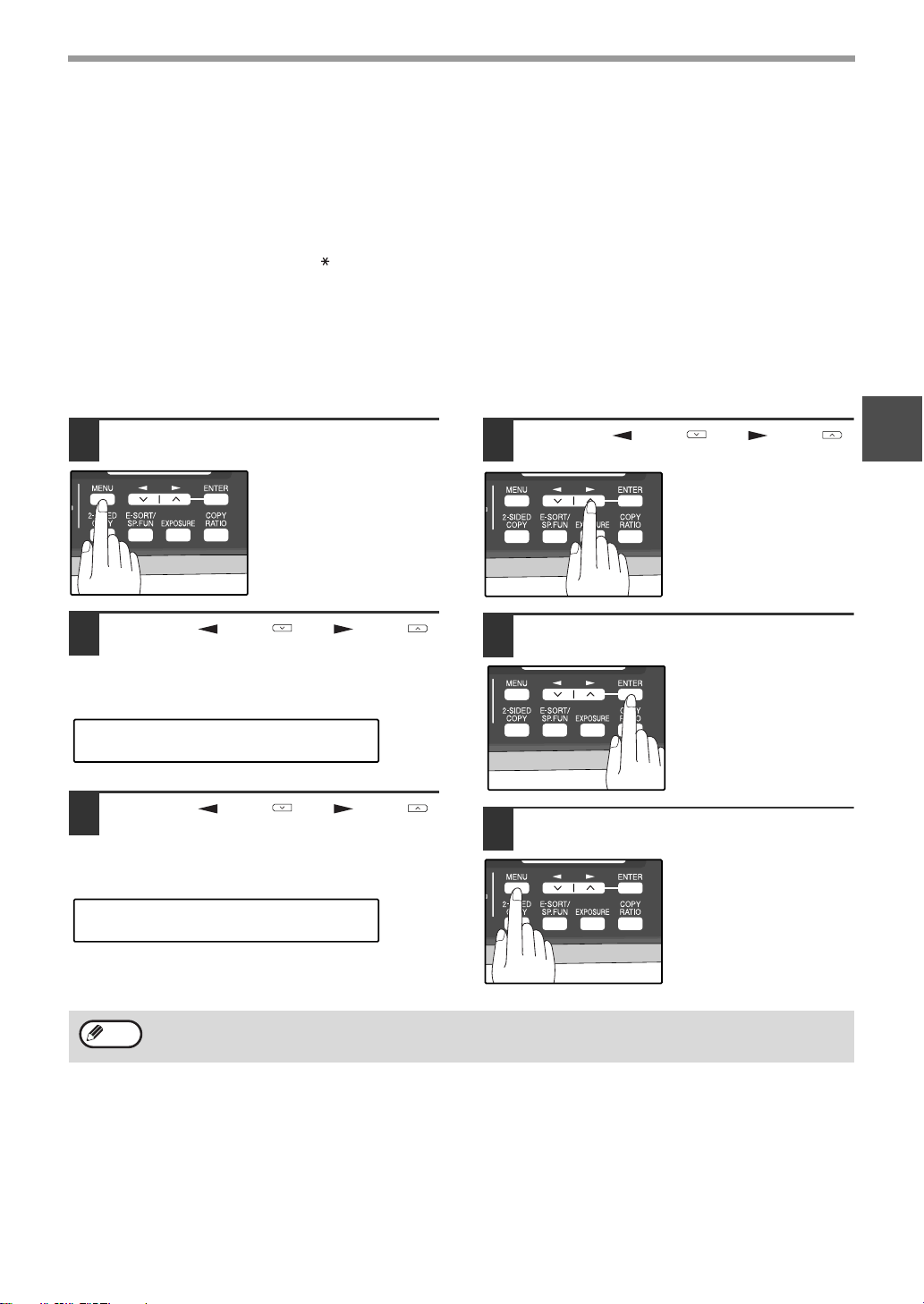
49
INITIAL SETTINGS
2
If Quiet Detect Time is not working properly...
With some answering machines, there is simply no Quiet Detect Time that will allow both reception of faxes and
uninterrupted voice messages. Even in this case, however, you can set up the machine to receive both phone and
fax messages from callers on touch-tone lines. Follow this procedure:
1. Set the Quiet Detect Time to 00.
2. Alter your phone message to tell callers that they can send a fax by pressing the Remote Reception Number
(factory set to 5), followed by the " " key twice.
ANSWERING MACHINE BACKUP
There may be times when the tape on your answering machine becomes full, or
when the answering machine itself malfunctions. It is still possible to receive faxes even under these conditions, by
turning on the Auto Receive function. The machine will automatically answer all calls after five rings. To use this
function, follow the procedure below.
1
Press the [MENU] key.
2
Press the [ ] key ( ) or [ ] key ( )
until "6:A.M. MODE" appears, and
then press the [ENTER] key.
3
Press the [ ] key ( ) or [ ] key ( )
until "2:AUTO RECEIVE" appears, and
then press the [ENTER] key.
4
Press the [ ] key ( ) or [ ] key ( )
to select "1:ON" or "2:OFF".
Select "1:ON" to enable
the function.
Select "2:OFF" to disable
the function.
5
Press the [ENTER] key.
6
Press the [MENU] key.
Press the [MENU] key to
exit.
"6:A.M. MODE"
Selection
"2:AUTO RECEIVE"
Selection
If you are using Auto Receive, make sure that your answering machine is set to answer on four rings or less.
Otherwise, the machine will take over all calls, preventing callers from leaving voice messages.
Note
!AR-FX13_sec.book 49 ページ 2007年11月28日 水曜日 午後4時22分
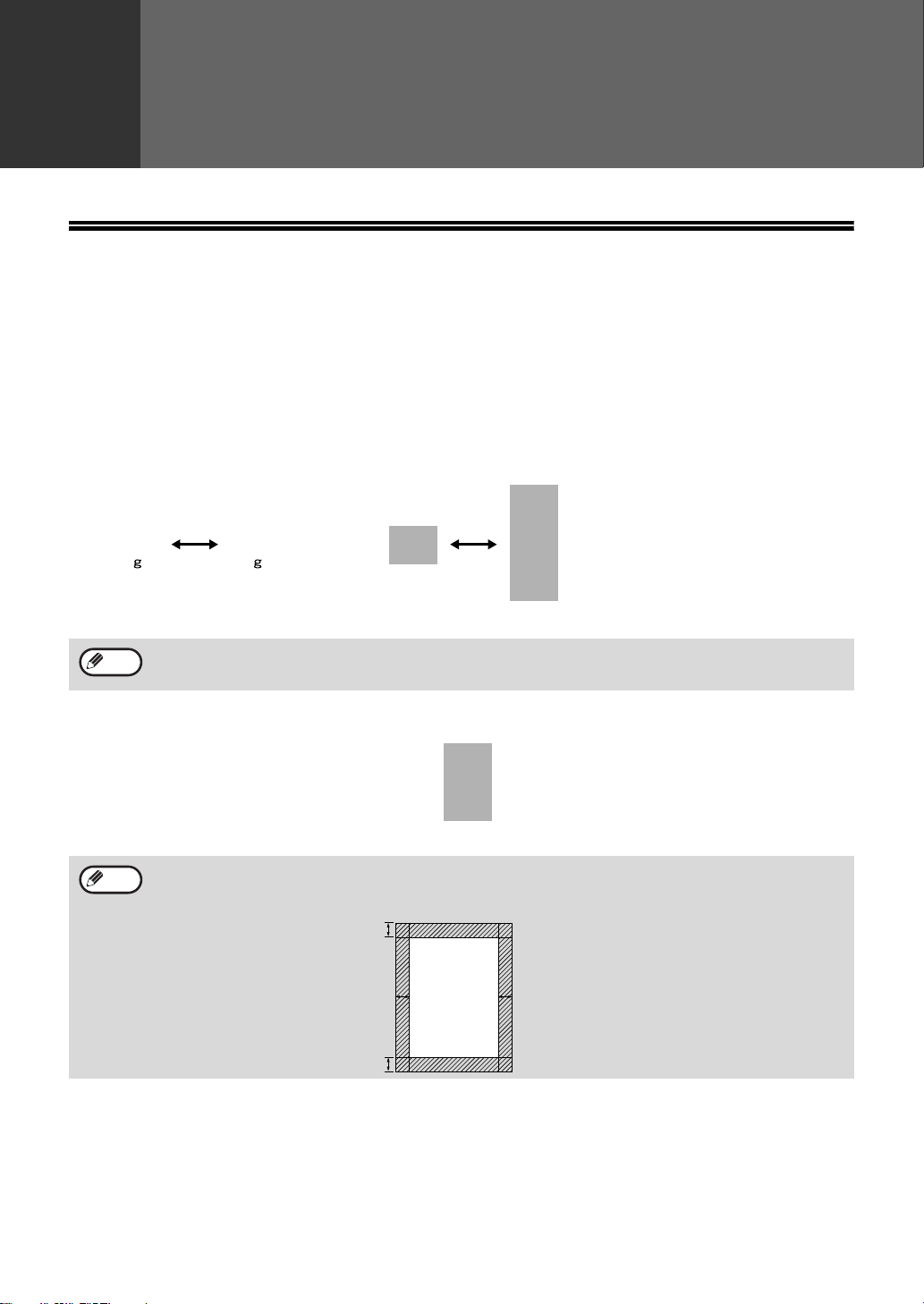
50
3
Chapter 3
CHOOSING SUITABLE MEDIA
ORIGINALS SUITABLE FOR FAXING
Make sure that the originals you want to fax meet specifications and guidelines listed in this section.
SIZE AND WEIGHT
The size and weight of originals that you can load in the RSPF depend on whether you load one sheet at a time or
several sheets at once.
When using the RSPF
When using the document glass
14 lbs.
(56 /m
2
)
24 lbs.
(90.3 /m
2
)
5-1/2"
(140 mm)
8-1/2"
(216 mm)
8-1/2"
(216 mm)
One-sided original : 19.7" (500 mm)
Two-sided original : 14" (356 mm)
When feeding in a long original, grasp the original at the edges to guide it into the machine.
When you are using the faxing functions of the machine, your originals are, in effect, being scanned through the
machine. The area of a original that is scanned by the machine while faxing is slightly smaller than the actual
original size. Any text or graphics outside this area will not be scanned.
Note
Maximum
8-1/2"
(216 mm)
14"
(356 mm)
Note
0.04
"
~ 0.16
"
(1 mm ~ 4 mm)
Max. 0.17
"
(4.5 mm)
(along the other edges in totals)
0.16
" or less
(4 mm or less)
Scanning length
and width
!AR-FX13_sec.book 50 ページ 2007年11月28日 水曜日 午後4時22分
51
CHOOSING SUITABLE MEDIA
3
UNSUITABLE ORIGINALS
General guidelines:
● All clips, staples, and pins should be removed from originals before they are used. If these are not removed, they
may damage the machine.
● Ink, glue, and correction fluid on originals must be completely dry before using the originals with the machine.
● Originals that are in some way dangerous to the internal mechanisms of the machine should not be used.
● When faxing, any writing on the originals that is yellow, yellowish-green, or light blue cannot be transmitted.
The following kinds of originals should not be used:
● Originals with a glossy coating
● Originals with static electricity
● Originals with tears, folds, or curls
● Originals that have become stuck together and cannot be easily separated
● Originals with holes, windows, or perforations
● Transparency films, tracing paper, or other transparencies
● Originals with plastic or metallic coatings
• SHARP does not accept any responsibility for the loss or damage of originals.
• Scanning an original that is longer than 500 mm will result in a misfeed.
Note
!AR-FX13_sec.book 51 ページ 2007年11月28日 水曜日 午後4時22分
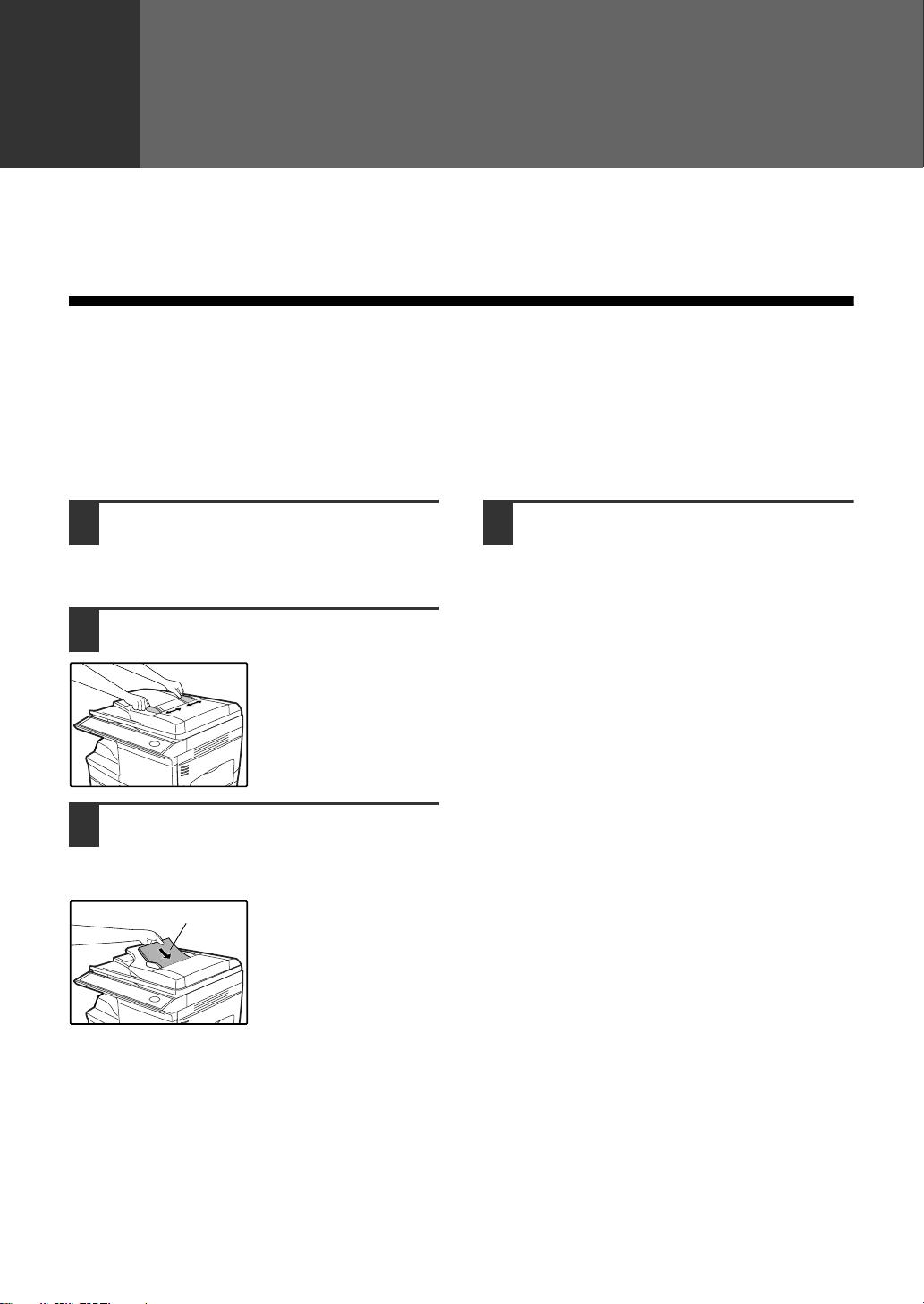
52
4
Chapter 4
HOW TO USE THE FAX FUNCTION
The machine offers a range of sophisticated features that allow you to control image quality, reception mode,
broadcasting, polling, and transmission priorities. Functions such as sending original(s) from memory and
substituting reception into memory are possible, due to the large memory capacity.
SENDING ORIGINALS
SETTING THE ORIGINAL
This section describes setting original(s) in the RSPF or on the document glass.
When Using the RSPF:
1
Confirm that there are no original(s)
on the document glass and that
copying is not in progress, then
gently close the RSPF.
2
Adjust the original guides to the width
of your original(s).
3
Place the original(s) face up and push
it gently into the document feeder
tray. The top edge of the original(s)
should enter the fax first.
4
There are two ways to send the fax:
• To scan the original into memory, then dial and
transmit, continue with the "DIALING AND
TRANSMITTING" section. (p.59)
• To dial and transmit the original directly without
first scanning it into memory, press the
[MEMORY] key to make the [MEMORY] key
indicator go off. Continue with the "DIALING
AND TRANSMITTING" section. (p.59)
Original face up
!AR-FX13_sec.book 52 ページ 2007年11月28日 水曜日 午後4時22分
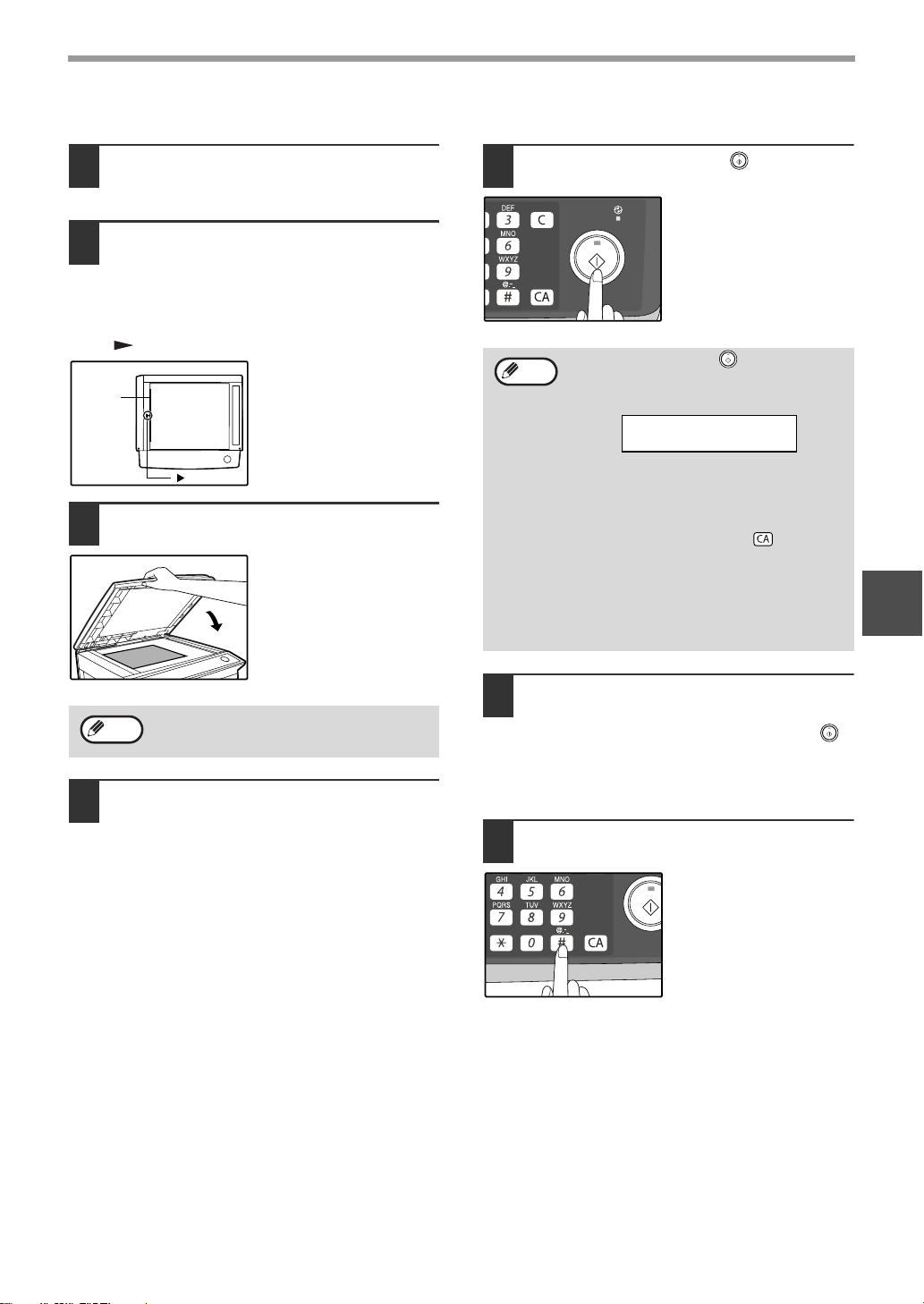
53
HOW TO USE THE FAX FUNCTION
4
When placing the Original on the document glass:
1
Confirm that there are no original(s) in
the RSPF, and open the RSPF.
2
Place the original face down on the
document glass. Align the original
according to the original scale in the
illustration below. (Line up the center
of the edge of the original with the
( ) mark.)
3
Gently close the RSPF.
4
If needed, set the original size (p.54),
resolution (p.55), and contrast (p.55).
Continue with the "DIALING AND
TRANSMITTING" (p.59) section.
5
Press the [START] key ( ).
The set original size
appears in the display
and then scanning
begins.
6
If you have more than one original to
read into memory, place the next
page, and press the [START] key ( )
to read each page.
Go to step 7 after the last page has been
scanned.
7
Press the [#] key.
Transmission begins.
When using the document glass, do not set
original(s) in the RSPF.
mark
Original
scale
Note
After the [START] key ( ) is pressed, the
set original size appears in the display.
(EX. )
Make sure that the displayed size is the
same as the actual original size. (The
factory default setting for the original size is
"8.5x11".) If the displayed size is not correct,
press the [CLEAR ALL] key ( ) to stop
operation and then change the original size
setting. (See "ORIGINAL SIZE" (p.54))
When faxing from the document glass, if the
size of the original is different from the
specified size, part of the image may be cut
off.
Note
READING #001
8.5x11 100%
!AR-FX13_sec.book 53 ページ 2007年11月28日 水曜日 午後4時22分
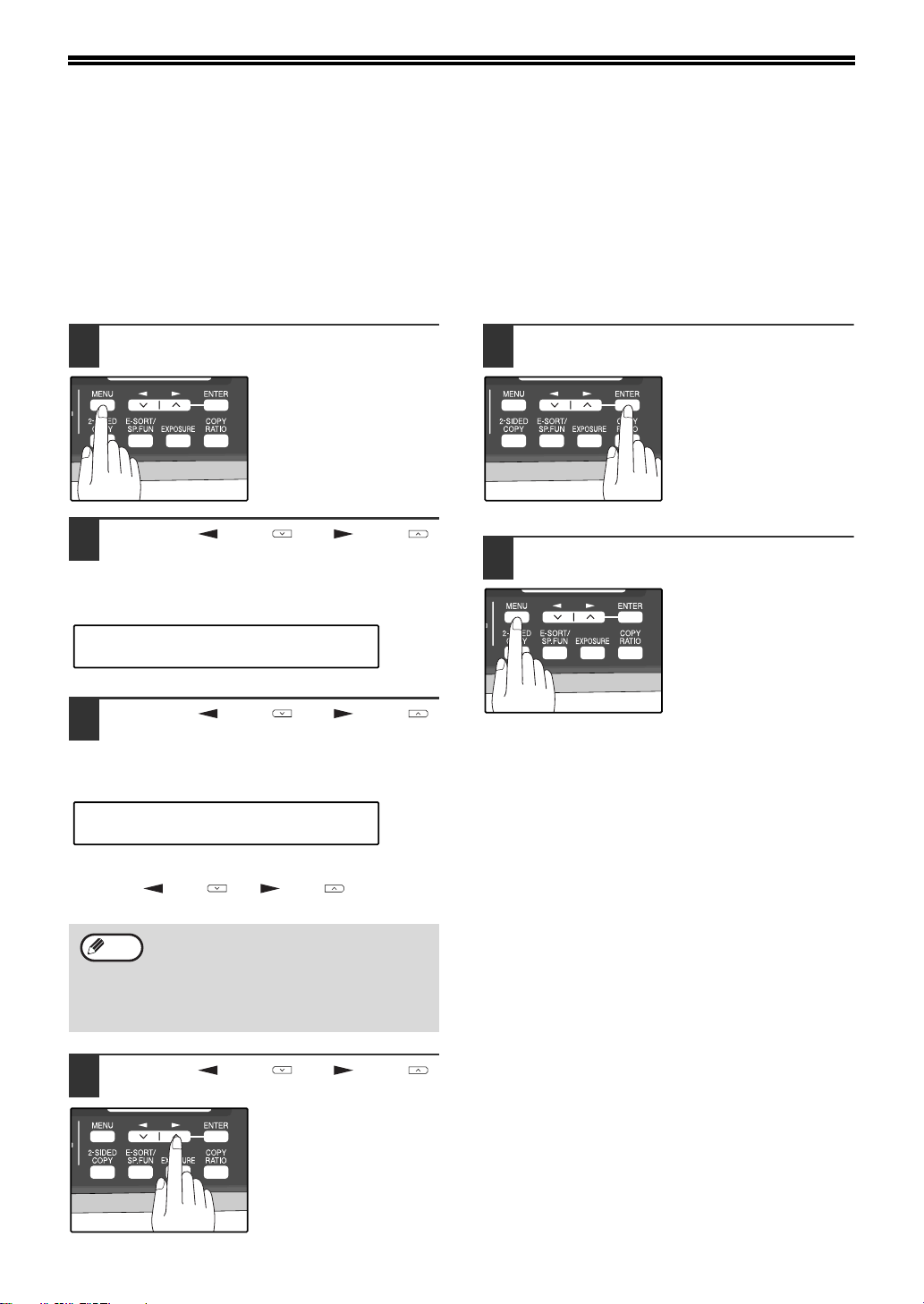
54
OPTIONAL TRANSMISSION
SETTINGS
There are several transmission settings that you can make before dialing and transmitting an original.
ORIGINAL SIZE
The original size can be set to "8.5x11", "8.5x14", or "A4". The setting is only effective for one transmission.
If desired, you can set a fixed original size that remains in effect for all transmissions.
1
Press the [MENU] key.
2
Press the [ ] key ( ) or [ ] key ( )
until "4:USER PROGRAM" appears,
and then press the [ENTER] key.
3
Press the [ ] key ( ) or [ ] key ( )
until "1:DOC. GLASS SIZE" appears,
and then press the [ENTER] key.
To set a fixed original size for all transmissions:
Press the [ ] key ( ) or [ ] key ( ) to select
"2:FIXED DOC. SIZE".
4
Press the [ ] key ( ) or [ ] key ( )
to select the original size.
The selections are as
follows:
1:8.5x11
2:8.5x14
3:A4
5
Press the [ENTER] key.
6
Press the [MENU] key.
Press the [MENU] key to
exit.
To temporarily change the original size
setting when faxing from the document
glass, use the "1: DOC. GLASS SIZE"
setting. To change the permanent original
size setting, use the "2: FIXED DOC. SIZE"
setting.
"4:USER PROGRAM"
Selection
"1:DOC. GLASS SIZE"
Selection
Note
!AR-FX13_sec.book 54 ページ 2007年11月28日 水曜日 午後4時22分
55
HOW TO USE THE FAX FUNCTION
4
RESOLUTION
To do this, press the [RESOLUTION] key one or more times until the desired resolution settings appear in the
display, and then press the [ENTER] key.
Your fax has five resolution settings:
• STANDARD
Use STANDARD for ordinary originals. This setting gives you the fastest transmission.
• FINE
Use FINE for improved reproduction, especially with originals containing small letters or fine drawings.
• SUPER FINE
Use SUPER FINE when you need the highest quality of reproduction.
• FINE (HALF TONE)
Use FINE (HALF TONE) if your original is a photograph or has gradations of color (such as a color original). This
setting will produce a clearer image than Fine used alone.
• S. FINE (HALF TONE)
Use S.FINE (HALF TONE) if your original is a photograph or has gradations of color (such as a color original). This
setting will produce a clearer image than Super fine used alone.
In order to transmit with FINE or SUPER FINE resolution, the receiving fax machine must also have that resolution.
If it doesn't, the next best available setting will be used.
If you do not change the setting, the resolution set using the RESOLUTION PRIORITY (p.37) setting will be
automatically selected.
CONTRAST
The fax automatically controls the contrast, but you can also control it manually. To do this, press the [CONTRAST]
key one or more times until the desired contrast settings appear in the display, and then press the [ENTER] key. The
three contrast levels are MEDIUM, DARK, and LIGHT.
!AR-FX13_sec.book 55 ページ 2007年11月28日 水曜日 午後4時22分
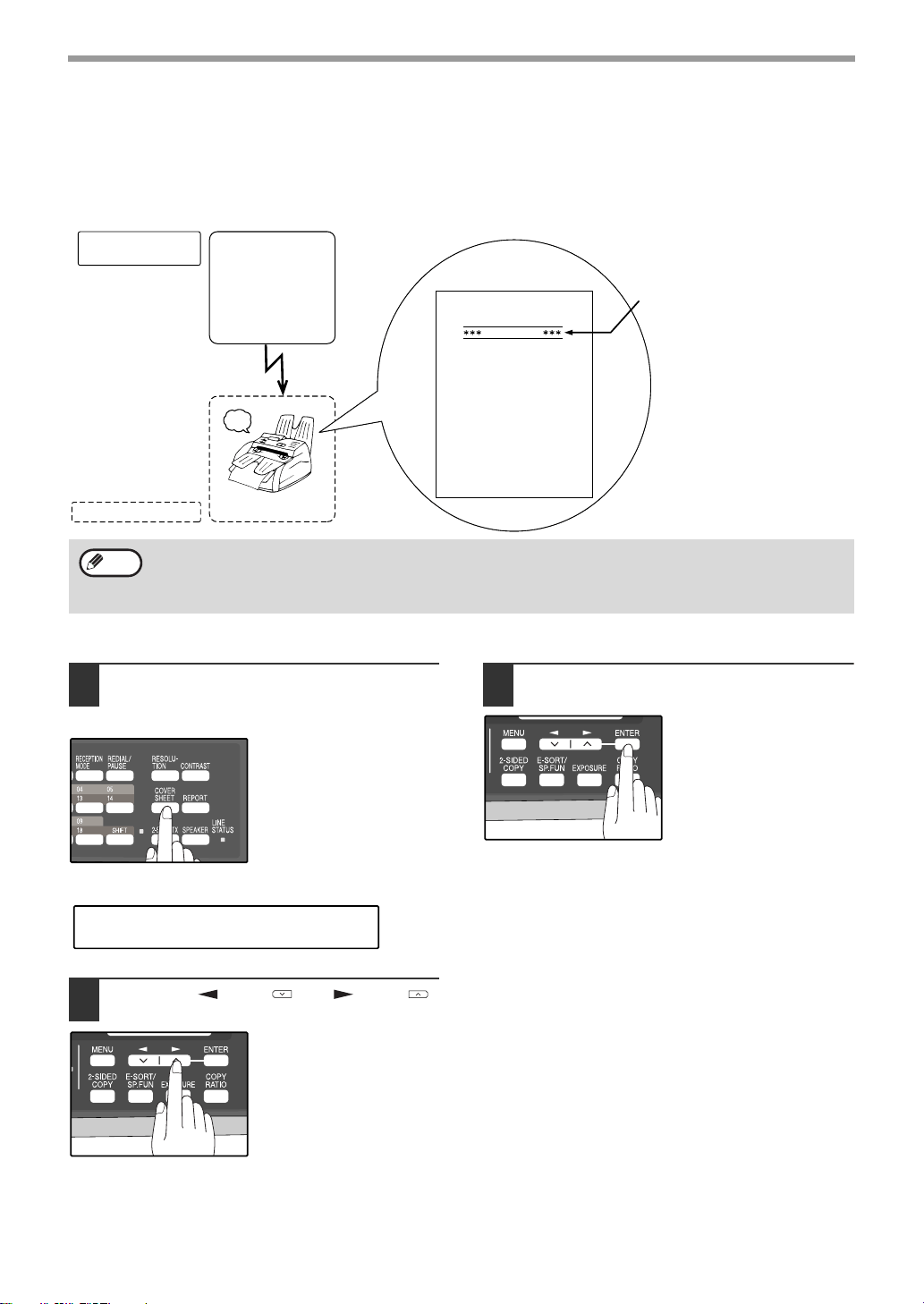
56
HOW TO USE THE FAX FUNCTION
COVER SHEET
You can have your fax generate a cover sheet and send it as the last page of the transmission. The cover sheet
includes the date and time, the sender's name and number, and the receiver's name and number if an automatic
dialing number is used. The total number of pages sent is indicated on the bottom.
One of five messages can also be added to the cover sheet.
To include a cover sheet with a transmission, follow these steps:
1
Press the [COVER SHEET] key until
"1:COVER SHEET SET" appears, and
then press the [ENTER] key.
2
Press the [ ] key ( ) or [ ] key ( )
to select "1:ON" or "2:OFF".
Select "1:ON" to enable
the function.
Select "2:OFF" to disable
the function.
3
Press the [ENTER] key.
Beep
Reception
Transmission
Automatically prints
cover page
Your (transmitting)
machine
Receiving machine
Select cover sheet
and message
functions
If the cover sheet function is not
selected, the message is printed at
the top of the first page received.
If the message function
is selected, a message
is printed. (p.57)
DATE
T O
FAX #
FROM
FAX #
PAGES
: MAY-11-200X FRI 07:30 PM
: SERVICE CENTER
: 0333829161
: SHARP
: 0666211221
: 02PAGES WERE SENT
(INCLUDING THIS PAGE)
IMPORTANT
AUTOMATIC COVER SHEET
• The receiver's name must be programmed in either the Rapid Key or Speed Dial function for it to appear on the
Cover Sheet.
• The cover sheet function must be selected each time you wish to add a cover sheet to a fax transmission.
• To add a message to a cover sheet, the message must be selected using the message function.
Note
"1:COVER SHEET SET"
Selection
!AR-FX13_sec.book 56 ページ 2007年11月28日 水曜日 午後4時22分
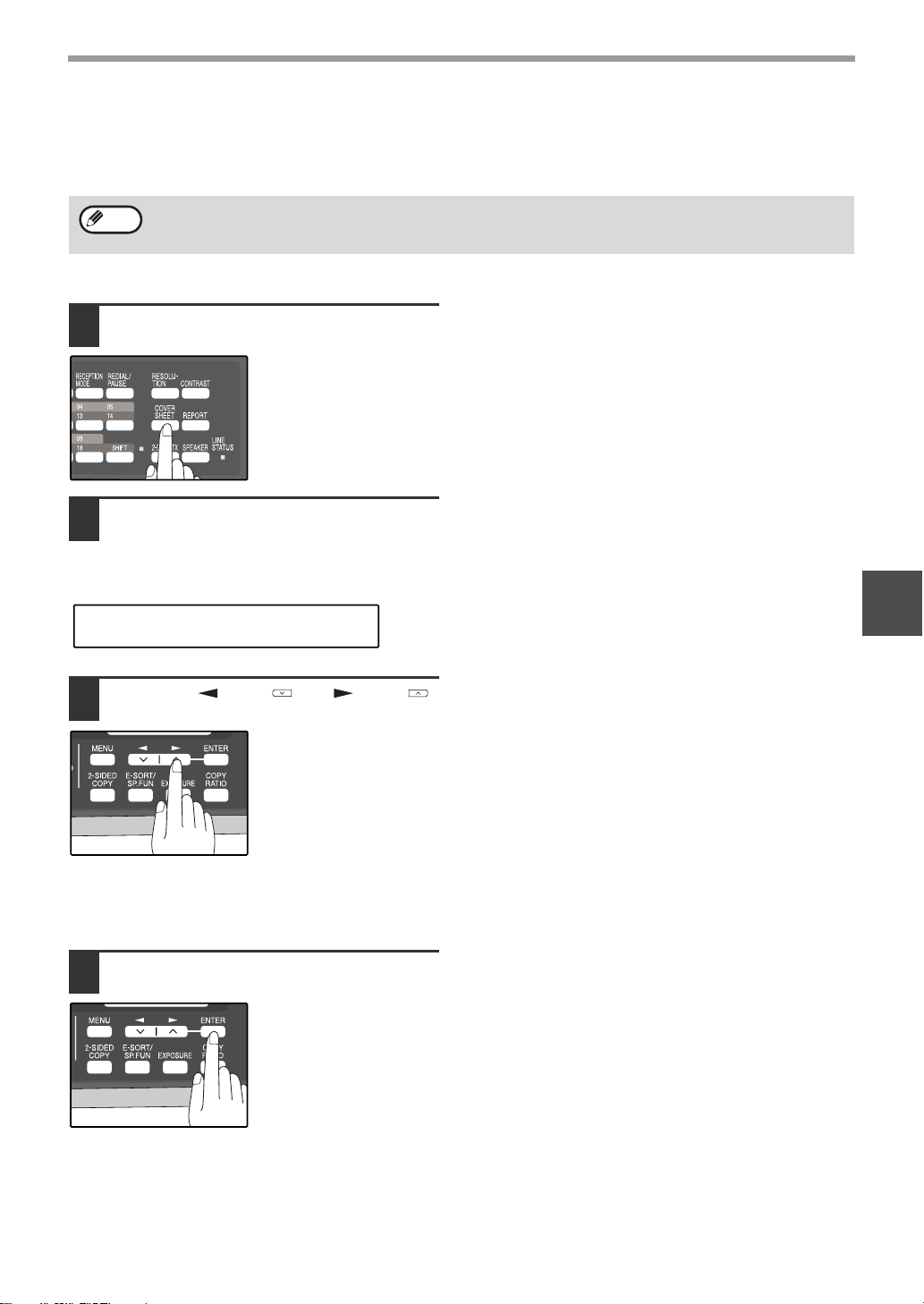
57
HOW TO USE THE FAX FUNCTION
4
MESSAGE FUNCTION
One of the following messages can be selected: "CONFIDENTIAL", "PLS. DISTRIBUTE", "URGENT", "PLS. CALL
BACK", "IMPORTANT".
To add a message to a cover sheet, follow these steps:
1
Press the [COVER SHEET] key.
2
Press the [COVER SHEET] key until
"2:TX MESSAGE SET" appears, and
then press the [ENTER] key.
3
Press the [ ] key ( ) or [ ] key ( )
to select a message.
The selections are as
follows:
1:NO MASSAGE
2:CONFIDENTIAL
3:PLS. DISTRIBUTE
4:URGENT
5:PLS. CALL BACK
6:IMPORTANT
If you do not wish to add
a message, select "1:NO
MESSAGE".
4
Press the [ENTER] key.
If a message is selected when the cover sheet function is not used, the message will be added to the top of the
first page of the fax.
Note
"2:TX MESSAGE SET"
Selection
!AR-FX13_sec.book 57 ページ 2007年11月28日 水曜日 午後4時22分
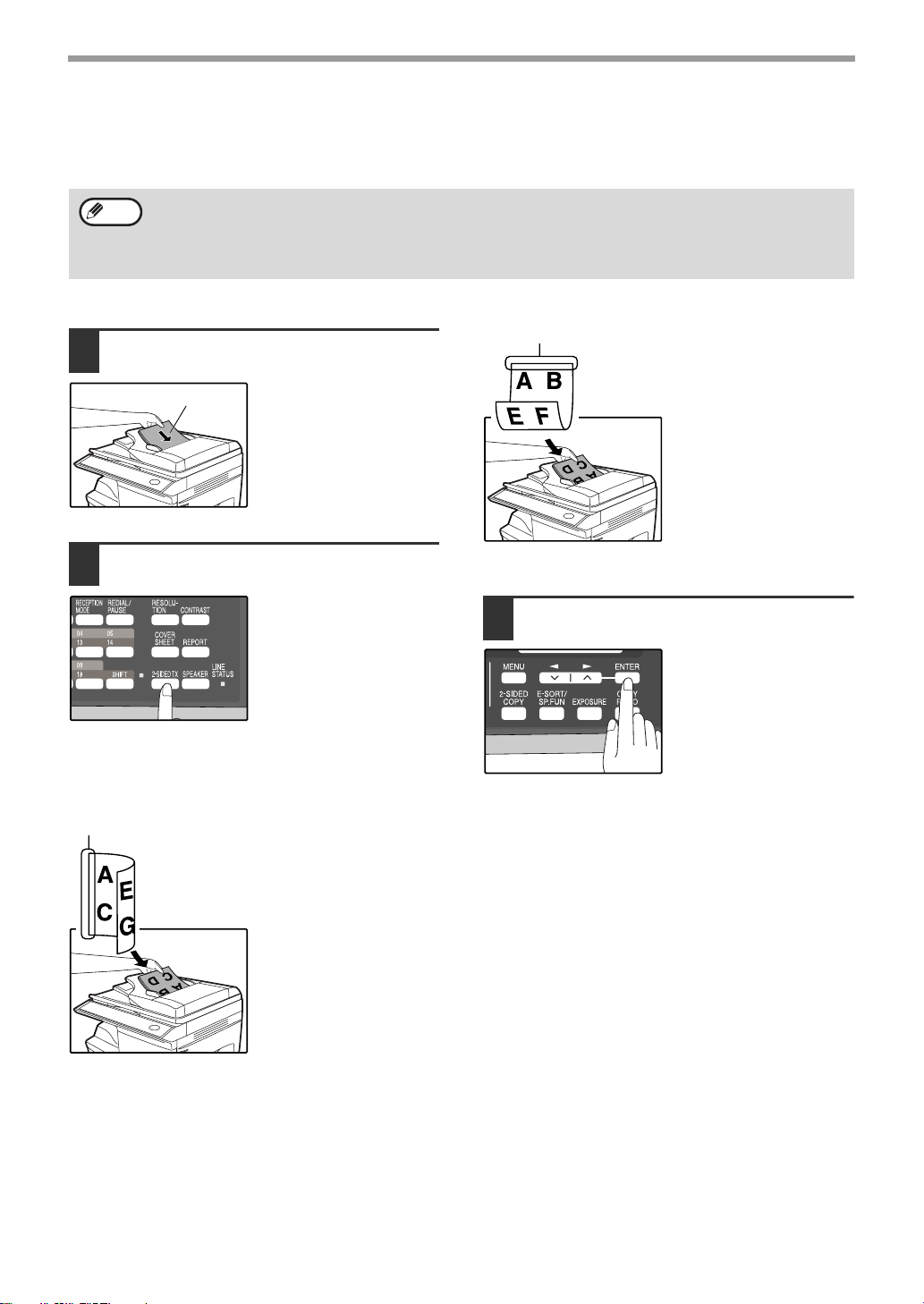
58
HOW TO USE THE FAX FUNCTION
TWO-SIDED ORIGINAL TRANSMISSION FUNCTION
The RSPF can be used to automatically fax a two-sided original. If desired, the back of the original can be rotated
180° before transmission.
Follow these steps to fax a two-sided original:
1
Place the original(s) in the RSPF.
(p.52)
For the size and weight of
two-sided originals that
can be scanned using the
RSPF, see page 50.
2
Press the [2-SIDED TX] key until the
appropriate setting appears.
The selections are as
follows:
OFF
ON (ROTATE)
ON (NON-ROTATE)
Select the setting according to the original type
(booklet or tablet) as indicated below. If the setting is
incorrect, every other page of the received fax will be
inverted.
If you are faxing a
two-sided booklet type
original, select "ON
(ROTATE)".
If you are faxing a
two-sided tablet type
original, select "ON
(NON-ROTATE)".
To cancel this function, select "OFF".
3
Press the [ENTER] key.
• The original must be placed in the RSPF when using the two-sided original transmission function. The
document glass cannot be used.
• The two-sided original transmission function cannot be selected when direct transmission mode is selected.
Likewise, direct transmission mode cannot be selected when the two-sided original transmission function is
selected.
Note
Original face up
Booklet
Tablet
!AR-FX13_sec.book 58 ページ 2007年11月28日 水曜日 午後4時22分
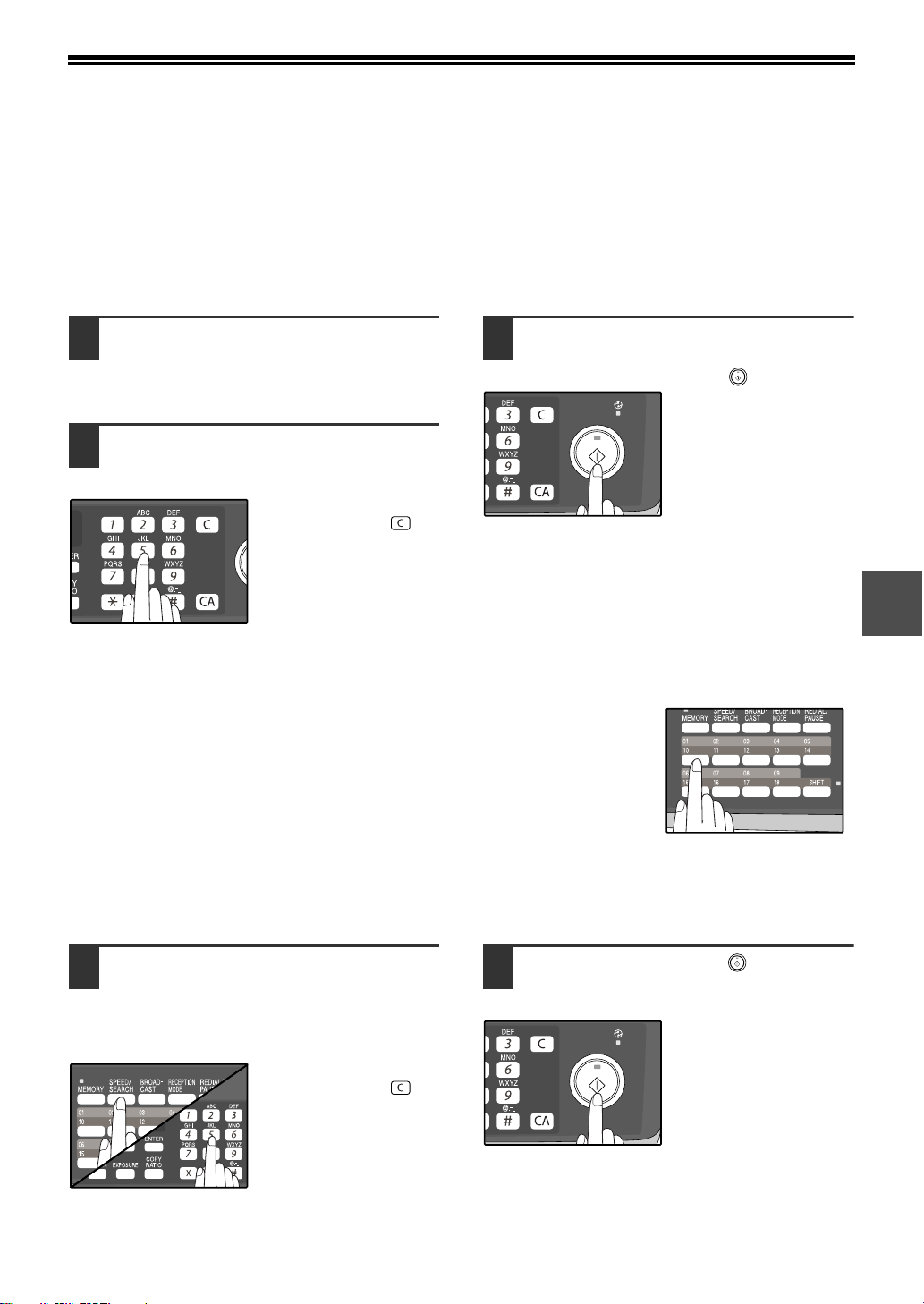
59
4
DIALING AND TRANSMITTING
Once you have set the original (either in the RSPF or on the document glass), and have selected the desired
transmission settings, you are ready to dial the number of the receiving fax machine and transmit the original. You
can choose from one of the several ways of dialing that best suit your needs.
DIRECT KEYPAD DIALING
If the number of the fax you want to reach is not a Rapid key or Speed Dial number, use Direct Keypad Dialing to
manually enter it using the following procedure:
1
Confirm that you have correctly set
the original in the RSPF or on the
document glass. (See "SETTING THE
ORIGINAL" (p.52))
2
Enter the number of the fax machine
you want to send to by pressing the
numeric keys.
If it is not correct, press
the [CLEAR] key ( ) to
backspace and clear one
digit at a time, and then
enter the correct number.
3
Check the display. If the number of the
receiving machine is shown correctly,
press the [START] key ( ).
While "SENDING" is
shown in the display, do
not open the RSPF.
RAPID KEY DIALING
If the number you want to dial has been stored as a Rapid key number (See
"STORING NUMBERS FOR AUTOMATIC DIALING" (p.42)), you can dial it by
pressing the appropriate Rapid key as shown:
SPEED DIALING
If the number you want to dial has been stored as a Speed Dial number, you can dial it using the following
procedure:
1
Press the [SPEED/SEARCH] key and
then enter the two-digit number by
pressing the numeric keys (See
"STORING NUMBERS FOR
AUTOMATIC DIALING" (p.42)).
If it is not correct, press
the [CLEAR] key ( ) to
backspace and clear two
digit at a time, and then
enter the correct number.
2
Press the [START] key ( ) and check
the name or number that appears in
the display.
While "READING" is
shown in the display, do
not open the RSPF.
!AR-FX13_sec.book 59 ページ 2007年11月28日 水曜日 午後4時22分
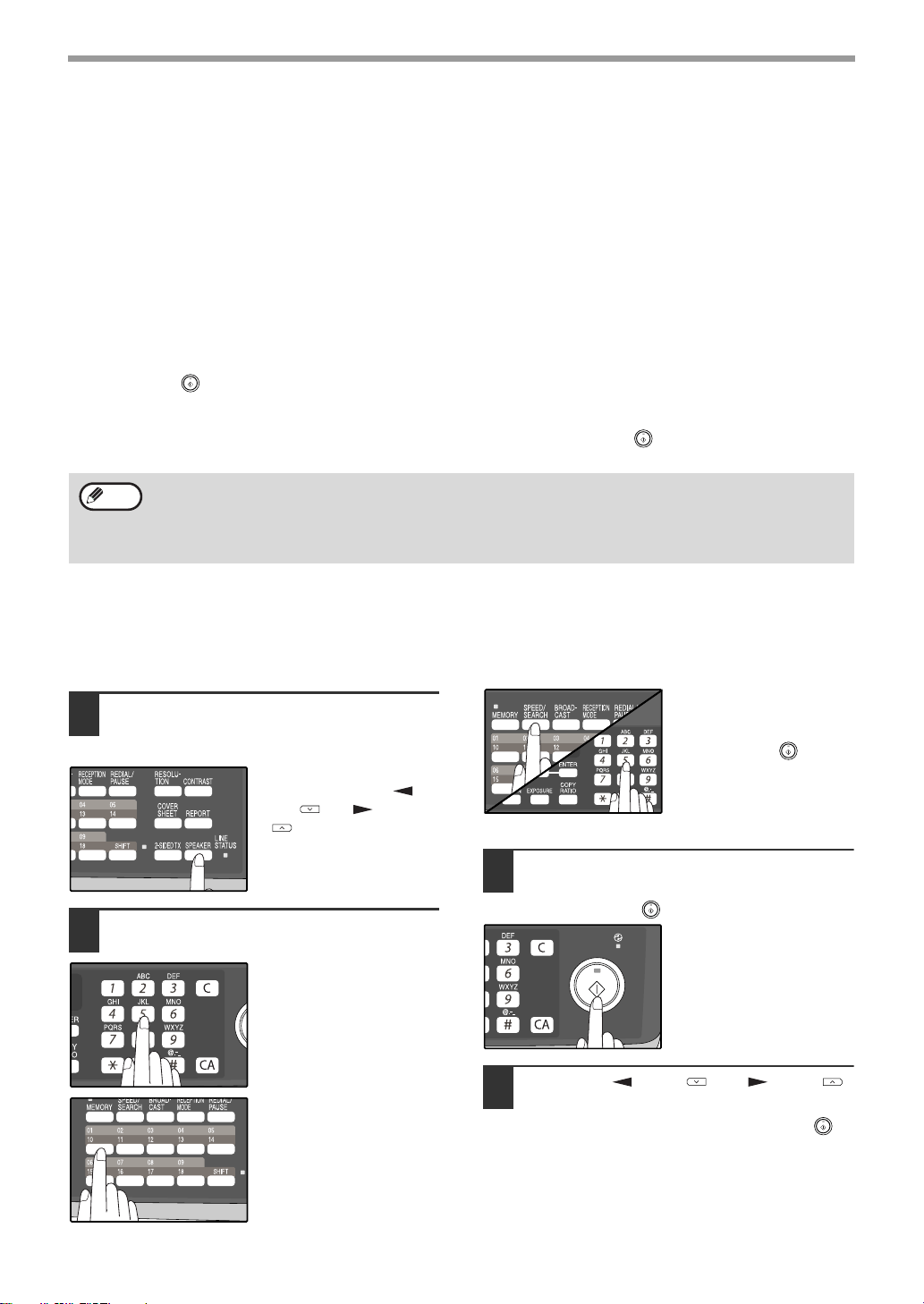
60
HOW TO USE THE FAX FUNCTION
CHAIN DIALING
The Chain Dialing function allows you to combine a Rapid Key or Speed Dial number (See "STORING NUMBERS
FOR AUTOMATIC DIALING" (p.42)) set for Chain Dialing with another Rapid Key, Speed Dial number, or number
dialed with the numeric keys to dial one fax number up to 50 digits long. The following are some examples of how
this can be done:
• Press Rapid Keys set for Chain Dialing in the correct order for the fax number that you wish to dial. For example,
press Rapid Key 01 followed by Rapid Key 02. The final Rapid Key pressed for the fax number must not be set for
Chain Dialing. Transmission will begin automatically when the final Rapid Key is pressed.
• Enter Speed Dial numbers set for Chain Dialing in the correct order for the fax number that you wish to dial. For
example, press the [SPEED/SEARCH] key and [2] [2], followed by the [SPEED/SEARCH] key and [2] [7]. The final
Speed Dial number entered for the fax number must not be set for Chain Dialing. Transmission will begin when the
[START] key ( ) is pressed after the final Speed Dial number is entered.
• Enter the fax number that you wish to dial with the numeric keys. Press the [REDIAL/PAUSE] key to enter a pause
and then enter the next number. Transmission will begin when the [START] key ( ) is pressed after the final
number is entered.
NORMAL DIALING USING THE [SPEAKER] KEY
When dialing normally with the [SPEAKER] key, press the [SPEAKER] key and dial using the numeric keys. You can
hear the line and fax tones from the other machine through the speaker, allowing you to confirm the response of the
other machine.
1
Set the original in the RSPF and press
the [SPEAKER] key. (See "SETTING
THE ORIGINAL" (p.52))
To adjust the volume,
press the left and [ ]
key ( ) or [ ] key
().
2
Dial the fax number of the receiving
machine.
Dialing with the numeric
keys.
Dialing with a Rapid Key.
Dialing with a Speed Dial
number and then press
the [ENTER] key or
[START] key ( ).
3
When you hear the fax reception tone
of the other machine, press the
[START] key ( ).
4
Press the [ ] key ( ) or [ ] key ( )
to select "1:SEND", and then press
the [ENTER] key or [START] key ( ).
• To use a Rapid Key or Speed Dial number for Chain Dialing, the Rapid Key or Speed Dial number must be set
for Chain Dialing when it is stored (See "STORING NUMBERS FOR AUTOMATIC DIALING" (p.42)).
• When using Chain Dialing, the international communication setting of the final number entered is effective.
International communication mode cannot be used if the final number is entered using a Rapid Key or Speed
Dial number that does not have the setting enabled, or if the final number is entered with the numeric keys.
Note
!AR-FX13_sec.book 60 ページ 2007年11月28日 水曜日 午後4時22分
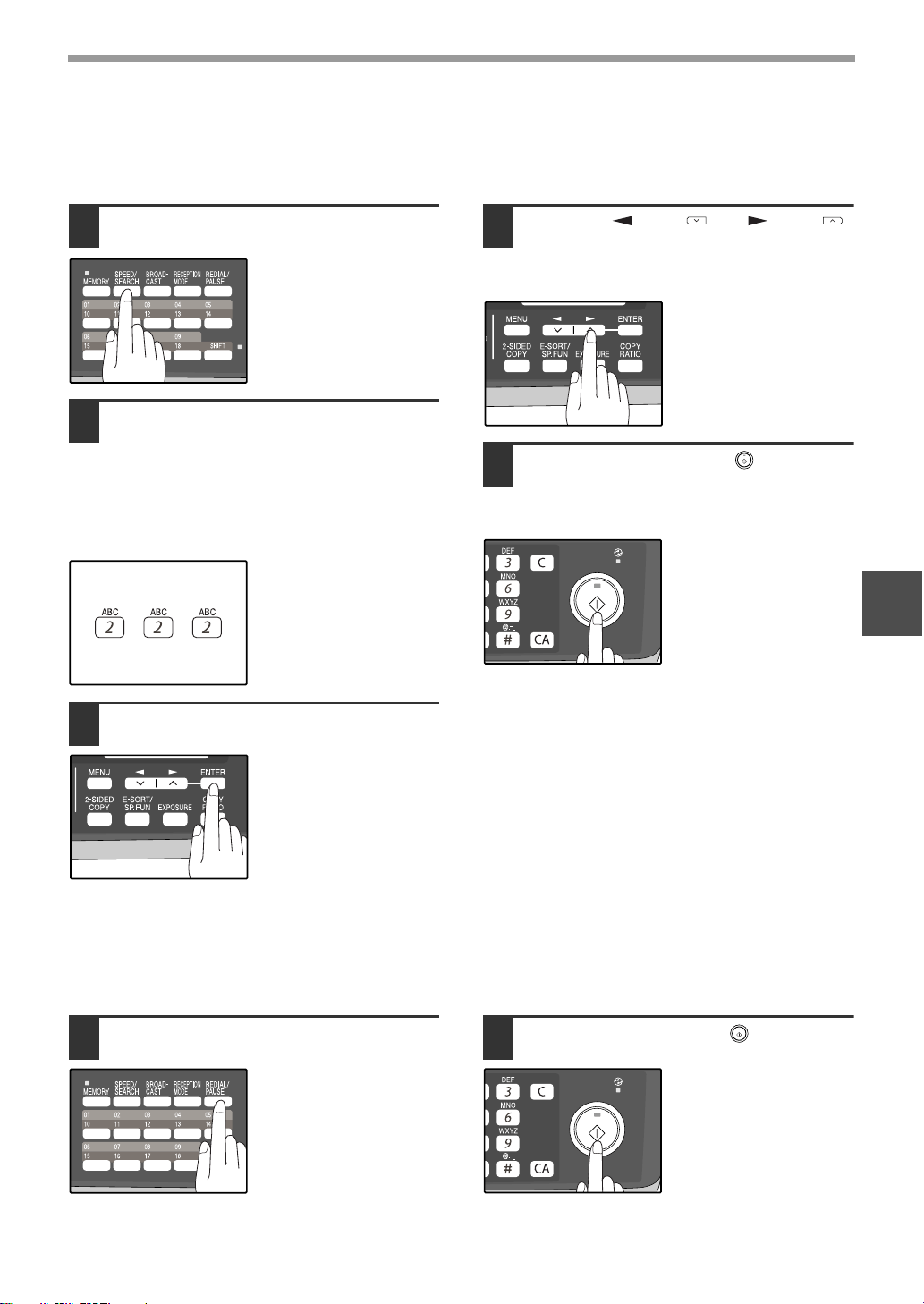
61
HOW TO USE THE FAX FUNCTION
4
USING THE SEARCH KEY
If you do not remember the Rapid key or Speed Dial number in which you have stored a particular fax number, you
can search for the number by following the steps below:
1
Press the [SPEED/SEARCH] key
twice.
2
Enter the first letter of the stored
name by pressing the appropriate
numeric key (the key below the
marked letter) until the letter appears
in the display.
If the name begins with a special
character or number, press [1] key.
If you do not remember
the first letter, go to Step
3 and scroll through the
list from the beginning.
3
Press the [ENTER] key.
4
Press the [ ] key ( ) or [ ] key ( )
to scroll through the names. Stop
when the desired name appears in the
display.
5
Press the [START] key ( ).
The original will be automatically
transmitted once the connection is
made.
REDIALING
You can send a fax to the number you last dialed, you can redialing it using the following procedure:
1
Press the [REDIAL/PAUSE] key.
2
Press the [START] key ( ).
!AR-FX13_sec.book 61 ページ 2007年11月28日 水曜日 午後4時22分
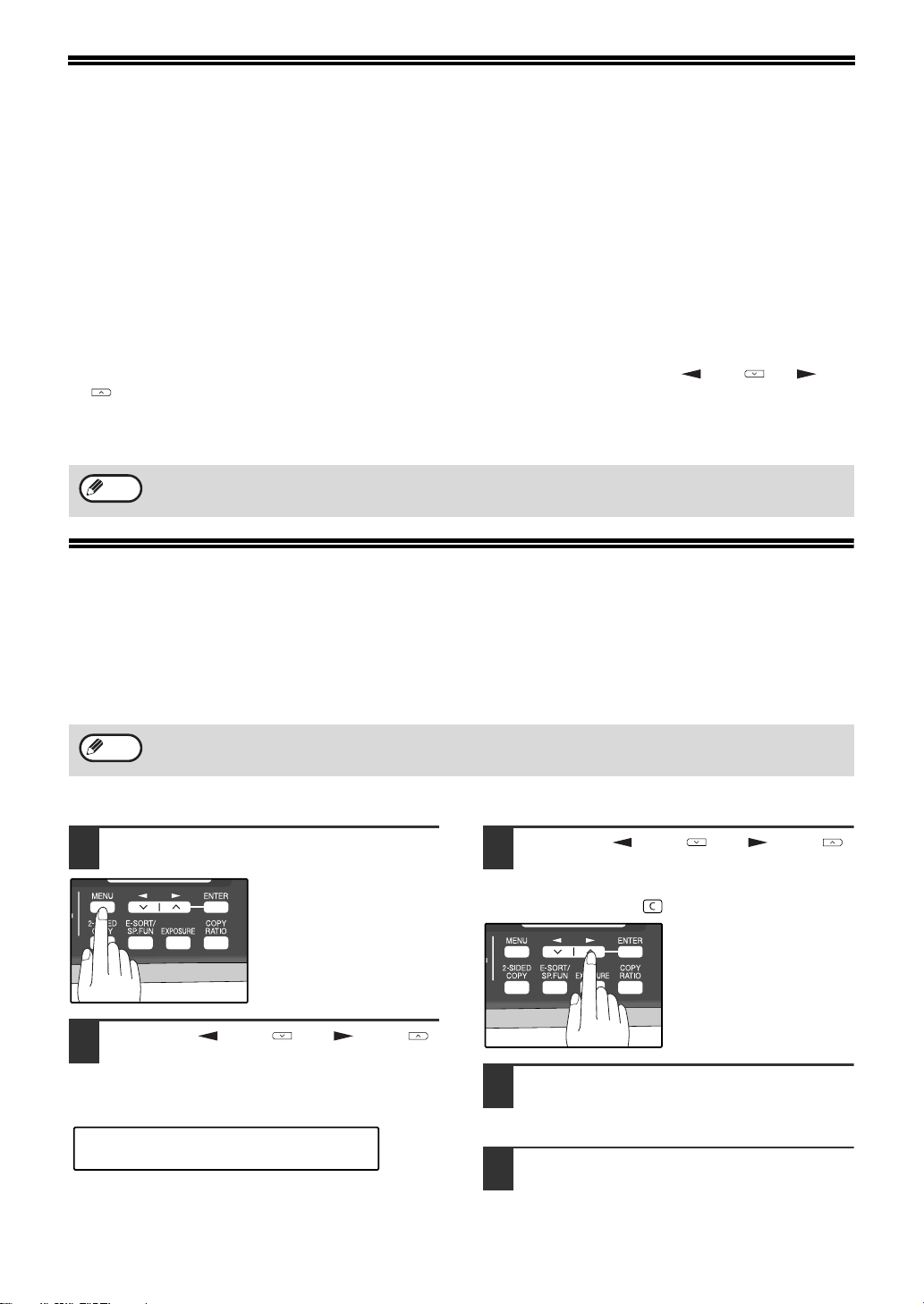
62
IF THE MEMORY BECOMES FULL
WHILE SCANNING AN ORIGINAL
If the memory becomes full while scanning an original, "MEMORY FULL ERROR" will appear in the display and
scanning will stop.
If the memory becomes full while the first page is being scanned, scanning will stop and the transmission will be
canceled.
If the memory becomes full while scanning a page after the first page, scanning will stop. You can transmit the
pages that have already been scanned, or cancel the transmission and clear the pages from memory.
Follow the steps below to transmit or clear the pages that have already been scanned.
1. The memory becomes full and scanning stops. "MEMORY FULL ERROR" appears in the display.
2. To clear the pages that have already been scanned and cancel transmission, press the [ ] key ( ) or [ ] key
( ) to select "2:CANCEL". To transmit the pages that have already been scanned, select "1:SEND XX?".
3. Press the [ENTER] key
The pages are cleared from memory. If you selected "1:SEND XX?" in step 2, the pages are automatically
transmitted.
CANCELING (DELETING) A
STORED FAX JOB
This procedure is used to check and cancel a fax job that is waiting for transmission, such as an automatic recalling
job, a stored fax job, a remote transmission job, or a timer transmission job.
Follow the steps below to cancel (delete) a fax job:
1
Press the [MENU] key.
2
Press the [ ] key ( ) or [ ] key ( )
until "3:MEMORY STATUS" appears,
and then press the [ENTER] key.
3
Press the [ ] key ( ) or [ ] key ( )
until the job that you wish to cancel
appears in the display and press the
[CLEAR] key ( ).
The job to be canceled is
selected.
4
Press the [ENTER] key.
The selected job is deleted.
5
Press the [MENU] key.
Press the [MENU] key to exit.
If you are using Quick On-line transmission (p.26), the pages that were scanned are automatically transmitted.
Note
A stored fax job cannot be canceled while transmission of another job is in progress. Wait until transmission is
finished and then cancel the stored job.
Note
"3:MEMORY STATUS"
Selection
!AR-FX13_sec.book 62 ページ 2007年11月28日 水曜日 午後4時22分
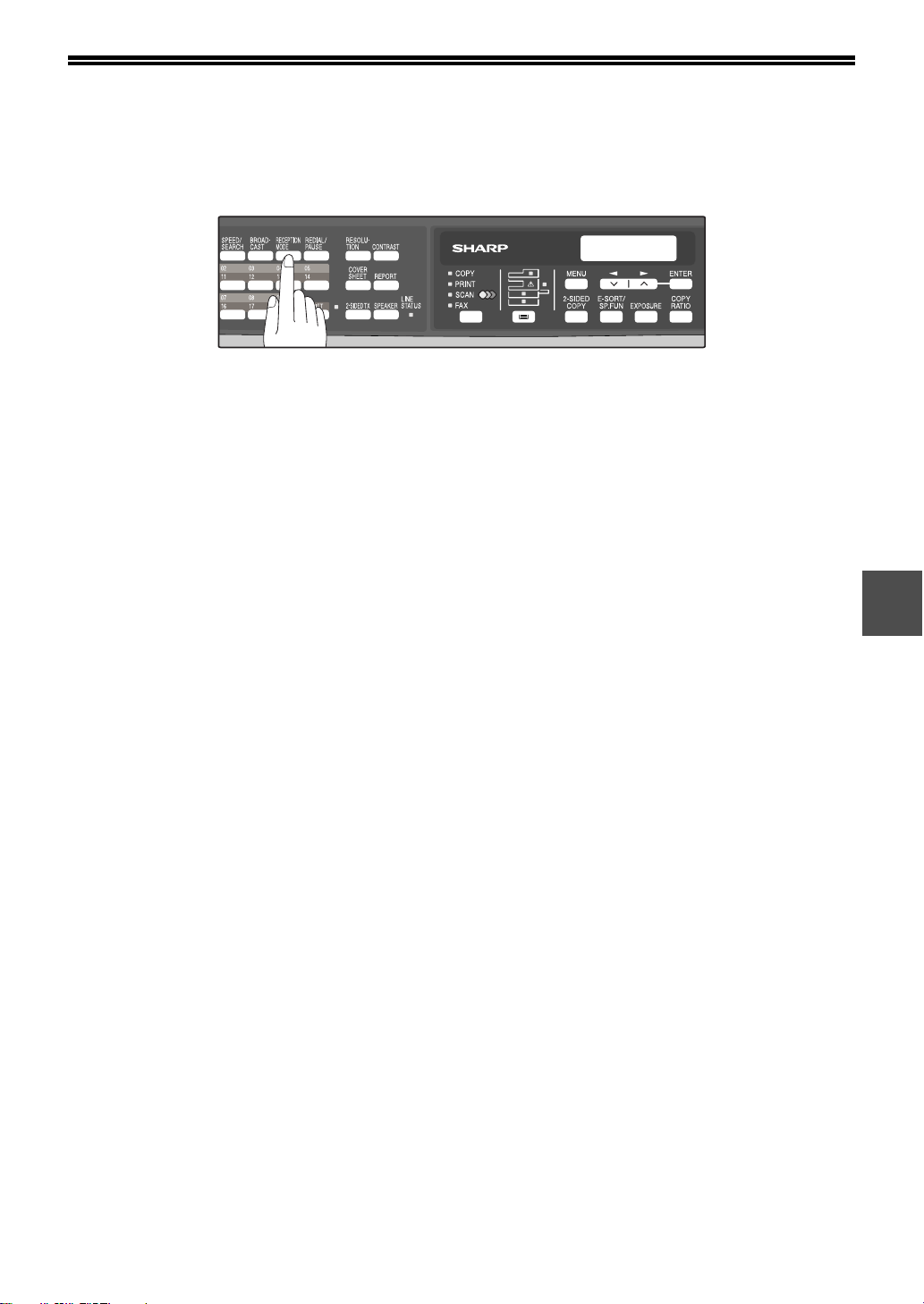
63
4
RECEIVING FAXES
You can set the machine to one of three modes of reception, AUTO, MAN. , or A.M. (Answering Machine).
To select the reception mode, press the [RECEPTION MODE] key until the desired reception mode appears in the
display.
USING AUTO MODE
Select AUTO mode when you only want to receive faxes on your telephone line. The machine will automatically
answer all calls and receive incoming faxes.
USING MAN. MODE
MAN. is the most convenient mode for receiving phone calls if you have an extension phone. To have true manual
mode, the machine must be set to not answer while in MANUAL mode (See "SETTING THE NUMBER OF RINGS
FOR MANUAL RECEPTION" (p.29)). You can also receive faxes; however, all calls must first be answered by
picking up the receiver on the extension phone or telephone connected to the same line.
USING A.M. MODE
Select this mode when an answering machine is connected to the machine and you want the answering machine to
answer all calls. This allows you to receive both voice messages and faxes when you are out.
NOV 05 WED 8:20 AM
STAD-BY AUTO 100%
!AR-FX13_sec.book 63 ページ 2007年11月28日 水曜日 午後4時22分
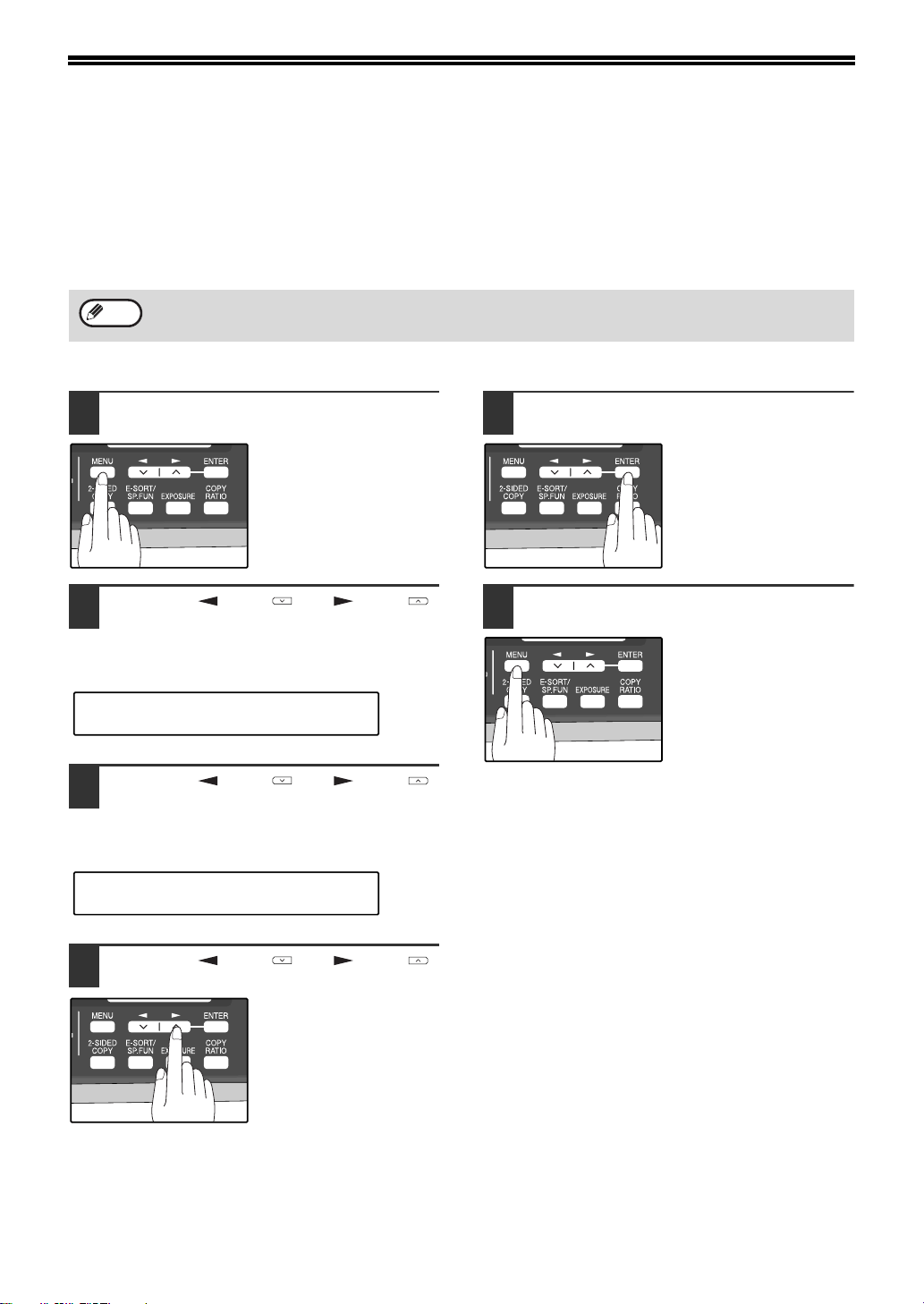
64
OPTIONAL RECEPTION SETTINGS
The machine has various optional settings for the reception of faxes.
TWO-SIDED RECEPTION (AR-208D only)
This function is used to print a received fax consisting of two or more pages of the same size on both sides of the
paper. Even if the pages are in different orientations, the pages are rotated appropriately to enable printing on both
sides of the paper.
To use this feature, follow this procedure:
1
Press the [MENU] key.
2
Press the [ ] key ( ) or [ ] key ( )
until "4:USER PROGRAM" appears,
and then press the [ENTER] key.
3
Press the [ ] key ( ) or [ ] key ( )
until "24:2-SIDED RX" appears, and
then press the [ENTER] key.
4
Press the [ ] key ( ) or [ ] key ( )
to select "1:ON" or "2:OFF".
Select "1:ON" to enable
the function.
Select "2:OFF" to disable
the function.
5
Press the [ENTER] key.
6
Press the [MENU] key.
Press the [MENU] key to
exit.
The two-sided reception function cannot be used when printing a transaction report or activity report.
Note
"4:USER PROGRAM"
Selection
"24:2-SIDED RX"
Selection
!AR-FX13_sec.book 64 ページ 2007年11月28日 水曜日 午後4時22分
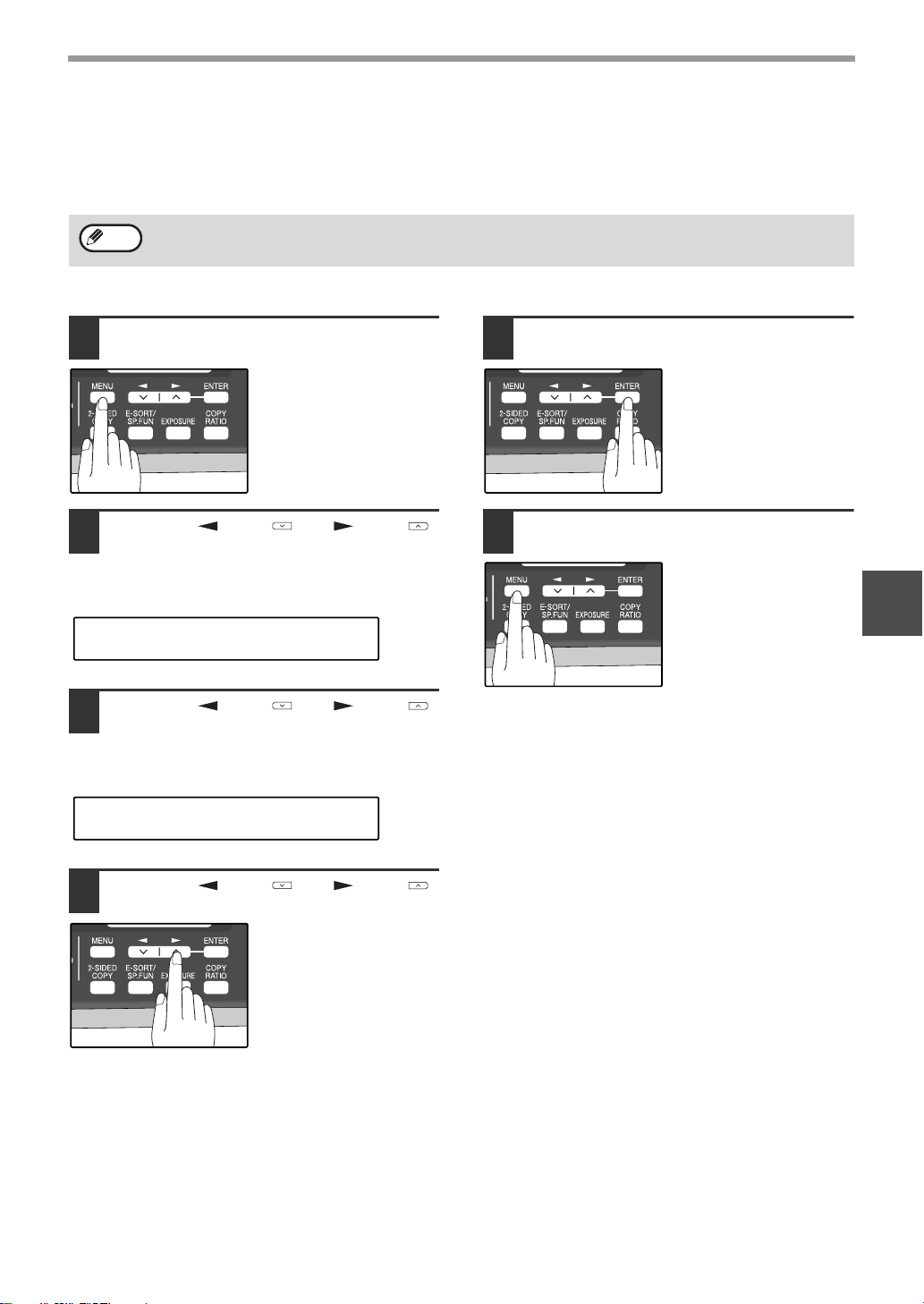
65
HOW TO USE THE FAX FUNCTION
4
RECEIVE REDUCE
You may on occasion receive faxes that are larger than the paper loaded in the machine. To ensure that you do not
lose any part of the original, you should use the Receive Reduce function, which scales the fax to the printing paper
size.
To use this feature, follow this procedure:
1
Press the [MENU] key.
2
Press the [ ] key ( ) or [ ] key ( )
until "4:USER PROGRAM" appears,
and then press the [ENTER] key.
3
Press the [ ] key ( ) or [ ] key ( )
until "16:RCV REDUCE" appears, and
then press the [ENTER] key.
4
Press the [ ] key ( ) or [ ] key ( )
to select "1:ON" or "2:OFF".
If you "2:OFF" (No
reduction) large faxes will
be printed on two sheets
of paper.
5
Press the [ENTER] key.
6
Press the [MENU] key.
Press the [MENU] key to
exit.
In some cases the size or resolution of a received fax may not permit reduction. When this happens the fax will be
printed at full size and divided onto multiple sheets of paper.
Note
"4:USER PROGRAM"
Selection
"16:RCV REDUCE"
Selection
!AR-FX13_sec.book 65 ページ 2007年11月28日 水曜日 午後4時22分

66
WHEN USING MANUAL SENDING
AND RECEIVING
You need to use the [SPEAKER] key or an extension telephone to perform manual sending and receiving. For
information about connecting an extension telephone See "CONNECTING OTHER DEVICES" (p.12).
1
When the extension telephone rings,
pick up the handset and converse.
If the [SPEAKER] key is used to answer a call
you cannot converse.
2
When the handset is off hook or the
[SPEAKER] key is used, press the
[START] key ( ).
Press the [ ] key ( ) or [ ] key ( ) to
select "1:SEND" or "2:RECEIVE", and then press
the [ENTER] key or [START] key ( ).
You cannot use the [SPEAKER] key for fax
transmission/reception while copying is in
progress.
Note
MANUAL MODE
1:SEND, 2:RECEIVE
!AR-FX13_sec.book 66 ページ 2007年11月28日 水曜日 午後4時22分
67
5
Chapter 5
SPECIAL FUNCTIONS
MEMORY
Your machine has a memory area that can be used to store both incoming faxes and outgoing originals.
● Approximately 120 pages of average content can be held in memory for transmission and reception. Less can be
held if any of the pages were scanned using fine or superfine resolution.
Substitute Reception into Memory
This is a back-up function that is automatically activated if your fax runs out of paper, the TD cartridge needs
replacement (See the Operation Manual for general information.), or the paper jams.
• If you received originals in memory because the fax ran out of paper, be sure to add paper which is the same size
as the paper previously used. If not, the original print-out size may not match the size of the printing paper.
Take care that the remaining memory does not become 7% or less, or you cannot receive any more faxes.
When the machine is idle, the LCD shows the stand-by memory available. (See "ABOUT THE LIQUID CRYSTAL
DISPLAY" (p.16))
Note
!AR-FX13_sec.book 67 ページ 2007年11月28日 水曜日 午後4時22分
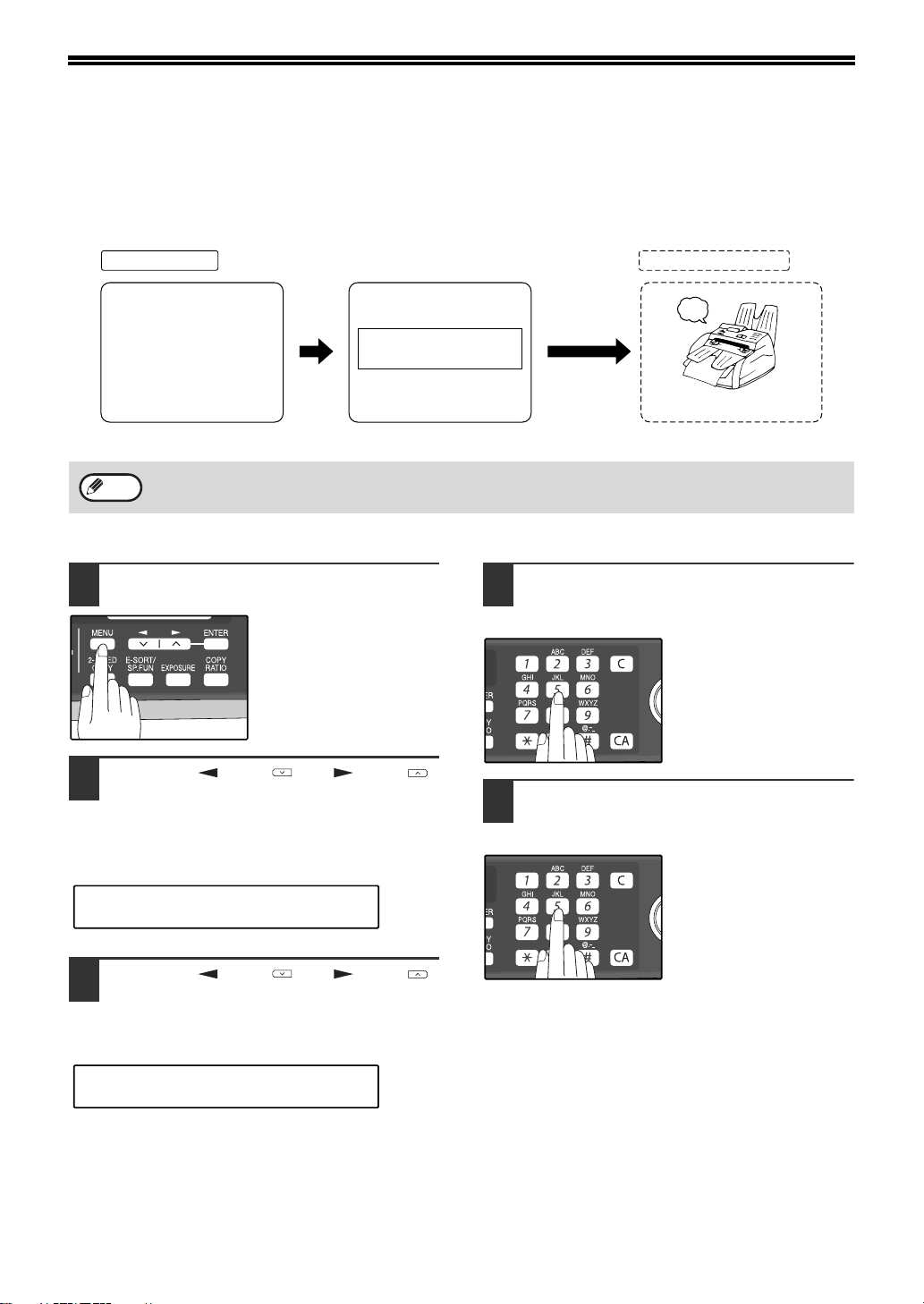
68
DATA TRANSFER
If there is a problem with the machine, you can use the Data Transfer function to have received faxes read into
memory and then sent to a different fax machine for printing.
This function is used when you cannot print received faxes, for example when the machine runs out of toner, or a
misfeed occurs.
To use this function, the fax number of the transfer destination machine must be programmed.
Follow these steps to program the fax number of the transfer destination machine:
1
Press the [MENU] key.
2
Press the [ ] key ( ) or [ ] key ( )
until "0:RX DATA TRANSFER"
appears, and then press the [ENTER]
key.
3
Press the [ ] key ( ) or [ ] key ( )
until "2:FAX NUMBER" appears, and
then press the [ENTER] key.
4
Enter the fax number of the transfer
destination machine with the numeric
keys and press the [ENTER] key.
Enter the transferring fax
number (maximum 40
digits) by pressing the
numeric keys.
5
Enter the name of the transfer
destination with the numeric keys and
press the [ENTER] key.
Enter the fax number of
the fax machine your
want to transfer the data to.
[Preparation]
beep
Transferred faxes
are printed
Your fax machine
Receiving fax machine
Select data transfer mode
FW. RX DATA
1=YES 2=NO
Transfer is only possible when a received fax is being held in memory because printing was not possible. In this
case, "0:RX DATA TRANSFER" will appear in the display.
Note
"0:RX DATA TRANSFER"
Selection
"2:FAX NUMBER"
Selection
!AR-FX13_sec.book 68 ページ 2007年11月28日 水曜日 午後4時22分
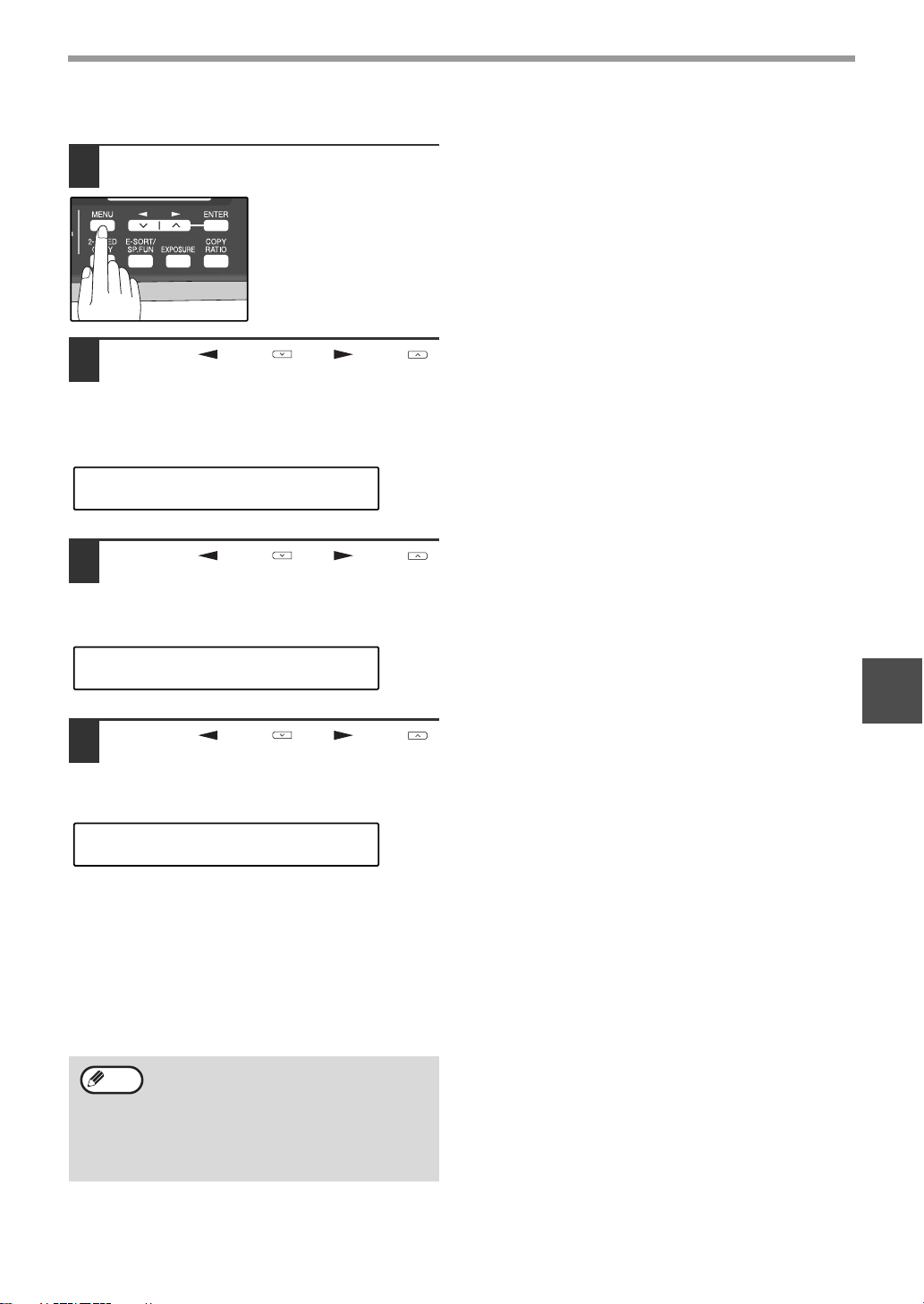
69
SPECIAL FUNCTIONS
5
Follow these steps to use the fax transfer function:
1
Press the [MENU] key.
2
Press the [ ] key ( ) or [ ] key ( )
until "0:RX DATA TRANSFER"
appears, and then press the [ENTER]
key.
3
Press the [ ] key ( ) or [ ] key ( )
until "1:DATA TRANSFER" appears,
and then press the [ENTER] key.
4
Press the [ ] key ( ) or [ ] key ( )
until "1:YES" appears, and then press
the [ENTER] key.
The received fax is transferred.
To cancel the transfer, select "2:NO" and press the
[ENTER] key.
If "NOT STORED FW.#" appears:
The transfer destination number has not been
programmed. Program the number and then transfer
the fax.
If you set the data transfer mode, when data
cannot be transferred because the other fax
machine was busy, or when the error
condition on your fax machine is corrected,
the data does not print out. To print the data,
turn off the power to the fax machine, then
turn it on again.
"0:RX DATA TRANSFER"
Selection
"1:DATA TRANSFER"
Selection
"1:YES"
Selection
Note
!AR-FX13_sec.book 69 ページ 2007年11月28日 水曜日 午後4時22分
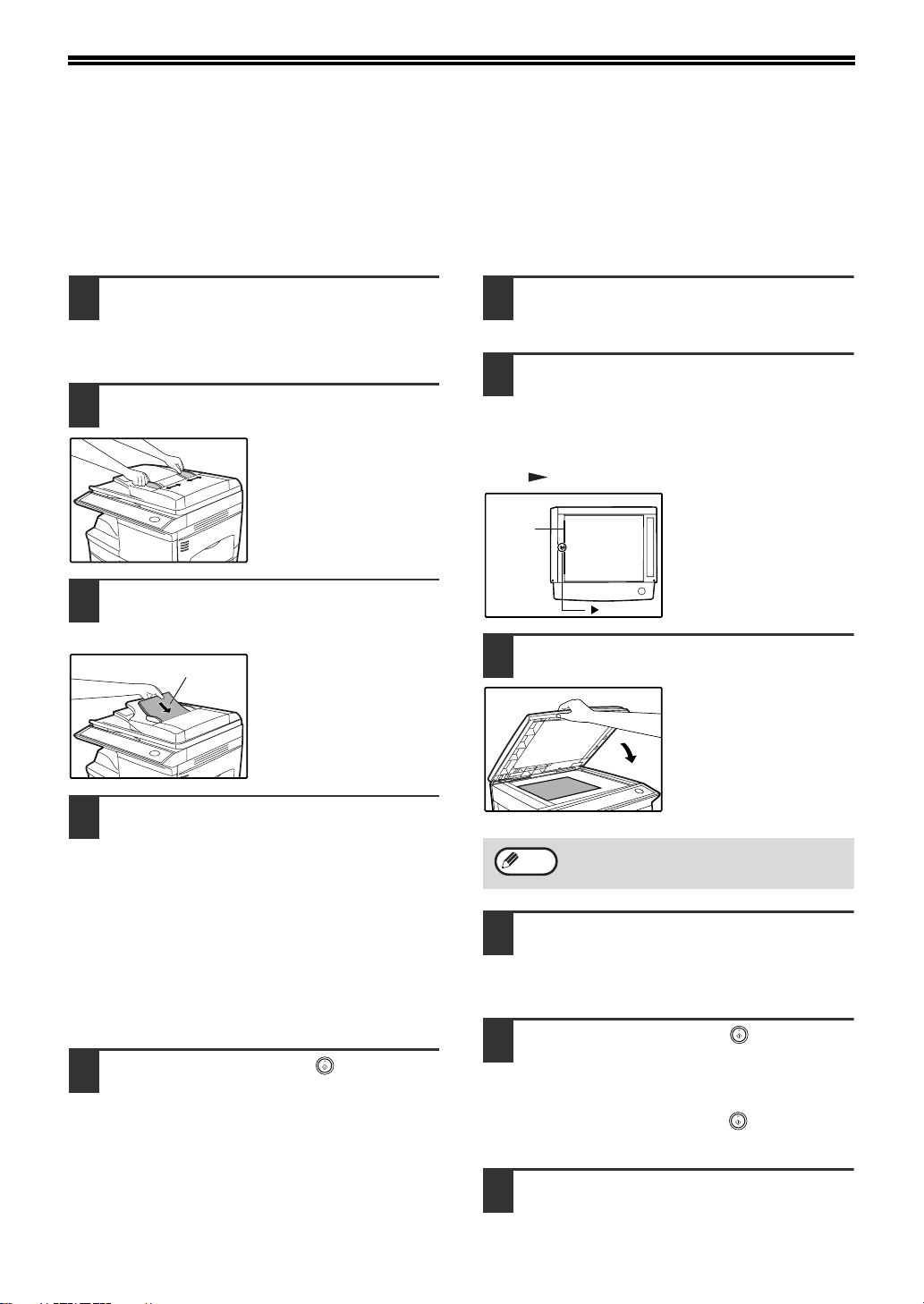
70
TRANSMISSION RESERVATION
When your fax is busy receiving an original or transmitting an original from memory, you can "reserve" a
transmission by setting the original (either in the RSPF or on the document glass), reading it into memory, and
entering the fax number. Once the current operation is completed, your fax will automatically dial the number and
transmit the original saving you from having to wait.
When Using the RSPF:
1
Confirm that there are no originals on
the document glass and that copying
is not in progress, then gently close
the RSPF.
2
Adjust the original guides to the width
of your original.
3
Place the original face up and push it
gently into the RSPF. The top edge of
the original should enter the fax first.
Adjust the resolution
and/or contrast settings if
desired.
4
Enter the number of the receiving
machine using one of the following
methods:
• Press a Rapid key.
If you press a Rapid Key, the next step is not
necessary.
The number will be dialed once the current
operation is completed, and transmission will
begin once the connection is made.
• Press the [SPEED/SEARCH] key and enter a
Speed Dial number.
• Enter a full number with the numeric keys.
5
Press the [START] key ( ) if you
entered a Speed Dial number or a full
number.
• The number will be dialed once the current
operation is completed, and transmission will
begin once the connection is made.
When placing the Original on the Table:
1
Confirm that there are no original(s) in
the RSPF, and open the RSPF.
2
Place the original face down on the
document glass. Align the original
according to the original scale in the
illustration below. (Line up the center
of the edge of the original with the
( ) mark.)
3
Gently close the RSPF.
4
If needed, set the original size,
resolution, and contrast. (See
"DIALING AND TRANSMITTING"
(p.59))
5
Press the [START] key ( ) to scan
the page into memory. If you have
more than one original to read into
memory, place the next page, and
press the [START] key ( ) to read
each page.
6
Press the [#] key.
Original face up
When using the document glass, do not set
original(s) in the RSPF.
mark
Original
scale
Note
!AR-FX13_sec.book 70 ページ 2007年11月28日 水曜日 午後4時22分
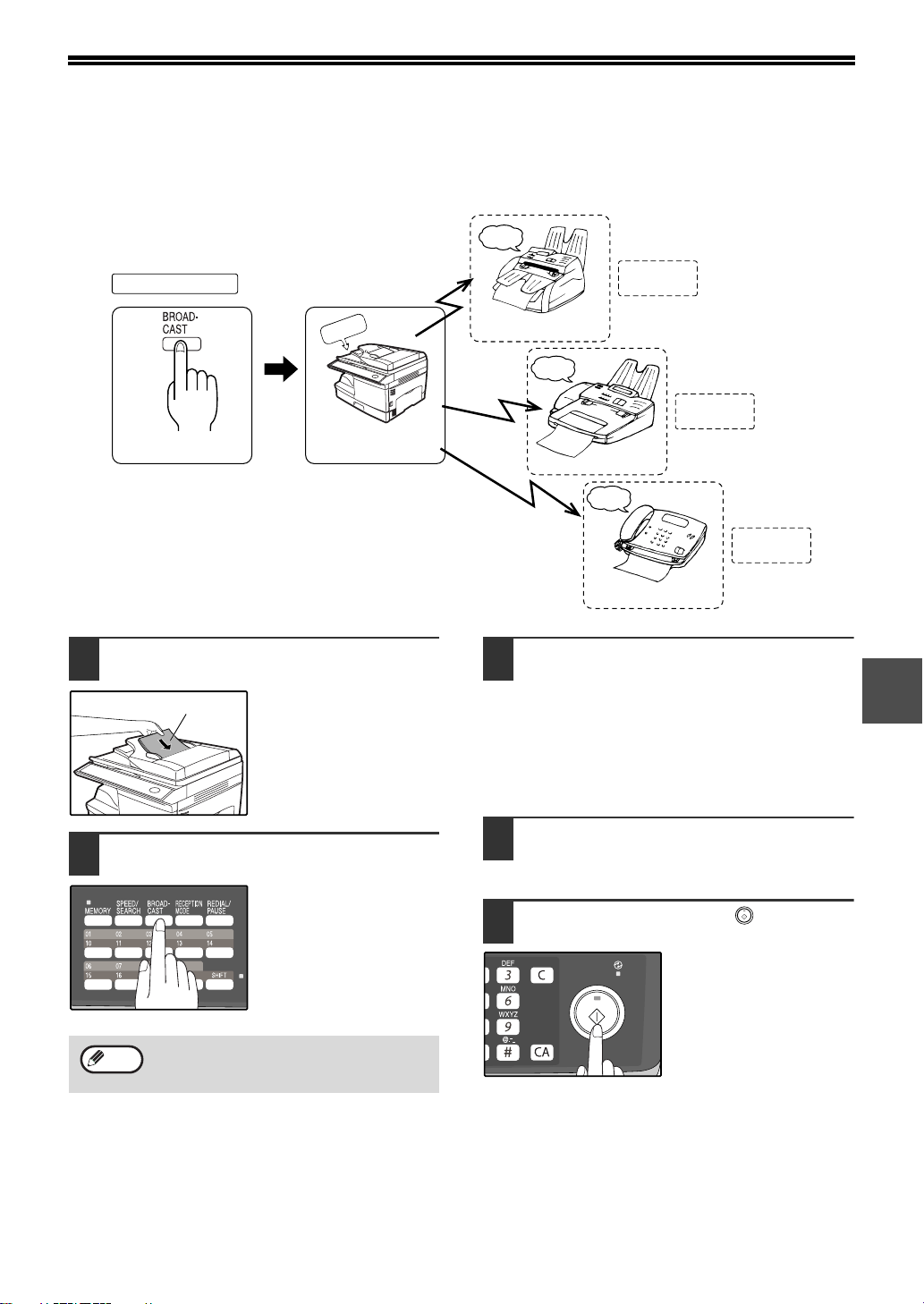
71
5
BROADCASTING
This function allows you to send the same original to as many as 100 different locations with just one operation.
Once the original is loaded, it is scanned and stored in memory. The fax numbers you have entered are then
automatically dialed in succession, and the original is transmitted to each location.
1
Place the original face up and push it
gently into the original feeder tray.
2
Press the [BROADCAST] key.
Adjust the resolution
and/or contrast settings if
desired.
3
Dial the numbers of the receiving
machines using one or more of the
following methods:
• Press one or more Rapid keys.
• Enter Speed Dial numbers with the numeric
keys.
• Press one or more Group keys.
• Enter a number with the numeric keys.
4
Press the [ENTER] key.
To enter another fax number, return to step 3.
5
Press the [START] key ( ).
Transmission will begin.
Your fax machine
Select
broadcast sending
Original is scanned
into memory
Faxes sent
in order
beep
beep
beep
Fax received
Fax received
Fax received
Recipient A
Recipient B
Recipient C
memory
Adjust the resolution and contrast settings
after the [BROADCAST] key has been
pressed.
Original face up
Note
!AR-FX13_sec.book 71 ページ 2007年11月28日 水曜日 午後4時22分
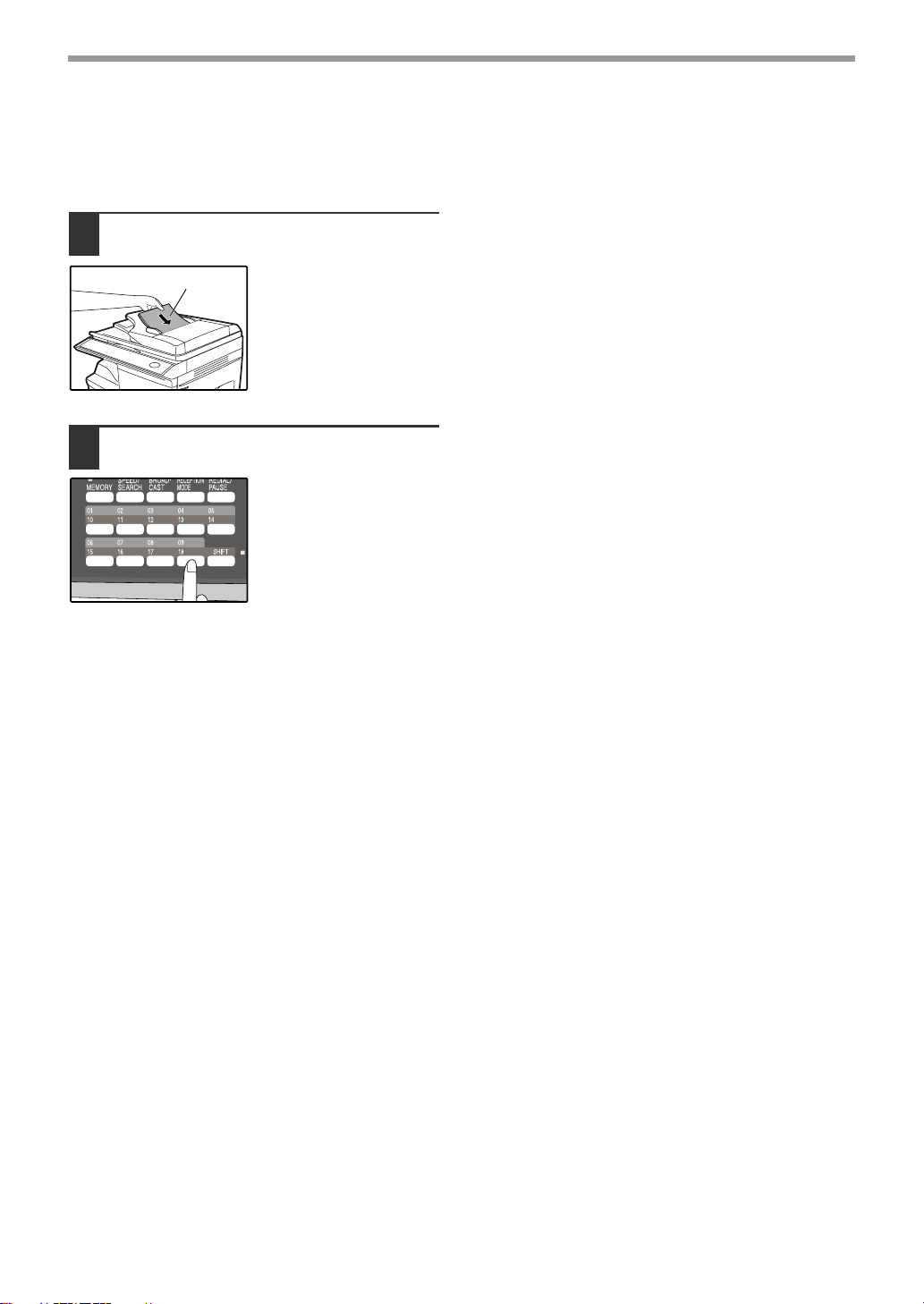
72
SPECIAL FUNCTIONS
Broadcasting using a Group key
If the fax machines to which you want to broadcast have all been programmed into one Group key, you can perform
the broadcasting operation using the following simplified procedure. Refer to "STORING NUMBERS UNDER
GROUP KEYS" (p.45).
1
Place the original face up and push it
gently into the document feeder tray.
Adjust the resolution
and/or contrast settings if
desired.
2
Press the appropriate Group key.
Transmission will begin.
Original face up
!AR-FX13_sec.book 72 ページ 2007年11月28日 水曜日 午後4時22分
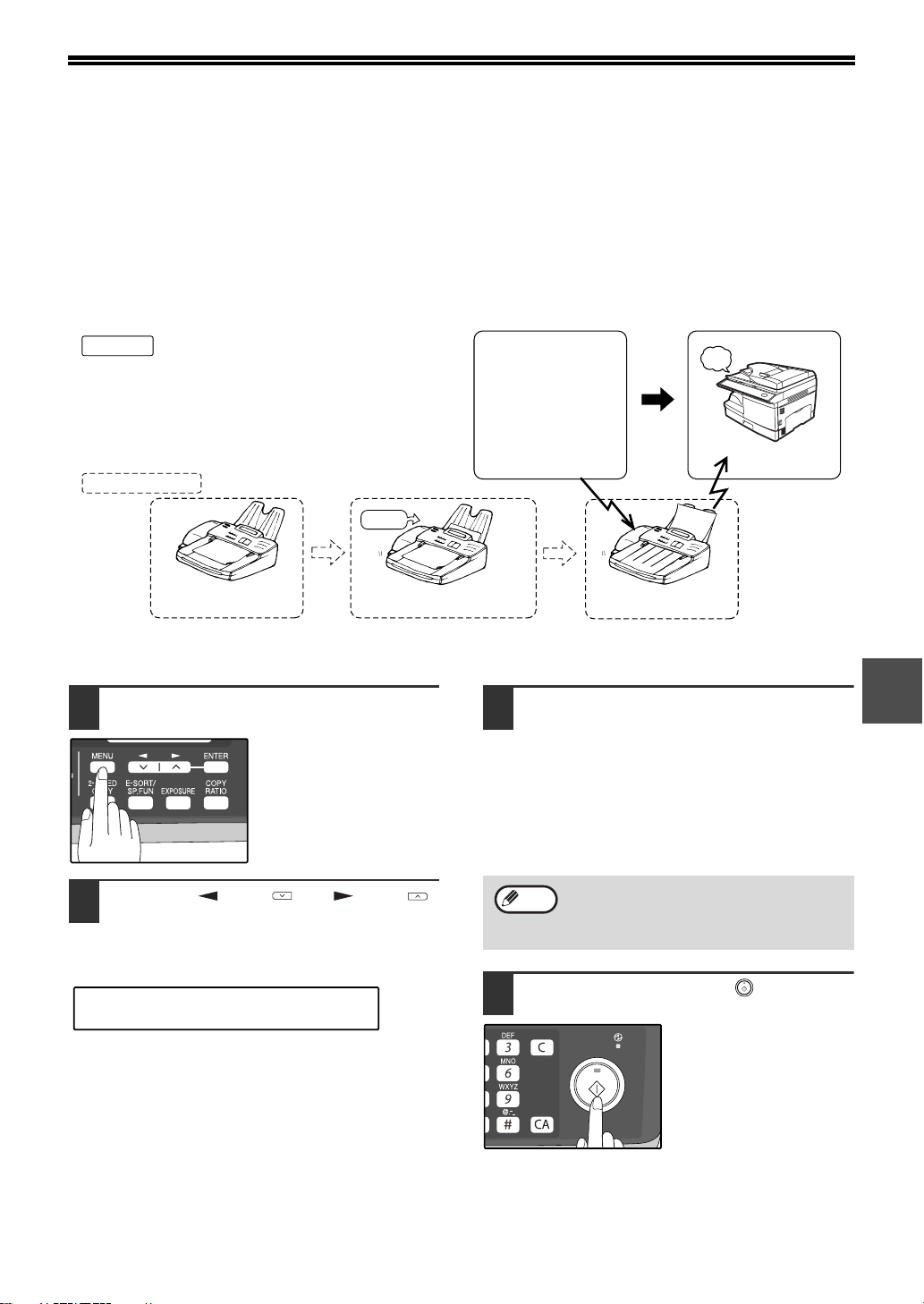
73
5
POLLING
Polling allows you to request another fax machine to send an original to your fax machine. In other words, the
receiving fax machine, not the transmitting fax machine, activates the transmission. You can use your fax to both
poll and be polled by others.
Serial polling can be used to poll multiple fax machines (maximum of 100) in a single operation.
POLLING
You can request that another fax machine send you the original that is set in that fax machine. You can perform a
polling operation at a scheduled time. (See "TIMER OPERATIONS" (p.79))
Follow these steps to use the polling function:
1
Press the [MENU] key.
2
Press the [ ] key ( ) or [ ] key ( )
until "8:POLLING MODE" appears,
and then press the [ENTER] key.
3
Dial the number of the fax machine
you want to poll using one of the
following methods:
• Press a Rapid Key.
If you press a Rapid Key, the next step is not
necessary.
• Press the [SPEED/SEARCH] key and enter a
two-digit Speed Dial number.
• Enter the fax number with the numeric keys.
4
Press the [START] key ( ).
Fax received
Polling fax
Other fax memory
polling
sending
Original is set
Polling is approved
beep
Original is scanned
into memory
memory
Select polling
"8:POLLING MODE"
Selection
A group key can be pressed to perform
serial polling. Fax reception will take place in
the order that the destinations are stored in
the Group Key.
Note
!AR-FX13_sec.book 73 ページ 2007年11月28日 水曜日 午後4時22分
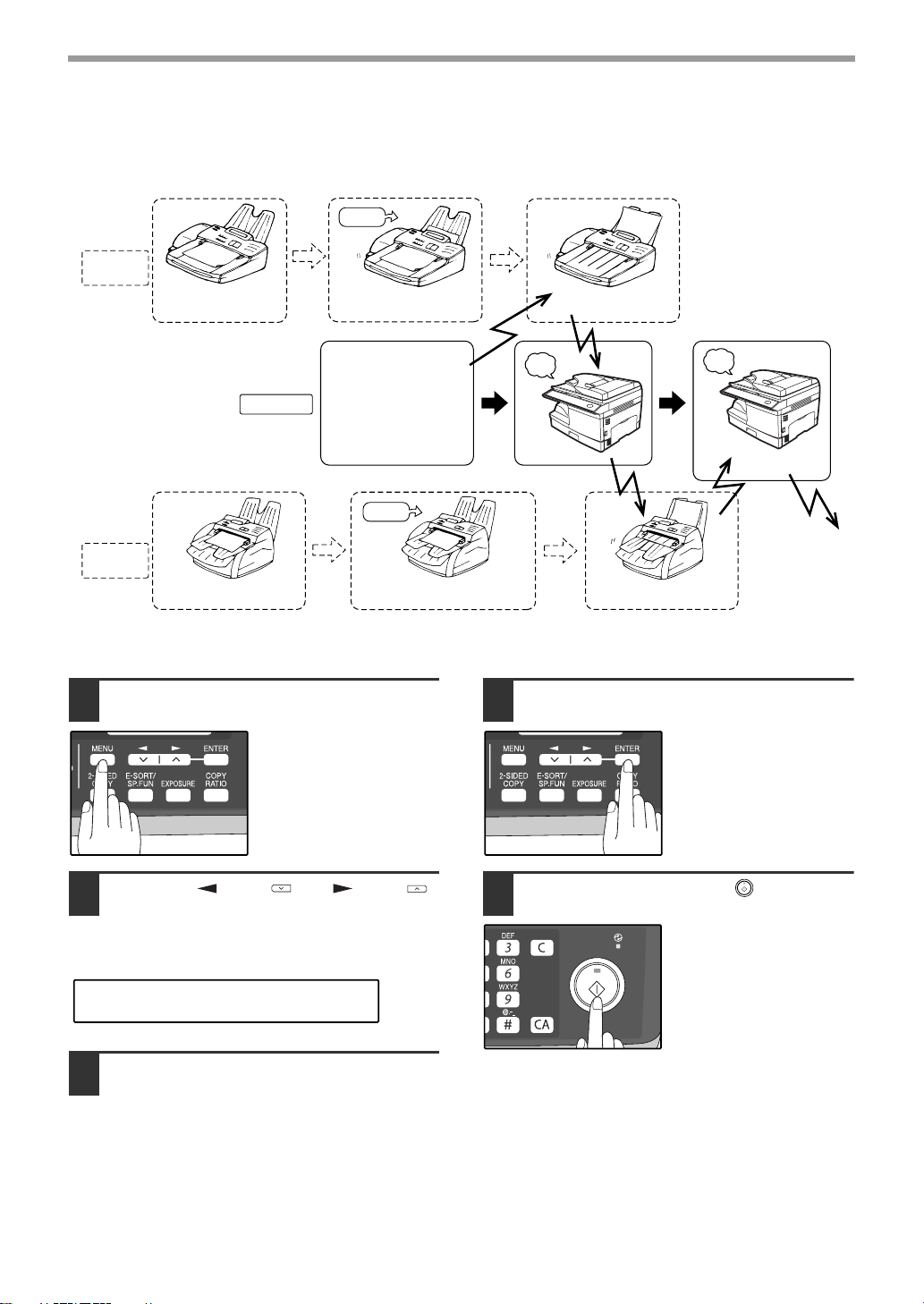
74
SPECIAL FUNCTIONS
SERIAL POLLING
You can poll several fax machines one at a time with a single serial polling operation.
A maximum of 100 fax machines can be polled in one serial polling operation.
Follow these steps to use the serial polling function:
1
Press the [MENU] key.
2
Press the [ ] key ( ) or [ ] key ( )
until "9:SERIAL POLL MODE" appears,
and then press the [ENTER] key.
3
Dial the number of the fax machine
you want to poll using one of the
following methods:
• Press a Rapid Key or a Group Key.
• Press the [SPEED/SEARCH] key and enter a
two-digit Speed Dial number.
• Enter a fax number with the numeric keys.
4
Press the [ENTER] key.
Repeat steps 3 and 4
until all numbers have
been entered. After
entering the last number,
go to step 5.
5
Press the [START] key ( ).
memory
Polling fax
Other fax A
memory
Other fax B
memory
polling
Original is set
Original is set
sending
Repeated for the
next fax machine
Select serial polling
Fax received
Fax
received
Next fax machine is polled
sending
memory
Polling is approved
Original is scanned
into memory
Original is scanned
into memory
Polling is approved
beep
beep
"9:SERIAL POLL MODE"
Selection
!AR-FX13_sec.book 74 ページ 2007年11月28日 水曜日 午後4時22分
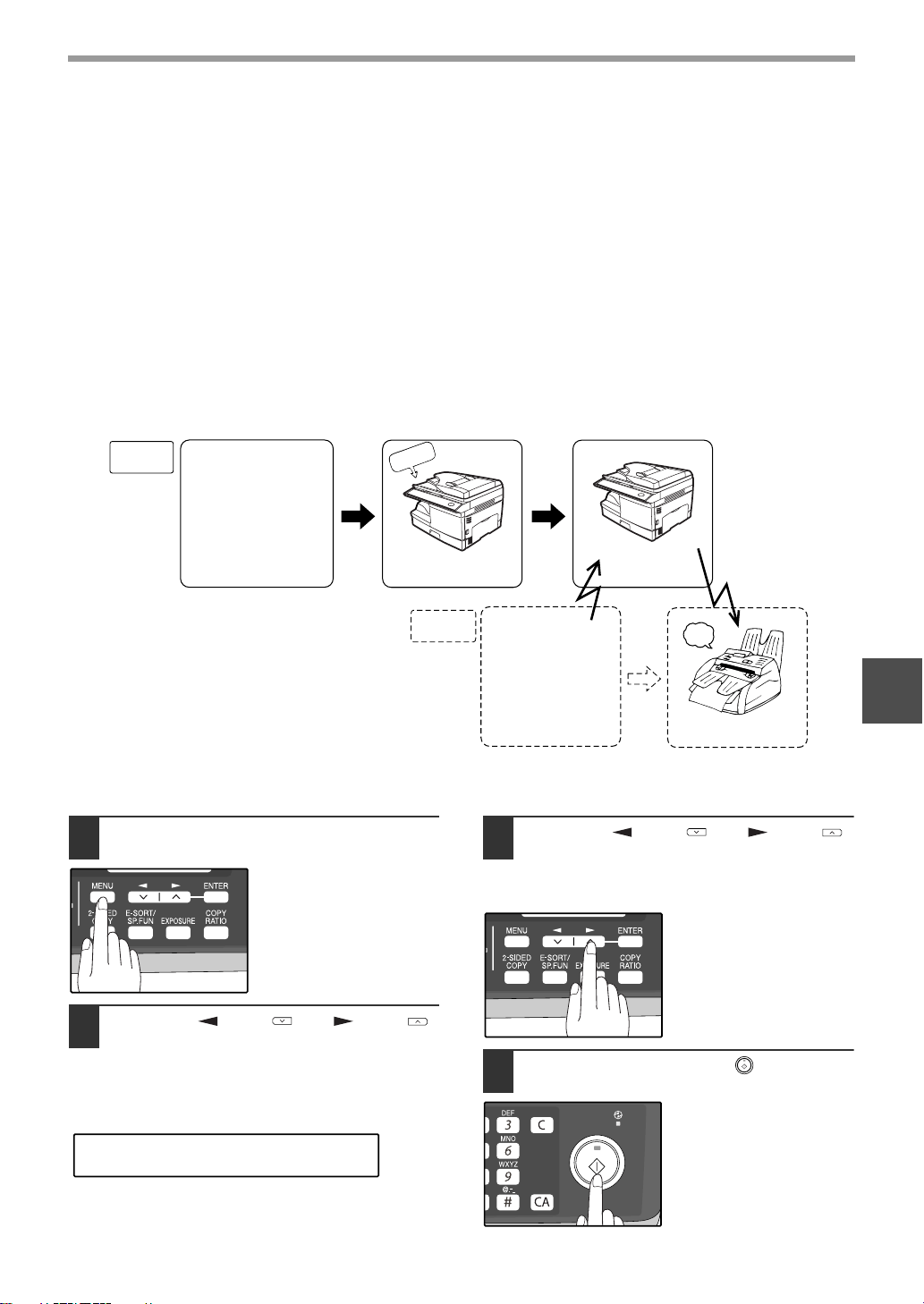
75
SPECIAL FUNCTIONS
5
POLLING TRANSMISSION (MEMORY POLLING)
This function is used to transmit an original that has been scanned into memory to a fax machine that polls your fax
machine. If desired, polling fax machines can be restricted to machines whose fax numbers have been programmed
in your machine ("RESTRICTING POLLING MACHINES (POLLING SECURITY)" on page 77).
To let other fax machines poll your fax machine, the original to be transmitted must be scanned into memory and the
reception mode of your machine must be set to "Auto".
You can select whether polling transmission will take place once or repeatedly. If once is selected, the original that
was scanned into memory will be automatically deleted after polling transmission takes place. If repeated polling
transmission is selected, the original will remain in memory until it is deleted.
More than one original can be scanned into polling memory (all originals will transmitted when your machine is
polled).
Only one memory polling operation can be set up, and the polling machine must be capable of polling reception.
The original(s) in polling memory will be transmitted when a fax machine calls your fax machine and requests polling
transmission. Automatic fax reception is possible while your machine is on polling transmission standby.
Setting up polling transmission:
Place the original in the RSPF or on the document glass and perform the following steps:
1
Press the [MENU] key.
2
Press the [ ] key ( ) or [ ] key ( )
until "7:MEMORY POLL MODE"
appears, and then press the [ENTER]
key.
3
Press the [ ] key ( ) or [ ] key ( )
to select the number of times polling
transmission will take place and press
the [ENTER] key.
"1:1 TIME" or
"2:REPEAT" can be
selected as the number
of polling operations
allowed.
4
Press the [START] key ( ).
Your fax
machine
polling
beep
Original is sent
from memory
The original is read
into memory
Original is received
Polling fax
machine
Select polling
Select memory polling
memory
Polling is
approved
"7:MEMORY POLL MODE"
Selection
!AR-FX13_sec.book 75 ページ 2007年11月28日 水曜日 午後4時22分
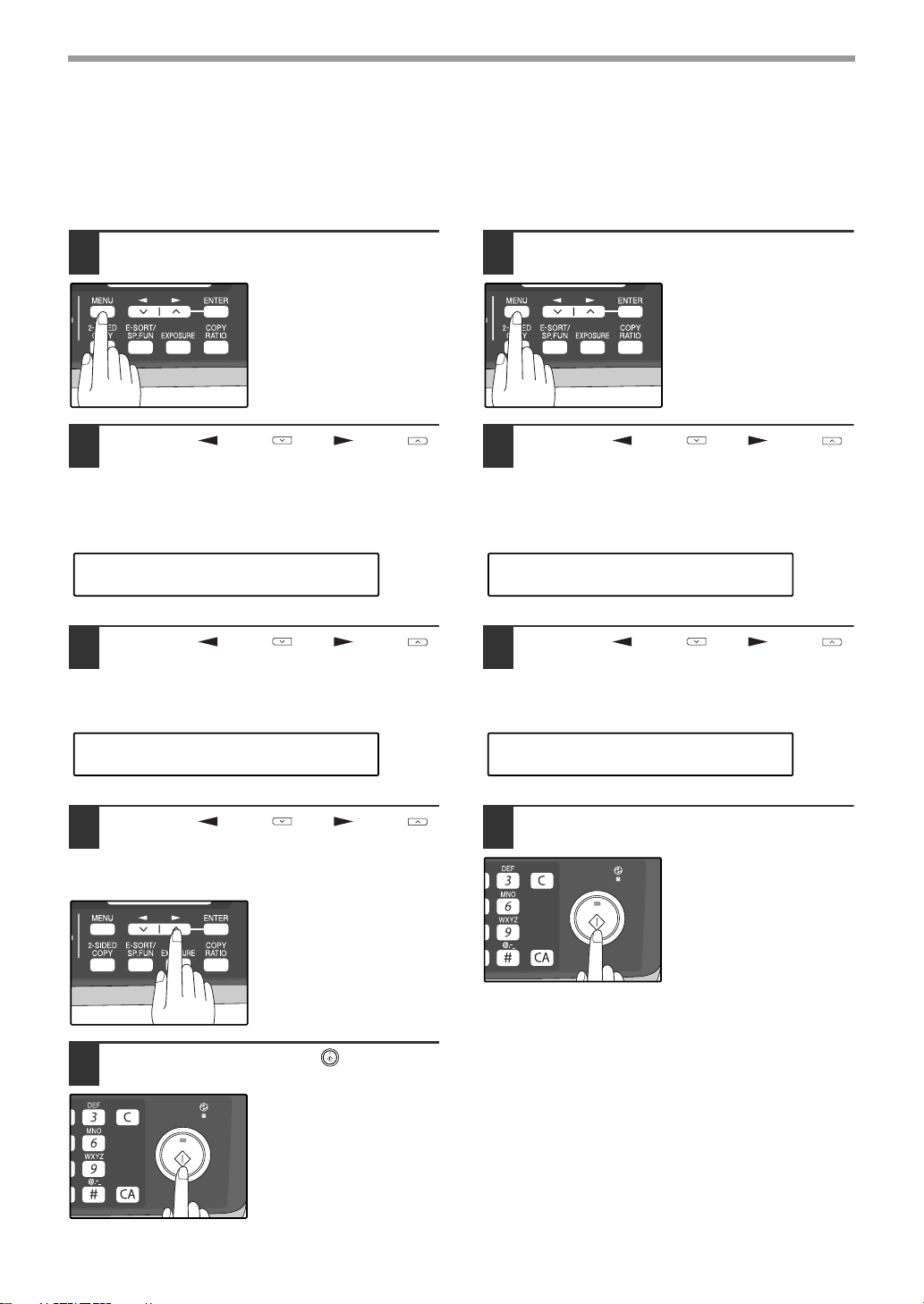
76
SPECIAL FUNCTIONS
Adding a original to polling memory:
Use this procedure to add an original to another
original that has already been scanned into polling
memory. Place the original in the RSPF or on the
document glass and follow the steps below.
1
Press the [MENU] key.
2
Press the [ ] key ( ) or [ ] key ( )
until "7:MEMORY POLL MODE"
appears, and then press the [ENTER]
key.
3
Press the [ ] key ( ) or [ ] key ( )
until "1:SET" appears, and then press
the [ENTER] key.
4
Press the [ ] key ( ) or [ ] key ( )
to select the number of times polling
transmission will take place and press
the [ENTER] key.
"1:1 TIME" or
"2:REPEAT" can be
selected as the number
of polling operations
allowed.
5
Press the [START] key ( ).
Deleting originals from polling memory:
Follow the steps below to delete originals that have
been scanned into polling memory.
1
Press the [MENU] key.
2
Press the [ ] key ( ) or [ ] key ( )
until "7:MEMORY POLL MODE"
appears, and then press the [ENTER]
key.
3
Press the [ ] key ( ) or [ ] key ( )
until "2:CLEAR" appears, and then
press the [ENTER] key.
4
Press the [START] key ..
"7:MEMORY POLL MODE"
Selection
"1:SET"
Selection
"7:MEMORY POLL MODE"
Selection
"2:CLEAR"
Selection
!AR-FX13_sec.book 76 ページ 2007年11月28日 水曜日 午後4時22分
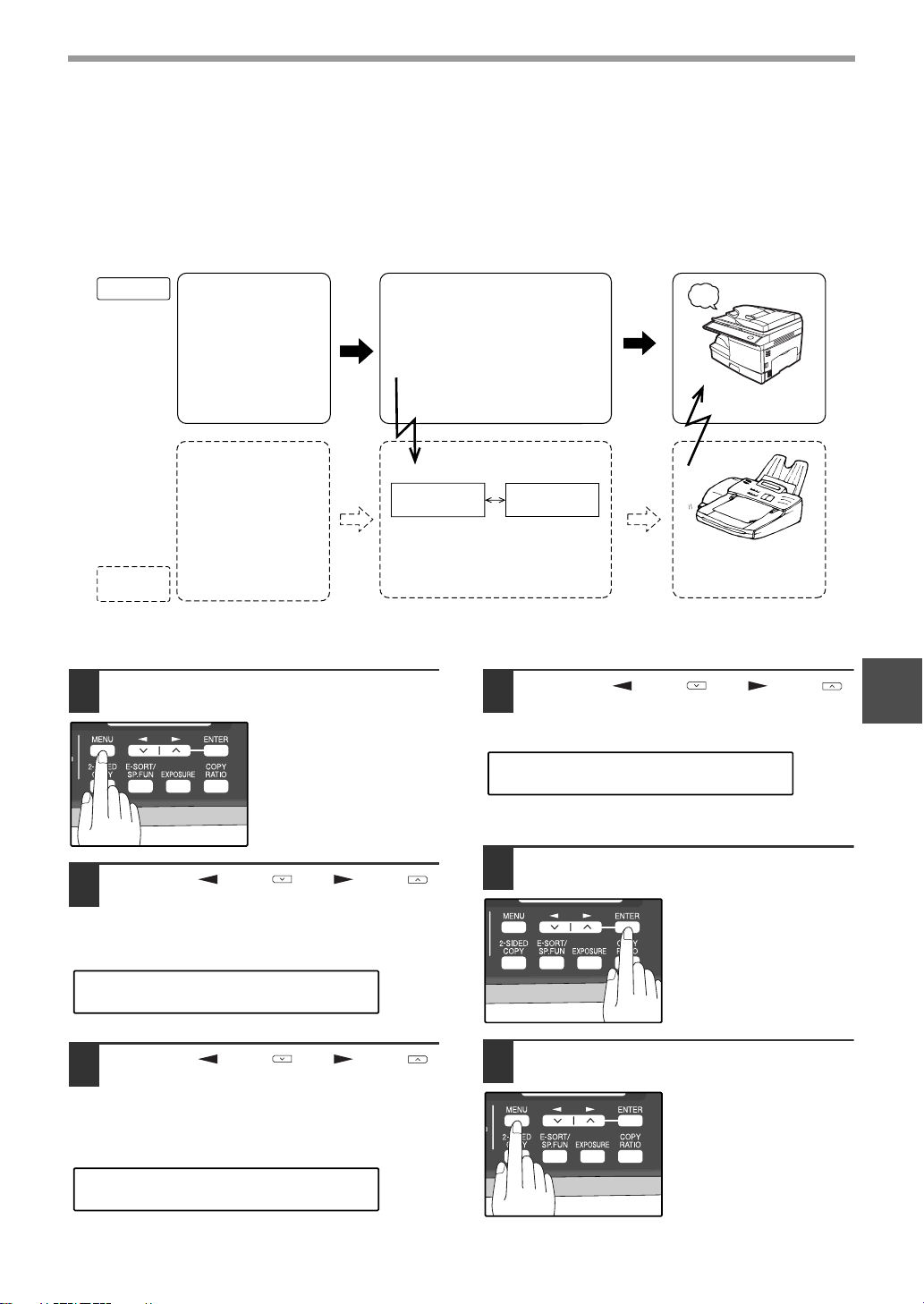
77
SPECIAL FUNCTIONS
5
RESTRICTING POLLING MACHINES (POLLING SECURITY)
If you wish to allow only specified fax machines to poll your fax machine, enable polling security and program the fax
numbers of the machines that are to be allowed to poll your machine. When this is done, polling will take place when
the fax number of the polling machine matches one of the fax numbers that have been programmed in your machine.
Up to 10 passcode numbers (fax numbers of machines that are allowed to poll your machine) can be programmed.
To
enable polling security and
program passcode
numbers
, see "
Programming/
deleting passcode numbers:" on page 78.
Follow these steps to enable polling security:
1
Press the [MENU] key.
2
Press the [ ] key ( ) or [ ] key ( )
until "4:USER PROGRAM" appears,
and then press the [ENTER] key.
3
Press the [ ] key ( ) or [ ] key ( )
until "12:SECURITY SELECT"
appears, and then press the [ENTER]
key.
4
Press the [ ] key ( ) or [ ] key ( )
to select "1:ON".
To turn off polling security, select "2:OFF".
5
Press the [ENTER] key.
6
Press the [MENU] key.
Press the [MENU] key to
exit.
Select polling or serial polling
Fax is received
Polling fax
Fax being
polled
beep
These two numbers are compared
polling allowed
Entered fax
number
Permitted fax
number
Enter the fax number
for your fax machine
[When polling]
[Preparation]
numbers
match
[Preparation]
Enter the fax number of
fax machines you want
to allow to poll your fax
machine
polling
sending
"4:USER PROGRAM"
Selection
"12:SECURITY SELECT"
Selection
"1:ON"
Selection
!AR-FX13_sec.book 77 ページ 2007年11月28日 水曜日 午後4時22分
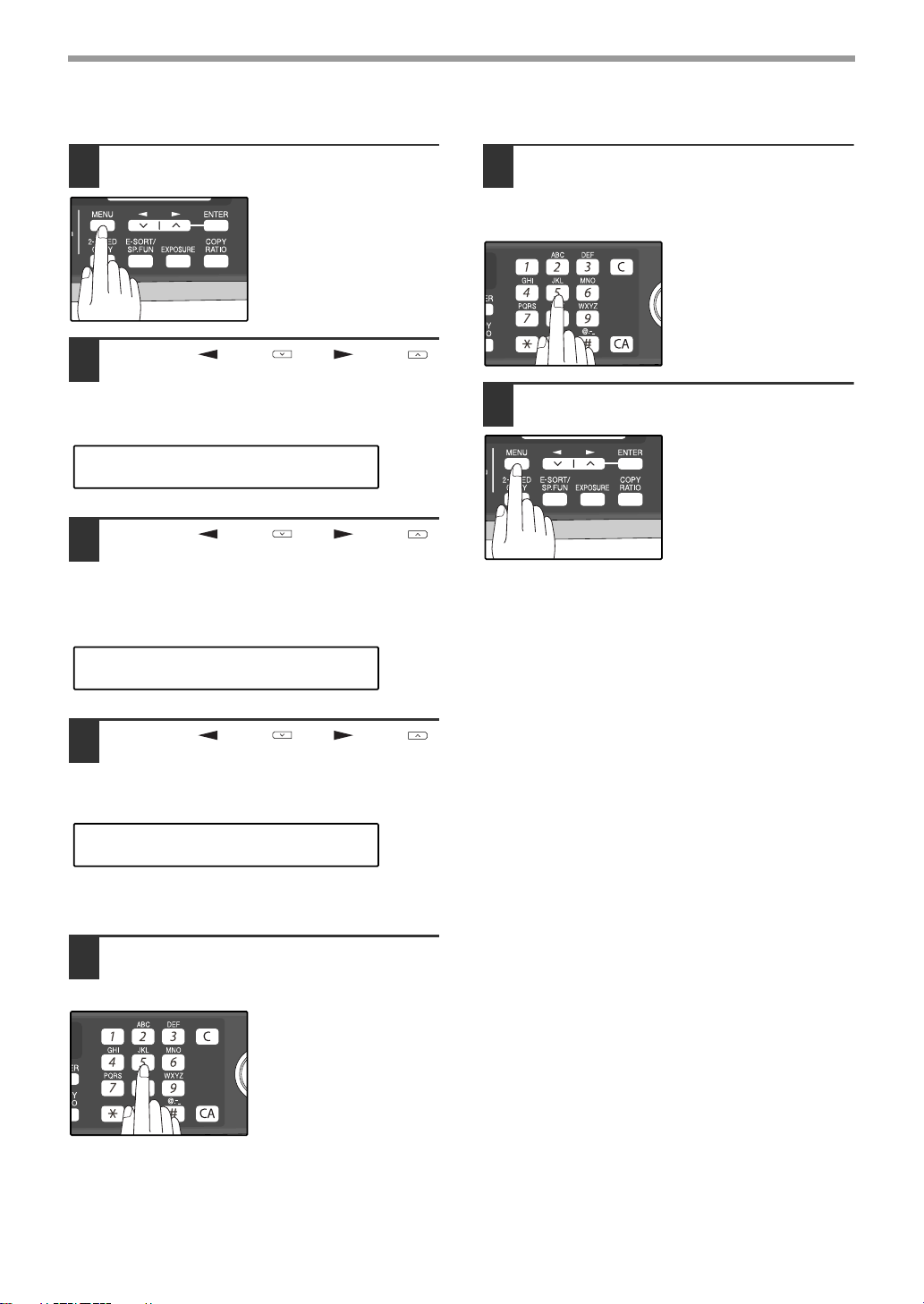
78
SPECIAL FUNCTIONS
Programming/deleting passcode numbers:
1
Press the [MENU] key.
2
Press the [ ] key ( ) or [ ] key ( )
until "2:ENTRY MODE" appears, and
then press the [ENTER] key.
3
Press the [ ] key ( ) or [ ] key ( )
until "4:PASSCODE # MODE"
appears, and then press the [ENTER]
key.
4
Press the [ ] key ( ) or [ ] key ( )
to select "1:SET" and press the
[ENTER] key.
To delete a passcode number:
Select "2:CLEAR" and press the [ENTER] key.
5
Enter a two-digit number that will be
used to identify the passcode number
and then press the [ENTER] key.
To delete a passcode
number:
Enter the two-digit
number that identifies the
passcode number and
press the [ENTER] key.
The passcode is deleted.
6
Enter the passcode (fax number of the
machine to be allowed to poll your
machine) with the numeric keys and
press the [ENTER] key.
7
Press the [MENU] key.
Press the [MENU] key to
exit.
"2:ENTRY MODE"
Selection
"4:PASSCODE # MODE"
Selection
"1:SET"
Selection
!AR-FX13_sec.book 78 ページ 2007年11月28日 水曜日 午後4時22分
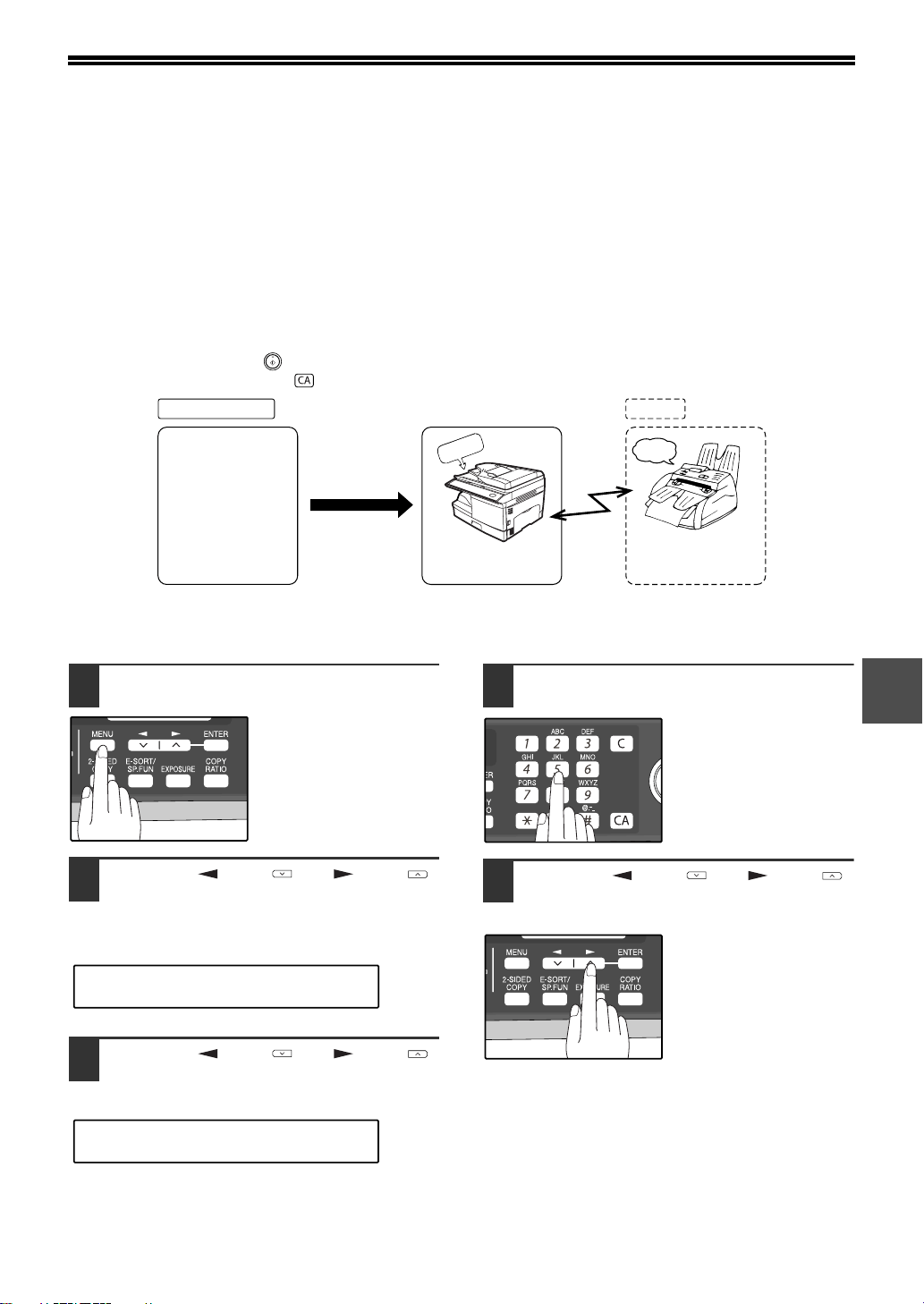
79
5
TIMER OPERATIONS
The timer function allows you to set a transmission or polling operation to be performed automatically at a time you
specify. Up to five transmission operations or polling operations can be set at any one time, and the times they will
be performed can be specified up to a week in advance.
You can use this function, for example, to take advantage of lower night time telephone rates without having to be
there when the operation is performed.
● For a timer transmission, scan the original into memory when you set the transmission. Scanning the original into
memory is convenient because you do not have to worry about original mix-ups or forgetting to load the original.
● If the memory becomes full while the original is being scanned, "MEMORY FULL" will appear in the display.
• Press the [START] key ( ) to transmit the pages that have been stored up to that point in memory.
• Press the [CLEAR ALL] key ( ) to cancel the entire transmission.
Setting up a timer transmission job:
1
Press the [MENU] key.
2
Press the [ ] key ( ) or [ ] key ( )
until "1:TIMER MODE" appears, and
then press the [ENTER] key.
3
Press the [ ] key ( ) or [ ] key ( )
to select "1:SET".
To cancel a timer operation, select "2:CLEAR".
4
Enter the time at which transmission
will take place with the numeric keys.
Enter two digits for the
hour and two digits for
the minute.
5
Press the [ ] key ( ) or [ ] key ( )
to select "AM" or "PM" and press the
[ENTER] key.
Your fax machine
The scheduled
time arrives
Recipient
beep
Transmission begins
Transmission
/reception
• Select the recipient
-sending method
-time
• Select transmission
settings
memory
"1:TIMER MODE"
Selection
"1:SET"
Selection
!AR-FX13_sec.book 79 ページ 2007年11月28日 水曜日 午後4時22分
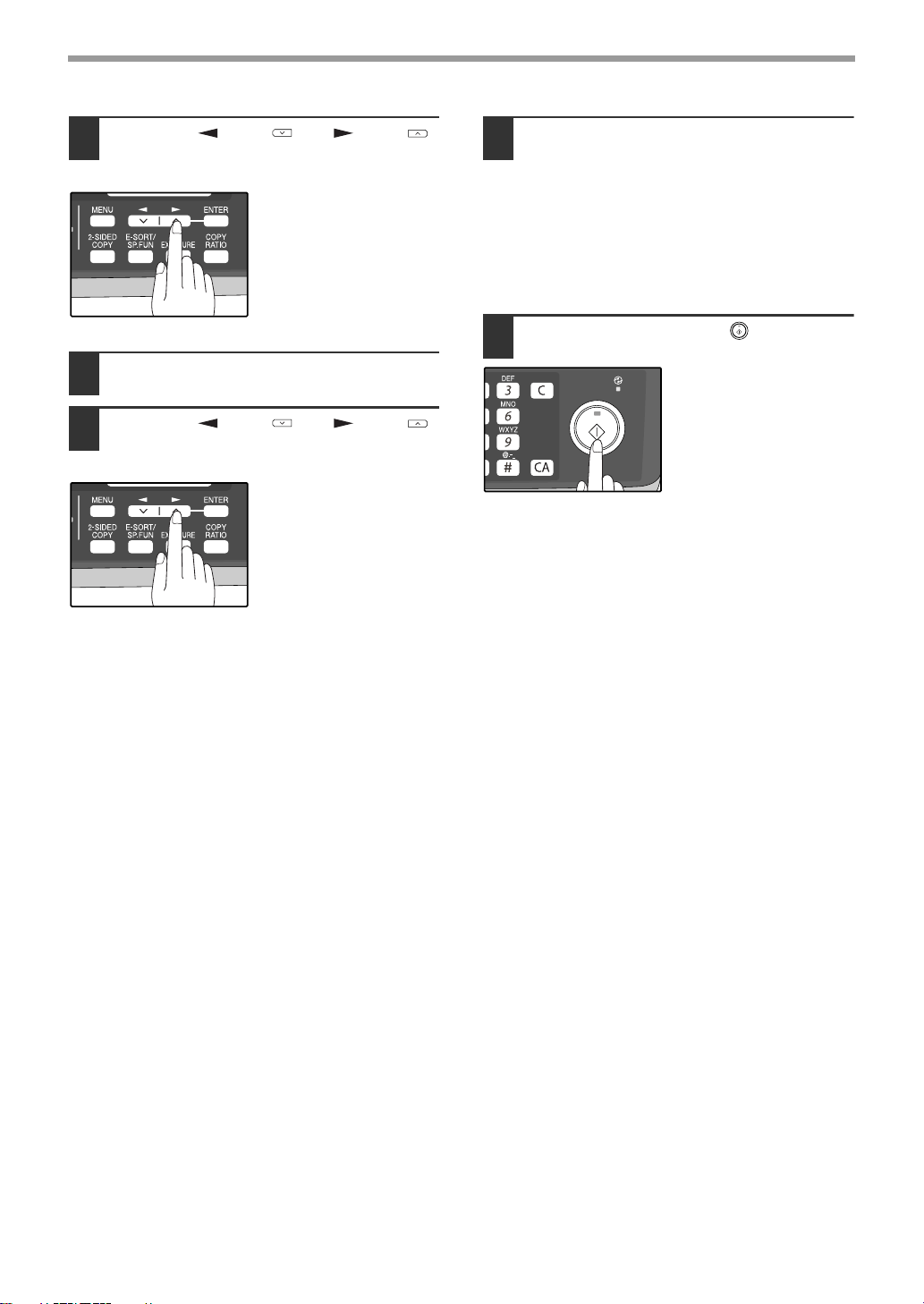
80
SPECIAL FUNCTIONS
6
Press the [ ] key ( ) or [ ] key ( )
to select the day of the week and
press the [ENTER] key.
7
Press the [ENTER] key.
8
Press the [ ] key ( ) or [ ] key ( )
to select the transmission mode and
press the [ENTER] key.
The selections are as
follows:
1:SEND MODE
2:BROADCAST MODE
3:POLLING MODE
4:SERIAL POLL MODE
9
Enter the fax number of the other
machine using one of the following
methods:
• Press a Rapid key.
If you press a Rapid Key, the next step is not
necessary.
• Enter a Speed Dial number with the numeric
keys.
• Enter the fax number with the numeric keys.
10
Press the [START] key ( ).
CANCELING A TIMER TRANSMISSION JOB
After a timer transmission job is set up, the job goes on standby until the specified time of transmission. If necessary,
the MEMORY STATUS function can be used to cancel a timer transmission job that is on standby ("CANCELING
(DELETING) A STORED FAX JOB" on page 62).
!AR-FX13_sec.book 80 ページ 2007年11月28日 水曜日 午後4時22分
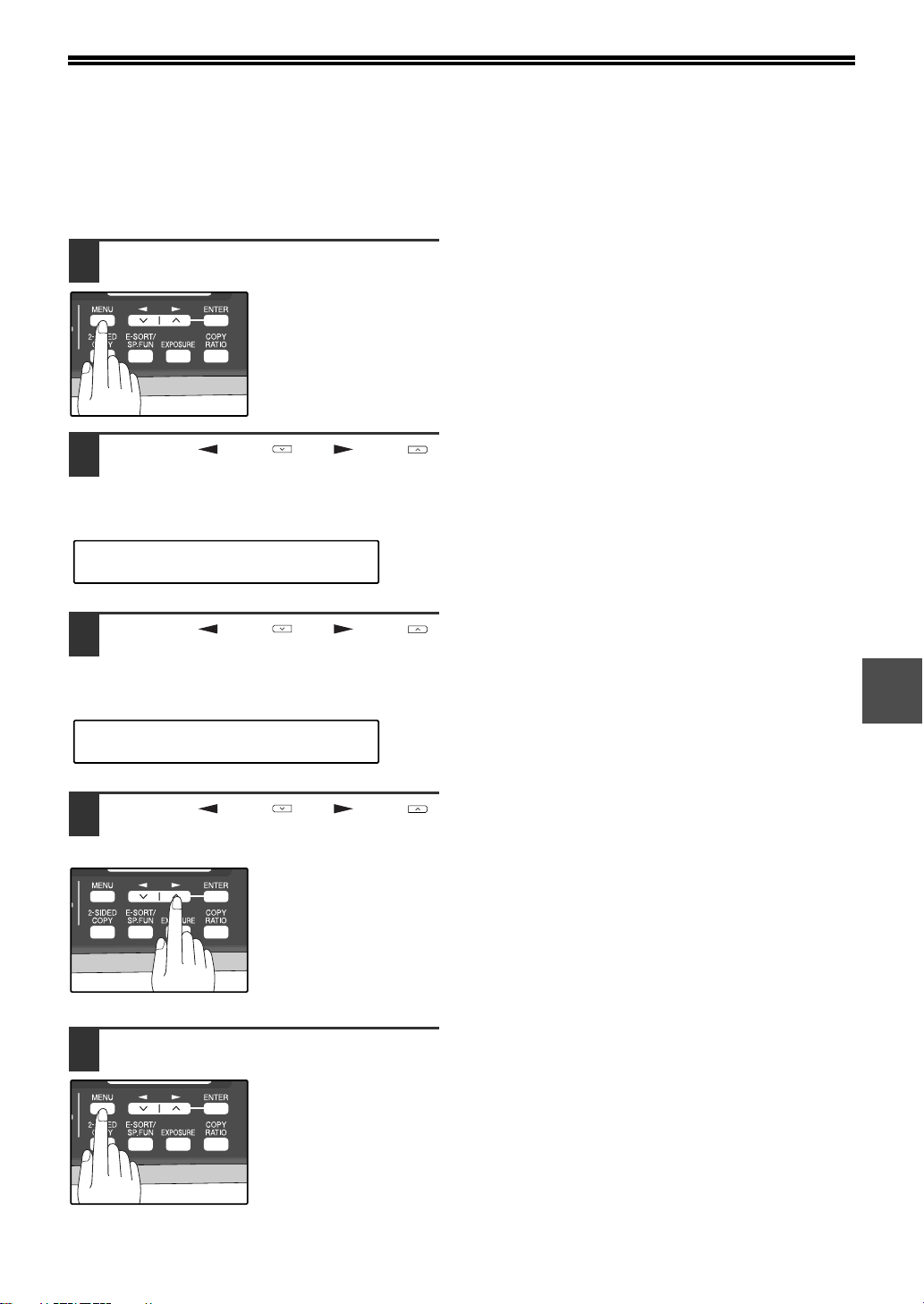
81
5
ANTI JUNK FAX
You can avoid wasting fax paper by using the Anti Junk Fax function. This function blocks reception of faxes from up
to ten specified parties.
To turn the Anti Junk Fax feature on and off, use the following procedure:
1
Press the [MENU] key.
2
Press the [ ] key ( ) or [ ] key ( )
until "5:ANTI JUNK FAX" appears, and
then press the [ENTER] key.
3
Press the [ ] key ( ) or [ ] key ( )
to select "1:ANTI JUNK SELECT" and
press the [ENTER] key.
4
Press the [ ] key ( ) or [ ] key ( )
to select "1:ON" or "2:OFF" and press
the [ENTER] key.
Select "1:ON" to enable
the function.
Select "2:OFF" to disable
the function.
5
Press the [MENU] key.
Press the [MENU] key to
exit.
"5:ANTI JUNK FAX"
Selection
"1:ANTI JUNK SELECT"
Selection
!AR-FX13_sec.book 81 ページ 2007年11月28日 水曜日 午後4時22分
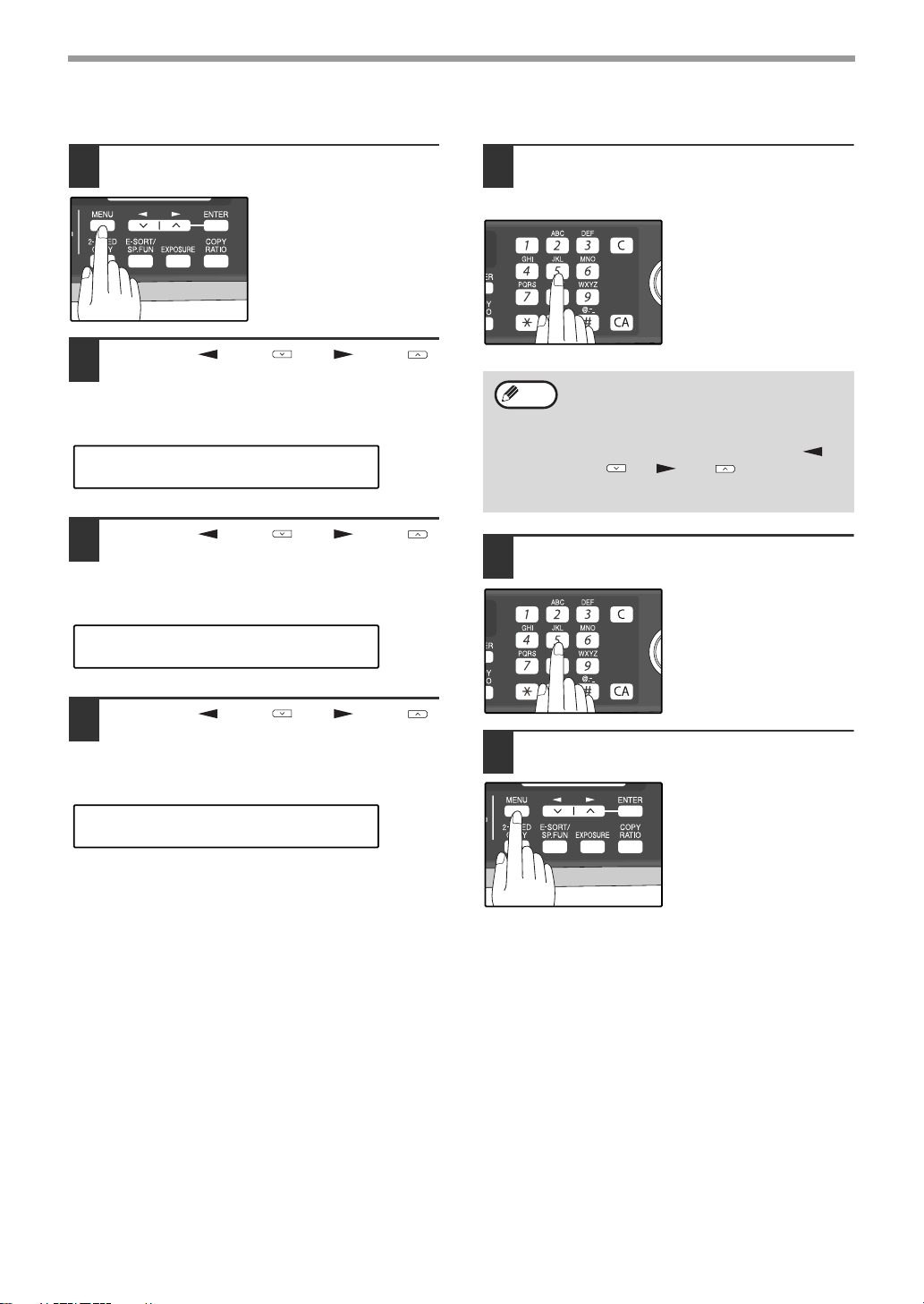
82
SPECIAL FUNCTIONS
To store junk fax numbers, use the following procedure:
1
Press the [MENU] key.
2
Press the [ ] key ( ) or [ ] key ( )
until "5:ANTI JUNK FAX" appears, and
then press the [ENTER] key.
3
Press the [ ] key ( ) or [ ] key ( )
to select "2:JUNK FAX #" and press
the [ENTER] key.
4
Press the [ ] key ( ) or [ ] key ( )
to select "1:SET" and press the
[ENTER] key.
5
Enter a two-digit number from 01 to 10
that will identify the anti junk number
and press the [ENTER] key.
6
Enter the fax number with the numeric
keys and press the [ENTER] key.
7
Press the [MENU] key.
If you wish to store
another fax number,
return to step 5.
Press the [MENU] key to
exit.
"5:ANTI JUNK FAX"
Selection
"2:JUNK FAX #"
Selection
"1:SET"
Selection
If you enter a two-digit number that already
has a fax number stored, "#xx
STORED:CHANGE?" will appear. To
change the fax number that has been stored
under that 2-digit number, press the [ ]
key ( ) or [ ] key ( ) to select "YES",
press the [ENTER] key, and enter the new
fax number.
Note
!AR-FX13_sec.book 82 ページ 2007年11月28日 水曜日 午後4時22分
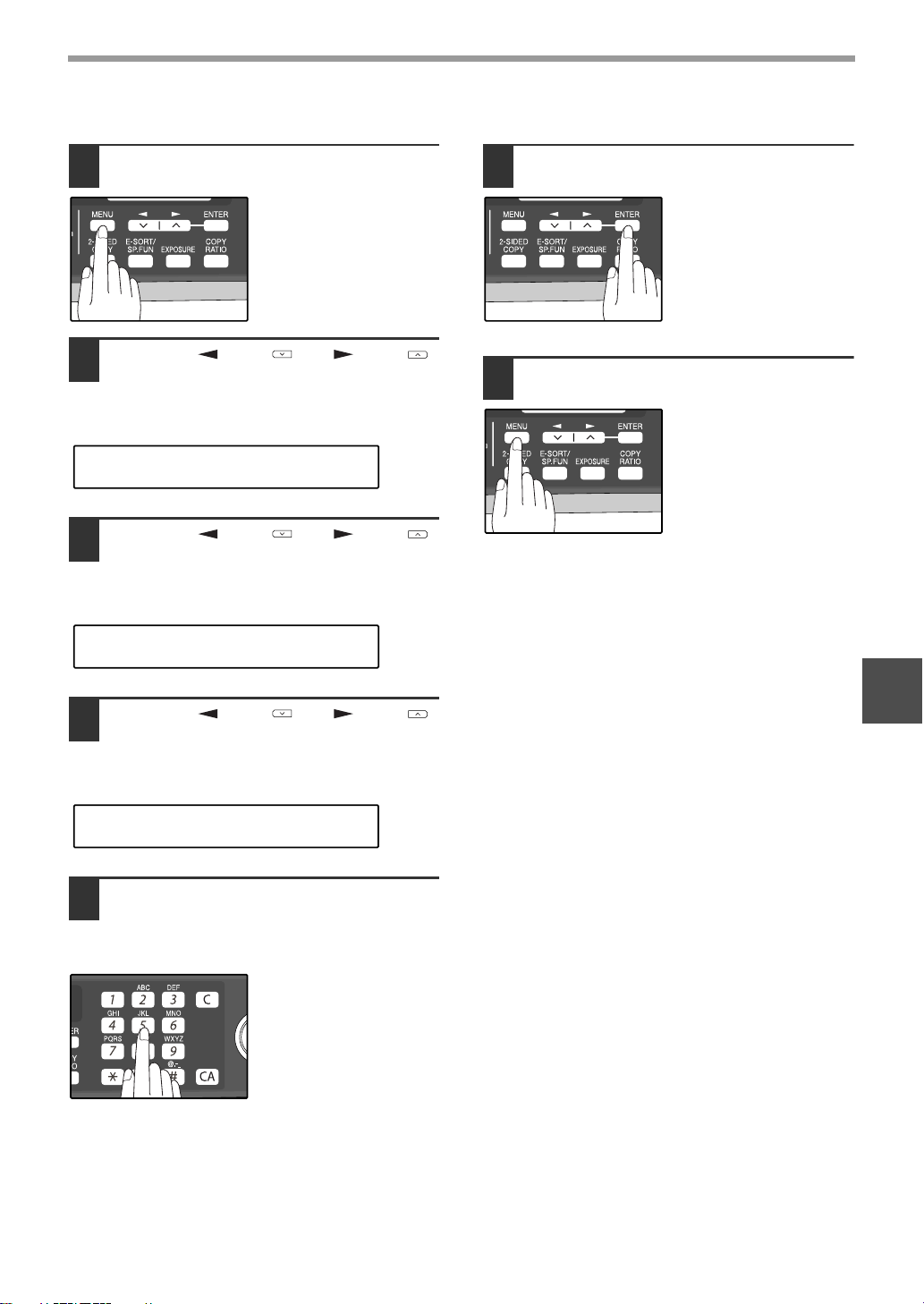
83
SPECIAL FUNCTIONS
5
To clear junk fax numbers, use the following procedure:
1
Press the [MENU] key.
2
Press the [ ] key ( ) or [ ] key ( )
until "5:ANTI JUNK FAX" appears, and
then press the [ENTER] key.
3
Press the [ ] key ( ) or [ ] key ( )
to select "2:JUNK FAX #" and press
the [ENTER] key.
4
Press the [ ] key ( ) or [ ] key ( )
to select "2:CLEAR" and press the
[ENTER] key.
5
Press the numeric keys to enter the
two-digit number (01 to 10) that
identifies the fax number you wish to
delete.
6
Press the [ENTER] key.
If you wish to store
another fax number,
return to step 5.
7
Press the [MENU] key.
Press the [MENU] key to
exit.
"5:ANTI JUNK FAX"
Selection
"2:JUNK FAX #"
Selection
"2:CLEAR"
Selection
!AR-FX13_sec.book 83 ページ 2007年11月28日 水曜日 午後4時22分
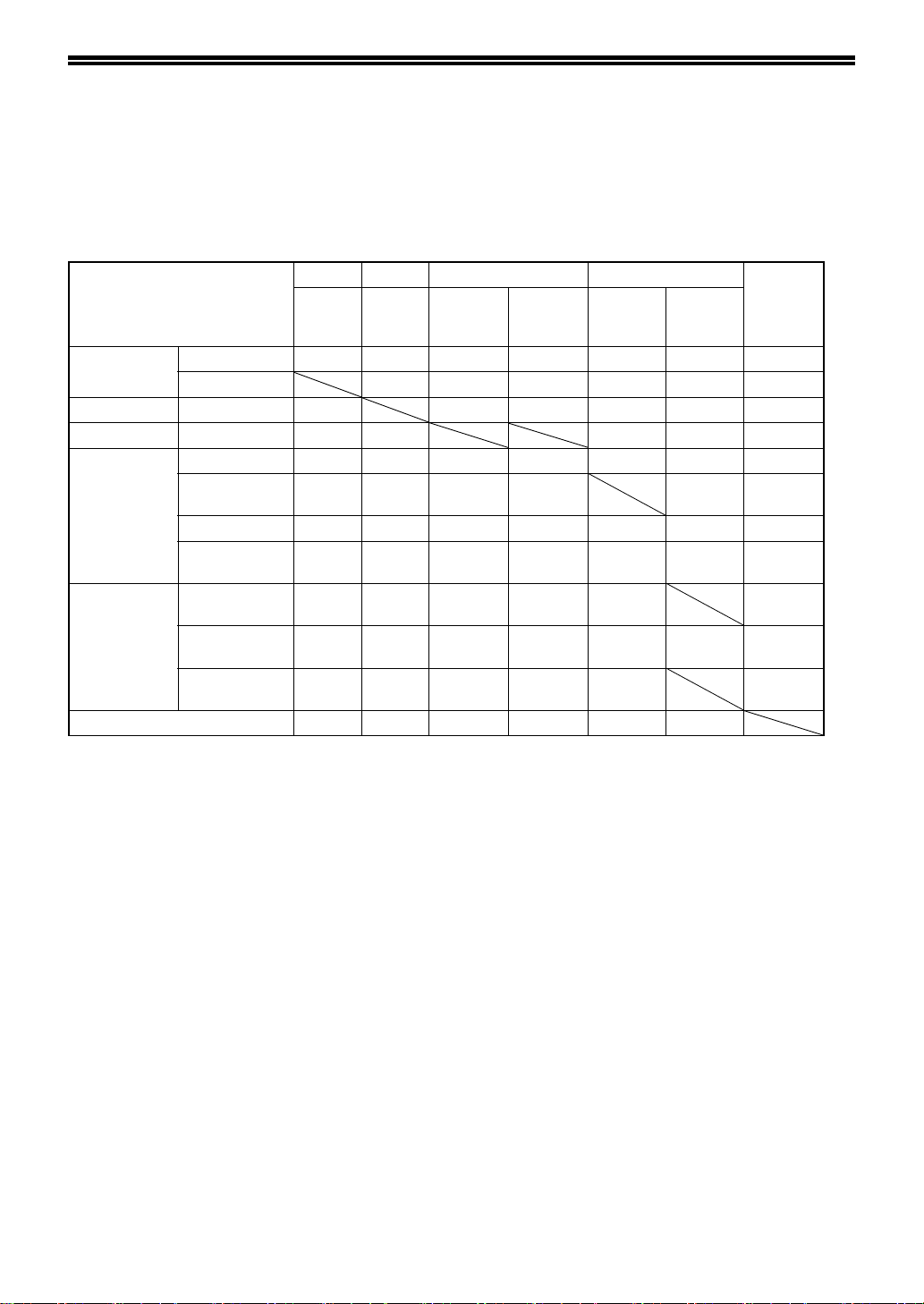
84
OPERATION IN COPY, PRINTER,
SCANNER, AND FAX MODES
Some operations cannot be performed simultaneously when the machine is being used in printer mode, copy mode,
scanner mode, and fax mode.
*1 Direct transmission and scanning are not possible.
*2 Manual reception and printing of a received fax are not possible.
*3 Only scanning is possible.
*4 Manual reception is not possible.
Modes
Copy Printer Scanner Fax Extension
phone
Copying Printing Scanning
from a
machine
Scanning
from a
computer
Tra nsm is -
sion
Reception
Copy Key entry Yes Yes No Yes Yes*1 Yes Yes
During copying No No No Yes*1 Yes*2 Yes
Printer Printing Yes Yes Yes Yes Yes*2 Yes
Scanner During scanning No Yes Yes*1 Yes Yes
Fax
transmission
Key entry No Yes No Yes Yes Yes Yes
During direct
transmission
No Yes No No No No
During scanning No Yes No No Yes*1 Yes*4 Yes
During memory
transmission
Yes Yes Yes Yes No*3 No No
Fax reception During manual
reception
Ye s N o Ye s Ye s N o * 3 N o
During printing
of a received fax
Ye s N o Ye s Ye s Ye s Ye s * 2 Ye s
During memory
reception
Ye s Ye s Ye s Ye s N o * 3 N o
Extension phone Yes Yes Yes Yes No*3 No
!Chapter05.fm 84 ページ 2007年11月28日 水曜日 午後6時24分
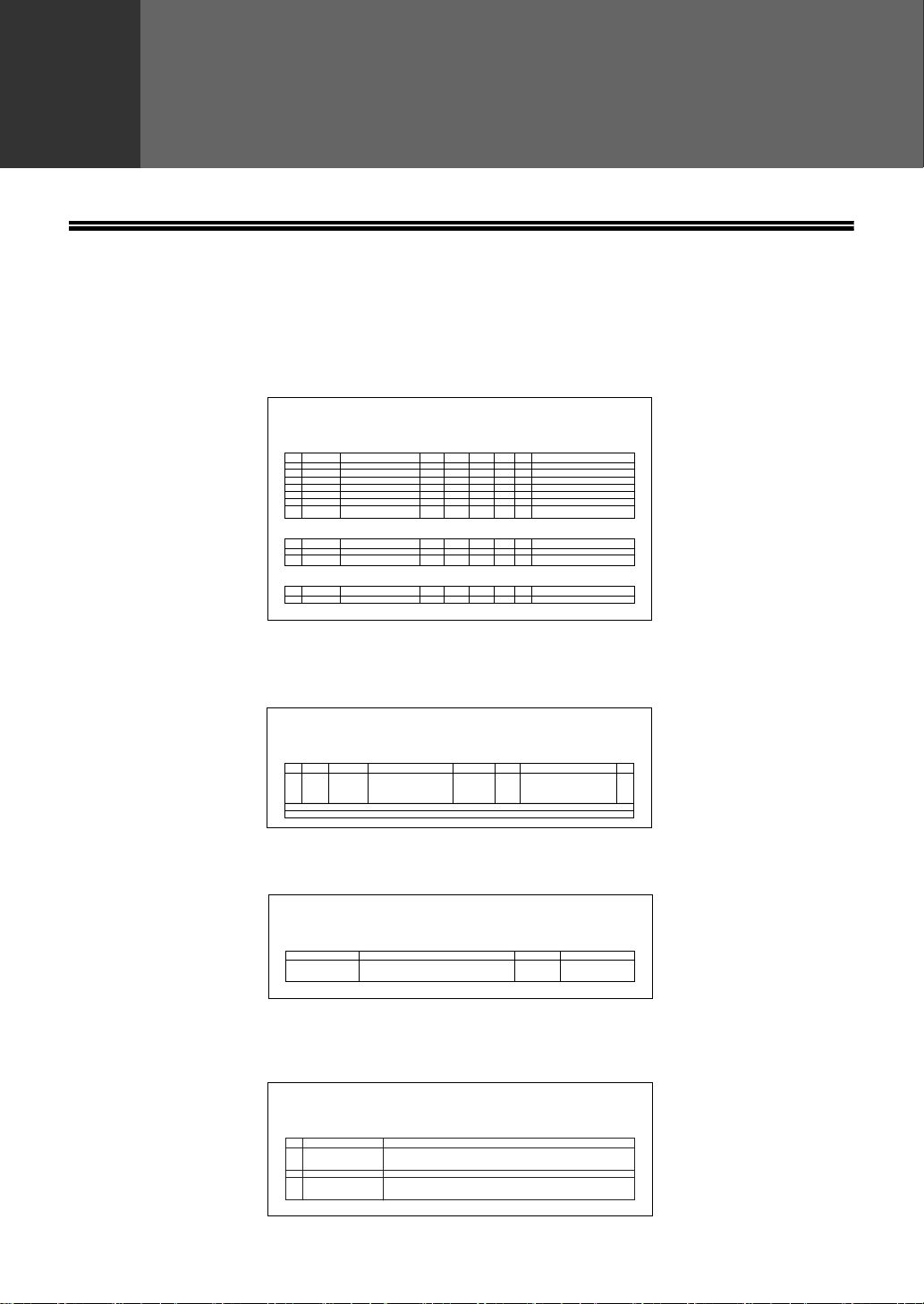
85
6
Chapter 6
TROUBLESHOOTING
PRINTING OUT REPORTS
The machine is capable of printing a range of reports on faxing activities as well as various settings you have made.
The reports are described below.
1. TIMER LIST:
You can print a list of timer or dual access operations that are currently set.
2. ACTIVITY REPORT:
You can print out a list of faxes sent and received as well as the sender or recipient and the time of the
operation, etc.
3. TELEPHONE # LIST:
You can print out a list of number stored in rapid dialing and speed dialing.
4. GROUP LIST:
You can print out a list of group dialing numbers.
TIMER LIST
P. 01
RESERVED TYPE
TYPE
TYPE
RES.
RES.
RES.
MSG
MSG
MSG
BOX
BOX
PAGES
PAGES
PAGES
CVR.
CVR.
CVR.
RECEIVER
RECEIVER
01
02
03
04
05
06
07
12:12 PM MON
XX:XX XX XXX
XX:XX XX XXX
XX:XX XX XXX
XX:XX XX XXX
XX:XX XX XXX
XX:XX XX XXX
XXXXXXXXX
XXXXXXXXX
XXXXXXXXX
XXXXXXXXX
XXXXXXXXX
XXXXXXXXX
XXXXXXXXX
XXX
XXX
XXX
XXX
XXX
X
X
X
XX
XX
X
X
X
XXX
XXX
XXX
XXX
XXX
XXX
XXX
XXX XXX XXX
XXX XXX XXX
XXX XXX XXX
XXX XXX XXX
XXX XXX XXX
XXX XXX XXX
XXX XXX XXX
XXX
XXX
1
XXXXXX
XXXXXX
XXX
XXX
XXX
X
X
X
X
XX
XX
#
XXXX XXXX
X
X XXXX
TIMES
TIMER MODE
MEMORY TX
REMOTE TX
FILE
FILE
SEP-10-200X FRI 06:30 PM
SEP-10-200X FRI 06:30 PM
ACTIVITY REPORT (SEND)
P.01
COM.TIME
XX SEP-10 XX:XX PM XX X:XX:XX
X:XX:XX
X:XX:XX
XX
XX
XX
XXXXXXX XXXXX XXX
TOTAL
GRAND TOTAL
#
RECEIVER
START TIME
PAGES
TYPE/NOTE
FILE
DATE
TELEPHONE NUMBER LIST
P. 01
RECEIVER'S FAX #
INTL TX SET
RAPID/SPEED #
RECEIVER'S NAME
XXXXXXXXXXXXXX
XXXXXXXXXXXXXX
XXXXXXXXXXXXXX
RXX
RXX
SXXX
XXXXXXXXXXXXXX
XXXXXXXXXXXXXX
XXXXXXXXXXXXXX
XXXX XXXX
XXXX XXXX
XXXX XXXX
SEP-10-200X FRI 06:30 PM
GROUP LIST
P.01
RAPID # : XX
SPEED # : XXX
FAX # : XXXXXXXXXXXXXXXXXXXXX
FAX # : XXXXXXX
: XXXXXXXX
: XXXXXX
SPEED # : XXX XXX
RECEIVER
# GROUP NAME
GXX
GXX
GXX
XXXX
XXXX
XXXX
SEP-10-200X FRI 06:30 PM
!AR-FX13_sec.book 85 ページ 2007年11月28日 水曜日 午後4時22分
86
TROUBLESHOOTING
5. PASSCODE LIST:
You can print a list of your fax information and polling security information.
6. JUNK FAX # LIST:
Fax numbers designated as Anti Junk Fax numbers.
PASSCODE LIST
POLL SECURITY
SYSTEM #
ID #
PASSCODE #
SENDER'S NAME
SENDER'S #
FW. STA. NAME
FW. STATION #
XXXXXXXXXXXXXXXXXX
XXXXXXXXXXXXXXXX
XXXXXXXXXXXXXXXXXXXX
XXXXXXXXXXXXXXXX
XXXX
01
02
03
04
05
06
07
08
09
10
01
02
03
04
05
06
07
08
09
10
XXXX
XXXX
XXXXXXXXXX
XXXXXXXXXX
XXXX
SEP-10-200X FRI 06:30 PM
JUNK FAX# LIST
SEP-10-200X FRI 06:30 PM
#
01
02
10
X
XXXXXXXXXX
XXXXXXXXXXXXXXXXXXXX
ANTI JUNK FAX #
!AR-FX13_sec.book 86 ページ 2007年11月28日 水曜日 午後4時22分
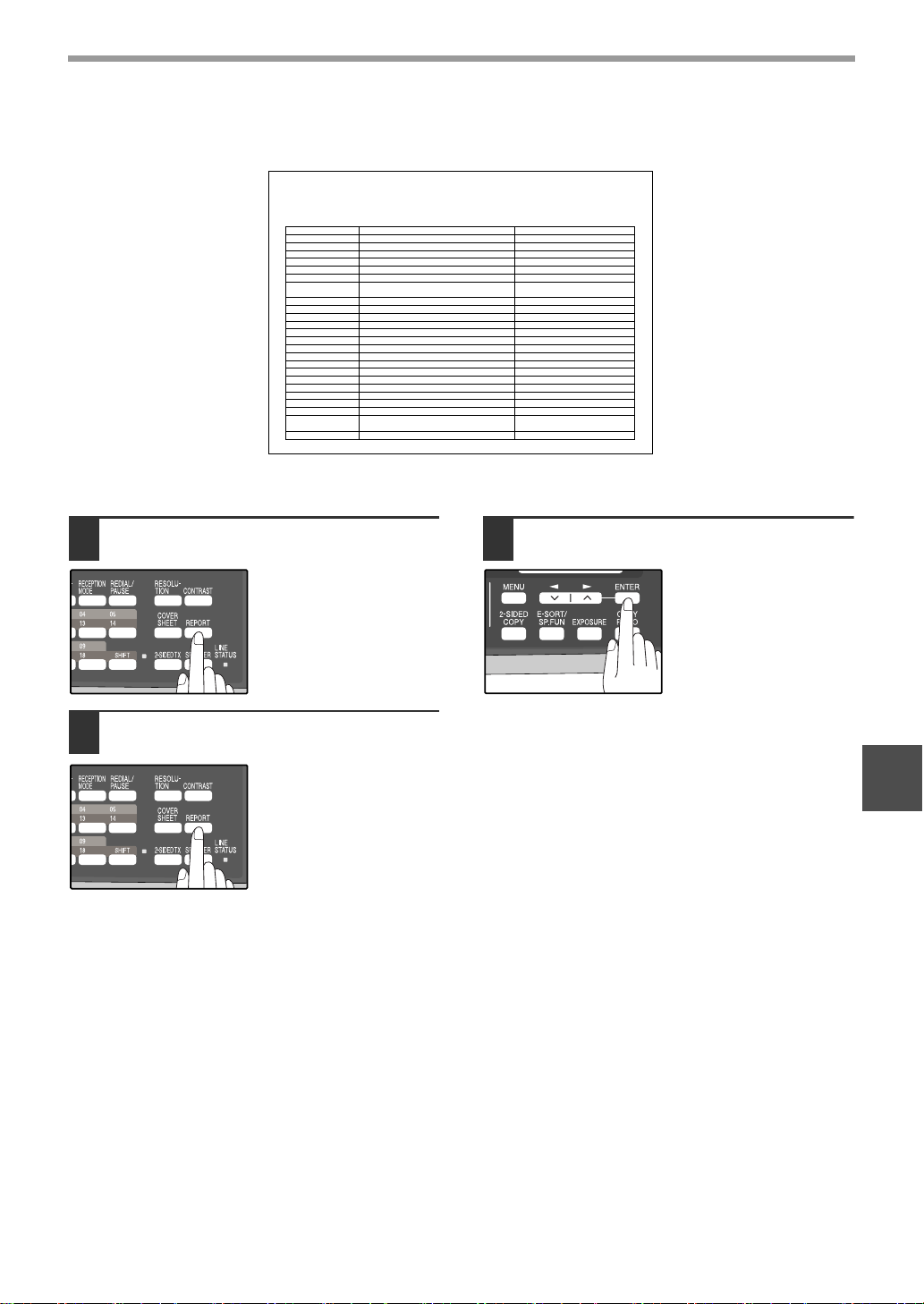
87
TROUBLESHOOTING
6
7. USER PROGRAM LIST:
Currently activated USER PROGRAM settings.
Use the following procedure to print out reports:
1
Press the [REPORT] key.
2
Press the [REPORT] key to select the
report that you wish to print.
3
Press the [ENTER] key.
USER PROGRAM LIST
SEP-10-200X FRI 06:30 PM
ITEM
SETTING
MENU #
DOC. GLASS SIZE
FIXED DOC. SIZE
RESO. PRIORITY
#OF RINGS AUTO RX
#OF RINGS MANUAL RX
AUTO LISTING
PRINT SELECTION
RECALL TIMES (BUSY)
RECALL TIMES (LINE ERROR)
RECALL INTERVAL (BUSY)
RECALL INTERVAL (LINE ERROR)
SECURITY SELECTION
FAX REMOTE NUMBER
REMOTE RECEPTION
FAX SIGNAL AUTO RECEIVE
AUTO RCV REDUCE
BEEP LENGTH
RINGER VOLUME
BEEPER VOLUME
DIAL MODE
DISTINCTIVE RING
INDEX PRINT
DATE&TIME FORMAT SET
2-SIDED RX
1
2
3
4
5
6
7
8
9
10
11
12
13
14
15
16
17
18
19
20
21
22
23
24
8.5x11
8.5x11
STANDARD
02TIME(S)
00TIME(S)
OFF
SEND : ERROR ONLY BD : ALWAYS PRINTS
RCV : NEVER PRINTS IMAGE : ERROR ONLY
02TIME(S)
01TIME(S)
03MIN.
01MIN.
ON
5
ON
ON
ON
3SEC
MIDDLE
LOW
TONE
OFF
OFF
TIME : 12HOUR
DATE : MMDDYYYY
OFF
!AR-FX13_sec.book 87 ページ 2007年11月28日 水曜日 午後4時22分
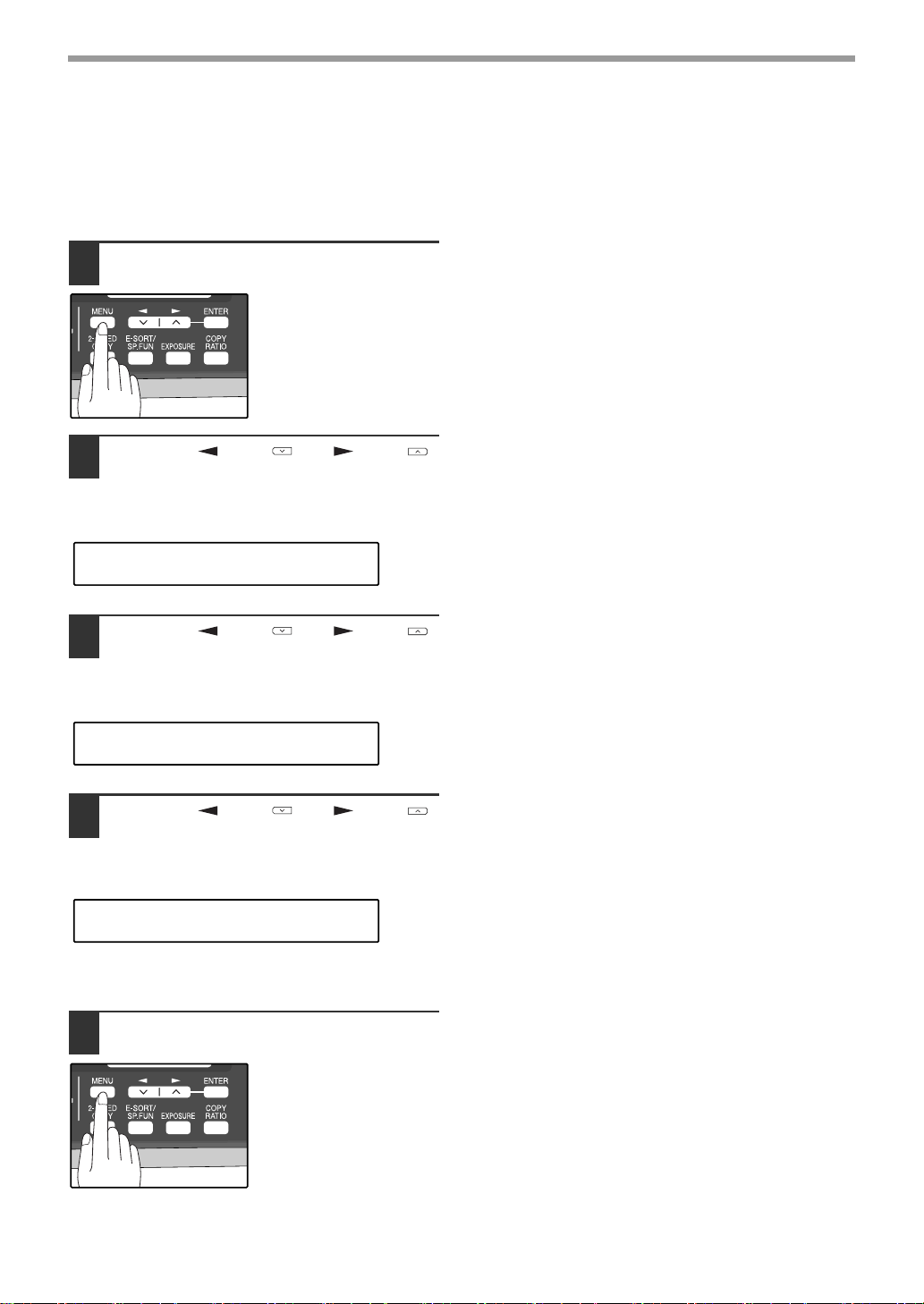
88
TROUBLESHOOTING
ACTIVITY REPORT AUTO LISTING
This setting is used to automatically print the Activity Report for transmissions and receptions. The Activity Report
will automatically print when information on a total of 50 fax transmissions and receptions accumulates. Once
information on 50 transmissions/receptions accumulates, the oldest transaction is deleted each time a new
transaction takes place.
1
Press the [MENU] key.
2
Press the [ ] key ( ) or [ ] key ( )
until "4:USER PROGRAM" appears,
and then press the [ENTER] key.
3
Press the [ ] key ( ) or [ ] key ( )
until "6:AUTO LISTING" appears, and
then press the [ENTER] key.
4
Press the [ ] key ( ) or [ ] key ( )
to select "1:ON" and press the
[ENTER] key.
To disable automatic printing, select "2:OFF" and
press the [ENTER] key.
5
Press the [MENU] key.
Press the [MENU] key to
exit.
"4:USER PROGRAM"
Selection
"6:AUTO LISTING"
Selection
"1:ON"
Selection
!AR-FX13_sec.book 88 ページ 2007年11月28日 水曜日 午後4時22分
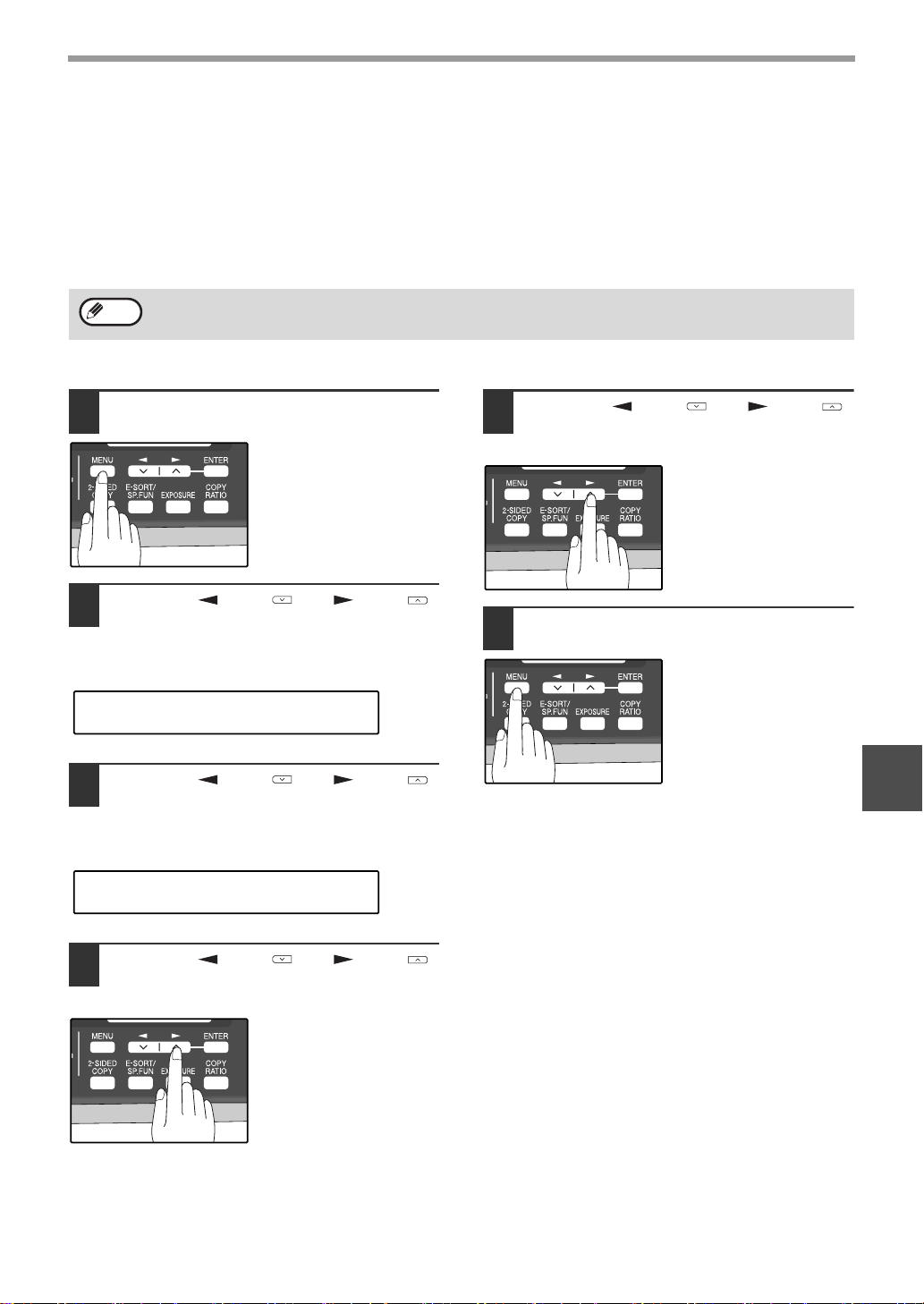
89
TROUBLESHOOTING
6
PRINTING TRANSACTION REPORTS
The machine can be set to print a transaction report after each transmission, reception, and/or error. The printing
condition can be selected separately for three types of transaction reports: "TRANSMISSION LIST", "BROADCAST
LIST", and "RECEPTION LIST". For each type of report, select one of the following printing conditions:
"ALWAYS PRINTS" ...After each transmission, reception, or error.
"ERROR ONLY".........After an error only.
"NEVER PRINTS"......Never prints.
To set the machine to print transaction reports, follow these steps:
1
Press the [MENU] key.
2
Press the [ ] key ( ) or [ ] key ( )
until "4:USER PROGRAM" appears,
and then press the [ENTER] key.
3
Press the [ ] key ( ) or [ ] key ( )
until "7:PRINT SELECTION" appears,
and then press the [ENTER] key.
4
Press the [ ] key ( ) or [ ] key ( )
to select the type of transaction report
and press the [ENTER] key.
The selections are as
follows:
1:TRANSMISSION
2:BROADCAST
3:RECEPTION
4:IMAGE MEM. PRINT
"4: IMAGE MEM. PRINT" can be enabled to have part
of the transmitted fax printed on the transaction report.
5
Press the [ ] key ( ) or [ ] key ( )
to select the printing condition and
press the [ENTER] key.
The selections are as
follows:
1:ALWAYS PRINTS
2:ERROR ONLY
3:NEVER PRINTS
6
Press the [MENU] key.
Press the [MENU] key to
exit.
Part of the transmitted fax can be printed on the transaction report (IMAGE MEM. PRINT setting).
Note
"4:USER PROGRAM"
Selection
"7:PRINT SELECTION"
Selection
!AR-FX13_sec.book 89 ページ 2007年11月28日 水曜日 午後4時22分
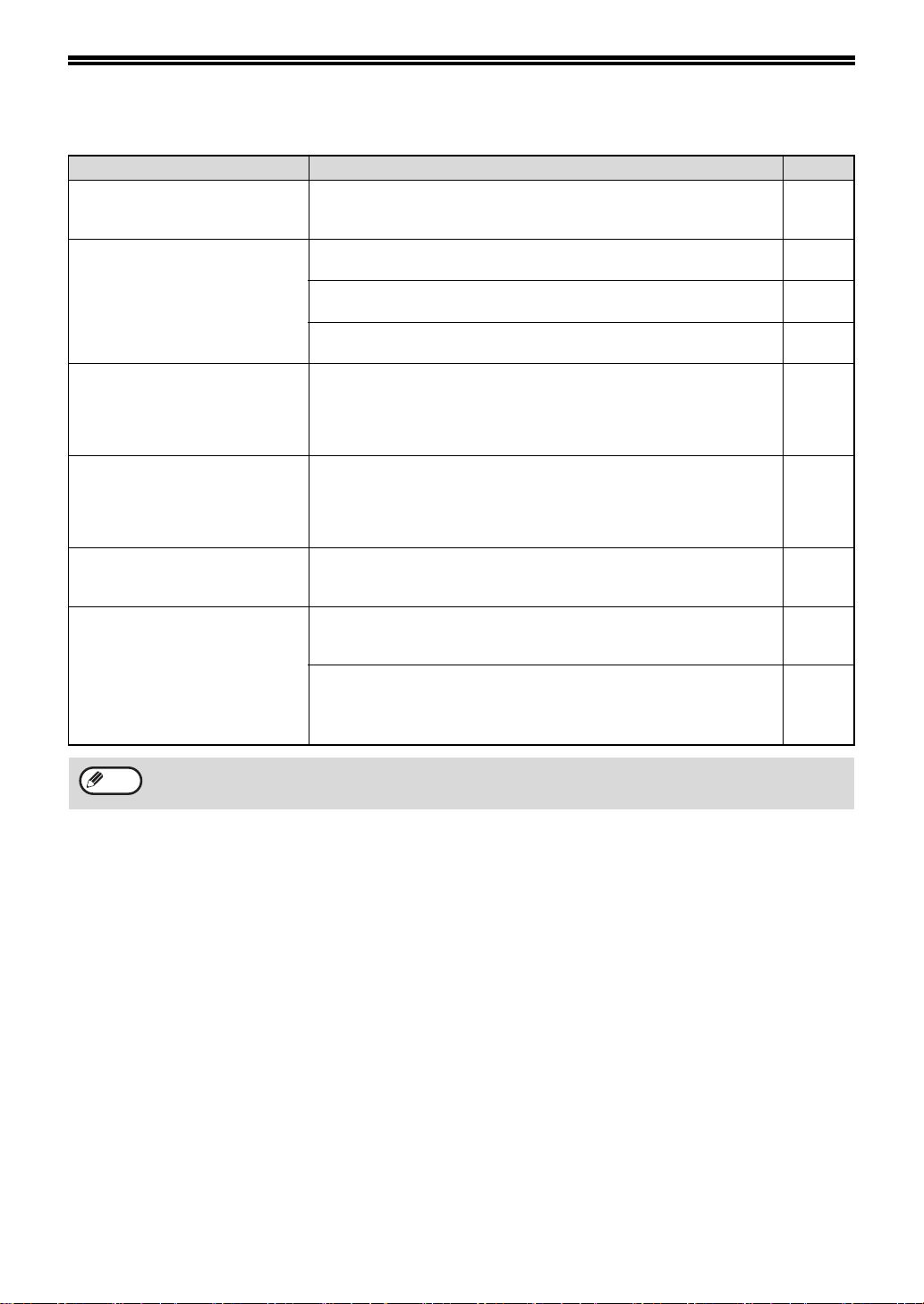
90
TROUBLESHOOTING
Problem Cause and solution Page
Dialing cannot be done.
The telephone line cord is not correctly connected to the
machine and the wall telephone jack.
→
Make sure the telephone line cord is securely connected.
11
No transmission takes place.
The receiving machine is out of paper.
→
Check with the operator of the receiving machine.
-
The receiving machine does not support the G3 standard.
→ Check with the operator of the receiving machine.
-
An error is displayed.
→ Check the display of the machine.
91
Nothing is printed at the
receiving end.
If a blank sheet of paper is output together with a normally
received fax, the machine's paper size setting may be different
from the size of paper actually loaded in the machine.
→ Make sure that the paper size setting matches the size of paper
loaded in the machine.
29
A distorted image is received at
the other end.
Noise on the line may cause a distorted image. Try sending the
fax again, or make a copy on your machine and see if the copy
is distorted.
→ If the image is still distorted, consult the retailer or dealer where
you bought the machine.
-
The received original is faint.
The transmitting machine may be using a light contrast setting.
→ Ask the operator of the transmitting machine to send the fax using
a darker contrast setting.
-
Received images are distorted.
Noise on the line may cause a distorted image.
→ Ask the operator of the transmitting machine to send the fax
again.
-
The TD cartridge may be running out of toner.
→ Replace the TD cartridge.
Operation
Manual
(for general
information)
If your problem cannot be solved by carrying out the instructions in the Check and Remedy column above, please
contact your authorized SHARP dealer.
Note
!AR-FX13_sec.book 90 ページ 2007年11月28日 水曜日 午後4時22分
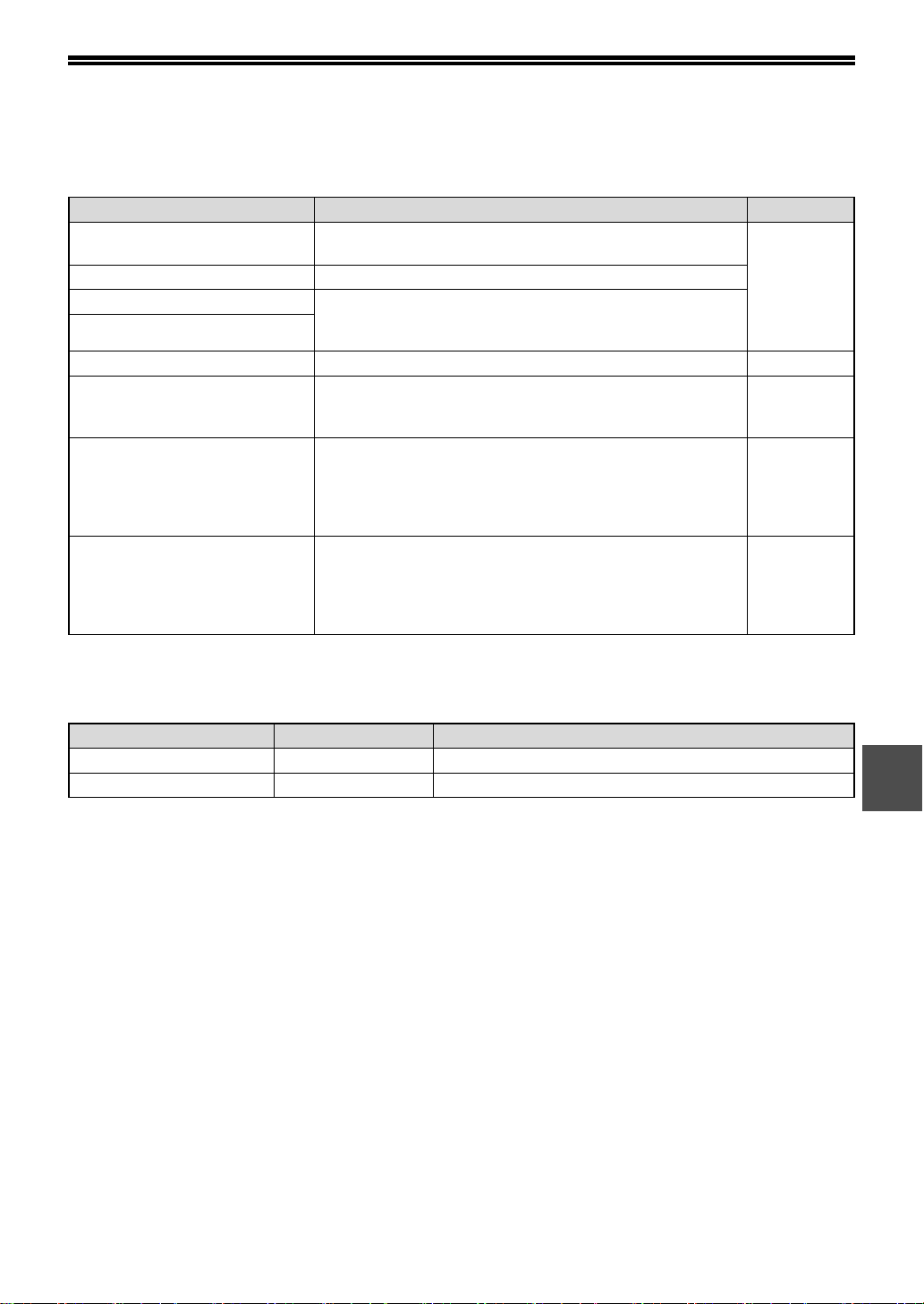
91
6
MESSAGES AND SIGNALS
DISPLAY MESSAGES
AUDIBLE SIGNALS
Message Cause and remedy Page
FRONT OR SIDE COVER OPEN.
CLOSE COVERS.
The cover is open. Close the cover.
See the
OPERATION
MANUAL
(for general
information)
CLOSE THE SPF/RSPF COVER. The RSPF cover is open. Close the RSPF cover.
CLEAR PAPER JAM. A paper misfeed has occurred. Remove the misfeed as
explained in "MISFEED REMOVAL". (See the OPERATION
MANUAL for general information.)
SPF/RSPF JAM.
MEMORY FULL The memory is full. 62
LOAD XXX SIZE PAPER
INTO TRAY1
The setting for the printing paper size is incorrect. Set it
correctly. "8.5x11", "8.5x14", or "A4" will appear in "XXX" in the
message.
29
CAN NOT PRINT
Toner cartridge is empty.
Toner cartridge is not inserted.
See the
OPERATION
MANUAL
(for general
information)
NO XXX SIZE TRAY
CHANGE TRAY SETTING
Paper tray is not set to the appropriate paper size. Change the
paper size setting of the paper tray to the size indicated in the
message, and load that size of paper in the paper tray.
"8.5x11", "8.5x14", or "A4" will appear in "XXX" in the
message.
-
Sound Type Duration Meaning
Continuous tone 3 seconds Indicates the end of transmission, reception, or line error.
Continuous tone 1 second Warning tone
!AR-FX13_sec.book 91 ページ 2007年11月28日 水曜日 午後4時22分
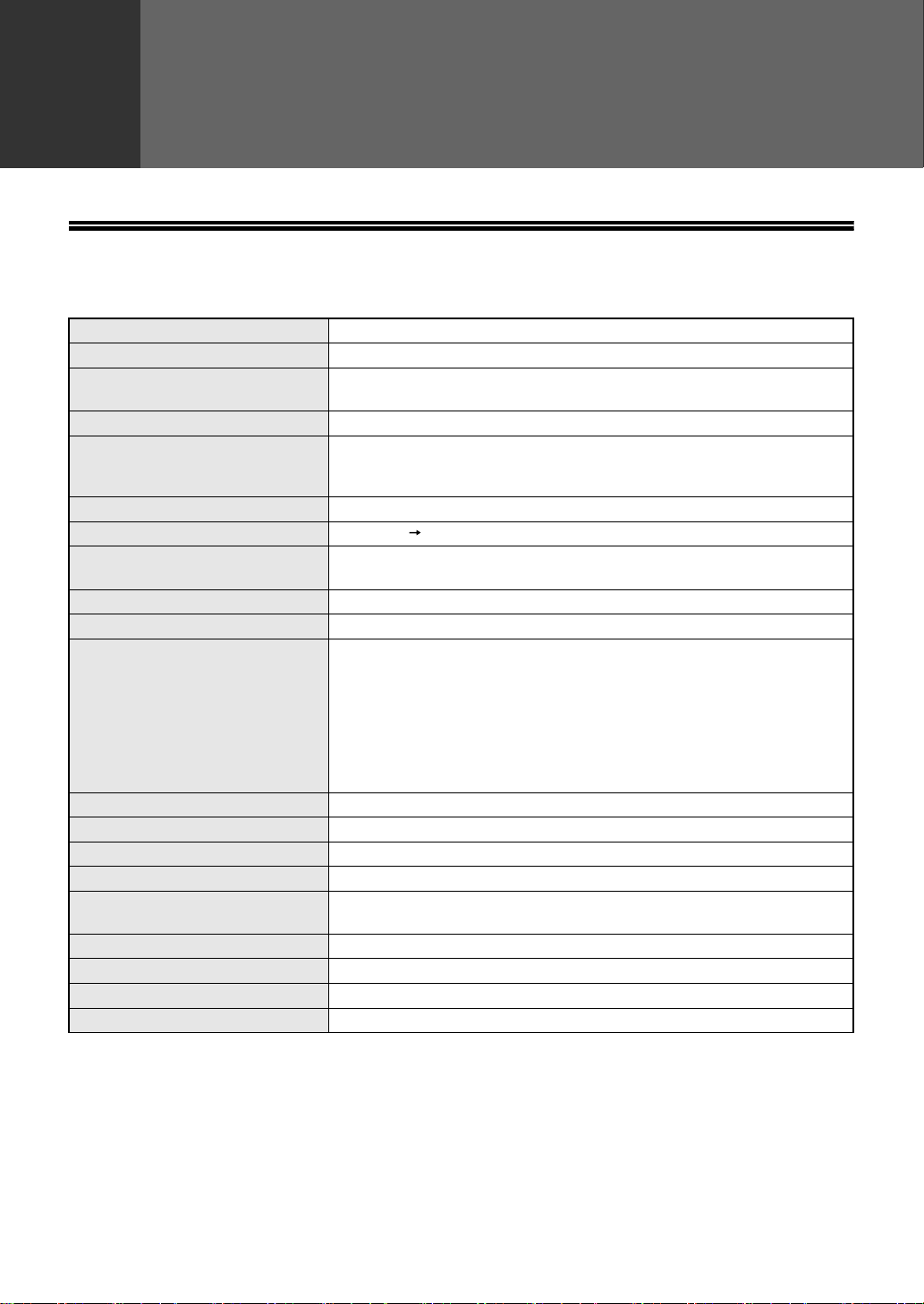
92
7
Chapter 7
APPENDIX
SPECIFICATIONS
* As a part of our policy of continuous improvement, SHARP reserves the right to make design and specification
changes for product improvement without prior notice. The performance specification figures indicated are
nominal values of production machines. There may be some deviations from these values in individual machines.
Applicable telephone line Public switched telephone network
Compression method MH, MR, MMR, JBIG
Transmission modes
Super G3, G3 (the machine can only send faxes to and receive faxes from
machines that support G3 or Super G3)
Scanning method CCD flatbed scanning
Scanning resolution
(supports ITU-T standards)
8 x 3.85 lines/mm (Standard)
8 x 7.7 lines/mm (Fine, Fine + Halftone)
8 x 15.4 lines/mm (Super Fine, Super Fine + Halftone)
Recording method Laser, electrostatic charge method
Transmission speed 33.6 kbps 2.4 kbps Automatic fallback
Transmission time
Approx. 2 seconds (Super G3 mode / 33.6 kbps, JBIG),
Approx. 6 seconds (G3 ECM mode / 14.4 kbps, JBIG)
Paper size 8-1/2" x 11"(Letter), 8-1/2" x 14"(Legal), or A4
Effective recording width 8-1/2" max. (8-1/2" x 14" printing)
Transmittable original size When using the RSPF
Maximum
One-sided original: 8-1/2" x 19.7"
Two-sided original: 8-1/2" x 14"
Minimum
8-1/2" x 5-1/2"
When using the document glass
Maximum 8-1/2" x 14"
Effective scanning width 8-1/2" maximum
Halftone transmission 256 levels
Contrast (exposure) adjustment Light, Medium, Dark
Extension telephone connection Possible (1 telephone)
Auto dialing
Combined total of 18 One-Touch Dial and Group keys; 100 Speed Dial
numbers; redialing (automatic)
Timer transmission Ye s
Automatic document feeding Yes (50 pages)
Memory capacity 2 MB
Error Correction Mode(ECM) Ye s
!AR-FX13_sec.book 92 ページ 2007年11月28日 水曜日 午後4時22分

93
INDEX
A
Alarm beeps
- Alarm beep volume .......................................... 19
- Length of alarm beeps ..................................... 18
Answering machine................................................. 48
- Answering machine backup ............................. 49
- Quiet detect time.............................................. 48
Arrow keys ........................................................ 15, 16
Automatic dialing
- Group keys....................................................... 45
- Rapid key dialing.............................................. 42
- Speed dialing ................................................... 42
B
Beep volume ........................................................... 16
Bypass tray paper guides........................................ 13
C
Clear numbers
- Group keys....................................................... 47
- Rapid key dialing.............................................. 44
- Speed dialing ................................................... 44
Connecting
- Other devices................................................... 12
- Telephone line cord ......................................... 11
Contrast................................................................... 55
Cover sheet............................................................. 56
D
Dialing
- Direct keypad dialing........................................ 59
- Rapid key dialing.............................................. 59
- Redialing .......................................................... 61
- Search.............................................................. 61
- Speed dialing ................................................... 59
- Using the [SPEAKER] key ............................... 60
Display .............................................................. 14, 16
Distinctive ringing .................................................... 41
Document glass ...................................................... 13
E
Entering your name and fax number....................... 21
F
Fax main menu ........................................................ 6
Fax setup
- Date and time.................................................. 22
- Daylight saving time setting ............................ 25
- Dial mode........................................................ 31
- Distinctive ringing............................................ 41
- How to enter characters .................................. 20
- Index function.................................................. 36
- Number of recall times .................................... 32
- Number of rings for auto reception.................. 28
- Number of rings for manual reception............. 29
- Recall interval.................................................. 34
- Reception mode.............................................. 27
- Reception paper size ...................................... 29
- Remote reception............................................ 39
- Resolution priority ........................................... 37
- Transmission mode......................................... 26
- Setting the tray selection................................. 30
- Your name and fax number............................. 21
H
Handles .................................................................. 13
I
Index function......................................................... 36
L
Line jack ................................................................. 13
List of fax functions .................................................. 6
M
Memory .................................................................. 67
Message function ................................................... 57
Messages and signals............................................ 91
O
Operation panel...................................................... 13
Optional transmission settings
- Cover sheet..................................................... 56
- Message function............................................ 57
- Two-sided original ........................................... 58
Originals ................................................................. 50
- Original size .................................................... 54
- Setting the original .......................................... 52
- Size and weight............................................... 50
- Two-sided original ........................................... 58
- Unsuitable originals......................................... 51
P
Paper output tray.................................................... 13
Paper output tray extension ................................... 13
Paper tray............................................................... 13
PC modem ............................................................. 38
Power cord ............................................................. 13
Power switch .......................................................... 13
Q
Quick reference guide .............................................. 3
!AR-FX13_sec.book 93 ページ 2007年11月28日 水曜日 午後4時22分

94
R
Receiving faxes....................................................... 63
- Receive reduce ................................................ 65
- Two-sided reception......................................... 64
Reception mode
- A.M. mode.................................................. 27, 63
- AUTO mode ............................................... 27, 63
- MAN. mode ................................................ 27, 63
Remote reception.................................................... 39
Reports
- Group list.......................................................... 85
- Junk fax # list ................................................... 86
- Passcode list.................................................... 86
- Telephone # list................................................ 85
- Timer list .......................................................... 85
- Transaction reports .......................................... 89
- Transmissions activity report ..................... 85, 88
- User program list.............................................. 87
Resolution ............................................................... 55
Ringing volume ....................................................... 17
RSPF....................................................................... 13
- Document feeder cover.................................... 13
- Document feeder tray ...................................... 13
- Exit area........................................................... 13
- Original guides ................................................. 13
S
Specifications.......................................................... 92
Storing numbers
- Group keys....................................................... 45
- Rapid key dialing.............................................. 42
- Speed dialing ................................................... 42
T
TEL jack .................................................................. 13
Transmission mode
- Direct transmission .......................................... 26
- Memory transmission....................................... 26
Troubleshooting ...................................................... 90
!AR-FX13_sec.book 94 ページ 2007年11月28日 水曜日 午後4時22分

95
Fax setup
Connecting the telephone line cord......................... 11
Daylight saving time setting .................................... 25
Dial mode ................................................................ 31
Distinctive ringing .................................................... 41
Entering your name and fax number....................... 21
How to enter characters .......................................... 20
Index function.......................................................... 36
Number of recall times ............................................ 32
Number of rings for auto reception.......................... 28
Number of rings for manual reception .....................29
Recall interval ..........................................................34
Reception mode ......................................................27
Reception paper size .............................................. 29
Remote reception.................................................... 39
Resolution priority ................................................... 37
Setting the date and time ........................................ 22
Transmission mode................................................. 26
Tray selection.......................................................... 30
Faxes, sending and receiving
Dialing
- Chain dialing .................................................... 60
- Direct keypad dialing ........................................59
- Redialing .......................................................... 61
- Speed dialing ................................................... 59
- Using the [SPEAKER] key ............................... 60
Receiving faxes....................................................... 63
- Manual receiving.............................................. 66
- Optional reception settings .............................. 64
Sending originals
- Dialing and transmitting ................................... 59
- Manual sending................................................ 66
- Optional transmission settings ......................... 54
- Setting the original ........................................... 52
Special functions
Anti junk fax............................................................. 81
Broadcasting ........................................................... 71
Data transfer ........................................................... 68
Memory polling........................................................ 75
Polling ..................................................................... 73
Polling security........................................................ 77
Reservation............................................................. 70
Serial polling............................................................ 74
Timer operations ..................................................... 79
Storing/settings
Clear numbers
- Group keys...................................................... 47
- Rapid key dialing............................................. 44
- Speed dialing .................................................. 44
Contrast.................................................................. 55
Enter characters..................................................... 20
Original size ........................................................... 54
Resolution .............................................................. 55
Storing numbers
- Group key........................................................ 45
- Rapid key dialing............................................. 42
- Speed dialing .................................................. 42
INDEX BY PURPOSE
!AR-FX13_sec.book 95 ページ 2007年11月28日 水曜日 午後4時22分

MEMO
!AR-FX13_sec.book 96 ページ 2007年11月28日 水曜日 午後4時22分

MEMO
!AR-FX13_sec.book 97 ページ 2007年11月28日 水曜日 午後4時22分

MEMO
!AR-FX13_sec.book 98 ページ 2007年11月28日 水曜日 午後4時22分
NOTICE FOR USERS IN
CANADA
"NOTICE : This product meets the applicable Industry
Canada technical specifications."
"NOTICE : The Ringer Equivalence Number is an
indication of the maximum number of devices allowed
to be connected to a telephone interface. The
termination on an interface may consist of any
combination of devices subject only to the requirement
that the sum of the RENs of all the devices does not
exceed five."
This Class B digital apparatus complies with Canadian
ICES-003.
AVIS POUR NOS
UTILISATEURS AU CANADA
AVIS : Le présent matériel est conforme aux
spécifications techniques applicables d’Industrie
Canada.
Remarque : L'indice d'équivalence de la sonnerie
(IES) sert à indiquer le nombre maximal de terminaux
qui peuvent être raccordés à une interface
téléphonique. La terminaison d'une interface peut
consister en une combinaison quelconque de
dispositifs, à la seule condition que la somme d'indices
d'équivalence de la sonnerie de tous les dispositifs
n'excède pas 5.
Cet appareil numérique de la classe B est conforme à
la norme NMB-003 du Canada.
Sharp Electronics of Canada Ltd.
335 Britannia Road East,
Mississauga, Ontario, L4Z 1W9
Canada
The REN of this equipment is indicated on the
copying machine.
The registration number is indicated on the fax
printed circuit board and on the copying machine.
L'indice d'équivalence de la sonnerie (IES) de cet
équipement est indiqué sur le copieur.
Le numéro d'enregistrement est indiqué sur la carte
à circuit imprimé du télécopieur et sur le copieur.
!AR-FX13_sec.book 1 ページ 2007年11月28日 水曜日 午後4時22分

AR-FX13
PRINTED IN CHINA
2007M KS1
TINSE1864QSZZ
SHARP ELECTRONICS CORPORATION
1 Sharp Plaza, Mahwah, New Jersey 07430-1164.
www.sharpusa.com
SHARP ELECTRONICS OF CANADA LTD.
335 Britannia Road East, Mississauga, Ontario, L4Z 1W9
This manual has been printed using a vegetable-based soy oil ink
to help protect the environment.
Printed on 100% post-consumer recycled paper
!AR-FX13_sec.book 1 ページ 2007年11月28日 水曜日 午後4時22分

- 2 -
SAFETY STANDARDS
Notice for Users in U.S.A.
Declaration of Conformity
SHARP Network Expansion Kit, AR-NB2 A
This device complies with Part 15 of the FCC Rules. Operation is subject to the following two
conditions: (1) This device may not cause harmful interference, and (2) this device must accept
any interference received, including interference that may cause undesired operation.
Responsible Party: SHARP ELECTRONICS CORPORATION
Sharp Plaza, Mahwah, New Jersey 07430
TEL: 1-800-BE-SHARP
Shielded cables must be used with this equipment to maintain compliance with
standards.
Notice for Users in Canada
This Class B digital apparatus complies with Canadian ICES-003.
Cet appareil numérique de la classe B est conforme à la norme NMB-003 du Canada.
For users in the USA
This device complies with Part 15 of the FCC rules. Operation is subject to the
following two conditions: (1) This device may not cause harmful interference,
and (2) this device must accept any interference received, including interference
that may cause undesired operation.
WARNING:
FCC Regulations state that any unauthorized changes or modifications to this
equipment not expressly approved by the manufacturer could void the user’s
authority to operate this equipment.
Note:
This equipment has been tested and found to comply with the limits for a Class
B digital device, pursuant to Part 15 of the FCC Rules. These limits are
designed to provide reasonable protection against harmful interference in a
residential installation. This equipment generates, uses and can radiate radio
frequency energy and, if not installed and used in accordance with the
instructions, may cause harmful interference to radio communications.
However, there is no guarantee that interference will not occur in a particular
installation. If this equipment does cause harmful interference to radio or
television reception, which can be determined by turning the equipment off and
on, the user is encouraged to try to correct the interference by one or more of
the following measures:
Reorient or relocate the receiving antenna.
Increase the separation between the equipment and receiver.
Connect the equipment into an outlet on a circuit different from that to which
the receiver is connected.
Consult the dealer or an experienced radio/TV technician for help.
●
●
●
●
♠♠♠♠♠♠♠♠♠♠♠♠♠♠♠♠♠♠♠♠♠♠♠♠♠♠♠♠♠♠♠♠♠♠♠♠♠♠♠♠♠♠♠♠♠♠♠
♠
♠
♠
♠
♠♠♠♠♠♠♠♠♠♠♠♠♠♠♠♠♠♠♠♠♠♠♠♠♠♠♠♠♠♠♠♠♠♠♠♠♠♠♠♠♠♠♠♠
♠
♠
♠
♠♠♠♠♠♠♠♠♠♠♠♠♠♠♠♠♠♠♠♠♠♠♠♠♠♠♠♠♠♠♠♠♠♠♠♠♠♠♠♠♠♠♠♠♠♠♠
♠
♠
♠
♠
♠♠♠♠♠♠♠♠♠♠♠♠♠♠♠♠♠♠♠♠♠♠♠♠♠♠♠♠♠♠♠♠♠♠♠♠♠♠♠♠♠♠♠♠
♠
♠
♠
- 3 -
INTRODUCTION
This manual explains how to configure network settings and install and configure the software to
enable the machine to be used as a network printer.
Trademark acknowledgments
•Microsoft
®
, Windows
®
, Windows
®
98, Windows
®
Me, Windows
®
2000, Windows
®
XP, Windows
Server
®
2003, Windows Vista
®
and Internet Explorer
®
are registered trademarks or trademarks of
Microsoft Corporation in the U.S.A. and other countries.
• PostScript is a registered trademark of Adobe Systems Incorporated.
• Macintosh, Mac OS, AppleTalk, EtherTalk and LaserWriter are trademarks of Apple Inc., registered
in the U.S. and other countries.
• Adobe, the Adobe logo, Acrobat, the Adobe PDF logo, and Reader are registered trademarks or
trademarks of Adobe Systems Incorporated in the United States and other countries.
• PCL is a registered trademark of the Hewlett-Packard Company.
• IBM, PC/AT, and PowerPC are trademarks of International Business Machines Corporation.
• All other trademarks and copyrights are the property of their respective owners.
SOFTWARE LICENSE
The SOFTWARE LICENSE will appear when you install the software from the CD-ROM. By using all
or any portion of the software on the CD-ROM or in the machine, you are agreeing to be bound by the
terms of the SOFTWARE LICENSE.
• The explanations of screens and procedures in this manual are primarily for Windows
®
XP in
Windows
®
environments, and Mac OS X v10.4 in Macintosh environments. The screens may
vary in other versions of the operating systems.
• The explanations in this manual are based on the North American version of the software.
Versions for other countries and regions may vary slightly from the North American version.
• This manual refers to the digital multifunctional system AR-208S/208D as "the machine".
• Where "XX-XXXX" appears in this manual, please substitute the name of your model.
• The PS3 expansion kit (AR-PK1N) mentioned in this manual is an option.
The display screens, messages, and key names shown in the manual may differ from those on the actual
machine due to product improvements and modifications.
Note

- 4 -
CONTENTS
SAFETY STANDARDS.......................................................................................................... 2
INTRODUCTION....................................................................................................................3
CD-ROMS AND SOFTWARE................................................................................................ 5
● CD-ROMS IN THE NETWORK EXPANSION KIT ...................................................................... 5
● SYSTEM REQUIREMENTS .......................................................................................................7
● SOFTWARE REQUIREMENTS..................................................................................................7
CONNECTING TO A NETWORK .......................................................................................... 8
CHECKING THE IP ADDRESS ............................................................................................. 8
● HOW TO RESET THE NETWORK EXPANSION KIT ................................................................8
USER PROGRAMS FOR THE NETWORK EXPANSION KIT.............................................. 9
INSTALLING THE SOFTWARE .......................................................................................... 10
● INSTALLING THE PRINTER DRIVER ..................................................................................... 10
● SHARING THE PRINTER USING WINDOWS NETWORKING ............................................... 13
● INSTALLING THE PRINTER STATUS MONITOR ...................................................................15
● INSTALLING THE PS DISPLAY FONTS.................................................................................. 16
USING THE PPD FILE......................................................................................................... 17
● Installing the resident font information for PPD (only when the PPD file is installed in Windows
98/Me)....................................................................................................................................... 17
CONFIGURING THE PRINTER DRIVER ............................................................................ 18
MAC OS X............................................................................................................................ 19
MAC OS 9.0 - 9.2.2..............................................................................................................23
BEFORE INSTALLATION
SETUP IN A WINDOWS ENVIRONMENT
SETUP IN A MACINTOSH ENVIRONMENT
- 5 -
BEFORE INSTALLATION
CD-ROMS AND SOFTWARE
CD-ROMS IN THE NETWORK EXPANSION KIT
The network expansion kit contains the following four CD-ROMs: "Software CD-ROM" (Disc 1),
"Software CD-ROM" (Disc 2), "Sharpdesk" (Disc 1) and "Sharpdesk" (Disc 2).
"Software CD-ROM" (Disc 1)
The "Software CD-ROM" (Disc 1) contains the following software programs:
Software for Windows
• Printer driver
These allow the machine to be used as a printer.
- PCL6 and PCL5e printer driver
The machine supports the Hewlett-Packard PCL6 and PCL5e printer control languages. It is
recommended that you use the PCL6 printer driver. If you have a problem printing from older
software using the PCL6 printer driver, use the PCL5e printer driver.
- PS printer driver
The PS printer driver supports the PostScript 3 page description language developed by Adobe
Systems Incorporated.
- PPD driver
The PPD driver enables the machine to use the standard Windows PS printer driver.
• Printer Status Monitor
This allows you to check the status of the network printer on your computer screen.
The printer driver, Printer Status Monitor and Printer Administration Utility on the "Software
CD-ROM" cannot be used when the machine is connected to your computer by a USB.
Caution

- 6 -
CD-ROMS AND SOFTWARE
"Software CD-ROM" (Disc 2)
The "Software CD-ROM" (Disc 2) contains the following software programs:
Software for Windows
• Printer Administration Utility
This allows the administrator to monitor the machine and configure machine settings from a
computer. To install and use the Printer Administration Utility, see the Readme file and the manual
in PDF format on the "Software CD-ROM" (Disc 2). The Readme file and manual are in the
following folder on the CD-ROM. (Substitute the letter of your CD-ROM drive for "R" in the
following path.)
R:\Sadmin\Documents\EnglishA
• Online manuals
Manuals in PDF format that are viewed using Adobe Acrobat Reader.
Software for Macintosh
• PPD file
This is the printer description file which enables the machine to be used as a PostScript 3
compatible printer. The PS3 expansion kit is required to use the machine in a Macintosh
environment.
• Online manuals
Manuals in PDF format that are viewed using Adobe Acrobat Reader.
"Sharpdesk" CD-ROMs (for Windows)
The "Sharpdesk" CD-ROM consists of 2 discs. Sharpdesk is a desktop document management
application that makes it easy to start applications and file documents and images.
For information on the "Sharpdesk" CD-ROMs and the procedure for installing Sharpdesk, see
operation manual for network scanner (PDF format).
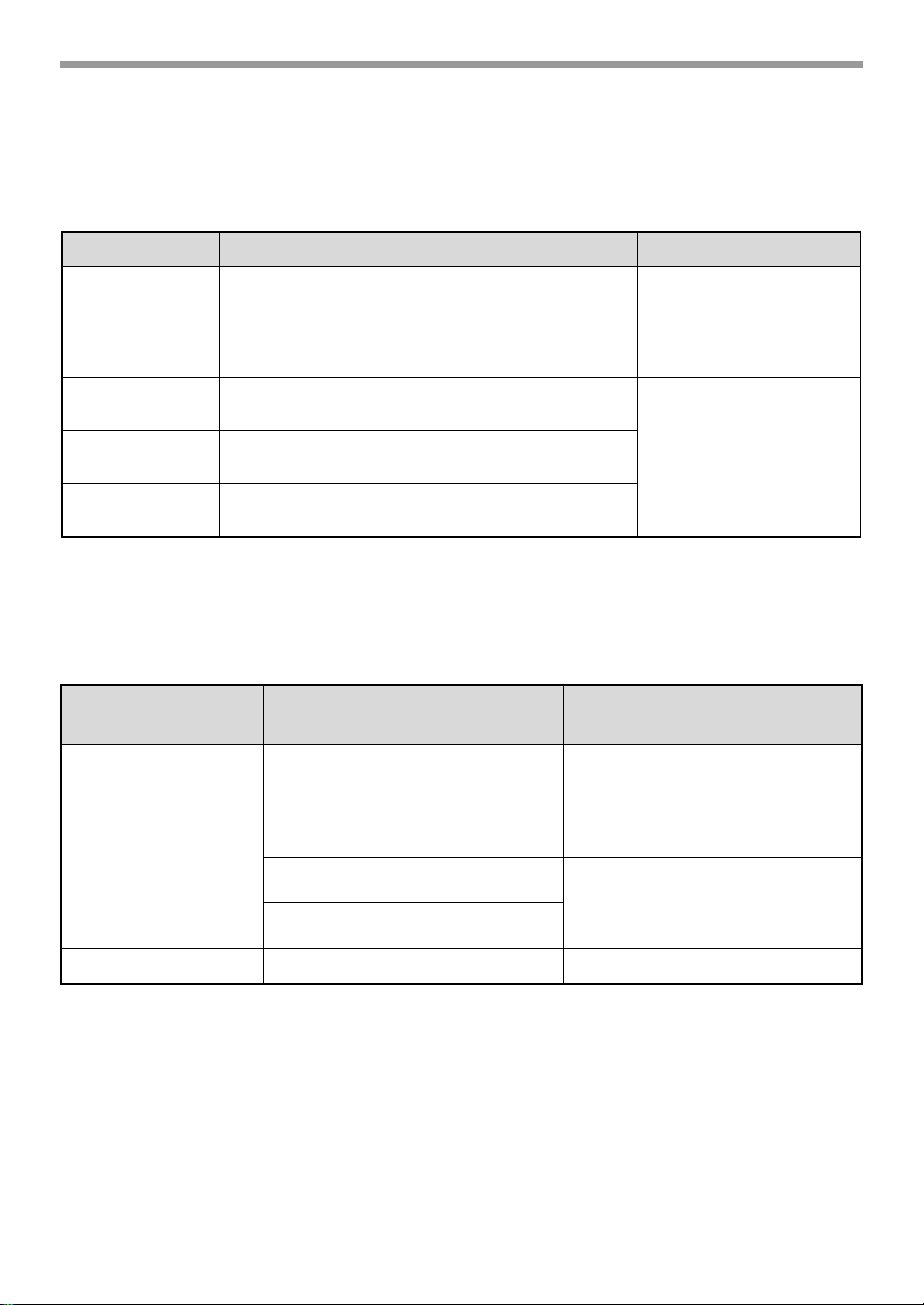
- 7 -
CD-ROMS AND SOFTWARE
SYSTEM REQUIREMENTS
Before installing the software described in this manual, make sure that your computer satisfies the
following requirements.
* Printing is not possible in MS-DOS mode.
SOFTWARE REQUIREMENTS
The following requirements must be met to use the software described in this manual.
Windows Macintosh
Operating system*
Windows 98, Windows Me, Windows 2000 Professional,
Windows XP Professional, Windows XP Home Edition,
Windows Server 2003, Windows Vista
Mac OS 9.0 to 9.2.2,
Mac OS X v10.1.5,
Mac OS X v10.2.8,
Mac OS X v10.3.9,
Mac OS X v10.4 to 10.4.10
Computer type IBM PC/AT compatible computer
Equipped with a 10Base-T/100Base-TX LAN board.
An environment in which
any of the operating
systems listed above can
fully operate (including
Macintosh computers with
an Intel processor).
Display 800 x 600 resolution (SVGA) with 256 colors or higher
(32,000 colors (16 bit) or higher is recommended)
Other hardware
requirements
An environment that allows any of the above operating
systems to fully operate.
Operating system
environment
Software Required expansion kits
Windows PCL6 printer driver,
PCL5e printer driver
–
PS printer driver,
PPD driver
PS3 expansion kit
Printer Status Monitor
–
Printer Administration Utility
Macintosh Macintosh PPD driver PS3 expansion kit
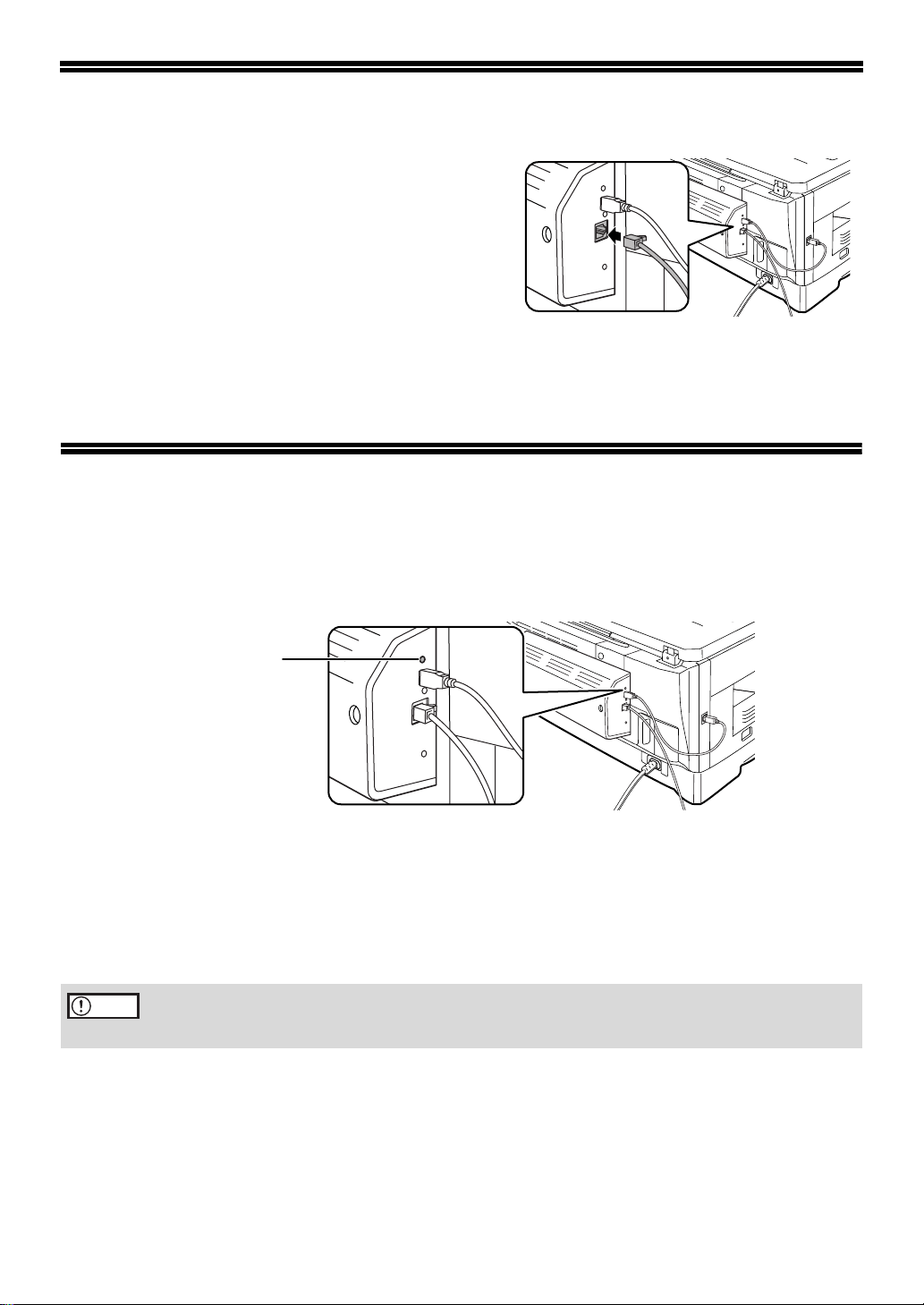
- 8 -
CONNECTING TO A NETWORK
After the network expansion kit has been installed in the
machine, connect a LAN cable to the LAN connector of
the network expansion kit.
Use a network cable that is shielded.
CHECKING THE IP ADDRESS
To check the IP address of the machine, hold down the status button on the network expansion kit at
least 2 seconds to print out a Printer Setting List.
HOW TO RESET THE NETWORK EXPANSION KIT
To reset the network expansion kit, turn on the power while holding down the status button on the
network expansion kit. Continue to hold down the status button until a beep sounds.
Network scanner destination information and scanning settings will remain after the network
expansion kit is reset, however, the network settings and printer settings will revert to the factory
default settings.
Status button
Caution
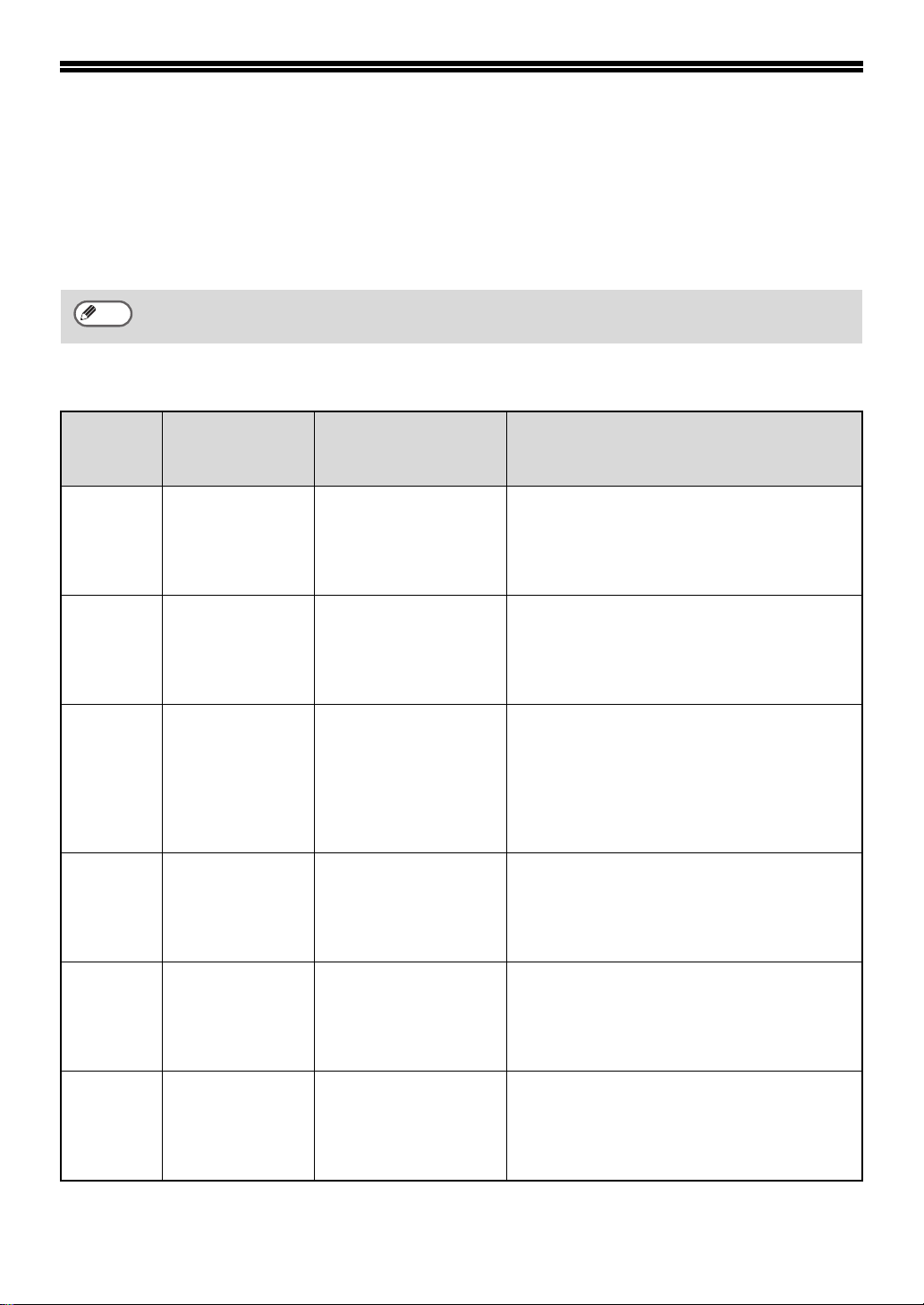
- 9 -
USER PROGRAMS FOR THE
NETWORK EXPANSION KIT
When the network expansion kit is installed in the machine, the following programs are added to the
user programs for Print mode.
The IP address and other network settings are configured using these user programs.
Additional user programs for Print mode
The procedure for selecting a user program setting is explained in "SELECTING A SETTING FOR
A USER PROGRAM" in the operation manual.
Program
number
Program name
Settings (factory
default settings
appear in bold)
Explanation
4 ENABLE TCP/IP
1: YES
2: NO
This program must be enabled to use the
machine on a TCP/IP network. "IP ADDRESS
SETTING" must also be configured.
This program is initially enabled (factory default
setting).
5 ENABLE DHCP
1: YES
2: NO
If "YES" is selected (factory default setting) and
the machine is connected to a TCP/IP network,
the IP address will be acquired automatically.
If you will manually assign an IP address using
"IP ADDRESS SETTING", select "NO".
6
IP ADDRESS
SETTING
• IP ADDRESS
• SUBNETMASK
• DEFAULT GATEWAY
This program is used to set the IP address (IP
address, Subnet Mask, and Gateway) of the
machine when TCP/IP protocol is used on the
network.
When "ENABLE DHCP" is selected, the
machine will obtain an IP address
automatically. This is the factory default setting.
7
ENABLE
NETWARE
1: YES
2: NO
This program must be enabled to use the
machine on a network that uses NetWare
protocol.
This program is initially enabled (factory default
setting).
8
ENABLE
ETHERTALK
1: YES
2: NO
This program must be enabled to use the
machine on a network that uses EtherTalk
protocol.
This program is initially enabled (factory default
setting).
9
ENABLE
NETBEUI
1: YES
2: NO
This program must be enabled to use the
machine on a network that uses NetBEUI
protocol.
This program is initially enabled (factory default
setting).
Note
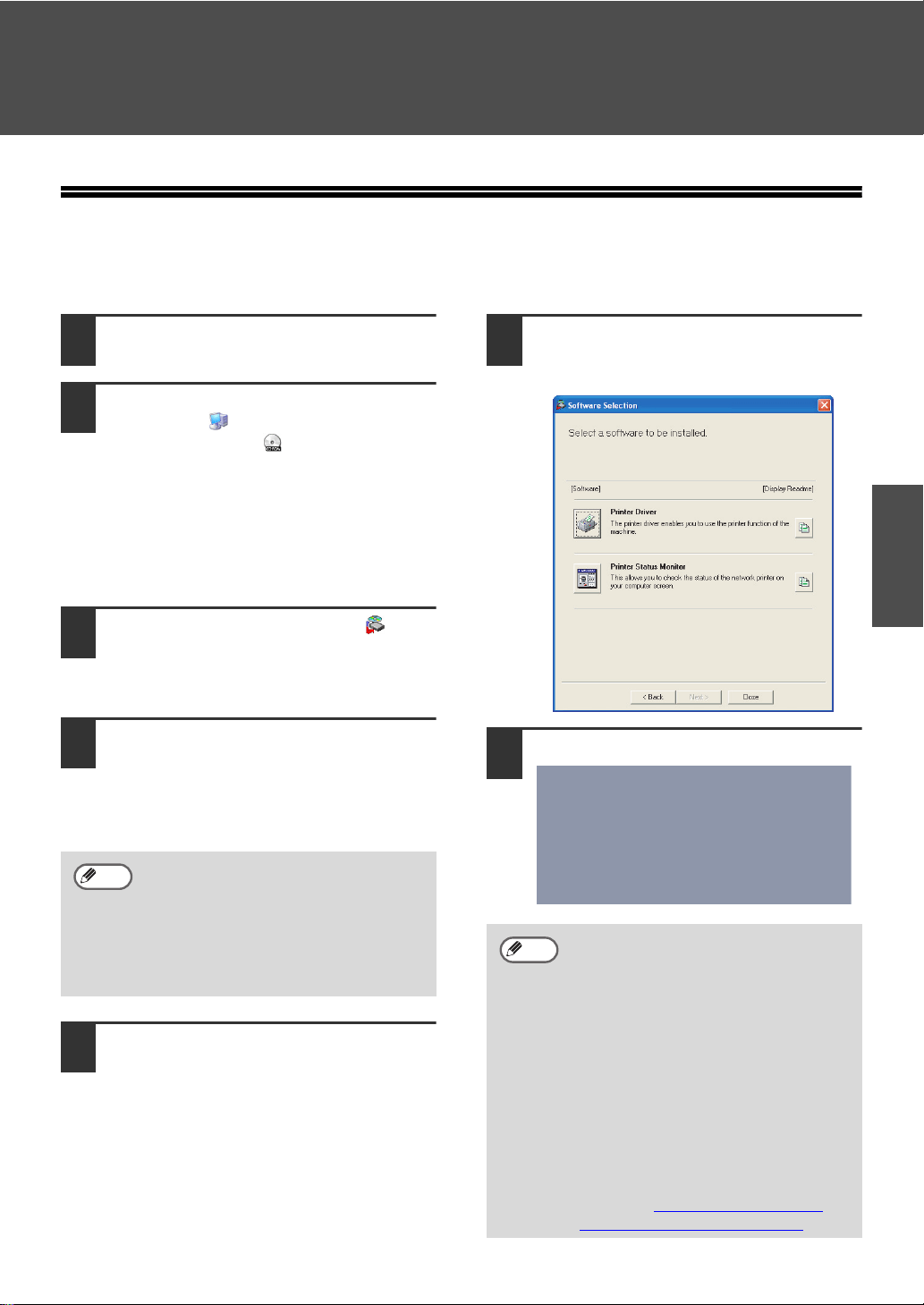
- 10 -
Windows
SETUP IN A WINDOWS ENVIRONMENT
INSTALLING THE SOFTWARE
INSTALLING THE PRINTER DRIVER
1
Insert the "Software CD-ROM" (Disc 1)
into your computer's CD-ROM drive.
2
Click the "start" button, click "My
Computer" ( ), and then double-click
the CD-ROM icon ( ).
• In Windows Vista, click the "Start"
button, click "Computer", and then
double-click the "CD-ROM" icon.
• In Windows 98/Me/2000, double-click
"My Computer" and then double-click
the CD-ROM icon.
3
Double-click the "setup" icon ( ).
In Windows Vista, if a message screen
appears asking you for confirmation, click
"Allow".
4
The "SOFTWARE LICENSE" window
will appear. Make sure that you
understand the contents of the license
agreement, and then click the "Yes"
button.
5
Read the message in the "Welcome"
window and then click the "Next"
button.
6
Click the "Printer Driver" button.
To view information on the software, click
the "Display Readme" button.
7
Click the "Standard installation" button.
You can show the "SOFTWARE
LICENSE" in a different language by
selecting the desired language from
the language menu. To install the
software in the selected language,
continue the installation with that
language selected.
Note
When "Custom installation" is
selected, you can change any of the
items below. When "Standard
installation" is selected, the installation
will take place as indicated below.
• Machine connection method: LPR
Direct Print
• Set as default printer: Yes
• Printer driver name: Cannot be
changed
• PCL printer display fonts: Installed
If you selected "Custom installation",
select "LPR Direct Print" and click the
"Next" button.
If you selected other than "LPR Direct
Print", see "SHARING THE PRINTER
USING WINDOWS NETWORKING" (p.13).
Note
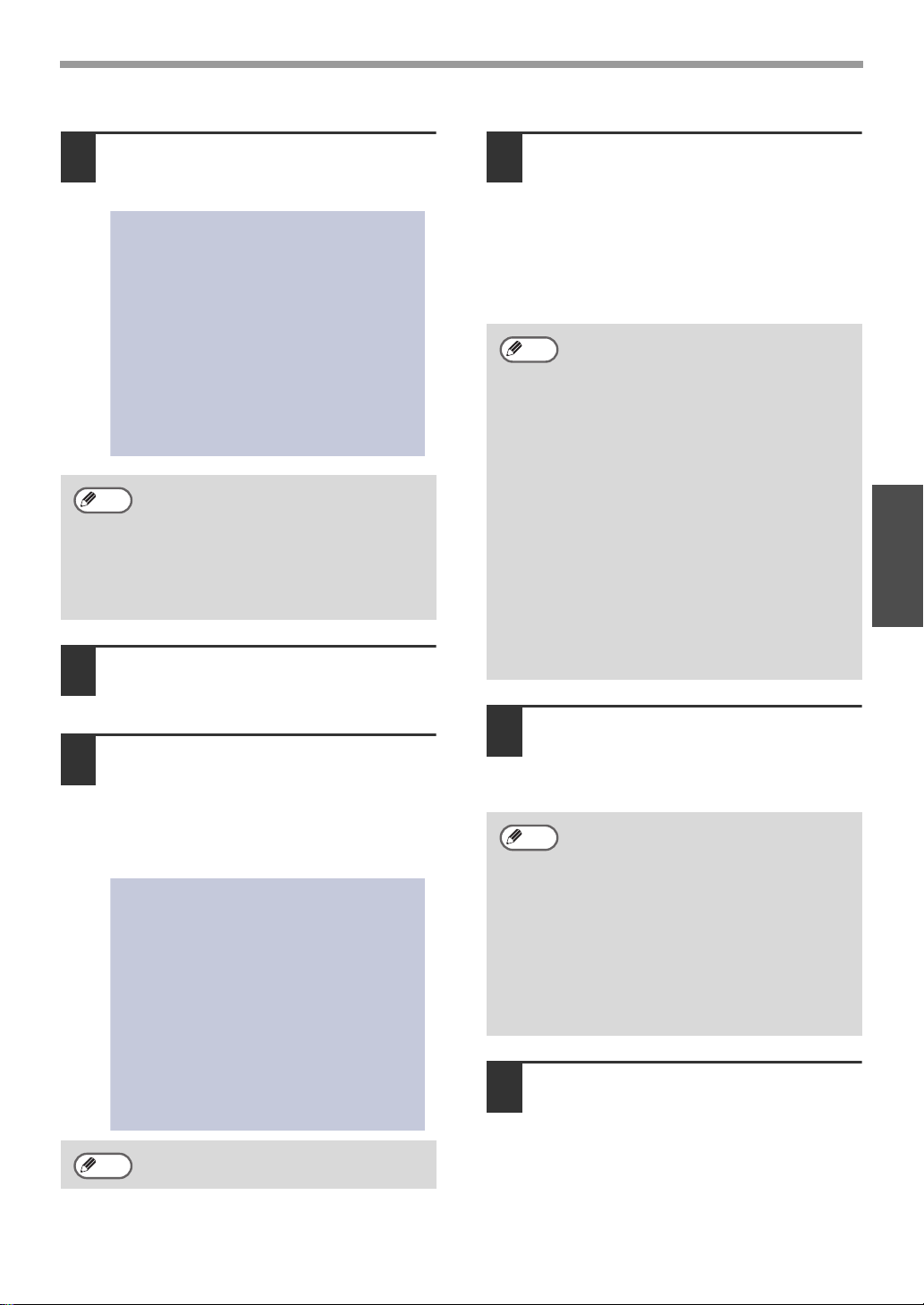
- 11 -
INSTALLING THE SOFTWARE
Windows
8
Printers connected to the network are
detected. Select the machine and click
the "Next" button.
9
A confirmation window appears. Check
the contents and then click the "Next"
button.
10
When the printer driver selection
window appears, select the printer
driver to be installed and click the
"Next" button.
Select the checkboxes of the printer
drivers to be installed.
11
Select whether or not you wish the
printer to be your default printer and
click the "Next" button.
If you are installing multiple printer drivers,
select the printer that you wish to use as
your default printer.
If you do not wish to set either printer
driver as the default printer, select "No".
12
Follow the on-screen instructions.
Read the message in the window that
appears and click the "Next" button.
Installation begins.
13
When the installation completed
screen appears, click the "OK" button.
If the machine is not found, make sure
that the machine is powered on and
connected to your computer and then
search again. If the machine is still not
found, use the custom installation
procedure to directly specify the IP
address.
To use the PS printer driver, the PS3
expansion kit must be installed.
Note
Note
If you clicked the "Custom installation"
button in step 7, the following windows
will appear.
• Printer name window
If you wish to change the printer
name, enter the desired name and
click the "Next" button.
• Window confirming installation of
the display fonts
To install the display fonts for the
PCL printer driver, select "Yes" and
click the "Next" button.
If you are not installing the PCL
printer driver (you are installing the
PS printer driver), select "No" and
click the "Next" button.
• If you are using Windows
2000/XP/Server 2003
If a warning message regarding the
Windows logo test or digital
signature appears, be sure to click
the "Continue Anyway" or "Yes"
button.
• If you are using Windows Vista
If a security warning window
appears, be sure to click "Install this
driver software anyway".
Note
Note
- 12 -
INSTALLING THE SOFTWARE
Windows
14
Click the "Close" button.
This completes the installation of the
software.
• After installation, see "CONFIGURING THE
PRINTER DRIVER" (p.18) to check the
printer driver settings.
• To install the Printer Status Monitor, see
"INSTALLING THE PRINTER STATUS
MONITOR" (p.15).
After the installation, a message
prompting you to restart your
computer may appear. In this case,
click the "Yes" button to restart your
computer.
If you installed the PS printer driver,
the PS display font can be installed
from the "PRINTER UTILITIES"
CD-ROM that accompanied the PS3
expansion kit. (p.16
)
Note
Note
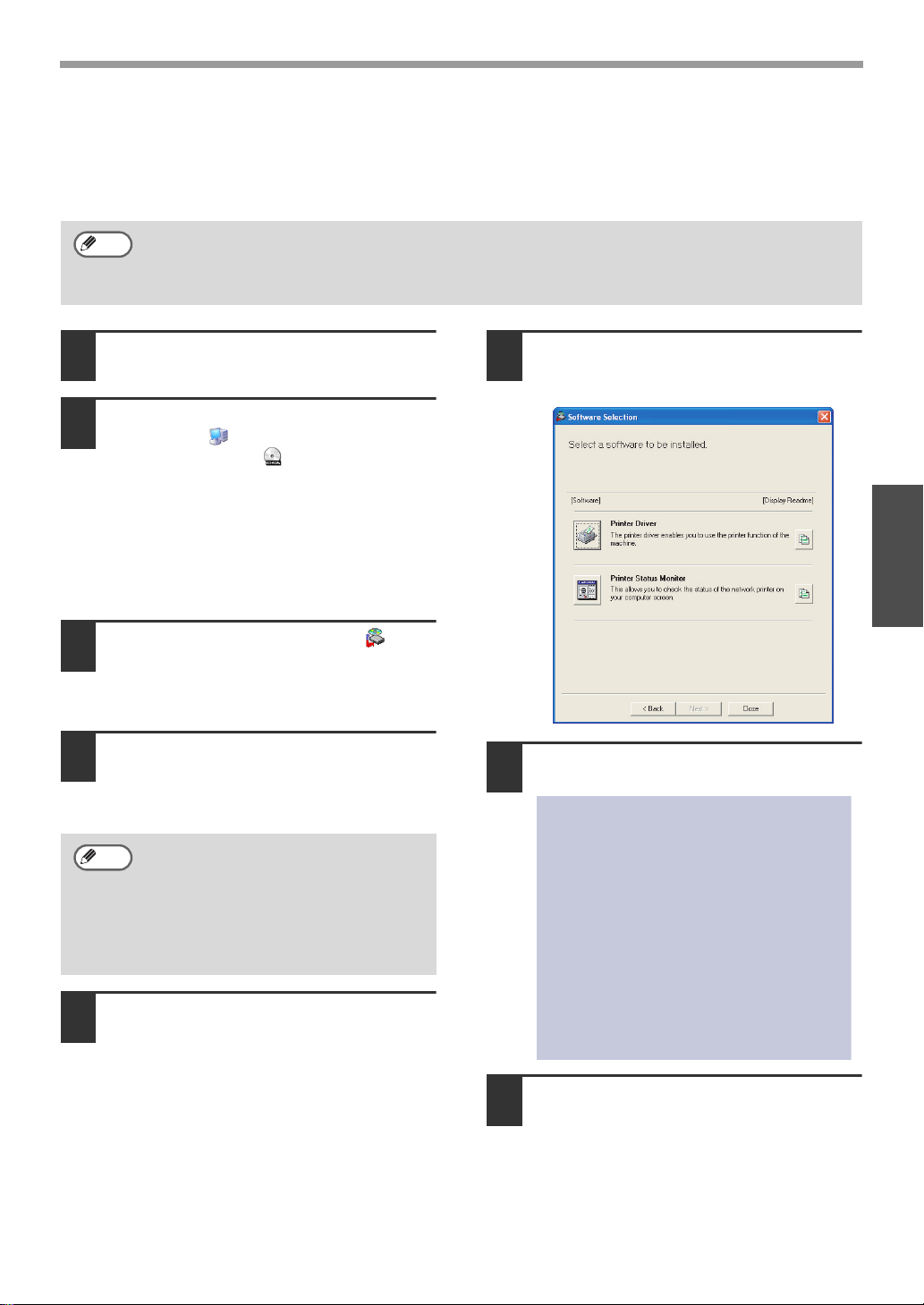
- 13 -
INSTALLING THE SOFTWARE
Windows
SHARING THE PRINTER USING WINDOWS NETWORKING
If the machine will be used as a shared printer on a network, follow these steps to install the printer
driver in the client computer.
1
Insert the "Software CD-ROM" (Disc 1)
into your computer's CD-ROM drive.
2
Click the "start" button, click "My
Computer" ( ), and then double-click
the CD-ROM icon ( ).
• In Windows Vista, click the "Start"
button, click "Computer", and then
double-click the "CD-ROM" icon.
• In Windows 98/Me/2000, double-click
"My Computer" and then double-click
the CD-ROM icon.
3
Double-click the "setup" icon ( ).
In Windows Vista, if a message screen
appears asking you for confirmation, click
"Allow".
4
The "SOFTWARE LICENSE" window will
appear. Make sure that you understand
the contents of the license agreement,
and then click the "Yes" button.
5
Read the message in the "Welcome"
window and then click the "Next" button.
6
Click the "Printer Driver" button.
To view information on the software, click
the "Display Readme" button.
7
Click the "Custom installation" button.
8
Select "Shared Printer" and click the
"Next" button.
To configure the appropriate settings in the print server, see the operation manual or help file of
your operating system.
"Print server" as explained here, is a computer that is directly connected to the machine, and a
"Client" is any other computer that is connected to the same network.
Note
You can show the "SOFTWARE
LICENSE" in a different language by
selecting the desired language from
the language menu. To install the
software in the selected language,
continue the installation with that
language selected.
Note

- 14 -
INSTALLING THE SOFTWARE
Windows
9
For the port to be used, select the
machine set as a shared printer, and
click the "Next" button.
If you are using Windows 98/Me/2000/XP,
you can also click the "Add Network Port"
button and select the printer to be shared
by browsing the network in the window
that appears. (In Windows Vista, the "Add
Network Port" button does not appear.)
10
When the model selection window
appears, select model name of your
machine and click the "Next" button.
11
When the printer driver selection
window appears, select the printer
driver to be installed and click the
"Next" button.
Be sure to select the same printer driver
as the printer driver used in the print
server (the machine).
12
Follow the on-screen instructions.
13
When the installation completed
screen appears, click the "OK" button.
14
Click the "Close" button in the window
of step 6.
This completes the installation of the
software.
• After installation, see "CONFIGURING THE
PRINTER DRIVER" (p.18) to check the
printer driver settings.
• To install the Printer Status Monitor, see
"INSTALLING THE PRINTER STATUS
MONITOR" (p.15).
If the shared printer does not appear
in the list, check the settings in the
printer server.
Note
• If you are using Windows
2000/XP/Server 2003
If a warning message regarding the
Windows logo test or digital
signature appears, be sure to click
the "Continue Anyway" or "Yes"
button.
• If you are using Windows Vista
If a security warning window
appears, be sure to click "Install this
driver software anyway".
After the installation, a message
prompting you to restart your
computer may appear. If this message
appears, click the "Yes" button to
restart your computer.
If you installed the PS printer driver,
the PS display font can be installed
from the "PRINTER UTILITIES"
CD-ROM that accompanied the PS3
expansion kit. (p.16
)
Note
Note
Note
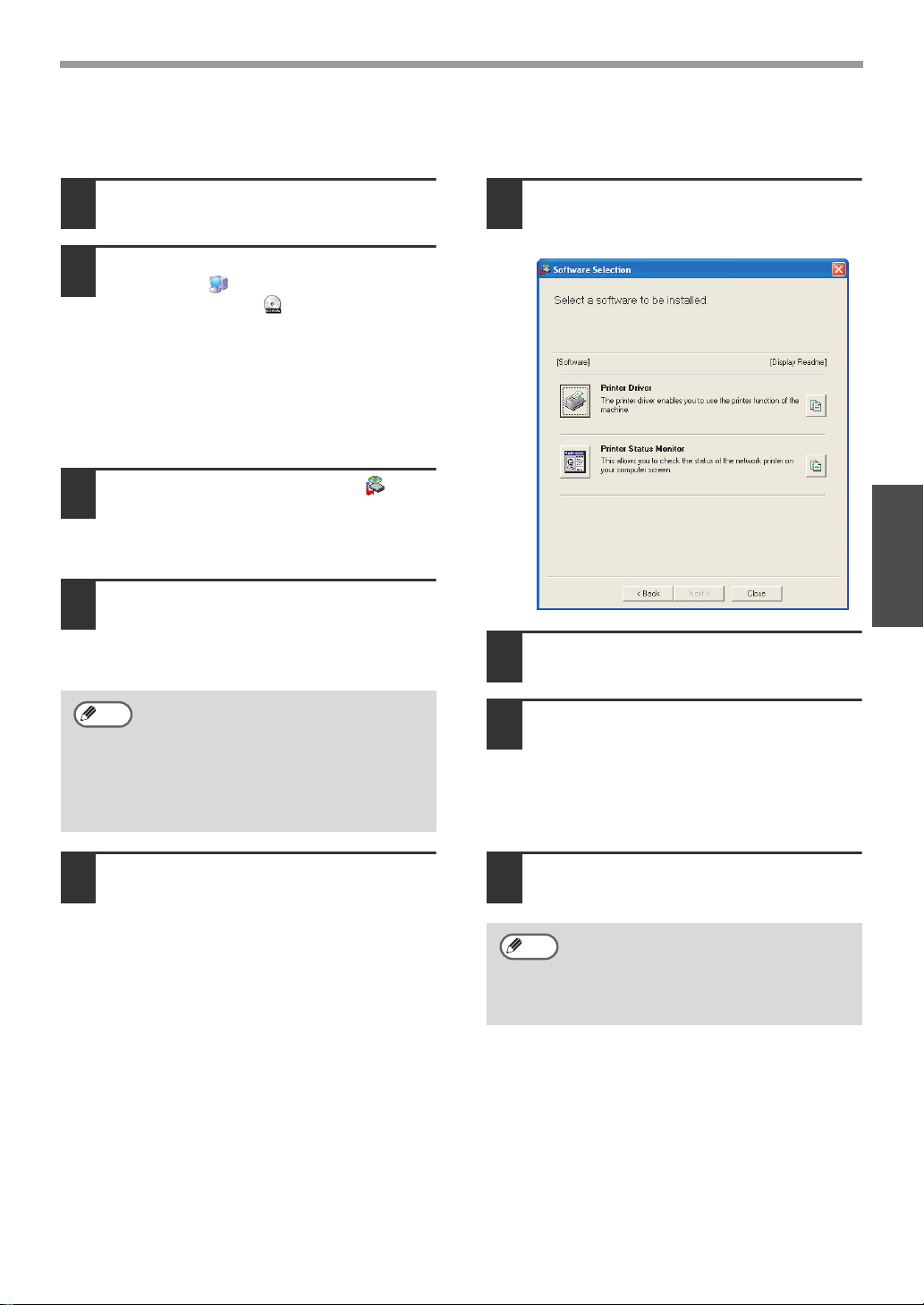
- 15 -
INSTALLING THE SOFTWARE
Windows
INSTALLING THE PRINTER STATUS MONITOR
1
Insert the "Software CD-ROM" (Disc 1)
into your computer's CD-ROM drive.
2
Click the "start" button, click "My
Computer" ( ), and then double-click
the CD-ROM icon ( ).
• In Windows Vista, click the "Start"
button, click "Computer", and then
double-click the "CD-ROM" icon.
• In Windows 98/Me/2000, double-click
"My Computer" and then double-click
the CD-ROM icon.
3
Double-click the "setup" icon ( ).
In Windows Vista, if a message screen
appears asking you for confirmation, click
"Allow".
4
The "SOFTWARE LICENSE" window will
appear. Make sure that you understand
the contents of the license agreement,
and then click the "Yes" button.
5
Read the message in the "Welcome"
window and then click the "Next" button.
6
Click the "Printer Status Monitor" button.
To view information on the software, click
the "Display Readme" button.
7
Follow the on-screen instructions.
8
When the installation completed screen
appears, click the "Finish" button.
To have the Printer Status Monitor start
automatically when your computer is
started, select the "Add this program to
your Startup folder" checkbox.
9
Click the "Close" button in the window
of step 6.
This completes the installation.
For the procedures for using the Printer Status
Monitor, see the Help file. Follow these steps to
view the Help file:
Click the Windows "start" button, select "All
Programs" ("Programs" in Windows
98/Me/2000), select "SHARP Printer Status
Monitor" and then select "Help".
You can show the "SOFTWARE
LICENSE" in a different language by
selecting the desired language from
the language menu. To install the
software in the selected language,
continue the installation with that
language selected.
Note
After the installation, a message
prompting you to restart your
computer may appear. If this message
appears, click the "Yes" button to
restart your computer.
Note
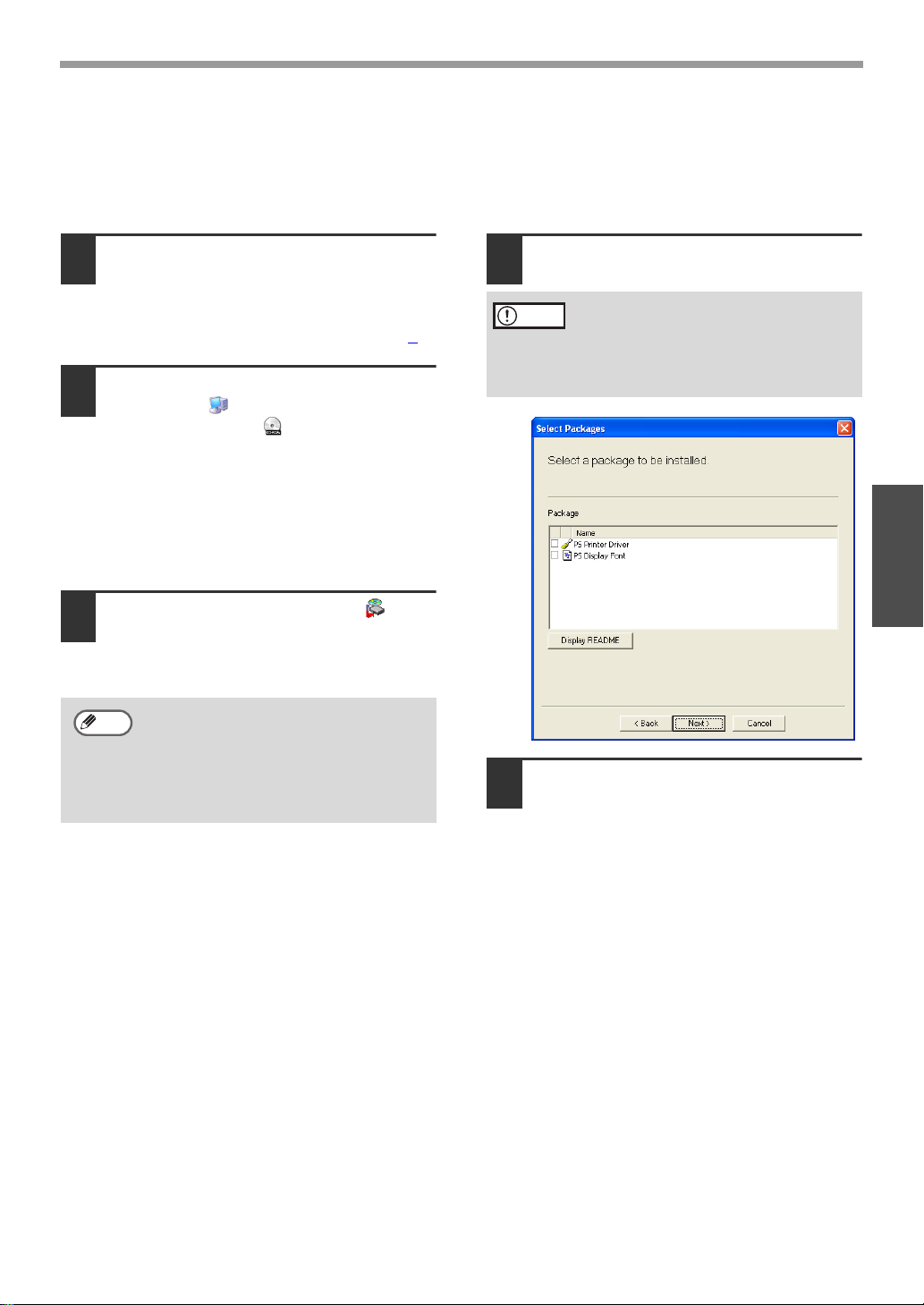
- 16 -
INSTALLING THE SOFTWARE
Windows
INSTALLING THE PS DISPLAY FONTS
The fonts used by the PS printer driver are contained in the "PRINTER UTILITIES" CD-ROM that
accompanied the PS3 expansion kit. Install these fonts as needed for the PS printer driver.
1
Insert the "PRINTER UTILITIES"
CD-ROM into your computer's CD-ROM
drive.
If your computer is configured for auto
start on the CD-ROM, proceed to step 4
.
2
Click the "start" button, click "My
Computer" ( ), and then double-click
the CD-ROM icon ( ).
• In Windows Vista, click the "Start"
button, click "Computer", and then
double-click the "CD-ROM" icon.
• In Windows 98/Me/2000, double-click
"My Computer", and then double-click
the CD-ROM icon.
3
Double-click the "setup" icon ( ).
In Windows Vista, if a message screen
appears asking you for confirmation, click
"Allow".
4
Select the "PS Display Font" checkbox
and click the "Next" button.
5
Follow the on-screen instructions.
If the language selection screen
appears after you double click the
"setup" icon, select the language that
you wish to use and click the "Next"
button. (Normally the correct language
is selected automatically.)
Note
Do not select "PS Printer Driver".
The PS printer driver for the
machine should only be installed
from the CD-ROM that accompanies
the network expansion kit.
Caution
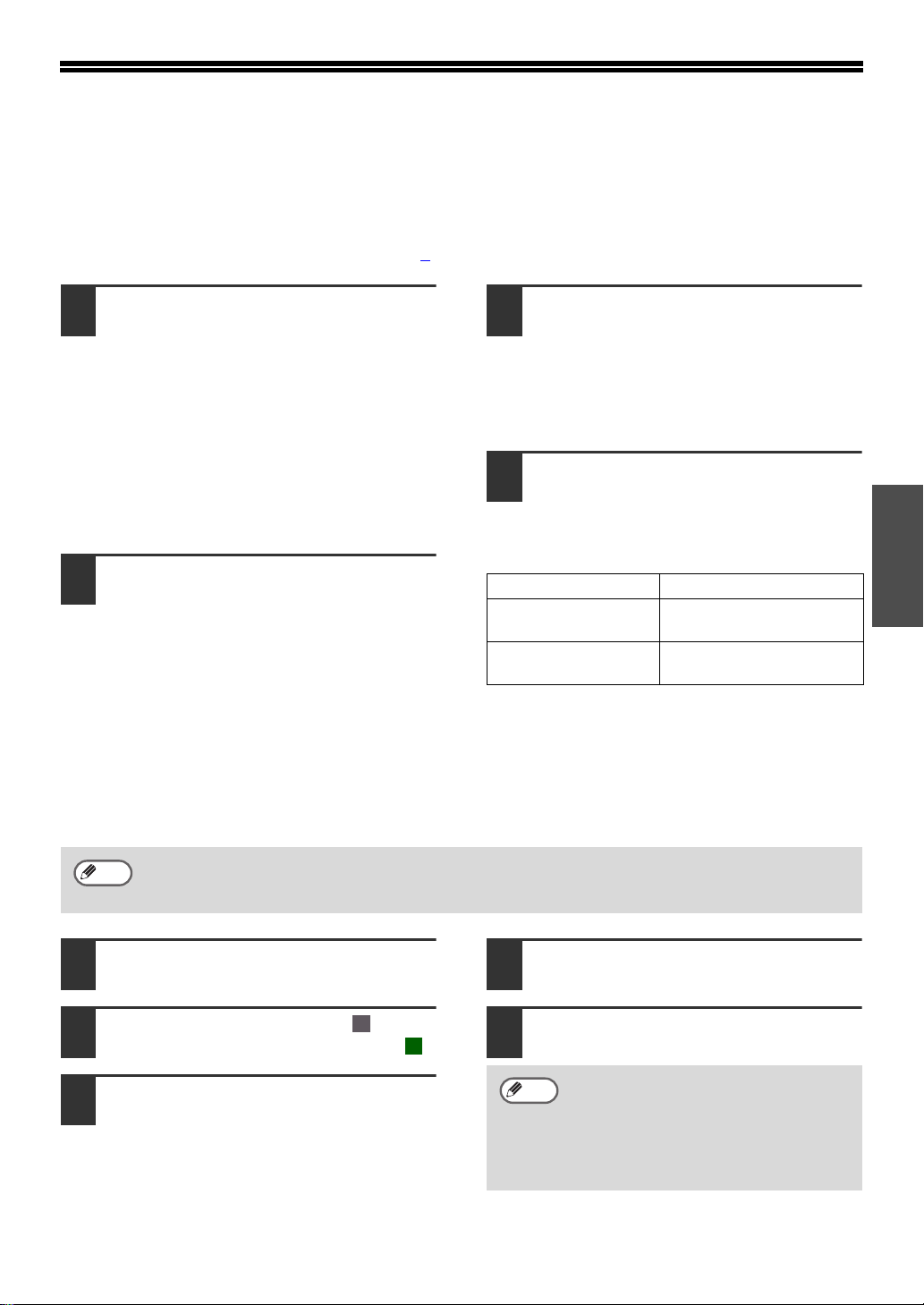
- 17 -
Windows
USING THE PPD FILE
The PPD file enables the machine to print using the standard PS driver of the operating system, and
can be used when the optional PS3 expansion kit is installed. Install the PPD file as needed.
Use the Add Printer Wizard in Windows to install the PPD file.
Be sure to read the Readme file before installing the PPD file. The Readme file is in the "EnglishA"
folder. For the location of the folder, see step 4
.
1
Click the "start" button, click "Control
Panel", click "Printers and Other Hardware",
and then click "Printers and Faxes".
•
In Windows Vista, click the "Start" button,
click "Control Panel" and then click
"Printer".
• In Windows Server 2003, click the
"Start" button and then click "Printers
and Faxes".
• In Windows 98/Me/2000, click the "Start"
button, select "Settings", and then click
"Printers".
2
Insert the "Software CD-ROM" (Disc 1)
into your computer's CD-ROM drive.
3
Click "Add a printer" in "Printer Tasks".
• In Windows Vista, click "Add a printer"
from the tool bar.
• In Windows 98/Me/2000, double-click
the "Add Printer" icon.
The "Add Printer Wizard" will appear.
4
Follow the on-screen instructions.
When you are asked to specify the path of
the PPD file, enter the path as follows.
(Substitute the letter of your CD-ROM
drive for "R" in the following paths.)
Installing the resident font information for PPD (only
when the PPD file is installed in Windows 98/Me)
If you have installed the PPD file in Windows 98/Me and will be using the resident font, you must install
resident font information for PPD. Follow the procedure below to install the resident fonts information.
1
Insert the "Software CD-ROM" (Disc 1)
into your computer's CD-ROM drive.
2
Double-click "My Computer" ( ), and
then double-click the CD-ROM icon ( ).
3
Double-click the "Drivers" folder, the
"Printer" folder, the "EnglishA" folder,
the "PPD" folder, the "9xMe" folder,
and "PFMSetup.exe".
4
Follow the on-screen instructions.
5
After the resident font information has
been installed, restart your computer.
Operating system PPD file path
Windows 98/Me R:\Drivers\Printer
\EnglishA\PPD\9xMe
Windows 2000/XP/
Server 2003/Vista
R:\Drivers\Printer
\EnglishA\PPD\2KXPVista
• If you are using Windows 2000, Windows XP, Windows Server 2003 or Windows Vista, the
resident font information is automatically installed when the PPD file is installed.
• Before installing the resident font information, be sure to install the PPD file.
Note
If printer resident fonts cannot be
specified from the application
software, the resident font information
has not been installed or the
information is not correct. In this case,
reinstall the resident font information.
Note
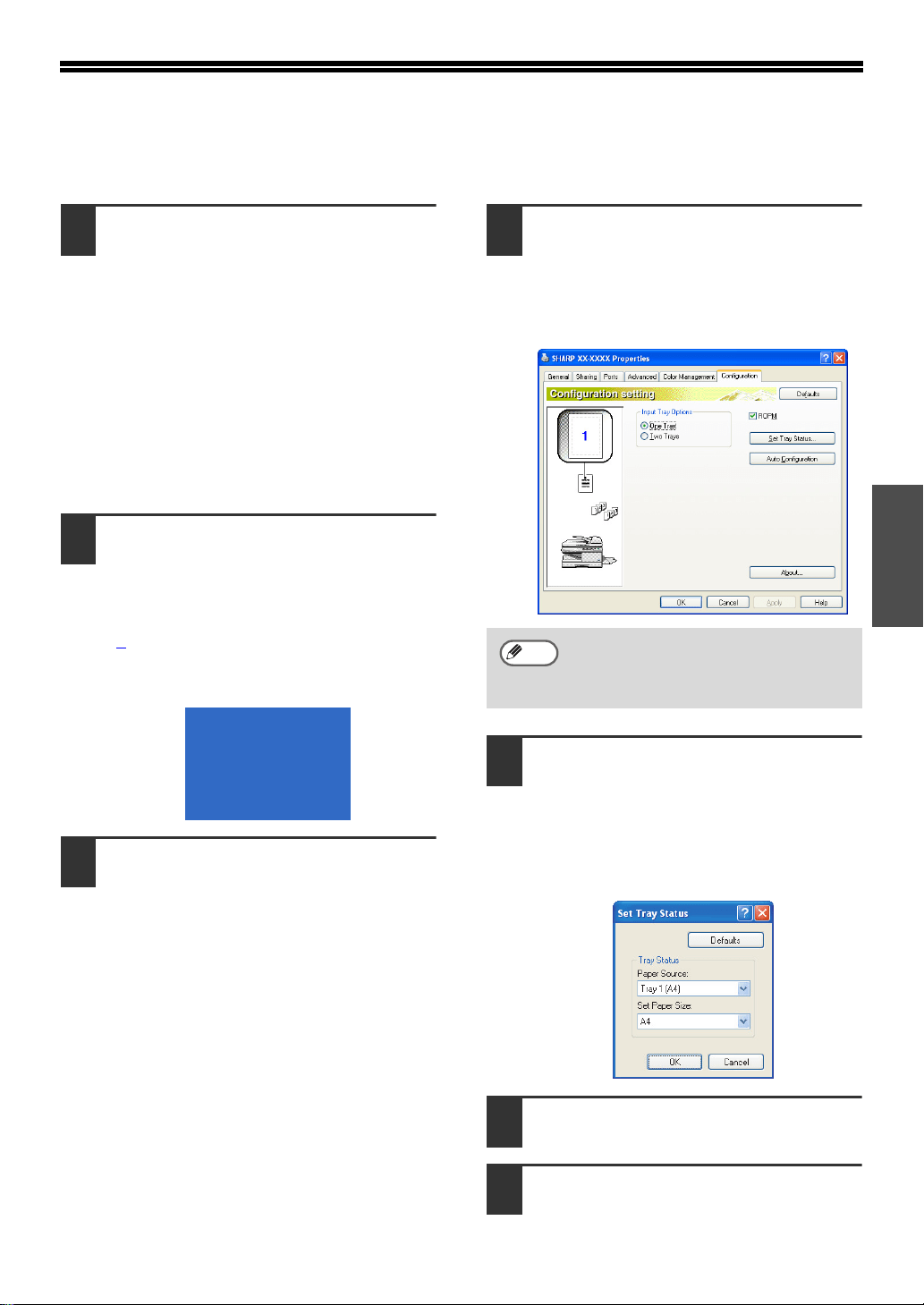
- 18 -
Windows
CONFIGURING THE PRINTER DRIVER
After installing the printer driver, you must configure the printer driver settings appropriately for the
number of paper trays on the machine and the size of paper loaded in each tray.
1
Click the "start" button, click "Control
Panel", click "Printers and Other
Hardware", and then click "Printers and
Faxes".
•
In Windows Vista, click the "Start" button,
click "Control Panel" and then click
"Printer".
• In Windows Server 2003, click the
"Start" button and then click "Printers
and Faxes".
• In Windows 98/Me/2000, click the "Start"
button, select "Settings", and then click
"Printers".
2
Click the "SHARP XX-XXXX" printer
driver icon and select "Properties"
from the "File" menu.
• If you are using Windows
2000/XP/Server 2003/Vista, go to step
4
.
• In Windows Vista, from the "Organize"
menu select "Properties".
3
In Windows 98/Me, click the "Setup"
tab.
4
Click the "Configuration" tab and set
the printer configuration based on the
options that have been installed.
Set the printer configuration properly.
Otherwise, printing may not take place
correctly.
5
Click the "Set Tray Status" button and
select the size of paper that is loaded in
each tray.
Select a tray in the "Paper source" menu,
and select the size of paper loaded in that
tray from the "Set Paper Size" menu.
Repeat for each tray.
6
Click the "OK" button in the "Set Tray
Status" window.
7
Click the "OK" button in the printer
properties window.
To automatically configure the settings
based on the detected machine
status, click the "Auto Configuration"
button.
Note
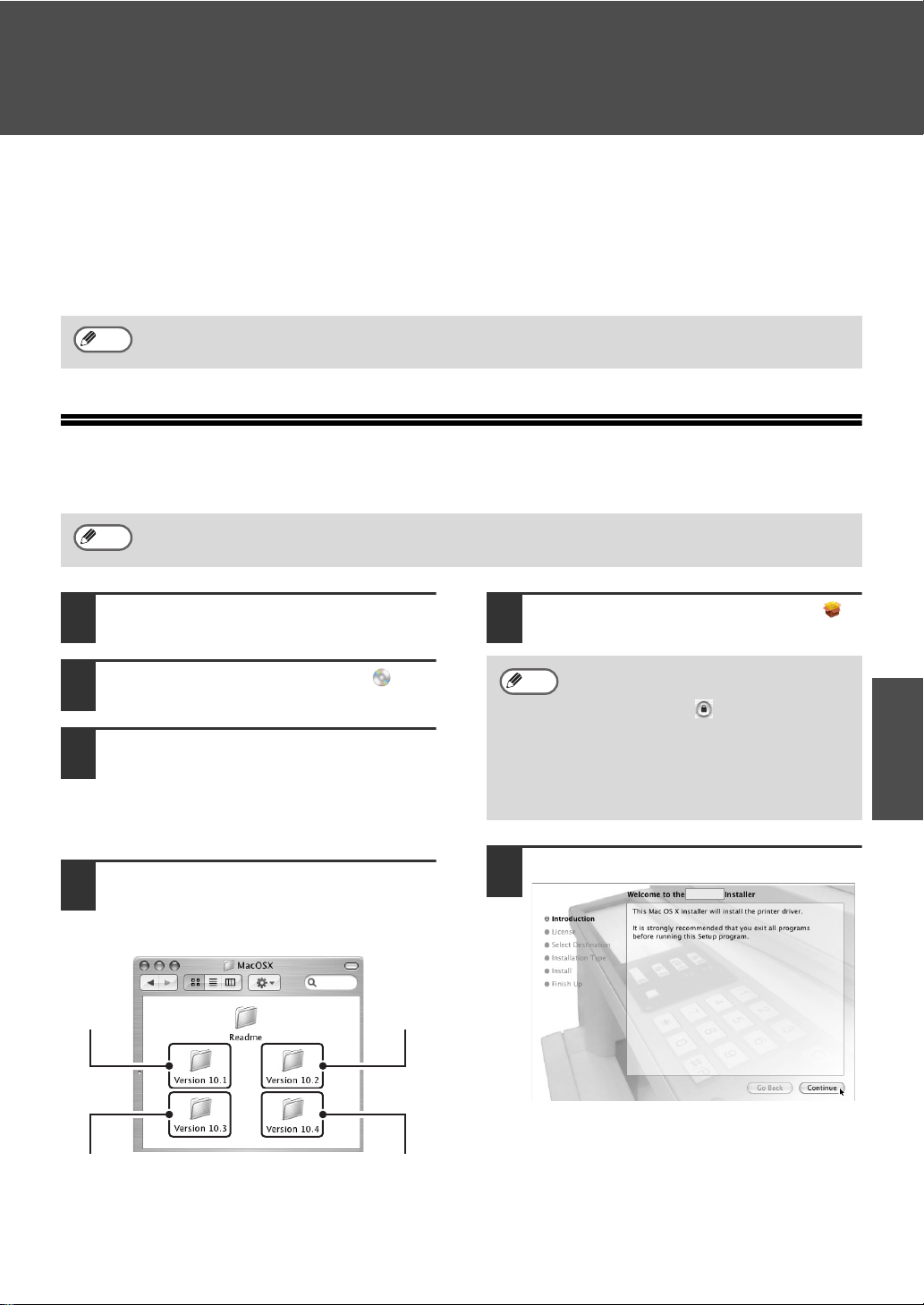
- 19 -
Macintosh
SETUP IN A MACINTOSH ENVIRONMENT
This chapter explains how to install the PPD file to enable printing from a Macintosh and how to
configure the printer driver settings.
• MAC OS X: this page
(v10.1.5, v10.2.8, v10.3.9, v10.4 - v10.4.10)
• MAC OS 9.0 - 9.2.2: page 23
MAC OS X
1
Insert the "Software CD-ROM" (Disc 2)
into your computer's CD-ROM drive.
2
Double-click the CD-ROM icon ( ) on
the desktop.
3
Double-click the "MacOSX" folder.
Before installing the software, be sure to
read "ReadMe First". "ReadMe First" is in
the
"US-English" folder in the "Readme"
folder.
4
Double-click the folder corresponding
to the versions of the operating
system.
5
Double-click the "AR-NB2A" icon ( ).
6
Click the "Continue" button.
To use the machine as a printer in a Macintosh environment, the PS3 expansion kit is necessary.
The explanations of screens and procedures are primarily for Mac OS X v10.4. The screens may
vary in other versions of the operating system.
Note
Note
v10.2.8
v10.4 -
10.4.10
v10.3.9
v10.1.5
• If the "Authorization" window
appears in Mac OS X v10.1.5, click
the lock icon ( ), enter the
password, and click the "OK" button.
• If the "Authenticate" window
appears in Mac OS X v10.2.8, enter
the password and click the "OK"
button.
Note
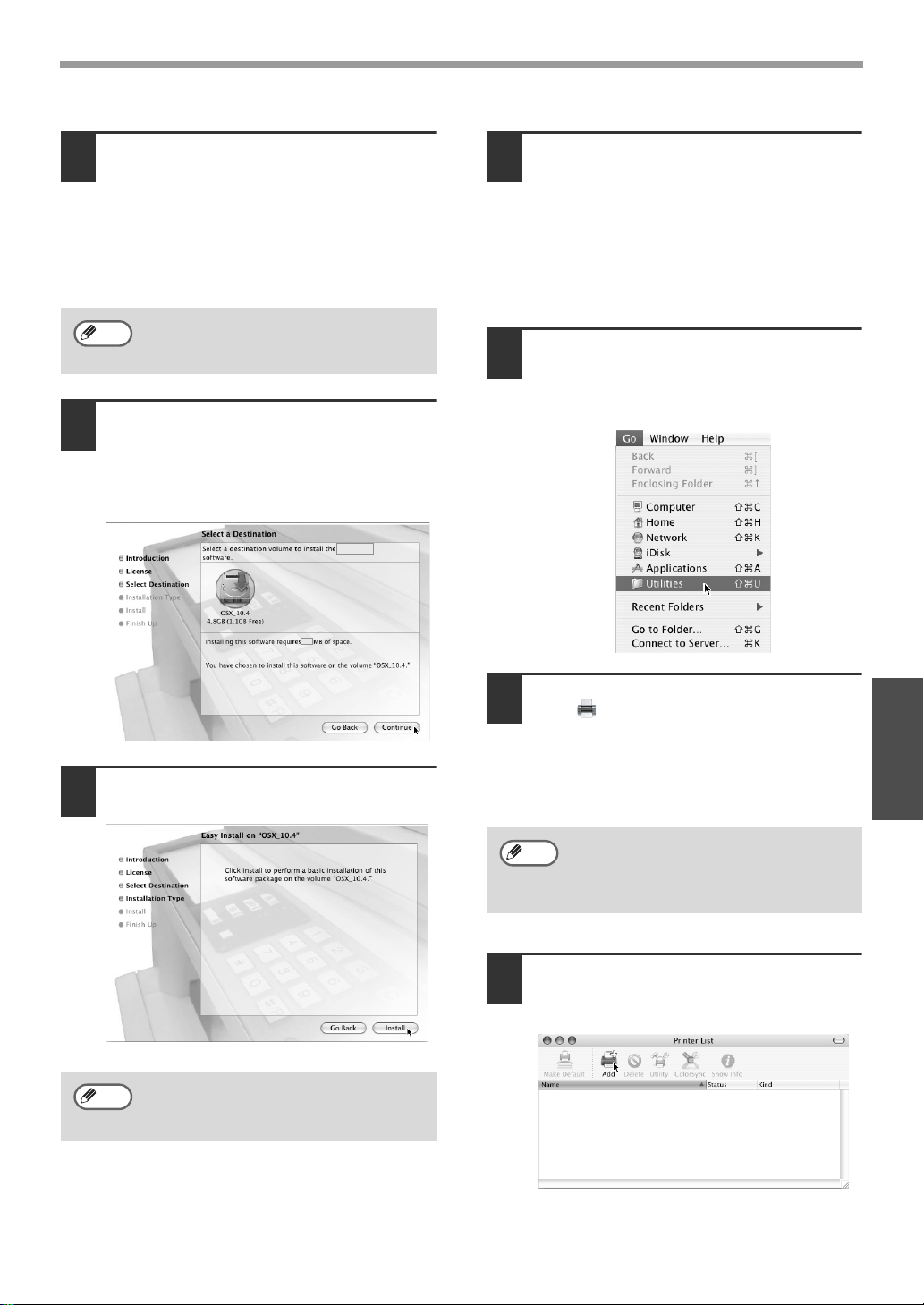
- 20 -
MAC OS X
Macintosh
7
The License Agreement window will
appear. Make sure that you understand
the contents of the license agreement
and then click the "Continue" button.
A message will appear asking you if you
agree to the terms of the license. Click the
"Agree" button.
8
Select the hard drive where the PPD file
will be installed and click the
"Continue" button.
Be sure to select the hard drive on which
your operating system is installed.
9
Click the "Install" button.
Installation begins.
10
When the message "The software was
successfully installed" appears in the
installation window, click the "Close"
button.
This completes the installation of the
software. Next, configure the printer driver
settings.
11
Select "Utilities" from the "Go" menu.
If you are using Mac OS X v10.1.5 or
v10.2.8, select "Applications" from the
"Go" menu.
12
Double-click the "Printer Setup Utility"
icon ( ).
If you are using Mac OS X v10.1.5 or
v10.2.8, double-click the "Utilities" folder
and then double-click the "Print Center"
icon.
13
Click "Add".
If you are using Mac OS X v10.1.5, click
the "Add Printer" button.
If the license appears in the different
language, change the language in the
language menu.
If the "Authenticate" window appears,
enter the password and click the "OK"
button.
Note
Note
If this is the first time you are installing
a printer driver on your computer, a
confirmation message will appear.
Click the "Add" button.
Note
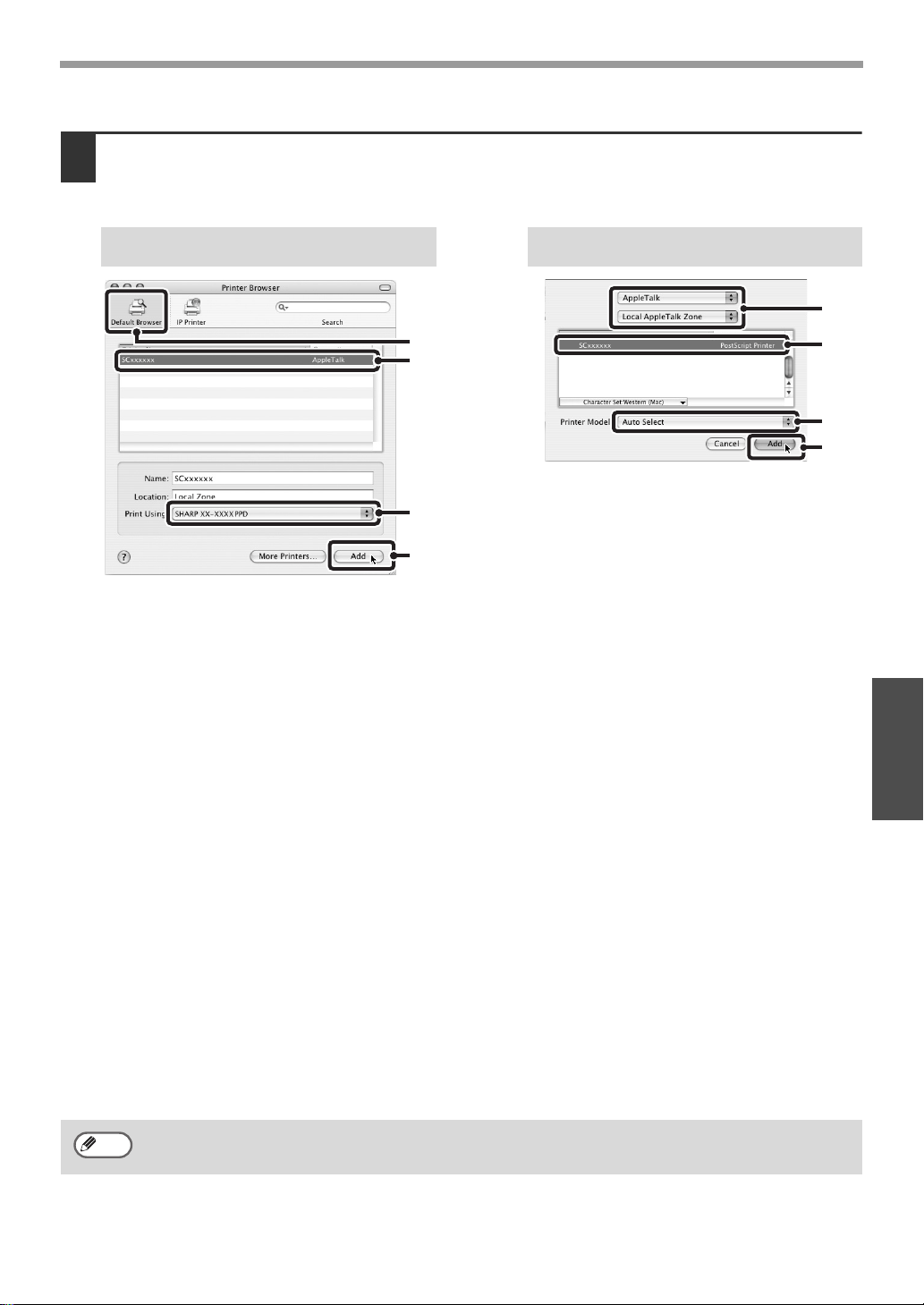
- 21 -
MAC OS X
Macintosh
14
Configure the printer driver.
The procedure for configuring the printer driver varies depending on the operating system version. The
procedure for versions 10.4 - 10.4.10 and the procedure for other versions are explained separately below.
(1) Click the "Default Browser" icon.
If multiple AppleTalk zones are
displayed, select the zone that
includes the printer from the menu.
(2) Click the machine's model name.
• The machine's model name usually
appears as "SCxxxxxx". ("xxxxxx" is
a sequence of characters that varies
depending on your model.)
• The PPD file of the machine is
automatically selected.
(3) Make sure that the PPD file of your
model is selected.
(4) Click the "Add" button.
The PPD file of the machine is
automatically selected and the
peripheral devices installed on the
machine are detected and
automatically configured.
(1) Select "AppleTalk".
If multiple AppleTalk zones are
displayed, select the zone that
includes the printer from the menu.
(2) Click the machine's model name.
The machine's model name usually
appears as "SCxxxxxx". ("xxxxxx" is a
sequence of characters that varies
depending on your model.)
(3) Select the PPD file of the machine.
• If you are using Mac OS X v10.1.5,
select "Other". The PPD file selection
window will appear. Click "Startup
disk name" - "Library" - "Printers" -
"PPDs" - "Contents" - "Resources" -
"en.lproj" - "PPD file for your model",
and then click the "Choose" button.
• If you are using Mac OS X v10.2.8,
select "Sharp" and click the PPD file
of your model.
• If you are using Mac OS X v10.3.9,
select "Auto Select".
(4) Click the "Add" button.
If you are using Mac OS X v10.3.9, the
PPD file of the machine is automatically
selected and the peripheral devices
installed on the machine are detected
and automatically configured.
If you are using Mac OS X v10.1.5, this completes the configuration of the printer driver. If you
are using a version other than Mac OS X v10.1.5, go to the next step.
v10.4 - 10.4.10
(1)
(2)
(4)
(3)
10.1.5, v10.2.8, v10.3.9
(1)
(2)
(4)
(3)
The PPD file is installed in the following folders on the startup disk.
"Library" - "Printers" - "PPDs" - "Contents" - "Resources" - "en.lproj"
Note
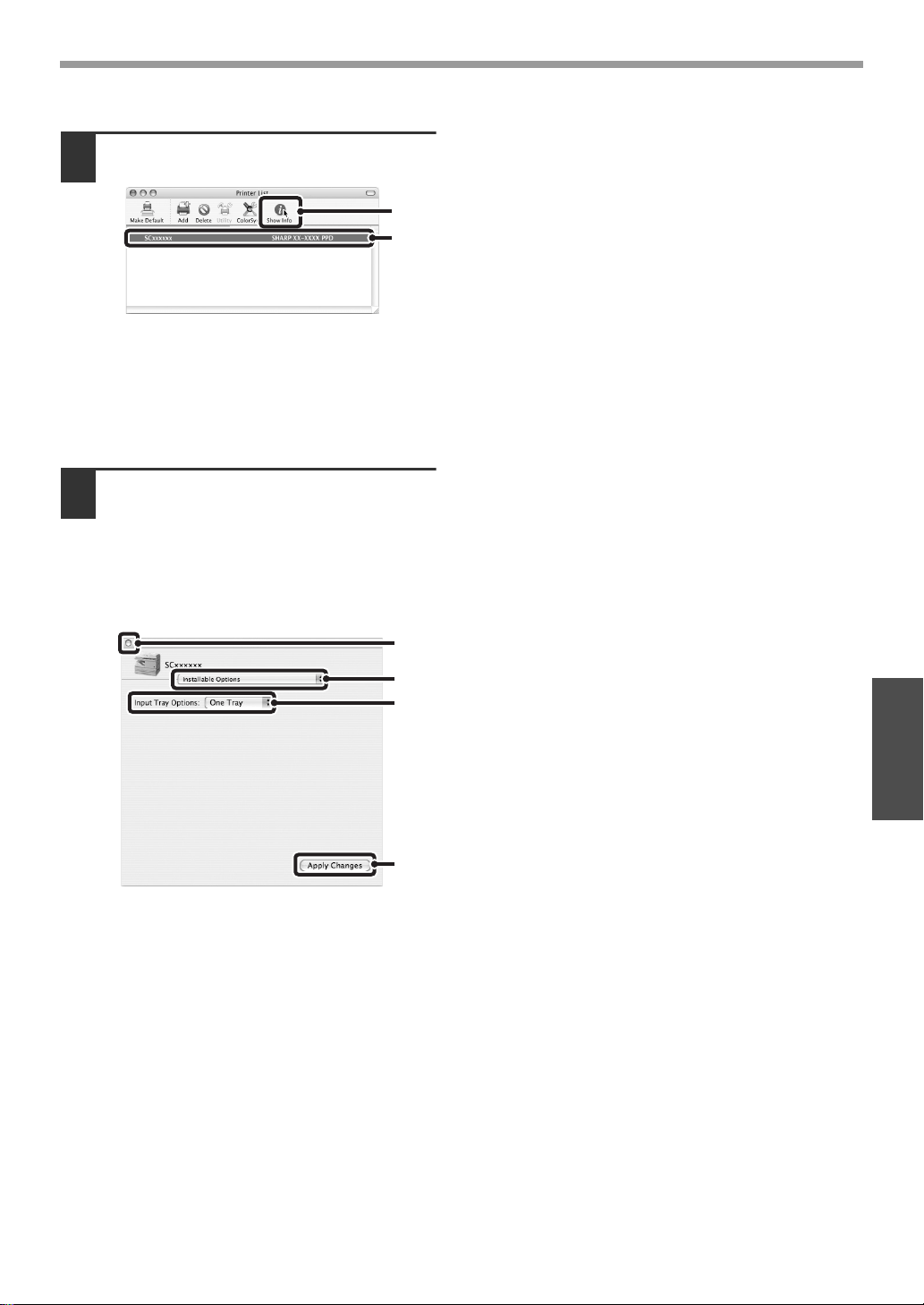
- 22 -
MAC OS X
Macintosh
15
Display printer information.
(1) Click the machine's name.
(2) Click "Show Info".
If you are using Mac OS X v10.2.8,
select "Show Info" from the "Printers"
menu.
16
Select the machine configuration.
If you selected "Auto Select" in (3) of step
14, the machine configuration is detected
and automatically configured. Check the
configured settings to make sure they are
correct.
(1) Select "Installable Options".
(2) Select the options that are installed
on the machine.
(3) Click the "Apply Changes" button.
(4) Click to close the window.
This completes the configuration of the
printer driver.
(1)
(2)
(1)
(3)
(2)
(4)

- 23 -
Macintosh
MAC OS 9.0 - 9.2.2
1
Insert the "Software CD-ROM" (Disc 2)
into your computer's CD-ROM drive.
2
Double-click the "CD-ROM" icon ( )
on the desktop.
3
Double-click the "MacOS" folder.
Before installing the software, be sure to
read "ReadMe First". "ReadMe First" is in
the "US-English" folder in the
"
Readme
"
folder.
4
Double-click the "Installer" icon ( ).
5
Click the "Install" button.
6
The License Agreement window will
appear. Make sure that you understand
the contents of the license agreement
and then click the "Yes" button.
7
Read the message in the window that
appears and click the "Continue"
button.
Installation of the PPD file begins.
After the installation, a message
prompting you to restart your computer
will appear. Click the "OK" button and
restart your computer.
This completes the installation of the
software. Next, configure the printer driver
settings.
8
Select "Chooser" from the Apple Menu.
9
Create a printer.
(1) Click the "LaserWriter 8" icon.
If multiple AppleTalk zones are
displayed, select the zone that
includes the printer.
(2) Click the machine's model name.
The machine's model name usually
appears as "SCxxxxxx". ("xxxxxx" is a
sequence of characters that varies
depending on your model.)
(3) Click the "Create" button.
If you are using Mac OS 9.0 to 9.2.2, make sure that "LaserWriter 8" has been installed and that the
"LaserWriter 8" checkbox is selected in "Extensions Manager" in "Control Panels". If not, install
it from the system CD-ROM supplied with your Macintosh computer.
Note
(2)
(3)
(1)
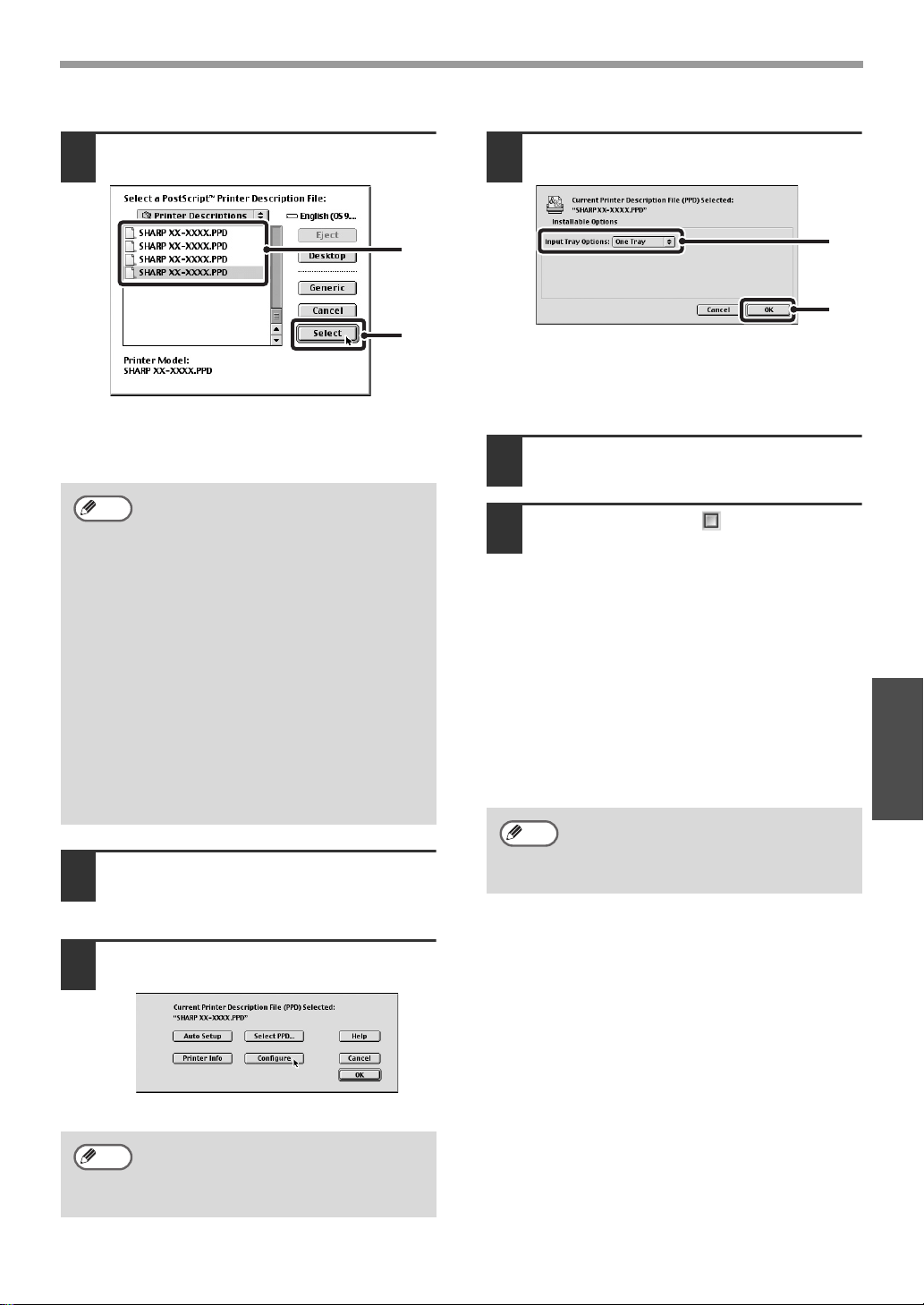
- 24 -
MAC OS 9.0 - 9.2.2
Macintosh
10
Select the PPD file.
(1) Click the PPD file for your model.
(2) Click the "Select" button.
11
Make sure that the machine is selected
in the "Select a PostScript Printer" list
and then click the "Setup" button.
12
Click the "Configure" button.
13
Select the machine configuration.
(1) Select the options that are installed
on the machine.
(2) Click the "OK" button.
14
Click the "OK" button in the window of
step 12 to close the window.
15
Click the close box ( ) to close the
"Chooser".
This completes the configuration of the
printer driver.
Installing the screen fonts
The screen fonts for Mac OS 9.0 - 9.2.2 are
contained in the "Font" folder of the "PRINTER
UTILITIES" CD-ROM that accompanies the
PS3 expansion kit. Copy the fonts that you wish
to install to the "System Folder" of the startup
disk.
• If the above dialog box does not
appear and you return to the
"Chooser" dialog box, follow these
steps to select the PPD file
manually.
(1) Make sure that the machine is
selected in the "Select a
PostScript Printer" list, and then
click the "Setup" button followed
by the "Select PPD" button.
(2) Select the PPD file for your
model and click the "Open"
button.
(3) Click the "OK" button.
• The PPD file is installed in the
"Printer Descriptions" folder in the
"Extensions" folder.
To automatically configure the settings
based on the installed machine
options that are detected, click the
"Auto Setup" button.
(1)
(2)
Note
Note
If you experience problems that may
be due to the installed screen fonts,
immediately delete the installed fonts
from the system.
(1)
(2)
Note

AR-NB2 A

- 2 -
INTRODUCTION
The optional network expansion kit (AR-NB2 A) enables the machine to be used as a network scanner.
● This manual only explains features that can be used when the optional network expansion kit is installed. For
information on loading paper, replacing toner cartridges, clearing paper misfeeds, handling peripheral devices,
and other copier-related information, please refer to your operation manual for the machine.
For information on the printer function that can be used when the network expansion kit is installed, see the online
manual for the network printer that accompanies the network expansion kit.
● The explanations in this manual assume that the person who will install the product and the users of the product
have a working knowledge of Microsoft Windows.
● This manual refers to the digital multifunctional system AR-208S/208D as "the machine".
● For information on the operating system, please refer to your operating system manual or the online Help function.
● The explanations of screens and procedures in this manual are for Windows XP. The screens may vary
depending on your Windows version and settings.
● This manual refers to the Reversing Single Pass Feeder as the "RSPF".
● Where "XX-XXXX" appears in this manual, please substitute the name of your model.
Warranty
While every effort has been made to make this operation manual as accurate and helpful as possible, SHARP
Corporation makes no warranty of any kind with regard to its content. All information included herein is subject to
change without notice. SHARP is not responsible for any loss or damages, direct or indirect, arising from or related
to the use of this operation manual.
Trademark Acknowledgments
• Sharpdesk is a trademark of Sharp Corporation.
•Microsoft
®
, Windows
®
, Windows
®
98, Windows
®
Me, Windows
®
2000, Windows
®
XP, Windows Server
®
2003,
Windows Vista
®
and Internet Explorer
®
are registered trademarks or trademarks of Microsoft Corporation in the
U.S.A. and other countries.
• Netscape Navigator is a trademark of Netscape Communications Corporation.
• Adobe, the Adobe logo, Acrobat, the Adobe PDF logo, and Reader are registered trademarks or trademarks of
Adobe Systems Incorporated in the United States and other countries.
• All other trademarks and copyrights are the property of their respective owners.
The display screens, messages, and key names shown in the manual may differ from those on the actual machine
due to product improvements and modifications.

- 3 -
CONTENTS
INTRODUCTION ............................................... 2
1
BEFORE USING THE NETWORK SCANNER FUNCTION
ABOUT THE NETWORK SCANNER FUNCTION
.... 4
SETTINGS AND PROGRAMMING REQUIRED
FOR THE NETWORK SCANNER FEATURE .. 5
● HOW TO ACCESS THE WEB PAGE AND
VIEW HELP .....................................................5
ABOUT THE WEB PAGE (FOR USERS)......... 6
● STORING SCANNING SETTINGS..................7
● STORING DESTINATIONS .............................8
ABOUT THE WEB PAGE (FOR THE
ADMINISTRATOR) ......................................... 13
● BASIC SETTINGS FOR NETWORK
SCANNING ....................................................14
● VARIOUS SERVER SETTINGS ....................15
● PROTECTING INFORMATION
PROGRAMMED IN THE WEB PAGE
([Passwords]) .................................................16
2
USING THE NETWORK SCANNER FUNCTION
BASIC TRANSMISSION PROCEDURE......... 17
● TRANSMISSION METHODS FOR SCAN TO
E-MAIL ...........................................................18
● IMAGE ORIENTATION AND STANDARD
ORIGINAL LOADING ORIENTATION ...........20
● HOW TO ENTER CHARACTERS .................20
3
TROUBLESHOOTING
TROUBLESHOOTING .................................... 21
● DISPLAY MESSAGES...................................22
● IF YOUR E-MAIL IS RETURNED ..................22
● IMPORTANT POINTS WHEN USING SCAN TO
E-MAIL ...........................................................23
CHECKING THE IP ADDRESS ...................... 24
● HOW TO RESET THE NETWORK
EXPANSION KIT ...........................................24
4
SHARPDESK CD-ROM (for Windows)
SOFTWARE PROGRAMS...............................25
● SHARPDESK (Desktop Document
Management Software)................................. 25
● NETWORK SCANNER TOOL ...................... 25
● SHARP TWAIN AR/DM................................. 25
USER'S GUIDES FOR SOFTWARE
PROGRAMS ....................................................26
INSTALLING THE SOFTWARE PROGRAM ..27
● INSTALLING SHARPDESK AND NETWORK
SCANNER TOOL.......................................... 27
● INSTALLING SHARP TWAIN AR/DM........... 28
UNINSTALLING THE SOFTWARE PROGRAM
..28
● UNINSTALLING THE SOFTWARE PROGRAM
FROM THE CONTROL PANEL.................... 28
5
SPECIFICATIONS
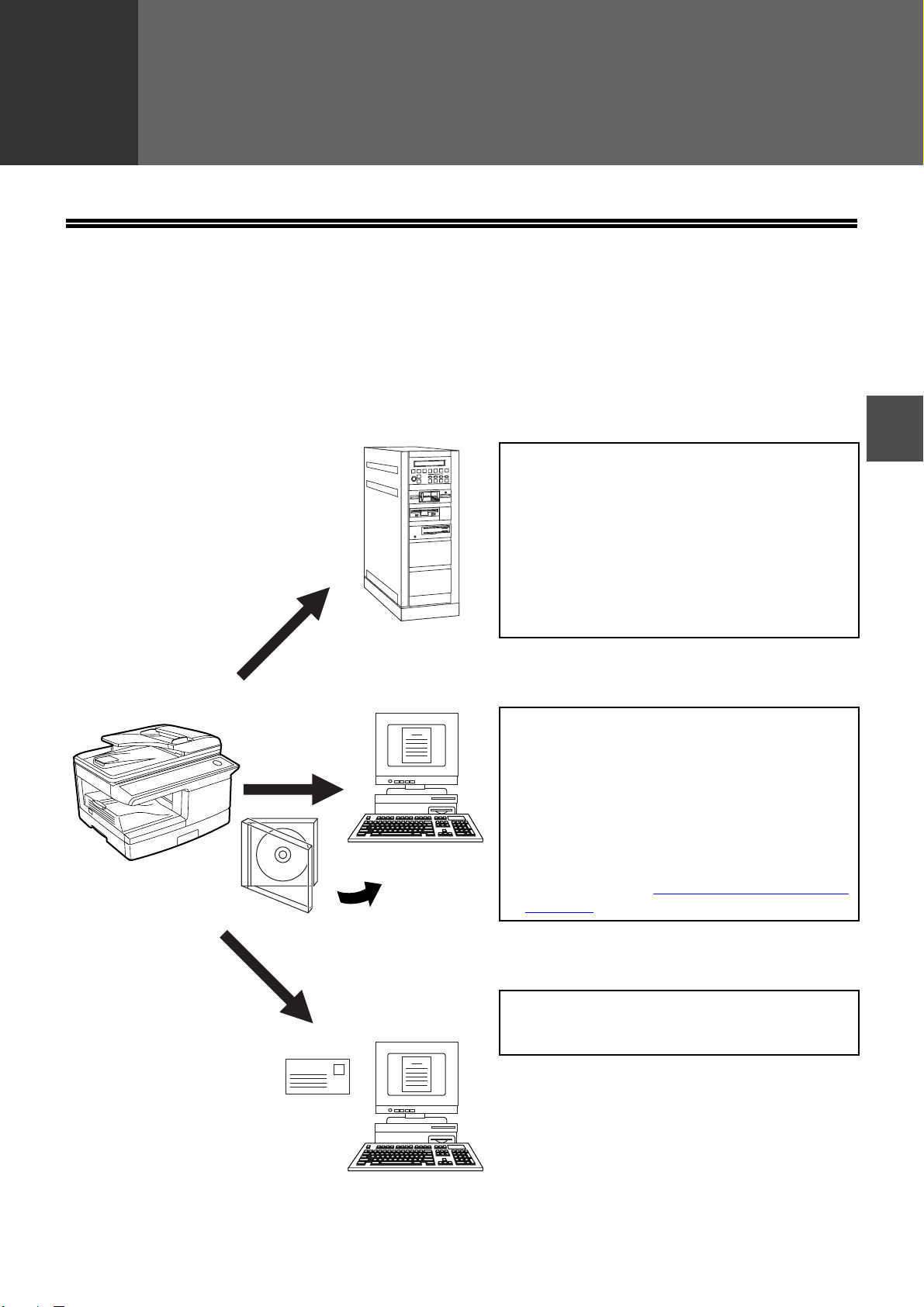
- 4 -
1
1
BEFORE USING THE NETWORK
SCANNER FUNCTION
ABOUT THE NETWORK SCANNER
FUNCTION
When the network expansion kit is installed in the machine, a document or photo can be scanned into an image file
and sent over a network or the Internet to a file server, e-mail destination, or your own computer.
You can select from the following transmission methods as the destination where you wish to send the scanned
image, depending on where you wish to send the scanned image data.
1. The scanned image can be sent to a memory
storage device on a network (a designated
directory on an FTP server). (This is called
"Scan to FTP" in this manual.)
When sending a scanned image to an FTP
server, an e-mail message can also be sent to a
preset e-mail address to inform the recipient of
the location of the scanned image data. (This is
called "Scan to FTP (Hyperlink)" in this
manual.)
2. A scanned image can be sent to a computer
connected to the same network as the
machine. (This is called "Scan to Desktop" in
this manual.)
* Before Scan to Desktop can be performed, the
software in the CD-ROM that accompanies the
network expansion kit (AR-NB2 A) must be
installed. For the procedure for installing the
software, see the "SHARPDESK CD-ROM (for
Windows)" (p.25).
3. The scanned image can be sent to an e-mail
recipient. (This is called "Scan to E-mail" in
this manual.)
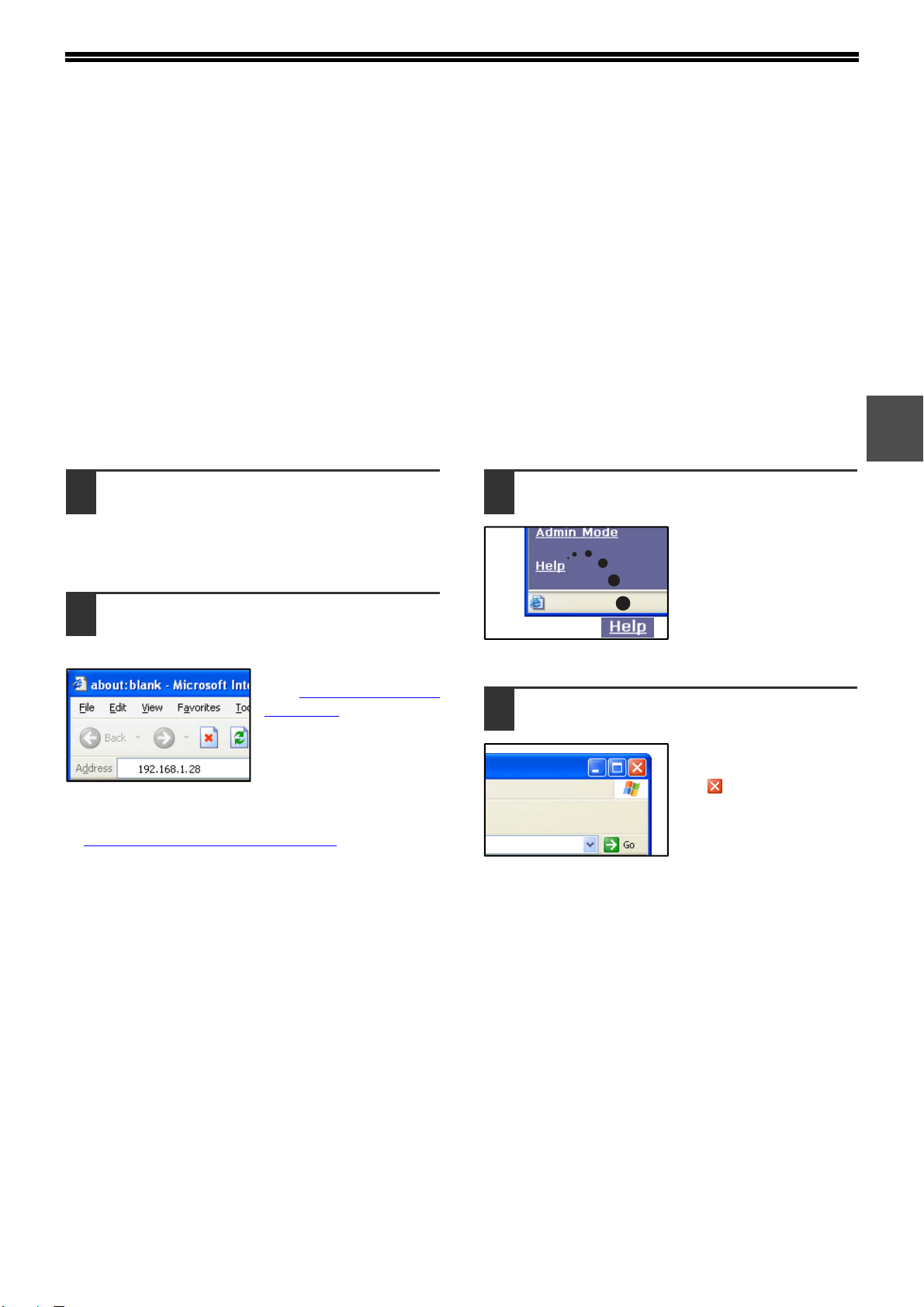
- 5 -
1
SETTINGS AND PROGRAMMING
REQUIRED FOR THE NETWORK
SCANNER FEATURE
To use the Network Scanner feature, settings for the SMTP server, DNS server, and destination addresses must be
configured.
To configure the settings, use a computer that is connected to the same network as the machine to access the
machine's Web server. The Web page can be viewed with your Web browser (Internet Explorer 5.5 or later
(Windows), or Netscape Navigator 6.0 or later).
HOW TO ACCESS THE WEB PAGE AND VIEW HELP
Use the following procedure to access the Web pages. [Help] can be clicked at the bottom of the menu frame to view
information on the various function settings that can be operated remotely over the network from the machine's Web
pages. For the settings of each function, see the explanations in Help.
1
Open the Web browser on your
computer.
Supported browsers:
Internet Explorer 5.5 or later (Windows)
Netscape Navigator 6.0 or later
2
In the "Address" field of your Web
browser, enter the IP address of the
machine.
To check the IP address,
see "CHECKING THE IP
ADDRESS" (p.24).
When the connection is complete, the Web page will
appear in your Web browser.
☞"ABOUT THE WEB PAGE (FOR USERS)" (p.6)
3
Click [Help] under the menu frame.
For an explanation of a
function or setting in the
Web page, click the
corresponding item in the
Help screen.
4
Close the Web page.
When you have finished
using the Web page, click
the (close) button in
the top right corner of the
page.
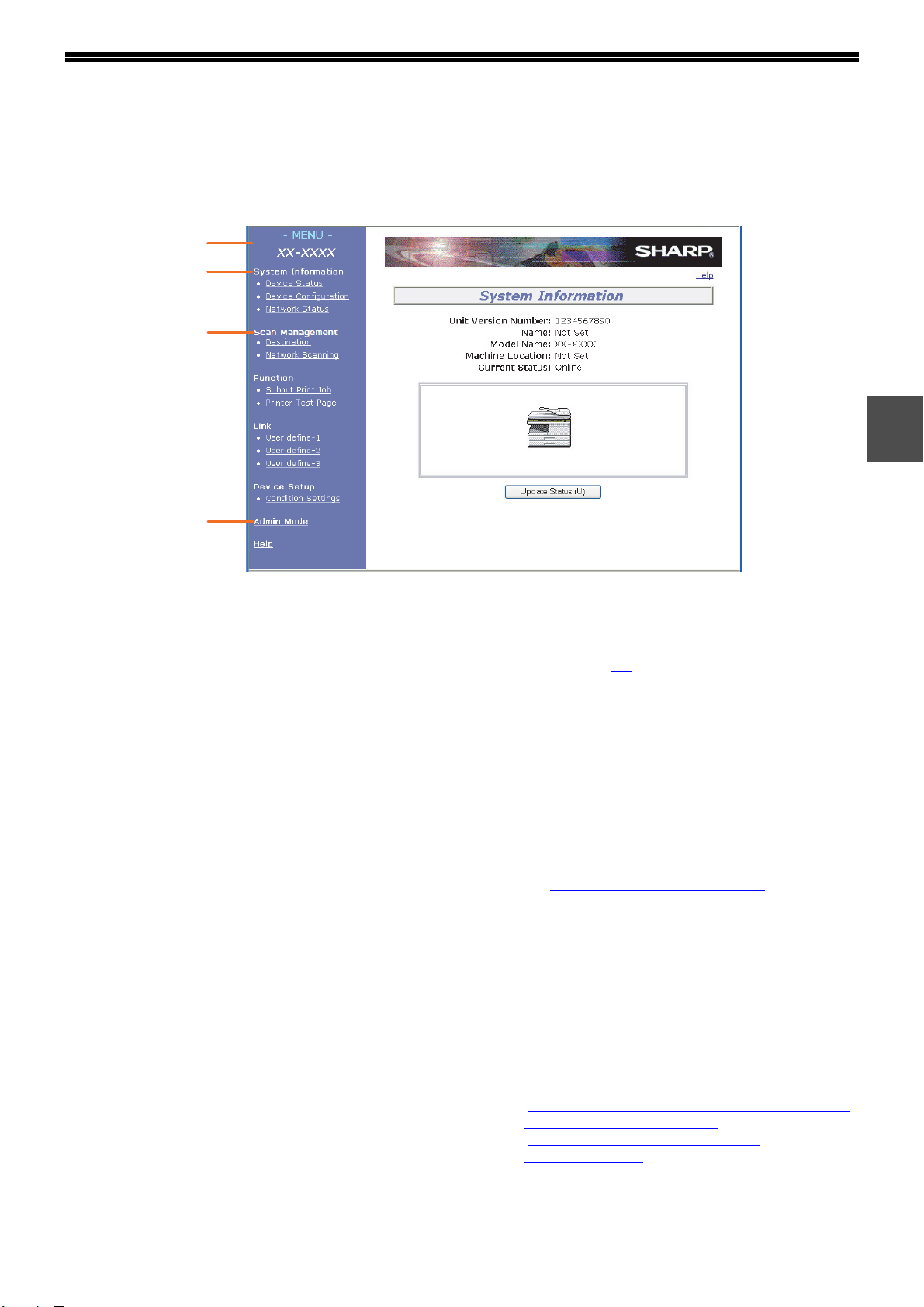
- 6 -
1
ABOUT THE WEB PAGE (FOR USERS)
When you successfully connect to the Web server in the machine, the following page will appear in your browser.
A menu frame appears on the left side of the page. When you click an item in the menu, a screen appears in the
right frame that allows you to establish settings for that item.
For detailed explanations of the procedures for configuring settings, click [Help] in the menu frame.
(1) Menu frame
The various settings appear in this frame. Click a
menu item to configure the corresponding setting.
(2) System Information
This shows the model name and current status of
the machine.
• Device Status
This shows information on the machine's paper
trays and output trays, toner and other supplies,
and the total sheet usage count.
Out of paper and other warnings appear in red.
• Device Configuration
Shows what options are installed.
• Network Status
Shows general information as well as the status
of TCP/IP, NetWare, AppleTalk, and NetBEUI.
(3) Scan Management
This is the base screen for storing, editing, and
deleting destination information.
• Destination (p.8
)
Store destinations for Scan to FTP, Scan to FTP
(Hyperlink), Scan to Desktop, and Scan to
E-mail. You can also edit or delete previously
stored destination information.
• Network Scanning
This section explains how to edit the scan mode
and custom indexes.
- Scan Mode
Scanning settings appropriate for the use can
be stored.
☞"STORING SCANNING SETTINGS" (p.7)
- Custom Index
This enables to change custom index names.
Click the [Submit] button to store the entered
information as index names.
The custom index consists of six indexes. A
6-character index name can be stored for each
index, allowing destinations to be grouped.
(4) Admin Mode
Click here to open the adminstrator Web page and
enter the administrator user name and password.
☞"PROTECTING INFORMATION PROGRAMMED IN
THE WEB PAGE ([Passwords])" (p.16)
☞"ABOUT THE WEB PAGE (FOR THE
ADMINISTRATOR)" (p.13)
(2)
(1)
(3)
(4)
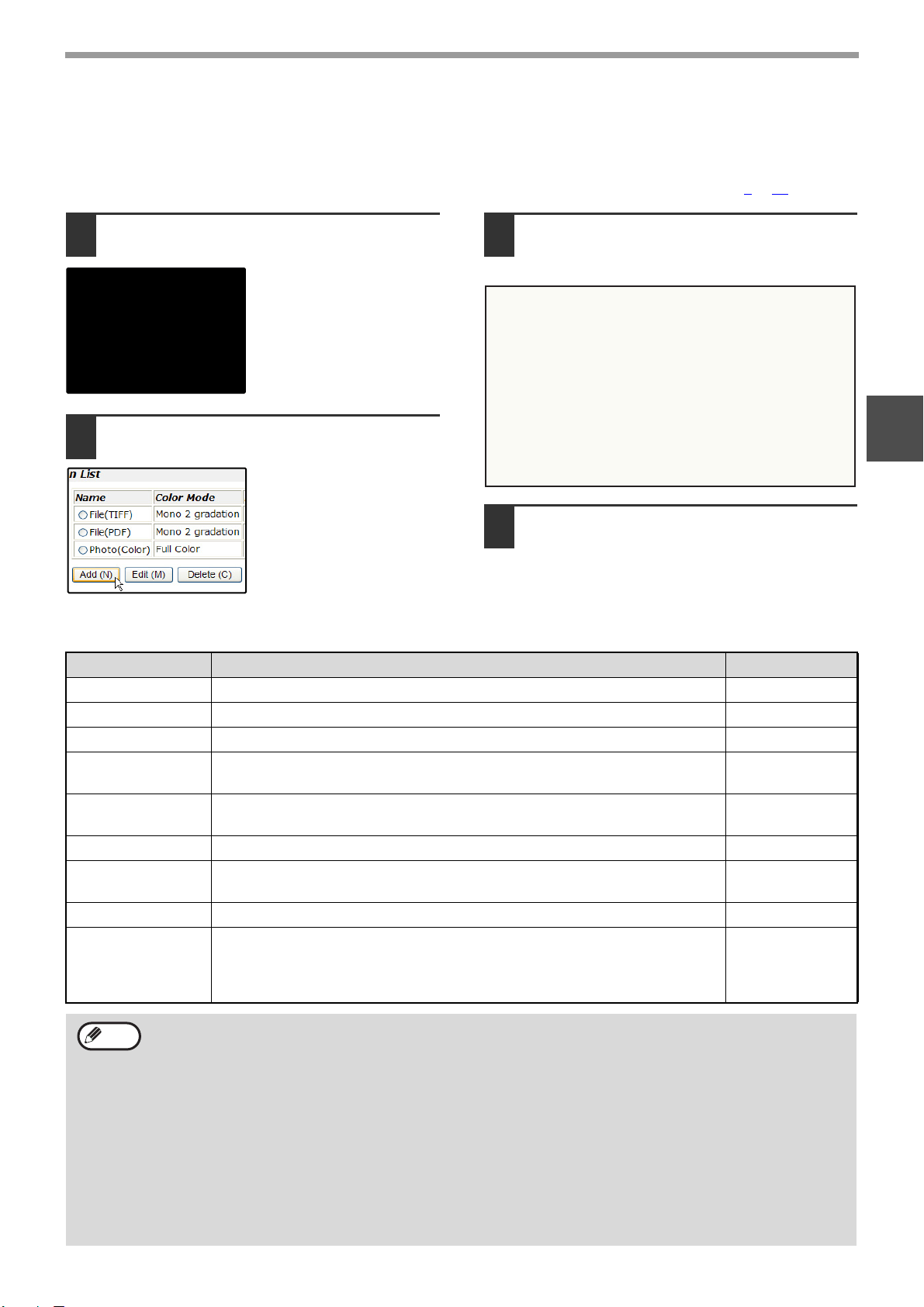
- 7 -
BEFORE USING THE NETWORK SCANNER FUNCTION
1
STORING SCANNING SETTINGS
Sets of scan settings (color mode, resolution, file type, etc.) can be stored for use in various scanning applications. Each set
of settings is called a "Scan Mode". When storing a destination, you can select one of the stored scanned modes. The
settings of the selected scan mode will be used when you scan an image and send it to that destination (p.8
to 11).
1
Click "Network Scanning" in the menu
frame of the Web page.
2
Click "Add" below the scan list.
If you need to change the
settings in a previously
stored scan mode, select
the scan mode and click
"Edit". To delete a scan
mode, select the scan
mode and click "Delete".
3
Select the desired scanning settings.
Refer to the following table for information on
each setting.
4
When you have finished selecting the
settings, click "Submit".
The selected settings are stored.
Scan Mode settings
Item Description Default setting
Name Enter a name for the scan mode (up to 32 characters). —
Color Mode Select Full Color, Grayscale, or Mono 2 gradation for the color mode. Full Color
Resolution Select the resolution. 75 dpi
Void Area
Select "On" to not scan the 4 mm around the edges of the image and
instead attach a white border.
Off
Light Source
When "Mono 2 gradation" is selected for "Color Mode", select "Red",
"Green", or "Blue" for the light source.
Green
File Type Select "JPG", "PDF", or "TIFF" for the file type of the scanned image. TIFF
Compression Mode
Select "None", "MH (G3)", or "MMR (G4)" for the compression mode of
the scanned image.
None
Pages Per File Select the number of pages per image file. ALL
Default Scan Mode
If you wish to use this scan mode as the default scan mode when storing
destinations, select the "Default Scan Mode" checkbox.
The "Default Scan Mode" is also used for Scan to E-mail when the e-mail
address is directly entered or selected from an LDAP server.
Not selected
•
For normal text originals, a sufficiently legible image is produced when the color mode is set to "Mono 2
gradation" and the resolution is 200 dpi or 300 dpi.
The 600 dpi setting should only be used in cases where high-clarity image reproduction is required, such as a
photograph or an illustration. Note that a high resolution setting will result in a larger file size, and transmission
may not be successful if there is insufficient disk capacity in the server to which the image is sent (or if the
administrator of the server has restricted the file size). If transmission is not successful, you can try such
measures as reducing the number of scanned pages in the file or reducing the scan size setting for the original.
• To open the scanned image without using the software program in the CD-ROM that accompanies the network
expansion kit, the recipient must have a viewer program that can open the image format (file type) that was
selected as explained above.
• The factory default setting for the image format produces the smallest file (File Type: TIFF, Compression Mode:
MMR (G4)). If the recipient cannot open the image, try sending the image in a different format.
•
If the number of scanned originals is not divisible by the number set in "Pages Per File", the last file will have less pages.
•
The scan settings stored in a scan mode cannot be edited or deleted if the scan mode has been selected for a destination.
Note
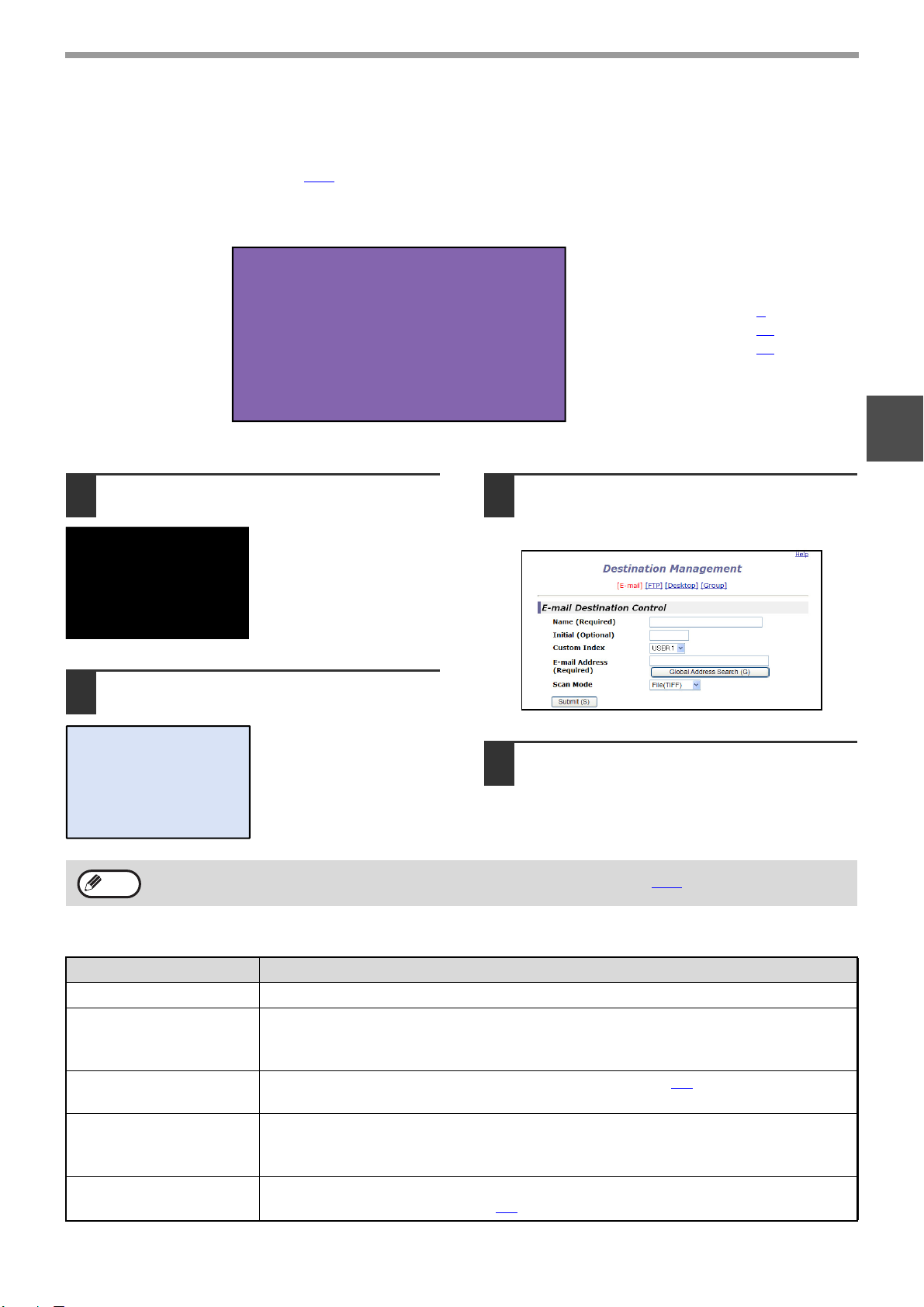
- 8 -
BEFORE USING THE NETWORK SCANNER FUNCTION
1
STORING DESTINATIONS
To store scanning destinations, click [Destination] in the Web page menu frame. This screen can also be used to
edit or delete stored destinations. (p.12
)
A total of 200 destinations* can be stored, including E-mail, FTP, Desktop, and Group destinations.
* Multiple e-mail addresses can be stored as a group (up to 100). Note that this may reduce the maximum number
of destinations (normally 200) that can be stored.
E-mail: See below
FTP: See page 9
.
Desktop: See page 10
.
Group (E-mail): See page 11
.
Storing destinations for Scan to E-mail
1
Click [Destination] in the menu frame
of the Web page.
2
Click [E-mail].
3
Enter the destination information.
For each setting, see the following table.
4
When you have finished entering the
information, click [Submit].
The entries will be stored.
E-mail destination information
To perform Scan to E-mail, the SMTP server settings must first be established. (p.15))
Note
Item Description
Name (Required) Enter the name of the destination (up to 36 characters).
Initial (Optional) Enter initial text for the destination (maximum of 10 characters). When the destination
list is displayed in the destination control screen, the initial text is used to group the
destinations.
Custom Index Names can be assigned to the custom indexes as desired (p.6
)), allowing convenient
grouping of destinations. Select a custom index for the destination to be stored.
E-mail Address
(Required)
Enter the e-mail address of the destination (up to 64 characters). If an LDAP server is
being used, you can click the [Global Address Search] button to search for an
address on the LDAP server.
Scan Mode Select the name of the scan mode that you wish to use for the destination. The scan
mode must be previously stored (p.7
).
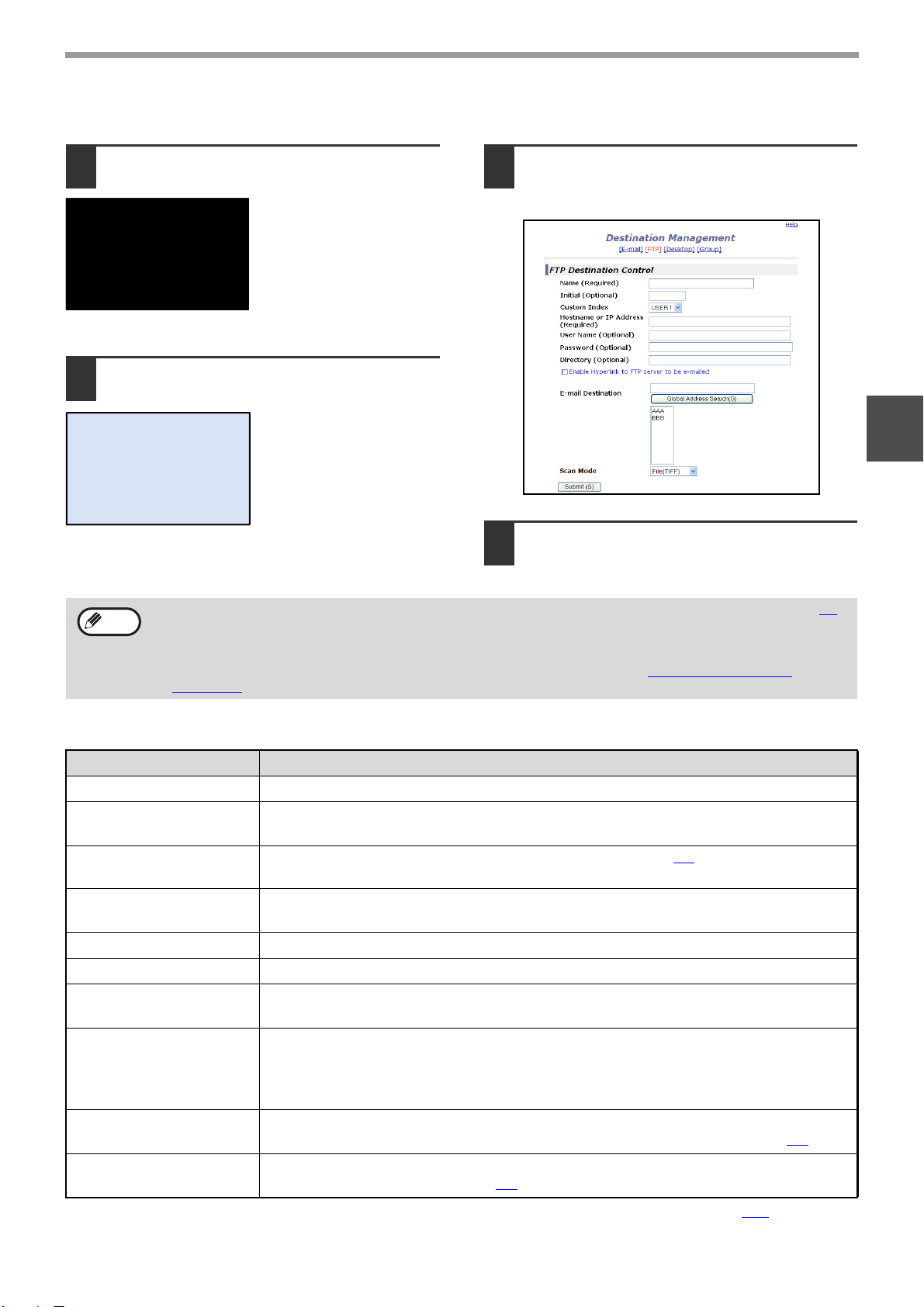
- 9 -
BEFORE USING THE NETWORK SCANNER FUNCTION
1
Storing destinations for Scan to FTP
1
Click [Destination] in the menu frame
of the Web page.
2
Click [FTP].
3
Enter the destination information.
For the settings, see the following table.
4
When you have completed all the
entries, click [Submit].
The entries will be stored.
FTP destination information
*1 If you entered a host name in "Hostname or IP Address", you will need to enter the DNS server settings. (p.15)
*2 To perform Scan to FTP (Hyperlink), you must also enter the settings for the e-mail server.
•
If you select the "Enable Hyperlink to FTP server to be e-mailed" checkbox and select a previously stored recipient (p.8)
from "E-mail Destination", an e-mail will be sent to the recipient informing them of the file format and location of the
scanned image data (Scan to FTP (Hyperlink)). A hyperlink to the file server to which the scanned image data was sent
appears in the e-mail, and the recipient can click the hyperlink to go directly to the location where the image data is stored.
• Use "Scan Mode" to select a set of previously stored scanning settings (see "STORING SCANNING
SETTINGS" (p.7)). The list shows the names of the stored scan modes.
Item Description
Name (Required) Enter the name of the destination (up to 36 characters).
Initial (Optional)
Enter initial text for the destination (maximum of 10 characters). When the destination list is
displayed in the destination control screen, the initial text is used to group the destinations.
Custom Index Names can be assigned to the custom indexes as desired (p.6), allowing convenient
grouping of destinations. Select a custom index for the destination to be stored.
Hostname or IP Address
(required)*
1
Enter the IP address or host name of the FTP server (maximum of 127 characters).
User Name (Optional) Enter the login user name for the FTP server (maximum of 32 characters).
Password (Optional) Enter the login password for the FTP server (maximum of 32 characters).
Directory (Optional) If you wish to specify a destination directory on the FTP server, enter the directory
(maximum of 200 characters).
Enable Hyperlink to FTP
server to be e-mailed
(Checkbox)*
2
When you send a scanned file to an FTP server, you can have a transmission
notification automatically sent to the file recipient by e-mail. To have transmission
notifications sent, select the checkbox. The FTP server name will appear in the
transmission notification as a hyperlink.
E-mail Destination
Select the recipient that you wish to notify of the file transmission to the FTP server. To select
a recipient here, the recipient's e-mail address must have been previously stored.
(p.8
)
Scan Mode Select the name of the scan mode that you wish to use for the destination. The scan
mode must be previously stored (p.7
)
.
Note
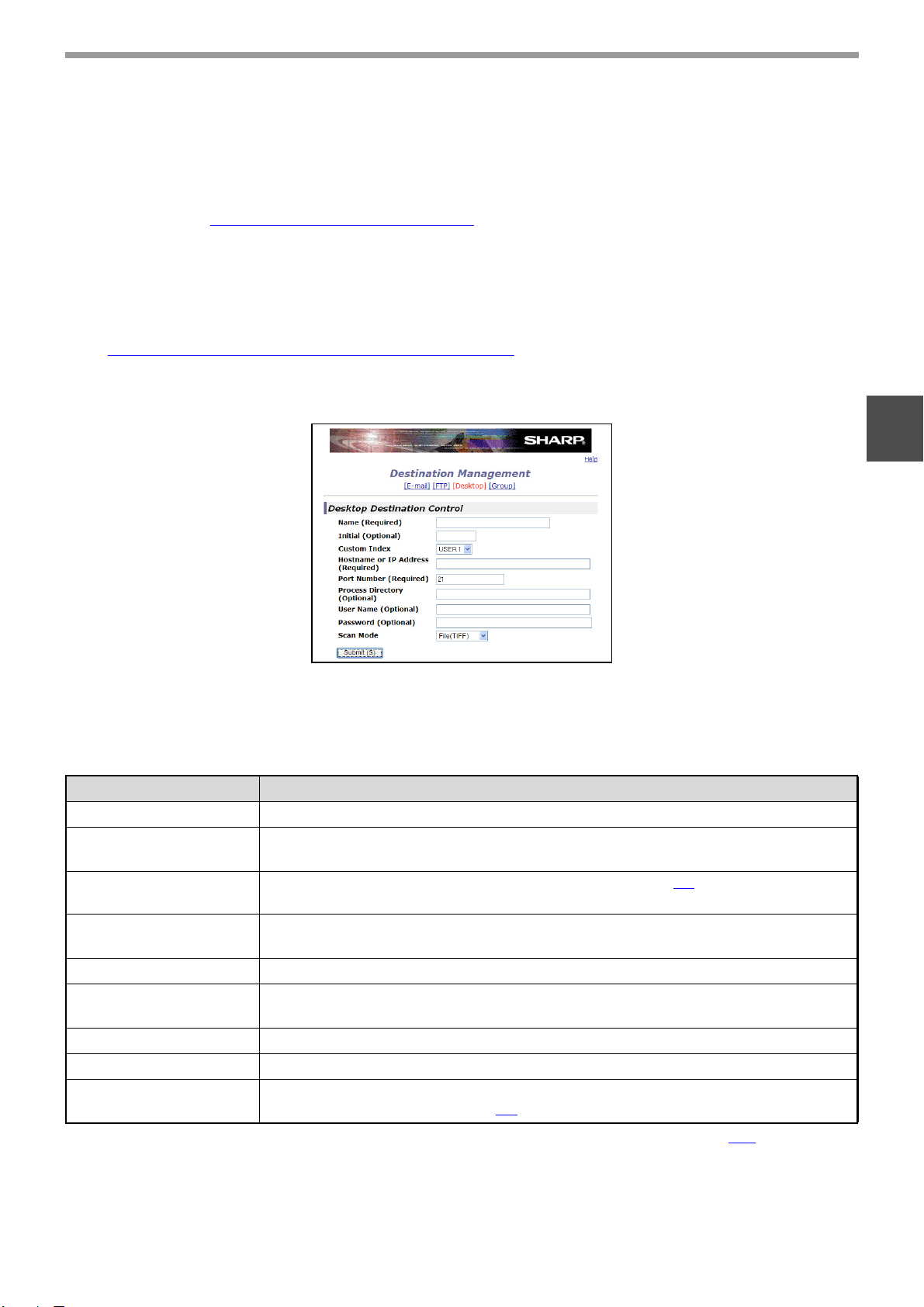
- 10 -
BEFORE USING THE NETWORK SCANNER FUNCTION
1
Storing destinations for Scan to Desktop
The destination for Scan to Desktop is stored by the Sharp Network Scanner Tool Setup Wizard when "Network Scanner
Tool" is installed in your computer. For this reason, there is no need to store the Scan to Desktop destination in the Web
page. (The Network Scanner Tool is on the "Sharpdesk" CD-ROM that accompanies the Network Expansion Kit.)
For information on Scan to Desktop system requirements, installing the Network Scanner Tool, and storing the
destination, see the "SHARPDESK CD-ROM (for Windows)
" (p.25).
Normally your computer is stored as the destination by the method indicated above.
The following page for storing Scan to Desktop destination information appears when [Destination] is selected in the
menu frame, followed by [Desktop]. This page is used mainly by the system administrator in the following circumstance.
• When another machine that also has the network expansion kit is added to your network and you wish to send an
image scanned on the new machine to a destination stored on the existing machine.
See "Editing and deleting programmed transmission destinations
" (p.12) to select the Scan to Desktop destination
information that you wish to use on the new machine and enter the displayed information in this screen in the new
machine. (When you have completed all entries, click [Submit].)
If there are several destinations that you wish to use on the new machine, repeat this procedure as needed.
If the information entered here differs from the information entered on the host computer, transmission/reception will
not be possible.
For the settings, see the following table.
Scan to Desktop destination information
* If you entered a host name in "Hostname or IP Address", you will need to enter the DNS server settings. (p.15)
Item Description
Name (Required) Enter the name of the destination (up to 36 characters).
Initial (Optional)
Enter initial text for the destination (maximum of 10 characters). When the destination list is
displayed in the destination control screen, the initial text is used to group the destinations.
Custom Index Names can be assigned to the custom indexes as desired (p.6), allowing convenient
grouping of destinations. Select a custom index for the destination to be stored.
Hostname or IP Address
(Required)*
Enter the IP address or host name of the FTP server (maximum of 127 characters).
Port Number (Required) Enter a port number from 0 to 65535 for the desktop network scanner tool.
Process Directory
(Optional)
Enter the destination directory name for the file (maximum of 200 characters). The file
will be processed in this directory after it is received.
User Name (Optional) Enter the login user name for the network scanner tool (maximum of 32 characters).
Password (Optional) Enter the login password for the network scanner tool (maximum of 32 characters).
Scan Mode Select the name of the scan mode that you wish to use for the destination. The scan
mode must be previously stored (p.7
)
.
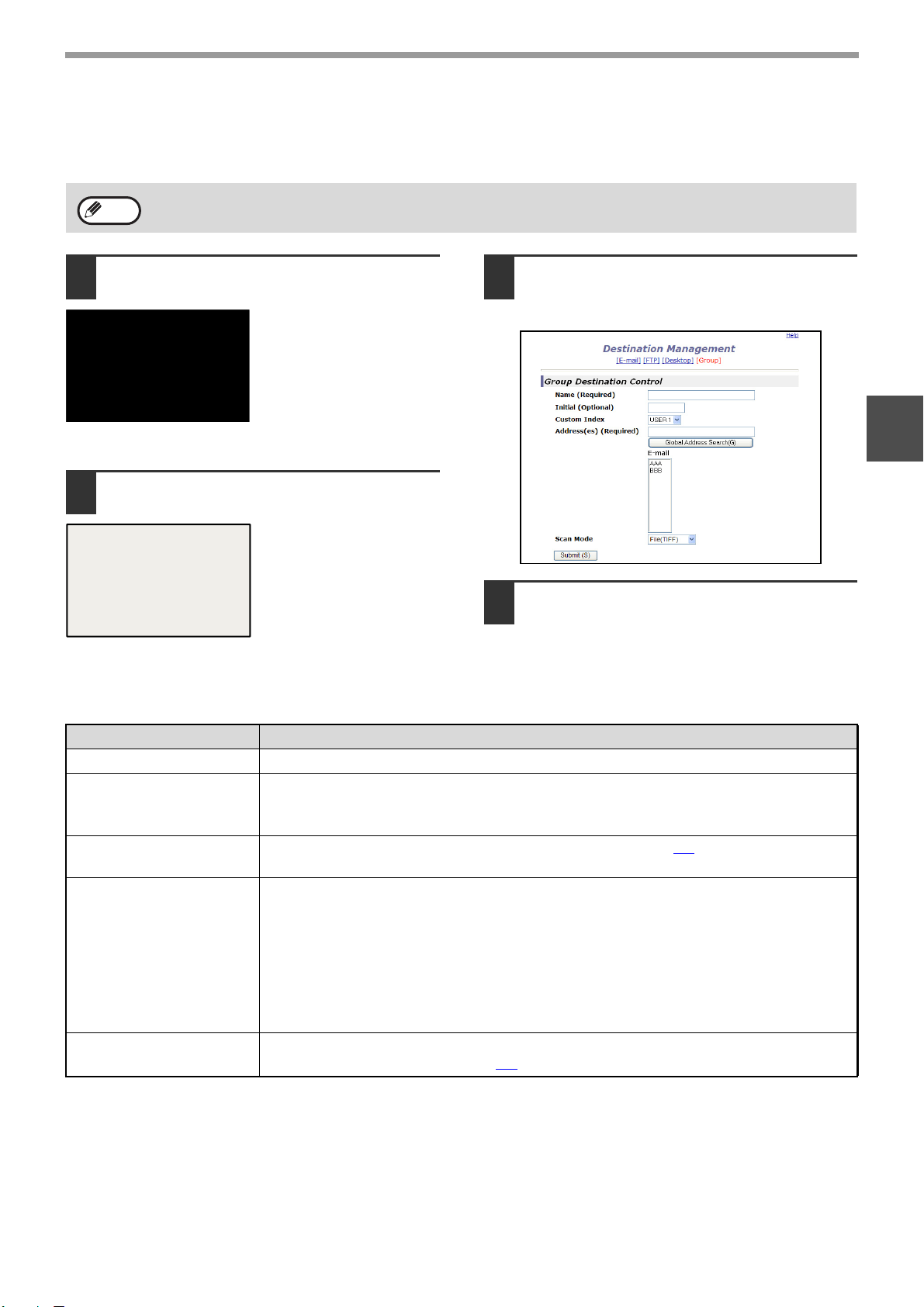
- 11 -
BEFORE USING THE NETWORK SCANNER FUNCTION
1
Storing Groups (Scan to E-mail)
You can send a scanned image to multiple e-mail destinations in a single Scan to E-mail operation. If you frequently
transmit to a fixed group of destinations, you can store the destinations as a group.
1
Click [Destination] in the menu frame
of the Web page.
2
Click [Group].
3
Enter the destination information.
For the settings, see the following table.
4
When you have completed all of the
entries, click "Submit".
The entries will be stored.
Storing a group of destinations
Up to 100 destinations can be stored in one group.
Note
Item Description
Name (Required) Enter the name of the destination (up to 36 characters).
Initial (Optional)
Enter initial text for the destinations (maximum of 10 characters). When the
destination list is displayed in the destination control screen, the initial text is used to
group the destinations.
Custom Index
Names can be assigned to the custom indexes as desired (p.6
), allowing convenient
grouping of destinations. Select a custom index for the destination to be stored.
Address(es) (Required)
Select the address of each destination from the "E-mail" list box. Programmed e-mail
destinations appear in each of the destination lists. To select multiple destinations,
click each address while holding down the [Ctrl] key on the keyboard. If you need to
cancel an address that has been selected, click the address again while holding down
the [Ctrl] key.
If an LDAP server is being used, you can click the [Global Address Search] button to
search for an address on the LDAP server. Multiple e-mail addresses can be entered.
Separate the e-mail addresses with a comma (,), semi-colon (;), space ( ), or colon (:).
Scan Mode
Select the name of the scan mode that you wish to use for the destination. The scan
mode must be previously stored (p.7
).
- 12 -
BEFORE USING THE NETWORK SCANNER FUNCTION
1
Editing and deleting programmed transmission destinations
To edit or delete programmed destinations, click [Destination] in the menu frame of the Web page.
1
Click [Destination] in the menu frame
of the Web page.
2
In the Destinations List, click the
checkbox of the destination that you
want to edit or delete.
3
To edit the selected destination, click [Edit]
at the bottom of the Destinations List.
The programming screen
of the destination
selected in step 2
appears. Edit the
information in the same
way as you initially stored
it.
When finished, be sure to click [Submit] to save
your changes.
4
To delete the selected destination,
click [Delete] at the bottom of the
Destinations List.
A message appears
asking you to confirm the
deletion. Click [Yes] to
delete.
Printing lists of programmed destinations
You can print lists showing the destinations that have been programmed.
The following lists can be printed.
•
Print individual list: Shows the information programmed in e-mail, FTP, desktop, and group destinations.
• Print group list: Shows only the information programmed in group (e-mail) destinations.
1
Click [Destination] in the menu frame
of the Web page.
2
To print the individual list, click [Print
Individual List] at the bottom of the
destinations list.
3
To print the group list, click [Print
Group List] at the bottom of the
destinations list.
If you attempt to delete a programmed destination in the following situations, a warning message will appear and
deletion will not be possible.
• The destination is included in a group.
If the destination is being used for a current transmission, cancel the transmission or wait until it is completed and
then delete the destination. If the destination is included in a group, delete the destination from the group and
then delete the destination.
Note
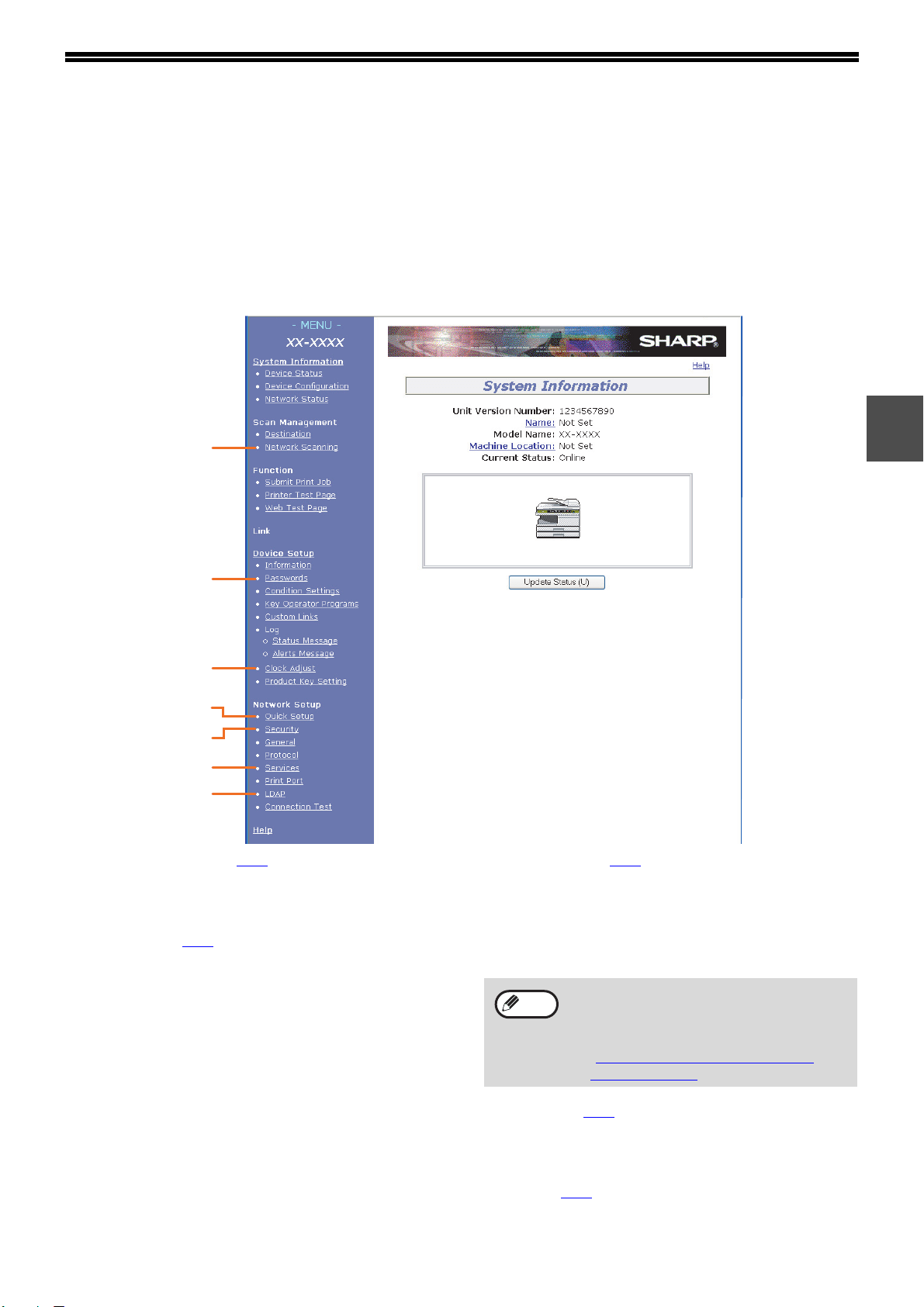
- 13 -
1
ABOUT THE WEB PAGE (FOR THE
ADMINISTRATOR)
In addition to the menu that appear in the user Web page, the Web page for the administrator also shows menus
that can only be established by the administrator.
A menu frame appears on the left side of the page. When you click an item in the menu, a screen appears in the
right frame that allows you to configure settings for that item.
Settings that can only be configured by the administrator are explained here.
(1) Network Scanning (p.14
)
This lets you select transmission methods for the
network scanner function and configure settings
for Scan to E-mail.
(2) Passwords (p.16
)
The administrator can establish passwords to
protect the Web site. Enter the password that you
wish to establish and click the [Submit] button.
A password can be set for the administrator and
users.
(3) Clock Adjust
This is used to set the time in the machine. Make
sure the time is set correctly when performing
Scan to E-mail.
This setting does not appear on models that have
the fax function. If your model has the fax function,
see the "Operation manual (for facsimile)" to set
the time at the operation panel of the machine.
(4) Quick Setup (p.15
)
This is used to configure basic settings for the
SMTP, DNS, and LDAP servers.
(5) Security
Port numbers can be changed or disabled for
security purposes.
(6) Services (p.15
)
This is used to configure advanced SMTP and
DNS server settings as needed for each
transmission method.
(7) LDAP (p.15
)
This is used to configure advanced settings for
global address searches.
(3)
(6)
(7)
(2)
(1)
(4)
(5)
If "HTTP" is disabled, it will not be possible
to open the Web page. To open the Web
page in this case, the network expansion kit
must be reset.
☞"HOW TO RESET THE NETWORK
EXPANSION KIT" (p.24)
Note
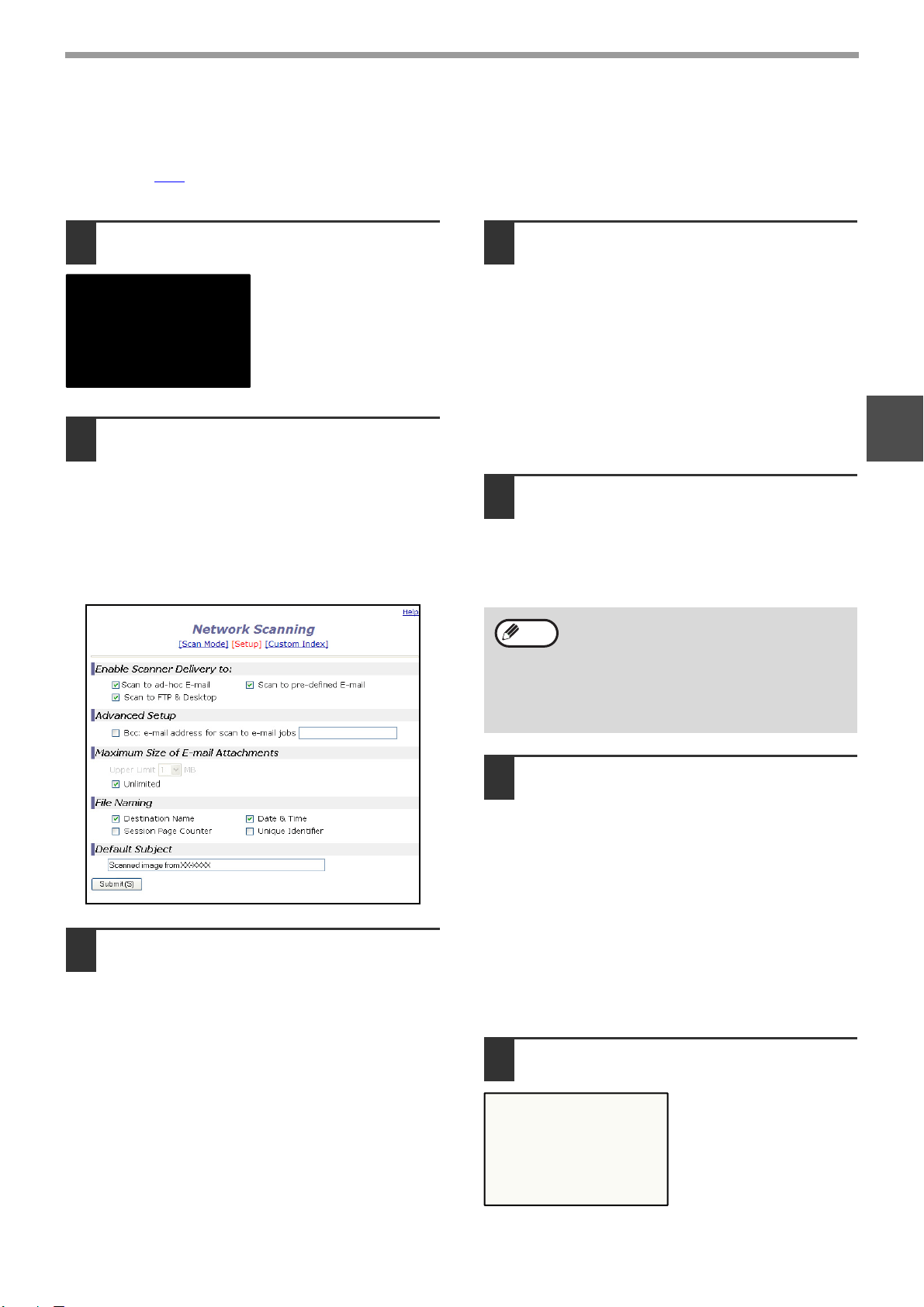
- 14 -
BEFORE USING THE NETWORK SCANNER FUNCTION
1
BASIC SETTINGS FOR NETWORK SCANNING
Click [Network Scanning] in the menu frame and configure the required settings. A password is required to access
this screen. (p.16
) These settings should only be configured by the network administrator. For explanations of each
of the items, click [Help] in the menu frame.
1
Click [Network Scanning] in the menu
frame.
The Network Scanning
setup page appears.
2
Select the transmission methods that
you wish to use.
Select the scanner delivery methods that you
want to use. In the "Enable Scanner Delivery to:"
field, click the checkbox next to each method that
you want to use so that a checkmark appears in
the checkbox.
All transmission methods are initially selected
(factory default settings).
3
Configure the Advanced Setup
settings.
Select advanced functions that can be used for
Scan to E-mail.
If you wish to BCC a copy of a Scan to E-mail
transmission to an e-mail address, select the
[Bcc] checkbox and enter the e-mail address.
4
Set a limit for the size of image files.
To prevent the transmission of excessively large
files by Scan to E-mail, you can set a size limit.
If the image file created from the scanned image
is larger than the set limit, the image file is
discarded. The limit can be set from 1 MB to 10
MB in increments of 1 MB.
The factory default setting is [Unlimited]. If you
wish to set a limit, remove the checkmark from
the [Unlimited] checkbox and enter the desired
limit.
5
Select the method for assigning a file
name to a scanned image.
Select the method for assigning a file name to a
scanned image. In "File Naming", click the items
that you wish to use in the file name. "Destination
Name" and "Date & Time" are initially selected.
6
Selecting an e-mail subject (only used
for Scan to E-mail).
The setting is used to enter the subject that
appears in the recipient's e-mail program when
you perform Scan to E-mail. (This setting is not
necessary if you will not be using Scan to E-mail.)
Enter a subject (maximum of 80 characters). If
nothing is entered, "Scanned image from <Device
Name>*" will appear.
* The name that appears in Device Name is the name
stored in "Name" in the screen that appears when
you click [System Information] in the menu frame. If a
name has not been stored, the product name will
appear.
7
Click [Submit].
After entering the
settings, be sure to click
[Submit] to store them.
If you are going to send images to the same
recipient more than once, we recommend
that you also select "Session Page Counter"
or "Unique Identifier" to prevent sending
multiple files with the same name, which
would result in each successive file
overwriting the previous file.
Note
- 15 -
BEFORE USING THE NETWORK SCANNER FUNCTION
1
VARIOUS SERVER SETTINGS
The procedures for using [Quick Setup] are explained here. [Quick Setup] is used to quickly configure only the
required settings for "SMTP", "DNS", and "LDAP" servers. These settings are normally configured first.
SMTP server: SMTP is used to transmit e-mail that is sent using Scan to E-mail or Scan to FTP (Hyperlink). To use
these transmission methods, your SMTP server settings must be configured.
DNS server: If you entered a host name in "Primary SMTP Server" or "Secondary SMTP Server" of "SMTP", you
must also configure your DNS server settings.
You will also need to configure your DNS server settings if host names will be entered in "Hostname
or IP Address" when storing destinations for Scan to FTP (Scan to FTP (Hyperlink)) or Scan to
Desktop.
LDAP server: If mail addresses are managed on your network by an LDAP server, the e-mail addresses stored in
the LDAP server can be used for Scan to E-mail.
To allow the machine to use the e-mail addresses in the LDAP server, the LDAP server settings must
be configured in the Web page.
Configuring SMTP, DNS and LDAP server settings.
1
Click [Quick Setup] in the menu frame.
2
Enter the required information in
"SMTP", "DNS" and "LDAP".
For explanations of each setting, click [Help] in
the upper right-hand corner of the window.
3
When you have completed all of the
entries, click [Submit].
The entries will be stored.
If you need to configure advanced settings for the SMTP, DNS, and LDAP servers, follow the procedures below.
• Configuring SMTP and DNS server settings
Click [Services] in the menu frame to display the services setup screen. Select the desired server and then
configure the required parameters for that server.
• Configuring LDAP server settings
Click [LDAP] in the menu frame to display the LDAP setup screen. Configure the required parameters.
Note
- 16 -
BEFORE USING THE NETWORK SCANNER FUNCTION
1
PROTECTING INFORMATION PROGRAMMED IN THE
WEB PAGE ([Passwords])
The settings and information programmed in the Web page can be protected by establishing passwords (click
[Passwords] in the menu frame). The administrator must change the factory default password to a new password.
The administrator should also take care to remember the new password. From now on, the new password must be
entered each time you wish to configure settings in the Web pages.
A password can be set for the administrator and users.
1
Click [Passwords] in the menu frame.
2
Enter the current password in "Admin
Password".
When establishing a password for the first time,
enter "Sharp" in "Admin Password".
3
Enter passwords in "User Password"
and "Admin Password".
• A maximum of 7 characters and/or numbers
can be entered for each password (passwords
are case sensitive).
• Be sure to enter the same password in
"Confirm Password" as you did in "New
Password".
4
When you have completed all entries,
click [Submit].
The entered password is stored.
After setting the password, turn the machine
power off and then back on.
Be sure to enter "S" in upper case
and "harp" in lower case (passwords
are case sensitive).
Caution
When prompted to enter the password, a user
should enter "user" in "User Name" and an
administrator should enter "admin" in "User Name".
The appropriate password should be entered in
"Password". For more information, click [Help] in the
upper right-hand corner of the window.
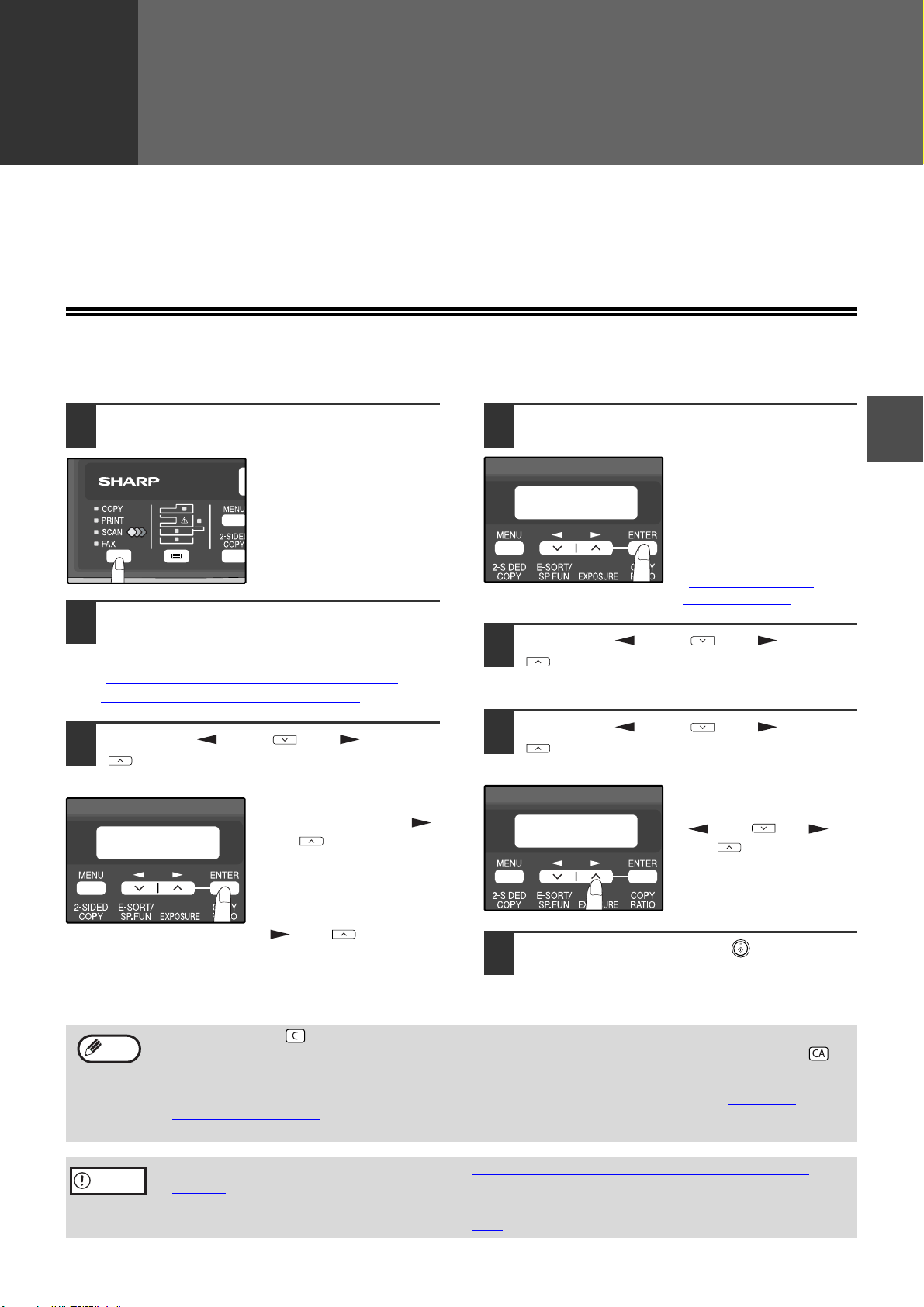
- 17 -
2
2
USING THE NETWORK
SCANNER FUNCTION
This section explains the procedure for scanning from the machine after the network scanner settings have been
configured in the Web page.
For the operation panel and the parts of the machine that are used for network scanning, see the operation manual
for the machine.
BASIC TRANSMISSION PROCEDURE
1
Press the [MODE SELECT] key to
select scanner mode.
The "SCAN" indicator
lights up to indicate that
scanner mode is
selected.
2
Place the original in the document
feeder tray or on the document glass.
For information on how to place the original, see
"IMAGE ORIENTATION AND STANDARD
ORIGINAL LOADING ORIENTATION" (p.20).
3
Press the [ ] key ( ) or [ ] key
( ) to select "ADDRESS SEARCH"
and then press the [ENTER] key.
The selections change as
follows each time the [ ]
key ( ) is pressed:
"INPUT ADDRESS" →
"GLOBAL ADDRESS" →
"ADDRESS SEARCH".
If you continue to press the
[ ] key ( ), the stored
destinations will appear in
alphabetical order based
on the initial stored for
each destination.
4
Enter search characters and press the
[ENTER] key.
You will search the
names that were entered
for the destinations.
Destinations matching
the search characters will
appear.
To enter characters, see
"HOW TO ENTER
CHARACTERS" (p.20).
5
Press the [ ] key ( ) or [ ] key
( ) to select the destination and then
press the [ENTER] key.
6
Press the [ ] key ( ) or [ ] key
( ) to select the original size and
then press the [ENTER] key.
The original size changes
as follows each time the
[ ] key ( ) or [ ]
key ( ) is pressed:
"8.5x11"→"8.5x5.5"
→"A4"→"B5"→"A5"
→"8.5x14"→"8.5x13".
7
Press the [START] key ( ) to begin
scanning.
SCAN USING:
ADDRESS SEARCH
ADDRESS SEARCH
S
ORIG. SIZE ENTER
8.5X11
•
The [CLEAR] key ( ) can be pressed during a scanning operation to return to the previous step of the operation.
To cancel a scanning operation and return to the initial state of scanner mode, press the [CLEAR ALL] key ( ).
•
The network scanner function cannot scan both sides of an original placed in the RSPF.
• The scan settings stored in a scan mode cannot be edited if the scan mode has been selected for a
destination. You can either store the desired settings in a new scan mode as explained in "STORING
SCANNING SETTINGS" (p.7) and then edit the destination settings, or you can cancel the selection of the
scan mode for the destination and then edit the scan mode settings.
• Before performing Scan to E-mail, read "IMPORTANT POINTS WHEN USING SCAN TO
E-MAIL" (p.23). Take care that the image file is not too large.
• A limit for the size of image files that can be sent using Scan to E-mail can be set in
"Maximum Size of E-mail Attachments" (p.14
) of the Web page.
Note
Caution
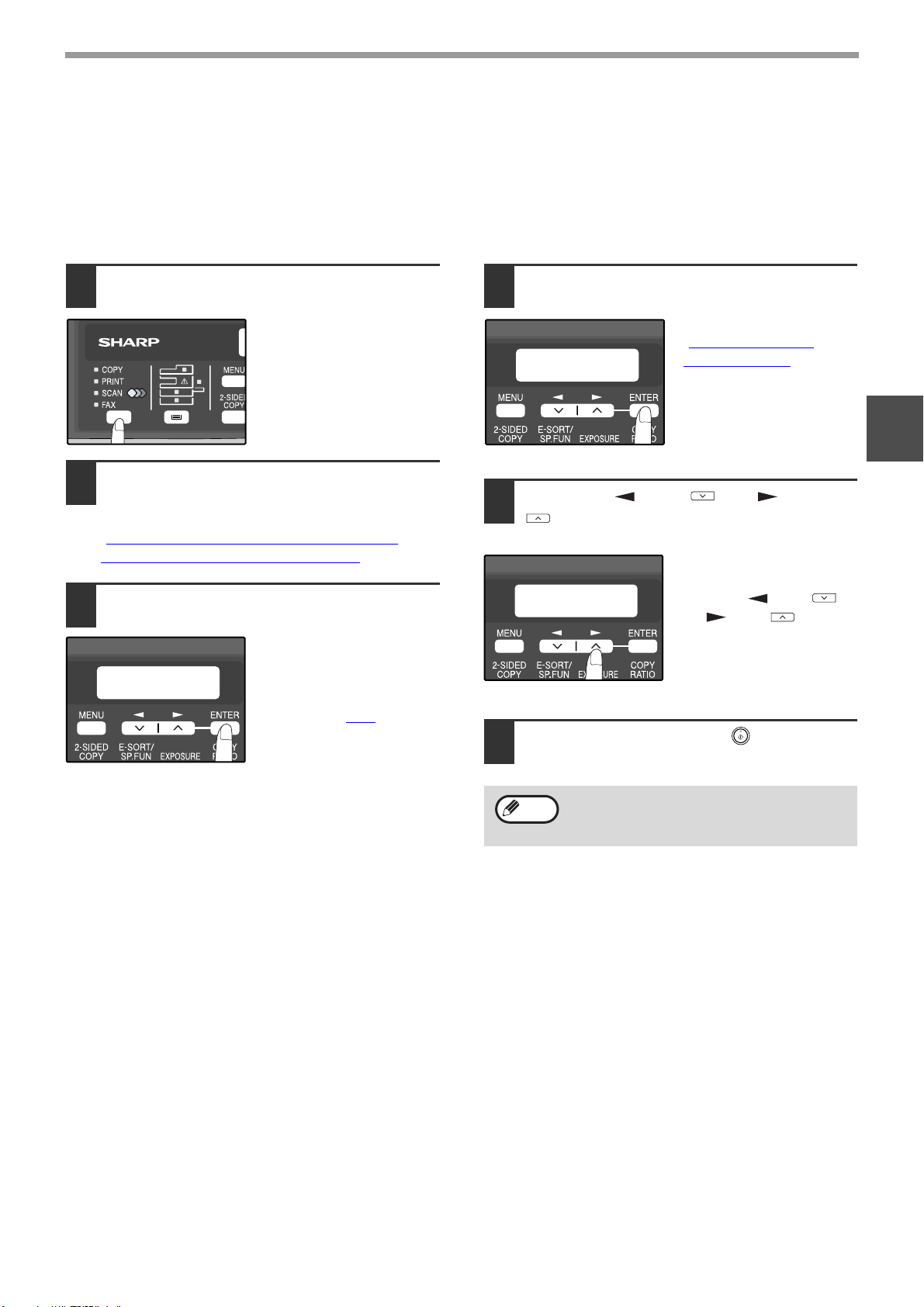
- 18 -
USING THE NETWORK SCANNER FUNCTION
2
TRANSMISSION METHODS FOR SCAN TO E-MAIL
The e-mail address for a Scan to E-mail transmission can be entered manually or selected from e-mail addresses
stored on an LDAP server.
Sending an image by entering an e-mail address manually
1
Press the [MODE SELECT] key to
select scanner mode.
The "SCAN" indicator
lights up to indicate that
scanner mode is
selected.
2
Place the original in the document
feeder tray or on the document glass.
For information on how to place the original, see
"IMAGE ORIENTATION AND STANDARD
ORIGINAL LOADING ORIENTATION" (p.20).
3
Select "INPUT ADDRESS" and press
the [ENTER] key.
If "INPUT ADDRESS"
does not appear, make
sure that "Scan to ad-hoc
E-mail" is enabled in the
Web page (p.14
).
4
Enter the destination e-mail address
and press the [ENTER] key.
To enter characters, see
"HOW TO ENTER
CHARACTERS" (p.20).
5
Press the [ ] key ( ) or [ ] key
( ) to select the original size and
then press the [ENTER] key.
The original size
changes as follows each
time the [ ] key ( )
or [ ] key ( ) is
pressed:
"8.5x11"→"8.5x5.5"
→"A4"→"B5"→"A5"
→"8.5x14"→"8.5x13".
6
Press the [START] key ( ) to begin
scanning.
SCAN USING:
INPUT ADDRESS
The original is scanned using the settings of
the scan mode that has the "Default Scan
Mode" checkbox selected.
INPUT ADDRESS
ORIG. SIZE ENTER
8.5X11
Note
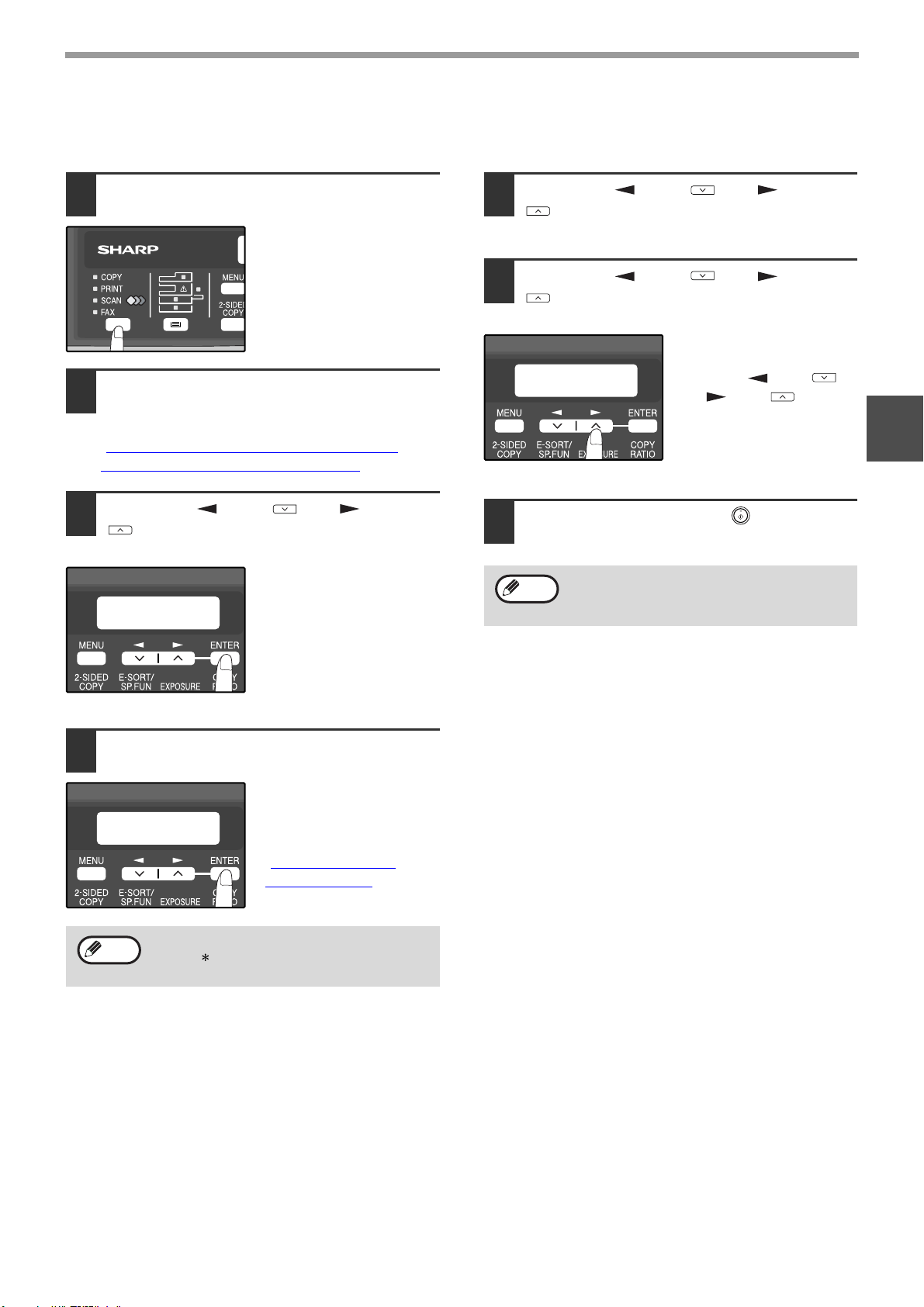
- 19 -
USING THE NETWORK SCANNER FUNCTION
2
Sending an image by selecting an e-mail address in an LDAP server
To use an LDAP server, the LDAP server settings must be configured in the Web page.
1
Press the [MODE SELECT] key to
select scanner mode.
The "SCAN" indicator
lights up to indicate that
scanner mode is
selected.
2
Place the original in the document
feeder tray or on the document glass.
For information on how to place the original, see
"IMAGE ORIENTATION AND STANDARD
ORIGINAL LOADING ORIENTATION" (p.20).
3
Press the [ ] key ( ) or [ ] key
( ) to select "GLOBAL ADDRESS"
and then press the [ENTER] key.
4
Enter search characters and press the
[ENTER] key.
Destinations matching
the search characters will
appear.
To enter characters, see
"HOW TO ENTER
CHARACTERS" (p.20).
5
Press the [ ] key ( ) or [ ] key
( ) to select the destination and then
press the [ENTER] key.
6
Press the [ ] key ( ) or [ ] key
( ) to select the original size, and
then press the [ENTER] key.
The original size
changes as follows each
time the [ ] key ( )
or [ ] key ( ) is
pressed:
"8.5x11"→"8.5x5.5"
→"A4"→"B5"→"A5"
→"8.5x14"→"8.5x13".
7
Press the [START] key ( ) to begin
scanning.
If you do not know the exact name, you can
enter " " for characters that you do not
know to conduct a wildcard search.
SCAN USING:
GLOBAL ADDRESS
GLOBAL ADD. SEARCH
S
Note
The original is scanned using the settings of
the scan mode that has the "Default Scan
Mode" checkbox selected.
ORIG. SIZE ENTER
8.5X11
Note
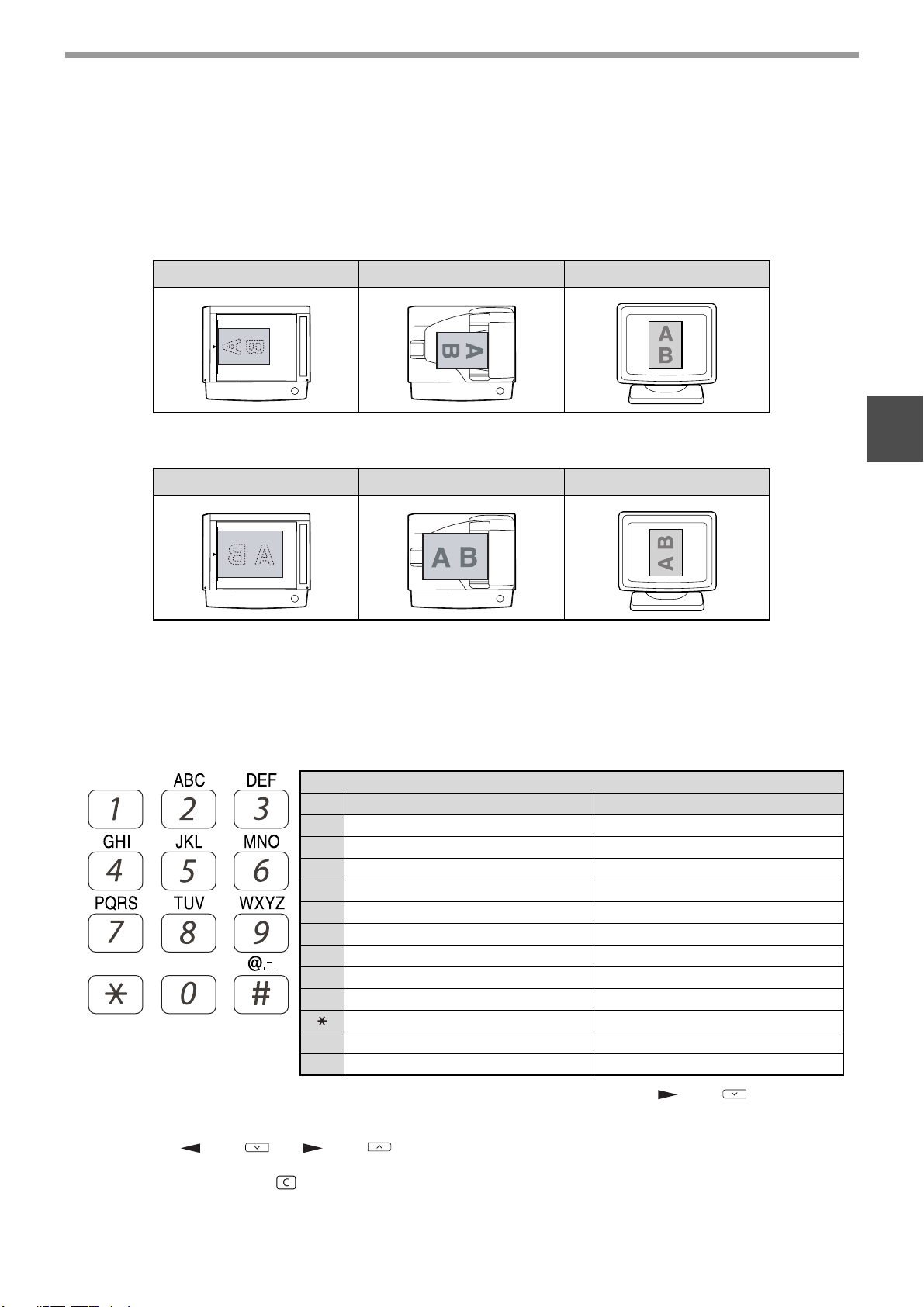
- 20 -
USING THE NETWORK SCANNER FUNCTION
2
IMAGE ORIENTATION AND STANDARD ORIGINAL
LOADING ORIENTATION
When using the document glass, the original should be placed face down. Center the original vertically on the
document glass with the top edge at the left edge of the glass.
When using the RSPF, the original should be placed face up in the middle of the document feeder tray, with the top of
the original to the right. (The network scanner function cannot scan both sides of an original placed in the RSPF.)
Long horizontal originals (from 8-1/2" to 14") can only be placed as shown below.
For this reason, the scanned image will be rotated 90° when viewed on a computer.
HOW TO ENTER CHARACTERS
You can enter letters with the numeric keys. Letters are marked above each of numeric keys [2] through [9]. To enter
a letter, press the appropriate key repeatedly until the desired letter appears (the number of the key appears first,
followed by letters in the order marked above the key). The keys used for entering characters are shown below.
● To enter two characters in succession which require using the same key, press the [ ] key ( ) once after
entering the first character and then enter the second character.
● If you enter an incorrect character or number, follow these steps to correct the mistake.
1. Press the [ ] key ( ) or [ ] key ( ) to move the cursor to the character immediately following the
incorrect character.
2. Press the [CLEAR] key ( ).
The character in front of the cursor is deleted.
3. Enter the correct character.
The character is inserted in front of the cursor.
Document glass RSPF Scanning result
Document glass RSPF Scanning result
The following characters can be entered with the numeric keys:
Characters that can be entered
key When entering e-mail address
When entering search characters
1 11Space
2 ab c 2ABC ABC2abc
3 def 3DEF DEF3def
4 ghi 4GHI GHI 4ghi
5 jkI5JKL JKL5jkl
6 mno6MNO MNO6mno
7 p q r s 7 P QRSPQRS 7 p q r s
8 tuv8TUV TUV8tuv
9 wxyz9WXYZWXYZ9wxyz
_-.@
*
} {][?>=;:,+)('&%$"!/_-.@#
0 00
# @.-_ #@.-_/!"$%&'()+,:;=>?[]{}
*
- 21 -
3
3
TROUBLESHOOTING
TROUBLESHOOTING
If a problem or question arises, try to solve the situation using the following information before contacting your
authorized SHARP dealer.
Image transmission problems are explained here. For image scanning problems, see the operation manual for the machine.
Problem Cause and solution
The scanned image is clipped.
The selected "Scan Size" setting is smaller than the actual original size.
→ Set the scan size to the actual original size (p.17) and make sure that the
original is placed in the correct orientation (p.20
).
If you intentionally selected a size setting smaller than the actual original size,
take into consideration the part of the original that you wish to scan when
placing the original. For example, if the actual size is 8-1/2" x 11" and you
selected 5-1/2" x 8-1/2" for the size setting, place the original so that the part
that you wish to scan is within the 5-1/2" x 8-1/2" area at the left, center of the
glass.
The received image data cannot be
opened.
The viewer program used by the recipient does not support the
format of the received image data.
→ Try selecting a different file type (TIFF / PDF / JPEG) and/or a different
compression format (None, MH (G3), MMR (G4)) when sending the image
data.
Otherwise, have the recipient use Sharpdesk or a viewer program that supports
the above combinations of file types and compression formats.
When the same file name is used for two
successive Scan to FTP transmissions,
the second file is not sent.
The first file may still remain in the cache of the file server client. Disable
use of the cache in the client software.
The recipient does not receive
transmitted data.
There is a mistake in the stored destination information or the wrong
destination was selected.
→ Make sure that the correct destination information is stored. If there is a
mistake, correct it (p.12
).
* If delivery by e-mail (Scan to E-mail) is unsuccessful, an error message such
as "Undelivered Message" may be sent to the designated administrator's
e-mail address. This information may help you determine the cause of the
problem.
The recipient does not receive data
sent by e-mail (Scan to E-mail).
Check the Web page to see if a limit has been set for the size of image
files sent using Scan to E-mail (the factory default setting is "Unlimited").
A limit can be set from 1 MB to 10 MB. Consult the administrator of the
Web page to select a suitable limit (p.14
).
The amount of data that can be sent in one e-mail transmission is
sometimes limited by the administrator of the mail server. Even if the
amount of data sent is within the limit setting explained above, if it exceeds
the limit set by the administrator of the mail server, the data will not be
delivered to the recipient.
Decrease the amount of data sent in the e-mail transmission (reduce the
number of pages scanned). (Ask your mail server administrator what the
data limit is for one e-mail transmission.)
Transmission takes a long time.
When there is a large amount of image information, the data file is also
large and transmission takes a long time.
- 22 -
TROUBLESHOOTING
3
DISPLAY MESSAGES
If a transmission error occurs when you send a scanned image, a message informing you of the error and an error
code will appear in the operation panel on the machine.
IF YOUR E-MAIL IS RETURNED
If a Scan to E-mail is not successfully transmitted, an e-mail informing you of this fact is sent to the return address
configured in the SMTP server. If this happens, read the e-mail and determine the cause of the error, and then
repeat the transmission.
Pay attention to the following points when selecting scan settings to ensure that an image file
is created that suits the purpose of transmission in terms of image quality and file size.
Scan settings are configured in the Web page.
• Color mode
Select a color mode that is appropriate for the use of the document to be scanned so that the file size will not
be larger than necessary.
Scanning a document with the color mode set to gray scale or black and white will yield a smaller file size than
scanning in color.
• Resolution
For normal text originals, a sufficiently legible image is produced when the color mode is set to "Mono 2
gradation" and the resolution is 200 dpi or 300 dpi.
The 600 dpi setting should only be used in cases where high-clarity image reproduction is required, such as an
original that includes photographs or illustrations. Note that a high-resolution setting will result in a larger file
size and transmission may not be successful if there is insufficient disk capacity in the server to which the
image is sent (or if the administrator of the server has restricted the file size). If transmission is not successful,
you can try such measures as reducing the number of scanned pages in the file or reducing the scan size
setting for the original.
Error Code Solution Page
CE-00
CE-01
Turn off the power and turn it back on. Consult with your network administrator to make
sure that no problems exist on the network or in the server. If the error is not cleared after
turning the power off and on, turn off the power and contact your dealer.
—
CE-02
CE-04
Server access denied.
The scanned image was not sent because a connection to the server could not be established.
Make sure that the SMTP server settings or FTP server settings in the Web page are correct.
The procedure for configuring the SMTP server is explained in "VARIOUS SERVER
SETTINGS", and the procedure for editing Scan to FTP destination information is
explained in "Editing and deleting programmed transmission destinations
".
12
, 15
CE-03
The scanned image was not sent because the server was busy or there was too much
traffic. Wait briefly and then try again.
—
CE-05
The scanned image was not sent because the directory of the destination FTP server was not
correct. Make sure that the correct FTP server information is configured in the Web page.
12
CE-09
The size of the scanned image file exceeds the upper limit set in "Maximum Size of File"
in the Web page. Reduce the number of original pages scanned into the file, or change
the upper limit set in "Maximum Size of File".
14
CE-12
The maximum number of destinations that can be searched has been exceeded.
Increase the number of search characters to narrow the range of the LDAP search.
19
MEMORY
FULL
The memory became full during scanning. Scan less pages, lower the resolution, or
change the color mode so that the file size is smaller, and try scanning again.
For the scan mode settings, see "STORING SCANNING SETTINGS
". (See Help in the
Web page for explanations of each of the settings.)
7
Caution
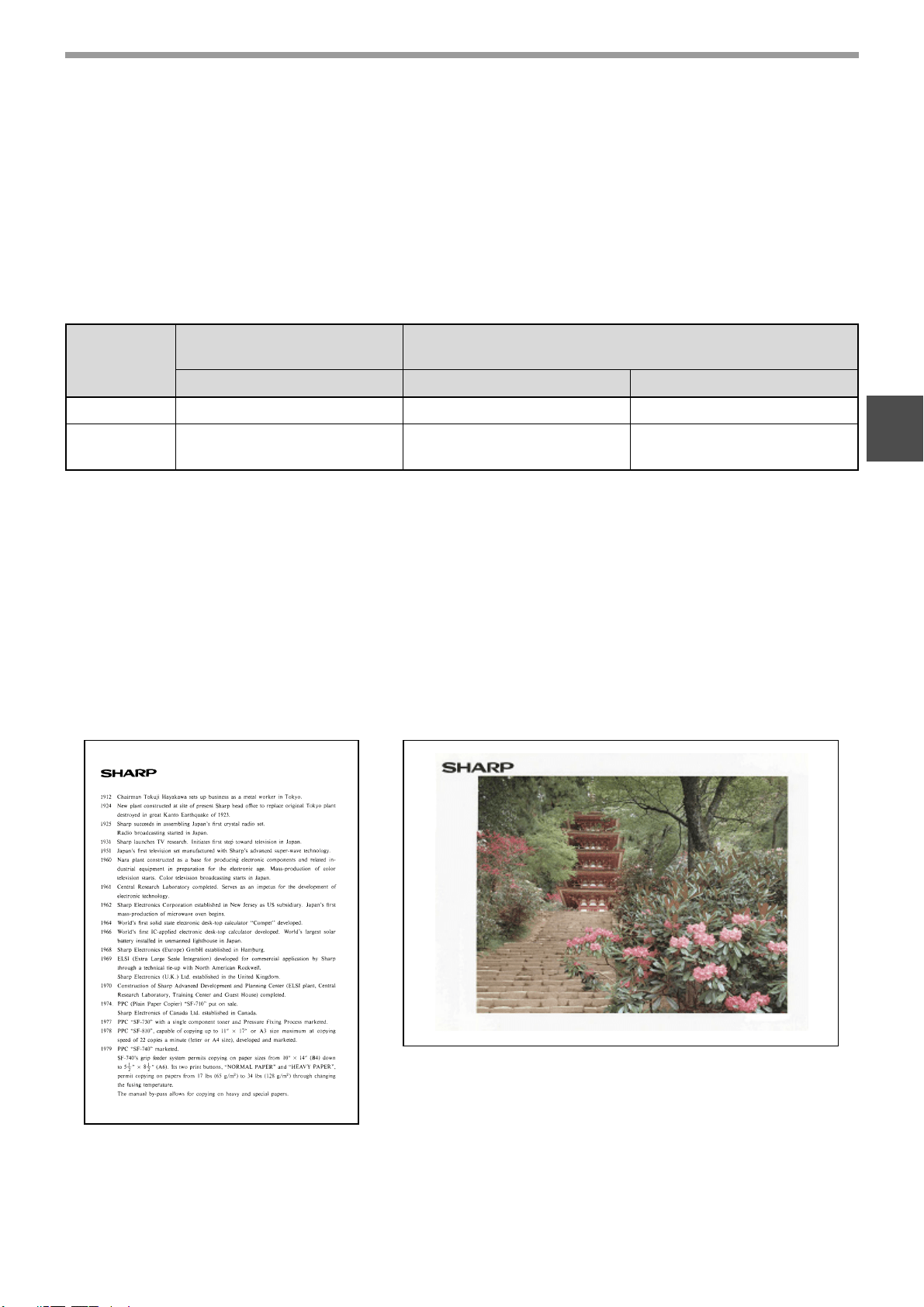
- 23 -
TROUBLESHOOTING
3
IMPORTANT POINTS WHEN USING SCAN TO E-MAIL
Be very careful not to send image data files that are too large.
Your mail server's system administrator may have placed a limit on the amount of data that can be sent in one e-mail
transmission. If this limit is exceeded, the e-mail will not be delivered to the recipient. Even if there is no limit and
your e-mail is successfully delivered, a large data file may take a long time to be received and place a heavy burden
on the recipient's network, depending on the recipient's network (Internet) connection environment.
If large image data files are repeatedly sent, the resulting burden on the network may slow down the speed of other,
unrelated data transmissions and in some cases, may even cause the mail server or network to go down.
The images on the following page will produce the following file sizes when scanned as 8-1/2" x 11" size or A4 size
originals:
* All sizes are for image files created in TIFF MMR (G4) format.
If multiple images are scanned, the file size will be approximately (Size of each image as indicated above) x
(Number of images scanned).
Although the actual limitation depends on your network environment, a general guideline for the maximum file size
for Scan to E-mail is 2000 KB (2 MB). In cases where you need to send multiple documents, try such measures as
lowering the resolution mode.
Original image samples
The original images shown below are samples to help you understand the above explanations. Note that these
images are smaller than the actual originals (the actual originals are 8-1/2" x 11" size).
Resolution
File size of text original A
when scanned
File size of photo original B when scanned
Mono 2 gradation Grayscale Full Color
75 dpi Approx. 10 KB Approx. 125 KB Approx. 140 KB
300 dpi Approx. 34 KB
Approx. 1430 KB
(Approx. 1.43 MB)
Approx. 1440 KB
(Approx. 1.44 MB)
Text original A Photo original B

- 24 -
3
CHECKING THE IP ADDRESS
To check the IP address of the machine, hold down the status button on the network expansion kit at least 2
seconds to print out a Printer Setting List.
HOW TO RESET THE NETWORK EXPANSION KIT
To reset the network expansion kit, power on the machine while holding down the status button on the network
expansion kit.
Network scanner destination information and scanning settings will remain after the network expansion kit is
reset, however, the network settings and network printer settings will revert to the factory default settings.
Status button
Caution

- 25 -
4
4
SHARPDESK CD-ROM
(for Windows)
The CD-ROM contains the following software programs:
• Sharpdesk* (Desktop Document Management Software)
• Network Scanner Tool
• SHARP TWAIN AR/DM (Twain driver)
* Sharpdesk can only be installed on the number of computers indicated in "Sharpdesk Serial Numbers" on the
cover of "Important Information". If you need to install Sharpdesk on additional computers, please purchase the
optional license kit.
(If the version of the software on the CD-ROM in the license kit is different from the version of the software on the
CD-ROM that accompanies the machine, it is recommended that you use the newest version of the software.)
SOFTWARE PROGRAMS
For detailed information on each of the software programs, please refer to the user's guides on the CD-ROM.
To view the manuals in PDF format, Acrobat Reader or Adobe Reader of Adobe Systems Incorporated is required. If
neither program is installed on your computer, the programs can be downloaded from the following URL:
http://www.adobe.com/
SHARPDESK (Desktop Document Management Software)
Sharpdesk lets you manage a variety of electronic information such as scanned image data from a Digital Laser
Copier/Printer or documents created using word processing or spreadsheet application software. Some of the
important features of Sharpdesk are:
• Sharpdesk works with your scanner to let you read paper documents into your computer using a full-featured set
of scanning controls and options.
• Sharpdesk makes editing of your images and documents quick and easy.
•
A text image scanned into Sharpdesk can be converted into editable text for use with your favorite word processor.
Sharpdesk uses an advanced Optical Character Recognition (OCR) engine that even preserves your document layouts.
• Distributing documents by e-mail or printing a hard copy is as easy as dragging a file onto an icon on the
Sharpdesk OutputZone.
• Multiple files can be combined together into a single new file. After creating a combination file, the page order can
be changed or new pages added.
• You can search for an image or text file using a single word, phrase, or list of words. You can also perform a
detailed search by specifying the file type, modified data, or a keyword.
• A color image scanned on the machine can be saved as a PDF file using a high compression ratio to reduce the
file size. (To view a PDF file saved using a high compression ratio, the latest version of Adobe Reader is required.)
NETWORK SCANNER TOOL
This is a utility that helps you use Scan to Desktop. It configures the necessary settings in the Digital Laser
Copier/Printer and client computer to receive data. In addition, Network Scanner Tool will automatically start
Sharpdesk upon receiving image data.
The scanned image received by your computer can automatically be:
• Saved in a folder.
• Passed to the application set in Network Scanner Tool.
• Sent as e-mail.
• Saved in Sharpdesk.
SHARP TWAIN AR/DM
SHARP TWAIN AR/DM imports image data from a Twain interface into a Twain-compliant application. SHARP
TWAIN AR/DM has the following features:
• A selected range of the image data can be imported.
• The image can be rotated when imported.

- 26 -
4
USER'S GUIDES FOR SOFTWARE
PROGRAMS
The Manual folder in the CD-ROM contains user's guides (in PDF format) for each of the software programs.
• Sharpdesk Installation Guide
• Sharpdesk User's Guide
• Network Scanner Tool User's Guide
• SHARP TWAIN AR/DM User's Guide
In addition to explaining how to use the programs, the user's guides also give detailed instructions for installing and
setting up the programs. Be sure to read the user's guides before installing the programs.
- 27 -
4
INSTALLING THE SOFTWARE PROGRAM
Note the following when installing the software program from the CD-ROM:
● Be sure to check the system requirements for installation of each of the software programs in the user's guides
and on the Information screen during installation.
● The user's guides give detailed instructions for installing and setting up the programs. Be sure to read the user's
guides before installing the programs. In particular, if you are going to use Network Scanner Tool, be sure to
carefully read the instructions regarding network preparation and setup procedures before installing the program.
The network administrator should verify that network preparation has been carried out correctly.
● If you are going to send an original scanned with the Digital Laser Copier/Printer to a computer (Scan to Desktop),
Network Scanner Tool must be installed.
● If you perform a standard installation of Sharpdesk (select "Typical" in the Setup Type selection screen), Network
Scanner Tool will be also be installed, alternatively you can also select "Custom" installation and install only
Network Scanner Tool.
● If Internet Explorer 6.0 or later is not installed on your computer, see the installation procedure for Internet
Explorer in the Readme file (Readme.txt) in the root folder of the "Disc 2" CD-ROM.
● If you intend to install SHARP TWAIN AR/DM, install Network Scanner Tool first. SHARP TWAIN AR/DM cannot
be installed alone.
● The contents of the Information screens that appear during installation can also be found in the ReadMe files on
the same CD-ROM. The ReadMe file for Sharpdesk is located in the root folder of the CD-ROM, and the ReadMe
file for SHARP TWAIN AR/DM is located in the Twain folder.
INSTALLING SHARPDESK AND NETWORK SCANNER TOOL
1
Quit any software applications and/or
resident programs that are running on
your computer.
2
Insert the "Disc 1" CD-ROM into your
CD-ROM drive.
• The Sharpdesk installation screen appears.
Proceed to step 6.
• If the screen does not appear, proceed to step
3.
3
Click the "start" button and then click
"My Computer" ( ).
• In Windows 98/Me/2000, double click "My
Computer".
• In Windows Vista, click the "Start" button and
then click "Computer".
4
Double click the CD-ROM icon ( ).
The Sharpdesk installer starts.
5
Follow the instructions on the screen.
In Windows Vista, if a message screen appears
asking you for confirmation, click "Allow".
6
When the "Customer Information"
window appears, enter the serial
number that appears on the cover of the
this manual, and click the "Next" button.
Follow the instructions on the screen.
• If you select "Typical" in the Setup Type
selection screen, Network Scanner Tool will
also be installed. If you only wish to install
Network Scanner Tool, select "Custom" in the
Setup Type selection screen and then check
only Network Scanner Tool.
• Sharpdesk Imaging* is installed together with
Sharpdesk. If Imaging for Windows was
previously installed, Sharpdesk Imaging will
overwrite Imaging for Windows.
• If Eastman Software's "Imaging for Windows
Professional Edition" has already been installed
on your computer, Sharpdesk Imaging will not
be installed.
• "Imaging for Windows Professional Edition" and
Sharpdesk Imaging use common registry
entries, and installing "Imaging for Windows
Professional Edition" after Sharpdesk lmaging
has been installed may result in abnormal
operation. In this case, uninstall Sharpdesk and
Sharpdesk Imaging, and then install "Imaging
for Windows Professional Edition". After that,
reinstall Sharpdesk.
•
When Network Scanner Tool setup is finished, the
"Search Setup Wizard" appears. Follow the
on-screen instructions to create an index database.
For detailed information, see the Sharpdesk
Installation Guide and Sharpdesk User's Guide.
* Sharpdesk Imaging is a version of Eastman
Software's Imaging for Windows Professional
Edition that has been customized by the
Sharp Corporation.
- 28 -
SHARPDESK CD-ROM (for Windows)
4
INSTALLING SHARP TWAIN AR/DM
SHARP TWAIN AR/DM cannot be used in Windows Vista.
1
Quit any software applications and/or
resident programs that are running on
your computer.
2
Insert the "Disc 1" CD-ROM into your
CD-ROM drive.
If the Sharpdesk installation window appears,
click "Cancel" to exit the setup procedure.
3
Click the "start" button and then click
"My Computer" ( ).
In Windows 98/Me/2000, double click "My
Computer".
4
Click the CD-ROM icon ( ) and select
"Open" from the "File" menu.
5
Double-click the "Twain" folder, and
then double-click the "SETUP" icon
().
6
Follow the instructions on the screen.
UNINSTALLING THE SOFTWARE
PROGRAM
To remove the software, follow the steps below.
● When Sharpdesk is uninstalled, Network Scanner Tool is also uninstalled. Note that if Network Scanner Tool is
uninstalled, you will no longer be able to directly receive image data from the Digital Laser Copier/Printer.
● If a user-created file is saved in the Sharpdesk desktop folder, the Sharpdesk desktop folder will not be deleted
when Sharpdesk is uninstalled.
● If you uninstall Sharpdesk Imaging in Windows 98/Me/2000, you will not be able to open image files unless you
re-install the Windows accessory Imaging for Windows.
● Removing SHARP TWAIN AR/DM will not delete the spooler folder which stores image data.
UNINSTALLING THE SOFTWARE PROGRAM FROM
THE CONTROL PANEL
1
Click "Control Panel" in the "start"
menu.
In Windows 98/Me/2000, click "Start", "Settings",
and then "Control Panel".
2
Double click "Add or Remove
Programs".
• In Windows 98/Me/2000, double click
"Add/Remove Programs".
• In Windows Vista, click "Uninstall a program".
3
Select the application that you wish to
delete ("Sharpdesk" or "SHARP
TWAIN AR/DM") from the list and
uninstall the software.
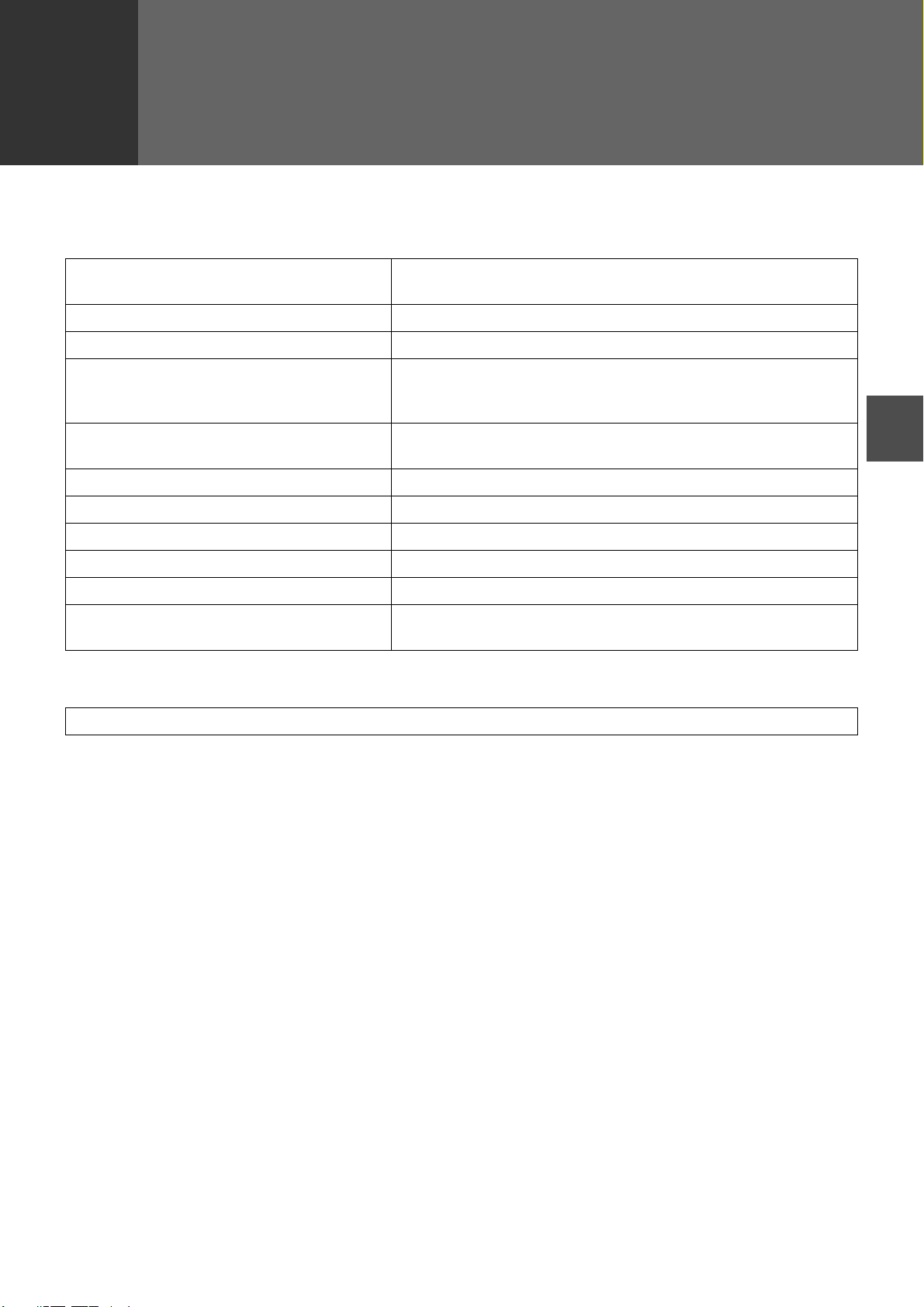
- 29 -
5
5
SPECIFICATIONS
For information on power requirements, power consumption, dimensions, weight, and other specifications that are
common to all features of the machine, refer to the operation manual for the machine.
* Multiple e-mail addresses (up to 100) can be stored as a group. Note that this may reduce the maximum number
of destinations (normally 200) that can be stored.
File format File type: TIFF/PDF/JPEG
Compression mode: MH (G3)/MMR (G4)/None
File creation method One file for all pages/One file per each 1 to 6 pages
Scan destinations Scan to FTP, Scan to Desktop, Scan to E-mail
Supported client PC operating systems (for
Scan to Desktop function)
Windows 98, Windows Me,
Windows 2000 Professional, Windows XP Home Edition,
Windows XP Professional, Windows Vista
Web browser Internet Explorer 5.5 or later (Windows),
Netscape Navigator 6.0 or later
Management system Uses built-in Web server
Network protocol TCP/IP, SMTP, LDAP, FTP
Supported mail system Mail servers supporting SMTP
LAN connectivity 10Base-T/100Base-TX Ethernet
Number of destinations 200 maximum
Number of destinations for Scan To E-mail
broadcast transmission
100 maximum*
Some discrepancies may exist in the illustrations and content due to improvements to the machine.

AR-NB2 A (for network scanner)

2
CONTENTS
INDEX
Introduction
The optional network expansion kit enables the machine to be used as a network printer.
This manual explains the network printer functions that can be used when the network expansion kit is installed.
Trademark Acknowledgments
●
Microsoft
®
, Windows
®
, Windows
®
98, Windows
®
Me, Windows
®
2000, Windows
®
XP, Windows Server
®
2003, Windows Vista
®
and Internet
Explorer
®
are registered trademarks or trademarks of Microsoft Corporation in the U.S.A. and other countries.
●
Macintosh is a trademark of Apple Inc., registered in the U.S. and other countries.
●
Adobe, the Adobe logo, Acrobat, the Adobe PDF logo, and Reader are registered trademarks or trademarks of Adobe Systems Incorporated
in the United States and other countries.
●
PCL is a trademark of the Hewlett-Packard Company.
●
PostScript is a registered trademark of Adobe Systems Incorporated.
●
All other trademarks and copyrights are the property of their respective owners.
To use the machine as a PS printer, the PS3 expansion kit (AR-PK1N) must be installed. After installing the expansion kit, the product key
(password) must be entered in "Product Key Setting" in the Web page (this is only required once). Please consult your dealer for the product
key to be entered.
●
This manual refers to the digital multifunctional system AR-208S/208D as "the machine".
●
For information on copier functions, adding paper and toner, removing misfeeds, using peripheral equipment, and other general
information, see the operation manual for the machine. For information on the scanner functions that can be used when the
network expansion kit is installed, see the online manual for network scanner that accompanies the network expansion kit.
●
The machine's default settings and default settings for the printer function can be changed using the user programs. For more
information, see the operation manual for the machine.
●
Where "XX-XXXX" appears in this manual, please substitute the name of your model.
●
This manual refers to the Reversing Single Pass Feeder as the "RSPF".
●
The explanations of screens and procedures in this manual are primarily for Windows
®
XP in Windows
®
environments, and Mac
OS X v10.4 in Macintosh environments. The screens may vary in other versions of the operating systems.
●
For information on using your operating system, refer to your operating system's manual or online Help.
●
The PS3 expansion kit (AR-PK1N) mentioned in this manual is an option.
The display screens, messages, and key names shown in the manual may differ from those on the actual machine due to product
improvements and modifications.
Note
3
CONTENTS
INDEX
How to use the online manual
This section explains how to view the online manual. Please read this section before using the online manual.
For information on using Acrobat Reader, see Acrobat Reader Help.
How to Control the Online Manual
In this manual, the following buttons are displayed at the bottom
of each page. Click these buttons to move quickly to pages that
you wish to view.
Displays the Contents of this manual. Click on a topic in the
Contents to jump directly to that section.
Displays the Index of this manual. Click on a topic in the Index
to jump directly to that section.
Takes you forward page by page.
Takes you back page by page.
Following Links
This manual uses a link function that allows you to jump to a
related page. If you click green, underlined text, the related
page will be displayed. (In the Contents and Index sections, the
linked areas are not underlined.)
Example:
☞Contents
To return to the previous page, click the button on the menu
bar of Acrobat Reader.
Using Bookmarks
Bookmarks have been created on the left side of this manual.
You can click on a bookmark to jump directly to that section.
How to Print Out This Manual
To print this manual, select "Print" from the "File" menu of
Acrobat Reader. Select the desired printer settings in the "Print"
dialog box, and then click the "OK" button.
CONTENTS
INDEX
4
CONTENTS
INDEX
Contents
(part 1)
Introduction 2
How to use the online manual 3
Basic printing 6
●
If the tray runs out of paper during printing 7
●
Cancel a print job 7
●
When "Paper Source" is set to "Auto Select" 7
Opening the printer driver from the "start" button 8
Printer driver settings 9
Two-sided printing 10
●
Pamphlet style 11
Printing multiple pages on one page 12
Fitting the printed image to the paper 13
Rotating the print image 180 degrees 14
Printing a watermark 15
●
How to Print a Watermark 15
Printing text and lines/graphics in black 16
●
Printing text in black 16
●
Printing lines and vector graphics in black 16
Printer utilities 17
●
Before using the Printer Status Monitor 17
Using the printer utilities 18
●
Starting up the printer utilities 18
●
Using the printer utilities 18
●
Changing the Printer Status Monitor settings 19
●
Checking the printer status 20
Basic printing 21
●
If the tray runs out of paper during printing 22
●
Cancel a print job 22
●
When "Paper Feed" is set to "Auto Select" 22
1 PRINTING FROM WINDOWS
2 PRINTER UTILITIES (WINDOWS)
3 PRINTING FROM MACINTOSH

5
CONTENTS
INDEX
Contents
(part 2)
About the Web pages 23
●
How to access the Web page and view help 23
About the Web pages (for users) 24
Directly printing a file in a computer 25
●
Advanced job settings 25
Configuring the printer condition settings 26
●
How to configure the settings 27
●
Printer condition setting menu 28
●
Printer condition settings 29
About the Web pages (for the administrator) 32
Protecting information programmed in the web page ([Passwords])
33
E-mail print function 34
●
Setting up the E-mail print function 34
●
Using the E-mail print function 35
Key operator programs 36
●
Configuring a setting in the key operator programs 36
●
Key operator programs 37
E-mail status and e-mail alert settings 38
●
Information setup 38
●
SMTP setup 38
●
Status message setup 39
●
Alerts message setup 40
Troubleshooting 41
●
Check the connections 41
Removing the software 42
●
Windows 42
●
Macintosh (Mac OS 9.0 to 9.2.2) 42
Printer specifications 43
Printer driver specifications 44
4 WEB FUNCTIONS IN THE MACHINE 5 TROUBLESHOOTING
6 SPECIFICATIONS
7 INDEX

1
PRINTING FROM WINDOWS
6
CONTENTS
INDEX
Basic printing
(part 1)
The following example explains how to print a document from WordPad.
Before printing, make sure that the correct size of paper for your document has been loaded in the machine.
1
Start WordPad and open the document that you
wish to print.
2
Select "Print" from the application's "File"
menu.
The "Print" dialog box will appear.
3
Make sure that "SHARP XX-XXXX" is selected as
the printer. If you need to change any print
settings, click the "Preferences" button
("Properties" button in Windows 98/Me) to open
the printer driver setup screen.
The printer driver setup screen will appear.
Windows 2000 does not have the "Preferences" button
in this dialog box. Select settings as needed on each of
the tabs in the setup screen.
☞Printer driver settings, Two-sided printing,
Printing multiple pages on one page
,
Fitting the printed image to the paper
,
Rotating the print image 180 degrees
,
Printing a watermark
4
Click the "Print" button ("OK" button in
Windows 98/Me).
Printing begins.
The print job is delivered to the output tray, with the
position of the paper offset slightly from the previous job
(offset function).
1
PRINTING FROM WINDOWS
7
CONTENTS
INDEX
Basic printing
(part 2)
If the tray runs out of paper during printing
Printing will automatically resume when paper is loaded in the
tray.
When using the bypass tray, select printer mode with the mode
select key on the machine, load paper as instructed by the
message in the display, and then press the [START] key to
resume printing.
When the 250-sheet paper feed unit is installed:
Note that if the "AUTO TRAY SWITCH" setting in the user
programs is enabled and there is the same size of paper in
another tray, the machine will automatically switch to the other
tray and continue printing.
Cancel a print job
To cancel a print job that is already in progress, select printer
mode with the mode select key on the machine and then press
the [CLEAR] key ( ) or the [CLEAR ALL] key ( ).
"CANCEL PRINT JOB?" will appear in the display. Select "YES"
and press the [ENTER] key.
When "Paper Source" is set to "Auto Select"
If "Paper Source" is set to "Auto Select" in the "Paper" tab of the
printer driver setup screen and the correct size of paper for a
print job is not loaded in the machine, the printing procedure will
vary depending on the "FORCED OUTPUT" setting in the user
programs (see "USER PROGRAMS" in the Operation Manual).
When "FORCED OUTPUT" is set to "OFF"
Select printer mode with the mode select key on the machine,
check the message in the display, load paper in the bypass tray,
and then press the [START] key to begin printing.
When "FORCED OUTPUT" is set to "ON"
Printing takes place on the paper loaded in the machine, even
though the paper size is different from the print image size.
1
PRINTING FROM WINDOWS
8
CONTENTS
INDEX
Opening the printer driver from the "start" button
Printer driver settings can be configured by opening the printer driver from the Windows "start" button. Settings adjusted in this way
will be the initial settings when you print from an application. (If you change the settings in the printer driver setup screen at the time
of printing, the settings will revert to the initial settings when you quit the application.)
Windows 2000/XP/Server 2003/Vista
1
Click the "start" button, and then click "Control
Panel".
●
On Windows 2000, click the "Start" button and select
"Settings".
●
On Windows Server 2003, click the "Start" button and
then click "Printers and Faxes". Go to step 3.
2
Click "Printers and Other Hardware", and then
click "Printers and Faxes".
●
On Windows Vista, click "Printer".
●
On Windows 2000, click "Printers".
3
Click the "SHARP XX-XXXX" printer driver icon
and select "Properties" from the "File" menu.
On Windows Vista, select "Properties" from the "Organize" menu.
4
Click the "Printing Preferences" button in the
"General" tab.
The printer driver setup screen will appear.
☞Printer driver settings
Windows 98/Me
1
Click the "Start" button, select "Settings" and
then click "Printers".
2
Click the "SHARP XX-XXXX" printer driver icon
and select "Properties" from the "File" menu.
3
On Windows 98/Me, click the "Setup" tab.
The printer driver setup screen will appear.
☞Printer driver settings

1
PRINTING FROM WINDOWS
9
CONTENTS
INDEX
Printer driver settings
To view Help for a setting, click the button in the upper right-hand corner of the window and then click the setting.
Some restrictions exist on the combinations of settings that can be selected in the printer driver setup screen. When a restriction is
in effect, an information icon ( ) will appear next to the setting. Click the icon to view an explanation of the restriction.
Tab
The settings are grouped
on tabs. Click on a tab to
bring it to the front.
Drop-down list
Allows you to make a
selection from a list of
choices.
Print setting image
This shows the effect of the
selected print settings.
Checkbox
Click on a checkbox to
activate or deactivate a
function.
Machine image
The paper tray (in blue)
selected in "Paper selection"
on the "Paper" tab.
You can also click on a tray
to select it.
Check button
Allows you to select one
item from a list of options.
"OK" button
Click this button to save
your settings and exit the
dialog box.
"Cancel" button
Click this button to exit the
dialog box without making
any changes to the
settings.
"Apply" button
Click to save your settings
without closing the dialog
box.
"Help" button
Click this button to display
the help file for the printer
driver.
1
3
6
2
5
4
7
8
9
10
The settings and the image of the machine will vary depending on the model.
The printer driver setup screen allows you to select various functions that can be used when the
network expansion kit is installed.
For information on the printer functions of the network expansion kit, see "Printer driver specifications".
Note
1
2
3
4
5
6
7
8
9
10
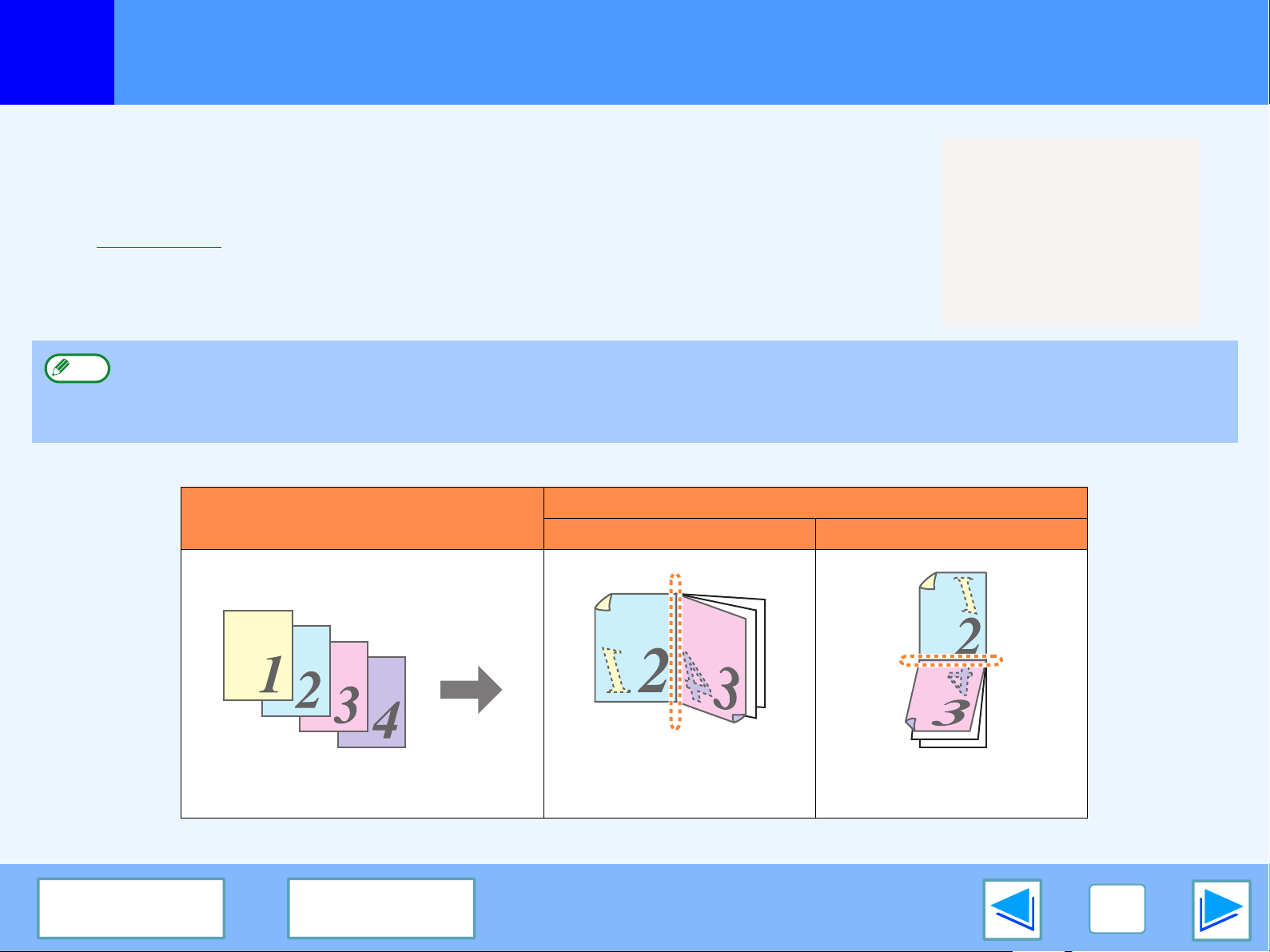
1
PRINTING FROM WINDOWS
10
CONTENTS
INDEX
Two-sided printing
(part 1)
The printer driver setup screen of models that support two-sided printing contains a "Document
Style" setting in the "Main" tab. This feature allows you to print on both sides of the paper.
To use this function, open the printer driver setup screen and select "2-Sided (Book)" or
"2-Sided (Tablet)" from "Document Style" in the "Main" tab.
☞See Basic printing for details on how to open the printer driver.
The following example shows the result when portrait data is printed on both sides of the paper.
●
Paper sizes that can be used for two-sided printing are Letter, Legal, Folio*, Invoice, A4, A5, B5, Foolscap, and 16K.
●
When using two-sided printing, select a source other than "Bypass Tray" for the "Paper Source" in the "Paper" tab.
* For two-sided printing on Folio size paper, "Tray 1" or "Tray 2" (if Tray 2 has been installed) must be selected in the "Paper
Source" on the "Paper" tab.
Print data
Printing result
2-Sided (Book) 2-Sided (Tablet)
The pages are printed so that
they can be bound at the side.
The pages are printed so that
they can be bound at the top.
Note
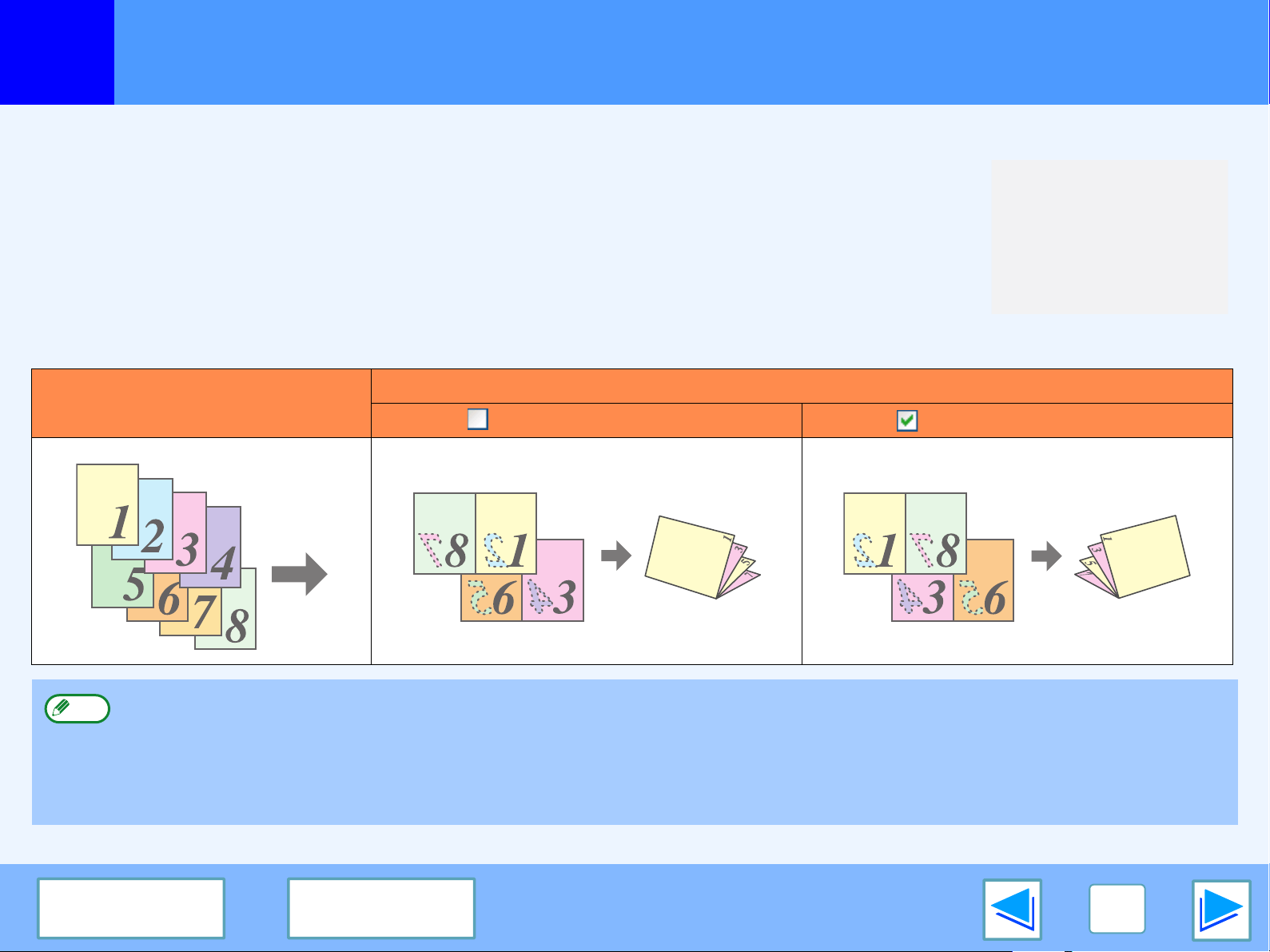
1
PRINTING FROM WINDOWS
11
CONTENTS
INDEX
Two-sided printing
(part 2)
Pamphlet style
Pamphlet style prints two pages each on the front and back of each sheet of paper (four pages total on
one sheet) so that the sheets can be folded down the center and bound to create a pamphlet. This
function is convenient when you wish to compile printed pages into a pamphlet.
To use this function, open the printer driver and select "Pamphlet Style" in "Document Style" in the
"Main" tab.
The direction of opening of the pamphlet can be selected with the "Right Turning Pamphlet" checkbox in
the "Advanced" tab. The following examples show how 8 pages are printed when pamphlet style is
selected.
Print data
Printing result
Right Turning Pamphlet Right Turning Pamphlet
●
Only letter, invoice, A4 and A5 size paper can be used for pamphlet style printing.
●
Because four pages are printed on each sheet of paper, blank pages are automatically added at the end when the total number
of pages is not a multiple of four.
●
When "Tiled Pamphlet" is selected, printing will take place on paper that is twice the size of the paper size specified in the application.
●
When "2-Up Pamphlet" is selected, each page is reduced in the same way as for 2-Up and printed on the size of paper that is
specified in the application.
Note
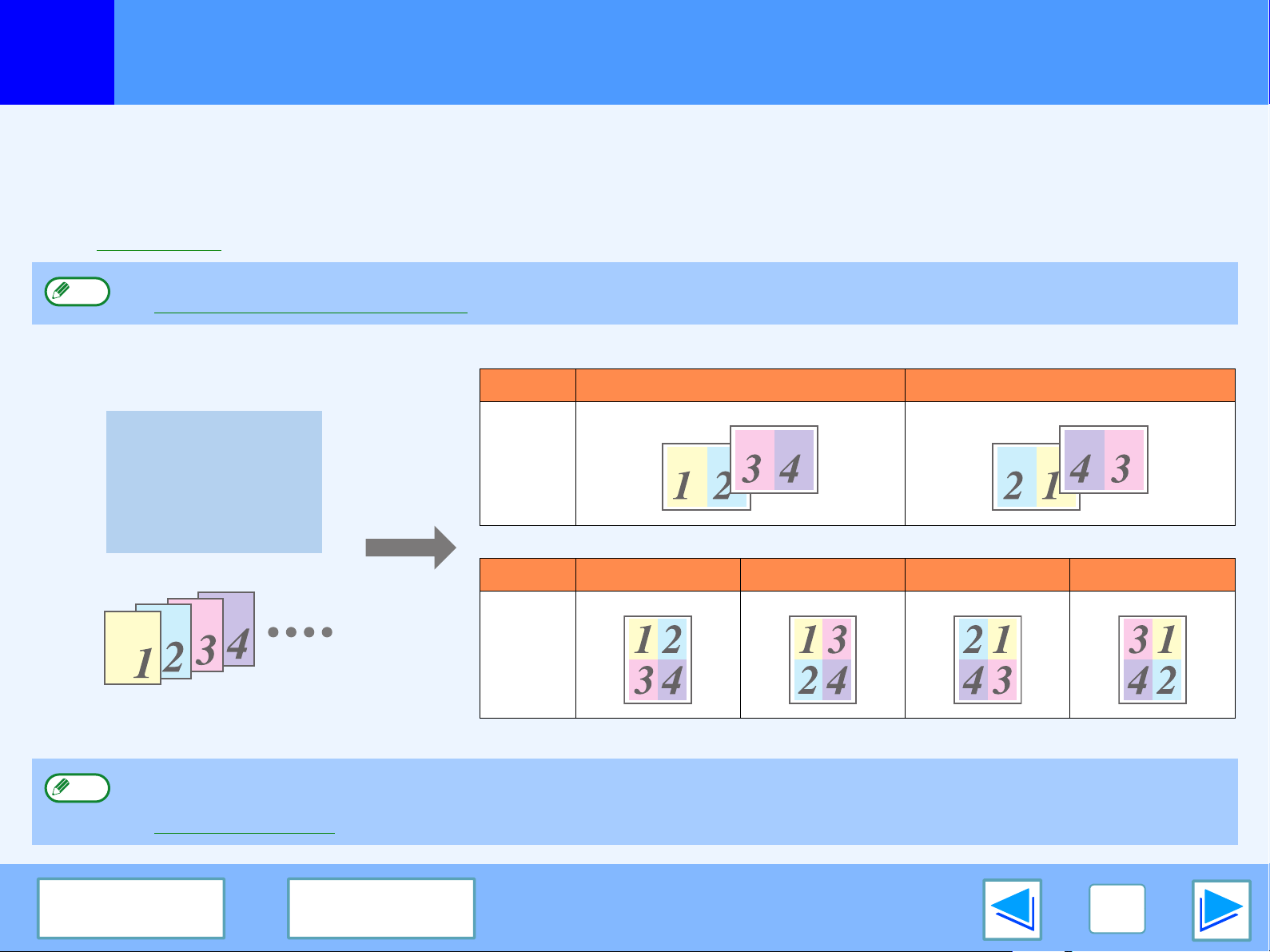
1
PRINTING FROM WINDOWS
12
CONTENTS
INDEX
Printing multiple pages on one page
This feature allows you to reduce and print two, four, six, eight or sixteen document pages on a single sheet of paper.
To use this function, open the printer driver setup screen and select the number of pages per sheet (2-Up, 4-Up, 6-Up, 8-Up, or
16-Up) in "N-Up Printing" in the "Main" tab.
The order of the pages can be changed in the "Order" menu.
☞See Basic printing for details on how to open the printer driver.
For example, when "2-Up" or "4-Up" is selected, the result will be as follows depending on the selected order.
If you select the "Border" checkbox, borderlines will be printed around each page.
The "N-Up Printing" setting is not available when "Fit To Paper Size" is selected.
☞Fitting the printed image to the paper
N-Up Left to Right Right to Left
[2-Up]
N-Up
Right , and Down Down , and Right
Left , and Down Down , and Left
[4-Up]
Examples for 2-Up and 4-Up are shown here. The order of 6-Up, 8-Up, and 16-Up is the same as 4-Up. The order can be viewed
in the print setting image in the printer driver setup screen.
☞Printer driver settings
Note
Note
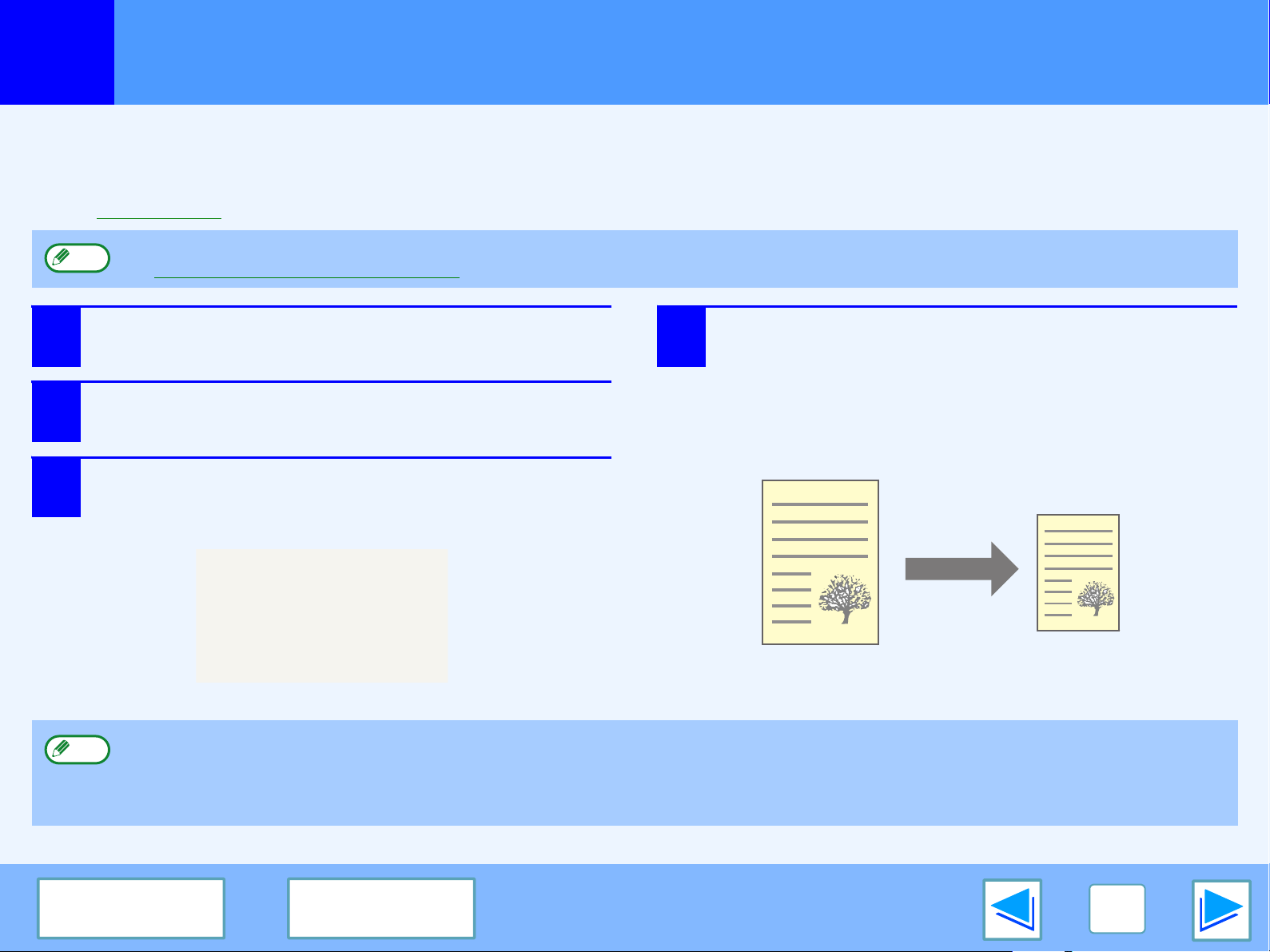
1
PRINTING FROM WINDOWS
13
CONTENTS
INDEX
Fitting the printed image to the paper
The printer driver can adjust the size of the printed image to match the size of the paper loaded in the machine.
Follow the steps shown below to use this function. The explanation below assumes that you intend to print a letter size document on
invoice size paper.
☞See Basic printing for details on how to open the printer driver.
1
Click the "Paper" tab in the printer driver setup
screen.
2
Select the original size (Letter) of the print
image in "Paper Size".
3
Check the "Fit to Page" box.
When using the PS printer driver, select "Fit To Paper
Size" in "Zoom Setting".
4
Select the actual size of paper to be used for
printing (Invoice).
The size of the printed image will be automatically
adjusted to match the paper loaded in the machine.
The "Fit To Paper Size" setting is not available when "N-Up Printing" is selected.
☞Printing multiple pages on one page
Note
Paper Size: Letter
Fit To Paper Size: Invoice
Letter size document
(Paper Size)
Invoice size paper
(Fit To Paper Size)
●
If "A3 [Fit to Page]", "B4 [Fit to Page]", or "Ledger [Fit to Page]" is selected, the print image is fit to the letter size even if "Fit to
Page" is not selected.
●
When using the PS printer driver, the print image can be enlarged or reduced by means of numerical values. (The vertical and horizontal
ratios can be set separately.) Select "XY-Zoom" in step 3, click the "Width/Length" button, and adjust the ratios in the screen that appears.
Note
1
PRINTING FROM WINDOWS
14
CONTENTS
INDEX
Rotating the print image 180 degrees
The print image can be rotated 180 degrees.
This feature is used to enable correct printing on envelopes and other paper with flaps that can
only be loaded in one orientation.
To use the feature, select the image orientation in "Image Orientation" on the "Paper" tab, and
then select the "Rotate 180 degrees" checkbox.
☞See Basic printing for details on how to open the printer driver.
Printing result
Rotate 180 degrees Rotate 180 degrees
The procedure for loading paper is explained in the operation manual for the machine.
ABCD
ABCD
Note
1
PRINTING FROM WINDOWS
15
CONTENTS
INDEX
Printing a watermark
You can print a watermark such as "CONFIDENTIAL" on your document. To print a watermark, open the printer driver, click the
"Watermarks" tab, and follow the steps below.
☞See Basic printing for details on how to open the printer driver.
How to Print a Watermark
From the "Watermark" drop-down list, select the watermark that you wish to print (for example "CONFIDENTIAL"), and start printing.
You can enter text to create your own custom watermark. For details on watermark settings, view printer driver Help.
☞Printer driver settings
Print sample
1
PRINTING FROM WINDOWS
16
CONTENTS INDEX
Printing text and lines/graphics in black
Color text, lines and vector graphics that are faint when printed normally can be printed in black to improve legibility.
Printing text in black
Text that is any color other than white is printed in black.
To use this function, open the printer driver setup screen and
select the "Text To Black" checkbox in the "Advanced" tab.
Printing lines and vector graphics in black
Lines and vector graphics that are any color other than white
are printed in black.
To use this function, open the printer driver setup screen and
select the "Vector To Black" checkbox in the "Advanced" tab.
Print data
Printing result
Text To Black Text To Black
●
When using the PCL6 printer driver, if "Print as
graphics" is selected in "TrueType Mode" of "Font" in
the "Advanced" tab, this function cannot be used.
●
When using the PCL5e printer driver, if "Raster" is
selected in "Graphics mode" in the "Advanced" tab,
this function cannot be used.
ABCD
EFGH
ABCD
EFGH
ABCD
EFGH
Note
Print data
Printing result
Vector To Black Vector To Black
When using the PCL6 or PCL5e printer driver, if "Raster"
is selected in "Graphics mode" in the "Advanced" tab,
this function cannot be used.
Note
2
PRINTER UTILITIES (WINDOWS)
17
CONTENTS
INDEX
Printer utilities
Printer Status Monitor (for general users)
"Printer Status Monitor" is on the "Software CD-ROM" (Disc 1).
This allows the user to check on the computer screen whether
or not the machine is able to print.
It provides information on error states such as paper misfeeds
and shows the configuration of the machine (number of trays,
etc.) by means of illustrations. Available paper sizes and paper
remaining are also indicated.
Printer Administration Utility (for administrators)
"Printer Administration Utility" is on the "Software CD-ROM"
(Disc 2).
This allows the administrator to check information on supplies
and error states of the machine and other SHARP printers
(compatible with the Printer Administration Utility) that are
connected to the network. Settings can also be changed via the
utility.
Before using the Printer Status Monitor
Note the following points before using the Printer Status
Monitor.
Printing via a server
When the first print job is executed after starting up the Printer
Status Monitor, the machine's IP address is automatically set in
the Printer Status Monitor.
Direct printing without a server
Install and configure the software as explained in "INSTALLING
THE PRINTER DRIVER" in the software setup guide for
network printer. (This is not necessary if the software has
already been installed and configured.)
●
In order to use the Printer Status Monitor and Printer
Administration Utility, the machine must be connected
to a network.
●
To install the Printer Status Monitor, see the network
expansion kit online manual (for setup).
Note
2
PRINTER UTILITIES (WINDOWS)
18
CONTENTS
INDEX
Using the printer utilities
(part 1)
Starting up the printer utilities
If the Printer Status Monitor or Printer Administration Utility is
not running, use the following procedure to start the utilities.
Printer Status Monitor
Click the "Start" button, point to "All Programs" ("Programs" in
operating systems other than Windows XP/Server 2003/Vista)
and then "SHARP Printer Status Monitor". Select "Printer
Status Monitor".
Printer Administration Utility
Click the "Start" button, point to "All Programs" ("Programs" in
operating systems other than Windows XP/Server 2003/Vista)
and then "SHARP Printer Administration Utility". Select "Printer
Administration Utility".
Using the printer utilities
For information on using the Printer Status Monitor and Printer
Administration Utility, see the Help files for each. The Help files
can be viewed as follows:
Printer Status Monitor
Click the "Start" button, point to "All Programs" ("Programs" in
operating systems other than Windows XP/Server 2003/Vista)
and then "SHARP Printer Status Monitor". Select "Help".
Printer Administration Utility
Click the "Start" button, point to "All Programs" ("Programs" in
operating systems other than Windows XP/Server 2003/Vista)
and then "SHARP Printer Administration Utility". Select "Help".
When the Printer Administration Utility is first started up,
the TCP/IP settings window appears. To monitor the
machine on a local network, select the "Local Subnet
Search" checkbox. Otherwise, enter the machine's IP
address. For more information, see the Help file.
Note
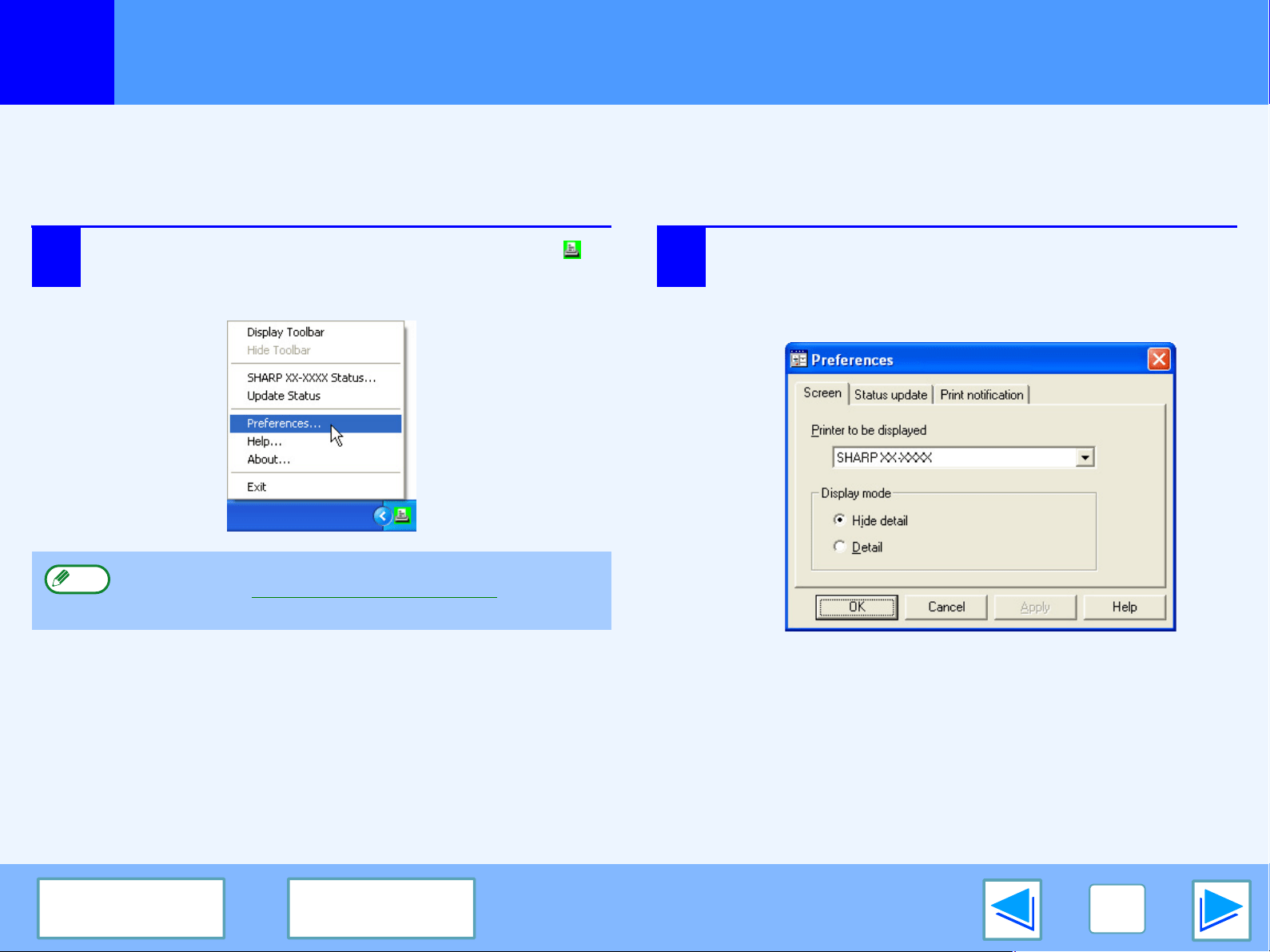
2
PRINTER UTILITIES (WINDOWS)
19
CONTENTS
INDEX
Using the printer utilities
(part 2)
Changing the Printer Status Monitor settings
Once installed, the Printer Status Monitor normally runs in the background in Windows. If you need to change the Printer Status
Monitor settings, follow the steps below.
1
Right-click the Printer Status Monitor icon ( )
on the task bar, and select "Preferences" from
the pop-up menu.
2
Change the Printer Status Monitor settings as desired.
For information on the Printer Status Monitor settings,
see Printer Status Monitor Help. (Click the "Help" button
in the settings window.)
If the Printer Status Monitor icon does not appear on the
task bar, see "Starting up the printer utilities" to start the
Printer Status Monitor.
Note
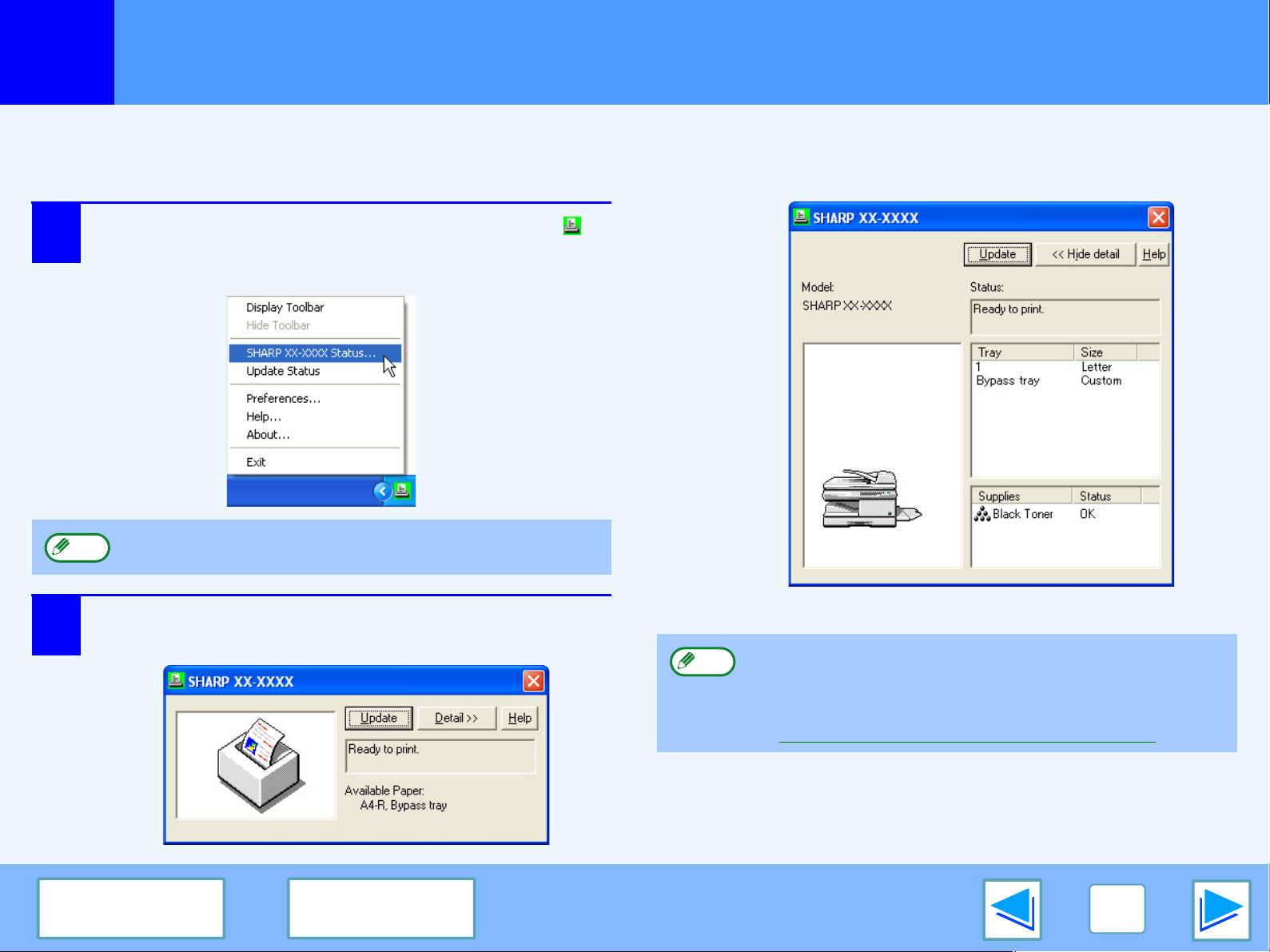
2
PRINTER UTILITIES (WINDOWS)
20
CONTENTS
INDEX
Using the printer utilities
(part 3)
Checking the printer status
The Printer Status Monitor allows you to check whether or not toner and paper remain in the machine.
1
Right-click the Printer Status Monitor icon ( )
on the task bar, and select "SHARP XX-XXXX
Status" from the pop-up menu.
2
Click the "Detail" button.
The window expands to show machine status details.
S
To collapse the window, click the "Hide detail" button.
The icon turns red when printing is not possible due to a
machine error or other problem.
Note
By default, the collapsed window initially appears when
"SHARP XX-XXXX Status" is selected in Step 1. If
desired, you can change the setting to have the
expanded window initially appear.
☞Changing the Printer Status Monitor settings
Note
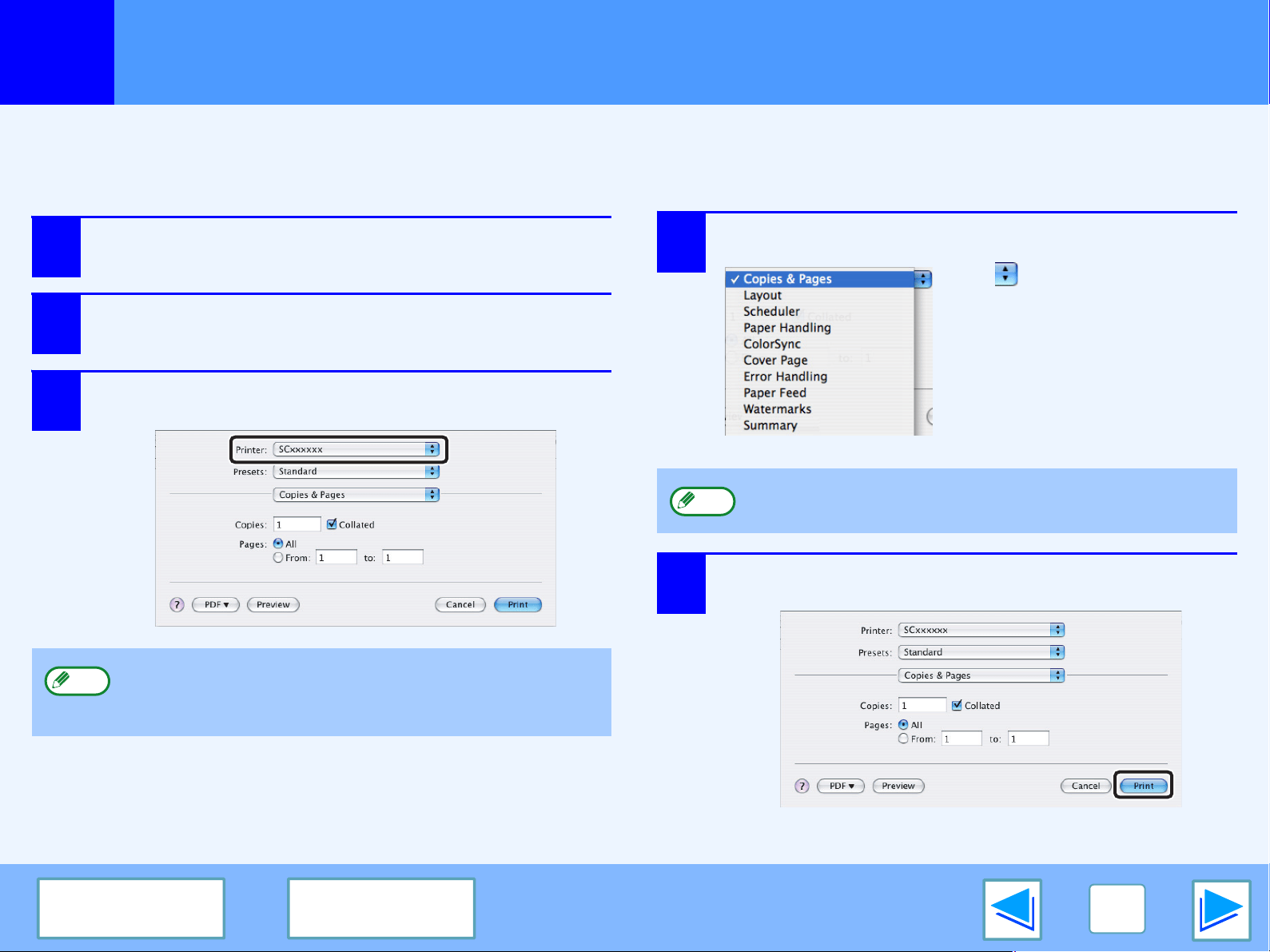
3
PRINTING FROM MACINTOSH
21
CONTENTS
INDEX
Basic printing
(part 1)
To use the machine as a printer for the Macintosh, the PS3 expansion kit (AR-PK1N) must be installed and the machine must be
connected to a network. To install the PPD file and configure the printer driver settings, see the software setup guide.
Before printing, make sure that the correct size of paper for your document has been loaded in the machine.
1
Start the application and open the document
that you wish to print.
2
Select "Print" from the application's "File"
menu.
3
Make sure that the correct printer is selected.
4
Configure print settings.
Click next to "Copies &
Pages" ("General" in Mac OS
9.0 to 9.2.2) and select the
settings that you wish to
configure from the pull-down
menu. The corresponding
setting screen will appear.
5
Click the "Print" button.
Printing begins.
The Print window varies depending on the operating
system version, the printer driver version, and the
application.
Note
The settings vary depending on the operating system
version, the printer driver version, and the application.
Note
3
PRINTING FROM MACINTOSH
22
CONTENTS
INDEX
Basic printing
(part 2)
If the tray runs out of paper during printing
Printing will automatically resume when paper is loaded in the
tray.
When using the bypass tray, select printer mode with the mode
select key on the machine, load paper as instructed by the
message in the display, and then press the [START] key to
resume printing.
When the 250-sheet paper feed unit is installed:
Note that if the "AUTO TRAY SWITCH" setting in the user
programs is enabled and there is the same size of paper in
another tray, the machine will automatically switch to the other
tray and continue printing.
Cancel a print job
To cancel a print job that is already in progress, select printer
mode with the mode select key on the machine and then press
the [CLEAR] key ( ) or the [CLEAR ALL] key ( ).
"CANCEL PRINT JOB?" will appear in the display. Select "YES"
and press the [ENTER] key.
When "Paper Feed" is set to "Auto Select"
If "Paper Feed" is set to "Auto Select" in the Print window and the
correct size of paper for a print job is not loaded in the machine,
the printing procedure will vary depending on the "FORCED
OUTPUT" setting in the user programs (see "USER
PROGRAMS" in the Operation Manual).
When "FORCED OUTPUT" is set to "OFF"
Select printer mode with the mode select key on the machine,
check the message in the display, load paper in the bypass tray,
and then press the [START] key to begin printing.
When "FORCED OUTPUT" is set to "ON"
Printing takes place on the paper loaded in the machine, even
though the paper size is different from the print image size.
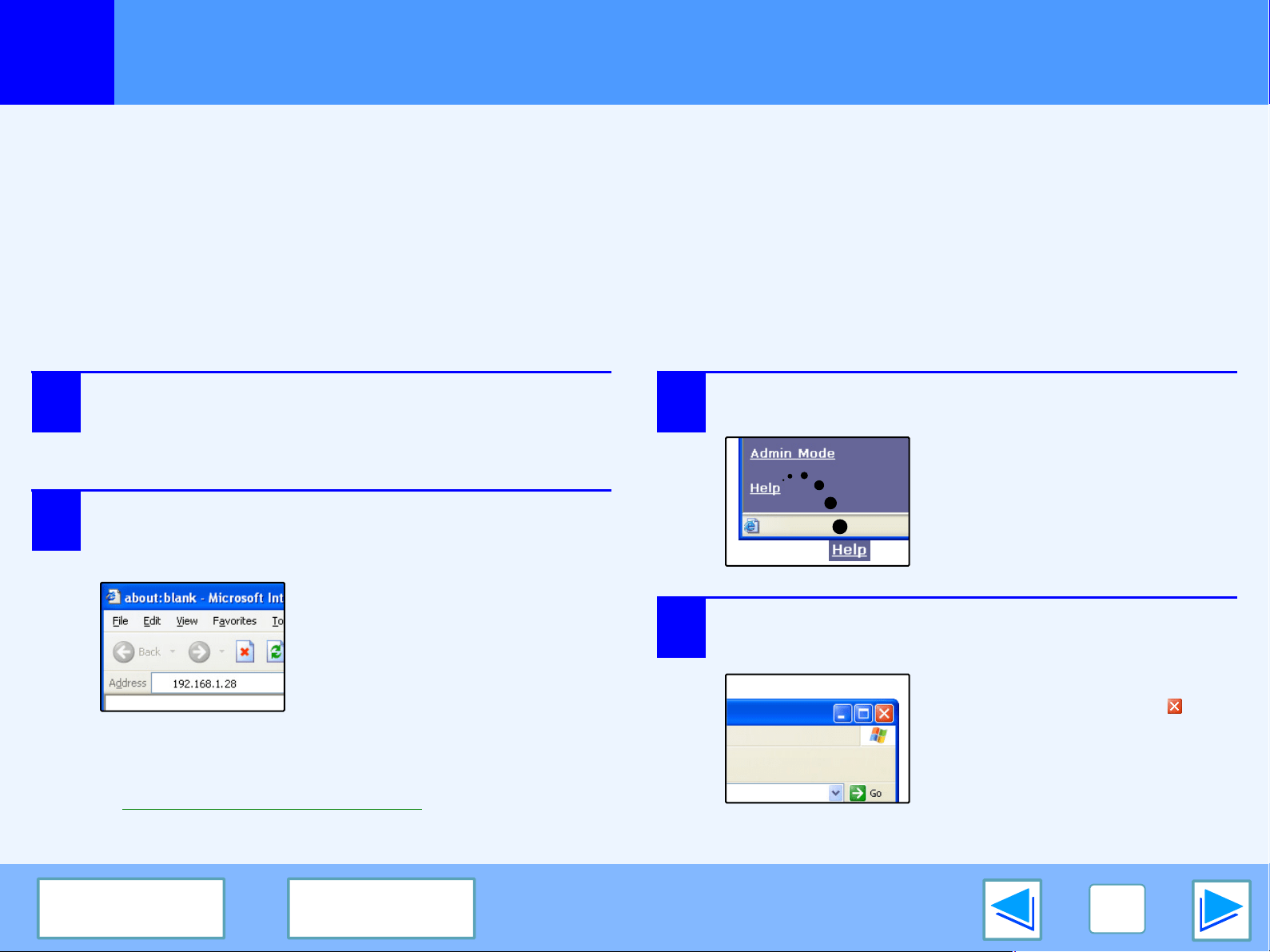
4
WEB FUNCTIONS IN THE MACHINE
23
CONTENTS
INDEX
About the Web pages
The network expansion kit includes a built-in Web server. The Web server is accessed using a Web browser on your computer. The Web
pages include both pages for users and pages for the administrator. In the user Web pages, users can monitor the machine, directly print
a file specified on a computer, and select printer configuration settings. In the administrator Web pages, the administrator can configure
the machine's e-mail settings, settings for print by e-mail, and passwords. Only the administrator is allowed to configure these settings.
How to access the Web page and view help
Use the following procedure to access the Web pages. [Help] can be clicked at the bottom of the menu frame to view information on
the various function settings that can be configured remotely over the network from the machine's Web pages. For the settings of
each function, see the explanations in Help.
1
Open the Web browser on your computer.
Supported browsers:
Internet Explorer 5.5 or later (Windows)
Netscape Navigator 6.0 or later
2
In the "Address" field of your Web browser,
enter the IP address that has been configured in
the machine.
When the connection is completed, the Web page will
appear in your Web browser.
☞About the Web pages (for users)
3
Click the [Help] button at the bottom of the
menu frame.
To view information on a function
setting, click the corresponding
item in the Help screen.
4
When finished, close the Web pages.
When you have finished using
the Web pages, click the
(close) button in the top right
corner of the page.
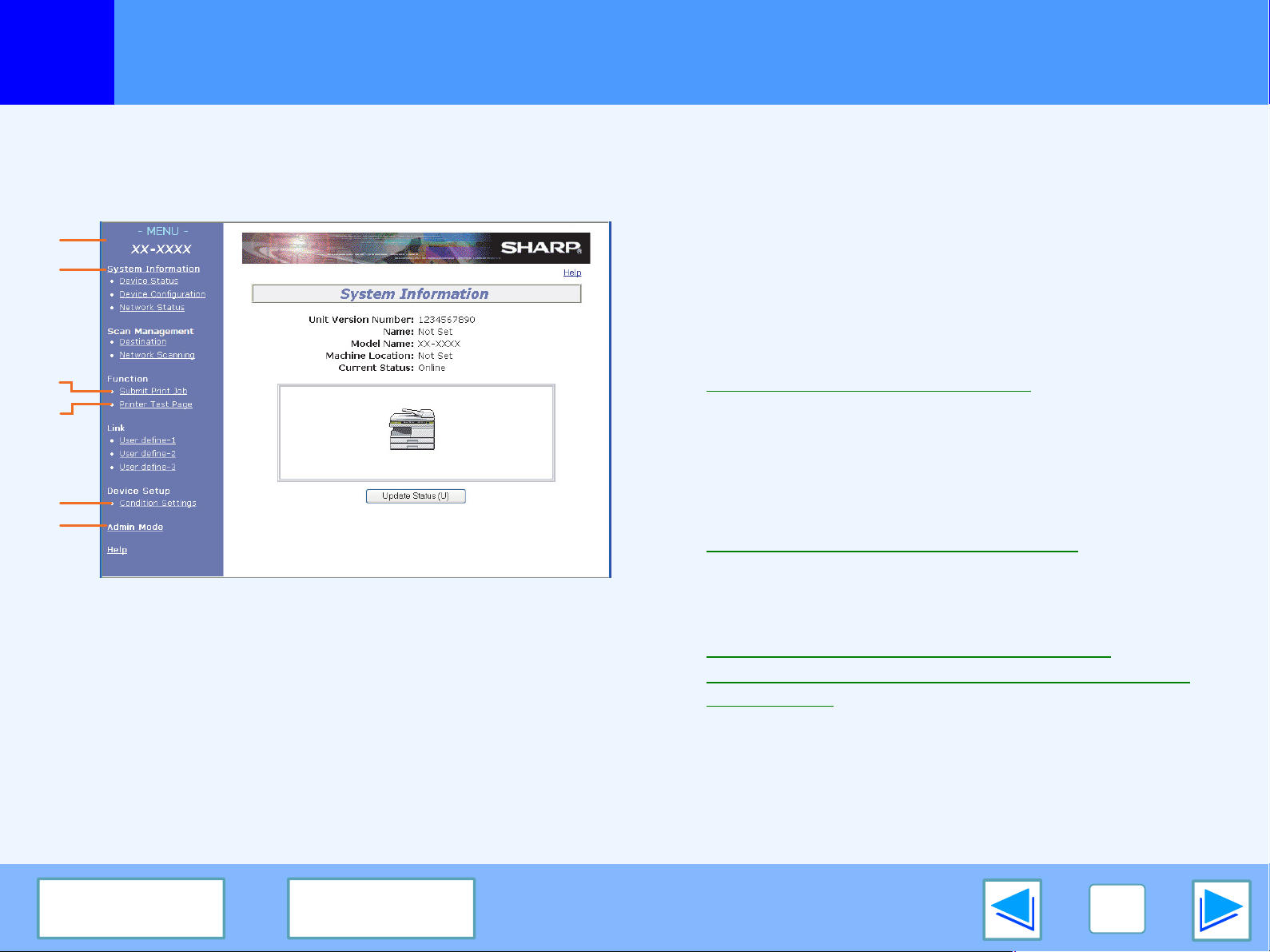
4
WEB FUNCTIONS IN THE MACHINE
24
CONTENTS
INDEX
About the Web pages (for users)
When you access the user Web pages in the machine, the following page will appear in your browser.
A menu frame appears on the left side of the page. When you click an item in the menu, a screen appears in the right frame that
allows you to configure settings for that item.
(1)Menu frame
Click a setting in the menu to configure it.
(2)System Information
Shows the current status of the machine and model name.
• Device Status
Shows the current status of the machine, paper trays,
output trays, toner and other supplies, and page counts.
Out of paper and other warnings appear in red.
• Device Configuration
Shows what options are installed.
• Network Status
Shows the network status. Information on "General",
"TCP/IP", "NetWare", "AppleTalk", and "NetBEUI" is shown
on the respective pages.
(3)Submit Print Job
A file on a computer can be printed out.
☞Directly printing a file in a computer
(4)Printer Test Page
The "Printer Settings List" and various font lists can be
printed.
(5)Condition Settings
Configure basic printer settings.
☞Configuring the printer condition settings
(6)Admin Mode
To open the Web pages for the administrator, click here and
then enter the administrator's user name and password.
☞About the Web pages (for the administrator)
☞Protecting information programmed in the web page
([Passwords])
(2)
(1)
(3)
(4)
(6)
(5)
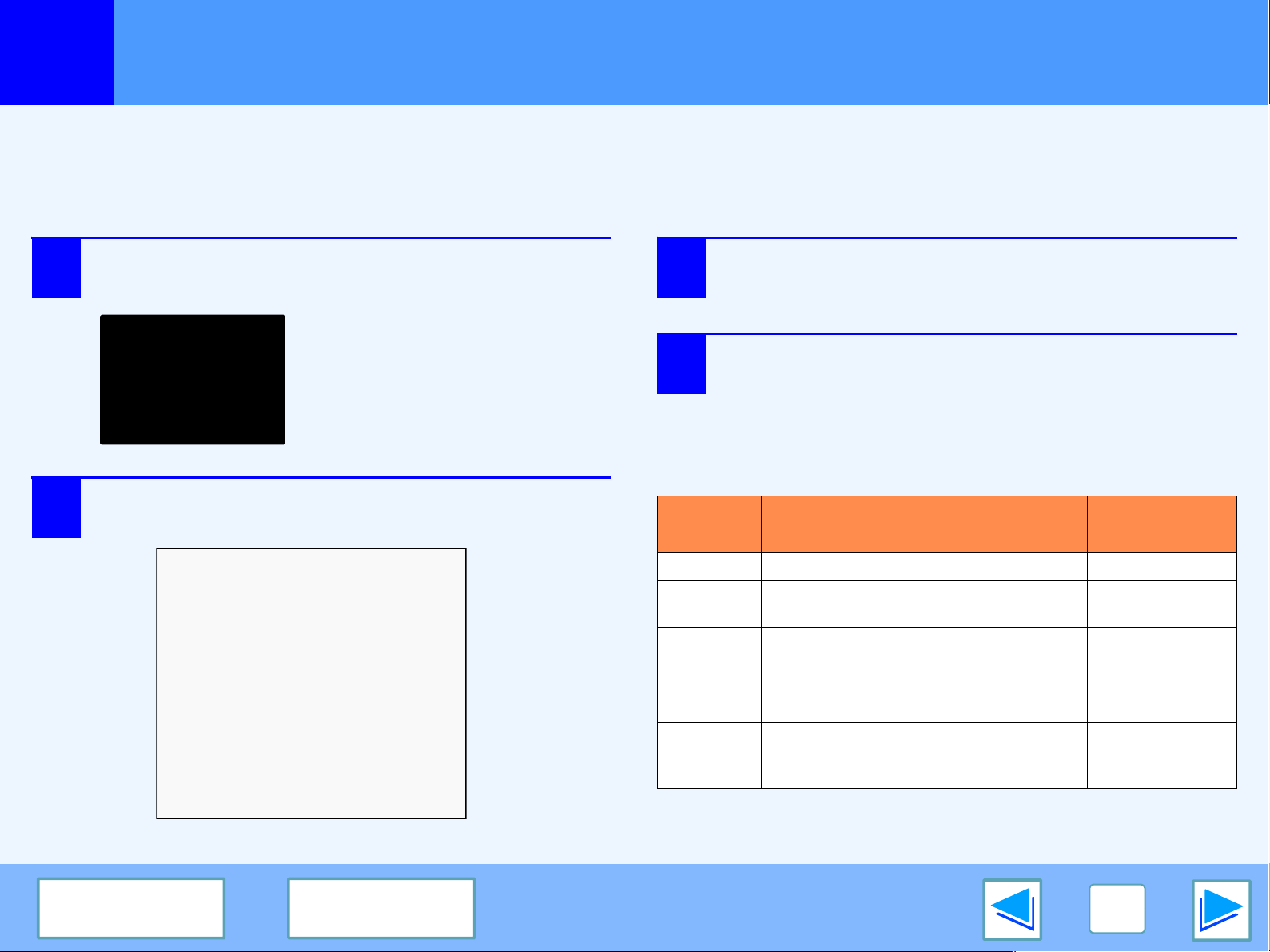
4
WEB FUNCTIONS IN THE MACHINE
25
CONTENTS
INDEX
Directly printing a file in a computer
A file that can be accessed by your computer can be directly printed without using the printer driver by specifying the file's address.
Any file that can be accessed by your computer can be printed by this method, including not only files on your computer but files on
other computers connected to the same network.
To directly print a file by this method, click [Submit Print Job] in the menu frame of the Web page.
1
Click [Submit Print Job] in the link menu.
The "Submit Print Job" screen
will appear.
2
Select the print format in "Job Detail".
The settings are described in the table below.
3
Click [Browse] and select the file that you wish
to print.
You can also directly enter the file name (with the path).
4
Click [Print].
Printing begins.
Advanced job settings
Item Description
Factory
default setting
Copies Set the number of copies from 1 to 999. 1
Paper Size
Select the size of paper to be used for
printing.
Not Specified
Orientation
Select the printing orientation. (Portrait /
Landscape)
Portrait
Binding
Edge
Select the binding position for two-sided
printing. (Left / Top)
Left
Duplex
To print on both sides of the paper, select
this checkbox. (Only for models that
support the two-sided printing.)
Not selected
4
WEB FUNCTIONS IN THE MACHINE
26
CONTENTS
INDEX
Configuring the printer condition settings
(part 1)
The printer condition settings allow basic printer settings to be configured. The following items can be set:
●
Default Settings: Basic settings that are mainly used when
the printer driver is not used.
●
PCL Settings: PCL symbol set, font, line feed code, and
other settings.
●
PostScript Settings
*
: Sets whether or not a PostScript
error page is printed when a
PostScript error occurs.
* This setting is only appears when the PS3 expansion kit is
installed.
When the printer driver is used and the same settings are configured both in the printer driver and in the above screens, the settings
configured in the printer driver override the settings in the above screens. If a setting is available in the printer driver, use the printer
driver to configure the setting.
Note
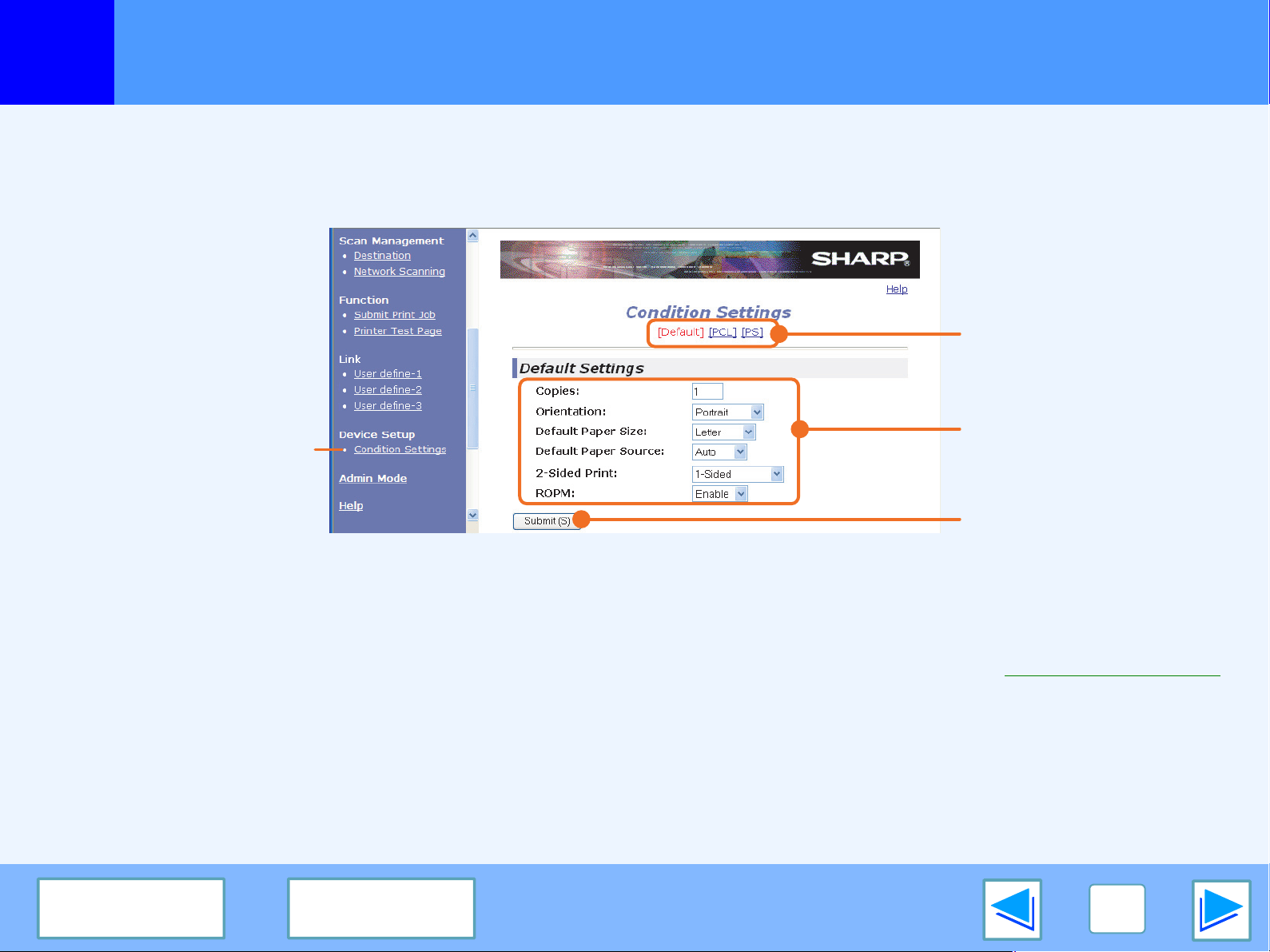
4
WEB FUNCTIONS IN THE MACHINE
27
CONTENTS
INDEX
Configuring the printer condition settings
(part 2)
How to configure the settings
To display the Condition Settings screen, click [Condition Settings] in the menu frame.
For detailed explanations of the procedures for establishing settings, click [Help] in the menu frame.
(1)Condition Settings
This displays the page for configuring the printer condition
settings.
(2)Default / PCL / PS
Select the type of condition settings that you wish to
configure.
(3)Settings
The factory default settings are displayed.
Change the settings as desired by selecting from drop-down
lists and by directly entering settings.
For information on the settings, see "Printer condition settings".
(4)Submit
Click to store the Web page settings in the machine.
(1)
(2)
(3)
(4)
4
WEB FUNCTIONS IN THE MACHINE
28
CONTENTS
INDEX
Configuring the printer condition settings
(part 3)
Printer condition setting menu
Click on a setting to view an explanation of the setting.
Condition Settings
Default Settings
Factory default settings
Copies 1
Orientation Portrait
Default Paper Size Letter
Default Paper Source Auto
2-Sided Print 1-Sided
ROPM (Rip Once, Print Many)
Enable
Condition Settings
PCL Settings
Factory default settings
Symbol Set PC-8
Font 0: Courier (internal font)
Line Feed Code CR=CR; LF=LF; FF=FF
Wide A4 Disable
PostScript Settings*
Factory default settings
Print PS Errors Disable
* This setting is only appears when the PS3 expansion kit is
installed.
4
WEB FUNCTIONS IN THE MACHINE
29
CONTENTS
INDEX
Configuring the printer condition settings
(part 4)
Printer condition settings
Factory default settings are indicated in bold.
Default Settings
Item Selections Description
Copies 1 - 999 This is used to select the number of copies.
Orientation Portrait, Landscape This sets the orientation of the printed page. Select [Portrait] when the image
is longer in the vertical direction, or [Landscape] when the image is longer in
the horizontal direction.
Default Paper Size
Invoice,
Letter
,
Foolscap, Legal
This sets the default paper size used for the printed image. Even if the set size
of paper is not in any of the trays, the printed image is formed in accordance
with this setting.
Default Paper Source Auto,
Tray 1,
Tray 2*,
Bypass (Auto)
Set the default paper tray.
*Selections available depend on the trays that are installed.
2-Sided Print 1-Sided,
2-Sided (Book),
2-Sided (Tablet)
When [2-Sided (Book)] is selected, two-sided printing takes place so as to allow
binding at the left side. When [2-Sided (Tablet)] is selected, two-sided printing
takes place so as to allow binding at the top. (Only for models that support
two-sided printing.)
ROPM (Rip Once, Print
Many)
Enable, Disable This enables the ROPM function. When enabled, multi-page print jobs are
stored in memory before printing, and thus the computer does not need to
repeatedly send the print data when multiple copies are printed.
4
WEB FUNCTIONS IN THE MACHINE
30
CONTENTS
INDEX
Configuring the printer condition settings
(part 5)
PCL Settings
Item Selections Description
Symbol Set Select one of 35 sets. This specifies which country's characters (PCL symbol set) are assigned to
certain of the symbols in the character code list. The factory default setting is
[PC-8].
Font Select one internal or
one external font.
This specifies which PCL font to use for printing. One font can be specified from
among the internal fonts and extended fonts (when the barcode font kit or the
Flash ROM kit is installed). The factory default setting is [0: Courier].
Line Feed Code CR=CR; LF=LF;
FF=FF,
CR=CR+LF; LF=LF;
FF=FF,
CR=CR; LF=CR+LF;
FF=CR+FF,
CR=CR+LF; LF=CR+LF;
FF=CR+FF
This specifies the line break code by means of a combination of the "CR"
(return) code, "LF" (line break) code, and "FF" (page break) code. The factory
default setting is printing based on the transmitted code. The setting can be
changed by selecting one of four combinations.
Wide A4 Enable, Disable This setting can be enabled to print 80 lines on A4 size paper with each line
10CPI font (English characters). When the setting is disabled (a checkmark
does not appear), each line is 78 characters long.

4
WEB FUNCTIONS IN THE MACHINE
31
CONTENTS
INDEX
Configuring the printer condition settings
(part 6)
PostScript Settings
The "PostScript Settings" are only effective when the PS3 expansion kit is installed.
Item Selections Description
Print PS Errors Enable, Disable When this setting is enabled, an error description is printed each time a
PostScript error occurs.
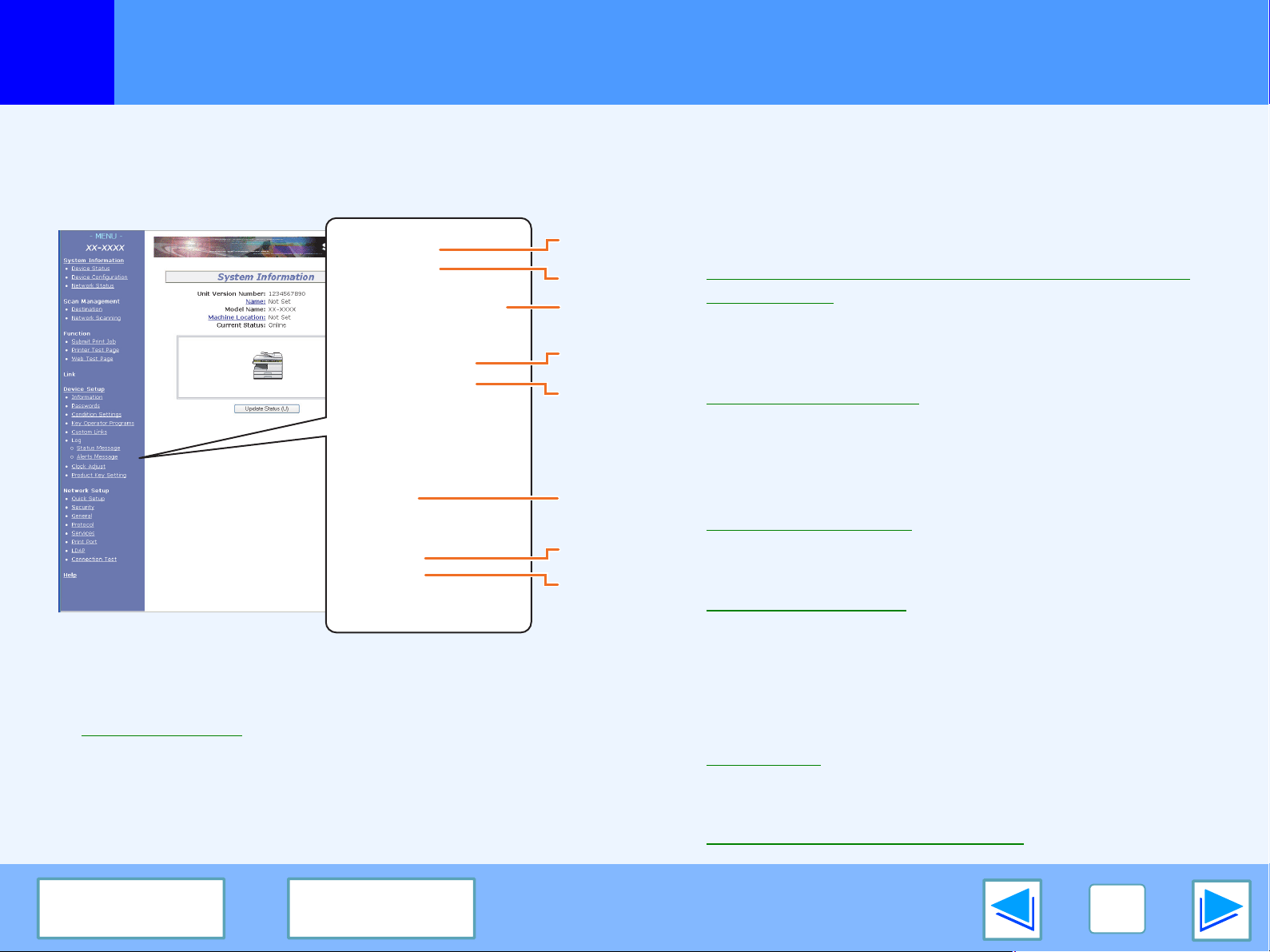
4
WEB FUNCTIONS IN THE MACHINE
32
CONTENTS
INDEX
About the Web pages (for the administrator)
In addition to the menus that appear for users, other menus that can only be used by the administrator appear in the administrator Web pages.
A menu frame appears on the left side of the page. When you click an item in the menu, a screen appears in the right frame that
allows you to configure settings for that item. Settings that can only be configured by the administrator are explained here.
(1)Information
Configure machine identification information for the status &
alert E-mail function.
☞Information setup
(2)Passwords
To protect the Web site, the system administrator can
establish passwords. Enter a password that you would like to
establish and click the [Submit] button.
One password can be established for the administrator and
one password can be established for users.
☞Protecting information programmed in the web page
([Passwords])
(3)Key Operator Programs
Setting changes can be prohibited and interface settings can
be configured.
☞Key operator programs
(4)Status Message
Configure parameters required for sending status
messages, such as destination addresses and time
schedules.
☞Status message setup
(5)Alerts Message
Store destination addresses for alert messages.
☞Alerts message setup
(6)Security
Unused ports can be disabled for greater security and port
numbers can be changed.
(7)Services
Configure information concerning the e-mail system.
☞SMTP setup
(8)Print Port
Configure settings for e-mail print.
☞Setting up the E-mail print function
(6)
(1)
(2)
(4)
(5)
(7)
(8)
(3)
4
WEB FUNCTIONS IN THE MACHINE
33
CONTENTS
INDEX
Protecting information programmed in the web page ([Passwords])
Passwords can be set (click [Passwords] in the menu frame) to restrict Web page access and protect settings. The administrator
must change the password from the factory default setting. The administrator must also take care to remember the new password.
The next time the Web pages are accessed, the new password must be entered.
A password can be set for the administrator and a password can be set for users.
1
Click [Passwords] in the menu frame.
2
Enter the current password in "Admin
Password".
When establishing a password for the first time, enter
"Sharp" in "Admin Password".
3
Enter passwords in "User Password" and
"Admin Password".
• A maximum of 7 characters and/or numbers can be
entered for each password (passwords are case
sensitive).
• Be sure to enter the same password in "Confirm
Password" as you did in "New Password".
4
When you have finished entering all items, click
[Submit].
The entered password is stored.
After setting the password, turn the machine power
off and then back on.
Be sure to enter "S" in upper case and "harp" in
lower case (passwords are case sensitive).
Caution
When prompted to enter a password, a user should
enter "user" and an administrator should enter "admin"
in "User Name". In "Password", the respective password
for the entered user name should be entered.
For more information, click [Help] in the upper right-hand
corner of the window.
Note
4
WEB FUNCTIONS IN THE MACHINE
34
CONTENTS
INDEX
E-mail print function
(part 1)
An e-mail account can be set up for the machine. When this is done, the machine will periodically check the e-mail server for e-mail
and automatically print out any file attachments it receives. This provides a means for printing a file from a computer that does not
have the printer driver installed, as the user can simply send the file to the machine as an e-mail attachment.
Setting up the E-mail print function
To use the e-mail print function, the machine must have an e-mail account.
1
Click [Print Port] in the menu frame.
The "Print Port Setup" page
appears.
2
Click [E-mail print].
3
Enter the information regarding the e-mail
environment.
For detailed information, Click [Help] in the upper
right-hand corner of the window.
4
Click [Submit] to store the entered information.
4
WEB FUNCTIONS IN THE MACHINE
35
CONTENTS
INDEX
E-mail print function
(part 2)
Using the E-mail print function
To use the e-mail print function, attach the file that you wish to print to an e-mail message and send the e-mail to the machine's
e-mail address.
The machine can print the following file types:
PCLXL, PCL5e, PS, PDF, and TIFF, with file extensions pcl, ps, pdf, tiff, and tif
Control commands can be entered in the message of the e-mail to specify the number of copies and print format. Commands are
entered in the format "command name = value".
The following control commands can be entered:
Function Command name Value Entry example
Copies COPIES 1-999 COPIES=2
Two-sided print DUPLEX OFF, TOP, LEFT DUPLEX=LEFT
File type LANGUAGE AUTO, PCL, PCLXL, POSTSCRIPT, PDF, TIFF LANGUAGE=TIFF
Paper PAPER Name of available paper (LETTER, etc.) PAPER=A4
●
Enter the commands in Plain Text format. If entered in Rich Text format (HTML), the commands will have no effect.
●
To receive a list of the control commands, enter the command "Config" in the e-mail message.
●
If an e-mail is sent with nothing entered in the message, printing will take place according to the settings in the condition settings
menu in the Web page "Default Settings".
●
To print PS and PDF files, the PS3 expansion kit is required.
●
An encrypted PDF file cannot be printed.
●
Only enter a "File type" when you are specifying a page-description language. Normally there is no need to enter a file type.
Note
4
WEB FUNCTIONS IN THE MACHINE
36
CONTENTS
INDEX
Key operator programs
(part 1)
The key operator programs are used to prohibit changes to the [Condition Settings] and to configure interface settings.
•
Default Settings: Select the setting for which you wish to prohibit changes.
•
Interface settings: Enable monitoring of data sent to the network port and set restrictions.
Configuring a setting in the key operator programs
1
Click [Key operator programs] in the menu
frame.
The "Default Settings" screen of
the [Key operator programs] will
appear. If you wish to select a
setting in the "Default Settings"
screen, go to step 3.
2
Click the desired setting.
3
Make a selection for the setting in the screen
that appears.
See Key operator programs for descriptions of the
settings.
4
Click [Submit] to store the entered information.
4
WEB FUNCTIONS IN THE MACHINE
37
CONTENTS
INDEX
Key operator programs
(part 2)
Key operator programs
When "YES, NO" appears in the "Settings" column, "YES" is selected when a checkmark appears in the checkbox of the item, and
"NO" is selected when checkmark does not appear.
Default settings
Interface settings
Item Settings Description
Prohibit Test
Page Printing
YES, NO This setting is used to prohibit printing of a printer test page.
Disable Default
Setting Changes
YES, NO This setting is used to prohibit changes to the default condition settings.
Disabling of
Clock Adjustment
YES, NO This setting is used to prohibit changes to the date and time settings. This item does
not appear when the fax option is installed.
Item Settings Description
Hexadecimal
Dump Mode
YES, NO This program is used to print out the print data from the computer in hexadecimal and
in the corresponding text characters (based on ASCII code). This allows you to check
whether or not print data is being correctly sent from the computer.
I/O Timeout 1- 60 - 999 (sec) During reception of a print job, if remaining data is not received after the time set here
elapses, the port connection is broken and the next print job is begun.
Emulation
Switching
Auto*, PostScript*,
PCL
Select the printer language. When [Auto] is selected, the language is automatically
selected from the data sent to the printer. Unless errors occur frequently, do not
change the setting from [Auto] to another setting.
*Only when the PS3 expansion kit is installed.
Port Switching
Method
Switch at End of Job
,
Switch after I/O Timeout
Select the method for switching network ports.
4
WEB FUNCTIONS IN THE MACHINE
38
CONTENTS
INDEX
E-mail status and e-mail alert settings
(part 1)
These functions send information on machine use (print count, copy count, etc.) and error conditions (paper misfeed, out of paper,
out of toner, etc.) via e-mail to the administrator of the machine or the dealer.
Information setup
Machine identification information for the status and alert e-mail
functions is configured in the "Information Setup" screen. The
entered information will be included in status and alert e-mail
messages.
1
Click [Information] in the menu frame.
The "Information Setup" screen
will appear.
2
Enter the machine information.
For detailed information, click the [Help] button in the
upper right-hand corner of the window.
3
Click [Submit] to store the entered information.
SMTP setup
The Status and alert e-mail functions use SMTP (Simple Mail
Transport Protocol) to send e-mail. The following procedure is
used to set up the e-mail environment. This must be done by the
system administrator or other person familiar with the network.
1
Click [Services] in the menu frame.
The "Services Setup" screen will appear.
2
Click [SMTP].
3
Enter the information required to set up the
e-mail environment.
For detailed information, click the [Help] button in the
upper right-hand corner of the window.
4
Click [Submit] to store the entered information.
4
WEB FUNCTIONS IN THE MACHINE
39
CONTENTS
INDEX
E-mail status and e-mail alert settings
(part 2)
Status message setup
Use the status message function to send the current counter information, including the copy count, print count, and total output
count, basis on the specified schedule. The destinations can be set for administrators and dealers respectively.
To set up the status message, follow these steps.
1
Click [Status Message] in the menu frame.
The "Status Message Setup"
screen will appear.
2
Enter the required information, including the
destination addresses and time schedule.
For detailed information, click the [Help] button in the
upper right-hand corner of the window.
3
Click [Submit] to store the entered information.
When the E-mail Status settings are completed, printer count
information will be sent periodically by e-mail to the specified
e-mail addresses.
If you quit the browser before clicking [Submit], the
settings will be canceled. To send printer information
immediately to the specified e-mail addresses, click
[Send Now].
Note
4
WEB FUNCTIONS IN THE MACHINE
40
CONTENTS
INDEX
E-mail status and e-mail alert settings
(part 3)
Alerts message setup
Use the alert message function to send alert information, such as empty toner and paper and trouble including paper misfeeds, to
specified destinations when such problems occur. The destinations can be set for administrators and dealers respectively.
To set up the alert message, follow the procedure below.
1
Click [Alerts Message] in the menu frame.
The "Alerts Message Setup"
screen will appear.
2
Enter the destination addresses.
For detailed information, click the [Help] button in the
upper right-hand corner of the window.
3
Click [Submit] to store the entered information.
If these parameters are set, event information for the printer will
be transmitted to the specified addresses via E-mail each time
a specified event occurs. The meaning of each event item is
shown below.
(Example)
Paper Jam: A paper misfeed has occurred.
Toner Low: Toner is low.
Toner Empty: Toner must be added.
Paper Empty: Paper must be loaded.
If you quit the browser before clicking [Submit], the
settings will be canceled.
Note
5
TROUBLESHOOTING
41
CONTENTS
INDEX
Troubleshooting
This chapter explains how to solve network connection problems. For information on paper, removing misfeeds, and replacing the
toner cartridge, see the operation manual for the machine.
Check the connections
■ Is the LAN cable disconnected?
Make sure that the LAN cable is firmly inserted in the
connectors on the network expansion kit and your computer.
For information on connecting the LAN cable, see software
setup guide for network printer.
■ Is the machine configured for use on the same
network as the computer?
The machine cannot be used if it is not connected to the
same network as the computer, or if it is not configured for
use on the network.
For more information, consult your network administrator.
Points to check in Windows
■ Are you using a port that was created with Standard
TCP/IP Port?
If you are using a port created using Standard TCP/IP Port in
Windows 2000/XP/Server 2003/Vista, printing may not take
place correctly if "SNMP Status Enabled" is selected in the
port settings of the printer driver. Open the printer driver
properties and click the "Configure Port" button on the
"Ports" tab. In the window that appears, make sure the
"SNMP Status Enabled" checkbox is not selected .
Points to check on the Macintosh
■ Is AppleTalk enabled?
In Mac OS X, click "Network" in "System Preferences" and
select Ethernet in "Show". Click the "AppleTalk" tab and
make sure that "Make AppleTalk Active" is selected.
In Mac OS 9.0 to 9.2.2, open the "Chooser" from the Apple
menu and make sure that "Active" is selected. Printing is not
possible if "Active" is not selected.
■ Is "Ethernet" selected for the "Connect via" of
AppleTalk? (When using Mac OS 9.0 to 9.2.2.)
Open "AppleTalk" from the "Control Panels" and make sure
that "Ethernet" is selected in the "Connect via" menu.
Printing is not possible if "Ethernet" is not selected.
5
TROUBLESHOOTING
42
CONTENTS
INDEX
Removing the software
In the event that you need to remove the printer driver or utilities, follow these steps:
Windows
1
Click the "start" button, and then click "Control
Panel".
On Windows 98/Me/2000, click the "Start" button, select
"Settings", and then click "Control Panel".
2
Click "Add or Remove Programs".
• On Windows Vista, click the "Uninstall a program".
• On Windows 98/Me/2000, double-click the
"Add/Remove Programs" icon.
3
Select the driver or utility that you wish to
remove from the list, and click the appropriate
button to remove it.
For more information, refer to your operating manual or
to the help files for your operating system.
4
Restart your computer.
Macintosh (Mac OS 9.0 to 9.2.2)
1
Insert the "Software CD-ROM" (Disc 2) into your
CD-ROM drive.
2
Double-click the CD-ROM icon ( ) on the
desktop and double-click the "Mac OS" folder.
3
Double-click the "Installer" icon ( ).
4
Select "Remove" from the Install menu and then
click the "Remove" button.
There is no remove tool for Mac OS X. The PPD file for
Mac OS X has been copied to the following folder in the
startup disk:
[Library] - [Printers] - [PPDs] - [Contents] - [Resources] -
[En.lproj] folder
Note
When reinstalling the software, install it correctly as explained in software setup guide for the network expansion kit.
Note
6
SPECIFICATIONS
43
CONTENTS
INDEX
Printer specifications
*
1
300 dpi can only be selected when using the PCL6 or PCL5e printer driver.
*
2
For information on machine memory, see the manual for the machine.
*
3
Available only if the PS3 expansion kit (AR-PK1N) is installed.
Printing speed Max. 20 ppm (when printing on letter size paper)
Resolution 600 dpi / 300 dpi*
1
Network expansion kit memory*
2
Standard memory: 64 MB
Additional memory slot: 1 slot (a 128 MB or 256 MB of additional memory module (144-pin SDRAM
SODIMM) can be installed)
Emulation PCL5e, PCL6, PS3 (PostScript 3)*
3
Installed fonts
PCL6/PCL5e compatible: 80 outline fonts and 1 bitmap font
PostScript 3 compatible*
3
: 136 outline fonts
Interface 10Base-T/100Base-TX Ethernet
As a part of our policy of continuous improvement, SHARP reserves the right to make design and specification changes for product
improvement without prior notice. The performance specification figures indicated are nominal values of production units. There
may be some deviations from these values in individual units.
Note
6
SPECIFICATIONS
44
CONTENTS
INDEX
Printer driver specifications
(part 1)
(continued)
*1 Pamphlet style printing is available in Windows 2000/XP/Server 2003/Vista.
*2 Cannot be used in Mac OS X v10.1.5.
Function PCL6 PCL5e PS
Windows
PPD
Macintosh
PPD
Frequently used
functions
Number of copies 1 to 999 1 to 999 1 to 999 1 to 999 1 to 999
Printing orientation Yes Yes Yes Yes Yes
Two-sided printing Yes Yes Yes Yes Yes
Binding Style Book/Tablet Book/Tablet Book/Tablet Long Side /
Short Side
Long Side /
Short Side
Pamphlet Style Yes Yes Yes No
*1
No
N-up Number 2, 4, 6, 8, 16 2, 4, 6, 8, 16 2, 4, 6, 8, 16 2, 4 2, 4, 6, 9, 16
Order Selectable Fixed Selectable Fixed Selectable
Border Yes/No Yes/No Yes/No Yes/No Selectable
Paper Paper Size Yes Yes Yes Yes Yes
Custom Paper Size 1 size 1 size 1 size 3 sizes 1 size
*2
Source Selection Yes Yes Yes Yes Yes
Cover Settings Yes Yes Yes No Yes
6
SPECIFICATIONS
45
CONTENTS
INDEX
Printer driver specifications
(part 2)
(continued)
*3 Cannot be used in Mac OS X.
*4 Can only be used in Mac OS X v10.4.
*5 Type 1 and TrueType can be selected in some versions of LaserWriter.
Function PCL6 PCL5e PS
Windows
PPD
Macintosh
PPD
Graphics Resolution 600/300dpi 600/300dpi 600dpi 600dpi 600dpi
Halftone No No Yes No No
Graphics Mode Yes Yes No No No
Zoom No No Yes Yes Yes
Mirror Image No No Yes Yes Yes
*3
Negative Image No No Yes Yes Yes
*3
Fit to Page Yes Yes Yes No Yes
*4
Fonts Resident fonts 80 fonts 80 fonts 136 fonts 136 fonts 35 fonts
Selectable download
fonts
bitmap,
TrueType,
Graphics
bitmap,
TrueType,
Graphics
bitmap,
Type 1,
TrueType
bitmap,
Type 1,
TrueType
No
*5
6
SPECIFICATIONS
46
CONTENTS
INDEX
Printer driver specifications
(part 3)
*3 Cannot be used in Mac OS X.
Function PCL6 PCL5e PS
Windows
PPD
Macintosh
PPD
Other functions Auto configuration
Settings
Yes Yes Yes No Yes
*3
ROPM Yes Yes Yes Yes Yes
Overlay Yes Yes Yes No No
Watermark Yes Yes Yes Yes Yes
Job Compression No No Yes No No
Bitmap Compression No No Yes No No
7
INDEX
47
CONTENTS
Index
Numerics
"2-Up Pamphlet"................................. 11
A
About the Web pages
For users......................................... 24
For the administrator....................... 32
Accessing Web pages........................ 23
Alerts message setup ........................ 40
B
Basic printing
Macintosh ....................................... 21
Windows ........................................... 6
"Border".............................................. 12
C
Cancel a print job
Macintosh ....................................... 22
Windows ........................................... 7
Check the connections....................... 41
Condition settings .............................. 28
Configuring the printer condition settings
.... 28
D
Default Settings.................................. 29
Directly printing a file in a computer
...... 25
"Document Style" ............................... 10
E
E-mail print function ........................... 34
F
"Fit to Page" ........................................13
H
"Help" button.........................................9
How to configure the settings .............27
How to use the online manual ..............3
I
"Image Orientation".............................14
Information setup ................................38
Introduction ...........................................2
K
Key operator programs .......................36
N
"N-Up Printing"....................................12
O
Opening the printer driver.....................8
"Order" ................................................12
P
Pamphlet style ....................................11
Passwords ..........................................33
PCL Settings.......................................30
Points to check on the Macintosh .......41
PostScript Settings .............................31
[Print Port]...........................................34
Printer Administration Utility................17
Printer condition settings ....................29
Printer driver settings............................9
Printer driver specifications ................44
Printer specifications ..........................43
Printer Status Monitor.........................17
PRINTER UTILITIES ..........................17
Printing a watermark ..........................15
PRINTING FROM MACINTOSH ........21
PRINTING FROM WINDOWS..............6
R
Removing the software.......................42
"Rotate 180 degrees" .........................14
S
Settings.................................................9
SMTP setup........................................38
SPECIFICATIONS ..............................43
Status message setup........................39
[Submit Print Job] ...............................25
T
Text To Black.......................................16
"Tiled Pamphlet" .................................11
Troubleshooting ..................................41
V
Vector To Black...................................16
W
"Watermark" .......................................15
WEB FUNCTIONS IN THE MACHINE
.....23