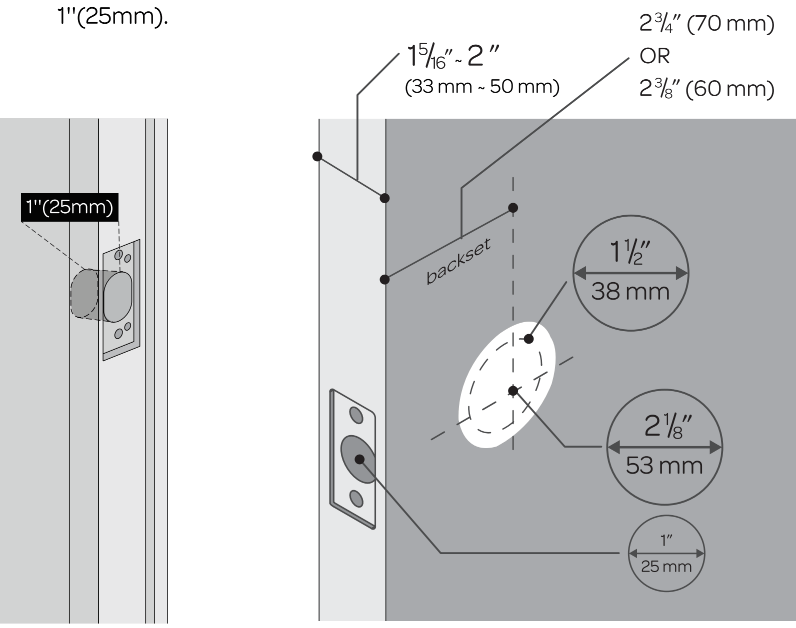
Measure to confirm that the door is between 15/6"~ 2" (33 mm-50 mm) thick.
Step 2:
Measure to confirm that the diameter of the hole is 2'Ib" (53 mm) or I1/;" (38 mm)
Step 3:
Measure to confirm that the backset is either 23/8" or 2%" (60 mm or 70 mm).
Step 4
Measure to confirm that the diameter of the hole in the door edge is 1" (25 mm).
Step 5:
Measure to confirm the depth of the hole in the frame is at least 1" (25 mm).
If you have a new door, please drill the holes according to Drill Template.
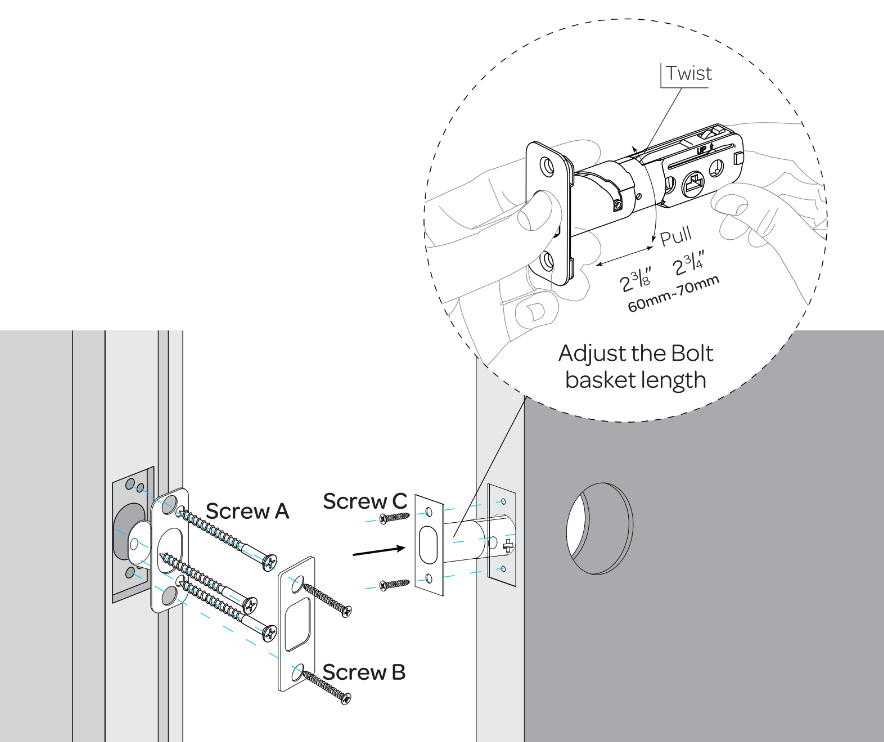
Installing Bolt and Strike
Step 1
Install Bolt into the door. Make sure the UP icon goes up.
Note: Bolt is set for backset initially. It can be adjusted to if needed. To adjust it please make sure the bolt is retracted, then, press it, twist and pull it or push it to your desired length.
Step 2
Install Strike into the doorframe.
Installing Exterior Assembly
Step 1
Keep Bolt retracted and the cylinder tailpiece horizontal. Install Exterior Assembly. Please do notinsert the mechanical key during installation.
Step 2
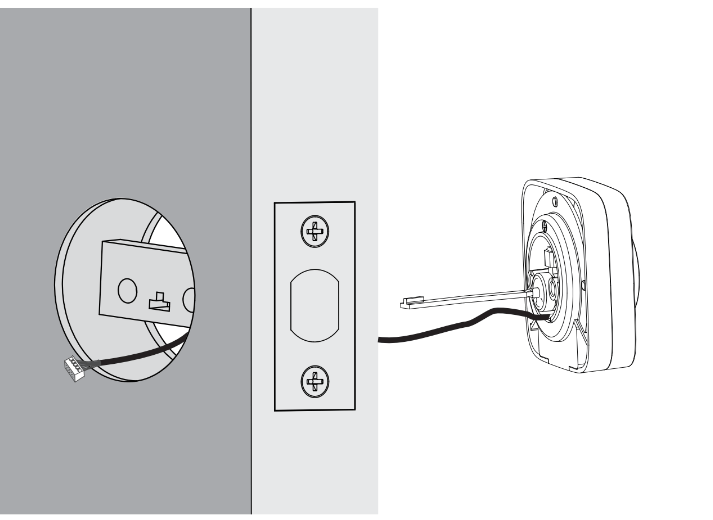
Align its two sticks with two holes on Bolt. The cable goes through the hole below Bolt.
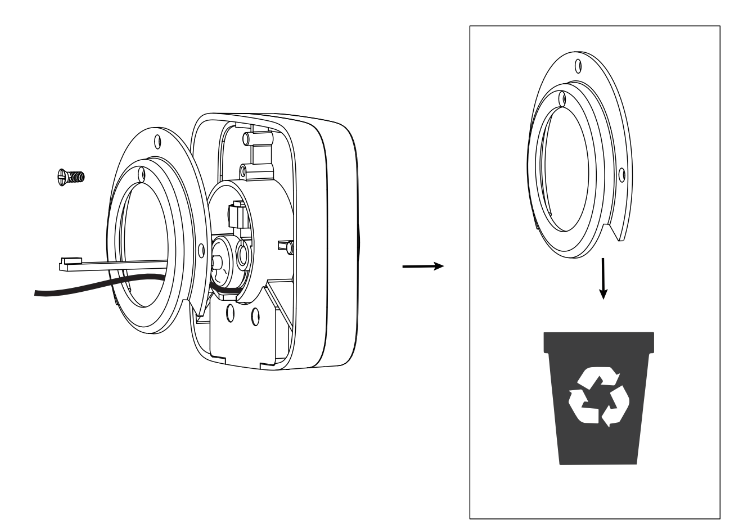
If your door has a 1 y2"(38 mm) bore hole, remove the spacer as shown.
Installing Interior Assembly Mounting Plate
Step 1
Route the cable through the hole on Interior Assembly Mounting Plate.
Step 2
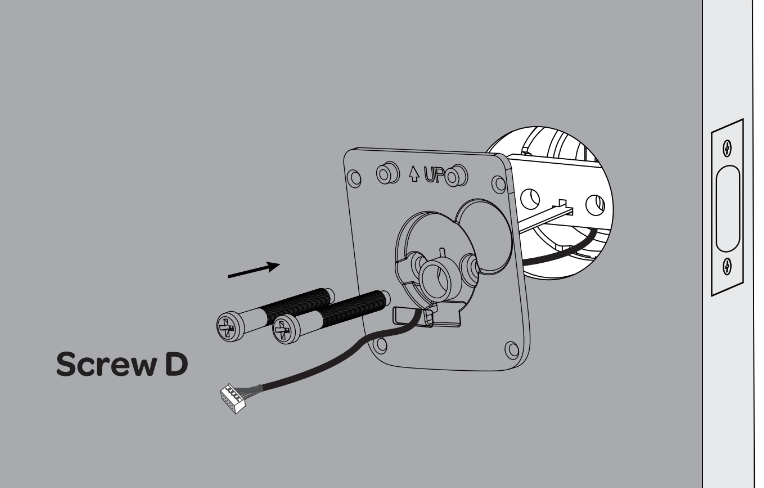
Secure Interior Assembly Mounting Plate to Exterior Assembly using Screws D.
Installing Interior Assembly
Step 1
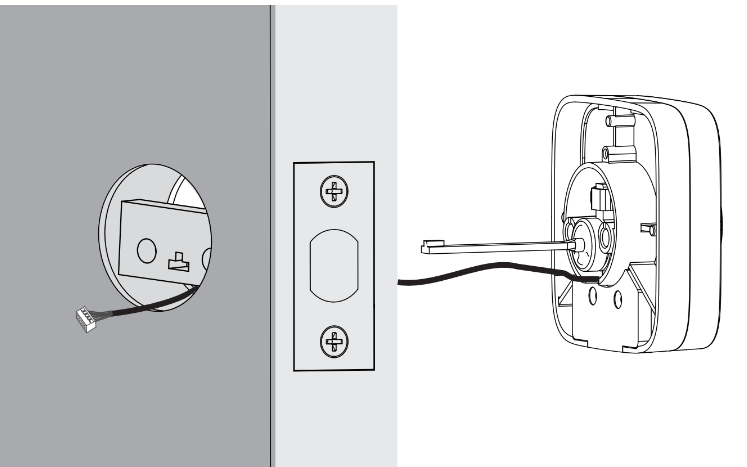
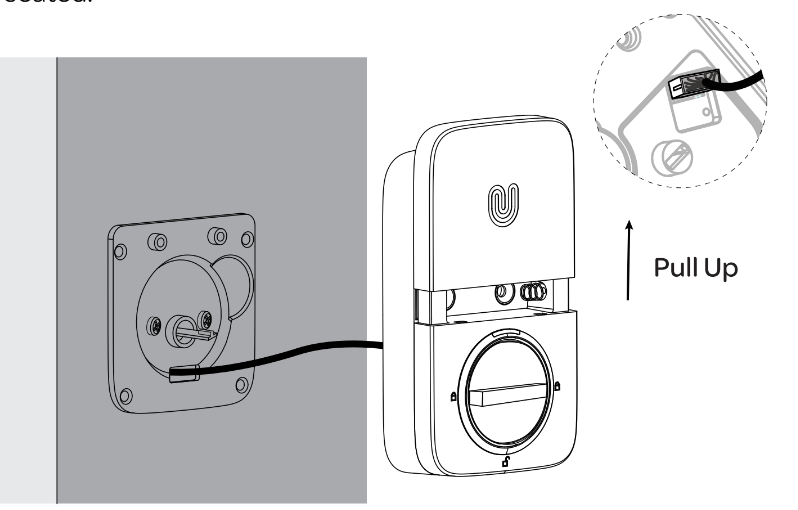
Remove the battery cover of the Interior Assembly.
Step 2
Insert the connector of the cable to the socket on Interior Assembly. Press the connector in firmly until it is completed seated.
Step 3
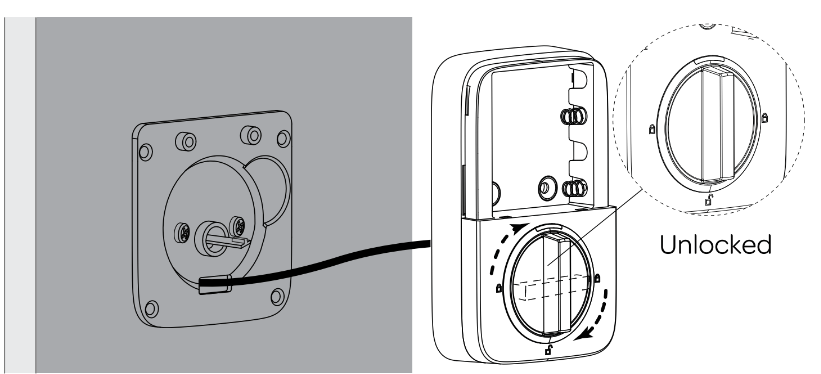
Rotate the knob and keep it in a vertical position to stay unlocked.
Step 4
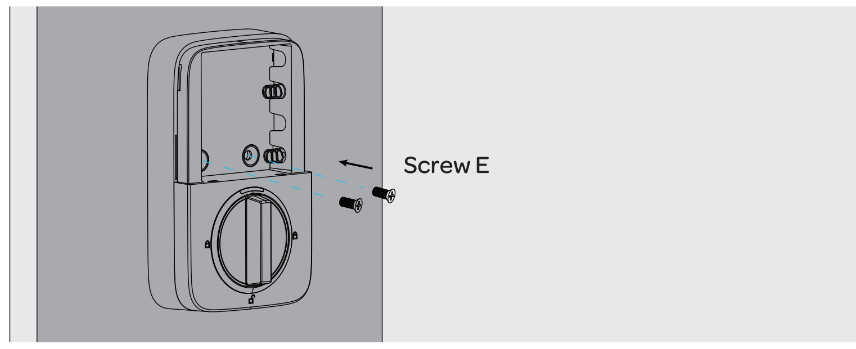
Attach Interior Assembly to Mounting Plate and tighten 2 Screws E.
Installing the Batteries and Performing the Door Handing Process
This step will teach your lock the orientation of your door and is crucial to lock operation.
Step 1
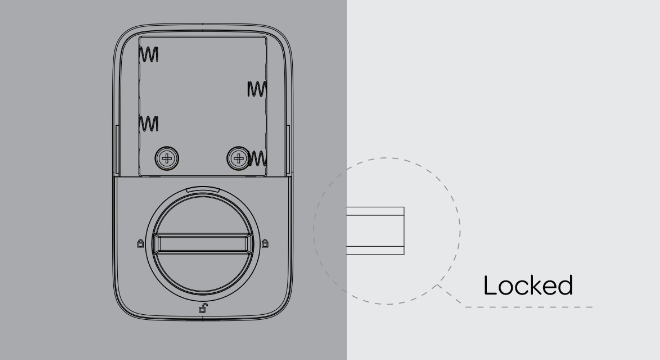
Rotate the knob and keep it in a horizontal position to stay lockedi
Step 2
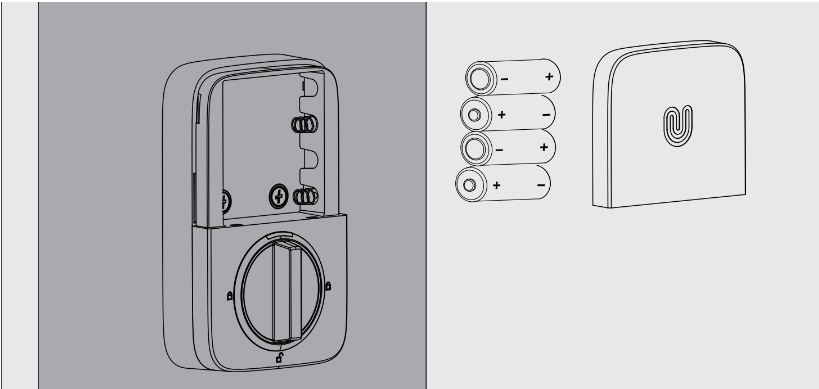
lnsert 4AA Alkaline Batteries.
Note: Any fingerprint or code can unlock U-Bolt Pro in Factory Default Mode.
Step 3
Install battery cover.
User Guide
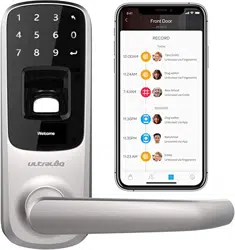
Product Overview
Exterior
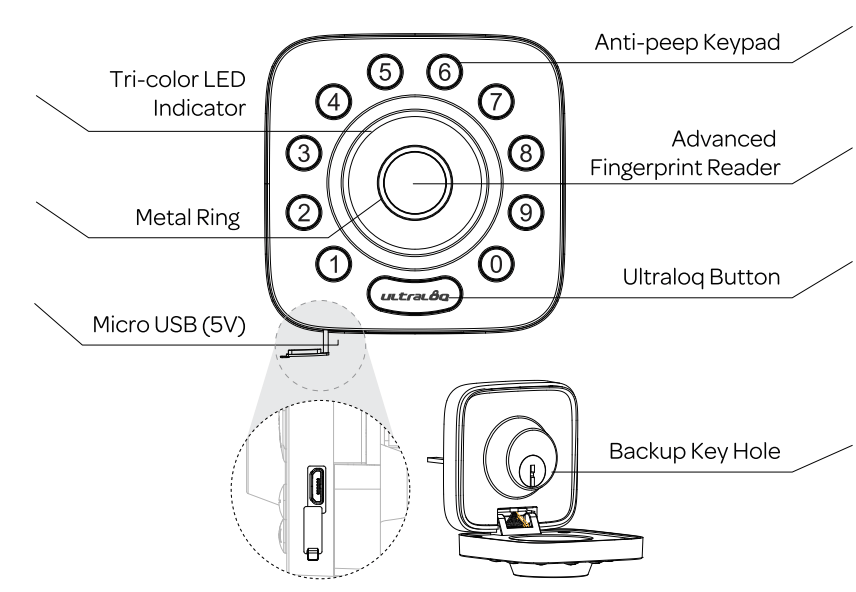
Anti-peep Keypad
Used to enter the code and unlock from outside
Advanced Fingerprint Reader
Used to verify your finger and unlock from the outside.
Backup Key Hole
Used to insert the key to unlock in emergency situations.
Micro USB (5V)
Used to connect power bank to activate the lock when battery runs out.
Tri-color LED Indicator
Shows you authorized or denied access, Bluetooth connectivity status, battery status etc.
Ultraloq Button
Used to lock from the outside, illuminate the keypad for code entry and confirm previous operation etc.
Interior
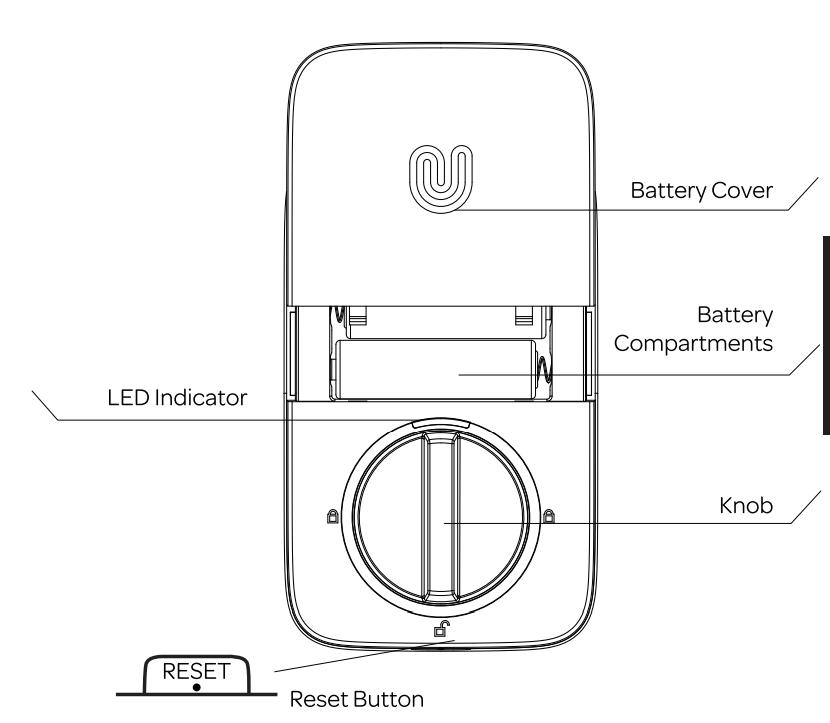
Reset Button
Used to reset the lock to Factory Default settings.
If the lock was paired to App, please must click "Delete" to remove the device from App.
Battery Compartments
Used to insert 4 AA alkaline batteries.
Note: Lithium batteries may have a longer life, but when they begin to fail, they fail quickly. We don't recommend them because they don't give you a lot of time to change your batteries before the lock is completely dead. Please don’t use any Rechargeable Battery.
Battery Cover
Used to cover batteries and product label.
Knob
Used to unlock and lock the door from inside.
LED Indicator
Turns red when door is unlocked.
Low Battery Alarm
There will be low battery alert on the lock and App when battery is low. Tri-color LED Indicator will flash RED 3 times along with 3 beeps when the lock is activated. Please replace batteries.
Lock Setup
Step 1
Scan above QR code to download the App, or search "U-tec"in App Store (iOS) and Google Play (Android).
Step 2
Open the App, register U-tec account and log in the account.
Step 3
Make sure the lock is in Factory Default Mode. Turn on Bluetooth on your smartphone, stay near the lock (within 10 feet / 3 meters) and search the lock in the App.
Step 4
Pair the lock in the App and start to use it.
Note: Please refer to the guide in U-tec App for more information.
Using Your Lock
Unlock From Outside
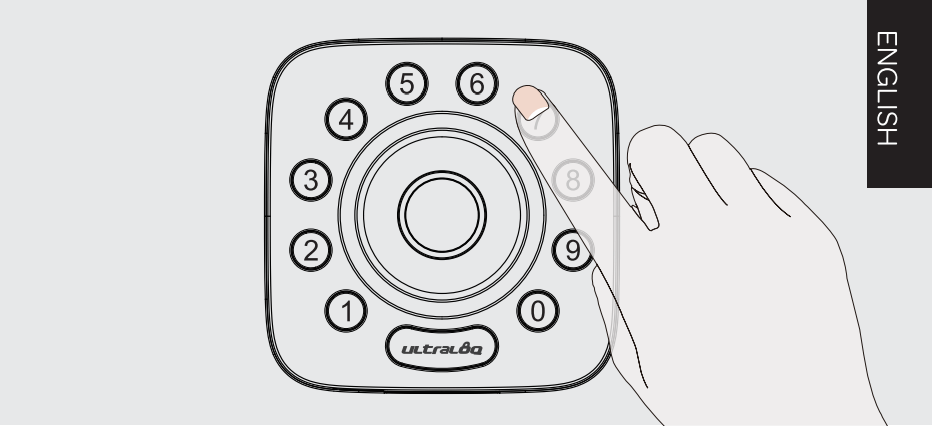
User Code
Enter 4-8 digit code and press Ultraloq Button to unlock.
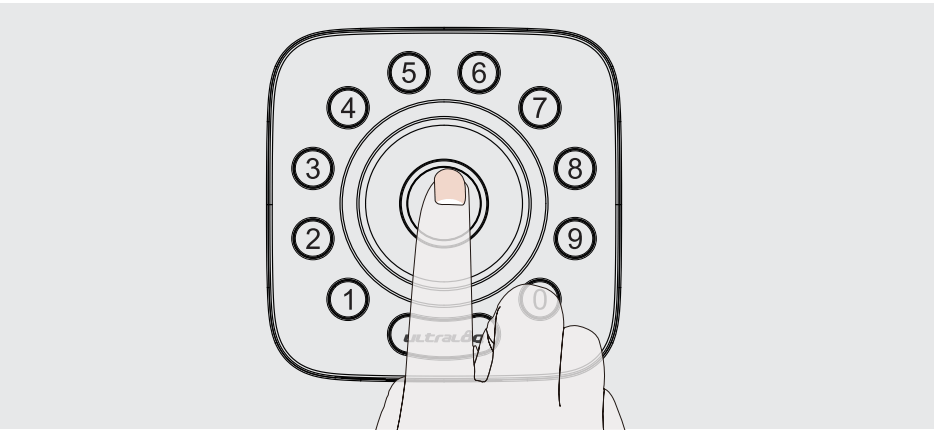
Fingerprint
Place your finger on Fingerprint Reader to unlock.
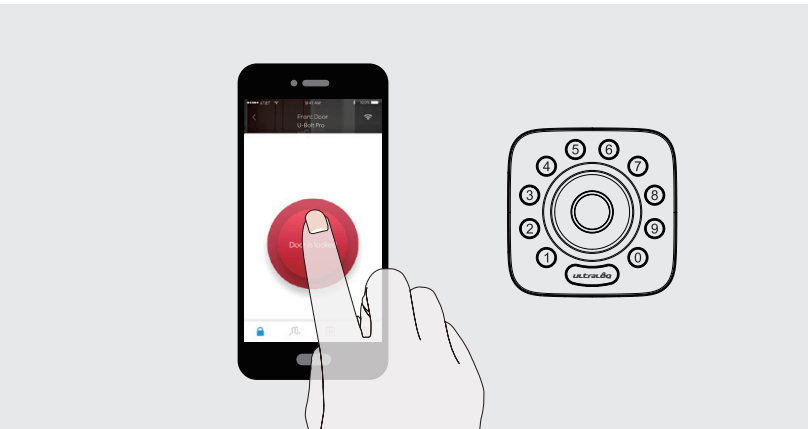
Smarphone
Use your smartphone to unlock. Please refer to the guide in U-tecApp.
Lock From Outside
Press Ultraloq Button to lock manually. Enable Auto Lock feature and the lock will relock automatically
Unlock From Inside
Rotate the knob to a vertical position to unlock.
Reset the Lock
Please note all data will be erased if you reset U-Bolt Pro to factory default. If you are using U-tec App as Owner, please click "Delete and Reset" to remove the lock from your U-tec Account, then use a Reset Needle to push the Reset Button (at the bottom of Interior Assembly) for around 3 seconds until you hear one long beep and two short beeps.
Replace Batteries
Please use 4 high-quality alkaline AA batteries for replacement when the battery is dead.
5V Emergency Power
Micro USB interface is used to connect regular 5V power bank to activate the lock in case the battery is dead.
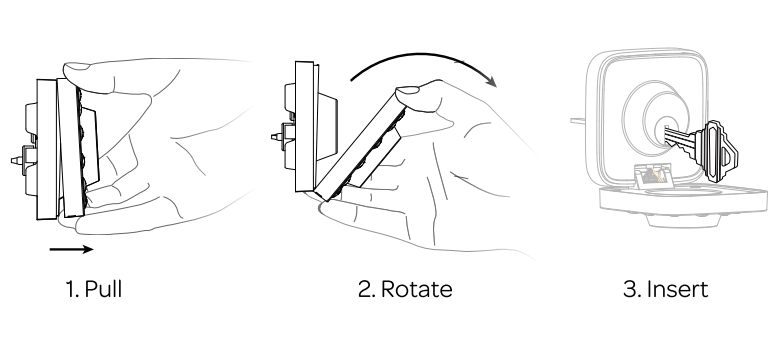
Emergency Key Override
Emergency Key Override can be used when the battery is dead. Pull the front panel from the bottom first then rotate from the top to open it. You can see Backup Key Hole inside. Insert the key and rotate to unlock, just like any lock.
Important Note: Please keep at least one key in secure location outside of your place.
Enable Or Disable Auto Lock
Enable
Please keep Bolt unlocked and press "1" button for3 seconds until LED turns green and'T button blinks.
Disable
Please keep Bolt unlocked and press "0" button for 3 seconds until LED turns green and "0" button blinks. This can also be set in U-tec App and Auto Lock timing can be programmed between 10 seconds to 5 minutes. Factory Default timing is 30 seconds.
Anti-peep Keypad
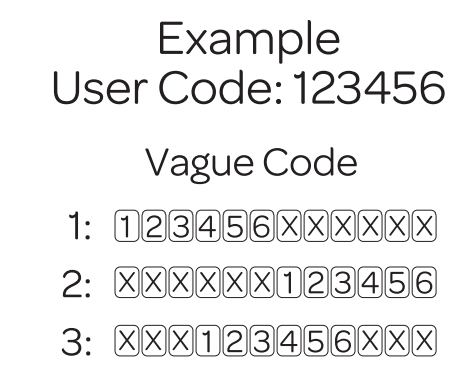
The lock supports up to 16-digit Vague Code. Just enter any 16-digit code, as long as a correct code is included in what you entered, you can open the door.
Place Finger
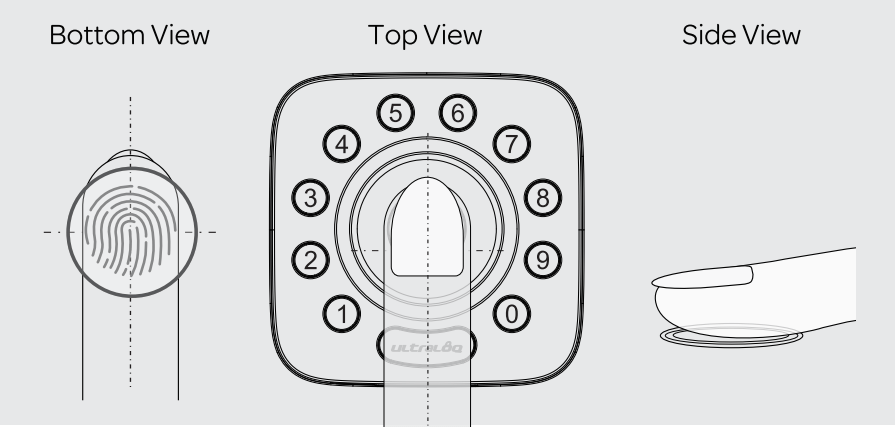
Fora higher recognition rate, please try to cover the Fingerprint Reader completely with your finger, touching the surrounding metal ring.
Make sure that your finger and Fingerprint Reader are clean and dry. For Fingerprint Reader, use a clean, lint-free cloth to wipe off any dirt or debris.
Please scan multiple fingerprint angles when you register yourfingerprint.
While scanning your finger, you shouldn't tap too quickly or move your finger around.
If you have trouble enrolling one finger, try another.
U-Bolt Pro fingerprint sensor has self-study function which the verification rate will be improved after multiple success.
Standalone Mode Programming Guide
It is recommended to use U-tec App to program your lock. If you don't have a smartphone or don't want to use the App, you mayfollowthe programming instructions below.
Warning: Standalone Mode is NOT available after the lock is registered in App! Please reset the lock to Factory Default Mode first to program your lock in Standalone Mode.
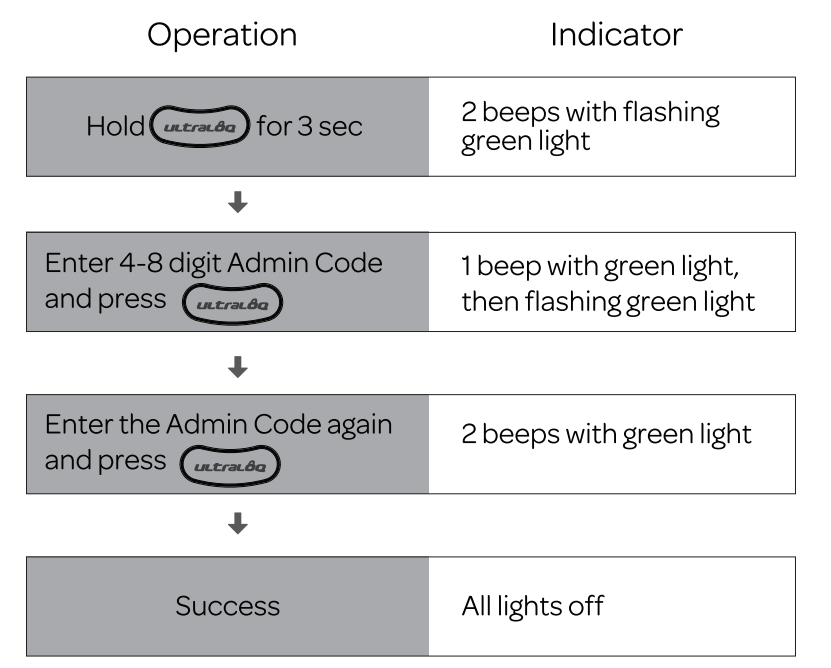
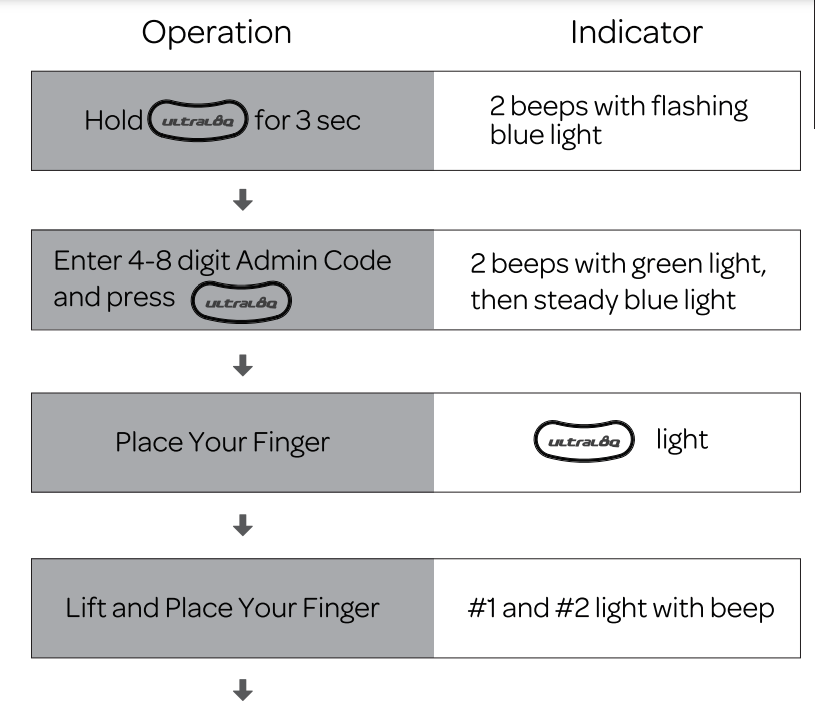
Add Admin Code in Standalone Mode
Admin Code must be created first prior to any other programming. Only one Admin Code is available.
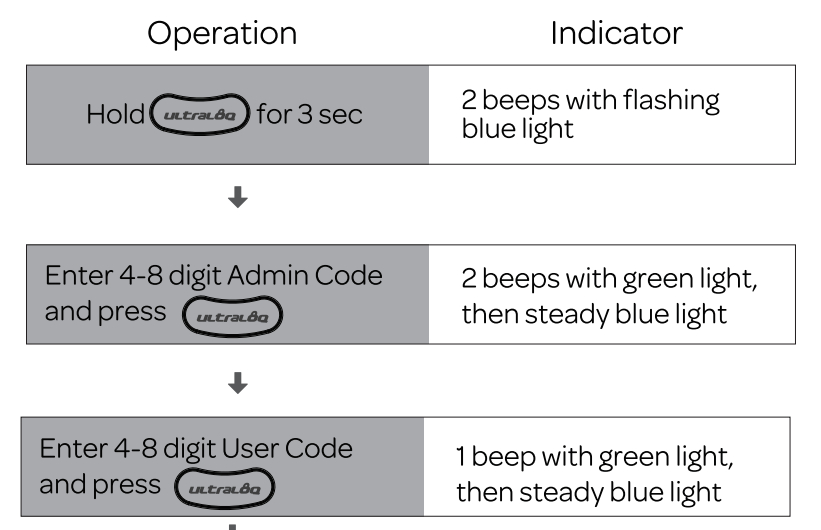
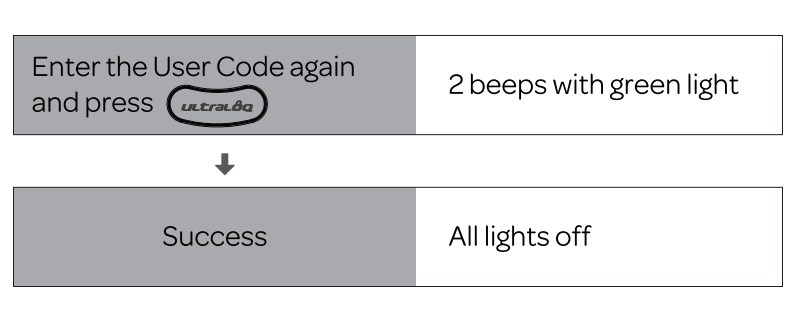
Add User Code in Standalone Mode
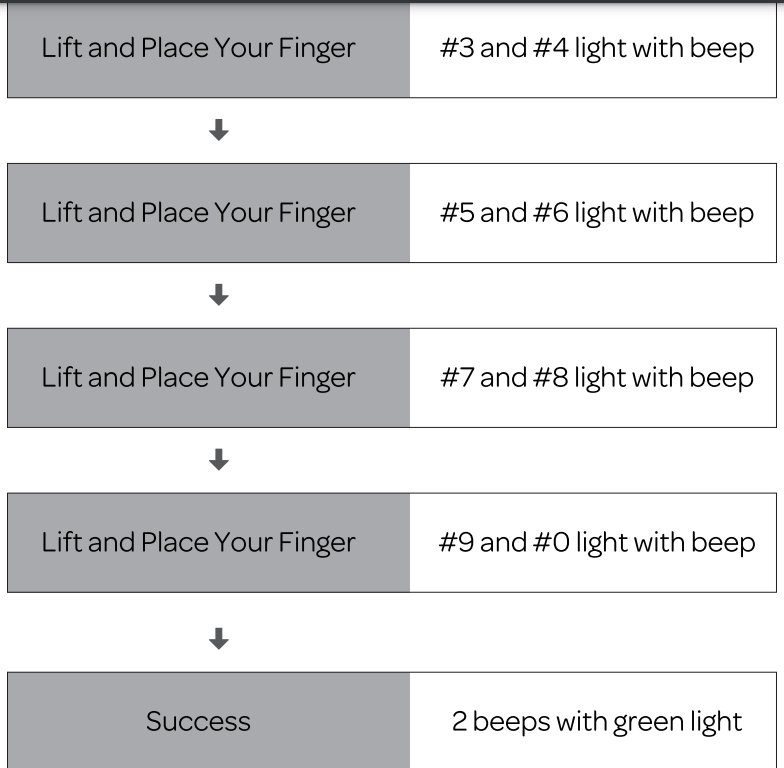
Add Fingerprint in Standalone Mode
Delete Admin and User
Please reset the lock to Factory Default Mode to delete Admin and all Users.
How to reset the lock in Standalone Mode?
Please use a Reset Needle to push the Reset Button (at the bottom of Interior Assembly) for around 3 seconds until you hear one long beep and two short beeps.
Troubleshooting
How to reset U-Bolt Pro?
Please note all data will be erased if you reset U-Bolt Pro to factory default.
If you are using U-tec App as Owner, please click "Delete and Reset" to remove the lock from your U-tec Account, then use a Reset Needle to push the Reset Button (at the bottom of Interior Assembly) for around 3 seconds until you hear one long beep and two short beeps.
If U-Bolt Pro is working as Standalone Mode, please use a Reset Needle to push the Reset Button (at the bottom of Interior Assembly) for around 3 seconds until you hear one long beep and two short beeps.
How to control U-Bolt Pro remotely?
U-Bolt Pro is a Bluetooth enabled smart lock. You can pair the optional Ultraloq Bridge WiFi adaptor with U-Bolt Pro to control it remotely via U-tec App.
What if I lost the paired smartphone?
Please go to www.u-tec.com/myutec.html or login U-tec App via another smartphone to change your U-tec Account password.
How to adjust the lock orientation of U-Bolt Pro?
The lock orientation must be adjusted after installation to ensure U-Bolt Pro works properly.
Solution 1. Adjust the lock orientation on the lock. Go to page 8 for details.
Solution 2. Adjust the lock orientation via U-tec App.
How can I unlock U-Bolt Pro if battery runs out?
There will be low battery alert on the lock and App when battery is low. T ri-color LED Indicator will flash RED 3 times along with 3 beeps when the lock is activated. Please replace batteries.
Solution 1. Use the backup key to unlock.
Solution 2. Connect a 5V power bank to activate the lock temporarily.
What's the difference between Owner, Admin, Normal User and Temporary User?
Owner is the person who owns U-Bolt Pro and registers it in U-tec App originally. Owner has all privileges.Admin can always unlock via fingerprint, code or App. Admin can add or delete Admin and Users, control all lock settings and view logs. Normal User can always unlock via fingerprint, code or App. Temporary User has limited access within specific time range.
Does U-Bolt Pro work with accessories such as bolt from third party?
It is recommended to use the original accessories for best performance and stability.
What is the log capacity for U-Bolt Pro?
U-Bolt Pro supports maximum 1,000 logs. The latest log will replace the oldest one once log is full.
What is the user capacity for U-Bolt?
U-Bolt Pro supports maximum 60 users and each user can register 1 code and 2 fingerprints.
 icon goes up.
 backset initially. It can be adjusted to
  if needed. To adjust it please make sure the bolt is retracted, then, press it, twist and pull it or push it to your desired length.