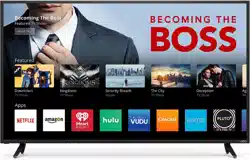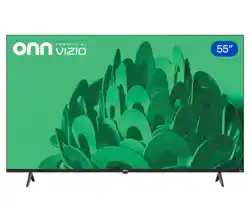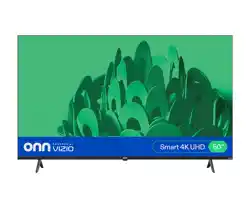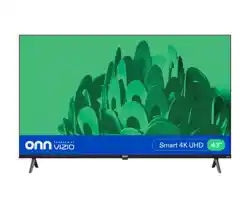
Model E43-E2, E50-E1, & E50x-E1
USER MANUAL

Safet erticatio
ii
THANK YOU FOR CHOOSING VIZIO
And congratulations on your new VIZIO Display.
To get the most out of your new VIZIO product, read these instructions
before using your product and retain them for future reference. Be sure to
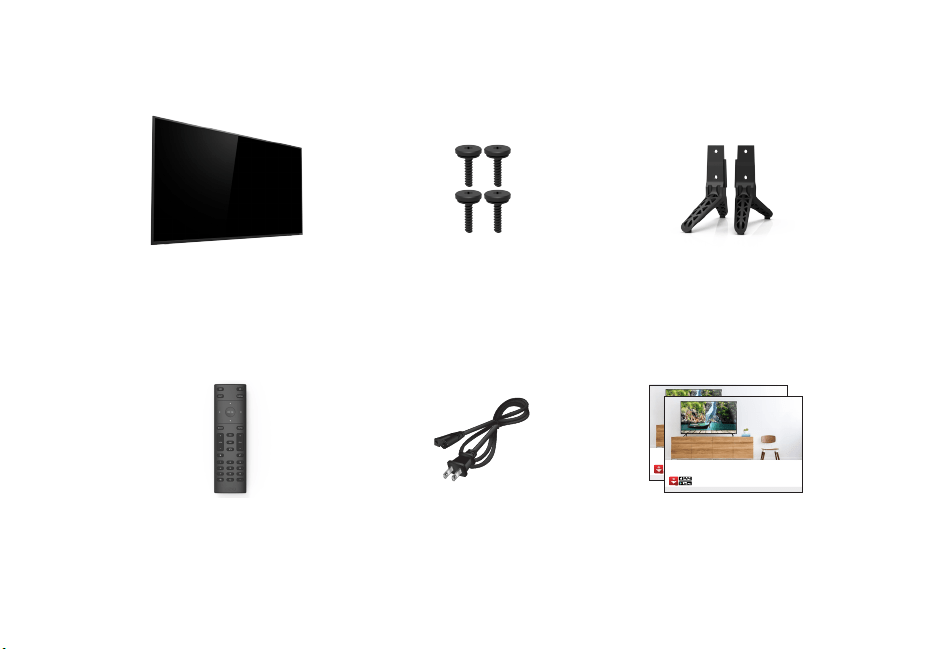
inspect the package contents to ensure there are no missing or damaged
parts.
PRODUCT REGISTRATION
To purchase or inquire about accessories and installation services for your
VIZIO product, visit our website at www.VIZIO.com or call toll free at (877)
698-4946.
We recommend that you register your VIZIO product at
www.VIZIO.com
Extended Warranties
For peace of mind, and to protect your investment beyond the standard
warrant IIO oers onsite etended warrant serice pans These
plans provide additional coverage during the standard warranty period.
To purchase an etended warrant serice pan isit wwwIIOco
WHEN READING THIS MANUAL
When you see this symbol, please read the
accompanying important warning or notice. It is
intended to alert you to the presence of important
operating instructions.
IMPORTANT SAFETY INSTRUCTIONS
our ispa is designed and anuactured to operate within dened
design iits isuse a resut in eectric shoc or re To preent
your Display from being damaged, the following instructions should be
observed for the installation, use, and maintenance of your Display. Read
the following safety instructions before operating your Display. Keep these
instructions in a safe place for future reference.
• To reduce the risk of electric shock or component damage, switch
o the power eore connecting other coponents to our
Display.
• Read these instructions.
• Keep these instructions.
• Heed all warnings.
• Follow all instructions.
• Do not use this apparatus near water.
• Clean only with dry cloth.
• Do not block any ventilation openings. Install in accordance with
the manufacturer’s instructions.
• Do not install near any heat sources such as radiators, heat
registers stoes or other apparatus incuding apiers that
produce heat.
• Do not defeat the safety purpose of the polarized or
grounding-type plug. A polarized plug has two blades with one
wider than the other. A grounding type plug has two blades and
a third grounding prong. The wide blade or the third prong are
proided or our saet I the proided pug does not t into
your outlet, consult an electrician for replacement of the obsolete
outlet.
• Protect the power cord from being walked on or pinched
particularly at plugs, convenience receptacles, and the point
where the eit ro the apparatus
• On use attachentsaccessories specied the anuacturer
• Use only with the cart, stand, tripod, bracket, or
tae specied the anuacturer or sod with
the apparatus. When a cart is used, use caution
when moving the cart/apparatus combination to
avoid injury from tip-over.
• Unplug this apparatus during lightning storms or when unused
for long periods of time.
• eer a sericing to uaied serice personne Sericing is
required when the apparatus has been damaged in any way, such
as the power-supply cord or plug is damaged, liquid has been
spilled or objects have fallen into the apparatus, the apparatus
has een eposed to rain or oisture does not operate nora
or has been dropped.
• Unplug the power cord before cleaning your Display.
• When moving your Display from an area of low temperature to an
area of high temperature, condensation may form in the housing.
ait eore turning on our ispa to aoid causing re eectric
shock, or component damage.
• A distance of at least three feet should be maintained between
your Display and any heat source, such as a radiator, heater,
oen apier etc o not insta our ispa cose to soe
Operating our ispa cose to soe or oisture a cause re
or electric shock.
• Sots and openings in the ac and otto o the cainet
are provided for ventilation. To ensure reliable operation of
your Display and to protect it from overheating, be sure these
openings are not blocked or covered. Do not place your Display in
a bookcase or cabinet unless proper ventilation is provided.
• Never push any object into the slots and openings on your
Display cabinet. Do not place any objects on the top of your
ispa oing so coud short circuit parts causing a re or eectric
shock. Never spill liquids on your Display.
• Your Display should be operated only from the type of power
source indicated on the label. If you are not sure of the type of
power supplied to your home, consult your dealer or local power
company.
When you see this symbol, please read the
accompanying helpful tip.
iii
• Do not apply pressure or throw objects at your Display. This
may compromise the integrity of the display. The manufacturer’s
warranty does not cover user abuse or improper installations.
• The power cord ust e repaced when using dierent otage
than the otage specied For ore inoration contact our
dealer.
• hen connected to a power outet power is awas owing into
your Display. To totally disconnect power, unplug the power cord.
• The ightning ash with arrowhead so within an euiatera
triangle is intended to alert the user to the presence of
un-isolated, dangerous voltage within the inside of your Display
that a e o sucient agnitude to constitute a ris o eectric
shock to persons.
• o not oeroad power strips and etension cords Oeroading
can resut in re or eectric shoc
• The wall socket should be installed near your Display and easily
accessible.
• Only power of the marked voltage can be used for your Display.
An other otage than the specied otage a cause re or
electric shock.
• Do not touch the power cord during lightning. To avoid electric
shock, avoid handling the power cord during electrical storms.
• Unplug your Display during a lightning storm or when it will not
be used for long period of time. This will protect your Display
from damage due to power surges.
• Do not attempt to repair or service your Display yourself.
Opening or reoing the ac coer a epose ou to high
voltages, electric shock, and other hazards. If repair is required,
contact our deaer and reer a sericing to uaied serice
personnel.
• WARNING: eep our ispa awa ro oisture o not epose
your Display to rain or moisture. If water penetrates into your
Display, unplug the power cord and contact your dealer. Continuous
use in this case a resut in re or eectric shoc
• Do not use your Display if any abnormality occurs. If any smoke
or odor becomes apparent, unplug the power cord and contact
your dealer immediately. Do not try to repair your Display
yourself.
• Avoid using dropped or damaged appliances. If your Display is
dropped and the housing is damaged, the internal components
may function abnormally. Unplug the power cord immediately
and contact your dealer for repair. Continued use of your Display
a cause re or eectric shoc
• Do not install your Display in an area with heavy dust or high
humidity. Operating your Display in environments with heavy
dust or high huidit a cause re or eectric shoc
• Follow instructions for moving your Display. Ensure that the
power cord and any other cables are unplugged before moving
your Display.
• When unplugging your Display, hold the AC/DC power adapter,
not the cord. Pulling on the power cord may damage the wires
inside the cord and cause re or eectric shoc hen our
ispa wi not e used or an etended period o tie unpug
the power cord.
• To reduce risk of electric shock, do not touch the connector with
wet hands.
• Insert batteries in accordance with instructions. Incorrect
polarities may cause the batteries to leak which can damage the
reote contro or inure the operator o not epose atteries to
ecessie heat such as sunshine re or the ie
• If any of the following occurs, contact the dealer:
- The power cord fails or frays.
- Liquid sprays or any object drops into your Display.
our ispa is eposed to rain or other oisture
- Your Display is dropped or damaged in any way.
- The performance of your Display changes substantially.
• This apparatus sha not e eposed to dripping or spashing and
no oects ed with iuids such as ases sha e paced on the
apparatus.
• The mains plug or appliance coupler is used as the disconnect
device, the disconnect device shall remain readily operable.
• CAUTION - These sericing instructions are or use uaied
service personnel only. To reduce the risk of electric shock, do not
perform any servicing other than that contained in the operating
instructions uness ou are uaied to do so
• The ightning ash with arrowhead so within an euiatera
triangle is intended to alert the user to the presence of
uninsuated AOS OTA within the products
encosure that a e o sucient agnitude to constitute a ris
of electrical shock to persons.
• WARNING: posure to oud sounds can daage our hearing
causing hearing oss and tinnitus ringing or uing in the ears
with continued eposure to oud noises ears a ecoe
accustomed to the sound level, which may result in permanent
damage to hearing without any noticeable discomfort.
• Install the Display where it cannot be pulled, pushed or knocked
over.
• Do not allow children to hang onto the product.
• Store the accessories reote atteries etc in a ocation sae
out of the reach of children.
• The American Academy of Pediatrics discourages television
viewing for children younger than two years of age.
• WARNING: Never place a television set in an
unstable location. A television set may fall, causing
serious personal injury or death.
• Many injuries, particularly to children, can be
avoided by taking simple precautions such as:
• Using cabinets or stands recommended by the manufacturer of
the television set.
• Only using furniture that can safely support the television set
• Ensuring the television set is not overhanging the edge of the
supporting furniture.
• ot pacing the teeision set on ta urniture or eape
cupboards or bookcases) without anchoring both the furniture
and the television set to a suitable support.
• Not placing the television set on cloth or other materials that
may be located between the television set and the supporting
furniture.
• Educating children about the dangers of climbing on furniture to
reach the television set or its controls.
• sI our eisting teeision set is eing retained and reocated
the same considerations as above should be applied.
iv
I the I ogo and ighenition utiedia
Interface are trademarks or registered trademarks of
HDMI Licensing LLC.
For TS patents see httppatentsdtsco
anuactured under icense ro TS icensing iited
TS the So TS and the So together are
registered tradears and TS Studio Sound is a
tradear o TS Inc TS Inc A ights esered
Manufactured under license from Dolby Laboratories.
Dolby, Dolby Audio, and the double-D symbol are
trademarks of Dolby Laboratories.
For TS patents see httppatentsdtsco
anuactured under icense ro TS icensing iited
TS the So TS and the So together are
registered tradears and TS Truoue is a tradear
o TS Inc TS Inc A ights esered
Table Of Contents
v
Table Of Contents
Getting to Know Your Display .....................................6
Front Panel ............................................................................... 6
Rear Panel ................................................................................. 7
Replacing the Batteries ............................................................ 9
Completing First-Time Setup.......................................10
Navigating the On-Screen Menu ............................................. 11
Changing the Input Source ...................................................... 11
Changing the Screen Aspect Ratio .......................................... 12
Adjusting the Picture Settings ................................................. 13
Adjusting More Picture Settings ........................................... 14
Adjusting the Color Temperature ........................................ 14
Adjusting the Picture Mode Edit Settings ............................ 15
Saving a Custom Picture Mode ............................................ 15
Locking/ Unlocking a Custom Picture Mode ....................... 15
Deleting a Custom Picture Mode ......................................... 16
Resetting a Picture Mode...................................................... 16
Adjusting the Color Tuner Settings ...................................... 17
Adjusting the Audio Settings ................................................... 20
Changing the Equalizer Settings .......................................... 20
Adjusting the network Settings ............................................... 21
Setting Timers .......................................................................... 23
Setting the Sleep Timer......................................................... 23
Setting the Auto Power O Feature ..................................... 23
Renaming Devices on the Input Menu ................................... 24
Changing the SYSTEM Settings ................................................ 25
Checking for System Updates .............................................. 25
Viewing System Information ................................................ 25
Setting the Time and Local Settings ..................................... 25
Changing the On-Screen Menu Language ........................... 26
Adjusting the CEC Settings ................................................... 26
Adjusting the Power Mode ................................................... 26
Turning the Power Indicator On or O ................................ 27
Changing the Display Name ................................................. 27
Managing Mobile Devices ..................................................... 27
Using the Reset & Admin Menu .............................................. 28
Restoring the Display to Factory Default Settings .............. 28
Using the Info Window ............................................................ 29
Troubleshooting & Technical Support ........................30
Specications ...............................................................34
Regulatory Information ...............................................37
Limited Warranty .........................................................38
Limited Warranty Mexico ............................................40
Legal Information.........................................................42
6
1
FRONT PANEL
REMOTE SENSOR & POWER INDICATOR
When using the remote, aim it directly at this sensor.
The power indicator ashes on when the ispa turns on then goes out ater seera seconds
To eep the power indicator on as ong as the ispa is on see
Turning the Power Indicator On or O
Getting to Know Your Display
7
1
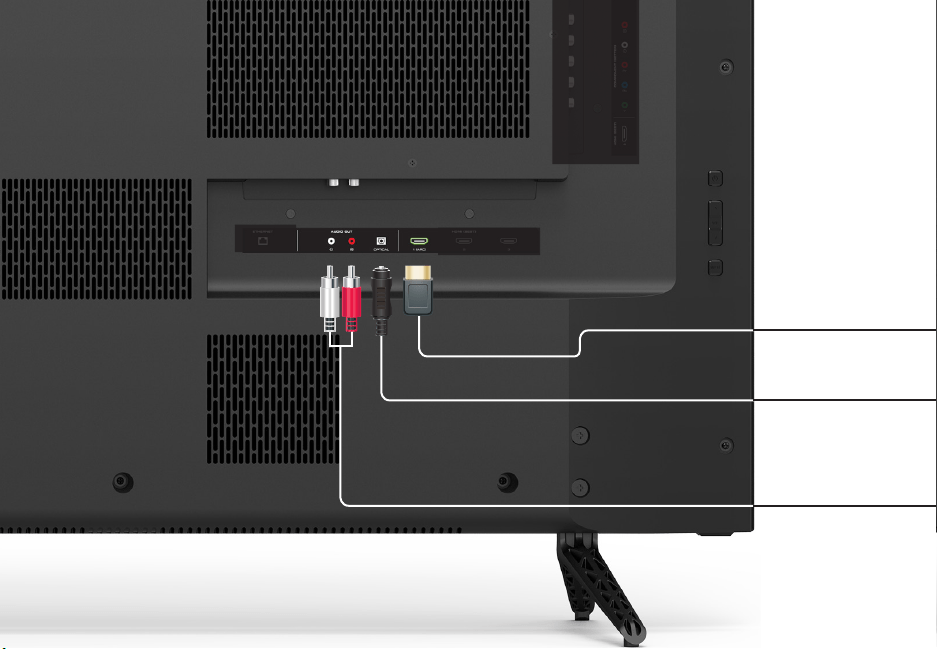
REAR PANEL
Components onnect a coponent or coposite deices
USB onnect a S thu drie to pa photo usic or ideo
USB onnect a S thu drie to pa ideos
HDMI onnect an I deice
RCA Audio Out onnect an A audio deice such as sound ar
Power Press to turn on the ispa Press and hod to turn the ispa o
Input - Press to access the input menu.
Note: The iage shown here is or iustratie purposes on and a e suect to change
The actua nuer o ports and their ocations a ar depending on the ode
Volume Press to increase or decrease the ispa oue ee
Ethernet - Connect an Ethernet cable to modem/ router.
Optical Audio Out onnect an opticaSPIF audio deice such as a hoe audio receier
8
1
To ount our ispa on a wa ou wi need a wa ount onsut
the inoration on this page to nd the appropriate ount or our
ispa
e sure the ount ou choose is capae o supporting the
weight o the ispa Ater ou hae deterined that ou hae
the correct ount or our ispa ou can egin the instaation
To insta our ispa on a wa
1. isconnect an caes connected to our ispa
2. Pace the ispa acedown on a cean at stae surace e sure the
surace is cear o deris that can scratch or daage the ispa
3. eoe the stands oosening and reoing the screws
4. Attach our ispa and wa ount to the wa careu oowing the
instructions that came with your mount. Use only with a UL-listed wall
ount racet rated or the weightoad o this ispa
WALL-MOUNTING THE DISPLAY
Instaing a ispa on a wa reuires iting
To preent inur or daage to the ispa
ask someone to help you.
E43-E2 E50-E1 E50x-E1
Screw Sie
oe Pattern
200 mm (V)
x 200 mm (H)
200 mm (V)
x 200 mm (H)
200 mm (V)
x 200 mm (H)
eight wo Stand
21.01 lb
(9.53 kg)
26.68 lb
(12.10 kg)
26.68 lbs
(12.10 kg)
9
1
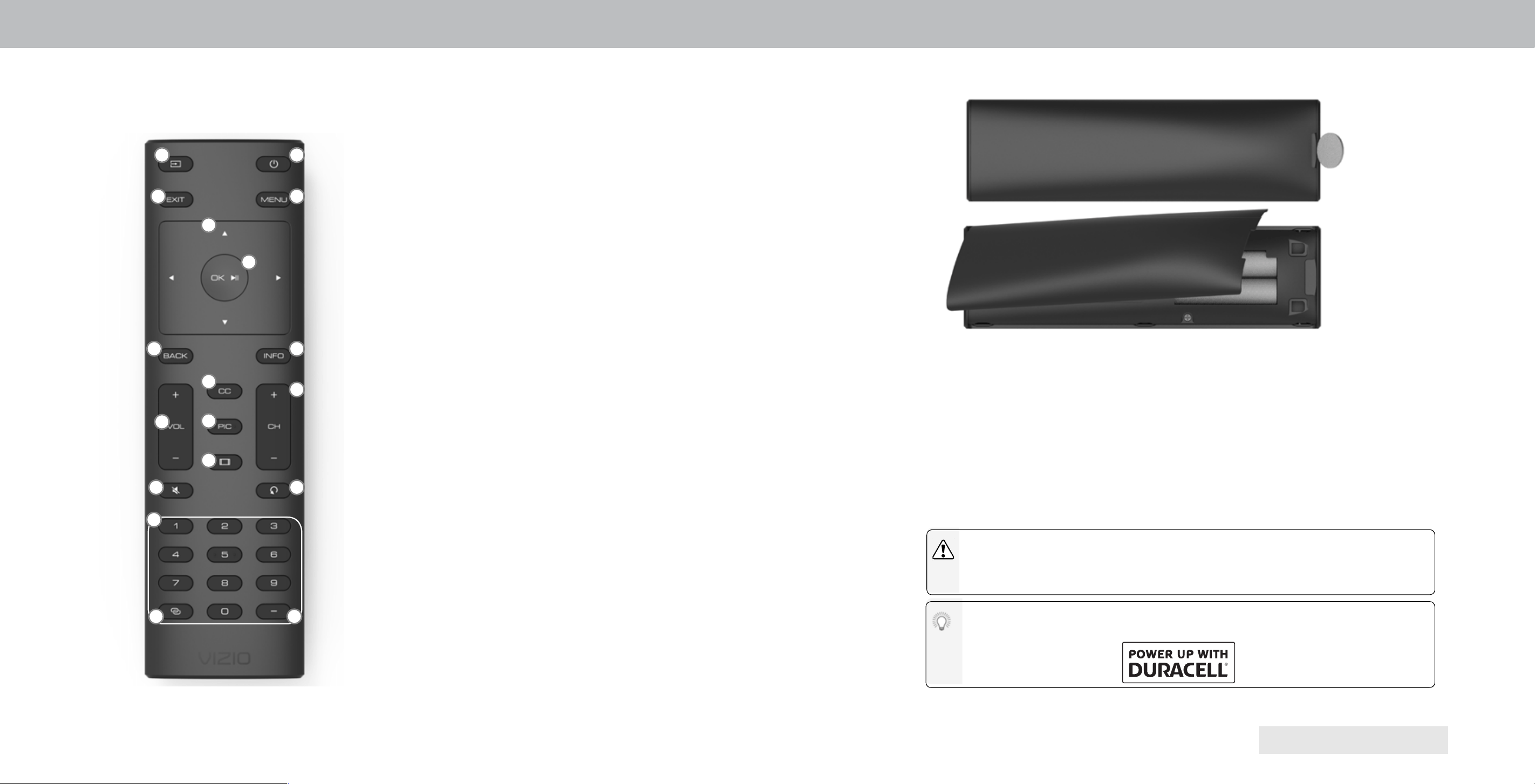
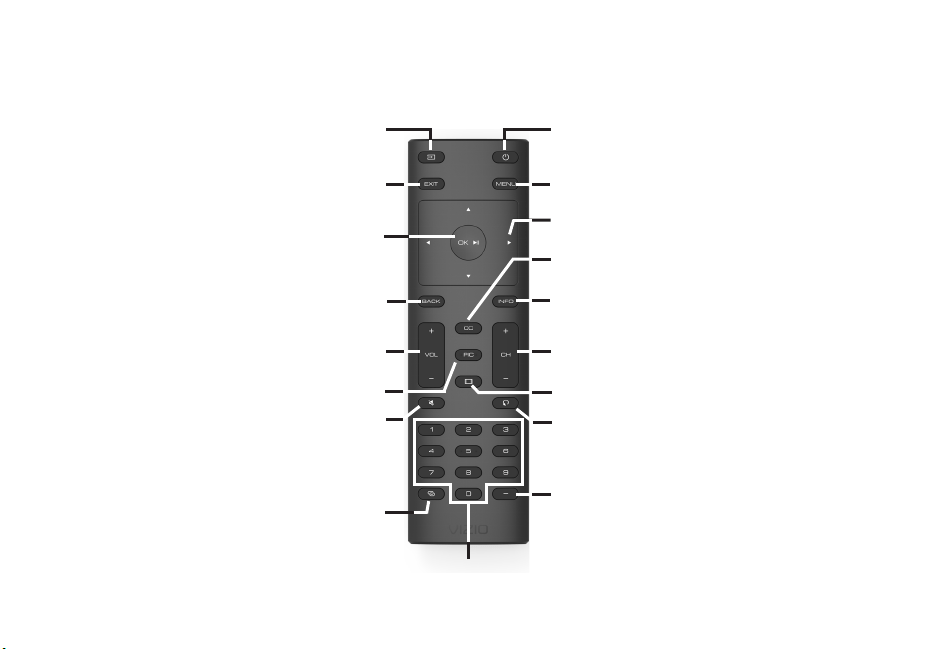
REMOTE CONTROL
USING THE REMOTE
1. Power - Turn T on or O
2. Input - Change the currently displayed input.
3. Exit - Close the on-screen menu.
4. Menu - ispa the onscreen enu
5. Arrows - aigate the onscreen enu
6. OK / Enter - Seect the highighted option onr channe or
passcode entered using the number pad.
7. Back - o to the preious onscreen enu
8. Info ispa the ino window
9. Volume Up/Down - Increase or decrease the
oudness o the audio
10. Closed Captions - Open the closed caption menu.
11. PIC - Opens the picture mode menu.
12. Wide - Change the display mode.
13. Channel Up/Down - Not supported on this model.
14. Mute - Turn the audio on or o
15. Last - Not supported on this model.
16. Number Pad - Not supported on this model.
17. Link - Launches pair with the VIZIO SmartCast App.
18. Dash - Not supported on this model.
3 4
5
6
7 8
10
11
13
14 15
16
2
9
12
1
17
18
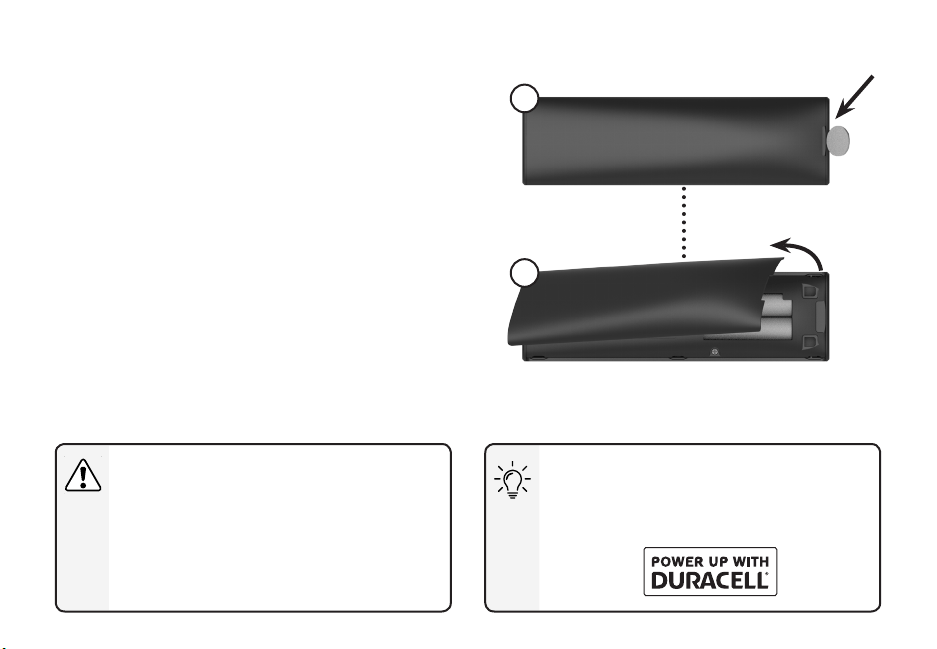
Replacing the Batteries
1. eoe the atter coer pressing down on the arrow arings and
sliding out.
2. Insert two atteries into the reote contro ae sure that the and
sos on the atteries atch the and sos inside the atter
compartment.
3. epace the atter coer
In many places batteries cannot be thrown away or discarded with household
waste Pease ensure ou proper dispose o our atteries consistent with the
aws andor reguations where ou ie For ore inoration pease isit www
iiocoenironent
WARNING: eep the reote contro atteries awa ro chidren It a
cause choing andor ead to a re or cheica urn i ishanded o not
dispose o atteries in re epace on with atteries o the correct tpe
When needed, VIZIO recommends replacing the batteries that came
with this reote with two new urace AAA aaine atteries
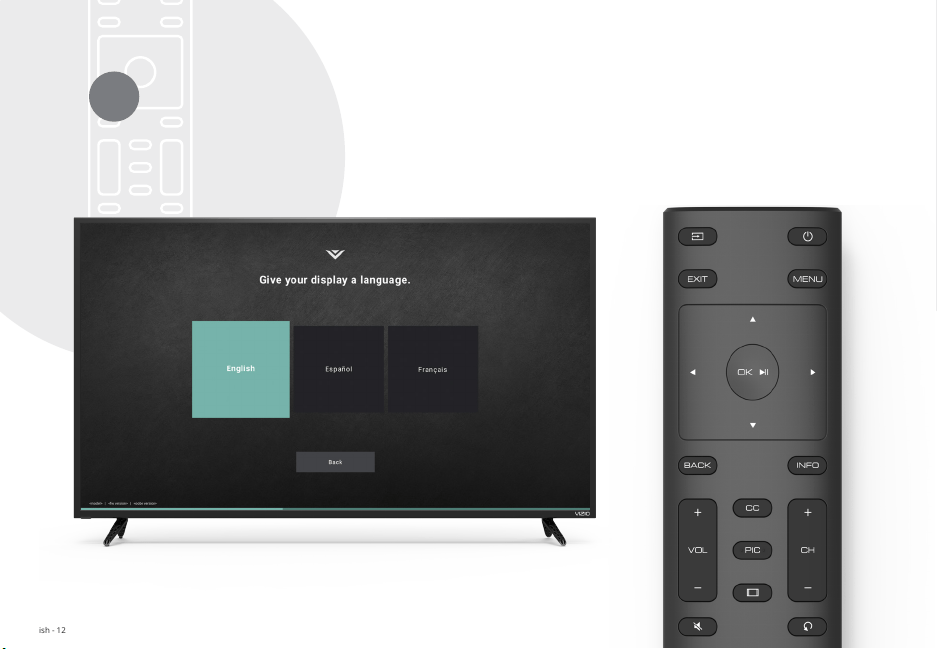
2Completing First-Time Setup
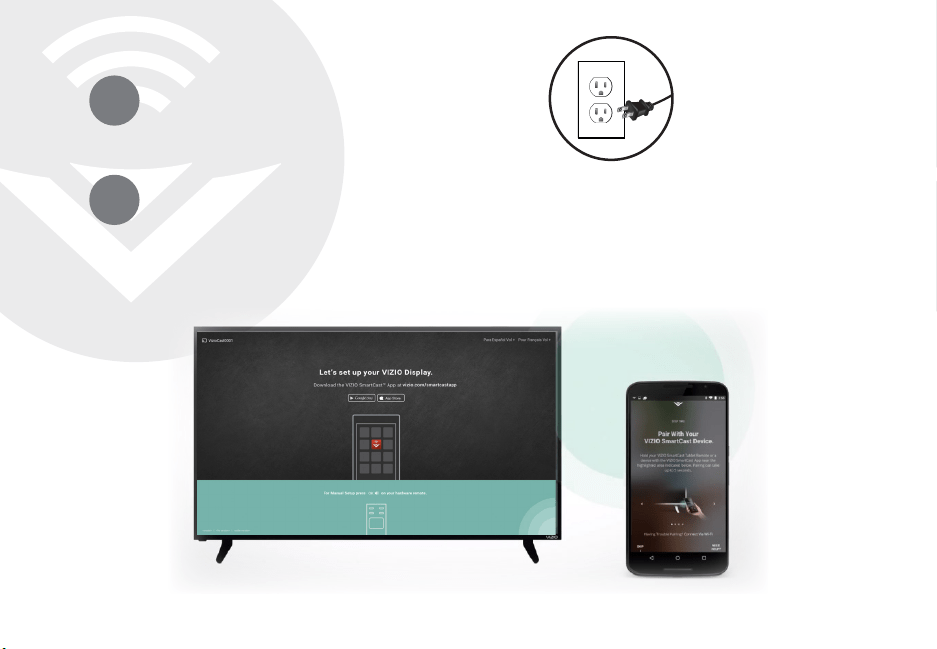
The first time you turn on the Display, you can chose how to
setup your VIZIO SmartCast™ Display.
Complete Setup with the VIZIO SmartCast
™
App (recommended):
Download the free VIZIO SmartCast™ App on your smartphone
or tablet to set up your VIZIO display. Use your phone to power
on your display, adjust the volume, switch inputs, play and
control streaming content from your iOS or Android device.
Go to http://www.vizio.com/setup to get started.
-OR-
Complete Setup with the IR Remote:
Use the included IR remote to manually set up your display.
The VIZIO SmartCast™ App is still VIZIO’s recommended setup
method. Please note that a mobile device (not included) is still
reuired to cast content ro apps ie eti and ouTue
Before you begin the first-time setup:
• our ispa shoud e instaed and the power cord shoud
be connected to an electrical outlet.
• our deices shoud e connected
• If you have a wireless network, have the network password
ready.
• If you are connecting to your network with an Ethernet cable,
connect it to the Ethernet port on the Display.
Need help installing the display?
Refer to the printed Quick Start Guide for detailed instructions on
how to insta our new Series dispa ou can aso nd a digita
copy on support.vizio.com
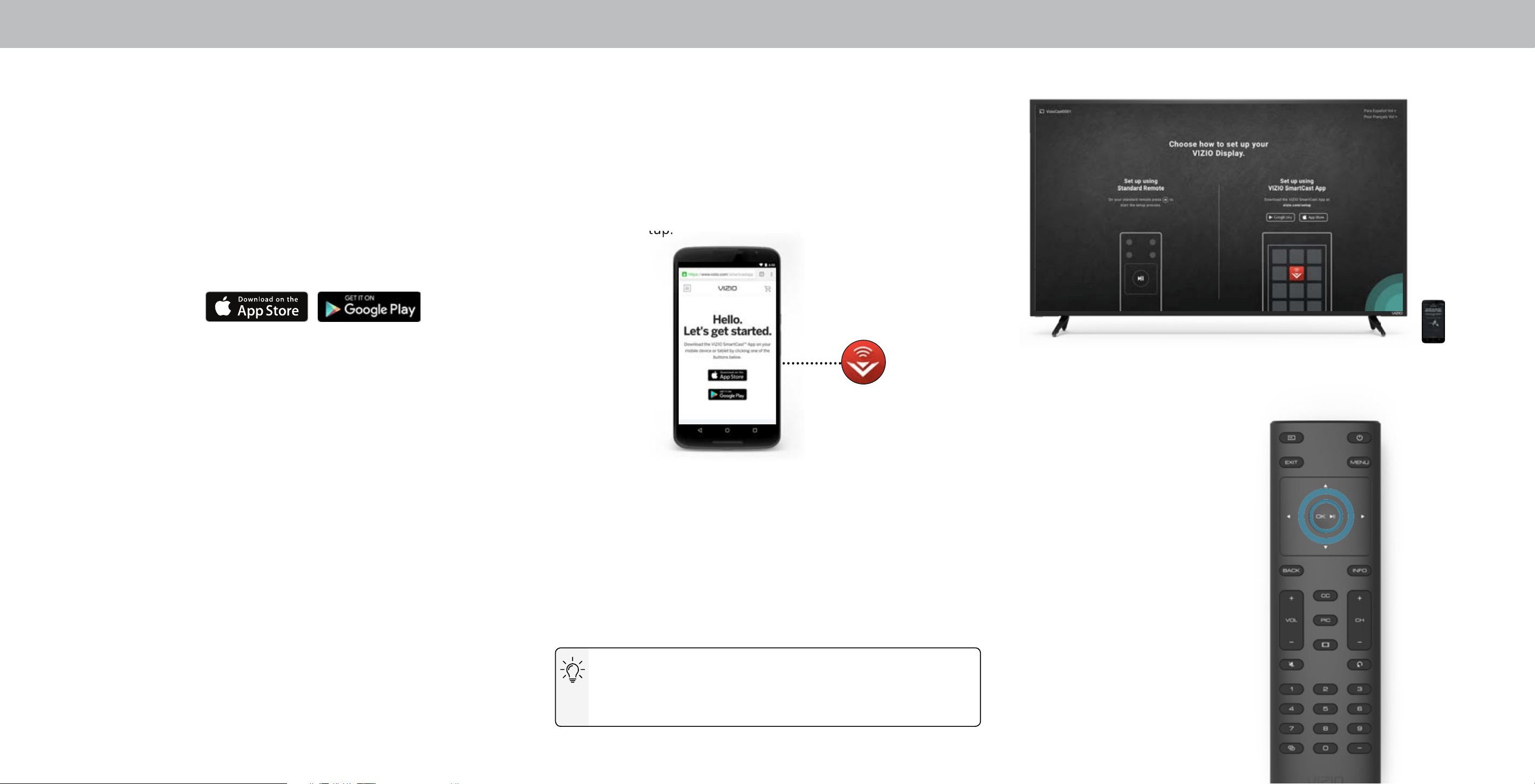
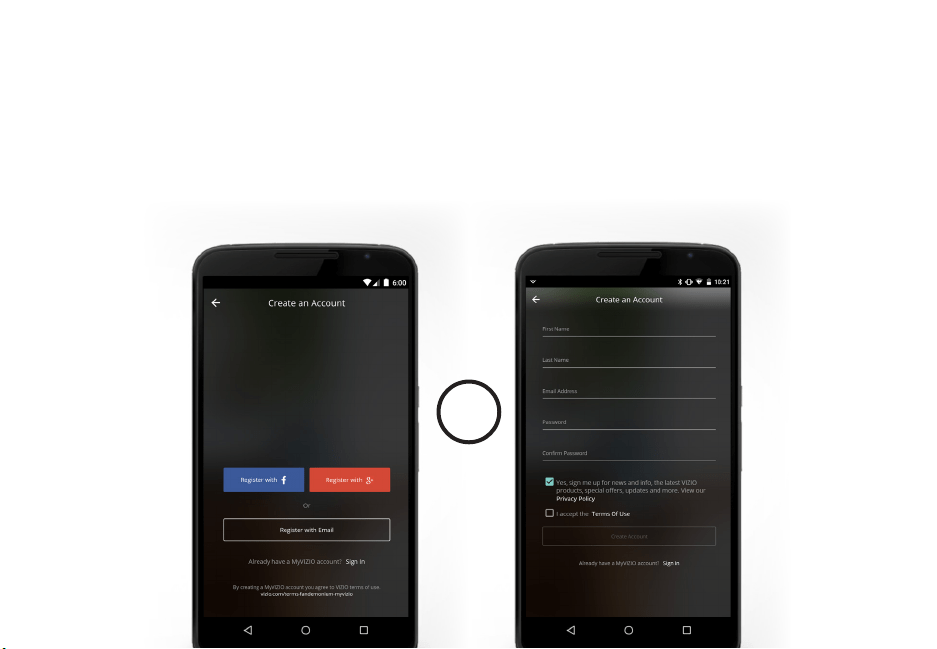
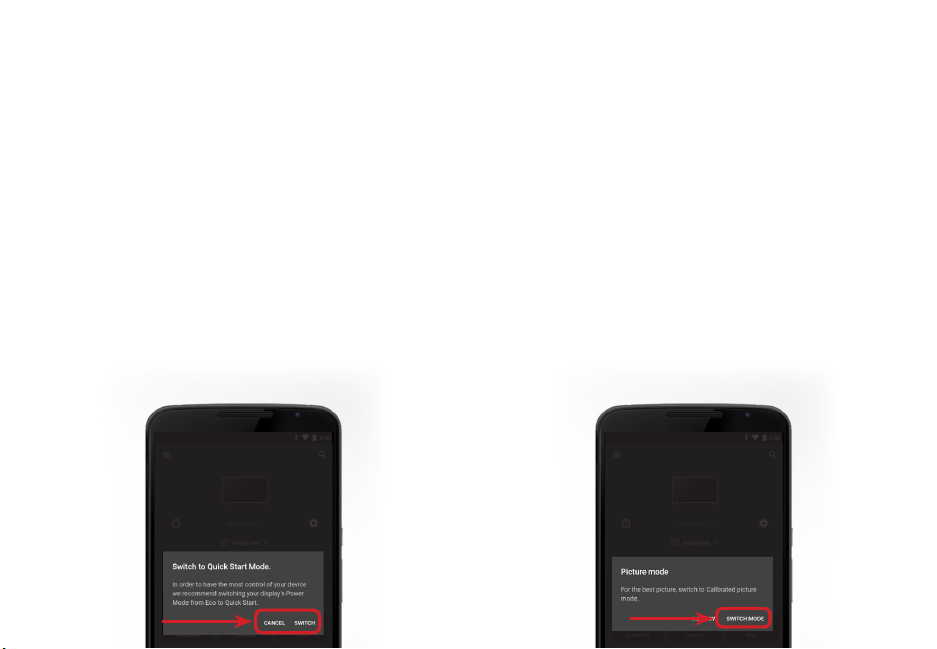
Setup with the VIZIO SmartCast™ App
1. Download the free VIZIO SmartCast™ App on to your mobile
device and launch the app.
2. Pair your mobile device to your display.
3. Follow the instructions your mobile device and display screen to
complete setup.
iOS Device Paring:
a. Select Get Started.
b. od our oie deice net to the IIO ogo on our ispa
Android Device Pairing:
Note the Wi-Fi setup name on the top corner of your Display.
a. Select Get Started and Select your preferred language.
b. Select your Display name from the list shown on your device.
complete setup.
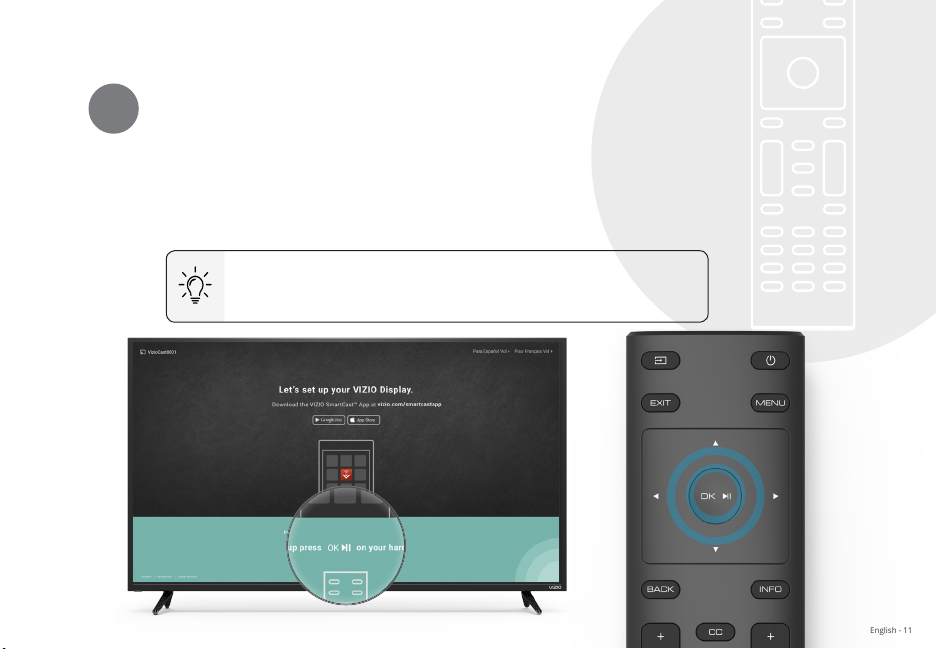
Setup with the IR Remote
1. Press the OK/Play key on your IR
remote during the initial setup
screen.
2. Use the Arrow Keys and the OK/
Pa utton to seect and conr
settings.
3. Follow the instruction on the
screen to complete setup.
Note: The iages shown here are or iustratie purposes on and a e suect to change The actua onscreen iage and tet a ar depending on the ode
10
3Using the On-Screen Menu
CHANGING THE INPUT SOURCE
External devices such as DVD players, Blu-ray Players, and video
game consoles can be connected to your Display. To use one of
these deices with our ispa ou ust rst change the input
source using the Input menu.
To change the input source:
1. Press the INPUT button on the remote. The Input menu is
displayed.
2. Use the Left/Right Arrow buttons or the INPUT button on the
remote to highlight the input you wish to view and press OK.
The selected input is displayed.
Note: Inputs may vary by Display.
Your Display features an easy-to-use on-screen menu.
To open the on-screen menu, press the MENU button on the remote.
From this menu, you can:
• Adjust the Picture settings
• Adjust the Audio settings
• Adjust the Network settings
• Setting the Sleep Timers
• Name and adjust Inputs
• Open Closed Caption menu
• Adjust System settings
• Access the user manual
NAVIGATING THE ON-SCREEN MENU
To open the on-screen menu, press
the MENU button on the remote.
Use the Arrow buttons to highlight a
menu option, and press the OK button
to select that option.
While navigating the on-screen menu, you can
press the BACK button at any time to return to the
previous menu screen. The EXIT button will close the
on-screen menu.
Input Name
Display Settings
You can change the input names that appear on the
Input menu to make your devices easy to recognize.
See
Renaming Devices on the Input Menu
for more
information.
Change Input
CAST
HDMI-1 HDMI-2
HDMI-3
COMP
Picture
Audio
Network
Timers
Inputs
Closed Captions
System
User Manual
CC
11
3
CHANGING THE SCREEN ASPECT RATIO
The ispa can dispa iages in e dierent odes ora
Stretch, Panoramic, Wide, and Zoom. Each mode displays the picture
dierent
Some programs have black bars on the top or sides of the picture
so that the picture keeps its original shape. Examples include
wide-screen movies and older television programs.
To change the screen aspect ratio:
1. Press the WIDE button on the
remote.
2. Use the Arrow buttons to
highlight the aspect ratio you
wish to view and press OK.
• Normal preserves the content’s original aspect ratio and
size.
• Standard Denition (480i and 480p—old Display
programs) - Since the 4:3 aspect ratio is not large enough
to the ispas screen ac ars are added to the et
and right of the display image.
• 720p HD - Fills a 720p screen.
• 1080p and 1080i HD - Fills a 1080p or 1080i screen.
• Stretch epands a widescreen iage to the screen ro
top to bottom and stretches it half as much from right to
left. Figures appear tall and thin.
• Standard enition ot aaiae
• 720p HD - If you are watching widescreen 1.85:1 content,
the iage wi the screen ith widescreen
content onesith o the iage is cut o the et and
right sides of the screen.
• 1080p and 1080i - Not available.
Note: Aspect ratio settings may vary by Input source.
• Panoramic stretches a 4:3 aspect ratio picture to the left
and right edges of the screen. The center of the image is not
stretched, but the sides of the image are extremely stretched.
If you are watching widescreen (1.85:1 or 2.35:1) content with
black bars on the top and bottom, the black bars will still
appear on the top and bottom of the display image.
• Standard Denition (480i and 480p) - Fills the screen from
the left to right edges.
• 720p - Not available.
• 1080p and 1080i - Not available.
• Wide stretches a 4:3 aspect ratio picture to the edges of the
screen. Since the picture is being stretched, the display image
a appear distortedgures appear short and at I the
program is already formatted for widescreen viewing (1.85:1
or 2.35:1), then black bars will appear on the top and bottom
of the display image.
• Zoom expands images evenly in all directions (33% taller and
wider with ac ars to t the screen A p iage wi
a p screen
• Standard Denition - Not available.
• 720p HD - Fills a 720p screen
• 1080p and 1080i - Not available.
Wide
Zoom
Normal
Panoramic
Tip: The aspect ratio cannot be changed for Ultra HD
content or HDR content.
12
3
3. Use the Arrow buttons on the
remote to highlight Picture Mode,
then use the Left/Right Arrow
buttons to change the picture
mode:
• Standard mode sets the
picture settings to the
default settings.
• Calibrated mode sets the
picture settings to values
ideal for watching Display in a
brightly-lit room.
• Calibrated Dark mode sets the
picture settings to values ideal
for watching Display in a dark
room.
• Vivid mode sets the picture
settings to values that produce
a brighter, more vivid picture.
• Game mode reduces
throughput delays and
optimizes the picture settings
for displaying game console
output.
• Computer mode optimizes the picture settings for displaying
computer output.
ADJUSTING THE PICTURE SETTINGS
Your Display display can be adjusted to suit your preferences and
viewing conditions.
To adjust the picture settings:
1. Press the MENU button on the remote. The on-screen menu is
displayed.
2. Use the Arrow buttons on the remote to highlight Picture and
press OK. The PICTURE menu is displayed.
If you’ve changes to the settings for a picture mode, an
asterisks appears after its name (see
Saving a Custom
Picture Mode
).
4. To manually change each of the picture settings, use the Up/
Down Arrow buttons on the remote to highlight that picture
setting, then use the Left/Right Arrow buttons to adjust the
setting:
• Auto Brightness Control - The auto brightness control detects
the light levels in the room and automatically adjusts the
backlight for the best picture. Select , Low, Medium, or
High.
• Backlight Adusts the rightness to aect the oera
brilliance of the picture. Backlight cannot be adjusted when
starting from some picture modes.
• Brightness - Adjusts the black level of the picture. When this
setting is too low, the picture may be too dark to distinguish
details. When this setting is too high, the picture may appear
faded or washed out.
• Contrast - Adjusts the white level of the picture. When this
setting is too low, the picture may appear dark. When this
setting is too high, the picture may appear faded or washed
out I the setting is too high or too ow detai a e dicut to
distinguish in dark or bright areas of the picture.
• Color - Adjusts the intensity of the picture colors.
• Tint - Adjusts the hue of the picture. This setting is useful in
adusting the esh tones in the picture I esh appears too
orange, reduce the level of color before adjusting tint.
• Sharpness - Adjusts the edge sharpness of picture elements.
It can e used to sharpen non high denition content
however, it will not produce detail that does not otherwise exist.
5. hen ou hae nished adusting the picture settings press
the EXIT button on the remote.
Picture
Picture Mode Calibrated
Auto Brightness Control Off
Backlight 90
Brightness 50
Contrast 50
Color 50
Tint 0
Sharpness 20
More Picture
Picture Mode Edit
Color Calibration
Back
13
3
Adjusting More Picture Settings
To adjust more picture settings:
1. From the PICTURE menu, use the
Arrow buttons to highlight More
Picture, and then press OK.
2. Use the Arrow buttons to
highlight the setting you wish to
adjust, then press the Left/Right
Arrow buttons to change
the setting:
• Color Temperature -
See
Adjusting the Color
Temperature.
• Black Detail - Adjusts the
average brightness of the
picture to compensate for
large areas of brightness.
Select , Low, Medium, or
High.
• Active LED Zones - Dynamically improves the contrast ratio
of the picture by adjusting the backlight. The adjustment is
controed the content on the screen Seect On or O
• Motion Control - Adjusts motion related features (not on
all models)
• Reduce Judder - Activates Smooth Motion motion
estimation/motion compensation, which suppresses motion
judder, or “stuttering” of the image when the camera moves
across a scene horizontally. As the setting increases, judder
is reduced.
• Reduce Motion Blur - Increases frame rate to reduce
motion blur of 60 hertz video. As the setting increases,
motion blur is reduced.
• Clear Action - Reduces blue in scenes with fast action.
Soe sensitie iewers a notice icering Seect On or
.
• Reduce Signal Noise - Diminishes artifacts in the image
caused by the digitizing of image motion content. Select
, Low, Medium, or High.
• Reduce Block Noise - Reduces pixelation and distortion for
peg es Seect , Low, Medium, or High.
• Game Low Latency - Select On to reduce video delay (lag)
when gaming.
• Pure Cinema Mode - Optimizes the picture for watching
Seect Auto or .
• Color Space
‡
- Select Color Space for the source. Video
sources uses YCbCr, but PC uses RGB.
• Gamma - Set the shape of the Gamma curve. Use lower
Gamma values for bright room conditions, and higher
values when it’s dark.
3. hen ou hae nished adusting ore Picture Settings press the
EXIT button on the remote.
Adjusting the Color Temperature
Adjusting the color temperature changes the white balance of the
picture.
To adjust the color temperature:
1. From the MORE PICTURE menu,
use the Arrow buttons to
highlight Color Temperature,
and then press OK.
2. Use the Arrow buttons on the
remote to highlight a color
temperature preset and then
press OK.
• Normal is optimized for
television viewing.
• Cool produces a blue-hued
picture.
• Computer optimizes the picture for use as a PC monitor.
• hen ou hae nished adusting the coor teperature
press the EXIT button on the remote.
More Picture
Color Temperature Normal
Black Detail Off
Active LED Zones On
Motion Control
Clear Action Off
Reduce Noise
Game Low Latency Off
Pure Cinema Auto
Color Space Auto
Gamma 2.1
Back
Color Temperature
Normal
Cool
Computer
Back
‡
Only available ion HDMI inputs.
14
3
Adjusting the Picture Mode Edit Settings
Picture Mode Edit Settings allow you to make precise adjustments
to the picture and to create picture modes to save groups of picture
settings.
To adjust the Picture Mode Edit settings:
1. From the PICTURE menu, use the
Arrow buttons to highlight Picture
Mode Edit, and then press OK.
The PICTURE MODE EDIT menu is
displayed.
2. Use the Arrow buttons to
highlight the setting you wish to
adjust, then press OK to change
the setting:
• Save Picture Mode - Save a
custom picture mode.
• Lock Picture Mode - Prevent
changes to custom picture
modes. Choose between On or
• Delete Picture Mode
†
- Delete
a saved picture mode settings.
* Not available on HDMI input 5.
†
Only available on customized preset modes.
‡
Only available on HDMI input.
Saving a Custom Picture Mode
Custom picture modes allow you to save a group of custom settings
for various viewing conditions and video sources.
• Changes made while on any preset picture mode will add an
asterisk on the top right corner of the preset mode.
• The custom picture mode is not automatically saved.
To save a custom picture mode:
1. From the PICTURE MODE EDIT
menu, use the Arrow buttons to
highlight Save Picture Mode, and
then press OK. The SAVE PICTURE
MODE menu is displayed.
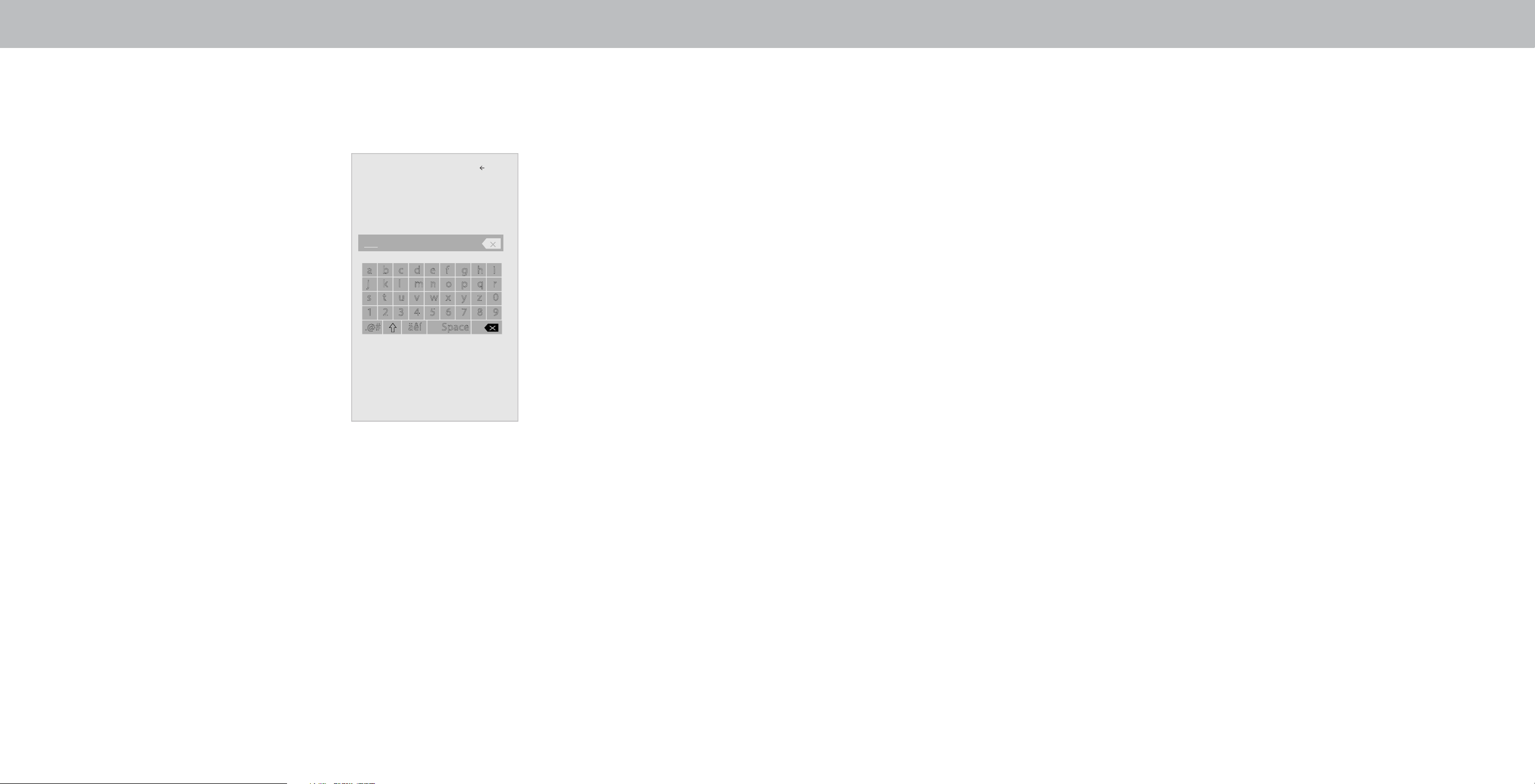
2. Use either on-screen keyboard
to enter a name for your custom
picture mode.
3. Highlight Save and press OK.
4. Press the EXIT button to exit the
menu screens.
Picture Mode Edit
Save Picture Mode
Lock Picture Mode
Delete Picture Mode - MyMode
Back
Picture Mode Edit
Save Picture Mode
Lock Picture Mode On
Reset Picture Mode - MyMode
Back
Save Picture Mode
Back
a b c d e f g h i
j k l m n o p q r
s t u v w x y z 0
1 2 3 4 5 6 7 8 9
.@# äêí Space
Save
Locking/Unlocking a Custom Picture Mode
Custom picture modes can be locked/unlocked with a systemn PIN
to prevent accidental changes to their settings.
To lock all custom picture modes:
1. From the PICTURE MODE EDIT
menu, use the Arrow buttons
to highlight Lock Picture
Mode, and then press OK. The
LOCK PICTURE MODE menu is
displayed.
2. Use the Arrow buttons to select
On.
3. Use the Number Pad on your
remote to enter a unique 4-digit
PIN.
—or—
If a system pin code was
previously created, use the
Number Pad on your remote to
enter your pin code.
To unlock all custom picture modes:
1. From the PICTURE MODE EDIT menu, use the Arrow buttons to
highlight Lock Picture Mode, and then press OK. The UNLOCK
PICTURE MODE menu is displayed.
2. Use the Arrow buttons to select .
3. Use the Number Pad on your remote to enter your 4-digit PIN.
4. Make any desired changes to the picture modes.
5. Relock the picture modes, if desired.
6. Press the EXIT button to exit the menu screens.
System Pin Code
Back
Cancel
New Pin
Conrm Pin
Change the pin used for the System Pin.
15
3
Deleting a Custom Picture Mode
Custom picture modes that are no longer needed can be deleted.
To delete a custom picture mode:
1. From the PICTURE MODE EDIT
menu, use the Arrow buttons
to highlight Delete Picture
Mode, and then press OK. The
DELETE PICTURE MODE window
is displayed.
2. Use the Left/Right Arrow buttons to highlight Delete and press
OK.
3. Press the EXIT button to exit the menu screens.
Resetting a Picture Mode
A preset picture mode that has been edited can be restored to the
factory default settings.
To reset a customized preset picture mode:
1. From the PICTURE MODE EDIT
menu, use the Arrow buttons
to highlight Reset Picture
Mode, and then press OK. The
RESET PICTURE MODE window is
displayed.
2. Use the Left/Right Arrow buttons to highlight Reset and press
OK.
3. Press the EXIT button to exit the menu screens.
Inputs assigned to a deleted custom picture mode
become assigned to the
Calibrated
picture mode.
To delete the user created Custom 1 picture mode,
select the Delete button.
Delete Cancel
Select Reset to restore Standard
picture mode to factory defaults.
Reset Cancel
16
3
To turn coor channes o and on
1. From the COLOR CALIBRATION menu, use the Arrow buttons to
highlight Color Tuner, and then press OK. The Color Tuner menu
is displayed.
2. Use the Arrow buttons on the remote to highlight Red, Green, or
Blue.
3. Press the OK utton to turn the coor channe o or on An
appears oer a coor channe that has een turned o
4. Use the Arrow buttons to highlight another color channel to turn
o or on On two coor channes can e turned o at the sae
time.
5. hen ou are nished with the coor channes press the EXIT
button.
Color Tuner
Red Green Blue Cyan Magenta Yellow
Hue 0 0 0 0 25 -14
Saturation -1 5 -4 0 -2 0
Brightness -24 0 -22 0 0 0
Offset 0 0 0
Gain 0 0 0
To adjust the 11 Point White Balance settings:
1. From the Color Tuner menu, use the Arrow buttons to highlight
Color Tuner, and then press the Left/Right Arrow buttons
until the 11 Point White Balance menu is displayed.
2. Use the Arrow buttons on the remote to highlight the Gain and
Color values you wish to adjust. Press the OK button and use
the Left/Right Arrow buttons to adjust the value. When you
are nished press the OK button to save the setting.
3. hen ou are nished press the EXIT button.
11 Point White Balance
Gain Red Green Blue
5% 0 0 0
Adjusting the Color Tuner Settings
The Color Tuner settings allow you to adjust the HSB color and 11
point white aance turn coor channes o or testing and dispa
coor ar at and rap test patterns
To adjust the HSB color settings:
1. From the COLOR CALIBRATION menu, use the Arrow buttons to
highlight Color Tuner, and then press OK. The Color Tuner
menu is displayed.
2. Use the Arrow buttons on the remote to highlight the Hue,
Saturation, Brightness, set, or Gain of the color you wish
to adjust. Press the OK button.
3. Use the Left/Right Arrow buttons to adjust the value. When
ou are nished press the OK button to save the setting.
4. hen ou are nished adusting the coor tuner settings press
the EXIT button.
Color Tuner
Red Green Blue Cyan Magenta Yellow
Hue 0 0 0 0 25 -14
Saturation -1 5 -4 0 -2 0
Brightness -24 0 -22 0 0 0
Offset 0 0 0
Gain 0 0 0
The Color Tuner, 11 Point White Balance, and test patterns
allow technicians to manually calibrate the Display. Calibration
requires specialized training, an input with precisely set
colors, and a specialized light meter.
17
3
To show or hide the Flat Test Pattern:
1. From the Color Tuner menu, use the Arrow buttons to highlight
Color Tuner, and then press the Left/Right Arrow buttons until
the Flat Test Pattern menu is displayed.
Flat Test Pattern
Off
2. Use the Arrow buttons on the remote to highlight . Use the
Left/Right Arrow buttons to select the percentage brightness for
the at test pattern Selecting a percentage immediately shows
the at pattern at that brightness.
—or—
To disable the Flat Test Pattern, use the Left/Right Arrow
buttons to highlight .
3. hen ou are nished press the EXIT button.
To show or hide the Ramp Test Pattern:
1. From the Color Tuner menu, use the Arrow buttons to highlight
Color Tuner, and then press the Left/Right Arrow buttons
until the Ramp Test Pattern menu is displayed.
2. Use the Arrow buttons on the remote to highlight . Use the
Left/Right Arrow buttons to select the color for the ramp test
pattern. Selecting a color immediately shows that color ramp.
—or—
To hide the Ramp Test Pattern, use the Left/Right Arrow
buttons to highlight .
3. hen ou are nished press the EXIT button.
Ramp Test Pattern
Off
To show or hide the SMPTE Test Pattern:
1. From the Color Tuner menu, use the Arrow buttons to highlight
Color Tuner, and then press the Left/Right Arrow buttons until
the SMPTE Test Pattern menu is displayed.
SMPTE Test Pattern
Off
2. Use the Arrow buttons on the remote to highlight . Use the
Left/Right Arrow buttons to highlight On to show the SMPTE
Pattern.
—or—
To hide the SMPTE Test Pattern, use the Left/Right Arrow
buttons to highlight .
3. hen ou are nished press the EXIT button.
18
3
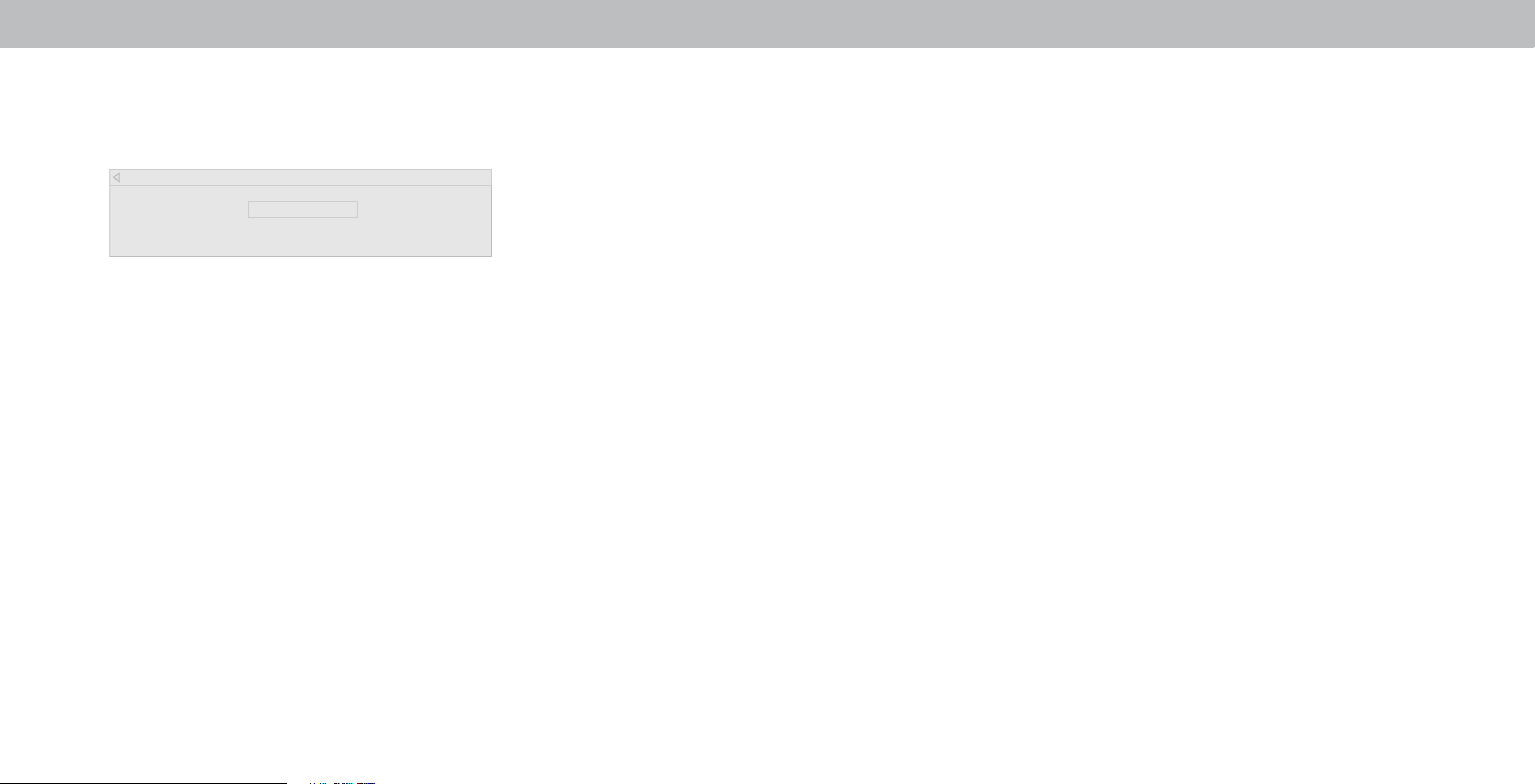
To show or hide the Uniformity Analyzer Test Pattern:
1. From the Color Tuner menu, use the Arrow buttons to highlight
Color Tuner, and then press the Left/Right Arrow buttons until
the Uniformity Analyzer Test Pattern menu is displayed.
Uniformity Analyzer Test Pattern
Off
2. Use the Arrow buttons on the remote to highlight . Use
the Left/Right Arrow buttons to highlight On to show the
SUniformity Analyzer Test Pattern.
—or—
To hide the Uniformity Analyzer Test Pattern, use the Left/Right
Arrow buttons to highlight .
3. hen ou are nished press the EXIT button.
19
3
ADJUSTING THE AUDIO SETTINGS
To adjust the audio settings:
1. Press the MENU button on the
remote. The on-screen menu
is displayed.
2. Use the Arrow buttons on the
remote to highlight Audio and
press OK. The AUDIO menu
is displayed.
3. Use the Arrow buttons to
highlight the setting you wish
to adjust, then press Left/
Right Arrow buttons to change
the setting:
• Speakers - Turns the built-in
speaers On or O
• Volume Control Display - Toggle between On or to hide
or display the on-screen volume slider that appears when
volume is adjusted.
• Surround Sound - Surround sound uses DTS TruSurround
™
to deliver an immersive surround sound experience from
the Display’s internal speakers. TruSurround completes the
entertainment experience by providing deep, rich bass and
by delivering crisp details and clear, intelligible dialog. Select
On or .
• Volume Leveling - Volume leveling uses DTS TruVolume
™
to
maintain consistent volume levels during transitions between
program content, AV formats, and input sources. Select On or
In a ew cases oue eeing a articia suppress
oue increases aing it dicut to hear diaog or attening
sudden noises I this occurs turn oue eeing o
• Balance - Adjusts the loudness of the audio output from the
When the Display speakers are set to On, DTS signals
cannot be passed through digital audio outputs.
left and right speakers.
• Lip Sync - Adjusts the synchronization between the display
image and the accompanying audio track.
• Digital Audio Out - Changes the type of processing for digital
audio out and HDMI ARC output when connected to a home
theater audio system. Select Auto, PCM, Dolby D, or Bitstream.
• Analog Audio Out - Sets the volume control properties for
the RCA connector when connected to a home theater audio
system. Select Variable if you are controlling the volume with
the Display’s volume controls, or select Fixed if an external
audio device (sound bar or AV receiver) will control the volume.
• Equalizer Adusts the oost or attenuation o dierent
frequencies using either preset or custom settings. See
Changing
the Equalizer Settings
.
4. hen ou hae nished adusting the audio settings press the
EXIT button on the remote.
You must select Bitstream for audio with more than
two channels (3.0, 5.0, or 5.1, for example).
Changing the Equalizer Settings
The graphic equalizer has several pre-set modes and allows you to
create one custom mode.
To select a pre-set audio mode:
1. Press the MENU button on the remote. The on-screen menu is
displayed.
2. Use the Arrow buttons on the remote to highlight Audio and
press OK. The AUDIO menu is displayed.
3. Use the Arrow buttons to highlight Equalizer and press OK.
The Audio Mode and equalizer settings screen appears.
4. Use the Left and Right Arrow buttons to select an audio mode.
The euaier ars change to reect the ode
5. Press the EXIT button on the remote.
To create, modify, or replace the single custom equalizer setting:
1. Press the MENU button on the remote. The on-screen menu is
displayed.
2. Use the Arrow buttons on the remote to highlight Audio and
press OK. The AUDIO menu is displayed.
3. Use the Arrow buttons to highlight Equalizer and press OK.
The Audio Mode and equalizer settings screen appears.
4. Use the Left and Right Arrow buttons to select any audio
mode as a starting point.
5. Use the Arrow buttons to highlight a frequency and then press
OK.
6. Use the Up and Down Arrow buttons to adjust the boost (up)
and attenuation (down) for the frequency.
7. Use the Left and Right Arrow buttons to select another
frequency, if desired, and adjust it.
8. Press the EXIT button on the remote.
Audio
Speakers Auto
Volume Control Display On
Surround Sound Off
Volume Leveling Off
Balance 0
Lip Sync 0
Digital Audio Out Auto
Analog Audio Out Fixed
Equalizer
Back
20
3
ADJUSTING THE NETWORK SETTINGS
Your Display is Internet-ready, featuring both an Ethernet port and
built-in high-speed Wireless-N.
Connecting to a Wireless Network
To connect to a wireless network
whose network name (SSID) is being
broadcast:
1. Press the MENU button on the
remote. The on-screen menu is
displayed.
2. Use the Arrow buttons on the
remote to highlight Network and
press OK. The NETWORK menu is
displayed.
3. If you do not see your wireless
network displayed, highlight More
Access Points and press OK. The
WIRELESS ACCESS POINTS menu,
which is a list of available wireless
networks, is displayed.
4. Highlight the name of your
wireless network (this is the
network’s SSID) and press OK.
5. Using the on-screeen keyboard,
enter your network’s password,
then highlight Connect and press
OK.
6. Press the EXIT button on the
remote.
If your Display is connected to a network with an
Ethernat cable, you will not see the wireless network
connection menu. You must decide the Ethernet cable
to set a wireless network connection.
Network
Wired Connection Disconnected
Wireless Access Points
Manual Setup
Hidden Network
Test Connection
Press OK to select your wireless access point.
Back
Changing the Manual Setup Settings
Adanced users can netune the networ settings using the anua
Setup feature.
To change advanced network settings:
1. From the NETWORK menu,
highlight Manual Setup and press
OK. The MANUAL SETUP menu is
displayed.
2. To change the settings manually,
use the Arrow buttons on the
remote to highlight DHCP and then
use the Left/Right Arrow buttons to
change the setting to O
3. Use the Arrow and OK buttons to
adjust each setting:
• IP Address - The IP address
assigned to the Display.
• Subnet Mask - The subnet Exit 2D
• Default Gateway - Your network’s
default gateway address.
• Pref. DNS Server - Your preferred domain name server
address.
• Alt. DNS Server - Your alternate domain name server address.
4. Use the Arrow buttons on the remote to highlight Save and press
OK.
5. Press the IT utton on the reote
Manual Setup
DHCP Off
IP Address __.__.__.__
Subnet Mask __.__.__.__
Default Gateway __.__.__.__
Pref. DNS Server __.__.__.__
Alt. DNS Server __.__.__.__
RJ45 MAC 0:0:0:0:0:0
Wireless MAC 0:0:0:0:0:0
Save
Cancel
Back
Finding MAC Addresses for Network Setup
The security settings on your router may require you to enter the
Display’s MAC address in the router’s settings.
To nd the ispas A address
1. From the NETWORK menu, highlight Manual Setup and press OK.
The MANUAL SETUP menu is displayed.
2. Find the MAC address for the Display at the bottom of the list. The
MAC addresses for the connections in use are displayed:
• RJ45 MAC - The Ethernet or RJ45 MAC address may be
needed to set up your network when you have connected
the Display to your network when you have connected the
Display to your network with an Ethernet (Cat 5) cable.
• Wireless MAC - The Wireless (WiFi) MAC address may be
needed to connect your Display to your network with WiFi.
21
3
Connecting to a Hidden Network
To connect to a wireless network whose network name (SSID) is not
being broadcast:
1. From the NETWORK menu,
highlight Hidden Network and
press OK. The ENTER ACCESS
POINT NAME screen is displayed.
2. Using the on-screen keyboard,
enter your network’s name
(SSID), then highlight Connect
and press OK
3. Using the on-screen keyboard,
enter your network’s password,
then highlight Connect and press
OK.
4. Press the IT utton on the
remote.
Testing Your Network Connection
To test your network connection:
1. From the NETWORK menu, highlight Test Connection and press
OK.
2. The TEST CONNECTION screen displays the connection method,
network name, signal strength, and download speed of your
network connection.
3. Press the IT utton on the reote
Enter Access Point Name
Back
a b c d e f g h i
j k l m n o p q r
s t u v w x y z 0
1 2 3 4 5 6 7 8 9
.@# äêí Space
Enter your access point name. This
is used to connect to an access point
with a hidden SSID.
Connect
22

3
SETTING TIMERS
Setting the Sleep Timer
hen actiated the ispas seep tier wi turn the ispa o
after a set period of time.
1. Press the MENU button on the
remote. The on-screen menu is
displayed.
2. Use the Arrow buttons on the
remote to highlight Timers and
press OK. The TIMERS menu is
displayed.
3. Use the Left/Right Arrow
buttons on the remote to
highlight the period of time after
which you want the Display to go
to sleep: 30, 60, 90, 120, or 180
minutes. If you don’t want the
sleep timer to activate, change
the setting to .
4. hen ou hae nished setting
the sleep timer, press the EXIT
button on the remote.
Setti the Auto oer eature
To hep sae energ our ispa is set deaut to turn o ater
10 minutes without a video or audio signal. This feature can be
deactivated.
To set the Auto Power O eature
1. From the TIMERS menu, use the Up/Down Arrow buttons on
the remote to highlight Auto oer .
2. Use the Left/Right Arrow buttons on the remote to change
whether the ispa wi turn o If you don’t want the Display
to turn o when there is no signa change the setting to .
Otherwise, select 10 minutes.
3. hen ou hae nished setting the auto power o tie press
the EXIT button on the remote.
Timers
Sleep Timer Off
Auto Power Off 10 Minutes
Back
23
3
Name Input
Back
My DVD
HDMI-1 DVD
RENAMING DEVICES ON THE INPUT MENU
You can rename the inputs to make them easier to recognize on
the Input menu. For example, if you have a DVD player connected
to the Component input, you can rename that input to display “DVD
Player.” See
Changing the Input Source.
To change the name of an input:
1. Press the MENU button on the remote. The on-screen menu is
displayed.
2. Use the Arrow buttons on the remote to highlight Input and
press OK. The INPUT menu is displayed.
3. Highlight the input device that you want to rename and press
OK.
4. To use a preset input name:
a. Highlight the Input Port row and press Left/Right arrow
keys to scroll across the list of preset names.
—or—
To enter a custom name:
a. Enter your custom label using the on-screen keyboard.
b. Highlight OK and press OK.
c. The Input Name changes to show the custom name that you
created.
5. hen ou hae nished naing our input press the EXIT
button on the remote.
Input Port
Custom Name
Input Name
a b c d e f g h i
j k l m n o p q r
s t u v w x y z 0
1 2 3 4 5 6 7 8 9
.@# äêí Space
24
3
CHANGING THE SYSTEM SETTINGS
Using the System menu, you can:
• Check for system updates.
• View system information.
• Change the on-screen menu
language.
• Set time zone and local
settings.
• Adjust the CEC settings.
• Adjust when the power
indicator is illuminated.
• Change your Display’s name
• Review and maintain the list
of paired devices.
• Reset the Display settings &
set up administrative controls.
Help
VIZIO
Network
Sleep
Timer
Input CC
ABC
Audio
Wide
Normal
Picture
Settings
PanoramicWide Zoom
2D 3DExit
SYSTEM
System Information
Menu Language English
Time & Local Settings
Parental Controls
View Mode Overlay
Wide
CEC
Power Indicator Off
Reset & Admin
View status information for the
Display, current input and your
network.
Checking for System Updates
To view technical data and status information about your Display and
network connection:
1. Press the MENU button on the remote. The on-screen menu is
displayed.
2. Use the Arrow buttons on the remote to highlight Check for
Updates and press OK. The Display will begin to check for
updates
3. I an update is ound the ispa wi as to conr the update
If no update is found the display will note No Update Available.
Viewing System Information
To view technical data and status information about your Display and
network connection:
1. Press the MENU button on the remote. The on-screen menu is
displayed.
2. Use the Arrow buttons on the remote to highlight System
Information and press OK. The SYSTEM menu is displayed.
3. Use the Up/Down Arrow buttons to scroll through the system
information.
4. hen ou are nished reiewing the sste inoration press
the EXIT button on the remote.
System
Check for Updates
System Information
Time & Local Settings
Menu Language English
CEC
Power Mode Quick Start
Power Indicator On
Display Name Living Room
Mobile Devices
Reset & Admin
Back
Setting the Time and Local Settings
To ensure the correct time is displayed when you press the INFO
button, set the Display’s time zone:
1. Press the MENU button on the
remote. The on-screen menu is
displayed.
2. Use the Arrow buttons on the
remote to highlight System and
press OK. The SYSTEM menu is
displayed.
3. Use the Arrow buttons on the
remote to highlight Time & Local
Settings and press OK. The
menu headed by the local date
and time is displayed.
4. Highlight Time Zone and press
OK. The TIME ZONE menu is
displayed.
5. Highlight your time zone and press OK.
6. Highlight Daylight Saving Time and press OK. The DAYLIGHT
SAVING TIME menu is displayed. Choose On if it is currently
Daylight Savings Time, if it is Standard Time, or Auto to
have the system automatically detect Daylight Savings Settings.
7. Press the EXIT button on the remote.
Time & Local Settings
Time Zone <Pacic (-8)>
Daylight Savings Time Auto
Time Format 12 Hour
Country USA
Back
25
3
Changing the On-Screen Menu Language
our ispa can dispa the onscreen enu in dierent anguages
To change the on-screen menu language:
1. Press the MENU button on the
remote. The on-screen menu is
displayed.
2. Use the Arrow buttons on the
remote to highlight System and
press OK. The SYSTEM menu is
displayed.
3. Use the Arrow buttons on
the remote to highlight Menu
Language and press OK. The
MENU LANGUAGE menu is
displayed.
4. Highlight your preferred
language (English, Español, or
Français) and press OK.
5. Press the EXIT button on the
remote.
Menu Language
English
Español
Français
Back
Adjusting the Power Mode
Your Display is set to Eco Mode by default. When the Display is powered
o co ode setting uses ess than o power uic Start ode
enables your Display to power on faster as well as automatically power
on when casting content.
Please note that by changing this setting the energy
consumption required to operate this device will
change.
To switch etween co ode and uic Start ode
1. Press the MENU button on the remote. The on-screen menu is
displayed.
2. Use the Arrow buttons on the remote to highlight System and
press OK. The SYSTEM menu is displayed.
3. Use the Arrow buttons on the remote to highlight Power Mode
and press OK. The Power Mode menu is displayed.
4. ighight either co ode or uic Start ode and press OK to
select.
Adjusting the CEC Settings
The CEC function on your Display enables you to control
HDMI-connected devices with the included remote without any
additional programming.
Not all HDMI devices support CEC. See your device’s
user manual for details.
To enable, disable, or adjust CEC settings:
1. Press the MENU button on the remote. The on-screen menu is
displayed.
2. Use the Arrow buttons on the remote to highlight System and
press OK. The SYSTEM menu is displayed.
3. Use the Arrow buttons on the remote to highlight CEC and
press OK. The CEC menu is displayed.
4. Use the Arrow and OK buttons to adjust each setting:
• CEC - Select Enable to use the Display remote to control
CEC devices connected to HDMI. Select ARC Only for plug
and play of an audio device connected to the HDMI ARC
input. The ARC setting does not support video devices
connected to the audio device (Select Enable to enable
support or these deices Seect isae to turn o
• Device Discovery - Use this function to determine if your
device is connected and supports CEC. (Required for Enable
option only.)
5. Press the IT utton on the reote
26
3
uri the oer Idicator or
The Power Indicator on the front of your Display normally does not
glow when the Display is on. You can change this setting if you prefer
the light to be on.
To turn the Power Indicator ight On or O
1. Press the MENU button on the remote. The on-screen menu is
displayed.
2. Use the Arrow buttons on the remote to highlight System and
press OK. The SYSTEM menu is displayed.
3. Highlight Power Indicator and press OK.
4. Use the Up/Down Arrow buttons to select On or , then
press OK.
Changing the Display Name
aing our dispa heps to dierentiate it ro other cast deices
you may have in your home
To view or edit your Display name:
1. Press the MENU button on the remote. The on-screen menu is
displayed.
2. Use the Arrow buttons on the remote to highlight System and
press OK. The SYSTEM menu is displayed.
3. Use the Arrow buttons on the remote to highlight Display Name
and press OK. The Display Name menu is displayed.
4. Enter your custom name using the on-screen keyboard.
5. Press the EXIT button on the remote.
Display Name
Back
a b c d e f g h i
j k l m n o p q r
s t u v w x y z 0
1 2 3 4 5 6 7 8 9
.@# äêí Space
Family Room
Living Room
Managing Mobile Devices
Your Display can be paired with multiple mobile devices so you can
easily control your Display across multiple devices
To see a list of paired devices or unpair a device:
1. Press the MENU button on the remote. The on-screen menu is
displayed.
2. Use the Arrow buttons on the remote to highlight System and
press OK. The SYSTEM menu is displayed.
3. Use the Arrow buttons on the remote to highlight Mobile
Devices and press OK. The list of paired devices appears.
4. Highlight a device name to delete it and press OK
5. Use the Left/Right Arrows to select YES or NO when asked to
conr
Mobile Devices
Tablet
Ana’s Phone
Work Tablet
Back
27
3
Restoring the Display to Factory Default Settings
All of the on-screen menu settings can be reset to the factory defaults.
If you restore the Display to the factory default
settings, all changes you have made to the settings will
be lost! This includes any wireless or picture settings.
To restore the Display to its factory default settings:
1. Press the MENU button on the remote. The on-screen menu is
displayed.
2. Use the Arrow buttons on the remote to highlight System and
press OK. The SYSTEM menu is displayed.
3. Highlight Reset & Admin and press OK. The RESET & ADMIN
menu is displayed.
4. Highlight Reset Display to Factory Defaults and press OK. If you
have set a SYSTEM PIN CODE, enter it now.
The Display displays, “Select Reset to restore all Display settings to
factory defaults and clear all account information.”
5. Highlight Reset and press OK.
6. ait or the ispa to turn o The ispa wi turn ac on
shortly afterward and the Setup App will begin.
USING THE RESET & ADMIN MENU
You can use the Display’s Reset & Admin menu to restore the Display
to its factory default settings as well as access other system settings.
Using the Reset & Admin, you can:
• Reset the display to factory
settings.
• Force the sste to power o
and on.
• Create a system pin code
to lock content and picture
settings.
• Turn On or Viewing Data
• Start or stop the Store Demo
Mode.
About Viewing Data
Video ACR collects data related to publicly available content
displayed on your television/display, such as the identity of
your broadcast, cable, or satellite television provider, and the
television programs and commercials viewed (including time,
date, channel, and whether you view them live or at a later time).
e aso coect uniue identiers aout this T incuding the IP
address. This data is collectively referred to as “Viewing Data.”
For more information about Viewing Data and how VIZIO protects
its customers’ privacy, please consult our privacy policy at www.
vizio.com/privacy.
When ACR collection is turned on, we may share Viewing Data
with authorized data partners including analytics companies,
media companies and advertisers. VIZIO and its authorized
data partners use Viewing Data to generate summary analysis
and reports of how users engage with content on their TVs and
other devices. VIZIO Viewing Data is sometimes enhanced with
household demographic data and data about digital actions
(e.g. digital purchases and other consumer behavior taken by
devices associated with the IP Address we collect). Viewing Data
also enables our authorized data partners to deliver advertising
reeant to our proe that ou ight nd useu oth on the IIO
TV/display and other devices sharing your IP Address. Viewing
Data is also used to help content publishers, broadcasters or
content distribution services create or recommend more relevant
entertainment based on summary insights, as well as helps us
improve the design of our products, software and services.
ou can easi turn this eature On or O in the ST AI
menu. If you have trouble enabling or disabling Viewing Data,
please contact VIZIO customer service by emailing techsupport@
vizio.com or calling (855) 472-8817.
For more information, see https://www.vizio.com/viewingdata
and review VIZIO’s privacy policy at https://www.vizio.com/privacy
Reset & Admin
Reset Display to Factory Defaults
Soft Power Cycle
System Pin Code
Viewing Data On
Store Demo
Back
28
3
USING THE INFO WINDOW
The Info Window can be displayed by pressing the INFO button on the remote:
• Press the INFO button one time to Display Name, Current Input, Picture Mode, Network Information, and Time.
Time
Network NameCurrent Input
Display Name
Picture Mode
Living Room
5:00 pm
Cast
HomeNetwork
Normal
29
ATroubleshooting & Technical Support
Find help with:
• New Product Setup
• Connecting Your Devices
• Technical Problems
• Product Updates
• And More
You can also contact our
award-winning support team at:
Phone:
(877) 698-4946 (TOLL-FREE)
Hours Of Operation:
Monday - Friday: 7 AM TO 11 PM (CST)
Saturday - Sunday: 9
AM TO 6 PM (CST)
Live Chat
Support Available
Do You Have Questions? Find Answers At
SUPPORT.VIZIO.COM
30

A
Take A Moment To Register Your Product At
VIZIO.COM/PRODUCT-REGISTRATION
REGISTER YOUR VIZIO PRODUCT NOW
Customized Support
Get assistance quickly with your information on-hand.
News & Offers
Take advantage of the latest news and special offers from VIZIO.
Safety & Satisfaction
Stay up to date with important product updates and notifications.
Why Register?
31

A
The remote is not responding.
• Make sure the batteries are properly inserted matching
the - and + symbols.
• Replace the batteries with fresh ones.
There is no power.
• Ensure the Display is plugged into a working electrical
outlet.
• Ensure the power cable is securely attached to the
Display.
• Press the Power/Standby button on the remote or on the
back of the Display to turn the Display on.
The power is on, but there is no image on the screen.
• Ensure all cables are securely attached to the Display.
• nsure a deices are connected correct eices dier
see your device’s user manual for details.
• Adjust Brightness, Contrast, or Backlight. See
Adjusting
the Picture Settings
.
• Press the INPUT button on the remote to select a
dierent input source
There is no sound.
• Press Volume Up on the remote control.
• Press the MUTE utton on the reote to ensure ute is o
• Check the audio settings. See
Adjusting the Audio Settings.
• Check the audio connections of external devices (Blu-ray
player, game console, cable/satellite box) that are
connected to the Display.
he soud is at or diao is ot audie
• Turn o oue eeing See
Adjusting the Audio
Settings
.
The colors on the Display don’t look right.
• Adjust the Color and Tint settings in the Picture menu. See
Adjusting the Picture Settings
.
• Select a pre-set picture mode. See
Adjusting the Picture
Settings
. VIZIO recommends selecting Calibrated.
• Check all cables to ensure they are securely attached.
The buttons on the remote aren’t working.
• Ensure you are only pressing one button at a time.
• Point the remote directly at the Display when pressing a
button.
• Replace the remote batteries with new ones. See
Replacing the Batteries.
The image quality is not good.
• For the est iage uait iew highdenition progras
using digital sources. Connect your devices with HDMI
cables.
The picture is distorted.
• Move the Display away from electrical appliances, cars,
and uorescent ights
• Ensure all cables are securely attached.
The display image does not cover the entire screen.
• If you are using Display, AV, or Component with 480i
input, press the button on the remote to change the
screen mode.
The Display has pixels (dots) that are always dark.
• Your Display is precision-manufactured using an
extremely high level of technology. However, sometimes
pixels may not display correctly. These types of
occurrences are inherent to this type of product and do
not constitute a defective product.
HELP TOPICS
32
A
I see “noise” or static on the screen.
• When your Display’s digital capabilities exceed a digital
broadcast signal, the signal is up-converted (improved)
to match your Display’s display capabilities. This
up-converting can sometimes cause irregularities in the
image.
When I change input source, the display image changes size.
• The Display remembers the viewing mode on each input
source. If the viewing mode on the new input source
diers ro the one on the input source ou switch ro
the dierence a e noticeae
• See
Changing the Screen Aspect Ratio.
.
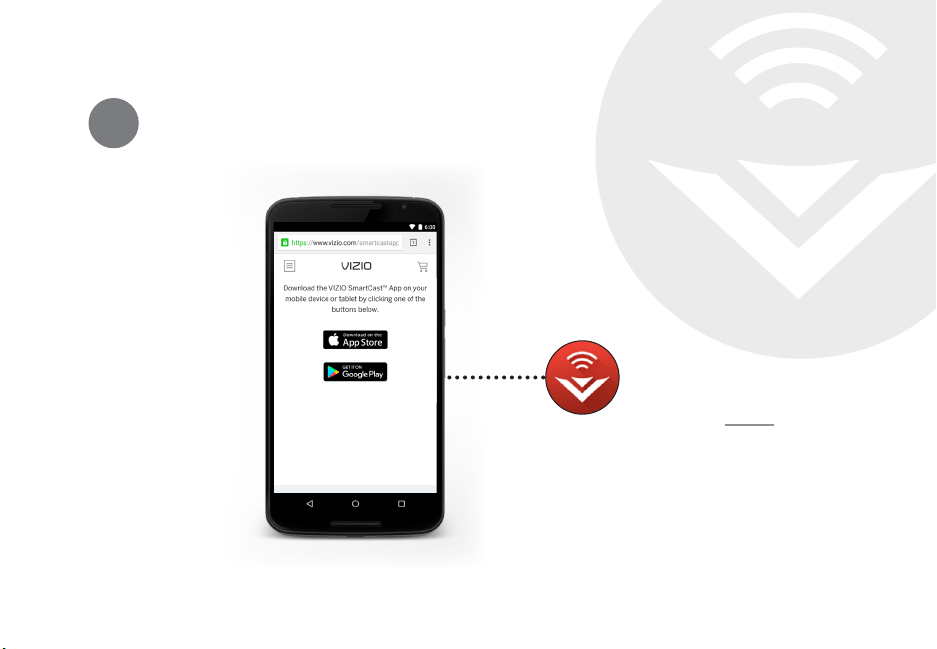
How do I download the VIZIO SmartCast™ App?
• Make sure your phone or tablet is connected to a Wi-Fi
network. Open a browser on your phone or tablet.
Navigate to vizio.com/smartcastapp and follow the
on-screen instructions to download the VIZIO SmartCast™
App.
How do I change the inputs?
• Make sure the VIZIO SmartCast™ App is installed on your
phone or tablet. Open the VIZIO SmartCast™ App. Tap on
the Device list and select your Display. Tap on the Input
lcon
and select the input of your choice.
• Press the INPUT button on the back of the Display to cycle
through the inputs.
• Press the INPUT button on the basic remote to cycle
through the inputs.
How do I connect to my Wi-Fi network?
• On your IR remote, press the Menu button then go to
Networkà Select your Wi-Fi nameà Enter password.
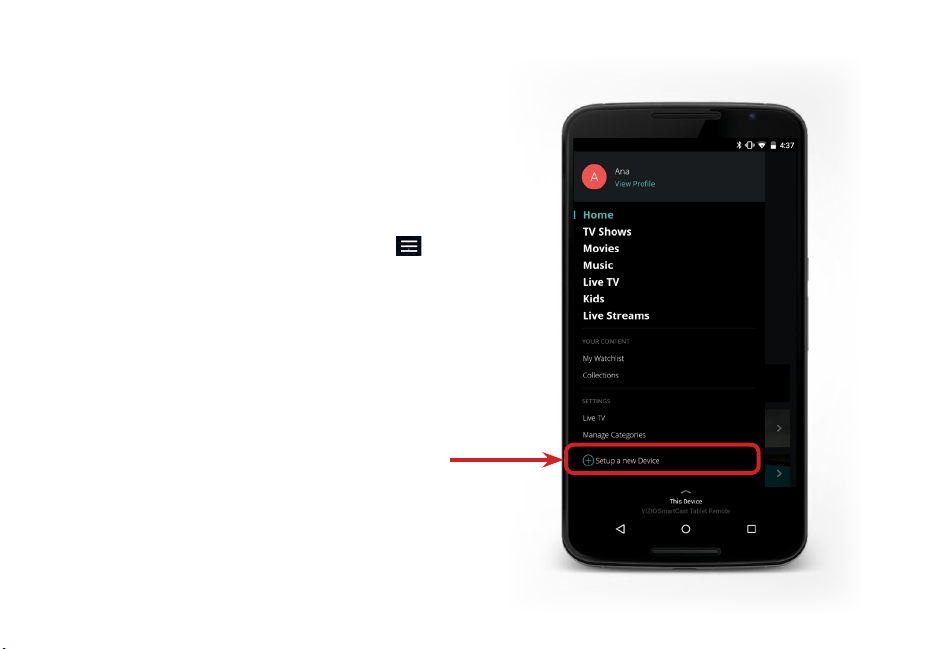
• Press the Setup / Link button twice on the IR remote.
Open the VIZIO SmartCast™ App on your phone or tablet.
Tap on the Device list and select Setup a New Device and
follow the on-screen instructions.
• Open the VIZIO SmartCast™ App on your phone or tablet.
Tap on the device list and select your Display. Tap on the
Settings iconà Network à Wireless Access Points.
Select your Wi-Fi network from the list, enter the Wi-Fi
password, and tap Connect.
• Press the Setup / Link button twice on the IR remote.
Press Play / Pause button to enter manual setup. Follow
the on-screen instructions to complete setup and connect
to a wireless network.
How do I watch Cable/Antenna TV channels?
• If you subscribe to cable or satellite, simply connect an
HDMI cable (not included) to the receiver.
• If you use external antennas to watch local broadcast
channels, a TV tuner is required and is sold separately by
third parties.
o do I strea as ie Neti ad Youtue to II
SmartCast™ Display?
• Download and open a Chromecast-enabled apps on your
oie deice such as ie eti or outue Then tap
the Cast button.
How do I exit Demo Mode
• Press and hold the INPUT button on the back of the
Display to exit the demo mode.
33
B
34
E43-E2
Remote Control Model: XRT135
erticatios
C-US , CSA , FCC Class B , BETS-7/ICES-003 Class B, IC ,
HDMI ( CEC , ARC ) Dolby Audio
otae ae
oer osutio 71.03 W
Stad oer <0.5W
ero riht ie uaratee Yes
Scre Sie
oe atter
E43-E2
Scree Sie 43"
ieae Area 42.51"
Diesios Stad
o Stad
c
c
Weiht Stad
o Stad
21.38 lbs (9.70 kg)
21.01 lbs (9.53 kg)
D aciht irect
efresh ate
aiu esoutio p
Daic otrast atio 200,000:1
ie itch
iei Ae
DI Iuts 4
ooet ideo Iuts 1
oosite Iuts 1
Atea Iut 0
USB Port: 1
Audio ututs A Anaog Stereo Output Optica igita
SD auae ngish French Spanish
Aiet iht Sesor Yes
Secicatios
B
E50-E1
Scree Sie 50"
ieae Area 49.5"
Diesios Stad
o Stad
c
c
Weiht Stad
o Stad
27.34 lbs (12.40 kg)
s g
D aciht irect
efresh ate
aiu esoutio p
Daic otrast atio 200,000:1
ie itch
iei Ae
DI Iuts 4
ooet ideo Iuts 1
oosite Iuts 0
Atea Iut 0
USB Port: 1
Audio ututs A Anaog Stereo Output Optica igita
SD auae ngish French Spanish
Aiet iht Sesor Yes
E50-E1
Remote Control Model: XRT135
erticatios
C-US , CSA , FCC Class B , BETS-7/ICES-003 Class B, IC ,
HDMI ( CEC , ARC ) Dolby Audio
otae ae
oer osutio 97.14 W
Stad oer <0.5W
ero riht ie uaratee Yes
Scre Sie
oe atter
35
B
Scree Sie 50"
ieae Area 49.5"
Diesios Stad
o Stad
c
c
Weiht Stad
o Stad
27.34 lbs (12.40 kg)
s g
D aciht irect
efresh ate
aiu esoutio p
Daic otrast atio 200,000:1
ie itch
iei Ae
DI Iuts 4
ooet ideo Iuts 1
oosite Iuts 0
Atea Iut 0
USB Port: 1
Audio ututs A Anaog Stereo Output Optica igita
SD auae ngish French Spanish
Aiet iht Sesor Yes
Remote Control Model: XRT135
erticatios
C-US , CSA , FCC Class B , BETS-7/ICES-003 Class B, IC ,
HDMI ( CEC , ARC ) Dolby Audio
otae ae
oer osutio 97.14 W
Stad oer <0.5W
ero riht ie uaratee Yes
Scre Sie
oe atter
CRegulatory Information
FCC Class B Radio Interference Statement
NOTE: This equipment has been tested and found to comply with
the limits for a Class B digital device, pursuant to Part 15 of the FCC
Rules. These limits are designed to provide reasonable protection
against harmful interference in a residential installation. This
equipment generates, uses and can radiate radio frequency energy,
and if not installed and used in accordance with the instructions,
may cause harmful interference to radio communications. However,
there is no guarantee that interference will not occur in a particular
installation. If this equipment does cause harmful interference to
radio or television reception, which can be determined by turning
the euipent o and on the user is encouraged to tr to correct
the interference by one or more of the following measures:
• Reorient or relocate the receiving antenna.
• Increase the separation between the equipment and receiver.
• onnect the euipent into an outet on a circuit dierent ro
that to which the receiver is connected.
• Consult the dealer or an experienced radio/Display technician for
help.
This device complies with Part 15 of the FCC Rules. Operation is
subject to the following two conditions: (1) this device may not
cause harmful interference, and (2) this device must accept any
interference received, including interference that may cause
undesired operation.
Notice
The changes or odications not epress approed the part
responsible for compliance could void the user’s authority to
operate the equipment.
Shielded interface cables and AC power cord, if any, must be used
in order to comply with the emission limits.
The manufacturer is not responsible for any radio or Display
intererence caused unauthoried odication to this
equipment. It is the responsibilities of the user to correct such
interference.
FCC Warning
hanges or odications not epress approed the part
responsible for compliance with the FCC Rules could void the user’s
authority to operate this equipment.
Caution
Always use an AC/DC power adapter that is properly grounded. Use
the AC cords listed below for each area.
Canada Notice for License-Exempt Radio Apparatus
This device complies with Industry Canada’s license-exempt RSSs.
Operation is subject to the following two conditions: (1) This device
may not cause harmful interference, and (2) this device must accept
any interference received, including interference that may cause
undesired operation.
This device operates on a no-protection no-interference basis.
Should the user seek to obtain protection from other radio services
operating in the same Display bands, a radio license is required.
Please consult Industry Canada’s document CPC-2-1-28, Optional
Licensing for Low-Power Radio Apparatus in the Display Bands, for
details.
Cet appareil est conforme aux CNR exempts de licence d’Industrie
Canada. Son fonctionnement est sujet aux deux conditions
suivantes:
1. le dispositif ne doit pas produire de brouillage préjudiciable, et
2. ce dispositif doit accepter tout brouillage reçu, y compris
un brouillage susceptible de provoquer un fonctionnement
indésirable.
Cet appareil fonctionne sur une base sans protection et sans
interférence. Dans le cas où l’utilisateur cherche à obtenir de la
protection des autres services de radio fonctionnant sur les mêmes
bandes Display, aucune license est requise. Veuillez consulter le
document CPC-2-1-28 d’Industrie Canada, License optionnelle pour
les appareils radio de faible puissance, pour plus de détails.
Industry Canada Class B emission compliance statement
This Class B digital apparatus complies with Canadian ICES-003.
Cet appareil numérique de la classe B est conforme à la norme
NMB-003 du Canada.
Declaración de México:
La operación de este equipo está sujeta a las siguientes dos
condiciones:
1. es posible que este equipo o dispositivo no cause interferencia
perjudicial y
2. este equipo o dispositivo debe aceptar cualquier interferencia,
incluyendo la que pueda causar su operación no deseada.
37
DLimited Warranty
UNITED STATES AND CANADA
BY USING YOUR VIZIO PRODUCT YOU AGREE TO BE BOUND BY ALL
THE TERMS OF THIS WARRANTY. BEFORE USING YOUR VIZIO PRODUCT,
PLEASE READ THIS WARRANTY CAREFULLY. IF YOU DO NOT AGREE TO
THE TERMS OF THIS WARRANTY, DO NOT USE THE VIZIO PRODUCT AND,
WITHIN THIRTY (30) DAYS OF THE DATE OF PURCHASE, RETURN IT FOR
A REFUND TO THE AUTHORIZED RETAILER WHERE YOU PURCHASED IT.
This warranty contains a binding arbitration agreement and a class action
waiver for United States residents. If you live in the United States, the
inding aritration agreeent and cass action waier aect our rights
under this warranty. Please read the text under the section titled “Binding
Arbitration Agreement; Class Action Waiver (U.S. Residents Only)”
carefully.
How Long This Warranty Lasts
For non-commercial use, VIZIO warrants the product on the terms set
forth below for one (1) year from the date of original purchase. For
commercial use, VIZIO warrants this product on the terms set forth below
for ninety (90) days from the date of original purchase.
What This Warranty Covers
VIZIO warrants the product against defects in materials and workmanship
when the product is used normally in accordance with VIZIO’s user guides
and manuals.
Except where restricted by law, this warranty applies only to the original
purchaser of a new product. The purchase must have been made from an
authorized retailer in the United States (including Puerto Rico) or Canada.
The product must also be located in the country where it was purchased
at the time of warranty service.
Zero Bright Pixel Defect Guarantee (Displays Only)
Your product may qualify for a warranty against “zero bright pixel” defects
for the duration of the warranty on select new product purchases. To
determine if this guarantee applies to your product, refer to the model’s
product information page at www.vizio.com, look for the “zero bright
pixel” guarantee on the box, or contact VIZIO Technical Support at the
email address or telephone number below.
How to Get Service
Before obtaining warranty service, you may visit www.vizio.com for
additional help and troubleshooting. To obtain warranty service, contact
VIZIO Technical Support via email at [email protected] or via
phone at 877 MY VIZIO (877-698-4946). The VIZIO Technical Support
hours are 6:00AM to 9:00PM Monday through Friday and 7:00AM to
P Saturda and Sunda Pacic Tie
Your Obligations Before Service
You must obtain pre-authorization before sending your product to a
VIZIO service center. You may be required to supply a purchase receipt
(or copy) to show that the product is within the warranty period.
When you return a product to a VIZIO service center, you must ship the
product in its origina pacaging or in pacaging that aords an eua
degree of protection. VIZIO Technical Support will provide instructions for
packing and shipping the product to the VIZIO service center.
ALL USER DATA AND DOWNLOADED APPLICATIONS STORED ON A
PRODUCT WILL BE DELETED IN THE COURSE OF SOME IN-HOME AND ALL
SHIP-IN WARRANTY SERVICE. If this occurs, your product will be restored
to its original state. You will be responsible for restoring all applicable user
data and downloaded applications. Recovery and reinstallation of user
data and downloaded applications is not covered under this warranty.
In order to protect your personal information, VIZIO recommends that
you always clear all personal information from the product before it is
serviced, regardless of the servicer.
VIZIO’s Responsibilities
If VIZIO determines that a product is covered by this warranty, VIZIO will
(at its option) repair or replace it, or refund the purchase price to you.
There will be no charge for parts or labor during the warranty period.
epaceent parts a e new or recertied at IIOs option and soe
discretion. Replacement parts and VIZIO’s labor are warranted for the
remaining portion of the original warranty or for ninety (90) days from
warranty service, whichever is longer.
Types of Service
Displays that are 32 inches or larger will usually be serviced in-home.
In-home service requires complete and easy access to the product and
does not include de-installation or re-installation of the product. In-home
service is subject to availability. VIZIO will provide other service options
when in-home service is not available.
All other VIZIO products must be sent to a VIZIO service center to obtain
warranty service. VIZIO is not responsible for transportation costs to the
service center, but VIZIO will cover return shipping to the customer.
What This Warranty Does Not Cover
This warranty does not cover: (a) cosmetic damage; (b) normal wear and
tear; (c) improper operation; (d) improper voltage supply or power surges;
(e) signal issues; (f) damage from shipping; (g) acts of God; (h) customer
isuse odications or adustents i instaation setup or repairs
attempted by anyone other than by a VIZIO authorized service center;
(j) products with unreadable or removed serial numbers; (k) products
requiring routine maintenance; or (l) products sold “AS IS”, “CLEARANCE”,
“FACTORY RECERTIFIED”, or by a non-authorized reseller.
What to Do If You Are Not Satised With Service
If you feel VIZIO has not met its obligations under this warranty, you may
attempt to resolve the issue informally with VIZIO. If you are unable to
resoe the issue inora and wish to e a ora cai against IIO
and if you are a resident of the United States, you must submit your claim
to binding arbitration according to the procedures described below,
unless an exception applies. Submitting a claim to binding arbitration
means that you do not have the right to have your claim heard by a judge
or jury. Instead your claim will be heard by a neutral arbitrator.
Binding Arbitration Agreement; Class Action Waiver (U.S. Residents
Only)
UNLESS YOU HAVE BROUGHT AN ELIGIBLE CLAIM IN SMALL CLAIMS
COURT OR HAVE OPTED OUT AS DESCRIBED BELOW, ANY CONTROVERSY
OR CLAIM RELATING IN ANY WAY TO YOUR VIZIO PRODUCT, INCLUDING
ANY CONTROVERSY OR CLAIM ARISING OUT OF OR RELATING TO THIS
WARRANTY, A BREACH OF THIS WARRANTY, OR THE VIZIO PRODUCT’S
SALE, CONDITION OR PERFORMANCE, WILL BE SETTLED BY BINDING
ARBITRATION ADMINISTERED BY THE AMERICAN ARBITRATION
ASSOCIATION AND CONDUCTED BY A SINGLE ARBITRATOR APPOINTED
BY THE AMERICAN ARBITRATION ASSOCIATION, IN ACCORDANCE WITH
ITS COMMERCIAL ARBITRATION RULES AND ITS SUPPLEMENTARY
PROCEDURES FOR CONSUMER-RELATED DISPUTES. You may learn more
about the American Arbitration Association and its rules for arbitration
by visiting www.adr.org or by calling 800-778-7879. Since this warranty
concerns a transaction in interstate or international commerce, the
Federal Arbitration Act will apply.
The ing ees to egin and carr out aritration wi e shared etween
you and VIZIO, but in no event will your fees ever exceed the amount
allowable by the American Arbitration Association, at which point VIZIO
will cover all additional administrative fees and expenses. VIZIO waives its
38
D
right to recover attorneys’ fees in connection with any arbitration under
this warranty. If you are the prevailing party in an arbitration to which
the Supplementary Procedures for Consumer-Related Disputes applies,
then you are entitled to recover attorneys’ fees as the arbitrator may
determine.
The dispute will be governed by the laws of the state or territory in which
you resided at the time of your purchase (if in the United States). The
place of arbitration will be Irvine, California, or your county of residence
(if in the United States). The arbitrator will have no authority to award
punitive or other damages not measured by the prevailing party’s actual
damages, except as may be required by statute. The arbitrator will not
award consequential damages, and any award will be limited to monetary
damages and will include no equitable relief, injunction, or direction to
any party other than the direction to pay a monetary amount. Judgment
on the award rendered the aritrator wi e inding and na ecept
for any right of appeal provided by the Federal Arbitration Act, and may
be entered in any court having jurisdiction. Except as may be required by
law, neither you nor VIZIO nor an arbitrator may disclose the existence,
content, or results of any arbitration under this warranty without the
prior written consent of you and VIZIO.
ANY DISPUTE, WHETHER IN ARBITRATION, IN COURT, OR OTHERWISE,
WILL BE CONDUCTED SOLELY ON AN INDIVIDUAL BASIS. VIZIO AND YOU
AGREE THAT NO PARTY WILL HAVE THE RIGHT OR AUTHORITY FOR ANY
DISPUTE TO BE ARBITRATED AS A CLASS ACTION, A PRIVATE ATTORNEY
GENERAL ACTION, OR IN ANY OTHER PROCEEDING IN WHICH EITHER
PARTY ACTS OR PROPOSES TO ACT IN A REPRESENTATIVE CAPACITY.
NO ARBITRATION OR PROCEEDING WILL BE JOINED, CONSOLIDATED,
OR COMBINED WITH ANOTHER ARBITRATION OR PROCEEDING
WITHOUT THE PRIOR WRITTEN CONSENT OF ALL PARTIES TO ANY SUCH
ARBITRATION OR PROCEEDING.
Exceptions to Binding Arbitration Agreement and Class Action Waiver
IF YOU DO NOT WISH TO BE BOUND BY THE BINDING ARBITRATION
AGREEMENT AND CLASS ACTION WAIVER, THEN: (1) you must notify
VIZIO in writing within sixty (60) days of the date that you purchased the
product our written notication ust e aied to IIO at Tesa
Irine A Attn ega epartent and our written notication
must include (a) your name, (b) your address, (c) the date you purchased
the product, and (d) a clear statement that you wish to opt out of the
binding arbitration agreement and class action waiver.
In addition, you may pursue a claim in small claims court in your county of
residence (if in the United States) or in Orange County, California. In such
case the provisions of the section titled “Binding Arbitration Agreement;
Class Action Waiver (U.S. Residents)” will not apply.
Exclusions and Limitations
TO THE GREATEST EXTENT PERMITTED BY APPLICABLE LAW, THERE ARE
NO EXPRESS WARRANTIES OTHER THAN THOSE DESCRIBED ABOVE.
ANY IMPLIED WARRANTIES, INCLUDING ANY IMPLIED WARRANTY OF
MERCHANTABILITY AND FITNESS FOR A PARTICULAR PURPOSE, WILL BE
LIMITED IN DURATION TO THE WARRANTY PERIOD SET FORTH ABOVE.
SOME STATES AND PROVINCES DO NOT ALLOW LIMITATIONS ON HOW
LONG AN IMPLIED WARRANTY LASTS, SO THE ABOVE LIMITATION MAY
NOT APPLY TO YOU.
VIZIO WILL NOT BE RESPONSIBLE FOR LOSS OF USE, LOSS OF
INFORMATION OR DATA, COMMERCIAL LOSS, LOST REVENUE OR
LOST PROFITS, OR OTHER INDIRECT, SPECIAL, INCIDENTAL OR
CONSEQUENTIAL DAMAGES, EVEN IF VIZIO HAS BEEN ADVISED OF THE
POSSIBILITY OF SUCH DAMAGES, AND EVEN IF THE REMEDY FAILS OF ITS
ESSENTIAL PURPOSE. SOME STATES AND PROVINCES DO NOT ALLOW
THE EXCLUSION OR LIMITATION OF INCIDENTAL OR CONSEQUENTIAL
DAMAGES, SO THE ABOVE LIMITATION OR EXCLUSION MAY NOT APPLY
TO YOU.
IN LIEU OF ANY OTHER REMEDY FOR ANY AND ALL LOSSES AND DAMAGES
RESULTING FROM ANY CAUSE WHATSOEVER (INCLUDING VIZIO’S
NEGLIGENCE, ALLEGED DAMAGE, OR DEFECTIVE GOODS, NO MATTER
WHETHER SUCH DEFECTS ARE DISCOVERABLE OR LATENT), VIZIO MAY,
AT ITS SOLE AND EXCLUSIVE OPTION AND IN ITS DISCRETION, REPAIR
OR REPLACE YOUR PRODUCT, OR REFUND ITS PURCHASE PRICE. AS
NOTED, SOME STATES AND PROVINCES DO NOT ALLOW THE EXCLUSION
OR LIMITATION OF INCIDENTAL OR CONSEQUENTIAL DAMAGES, SO THE
ABOVE LIMITATION OR EXCLUSION MAY NOT APPLY TO YOU.
How the Law Applies
This warrant gies ou specic ega rights and ou a aso hae other
rights, which vary from state to state and province to province. This
warranty applies to the greatest extent permitted by applicable law.
General
No employee or agent of VIZIO may modify this warranty. If any term of this
warranty, other than the class action waiver, is found to be unenforceable,
that term will be severed from this warranty and all other terms will
reain in eect I the cass action waier is ound to e unenorceae
then the entire section titled “Binding Arbitration Agreement; Class Action
Waiver (U.S. Residents Only)” will not apply. This warranty applies to the
maximum extent not prohibited by law.
Changes to Warranty
This warrant a change without notice ut an change wi not aect
your original warranty. Check www.vizio.com for the most current version.
39
D
MEXICO
BY USING YOUR VIZIO PRODUCT YOU AGREE TO BE BOUND BY
ALL THE TERMS OF THIS WARRANTY. BEFORE USING YOUR VIZIO
PRODUCT, PLEASE READ THIS WARRANTY CAREFULLY. IF YOU DO
NOT AGREE TO THE TERMS OF THIS WARRANTY, DO NOT USE
THE VIZIO PRODUCT AND, WITHIN THIRTY (30) DAYS OF THE DATE
OF PURCHASE, RETURN IT FOR A REFUND TO THE AUTHORIZED
RETAILER WHERE YOU PURCHASED IT.
Warrantor
The warrantor under this warranty is VIZIO Sales & Marketing
Mexico S. de R.L. de C.V.
How Long This Warranty Lasts
For non-commercial use, VIZIO warrants the product on the terms
set forth below for one (1) year from the date of original purchase.
For commercial use, VIZIO warrants this product on the terms set
forth below for ninety (90) days from the date of original purchase.
What This Warranty Covers
VIZIO warrants the product against defects in materials and
workmanship when the product is used normally in accordance
with VIZIO’s user guides and manuals.
Except where restricted by law, this warranty applies only to the
original purchaser of a new product. The purchase must have been
made from an authorized retailer in Mexico. The product must also
be located in Mexico at the time of warranty service.
Zero Bright Pixel Defect Guarantee (Displays Only)
Your product may qualify for a warranty against “zero bright pixel”
defects for the duration of the warranty on select new product
purchases. To determine if this guarantee applies to your product,
refer to the model’s product information page at www.vizio.mx,
look for the “zero bright pixel” guarantee on the box, or contact
VIZIO Technical Support at the email address or telephone number
below.
How to Get Service
Before obtaining warranty service, you may visit www.vizio.mx for
additional help and troubleshooting. To obtain warranty service,
contact VIZIO Technical Support via email at ApoyoTecnico.MX@
VIZIO.com or via phone at 01-800-801-0096 or 001-855-472-7444.
The VIZIO Technical Support hours are 9:00AM to 6:00PM Monday
through Friday, Central Standard Time.
Your Obligations Before Service
You must obtain pre-authorization before sending your product to
a VIZIO service center. You may be required to supply a purchase
receipt (or copy) to show that the product is within the warranty
period.
When you return a product to a VIZIO service center, you must ship
the product in its origina pacaging or in pacaging that aords
an equal degree of protection. VIZIO Technical Support will provide
instructions for packing and shipping the product to the VIZIO
service center.
ALL USER DATA AND DOWNLOADED APPLICATIONS STORED ON
A PRODUCT WILL BE DELETED IN THE COURSE OF SOME IN-HOME
AND ALL SHIP-IN WARRANTY SERVICE. If this occurs, your product will
be restored to its original state. You will be responsible for restoring
all applicable user data and downloaded applications. Recovery
and reinstallation of user data and downloaded applications is
not covered under this warranty. In order to protect your personal
information, VIZIO recommends that you always clear all personal
information from the product before it is serviced, regardless of
the servicer.
VIZIO’s Responsibilities
If VIZIO determines that a product is covered by this warranty, VIZIO
will (at its option) repair or replace it, or refund the purchase price to
you. There will be no charge for parts or labor during the warranty
period epaceent parts a e new or recertied at IIOs
option and sole discretion. Replacement parts and VIZIO’s labor are
warranted for the remaining portion of the original warranty or for
ninety (90) days from warranty service, whichever is longer.
Types of Service
TVs that are 32 inches or larger will usually be serviced in-home.
In-home service requires complete and easy access to the product
and does not include de-installation or re-installation of the product.
In-home service is subject to availability. VIZIO will provide other
service options when in-home service is not available.
All other VIZIO products must be sent to a VIZIO service center to
obtain warranty service. VIZIO is not responsible for transportation
costs to the service center, but VIZIO will cover return shipping to
the customer.
What This Warranty Does Not Cover
This warranty does not cover: (a) cosmetic damage; (b) normal
wear and tear; (c) improper operation; (d) improper voltage supply
or power surges; (e) signal issues; (f) damage from shipping; (g)
acts o od h custoer isuse odications or adustents
(i) installation, set-up, or repairs attempted by anyone other
than by a VIZIO authorized service center; (j) products with
unreadable or removed serial numbers; (k) products requiring
routine maintenance; or (l) products sold “AS IS”, “CLEARANCE”,
“FACTORY RECERTIFIED”, or by a non-authorized reseller.
What to Do If You Are Not Satised With Service
If you feel VIZIO has not met its obligations under this warranty,
you may attempt to resolve the issue informally with VIZIO. If you
are unae to resoe the issue inora and wish to e a ora
claim against VIZIO, you may do so.
Exclusions and Limitations
TO THE GREATEST EXTENT PERMITTED BY APPLICABLE LAW, THERE
ARE NO EXPRESS WARRANTIES OTHER THAN THOSE DESCRIBED
ABOVE. ANY IMPLIED WARRANTIES, INCLUDING ANY IMPLIED
WARRANTY OF MERCHANTABILITY AND FITNESS FOR A PARTICULAR
PURPOSE, WILL BE LIMITED IN DURATION TO THE WARRANTY
PERIOD SET FORTH ABOVE. SOME STATES AND PROVINCES DO
NOT ALLOW LIMITATIONS ON HOW LONG AN IMPLIED WARRANTY
LASTS, SO THE ABOVE LIMITATION MAY NOT APPLY TO YOU.
Limited Warranty Mexico
40
D
VIZIO WILL NOT BE RESPONSIBLE FOR LOSS OF USE, LOSS OF
INFORMATION OR DATA, COMMERCIAL LOSS, LOST REVENUE OR
LOST PROFITS, OR OTHER INDIRECT, SPECIAL, INCIDENTAL OR
CONSEQUENTIAL DAMAGES, EVEN IF VIZIO HAS BEEN ADVISED OF
THE POSSIBILITY OF SUCH DAMAGES, AND EVEN IF THE REMEDY
FAILS OF ITS ESSENTIAL PURPOSE. SOME STATES AND PROVINCES
DO NOT ALLOW THE EXCLUSION OR LIMITATION OF INCIDENTAL
OR CONSEQUENTIAL DAMAGES, SO THE ABOVE LIMITATION OR
EXCLUSION MAY NOT APPLY TO YOU.
IN LIEU OF ANY OTHER REMEDY FOR ANY AND ALL LOSSES AND
DAMAGES RESULTING FROM ANY CAUSE WHATSOEVER (INCLUDING
VIZIO’S NEGLIGENCE, ALLEGED DAMAGE, OR DEFECTIVE GOODS,
NO MATTER WHETHER SUCH DEFECTS ARE DISCOVERABLE OR
LATENT), VIZIO MAY, AT ITS SOLE AND EXCLUSIVE OPTION AND IN
ITS DISCRETION, REPAIR OR REPLACE YOUR PRODUCT, OR REFUND
ITS PURCHASE PRICE. AS NOTED, SOME STATES AND PROVINCES
DO NOT ALLOW THE EXCLUSION OR LIMITATION OF INCIDENTAL
OR CONSEQUENTIAL DAMAGES, SO THE ABOVE LIMITATION OR
EXCLUSION MAY NOT APPLY TO YOU.
How the Law Applies
This warrant gies ou specic ega rights and ou a aso
have other rights, which vary from state to state and province to
province. This warranty applies to the greatest extent permitted by
applicable law.
General
No employee or agent of VIZIO may modify this warranty. If any
term of this warranty is found to be unenforceable, that term will
be severed from this warranty and all other terms will remain in
eect This warrant appies to the aiu etent not prohiited
by law.
Changes to Warranty
This warranty may change without notice, but any change will not
aect our origina warrant hec wwwiio or the ost
current version.
INFORMATION EXCLUSIVELY FOR MEXICO
To make a warranty claim, or to obtain parts, components, supplies
and accessories, you may contact the importer of record, the
warranty service provider, or the establishment from whom you
purchased the VIZIO product.
Importer of Record
VIZIO Sales & Marketing Mexico S. de R.L. de C.V.
PRESIDENTE MASARYK 111, Of 152 – Of 111
COL. POLANCO V SECCIÓN
DELEGACION MIGUEL HIDALGO,
CIUDAD DE MEXICO, MEXICO 11560
Warranty Service Provider
VIZIO Sales & Marketing México S de RL de CV
Presidente Masaryk 111, Of 152 - Of 111
Col. Polanco V Sección
Delegación Miguel Hidalgo
Ciudad de México, México
C.P. 11560
01-800-801-0096 or 001-855-472-7444
Date of purchase:
Model:
Brand:
To make a warranty claim, present your product and either this
warranty, duly stamped by the establishment from whom you
purchased the VIZIO product, or a valid invoice or receipt showing
the date of purchase.
Under the terms of this warranty, VIZIO or its representative must
exchange parts and components of the product and include labor
and shipping expenses of the product on which this warranty is
valid, within the service network, at no cost to the consumer.
VIZIO is not obligated to honor the warranty in the following cases.
(a) When the product has been used under other than normal
conditions.
(b) When the product has not been operated according to the
accompanying instructions for use.
(c) When the product has been altered or repaired by persons not
authorized by VIZIO or the respective seller.
41
DLegal Information
Software Licenses
All software is provided subject to a software license agreement(s) and
you agree that you will be bound by such license agreement(s) in addition
to these terms. Your use of this product is subject to VIZIO’s privacy policy,
which may be updated from time to time, and is available to view at
http://www.vizio.com/privacy.
Export Regulations
Customer acknowledges that the VIZIO products, which include
technology and software, are subject to customs and export control
laws in the United States (“US”). The products may also be subject to the
customs and export control laws and regulations of the country in which
the products are manufactured and/or received.
Internet Connectivity
Network conditions, environmental and other factors may negatively
aect connectiit and the resuting ideo uait i an
The applications and content of the applications pictured herein or
described in accompanying documentation may only be available
in certain countries or anguages a reuire additiona ees or
suscription charges and a e suect to uture updates odications
or discontinuation without notice. VIZIO has no control over third party
applications or content and assumes no responsibility for the availability
or interruption of such applications or content. Additional third party
ters conditions and restrictions app A ooge account is reuired to
download applications from the Google Play store. A MyVIZIO account is
reuired to access certain eatures o the IIO Sartast
™
App.
Information in this User Manual is subject to change
without notice. To review the most updated version of this
User Manual and the associated Quick Start Guide, go to
http://www.vizio.com.
© 2017 VIZIO, Inc. All Right Reserved.
This User Manual may not be copied in whole or in part without the
written perission o IIO Inc IIO Inc has ade reasonae eorts
to ensure the accuracy of the information provided herein. All product
specications unctionait eatures congurations perorance design
and other product information described herein are subject to change
without notice. VIZIO, Inc. is not responsible for typographical, technical,
or descriptive errors.
VIZIO, the VIZIO logo, the V logo, and other terms and phrases are
trademarks or registered trademarks of VIZIO, Inc.
I I ighenition utiedia Interace and the I ogo are
tradears or registered tradears o I icensing
The Bluetooth® word mark and logos are registered trademarks owned
by Bluetooth SIG, Inc. Used under license.
For DTS patents, see http://patents.dts.com. Manufactured under license
ro TS icensing iited TS the So TS and the So
together are registered trademarks, and DTS Studio Sound is a trademark
of DTS, Inc. © DTS, Inc. All Rights Reserved.
Dolby and the double-D symbol are registered trademarks of
o aoratories
© 2017 Google Inc. All rights reserved. Google Cast is a trademark of
Google Inc.
Other names of companies, products, and services used in this Installation
Guide may be trademarks, trade names or service marks of others
and VIZIO, Inc. disclaims any interest in trademarks, trade names or
service marks other than its own. Mention of non-VIZIO products is for
informational purposes only.
If you are traveling internationally, check the customs
regulations for device use for each country you will visit, and
chec the power cord and adapter reuireents or each
location in which you plan to use the Display as voltage,
reuenc and pug congurations a ar
Warning: To reduce ris o eectric shoc re or daage to our deice
or other property, do not attempt to power the device with a voltage
converter kit sold for appliances.
Battery Disposal
Caution: Battery cells may explode. Do not dispose of the
atter in a re or with ordinar househod waste ispose
of batteries promptly. Replace the battery only with the
sae or euiaent tpe o atter recoended IIO
For more information on recycling or properly disposing of
your batteries please go to www.vizio.com/environment.
Always properly dispose of your VIZIO electronic products.
For information on how to properly dispose of or recycle your
VIZIO products please go to www.vizio.com/environment.
42

© 2017 VIZIO INC. ALL RIGHTS RESERVED.
03312017AP-US