NEWBULIG PC-WSQ1WWF-4WT-PT Automatic Cat Feeder, 4L Timed Pet Feeders with 10s Voice Recorder, Dog Food Dispenser with APP Control, Dry Food, 10 Meals

Product's Documents

Below are documents related to this product, you can read online or download:
PC-WSQ1WWF-4WT-PT photo

This manual provides instructions for the setup, use, and maintenance of the NEWBULIG Automatic Cat Feeder. Please read it thoroughly before use.


1. Overview

The NEWBULIG Automatic Cat Feeder is a programmable pet food dispenser designed for cats, dogs, and small animals. It allows you to schedule feedings, control portions remotely via a smartphone app, and includes a voice recording feature.

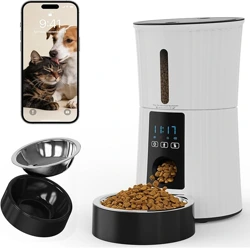
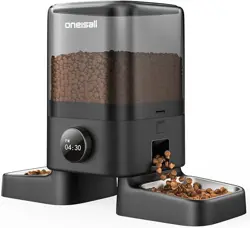
NEWBULIG Automatic Cat Feeder showing the main unit with food hopper and stainless steel bowl.

Key Components:

  • Main feeder unit with 4L food hopper
  • 304 Stainless steel food bowl
  • Control panel with buttons and display
  • Power adapter and USB cable
  • Built-in desiccant box (5g desiccant included)
  • Battery compartment for 3 D-cell batteries (batteries not included)

2. Features and Specifications

2.1 Physical Specifications

  • Dimensions: 13" L x 7.5" W x 13.5" H
  • Weight: 3.5 Pounds
  • Food Capacity: 4 Liters (approximately 16 cups)
  • Materials: Plastic and Stainless Steel
  • Bowl: Removable 304 food-grade stainless steel

2.2 Feeding Capabilities

  • Meals per Day: Programmable from 1 to 10 meals
  • Portion Control: 1 to 50 portions per meal (approximately 10g per portion)
  • Food Size Compatibility: Handles dry food from 5mm to 18mm in size
  • Power Options: Dual power supply (5V adapter included, or 3 D-cell batteries for backup)

2.3 Smart Features

  • App Control: Via smartphone app using Bluetooth 4.2 and Wi-Fi
  • Voice Recorder: Record a 10-second custom meal call message
  • Feeding History: View records from the past 7 days in the app
  • Do Not Disturb Mode: Quiet operation from 10 PM to 7 AM
  • Food Freshness: Sealed food tank with built-in desiccant box to keep food dry

3. Setup and Installation

3.1 Initial Setup

  1. Placement: Place the feeder on a flat, stable, and dry surface. Ensure it is not in direct sunlight or near a heat source.
  2. Bowl Attachment: Attach the stainless steel bowl to the front of the unit. Ensure it is securely in place.
  3. Fill Food Hopper: Open the lid and fill the 4L food tank with dry pet food. Do not overfill. Close the lid securely.
  4. Power Connection: Connect the included 5V power adapter to the feeder and plug it into a wall outlet.
  5. Battery Backup (Optional): Install 3 D-cell batteries (not included) into the battery compartment on the bottom or rear of the unit. This ensures operation during a power outage.

3.2 App Installation and Pairing

  1. Download the "NEWBULIG" app from the Apple App Store or Google Play Store on your smartphone.
  2. Create an account and log in.
  3. Ensure your phone's Bluetooth is enabled and you are connected to your home Wi-Fi network (2.4GHz).
  4. Press and hold the setup button on the feeder (refer to the control panel diagram). The indicator light should blink.
  5. Follow the in-app instructions to add a new device. Select the feeder model from the list.
  6. The app will guide you through connecting the feeder to your Wi-Fi network. This process may take a minute.
  7. Once connected, you can name your feeder (e.g., "Kitchen Feeder").

4. Use Guide

4.1 Control Panel and Buttons

The feeder has a physical control panel, typically including:

  • Power Button: Turns the feeder on/off.
  • Manual Feed Button: Dispenses a single portion of food immediately.
  • Set/Select Button: Used to navigate and set schedules and portions.
  • Up/Down Buttons: Adjust time, portion count, and other settings.
  • LCD Display: Shows time, portion settings, and error messages.

4.2 Programming a Feeding Schedule (Manual Method)

  1. Press the Set/Select
  2. Use the Up/Down buttons to set the current time.
  3. Press Set/Select again to move to Meal 1.
  4. Set the desired time for Meal 1 using the Up/Down buttons.
  5. Press Set/Select to set the number of portions (1-50) for Meal 1.
  6. Repeat steps 3-5 to program up to 10 meals.
  7. Press the Power or Set/Select button to save and exit.

4.3 Using the Smart App

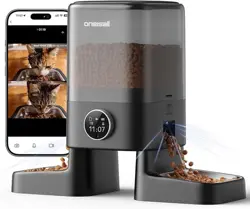
The app provides the most flexible control. From the app dashboard you can:

  • Manual Feed: Tap a button to dispense food immediately.
  • Set Schedule: Add, edit, or delete feeding times and portion sizes.
  • View History: Check the "Feeding History" tab to see records from the last 7 days.
  • Record Voice Message: Use the microphone icon to record a 10-second call for your pet. This message will play at each scheduled feeding.
  • Enable Do Not Disturb: Activate this mode in settings for quiet nighttime operation (10 PM - 7 AM).
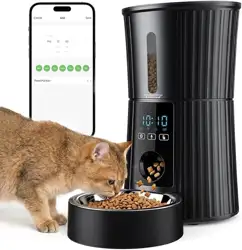
Illustration showing the feeder's app interface on a smartphone screen.

5. Maintenance and Cleaning

5.1 Regular Cleaning

  1. Unplug the feeder and remove batteries before cleaning.
  2. Stainless Steel Bowl: Remove and wash with warm, soapy water after each meal. Dry thoroughly before reattaching.
  3. Food Hopper: Empty any remaining food. Wipe the interior with a dry or slightly damp cloth. Do not immerse the main unit in water.
  4. Dispensing Mechanism: If food particles are stuck, use the provided cleaning tool (if included) or a soft, dry brush to clear the chute.
  5. Exterior: Wipe with a damp cloth.

5.2 Desiccant Replacement

The built-in desiccant box helps keep food dry. The included 5g desiccant packet will eventually become saturated.

  • Open the desiccant compartment (usually located inside the food hopper lid).
  • Remove the old desiccant packet.
  • Insert a new 5g desiccant packet (compatible replacements can be purchased separately).
  • Close the compartment securely.

5.3 Troubleshooting

  • Feeder not dispensing food: Check for food jams in the chute. Ensure the food hopper is not empty. Verify the power connection and that batteries are installed correctly (if using).
  • App will not connect: Ensure the feeder is powered on. Check that your phone's Bluetooth is on and you are connected to a 2.4GHz Wi-Fi network (not 5GHz). Restart the feeder and the app.
  • Incorrect portion size: Recalibrate the portion settings via the app or manual controls. Ensure you are using compatible dry food (5mm-18mm).
  • Display is blank: Check the power adapter connection and outlet. If using battery backup, ensure batteries are not depleted.

6. Safety Information

  • Keep away from children: Do not allow children to play with, in, or around the pet feeder. Supervise children when they are near the device.
  • Battery safety: Keep batteries away from children and pets to prevent swallowing. Use only the recommended battery type (3 x D-cell). Do not mix old and new batteries.
  • Intended Use: This feeder is designed for dry pet food only. Do not use with wet food, semi-moist food, or human food.
  • Electrical safety: Use only the provided 5V power adapter. Do not use if the power cord or adapter is damaged.
  • Pet supervision: It is recommended to observe your pet during the first few feedings to ensure they are adapting to the automatic feeder.
  • Maintenance: Always unplug the device before cleaning. Do not immerse the main unit in water or any other liquid.

7. Product Information

  • Brand: NEWBULIG
  • Model Number: PC-WSQ1WWF-4WT-PT
  • UPC: 715569165175
  • ASIN: B0GJ4QB9P5
  • Included Components: Power Adapter, USB Cable, Stainless Steel Bowl, Desiccant Bag.
  • Batteries Required: Yes (3 x D-cell, not included) for backup operation.

For further technical support or to download a PDF version of this manual, please refer to the product page on the retailer's website.

Reference file: NEWBULIG PC-WSQ1WWF-4WT-PT Automatic Cat Feeder, 4L Timed Pet Feeders with 10s Voice Recorder, Dog Food Dispenser with APP Control, Dry Food, 10 Meals

Specifications

NEWBULIG PC-WSQ1WWF-4WT-PT Questions and Answers