SENCKIT SMART HYGROMETER THERMOMETER WiFi Humidity Temperature Monitor for Remote Monitor and Alert

Product's Documents

Below are documents related to this product, you can read online or download:
SMART HYGROMETER THERMOMETER photo

Overview

This manual provides instructions for the SENCKIT WiFi Humidity and Temperature Monitor. This device is a smart sensor that measures indoor temperature and humidity, connects to your home Wi-Fi network, and allows for remote monitoring and alerts via a smartphone app.

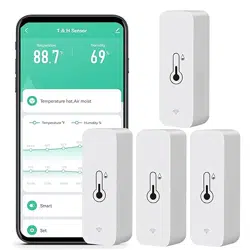
Front view of the SENCKIT WiFi Humidity Temperature Monitor device showing a compact, white rectangular design.

Features and Specifications

Key Features

  • Wi-Fi Connectivity: Connects directly to 2.4 GHz Wi-Fi networks without requiring a separate hub.
  • Remote Monitoring & Alerts: View real-time and historical data from anywhere via the Tuya Smart or Smart Life app. Receive push notifications when temperature or humidity exceeds your preset limits.
  • Voice Control: Compatible with Amazon Alexa and Google Home for voice queries (e.g., "Alexa, what's the temperature in the living room?").
  • Smart Home Integration: Can be used as a data source to trigger other smart devices (e.g., turn on an AC or dehumidifier) based on temperature or humidity conditions.
  • Data History & Graphs: The app provides 7-day data graphs and allows for exporting data from the past year.
  • Compact & Versatile Placement: Small design suitable for placement in potted plants, terrariums, humidors, or mounted on walls.
  • Low Power Consumption: Powered by 2 AAA batteries (included) with low-battery alerts sent to the app.

Technical Specifications

  • Brand: SENCKIT
  • Product Dimensions: 0.96" W x 2.72" H
  • Item Weight: 56 Grams
  • Battery: 2 x AAA (included)
  • Voltage: 1.5 Volts
  • Temperature Range: 20°C to 60°C
  • Temperature Accuracy: ±0.5°C
  • Mounting Type: Wall Mount (adhesive stickers or screws included)
  • Wi-Fi Standard: 2.4 GHz
  • Compatible Apps: Tuya Smart, Smart Life
  • Voice Assistant Compatibility: Amazon Alexa, Google Home

What's in the Box

  • 4 x Temperature & Humidity Sensor Units
  • 8 x AAA Batteries (2 for each sensor)
  • 1 x User Manual (this document)
  • Adhesive stickers for wall mounting

Installation and Setup Guide

1. Physical Setup

  1. Open the battery compartment on the back of the sensor.
  2. Insert the two provided AAA batteries, observing the correct polarity (+/-).
  3. Close the battery compartment.
  4. Placement: Choose a location for monitoring.
    • Freestanding: Place the sensor on a flat surface.
    • Wall Mount: Use the provided adhesive sticker or screws to mount the sensor on a wall.
    Avoid placing the sensor in direct sunlight, near heat sources, or in areas with excessive moisture splashing.

2. App Configuration

  1. Download the "Tuya Smart" or "Smart Life" app from your smartphone's app store (iOS App Store or Google Play Store).
  2. Create an account or log in to the app.
  3. Tap the "+" or "Add Device" button within the app.
  4. Select the category "Sensor" or "Temperature & Humidity Sensor."
  5. Ensure your smartphone is connected to your home's 2.4 GHz Wi-Fi network. The device does not support 5 GHz networks.
  6. Follow the in-app instructions. You will likely be prompted to:
    • Confirm the indicator light on the sensor is blinking rapidly (indicating pairing mode). If not, press and hold the device's reset button until it does.
    • Enter your home Wi-Fi network password.
  7. Wait for the app to connect and register the device. This may take a minute.
  8. Once added, you can name the device (e.g., "Living Room Sensor") for easy identification.

Use Guide

Using the App

The main app interface will display the current temperature and humidity readings for your added sensors.

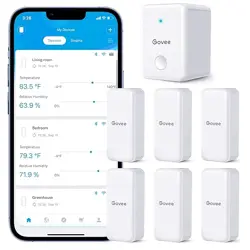
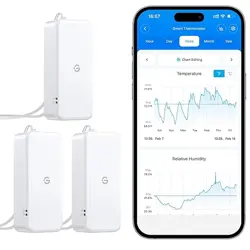
APP interface screenshot showing temperature and humidity readings and graphs.
  • Viewing Data: Tap on a device to see more details, including a 7-day historical graph for both temperature and humidity.
  • Setting Alerts: In the device settings, you can set upper and lower limit alerts for temperature and humidity. You will receive a push notification on your phone when these limits are exceeded.
  • Switching Temperature Units:
    1. In the device settings within the app, find the temperature unit option.
    2. Select either °C or °F.
    3. After changing the unit in the app, press the reset button on the physical sensor once. The device's indicator will flash quickly to confirm the change.
  • Data Export: The app allows you to export historical data (up to one year) for your records.
  • Sharing Access: The main account holder can share device access with other family members through the app's sharing function.

Setting Up Smart Scenes & Automations

Within the Tuya Smart or Smart Life app, you can create "Scenes" or "Automations."

  • Use the sensor as a condition (e.g., "If Temperature > 78°F").
  • Set an action for other compatible smart devices (e.g., "Then turn on Smart Plug connected to AC").
  • This allows for automatic climate control based on the sensor's readings.

Using Voice Control

  1. Ensure your sensor is successfully added to the Tuya/Smart Life app.
  2. Link your Tuya/Smart Life account to your Amazon Alexa or Google Home app in the respective app's "Skills & Games" or "Works with Google" section.
  3. Discover devices. Your sensor should appear as a device.
  4. You can now ask questions like:
    • "Alexa, what's the temperature in the living room?"
    • "Hey Google, what's the humidity in the bedroom?"

Troubleshooting

  • Device Won't Connect to Wi-Fi:
    • Ensure you are using a 2.4 GHz Wi-Fi network, not 5 GHz.
    • Check that your Wi-Fi password is entered correctly in the app.
    • Move the sensor closer to your Wi-Fi router during setup.
    • Restart the sensor by removing and reinserting the batteries.
  • No Data in App / Device Offline:
    • Check the Wi-Fi connection in your home.
    • Verify the sensor has power (batteries are not depleted).
    • Check for a low battery alert in the app.
  • Inaccurate Readings:
    • Ensure the sensor is not placed near a direct heat source, air vent, window, or in direct sunlight.
    • Allow time for the sensor to acclimate to its new environment (approx. 1 hour).
  • App Not Receiving Alerts:
    • Check that app notifications are enabled for Tuya Smart/Smart Life in your phone's settings.
    • Verify alert limits are correctly set within the app's device settings.

Care and Maintenance

  • Use a soft, dry cloth to clean the exterior of the sensor. Do not use liquids or abrasive cleaners.
  • Do not submerge the device in water or expose it to liquids.
  • Replace the AAA batteries when you receive a low battery alert via the app. Using fresh, high-quality batteries is recommended for optimal performance.
  • For long-term storage, remove the batteries.

Safety Information

  • This is an indoor use product. Do not use it outdoors or in wet conditions.
  • Keep the device and batteries away from open flames and extreme heat.
  • Use only the specified battery type (2 x AAA). Do not mix old and new batteries or different battery types.
  • Insert batteries with the correct polarity (+/-).
  • Remove exhausted batteries from the product promptly.
  • Dispose of batteries according to local regulations; do not dispose of in household trash.

Reference file: SENCKIT SMART HYGROMETER THERMOMETER WiFi Humidity Temperature Monitor for Remote Monitor and Alert

Specifications

SENCKIT SMART HYGROMETER THERMOMETER Questions and Answers