1. Overview
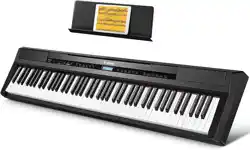
This manual provides instructions for the ZENY 61-Key Portable Electric Keyboard Piano. The product is a multi-functional electronic keyboard designed for beginners and players of all levels. It includes a keyboard, stand, stool, microphone, headphones, and a music sheet stand.

The main components are a 61-key keyboard with an LED screen, built-in speakers, and multiple connectivity options. The package includes an adjustable stand and stool, a microphone, headphones, and a music sheet stand.
2. Features and Specifications
2.1 Keyboard Specifications
- Number of Keys: 61
- Timbres: 300 built-in sounds
- Rhythms: 300 built-in rhythms
- Display: LED screen
- Speakers: Built-in stereo speakers
- Power Supply: AC power adapter (included, 110V-240V) or 6 x AA batteries (not included)
- Connectivity: 3.5mm headphone jack, 3.5mm auxiliary input, microphone input
- Special Features: Recording capability, lesson mode, portable design

2.2 Stand and Stool Specifications
- Keyboard Stand: Adjustable to three height positions: 31.1", 33.7", 35.8" H. Dimensions: 32.9" L x 15.4" W.
- Piano Stool: Adjustable to three height positions: 18", 19.6", 20.35" H. Padded seat. Dimensions: 15.7" L x 11.8" W.

Note: The image above is a placeholder. The actual product image shows the adjustable stand and stool in a home setting.
2.3 Included Components
- 61-Key Electronic Keyboard
- Adjustable Keyboard Stand
- Adjustable Padded Piano Stool
- Music Sheet Stand
- Headphones
- Microphone
- Power Adapter
- Instructions

3. Setup Guide
3.1 Assembling the Stand and Stool
- Unfold the keyboard stand legs and ensure all locking mechanisms are secure.
- Adjust the stand to your desired height by loosening the knobs, setting the correct tube length, and retightening the knobs.
- Assemble the piano stool by attaching the seat to the base. Adjust the height by turning the stool clockwise or counter-clockwise to raise or lower it to one of the three preset positions.
3.2 Placing the Keyboard
- Carefully place the keyboard onto the assembled stand, centering it for stability.
- Attach the music sheet stand to the designated holders on the keyboard or main stand.
3.3 Powering On
- Using AC Power: Connect the included power adapter to the DC input port on the keyboard, then plug the adapter into a standard wall outlet (110V-240V).
- Using Batteries: Install 6 AA batteries (not included) into the battery compartment on the underside of the keyboard. Ensure the polarity (+/-) is correct.

Warning: Use only the provided power adapter. Using an incorrect adapter may damage the keyboard.
4. Use Guide
4.1 Basic Operation
- Press the Power button to turn the keyboard on. The LED screen will illuminate.
- Use the Volume buttons to adjust the speaker output.
- Select different instrument sounds (Timbres) using the designated buttons or number pad. The current selection will be shown on the LED screen.
- Select different accompaniment rhythms using the Rhythm buttons. The tempo can usually be adjusted with a dedicated Tempo button or knob.
4.2 Lesson Mode
The keyboard features a teaching function for beginners.
- Select a demo song from the keyboard's memory.
- Engage the Lesson Mode. The LED display will show the correct keys and chords to press.
- The display will also indicate the pace at which to play, guiding you through the song.

4.3 Recording and Playback
The keyboard has a recording feature.
- Press the Record button to start recording your performance.
- Press the Stop button to end recording.
- Use the Playback button to listen to your recorded performance.
4.4 Connecting External Devices

- Headphones: Plug the included headphones (or any standard 3.5mm headphones) into the headphone jack for private listening. This will mute the built-in speakers.
- Microphone: Plug the included microphone into the microphone input. Your voice will be output through the keyboard's speakers.
- Auxiliary Input: Use a 3.5mm audio cable (not included) to connect an external device like a smartphone or MP3 player to the AUX IN port. You can play along with music from the external device through the keyboard's speakers.
- Audio Output: Use a 3.5mm audio cable to connect the keyboard's headphone/audio output jack to external powered speakers or a sound system for amplified sound.
5. Care and Maintenance
- Clean the keyboard with a soft, dry cloth. Do not use liquid cleaners or sprays directly on the surface.
- Disconnect the power adapter when not in use for extended periods.
- Remove batteries if the keyboard will not be used for a long time to prevent corrosion.
- Store the keyboard and stand in a cool, dry place away from direct sunlight and extreme temperatures.
- Avoid placing heavy objects on the keyboard.
6. Troubleshooting
- No Power: Check that the power adapter is firmly connected or that batteries are correctly installed and have sufficient charge.
- No Sound: Check the volume level. Ensure headphones are not plugged in, as this mutes the internal speakers.
- Distorted Sound: Reduce the volume. Check connections for external devices.
- Keys Not Responding: Turn the keyboard off and on again. Ensure it is not in a special mode that disables the keys.
- LED Screen Not Working: Check power connection. If using batteries, they may be depleted.
7. Product Information
- Brand: ZENY
- Model Name: ZENY 61
- Model Number: ZENY2429A
- Item Weight: 18 Pounds
- Product Dimensions (Stand assembled at max height): 15.4"D x 32.9"W x 35.8"H
- Warranty: 1 year limited warranty.