User manual Television
Connections and setup
Refer to your TV’s Quick Start Guide or other provided documentation to for model-specific information about attaching the base or a wall mount and making connections to AC power and to your other audio/video devices. The following information applies to all Roku TV models.
Connecting an antenna, cable, or satellite box
If you are using an antenna, CATV cable without a set-top box, or a cable or satellite box that has only an antenna output, connect a 75-ohm coaxial cable (not provided) from the device to the ANT/CABLE input on the TV.
Tip: If you are using an antenna with a 300 ohm twin-lead cable, you need to use a 300-to-75 ohm adapter (not provided) to adapt the twin-lead cable to a connection that is compatible with the TV’s antenna input.
Tip: If you receive your TV stations through a set top box from a cable or satellite TV provider, connect it to the TV using the best connection method available. From most to least desirable:
- HDMI® input – Digital HD and SD video
- AV input – analog SD video
- Antenna input – analog SD video using NTSC
Connecting external equipment with a composite AV video cable
If the best connection available on your device is AV or composite video output, connect it to the TV using a composite AV cable (not provided). Composite AV cables typically have three RCAtype plugs on each end, color coded as follows:
- Yellow – Video
- Red – Audio, right channel
- White or black – Audio, left channel
Connect each plug to the corresponding connector on the device and on the TV.
Note: Select models have an AV Input that looks like a headphone jack. Use the breakout cable included) to adapt this input to the three RCA-type plugs on your composite cable.
Connecting external equipment with an HDMI® cable
If possible, connect your devices using HDMI® cables (not provided). They help to provide the best video quality and also carry audio signals, so that only one cable is needed. For better picture quality, we recommend that you use cables designated as High Speed HDMI® Cables.
Tip: You might need to configure the device to send its signal through its HDMI® connector.
The connector labeled HDMI IN (ARC) has the additional ability to use the audio return channel to send digital audio to a receiver or sound bar, as explained in Connecting an AV receiver or digital sound bar.
Connecting headphones or analog sound bar to the TV
You can connect headphones or an analog sound bar (not provided) to the TV’s headphone jack.
Tip: Inserting a plug in the headphone jack disables the sound from the TV’s built-in speakers.
Warning: Loud noise can damage your hearing. When using headphones, use the lowest volume setting on your headphones that still lets you hear the sound.
Select models also have an audio line out connection that is not affected by TV volume or mute settings and does not disable the TV speakers. Use this connection when you want to use your amplifier or sound bar to control the TV volume. To turn off the TV’s built-in speakers, in the Home screen menu, navigate to Settings > Audio > TV speakers and change the setting.
Connecting headphones to the Roku Enhanced Voice Remote
Select Roku TVs come with the Roku Enhanced Voice Remote. On these models, you can connect headphones to the jack on the left side of the remote.
Tip: Inserting a plug in the remote’s headphone jack disables the sound from the TV’s built-in speakers or attached receiver or sound bar. The volume and mute controls on the right side of the remote adjust the volume level of the connected headphones.
Warning: Loud noise can damage your hearing. When using headphones, use the lowest volume setting on your headphones that still lets you hear the sound. You might notice that connecting headphones to your remote shortens the remote’s battery life somewhat.
Connecting an AV receiver or digital sound bar
You can enjoy Dolby Audio™ multichannel sound from your TV if you connect a digital amplifier or sound bar (not provided) in either of two ways:
- Digital optical audio out (S/PDIF) – Connect a TOSLINK optical cable (not provided) from the TV to the Optical input on your receiver or sound bar.
- HDMI® ARC – Connect an HDMI® cable (not provided) from the HDMI (ARC) connector to the HDMI® input on your receiver or sound bar. This connection uses the Audio Return Channel (ARC) feature of the HDMI® specification to output sound from the TV to a compatible device. To use this feature, you must configure the TV to enable HDMI® ARC, as explained in Enable HDMI® ARC.
Preparing for Internet connectivity
If you want to watch streaming content and take advantage of the cool features of your Roku TV, connect it to the Internet through a wireless modem/router or a wireless access point (not provided). The TV has a built-in wireless LAN adapter.
Note: The TV supports only its internal wireless network adapter—it does not support the use of a USB network adapter.
Select 4K models have wired in addition to wireless network connectivity. To use the wired network connection, connect an RJ-45 Ethernet cable (not provided) from the jack on the back of your TV to your network router or switch. The wired connection supports both 10 Base-T and Base-T Ethernet.
AC power
Plug your TV into a power outlet. You can tell that the TV has power because the status light on the front of the TV lights up when the TV is off.
The topic Status light explains how the status indicator shows what is happening with the TV.
Roku remote batteries
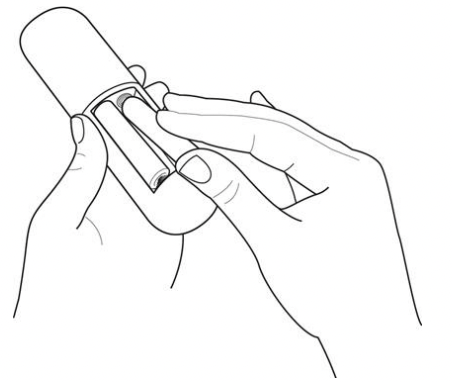
Open the back of your Roku remote and insert the included batteries, observing the proper orientation as indicated in the battery compartment. Reattach the back cover.
Roku TV remote
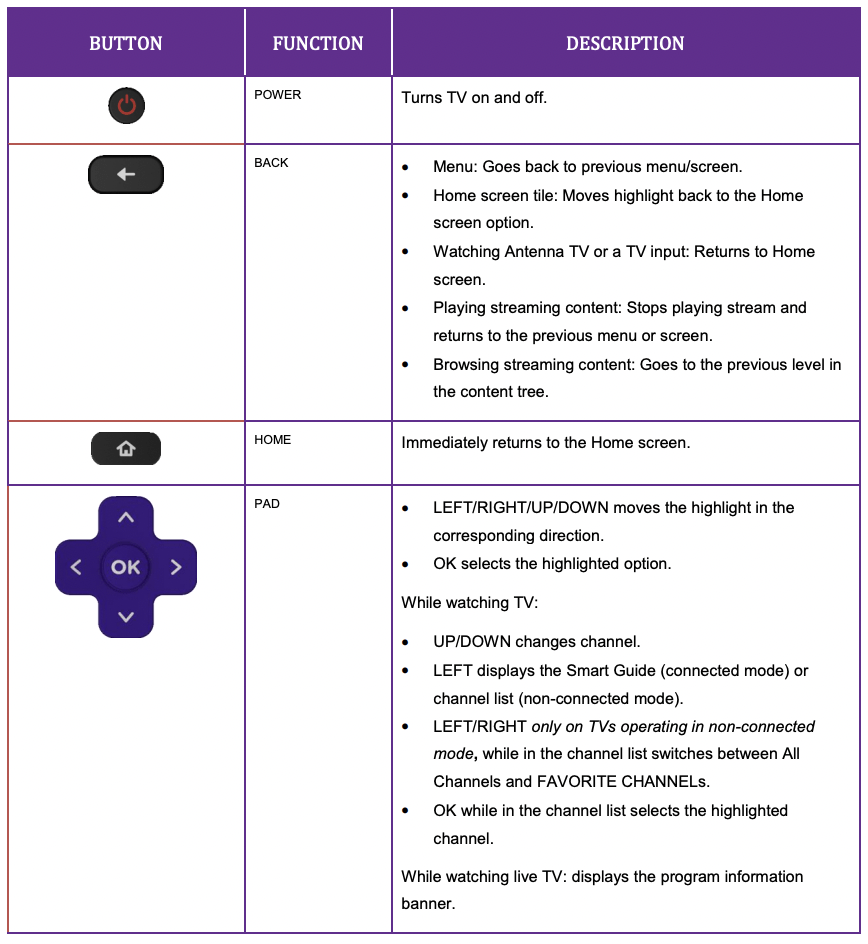
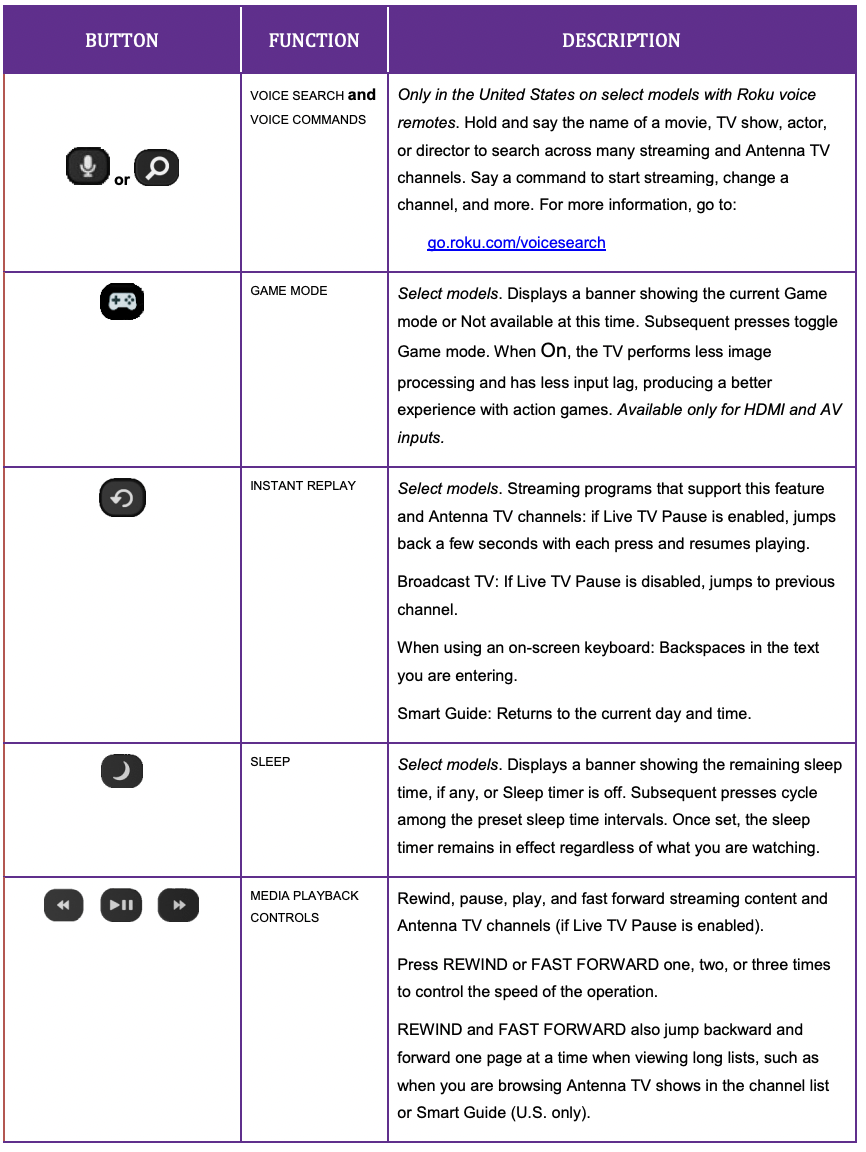
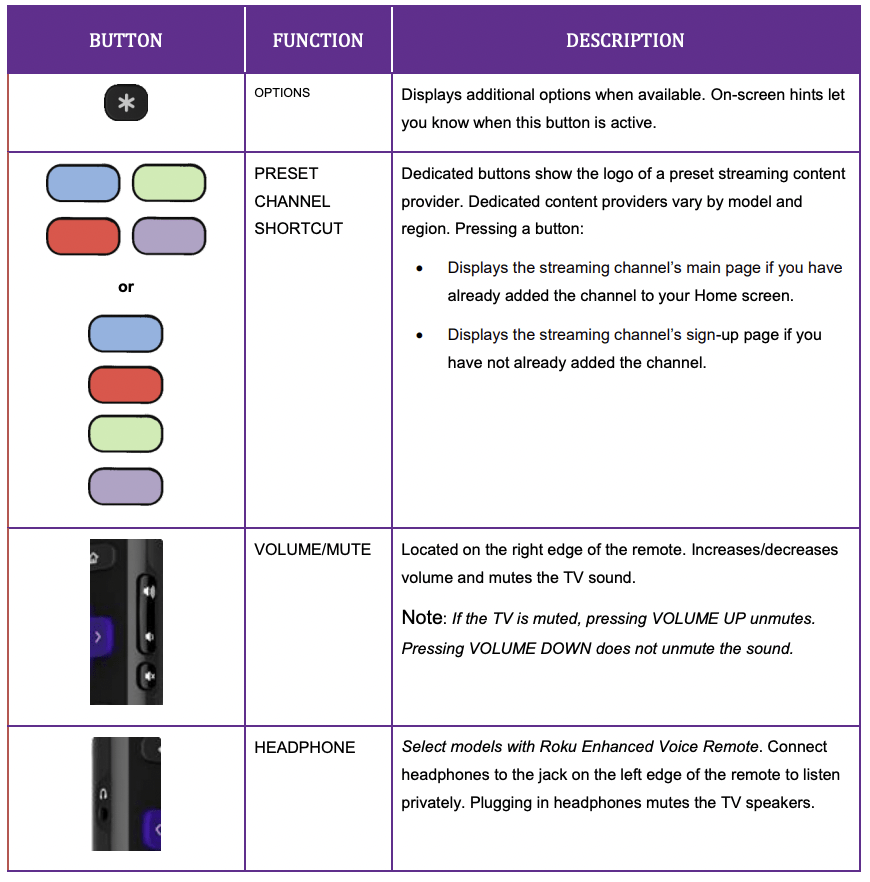
Use the following information to identify the buttons on your Roku remote.
Note: Certain remote buttons and features vary by model. Your remote might not have all buttons or features listed.
- If your remote has a microphone button
 just below the purple pad, then you have a Roku Voice Remote.
- If your remote has a headphone jack on its left edge, then you have a Roku Enhanced Voice Remote.
The Roku voice remotes have additional capabilities as described in the following table.
Panel buttons
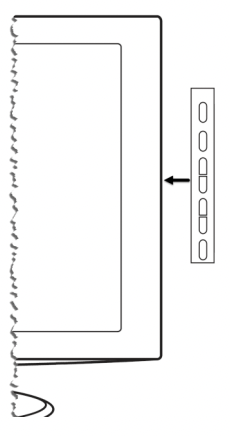
Your TV has a set of panel buttons that perform simple control functions. The TV panel buttons are not a substitute for the remote, as they do not give you access to all TV functions.
Single button
If your TV has this style of panel button, you can perform the following functions:
- Turn TV on: short press.
- Display the Input List: short press when TV is on.
- Select the next input in the Input List: short press while the TV is showing the Input List.
- Dismiss the Input List without changing inputs: no press.
- Turn TV off: long press.
Short press = less than two seconds
Long press = more than two seconds
No press: = no press within two seconds
Three buttons
If your TV has this style of panel buttons, you can perform the following functions:
- Turn TV on: middle button, short or long press.
- Volume up: right button when Input List is not active.
- Volume down: left button when Input List is not active.
- Display Input List: middle button, short press when TV is on.
- Highlight next input in the Input List: right button when Input List is active.
- Highlight previous input in the Input List: left button when Input List is active.
- Select highlighted item in the Input List: middle button, short press, or no press.
- Turn TV off: middle button, long press.
Short press = less than two seconds
Long press = more than two seconds
No press: = no press within four seconds
Game-pad style joystick
If your TV has this style of panel button, you can perform the following functions:

- Press in: Toggle between power ON and Standby.
- Press up or down: Increase/decrease the volume.
- Press left or right: Switch inputs. Each press moves the highlight up or down one item. Pausing for a few moments selects the highlighted item.
Four buttons
If your TV has this style of panel buttons, you can perform the following functions:
- Power: Turns the power on and off.
- Input: Selects among TV inputs. Each press moves down one item. Pausing for a few moments selects the highlighted item.
- Volume +: Increases the volume.
- Volume –: Decreases the volume.
Five buttons (with mute)
If your TV has this style of panel buttons, you can perform the following functions. Note that the order of the buttons might vary from model to model. Examine the panel button labels to determine your TV model’s layout.
- Power: Turns the power on and off.
- Input: Selects among TV inputs. Each press moves down one item. Pausing for a few moments selects the highlighted item.
- Volume +: Increases the volume.
- Volume –: Decreases the volume.
- Mute: Mutes and unmutes the sound.
Five buttons (without mute)
If your TV has this style of panel buttons, you can perform the following functions. Note that the order of the buttons might vary from model to model. Examine the panel button labels to determine your TV model’s layout.
- Power: Turns the power on and off.
- Input +: Selects the next TV input. Each press moves down one item. Pausing for a few moments selects the highlighted item.
- Input -: Selects the previous TV input. Each press moves up one item. Pausing for a few moments selects the highlighted item.
- Volume +: Increases the volume.
- Volume –: Decreases the volume.
Seven buttons
If your TV has this style of panel buttons, you can perform the following functions. Note that the order of the buttons might vary from model to model. Examine the panel button labels to determine your TV model’s layout.
- Input: Selects among TV inputs. Each press moves down one item. Pressing Channel + or Channel – moves the highlight up or down. Pausing for a few moments selects the highlighted item.
- Channel +: Moves the highlighted item up in the current menu.
- Channel –: Moves the highlighted item down in the current menu.
- Volume +: Increases the volume.
- Volume –: Decreases the volume.
- Mute: Mutes and unmutes the sound.
- Power: Turns the power on and off.
Guided Setup
With the preliminaries out of the way, it’s time to turn on your TV. As the TV starts for the first time, it leads you through Guided Setup, which configures the TV before you start to use it.
During Guided Setup, you’ll:
- Answer a few questions
- Provide network connection information
- Get a software update
- Link your TV to your Roku account.
- Connect devices such as a DVD player, game console, or cable box.
Starting Guided Setup
To start Guided Setup, press the POWER button on the remote to turn on your TV.
Note: Guided Setup normally runs only once, the first time you turn on your TV. If you need to run Guided Setup again, you’ll have to perform a factory reset, as explained in Factory reset everything.
When you first turn on your TV, it will take a few seconds to get itself ready. You’ll notice the following things happening:
- The status light blinks every time the TV is busy doing something; in this case it’s powering up and getting ready for you.
- The power-on screen appears and the status light blinks slowly for a few more seconds. The power-on screen shows a brand logo while the TV starts up.
- After a few seconds, Guided Setup starts.
Completing Guided Setup
Follow these steps to complete Guided Setup. At this point, you should be seeing the Language screen.
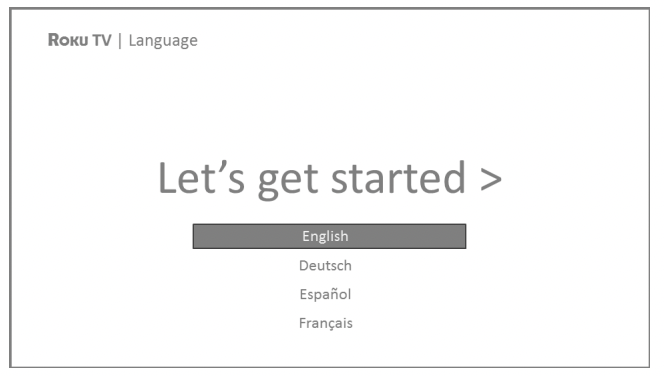
1. Only on models that have a Roku voice remote: A few moments after the Let’s get started screen appears, Guided Setup starts the pairing process for the voice remote. (You’ll know if you have this type of remote because it will have microphone or search button just below the down arrow on the purple pad.) If the voice remote does not pair automatically, follow the instructions on the screen to complete the pairing process.
Tip: On TVs sold in the United States, if you are blind or visually impaired, you can activate Audio Guide, a text-to-speech screen reader to help you navigate the TV’s menus and commands. To enable the Audio Guide, press the  button on the remote four times in rapid succession. Repeat to disable Audio Guide. (The button is located directly below the directional pad on the right side of the Roku remote.)
Note: If you enabled Audio Guide, choosing any language other than English disables it.
2. Press the DOWN arrow on the remote to highlight your preferred language, and then press OK or the RIGHT arrow.
3. Some models have a country selection screen: If you don’t see this screen, skip ahead to the next step. If you see this screen, select your country.
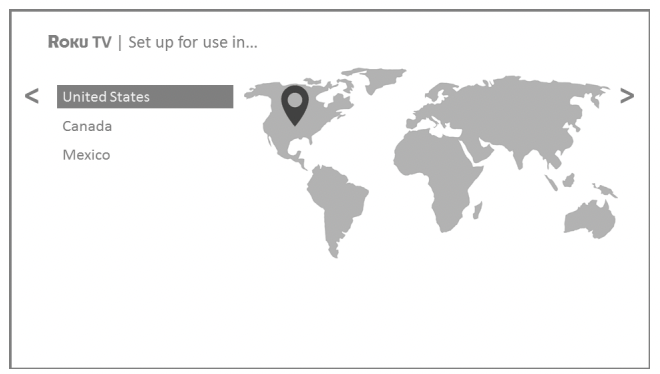
Note: If you enabled Audio Guide, choosing any country other than United States disables it.
4. Press OK or the RIGHT arrow on the remote to go to the next screen:
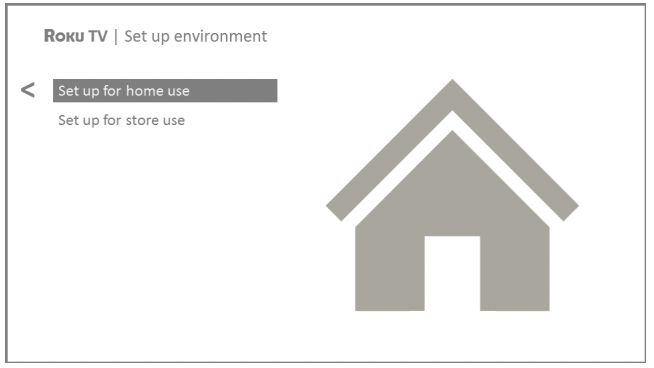
Note: Some models show the title First things first instead of Set up environment.
5. Press OK to select Set up for home use. This is the right choice for enjoying your TV at home. It provides energy saving options as well as access to all features of the TV.
Note: Store mode configures the TV for retail display and is not recommended for any other use. In store mode, some features of the TV are missing or limited. To switch from one mode to the other, you have to perform a factory reset as explained in Factory reset everything, and then repeat Guided Setup.
Network connection
After you select Set up for home use, the TV prompts you to make a network connection. If your TV has both wired and wireless connections, you’ll see the following screen.
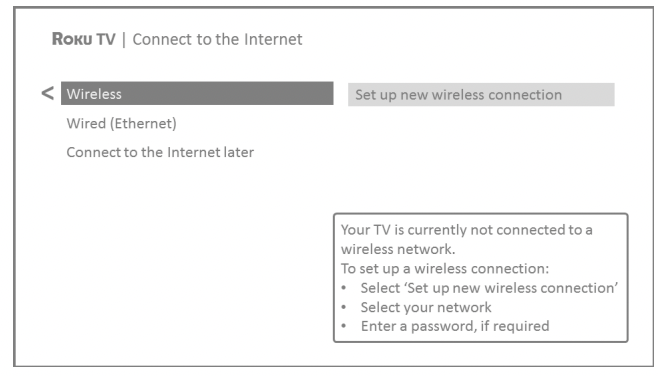
6. Only models that display the Connect to the Internet screen: Make a selection:
- Wireless connection – Highlight Set up new wireless connection and press OK. The TV prompts you through wireless setup. Skip ahead to the next step for help with the process.
- Wired connection – Highlight Connect to wired network and press OK. The TV immediately attempts to connect to your wired network, your local network, and then the Internet. Go to Step 9 to continue with Guided Setup.
- Connect to the Internet later – If you don’t want to connect to the Internet right now, you can skip this step and use the TV to watch Antenna TV channels, play games, and watch DVDs. When you’re ready to connect, it’s easy. We’ll show you how in Benefits of connecting.
Note: If you decide not to connect, Guided Setup skips ahead to setting up the devices that you’ve connected to your TV. Jump ahead to Connect your devices to complete Guided Setup.
7. On models that have wireless only, or models with both wired and wireless and you’ve selected Wireless: The TV scans for the wireless networks within range and displays them in order, with the strongest signals first. In addition to your own wireless signal, the TV might pick up signals from your neighbors.
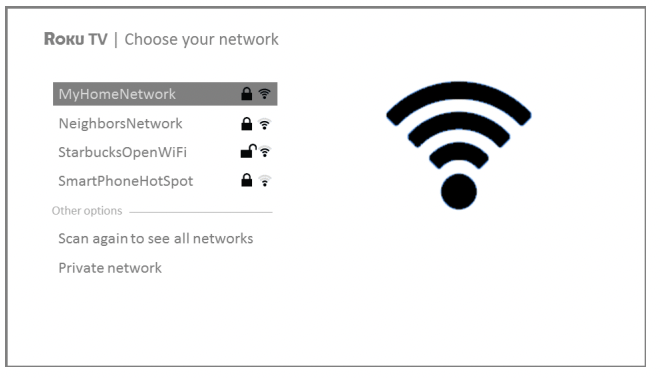
Press the UP or DOWN arrows to highlight the name of your wireless network, and then press OK to select it.
Note: Some networks, such as those often found in dorm rooms, hotels, and other public places, require you to read and agree to terms, enter a code, or provide identifying information before letting you connect to the Internet. If your Roku TV detects that you are connecting to such a network, it prompts you through the connection process using your compatible smartphone or tablet to provide the needed information. For more information, see Using your TV in a hotel or dorm room.
Other options
- Connect to the Internet later – If you don’t want to connect to the Internet right now, you can skip this step and use the TV to watch Antenna TV channels, play games, and watch DVDs. When you’re ready to connect, it’s easy. We’ll show you how in Benefits of connecting.
Note: If you decide not to connect, Guided Setup skips ahead to setting up the devices that you’ve connected to your TV. Jump ahead to Connect your devices to continue.
- Scan again / Scan again to see all networks – The name of this option depends on the number of wireless networks within range.
- Scan again appears if the list already shows all available wireless networks within range. If you don’t see your wireless network name in the list, you might need to adjust the location of your wireless router or the TV, turn on your router, or make other changes. When everything is ready, select Scan again to see if your network name now appears in the list.
- Scan again to see all networks appears if there are more wireless networks than the strongest ones it initially listed. If you don’t see your wireless network name in the list, this option displays the complete list. If you still don’t see your network name, you might have your router configured to provide wireless service as a private network.”
Note: Highlighting either of these options displays an informational panel with the unique media access control (MAC) address of your Roku TV. You will need the MAC address if your wireless router is configured to use MAC address filtering.
- Private network – If your wireless network name is hidden, it won’t appear in the list. Select Private network to display an on-screen keyboard, and use it to enter your network name. Unless you changed the factory-set network name, you can find the name (also called SSID) on a label on the router.
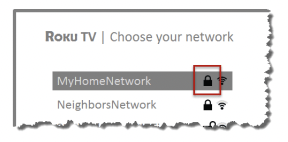
Tip: Wireless networks that are password-protected display a “padlock” icon adjacent to the name. This icon enables you to know that you are going to be prompted to enter a password after you select that network.
8. Only if you select a password protected wireless network: An on-screen keyboard appears. Use the keyboard to enter the network password.
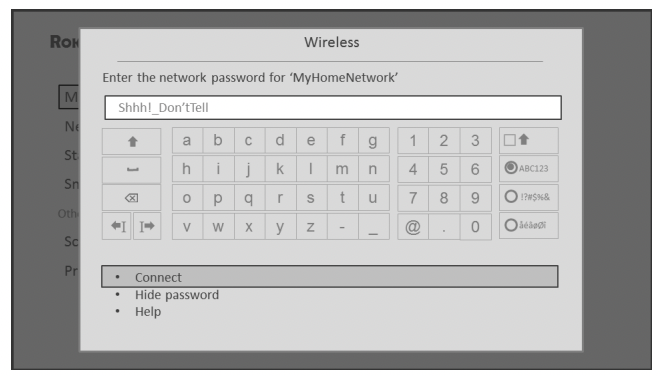
After you submit your wireless network password, the TV displays progress messages as it connects to your wireless network, your local network, and the Internet.
9. Only if your TV cannot get the correct time zone and current time from your network service provider: Use the UP and DOWN arrows to highlight your time zone, and then press OK.
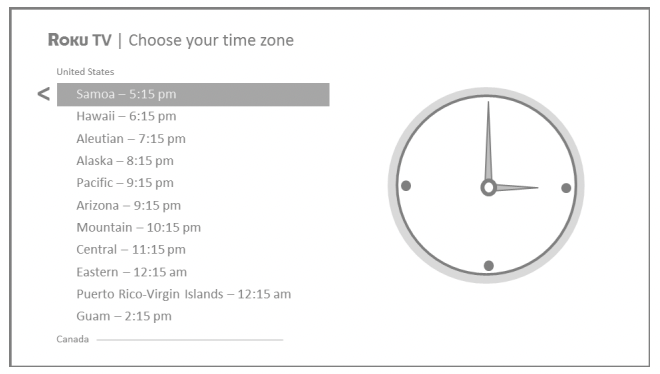
Tip: Your TV needs to know the local time zone so that it can correctly display information about the program you are currently watching. If the TV is unable to automatically determine the local time zone, it prompts you to choose your time zone from a list.
As soon as the TV is able to connect to the Internet, it downloads and installs its first software update, and then restarts.
Tip: Your TV automatically checks for updates periodically. These updates provide new features and improve your overall experience with the TV. After an update, you might notice that some Options have moved, and that there are new options or features. This User Guide describes version 8.0. To determine your current Roku TV software version, go to Settings > System > About after you complete Guided Setup. You can download an updated User Guide that matches your Roku TV software version from the Roku TV web site.
Activation
After the TV restarts, it displays the Activation screen:
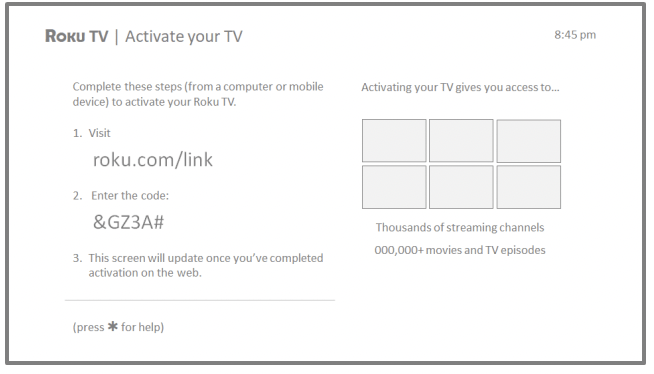
10. Using a compatible computer, tablet, or smartphone with an Internet connection, go to the web address displayed on the screen and enter the code that appears on your screen.
Why do I need a Roku account?
You need a Roku account for several reasons:
- It links you, your Roku TV, and your other Roku streaming devices to the Roku Channel Store and billing service.
- Streaming content providers know that it’s OK to send content you request to your Roku TV.
- Roku can automatically send updates to your device.
You need a Roku account to activate your device and access entertainment across thousands of streaming channels. Roku accounts are free, and while a valid credit card number is not required to create your account, providing your credit card information makes renting and purchasing entertainment from the Roku Channel Store fast and convenient.
After you log in or create your Roku account, the link page suggests that you select some streaming channels. After you confirm your selections, the TV gets an acknowledgement, and then adds your preexisting and newly-selected streaming channels to your Roku TV. This process is automatic and takes a few moments—a little longer if you already have a lot of streaming channels to add.
Tip: Streaming channels from all Roku streaming devices associated with your account are synchronized periodically, so that all of your Roku streaming devices have the same set of streaming channels (subject to compatibility with the device).
Connect your devices
Next, Guided Setup helps you set up the external devices that you want to use with it, such as a cable box, Blu-ray™ player, or game console.
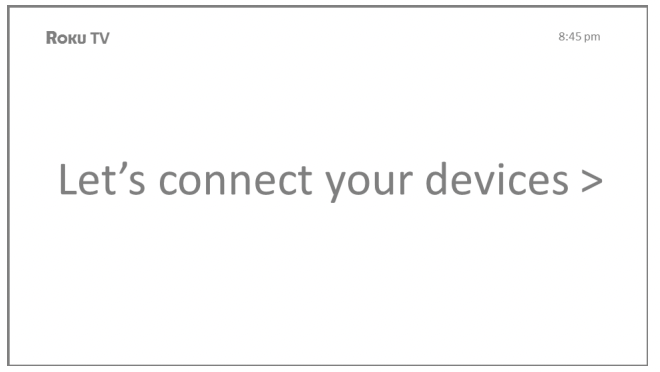
11. Press OK or the RIGHT arrow to proceed:
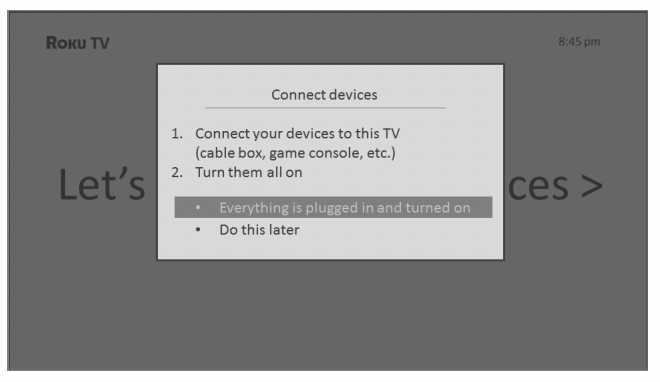
12. Connect all the devices you plan to use with your TV, turn them all on, and then select Everything is plugged in and turned on. The TV now takes you step by step through each of its inputs and asks what kind of device you have connected. On each input that has a connected and active device, you can see its picture and hear its sound.
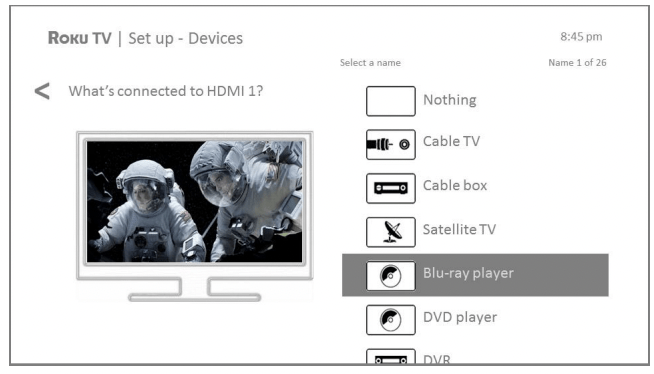
13. Press the UP or DOWN arrows to highlight the label you want to associate with the input. If you are not using the input, select Nothing, and the input won’t appear on the Home screen.
14. While setting up your devices, rather than using the predefined names and icons, you can set a custom name and icon. To do so, scroll up or down to highlight Set custom name & icon, and then press OK. Follow the instructions on the screen to enter a name and select an icon for the input. See Rename inputs for more information.
Note: If you have renamed the inputs, you cannot use voice commands to switch inputs. Voice commands can only switch among inputs that have their original names, such as “AV,” and “HDMI 1.”
15. Repeat the previous step for each input.
You’re done with Guided Setup.
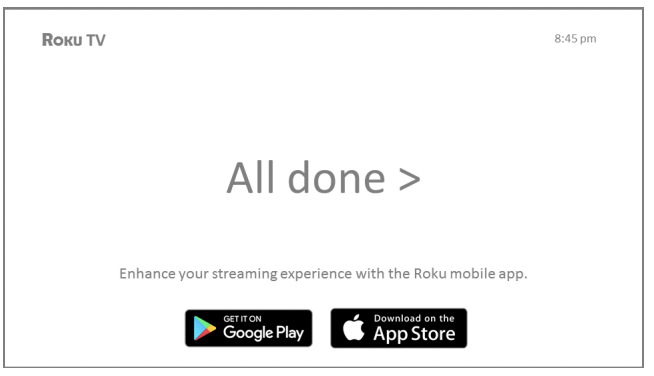
Note: Some Roku TVs, depending on where you live and other factors, show you an introductory video filled with some great hints and tips. If you’re not interested in viewing this video, press  on the remote to return to the Roku TV Home screen.
Whenever you press on the remote, the Home screen greets you.
From here, you can explore everything your TV has to offer. Press the arrow keys to move around, and press OK to select a highlighted item. We’ve designed the TV to encourage you to explore, and you can probably figure out most of the capabilities and settings on your own. If you have any questions or difficulties, you can find answers and solutions in this guide.
Home screen
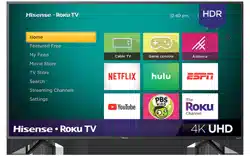
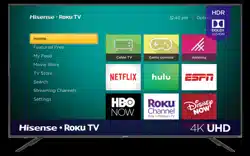
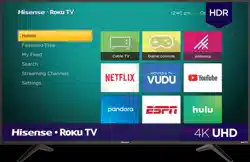
The following illustrations show typical Home screens, which vary depending on location, connected mode, selected theme, number of TV inputs enabled, and streaming channels and apps added.
Note: A paid subscription or other payments may be required for some channel content. Channel availability is subject to change and varies by country. Not all content is available in countries or regions where Roku® products are sold.
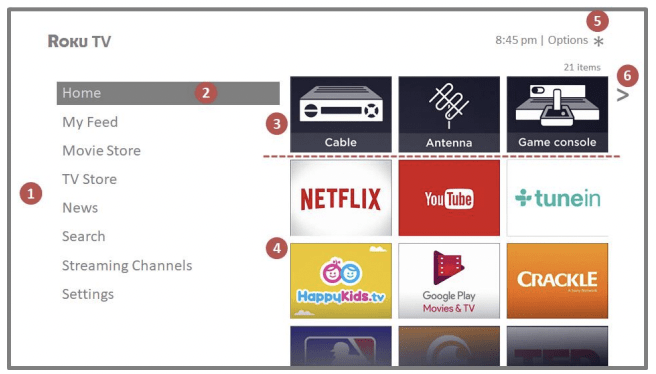
Typical connected Home screen, United States
- Home screen menu—shows options available to you when you are on the Home screen.
- Highlighted option—press OK on the remote to select.
- TV input tiles—select an input to watch the connected device.
- Streaming channel and app tiles—select a tile to go to the indicated streaming channel or application.
- Options hint—press on the remote for options when this symbol is present.
- Next screen hint—press the RIGHT arrow on the remote to see the next screen.
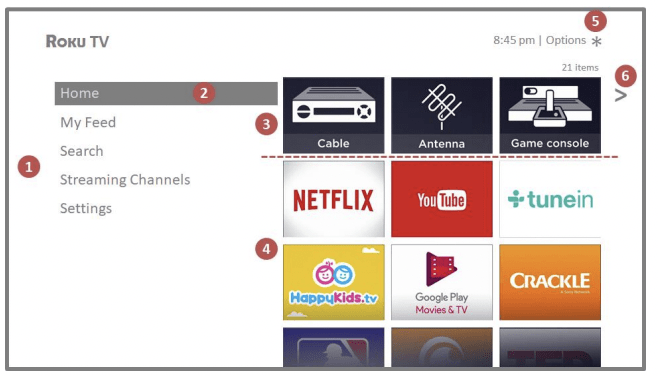
Typical connected Home screen, Canada
- Home screen menu—shows options available to you when you are on the Home screen.
- Highlighted option—press OK on the remote to select.
- TV input tiles—select an input to watch the connected device.
- Streaming channel and app tiles—select a tile to go to the indicated streaming channel or application.
- Options hint—press
 on the remote for options when this symbol is present.
- Next screen hint—press the RIGHT arrow on the remote to see the next screen.
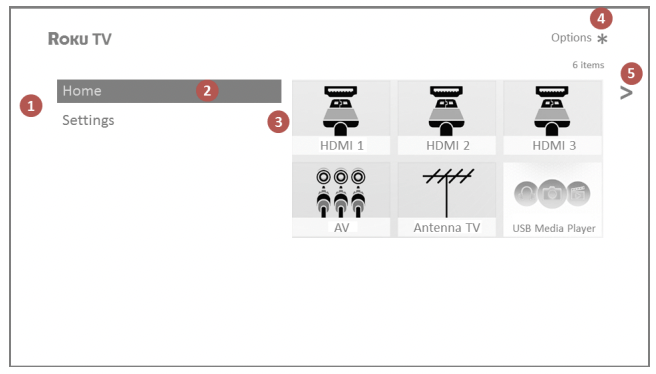
Typical non-connected Home screen
- Home screen menu—shows options available to you when you are on the Home screen.
- Highlighted option—press OK on the remote to select.
- TV input tiles—select an input to watch the connected device.
- Options hint—press on the remote for options when this symbol is present.
- Next screen hint—press the RIGHT arrow on the remote to see the next screen.
Personalize your Home screen
There are many things you can do to personalize your Home screen and make it just right for you and your family:
- Only in connected mode: Add streaming channels by using the Streaming Channels menu option to browse the Roku Channel Store.
- Only in connected mode: Change the screen theme by going to Settings > Themes to find and pick one to suit your mood.
- Only in connected mode on U.S. models: Hide Movie Store, TV Store, or News as explained in Configure parental controls.
- Remove a tile by highlighting it and pressing . Then highlight Remove input or Remove channel and press OK.
- Move a tile by highlighting it and pressing . Then highlight Move input or Move channel and press OK. Use the arrows to move the tile, and then press OK to lock it in its new location.
- Rename a TV input tile by highlighting it and pressing . Then highlight Rename input and press OK. Highlight a new name in the list, and then press OK to assign that name to the tile.
Rather than using the predefined names and icons, you can set a custom name and icon. To do so, scroll up or down to highlight Set custom name & icon, and then press OK. Follow the instructions on the screen to enter a name and select an icon for the input.
Note: If you have renamed the inputs, you cannot use voice commands to switch inputs. Voice commands can only switch among inputs that have their original names, such as "AV,” and “HDMI 1.”
Using your TV
Status light
Your TV has a single status light on the front panel. It goes on and off and blinks in different ways depending on the status of the TV, as shown in the following table:
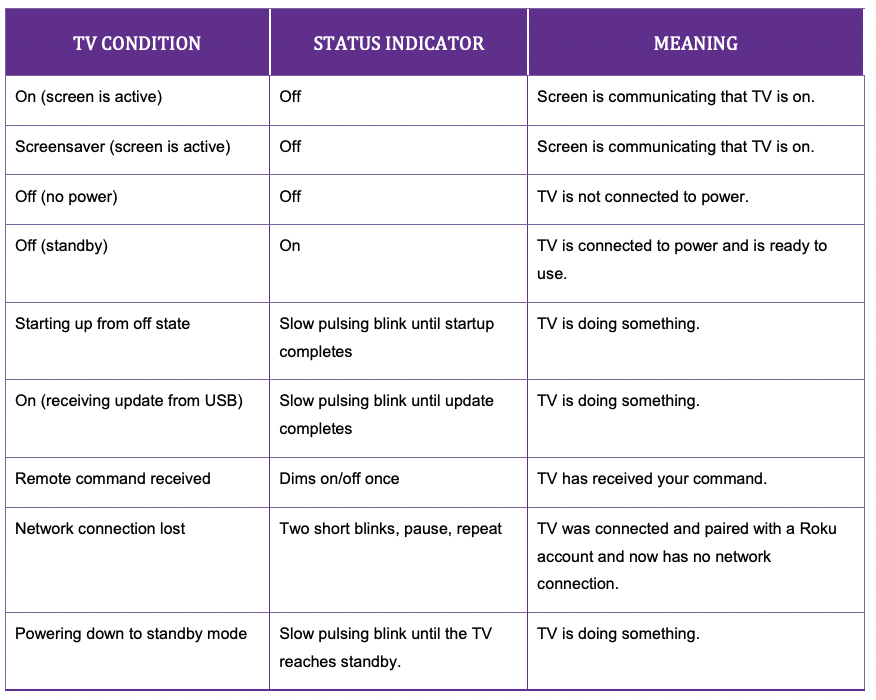
Standby mode energy savings
When you turn off your TV, it remains in a higher power mode for a few minutes, after which it goes into a very low power standby mode. If you turn on the TV again before it has entered the very low power mode, it turns on immediately. After the TV goes into the lower power standby mode, it takes a few seconds longer to start up.
Only in connected mode on TVs that do not have an Energy Star® rating, you can optionally enable Fast TV start. When this option is enabled, your TV starts up almost immediately regardless of how long it has been turned off, but uses somewhat more power in standby mode. For more information, see Fast TV start.
Opting in to Smart TV experience (U.S. only)
Only in connected mode in the United States, the first time you select Antenna TV, an HDMI input, or AV input, your TV offers to enable the Smart TV experience. If you decide to enable it at this time, you’re all set to enjoy its recommendations and features.
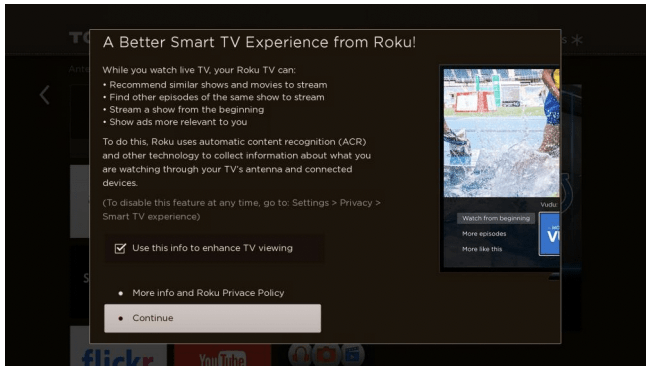
The Smart TV experience uses automatic content recognition (ACR) and other technology to collect information about what you watch through your Antenna TV, and on devices like media players and cable boxes connected to the HDMI or AV inputs. Opting in means that you give permission to analyze the programs you watch for the purpose of making recommendations, as well showing ads that are more relevant to you.
If you decide not to enable the Smart TV experience at this first opportunity, you can enable it later. Or, if you decide you’d rather not use the feature, you can disable it, but be aware that previously collected information is retained and not deleted.
Disable Smart TV experience
If you decide you want to disable Smart TV experience, follow these steps:
- From the Home screen, go to Settings > Privacy > Smart TV experience.
- Navigate to the right to highlight Use info from TV inputs.
- Press OK on the remote to clear the check box.
Disable Auto Notifications
If you want to keep the Smart TV experience enabled, but you do not want to see notifications while you are watching shows, you can disable notifications. To do so, follow these steps:
- From the Home screen, go to Settings > Privacy > Smart TV experience.
- Navigate to the right to highlight Use info from TV inputs.
- Press DOWN on the remote to highlight Enable auto notifications.
- Press OK on the remote to clear the check box.
Note: These settings do not affect recommendations for More Ways to Watch that you see in the Smart Guide when watching Antenna TV channels. Those recommendations come from the Smart Guide and do not rely on ACR technology
Watching Antenna TV channels
Select the Antenna TV tile in the Home screen. Your TV remembers the last channel you watched and starts with that channel playing.
Changing channels
To change channels, you can do any of the following:
- Press the UP arrow to change to the next higher channel.
- Press the DOWN arrow to change to the next lower channel.
- Press the LEFT arrow to display the channel list (in non-connected mode) or Smart Guide (in connected mode), and then press the arrow keys to select the channel or show you want to watch. Press REWIND and FAST FORWARD to move through the list one page at a time. When you’ve highlighted the channel or show you want to watch, press OK. (If you decide you don’t want to change channels, press the BACK button).
- Only if Live TV Pause is not enabled, press
 to jump to the previous channel. Press again to return to the channel you were watching before you pressed .
Note: If the button is not available on your remote, you can use this feature in the Roku mobile app. For more information, see Getting and using the Roku mobile app.
Favorite Channels in non-connected mode
You can quickly change from surfing among all channels or only your favorite channels. First, you have to mark one or more channels as your favorites.
Note: In the United States, in connected mode, favorite channels appear at the top of the Smart Guide automatically after several days of watching Antenna TV channels. For details, see Smart Guide.
Mark your favorite channels
In non-connected mode, you can make any channel a favorite whenever you’re watching Antenna TV channels.
- Press the LEFT arrow to display the channel list. Notice that the words All channels appear at the top of the channel list.
- Scroll up or down to highlight a channel that you want to make a favorite.
- Press . At this point, you’ll see two options:
4. With Add to favorites highlighted, press OK. A symbol appears adjacent to the channel to indicate that it is now a favorite.
5. Repeat these steps to add more favorite channels.
Surf only your favorite channels
In non-connected mode, after you’ve marked one or more channels as favorites, you can switch to your favorite channels whenever you’re watching Antenna TV channels.
- Press the LEFT arrow to display the channel list.
- Press the LEFT or RIGHT arrow once to switch to Favorites. Notice that the word Favorites appears at the top of the channel list.
- Highlight a channel and press OK to select one of the channels in the Favorites channel list, or wait a few moments until the channel list disappears.
- Press the UP or DOWN arrow to change to the previous or next favorite channel. Each channel you select in this way is a favorite channel. Your channel surfing is limited to favorite channels only.
Your favorite channel list remains in effect even if you turn off or unplug your TV, until you switch back to all channels.
Note that when you press OK to view the program information banner while watching a show, a symbol appears below the channel number.
Surf all channels again
In non-connected mode, you can switch back to all channels whenever you’re watching Antenna TV channels.
- Press the LEFT arrow to display the channel list.
- Press the LEFT or RIGHT arrow once to switch to All channels. Notice that the words All channels appear at the top of the channel list.
- Highlight a channel and press OK to select one of the channels in the All channels list, or wait a few moments until the channel list disappears.
- Press the UP or DOWN arrow to change to the previous or next channel among all your available channels. You can surf among all channels in your channel list.
Remove a channel from your favorites
In non-connected mode, you can remove a channel from your favorites whenever you’re watching the Antenna TV input.
- Press the LEFT arrow to display either channel list—All channels or Favorites.
- Scroll up or down to highlight a favorite channel that you want to remove from your favorites.
- Press on your remote. At this point, you’ll see two options:
- Remove from favorites
- Back
4. With Remove from favorites highlighted, press OK. The symbol adjacent to the channel disappears.
5. Repeat these steps to remove other channels from Favorites.
Smart Guide (U.S. only)
Only in connected mode in the United States, use the Smart Guide to find over-the-air TV shows through the Antenna TV input. The Smart Guide lets you scroll through all TV channels except those you have hidden, if any). You can see all the shows from today, the previous 7 days, and the upcoming 14 days.
The ability to see shows that have already aired during the previous week enables you to use More Ways to Watch to catch up on missed movies or episodes by selecting them from one of the streaming channels. Your clue that there are More Ways to Watch a show is a purple asterisk ( ) next to the program name in the guide.
For example, you might turn on your TV at 10 minutes past the hour and discover you are missing the current episode of Empire. But, there is a purple asterisk next to the show title, so you can press and find that there are several streaming channels where you can watch the current episode from the beginning. You also can find more episodes of Empire, and other shows that have a similar theme.
Note: A paid subscription or other payments may be required for some channels.
To view the Smart Guide, press the LEFT arrow. The Smart Guide opens showing the name of the current program highlighted, and a lot more information.
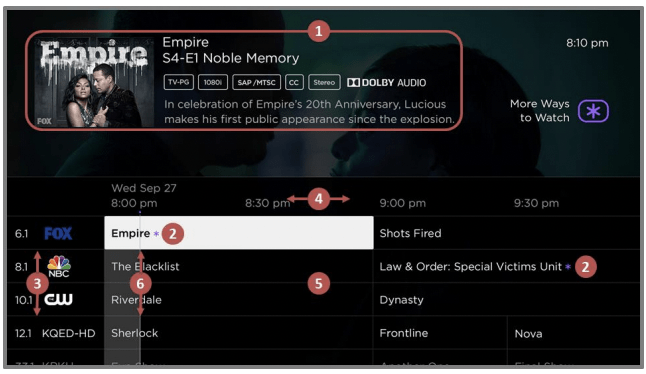
- Program information for the highlighted show. See Viewing program information for details.
- More Ways to Watch indicator. See More Ways to Watch for more information.
- Channel list. Navigate with the UP and DOWN arrows.
- Time slots. Navigate with the LEFT and RIGHT arrows. Use the FF and REW buttons to skip ahead or back 24 hours.
- Program list
- Progress bar showing the approximate time with respect to the time slots
As you navigate, notice that the Smart Guide shows a light gray background for programs and portions of programs that have already aired. It shows a black background for programs and portions of programs that have not yet aired. The line dividing these two zones is the progress bar.
Navigating the Smart Guide
- To switch to a program that is currently in progress, highlight it, and then press OK.
- To return to the current time after navigating to a different time slot, press REPLAY .
- To return to the currently airing program without causing a channel change, press BACK.
- To see More Ways to Watch, highlight any show that has a purple asterisk (), and then press .
Favorite channels in the Smart Guide
The Smart Guide organizes your favorite channels at the top of the program list for convenient access. It does this automatically as you use your TV over several days. If you would prefer not to have a favorites section in the Smart Guide, you can turn this feature off.
Turn off favorite channels
- From the Home screen menu, navigate to Settings > TV inputs > Antenna TV > Favorite channels.
- Highlight Enable ‘Favorite channels’.
- Press OK to clear the check mark.
Viewing program information
You can view program information in different ways:
- Only in connected mode in the United States, view program information for any program listed in the Smart Guide. Press the LEFT arrow while watching Antenna TV to see the Smart Guide. For more information, see Smart Guide.
- View program information for the current program in a banner at the bottom of the screen. You can view program information in this way on both connected and nonconnected TVs. The following illustration shows the information that is available:
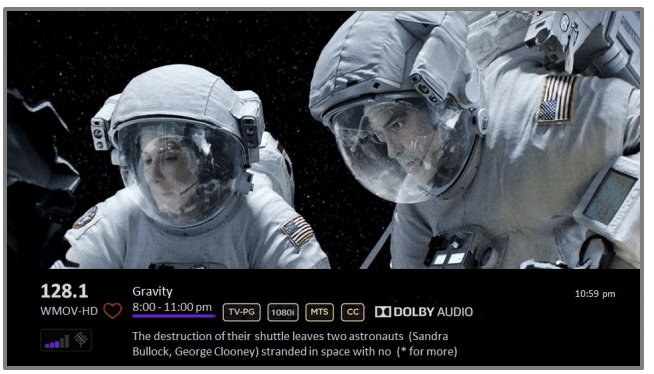
Program information banner
Program information might include any or all of the following, depending on availability within the broadcast information:
- Channel number
- Channel call sign
- Favorite channel icon
- Signal strength
- Program title and episode name/number
- Start time, end time, and graph of program length showing current position
- Content rating
- Video resolution (480i, 480p, 720p, 1080i, 1080p, 4K)
- Frame rate (24Hz, 30Hz, 60Hz for television sources, 60Hz, 70Hz, 72Hz, 75Hz for computer sources)
- Audio format (Mono, Stereo, Dolby Audio™ logo)
- Audio features (SAP/MTS)
- Only on select 4K models: HDR or Dolby Vision™* logo (HDMI® and streaming sources)
- Closed captioning (CC)
- Current time
- Program description. If the entire description does not fit, press OK to expand the size of the banner and see the entire description.
Tip: If you’ve set up Live TV Pause and you’re watching Antenna TV, you’ll also see a progress bar showing the current playback position within the rolling 90-minute pause time. For more information, see Pausing Live TV
Adjusting settings while watching a show
Press to display the Options menu (except when you are viewing the program information banner). Press the UP and DOWN arrows to highlight an option, and then press the LEFT and RIGHT arrows to change the setting. The topic Adjusting TV settings explains each of the settings in detail.
Pausing Live TV
Live TV Pause gives your Roku TV the ability to pause, play, fast forward, and rewind digital Antenna TV. You can pause Antenna TV for up to 90 minutes.
Requirements
To use this feature, you need to:
- Connect your TV to the Internet. If you didn’t connect during Guided Setup, see What if I didn’t connect my TV?.
- Provide your own dedicated USB drive with the following minimum specifications.
- 16 GB
- 15 Mbps read/write speed
- USB 2.0 compliant
A USB flash drive (thumb drive) meeting the minimum requirements is highly recommended. Note that using a larger drive does not extend the 90 minute pause time.
Important: All existing content on your USB drive is erased when you enable this feature
3. Connect your USB drive to the TV’s USB port.
Important: Some TV models have more than one USB port. You can connect your Live TV Pause USB drive to any port, but make sure that nothing is connected to other USB ports while enabling Live TV Pause. Reconnect other USB devices after you have finished enabling Live TV Pause.
4. Enable Live TV Pause, as explained in the following topic.
Enabling Live TV Pause
You can start setting up Live TV Pause in any of the following ways:
- Go to Settings > TV inputs > Antenna TV > Live TV Pause, and then select Enable.
- After completing a channel scan, select Set up Live TV Pause from the available options.
- Press Play/Pause on the Roku remote while watching a digital Antenna TV channel.
- Highlight the Antenna TV tile on the Home screen, press on the remote, and then select Enable Live TV Pause.
After starting setup of Live TV Pause in any of these ways, the TV prompts you through the steps needed to enable this feature. Setup takes only a few moments.
Note: Use of a USB hub is not supported.
Using Live TV Pause
If you have used the Roku remote to watch streaming channels, using Live TV Pause should be very familiar to you.
- While watching a digital Antenna TV channel, press PLAY/PAUSE to pause or play the content. After the TV program has been paused for 90 minutes, the TV resumes playing.
- After watching a channel for a while, press REWIND to jump back up to the point where you first started watching the channel, up to 90 minutes.
- After pausing or rewinding, press FAST FORWARD to jump ahead up to the point where you are once again watching the live TV program.
- Press FAST FORWARD or REWIND repeatedly to cycle through 1x, 2x, and 3x skip speeds. Press INSTANT REPLAY to play back the last several seconds of the program.
- When the program is paused, press the LEFT and RIGHT arrows to move forward and backward through the program approximately 10 seconds per press. Small frames appear across the screen to identify your location in the program.
Note: If the button is not available on your remote, you can use the Roku mobile app. For more information, see Getting and using the Roku mobile app.
Whenever you use any of the Live TV Pause features, the TV momentarily displays a progress bar:
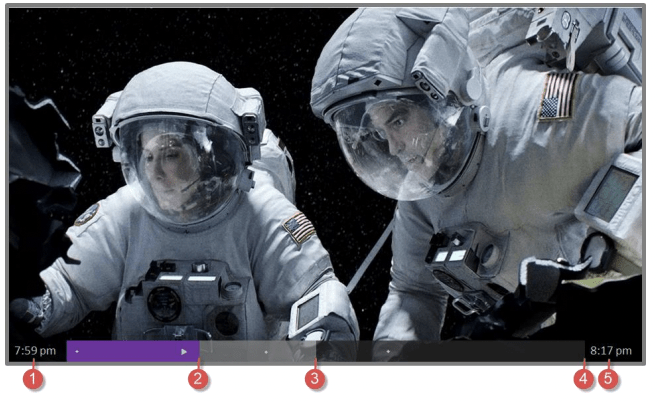
- Time at current playback position.
- Current playback position
- Extent of pause time, representing the amount of time this channel has been buffered, up to 90 minutes.
- 90 minute mark, representing the maximum extent of pause time.
- Current time.
The progress bar also displays tick marks at each half hour point, to help you locate the boundaries where one show ends and a new one begins.
Notes about Live TV Pause
- You can use Live TV Pause only with digital broadcast and cable channels received through the TV’s ANT input (ATSC and Clear QAM channels).
- Changing channels erases and restarts the Live TV Pause buffer.
- Returning to the Home screen, selecting another input, or turning off the TV erases and resets the Live TV Pause buffer.
- Removing the USB drive erases the Live TV Pause buffer.
Customizing your TV
There are several things you can do to personalize your TV.
Add TV inputs
As you use your TV, you might find that you need to add a TV input tile that you did not add during Guided Setup. To add a TV input:
- From the Home screen menu, navigate to Settings > TV inputs. Notice that the list of inputs is divided into two sections: Inputs being used and Inputs not used.
- Press the UP or DOWN arrows to highlight an input in the Inputs not used section of the list.
- Press the RIGHT arrow to move the highlight to Set up input.
- Press OK to add the input.
- Press to return to the Home screen. Notice that the input has been added to the top of the Home screen. If you want to move the input tile to a different position in the grid, see Rearrange tiles.
Add streaming channels
You can add streaming channels by searching in the Roku Channel Store. New streaming channels are added to the bottom of the Home screen. If you want to move the channel tile to a different position in the grid, see Rearrange tiles.
Rename inputs
Rather than trying to remember that your Blu-ray™ player is connected to HDMI 1 and your game console is connected to HDMI 3, you can rename the TV inputs to match the connected device.
Note: Renaming an input also changes the icon associated with it.
To rename an input, you can either:
- Highlight the input tile in the Home screen, and then press to display a list of options.
or
- From the list of options, select Rename input. Then select a new name and icon.
From the Home screen, navigate to Settings > TV inputs. On the TV inputs screen, select the input you want to rename, select Rename, and then choose a new name and icon from the provided list.
Rather than using the predefined names and icons, you can set a custom name and icon. To do so, scroll up or down to highlight Set custom name & icon, and then press OK. Follow the instructions on the screen to enter a name and select an icon for the input.
Press to return to the Home screen. The new name and icon are now in effect.
Remove unwanted tiles
It’s easy to remove unused TV inputs and unwanted channel or app tiles. For example, if you never use the HDMI 3 input, or if you don’t like the weather app you added from the Roku Channel Store, you can remove them from your Home screen.
Note: You also can remove the Antenna TV tile if you never use the TV tuner. But be aware that removing the Antenna TV tile also deletes the channel list. You’ll have to set up the TV tuner again next time you want to view Antenna TV. Instructions for setting up the TV tuner can be found in Setting up Antenna TV.
- To remove any tile, highlight the input tile in the Home screen, and then press to display a list of options. From the list of options, select Remove input. In the screen that follows, confirm you want to remove the input.
- Alternatively, to remove a TV input tile from the Home screen, navigate to Settings > TV inputs. On the TV inputs screen, select the input you want to remove, and then select Remove > Confirm. Then press to return to the Home screen.
Rearrange tiles
When you add a TV input tile, it’s added at the top of your Home screen. When you add a new streaming channel, it’s added at the bottom of your Home screen.
You can easily rearrange the order of the tiles on the Home screen to suit your viewing preferences. For example, you might want Antenna TV to be the first tile in your Home screen. But if you mostly watch one streaming channel, you might want its tile to be the first one on your Home screen.
- From the Home screen, highlight one of the tiles you want to move.
- Press to display a list of options for the type of tile you selected.
- Select Move input or Move channel. The list of options disappears and the highlighted tile shows arrows indicating how it can be moved.
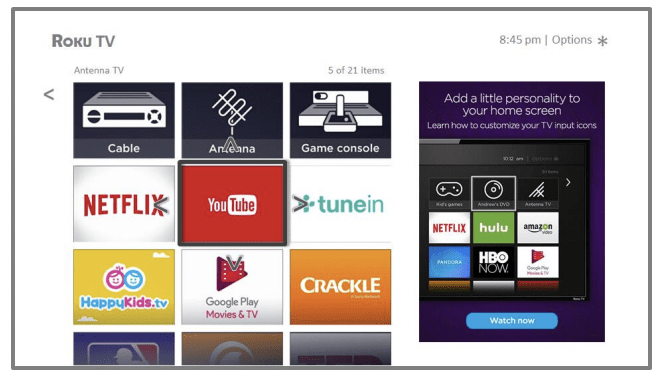
Note: A paid subscription or other payments may be required for some channels. Channel availability is subject to change and varies by country. Not all content is available in countries or regions where Roku® products are sold.
4. Use the arrow keys to move the highlighted tile to its new position. As you move the tile, it pushes other tiles out of its way.
5. Press OK to lock the tile into its new position.
6. Repeat these steps to move other tiles until you have arranged your Home screen to your liking.
Change themes
Only in connected mode, another way to customize your TV is to change its theme. The theme establishes the look and feel of the TV through colors, designs, and fonts. Some themes require payment.
To change the theme, in the Home screen menu navigate to Settings > Themes. In the Themes screen, choose from the following options:
- My themes – Highlight a theme, and then press OK to switch to that theme.
- Get more themes – Highlight this option at the bottom of the My Themes list, and then press OK to shop for new themes.
- Custom settings – Turn Featured themes on or off. When Featured themes is on, the TV automatically switches to featured themes—like certain holiday-inspired themes —for a limited time whenever Roku makes them available, and then switches back to your selected theme when the featured theme expires. When off, the TV uses your selected theme.
Edit Antenna TV channel lineup
When you set up the TV tuner as described in Setting up Antenna TV, the TV adds all the channels with good signals that it can detect in your area. It’s likely that you now have more channels than you want in your channel list.
To edit the channel lineup, from the Home screen, navigate to Settings > TV inputs > Antenna TV > Edit channel lineup. You’ll see a screen listing all of your channels. Adjacent to the list of channels is a miniature TV screen playing the highlighted channel’s picture and sound.
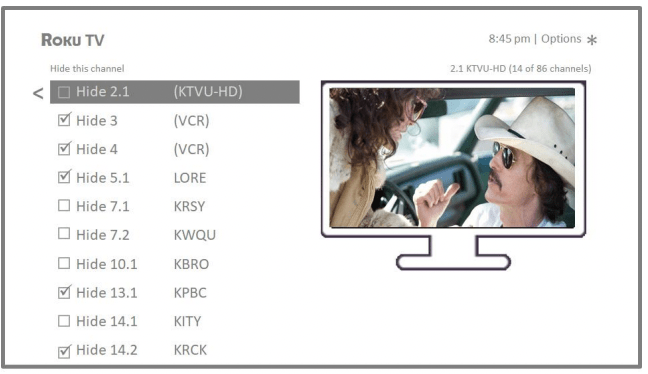
Highlight each channel you want to hide, and then press OK to hide the channel.
Tip: If you need to see or hear the highlighted channel, wait a couple of seconds for the TV to start playing the channel’s picture and sound. Also note that if you’ve enabled parental controls and the program on the current channel is blocked, you won’t see a picture or hear sound while editing the channel lineup.
Note: Repeating the tuner channel scan unhides all hidden channels.
Change sound effects volume
Sound effects are the noises the TV makes to let you know it received your command. You can change the volume of sound effects or turn them off.
To adjust the sound effects volume, in the Home screen menu, navigate to Settings > Audio > Menu volume. Navigate to the right and then change the setting to High, Medium, Low, or Off.
Configure power settings
Power settings let you configure features related to how your TV’s power settings work.
Power on settings
Power on settings tell the TV what to do when you turn on the power. To configure the power on settings, from the Home screen, navigate to Settings > System > Power > Power on. Highlight the preferred power on location in the list, and then press OK.
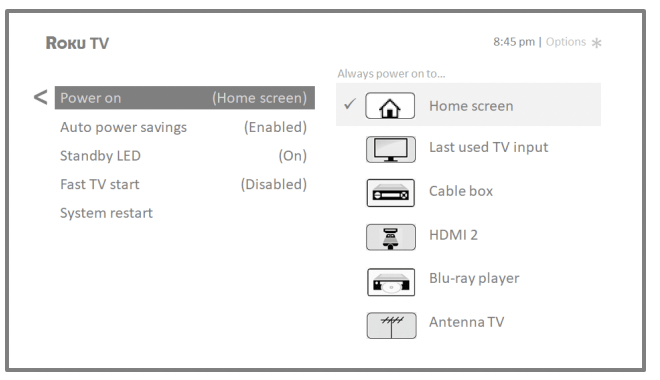
Auto power savings
To help you save energy, your TV can automatically turn itself off after a period of inactivity or a period during which no signal has been detected. It is factory-configured to do both of these things, but you can change these settings if needed.
To configure automatic power off, from the Home screen menu navigate to Settings > System > Power > Auto power savings. In the Power settings screen, highlight the following options and press OK to turn them on or off:
- Reduce power after 15 minutes – If no video or audio activity and no user interaction occur for 15 minutes, the TV automatically turns off the screen and sound.
- Turn off after 4 hours – If no video or audio activity and no user interaction occur for 4 hours, the TV goes into standby mode.
Standby LED On/Off
Normally, the status LED on the front of your TV is lit whenever the TV is in standby mode. If you prefer the status LED to not be lit in standby mode, you can turn it off. To do so, from the Home screen, navigate to Settings > System > Power > Standby LED, and then select Off.
After making this change, the status LED still performs all other indication functions.
Fast TV start
Only in connected mode on TV models that are not Energy Star certified, you can enable Fast TV start. As you might expect, Fast TV start lets you start watching your TV almost instantly after turning it on. But it also enables other convenient features, such as the ability to turn on your TV using voice commands or the Roku mobile app.
Be aware that enabling Fast TV start makes your TV use somewhat more power when it is powered off to standby mode.
Configure accessibility (U.S. only)
Accessibility settings enable users with vision or hearing impairment to use the TV more effectively. Accessibility settings are located under Settings > Accessibility.
Captions mode
The Captions mode settings specify when closed captions appear. Access caption settings from the Home screen by selecting Settings > Accessibility > Captions mode. At this point, you can choose among the following options:
- Off – No captions appear.
- On always– Captions appear whenever they are available from the program source.
- On replay– Captions appear only when you use the replay feature, and only when you are watching a streaming program that supports instant replay or watching a TV channel after enabling Live TV Pause.
- On mute – Captions appear only when the TV is muted.
Tips:
- You can change the captions mode while watching a program. Press to display the Options menu, and then select Closed Captioning.
- Some streaming channels require you to enable captions through a setting within their channel even though you have turned on captions in the TV settings.
Note: Once enabled, the selected captions mode applies to all inputs that support captions and remains enabled until you turn it off.
Captions preferred language
The Captions preferred language setting lets you select the language in which you want closed captioning to appear, when that language is available. If your preferred language is not available, then captioning reverts to the default language for the program, which usually is English.
Highlight the language you prefer, and then press OK to select it.
Captions style
The Captions style settings let you control how closed captions look when displayed on your TV. Access caption style settings from the Home screen by selecting Settings > Accessibility > Captions style. At this point, you can choose among the following options:
- Text style – Choose from a list of fonts. As you move the highlight to each font, you can see a sample of the result in an adjacent panel.
- Text edge effect – Choose from a list of edge effect styles, such as raised, depressed, and various shadows. As you move the highlight to each effect, you can see a sample of the result in an adjacent panel.
- Text size – Choose from a list of sizes. As you move the highlight to each size, you can see a sample of the result in an adjacent panel.
- Text color - Choose from a list of colors for the text. As you move the highlight to each color, you can see a sample of the result in an adjacent panel.
- Text opacity - Choose from a list of opacity settings for the text. This setting determines how much the area behind the text shows through the text. A value of 100% blocks all of the content behind the text. As you move the highlight to each setting, you can see a sample of the result in an adjacent panel.
- Background color - Choose from a list of colors for the background area behind the text. As you move the highlight to each color, you can see a sample of the result in an adjacent panel. Note that you won’t see any change unless you set the Background opacity to a value other than Off.
- Background opacity - Choose from a list of opacity settings for the background of the caption. This setting determines how much the area behind the caption background shows through the background. A value of 100% blocks all of the content behind the background. As you move the highlight to each setting, you can see a sample of the result in an adjacent panel.
- Window color - Choose from a list of colors for the window rectangle surrounding the entire caption. As you move the highlight to each color, you can see a sample of the result in an adjacent panel. Note that you won’t see any change unless you set the Window opacity to a value other than Default or Off.
- Window opacity - Choose from a list of opacity settings for the window rectangle surrounding the entire caption. This setting determines how much the area behind the caption window shows through the window. A value of 100% blocks all of the content behind the window. As you move the highlight to each setting, you can see a sample of the result in an adjacent panel.
Audio Guide settings
Audio Guide settings help users who are blind or visually impaired to configure the text-tospeech reader, enabling them to operate their TV more easily. Audio Guide uses voice prompts that speak volume and channel changes, menu options, and setting changes. Access Audio Guide settings from the Home screen by navigating to Settings > Accessibility, and then select from the following options in the Audio Guide section:
- Audio Guide – Turn Audio Guide on or off.
- Speech rate – Select one of four speeds at which to hear spoken guide information: Slow, Normal, Fast, or Very Fast.
- Volume – Select the volume at which to hear spoken guide information, relative to the main TV volume.
- Shortcut – Enable or disable the shortcut feature. When enabled (the default), pressing four times in quick succession enables or disables the Audio Guide.