
User Guide
Contents
Essentials
Basic Gestures
1
System Navigation
5
Phone Clone
6
Lock and Unlock Your Screen
7
Get Familiar with the Home Screen
9
Notication and Status Icons
10
Shortcut Switches
12
Quickly Access Frequently Used App Features
13
Home Screen Widgets
13
Set Your Wallpaper
14
Screenshots & Screen Recording
14
View and Clear Notications
19
Adjust Sound Settings
20
Enter Text
22
Multi-Window
23
Show Date and Time When the Screen Is O
26
Power On and O or Restart Your Device
26
Charging
27
Smart Features
AI Voice
30
AI Lens
34
AI Touch
36
AI Search
37
Easy Projection
38
Multi-screen Collaboration
42
Multi-screen Collaboration Between Your Tablet and Phone
46
Huawei Share
48
AR Measure
52
Smart Remote
53
Switch Audio Channels Between Devices
54
Camera and Gallery
Launch Camera
55
Take Photos
55
Shoot in Portrait, Night, and Wide Aperture Modes
58
Master AI
60
Zoom to Take Photos
60
Macro
61
Take Panoramic Photos
62
i
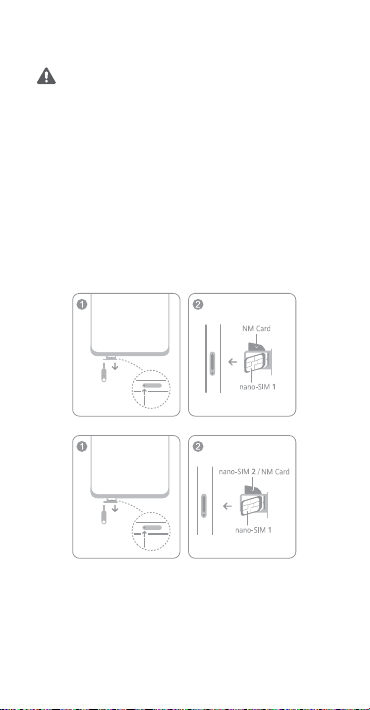
Take Black and White Photos
62
AR Lens
63
Light Painting
64
Take HDR Photos
65
Moving Pictures
65
Add Stickers to Photos
66
Documents Mode
66
Take High-Resolution Photos
67
Pro Mode
68
Record Videos
71
Tracking Shot
72
Slow-Mo Recording
73
Time-Lapse Photography
75
Story Creator
75
Leica Colors
76
Filters
76
Adjust Camera Settings
76
Manage Gallery
77
Golden Snap
83
Smart Photo Categorisation
84
Huawei Vlog Editor
85
Huawei Vlogs
86
Highlights
86
Apps
Apps
88
Contacts
89
Phone
92
Messaging
100
Calendar
102
Clock
103
Notepad
105
Recorder
108
Email
109
Calculator
113
Torch
113
Compass
114
Mirror
114
App Twin
115
Optimizer
115
Phone Clone
118
HiSuite
119
Tips
121
Contents
ii

Settings
Search for Items in Settings
122
Wi-Fi
122
Bluetooth
123
Mobile Data
124
More Connections
131
Home Screen & Wallpaper
141
Display & Brightness
142
Sounds & Vibration
146
Notications
149
Biometrics & Password
151
Apps
154
Battery
154
Storage
156
Security
157
Privacy
161
Accessibility Features
164
Users & Accounts
169
System & Updates
170
About Phone
175
Contents
iii
Essentials
Basic Gestures
Basic Gestures and Shortcuts
This feature may vary by device.
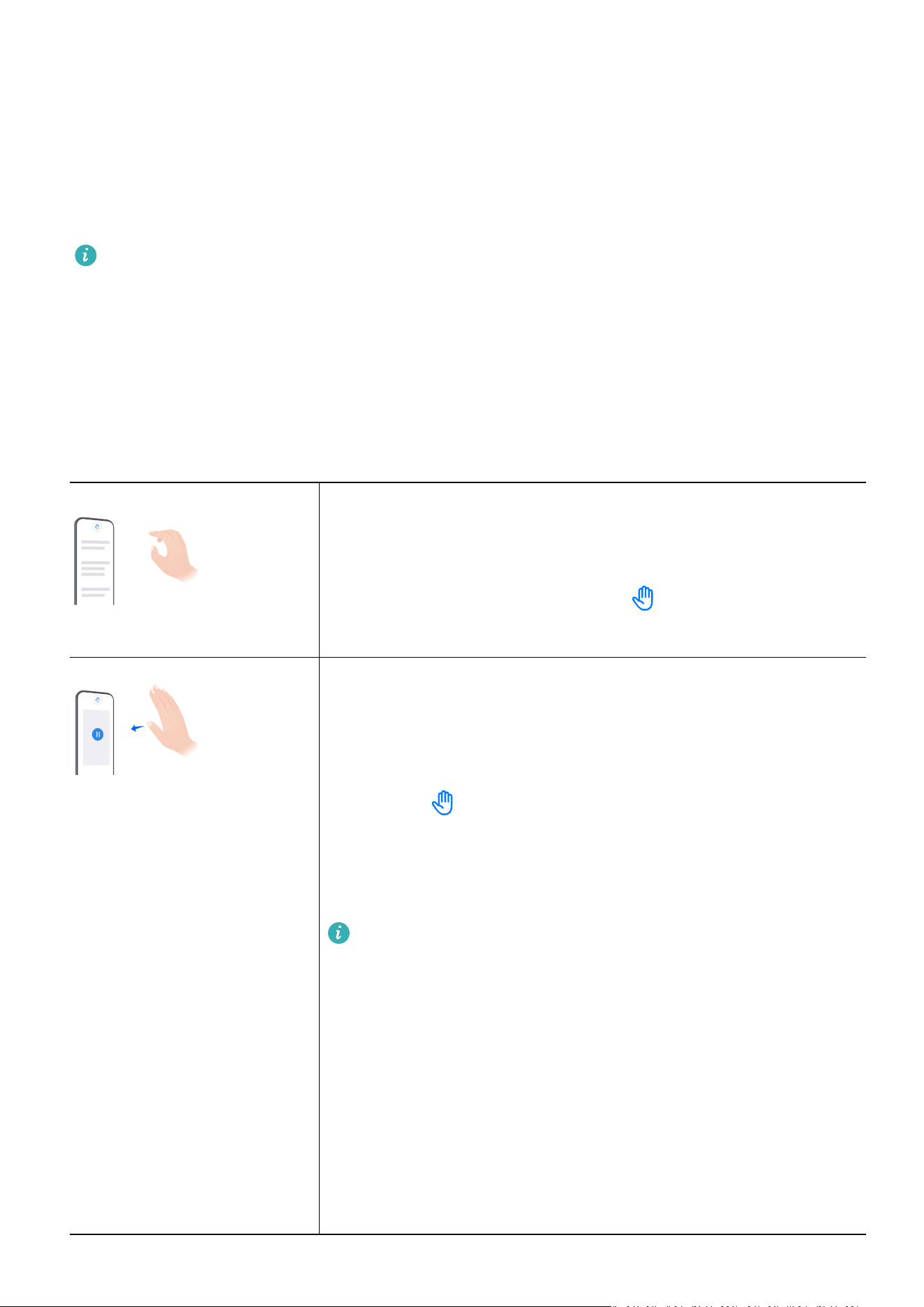
Air Gestures
You can navigate on your device using air gestures, without having to touch the screen. For
example, you can use air gestures to take a screenshot, scroll up or down, answer a call, or
pause audio/video playback.
Go to Settings > Accessibility features > Smart Sensing, and make sure that Air scroll,
Grabshot, or Air press is enabled.
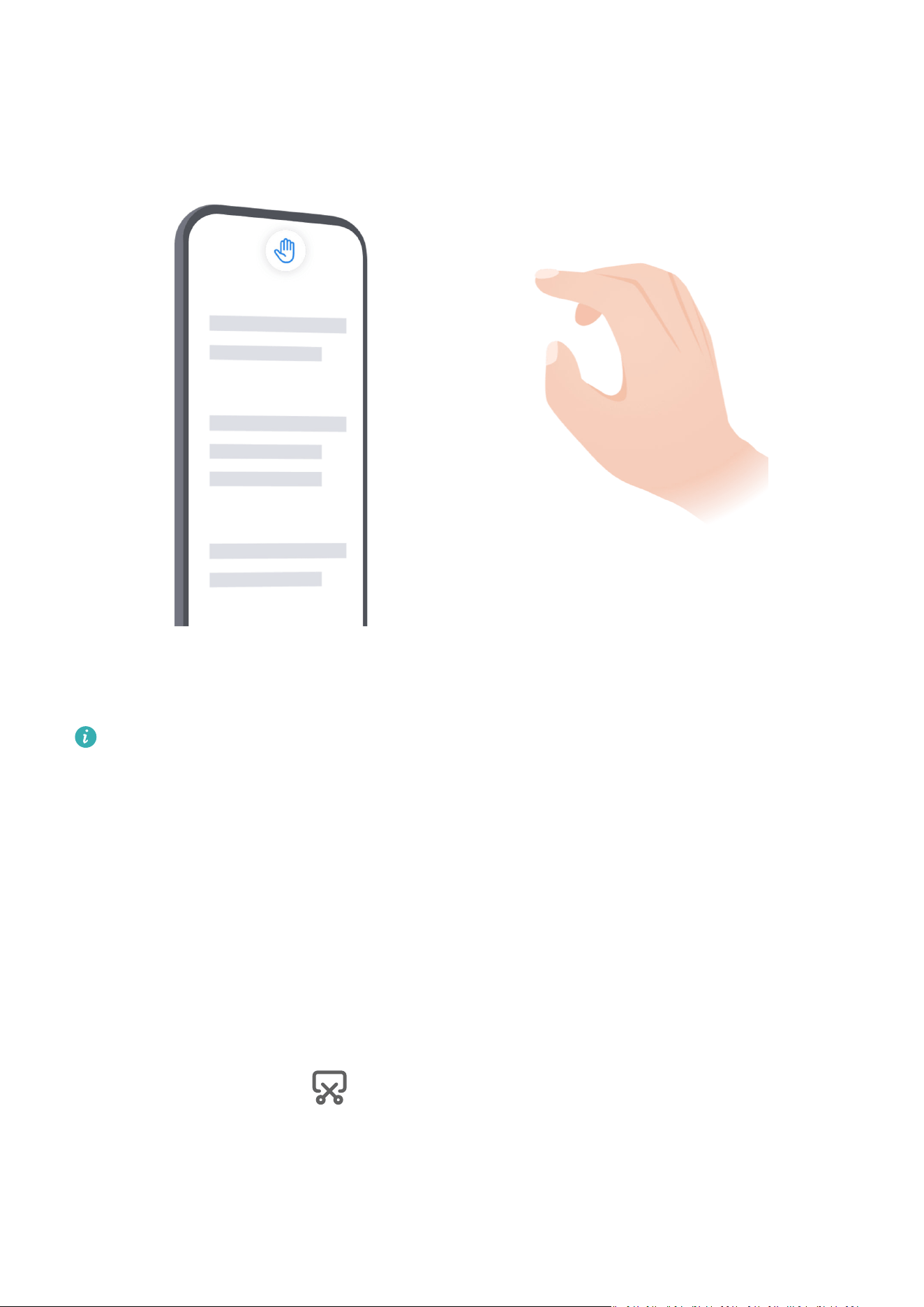
Grabshot
To take a screenshot using air gestures:
Hold your palm about half an arm's length (20–40 cm, or 8–16
inches) away from the screen, until appears at the top of
the screen, then make a st.
Air press
To answer a call, or pause/resume audio/video playback using
air gestures:
Hold your palm about 30–40 cm (12–16 inches) away from the
screen until appears at the top of the screen, move your
palm closer to the screen, and stop when it is about 5 cm (2
inches) away from the screen.
To resume playback, repeat the preceding operation.
Air press only takes eect for video playback in the Video
app.
You will not be able to use Air press to control audio
playback in the following scenarios:
• The screen is locked, and the music control is not
displayed on the lock screen.
• The music player is running in the background when
another app is open.
• The music player is opened for the rst time after your
device is powered on, and no music is playing.
1

To scroll up or down on the screen using air gestures:
• Scroll up
Hold your hand about half an arm's length (20–40 cm, or 8–
16 inches) away from the screen, with your palm facing the
screen and your ngers pointing upwards, until appears
at the top of the screen, then ick your wrist down.
• Scroll down
Hold your hand about half an arm's length (20–40 cm, or 8–
16 inches) away from the screen, with the back of the hand
facing the screen and your ngers pointing downwards, until
appears at the top of the screen, then ick your wrist
up.
To scroll left or right on the screen using air gestures:
• Scroll right
Hold your hand about half an arm's length (20–40 cm, or 8–
16 inches) away from the screen, with your palm facing the
screen and your
ngers pointing right, until appears at
the top of the screen, then ick your wrist left.
• Scroll left
Hold your hand about half an arm's length (20–40 cm, or 8–
16 inches) away from the screen, with the back of your hand
facing the screen and your
ngers pointing left, until
appears at the top of the screen, then ick your wrist right.
This feature may vary by device.
System Navigation Gestures
Go to Settings > System & updates > System navigation, and conrm that Gestures is
selected.
Return to the previous screen
Swipe inward from the left or right edge to return to the
previous screen.
Essentials
2

Return to the home screen
Swipe up from the bottom of the screen to return to the home
screen.
View recent tasks
Swipe up from the bottom of the screen and hold to view
recent tasks.
Close an app
When viewing recent tasks, swipe up on an app preview to
close the app.
Switch apps
• Slide along the bottom edge of the screen.
Before using this gesture, go to System navigation >
Settings and conrm that Slide across bottom to switch
apps is enabled.
• Swipe across the bottom of the screen in an arc.
Knuckle Gestures
Go to Settings > Accessibility features > Shortcuts & gestures to enable Take screenshot,
Record screen.
Take a screenshot
Knock twice on the screen with a knuckle to take a screenshot.
Take a scrollshot
Knock on the screen with a knuckle and draw an "S" to take a
scrolling screenshot.
Essentials
3

Capture part of the screen
Knock and draw an enclosed area with a knuckle to capture
part of the screen.
Record screen
Knock twice on the screen with two knuckles to start or end a
screen recording.
More Gestures
Access Home screen editing mode
Pinch two ngers together on the home screen.
Display the shortcut panel on the lock screen
Swipe up from the bottom of the lock screen.
Display the search bar
Swipe down on the home screen.
Open the notication panel
Swipe down from the status bar.
Essentials
4
Button Shortcuts
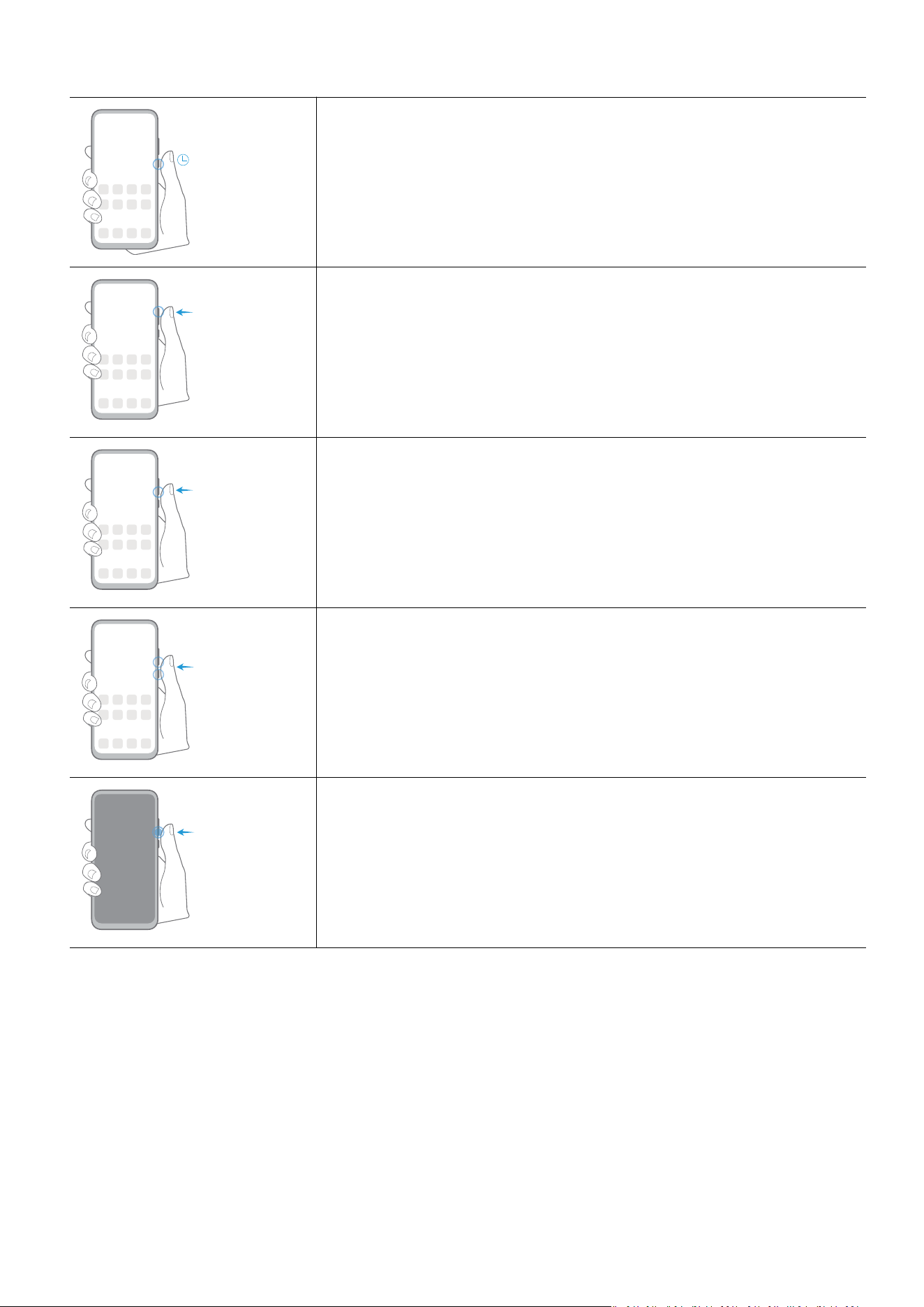
Power o and restart
Press and hold the Power button until the Power o and
Restart options appear.
Increase the volume
Press the Volume up button.
Decrease the volume
Press the Volume down button.
Take a screenshot
Press the Volume down and Power buttons simultaneously.
Ultra snapshot
Double-press the Volume down button when the screen is o
or locked to take a photo.
System Navigation
Change the System Navigation Mode
Navigate with Gestures
Go to Settings > System & updates > System navigation, and enable or disable Gestures.
You can then:
• Go back to the previous screen: Swipe inward from the left or right edge.
Essentials
5

• Return to the home screen: Swipe up from the bottom of the screen.
• Access the recent tasks screen: Swipe up from the bottom of the screen and hold.
• Close an app: From the recent tasks screen, swipe up on an app preview. Swipe down on an
app preview to lock an app. A locked app will not be cleared when you touch
on the
recent tasks screen.
• Switch apps: Swipe across the bottom of the screen in an arc. Or when Slide across bottom
to switch apps is enabled, swipe across the bottom edge of the screen.
You can enable Show navigation bar to display the navigation bar to assist your gesture
operations.
Use Three-Key Navigation
Go to Settings > System & updates > System navigation, and select Three-key navigation.
You can then:
• Touch to return to the previous menu or exit the current app. You can also use this key
to close the onscreen keyboard.
• Touch to return to the home screen.
• Touch to access the recent tasks screen.
You can touch Settings to
congure more settings.
• Select a navigation key combination.
• Enable Hide navigation keys to allow you to hide the navigation bar when not in use.
• Touch (if available in the selected navigation key combination) to open the notication
panel.
Use the Navigation Dock to Operate the Device
Go to Settings > System & updates > System navigation > More, and enable Navigation
Dock.
After the Navigation dock button appears, you can:
• Drag the button to your desired position.
• Touch the button to go back.
• Touch and hold the button, then release it to go back to the home screen.
• Touch and hold the button, then swipe left or right to view recent tasks.
The feature availability varies by device.
Phone Clone
Essentials
6

Use Phone Clone to Move Data to Your New Device
Phone Clone lets you quickly and seamlessly move all the basic data (including contacts,
calendar, images, and videos) from your old device to your new device.
Migrate Data from an Android Device
1 On your new device, open the Phone Clone app. Alternatively, go to Settings > System &
updates > Phone Clone, touch This is the new device, then touch Huawei or Other
Android.
2 Follow the onscreen instructions to download and install Phone Clone on your old device.
3 On your old device, open the Phone Clone app and touch This is the old device. Follow
the onscreen instructions to connect your old device with your new device by scanning a
code or connecting manually.
4 On your old device, select the data you want to clone, then touch Transfer to start
cloning.
Phone Clone is only available on devices running Android 7.0 or later.
Migrate Data from an iPhone or iPad
1 On your new device, open the Phone Clone app. Alternatively, go to Settings > System &
updates > Phone Clone, touch This is the new device, then touch iPhone/iPad.
2 Follow the onscreen instructions to download and install Phone Clone on your old device.
3 On your old device, open the Phone Clone app and touch This is the old device. Follow
the onscreen instructions to connect your old device with your new device by scanning a
code or connecting manually.
4 On your old device, select the data you want to clone, then follow the onscreen
instructions to complete the data cloning.
Phone Clone is only available on devices running iOS 8.0 or later.
Lock and Unlock Your Screen
Lock and Unlock Your Screen
Lock the Screen
If your phone remains inactive for a period of time, it will automatically lock the screen and
enter sleep mode to save power.
Alternative, you can manually lock the screen in either of the following ways:
• Press the Power button.
• On the home screen, pinch two ngers together to enter screen editing mode. Touch
Widgets, then drag the Screen Lock icon to the home screen. You can now touch the
Screen Lock icon to lock the screen.
Essentials
7

Set the Screen Timeout Period
Go to Settings > Display & brightness > Sleep and select a screen timeout period.
Keep the Screen On While Looking
You can set the screen to stay on while you are looking at it, such as when you are reading.
Go to Settings > Accessibility features > Smart Sensing, and ensure Keep screen on while
looking is enabled.
Turn On the Screen
You can turn on the screen in any of the following ways:
• Press the Power button.
• Go to Settings > Accessibility features > Shortcuts & gestures > Wake screen, and
enable Raise to wake, Double-tap to wake, and/or Show palm to wake. Then use the
corresponding feature to turn on the screen.
If your device does not have this option, it indicates that this feature is not supported.
Unlock the Screen with Password
Once the screen is turned on, swipe up from the middle of the screen to display the password
input panel. Then, enter your lock screen password.
Use Face Unlock
Turn on the screen and align it with your face. Your device will unlock once your face is
recognised.
Use Fingerprint Unlock
Once the screen is turned on, the ngerprint icon will display on the screen. Touch the icon
with an enroled nger to unlock the screen.
Change the Lock Screen Display
When using an ocial theme, you can set to display your step count and signature on the
lock screen.
Display Your Signature on the Lock Screen
Go to Settings > Home screen & wallpaper, touch Lock screen signature, then type text to
display on the lock screen.
To remove the signature, touch Lock screen signature and delete the text.
Access Apps from the Lock Screen
You can access commonly used apps, such as Camera, Recorder, and Calculator, from the lock
screen.
Essentials
8

• Turn on the screen, and swipe up on the Camera icon in the lower right corner to open
Camera.
• Turn on the screen, and swipe up from the bottom of the lock screen to open the shortcut
panel. Then touch the app you wish to access from the available shortcuts, such as Torch,
Calculator, or Timer.
Get Familiar with the Home Screen
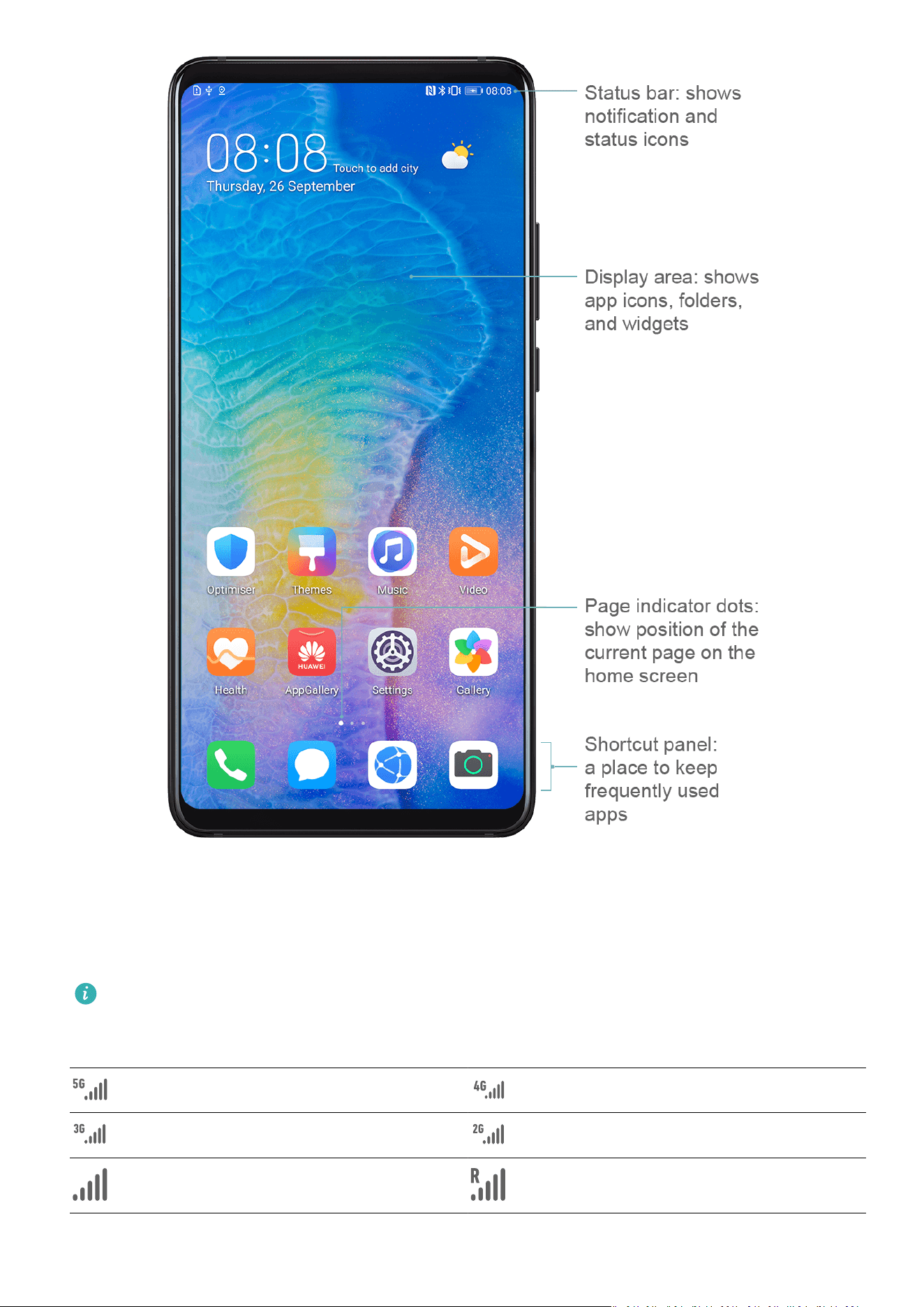
Get Familiar with the Home Screen
From the home screen, you can:
• Check the status of your device and
notications from the status bar at the top of the
screen.
• Swipe left or right to view apps and widgets displayed on the home screen.
Essentials
9
Notication and Status Icons
Notication and Status Icons
Network status icons may vary according to your region or network service provider.
Supported functions vary according to the device model. Some of the following icons may
not be applicable to your device.
5G network connected 4G network connected
3G network connected 2G network connected
Full signal strength Roaming
Essentials
10
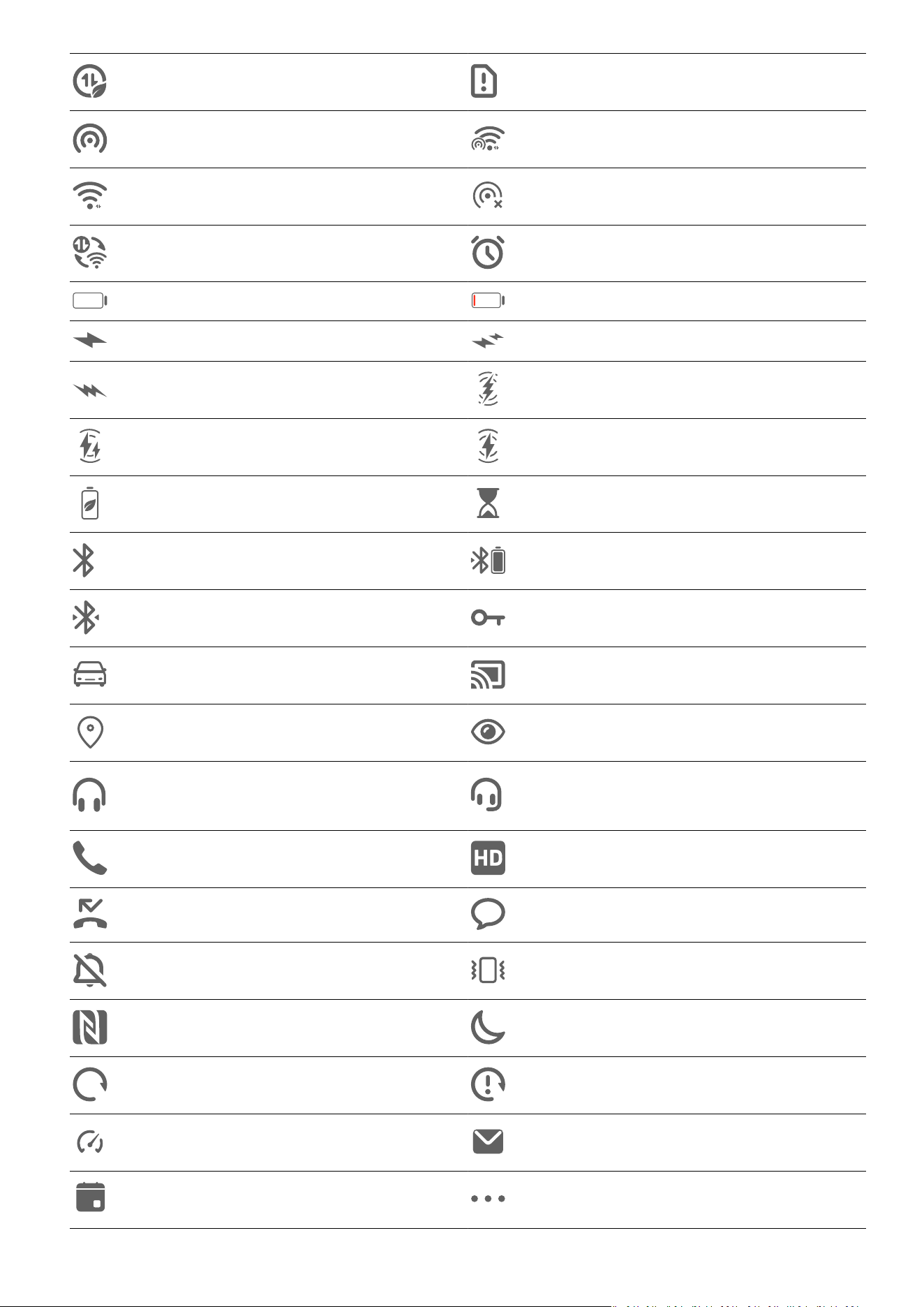
Data saver enabled No SIM card detected
Hotspot enabled Hotspot connected
Wi-Fi connected Hotspot disconnected
Switching network via Wi-Fi+ Alarm set
Battery empty Low battery
Charging Quick charging
Super charging Super wireless charging
Quick wireless charging Regular wireless charging
Power saving mode enabled Digital balance enabled
Bluetooth enabled Bluetooth device battery
Bluetooth device connected VPN connected
Driving mode Projection device connected
Location service enabled Eye comfort mode enabled
Headset connected
Headset with a microphone
connected
Calling VoLTE enabled
Missed call Unread SMS
Silence Vibration
NFC enabled Do Not Disturb mode enabled
Data syncing Data sync failed
Performance mode enabled New email
Event reminder More notications
Essentials
11
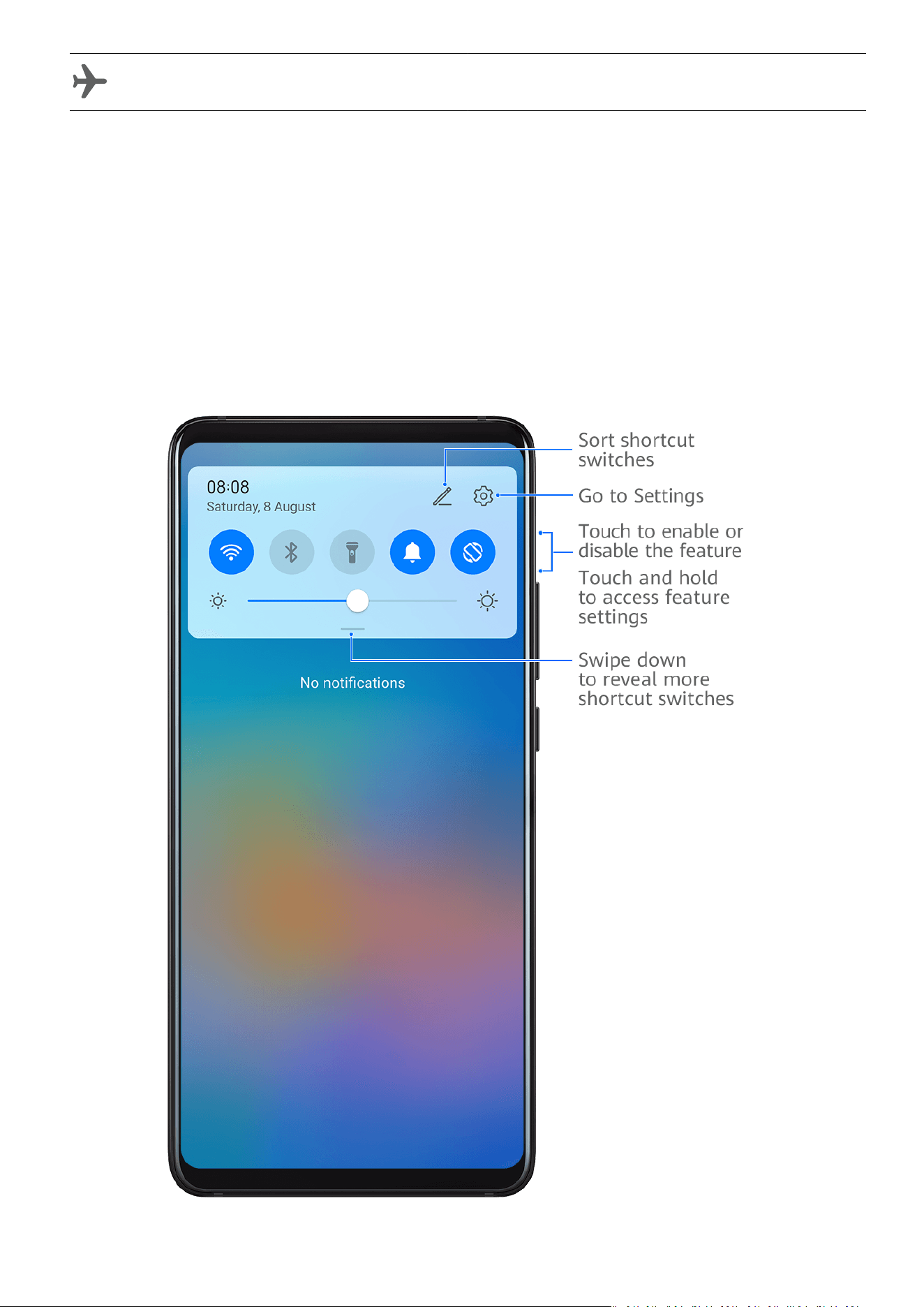
Airplane mode enabled
Shortcut Switches
Use Shortcut Switches
Turn on a Shortcut Switch
Swipe down from the status bar to open the
notication panel, then swipe down on it again
to show all shortcuts.
• Touch a shortcut switch to enable or disable the corresponding feature.
Essentials
12

• Touch and hold a shortcut switch to access the settings screen of the corresponding feature.
(Supported by some features.)
• Touch to access the system settings screen.
Customise Shortcut Switches
Touch , touch and hold a shortcut switch, then drag it to the desired position.
Quickly Access Frequently Used App Features
Access Frequently Used App Features from the Home Screen
You can access frequently used features of certain apps from app icons on the home screen,
and even add shortcuts for these features to the home screen.
Quickly Access Frequently Used App Features
Touch and hold an app icon until a pop-up menu is displayed, then touch a frequently used
feature to access it.
For example, touch and hold the
icon, then touch a shooting mode, such as Sele or
Video, from the pop-up menu to access it.
If no pop-up menu is displayed after you touch and hold an app icon, it indicates that the
app does not support this feature.
Add Frequently Used App Features to the Home Screen
Touch and hold an app icon on your home screen to bring up the pop-up menu. Touch and
hold the desired feature and drag it to your home screen to create a shortcut.
Home Screen Widgets
Add, Move, or Delete Home Screen Widgets
You can add, move, or delete home screen widgets, such as Screen lock, Weather, Notepad,
Clock, Contacts, and Calendar, according to your personal requirements.
Add Weather, Clock, and Other Widgets to the Home Screen
1 Pinch two
ngers on the home screen to access Home screen settings mode.
2 Touch Widgets, then swipe left to view all widgets.
3 Some widgets, such as Weather, come in various formats. Touch the widget to show all
formats, and swipe right to collapse.
4 Touch a widget to add it to the home screen. If there is no room on the current screen,
touch and hold it, then drag it to a dierent screen.
Essentials
13

To congure the Weather app, open it, and touch to set the congurations as
prompted.
For example, to switch between Celsius and Fahrenheit, go to > Temperature unit,
and touch Celsius (℃) or Fahrenheit (℉).
Move or Delete a Widget
Touch and hold a widget on your home screen until your device vibrates, then drag it to the
desired position or touch Remove.
Set Your Wallpaper
Set Your Wallpaper
Use a Preset Wallpaper
1 Go to Settings > Home screen & wallpaper > Wallpaper.
2 Touch an image you want to set as the wallpaper.
3 Set the following according to your preferences:
• Blur: applies a blur
eect, which can be adjusted by dragging the slider.
• Scrollable: enables the wallpaper to be scrollable on the home screen.
4 Touch , then determine whether you'd like to set it as the wallpaper for the Lock
screen, Home screen, or Both.
Set an Image from Gallery as Your Wallpaper
1 Open Gallery, and open the image you want to set as your wallpaper.
2 Go to
> Set as > Wallpaper, then follow the onscreen instructions to complete the
setting.
Screenshots & Screen Recording
Take a Screenshot
Take a Grabshot
1 Go to Settings > Accessibility features > Smart Sensing > Grabshot, and make sure that
Grabshot is enabled.
2 Place your hand half an arm's length away from the screen with your palm facing the
screen, and wait for
to appear at the top of the screen. Then close your st to capture
a screenshot.
Essentials
14
This feature may vary by device.
Use Your Knuckle to Take a Screenshot
1 Go to Settings > Accessibility features > Shortcuts & gestures > Take screenshot, and
ensure that Knuckle screenshots is enabled.
2 Knock the screen twice in quick succession with one knuckle to take a screenshot.
Use a Key Combination to Take a Screenshot
Press and hold the Power and Volume down buttons simultaneously to take a screenshot.
Use a Shortcut to Take a Screenshot
Swipe down from the status bar to open the notication panel, then swipe down on it again
to show all shortcuts. Touch to take a screenshot.
Share and Edit a Screenshot or Switch to Scrollshot
Essentials
15
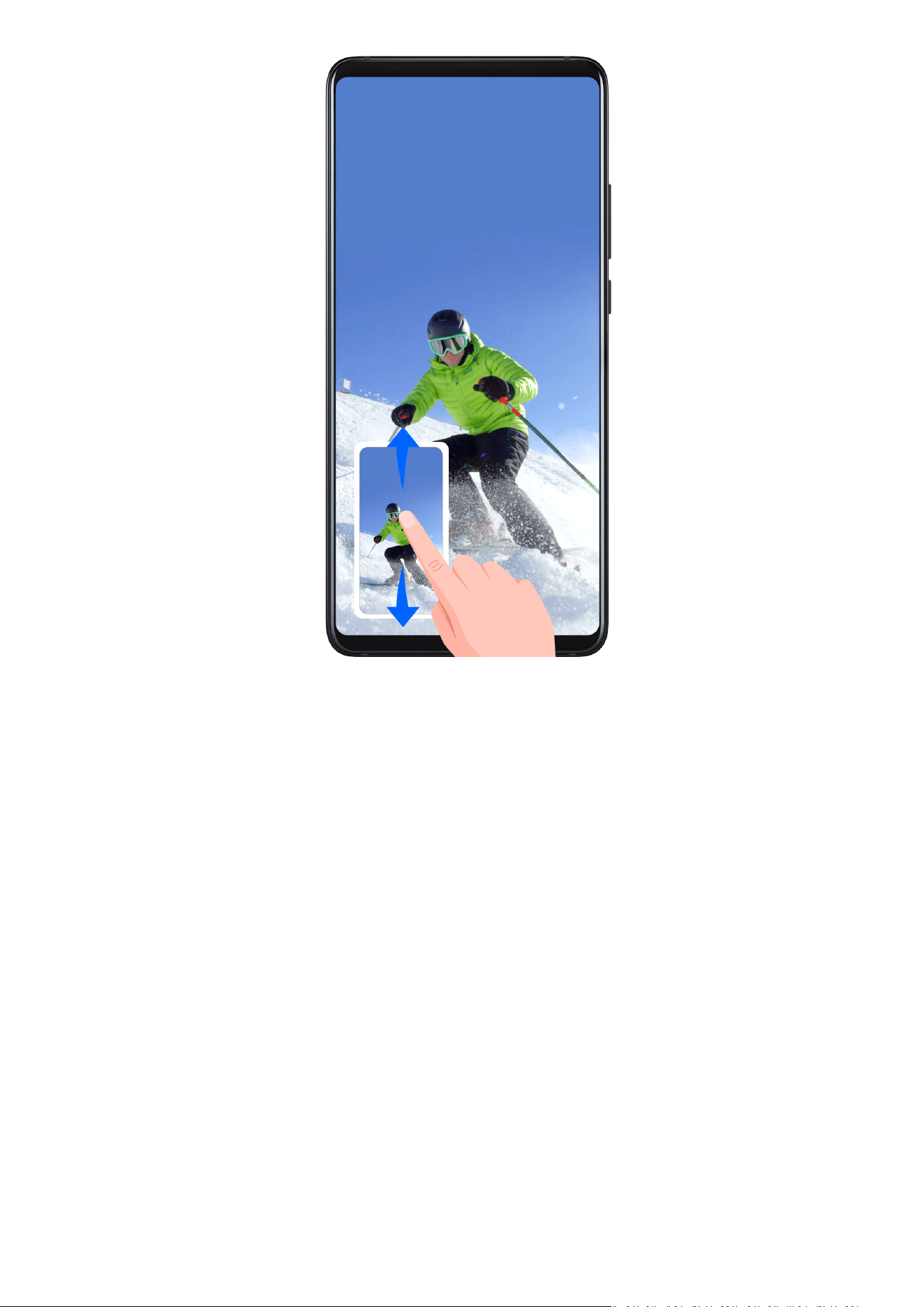
After you take a screenshot, a thumbnail will be displayed in the lower left corner of the
screen. You can then:
• Swipe down on the thumbnail to take a scrolling screenshot.
• Swipe up on the thumbnail to select a way to share the screenshot with your friends.
• Touch the thumbnail to edit or delete it. You can also touch Scrollshot to take a scrolling
screenshot.
Screenshots are saved to Gallery by default.
Use Your Knuckle to Take a Scrolling Screenshot
Essentials
16
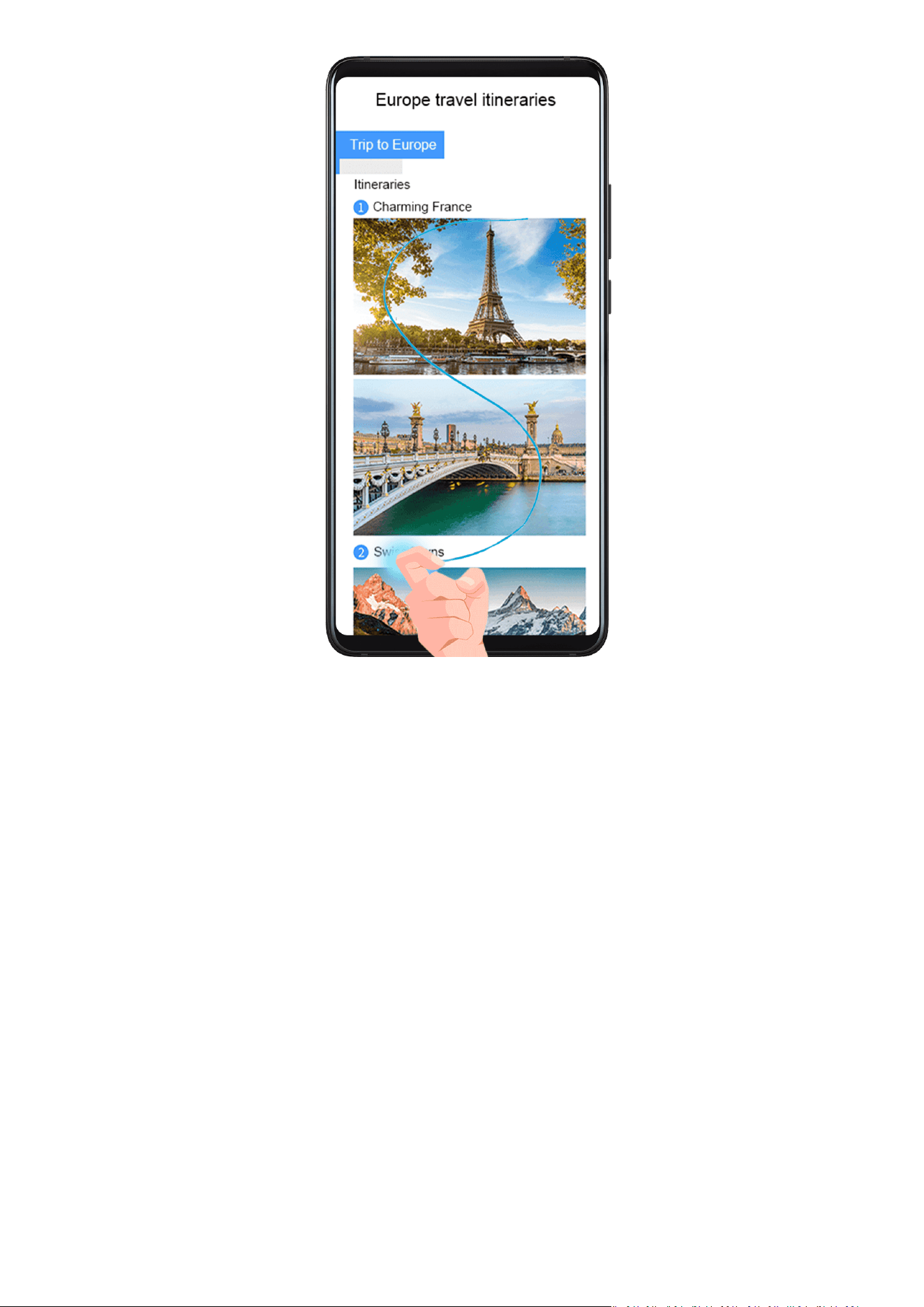
1 Knock the screen with a knuckle and hold to draw an "S". The screen will automatically
scroll down to the bottom for you to capture the entire page.
2 You can touch the screen at any point to stop the screenshot.
Take a Partial Screenshot
Essentials
17
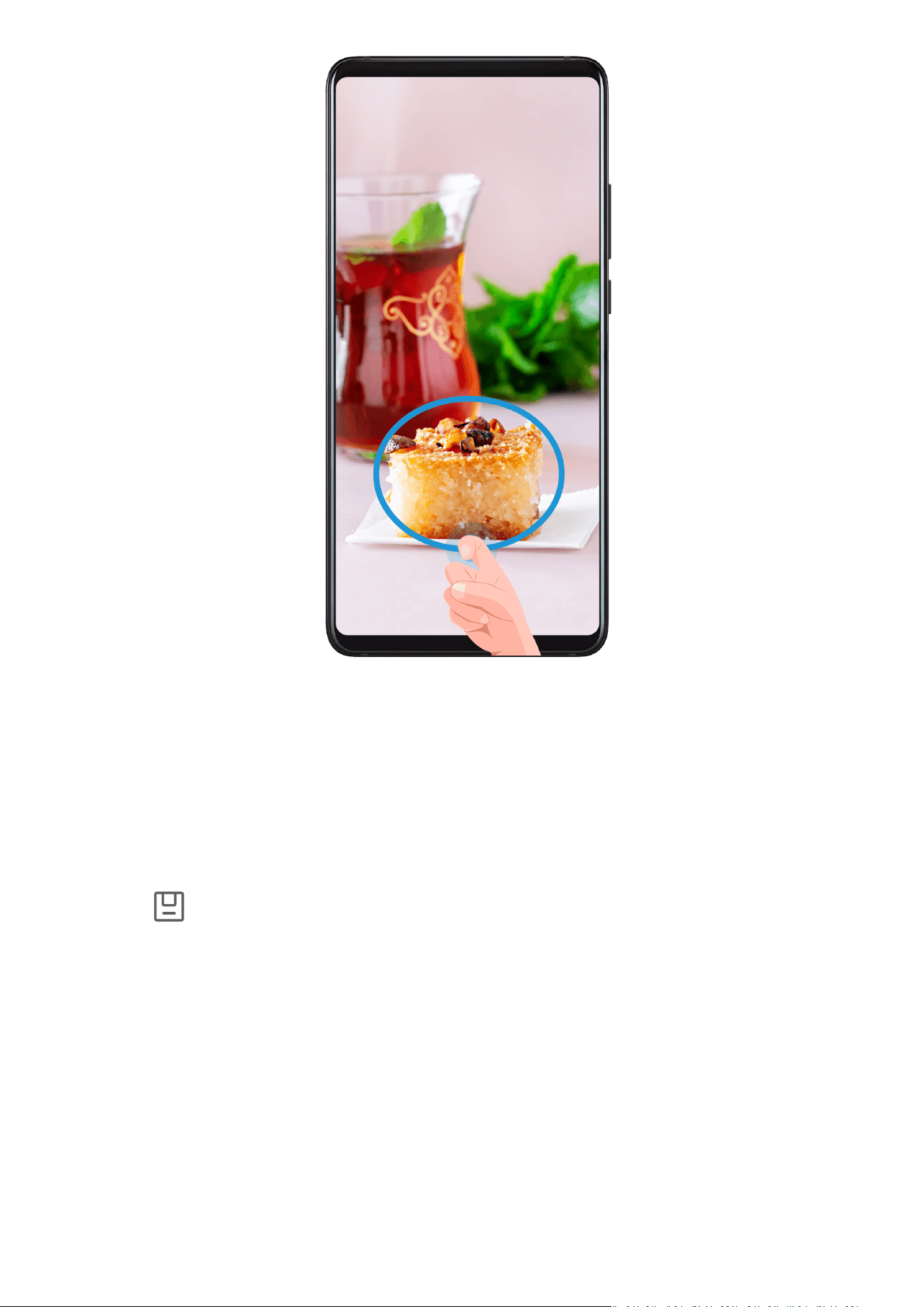
1 Knock on the screen with a knuckle and hold to draw an outline around the part of the
screen that you want to capture. Make sure that your knuckle does not leave the screen.
2 The screen will display the movement trajectory of your knuckle and take a screenshot of
the selected area. You can then:
• Drag the frame to the desired position or resize it.
• Touch a shape icon to determine the shape of the partial screenshot, or retain the
current shape.
3 Touch
to save the screenshot.
Precautions for Using Knuckle Screenshots
• Please double knock the screen consecutively at the same place and at an appropriate
speed.
• Keep your knuckle vertical to the screen.
• If you want to take more than one screenshot, wait 2 seconds before knocking on the
screen again.
• If there is a screen protector on the screen, knock the screen harder or remove the screen
protector and try again.
Essentials
18

Record the Screen
Record your screen activities in sharable videos to compose a tutorial, show o your
awesome gaming skills, and a lot more.
Use a Key Combination to Start Screen Recording
Press and hold the Power and Volume up buttons simultaneously to start screen recording. To
stop recording, press and hold both buttons again.
Use a Shortcut to Start Screen Recording
1 Swipe down from the status bar to open the
notication panel, then swipe down on it
again to show all shortcuts.
2 Touch Screen Recorder to start screen recording.
3 To stop the recording, touch the timer at the top of the screen.
4 The recording will be saved to Gallery.
Use Two Knuckles to Start Screen Recording
1 Go to Settings > Accessibility features > Shortcuts & gestures > Record screen, and
ensure that Record screen is enabled.
2 Knock the screen twice in quick succession with two knuckles to start screen recording. To
stop recording, knock twice again.
Record Your Voice During Screen Recording
You can enable the microphone to record your voice while recording the screen.
After starting a screen recording, touch the microphone icon and ensure that it is displayed as
. You can now record your voice.
If the microphone is disabled (if it is displayed as ), you will only be able to record
system sounds, such as music. If you don't want any system sounds in your screen
recording, mute your device and turn o any music or other media sounds before starting
the screen recording.
View and Clear Notications
View and Clear Notications
View Notications
When there is a notication reminder, you can unlock the screen and swipe down from the
status bar to open the notication panel and view the notication.
Essentials
19

Clear Notications
• You can remove a notication by swiping right on it.
• You can touch
to clear all notications.
Some system notications and notications from apps running in the foreground cannot
be cleared.
Do Not Disturb Settings for Notications
If you wish not to be disturbed by a notication, swipe left on it, touch , and choose from
options including Disable notications, Use gentle notications, and DELAY.
Some system notications and notications from apps running in the foreground cannot
be disabled or delayed.
Adjust Sound Settings
Adjust Sound Settings
Press a Volume Button to Adjust the Volume
Press the Volume up or down button to adjust the volume.
Use the In-Screen Volume Slider at the Edge
This device abandons physical volume buttons in favor of an in-screen volume slider at the
screen edge. Double-touch the upper section of the left or right screen edge to display the
volume slider. To control the volume, slide up or down on the edge next to the volume slider
or on the volume slider itself.
1 Go to Settings > Sounds & vibration > Volume control gestures to choose where the in-
screen volume slider will appear.
2 Double-touch the upper section of the left or right screen edge depending on where you
have set the volume slider to display. Then you can:
• Slide up or down on the volume slider to quickly adjust the volume level.
• Touch
to mute the media sound. You can adjust the media volume by sliding up
or down on the edge next to the volume slider or on the volume slider itself.
• Touch
to congure more sound settings.
Press the Power Button to Mute Your Device When It Rings
When your device rings for an incoming call or alarm, you can press the Power button to
mute it.
Essentials
20

Flip to Mute or Raise to Reduce Ringing Volume
When you receive an incoming call, you can ip your device to mute it, or raise it to reduce
the ringing volume.
Go to Settings > Accessibility features > Shortcuts & gestures > Mute ringtone/Reduce
volume, then enable Flip to mute ringtone and Raise to reduce volume.
Change the Sounds and Vibration Settings
You can set the messaging tone, notication tone, and call ringtone depending on your
preferences, as well as set the vibration pattern.
1 Go to Settings > Sounds & vibration, and touch Phone ringtone, Messaging tone, or
Notication tone.
2 You can then:
• Set the tone.
Select a preset tone, or touch Music on device to select a locally saved song.
If two SIM cards are being used, you can set the tones for them individually.
• Set the vibration pattern.
Touch Vibration and select a vibration pattern as you prefer.
When Synchronised (default) is selected, your phone will vibrate according to the
rhythm of the tone.
For other options, the vibration pattern of your phone is xed.
The feature availability varies by device.
Use a Shortcut to Switch Between Sound, Vibration, and Silent Modes
1 Swipe down from the status bar to open the notication panel, then swipe down on it
again to show all shortcuts.
2 Touch the Sound, Silent, or Vibration icon to switch between dierent
modes.
In Sound mode, your phone plays all sounds as normal.
In Silent mode, your phone only mutes the ringtones for incoming calls, messages,
notications, and some third-party app notications. Other sounds, including alarms, voice
calls, music, videos, and games, will not be muted.
In Vibration mode, your phone is muted and vibrates to provide discreet alerts for calls or
messages.
You can also go to Settings > Sounds & vibration to switch between Sound, Vibration, and
Silent modes.
Look at the Screen to Reduce the Ringtone Volume
When you receive an incoming call, your device will reduce the ringtone if it detects that you
are looking at the screen.
Essentials
21

Before using this feature, go to Settings > Accessibility features > Smart Sensing, and make
sure that Keep screen on while looking is enabled.
The feature availability varies by device.
System Haptics
The system uses haptics to provide feedback when certain operations are completed, such as
when you touch and hold text, a contact, or some other elements on the screen.
Go to Settings > Sounds & vibration > More settings and enable or disable System haptics
according to your preferences.
Set the Default Volume
Go to Settings > Sounds & vibration, and you can then set the volume for the following
items:
• Ringer, Messages, Notications
• Alarms
• Music, Videos, Games
• Calls
Set More settings
On the Sounds & vibration screen, touch More settings, and set more
notication methods
according to your preferences. For example, you can set Keypad tones and Screenshot.
This feature may vary by device.
Enter Text
Select, Copy, Paste, or Share Text
You can select text displayed on your screen, copy or cut it to the clipboard, then paste it
somewhere else. You can also share it in multiple ways.
1 Touch and hold the text until
appears.
In some apps, what happens after you touch and hold the text may dier. For
example, if you touch and hold a sent or received message, an option menu will be
displayed, and will appear only after you touch Select text.
2 Drag and to select the text you need, or touch Select all to select all text.
3 Touch Copy or Cut as needed.
4 Touch and hold the space where you want to paste the text until Paste appears, then
touch Paste.
Essentials
22
Multi-Window
Multi-Window for Multitasking
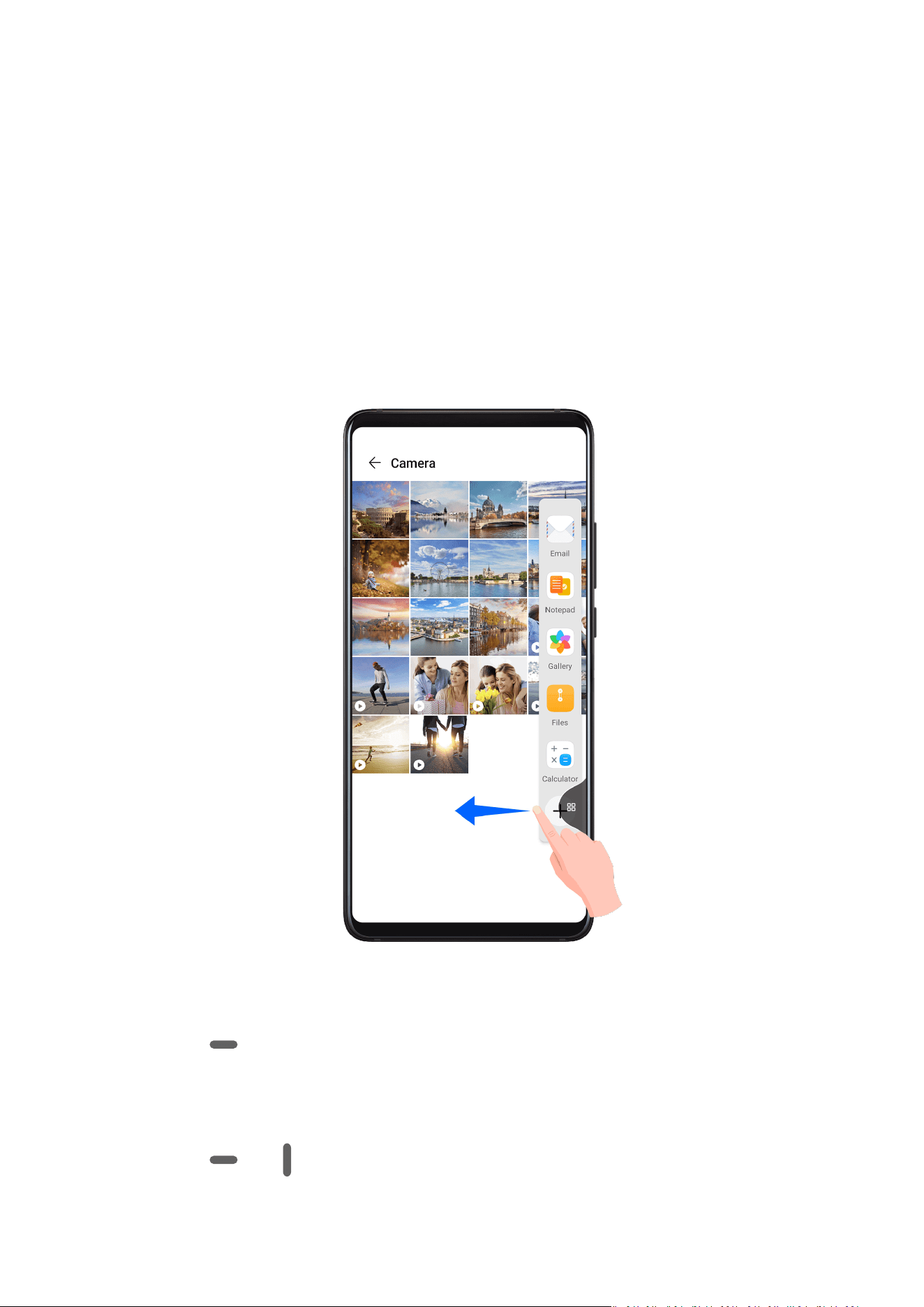
Multi-Window allows you to open apps in split screens or in a
oating window for
multitasking.
Enable Split-screen Mode
Enable split-screen mode:
1 Open an app and swipe inward from the left or right edge and hold to bring up the Multi-
Window dock.
2 Drag an app icon out of the Multi-Window dock.
Switch the split-screen panes:
Touch and hold at the top of a split-screen pane until the pane shrinks, then drag it to
the other side of the screen to switch panes.
Exit split-screen mode:
Touch and hold
or in the middle of the split screen line and drag it until either pane
disappears.
Essentials
23

• Support for split-screen mode varies by app.
• Split-screen mode is limited to two apps at any given time.
Use the Floating Window
Open a oating window while gaming, and you can chat with a friend without missing a
second of the action.
Display the oating window:
1 Swipe inward from the left or right edge and hold to bring up the Multi-Window dock.
2 Touch an app icon in the Multi-Window dock to open the app in a
oating window.
Relocate the
oating window:
Drag the bar at the top of the oating window to move the window to the desired location.
Display in full screen:
Touch at the top of the oating window to display it in full screen.
Minimise the oating window:
Touch at the top of the oating window to minimise it, and it will go directly into the
oating ball.
The oating ball is able to house a maximum of 10 minimised oating windows.
Close the oating window:
Touch
at the top of the oating window to close it.
Switch Between Split-screen and Floating Window
• Switch from Split-screen mode to oating window: Touch and hold the bar at the top of a
split-screen pane, then drag it to the left/right side of the screen when in Portrait mode or
to the lower edge when in Landscape mode.
• Switch from oating window to Split-screen mode: Touch and hold the bar at the top of the
oating window, then drag it to the upper/lower part of the screen when in Portrait mode,
or to the left or right when in Landscape mode.
Drag and Drop Between Apps with Multi-Window
Use the Multi-Window feature to easily drag and drop images, text, and documents between
apps.
• Drag and drop an image: When taking notes with Notepad, open Files, select the photo
you want to add, and drag it into the Notepad editor.
• Drag and drop text: When sending an SMS message, open Notepad, touch and hold the
text you want to send, and drag it into the message text input box.
• Drag and drop a document: When writing an email, open Files, select the document you
want to attach, and drag it into the email editor.
Essentials
24

Not all apps fully support drag-and-drop with Multi-Window.
Add, Move, or Remove an App from the Multi-Window Dock
• Add an app: In the Multi-Window dock, touch , touch the app you want to add, then
touch Done.
• Move an app: In the Multi-Window dock, touch
, drag the desired app to any location
in the dock, then touch Done.
• Remove an app: In the Multi-Window dock, touch , touch in the upper right corner
of the icon of the app you want to remove, then touch Done.
Disable Multi-Window
Multi-Window is enabled by default. To disable it, go to Settings > Accessibility features >
Multi-Window, then disable Multi-Window dock.
Quickly Find and Switch Between Floating Windows for Apps
You can quickly nd and switch between oating windows for apps using the oating
window management function.
1 Make sure that you have opened oating windows for multiple apps and minimised them
into the oating ball.
2 Touch the
oating ball to display all oating window previews:
• Browse through the oating window previews: Swipe up or down to nd the
oating window preview of the app you are looking for.
• Display the oating window for an app: Touch the oating window preview of the
app to display it in a oating window.
• Close the oating window for an app: Touch on the oating window preview to
close it.
Multi-Window View for a Single App
Multi-window view can now work within specic apps (such as Email and Notepad). You can
create two task windows for the same app, and drag images, text, or documents between
them. You can also open a link or attachment within the app in a oating window.
1 Enter the split-screen view within an app.
• Open the Email app.
• Swipe inward from the left or right edge of your device and hold to bring up the Multi-
Window dock.
• Touch and hold the Email icon, and drag it to the screen to enter split-screen view.
2 Drag images, text, or documents between the split-screen windows.
Essentials
25

• Drag an image: Select an image from one split-screen window and drag it to the other
window.
• Drag text: Touch and hold the text and select the desired part from one split-screen
window, then touch and hold the text again and drag it to the other window.
• Drag a document: Select a document from one split-screen window and drag it to the
other window.
3 Click a link or attachment in the Email app to open it in the
oating window.
• Open a link: Touch a link in the Email app to display it in a oating window.
• Open an attachment: Touch an attachment (such as a document, image, or video) in
the Email app to display it in a
oating window.
Show Date and Time When the Screen Is O
Show Date and Time When the Screen Is O
With Always On Display enabled, the lock screen will show the date, time, and more when
the screen is o.
Enable Always On Display
1 Go to Settings > Home screen & wallpaper > Always On Display, and enable Always
On Display.
2 Set Display mode as prompted. For example, you can select All day.
Set the Style for Always On Display
You can customise the display style for Always On Display according to your preferences.
1 After enabling Always On Display, touch Display style, and swipe across to view the
available styles.
2 Select a preferred style, and touch Apply.
Power On and
O or Restart Your Device
Turn On and O or Restart Your Device
Power Your Device On and
O
To power o your device, press and hold the Power button for a few seconds, touch Power
o and Touch to power o.
To power on your device, press and hold the Power button for a few seconds until your device
vibrates and displays the logo.
Essentials
26

Restart Your Device
Restart your device on a regular basis to clear the cache and keep the device in an optimal
state. A restart can sometimes resolve the issue when your device encounters a problem.
Just press and hold the Power button for a few seconds, then touch Restart and Touch to
restart.
Force Restart Your Device
You can force restart your device if it isn't working or won't turn o normally. To do this, just
press and hold the Power and Volume down buttons simultaneously for 10 seconds or longer.
Charging
Charge Your Device
Your device will alert you when it is running out of power. Please make sure to charge your
device in time to prevent it from turning
o automatically when the power runs out.
Precautions for Charging
• Charge your device using the standard adapter and USB cable that came with your device.
Using other chargers or USB cables may cause repeated restarts, slow charging,
overheating, or other undesirable eects.
• Your device will automatically run a safety check when a charger or other device is
connected to the USB port. If moisture is detected in the USB port, your device will
automatically activate safety measures and stop charging. Disconnect your device from the
USB port and wait until the USB port is dry.
• The time required to fully charge the battery depends on the ambient temperature and age
of the battery.
• Batteries have a limited number of charge cycles. When the battery life becomes noticeably
shorter, go to an authorised Huawei Customer Service Centre to replace the battery.
• Do not cover your device or charger during charging.
• Your device may heat up when you have been using it for an extended period of time,
especially in high temperatures. In this case, stop charging, disable some features, and
move your device to a cool place.
• Please do not use your device while it is charging.
• If your device does not respond after you press and hold the Power button, the battery may
have run out. Charge for 10 minutes and then power it on.
Using the Charger that Came with Your Device
1 Use the USB cable that came with your device to connect your device and the adapter.
2 Plug the adapter into a power socket.
Essentials
27
Use the Wireless Charger
A wireless charger consists of an adapter, a cable, and a charging pad. To ensure safe
charging, please purchase a charging pad from an ocial Huawei channel, and use the
adapter and USB cable that came with your device.
To super charge your device wirelessly, purchase a charging pad that supports super fast
charging.
1 Connect the adapter and charging pad using the USB cable, then plug the adapter into a
power socket.
2 Place the charging pad on the table, then place your device on the centre of the charging
pad with the screen facing upwards.
3 When a beep is heard, your device should start charging.
• If you are using a high-voltage super fast charging adapter, the charging pad will
charge the device at a super fast charging speed. The wireless SuperCharge icon
will be displayed on the lock screen.
• If you are using a high-voltage fast charging adapter, the charging pad will charge the
device at a fast charging speed. The wireless QuickCharge icon will be displayed
on the lock screen.
• If you are using a standard adapter, the charging pad will charge the device at a
standard charging speed. The wireless standard charging icon
will be displayed on
the lock screen.
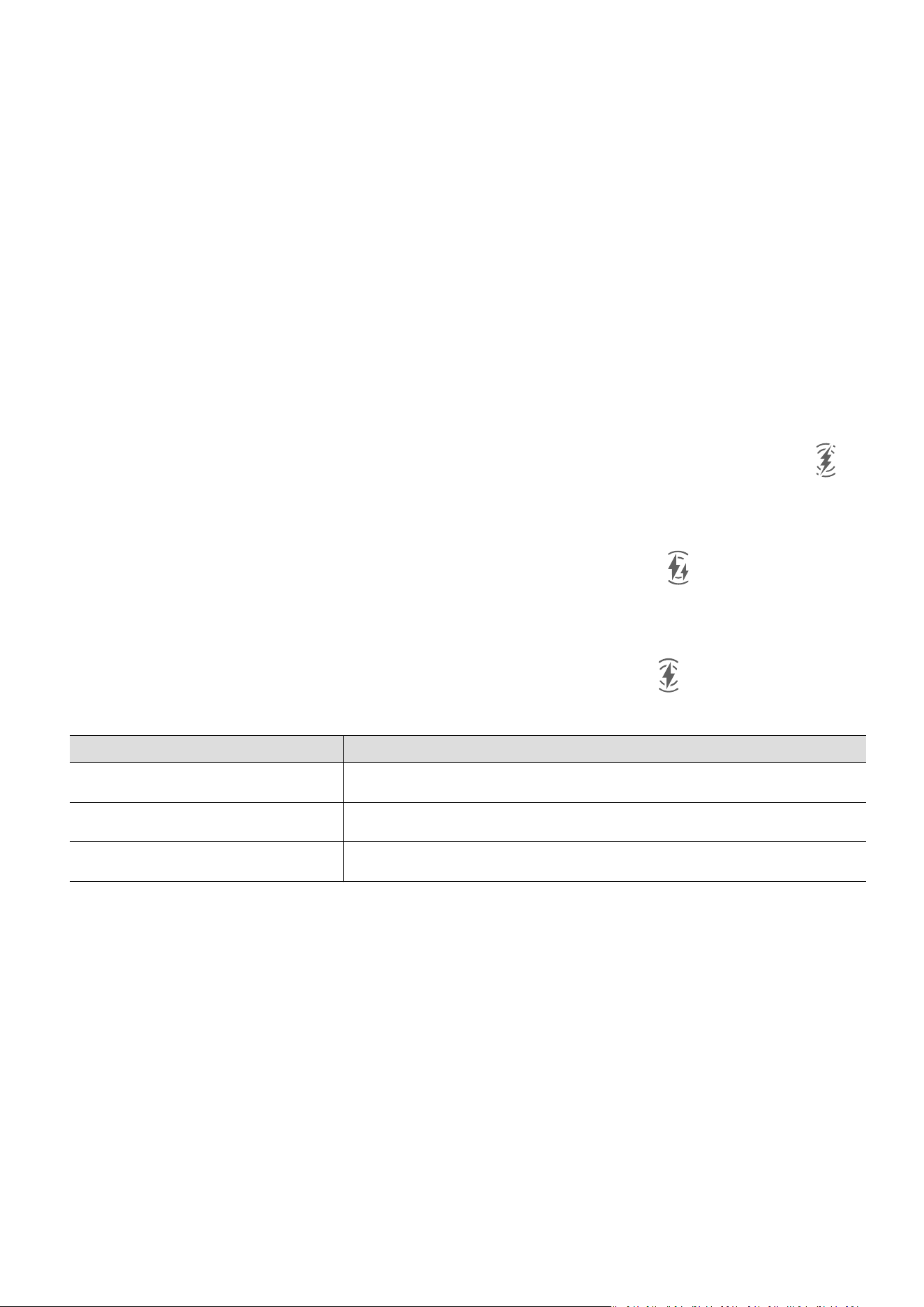
Charging Pad Indicator Description
Blinks once The charger is properly connected to the power supply.
Steady on Charging is in process.
Blinks quickly A charging error has occurred.
Charging Your Device With a PC
1 Connect your device to a PC or other device using a USB cable.
2 When the Use USB to dialog box is displayed on your device, touch Charge only.
If another option has been set previously, the dialog box will not pop up. Swipe down
from the status bar to open the
notication panel, touch Settings, then select Charge
only.
Overview of Battery Icons
You can check the battery level from the battery icon on the device screen.
Essentials
28

Battery Icon Battery Level
Less than 4% battery remaining
Charging, less than 10% battery remaining
Charging, 10% to 90% battery remaining
Charging, at least 90% battery remaining
If 100% is displayed next to the battery icon, or a charging complete
message is displayed on the lock screen, the battery is fully charged.
Use Wireless Reverse Charging
Wireless reverse charging is supported by devices that support the Wireless Charging
Standard, such as phones, tablets, watches, and bands.
Before using wireless reverse charging, ensure that the battery level of your device is higher
than 20%.
1 Go to Settings > Battery, and enable Wireless Reverse Charging.
2 Power on the device to be charged, and place it on the centre of the back of your device.
Do not place any metal objects between your device and the device to be charged.
3 If the device does not start charging within 5 seconds, adjust its position and try again.
4 If the device to be charged is removed from the device for more than 2 minutes during
charging, Wireless Reverse Charging will automatically be disabled.
Reverse Charge with an OTG Cable
On-The-Go (OTG) is a USB transmitting technology that allows a device to directly access
les on a USB ash drive or digital camera, or connect to an external device such as a
keyboard or mouse, with the help of an OTG cable.
You can use your device to charge other devices using an OTG cable.
1 Connect your device with the device to be charged using an OTG cable.
2 Swipe down from the status bar to open the notication panel, touch Touch for more
options, and then select Reverse charge.
3 Follow the onscreen instructions on the device to be charged to start charging.
Essentials
29

Smart Features
AI Voice
AI Voice
AI Voice allows you to communicate verbally with your device.
To operate hands-free on your device, wake up AI Voice and give a voice command.
This feature is only available in some countries and regions.
Countries and Regions that Support AI Voice
AI Voice is only supported in certain countries and regions. You can set your location to one
of these countries and regions on your device to use AI Voice.
AI Voice can be used in the UK, France, Spain, Chile, Mexico, Colombia, Italy, and
Germany.
1 Go to Settings > System & updates > Language & input > Language and region, and
touch Region to select a country/region from the above list.
2 Go to Settings > HUAWEI Assistant > AI Voice, touch Conversation language, select a
language, and follow the onscreen instructions to set it up.
Wake up AI Voice
You can wake up AI Voice in multiple ways:
Press and hold the Power button for 1 second to wake up AI Voice
1 Go to Settings > HUAWEI Assistant > AI Voice > Wake with Power button, and enable
Wake with Power button.
2 Press and hold the Power button for 1 second to wake up AI Voice.
Say the wakeup phrase to wake up AI Voice
1 Go to Settings > HUAWEI Assistant > AI Voice > Voice wakeup, enable Voice wakeup,
and follow the onscreen instructions to record your wakeup phrase.
2 When you need to wake up AI Voice, say the wakeup phrase.
• The settings items vary by device. If your device does not provide a specic item, it
indicates that the corresponding feature is not supported.
• You cannot wake up AI Voice with the wakeup phrase when your device is in a call.
• You cannot wake up AI Voice with the wakeup phrase either if you are making an
audio or screen recording (with microphone enabled). In this case, you can press and
hold the Power button to wake up AI Voice.
• This feature is only available in some countries and regions.
30

Communicate with AI Voice
AI Voice can be in one of the following three modes: Idle, Listening, and Thinking. You can
talk to AI Voice when it is in the Listening mode.
• Idle mode: AI Voice doesn't pick up any sound in this mode.
• Listening mode: You can talk to AI Voice as it can listen to you in this mode.
• Thinking mode: AI Voice can start to execute your voice commands.
This feature is only available in some countries and regions.
View AI Voice Skill
View Built-in AI Voice Skills
You can view the built-in AI Voice skills in either of the following ways:
• Wake up AI Voice and ask: "What can you do?". AI Voice will then display the Skill centre
where the built-in skills are listed.
• Wake up AI Voice and follow the onscreen instructions to swipe up to enter full-screen
mode. Then go to > Skill centre to check the built-in AI Voice skills.
This feature is only available in some countries and regions.
Make Calls and Send SMS Messages with AI Voice
AI Voice allows you to make calls or send messages hands-free.
This feature is only available in some countries and regions.
Make Calls with Voice Commands
You can make a call on your device with AI Voice.
Wake up AI Voice and give voice command, such as "Call Mom", "Call back", “Check call
records", or "Redial".
When you make calls with voice commands, hands-free mode is automatically enabled.
Send SMS Messages with Voice Commands
You can send SMS messages with AI Voice.
Wake up AI Voice and give voice commands such as "Send a message", "Check messages", or
"Send Dad a message saying the party is tomorrow".
Set Alarms with Voice Commands
You can create, disable, and query alarms with AI Voice.
Wake up AI Voice and give voice commands such as "Wake me up at 8 AM tomorrow", "Set
an alarm for 8 PM", "Set a Wednesday alarm for 7 AM", or "Show my alarms".
This feature is only available in some countries and regions.
Smart Features
31

Set Timers with Voice Commands
You can quickly create and control the timer on your device with AI Voice.
Wake up AI Voice and give voice commands such as "Set timer for 5 minutes", "Show timer",
"Pause timer", or "Stop timer".
This feature is only available in some countries and regions.
Play Music or Videos with Voice Commands
If you want to listen to music or watch videos, wake up AI Voice and give the voice
commands directly.
Play Music with Voice Commands
You can request your device to play a song for you with AI Voice.
Wake up AI Voice and give voice commands such as "Play music", "Play previous song", or
"Play next song".
This feature is only available in some countries and regions.
Play Videos with Voice Commands
Wake up AI Voice and give voice commands such as "Play video", "Play Friends in HUAWEI
Video", "Show me a funny video", or "Play a Coldplay video".
This feature is only available in some countries and regions.
Open Apps with Voice Commands
You can quickly open an app with AI Voice, such as for opening the camera and taking a
photo in a specic mode.
This feature is only available in some countries and regions.
Access Camera with Voice Commands
Wake up AI Voice and give voice commands such as "I want to take a photo" or "Take a
photo".
This feature is only available in some countries and regions.
Open an App with Voice Commands
Wake up AI Voice and give voice commands such as "Open the Camera", "Open YouTube",
"Open PayPal", or "Open HUAWEI Music".
• This feature is only available in some countries and regions.
• Not all apps support voice control.
Query the Weather with Voice Commands
Smart Features
32

Query the Weather with Voice Commands
To query the weather, wake up AI Voice and give voice commands such as "What's the
weather like today?", "What's the weather forecast for tomorrow?", "Will it be windy today?",
"Is it going to rain tomorrow?", or "What's the temperature today?".
This feature is only available in some countries and regions.
Speech Translation
AI Voice allows you to translate your voice or text input so you can communicate with
foreign friends easily.
This feature is only available in some countries and regions.
Speech Translation
You can use AI Voice to translate your voice or text input into the target language you have
set.
1 Wake up AI Voice and give the voice command "Translate".
2 Say or type in what you want to be translated.
3 AI Voice will display the translated result and broadcast it for you.
Communicate Easily with Face-to-Face Translation
Face-to-face translation allows you to overcome language barriers when you are travelling
abroad or in an international conference.
1 Wake up AI Voice and give the voice command "Face-to-face translation" to enter the
translation screen.
2 Touch so the text on each of the two sections can be read from each side of the
device.
3 Press the button on your side of the section, say what you want to be translated, and
release the button for AI Voice to display the translated result in real time and broadcast
it.
Set Calendar Events and Reminders with Voice Commands
AI Voice allows you to create and check your Calendar events and add reminders for these
events.
Wake up AI Voice and give voice commands such as "Schedule a meeting for 9 tomorrow
morning", "Set a meeting for 2 o'clock tomorrow afternoon", "What's my schedule for
tomorrow morning?", or "Do I have any appointments on Monday?".
This feature is only available in some countries and regions.
Smart Features
33

Set Up the System with Voice Commands
AI Voice allows you to set up the system, such as for adjusting the volume or brightness of
the screen, and enabling or disabling Wi-Fi.
Wake up AI Voice and give voice commands such as "Turn the volume up", "Turn on Wi-Fi",
"Increase the brightness", or "Turn o Airplane mode".
This feature is only available in some countries and regions.
Voice Search
To make searches in a browser with voice commands, wake up AI Voice and give voice
commands such as "Search for new Huawei products", "Use website search for polar bear",
or "Search for nance websites on browser".
This feature is only available in some countries and regions.
AI Lens
Enable AI Lens
There are multiple ways to access AI Lens.
From Camera
Open Camera, select Photo mode, and touch to access AI Lens.
From the Search Bar
When the screen is unlocked, swipe down from the centre of the home screen to open the
search box, and touch next to it to access AI Lens.
From the Lock Screen
Turn on the screen when it is locked, swipe up from the bottom to open the shortcuts panel,
and touch to unlock the screen and access AI Lens.
Scan to Shop
When you see an item you wish to buy in a magazine or when you are strolling on the street,
you can use AI Lens to quickly search for the item and compare prices across multiple
shopping platforms before making a purchase.
Scan and Shop with AI Voice
1 Wake up AI Voice and give voice commands such as "Look at how much is the
refrigerator", or "Help me look at the same style of this juice machine".
2 Position the object within the
viewnder and wait for it to be identied.
Smart Features
34

3 You will be provided with purchase links to dierent shopping platforms once the object
has been recognised.
This feature is only available in some countries and regions.
Scan to Shop Using Camera
1 Go to Camera > Photo, touch , and then touch .
2 Position the item you want to buy within the viewnder, and wait for it to be identied.
3 After the item has been identied by AI Lens, links to purchase it on dierent shopping
platforms will be displayed.
Scan to Translate
AI Lens allows you to scan and translate text in a foreign language, so you can easily read
road signs, menus, or descriptions on cosmetics bottles when you are travelling or shopping
abroad.
Scan and Translate with AI Voice
1 Wake up AI Voice and ask questions or give voice commands such as "Please scan this
menu and translate it", or "Scan this street sign and translate it".
2 Select the source and target languages from the language list.
3 Position the text you want to translate within the
viewnder, and wait for it to be
translated.
This feature is only available in some countries and regions.
Scan to Translate Using Camera
1 Go to Camera > Photo, touch , and then touch .
2 Select the source and target languages from the language list.
3 Position the text you want to translate within the viewnder, and wait for it to be
translated.
Scan to Learn More
AI Lens allows you to learn more about artworks or landmarks you see by scanning the
objects with your camera.
Scan to Learn More with AI Voice
1 Wake up AI Voice and ask questions or give voice commands such as "Help me see what
this ower is?" or "Please have a look what is this building?".
2 Position the object within the
viewnder and wait for it to be identied.
3 Touch the information card to obtain additional information.
This feature is only available in some countries and regions.
Smart Features
35

Scan to Learn More Using Camera
1 Go to Camera > Photo, touch , and then touch .
2 Position the object within the viewnder and wait for it to be identied.
3 Touch the information card to obtain additional information.
Scan and Count Calories
AI Lens allows you to count the calories and nutrients in an item of food by scanning it with
your camera.
Scan and Count Calories with AI Voice
1 Wake up AI Voice and ask questions or give voice commands such as "Have a look how
much heat this steak has?", or "How much heat I can gain by eating this egg tart?".
2 Position the food within the
viewnder and wait for the calorie and nutrient information
to be displayed.
Scan and Count Calories with Camera
1 Go to Camera > Photo, touch , and then touch .
2 Position the food within the viewnder and wait for information about the calories and
nutrients per 100 g to be displayed.
The information is for reference only.
Scan Codes for Services and Information
You can scan
dierent types of QR codes and bar codes with AI Lens, and then touch the
identied result to be redirected to other pages for more services and information.
Scan Codes with AI Voice
1 Wake up AI Voice and give voice commands such as "Scan this QR code", or "Scan the
barcode".
2 Position the QR code or barcode within the scan frame and wait for it to be recognised.
Scan Codes Using Camera
1 Go to Camera > Photo, touch , and then touch .
2 Position the QR code or barcode within the scan frame and wait for it to be recognised.
AI Touch
Smart Features
36

Enable AI Touch
When you see any content that you are interested in on your device, touch and hold the
screen with two ngers spread slightly apart to bring up AI Touch to learn more.
Go to Settings > HUAWEI Assistant > AI Touch and enable AI Touch.
Shop with AI Touch
When you see an item you wish to buy on your device, you can use AI Touch to quickly
search for the item and compare prices across multiple shopping platforms before making
the purchase.
Shop with AI Voice
1 Go to Settings > HUAWEI Assistant > AI Touch and enable AI Touch.
2 When you see an item you wish to buy on your device, wake up AI Voice and ask
questions or give commands such as "How much is the cosmetics in the screen?", "I want
to buy the electric fan in the screen", or "Help me
nd the same style skirt on the screen".
3 When several items are displayed on the screen, adjust the size and position of the
identication box to t around the item you wish to buy.
4 After the item has been identied, links to purchase it on dierent shopping platforms will
be displayed.
This feature is only available in some countries and regions.
Touch and Hold the Screen with Two Fingers for Visual Shopping
1 Go to Settings > HUAWEI Assistant > AI Touch and enable AI Touch.
2 When you see an item you wish to buy on your device, touch and hold the screen with
two ngers spread slightly apart.
3 When several items are displayed on the screen, adjust the size and position of the
identication box to t around the item you wish to buy.
4 After the item has been identied, links to purchase it on dierent shopping platforms will
be displayed.
AI Search
Search for Apps and Settings on Your Device
You can search for keywords to
nd apps, settings, les, contacts, and notes on your device.
Swipe down from the centre of the screen and enter a keyword in the search box, such as an
app name or a setting, to nd the corresponding content.
If you are searching for an app installed on your device, touch to locate the app.
Smart Features
37

Easy Projection
Project Your Device Screen Wirelessly
For security reasons, after projecting your phone screen wirelessly to a large display (such as
a TV) for work or entertainment,
notications such as incoming call notications, SMS
messages, and clock alarms will only be displayed on your phone.
1 Perform the following based on the model and functions of the large display:
• If the large display supports Miracast, turn on its wireless projection switch.
• If the large display does not support Miracast, connect a wireless HDMI adapter to
it. Ensure that the wireless HDMI adapter is connected to a power supply.
To check whether the large display supports Miracast and how to enable wireless
projection on it, consult the user guide or customer service of the large display
manufacturer.
2 On your device, swipe down from the status bar to open the notication panel, and turn
on .
3 Swipe down again to show all shortcuts and enable Wireless Projection. Your device will
start searching for available display devices.
You can also go to Settings > More connections > Easy Projection and enable Wireless
Projection.
4 In the device list, touch the name corresponding to the large display or wireless HDMI
adapter to complete the projection connection.
After the connection is set up, you can place your phone in landscape mode for a better
display. Incoming call
notications, messages, and clock alarms are only displayed on your
phone. To change the settings, touch and disable Hide notications.
To exit wireless projection, go to
> Disconnect.
Device Projection Using a Wired Connection
You can project your device screen on a large display (for example, a TV) using a wired
connection.
It is recommended that you purchase the accessories from authorised channels.
Projection Using a Type-C Cable
1 Prepare a Type-C cable.
Use a Type-C to HDMI, Type-C to DP, or Type-C to MiniDP cable depending on your large
display.
Smart Features
38
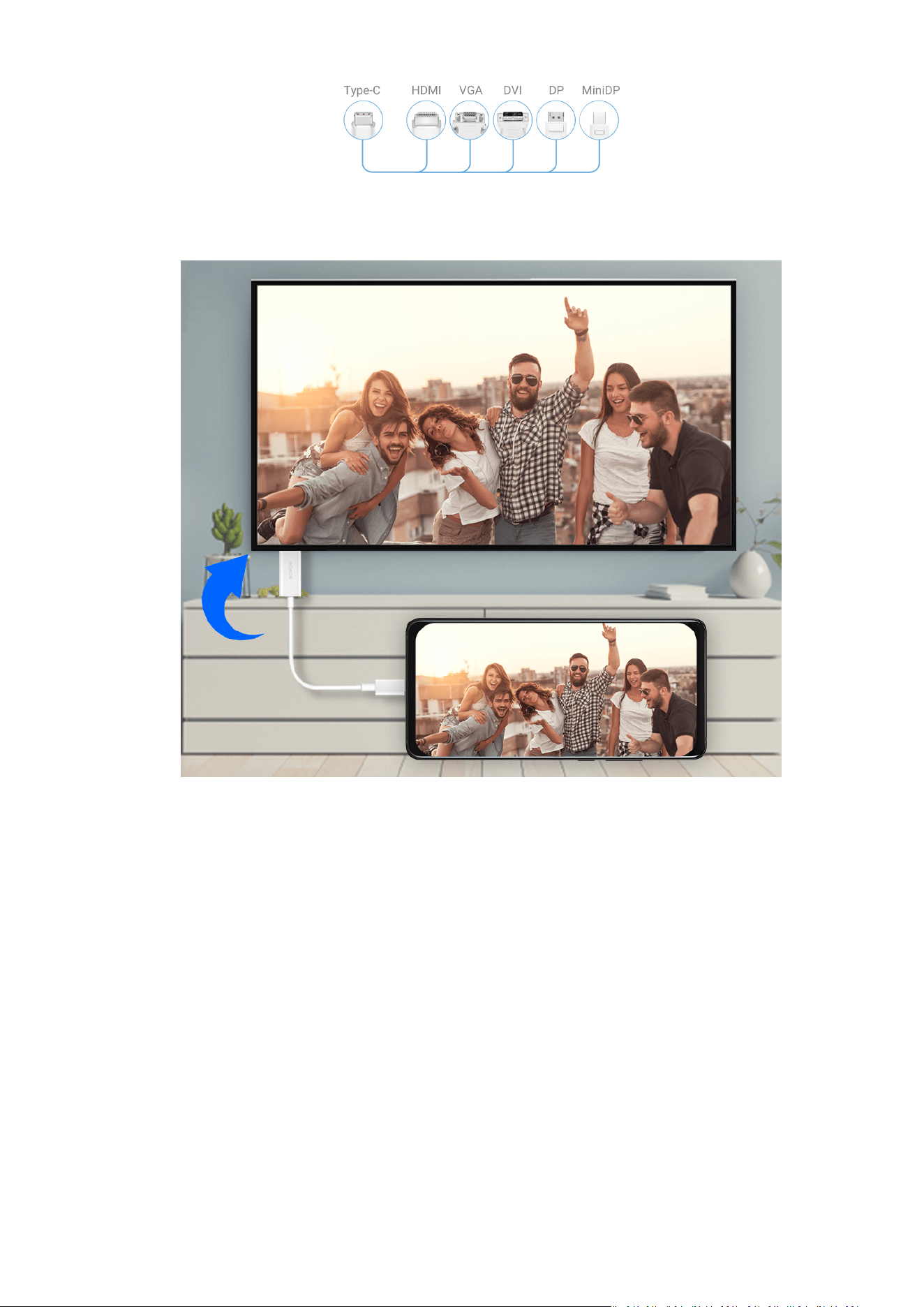
2 Connect the Type-C end to your device and the other end to the large display.
3 On the external display, set the corresponding HDMI, DP, or MiniDP input as the signal
source.
Projection Using a Docking Station
You can use a docking station to connect your device with a large display, and connect them
with a wired keyboard and mouse.
1 Prepare a docking station.
Multiple types of ports are available on a docking station. If the large display supports
HDMI and you need to use a wired mouse and keyboard, use a docking station with at
least one HDMI port and two USB ports.
Smart Features
39
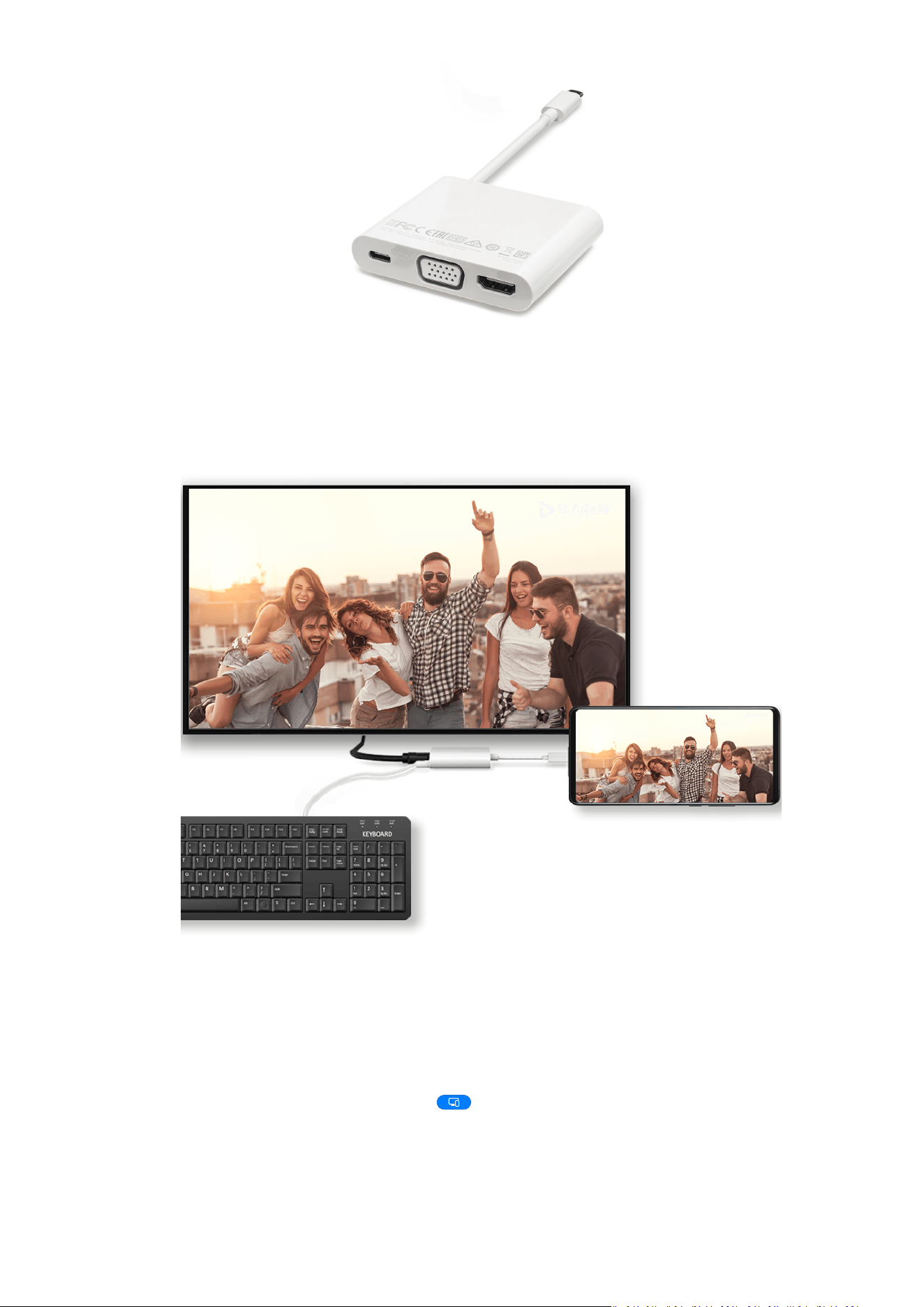
2 Connect your device and the large display to the docking station, then connect the wired
mouse and keyboard to the docking station.
3 On the external display, set the corresponding HDMI, DP, or MiniDP input as the signal
source.
Use Desktop Mode
After your phone screen is projected, go to > Projection mode on your phone, and touch
Desktop mode.
In Desktop mode, your phone and the large display work independently and can show
dierent content. The content projected on the large display is in a layout similar to that on
a computer desktop.
Smart Features
40
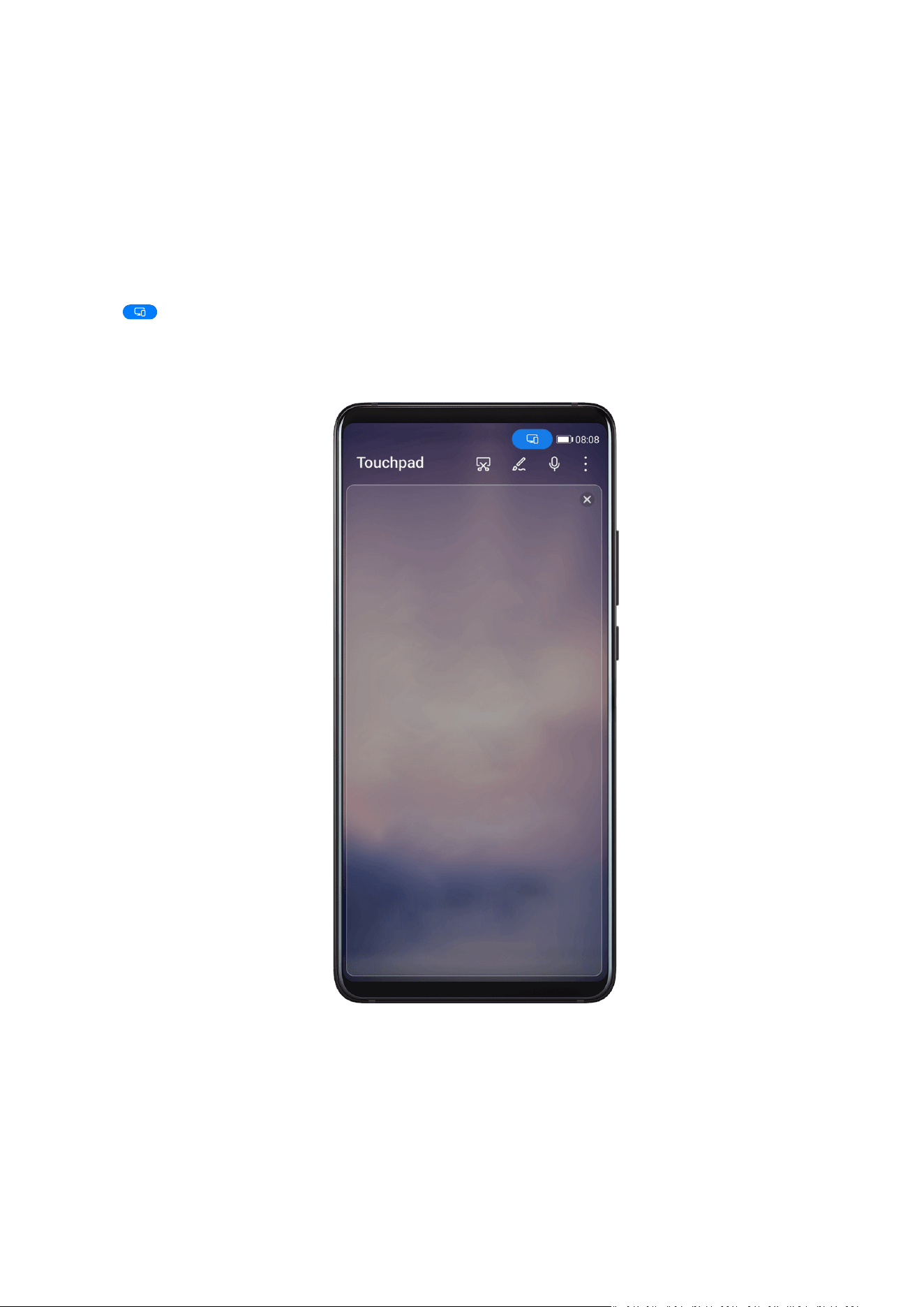
Therefore, you can edit a document on the large display while chatting on your phone. You
don't need to worry about missing out on notications, calls, or messages, as a red dot will
appear on the notication panel on the external display to let you know.
Use Your Phone as a Touchpad
After projecting your phone on the large display in Desktop mode, if no keyboard is
available, your phone can work as a touchpad to complete input operations of a mouse and
keyboard.
Go to > Touchpad. You can:
• Use gestures as instructed to simulate mouse commands.
• When no external keyboard is connected, touch the text input box on the external display
to display the onscreen keyboard to input text.
If an external keyboard is connected, the onscreen keyboard will not be available. In this
case, you need to use the external keyboard to input text.
Use Screen Projection to Make Work Easier
In Desktop mode, you can use the following features:
• Multi-window display: Open multiple windows at a time to multitask.
Smart Features
41

• File management: Save les to the desktop, create les or folders, and rename or delete
les.
• Quick search: Search for documents, multimedia les, and apps using the start menu
search box.
• Quick app projection: Touch and hold an app icon on your phone to view the projection
options. You can then project and open the app on the large display.
Exit Desktop Mode
To exit Desktop mode, go to > Projection mode and select Phone.
Multi-screen Collaboration
Multi-screen Collaboration Between Your Phone and PC
Connect your phone with a Huawei or Honor PC to use Multi-screen Collaboration for cross-
device control,
le sharing, and le editing.
Connect Your Phone to the PC through Huawei Share OneHop
1 Ensure that the PC supports or .
2 On the PC, enable Wi-Fi, Bluetooth, and PC Manager, and agree to the user licence
agreement.
3 On your phone, swipe down from the status bar to open the notication panel and the
shortcuts menu, then enable NFC, Wi-Fi, and Bluetooth.
4 Place the NFC area (near the rear camera) on the back of your phone against the or
label on the PC until your phone vibrates or plays a tone.
5 Follow the onscreen instructions to connect your phone and PC.
Connect Your Phone to the PC by Using Bluetooth Search
1 On your phone, swipe down from the status bar to open the
notication panel, and
enable .
2 Open PC Manager (version 10.0 or later), go to My Phone > Connect, and select to
search for your phone over Bluetooth. Place your phone above the keyboard and your PC
will start searching for your phone.
To check the version of PC Manager, go to > About. To update PC Manager, go to
> Check for updates.
3 Follow the onscreen instructions to connect your phone and PC.
Smart Features
42

Connect Your Phone to the PC by Scanning the QR Code
1 Open PC Manager (version 10.0 or later), go to My Phone > Connect, and select to scan
the QR code.
To check the version of PC Manager, go to > About. To update PC Manager, go to
> Check for updates.
2 Ensure that your phone is connected to the Internet, and use it to scan the QR code.
3 Follow the onscreen instructions to connect your phone and PC.
Connect Your Phone to the PC with a USB Cable
1 Use a USB cable to connect your phone and PC.
2 On the PC, open PC Manager (version 10.1 or later).
To check the version of PC Manager, go to > About. To update PC Manager, go to
> Check for updates.
3 Conrm to connect to the PC on your phone.
If you cancel the connection on your phone, you can establish a wired connection
again. To do so, open PC Manager and go to Connect > USB.
Disconnect Your Phone from Your PC
After you have nished using your phone and PC, you can disconnect them using the
following methods:
• On your PC, open PC Manager, and click Disconnect.
• On your phone, swipe down from the status bar to open the notication panel, and touch
DISCONNECT.
• If your phone and PC are connected via a USB cable, remove the cable to disconnect them.
Drag to Transfer Files Between Your Phone and PC
After connecting your phone and PC, you can transfer les between them to make work
easier.
Drag and drop les
After Multi-screen Collaboration is established between your phone and PC, you can drag
and drop les such as pictures and videos between them to make your work easier.
Transfer les from your phone to the PC.
• In the phone window on the PC, open Gallery or Files, click and hold a picture or video,
click and hold any of the selected les until a dragging icon is displayed, then drag the les
to a folder on your PC.
Smart Features
43

• In the phone window on the PC, drag the selected pictures or text and drop them in an
opened document on your PC.
For example, drag a photo or text from Notepad in the phone window and drop it to an
Oce document opened on your PC, then continue editing on your PC.
Transfer les from your PC to your phone:
• Go to Gallery > Albums in the phone window, and drag a picture or video from your PC to
the phone window.
• Open Files in the phone window, and drag a document from your PC to the phone window.
The le will be saved in the folder that is open in Files, or in the Huawei Share folder
by default.
• Open a le in the phone window on the PC, then drag a picture or text from Notepad to
the phone window.
For example, drag a picture on your PC to a Notepad item opened in the phone window,
then continue editing on your phone.
Use Huawei Share OneHop to Transfer Files
After Multi-screen Collaboration is enabled between your phone and PC, you can transfer
les between them using Huawei Share OneHop, without needing a data cable or any
software.
Share pictures and videos
• Transfer pictures and videos from your phone to your PC:
1 On your phone, select one or more pictures and videos in Gallery.
2 Place the NFC area (near the rear camera) on the back of your phone against the
or label on the PC until your phone vibrates or plays a tone. The selected pictures or
videos will be quickly transferred to your PC.
You can click
in the picture browser to extract text from an image, and copy or save it
into a new le.
• Transfer pictures from your PC to your phone:
1 Right-click a picture on your PC and use Huawei Image viewer to open it.
2 On your phone, exit Gallery or go to the home screen, and place your phone against
your PC (in the same way as above) to transfer the picture from your PC to your phone.
Ensure that PC Manager is running version 9.0 or later.
Record the PC screen:
Shake your phone and place it against your PC to project and record the PC screen on your
phone.
1 Shake your phone and immediately place the NFC area (near the rear camera) on the
back of the phone against the
or label on your PC until your phone vibrates or
Smart Features
44

plays a tone. Your PC screen will then be projected and recorded on your phone. The PC
screen recording can be up to 60 seconds.
2 Touch on your phone to stop the screen recording, which will be saved to Gallery on
your phone.
• This feature is currently supported on Intel laptops only.
• Ensure that PC Manager is running version 9.1 or later.
Share documents
• Transfer documents from your phone to your PC:
1 On your phone, use Microsoft Oce to open the document you want to transfer.
2 Place the NFC area (near the rear camera) on the back of your phone against the
or label on the PC until your phone vibrates or plays a tone. The selected
documents will be quickly transferred to your PC.
• Transfer documents from your PC to your phone:
1 On your PC, use Microsoft
Oce to open the document you want to transfer.
2 On your phone, exit Microsoft Oce or return to the home screen, then place the phone
against your PC (in the same way as above). The le opened on your PC will then be
transferred to your phone.
Ensure that PC Manager is running version 9.1 or later.
Operate Your Phone from Your PC
After Multi-screen Collaboration is enabled between your phone and PC, you can use a
mouse and keyboard with the PC to facilitate using phone apps and
les.
Operate Phone Apps on Your PC
Use a mouse to perform operations quickly
• Open an app: Click an app in the phone window on your PC to open it.
• Browse a page: Use the mouse scroll wheel to browse web pages in the phone window or
scroll between desktop tabs.
Use a keyboard to perform operations quickly
• Input text: Use the input method on your PC to enter text in the phone window.
• Copy and paste text: Press Ctrl+C on the PC keyboard to copy text and press Ctrl+V to
paste it in the phone window.
To view information about the text you have copied recently, click the Notication
Centre icon on the PC, then select the Clipboard tab.
• Send messages quickly: Press Ctrl+Enter on the keyboard to send a message in the phone
window.
• Exit an app: Press the ESC key on the keyboard to exit an app in the phone window.
Smart Features
45

Always display the phone window on the top
In the phone window on your PC, click to pin the phone window so that it will be always
displayed on the top, and click this icon again to unpin the phone window.
Answer a Voice or Video Call on Your PC
After Multi-screen Collaboration is enabled between your phone and PC, you can use the PC
to answer voice and video calls (such as those in WeChat, QQ, and MeeTime) from your
phone. During a call, the audio and video can be played through your PC and its accessories
such as the speaker and camera.
On your phone, swipe down from the status bar to open the notication panel, then touch
Play audio/video on phone or Play audio/video on PC to switch the audio output device.
Ensure that PC Manager 10.1 or later has been installed on the PC.
Open and Edit Files on Your Phone Using Apps on the PC
After Multi-screen Collaboration is enabled between your phone and PC, you can use an app
on the PC to open and edit les on your phone, such as in the following situations.
• Documents: Use Microsoft Oce on your PC to open a document.
• Pictures: Use Photoshop on your PC to open a picture.
• Audio and video
les: Use Windows Media Player to open an audio or video le.
• Web pages: Use IE browser on your PC to open a web page.
• Compressed les: Use WinRAR on your PC to extract and open compressed les.
Ensure that PC Manager 10.1 or later has been installed on the PC.
Share Your Phone's Mobile Data Network with Your PC
After Multi-screen Collaboration is enabled between your phone and PC, you can share your
phone's hotspot with your PC in PC Manager.
1 Ensure that your phone is connected to the Internet using mobile data.
2 Open PC Manager and go to My Phone > Instant Hotspot.
After Instant Hotspot is enabled, your PC will use your phone's mobile data to access the
Internet.
Ensure that PC Manager is running version 11.0 or later.
Multi-screen Collaboration Between Your Tablet and
Phone
Smart Features
46

Multi-screen Collaboration Between Your Phone and Tablet
Connect your phone and tablet to use Multi-screen Collaboration for cross-device operations,
such as to display your phone screen on the tablet, use your phone apps on the tablet, drag
les across the two devices, and edit a le from your phone on the tablet.
Connect Your Tablet and Phone
Only some Huawei and Honor tablets support this feature.
Connect your tablet and phone to enable Multi-screen Collaboration using any of the
following methods:
Connect over Bluetooth:
1 Swipe down from the status bar on your tablet and enable Multi-Screen Collaboration.
2 On your phone, swipe down from the status bar to open the notication panel, and
enable .
3 Hold your phone close to your tablet and follow the onscreen instructions to establish a
connection.
Scan QR code to connect:
1 On your tablet, enable Multi-Screen Collaboration, on the Multi-Screen Collaboration
screen, touch Scan to connect.
2 Ensure that your phone is connected to the Internet, and connect your phone and tablet
as prompted.
Connect by tapping against a NFC-capable keyboard:
You can place your phone against the standard NFC-capable keyboard that comes with your
tablet to enable Multi-screen Collaboration.
1 Make sure that your tablet has been paired with the keyboard.
2 Swipe down from the status bar to open the
notication panel, swipe down again to show
all shortcuts, then turn on .
3 Tap the NFC area at the back of your phone (near the rear cameras) against the NFC area
of the keyboard until your phone vibrates or plays a tone.
4 Connect your phone and tablet as prompted.
Access Phone Apps and Files from Your Tablet
After connecting your phone with your tablet, you can operate your phone from your tablet,
such as to operate phone apps and les, view phone notications (such as SMS messages),
and make or answer phone calls.
When your phone screen is unlocked, you can perform the following operations in the phone
window on your tablet:
• Open Phone to make a call by dialling a number.
Smart Features
47

• Open Messaging to view and reply to SMS messages.
• Open Gallery or Files to view photos, videos, and les, as well as to play video or audio
les from your phone.
• Swipe down from the status bar on your phone or tablet to open the notication panel,
then touch Play audio/video on phone or Play audio/video on tablet to switch the audio
output device.
• If your tablet is connected to an external keyboard or a stylus, you can use it to input text
and control the phone window on your tablet.
Drag to Transfer Files Between Your Phone and Tablet
1 Open Gallery or Files, and touch and hold a picture, video, or document.
2 Select more les if needed, touch and hold any of the selected les, then drag them when
an icon for dragging les appears.
For example, you can:
• Drag to transfer les in Gallery or Files between your phone and tablet.
• Drag to transfer les in Files between your phone and tablet.
• Drag a picture, text, or
le from your phone to an open document on your tablet, such as a
Microsoft Oce document, memo, or email.
Disconnect Your Phone from Your Tablet
After you have nished using your phone and tablet, you can disconnect them using the
following methods:
• On the phone window displayed on the tablet, touch to disconnect.
• On your phone or tablet, swipe down from the status bar to open the
notication panel
and touch DISCONNECT.
Huawei Share
Huawei Share
Huawei Share is a wireless sharing technology that allows you to quickly transfer images,
videos, documents, and other types of
les between devices. This technology uses Bluetooth
to discover nearby devices that supports Huawei Share and Wi-Fi Direct to transfer les
without using mobile data.
Enable or Disable Huawei Share
You can enable or disable Huawei Share in either of the following ways:
• Swipe down from the status bar to open the notication panel, swipe down on it again to
show all shortcuts, then turn on or turn o Huawei Share. You can also touch and hold
Huawei Share to access its settings screen.
Smart Features
48
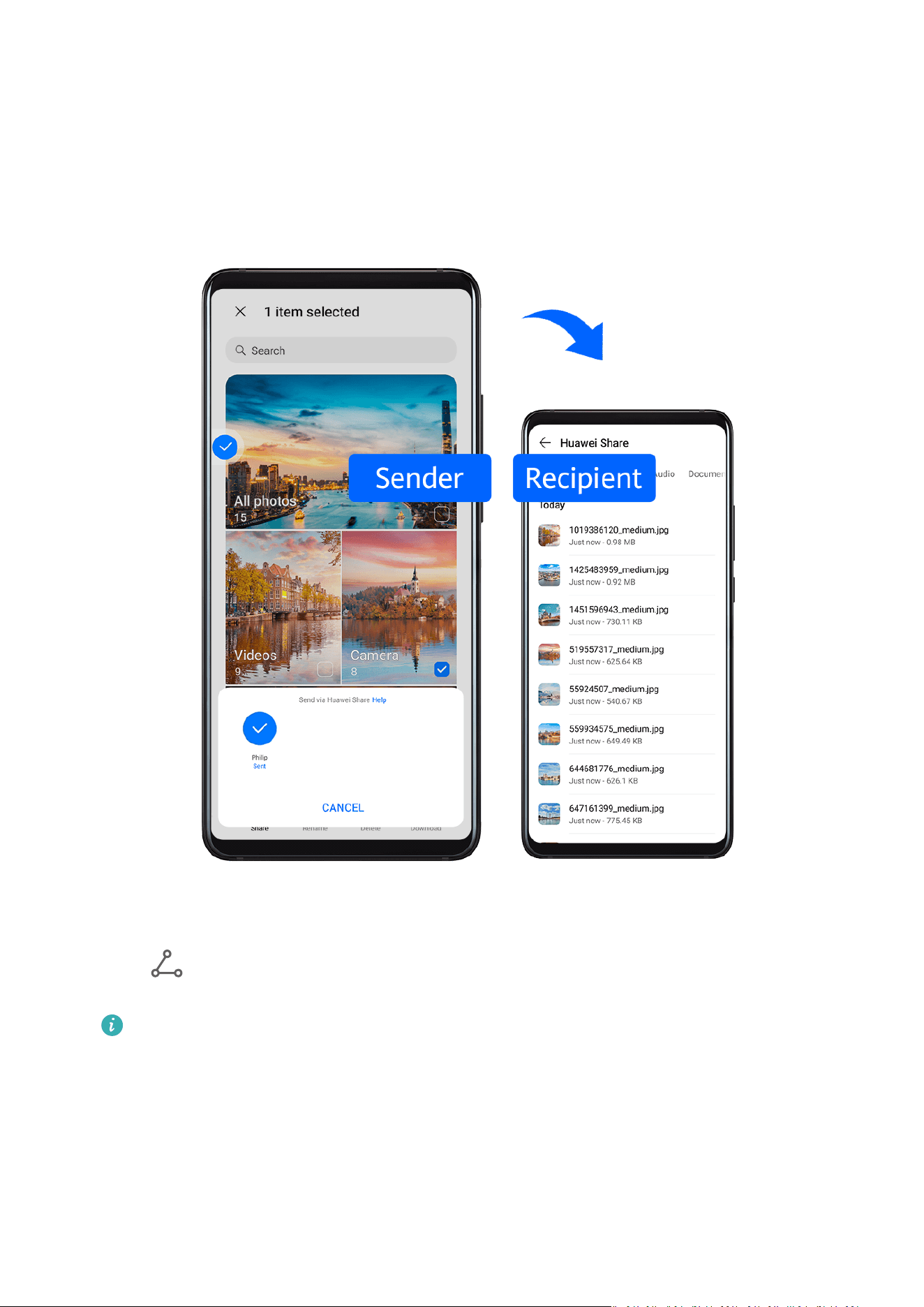
• Go to Settings > More connections > Huawei Share to enable or disable Huawei Share.
Quickly Share Files Between Devices with Huawei Share
You can use Huawei Share to quickly share les between Huawei devices. The recipient can
preview the les before they are sent, then view the full content of the les once they have
been received. For example, the recipient can view received pictures or videos in Gallery.
1 On the receiving device, enable Huawei Share.
2 On the sending device, touch and hold to select a le or album you want to share, then
touch . Touch Huawei Share, then touch the icon of the receiving device to send the
le.
These steps may be dierent if you are sharing les directly from an app.
3 On the receiving device, touch Accept to accept the transfer.
To view the received
les, open Files, touch the Categories tab, then go to Internal storage
> Huawei Share.
You can also view the received images or videos by going to Gallery > Albums > Huawei
Share.
Smart Features
49
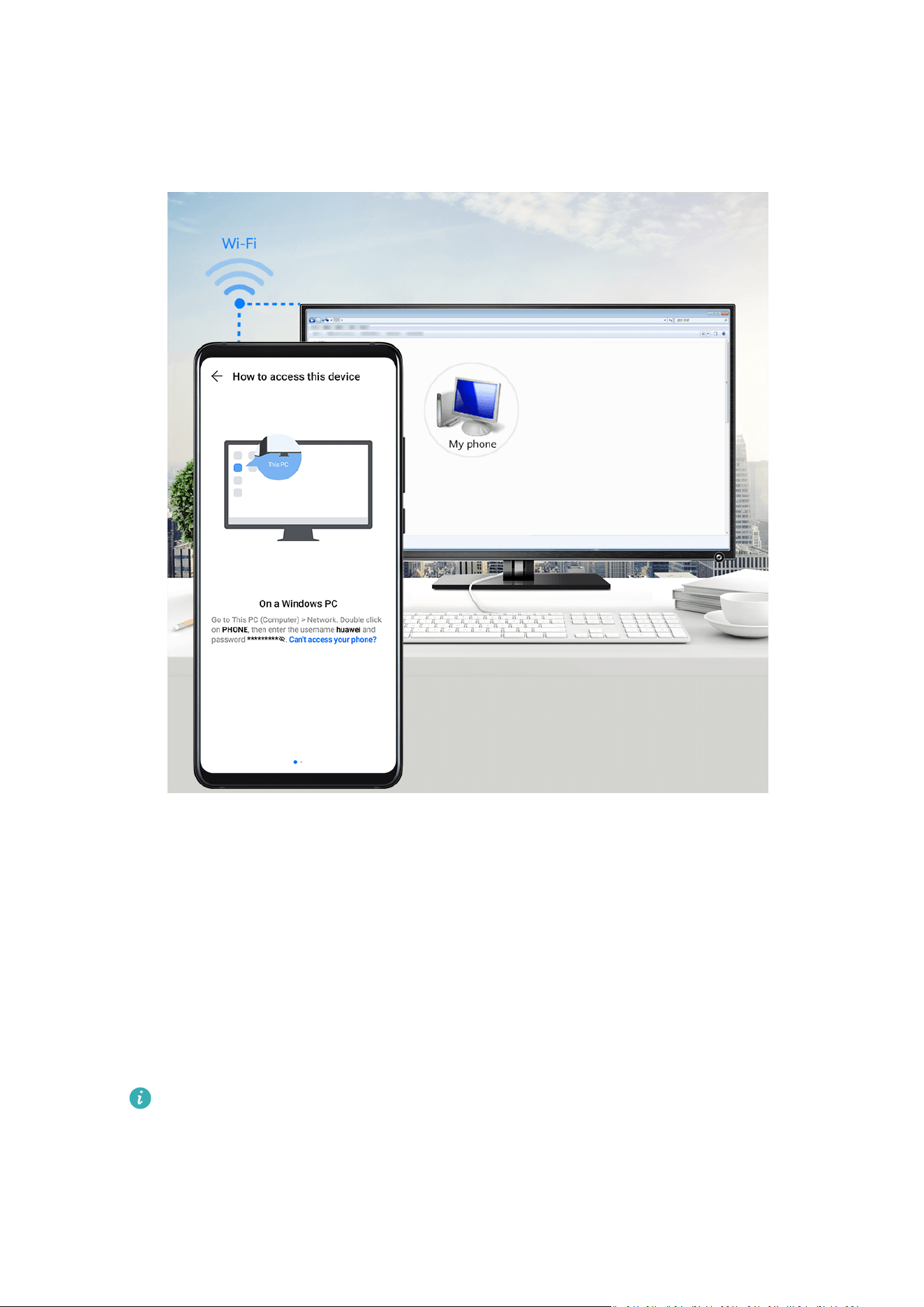
Share Files Between Your Device and Computer with Huawei Share
You can use Huawei Share to easily share les wirelessly between your device and a
computer (Windows or macOS).
1 Make sure your device and computer are connected to the same Wi-Fi network.
2 On your device, enter the Huawei Share settings and enable Huawei Share and
Computer Share.
3 Make a note of the name displayed next to Name shown on computers, as well as the
user name and password under
Verication.
4 Perform the following operations on a Windows-based computer (desktop or laptop) or a
macOS-based computer (laptop):
• Windows: Go to This PC (Computer) > Network on the computer.
• macOS: Go to Finder > Go to > Network on the computer.
Currently, this feature is only available on Macs running macOS 10.8 to 10.14.
5 On your computer, double-click the name of your device and enter the user name and
password previously noted down.
6 Open a shared folder on your device, such as the Internal storage or Album folder to view,
edit, or copy les from your device to your computer or vice versa.
Smart Features
50
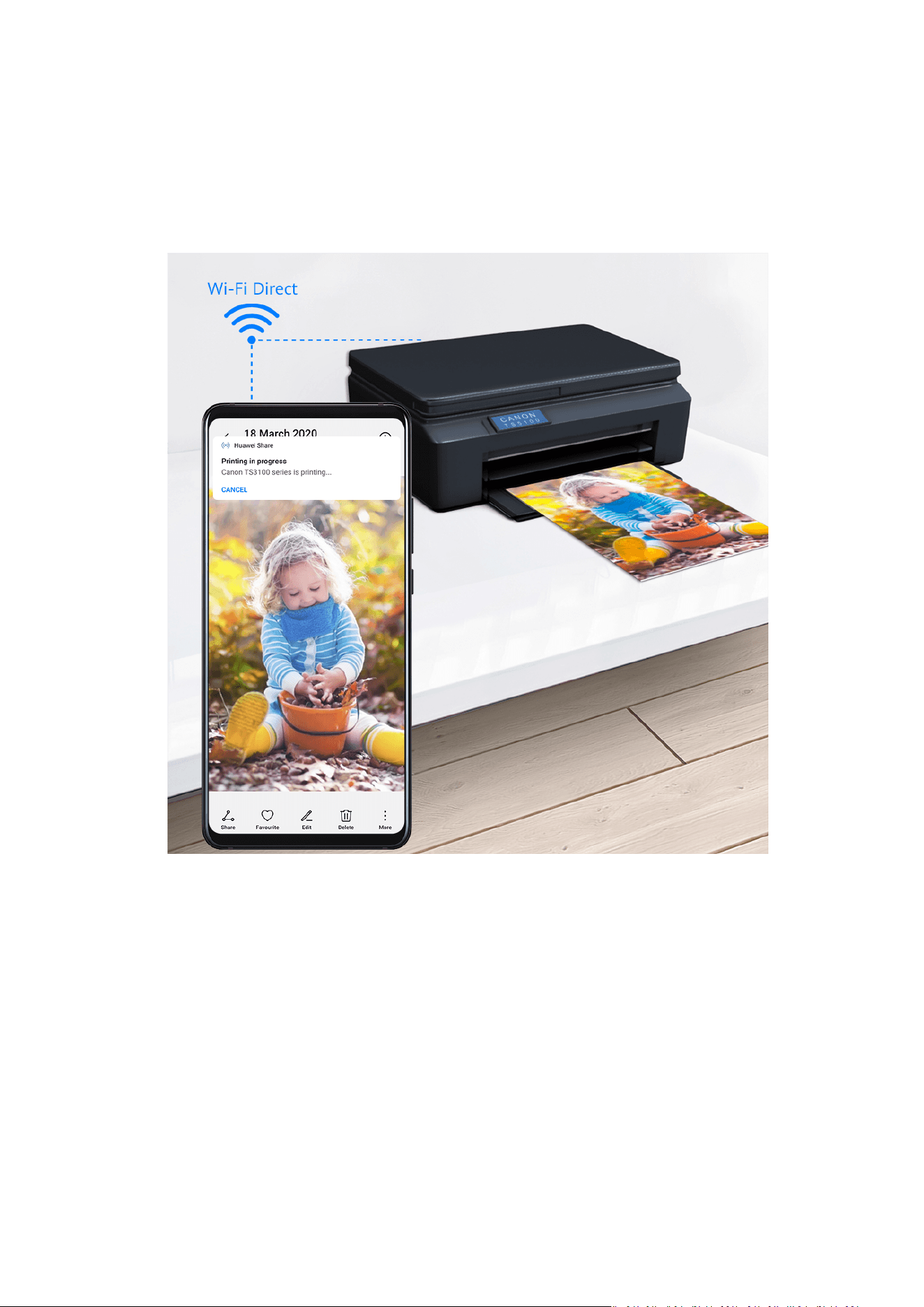
Changes made to les in the shared folders on your computer will be automatically
synced to your device and vice versa.
One-Touch Printing with Huawei Share
When a printer that supports Huawei Share is nearby, you can use Huawei Share to nd the
printer and print out pictures or PDF les stored on your device.
1 Depending on the type of printer, ensure the following:
• Wi-Fi capable printers: The printer must be powered on and connected to the same
network as your device.
• WiFi Direct capable printers: The printer must be powered on and have enabled WiFi
Direct.
• Bluetooth capable printers: The printer must be powered on and discoverable via
Bluetooth.
2 On your device, preview the
le to be printed, then go to Share > Huawei Share.
3 Once the printer has been discovered, touch its name on your device, and adjust the
settings on the preview screen. Then touch PRINT to print.
If you are connecting a Bluetooth printer to your device for the rst time, nd the printer
on your device, touch the printer name, then press and hold the Power button on the
printer for about 1 second to conrm the connection.
Smart Features
51

For a list of supported printers, touch Help on the Huawei Share sharing screen, select
Printers, then touch What printers are supported?.
AR Measure
Use Your Device to Measure Height, Volume, and More
AR Measure enables you to measure height, volume, and more without needing a measuring
tape.
Before taking measurements, ensure that your surroundings are well lit and clear of
obstacles and reective objects.
Measure Height
• For best results, keep a distance of 1.5–2 m (about 5–6.6 ft.) between your device and
the subject.
• To measure the height of two or three people at the same time, get them to stand side
by side, then mark the feet of one subject as the starting point. Lift your device until
your subjects' faces have been identied, at which point their individual heights will be
displayed.
1 Open the Tools folder on the home screen, then touch AR Measure.
2 On the AR Measure screen, touch Height.
3 Frame the subject's feet in the viewnder and slowly move your device to locate the
plane.
4 Point
at the subject's feet and touch to mark the starting point.
5 Slowly lift your device to include the subject's entire body in the viewnder. When the
subject's face is identied, your device will automatically display the subject's height.
Drag the end point to ne-tune the measurement result.
Touch to capture the measuring screen.
Measure Length
For best results, keep a distance of 0.3–1.5 m (about 1–5 ft.) between your device and
the object.
1 On the AR Measure screen, touch Length.
2 Frame the object in the viewnder and slowly move your device to locate the plane.
3 Point
at the object and touch to mark the starting point.
4 Move your device slowly so that travels along the edge of the object. When it reaches
the end of the edge, touch .
Smart Features
52

5 Your device will automatically display the result.
Drag the end point to ne-tune the measurement result.
Measure Area
Currently, only the area of rectangles can be measured.
1 On the AR Measure screen, touch Area.
2 Frame the object in the viewnder and slowly move your device to locate the plane.
3 When your device identies the object, a frame will appear. After the frame overlaps with
the object, touch
.
4 Your device will automatically display the result.
Drag the end point to
ne-tune the measurement result.
Measure Volume
• Currently, only the volume of cubes can be measured.
• Make sure the object is not placed against a wall. Ensure there is a distance of 1–1.5 m
(3.3–5 ft.) between your device and the object.
1 On the AR Measure screen, touch Volume. Frame the object in the viewnder and slowly
move your device to locate the plane.
2 Point
at the tip of the object's bottom edge and touch to mark the starting
point.
3 Move your device slowly so that travels along the long edge of the object. When it
reaches the end of the edge, touch .
4 Move your device to create a frame for the object's bottom. When the frame overlaps with
the bottom plane, touch .
5 Move your device to create a frame for the whole object. After the frame overlaps with
the object, touch .
6 Your device will automatically display the result.
Drag the tips to ne-tune the measurement result.
Smart Remote
Use Your Device as a Remote Control
Your device uses infrared technology, allowing you to pair it with household appliances in the
Smart Remote app and use it to remotely control appliances such as TVs, air conditioners,
STBs, DVD players, cameras, projectors, and network boxes.
Smart Features
53

Add and Use a Remote Control
1 Go to Tools > Smart Remote > , select the device type (such as TV, air conditioner,
STB, DVD player, camera, projector, or network box), and then the brand.
2 Point the infrared sensor on the top of your device at the household appliance, and follow
the onscreen instructions to add it to your remote control.
3
After adding the appliance, simply touch to control it remotely.
Set Up a Remote Control
1 Go to Smart Remote > and touch .
2 Swipe through the remote control panels to select the one you want, and touch Go to
remote control panel.
3 Point the infrared sensor on the top of the device at the infrared sensor of a home
remote, keeping it at a distance of about 5 cm. Touch and hold a key on the device you
want to program for 2 seconds to start learning the operation. Hold your device and the
home remote steady during the process.
Enable or Disable Remote Control Keypad Touch Sounds
Go to Smart Remote > > Settings to enable or disable keypad touch sounds and/or
vibration.
Switch Audio Channels Between Devices
Switch to a
Dierent Output Device During Playback
When playing music or videos through your earphones, you can quickly switch playback to
another device without having to unplug your wired earphones or disconnect your Bluetooth
earphones.
1 Enable Bluetooth on your device and connect it to wired earphones or a Bluetooth audio
device (such as Bluetooth earphones, a Bluetooth speaker, or a vehicle-mounted device).
2 After pairing is successful, you will see the Current audio output device or Current audio
input/output device card if you swipe down the
notication panel on your device. Touch
on the card to display the audio output devices that are currently available.
Select the device you want to switch the audio to.
If your device supports wired earphones with a non-Type-C port, the audio output
channel of your device will be switched from This device to the wired earphones by
default.
Smart Features
54

Camera and Gallery
Launch Camera
Launch Camera
There are multiple ways to open the Camera app.
From the Home Screen
From the home screen, open Camera.
From the Lock Screen
When the screen is locked, turn on the screen, then swipe up on the camera icon in the lower
right corner to open the camera.
Using Ultra Snapshot
When enabled, simply double-press the Volume down button to open the camera or take a
snapshot when the screen is
o or locked.
1 Go to Camera > > Ultra Snapshot and select Open Camera or Take a snapshot.
2 You can now open the camera or take a snapshot without unlocking your screen.
Take Photos
Take Photos
55
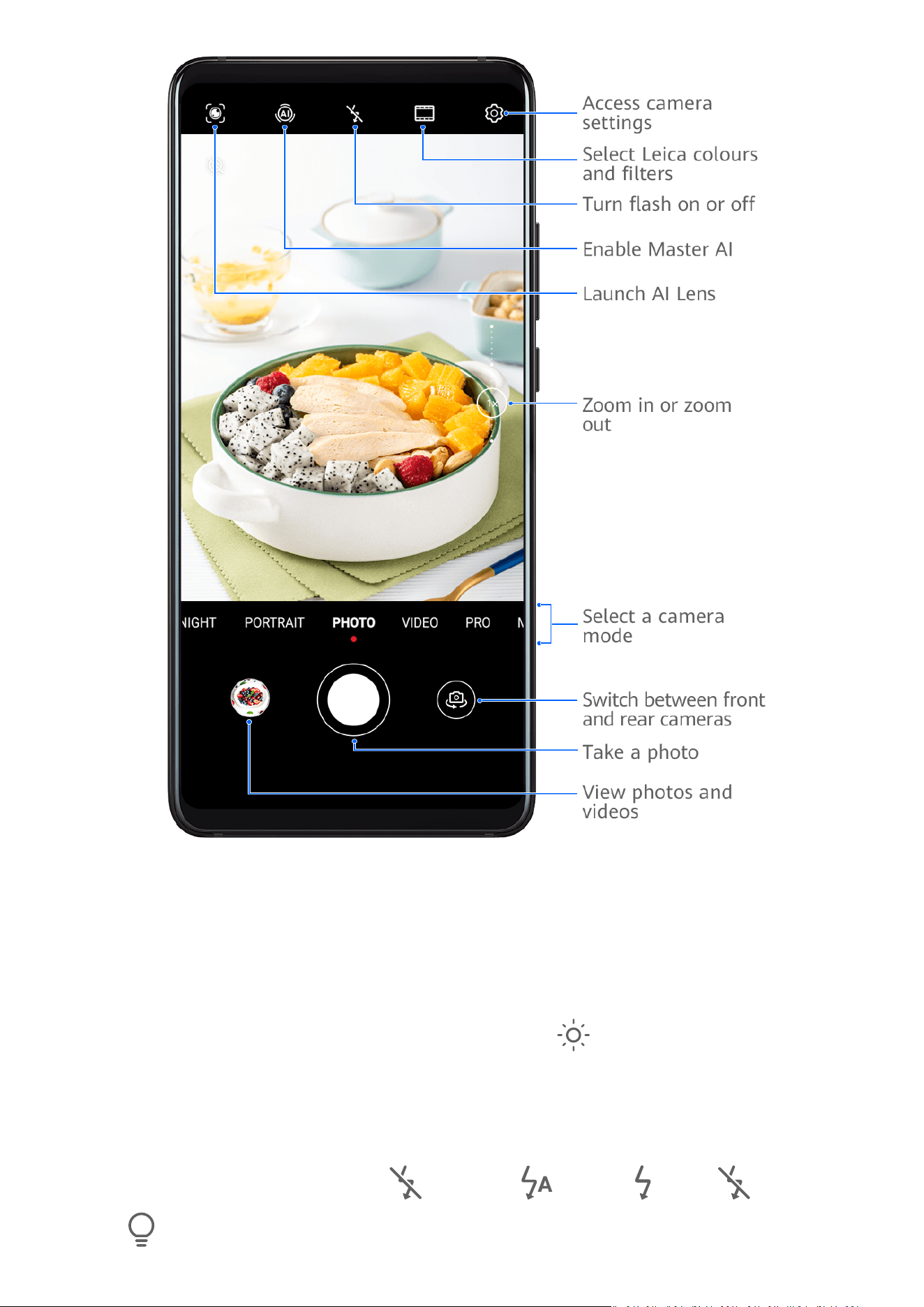
1 Open Camera.
2 You can then:
• Focus: Touch the location you want to focus on.
To adjust focus and metering separately, touch and hold the viewnder and drag the
respective frame or ring to the desired location.
• Adjust brightness: Touch the
viewnder. When the symbol appears next to the
focus frame, drag it up or down.
• Zoom in or out: On the viewnder, pinch in or out, or drag the zoom slider.
• Select a camera mode: Swipe up, down, left, or right across the camera mode options.
• Turn the ash on or o: Touch and select (Auto), (On), (O), or
(Always on).
Camera and Gallery
56

If you select (Auto) and the camera detects that you are in a dimly lit
environment, a ash icon will appear in the viewnder and the ash will be
automatically turned on when you take a photo.
These features may not be available in some camera modes.
3 Touch the shutter button to take a photo.
Use the Floating Shutter to Take Photos
You can enable the oating shutter to display when you are using the camera. Drag it
anywhere you like to take photos quickly.
1 Go to Camera >
, then enable Floating shutter.
2 The oating shutter will then show up in the viewnder. You can drag it anywhere you
like.
3 Touch the
oating shutter to take a photo.
Take Burst Photos
Use Burst mode to take a sequence of photos in quick succession so you can choose the best
one.
1 Open Camera, select Photo mode, and make sure the rear camera is in use.
2 Touch and hold or press and hold one of the Volume buttons to take a burst photo.
When shooting, you'll see a counter, which indicates how many photos you've taken so
far.
3 Lift your nger to stop shooting.
Select the Burst Photos You Want to Keep
1 Open Gallery. Touch a burst photo (which is tagged with ), then touch .
2 Swipe through the burst photos, select the ones you want to keep, then touch and
follow the onscreen instructions.
To delete the whole burst photo, touch and hold to select the photo, then touch .
Take Timed Photos
The camera timer allows you to set a countdown so you can get into position after you have
touched the shutter button.
1 Go to Camera > > Timer and select a countdown.
2 Return to the viewnder and touch the shutter button. Your device will take a photo when
the countdown ends.
Camera and Gallery
57

Shoot in Portrait, Night, and Wide Aperture Modes
Shoot in Portrait, Night, and Wide Aperture Modes
Use Portrait Mode to Shoot Portraits
Portrait mode lets you apply beauty and lighting
eects to your photos to shoot stunning
portraits.
1 Open Camera and select Portrait mode.
2 Frame your subject within the
viewnder.
To take a sele, touch .
3 You can then:
• Enable beauty eect: Touch and drag the slider to adjust beauty settings. A larger
value will produce a more pronounced beauty eect.
To disable the beauty eect, drag the setting to its lowest value, or touch .
• Set lighting eect: Touch and select your preferred.
• Turn on the
ash: When using the front camera, touch the ash icon at the top.
Select (Auto) or (Always on).
This feature may vary by device.
4 Touch to take a photo.
Take Night Shots
Night mode gives your photos sharper details and brighter colours even when shooting in
low light or at night.
1 Open Camera and select Night mode.
2 If you are using the rear camera, touch on the viewnder to adjust the ISO sensitivity
or to adjust the shutter speed.
3 Steady your device and touch the shutter button.
4 Your device will adjust the exposure time based on the ambient brightness. Keep your
device steady until the countdown nishes.
You can also touch the shutter button to stop the countdown and immediately take a
photo.
Camera and Gallery
58

Use the Front Camera to Take Night Portraits
To take a sele at night or when there is not enough light, you can use the front camera in
Night mode.
In a dim environment, you can turn on the ash to get an illuminated photo of your face.
1 Open Camera and select Night mode.
2 Touch
to switch to the front camera. You can then:
• Touch the ash icon at the top and select (Auto) or (Always on) to turn on
the ash in low light.
• Touch
and adjust the beauty level.
3 Steady your device and touch the shutter button.
Take Wide Aperture Photos
Wide aperture mode allows you to shoot photos where the background is blurred while your
subject remains in sharp focus.
1 Open Camera and select Aperture mode.
2 Touch where you want to focus. For best results, your device needs to be within 2 m
(about 7 ft.) of your subject.
3 Touch in the viewnder and drag the slider to adjust aperture settings. A smaller
aperture value will create a more blurred background.
4 Touch the shutter button to take a photo.
Shoot Wide Aperture Videos
Wide aperture mode allows you to shoot videos where the background is blurred in real time
so your subject always remains in sharp focus.
1 Open Camera and select Aperture mode.
2 Touch
to switch to video mode.
3 Touch where you want to focus. Touch in the viewnder and drag the slider to adjust
aperture settings. A smaller aperture value will create a more blurred background.
4 Touch the shutter button to start recording. When recording, touch the viewnder to
adjust the focus.
Edit Background Blur in Wide Aperture Photos
You can adjust the focus and background blur after you've taken a wide aperture photo.
1 Go to Gallery > Albums > Camera.
2 Touch a photo tagged with
, then touch at the top of the photo.
Camera and Gallery
59

3 Touch the photo to adjust the focus. Drag the slider at the bottom to adjust the aperture.
4 Touch to save the settings.
5 Touch to save the edited photo as a new photo. The new photo does not allow
background blur editing.
Master AI
Take Professional-Looking Photos with Master AI
Master AI is a pre-installed camera feature that helps you take better photos by intelligently
identifying objects and scenes and optimising the camera settings accordingly.
Master AI is able to identify a variety of scenes, such as stages, beaches, blue skies, and
greenery, as well as text. It only works with the rear camera.
1 Open Camera and select Photo mode.
2 Ensure that
is turned on.
3 Frame the subject in the viewnder. Once the camera identies what you are shooting, it
will automatically recommend a mode (such as portrait, greenery, or text).
4 To disable the recommended mode, touch next to the mode text or turn o .
Use Moon Mode
1 Open Camera and select Photo mode.
2 Touch to ensure that Master AI is enabled.
3 Aim the camera at the moon and spread your ngers on the viewnder to adjust the
zoom to 10x or more.
When your device detects the moon, it will automatically enter Moon mode.
4 Touch to take a photo.
Moon mode can only identify the moon if it is at least half full. Moon mode may not be
triggered if the moon is shrouded by clouds.
Zoom to Take Photos
Take Wide-Angle or Long-Focus Photos
The zoom capabilities of your device's camera allow you to capture more of a scene, or
distant vistas.
Camera and Gallery
60

Take Wide-Angle Photos
1 Open Camera and select Photo mode.
2 Ensure that
is enabled.
3 Aim the camera at the object you want to take a photo of. The camera will automatically
recommend Super wide angle mode if it detects a building. Touch Wide to have a wider
angle of view.
You can also drag the zoom slider in the viewnder, or pinch in or out to adjust the zoom
level. A smaller value will result in a wider angle of view.
4 Touch to take a photo.
Automatically Switch to Wide Angle When Taking
Seles with the Front Camera
When the front camera of your device detects multiple people in the frame, it will
automatically switch to the wide angle to t more people into your photo.
1 Open Camera, select Photo or Portrait mode, then touch to switch to the front
camera.
2 After you switch your device from portrait to landscape orientation, the camera will
automatically switch to Wide-angle mode. When there are three or more people in the
viewnder, the camera will automatically switch to the widest angle in Wide-angle mode.
You can also drag the zoom slider in the viewnder to manually switch between zoom
levels.
3 Touch to take a photo.
Take Photos from Far Away
1 Open Camera and select Photo mode.
2 Aim the camera at a distant object you want to take a photo of. Drag the zoom slider or
pinch in or out to adjust the zoom level.
When the zoom level is set to 15x or higher, a Picture in Picture preview is displayed in the
viewnder to help you focus.
This feature may vary by device.
3 In the viewnder, touch where you want to focus. When the camera is in focus, touch .
Macro
Use Close-up Mode
Close-up mode makes it easier to shoot close-ups of small objects, such as dewdrops and
leaves, as well as other everyday objects, to bring out details easily missed by the naked eye.
This feature may vary by device.
Camera and Gallery
61

1 Open Camera and conrm that is enabled.
2 Place the object you want to shoot within the viewnder and move close to it. When the
distance is appropriate, the camera will automatically identify and focus, and the screen
will display Close-up.
3 Touch to take a photo.
Take Panoramic Photos
Take Panoramic Photos
Add some width to your landscape or group photos with the Panorama feature. The camera
takes multiple photos of objects within your eld of view and stitches them together into a
single panoramic photo.
Use the Rear Camera to Take Panoramic Photos
Panorama mode combines multiple shots into a seamless panoramic photo. Simply move the
camera as you shoot and the camera will take care of the rest.
1 Go to Camera > More and select Panorama mode.
2 Touch
and set the pan direction.
3 Point the camera at your starting point, then touch
to start shooting. Move the
camera in the direction of the arrow displayed on the screen. Keep the arrow on the
centre line when you are taking the photo.
4 Touch
when you are nished.
Use the Front Camera to Take Panoramic Seles
1 In Panorama mode, touch to switch to the front camera.
Touch
and drag the slider to adjust the beauty eect. A larger value will produce a
more pronounced beauty eect.
2 Point the camera at the centre of your shot, then touch to take the rst photo.
3 Turn the camera to the left and right slowly as instructed. When the two frames on the
viewnder overlap, the camera will automatically take the second and last photos.
After the three photos are taken, the camera will automatically combine them into a
panoramic photo.
Take Black and White Photos
Camera and Gallery
62

Take Black and White Photos
Black and white photography removes distracting colours to help you focus more on form,
shape, and texture.
1 Go to Camera > More and select Monochrome mode.
2 Select one of the following modes based on your subject and scene:
• Normal: This mode suits all kinds of subjects.
• Aperture: This mode blurs the background and lends greater emphasis to the subject.
• Portrait: This mode blurs the background and lets you adjust the beauty eect.
• Pro: This mode allows you to adjust the camera settings, including the metering mode,
sensitivity, and shutter speed.
3 Touch to take a photo.
AR Lens
Use AR Lens to Shoot Interesting Photos
Use 3D Qmoji to Create Your Own Qmojis
1 Go to Camera > More, select AR lens mode, and touch 3D Qmoji.
2 Select an animated Qmoji. The Qmoji will then mimic and act out your facial expressions
accordingly.
Touch
to enable or disable the background.
3 Touch
to enable GIF mode, then look straight at the front camera.
4 Touch and hold
to start recording.
5 After the recording is complete, add text or directly save the Qmoji. The Qmoji will be
saved to Gallery in GIF format.
Use 3D Qmoji to Record Videos
1 In AR lens mode, touch 3D Qmoji, and select an animated Qmoji.
Touch to enable or disable the background.
2 Touch to disable GIF mode, then look straight at the front camera.
3 Touch to start recording.
4 Touch to nish recording.
Camera and Gallery
63

Light Painting
Use Light Painting to Shoot Light Trails
Light painting helps you capture light trails by allowing the shutter to stay open for a longer
time. No manual aperture and shutter adjustment is involved.
Just choose from the available options depending on the subjects and light conditions. To
reduce camera shake, a tripod is recommended to steady your device.
Capture Car Light Trails in
Trac Trails Mode
Trac trails mode lets you create artistic photos of car light trails at night.
1 Go to Camera > More > Light painting and select
Trac trails.
2 Find a spot where you'll see the light trails created by cars from a distance. Ensure that
car headlights do not point directly at the camera, as this can overexpose the image.
3 Touch
to start shooting. Look at the shot in the viewnder.
4 When the exposure is just right, touch to nish shooting.
Capture Light Drawings in Light
Grati Mode
Light grati mode lets you create patterns or write words by moving a light source in front
of the camera.
1 In Light painting mode, select Light
grati.
2 In a dark environment without distracting light sources, move a suitably bright light
source of an appropriate colour, such as a small torch or glow stick, in front of the
camera. Avoid exaggerated body movements as this may aect the shooting results.
3 Touch
to start shooting. Look at the shot in the viewnder.
4 When the exposure is just right, touch to nish shooting.
Capture Rivers and Waterfalls in Silky Water Mode
Silky water mode lets you capture silky smooth photographs of waterfalls and rivers.
1 In Light painting mode, select Silky water.
2 This feature works best when taking photos of a stream or waterfall where there is a lot
of owing water.
3 Touch to start shooting. Look at the shot in the viewnder.
4 When the exposure is just right, touch to nish shooting.
Camera and Gallery
64

Capture the Beauty of the Stars in Star Trails Mode
Star trails mode lets you use your camera to capture the movement of the stars in the night
sky.
1 In Light painting mode, select Star trails.
2 For best results, choose a clear night in a location without light pollution and with an
unobstructed view of the sky.
3 Touch to start shooting. Look at the shot in the viewnder.
4 When the exposure is just right, touch to nish shooting.
Take HDR Photos
Use HDR to Take Photos
When shooting photos with backlighting or a high light contrast, High Dynamic Range (HDR)
mode can help you improve light and shadow eects in your photos, giving your photos
sharper details.
1 Go to Camera > More and select HDR mode.
2 Steady your device.
3 Touch
to take a photo.
Moving Pictures
Take Moving Pictures to Bring Photos to Life
When you want to capture a photo-worthy moment, but do not feel sure about when to
touch the shutter button, you can use the Moving picture feature.
A moving picture captures the sounds and images at 4K resolution before and after you
touch the shutter button, and allows you to select the best shot and save it as a separate
photo. You can also save a moving picture as a GIF
le or video.
Take Moving Pictures
1 Open Camera and select Photo mode.
2 Touch
to enter Moving picture mode.
3 Touch to take a photo.
Play Moving Pictures
Moving pictures are saved in JPG format in Gallery.
Camera and Gallery
65

Go to Gallery > Albums > Camera, touch a moving picture, then touch at the top of the
picture to view it.
The moving picture will automatically stop after a complete playback. You can also touch the
screen to stop the playback.
Share Moving Pictures
You can share moving pictures with Huawei or Honor devices using various methods, such as
Wi-Fi Direct, Bluetooth, or Huawei Share.
Go to Gallery > Albums > Camera, touch and hold to select the moving pictures you want to
share, then touch to share them.
If you share moving pictures to third-party apps or incompatible devices, moving pictures will
be displayed as static images.
Save a Moving Picture as a GIF File or Video
To save a moving picture as a GIF le or video, touch the moving picture in the album, touch
, then select Save as video or Save as GIF.
Add Stickers to Photos
Add Stickers to Photos
Add a sticker, such as time, weather, mood, or food, to spice up your photos.
1 Go to Camera > More and select Stickers mode.
If the Stickers option is not present, touch
, then download Stickers.
2 Touch and select a sticker. The selected sticker will be displayed in the viewnder.
3 Drag the sticker to change its position. You can also edit the text of some types of stickers.
4 Touch
to take a photo.
Documents Mode
Use Documents Mode to Straighten Photos
Images shot at an angle always suer from the problem of perspective. If you aren't able to
take a perfectly straight photo of a document, use Documents mode.
The camera will automatically adjust skewed images shot in Documents mode and remove
shadows from them.
Camera and Gallery
66
Shoot Photos in Documents Mode
1 Go to Camera > More and select Documents mode.
If the Documents option is not present in More, touch , then download Documents.
2 Frame the document you want to shoot within the viewnder, then touch .
3 The camera will automatically identify the text area within the viewnder, unskew the
image, and remove any shadows.
Adjust the Text Area
If you nd the skew correction of a photo unsatisfactory, you can also manually adjust the
text area.
This is only available for photos taken in Documents mode.
1 Go to Gallery > Albums > Camera, then touch the photo you wish to adjust.
2 Touch
above the photo.
3 Drag the four corners to customise the correction area. Then touch . Your device will
reshape the photo as a at, rectangular image.
Take High-Resolution Photos
Take High-Resolution Photos
Take high-resolution photos if you would like to print them later or display them on a large
screen.
1 Go to Camera > More and select High-res mode.
2 Touch
and select or .
• When you are shooting static objects or scenery in well-lit conditions, select to
capture higher quality photos. It may take a longer time to take the photo. Keep your
device steady when the photo is being taken.
• To take a high-resolution photo quickly, select
.
3 Frame your subject within the viewnder, then touch where you want to focus.
High-res does not allow you to zoom in or out, or adjust the aspect ratio.
4 Touch to take a photo.
• If your device does not have this option, it indicates that this feature is not supported.
• This feature may vary by device.
Camera and Gallery
67
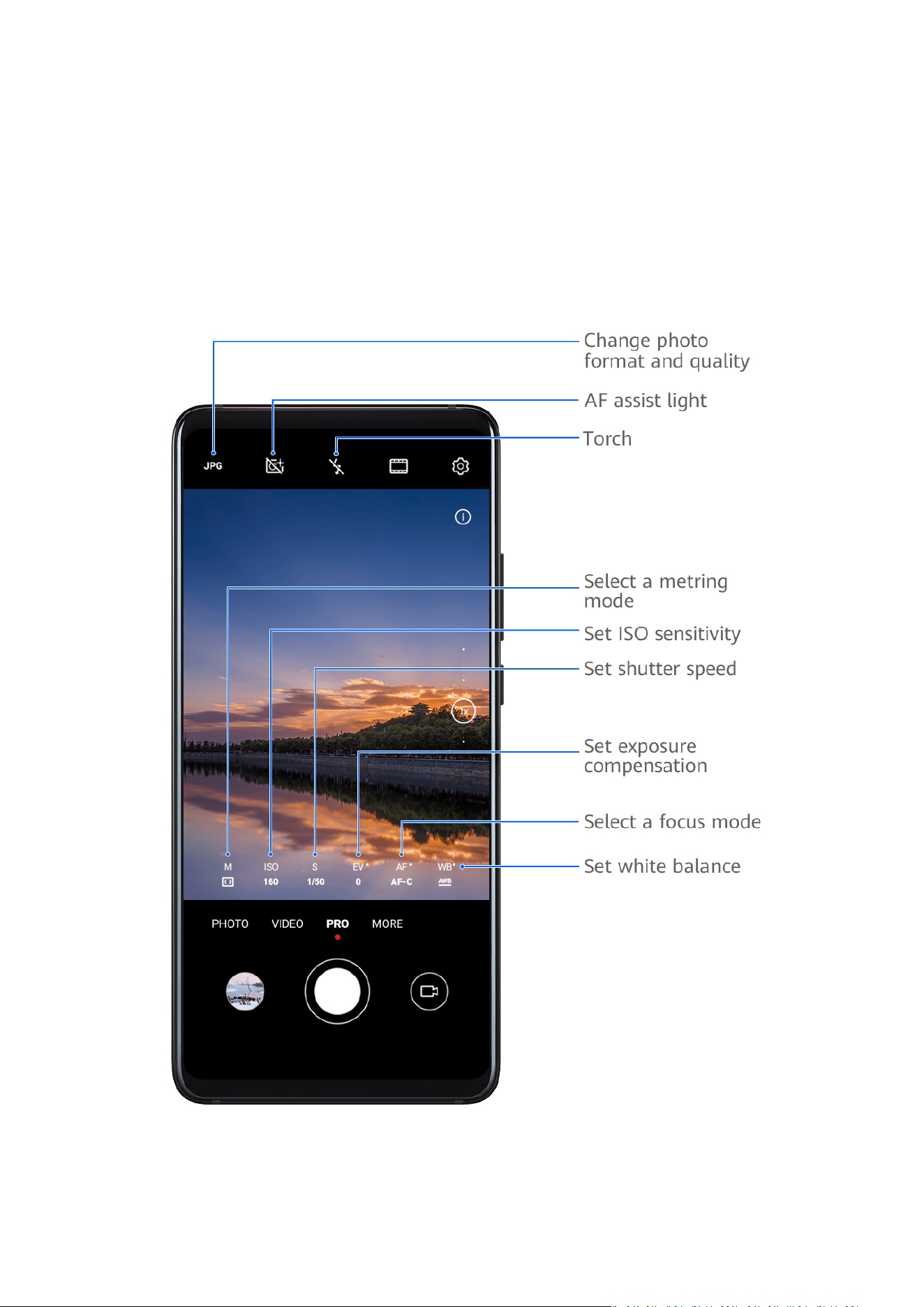
Pro Mode
Use Pro Mode to Shoot Like a Pro
Pro mode lets you
ne-tune photos and videos and gives you full control over ISO sensitivity,
focus mode, and more when taking photos or recording videos.
Use Pro Mode to Take Photos
1 Open Camera and select Pro mode.
2 You can then:
• Adjust the metring mode: Touch M and select a metring mode.
Camera and Gallery
68
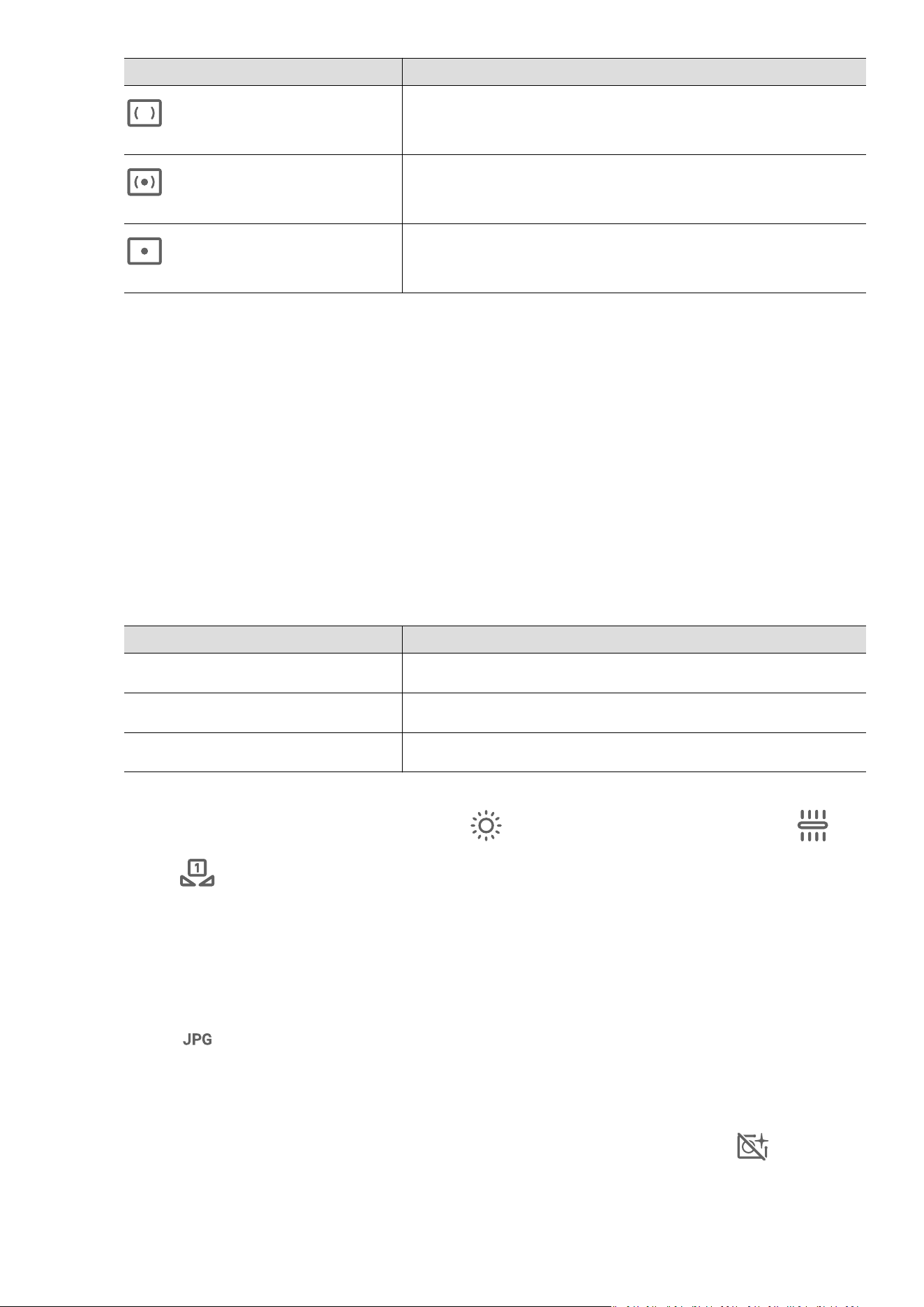
Metring Mode Description
Matrix
Measures the light in the whole frame. Applicable
when shooting landscapes.
Centre
Places more emphasis on light levels at the centre of
the screen. Applicable when shooting portraits.
Spot
Concentrates on the light in a small area of the
screen, such as the subject's eyes.
• Adjust the ISO sensitivity: Touch ISO and drag the slider.
In low-light conditions, increase the ISO sensitivity. In well-lit environments, lower the
ISO sensitivity to avoid image noise.
• Adjust the shutter speed: Touch S and drag the slider.
The shutter speed aects the amount of light allowed to enter the camera lens. When
you are shooting stationary scenes or portraits, lower the shutter speed. When you are
shooting moving scenes or objects, increase the shutter speed.
• Adjust EV exposure compensation: Touch EV and drag the slider.
Increase the EV value in low-light conditions and lower the EV value in well-lit
environments.
• Adjust the focus: Touch AF and select a focus mode.
Focus Mode Description
AF-S (single) Applicable to stationary subjects.
AF-C (continuous) Applicable to moving subjects.
MF (manual) Touch the subject on which you want to focus.
• Adjust the colour cast: Touch WB and select a mode.
When shooting in bright sunlight, select . In low-light environments, select .
Touch to adjust the colour temperature.
• Select the storage format: You can save the photo in JPG or RAW format. RAW format
records more detail and gives you a wider range of post-processing options. JPG
format, which can be high-resolution or default, takes up less storage space compared
to RAW format.
Touch
to select a storage format.
If you select RAW format, photos that you take will be saved in RAW and standard
formats. The RAW format photos will be saved to the RAW photo album in Gallery.
• Enable AF assist light: For better focus in low-light environments, touch .
3 Touch the shutter button to take a photo.
Camera and Gallery
69
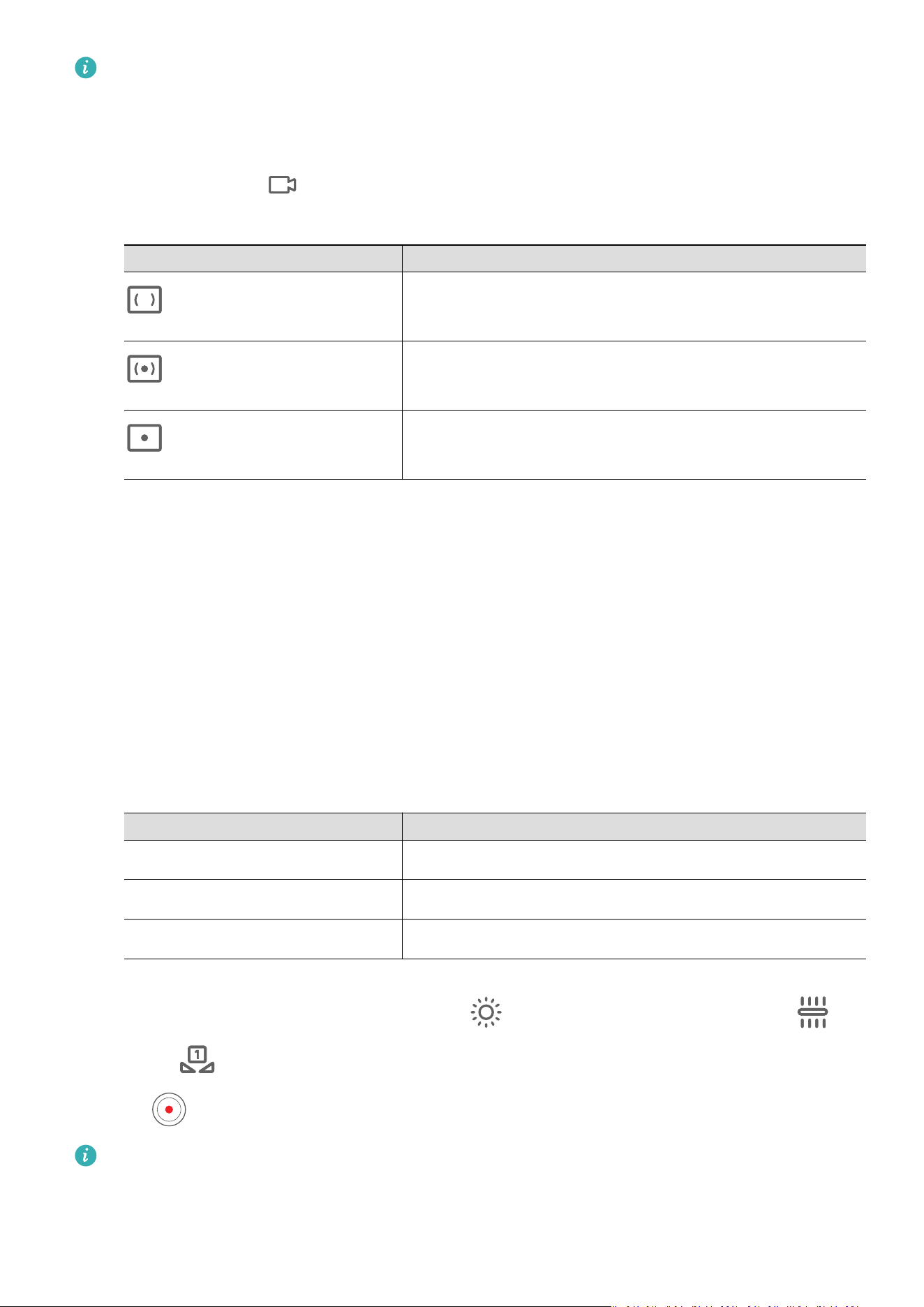
In Pro mode, changing a specic setting will sometimes cause other settings to change as
well. Adjust them depending on your actual requirements.
Use Pro Mode to Record Videos
1 In Pro mode, touch to switch to video mode. You can then:
• Adjust the metring mode: Touch M and select a metring mode.
Metring Mode Description
Matrix
Measures the light in the whole frame. Applicable
when shooting landscapes.
Centre
Places more emphasis on light levels at the centre of
the screen. Applicable when shooting portraits.
Spot
Concentrates on the light in a small area of the
screen, such as the subject's eyes.
• Adjust the ISO sensitivity: Touch ISO and drag the slider.
In low-light conditions, increase the ISO sensitivity. In well-lit environments, lower the
ISO sensitivity to avoid image noise.
• Adjust the shutter speed: Touch S and drag the slider.
The shutter speed aects the amount of light allowed to enter the camera lens. When
you are shooting stationary scenes or portraits, lower the shutter speed. When you are
shooting moving scenes or objects, increase the shutter speed.
• Adjust EV exposure compensation: Touch EV and drag the slider.
Increase the EV value in low-light conditions and lower the EV value in well-lit
environments.
• Adjust the focus: Touch AF and select a focus mode.
Focus Mode Description
AF-S (single) Applicable to stationary subjects.
AF-C (continuous) Applicable to moving subjects.
MF (manual) Touch the subject on which you want to focus.
• Adjust the colour cast: Touch WB and select a mode.
When shooting in bright sunlight, select . In low-light environments, select .
Touch
to adjust the colour temperature.
2 Touch to start recording.
In Pro mode, changing a specic setting will sometimes cause other settings to change as
well. Adjust them depending on your actual requirements.
Camera and Gallery
70

Record Videos
Record Videos
1 Open Camera and select Video mode.
2 Adjust the following settings:
• Zoom in or out: Pinch in or out on the
viewnder, or drag the zoom slider.
• Focus: Touch the location you want to focus on. Touch and hold the
viewnder to lock
the exposure and focus.
• Turn the ash on or o: Touch , then touch to keep the ash on, or to
turn it o.
When using the front camera to record videos, you can set the ash to (Always
on) when there is insucient light. The camera will then increase the screen brightness
to illuminate the subject's face.
• Adjust the beauty
eect: Touch and drag the slider to adjust beauty settings.
• Adjust the video resolution and frame rate: Go to
> Video resolution and select
the desired resolution. A higher resolution will result in a higher quality video with a
larger le size.
Touch Frame rate to select a frame rate.
• Select a video format that saves on storage space: Touch
and enable Ecient
video format.
When this feature is enabled, your device will use a video format that takes up less
storage space. However, this may result in other devices being unable to play the video.
Please exercise caution when selecting this option.
Not all devices support these features.
3 Touch to start recording.
While recording, touch and hold
or to smoothly zoom in or out.
Touch to take a photo while recording.
4 Touch to pause the recording and to end the recording.
Use AI Movie Eects to Record Videos
Use AI movie eects to add an artistic element to your videos without the need for post-
processing.
1 Open Camera and select Video mode.
Camera and Gallery
71

2 Switch to the rear camera, touch , and select a special eect.
3 Go to > Video resolution and select 21:9 to give your video a cinematic character.
4 Touch
to start recording.
While recording, touch to take a photo with the selected special eect.
5 Touch to end the recording.
Shoot 4K UHD Videos
Your device supports 4K Ultra HD (UHD) video recording.
1 Open Camera and select Video mode.
2 Go to
> Video resolution and select [16:9] 4K.
Beauty mode, lters, and special eects are not supported at 4K, and will be
automatically disabled when you select the 4K resolution.
3 Return to the Video screen and touch
to record a video.
A higher resolution will result in a higher quality video, but will also take up more
storage space.
Enable Sound Volume to Adjust with the Zoom Level
When you are shooting a video, your device can focus on the sound of the subject you are
shooting, so that the sound turns up as you zoom in.
For example, if you are recording a child singing onstage, the child's voice will become clearer
as you zoom in on the child.
1 Open Camera and select Video mode.
2 When using the rear camera, aim the camera at the subject you want to record.
3 Touch
to start recording. Zoom in on the subject by pinching out on the viewnder or
dragging the zoom slider up.
As the camera zooms in, the recorded sound will become clearer.
4 Touch
to end the recording.
Tracking Shot
Take Tracking Shots
Tracking shots allow the camera to follow the subjects being recorded so that they always
remain in the centre of the
viewnder.
1 Open Camera and select Video mode.
Camera and Gallery
72

2 Touch to conrm that Tracking shot is enabled.
3 Frame the subject in the viewnder. Your device will automatically identify the trackable
subjects and display the icon around them. Touch one of the icons to start
tracking the subject.
Tracking shots support people, cats, and dogs. A maximum of three subjects can be
tracked in the same viewnder.
4 Touch to start recording. During the recording, the camera automatically zooms in or
out along with the tracked subject so that the subject remains in the centre of the
viewnder.
You can also touch other trackable subjects in the viewnder to start tracking them.
5 Touch to pause and to end the recording.
Slow-Mo Recording
Shoot Slow-Mo Videos
Use Slow-mo mode to capture
eeting moments in detail. Adjust the slow motion speed
based on how slow you want your footage to appear.
• 128x super slow-mo: The camera slows down time by 128x. This mode is suitable for
shooting super high speed motions, such as insects apping wings and lightning strikes.
• 32x super slow-mo: When the camera detects a moving object in the viewnder, it will
record a super slow motion video. This mode is suitable for shooting high speed motions,
such as bubbles popping and water splashing.
• 4x or 8x slow-mo: You can customise the overall shooting length and the length of the
slow-mo portion. This mode is suitable for shooting breakdowns of fast movements, such
as diving into water and a football being kicked.
Shoot Slow-Mo Videos at 128x
1 Go to Camera > More and select Slow-mo mode.
2 Touch
, select 128X, and make sure motion detection is enabled ( should be
displayed at the top of the screen).
3 Frame your subject in the
viewnder, then touch to start recording. When the camera
detects a moving object in the viewnder, it will record a super slow motion video at 128x.
To record a video manually, touch to disable motion detection, then touch to start
recording.
Shoot Slow-Mo Videos at 32x
1 Go to Camera > More and select Slow-mo mode.
Camera and Gallery
73

2 Ensure that the speed is 32X and motion detection is enabled ( should be displayed at
the top of the screen).
3 Frame your subject in the viewnder, then touch to start recording. When the camera
detects a moving object in the viewnder, it will record an epic, super slow motion video.
To record a video manually, touch
to disable motion detection, then touch to start
recording.
Shoot Slow-Mo Videos
1 Go to Camera > More and select Slow-mo mode.
2 Touch
and select 4x or 8x.
The 8x option is not available on certain devices.
3 Touch to start recording.
4 Touch to end the recording.
Shoot Slow-Mo Videos with the Front Camera
You can use the front camera to take slow-motion sele videos such as of your hair being
tossed by the wind.
1 Go to Camera > More, select Slow-mo mode, then touch
to switch to the front
camera.
2 Touch and select a speed.
3 Touch
to start recording.
4 Touch to end the recording.
Adjust the Slow-Mo Part in Slow-Mo Videos
The length of the slow-mo part in slow motion videos can be adjusted.
This feature is only available for slow motion videos recorded at 4x or 8x.
1 Go to Gallery > Albums > Camera and select a slow motion video.
2 Touch to play the video. During playback, touch the video to display the editing
screen.
3 Drag the sliders to adjust the part you want to be played back in slow motion.
Other parts of the video will be played back at a normal speed.
4 Touch to adjust the volume of the background music and the brightness.
5 When you are nished, go to > Save slow-mo le to save your edits.
Camera and Gallery
74

For the best results when sharing, share the 4x or 8x slow motion videos in which your
edits have been saved.
Time-Lapse Photography
Use Time-Lapse to Create a Short Video
You can use Time-lapse to capture images slowly over several minutes or even hours, then
condense them into a short video. This allows you to capture the beauty of change –
blooming
owers, drifting clouds, and more.
1 Go to Camera > More and select Time-lapse mode.
2 Place your device in position. To reduce camera shake, use a tripod to steady your device.
3 Touch
to start recording, then touch to end the recording.
The recorded video is automatically saved to Gallery.
Take Time-Lapse Photos with Custom Settings
By default, Time-lapse mode uses preset settings. To customise the settings, touch Auto. You
can then:
• Touch
to adjust the recording speed. For example, record trac trails at 15x or
blooming owers at 1800x.
A video recorded at a higher speed will play faster.
• Touch to set the recording duration.
• Touch to adjust the metring mode, shutter speed, ISO, and more.
• Touch
to start recording. If no recording duration is set, touch to end the
recording.
Story Creator
Tell Your Story in Story Creator Mode
In Story creator mode, you can choose a template and follow the instructions to create an
engaging story with the camera, without manual focus and zooming.
1 Go to Camera > More and select Story creator mode.
2 Touch a template to preview the
eect. Touch to start.
3 Your device will instruct you to take several shots. Before shooting, the viewnder will
show the eect of each shot. Touch to close the preview.
Camera and Gallery
75
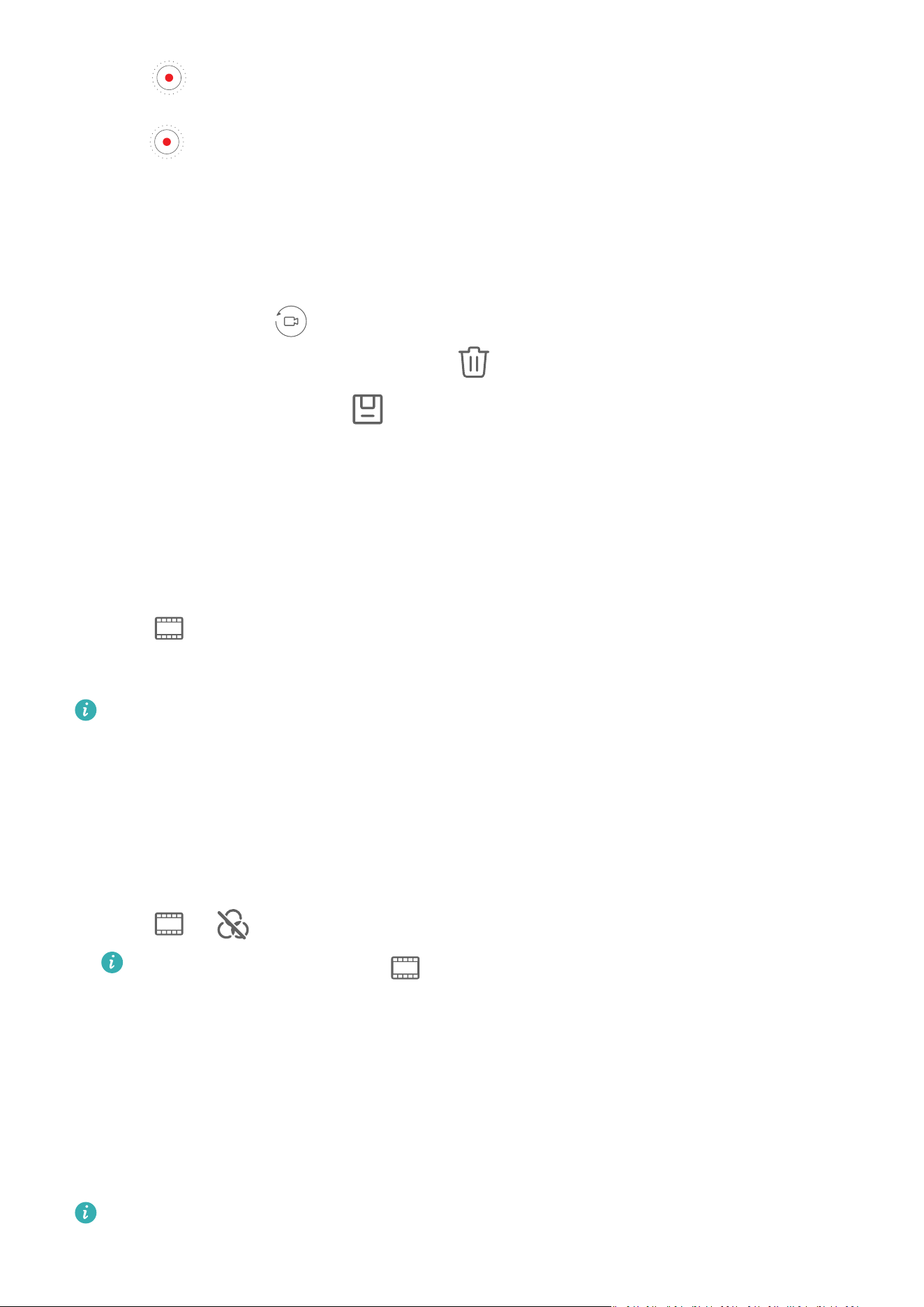
Touch to start recording. Your device will take care of the focusing and zooming in
the viewnder. When the preset time has elapsed, your device will stop recording. You can
touch and record the next shot until all shots are recorded.
4 To shoot a dierent scene, exit the camera. Your device will automatically save your shots.
When you enter Story creator mode again, you can continue with the saved shots (only
the shots recorded from the last time are saved).
5 When you are nished, your device will automatically splice the shots and create a video
clip with music. If you are unsatised with any of the shots, touch the preview frame of
the shot, then touch and follow the onscreen instructions to retake the shot.
If you are unsatised with all shots, touch to remove them all and shoot again.
6 When you are nished, touch to export the video to the Videos album.
Leica Colors
Use Leica Colours
1 Open Camera and make sure the rear camera is in use.
2 Touch , then select Leica standard, Leica vivid, or Leica smooth.
3 Touch the shutter button to take a photo or start recording a video.
Not all camera modes support Leica colours.
Filters
Apply a Filter to Photos or Videos
1 Open Camera and select Photo or Video mode.
2 Touch or to select a lter and preview the eect.
Some devices do not have the icon.
3 Touch the shutter button to take a photo or start recording a video.
Adjust Camera Settings
Adjust Camera Settings
You can adjust the camera settings to take photos and videos more quickly.
The following features may not be available in some camera modes.
Camera and Gallery
76

Adjust the Aspect Ratio
Go to Camera > > Aspect ratio and select an aspect ratio.
This feature is not available in some modes.
Enable Location Tag
Enable Location tag to tag your location in photos and videos.
Swipe up on a photo or video in Gallery to view its shooting location.
Add Device Watermarks
Enable Add watermark. Photos and videos shot with the rear camera will have a device
watermark added.
Adding a device watermark to videos is not supported on certain devices.
Use the Assistive Grid to Compose Your Photos
Use the assistive grid to help you line up the perfect shot.
1 Enable Assistive grid. Grid lines will then appear in the
viewnder.
2 Place the subject of your photo at one of the intersecting points, then touch the shutter
button.
Enable Mirror Reection
When using the front camera, touch to enable or disable Mirror reection.
Mute the Shutter Sound
Enable Mute to mute the camera shutter sound.
This feature is only available in some countries and regions.
Capture Smiles
Enable Capture smiles. The camera will take a photo automatically when it detects a smile
in the viewnder.
Use the Horizontal Level for Better Compositions
Enable Horizontal level to display a horizontal guiding line on the viewnder.
When the dotted line overlaps with the solid line, it indicates that the camera is parallel with
the horizontal level.
Manage Gallery
Camera and Gallery
77
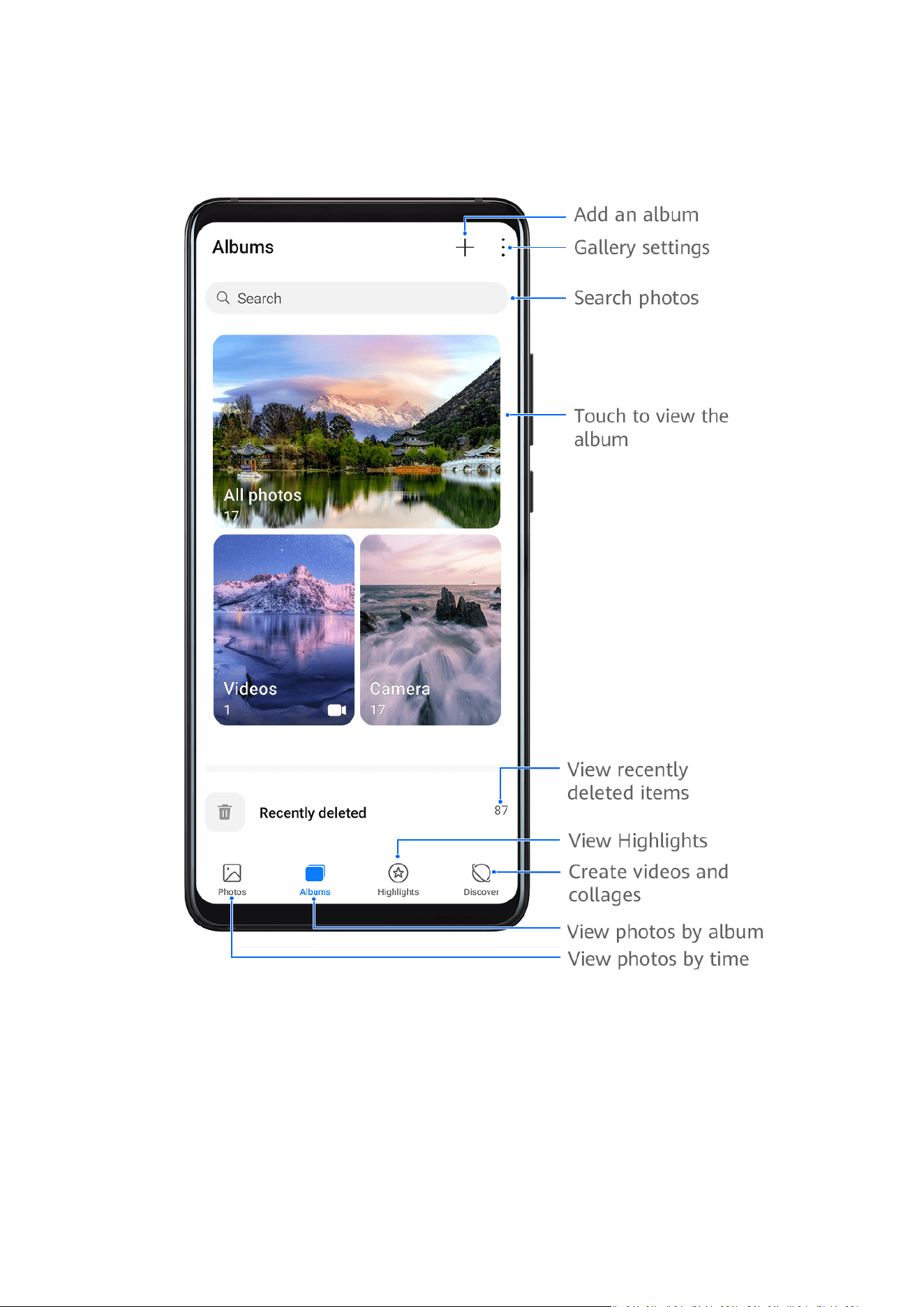
View Photos and Videos
In Gallery, you can view, edit, and share your photos and videos, as well as browse the clips
automatically generated from them.
View by Shooting Time
Open Gallery. On the Photos tab, pinch in on the screen to switch to the monthly view and
pinch out to switch to the daily view.
You can also drag the track ball on the edge to view the time.
View by Album
You can view photos and videos by album on the Albums tab.
Camera and Gallery
78

Some photos and videos are stored in default albums. For example, videos recorded with the
camera are saved in the Camera album. Screenshots and screen recordings are saved in the
Screenshots album.
View by Category
Gallery intelligently sorts photos into categories, allowing you to quickly sift through large
albums by category.
Touch a category album on the Discover tab (such as food, portrait, or scenery) to view
photos in that album.
View Details About Photos and Videos
1 In Gallery, touch a photo or video to view it in Full screen mode. Touch the screen again to
hide the menu.
2 When in Full screen mode, touch to view details about the photo or video, such as
the storage path, resolution, and size.
View Photos or Videos on Other Devices from Your Device
With Multi-device browsing, you can browse and search for photos and videos saved on other
phones and tablets.
• This feature is only available in some countries and regions.
• Before using this feature, ensure that the battery level of your device is more than
10%.
1 Connect your device and the target device to the same router or personal hotspot, log in
to the same HUAWEI ID, and enable Bluetooth on both devices. The two devices will then
automatically connect to each other.
2 Go to Settings > More connections > Multi-Device Collaboration and ensure that
Multi-Device Collaboration and Multi-Device Gallery (if displayed) are enabled.
If your device does not have the Multi-Device Collaboration switch, it indicates that this
feature is not supported.
3 After the connection is set up, the Other devices tab will be displayed under Gallery >
Albums.
4 Touch the Other devices tab to view connected devices. You can:
• Browse photos or videos on the connected devices: Touch a connected device to view
the albums stored on that device.
• Search for photos: On the Albums tab, enter a keyword (such as "food" or "scenery").
The search results will be displayed by device.
• Save items from other devices to your device: Touch the target device, touch and hold
to select photos or videos, then touch
.
The saved items are displayed in Gallery > Albums > From other devices.
To disable this feature, disable Multi-Device Collaboration.
Camera and Gallery
79

Quickly Search for Photos in Gallery
Quickly locate a photo by searching with keywords in Gallery.
1 Open Gallery, then touch the search box at the top.
2 Enter a keyword (such as "food", "scenery", or
"ower").
3 Photos related to that keyword as well as suggested keywords will be displayed. Touch a
suggested keyword or enter more keywords for more precise results.
Edit Photos and Videos
Gallery oers a wide range of editing features for photos and videos.
Basic Editing
1 Open Gallery, touch the thumbnail of the photo you want to edit, then touch to
access the editing features.
• Crop and rotate: Touch Crop, select a frame, then drag the grid or its corners to select
which part you want to keep.
To rotate the photo, touch Crop and drag the angle wheel to the desired orientation.
To rotate the photo by 90 degrees, touch . To mirror the photo, touch .
• Add a lter eect: Touch Filter to select a lter.
• Adjust photo eects: Touch Adjust to adjust the brightness, contrast, saturation, and
other aspects of the photo.
• Other: Touch More to edit the photo in other ways, such as by adding a colour splash,
blur, doodle, or text element.
2 Touch to save your edits and touch to save the photo.
Add Stickers to Photos
1 In Gallery, touch a photo, then go to
> More > Stickers.
2 Select the type of sticker you want to add, such as Time, Weather, or Mood.
3 Select a sticker and drag it to change its position. You can also edit the text of some types
of stickers.
4 Touch to save your edits and touch to save the photo.
Pixelate Photos
1 In Gallery, touch a photo, then go to
> More > Mosaic.
2 Select a mosaic style and size to cover parts of the photo.
3 To remove the mosaic, touch Eraser and wipe it o the photo.
Camera and Gallery
80

4 Touch to save your edits and touch to save the photo.
Rename Photos
1 In Gallery, touch the photo thumbnail you want to rename.
2 Go to > Rename and enter a new name.
3 Touch OK.
Collage
You can use the collage feature in Gallery to quickly combine multiple photos into one for
easier sharing.
1 You can access the collage feature in either of the following ways:
• On the Discover tab, touch Create collage, select the desired photos, then touch
Create.
• On the Photos or Albums tab, touch and hold to select desired photos, then go to
> Collage.
2 Select a template. You can then:
• Relocate a photo: Touch and hold the photo and drag it to a dierent position.
• Adjust the displayed portion of a photo: Slide on the photo, or pinch in or out on it so
that only the desired part is displayed in the grid.
• Rotate a photo: Touch the photo, then touch to rotate it or to ip it.
• Add or remove borders: By default, borders are displayed between photos and along
the grid edges. To remove them, touch Frame.
3 Touch
to save the collage.
To view the saved collage, go to Albums > Collages.
Share Photos and Videos
There are several ways to share photos and videos from Gallery:
• Share a single photo or video: Touch the photo or video, then touch .
• Share multiple photos or videos: In an album, touch and hold to select multiple photos and
videos, then touch
.
Organise Albums
Organise photos and videos into albums to easily sift through them.
Camera and Gallery
81

Add Albums
1 Go to Gallery > Albums.
2 Touch
, name the album, then touch OK.
3 Select the photos or videos you want to add, and then move or copy them to the album.
Sort Albums
1 Go to Gallery > Albums >
and touch Sort albums.
2 Drag next to an album to the desired position. Touch Reset to reset the albums to
the default order.
Move Photos and Videos
1 Open an album, then touch and hold to select the photos and videos you want to move.
2 Touch > Move to select the desired album.
3 Once the items are moved, they will no longer be in their original album.
The All photos and Videos albums show all photos and videos stored on your device.
Moving items across albums will not aect the view in these albums.
Delete Photos and Videos
Touch and hold to select the items you want to delete, then go to > Delete.
Some preset albums, such as All photos, My favourites, Videos, and Camera albums,
cannot be deleted.
Deleted photos and videos will be temporarily moved to the Recently deleted album before
being permanently deleted after 30 days.
To permanently delete a photo or video manually, touch and hold its thumbnail in the
Recently deleted album, then go to > Delete.
Recover Deleted Photos and Videos
In the Recently deleted album, touch and hold to select the items you want to recover, then
touch
to restore them to their original albums.
If the original album has been deleted, a new one will be created.
Add Photos and Videos to Favorites
Open a photo or video, then touch .
The item will appear in both its original album and the My favourites album.
Camera and Gallery
82

Block Albums
Block third-party app albums to prevent them from being displayed in Gallery.
1 In the Others list, touch the album you want to block.
2 If
is displayed at the top, go to > Block.
Blocked albums cannot be viewed in other apps except Files.
3 To unblock an album, go to > Blocked albums, then touch Unblock next to the
album.
Only some albums in Others can be blocked.
Hide Albums
You can hide photos and videos in Gallery to keep them private.
On the Albums tab, touch an album, touch and hold to select the photos and videos you
want to hide, then go to > Hide > OK.
The selected photos and videos will then be hidden. You can then:
• On the Albums tab, go to > Hidden items to view the hidden photos and videos.
• In Hidden items, touch and hold to select photos and videos, then touch Unhide.
These photos and videos will be restored to their original albums.
Golden Snap
Spruce Up Photos with Golden Snap
You can up your photo game with AI-powered Golden Snap, which helps you quickly remove
unwanted reections and blurriness from photos, straighten photos, or get rid of shadows in
photos of documents.
If you have taken a moving picture, you can also use Golden Snap to remove passersby.
Brighten, Demist, and Straighten Your Photo
1 Open Gallery, touch a photo, then touch .
2 Touch Smart to access the smart editing screen. You can then:
• Perform one-touch automatic optimisation: Touch Auto for your device to intelligently
optimise the photo.
• Remove reections: Touch Remove reection. Your device will automatically detect
and remove reections in the photo.
• Brighten the photo: Touch Brighten.
Camera and Gallery
83

• Remove blurriness: Touch Demist. Your device will automatically detect and remove
blurriness in the photo.
• Straighten the photo: Touch Straighten. Your device will automatically check whether
the photo is tilted (for example, whether the background horizon line is tilted) and
correct the tilt.
If you want to apply more than one of the aforementioned features to the photo, save
the photo each time you apply a feature.
3 Touch and follow the onscreen instructions to save the photo to the same album as
the original photo.
Remove Passersby from Moving Pictures
The features below are not available on all devices.
1 Open Gallery, touch the moving picture you want to edit, then touch .
2 Touch Smart to access the smart editing screen. You can then:
• Set the cover: Your device recommends the best three frames, which are indicated by
crown icons. Select the desired frame and touch Set as cover to set it as the cover,
which is indicated by a dot over the frame.
• Remove passersby: After you set the cover, touch . Your device will automatically
identify and remove passersby from the photo.
This feature only supports removing passersby who have fully entered the frame
during shooting.
• Other smart editing features: After you set the cover, you can touch Auto, Remove
reection, or Demist to perform automatic optimisation, remove reections, and
remove blurriness.
If you want to apply more than one of the aforementioned features to the photo,
save the photo each time you apply a feature.
3 When you are nished, touch to save the photo to the same album as the original
photo.
4 To save the moving picture as a still image, touch
, select a mode other than Smart,
and then touch . The cover frame will then be saved as a still image.
Smart Photo Categorisation
Smart Photo Categorisation
Gallery automatically sorts your photos into categories such as portraits, locations, and
scenery, so you can quickly
nd what you're looking for.
Camera and Gallery
84

Go to Gallery > Discover to view your photos organised into categories.
To remove a photo from an album, touch and hold to select the photo, then touch (or
for portraits).
Not all photos can be removed from the category albums.
View and Set People Albums
Once you have taken a sucient number of photos, Gallery will automatically create People
albums for individuals or groups by identifying faces in your photos. This will happen when
your device is charging and the screen is o.
You can name these People albums and set the relationships of individuals with you.
Group photo albums require a specic number of photos containing 2 to 10 faces that have
already been named in People albums.
1 Go to Gallery > Discover and view the generated People albums.
2 Touch an album, go to
> Edit, then set the name and relationship (such as Baby or
Mum).
Once you have nished, you can nd a People album by entering the name or relationship in
the search bar.
Huawei Vlog Editor
Share Huawei Vlogs
1 Go to Gallery > Albums > Video Editor, where you will nd all your exported videos.
2 Touch and hold to select the videos you want to share, then touch
.
Create Videos with Templates
The Create story feature allows you to
t multiple videos nicely into a preset template with
transitions, background music, and other special eects.
1 Go to Gallery > Discover and touch Create story.
2 Touch a template to preview what it looks like, and touch Create video to start creating.
3 Follow the onscreen instructions to select multiple videos, then touch Create.
4 Your device will display the preview. You can touch Filters to change the lter or touch
Outro to add an outro.
If you are unsatised with any of the clips, touch the clip in Edit, then touch to select
another clip, or touch Replace to select another video.
5 Touch
to save the video.
Camera and Gallery
85

Huawei Vlogs
View, Edit, and Share People Album Videos
Gallery automatically creates People albums by identifying faces in photos.
View, edit, and share the videos generated in these People albums.
View Huawei Vlogs
1 Go to Gallery > Discover and touch a people album.
2 Touch
on the album cover.
Share People Album Videos
Go to Gallery > Albums > Video Editor, where you will nd all your exported videos.
Touch and hold to select videos you would like to share, then touch
.
Highlights
Highlights
Gallery automatically creates Highlights albums from your best photos and videos based on
time, location, and theme information, and even generates a short video clip so you can
instantly relive the good times.
• To start using Highlights, go to Camera >
and enable Location tag.
• Highlights albums are created automatically when your device is charging, the screen is
turned o, and the battery is at least 50% charged. This process may take some time.
Highlights albums will not be created if there are fewer than 10 photos or videos in Gallery.
View Highlights Videos
1 Go to Gallery > Highlights and touch an album.
2 Touch to play the video.
Share Highlights Videos
You can share Highlights videos as photos or videos.
Share Highlights Videos as Videos
1 Go to Gallery > Albums > Video Editor, where you will nd all your exported videos.
2 Touch and hold to select the videos you want to share, then touch
.
Share Highlights Videos as Photos
Camera and Gallery
86

Touch the Highlights album you want to share, then go to > Share. Follow the onscreen
instructions to share the created photo.
You can also share the photo under Gallery > Albums > Collages, where the photos created
for Highlights videos are saved by default.
Add or Remove Photos and Videos from Highlights Albums
1 On the Highlights tab, touch an album.
2 You can then:
• Add photos or videos: Touch , select the items you want to add, then touch .
• Remove photos or videos: Touch and hold to select photos or videos you want to
remove, touch
, then touch Remove.
Rename Highlights Albums
1 On the Highlights tab, touch an album.
2 Go to
> Rename and enter a new name.
Delete Highlights Albums
1 On the Highlights tab, touch an album.
2 Go to > Delete and touch Delete.
Camera and Gallery
87

Apps
Apps
App Basics
Locate an Installed App
Swipe down from the middle of the home screen to show the search bar, and enter the app
name. When the app is found, touch
next to its name.
Uninstall an App
You can uninstall an app using either of the following methods:
• Touch and hold the app icon you want to uninstall until your device vibrates, touch
Uninstall, then follow the onscreen instructions to uninstall the app.
• Go to Settings > Apps > Apps, touch the app you want to uninstall, then touch Uninstall.
Some pre-installed system apps can't be uninstalled, as uninstalling them may cause
system errors.
Manage Background Apps
1 Access the recent tasks screen using either of the following methods, depending on the
navigation method you are using:
• Gestures: Swipe up from the bottom of the screen and hold.
• Three-key navigation: Touch .
2 On the recent tasks screen, you can:
• Swipe across to view app previews.
• Touch an app preview to access an app.
• Swipe up on an app preview to close an app.
• Swipe down on an app preview to lock it.
will appear at the top of the app
preview. Touching will not close this app.
• Swipe down again to unlock it. will disappear.
• Touch to close all apps (except for those you have locked).
Clear the Cache of an App
Delete app cache
les to free up storage space.
88
Go to Settings > Apps > Apps, select the app for which you want to clear the cache, then go
to Storage > Clear cache.
Contacts
Create and Edit Contact Information
You can create contacts in multiple ways, as well as view and manage your contacts list.
Create Contacts
1 Open Phone, touch the Contacts tab, and touch
.
If you are creating a contact for the rst time, touch Create new contact to start adding
a contact.
2 Set a prole picture for the contact, enter information such as the name, organisation,
and phone number of the contact, then touch .
Import Contacts
1 On the Contacts screen, go to > Settings > Import/Export.
2 Select Import via Bluetooth, Import via Wi-Fi Direct, or Import from storage, then
follow the onscreen instructions to import contacts.
Scan Business Cards to Add Contacts
1 On the Contacts screen, go to
> Scan or go to Business cards > Scan.
2 Place a business card on a at surface, adjust the camera so that the contents on the
business card are clearly displayed in the viewnder, then touch to capture a single or
multiple business cards in a row.
3 After the photos are taken, your device will automatically identify the contact information.
Touch to save the contact.
You can view the scanned business cards in Business cards.
Scan a QR Code to Add a Contact
If a QR code contains contact information, you can scan the QR code to quickly add a
contact.
1 On the Contacts screen, go to > Scan or go to Business cards > Scan.
2 Take a photo of a QR code or select a photo of a QR card from Gallery, and contact
information contained in the QR code can be identied and added.
Apps
89

Merge Duplicate Contacts
1 On the Contacts screen, go to > Settings > Organise contacts > Merge duplicate
contacts.
2 Select duplicate contacts you want to merge and touch Merge.
Search for Contacts
1 Open Contacts, go to > Settings > Display preferences, and touch All contacts to
display all your contacts. Ensure that the corresponding icon at the bottom is enabled.
2 Search for contacts using either of the following methods:
• Swipe down from the middle of the home screen and enter a keyword for the contact
you want to nd in the search box (such as their name, initials, or email address).
You can also enter multiple keywords, such as "John London", to quickly nd matching
contacts.
• On the top of the Contacts screen, enter keywords for the contact you want to nd in
the search box.
Share Contacts
1 On the Contacts screen:
• Touch and hold the contact you want to share, then touch Share contact.
• Touch the contact you want to share, then go to
> Share contact.
2 Select a sharing method, then follow the onscreen instructions to share the contact.
Export Contacts
1 On the Contacts screen, go to
> Settings > Import/Export.
2 Touch Export to storage and follow the onscreen instructions to export contacts.
The exported .vcf les are saved in Files > Categories > Internal storage by default.
Delete Contacts
Delete contacts using either of the following methods:
• Touch and hold the contact you want to delete, then touch Delete.
• Touch the contact you want to delete, then go to > Delete contact.
• On the Contacts screen, go to > Settings > Organise contacts > Delete multiple
contacts, select the contacts you want to delete, then touch .
Apps
90

To restore deleted contacts, go to > Settings > Organise contacts > Recently deleted,
touch and hold the contact you want to restore, select any other contacts you also want to
restore, then touch .
Manage Contact Groups
You can conveniently send emails or messages to multiple contacts by creating and
managing contact groups. Your device automatically groups contacts by company, city, and
last contact time, but you can also create new groups based on your preferences.
Create a Contact Group
1 Open Phone, touch the Contacts tab, and touch Groups.
2 Touch , enter the group name, such as "Family" or "Friends", then touch OK.
3 Follow the onscreen instructions to add contacts to the group, then touch
.
Edit a Contact Group
1 On the Groups screen, select the group you want to edit and touch
to add a new
contact.
2 Touch for Remove members, Group ringtone, Delete group, or Rename.
Send Group Messages or Emails
On the Groups screen, open a group. You can then:
• Touch
to send a group message.
• Touch
to send a group email.
Delete Contact Groups
On the Groups screen, do either of the following to delete a contact group from your device:
• Touch and hold the group and select Delete.
• Touch
, select the groups you want to delete, and touch .
Create Personal Information
You can create a business card containing your personal information to share with others.
You can also add personal emergency information so you can call for help quickly in an
emergency.
Create a Personal Business Card
1 Open Phone, touch the Contacts tab, and touch My card.
Apps
91

2 Set your prole picture and enter personal information, such as your name, work address,
and phone number.
3 Touch
to automatically create a QR code business card.
You can share your business card using the QR code.
Add Emergency Information
1 From the Contacts screen, go to My card > Emergency information.
2 Touch ADD and set your personal, medical, and emergency contact information.
Once you have added emergency contacts and you nd yourself in an emergency, access the
lock screen for inputting your password, go to Emergency > Emergency information >
Emergency contacts, and select an emergency contact to make a call.
Erase Contact Traces
1 Open Phone, touch the Contacts tab, then touch a contact to erase your contact traces.
2 Go to > Erase history > Erase to delete all call and message records for that contact.
Phone
Make a Call
Dial a Number or Select a Contact to Make a Call
Use either of the following methods to make a call:
• Open Phone, enter part of a phone number, the
rst letter of a contact's name, or a
contact's initials to nd a contact, then touch to make a call.
• Open Phone, touch the Contacts tab, then search for a contact or select a contact in the
contact list to make a call.
Touch
to end the call.
Use Speed Dial
Once you've set up speed dialling for a contact, you can quickly call that contact with the
assigned number key.
Go to Phone > > Settings > Speed dial, select a number key, then set a contact for this
speed dial number.
Press the Power Button to End a Call
During a call, press the Power button to end the call.
Go to Phone > > Settings > More, and enable Power button ends call.
Apps
92

Set a Call Background
To set a wallpaper as the call background, do the following:
1 Go to Settings > Home screen & wallpaper > Wallpaper.
2 Select a picture and set it as the wallpaper.
You can also set a prole picture for a contact to be shown on the call background.
1 Open Phone, touch the Contacts tab, then select a contact.
2 Touch
and then to set a prole picture for the selected contact.
Make an International Call
1 Contact your mobile carrier to activate and inquire about the international calling service.
2 Open Phone, touch the Contacts tab, then select a contact to make a call.
3 For numbers that are not in the contacts list, open the dialler and hold the 0 number key
until the + icon is displayed. Enter the country code and phone number, then touch to
make an international call.
Manage Call Logs
You can merge the call logs of the same contact or number for a tidier and more concise
interface, or delete call logs as required.
Merge Call Logs
1 Go to Phone >
> Settings > Merge call log.
2 Select By contact and your device will automatically merge the call logs of the same
number or contact.
View Missed Calls
1 To display all missed calls, open Phone, swipe down on the call log list, then touch the
Missed tab.
All missed calls are displayed in red in the call log list for you to quickly identify them. You
can also
nd them on the All screen.
2 Touch
next to a call log entry to call back or send a message.
Delete Call Logs
Delete call logs using any of the following methods:
• On the Phone screen, touch and hold an entry, then touch Delete entry.
• On the Phone screen, go to > Delete entries, select the entries you want to delete,
then touch Delete.
• On the Phone screen, swipe left on the entry you want to delete, then touch .
Apps
93

Set a Ringtone for Incoming Calls
You can set your favourite music or a video as the ringtone for incoming calls.
If you are carrying your device in your pocket, the ringtone volume will gradually increase.
This helps prevent you from missing important calls.
If your phone has two SIM cards installed, congure the settings for SIM 1 and SIM 2
respectively.
Set a Music Ringtone
1 Go to Phone > > Settings > Ringtone.
Or go to Settings > Sounds & vibration > Phone ringtone.
2 Select a system ringtone, or touch Music on device to set a local song as the ringtone.
3 If you select a system ringtone, touch Vibration on the same screen, and select
Synchronised (default). When there is an incoming call, your device will vibrate with
rhythm while the system ringtone is playing.
Not all products support a synchronised vibration and ringtone.
Set a Video Ringtone
Set a video as the ringtone for incoming calls on your device.
1 Go to Phone > > Settings > Ringtone.
Or go to Settings > Sounds & vibration > Phone ringtone.
2 Touch Video ringtones and select a video. You can then preview what it looks like for
incoming calls.
3 Touch Set to set the video as the ringtone.
Set a Ringtone for a Contact
Set a dierent ringtone for a particular contact to distinguish more easily when that contact
is calling you.
1 Open Phone, touch the Contacts tab, then select the contact you want to set a ringtone
for.
2 On the contact details screen, touch Ringtone and select a ringtone.
Use VoLTE to Make HD Video Calls
Voice over LTE (VoLTE) is an IP-based data transmission technology. Once VoLTE is enabled,
you can make calls while accessing the Internet on your device. If your device supports dual
SIM dual VoLTE, you can receive an incoming call on a SIM card even when the other SIM
card is already on a call.
VoLTE also provides you with fast call connection times and high-quality voice and video
calls.
Apps
94

Enable VoLTE
1 Contact your carrier to activate the VoLTE service for your SIM card. If both the primary
and secondary SIM card trays of a dual-SIM device support VoLTE, it can be enabled for
both SIM cards.
2 If two SIM cards have been inserted, go to Settings > Mobile network > Mobile data. In
the network settings area for SIM 1 or SIM 2, enable VoLTE calls.
• This feature may vary depending on your network provider.
• 5G services are only available in some countries and regions.
Make a Video Call
Video calls are only possible when both parties are using VoLTE-activated devices.
1 Open Phone, touch the Contacts tab at the bottom of the screen, then select the contact
you want to call.
2 Touch to make a video call.
During a voice call, you can touch to switch to a video call.
Use VoWiFi for a Brand New Calling Experience
The VoWiFi function enables you to make calls on a Wi-Fi network. You can even make
VoWiFi calls in Airplane mode.
1 This function requires support from your mobile carrier. Contact your carrier to activate
the VoWiFi function.
2 Go to Phone > > Settings > Wi-Fi Calling, then enable Wi-Fi Calling.
Manage Incoming Calls
You can use the call waiting feature to answer incoming calls when you are already engaged
in a previous call. If you cannot answer a call because your device is faulty or the network
signal is poor, you can also set call forwarding to forward calls to another number or device.
Answer or Reject an Incoming Call
If you receive a call when the screen is locked:
• Drag
right to answer the call.
• Drag left to reject the call.
• Touch to reject the call and reply with a message.
• Touch
to set a reminder for calling back.
If you receive a call when the screen is unlocked:
Apps
95
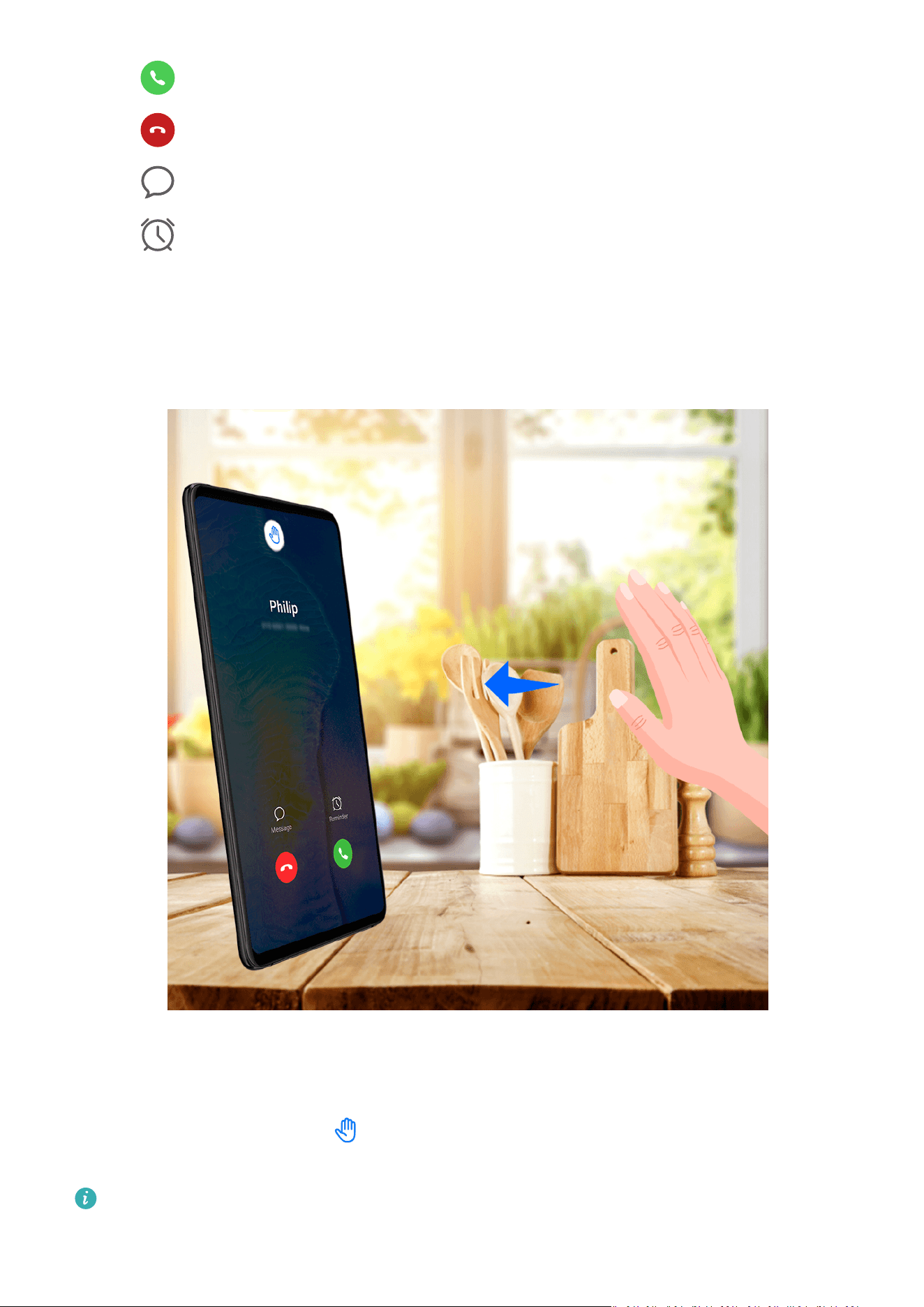
• Touch to answer the call.
• Touch to reject the call.
• Touch
to reject the call and reply with a message.
• Touch to set a reminder for calling back.
Answer an Incoming Call with Air Gestures
When it is inconvenient for you to touch the screen, such as while cooking or washing your
hands, you can use air gestures to answer an incoming call and turn on Handsfree mode.
1 Go to Settings > Accessibility features > Smart Sensing > Air press, and enable Air
press.
2 When there is an incoming call, hold your hand around 30–40 cm (around 12–16 in.)
away from the screen until is displayed at the top of the screen, then move it a little
closer towards the screen to answer the call.
You can access the Air press screen and touch Tutorial to learn about related operations.
Apps
96

Enable Call Waiting
The Call waiting feature lets you answer an incoming call when a call is already in progress
by placing the rst call on hold. This feature requires the support of your carrier. For details,
contact your carrier.
Go to Phone > > Settings and then go to More > Call waiting.
If your phone has two SIM cards installed, congure the settings for SIM 1 and SIM 2
respectively.
This feature may vary depending on your network provider.
Answer a New Incoming Call During a Call
1 When you receive an incoming call when you are already engaged in a previous call,
touch to answer it.
2 Touch or touch a held call in the call list to switch between the two calls.
Enable Call Forwarding
After the Call forwarding feature is enabled, calls that meet your pre-set conditions will be
automatically transferred to a
specied phone number. This feature requires the support of
your carrier. For details, contact your carrier.
1 Open Phone, go to > Settings, and touch Call forwarding.
2 Select and enable a forwarding method, then enter and conrm the target number.
If your phone has two SIM cards installed, congure the settings for SIM 1 and SIM 2
respectively.
This feature may vary depending on your network provider.
Disable Call Forwarding
1 Open Phone, go to > Settings, and touch Call forwarding.
2 Select the forwarding mode and disable it.
Filter and Block Spam Calls
Set dierent block rules to block sales, fraud, and other kinds of spam calls.
Filter Spam Calls
1 Go to Phone > > Blocked > .
Alternatively, go to Optimiser > Blocked > .
2 Touch Call block rules and toggle on the switches of corresponding block rules.
Apps
97

Block Incoming Calls from Specic Numbers
You can block incoming calls from specic numbers using either of the following methods:
• Go to Phone > > Blocked > > Blocklist, touch , then add the phone numbers
you want to block.
• Open Phone, touch the Contacts tab, touch the contact you want to block, then choose
> Block contact.
Set Whether to Receive Notications for Blocked Calls
Go to Phone >
> Blocked > > Receive notications and set whether to receive
notications when calls are blocked.
Manage Blocked Calls
On the Blocked screen, you can manage blocked calls, such as by calling back numbers,
deleting records, or submitting appeals if a number has been incorrectly marked.
Go to Phone > > Blocked. You can then:
• Touch a record and select Call to call back numbers, select Add to trustlist or Add contact,
or touch Delete to delete call records.
• Touch Clear to delete blocked calls in batches.
• Touch Block rules to change the block rules.
Emergency SOS and Calls
Use Emergency SOS
If you are in an emergency situation, you can quickly and secretly send an SOS message or
make an SOS call to your emergency contacts.
1 Go to Settings > Security > Emergency SOS, and touch Emergency contacts to add an
emergency contact.
2 Enable Also send SOS message and Auto-SOS call, and set related permissions as
prompted.
Once you have enabled the Emergency SOS feature and you are in an emergency situation,
press the Power button
ve times in quick succession and your device will automatically send
a message with your current location to your emergency contacts. It will also automatically
call your emergency contacts one by one and play a pre-recorded SOS message, then end the
call automatically.
If Auto-SOS call is disabled, after the message is sent, your device will bring up the
emergency call screen, from which you can quickly call an emergency service or one of your
emergency contacts.
Apps
98

Make Emergency Calls
In the event of an emergency, you can make emergency calls directly from the lock screen of
your device even if there is no signal.
The emergency call feature is subject to local regulations and individual mobile carriers.
Network issues or other types of interference may lead to emergency calls not working.
1 From the lock screen, access the screen for entering your password, and touch
Emergency. If you are in an area with a good signal and your device has an Internet
connection, it will automatically obtain your location and display it on the screen.
2 Enter your local emergency number and touch
to call the number. Alternatively,
touch Emergency information and select an emergency contact to call.
Perform In-call Operations
During a call, an in-call menu will be displayed.
• Touch to switch the audio channel to the speaker.
• Touch to start another call. This feature requires the support of your carrier. For details,
contact your carrier.
• Touch to use the dialler.
• During a call, you can hide the call screen and access other apps by returning to the
previous screen or home screen using the current navigation mode on your device.
To return to the call screen, touch the green icon in the status bar.
• Touch
to end a call.
Use Voicemail
Divert calls to your voicemail when your device is switched
o or when there is no cellular
coverage. Callers can leave a voice message which you can listen to later.
This feature requires service support from your mobile carrier. Contact your mobile carrier for
details.
Enable Voicemail
1 Go to Phone > > Settings and touch More.
If your phone has two SIM cards installed, congure the settings for SIM 1 and SIM 2
respectively.
2 Go to Voicemail > Voicemail number, enter the voicemail number obtained from your
carrier, and touch OK.
Listen to a Voicemail Message
Touch and hold the 1 key on the dialler and then enter your voicemail number.
Apps
99
Messaging
Send and Manage Messages
You can send and receive messages that include text, emojis, pictures, audio
les, and more.
You can also manage your messages in the message list.
Send Messages
1 Open Messaging and touch .
2 On the New message screen, enter your message content. Touch to add other types
of content such as pictures and audio les.
3 In the recipient box, touch , select contacts or contact groups, then touch .
To send a group message to those not included in your contacts list, touch anywhere
blank in the recipient box and enter the recipients' phone number. Touch the return key in
the keyboard when you nish entering each of the phone numbers.
4 After nishing editing, touch to send the message.
Save a Draft Message
From the New message screen, touch
while editing a message to save a draft.
Cancel Sending a Message
On the Messaging screen, go to > Settings > Advanced, and enable Recall messages.
Within six seconds after a message is sent, you can double-tap the message to cancel
sending it.
View and Reply to Messages
1 On the Messaging screen, select a contact to view your conversations.
2 To reply to a message, enter your message content in the text box, then touch
.
Notications for new messages will be displayed as banners in the notication panel, and
you can touch them to reply to messages.
Mark Messages as Read
You can use any of the following methods to mark messages as read:
• New messages will be displayed in the notication panel in the form of a banner and you
can mark them as read there.
• On the Messaging screen, swipe left on the message that you want to mark as read, then
touch .
Apps
100

• On the Messaging screen, go to > Mark all as read.
Delete a Message
You can delete messages using either of the following methods:
• On the Messaging screen, swipe left the message to be deleted, then touch
.
• Touch and hold a message, select multiple messages you wish to delete, then touch
.
Deleted messages cannot be recovered.
Filter and Block Spam Messages
Set dierent block rules, such as your blocklist, to block sales, fraud, and other kinds of spam
messages.
Block Spam Messages
1 Go to Messaging >
> Blocked > .
Alternatively, go to Optimiser > Blocked > .
2 Touch Message block rules and enable Block unknown numbers. Your device will then
block all messages from unknown numbers.
Block Messages from Specic Numbers
1 Go to Messaging > > Blocked > > Blocklist.
2 Touch and add the numbers you want to block. SMS and MMS messages sent by
these numbers will all be blocked.
Block Messages Containing Specic Keywords
1 Go to Messaging > > Blocked > > Keyword blocklist.
2 Touch and add the keywords to be ltered. All messages containing these keywords
will be blocked.
Set Whether to Receive Notications for Blocked Messages
Go to Messaging > > Blocked > > Receive notications and set whether to receive
notications when messages are blocked.
Manage Blocked Messages
On the Blocked screen, you can manage blocked message, such as by deleting records,
restoring messages, or submitting appeals if a number has been incorrectly marked.
Go to Messaging > > Blocked. You can then:
Apps
101

• Touch a record and select Restore to messages to restore this message to the Messaging
app. Touch Add to trustlist to add the number corresponding to this message to the
trustlist. Touch Delete to delete the message record.
• Touch Clear to delete blocked messages in batches.
• Touch Block rules to change the block rules.
Enable Advanced Messaging
1 To use Advanced Messaging, enable the VoLTE service rst. For details, contact your
mobile carrier.
2 Switch to mobile data on your device, then go to Messaging >
> Settings > Message
+, and enable Message+.
Ensure that you have switched to mobile data on your device before enabling Advanced
Messaging. You can then chat over mobile data or Wi-Fi.
Calendar
Use Events
Events help you schedule activities in your daily and work life, such as attending company
meetings, arranging social get-togethers, and making credit card repayments. You can add
events and set reminders to help you arrange your schedule in advance.
Add an Event
1 Open Calendar and touch
.
2 Enter the details of the event, such as the title, location, and start and end times.
3 Touch Add reminder to set a time for the event reminder.
4 When you are
nished, touch .
Search for an Event
1 On the Calendar screen, touch
.
2 Enter keywords of your event in the search box, such as the title and location.
Share an Event
1 Open Calendar, then touch an event on a calendar screen or under the schedule tab.
2 Touch to share the event however you prefer when prompted.
Delete an Event
You can delete an event using either of the following methods:
Apps
102

• On the Calendar screen, touch the event you want to delete, then touch .
• On the Schedule screen, touch and hold an event, select the events you want to delete,
then touch
.
Set a Calendar Notication
Set the calendar notication type according to your requirements. You can set status bar
notications, banner notications, and ringtone notications. After setting the default
reminder time, your device will send a notication at the specied time.
Go to Calendar > > Settings.
• Touch Default reminder time or Reminder time for all-day events to set a reminder
time.
• Touch Notications and enable Allow notications. Then follow the onscreen instructions
to set a notication type.
Customise Calendar View Settings
You can customise calendar view settings, such as by specifying the start day of the week,
and whether to show week numbers.
1 Go to Calendar > > Settings.
2 Select the start day of the week, or enable the switch to show week numbers.
Set Alternate Calendars
You can switch to other calendars, such as the Chinese lunar calendar or the Islamic calendar.
Go to Calendar > > Settings > Alternate calendars, and select a calendar you want to
use.
View National/Regional Holidays
View national/regional holidays in the calendar to help plan your trip.
1 Go to Calendar > > Settings > National/Regional holidays.
2 Turn on the switch of a country/region, and your device will automatically download
holiday information for that country/region and display it in Calendar.
Clock
Set Alarms
You can set alarms to play a sound or vibrate at
specic times.
Apps
103

Set an Alarm
1 Go to Clock > Alarm and touch to add an alarm.
2 Set the alarm sound, vibration pattern, repeat cycle, and other settings as needed.
3 When you are nished, touch .
Modify or Delete an Alarm
Touch an existing alarm to modify or delete it.
Snooze an Alarm
If you don't want to get up when an alarm rings, simply touch the snooze button or press the
Power button.
The snooze length is set when creating the alarm.
Turn O an Alarm
When an alarm rings, swipe left or right on the button that appears at the bottom of the
screen to turn it o.
Use the Timer or Stopwatch
You can use the timer to count down from a specied time. You can also use the stopwatch
to measure the duration of an event.
Timer
Go to Clock > Timer, set the duration of time, and touch to start the timer. To stop it,
touch .
Stopwatch
Go to Clock > Stopwatch, and touch
to start the stopwatch. To stop it, touch .
View the Time in Cities Worldwide
Use Clock to see the local time in dierent time zones around the world.
Go to Clock > World clock, touch , and enter the name of a city or select one from the
list of cities.
Display Dual Clocks on the Lock Screen
When you are away from your home time zone, use Dual clocks to display the time of both
your home city and current location on the lock screen.
Apps
104
Go to Settings > System & updates > Date & time, enable Dual clocks, and set a Home
city. The time of your home city and current location will now both display on the lock
screen.
Only one clock will display on the lock screen if your current location is in the same time
zone as your home city.
Notepad
Create a Note
To help you quickly keep a track of your thoughts and inspirations, you can create notes
using the Handwrite (to write or draw content) and Scan document modes.
Add Content to a Note
1 Go to Notepad > Notes and touch
.
2 Enter the title and content of the note. You can then perform the following:
• Touch to add a checklist.
• Touch to change the text style, paragraph alignment, and background.
• Touch to insert a picture. Touch and hold the picture, then drag it to the desired
position in the note.
• To organise your notes for easier access and viewing, touch after nishing to add
a tag for it.
3 Touch to save the note.
Add a Note by Scanning Documents
1 Open Notepad and go to Notes >
> > Scan document.
2 Align your phone camera with the picture or le you want to scan and touch to start
scanning. The scanned pages are saved in Notepad.
3 Go to Extract text > Save > Save images and text > to save the note.
Add a Handwritten Note
You can add a handwritten note to write down thoughts and inspirations that would be
dicult to convey through text.
1 Go to Notepad > Notes and touch .
Apps
105

2 Touch to write or draw the content you need in the selected colour.
3 Touch to save the note.
Create To-dos
You can create to-dos to keep a track of day-to-day essentials, such as daily shopping lists,
tasks at work, and household chores.
Add a To-do Item
You can add a to-do item and set a time reminder for it.
If you have marked the to-do item as important, you will be prompted with a full-screen
reminder when the screen is locked.
1 Go to Notepad > To-dos and touch
.
2 Enter your to-do item.
3 Touch , set a time, and touch OK.
4 Enable
to mark the to-do item as important.
5 Touch Save.
Set Repeated Reminders for a To-do Item
If you specify a time for a to-do item, you can select a repeat mode for it (for example,
Never, Every day, Every week, Every month, or Every year), and your device will repeatedly
prompt you to complete the to-do item at the
specied time.
Manage Your Notepad
You can sort your Notepad items by category and put them into dierent folders, delete
unwanted items, and share items with other people.
When viewing a list of items or an individual item in Notepad, touch the status bar at the top
of the screen to quickly return to the rst item or the beginning of the item you are viewing.
Enable App Lock for Notepad
Go to Settings > Security > App Lock, select the lock screen password or set a PIN, then turn
on the app lock switch next to Notepad.
You can also quickly unlock Notepad using a ngerprint or face recognition.
Sort Notepad Items by Category
To sort the notes into dierent folders by category, you can add labels in dierent colours.
You can sort notepad items using either of the following methods:
Apps
106

• On the All notes screen, swipe left on an item, select or to move this item to the
top, or add a star mark to it.
• On the All notes or All to-dos screen, swipe left on an item, touch , and select a
notebook for this item.
• Touch and hold a note or to-do item, select the ones you want to classify under the same
category, then touch
.
Items in an Exchange account cannot be moved.
Sync Notepad Items
Swipe down from the Exchange mail list to sync the notes and tasks from the current account
to Notepad. The corresponding notes and to-do items will then be generated automatically.
A folder named after the Exchange account will be automatically generated in Notepad.
Share Notepad Items
You can share Notepad items in the following ways:
• To share a single note or to-do item, open the one you want to share from the All notes or
All to-dos screen, touch , and share it as prompted.
Notes can be shared by touching As image, As text, Export as document, or To another
device.
After touching Export as document, you can choose to export the note as a TXT or
HTML le, which will be saved to Files > Internal storage > Documents > NotePad by
default.
• To share multiple notes, on the All notes screen, touch and hold a note, and select the
ones you want to share. Then touch and share them as prompted.
Print Notepad Items
1 On the All notes screen, open the item you want to print.
2 Go to > Print, then select a printer and congure printing settings as prompted.
Delete Notepad Items
You can delete Notepad items using either of the following methods:
• On the All notes or All to-dos screen, swipe left on an item, and touch to delete it.
• Touch and hold a note or to-do item you want to delete, select or drag over the check
boxes of any other notes or to-do items you want to delete as well, then touch
.
Apps
107
To restore a deleted Notepad item, touch All notes or All to-dos, select the item you want to
restore in Recently deleted, then touch .
Recorder
Recording
1 In the Tools folder, open Recorder, and touch
to start a recording.
2 During a recording, you can touch to add a tag.
3 When you are
nished, touch to stop recording.
4 You can also touch and hold a recording, then share, rename, or delete it.
Recordings are saved under Files > Categories > Internal storage > Sounds.
Play a Recording
Recording
les are listed on the Recorder home screen. Touch a recording to play it.
On the recording playback screen, you can:
• Touch to skip the muted parts.
• Touch to adjust the playback speed.
• Touch to add a tag.
• Touch a tag to rename it.
Edit a Recording
1 On the Recorder home screen, touch a recording.
2 Touch to display the waveform of the recording.
3 Drag the start and end bars to adjust the clip length. Pinch your ngers on the waveform
to zoom in or out to adjust the clip length more precisely.
4 Touch and select Keep selected part or Delete selected part.
Share Recordings
1 On the Recorder home screen, touch the recording you want to share.
2 Go to > Share.
3 Select your preferred sharing method and follow the onscreen instructions to share the
recording.
Apps
108

Email
Add Email Accounts
Add your email account in Email to start using your device for convenient email access.
Add a Personal Email Account
1 Open Email on your device, then select from the available mailbox providers or touch
Other.
2 Enter your email address and password, touch Sign in, and follow the onscreen
instructions to complete
conguration. The system will automatically connect to the
server and check the server settings.
Add an Exchange Account
Microsoft Exchange enables digital messaging within a company. If your company mailbox
uses the Exchange server, you can log in to your company email account on your device.
1 Contact the administrator of the company email server to obtain the domain name, server
address, port number, and security type.
2 Open Email and select Exchange.
3 Enter the email address, user name, and password.
4 Touch Manual setup. On the Account setup screen, enter the email domain name, server
address, port number, and security type.
5 Touch Next, then follow the onscreen instructions to complete
conguration. The system
will automatically connect to the server and check the server settings.
Use Emails
Select an email account, then write an email and send it to the recipient's email addresses.
Send Emails
1 Open Email and touch .
2 Enter the recipient's email address, or touch to select a contact or group, then touch
.
3 Add the addresses of any recipients to whom you wish to CC or BCC the email.
If you have more than one email account, you will also need to select the email address
you wish to send the email from.
4 Write the email, enter the subject, then touch .
Apps
109

Save an Email as a Draft
On the Compose screen, enter the recipient's email address, subject, or email content, and
touch to save the email as a draft.
To view draft emails, go to Inbox > Show all folders > Drafts.
Reply to an Email
1 On the Inbox screen, open the email you wish to reply to.
2 Touch
to reply to the email sender, or touch to reply to everyone in the thread.
3 After writing your reply, touch .
Set Encryption for Outgoing Emails
You can encrypt outgoing emails to protect your condential information. Encrypted emails
can only be viewed by recipients who have the required digital certicates, thereby ensuring
information security.
1 Apply for and install a digital certicate.
You need to apply for a digital certicate from a trusted third-party certicate
authority (CA) before installing it. The processing procedure varies between dierent
CAs. For details, refer to the relevant CA website.
2 From the Inbox screen, go to > Settings.
3 Touch the account you want to set encryption for, touch Email encryption, then enable
Encrypt outgoing emails.
4 If the certicate has been installed, select Encryption certicate and set Encryption
algorithm according to your preferences.
If no certicate has been installed, enable Send encrypted emails without installing
certicates.
Set Automatic Replies for an Exchange Account
1 Go to Email > > Settings.
2 Select the Exchange account you want to set automatic replies for, touch Automatic
replies, and turn on the Automatic replies switch.
3 Set the time or content of the automatic reply, then touch Done.
Set Email Notications
Set a notication mode for your emails as needed.
1 Go to Email > > Settings > General > Notications, and enable Allow notications.
2 Select the email account you want to set notications for, turn on the Allow notications
switch, then select a notication mode.
Apps
110

View and Manage Emails
Receive, view, and manage your emails in the inbox.
View Emails
1 Open Email, then swipe down on the Inbox screen to refresh the email list.
If you have multiple email accounts, touch Inbox and select the email account you want
to view.
2 Open an email, then view, reply to, forward, or delete the email.
If you are
notied about an important event in an email, go to > Add to calendar to
import the event into your calendar.
3 Swipe left or right on the email screen to view the previous or next email.
Organise Emails by Subject
On the Inbox screen, go to
> Settings > General, and enable Organise by subject.
Add an Email Contact to a Group
You can create email groups to communicate more eciently.
1 On the Inbox screen, open an email, and touch Add to group.
2 Choose to add the email sender or recipient to the group, and touch OK.
3 On the group selection screen, select an existing group, then touch to save the
contact in the group.
Alternatively, touch Create group, enter the group name, then touch Save.
Once you have created a group, you can select the group from the recipient drop-down list to
send emails to group members.
Sync Emails Automatically
After automatic email syncing is enabled, the emails on your device will be automatically
synced with those on the email server.
1 From the Inbox screen, go to > Settings.
2 Touch the account you wish to sync emails for, then turn on the Sync Email switch.
3 Touch Sync frequency to set the automatic syncing period.
Search for Emails
On the Inbox screen, touch the search box, then enter keywords such as the subject or
content of the email.
Apps
111

Delete Emails
On the Inbox screen, touch and hold the email you want to delete, touch any other emails
you want to delete as well, then touch .
Manage Multiple Email Accounts
You can add and manage multiple email accounts.
Add Multiple Email Accounts
1 Go to Email > > Settings > Add account.
2 Select an existing email service provider or touch Other, then follow the onscreen
instructions to add an email account. Repeat for each of the accounts you wish to add.
Switch Between Email Accounts
On the Inbox screen, touch Inbox and select the email account you wish to use.
Change Account Name and Signature
On the Inbox screen, go to
> Settings, select an account, and set the corresponding
Account name, Signature, and Default account.
Log Out of an Email Account
On the Inbox screen, go to > Settings, select an account, and touch Remove account.
Manage VIP Contacts
Important email contacts can be added as VIP contacts. Emails from VIP contacts will be
automatically stored in the VIP inbox.
Add a VIP Contact
You can add VIP contacts using either of the following methods:
• Go to Email > > Settings > VIP contacts. On the VIP list screen, choose Add > Create,
or touch Add from contacts.
• Open an email, touch a contact's prole picture, then touch Add to VIP list.
Delete a VIP Contact
1 Go to Email >
> Settings > VIP contacts.
2 On the VIP list screen, touch
.
3 Select the VIP contact you want to delete, then touch .
Apps
112

Calculator
Calculator
Use the calculator on your device to perform basic mathematical calculations and for
calculating exponential, logarithmic, and trigonometric functions.
Use the Basic Calculator
You can open the calculator using either of the following methods:
• Swipe down from the middle of the home screen to display the search box. Search for
Calculator, and the
rst result will be the preinstalled Calculator app.
• Find Calculator in the Tools folder.
• Swipe up from the bottom of the lock screen to display the shortcut panel, then touch
to open the calculator.
Use the Scientic Calculator
Open the calculator and go to
> Scientic.
Copy, Delete, or Clear Numbers
• Copy a calculation result: Touch and hold the calculation result, touch Copy, then paste the
result somewhere else, such as in a note or message.
• Delete the last digit: Touch .
• Clear the display: Touch . You can also touch to clear the display after touching
to complete the calculation.
Torch
Torch
You can turn on the torch using either of the following methods:
• Swipe down from the status bar to open the notication panel, and touch to turn the
torch on or o.
• Swipe up from the bottom edge of the lock screen to display the shortcut panel, and touch
to turn the torch on or o.
When turned on, a notication indicating that the torch has been turned on will be displayed
on the lock screen. Touch to turn o the torch.
Apps
113

Compass
Compass
Compass shows you the direction your device is pointing, as well as your current coordinates
and altitude.
The feature availability varies by device.
1 You can open Compass using either of the following methods:
• Swipe down from the middle of the home screen to display the search box. Search for
Compass, and the rst result will be the pre-installed Compass app.
• Find Compass in the Tools folder.
2 To view your bearings, coordinates, and altitude:
• If you hold your device at, the Compass screen will display a dial together with the
direction your device is pointing, your current coordinates, and altitude.
• If you hold your device upright, the Compass screen will display the viewnder of the
rear camera on your device, together with the direction your device is pointing, your
current coordinates, and altitude.
3 To lock your current direction, touch the compass dial. The dial marks will turn blue if you
go o course.
For more accurate bearings, hold your device at or upright when using Compass.
For more precise altitude data, touch and enable Online altitude calibration.
Mirror
Use Your Device as a Mirror
You can use your device as a mirror to check how you look.
Go to Tools > Mirror. You can then:
• Zoom in or out: Drag the zoom slider at the bottom. You can also touch the screen twice to
zoom in and touch it twice again to restore the original view.
• Save the image: Touch the screen to pause on the current image. Touch the screen again to
resume. When the image is paused, touch
to save the image. You can nd the saved
image in Gallery.
• Adjust mirror brightness: Touch or at the top of the screen.
• Fog up the screen: Touch and enable Blow. Then blow air into the microphone so that
the screen fogs up. Wipe the screen to clear the fog.
Apps
114

• Change the mirror frame: Touch to switch to a dierent frame.
• Create a broken mirror eect: Touch and hold the screen to "break" the mirror, complete
with a sound eect. Touch the screen again to "x" the mirror.
App Twin
Enable App Twin
App Twin enables you to log in to two WhatsApp or Facebook accounts simultaneously,
allowing you to keep your work and private life separate.
App Twin is only supported by some apps.
Go to Settings > Apps > App Twin, and enable App Twin. The twin app will then be
displayed on the home screen.
Optimizer
Clean Up Device Storage
You can use Cleanup in Optimiser to scan for redundant or large
les, such as app residue,
unwanted installation packages, WeChat data, and more. Once detected, you can choose
whether or not to delete les as suggested.
1 Open Optimiser, then touch Cleanup.
2 When the scan is complete, touch Clean up after each item and delete any
les you don't
need.
Automatically Clean Up System Trash
1 Open Optimiser, and touch Cleanup.
2 Swipe down from the top of the screen, and your device will automatically clean up
system trash.
Manually Clean Up System Trash
In addition to automatic cleanup, your device will also detect and recommend trash les for
you to clean up manually.
On the Cleanup screen, touch Clean up next to a category, select the items you want to
clean up, then touch DELETE .
Clean Up Duplicate Files
Optimiser can identify duplicate les on your device.
On the Cleanup screen, touch Duplicate les , then select unwanted les to delete them.
Apps
115

Manage Data Usage
Open Optimiser, then touch Data usage to view data usage and manage network access.
View and Manage High Data Consumption Apps
1 You can
nd out how much data your apps are using in comparison to each other by
going to Data usage this month on the Data usage screen.
2 Touch a high data consumption app to set mobile data, roaming data, or background data
usage limits for it.
View and Set the Network Access Permission of an App
On the Data usage screen, touch Network access, then change the settings for apps that
consume a large amount of data (such as video streaming apps) so they can only be used
when you are connected to a Wi-Fi network.
Enable or Disable Smart Data Saver
Enable Smart data saver to prevent apps from using mobile data in the background.
1 On the Data usage screen, touch Smart Data Saver, then enable it. The icon will
then display on the status bar.
2 If you want to allow unrestricted access to data for some apps even when they are
running in the background, toggle on the switches for these apps.
Add Mobile Data Usage Reminders
Add data plans for your SIM cards and usage reminders in Optimiser to keep you informed
of your data consumption.
1 On the Data usage screen, go to More data settings > Monthly data limit and follow
the onscreen instructions to add a data plan.
2 On the More data settings screen, touch Usage reminders. From there, you can set
whether a
notication will be sent or if mobile data will be disabled once the monthly
data limit or roaming data limit has been topped.
3 On the More data settings screen, you can set whether to Show data used when the
screen is locked.
Filter and Block Spam Calls
Set dierent block rules to block sales, fraud, and other kinds of spam calls.
Filter Spam Calls
1 Go to Phone > > Blocked > .
Alternatively, go to Optimiser > Blocked >
.
2 Touch Call block rules and toggle on the switches of corresponding block rules.
Apps
116

Block Incoming Calls from Specic Numbers
You can block incoming calls from specic numbers using either of the following methods:
• Go to Phone > > Blocked > > Blocklist, touch , then add the phone numbers
you want to block.
• Open Phone, touch the Contacts tab, touch the contact you want to block, then choose
> Block contact.
Set Whether to Receive Notications for Blocked Calls
Go to Phone >
> Blocked > > Receive notications and set whether to receive
notications when calls are blocked.
Manage Blocked Calls
On the Blocked screen, you can manage blocked calls, such as by calling back numbers,
deleting records, or submitting appeals if a number has been incorrectly marked.
Go to Phone > > Blocked. You can then:
• Touch a record and select Call to call back numbers, select Add to trustlist or Add contact,
or touch Delete to delete call records.
• Touch Clear to delete blocked calls in batches.
• Touch Block rules to change the block rules.
Filter and Block Spam Messages
Set dierent block rules, such as your blocklist, to block sales, fraud, and other kinds of spam
messages.
Block Spam Messages
1 Go to Messaging > > Blocked > .
Alternatively, go to Optimiser > Blocked > .
2 Touch Message block rules and enable Block unknown numbers. Your device will then
block all messages from unknown numbers.
Block Messages from Specic Numbers
1 Go to Messaging > > Blocked > > Blocklist.
2 Touch and add the numbers you want to block. SMS and MMS messages sent by
these numbers will all be blocked.
Apps
117

Block Messages Containing Specic Keywords
1 Go to Messaging > > Blocked > > Keyword blocklist.
2 Touch and add the keywords to be ltered. All messages containing these keywords
will be blocked.
Set Whether to Receive Notications for Blocked Messages
Go to Messaging > > Blocked > > Receive notications and set whether to receive
notications when messages are blocked.
Manage Blocked Messages
On the Blocked screen, you can manage blocked message, such as by deleting records,
restoring messages, or submitting appeals if a number has been incorrectly marked.
Go to Messaging > > Blocked. You can then:
• Touch a record and select Restore to messages to restore this message to the Messaging
app. Touch Add to trustlist to add the number corresponding to this message to the
trustlist. Touch Delete to delete the message record.
• Touch Clear to delete blocked messages in batches.
• Touch Block rules to change the block rules.
One-Touch Optimisation
Use the OPTIMISE feature of Optimiser to keep your device in an optimal state.
1 Open Optimiser, and touch OPTIMISE.
2 Wait until Optimiser nishes checking your device and provides you with the optimisation
results.
Phone Clone
Use Phone Clone to Move Data to Your New Device
Phone Clone lets you quickly and seamlessly move all the basic data (including contacts,
calendar, images, and videos) from your old device to your new device.
Migrate Data from an Android Device
1 On your new device, open the Phone Clone app. Alternatively, go to Settings > System &
updates > Phone Clone, touch This is the new device, then touch Huawei or Other
Android.
2 Follow the onscreen instructions to download and install Phone Clone on your old device.
Apps
118

3 On your old device, open the Phone Clone app and touch This is the old device. Follow
the onscreen instructions to connect your old device with your new device by scanning a
code or connecting manually.
4 On your old device, select the data you want to clone, then touch Transfer to start
cloning.
Phone Clone is only available on devices running Android 7.0 or later.
Migrate Data from an iPhone or iPad
1 On your new device, open the Phone Clone app. Alternatively, go to Settings > System &
updates > Phone Clone, touch This is the new device, then touch iPhone/iPad.
2 Follow the onscreen instructions to download and install Phone Clone on your old device.
3 On your old device, open the Phone Clone app and touch This is the old device. Follow
the onscreen instructions to connect your old device with your new device by scanning a
code or connecting manually.
4 On your old device, select the data you want to clone, then follow the onscreen
instructions to complete the data cloning.
Phone Clone is only available on devices running iOS 8.0 or later.
HiSuite
Introduction to HiSuite
Huawei HiSuite is a PC-based tool used for managing Huawei smart devices (including
phones and tablets).
With Huawei HiSuite, you can use a computer to manage the data of your device, such as
contacts, messages, images, videos, and apps. You can also use this tool to back up or restore
data, or update your device to the latest version.
1 Visit the
ocial Huawei website on your computer, search for HiSuite, then download and
install the latest version.
2 Use a USB cable to connect your device to your computer. When the Use USB to dialog
box is displayed on your device, select Transfer les.
3 On the computer, open Huawei HiSuite and select USB. Then follow the onscreen
instructions to establish a connection between your device and computer.
Back Up and Restore Data Using HiSuite
After installing HiSuite on your computer and connecting your computer with your device,
you can use HiSuite to back up data (such as contacts, messages, call logs, photos, videos,
audio les, and documents) from your device to your computer. You can also restore data on
your device from your computer.
Apps
119

Back Up Data to a Computer
1 Open HiSuite on your computer, and click Back Up on its home screen.
2 Select the items you want to back up.
3 Click Back Up, follow the onscreen instructions to set the password and password hint,
and
conrm the settings.
Backup data won't be able to be restored if you forget the password.
4 HiSuite will then back up the data you selected. Keep the USB cable connected when the
data is being backed up.
5 Click Done when all data has been backed up.
By default, the backup data is saved under C:\Users\
User name
\Documents\Hisuite\backup
on the computer. To change the backup directory on the computer, go to > Settings >
Back Up.
Restore Data
1 On the HiSuite home page, click Restore.
2 Click Backup Files, select the items you want to restore to your device, then click Restore.
3 Enter the password for the backup data and click OK.
4 HiSuite will then restore the items you have selected. Keep the USB cable connected
when the data is being restored.
5 Click Done when all data has been restored successfully.
Update the System Using HiSuite
After installing HiSuite on your computer and connecting your computer with your device,
you can use HiSuite to update the system of your device.
Update the System
• Your personal data may be erased during a system update. It is recommended that you
back up your data before updating your device.
• Ensure that your device is at least 20% charged and keep the USB cable connected
throughout the update process. Do not power o or restart your device, or remove or
insert a memory card.
• Some third-party apps, such as online banking and game apps, may not be compatible
with the latest system version. It might take some time for the app developers to
launch a compatible app version.
On the HiSuite home page, click Update. If a new version is detected, the version number
will be displayed and you can click the version number to start updating the system.
Once the update is completed, your device will automatically restart.
Apps
120

Tips
Tips
Tips provides you with an abundance of information so you can quickly familiarise yourself
with your device and make the best use of it. In Tips, you can also
nd a full set of user
guides for more detailed instructions.
Introduction to Tips sections:
• Collections: Browse through the easy-to-read cards that contain a short clip or image to
quickly get to grips with all the most useful features on your device. The cards are
categorised so you can jump directly to a category you are interested in.
• More Tips: Find detailed instructions in the comprehensive user guides.
• Me: Congure the related settings. For example, check for updates of the Tips app.
Main functions provided by Tips:
• Search: Find what you are looking for by searching for it in the search bar of Tips. The
search results will also include related topics you may want to know about.
• Like and dislike: Rate the cards and give your feedback.
• Try out features: A TRY NOW button is available in certain cards for you to try out the
feature immediately.
The feature availability varies by device.
Apps
121

Settings
Search for Items in Settings
Quickly Find What You're Looking For
Tired of trudging through layers of settings? Just search for them using the search box.
• Swipe down from the middle of the screen to display the search box. Enter the name of a
setting to obtain search results.
• Open Settings, and enter the name of a setting in the search box at the top of the screen,
to obtain search results.
Wi-Fi
Introduction to Wi-Fi
Connecting to the Internet over Wi-Fi is an
eective way to save mobile data. You can also
enable Wi-Fi security monitoring to avoid risky hotspots and ensure safe Internet access.
Connect to a Wi-Fi Network
Be extra careful when connecting to a free public Wi-Fi hotspot to avoid security risks
and economic loss resulting from the leakage of your personal data.
1 Go to Settings > Wi-Fi, and enable Wi-Fi.
2 Connect to a Wi-Fi network on the Wi-Fi screen using either of the following methods:
• Select a Wi-Fi network to connect to under Available networks. A password is
required for encrypted networks.
• To manually add a Wi-Fi network, scroll down to the bottom of the screen, touch Add
network, and enter the SSID and password as prompted to complete the connection.
The
icon displayed on the status bar indicates that the device is connected to Wi-Fi.
Transfer Data Using Wi-Fi Direct
You can use Wi-Fi Direct to transfer data between Huawei devices. Wi-Fi Direct allows you to
transfer large les to a nearby device more quickly than Bluetooth and without having to pair
the devices.
1 On the receiving device, go to Settings > Wi-Fi and enable Wi-Fi.
2 Go to More settings > Wi-Fi Direct to start searching for nearby devices that have
enabled Wi-Fi Direct.
3 On the sending device, touch and hold to select the les you want to share, touch ,
and select Wi-Fi Direct.
122

These steps may be dierent if you are sharing les directly from an app.
4 Touch the icon of the receiving device to establish a connection, then share the les.
5 On the receiving device, accept the Wi-Fi Direct transfer request.
Then go to Files > Categories > Internal storage > Wi-Fi Direct to view the received les.
Select a Network Using Wi-Fi+
When Wi-Fi+ is enabled, if your device detects a Wi-Fi network that it has previously
connected to or is free, it will automatically enable Wi-Fi and connect to the network. Your
device will also evaluate the quality of the current Wi-Fi network and switch to mobile data if
the Wi-Fi signal is poor.
1 Go to Settings > Wi-Fi.
2 Touch More settings and enable or disable Wi-Fi+.
Bluetooth
Bluetooth
You can connect your device to Bluetooth headsets, speakers, and car kits. You can also use
Bluetooth to share data between your device and other devices.
Make sure your device is within 10 m (about 33 ft.) of other Bluetooth devices.
Enable or Disable Bluetooth
You can enable or disable Bluetooth in either of the following ways:
• Swipe down from the status bar to open the
notication panel, swipe down further to show
all shortcut switches, then enable or disable Bluetooth. Touch and hold the switch to enter
the Bluetooth settings screen.
• Go to Settings > Bluetooth, then enable or disable Bluetooth.
Set a Bluetooth Name
Set a Bluetooth name for your device to easily identify it during connection.
1 On the Bluetooth settings screen, toggle the Bluetooth switch on.
2 Touch Device name, enter a name, then touch OK.
Pair with a Bluetooth Device
1 Enable Bluetooth on the target device and set it to discoverable. For detailed instructions,
refer to the device's user guide.
2 From your device, access the Bluetooth settings screen, and enable Bluetooth to have
your device automatically search for nearby Bluetooth devices.
Settings
123

3 From the list of Available devices, select the one you want to pair your device with, and
follow the onscreen instructions to complete pairing.
On the Bluetooth settings screen, touch
to view tips for connecting various Bluetooth
devices.
Transfer Files via Bluetooth
You can use Bluetooth to transfer videos, pictures, contacts, and more to another device
provided that both devices are within the eective Bluetooth range.
1 Pair the sending and recipient devices via Bluetooth.
2 On the sending device, touch and hold a
le, select the les you want to share, touch ,
and select Bluetooth.
Operations may vary if you are sharing les from apps directly.
3 Touch the Bluetooth name of the recipient device to start sharing.
4 On the recipient device, accept the Bluetooth transfer request.
Unpair a Bluetooth Device
1 On the Bluetooth settings screen, enable the Bluetooth switch.
2 In the list of Paired devices, touch next to the name of the device you wish to unpair,
then touch Unpair.
Mobile Data
Connect to Mobile Data
1 Make sure that mobile data is available on your SIM card.
2 Connect to mobile data using either of the following methods:
• Swipe down from the status bar to open the
notication panel, then swipe down again
to show all shortcuts. Turn on Mobile data.
• Go to Settings > Mobile network > Mobile data, and enable Mobile data.
To save battery power and mobile data, disable the mobile data service when you don't need
it.
Enable 5G
• 5G services are only available in some countries and regions.
• Not all devices support 5G.
5G refers to the fth generation of mobile communications technology. Compared with a 4G
network, a 5G network has a higher data transmission rate and a shorter delay.
Settings
124

When two SIM cards are inserted, only the default mobile data SIM will support 5G, while
the other will only support 4G/3G/2G.
1 The 5G service depends on the support of your carrier's network and its deployment of
relevant services. Please contact your carrier to activate the 5G service.
2 If your device has two SIM cards inserted, go to Settings > Mobile network > SIM
management, and set SIM 1 or SIM 2 as the default mobile data SIM.
3 Go to Settings > Mobile network > Mobile data, and enable 5G for the default mobile
data SIM.
The 5G service may be unavailable in certain areas due to frequency interference with the
carrier network.
Manage SIM Cards
You can enable or disable SIM cards and name them for easier
identication.
Enable or Disable a SIM Card
Go to Settings > Mobile network > SIM management, and enable or disable a SIM as
needed.
Once disabled, a SIM card cannot be used for calling, messaging, or accessing the Internet.
Name Your SIM Card
You can name your SIM cards for easier identication and management. For example, you
could mark one SIM card as "Work" and the other as "Personal".
Go to Settings > Mobile network > SIM management, and touch to edit the SIM card
name.
Congure Dual SIM Settings
If your device has two SIM cards inserted, you can set the default mobile data SIM and the
default calling SIM, and enable call forwarding between the two SIM cards.
This feature applies to dual-SIM devices only.
Set the Default Mobile Data and Default Calling SIM Cards
Go to Settings > Mobile network > SIM management and set SIM 1 or SIM 2 as the default
mobile data or default calling SIM card.
Enable Call Forwarding Between SIM Cards
After enabling call forwarding for both SIM cards, if incoming calls cannot reach one of the
SIM cards, they will be forwarded to the other one.
This feature requires the support of your carrier. For details, contact your carrier.
1 Go to Settings > Mobile network > SIM management > Call forwarding between
SIMs.
Settings
125

2 Select a call forwarding mode and turn on the corresponding switch.
Call forwarding between two SIM cards will be enabled when it is congured for both SIM
cards.
Quickly Switch the Default Mobile Data SIM
If two SIM cards have been installed on your device, you can use a shortcut to quickly switch
the default mobile data SIM card.
1 Swipe down from the status bar to open the notication panel, then swipe down again to
show all shortcuts. Turn on Mobile data.
2 Touch the text under until a prompt is displayed, then select a SIM card and touch
OK.
When the prompt is displayed, touch Settings to access the SIM management screen.
eSIM
Embedded-SIM (eSIM) is a virtual SIM card that can be used instead of a physical SIM card.
An eSIM card works in the same way as a physical SIM card, but occupies no space and can
be linked with multiple card numbers. You are free to switch between carriers to nd the best
deal for you.
• This feature may vary depending on your network provider.
• This feature is only available in some countries and regions.
• This feature may vary by device.
Apply for an eSIM Card
Contact your carrier to apply for an eSIM card.
You need to provide the embedded-SIM ID (EID) information when applying for an eSIM
card. This information is related to whether your device has a built-in eSIM smart chipset. To
view this information, go to Settings > About phone > Show EID. If the EID information is
not displayed, it indicates that this feature is not supported on your device.
• You can apply for multiple eSIM cards, the maximum number of which is determined
by the eSIM chipset capacity of your device. If the number of eSIM cards you apply for
has exceeded the limit, you will see a prompt on your device indicating that you cannot
add any more eSIM cards.
• Only one eSIM card can be used at a time.
Add an eSIM Card
1 Go to Settings > Mobile network > SIM management.
Settings
126

• If your device is a single-SIM device, the SIM management screen still displays two
options: SIM 1 and SIM 2. By default, the eSIM card is installed in SIM 2 slot.
• If your device is a dual-SIM device and a physical SIM card is already inserted in SIM
2 slot, you will be prompted to disable SIM 2 when adding an eSIM card. Inserting
or removing SIM 2 will not aect the eSIM services.
2 Touch next to SIM 2. Perform any of the following operations to add the eSIM card:
• Scan the QR code: After you apply for an eSIM card number, the network provider will
provide a QR code. After you scan the QR code, your device will download and install
the conguration le, and enable the new eSIM card by default.
• Scan the image: If you cannot use the camera to scan the QR code provided by the
network provider (for example, when you are applying for an eSIM card through the
network provider's app), save the QR code provided by the network provider as an
image. Touch Select from Gallery while scanning a QR code, and select the saved QR
code image. Your device will automatically identify the QR code and download and
install the conguration le.
• Enter the activation code: Touch Enter manually then follow the onscreen instructions
to enter the activation code provided by your network provider.
Enable the eSIM Card
Enable an eSIM card if you want to use it again.
On the SIM management screen, touch next to SIM 2. Enable the eSIM card as
prompted.
Disable the eSIM Card
If you do not want to use an eSIM card or want to switch to another eSIM card, you can
disable it easily.
After an eSIM card is disabled, you cannot use it to communicate with others. However, the
monthly fee will not be suspended or stopped. After the eSIM card is disabled, the eSIM card
information is still in the eSIM list, and you can enable the eSIM card again.
On the SIM management screen, touch next to SIM 2. Disable the eSIM card as
prompted.
If you want to switch SIM 2 to a physical card, touch Physical SIM. Your device will
automatically disable the eSIM card.
Some eSIM cards cannot be disabled after being enabled. For details, contact your
network provider.
Name the eSIM Card
You can give dierent names to your eSIM cards, such as "Business" or "Personal".
Settings
127

On the SIM management screen, touch next to SIM 2, then follow the onscreen
instruction to edit the name of the eSIM card.
Delete an eSIM Card
You can delete an eSIM card that you no longer use. The deleted eSIM card cannot be
restored and will not be displayed in the eSIM list.
Disable the eSIM card before deleting it.
On the SIM management screen, touch next to SIM 2. Follow the onscreen instructions
to delete the eSIM card.
• Deleting an eSIM card does not mean that you have cancelled the contract with the
network provider. The network provider will continue to charge for the eSIM card. To
stop charges from being incurred, contact your network provider to deregister the eSIM
card service.
• Some eSIM cards cannot be deleted. For details, contact your network provider.
Restore the eSIM Card to Its Factory Settings
• If you select Reset but keep eSIMs when restoring your device to its factory settings, the
eSIM card can still be used after the device is powered on again.
• If you select Reset, the information about the eSIM card will be deleted, and the eSIM card
cannot be used anymore. This does not mean that you have cancelled the contract with the
carrier. The carrier will continue to charge for the card number. To stop charges being
incurred, contact your carrier to deregister the eSIM card service.
eSIM card information is your personal data and you should be careful with it.
Share Your Network Connection with Other Devices
Once Personal hotspot has been enabled, you can share your mobile data or the Wi-Fi
network your device is currently connected to with other devices.
Share Your Network via Personal Hotspot
• The settings items vary by device. If your device does not provide a specic item, it
indicates that the corresponding feature is not supported.
• Some Wi-Fi networks that require authentication cannot be shared.
Go to Settings > Mobile network > Personal hotspot, and enable Personal hotspot. The
mobile data or Wi-Fi network connection of your device will then be shared with other
devices.
You can also perform the following for the personal hotspot:
• Set Device name.
• Set Password.
Settings
128

• Touch Connected devices to view the connected devices list and blocklist. Touch a device in
the Connected devices list to move it to the Blocklist list as prompted. You can also
remove a device from the list.
• If you are sharing a mobile data network, you can also touch More to set Data limit and
AP band.
Share Your Network via Bluetooth
1 Go to Settings > Bluetooth, and enable Bluetooth. Select a device, then follow the
onscreen instructions to complete pairing.
2 Go to Settings > Mobile network > Personal hotspot > More, and enable Bluetooth
tethering.
3 On the Bluetooth settings screen of the paired device, touch
next to the name of
your device, then enable Internet access to share your network.
Share Your Network via USB
1 Use a USB cable to connect your device to your computer.
2 On your device, go to Settings > Mobile network > Personal hotspot > More, and
enable USB tethering to share your mobile data or the currently connected Wi-Fi
network.
Use VoLTE to Make HD Video Calls
Voice over LTE (VoLTE) is an IP-based data transmission technology. Once VoLTE is enabled,
you can make calls while accessing the Internet on your device. If your device supports dual
SIM dual VoLTE, you can receive an incoming call on a SIM card even when the other SIM
card is already on a call.
VoLTE also provides you with fast call connection times and high-quality voice and video
calls.
Enable VoLTE
1 Contact your carrier to activate the VoLTE service for your SIM card. If both the primary
and secondary SIM card trays of a dual-SIM device support VoLTE, it can be enabled for
both SIM cards.
2 If two SIM cards have been inserted, go to Settings > Mobile network > Mobile data. In
the network settings area for SIM 1 or SIM 2, enable VoLTE calls.
• This feature may vary depending on your network provider.
• 5G services are only available in some countries and regions.
Make a Video Call
Video calls are only possible when both parties are using VoLTE-activated devices.
1 Open Phone, touch the Contacts tab at the bottom of the screen, then select the contact
you want to call.
Settings
129

2 Touch to make a video call.
During a voice call, you can touch to switch to a video call.
Manage Data Usage
Open Optimiser, then touch Data usage to view data usage and manage network access.
View and Manage High Data Consumption Apps
1 You can
nd out how much data your apps are using in comparison to each other by
going to Data usage this month on the Data usage screen.
2 Touch a high data consumption app to set mobile data, roaming data, or background data
usage limits for it.
View and Set the Network Access Permission of an App
On the Data usage screen, touch Network access, then change the settings for apps that
consume a large amount of data (such as video streaming apps) so they can only be used
when you are connected to a Wi-Fi network.
Enable or Disable Smart Data Saver
Enable Smart data saver to prevent apps from using mobile data in the background.
1 On the Data usage screen, touch Smart Data Saver, then enable it. The icon will
then display on the status bar.
2 If you want to allow unrestricted access to data for some apps even when they are
running in the background, toggle on the switches for these apps.
Add Mobile Data Usage Reminders
Add data plans for your SIM cards and usage reminders in Optimiser to keep you informed
of your data consumption.
1 On the Data usage screen, go to More data settings > Monthly data limit and follow
the onscreen instructions to add a data plan.
2 On the More data settings screen, touch Usage reminders. From there, you can set
whether a
notication will be sent or if mobile data will be disabled once the monthly
data limit or roaming data limit has been topped.
3 On the More data settings screen, you can set whether to Show data used when the
screen is locked.
Enable Data Roaming
Once you have activated the international roaming service, you can enable this feature to use
mobile data when travelling abroad.
Settings
130

• This feature requires the support of your carrier. For details, contact your carrier.
• Charges may apply when using the international roaming service. For details about
how data roaming fees are charged, contact your carrier.
Go to Settings > Mobile network > Mobile data, and enable Data roaming.
If your phone has two SIM cards installed, congure the settings for SIM 1 and SIM 2
respectively.
More Connections
Enable or Disable Airplane Mode
When taking a
ight, you can enable Airplane mode if required to do so by the airline. In
Airplane mode, your device will not be able to make calls, send or receive SMS messages, or
use mobile data, but all other functions will be available.
You can enable or disable Airplane mode using either of the following methods:
• Swipe down from the status bar to open the notication panel, then swipe down again to
display all shortcuts. Touch to enable or disable Airplane mode.
• Go to Settings > Mobile network, and enable or disable Airplane mode.
When Airplane mode is enabled, Wi-Fi and Bluetooth will automatically be disabled. You can
re-enable them if allowed to do so by the airline.
Please make sure your device has been updated to the latest system version.
Introduction to NFC
Near Field Communication (NFC) is a short-range wireless communications technology that
allows mobile and other electronic devices to connect in countless ways, allowing you to
transfer data and make mobile payments easily.
• Not all devices support NFC.
• Enable Read and write/P2P on the NFC settings screen if available. This feature may
vary depending on your network provider.
Enable or Disable NFC
You can enable or disable NFC as follows:
• Swipe down from the status bar to open the notication panel, swipe down further to show
all shortcut switches, then enable or disable NFC. You can touch and hold NFC to access
the settings screen.
• Go to Settings > More connections > NFC, then enable or disable NFC.
Settings
131

Share Data Using Huawei Beam
You can hold the NFC sensors of two Huawei devices against each other to quickly transfer
data between them, without the need to pair the devices.
1 Go to Settings > More connections and enable NFC and Huawei Beam on the devices of
both the sender and recipient.
2 On the device that is sending data, touch and hold a
le, select the les you want to
share, touch , and select Huawei Beam.
These steps may be dierent if you are sharing les directly from an app.
3 Keep the two devices unlocked and the screens turned on, then hold the NFC sensors
(located around the rear camera) of the two devices against each other until a sound is
heard and the sharing screen shrinks, which indicates that the connection was successful
and the les have started transferring.
Once the transfer has started, you can separate the two devices slightly, but keep
them within 10 cm of each other.
Make Quick Payments with NFC
If you have installed a payment app (such as Alipay or WeChat) on your device and enabled
the payment service, you can make payments with NFC.
1 Open NFC and access the NFC settings screen, then select an app as the Default app.
2 Enable NFC payments in the payment app.
3 Hold the NFC sensor (located near the rear camera) of your device against the NFC sensor
of a POS terminal to bring up the payment screen automatically. Complete the payment
with a password or ngerprint.
Project Your Device Screen Wirelessly
For security reasons, after projecting your phone screen wirelessly to a large display (such as
a TV) for work or entertainment, notications such as incoming call notications, SMS
messages, and clock alarms will only be displayed on your phone.
1 Perform the following based on the model and functions of the large display:
• If the large display supports Miracast, turn on its wireless projection switch.
• If the large display does not support Miracast, connect a wireless HDMI adapter to
it. Ensure that the wireless HDMI adapter is connected to a power supply.
To check whether the large display supports Miracast and how to enable wireless
projection on it, consult the user guide or customer service of the large display
manufacturer.
2 On your device, swipe down from the status bar to open the notication panel, and turn
on .
Settings
132
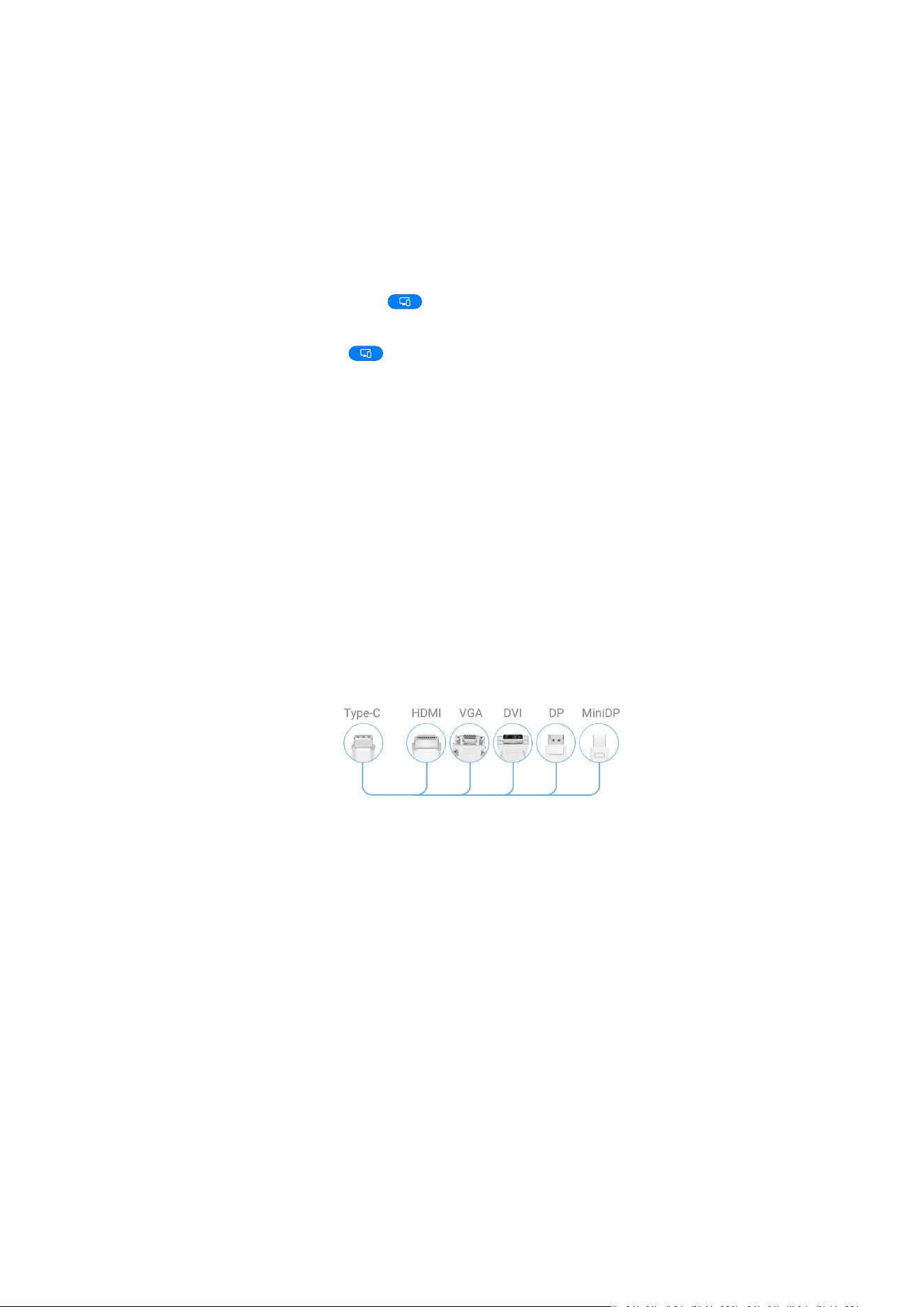
3 Swipe down again to show all shortcuts and enable Wireless Projection. Your device will
start searching for available display devices.
You can also go to Settings > More connections > Easy Projection and enable Wireless
Projection.
4 In the device list, touch the name corresponding to the large display or wireless HDMI
adapter to complete the projection connection.
After the connection is set up, you can place your phone in landscape mode for a better
display. Incoming call notications, messages, and clock alarms are only displayed on your
phone. To change the settings, touch and disable Hide notications.
To exit wireless projection, go to
> Disconnect.
Device Projection Using a Wired Connection
You can project your device screen on a large display (for example, a TV) using a wired
connection.
It is recommended that you purchase the accessories from authorised channels.
Projection Using a Type-C Cable
1 Prepare a Type-C cable.
Use a Type-C to HDMI, Type-C to DP, or Type-C to MiniDP cable depending on your large
display.
2 Connect the Type-C end to your device and the other end to the large display.
Settings
133
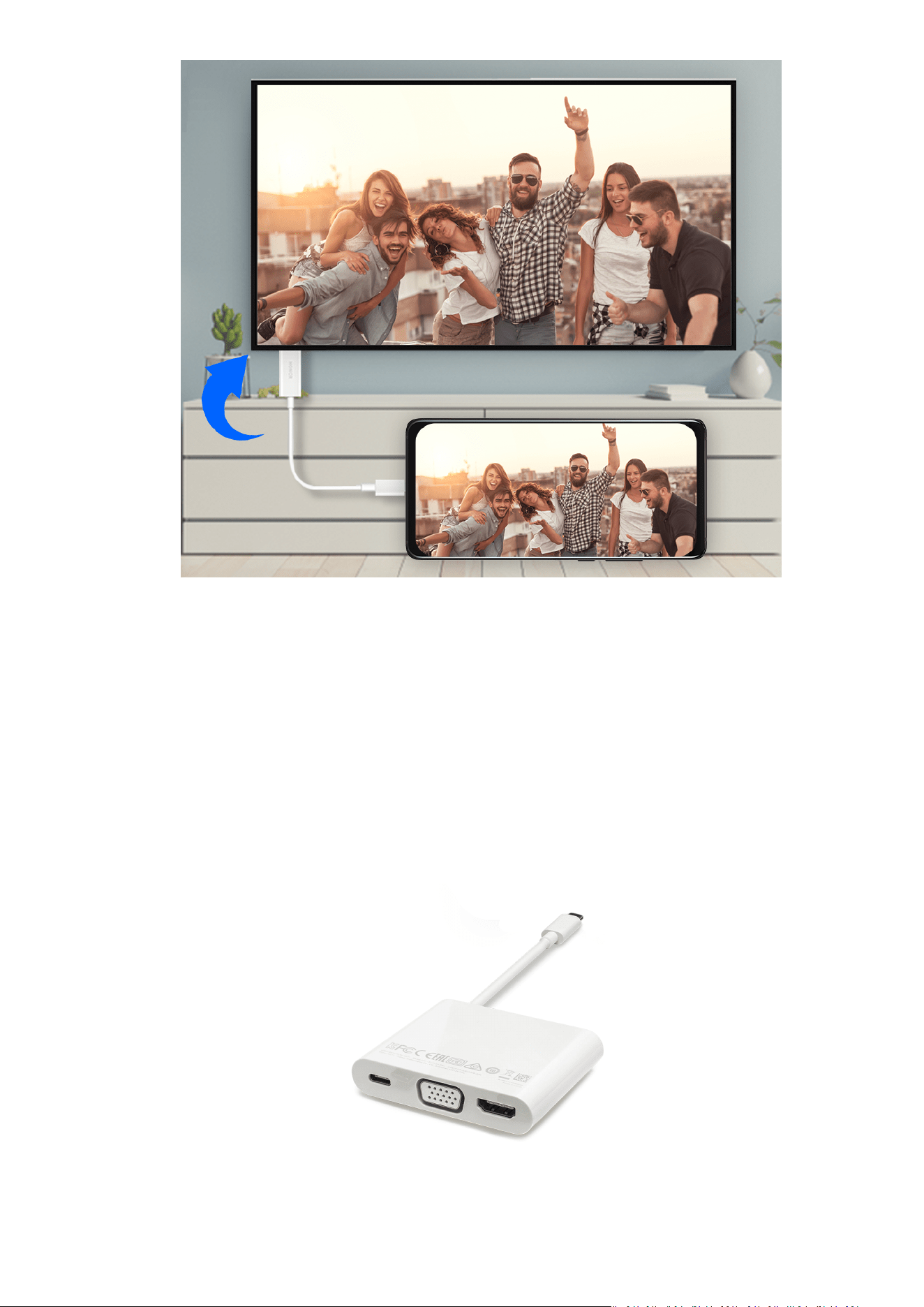
3 On the external display, set the corresponding HDMI, DP, or MiniDP input as the signal
source.
Projection Using a Docking Station
You can use a docking station to connect your device with a large display, and connect them
with a wired keyboard and mouse.
1 Prepare a docking station.
Multiple types of ports are available on a docking station. If the large display supports
HDMI and you need to use a wired mouse and keyboard, use a docking station with at
least one HDMI port and two USB ports.
2 Connect your device and the large display to the docking station, then connect the wired
mouse and keyboard to the docking station.
Settings
134
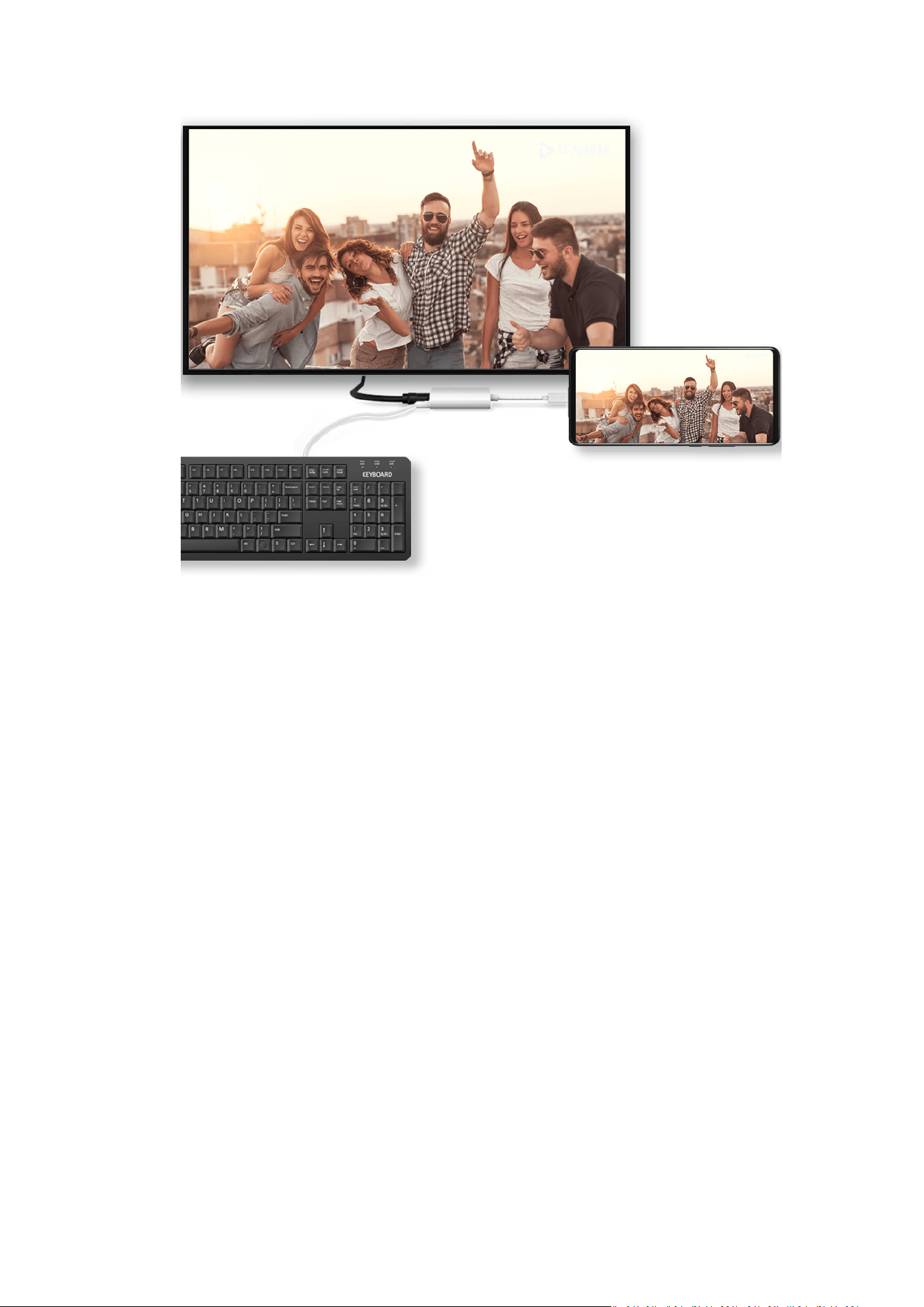
3 On the external display, set the corresponding HDMI, DP, or MiniDP input as the signal
source.
Huawei Share
Huawei Share is a wireless sharing technology that allows you to quickly transfer images,
videos, documents, and other types of les between devices. This technology uses Bluetooth
to discover nearby devices that supports Huawei Share and Wi-Fi Direct to transfer les
without using mobile data.
Enable or Disable Huawei Share
You can enable or disable Huawei Share in either of the following ways:
• Swipe down from the status bar to open the notication panel, swipe down on it again to
show all shortcuts, then turn on or turn o Huawei Share. You can also touch and hold
Huawei Share to access its settings screen.
• Go to Settings > More connections > Huawei Share to enable or disable Huawei Share.
Quickly Share Files Between Devices with Huawei Share
You can use Huawei Share to quickly share les between Huawei devices. The recipient can
preview the les before they are sent, then view the full content of the les once they have
been received. For example, the recipient can view received pictures or videos in Gallery.
Settings
135
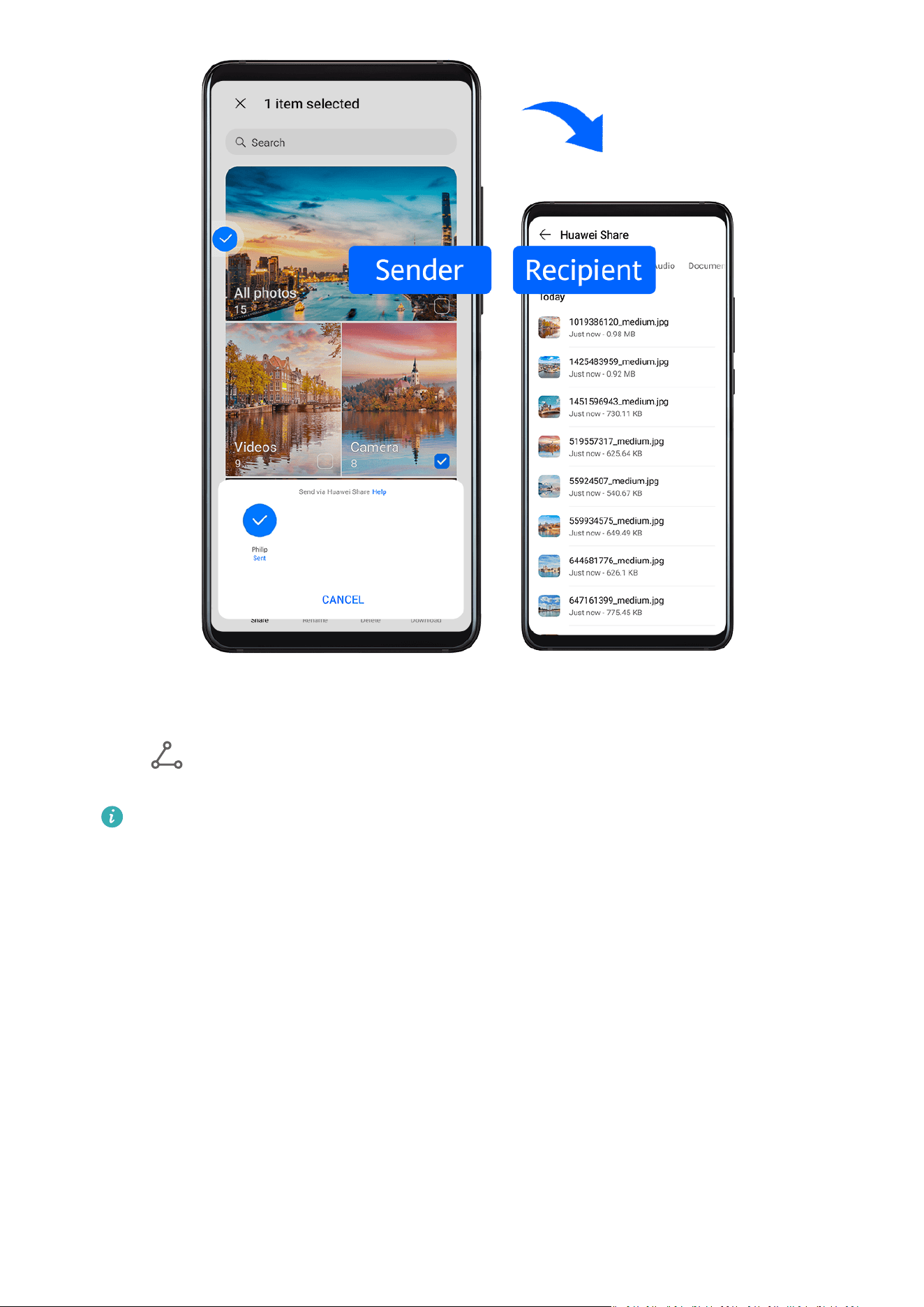
1 On the receiving device, enable Huawei Share.
2 On the sending device, touch and hold to select a le or album you want to share, then
touch . Touch Huawei Share, then touch the icon of the receiving device to send the
le.
These steps may be dierent if you are sharing les directly from an app.
3 On the receiving device, touch Accept to accept the transfer.
To view the received les, open Files, touch the Categories tab, then go to Internal storage
> Huawei Share.
You can also view the received images or videos by going to Gallery > Albums > Huawei
Share.
Share Files Between Your Device and Computer with Huawei Share
You can use Huawei Share to easily share les wirelessly between your device and a
computer (Windows or macOS).
Settings
136
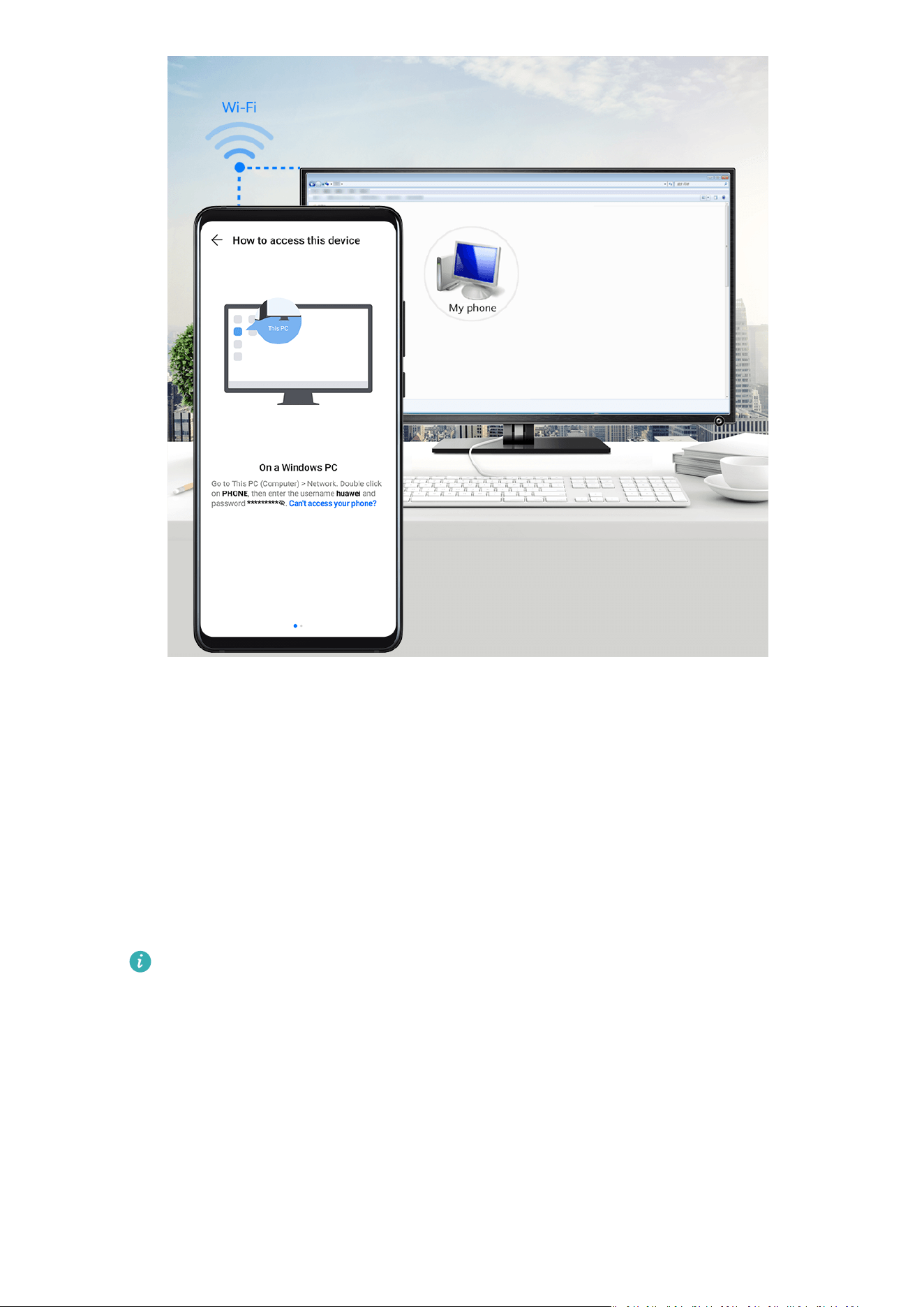
1 Make sure your device and computer are connected to the same Wi-Fi network.
2 On your device, enter the Huawei Share settings and enable Huawei Share and
Computer Share.
3 Make a note of the name displayed next to Name shown on computers, as well as the
user name and password under
Verication.
4 Perform the following operations on a Windows-based computer (desktop or laptop) or a
macOS-based computer (laptop):
• Windows: Go to This PC (Computer) > Network on the computer.
• macOS: Go to Finder > Go to > Network on the computer.
Currently, this feature is only available on Macs running macOS 10.8 to 10.14.
5 On your computer, double-click the name of your device and enter the user name and
password previously noted down.
6 Open a shared folder on your device, such as the Internal storage or Album folder to view,
edit, or copy les from your device to your computer or vice versa.
Changes made to les in the shared folders on your computer will be automatically
synced to your device and vice versa.
One-Touch Printing with Huawei Share
When a printer that supports Huawei Share is nearby, you can use Huawei Share to nd the
printer and print out pictures or PDF les stored on your device.
Settings
137
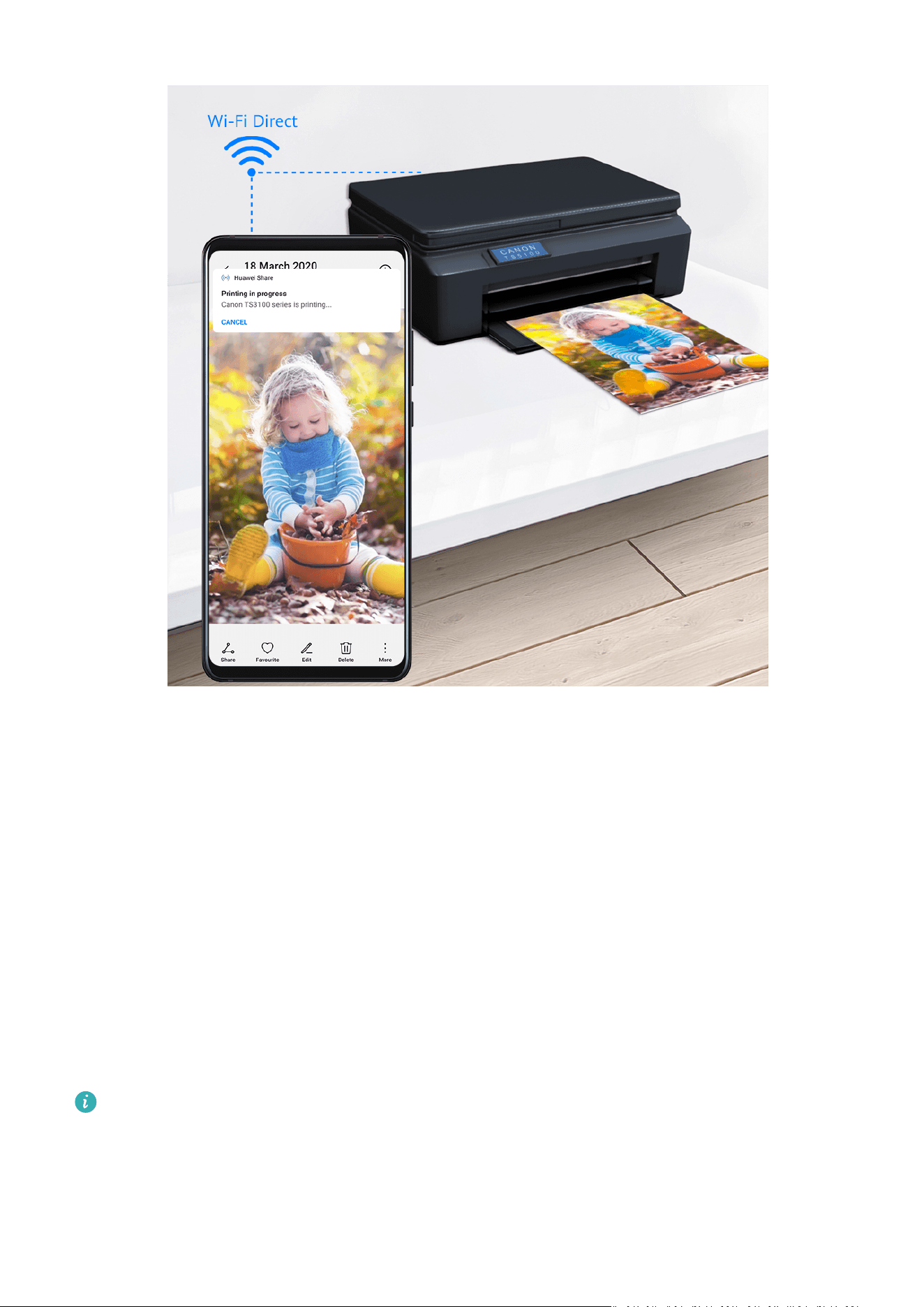
1 Depending on the type of printer, ensure the following:
• Wi-Fi capable printers: The printer must be powered on and connected to the same
network as your device.
• WiFi Direct capable printers: The printer must be powered on and have enabled WiFi
Direct.
• Bluetooth capable printers: The printer must be powered on and discoverable via
Bluetooth.
2 On your device, preview the
le to be printed, then go to Share > Huawei Share.
3 Once the printer has been discovered, touch its name on your device, and adjust the
settings on the preview screen. Then touch PRINT to print.
If you are connecting a Bluetooth printer to your device for the rst time, nd the printer
on your device, touch the printer name, then press and hold the Power button on the
printer for about 1 second to conrm the connection.
For a list of supported printers, touch Help on the Huawei Share sharing screen, select
Printers, then touch What printers are supported?.
Transfer Data Between Your Device and Computer with a USB Cable
1 Connect your device to a computer with a USB cable. After the driver is automatically
installed on the computer, the drive name corresponding to your device will be displayed.
Settings
138

2 On your device, swipe down from the status bar to open the notication panel, swipe
down further to show all shortcut switches, go to Touch for more options, and select a
USB connection mode to transfer data.
• Transfer photos: Use the Picture Transfer Protocol (PTP) to transfer photos between
your device and computer. In the new drive displayed on the computer, you can view
photos stored on your device, or copy and paste photos between the device and
computer.
• Transfer les: Use the Media Transfer Protocol (MTP) to transfer media les between
your device and computer. In the new drive displayed on the computer, you can view
photos stored on your device, or copy and paste photos between the device and
computer.
Install Windows Media Player 11 or later on your computer to view media les on
your device.
• Input MIDI: Use your device as the audio input device of the Musical Instrument
Digital Interface (MIDI) and play music on your computer.
Print Images and Documents
Connect your device to a Mopria-certied printer via Wi-Fi, and then you will be able to print
images and documents from your device.
Connect Your Device to a Printer
1 Check the printer manual or consult with its manufacturer to verify that it is Mopria-
certied.
If it is not, consult with its manufacturer to install the corresponding app or plug-in for it
on your device.
2 Connect your device and the printer to the same Wi-Fi network using any of the following
methods:
• Connect to a Wi-Fi router: Enable Wi-Fi on the printer and connect it to the Wi-Fi
router. On your device, go to Settings > Wi-Fi, enable Wi-Fi, touch the same Wi-Fi
router, and follow the onscreen instructions to complete the settings.
• Connect with Wi-Fi Direct: If your printer supports Wi-Fi Direct, follow the instructions
in the printer manual to enable this feature. On your device, go to Settings > Wi-Fi,
enable Wi-Fi, go to More settings > Wi-Fi Direct, then touch the printer to establish
the connection.
• Connect to your printer's hotspot: If your printer can double as a wireless hotspot,
follow the instructions in the printer manual to enable the hotspot and set a password.
On your device, go to Settings > Wi-Fi, enable Wi-Fi, touch the printer's hotspot, then
follow the onscreen instructions to complete the settings.
3 Go to Settings > More connections > Printing > Default Print Service, and enable
Default Print Service.
Settings
139

4 Select the printer from the search results and follow the onscreen instructions to add the
printer.
Print Files
To print les in Gallery and Notepad, do the following:
• Print an image: Open Gallery. Open the image you want to print, go to More > Print or
export to PDF, select the printer, then follow the onscreen instructions to complete the
printing.
• Print a note: Open Notepad. Open the note you want to print, touch Print, then follow the
onscreen instructions to complete the printing.
Connect to a VPN Network
A virtual private network (VPN) is a temporary connection that extends a private network
across a public network, encrypting data transmission to provide security.
When working outside the oce, you can use a VPN to securely access your company's
Intranet.
The following types of servers are supported:
• PPTP: It stands for Point-to-Point Tunneling Protocol, oering MPPE encryption.
• L2TP: It stands for Layer 2 (Data Link Layer) Tunneling Protocol,
oering IPSec PSK and
IPSec RSA encryption.
• IPSec Xauth: Oering PSK, RSA, and Hybrid RSA encryption.
Connect to a PPTP Server
1 Obtain the required data such as the VPN server name and address from your VPN server
administrator.
2 Go to Settings > More connections > VPN > Add VPN network, enter the VPN name, set
the server type to PPTP, then enter the server address.
3 If the VPN server does not have a DNS address, touch Show advanced options and enter
the DNS domain, DNS server address, and forwarding route.
4 Touch Save.
5 Touch the VPN you have just set up, enter your VPN user name and password, then touch
Connect.
Connect to an L2TP/IPSec PSK Server
1 Obtain the VPN server name, server address, L2TP key (optional), IPsec
identier
(optional), and IPsec pre-shared key from your VPN server administrator.
2 Go to Settings > More connections > VPN > Add VPN network, enter the VPN name, set
the server type to L2TP/IPSec PSK, then enter the server address, L2TP key, IPSec
identier, and IPSec pre-shared key.
3 If the VPN server does not have a DNS address, touch Show advanced options and enter
the DNS domain, DNS server address, and forwarding route.
Settings
140

4 Touch Save.
5 Touch the VPN you have just set up, enter your VPN user name and password, then touch
Connect.
Home Screen & Wallpaper
Manage the Home Screen Layout
You can customise the home screen layout to suit your device usage habits.
Move an App Icon on the Home Screen
Touch and hold an app icon until your device vibrates, then drag it to the desired position on
the home screen.
Keep Home Screen Icons Aligned
Pinch two
ngers together on the home screen to access Home screen settings mode, then
enable Auto-align. With this feature enabled, empty spaces will automatically be lled when
apps are removed.
Lock Home Screen Icon Positions
Pinch two ngers together on the home screen to access Home screen settings mode, then
enable Lock layout.
Select the Home Screen Layout Pattern
Pinch two ngers together on the home screen, go to Home screen settings > Layout, then
select a layout pattern you prefer.
Set Your Home Screen in Settings
You can also go to Settings > Home screen & wallpaper > Home screen settings, then
enable Auto-align and more.
Put App Icons in Folders
For easy management of your app icons on the home screen, you can stack similar apps in a
folder and name the folder.
1 Touch and hold an app icon until your device vibrates, then drag it over another app. A
folder will automatically be created to house these two apps.
2 Open a folder, touch its name, then enter a name for it.
Add App Icons to a Folder or Remove Them
Open a folder and touch . Then you can:
• Select one or more apps, and touch OK to add them to the folder.
Settings
141

• Deselect one or more apps, and touch OK to remove them from the folder. If you deselect
all apps, the folder will be deleted.
Use App Drawer to Store Apps
You can put your apps in a drawer and display only frequently used apps on your home
screen to streamline your home screen.
Enable App Drawer
Go to Settings > Home screen & wallpaper > Home screen style, and select Drawer.
Once enabled, you can swipe up on the home screen to access all of your apps in the drawer.
Add Apps in the Drawer to the Home Screen
In Drawer mode, you can swipe up on the home screen to display the App Drawer. Touch and
hold the app you want to add until your device vibrates, then drag it to the desired position
on the home screen.
Move Apps Back to the Drawer
Touch and hold an app icon until your device vibrates, then touch Remove. This operation
will only remove the app icon from your home screen but will not uninstall it.
You can still nd it in the app drawer.
Disable the Drawer Style
To disable the drawer style, set Home screen style to Standard.
Display & Brightness
Adjust the Screen Brightness, Colour Mode, and Colour Temperature
You can set the screen brightness, colour mode, and colour temperature according to your
preferences.
Automatically Adjust the Screen Brightness
Go to Settings > Display & brightness, and enable Automatic.
Your device will automatically adjust the screen brightness according to the ambient lighting
conditions.
Manually Adjust the Screen Brightness
You can manually adjust the screen brightness using either of the following methods:
• Swipe down from the status bar to open the
notication panel. In the section, drag the
slider to adjust the screen brightness.
Settings
142

• Go to Settings > Display & brightness. In the section, drag the slider to adjust the
screen brightness.
Adjust the Colour Mode
Go to Settings > Display & brightness > Colour mode & temperature, and select the colour
mode that you prefer. Normal mode will be easier on your eyes and is therefore
recommended.
• Normal: natural colour tones
• Vivid: vivid colour tones
Adjust the Colour Temperature
Go to Settings > Display & brightness > Colour mode & temperature, and select the colour
temperature that you prefer. Default and Warm will be easier on your eyes and are therefore
recommended.
• Default: a natural tint
• Warm: a yellowish tint
• Cool: a whitish tint
• You can touch anywhere on the colour circle or drag the spot to adjust the colour
temperature.
Use Eye Comfort Mode
Eye comfort mode can
eectively reduce harmful blue light and adjust the screen to display
warmer colours, relieving eye fatigue and protecting your eyesight.
• Rest your eyes for at least 10 minutes every half an hour.
• Look into the distance for your eyes to have a break from the screen and to relieve eye
fatigue.
• Cultivating good eye care habits will protect your vision and prevent near-sightedness.
Enable or Disable Eye Comfort Mode
• Swipe down from the status bar to open the notication panel, swipe down on it again to
show all shortcuts, then turn on or turn o Eye Comfort. You can touch and hold Eye
Comfort to access the settings screen.
• Go to Settings > Display & brightness > Eye Comfort, and enable or disable Enable all
day.
Once Eye comfort mode is enabled,
will be displayed in the status bar, and the screen
will take on a yellow tint since less blue light is being emitted.
Settings
143

Set a Schedule for Eye Comfort Mode
Go to Settings > Display & brightness > Eye Comfort, enable Scheduled, then set Start and
End according to your preferences.
Enable or Disable Flicker Reduction
Go to Settings > Display & brightness > Eye Comfort, and enable or disable Flicker
reduction.
Enabling Flicker reduction will reduce the amount your screen ickers, but may also aect
its colour and brightness.
Customise Eye Comfort Mode
Go to Settings > Display & brightness > Eye Comfort, enable Enable all day or set up
Scheduled, and adjust the slider under Filter level to customise how much blue light you
would like to be ltered.
Enable Dark Mode
You can enable Dark mode to apply a darker colour scheme, which helps prevent excessive
screen light from straining your eyes and saves battery power.
Go to Settings > Display & brightness > Dark mode, and specify when you would like this
feature to take eect.
Adjust Text Style Settings
You can adjust the system text size and app display size, as well as the text style.
Enlarge or Reduce Text Size
Go to Settings > Display & brightness > Text and display size, and drag the slider for Text
size.
Enlarge or Reduce Display Size
Display size determines the size of content (including text and images) displayed within
apps.
Go to Settings > Display & brightness > Text and display size, and drag the slider for
Display size.
Use Smart Screen Resolution
Go to Settings > Display & brightness > Screen resolution, and enable Smart Resolution.
Your device will automatically adjust the screen resolution according to the current running
status.
Settings
144

Adjust the Screen Refresh Rate
Go to Settings > Display & brightness > Screen refresh rate, and select a screen refresh
rate that you would like to use.
A high screen refresh rate will help deliver a smoother visual experience.
Full Screen Display
Apply Full Screen Display
• Most apps installed on your device will automatically adapt to display correctly in full
screen.
• For apps that don't, go to Settings > Display & brightness > More display settings > Full-
Screen Display, and toggle on their switches. Enabling Full-Screen Display may cause
some apps to display incorrectly, for instance, by being improperly stretched.
Show the Notch
1 Go to Settings > Display & brightness > More display settings > Cutout, and select
Default.
2 If you want to show or hide the notch for a
specic app, touch Custom, select the app,
then select one of the following options:
• Auto
• Show cutout
• Hide cutout
Hide the Notch
Go to Settings > Display & brightness > More display settings > Cutout, and select Hide
cutout.
Display Carrier Name and Network Speed in the Status Bar
You can check the carrier name and network speed with a single glance at the status bar.
Go to Settings > Display & brightness > More display settings, and enable or disable
Display carrier name and Display network speed according to your preferences.
Automatically Switch Between Portrait and Landscape Orientation
Swipe down from the status bar to open the
notication panel, then swipe down on it again
to show all shortcuts. Touch
to enable the Auto-rotate feature.
Your device will then be able to automatically adjust your screen display, with the help of the
built-in Swing Gesture Sensor (to detect your face orientation) and gravity sensor.
For example:
Settings
145

• When you need to switch your device between portrait and landscape orientation when it is
placed on a surface, just keep your face in front of the screen and rotate your device.
• When you are using your device while lying down, the screen will not change its display
orientation when you change the way you are lying.
The Swing Gesture Sensor is located at the top of the screen. To ensure that the sensor
can eectively identify your face orientation, keep your face in front of the screen during
use.
Why Can't the Screen Rotate Intelligently?
The possible causes are as follows:
• Your device comes equipped with the Swing Gesture Sensor to detect the face direction.
Therefore, you need to ensure that the sensor can detect faces.
– Do not cover the sensor, which is located in the upper left corner of the screen.
– Look straight at the screen and keep a distance of 40–60 cm away from the sensor.
– The sensor works better in a well-lit environment.
• Landscape display is not supported in some apps (such as navigation or game apps) and
the home screen.
Introduction to GPU Turbo
GPU Turbo represents a radical redesign of the graphics processing framework of the device
at its most basic level, integrating hardware and software to achieve accelerated graphics
processing. It improves the device's graphics processing
eciency, image quality, and
performance, whilst simultaneously reducing system power consumption.
The end result is a great improvement in user experience when playing graphically intense
games.
Sounds & Vibration
Set Do Not Disturb Mode
Do Not Disturb helps you prevent interruptions when you need to focus. When this mode is
enabled, calls and messages will be muted and banner
notications will not be displayed.
Enable or Disable Do Not Disturb
You can enable or disable Do Not Disturb using either of the following methods:
• Swipe down from the status bar to open the notication panel, swipe down on it again to
show all shortcuts, then turn on or turn o Do Not Disturb. You can touch and hold Do
Not Disturb to access the settings screen.
• Go to Settings > Sounds & vibration > Do Not Disturb, and enable or disable Do Not
Disturb.
Settings
146

Once Do Not Disturb has been enabled, will display in the status bar. To check for
notications, go to the lock screen or swipe down from the status bar to open the
notication panel. Swipe left on a notication and touch to delay the notication.
When receiving incoming calls, notications, and messages, your device will be muted and
will not automatically turn on its screen or display banner notications.
Set a Schedule for Do Not Disturb
1 Go to Settings > Sounds & vibration > Do Not Disturb, and disable Do Not Disturb.
2 Enable Scheduled. Your device will enter Do not disturb mode at the specied time on
Saturdays and Sundays by default.
3 Touch Scheduled to set the time frame and repeat cycle.
4 You can also touch Add to set multiple start times.
Make Exceptions in Do Not Disturb Mode
While in Do Not Disturb mode, you can enable your device to ring for calls and messages
from certain sources so you don't miss anything important.
Go to Settings > Sounds & vibration > Do Not Disturb, and enable Do Not Disturb or
Scheduled. Then you can:
• Touch Calls or Messages and select one of the options. If you set an exception, your device
will ring for calls or messages from the selected source.
• Once Repeated calls is enabled, a second call from the same number within 15 minutes
will not be silenced.
Set a Ringtone for Incoming Calls
You can set your favourite music or a video as the ringtone for incoming calls.
If you are carrying your device in your pocket, the ringtone volume will gradually increase.
This helps prevent you from missing important calls.
If your phone has two SIM cards installed, congure the settings for SIM 1 and SIM 2
respectively.
Set a Music Ringtone
1 Go to Phone > > Settings > Ringtone.
Or go to Settings > Sounds & vibration > Phone ringtone.
2 Select a system ringtone, or touch Music on device to set a local song as the ringtone.
3 If you select a system ringtone, touch Vibration on the same screen, and select
Synchronised (default). When there is an incoming call, your device will vibrate with
rhythm while the system ringtone is playing.
Not all products support a synchronised vibration and ringtone.
Settings
147

Set a Video Ringtone
Set a video as the ringtone for incoming calls on your device.
1 Go to Phone > > Settings > Ringtone.
Or go to Settings > Sounds & vibration > Phone ringtone.
2 Touch Video ringtones and select a video. You can then preview what it looks like for
incoming calls.
3 Touch Set to set the video as the ringtone.
Set a Ringtone for a Contact
Set a dierent ringtone for a particular contact to distinguish more easily when that contact
is calling you.
1 Open Phone, touch the Contacts tab, then select the contact you want to set a ringtone
for.
2 On the contact details screen, touch Ringtone and select a ringtone.
Set a
Notication Tone for a Specic App
You can set a
notication tone for certain apps by doing the following:
1 Go to Settings > Apps > Apps.
2 Select an app (for example, Notepad).
3 Go to Notications > To-do notications > Notication sound.
4 You can then:
• Set a tone.
Select a preset tone, or touch Music on device to select a locally saved song.
• Set a vibration pattern.
Touch Vibration and select your preferred type of vibration.
When Synchronised (default) is selected, your phone will vibrate according to the
rhythm of the tone.
For other options, the vibration pattern of your phone is xed.
The feature availability varies by device.
Sound Booster
Sound Booster uses the microphone of your device to pick up sound and then wirelessly
transmits the sound to a Bluetooth headset so that people with hearing impairments can
hear more clearly or to a Bluetooth speaker for it to be played more loudly.
Application scenarios:
• When watching TV together, give a Bluetooth headset to an elderly person with a hearing
impairment and then place your device below the TV set to pick up sound and transmit it
to the Bluetooth headset.
Settings
148

• In a noisy environment, use your device as a microphone and connect it to a Bluetooth
speaker for sound to be played more loudly.
1 Connect your device to a Bluetooth headset or speaker.
2 On your device, go to Settings > Sounds & vibration > Sound Booster to enable Sound
Booster. Touch the device you want to connect to.
3 When connected to a Bluetooth headset, place your device near the sound source. When
connected to a Bluetooth speaker, hold your device and speak into the microphone.
4 Wear the headset or place the speaker in an appropriate position. Make sure the distance
between the speaker or headset and your device does not exceed 10 m (about 33 ft.).
Enable Huawei Histen Sound
Eects
Huawei Histen sound eects, with 3D surround sound support, deliver vibrant and crisp
sound to create an immersive audio experience.
Huawei Histen sound eects are only available when a headset is plugged in.
Go to Settings > Sounds & vibration > Huawei Histen sound eects and select an option:
• Auto: Automatically identies what you are playing and intelligently applies sound eects
to optimise your experience.
• 3D audio: Delivers 3D spatial sounds.
• Natural: Faithfully reproduces the original sounds.
• Standard: Requires less power for audio playback. You can also customise equaliser settings
yourself to achieve the exact sound you are looking for.
Auto, 3D audio, and Standard modes allow you to select a headset type so you can match
the sound
eects to your headset.
Selecting a headset type is available only when a 3.5 mm-jack headset is plugged in. If
your device does not have a 3.5 mm jack, use an original Huawei headset adapter.
Notications
App Badges
When new notications arrive for an app, a numbered badge will appear on the app icon.
You can also set a dot as the badge, or hide the badge for some or all apps.
Turn O App Badges
1 Go to Settings > Notications, and touch App icon badges.
2 Turn o the switch for some or all apps.
Change the Badge Display Mode
On the App icon badges screen, touch Badge display mode, and select Numbers or Dots
according to your preference.
Settings
149

Disable App Notications
Disable Notications from a Specic App
If you do not want to be disturbed by notications from an app, perform either of the
following:
• After you receive a notication from the app, swipe left on it in the notication panel, and
go to > Disable notications.
• Go to Settings > Notications, locate and touch the app for which you want to disable
notications, then disable Allow notications.
Disable Notications from Apps in Batches
To disable notications from multiple apps at a time, go to Settings > Notications >
Manage all, and turn o the switch next to each app.
Hide Content of Notications on the Lock Screen
Go to Settings > Notications, and enable Hide notication content. The content of
notications will then not be displayed on the lock screen.
More App Notication Settings
Set the App Notication Mode
Go to Settings > Notications and select an app. You can then set its notication mode.
• Enable Gentle notications: Notications will only be displayed in the notication panel.
There will be no banners, lock screen notications, or status bar icons, and your device will
not ring or vibrate.
• Enable Lock screen and Banners.
• Set Notication sound: You can change the notication tone, set the vibration pattern, or
select None.
• Enable Allow interruptions: You can still receive notications from this app even if Do not
disturb is enabled.
This feature may vary by device.
Notications Turn on Screen
Go to Settings > Notications > More notication settings, and enable Wake screen. Your
device will then automatically turn on the lock screen when it receives a notication.
Show Notication Icons in the Status Bar
Go to Settings > Notications > More notication settings, and enable Show notication
icons in the status bar.
Settings
150

Biometrics & Password
Set Fingerprints
You can enrol a
ngerprint and then use it to unlock the screen and access your Safe, App
lock, and more.
Enrol a Fingerprint
1 Go to Settings > Biometrics & password > Fingerprint ID and follow the instructions to
set or enter the lock screen password.
2 Touch New
ngerprint to begin enroling your ngerprint.
3 Place your ngertip on the ngerprint sensor. When you feel a vibration, lift your nger
then press again. Move your nger around to enrol dierent parts of it.
4 When the enrolment has been completed, touch OK.
You can now place your nger on the ngerprint sensor to unlock the screen.
Rename or Delete a Fingerprint
1 Go to Settings > Biometrics & password > Fingerprint ID and enter your lock screen
password.
2 In the Fingerprint list section, touch an enroled
ngerprint to rename or delete it.
Identify a Fingerprint
Fingerprint
identication allows you to match your ngers with the enroled ngerprints.
1 Go to Settings > Biometrics & password > Fingerprint ID and enter your lock screen
password.
2 In the Fingerprint list section, touch Identify ngerprint.
3 Touch the ngerprint sensor with your nger. The recognised ngerprint will be
highlighted.
Use Your Fingerprint to Access Your Safe
1 Go to Settings > Biometrics & password > Fingerprint ID and enter your lock screen
password.
2 Turn on the switch for Access Safe and follow the onscreen instructions to link your
ngerprint with the Safe.
Now you can go to Files > Categories, touch Safe, then use your ngerprint to access it.
Use Your Fingerprint to Access a Locked App
1 Go to Settings > Biometrics & password > Fingerprint ID and enter your lock screen
password.
2 Turn on the switch for Access App Lock and follow the onscreen instructions to link your
ngerprint with App lock.
Settings
151

You can now touch a locked app on your home screen and use your ngerprint to access it.
Enable and Use Fingerprint Payment
You can use your ngerprint to verify your payments in a payment app.
Go to the payment app and follow the onscreen instructions to enable this feature.
Face Recognition
3D Face Recognition utilises more information than traditional face recognition technology to
further enhance your device security. Time-of-Flight (ToF) 3D imaging technology makes face
recognition possible even in dark environments.
You can unlock your device, make payments, and access locked apps using your facial data.
You can also enrol an alternate look for even greater convenience.
Enrol Facial Data
1 Go to Settings > Biometrics & password > Face Recognition, and enter your lock screen
password.
If you have not set a lock screen password, set a 6-digit PIN or touch Change unlock
method to set up another type of password.
2 Select Enable raise to wake.
3 Touch Get started and follow the onscreen instructions to enrol your facial data.
Set an Alternate Look
You can add an alternate look for more accurate and convenient face recognition.
On the Face Recognition screen, touch Set an alternate look, and follow the onscreen
instructions to enrol the alternate facial data.
Enable Face Unlock
On the Face Recognition screen, touch Unlock device, and select an unlock method.
You can also enable Require eye contact to improve security. Once this feature is enabled,
you will need to keep your eyes open to unlock the screen.
If you have enabled PrivateSpace on or added multiple users to your phone, you can use
Face unlock only in MainSpace or with the Owner account.
Enable and Use Face Payment
Currently, HUAWEI devices support face payment on apps such as Alipay.
The method of enabling face payment varies depending on the apps. For details, contact
the app developer.
Access App Lock with Face Recognition
On the Face Recognition screen, enable Access App Lock, and follow the onscreen
instructions to add your facial data to App lock.
Settings
152

You will then be able to access locked apps with face recognition.
Disable or Delete Facial Data
On the Face Recognition screen, you can do the following:
• Disable facial data for certain features: Disable Unlock device, or Access App Lock as
required. This will not delete your facial data.
• Delete facial data: Touch Delete facial data and follow the onscreen instructions to delete
your facial data.
Lock Screen Password
You can set a numeric, pattern, or hybrid password as your lock screen password.
Set the Lock Screen Password
You can set a numeric, pattern, or hybrid password.
1 Go to Settings > Biometrics & password and touch Lock screen password.
2 Enter a password containing 6 digits.
3 Alternatively, touch Change unlock method and select a password type, then follow the
onscreen instructions to input a new password.
Change the Lock Screen Password
1 On the Biometrics & password screen, go to Change lock screen password.
2 Enter the original lock screen password.
3 Enter a new password, or touch Change unlock method to select a password type, then
follow the onscreen instructions to input a new password.
Disable Lock Screen Password
On the Biometrics & password screen, go to Disable lock screen password.
Enable Lockdown
There are many ways your device can be unlocked. In some cases (such as if you are asleep
while taking public transport), password unlock is more secure than other unlock methods.
When Lockdown mode is enabled, you will only be able to unlock your device using your lock
screen password. Other unlock methods will be temporarily disabled.
You must set a lock screen password to use this feature.
1 Go to Settings > Biometrics & password > Secure lock settings, and enable Show
Lockdown option.
2 Press and hold the Power button until the Lockdown option is displayed on the screen.
3 Touch Lockdown and follow the onscreen instructions to enable Lockdown mode. Once
Lockdown mode is enabled, your device can only be unlocked using the lock screen
password.
Settings
153

4 Lockdown mode is automatically disabled when you unlock your device. You can use other
unlock methods as usual the next time you unlock your device.
If you need to re-enable Lockdown mode, press and hold the Power button and touch the
Lockdown option again.
Apps
Enable App Twin
App Twin enables you to log in to two WhatsApp or Facebook accounts simultaneously,
allowing you to keep your work and private life separate.
App Twin is only supported by some apps.
Go to Settings > Apps > App Twin, and enable App Twin. The twin app will then be
displayed on the home screen.
View or Change App Settings
Go to Settings > Apps > Apps and touch an app. You can force stop it, uninstall it, view and
change the app permissions, set notication modes, and more.
Some apps cannot be uninstalled.
Battery
Check the Power Consumption of Your Device
Go to Settings > Battery (or Optimiser >
), and you can then:
• View Power consumption details to learn about the power consumption of the last 24
hours and the power usage ranking of apps.
• Touch a bar in the chart to learn about the power consumption during the corresponding
period.
• Touch an app and view its Battery usage details, or touch Force stop to close the app.
Some pre-installed apps cannot be closed.
Power Management
On the Battery screen, you can check the estimated battery time remaining, and enable a
power saving mode to extend the battery life of your device.
Enable Power Saving Mode
If Power Saving mode is enabled on your device and the battery level is higher than 10%,
some functions will be disabled, background apps will be restricted, and visual eects will be
weakened to reduce power consumption. When the battery level is lower than or equal to
10%, stricter power saving measures are taken to ensure the longest standby time. It is
Settings
154

recommended that you enable Power Saving mode when the battery level is lower than or
equal to 20%.
To do so, go to Settings > Battery (or Optimiser > ), and enable Power Saving mode. A
icon will then be displayed in the status bar.
You can touch Learn more to view details about power saving measures.
Enable Performance Mode
Performance mode adjusts power settings to deliver maximum performance. This will cause
the battery to drain more quickly, especially when graphic-intensive apps are used.
When the battery level is
sucient, go to Settings > Battery (or Optimiser > ) and
enable Performance mode.
The icon will then be displayed in the status bar.
Performance mode is not available on some devices. If this option is not displayed in
Optimiser, it indicates that your device does not support the feature.
Enable Smart Charge
Smart Charge learns from your charging habits and manages the charging process
intelligently. This feature reduces the battery wear level and prolongs the battery life by
reducing the time your device spends fully charged. It is advised that you keep this feature
enabled.
For example, if you are used to charging your devices overnight or for an extended period of
time, Smart Charge will pause the charging when the battery capacity reaches a certain level.
Before you get up in the morning, Smart Charge will resume charging until your device is
fully charged. This reduces the time your device spends fully charged to slow down battery
wear and prolong the battery life.
Data about your charging habits will only be used on your device and will not be backed
up or uploaded to the cloud.
To enable this feature, go to Settings > Battery > More battery settings, and enable Smart
Charge.
Enable Smart Battery Capacity
Smart Battery Capacity intelligently adjusts the maximum available battery capacity based on
the current battery state to slow down battery wear and prolong the battery lifespan. It is
advised that you keep this feature enabled.
To enable this feature, go to Settings > Battery > More battery settings, and enable Smart
Battery Capacity.
Settings
155

Customise Battery Settings
You can also set whether to display the battery percentage in the status bar, and whether to
maintain a network connection when the device screen is turned o.
Display Battery Percentage on the Status Bar
Go to Settings > Battery (or Optimiser > ), touch Battery percentage, and choose to
display the battery percentage, either inside or outside of the battery icon on the status bar.
Stay Connected while Your Device is Sleeping
If you would like your device to continue to receive messages or download data while it is in
sleep mode, set to keep your device connected when it sleeps. Please note that this may
increase power consumption.
On the Battery screen, touch More battery settings, then enable or disable Stay connected
while asleep as required.
Storage
Check Storage Usage
Go to Settings > Storage to check storage usage and optimise it when you feel necessary.
Clean Up Device Storage
You can use Cleanup in Optimiser to scan for redundant or large
les, such as app residue,
unwanted installation packages, WeChat data, and more. Once detected, you can choose
whether or not to delete les as suggested.
1 Open Optimiser, then touch Cleanup.
2 When the scan is complete, touch Clean up after each item and delete any les you don't
need.
Automatically Clean Up System Trash
1 Open Optimiser, and touch Cleanup.
2 Swipe down from the top of the screen, and your device will automatically clean up
system trash.
Manually Clean Up System Trash
In addition to automatic cleanup, your device will also detect and recommend trash
les for
you to clean up manually.
On the Cleanup screen, touch Clean up next to a category, select the items you want to
clean up, then touch DELETE .
Settings
156

Clean Up Duplicate Files
Optimiser can identify duplicate les on your device.
On the Cleanup screen, touch Duplicate les , then select unwanted les to delete them.
Security
Use the Password Vault to Automatically Fill in the Password
Password Vault saves your usernames and passwords and
autolls them for you each time
you log in to an app. This data is hardware encrypted and stored only on your device. Huawei
does not have access to it, and will not upload it to the network or server.
• Before using Password Vault, set a lock screen password for your device.
• Password Vault is only compatible with certain apps.
Log In Faster with Password Vault
1 When you log in to an app for the
rst time, your device will automatically prompt you to
save the password. Touch SAVE when prompted.
If you accidentally touch Never save, you can still enable the autoll feature for this app
by going to Settings > Security > Password Vault > Autoll settings, and toggling on
the switch next to this app. When the switch is toggled o, the autoll feature will be
disabled.
2 If you log out of the app, the next time you log in, your device will autoll the username
and password once you have veried your identity with your lock screen password,
ngerprint, or face ID.
When you switch to a new Huawei device, you can use Phone Clone to transfer data in
Password Vault to your new device.
View or Delete Stored Usernames and Passwords
You can view or delete the usernames and passwords stored in Password Vault at any time.
Go to Settings > Security > Password Vault > ACCOUNTS to view or delete the stored
usernames and passwords.
Disable Password Vault
Password Vault is enabled by default, but can be disabled if required.
Go to Settings > Security > Password Vault, and disable Password Vault.
Use App Lock to Protect Your Privacy
With App Lock, you can lock apps containing private data, such as chat and payment apps, to
prevent unauthorised access. If you have enabled App Lock and set Face Recognition as the
app unlock method, when your face is not detected by your device, the locked app can't be
Settings
157

accessed again after it is closed unless you verify your identity. This feature intelligently
protects your privacy and works better in a well-lit environment.
Enable App Lock
Go to Settings > Security > App Lock > Enable, then follow the onscreen instructions to set
the App Lock password and select the apps to lock.
If you have enabled face or ngerprint unlock, you can link App Lock with a face ID or
ngerprint ID as prompted.
Not all devices support ngerprint features.
Enable Intelligent Protection for Locked Apps
If you have enabled App Lock and set Face Recognition as the app unlock method, the
system will intelligently detect that it is a dierent face to normal and provide further
security protection for locked apps. If your face is not detected, such as when someone else is
using your device, the locked app can't be accessed again after it is closed unless you verify
your identity. This feature works better in a well-lit environment.
The intelligent protection feature will be enabled automatically once you have set Face
Recognition as the app unlock method in either of the following ways:
• If you have enabled Face Recognition for your device, follow the onscreen instructions to
link your face when you enable App lock. The intelligent protection feature will then be
enabled automatically.
• If you have not enabled Face Recognition on your device, go to Settings > Biometrics &
password > Face Recognition and follow the onscreen instructions to enter the Face
Recognition screen and enrol your facial data. Then enable Access App Lock to link your
face with locked apps.
Change the App Lock Password or Security Questions
Enter the App Lock settings screen, go to > Password type, and select Lock screen
password or Custom PIN as the App Lock password.
If you select Custom PIN, you can go on to set a new password and security questions.
Cancel or Disable App Lock
On the App Lock settings screen, do the following:
• Cancel App Lock: On the locked app list, toggle o the switches beside the apps for which
you want to cancel the lock.
• Reset App Lock: Go to
> Disable App Lock > DISABLE. This will cancel all locks, and
clear all app lock settings.
Settings
158

Enable Smart Unlock
Smart Unlock enables you to unlock your device with a Bluetooth device, such as a smart
band. When a compatible Bluetooth device is detected, you can then unlock your device with
a simple swipe.
1 Pair your device with the Bluetooth device.
2 On your device, go to Settings > Biometrics & password > Smart Unlock, and enable
Smart Unlock.
3 Follow the onscreen instructions to set the lock screen password. Skip setting the lock
screen password if a lock screen password has already been set.
4 From the Paired devices list, touch the name of the device you would like to use for
Smart Unlock, and follow the onscreen instructions to set it as the Unlocking device.
To learn more about Smart Unlock, touch
on the Smart Unlock screen.
Encrypt Content on the Memory Card
You can encrypt les stored on the memory card. Encrypted les can only be viewed and
used on your device.
1 Insert a memory card into your device and ensure that the memory card has sucient
storage space.
2 Go to Settings > Security > More settings > Encryption and credentials.
3 Touch Encrypt memory card and follow the onscreen instructions to encrypt the memory
card.
During the encryption, do not restart your device or forcibly remove the memory card.
Otherwise, the encryption may fail or data may be lost.
To decrypt a memory card, touch Decrypt memory card and follow the onscreen instructions
to decrypt
les on the memory card. Formatting a memory card can also decrypt the
memory card, but will erase all data on the memory card.
Encrypting and decrypting the memory card will not be supported if you are not logged
in as the Owner.
Set a SIM PIN Lock
A PIN is the identity code of a SIM card, and can be set as the SIM card lock. After you set it
up, you will be required to enter the correct PIN to unlock the SIM card every time you power
on your device or switch to a new device to prevent unauthorised access.
If you have entered a wrong PIN and exceeded the maximum number of attempts allowed to
unlock the PIN, you will need to enter the PIN Unlocking Key (PUK) then reset the PIN. If you
exceed the maximum number of attempts allowed to unlock the PUK, your SIM card will be
permanently blocked.
Settings
159

The PIN and PUK of your SIM card are provided by your network provider. The number of
digits and maximum number of attempts allowed to unlock your PIN and PUK are subject to
your network provider.
1 Go to Settings > Security > More settings to enter the SIM lock settings screen.
2 Enable Lock SIM card, enter the PIN, then touch OK.
To change the PIN, touch Change SIM PIN1, and follow the onscreen instructions.
Pin a Screen
You can pin the screen of an app so you can stay focused on it. Try this feature when playing
games, watching videos, and more.
Go to Settings > Security > More settings > Screen pinning, and enable Screen pinning.
• When using gesture navigation, swipe up from the bottom of the screen and hold to access
the recent tasks screen, then touch on an app preview. To unpin, swipe up twice from
the bottom of the screen.
• When using three-key navigation, touch to access the recent tasks screen, and touch
on an app preview. To unpin, touch and hold .
Device Safe Mode
Safe mode uses a simplied operating system with only basic functions and pre-installed
apps available. It can be used to locate third-party apps causing system failures.
Safe Mode Functions
After installing certain third-party apps, your device may fail to work properly. In this case,
you can enter Safe mode to check whether the problem has been caused by a third-party app
or by the system itself.
• If the system is running properly in Safe mode, the issue is likely caused by a third-party
app. In Safe mode, go to Settings > Apps > Apps, nd the third-party app in question, and
uninstall it after switching back to the normal mode.
• If the system runs abnormally in Safe mode, then the system is faulty. Back up your data
and take your device and proof of purchase to an authorised Huawei Customer Service
Centre for assistance.
Enter and Exit Safe Mode
• Enter Safe mode: During the startup process, press and hold the Power and Volume up
buttons simultaneously until the selection screen is displayed. Press the Volume button to
select Safe mode and press the Power button to enter Safe mode. In Safe mode, Safe
mode is displayed in the lower left corner.
• Exit Safe mode: Restart your device to exit.
Settings
160

Privacy
Manage App Access Permissions
Apps may require certain permissions, such as the Location permissions, in order to provide
you with corresponding services.
However, some apps may obtain too many unnecessary permissions, posing potential risks to
your privacy and information security. You can monitor the permissions granted to each app
and deny those you deem unnecessary.
Manage the Location Permission
After granting the Location permission to an app, it can obtain your location information at
any time. For example, if a map app is granted the Location permission, it can provide you
with location and navigation services. You can revoke the permission if you do not need these
services.
1 Go to Settings > Apps > Permission manager.
2 On the Permission manager screen, touch Location, touch the icon of the corresponding
app, then select Allow all the time, Allow only while in use, or Deny.
Manage Permissions to Access Other Private Data
You can also manage permissions to access your personal data, such as Contacts, Messaging,
Call logs, Body sensors, Calendar, and Camera, to enjoy better services and protect your
privacy.
On the Permission manager screen, touch the permission you want to manage, and toggle
the switch for each app on or
o as required.
Use Location Services
Some apps need to obtain your location information to provide better services. You can
enable or disable location services, and grant or deny the permission to access location
information for particular apps as required.
Enable or Disable Location Services
You can enable or disable location services in either of the following ways:
• Swipe down from the status bar to open the notication panel and swipe down further to
display all shortcut switches. Touch
to enable or disable this function.
• Alternatively, go to Settings > Location and enable or disable Access my location.
After location services are disabled, your device will prevent all apps and services from
collecting and using location information, with the exception of some built-in apps. When
these apps or services need to use location information, your device will remind you to
enable location services again.
Settings
161

Increase the Accuracy of Location Services
You can improve the positioning accuracy of your device by allowing apps and services to
scan for nearby Wi-Fi networks and Bluetooth devices or access correction data for global
navigation satellite systems (GNSS).
The feature availability varies by device.
Go to Settings > Location > Advanced settings, then set the options as required.
Allow or Forbid Apps to Obtain Location Information
You can allow or forbid an app to access location information, including granting one-time or
permanent access, or denying access to location information during use of the app.
1 Go to Settings > Privacy > Permission manager, touch Location, and check which apps
have been granted access to location information.
2 Touch the app for which you want to change settings and follow the onscreen instructions
to grant or deny permissions.
Create a PrivateSpace for Your Private Data
Create your PrivateSpace that is completely independent of MainSpace (the original space)
on your device, which can be accessed using your
ngerprint or a password.
Not all devices support ngerprint features.
You can move private photos, videos, and other les to your PrivateSpace to prevent
unauthorised access. You can also move your payment and gaming apps to PrivateSpace to
prevent them from being accessed by your child.
Enable and Access PrivateSpace
1 Go to Settings > Privacy > PrivateSpace > Enable, and follow the onscreen instructions
to create a PrivateSpace.
2 You can enter your PrivateSpace using either of the following methods:
• On the lock screen, access PrivateSpace using the
ngerprint or password set for the
space.
• Alternatively, in MainSpace, go to Settings > Privacy > PrivateSpace, and touch Log
in.
If you restart your device, you have to enter the password to access the MainSpace
rst, then switch to the PrivateSpace.
Hide or Unhide the Entrance to PrivateSpace
You can hide the entrance to PrivateSpace in the MainSpace settings, so that you can only
access PrivateSpace using the ngerprint or password set for the space.
• To hide the entrance to PrivateSpace: In PrivateSpace, go to Settings > Privacy >
PrivateSpace, and enable Hide PrivateSpace.
Settings
162

• To unhide the entrance to PrivateSpace: In MainSpace, go to Settings > Security > More
settings, then go to Show all settings > OK.
Transfer Files Between MainSpace and PrivateSpace
1 In PrivateSpace, go to Settings > Privacy > PrivateSpace, and touch MainSpace to
PrivateSpace or PrivateSpace to MainSpace.
2 Select the
les (such as photos, videos, and audio les) you want to transfer, touch Move,
and follow the onscreen instructions to transfer the les.
In the target space, go to Gallery > Albums > Others > SharedImages, or Gallery > Albums
> Others > SharedVideos to view photos and videos.
Reset Password for PrivateSpace
You can set a security question when creating the password for PrivateSpace, which will help
you to reset the password if you happen to forget it.
1 In PrivateSpace, go to Settings > Privacy > PrivateSpace, then touch Password
protection.
2 Follow the onscreen instructions to complete the
verication, select and answer the
security question, then touch Finish.
3 In MainSpace, go to Settings > Privacy > PrivateSpace, then go to
> Reset
password, and follow the onscreen instructions to complete the verication and reset the
password.
Transfer Data in PrivateSpace to Your New Device
You can quickly transfer your PrivateSpace data, such as contacts, photos, and les, from the
old device to the new one.
1 On your new device, create and enter your PrivateSpace, go to Settings > Privacy >
PrivateSpace > Space Clone, and select This is the new device.
2 In your old device, enter your PrivateSpace, go to Settings > Privacy > PrivateSpace >
Space Clone, and select This is the old device.
3 Follow the onscreen instructions to scan the QR code or manually connect the old device
to the new one.
4 On your old device, select the data to be transferred. You can cancel the data transfer
during the process, and then continue it once you have connected your old device with the
new one again.
Delete PrivateSpace
If you delete PrivateSpace, all apps and data stored in the space will be deleted and cannot
be restored. Please exercise caution when deleting PrivateSpace.
You can delete PrivateSpace in either of the following ways:
• In MainSpace, go to Settings > Privacy > PrivateSpace, then go to
> Delete
PrivateSpace.
Settings
163

• Alternatively, in PrivateSpace, go to Settings > Privacy > PrivateSpace, then touch Delete.
Accessibility Features
Use a Screen Reader App
Screen reader apps are designed to assist visually impaired users to use a device.
Enable Colour Correction to Customise the Screen Colour
Colour correction helps people with poor eyesight see the screen content more easily.
1 Go to Settings > Accessibility features > Accessibility > Colour correction and enable
Colour correction.
2 Touch Correction mode to select a colour correction mode.
Use
Magnication Gestures
Use magnication gestures to zoom in on the screen.
On the Accessibility > Magnication screen, touch Magnication, then enable it.
Zoom in or out by touching the screen three times in a row.
• While zoomed in, spread two or more ngers to further zoom in, then pinch two or more
ngers together to zoom back out.
• Drag the screen with two or more ngers to view other parts of the screen.
Enable Colour Inversion
Colour inversion allows you to invert the colour of the text and the background. When Colour
inversion is enabled, your device will display text in white and the background black.
On the Accessibility screen, enable Colour inversion.
Use a Shortcut to Activate an Accessibility Feature
You can use Volume buttons to quickly activate an accessibility feature.
1 On the Accessibility screen, touch Accessibility shortcut.
2 Touch Select feature to select the feature you want to activate with the shortcut.
3 Enable Accessibility shortcut. You can now press and hold the Volume up and down
buttons simultaneously for 3 seconds to activate the feature.
Adjust the Touch and Hold Delay
Touch & hold delay allows you to adjust the time the screen takes to respond when you
touch and hold something.
On the Accessibility screen, touch Touch & hold delay, then select a delay option according
to your preferences.
Settings
164
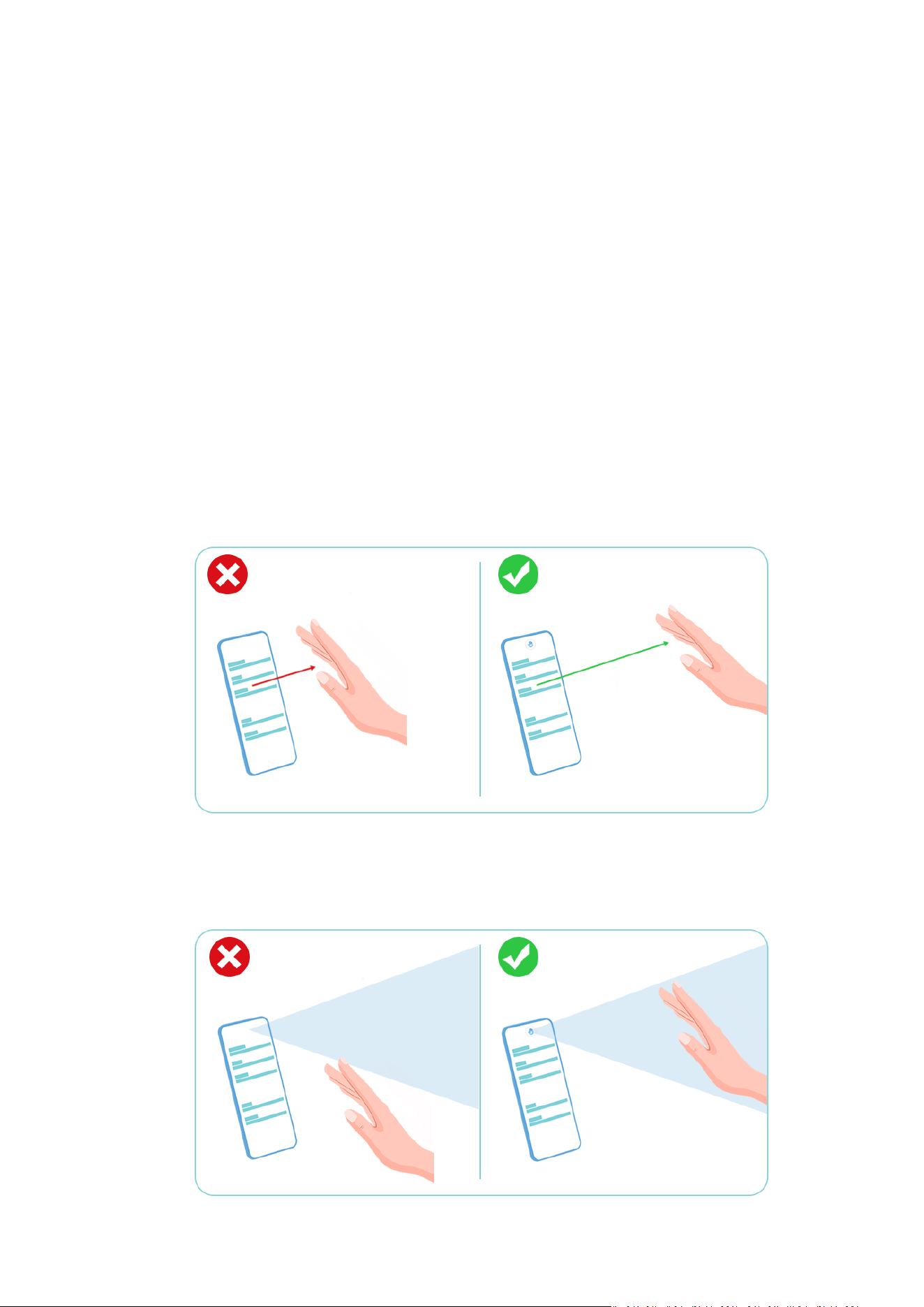
Operate Your Device with One Hand
You can switch to a mini screen view so you can use your device with one hand more easily.
1 Go to Settings > Accessibility features > One-Handed mode, and enable One-Handed
mode.
2 Access One-Handed mode using one of the following methods, depending on the
navigation mode you are using on your device.
• If you're using Gestures, swipe up diagonally from one of the bottom corners and
hold.
• If you're using Three-key navigation, swipe left or right across the navigation bar.
3 Touch the blank area to exit.
One-Handed mode will not work if Gesture magnication is enabled on your device.
What to Do If Air Gestures Do Not Work
1 Make sure that your hand is placed about half an arm's length away from the screen.
2 Place your hand in front of the upper part of the screen in order for the sensor on the top
of the screen to detect it.
Settings
165
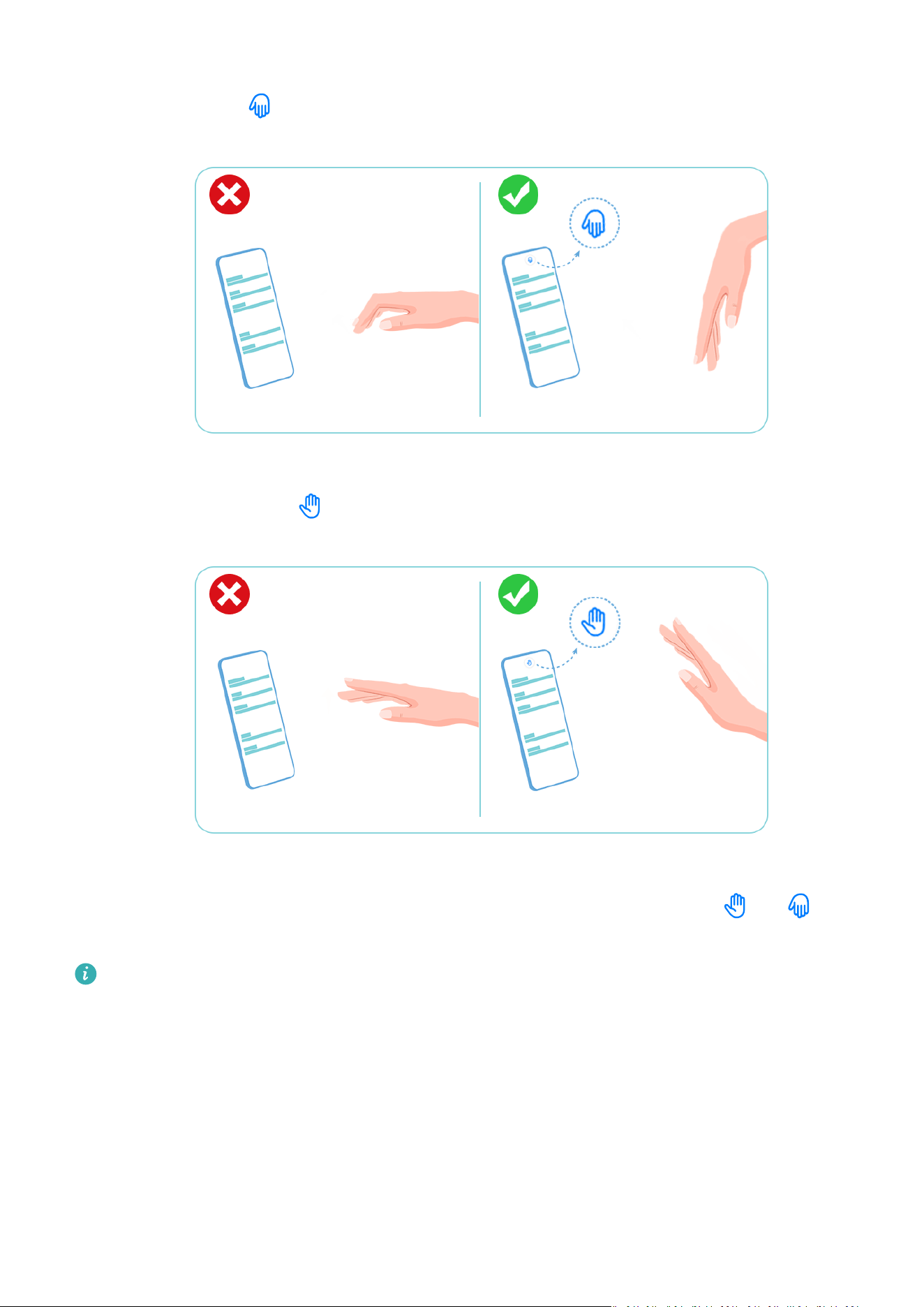
3 To scroll up, place the back of your hand in front of the screen with your ngers pointing
downwards until
appears. Then gently wave your hand upwards.
4 To scroll down, place the palm of your hand in front of the screen with your ngers
pointing upwards until appears. Then gently wave your hand downwards.
5 For the screen to scroll properly, make sure that you wave your hand up or down slowly
and do not move your hand too far away from the phone. Each time the or icon
appears, your device will only respond to your hand waving or grabbing gesture once.
This feature may vary by device.
What to Do If Grabshot Does Not Work
1 Make sure that your hand is placed about half an arm's length away from the screen.
Settings
166
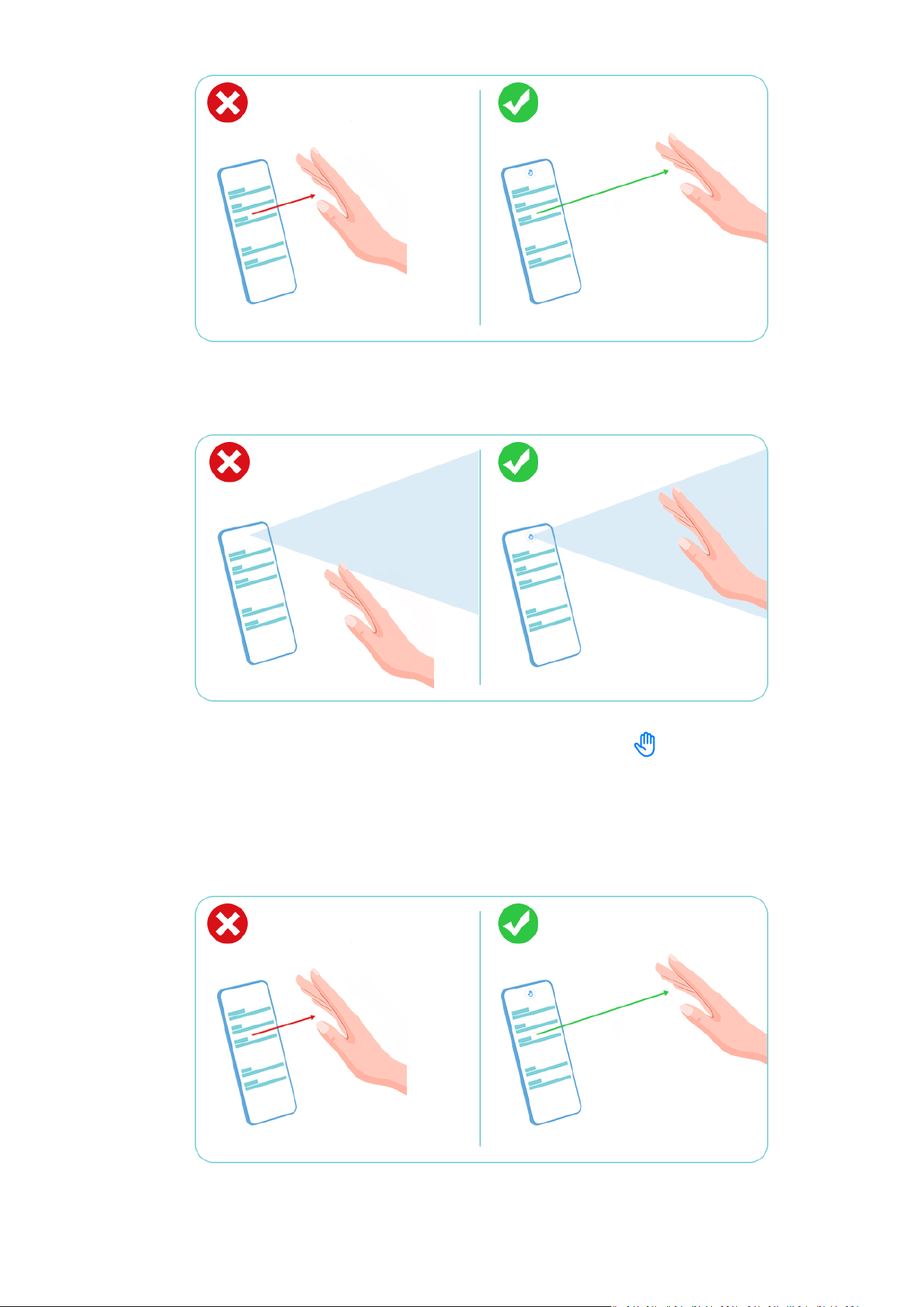
2 Make sure that your hand is right in front of the screen.
3 Your device will respond when you make a st only once after is displayed.
What to Do If Air Press Does Not Work
1 When triggering Air press, keep your palm about 30 cm (12 inches) away from the screen.
2 Make sure that your hand is right in front of the screen.
Settings
167
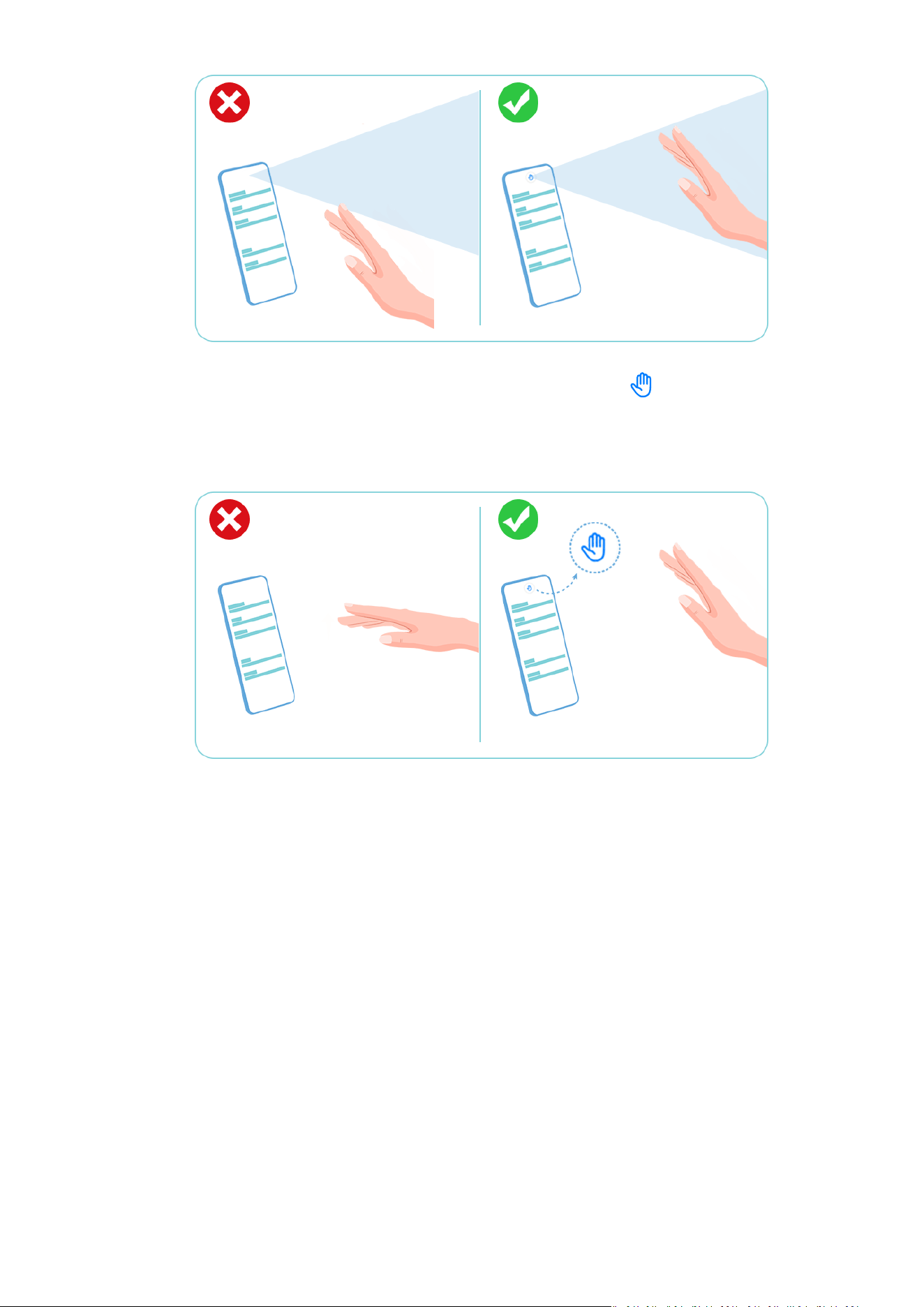
3 Make sure to hold your open palm in front of the screen until appears at the top of
the screen. Then move your palm closer until it is about 5 cm (2 inches) away from the
screen.
4 Make sure to move your hand towards the upper part of the screen.
Protect Your Device with a Flip Cover
For best results, you are advised to use a standard Huawei
ip cover.
Enable Smart Cover Mode
Go to Settings > Accessibility features > Smart Cover, and enable Smart Cover. If the ip
cover comes with a display window, enable Use display window as well.
Open or Close the Flip Cover
• Flipping open the cover will wake your device and display the lock screen (or Magazine
unlock screen).
• If a lock screen password has been set, closing the ip cover of your device will lock the
screen if it is on standby.
• When a ip cover with a display window is closed, you can check the date, time, weather,
and more in the window.
Settings
168

Enable or Disable Mistouch Prevention
Enable Mistouch prevention to prevent unintended operations caused by accidental touches
on the screen, such as when your device is placed in your pocket or backpack.
Go to Settings > Accessibility features, and enable or disable Mistouch prevention as
needed.
Use Your Device While Wearing Gloves
Your device can respond to your touches even when you are wearing gloves.
Go to Settings > Accessibility features, and enable Gloves mode.
To ensure a higher success rate, apply adequate force when touching or swiping on the
screen.
Set Scheduled Power On/O
Use the Scheduled power on/o feature to power your device on and o at set times, to
save power and prevent interruptions while resting.
1 Go to Settings > Accessibility features > Scheduled power
on/o, and enable
Scheduled power on/o.
2 Set the power on and o times, as well as the repeat cycle. Your device will power on and
o automatically at the specied times.
To stop using this feature, disable Scheduled power on/o.
Users & Accounts
Add a User or Guest Account
1 Go to Settings > Users & accounts > Users, touch Add user or Add guest, then follow
the onscreen instructions to add an account.
2 Touch Switch to switch to the user or guest account.
Congure the settings for the new
account as prompted.
3 Install apps as needed. Note that if a newer version of an app has been installed by
another user, the app installation will fail.
A maximum of three user and one guest accounts can be added.
Authorise a User or Guest Account to Make Calls and Send Messages
You can set whether to allow a user or guest account to make calls, send SMS messages, and
more.
• After accessing your device as the owner, go to Settings > Users & accounts > Users.
• Touch the related account, and select the permissions you want to authorise.
Settings
169

Switch Between the Owner, User, and Guest
You can switch to a dierent account using either of the following methods:
• Swipe down from the status bar to open the notication panel, touch , then touch the
prole picture of the account you wish to switch to.
• Go to Settings > Users & accounts > Users, and touch the name of the account you wish
to switch to.
Delete a User or Guest Account
Deleting a user or guest account will delete all its related data. Please exercise caution.
After accessing your device as the owner, use either of the following methods to delete a user
or guest account:
• Go to Settings > Users & accounts > Users, touch the name of the account you wish to
delete, then follow the onscreen instructions to delete it.
• Swipe down from the status bar to open the notication panel, touch > More settings,
touch the name of the account you wish to delete, then follow the onscreen instructions to
delete it.
System & Updates
Change the System Language and Region
1 Go to Settings > System & updates > Language & input > Language and region, then
select the language you want to use.
2 If the language is not listed, touch Add language, then locate and touch it to add it to
the list.
3 Touch Region to select a country/region, so the display content will adapt to the local
culture and habits of the country/region you have selected.
Use Another Input Method
You can download a third-party input method and set it as the default input method.
1 Download the input method from an
ocial app market.
2 Follow the onscreen instructions to set it as the default input method, or go to Settings >
System & updates > Language & input > Default keyboard and select the input
method.
Set the System Date and Time
Your device is able to sync to the local date, time, and time zone over a mobile network. You
can also manually set the date, time, and time zone for your device.
Settings
170

Go to Settings > System & updates > Date & time, then set the options according to your
requirements.
Set the Date and Time Automatically or Manually
• Enable Set automatically, and your device will sync to the local date and time over a
mobile network.
• To manually set the date and time, disable Set automatically.
Change the Time Zone
• Enable Set automatically, and your device will sync to the local time zone over a mobile
network.
• To manually set the time zone, disable Set automatically.
Change the Time Format
• Enable 24-hour time and your device will display time in the 24-hour format.
• Disable 24-hour time and your device will display time in the 12-hour format.
Use Phone Clone to Move Data to Your New Device
Phone Clone lets you quickly and seamlessly move all the basic data (including contacts,
calendar, images, and videos) from your old device to your new device.
Migrate Data from an Android Device
1 On your new device, open the Phone Clone app. Alternatively, go to Settings > System &
updates > Phone Clone, touch This is the new device, then touch Huawei or Other
Android.
2 Follow the onscreen instructions to download and install Phone Clone on your old device.
3 On your old device, open the Phone Clone app and touch This is the old device. Follow
the onscreen instructions to connect your old device with your new device by scanning a
code or connecting manually.
4 On your old device, select the data you want to clone, then touch Transfer to start
cloning.
Phone Clone is only available on devices running Android 7.0 or later.
Migrate Data from an iPhone or iPad
1 On your new device, open the Phone Clone app. Alternatively, go to Settings > System &
updates > Phone Clone, touch This is the new device, then touch iPhone/iPad.
2 Follow the onscreen instructions to download and install Phone Clone on your old device.
3 On your old device, open the Phone Clone app and touch This is the old device. Follow
the onscreen instructions to connect your old device with your new device by scanning a
code or connecting manually.
4 On your old device, select the data you want to clone, then follow the onscreen
instructions to complete the data cloning.
Settings
171

Phone Clone is only available on devices running iOS 8.0 or later.
Back Up with an External Storage Device
Back Up with a Memory Card
Insert a memory card in your device so you can conveniently back up your data to keep it
safe.
1 Go to Settings > System & updates > Backup & restore > Data backup > External
storage and touch Memory card.
2 Touch BACK UP, select the data you want to back up, then touch Back up.
3 Follow the onscreen instructions to set the password and password hint. The data will be
encrypted and backed up. The password will be required if you want to restore your data
backup.
To reset the password, go to the Memory card backup screen, then > Reset
password.
The new password is only valid for backups created thereafter.
4 After the backup is complete, you can nd your data backup in the Huawei folder in Files
> Categories > Memory card.
You can go to the Memory card backup screen and enable Auto-backup. Your device will
then automatically back up your data every seven days when it is being charged, the screen
is turned o, and the battery level is at least 75%.
Restore Your Backup from a Memory Card
1 Go to Settings > System & updates > Backup & restore > Data backup > External
storage and touch Memory card.
2 Select the backup you want to restore from the RESTORE FROM BACKUP list.
3 Select the data you want to restore, touch Restore, and enter the password as prompted.
Back Up with a USB Storage Device
In case of
insucient storage space on your device, you can back up large les and any data
on a USB storage device, such as a USB ash drive or card reader.
1 Connect your device to a USB storage device via a USB OTG cable.
2 On the External storage screen of your device, touch USB storage.
3 Touch BACK UP, select the data you want to back up, then touch Back up.
4 Follow the onscreen instructions to set the password and password hint. The data will be
encrypted and backed up. The password will be required if you want to restore your data
backup.
To reset the password, go to the USB storage backup screen, then > Reset password.
The new password is only valid for backups created thereafter.
Settings
172

Restore Your Data from a USB Storage Device
1 Connect your device to a USB storage device via a USB OTG cable.
2 On the External storage screen of your device, touch USB storage.
3 Select the backup you want to restore from the RESTORE FROM BACKUP list.
4 Select the data you want to restore, touch Restore, and enter the password as prompted.
Back Up with a NAS Device
You can back up your important data on a network-attached storage (NAS) device, also
known as a private cloud storage server. The NAS device provides shared folders for data
backup.
1 On the External storage screen of your device, touch Shared folder.
2 On your device, scan for available NAS devices using your Wi-Fi network, then touch an
applicable one to access and add its shared folders.
3 Touch BACK UP, select the data you want to back up, then touch Back up.
4 Follow the onscreen instructions to set the password and password hint. The data will be
encrypted and backed up. The password will be required if you want to restore your data
backup.
To reset the password, go to the Shared folder backup screen, then
> Reset
password.
The new password is only valid for backups created thereafter.
Restore Your Data from an NAS Device
1 On the External storage screen of your device, touch Shared folder.
2 On your device, scan for available NAS devices using your Wi-Fi network, then touch an
applicable one to access and add its shared folders.
3 Select the backup you want to restore from the RESTORE FROM BACKUP list.
4 Select the data you want to restore, touch Restore, and enter the password as prompted.
Restore Your Device to Default Settings
Reset Network Settings
This operation will reset your Wi-Fi, mobile data network, and Bluetooth settings. It will not
change any other settings on your device or delete any data.
Go to Settings > System & updates > Reset, touch Reset network settings, then follow the
onscreen instructions to reset network settings.
Restore All Settings
This operation will reset all network settings, your lock screen password, and the home
screen layout. If your device supports
ngerprint or facial recognition, the enroled ngerprints
Settings
173

and facial data will be deleted as well. Other data or les will not be deleted from your
device. This operation does not restore the settings of Find Device, Users & accounts, Device
administrators, or app settings either.
Go to Settings > System & updates > Reset, touch Reset all settings, and follow the
onscreen instructions to complete the operation.
Restore Factory Settings
This operation will erase data on your device, including your accounts, app data and system
settings, installed apps, music, images, all les in the internal storage, security chip contents,
and locally-stored system, app, and personal data related to HUAWEI IDs. Make sure to back
up your data before restoring your device to its factory settings.
Go to Settings > System & updates > Reset > Reset phone, touch Reset phone, and follow
the onscreen instructions to restore factory settings.
Enable or Exit Simple Mode
Simple mode adopts a more concise layout for easy navigation, enlarges icons and fonts for
the home screen, and maximises the volume.
Enable Simple Mode
Go to Settings > System & updates > Simple mode and touch Enable.
Touch and hold any icon to drag it to the desired location or uninstall it if it is not a
mandatory app.
Exit Simple mode
Open Settings and touch Exit Simple mode.
Update Your Device System Online
When an update is available, your device will prompt you to download and install the update
package.
• Before updating, make sure your device is running an ocial system version.
Otherwise, the update may fail and your device may experience unknown issues.
• Back up your user data before the update.
• After an update, third-party apps that aren't compatible with the new system version
may become unavailable. In some cases, it may take some time for a compatible app
version to be released.
• During the update, do not power o or restart your device, remove the memory card,
or insert a memory card.
1 Go to Settings > System & updates, and touch Software update.
2 When an update is available, you can either manually download and install the update
package, or update your device automatically overnight.
Settings
174

• Download and install the update package: Go to New version > DOWNLOAD AND
INSTALL. To avoid data usage, connect your device to a Wi-Fi network when
downloading the update package.
Your device will automatically restart once the update is complete.
• Update overnight: Touch , and enable Auto-download over Wi-Fi and Update
overnight.
Your device will automatically update and restart between 02:00 – 04:00.
To ensure a successful overnight update, make sure that your device is powered on, the
screen is locked, there are no alarms set for this period of time, and the battery level
remains higher than 35%. Connect your device to a charger if necessary.
To disable automatic updates, touch on the Software update screen, then disable Auto-
download over Wi-Fi.
About Phone
Legal Notice
Copyright © Huawei 2020. All rights reserved.
Statement on Water Resistance
The device was tested under controlled laboratory conditions and is splash, water, and dust
resistant with a rating of IP68 under IEC 60529. Splash, water, and dust resistance are not
permanent conditions, and may decrease as a result of normal wear and tear. Do not charge
this device in a humid environment. For details about this feature, please visit https://
consumer.huawei.com/en/support/.
Conditions for IP68 resistance:
• Depth: Up to 1.5 m (4.9 ft.) of static water
• Duration: 30 minutes
• Temperature
dierence between the water and the device: no greater than 5°C
Settings
175

This guide is for reference only. The actual product, including but not limited
to the color, size, and screen layout, may vary. All statements, information,
and recommendations in this guide do not constitute a warranty of any kind,
express or implied.
Please visit https://consumer.huawei.com/en/support/hotline for recently
updated hotline and email address in your country or region.
Model:
NOH-NX9
EMUI 11.0_01